AOPEN 21E1Y - Monitor ACER - Free user manual and instructions
Find the device manual for free AOPEN 21E1Y ACER in PDF.


User questions about AOPEN 21E1Y ACER
0 question about this device. Answer the ones you know or ask your own.
Ask a new question about this device
Download the instructions for your Monitor in PDF format for free! Find your manual AOPEN 21E1Y - ACER and take your electronic device back in hand. On this page are published all the documents necessary for the use of your device. AOPEN 21E1Y by ACER.
USER MANUAL AOPEN 21E1Y ACER
Copyright © 2021. AOPEN Smartview Incorporated.
All Rights Reserved.
AOPEN LCD Monitor User's Guide
Original Issue: 03/2021
Changes may be made periodically to the information in this publication without obligation to notify any person of such revisions or changes. Such changes will be incorporated in new editions of this manual or supplementary documents and publications. This company makes no representations or warranties, either expressed or implied, with respect to the contents hereof and specifically disclaims the implied warranties of merchantability or fitness for a particular purpose.
Record the model number, serial number, purchase date and place of purchase information in the space provided below. The serial number and model number are recorded on the label affixed to your computer. All correspondence concerning your unit should include the serial number, model number and purchase information.
No part of this publication may be reproduced, stored in a retrieval system, or transmitted, in any form or by any means, electronically, mechanically, by photocopy, recording or otherwise, without the prior written permission of AOPEN Smartview Incorporated.
AOPEN LCD Monitor User's Guide
Model number: ____
Serial number: ____
Date of purchase: ____
Place of purchase: ____
AOPEN and the AOPEN logo are registered trademarks of AOPEN Smartview Incorporated. Other companies' product names or trademarks are used herein for identification purposes only and belong to their respective companies.
Special notes on LCD monitors
The following are normal with the LCD monitor and do not indicate a problem.
- Due to the nature of the fluorescent light, the screen may flicker during initial use. Turn off the power switch and then turn it on again to make sure the flicker disappears.
- You may find slightly uneven brightness on the screen depending on the desktop pattern you use.
- The LCD screen has 99.99% or more effective pixels. It may include blemishes of 0.01% or less such as a missing pixel or a pixel lit all the time.
- Due to the nature of the LCD screen, an afterimage of the previous screen may remain after switching the image, when the same image is displayed for hours. In this case, the screen is recovered slowly by changing the image or turning off the power switch for a few hours.
Information for Your Safety and Comfort
Safety instructions
Read these instructions carefully. Keep this document for future reference. Follow all warnings and instructions marked on the product.
Cleaning your monitor
Please carefully follow these guidelines when cleaning the monitor:
• Always unplug the monitor before cleaning.
- Use a soft cloth to wipe the screen and cabinet front and sides.
Connecting/disconnecting the device
Observe the following guidelines when connecting and disconnecting power from the LCD monitor:
• Make sure the monitor is attached to its base before connecting the power cord to the AC power outlet.
- Make sure both the LCD monitor and the computer are turned off before connecting any cable or unplugging the power cord.
- If the system has multiple sources of power, disconnect power from the system by unplugging all power cords from the power supplies.
Accessibility
Be sure that the power outlet you plug the power cord into is easily accessible and located as close to the equipment operator as possible. When you need to disconnect power from the equipment, be sure to unplug the power cord from the electrical outlet.
Safe listening
To protect your hearing, follow these instructions.
- Gradually increase the volume until you can hear it clearly and comfortably and without distortion.
• After setting the volume level, do not increase it after your ears have adjusted. - Limit the amount of time listening to music at high volume.
- Avoid turning up the volume to block out noisy surroundings.
- Turn the volume down if you can't hear people speaking near you.
Warnings
- Do not use this product near water.
- Do not place this product on an unstable cart, stand or table. If the product falls, it could be seriously damaged.
- Slots and openings are provided for ventilation to ensure reliable operation of the product and to protect it from overheating. These openings must not be blocked or covered. The openings should never be blocked by placing the product on a bed, sofa, rug or other similar surface. This product should never be placed near or over a radiator or heat register, or in a built-in installation unless proper ventilation is provided.
- Never push objects of any kind into this product through cabinet slots as they may touch dangerous voltage points or short-out parts that could result in a fire or electric shock. Never spill liquid of any kind onto or into the product.
- To avoid damage of internal components and to prevent battery leakage, do not place the product on a vibrating surface.
- Never use it under sporting, exercising, or any vibrating environment which will probably cause unexpected short current or damage internal devices.
Using electrical power
- This product should be operated from the type of power indicated on the marking label. If you are not sure of the type of power available, consult your dealer or local power company.
- Do not allow anything to rest on the power cord. Do not locate this product wherepeople will walk on the cord.
- If an extension cord is used with this product, make sure that the total ampere rating of the equipment plugged into the extension cord does not exceed the extension cord ampere rating. Also, make sure that the total rating of all products plugged into the wall outlet does not exceed the fuse rating.
- Do not overload a power outlet, strip or receptacle by plugging in too many devices. The overall system load must not exceed 80% of the branch circuit rating. If power strips are used, the load should not exceed 80% of the power strip's input rating.
- This product's power cord is equipped with a three-wire grounded plug. The plug onlyfits in a grounded power outlet. Make sure the power outlet is properly groundedbefore inserting the power cord plug. Do not insert the plug into a non-groundedpower outlet. Contact your electrician for details.

Warning! The grounding pin is a safety feature. Using a power outlet that is not properly grounded may result in electric shock and/or injury.

Note: The grounding pin also provides good protection from unexpected noise produced by other nearby electrical devices that may interfere with the performance of this product.
Product servicing
Do not attempt to service this product yourself, as opening or removing covers may expose you to dangerous voltage points or other risks. Refer all servicing to qualified service personnel.
Unplug this product from the wall outlet and refer servicing to qualified service personnel when:
- the power cord or plug is damaged, cut or frayed
- liquid was spilled into the product
• the product was exposed to rain or water - the product has been dropped or the case has been damaged
- the product exhibits a distinct change in performance, indicating a need for service
• the product does not operate normally after following the operating instructions

Note: Adjust only those controls that are covered by the operating instructions, since improper adjustment of other controls may result in damage and will often require extensive work by a qualified technician to restore the product to normal condition.
Potentially explosive environments
Switch off your device in any area with a potentially explosive atmosphere and obey all signs and instructions. Potentially explosive atmospheres include areas where you would normally be advised to turn off your vehicle engine. Sparks in such areas could cause an explosion or fire resulting in bodily injury or even death. Switch off the device near gas pumps at service stations. Observe restrictions on the use of radio equipment in fuel depots, storage and distribution areas; chemical plants; or where blasting operations are in progress. Areas with a potentially explosive atmosphere are often, but not always, marked. They include below deck on boats, chemical transfer or storage facilities, vehicles using liquefied petroleum gas (such as propane or butane), and areas where the air contains chemicals or particles such as grain, dust or metal powders.
Additional safety information
Your device and its enhancements may contain small parts. Keep them out of the reach of small children.
IT Equipment Recycling Information
AOPEN is strongly committed to environmental protection and views recycling, in the form of salvaging and disposal of used equipment, as one of the company's top priorities in minimizing the burden placed on the environment.
We at AOPEN are very conscious of the environmental effects of our business and strive to identify and provide the best working procedures to reduce the environmental impact of our products.

This symbol on the product or on its packaging indicates that this product must not be disposed of with your other household waste. Instead, it is your responsibility to dispose of your waste equipment by handing it over it a designated collection point for the recycling of waste electrical and electronic equipment. The separate collection and recycling of your waste equipment at the time of disposal will help to conserve natural resources and ensure that it is recycled in a manner that protects human health and the environment. For more information about where you can drop off your waste equipment for recycling, please contact your local city office, your household waste disposal service or the shop where you purchased the product.
AOPEN monitor is purposed for video and visual display of information obtained from electronic devices.
LCD pixel statement
The LCD unit is produced with high-precision manufacturing techniques. Nevertheless, some pixels may occasionally misfire or appear as black or red dots. This has no effect on the recorded image and does not constitute a malfunction.
This product has been shipped enabled for power management:
Activate display's Sleep mode within 15 minutes of userinactivity.
- Activate computer's Sleep mode within 30 minutes of user inactivity.
- Wake the computer from Sleep mode by pushing the power button.
Tips and information for comfortable use
Computer users may complain of eyestrain and headaches after prolonged use. Users are also at risk of physical injury after long hours of working in front of a computer. Long work periods, bad posture, poor work habits, stress, inadequate working conditions, personal health and other factors greatly increase the risk of physical injury.
Incorrect computer usage may lead to carpal tunnel syndrome, tendonitis, tenosynovitis or other musculoskeletal disorders. The following symptoms may appear in the hands, wrists, arms, shoulders, neck or back:
- numbness, or a burning or tingling sensation
- aching, soreness or tenderness
- pain, swelling or throbbing
- stiffness or tightness
• coldness or weakness
If you have these symptoms, or any other recurring or persistent discomfort and/or pain related to computer use, consult a physician immediately and inform your company's health and safety department.
The following section provides tips for more comfortable computer use.
Finding your comfort zone
Find your comfort zone by adjusting the viewing angle of the monitor, using a footrest, or raising your sitting height to achieve maximum comfort. Observe the following tips:
• refrain from staying too long in one fixed posture
- avoid slouching forward and/or leaning backward
- stand up and walk around regularly to remove the strain on your leg muscles
Taking care of your vision
Long viewing hours, wearing incorrect glasses or contact lenses, glare, excessive room lighting, poorly focused screens, very small typefaces and low-contrast displays could stress your eyes. The following sections provide suggestions on how to reduce eyestrain.
Eyes
• Rest your eyes frequently.
- Give your eyes regular breaks by looking away from the monitor and focusing on a distant point.
- Blink frequently to keep your eyes from drying out.
Display
- Keep your display clean.
- Keep your head at a higher level than the top edge of the display so your eyes point downward when looking at the middle of the display.
- Adjust the display brightness and/or contrast to a comfortable level for enhanced text readability and graphics clarity.
- Eliminate glare and reflections by:
- placing your display in such a way that the side faces the window or any light source
- minimizing room light by using drapes, shades or blinds
- using a task light
- changing the display's viewing angle
• using a glare-reduction filter
• using a display visor, such as a piece of cardboard extended from the display's top front edge
- Avoid adjusting your display to an awkward viewing angle.
- Avoid looking at bright light sources, such as open windows, for extended periods of time.
Developing good work habits
Develop the following work habits to make your computer use more relaxing and productive:
• Take short breaks regularly and often.
- Perform some stretching exercises.
- Breathe fresh air as often as possible.
• Exercise regularly and maintain a healthy body.
- In order to prevent damage to the monitor, do not lift the monitor by its base.
Never place a LCD Monitor in an unstable location. A LCD Monitor may fall, causing serious personal injury or death. Many injuries, particularly to children, can be avoided by taking simple precautions such as:
• Using cabinets or stands recommended by the manufacturer of the LCD Monitor.
- Only using furniture that can safely support the LCD Monitor.
- Ensuring the LCD Monitor is not overhanging the edge of the supporting furniture.
- Not placing the LCD Monitor on tall furniture (for example, cupboards or bookcases) without anchoring both the furniture and the LCD Monitor to a suitable support.
- Not placing the LCD Monitor on cloth or other materials that may be located between the LCD Monitor and supporting furniture.
• Educating children about the dangers of climbing on furniture to reach the LCD Monitor or its controls.
- If the existing LCD Monitor is going to be retained and relocated, the same considerations as above should be applied.
CE
Declaration of Conformity
We,
AOPEN Smartview Incorporated
8F, 88, Sec. 1, Xintai 5th Rd., Xizhi, New Taipei City 221, Taiwan, R.O.C
And,
Acer Italy s.r.l.
We, AOPEN Smartview Incorporated, hereby declare under our sole responsibility that the product described above is in conformity with the relevant Union harmonization legislations as below Directive and following harmonized standards and/or other relevant standards have been applied:
EMC Directive: 2014/30/EU
EN55032:2015+AC:2016 Class B
EN61000-3-2:2014 Class D
EN 55024:2010+A1:2015
LVD Directive: 2014/35/EU
EN62368-1:2014+A11:2017
RoHS Directive: 2011/65/EU
EN 50581:2012
ErP Directive: 2009/125/EC
(EU)2019/2021; EN 50564:2011
EN61000-3-3:2013
Year to begin affixing CE marking: 2021.
RuJaw
Mar. 15, 2021
Date
RU Jan / Manager
AOPEN Smartview Incorporated (Taipei, Taiwan)

Federal Communications Commission Declaration of Conformity
This device complies with Part 15 of the FCC Rules. Operation is subject to the following two conditions: (1) this device may not cause harmful interference, and (2) this device must accept any interference received, including interference that may cause undesired operation.
The following local Manufacturer / Importer is responsible for this declaration:
| Product: | LCD Monitor |
| Model Number: | 43XV1C |
| SKU Number: | 43XV1C xxxxxxxx("x" = 0~9, a ~ z, A ~ Z, or Blank) |
| Name of Responsible Party: | Acer America Corporation |
| 333 West San Carlos St., Suite 1500 | |
| Address of Responsible Party: | San Jose, CA 95110, U. S. A. |
| Contact Person: | Acer Representative |
| Phone No.: | 254-298-4000 |
| Fax No.: | 254-298-4147 |
Information for Your Safety and Comfort iii
Safety instructions iii
Special notes on LCD monitors iii
Cleaning your monitor iii
Accessibility iii
Safe listening iii
Warnings iv
Using electrical power iv
Product servicing iv
Potentially explosive environments v
Additional safety information v
IT Equipment Recycling Information v
Disposal instructions v
LCD pixel statement vi
Tips and information for comfortable use vi
Finding your comfort zone vi
Taking care of your vision vi
Developing good work habits vii
PACKAGE CONTENTS 1
Attaching the monitor to the base 2
Attaching the monitor on the wall 2
SCREEN POSITION ADJUSTMENT 3
CONNECTING THE POWER CORD 4
Connecting the adapter and AC Power cord 4
POWER SAVING 4
Display Data Channel (DDC) 5
20-Pin Color Display Signal Cable 5
19-Pin Color Display Signal Cable 6
STANDARD TIMING TABLE 7
Connecting Your Monitor to a Computer 8
External Controls 9
Using the Shortcut Menu 10
Main Menu 12
The Function page 12
TROUBLESHOOTING 20
HDMI/DP Mode (Optional) 20
PACKAGE CONTENTS
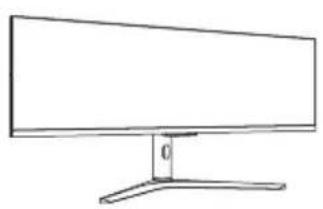
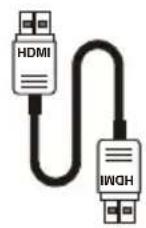
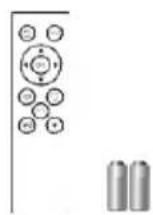
Please check the following items are present when you unpack the box, and save the packing materials in case you will need to ship or transport the monitor in future.
LCD Monitor AC Power Cord DP Cable (Optional)
natural_image
Line drawing of a flat-screen monitor with a stand and a vertical offset labeled '0' (no text or symbols on the device itself)
natural_image
Line drawing of a cord with two connectors and a plug, no text or symbols present
HDMI Cable (Optional) Remote Control Quick Start Guide

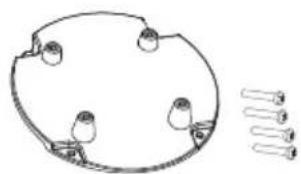
VESA Adapter Mounting Kit
natural_image
Simple line drawing of a circular mechanical component with four protruding ports and a separate row of four pins (no text or symbols)Attaching the monitor to the base
natural_image
Technical line drawing of a mechanical component with multiple slots and a rectangular housing (no text or symbols)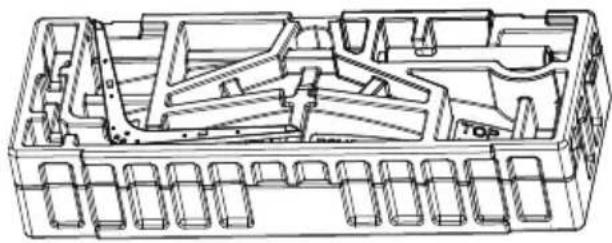
natural_image
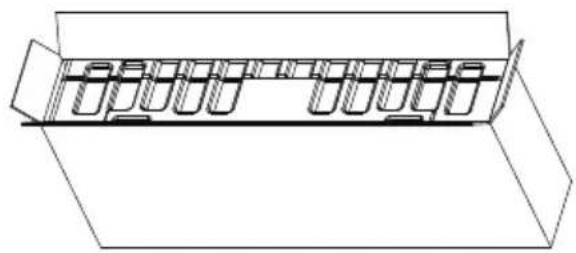
Technical line drawing of a mechanical assembly with internal components (no text or symbols)- Unpack the box. 2. Take the Styrofoam with display out of the box.

natural_image
Technical line drawing of a rectangular electronic device with internal components and mounting holes (no text or symbols)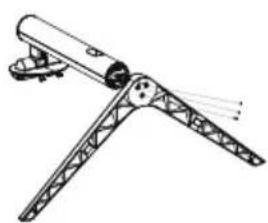
natural_image
Technical line drawing of a mechanical device with tripod supports and a cylindrical component (no text or symbols)- Remove the top Styrofoam. 4. Tighten the base and stand arm with three screws.
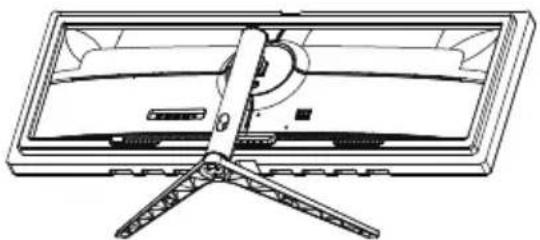
natural_image
Technical line drawing of a flat-screen TV or monitor with a stand (no text or symbols)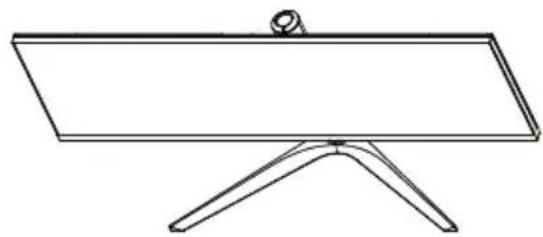
natural_image
Simple line drawing of a flatboard with a small protrusion on top (no text or symbols)-
Attach the base of step 4 to the quick release notch of the LCD monitor securely.
-
Flip the LCD monitor over to make it stand upright on the desk where it will be used. (Note: Do NOT press the screen to avoid damage any time.)
Attaching the monitor on the wall
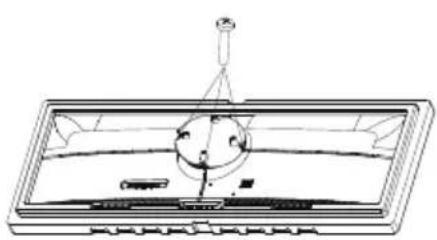
natural_image
Technical line drawing of a mechanical component with no visible text or symbols
text_image
Mount (Not included)-
Connect the VESA Adapter Mounting Kit with screws (M4x16mm 4pcs)
-
Connect the monitor onto the wall.
Remark:
- Please check monitor weight in advance to choose suitable load capacity of VESA arm stand.
SCREEN POSITION ADJUSTMENT
To optimize the viewing position, you can adjust the monitor tilt by using both of your hands to hold the edges of the monitor. The monitor can be adjusted to 15 degrees up or 5 degrees down.
Tilt

text_image
15° 5°
text_image
Diagram showing two computer monitors with hand gestures and checkmark symbols indicating selection or confirmation.Height Adjustment
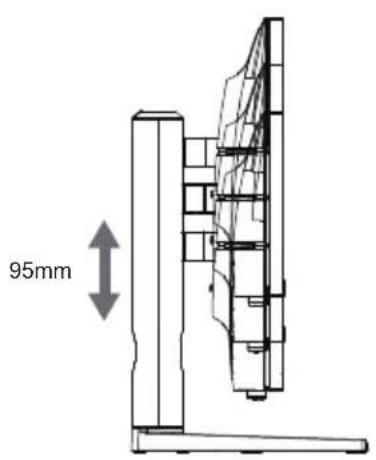
text_image
95mmSwivel

text_image
+/-15°Note: Please adjust the height of the monitor after pressing the top of the monitor.

Note: Do NOT press the screen with fingers.
Do NOT grasp the corners or the left and right sides of the monitor to adjust tilt.
- This monitor has a universal power supply that allows operation in either 100/120V AC or 220/240 V AC voltage area. No user-adjustment is required.
Connecting the adapter and AC Power cord
- Check first to make sure that the power cord you use is the correct type required for your area.
- The monitor has a universal power supply that allows operation in either 100/120 V AC or 220/240 V AC voltage area. No user-adjustment is required.
- Plug one end of the AC power cord to the Adapter, and plug the other end into an AC outlet.
- For units using 120 V AC:
- Use a UL-listed cord set, type SVT wire and plug rated 10 A/125 V.
- For units using 220/240 V AC:
- Use a cord set consisting of H05VV-F cord and plug rated 10 A/250 V. The cord set should have the appropriate safety approvals for the country in which the equipment will be installed.
POWER SAVING
The power saving states will be kept until a control signal has been detected or the keyboard or mouse is activated. The recovery time from Active OFF state back to ON state is around 3 seconds.
| State | LED |
| ON | Blue |
| Power Saving Blinking Blue | |
Light
Display Data Channel (DDC)
To make your installation easier, the monitor is able to Plug and Play with your system if your system also supports DDC protocol. The DDC (Display Data Channel) is a communication protocol through which the monitor automatically informs the host system about its capabilities, for example, supported resolutions and corresponding timing. The monitor supports DDC2B standard.
20-Pin Color Display Signal Cable

text_image
19 17 15 13 11 9 7 5 3 1 20 18 15 14 12 10 8 6 4 2PIN NO. DESCRIPTION PIN NO. DESCRIPTION
| 1 DP_3.3V 2 GND |
| 3 HPD 4 AUX_CH_N |
| 5 GND 6 AUX_CH_P |
| 7 GND 8 GND |
| 9 ML_LANE0_P 10 GND |
| 11 ML_LANE0-N 12 ML_LANE1-P |
| 13 GND 14 ML_LANE1-N |
| 15 ML_LANE2-P 16 GND |
| 17 ML_LANE2-N 18 ML_LANE3-P |
| 19 GND 20 ML_LANE3-N |
19-Pin Color Display Signal Cable

text_image
1917151311 9 7 5 3 1 1816141210 8 6 4 2PIN NO. DESCRIPTION PIN NO. DESCRIPTION
| 1 DATA2- 2 GND |
| 3 DATA2+ 4 DATA1- |
| 5 GND 6 DATA1+ |
| 7 DATA0- 8 GND |
| 9 DATA0+ 10 DCLK- |
| 11 GND 12 DCLK+ |
| 13 NC 14 NC |
| 15 HDMI_SCL 16 HDMI_SDA |
| 17 HDMI_DET 18 HDMI15V |
| 19 HDMI_HPD |
STANDARD TIMING TABLE
| Mode Resolution | ||
| VGA | 640 x 480 60 Hz | |
| 640 x 480 72 Hz | ||
| 640 x 480 75 Hz | ||
| MAC 640 x 480 | 66.66 Hz | |
| VESA 720 x 400 | 70 Hz | |
| SVGA | 800 x 600 56 Hz | |
| 800 x 600 60 Hz | ||
| 800 x 600 72 Hz | ||
| 800 x 600 75 Hz | ||
| XGA | 1024 x 768 60 Hz | |
| 1024 x 768 70 Hz | ||
| 1024 x 768 75 Hz | ||
| MAC | 1152 x 870 75Hz | |
| VESA | 1152 x 864 75 Hz | |
| 1280 x 960 60 Hz | ||
| SXGA | 1280 x1024 60 Hz | |
| 1280 x1024 75 Hz | ||
| VESA | 1280 x 720 60 Hz | |
| WXGA+ 1440 x 900 | 60 Hz | |
| WSXGA+ 1680 x 1050 | 60 Hz | |
| FHD | 1920 x 1080 60 Hz | |
| UXGA 1600 x 1200 | 60 Hz | |
| QHD | 2560 x 1440 60 Hz | |
| DFHD | 3840 x 1080 60 Hz | |
| 3840 x 1080 120 Hz | ||

Note: DP (1.2): 3840x1080 supports to 120Hz in normal mode, FreeSync Premium and HDR technology.
HDMI (2.0): 3840x1080 supports to 120Hz, FreeSync Premium and HDR technology.
HDMI (1.4): 3840x1080 supports to 60Hz.
Connecting Your Monitor to a Computer
- Make sure both the monitor and computer are powered-OFF.
- Connect DP Cable (Only DP-input model)
a. Make sure both the monitor and computer are powered-OFF.
b. Connect the DP cable to the computer.
- Connect HDMI Cable (Only HDMI-input model)
a. Make sure both the monitor and computer are powered-OFF.
b. Connect the HDMI cable to the computer.
- Plug the power cords of your computer and your monitor into a nearby electrical outlet.
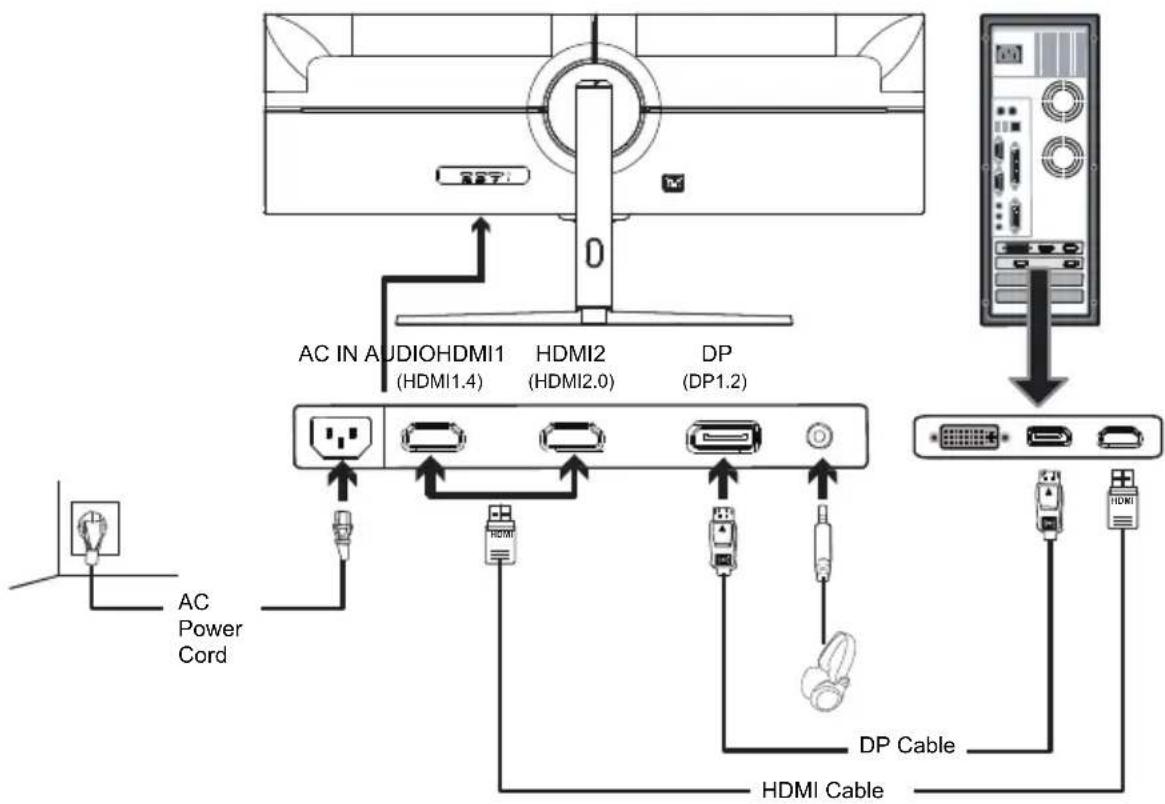
flowchart
System architecture diagram showing connections between a monitor, audio/video/demid displays, and a server via HDMI cable and power cord.
Note: 1. The audio output function depends on models. Please refer to User's Guide for more information.
- DP (1.2): 3840x1080 supports up to 120Hz in normal mode.
HDMI (2.0): 3840x1080, supports up to 120Hz.
HDMI (1.4): 3840x1080, supports up to 60Hz.
External Controls

text_image
1 2 3 4 5| No. Icon Item Description | ||
1 / In  | Itton / Exit | a. Press to trigger Mode control.b. When the OSD menu is enabled, press to exit the current menu and go back one level. |
2 / M  | Enter | a. Press the key to open the Brightness control.b. When the OSD menu is enabled, press to enter to next level. |
3 / Br  | es / ▲ | a. Press to toggle input sources.b. When the OSD menu is enabled, press to select or return to the previous menu. |
4 / O:  | nctions / - | a. Press to view the OSD.b. When the OSD menu is enabled, press to select or go to the next menu. |
| 5 POWER Power button | Turns the monitor on/off. Blue indicates power on.Blinking Blue indicates standby mode. | |
FreeSync Premium (HDMI2/DP Only):
It can allow a FreeSync Premium supported graphics source to dynamically adjust display refresh rate based on typical content frame rates for power efficient, virtually stutter free and low-latency display.
Using the Shortcut Menu
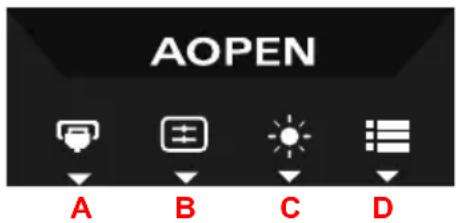
The following content is for general reference only. Actual product specifications may vary. The OSD (On Screen Display) can be used to adjust the settings of your LCD monitor. Press the key to open the OSD. You can use the OSD to adjust the picture quality, OSD position and general settings. For advanced settings, please refer to following page:
Main page
text_image
AOPEN A B C DA. Input
B. Hot Key1: Brightness, Volume, Gamma, Contrast, Blue Light, Over Drive, PIP/PBP, TVR
C. Hot Key2: Brightness, Volume, Gamma, Contrast, Blue Light, Over Drive, PIP/PBP, TVR
D. Main Menu
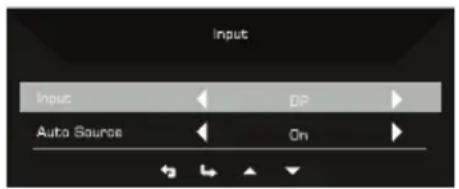
Input
Open the Input control and select DP or HDMI input source. When you are done, use go back one level.
text_image
Input Input DP Auto Source OnHot key1 (default: Mode)
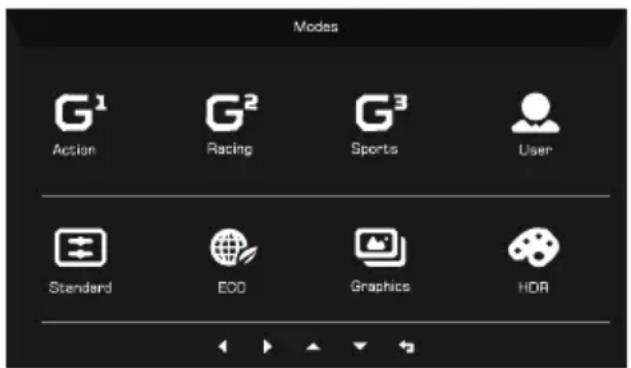
To choose scenario mode (G1, G2, G3) which user-defined profile to use or scenario mode (User, Standard, ECO, Graphics, HDR).
text_image
Modes G¹ Action G² Racing G³ Sports User Standard EOD Graphics HDRHot key2 (default: Brightness)
Open the Brightness control and select the brightness setting. When you are done, use go back one level.


text_image
Brightness 50Main Menu
The Function page
Open the Function page to select a menu function, and adjust the settings which you want using the arrows. You can also view your monitor's system information from this page. When you are done, use ♦ go back one level.
- Press the Main Menu key to open the OSD.
- Use direction key to the up or down to select Picture from the OSD. Then press Enter to go into the element you wish to adjust.
- Use direction key to the left or right to adjust the sliding scales.
Picture
text_image
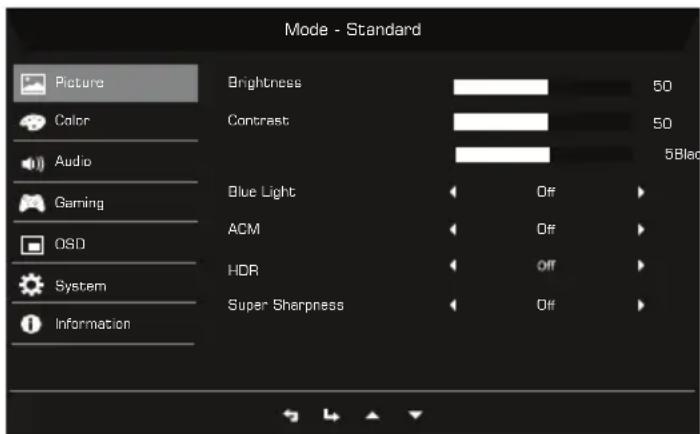
Mode - Standard Picture Color Audio Gaming OSD System Information Brightness 50 Contrast 50 Blue Light Off ACM Off HDR Off Super Sharpness Off- Press the MENU key to bring up the OSD.
- Using the button, select Picture from the OSD. Then navigate to the setting you wish to change.
- Use the keys to adjust the sliding scales.
- Open the Picture page to adjust Brightness, Contrast, Black boost, Blue Light, ACM, HDR and Super Sharpness.
- Brightness: Adjust the brightness from 0 to 100.

Note: Adjusts the balance between light and dark shades.
- Contrast: adjust the contrast from 0 to 100.

Note: Sets the degree of difference between light and dark areas.
- Black Boost: This boosts the amplitude of the dark color levels of the display—blacks will be less black. The higher the level, the higher the boost.

Note: If the image is too bright or has few shadowed areas, to adjust this setting will not cause any significant changes to the image.
- Blue Light: filter out blue light by adjusting different Blue Light showing ratio - 80%, 70%, 60%, 50%.

Note: Higher values allow more blue light through. For the best protection, select a lower value.
- ACM: Turn ACM on or off. The default is off.
- HDR: Can control (off / Auto) the default is off, set to auto will automatically detect and deal with HDR signal.

Note: 1. When HDR = Auto, the Modes will also be automatically set to "HDR".
- When HDR = Auto, some parameters: (ACM, Gamma, Contrast, Blue Light, Black Boost...) functions is gray out and disable, and if you change other adjustable parameters, the "Modes" will not jump to "User" Mode.
Color

text_image
Mode - Standard Picture Camma 2 2. Color Color Temp Warm Audio RGain 50 Gaming GGain 50 OSD B Gain 50 System R Bias 50 Information G Bias 50 B Bias 50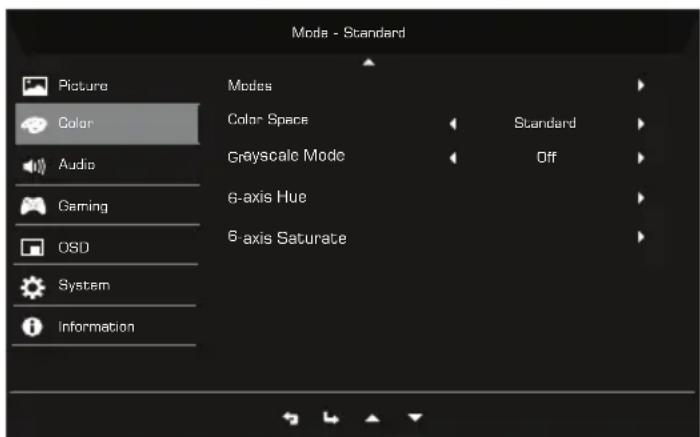
text_image
Mode - Standard Picture Color Audio Gaming OSD System Information Modes Color Space Grayscale Mode Standard Off 6-axis Hue 6-axis Saturate- Press the MENU key to open the OSD.
- Using the button, select Color from the OSD. Then navigate to the setting you wish to adjust.
-
Use the button to select the setting.
-
Gamma mode allows you to adjust the luminance tone. The default value is 2.2 (standard value for Windows).
- Color temperature: Default is warm. You can choose Normal, User, Bluelight, Cool and Warm.
- Modes: Select your preferred mode from Action, Racing, Sports, User, Standard, ECO, Graphics and HDR.
- Color Space: You can choose Standard, SMPTE-C, DCI, EBU, HDR, Rec.709 or sRGB.

Note: 1. If Color Space is "HDR", then Modes is set to "HDR" automatically. 2. If Color Space not "HDR", then Modes is set to "Standard".
- Grayscale Mode: Turn grayscale mode On or Off. The default is off.
- 6-axis Hue: Adjust the red, green, blue, yellow, magenta and cyan hue.
- 6-axis Saturate: Adjust the red, green, blue, yellow, magenta and cyan saturation.
Audio

text_image
Mode - Standard Picture Volume 50 Color Mute Off Audio Gaming OSD System Information- Press the MENU key to open the OSD.
- Using the button, select Audio from the OSD. Then navigate to the setting you wish to adjust.
- Use the button to select the setting.
- Volume: Adjusts the volume.
- Mute: Select On or Off.
Gaming

text_image
Mode - Standard Picture Over Drive Normal Color FreeSync Premium On Audio TVR Off Gaming OffRefresh Rate Num DSO AimPoint Off System Information- Press the MENU key to open the OSD.
- Using the button, select Gaming from the OSD. Then navigate to the setting you wish to adjust.
- Use the button to select the setting.
- Over Drive: Select Off, Normal, or Extreme.
- FreeSync Premium: Default is On, can choose Off.

Note: 1. If FreeSync Premium is "On", then the Over Drive selection is set to "Normal" automatically.
- If FreeSync Premium is "OFF", then the user can set Over Drive to either one of the three settings including: (a) Extreme (b) Normal (c) Off.
- DP and HDMI2 support "FreeSync Premium".
- If FreeSync Premium is set to "On", please note that the screen might flicker during use.
-
The following situations may happen when playing games with FreeSync Premium enabled:
-
Depending on the type of graphic cards, the game settings, and the video you are playing, a flickering screen may occur. Please try to set current FreeSync Premium mode to "Off", or visit the official AMD website to update the graphic card's driver.
- When using FreeSync Premium, the screen may flicker due to different output frequencies of the graphics card.
-
When FreeSync Premium is set to "On", changing the resolution may result in screen-tearing. It is recommended to set FreeSync Premium to "Off" and then change the resolution.
-
TVR: To choose whether to support dynamic picture more clean control, default is Off.

Note: 1. It is not support TVR when HDR set to "On" or "Auto".
- TVR function does not affect the (Logo, Aim Point, Message and Input Icon) brightness.
- When turn on FreeSync Premium, will set TVR to "Off" automatically.
- When to adjust Brightness, Blue Light and ACM, will set TVR to "Off" automatically.
- When detect input timing lower than 75Hz, will set TVR to "Off" automatically and grey out to disable.
-
Due to the IC control dynamic picture to be clear when switch on TVR function, the overall brightness will become dark, and the brightness of "Extreme" will be darker than "Normal".
-
Refresh Rate Num: Display the panel's current refresh rate on the screen.

Note: If FreeSync Premium set "On" you can see the V Frequency to changes in the OSD.
- Aim Point: Show an Aim point on the screen for shooting games.

Note: Aim Point is not supported in PBP mode.
OSD
text_image
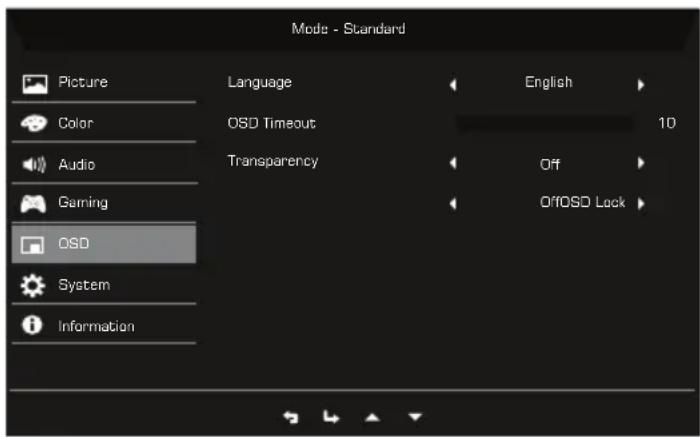
Mode - Standard Picture Color Audio Gaming OSD System Information Language OSD Timeout Transparency English 10 Off OffOSD Lock- Press the MENU key to open the OSD.
- Using the button, select System from the OSD. Then navigate to the setting you wish to adjust.
- Use the button to select the setting.
- Language: Set the OSD menu language.
- OSD Timeout: Adjust the delay before turning the off the OSD menu.
-
Transparency: Select the transparency when using gaming mode. The transparency can be 20%, 40%, 60%, 80%, or Off.
-
OSD Lock: OSD Lock function is used to prevent OSD button from being pressed accidentally.

Note: 1. OSD Locked:
Set the OSD Lock to "On" from the OSD and press "Enter".
The "OSD Locked" message will appear in the middle of the screen, and LED lights will indicate as blinking blue.
When pressing any key, "OSD Locked" message will be prompted.
2. OSD Unlocked:
Press the second OSD key continuously for 3 seconds to unlock OSD. The "OSD Unlocked" message will appear in the middle of the screen, and LED lights will turn into blue.
System
text_image
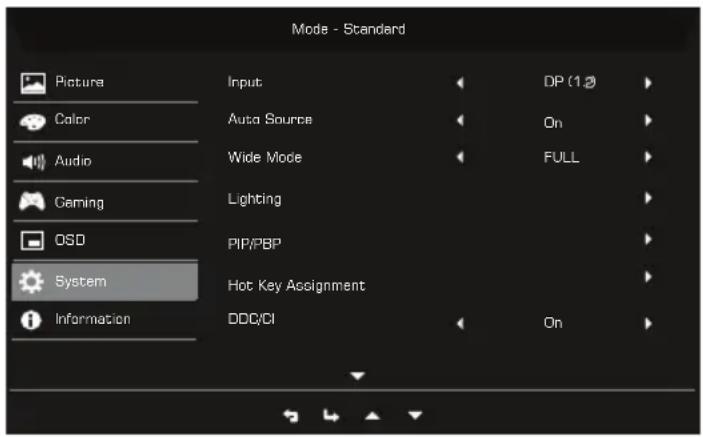
Mode - Standard Picture Color Audio Gaming OSD System Information Input Auto Source Wide Mode Lighting PIP/PBP Hot Key Assignment DDO/CI DP (1.2) On FULL On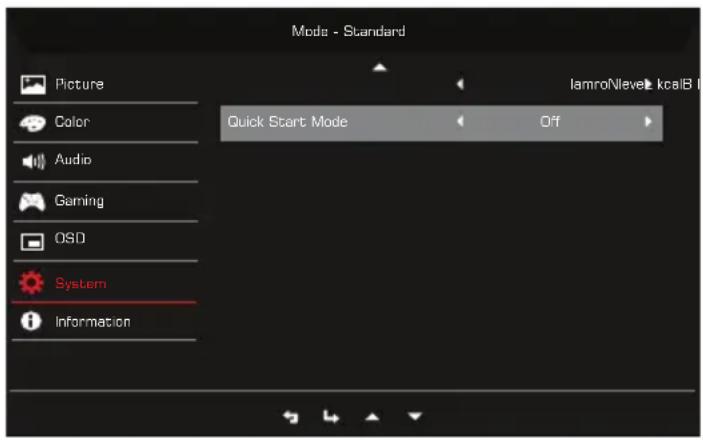
text_image
Mode - Standard Picture Color Audio Gaming OSD System Information Quick Start Mode Off lamroNlevel kcalB I- System menu can be used to select signal input sources and other important settings, including input types and PIP/PBP features.
- Press the MENU key to open the OSD.
- Using the button, select OSD from the OSD. Then navigate to the setting you wish to adjust.
- Use the button to select the setting.
-
Input: Select the source from DP or HDMI input source. The options are HDMI1 (1.4), HDMI2 (2.0), and DP (1.2).
-
Auto Source: Automatically searches for available input sources.
- Wide Mode: You can select which screen aspect you are using. The options are Aspect, 1:1, 21:9 and Full.
- Lighting: Choose a favorite from functions.
Lighting Switch: Lighting main switch, default is "On".
Lighting Style: 4 kinds of style choice: Static(Default), Flashing, Breathing, Marquee.
Lighting on in Sleep: Decide whether to light in power saving mode, the default is "off". Lighting Color: 7 kinds of lighting color: Red(Default), Green, Blue, White, Yellow, Purple, Cyan.
- PIP/PBP: The options for PIP/PBP Mode are Off, PIP Large, PIP Small, and PBP. You can also adjust the PIP Position, Sub Source, Source Swap, and Audio Source.

Note: PIP/PBP is not supported while FreeSync Premium is "On"
- Hot Key Assignment: Select the function of Hot Key 1 or Hot Key 2.
- DDC/CI: Allows the monitor settings to be set through the software on the PC.

Note: DDC/CI, short for Display Data Channel/Command Interface, which allows monitor controls to be sent via software.
- HDMI Black Level: You can select the level of blackness under HDMI source.
- Quick Start Mode: Select Off or On. The default is "Off". Turn on to speed up boot speed.
Product information
text_image
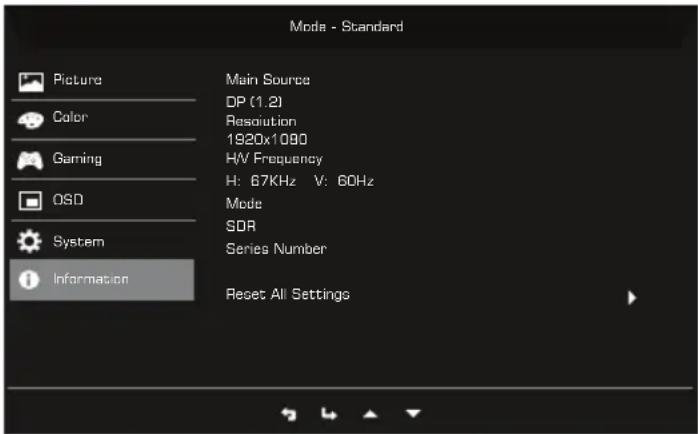
Mode - Standard Picture Color Gaming OSD System Information Main Source DP (1.2) Resolution 1920x1080 HW Frequency H: 67KHz V: 60Hz Mode SDR Series Number Reset All Settings- Press the MENU key to open the OSD.
- Using the keys, select Information to view the basic information for your monitor and current input.
- Reset All Settings: Reset all settings to the factory defaults.
Save Setting to...(User mode only)
text_image
Mode - User Picture Color Gaming OSD System Information Save Settings to...- Press the MENU key to open the OSD.
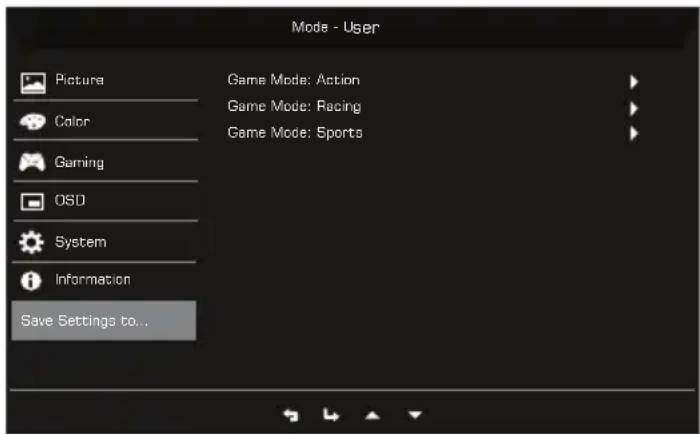
- Using the button, select "Save Setting to..." from the OSD. Then select the preferred mode.
- Save Setting to Game mode: There are three user-defined profiles available (Action, Racing and Sports). Save your customized settings to the Game mode in order to implement those settings automatically when you select it afterwards.
TROUBLESHOOTING
Before sending your LCD monitor for servicing, please check the troubleshooting list below to see if you can self-diagnose the problem.
HDMI/DP Mode (Optional)
| Problems Current Status Remedy | |
| No Picture Blue Using OSD, adjust brightness and contrast to maximum or reset to their default settings. | |
| Blinking Blue Check if signal cable is properly connected, which can be determined by plugging and unplugging the cable. Check if the PC is functioning properly or in the Hibernate mode. To wake the PC from Sleep mode, you can click the mouse or tap any key on the keyboard. | |
| LED OFF Check the power switch. Check if AC power cord is properly connected to the monitor. |

text_image
QR code image containing encoded data, no visible human-readable textProduct Information for EU Energy Label