WV-X4173 - Security Camera i-PRO - Free user manual and instructions
Find the device manual for free WV-X4173 i-PRO in PDF.


User questions about WV-X4173 i-PRO
0 question about this device. Answer the ones you know or ask your own.
Ask a new question about this device
Download the instructions for your Security Camera in PDF format for free! Find your manual WV-X4173 - i-PRO and take your electronic device back in hand. On this page are published all the documents necessary for the use of your device. WV-X4173 by i-PRO.
USER MANUAL WV-X4173 i-PRO
Operating Instructions
Network Camera
Model No. WV-S4151
WV-S4551L
WV-S4551LM
WV-X4172
WV-X4173
WV-X4573L
WV-X4573LM

natural_image
Technical line drawing of a circular mechanical component with a central hub and mounting holes (no text or symbols)WV-S4151

natural_image
Technical line drawing of a cylindrical mechanical component with mounting holes and internal features (no text or symbols)WV-S4551L
natural_image
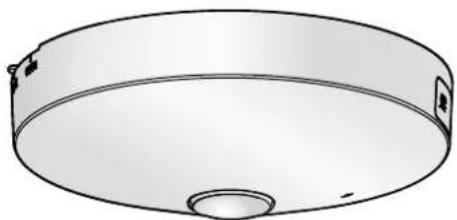
Simple line drawing of a circular object with a central hole and two small protrusions (no text or symbols)WV-X4173
Preface
About the user manuals
Product documentation is composed of the following documents.
- Installation Guide (accessory): Provides information about "Precautions", "Precautions for installation" and the installation method.
- Basic Information (this document): Provides information about “Precautions for use” and “Detail specifications”.
- Operating Instructions (in the following website): Explains how to perform the settings and how to operate this camera.
https://i-pro.com/global/en/surveillance/training-support/documentation-database-list
Note
- "
" used in this document should be used to search for information on our support website and will guide you to the right information. - The captured screens are used based on the guideline by Microsoft Corporation.
- Operations using Internet Explorer 11 is described in this document.
- Covered by one or more claims of the HEVC patents listed at patentlist.accessadvance.com.
- The default settings of some of the stream-related settings vary as follows depending on the language setting of the browser selected at the time of administrator registration.
| Setting items | Language of the browser | |
| Languages other than Japanese | Japanese | |
| Transmission priority VBR Frame rate | ||
| Image quality 3 Normal | ||
| Stream(1)– Max bit rate (per client) | WV-S4551L/WV-S4551LM/WV-S4151Default: 12288kbps *WV-X4573L/WV-X4573LMWV-X4173/WV-X4172Default: 16384kbps * | WV-S4551L/WV-S4551LM/WV-S4151Default: 6144kbps *WV-X4573L/WV-X4573LMWV-X4173/WV-X4172Default: 8192kbps * |
| Stream(2)– Max bit rate (per client) | WV-S4551L/WV-S4551LM/WV-S4151Default: 4096kbps *WV-X4573L/WV-X4573LMWV-X4173/WV-X4172Default: 3072kbps * | WV-S4551L/WV-S4151Default: 2048kbps *WV-X4573L/WV-X4573LMWV-X4173/WV-X4172Default: 1536kbps * |
About notations
The following notations are used when describing the functions limited for specified models. The functions without the notations are supported by all models.
| Notation Model Notation Model | |||
| S4151 | WV-S4151 | S4551 | WV-S4551L/WV-S4551LM |
| X4172 | WV-X4172 | X4173 | WV-X4173 |
| X4573 | WV-X4573L/ WV-X4573LM | ||
Abbreviations
The following abbreviations are used in these operating instructions.
Microsoft Windows 10 is described as Windows 10.
Microsoft Windows 8.1 is described as Windows 8.1.
Windows Internet Explorer 11 is described as Internet Explorer.
SDXC/SDHC/SD memory card is described as SD card or SD memory card.
Universal Plug and Play is described as UPnP ^TM or UPnP.
For administrator registration
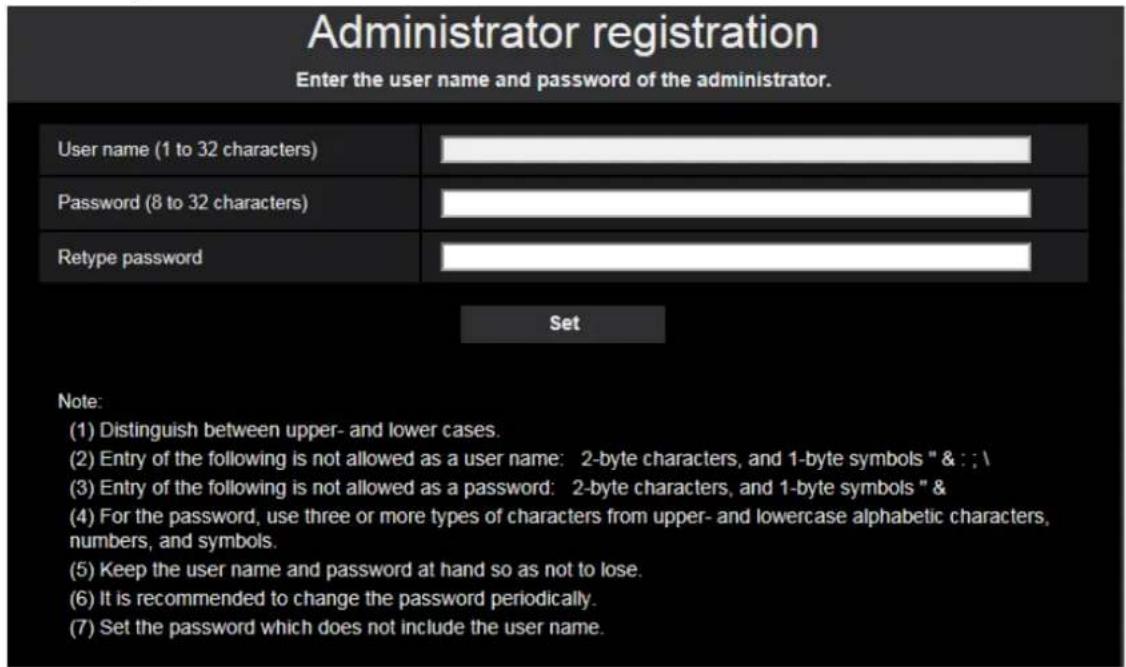
At the time of first access to the camera (or at the time of initialization), the registration screen will be displayed. Define the user name and the password for the administrator, and enter them correctly. Hereafter, they can be used for login.
text_image
Administrator registration Enter the user name and password of the administrator. User name (1 to 32 characters) Password (8 to 32 characters) Retype password Set Note: (1) Distinguish between upper- and lower cases. (2) Entry of the following is not allowed as a user name: 2-byte characters, and 1-byte symbols " & : : \ (3) Entry of the following is not allowed as a password: 2-byte characters, and 1-byte symbols " & (4) For the password, use three or more types of characters from upper- and lowercase alphabetic characters, numbers, and symbols. (5) Keep the user name and password at hand so as not to lose. (6) It is recommended to change the password periodically. (7) Set the password which does not include the user name.[User name (1 to 32 characters)]
Enter the user name of the administrator.
Available number of characters: 1 - 32 characters
Unavailable characters: 2-byte characters, and 1-byte symbols " & : ; \
[Password (8 to 32 characters)]/[Retype password]
Enter the administrator password.
Available number of characters: 8 - 32 characters
Unavailable characters: 2-byte characters, and 1-byte symbols " &
Note
- Distinguish between upper- and lower cases.
- For the password, use three or more types of characters from upper- and lowercase alphabetic characters, numeric characters, and symbols.
- Set the password which does not include the user name.
IMPORTANT
- If you forgot or do not know the password or user name, the camera must be initialized. Because all settings other than preset position settings are deleted when the camera is initialized, make sure to keep the information secure from third parties. Refer to "Parts and functions" section in the Installation Guide for more information about initializing the camera.
- It is recommended to change the password periodically.
- Do not use the password already used for other camera or device.
The registration completion screen will be displayed after registering a user name and password of the administrator. After 10 seconds, the camera will be reconnected automatically. Please click "here" if it is not displayed automatically.
When the camera is reconnected to, an authentication window is displayed. Enter the registered user name and password to start operation.
Registration of administrator is completed.
After 10 seconds, the camera will be reconnected automatically.
Please click here if it is not displayed automatically.
Viewer software
In order to display H.265 (or H.264) images, send/receive audio to/from the camera, and play images saved on the SD memory card, the "Network Camera View 4S" (ActiveX®) viewer software must be installed. Install
this Viewer Software directly from the camera ( page 23), or download the viewer software with the installer to a PC and install ( page 79).

text_image
Network Camera View 4S InstallShield Wizard License Agreement Please read the following license agreement carefully. END USER LICENSE AGREEMENT (EULA) IMPORTANT. Please carefully read this End User License Agreement (EULA) before downloading this software program (the "Software") provided by , a Japanese corporation. Before downloading, installing and using the Software on your PC, you need to accept the terms and conditions of this EULA by clicking on "I ACCEPT" button provided at the bottom of this EULA. If you do not agree to the terms and conditions of this EULA, you may not download, install or use this software. This EULA is a legal agreement between you and ○ I accept the terms in the license agreement ● I do not accept the terms in the license agreement InstallShield < Back Next > CancelIMPORTANT
- The default setting of "Automatic installation" is "On". Follow the instructions on page 254 when the message is displayed on the information bar of the browser.
- Depending on the software environment of your PC, it may take time for the message to be displayed on the information bar of the browser.
- If you display the "Live" page on a PC and click the [Viewer Software] button, the installation screen for the viewer software, which is required for viewing camera images, is displayed. Follow the on-screen instructions and install the software. When displayed JPEG images (still images), there is no need to install the viewer software.
- When the install wizard is displayed again even after completing the installation of the viewer software, restart the PC.
- The viewer software used on each PC should be licensed individually. The number of installations of the viewer software from the camera can be checked on the [Upgrade] tab of the "Maintenance" page (→page 234). For information about software licensing, refer to our website (https://i-pro.com/global/en/surveillance/training_support/support/technical_information
).
Table of Contents
1 Operations ......9
1.1 Monitor images on a PC 9
1.1.1 Monitor images from a single camera 9
1.1.2 About live image types 12
1.1.2.1 Type of images that can be displayed according to the image setting .....12
1.1.2.2 About image capture mode 13
1.1.2.3 Image types 15
1.1.2.4 About image types and available functions ....18
1.1.2.5 About available resolutions 20
1.1.3 About the "Live" page 23
1.1.4 Monitor images from multiple cameras ....30
1.2 Monitor images on a mobile terminal/tablet device ....33
1.2.1 Monitor images on a mobile terminal (including smartphones) 33
1.2.2 Monitor images on a tablet device 41
1.3 Record images on the SD memory card manually ....45
1.4 Action at an alarm occurrence 47
1.4.1 Alarm type 47
1.4.2 Action at an alarm occurrence 47
1.5 Display the log list ....49
1.6 Playback of images on the SD memory card ....53
1.6.1 Playback "JPEG(1)"/ "JPEG(2)" images saved to the SD memory card ....54
1.6.2 Playback "Stream(1)"/ "Stream(2)" images saved to the SD memory card ....57
2 Settings 60
2.1 About the network security ....60
2.1.1 Equipped security functions 60
2.2 Display the setup menu from a PC 61
2.2.1 How to display the setup menu 61
2.2.2 How to operate the setup menu 62
2.2.3 About the setup menu window 63
2.3 Use Easy Setup [Easy Setup] 65
2.3.1 Configure the Internet settings [Internet] 65
2.3.2 Configure an event action [Event action] 66
2.3.2.1 Configure the schedule/alarm (event function type setup menu) 68
2.3.2.2 Alarm: Configure the terminal S4551 S4151 X4573 X4172 and VMD (alarm setup menu) 69
2.3.2.3 Alarm: Configure the alarm recording image (Alarm function type setup menu) .....71
2.3.2.4 Alarm: Configure the details for recording conditions .....71
2.3.2.5 Alarm: Configure the output terminal S4551 S4151 X4573 X4172 73
2.3.2.6 Alarm: configure the mail notifications and mail server 73
2.3.2.7 Schedule: Configure the recording format (schedule function type setup menu) 75
2.3.2.8 Schedule: Set SD memory recording (video recording setup menu) 75
2.4 Configure the basic settings of the camera [Basic] 79
2.4.1 Configure the basic settings [Basic] 79
2.4.2 Configure the settings relating to the SD memory card [SD memory card] 87
2.4.3 Configure the settings relating to alteration detection [Alteration detection] .....95
2.4.4 How to configure alteration detection settings 97
2.4.4.1 Generation of the CRT key (encryption key) 98
2.4.4.2 Generation of CSR (Certificate Signing Request) 98
2.4.4.3 Installation of the certificate issued by CA 100
2.4.4.4 Configuration of alteration detection 101
2.4.5 Configure the directory of the PC that images will be downloaded to [Log]....102
2.5 Configure the settings relating to images and audio [Image/Audio] ....102
2.5.1 Configure the settings relating to the image capture mode [Image] 103
2.5.2 Configure the settings relating to JPEG images [Image] 104
2.5.3 Configure the settings relating to Stream [Image] 106
2.5.4 Configure the settings relating to the camera operations [Cam. Function] 112
2.5.5 Configure the settings relating to image adjust, back focus X4573 X4172 X4173, preset position, privacy zone and VIQS [Image/Position]....114
2.5.5.1 Configure the settings relating to image quality ("Image adjust" setup menu) .....115
2.5.5.2 Set mask areas 126
2.5.5.3 Adjusting back focus X4573 X4172 X4173 130
2.5.5.4 Configure the preset positions (Preset position setup menu)....132
2.5.5.5 Configure the preset positions (Initial position setup menu) 134
2.5.5.6 Configure the settings relating to the privacy zone ("Privacy zone" setup menu)....137
2.5.5.7 Configure the VIQS setting 139
2.5.5.8 Configure the VIQS area 142
2.5.6 Configure the settings relating to audio [Audio] S4551 S4151 X4573 X4172 144
2.6 Configure the multi-screen settings [Multi-screen]....148
2.7 Configure the alarm settings [Alarm] 150
2.7.1 Configure the settings relating to the alarm action [Alarm] 150
2.7.2 Configure the settings relating to the output terminal [Alarm] S4551 S4151 X4573 X4172 152
2.7.3 Change the AUX name [Alarm] S4551 S4151 X4573 X4172 153
2.7.4 Configure the settings relating to the camera action on alarm occurrence [Alarm] 154
2.7.4.1 Configure settings relating to alarm E-mail notifications 155
2.7.4.2 Configure settings relating to recording to an SD memory card when an alarm occurs ....157
2.7.4.3 Configure settings relating to TCP alarm notification when an alarm occurs .....158
2.7.4.4 Configure settings relating to HTTP alarm notification when an alarm occurs .....159
2.7.4.5 Configure settings relating to preset actions when an alarm occurs 159
2.7.4.6 Configure settings relating to SNMP transmissions of alarm images ....161
2.7.5 Configure the VMD settings [VMD area] 162
2.7.6 Set the VMD areas [VMD area] 165
2.7.7 Configuration of the settings relating to alarm notification [Notification] 167
2.7.7.1 Configure the settings relating to TCP alarm notification 168
2.7.7.2 Configure the settings relating to HTTP alarm notification ....170
2.8 Configure the settings relating to the authentication [User mng.] ....172
2.8.1 Configure the settings relating to the user authentication [User auth.] 172
2.8.2 Configure the settings relating to the host authentication [Host auth.] 175
2.8.3 Configure IEEE 802.1X [IEEE 802.1X]....177
2.8.4 Configure the data encryption settings [Data encryption] 180
2.9 Configuring the network settings [Network] 183
2.9.1 Configure the network settings [Network] 183
2.9.2 Configure advanced network settings [Advanced] 187
2.9.2.1 Configure the settings related to sending E-mails 188
2.9.2.2 Configure the settings relating to the NTP server 192
2.9.2.3 Configure the UPnP settings .....193
2.9.2.4 Configure the HTTPS settings 195
2.9.2.5 Configure the settings relating to DDNS 196
2.9.2.6 Configure the settings relating to SNMP 198
2.9.2.7 Configure the QoS settings 202
2.9.3 How to configure HTTPS settings 204
2.9.3.1 Select the certificate to use when accessing with HTTPS 205
2.9.3.2 Obtaining the root certificate 205
2.9.3.3 Configuration of HTTPS connections 211
2.9.3.4 Generation of the CRT key (SSL encryption key) 212
2.9.3.5 Generation of CSR (Certificate Signing Request) 213
2.9.3.6 Installation of the CA certificate 214
2.9.4 Access the camera using the HTTPS protocol (for pre-installed certificate) .....215
2.9.4.1 Configuration of the host file 215
2.9.5 Access the camera using the HTTPS protocol (for CA Certification) 220
2.9.6 How to configure the settings relating to DDNS 221
2.9.6.1 When using the "Viewnetcam.com" service 223
2.9.6.2 When using "Dynamic DNS Update" 225
2.9.6.3 When using "Dynamic DNS Update(DHCP)" 225
2.10 Configure the settings relating to the schedules [Schedule] 226
2.10.1 How to set the schedules 230
2.10.2 How to delete the set schedule 232
2.11 Maintenance of the camera [Maintenance] 234
2.11.1 Check the system log [System log] 234
2.11.2 Upgrade the firmware [Upgrade] 234
2.11.3 Check the status [Status] 236
2.11.4 Reset the settings/Reboot the camera [Default reset] 239
2.11.5 Settings data/backing up or restoring logs [Data] 240
2.12 Display our support website [Support] 241
3 Others 242
3.1 About the displayed system log ....242
3.2 Troubleshooting 246
3.3 Directory structure of SD memory card 256
1 Operations
1.1 Monitor images on a PC
The following are descriptions of how to monitor images from the camera on a PC.
1.1.1 Monitor images from a single camera
- Start up the browser.
- Enter the IP address designated using the "IP Setting Software" in the address box of the browser.
• Example when entering an IPv4 address: http://URL registered using IPv4 address http://192.168.0.10/
• Example when entering an IPv6 address: http://[URL registered using IPv6 address] http://[2001:db8::10]/

text_image
http://102.168.0.10/ Search... New tab File Edit View Favorites Tools Help

text_image
http://[2001udib:10] Search... New tab File Edit View Favorites Tools HelpIMPORTANT
- When the HTTP port number is changed from "80", enter "http://IP address of the camera + : (colon) + port number" in the address box of the browser. (Example: http://192.168.0.11:8080)
- When the PC is in a local network, configure the proxy server setting of the browser (under [Internet Options...] under [Tools] of the menu bar) to bypass the proxy server for the local address.
Note
- Refer to page 215 and page 220 for further information about the case in which “HTTPS” is selected for “HTTPS” - “Connection” on the [Advanced] tab of the “Network” page (→page 183).
- Press the [Enter] key on the keyboard.
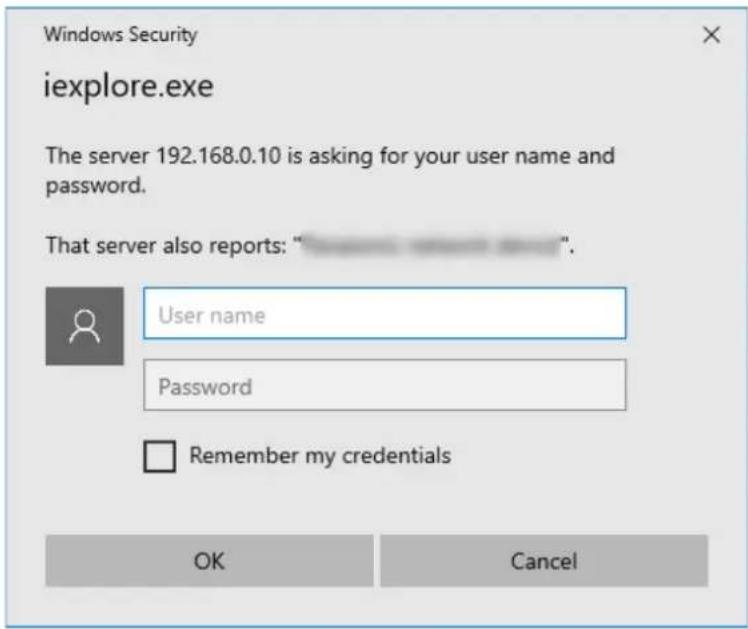
→ The window with the user name and password entry fields will be displayed.
text_image
Windows Security iexplore.exe The server 192.168.0.10 is asking for your user name and password. That server also reports: "****** User name Password Remember my credentials OK CancelNote
- When "Off" is selected for "User auth.", the authentication window will not be displayed before displaying live images for the user name and password entries.
- Click the [OK] button after entering the user name and the password.
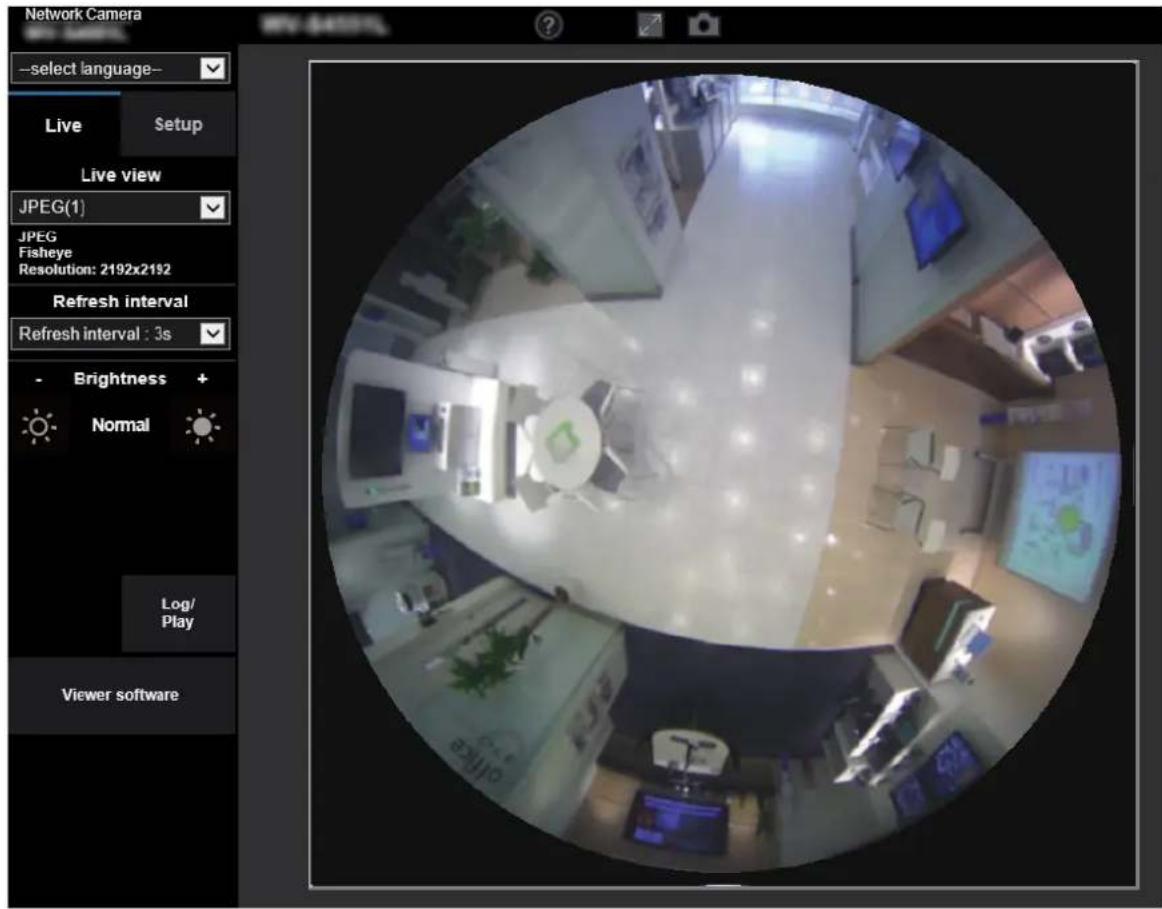
→ The "Live" page will be displayed. Refer to page 23 for further information about the "Live" page.
text_image
Network Camera --select language-- Live Setup Live view JPEG(1) JPEG Fisheye Resolution: 2192x2192 Refresh interval Refresh interval : 3s - Brightness + Normal Log/ Play Viewer softwareIMPORTANT
- It is recommended to change the password periodically.
- When displaying multiple H.265 (or H.264) images on a PC, images may not be displayed depending on the performance of the PC.
Note
- The maximum number of concurrent access user is 14 including users who is receiving H.265 (or H.264) images and users who are receiving JPEG images. Depending on the set values for “Bandwidth control(bit rate)” and “Max bit rate (per client)*”, the maximum concurrent access number may be 14 or less users. When 14 users are concurrently accessing, the access limit message will be displayed for users who subsequently attempt to access. When “Multicast” is selected for “Transmission type” of “Stream”, only the first user who accessed to monitor H.265 (or H.264) images will be included in the maximum number. The second and subsequent users who are monitoring H.265 (or H.264) images will not be included in the maximum number.
- If you set the "Stream transmission" (→page 106) to "On", an H.265 (or H.264) image will be displayed based on the settings of the "Stream encoding format". If you set the "Stream transmission" (→page 106) to "Off", a JPEG image will be displayed. A JPEG image can be displayed even if the "Stream transmission" is set to "On", but in that case, the transmission interval of the JPEG image will be limited as follows.
Transmission interval of the JPEG image (30fps mode/25fps mode)
| model Image capture mode | Stream transmission | ||
| On Off | |||
| WV-X4172WV-X4173WV-X4573LWV-X4573LM | Fisheye | • 2992x2992Max. 1fps/1fps• 2192x2192Max. 2fps/2.1fps• Other resolutionMax. 5fps/4.2fps | Max. 15fps/12.5fps |
| Double PanoramaPanoramaQuad PTZSingle PTZ | Max. 5fps/4.2fps Max. 15fps/12.5fps | ||
| Fisheye + DoublePanoramaFisheye + PanoramaFisheye + Quad PTZ | Max. 5fps/4.2fps Max. 5fps/4.2fps | ||
| Quad streams JPEG undeliverable JPEG undeliverable | |||
| WV-S4151WV-S4551LWV-S4551LM | FisheyeDouble PanoramaPanoramaQuad PTZSingle PTZ | Max. 5fps/4.2fps Max. 30fps/25fps | |
| Fisheye + DoublePanoramaFisheye + PanoramaFisheye + Quad PTZ | Max. 5fps/4.2fps Max. 15fps/12.5fps | ||
| Quad streams JPEG undeliverable JPEG undeliverable | |||
- The refresh interval may become longer depending on a network environment, PC performance, photographic subject, access traffic, image capture size, image quality, etc.
1.1.2 About live image types
The type of images displayed on the "Live" page can be selected using "Image capture mode" on the [Image] tab of the "Image/Audio" page of the setup menu. (→page 103)
Configure the type, operation, and resolution of live images on this section.
1.1.2.1 Type of images that can be displayed according to the image setting
There are 3 types of settings for Image capture mode: "1 Monitor", "2 Monitor", and "Quad stream". The type of images that can be displayed and the supported mounting positions differ for each type. Check which images can be displayed in the following table.
Refer to page 13 for further information about "Image capture mode".
Refer to page 15 for information about each image.
| Image capture mode type | Image capture mode Image types Mounting positions | ||
| 1 MonitorThis type transmits 1 type of image. | Fisheye Fisheye ceiling, wall | ||
| Double Panorama Double | Panorama ceiling | ||
| Panorama Panorama wall | |||
| Quad PTZ Quad PTZ ceiling, wall | |||
| Single PTZ Single PTZ ceiling, wall | |||
| 2 MonitorThis type transmits 2 types of images. | Fisheye + Double Panorama | Fisheye, Double Panorama | ceiling |
| Fisheye + Panorama Fisheye, Panorama wall | |||
| Fisheye + Quad PTZ Fisheye, Quad PTZ ceiling | |||
| Quad streamThis type transmits 4 types of images with H. 265, H.264 and can also transmit a single screen image containing the 4 types of images combined together. | Quad stream Quad stream (each stream with Single PTZ), Quad PTZ | ceiling | |
1.1.2.2 About image capture mode
The following shows the transmitted image in each image capture mode, the maximum resolution of the stream, and the maximum frame rate (30fps mode/25fps mode).
- When the dynamic range is set to a level of 30 or higher, the refresh interval is limited to 15 fps or 12.5 fps.
| Image capture mode | Description of transmitted image |
| Fisheye Fisheye images are transmitted. | |
| Double Panorama Double Panorama images are transmitted. | |
| Panorama Panorama images are transmitted. | |
| Quad PTZ Quad PTZ images are transmitted. | |
| Single PTZ | Single PTZ images are transmitted. |
| Fisheye + Double Panorama | Fisheye images and Double Panorama can be transmitted at the same time. |
| Fisheye + Panorama | Fisheye images and Panorama images can be transmitted at the same time. |
| Fisheye + Quad PTZ | Fisheye images and Quad PTZ images can be transmitted at the same time. |
| Quad streams | 4 types of Single PTZ images can be transmitted. |
S4551 S4151
| Image capture mode | Max. resolution Max. frame rate | |
| Fisheye 2192x2192 | 30fps/25fps | |
| Double Panorama | 1920x1080 30fps/25fps | |
| Panorama 1920x1080 | 30fps/25fps | |
| Quad PTZ 1600x1200 | 30fps/25fps | |
| Single PTZ 1600x1200 | 30fps/25fps | |
| Fisheye + Double Panorama | Fisheye: 2192x2192Double Panorama: 1280x720 | 30fps*/25fps |
| Fisheye + Panorama | Fisheye: 2192x2192Double Panorama: 1280x720 | 30fps/25fps |
| Fisheye + Quad PTZ | Fisheye: 2192x2192Quad PTZ: 1280x960 | 30fps/25fps |
| Quad streams Single PTZ: 1280x960 30fps/25fps | ||
X4573 X4173
| Image capture mode | Max. resolution Max. frame rate | |
| Fisheye 2992x2992 | 30fps/25fps | |
| Double Panorama | 2560x1440 15fps/12.5fps | |
| Panorama 2560x14 | 40 15fps/12.5fps | |
| Quad PTZ 2560x19 | 20 15fps/12.5fps | |
| Single PTZ 2560x19 | 20, 2048x153615fps/12.5fps | |
| Fisheye + Double Panorama | Fisheye: 2992x2992Double Panorama: 1280x720 | 15fps/12.5fps |
| Fisheye + Panorama | Fisheye: 2992x2992Double Panorama: 1280x720 | 15fps/12.5fps |
| Fisheye + Quad PTZ | Fisheye: 2992x2992Quad PTZ: 1280x960 | 15fps/12.5fps |
| Quad streams Single PTZ: 1280x960 15fps/12.5fps | ||
* When "Audio out" is set to "Monitor out", the maximum frame rate may decrease.
1.1.2.3 Image types
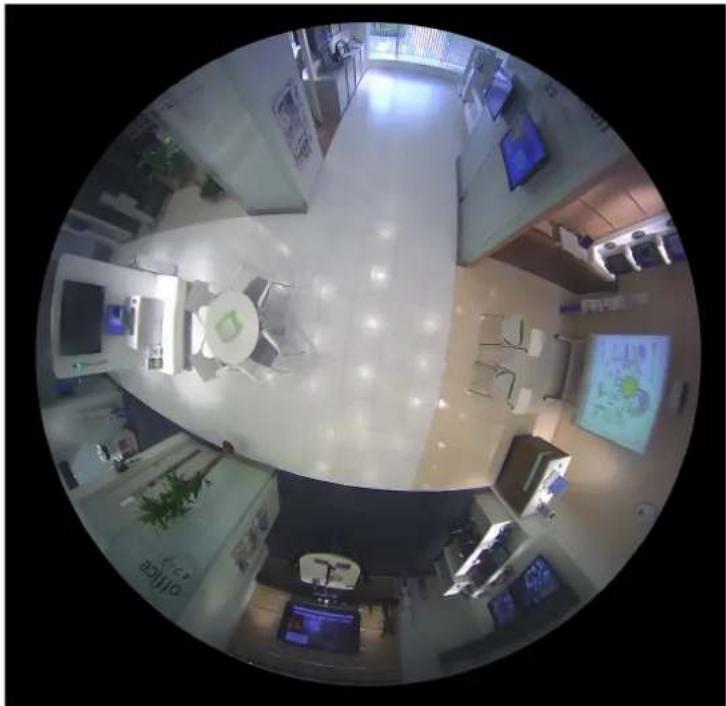
1. Fisheye
The 360° view is displayed without performing distortion correction as a fisheye image.
natural_image
Interior view of a modern retail or service center with display screens and signage (no readable text or symbols)2. Double Panorama
In Double Panorama, the panorama image is displayed with distortion correction performed on a 180^ image for half of a fisheye image. Note that the center of a fisheye image is a blind spot and it is not displayed in the fisheye image.

natural_image
Interior view of a modern retail or service center with two views: one showing interior signage and a red circular overlay, the other displaying interior locations with multiple monitors and a central display table (no visible text or symbols)3. Panorama
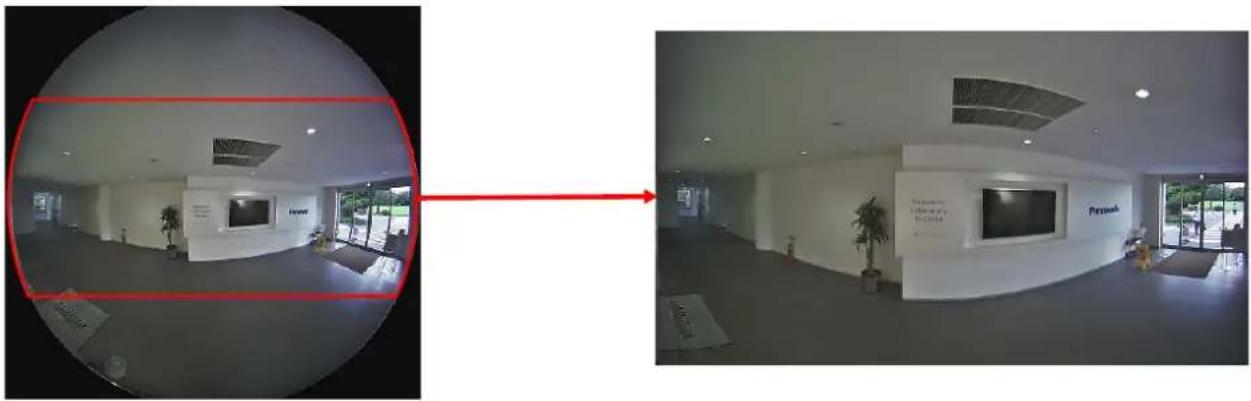
In Panorama, the panorama image is displayed with distortion correction performed on the 180^ horizontal angle view part of the center of a fisheye image.
natural_image
Interior view of a modern office or exhibition hall with curved walls and display panels, showing interior lighting and a red arrow pointing to the right (no visible text or symbols)4. Quad PTZ
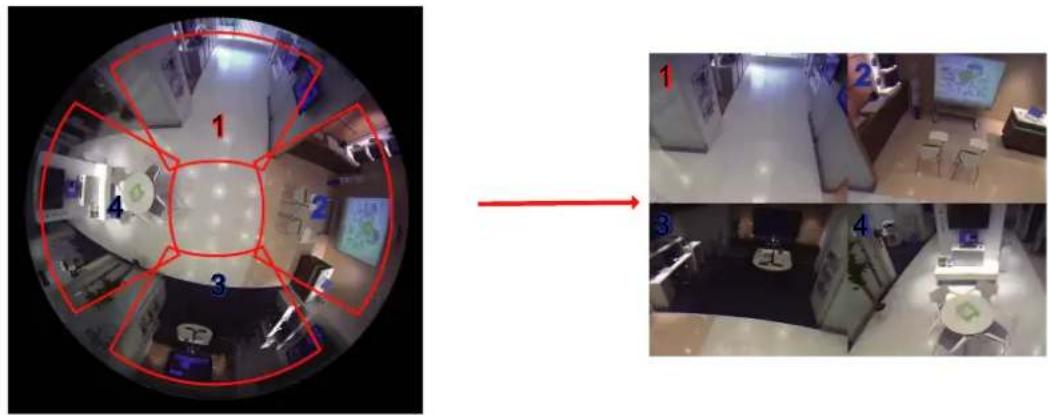
In the Quad PTZ screen, distortion in 4 fisheye images are corrected and the corrected images are displayed together.
text_image
Security camera view showing interior layout and surveillance of a person at a desk, with numbered annotations indicating locations.When an image is clicked by the mouse, the clicked position becomes the center of the image (Click & Centering).
The display position of images can also be changed from the fisheye control screen.
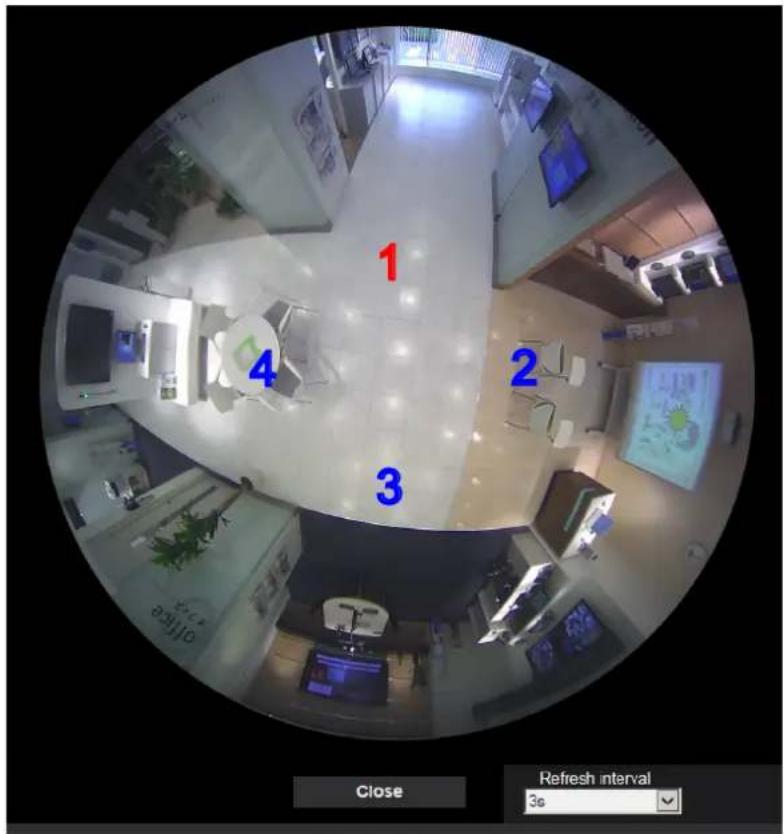
Fisheye Control
When the [Fisheye Control] button is clicked on the Quad PTZ or Single PTZ screen, the "Fisheye Control" window is displayed.
text_image
1 2 3 4 Close Refresh interval 36From this window, the image position of each screen number can be changed.
By dragging and dropping the number icon on the screen onto the image, you can change the center of the image to where the icon was dropped.
The red number icon is the selected number.
Select the "Refresh interval" value of "Fisheye Control" images from the following.
1s/ 3s/ 5s/ 10s/ 30s/ 60s
5. Single PTZ
In the Single PTZ screen, distortion in 1 fisheye image is corrected and the corrected image is displayed in a 4:3 image.
When the mouse button is used to click on an image, the clicked position of this image can be moved to the center of the image (Click & Centering).
The display position of images can also be changed from the fisheye control screen.
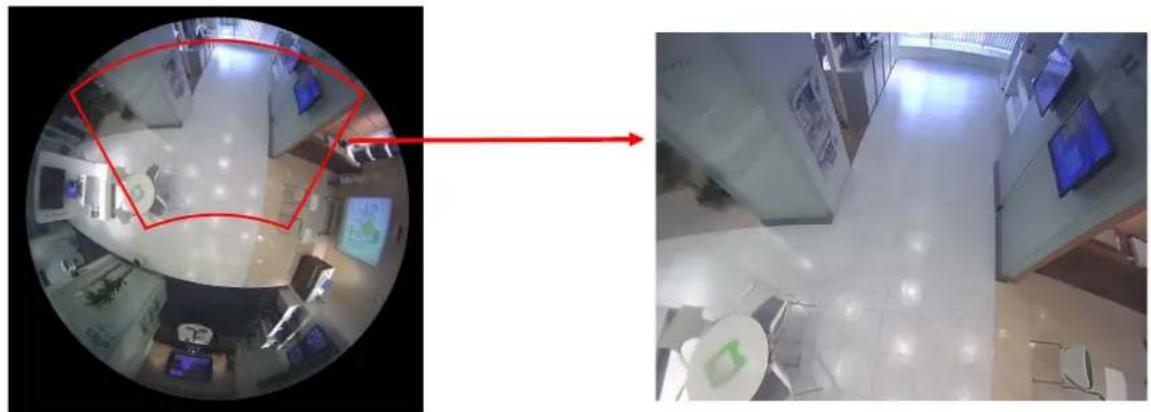
natural_image
Interior view of a modern office or retail space with two circular insets showing interior locations and digital screens (no visible text or symbols)6. Quad stream
In the Quad stream, each of the four 4:3 images that had their distortions corrected are assigned a stream number, and then displayed as H.265 (or H.264) images.
When a Stream(2) is used, the 4 corrected images can be combined together to a single screen image and transmitted.
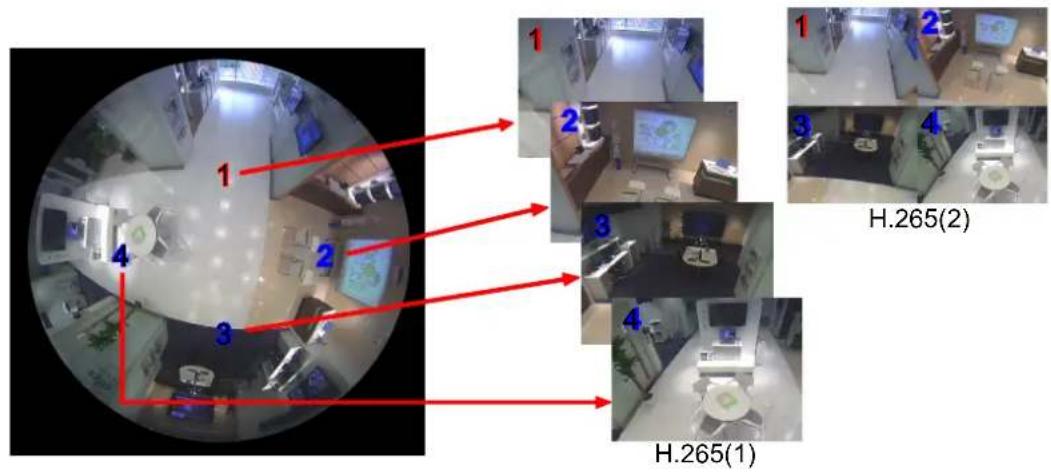
text_image
1 2 3 4 H.265(1) H.265(2) H.265(1)1.1.2.4 About image types and available functions
The following is a list of functions that can be used on the "Live" page according to the image type.
| Double Panorama | Panorama | Quad PTZ | Single PTZ | Quad stream | Fisheye | |
| [select language] pull-down menu | ✓ ✓ | ✓ ✓ ✓ | ||||
| [Setup] button | ✓ ✓ | ✓ ✓ ✓ | ||||
| [Live view] pull-down menu | ✓ ✓ | ✓ ✓ ✓ | ||||
| [Zoom] buttons ^4 | ✓ | ✓ | × × × | ✓ | ||
| [Brightness] buttons | √ √ √ √ √ √ | |||||
| [AUX] buttonsS4551 S4151X4573 X4172 | √ √ √ √ √ √ | |||||
| [Rec. on SD] button | √ √ √ √ √ √ | |||||
| [Log] button | √ √ √ √ √ √ | |||||
| Alarm occurrence indication button | √ √ √ √ √ √ | |||||
| Full screen button | √ √ √ √ √ √ | |||||
| Snap shot button | √ √ √ √ | x | √ | |||
| Mic input buttonS4551 S4151X4573 X4172 | √ √ √ √ √ | ^*6 | √ | |||
| Audio output buttonS4551 S4151X4573 X4172 | √ √ √ √ √ | ^*6 | √ | |||
| Auto pan x x | ^1 | √ | ^7 | x | ||
| Preset sequence x x | √ √ | √ | ^*7 | x | ||
| [Fisheye Control] button | x | x | √ √ | √ | x | |
| Control Image x x | √ | ^2 | ^8 | x | ||
| Preset x x | ^3 | √ | √ | x | ||
| [Zoom] buttons ^*5 | x | x | ^3 | √ | √ | x |
| Control pad/buttons x x | ^3 | √ | √ | x |
√ = Available
x = Not available
1.1.2.5 About available resolutions
An image can be displayed in any of the following resolutions depending on "Image capture mode" on the "Live" page (except for multi-screen display).
| Image capture mode | Stream(1) Stream(2) JPEG(1) JPEG(2) | |||
| Fisheye Fisheye: | 2992x2992X4573 X4172X41732192x21921280x1280640x640320x320 | Fisheye:1280x1280640x640320x320 | Fisheye:2992x2992X4573 X4172X41732192x21921280x1280640x640320x320 | Fisheye: ^1 1280x1280640x640320x320 |
| Double Panorama | Double Panorama:2560x1440X4573 X4172X41731920x10801280x720640x360320x180 | Double Panorama:1920x1080X4573 X4172X41731280x720640x360320x180 | Double Panorama:2560x1440X4573 X4172X41731920x10801280x720640x360320x180 | Double Panorama:1920x1080X4573 X4172X41731280x72064Ox360320x180 |
| Panorama Panorama: | 2560x1440X4573 X4172X41731920x10801280x720640x360320x180 | Panorama:1920x1080X4573 X4172X41731280x720640x360320x180 | Panorama:2560x1440X4573 X4172X41731920x10801280x720640x360320x180 | Panorama:1920x1080X4573 X4172X41731280x720640x3603 20x180 |
| Quad PTZ Quad PTZ: | 2560x1920X4573 X4172X41732048x1536X4573 X4172X41731600x12001280x960800x600VGAQVGA | Quad PTZ:1280x960800x600X4573 X4172X4173VGAQVGA | Quad PTZ:2560x1920X4573 X4172X41732048x1536X4573 X4172X41731600x12001280x960800x600VGAQVGA | Quad PTZ:1280x960800x600X4S73 X4172X4173VGAQVGA |
| Single PTZ Single | PTZ:2560x1920 ^2 X4573 X4172X41732048x1536X4573 X4172X41731600x12001280x960800x600VGAQVGA | Single PTZ:1280x960800x600X4573 X4172X4173VGAQVGA | Single PTZ:2560x1920 ^2 X4573 X4172X41732048x1536X4573 X4172X41731600x12001280x960800x600VGAQVGA | Single PTZ:1280x960 800x600X4573 X4172X4173VGAQVGA |
| Fisheye + Double Panorama | Fisheye:2992x2992X4573 X4172X41732192x21921280x1280640x640320x320 | Double Panorama:1280x720640x360320x180 | Fisheye:2992x2992X4573 X4172X41732192x21921280x1280640x640320x320 | Double Panorama:1280x720640x360320x180 |
| Fisheye + Panorama | Fisheye:2992x2992X4573 X4172X41732192x21921280x1280640x640320x320 | Panorama:1280x720640x360320x180 | Fisheye:2992x2992X4573 X4172X41732192x21921280x1280640x640320x320 | Panorama:1280x720640x360320x180 |
| Fisheye + Quad PTZ | Fisheye:2992x2992X4573 X4172X41732192x21921280x1280640x640320x320 | Quad PTZ:1280x960800x600VGAQVGA | Fisheye:2992x2992X4573 X4172X41732192x21921280x1280640x640320x320 | Quad PTZ:1280x960800x600VGAQVGA |
| Image capture mode | Stream(1) Stream | (2) JPEG(1) JPEG(2) | ||
| Quad stream Quad | stream:1280x960800x600VGAQVGA | Quad PTZ:2560x1920X4573 X4172X41732048x1536X4573 X4172X41731600x12001280x960800x600VGAQVGA | - | - |
* When "Fisheye" is selected for the image capture mode, only 640×640 can be set for resolution of JPEG(2). X4573
X4173
*2 When "
X4573 X4173
1.1.3 About the "Live" page
Note
- The buttons and setting items displayed on the "Live" page can be changed depending on the user rights of the accessing user. You can set the user right settings from "User auth." under "User mng.". (→page 172)

text_image
Network Camera -select language-- Live Setup Live view JPEG(1) JPEG Fisheye Resolution: 2192x2192 Refresh interval Refresh interval : 3s Zoom Brightness + Normal AUX Open Close Rec. on SD Log/Play Viewer software Zoom Auto mode Control Image Fisheye Control Start Preset Home position Go① [select language] pull-down-menu
The camera's display language can be selected. The default language can be set in the [Menu language] in the [Basic] settings. (→page 79)
② [Login] button
This button is displayed when "User auth." is "On" and a person other than the administrator logs in, or when "User auth." is "Off" and "Guest User" is set to "Use". (→page 172)
Even in the above case, the [Login] button will not be displayed if "Host auth." is set to "On", and the camera browser is opened from a host with administrator rights.

If login fails, close all the browsers, open the "Live" page and login once again.
③ [Setup] button ^1
Displays the setup menu.
④ [Live view] pull-down menu
You can select and switch to the image to be displayed in the main area from the following:
Stream(1)/Stream(2)/JPEG(1)/JPEG(2)/Multi-screen
The image in the main area is displayed based on the contents set in Stream(1) - (2) ( page 106), JPEG(1) - (2) ( page 105), or Multi-screen ( page 148).
Also the first stream displayed when you accessed the camera can be set from "Initial display stream" of the [Image] tab. For "Multi-screen", you can set the "Initial display" in the [Multi-screen] tab.
Note
- When “2992×2992” X4573 X4172 X4173, “2192×2192”, “1920×1080”, “1600×1200”, “1280×1280”, “1280×960” or “1280×720” is selected for the image capture size, it may become smaller than the actual size depending on the window size of the browser.
- When "Image capture mode" is "Quad stream", you can select and switch from Stream(1) Ch1/Stream(1) Ch2/Stream(1) Ch3/Stream(1) Ch4/Stream(2).
⑤ Stream information display
Displays the setup for stream encoding format, image capture size, bit rate, and frame rate for the live view of a stream.
Note
- Displays the values set in the stream. The actual bit rate and frame rate vary depending on the network environment and the used PC.
⑥ [Refresh interval] pull-down menu
This pull-down menu will be displayed only when a JPEG image is displayed. Use it to select the display method of the JPEG image.
- MJPEG: Uses viewer software to display JPEG images successively as MJPEG (Motion JPEG). Not available if the viewer software is not installed.
- Refresh interval : 1s/Refresh interval : 3s/Refresh interval : 5s/Refresh interval : 10s/Refresh interval : 30s/Refresh interval : 60s: Refreshes JPEG format (still images) images at the specified interval.
Note
- Depending on the network environment or the PC used, JPEG format (still images) images may not be refreshed at the specified interval.
- The [Refresh interval] pull-down on the "Live" page is not displayed for JPEG images with data encryption set to "On".
⑦ [Zoom] buttons (when "Fisheye", "Panorama", or "Double Panorama" is selected for "Image capture mode")
Images will be zoomed in on with the electronic zoom by the viewer software “Network Camera View 4S”.
• [x1] button: The images in the main area will be displayed at x1.
• [x2] button: The images in the main area will be displayed at x2.
• [x4] button: The images in the main area will be displayed at x4.
Note
- When a JPEG format image (still image) is displayed, the digital zoom cannot be used.
⑧ [Brightness] buttons ^2
The brightness is adjustable from 0 to 255. Click the 🎨 button to make the image brighter, or click the 🎨 button to make the image darker. If you click the [Normal] button, the display will be reset to default.
⑨ [AUX] button S4551 S4151 X4573 X4172
These buttons will be displayed only when "Terminal 3" of "Alarm" is set to "AUX output" on the setup menu. (→page 69)
- [Open] button: The status of the AUX connector will be open.
- [Close] button: The status of the AUX connector will be closed.
Note
- The names of "AUX", "Open" and "Close" can be changed. (→page 153)
⑩ [Rec. on SD] button ^2
The [Rec. on SD] button will be displayed only when "Manual" is selected for "Save trigger" on the [SD memory card] tab. (→page 91) Click this button to manually record images on the SD memory card. Refer to page 45 for descriptions of how to manually record images on the SD memory card.
⑪ [Log/Play] button
When the [Log/Play] button is clicked, the log list will be displayed and images saved on the SD memory card can be played.
Refer to page 49 for further information about the log list and for how to play images on the SD memory card.
⑫ [Viewer software] button
Starts installation of the viewer software for display. This button will not be available if the viewer software is already installed on the PC, or if the "Automatic installation" of the [Viewer software (nwcv4Ssetup.exe)] in the [Basic] tab is set to "Off". (→page 84)
⑬ [Zoom] buttons ^2 (when the image type is Quad PTZ, Single PTZ, or Quad stream)
An image selected on the "Control Image" can be zoomed.
• Click this button to adjust the zoom ratio to the "Wide" side.
• Click this button to set the zoom ratio to x1.0.
- : Click this button to adjust the zoom ratio to the "Tele" side.
⑭ [Fisheye Control] button
When the [Fisheye Control] button is clicked, the "Fisheye Control" window will be displayed on a newly opened window, and operations can be performed. (→page 17)
⑮ [Auto mode] ^2
Select an operation from the pull-down menu and click the [Start] button. The selected operation will start. Click the [Stop] button to stop the operation. The selected operation will stop when the camera (panning/tilting/zooming) is operated or when an action that is to be taken according to the settings for "Self return" (→page 112) starts.
• Auto pan: Automatically pans.
Even when the camera is operated for zooming, the camera continues panning.
(However, panning will stop when the zoom button (x1) is clicked.) When “Quad PTZ” is selected for “Image capture mode”, auto pan only operates for images in Ch1.
- Preset sequence: Automatically moves to the preset positions (→page 132) orderly (start from the lowest preset position number). When “Quad PTZ” is selected for “Image capture mode”, all 4 images are moved in the preset sequence.
Note
- If auto pan is used when the camera is mounted on a wall, depending on the tilt position, it may appear that the range of auto pan is reduced and the camera is not panning. In this case, adjust the tilt position up or down.
⑯ Control pad/buttons ^2
Left-click on the control pad to adjust the horizontal/vertical position of the camera (panning/tilting). It is also possible to pan/tilt the camera by dragging the mouse.
Zoom can be adjusted by right-clicking. When an upper/lower area of the control pad is right-clicked, the displayed image will be zoomed in/out on. Zoom can also be adjusted using the mouse wheel.
⑰ [Control Image] pull-down menu
When the image type is Quad PTZ, select the screen number of the image to control its preset, zoom, control pad/button settings.
⑱ [Preset] ^2
When a preset position is selected from the pull-down menu and the [Go] button is clicked, the image registered for the preset position ( page 132) in advance is displayed. “H” next to the preset position number indicates the home position. When “Home position” is selected, the camera image will move to the home position image. When “Quad PTZ” is selected for “Image capture mode”, if preset positions “1-4”, “5-8”, “9-12”, or “13-16” are selected, all 4 images are moved to the preset position.
When “Preset ID” is registered for a preset position, the registered preset ID will be displayed next to the preset position number.
Preset IDs for "1-4" are displayed with the preset IDs for the lowest preset position numbers.
- The home position of each screen has been set in Preset 1 to Preset 4.
- The home position can be selected from the pull-down menu. When the home position is selected, all 4 screens will move to their home positions regardless of the “Control Image” setting.
⑲ Camera title
The camera title entered for "Camera title" on the [Basic] tab will be displayed. (→page 81)
⑳ Support button
When this button is clicked, the support site below will be displayed in a newly opened window. This website contains technical information, FAQ, and other information.
https://i-pro.com/global/en/surveillance/training_support/support
②1 Alarm occurrence indication button ^2
When an alarm occurs, the display flashes. When this button is clicked, the output terminal will be reset S4551 S4151 X4573 X4172 and this button will disappear. (→page 47)
Note
- Since the blinking of the alarm occurrence indication button is not coupled to recording images to the SD memory card, forwarding E-mails, or other operations, check the settings of each operation separately.
⑳ Full screen button
Images will be displayed on a full screen. If the full screen button is clicked once when the image displayed in the main area is smaller than the main area, the image is displayed corresponding to its image capture size. If the full screen button is clicked once when images are displayed corresponding to their image capture sizes, images are displayed in full screen. To return to the "Live" page when displaying an image in full screen, press the [Esc] key on your PC, or right-click the mouse and select [Back] that appears.
②3 Snap shot button
Click this button to take a picture (a still picture). The picture will be displayed on a newly opened window. When right-clicking on the displayed image, the pop-up menu will be displayed. It is possible to save the image on the PC by selecting "Save" from the displayed pop-up menu.
When "Print" is selected, printer output is enabled.
Note
- If the viewer software is not installed, "Save" and "Print" will not be displayed in the pop-up menu.
- The following settings may be required.
Open Internet Explorer, click [Tools] → [Internet Options] → [Security] → [Trusted Sites] → [Sites]. Register the camera address on [Website] of the displayed trusted windows. After registration, close the browser, and then access the camera again.
- When it takes longer than the specified period to obtain the snap shot picture due to the network environment, the snap shot picture may not be displayed.
- If the image capture size specified for JPEG cannot be obtained, JPEG images are displayed with the image capture size that could be obtained.
Therefore, when JPEG images obtained with snap shot are displayed on a PC, the displayed image size may differ from the captured sized.
- When "Quad stream" is selected for "Image capture mode", snap shot cannot be used.
- If the encryption setting for JPEG(1) or JPEG(2) is "On", the Snap shot button is not displayed.
⑳ Mic input button S4551 S4151 X4573 X4172
Turns on/off the audio reception (hear audio from the camera on a PC). This button will be displayed only when "Mic input", "Interactive(Full-duplex)", or "Interactive(Half-duplex)" is selected for "Audio transmission mode" on the setup menu. (→page 144)
When the audio reception is turned off, the button will turn into the button and audio from the camera will not be heard.
Audio volume can be adjusted (Low/ Middle/ High) by moving the volume cursor

Note
- When "Audio volume control mode" is set to "Adjust Mic input" in the setup menu, the volume cursor is not displayed when using "Audio recording".
- When the camera is restarted, the adjusted volume level (for the reception) will return to the level that had been set on the [Audio] tab on the setup menu. (→page 144)
- Actual volume level will change in three steps even though the volume cursor can be adjusted minutely.
- If multiple camera browsers are open at the same time on the same computer, audio cannot be heard from the camera browsers that were opened later. Please only access 1 camera at a time.
- When "Image capture mode" is "Quad stream", mic input can be used only when Stream(1) Ch1 or Stream(2) is selected in the [Live view] pull-down menu.
⑲ Audio output button S4551 S4151 X4573 X4172
Turns on/off the audio transmission (play audio from the PC on the unit speaker). This button will be displayed only when "Audio output", "Interactive(Full-duplex)" or "Interactive(Half-duplex)" is selected for "Audio transmission mode" on the setup menu. (→page 144)
The button will blink during the audio transmission. When the audio transmission is turned off, the button display will switch to the hand and audio from the PC will not be heard.
Audio output volume can be adjusted (Low/Middle/High) by moving the volume cursor

Note
- When a user is using the audio transmission function with "Interactive(Half-duplex)" selected, the receiver button and the transmission button will be inoperable for the other users. When "Interactive(Full-duplex)" is selected, the transmission button is inoperable for other users.
- The maximum duration of a single audio output is the audio output duration set in the [Audio] tab on the "Image/Audio" page. Audio output stops when the specified audio output duration has passed. To turn the audio transmission function on, click the [Audio output] button again.
- When the camera is restarted, the adjusted volume level (for both the audio transmission and reception) will return to the level that had been set on the [Audio] tab on the "Image/Audio" page. (→page 144)
- Actual volume level will change in three steps even though the volume cursor can be adjusted minutely.
- When "Image capture mode" is "Quad stream", audio output can be used only when Stream(1) Ch1 or Stream(2) is selected in the [Live view] pull-down menu.
②6 SD recording status indicator
The status of the SD recording can be checked with this indicator.
When the SD recording starts, the SD recording status indicator will light red. It will go off when the SD recording stops.
This indicator will be displayed when "Manual" or "Schedule" is selected for "Save trigger" on the setup menu. (→page 87)
⑳ Main area
Images from the camera will be displayed in this area.
The current time and date will be displayed according to the settings configured for "Time display format" and "Date/time display format". (→page 79)
In addition, when being adjusted, the status of brightness ( page 83) will be displayed as well as the characters configured for "Camera title on screen" ( page 82). The number of lines for the display is 2.
- When the image type is Quad PTZ or Single PTZ:
- When Quad PTZ is used, you can select the channel you want to operate by clicking in the main area.
- Click a desired point in the main area on the "Live" page that is to be the center of the angle of view. The camera moves to adjust the position in order to set the clicked point as the center.
- When selecting an area in the main area by dragging the mouse, the selected area will be located at the center of the main area. In this case, the zoom ratio will be adjusted automatically.
- Zoom can be adjusted using the mouse wheel.
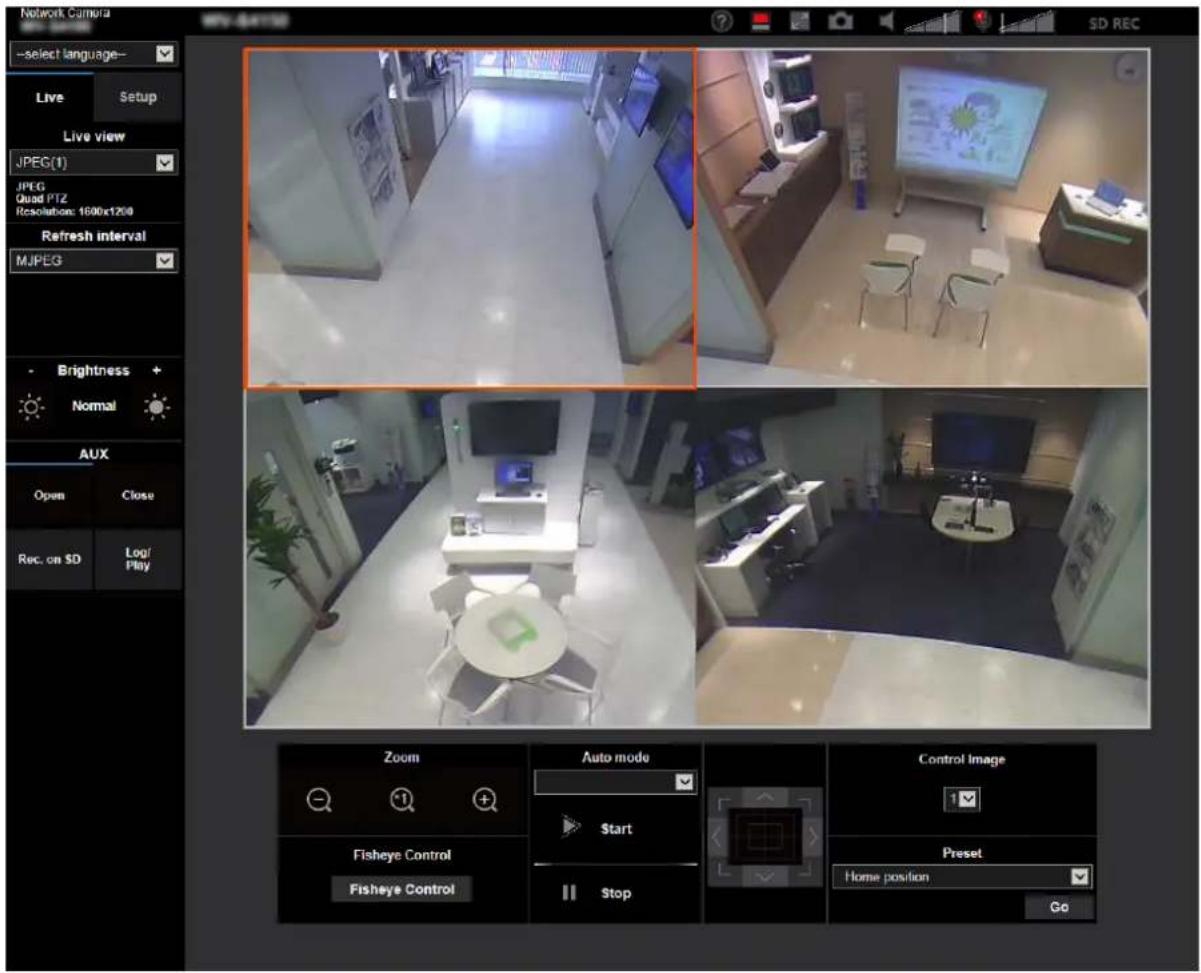
text_image
Network Camera --select language-- Live Setup Live view JPEG(1) JPEG Quad PTZ Resolution: 1000x1200 Refresh interval MJPEG Brightness + Normal AUX Open Close Rec. on SD Log/Play Zoom Auto mode Control Image Fisheye Control Start Preset Home position Go Fisheye Control Stop- When the image type is Fisheye, Panorama, or Double Panorama:
• Electronic zoom can be performed with the scroll wheel.
- When clicking a desired point while displaying live images at x2 or x4 in the main area, the camera will move to locate the clicked point at the center of the main area.
Note
- When the camera is operated by a user with a low access level, images displayed on the screen may be changed temporarily. This does not affect operation of the camera.
- When the displayed image is being zoomed in on with a high zoom factor, the clicked point may not always be located at the center of the main area.
- Depending on the PC in use, screen tearing* may occur when the shooting scene drastically changes due to the GDI restrictions of the OS.
*A phenomenon in which portions of the screen are displayed out of alignment.
1.1.4 Monitor images from multiple cameras
Images from multiple cameras can be displayed on a multi-screen. Images from 4, 9, and up to 16 cameras can be displayed simultaneously. To display images on a multi-screen, it is necessary to register cameras in advance. 4 cameras can be registered as a group and up to 4 groups (16 cameras) can be registered. (→page 148)
IMPORTANT
- When video is displayed in 4 screens and 9 screens, the video and audio may cut out because the transmission volume of other cameras is large. In such cases, the setting of the registered cameras needs to be changed to reduce the transmission volume.
Example of setup to reduce the transmission volume: - Set the video transmission format to "H.265" or "H.264".
-
Set the "Transmission priority" (→page 107) of the stream to "Best effort".
-
To enable the audio for multi-screen, the audio must be enabled for the camera.
- When 16 screens are used for the display, only still images (JPEG) can be refreshed.
- When “2 Monitor” is selected for the image capture mode type and 320 × 320 is selected for the resolution, JPEG(2) images are displayed. When 640 × 640 is selected for the resolution, fisheye images are displayed.
- When "Image capture mode" is set to "Quad stream" and H.265(1) or H.264(1) is selected, Ch1 images are displayed. If MJPEG or JPEG format (still images) images are selected, fisheye images are displayed.
Note
- Multi-screen can be used to display JPEG images, and H.265 (or H.264) images. If other cameras support audio, audio is also output.
- Adjust the volume when multi-screen is displayed.
- For further information about "Network Camera Recorder with Viewer Software Lite", which is suited to viewing images from several cameras, refer to our website (https://i-pro.com/global/en/surveillance/training_support/support/technical_information
). - When you have registered a camera with the authentication function enabled, enter the user name and password of the "Administrator" for the registered camera in the "Authentication dialog". Refer to our support website below for information about the terms and conditions for use of multi-screen. https://i-pro.com/global/en/surveillance/training_support/support/technical_information
-
When Quad PTZ images and still images (JPEG) are refreshed and displayed, click¢ering and the zoom are only available on the top left image.
-
From the "Live view" pull-down menu in the "Live" page, select "Multi-screen".
→ Images from the registered cameras will be displayed on a selected multi-screen (screen can be split up to 16 areas). The following are instructions when displaying on a 4-split screen.
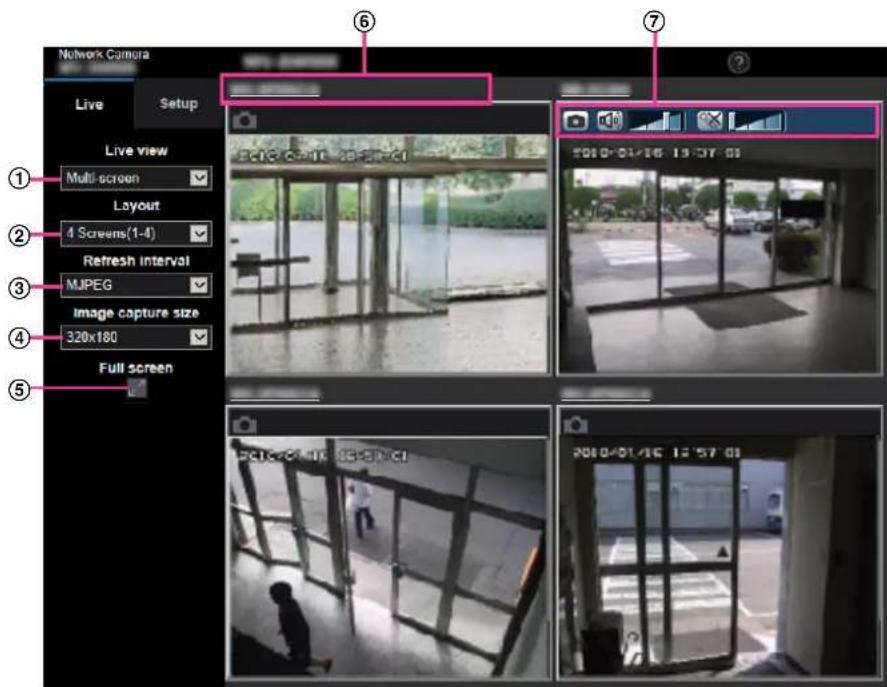
text_image
Network Camera Live Setup Live view Multi-screen Layout 4 Screens(1-4) Refresh interval MJPEG Image capture size 320x180 Full screen ① ② ③ ④ ⑤ ⑥ ⑦ ECTC CNTT 08:57:01 2010-01/16 13:57:01 ECTC CNTT 08:57:01 2010-01/16 13:57:01① "Live view" pull-down menu
Select the image displayed in the main area.
② [Layout] pull-down menu
Select from the pull-down menu to display images from cameras in multi-screens of 4 to 9 or even 16 screens.
③ [Refresh interval] pull-down menu
Select from the pull-down menu and switch between video (H.265/H.264/MJPEG) and still images (JPEG).
For still images (JPEG), select the refresh interval (Refresh interval : 1s/Refresh interval : 3s/Refresh interval : 5s/Refresh interval : 10s/Refresh interval : 30s/Refresh interval : 60s) for camera images.
When the 16 screen layout is used, Refresh interval : 1s cannot be selected.
④ Image capture size pull-down menu
Select the image capture size from the pull-down menu to change it.
When you select "4 Screens" in the [Layout] pull-down menu, the image capture size of the camera changes.
- When the aspect ratio is 4:3:
Switching between QVGA (default) and VGA
- When the aspect ratio is 16:9:
Switching between 320×180 (default) and 640×360
- When the aspect ratio is 1:1:
Switching between 320×320 (default) and 640×640
⑤ Full screen display
If you press the full screen button, the display of the camera image will be maximized. If you click the reset) button in the full screen display, the display size will be reset to original size.
⑥ Camera title
If you click the camera title, live images from the corresponding camera will be displayed on the "Live" page of the newly opened window.
⑦ Camera control bar
Can be used to get snap shot of JPEG images or to adjust the PC mic input/output volume (mic input or audio output).
Note
- The frame rate may drop depending on the network environment and number of accessing users.
- If the image capture size specified for JPEG cannot be obtained, a JPEG image with an image capture size that could be obtained is displayed. Therefore, when JPEG images obtained with snap shot are displayed on a PC, the displayed image size may differ from the captured sized.
- If a live image is displayed as a still image (JPEG), the "Save" or "Print" pop-up menu that is normally displayed when a snap-shot JPEG image is accessed is not displayed.
- When in full screen display, click¢ering and zoom are not available.
- If a video (H.265/H.264/MJPEG) is set in [Refresh interval], an unspecified video may be displayed depending on the setting of the connected camera.
- If Stream(1) is set to "On", "H.265" or "H.264" can be selected in [Refresh interval].
1.2 Monitor images on a mobile terminal/tablet device
1.2.1 Monitor images on a mobile terminal (including smartphones)
It is possible to connect to the camera using a mobile terminal via the Internet and monitor images (MJPEG or JPEG) from the camera on the screen of the mobile terminal. It is also possible to refresh images to display the latest image.
The compatible mobile terminals are shown as follows. (As of October, 2020)
- iPad, iPhone (iOS 8 or later)
- Android™ mobile terminals
When an Android terminal is used, an MJPEG format image is displayed by the Firefox browser, and a JPEG format image is displayed by the standard browser.
IMPORTANT
- When the authentication window is displayed, enter the user name and password.
To enhance the security, it is recommended to change the password periodically. (→page 172)
- An image can be displayed in any of the following image capture sizes depending on "Image capture mode".
| Image capture mode | Image capture size |
| Fisheye | 2192×2192/1280×1280/640×640/320×320When “Fisheye” is selected for the image capture mode, only 640×640 can be set for resolution of JPEG(2).X4573 X4173 |
| Double Panorama 1920×1080/1280×720/640×360/320×180 | |
| Panorama 1920×1080/1280×720/640×360/320×180 | |
| Quad PTZ | 2048×1536X4573 X4172 X4173/1600×1200/1280×960/800×600/VGA/QVGA |
| Single PTZ | 2048×1536X4573 X4172 X4173/1600×1200/1280×960/800×600/VGA/QVGA |
| Fisheye + Double Panorama Fisheye:2192×2192/1280×1280/640×640/320×320Double Panorama:1280×720/640×360/320×180 | |
| Fisheye + Panorama Fisheye:2192×2192/1280×1280/640×640/320×320Panorama:1280×720/640×360/320×180 | |
| Fisheye + Quad PTZ Fisheye:2192×2192/1280×1280/640×640/320×320Quad PTZ:1280×960/800×600/VGA/QVGA | |
| Quad stream – | |
Note
- It is necessary to configure the network settings of the mobile terminal in advance to connect to the Internet and monitor images from the camera. (→page 183)
- When "Quad stream" is selected for "Image capture mode", images cannot be displayed.
- When "1 Monitor" is selected for "Image capture mode", the resolution set in "JPEG(1)" or "JPEG(2)" of "JPEG" in the [Image] tab is displayed.
- When "2 Monitor" is selected for the "Image capture mode", depending of the setting of "'Live" page (Initial display)" in "Initial display stream", the following image is displayed.
| Default display stream | Displayed image |
| JPEG(1), Stream(1) JPEG(1) | |
| JPEG(2), Stream(2) JPEG(2) | |
| Multi-screen JPEG(2) |
- Access to "http://IP address/cam" or "http://Host name registered in the DDNS server/cam" using a mobile terminal.
→ Images from the camera will be displayed.
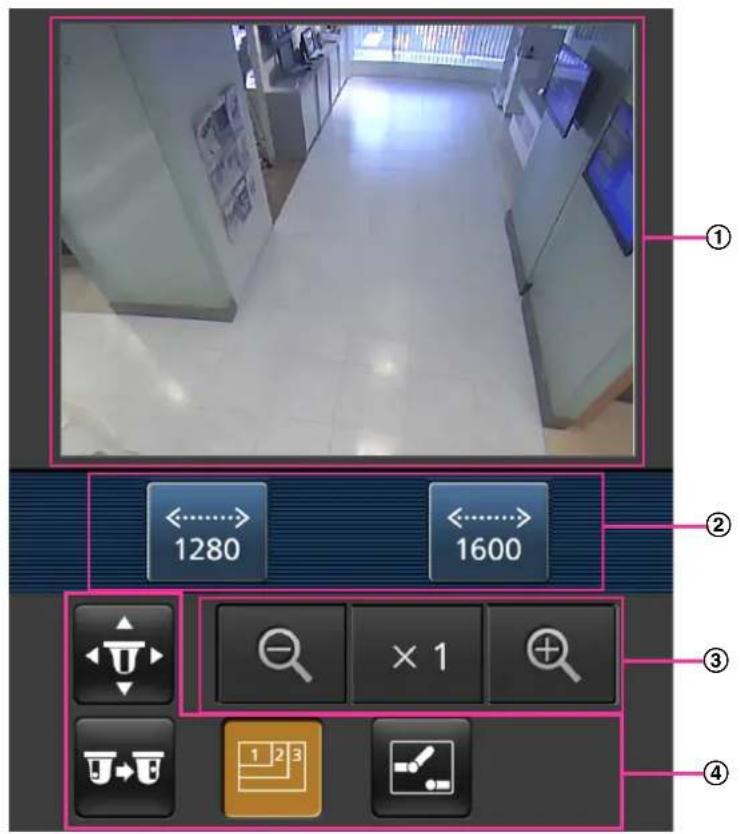
text_image
<......> 1280 <......> 1600 ① ② ③ ④① Live images area
Displays images from the camera.
② Operation buttons area
When functions are selected in the function selection area ④, buttons to operate those functions are displayed.
③ Zoom operation area
When the image type is Quad PTZ or Single PTZ, buttons to operate the zoom are displayed.
④ Function selection area
When functions that can be operated are selected, operation buttons are displayed in the operation buttons area ②.
Note
- The operations button displayed on the mobile terminal screen may not be available depending on the user rights and access level of the accessing user. To display the operations button, it is necessary to set the user rights and access level ("User auth." in "User mng."). (→page 172)
2. Click the button of the function that you want to operate.

text_image
<......> 1280 1600 ① ② ③ ④① Pan/tilt
② Preset
③ Resolution control
④ AUX control S4551 S4151 X4573 X4172
⑤ Zoom display
Each function is explained below.
① Pan/Tilt ^4
Press the button to display the buttons used to operate pan/tilt on the screen. The pan/tilt can be adjusted in each direction with the ▶, and buttons. ▶
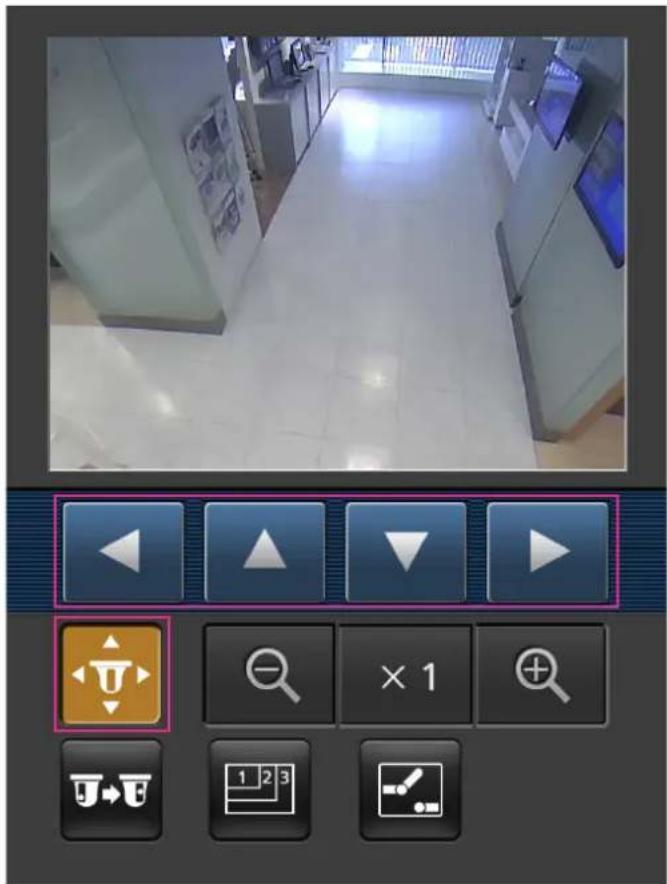
text_image
Security camera interface screenshot showing a hallway with navigation buttons and control icons② Preset ^3
Press the button to display the buttons used to select the preset position on the screen. Camera images are displayed of the registered preset directions according to the preset numbers selected from the buttons.
Note
- Only preset numbers 1 to 4 can be used for preset operations.
- Only registered preset positions are displayed. Unregistered preset positions are not displayed.
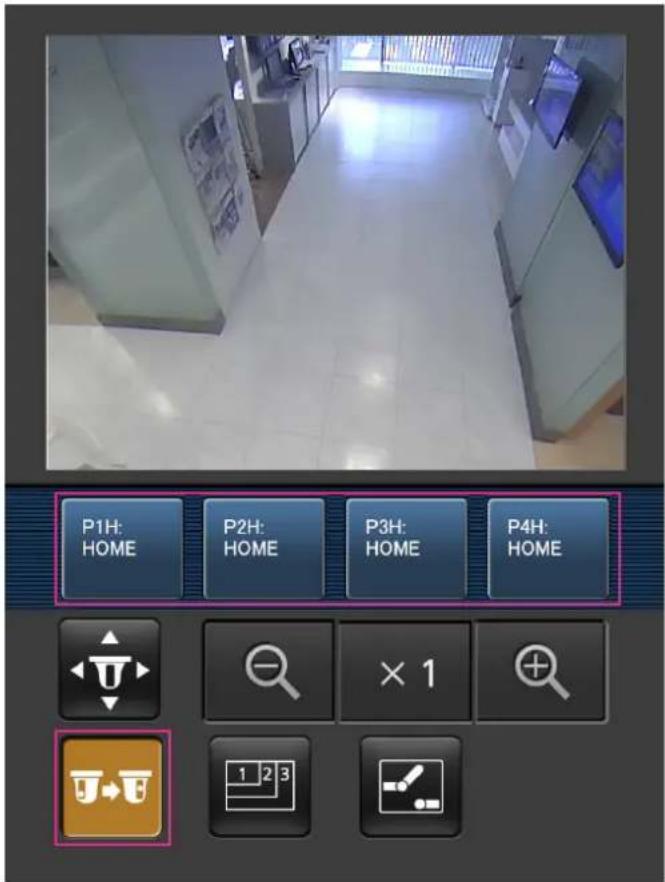
text_image
P1H: HOME P2H: HOME P3H: HOME P4H: HOME③ Resolution control
Press the button to display the buttons used to select the resolution on the screen.
The resolution can be changed by selecting a resolution setting from the buttons.
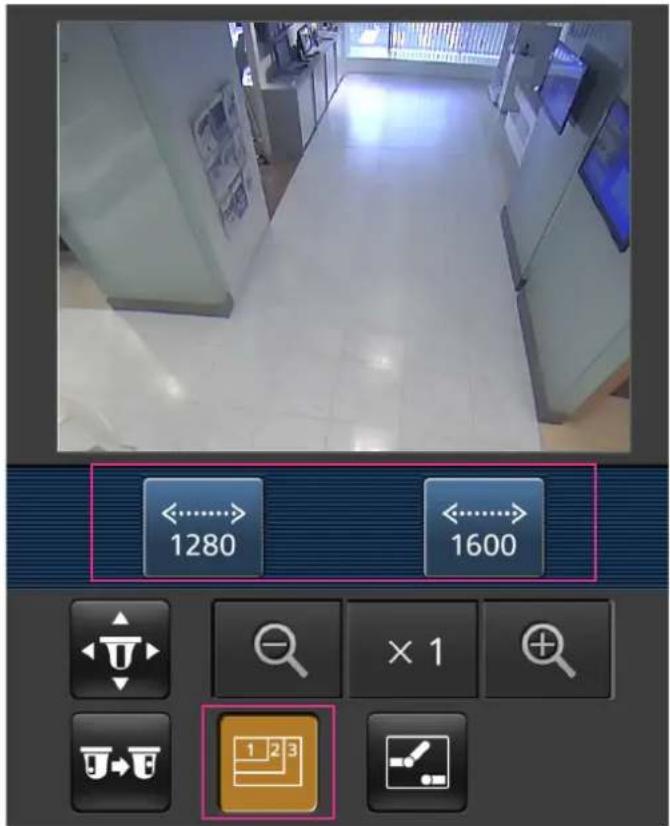
text_image
<......> 1280 1600 × 1 1 2 3④ AUX control S4551 S4151 X4573 X4172
Press the button to display the buttons used to operate the AUX output on the screen. The AUX output terminals can be controlled with the √ and buttons.
This function is only displayed when [Terminal 3] is set to [AUX output] on the settings menu. (→page 150)

text_image
Security camera interface screenshot showing security camera hallway and control buttons with icons for zoom, ×1, and function keys⑤ Zoom display ^3
The camera's zoom can be operated with the , and × 1 buttons .
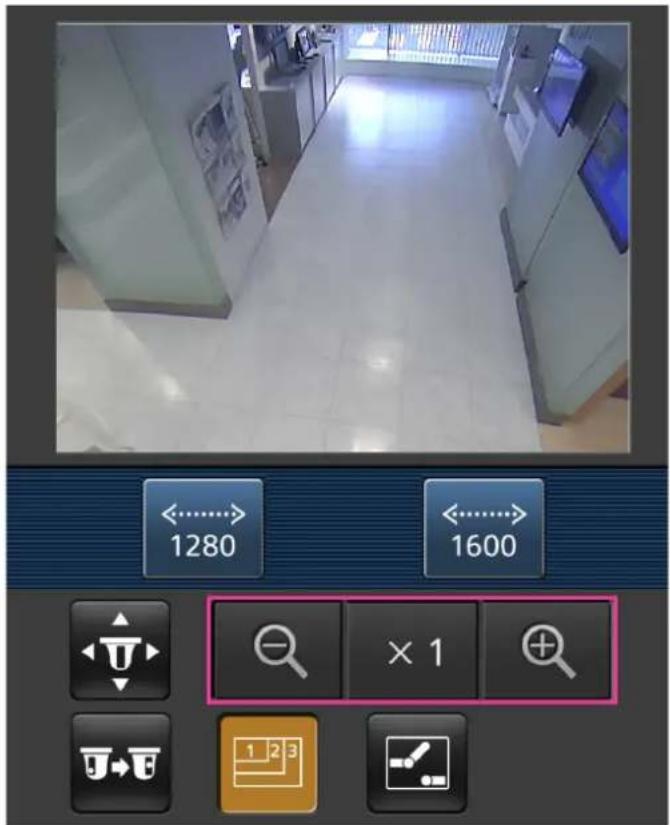
text_image
<......> 1280 1600 × 1Note
• You can change the image size displayed on the mobile terminal by accessing the following addresses.
– Large display: http://IP address/cam/dl
– Medium display: http://IP address/cam/dm
– Small display: http://IP address/cam/ds
- When the resolution is changed by the resolution control, the displayed resolution changes but the image size remains the same.
- When the HTTP port number is changed from "80", enter "http://IP address: (colon) + port number/cam" ^1 in the address box of the browser. When using the DDNS function, access to "http://Host name registered in the DDNS server: (colon) + port number/cam" ^2 .
- When "HTTPS" is selected for "HTTPS" - "Connection" on the [Advanced] tab of the "Network" page, enter as follows.
"https://IP address: (colon) + port number/cam" or "https://Host name registered in the DDNS server: (colon) + port number/cam"
- When the authentication window is displayed, enter the user name of an administrator or user and password. Depending on the mobile terminal in use, password entry may be required each time the screen is switched.
- It is impossible to send and receive audio using a mobile terminal.
- Depending on the mobile terminal in use, larger size images may not be displayed. In this case, selecting a setting close to the lowest quality setting for "Image quality setting" of "JPEG" (→page 104) may sometimes solve this problem.
- Depending on the mobile terminal in use or its contract plan, it may be impossible to access.
^1 IP address is the global WAN IP address of the router that can be accessed via the Internet. However, when accessing the same LAN as the camera with a wireless compatible mobile terminal, the IP address is the local IP address.
^2 Only when accessing the camera via the Internet.
3 Cannot be used when "Panorama", "Double Panorama", "Fisheye", or "Quad stream" is selected for "Image capture mode". When "Quad PTZ" is selected, only the upper left screen can be used for operations.
1.2.2 Monitor images on a tablet device
It is possible to connect to the camera using a tablet device via the Internet and monitor images (MJPEG or JPEG) from the camera on the screen of the tablet device. It is also possible to refresh images to display the latest image.
The compatible mobile terminals are shown as follows. (As of October, 2020)
- iPad, iPhone (iOS 8 or later)
- Android™ mobile terminals
When an Android terminal is used, an MJPEG format image is displayed by the Firefox browser, and a JPEG format image is displayed by the standard browser.
IMPORTANT
- When the authentication window is displayed, enter the user name and password. To enhance the security, it is recommended to change the password periodically. (→page 172)
Note
- It is necessary to configure the network settings of the tablet device in advance to connect to the Internet and monitor images from the camera. (→page 183) - Depending on the device model, the same screen as the PC may be displayed. In that case, access to "http://IP address/live/tab.html" or "http://Host name registered in the DDNS server/live/tab.html".
- Access to "http://IP address/" or "http://Host name registered in the DDNS server/ ^2 using a tablet device. → Images from the camera will be displayed.
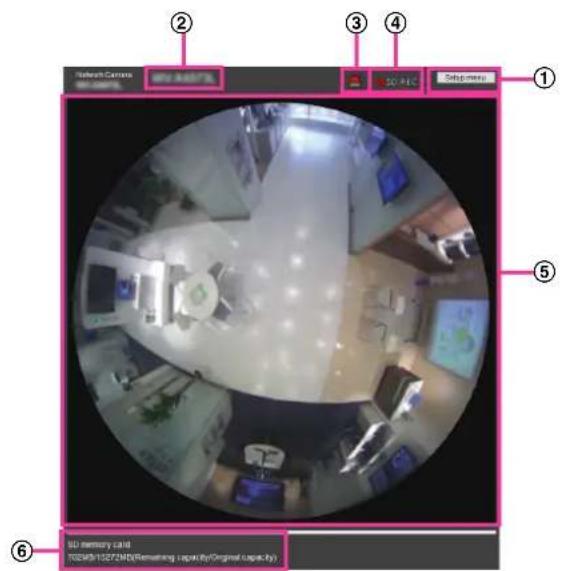
text_image
Network Camera Display ② ③ ④ SO-REC Display ① ⑤ ID memory call 1024M/15072ND(Remaining Legacy)(Original Idoc By)Setup menu
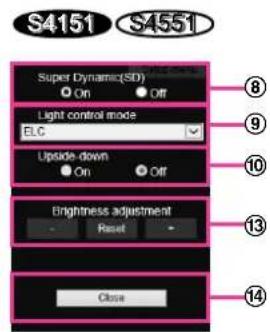
text_image
S4151 S4551 Super Dynamic(SD) On Off Light control mode ELC Upside-down On Off Brightness adjustment Reset Close 8 9 10 13 14
text_image
X4173 X4573 Wide dynamic range (WDR) ● On ○ Off Light control mode ELC Upside-down ● On ○ Off Manual focus adjustment Near Reset Far Auto focus Execute Brightness adjustment - Reset + Close① [Setup menu] button ^1 Displays the setup menu.
② Camera title
The camera title entered for "Camera title" on the [Basic] tab will be displayed. (→page 81)
③ Alarm occurrence indication button ^2
When an alarm occurs, the display flashes. When this button is clicked, this button will disappear.
Note
- Since the blinking of the alarm occurrence indication button is not coupled to recording images to the SD memory card, forwarding E-mails, or other operations, check the settings of each operation separately.
④ SD recording status indicator
The status of the SD recording can be checked with this indicator. When the SD recording starts, the SD recording status indicator will light red. It will go off when the SD recording stops.
This indicator will be displayed when “Manual” or “Schedule” is selected for “Save trigger” on the setup menu. (→page 87)
⑤ Main area
The live images from the camera will be displayed in this area.
⑥ Remaining capacity
Displays the remaining capacity and total capacity of the SD memory card.
⑦ Wide dynamic range X4173 X4573
Select "On" or "Off" to determine whether or not to activate the wide dynamic range function. The wide dynamic range function compensates the brightness of a subject that has a large amount of contrast, thereby, enabling you to check the image in a natural state.
- On: Activates the wide dynamic function.
- Off: Deactivates the wide dynamic function.
- Default: Off
Note
- When the following phenomena are observed depending on the lighting conditions, set "Wide dynamic range" to "Off".
- When flickering appears or the color changes on the screen
- When noise appears in the brighter or darker area on the screen
⑧ Super Dynamic S4151 S4551
Select “On” or “Off” to determine whether or not to activate the super dynamic function. Refer to the description “Super Dynamic function” ( page 116) about the super dynamic function.
- On: The super dynamic function will work.
- Off: The super dynamic function will not work.
- Default: On
Note
- When the following are observed depending on the light condition, select "Off" for "Super Dynamic(SD)".
- When flickering appears or the color changes on the screen
- When noise appears in the brighter area on the screen
⑨ [Light control mode] pull-down menu
Select the light control mode from the following.
- Indoor scene (50 Hz) / Indoor scene (60 Hz): The shutter speed will automatically be adjusted to prevent flicker caused by fluorescent light. Select 50 Hz or 60 Hz corresponding to the location where the camera is in use.
• ELC: Uses the shutter speed adjustment to control the amount of light.
- Default: ELC
⑩ Upside-down
Select "On" or "Off" to determine whether or not to turn the image upside-down.
- Default: Off
IMPORTANT
- If the “Upside-down” setting is changed when the following area settings are configured, the area setting must be configured again.
- Privacy zone (→page 137)
- VMD area (→page 162)
- VIQS area (→page 139)
- Mask area (→page 126)
- If the "Upside-down" setting is changed when a preset position is configured, the preset position must be configured again. (→page 132)
Note
- The upside-down function is available when
- When "Fisheye" is selected for "Image capture mode", images are not turned upside-down.
⑪ Manual focus adjustment X4573
Adjust the zoom manually.
- [Near]: Adjust the focus in the "near" direction.
- [Reset]: Return focus to initial setting.
- [Far]: Adjust the focus in the "far" direction.
Note
- One-click of the [Near] or [Far] button is a fine adjustment, and it can look like there is no change in the focus. To shift the focus point largely, keep the button pressed.
⑫ Auto focus X4573
The auto focus function automatically starts adjusting focus on a subject located in the center of the screen when the [Execute] button is clicked.
IMPORTANT
- When a value with an interval longer than “Max. 1/30s” (Max. 2/30s/ Max. 4/30s/ Max. 6/30s/ Max. 10/30s/ Max. 16/30s) is selected for “Maximum shutter”, if “Auto back focus” is executed during slow shutter operations at night, it may take a long time to complete “Auto back focus”.
-
In the following locations or with the following subjects, the auto back focus may not be automatically adjusted. In this case, manually adjust the focus.
-
when the subject moves a lot
- when there are large changes to the lighting intensity
- when the light level is low
- when the subject or location is extremely bright or reflective
- when viewing through windows
- when the lens is in an environment where it can easily become dirty
- locations where there is not much contrast such as a white wall
- when there is harsh flickering
- When images in the near-infrared light area change from color to black & white, images may be out of focus due to the nature of optical properties. In this case, the focus can automatically be corrected by selecting “Auto” or “Preset” for “Adjusting method” (the focus will not automatically be adjusted according to the illumination level change once the focus is corrected).
⑬ [Brightness adjustment] button
Adjust the brightness.
Click the [+] button to make the image brighter.
Click the [-] button to make the image darker.
Click the [Reset] button to reset to the default brightness setting.
⑭ [Close]
Click the "Close" button to close the Set page.
Note
- When the HTTP port number is changed from "80", enter "http://IP address: (colon) + port number" ^1 in the address box of the browser. When using the DDNS function, access to "http://Host name registered in the DDNS server: (colon) + port number" ^3 .
- When "HTTPS" is selected for "HTTPS" - "Connection" on the [Advanced] tab of the "Network" page, enter as follows. "https://IP address: (colon) + port number" or "https://Host name registered in the DDNS server: (colon) + port number" ^3
- When the authentication window is displayed, enter the user name of an administrator or user and password. Depending on the mobile terminal in use, password entry may be required each time the screen is switched.
- Depending on the tablet device in use, larger size images may not be displayed. In this case, selecting a setting close to the lowest quality setting for "Image quality setting" of "JPEG" (→page 104) may sometimes solve this problem.
- Depending on the tablet device in use or its contract plan, it may be impossible to access.
1.3 Record images on the SD memory card manually
Images displayed on the "Live" page can be recorded on the SD memory card manually. This button is operable only when "Manual" is selected for "Save trigger" on the [SD memory card] tab on the "Basic" page of the setup menu. (→page 91)
It is possible to select "JPEG(1)", "JPEG(2)", "Stream(1)" or "Stream(2)" on "Recording format" of the setup menu. (→page 90) When "JPEG(1)" or "JPEG(2)" is selected for "Recording format", still image data are recorded. When "Stream(1)" or "Stream(2)" is selected, video data are recorded.
Images recorded on the SD memory card can be downloaded to the PC and viewed. (→page 49)
- Display the "Live" page. (→page 9)

text_image
Network Camera select language— Live Setup Live view Stream(1) H.265 Fisheye Resolution:2192x2192 Priority: Frame rate FPS: 30 fps Quality: normal Max DPS: 8144 kbps Zoom Brightness Normal Rec. on SD Log/ Play WF-54551L SD REC- Click the [Rec. on SD] button.
→ The SD recording window will open.
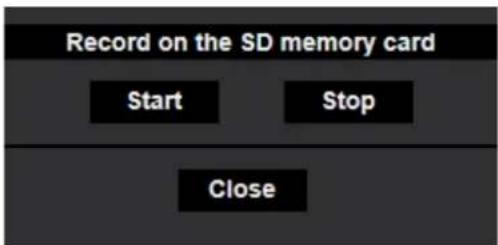
text_image
Record on the SD memory card Start Stop Close- Click the [Start] button to start recording images on the SD memory card. The SD recording status indicator will light red ( page 23) while images are being recorded on the SD memory card.
The image saving interval can be configured on the [SD memory card] tab of the "Basic" page.
(→page 87)
- Click the [Stop] button to stop saving images on the SD memory card.
→ The SD recording status indicator will turn off.
- Click the [Close] button to close the window.
Note
- You can click the [Log/Play] button of the Live page to download data from the log list display page to the PC (→page 49). With the download feature on page 53, data can be saved to a PC. The destination to save image data is a fixed directory on the SD memory card (→page 256).
- When the [Start] button is clicked immediately after the [Stop] button is clicked, saving of images may not start. In this case, click the [Start] button again.
1.4 Action at an alarm occurrence
The alarm action (camera action at an alarm occurrence) will be performed when the following alarms occur.
1.4.1 Alarm type
- Terminal alarm S4551 S4151 X4573 X4172: When connecting an alarm device such as a sensor to the alarm input terminal of the camera, the alarm action will be performed when the connected alarm device is activated.
- VMD alarm: When motion is detected in the set VMD area, the alarm action will be performed. *VMD stands for "Video Motion Detection".
- Command alarm: When a TCP alarm notification is received from the connected device via a network, the alarm action will be performed.
1.4.2 Action at an alarm occurrence
Display the alarm occurrence indication button on the "Live" page
The alarm occurrence indication button will be displayed on the “Live” page at an alarm occurrence. (→page 23)
IMPORTANT
- When “Polling(30s)” is selected for “Status update mode” (→page 79), the Alarm occurrence indication button will be refreshed in 30-second intervals. For this reason, it may take a maximum of 30 seconds until the alarm occurrence indication button is displayed on the “Live” page at an alarm occurrence.
Notify of alarm occurrences to the device connected to the output terminal S4551 S4151 X4573 X4172
It is possible to output signals from the output terminal of the camera and sound the buzzer when an alarm occurs. The settings for the alarm output can be configured in the [Alarm] tab of the "Alarm" page. (→page 152)
Save images on the SD memory card
When an alarm occurs, images (JPEG/H.265/H.264) will be saved on the SD memory card. The settings to save images on the SD memory card can be configured on the [SD memory card] tab ( page 87) of the "Basic" page and the [Alarm] tab of the "Alarm" page. ( page 154)
Notify of alarm occurrences by E-mail
Alarm E-mail (alarm occurrence notification) can be sent at an alarm occurrence to the E-mail addresses registered in advance. Up to 4 addresses can be registered as recipients of the alarm E-mail. An alarm image (still picture) can be sent with the alarm E-mail as an attached file. The settings for alarm E-mail can be configured in the “Alarm E-mail notification” section on the [Alarm] tab of the “Alarm” page ( page 154) and the [Advanced] tab of the “Network” page ( page 188).
IMPORTANT
- When "Quad stream" is selected for "Image capture mode", alarm E-mails cannot be sent with still picture attachments.
Notify of alarm occurrences to the designated addresses (TCP alarm notification)
This function is available only when our device, such as the network disk recorder, is connected to the system. When “On” is selected for “TCP alarm notification”, the connected our device will be notified that the camera is in the alarm state. The settings for TCP alarm notification can be configured in the “TCP alarm notification” section of the [Notification] tab of the “Alarm” page. (→page 168)
Notify of alarm occurrences to the designated HTTP server (HTTP alarm notification)
Alarm occurrence notifications can be sent at an alarm occurrence to the HTTP servers registered in advance. Up to 5 HTTP servers can be registered as recipients of alarm notifications. The URL sent to HTTP servers with alarm notifications can be specified. The settings for HTTP alarm notification can be configured on the [Notification] tab of the "Alarm" page. (→page 170)
1.5 Display the log list
The history of various logs will be displayed in list form.
- Alarm log: Logs of the alarm occurrences such as time and date of the alarm occurrences, the image recording period and the alarm type will be displayed.
- Manual/Schedule log: Logs filed when images have been recorded manually or during the period of the schedule, and the image recording period will be displayed.
1. Display the "Live" page.

text_image
Network Camera -select language... Live Setup Live view Stream(1) 1.266 Frequency Resolution:2x10^9x2192 Priority Frame rate PSI: 30 fps Quality Normal Speed: 8492 Mbps Zoom Brightness + Normal AUX Open Close Rec. on SD Log/Play SD REC2. Click the [Log/Play] button.
→ The log list will be displayed in a newly opened window (log list window).
![i-PRO WV-X4173 - Click the [Log/Play] button. - 1](/content/2026/06/1229328/images/f58a12f71eca6f67a2d1a685f8d2ce847356b0a761818434c6a74c4dd4a3791f.jpg)
text_image
Time: Sen/13/2020 11.02.35 - Sep/13/2020 11.03.08 Event All Select Alarm log Manual/Schedule log Recording time From First recordin YYYY/MM/DC HHMM-SS To Last recordin YYYY/MM/DC HHMM-SS Search Time & date Duration Event Sep/13/2020 11.03.03 00:00:05 MN/SC Sep/13/2020 11.02.35 00:00:06 MN/SC SD memory card 3682MB/3772MB(tem /org.)IMPORTANT
- Only a single user can operate the log list window. Other users cannot access the log list window.
① Time
Displays the time period of the data recorded on the SD memory card.
② Event
Select a log type to display on the log list.
• All: All logs will be displayed.
- Select: Only the logs of the selected log type will be displayed.
- Alarm log: The log when an alarm is detected will be displayed.
- Manual/Schedule log: Manual and Schedule logs will be displayed.
- Default: All
③ Recording time
Configure the time period of logs displayed on the log list.
• From: Configure the starting period of logs displayed on the log list.
— First recording: Displays from the first log recorded on the SD memory card.
– Today: Displays the logs recorded today.
— Yesterday: Displays the logs recorded from yesterday to the present day.
— Last 7 days: Displays the logs recorded from 6 days ago to the present day.
— Last 30 days: Displays the logs recorded from 29 days ago to the present day.
- Date/time: Displays the logs recorded from the entered date and time on "Date/time" box.
- To: Configure the ending period of logs displayed on the log list when "First recording" or "Date/time" is selected for "From".
– Last recording: Displays until the last log recorded on the SD memory card.
- Date/time: Displays the logs recorded until the entered date and time on "Date/time" box.
④ [Search] button
Searches for logs according to the conditions specified in "Event" and "Recording time".
The search result will be displayed on the log list.
⑤ Log list
Displays the log search results.
You can play back recorded data by clicking on the time or duration of the recorded data displayed under [Time & date] and [Duration].
(Top) button: Click this button to display the log listed at the top.

(Prev. page) button: Click this button to display the previous page of the log list.
(Next page) button: Click this button to display the next page of the log list.
(Last) button: Click this button to display the log listed at the bottom.
• [Time & date]: Time and date when each log has been recorded will be displayed.
Note
- When “24h” is selected for “Time display format”, the alarm occurrence times are displayed in 24 hour time format.
- The recording timing of logs is as follows.
– Alarm log: Alarm occurrence time and date will be filed as a log.
- Manual/Schedule log: Time and date when recording of images onto the SD memory card started manually or during the period of the schedule will be filed as a log. When images are recorded sequentially, if "JPEG" is selected for "Recording format", logs will be filed on the hour every hour (12:00, 1:00, 2:00, etc.). If "Stream" is selected for "Recording format", logs will be filed every hour from the time when recording starts.
• [Duration]: Displays the period of time that the data has been recorded on the SD memory card.
Note
- The difference between the recording end time and recording start time of the image is calculated by rounding off to the nearest tenth of a second. For this reason, when only 1 JPEG image is saved, 00:00:00 is displayed for the duration.
• [Event]: The event type will be displayed.
- MN/SC: Log by "Manual/Schedule"
- TRM1 S4551 S4151 X4573 X4172 : Alarm by alarm input to Terminal 1
- TRM2 S4551 S4151 X4573 X4172 : Alarm by alarm input to Terminal 2
- TRM3 S4551 S4151 X4573 X4172 : Alarm by alarm input to Terminal 3
- VMD: Alarm by VMD alarm
- COM: Alarm by command alarm
- [SD memory card]: Available capacity and the original capacity of the SD memory card will be displayed.
• (Delete) button: Deletes log lists from all pages. When logs are searched for, only the searched
logs are deleted. Images associated with deleted logs will also be deleted.
IMPORTANT
- If there are many recorded data files on the SD memory card, it may take time to delete all of them. (For example, when the total size is 1 GB, it may take about 1 hour to delete the files.) In this case, format the SD memory card. However, please note that formatting will delete all of the files on the SD memory card.
- In the process of the deletion, "Alarm" and "Manual/Schedule" cannot be operated.
- Do not turn off the power of the camera until the deletion is complete. When the power of the camera is turned off in the process of the deletion, some images may remain on the SD memory
card. In this case, click the

button on the same log list window used to delete the logs.
- (Download) button: Click this button to download all logs of the selected log list onto the PC.
Note
- The following settings may be required. Open Internet Explorer, click [Tools] [Internet Options] [Security] [Trusted Sites] [Sites]. Register the camera address on [Website] of the displayed trusted windows. After registration, close the browser, and then access the camera again.
- Up to 50,000 logs will be downloaded to the SD memory card. When more than 50,000 logs are filed, the older logs will be overwritten by the newer logs. In this case, the oldest log is the first to be overwritten. If there are many logs, it may take time to download the logs.
• (Close) button: Click this button to close the log list window.
1.6 Playback of images on the SD memory card
When clicking a time and date listed on the log list window, the "Live" page will turn to the "Playback" page. When images associated with the clicked time and date are on the SD memory card, the first image of them will be displayed.
The display format varies depending on the “Recording format” of the SD memory card.
IMPORTANT
- Refresh interval of images may become slow during playback or download.
- When many images are saved on the SD memory card, it may take time to display images on the "Playback" page.
- Regardless of the size of the images saved on the SD memory card, the images will be displayed in the fixed size according to the "Image capture mode" and "Recording format" settings on the "Playback" page.
Therefore, images may look coarse on the "Playback" page.
| Image capture mode Recording | format Playback size | |
| Fisheye All recording formats 480x480 | ||
| Double Panorama All recording formats 640x360 | ||
| Panorama All recording formats 640x360 | ||
| Quad PTZ All recording formats VGA | ||
| Single PTZ All recording formats VGA | ||
| Fisheye + Double Panorama “JPEG(1)” or “Stream(1)” 480x480 | ||
| Fisheye + Panorama “JPEG(1)” or “Stream(1)” 480x480 | ||
| Fisheye + Quad PTZ “JPEG(1)” or “Stream(1)” 480x480 | ||
| Quad stream All recording formats VGA | ||
- The playback refresh interval may become slower when recording data to the SD memory card.
1.6.1 Playback “JPEG(1)”/“JPEG(2)” images saved to the SD memory card

text_image
1 /6 pics ① * It is impossible to play encrypted JPEG images on this screen. Download them onto a PC and check them.① Number of images
When clicking a time and date listed on the log list window, total number of images associated with the clicked time and date, and the number of the currently displayed image will be displayed.
Note
- Enter the desired number of image and press the [Enter] key on the keyboard. The image of the designated number will be displayed.

(REW) button
Each time the button is clicked, the playback speed will change.
When the button or the button is clicked during fast reverse playback, playback speed will return to the normal playback speed.

(REV PLAY) button
Images will be played in reverse sequential order.

(PLAY) button
When this button is clicked, images will be played in sequential order.

(FF) button
Each time the button is clicked, the playback speed will change.
When the button or the button is clicked during fast playback, playback speed will return to the normal playback speed.

(TOP) button
The first image will be displayed.

(PREV. IMAGE) button
The previous frame will be displayed and paused when this button is clicked during playback.
Each time this button is clicked during pausing, the frame previous to the currently displayed frame will be displayed.
Note
- When the mouse button is held down while the mouse pointer is on this button, the image number will be decreased.
When the mouse button is released, the decreasing of the image number will stop and the image corresponding to the currently displayed number will be displayed.

(PAUSE) button
Playback will be paused when this button is clicked during playback.
Playback will resume when this button is clicked during pausing.

(STOP) button
Playback will stop and the "Playback" window will turn to the "Live" page.

(NEXT IMAGE) button
The next frame will be displayed and paused when this button is clicked during playback.
Each time this button is clicked during pausing, the frame next to the currently displayed frame will be displayed.
Note
- When the mouse button is held down while the mouse pointer is on this button, the image number will be increased.
When the mouse button is released, the increment of the image number will stop and the image number displayed at the moment when the mouse button is released will be displayed.

(LAST) button
The last image will be displayed.

(Download) button
The selected image will be downloaded onto the PC. Before downloading images, designate the destination directory in advance. (→page 102)
The following window will be displayed when the ↓ button is clicked.
Select the image to be downloaded, and then click the [OK] button.

text_image
All Current image Download range - Destination directory for download C:\nwcam OK Cancel• All: All images saved at the selected time and date will be downloaded.
- Current image: Only the currently displayed image will be downloaded.
- Download range: Images in the specified range will be downloaded.
Note
- When the [Cancel] button is clicked in the process of the download, the download will be canceled. In this case, images already downloaded before clicking the [Cancel] button will be saved on the PC.
- When accessing the camera from a PC, there is a possibility that authentication information (user names, passwords, etc.) will be leaked. When obtaining images from the SD memory card, we recommend selecting "Digest" for "Authentication" of "User auth.", or encrypting access using the HTTPS function before downloading from the image playing screen of the SD memory card.
1.6.2 Playback “Stream(1)”/“Stream(2)” images saved to the SD memory card
IMPORTANT
- Depending on the network environment, download of video data may fail. If downloading failed while playing images, you may be able to download images after stopping the currently played images and starting the download again.
- Depending on the network environment and status of the camera, you may not be able to operate each operation on this screen consecutively.
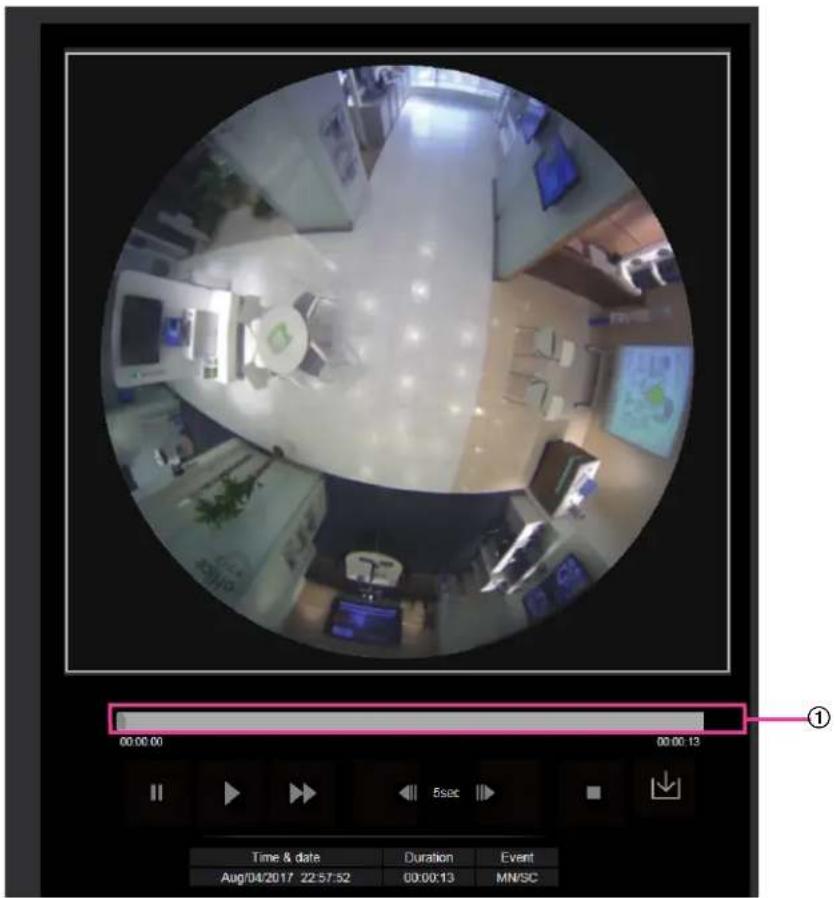
text_image
00:00:00 00:00:13 Time & date Duration Event Aug/04/2017 22:57:52 00:00:13 MN/SC① Slider bar
By operating the slider bar, you can select where to start playing images from. The slider bar can only be used before playing images, or when playing is paused or stopped.
II (PAUSE) button
Playback will be paused when this button is clicked during playback.
(PLAY) button
When this button is clicked, recorded data will be played.
Note
- If audio is recorded, it can be played back, but the image and audio will not be synchronized. Therefore, images and audio may not always match. When data is being recorded to the SD memory card, audio may sound as if it is cutting out and the audio quality may be reduced.
- When recorded audio is played back, the refresh interval of live images and playback may become slow.
- Recorded audio is not played back when "Off" or "Interactive(Half-duplex)" is selected for "Audio transmission mode" on the [Audio] tab of the "Image/Audio" page.

(FF) button
Each time this button is clicked, the playback speed will change. When the button is clicked during fast playback, playback speed will return to the normal playback speed.
Note
- The maximum speed of the fast playback varies depending on the setting of "Bit rate" - "Stream recording" of the SD memory card.
- Recorded audio will not be played back during fast playback.

(5s backward) button
Each time this button is clicked, the recorded data goes back by 5 seconds and starts playing.

(5s forward) button
Each time this button is clicked, the recorded data goes forward by 5 seconds and starts playing.

(STOP) button
Playback will stop and the "Playback" window will turn to the "Live" page.
[Time & date]
Time and date when each log has been recorded will be displayed.
[Duration]
Displays the period of time that the data has been recorded on the SD memory card.
[Event]
The event type will be displayed.
- MN/SC: Log by "Manual/Schedule"
- TRM1 S4551 S4151 X4573 X4172 : Alarm by alarm input to Terminal 1
• TRM2 S4551 S4151 X4573 X4172 : Alarm by alarm input to Terminal 2
• TRM3 S4551 S4151 X4573 X4172 : Alarm by alarm input to Terminal 3
• VMD: Alarm by VMD alarm
• COM: Alarm by command alarm
![i-PRO WV-X4173 - [Event] - 1](/content/2026/06/1229328/images/ed9171b5ef46515ec2416af36c7b0a81ad332f88870342f337720431af4f7534.jpg)
(Download) button
The selected image will be downloaded onto the PC.
Before downloading images, designate the destination directory in advance. (→page 102)
The message window will be displayed to ask if it is OK to start download when the button is clicked. Click the [OK] button.
Note
- The image playing screen cannot be operated while downloading. Perform operations after the downloading is completed.
- When the [Cancel] button is clicked in the process of the download, the download will be canceled. In this case, video data already downloaded before clicking the [Cancel] button will be saved on the PC
• Video data are saved in the files of approx. 20 MB. When the file size of video data is more than 20 MB, two or more files will be downloaded.
- It is possible to play back H.264 video data saved on the PC using such applications as Windows Media® Player. However, we are not liable for performance relating to these applications.
- Depending on the status of the SD memory card or Windows Media Player, H.264 video data cannot be played back.
- For information on playing back H.265 video data, refer to the following our website below. https://i-pro.com/global/en/surveillance/training_support/support/technical_information
2 Settings
2.1 About the network security
2.1.1 Equipped security functions
The following security functions are featured in this camera.
① Access restrictions by the host authentication and the user authentication
It is possible to restrict users from accessing the camera by setting the host authentication and/or the user authentication to "On". (→page 172, page 175)
② Access restrictions by changing the HTTP port
It is possible to prevent illegal access such as port scanning, etc. by changing the HTTP port number. ( page 185)
③ Access encryption by the HTTPS function
It is possible to enhance the network security by encrypting the access to cameras using the HTTPS function. ( page 204)
IMPORTANT
- Design and enhance security countermeasures to prevent leakage of information such as image data, authentication information (user name and password), alarm E-mail information, DDNS server information, etc. Perform the countermeasure such as access restriction (using the user authentication) or access encryption (using the HTTPS function).
• After the camera is accessed by the administrator, make sure to close the browser for added security. - Change the administrator password periodically for added security.
- When using the SNMP function using SNMPv1/v2, do not set a community name that can be easily guessed. (Example: public)
If a community name that can be easily guessed is used, the status of this camera may be leaked on the network or used as a stepping stone to gain unauthorized access to other devices.
Note
- When user authentication (authentication error) has failed to pass 8 times within 30 seconds using the same IP address (PC), access to the camera will be denied for a while.
2.2 Display the setup menu from a PC
The settings of the camera can be configured on the setup menu.
IMPORTANT
- The setup menu is only operable by users whose access level is "1. Administrator". Refer to page 172 for how to configure the access level.
2.2.1 How to display the setup menu
- Display the "Live" page. (→page 9)
- Click the [Setup] button on the "Live" page.
→ The setup menu will be displayed. Refer to page 63 for further information about this menu.
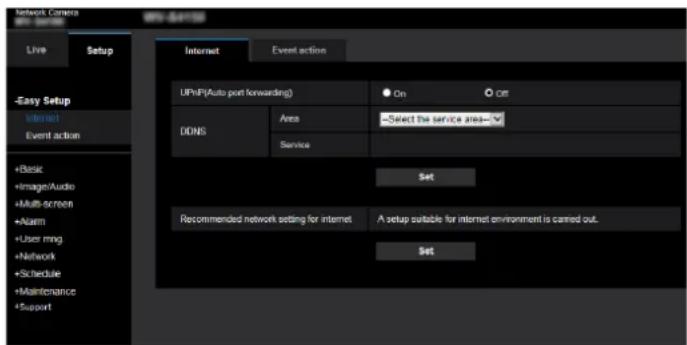
text_image
Network Camera Live Setup Easy Setup Internet Event action UPnP(Auto port forwarding) On Out DDNS Area Select the service area—√ Service Set Recommended network setting for internet A setup suitable for internet environment is carried out. Set2.2.2 How to operate the setup menu
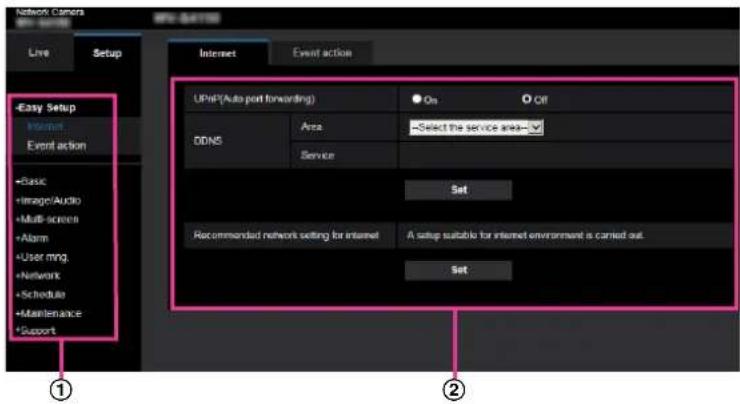
text_image
Network Camera Live Setup Live Setup Internet Event action +Easy Setup Internet Event action +Basic +Image/Audio +Multi-screen +Alarm +User ming. +Network +Schedule +Maintenance +Support UPnP(Auto port forwarding) On Off DDNS Area Select the service area—√ Service Set Recommended network setting for internet A setup suitable for internet environment is carried out. Set ① ②① Menu buttons
② Setup page
- Click the desired button in the frame on the left of the window to display the respective setup menu. When there are tabs at the top of the "Setup" page displayed in the frame on the right of the window, click the desired tab to display and configure the setting items relating to the name of the tab.
- Complete each setting item displayed in the frame on the right of the window.
- After completing each setting item, click the [Set] button to apply them.
IMPORTANT
- When there are two or more [Set], [Register], and [Execute] buttons on the page, click the respective button to the edited setting item.

text_image
Internet Event action UPnP(Auto port forwarding) On Off DDNS Area —Select the service area— Service Set Recommended network setting for internet A setup suitable for internet environment is carried out. Set ① ② ③ ④When completing the setting items in field ①, click the [Set] button (②) below field (①).
The edited settings in field ① will not be applied unless the [Set] button (②) below field (①) is clicked. In the same manner as above, click the [Set] button (④) below field ③ when completing the setting items in field ③.
2.2.3 About the setup menu window
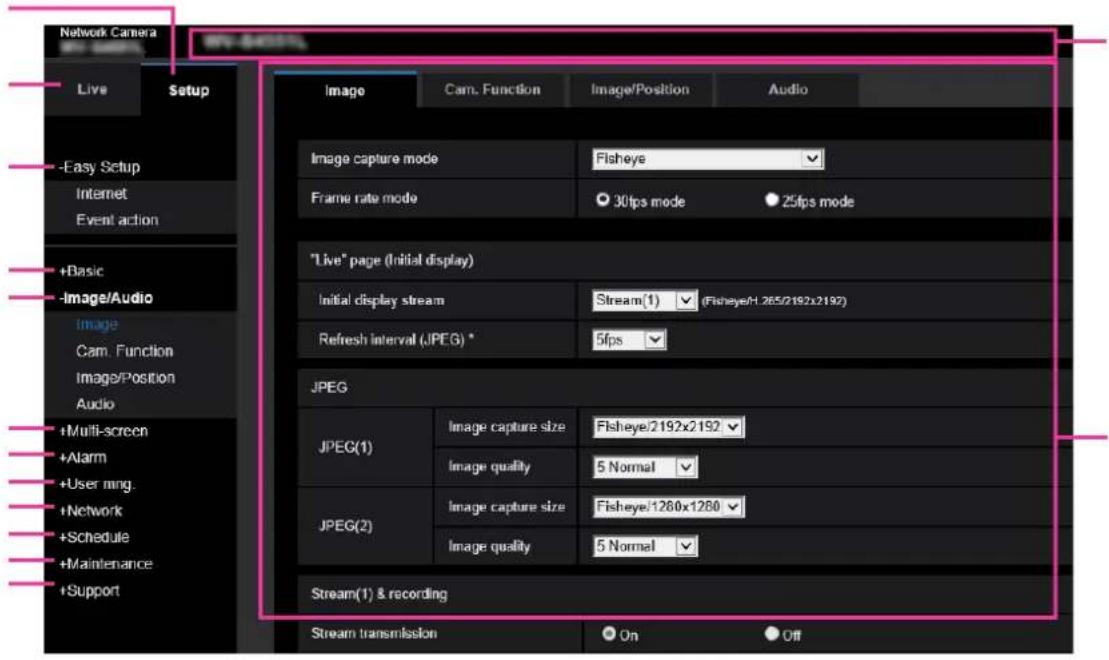
text_image
Network Camera Live Setup -L Easy Setup Internet Event action +Basic -Image/Audio Image Cam. Function Image/Position Audio +Multi-screen +Alarm +User ming. +Network +Schedule +Maintenance +Support Image Cam. Function Image/Position Audio Image capture mode Fisheye Frame rate mode 30fps mode 25fps mode "Live" page (Initial display) Initial display stream Stream(1) (Fisheye/H:265/2192x2192) Refresh interval (JPEG) * 5fps JPEG JPEG(1) Image capture size Fisheye/2192x2192 Image quality 5 Normal JPEG(2) Image capture size Fisheye/1260x1260 Image quality 5 Normal Stream(1) & recording Stream transmission On Off① [Setup] button
Display the "Setup" page.
② [Live] button
Display the "Live" page.
③ [Easy Setup] button
Displays the "Easy Setup" page. The "Easy Setup" page is used to set the connectivity to the Internet, as well as to set event actions such as alarm settings and camera action on alarm. (→page 65)
④ [Basic] button
Displays the "Basic" page. The basic settings such as time and date and camera title, and the settings relating to the SD memory card can be configured on the "Basic" page. (→page 79)
⑤ [Image/Audio] button S4551 S4151 X4573 X4172 [Image] button X4173
Displays the "Image/Audio" page. The settings relating to image quality, image capture size, etc. of JPEG/H.265/H.264 camera images can be configured on the "Image/Audio" page. (→page 102)
⑥ [Multi-screen] button
Displays the "Multi-screen" page. The cameras from which images are to be displayed on a multi-screen can be registered on the "Multi-screen" page. (→page 148)
⑦ [Alarm] button
Displays the "Alarm" page. The settings relating to alarm occurrences such as settings for the alarm action at an alarm occurrence, the alarm occurrence notification, and the VMD area settings can be configured on the "Alarm" page. (→page 150)
⑧ [User mng.] button
Displays the "User mng." page. The settings relating to the authentication such as users and PCs restrictions for accessing the camera can be configured on the "User mng." page. (→page 172)
⑨ [Network] button
Displays the "Network" page. The network settings and the settings relating to DDNS (Dynamic DNS), SNMP (Simple Network Management Protocol), the NTP server, and QoS can be configured on the "Network" page. (→page 183)
⑩ [Schedule] button
Displays the “Schedule” page. On the “Schedule” page, it is possible to designate time zones to allow to activate the VMD detection function. (→page 226)
⑪ [Maintenance] button
Displays the “Maintenance” page. System log check, firmware upgrade, status check and initialization of the setup menu can be carried out on the “Maintenance” page. (→page 234)
⑫ [Support] button
Displays the “Support” page. The “Support” page contains methods to display our support website. (→page 241)
⑬ Camera title
The title of the camera whose settings are currently being configured will be displayed.
⑭ Setup page
Pages of each setup menu will be displayed. There are tabs for some setup menus.
The bottom of the settings page has been omitted.
2.3 Use Easy Setup [Easy Setup]
The "Easy Setup" page uses simple operations to set the following:
- Make the camera image available on the Internet
- Set event actions such as recording of a schedule/alarm to the SD memory card
The "Easy Setup" page consists of the [Internet] tab and [Event action] tab.
2.3.1 Configure the Internet settings [Internet]
Click the [Internet] tab of the "Basic" page. (→page 61, page 62)
The settings relating to UPnP (Auto port forwarding), DDNS (Viewnetcam.com), and network settings for the Internet can be configured on this page.
![i-PRO WV-X4173 - Configure the Internet settings [Internet] - 1](/content/2026/06/1229328/images/1843766df4c0fe66609e0bfce03ed6669da4f147dfd41dc886abe91cca71c2e0.jpg)
text_image
Internet Event action UPnP(Auto port forwarding) On Off DDNS Area Select the service area- Service Set Recommended network setting for internet A setup suitable for internet environment is carried out Set[UPnP (Auto port forwarding)]
Select "On" or "Off" to determine whether or not to use the port forwarding function of the router.
To use the auto port forwarding function, the router in use must support UPnP and the UPnP must be enabled.
- Default: Off
Note
- Due to auto port forwarding, the port number may sometimes be changed. When the number is changed, it is necessary to change the port numbers registered in the PC and recorders, etc.
- The UPnP function is available when the camera is connected to the IPv4 network. IPv6 is not supported.
- To check if auto port forwarding is properly configured, click the [Status] tab on the "Maintenance" page, and check that the "Enable" is displayed for "Status" of "UPnP". (→page 236) When "Enable" is not displayed, refer to "Cannot access the camera via the Internet." in 3.2 Troubleshooting.
- When the "UPnP (Auto port forwarding)" setting is changed, the "Auto port forwarding" setting under "UPnP" on the [Advanced] tab of the "Network" page also changes to the same setting.
[Area]
Select the region where the camera is installed.
Global/Japan
Note
- If the camera is used in Japan, select “Japan”. If the camera is used outside of Japan, select “Global”. The “Viewnetcam.com” service that is displayed when “Global” is selected cannot be used in Japan.
[Service]
Select "Viewnetcam.com" or "Off" to determine whether or not to use "Viewnetcam.com".
By selecting "Viewnetcam.com" and clicking the [Set] button, the registration window for "Viewnetcam.com" will be displayed in a newly opened window.
Follow the on-screen instructions to register with "Viewnetcam.com".
Refer to page 223 or the "Viewnetcam.com" website (http://www.viewnetcam.com/) for further information.
- Default: Off
Note
- When the "DDNS" setting is changed, the "DDNS" setting on the [Advanced] tab of the "Network" page also changes to the same setting.
[Recommended network setting for internet]
The recommended settings for connecting to the Internet are performed here.
By clicking the [Set] button, a dialog displaying how the following settings will change is displayed.
Click the [OK] button after checking the settings to change the settings to the displayed values.
- [Image] tab on the "Image/Audio" page
[JPEG(1)]
[JPEG(2)]
[Stream(1)]/[Stream(2)]
[Transmission priority]: Best effort
[Max bit rate (per client)*]: 1024 kbps
[Stream(1)]
[Stream(2)]
- [Network] tab on the "Network" page
[Common]
2.3.2 Configure an event action [Event action]
Click the [Event action] tab in the "Easy Setup" page. (→page 61, page 62)
The current settings are displayed here.
![i-PRO WV-X4173 - Configure an event action [Event action] - 1](/content/2026/06/1229328/images/24d58b81b054874865ab9214741aebecd868af0b57c1e13cb28a3b650f028b25.jpg)
text_image
Internet Event action Configure the event action setting. Specify the action to be taken when an alarm is detected and register the action in the schedule in order [Current settings] Alarm Alarm condition Off Alarm Off Output terminal Off E-mail notification Off Schedule Schedule Off [Notes] • When the operating condition is changed, some settings will be cancelled. Confirm the settings after completing the setup NextYou can set event actions for SD schedule recording/alarm detection. Once the settings are completed in each setup menu, click the [Next] button to proceed.
The setup flow is as follows.
Note
- If you click the [Next] button, the settings in the screen will be saved.
Flow of event action setup

flowchart
graph TD
    A["Event function type: Select the trigger according to the purpose of setting."] --> B["Alarm (→page 66)"]
    B --> C["Terminal S4551 S4151 X4573 X4172 /VMD"]
    C --> D["Event action setup: Configure the action conditions selected in the event function type setup."]
    D --> E["SD memory recording: JPEG/H.265/H.264 (→page 71)"]
    E --> F["Event detailed setup: Configure the details of the settings in event action setup."]
    F --> G["Settings of recording conditions Settings of recording conditions"]
    G --> H["Alarm output (terminal)"]
    H --> I["E-mail settings Schedule settings"]
    I --> J["Completed Completed"]
    K["Schedule (→page 75)"] --> L["SD memory recording: H.265/H.264 (→page 75)"]
2.3.2.1 Configure the schedule/alarm (event function type setup menu)
Here, select the function type of the event.
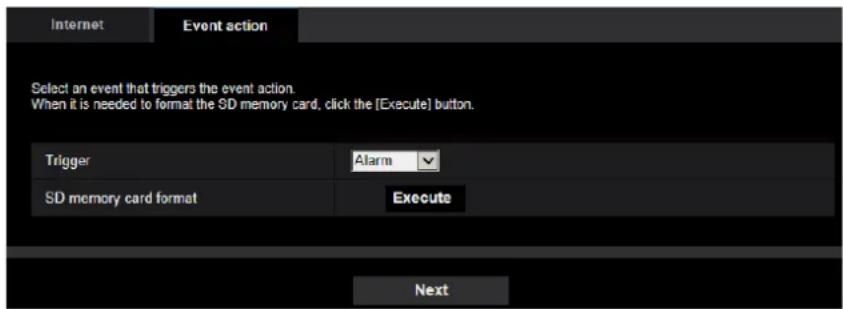
text_image
Internet Event action Select an event that triggers the event action. When it is needed to format the SD memory card, click the [Execute] button. Trigger Alarm SD memory card format Execute Next[Trigger]
- Alarm: Select when setting the alarm detection settings.
- Schedule: Select during "SD memory recording".
- Default: Alarm
[SD memory card format]
To format the SD memory card, click the [Execute] button.
Once you click the [Execute] button, the "Format" confirmation screen will be displayed.
If you click the [OK] button, the formatting will start.
Once the "Format" completion screen is displayed, press the ✗ button.
IMPORTANT
- All data saved on the SD memory card will be deleted when the SD memory card is formatted.
- Do not turn off the power of the camera during formatting.
[Next] button
If you select "Alarm", and click the [Next] button, the alarm setup menu will be displayed. (→page 69) If you select "Schedule", and click the [Next] button, the schedule function type setup menu will be displayed. (→page 75)
2.3.2.2 Alarm: Configure the terminal S4551 S4151 X4573 X4172 and VMD (alarm setup menu)
The settings relating to actions when an alarm is detected can be configured in this section.

text_image
Alarm Terminal 1 Off Terminal 2 Off Terminal 3 Off VMD alarm ● On ○ Off Alarm deactivation time 5 s (5-600s) Next BackAlarm
[Terminal 1] \4551 \4151 X4573 X4172
Determine how to use terminal 1.
- Off: Not used.
- Alarm input(TRM1): Receives terminal alarm input.
- Close: An alarm is detected when the terminal status is changed to "On".
- Open: An alarm is detected when the terminal status is changed to "Off".
- Black & white input \$4551 X4573: Receives the black & white input. (When the input is set to "On", the black & white mode is activated)
- Auto time adjustment: Receives time setting through terminal input. When the signal is entered, if the time difference from the hour (every hour) is less than 29 minutes, the time is adjusted to 00 minutes 00 seconds. During SD memory card recording, the time is not changed in operations which reset the time under 5 seconds. If you select auto time adjustment, the pull-down menu to select close or open is displayed.
- Close: Performs auto time adjustment when the terminal status is changed to "Close".
- Open: Performs auto time adjustment when the terminal status is changed to "Open".
- Default: Off
[Terminal 2] S4551 S4151 X4573 X4172
Determine how to use terminal 2.
- Off: Not used.
- Alarm input(TRM2): Receives terminal alarm input.
- Close: An alarm is detected when the terminal status is changed to "On".
- Open: An alarm is detected when the terminal status is changed to "Off".
- Alarm output: Alarm output will be carried out according to the settings for "Output terminal" (→page 152).
- Default: Off
[Terminal 3] S4551 S4151 X4573 X4172
Determine how to use terminal 3.
- Off: Not used.
-
Alarm input(TRM3): Receives terminal alarm input.
-
Close: An alarm is detected when the terminal status is changed to "On".
- Open: An alarm is detected when the terminal status is changed to "Off".
- AUX output: AUX output is carried out. The [AUX] button will be displayed on the "Live" page.
- Default: Off
[VMD alarm]
- On: If the VMD area is not configured, the entire region is configured. To configure the VMD area, use the [VMD area] tab on the "Alarm" page. (→page 165)
- Off: Disables all VMD states.
- Default: Off
[Alarm deactivation time]
Set the duration for which detection is not to be performed after an alarm has been detected. For example, by using this function you can prevent mail from being sent too often when the E-mail notifications are configured to be sent to cellular phones when an alarm is detected.
5 - 600 seconds
- Default: 5s
Note
- The duration of the alarm deactivation time can be specified for each type of alarm. For example, during the time when detections for "Terminal alarm 1" are not made, detections for "VMD alarm" can be made.
[Next] button
If you click the [Next] button, the alarm function type setup menu will be displayed. (→page 71)
Note
- If you click the [Next] button, the setting items in the screen are saved.
[Back] button
If you click the [Back] button, the event function type setup menu will be displayed. (→page 68)
2.3.2.3 Alarm: Configure the alarm recording image (Alarm function type setup menu)
Configure "Recording format" to activate SD memory recording when an alarm occurs.
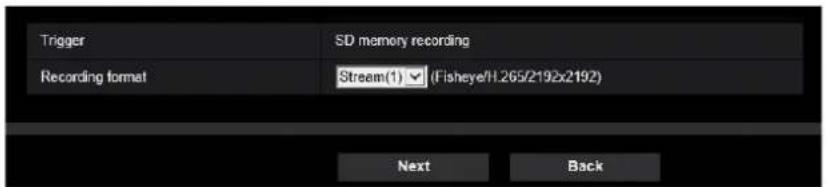
text_image
Trigger SD memory recording Recording format Stream(1) ✓ (Fisheye/H.265/2192x2192) Next Back[Trigger]
• SD memory recording: When an alarm occurs, records the image to the SD memory card.
[Recording format]
"JPEG(1)", "JPEG(2)", "Stream(1)" or "Stream(2)" can be selected for the stream encoding format for the recorded image.
Note
- When "Quad stream" is selected for [Image capture mode], JPEG(1) and JPEG(2) cannot be selected.
[Next] button
If you select "JPEG(1)" or "JPEG(2)" for "Recording format", and then click the [Next] button, the JPEG recording setup menu will be displayed. (→page 71)
If you select "Stream(1)" or "Stream(2)" for "Recording format", and then click the [Next] button, the video recording setup menu will be displayed. (page 72)
Note
- If you click the [Next] button, the setting items in the screen are saved.
[Back] button
If you click the [Back] button the alarm setup menu will be displayed. (→page 69)
2.3.2.4 Alarm: Configure the details for recording conditions
① Configure SD memory recording (JPEG) (JPEG recording setup menu)
The SD memory recording (JPEG) when an alarm is detected is configured in this section.
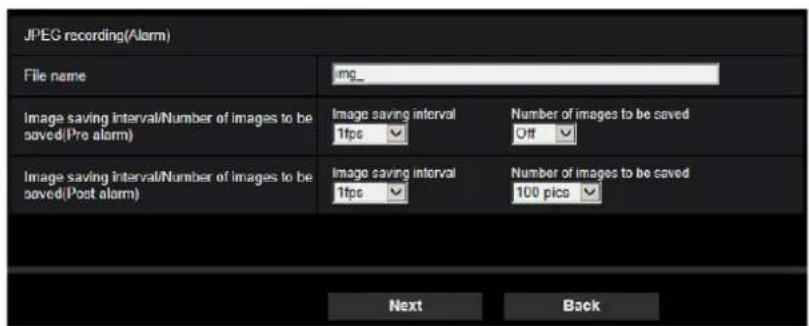
text_image
JPEG recording(Alarm) File name img_ Image saving interval/Number of images to be saved(Pre alarm) Image saving interval/Number of images to be saved(Post alarm) Image saving interval/1fps Number of images to be saved Off Image saving interval/1fps Number of images to be saved 100 pics Next BackRefer to page 92 of 2.4.2 Configure the settings relating to the SD memory card [SD memory card] for information about how to set the above screen.
[Next] button
If you select "Alarm output" in the alarm setup menu and click the [Next] button, the alarm output setup menu will be displayed. (→page 73)
If you click the [Next] button in the alarm setup menu without selecting "Alarm output", the mail setup menu will be displayed. (→page 73)
[Back] button
If you click the [Back] button, the alarm function type setup menu will be displayed. (→page 71)
② Configure SD memory recording (H.265 or H.264) (video recording setup menu)
The SD memory recording (H.265 or H.264) when an alarm is detected is configured in this section.

text_image
Stream recording(Alarm) Audio recording On Off Frame rate* 30fps * Pro alarm (recording) duration Off Post alarm (recording) duration 30s Next Back[Audio recording] S4551 S4151 X4573 X4172
Select On/Off to determine whether or not to record audio data.
- On: Saves audio data to videos (MP4 format).
- Off: Does not save audio data to videos (MP4 format).
Note
- This setting is not available when "Interactive(Half-duplex)" is selected for "Audio transmission mode".
[Frame rate]
Select a frame rate for the H.265 (or H.264) to be recorded.
Note
- For information about available frame rates and bit rates that are set according to the frame rate, refer to “[Frame rate*]” in page 75.
[Pre alarm (recording) duration]
Determine whether or not to perform the pre alarm recording. Set the duration to save image data on the SD memory card.
Off/ 1s/ 2s/ 3s/ 4s/ 5s/ 8s/ 10s/ 15s/ 20s/ 25s/ 30s/ 40s/ 50s/ 60s/ 90s/ 120s
- Default: Off
Note
- The values change depending on the bit rate and the image capture size of the recorded stream. As the selected bit rate increases, the available maximum value for the pre alarm duration decreases.
[Post alarm (recording) duration]
Set the duration to save image data on the SD memory card after an alarm occurrence.
10s/ 20s/ 30s/ 40s/ 50s/ 60s/ 120s/ 180s/ 240s/ 300s
- Default: 30s
* The actual recording time may sometimes be longer than the duration selected for this setting.
[Next] button
If you select "Alarm output" in the alarm setup menu and click the [Next] button, the alarm output setup menu will be displayed. (→page 73)
If you click the [Next] button in the alarm setup menu without selecting "Alarm output", the mail setup menu will be displayed. (→page 73)
Note
- If you click the [Next] button, the setting items in the screen are saved.
[Back] button
If you click the [Back] button, the alarm function type setup menu will be displayed. (→page 71)
2.3.2.5 Alarm: Configure the output terminal S4551 S4151 X4573 X4172
Alarm output is configured in this section. This screen will be displayed when "Alarm output" is selected in the alarm setup menu.
• To configure settings relating to the output terminal:

text_image
Output terminal Terminal output upon alarm detection ● On ○ Off SD memory card error ● On ○ Off Terminal state upon alarm detection ● Latch ● Pulse Terminal action upon alarm detection ● Open ● Close Pulse output width s (1-120s) Next BackRefer to page 152 for information about how to configure the above screen.
[Next] button
If you click the [Next] button, the mail setup menu will be displayed. (→page 73)
Note
- If you click the [Next] button, the setting items in the screen are saved.
[Back] button
If you click the [Back] button, either the JPEG recording setup menu (→page 71), or the video recording setup menu (→page 72) will be displayed.
2.3.2.6 Alarm: configure the mail notifications and mail server
The settings relating to e-mail can be configured in this section.
• To configure e-mail related settings:
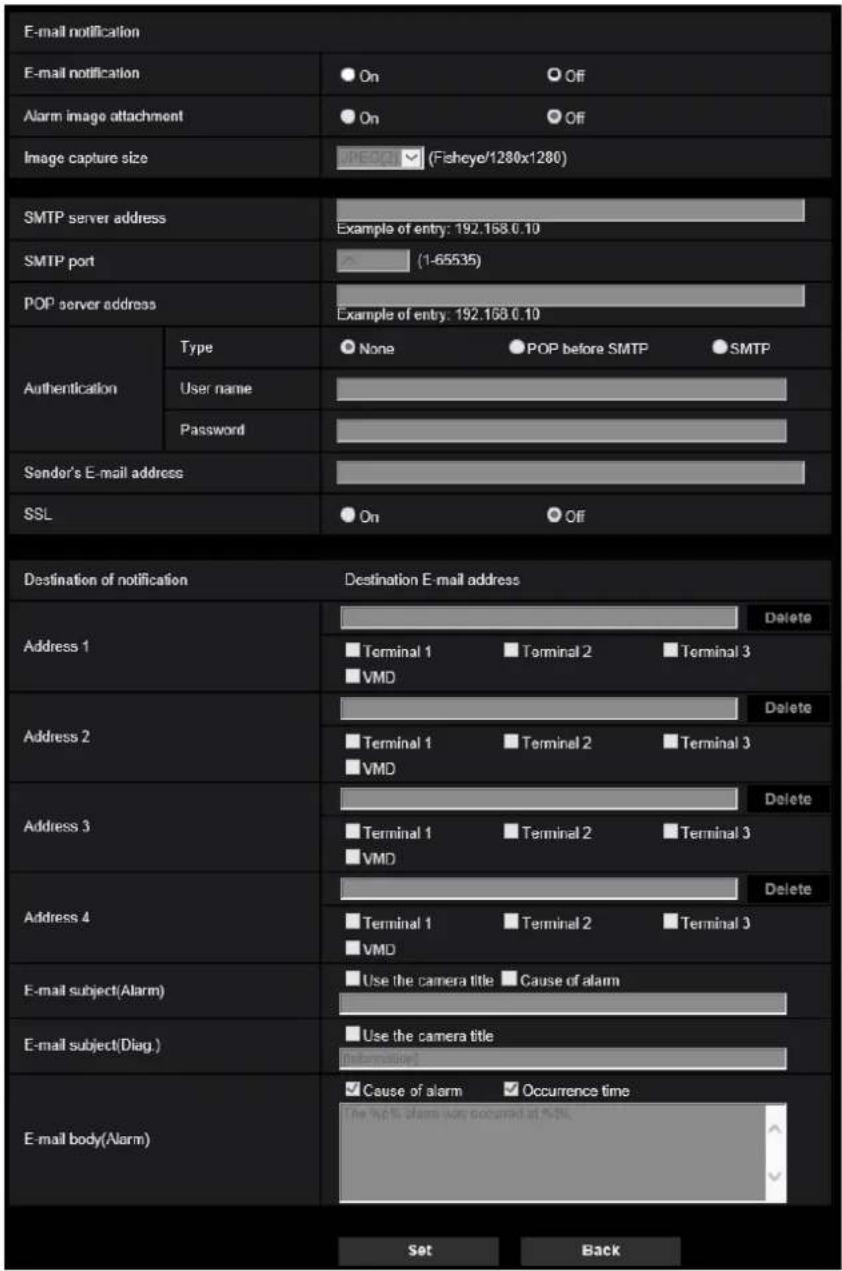
text_image
E-mail notification E-mail notification Alarm image attachment Image capture size SMTP server address SMTP port POP server address Authentication Type User name Password Sonder's E-mail address SSL Destination of notification Destination E-mail address Address 1 Address 2 Address 3 Address 4 E-mail subject(Alarm) E-mail subject(Diag.) E-mail body(Alarm) On Off (1-65535) Example of entry: 192.168.0.10 Example of entry: 192.168.0.10 None POP before SMTP SMTP Terminal 1 Terminal 2 Terminal 3 VMD Terminal 1 Terminal 2 Terminal 3 VMD Terminal 1 Terminal 2 Terminal 3 VMD Use the camera title Cause of alarm Use the camera title information Cause of alarm Occurrence time Set BackRefer to page 188 for information about how to configure the above screen.
[Set] button
If you click the [Set] button, setup will be completed.
[Back] button
If you click the [Back] button, either the JPEG recording setup menu (→page 71), the video recording setup menu (→page 72), or the alarm output setup menu (→page 73) will be displayed.
2.3.2.7 Schedule: Configure the recording format (schedule function type setup menu)
Here, select "Recording format" from "Stream(1)" or "Stream(2)" in order to activate schedules SD memory recording.
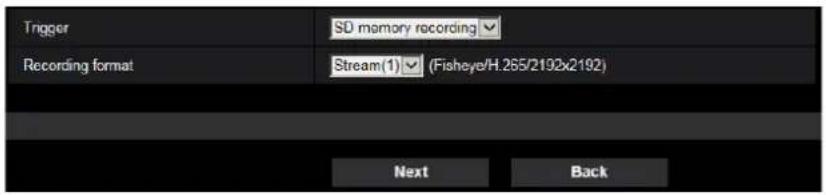
text_image
Trigger SD memory recording Recording format Stream(1) (Fisheye/H.265/2192x2192) Next Back[Trigger]
- SD memory recording: Records the H.265 (or H.264) image in the SD memory card at the scheduled time.
[Recording format]
"Stream(1)" or "Stream(2)" can be selected for the recorded image.
[Next] button
If you select "SD memory recording" and click the [Next] button, the video recording setup menu will be displayed. (→page 75)
Note
- If you click the [Next] button, the setting items in the screen are saved.
[Back] button
If you click the [Back] button, the event function type setup menu will be displayed. (→page 68)
2.3.2.8 Schedule: Set SD memory recording (video recording setup menu)
Here, SD memory recording (H.265 or H.264) is configured according to the schedule.
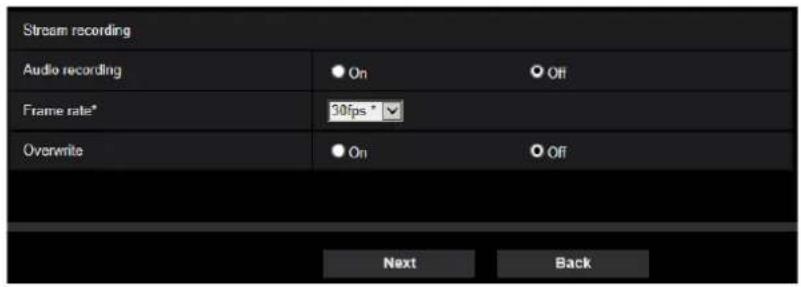
text_image
Stream recording Audio recording On Off Frame rate* 30fps Overwrite On Off Next Back[Audio recording] S4551 S4151 X4573 X4172
Determine whether or not to perform audio recording.
- On: Saves audio data to videos (MP4 format).
- Off: Does not save audio data to videos (MP4 format).
- Default: Off
Note
- This setting is not available when "Interactive(Half-duplex)" is selected for "Audio transmission mode".
IMPORTANT
- When the [Overwrite] setting is changed from "Off" to "On", if the remaining capacity of the SD memory card is low, old images may be deleted in order to prepare to save new images.
[Frame rate ^* ]
Select a frame rate for the H.265 or H.264 to be recorded from the following.
- When "Frame rate mode" is set to 30fps mode: 1fps/ 3fps/ 5fps*/ 7.5fps*/ 10fps*/ 12fps*/ 15fps*/ 20fps*/ 30fps* - When "Frame rate mode" is set to 25fps mode: 1fps/ 3.1fps/ 4.2fps*/ 6.25fps*/ 8.3fps*/ 12.5fps*/ 20fps*/ 25fps*
- Default: 30fps*
Note
- If you click the [Next] button, the "Transmission priority" will be set to "Frame rate". (→page 107)
The bit rate is automatically set depending on the selected resolution and frame rate. To check the specified bit rate, confirm the "Max bit rate (per client)*" setting for each stream.
[Overwrite]
Determine whether or not to overwrite images when the remaining capacity of the SD memory card becomes insufficient.
- On: Overwrites when the remaining capacity of the SD memory card becomes insufficient. (The oldest image is the first to be overwritten.)
- Off: Stops saving images on the SD memory card when the SD memory card becomes full.
- Default: Off
IMPORTANT
- When the [Overwrite] setting is changed from "Off" to "On", if the remaining capacity of the SD memory card is low, old images may be deleted in order to prepare to save new images.
[Next] button
If you click the [Next] button, the setup menu to set the schedule for recording into the SD memory card will be displayed. (→page 77)
[Back] button
If you click the [Back] button, the schedule function type setup menu will be displayed. (→page 75)
• To configure the schedule settings:
![i-PRO WV-X4173 - [Back] button - 1](/content/2026/06/1229328/images/f9bf998287fdbe9e282cca1cba80f117a73aa1db57b7fe2a764f1da8667b7ab7.jpg)
text_image
Schedules Schedule 1 (White) Schedule mode Off Time range Mon Tue Wed Thu Fri Sat Sun 24h - - - - - - - - - - - - - - - - - - - - - - - - - - - - - - - - - - - - - - - - - - - - - - - - - - - - - - - - - - - - - - - - - - - - - - - - - - - - - - - - - - - - - - - - - - - - - - - - - - - - 6:00 6:00 12:00 18:00 24:00 Mon Tue Wed Thu Fri Sat Sun 24h - - - - - - - - - - - Schedule 2 (Blue) Schedule mode Off Time range Mon Tue Wed Thu Fri Sat Sun 24h - - - - - - - - - - - - - - - - - - - - - - - - - - - - - - - - - - 6:00 12:00 18:00 24:00 Mon Tue Wed Thu Fri Sat Sun 24h - - - - - - - - - - - - - - - - - - - - - - - - 6:00 12:00 18:00 24:00 Mon Tue Wed Thu Fri Sat Sun 24h - - - - - - - - - - - - - - 6:00 12:00 18:00 24:00 Mon Tue Wed Thu Fri Sat Sun 24h - - - - - - - - - - - - - - - 6:00 12:00 18:00 24:00 Mon Tue Wed Thu Fri Sat Sun 24h - - - - - - - - - - - - - - - - - 6:00 12:00 18:00 24:00 Mon Tue Wed Thu Fri Sat Sun 24h - - - - - - - - - - - - - - - - - 6:00 12:00 18:00 24:00 Mon Tue Wed Thu Fri SatSun 24h - - - - - - - - - - - - - - - - 6:00 12:00 18:00 24:00 Mon Tue Wed Thu Fri Sat Sun 24h - - - - - - - - - - - - - - - - - 6:00 12:00 18:00 24:00 Mon Tue Wed Thu FriSat Sun 24h - - - - - - - - - - - - - - - - 6:00 12:00 18:00 24:00 Mon Tue Wed Thu FriSat Sun 24h - - - - - - - - - - - - - - - 6:00 12:00 18:00 24:00 Mon Tue Wed Thu FriSat Sun 24h - - - - - - - - - - - - - - 6:00 12:00 18:00 24:00 Mon Tue Wed Thu FriSat Sun 24h - - - - - - - - - - - - - 6:00 12:00 18:00 24:00Refer to page 226 for information about how to set the above screen.
[Set] button
If you click the [Set] button, setup will be completed.
[Back] button
If you click the [Back] button, the video recording setup menu will be displayed. (→page 75)
Note
• Video recording is not performed if "SD memory recording" is not selected in the "Schedule mode".
2.4 Configure the basic settings of the camera [Basic]
The basic settings such as camera title, time and date, SD memory card and the logs can be configured on the "Basic" page. The "Basic" page has the [Basic] tab, the [SD memory card] tab, and the [Log] tab.
2.4.1 Configure the basic settings [Basic]
Click the [Basic] tab on the "Basic" page. (→page 61, page 62)
The settings such as the camera title, time and date, etc. can be configured on this page.
![i-PRO WV-X4173 - Configure the basic settings [Basic] - 1](/content/2026/06/1229328/images/09090b29458526349cb4ac064b5236430c4afedac480a5b8eb52be0e3b321336.jpg)
text_image
Basic SD memory card Log Monu language Auto Camera title Date/time Sep 13 2020 12 09 23 ■ Set PC time to the camera Date/time display On Off Time display format 24h Date/time display format Mmm/DD/YYYY NTP NTP>> Time zone (GMT-69.00) Osaka, Sapporo, Tokyo Summer time (daylight saving) Out Start time & date Month Day Time End time & date Month Day Time Ch1 Ch2 Ch3 Ch4 Position Upper left Character size 100% Brightness status display On Off Upside down On Off Indicator On Off Status update mode Polling(30s) Real time Status reception port 31004 (1-65535) Automatic installation On Off Drawing method GDI Direc2D Decoding Options Software Hardware Confirm Sinoother live video display on the browser (buffering) On Off Frame Skip Options Manual (When PC is Heavy Processing Load) Auto Manual Contrast enhancement (RGB:0 to 255) On Off Download Execute Audio out Audio Monitor Monitor out NTSC PAL Set[Menu language]
Select the language to initially display when the camera is accessed from the following.
Auto/English/Japanese/Italian/French/German/Spanish/Chinese/Russian/Portuguese
- Auto: The language used by the browser is automatically selected. If the language used by the browser is not supported by the camera, English is selected.
- Default: Auto
The language displayed on the "Live" page can also be changed. (→page 23)
[Camera title]
Enter the title of the camera. Click the [Set] button after entering the title of the camera. The entered title will be displayed in the “Camera title” field.
• Available number of characters: 0 - 20 characters
- Unavailable characters: " &
- Default: The model No. is displayed.
[Date/time]
Enter the current time and date. When “12h” is selected for “Time display format”, “AM” or “PM” can be selected. To acquire the date and time set on the PC and set them to this camera, select the “Set PC time to the camera” check box, and click the [Set] button.
• Available range: Jan/01/2013 00:00:00 - Dec/31/2035 23:59:59
IMPORTANT
- Use an NTP server when the more accurate time & date setting is required for the system operation. (→page 192)
[Date/time display]
Select On/Off to determine whether or not to display the date and time on an image. To hide the date and time, select "Off".
- Default: On
[Time display format]
Select the time display format from “24h” and “12h”. Enter the current hour reflecting this setting when entering the current time and date for “Date/time”.
- Default: 24h
[Date/time display format]
Select a date/time display format. When “2017/04/01 13:10:00” is set for “Date/time” after selecting “24h” for “Time display format”, time & date will be respectively displayed as follows.
• DD/MM/YYYY: 01/04/2017 13:10:00
• MM/DD/YYYY: 04/01/2017 13:10:00
• DD/Mmm/YYYY: 01/Apr/2017 13:10:00
• YYYY/MM/DD: 2017/04/01 13:10:00
• Mmm/DD/YYYY: Apr/01/2017 13:10:00
- Default: Mmm/DD/YYYY
[NTP]
When "NTP >>" is clicked, the [Advanced] tab of the "Network" page will be displayed. (→page 192)
[Time zone]
Select a time zone corresponding to the location where the camera is in use.
- Default: (GMT +09:00) Osaka, Sapporo, Tokyo
[Summer time (daylight saving)]
Select "In", "Out" or "Auto" to determine whether or not to apply daylight saving time. Configure this setting if the summer time (daylight saving time) is applied in the location where the camera is in use.
• In: Applies summer time. An asterisk (*) will be displayed on the left side of the displayed time and date.
• In: Applies summer time. An asterisk (*) will be displayed on the left side of the displayed time and date.
- Out: Does not apply summer time.
- Auto: Applies summer time in accordance with the settings for "Start time & date" and "End time & date" (month, week, day of the week, time).
- Default: Out
[Start time & date] [End time & date]
When “Auto” is selected for “Summer time (daylight saving)”, select the time & date for the start time and the end time (month, week, day of the week, time).
[Camera title on screen display]
Select "On" or "Off" to determine whether or not to display the camera title on the screen. When "On" is selected, the character string entered for "Camera title on screen" will be displayed at the position selected for "Camera title position".
- Default: Off
Note
- When "Off" is selected, if Quad PTZ or Single PTZ is selected for the image type, "Preset ID" will be hidden.
[Camera title on screen]
Enter a character string to be displayed on the image.
- When "Quad stream" is selected for "Image capture mode", the characters configured for "Ch1" to "Ch4" are displayed on each stream screen.
- When "Quad stream" is selected for "Image capture mode", the characters configured for "Ch1" to "Ch4" are displayed on each of the 4 images for Quad stream.
- When “Double Panorama” is selected for “Image capture mode”, the characters configured for “Ch1” and “Ch2” are displayed on each of the 2 images for Double Panorama.
- When "Fisheye", "Panorama", or "Single PTZ" is selected for "Image capture mode", the characters configured for "Ch1" are displayed.
• Available number of characters: 0 - 20 characters
• Available characters: 0-9, A-Z, a-z and the following marks. ! " # \$ % & ' ( ) * + , - . / : ; = ?
- Default: None (blank)
[OSD] - [Position]
Select the position where the date, time, and character string will be displayed on the image.
- Upper left: The above information will be displayed at the upper left corner of the main area on the "Live" page.
- Lower left: The above information will be displayed at the lower left corner of the main area on the "Live" page.
• Upper center: The above information will be displayed at the upper center of the image.
• Lower center: The above information will be displayed at the lower center of the image. - Upper right: The above information will be displayed at the upper right corner of the main area on the "Live" page.
- Lower right: The above information will be displayed at the lower right corner of the main area on the "Live" page.
- Default: Upper left
[OSD] - [Character size]
Select the character size of the date and time as well as text displayed in the image.
• 100%: Displays in the standard size.
• 150%: Displays in 150% of the standard size.
• 200%: Displays in 200% of the standard size.
- Default: 100%
IMPORTANT
- If "150%" or "200%" is selected for [Character size], the frame rate may be lower than the specified value.
- Depending on the setting and the numbers of characters used for [Character size], and the setting and image capture size of images, characters displayed on the screen may be cut off. After completing the settings, confirm the result on the "Live" page.
[Brightness status display]
Select “On” or “Off” to determine whether or not to display the status of brightness on images displayed on the “Live” page when adjusting brightness.
- Default: On
[Upside-down]
Select "On" or "Off" to determine whether or not to turn the image upside-down.
- Default: Off
IMPORTANT
- If the "Upside-down" setting is changed when the following area settings are configured, perform the area setting again.
- Privacy zone (→page 137)
- VMD area (→page 159)
- VIQS area (→page 139)
- Mask area (→page 126)
- If the "Upside-down" setting is changed when a preset position is configured, the preset position must be configured again. (→page 132)
Note
- The upside-down function is available when
- When "Fisheye" is selected for "Image capture mode", images are not turned upside-down.
[Indicator]
Determine whether or not to use the following indicators. Select "On" to use the following indicators to check the operational status by lighting them.
- Link indicator (LINK)
- Access indicator (ACT)
- SD memory card error indicator (SD ERROR) S4551 S4151
- SD memory card error indicator/ABF indicator (SD ERROR/ABF) X4573 X4172 X4173
- SD MOUNT indicator
- Default: On
Note
- Link indicator (LINK) (orange): This indicator will light when communication with the connected device is available.
- Access indicator (ACT) (green): This indicator will blink when accessing a network.
- SD memory card error indicator (SD ERROR) (red) S4551 S4151: Lights when data cannot be saved to the SD memory card.
-
SD memory card error indicator/ABF indicator (SD ERROR/ABF) (red) X4573 X4172
X4173 : Lights when data cannot be saved to the SD memory card. Also, when the auto back focus function is used, the indicator flashes during focus adjustment and turns off when the adjustment is completed. -
SD MOUNT indicator (SD MOUNT) (green): Lights when data can be saved to the SD memory card. It blinks or is off when data cannot be saved to the SD memory card.
- Indicator is off: Indicates "Not use" is selected for SD memory card, or an error occurred for the SD memory card.
- Indicator blinks: Indicates the SD memory card is being recognized or is performing the necessary processing for the SD memory card to be removed.
— Indicator lights: Indicates data can be saved to the SD memory card.
[Status update mode]
Select an interval of the camera status notification from the following.
When the status of the camera changes, the alarm occurrence indication button, [AUX] button S4551
S4151 X4573 X4172, or the "SD recording status indicator" will be displayed in the "Live" page to notify of the camera status.
- Polling(30s): Updates the status each 30 seconds and provide notification of the camera status.
• Real time: Provide notification of the camera status when the status has changed. - Default: Real time
Note
- Depending on the network environment, notification may not be provided in real time.
- When multiple cameras are using the same “Status reception port”, even if “Real time” is selected for “Status update mode”, status notification is not provided in real time. In this case, change the “Status reception port” settings.
[Status reception port]
When selecting "Real time" for "Status update mode", designate a port number to which the status change notification is to be sent.
• Available port number: 1 - 65535
- Default: 31004
The following port numbers are unavailable since they are already in use.
20, 21, 23, 25, 42, 53, 67, 68, 69, 80, 110, 123, 161, 162, 443, 995, 10669, 10670
[Viewer software (nwcv4Ssetup.exe)] - [Automatic installation]
Determine whether or not to install the viewer software from this camera.
- On: Installs the viewer software from the camera automatically.
- Off: The viewer software cannot be installed from the camera.
- Default: On
IMPORTANT
- For PCs that do not have the viewer software "Network Camera View 4S" installed, JPEG images are displayed. You cannot display images using H.265 (or H.264) or send/receive audio to/from the camera. In order to display H.265 (or H.264) images or send/receive audio to/from the camera, you must click "Viewer Software" on the "Live" page (→page 23) and then install the viewer software.
- The number of the viewer software installations can be checked on the [Upgrade] tab of the "Maintenance" page.
Note
- If [Automatic installation] is set to "Off", the [Viewer Software] button is not displayed on the "Live" page.
[Viewer software (nwcv4Ssetup.exe)] - [Drawing method]
Perform image display settings when displaying camera images with the viewer software.
- GDI: The drawing method generally used in Windows.
- Direct2D: Can reduce choppy drawing of images.
- Default: GDI
IMPORTANT
- Use "Direct2D" with a computer that has the latest graphic driver version installed to it.
- When using "Direct2D", set "Smoother live video display on the browser (buffering)" to "On".
If "Off" is selected for "H.264 Smoother live video display on the browser (buffering)", "Direct2D" may not be very effective.
Note
- When "Direct2D" is selected for "Drawing method", video may not be displayed or the displayed image may be seen as it is partially corrupted depending on the PC in use.
- Refer to our support website for information of PCs for which "Direct2D" is selectable.
Our website (https://i-pro.com/global/en/surveillance/training_support/support/technical_information
[Viewer software (nwcv4Ssetup.exe)] - [Decoding Options]
Select the decoding method for H.265/H.264 images on the "Live" page.
- Software: Decoding is performed by software.
• Hardware: Uses the Hardware Acceleration (QSV/DXVA) function that performs fast decoding. - Default: Software
IMPORTANT
- "Hardware" may not be able to be used depending on the computer used.
One of the following messages is displayed when the [Confirm] button is clicked.
- The hardware decode is available for both H.265 and H.264 on your PC.
→ Depending on your PC environment, images may not be able to be outputted. In this case, select "Software" for "Decoding Options".
- The hardware decode is available for H.264 on your PC, but unavailable for H.265 on your PC.
→ Depending on your PC environment, images may not be able to be outputted. In this case, select "Software" for "Decoding Options".
- "The hardware decode is not available on your PC."
→ Select "Software" for "Decoding Options".
Note
- When "Hardware" is selected for "Decoding Options", video may not be displayed or the displayed image may be seen as it is partially corrupted depending on the PC in use.
- Refer to our support website below for information of PCs for which "Hardware" is selectable. Our website (https://i-pro.com/global/en/surveillance/training_support/support/technical_information
)
[Viewer software (nwcv4Ssetup.exe)] - [Smoother live video display on the browser (buffering)]
Perform settings to display camera images on the viewer software.
- On: Images are temporarily stored on the computer and are displayed smoother.
- Off: Images are displayed in real-time and are not stored on the computer.
- Default: Off
Note
- If an image is not displayed smoothly, set this to "On".
[Viewer software (nwcv4Ssetup.exe)] - [Frame Skip Options (When PC is Heavy Processing Load)]
Perform settings to display camera images on the viewer software.
- Auto: If there is a delay in displaying images from the camera, the delay can be resolved by automatically skipping frames.
- Manual: If there is a delay in displaying images from the camera, frames are not skipped automatically.
- Default: Auto
Note
- When “Manual” is selected, “Off”, “1 Frame Skip”, “2 Frames Skip”, “4 Frames Skip”, “6 Frames Skip”, or “8 Frames Skip” can be selected for frame skip by right-clicking on the “Live” page. The value selected here will revert to “Off” when the browser is closed.
[Viewer software (nwcv4Ssetup.exe)] - [Contrast enhancement(RGB:0 to 255)]
Select “On” or “Off” to determine whether or not to enhance the contrast of H.265 images or H.264 images on the “Live” page.
If "On" is selected, the range of RGB signal on display is extended from 16-235 to 0-255.
When there is a bright part in an image, the intensity may be overexposed. Select a setting suitable to your usage environment.
- Default: Off
Note
- This setting is only available when viewing images on the "Live" page with Internet Explorer.
- Even if this setting is changed, transmitted image data and data saved on the SD memory card are not changed.
[Audio out] S4551 S4151 X4573 X4172
Select whether or not to use the audio output terminal as an adjustment monitor output terminal.
Audio/Monitor
- Default: Audio
Note
- When "Audio out" is set to "Audio", "Monitor out" cannot be selected.
- When “Audio transmission mode” is set to anything other than “Off” or “Mic input”, “Audio out” cannot be set to “Monitor”.
- When "Audio out" is set to "Monitor", "Audio transmission mode" can only be set to "Off" or "Mic input".
- When "Audio out" is set to "Monitor", the frame rate may be reduced.
[Monitor out] S4551 S4151 X4573 X4172
Set the image format for images output to an adjustment monitor from the audio output terminal if "Audio out" is set to "Monitor".
NTSC/PAL
- Default: NTSC
Note
- When "Frame rate mode" is set to 25fps, "Monitor out" is set to "PAL".
2.4.2 Configure the settings relating to the SD memory card [SD memory card]
Click the [SD memory card] tab on the "Basic" page. (→page 61, page 62)
The settings relating to the SD memory card can be configured on this page.
![i-PRO WV-X4173 - Configure the settings relating to the SD memory card [SD memory card] - 1](/content/2026/06/1229328/images/dfca0c7e83bcc88bacf1364d151dab7fc5faad9d2174d42f27ee03bd491a6ea9.jpg)
text_image
Basic SD memory card Log Operating mode SD memory card Use Not use Audio recording On Off Remaining capacity notification 50% Overwrite On Off SD memory card security Additional info for detecting alteration Setup >> SD memory card password lock Password Set Remove Change Status Unlock Recording stream Recording format JPEG(2) (Fisheye/1280x1280) Save trigger Manual Terminal 1 Terminal 2 Terminal 3 VMD Command alarm SD memory card warning/ error LED SD memory card warning/ error LED On Off JPEG recording(Manual) File name img_ Image saving interval 1fps SD memory card information Remaining capacity 3674MB/3772MB(Remaining capacity/Original capacity) Format Execute SetOperating mode
[SD memory card]
Select "Use" or "Not use" to determine whether or not to use the SD memory card.
- Default: Use
[Audio recording] S4551 S4151 X4573 X4172
Select whether or not to save audio data when saving video data in MP4 format.
- Off: Does not save audio data to videos (MP4 format).
- On: Saves audio data to videos (MP4 format).
- Default: Off
Note
- When [Audio recording], you need to set "Recording format" to "Stream(1)" or "Stream(2)".
[Remaining capacity notification]
When the E-mail notification function or the TCP alarm notification function is used to provide notification of the remaining capacity of the SD memory card, select a level to be notified at from the following.
50%/ 20%/ 10%/ 5%/ 2%
- Default: 50%
Note
- Notification will be provided each time the remaining capacity goes below each of the specified values. For example, notification will be provided each time the remaining capacity reaches 50%, 20%, 10%, 5% and 2% when “50%” is selected. Notification may not always be made at the very moment when the remaining capacity of the SD memory card has reached each value.
- If [Overwrite] is set to "On", the pull-down menu is grayed out, and no notification is issued.
[Overwrite]
Determine whether or not to overwrite when the remaining capacity of the SD memory card becomes insufficient.
- On: Overwrites when the remaining capacity of the SD memory card becomes insufficient. (The oldest image is the first to be overwritten.)
- Off: Stops saving images on the SD memory card when the SD memory card becomes full.
- Default: Off
IMPORTANT
- Select "Not use" when operating without an SD memory card.
- Before removing the SD memory card from the camera, it is necessary to select "Not use" first. The recorded data may be corrupted if the SD memory card is removed when "Use" is selected.
- When an SD memory card is inserted when "Use" is selected, data will be saved in accordance with the setting of "Save trigger".
• After inserting the SD memory card, it is necessary to select "Use" to use the SD memory card. - When the image refresh interval is short, notification/recording timing or interval may become incorrect. Notification/recording may also not be performed correctly as configured when multiple users are receiving images. In this case, set the refresh interval longer.
- There are limited times to overwrite on an SD memory card. When having a high frequency of overwriting, the lifetime of the SD memory card may become shorter.
- A lifetime of an SD memory card should be influenced by the number of the image files stored and log savings on the SD memory card. Selecting "Stream(1)" or "Stream(2)" for "Recording format" can reduce the number of files that can be stored on the SD memory card.
- If the data writing speed goes down after data is repeatedly written on an SD memory card, we recommend replacing the SD memory card.
- When the setting is changed from "Off" to "On", if the remaining capacity of the SD memory card is low, old images may be deleted in order to prepare to save new images.
SD memory card security
[Additional info for detecting alteration]
Select whether or not to add information to enable detection when the data in the SD memory card is altered. Alteration detection supports video data (MP4 format) only and can be checked using exclusive software.
For further information about exclusive software for alteration detection and how to use it, refer to our website below.
https://i-pro.com/global/en/surveillance/training_support/support/technical_information
[SD memory card password lock]
Configure a password for the SD memory card. When configuring a password, devices other than the camera will be unable to write to or read the SD memory card. If the SD memory card is stolen or lost, the risk of recorded data being leaked can be reduced.
[Set]
When an SD memory card with no configured password is inserted, a password can be configured using the [Set] button.
![i-PRO WV-X4173 - [Set] - 1](/content/2026/06/1229328/images/5c2e1c483130fe0d772ea8ca4896e9789c79fd77e9bbb7a9cd33a13706af28fa.jpg)
text_image
SD memory card password lock(Set) Password Retype password Set[Password]/[Retype password]
Enter the password.
Available number of characters: 4 - 16 characters
Unavailable characters: " &
Default: None (blank)
[Remove]
When an SD memory card with a configured password is inserted, the password can be removed using the [Remove] button.
![i-PRO WV-X4173 - [Remove] - 1](/content/2026/06/1229328/images/70adcfcbfef3780283441a912891e6875addfe9071cd0db090452e597ad7a5ba.jpg)
text_image
SD memory card password lock(Remove) Password Set[Password]
Enter the password.
Available number of characters: 4 - 16 characters
Unavailable characters: " &
[Change]
When an SD memory card with a configured password is inserted, the password can be changed using the [Change] button.
![i-PRO WV-X4173 - [Change] - 1](/content/2026/06/1229328/images/3c53f515f29c6c32a2350a6af83fb941aa8910069e85f48f4eb332d4689fb632.jpg)
text_image
SD memory card password lock(Change) Old password New password Retype new password Set[Old password]/[New password]/[Retype new password]
Enter the password.
Available number of characters: 4 - 16 characters
Unavailable characters: " &
[Status]
Display the configuration status of the password lock.
- Lock: A password is configured on the SD memory card, and the lock function is enabled.
- Unlock: The lock function is disabled.
Also display the password configuration status of SD memory card respectively.
- Password is set.: The password is configured correctly.
- Error(Unsupported SD memory card): A card that does not support password lock is inserted. Check that an SDHC memory card or SDXC memory card is inserted.
- Error (Password mismatch): The SD memory card cannot be used because the password configured for the SD memory card and the password configured for the camera do not match. Check that the passwords are correct.
- Error(Undefined error): Displayed when an error occurs in the SD memory card. Check the SD memory card.
Note
- The password lock function supports only SDHC memory cards and SDXC memory cards.
- If you will use the SD memory card on a device other than the camera with password lock configured, remove the password using the password lock remove button before removing the SD memory card. The password cannot be removed on devices (such as PCs) other than the camera.
- When the "Status" of "SD memory card password lock" is "Lock", if an SD memory card with noconfigured password is inserted, the password is automatically configured to the SD memory card.
IMPORTANT
- If you forget the configured password, the password cannot be removed. The SD memory card with the configured password will become unusable, so manage passwords with great care.
- If you forget the configured password and you want to replace the SD memory card with a new one, perform one of the following step to set the "Status" of "SD memory card password lock" to "Unlock" before replacing the SD memory card.
- Use the password lock remove button to enter a password and then press the [Set] button.
- Initialize settings from the "Maintenance" page.
Recording stream
[Recording format]
Select the type of image data to be recorded on the SD memory card.
- Off: Does not save image data.
- JPEG(1): Records still image data (JPEG(1)). The data is recorded in accordance with the settings of "JPEG(1)" on the [Image] tab of the "Image/Audio" page.
- JPEG(2): Records still image data (JPEG(2)). The data is recorded in accordance with the settings of "JPEG(2)" on the [Image] tab of the "Image/Audio" page.
- Stream(1): Records video data (Stream(1)) in the MP4 video encoding format. The data is recorded in accordance with the settings of “Stream(1)” on the [Image] tab of the “Image/Audio” page.
- Stream(2): Records video data (Stream(2)) in the MP4 video encoding format. The data is recorded in accordance with the settings of "Stream(2)" on the [Image] tab of the "Image/Audio" page.
- Default: JPEG(2)
IMPORTANT
- If an SD memory card with an SD Speed Class other than 10 is used, 2992×2992, 2560×1920, 2560×1440, 2048×1536 X4573 X4172 X4173, 2192×2192 cannot be selected for the image capture size of JPEG images. Set the bit rate of a stream selected in "Recording format" to 6 Mbps.
- If an SD memory card with an SD Speed Class 10 is used, set the bit rate of a stream selected in "Recording format" to 12 Mbps.
- For SD memory cards with an SD Speed Class 10, use a card that supports UHS-I. (Ultra High Speed-I)
- JPEG cannot be recorded when "Quad stream" is selected for "Image capture mode".
Note
- When "Stream(1)" is selected, the settings for "Stream(1)" on the [Image] tab of the "Image/Audio" page will be changed to the settings for "Stream(1) & recording".
When “Stream(2)” is selected, the settings for “Stream(2)” on the [Image] tab of the “Image/Audio” page will be changed to the settings for “Stream(2) & recording”. - When using the SD memory recording function of our network disk recorder, select "JPEG(1)" for "Recording format" of "Recording stream".
- When “Stream(1)” or “Stream(2)” is selected for “Recording format”, the settings of the following functions may be corrected.
- When "VBR" is selected for "Transmission priority", "Frame rate" is set.
- When "2s", "3s", "4s" or "5s" is selected for "Refresh interval", "1s" is set.
- When “On” is selected for “Additional info for detecting alteration”, “Recording format” cannot be changed to “JPEG(1)” or “JPEG(2)”.
- When "Stream(1)" or "Stream(2)" is selected for "Recording format", the name of the saved file will be given automatically.
- When “Stream(1)” or “Stream(2)” is selected for “Recording format”, the number of users that can access the camera may be reduced.
- When "On" is selected for "Audio recording", the maximum value of the available bit rate for "Stream" will be limited. S4551 S4151 X4573 X4172
- When "On" is selected for "Additional info for detecting alteration", the maximum value of the available bit rate for "Stream" will be limited.
[Save trigger]
Select a trigger to save images on the SD memory card from the following.
- Alarm input: Saves images at an alarm occurrence.
- Manual: Saves images manually.
- Schedule: Saves images in accordance with the settings for "Schedule" (→page 226). Available only for the "Stream(1)" or "Stream(2)" images.
- Default: Manual
If you have selected "Alarm input" in the [Save trigger], you can select the alarm type from the following:
• Terminal 1 S4551 S4151 X4573 X4172 : Save the image when an alarm occurs in Terminal 1.
• Terminal 2 S4551 S4151 X4573 X4172 : Save the image when an alarm occurs in Terminal 2.
- Terminal 3 S4551 S4151 X4573 X4172 : Save the image when an alarm occurs in Terminal 3.
- VMD: Save the image when motion detection occurs.
- Command alarm: Save the image when a command alarm is entered.
Note
- To enable alarms to occur, alarm settings must be configured in advance on the [Alarm] tab.
- When "JPEG(1)" or "JPEG(2)" is selected for "Recording format", "Schedule" is unavailable.
- When this camera is connected to our network disk recorder, [Save trigger] may be grayed out during "Network failure".
To change the setting of [Save trigger] after disconnecting from the recorder, set [SD memory card] to "Not use" once, and set it to "Use" again.
JPEG recording(Manual)

text_image
JPEG recording(Manual) File name img_ Image saving interval 1fpsThis setting is only available when "JPEG(1)" or "JPEG(2)" is selected for "Recording format", and "Manual" is selected for "Save trigger".
[File name]
Enter the file name used for the image to be saved on the SD memory card. The file name will be as follows.
- File name: ["Entered file name" + "Time and date (year/ month/ day/ hour/ minute/ second)"] + "Serial number"
• Available number of characters: 1 - 8 characters
- Unavailable characters: " & */ : ; < > ? \ |
[Image saving interval]
When "Manual" is selected for "Save trigger", select an interval (frame rate) of saving images on the SD memory card from the following.
- When "Frame rate mode" is set to "30fps mode": 0.1fps/ 0.2fps/ 0.33fps/ 0.5fps/ 1fps
- When "Frame rate mode" is set to "25fps mode": 0.08fps/ 0.17fps/ 0.28fps/ 0.42fps/ 1fps
- Default: 1fps
JPEG recording(Alarm)
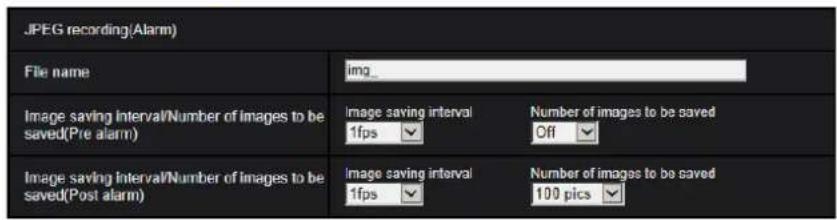
text_image
JPEG recording(Alarm) File name img_ Image saving Interval/Number of images to be saved(Pre alarm) Image saving interval 1fps Number of images to be saved Off Image saving interval/Number of images to be saved(Post alarm) Image saving interval 1fps Number of images to be saved 100 picsThis setting is only available when "JPEG(1)" or "JPEG(2)" is selected for "Recording format", and "Alarm input" is selected for "Save trigger".
[File name]
Enter the file name used for the image to be saved on the SD memory card. The file name will be as follows.
- File name: ["Entered file name" + "Time and date (year/ month/ day/ hour/ minute/ second)"] + "Serial number"
• Available number of characters: 1 - 8 characters
- Unavailable characters: " & */ : ; < > ? \ |
[Image saving interval/Number of images to be saved(Pre alarm)] - [Image saving interval]
When "Alarm input" is selected for "Save trigger", select a pre alarm interval (frame rate) of saving images on the SD memory card from the following.
- When "Frame rate mode" is set to "30fps mode":
0.1fps/ 0.2fps/ 0.33fps/ 0.5fps/ 1fps
- When "Frame rate mode" is set to "25fps mode":
0.08fps/ 0.17fps/ 0.28fps/ 0.42fps/ 1fps
- Default: 1fps
[Image saving interval/Number of images to be saved(Pre alarm)] - [Number of images to be saved]
Select a number of pre alarm images to be saved on the SD memory card from the following.
Off/1pic/2pics/3pics/4pics/5pics
- Default: Off
[Image saving interval/Number of images to be saved(Post alarm)] - [Image saving interval]
When "Alarm input" or "Manual" is selected for "Save trigger", select an interval (frame rate) of saving images on the SD memory card from the following.
- When "Frame rate mode" is set to "30fps mode":
0.1fps/ 0.2fps/ 0.33fps/ 0.5fps/ 1fps
- When "Frame rate mode" is set to "25fps mode":
0.08fps/ 0.17fps/ 0.28fps/ 0.42fps/ 1fps
- Default: 1fps
[Image saving interval/Number of images to be saved(Post alarm)] - [Number of images to be saved]
Select a number of alarm images to be saved on the SD memory card from the following.
10pics/ 20pics/ 30pics/ 50pics/ 100pics/ 200pics/ 300pics/ 500pics/ 1000pics/ 2000pics/ 3000pics
- Default: 100pics
Stream recording(Alarm)

text_image
Stream recording(Alarm) Pre alarm (recording) duration Off Post alarm (recording) duration 30sThis setting is only available when "Stream(1)" or "Stream(2)" is selected for "Recording format" of the SD memory card, and "Alarm input" is selected for "Save trigger".
[Pre alarm (recording) duration]
Determine whether or not to perform the pre alarm recording. Set the duration to save image data on the SD memory card.
Off/ 1s/ 2s/ 3s/ 4s/ 5s/ 8s/ 10s/ 15s/ 20s/ 25s/ 30s/ 40s/ 50s/ 60s/ 90s/ 120s
- Default: Off
Note
- The available values change depending on the bit rate and image capture size for "Stream" selected for recording. As the selected bit rate increases, the available maximum value for the pre alarm duration decreases.
[Post alarm (recording) duration]
Set the duration to save image data on the SD memory card after an alarm occurrence.
10s/ 20s/ 30s/ 40s/ 50s/ 60s/ 120s/ 180s/ 240s/ 300s
- Default: 30s
* The actual recording time may sometimes be longer than the duration selected for this setting.
SD memory card warning/error LED S4551 X4573
[SD memory card warning/error LED]
Select On/Off to determine whether or not to activate the SD memory card warning/error LED when an SD memory card warning or error is detected.
SD memory card warning detection conditions: After the total use time has exceeded 6 years and the number of overwrite times has exceeded 2000
SD memory card error detection conditions: Write error, read error, etc.
- On: When a warning status is detected, the SD memory card error/error LED turns on. When an error status is detected, the SD memory card error/error LED starts flashing.
- Off: Stops detection of warning or error status.
- Default: Off
SD memory card information
[Remaining capacity]
Total capacity and remaining capacity of the SD memory card will be displayed.
Depending on the status of the SD memory card, the size indications will differ as follows.
| Indication | Description |
| ----MB/----MB No SD memory card is inserted. Failed to obtain available capacity due to error, etc. | |
| **********MB/**********MB The SD memory card is unformatted, or locked (write-protected). | |
| ##########MB/##########MB The SD memory card password lock cannot be unlocked. | |
Note
- When "Off" is selected for "Overwrite" and the available size of the SD memory card is "0 MB", images will not be saved on the SD memory card. When the notification function is on, a notification will be sent to the registered addresses and destinations of the TCP alarm notification when the SD memory card becomes full. (→page 155, page 167)
[Format]
To format the SD memory card, click the [Execute] button.
IMPORTANT
- Before formatting the SD memory card, it is necessary to select "Use" for "SD memory card" on the [SD memory card] tab of the "Basic" page (→page 87).
- Use the SD memory card after formatting it using the [SD memory card] tab. If using the SD memory card that has not been formatted on the [SD memory card] tab, the following functions may not work correctly.
- Save/obtain alarm images
- Save/obtain images saved manually
- Save/obtain images in accordance with the schedule settings
- Save/obtain the alarm logs, the manual/schedule logs and the system logs
— Save/obtain images recorded using the SD memory recording function of our network disk recorder
– Play/download images on the SD memory card
- When an SD memory card is formatted while another user is in operation, the operation will be canceled.
- It is impossible to access the SD memory card during the process of formatting.
- All data saved on the SD memory card will be deleted when the SD memory card is formatted.
- Do not turn off the power of the camera during the process of formatting.
- After formatting the SD memory card, available size may be smaller than the total size since the default directory is automatically created in the SD memory card.
- Refer to our website (https://i-pro.com/global/en/surveillance/training_support/support/technical_information
) for latest information about the compatible SD memory cards. - When repeatedly recording images on an SD memory card using the auto overwrite function, make sure to use an SD memory card with high reliability and durability.
- Use the SD memory card that complies with UHS-1(Ultra High Speed-1) in the case of SD Speed Class10.
Possible number of JPEG images that can be saved on the SD memory card (as indications)
For possible numbers of JPEG images that can be saved on the SD memory card, refer to our website below. https://i-pro.com/global/en/surveillance/training_support/support/technical_information
Possible duration of stream images (H.265 or H.264) that can be saved on the SD memory card (as indications)
For possible duration of stream images (H.265 or H.264) that can be saved on the SD memory card, refer to our website below.
https://i-pro.com/global/en/surveillance/training_support/support/technical_information
2.4.3 Configure the settings relating to alteration detection [Alteration detection]
Selecting “Alteration detection” enables detection using exclusive software when the data on the SD memory card is altered.
Alteration detection supports video files (MP4 format) only.
Refer to page 97 for information on how to configure "Alteration detection".
For further information about exclusive software for alteration detection and how to use it, refer to our website below.
https://i-pro.com/global/en/surveillance/training_support/support/technical_information
Note
- To use [Alteration detection], you need to set "Recording format" to "Stream(1)" or "Stream(2)".

text_image
Alteration detection Select certificate Pre-installed Additional Info for detecting alteration On Off Set Pre-installed certificate Certificate download Execute CA Certificate CRT key generate Execute Generate Certificate Signing Request Execute CA Certificate install Browse... Execute Information Invalid Confirm Delete Certificate download Execute Close[Select certificate]
Select the certificate to be used with alteration detection.
Pre-installed: Selects a pre-installed certificate.
CA: Selects a "CA Certificate". Only displayed when the "CA Certificate" is installed.
Default: Pre-installed
[Additional info for detecting alteration]
Select whether or not to give information for alteration detection to video files (MP4 format) to be saved on the SD memory card.
Note
- When "JPEG(1)" or "JPEG(2)" is selected for "Recording format" of "Recording stream", "On" cannot be selected.
[Pre-installed certificate - Certificate download]
Click the [Execute] button and download the root certificate for the pre-installed certificate. When implementing alteration detection of video data (MP4 files) on the SD memory card using exclusive software, the downloaded certificate is used.
[CA Certificate - CRT key generate]
CRT key (encryption key) used for alteration detection is generated. To generate the CRT key, click the [Execute] button to display "CRT key generate" dialog box.
[CA Certificate - Generate Certificate Signing Request]
When using the CA certificate issued by CA as the CA certificate used for alteration detection, the CSR (Certificate Signing Request) will be generated.
To generate the CSR, click the [Execute] button to display the "CA Certificate - Generate Certificate Signing Request" dialog window.
[CA Certificate - Certificate install]
Installs the certificate (CA certificate) issued by CA and displays the information of the installed certificate (CA certificate).
To install the certificate (CA certificate), click the [Browse...] button to display the [Open] dialog box, and select the file of the certificate (CA certificate) issued by CA, and click the [Execute] button.
If the certificate (CA certificate) is already installed, the file name of the installed certificate will be displayed.
[CA Certificate - Information]
Displays the information of the certificate (CA certificate) issued by CA.
When the [Confirm] button is clicked, the registered information of the installed certificate (CA certificate) will be displayed in the "CA Certificate - Confirm" dialog box.
When the [Delete] button is clicked, the installed certificate (CA certificate) will be deleted.
[CA Certificate - Certificate download]
Downloads the certificate (CA certificate) issued by CA from the camera.
When implementing alteration detection of video data (MP4 files) on the SD memory card using exclusive software, the downloaded certificate is used.
IMPORTANT
- Before deleting the valid certificate (CA certificate), confirm that there is a backup file of the certificate (CA certificate) on the PC or another media. The backup file will be required when installing the certificate (CA certificate) again.
2.4.4 How to configure alteration detection settings
The settings relating to alteration detection that detects when data in the SD memory card is altered or edited can be configured on this page.
The alteration detection settings will be configured in the following procedure.
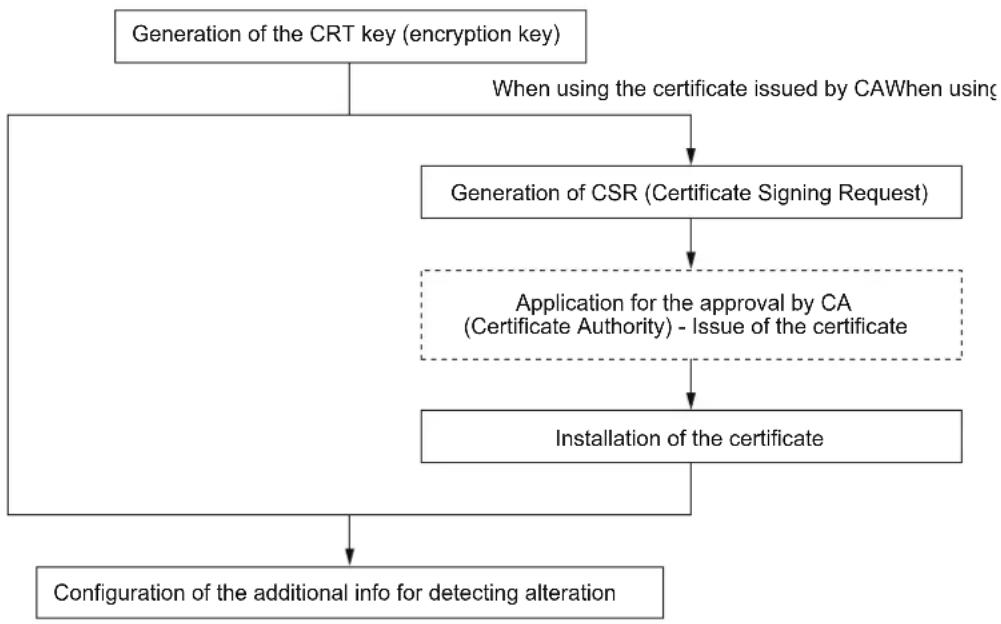
flowchart
graph TD
    A["Generation of the CRT key (encryption key)"] --> B["When using the certificate issued by CAWhen using"]
    B --> C["Generation of CSR (Certificate Signing Request)"]
    C --> D["Application for the approval by CA (Certificate Authority) - Issue of the certificate"]
    D --> E["Installation of the certificate"]
    E --> F["Configuration of the additional info for detecting alteration"]
2.4.4.1 Generation of the CRT key (encryption key)
IMPORTANT
- When the certificate (CA certificate) issued by CA is valid, it is impossible to generate the CRT key.
- When the certificate (CA certificate) issued by CA is used, the available key size varies depending on the CA. Check the available key size in advance.
-
To generate the CRT key, it may take about 2 minutes. Do not operate the browser until the generation of CRT key is complete. While the CRT key is being generated, the refresh interval and line speed may be lower.
-
Click the [Execute] button of "CRT key generate".
→ The "CRT key generate" dialog box will be displayed.

text_image
Current CRT key CRT key RSA key size Last modified Not generated History CRT key generate Execute *Generating a CRT key takes around 2 minutes. Close- Click the [Execute] button.
→ The generation of CRT key will be started. When the generation is finished, the key size and generation time & date of the generated key will be displayed on "Current CRT key".
Note
- To change (or update) the generated CRT key, perform step 1 to 2. The CRT key and certificate issued by CA are valid in a set. When the CRT key is changed, it is necessary to re-apply for the certificate issued by CA.
- When the CRT key is updated, the log of the previous CRT key is saved. When the [History] button of "Current CRT key" on the "CRT key generate" dialog box is clicked, the "Previous CRT key" dialog box will be displayed, and it is possible to check the key size and generation time & date of the previous key. When the [Apply] button is clicked on the "Previous CRT key" dialog box, it is possible to replace the current CRT key with the previous one.
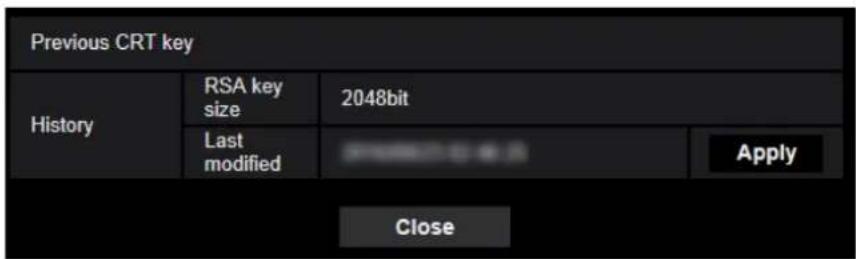
text_image
Previous CRT key History RSA key size 2048bit Last modified Apply Close2.4.4.2 Generation of CSR (Certificate Signing Request)
IMPORTANT
- If the CRT key is not generated, it is impossible to generate the CSR.
- Before generating the CSR file, configure the following settings on [Internet Options] of the browser in advance. Click [Internet Options...] under [Tools] of the menu bar of Internet Explorer, and then click the [Security] tab.
- Register the camera for [Trusted Sites].
- Click the [Custom level...] button to open the [Security Settings] window, and check the [Enable] radio button of [File Download] under [Downloads].
- Click the [Custom level...] button to open the [Security Settings] window, and check the [Enable] radio button of [Automatic prompting for file downloads] under [Downloads].
- Click the [Execute] button of "CA Certificate - Generate Certificate Signing Request".
→ The "CA Certificate - Generate Certificate Signing Request" dialog box will be displayed.

text_image
CA Certificate - Generate Certificate Signing Request Common Name Country State Locality Organization Organizational Unit CRT key RSA key size 2048bit Last modified OK Cancel- Enter the information of the certificate to be generated.
| Item | Description Available number | of characters |
| [Common Name] Enter the camera address or host name. 64 characters | ||
| [Country] Enter the country name. 2 characters (Country code) | ||
| [State] Enter the state name. 128 characters | ||
| [Locality] Enter the locality name. 128 characters | ||
| [Organization] Enter the organization name. 64 characters | ||
| [Organizational Unit] | Enter the unit name of the organization. | 64 characters |
| [CRT key] | Displays the key size and generation time & date of the current key. | — |
- Click the [OK] button after entering the items.
→ The [Save As] dialog box will be displayed.
- Enter a file name for the CSR in the [Save As] dialog box to save on the PC.
→ The saved CSR file will be applied to the CA.
IMPORTANT
- The certificate will be issued for the set of the generated CSR and CRT key. If the CRT key is re-generated or updated after applying to the CA, the issued certificate will be invalidated.
Note
• This camera generates the CSR file in the PEM format.
2.4.4.3 Installation of the certificate issued by CA
IMPORTANT
- If the CSR file is not generated, it is impossible to install the certificate (CA certificate) issued by CA. - For the installation of the certificate issued by CA, the CA certificate issued by CA is required.
- Click the [Browse...] button of "CA Certificate - Certificate install".
→ The [Open] dialog box will be displayed.
- Select the certification file and click the [Open] button. Then, click the [Execute] button.
→ The certification will be installed.
Note
- The host name registered in the installed certificate will be displayed on "CA Certificate - Information". Depending on the status of the certificate, the following are displayed.
| Indication | Description |
| Invalid The CA certificate is not installed. | |
| [Host name of the certificate] The certificate | has already been installed and validated. |
| Expired The certification has already expired. |
- When the [Confirm] button is clicked, the registered information of the installed certificate (CA certificate) will be displayed in the "CA Certificate - Confirm" dialog box. (Only "Organizational Unit" will be displayed with an asterisk (*).)

text_image
CA Certificate - Confirm Common Name NWCAM Country State Locality Organization Organizational Unit CRT key RSA key size 2048bit Last modified Basicron 10.27.36 Close- When the [Delete] button is clicked, the installed certificate (CA certificate) will be deleted.
- When "On" is selected for "Additional info for detecting alteration", it is impossible to delete the certificate (CA certificate) issued by CA.
• To change (or update) the certificate issued by CA, perform step 1 and 2.
IMPORTANT
- Before deleting the valid certificate (CA certificate), confirm that there is a backup file of the certificate (CA certificate) on the PC or another media. The backup file will be required when installing the certificate (CA certificate) again.
- The expiration date of the certificate issued by CA can be checked by double-clicking the server certification file issued by CA.
2.4.4.4 Configuration of alteration detection
- Select "On" for "Additional info for detecting alteration", and click the [Set] button.
- Extensive information for alteration detection will be added to video files (MP4 format) recorded after changing the setting.
IMPORTANT
- When the "Additional info for detecting alteration" setting is changed, manual recording on the SD memory card will stop. Start manual saving again as necessary.
Note
- Alteration detection can be performed on video files (MP4 format) recorded when "On" is selected for "Additional info for detecting alteration" using exclusive software.
For further information about exclusive software and how to use it, refer to our website below. https://i-pro.com/global/en/surveillance/training_support/support/technical_information
2.4.5 Configure the directory of the PC that images will be downloaded to [Log]
Click the [Log] tab on the "Basic" page. (→page 61, page 62)
The directory of the PC that images recorded on the SD memory card will be downloaded to can be configured in this section.
![i-PRO WV-X4173 - Configure the directory of the PC that images will be downloaded to [Log] - 1](/content/2026/06/1229328/images/1b161752b6d0cae4463b4fd11f70bcd24cda29add6f15fa67d80b95d15b34e15.jpg)
text_image
Basic SD memory card Log Alarm Name of the destination directory for downloaded images C:\nswcam Manual/Schedule Name of the destination directory for downloaded images C:\nwcam SetAlarm
The settings related to the directory of the PC that recorded images of when alarms occur will be downloaded to can be performed.
[Recording stream] - [Name of the destination directory for downloaded images]
Enter the name of the destination directory to which images recorded in the recording stream are to be downloaded. For example, enter "C:\alarm" to designate the folder "alarm" under drive C.
• Available number of characters: 3 - 128 characters
• Available characters: Alphanumeric characters, the slash (/), the backslash (), the colon (:) and the underscore (_).
Manual/Schedule
The settings related to the directory name of the PC that images recorded by manual saving or schedule saving will be downloaded to can be performed.
Designate the destination folder in the same manner as for "Alarm".
Note
- Schedule saving is available only when "Stream(1)" or "Stream(2)" is selected for "Recording format".
2.5 Configure the settings relating to images and audio [Image/Audio]
The settings relating to JPEG, H.265, and H.264 images such as the settings of image quality, audio, etc. can be configured on this page.
The "Image/Audio" page has the [Image] tab, [Cam. Function] tab, the [Image/Position] tab, and the [Audio] tab.
2.5.1 Configure the settings relating to the image capture mode [Image]
Click the [Image] tab on the "Image/Audio" page. (→page 61, page 62)
![i-PRO WV-X4173 - Configure the settings relating to the image capture mode [Image] - 1](/content/2026/06/1229328/images/ff590fe2fac18a32f42b5a9a402a7ca4ad4378933946e3203b225c7063724297.jpg)
text_image
Image Cam. Function Image/Position Audio Image capture mode Fisheye Frame rate mode 30fps mode 25fps mode[Image capture mode]
Select an image to be displayed on the "Live" page.
The following “Image capture mode” settings can be configured depending on the mounting position. Refer to page 12 for further information about each “Image capture mode” setting.
-
Fisheye
-
Double Panorama/Quad PTZ/Single PTZ/Fisheye + Double Panorama/Fisheye + Quad PTZ/Quad stream
-
Panorama/Quad PTZ/Single PTZ/Fisheye + Panorama
- Default: Fisheye
IMPORTANT
- The positions of areas may move out of alignment when the "Image capture mode" setting is changed when the following area settings are configured. Therefore we recommend that you configure each area setting after configuring the "Image capture mode".
– mask area (→page 126)
- privacy zone (→page 137)
- VMD area (→page 162)
- VIQS area (→page 139)
- The preset position must be configured again when the mounting position of "Image capture mode" is changed (such as when changing from "
Note
- When "
- When a setting other than fisheye is selected for "Image capture mode", the maximum setting for "Level" of "Super Dynamic(SD)" is 29. (→page 115) S4551 S4151
[Frame rate mode]
Select the frame rate mode for the image.
30fps mode/25fps mode
- Default: 30fps mode
2.5.2 Configure the settings relating to JPEG images [Image]
Click the [Image] tab on the "Image/Audio" page. (→page 61, page 62)
IMPORTANT
- When "Quad stream" is selected for "Image capture mode", JPEG image settings are unavailable.

text_image
"Live" page (Initial display) Initial display stream Stream(1) (Fisheye/H.265/2192x2192) Refresh interval (JPEG) * 5fps JPEG JPEG(1) Image capture size Fisheye/2192x2192 Image quality 5 Normal JPEG(2) Image capture size Fisheye/1280x1280 Image quality 5 Normal"Live" page (Initial display)
Configure the settings relating to the initial images displayed on the "Live" page.
[Initial display stream]
Select the image to display on the "Live" page from the following.
JPEG(1)/JPEG(2)/Stream(1)/Stream(2)/Multi-screen
- Default: Stream(1)
Note
- When "JPEG(1)" or "JPEG(2)" is selected, the refresh interval can be selected.
MJPEG/Refresh interval: 1s/Refresh interval: 3s/Refresh interval: 5s/Refresh interval: 10s/Refresh interval: 30s/Refresh interval: 60s - Stream(1) or Stream(2) is able to be selected when [Stream transmission] is set to "On".
[Refresh interval (JPEG)\*]
Select an interval to refresh the displayed JPEG image from the following.
X4573 X4173
- When "Frame rate mode" is set to "30fps mode":
0.1fps/ 0.2fps/ 0.33fps/ 0.5fps/ 1fps/ 2fps*/ 3fps*/ 5fps*/ 6fps*/ 10fps*/ 12fps*/ 15fps* - When "Frame rate mode" is set to "25fps mode":
0.08fps/ 0.17fps/ 0.28fps/ 0.42fps/ 1fps/ 2.1fps*/ 3.1fps*/ 4.2fps*/ 5fps*/ 8.3fps*/ 12.5fps*
S4551 S4151
- When "Frame rate mode" is set to "30fps mode":
0.1fps/ 0.2fps/ 0.33fps/ 0.5fps/ 1fps/ 2fps/ 3fps/ 5fps*/ 6fps*/ 10fps*/ 12fps*/ 15fps*/ 30fps* - When "Frame rate mode" is set to "25fps mode":
0.08fps/ 0.17fps/ 0.28fps/ 0.42fps/ 1fps/ 2.1fps/ 3.1fps/ 4.2fps*/ 5fps*/ 8.3fps*/ 12.5fps*/ 25fps*
- Default: 1fps X4573 X4173, 5fps S4551 S4151
Note
- When "On" is selected for "Stream transmission", the refresh interval may be longer than the set value when any value with an asterisk (*) on the right is selected.
- Depending on factors such as the network environment, the resolution, the image quality, or the number of computers concurrently accessing the camera, the transmission interval may be longer than the set value.
- If images are not delivered in the specified transmission interval, you can make the images be delivered closer to the specified time by lowering the resolution or image quality.
- If the image capture mode is Fisheye while “Stream transmission” of Stream(1) or Stream(2) is set to “On”, max. 1fps is set for resolution “2992×2992”, and max. 2 fps is set in 30fps mode and max. 2.1fps is set in 25fps mode for resolution “2192×2192”. X4573 X4173
JPEG
Configure the settings such as "Image capture size", "Image quality" of "JPEG(1)" and "JPEG(2)" on this section. Refer to page 106 for further information about the settings relating to H.265 (or H.264) images.
[Image capture size]
Select the image capture size to display the JPEG image. The image capture sizes that can be selected depend on "Image capture mode". For information on the image capture sizes that can be selected, refer to "1.1.2.5 About available resolutions".
- Default:
JPEG(1): Fisheye/2992×2992 X4573 X4172 X4173 2192×2192 S4551 S4151 JPEG(2): Fisheye/640×640 X4573 X4173 1280×1280 S4551 S4151
Note
X4573 X4173
- If the image capture mode is "Fisheye", the only resolution that can be set for JPEG(2) is "640×640".
- If the image capture mode is "
Single PTZ", 2560×1920 cannot be set for the resolution.
[Image quality]
Select the image quality of JPEG images for each image capture size. 0 Super fine/ 1 Fine/ 2/ 3/ 4/ 5 Normal/ 6/ 7/ 8/ 9 Low
- Default: 5 Normal
2.5.3 Configure the settings relating to Stream [Image]
Click the [Image] tab on the "Image/Audio" page. (→page 61, page 62)
Configure the settings relating to H.265 (or H.264) image such as "Max bit rate (per client)*", "Image capture size", "Image quality", etc. in this section. Refer to page 104 for the settings relating to JPEG images.
![i-PRO WV-X4173 - Configure the settings relating to Stream [Image] - 1](/content/2026/06/1229328/images/9314563c7fde7193371e033a3a5fb2590e9f253e281fbedb6c6679ed5a2716a2.jpg)
text_image
Stream(1) Stream transmission On Off Stream encoding format H.265 H.264 Internet mode On Off Image capture size Fisheyo/2192x2192 Transmission priority VBR Frame rate* 30fps* Max bit rate (per client) * 12288kbps* kbps Image quality 3 Smart Coding GOP control Off Auto VIQS On Off Refresh interval 1s Transmission type Unicast port (AUTO) Unicast port1(image) (1024-50000) Unicast port2(Audio) (1024-50000) Multicast address (1024-50000) Multicast port (1024-50000) Multicast TTL/HOPLimit (1-254)Stream(1)/Stream(2)
[Stream transmission]
Select "On" or "Off" to determine whether or not to transmit H.265 (or H.264) images.
If the "Image capture mode" is "Quad stream", this setting cannot be changed because stream transmission is always on.
• On: Transmits H.265 (or H.264) images.
- Off: Does not transmit H.265 (or H.264) images.
- Default: On
Note
- When the "Image capture mode" type is "2 Monitor", "Stream 1" becomes Fisheye, and "Stream 2" becomes either Panorama, Double Panorama, or Quad PTZ.
- When "On" is selected for "Stream transmission" in "Stream(1)" or "Stream(2)" displaying of H.265 (or H.264) images or JPEG images on the "Live" page will become available.
- If "Stream transmission" of Stream(1) or Stream(2) is set to "On", the refresh interval of a JPEG image is limited as shown below.
- Image capture mode "Fisheye" for resolution "2992×2992": Max. 1 fps
- Image capture mode "Fisheye" for resolution "2192×2192": Max. 2 fps (30fps mode) or max. 2.1 fps (25fps mode)
- Other cases: Max. 5 fps (30fps mode) or max. 4.2 fps (25fps mode)
X4573 X4173
- When "On" is selected for "Stream transmission" for "Stream(1)" or "Stream(2)", the refresh interval of JPEG images is limited to a maximum of 5 fps (30fps mode) or a maximum of 4.2 fps (25fps mode).
S4551 S4151
[Stream encoding format]
Select the stream encoding format for transmission.
• H.265: Transmits H.265 images.
• H.264: Transmits H.264 images.
- Default: H.265
[Internet mode (over HTTP)]
Select "On" when transmitting H.265 (or H.264) images via the Internet. It is possible to transmit stream without changing the broadband router settings configured for JPEG image transmission.
- On: H.265 (or H.264) images and audio will be transmitted using the HTTP port. Refer to page 185 for further information about the HTTP port number settings.
• Off: H.265 (or H.264) images and audio will be transmitted using the UDP port. - Default: On
Note
- When "On" is selected, only "Unicast port (AUTO)" will be available for "Transmission type".
- When "On" is selected, it may take time to start displaying stream images.
- When “On” is selected, stream images may not be displayed depending on the number of the concurrent access user and audio data availability, etc.
- When "On" is selected, only IPv4 access is available.
[Image capture size]
Select the image capture size. The image capture sizes that can be selected depend on "Image capture mode". For information on the image capture sizes that can be selected, refer to "1.1.2.5 About available resolutions".
- Default:
- Stream(1): Fisheye/2992×2992
X4573 X4172 X4173 2192×2192 S4551 S4151
- Stream(2): Fisheye/1280×1280
Note
- If the image capture mode is "
[Transmission priority]
Select a transmission priority for "Stream" from the following.
- Constant bit rate: H.265 (or H.264) images will be transmitted with the bit rate selected for "Max bit rate (per client)*".
- VBR: H.265 (or H.264) images will be transmitted with the frame rate selected for "Frame rate*" while maintaining the image quality level selected in "Image quality". In this case, images will be transmitted with the bit rate kept within the maximum bit rate that is set for "Max bit rate (per client)*". The image quality is fixed, and the recording capacity changes according to the "Image quality" setting and conditions of the subject.
- Frame rate: H.265 (or H.264) images will be transmitted with the frame rate selected for "Frame rate*".
- Best effort: In accordance with the network bandwidth, H.265 (or H.264) images will be transmitted with the maximum bit rates that are set for "Max bit rate (per client)*".
- Default: VBR
Note
- When "Frame rate" is set for "Transmission priority", number of users who can access the camera may be limited.
[Frame rate ^* ]
Select a frame rate from the following.
- When "Frame rate mode" is set to "30fps mode": 1fps/ 3fps/ 5fps*/ 7.5fps*/ 10fps*/ 12fps*/ 15fps*/ 20fps*/ 30fps*
- When "Frame rate mode" is set to "25fps mode": 1fps/ 3.1fps/ 4.2fps*/ 6.25fps*/ 8.3fps*/ 12.5fps*/ 20fps*/ 25fps*
- Default: 15fps* X4573 X4172 X4173 30fps* S4551 S4151
Note
- “Frame rate*” is restricted by “Max bit rate (per client)*”. For this reason, the frame rate may be lower than the specified value when any value marked with an asterisk (*) is selected. When “VBR” is selected for “Transmission priority”, depending on the settings of “Max bit rate (per client)*” and “Image quality”, transmission of images may periodically be paused. Check the transmission of images after changing settings.
- When "Audio out" is set to "Monitor", the frame rate may be reduced.
- Depending on the number users connecting at the same time or the combination of features used, the frame rate may be lower than the configured value. Check the transmission of images after changing settings.
[Max bit rate (per client)\*]
Select an H.265 (or H.264) bit rate per a client from the following.
64kbps/ 128kbps*/ 256kbps*/ 384kbps*/ 512kbps*/ 768kbps*/ 1024kbps*/ 1536kbps*/ 2048kbps*/ 3072kbps*/ 4096kbps*/ 6144kbps*/ 8192kbps*/ 10240kbps*/ 12288kbps*/ 14336kbps*/ 16384kbps*/ 20480kbps*/ 24576kbps*/— FREE ENTRY—
When “— FREE ENTRY—” is selected, the bit rate can be freely entered.
- Default:
- Stream(1): 16384kbps* X4573 X4172 X4173 12288kbps* S4551 S4151 - Stream(2): 3072kbps* X4573 X4172 X4173 4096kbps* S4551 S4151
* The range of bit rates that can be configured for H.265 (or H.264) bit rates differs depending on the "Transmission priority" and "Image capture size".
When “Constant bit rate”, “Frame rate”, or “Best effort” is selected for “Transmission priority”
• QVGA, 400x300, VGA, 320×180, 320×320, 640x360 and 640×640: 64kbps - 4096kbps*
• 800x600: 64kbps* - 4096kbps*
• 1280×960, 1280×720 and 1280×1280: 128kbps* - 8192kbps*
- 1920x1080 and 1600×1200: 256kbps* - 12288kbps*
• 2192×2192: 1024kbps* - 24576kbps*
• 2048×1536 X4573 X4172 X4173 : 512kbps* - 24576kbps*
- 2560×1440 X4573 X4172 X4173 : 768kbps* - 24576kbps*
- 2560×1920 X4573 X4172 X4173 : 768kbps* - 24576kbps
• 2992×2992 X4573 X4172 X4173 : 1536kbps* - 24576kbps*
When "VBR" is selected for "Transmission priority"
• QVGA, 400x300, VGA, 320×180, 320×320, 640x360 and 640×640: 64kbps - 12288kbps*
• 800x600: 64kbps* - 12288kbps*
- 1280x960, 1280x720 and 1280×1280: 128kbps* - 12288kbps*
- 1920x1080 and 1600×1200: 256kbps* - 24576kbps*
• 2192×2192: 1024kbps* - 24576kbps*
• 2048×1536 X4573 X4172 X4173 : 512kbps* - 24576kbps*
- 2560×1440 X4573 X4172 X4173 : 768kbps* - 24576kbps*
- 2560×1920 X4573 X4172 X4173 : 768kbps* - 24576kbps
• 2992×2992 X4573 X4172 X4173 : 1536kbps* - 24576kbps*
Note
- The bit rate for "Stream" is restricted by "Bandwidth control(bit rate)" on the [Network] tab on the "Network" page (→page 183). When a value with "*" attached is set, images may not be streamed.
• If the refresh interval is short, the bit rate may exceed the specified value depending on the subject.
- Depending on the number users connecting at the same time or the combination of features used, the bit rate may be lower than the configured value. Check the transmission of images after changing settings.
[Image quality]
Select the image quality of H.265 (or H.264) images from the following.
- For "Constant bit rate", "Frame rate", and "Best effort": Motion priority/Normal/Quality priority
- "VBR": 0 Super fine/ 1 Fine/ 2/ 3/ 4/ 5 Normal/ 6/ 7/ 8/ 9 Low
- Default: 3
[Smart Coding] - [GOP control]
By using "GOP control", the transmission data volume can be reduced when there is little motion in the image.
- When "H.265" is selected as the "Stream encoding format": Off/On(Low)/On(Mid)/On(Advanced)/On(Frame rate control)
- When "H.264" is selected as the "Stream encoding format": Off/On(Low)/On(Mid)
- Default: Off
IMPORTANT
- When "On(Low)", "On(Mid)", "On(Advanced)", or "On(Frame rate control)" is selected, recording to an SD memory card cannot be performed.
Note
- When using "GOP control", the refresh interval is increased when streaming H.265 (or H.264) images. For this reason, do not use it when the network environment has frequent errors.
- "On(Low)"/“On(Mid)"/“On(Frame rate control)” can be selected only when "VBR" is selected for "Transmission priority". "On(Advanced)" can be selected regardless of the "Transmission priority" setting.
- When "On(Frame rate control)" is selected, the frame rate ranges from 1fps to the value set in [Frame rate*] depending on the size of image changes.
- When "On(Frame rate control)" is selected, the display may temporarily become slower or faster when changing frame rates.
[Smart Coding] - [AUTO VIQS]
Maintains high image quality in the areas of the image containing moving objects and reduces the transmission data volume in other areas of the image.
- Off: Does not use "AUTO VIQS".
- On: Maintains high image quality in the areas of the image containing moving objects, and reduces the transmission data volume in other areas of the image.
- Default: Off
Note
- If "AUTO VIQS" is on, the VIQS setting set from the [Image/Position] tab is disabled.
- If "Image capture mode" is "Fisheye + Double Panorama", "Fisheye + Panorama", "Fisheye + Quad PTZ", or "Fisheye + Single PTZ", AUTO VIQS for Stream 2 cannot be used.
[Refresh interval]
Select an interval (I-frame interval; 0.2 - 5 seconds) to refresh the displayed H.265 (or H.264) images from the following.
If using under a network environment with frequent error occurrences, shorten the refresh interval for H.265 (or H.264) to diminish image distortions. However, the refresh interval may be longer than the set value. 0.2s/ 0.25s/ 0.33s/ 0.5s/ 1s/ 2s/ 3s/ 4s/ 5s
- Default: 1s
Note
- When "On(Low)" is selected for "GOP control", the refresh interval is set to Max. 8s.
- When "On(Mid)" is selected for "GOP control", the refresh interval is set to Max. 16s.
- When "On(Advanced)" is selected for "GOP control", the refresh interval is set to 60s.
- If "GOP control" is set to "On(Frame rate control)", the frame rate ranges from 1fps to the value set in [Frame rate*] depending on the size of image changes.
The smaller the frame rate value, the longer the refresh interval. When the frame rate is the value set in [Frame rate*], the refresh interval is at Max. 16s.
[Transmission type]
Select the transmission type of H.265 (or H.264) images from the following.
- Unicast port (AUTO): Up to 14 users can access a single camera concurrently. "Unicast port1(Image)" and "Unicast port2(Audio)" will automatically be selected when transmitting images and audio from the camera. When it is unnecessary to fix the port number for stream transmission such as when using in a particular LAN environment, it is recommended to select "Unicast port (AUTO)".
- Unicast port (MANUAL): Up to 14 users can access a single camera concurrently. It is necessary to select "Unicast port1(Image)" and "Unicast port2(Audio)" manually to transmit images and audio from the camera. It is possible to fix the port number of the router used for stream transmission via the Internet by setting "Unicast port (MANUAL)" (→page 183). Refer to the operating instructions of the router in use.
- Multicast: Unlimited number of users can access a single camera concurrently. Complete the entry field of "Multicast address", "Multicast port" and "Multicast TTL/HOPLimit" when transmitting stream with multicast. Refer to page 9 for further information about the maximum concurrent access number.
- Default: Unicast port (AUTO)
[Unicast port1(Image)] ^1
Enter the unicast port number (used to transmit images from the camera).
When “Quad stream” is selected for “Image capture mode”, a unicast port number can be selected for each image (Ch1 to Ch4).
• Available port number: 1024 - 50000 (Only even numbers are available.)
- Default:
- Stream(1): 32004
- Stream(2): 32014
[Unicast port2(Audio)] ^1
Enter the unicast port number (used to transmit audio from the camera).
When “Quad stream” is selected for “Image capture mode”, a unicast port number for audio can only be selected for Ch1.
• Available port number: 1024 - 50000 (Only even numbers are available.)
- Default:
- Stream(1): 33004
- Stream(2): 33014
[Multicast address] ^2
Enter the multicast IP address. Images and audio will be transmitted to the designated IP address.
When "Quad stream" is selected for "Image capture mode", a multicast address can be selected for each image (Ch1 to Ch4).
• Available IPv4 address: 224.0.0.0 - 239.255.255.255
• Available IPv6 address: Multicast address starting with "FF"
- Default:
- Stream(1): 239.192.0.20
- Stream(2): 239.192.0.21
Note
- Enter a multicast IP address after checking available multicast address.
[Multicast port] ^2
Enter the multicast port number (used to transmit images from the camera).
When “Quad stream” is selected for “Image capture mode”, a multicast port number can be selected for each image (Ch1 to Ch4).
• Available port number: 1024 - 50000 (Only even numbers are available.)
- Default: 37004
Note
- When audio is transmitted from the unit, the port number to be used will be the multicast port number plus "1000".
[Multicast TTL/HOPLimit] ^2
Enter a value for "Multicast TTL/HOPLimit".
• Available value: 1-254
- Default: 16
IMPORTANT
- When transmitting stream images via the internet, the transmitted image sometimes may not be displayed depending on the settings of a proxy server or a firewall. In this case, refer to the network administrator.
- When two or more network interface cards are installed on the PC in use, the network interface card(s) not used for receiving images should be invalidated when displaying images using the multicast port.
2.5.4 Configure the settings relating to the camera operations [Cam. Function]
Click the [Cam. Function] tab on the "Image/Audio" page. (→page 61, page 62)
Configure the settings relating to camera operations.
IMPORTANT
- This function is available when a “Image capture mode” setting containing Quad PTZ or Single PTZ is selected. (→page 12) Specifically, the following options can be selected for “Image capture mode”. Quad PTZ/ Single PTZ/ Fisheye + Quad PTZ/ Quad stream
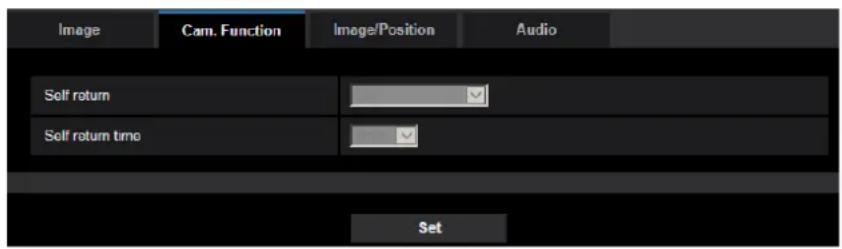
text_image
Image Cam. Function Image/Position Audio Self return Self return time Set[Self return]
When the time set for “Self return time” has passed after manual operations of the camera, the camera will automatically be in the selected mode.
- Off: Self return is not performed.
- Home position: When the set time has passed, the camera will move to the home position automatically. In Quad PTZ screen, all 4 images are moved to the home position.
-
Auto pan: When the set time period has elapsed, the camera will start automatic panning. In Quad PTZ screen, auto pan only operates on the top left image, and other images are returned to the home position.
-
When "
" is selected for "Image capture mode": The camera rotates 360^ to the right from the present position in endless mode. - When "
" is selected for "Image capture mode": The camera moves in the horizontal direction from the present position, and rotates in the opposite direction from the endpoint in endless mode. The camera stops for 5 seconds at the endpoint.
- Preset sequence: When the set time period has elapsed, the camera will start the sequence display.
The camera automatically moves to the preset positions in sequence starting from the lowest preset position number.
The camera stops at the preset position for the specified length of time.
Once the camera has moved to the last preset position, it starts from the first preset position again.
In Quad PTZ screen, the images in all the 4 screens are moved in the preset sequence at the same time.
In this case, the following preset numbers are displayed.
- Top left image: preset number 1→5→9→13
- Top right image: preset number 2→6→10→14
- Bottom left image: preset number 3→7→11→15
- Bottom right image: preset number 4→8→12→16
Preset sequence stops if operations are performed manually during preset operations. In Quad PTZ, preset sequence stops for all the images if operations are performed manually on any screen.
- Default: Off
Note
- This function is also useful to automatically set the camera in a specific mode when the power of the camera is turned on.
- The self return function works even when the setup menu is displayed.
- When Single PTZ is displayed, preset position 1 is used for its home position. When Quad PTZ is displayed, preset positions 1, 2, 3, and 4 are used for the home positions of the corresponding screens (1, 2, 3, and 4).
[Self return time]
Select a waiting time (amount of time until the camera starts the selected operation after the end of the manual operations) from the following.
2.5.5 Configure the settings relating to image adjust, back focus X4573 X4172 X4173, preset position, privacy zone and VIQS [Image/Position]
Click the [Image/Position] tab on the "Image/Audio" page. (→page 61, page 62)
When the [Setup>>] button of each setting item is clicked, the detailed settings menu will be displayed in a newly opened window. The detailed settings can be configured while monitoring images displayed on the [Image/Position] tab.
The settings relating to image adjust, back focus X4573 X4172 X4173, preset position, privacy zone, and VIQS can be configured in this section.
S4551 S4151
![i-PRO WV-X4173 - Configure the settings relating to image adjust, back focus X4573 X4172 X4173, preset position, privacy zone and VIQS [Image/Position] - 1](/content/2026/06/1229328/images/0c902e321b0f25e276363d395e145e373103d8a9a79a01556b8a994bcc6da998.jpg)
text_image
Image Cam. Function Image/Position Audio Image adjust Setup >> Preset position Setup >> Privacy zone Setup >> VIGS Setup >>X4573 X4172 4X1733
![i-PRO WV-X4173 - Configure the settings relating to image adjust, back focus X4573 X4172 X4173, preset position, privacy zone and VIQS [Image/Position] - 2](/content/2026/06/1229328/images/5603fc722ddc39780babcc62ccd371fbf6df4a19568cd6495082e2b7e6ce64a7.jpg)
text_image
Image Cam. Function ImagePosition Audio Image adjust Back focus Preset position Privacy zone VQ03 Setup >> Setup >> Setup >> Setup >> Setup >>[Image adjust]
Click the [Setup>>] button to display the setup menu that can configure the settings relating to image quality. The setup menu will be displayed in a newly opened window. (→page 115)
[Back focus] X4573 X4172 X4173
Click the [Setup>>] button to display the setup menu that can configure the settings relating to back focus. The setup menu will be displayed in a newly opened window. (→page 130)
[Preset position]
Click the [Setup>>] button to display the setup menu that can configure the settings relating to preset position (→page 132) or position adjustment of the images. (→page 134)
[Privacy zone]
Click the [Setup>>] button to display the setup menu that can configure the settings relating to the privacy zone. The setup menu will be displayed. (→page 137)
[VIQS]
Click the [Setup>>] button to display the setup menu that can configure the settings relating to VIQS. The setup menu will be displayed. (→page 142)
2.5.5.1 Configure the settings relating to image quality (“Image adjust” setup menu)
Click the [Setup>>] button of "Image adjust" on the [Image/Position] tab of the "Image/Audio" page. (→page 114)
The settings relating to image quality can be configured with the setup menu displayed in a newly displayed window. When the values are changed, the changed values will be applied to the currently displayed image on the [Image/Position] tab.
Click the "+" mark on the left of each item in the setup menu to expand the respective item, and enable detailed settings.
Click the "-" mark on the left of an expanded item to return to the screen displayed before the item was expanded.
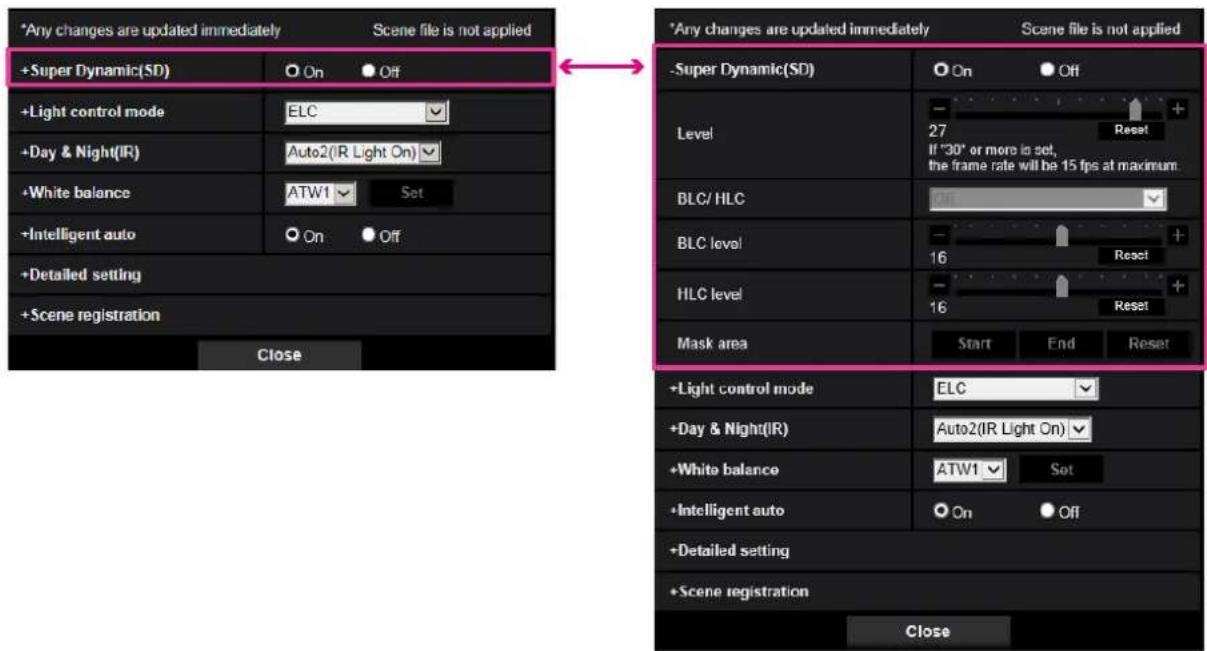
text_image
*Any changes are updated immediately Scene file is not applied +Super Dynamic(SD) On Off +Light control mode ELC +Day & Night(IR) Auto2(IR Light On) +White balance ATW1 Set +Intelligent auto On Off +Detailed setting +Scene registration Close *Any changes are updated immediately Scene file is not applied -Super Dynamic(SD) On Off Level 27 Reset If "30" or more is set, the frame rate will be 15 fps at maximum. BLC/ HLC Off BLC level - 16 Reset HLC level - 16 Reset Mask area Start End Reset +Light control mode ELC +Day & Night(IR) Auto2(IR Light On) +White balance ATW1 Set +Intelligent auto On Off +Detailed setting +Scene registration Close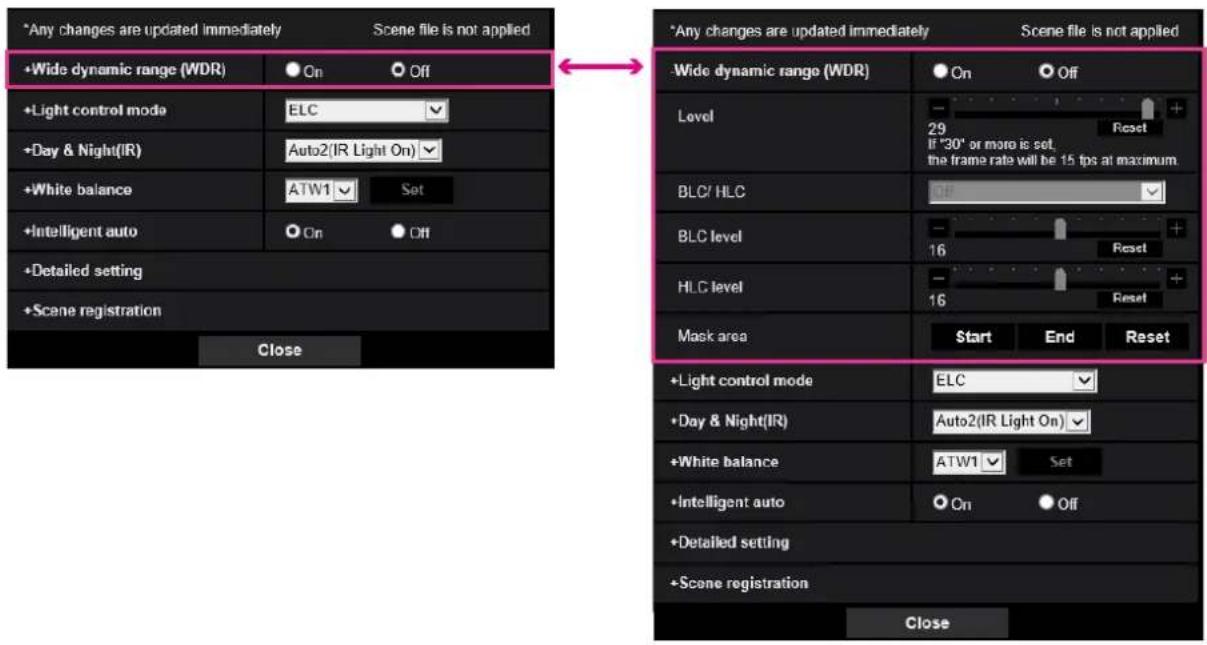
text_image
*Any changes are updated immediately Scene file is not applied *Wide dynamic range (WDR) On Off *Light control mode ELC +Day & Night(IR) Auto2(IR Light On) +White balance ATW1 Set *Intelligent auto On Off *Detailed setting +Scene registration Close *Any changes are updated immediately Scene file is not applied Wide dynamic range (WDR) On Off Level 29 Reset If "30" or more is set, the frame rate will be 15 fps at maximum BLC/ HLC off BLC level - 16 Reset HLC level - 16 Reset Mask area Start End Reset *Light control mode ELC +Day & Night(IR) Auto2(IR Light On) +White balance ATW1 Set *Intelligent auto On Off *Detailed setting +Scene registration CloseWide dynamic range (WDR) X4573 X4173 X4172 /Super Dynamic(SD) S4151
S4551
X4573 X4173 X4172

text_image
-Wide dynamic range (WDR) Level 29 If "30" or more is set, the frame rate will be 15 fps at maximum. BLC/ HLC 16 BLC level 16 HLC level 16 Mask area Start End ResetS4151 S4551
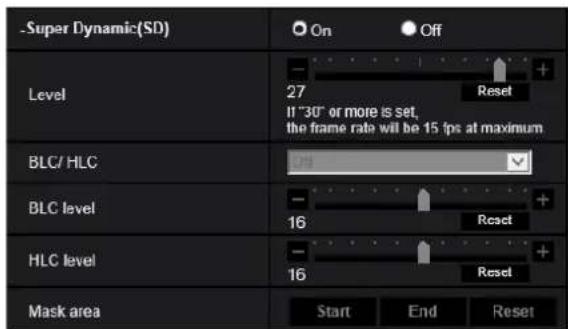
text_image
-Super Dynamic(SD) Level 27 If "30" or more is set, the frame rate will be 15 fps at maximum BLC/ HLC BLC level 16 HLC level 16 Mask area Start End Reset[Wide dynamic range (WDR)] X4573 X4173 X4172
Select "On" or "Off" to determine whether or not to activate the wide dynamic range function.
- On: The wide dynamic range function will work.
- The wide dynamic range function compensates the brightness of a subject that has a large amount of contrast, thereby, enabling you to check the image in a natural state.
- Off: The wide dynamic range function will not work.
- Default: Off
Note
- When "On" is selected for "Wide dynamic range (WDR)", the following phenomenon may occur depending on the lighting conditions. Depending on the usage environment, select "Off" for "Wide dynamic range (WDR)".
— When flickering appears or the color changes on the screen
- When noise appears in the brighter or darker area on the screen
[Super Dynamic(SD)] S4151 S4551
Select "On" or "Off" to determine whether or not to activate the super dynamic function.
Refer to the description "Super Dynamic function" ( page 117) about the super dynamic function.
- On: The super dynamic function will work.
- Off: The super dynamic function will not work.
- Default: On S4151 S4551
Note
- When the following are observed depending on the light condition, select "Off" for "Super Dynamic(SD)".
- When flickering appears or the color changes on the screen
- When noise appears in the brighter area on the screen
- When the setting is switched between "On" and "Off", image refreshing temporarily stops. Because other setting items in the image adjusting menu cannot be changed, perform settings after the image starts refreshing.
[Level]
Adjust the level of "Wide dynamic range (WDR)" X4573 X4173 X4172 or "Super Dynamic(SD)"
S4551 S4151
If you move the slider in the “+” direction, a subject with high contrast can be captured without over exposure or under exposure.
If you move the slider in the “-” direction, the parts with medium brightness can be captured with rich gradation. Click the [Reset] button to reset to the default setting.
- Default: 29 X4573 X4173 X4172, 27 S4551 S4151
Note
- When the level is set to 30 or higher, the maximum frame rate will be 15 fps (30 fps mode) or 12.5 fps (25 fps mode).
- When a setting other than "Fisheye" is selected for "Image capture mode", the maximum setting for "Level" is 29. S4551 S4151
- When the level is changed, images may stop refreshing. Because other setting items in the image adjusting menu cannot be changed, perform settings after the image starts refreshing.
Super Dynamic function
When there is wide variation between the illumination of light and dark areas of the location being monitored, the camera adjusts the lens iris in accordance with the brighter areas. This causes loss of detail in darker areas. Conversely, adjusting the lens brightness for the darker areas causes the brighter areas to become washed out.
Super Dynamic digitally combines an image that is set up for a clear view of the brighter areas with an image that is set up for a clear view of the darker areas, creating a final image that preserves overall detail.
A

natural_image
Illustration of a woman and a man in business attire, one gesturing with his finger (no text or symbols present)B
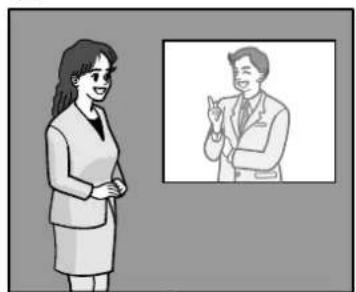
natural_image
Illustration of a woman presenting to a doctor (no text or symbols present)A. Subject in the dark area is hard to notice...
B. Subject in the bright area is washed out...
C. Creates a clearer image by digitally combining images
C

natural_image
Illustration of a woman and a doctor in professional attire, no text or symbols present[BLC/ HLC]
Select from the following. When "On" is selected for "Wide dynamic range (WDR)" X4573 X4173
X4172, when "On" is selected for "Super Dynamic(SD)" S4551 S4151, or when "On" is selected for "Intelligent auto", this setting is not available.
• Back light compensation (BLC): Activates the back light compensation (BLC) function.
- High light compensation(HLC): Activates the high light compensation (HLC) function. The high light compensation function limits the over exposure of subjects caused bright light (such as light from headlights of cars) at night.
• Off: Deactivates the back light compensation function and high light compensation function.
- Default: Off
[BLC level]
Adjust the BLC level.
If you move the slider in the "+" direction, the effect of back light compensation will increase. If you move the slider in the "-" direction, the effect of back light compensation will decrease. Click the [Reset] button to reset to the default setting.
- Default: 16
[HLC level]
Adjust the high light compensation level.
If you move the slider in the "+" direction, the effect of high light compensation (HLC) will increase. If you move the slider in the "-" direction, the effect of high light compensation (HLC) will decrease. Click the [Reset] button to reset to the default setting.
- Default: 16
[Mask area]
When mask area is set, the selected area is masked and you can adjust brightness. When "On" is selected for "Wide dynamic range (WDR)" X4573 X4173 X4172 or when "On" is selected for "Super
Dynamic(SD)" S4551 S4151, this setting is not available.
Refer to page 126 for information on how to set the mask area.
Light control mode

text_image
-Light control mode ELC Brightness - 64 Reset + - 9 Reset Maximum gain + - Max 1/30s Maximum shutter - 16 Reset - Light control speed[Light control mode]
Select the light control mode from the following.
- Indoor scene (50 Hz) / Indoor scene (60 Hz): The shutter speed will automatically be adjusted to prevent flicker caused by fluorescent light. Select 50 Hz or 60 Hz corresponding to the location where the camera is in use.
- ELC: Uses shutter speed adjustment to control light.
- Default: ELC
Note
- When "Image capture mode" is set to 25fps mode, "Indoor scene (60 Hz)" cannot be set.
[Brightness]
Adjust the brightness.
If you move the slider in the "+" direction, the image will become brighter.
If you move the slider in the “-” direction, the image will become darker.
Click the [Reset] button to reset to the default brightness setting.
- Default: 64
[Maximum gain]
Adjusts the maximum gain. When the luminance of the subject becomes darker, gain will be automatically increased and screen will become brighter. If you increase the gain, the noise may also increase.
If you move the slider in the "+" direction, the maximum gain will increase.
If you move the slider in the “-” direction, the maximum gain will decrease.
Click the [Reset] button to reset to the default setting.
- Default: 9 X4573 X4173 X4172,8 S4151 S4551
[Maximum shutter]
The maximum shutter time adjusts the storage time of the sensor. The following are available for the recording duration.
- When "Frame rate mode" is set to "30fps mode": Max.1/10000s/ Max.1/4000s/ Max.1/2000s/ Max.1/1000s/ Max.1/500s/ Max.1/250s/ Max.1/120s/ Max. 1/100s/ Max.2/120s/ Max.2/100s/ Max.3/120s/ Max.1/30s/ Max.2/30s/ Max.4/30s/ Max.6/30s/ Max.10/30s/ Max.16/30s
- When "Frame rate mode" is set to "25fps mode":
Max.1/10000s/ Max.1/4000s/ Max.1/2000s/ Max.1/1000s/ Max.1/500s/ Max.1/250s/ Max.1/100s/ Max.2/100s/ Max.3/100s/ Max.1/25s/ Max.2/25s/ Max.4/25s/ Max.6/25s/ Max.10/25s/ Max.16/25s
- Default: Max.1/30s
IMPORTANT
- If the following value is set for "Maximum shutter", the frame rate may drop when the subject is dark.
- When "Frame rate mode" is set to "30fps mode":
A value longer than "Max.1/30s" (Max.2/30s/ Max.4/30s/ Max.6/30s/ Max.10/30s/Max.16/30s) - When "Frame rate mode" is set to "25fps mode":
A value longer than "Max.1/25s" (Max.2/25s/ Max.4/25s/ Max.6/25s/ Max.10/25s/ Max.16/25s)
Note
- When “Super Dynamic” is set to “On”, “Max.1/10000s”, “Max.1/4000s”, and “Max.1/2000s” cannot be set. S4551 S4151
- When "Maximum gain" is set to "0", the [Maximum shutter] setting is limited as shown below.
- When "Frame rate mode" is set to "30fps mode":
"Max.2/30s" or more cannot be set.
- When "Frame rate mode" is set to "25fps mode":
"Max.2/25s" or more cannot be set.
- If [Light control mode] is set to "Indoor scene (60 Hz)", a time period shorter than "Max.1/120s" cannot be set.
- If [Light control mode] is set to “Indoor scene (50 Hz)”, a time period shorter than “Max.1/100s” cannot be set.
[Light control speed]
Adjust the light control speed.
If you move the slider in the "+" direction, the light control speed will increase.
If you move the slider in the “-” direction, the light control speed will decrease.
Click the [Reset] button to reset to the default setting.
- Default: 31
Day & Night(IR)
| -Day & Night(IR) | Auto2(IR Light On) |
| Level | High Low |
| Dwell time | 10s |
| IR LED light intensity | High |
| Peripheral intensity control | On Off |
[Day & Night(IR)] S4551 X4573
Select switching between the color mode and the black & white mode from the following.
- Off: The color mode is selected.
- On(IR Light Off): Always captured as black & white images.
- On(IR Light On): Always captured as black & white images. Suitable when using near-infrared lighting at night.
- Auto1(IR Light Off): The camera automatically switches between the color mode and the black & white mode in accordance with the picture brightness (luminance).
- Off: The color mode is selected. - On(IR Light Off): Always captured as black & white images. - On(IR Light On): Always captured as black & white images. Suitable when using near-infrared lighting at night. - Auto1(IR Light Off): The camera automatically switches between the color mode and the black & white mode in accordance with the picture brightness (luminance).
- Auto2(IR Light On): The camera automatically switches between the color mode and the black & white mode in accordance with the picture brightness (luminance). Suitable when using near-infrared lighting at night.
- Auto3(SCC): Suitable to keep the color mode even under darker light condition. The Super Chroma Compensation (SCC) function retains the color mode even with dim lighting.
- Default: Auto2(IR Light On)
Super Chrome Compensation (SCC) function
This function achieves faithful color images using the proprietary color compensation technology that reproduce images even under low illumination where it is usually difficult to capture objects faithfully.
IMPORTANT
- If the automatic focus adjustment is disabled, refer to "2.5.5.3 Adjusting back focus X4173" - "[Adjusting method] X4573".
X4573 X4172
Note
- Since the color compensation technology is used for “Auto3(Super Chrome Compensation(SCC))”, some colors may look different from the actual objects depending on the light condition (such as when infrared lights are used).
- The operating sound might be heard when changing to black-and-white mode, however it does not indicate any malfunction.
- The automatic switching between the color mode and the black & white mode may not work depending on your environment. In this case, switch the color mode and the black & white mode using the Schedule function. For information about the setting method, refer to our website below.
https://i-pro.com/global/en/surveillance/training_support/support/technical_information
[Level] S4551 X4573
Select the threshold illuminance level (brightness) to switch between the color mode and the black & white mode from the following. The descriptions about the following threshold illuminance levels are given when "Off" is selected for "Wide dynamic range (WDR)" X4573 or "Super Dynamic(SD)" S4551.
- High: Switches from the color mode to the black & white mode when the ambient brightness (illuminance) of the camera is approx. 2 lx or less.
- Low: Switches from the color mode to the black & white mode when the ambient brightness (illuminance) of the camera is approx. 1 lx or less.
- Default: High
Note
- When a low value is selected for "Maximum gain", it may be difficult to switch modes depending on the environment.
[Dwell time] S4551 X4573
Select a wait time for switching between the color mode and the black & white mode from the following. 2s/ 10s/ 30s/ 1min
- Default: 10s
[IR LED light intensity] S4551 X4573
Select the IR LED light intensity from High/Middle/Low/Off.
- Default: High
Note
- "Off" is only available when "Black & white input" is selected for "Terminal 1" on the [Alarm] tab.
[Peripheral intensity control] S4551 X4573
Select On/Off to determine whether or not to activate the IR Light peripheral intensity correct function.
- Default: On
Note
- Depending on the scene, Noise appears in the peripheral area on the screen.
- Depending on the mount position, over exposure appears in the peripheral area on the screen. In that case, select "Off" for "Peripheral intensity control".
[Day & Night(electrical)] S4151 X4172 X4173
Select switching between the color mode and the black & white mode from the following.
- Off: The color mode is selected.
- Auto: Switches from color to black-and-white images when the ambient brightness (illuminance) of the camera is approx. 1.0 lx or less. It takes time to switch between modes.
- Default: Off
White balance
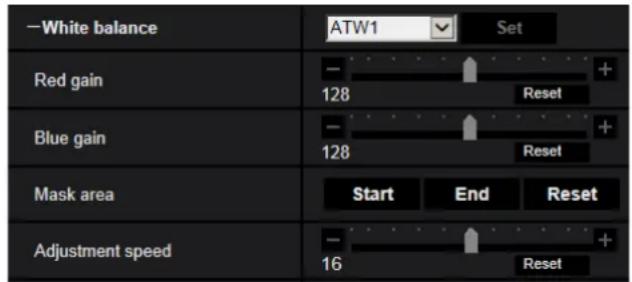
text_image
White balance ATW1 Set Red gain - 128 + Reset Blue gain - 128 + Reset Mask area Start End Reset Adjustment speed - 16 + Reset[White balance]
Select a method of white balance adjustment from the following.
White color can be adjusted by "Red gain" and "Blue gain".
- ATW1: Selects the automatic tracing white balance mode. The camera will constantly check the color temperature of the light source and adjust the white balance automatically. Operating color temperature range is approx. 2,700 K to 6,000 K.
- ATW2: Selects the automatic tracing white balance mode under a sodium lamp. The camera will adjust the white balance automatically under a sodium lamp. Operating color temperature range is approx. 2,000 K to 6,000 K.
- AWC: Selects the automatic white balance control mode. This adjustment is suitable for a location where a light source is stable. Operating color temperature range is approx. 2,000 K to 10,000 K.
- Default: ATW1
Note
• Under the following conditions, color may not be faithfully processed. In these cases, select "AWC".
- When shooting a subject whose major part is a thick color
- When shooting blue sky or sun at sunset
- When shooting a subject whose luminance is too low
- When "AWC" is selected, click the [Set] button.
[Red gain]
Adjust the red color of images.
When the slider is moved in the “+” direction, the red color will become thicker. When the slider is moved in the “-” direction, the red color will be thinner. Click the [Reset] button to reset the color to the default.
- Default: 128
[Blue gain]
Adjust the blue color of images.
When the slider is moved in the “+” direction, the blue color will become thicker. When the slider is moved in the “-” direction, the blue color will be thinner. Click the [Reset] button to reset the color to the default.
- Default: 128
[Mask area]
If you set the mask area, you can adjust the white balance after masking the set area.
Refer to page 126 for information about how to configure the mask area.
[Adjustment speed]
Adjust the white balance adjustment speed.
If you move the slider in the “+” direction, the white balance adjustment speed will increase. If you move the slider in the “-” direction, the white balance adjustment speed will decrease. If you click the [Reset] button, the slider position and white balance adjustment speed will be reset to default.
- Default: 16
Intelligent auto

text_image
-Intelligent auto On Off Motion priority level - 128 Reset[Intelligent auto]
Select On/Off to determine whether or not to activate the "Intelligent auto" function.
“Intelligent auto” can detect conditions (back lighting, outdoor, night time, etc.) or moving objects and then automatically adjust the camera’s aperture, gain, shutter speed, and contrast in order to display moving objects more clearly.
- Default: On
[Motion priority level]
Adjusts the motion priority level when "Intelligent auto" is activated.
If you move the slider in the “+” direction, it becomes difficult for the moving subjects to blur, but the noise of dark subjects increases.
If you move the slider in the “-” direction, it becomes easier for the moving subjects to blur, but the noise of dark subjects decreases.
Click the [Reset] button to reset to the default setting.
- Default: 128
Note
- When intelligent auto is activated, flicker may be caused by fluorescent lights, etc. In this case, set any of the following.
- Adjust the slider of "Motion priority level" to the "-" direction.
- Change "Light control mode" to "Indoor scene (50 Hz)" or "Indoor scene (60 Hz)".
Detailed setting
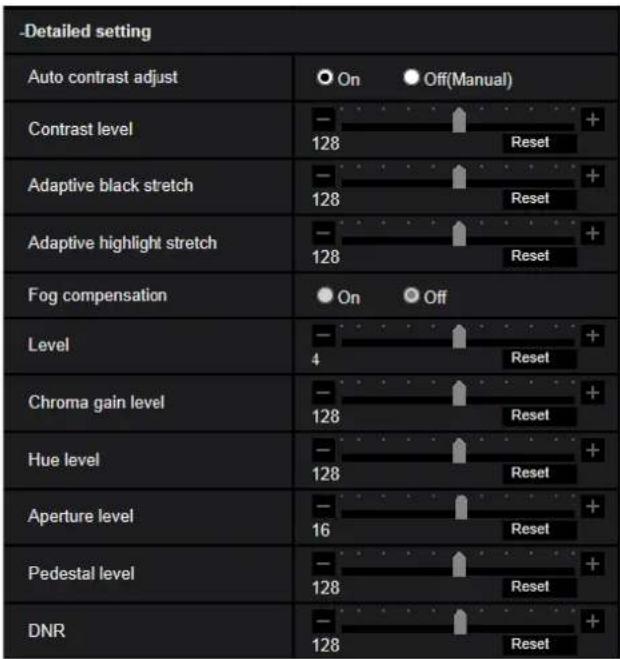
text_image
-Detailed setting Auto contrast adjust On Off(Manual) Contrast level - 128 + Reset Adaptive black stretch - 128 + Reset Adaptive highlight stretch - 128 + Reset Fog compensation On Off Level - 4 + Reset Chroma gain level - 128 + Reset Hue level - 128 + Reset Aperture level - 16 + Reset Pedestal level - 128 + Reset DNR - 128 + Reset[Auto contrast adjust]
Select On/Off(Manual) to determine whether or not to activate the auto contrast adjust function.
On: Activates the auto contrast adjust function.
Off: Stops the auto contrast adjust function.
- Default: On
Note
- When "On" is selected for "Intelligent auto", this setting is not available.
[Contrast level]
Adjust the contrast level.
If you move the slider in the "+" direction, the contrast of the image will increase.
If you move the slider in the "-" direction, the contrast of the image will decrease.
Click the [Reset] button to reset to the default setting.
- Default: 128
[Adaptive black stretch]
Adjust the brightness of the dark parts of the image.
If you move the slider in the "+" direction, the dark parts of the image will become brighter.
If you move the slider in the "-" direction, the dark parts of the image will become darker.
Click the [Reset] button to reset to the default setting.
- Default: 128
IMPORTANT
- The “adaptive black stretch” settings may cause the noise in the darker parts to increase, and the parts around borders between the darker parts and the brighter parts may become darker/brighter than the other darker/brighter parts.
[Adaptive highlight stretch]
Adjust the brightness of the bright parts of the image.
If you move the slider in the “+” direction, the dark parts of the image will become brighter.
If you move the slider in the “-” direction, the bright parts of the image will become darker.
Click the [Reset] button to reset to the default setting.
- Default: 128
[Fog compensation]
Select “On” or “Off” to determine whether or not to activate the fog compensation function. When “On” is selected for “Auto contrast adjust”, or when “On” is selected for “Intelligent auto”, this setting is not available. The fog compensation function can make dim images that have been affected by fog or other conditions clearer using digital image processing.
- On: Activates the fog compensation function.
- Off: Stops the fog compensation function.
- Default: Off
[Level]
Adjust the fog compensation level.
The level of fog compensation will increase when the slider is moved in the “+” direction, and decrease when the slider is moved in the “-” direction. Click the [Reset] button to reset to the default setting.
- Default: 4
[Chroma gain level]
Adjusts the chroma level (color density).
If you move the slider in the “+” direction, the colors will become loud and vivid. If you move the slider in the “-” direction, the colors will become subdued. Click the [Reset] button to reset the color to the default.
- Default: 128
[Hue level]
Adjust the hue level of images.
If you move the slider in the “+” direction, the redness of skin color will increase, and the blueness of sky color will decrease.
If you move the slider in the “-” direction, the redness of skin color will decrease, and the blueness of sky color increase.
Click the [Reset] button to reset to the default setting.
- Default: 128
[Aperture level]
Adjust the aperture level (outline compensation).
If you move the slider in the “+” direction, the outline of the image will become sharper, and if you move it in the “-” direction, the outline of the image will become softer. Click the [Reset] button to reset the color to the default.
- Default: 16
[Pedestal level]
Adjust the black level of images by moving the slider.
When the slider is moved to the “+” direction, images will become brighter. When the slider is moved to the “-” direction, images will be darker. Click the [Reset] button to reset the color to the default.
- Default: 128
[DNR]
The digital noise reduction function reduces noise automatically under the condition of low illuminance.
If you move the slider in the "+" direction, the noise reduction effect is strengthened. There may be many afterimages.
If you move the slider in the “-” direction, the noise reduction effect is weakened. There are fewer afterimages. Click the [Reset] button to reset to the default setting.
- Default: 128
Scene registration
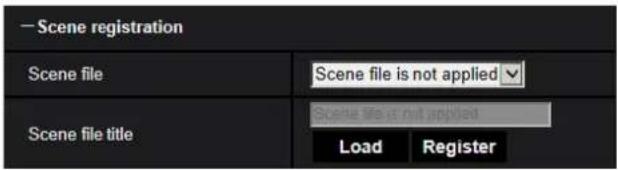
text_image
—Scene registration Scene file Scene file is not applied Scene file title Scene file is not applied Load Register[Scene file]
The combination of settings used to adjust image quality can be saved as a scene file. The scene file can be selected here.
Registered scene files can be configured in the "Schedule" page ( page 226). If the timing of when images are viewed greatly affects the area where images are viewed, registering scene files to the schedule can let you match a combination of settings to different times of day in order to view images in the best conditions.
[Scene file title]
The scene file name (up to 10 characters) displayed in "Scene file" can be changed. Only file names displayed in "1:", "2:", "3:", and "4:" can be changed.
- Unavailable characters: " &
[Load] button
Loads the setting data selected in "Scene file" and changes the current image accordingly.
[Register] button
The combination of settings used to adjust image quality that are currently displayed can be registered to the scene file displayed in "Scene file".
2.5.5.2 Set mask areas
This explains how to mask an area of the image and adjust brightness.
When setting the mask area, set "Wide dynamic range (WDR)" X4573 X4173 or "Super Dynamic(SD)" S4551 S4151 to "Off".
- Display the "Image adjust" setup menu. (→page 114)
X4573 X4173 X4172
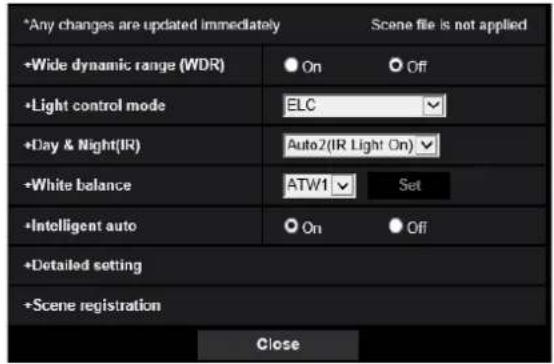
text_image
*Any changes are updated immediately Scene file is not applied +Wide dynamic range (WDR) On Off +Light control mode ELC +Day & Night(IR) Auto2(IR Light On) +White balance ATW1 Set +Intelligent auto On Off +Detailed setting +Scene registration CloseS4551 S4151

text_image
*Any changes are updated immediately Scene file is not applied +Super Dynamic(SD) ● On ○ Off +Light control mode ELC +Day & Night(IR) Auto2(IR Light On) ● +White balance ATW1 Set +Intelligent auto ○ On ○ Off +Detailed setting +Scene registration Close- Click "+" on the left of "Wide dynamic range (WDR)" S4551 S4151 to display the detailed menu.
X4573 X4173 X4172 or "Super Dynamic(SD)"
X4573 X4173 X4172
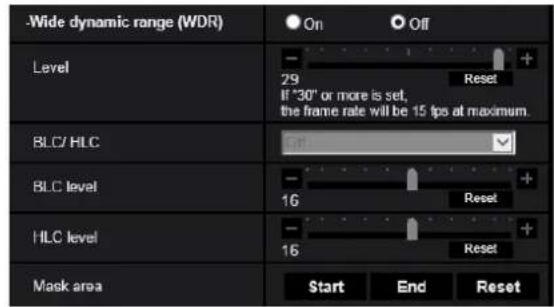
text_image
-Wide dynamic range (WDR) Level 29 Reset If "30" or more is set, the frame rate will be 15 fps at maximum. BLC/ HLC 16 BLC level 16 Reset HLC level 16 Reset Mask area Start End ResetS4551 S41511
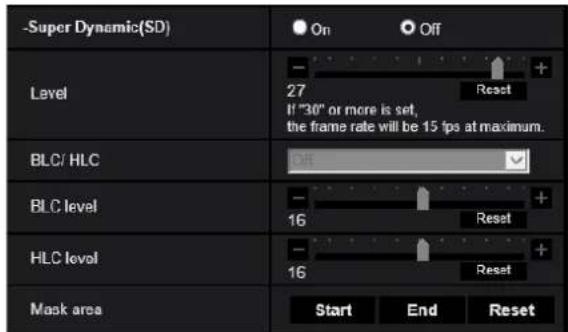
text_image
-Super Dynamic(SD) Level BLC/ HLC BLC level HLC level Mask area On Off 27 If "30" or more is set, the frame rate will be 15 fps at maximum. Off 16 Reset 16 Reset Start End Reset- Click the [Start] button of "Mask area".
→ Borders will appear and the image displayed on the [Image/Position] tab will be divided into 144 (12 ×12).

text_image
Image Cam, Function Image/Position Audio Image adjust Setup >> Preset position Setup >> Privacy zone Setup >> VIQS Setup >>Note
- Regardless of the "Image capture mode" setting, Fisheye images are configured for mask settings.
- Click the divided areas to be masked.
→ The clicked areas will be masked and will become white. To cancel masking, click the area again.
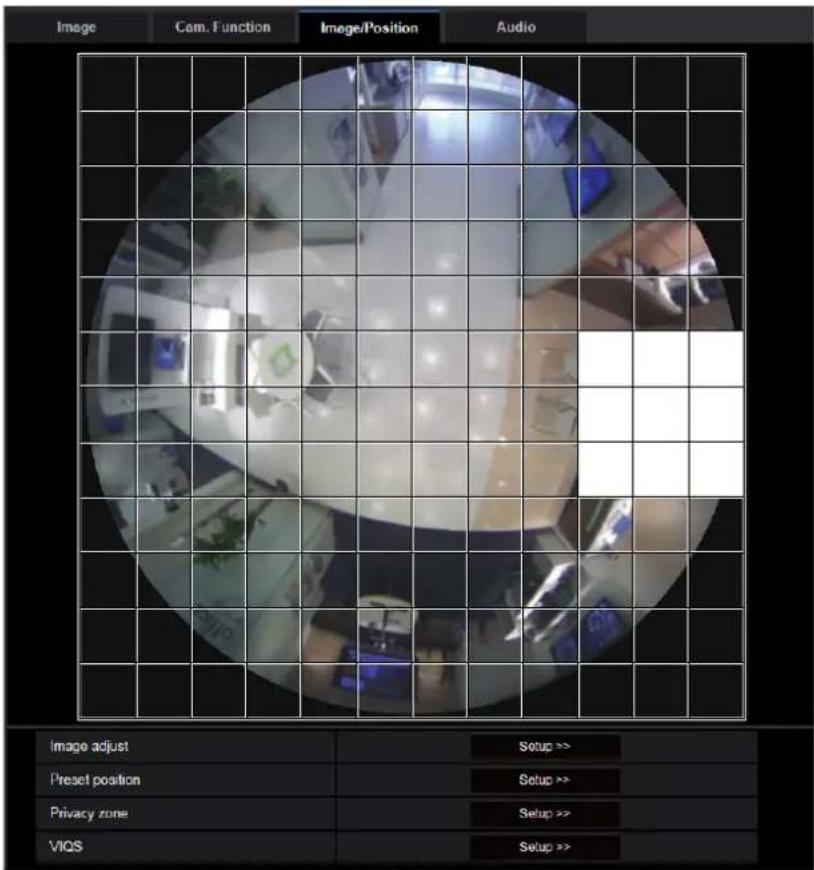
text_image
Image Cam. Function Image/Position Audio Image adjust Setup >> Preset position Setup >> Privacy zone Setup >> VIQS Setup >>- Click the [End] button after completing masking areas.
→ The borders on the image displayed on the [Image/Position] tab will disappear.
IMPORTANT
- The mask area may move out of alignment if the setting for "Image capture mode" of the [Image] tab or "Upside-down" of the [Basic] tab is changed after the mask area has been configured. Make sure to check the mask area after changing the "Image capture mode" setting.
Note
- When the [Reset] button is clicked, masking for all the masked areas will be canceled.
2.5.5.3 Adjusting back focus X4573 X4172 X4173
Click the [Setup>>] button of "Back focus" on the [Image/Position] tab of the "Image/Audio" X4573
X4172 "Image" X4173 page. (→page 114)
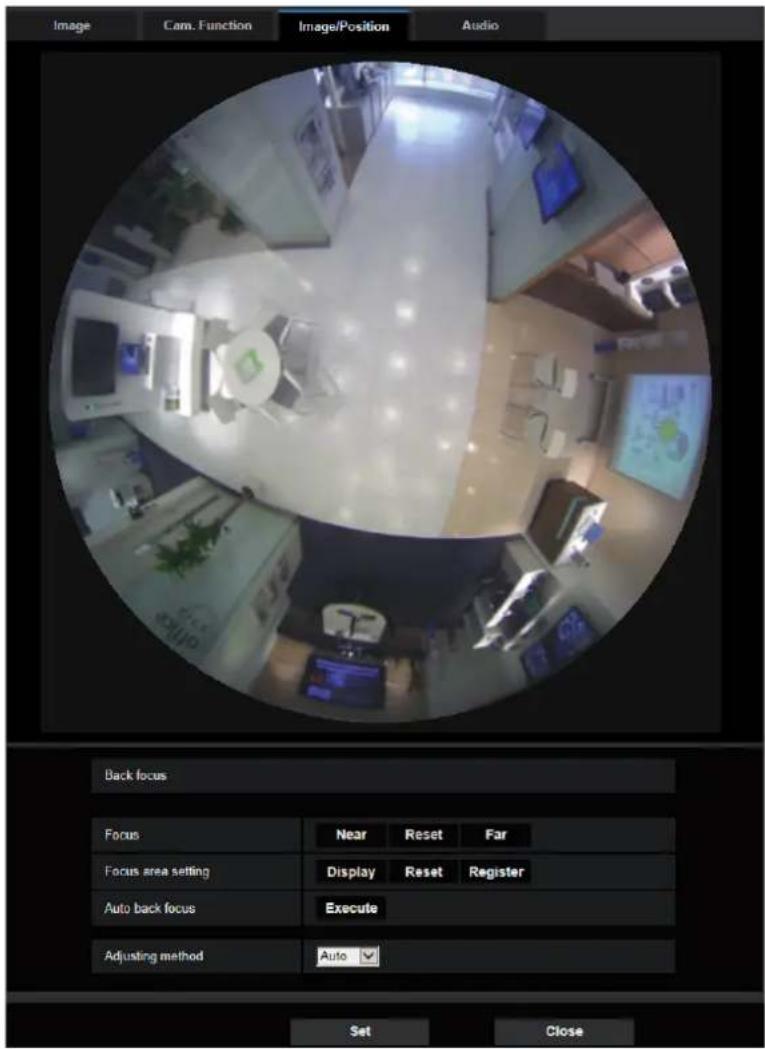
text_image
Image Cam. Function Image/Position Audio Back focus Focus Near Reset Far Focus area setting Display Reset Register Auto back focus Execute Adjusting method Auto Set CloseBack focus setting
Adjust the back focus by moving the MOS image sensor of the camera to the appropriate position.
[Focus]
The back focus can be adjusted manually.
• [Near]: Click this button to adjust the focus to the "Near" side.
- [Reset]: Click this button to reset the focus to the default. The focus of both color images and monochrome images are reset to the default values.
- [Far]: Click this button to adjust the focus to the "Far" side.
[Focus area setting]
When performing back focus, you can use this frame to specify the subject on the screen for which the focus should be adjusted. Unless specified otherwise, adjusts the focus to the subject in the central area of the screen.
- [Display]: Displays the back focus frame in the settings screen. In the default settings, the back focus frame is displayed in the central area of the screen. Drag the mouse on the image, and specify the area where the focus should be adjusted. Once the setting is complete, click the [Register] button. When the [Display] button is clicked, the [Reset] and [Register] buttons are displayed.
- [Reset]: Resets the frame setting to its default.
• [Register]: Saves the set frame. Click to automatically adjust the focus on the subject in the specified area.
[Auto back focus]
The auto back focus function starts to automatically adjust back focus based on a subject located in the center of the screen by clicking the [Execute] button.
IMPORTANT
- When a value with an interval longer than “Max. 1/30s” (Max. 2/30s/ Max. 4/30s/ Max. 6/30s/ Max. 10/30s/ Max. 16/30s) or a value with an interval longer than “Max. 1/25s” (Max. 2/25s/ Max. 4/25s/ Max. 6/25s/ Max. 10/25s/ Max. 16/25s) is selected for “Maximum shutter” (→page 119), if “Auto back focus” is executed during slow shutter operations at night, it may take a long time to complete “Auto back focus”.
-
In the following locations or with the following subjects, the auto back focus may not be able to be automatically adjusted. In this case, manually adjust the focus.
-
when the subject moves a lot
- when there are large changes to the lighting intensity
- when the light level is low
- when the subject or location is extremely bright or reflective
- when viewing through windows
- when the lens is in a location where it can easily become dirty
- locations where there is not much contrast such as a white wall
- when there is harsh flickering
- When images in the near-infrared light area change from color to black & white, images may be out of focus due to the nature of optical properties. In this case, the focus can automatically be corrected by selecting "Auto" or "Preset" for "Adjusting method" (the focus will not automatically be adjusted according to the illumination level change once the focus is corrected).
[Adjusting method] X4573
Select the back focus adjustment method upon switching between the color mode and the black & white mode. For further information, refer to our website
(https://i-pro.com/global/en/surveillance/training_support/support/technical_information
- Auto: When color/BW of an image on which the final back focus adjustment is performed is switched, the back focus will automatically be adjusted. When switched back to the previous color/BW, the back focus position will return to the position determined when the final back focus adjustment was performed. If the focus of an image could not be adjusted as a black & white image, the image may be readjusted as a color image and then switched again to a black & white image.
- Preset: Performs the preset movement to each specified back focus position when switching between color and black & white images. The preset position is the back focus position specified last time, which was automatically memorized for each of color images and black & white images.
• Fix: Fixes the position after adjusting the back focus either automatically or manually.
- Default: Preset
IMPORTANT
- If the back focus cannot be adjusted automatically when switching between the color mode and the black & white mode when "Auto" is selected, select "Preset" or "Fix" and adjust the back focus manually.
[Close] button
Click this button to close the "Back focus" setup menu.
2.5.5.4 Configure the preset positions (Preset position setup menu)
Click the [Setup>>] button of "Preset position" on the [Image/Position] tab of the "Image/Audio" page (→page 114).
It is possible to register, edit and delete the preset positions on this page.
When the position and zoom factor are adjusted, the adjustment will be applied immediately to the currently displayed image on the [Image/Position] tab.
IMPORTANT
- This function is available when a “Image capture mode” setting containing Quad PTZ or Single PTZ is selected. (→page 12) Specifically, the following options can be selected for “Image capture mode”.
Quad PTZ/ Single PTZ/ Fisheye + Quad PTZ/ Quad stream
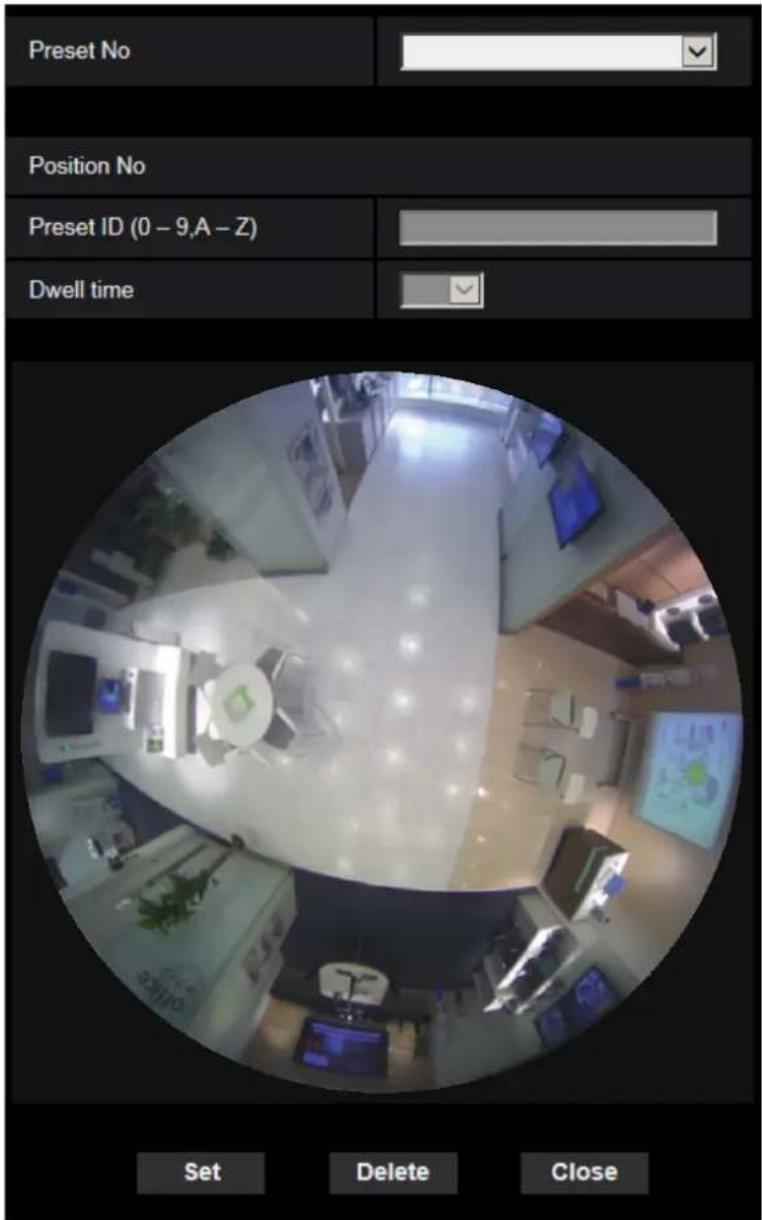
text_image
Preset No Position No Preset ID (0 - 9,A - Z) Dwell time Set Delete CloseNote
- "Preset position" can be set up to a maximum of 16 positions.
- When Quad PTZ, Fisheye + Quad PTZ, or Quad stream is selected for "Image capture mode", images are registered as Quad PTZ images. In this case, the preset position for 4 areas is registered at the same time.
- When Single PTZ is selected for "Image capture mode", image are registered as Single PTZ images.
Register the preset positions
- Select a preset position number. When registering with Single PTZ, numbers 1 to 16 can be selected. When registering with Quad PTZ, combinations of 1-4, 5-8, 9-12, or 13-16 can be selected.
→ The selected preset position number will be displayed in the "Position No" area.
When the selected number has already been registered, the camera will move to the selected preset position.
- Move the image position to the desired direction.
- The image position is changed with fisheye control.
- To display the preset ID on the "Live" page, enter the desired position title. In Quad PTZ, 4 position titles can be configured.
- Leave this field blank when you do not want to display the preset ID.
-
The setting for "Dwell time" can be configured for each position independently.
-
Click the [Set] button.
Preset position settings: Position No
[Preset ID (0-9,A-Z)]
Enter the preset ID to be displayed on images. This function can be applied to each preset position.
• Available number of characters: 0 - 20 characters
• Available characters: 0-9, A-Z and the following marks. ! " # \$ % & ' ( ) * + - , . / ; := ?
- Default: 1: HOME1/2: HOME2/3: HOME3/4: HOME4/5 and subsequent numbers are blank.
Note
- When the image type is Quad PTZ or Single PTZ, the home position is set in advance in the following manner.
– Quad PTZ: position numbers 1 to 4
– Single PTZ: position number 1
• The entered preset ID will be displayed next to the preset position number on the pull-down menu.
When the image type is Quad PTZ, the preset ID of the lowest number preset position is displayed.
[Dwell time]
Select a dwell time (duration the image stops for at each preset position) for the preset sequence operation.
5s/ 10s/ 20s/ 30s
- Default: 10s
Note
- Depending on the preset position, the dwell time may become longer or shorter.
Fisheye Control
For information on how to perform operations, refer to page 17.
[Set] button
Registers the preset positions.
[Delete] button
Deletes the preset position specified by the position number.
Note
- If position numbers 1 to 4 are deleted, the default positions are set.
• In Quad PTZ, if a preset position is deleted, all 4 preset positions are deleted at the same time. - In Single PTZ, even when position 1 is not selected, "1" is displayed on the "Fisheye Control" window.
[Close] button
Click this button to close the "Preset position" setup menu.
2.5.5.5 Configure the preset positions (Initial position setup menu)
Click the [Setup>>] button of "Preset position" on the [Image/Position] tab of the "Image/Audio" page.
(→page 114)
On this page you can adjust the tilt and vertical position set when the camera was mounted, as well as the horizontal position of the cropping position.
When "Image capture mode" is set as follows, the initial position can be set.
Double Panorama/ Panorama/ Fisheye + Double Panorama/ Fisheye + Panorama
IMPORTANT
- VMD is deactivated while the initial position setup menu is displayed. Close the initial position setup menu after completing the settings. - If the initial position setting of panorama or double panorama images is changed when the following areas are configured, the areas must be configured again.
- Privacy zone (→page 137)
- VMD area (→page 159)
- VIQS area (→page 139)
- Mask area (→page 126)
- When "Image capture mode" is set to Fisheye, the preset positions (Initial position setup menu) cannot be set.
For Panorama images

text_image
Image Cam. Function Image/Position Audio Position adjust ↑ ↓ Set Close[Position adjust] buttons
• : Adjusts the display position upward.
• : Adjusts the display position downward.
[Set] button
Saves the adjusted screen position.
For Double Panorama images

text_image
Image Cam. Function Image/Position Audio Position adjust ← → Set Close[Position adjust] buttons
- Images are displayed adjusted to 90° the left. The top and bottom panorama images move together.
- →: Images are displayed adjusted to 90° the right. The top and bottom panorama images move together.
[Set] button
Saves the adjusted screen position.
2.5.5.6 Configure the settings relating to the privacy zone (“Privacy zone” setup menu)
Click the [Setup>>] button of "Privacy zone" on the [Image/Position] tab of the "Image/Audio" page.
(→page 114)
When there is a zone that you do not want to display, set the zone as a privacy zone is filled with black. Up to 8 privacy zones can be set.
Note
- Regardless of the "Image capture mode" setting, Fisheye images are configured for privacy zone.
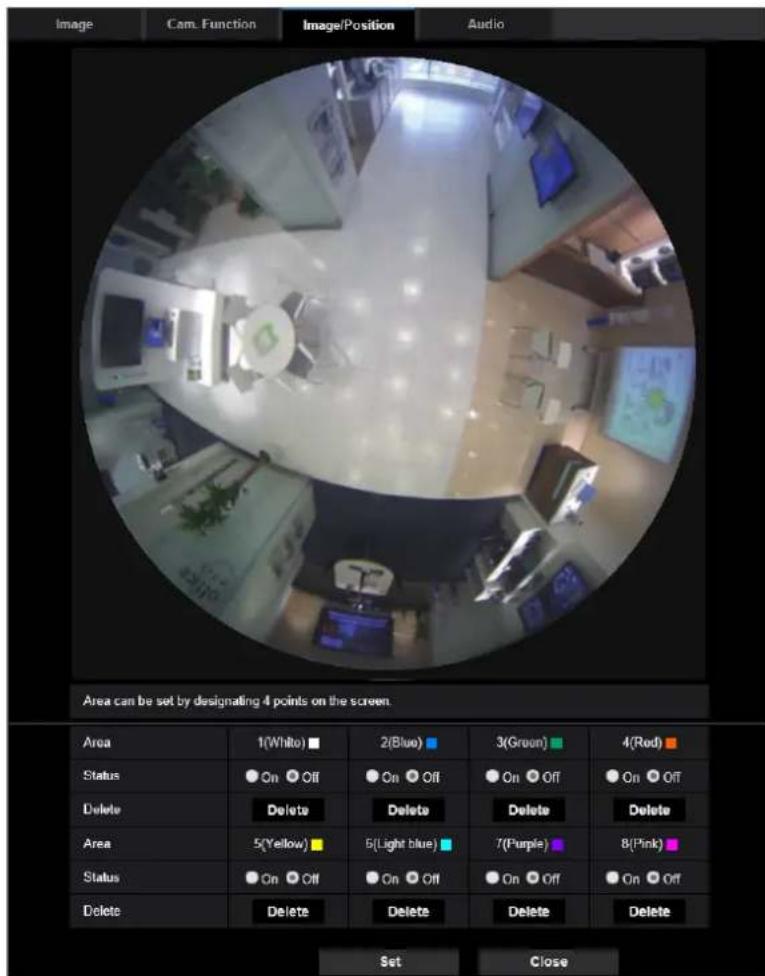
text_image
Image Cam. Function Image/Position Audio Area can be set by designating 4 points on the screen. Area 1(White) 2(Blue) 3(Green) 4(Rod) Status ● On ● Off ● On ● Off ● On ● Off Delete Delete Delete Delete Area 5(Yellow) 6(Light blue) 7(Purple) 8(Pink) Status ● On ● Off ● On ● Off ● On ● Off Delete Delete Set Close[Area]
An area can be set as a privacy zone by designating four vertexes on the image. Each zone can be overlapped. The zones are numbered sequentially from area 1.
Note
- Set the privacy zone larger than the size of an object to be hidden.
[Status]
Select "On" or "Off" to determine whether or not to display the privacy zone.
- On: The privacy zone will be displayed.
- Off: The privacy zone will not be displayed.
- Default: Off
[Delete] button
Click the [Delete] button corresponding to the zone to be deleted.
[Close] button
Click this button to close the "Privacy zone" setup menu.
IMPORTANT
- After configuring the privacy zone, the privacy zone may move out of alignment if the setting for "Image capture mode" of the [Image] tab or "Upside-down" of the [Basic] tab is changed.
2.5.5.7 Configure the VIQS setting
Click the [Setup>>] button of "VIQS" on the [Image/Position] tab of the "Image/Audio" page. (→page 114)
VIQS is an abbreviation of Variable Image Quality on Specified area and is a feature that enables you to change the images of a specified area.
It is possible to enhance the image quality of the specified range within a shooting area (image).
It is also possible to moderate the image data size by lowering the image quality of other areas.
The VIQS setting is available only for H.265 (or H.264) images.
Up to 8 VIQS areas can be set.
To check the image after configuring VIQS, when H.265 (or H.264) images are selected under "Stream", you can check the image by pressing the [Confirm] button. You can also check by displaying an H.265 (or H.264) image on the "Live" page.
Note
- The VIQS setting is only available when a "Fisheye for 2 Monitor", or "Fisheye" is selected for "Image capture mode".

text_image
Image Cam. Function Image/Position Audio Area 1(White) Status On Off Delete Area 5(Yellow) Status On Off Delete Level Stream Stream(1) Stream(2) Set Close 2(Blue) On Off Delete 6(Light blue) On Off Delete 3(Green) On Off Delete 7(Purple) On Off Delete 4(Red) On Off Delete 8(Pink) On Off Confirm Confirm Variable Image Quality on Specified area (VIQS) allows the designated area to retain higher image quality. The excluded area will have a decreased image quality, allowing for a lower image file size/bill rate to be used. To check the area to where VIQS is applied, push the confirm button after setting areas.[Area]
When selecting a VIQS area in the screen, it will be numbered as area 1. (Subsequent areas will be numbered in the order of selection.)
[Status]
Select "On" or "Off" to determine whether or not to use the VIQS area.
- On: The VIQS area will be set.
- Off: Does not set the VIQS area.
- Default: Off
[Delete] button
Deletes the VIQS area. Click the button to delete the VIQS area.
[Level]
Configure the difference level in the image quality between specified areas and non-specified areas. The greater the difference level, the more the image quality of the non-specified area is reduced. This makes it possible to moderate the image data size.
Select "On" or "Off" to determine whether or not to activate the VIQS function for the transmitted (Stream(1)) images.
The VIQS (Stream(1)) images can be confirmed with the [Confirm] button.
- Default: Off
[Stream(2)]
Select "On" or "Off" to determine whether or not to activate the VIQS function for the transmitted (Stream(2)) images.
The VIQS (Stream(2)) images can be confirmed with the [Confirm] button.
- Default: Off
IMPORTANT
- After the VIQS setting is set to "On", the VIQS area may move out of alignment when the "Image capture mode" setting on the [Image] tab of the "Image/Audio" page is changed. Make sure to check the VIQS setting after changing the "Image capture mode" setting.
Note
- Refer to page 142 for setting procedure of the VIQS area.
- When "Off" is selected for "Stream transmission" of the applicable stream, you cannot click the [Confirm] button of "Stream".
2.5.5.8 Configure the VIQS area
The VIQS area is specified by following the steps below.
- Drag the mouse on the screen to specify the area (up to 8 areas).
→ The specified area is set to area "1(White)", and the outline is displayed.
The areas are set in the area number order from number 1. The color next to the area number show the color of the corresponding outline.

text_image
Image Cam. Function Image/Position Audio Area 1(White) 2(Blue) 3(Groon) 4(Red) Status ● On ● Off ● On ● Off ● On ● Off ● On ● Off Delete Delete Delete Delete Area 5(Yellow) 6(Light blue) 7(Purple) 8(Pink) Status ● On ● Off ● On ● Off ● On ● Off ● On ● Off Delete Delete Delete Level 5 Normal Stream Stream(1) ● On ○ Off Confirm Stream(2) ● On ○ Off Confirm Variable Image Quality on Specified area (MQS) allows the designated area to retain higher image quality. The excluded area will have a decreased image quality, allowing for a lower image the scikit rate to be used To check the area to where MQS is applied, push the confirm button after setting areas. Set Close-
Configure the difference level in the image quality between specified areas and non-specified areas. The greater the difference level, the more the image quality of the non-specified area is reduced. This makes it possible to moderate the image data size.
-
Select "On" or "Off" to determine whether or not to enable the VIQS function for the transmitted image of "Stream(1)" or "Stream(2)".
-
Click the [Set] button.
→ This unit is updated with the setting contents. Click the [Delete] button corresponding to the area to be deleted.
- Click the [Confirm] button.
→ The image ("Stream(1)" or "Stream(2)") that the [Confirm] button was pressed for is displayed. When a window is newly opened and about 3 seconds pass, the currently outputted bit rate can be confirmed with the configured VIQS.
IMPORTANT
- No setting contents are determined unless the [Set] button is clicked.
- To check the image after configuring VIQS, display an H.265 (or H.264) image on the "Live" page, or press the [Confirm] button under "Stream".
- The outputted bit rate changes depending on the subject. Confirm the bit rates with actual subjects used when operating the camera.
- The output bit rate increases as the specified range increases. Confirm the current bit rate, and determine the area size.
2.5.6 Configure the settings relating to audio [Audio] \4551 \4151
X4573 X4172
Click the [Audio] tab on the "Image/Audio" page. (→page 61, page 62)
The settings relating to audio can be configured on this page.
Note
- Images and audio will not be synchronized. Therefore, images and audio may not always match.
- Audio may be interrupted depending on the network environment.
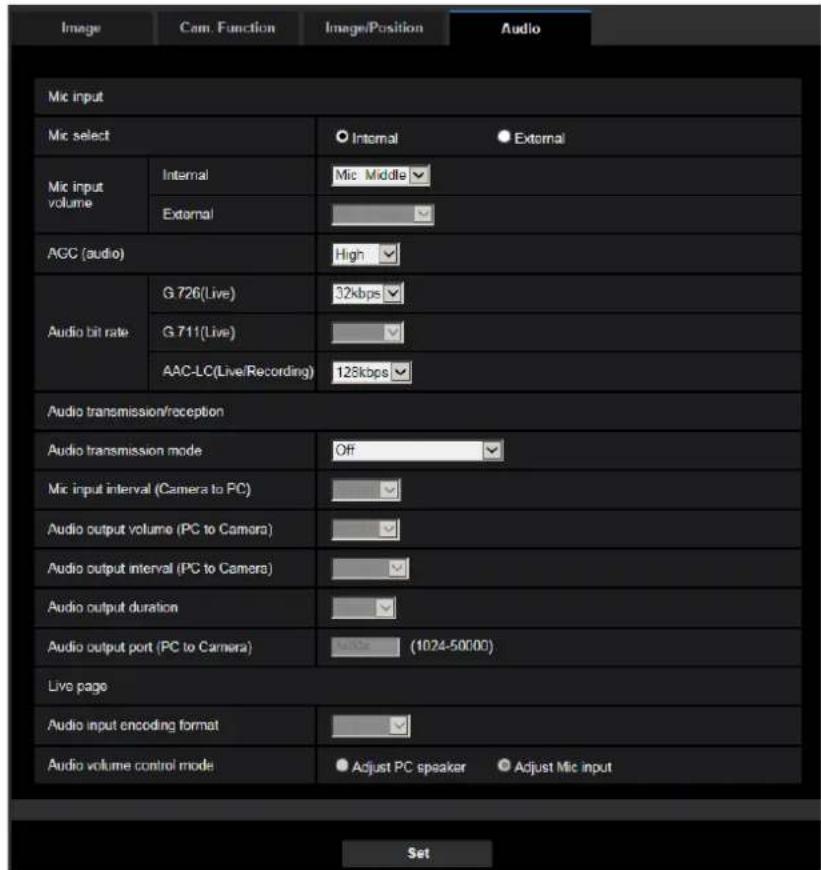
text_image
Image Cam. Function Image/Position Audio Mic input Mic select Internal Mic Middle External Mic input volume External AGC (audio) High Audio bit rate G 726(Live) 32kbps G 711(Live) AAC-LC(Live/Recording) 128kbps Audio transmission/reception Audio transmission mode Off Mic input interval (Camera to PC) Audio output volume (PC to Camera) Audio output interval (PC to Camera) Audio output duration Audio output port (PC to Camera) Audio output (1024-50000) Live page Audio input encoding format Audio volume control mode Adjust PC speaker Adjust Mic input SetMic input
[Mic select] S4151 X4172
"Mic select" can only be configured when "Mic input", "Interactive(Half-duplex)", or "Interactive(Half-duplex)" is selected for "Audio transmission/reception".
- Internal: The camera's built-in mic is used.
- External: Uses the audio inputted from the mic or the line input terminal. An audio cable (accessory) must be connected to the audio cable connector.
- Default: Internal
[Mic input volume]
Set the audio volume for input into the camera. This setting is reflected in the volume when listening to audio on a PC (mic input to PC), and in the volume during "Audio recording".
- Mic High/Mic Middle/Mic Low: Set the volume when audio is input to the camera using a microphone.
• Line High/Line Middle/Line Low: Set the volume when audio is input to the camera using line input. - Default: Mic Middle
Note
- When “Internal” is selected for “Mic select”, “Line High”, “Line Middle”, and “Line Low” cannot be selected.
[AGC (audio)]
Automatically adjusts the audio reception to a suitable volume. The degree to which the volume is adjusted can be selected from High/Middle/Low.
When "High" is selected, it is easier to hear quiet sounds, but sounds may be heard as noise. If you do not want to hear noise, select "Middle" or "Low". These settings are linked with the volume settings of the "Audio recording".
- Default: High
[Audio bit rate]
Set the audio compression bit rate.
- Default:
- G.726(Live): 32kbps
– AAC-LC(Live/Recording): 128kbps
Audio transmission/reception
[Audio transmission mode]
Select the communication mode used for audio data transmission/reception between the camera and the PC from the following:
• Off: Does not receive/transmit audio between the camera and the PC.
- Mic Input (To PC): PC receives the audio data from the camera. On the PC, the image can be viewed together with the accompanying audio. The image and audio are not synchronized.
- Audio output(From PC): Transmits audio data from the PC to the camera. Audio can be heard from the speaker connected to the camera.
- Interactive(Half-duplex): Both reception and transmission are available. However, audio data cannot simultaneously be transmitted and received.
- Interactive(Full-duplex): Both reception and transmission are simultaneously available.
- Default: Off
Note
- Howling may be generated depending on the usage conditions. Prevent sound generated by the PC from entering the PC microphone.
- When “Multicast” is selected for “Transmission type” on the [Image] tab of the “Image/Audio” page, audio output will become unavailable while monitoring H.265 or H.264 images. To perform audio output, click the [JPEG] button on the “Live” page.
- If you have set the "Audio out" to "Monitor", you can only set the "Audio transmission mode" to "Off" or "Mic Input (To PC)".
- "Audio recording" is not available when "Interactive(Half-duplex)" is selected for "Audio transmission mode".
[Mic input interval (Camera to PC)]
Select an interval for audio reception from the following.
20ms/ 40ms/ 80ms/ 160ms
- Default: 40ms
Note
- When a shorter interval is selected, the delay time will be shorter. When a longer interval is selected, audio interruption may be diminished even though the delay time will be longer. Select the interval according to the network environment.
- “Mic input interval (Camera to PC)” is unavailable when “AAC-LC” is selected for “Audio input encoding format”.
[Audio output volume (PC to Camera)]
Select a volume level on the camera to hear audio transmitted from the PC.
High/ Middle/ Low
- Default: Middle
[Audio output interval (PC to Camera)]:
Select an interval for audio transmission from the following.
160ms/ 320ms/ 640ms/ 1280ms
- Default: 640ms
Note
- When a shorter interval is selected, the delay time will be shorter. When a longer interval is selected, audio interruption may be diminished even though the delay time will be longer. Select the interval according to the network environment.
- Audio may temporarily be interrupted and noise may be heard when multiple users are accessing the camera concurrently. It may be possible to diminish the interruption or noise by setting a longer interval for “Audio output interval (PC to Camera)”.
- Audio may sometimes not be heard depending on the network environment.
[Audio output duration]:
Configure the maximum duration for each time audio is outputted.
- Audio output stops when the specified time has passed. To turn the audio transmission function on, click the Audio output button again.
[Audio output port (PC to Camera)]:
Enter the transmission port number (the port number on the camera used to receive audio data transmitted from the PC).
Available port number: 1024-50000 (Only even numbers are available.)
- Default: 34004
Note
- The transmission port number entered for "Audio output port (PC to Camera)" will be used only when "Unicast port (MANUAL)" is selected for "Transmission type" (→page 110). When "Off" is selected for "Stream transmission" (→page 106) or when "Unicast port (AUTO)" or "Multicast" is selected for "Transmission type", it is not necessary to enter the transmission port number.
Live page
[Audio input encoding format]
Select the audio input encoding format to be used in the "Live" page from G.726, G.711, or AAC-LC.
- Default: G.726
Note
G.711 is available only when the "Mic Input (To PC)" is selected for "Audio transmission mode".
• G.726 is always applied for the audio transmission encoding format.
[Audio volume control mode]
Select the operation method using the volume cursor of the Mic input button on the "Live" page.
- Adjust PC speaker: Change the volume of the PC in which the "Live" page is opened.
- Adjust Mic input: Change the mic input volume of the camera.
- Default: Adjust Mic input
2.6 Configure the multi-screen settings [Multi-screen]
The cameras from which images are to be displayed on a multi-screen can be registered on the "Multi-screen" page. (→page 61, page 62)
![i-PRO WV-X4173 - Configure the multi-screen settings [Multi-screen] - 1](/content/2026/06/1229328/images/b89ba308ea1aeaf7abab6f79fdaba14def2a8cd47004e359a983634929df1bc0.jpg)
text_image
Multi-screen IP address Camera title Group A Cam 1 selfcamera Cam 2 Cam.3 Cam.4 Group B Cam 5 Cam 6 Cam 7 Cam.8 Group C Cam 9 Cam 10 Cam 11 Cam 12 Group D Cam 13 Cam 14 Cam 15 Cam 16 Example of entry: http://192.156.0.10:0000 Initial display Layout 4 Screens(1-4) Refresh interval MJPEG Image capture size(4 Screens) 320x180 Set[IP address]
Enter the IP address or the host name of the camera to be used for the multi-screen. 4 cameras can be registered as a group and up to 4 groups (16 cameras) can be registered. When the HTTP port number for the camera of which images are to be displayed had been changed, enter as follows:
Example of entry:
– Example when entering an IPv4 address: http://192.168.0.10:8080
– Example when entering an IPv6 address: http://[2001:db8:0:0:0:0:0:1]:8080
To access the cameras using the HTTPS protocol, enter as follows:
Example of entry: https://192.168.0.10/
• Available number of characters: 1 - 128 characters
- Default: (Cam. 1) selfcamera, (Cam. 2 - 16) not registered
IMPORTANT
- When accessing the camera using the HTTPS protocol, install the pre-installed certificate or the CA certificate of the camera to display images on the monitor. (→page 214)
- This camera is specified when "selfcamera" is displayed for the IP address or host name.
Note
- For further information about “Network Camera Recorder with Viewer Software Lite”, which is suited to viewing images from several cameras, refer to our website (https://i-pro.com/global/en/surveillance/training_support/support/technical_information
). - When using the host name, it is necessary to configure the DNS settings of the PC to be used for the multi-screen display. Refer to the network administrator for information on the DNS setting of PCs.
[Camera title]
Enter the title of the camera. The entered camera title will be displayed on a multi-screen.
• Available number of characters: 0 - 20 characters
- Unavailable characters: " &
- Default:
– (Cam. 1) The model No. is displayed.
- (Cam. 2 - 16) None (blank)
Note
- When selecting a 16 split-screen, some characters of the camera title to be displayed may not be displayed.
• Even when "16:9" or "1:1" is selected for the aspect ratio, the multi-screen is displayed in 4:3.
Initial display
[Layout]
Select the layout for the initial display from the following:
4 Screens(1-4)/ 4 Screens(5-8)/ 4 Screens(9-12)/ 4 Screens(13-16)/ 9 Screens(1-9)/ 9 Screens(10-16)/ 16 Screens
- Default: 4 Screens(1-4)
[Refresh interval]
Select the refresh interval during initial display.
• H.265(1): Displays the camera image in the H.265 format (video).
• H.264(1): Displays the camera image in the H.264 format (video).
- MJPEG: Displays the camera image in the motion JPEG format (video).
- Refresh interval : 1s/ Refresh interval : 3s/ Refresh interval : 5s/ Refresh interval : 10s/ Refresh interval : 30s/ Refresh interval : 60s: Displays the JPEG format (still image) camera image in the selected interval.
- Default: MJPEG
[Image capture size(4 Screens)]
Select the image capture size for 4 screens in initial display.
- Aspect ratio 4:3: QVGA/VGA
- Aspect ratio 16:9: 320 × 180 / 640 × 360
- Aspect ratio 1:1: 320 × 320 / 640 × 640
- Default: 320×320
2.7 Configure the alarm settings [Alarm]
The settings relating to alarm occurrences such as settings for the alarm action at an alarm occurrence or alarm images, the VMD area settings, and the alarm occurrence notification can be configured on this page. The "Alarm" page has the [Alarm] tab, the [VMD area] tab, and the [Notification] tab.
2.7.1 Configure the settings relating to the alarm action [Alarm]
Click the [Alarm] tab on the "Alarm" page. (→page 61, page 62)
The settings relating to the alarm can be configured in this section. Refer to page 154 and page 152 for further information about the settings relating to the alarm images and the alarm output terminal \4551 \4151
X4573 X4172
![i-PRO WV-X4173 - Configure the settings relating to the alarm action [Alarm] - 1](/content/2026/06/1229328/images/4c9e2188d2a9d35d92d9c8147d113d2b33e5c8b9e734d41704372c2794b06a4f.jpg)
text_image
Alarm VMD area Notification Alarm Terminal 1 Off Terminal 2 Off Terminal 3 Off VMD alarm VMD >> Command alarm Command alarm On Off Reception port (1-65535) Alarm deactivation time 5 s (5-600s)Alarm
[Terminal 1] S4551 S4151 X4573 X4172
Determine how to use terminal 1.
- Off: Not used.
- Alarm input(TRM1): Receives alarms. When "Alarm input" is selected, a pull-down menu for "Close" and "Open" is displayed.
- Close: An alarm is detected when the terminal status is changed to "Close".
— Open: An alarm is detected when the terminal status is changed to "Open".
- Black & white input S4551 X4573: Receives the black & white switchover input. (When the input is set to On, the black & white mode is activated.)
- Auto time adjustment: Receives the time adjustment input. When the signal is received and if the clock is within 29 minutes ± the hour, the time will be adjusted to 00 minutes 00 seconds. During SD memory card recording, the time is not changed in operations which reset the time under 5 seconds. When “Auto time adjustment” is selected, a pull-down menu for “Close” and “Open” is displayed.
- Close: The time is adjusted when the terminal status is changed to "Close".
— Open: The time is adjusted when the terminal status is changed to "Open".
- Default: Off
[Terminal 2] S4551 S4151 X4573 X4172
Determine how to use terminal 2.
- Off: Not used.
-
Alarm input(TRM2): Receives alarms. When "Alarm input" is selected, a pull-down menu for "Close" and "Open" is displayed.
-
Close: An alarm is detected when the terminal status is changed to "Close".
-
Open: An alarm is detected when the terminal status is changed to "Open".
-
Alarm output: Alarm output will be carried out according to the settings for "Output terminal" (→page 152).
- Default: Off
[Terminal 3] S4551 S4151 X4573 X4172
Determine how to use terminal 3.
- Off: Not used.
- Alarm input(TRM3): Receives alarms. When “Alarm input” is selected, a pull-down menu for “Close” and “Open” is displayed.
- Close: An alarm is detected when the terminal status is changed to "Close".
- Open: An alarm is detected when the terminal status is changed to "Open".
- AUX output: AUX output will be supplied. The [AUX] buttons will be displayed on the "Live" page.
- Default: Off
IMPORTANT
- In order for the EXT I/O terminals to detect alarm inputs when the terminal status is changed from Open to Close (On) or from Close to Open (Off), about 100 ms or more is needed. Because alarms cannot be detected for about 5 seconds after a detection is made, alarm inputs received within about 5 seconds after an alarm is detected are not detected.
Note
- AUX is a camera terminal that allows users to operate (Open/Close) arbitrarily from the "Live" page. For example, an operator can remotely control lights in a place where the camera is installed by connecting the terminal to the light controller.
• Refer to the Installation Guide for further information about input/output rating of each terminal.
[VMD alarm]
When clicking "VMD >>", the [VMD area] tab of the "Alarm" page will be displayed. (→page 165)
[Command alarm]
Select "On" or "Off" to determine whether or not to receive the command alarm.
The command alarm is the function that provides notification of a TCP alarm notification from the other cameras. When “On” is selected, alarm actions will be performed between multiple cameras.
- Default: Off
[Reception port]
Select a port number to be used to receive the command alarm.
• Available range: 1-65535
- Default: 8181
The following port numbers are unavailable since they are already in use.
20, 21, 23, 25, 42, 53, 67, 68, 69, 80, 110, 123, 161, 162, 443, 554, 995, 10669, 10670, 59000-61000
[Alarm deactivation time]
Configure the duration that detections won't be made after an alarm is detected. For example, by using this function you can prevent E-mail from being sent too often when E-mail notifications are configured to be sent to cellular phones when an alarm is detected.
5-600s
- Default: 5s
Note
- The duration that alarm detections are not made can be managed for each type of alarm. For example, during the time when detections for command alarms are not made, detections for VMD alarm can be made.
2.7.2 Configure the settings relating to the output terminal [Alarm] S4551 S4151 X4573 X4172
Click the [Alarm] tab on the "Alarm" page. (→page 61, page 62)
The settings relating to the output terminal can be configured in this section.
![i-PRO WV-X4173 - Configure the settings relating to the output terminal [Alarm] S4551 S4151 X4573 X4172 - 1](/content/2026/06/1229328/images/fef16c0836dcbc39bb033e87dee275ff66f9a672907c2a183541a2cc58f2bde1.jpg)
text_image
Output terminal Terminal output upon alarm detection On Off SD memory card error On Off Terminal state upon alarm detection Latch Pulco Terminal action upon alarm detection Open Close Pulse output width s (1-120s)Output terminal
In order to be able to configure “Output terminal”, “Alarm output” must be selected for [Terminal 2] of the [Alarm] setting.
[Terminal output upon alarm detection]
Select "On" or "Off" to determine whether or not to output the alarm signals to the output terminal when an alarm is detected.
- Default: Off
[SD memory card error]
Select "On" or "Off" to determine whether or not to output signals from the output terminal when an error is detected for the SD memory card.
SD memory card error condition: SD memory card error (write error, read error, etc), Total use time over 6 years, and number of overwrites over 2000 times
- On: When an error status is detected, the signals from an output terminal is outputted and the [Alarm occurrence indication] button on the "Live" page blinks.
- Off: Deactivates the warning status detection.
- Default: Off
IMPORTANT
- In order to be able to correctly use this function, format the SD memory card with the camera before using it.
Note
- The total service time of 6 years is the total power-on time from the SD card being inserted. 2000 cycles are the upper limit overwrite counts of the industrial SD memory card (MLC type). These are typical values and not a guarantee of the SD card lifetime.
- The output terminal and the SD memory card errors use the same output terminal.
• A signal is outputted to the output terminal when either an alarm or SD memory card error occurs.
- When an SD memory card error is detected, the [Alarm occurrence indication] button on the "Live" page blinks. If you click on the [Alarm occurrence indication] button, the button will be hidden.
- Output signals from the output terminal for [SD memory card error] differ depending on the settings of [Terminal state upon alarm detection].
- When "Latch" is selected: Even after you click the [Alarm occurrence indication] button and it disappears, output signals from the output terminal will continue as long as the cause of the [SD memory card error] is not resolved.
- When "Pulse" is selected: Even after you click the [Alarm occurrence indication] button and it disappears, output signals from the output terminal will continue as long as the cause of the [SD memory card error] is not resolved. However, if the time period specified for [Pulse output width] is exceeded, output signals from the output terminal will be stopped.
[Terminal state upon alarm detection]
Select "Latch" or "Pulse" for the output terminal at an alarm occurrence.
- Latch: When an alarm is detected, the output terminal will be in the state selected for "Terminal action upon alarm detection" until the alarm occurrence indication button is clicked.
- Pulse: When an alarm is detected, the output terminal will be in the state to the "Terminal action upon alarm detection" setting for the period set for "Pulse output width". When the alarm occurrence indication button is clicked, the output terminal will return to the normal state.
- Default: Latch
[Terminal action upon alarm detection]
Select “Open” or “Close” to determine whether to open or close the output terminal when outputting the alarm signals.
- Open: The output terminal will open when outputting the alarm signals. (Normally close)
- Close: The output terminal will close when outputting the alarm signals. (Normally open)
- Default: Close
Note
- When "Open" is selected, the alarm signal will be output for about 20 seconds when the power of the unit is turned on.
[Pulse output width]
When “Pulse” is selected for “Terminal state upon alarm detection”, select an output terminal duration from the following.
• Available range: 1-120s
- Default: 1s
2.7.3 Change the AUX name [Alarm]
![i-PRO WV-X4173 - Change the AUX name [Alarm] - 1](/content/2026/06/1229328/images/33cf5302aeb625d060632397093012bbad9c0bb6aa67e4ededaf1dba748318a9.jpg)
Click the [Alarm] tab on the "Alarm" page. (→page 61, page 62)
The names of "AUX", "Open" and "Close" on the "Live" page can be changed.
| AUX title | |
| AUX (Up to 10 characters) | AUX |
| Open (Up to 5 characters) | Open |
| Close (Up to 5 characters) | Close |
AUX title
[AUX (Up to 10 characters)]
Enter the name for "AUX" on the "Live" page.
- Unavailable characters: " &
- Default: AUX
[Open (Up to 5 characters)]
Enter the name for "Open" of "AUX" on the "Live" page.
- Unavailable characters: " &
- Default: Open
[Close (Up to 5 characters)]
Enter the name for "Close" of "AUX" on the "Live" page.
- Unavailable characters: " &
- Default: Close
Note
- The AUX title can be changed when [Terminal 3] of the [Alarm] setting is set to [AUX output].
- AUX is a camera terminal that allows users to operate (Open/Close) arbitrarily from the "Live" page. For example, an operator can remotely control lights in a place where the camera is installed by connecting the terminal to the light controller.
2.7.4 Configure the settings relating to the camera action on alarm occurrence [Alarm]
Click the [Alarm] tab on the "Alarm" page. (→page 61, page 62)
The settings related to the camera action on alarm can be configured in this section.
| Camera action on alarm | |
| Alarm E-mail notification | E-mail server >> |
| Alarm Image recording(SD memory card) | SD memory card setup >> |
| TCP alarm notification | TCP alarm notification >> |
| HTTP alarm notification | HTTP alarm notification setup >> |
| Preset action upon alarm detection | Preset action on alarm >> |
| SNMP transmission upon alarm detection | To SNMP setting |
[Alarm E-mail notification]
Click "E-mail server >>" to display the setup menu that can configure the settings relating to E-mail notification when an alarm occurs. The setup menu will be displayed in a newly opened window. (→page 155)
[Alarm image recording(SD memory card)]
Click "SD memory card setup >>" to display the setup menu that can configure the settings relating to recording images on an SD memory card when an alarm occurs. The setup menu will be displayed in a newly opened window. (→page 157)
[TCP alarm notification]
Click "TCP alarm notification >>" to display the setup menu that can configure the settings relating to transmitting TCP alarm notification when an alarm occurs. The setup menu will be displayed in a newly opened window. (→page 158)
[HTTP alarm notification]
Click "HTTP alarm notification setup >>" to display the setup menu that can configure the settings relating to transmitting HTTP alarm notifications when an alarm occurs. The setup menu will be displayed in a newly opened window. (→page 159)
[Preset action upon alarm detection]
Click the [Preset action on alarm >>] button to display the setup menu that can configure the settings relating to which preset position the camera moves to when an alarm occurs. The setup menu will be displayed in a newly opened window. (→page 161)
[SNMP transmission upon alarm detection]
Click "To SNMP setting" to display the setup menu that can configure the settings relating to SNMP transmission when an alarm occurs. The setup menu will be displayed in a newly opened window. (→page 161)
2.7.4.1 Configure settings relating to alarm E-mail notifications
Click "E-mail server >>" of "Camera action on alarm" on the [Alarm] tab of the "Alarm" page. (→page 154)
IMPORTANT
- When "Quad stream" is selected for "Image capture mode", images cannot be attached to E-mail notifications.
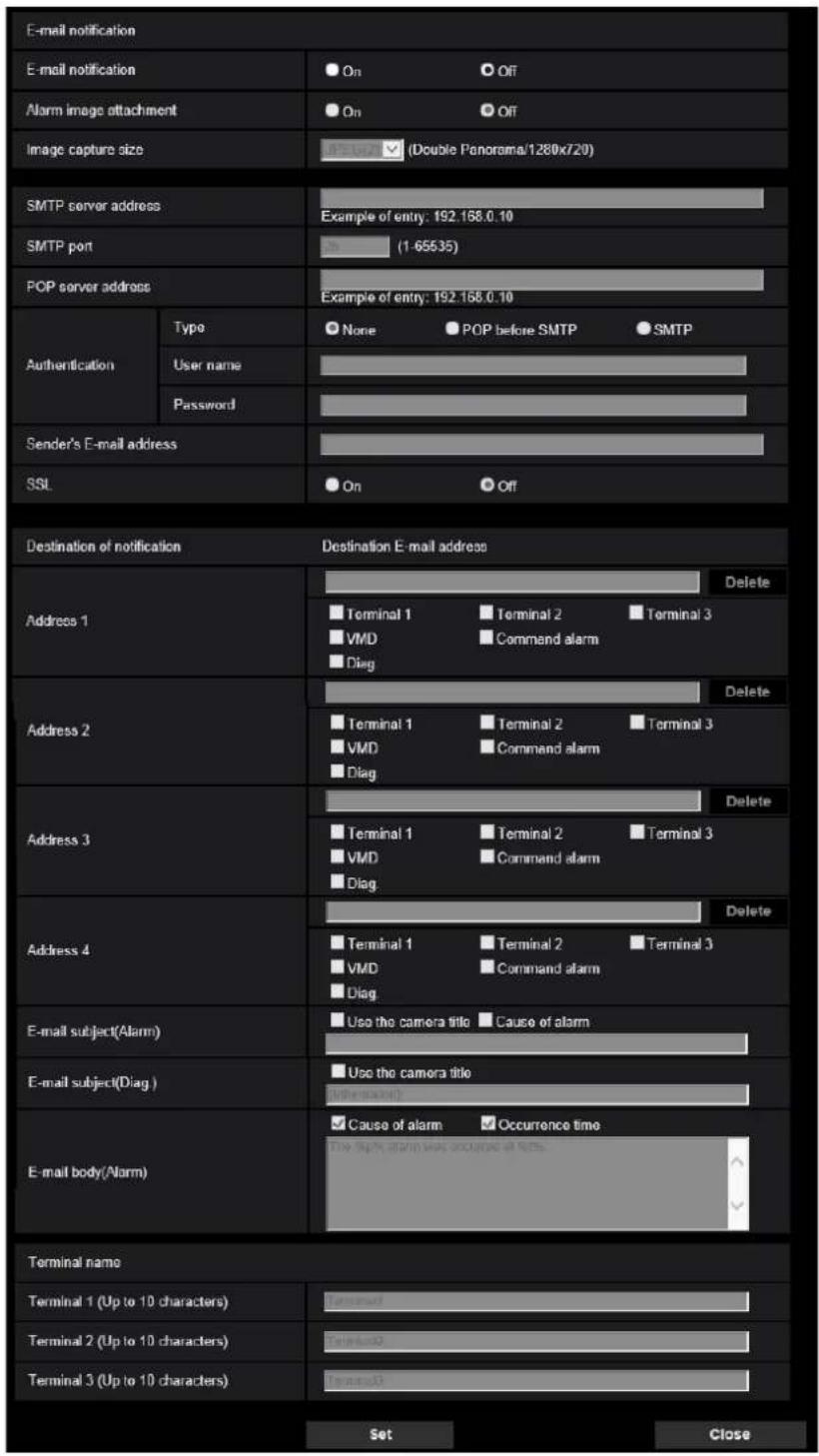
text_image
E-mail notification E-mail notification Alarm image attachment Image capture size SBTP server address SMTP port POP server address Authentication Type User name Password Sender's E-mail address SSL Destination of notification Destination E-mail address Address 1 Address 2 Address 3 Address 4 E-mail subject(Alarm) E-mail subject(Diag ) E-mail body(Alarm) Terminal name Terminal 1 (Up to 10 characters) Terminal 2 (Up to 10 characters) Terminal 3 (Up to 10 characters) On On (1-65535) Example of entry: 192.168.0.10 Example of entry: 192.168.0.10 None POP before SMTP SMTP Terminal 1 Terminal 2 Terminal 3 Command alarm Command alarm Terminal 1 Terminal 2 Terminal 3 VMD VMD Diag Diag Terminal 1 Terminal 2 Terminal 3 VMD VMD Diag Terminal 1 Terminal 2 Terminal 3 VMD VMD Diag Terminal 1 Terminal 2 Terminal 3 VMD VMD Diag Terminal 1 Terminal 2 Terminal 3 VMD VMD Diag Terminal 1 Terminal 2 Terminal 3 VMD VMD Diag Terminal 1 Terminal 2 Terminal 3Refer to page 188 for information on configuration for these settings.
2.7.4.2 Configure settings relating to recording to an SD memory card when an alarm occurs
Click "SD memory card setup >>" of "Camera action on alarm" on the [Alarm] tab of the "Alarm" page. (→page 154)

text_image
Operating mode SD memory card Use Not use Audio recording On Off Remaining capacity notification 50% Overwrite On Off SD memory card security Additional info for detecting alteration Setup >> SD memory card password lock Password Set Remove Change Status Unlock Recording stream Recording format JPEG(2) (Double Panorama/1280x720) Save trigger Manual Terminal 1 Terminal 2 Terminal 3 VMD Command alarm SD memory card warning/ error LED SD memory card warning/ error LED On Off JPEG recording(Manual) File name img_ Image saving interval fps Set CloseRefer to page 87 for information on configuration for these settings.
2.7.4.3 Configure settings relating to TCP alarm notification when an alarm occurs
Click "TCP alarm notification >>" of "Camera action on alarm" on the [Alarm] tab of the "Alarm" page. (→page 154)
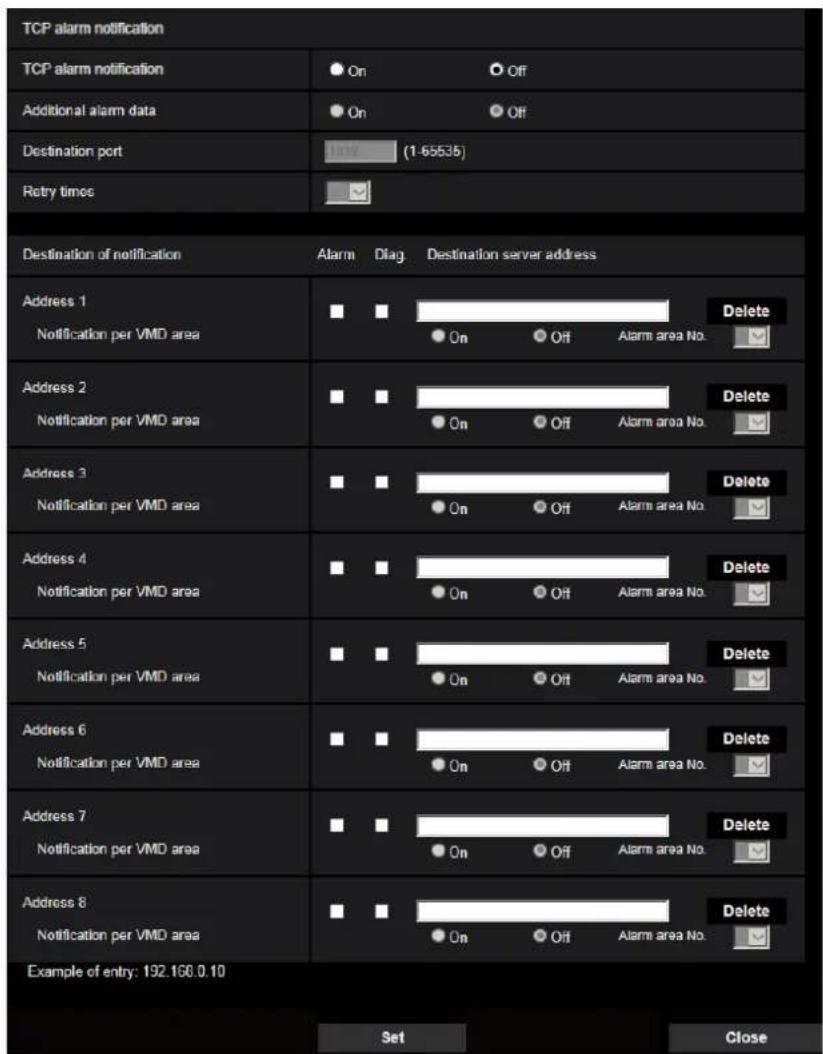
text_image
TCP alarm notification TCP alarm notification Additional alarm data Destination port Retry times Destination of notification Alarm Diag Destination server address Address 1 Notification per VMD area Delete On Off Alarm area No. Address 2 Notification per VMD area Delete On Off Alarm area No. Address 3 Notification per VMD area Delete On Off Alarm area No. Address 4 Notification per VMD area Delete On Off Alarm area No. Address 5 Notification per VMD area Delete On Off Alarm area No. Address 6 Notification per VMD area Delete On Off Alarm area No. Address 7 Notification per VMD area Delete On Off Alarm area No. Address 8 Notification per VMD area Delete On Off Alarm area No. Example of entry: 192.168.0.10 Set CloseRefer to page 168 for information on configuration for these settings.
2.7.4.4 Configure settings relating to HTTP alarm notification when an alarm occurs
Click "HTTP alarm notification setup >>" of "Camera action on alarm" on the [Alarm] tab of the "Alarm" page. (→page 154)

text_image
HTTP alarm notification Alarm Address 1 User name Password Notification data http:// Delete /cgi-bin/comalarm.cgi?CMD=01 Address 2 User name Password Notification data http:// Delete /cgi-bin/comalarm.cgi?CMD=01 Address 3 User name Password Notification data http:// Delete /cgi-bin/comalarm.cgi?CMD=01 Address 4 User name Password Notification data http:// Delete /cgi-bin/comalarm.cgi?CMD=01 Address 5 User name Password Notification data http:// Delete /cgi-bin/comalarm.cgi?CMD=01 Set CloseRefer to page 170 for information on configuration for these settings.
2.7.4.5 Configure settings relating to preset actions when an alarm occurs
Click "Preset action on alarm >>" of "Camera action on alarm" on the [Alarm] tab of the "Alarm" page. (→page 154)
IMPORTANT
- Preset action upon alarm detection can be configured when "Quad PTZ", "Single PTZ", "Fisheye + Quad PTZ", or "Quad stream" is selected for "Image capture mode".
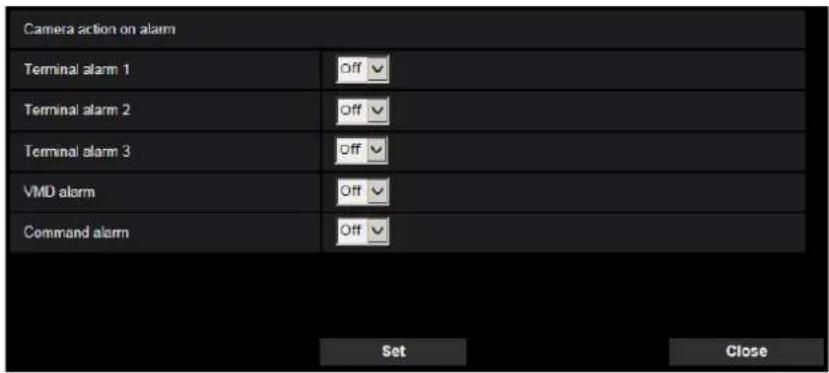
text_image
Camera action on alarm Terminal alarm 1 Off Terminal alarm 2 Off Terminal alarm 3 Off VMD alarm Off Command alarm Off Set Close[Terminal alarm 1] S4551 S4151 X4573 X4172
Select an action to be taken when a terminal alarm 1 is detected from the following.
• Off: Does not take any action even when a terminal alarm 1 is detected.
- (Quad PTZ) [1-4]/[5-8]/[9-12]/[13-16]: When using Quad PTZ, all of the 4 screens move to their preset positions.
- (Single PTZ) 1-16: If a previously registered preset position is selected, when a terminal alarm 1 is detected, the camera will move to that position.
- Default: Off
[Terminal alarm 2] S4551 S4151 X4573 X4172
Select an action to be taken when a terminal alarm 2 is detected from the following.
• Off: Does not take any action even when a terminal alarm 2 is detected.
- (Quad PTZ) [1-4]/[5-8]/[9-12]/[13-16]: When using Quad PTZ, all of the 4 screens move to their preset positions.
- (Single PTZ) 1-16: If a previously registered preset position is selected, when a terminal alarm 2 is detected, the camera will move to that position.
- Default: Off
[Terminal alarm 3] S4551 S4151 X4573 X4172
Select an action to be taken when a terminal alarm 3 is detected from the following.
• Off: Does not take any action even when a terminal alarm 3 is detected.
- (Quad PTZ) [1-4]/[5-8]/[9-12]/[13-16]: When using Quad PTZ, all of the 4 screens move to their preset positions.
- (Single PTZ) 1-16: If a previously registered preset position is selected, when a terminal alarm 3 is detected, the camera will move to that position.
- Default: Off
[VMD alarm]
Select an action to be taken when a VMD alarm is detected from the following.
- Off: Does not take any action even when a VMD alarm is detected.
- (Quad PTZ) [1-4]/[5-8]/[9-12]/[13-16]: When using Quad PTZ, all of the 4 screens move to their preset positions.
• (Single PTZ) 1-16: If a previously registered preset position is selected, when a VMD alarm is detected, the camera will move to that position.
- Default: Off
[Command alarm]
Select an action to be taken when a command alarm is detected from the following.
• Off: Does not take any action even when a command alarm is detected.
- (Quad PTZ) [1-4]/[5-8]/[9-12]/[13-16]: When using Quad PTZ, all of the 4 screens move to their preset positions.
• (Single PTZ) 1-16: If a previously registered preset position is selected, when a command alarm is detected, the camera will move to that position. - Default: Off
2.7.4.6 Configure settings relating to SNMP transmissions of alarm images
Click "To SNMP setting" of "Camera action on alarm" on the [Alarm] tab of the "Alarm" page. (→page 154)
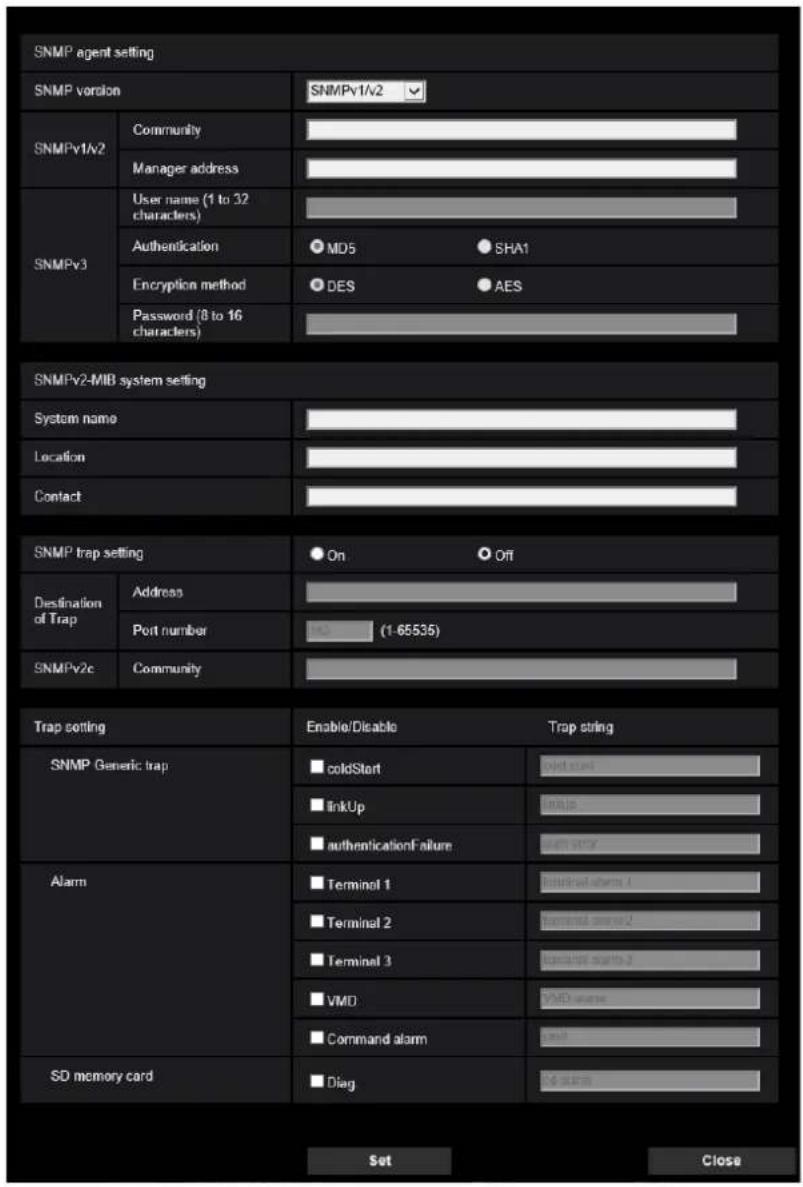
text_image
SNMP agent setting SNMP version SNMPv1/v2 Community Manager address SNMPv3 User name (1 to 32 characters) Authentication MD5 SHA1 Encryption method DES AES Password (8 to 16 characters) SNMPv2-MIB system setting System name Location Contact SNMP trap setting On Off Destination of Trap Address Port number (1-65535) SNMPv2c Community Trap setting Enable/Disable Trap string SNMP Generic trap coldStart linkUp authenticationFailure Alarm Terminal 1 Terminal 2 Terminal 3 VMD Command alarm SD memory card Diag Set CloseRefer to page 198 for information on configuration for these settings.
2.7.5 Configure the VMD settings [VMD area]
Click the [VMD area] tab on the "Alarm" page. (→page 61, page 62)
The video motion detection areas can be set on this page.
Up to 4 areas can be set. When motion is detected in the set area, it will be regarded as an alarm.
IMPORTANT
- The alarm occurrence indication button (→page 23) will be displayed when motion is detected by the VMD function.
- The alarm occurrence indication button will be displayed when receiving an alarm input of a terminal alarm or a command alarm.
- Depending on the network environment, notification may be delayed even when “Real time” is selected for “Status update mode” on the [Basic] tab of the “Basic” page (→page 79).
- After configuring the VMD area, the VMD area may move out of alignment when “Image capture mode” of the [Image] tab is changed. Make sure to check the VMD area after changing the “Image capture mode” setting.
- When Quad PTZ or Single PTZ is used, the alarm will not operate during pan/tilt/zoom operations, preset movement, or auto mode operations.
- The motion detection function is not the dedicated function to prevent thefts, fires, etc. We are not responsible for any accidents or damages that may occur.
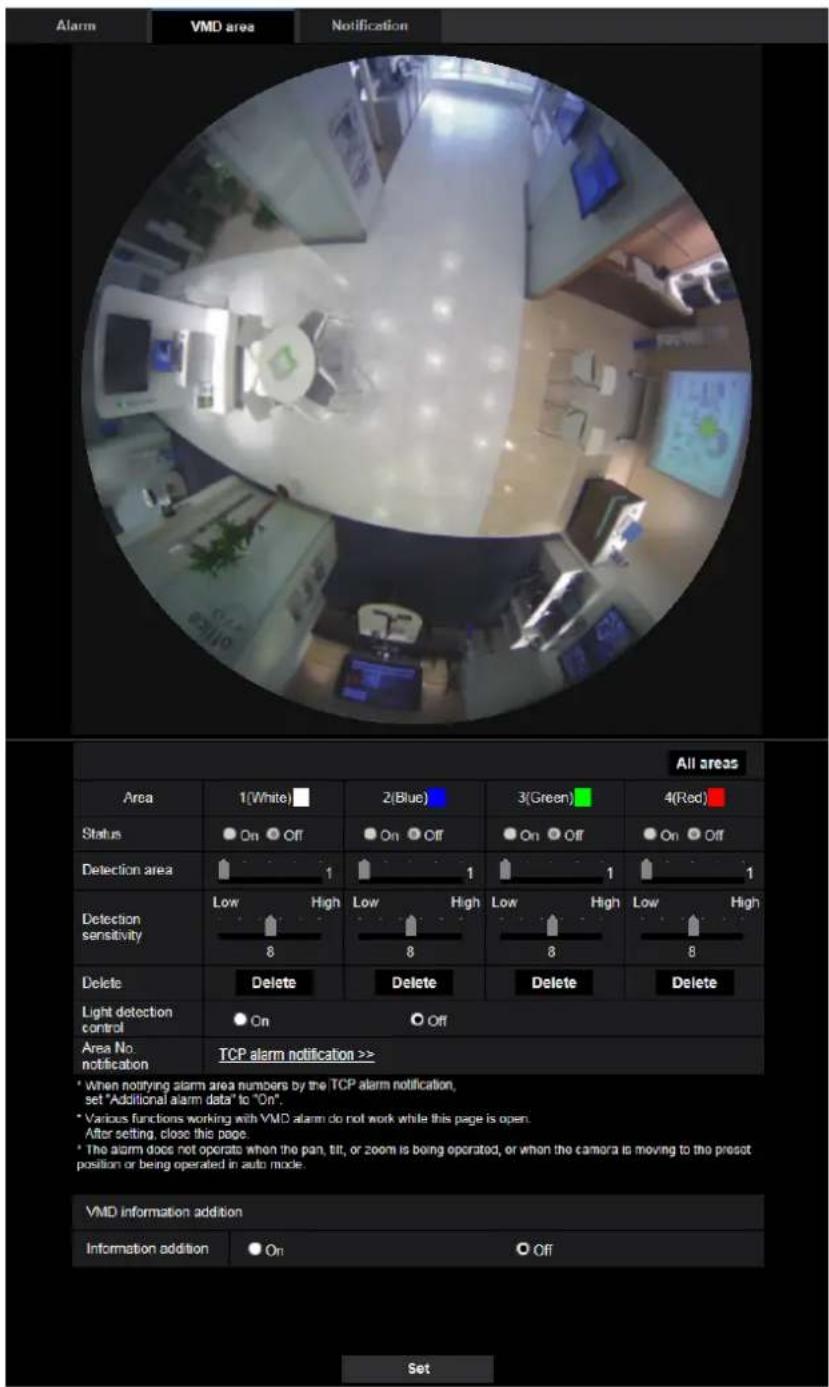
text_image
Alarm VMD area Notification All areas Area 1(White) 2(Blue) 3(Green) 4(Red) Status On Off On Off On Off On Off Detection area 1 1 1 1 Detection sensitivity Low High Low High Low High Low High 8 8 8 8 Delete Delete Delete Delete Light detection control On Off Area No. notification TCP alarm notification >> * When notifying alarm area numbers by the TCP alarm notification, set "Additional alarm data" to "On". * Various functions working with VMD alarm do not work while this page is open. After setting, close this page. * The alarm does not operate when the pan, tilt, or zoom is being operated, or when the camera is moving to the preset position or being operated in auto mode. VMD information addition Information addition On Off Set[Area]
When selecting a VMD area in the screen, it will be numbered as area 1. (Subsequent areas will be numbered in the order of selection.)
[All areas] button
When the [All areas] button is clicked, the whole area will become the VMD area, and "1(White)" will be automatically applied to "Area".
Note
- When "Double Panorama" is used, "1(White)" and "3(Green)" are configured for "Area".
- When "Quad PTZ" or "Quad stream" is used, "1(White)" to "4(Red)" are configured for "Area".
[Status]
Select "On" or "Off" to determine whether or not to perform video motion detection.
- On: Performs video motion detection.
- Off: Does not perform video motion detection.
- Default: Off
[Detection area]
Adjust the size of the VMD area using the slider. The smaller the selected value is, the higher the sensitivity of VMD area becomes. The current value (1-10) will be displayed on the right of the slider.
- Default: 1
[Detection sensitivity]
Adjust the sensitivity of motion detection in the VMD area using the slider. The settings can be configured for each area individually. The larger the value is set, the higher the sensitivity level becomes.
The current value (1 (low) - 15 (high)) will be displayed below the slider.
- Default: 8
[Delete] button
Click the [Delete] button corresponding to the area to be deleted. The outline of the selected area will be deleted.
[Light detection control]
Select "On" or "Off" to determine whether or not to suspend video motion detection affected by brightness change such by a dimming level control.
- Default: Off
IMPORTANT
- "Light detection control" may not work when brightness change is too small.
- When "On" is selected for "Light detection control", the video motion detection may not be performed even when detecting a subject moving over the whole screen.
[Area No. notification]
When “TCP alarm notification >>” is clicked, the [Notification] tab of the “Alarm” page will be displayed. (→page 167)
VMD information addition
[Information addition]
Select "On" or "Off" to determine whether or not to add VMD information to superimposed image data. The VMD information can be searched by some of our network disk recorders. Refer to the operating instructions of the connected devices for further information about the functions and settings.
- Default: Off
2.7.6 Set the VMD areas [VMD area]
Set the areas to activate the VMD function.
IMPORTANT
- During change of setting in the setup menu, no alarm will be detected. After setup is complete, close the setup menu.
- Set the video motion detection area by dragging the mouse on the screen.
→ The designated area will become the VMD area "1(White)" and the outline will be displayed. When 2 - 4 VMD areas are set, each area will be numbered in order. The areas will be identified by the respective outline colors. The "Status" of the outline to be set for the area will become "On".

text_image
Alarm VMD area Notification All areas Area 1(White) 2(Blue) 3(Green) 4(Red) Status On Off On Off On Off On Off Detection area 1 1 1 1 Detection sensitivity Low High Low High Low High Low High 8 8 8 8 Delete Delete Delete Delete Light detection control On Off Area No notification TCP alarm notification >> * When notifying alarm area numbers by the TCP alarm notification, set "Additional alarm data" to "On". * Various functions working with VMD alarm do not work while this page is open After setting, close this page. * The alarm does not operate when the pan, tilt, or zoom is being operated, or when the camera is moving to the preset position or being operated in auto mode. VMD information addition Information addition On Off SetNote
- When "Fisheye", "Single PTZ", or "Panorama" is selected for "Image capture mode", 4 areas can be configured.
- When “Double Panorama” is selected for “Image capture mode”, 2 areas can be configured for each of the upper and lower images.
- When "Quad PTZ" or "Quad stream" is used, 1 area can be configured for each image.
- Adjust "Detection area" and "Detection sensitivity" using the slider.
Refer to page 162 for further information about the "Detection sensitivity" and "Detection area".
The currently displayed area and its detection sensitivity will be displayed in the "Detection area" section.
Change areas and the settings of "Detection area" and "Detection sensitivity" as necessary.
- Click the [Set] button after completing the settings.
IMPORTANT
- The setting will not be applied unless the [Set] button is clicked.
- To invalidate the VMD area, click the [Set] button after selecting "Off" for "Status" of the VMD area to be invalidated
→ The outline of the invalidated VMD area will turn to a dotted line. When the VMD area is invalidated, no alarm will occur even when a motion can be recognized in the area.
- To delete the VMD area, click the [Delete] button corresponding to the area to be deleted.
→ The outline of the respective VMD area will disappear.
- Click the [Set] button.
→ The edited settings will be applied.
2.7.7 Configuration of the settings relating to alarm notification [Notification]
Click the [Notification] tab on the "Alarm" page. (→page 61, page 62)
The settings relating to TCP alarm notification and HTTP alarm notification can be configured in this section
2.7.7.1 Configure the settings relating to TCP alarm notification

text_image
TCP alarm notification | HTTP alarm notification TCP alarm notification TCP alarm notification Additional alarm data Destination port Retry times Destination of notification Alarm Diag. Destination server address Address 1 Notification per VMD area Delete On Off Alarm area No Address 2 Notification per VMD area Delete On Off Alarm area No Address 3 Notification per VMD area Delete On Off Alarm area No Address 4 Notification per VMD area Delete On Off Alarm area No Address 5 Notification per VMD area Delete On Off Alarm area No Address 6 Notification per VMD area Delete On Off Alarm area No Address 7 Notification per VMD area Delete On Off Alarm area No Address 8 Notification per VMD area Delete On Off Alarm area No Example of entry: 192 168.0.10 SetTCP alarm notification
[TCP alarm notification]
Select "On" or "Off" to determine whether or not to provide notification by TCP alarm notification according to the settings for the "Alarm" and "Diag." checkboxes of "Destination of notification" below.
- When an alarm is detected ("Alarm")
- When a notification of the remaining capacity of the SD memory card has been provided ("Diag.")
- When the SD memory card has become full ("Diag.")
- When the SD memory card cannot be recognized ("Diag.")
- Default: Off
Note
- When "On" is selected, notification of the alarm occurrence will be provided to the registered destination server addresses in order (to IP address 1 first, to IP address 8 last).
[Additional alarm data]
Determine whether or not to send notifications for VMD alarm detection area numbers with the TCP alarm notification by selecting On/Off.
- Default: Off
[Destination port]
Select a destination port for the TCP alarm notification from the following.
• Available range: 1 - 65535
- Default: 1818
The following port numbers are unavailable since they are already in use. 20, 21, 23, 25, 42, 53, 67, 68, 69, 80, 110, 123, 161, 162, 443, 995, 10669, 10670
[Retry times]
Select a retry time for the TCP alarm notification.
• Available range: 0-30
- Default: 2
Destination of notification
[Address 1] - [Address 8]
Enter the destination IP address or host name of the TCP alarm notification from the following. Up to 8 destination server addresses can be registered.
- [Alarm] checkbox: When the checkbox is checked, the TCP alarm notification will be provided upon an alarm occurrence.
- [Diag.] checkbox: When the checkbox is checked, notification using TCP alarm notification will be provided in the following cases.
- When notification of the remaining capacity of the SD memory card has been provided
- When the SD memory card has become full
- When the SD memory card cannot be recognized
• [Destination server address]: Enter the destination server address or host name.
- Available characters: Alphanumeric characters, the colon (:), the period (.), the underscore (_), and the hyphen (-).
To delete the registered destination server address, click the [Delete] button respective to the desired destination server address.
[Notification per VMD area]
Select "On" or "Off" to determine whether or not to set "Notification per VMD area".
If “Notification per VMD area” is turned “On”, an alarm is notified only when “Alarm area No.” matches “Alarm area” configured by “VMD alarm”. Alarm notifications other than “VMD alarm” are not implemented. When using “Notification per VMD area”, select “On” for “Status” of the alarm area in VMD.
- Default: Off
[Alarm area No.]
• Available range: 1-4
- Default: 1
IMPORTANT
- When entering the host name of the "Destination server address", the DNS settings on the [Network] tab of the "Network" page must be configured. (→page 183)
- Confirm that the destination IP addresses are registered correctly. When a registered destination does not exist, notification may be delayed.
2.7.7.2 Configure the settings relating to HTTP alarm notification
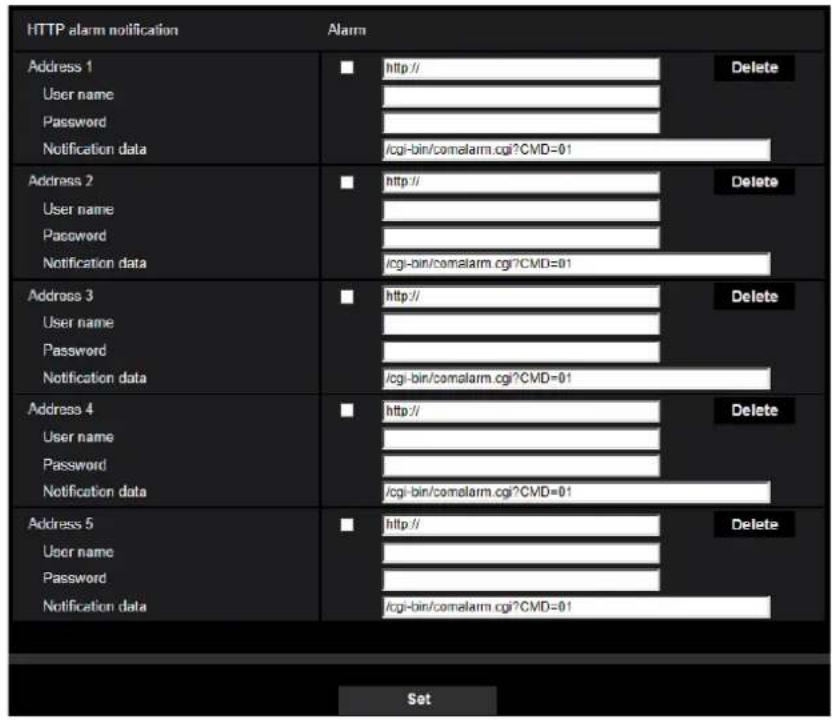
text_image
HTTP alarm notification Alarm Address 1 ■ http:// Delete User name Password Notification data Cgi-bin/comalarm.cgi?CVD=01 Address 2 ■ http:// Delete User name Password Notification data Cgi-bin/comalarm.cgi?CVD=01 Address 3 ■ http:// Delete User name Password Notification data Cgi-bin/comalarm.cgi?CVD=01 Address 4 ■ http:// Delete User name Password Notification data Cgi-bin/comalarm.cgi?CVD=01 Address 5 ■ http:// Delete User name Password Notification data Cgi-bin/comalarm.cgi?CVD=01 SetHTTP alarm notification
[Address 1] - [Address 5]
Enter the destination IP address or host name of the HTTP alarm notification. Up to 5 destination server addresses can be registered.
• Available characters: Alphanumeric characters, the colon (:), the period (.), the underscore (_), and the hyphen (-).
- Default: http://
Example of entry: "http://IP address of the HTTP server + : (colon) + port number" or "http://Host name: (colon)
+ port number"
[Alarm] checkbox
When the checkbox is checked, the HTTP alarm notification will be provided upon an alarm occurrence.
[Delete] button
When this button is clicked, all configured information, including the address, user name, password, and notification data, will be deleted.
[User name]
Enter the user name (login name) to access the HTTP server.
• Available number of characters: 0 - 63 characters
- Unavailable characters: " & : ; \
[Password]
Enter the password to access the HTTP server.
• Available number of characters: 0 - 63 characters
- Unavailable characters: " &
[Notification data]
Enter the notification data to add after the destination HTTP server addresses set in [Address 1] - [Address 5].
• Available characters: Alphanumeric characters
- Default: /cgi-bin/comalarm.cgi?CMD=01
Note
- If the HTTP alarm function is enabled, HTTP server authentication information (user names and passwords) may be leaked on the network when an alarm notification is issued to the HTTP server.
- For "Address 1" to "Address 5", a total of 256 characters can be entered for the address (including "http://") and "Notification data".
- Make sure to enter a slash (/) as the first character for "Notification data".
• If the HTTP alarm notification fails, information about the failure will be added to the system log. - Even if the [Set] button is clicked after deleting the contents of "Notification data", "/cgi-bin/comalarm.cgi?CMD=01" will be set.
- HTTPS cannot be used.
When http://192.168.0.100 is set for the address and /cgi-bin/comalarm.cgi?CMD=01 is set for "Notification data", an HTTP alarm notification such as http://192.168.0.100/cgi-bin/comalarm.cgi?CMD=01 will be executed.
2.8 Configure the settings relating to the authentication [User mng.]
The settings relating to the authentication such as users and PCs restrictions for accessing the camera with a PC or mobile terminal/tablet device can be configured on the "User mng." page.
The "User mng." page has 4 tabs; the [User auth.] tab, the [Host auth.] tab, [IEEE 802.1X] tab and [Data encryption] tab.
2.8.1 Configure the settings relating to the user authentication [User auth.]
Click the [User auth.] tab on the "User mng." page. (→page 61, page 62)
The settings relating to the authentication of users who can access this camera from the PC or a mobile terminal/tablet device can be configured on this page. Up to 24 users can be registered.
Note
- When user authentication has failed to pass (authentication error) 8 times within 30 seconds using the same IP address (PC), access to the unit will be denied for a while.
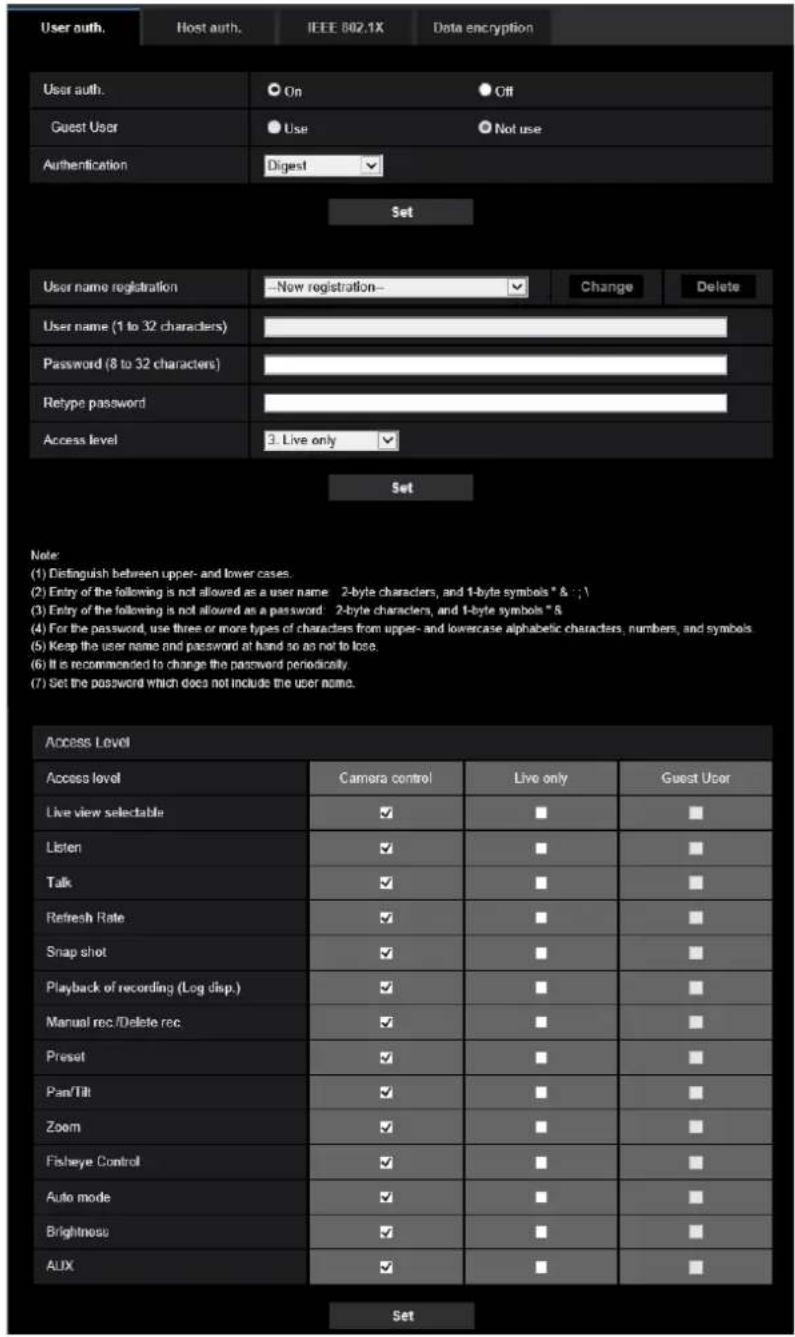
text_image
User auth. Host auth. IEEE 502.1X Data encryption User auth. On Off Guest User Use Not use Authentication Digest Set User name registration - Now registration- Change Delete User name (1 to 32 characters) Password (8 to 32 characters) Retype password Access level 3. Live only Set Note: (1) Distinguish between upper- and lower cases. (2) Entry of the following is not allowed as a user name: 2-byte characters, and 1-byte symbols * & : ; . (3) Entry of the following is not allowed as a password: 2-byte characters, and 1-byte symbols " & . (4) For the password, use three or more types of characters from upper- and lowercase alphabetic characters, numbers, and symbols (5) Keep the user name and password at hand so as not to lose. (6) It is recommended to change the password periodically. (7) Set the password which does not include the user name. Access Level Access level Camera control Live only Guest User Live view selectable ✓ ■ ■ Listen ✓ ■ ■ Talk ✓ ■ ■ Refresh Rate ✓ ■ ■ Snap shot ✓ ■ ■ Playback of recording (Log disp.) ✓ ■ ■ Manual rec /Delete rec ✓ ■ ■ Preset ✓ ■ ■ Pan/Tilt ✓ ■ ■ Zoom ✓ ■ ■ Fisheye Control ✓ ■ ■ Auto mode ✓ ■ ■ Brightness ✓ ■ ■ AUX ✓ ■ ■ Set[User auth.]
Select "On" or "Off" to determine whether or not to authenticate the users.
- Default: On
[Guest User]
Select whether or not to set Guest User. If you select "Use", you can set which functions are available or unavailable for guest users for whom user authentication has not been performed.
- Default: Not use
[Authentication]
Set the user authentication method.
- Digest or Basic: Uses "Digest or Basic" authentication.
- Digest: Uses "Digest" authentication.
- Basic: Uses "Basic" authentication.
- Default: Digest
Note
- To ensure security, it is recommended that "Digest" is set as the "Authentication". If "Digest or Basic" or "Basic" is selected, "User name" and "Password" may be leaked.
- When the [Authentication] setting has been changed, close the browser, and then access the camera again.
- For information about the target product model No. and firmware version of the system device (our network disk recorder, etc.), refer to our website below.
https://i-pro.com/global/en/surveillance/training_support/support/technical_information
[User name registration]
At the time of new registration, register a new user name in [User name]. Click [▼] in "User name registration" to view registered users. Registered users are displayed as "Registered user name [Access level]". (Example: admin [1])
If you click the [Change] button on the right, the selected user will be displayed in [User name], and you can change the password. By clicking the [Delete] button on the right, you can delete the selected user.
[User name (1 to 32 characters)]
Enter a user name.
• Available number of characters: 1 - 32 characters
- Unavailable characters: " & : ; \
- Default: None (blank)
Note
- When the user name already in use is entered and the [Set] button is clicked, the respective user information will be overwritten.
[Password (8 to 32 characters)] [Retype password]
Enter a password.
• Available number of characters: 8 - 32 characters
- Unavailable characters: " &
- Default: None (blank)
Note
- Distinguish between upper- and lower cases.
- For the password, use three or more types of characters from uppercase characters, lowercase characters, numbers, and symbols.
- Do not include a user name in the password.
[Access Level]
Select the access level of the user from the following.
• 1. Administrator: Allowed all available operations of the camera.
2. Camera control: Allowed to control the camera. Functions selected for "Access level" can be operated.
• 3. Live only: Allowed to display live view. Functions selected for "Access level" can be operated.
- Default: 3. Live only
[Access level]
Select the available functions based on the user access level (camera control, live view, guest user).
- Default:
– Camera control: All are checked
– Live only: All are not checked
– Guest User: All are not checked
Note
- If you have set "User authentication" to "Off", and "Guest User" to "Not use":
The "Access Level" item cannot be set. And, while all the live operation buttons are displayed, the [Setup] buttons require authentication. - If you have set "User authentication" to "Off", and "Guest User" to "Use":
You can set the items for "Guest User". - If you have set "User authentication" to "On":
You cannot set the items for "Guest User".
You can set the following functions.
| Live view selectable Selecting | an image displayed in the live view setting permissions |
| Listen S4551 S4151X4573 X4172 | Mic Input (To PC) (when listening on a PC) setting permissions(→page 27) |
| Talk S4551 S4151X4573 X4172 | Audio output (From PC) (when talking from a PC) setting permissions(→page 27) |
| Refresh Rate | JPEG format image refresh interval setting permissions (→page 24) |
| Snap shot | Snap shot operation permissions (→page 26) |
| Playback of recording (Log disp.) | Log operation permissions (→page 25) |
| Manual rec./Delete rec. | SD memory card save/delete permissions (→page 25) |
| Preset | Operation permissions for moving the preset positions (→page 26) |
| Pan/Tilt | Pan/tilt operation permissions (→page 25) |
| Zoom | Zoom operation permissions (→page 25) |
| Fisheye Control | Fisheye Control operation permissions (→page 25) |
| Auto mode | Auto mode operation permissions (→page 25) |
| Brightness | Brightness setting permissions (→page 24) |
| AUX S4551 S4151X4573 X4172 | AUX setting permissions (→page 25) |
2.8.2 Configure the settings relating to the host authentication [Host auth.]
Click the [Host auth.] tab on the "User mng." page. (→page 61, page 62)
The restriction settings of PCs (IP address) from accessing the camera can be configured on this page.
![i-PRO WV-X4173 - Configure the settings relating to the host authentication [Host auth.] - 1](/content/2026/06/1229328/images/645fa247f54325c4515b871f2156dd8d12a9f11b4d47d7eecf9d0cfc9de36d9a.jpg)
text_image
User auth. Host auth. IEEE 802.1X Data encryption Host auth. On Off Set IP address Example of entry. 192.168 0.10 Access level 3 Live only Set Host check Delete It is required to register the IP address of the PC used for the setup to the host. The host authentication is disabled for the access via the Internet.[Host auth.]
Select "On" or "Off" to determine whether or not to authenticate the host.
- Default: Off
Note
- Set "Host auth." to "On" after registering the IP address of the PC.
- When User authentication is set to "On", user authentication is required regardless of the host authentication setting.
- When User authentication is set to "Off", user authentication is required to access beyond the access level range.
[IP address]
Enter the IP address of the PC to be allowed to access the camera. Host name cannot be entered for the IP address.
Note
- When "IP address/subnet mask" is entered, it is possible to restrict PCs in each subnet. For example, when "192.168.0.1/24" is entered and "2. Camera control" is selected for the access level, the PCs whose IP address is between "192.168.0.1" - "192.168.0.254" can access the camera with the access level "2. Camera control".
- When the IP address already in use is entered and the [Set] button is clicked, the respective host information will be overwritten.
- A "Set address" error message is displayed if the IP address of the PC has not been set properly. Check the set IP address of the PC again.
[Access level]
Select the access level of the host from the following.
- Administrator/ 2. Camera control/ 3. Live only
Refer to page 172 for further information about the access level.
- Default: 3. Live only
[Host check]
From the pull-down menu of "Host check", the registered host can be selected and the selected host's IP address can be checked.
The registered IP address will be displayed with the access level.
(Example: 192.168.0.21 [1])
To delete the registered host, click the [Delete] button after selecting the IP address to be deleted.
2.8.3 Configure IEEE 802.1X [IEEE 802.1X]
Click the [IEEE 802.1X] tab on the "User mng." page. (→For menu display and how to operate, refer to page 61, page 62)
The settings relating to IEEE 802.1X can be configured on this page. The procedure varies depending on [EAP method], so follow the procedure described below to configure the setting. When [IEEE 802.1X] is set to "On", change to "Off" in [IEEE 802.1X] to start the setting.
![i-PRO WV-X4173 - Configure IEEE 802.1X [IEEE 802.1X] - 1](/content/2026/06/1229328/images/beed93a217e3f100f0a6139001cf0f67fc79fe950dc0c321edf37e8a6d4d0130.jpg)
text_image
User auth. Host auth. IEEE 802.1X Data encryption IEEE 802.1X IEEE 802.1X On Off User name Password Retype password CA Certificate Certificate install Browse_ Execute Information not installed Confirm Delete Private key or Client Certificate including private key Installation Browse_ Execute Password (0 to 30 characters) Install status of private key not installed Delete Client Certificate Installation Browse_ Execute Information not installed Confirm Delete EAP method EAP-MSA User name and password are required for EAP-MDS or EAP-PEAP. User name and installation of private key,client certificate and CA certificate are required for EAP-TLS. PEM(* pem) or DER(*der) format are supported for CA certificate. PEM(* pem) or PFX(*.pfx) format is supported for client certificate and private key. Input password for private key when private key or certificate of PFX format is encrypted Leave password blank when not encrypted. Set[IEEE 802.1X]
Select "On" or "Off" to determine whether or not to perform port authentication using IEEE 802.1X.
- Default: Off
[User name]
Enter the user name used to access the authentication LAN switch or the user name registered in the server. If the user name is not registered in the server, enter the desired user name.
• Available number of characters: 1 - 32 characters
- Unavailable characters: " & : ; \
[Password]
[Retype password]
Enter the password to access the authentication LAN switch.
• Available number of characters: 4 - 32 characters
- Unavailable characters: " &
[CA Certificate] - [Certificate install]
Install the root CA Certificate. Do not include the intermediate CA Certificate. Installation is possible only when "Off" is selected for "IEEE 802.1X".
■ Specification of CA Certificate
| Item Specifications | Remarks | |
| Data format Format: PEM or DER Extension: pem or der | ||
| Max. number of certificates included in the PEM format | 1 pc. — | |
| Max. size of certificate Approx. 10 kB | — | |
[CA Certificate] - [Information]
not installed: indicates that the certificate is not installed.
CA certificate host name: indicates that the certificate is installed.
Expired: indicates that the certificate is expired.
The details of CA Certificate can be checked with the [Confirm] button.
When the [Delete] button is clicked, the CA certificate will be deleted.
Note
- Check that the CA certificate has not expired. If you use a certificate that have expired, you may not be able to connect to authentication LAN switches.
[Private key or Client Certificate including private key] - [Installation]
Install the private key or Client Certificate that includes private key. Installation is possible only when "Off" is selected for "IEEE 802.1X".
■ Specification of private key and Client Certificate including private key
| Item | Specifications Remarks | |
| Data format Format: PEM or PFX Extension: pem or pfx | ||
| Key size [bit] 1024 /1536 /2048 /3072 | /4096 — | |
| Max. number of certificates included in the PEM format | 6 pc. — | |
| Max. size of certificate (including intermediate CA Certificate) | Approx. 10 kB — | |
[Private key or Client Certificate including private key] - [Password]
Enter the password if the private key is encrypted or the password is set for Client Certificate for the PFX method. Leave password blank when not encrypted.
Available number of characters: 0 - 30 characters
[Private key or Client Certificate including private key] - [Install status of private key]
not installed: Private key is not installed.
installed: Private key is installed.
When the [Delete] button is clicked, the private key will be deleted.
[Client Certificate] - [Installation]
Install the Client Certificate.
If signed by the intermediate CA Certificate, install the Client Certificate including the intermediate CA Certificate.
Installation is possible only when "Off" is selected for "IEEE 802.1X".
■ Specification of Client Certificate
| Item Specifications | Remarks | |
| Data format Format: PEM Extension: | pem | |
| Max. number of certificates included in the PEM format | 6 pc. — | |
| Max. size of certificate (including intermediate CA Certificate) | Approx. 10 kB — |
[Client Certificate] - [Information]
not installed: indicates that the certificate is not installed.
Certificate host name: indicates that the certificate is installed.
Expired: indicates that the certificate is expired.
The details of Client Certificate can be checked with the [Confirm] button.
When the [Delete] button is clicked, the client certificate will be deleted.
Note
- Check that the client certificate has not expired. If you use a certificate that has expired, you may not be able to connect to authentication LAN switches.
[EAP method]
Select the authentication method from EAP-MD5, EAP-PEAP or EAP-TLS.
EAP-MD5/EAP-PEAP
- Select "On" for "IEEE 802.1X".
- Select "EAP-MD5" or "EAP-PEAP" for "EAP method".
- Click the [Set] button after entering the user name, the password, and confirming the password.
EAP-TLS
- Click the [Browse] button of "CA Certificate" - "Certificate install". Then, select a CA Certificate and click the [Execute] button. The host name (CommonName) designated when created the certificate will be displayed at "Information".
- Click the [Browse] button of "Private key or Client Certificate including private key", and select a private key or Client Certificate that includes Private key.
- Enter the password if the private key is encrypted or the password is set for Client Certificate for the PFX method. Leave password blank when not encrypted.
- Click the [Execute] button to start installation. "installed" will be displayed for "Install status of private key".
In the case of selecting Client Certificate including the private key, “installed” will be displayed for “Client Certificate” - “Information” as well.
- When the private key is installed in step 2, select a Client Certificate after clicking the [Browse] button of "Client Certificate", and then click the [Execute] button. The host name (CommonName) designated when created the certificate will be displayed at "Information".
- Select "On" for "IEEE 802.1X". Then, select "EAP-TLS" for "EAP method".
- Enter the user name registered to the server in "User name". Then, click the [Set] button. If no user name is registered to the server, enter an arbitrary user name.
"Password" and "Retype password" can be left blank.
Note
- To delete each certificate, set [IEEE 802.1X] to "Off".
- Check that the CA certificate and client certificate have not expired. If you use certificates that have expired, you may not be able to use the port notification feature.
Example of CA Certificate check screen

text_image
CA Certificate - Confirm Common Name Country State Locality Organization Organizational Unit CloseExample of Client Certificate check screen
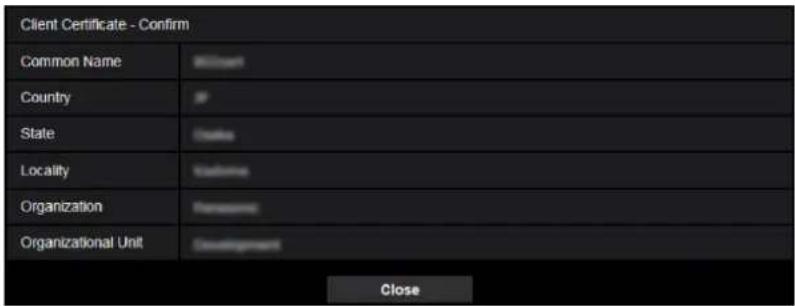
text_image
Client Certificate - Confirm Common Name Country State Locality Organization Organizational Unit CloseIMPORTANT
- After selecting "On" for "IEEE 802.1X", if access to the camera fails for some reason, connect to a switch or port without authentication. It disables IEEE 802.1X, and enables access to the camera.
- If the Client Certificate includes intermediate CA Certificate, the Client Certificate needs to come first, then the intermediate CA Certificate.
- When a certificate over 10 Kbyte is installed, no error will be displayed during installation. However, an error may occur at the time of connection.
2.8.4 Configure the data encryption settings [Data encryption]
Click [Data encryption] on the "User mng." page. (→For menu display and how to operate, refer to page 61, page 62)
The settings relating to the data encryption can be configured in this section.
Click the “+” mark on the left of the setup menu to expand the respective item, and enable detailed settings.
Click the “-” mark on the left of an expanded item to return to the screen displayed before the item was expanded.
![i-PRO WV-X4173 - Configure the data encryption settings [Data encryption] - 1](/content/2026/06/1229328/images/e150979fc55733a71cd231424a0ef39ce2bd62979371a501ef1707ae797f0907.jpg)
text_image
User auth Host auth IEEE 802.1X Data encryption +Data encryption (Batch change) On Off Encryption password Stream(1) Stream(2) JPEG(1) JPEG(2) Encryption password Stream(1) Stream(2) JPEG(1) JPEG(2) If encryption is set, the recorded video and audio data will also be encrypted.[Data encryption (Batch change)]
Select "On" or "Off" to determine whether or not to activate data encryption.
- On: Activates data encryption. Encrypts Stream 1, Stream 2, JPEG(1), JPEG(2), and "AAC-LC" audio.
- Off: Deactivates data encryption.
- Default: Off
[Stream 1], [Stream 2], [JPEG(1)], [JPEG(2)]
Select "On" or "Off" independently for Stream(1), Stream(2), JPEG(1) and JPEG(2) to determine whether or not to activate data encryption.
- Default: Off
[Encryption password], [Retype encryption password]
Set the password for data encryption.
• Available number of characters: 4 - 16 characters
- Unavailable characters: " &
IMPORTANT
- The initial password is displayed in "MAC address" on the [Upgrade] screen of the [Maintenance] tab. When using data encryption, make sure to change the password.
- If you set data encryption to "On", the snap shot button on the "Live" page will be hidden.
- If you set data encryption to "On" for JPEG, images cannot be monitored using a mobile terminal/tablet device. Additionally, the [Refresh interval] pull-down on the "Live" page is not displayed for JPEG with data encryption set to "On".
- The encrypted MP4 files and JPEG images cannot be viewed on the image playing screen in the browser. Download it to a PC and use the decryption tool to confirm it.
For information about the decryption tool, refer to our website (https://i-pro.com/global/en/surveillance/training_support/support/technical_information
). - If you set data encryption to "On" for JPEG, "Refresh interval: 1s" to "Refresh interval: 60s" will not be displayed in the "Refresh interval" pull-down menu on the multi-screen.
- If you set data encryption to "On", "16 Screens" is not able to be selected in the "Layout" pull-down menu of the multi-screen.
Note
- In order to view streams with data encryption set to "On", you must install the viewer software.
- If you confirm streams with data encryption set to "On" on the "Live" page, password entry for decryption is displayed. If you correctly enter the "Encryption password" that was set, you will be able to view images. When "Mic input", "Interactive(Full-duplex)", or "Interactive(Full-duplex)" is selected for [Audio transmission mode], only audio may be played until the password is entered.
- If data encryption is set for JPEG(2), password input for decryption will be displayed when confirming settings that have image display. The image can be viewed when the set "Encryption password" is input correctly.

text_image
Live Password OK Cancel- In the [Live view] pull down menu and the setup menu pull down menu, streams that have data encryption enabled will be displayed wrapped in < >. Example: When Stream 1 and JPEG(2) are data encrypted
• [Live view] pull-down menu on the "Live" page
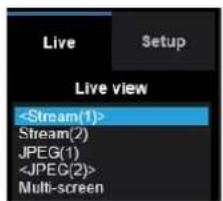
text_image
Live Setup Live view- Pull-down menu in the setup menu

text_image
"Live" page (Initial display) Initial display stream Refresh interval (JPEG) * JPEG JPEG(1)- When [Data encryption (Batch change)] is "On", "AAC-LC" audio is data encrypted ("G.726" and "G.711" are not data encrypted). To encrypt both the image and audio, set [Data encryption (Batch change)] to "On" and set [Audio input encoding format] to "AAC-LC".
• For encrypted MP4 files and JPEG images, you can use the decryption tool to confirm the images. - When "Quad stream" is selected for "Image capture mode", data encryption cannot be activated.
2.9 Configuring the network settings [Network]
The network settings can be configured on the "Network" page.
The "Network" page has the [Network] tab and the [Advanced] tab.
2.9.1 Configure the network settings [Network]
Click the [Network] tab on the "Network" page. (→page 61, page 62)
The following information is required to configure the network settings. Contact the network administrator or your Internet service provider.
- IP address
- Subnet mask
- Default gateway (when using the gateway server/router)
- HTTP port
• Primary DNS address, Secondary DNS address (when using DNS)
![i-PRO WV-X4173 - Configure the network settings [Network] - 1](/content/2026/06/1229328/images/fc11af74de5955b3e655377da5f23385b086f8db8794e940cc2a720abe1a8b2e.jpg)
text_image
Network Advanced IPv4 network Network Settings Auto(Advanced) IP address(IPv4) 152 104 8 13 Subnet mask 25 25 25 0 Default gateway 102 104 8 0 DNS Auto Manual Primary server address 0 0 0 0 Secondary server address 0 0 0 0 IPv6 network Manual On Off IP address(IPv6) Default gateway DHCPv6 On Off Primary DNS server address Secondary DNS server address Common HTTP port 80 (1-65535) Line speed Auto Max RTP packet size Unlimited(1500byte) Limited(1280byte) HTTP max segment size(MSS) Unlimited(1460byte) Bandwidth control(bit rate) 51200kbps Easy IP Setup accommodate period 20min Unlimited SetIPv4 network
[Network Settings]
Select the method of how to configure the IP address from the following.
- Static: The IP address is configured by entering manually on "IP address(IPv4)".
- DHCP: The IP address is configured using the DHCP function.
- Auto(AutoIP): The IP address is configured using the DHCP function. When the DHCP server is not found, the IP address is automatically configured.
- Auto(Advanced): Using the DHCP function, network address information is referred to, and an unused IP address is configured to the camera as a static IP address. The configured IP address is automatically determined within the subnet mask range by the camera. When the DHCP server is not found, the IP address is set to 192.168.0.10.
- Default: Auto(Advanced)
Note
- When "Auto(AutoIP)" is selected and the IP address cannot be obtained from the DHCP server, an IP address not used in the same network will be searched within 169.254.1.0 - 169.254.254.255.
[IP address(IPv4)]
When not using the DHCP function, enter the IP address of the camera. Do not enter an IP address already in use (for the PCs and the other network cameras).
- Default: 192.168.0.10
Note
- Multiple IP addresses are unavailable even when using the DHCP function. Refer to the network administrator for further information about the settings of the DHCP server.
[Subnet mask]
When not using the DHCP function, enter the subnet mask of the camera.
- Default: 255.255.255.0
[Default gateway]
When not using the DHCP function, enter the default gateway of the camera.
- Default: 192.168.0.1
Note
- Multiple IP addresses for the default gateway are unavailable even when using the DHCP function. Refer to the network administrator for further information about the settings of the DHCP server.
[DNS]
Determine how to set the address of the DNS server by selecting "Auto" (obtain the address automatically) or "Manual" (enter the address of the DNS server). When "Manual" is selected, it is necessary to configure the settings for the DNS.
When using the DHCP function, it is possible to obtain the DNS address automatically by selecting "Auto". Refer to the network administrator for further information about the settings.
- Default: Auto
[Primary server address], [Secondary server address]
When “Manual” is selected for “DNS”, enter the IP address of the DNS server. Refer to the network administrator about the IP address of the DNS server.
IPv6 network
[Manual]
Select "On" or "Off" to determine whether or not to manually configure the IP address for IPv6 network (IPv6 address).
- On: Enter an IPv6 address manually.
- Off: Manual entry of an IPv6 address will become unavailable.
- Default: Off
[IP address(IPv6)]
When "On" is selected for "Manual", manual entry of the IPv6 address is required. Do not enter an address already in use.
Note
- When connecting to the manually configured IPv6 address beyond the router, use an IPv6 compatible router and turn on the automatic IPv6 address assignment function. In this case, it is necessary to configure IPv6 address including prefix information provided from the IPv6 compatible router. Refer to the manuals provided with the router for further information.
[Default gateway]
When "On" is selected for "Manual" of IPv6 network, enter the default gateway of IPv6 network of the camera.
- Default: None (blank)
[DHCPv6]
Select "On" or "Off" to determine whether or not to use the IPv6 DHCP function.
Configure the DHCP server not to assign the same IP addresses used for the other network cameras and PCs whose IP address is unique. Refer to the network administrator for further information about the settings of the server.
- Default: Off
[Primary DNS server address], [Secondary DNS server address]
Enter the IPv6 address of the DNS server. Refer to the network administrator about the IPv6 address of the DNS server.
Common
[HTTP port]
Assign the port numbers independently.
• Available port number: 1 - 65535
- Default: 80
The following port numbers are unavailable since they are already in use. 20, 21, 23, 25, 42, 53, 67, 68, 69, 110, 123, 161, 162, 443, 554, 995, 10669, 10670, 59000 - 61000
[Line speed]
Select the line speed for data transmission from the following. It is recommended to use with the default "Auto".
• Auto: Line speed will be applied automatically.
• 100M-Full: 100 Mbps full-duplex
• 100M-Half: 100 Mbps half-duplex
• 10M-Full: 10 Mbps full-duplex
• 10M-Half: 10 Mbps half-duplex
- Default: Auto
[Max RTP packet size]
Select "Unlimited(1500byte)" or "Limited(1280byte)" to determine whether or not to restrict the RTP packet size when viewing images from the camera using the RTP protocol. It is recommended to use with the default "Unlimited(1500byte)".
When the RTP packet size is restricted in the network line in use, select "Limited(1280byte)". Refer to the network administrator for further information about the maximum packet size in the network line.
- Default: Unlimited(1500byte)
[HTTP max segment size(MSS)]
Select "Unlimited(1460byte)", "Limited(1280byte)", or "Limited(1024byte)" to determine whether or not to restrict the maximum segment size (MSS) when viewing images from the camera using the HTTP protocol. We recommended that you use this feature with the default setting.
When the MSS is restricted in the network line in use, select "Limited(1024byte)" or "Limited(1280byte)". Refer to the network administrator for further information about the MSS in the network line.
- Default: Unlimited(1460byte)
[Bandwidth control(bit rate)]
Select the total bit rate for data transmission from the following.
Unlimited/ 64kbps/ 128kbps/ 256kbps/ 384kbps/ 512kbps/ 768kbps/ 1024kbps/ 2048kbps/ 4096kbps/ 6144kbps/ 8192kbps/ 10240kbps/ 15360kbps/ 20480kbps/ 25600kbps/ 30720kbps/ 35840kbps/ 40960kbps/ 51200kbps
- Default: 51200kbps
Note
- When selecting "64kbps", select "Off" for "Audio transmission mode" on the [Audio] tab. (→page 144)
- When "Bandwidth control(bit rate)" is set low, taking a picture using the snap shot button may not function depending on the usage environment. In this case, select "JPEG" on the "Live" page and take a picture with the snap shot button using the lowest possible image capture size.
[Easy IP Setup accommodate period]
Select "20min" or "Unlimited" to determine how long the network setting operation using the "IP Setting Software" can be allowed.
- 20min: The network setting operation using the "IP Setting Software" are allowed for 20 minutes since the camera starts up.
- Unlimited: The network setting operation using the "IP Setting Software" are allowed without time limitation.
- Default: 20min
Note
- The camera information display using the "IP Setting Software" is allowed without time limitation, and camera images can be opened.
- Refer to the network administrator for the addresses of each server.
- To access the camera via the Internet by connecting the camera to a router, it is necessary to assign a respective HTTP port number for each camera and address translation by using the port forwarding function of the router. For further information, refer to the operating instructions of the router in use.
- The port forwarding function changes a global IP address to a private IP address, and "Static IP masquerade" and "Network Address Translation (NAT)" have this function. This function is to be set in a router.
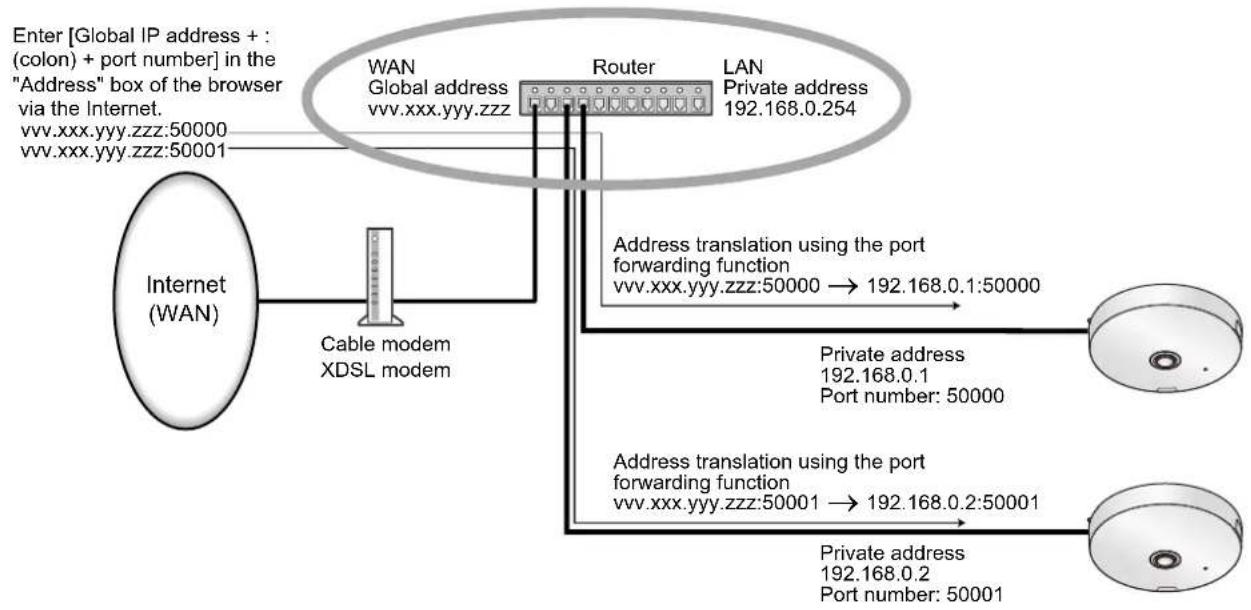
flowchart
graph TD
    A["Internet (WAN)"] --> B["Cable modem XDSL modem"]
    B --> C["Router"]
    C --> D["LAN Private address 192.168.0.254"]
    C --> E["Address translation using the port forwarding function vvv.xxx.yyy.zzz:50000 → 192.168.0.1:50000"]
    C --> F["Address translation using the port forwarding function vvv.xxx.yyy.zzz:50001 → 192.168.0.2:50001"]
    C --> G["Private address 192.168.0.1 Port number: 50000"]
    C --> H["Private address 192.168.0.2 Port number: 50001"]
    I["Enter [Global IP address + : (colon) + port number"] in the "Address" box of the browser via the Internet. vvv.xxx.yyy.zzz:50000 vvv.xxx.yyy.zzz:50001] --> J["WAN Global address vvv.xxx.yyy.zzz"]
2.9.2 Configure advanced network settings [Advanced]
Click the [Advanced] tab on the "Network" page. (→page 61, page 62)
The settings related to SMTP (E-mail), NTP, UPnP, HTTPS, DDNS, SNMP, QoS can be configured in this section.
You can move to the setting page of a setting item by clicking the corresponding link for that setting item.
2.9.2.1 Configure the settings related to sending E-mails
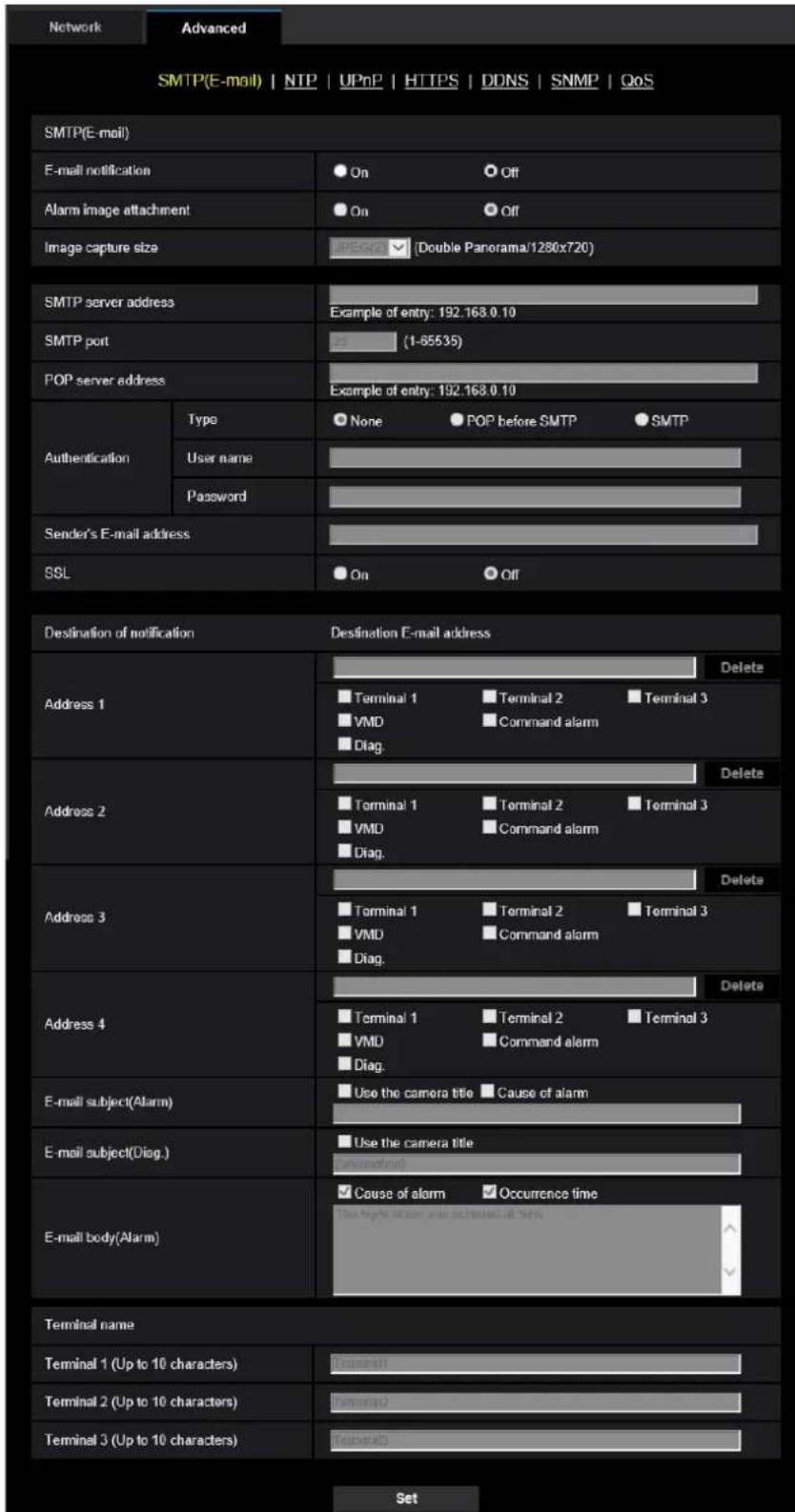
text_image
Network Advanced SMTP(E-mail) | NTP | UPnP | HTTPS | DDNS | SNMP | QoS SMTP(E-mail) E-mail notification On Off Alarm image attachment On Off Image capture size INDEX (Double Panorama/1280x720) SMTP server address Example of entry: 192.168.0.10 SMTP port (1-65535) POP server address Example of entry: 192.168.0.10 Authentication Type None POP before SMTP SMTP User name Password Sender's E-mail address SSL On Off Destination of notification Destination E-mail address Address 1 Delete Terminal 1 Terminal 2 Terminal 3 VMD Command alarm Diag. Address 2 Delete Terminal 1 Terminal 2 Terminal 3 VMD Command alarm Diag. Address 3 Delete Terminal 1 Terminal 2 Terminal 3 VMD Command alarm Diag. Address 4 Delete Terminal 1 Terminal 2 Terminal 3 VMD Command alarm Diag. E-mail subject(Alarm) Use the camera title Cause of alarm E-mail subject(Diag.) Use the camera title Use the camera title E-mail body(Alarm) Cause of alarm Occurrence time The key alarm will be tested at S### Terminal name Terminal 1 (Up to 10 characters) Terminal Terminal 2 (Up to 10 characters) Terminal Terminal 3 (Up to 10 characters) Terminal[E-mail notification]
Select "On" or "Off" to determine whether or not to provide notification by E-mail according to the settings for the "Alarm" and "Diag." checkboxes of "Destination of notification" below.
- When an alarm is detected ("Alarm")
- When the SD memory card has become full ("Diag.")
- When the SD memory card cannot be recognized ("Diag.")
- When a notification of the remaining capacity of the SD memory card has been provided ("Diag.")
- Default: Off
[Alarm image attachment]
Select "On" or "Off" to determine whether or not to attach an image to the E-mail to be sent when an alarm is detected.
- Default: Off
Note
- When "Quad stream" is selected for "Image capture mode", images cannot be attached.
[Image capture size]
Select the image capture size of images attached to an alarm E-mail from the following.
JPEG(1)/JPEG(2)
- Default: JPEG(2)
[SMTP server address]
Enter the IP address or the host name of the SMTP server used to send E-mails.
• Available number of characters: 1 - 128 characters
• Available characters: Alphanumeric characters, the colon (:), the period (.), the underscore (_), and the hyphen (-).
[SMTP port]
Enter the port number to which E-mails are sent.
• Available port number: 1-65535
- Default: 25
The following port numbers are unavailable since they are already in use.
20, 21, 23, 42, 53, 67, 68, 69, 80, 110, 123, 161, 162, 443, 995, 10669, 10670
[POP server address]
When "POP before SMTP" is selected for "Type", enter the IP address or the host name of the POP server.
• Available number of characters: 1 - 128 characters
• Available characters: Alphanumeric characters, the colon (:), the period (.), the underscore (_), and the hyphen (-).
IMPORTANT
- When entering the host name for "SMTP server address" or "POP server address", it is necessary to configure the DNS settings on the [Network] tab of the "Network" page. (→page 183)
[Authentication]
- Type
Select the authentication method to send E-mails from the following.
– None: It is not necessary to clear any authentication to send E-mails.
- POP before SMTP: It is necessary to first clear the POP server authentication to use the SMTP server to send E-mails.
- SMTP: It is necessary to clear the SMTP server authentication to send E-mails.
- Default: None
Note
- When you don't know the authentication method to send E-mails, refer to the network administrator.
- User name
Enter the user name to access the server.
– Available number of characters: 0 - 32 characters
- Unavailable characters: " & : ; \
- Password
Enter the password to access the server.
– Available number of characters: 0 - 32 characters
- Unavailable characters: " &
[Sender's E-mail address]
Enter the E-mail address of a sender.
The entered E-mail address will be displayed in the "From" (sender) line of the sent E-mails.
• Available number of characters: 3 - 128 characters
• Available characters: Alphanumeric characters, the at sign (@), the period (.), the underscore (_), and the hyphen (-).
[SSL]
Select "On" if you want to use SSL encryption when sending E-mail notifications for alarm occurrences or the "Diag." function. When you select "On", the authentication method will be set to "SMTP". Set the user name and the password used for authentication.
- Default: Off
Note
- Some SMTP servers may not support SSL.
- SSL supports SMTP over SSL, but STARTTLS is not supported.
- When "On" is selected, the SMTP port number may need to be set to 465. Ask your Internet service provider for the appropriate settings.
[Address 1] - [Address 4]
Enter the destination E-mail address. Up to 4 destination E-mail addresses can be registered.
• Available number of characters: 3 - 128 characters
• Available characters: Alphanumeric characters, the at sign (@), the period (.), the underscore (_), and the hyphen (-).
To delete the registered address, click the [Delete] button respective to the desired address.
- Terminal 1 S4551 S4151 X4573 X4172: Notify by e-mail when an alarm occurs in Terminal 1.
- Terminal 2 S4551 S4151 X4573 X4172: Notify by e-mail when an alarm occurs in Terminal 2.
• Terminal 3 S4551 S4151 X4573 X4172: Notify by e-mail when an alarm occurs in Terminal 3.
• VMD: Notify by e-mail when motion is detected.
- Command alarm: Notify by e-mail when a command alarm is entered.
• Diag.:
- When a notification of the remaining capacity of SD memory card has been provided
- When the SD memory card has become full
- When the SD memory card cannot be recognized
Note
- In the diagnostic e-mail notification sent when you have checked the destination of notification [Diag.] field, the contents of the [E-mail subject] and [E-mail body] which are set later are not changed.
[E-mail subject(Alarm)]
Enter the E-mail subject.
• Available number of characters: 0 - 50 characters
• Use the camera title: The camera title will be displayed in the e-mail subject.
- Cause of alarm: Adds the cause of alarm to the E-mail subject.
[E-mail subject(Diag.)]
Enter the diagnostic e-mail subject.
• Available number of characters: 0 - 50 characters
• Use the camera title: The camera title will be displayed in the e-mail subject.
[E-mail body(Alarm)]
Enter the E-mail body.
• Available number of characters: 0 - 200 characters
- Cause of alarm: The cause of alarm %p% is added in the e-mail body. %p% is replaced by the cause of alarm and sent.
- For VMD alarm: "VMD"
- For terminal alarm S4551 S4151 X4573 X4172: Terminal name set in "Terminal 1", "Terminal 2", and "Terminal 3" of "Terminal name". (Example: If the name of Terminal 1 is "Terminal1", it is "Terminal1")
- For command alarm: "CMD"
- Occurrence time: The time of occurrence %t% will be added to the e-mail body. %t% will be replaced by the time of occurrence of the alarm (HH:MM:SS) and sent.
- Default:
– Cause of alarm: Checked
– Occurrence time: Checked
– E-mail body: The %p% alarm was occurred at %t%.
Note
- Notification E-mail will be sent with the message "The capacity of the SD memory card is full." when the SD memory card has become full, or "The SD memory card cannot be detected." when mounting of the SD memory card failed.
- Entering alternative text into the E-mail body automatically adds the event or time when an alarm occurs.
Alternative text cause of alarm: %p%, occurrence time: %t%
(Examples of use)
After setting the following characters in the E-mail body, there is a VMD alarm occurrence at the time 19:13:24.
E-mail body settings: %p% alarm occurred at %t%.
Sent E-mail body: "A "VMD" alarm occurred at 19:13:24."
When the body of the email is empty, the language that the email is sent in is determined by "Menu language" of "Basic". If "Japanese" is specified, email is sent in Japanese. If another language is specified, email is sent in English.
[Terminal 1 (Up to 10 characters)] S4551 S4151 X4573 X4172
Enter the name of Terminal 1 used in the cause of alarm in the e-mail body.
- Unavailable characters: " &
- Default: Terminal1
[Terminal 2 (Up to 10 characters)] S4551 S4151 X4573 X4172
Enter the name of Terminal 2 used in the cause of alarm in the e-mail body.
- Unavailable characters: " &
- Default: Terminal2
[Terminal 3 (Up to 10 characters)] \4551 \4151 X4573 X4172
Enter the name of Terminal 3 used in the cause of alarm in the e-mail body.
- Unavailable characters: " &
- Default: Terminal3
Example of e-mail notification
An e-mail format in which the camera title check box is specified in the e-mail subject and the cause of alarm/occurrence time are specified in the e-mail body

flowchart
graph TD
    A["Example e-mail:"] --> B["Subject: XXXXX"]
    B --> C["E-mail body: An "Entrance" alarm occurred at 19:13:24"]
    C --> D["③"]
    C --> E["②"]
    C --> F["①"]
① The alarm occurrence time is assigned.
② The camera title is used as the e-mail subject.
③ The name set for Terminal names 1 to 3, which is the cause of alarm, is assigned to the name S4551
S4151 X4573 X4172
2.9.2.2 Configure the settings relating to the NTP server
The settings relating to the NTP server such as the NTP server address, port number, etc. can be configured on this page.
IMPORTANT
• Use an NTP server when the more accurate time & date setting is required for the system operation.

text_image
Network Advanced SMTP(E-mail) | NTP | UPnP | HTTPS | DDNS | SNMP | QoS NTP Time adjustment Manual Synchronization with NTP server NTP server address setting 0.000 Example of entry: 192.168.0.10 NTP server address NTP port 153 (1-65535) Time adjustment interval 10[Time adjustment]
Select the time adjustment method from the following. Time adjusted by the selected method will be used as the standard time of the camera.
- Manual: Time set on the [Basic] tab on the "Basic" page will be used as the standard time of the camera.
- Synchronization with NTP server: Time automatically adjusted by synchronizing with the NTP server will be used as the standard time of the camera.
- Default: Manual
[NTP server address setting]
When “Synchronization with NTP server” is selected for “Time adjustment”, select the method of how to obtain the NTP server address from the following.
- Auto: Obtains the NTP server address from the DHCP server.
- Manual: The NTP server address will be entered manually on "NTP server address".
- Default: Manual
IMPORTANT
- When obtaining the NTP server address from the DHCP server, it is necessary to select "DHCP", "Auto(AutoIP)", or "Auto(Advanced)" for "Network Settings" on the [Network] tab of the "Network" page. (→page 183)
[NTP server address]
When “Manual” is selected for “NTP server address setting”, enter the IP address or the host name of the NTP server.
• Available number of characters: 1 - 128 characters
• Available characters: Alphanumeric characters, the colon (:), the period (.), the underscore (_), and the hyphen (-).
- Default: None (blank)
IMPORTANT
- When entering the host name for "NTP server address", it is necessary to configure the DNS settings on the [Network] tab of the "Network" page. (→page 183)
[NTP port]
Enter a port number of the NTP server.
• Available port number: 1 - 65535
- Default: 123
The following port numbers are unavailable since they are already in use.
20, 21, 23, 25, 42, 53, 67, 68, 69, 80, 110, 161, 162, 443, 995, 10669, 10670
[Time adjustment interval]
Select an interval (1 - 24 hours: in 1 hour intervals) of synchronization with the NTP server.
- Default: 1h
2.9.2.3 Configure the UPnP settings
This camera support UPnP (Universal Plug and Play). By using the UPnP function, it becomes possible to configure the following automatically.
- Configuration of the port forwarding function of the router (However, a router supporting UPnP is required.) This configuration is useful when accessing the camera via the Internet, or from a mobile terminal/tablet device.
- Automatic refreshment of the shortcut to the camera that is created on the [Network] folder of the PC even when the IP address of the camera changes.

text_image
Network Advanced SMTP(E-mail) | NTP | UPnP | HTTPS | DDNS | SNMP | QoS UPnP Auto port forwarding ● On ○ Off Camera short cut ● On ○ Off Set[Auto port forwarding]
Select "On" or "Off" to determine whether or not to use the port forwarding function of the router.
To use the port forwarding function, the router in use must support UPnP and the UPnP must be enabled.
- Default: Off
Note
- Due to port forwarding, the port number may sometimes be changed. When the number is changed, it is necessary to change the port numbers registered in the PC and recorders, etc.
- The UPnP function is available when the camera is connected to the IPv4 network. IPv6 is not supported.
- To check if auto port forwarding is properly configured, click the [Status] tab on the "Maintenance" page, and check that the "Enable" is displayed for "Status" of "UPnP". (→page 236)
When “Enable” is not displayed, refer to “Cannot access the camera via the Internet.” section on page 247.
[Camera short cut]
Select whether or not to create the shortcut to the camera on the [Network] folder of the PC. When creating the shortcut, select "On".
To use the shortcut function to the camera, enable the UPnP function on the PC in advance.
- Default: Off
Note
- To display the shortcut to the camera on the [Network] folder of the PC, it is necessary to add the Windows component. Refer to the following to enable the UPnP function.
For Windows 8.1
Right-click [Start] → select [Control Panel] → [Network and Internet] → [Network and Sharing Center] → select [Turn on network discovery] of [Network discovery] of [Change advanced sharing settings] → click [Save changes] → Complete
For Windows 10
[Start] → [Settings] → [NETWORK & INTERNET] → [Ethernet] → [Network and Sharing Center] → select [Turn on network discovery] of [Network discovery] of [Change advanced sharing settings] → click [Save changes] → Complete
2.9.2.4 Configure the HTTPS settings
It is possible to enhance the network security by encrypting the access to cameras using the HTTPS function. Refer to page 204 for how to configure the HTTPS settings.

text_image
Network Advanced SMTP(E-mail) | NTP | UPnP | HTTPS | DDNS | SNMP | QoS HTTPS Connection HTTP When "HTTPS" is selected for "Connection", the maximum bandwidth(bit ratio) is limited to 32Mbps. Select certificate Pre-installed HTTPS port 443 (1-55535) Pre-installed certificate Download root certificate Execute CA Certificate CRT key generate Execute Generate Certificate Signing Request Execute CA Certificate install Browse... Execute Information Invalid Confirm Delete Set[HTTPS - Connection]
Select the protocol used to connect the camera.
- HTTP: HTTP and HTTPS connections are available.
- HTTPS: Only the HTTPS connection is available.
- Default: HTTP
Note
- To change to an HTTPS connection when HTTP is selected, perform HTTPS connection settings first. The HTTPS connection will be available even if the setting is changed to HTTP afterwards.
[HTTPS - Select certificate]
Select the certificate to be used with HTTPS.
- Pre-installed: Select a pre-installed certificate.
• CA: Select a CA certificate. Only displayed when the CA Certificate is installed. - Default: Pre-installed
[HTTPS - HTTPS port]
Designate the HTTPS port number to be used.
• Available port number: 1 - 65535
- Default: 443
The following port numbers are unavailable since they are already in use. 20, 21, 23, 25, 42, 53, 67, 68, 69, 80, 110, 123, 161, 162, 554, 995, 10669, 10670, 59000-61000
[Pre-installed certificate - Download root certificate]
Click the [Execute] button to download the root certificate for the pre-installed certificate. By installing the root certificate to your PC, you can get signature verification for the pre-installed certificate.
[CA Certificate - CRT key generate]
CRT key (SSL encryption key) used for the HTTPS protocol is generated. To generate the CRT key, click the [Execute] button to display "CRT key generate" dialog box.
[CA Certificate - Generate Certificate Signing Request]
When you use the CA certificate issued by CA (Certificate Authority) as the CA certificate used for the HTTPS protocol, the CSR (Certificate Signing Request) required to apply to the CA will be generated.
To generate the CSR, click the [Execute] button to display the "CA Certificate - Generate Certificate Signing Request" dialog window.
[CA Certificate - CA Certificate install]
Installs the CA certificate (security certificate) issued by CA (Certificate Authority) and displays the information of the installed CA certificate (security certificate).
To install the CA certificate, click the [Browse...] button to display the [Open] dialog box, and select the file of the CA certificate issued by CA, and click the [Execute] button.
If the CA certificate is already installed, the file name of the installed CA certificate will be displayed.
[CA Certificate - Information]
Displays the information of the CA certificate.
When the [Confirm] button is clicked, the registered information of the installed CA certificate will be displayed in the "CA Certificate - Confirm" dialog box. If the CA certificate is not installed, the content of the generated CSR file will be displayed.
When the [Delete] button is clicked, the installed CA certificate will be deleted.
IMPORTANT
- Before deleting the valid CA certificate, confirm that there is a backup file of the CA certificate on the PC or another media. The backup file of the CA certificate will be required when installing the CA certificate again.
Note
- After changing the connection setting, access the camera again by after waiting a while according to the changed setting ("http://IP address of the camera" or "https://IP address of the camera").
- When the camera is accessed using the HTTPS protocol, the refresh interval and frame rate of images may be lower.
- When the camera is accessed using the HTTPS protocol, it may take time to display images.
- When the camera is accessed using the HTTPS protocol, the images may be distorted or audio may be interrupted.
- The maximum number of concurrent access user varies depending on the maximum image size and transmission format.
2.9.2.5 Configure the settings relating to DDNS
To access this camera via the Internet, it is necessary to configure the settings for the DDNS function.
Refer to page 221 for how to configure the settings relating to DDNS.
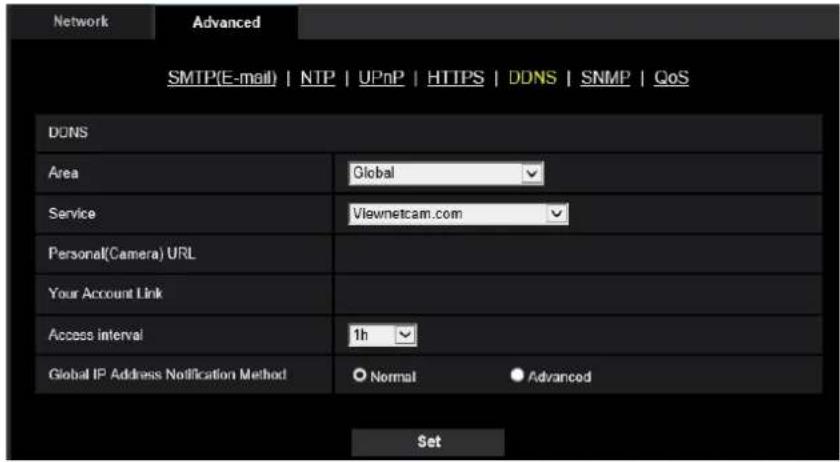
text_image
Network Advanced SMTP(E-mail) | NTP | UPnP | HTTPS | DDNS | SNMP | QoS DONS Area Global Service Viewnetcam.com Personal(Camera) URL Your Account Link Access interval 1h Global IP Address Notification Method Normal Advanced Set[Area]
Select the region where the camera is installed.
Japan/Global
Note
- If the camera is used in Japan, select "Japan". If the camera is used outside of Japan, select "Global". The "Viewnetcam.com" service that is displayed when "Global" is selected cannot be used in Japan.
[Service]
Select the DDNS service to determine whether or not to use DDNS.
- Off: Does not use the DDNS function.
- Viewnetcam.com: Uses the "Viewnetcam.com" service.
• Dynamic DNS Update: Uses Dynamic DNS Update (RFC2136 compliant) without the DHCP cooperation. - Dynamic DNS Update(DHCP): Uses Dynamic DNS Update (RFC2136 compliant) with the DHCP cooperation.
- Default: Off
Note
- When using Dynamic DNS Update (RFC2136 compliant), refer to the network administrator for whether or not to cooperate with the DHCP.
- If "Viewnetcam.com" is set, the resolution of JPEG(1) is set to "320×320" when "Image capture mode" is "Fisheye".
- If "Viewnetcam.com" is set, the following resolution is set depending on the "Image capture mode". – Image/Audio page of the [Image] tab
JPEG(1)
JPEG(2)
2.9.2.6 Configure the settings relating to SNMP
The settings relating to SNMP can be configured on this page. It is possible to check the status of the camera by connecting to the SNMP manager. When using the SNMP function, contact the network administrator.
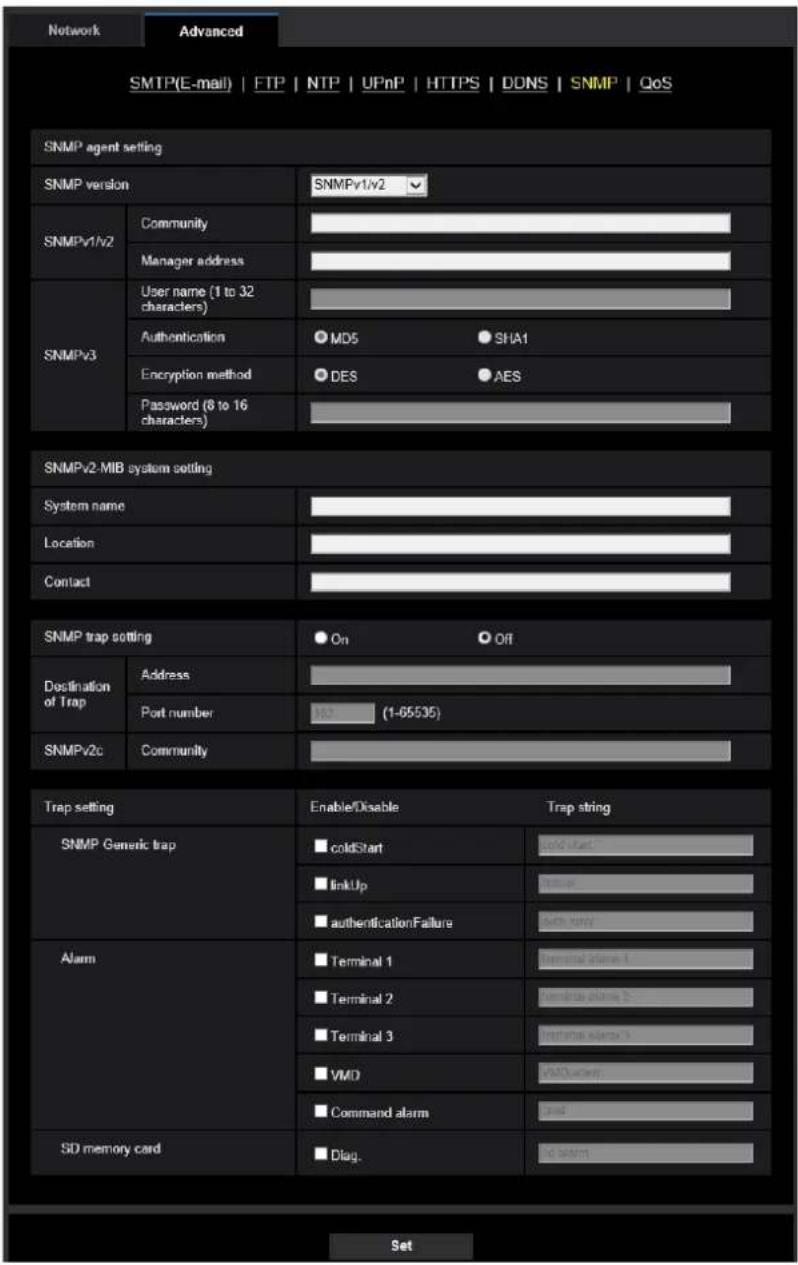
text_image
Network Advanced SMTP(E-mail) | FTP | NTP | UPnP | HTTPS | DDNS | SNMP | QoS SNMP agent setting SNMP version SNMPv1/v2 SNMPv1/v2 Community Manager address SNMPv3 User name (1 to 32 characters) Authentication MD5 SHA1 Encryption method DES AES Password (8 to 16 characters) SNMPv2-MIB system setting System name Location Contact SNMP trap setting On Off Destination of Trap Address Port number M2 (1-65535) SNMPv2c Community Trap setting Enable/Disable Trap string SNMP Generic trap coldStart void start linkUp false authenticationFailure switch only Alarm Terminal 1 Terminal alone 1 Terminal 2 Terminal alone 2 Terminal 3 Terminal alone 3 VMD VMDuser Command alarm load SD memory card Diag. Id worm SetSNMP agent setting
[SNMP version]
Select the SNMP version to be used.
• SNMPv1/v2: SNMPv1/v2 is activated.
• SNMPv3: SNMPv3 is activated.
• SNMPv1/v2/v3: SNMPv1/v2/v3 is activated.
- Default: SNMPv1/v2
[SNMPv1/v2] - [Community]
Enter the community name to be monitored.
• Available number of characters: 0 - 32 characters
- Default: None (blank)
IMPORTANT
- When using the SNMP function using SNMPv1/v2, be sure to enter the community name. If the community name is blank, the SNMP function cannot be used. Do not set a community name that can be easily guessed. (Example: public)
[SNMPv1/v2] - [Manager address]
When the SNMP version is v1 or v2, enter the IP address of the SNMP manager that permits a request. When this item is blank, requests from all IP addresses are permitted.
• Available number of characters: 1 - 128 characters
• Available characters: Alphanumeric characters, the colon (:), the period (.), and the slash (/).
- Default: None (blank)
Note
- When "IP address/subnet mask" is entered, it is possible to restrict IP address of SNMP manager from which request is permitted by subnet. For example, when "192.168.0.1/24" is entered, all requests from the SNMP managers in the range from "192.168.0.1" to "192.168.0.254" will be permitted.
[SNMPv3] - [User name]
Set the SNMPv3 user name.
• Available number of characters: Empty field or 1 - 32 characters
- Unavailable characters: " & : ; \
[SNMPv3] - [Authentication]
Select the SNMPv3 authentication method from MD5 or SHA1.
- Default: MD5
[SNMPv3] - [Encryption method]
Select the SNMPv3 encryption method from DES or AES.
- Default: DES
[SNMPv3] - [Password]
Set the SNMPv3 password.
• Available number of characters:
- If the authentication method is MD5: Empty field or 8-16 characters
- If the authentication method is SHA1: Empty field or 8-20 characters
- Unavailable characters: " &
SNMPv2-MIB system setting
[System name]
Enter a system name to be used to manage the camera with the SNMP function.
• Available number of characters: 0 - 32 characters
- Default: None (blank)
[Location]
Enter the name of the location where the camera is installed.
• Available number of characters: 0 - 32 characters
- Default: None (blank)
[Contact]
Enter the E-mail address or the phone number of the SNMP manager.
• Available number of characters: 0 - 255 characters
- Default: None (blank)
[SNMP trap setting]
Set On/Off of the SNMP trap.
- Default: Off
[Destination of Trap] - [Address]
Enter the destination address of the SNMP trap.
• Available number of characters: 1 - 128 characters
• Available characters: Alphanumeric characters, the colon (:), and the period (.).
- Default: None (blank)
[Destination of Trap] - [Port number]
Enter the port number of the destination address of the SNMP trap.
• Available port number: 1 - 65535
- Default: 162
The following port numbers are unavailable since they are already in use. 20, 21, 23, 25, 42, 53, 67, 68, 69, 80, 110, 123, 161, 443, 554, 995, 10669, 10670, 59000 - 61000
[SNMPv2c] - [Community]
Enter the community name of the destination address of the SNMP trap.
• Available number of characters: 0 - 32 characters
- Unavailable characters: 2-byte characters
- Default: None (blank)
IMPORTANT
- When using the SNMP trap function, it is necessary to enter the community name. When no community name is entered, the SNMP trap function will not work.
[SNMP Generic trap] - [coldStart] - [On/Off]
When the check box is checked, a trap (SNMPv2-MIB::coldStart) will be sent.
- Default: Not checked (Off)
[SNMP Generic trap] - [coldStart] - [Trap string]
When a camera startup trap is to be extended and sent, set the string of characters of the extended trap.
• Available number of characters: 0 - 32 characters
- Unavailable characters: 2-byte characters
- Default: cold start
[SNMP Generic trap] - [linkUP] - [On/Off]
When the check box is checked, a trap (SNMPv2-MIB::linkup) will be sent at the time when the camera is linked up.
- Default: Not checked (Off)
[SNMP Generic trap] - [linkUP] - [Trap string]
When a camera linkup trap is to be extended and sent, set the string of characters of the extended trap.
• Available number of characters: 0 - 32 characters
- Unavailable characters: 2-byte characters
- Default: linkup
[SNMP Generic trap] - [authenticationFailure] - [On/Off]
When the check box is checked, a trap (SNMPv2-MIB::coldStart) will be sent at the time when an SNMP authentication error occurs.
- Default: Not checked (Off)
[SNMP Generic trap] - [authenticationFailure] - [Trap string]
When a SNMP authentication error occurrence trap is to be extended and sent, set the string of characters.
• Available number of characters: 0 - 32 characters
- Unavailable characters: 2-byte characters
- Default: auth error
[Alarm] - [Terminal 1] - [On/Off]
When the check box is checked, a trap will be sent at the time when an alarm occurs in terminal 1.
- Default: Not checked (Off)
[Alarm] - [Terminal 1] - [Trap string]
Set the string of characters to be used for the trap of [Terminal 1].
• Available number of characters: 0 - 32 characters
- Unavailable characters: 2-byte characters
- Default: terminal alarm 1
[Alarm] - [Terminal 2] - [On/Off]
When the check box is checked, a trap will be sent at the time when an alarm occurs in terminal 2.
- Default: Not checked (Off)
[Alarm] - [Terminal 2] - [Trap string]
Set the string of characters to be used for the trap of [Terminal 2].
• Available number of characters: 0 - 32 characters
- Unavailable characters: 2-byte characters
- Default: terminal alarm 2
[Alarm] - [Terminal 3] - [On/Off]
When the check box is checked, a trap will be sent at the time when an alarm occurs in terminal 3.
- Default: Not checked (Off)
[Alarm] - [Terminal 3] - [Trap string]
Set the string of characters to be used for the trap of [Terminal 3].
• Available number of characters: 0 - 32 characters
- Unavailable characters: 2-byte characters
- Default: terminal alarm 3
[Alarm] - [VMD] - [On/Off]
When the check box is checked, a trap will be sent at the time when a video motion detection is activated.
- Default: Not checked (Off)
[Alarm] - [VMD] - [Trap string]
Set the string of characters to be used for the trap of [VMD].
• Available number of characters: 0 - 32 characters
- Unavailable characters: 2-byte characters
- Default: VMD alarm
[Alarm] - [Command alarm] - [On/Off]
When the check box is checked, a trap will be sent at the time when a command alarm occurs.
- Default: Not checked (Off)
[Alarm] - [Command alarm] - [Trap string]
Set the string of characters to be used for the trap of [Command alarm].
• Available number of characters: 0 - 32 characters
- Unavailable characters: 2-byte characters
- Default: cmd
[SD memory card] - [Diag.] - [On/Off]
When the check box is checked, a trap will be sent in the following cases.
- When a notification of the remaining capacity of SD memory card has been provided
- When the SD memory card has become full
- When the SD memory card cannot be recognized
- Default: Not checked (Off)
[SD memory card] - [Diag.] - [Trap string]
Set the string of characters to be used for the trap of [Diag.].
• Available number of characters: 0 - 32 characters
- Unavailable characters: 2-byte characters
- Default: sd alarm
[Ext. software] - [Alarm] - [On/Off]
When the check box is checked, a trap will be sent at the time when an alarm occurs in the Ext. software.
Note
- This is not displayed when the Ext. software is not installed.
- Default: Not checked (Off)
[Ext. software] - [Alarm] - [Trap string]
Set the string of characters to be used for the trap of [Ext. software].
Note
- This is not displayed when the Ext. software is not installed.
• Available number of characters: 0 - 32 characters
- Unavailable characters: 2-byte characters
- Default: alarm
2.9.2.7 Configure the QoS settings
The settings relating to the Diffserv function and shaping of stream are configured in this section.
Diffserv
The Diffserv function can be used to set the priority of image/audio data sent from routers.
The priority set to this function must match the DSCP value configured to the router.
When using the Diffserv function, contact the network administrator.

text_image
Network Advanced SMTP(E-mail) | NTP | UPnP | HTTPS | DDNS | SNMP | QoS Diffserv Image DSCP(0-63) 0 Audio DSCP(0-53) 0 TCP alarm notification DSCP(0-63) 0 Shaping of stream ● On ○ Off Set[Image DSCP(0-63)]
Enter the packet priority for video data.
• Available values: 0 - 63
- Default: 0
[Audio DSCP(0-63)] S4551 S4151 X4573 X4172
Enter the packet priority for audio transmission/reception.
• Available values: 0 - 63
- Default: 0
[TCP alarm notification DSCP(0-63)]
Enter the packet priority for TCP alarm notification.
• Available values: 0 - 63
- Default: 0
Shaping of stream
[Shaping of stream]
Select On/Off to determine whether or not to control the H.265 (or H.264) image data so that it does not burst. It is effective in situations such as when a network device loses video data from the camera, but the video display may be delayed.
- Off: Disables the shaping of stream function.
- On: Enables the shaping of stream function.
- Default: Off
Note
- If you are concerned about delays of the video display, select Off.
2.9.3 How to configure HTTPS settings
The settings relating to the HTTPS protocol that can enhance the network security by encrypting the access to cameras on this page.
HTTPS settings can be configured by either using the certificate pre-installed to the camera, or using a CA certificate that you obtained by yourself from the CA (CA: Certification Authority). The settings will be configured in the following procedure.

flowchart
graph TD
    A["When using a pre-installed certificate: When using a CA certificate:"] --> B["When a pre-installed certificate is selected: When a CA certificate is selected"]
    B --> C["Generate CSR (Certificate Signing Request) (→page 98)"]
    C --> D["Apply for the approval and the issue of CA certificate by CA (→page 98)"]
    D --> E["Obtain the root certificate (→page 205)"]
    E --> F["Configure HTTPS connections (→page 211)"]
    F --> G["Access a camera using HTTPS Access a camera using HTTPS"]
    G --> H["When a pre-installed certificate is selected (→page 215)"]
    H --> I["When a CA certificate is selected (→page 220)"]
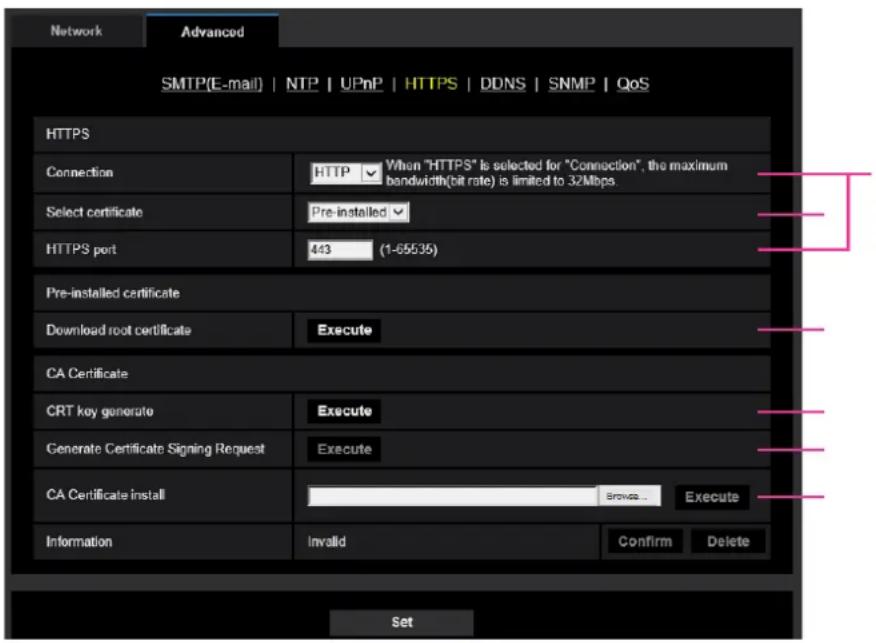
text_image
Network Advanced SMTP(E-mail) | NTP | UPnP | HTTPS | DDNS | SNMP | QoS HTTPS Connection HTTP When "HTTPS" is selected for "Connection", the maximum bandwidth(bit rate) is limited to 32Mbps. Select certificate Pre-installed HTTPS port 443 (1-65535) Pre-installed certificate Download root certificate Execute CA Certificate CRT key generate Execute Generate Certificate Signing Request Execute CA Certificate install Browse... Execute Information Invalid Confirm Delete Set① Configuring the HTTPS connection ( page 211)
② Select the certificate ( page 205)
③ Obtain the root certificate ( page 205)
④ Generation of the CRT key (SSL encryption key) ( page 212)
⑤ Generation of CSR (Certificate Signing Request) (→page 213)
⑥ Install the CA certificate ( page 214)
Note
• To use the CA certificate, you need to apply for the approval and the issue of CA certificate by CA.
2.9.3.1 Select the certificate to use when accessing with HTTPS
Select the certificate to be used with HTTPS with [HTTPS – Select certificate].
- When using a pre-installed certificate: Select "Pre-installed".
When "Pre-installed" is selected, a root certificate (page 205) must be obtained.
- When using a CA certificate: Select "CA".
Note
- "CA" can only be selected when a CA certificate has been added. Refer to page 204 for information on how to add a CA certificate.
2.9.3.2 Obtaining the root certificate
This procedure only needs to be done once for each PC that accesses the camera.
- Access the camera, and click the [Execute] button for "Pre-installed certificate - Download root certificate" under "HTTPS" in the [Advanced] tab in the settings menu of the "Network" page. Click "Open" displayed on the bottom of the browser.

text_image
Network Camera Live Setup - Easy Setup Internet Event action + Basic + Image/Audio + Multi-screen + Alarm + User mng. -Network Network Advanced Network Advanced SMTP(F-mail) | NTP | UPnP HTTPS | DDNS | SNMP | QoS HTTPS Connection HTTP Select certificate Pre-installed HTTPS port 443 (1-65535) Pre-installed certificate Download root certificate Execute CA Certificate CRT key generate Execute Generate Certificate Signing Request Execute CA Certificate install Browse... Execute Information Invalid Confirm Delete Set Do you want to open or save rootca.cer (1.03 KB) from 192.168.0.10? Open Save Cancel- Click "Install Certificate...".

text_image
Certificate General Details Certification Path Certificate Information This certificate is intended for the following purpose(s): • All issuance policies • All application policies Issued to: Unsourced Manufacturing Fund IX Issued by: Unsourced Manufacturing Fund IX Valid from: Install Certificate... Issuer Statement Learn more about certificates OK- Click "Next" displayed in "Certificate Import Wizard".

text_image
Certificate Import Wizard Welcome to the Certificate Import Wizard This wizard helps you copy certificates, certificate trust lists, and certificate revocation lists from your disk to a certificate store. A certificate, which is issued by a certification authority, is a confirmation of your identity and contains information used to protect data or to establish secure network connections. A certificate store is the system area where certificates are kept. To continue, click Next. < Back Next > Cancel- Select "Place all certificates in the following store", and click "Browse...".
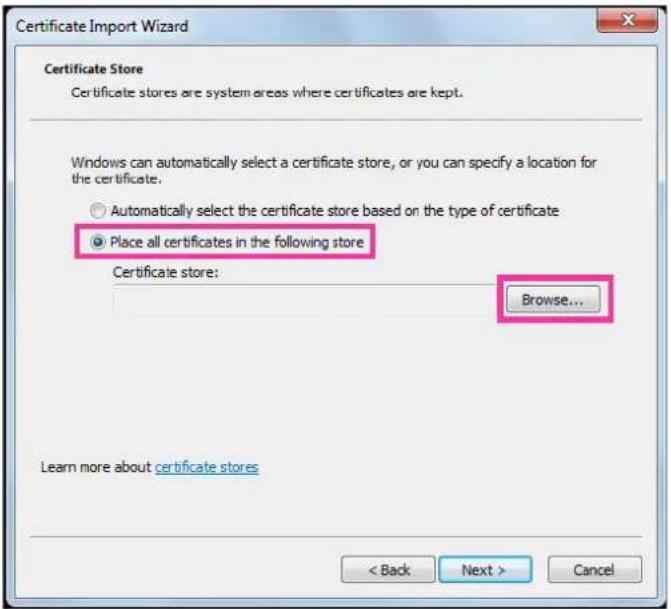
text_image
Certificate Import Wizard Certificate Store Certificate stores are system areas where certificates are kept. Windows can automatically select a certificate store, or you can specify a location for the certificate. ○ Automatically select the certificate store based on the type of certificate ● Place all certificates in the following store Certificate store: Browse... Learn more about certificate stores < Back Next > Cancel- Select "Trusted Root Certificate Authorities", and click "OK".
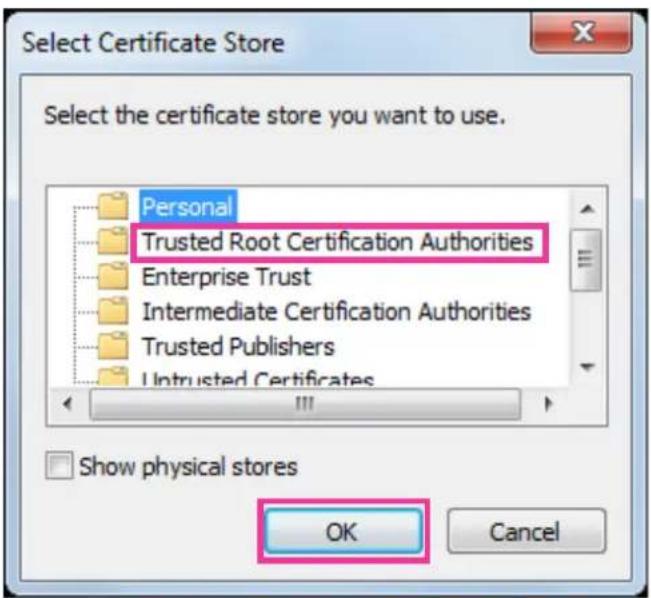
text_image
Select Certificate Store Select the certificate store you want to use. Personal Trusted Root Certification Authorities Enterprise Trust Intermediate Certification Authorities Trusted Publishers Untrusted Certificates Show physical stores OK Cancel6. Click "Next".

text_image
Certificate Import Wizard Certificate Store Certificate stores are system areas where certificates are kept. Windows can automatically select a certificate store, or you can specify a location for the certificate. ○ Automatically select the certificate store based on the type of certificate ● Place all certificates in the following store Certificate store: Trusted Root Certification Authorities Browse... Learn more about certificate stores < Back Next > Cancel7. Click "Finish".

text_image
Certificate Import Wizard Completing the Certificate Import Wizard The certificate will be imported after you click Finish. You have specified the following settings: Certificate Store Selected by User Trusted Root Certifica Content Certificate < Back Finish Cancel- Confirm that the content shown next to "Thumbprint" in the "Security warning" window is as follows and then click "Yes".
- Thumbprint (sha1): 0B886A3C E7F2DBA8 1035DDFA 2B21F80B 06778932
Note
- Other parties cannot create another thumbprint with the same values. You can confirm that you have retrieved the correct root certificate from the specified camera by confirming the values of the thumbprint.
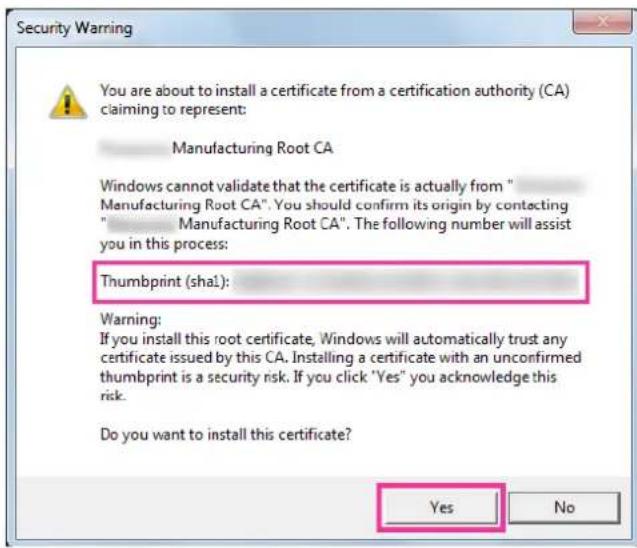
text_image
Security Warning You are about to install a certificate from a certification authority (CA) claiming to represent: Manufacturing Root CA Windows cannot validate that the certificate is actually from " Manufacturing Root CA". You should confirm its origin by contacting " Manufacturing Root CA". The following number will assist you in this process: Thumbprint (sha1): Warning: If you install this root certificate, Windows will automatically trust any certificate issued by this CA. Installing a certificate with an unconfirmed thumbprint is a security risk. If you click "Yes" you acknowledge this risk. Do you want to install this certificate? Yes No→ When the import is successfully completed, the screen "The import was successful." will be displayed. 9. Click the [OK] button.
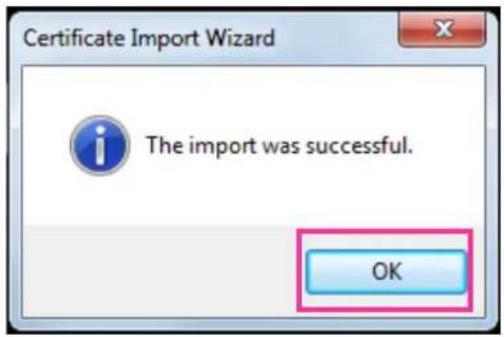
text_image
Certificate Import Wizard The import was successful. OK- Click the [OK] button in the "Certificate" window to close the window.
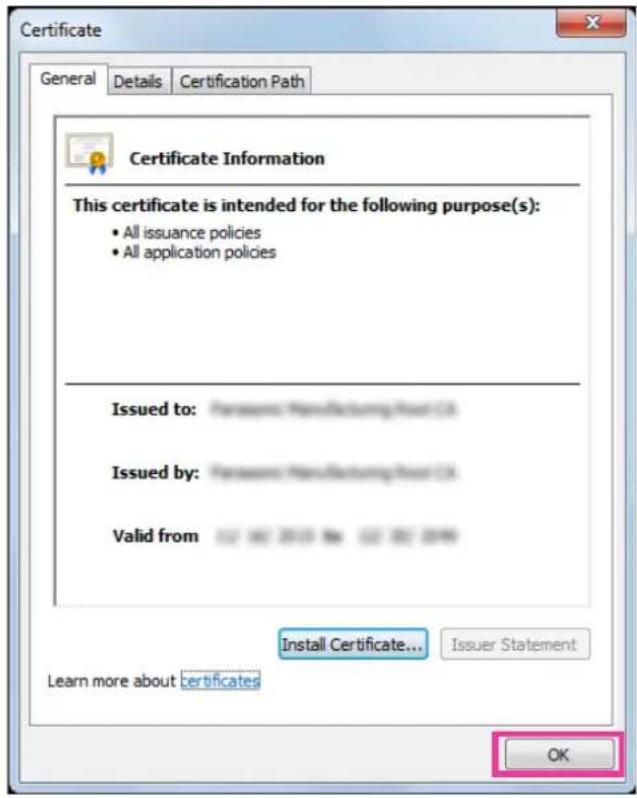
text_image
Certificate General Details Certification Path Certificate Information This certificate is intended for the following purpose(s): • All issuance policies • All application policies Issued to: Purchaser Manufacturing Plant CA Issued by: Purchaser Manufacturing Plant CA Valid from: 0.00 0.00 2019 0.00 0.00 2019 Install Certificate... Issuer Statement Learn more about certificates OK2.9.3.3 Configuration of HTTPS connections
- Select "HTTPS" to access the camera in [HTTPS - Connection].
- Designate the HTTPS port number to be used for [HTTPS – HTTPS port].
• Available port number: 1 - 65535
- Default: 443
The following port numbers are unavailable since they are already in use.
20, 21, 23, 25, 42, 53, 67, 68, 69, 80, 110, 123, 161, 162, 554, 995, 10669, 10670, 59000 - 61000
- Click the [Set] button.
→ It will become possible to access to the cameras using the HTTPS protocol.
Restart the browser and access again.
Refer to the following for information on methods to access cameras using HTTPS.
• Monitor images on a PC: page 9
• Monitor images on a mobile terminal: page 33
• Monitor images on a tablet device: page 33
-
If "Certificate error" is displayed, refer to the following.
-
When using a pre-installed certificate: page 205
- When using a CA certificate: page 220
Note
- When the connection setting is changed, after waiting for a while, access the camera again with either "http://IP address of the camera" or "https://IP address of the camera" depending on the changed setting.
- When using the pre-installed certificate:
In advance, install the root certificate of the Pre-installed certificate on the PC in use. Refer to page 205 for information on the setting procedure.
- When the camera is accessed using the HTTPS protocol, the refresh interval and frame rate of images may be lower.
- When the camera is accessed using the HTTPS protocol, it may take time to display images.
- When the camera is accessed using the HTTPS protocol, the images may be distorted or audio may be interrupted.
- The maximum number of concurrent access user varies depending on the maximum image size and transmission format.
2.9.3.4 Generation of the CRT key (SSL encryption key)
IMPORTANT
- When the CA certificate is valid, it is impossible to generate the CRT key.
- When the CA certificate is used, the available key size varies depending on the CA. Confirm the available key size in advance.
-
To generate the CRT key, it may take about 2 minutes. Do not operate the browser until the generation of CRT key is complete. While the CRT key is being generated, the refresh interval and line speed may be lower.
-
Click the [Execute] button of "CRT key generate".
→ The "CRT key generate" dialog box will be displayed.
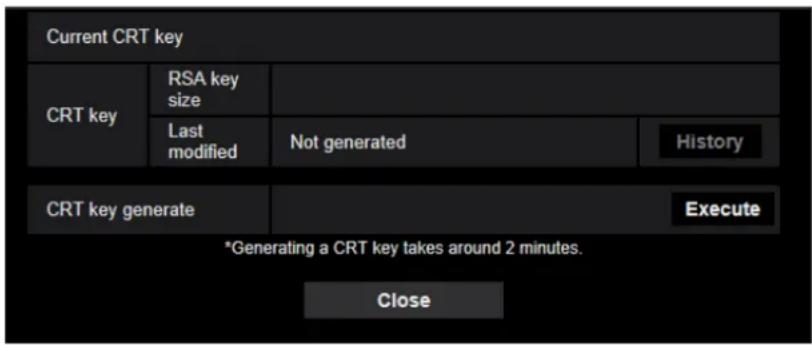
text_image
Current CRT key CRT key RSA key size Last modified Not generated History CRT key generate Execute *Generating a CRT key takes around 2 minutes. Close- Click the [Execute] button.
→ The generation of CRT key will be started. When the generation is finished, the key size and generation time & date of the generated key will be displayed on “Current CRT key”.
Note
- To change (or update) the generated CRT key, perform step 1 to 2. The CRT key and CA certificate are valid in a set. When the CRT key is changed, it is necessary to re-apply for the CA certificate.
- When the CRT key is updated, the log of the previous CRT key is saved. When the [History] button of "Current CRT key" on the "CRT key generate" dialog box is clicked, the "Previous CRT key" dialog box will be displayed, and it is possible to check the key size and generation time & date of the previous
key. When the [Apply] button is clicked on the "Previous CRT key" dialog box, it is possible to replace the current CRT key with the previous one.

text_image
Previous CRT key History RSA key size 2048bit Last modified Apply Close2.9.3.5 Generation of CSR (Certificate Signing Request)
IMPORTANT
- If the CRT key is not generated, it is impossible to generate the CSR.
- Before generating the CSR file, configure the following settings on [Internet Options] of the browser in advance. Click [Internet Options...] under [Tools] of the menu bar of Internet Explorer, and then click the [Security] tab.
- Register the camera for [Trusted Sites].
- Click the [Custom level...] button to open the [Security Settings] window, and check the [Enable] radio button of [File Download] under [Downloads].
- Click the [Custom level...] button to open the [Security Settings] window, and check the [Enable] radio button of [Automatic prompting for file downloads] under [Downloads].
- Click the [Execute] button of "CA Certificate - Generate Certificate Signing Request".
→ The "CA Certificate - Generate Certificate Signing Request" dialog box will be displayed.
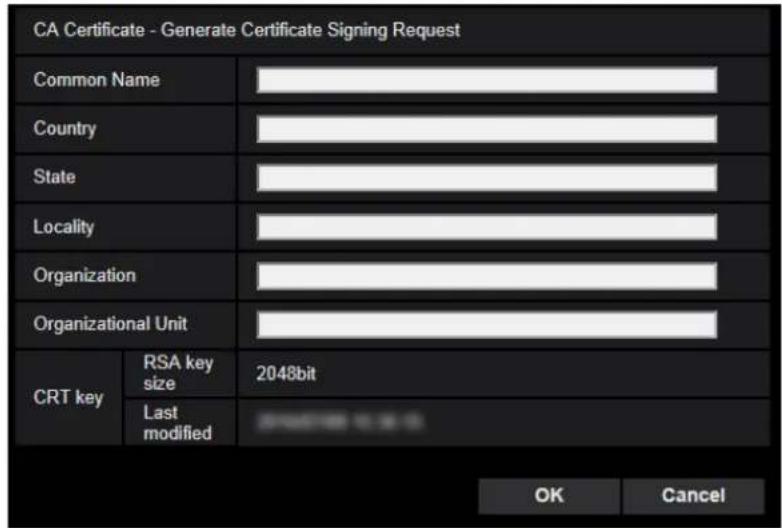
text_image
CA Certificate - Generate Certificate Signing Request Common Name Country State Locality Organization Organizational Unit CRT key RSA key size 2048bit Last modified OK Cancel- Enter the information of the certificate to be generated.
| Item | Description Available number of characters |
| [Common Name] Enter the camera address or host name. 64 characters | |
| [Country] Enter the country name. 2 characters (Country code) | |
| Item Description Available number of characters | |
| [State] Enter the state name. 128 characters | |
| [Locality] Enter the locality name. 128 characters | |
| [Organization] Enter the organization name. 64 characters | |
| [Organizational Unit] Enter the unit name of the organization. 64 characters | |
| [CRT key] Displays the key size and generation time & date of the current key. | — |
Note
• To use the CA certificate, follow the requests from the CA about the information to be entered.
- The available characters for [Common Name], [State], [Locality], [Organization], [Organizational Unit] are 0-9, A-Z, a-z and the following marks.
$$ - \cdot _, + / () $$
- Click the [OK] button after entering the items.
→ The [Save As] dialog box will be displayed.
- Enter a file name for the CSR in the [Save As] dialog box to save on the PC.
→ The saved CSR file will be applied to the CA.
IMPORTANT
- The CA certificate will be issued for the set of the generated CSR and CRT key. If the CRT key is re-generated or updated after applying to the CA, the issued CA certificate will be invalidated.
Note
• This camera generates the CSR file in the PEM format.
2.9.3.6 Installation of the CA certificate
IMPORTANT
- If the CSR file is not generated, it is impossible to install the CA certificate.
-
For the installation of the CA certificate, the CA certificate issued by CA is required.
-
Click the [Browse...] button of "CA Certificate - CA Certificate install".
→ The [Open] dialog box will be displayed.
- Select the CA certificate file and click the [Open] button. Then, click the [Execute] button.
→ The CA certificate will be installed.
Note
- The host name registered in the installed CA certificate will be displayed on "CA Certificate - Information". Depending on the status of the CA certificate, the following are displayed.
| Indication | Description |
| Invalid The CA certificate is not installed. | |
| [CA certificate Host name] | The CA certificate has already been installed and validated. |
| Indication Description | |
| Expired The CA certificate has already expired. | |
- When the [Confirm] button is clicked, the registered information of the CA certificate will be displayed in the "CA Certificate - Confirm" dialog box. (Only "Organizational Unit" will be displayed with an asterisk (*).)

text_image
CA Certificate - Confirm Common Name NWCAM Country ? State Pudate Locality Pudate Organization Preserve Organizational Unit Suite CRT key RSA key size 2048bit Last modified 2048bit 12.27 KB Close- When the [Delete] button is clicked, the installed CA certificate will be deleted.
- When "HTTPS" is selected for "Connection", it is impossible to delete the CA certificate.
• To update the CA certificate, perform step 1 and 2.
IMPORTANT
- Before deleting the valid CA certificate, confirm that there is a backup file of the CA certificate on the PC or another media. The backup file of the CA certificate will be required when installing the CA certificate again.
- When the CA certificate has expired, the HTTPS function will become unavailable. When the camera is restarted, the connection protocol will be changed to HTTP. Update the CA certificate before it expires.
- The expiration date of the CA certificate can be checked by double-clicking the CA certificate file issued by CA.
2.9.4 Access the camera using the HTTPS protocol (for pre-installed certificate)
When accessing the camera with HTTPS from a browser using the pre-installed certificate, in order to stop a warning message from being played, you must configure your PC by following the steps below. Explanations are based on procedures for Windows 10 using Internet Explorer 11. Procedures for other operating systems or browsers may differ.
2.9.4.1 Configuration of the host file
This procedure must be done on each PC for all the camera that are accessed.
Note
- The following procedure cannot be used if you are using DDNS.
-
Start the browser and then access the camera using the HTTPS protocol.
-
When the security alert window is displayed, click "Continue to this website (not recommended)."
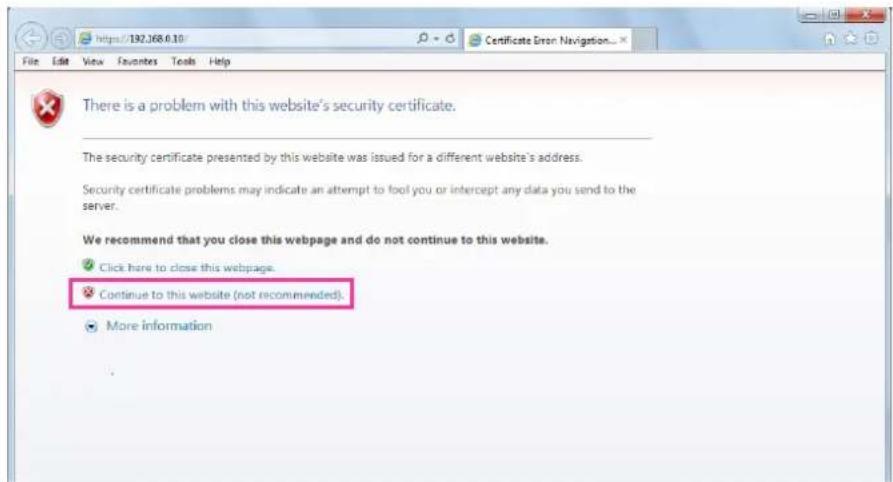
text_image
There is a problem with this website's security certificate. The security certificate presented by this website was issued for a different website's address. Security certificate problems may indicate an attempt to fool you or intercept any data you send to the server. We recommend that you close this webpage and do not continue to this website. ✓ Click here to close this webpage. ✓ Continue to this website (not recommended). ● More information→The "Live" page will be displayed. If an authentication window is displayed, enter the user name and password.
Note
- This warning is displayed because the text entered in the address box does not match the text displayed in the subject of the certificate. This type of warning is displayed because when the certificate for the pre-installed certificate is created, the IP address or domain name assigned to the camera has not been determined yet. However, because the certificate configured in "2.9.3.2 Obtaining the root certificate" (→page 205) is only issued for our products, this is not a problem.
- Click "Certificate error" over the URL, and click "View certificates" on the bottom of the "Mismatched Address" window.

text_image
https://192.168.0.10/live/index.html?Language=0 Certificate error Network Camera --select language-- Live Setup Live view Stream(1) H.265 Resolution:1920x1080 Priority: Frame rate FPS: 30 fps Quality: normal Speed: 2048 kbps Mismatched Address The security certificate presented by this website was issued for a different website's address. This problem might indicate an attempt to fool you or intercept any data you send to the server. We recommend that you close this webpage. About certificate errors View certificatesNote
- If "Certificate Invalid" is displayed as shown below even though you have installed the root certificate (→page 205), end the connection, and check that no suspicious devices are connected.
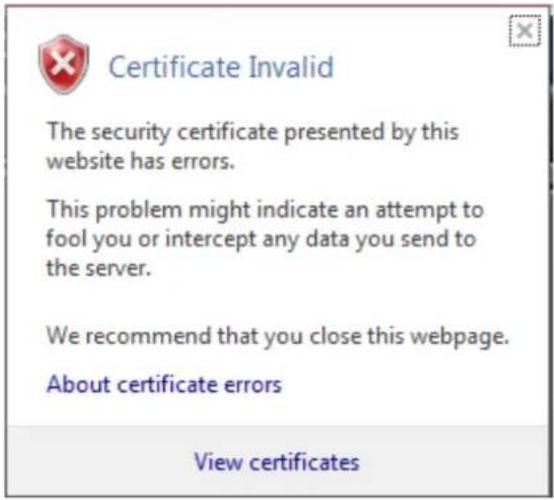
text_image
Certificate Invalid The security certificate presented by this website has errors. This problem might indicate an attempt to fool you or intercept any data you send to the server. We recommend that you close this webpage. About certificate errors View certificates- The "Certificate" window is displayed. Select the "Details" tab.
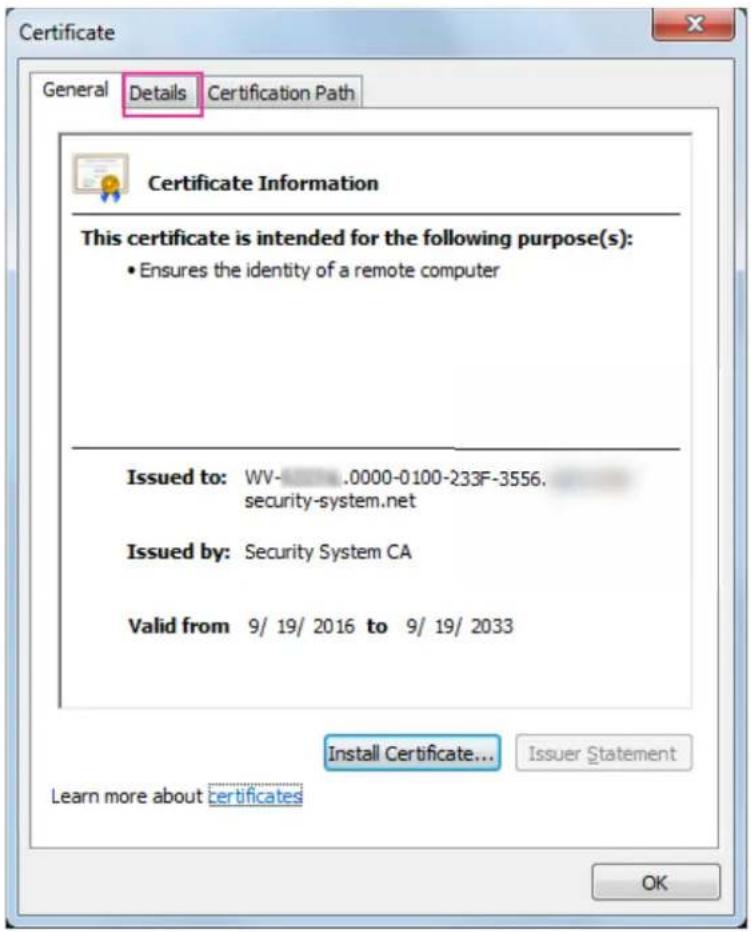
text_image
Certificate General Details Certification Path Certificate Information This certificate is intended for the following purpose(s): • Ensures the identity of a remote computer Issued to: WV-0.0000-0100-233F-3556. security-system.net Issued by: Security System CA Valid from 9/ 19/ 2016 to 9/ 19/ 2033 Install Certificate... Issuer Statement Learn more about certificates OK- Confirm
that is displayed for "Show" and then click "Subject" in the field. Copy the text shown after "CN=" in the lower box.
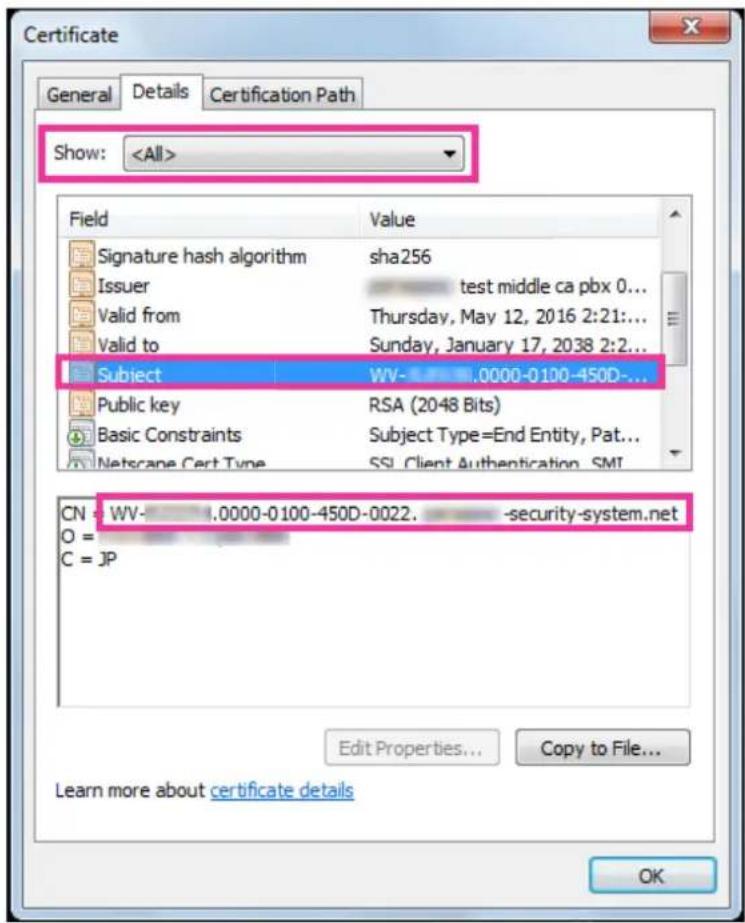
text_image
Certificate General Details Certification Path Show:- From the Start menu enter the following text in the "Search programs and files" text box and then press [Ctrl], [Shift], and [Enter] at the same time. notepad C:\Windows\System32\drivers\etc\hosts
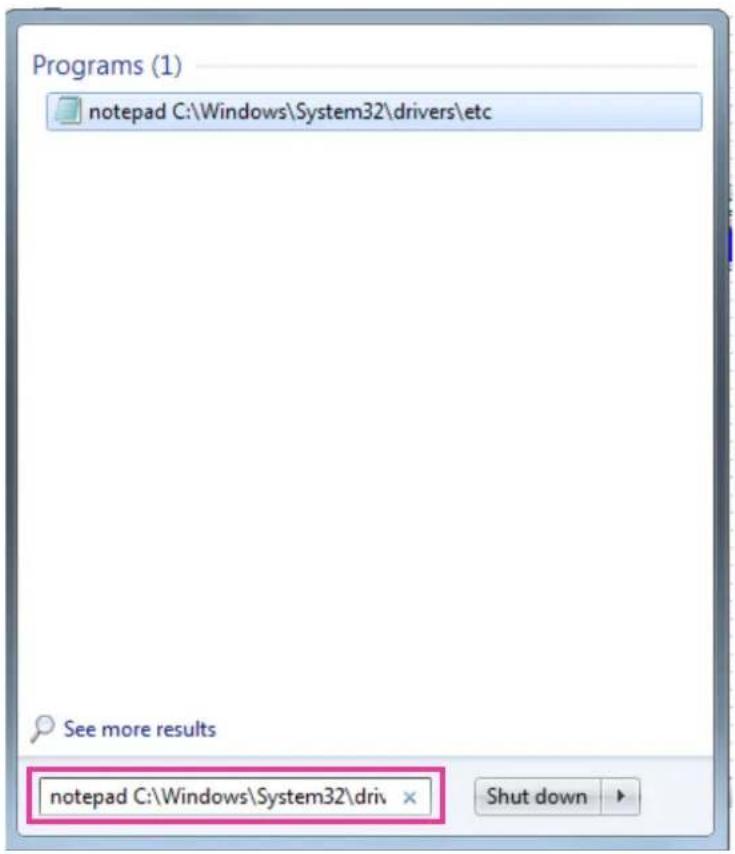
text_image
Programs (1) notepad C:\Windows\System32\drivers\etc See more results notepad C:\Windows\System32\driv Shut down- If the "User Account Control" window is displayed, select "Yes".
- The "hosts - Notepad" window is opened. Add the following text to the end of the file. (camera IP address) (copied text from step 5)
The example is when the IP address is "192.168.0.10" and the CN of the camera is "WV-xxxxxx.0000-0100-450D-0022.xxxxxx-security-system.net".

text_image
Copyright (c) 1993-2009 Microsoft Corp.
#This is a sample HOSTS file used by Microsoft TCP/IP for windows.
#This file contains the mappings of IP addresses to host names. Each
entry should be kept on an individual line. The IP address should
be placed in the first column followed by the corresponding host name.
The IP address and the host name should be separated by at least one
space.
#Additionally, comments (such as these) may be inserted on individual
lines or following the machine name denoted by a '#' symbol.
#For example:
#102.54.94.97 rhino.acme.com # source server
38.25.63.10 x.acme.com # x client host
#localhost name resolution is handled within DNS itself.
#127.0.0.1 localhost
# : :1 localhost 192.168.0.10 wv-#:1.0000-0100-450D-0022. -security-system.net-
Select "File" → "Save" to save the file and then close the file.
-
When accessing with a browser, add the following text for the CN after entering "https://" in the "address" box.
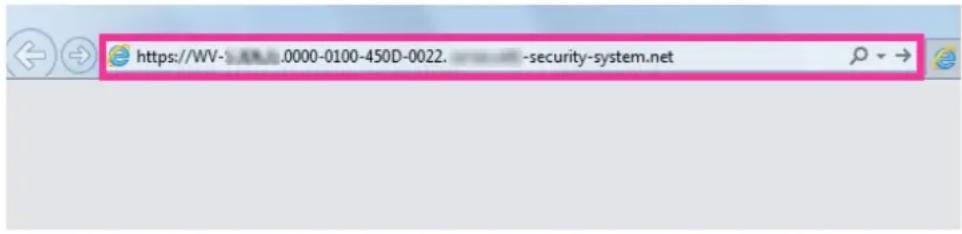
text_image
https://WV-0000-0100-450D-0022.-security-system.netIMPORTANT
- When the HTTPS port number is changed from "443", enter "the following text for CN + : (colon) + port number" in the address box of the browser.
Example of when the port number is "61443":
https://WV-xxxxxx.0000-0100-450D-0022.xxxxxx-security-system.net:61443
- We recommend adding the camera's URL to your browser's bookmark. If you forget the camera's URL, refer to the hosts file.
- When the settings are completed, the color of the background of the address box changes to white. Confirm that "Website Identification" is displayed after clicking the key mark on the right side of the address bar.
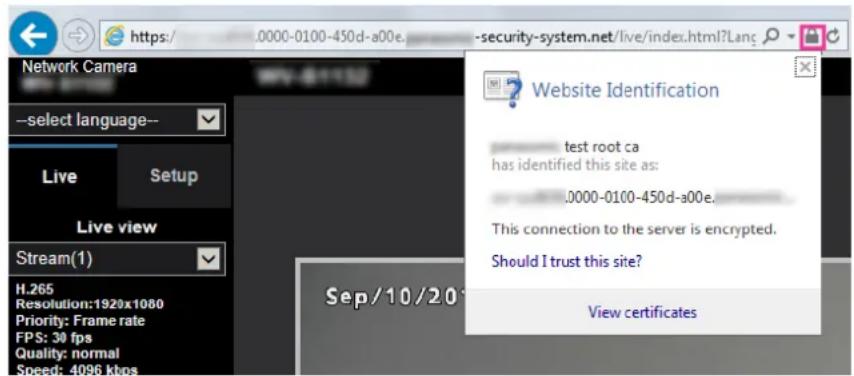
text_image
Network Camera --select language-- Live Setup Live view Stream(1) H.265 Resolution:1920x1080 Priority: Frame rate FPS: 30 fps Quality: normal Speed: 4086 kbps Sep/10/20 Website Identification test root ca has identified this site as: .0000-0100-450d-a00e. This connection to the server is encrypted. Should I trust this site? View certificatesNote
- If you cannot access with this method it may be because of proxy server settings. Ask the network administrator.
IMPORTANT
- When the camera is accessed using the HTTPS protocol, the refresh interval and frame rate of images may be lower.
2.9.5 Access the camera using the HTTPS protocol (for CA Certification)
- Start up the browser.
- Enter the IP address of the camera in the address box of the browser.
• Example of entry: https://192.168.0.10/
IMPORTANT
- When the HTTPS port number is changed from "443", enter "https://IP address of the camera + : (colon) + port number" in the address box of the browser.
(Example: https://192.168.0.11:61443)
- When the camera is in a local network, configure the proxy server setting of the browser (under [Internet Options...] under [Tools] of the menu bar) to bypass the proxy server for the local address.
- Press the [Enter] key on the keyboard.
→ The "Live" page will be displayed.
IMPORTANT
- When the camera is accessed using the HTTPS protocol, the refresh interval and frame rate of images may be lower.
2.9.6 How to configure the settings relating to DDNS
When activating the DDNS function using the camera, either of the following DDNS services is available.
• "Viewnetcam.com" service
• Dynamic DNS Update (RFC2136 compliant)
IMPORTANT
• Before using the DDNS service, it is necessary to perform the port forwarding setting for the router.
- About Dynamic DNS Update (RFC2136 compliant)
Operation using DDNS services other than the "Viewnetcam.com" service is not guaranteed. We are not responsible for any troubles or accidents on the circumstances where the camera is used arising out of such services.
- Refer to the DDNS service providers for the selection and configuration of the DDNS services other than the "Viewnetcam.com" service.
Note
- “Viewnetcam.com” is a Dynamic DNS service designed for use with our Network Cameras. Refer to the “Viewnetcam.com” website (http://www.viewnetcam.com/) for further information about the service.
About DDNS services (IPv4/IPv6)
By using a DDNS service, it becomes possible to view camera images via the Internet.
The DDNS service associates dynamic global addresses and domain names.
It is possible to configure the settings for the "Viewnetcam.com" or Dynamic DNS Update (RFC2136 compliant).
In most of the DNS services offered by providers, global addresses are not static but dynamic. Therefore, access to the camera via an old global address may be invalidated after a certain period of time. Either of the following services is required when accessing a camera whose global address is not static via the Internet.
- DDNS service (such as "Viewnetcam.com")
It is possible to access via a registered and static domain name (example: *****.viewnetcam.com) even after the global address is changed. Enrollment in a domain name service is required even when using the IPv6 connection.
Refer to the "Viewnetcam.com" website (http://www.viewnetcam.com/) for further information about the service.
- Static IP address service (such as a service offered by a contracted provider)
In this service, global addresses are static (not changed).
Configuration of the DDNS service (Example of the “Viewnetcam.com” service)
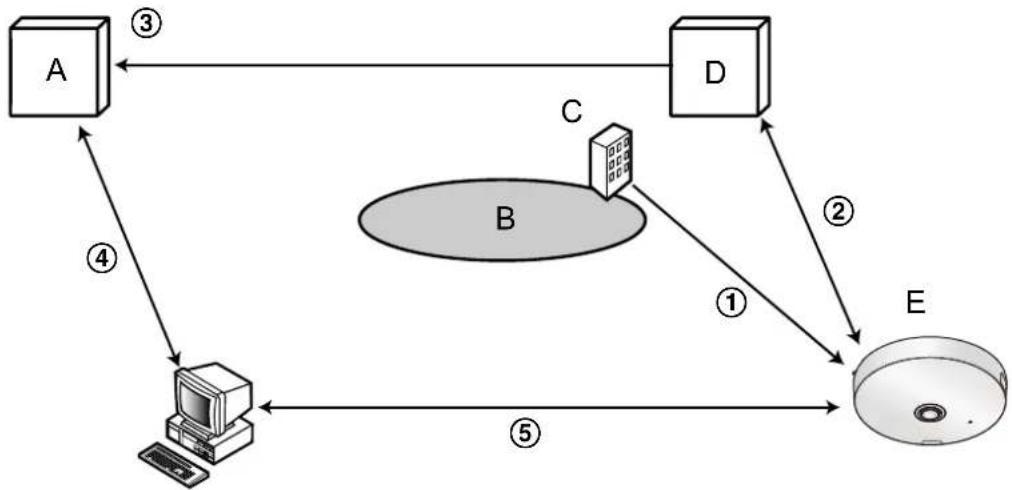
flowchart
graph TD
    A["A"] -->|③| D["D"]
    D -->|②| E["E"]
    E -->|①| B["B"]
    B -->|④| A
    B -->|⑤| D
    B -->|①| E
    C["C"] --> B
A. DNS server
B. Internet
C. Provider
D. "Viewnetcam.com" service server
E. Remote site
① Global address is changed.
The contracted provider allocates a global address to the router (or the camera). The global address is not static but dynamic.
② “*****.viewnetcam.com” and the current global address is automatically registered.
If you are enrolled in "Viewnetcam.com", the unique "domain name" (example: *****.viewnetcam.com) will be allocated. The "Viewnetcam.com" service server automatically manages the domain name of camera and the global address of router (or camera) when a camera automatically notifies the service server of the global address.
③ Current global address is automatically registered via “*****viewnetcam.com”.
The "Viewnetcam.com" service server registers the global address and the domain name of router (or camera) in the DNS server.
④ Global address is obtained via the URL (domain name).
By entering the URL (including the domain name) on the browser when accessing the camera via the Internet, the DNS server identifies the registered global address of router (or camera).
⑤ Access using the current global address
The identified global address is used for accessing the router (or camera) to monitor images.
Note
- Refer to the contracted provider whether the current IP address is static or not.
- Depending on the provider, local addresses may be allocated. In this case, the DDNS service is unavailable. Refer to the contract provider for further information.
2.9.6.1 When using the "Viewnetcam.com" service

text_image
Network Advanced SMTP(E-mail) | NTP | UPnP | HTTPS | DDNS | SNMP | Qos DDNS Area Global Service Viewnetcam com Personal(Camera) URL Your Account Link Access interval 1h Global IP Address Notification Method Normal Advanced Set[Personal(Camera) URL]
The URL of the camera registered for "Viewnetcam.com".
[Your Account Link]
When the displayed URL is clicked, the registration window for the "Viewnetcam.com" service will be displayed in a newly opened window.
Register the information in the registration window to enroll in the "Viewnetcam.com" service.
[Access interval]
Select the interval to access the "Viewnetcam.com" service server to check the IP address and the host name from the following.
[Global IP Address Notification Method]
Typically [Global IP Address Notification Method] should be set to "Normal".
If you cannot access the camera using the registered URL 30 minutes after registering with
"Viewnetcam.com", select "Advanced".
In this case, UPnP (→page 193) must be enabled for the camera and for the router.
- Default: Normal
Procedure to register information for the "Viewnetcam.com" service
- Select [Viewnetcam.com] for [Service] and click the [Set] button.
→ A URL is displayed in [Your Account Link]. If a URL is not displayed in [Your Account Link], confirm the camera's network settings and Internet connection, then click [Set] again.
- Register the information for "Viewnetcam.com" by following the instructions of the wizard.
→ The registration window for "Viewnetcam.com" will be displayed in a newly opened window.
When the registration window is not displayed, check that the PC is being connected to the Internet, and click the reload button of the browser.
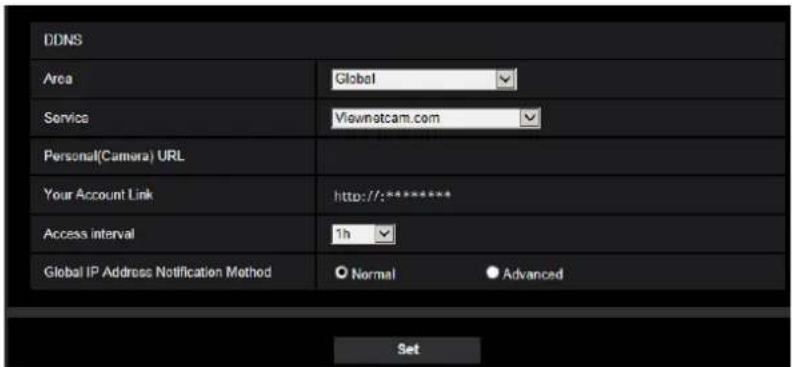
text_image
DDNS Area Global Service Viewnetcam.com Personal(Camera) URL Your Account Link http://:***** Access interval 1h Global IP Address Notification Method Normal Advanced Set- Register the information for "Viewnetcam.com" by following the instructions of the wizard.
→ When the message "The new camera is successfully registered to Viewnetcam.com" is displayed, close the registration window.
The URL set at the time of registration can be used for camera access. However, this URL is unavailable when accessing the camera from the PC connected to the same network (LAN).
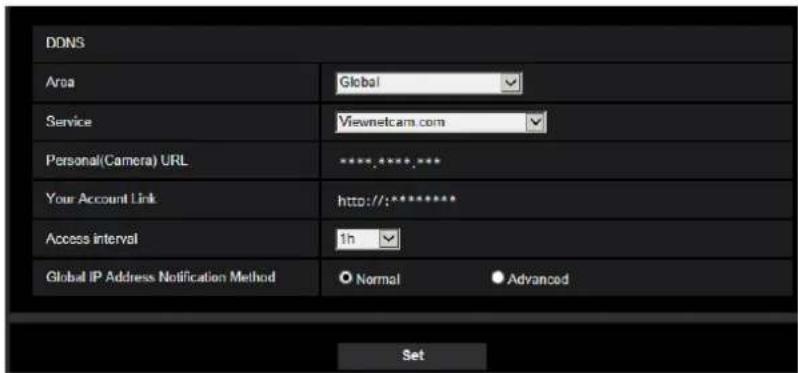
text_image
DONS Area Global Service Viewnetcam.com Personal(Camera) URL ****.****. Your Account Link http://:***** Access interval 1h Global IP Address Notification Method Normal Advanced SetNote
- When the registration for the "Viewnetcam.com" service is completed, the URL registered for "Personal(Camera) URL" is displayed. It may take up to about 30 minutes until the URL of the registered camera is validated.
- To cancel the enrollment in the "Viewnetcam.com" service, access the "Viewnetcam.com" website (http://www.viewnetcam.com/) later.
- When "Expired" is displayed in the URL of "Viewnetcam.com" in the viewnetcam settings page or the status page, restart the camera after registering the "Viewnetcam.com" service. After restarting the camera, check that the registered URL is displayed in the URL of "Viewnetcam.com" of [Status] - [Viewnetcam.com] on the "Maintenance" page.
- It is possible to check the information registered for the "Viewnetcam.com" service by accessing the URL displayed beside "Your Account Link". When the URL is not displayed, check that the PC is being connected to the Internet, and click the [Set] button.
- If access often fails due to the change in the global address of router, set a smaller value for "Access interval".
Checking the information registered for the "Viewnetcam.com" service
It is possible to check if the camera has been registered for the "Viewnetcam.com" service. (→page 236)
2.9.6.2 When using "Dynamic DNS Update"
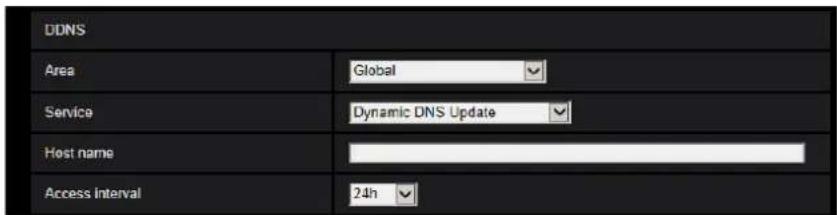
text_image
DDNS Area Global Service Dynamic DNS Update Host name Access Interval 24h[Host name]
Enter the host name to be used for the Dynamic DNS Update service.
• Available number of characters: 3 - 250 characters
Enter in the form of “(host name). (domain name)”.
• Available characters: Alphanumeric characters, the colon (:), the period (.), the underscore (_), and the hyphen (-).
- Default: None (blank)
Note
• Refer to the network administrator for further information about the available host names.
[Access interval]
Select the interval to access the Dynamic DNS Update service server to check the IP address and the host name from the following.
text_image
DDNS Area Global Service Dynamic DNS Update(DHCP) Host name:[Host name]
Enter the host name to be used for the Dynamic DNS Update service.
• Available number of characters: 3 - 250 characters
Enter in the form of “(host name). (domain name)”.
• Available characters: Alphanumeric characters, the colon (:), the period (.), the underscore (_), and the hyphen (-).
- Default: None (blank)
Note
• Refer to the network administrator for further information about the available host names.
2.10 Configure the settings relating to the schedules [Schedule]
On the "Schedule" page, it is possible to configure the settings relating to schedules as follows.
• Alarm permission (Terminal alarm 1, 2, 3) S4551 S4151 X4573 X4172
- Alarm permission(Terminal alarm 1) S4551 S4151 X4573 X4172
- Alarm permission(Terminal alarm 2) \4551 \4151 X4573 X4172
- Alarm permission(Terminal alarm 3) S4551 S4151 X4573 X4172
- VMD permission
- Access permission
- SD memory recording
- Scene file
- All detect permission (when "Viewnetcam.com" is set and only schedule 5)
- Allow e-mail transmission
- Reboot (Schedule 5 only)
The "Schedule" page has only the [Schedule] tab.
Up to 5 schedules can be set.
![i-PRO WV-X4173 - Configure the settings relating to the schedules [Schedule] - 1](/content/2026/06/1229328/images/3c7fd11c712aa2b65c160a0a31019d368a4993da62a1064f66cb956005ccbd70.jpg)
text_image
Schedule Schedules Schedule 1 (White) Schedule mode Off Time range Mon Tue Wed Thu Fri Sat Sun 24h - Schedule 2 (Blue) Schedule mode Off Time range Mon Tue Wed Thu Fri Sat Sun 24h - Schedule 3 (Green) Schedule mode Off Time range Mon Tue Wed Thu Fri Sat Sun 24h - Schedule 4 (Red) Schedule mode Off Time range Mon Tue Wed Thu Fri Sat Sun 24h - Schedule 5 (Black) Schedule mode Off Time range Mon Tue Wed Thu Fri Sat Sun 24h - 0:00 6:00 12:00 18:00 24:00 Mon Tue Wed Thu Fri Sat Sun Set Sun Set[Schedule mode]
Select an action to be assigned to the schedule from "Schedule mode".
"Off" is selected at the default.
- Off: No action will be taken for the respective schedule.
- Alarm permission (Terminal alarm 1, 2, 3) S4551 S4151 X4573 X4172: Alarm input (terminal alarm) will be allowed during the period of the schedule.
- Alarm permission(Terminal alarm 1) S4551 S4151 X4573 X4172: Terminal 1 alarm input will be allowed during the period of the schedule.
- Alarm permission(Terminal alarm 2) S4551 S4151 X4573 X4172: Terminal 2 alarm input will be allowed during the period of the schedule.
- Alarm permission(Terminal alarm 3) S4551 S4151 X4573 X4172: Terminal 3 alarm input will be allowed during the period of the schedule.
- VMD permission: The video motion detection (VMD) function will be active during the period of the schedule.
- Access permission: Users whose access level is set to "2. Camera control" and "3. Live only" on the [User auth.] tab (→page 172) can access the camera only in the period of schedule.
- Recording to SD(Recording stream): The SD recording will be performed at the designated time in the schedule. Further, the “Recording format” is enabled only when there is a stream.
- Image adjust 1: Scene 1: Images are set to the image settings of "Scene file 1" at the designated time in the schedule. When the designated time for the schedule finishes, images are set to the image settings of "Scene file is not applied".
- Image adjust 1: Scene 2: Images are set to the image settings of "Scene file 2" at the designated time in the schedule. When the designated time for the schedule finishes, images are set to the image settings of "Scene file is not applied".
- Image adjust 1: Scene 3: Images are set to the image quality settings of "Scene file 3" at the designated time in the schedule. Once designated time in the schedule is over, the image quality setting is set to "Scene file is not applied".
- Image adjust 1: Scene 4: Images are set to the image quality settings of "Scene file 4" at the designated time in the schedule. Once designated time in the schedule is over, the image quality setting is set to "Scene file is not applied".
• E-mail permission: While the schedule is set, e-mail notification is sent when alarm is input. - Reboot: The camera reboots at the scheduled time. Can only be selected with Schedule 5.
Note
- Select "On" for "User auth." on the [User auth.] tab of "User mng." page (→page 172) and "Off" for "Host auth." on the "Host auth." page (→page 175) to validate "Access permission".
- When selecting "Recording to SD(Recording stream)", select "Stream(1)" or "Stream(2)" for "Recording format" on the [SD memory card] tab and select "Schedule" for "Save trigger". (→page 91)
[Schedule]
Select days of a week by checking the respective checkboxes.
From the pull-down menu, select the start time and the end time of the schedule.
When not designating time, check the checkbox of "24h".
Click the [Set] button after completing the settings.
→ The result will be displayed at the bottom of the window.
![i-PRO WV-X4173 - [Schedule] - 1](/content/2026/06/1229328/images/b1d3bf29ef83cff7aa2b0d5f2a4f9393e38f3463a17794b6a9c5ac293d6763d3.jpg)
text_image
Schedule Schedules Schedule 1 (White) Schedule mode VMD permission Time range Mon Tue Wed Thu Fri Sat Sun 24h 09:00 - 17:30 Schedule 2 (Blue) Schedule mode VMD permission Time range Mon Tue Wed Thu Fri Sat Sun 24h 23:00 - 07:00 Schedule 3 (Green) Schedule mode VMD permission Time range Mon Tue Wed Thu Fri Sat Sun 24h : - - Schedule 4 (Red) Schedule mode Off Time range Mon Tue Wed Thu Fri Sat Sun 24h : - - Schedule 5 (Black) Schedule mode Off Time range Mon Tue Wed Thu Fri Sat Sun 24h : - - 0.00 6.00 12.00 18.00 24.00 Mon Tue Wed Thu Fri Sun SetNote
- The schedules displayed at the bottom of the window can be identified by colors assigned to each schedule.
2.10.1 How to set the schedules

text_image
Schedule Schedules Schedule 1 (White) Schedule 2 (Blue) Schedule 3 (Green) Schedule 4 (Red) Schedule 5 (Black) 0:00 6:00 12:00 18:00 24:00 Mon Tue Wed Thu Fri Sat Sun Fri Sat Sun Time range Mon Tue Wed Thu Fri Sat Sun 24h - - - - - - Schedule mode Off Schedule mode Off Time range Mon Tue Wed Thu Fri Sat Sun 24h - - - - - - Schedule mode Off Time range Mon Tue Wed Thu Fri Sat Sun 24h - - - - - - Schedule mode Off Time range Mon Tue Wed Thu Fri Sat Sun 24h - - - - - - Set Back- In "Schedule", check the check box of the desired day of the week. → The selected day of the week will be validated for the schedule.
-
To designate time, select the desired "hour" and "minute" from the pull-down menu. When not designating time, check the checkbox of "24h".
-
Click the [Set] button after completing the settings.
→ The result will be displayed at the bottom of the window.
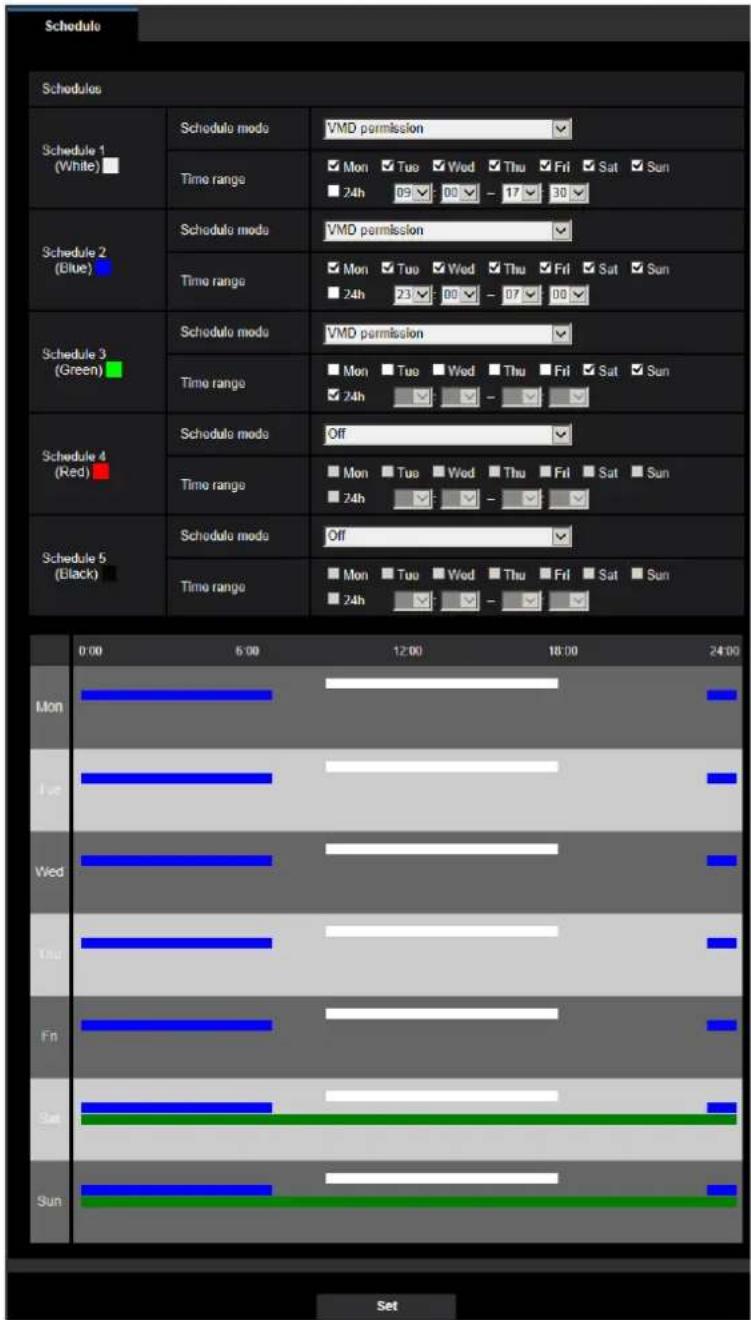
text_image
Schedule Schedules Schedule 1 (White) Schedule 2 (Blue) Schedule 3 (Green) Schedule 4 (Red) Schedule 5 (Black) Schedule mode VMD permission Time range Mon Tue Wed Thu Fri Sat Sun 24h 09:00 - 17:30 Schedule mode VMD permission Time range Mon Tue Wed Thu Fri Sat Sun 24h 23:00 - 07:00 Schedule mode VMD permission Time range Mon Tue Wed Thu Fri Sat Sun 24h - - - - - - - - - - - - - - - - - - - - - - - - - - - - - - - - - - - - - - - - - - - - - - - - - - - - - - - - - - - - - - - - - - - - - - - - - - - - - - - - - - - - - - - - - - - - - 0:00 6:00 12:00 18:00 24:00 Mon Tue Wed Thu Fri Sat Sun Sun Set2.10.2 How to delete the set schedule
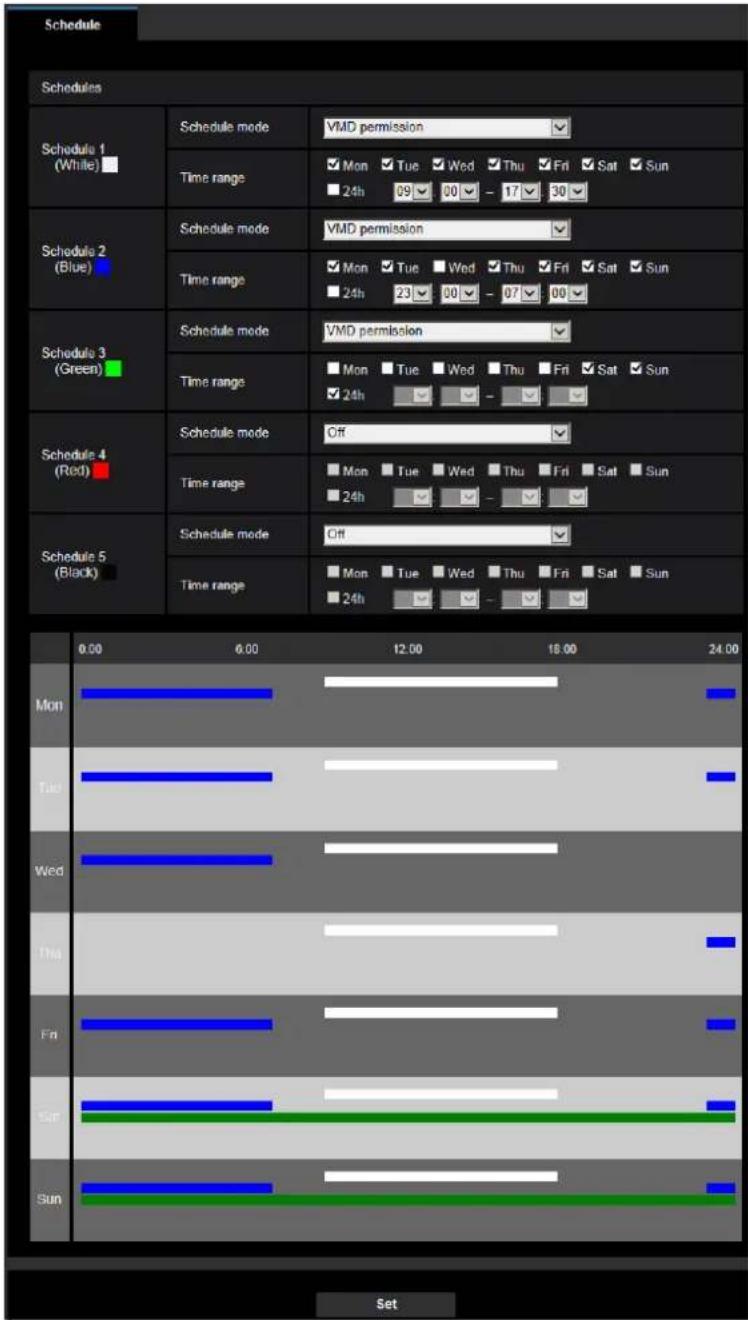
text_image
Schedule Schedules Schedule 1 (White) Schedule mode VMD permission Time range Mon Tue Wed Thu Fri Sat Sun 24h 09 00 - 17 30 Schedule 2 (Blue) Schedule mode VMD permission Time range Mon Tue Wed Thu Fri Sat Sun 24h 23 00 - 07 00 Schedule 3 (Green) Schedule mode VMD permission Time range Mon Tue Wed Thu Fri Sat Sun 24h Schedule 4 (Red) Schedule mode Off Time range Mon Tue Wed Thu Fri Sat Sun 24h Schedule 5 (Black) Schedule mode Off Time range Mon Tue Wed Thu Fri Sat Sun 24h 0.00 6.00 12.00 18.00 24.00 Mon Tue Wed Thu Fri Sat Sun Sun Set-
Uncheck the check box of the set day of the week.
-
Click the [Set] button after completing the settings.
→ The schedule of the selected day of the week is deleted.

text_image
Schedule Schedules Schedule 1 (White) Schedule mode Off Time range Mon Tue Wed Thu Fri Sat Sun 24h - Schedule 2 (Elluc) Schedule mode Off Time range Mon Tue Wed Thu Fri Sat Sun 24h - Schedule 3 (Green) Schedule mode Off Time range Mon Tue Wed Thu Fri Sat Sun 24h - Schedule 4 (Red) Schedule mode Off Time range Mon Tue Wed Thu Fri Sat Sun 24h - Schedule 5 (Black) Schedule mode Off Time range Mon Tue Wed Thu Fri Sat Sun 24h - 0:00 5:00 12:00 18:00 24:00 Mon Tue Wed Thu Fri Sat Sun Set2.11 Maintenance of the camera [Maintenance]
System log check, firmware upgrade, status check and initialization of the setup menu can be performed on this page.
The “Maintenance” page has the [System log] tab, the [Upgrade] tab, [Status] tab, the [Default reset] tab, and the [Data] tab.
2.11.1 Check the system log [System log]
Click the [System log] tab of the "Maintenance" page. (→page 61, page 62)
Up to 4,000 system logs can be saved on the SD memory card when the SD memory card is inserted after selecting "Use" for "SD memory card" on the [SD memory card] tab ( page 87).
When “Not use” is selected for “SD memory card”, up to 100 system logs can be saved on the built-in memory of the camera.
When the saved system logs have reached the maximum number, the newer logs will overwrite the older system logs. In this case, the oldest log is the first to be overwritten.
The system logs will be displayed in group of 100 logs each, and the logs will be saved even when the power of the camera is turned off.
![i-PRO WV-X4173 - Check the system log [System log] - 1](/content/2026/06/1229328/images/e614d3b141e89585e37841e228b5341aba05eb16b2c033cad4774084957bbf19.jpg)
text_image
System log << Latest 100 << Previous 100 Upgrade Status Default reset Data 2/40Page Next 100 >> No. Time & date Description[<< Latest 100]
When clicking “<< Latest 100”, the latest 100 system logs will be displayed.
[Next 100 >>]
When clicking "Next 100 >>", the next 100 system logs will be displayed.
[Number of pages display]
The currently opened page will be displayed in the "page/total page" format.
[<< Previous 100]
When clicking “<< Previous 100”, the previous 100 system logs will be displayed.
[No.]
The serial number of the system log will be displayed.
[Time & date]
Time and date at the error occurrence will be displayed.
[Description]
The descriptions about the system log will be displayed. Refer to page 242 for further information about the system logs.
2.11.2 Upgrade the firmware [Upgrade]
Click the [Upgrade] tab of the "Maintenance" page. (→page 61, page 62)
The current firmware can be checked and upgraded to the latest version on this page. Contact the dealer for further information about the firmware upgrade.
![i-PRO WV-X4173 - Upgrade the firmware [Upgrade] - 1](/content/2026/06/1229328/images/4ae57a1cbb7a68b9e62957efcdd70081706b10c87e207378458df3f96ab0d553.jpg)
text_image
System log Upgrade Status Default reset Data Model no. MAC address Serial no. Firmware version IP address(IPv6) Linklocal Static RA DHCPv6 Viewer software installation counter Time past from the date of manufacture Browse... Reset the settings to the default after completing the upgrade. (Except the network settings) Execute Do not reset the settings to the default after the upgrade. Resets to default HTML data after completing the upgrade. Download the latest firmware from the following our website. Note: Internet connection required to view this page. - In case of using outside of Japan. - In case of using in Japan. It will take around 5 minutes to complete the upgrade. Please wait and do not operate the browser during this process.[Model no.], [MAC address], [Serial no.], [Firmware version], [IP address(IPv6)], [Viewer software installation counter], [Time past from the date of manufacture]
Information of each item will be displayed.
[Ext. software >>]
A link for the extension software screen is displayed.
Refer to our website (https://i-pro.com/global/en/surveillance/training-support/support/kms
- Contact the dealer and download the latest firmware onto a PC.
IMPORTANT
- A blank (space) cannot be used for the name of the directory where the downloaded firmware to be saved.
- Click the [Browse...] button and designate the downloaded firmware.
Note
- The latest firmware upgrade is posted on our website. https://i-pro.com/global/en/surveillance/training_support/support
- Click the radio button respective to the desired option to determine whether or not to initialize the settings after completing the firmware upgrade.
Default: Do not reset the settings to the default after the upgrade.
Note
- Note that the settings cannot be restored after an initialization is operated.
- Click the [Execute] button.
→ The confirmation window will be displayed.
IMPORTANT
• After upgrading, make sure to check the version on this page.
• After completing the upgrade, delete temporary internet files. (→page 246)
- Upgrade the firmware using a PC in the same subnet as the unit.
- Follow the instructions from the dealer when upgrading the firmware.
- When upgrading the application software, use the designated file (extension: img) for the firmware upgrade.
The name of the firmware to be used for the upgrade should be "model name (Use small letters. "WV-" is not required.)_xxxxx.img".
* ("xxxxx" indicates the version of the firmware.)
- Do not turn off the power of the camera during the upgrade process.
- Do not perform any operation during upgrading and wait until it completes.
- The following network settings will not be reset when upgrading the firmware after selecting “Reset the settings to the default after completing the upgrade. (Except the network settings)”.
Primary server address and secondary server address DNS settings for IPv4, primary DNS server address and secondary DNS server address settings for IPv6, On/Off for DHCP, IP address, subnet mask, default gateway, HTTP port, HTTPS port, connection protocol (HTTP/HTTPS), CRT key, CA certificate, UPnP setting, line speed, bandwidth control (bit rate), IEEE802.1X setting, time & date
- The viewer software used on each PC should be licensed individually. Refer to your dealer for the software licensing.
2.11.3 Check the status [Status]
Click the [Status] tab of the "Maintenance" page. (→page 61, page 62)
The status of this camera can be checked on this page.
![i-PRO WV-X4173 - Check the status [Status] - 1](/content/2026/06/1229328/images/e4e9353ba9c21f0a183595c4c7433ac11c9d9f5366918d40b7e5c079a59e076a.jpg)
text_image
System log Upgrade Status Default reset Data Viewnetcom.com Server www.viewnetcom.com Status Enabled(S) Personal(Camera) URL UPnP Port number(HTTP) - Status Disable Port number(HTTPS) - Status Disable Router global address Self check Hardware1 0000 0000 0000 0000 0000 0000 0000 00 Hardware2 0000 0000 0000 0000 0000 0000 00 SD memory card Model no. 90126 Serial no ACADMEA Remaining capacity 119716MS/11989MM(Remaining capacity/Ondial capacity) Total use time 2783 ms (184ms) Number of overwrite times ↑ No Time & date Description 1 Digital: No 1234 cSD-FormsetViewnetcam.com
[Server]
The URL of the "Viewnetcam.com" service server will be displayed.
[Status]
The registration status for the "Viewnetcam.com" will be displayed.
[Personal(Camera) URL]
The URL of the camera registered for "Viewnetcam.com" will be displayed.
UPnP
[Port number(HTTP), Port number(HTTPS)]
The port number that is set for UPnP port forwarding will be displayed.
[Status]
The port forwarding status will be displayed.
[Router global address]
The global address of router will be displayed.
Self check
The self check result of the hardware will be displayed.
Note
• Refer to our website
(https://i-pro.com/global/en/surveillance/training_support/support/technical_information) for further information about the contents of the displayed statuses (relating to the "Viewnetcam.com" service, the UPnP function, or the self check).
- If "Viewnetcam.com" is set for [DDNS] of the [Advanced] tab in [Network], the Viewnetcam.com status is displayed.
SD memory card
[Model no.]
Displays the model number of the SD memory card.
If model number information could not be obtained, "Read error" is displayed. If the SD memory card is not used, "Not use" is displayed. In other cases "Unknown" is displayed.
[Serial no.]
Displays the serial number of the SD memory card.
If the serial number information could not be obtained, "Unknown" is displayed.
[Remaining capacity]
Displays the remaining capacity and total capacity of the SD memory card.
This is the same information that is displayed in [Remaining capacity] of the SD memory card information on the [SD memory card] tab of the “Basic” page.
[Total use time]
Displays the length of time that SD memory card has been inserted into and used with the camera.
If the length of time that the SD memory card has been used for cannot be obtained, "Unknown" is displayed.
"Total use time" is updated once per hour.
[Number of overwrite times]
Displays the number of overwrite times as calculated from the total capacity of the SD memory card, the number of times the camera has written files to the SD memory card, and the file sizes.
If the number of overwrite times cannot be calculated, "Unknown" is displayed.
Note
- Because the overwrite time values are just estimates calculated by the camera, they may differ to the actual number of overwrite times.
- When “SD memory card password lock” is used and the SD memory card password does not match, the above information is not displayed.
[No.] / [Time & date] / [Description] of the log
Displays the log related to the SD memory card.
| Category Indication Description | ||
| SD memory card | Format Successfully formatted the SD memory card. | |
| Format error Error occurred when formatting the SD memory card. | ||
| Write-protect ON (Locked card) | A write-protected SD memory card is inserted. | |
| Detection error The SD memory card could not be correctly recognized. | ||
| Write error An error occurred when writing to the SD memory card. | ||
| Read error An error occurred when reading from the SD memory card. | ||
| Delete error An error occurred when deleting data from the SD memory card. | ||
| File system error An error occurred in File system of the SD memory card. | ||
| Undefined error An error other that the ones above has occurred for the SD memory card. | ||
IMPORTANT
- In order to be able to correctly use this function, format the SD memory card with the camera before using it.
- When using SD memory cards that have been used on other devices such as PCs, the correct information may not be able to be displayed.
- Up to 30 SD memory card logs can be saved to the built-in memory of the camera. When the saved system logs have reached the maximum number, the newer logs will overwrite the older system logs.
Note
• Refer to our website
(https://i-pro.com/global/en/surveillance/training_support/support/technical_information) for further information about the contents of the displayed statuses (relating to the "Viewnetcam.com" service, the UPnP function, or the self check).
2.11.4 Reset the settings/Reboot the camera [Default reset]
Click the [Default reset] tab of the "Maintenance" page. (→page 61, page 62)
The settings can be initialized and reboot of the camera can be performed on this page.
![i-PRO WV-X4173 - Reset the settings/Reboot the camera [Default reset] - 1](/content/2026/06/1229328/images/cd1fc4548e32409b36a6d9bd1f2e1aaa47d609cfc837e9176827a45cc6b5094f.jpg)
text_image
System log Upgrade Status Default reset Data Reset to the default (Except the network settings) Execute Reboot Execute[Reset to the default (Except the network settings)]
Click the [Execute] button to reset the settings to the default. Note that the network settings will not be reset. It is impossible to operate the camera for about 3 minutes after the initialization.
[Reboot]
Click the [Execute] button to reboot the camera. It is impossible to operate the camera for about 2 minutes after rebooting the camera.
Note
- Refer to the Installation Guide for information about how to initialize the network settings. (→page 183)
- If "Diag." of the alarm or e-mail notification function is selected, a notification of error will be sent to "Destination E-mail address" or to "Destination of notification" when an error such as no SD memory card insertion after the reboot or a locked SD memory card insertion occurs. (→page 188, page 167)
2.11.5 Settings data/backing up or restoring logs [Data]
Click the [Data] tab of the "Maintenance" page. (→page 61, page 62)
The settings related to backing up or restoring settings data, and saving logs can be configured in this section.
![i-PRO WV-X4173 - Settings data/backing up or restoring logs [Data] - 1](/content/2026/06/1229328/images/dd78aaf6ca8687a699a298c3df5d847a67c7cad4cdf324dbdf685e2b878602a1.jpg)
text_image
System log Upgrade Status Default reset Data Backup Setup data Execute Scene file Execute Logs Execute Restore Setup data Browse... Restore all settings. Restore all settings except the network settings. Execute Scene file Browse... Execute It will take around 2 minutes to complete restoring data. Please wait and do not operate the browser during this process.Backup
[Setup data]
Click the [Execute] button to backup the setup data of the camera to a PC.
[Scene file]
Click the [Execute] button to backup the scene files of the camera to a PC.
[Logs]
Click the [Execute] button to backup the log data of the camera to a PC.
IMPORTANT
- When backing up settings or logs, creating the backup files takes time.
- When the backup operation takes 10 minutes or more, a communication timeout may occur. In this case all of the backup data may not be obtained. Therefore, we recommend completing backup
operations within 10 minutes. It is also possible to check whether or not the correct data was obtained by restoring the obtained data (excluding log data).
Restore
[Setup data]
Press the [Browse...] button and select the setup data files to restore.
Click the radio button respective to the desired option to determine whether or not to also restore network related setting contents.
Click the [Execute] button to start restoring. Do not perform operations until the restoration is complete. (The camera will be rebooted when the restoration is complete.)
Make sure to set the file name of setup data files used when restoring to "model name.dat". (The model name must be written in lower case letters and "WV-" is not needed.)
- Default: Data is restored, excluding network setting data.
IMPORTANT
- When 5 minutes or more is required to restore setup data files, there is a possibility that the restore will fail because or reasons such as transmission disconnections. In this case, restore setup data files again.
Note
- Restore operations for setup data are not applied to HTTPS related settings.
[Scene file]
Press the [Browse...] button and select the scene files to restore.
Click the [Execute] button to start restoring. Do not perform operations until the restoration is complete.
Make sure to set the file name of scene file data used when restoring to "model name.txt". (The model name must be written in lower case letters and "WV-" is not needed.)
2.12 Display our support website [Support]
Methods for accessing our support website are explained on the "Support" page.
To access our support website from a web browser, click the link for the support page.
3 Others
3.1 About the displayed system log
Error indications relating to SMTP
| Category | Indication Description | |
| POP3 server error Authentication error. | Entered user name or password may be incorrect. Check if the E-mail settings are configured correctly. | |
| Failed to find the POP3 server. | ||
| SMTP server error Authentication error. | Entered user name or password may be incorrect. Check if the E-mail settings are configured correctly. | |
| Failed to resolve the E-mail server address from DNS. | ||
| Failed to find the SMTP server. | ||
| Internal error Undefined error. | An error occurred in the E-mail function. Check if the E-mail settings are configured correctly. | |
Error indications relating to "Viewnetcam.com"
| Category | Indication Description | |
| Access test error Access | test failed | • Port forwarding may not be configured for the router. Refer to the manuals provided with the router in use to enable the UPnP setting. |
| Viewnetcam.com server error | Failed to resolve the Viewnetcam.com server address from DNS. | • The designated IP address of the DNS may be incorrect. Check if the DNS settings are configured correctly.• The DNS server may be down. Ask the network administrator. |
| Category Indication Description | ||
| Connection error No response from the Viewnetcam.com server. | • The “Viewnetcam.com” server may be down. Ask the network administrator. | |
| Internal error Undefined error. | • An error relating to the “Viewnetcam.com” function occurred. Check if the “Viewnetcam.com” settings are configured correctly. | |
Error indications relating to Dynamic DNS Update
| Category | Indication Description | |
| DDNS server error Failed | to resolve the DDNS server address from DNS. | The designated IP address of the DNS may be incorrect. Check if the DNS settings are configured correctly.The DNS server may be down. Ask the network administrator. |
| Connection error No response | from the DDNS server. | The DDNS server may be down. Ask the network administrator. |
| Same host name has registered. | The same host name has already been registered in the DDNS server. Check if the DDNS Update settings are configured correctly. | |
| Internal error Undefined | error. | An error occurred in the DDNS function. Check if the DDNS Update settings are configured correctly. |
Error indications relating to NTP
| Category | Indication Description | |
| Connection error No response from the NTP server. | The IP address of the server may be incorrect. Check if the IP address of the server is configured correctly.The NTP server may be down. Ask the network administrator. | |
| Internal error Undefined error. | An error occurred in the NTP function.Check if the NTP settings are configured correctly. | |
| Synchronizing with NTP succeeded. | NTP update succeeded. | Time correction succeeded. |
Log indications relating to HTTPS
| Category Indication Description | ||
| HTTPS Certificate Signing | Request - Generated | • Generation of the CSR (Certificate Signing Request) is complete. |
| CA Certificate - Installed | • Installation of the CA certificate is complete. | |
| CA Certificate - Deleted | • Deletion of the CA certificate is complete. | |
| Previous CRT key - Applied | • Previous CRT key is applied. | |
| CRT key - Generated | • Generation of the CRT key is complete. | |
Log indications relating to login
| Category | Indication Description | |
| Login User name or IP address | The login user name will be displayed when “On” is selected for “User auth.”.If the user name is not registered, “Guest User” is displayed.The IP address of the PC currently accessing to the camera will be displayed when “On” is selected for “Host auth.”. | |
Error indications relating to login error
| Category | Indication Description | |
| Login failure User name | The user name that has failed in login will be displayed when “On” is selected for “User auth.”.If no user is registered, (Guest User) will be displayed.If “Login failure” log remains in the normal operation, it is not a malfunction of the camera.However, if many logs are output consecutively, there is a possibility of illegal access. Ask the network administrator. |
Error indications relating to TCP alarm notification
| Category Indication Description | ||
| TCP alarm notification error | Failed to find destination of notification. | The IP address of the destination of notification may be incorrect. Check if the IP address of the destination of notification is configured correctly.The destination of notification may be down. Ask the network administrator. |
| Failed to resolve destination addr. from DNS. | The DNS server settings may be incorrect. Check if the DNS settings are configured correctly.The DNS server may be down. Ask the network administrator. | |
Error indications relating to HTTP alarm notification
| Category | Indication Description | |
| HTTP alarm notification error | Failed to find destination of notification. | The IP address of the destination of notification may be incorrect. Check if the IP address of the destination of notification is configured correctly.The destination of notification may be down. Ask the network administrator. |
| Failed to resolve destination addr. from DNS. | The DNS server settings may be incorrect. Check if the DNS settings are configured correctly.The DNS server may be down. Ask the network administrator. |
Error indications relating to SD memory card security settings
| Category | Indication Description | |
| SD memory card Certificate | Signing Request - Generated | • Generation of the CSR (Certificate Signing Request) is complete. |
| CA Certificate - Installed | • Installation of the CA certificate is complete. | |
| CA Certificate - Deleted | • Deletion of the CA certificate is complete. | |
| Previous CRT key - Applied | • Previous CRT key is applied. | |
| CRT key - Generated | • Generation of the CRT key is complete. |
3.2 Troubleshooting
Before asking for repairs, check the symptoms with the following table.
Contact your dealer if a problem cannot be solved even after checking and trying the solution in the table or a problem is not described below.
| Symptom Cause/solution Reference pages | ||
| Cannot access from the browser. | • Is the LAN cable (category 5e or better) firmly connected to the network connector of the camera? | Important Information |
| • Is the link indicator (LINK) lit?When it is not lit, connection to a LAN may not be established or a network may be not working correctly. Check if the cables have any contact failure or if the wiring is correct or not. | Important Information | |
| • Is the power of the camera on?Check if the power of the camera is turned on. | Important Information | |
| • Are the set IP addresses valid? | 183 | |
| • Are you accessing the wrong IP address?Check the connection as follows.With the Windows command prompt, > ping “IP address of the camera”.If there is reply from the camera, the connection is normal.If there is no reply, check the connection with the following methods using a computer connected to the same network as the camera. If the firewall settings on the PC are enabled, temporarily disable them before performing settings on the camera.- Start the “IP Setting Software”, confirm the camera's IP address, and then access that IP address.- If the network settings (IP address, subnet mask, and default gateway) are incorrect, reboot the camera and change the network settings by using the “IP Setting Software” within 20 minutes after the restart.- In networks that do not have a DHCP server, the IP address of the camera will be configured to “192.168.0.10” when the camera is rebooted by holding the INITIAL SET button on the camera. After the camera is initialized, access the camera and set the IP address again. (When the camera is initialized, all the settings of the camera previously configured on the setup menus will be initialized.) | - | |
| Symptom Cause/solution Reference pages | ||
| For the HTTP port number, select a port number other than the following port numbers used by the camera. The number used by the camera: 20, 21, 23, 25, 42, 53, 67, 68, 69, 110, 123, 161, 162, 443, 554, 995, 10669, 10670, 59000 - 61000 | ||
| Is the same IP address provided to other devices?Are there contradictions between the address and the network subnet to be accessed?When the camera and the PC are connected in the same subnet:Are the IP addresses of the camera and the PC set in a common subnet? Or is “Use Proxy Server” for the settings of the browser checked?When accessing the camera in the same subnet, it is recommended to enter the address of the camera in the “Don’t Use Proxy For These Addresses” box.When the camera and the PC are connected in the different subnet:Is the IP address of the default gateway set for the camera correct? | ||
| Is the name currently used to access the camera different from the name registered for the “Viewnetcam.com” service?Access the camera again with the registered name. | ||
| Did you access “http://” while using the HTTPS function?To use the HTTPS function, access “https://”. It is also necessary to enter the port number. | ||
| Cannot access the camera via the Internet. | Are the network settings of the camera correct?Set the default gateway or DNS server address correctly. To use the DDNS service, check that the settings are correct.Is the setting for “Default gateway” on the “Network” page configured? Or is the setting correct?When communicating using IPv4:Configure the setting for “Default gateway” of “IPv4 network” on the [Network] tab of the setup menu.• Is the setting of port forwarding configured for the router?To enable the access to the camera via the Internet, it is necessary to perform the port forwarding setting when the router in use does not support the UPnP function. Refer to the manuals provided with the router for further information.• Is UPnP function of the router disabled?Refer to the manuals provided with the router in use to enable the UPnP function.• Is packet filtering set for the router to forbid the access via the Internet?Configure the settings of the router in use to enable the access via the Internet. Refer to the manuals provided with the router for further information about the settings. | |
| • Are you accessing the camera using the local address (the IP address used in a local network)?When accessing the camera, use the global address (or the URL registered in the DDNS service) and the port number of the camera as the IP address to be used in the Internet. | ||
| Cannot access the camera via the URL of the “Viewnetcam.com” service. | • Is the global address of camera (or router) notified to the “Viewnetcam.com” service server?Log into the “My Account” page of “Viewnetcam.com” website (http://www.viewnetcam.com/) to check the information of the registered camera. If the global address is not displayed for the IP address, access the camera, and register the user information for the “Viewnetcam.com” service on the [Advanced] tab on the “Network” page of the setup menu. In addition, check the “Status” of “Viewnetcam.com” (on the [Status] tab) and the system log (on the [System log] tab) of the “Maintenance” page of the setup menu. | |
| Authentication window is displayed repeatedly. | • Is the user name and password changed?While accessing the camera, when changing the user name and password of another user logging into the camera on another browser, the authentication window will be displayed each time the screen is changed or refreshed. Close the browser and access the camera again.• Have you changed the [Authentication] setting?When the [Authentication] setting has been changed, close the browser, and then access the camera again. | |
| Symptom Cause/solution Reference pages | ||
| It takes time to display the screen. | Are you accessing the camera in the HTTPS mode? In this mode, the refresh interval becomes slower due to decode procession. | - |
| Are you accessing another camera in the same local network via a proxy server? Configure the browser to not use the proxy server. | - | |
| Are two or more users browsing the camera images simultaneously? It may take time to display the screen or refresh interval may become slower when two or more users browse the camera images simultaneously. | - | |
| Cannot access the camera from a mobile terminal or a tablet device. | For mobile terminal:Is the URL correct? Or is "/cam" missing at the end of the URL? Check if the URL is entered correctly. When accessing the camera from a cellular phone, it is necessary to enter "/cam" at the end of the URL that is used for the camera access from a PC.For tablet device:Is the URL correct? Check whether the URL has been entered correctly. | 33 |
| Is the SSL encryption method different from that of the camera? Select "HTTP" (Do not select "HTTPS") for "HTTPS" - "Connection" on the "Network" page - the [Advanced] tab, and access the camera again. | 195 | |
| Did you access "http://" while using the HTTPS function? To use the HTTPS function, access "https://". It is also necessary to enter the port number. | 215 | |
| A cookie error was displayed when performing user registration for "Viewnetcam.com". | Is the browser configured to allow cookies? Configure the browser to allow cookies. In Internet Explorer, from [Tools] select [Internet Options] and configure the cookies setting in the [Privacy] tab. | - |
| User registration for the "Viewnetcam.com" service fails. | Is the registered E-mail address correct? When an E-mail with the "Viewnetcam.com" website link is not received, the registered E-mail address may be incorrect. Visit the "Viewnetcam.com" website (http://www.viewnetcam.com/) to register the correct E-mail address. | - |
| No image is displayed. | Is the viewer software installed on the PC? Install the viewer software on a PC. | 4 |
| Symptom Cause/solution Reference pages | ||
| • Is the mobile terminal/tablet device in use support the 320×240 or 640×480 resolution? Or is the image data size too big to display images on the mobile terminal/tablet device?Refer to the manuals provided with the mobile terminal/tablet device in use for the restrictions of image data sizes. | - | |
| No image is displayed. / Older images or logs are displayed. | • When [Every time I visit the webpage] is not selected for [Check for newer versions of stored pages:] in the [Temporary Internet Files] section, images sometimes may not be displayed on the “Live” page.In this case, do the following.1. Select [Internet Options...] from [Tools] on the menu bar of Internet Explorer. The [Internet Options] window will be displayed.2. Click the [Settings] button in the [Browsing history] section on the [General] tab, and then select [Every time I visit the webpage] for [Check for newer versions of stored pages:] in the [Temporary Internet Files] tab on the [Website Data Settings] window. | - |
| The image is blurred.X4573 X4173 X4172 | • Is the focus adjusted correctly?Check the focus adjustment. | page 130 |
| The target subject is not focused directly after the power is turned on.X4573X4173 X4172 | • After the camera is started, the focus position is adjusted, and the object does not come into focus for a certain period of time. | - |
| The camera does not automatically move to the previous position when turning on the power of the camera. | • To move the camera to the position before the power is turned on, register the position as the home position so that the camera will return to the position using the self return function when turning on the power of the camera. | page 112 |
| The movement of the camera automatically changes. | • Check the settings for the self return function. | page 112 |
| The image is not being refreshed. | • Depending on the version of your browser, there might be difficulties refreshing the picture, etc. | Basic Information |
| • Depending on the traffic of the network or the concentration of access to the camera, there might be difficulties displaying the camera picture.Request the camera picture using the browser such as by pressing the [F5] key, etc. | - | |
| No image is displayed (or too dark). | • Is the brightness setting set at an appropriate level?Click the [Normal] button of [Brightness]. | 23 |
| Images are displayed washed out. | • Is the brightness setting set at an appropriate level?Click the [Normal] button of [Brightness]. | 23 |
| Flicker appears on the screen. | ·When flicker occurs frequently, select “Indoor scene” for “Light control mode”. | 115 |
| Images cannot be saved on the SD memory card. | ·Is the SD memory card inserted correctly?Check if the SD memory card is inserted correctly. | Installation Guide |
| Failed to write/read data on the SD memory card. | ·Is the SD memory card formatted?Format the SD memory card. | 94 |
| ·Isn’t the write protect switch set to “LOCK”?When the write protect switch is set to “LOCK”,available size/total size indication of the SD memory card to be displayed on “Remaining capacity” of the [SD memory card] tab will be “**********MB/*******MB”. | - | |
| ·Is “----MB/----MB” displayed on “Remaining capacity” of the [SD memory card] tab?Format the SD memory card. | 94 | |
| ·Is “##########MB/##########MB” displayed on “Remaining capacity” of the [SD memory card] tab?Check the setting of “SD memory card password lock”. | 94 | |
| ·Is any recognition error received when the “Diag.” of “E-mail notification” or “TCP alarm notification” is used?Format the SD memory card. | 94188167 | |
| ·Isn’t the SD memory card out of order?There are limited times to overwrite on an SD memory card. When frequently overwritten, it may be at the end of product life. It is recommended to replace the SD memory card. | - | |
| Cannot transmit audio to the camera. S4551 S4151X4573 X4172 | ·Are the microphone and the speaker connected correctly and firmly?Confirm that they are connected correctly and firmly. | Installation Guide |
| ·Is the viewer software installed on the PC?Confirm that the viewer software “Network Camera View 4S” is installed. | 4 | |
| Audio is not output from other products such as a network disk recorder or PC software package. S4551 S4151X4573 X4172 | ·Some of the products such as a network disk recorder or PC software package may not support “G.711”. Set “Audio input encoding format” of the products to “G.726 (32 kbps)” or “AAC-LC”. | 144 |
| The alarm occurrence indication button and the SD recording status indicator on the “Live” page do not display the current status in real time. | ·Is the viewer software installed on the PC?Confirm that the viewer software “Network Camera View 4S” is installed. | 4 |
| ·Is “Real time” selected for “Alarm status update mode”? | 79 | |
| No image is displayed on the “Live” page. | • Press the [F5] key on the keyboard of the PC or click the [Live] button. | 23 |
| Shortcut icon of the camera is not displayed on “Network” of the PC. | • Is the Windows component of UPnP added? Add the component to the PC in use. | 193 |
| Cannot download the log list. | • Is file downloading disabled? Select “Enable” for “File Download” and “Automatic prompting for file downloads” on the “Security Settings” window ([Internet Options] - [Security]) of Internet Explorer (excluding Internet Explorer 9, Internet Explorer 10, and Internet Explorer 11). After changing the settings, close the browser, and then access the camera again. | - |
| Images are not displayed or not refreshed smoothly. | • Delete temporary internet files as follows.1. Select “Internet Options...” under “Tools” on the menu bar of Internet Explorer. The “Internet Options” window will be displayed.2. Click the [Delete Files...] button in the “Temporary Internet Files” section on the [General] tab.3. Check only the “Temporary Internet files and website files” checkbox in [Delete browsing history], and click the [Delete] button. | - |
| • The firewall function of the anti-virus software may be filtering the port of the camera. Exclude the port number of the camera from the list of the port numbers to be filtered by the anti-virus software. | - | |
| No indicator lights. | • Is “Off” selected for “Indicator” on the “Basic” page? Select “On” for “Indicator”. | 79 |
| H.265 (or H.264) images are not displayed. | • When “Network Camera View 4S” is deleted from a PC on which the viewer software “Network Camera View 3” is installed, H.265 (and H.264) images will not be displayed.In this case, install “Network Camera View 4S” after deleting “Network Camera View 3”. | 4 |
| Failed to download recorded data from the image playing screen in the browser. | • You may not be using Internet Explorer with administrator rights. After shutting down all of the open Internet Explorer windows and tabs, restart Internet Explorer by right-clicking the Internet Explorer icon in the Start menu and selecting “Run as Administrator”.• In the “Name of the destination directory for downloaded images” settings, specify a directory that general users can write to. | 102 |
| When clicking the back button of the browser, the screen is not displayed correctly. | • Press the [F5] key on the keyboard to refresh the display. | - |
Information Bar
The “Information Bar” (①) expressed in the following symptom and solutions will be displayed just below the address bar only when there is information to communicate.

text_image
This webpage wants to run the following add-on: 'WebVideo Module' from 'Pension System Networks Co., Ltd'. What's the risk?Depending on the OS installed on the PC, the following may occur. Follow the instructions below when the following has occurred. By performing the following solutions, other applications may not be affected.
| Symptom | Cause/solution Reference pages | |
| The following message is displayed on the information bar.“Internet Explorer blocked a pop-up from ***,***,***,*** (IP address).” | ·Select “Options for this site” → “Always allow”. | - |
| The following message is displayed on the information bar.“This webpage wants to run the following add-on:‘WebVideo Module’ from ‘*** (our company name)’.” | ·Select [Allow]. | - |
| The following message is displayed on the information bar.“This webpage wants to install the following add-on:‘nwcv4Ssetup.exe’ from ‘*** (our company name)’.” | ·Select [Install]. The “Security Warning” window will be displayed. Click the [Install] button on the displayed “Security Warning” window. | - |
| An unnecessary status bar or scroll bar is displayed on the pop-up window. | ·Click “Internet Options...” under “Tools” of the menu bar of Internet Explorer, and then click the [Security] tab. Click “Internet” in the “Select a Web content zone to specify its security settings.” section. Then, click the [Custom level...] button to open the “Security Settings” window. Under “Miscellaneous”, select “Enable” for “Allow script-initiated windows without size or position constraints”. Click the [OK] button.When the warning window is displayed, click the [Yes] button. | - |
| With Windows 10, the dialog message or error message may contain a line break, or some part of the message may not be displayed. | ·Changing the PC setting may solve this problem.Right-click on the desktop, click “Display settings”, move the slider of “Change the size of text, apps, and other items” and change the setting. | - |
| Symptom Cause/solution Reference pages | ||
| Images are not fit in the frames. | When “120 DPI” or higher is selected for “DPI setting”, they may not be displayed correctly.When using Windows 10:Right-click on the desktop, click “Display settings”, and then move the slider of “Change the size of text, apps, and other items” to “100% (Recommended)".Select “Landscape” of “Orientation”.When using Windows 8.1:Right-click on the desktop, click “Screen resolution” → “Make text and other items larger or smaller”, and then move the slider of “Change the size of all items” to “Smaller” so that the screen becomes the recommended size. | - |
| “Reached the concurrent access limit. Please try again later.” is displayed on the “Live” page. | Change the value set for “Max bit rate (per client)*” of the stream to a lower value.Change the setting of “Initial display stream” to a stream that a low value is set for “Max bit rate (per client)*”. | 104 |
3.3 Directory structure of SD memory card
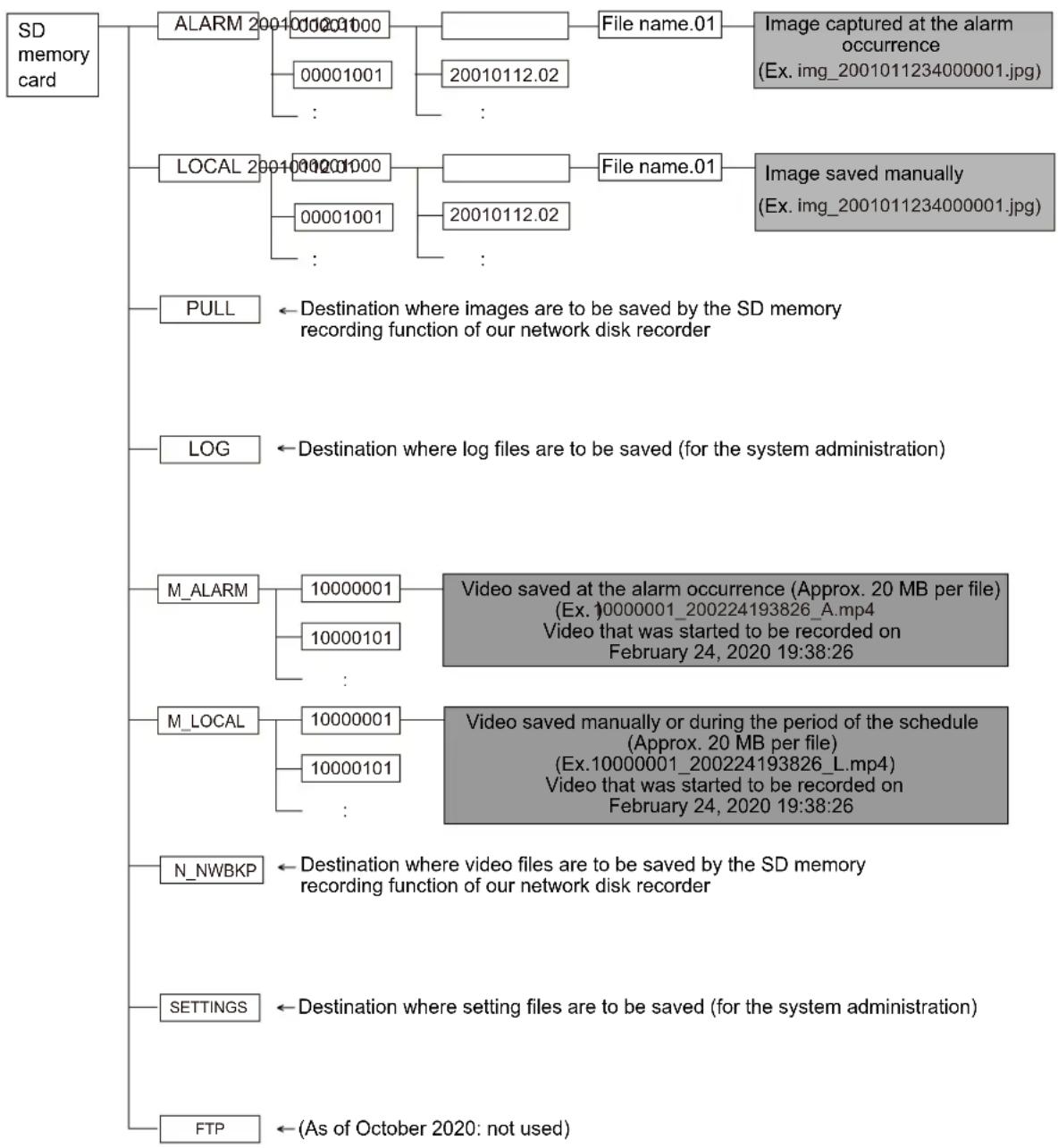
flowchart
graph TD
    A["SD memory card"] --> B["ALARM 2001001000"]
    B --> C["00001001"]
    C --> D["..."]
    D --> E["20010112.02"]
    E --> F["File name.01"]
    F --> G["Image captured at the alarm occurrence (Ex. img_2001011234000001.jpg)"]
    A --> H["LOCAL 2001001000"]
    H --> I["00001001"]
    I --> J["..."]
    J --> K["20010112.02"]
    K --> L["File name.01"]
    L --> M["Image saved manually (Ex. img_2001011234000001.jpg)"]
    A --> N["PULL"]
    N --> O["Destination where images are to be saved by the SD memory recording function of our network disk recorder"]
    A --> P["LOG"]
    P --> Q["Destination where log files are to be saved (for the system administration)"]
    A --> R["M_ALARM"]
    R --> S["10000001"]
    S --> T["Video saved at the alarm occurrence (Approx. 20 MB per file) (Ex. 10000001_200224193826_A.mp4)<br>Video that was started to be recorded on February 24, 2020 19:38:26"]
    R --> U["10000101"]
    U --> V["Video saved manually or during the period of the schedule (Approx. 20 MB per file) (Ex. 10000001_200224193826_L.mp4)<br>Video that was started to be recorded on February 24, 2020 19:38:26"]
    A --> W["M_LOCAL"]
    W --> X["10000001"]
    X --> Y["Video saved manually or during the period of the schedule (Approx. 20 MB per file) (Ex. 10000001_200224193826_L.mp4)<br>Video that was started to be recorded on February 24, 2020 19:38:26"]
    W --> Z["10000101"]
    Z --> AA["Destination where video files are to be saved by the SD memory recording function of our network disk recorder"]
    A --> AB["N_NWBKP"]
    AB --> AC["Destination where setting files are to be saved (for the system administration)"]
    A --> AD["SETTINGS"]
    AD --> AE["Destination where setting files are to be saved (for the system administration)"]
    A --> AF["FTP"]
    AF --> AG["(As of October 2020: not used)"]
i-PRO Co., Ltd.
https://www.i-pro.com/