RM-WOH - Speaker YAMAHA - Free user manual and instructions
Find the device manual for free RM-WOH YAMAHA in PDF.


User questions about RM-WOH YAMAHA
0 question about this device. Answer the ones you know or ask your own.
Ask a new question about this device
Download the instructions for your Speaker in PDF format for free! Find your manual RM-WOH - YAMAHA and take your electronic device back in hand. On this page are published all the documents necessary for the use of your device. RM-WOH by YAMAHA.
USER MANUAL RM-WOH YAMAHA
RM Series Wireless Microphone System
Reference Manual
Microphone Access Point
RM-WAP-16 RM-WAP-8
Wireless Microphone
RM-WOM RM-WDR RM-WGL RM-WGS
Microphone Charger
RM-WCH-8
CONTENTS
Information....1
INTRODUCTION....2
Available utility software 2
Available manuals....2
CONTROLS AND FUNCTIONS ....3
RM-WAP-16 RM-WAP-8 3
RM-WOM RM-WDR 5
RM-WGL RM-WGS 7
RM-WCH-8 8
INSTALLATION AND SETUP ....10
AVAILABLE UTILITY SOFTWARE....11
Starting up the Web GUI Device Manager 11
Using the SITE SURVEY function 14
Using the AUTO SETUP function....17
APPENDIX....25
Block diagram....25
EXPLANATIONS....26
About DECT....26
Understanding the [SITE SURVEY] window....28
Increasing the number of microphones that can be used....31
Updating the firmware....32
Initializing....32
MAIN SPECIFICATIONS....33
RM-WAP-16 RM-WAP-8 33
RM-WOM RM-WDR RM-WGL RM-WGS 34
RM-WCH-8 36
Information
- The illustrations and images shown in this manual are for instructional purposes only.
-
The company names and product names in this manual are trademarks or registered trademarks of their respective companies.
• We are continuously improving the software for our products. The latest version can be downloaded from the Yamaha website. -
This document is based on the latest specifications at the time of publication. The latest version can be downloaded from the Yamaha website.
- Reproduction of this manual in whole or in part without permission is prohibited.
- In this manual, the microphone access point is referred to as “access point”, the wireless microphone is referred to as “microphone”, and the microphone charger is referred to as “charger”.
INTRODUCTION
Thank you for purchasing these Yamaha RM series wireless microphone system products.
These products, which include a wireless microphone, access point, battery, charger, etc., are part of the ADECIA wireless solution. For correct and safe use of this unit, be sure to first read this manual carefully together with the Owner's Manual included with each product.
Available utility software
| This utility software can be used to set up this unit according to its use and environment. | |
| □ Web GUI “RM-WAP Device Manager” | This allows you to use a computer browser to configure and operate this unit. |
| □ RM Device Finder | This is application software for controlling ADECIA devices on the network. It detects the ADECIA devices on the network and displays the Device Manager for each device. |
| □ ProVisionaire Design | This is Windows application software for designing and managing an entire sound system made up of a combination of various devices. |
| □ ProVisionaire Control | This is Windows application software that allows you to remotely control parameters for various devices from a single control panel. |
| □ ProVisionaire Touch | This is iPad application software that allows you to remotely control parameters for various devices from a single control panel. |
Available manuals
| This describes the manuals related to this product. | |
| ☐ RM-WAP Owner's Manual (included) | This contains the precautions for using this unit safely as well as the installation procedure. |
| ☐ RM-WOM Owner's Manual (included) | |
| ☐ RM-WCH Owner's Manual (included) | |
| ☐ RM-WBT Owner's Manual (included) | |
| ☑ RM Series Wireless Microphone System Reference Manual (this manual/PDF) | This provides details on connecting and using this unit. |
| ☐ RM Series Wireless Microphone System Web GUI Device Manager Operation Guide | This provides details on the Web GUI Device Manager, which allows you use your computer to configure and operate this unit. |
| ☐ RM Series Remote Control Protocol Specifications | This provides details on command information for acquiring and controlling information about this unit from external devices. |
| ☐ ProVisionaire Design User Guide | This provides details on using ProVisionaire Design. |
| ☐ ProVisionaire Control Setup Guide | This provides details on using ProVisionaire Control. |
Software and manuals related to this product can be downloaded from the following website.
▼ Yamaha website (Downloads)
https://download.yamaha.com/
[Front panel]
![YAMAHA RM-WOH - [Front panel] - 1](/content/2026/06/1228910/images/0e91866f3e6380aa842a2e660ee9bde634ebf0b1560e93a7dc7bdd48484e00d2.jpg)
text_image
YAMAHA ① ②③① Power indicator
| Condition Power indicator Unit status | |
| LAN cable plugged into Dante/PoE port Lit green Operating | |
| – Flashes red quickly System error occurring |
② Status indicator
| Condition Status indicator Unit status | ||
| Pairing using Web GUI Flashes blue quickly Waiting for pairing/Pairing | ||
| Pairing using Web GUI | (After flashing blue quickly)Flashes blue twice | Paired successfully |
| Pairing using Web GUI | (After flashing blue quickly)Flashes red twice | Pairing failed |
| Identify icon in Web GUI clicked Flashes white Responding (to Identify function) | ||
| Updating firmware | Flashes white quickly | Firmware being updated |
| Updating firmware | (After flashing white quickly)Flashes white twice | Firmware updated successfully |
| Updating firmware | (After flashing white quickly)Flashes red twice | Firmware update failed |
| - | Flashes red | Transmission error occurring |
| - Flashes red quickly System error occurring | ||
③Reset button
| Condition Status indicator Unit status | ||
| Reset button long-pressed for 4 seconds to less than 8 seconds, then released | Flashes blue twice per second (during long-pressing/resetting) | Network-related settingsWaiting for resetting/Resetting(Automatically restarts after reset) |
| Reset button long-pressed for 8 seconds to less than 12 seconds, then released | Flashes blue three times per second (during long-pressing/resetting) | All settingsWaiting for resetting/Resetting(Automatically restarts after reset) |
NOTE: Use a fine-tipped object to press the Reset button.
[Bottom panel]
![YAMAHA RM-WOH - [Bottom panel] - 1](/content/2026/06/1228910/images/ad69443d078452c030ba531244be61e9014409b3b4667b110951cac15a2bbc7d.jpg)
text_image
Technical diagram of a device rear panel with labeled component and internal structure, showing connector pin and cable connections.①Network port indicators (Dante/PoE port)
| Network port indicator Unit status | |
| Left indicator lit green Link up | |
| Left indicator flashes green Transferring data | |
| Left indicator unlit Link down | |
| Right indicator lit green Operating on | word clock of peripheral device (leader) |
| Right indicator flashes green Acting as | word-clock leader |
| Right indicator flashes orange Word clock | unlocked |
NOTICE:
- When disconnecting the LAN cable from the Dante/PoE port, wait at least five seconds before reconnecting the cable. Otherwise, damage or malfunctions may result.
-
With a Dante network, do not use the EEE function* of the network switch. Although mutual power consumption settings are automatically adjusted between switches that support the EEE function, some switches do not perform that properly. As a result, the switch's EEE function may be enabled inappropriately in the Dante network, possibly degrading clock synchronization performance and interrupting audio. Therefore, please note the following.
-
When using managed switches, turn off the EEE function on all ports used for Dante. Do not use a switch that does not allow the EEE function to be turned off.
- When using unmanaged switches, do not use switches that support the EEE function. In such switches, the EEE function cannot be turned off.
* EEE (Energy-Efficient Ethernet) function: Technology that reduces the power consumption of Ethernet devices during periods of low network traffic; also known as Green Ethernet or IEEE802.3az.
[Top panel/side panel]
![YAMAHA RM-WOH - [Top panel/side panel] - 1](/content/2026/06/1228910/images/8e3a59c92c7ea68f081b0443e068846c8cd82cf87a785f5e78922f98ba181b43.jpg)
text_image
Technical diagram of a circular device with labeled components, showing internal structure and mounting points.RM-WOM
![YAMAHA RM-WOH - [Top panel/side panel] - 2](/content/2026/06/1228910/images/30e5c215ff1ea2daa94e801a3d2f3c2670feafce055cf2b6c034449638ecde11.jpg)
text_image
Technical diagram of a circular device with labeled components and internal structureRM-WDR
① Mic buttons/indicators
| Condition Mic indicator Unit status | ||
| Mic button touched Lit green Microphone on | ||
| Mic button touched | Lit red(Flashes every 2 seconds) | Microphone off |
| Identify icon in Web GUI clicked Flashes white Responding (to Identify function) | ||
| Updating firmware Flashes white quickly Firmware being updated | ||
| Updating firmware | (After flashing white quickly)Flashes white twice | Firmware updated successfully |
| Updating firmware | (After flashing white quickly)Flashes red twice | Firmware update failed |
| - Flashes red Transmission error occurring | ||
| - Flashes red quickly System error occurring | ||
| - | Flashes red slowly | Out of range for DECT connection |
② Battery button
- Pressing the Battery button while the unit is off will turn it on in either standby mode or startup mode.
- Standby mode: A power-saving state in which the unit is not connected to the access point.
- Startup mode: A state in which the unit continuously tries to establish or maintains a connection with the access point.
- Whether the unit enters standby mode or startup mode when it is turned on can be selected via [SETTINGS]→[MICROPHONE]→[Start Mode] in RM-WAP Device Manager.
- When the unit is in standby mode, long-pressing the Battery button (2 seconds) puts the unit in startup mode.
- When the unit is in startup mode, long-pressing the Battery button (2 seconds) puts the unit in standby mode.
③Battery indicator
| Condition Battery indicator | Unit status | |
| Charging the unit Lit green | Charging (available operating time of 15 hours or more) | |
| Charging the unit Lit orange | Charging (available operating time of 3 hours to less than 15 hours) | |
| Charging the unit Lit red | Charging (available operating time of less than 3 hours) | |
| Charging the unit Unlit Charging finished | ||
| Battery button pressed Lit green for two seconds Remaining operating time of 15 hours or more | ||
| Battery button pressed | Lit orange for two seconds | Remaining operating time of 3 hours to less than 15 hours |
| Battery button pressed | Lit red for two seconds | Remaining operating time of less than 3 hours |
| (Continuing to use the unit without charging) | Flashes red | Remaining operating time of less than 1 hour |
| Battery button long-pressed for 2 to 3 seconds | Flashes orange slowly | Enters standby mode |
IMPORTANT: • The microphone is pre-installed with an RM-WBT battery. In order to maintain battery capacity, charge the microphone (battery) once every six months.
- Do not remove the battery from the microphone while it is on.
NOTE: • Power consumption can be reduced by putting the microphone in standby mode.
- Putting the microphone in standby mode cuts the DECT connection with the access point. When the standby mode is exited (by long-pressing the Battery button again for 2 to 3 seconds), the connection is re-established.
[Bottom panel]
![YAMAHA RM-WOH - [Bottom panel] - 1](/content/2026/06/1228910/images/50e664c8a18961663a9d31cc0ba8f58a79b02031a81b93db67326153d6634dd0.jpg)
text_image
PAIR YAMAHA ①①PAIR button
| Condition | Mic indicator | Unit status |
| PAIR button long-pressed for at least 2 seconds | Flashes blue quickly | Waiting for pairing/Pairing |
| PAIR button long-pressed for at least 2 seconds | (After flashing blue quickly) Flashes blue twice | Paired successfully |
| PAIR button long-pressed for at least 2 seconds | (After flashing blue quickly) Flashes red twice | Pairing failed |
NOTE: In an RM series wireless solution that includes a charger, pairing is done by using the ACTIVATE button on the charger. Accidentally long-pressing the PAIR button after the microphone has already been paired will break the pairing. In that case, place the microphone on the charger and long-press the ACTIVATE button for at least 2 seconds to pair it again.
[Top panel/side panel]
![YAMAHA RM-WOH - [Bottom panel] - 2](/content/2026/06/1228910/images/ca2726818133f4e28bcb9de81c7cbe5fe96ec0610fc61a2bdeb47737b32de381.jpg)
text_image
Technical diagram of a desktop desk lamp with labeled parts including a bulb, stand, and base.RM-WGL RM-WGS
![YAMAHA RM-WOH - [Bottom panel] - 3](/content/2026/06/1228910/images/eb69ddc2769d3b19184255042a00b9a63959bfa99c398214aa31a0d1e65e49cf.jpg)
text_image
Technical diagram of a desktop computer with labeled parts including a speaker, lens, and base① Mic buttons/indicators
| Condition Mic indicator Unit status | ||
| In Toggle mode:Mic button touched continuously | Lit green Microphone | on |
| In Toggle mode: Mic button released | Lit red(Flashes every 2 seconds) | Microphone off |
| In Push to talk mode:Mic button touched continuously | Lit green Microphone | on while the button is touched |
| In Push to talk mode: Mic button released | Lit red(Flashes every 2 seconds) | Microphone off |
NOTE: Push to talk is a communication method that allows you to talk only while a button is pressed. Multiple devices cannot be used to talk at the same time. For details on switching between the Toggle and Push to talk modes, refer to the RM Series Wireless Microphone System Web GUI Device Manager Operation Guide.
All other Mic button/indicator functions are the same as described for RM-WOM and RM-WDR.
②Ring indicator
Flashes together with the Mic indicators.
③ Battery button
④Battery indicator
Functions in the same way as the Battery button/indicator of the RM-WOM and RM-WDR.
[Bottom panel]
⑤PAIR button
Functions in the same way as the PAIR button of the RM-WOM and RM-WDR.

text_image
PAIR YAMAHA ⑤RM-WCH-8
[Top panel]
![YAMAHA RM-WOH - [Top panel] - 1](/content/2026/06/1228910/images/df5a7b1de0487affef886a376f73b2de4a9a810b0c691347f62c468fef205ccf.jpg)
text_image
PAMANA ①①ACTIVATE button/indicator
| Condition ACTIVATE indicator Unit status | ||
| Power plug inserted into electrical outlet Lit green Operating | ||
| ACTIVATE button long-pressed for at least 2 seconds | Flashes blue quickly | Waiting for pairing/Pairing of access point and microphone(s)The pairing process will time out after 120 seconds. |
| ACTIVATE button long-pressed for at least 2 seconds | (After flashing blue quickly)Flashes blue twice | Access point and microphone(s) paired successfully |
| ACTIVATE button long-pressed for at least 2 seconds | (After flashing blue quickly)Flashes red twice | Pairing of access point and microphone(s) failed |
| Identify icon in Web GUI clicked Flashes white Responding (to Identify function) | ||
| Updating firmware Flashes white quickly Firmware being updated | ||
| Updating firmware | (After flashing white quickly)Flashes white twice | Firmware updated successfully |
| Updating firmware | (After flashing white quickly)Flashes red twice | Firmware update failed |
| – Flashes red Transmission error occurring | ||
| – Flashes red quickly System error occurring | ||
[Bottom panel]
![YAMAHA RM-WOH - [Bottom panel] - 1](/content/2026/06/1228910/images/18fb00fd92f4a01c4dc2b8003945df49bac062fa284b10ae8587afcc31873f08.jpg)
text_image
PAIR DC IN 16V ①①PAIR button
| Condition ACTIVATE indicator | Unit status | |
| PAIR button long-pressed for at least 2 seconds | Flashes blue quickly | Waiting for pairing/PairingThe pairing process will time out after 120 seconds. |
| PAIR button long-pressed for at least 2 seconds | (After flashing blue quickly)Flashes blue twice | Paired successfully |
| PAIR button long-pressed for at least 2 seconds | (After flashing blue quickly)Flashes red twice | Pairing failed |
INSTALLATION AND SETUP
Before installing the unit, the SITE SURVEY function of RM-WAP Device Manager must be used to measure the signal conditions in the area.
1. Prepare the environment for RM-WAP Device Manager to operate.
For details, refer to "Starting up the Web GUI Device Manager".
2. Use the SITE SURVEY function to determine the number of microphones that can be used in the electric field environment of the vicinity.
For details, refer to "Using the SITE SURVEY function".
3. Install the device.
For details on mounting the access point to the wall or ceiling, read the RM-WAP Owner's Manual.
IMPORTANT: Installation distances between devices
When installing multiple devices in the same area, activate DECT synchronization and maintain distances of at least 2 m between access points and between an access point and microphone, and of at least 20 cm between microphones.

flowchart
graph TD
    A["DECT Synchronization: Enable"] -->|m² m| B["Wireless Device"]
    B --> C["2 m² m"]
    C --> D["Sensor Units"]
    D --> E["20 cm"]
    E --> F["Sensor Units"]
    F --> G["20 cm"]
    G --> H["Sensor Units"]
    H --> I["20 cm"]
    I --> J["Sensor Units"]
    J --> K["20 cm"]
    K --> L["Sensor Units"]
    L --> M["20 cm"]
    M --> N["Sensor Units"]
4. Use the AUTO SETUP function to set up the devices.
For details, refer to "Using the AUTO SETUP function".
AVAILABLE UTILITY SOFTWARE
Use the Web GUI "RM-WAP Device Manager" to check/change the settings of the devices.
Prepare the following.
- Computer
• LAN cable
Starting up the Web GUI Device Manager
- Download the application "RM Device Finder" from the Yamaha website (http://download.yamaha.com/), and then start it.
NOTE: For details on RM Device Finder, refer to the User Guide included with RM Device Finder.
- Using a LAN cable, connect the computer to the network switch where the access point is connected.

flowchart
graph TD
    A["VXL1-16P"] --> B["Computer"]
    B --> C["SWR2311P-10G"]
    C --> D["RM-WAP"]
    D --> E["RM-WOM"]
    D --> F["RM-WDR"]
    D --> G["RM-WGS"]
    D --> H["RM-WGL"]
    D --> I["RM-WCH-8"]
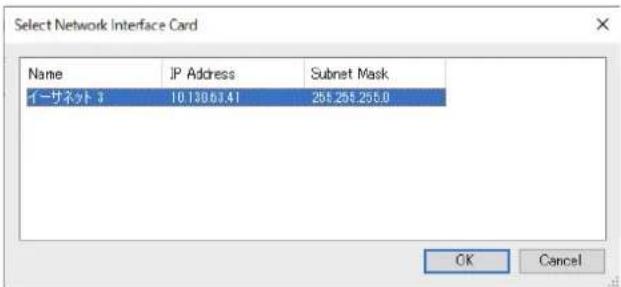
- Select a network in the [Select Network Interface Card] window, and then click [OK].
text_image
Select Network Interface Card Name IP Address Subnet Mask イーサネット 3 10.13063.41 255.255.255.0 OK Cancel- Double-click this unit in the [Detected Devices] window. Alternatively, select this unit, and then click the [Browse] button.
The password settings window of RM-WAP Device Manager appears.

text_image
RM Device Finder File(F) Help(H) Detected Devices Model Label Version IP Address MAC Address Subnet Mask Web UI RM-WAP-8 Y001-Yamaha- 17.12b 125 169.254.7.181 AC:44-F2-A2:8E:16 255.255.0.0 Network Firmware Update Identity Browse CloseAs an example, the RM-WAP-8 is shown in the following screen.
- Specify a password in the password settings window, and then click the [SET PASSWORD] button.

text_image
RM-WAP Device Manager Please set a password Device Management Account i Device Management User Account Password Repeat Password SET PASSWORD- Type the password into the login window, and then click the [LOGIN] button.

text_image
YAMAHA RM-WAP Device Manager Password Remember me LOGINThe [HOME] window appears.
This completes the startup.
NOTE: For details on using RM-WAP Device Manager, refer to the RM Series Wireless Microphone System Web GUI Device Manager Operation Guide.
The latest software and manuals can be downloaded from the following website.
▼ Yamaha website (Downloads)
https://download.yamaha.com/
Using the SITE SURVEY function
The SITE SURVEY function in RM-WAP Device Manager can be used to check the signal conditions in the installation environment and to estimate how many microphones can be installed. In addition, the SITE SURVEY results can be saved to a file, and the saved file can be imported.
IMPORTANT: If radio frequency interference occurs, there may be no sound from the microphones or the microphone connection may be unexpectedly cut. We recommend thoroughly examining the environment before installation.
Displaying the SITE SURVEY window
The SITE SURVEY function is available via [TOOLS]→[SITE SURVEY] in RM-WAP Device Manager.
Click the [RSSI SCAN MODE] button or [SYSTEM LIST MODE] button to switch the mode.

text_image
YAMAHA RM-WAP Device Manager LOGOUT AUTO SETUP TOOLS SITE SURVEY UPDATE CONFIGURATION LOGS Discount wireless traffic in the DECT frequencies and estimate the available DECT channels RSSI SCAN MODE SYSTEM LIST MODE START Please note: Audio connections to Microphones are disconnected during the Site Survey. Record duration (hours) 168 RSSI SCAN MODE measures the wireless utilization status of the DECT frequencies and estimate how many additional microphones might be added in the vicinity. For a most reliable estimate, please ensure that all wireless microphones and other DECT devices in the vicinity are switched on and active. It is recommended to run the scan over several hours and during typical use times of the microphones to achieve the most accurate result. Frequency and time slots used for DECT communication between RM-WAP and wireless microphones change during operations. To prevent unexpected audio loss or microphone disconnections, ensure that enough free channels are available when determining how many additional microphones can be added. Export History 8 Sept 2023, 13:43 IMPORT HISTORY Survey csv file IMPORT HISTORY RM-WAP Device Manager © Yamaha 2021. All rights reserved. Show AwardsStarting a SITE SURVEY
Click the [START] button in the [RSSI SCAN MODE] window or [SYSTEM LIST MODE] window.
The access point begins measuring the signal strength and channel usage status in the installation environment.
[RSSI SCAN MODE] window
Click the [RSSI SCAN MODE] button. Click the [START] button to start measuring.
The measurement results of the signal conditions and the estimated number of microphones that can be used in the installation environment are displayed.
For highly accurate measurements, make sure that all nearby wireless microphones and other DECT devices are operational. In addition, it is recommended to measure for several hours under typical usage conditions in order to obtain accurate results.
![YAMAHA RM-WOH - [RSSI SCAN MODE] window - 1](/content/2026/06/1228910/images/aeb1107cd2123964c86e84a4dbb2ee9281360ab3be846f78f62a13a2aedd81e1.jpg)
text_image
YAMAHA RM-WAP Device Manager AUTO SETUP TOOLS SITE SURVEY UPDATE CONFIGURATION LOGS Discover wireless traffic in the DECT frequencies and estimate the available DECT channels RSSEI SCAN MODE STOP Please note: Audio connections to Microphones are disconnected during the Site Survey. 0.0% Sound duration (hours) 15A (7) RSSEI SCAN MODE measures the wireless utilization status of the DECT frequencies and estimate how many additional microphones might be added in the vicinity. For a most reliable estimate, please ensure that all wireless microphones and other DECT devices in the vicinity are switched on and active. It is recommended to run the scan over several hours and during typical use times of the microphones to achieve the most accurate result. Frequency and time slots used for DECT communication between RM-WAP and wireless microphones change during operations. To prevent unexpected audio loss or microphone disconnections, ensure that enough free channels are available when determining how many additional microphones can be added. Current Microphone Capacity Estimate Estimation of capacity based on current measurements. Estimated number of microphones that can be installed in the vicinity High Density Audio Mode 2 High Quality Audio Mode 1 Best Microphone Capacity Estimate The capacity estimation is based on all signal levels measured during the time of the site surveys. Estimated number of microphones that can be installed in the vicinity High Density Audio Mode 0 High Quality Audio Mode 0 The capacity estimation is based on current signal levels. Moving or removing, powering on or off additional wireless DECT systems or microphones will influence the capacity estimates. Microphone Channel usage This figure shows the number of available and acquired microphone channels since start of the survey. DECT Heatmap This heatmap shows the received signal strength for each DECT channel. Any channel with a signal strength above -42 dBm is deemed to be currently used by another device for DECT communication. If DECT synchronization is not available or not activated, any non-synchronized DECT device will not only be adjacent channels. For maximized DECT usage phase enable synchronization on all devices in the vicinity where possible. Export History 0.0% Import History Survey car file EXPORT HISTORY[SYSTEM LIST MODE] window
Click the [SYSTEM LIST MODE] button. Click the [START] button to start measuring. This displays the DECT base units in the installation environment and their signal strengths.
![YAMAHA RM-WOH - [SYSTEM LIST MODE] window - 1](/content/2026/06/1228910/images/b906d20e400c9fe32193020f2779b8a750e27eb554cc2551997027cd016778bd.jpg)
text_image
YAMAHA RM-WAP Device Manager LOGOUT AUTO SETUP TOOLS SITE SURVEY UPDATE CONFIGURATION LOGS Discover wireless traffic in the DECT frequencies and estimate the available DECT channels RSSE SCAN MODE SYSTEM LIST MODE STOP Please note: Audio connections to Microphones are disconnected during the Site Survey. 0.0% Record duration (days) 168 SYSTEM LIST MODE allows to search and find other RM-WAPs and neighboring DECT base stations. Devices will be listed with their RFPI (Radio Fixed Part Identity) and the RSSI (Radio Signal Strength Indicator). Devices with a signal strength of -62 dBm or higher might interfere with the DECT communication of the RM-WAP that is running the scan. Interference might lead to unexpected audio loss or microphone disconnections. It is recommended to enable DECT synchronization to synchronize the DECT clock between different WAPs and adjust RF power levels to prevent signal interferences. Please note that RM wireless microphone and other DECT mobile devices, known as Portable Parts, cannot be found in this mode. RFPI RSSI First discovered Last update 0357040FC8 -52 13 Sept 2023 - 16:22:52 13 Sept 2023 - 16:22:52 03570ABSA0 -52 13 Sept 2023 - 16:22:54 13 Sept 2023 - 16:23:32 035703F788 -48 13 Sept 2023 - 16:22:56 13 Sept 2023 - 16:22:56 035703F748 -55 13 Sept 2023 - 16:22:58 13 Sept 2023 - 16:23:34 035703F660 -50 13 Sept 2023 - 16:23:00 13 Sept 2023 - 16:23:15 035700D800 -48 13 Sept 2023 - 16:23:02 13 Sept 2023 - 16:23:38 03571FB980 -14 13 Sept 2023 - 16:23:04 13 Sept 2023 - 16:23:40 035703F740 -52 13 Sept 2023 - 16:23:08 13 Sept 2023 - 16:23:36 035700D80B -52 13 Sept 2023 - 16:23:19 13 Sept 2023 - 16:23:19 03570AB50B -53 13 Sept 2023 - 16:23:21 13 Sept 2023 - 16:23:21 035703F88B -55 13 Sept 2023 - 16:23:26 13 Sept 2023 - 16:23:26 035703F880 -53 13 Sept 2023 - 16:23:28 13 Sept 2023 - 16:23:28 0357040FCJ -49 13 Sept 2023 - 16:23:30 13 Sept 2023 - 16:23:30 035703F630 -57 13 Sept 2023 - 16:23:34 13 Sept 2023 - 16:23:34 Export History 0.0% EXPORT HISTORY Import History Survey csv file IMPORT HISTORYWith the AUTO SETUP function, devices can be easily set up using the wizard.
Even in an environment where the AUTO SETUP function cannot be used, RM-WAP Device Manager can be used to manually specify settings.
NOTE: RM-WCH is required in order to use the AUTO SETUP function.
1. Click the [AUTO SETUP] button.
![YAMAHA RM-WOH - Click the [AUTO SETUP] button. - 1](/content/2026/06/1228910/images/94eeb6a45a09221352ff0c4c0f6c97edf06a3f1a830d9fa6a202c5229b8389be.jpg)
text_image
YAMAHA RM-WAP Device Manager LOGOUT AUTO SETUP HOME View status of system and paired devices System Status Hostname: Y001-Yamaha-RM-WAP-8-a28e16 RFPI: 0357000800 MAC Address: ac:44:12:a2.8e:16 Network IP Address: 169.254.7.181 Model: RM-WAP-8 Main / Dante / Dect Version: 1.7.12b.125 / 4.2.6.4 / 107 Serial Number: Z6K000103 Region: Japan Clock Synchronization Status Dante: Follower DECT: Leader Microphone Charger Status Charger Name IPEI FW Status 1 01-RM-WCH-8-0357026748 0357026748 ✓ LED Indication Status Power: OK Status: OKThe wizard starts up.
2. Follow the wizard's instructions to continue the setup.
[① Site Survey]
Check the contents of the window, and then click the [CONTINUE] button.
The window shows the number of microphones that can be used in the installation environment. It also shows the signal strength in the installation environment and the channel usage status.
![YAMAHA RM-WOH - [① Site Survey] - 1](/content/2026/06/1228910/images/026d501342eed995bc229e64cc8490caf1eafe3f664211a7601015a2540defdc.jpg)
bar
| Category | Count | | :--- | :--- | | High Density Audio Mode | 5 | | High Quality Audio Mode | 2 | | Metric | Value | | :--- | :--- | | Estimated number of microphones that can be installed in the vicinity | | | Estimated number of microphones that can be installed in the vicinity | | | High Density Audio Mode | 0 | | High Quality Audio Mode | 0 | | Metric | Value | | :--- | :--- | | Occupied | 140 | | Available | 16:45, 16:50, 16:55, 17:00, 17:05 | | :--- | :--- |![YAMAHA RM-WOH - [① Site Survey] - 2](/content/2026/06/1228910/images/b2f4a278fb0eb8d896a6d7429714aa45a50842409fd3271a3a77c443065b5f0a.jpg)
NOTE:
- You can also click the title of the next window (in this case, [2 General Settings]) to display the next window.
- Once the window has been displayed, the circled number in the window title is replaced with clicking a window title where the circled number has been replaced with displays that window again.
Auto Setup Wizard

Site Survey

General Settings

Chargers Pairing
[② General Settings]
Check the access point settings, and then click the [CONTINUE] button.
![YAMAHA RM-WOH - [② General Settings] - 1](/content/2026/06/1228910/images/cc13094eb7e78e566a5a413833196c757a71d1f5c9339d0a749ad939bec316f9.jpg)
text_image
Auto Setup Wizard Site Survey General Settings Charges Pairing Password Update Microphones Pairing Audio Routing Summary ① AP Name Mode: NAME USING UNIT ID MANUAL Unit ID: 1 AP Name Yamaha-RM-WAP-8 ② Locale System Language English (US) Time Zone -05:00 Eastern Time (UTC-05:00) ③ Time Settings Current Date & Time Date: 01/13/2022 Time: 11:10:24 AM Data Format MM/dd/yyyy Enable 24 hour time format NTP Support Network Time Server 1 Network Time Server 2 Network Time Server 3 Network Time Server 4 i i i i i i BACK CONTINUENOTE: The access point settings can be changed if necessary.
①[AP Name]
Allows you to select whether to specify the name of the access point automatically or manually.
②[Locale]
Allows you to specify the time zone.
③[Time Settings]
- Allows you to specify the date and time.
- Allows you to select whether to use NTP.
[③ Chargers Pairing]
① Insert the charger power plug into an electrical outlet.
The charger starts up.
② Long-press the PAIR button (on the bottom panel of the charger) for at least two seconds.
The access point and charger are paired. When pairing is finished, the charger name appears in the window.
NOTE: Pairing means that the products register each other with the information required for a DECT connection. The access point and charger are paired, and a DECT connection is established at the same time.
![YAMAHA RM-WOH - [③ Chargers Pairing] - 1](/content/2026/06/1228910/images/ce4bb7ddcf04cbf35b456b284424f1c5acb956ebc17f42ae58587cc6fb5ae2f0.jpg)
text_image
PAIR button PAIR DC IN 16V![YAMAHA RM-WOH - [③ Chargers Pairing] - 2](/content/2026/06/1228910/images/ad099662cc2760c5b5567e85a7e4807a931de416b9d5bbcc9ad5c5fb976b3c98.jpg)
text_image
Auto Setup Wizard Site Survey General Settings Chargers Pairing Firmware Update Microphones Pairing Audio Routing Summary Waiting for pairing: Please press pairing button on a charger 01-RM-WCH-8-0357026748 BACK CONTINUE③Click the [CONTINUE] button.
[4 Firmware Update]
① If 📊 appears to the left of the charger name, click the [UPDATE ALL] button.
The charger firmware is updated. When the update is finished, changes to .
NOTE: If √ appeared from the beginning, step ① does not need to be performed.
![YAMAHA RM-WOH - [4 Firmware Update] - 1](/content/2026/06/1228910/images/cb138e4011e6c017436c4f0c28cccc438c2e35e542c542bd8caf7905a42df6f1.jpg)
text_image
Auto Setup Wizard Site Survey General Settings Chargers Pairing Firmware Update Microphones Pairing Firmware Update The system is currently in Firmware update mode. Audio is not available. Turn off Firmware update mode to have audio. Chargers Required version: 27 Y001-Yamaha-RM-WCH-8-000130 UPDATES ALL Microphones![YAMAHA RM-WOH - [4 Firmware Update] - 2](/content/2026/06/1228910/images/0546d651cb604c1db92c1b2da7b930915e3f886f8c7e5a285dcf156388a8796c.jpg)
text_image
Auto Setup Wizard Site Survey General Settings Chargers Pairing Firmware Update Microphones Pairing Firmware Update The system is currently in Firmware update mode. Audio is not available. Turn off Firmware update mode to have audio. Chargers Required version: 27 Y001-Yamaha-RM-WCH-8-000130 UPDATE ALL Microphones②Place the microphone(s) on the charger.
The microphone firmware is updated. During the update, the Mic indicators (on the top panel of the microphone) flashes white quickly. When the update is finished, the indicators go off.
IMPORTANT: Do not remove the microphone(s) from the charger until setup is finished.
NOTE: The microphones are updated one at a time.
③Click the [CONTINUE] button.
[5] Microphones Pairing]
The name(s) of the microphone(s) appear faintly in the window.
![YAMAHA RM-WOH - [5] Microphones Pairing] - 1](/content/2026/06/1228910/images/7f95145d8c957761c46459de3b3d29896f504536ed8aab0a0bfe1fbd516abd2d.jpg)
text_image
Auto Setup Wizard Site Survey General Settings Chargers Pairing Firmware Update Microphones Pairing Audio Routing Summary 01-RM-WCH-8-0357026748 Please insert microphones to pair in the charger. Use long press on ACTIVATE button to start pairing of microphones. Name FWU Status 1 RM-WDR-035700D688 ✓ 2 RM WOM-035700D289 ✓ 3 RM-WGS-035703B250 ✓ 4 RM WOL-035700BAC8 ✓ BACK CONTINUE① Long-press the ACTIVATE button (on the top panel of the charger) for at least two seconds.
The access point and microphone(s) are paired. When pairing is finished, the name(s) of the microphone(s) change from appearing faintly to appearing in black.
NOTE: All microphones placed on the charger can be paired with a single long press.
![YAMAHA RM-WOH - [5] Microphones Pairing] - 2](/content/2026/06/1228910/images/12305952d3207ac36b0f329031796d191c95d850003ede6a0968a738260de1be.jpg)
text_image
Auto Setup Wizard Site Survey General Settings Chargers Pairing Firmware Update Microphones Pairing Audio Routing Summary 01-RM-WCH-8-0357026748 Pairing complete. Name FWU Status 1 01-RM-WDR-035700D65B ✓ 2 02-RM-WOM-035700D2E0 ✓ 3 03-RM-WGS-035703B250 ✓ 4 04-RM-WGL-035700B4C8 ✓ BACK CONTINUE②Click the [CONTINUE] button.
[6 Audio Routing]
Check the Dante channel to which each microphone is assigned, and then click the [CONTINUE] button.
NOTE: You can change the channel assignment by dragging the microphone name to the row of the desired Dante channel.
![YAMAHA RM-WOH - [6 Audio Routing] - 1](/content/2026/06/1228910/images/2ba0f1ac82dff96e7c199c4b025b1048f485a9f7486d77eb8504db824c704b22.jpg)
text_image
Auto Setup Wizard Site Survey General Settings Chargers Pairing Firmware Update Microphones Pairing Audio Routing Summary Dante Channels Setup Channel Name Type (1) 01-RM-WDR-035700D6B8 DR (2) 02-RM-WOM-035700D2E0 DM (3) 03-RM-WGS-035703B250 GS (4) 04-RM-WGL-035700BAC8 GL (5) (6) (7) (8) BACK CONTINUE[7 Summary]
Check the microphone settings, and then click the [FINISH] button.
![YAMAHA RM-WOH - [7 Summary] - 1](/content/2026/06/1228910/images/f1d82328a614d219c0e8310af8c33d4a08667ae8960e99890f5f2dbee672e7ac.jpg)
text_image
Auto Setup Wizard Site Survey General Settings Chargers Pairing Firmware Update Microphones Pairing Audio Routing Summary Microphone Status Mic Mute Group Name Type IPD Dette Channel FW Update Status 1 - 01-RM-WDR-035700D6B8 DR 035700D6B8 1 ✓ 2 - 02-RM-WOM-035700D2E0 OM 035700D2E0 2 ✓ 3 - 03-RM-WGS-035709B250 GS 035709B250 3 ✓ 4 - 04-RM-WGL-035700BAC8 GL 035700BAC8 4 ✓ BACK FINISHThis completes the setup. When a microphone is removed from the charger, a DECT connection between the access point and microphone will be established.
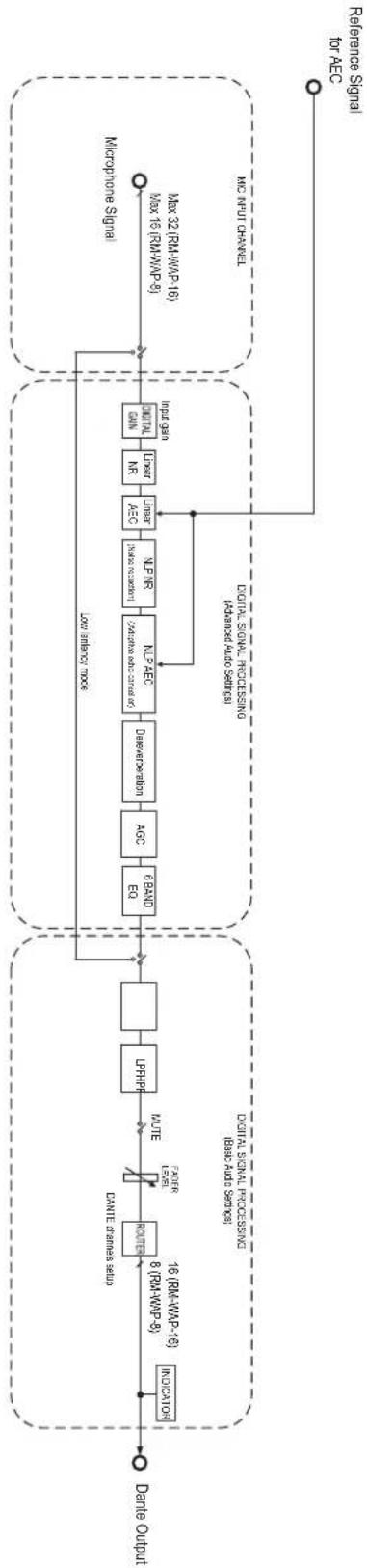
Block diagram
flowchart
graph LR
    A["Data Output"] --> B["INCATCHOR"]
    B --> C["6 (RAM-WAP-16) / 8 (RPM-WAP-3)"]
    C --> D["CANIE transes setup"]
    D --> E["CANIE signal processing / base and spectroscopy"]
    E --> F["LINE"]
    F --> G["LFHFP"]
    G --> H["Square"]
    H --> I["Lox spectroscopy"]
    I --> J["6 BAND ED"]
    J --> K["AEC"]
    K --> L["Decaractation"]
    L --> M["NLS AEC"]
    M --> N["Microarray noise reduction"]
    N --> O["Water NR"]
    O --> P["Water AEC"]
    P --> Q["Laser NR"]
    Q --> R["Laser"]
    R --> S["DIITAL DATA ANN"]
    S --> T["Input gain"]
    T --> U["Max 24 (RAM-WAP-16)"]
    U --> V["Microphone Signal"]
    V --> W["INC INPUT CHANNEL"]
    W --> X["Reference Signal for AEC"]
EXPLANATIONS
About DECT
DECT (Digital Enhanced Cordless Telecommunications) is a digital cordless telephone standard established by the European Telecommunications Standards Institute (ETSI) in 1988. RM-W is not a cordless telephone device, but uses DECT as a method for wireless audio communication. DECT comprises conventional as well as next-generation DECT. RM-W uses next-generation DECT.
Stable communication
DECT uses the 1.9 GHz band for wireless communication.
Since the 2.4 GHz wireless communication band is used by wireless LAN access points, the many products using this band raise its susceptibility to radio frequency interference.
By using the 1.9 GHz band, DECT is less likely to incur radio frequency interference, ensuring more stable communication.
DECT-related settings (RM-WAP Device Manager)
• [HOME] → [Clock Synchronization Status] → [DECT]
• [HOME] → [Microphone Status] → [IPEI]
• [HOME] → [Microphone Status] → [Link Quality]
- [SETTINGS] [AUDIO] [DECT Audio Mode]
- [SETTINGS] [DECT] [RF Power Levels]
- [SETTINGS] [DECT] [DECT Synchronization]
• [ TOOLS] → [SITE SURVEY]
DECT-related terms
RFPI
RFPI (Radio Fixed Part Identity) is the identification number of the access point for DECT communication.
Yamaha IDs are "035****".
■ RSSI
RSSI (Received Signal Strength Indicator) is an indication of the strength of the received signal.
RSSI indicates how strongly a particular WAP is receiving signals from other WAPs. The longer the distance, the smaller the RSSI.
By checking the RSSI, the degree of interference between WAPs can be quantified.
In the [SYSTEM LIST MODE] window of the SITE SURVEY function in RM-WAP Device Manager, the measurement unit for RSSI is dBm.
Cell
Cell is the signal range of a WAP.
■ Same Space
This is the space where multiple cells overlap. Signals from multiple systems affect each other.
■ RF Power Level
RF Power level (Radio Frequency Power level) is the strength of the signals output by a WAP.
By changing this strength, the cell size can be changed.
When installing multiple WAPs, set them up so that their signals do not affect each other.
Reduced signal strength is one cause of sound quality problems. Do not change the signal strength from "Full" unless there is a specific reason.
Carrier
DECT uses the 1.9 GHz band.
The 1.9 GHz band can be divided into smaller frequency bands, and each band partition can be used for separate communications. This method is called FDMA (Frequency-Division Multiple Access), and the carrier waves in these band partitions are called carriers. The number and locations of available carriers in the 1.9 GHz band differ depending on the region (product distribution area). There are 10 carriers in the EU, 5 carriers in the US, and 6 carriers in Japan.
■ Frame and slot
The carrier wave is divided into regular periods called frames. Additionally, a frame is divided into multiple slots.
Frames are transmitted continuously as containers for transmitting audio signals.
By assigning each channel of the audio signal to a different slot, the signals of multiple audio channels can be transmitted simultaneously.
Bearer
Bearers are spaces into which the 1.9 GHz band has been divided along the time and frequency axes.
One bearer can transmit one channel of microphone audio signals.

Different regions have different numbers of carriers and, therefore, different numbers of bearers.
| Region Bearers | ||
| US 5 Carriers × 24 Slots 120 | ||
| EU 10 Carriers × 24 Slots 240 | ||
| JPN 6 Carriers × 24 Slots 144 |
■ FP (Fixed Part) and PP (Portable Part)
DECT communication involves a relationship between the host unit and client unit.
The host unit is called FP (Fixed Part), and the client unit is called PP (Portable Part).
For this wireless microphone system, the WAP is the FP, and the wireless microphone is the PP.
| Unit type Part type | Wireless microphone system | |
| Host Unit FP (Fixed Part) | Wireless Access Point (WAP) | |
| Client Unit PP (Portable Part) | Wireless Microphone |
Understanding the [SITE SURVEY] window
The SITE SURVEY function measures signals in the installation environment and displays the signal usage status, signal strength, and estimated number of microphones that can be used. The measurement results can be saved to a file, and the saved file can be imported and displayed. The following explains how to read the measurement results displayed in the [SITE SURVEY] window.
RSSI SCAN MODE
In this mode, the signal usage status of DECT frequencies and the estimated number of microphones that can be used in the installation environment can be checked.

text_image
YAMAHA RM-WAP Device Manager LOGDUT AUTO SETUP TOOLS SITE SURVEY UPDATE CONFIGURATION LOGS Discover wireless traffic in the DECT frequencies and estimate the available DECT channels RSSI SCAN MODE SYSTEM LIST MODE STOP Please note: Audio connections to Microphones are disconnected during the Site Survey. 0.0% Record duration (hours)Microphone Capacity Estimate
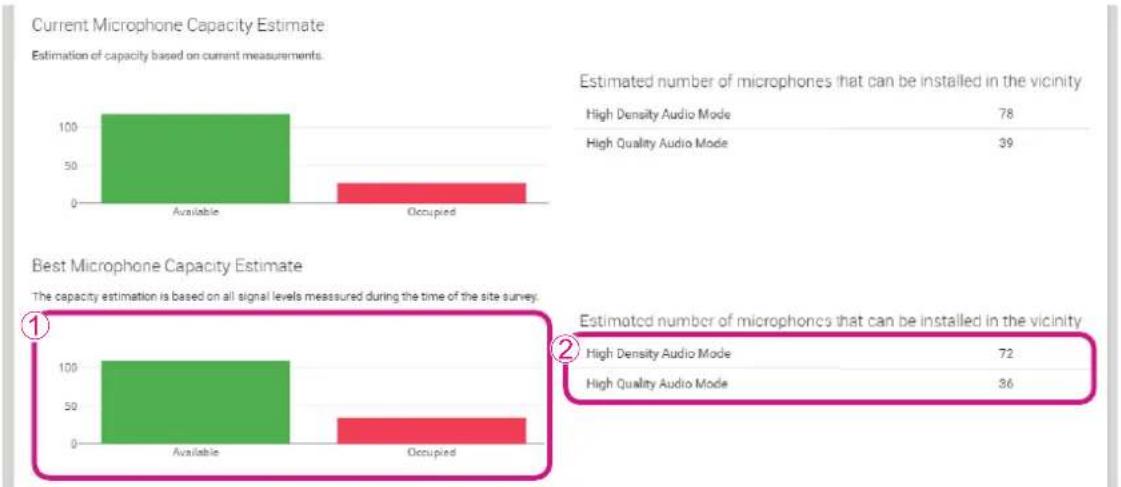
This is the estimated number of microphones that can be used.
bar
Current Microphone Capacity Estimate | Category | Available | Occupied | | :--- | :--- | :--- | | Estimated number of microphones that can be installed in the vicinity | 78 | 39 | | Best Microphone Capacity Estimate | Available | Occupied | | :--- | :--- | :--- | | Estimated number of microphones that can be installed in the vicinity | 72 | 36 |①Number of bearers (channels)
| Available | This indicates the number of free bearers (channels). |
| Occupied | This indicates the number of bearers (channels) in use. |
NOTE: Some bearers (channels) are used for control communication or as reserved areas and are not used for audio communication.
As a result, the number of microphones that can be used is less than the number of free bearers (channels).
② Estimated number of microphones that can be installed in the vicinity
This is the estimated number of microphones that can be used in each mode.
| High Density Audio Mode This mode prioritizes the number of microphones. |
| High Quality Audio Mode This mode prioritizes microphone sound quality. |
Microphone Channel usage
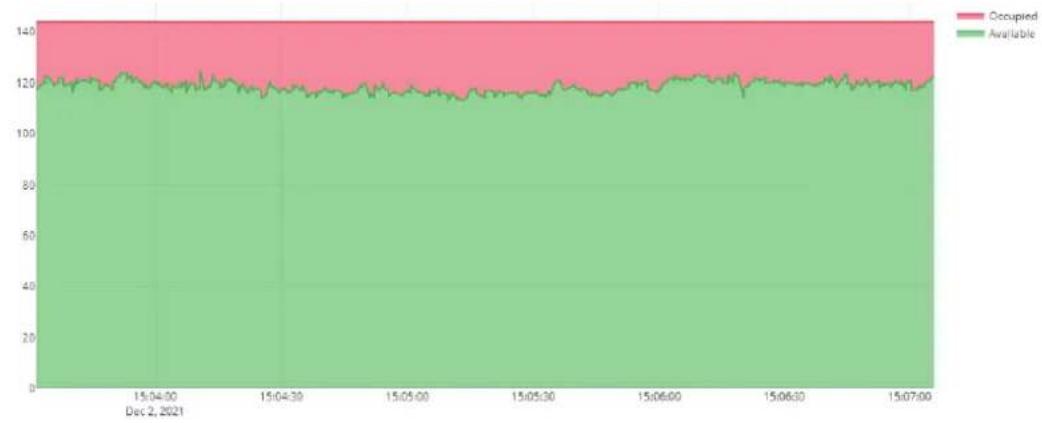
This graph shows the usage status of bearers (channels) since the start of measurement.
Microphone Channel usage
This figure shows the number of available and occupied microphone channels since start of the survey.
area
| Date | Occupied | Available | | ---------- | -------- | ---------- | | Dec 2, 2021| 120 | 80 || Vertical axis This indicates the number of bearers (channels). | |
| Horizontal axis This indicates the time since the start of measurement. | |
| Available | This indicates the number of free bearers (channels). |
| Occupied | This indicates the number of bearers (channels) in use. |
DECT Heatmap
This heatmap shows the strength of the received signal of each bearer (channel). A color toward red indicates the bearer (channel) is in use; a color toward green indicates that it is not in use.
Hovering the mouse pointer over a bearer displays the RSSI value for the bearer with the corresponding carrier number and slot number.
DECT Heatmap
This heatmap shows the received signal strength for each DECT channel. Any channel with a signal strength above -62 dBm is deemed to be currently used by another device for DECT communication. If DECT synchronization is not available or not activated, any non-synchronized DECT device will occupy two adjacent channels. For maximized DECT usage please enable synchronization on all devices in the vicinity where possible.

| Vertical axis This indicates the carrier number. |
| Horizontal axis This indicates the slot number. |
 | A bearer (channel) with a signal strength exceeding -62 dBm can be concluded to be in use for other DECT communications. |
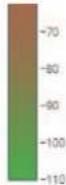 | A bearer (channel) with a signal strength below -62 dBm can be concluded not to be in use for DECT communications. |
SYSTEM LIST MODE
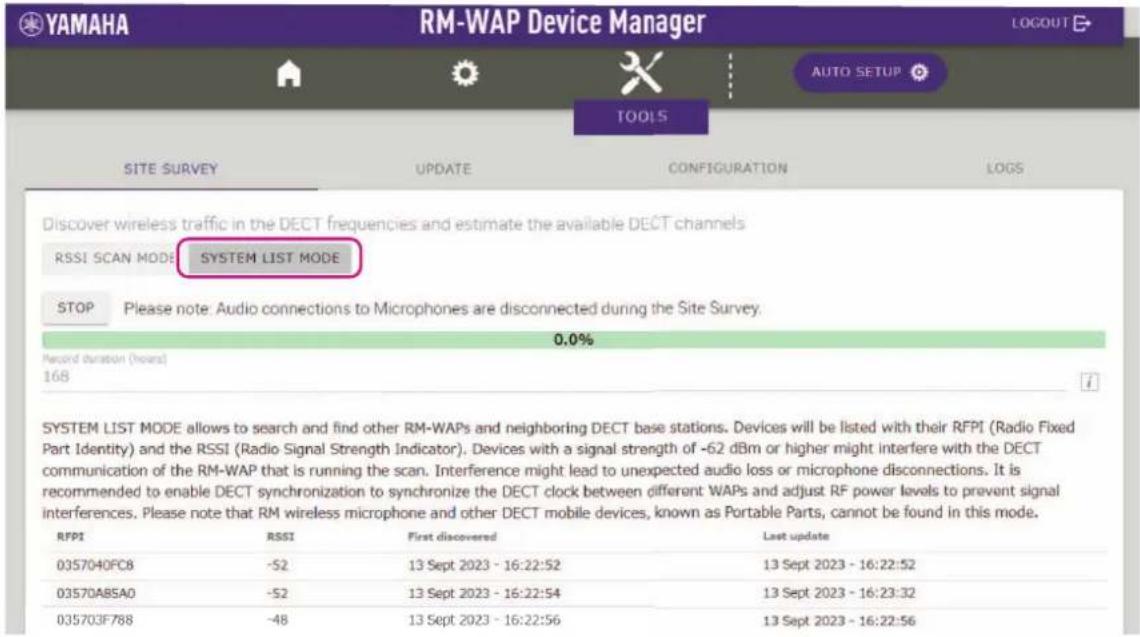
In this mode, the DECT base units in the installation environment and their signal strengths can be checked.
text_image
YAMAHA RM-WAP Device Manager LOGOUT AUTO SETUP TOOLS SITE SURVEY UPDATE CONFIGURATION LOGS Discover wireless traffic in the DECT frequencies and estimate the available DECT channels RSSI SCAN MODE SYSTEM LIST MODE STOP Please note: Audio connections to Microphones are disconnected during the Site Survey. 0.0% Record duration (hours) 168 SYSTEM LIST MODE allows to search and find other RM-WAPs and neighboring DECT base stations. Devices will be listed with their RFPI (Radio Fixed Part Identity) and the RSSI (Radio Signal Strength Indicator). Devices with a signal strength of -62 dBm or higher might interfere with the DECT communication of the RM-WAP that is running the scan. Interference might lead to unexpected audio loss or microphone disconnections. It is recommended to enable DECT synchronization to synchronize the DECT clock between different WAPs and adjust RF power levels to prevent signal interferences. Please note that RM wireless microphone and other DECT mobile devices, known as Portable Parts, cannot be found in this mode. RFPI RSSI First discovered Last update 0357040FC8 -52 13 Sept 2023 - 16:22:52 13 Sept 2023 - 16:22:52 03570ABSA0 -52 13 Sept 2023 - 16:22:54 13 Sept 2023 - 16:23:32 035703F788 -48 13 Sept 2023 - 16:22:56 13 Sept 2023 - 16:22:56| RFPI(Radio Fixed Part Identity) | This is the identification number of the access point for DECT communication.Yamaha IDs are “035*******”. |
| RSSI(Received Signal Strength Indicator) | This is the strength of the received signal.Devices with a signal strength greater than -62 dBm may interfere with this unit's DECT communications. |
NOTE: In this mode, RM wireless microphones and other DECT mobile devices will not be detected.
With [RSSI SCAN MODE] in the SITE SURVEY function, you can check the estimated number of microphones that can be used. If the number of microphones that can be used is inadequate, the issue may be resolved by considering the following.
DECT audio mode
Changing the microphone audio quality changes the number of microphones that can be used.
"High Density" mode allows approximately twice as many microphones to be used as "High Quality" mode.
Setting: [SETTINGS]→[AUDIO]→[DECT Audio Mode]
DECT synchronization (when using multiple RM-WAPs)
Although this system is designed to prevent interference even when multiple RM-WAPs are used, the bearer (channel) range cannot be used effectively, and the number of bearers (channels) that can be used may be halved. This means fewer microphones can be used. In order to resolve this, synchronize the slot timing. Select [DECT Synchronization] on all RM-WAPs that are to be synchronized.
Setting: [SETTINGS]→[DECT]→[DECT Synchronization]
RM-WAP signal strength
It is important to suppress signal interference with other DECT devices.
Set the signal strength according to the usage range of the microphone.
Setting: [SETTINGS]→[DECT]→[RF Power Levels]
RM-WAP installation location
It is important to suppress signal interference with other DECT devices.
If RM-WAP is receiving strong signals from other DECT devices, move it away from those devices. Take into account devices not only in the same room, but also in neighboring rooms as well as on floors above and below.
The strength of signals received from other DECT devices can be checked via [TOOLS]→[SITE SURVEY]→[SYSTEM LIST MODE] in RM-WAP Device Manager.
There are multiple ways to update the firmware.
Using RM Device Finder
RM Device Finder is application software for detecting and controlling ADECIA devices on the network. It can also be used to update the firmware of each device.
For operating procedures, refer to the RM Device Finder User Guide included with RM Device Finder.
Using the Web GUI "RM-WAP Device Manager"
Firmware can be updated via [TOOLS]→[UPDATE]→[Upload New Firmware]/[Firmware Update] in the Web GUI “RM-WAP Device Manager”.
For operating procedures, refer to the RM Series Wireless Microphone System Web GUI Device Manager Operation Guide.
Using the Web GUI "RM-CR Device Manager"
By using the Web GUI “RM-CR Device Manager”, it is possible to update the firmware of RM-WAP at the same time as the firmware of RM-CR.
Firmware can be updated via [TOOLS]→[Update]→[FIRMWARE UPDATE] in the Web GUI “RM-CR Device Manager”. However, only the firmware of RM-WAP can be updated, not the firmware of the charger and microphones.
For operating procedures, refer to the RM-CR RM-CG RM-TT Web GUI Device Manager Operation Guide.
The latest utility software, firmware files and manuals can be downloaded from the following website.
▼ Yamaha website (Downloads)
https://download.yamaha.com/
Initializing
There are two ways to initialize an RM-WAP: using the reset button on the unit and using the Web GUI "RM-WAP Device Manager".
For details on using the reset button on the unit, refer to "CONTROLS AND FUNCTIONS" in this manual.
Alternatively, it can be initialized via [TOOLS]→[Configuration]→[RESET DEFAULTS] in the Web GUI "RM-WAP Device Manager". For operating procedures, refer to the RM Series Wireless Microphone System Web GUI Device Manager Operation Guide.
General specifications
| Dimensions W 171.2 mm × D 172.5 mm × H 42 | 8 mm | |
| Weight | RM-WAP-16 812 g (including mounting bracket) | |
| RM-WAP-8 650 g (including mounting bracket) | ||
| Power requirements PoE (IEEE802.3af), 48 V DC | ||
| Maximum power consumption 48 V, 0.2 A | ||
| In operation | Temperature 0 °C – 40 °C | |
| Humidity 20% – 85% (no condensation) | ||
| Storage | Temperature -20 °C – 60 °C | |
| Humidity 10% – 90% (no condensation) | ||
| Indicators | • Power• Status• Network port | |
| Maximum number of connections to RM-CR | RM-WAP-16 1 | |
| RM-WAP-8 2 | ||
| Maximum number of connected microphones | RM-WAP-16 16 (up to 32 can be paired) | |
| RM-WAP-8 8 (up to 16 can be paired) | ||
| Maximum number of connected chargers (RM-WCH-8) | RM-WAP-16 4 | |
| RM-WAP-8 2 | ||
| Accessories | • Mounting bracket : 1• Owner's Manual : 1 | |
Network specifications
| Dante/PoE port | • Dante audio/Dante control• External control• PoE• Cable requirements: CAT5e or higher, STP |
Audio specifications
| Sampling rate 48 kHz | ||
| Bit depth | 24-bit | |
| Audio input/output (Dante) | RM-WAP-16 | 16 outout 1-out 16: Mic input signals (maximum 16) |
| RM-WAP-8 | 8 outout 1-out 8: Mic input signals (maximum 8) | |
Wireless specifications
| Supported standard 1.9 GHz DECT standard | |
| Radio frequency | USA/Canada: 1920.0 MHz – 1930.0 MHzEurope/Northern Europe/UK/Australia/New Zealand/Hong Kong: 1880.0 MHz – 1900.0 MHzSaudi Arabia/UAE/South Africa/Singapore: 1880.0 MHz – 1900.0 MHzJapan: 1893.5 MHz – 1906.1 MHz |
| Maximum output power (EIRP) | USA/Canada: 20.1 dBmEurope/Northern Europe/UK/Australia/New Zealand/Hong Kong: 25.9 dBmSaudi Arabia/UAE/South Africa/Singapore: 23.8 dBmJapan: 27.0 dBm |
| Antenna (built-in) Supports space diversity | |
| Use | Audio communication and control between access point and microphoneControl between access point and charger |
| Maximum coverage distance 50 m (depends on the usage environment) | |
| Encryption method AES (256-bit) | |
RM-WOM RM-WDR RM-WGL RM-WGS
General specifications
| Dimensions | RM-WOMRM-WDR | W 89.0 mm × D 89.0 mm × H 26.0 mm |
| RM-WGL | W 89.0 mm × D 89.0 mm × H 308.4 mm | |
| RM-WGS | W 89.0 mm × D 89.0 mm × H 171.2 mm | |
| Weight | RM-WOM 126 g | |
| RM-WDR 130 g | ||
| RM-WGL 152 g | ||
| RM-WGS 140 g | ||
| Power requirement | RM-WBT (lithium-ion battery)Output: 3.60 V, 2350 mAh | |
| Maximum power consumption 5 V, 0.7 A | ||
| In operation | Temperature 0 °C | -40°C |
| Humidity 20% - | 85% (no condensation) | |
| In charging | Temperature 5 °C | -40°C |
| Humidity 20% - | 85% (no condensation) | |
| Storage | Temperature -20 °C | -60°C |
| Humidity 10% - | 90% (no condensation) | |
| Indicators | RM-WOMRM-WDR | • Mic• Battery |
| RM-WGLRM-WGS | • Mic• Ring• Battery | |
| Accessories | RM-WOMRM-WDR | • RM-WBT (battery) : 1• Owner's Manual : 1 |
| RM-WGLRM-WGS | • Windscreen : 1• RM-WBT (battery) : 1• Owner's Manual : 1 | |
Audio specifications
| Frequency response | 160 Hz – 16 kHz (–10 dB) | |
| Sampling rate 48 kHz | ||
| Bit depth 24-bit | ||
| Latency | 30 – 35 ms nominal (no sound processing, High Quality mode) /110 ms nominal (with sound processing, High Quality mode) | |
| Maximum input level of SPL (0 dBFS) | RM-WOM 99.4 dB SPL | |
| RM-WDR 100.2 dB SPL | ||
| RM-WGLRM-WGS | 106.2 dB SPL | |
| Self noise | RM-WOM –23.0 dBA SPL | |
| RM-WDR –24.7 dBA SPL | ||
| RM-WGLRM-WGS | –19.3 dBA SPL | |
| SNR(Ref. 94 dB SPL at 1 kHz) | RM-WOM 117.0 dBA | |
| RM-WDR 118.7 dBA | ||
| RM-WGLRM-WGS | 113.3 dBA | |
| Sensitivity | RM-WOM –5.4 dBFS/Pa | |
| RM-WDR –62 dBFS/Pa | ||
| RM-WGLRM-WGS | –12.2 dBFS/Pa | |
| Dynamic range | RM-WOM 122.4 dBA | |
| RM-WDR 124.9 dBA | ||
| RM-WGLRM-WGS | 125.5 dBA | |
Wireless specifications
| Supported standard 1.9 GHz DECT standard | |
| Radio frequency | • USA/Canada: 1920.0 MHz – 1930.0 MHz• Europe/Northern Europe/UK/Australia/New Zealand/Hong Kong: 1880.0 MHz – 1900.0 MHz• Saudi Arabia/UAE/South Africa/Singapore: 1880.0 MHz – 1900.0 MHz• Japan: 1893.5 MHz – 1906.1 MHz |
| Maximum output power (EIRP) | • USA/Canada: 20.1 dBm• Europe/Northern Europe/UK/Australia/New Zealand/Hong Kong: 25.9 dBm• Saudi Arabia/UAE/South Africa/Singapore: 23.8 dBm• Japan: 27.0 dBm |
| Antenna (built-in) Supports space diversity | |
| Use Audio communication and control between access point and microphone | |
| Maximum coverage distance 50 m (depends on the usage environment) | |
| Encryption method AES (256-bit) | |
General specifications
| Dimensions W 304.0 mm × D 188.0 mm | × H 41.5 mm | |
| Weight 800 g | ||
| Power requirement | P16V2.4A-R (AC adaptor)Output: 16.0 V DC, 2.4 A ◇-C-◇ | |
| Maximum power consumption 16 V, 2.0 | A | |
| In operation | Temperature 0 °C | - 40 °C |
| Humidity 20% - | 85% (no condensation) | |
| Storage | Temperature -20 | °C - 60 °C |
| Humidity 10% - | 90% (no condensation) | |
| Indicator Activate | ||
| Accessories | • P16V2.4A-R (AC adaptor) : 1• Power cord : 1 or 3• Owner's Manual : 1 | |
Wireless specifications
| Supported standard 1.9 GHz DECT standard | |
| Radio frequency | • USA/Canada: 1920.0 MHz – 1930.0 MHz• Europe/Northern Europe/UK/Australia/New Zealand/Hong Kong: 1880.0 MHz – 1900.0 MHz• Saudi Arabia/UAE/South Africa/Singapore: 1880.0 MHz – 1900.0 MHz• Japan: 1893.5 MHz – 1906.1 MHz |
| Maximum output power (EIRP) | • USA/Canada: 20.1 dBm• Europe/Northern Europe/UK/Australia/New Zealand/Hong Kong: 25.9 dBm• Saudi Arabia/UAE/South Africa/Singapore: 23.8 dBm• Japan: 27.0 dBm |
| Antenna (built-in) | Supports space diversity |
| Use | Control between access point and charger |
| Maximum coverage distance | 50 m (depends on the usage environment) |
| Encryption method | AES (256-bit) |