EKI-9508G-H-AE - Network switch Advantech - Free user manual and instructions
Find the device manual for free EKI-9508G-H-AE Advantech in PDF.


User questions about EKI-9508G-H-AE Advantech
0 question about this device. Answer the ones you know or ask your own.
Ask a new question about this device
Download the instructions for your Network switch in PDF format for free! Find your manual EKI-9508G-H-AE - Advantech and take your electronic device back in hand. On this page are published all the documents necessary for the use of your device. EKI-9508G-H-AE by Advantech.
USER MANUAL EKI-9508G-H-AE Advantech
natural_image
Illustration of three server racks with icons and connectors, no text or symbols presentEKI-9508 Series
EN 50155 8-Port M12 Managed/Unmanaged Non-PoE/PoE Ethernet Switch
Copyright
The documentation and the software included with this product are copyrighted 2019 by Advantech Co., Ltd. All rights are reserved. Advantech Co., Ltd. reserves the right to make improvements in the products described in this manual at any time without notice. No part of this manual may be reproduced, copied, translated or transmitted in any form or by any means without the prior written permission of Advantech Co., Ltd. Information provided in this manual is intended to be accurate and reliable. However, Advantech Co., Ltd. assumes no responsibility for its use, nor for any infringements of the rights of third parties, which may result from its use.
Acknowledgements
Intel and Pentium are trademarks of Intel Corporation.
Microsoft Windows and MS-DOS are registered trademarks of Microsoft Corp.
All other product names or trademarks are properties of their respective owners.
Product Warranty (5 years)
Advantech warrants to you, the original purchaser, that each of its products will be free from defects in materials and workmanship for five years from the date of purchase.
This warranty does not apply to any products which have been repaired or altered by persons other than repair personnel authorized by Advantech, or which have been subject to misuse, abuse, accident or improper installation. Advantech assumes no liability under the terms of this warranty as a consequence of such events.
Because of Advantech's high quality-control standards and rigorous testing, most of our customers never need to use our repair service. If an Advantech product is defective, it will be repaired or replaced at no charge during the warranty period. For out-of-warranty repairs, you will be billed according to the cost of replacement materials, service time and freight. Please consult your dealer for more details.
If you think you have a defective product, follow these steps:
-
Collect all the information about the problem encountered. (For example, CPU speed, Advantech products used, other hardware and software used, etc.) Note anything abnormal and list any on screen messages you get when the problem occurs.
-
Call your dealer and describe the problem. Please have your manual, product, and any helpful information readily available.
-
If your product is diagnosed as defective, obtain an RMA (return merchandise authorization) number from your dealer. This allows us to process your return more quickly.
-
Carefully pack the defective product, a fully-completed Repair and Replacement Order Card and a photocopy proof of purchase date (such as your sales receipt) in a shippable container. A product returned without proof of the purchase date is not eligible for warranty service.
-
Write the RMA number visibly on the outside of the package and ship it prepaid to your dealer.
Part No. XXXXXXXXXX Edition 1
Printed in Taiwan September 2019
Declaration of Conformity
CE
This product has passed the CE test for environmental specifications. Test conditions for passing included the equipment being operated within an industrial enclosure. In order to protect the product from being damaged by ESD (Electrostatic Discharge) and EMI leakage, we strongly recommend the use of CE-compliant industrial enclosure products.
FCC Class A
Note: This equipment has been tested and found to comply with the limits for a Class A digital device, pursuant to part 15 of the FCC Rules. These limits are designed to provide reasonable protection against harmful interference when the equipment is operated in a commercial environment. This equipment generates, uses, and can radiate radio frequency energy and, if not installed and used in accordance with the instruction manual, may cause harmful interference to radio communications. Operation of this equipment in a residential area is likely to cause harmful interference in which case the user will be required to correct the interference at his own expense.
Technical Support and Assistance
- Visit the Advantech web site at www.advantech.com/support where you can find the latest information about the product.
- Contact your distributor, sales representative, or Advantech's customer service center for technical support if you need additional assistance. Please have the following information ready before you call:
– Product name and serial number
– Description of your peripheral attachments
– Description of your software (operating system, version, application software, etc.)
– A complete description of the problem
– The exact wording of any error messages
Warnings, Cautions and Notes
Warning! Warnings indicate conditions, which if not observed, can cause personal injury!

Caution! Cautions are included to help you avoid damaging hardware or losing data. e.g.

There is a danger of a new battery exploding if it is incorrectly installed. Do not attempt to recharge, force open, or heat the battery. Replace the battery only with the same or equivalent type recommended by the manufacturer. Discard used batteries according to the manufacturer's instructions.
Note! Notes provide optional additional information.

Document Feedback
To assist us in making improvements to this manual, we would welcome comments and constructive criticism. Please send all such - in writing to: support@advantech.com
Packing List
Before setting up the system, check that the items listed below are included and in good condition. If any item does not accord with the table, please contact your dealer immediately.
1 x EN 50155 8-Port M12 Managed/Unmanaged Non-PoE/PoE Ethernet Switch
Safety Instructions
- Read these safety instructions carefully.
- Keep this User Manual for later reference.
■ Disconnect this equipment from any DC outlet before cleaning. Use a damp cloth. Do not use liquid or spray detergents for cleaning.
For plug-in equipment, the power outlet socket must be located near the equipment and must be easily accessible. - Keep this equipment away from humidity.
Put this equipment on a reliable surface during installation. Dropping it or letting it fall may cause damage.
The openings on the enclosure are for air convection. Protect the equipment from overheating. DO NOT COVER THE OPENINGS.
■ Make sure the voltage of the power source is correct before connecting the equipment to the power outlet.
■ Position the power cord so that people cannot step on it. Do not place anything over the power cord.
All cautions and warnings on the equipment should be noted.
If the equipment is not used for a long time, disconnect it from the power source to avoid damage by transient overvoltage.
■ Never pour any liquid into an opening. This may cause fire or electrical shock.
■ Never open the equipment. For safety reasons, the equipment should be opened only by qualified service personnel.
If one of the following situations arises, get the equipment checked by service personnel:
– The power cord or plug is damaged.
– Liquid has penetrated into the equipment.
– The equipment has been exposed to moisture.
- The equipment does not work well, or you cannot get it to work according to the user's manual.
– The equipment has been dropped and damaged.
– The equipment has obvious signs of breakage.
DO NOT LEAVE THIS EQUIPMENT IN AN ENVIRONMENT WHERE THE STORAGE TEMPERATURE MAY GO -40°C (-40°F) \~ 85°C (185°F). THIS COULD DAMAGE THE EQUIPMENT. THE EQUIPMENT SHOULD BE IN A CONTROLLED ENVIRONMENT.
For equipment intended for installation in a RESTRICTED ACCESS LOCATION, the temperature limits in 70°C.
The sound pressure level at the operator's position according to IEC 704-1:1982 is no more than 70 dB (A).
DISCLAIMER: This set of instructions is given according to IEC 704-1. Advantech disclaims all responsibility for the accuracy of any statements contained herein.
Safety Precaution - Static Electricity
Static electricity can cause bodily harm or damage electronic devices. To avoid damage, keep static-sensitive devices in the static-protective packaging until the installation period. The following guidelines are also recommended:
■ Wear a grounded wrist or ankle strap and use gloves to prevent direct contact to the device before servicing the device. Avoid nylon gloves or work clothes, which tend to build up a charge.
■ Always disconnect the power from the device before servicing it.
Before plugging a cable into any port, discharge the voltage stored on the cable by touching the electrical contacts to the ground surface.
Contents
Chapter 1 Product Overview ...... 1
1.1 Specifications.... 2
1.2 Hardware Views.... 4
1.2.1 Front View....4
1.3 Dimensions ...... 11
Chapter 2 Switch Installation 15
2.1 Installation Guidelines.... 16
2.1.1 Connecting Hardware.... 16
2.2 Verifying Switch Operation.... 16
2.3 Installing the Switch 17
2.3.1 Wall-Mounting.... 17
2.4 Power Supply Installation.... 18
2.4.1 Overview.... 18
2.4.2 Considerations.... 19
2.4.3 Grounding the Device.... 19
2.4.4 Wiring the Power Inputs.... 20
2.5 Connecting the Ethernet Media 22
2.5.1 Connecting the 10/100Mbps Ports 22
2.5.2 Connecting the 10/100/1000Mbps Ports 22
2.6 Connecting the Console Terminal.... 23
2.6.1 M12 A-Coded Connector Pin Assignment.... 23
Chapter 3 Configuration Utility 24
3.1 First Time Setup.... 25
3.1.1 Overview.... 25
3.1.2 Introduction 25
3.1.3 Administrative Interface Access.... 25
3.1.4 Using the Graphical (Web) Interface 26
3.1.5 Configuring the Switch for Network Access.... 26
3.1.6 Configuring the Ethernet Ports 27
3.2 Command Line Interface Configuration 28
3.2.1 Introduction to Command-Line Interface (CLI) 28
3.2.2 Accessing the CLI.... 28
3.3 Web Browser Configuration.... 29
3.3.1 Preparing for Web Configuration 29
3.3.2 System Login 29
Chapter 4 Managing Switch....30
4.1 Log In.... 31
4.2 Recommended Practices.... 31
4.2.1 Changing Default Password 31
4.3 Monitoring 32
4.3.1 Device Information.... 32
4.3.2 Logging Message 33
4.3.3 Port Monitoring 34
4.3.4 Link Aggregation.... 35
4.3.5 LLDP Statistics 36
4.3.6 IGMP Statistics 37
4.3.7 MLD Statistics.... 38
4.4 System 39
4.4.1 IP Settings.... 39
4.4.2 IPv6 Settings.... 40
4.4.3 DHCP Client Option 82.... 41
4.4.4 DHCP Auto Provision.... 42
4.4.5 Management VLAN.... 42
4.4.6 System Time.... 43
4.4.7 Network Port 44
4.5 L2 Switching.... 45
4.5.1 Port Configuration.... 45
4.5.2 Port Mirror.... 46
4.5.3 Link Aggregation.... 47
4.5.4 802.1Q VLAN....50
4.5.5 Q-in-Q 53
4.5.6 GARP 55
4.5.7 802.3az EEE....57
4.5.8 Multicast.... 57
4.5.9 Jumbo Frame.... 62
4.5.10 Spanning Tree 63
4.5.11 X-Ring Elite....68
4.5.12 X-Ring Pro 69
4.5.13 Loopback Detection 72
4.5.14 ERPS 73
4.6 MAC Address Table.... 75
4.6.1 Static MAC....75
4.6.2 MAC Aging Time....75
4.6.3 Dynamic Forwarding Table.... 76
4.7 Security 77
4.7.1 Storm Control....77
4.7.2 Port Security 79
4.7.3 Protected Ports 79
4.7.4 DoS Prevention....80
4.7.5 Applications....82
4.7.6 802.1x 85
4.7.7 IP Security....86
4.7.8 Security Login 87
4.7.9 Access Control List 90
4.7.10 IP Source Guard 92
4.7.11 DHCP Snooping....93
4.7.12 ARP Spoofing 94
4.8 QoS....95
4.8.1 General 95
4.8.2 QoS Basic Mode.... 101
4.8.3 Rate Limit.... 102
4.8.4 Bandwidth Guarantee 104
4.9 Management 106
4.9.1 LLDP.... 106
4.9.2 SNMP....109
4.9.3 Power Over Ethernet 112
4.9.4 TCP Modbus Settings.... 114
4.9.5 DHCP Server 115
4.9.6 SMTP Client.... 121
4.9.7 RMON.... 123
4.9.8 NTP Server 127
4.10 Diagnostics.... 128
4.10.1 Cable Diagnostics.... 128
4.10.2 Ping Test.... 129
4.10.3 IPv6 Ping Test 130
4.10.4 System Log.... 132
4.10.5 LED Indication 134
4.11 Tools 135
4.11.1 IXM 135
4.11.2 Backup Manager.... 136
4.11.3 Upgrade Manager.... 137
4.11.4 Dual Image 138
4.11.5 Save Configuration 138
4.11.6 User Account 138
4.11.7 N-Key.... 139
4.11.8 Reset System 139
4.11.9 Reboot Device 139
4.12 Modbus/TCP Mapping 140
4.12.1 Modbus/TCP Mapping Table 140
List of Figures
Figure 1.1 Front View ....4
Figure 1.2 Front View 5
Figure 1.3 Front View 5
Figure 1.4 Front View 6
Figure 1.5 Front View 7
Figure 1.6 Front View 7
Figure 1.7 Front View 8
Figure 1.8 Front View 9
Figure 1.9 System LED Panel 10
Figure 1.10 EKI-9508E-H/EKI-9508E-L Dimensions.... 11
Figure 1.11 EKI-9508E-MH/EKI-9508E-ML Dimensions.... 11
Figure 1.12 EKI-9508E-MPH/EKI-9508E-MPL Dimensions 12
Figure 1.13 EKI-9508E-PH/EKI-9508E-PL Dimensions 12
Figure 1.14 EKI-9508G-H/EKI-9508G-L Dimensions 13
Figure 1.15 EKI-9508G-MH/EKI-9508G-ML Dimensions 13
Figure 1.16 EKI-9508G-MPH/EKI-9508G-MPL Dimensions 14
Figure 1.17 EKI-9508G-PH/EKI-9508G-PL Dimensions 14
Figure 2.1 Securing Wall Mounting Screws....17
Figure 2.2 Switch Installation....17
Figure 2.3 Power Wiring for EKI-9508 Series....18
Figure 2.4 Grounding Connection, Chassis Left Side View....20
Figure 2.5 Installing the Power Cable....21
Figure 2.6 Standard M12 4-Pin Female DC Power Input Connector....21
Figure 2.7 M12 D-Coded Connector Pin Assignment....22
Figure 2.8 M12 X-Coded Connector Pin Assignment....22
Figure 2.9 M12 A-Coded Connector Pin Assignment....23
Figure 4.1 Login Screen 31
Figure 4.2 Changing a Default Password....32
Figure 4.3 Monitoring > Device Information....32
Figure 4.4 Monitoring > Logging Message 33
Figure 4.5 Monitoring > Port Monitoring > Port Statistics .... 34
Figure 4.6 Monitoring > Port Monitoring > Port Utilization 35
Figure 4.7 Monitoring > LLDP Statistics .... 36
Figure 4.8 Monitoring > IGMP Statistics .... 37
Figure 4.9 Monitoring > MLD Statistics....38
Figure 4.10 System > IP Settings 39
Figure 4.11 System > IPv6 Settings 40
Figure 4.12 System > DHCP Client Option 82....41
Figure 4.13 System > DHCP Auto Provision 42
Figure 4.14 System > Management VLAN 42
Figure 4.15 System > System Time....43
Figure 4.16 System > Network Port....44
Figure 4.17 L2 Switching > Port Configuration 45
Figure 4.18 L2 Switching > Port Mirror 46
Figure 4.19 L2 Switching > Link Aggregation > Load Balance 47
Figure 4.20 L2 Switching > Link Aggregation > LAG Management.... 47
Figure 4.21 L2 Switching > Link Aggregation > LAG Port Settings 48
Figure 4.22 L2 Switching > Link Aggregation > LACP Priority Settings ....48
Figure 4.23 L2 Switching > Link Aggregation > LACP Port Settings 49
Figure 4.24 L2 Switching > 802.1Q VLAN > VLAN Management ....50
Figure 4.25 L2 Switching > 802.1Q VLAN > PVID Settings .... 51
Figure 4.26 L2 Switching > 802.1Q VLAN > Port to VLAN....52
Figure 4.27 L2 Switching > Q-in-Q > Global Settings....53
Figure 4.28 L2 Switching > Q-in-Q > Port Settings....54
Figure 4.29 L2 Switching >GARP >GARP Settings....55
Figure 4.30 L2 Switching > GARP > GVRP Settings....56
Figure 4.31 L2 Switching >GARP >GMRP Settings....56
Figure 4.32 L2 Switching > 802.3az EEE....57
Figure 4.33 L2 Switching > Multicast > Multicast Filtering....57
Figure 4.34 L2 Switching > Multicast > IGMP Snooping > IGMP Settings....58
Figure 4.35 L2 Switching > Multicast > IGMP Snooping > IGMP Querier.... 59
Figure 4.36 L2 Switching > Multicast > IGMP Snooping > IGMP Static Groups .... 59
Figure 4.37 L2 Switching > Multicast > MLD Snooping > MLD Settings....60
Figure 4.38 L2 Switching > Multicast > MLD Snooping > MLD Querier 61
Figure 4.39 L2 Switching > Multicast > MLD Snooping > MLD Static Group 61
Figure 4.40 L2 Switching > Jumbo Frame....62
Figure 4.41 L2 Switching > Spanning Tree > STP Global Settings....63
Figure 4.42 L2 Switching > Spanning Tree > STP Port Settings....64
Figure 4.43 L2 Switching > Spanning Tree > STP Bridge Settings....65
Figure 4.44 L2 Switching > Spanning Tree > STP Port Advanced Settings....66
Figure 4.45 L2 Switching > Spanning Tree > MST Config Identification....66
Figure 4.46 L2 Switching > Spanning Tree > MST Instance ID Settings 67
Figure 4.47 L2 Switching > Spanning Tree > MST Instance Priority Settings....67
Figure 4.48 L2 Switching > X-Ring Elite > X-Ring Elite Settings....68
Figure 4.49 L2 Switching > X-Ring Elite > X-Ring Elite Groups 69
Figure 4.50 L2 Switching > X-Ring Pro > X-Ring Pro Settings....69
Figure 4.51 L2 Switching > X-Ring Pro > X-Ring Pro Groups > X-Ring Pro Groups Settings ..... 70
Figure 4.52 L2 Switching > X-Ring Pro > X-Ring Pro Groups > Chain Settings .... 70
Figure 4.53 L2 Switching > X-Ring Pro > X-Ring Pro Groups > Couple Setting .... 70
Figure 4.54 L2 Switching > X-Ring Pro > X-Ring Pro Groups > Pair Settings .... 71
Figure 4.55 L2 Switching > X-Ring Pro > X-Ring Pro Groups > RPair Settings....71
Figure 4.56 L2 Switching > Loopback Detection > Global Settings....72
Figure 4.57 L2 Switching > Loopback Detection > Port Settings 73
Figure 4.58 L2 Switching > ERPS > ERPS Settings 73
Figure 4.59 L2 Switching > ERPS > ERPS Groups 74
Figure 4.60 MAC Address Table > Static MAC 75
Figure 4.61 MAC Address Table > MAC Aging Time....75
Figure 4.62 MAC Address Table > Dynamic Forwarding Table.... 76
Figure 4.63 Security > Storm Control > Global Settings....77
Figure 4.64 Security > Storm Control > Port Settings 78
Figure 4.65 Security > Port Security....79
Figure 4.66 Security > Protected Ports....79
Figure 4.67 Security > DoS Prevention > DoS Global Settings....80
Figure 4.68 Security > DoS Prevention > DoS Port Settings 82
Figure 4.69 Security > Applications > TELNET 82
Figure 4.70 Security > Applications > SSH 83
Figure 4.71 Security > Applications > HTTP 83
Figure 4.72 Security > Applications > HTTPS 84
Figure 4.73 Security >802.1x>802.1x Global Settings 85
Figure 4.74 Security > 802.1x > 802.1x Port Configuration.... 86
Figure 4.75 Security > IP Security > Global Settings 86
Figure 4.76 Security > IP Security > Entry Settings 87
Figure 4.77 Security > Security Login > Global Settings > Global Settings....87
Figure 4.78 Security > Security Login > Global Settings > RADIUS Settings .... 88
Figure 4.79 Security > Security Login > Global Settings > TACACS Settings 88
Figure 4.80 Security > Security Login > Access Control Settings > Security Login Type Settings .... 89
Figure 4.81 Security > Security Login > Access Control Settings > Security Login
Type Settings 89
Figure 4.82 Security > Access Control List > MAC ACL > Entry Settings....90
Figure 4.83 Security > Access Control List > IP ACL > Entry Settings....91
Figure 4.84 Security > IP Source Guard > Global Settings....92
Figure 4.85 Security > IP Source Guard > Entry Settings 92
Figure 4.86 Security > DHCP Snooping > Global Settings > DHCP Snooping State Settings..... 93
Figure 4.87 Security > DHCP Snooping > Global Settings > DHCP Snooping Port Settings ..... 93
Figure 4.88 Security > DHCP Snooping > Global Settings > DHCP Snooping Binding
| Port Settings | 94 |
Figure 4.89 Security > ARP Spoofing....94
| Figure 4.90 | QoS > General > QoS Properties | 95 |
Figure 4.91 QoS > General > QoS Settings 96
| Figure 4.92 | QoS > General > QoS Scheduling | 97 |
Figure 4.93 QoS > General > CoS Mapping....98
| Figure 4.94 | QoS > General > DSCP Mapping......99 |
Figure 4.95 QoS > General > IP Precedence Mapping 100
| Figure 4.96 | QoS > QoS Basic Mode > Global Settings......101 |
Figure 4.97 QoS > QoS Basic Mode > Port Settings....101
| Figure 4.98 | QoS > Rate Limit > Ingress Bandwidth Control......102 |
Figure 4.99 QoS > Rate Limit > Egress Bandwidth Control 102
| Figure 4.100 | QoS > Rate Limit > Egress Queue | 103 |
Figure 4.101 QoS > Bandwidth Guarantee > Global Settings.... 104
| Figure 4.102 | QoS > Bandwidth Guarantee > Utilization...... | 105 |
Figure 4.103 Management > LLDP > LLDP System Settings 106
| Figure 4.104 | Management > LLDP > LLDP Port Settings > LLDP Port Configuration...... 107 |
Figure 4.105 Management > LLDP > LLDP Port Settings > Optional TLVs Selection .... 107
| Figure 4.106 | Management > LLDP > LLDP Port Settings > VLAN Name TLV VLAN Selection .... 108 |
Figure 4.107 Management > LLDP > LLDP Remote Device Info.... 108
| Figure 4.108 | Management > SNMP > SNMP Settings...... 109 |
Figure 4.109 Management > SNMP > SNMP Community .... 109
| Figure 4.110 Management > SNMP > SNMPv3 EngineID...... 110 |
Figure 4.111 Management > SNMP > SNMPv3 Settings.... 110
| Figure 4.112 | Management > SNMP > SNMP Trap | 111 |
Figure 4.113 Management > Power Over Ethernet > PoE System Settings.... 112
| Figure 4.114 | Management > Power Over Ethernet > PoE Port Settings | 113 |
Figure 4.115 Management > TCP Modbus Settings > TCP Modbus Settings .... 114
| Figure 4.116 | Management > DHCP Server > Status Settings | 115 |
Figure 4.117 Management > DHCP Server > Global Settings .... 116
| Figure 4.118 | Management > DHCP Server > Port Settings | 117 |
Figure 4.119 Management > DHCP Server > VLAN Settings 118
| Figure 4.120 | Management > DHCP Server > Option 82 Settings | 119 |
Figure 4.121 Management > DHCP Server > Client MAC Settings 120
| Figure 4.122 | Management > SMTP Client > Global Settings...... 121 |
Figure 4.123 Management > SMTP Client > Profile Settings > Profile Settings.... 121
| Figure 4.124 | Management > SMTP Client > Profile Settings > Profile Target Mail Settings...... 122 |
Figure 4.125 Management > SMTP Client > Sending Message 122
| Figure 4.126 | Management > RMON > Rmon Statistics | 123 |
Figure 4.127 Management > RMON > RMON History 124
| Figure 4.128 | Management > RMON > Rmon Alarm | 125 |
Figure 4.129 Management > RMON > RMON Event 126
| Figure 4.130 | Management > NTP Server | 127 |
Figure 4.131 Diagnostics > Cable Diagnostics....128
| Figure 4.132 | Diagnostics > Ping Test......129 |
Figure 4.133 Diagnostics > IPv6 Ping Test.... 130
| Figure 4.134 | Diagnostics > System Log > Logging Service | 132 |
Figure 4.135 Diagnostics > System Log > Local Logging 132
| Figure 4.136 | Diagnostics > System Log > System Log Server | 133 |
Figure 4.137 Diagnostics > LED Indication.... 134
| Figure 4.138 | Tools > IXM | 135 |
Figure 4.139 Tools > Backup Manager.... 136
| Figure 4.140 | Tools > Upgrade Manager...... | 137 |
Figure 4.141 Tools > Dual Image 138
| Figure 4.142 | Tools > User Account | 138 |
Figure 4.143 Tools > N-Key 139
Chapter 1
Product Overview
1.1 Specifications
| Specifications Description | |
| Interface I/O Port | ■ EKI-9508E-H/EKI-9508E-L: 8 x 10/100BASE-T M12 D-coded■ EKI-9508E-MH/EKI-9508E-ML: 8 x 10/100BASE-T M12 D-coded■ EKI-9508E-MPH/EKI-9508E-MPL: 8 x 10/100BASE-T M12 D-coded■ EKI-9508E-PH/EKI-9508E-PL: 8 x 10/100BASE-T M12 D-coded■ EKI-9508G-H/EKI-9508G-L: 8 x 10/100/1000 BASE-T M12 X-coded■ EKI-9508G-MH/EKI-9508G-ML: 8 x 10/100/1000 BASE-T M12 X-coded■ EKI-9508G-MPH/EKI-9508G-MPL:8 x 10/100/1000 BASE-T M12 X-Coded■ EKI-9508G-PH/EKI-9508G-PL: 8 x 10/100/1000 BASE-T M12 X-coded |
| Console Port M12 A-coded (only for EKI-9508E-MH/EKI-9508E-ML, EKI-9508E-MPH/EKI-9508E-MPL, EKI-9508G-MH/EKI-9508G-ML and EKI-9508G-MPH/EKI-9508G-MPL) | |
| Power Connector M12 A-coded | |
| Physical Enclosure Metal shell | |
| Protection Class IP40 | |
| Installation Wall mount | |
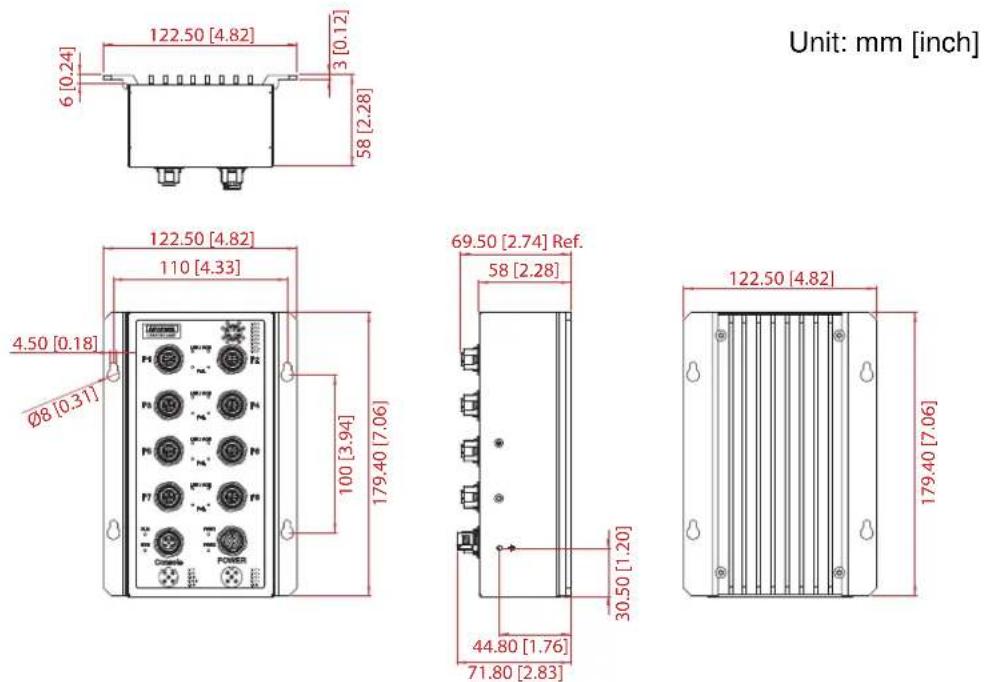
| Dimensions (W x H x D) | 122.5 x 179.4 x 71.8 mm (4.82" x 7.06" x 2.83") |
| Weight 1.3 kg (2.87 lbs) | |
| LED Display System LED SYS, PWR1, PWR2, R.M. (R.M. is only for EKI-9508E-MH/EKI-9508E-ML, EKI-9508E-MPH/EKI-9508E-MPL, EKI-9508G-MH/EKI-9508G-ML and EKI-9508G-MPH/EKI-9508G-MPL) | |
| Port LED Data, PoE (only for EKI-9508E-MPH/EKI-9508E-MPL, EKI-9508E-PH/EKI-9508E-PL, EKI-9508G-MPH/EKI-9508G-MPL and EKI-9508G-PH/EKI-9508G-PL) | |
| Environment | Operating Temperature -40°C ~ 70°C (-40°F ~ 158°F) |
| Storage Temperature -40°C ~ 85°C (-40°F ~ 185°F) | |
| Ambient Relative Humidity 5 ~ 95% (non-condensing) | |
| Switch Properties | MAC Address 8K |
| Jumbo Frame 9 KB | |
Specifications Description
| Power Power | ~ 5 W (System) | |
| Consumption | ||
| PoE Power Budget | ■ EKI-9508E-MPH: 90 Watts■ EKI-9508E-MPL: 60 Watts■ EKI-9508E-PH: 90 Watts■ EKI-9508E-PL: 60 Watts■ EKI-9508G-MPH: 90 Watts■ EKI-9508G-MPL: 60 Watts■ EKI-9508G-PH: 90 Watts■ EKI-9508G-PL: 60 Watts | |
| Power Input | ■ EKI-9508E-H: 72/96/110 VDC■ EKI-9508E-L: 24/48 VDC■ EKI-9508E-MH: 72/96/110 VDC■ EKI-9508E-ML: 24/48 VDC■ EKI-9508E-MPH: 72/96/110 VDC■ EKI-9508E-MPL: 24/48 VDC■ EKI-9508E-PH: 72/96/110 VDC■ EKI-9508E-PL: 24/48 VDC■ EKI-9508G-H: 72/96/110 VDC■ EKI-9508G-L: 24/48 VDC■ EKI-9508G-MH: 72/96/110 VDC■ EKI-9508G-ML: 24/48 VDC■ EKI-9508G-MPH: 72/96/110 VDC■ EKI-9508G-MPL: 24/48 VDC■ EKI-9508G-PH: 72/96/110 VDC■ EKI-9508G-PL: 24/48 VDC | |
| Operating Voltage | ■ EKI-9508E-H: 50.4 ~ 137.5 VDC■ EKI-9508E-L: 16.8 ~ 60 VDC■ EKI-9508E-MH: 50.4 ~ 137.5 VDC■ EKI-9508E-ML: 16.8 ~ 60 VDC■ EKI-9508E-MPH: 50.4 ~ 137.5 VDC■ EKI-9508E-MPL: 16.8 ~ 60 VDC■ EKI-9508E-PH: 50.4 ~ 137.5 VDC■ EKI-9508E-PL: 16.8 ~ 60 VDC■ EKI-9508G-H: 50.4 ~ 137.5 VDC■ EKI-9508G-L: 16.8 ~ 60 VDC■ EKI-9508G-MH: 50.4 ~ 137.5 VDC■ EKI-9508G-ML: 16.8 ~ 60 VDC■ EKI-9508G-MPH: 50.4 ~ 137.5 VDC■ EKI-9508G-MPL: 16.8 ~ 60 VDC■ EKI-9508G-PH: 50.4 ~ 137.5 VDC■ EKI-9508G-PL: 16.8 ~ 60 VDCDual inputs supports overload current protection and reverse polarity protection | |
Specifications Description
| Certifications EMI | ■ FCC Part 15 Subpart B Class A |
| ■ CE EN55032 (CISPR) | |
| ■ EN55024 Class A | |
| EMS | ■ EN61000-4-2 (ESD) |
| ■ EN61000-4-3 (RS) | |
| ■ EN61000-4-4 (EFT) | |
| ■ EN61000-4-5 (Surge) | |
| ■ EN61000-4-6 (CS) | |
| Shock IEC 61373 | |
| Freefall IEC 60068-2-32 | |
| Vibration IEC 61373 | |
| Rail Traffic | ■ EN50155 |
| ■ EN50121-3-2 | |
1.2 Hardware Views
1.2.1 Front View
1.2.1.1 EKI-9508E-H/EKI-9508E-L
text_image
AD-WITCH EXX-0598G P1 P2 P3 P4 P5 P6 P7 P8 SYS PWM1 PWM2 POWER 3 2 1 4 3Figure 1.1 Front View
No. Item Description
| 1 Wall mounting holes Screw holes (x4) used in the installation on wall. |
| 2 ETH port 10/100Base-T M12 x 8 (D-coding). |
| 3 System LED panel See “System LED Panel” on page 10 for further details. |
| 4 Power input port M12 5-pin (male) DC power connector port. |
1.2.1.2 EKI-9508E-MH/EKI-9508E-ML
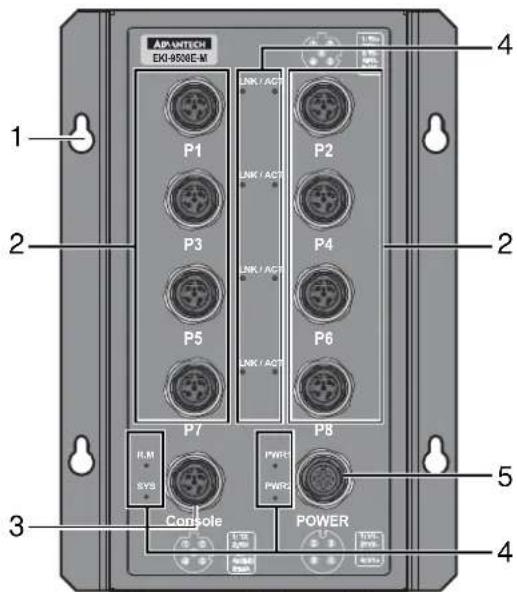
text_image
AP-ONTEC EXU-9000E-M 1 2 3 4 P1 P2 P3 P4 P5 P6 P7 P8 R.M SYS PC PC PC PC PC PC PC PC PC PC PC PC PC PC PC PC PC PC PC PC PC PC PC PC PC PC PC PC PC PC PC PC PC PC PC PC PC PC PC PC PC PC PC PC PC PC PC PC PC PC PWR1 PWR2 PWR3 POWERFigure 1.2 Front View
No. Item Description
1 Wall mounting holes Screw holes (x4) used in the installation on wall.
2 ETH port 10/100Base-T M12 x 8 (D-coding).
3 Console port M12 5-pin (female) port to access the managed switch's software.
4 System LED panel See "System LED Panel" on page 10 for further details.
5 Power input port M12 5-pin (male) DC power connector port.
1.2.1.3 EKI-9508E-MPH/EKI-9508E-MPL
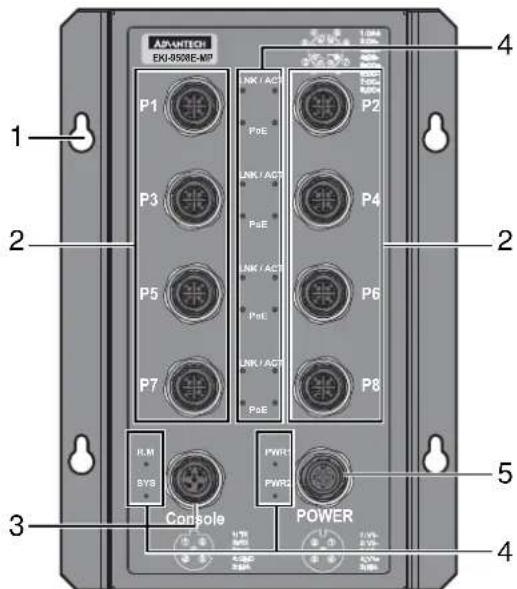
Figure 1.3 Front View
No. Item Description
1 Wall mounting holes Screw holes (x4) used in the installation on wall.
2 ETH port 10/100Base-T M12 x 8 (D-coding).
No. Item Description
3 Console port M12 5-pin (female) port to access the managed switch's software.
4 System LED panel See "System LED Panel" on page 10 for further details.
5 Power input port M12 5-pin (male) DC power connector port.
1.2.1.4 EKI-9508E-PH/EKI-9508E-PL
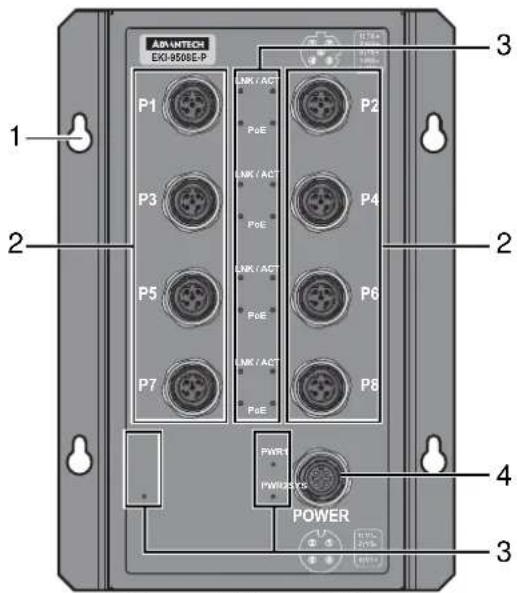
text_image
AP-UNTECH EXG-9508E-P P1 P3 P5 P7 LINK / ACT PoE LINK / ACT PoE LINK / ACT PoE LINK / ACT PoE P2 P4 P6 P8 PWR PWM/STC POWER 1 2 3 4 3Figure 1.4 Front View
No. Item Description
1 Wall mounting holes Screw holes (x4) used in the installation on wall.
2 ETH port 10/100Base-T M12 x 8 (D-coding).
3 System LED panel See "System LED Panel" on page 10 for further details.
4 Power input port M12 5-pin (male) DC power connector port.
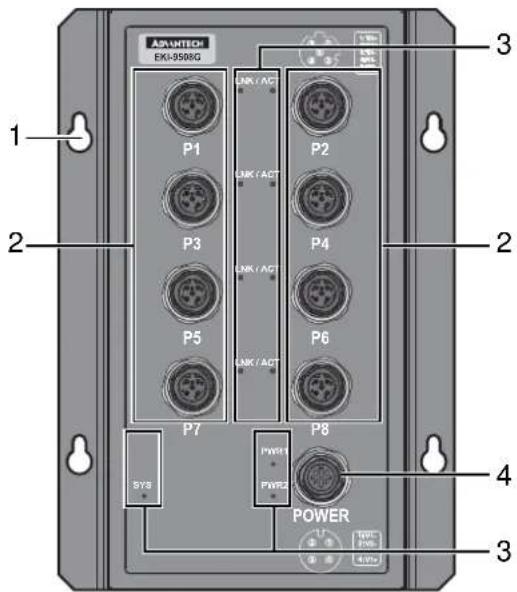
1.2.1.5 EKI-9508G-H/EKI-9508G-L
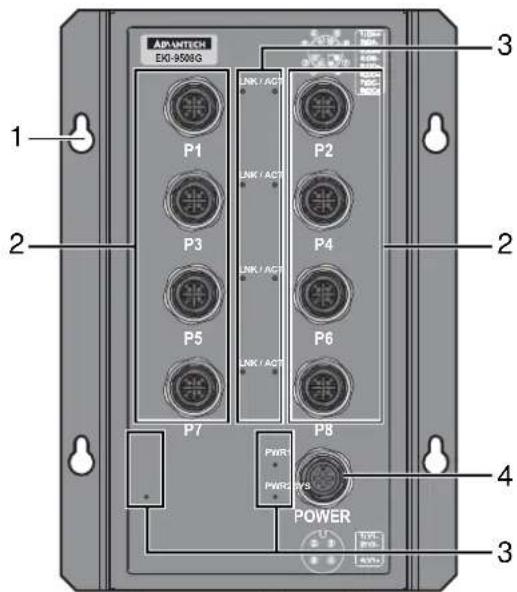
text_image
AP-AMTECH EOG-9508G 1 2 3 P1 P2 P3 P4 P5 P6 P7 P8 POWER 3 4 3Figure 1.5 Front View
No. Item Description
1 Wall mounting holes Screw holes (x4) used in the installation on wall.
2 ETH port 10/100/1000Base-T M12 x 8 (X-coding).
3 System LED panel See "System LED Panel" on page 10 for further details.
4 Power input port M12 5-pin (male) DC power connector port.
1.2.1.6 EKI-9508G-MH/EKI-9508G-ML
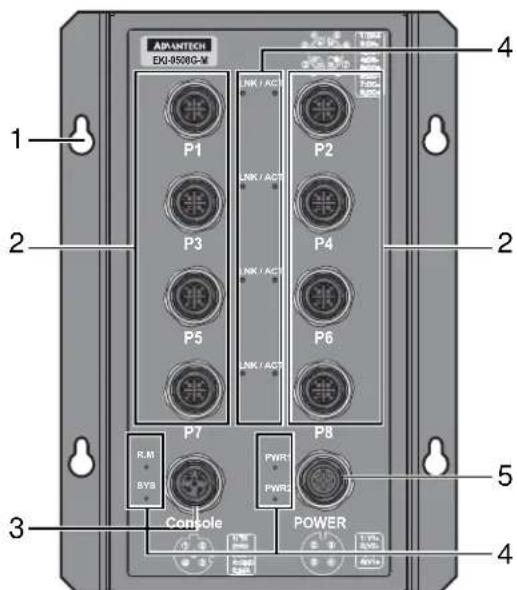
text_image
AP-ANTECH EXU-8500G-M 1 2 3 4 P1 P2 P3 P4 P5 P6 P7 P8 R.M SVB Console POWER 1.1V 1.1V 1.1V 1.1V 1.1V 1.1V 1.1V 1.1V 1.1V 1.1V 1.1V 1.1V 1.1V 1.1V 1.1V 1.1V 1.1V 1.1V 1.1V 1.1V 1.1M 1.1M 1.1M 1.1M 1.1M 1.1M 1.1M 1.1M 1.1M 1.1M 1.1M 1.1M 1.1M 1.1M 1.1MFigure 1.6 Front View
No. Item Description
1 Wall mounting holes Screw holes (x4) used in the installation on wall.
2 ETH port 10/100/1000Base-T M12 x 8 (X-coding).
3 Console port M12 5-pin (female) port to access the managed switch's software.
No. Item Description
4 System LED panel See "System LED Panel" on page 10 for further details.
5 Power input port M12 5-pin (male) DC power connector port.
1.2.1.7 EKI-9508G-MPH/EKI-9508G-MPL

text_image
ANWTECH EXI-9508G-MP P1 P3 P5 P7 R.M. SYS Console POWER 4 2 1 2 5 4Figure 1.7 Front View
No. Item Description
1 Wall mounting holes Screw holes (x4) used in the installation on wall.
2 ETH port 10/100/1000Base-T M12 x 8 (X-coding).
3 Console port M12 5-pin (female) port to access the managed switch's software.
4 System LED panel See "System LED Panel" on page 10 for further details.
5 Power input port M12 5-pin (male) DC power connector port.
1.2.1.8 EKI-9508G-PH/EKI-9508G-PL
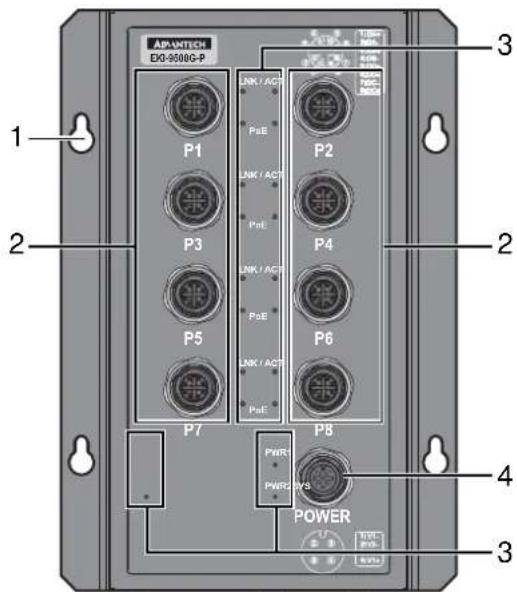
text_image
APANTECH EX-9000G-P 1 2 3 P1 P2 P3 P4 P5 P6 P7 P8 POWER 3 4 3Figure 1.8 Front View
No. Item Description
1 Wall mounting holes Screw holes (x4) used in the installation on wall.
2 ETH port 10/100/1000Base-T M12 x 8 (X-coding).
3 System LED panel See "System LED Panel" on page 10 for further details.
4 Power input port M12 5-pin (male) DC power connector port.
1.2.1.9 System LED Panel
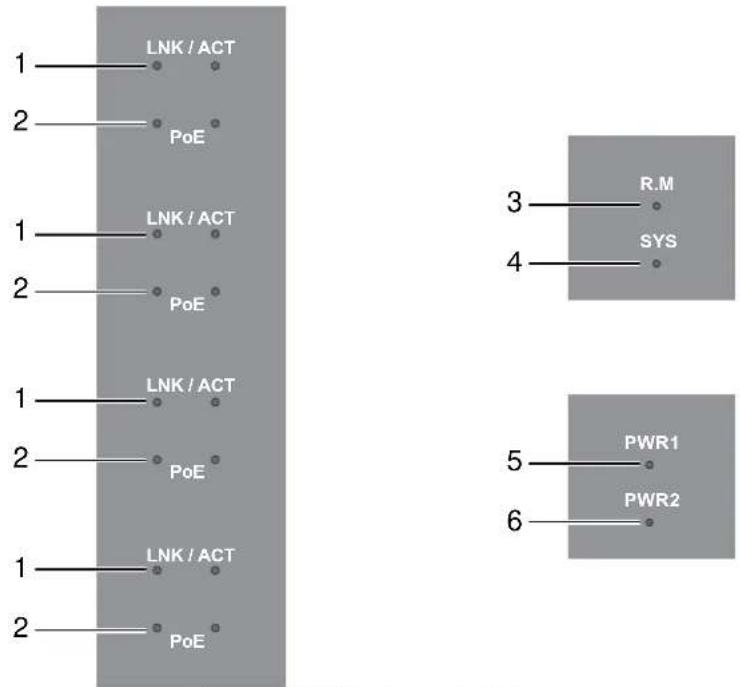
Figure 1.9 System LED Panel
| No. | LED Name | LED Color Description | |
| 1 | LNK/ACT | Solid green | When there is a 1000Mbps connection (For Gigabit Etherent Port). |
| Blinking green When there is transmission or reception of data occurring at speed of 1000Mbps (For Gigabit Ethernet Port). | |||
| Solid amber When there is a 10/100Mbps connection. | |||
| Blinking amber When there is transmission or reception of data occurring at speed of 10/100Mbps. | |||
| Off No connection detected or system off. | |||
| 2 | PoE (only for PoE models) | Solid green Supply PoE power. | |
| Off No PoE power is supplied. | |||
| 3 | R.M. | Solid green | Active when determining ring master. |
| 4 | SYS Solid green System is ready. | ||
| Off System is initiating. | |||
| 5 | PWR1 | Solid green | Power is being supplied to power input PWR1. |
| Off Power is not being supplied to power input PWR1. | |||
| 6 | PWR2 | Solid green | Power is being supplied to power input PWR2. |
| Off Power is not being supplied to power input PWR2. | |||
1.3 Dimensions

Unit: mm [inch]
Figure 1.10 EKI-9508E-H/EKI-9508E-L Dimensions
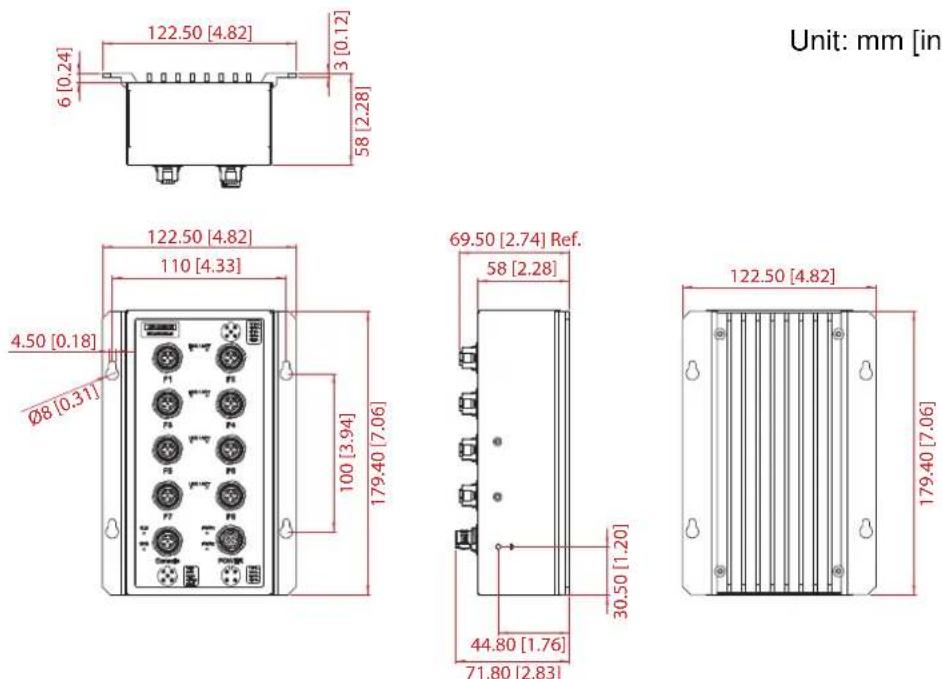
Unit: mm [inch]
Figure 1.11 EKI-9508E-MH/EKI-9508E-ML Dimensions
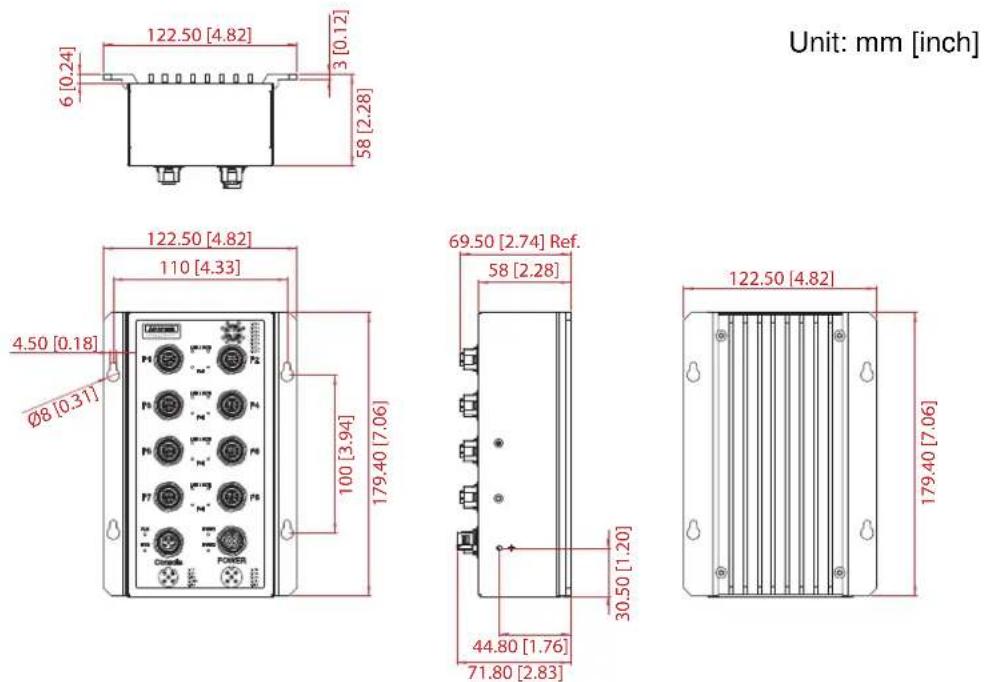
Unit: mm [inch]
Figure 1.12 EKI-9508E-MPH/EKI-9508E-MPL Dimensions
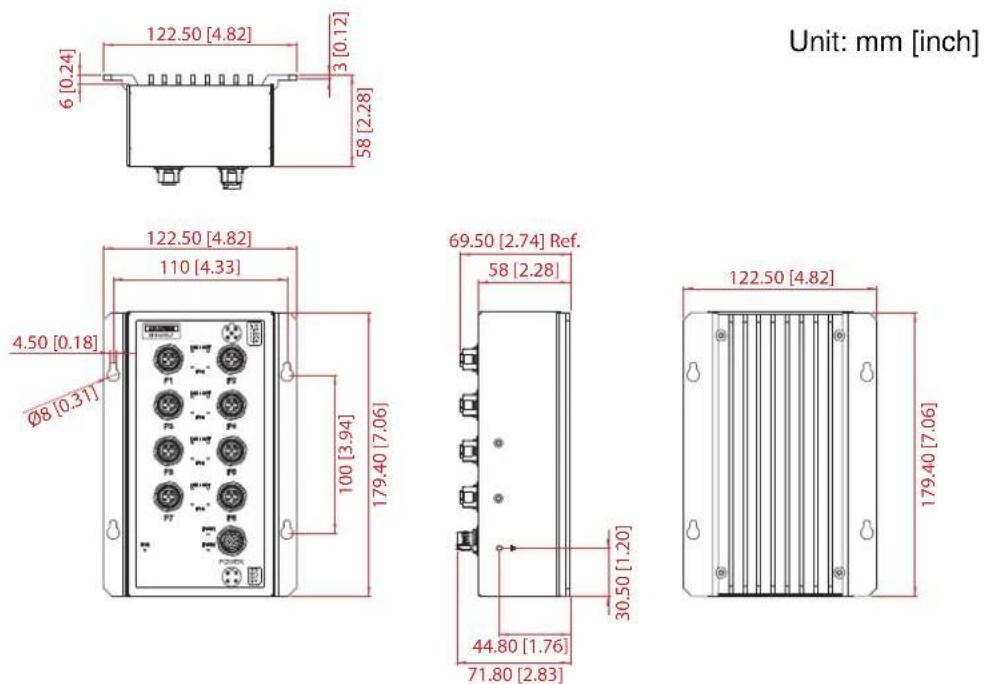
Unit: mm [inch]
Figure 1.13 EKI-9508E-PH/EKI-9508E-PL Dimensions
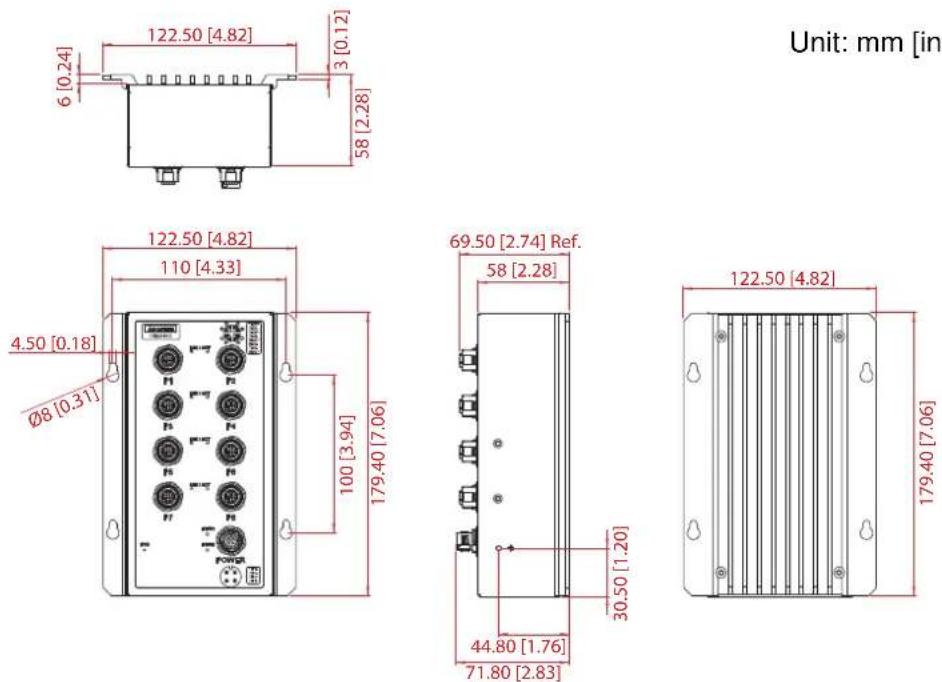
Unit: mm [inch]
Figure 1.14 EKI-9508G-H/EKI-9508G-L Dimensions

text_image
6 [0.24] 122.50 [4.82] 3 [0.12] 58 [2.28]Unit: mm [inch]
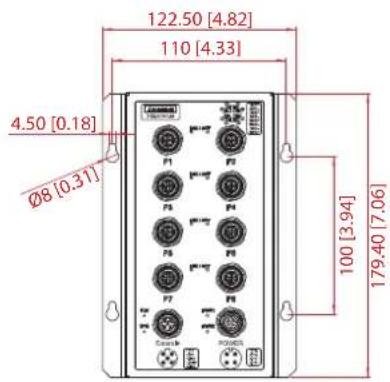
text_image
122.50 [4.82] 110 [4.33] 4.50 [0.18] Ø8 [0.31] 100 [3.94] 179.40 [7.06]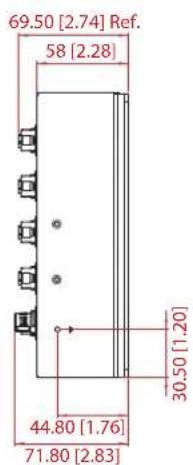
text_image
69.50 [2.74] Ref. 58 [2.28] 30.50 [1.20] 44.80 [1.76] 71.80 [2.83]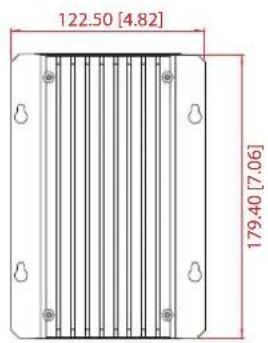
text_image
122.50 [4.82] 179.40 [7.06]Figure 1.15 EKI-9508G-MH/EKI-9508G-ML Dimensions
Unit: mm [inch]
Figure 1.16 EKI-9508G-MPH/EKI-9508G-MPL Dimensions

Unit: mm [inch]
Figure 1.17 EKI-9508G-PH/EKI-9508G-PL Dimensions
Chapter 2
Switch Installation
2.1 Installation Guidelines
The following guidelines are provided to optimize the device performance. Review the guidelines before installing the device.
■ Make sure cabling is away from sources of electrical noise. Radios, power lines, and fluorescent lighting fixtures can interference with the device performance.
■ Make sure the cabling is positioned away from equipment that can damage the cables.
- Operating environment is within the ranges listed range, see “Specifications” on page 2.
■ Relative humidity around the switch does not exceed 95 percent (noncondensing).
- Altitude at the installation site is not higher than 10,000 feet.
In 10/100 and 10/100/1000 fixed port devices, the cable length from the switch to connected devices can not exceed 100 meters (328 feet).
■ Make sure airflow around the switch and respective vents is unrestricted. Without proper airflow the switch can overheat. To prevent performance degradation and damage to the switch, make sure there is clearance at the top and bottom and around the exhaust vents.
2.1.1 Connecting Hardware
These instructions explain how to find a proper location for your Modbus Gateways, and how to connect to the network, hook up the power cable, and connect to the EKI-9508 Series.
2.2 Verifying Switch Operation
Before installing the device in a rack or on a wall, power on the switch to verify that the switch passes the power-on self-test (POST). To connect the cabling to the power source see “Power Supply Installation” on page 18.
At startup (POST), the System LED blinks green, while the remaining LEDs are a solid green. Once the switch passes POST self-test, the System LED turns green. The other LEDs turn off and return to their operating status. If the switch fails POST, the System LED switches to an amber state.
After a successful self-test, power down the switch and disconnect the power cabling. The switch is now ready for installation at its final location.
2.3 Installing the Switch
2.3.1 Wall-Mounting
Note! When installing, make sure to allow for enough space to properly install the cabling.

-
Locate the installation site and place the switch against the wall, making sure it is the final installation location.
-
Insert the screws into the wall sinks. Leave a 4 mm gap between the wall and the screw head to allow for wall mount plate insertion.

text_image
10 mm 4.0 mm (Max: 4.3mm) 4.0 mmFigure 2.1 Securing Wall Mounting Screws
Note!
■ Make sure the screws dimensions are suitable for use with the device.

Do not completely tighten the screws into the wall. A final adjustment may be needed before fully securing the device on the wall.
- Align the device over the screws on the wall.
- Install the device on the screws and slide it downward to lock in place, see the following figure.

text_image
Diagram of an electronic device with labeled ports and connectors, showing light path and component alignment.Figure 2.2 Switch Installation
- Once the device is installed on the wall, tighten the screws to secure the device.
2.4 Power Supply Installation
2.4.1 Overview
Warning! Power down and disconnect the power cord before servicing or wiring the switch.

Caution! Do not disconnect modules or cabling unless the power is first switched off.

The device only supports the voltage outlined in the type plate. Do not use any other power components except those specifically designated for the switch device.
Caution! Disconnect the power cord before installation or cable wiring.

The switch can be powered by using the same DC source used to power other devices. A DC voltage range of 24 to 110 VDC must be applied between the V1+ terminal and the V1-terminal (PW1), see the following illustrations. The chassis ground screw terminal should be tied to the chassis ground. A redundant power configuration is supported through a secondary power supply unit to reduce network down time as a result of power loss.
EKI-9508 Series support 24 to 110 V _DC . Dual power inputs are supported and allow you to connect a backup power source.
Single DC Power Redundant DC Power

text_image
P2 P1 - Chassis GND (pane) One DC Supply + -
text_image
P2 P1 - Chassis GND (pane) + - Dual DC Supplies - - -Figure 2.3 Power Wiring for EKI-9508 Series
2.4.2 Considerations
Take into consideration the following guidelines before wiring the device:
The Terminal Block (CN1) is suitable for 12-24 AWG (3.31 - 0.205 mm ^2 ). Torque value 7 lb-in.
The cross sectional area of the earthing conductors shall be at least 3.31 mm ^2 .
■ Calculate the maximum possible current for each power and common wire. Make sure the power draw is within limits of local electrical code regulations.
For best practices, route wiring for power and devices on separate paths.
- Do not bundle together wiring with similar electrical characteristics.
■ Make sure to separate input and output wiring.
Label all wiring and cabling to the various devices for more effective management and servicing.
Note!Routing communications and power wiring through the same conduit may cause signal interference. To avoid interference and signal degradation, route power and communications wires through separate conduits.
2.4.3 Grounding the Device
Caution! Do not disconnect modules or cabling unless the power is first switched off.

The device only supports the voltage outlined in the type plate. Do not use any other power components except those specifically designated for the switch device.
Caution! Before connecting the device properly ground the device. Lack of a proper grounding setup may result in a safety risk and could be hazardous.

Caution! Do not service equipment or cables during periods of lightning activity.

Caution! Do not service any components unless qualified and authorized to do so.

Caution! Do not block air ventilation holes.

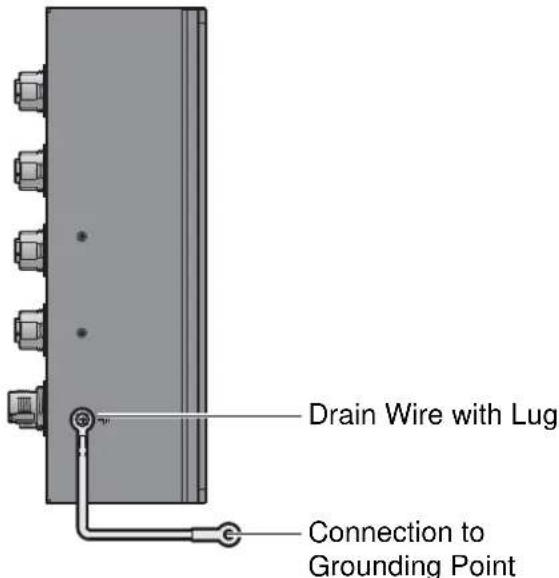
Electromagnetic Interference (EMI) affects the transmission performance of a device. By properly grounding the device to earth ground through a drain wire, you can setup the best possible noise immunity and emissions.
text_image
Drain Wire with Lug Connection to Grounding PointFigure 2.4 Grounding Connection, Chassis Left Side View
By connecting the ground terminal by drain wire to earth ground the switch and chassis can be ground.
Note!
Before applying power to the grounded switch, it is advisable to use a volt meter to ensure there is no voltage difference between the power supply's negative output terminal and the grounding point on the switch.
2.4.4 Wiring the Power Inputs
Caution! Do not disconnect modules or cabling unless the power is first switched off.

The device only supports the voltage outlined in the type plate. Do not use any other power components except those specifically designated for the switch device.
Warning! Power down and disconnect the power cord before servicing or wiring the switch.

To wire the power inputs:
Make sure the power cable is not connected to the switch or the power converter before proceeding.
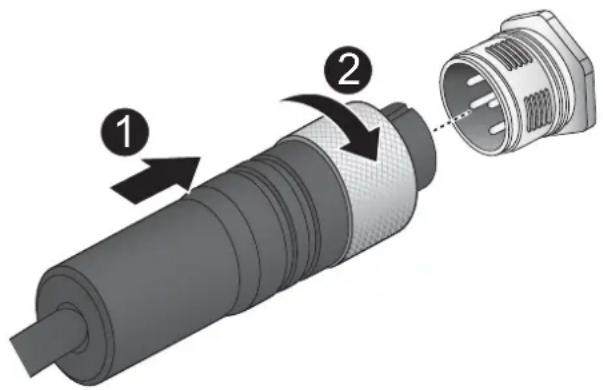
- Align the notch on the cable with the protrusion on the connector port. Before inserting the cable, the cable must be aligned to the connector to prevent damage to the pins in the port.
- Insert the cable and gently push it in. If there is any resistance, remove the cable and re-align it with the connector.
- Once the cable is fully seated in the port, turn the nut on the cable to secure it to the connector.
text_image
Diagram of a mechanical connector with numbered parts and directional arrows indicating assembly or assembly steps.Figure 2.5 Installing the Power Cable
The power input is now connected to the switch. The switch can be powered on.
2.4.4.1 Standard M12 4-Pin Female Pin Assignment
This section describes the proper connection of the 24, 48, 72, 96 and 110 V_DC to the DC power connector on the switch. The DC input connector is located on the left side of the front panel. The power terminals are connected as shown in the following figure. They are electrically floating inside the unit so that either may be grounded by the user if desired. The chassis is earthened or ground (GND).
The mating connection to the switch is created through a RD24, female connector. Simply align the keyed female connector to the male connector and twist the threaded to secure.

Figure 2.6 Standard M12 4-Pin Female DC Power Input Connector
| Pin Description | |
| 1 | V1- |
| 2 | V2- |
| 3 | V2+ |
| 4 | V1+ |
2.5 Connecting the Ethernet Media
2.5.1 Connecting the 10/100Mbps Ports
The managed Ethernet models have Fast Ethernet ports (5-pin shielded M12 connector with D coding) circular connectors. The 10/100Mbps ports located on the switch's front side are used to connect to Ethernet-enabled devices.
2.5.1.1 M12 D-Coded Connector Pin Assignment
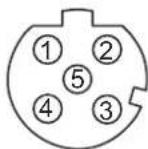
Figure 2.7 M12 D-Coded Connector Pin Assignment
| Pin Description | |
| 1 | Tx+ |
| 2 | RX+ |
| 3 | TX- |
| 4 | RX- |
| 5 | N/A |
2.5.2 Connecting the 10/100/1000Mbps Ports
The managed Ethernet models have Gigabit Ethernet ports (8-pin shielded M12 connector with X coding) circular connectors. The 10/100/1000Mbps ports located on the switch's front side are used to connect to Ethernet-enabled devices.
2.5.2.1 M12 X-Coded Connector Pin Assignment

Figure 2.8 M12 X-Coded Connector Pin Assignment
| Pin Description | |
| 1 | DA+ |
| 2 | DA- |
| 3 | DB+ |
| 4 | DB- |
| 5 | DD+ |
| 6 | DD- |
| 7 | DC- |
| 8 | DC+ |
2.6 Connecting the Console Terminal
The console port, used to access the managed switch's software, has an 5-pin M12 (male) port. A console cable with the mating M12 (female) port and both a DB-9 and/or a USB connector is available for purchase from Advantech.
2.6.1 M12 A-Coded Connector Pin Assignment
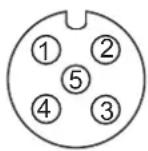
Figure 2.9 M12 A-Coded Connector Pin Assignment
| Pin Description | |
| 1 | TX |
| 2 | RX |
| 3 | N/A |
| 4 | GND |
| 5 | N/A |
Chapter 3
Configuration Utility
3.1 First Time Setup
3.1.1 Overview
The Industrial Ethernet Managed Switch is a configurable device that facilitates the interconnection of Ethernet devices on an Ethernet network. This includes computers, operator interfaces, I/O, controllers, RTUs, PLCs, other switches/hubs or any device that supports the standard IEEE 802.3 protocol.
This switch has all the capabilities of a store and forward Ethernet switch plus advanced management features such as SNMP, RSTP and port mirroring. This manual details how to configure the various management parameters in this easy to use switch.
3.1.2 Introduction
To take full advantage of all the features and resources available from the switch, it must be configured for your network.
The switch implements Rapid Spanning Tree Protocol (RSTP) and Simple Network Management Protocol (SNMP) to provide most of the services offered by the switch. Rapid Spanning Tree Protocol allows managed switches to communicate with each other to ensure that there exists only one active route between each pair of network nodes and provides automatic failover to the next available redundant route. A brief explanation of how RSTP works is given in the Spanning Tree section.
The switch is capable of communicating with other SNMP capable devices on the network to exchange management information. This statistical/derived information from the network is saved in the Management Information Base (MIB) of the switch. The MIB is divided into several different information storage groups. These groups will be elaborated in detail in the Management and SNMP information section of this document. The switch implements Internet Group Management Protocol (IGMP) to optimize the flow of multicast traffic on your network.
The switch supports both port-based and tag-based Virtual LANs for flexible integration with VLAN-aware networks with support for VLAN-unaware devices.
3.1.3 Administrative Interface Access
There are several administrative interfaces to the switch:
A graphical web interface accessible via the switch's built-in web server. Both HTTP and secure HTTPS with SSL are supported.
Note! This is the recommended method for managing the switch.

A terminal interface or over the network using telnet or Secure Shell (SSH) connected through the console (M12 A-Coded) port.
An SNMP interface can be used to read/write many settings.
Command Line Interface (CLI) can be used to read/write most settings. Initial setup must be done using an Ethernet connection (recommended) or the serial port.
3.1.4 Using the Graphical (Web) Interface
The graphical interface is provided via a web server in the switch and can be accessed via a web browser such as Opera, Mozilla, or Internet Explorer.
Note!JavaScript must be supported and enabled in your browser for the graphical interface to work correctly.

HTTP and HTTPS (secure HTTP) are supported for access to the web server. By default, both protocols are enabled. Either or both may be disabled to secure the switch. (See the Remote Access Security topic in this section.)
To access the graphical interface, enter the default IP setting (http://192.168.1.1) in your browser's address bar. Replace "http" with "https" to use secure http and replace "192.168.1.1" with your switch's IP address if you've changed it from the factory default.
The web server in the switch uses a signed security certificate. When you access the server via https, you may see a warning dialog indicating that the certificate was signed by an unknown authority. This is expected and to avoid this message in the future you can choose to install the certificate on your computer.
Note! This manual describes and depicts the web user interface in detail. The terminal interface is not specifically shown.

3.1.5 Configuring the Switch for Network Access
To control and monitor the switch via the network, it must be configured with basic network settings, including an IP address and subnet mask. Refer to the quick start guide in Section 1 for how to initially access your switch.
To configure the switch for network access, select [Add Menu Address Here] to reach the System Settings menu. The settings in this menu control the switch's general network configuration.
DHCP Enabled/Disabled: The switch can automatically obtain an IP address from a server using the Dynamic Host Configuration Protocol (DHCP). This can speed up initial set up, as the network administrator does not have to find an open IP address.
IP Address and subnet mask configuration: The IP address for the switch can be changed to a user-defined address along with a customized subnet mask to separate subnets.
Note! Advanced users can set the IP address to 0.0.0.0 to disable the use of an IP address for additional security. However, any features requiring an IP address (i.e., web interface, etc.) will no longer be available.
Default Gateway Selection: A Gateway Address is chosen to be the address of a router that connects two different networks. This can be an IP address or a Fully Qualified Domain Name (FQDN) such as “domainname.org”.
NTP Server: The IP address or domain name of an NTP (Network Time Protocol) server from which the switch may retrieve the current time at startup.
Please note that using a domain name requires that at least one domain name server be configured.
3.1.6 Configuring the Ethernet Ports
The switch comes with default port settings that should allow you to connect to the Ethernet Ports with out any necessary configuration. Should there be a need to change the name of the ports, negotiation settings or flow control settings, you can do this in the Port Configuration menu. Access this menu by selecting Setup from the Main menu, and then selecting Main Settings.
■ Port Name: Each port in the managed switch can be identified with a custom name. Specify a name for each port here.
- Admin: Ports can be enabled or disabled in the managed switch. For ports that are disabled, they are virtually non-existent (not visible in terms of switch operation or spanning tree algorithm). Choose to enable or disable a port by selecting Enabled or Disabled, respectively.
Negotiation: All copper ports and gigabit fiber ports in the managed switch are capable of autonegotiation such that the fastest bandwidth is selected. Choose to enable auto-negotiation or use fixed settings. 100Mbps Fiber ports are Fixed speed only.
■ Speed/Duplex/Flow Control: The managed switch accepts three local area network Ethernet Standards. The first standard, 10BASE-T, runs 10Mbps with twisted pair Ethernet cable between network interfaces. The second local area network standard is 100BASE-T, which runs at 100Mbps over the same twisted pair Ethernet cable. Lastly, there is 100BASE-F, which enables fast Ethernet (100Mbps) over fiber.
These options are available:
- 10h–10 Mbps, Half Duplex
- 10f -10 Mbps, Full Duplex
- 100h–100 Mbps, Half Duplex
- 100f -100 Mbps, Full Duplex
- 1000f–1000 Mbps, Full Duplex
On managed switches with gigabit combination ports, those ports with have two rows, a standard row of check boxes and a row labeled "SFP" with radio buttons. The SFP setting independently sets the speed at which a transceiver will operate if one is plugged in. Otherwise, the switch will use the fixed Ethernet port and the corresponding settings for it.
Note! When 100f is selected for the SFP of a gigabit combination port, the corresponding fixed Ethernet jack will be disabled unless it is changed back to 1000F.
3.2 Command Line Interface Configuration
3.2.1 Introduction to Command-Line Interface (CLI)
The command-line interface (CLI) is constructed with an eye toward automation of CLI-based configuration. The interaction is modeled on that used in many Internet protocols such as Telnet, FTP, and SMTP. After each command is entered and processed, the switch will issue a reply that consists of a numeric status code and a human-readable explanation of the status.
The general format of commands is:
section parameter [value]
where:
– section is used to group parameters.
- parameter will specify the parameter within the section. For example, the network section will have parameters for DHCP, IP address, subnet mask, and default gateway.
- value is the new value of the parameter. If value is omitted, the current value is displayed.
Please note that new values will not take effect until explicitly committed.
Sections and parameter names are case sensitive (e.g., “Network” is not the same as “network”).
Note! Any commands in the CLI Commands section of this chapter, with the exception of the global commands, must be prefaced with the name of the section they are in. For example, to change the IP address of the switch, you would type:
network address
3.2.2 Accessing the CLI
To access the CLI interface, establish Ethernet or serial connectivity to the switch.
To connect by Ethernet, open a command prompt window and type:
telnet
At the login prompt, type "cli" for the username and "admin" for the password. The switch will respond with "Managed switch configuration CLI ready".
3.3 Web Browser Configuration
The switch has an HTML based user interface embedded in the flash memory. The interface offers an easy to use means to manage basic and advanced switch functions. The interface allows for local or remote switch configuration anywhere on the network. The interface is designed for use with [Internet Explorer (6.0), Chrome, Firefox].
3.3.1 Preparing for Web Configuration
The interface requires the installation and connection of the switch to the existing network. A PC also connected to the network is required to connect to the switch and access the interface through a web browser. Use this networking information:
IP address: 192.168.1.1
■ Subnet mask: 255.255.255.0
■ Default gateway: 192.168.1.254
■ User name: admin
■ Password: admin
3.3.2 System Login
Once the switch is installed and connected, power on the switch. The following information guides you through the logging in process.
- Launch your web browser.
The login screen displays. - Enter the user default name and password (admin / admin).
-
Click OK on the login screen to log in.
The main interface displays. -
In the browser's address bar, type the switch's default IP address (192.168.1.1).
Chapter 4
Managing Switch
4.1 Log In
To access the login window, connect the device to the network, see “Connecting the Ethernet Media” on page 22. Once the switch is installed and connected, power on the switch see the following procedures to log into your switch.
When the switch is first installed, the default network configuration is set to DHCP enabled. You will need to make sure your network environment supports the switch setup before connecting it to the network.
- Launch your web browser on a computer.
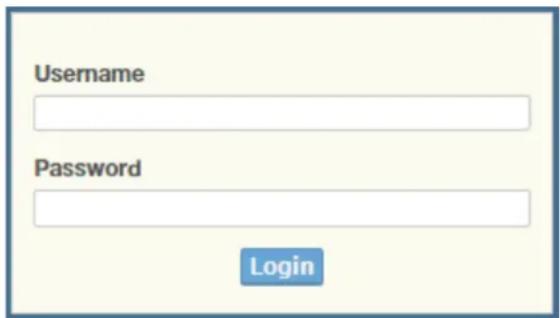
- In the browser's address bar type in the switch's default IP address (192.168.1.1). The login screen displays.
-
Enter the default user name and password (admin/admin) to log into the management interface. You can change the default password after you have successfully logged in.
-
Click Login to enter the management interface.
text_image
Username Password LoginFigure 4.1 Login Screen
4.2 Recommended Practices
One of the easiest things to do to help increase the security posture of the network infrastructure is to implement a policy and standard for secure management. This practice is an easy way to maintain a healthy and secure network.
After you have performed the basic configurations on your switches, the following is a recommendation which is considered best practice policy.
4.2.1 Changing Default Password
In keeping with good management and security practices, it is recommended that you change the default password as soon as the device is functioning and setup correctly. The following details the necessary steps to change the default password.
To change the password:
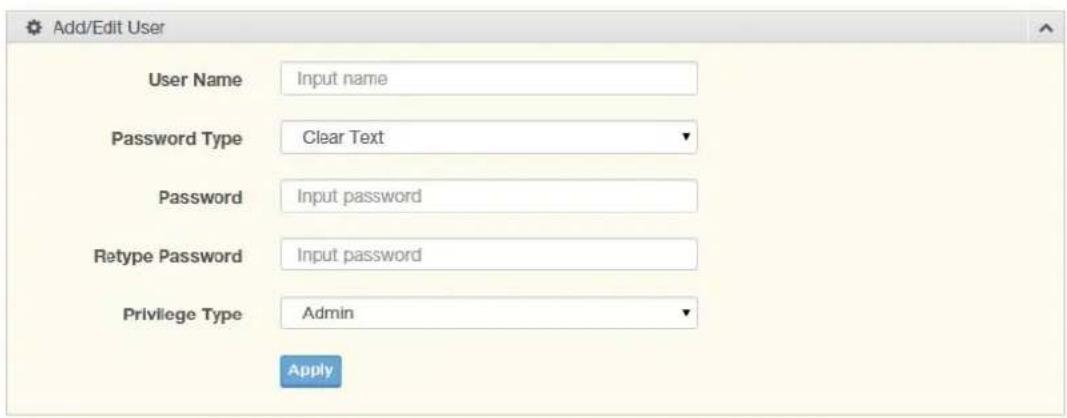
- Navigate to Tools > User Account.
- From the User drop-down menu, select the Admin (default) account.
-
In the User Name field, enter admin for this account. It is not necessary to change the user name, however, a change in the default settings increases the security settings.
-
In the Password field, type in the new password. Re-type the same password in the Retype Password field.
5. Click Apply to change the current account settings.
text_image
Add/Edit User User Name Input name Password Type Clear Text Password Input password Retype Password Input password Privilege Type Admin ApplyFigure 4.2 Changing a Default Password
After saving all the desired settings, perform a system save (Tools > Save Configuration). The changes are saved.
4.3 Monitoring
4.3.1 Device Information
The Device Information menu lists information, such as: System Name, System Location, MAC Address, Firmware version, and more, pertaining to the system. The information is for review only. To modify the device information, see the respective item within the user interface.
To access this page, click Monitoring > Device Information.
| Information Name | Information Value |
| System Name | Switch |
| System Location | Default |
| System Contact | Default |
| MAC Address | 00:D0:C9:F5:31:0B |
| IP Address | 192.168.1.156 |
| Subnet Mask | 255.255.255.0 |
| Gateway | 192.168.1.1 |
| Loader Version | 1.0.0.48895 |
| Loader Date | Sep 02 2015 - 13:26:50 |
| Firmware Version | 1.00.21 |
| Firmware Date | Sep 02 2015 - 13:27:32 |
| System Object ID | 1.3.6.1.4.1.10297.202.7000 |
| System Up Time | 0 days, 4 hours, 31 mins, 13 secs |
Figure 4.3 Monitoring > Device Information
The following table describes the items in the previous figure.
| Item Description | |
| System Name | ClickSwitchto enter the system name: up to 128 alphanumeric characters (default is Switch). |
| System Location | ClickDefaultto enter the location: up to 256 alphanumeric characters (default is Default). |
| System Contact | ClickDefaultto enter the contact person: up to 128 alphanumeric characters (default is Default). |
| MAC Address Displays the MAC address of the switch. | |
| IP Address Displays the assigned IP address of the switch. | |
| Subnet Mask Displays the assigned subnet mask of the switch. | |
| Gateway Displays the assigned gateway of the switch. | |
| Loader Version Displays the current loader version of the switch. | |
| Loader Date Displays the current loader build date of the switch. | |
| Firmware Version Displays the current firmware version of the switch. | |
| Firmware Date Displays the current firmware build date of the switch. | |
| System Object ID | Displays the base object ID of the switch. |
| System Up Time Displays the time since the last switch reboot. | |
4.3.2 Logging Message
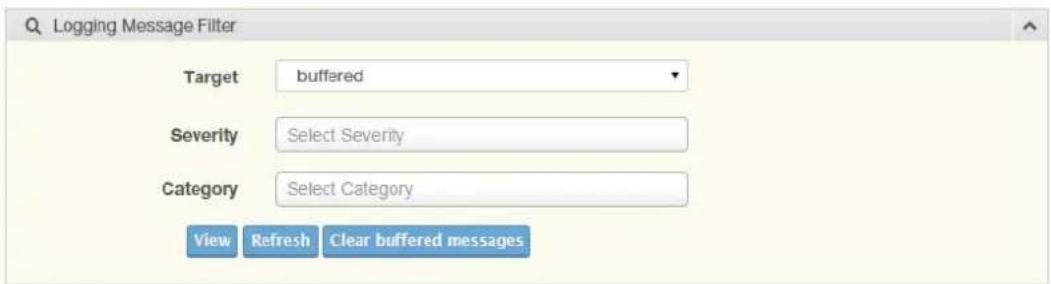
The Logging Message Filter page allows you to enable the display of logging message filter.
To access this page, click Monitoring > Logging Message.
text_image
Logging Message Filter Target buffered Severity Select Severity Category Select Category View Refresh Clear buffered messagesFigure 4.4 Monitoring > Logging Message
The following table describes the items in the previous figure.
| Item Description | |
| Target | Click the drop-down menu to select a target to store the log messages.■ Buffered: Store log messages in RAM. All log messages are cleared after system reboot.■ File: Store log messages in a file. |
Item Description
| Severity The setting allows you to designate a severity level for the Logging Message Filter function.Click the drop-down menu to select the severity level target setting.The level options are:emerg: Indicates system is unusable. It is the highest level of severity.alert: Indicates action must be taken immediately.crit: Indicates critical conditions.error: Indicates error conditions.warning: Indicates warning conditions.notice: Indicates normal but significant conditions.info: Indicates informational messages.debug: Indicates debug-level messages. |
| Category Click the drop-down menu to select the category level target setting. | |
| View | Click View to display all Logging Information and Logging Message information. |
| Refresh Click Refresh to update the screen. | |
| Clear buffered messages | Click Clear buffered messages to clear the logging buffer history list. |
The ensuing table for Logging Information table settings are informational only: Target, Severity and Category.
The ensuing table for Logging Message table settings are informational only: No., Time Stamp, Category, Severity and Message.
4.3.3 Port Monitoring
Port Network Monitor is a bandwidth and network monitoring tool for the purpose of capturing network traffic and measuring of network throughput. The monitoring functionality includes listing of port statistics as well as port utilization.
4.3.3.1 Port Statistics
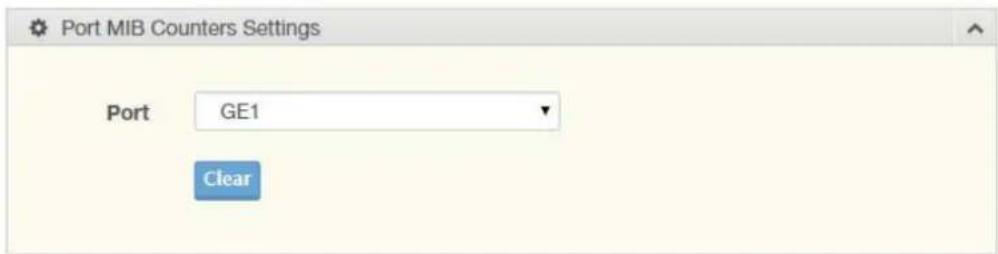
To access this page, click Monitoring > Port Monitoring > Port Statistics.
text_image
Port MIB Counters Settings Port GE1 ClearFigure 4.5 Monitoring > Port Monitoring > Port Statistics
The following table describes the items in the previous figure.
Item Description
Port Click the drop-down menu to select a port and its captured statistical setting values.
Clear Click Clear to clear the counter selections.
The ensuing table for IF MIB Counters settings are informational only: ifInOctets, ifInUcastPkts, ifInNUcastPkts, ifInDiscards, ifOutOctets, ifOutUcastPkts, ifOutNUcast-Pkts, ifOutDiscards, ifInMulticastPkts, ifInBroadcastPkts, ifOutMulticastPkts and ifOutBroadcastPkts.
The ensuing table for Ether-Like MIB Counters settings are informational only: dot3StatsAlignmentErrors, dot3StatsFCSErrors, dot3StatsSingleCollisionFrames, dot3StatsMultipleCollisionFrames, dot3StatsDeferredTransmissions, dot3StatsLate-Collisions, dot3StatsExcessiveCollisions, dot3StatsFrameTooLongs, dot3StatsSymbolErrors, dot3ControlInUnknownOpcodes, dot3InPauseFrames and dot3OutPauseFrames.
The ensuing table for Rmon MIB Counters settings are informational only: etherStatsDropEvents, etherStatsOctets, etherStatsPkts, etherStatsBroadcastPkts, etherStatsMulticastPkts, etherStatsCRCAAlignErrors, etherStatsUnderSizePkts, etherStatsOverSizePkts, etherStatsFragments, etherStatsJabbers, etherStatsCollisions, etherStatsPkts64Octets, etherStatsPkts65to127Octets, etherStatsPkts128-to255Octets, etherStatsPkts256to511Octets, etherStatsPkts512to1023Octets and etherStatsPkts1024to1518Octets.
4.3.3.2 Port Utilization
To access this page, click Monitoring > Port Monitoring > Port Utilization.

text_image
Port Settings Gbps 100Mbps 10Mbps Refresh period IFG 10 Secs EnableFigure 4.6 Monitoring > Port Monitoring > Port Utilization
The following table describes the items in the previous figure.
Item Description
Refresh period Click the drop-down menu to select and designate a period (second intervals) to refresh the information (TX and RX) listings.
IFG Click the drop-down menu to enable or disable the Interframe Gap (IFG) statistic.
4.3.4 Link Aggregation
The Link Aggregation function provides LAG information for each trunk. It displays membership status, link state and membership type for each port.
To access this page, click Monitoring > Link Aggregation.
The ensuing table for Link Aggregation Group Status settings are informational only: LAG, Name, Type, Link State, Active Member and Standby Member.
The ensuing table for LACP Information settings are informational only: LAG, Port, PartnerSysId, PnKey, AtKey, Sel, Mux, Receiv, PrdTx, AtState and PnState.
4.3.5 LLDP Statistics
The LLDP Statistics page displays the LLDP statistics.
To access this page, click Monitoring > LLDP Statistics.

text_image
Clear Refresh LLDP Global Statistics Information Name Information Value Insertions 0 Deletions 0 Drops 0 Age Outs 0Figure 4.7 Monitoring > LLDP Statistics
The following table describes the items in the previous figure.
| Item Description | |
| Clear | Click Clear to reset LLDP Statistics of all the interfaces. |
| Refresh | Click Refresh to update the data on the screen with the present state of the data in the switch. |
The ensuing table for LLDP Global Statistics settings are informational only: Insertions, Deletions, Drops and Age Outs.
The ensuing table for LLDP Port Statistics settings are informational only: Port, TX Frames (Total), RX Frames (Total, Discarded and Errors), RX TLVs (Discarded and Unrecognized) and RX Ageouts (Total).
4.3.6 IGMP Statistics
The IGMP Statistics function displays statistical package information for IP multicasting.
To access this page, click Monitoring > IGMP Statistics.
| IGMP Statistics | |
| Statistics Packets | Counter |
| Total RX | 0 |
| Valid RX | 0 |
| Invalid RX | 0 |
| Other RX | 0 |
| Leave RX | 0 |
| Report RX | 0 |
| General Query RX | 0 |
| Special Group Query RX | 0 |
| Special Group & Source Query RX | 0 |
| Leave TX | 0 |
| Report TX | 0 |
| General Query TX | 0 |
| Special Group Query TX | 0 |
| Special Group & Source Query TX | 0 |
Figure 4.8 Monitoring > IGMP Statistics
The following table describes the items in the previous figure.
| Item Description | |
| Clear | Click Clear to refresh IGMP Statistics of all the interfaces. |
| Refresh | Click Refresh to update the data on the screen with the present state of the data in the switch. |
The ensuing table for IGMP Statistics settings are informational only: Total RX, Valid RX, Invalid RX, Other RX, Leave RX, Report RX, General Query RX, Special Group Query RX, Special Group & Source Query RX, Leave TX, Report TX, General Query TX, Special Group Query TX and Special Group & Source Query TX.
4.3.7 MLD Statistics
The MLD Statistics function displays statistical package information for MLD message.
To access this page, click Monitoring > MLD Statistics.
| MLD Statistics | |
| Statistics Packets | Counter |
| Total RX | 0 |
| Valid RX | 0 |
| Invalid RX | 0 |
| Other RX | 0 |
| Leave RX | 0 |
| Report RX | 0 |
| General Query RX | 0 |
| Special Group Query RX | 0 |
| Special Group & Source Query RX | 0 |
| Leave TX | 0 |
| Report TX | 0 |
| General Query TX | 0 |
| Special Group Query TX | 0 |
| Special Group & Source Query TX | 0 |
Figure 4.9 Monitoring > MLD Statistics
The following table describes the items in the previous figure.
| Item Description | |
| Clear | Click Clear to refresh MLD Statistics of all the interfaces. |
| Refresh | Click Refresh to update the data on the screen with the present state of the data in the switch. |
The ensuing table for IGMP Statistics settings are informational only: Total RX, Valid RX, Invalid RX, Other RX, Leave RX, Report RX, General Query RX, Special Group Query RX, Special Group & Source Query RX, Leave TX, Report TX, General Query TX, Special Group Query TX and Special Group & Source Query TX.
4.4 System
4.4.1 IP Settings
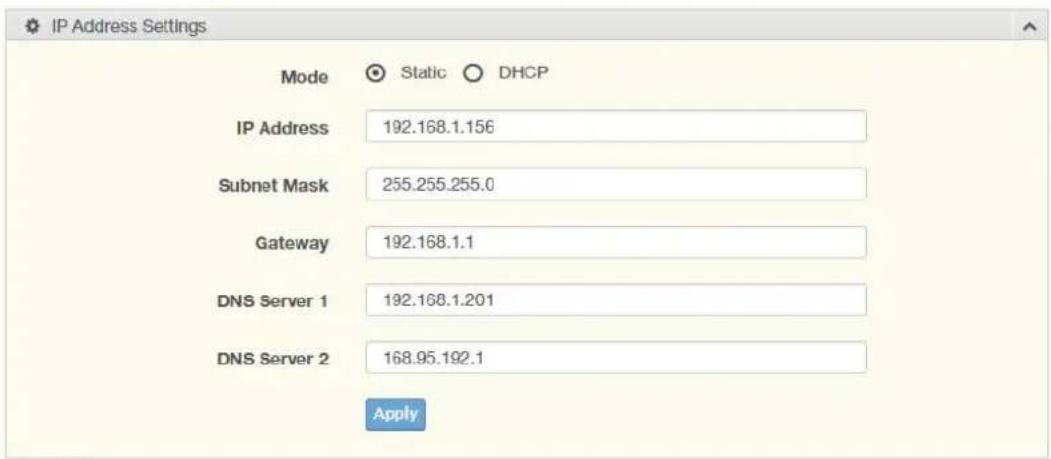
The IP Settings menu allows you to select a static or DHCP network configuration. The Static displays the configurable settings for the static option.
To access this page, click System > IP Settings.
text_image
IP Address Settings Mode Static DHCP IP Address 192.168.1.156 Subnet Mask 255.255.255.0 Gateway 192.168.1.1 DNS Server 1 192.168.1.201 DNS Server 2 168.95.192.1 ApplyFigure 4.10 System > IP Settings
The following table describes the items in the previous figure.
| Item Description |
| Mode Click the radio button to select the IP Address Setting mode: Static or DHCP. |
| IP Address Enter a value to specify the IP address of the interface. The default is 192.168.1.1. |
| Subnet Mask Enter a value to specify the IP subnet mask for the interface. The default is 255.255.255.0. |
| Gateway Enter a value to specify the default gateway for the interface. The default is 192.168.1.254. |
| DNS Server 1 Enter a value to specify the DNS server 1 for the interface. The default is 168.95.1.1. |
| DNS Server 2 Enter a value to specify the DNS server 2 for the interface. The default is 168.95.192.1. |
| Apply Click Apply to save the values and update the screen. |
The ensuing table for IP Address Information settings are informational only: DHCP State, Static IP Address, Static Subnet Mask, Static Gateway, Static DNS Server 1 and Static DNS Server 2.
4.4.2 IPv6 Settings
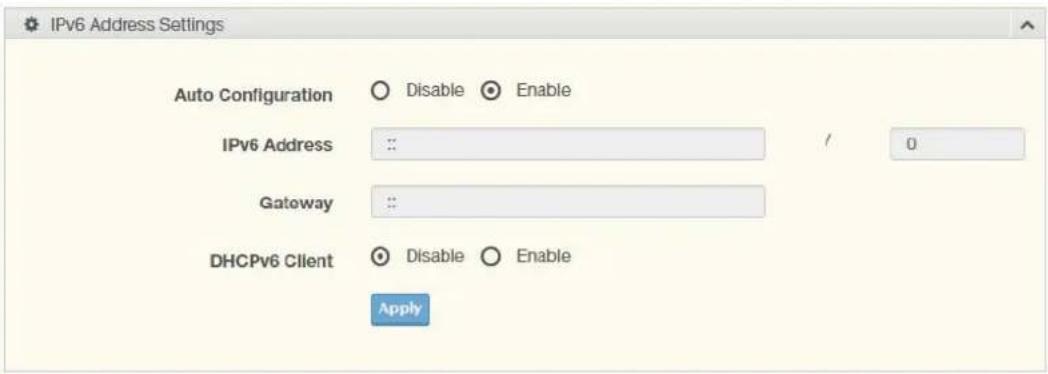
To access this page, click System > IPv6 Settings.
text_image
IPv6 Address Settings Auto Configuration ○ Disable ○ Enable IPv6 Address : : Gateway : : DHCPv6 Client ○ Disable ○ Enable ApplyFigure 4.11 System > IPv6 Settings
The following table describes the items in the previous figure.
Item Description
Auto Configuration Select the radio button to enable or disable the IPv6.
IPv6 Address Enter the IPv6 address for the system.
Gateway Enter the gateway address for the system.
DHCPv6 Client Enter the DHCPv6 address for the system.
Apply Click Apply to save the values and update the screen.
The ensuing table for IPv6 Information settings are informational only: Auto Configuration, IPv6 In Use Address, IPv6 In Use Router, IPv6 Static Address, IPv6 Static Router and DHCPv6 Client.
4.4.3 DHCP Client Option 82
The DHCP Client Option 82 configurable Circuit ID and Remote ID feature enhances validation security by allowing you to select naming choices suboptions. You can select a switch-configured hostname or specify an ASCII test string for the remote ID. You can also configure an ASCII text string to override the circuit ID.
To access this page, click System > DHCP Client Option 82.

text_image
DHCP Client Option 82 Settings Mode Enabled Disabled Circuit ID Format String Circuit ID String Input string Circuit ID Hex Input HEX string Circuit ID User-Define Input user-defined string Remote ID Format String Remote ID String Input string Remote ID Hex Input HEX string Remote ID User-Define Input user-defined string ApplyFigure 4.12 System > DHCP Client Option 82
The following table describes the items in the previous figure.
| Item Description | |
| Mode | Click the radio button to enable or disable the DHCP Client Option 82 mode. |
| Circuit ID Format Click the drop-down menu to set the ID format: String, Hex, User Definition. | |
| Circuit ID String Enter the string ID of the corresponding class. | |
| Circuit ID Hex Enter the hex string of the corresponding class. | |
| Circuit ID User-Define | Enter the user definition of the corresponding class. |
| Remote ID Format | Click the drop-down menu to set the Remote ID format: String, Hex, User Definition. |
| Remote ID String Enter the remote string ID of the corresponding class. | |
| Remote ID Hex Enter the remote hex string of the corresponding class. | |
| Remote ID User-Define | Enter the remote user definition of the corresponding class. |
| Apply Click Apply to save the values and update the screen. | |
The ensuing table for DHCP Client Option 82 Information table settings are informational only: Status, Circuit ID Format, Circuit ID String, Circuit ID Hex, Circuit ID User-Define, Remote ID Format, Remote ID String, Remote ID Hex and Remote ID User-Define.
4.4.4 DHCP Auto Provision
The DHCP Auto Provision feature allows you to load configurations using a server with DHCP options. Through the remote connection, the switch obtains information from a configuration file available through the TFTP server.
To access this page, click System > DHCP Auto Provision.

text_image
DHCP Auto Provision Settings Status Enabled Disabled ApplyFigure 4.13 System > DHCP Auto Provision
The following table describes the items in the previous figure.
Item Description
Status Select the radio button to enable or disable the DHCP Auto Provisioning Setting.
Apply Click Apply to save the values and update the screen.
The ensuing table for DHCP Auto Provision Information settings are informational only: Status.
4.4.5 Management VLAN
By default the VLAN is the management VLAN providing communication with the switch management interface.
To access this page, click System > Management VLAN.

text_image
Management VLAN Settings Management VLAN default(1) ApplyFigure 4.14 System > Management VLAN
The following table describes the items in the previous figure.
Item Description
Management VLAN Click the drop-down menu to select a defined VLAN.
Apply Click Apply to save the values and update the screen.
The ensuing table for Management VLAN State are informational only: Management VLAN.
4.4.6 System Time
To access this page, click System > System Time.

text_image
System Time Settings Enable SNTP Disabled Enabled SNTP/NTP Server Address Input sntp server (X.X.XX or Hostname) SNTP Port 123 (1 - 65535 | Default : 123 ) Manual Time Year 2000 Month Jan Day 1 Hour 0 Minute 0 Second 0 Time Zone None Daylight Saving Time Disable Daylight Saving Time Offset 60 (1 - 1440) Minutes Recurring From Weekday Sun Week 1 Month Jan Hour 0 Minute 0 Recurring To Weekday Sun Week 1 Month Jan Hour 0 Minute 0 Non-Recurring From Year 2000 Month Jan Date 1 Hour Hour Minute 0 Non-Recurring To Year 2000 Month Jan Date 1 Hour 0 Minute 0 ApplyFigure 4.15 System > System Time
The following table describes the items in the previous figure.
| Item Description | |
| Enable SNTP Click the radio button to enable or disable the SNTP. | |
| SNTP/NTP Server Address | Enter the address of the SNTP server. This is a text string of up to 64 characters containing the encoded unicast IP address or hostname of a SNTP server. Unicast SNTP requests will be sent to this address. If this address is a DNS hostname, then that hostname should be resolved into an IP address each time a SNTP request is sent to it. |
| SNTP Port Enter the port on the server to which SNTP requests are to be sent. Allowed range is 1 to 65535 (default: 123). | |
| Manual Time Click the drop-down menus to set local date and time of the system. | |
| Time Zone Click the drop-down menu to select a system time zone. | |
| Daylight Saving Time Offset | Click the drop-down menu to enable or disable the daylight saving time settings. |
| Daylight Saving Time Offset | Enter the offsetting variable in seconds to adjust for daylight saving time. |
| Recurring From | Click the drop-down menu to designate the start date and time for daylight saving time. |
| Recurring To Click the drop-down menu to designate the end date and time for day-light saving time. | |
Item Description
Non-Recurring From Click the drop-down menu to designate a start date and time for a non-recurring daylight saving time event.
Non-Recurring To Click the drop-down menu to designate the end date and time for a non-recurring daylight saving time event.
Apply Click Apply to save the values and update the screen.
The ensuing table for System Time Information settings are informational only: Current Date/Time, SNTP, SNTP Server Address, SNTP Server Port, Time zone, Daylight Saving Time, Daylight Saving Time Offset, From and To.
4.4.7 Network Port
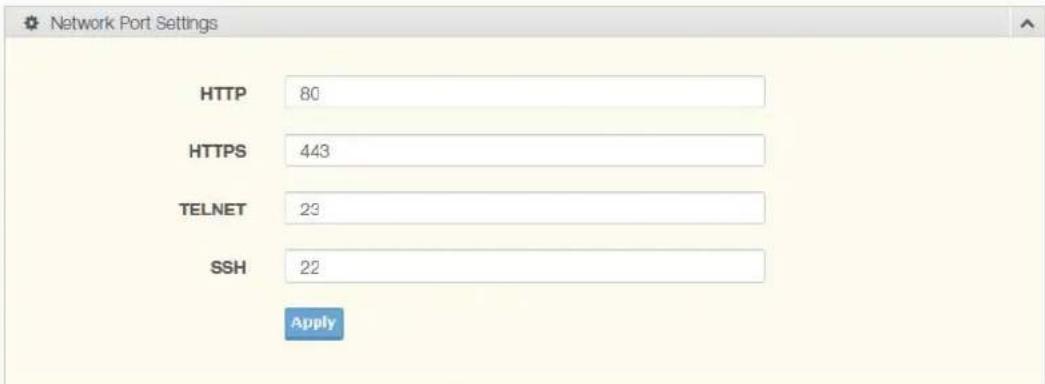
To access this page, click System > Network Port.
text_image
Network Port Settings HTTP 80 HTTPS 443 TELNET 23 SSH 22 ApplyFigure 4.16 System > Network Port
The following table describes the items in the previous figure.
Item Description
HTTP By default, the HTTPS port setting is set to port 80. To assign the web interface to a different port, enter the port number in the field.
HTTPS By default, the HTTPS port setting is set to port 443. To assign the web interface to a different port, enter the port number in the field.
TELNET By default, the TELNET port setting is set to port 23. To assign the web interface to a different port, enter the port number in the field.
SSH By default, the SSH port setting is set to port 22. To assign the web interface to a different port, enter the port number in the field.
Apply Click Apply to save the values and update the screen.
The ensuing table for Network Port Information are informational only: HTTP, HTTPS, TELNET and SSH.
4.5 L2 Switching
4.5.1 Port Configuration
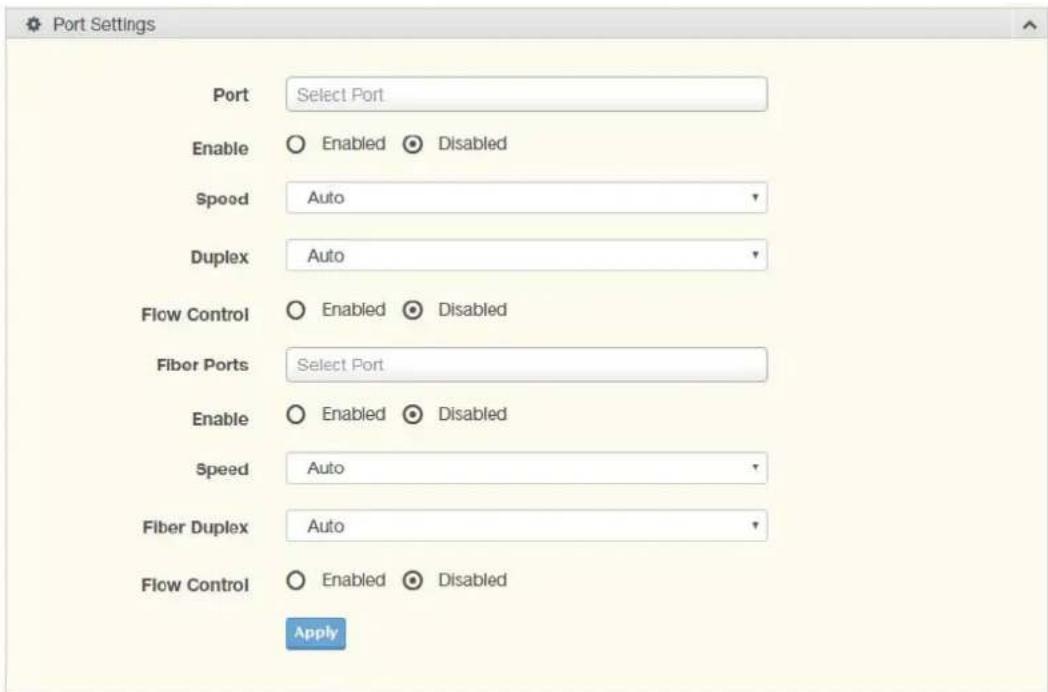
Port Configuration describes how to use the user interface to configure LAN ports on the switch.
To access this page, click L2 Switching > Port Configuration.
text_image
Port Settings Port Select Port Enable Enabled Disabled Speed Auto Duplex Auto Flow Control Enabled Disabled Fiber Ports Select Port Enable Enabled Disabled Speed Auto Fiber Duplex Auto Flow Control Enabled Disabled ApplyFigure 4.17 L2 Switching > Port Configuration
The following table describes the items in the previous figure.
| Item Description | |
| Port Click the drop-down menu to select the port for the L2 Switch setting. | |
| Enabled | Click the radio-button to enable or disable the Port Setting function. |
| Speed Click the drop-down menu to select the port speed: Auto, Auto-10M, Auto-100M, Auto-1000M, Auto-10/100M, 10M, 100M, or 1000M. | |
| Duplex Click the drop-down menu to select the duplex setting: Auto, Half or Full. | |
| Flow Control Click the radio button to enable or disable the flow control function. | |
| Fiber Port Click the drop-down menu to select the port for the L2 Switch Fiber port setting. | |
| Enabled | Click the radio-button to enable or disable the Fiber Port Setting func-tion. |
| Speed Click the drop-down menu to select the fiber port speed: Auto, Auto-1000M, 100M, or 1000M. | |
| Duplex Click the drop-down menu to select the duplex setting: Half or Full. | |
| Flow Control Click the radio button to enable or disable the flow control function. | |
| Apply Click Apply to save the values and update the screen. | |
The ensuing table for Port Status settings are informational only: Port, Edit (click to enter description), Enable State, Link Status, Speed, Duplex, FlowCtrl Config and FlowCtrl Status.
4.5.2 Port Mirror
Port mirroring function allows the sending of a copy of network packets seen on one switch port to a network monitoring connection on another switch port. Port mirroring can be used to analyze and debug data or diagnose errors on a network or to mirror either inbound or outbound traffic (or both).
There are no preset values in the Port Mirror. The displayed values do not represent the actual setting values.
To access this page, click L2 Switching > Port Mirror.
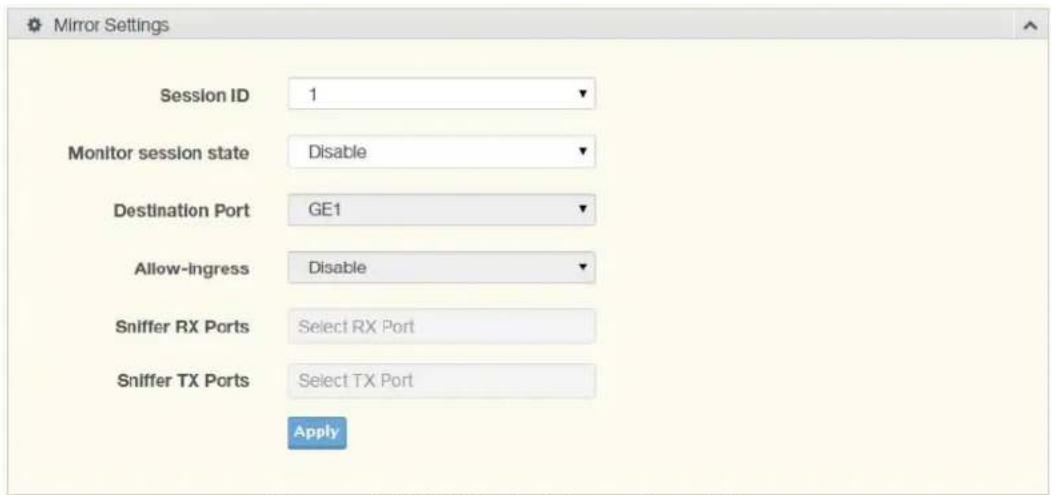
text_image
Mirror Settings Session ID 1 Monitor session state Disable Destination Port GE1 Allow-ingress Disable Sniffer RX Ports Select RX Port Sniffer TX Ports Select TX Port ApplyFigure 4.18 L2 Switching > Port Mirror
The following table describes the items in the previous figure.
| Item Description | |
| Session ID Click the drop-down menu to select a port mirroring session from the list. The number of sessions allowed is platform specific. | |
| Monitor session state Click the drop-down menu to enable or disable the session mode for a selected session ID. | |
| Destination Port Click the drop-down menu to select the destination port and receive all the traffic from configured mirrored port(s). | |
| Allow-ingress Click the drop-down menu to enable or disable the Allow-ingress function. | |
| Sniffer RX Ports Enter the variable to define the RX port. | |
| Sniffer TX Ports Enter the variable to define the TX port. | |
| Apply Click Apply to save the values and update the screen. |
The ensuing table for Mirror Status settings are informational only: Session ID, Destination Port, Ingress State, Source TX Port and Source RX Port.
4.5.3 Link Aggregation
Link Aggregation is a method for combining multiple network connections in parallel in order to increase throughput beyond the capability of a single connection, and to provide redundancy in case one of the links should fail.
4.5.3.1 Load Balance
The Load Balancing page allows you to select between a MAC Address or IP/MAC Address algorithm for the even distribution of IP traffic across two or more links.
To access this page, click L2 Switching > Link Aggregation > Load Balance.

text_image
Load Balance Settings Load Balance Algorithm ○ MAC Address ○ IP/MAC Address ○ Source Port ApplyFigure 4.19 L2 Switching > Link Aggregation > Load Balance
The following table describes the items in the previous figure.
| Item Description | |
| Load Balance Algorithm | Select the radio button to select the Load Balance Setting: MAC Address, IP/MAC Address or Source Port. |
| Apply Click Apply to save the values and update the screen. | |
The ensuing table for Load Balance Information settings are informational only: Load Balance Algorithm.
Link aggregation is also known as trunking. It is a feature available on the Ethernet gateway and is used with Layer 2 Bridging. Link aggregation allows for the logical merging of multiple ports into a single link.
To access this page, click L2 Switching > Link Aggregation > LAG Management.
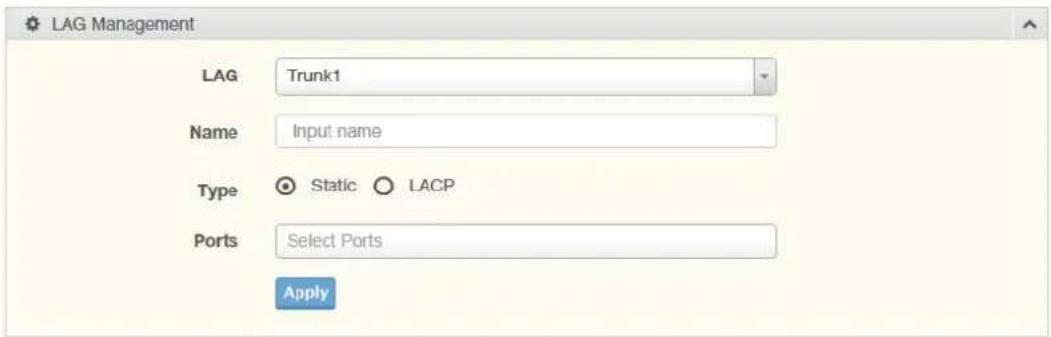
text_image
LAG Management LAG Trunk1 Name Input name Type Static LACP Ports Select Ports ApplyFigure 4.20 L2 Switching > Link Aggregation > LAG Management
The following table describes the items in the previous figure.
| Item Description |
| LAG Click the drop-down menu to select the designated trunk group: Trunk 1 ~8. |
| Name Enter an entry to specify the LAG name. |
| Type Click the radio button to specify the type mode: Static or LACP. |
| Ports Click the drop-down menu to select designated ports: FE1-8 or GE1-2. |
| Apply Click Apply to save the values and update the screen. |
The ensuing table for LAG Management Information settings are informational only: LAG, Name, Type, Link State, Active Member, Standby Member, Edit (click to modify the settings) and Clear (click to load default settings).
4.5.3.3 LAG Port Settings
The LAG Port Settings page allows you to enable or disable, set LAG status, speed and flow control functions.
In this example we will configure a LAG between the following switches:
To access this page, click L2 Switching > Link Aggregation > LAG Port Settings.

text_image
LAG Port settings LAG Select Select LAGs Enabled Enabled Disabled Speed Auto Flow Control Enabled Disabled ApplyFigure 4.21 L2 Switching > Link Aggregation > LAG Port Settings
The following table describes the items in the previous figure.
Item Description
| LAG Select Click the drop-down menu to select a predefined LAG trunk definition:LAG 1-8. | |
| Enabled Click the radio button to enable or disable the LAG Port. | |
| Speed Click the drop-down menu to select the port speed: Auto, Auto-10M,Auto-100M, Auto-1000M, Auto-10/100M, 10M, 100M, or 1000M. | |
| Flow Control Click the radio button to enable or disable the Flow Control for theLAG Port. | |
| Apply | Click Apply to save the values and update the screen. |
The ensuing table for LAG Port Status settings are informational only: LAG, Description, Port Type, Enable State, Link Status, Speed, Duplex, FlowCtrl Config and FlowCtrl Status.
4.5.3.4 LACP Priority Settings
The LACP Priority Settings page allows you to configure the system priority for LACP. To access this page, click L2 Switching > Link Aggregation > LACP Priority Settings.

text_image
LACP Priority Settings System Priority 32768 (1-65535) ApplyFigure 4.22 L2 Switching > Link Aggregation > LACP Priority Settings
The following table describes the items in the previous figure.
Item Description
| System Priority Enter the value (1-65535) to designate the LACP system priority. | |
| Apply | Click Apply to save the values and update the screen. |
The ensuing table for LACP Information settings are informational only: System Priority.
4.5.3.5 LACP Port Settings
Link Aggregation Control Protocol (LACP) provides a method to control the bundling of several physical ports together to form a single logical channel. By configuring the LACP function, the switch can negotiate an automatic bundling of links by sending LACP packets to the peer device (also implementing LACP).
To access this page, click L2 Switching > Link Aggregation > LACP Port Settings.
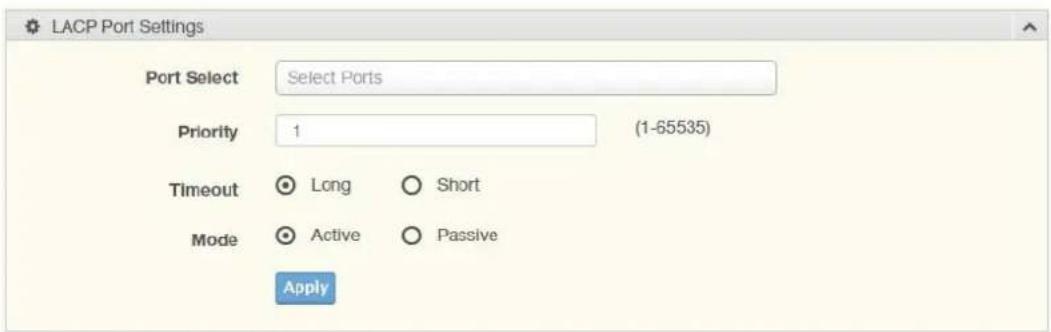
text_image
LACP Port Settings Port Select Select Ports Priority 1 (1-65535) Timeout Long Short Mode Active Passive ApplyFigure 4.23 L2 Switching > Link Aggregation > LACP Port Settings
The following table describes the items in the previous figure.
Item Description
Port Select Select a port for the LACP Port Settings. The listed available settings are: FE1-FE8, GE1-GE2.
However, the available settings are dependent on the connected LACP device and may not be listed as displayed in the current figure.
Priority Enter a variable (1 to 65535) to assign a priority to the defined port selection.
Timeout Click the radio button to select a long or short timeout period.
Mode Click the radio button to select the setting mode: Active or Passive.
■ Active: Enables LACP unconditionally.
■ Passive: Enables LACP only when an LACP device is detected (default state).
Apply Click Apply to save the values and update the screen.
The ensuing table for LACP Port Information settings are informational only: Port Name, Priority, Timeout and Mode.
4.5.4 802.1Q VLAN
The 802.1Q VLAN feature allows for a single VLAN to support multiple VLANs. With the 802.1Q feature you can preserve VLAN IDs and segregate different VLAN traffic. The 802.1Q VLAN tag feature encapsulates the 802.1Q VLAN tagging within another 802.1Q VLAN tag. The outer tag is assigned following the AP group, while the inner VLAN ID is assigned dynamically by the AAA server.
4.5.4.1 VLAN Management
The management of VLANs is available through the VLAN Settings page. Through this page you can add or delete VLAN listings and add a prefix name to an added entry.
To access this page, click L2 Switching > 802.1Q VLAN > VLAN Management.

text_image
VLAN Settings VLAN Action Add Delete VLAN ID / VLAN List VLAN Name / VLAN Prefix ApplyFigure 4.24 L2 Switching > 802.1Q VLAN > VLAN Management
The following table describes the items in the previous figure.
Item Description
| VLAN Action Click the radio button to add or delete the VLAN entry shown in the previous field. | |
| VLAN ID / VLAN List Enter the name of the VLAN entry to setup. | |
| VLAN Name / VLAN Prefix | Enter the prefix to be used by the VLAN list entry in the previous field. |
| Apply | Click Apply to save the values and update the screen. |
The ensuing table for VLAN Table settings are informational only: VLAN ID, VLAN Name, VLAN Type and Edit (click to enter VLAN name).
4.5.4.2 PVID Settings
The PVID Settings page allows you to designate a PVID for a selected port, define the accepted type and enable/disable the ingress filtering.
To access this page, click L2 Switching > 802.1Q VLAN > PVID Settings.

text_image
Edit Interface Settings Port Select Select Ports PVID 1 (1 - 4094) Accepted Type All Tag Only Untag Only Ingress Filtering Enabled Disabled ApplyFigure 4.25 L2 Switching > 802.1Q VLAN > PVID Settings
The following table describes the items in the previous figure.
Item Description
| Port Select Click the drop-down menu to select a port and edit its settings: FE1-FE8, GE1-GE2, or Trunk1 - Trunk8. | |
| PVID Enter the VLAN ID you want assigned to untagged or priority taggedframes received on this port. The value ranges 1 to 4094. The default is 1. | |
| Accepted Type | Click the radio button to specify which frames to forward.Tag Only discards any untagged or priority tagged frames.Untag Only discards any tagged frames.All accepts all untagged and tagged frames.Whichever you select, VLAN tagged frames are forwarded in accordance with the IEEE 802.1Q VLAN standard. The default is All. |
| Ingress Filtering | Click the radio button to specify how you want the port to handle tagged frames. If you enable Ingress Filtering, a tagged frame will be discarded if this port is not a member of the VLAN identified by the VLAN ID in the tag. If you select Disabled, all tagged frames will be accepted. The default is Disabled. |
| Apply Click Apply to save the values and update the screen. | |
The ensuing table for Port VLAN Status settings are informational only: Port, Interface VLAN Mode, PVID, Accept Frame Type and Ingress Filtering.
4.5.4.3 Port to VLAN
The Port to VLAN page allows you to add a port to a VLAN and select the related parameters.
To access this page, click L2 Switching > 802.1Q VLAN > Port to VLAN.
| Port to VLAN Table | |||
| Port | Interface VLAN Mode | Membership | PVID |
| GE1 | Hybrid | ○ Forbidden ○ Excluded ○ Tagged ○ Untagged | YES |
| GE2 | Hybrid | ○ Forbidden ○ Excluded ○ Tagged ○ Untagged | YES |
| GE3 | Hybrid | ○ Forbidden ○ Excluded ○ Tagged ○ Untagged | YES |
| GE4 | Hybrid | ○ Forbidden ○ Excluded ○ Tagged ○ Untagged | YES |
| GE5 | Hybrid | ○ Forbidden ○ Excluded ○ Tagged ○ Untagged | YES |
| GE6 | Hybrid | ○ Forbidden ○ Excluded ○ Tagged ○ Untagged | YES |
| GE7 | Hybrid | ○ Forbidden ○ Excluded ○ Tagged ○ Untagged | YES |
| GE8 | Hybrid | ○ Forbidden ○ Excluded ○ Tagged ○ Untagged | YES |
| GE9 | Hybrid | ○ Forbidden ○ Excluded ○ Tagged ○ Untagged | YES |
| GE10 | Hybrid | ○ Forbidden ○ Excluded ○ Tagged ○ Untagged | YES |
| Trunk1 | Hybrid | ○ Forbidden ○ Excluded ○ Tagged ○ Untagged | YES |
| Trunk2 | Hybrid | ○ Forbidden ○ Excluded ○ Tagged ○ Untagged | YES |
| Trunk3 | Hybrid | ○ Forbidden ○ Excluded ○ Tagged ○ Untagged | YES |
| Trunk4 | Hybrid | ○ Forbidden ○ Excluded ○ Tagged ○ Untagged | YES |
| Trunk5 | Hybrid | ○ Forbidden ○ Excluded ○ Tagged ○ Untagged | YES |
| Trunk6 | Hybrid | ○ Forbidden ○ Excluded ○ Tagged ○ Untagged | YES |
| Trunk7 | Hybrid | ○ Forbidden ○ Excluded ○ Tagged ○ Untagged | YES |
| Trunk8 | Hybrid | ○ Forbidden ○ Excluded ○ Tagged ○ Untagged | YES |

Figure 4.26 L2 Switching > 802.1Q VLAN > Port to VLAN
The following table describes the items in the previous figure.
Item Description
Port Displays the assigned port to the entry.
Interface VLAN Mode Displays the assigned mode to the listed VLAN port.
Hybrid: Port hybrid model.
■ Access: Port hybrid model.
■ Trunk: Port hybrid model.
Tunnel: Port hybrid model.
Membership Displays the assigned membership status of the port entry, options include: Forbidden, Excluded Tagged or Untagged.
Apply Click Apply to save the values and update the screen.
The ensuing table for Port-VLAN Mapping Table settings are informational only: Port, Mode, Administrative VLANs and Operational VLANs.
4.5.5 Q-in-Q
Q-in-Q is commonly referred as VLAN stacking in which VLANs are nested by adding two tags to each frame instead of one. Network service provider and users both can use VLANs and makes it possible to have more than the 4094 separate VLANs allowed by 802.1Q.
There are three ways in which a machine can be connected to a network carrying double-tagged 802.1ad traffic:
■ via a untagged port, where both inner and outer VLANs are handled by the switch or switches (so the attached machine sees ordinary Ethernet frames);
via a single-tagged (tunnel) port, where the outer VLAN only is handled by the switch (so the attached machine sees single-tagged 802.1Q VLAN frames); or
via a double-tagged (trunk) port, where both inner and outer VLANs are handled by the attached machine (which sees double-tagged 802.1ad VLAN frames).
4.5.5.1 Global Settings
The Global Settings page allows you to set the outer VLAN Ethertype setting.
To access this page, click L2 Switching > Q-in-Q > Global Settings.

text_image
Global Settings Outer VLAN Ethertype Input ethertype (0x0000-0xFFFF) ApplyFigure 4.27 L2 Switching > Q-in-Q > Global Settings
The following table describes the items in the previous figure.
Item Description
| Outer VLAN Ether-type | Enter the outer VLAN handled by the switch giving the attached machine a single-tagged 802.1Q VLAN frame. |
| Apply Click Apply to save the values and update the screen. | |
The ensuing table for QinQ Global Information settings are informational only: Outer VLAN Ethertype.
4.5.5.2 Port Settings
The Port Settings page allows you to define the outer PVID and outer mode for a selected port.
To access this page, click L2 Switching > Q-in-Q > Port Settings.
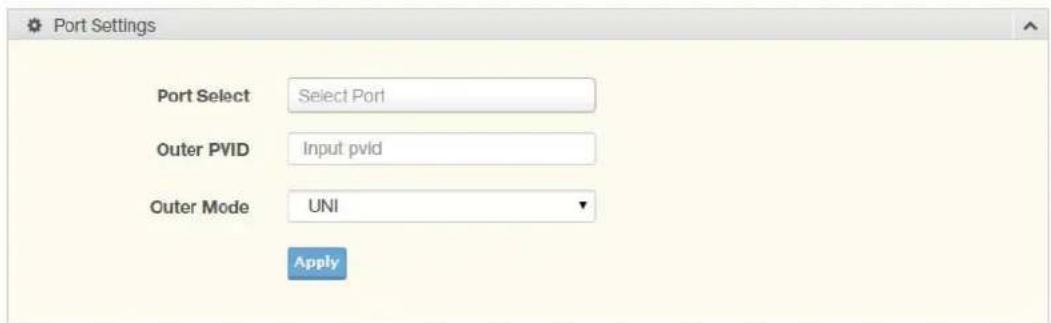
text_image
Port Settings Port Select Select Port Outer PVID Input pvid Outer Mode UNI ApplyFigure 4.28 L2 Switching > Q-in-Q > Port Settings
The following table describes the items in the previous figure.
| Item Description | |
| Port Select Enter the switch port (part of VLAN configuration) to configure the selection as a tunnel port. | |
| Outer PVID Enter the Port VLAN ID (PVID) to assigned the native VLAN ID. All untagged traffic coming in or out of the 802.1Q port is forwarded based on the PVID value | |
| Outer Mode Click the drop-down menu to select between UNI or NNI role.■ UNI: Selects a user-network interface which specifies communication between the specified user and a specified network.■ NNI: Selects a network-to-network interface which specifies communication between two specified networks. | |
| Apply | Click Apply to save the values and update the screen. |
The ensuing table for QinQ Port Information settings are informational only: Port, Outer PVID and Outer Mode.
4.5.6 GARP
The Generic Attribute Registration Protocol (GARP) is a local area network (LAN) protocol. The protocol defines procedures for the registration and de-registration of attributes (network identifiers or addresses) by end stations and switches with each other.
4.5.6.1 GARP Settings
To access this page, click L2 Switching > GARP > GARP Settings.
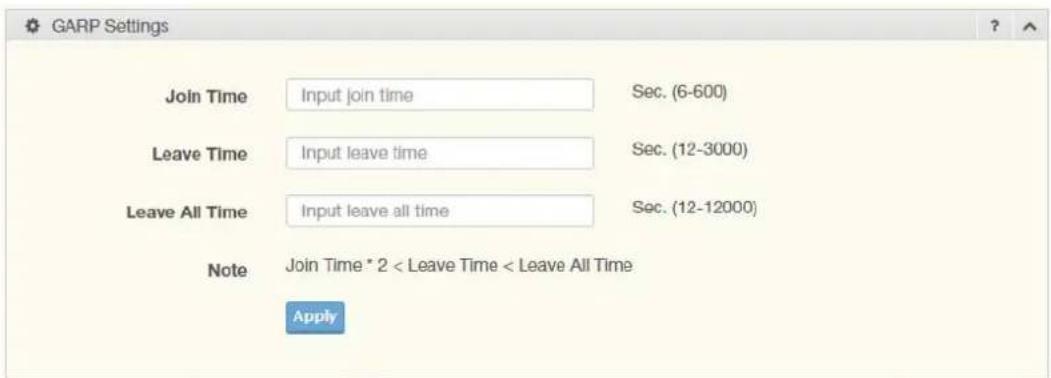
text_image
GARP Settings Join Time Input join time Sec. (6-600) Leave Time Input leave time Sec. (12-3000) Leave All Time Input leave all time Sec. (12-12000) Note Join Time * 2 < Leave Time < Leave All Time ApplyFigure 4.29 L2 Switching > GARP > GARP Settings
The following table describes the items in the previous figure.
Item Description
| Join Time Enter a value to specify the time between the transmission of GARP PDUs registering (or re-registering) membership for a VLAN or multi-cast group in centiseconds. Enter a number between 6 and 600. An instance of this timer exists for each GARP participant for each port. |
| Leave Time Enter a value to specify the time to wait after receiving an unregister request for a VLAN or multicast group before deleting the associated entry, in centiseconds. This allows time for another station to assert registration for the same attribute in order to maintain uninterrupted service. Enter a number between 12 and 3000. An instance of this timer exists for each GARP participant for each port. |
| Leave All Time Enter a value to specify the Leave All Time controls how frequently Leave All PDUs are generated. A LeaveAll PDU indicates that all registrations will shortly be deregistered. Participants will need to rejoin in order to maintain registration. The Leave All Period Timer is set to a random value in the range of LeaveAllTime to 1.5*LeaveAllTime. The timer is specified in centiseconds. Enter a number between 12 and 12000. An instance of this timer exists for each GARP participant for each port. |
Apply Click Apply to save the values and update the screen.
The ensuing table for GARP Information settings are informational only: Join Time, Leave Time and Leave All Time.
4.5.6.2 GVRP Settings
The GVRP Settings page allows you to enable or disable the GVRP (GARP VLAN Registration Protocol or Generic VLAN Registration Protocol) protocol which facilitates control of virtual local area networks (VLANs) within a larger network.
To access this page, click L2 Switching > GARP > GVRP Settings.

text_image
GVRP Settings Status ○ Enabled ● Disabled ApplyFigure 4.30 L2 Switching > GARP > GVRP Settings
The following table describes the items in the previous figure.
Item Description
| Status Click to enable or disable the GARP VLAN Registration Protocoladministrative mode for the switch. The factory default is Disable. | |
| Apply | Click Apply to save the values and update the screen. |
The ensuing table for GVRP Information settings are informational only: GVRP.
4.5.6.3 GMRP Settings
To access this page, click L2 Switching > GARP > GMRP Settings.

text_image
GMRP Settings State Enabled Disabled ApplyFigure 4.31 L2 Switching > GARP > GMRP Settings
The following table describes the items in the previous figure.
Item Description
| State Click to enable or disable the GMRP mode for the switch. The factory default is Disable. | |
| Apply | Click Apply to save the values and update the screen. |
The ensuing table for GMRP Information settings are informational only: GMRP. The ensuing table for Multicast Groups settings are informational only: VLAN ID, MAC Address, Type and Member Ports.
4.5.7 802.3az EEE
The 802.3az Energy Efficient Ethernet (EEE) innovative green feature reduces energy consumption through intelligent functionality:
■ Traffic detection — Energy Efficient Ethernet (EEE) compliance
■ Inactive link detection
Inactive link detection function automatically reduces power usage when inactive links or devices are detected.
To access this page, click L2 Switching > 802.3az EEE.

text_image
EEE Port Settings Port Select Select Ports Stato Enabled Disabled ApplyFigure 4.32 L2 Switching > 802.3az EEE
The following table describes the items in the previous figure.
Item Description
Port Select Enter the port to setup the EEE function.
| State | Click Enabled or Disabled to set the state mode of the port select setting. |
Apply Click Apply to save the values and update the screen.
The ensuing table for EEE Enable Status settings are informational only: Port and EEE State.
4.5.8 Multicast
Multicast forwarding allows a single packet to be forwarded to multiple destinations. The service is based on L2 switch receiving a single packet addressed to a specific Multicast address. Multicast forwarding creates copies of the packet, and transmits the packets to the relevant ports.
4.5.8.1 Multicast Filtering
The Multicast Filtering page allows for the definition of action settings when an unknown multicast request is received. The options include: Drop, Flood, or Router Port.
To access this page, click L2 Switching > Multicast > Multicast Filtering.

text_image
Properties Settings Unknown Multicast Action ○ Drop ○ Flood ○ Router Port ApplyFigure 4.33 L2 Switching > Multicast > Multicast Filtering
The following table describes the items in the previous figure.
Item Description
| Unknown Multicast Action | Select the configuration protocol: Drop, Flood, or Router Port, to apply for any unknown multicast event. |
Apply Click Apply to save the values and update the screen.
The ensuing table for Properties Information settings are informational only: Unknown Multicast Action.
4.5.8.2 IGMP Snooping
IGMP Snooping is defined as the process of listening to Internet Group Management Protocol (IGMP) network traffic. IGMP Snooping allows a network switch to listen in on the IGMP conversation between hosts and routers and maintain a map of which links need which IP multicast streams. Multicasts can be filtered from the links which do not need them in turn controlling which ports receive specific multicast traffic.
IGMP Settings
To access this page, click L2 Switching > Multicast > IGMP Snooping > IGMP Settings.
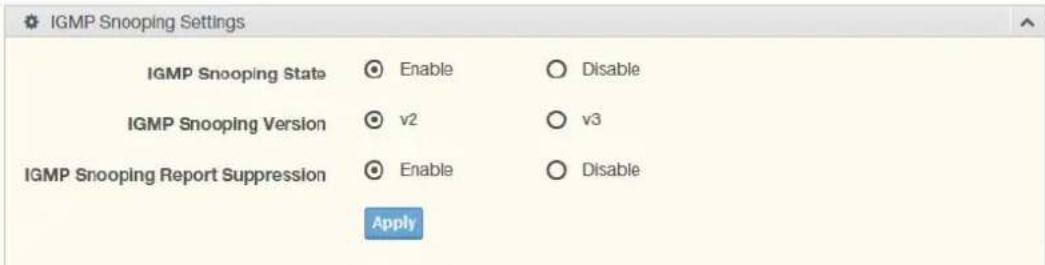
text_image
IGMP Snooping Settings IGMP Snooping State Enable Disable IGMP Snooping Version v2 v3 IGMP Snooping Report Suppression Enable Disable ApplyFigure 4.34 L2 Switching > Multicast > IGMP Snooping > IGMP Settings
The following table describes the items in the previous figure.
| Item Description | |
| IGMP Snooping State | Select Enable or Disable to designate the IGMP Snooping State. |
| IGMP Snooping Version | Select designate the IGMP Snooping Version: V2 or V3. |
| IGMP Snooping Report Suppression | Select Enable or Disable to setup the report suppression for IGMP Snooping. |
| Apply | Click Apply to save the values and update the screen. |
The ensuing table for IGMP Snooping Information settings are informational only: IGMP Snooping State, IGMP Snooping Version and IGMP Snooping V2 Report Suppression.
The ensuing table for IGMP Snooping Table settings are informational only: Entry No., VLAN ID, IGMP Snooping Operation State, Router Ports Auto Learn, Query Robustness, Query Interval (sec.), Query Max Response Interval (sec.), Last Member Query count, Last Member Query Interval (sec), Immediate Leave and Edit (click to modify the settings).
IGMP Querier
IGMP Querier allows snooping to function by creating the tables for snooping. General queries must be unconditionally forwarded by all switches involved in IGMP snooping.
To access this page, click L2 Switching > Multicast > IGMP Snooping > IGMP Querier.

text_image
IGMP Querier Settings VLAN ID Select VLANs Querler State Disable Enable Querler Version v2 v3 ApplyFigure 4.35 L2 Switching > Multicast > IGMP Snooping > IGMP Querier
The following table describes the items in the previous figure.
Item Description
| VLAN ID Select the VLAN ID to define the local IGMP querier. | |
| Querier State | Select Disable or Enable to configure the VLAN ID (IGMP Querier). |
| Querier Version Select the querier version (V2 or V3) designated to the selected VLAN ID. | |
| Apply Click Apply to save the values and update the screen. | |
The ensuing table for IGMP Querier Status settings are informational only: VLAN ID, Querier State, Querier Status, Querier Version and Querier IP.
IGMP Static Groups
To access this page, click L2 Switching > Multicast > IGMP Snooping > IGMP Static Groups.
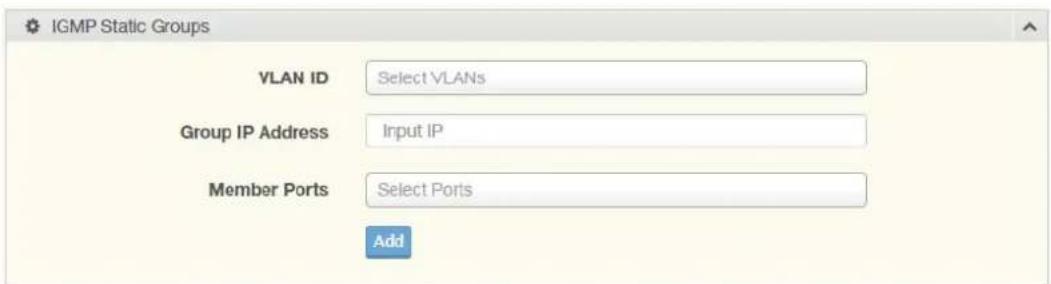
text_image
IGMP Static Groups VLAN ID Select VLANs Group IP Address Input IP Member Ports Select Ports AddFigure 4.36 L2 Switching > Multicast > IGMP Snooping > IGMP Static Groups
The following table describes the items in the previous figure.
Item Description
| VLAN ID Select the VLAN ID to define IGMP static group. |
| Group IP Address Enter the IP address assigned to the VLAN ID. |
| Member Ports Enter the port numbers to associate with the static group. |
| Add Click Add to add an IGMP group. |
The ensuing table for IGMP Static Groups Status settings are informational only: VLAN ID, Group IP Address, Member Ports and Modify.
Multicast Groups
To access this page, click L2 Switching > Multicast > IGMP Snooping > Multicast Groups.
The ensuing table for Multicast Groups settings are informational only: VLAN ID, Group IP Address, Member Ports, Type and Life (Sec).
Router Ports
To access this page, click L2 Switching > Multicast > IGMP Snooping > Router Ports.
The ensuing table for Router Ports settings are informational only: VLAN ID, Port and Expiry Time (Sec).
4.5.8.3 MLD Snooping
The MLD Snooping page allows you to select the snooping status (enable or disable), the version (v1 or v2) and the enabling/disabling of the report suppression for the MLD querier, which sends out periodic general MLD queries and are forwarded through all ports in the VLAN.
MLD Settings
To access this page, click L2 Switching > Multicast > MLD Snooping > MLD Settings.
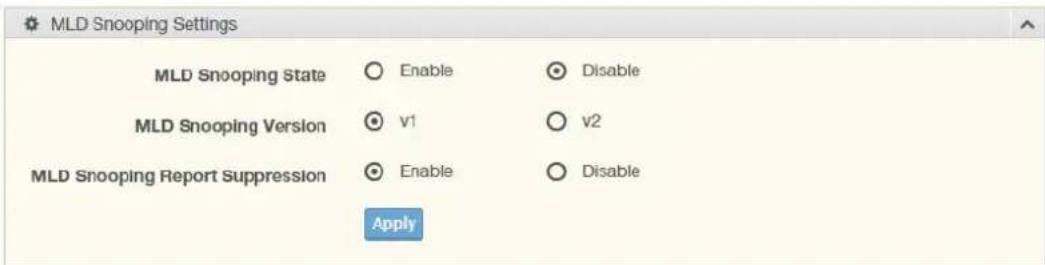
text_image
MLD Snooping Settings MLD Snooping State ○ Enable ○ Disable MLD Snooping Version ○ v1 ○ v2 MLD Snooping Report Suppression ○ Enable ○ Disable ApplyFigure 4.37 L2 Switching > Multicast > MLD Snooping > MLD Settings
The following table describes the items in the previous figure.
Item Description
| MLD Snooping State | Select Enable or Disable to setup the MLD Snooping State. |
| MLD Snooping Version | Select the querier version (V1 or V2) designated to the MLD Snooping Version. |
| MLD Snooping Report Suppression | Select Enable or Disable to designate the status of the report suppression. |
| Apply | Click Apply to save the values and update the screen. |
The ensuing table for MLD Snooping Information settings are informational only: MLD Snooping State, MLD Snooping Version and MLD Snooping V2 Report Suppression.
The ensuing table for MLD Snooping Table settings are informational only: Entry No., VLAN ID, MLD Snooping Operation State, Router Ports Auto Learn, Query Robustness, Query Interval (sec.), Query Max Response Interval (sec.), Last Member Query count, Last Member Query Interval (sec), Immediate Leave and Edit (click to modify the settings).
MLD Querier
The MLD Querier page allows you to select and enable/disable the MLD querier and define the version (IGMPv1 or IGMPv2) when enabled.
To access this page, click L2 Switching > Multicast > MLD Snooping > MLD Que-rier.

text_image
MLD Querier Settings VLAN ID Select VLANs Querier State Disable Enable Querier Version v1 v2 ApplyFigure 4.38 L2 Switching > Multicast > MLD Snooping > MLD Querier
The following table describes the items in the previous figure.
| Item Description | |
| VLAN ID Enter the VLAN ID to configure. | |
| Querier State | Select Enable or Disable status on the selected VLAN.■ Enable: Enable IGMP Querier Election.■ Disable: Disable IGMP Querier Election. |
| Querier Version Select the querier version (IGMPV1 or IGMPV2) designated to the MLD Querier function. | |
| Apply Click Apply to save the values and update the screen. | |
The ensuing table for MLD Querier Status settings are informational only: VLAN ID, Querier State, Querier Status, Querier Version and Querier IP.
MLD Static Group
The MLD Static Group page allows you to configure specified ports as static member ports.
To access this page, click L2 Switching > Multicast > MLD Snooping > MLD Static Group.

text_image
MLD Static Groups VLAN ID Select VLANs Group IP Address Input IP Member Ports Select Ports AddFigure 4.39 L2 Switching > Multicast > MLD Snooping > MLD Static Group
The following table describes the items in the previous figure.
| Item Description |
| VLAN ID Enter the VLAN ID to define the local MLD Static Group. |
| Group IP Address Enter the IP address associated with the static group. |
| Member Ports Enter the ports designated with the static group. |
| Add Click Add to add a MLD static group. |
The ensuing table for MLD Static Groups Status settings are informational only: VLAN ID, Group IP Address, Member Ports and Modify.
Multicast Groups
To access this page, click L2 Switching > Multicast > MLD Snooping > Multicast Groups.
The ensuing table for Multicast Groups settings are informational only: ID, Group IP Address, Member Ports, Type and Life (Sec).
Router Ports
To access this page, click L2 Switching > Multicast > MLD Snooping > Router Ports.
The ensuing table for Router Ports settings are informational only: VLAN ID, Port and Expiry Time (Sec).
4.5.9 Jumbo Frame
Jumbo frames are frames larger than the standard Ethernet frame size of 1518 bytes. The Jumbo Frame function allows the configuration of Ethernet frame size.
To access this page, click L2 Switching > Jumbo Frame.

text_image
Jumbo Frame Settings Jumbo Frame (Bytes) 1522 (1518-9216) ApplyFigure 4.40 L2 Switching > Jumbo Frame
The following table describes the items in the previous figure.
| Item Description | |
| Jumbo Frame (Bytes) | Enter the variable in bytes (1518 to 9216) to define the jumbo frame size. |
| Apply | Click Apply to save the values and update the screen. |
The ensuing table for Jumbo Frame Config settings are informational only: Jumbo Frame (Bytes).
4.5.10 Spanning Tree
The Spanning Tree Protocol (STP) is a network protocol to ensure loop-free topology for any bridged Ethernet local area network.
4.5.10.1 STP Global Settings
The STP Global Settings page allows you to set the STP status, select the configuration for a BPDU packet, choose the path overhead, force version and set the configuration revision range.
To access this page, click L2 Switching > Spanning Tree > STP Global Settings.
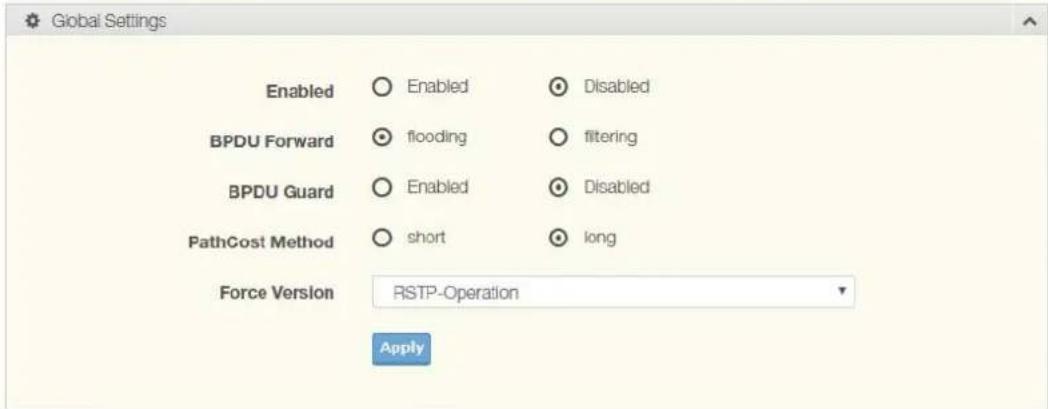
text_image
Global Settings Enabled Enabled Disabled BPDU Forward flooding filtering BPDU Guard Enabled Disabled PathCost Method(short long Force Version RSTP-Operation ApplyFigure 4.41 L2 Switching > Spanning Tree > STP Global Settings
The following table describes the items in the previous figure.
Item Description
| Enabled Click the radio-button to enable or disable the STP status. | |
| BPDU Forward | Selectfloodingor filteringto designate the type of BPDU packet. |
| BPDU Guard | Click the radio-button to enable or disable the BPDU guard. When enabled, BPDU Guard can disable edge ports that receive BPDU packets. This prevents a new device from entering the existing STP topology. Thus devices that were originally not a part of STP are not allowed to influence the STP topology |
| PathCost Method Select short or long to define the method of used for path cost calculations. | |
| Force Version Click the drop-down menu to select the operating mode for STP.■STP-Compatible: 802.1D STP operation.■RSTP-Operation: 802.1w operation.■MSTP-Operation: 802.1s operation. | |
| Apply ClickApplyto save the values and update the screen. | |
The ensuing table for STP Information settings are informational only: STP, BPDU Forward, BPDU Guard, PathCost Method and Force Version.
4.5.10.2 STP Port Settings
The STP Port Settings page allows you to configure the ports for the setting, port's contribution, configure edge port, and set the status of the BPDU filter.
To access this page, click L2 Switching > Spanning Tree > STP Port Settings.

text_image
STP Port Settings Port Select Select Ports Admin Enable Enabled Disabled Path Cost 0 (0 = Auto) Edge Port No P2P MAC Yes Migrate ApplyFigure 4.42 L2 Switching > Spanning Tree > STP Port Settings
The following table describes the items in the previous figure.
| Item Description | |
| Port Select Select the port list to specify the ports that apply to this setting. | |
| Admin Enable | SelectEnabledorDisabledto setup the admin profile for the STP port. |
| Path Cost (0 = Auto) | Set the port's cost contribution. For a root port, the root path cost for the bridge. (0 means Auto). |
| Edge Port Click the drop-down menu to set the edge port configuration.No: Force to false state (as link to a bridge).Yes: Force to true state (as link to a host). | |
| P2P MAC Click the drop-down menu to set the Point-to-Point port configuration.No: Force to false state.Yes: Force to true state. | |
| Migrate Click the check box to enable the migrate function.Forces the port to use the new MST/RST BPDUs, requiring the switch to test on the LAN segment. for the presence of legacy devices, which are not able to understand the new BPDU formats. | |
| Apply | ClickApplyto save the values and update the screen. |
The ensuing table for STP Port Status settings are informational only: Port, Admin Enable, Path Cost, Edge Port and P2P MAC.
4.5.10.3 STP Bridge Settings
The STP Bridge Settings page allows you to configure the priority, forward delay, maximum age, Tx hold count, and the hello time for the bridge.
To access this page, click L2 Switching > Spanning Tree > STP Bridge Settings.

text_image
STP Bridge Settings Priority 32768 Forward Delay 15 (4-30) Max Age 20 (6-40) Tx Hold Count 6 (1-10) Hello Time 2 (1-10) ApplyFigure 4.43 L2 Switching > Spanning Tree > STP Bridge Settings
The following table describes the items in the previous figure.
Item Description
| Priority Click the drop-down menu to select the STP bridge priority. |
| Forward Delay Enter the variable (4 to 30) to set the forward delay for STP bridge settings. |
| Max Age Enter the variable (6 to 40) to set the Max age for STP bridge settings. |
| Tx Hold Count Enter the variable (1 to 10) to designate the TX hold count for STP bridge settings. |
| Hello Time Enter the variable (1 to 10) to designate the Hello Time for STP bridge settings. |
| Apply Click Apply to save the values and update the screen. |
The ensuing table for STP Bridge Information settings are informational only: Priority, Forward Delay, Max Age, Tx Hold Count and Hello Time.
The ensuing table for STP Bridge Status settings are informational only: Bridge Identifier, Designated Root Bridge, Root Path Cost, Designated Bridge, Root Port and Last Topology Change.
4.5.10.4 STP Port Advanced Settings
The STP Port Advanced Settings page allows you to select the port list to apply this setting.
To access this page, click L2 Switching > Spanning Tree > STP Port Advanced Settings.
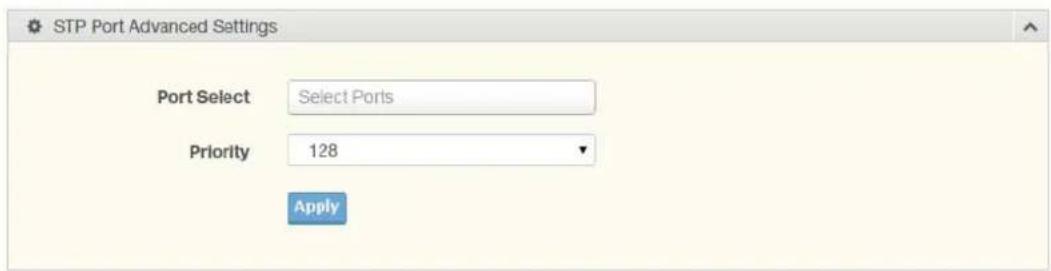
text_image
STP Port Advanced Settings Port Select Select Ports Priority 128 ApplyFigure 4.44 L2 Switching > Spanning Tree > STP Port Advanced Settings
The following table describes the items in the previous figure.
Item Description
Port Select Select the port to designate the STP settings.
Priority Click the drop-down menu to designate a priority.
Apply Click Apply to save the values and update the screen.
The ensuing table for STP Port Status settings are informational only: Port, Identifier (Priority / Port Id), Path Cost Conf/Oper, Designated Root Bridge, Root Path Cost, Designated Bridge, Edge Port Conf/Oper, P2P MAC Conf/Oper, Port Role and Port State.
4.5.10.5 MST Config Identification
The MST Config Identification page allows you to configure the identification setting name and the identification range.
To access this page, click L2 Switching > Spanning Tree > MST Config Identification.

text_image
MST Configuration Identification Settings Configuration Name Input name Revision Level Input revision level (0-65535) ApplyFigure 4.45 L2 Switching > Spanning Tree > MST Config Identification
The following table describes the items in the previous figure.
Item Description
Configuration Name Enter the identifier used to identify the configuration currently being used. It may be up to 32 characters.
Revision Level Enter the identifier for the Revision Configuration, range: 0 to 65535 (default: 0).
Apply Click Apply to save the values and update the screen.
The ensuing table for MST Configuration Identification Information settings are informational only: Configuration Name and Revision Level.
4.5.10.6 MST Instance ID Settings
The MST Instance ID Settings page allows you to edit the MSTI ID and VID List settings.
To access this page, click L2 Switching > Spanning Tree > MST Instance ID Settings.
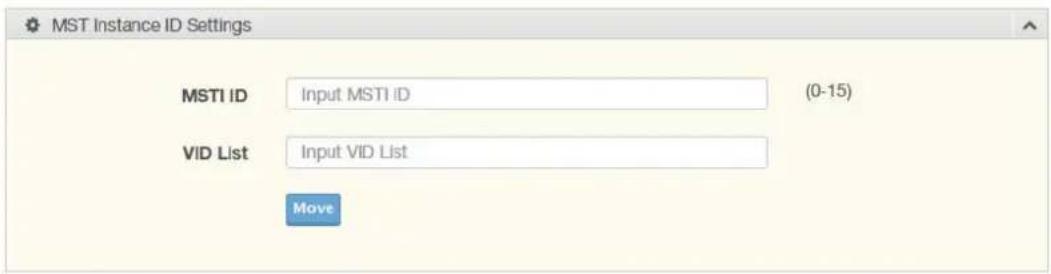
text_image
MST Instance ID Settings MSTI ID Input MSTI iD (0-15) VID List Input VID List MoveFigure 4.46 L2 Switching > Spanning Tree > MST Instance ID Settings
The following table describes the items in the previous figure.
Item Description
MSTI ID Enter the MST instance ID (0-15).
VID List Enter the pre-configured VID list.
Move Click Move to save the values and update the screen.
The ensuing table for MST Instance ID Information settings are informational only: MSTI ID and VID List.
4.5.10.7 MST Instance Priority Settings
The MST Instance Priority Settings allows you to specify the MST instance and the bridge priority in that instance.
To access this page, click L2 Switching > Spanning Tree > MST Instance Priority Settings.

text_image
STP Instance Settings MSTI ID Priority 0 ApplyFigure 4.47 L2 Switching > Spanning Tree > MST Instance Priority Settings
The following table describes the items in the previous figure.
Item Description
MSTI ID Click the drop-down menu to specify the MST instance.
Priority Click the drop-down menu set the bridge priority in the specified MST instance
Apply Click Apply to save the values and update the screen.
The ensuing table for MST Instance Priority Information settings are informational only: MSTI ID, Priority and Action.
4.5.10.8 MST Instance Info
To access this page, click L2 Switching > Spanning Tree > MST Instance Info.
The ensuing table for STP Bridge Status settings are informational only: Bridge Identifier, Designated Root Bridge, Root Path Cost, Designated Bridge, Root Port and TCNLast Topology Change.
The ensuing table for STP Port Status settings are informational only: Port, Identifier (Priority / Port Id), Path Cost Conf/Oper, Designated Root Bridge, Root Path Cost, Designated Bridge, Edge Port Conf/Oper, P2P MAC Conf/Oper, Port Role and Port State.
4.5.10.9 STP Statistics
To access this page, click L2 Switching > Spanning Tree > STP Statistics.
The ensuing table for STP Statistics settings are informational only: Port, Configuration BPDUs Received, TCN BPDUs Received, Configuration BPDUs Transmitted and TCN BPDUs Transmitted.
4.5.11 X-Ring Elite
The X-Ring Elite function provides an improvement over Spanning Tree and Rapid Spanning Tree and a rapid auto recovery in the event that the network suffers a corrupt or broken link and prevents network loops.
4.5.11.1 X-Ring Elite Settings
The X-Ring Elite Settings allows you to enable or disable the state of the X-Ring settings.
To access this page, click L2 Switching > X-Ring Elite > X-Ring Elite Settings.

text_image
X-Ring Elite Settings State Enabled Disabled ApplyFigure 4.48 L2 Switching > X-Ring Elite > X-Ring Elite Settings
The following table describes the items in the previous figure.
| Item Description | |
| State | Select Enabled or Disabled to setup the X-Ring Elite mode. |
| Apply | Click Apply to save the values and update the screen. |
The ensuing table for Information settings are informational only: X-Ring Elite State.
4.5.11.2 X-Ring Elite Groups
The X-Ring Elite Groups page allows you to select the function and role for each device and the connected ports.
To access this page, click L2 Switching > X-Ring Elite > X-Ring Elite Groups.

text_image
X-Ring Elite Groups Settings Ring ID Role Port 1 Port 2 1-255 Basic GE1 GE1 AddFigure 4.49 L2 Switching > X-Ring Elite > X-Ring Elite Groups
The following table describes the items in the previous figure.
Item Description
Ring ID Enter a number to specifies a ranging from 1 to 255 to identify a given X-Ring Elite group.
Role Click the drop-down menu to select the ring role.
Port 1 Click the drop-down menu to define the port designation.
Port 2 Click the drop-down menu to define the port designation.
Add Click Add to save the values and update the screen.
The ensuing table for Information settings are informational only: Ring ID, Role, Port 1, Port 2 and Delete (click to delete the desired Ring ID).
4.5.12 X-Ring Pro
The X-Ring Pro function provides an improvement over Spanning Tree and Rapid Spanning Tree and a rapid auto recovery in the event that the network suffers a corrupt or broken link and prevents network loops.
4.5.12.1 X-Ring Pro Settings
The X-Ring Pro Settings page allows you to configure the status (enabled or disabled) of the function.
To access this page, click L2 Switching > X-Ring Pro > X-Ring Pro Settings.

text_image
X-Ring Pro Settings State Enabled Disabled ApplyFigure 4.50 L2 Switching > X-Ring Pro > X-Ring Pro Settings
The following table describes the items in the previous figure.
Item Description
State Select Enabled or Disabled to setup the X-Ring Pro mode.
Apply Click Apply to save the values and update the screen.
The ensuing table for Information settings are informational only: X-Ring Pro State.
4.5.12.2 X-Ring Pro Groups
The X-Ring Pro Groups page allows you to select the function and role for each ring ID and its connected ports.
To access this page, click L2 Switching > X-Ring Pro > X-Ring Pro Groups.

text_image
X-Ring Pro Groups Settings Ring ID Port 1 Port 2 1-255 GE1 GE1 AddFigure 4.51 L2 Switching > X-Ring Pro > X-Ring Pro Groups > X-Ring Pro Groups Settings
The following table describes the items in the previous figure.
Item Description
Ring ID Enter a number to specifies a ranging from 1 to 255 to identify a given X-Ring Pro group.
Port 1 Click the drop-down menu to define the port designation.
Port 2 Click the drop-down menu to define the port designation.
Add Click Add to save the values and update the screen.

text_image
Chain Setting Chain Ring ID Role Head Port Member Port 1-255 Head GE1 GE1 AddFigure 4.52 L2 Switching > X-Ring Pro > X-Ring Pro Groups > Chain Settings The following table describes the items in the previous figure.
Item Description
Chain Ring ID Enter a number to specifies a ranging from 1 to 255 to identify a chain ring ID.
Role Click the drop-down menu to select the ring role.
Head Port Click the drop-down menu to define the port designation.
Member Port Click the drop-down menu to define the port designation.
Add Click Add to save the values and update the screen.

text_image
Couple Setting Couple Ring ID Port Master Ring ID 1-255 Select Port AddFigure 4.53 L2 Switching > X-Ring Pro > X-Ring Pro Groups > Couple Setting
The following table describes the items in the previous figure.
Item Description
Couple Ring ID Enter a number to specifies a ranging from 1 to 255 to identify a given X-Ring group.
Item Description
Port Enter the port to assign to define the couple setting.
Master Ring ID Click the drop-down menu to designate the master ring.
Add Click Add to save the values and update the screen.

text_image
Pair Setting Pair Ring ID Port Master Ring ID 1-255 Select Port AddFigure 4.54 L2 Switching > X-Ring Pro > X-Ring Pro Groups > Pair Settings
The following table describes the items in the previous figure.
Item Description
Pair Ring ID Enter a number to specifies a ranging from 1 to 255 to identify a pair ring ID.
Port Enter the port to assign to define the couple setting.
Master Ring ID Click the drop-down menu to designate the master ring.
Add Click Add to save the values and update the screen.

text_image
RPair Setting RPair Ring ID Port Master Ring ID 1-255 GE1 AddFigure 4.55 L2 Switching > X-Ring Pro > X-Ring Pro Groups > RPair Settings
The following table describes the items in the previous figure.
Item Description
RPair Ring ID Enter a number to specifies a ranging from 1 to 255 to identify a rpair ring ID.
Port Enter the port to assign to define the couple setting.
Master Ring ID Click the drop-down menu to designate the master ring.
Add Click Add to save the values and update the screen.
The ensuing table for Information settings are informational only: Ring ID, Mode, Role, Operation State, Port 1, Forwarding State, Port 2, Forwarding State and Delete (click to delete the desired Ring ID).
4.5.13 Loopback Detection
The Loopback Detection function is used to detect looped links. By sending detection frames and then checking to see if the frames returned to any port on the device, the function is used to detect loops.
4.5.13.1 Global Settings
The Global Settings page allows you to configure the state (enabled or disabled) of the function, select the interval at which frames are transmitted and the delay before recovery.
To access this page, click L2 Switching > Loopback Detection > Global Settings.
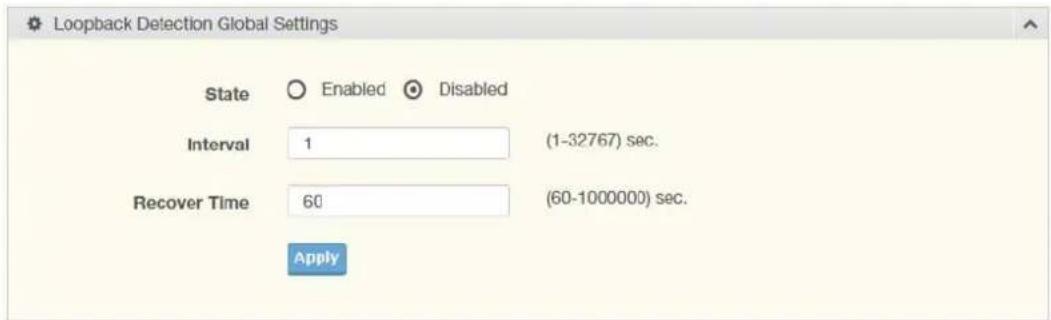
text_image
Loopback Detection Global Settings State Enabled Disabled Interval 1 (1-32767) sec. Recover Time 60 (60-1000000) sec. ApplyFigure 4.56 L2 Switching > Loopback Detection > Global Settings
The following table describes the items in the previous figure.
| Item Description | |
| State | Select Enabled or Disabled to setup the loopback mode. |
| Interval Enter the variable in seconds (1 to 32767) to set the interval at which frames are transmitted. | |
| Recover Time Enter the variable in seconds (60 to 1000000) to define the delay before recovery. | |
| Apply | Click Apply to save the values and update the screen. |
The ensuing table for Loopback Detection Global Information settings are informational only: State, Interval and Recover Time.
4.5.13.2 Port Settings
The Port Settings page allows you to select ports that are detected by the loopback detection function and configure their status (enabled or disabled).
To access this page, click L2 Switching > Loopback Detection > Port Settings.

text_image
Loopback Detection Port Settings Port Select Select Port Enabled Enabled Disabled ApplyFigure 4.57 L2 Switching > Loopback Detection > Port Settings
The following table describes the items in the previous figure.
Item Description
| Port Select Enter the port to define the local loopback detection setting. | |
| Enabled | Select Enabled or Disabled to setup the Loopback Detection function. |
| Apply Click Apply to save the values and update the screen. | |
The ensuing table for Loopback Detection Port Information settings are informational only: Port, Enable State and Loop Status.
4.5.14 ERPS
4.5.14.1 ERPS Settings
To access this page, click L2 Switching > ERPS > ERPS Settings.

text_image
ERPS Settings State Enabled Disabled ApplyFigure 4.58 L2 Switching > ERPS > ERPS Settings
The following table describes the items in the previous figure.
| Item Description | |
| State | Click Enabled or Disabled to enable ERPS settings. |
| Apply Click Apply to save the values and update the screen. | |
The ensuing table for Information settings are informational only: ERPS State.
4.5.14.2 ERPS Groups
To access this page, click L2 Switching > ERPS > ERPS Groups.

text_image
ERPS Groups ERP Instance 1-8 Ring ID 1-255 Role RPL Owner ▼ revertive East Link GE1 ▼ RPL West Link GE1 ▼ RPL MEL 0-7 R-APS Channel VLAN 1 Traffic Channel Instance 0 Type Major-ring ▼ interconnected WTR Timer 1-12 Unit (1 Unit = 1 minute) Guard Timer 1-200 Unit (1 Unit = 10 ms) Hold-off Timer 0-100 Unit (1 Unit = 100 ms) AddFigure 4.59 L2 Switching > ERPS > ERPS Groups
The following table describes the items in the previous figure.
| Item Description | |
| ERP Instance Enter the value to set the ERP instance. | |
| Ring ID Enter the value to set the ring ID. | |
| Role Click the drop down menu to select the role. Options include: RPL Owner, RPL Neighbor or Other. | |
| East Link Enter the port to define the east link. | |
| RPL Check the check box to enable RPL. | |
| West Link Enter the port to define the west link. | |
| RPL Check the check box to enable RPL. | |
| MEL Enter the value to set minimum equipment list. | |
| R-APS Channel VLAN | Click the drop down menu to select the VLAN. |
| Traffic Channel Instance | Click the drop down menu to select the traffic channel instance. |
| Type Click the drop down menu to select the ERP group type. | |
| WTR Timer Enter the value to set WTR timer. | |
| Guard Timer Enter the value to set guard timer. | |
| Hold-off Timer Enter the value to set hold-off timer. | |
| Apply | Click Apply to save the values and update the screen. |
The ensuing table for Information settings are informational only: ERP Instance, Ring ID, Role, State, East Link, West Link, MEL, R-APS Channel VLAN, Traffic Channel Instance, Type, WTR Timer, Guard Timer, Hold-off Timer and Delete (Click Delete to delete the desired Ring ID).
4.6 MAC Address Table
The MAC Address Table provides access to the Static MAC Settings, MAC Aging Time, and Dynamic Forwarding.
4.6.1 Static MAC
The Static MAC page allows you to configure the address for forwarding of packets, the VLAN ID of the listed MAC address and the designated Port.
To access this page, click MAC Address Table > Static MAC.
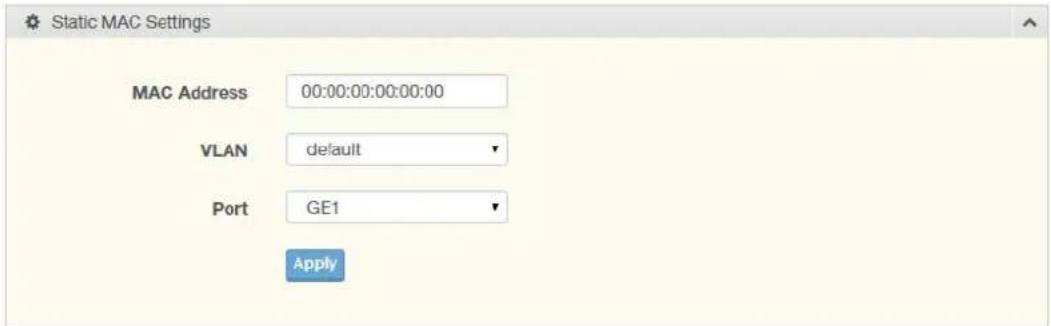
text_image
Static MAC Settings MAC Address 00:00:00:00:00:00 VLAN default Port GE1 ApplyFigure 4.60 MAC Address Table > Static MAC
The following table describes the items in the previous figure.
Item Description
MAC Address Enter the MAC address to which packets are statically forwarded.
VLAN Click the drop-down menu to select the VLAN ID number of the VLAN for which the MAC address is residing.
Port Click the drop-down menu to select the port number.
Apply Click Apply to save the values and update the screen.
The ensuing table for Static MAC Status settings are informational only: No., MAC Address, VLAN, Port and Delete (click to delete the desired MAC address).
4.6.2 MAC Aging Time
The MAC Aging Time page allows you to set the MAC address of the aging time to study.
To access this page, click MAC Address Table > MAC Aging Time.
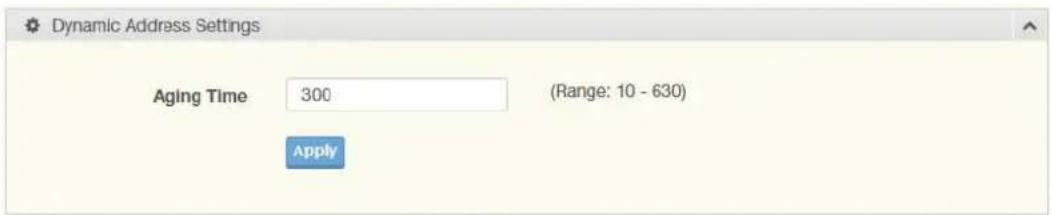
text_image
Dynamic Address Settings Aging Time 300 (Range: 10 - 630) ApplyFigure 4.61 MAC Address Table > MAC Aging Time
The following table describes the items in the previous figure.
Item Description
Aging Time Enter the variable (10 to 630) to define the time required for aging.
Apply Click Apply to save the values and update the screen.
The ensuing table for Dynamic Address Status settings are informational only: Aging time.
4.6.3 Dynamic Forwarding Table
The Dynamic Forwarding function allows you to configure an address tables, which contain the following:
■ The port each hardware address is associated with
■ The VLAN to show or clear dynamic MAC entries
■ The MAC address selection
To access this page, click MAC Address Table > Dynamic Forwarding Table.
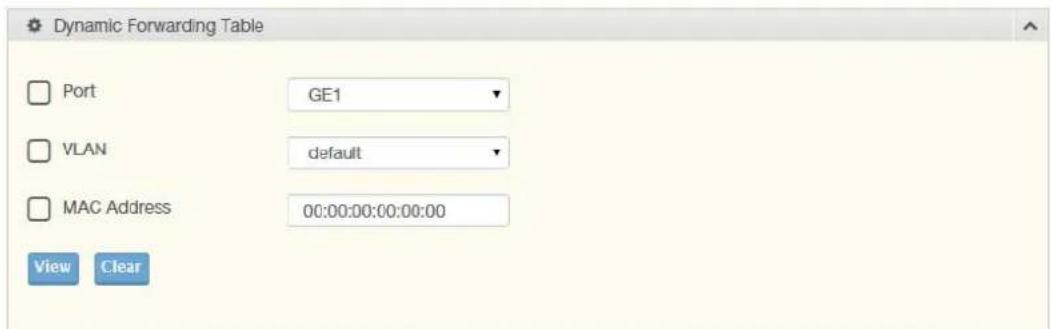
text_image
Dynamic Forwarding Table Port GE1 VLAN default MAC Address 00:00:00:00:00:00 View ClearFigure 4.62 MAC Address Table > Dynamic Forwarding Table
The following table describes the items in the previous figure.
| Item Description | |
| Port Click the drop-down menu to select the port number to show or clear dynamic MAC entries. If a port, VLAN or MAC address is not selected the whole dynamic MAC table is displayed or cleared. | |
| VLAN Click the drop-down menu to select the VLAN to show or clear dynamic MAC entries. | |
| MAC Address Enter the MAC address to show or clear dynamic MAC entries. If a port, VLAN or MAC address is not selected the whole dynamic MAC table is displayed or cleared. | |
| View Click View to display the MAC address information. | |
| Clear | Click Clear to clear the MAC Address Information table. |
The ensuing table for MAC Address Information settings are informational only: MAC Address, VLAN, Type, Port and Add to Static MAC (click to add the MAC address to static MAC address list).
4.7 Security
The Security function allows for the configuration of Storm Control, Port Security, Protected Ports, DoS Prevention, Applications, 802.1x, and IP Security.
4.7.1 Storm Control
The Storm Control page allows you to setup the units and Preamble/IFG to manage the occurrence of packet flooding on the LAN and consequent traffic to prevent the degrading of network performance.
4.7.1.1 Global Settings
To access this page, click Security > Storm Control > Global Settings.
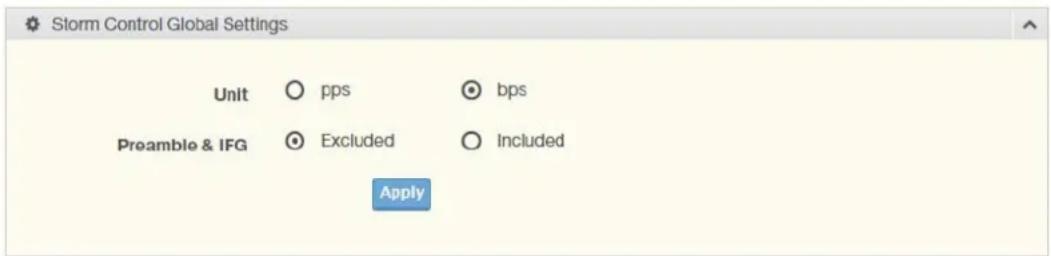
text_image
Storm Control Global Settings Unit ○ pps ○ bps Preamble & IFG ○ Excluded ○ Included ApplyFigure 4.63 Security > Storm Control > Global Settings
The following table describes the items in the previous figure.
| Item Description | |
| Unit | Select pps or bps control units for the Storm Control function. |
| Preamble & IFG | Select Excluded or Included to setup the Storm Control Global settings.■ Excluded: exclude preamble & IFG (20 bytes) when count ingress storm control rate.■ Included: include preamble & IFG (20 bytes) when count ingress storm control rate. |
| Apply Click Apply to save the values and update the screen. | |
The ensuing table for Storm Control Global Information settings are informational only: Unit and Preamble & IFG.
4.7.1.2 Port Settings
The Port Settings page allows you to configure the port and the type of storm control association along with the value of the storm rate for the selected port.
To access this page, click Security > Storm Control > Port Settings.
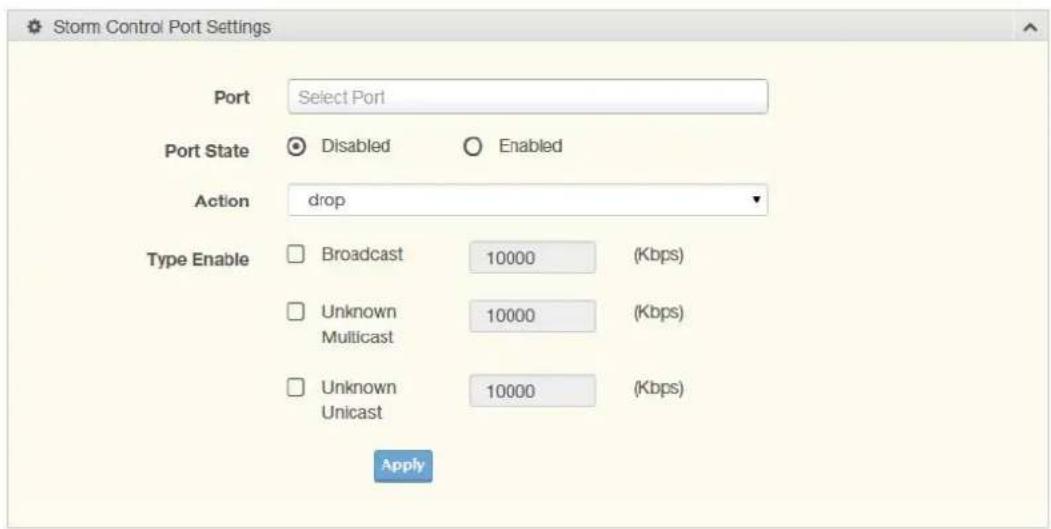
text_image
Storm Control Port Settings Port Select Port Port State Disabled Enabled Action drop Type Enable Broadcast 10000 (Kbps) Unknown Multicast 10000 (Kbps) Unknown Unicast 10000 (Kbps) ApplyFigure 4.64 Security > Storm Control > Port Settings
The following table describes the items in the previous figure.
| Item Description | |
| Port Enter the port number to designate the local port for the Storm Control function. | |
| Port State | Select Disabled or Enabled to define the port state |
| Action Click the drop-down menu to select the type of action to designate for the selected port during a Storm Control incident. The options are Drop and Shutdown. | |
| Type Enable Click the radio button to enable Broadcast, Unknown Multicast, or Unknown Unicast.■ Broadcast: Select the variable in Kbps to define the broadcast bandwidth.■ Unknown Multicast: Select the variable in Kbps to define the unknown multicast setting.■ Unknown Unicast: Select the variable in Kbps to define the unknown unicast setting. | |
| Apply | Click Apply to save the values and update the screen. |
The ensuing table for Storm Control Port Information settings are informational only: Port, Port State, Broadcast (Kbps), Unknown Multicast (Kbps), Unknown Unicast (Kbps) and Action.
4.7.2 Port Security
The Port Security page allows you to configure port isolation behavior.
To access this page, click Security > Port Security.

text_image
Port Security Settings Port Select Select Ports Enabled Enabled Disabled FDB Learn Limit(0-64) Input limit Violation MAC Notification Enabled Disabled ApplyFigure 4.65 Security > Port Security
The following table describes the items in the previous figure.
Item Description
Port Select Enter a single or multiple port numbers to configure.
| Enabled | Select Enabled or Disabled to define the selected Port. |
| FDB Learn Limit (0-64) | Enter the variable (0 to 64) to set the learn limit for the FDB setting. |
| Violation MAC Notifi-cation | Select Enabled or Disabled to define the selected Port. |
| Apply Click Apply to save the values and update the screen. | |
The ensuing table for Port Security Information settings are informational only: Port, Enabled, FDB Learn Limit and Violation MAC Notification.
4.7.3 Protected Ports
The Protected Port page allows you to configure a single or multiple ports as a protected or unprotected type.
To access this page, click Security > Protected Ports.
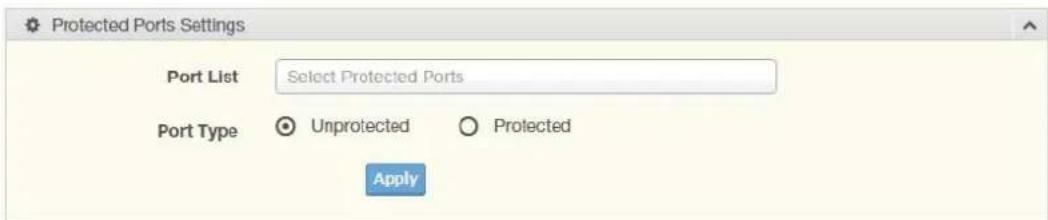
text_image
Protected Ports Settings Port List Select Protected Ports Port Type Unprotected Protected ApplyFigure 4.66 Security > Protected Ports
The following table describes the items in the previous figure.
Item Description
| Port List Enter the port number to designate for the Protected Port setting. | |
| Port Type | Select Unprotected or Protected to define the port type. |
| Apply Click Apply to save the values and update the screen. | |
The ensuing table for Protected Ports Status settings are informational only: Protected Ports and Unprotected Ports.
4.7.4 DoS Prevention
The DoS Prevention page allows you to setup (enabled or disabled) the denial of service.
4.7.4.1 DoS Global Settings
The DoS Global Settings page allows you to configure (enabled or disabled) the setting for each function.
To access this page, click Security > DoS Prevention > DoS Global Settings.

text_image
DoS Global Settings DMAC = SMAC ● Enabled ○ Disabled LAND ● Enabled ○ Disabled UDP Blat ● Enabled ○ Disabled TCP Blat ● Enabled ○ Disabled POD ● Enabled ○ Disabled IPv6 Min Fragment ● Enabled ○ Disabled Bytes 1240 (0-65535) ICMP Fragments ● Enabled ○ Disabled IPv4 Ping Max Size ● Enabled ○ Disabled IPv6 Ping Max Size ● Enabled ○ Disabled Ping Max Size Setting Bytes 512 (0-65535) Smurf Attack ● Enabled ○ Disabled Netmask Length 0 (0-32) TCP Min Hdr Size ● Enabled ○ Disabled Byte 20 (0-31) TCP-SYN(SPORT<1024) ● Enabled ○ Disabled Null Scan Attack ● Enabled ○ Disabled X-Mas Scan Attack ● Enabled ○ Disabled TCP SYN-FIN Attack ● Enabled ○ Disabled TCP SYN-RST Attack ● Enabled ○ Disabled TCP Fragment (Offset = 1) ● Enabled ○ Disabled ApplyFigure 4.67 Security > DoS Prevention > DoS Global Settings
The following table describes the items in the previous figure.
| Item Description | |
| DMAC = SMAC | Click Enabled or Disabled to define DMAC-SMAC for the DoS Global settings. |
| LAND | Click Enabled or Disabled to define LAND for the DoS Global settings. |
| UDP Blat | Click Enabled or Disabled to define UDP Blat for the DoS Global settings. |
| TCP Blat | Click Enabled or Disabled to define TCP Blat for the DoS Global settings. |
| POD | Click Enabled or Disabled to define POD for the DoS Global settings. |
| IPv6 Min Fragment | Click Enabled or Disabled to define minimum fragment size for the IPv6 protocol.Enter the variable in bytes (0 to 65535) to set the minimum fragment size when the function is enabled. |
| ICMP Fragments | Click Enabled or Disabled to define the ICMP Fragments function. |
| IPv4 Ping Max Size | Click Enabled or Disabled to set the maximum ping size for the IPv4 protocol. |
| IPv6 Ping Max Size | Click Enabled or Disabled to set a maximum ping size for the IPv6 protocol. |
| Ping Max Size Setting | Enter the variable in bytes (0 to 65535) to set the maximum ping size. |
| Smurf Attack | Click Enabled or Disabled to set the Smurf Attack function. |
| TCP Min Hdr Size | Click Enabled or Disabled to set the minimum header size.Enter the variable in bytes (0 to 31) to set the minimum header size. |
| TCP-SYN (SPORT < 1024) | Click Enabled or Disabled to set the TCP synchronization function (sport < 1021). |
| Null Scan Attack | Click Enabled or Disabled to set the Null Scan Attack function. |
| X-Mas Scan Attack | Click Enabled or Disabled to set the X-Mas Scan function. |
| TCP SYN-FIN Attack | Click Enabled or Disabled to set the TCP synchronization termination attack function. |
| TCP SYN-RST Attack | Click Enabled or Disabled to set the TCP synchronization reset attack function. |
| TCP Fragment (Offset = 1) | Click Enabled or Disabled to set the TCP fragment function (offset =1). |
| Apply Click Apply to save the values and update the screen. | |
The ensuing table for DoS Global Information settings are informational only: DMAC = SMAC, Land Attack, UDP Blat, TCP Blat, POD (Ping of Death), IPv6 Min Fragment Size, ICMP Fragment Packets, IPv4 Ping Max Packet Size, IPv6 Ping Max Packet Size, Smurf Attack, TCP Min Header Length, TCP Syn (SPORT < 1024), Null Scan Attack, X-Mas Scan Attack, TCP SYN-FIN Attack, TCP SYN-RST Attack and TCP Fragment (Offset = 1).
4.7.4.2 DoS Port Settings
The DoS Port Settings page allow you to configure DoS security (enabled or disabled) for the selected port.
To access this page, click Security > DoS Prevention > DoS Port Settings.
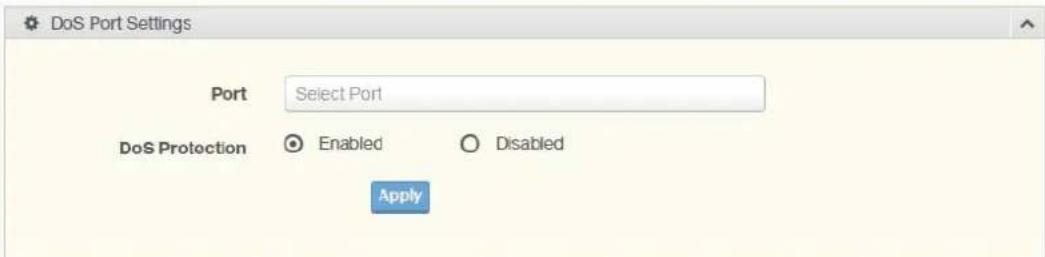
text_image
DoS Port Settings Port Select Port DoS Protection Enabled Disabled ApplyFigure 4.68 Security > DoS Prevention > DoS Port Settings
The following table describes the items in the previous figure.
Item Description
| Port Select the port to configure for the DoS prevention function. | |
| DoS Protection | Click Enabled or Disabled to set the DoS Port security function state. |
| Apply | Click Apply to save the values and update the screen. |
The ensuing table for DoS Port Status settings are informational only: Port and DoS Protection.
4.7.5 Applications
The Applications function allows you to configure various types of AAA lists.
4.7.5.1 TELNET
The TELNET page allows you to combine all kinds of AAA lists with the Telnet line. To access this page, click Security > Applications > TELNET.

text_image
Telnet Settings Telnet Service Enabled Disabled Apply DisconnectFigure 4.69 Security > Applications > TELNET
The following table describes the items in the previous figure.
| Item Description | |
| Telnet Service | Click Enabled or Disabled to set remote access through the Telnet Service function. |
| Apply | Click Apply to save the values and update the screen. |
| Disconnect | Click Disconnect to disable the current Telnet service. |
The ensuing table for Telnet Information settings are informational only: Telnet Service and Current Telnet Sessions Count.
4.7.5.2 SSH
Secure Shell (SSH) is a protocol providing secure (encrypted) management connection to a remote device.
To access this page, click Security > Applications > SSH.

text_image
SSH Settings SSH Service ○ Enabled ○ Disabled ApplyFigure 4.70 Security > Applications > SSH
The following table describes the items in the previous figure.
| Item Description | |
| SSH Service | Click Enabled or Disabled to set up Ethernet encapsulation (remote access) through the Secure Shell (SSH) function. |
| Apply Click Apply to save the values and update the screen. | |
The ensuing table for SSH Information settings are informational only: SSH.
4.7.5.3 HTTP
The HTTP page allows you to combine all kinds of AAA lists to the HTTP line. Attempts to access the switch's Web UI from HTTP are first authenticated.
To access this page, click Security > Applications > HTTP.

text_image
HTTP Settings HTTP Service Enabled Disabled Session Timeout 10 (0-86400) minutes ApplyFigure 4.71 Security > Applications > HTTP
The following table describes the items in the previous figure.
| Item Description | |
| HTTP Service | Click Enabled or Disabled to set up Ethernet encapsulation (remote access) through HTTP function. |
| Session Timeout Enter the variable in minutes (0 to 86400) to define the timeout period for the HTTP session. | |
| Apply Click Apply to save the values and update the screen. | |
The ensuing table for HTTP Information settings are informational only: HTTP Service and Session Timeout.
4.7.5.4 HTTPS
The HTTPS page allows you to combine all kinds of AAA lists on the HTTPS line. Attempts to access the switch's Web UI from HTTPS are first authenticated.
To access this page, click Security > Applications > HTTPS.

text_image
HTTPS Settings HTTPS Service Enabled Disabled Session Timeout 10 (0-86400) minutes ApplyFigure 4.72 Security > Applications > HTTPS
The following table describes the items in the previous figure.
| Item Description | |
| HTTPS Service | Click Enabled or Disabled to set up Ethernet encapsulation over HTTPS. |
| Session Timeout Enter the variable in minutes (0 to 86400) to define the timeout period for the HTTP session. | |
| Apply | Click Apply to save the values and update the screen. |
The ensuing table for HTTPS Information settings are informational only: HTTPS Service and Session Timeout.
4.7.6 802.1x
The 802.1x function provides port-based authentication to prevent unauthorized devices (clients) from gaining access to the network.
4.7.6.1 802.1x Global Settings
The 802.1x Global Settings page allows you to set the state (enabled or disabled) for the selected IP server address, port, accounting port and associated password, including a reauthentication period.
To access this page, click Security > 802.1x > 802.1x Global Settings.
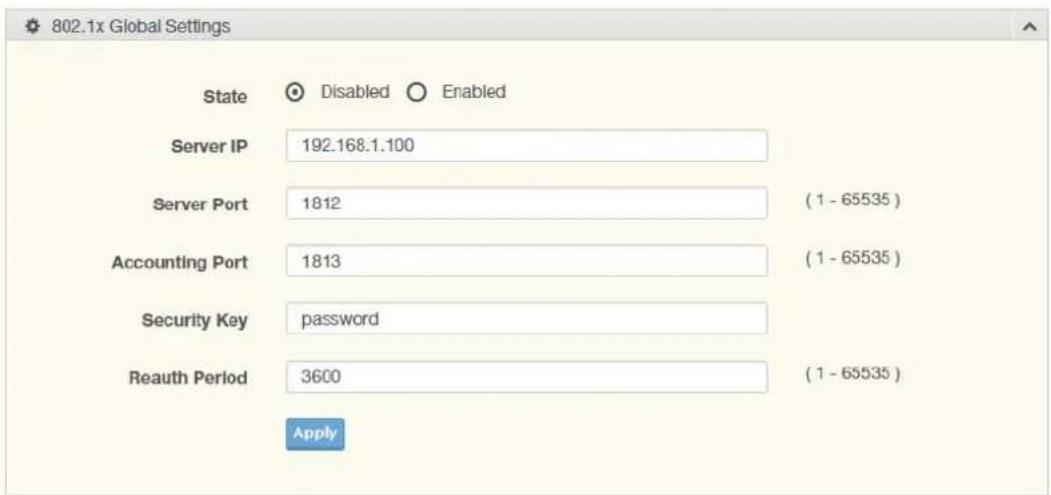
text_image
802.1x Global Settings State Disabled Enabled Server IP 192.168.1.100 Server Port 1812 (1 - 65535) Accounting Port 1813 (1 - 65535) Security Key password Reauth Period 3600 (1 - 65535) ApplyFigure 4.73 Security > 802.1x > 802.1x Global Settings
The following table describes the items in the previous figure.
| Item Description | |
| State | Click Enabled or Disabled to set up 802.1x Setting function. |
| Server IP Enter the IP address of the local server providing authentication func-tion. | |
| Server Port Enter the port number (1 to 65535) assigned to the listed Server IP. | |
| Accounting Port Enter the port number (1 to 65535) assigned to the listed server IP configured to provide authorization and authentication for network access. | |
| Security Key Enter the variable to define the network security key used in authenti-cation. | |
| Reauth Period Enter the variable in seconds to define the period of time between authentication attempts. | |
| Apply Click Apply to save the values and update the screen. | |
The ensuing table for 802.1x Information settings are informational only: 802.1x State, Server IP, Server Port, Accounting Port, Security Key and Reauth Period.
4.7.6.2 802.1x Port Configuration
The 802.1x Port Configuration page allows you to identify the authorization state for a port by using a MAC or Port authentication base.
To access this page, click Security > 802.1x > 802.1x Port Configuration.

text_image
802.1x Port Configuration Authentication based Port Mac Mac-Auth-Bypass Port Select Select Port State Authorize Disabled ApplyFigure 4.74 Security > 802.1x > 802.1x Port Configuration
The following table describes the items in the previous figure.
| Item Description | |
| Authentication based | Click Port, Mac or Mac-Auth-Bypass to designate the type of configuration for the 802.1x Port setting. |
| Port Select Enter the port number associated with the configuration setting. | |
| State | Click Authorize or Disabled to define the listed port's state mode. |
| Apply | Click Apply to save the values and update the screen. |
The ensuing table for 802.1x Port Authorization settings are informational only: Port and Port State.
4.7.7 IP Security
This section provides you a means to configure the IP Security settings.
4.7.7.1 Global Settings
The Global Settings page allows you to set the IP Security status (enabled or disabled).
To access this page, click Security > IP Security > Global Settings.
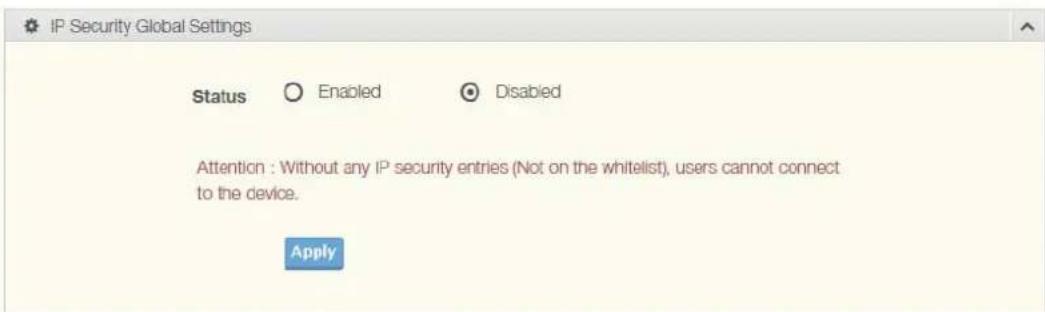
text_image
IP Security Global Settings Status Enabled Disabled Attention : Without any IP security entries (Not on the whitelist), users cannot connect to the device. ApplyFigure 4.75 Security > IP Security > Global Settings
The following table describes the items in the previous figure.
| Item Description | |
| Status | Click Enabled or Disabled to define the global setting for the IP security function. |
| Apply | Click Apply to save the values and update the screen. |
The ensuing table for IP Security Status settings are informational only: IP Security.
4.7.7.2 Entry Settings
Once the Global Setting is enabled, use the Entry Settings to define an IP Security entry.
To access this page, click Security > IP Security > Entry Settings.
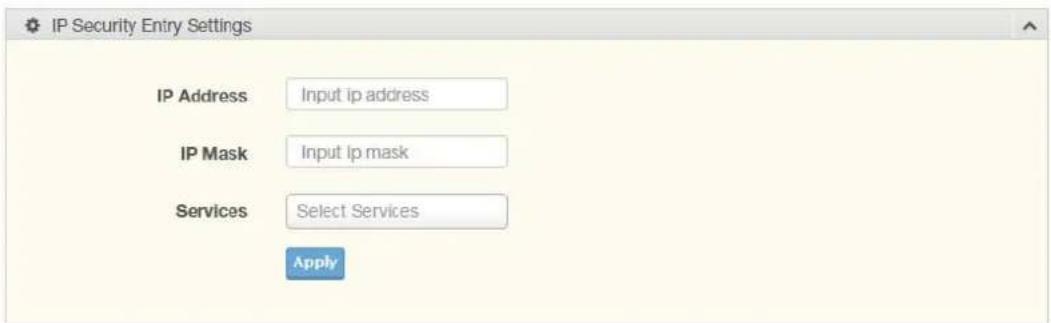
text_image
IP Security Entry Settings IP Address Input ip address IP Mask Input ip mask Services Select Services ApplyFigure 4.76 Security > IP Security > Entry Settings
The following table describes the items in the previous figure.
Item Description
IP Address Enter the source IP address to apply the IP Security function.
IP Mask Enter the IP address for use in masking the previous IP Address.
Services Enter the type of services to associate with the entry setting.
Apply Click Apply to save the values and update the screen.
The ensuing table for IP Security Entry Information settings are informational only: IP Address, IP Mask, Services and Action.
4.7.8 Security Login
4.7.8.1 Global Settings
This function provides a means to enable or disable the global security settings for the system.
To access this page, click Security > Security Login > Global Settings.

text_image
Global Settings State ○ Disabled ○ Enabled ApplyFigure 4.77 Security > Security Login > Global Settings > Global Settings
The following table describes the items in the previous figure.
| Item Description | |
| State | Click Enabled or Disabled to set up security login global setting status. |
| Apply Click Apply to save the values and update the screen. | |

text_image
RADIUS Settings Server IP 192.168.1.100 Server Port 1812 (1 - 65535) Security Key 12345678 ApplyFigure 4.78 Security > Security Login > Global Settings > RADIUS Settings The following table describes the items in the previous figure.
| Item Description | |
| Server IP Enter the IP address of the local server providing authentication function. | |
| Server Port Enter the port number (1 to 65535) assigned to the listed Server IP. | |
| Security Key Enter the variable to define the network security key used in authentication. | |
| Apply | Click Apply to save the values and update the screen. |

text_image
TACACS Settings Server IP 192.168.1.100 Server Port 1812 (1 - 65535) Security Key 12345678 ApplyFigure 4.79 Security > Security Login > Global Settings > TACACS Settings The following table describes the items in the previous figure.
| Item Description | |
| Server IP Enter the IP address of the local server providing authentication function. | |
| Server Port Enter the port number (1 to 65535) assigned to the listed Server IP. | |
| Security Key Enter the variable to define the network security key used in authentication. | |
| Apply | Click Apply to save the values and update the screen. |
The ensuing table for Global Information settings are informational only: State, RADIUS Server IP, RADIUS Server Port, RADIUS Security Key, TACACS Server IP, TACACS Server Port and TACACS Security Key.
4.7.8.2 Access Control Settings
This function specifies the login authentication type for the system.
To access this page, click Security > Security Login > Security Login Access Control Settings.

text_image
Security Login Type Settings Login Type None Used RADIUS Only TACACS Only RADIUS & TACACS RADIUS & TACACS & WEB ApplyFigure 4.80 Security > Security Login > Access Control Settings > Security Login Type Settings
The following table describes the items in the previous figure.
Item Description
Login Type Click to select the login type. Options include: None Used, RADIUS Only, TACACS Only, RADIUS & TACACS or RADIUS & TACACS & WEB.
Apply Click Apply to save the values and update the screen.
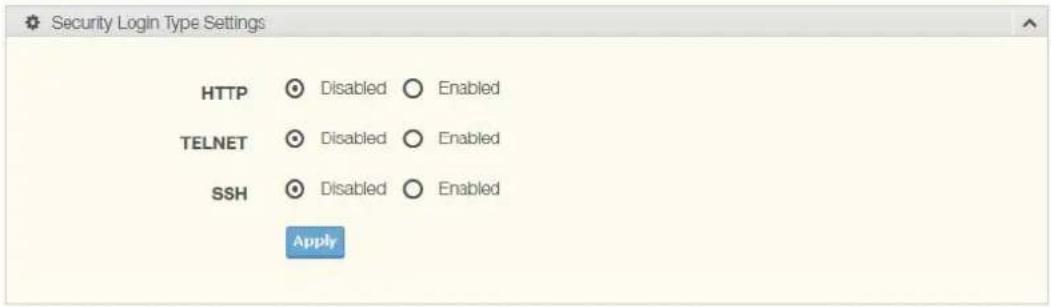
text_image
Security Login Type Settings HTTP ○ Disabled ○ Enabled TELNET ○ Disabled ○ Enabled SSH ○ Disabled ○ Enabled ApplyFigure 4.81 Security > Security Login > Access Control Settings > Security Login Type Settings
The following table describes the items in the previous figure.
Item Description
| HTTP | Click Enabled or Disabled to set up HTTP. |
| TELNET | Click Enabled or Disabled to set up HTTPS. |
| SSH | Click Enabled or Disabled to set up SSH. |
| Apply Click Apply to save the values and update the screen. | |
The ensuing table for Access Control Information settings are informational only: Login Type, HTTP, TELNET and SSH.
4.7.9 Access Control List
4.7.9.1 MAC ACL
Entry Settings
To access this page, click Security > Access Control List > MAC ACL > Entry Settings.
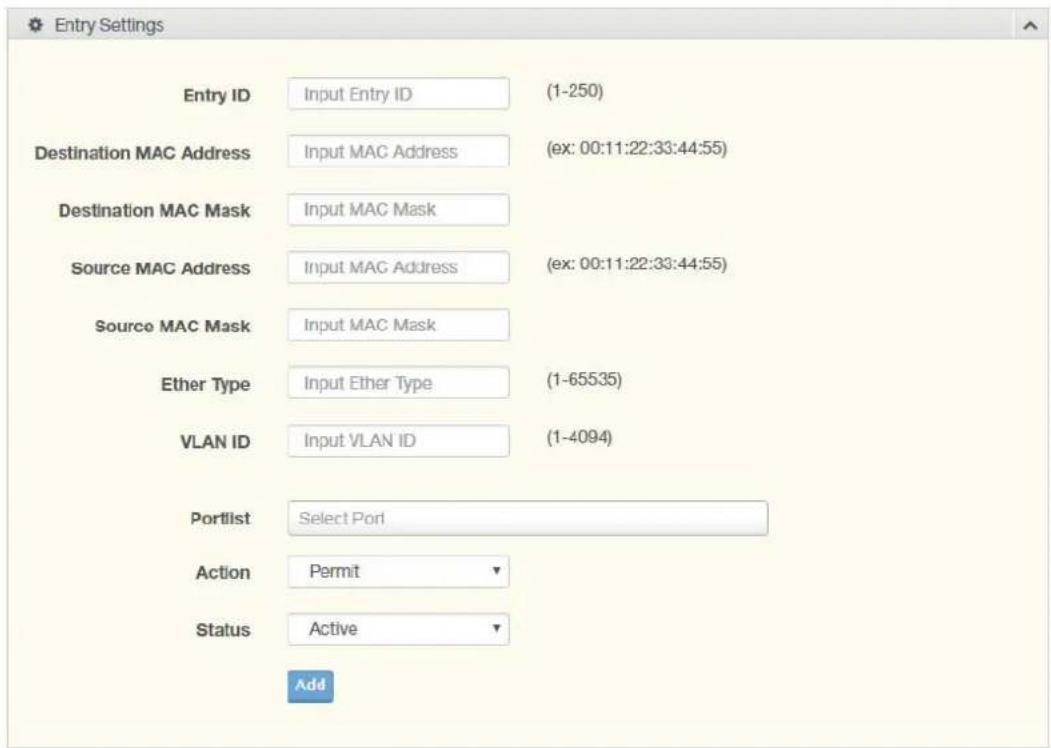
text_image
Entry Settings Entry ID Input Entry ID (1-250) Destination MAC Address Input MAC Address (ex: 00:11:22:33:44:55) Destination MAC Mask Input MAC Mask Source MAC Address Input MAC Address (ex: 00:11:22:33:44:55) Source MAC Mask Input MAC Mask Ether Type Input Ether Type (1-65535) VLAN ID Input VLAN ID (1-4094) Portlist Select Port Action Permit Status Active AddFigure 4.82 Security > Access Control List > MAC ACL > Entry Settings
The following table describes the items in the previous figure.
| Item Description | |
| Entry ID Type in the value designating the entry ID. | |
| Destination MAC Address | Enter the MAC address to set destination MAC address. |
| Destination MAC Mask | Enter a value to specify the subnet mask for the destination MAC address. |
| Source MAC Address | Enter the MAC address to set source MAC address. |
| Source MAC Mask Enter a value to specify the subnet mask for the source MAC address. | |
| Ether Type Enter a value to specify the DNS server for the interface. | |
| VLAN ID Type in the value designating the VLAN ID. | |
| Portlist Select the port to configure for the MAC ACL function. | |
| Action Click the drop down menu to select the MAC ACL action. Options include: Permit, Drop or Assign Queue. | |
| Assign Queue Click the drop down menu to select the queue. The function is only available when Action is Assign Queue. | |
| Status Click the drop down menu to select the MAC ACL status. Options include: Active or Inactive. | |
| Add Click Add to add a MAC ACL entry. | |
Entry List
To access this page, click Security > Access Control List > MAC ACL > Entry List.
The ensuing table for MAC ACL Information settings are informational only: Entry ID, Summary, Portlist, Action, Status and Modify (Click Edit to edit the desire entry id or Delete to delete the desired entry id).
4.7.9.2 IP ACL
Entry Settings
To access this page, click Security > Access Control List > IP ACL > Entry Settings.

text_image
Entry Settings Entry ID Input Entry ID (1-250) Destination IP Address Input IP Address (ex: 192.168.1.1) Destination IP Mask Input IP Mask (ex: 255.255.0.0) Source IP Address Input IP Address (ex: 192.168.2.1) Source IP Mask Input IP Mask (ex: 255.255.0.0) IP Protocol none L4 Destination Port Input L4 Port (1-65535) L4 Source Port Input L4 Port (1-65535) Portlist Select Port Action Permit Status Active AddFigure 4.83 Security > Access Control List > IP ACL > Entry Settings
The following table describes the items in the previous figure.
| Item Description | |
| Entry ID Type in the value designating the entry ID. | |
| Destination IP Address | Enter the IP address to set destination IP address. |
| Destination IP Mask | Enter a value to specify the subnet mask for the destination IP address. |
| Source IP Address Enter the IP address to set source IP address. | |
| Source IP Mask | Enter a value to specify the subnet mask for the source IP address. |
| IP Protocol | Click the drop down menu to select the IP protocol. Options include: none, ICMP, TCP or UDP. |
| L4 Destination Port Enter a value to specify the L4 destination port. | |
| L4 Source Port Enter a value to specify the L4 source port. | |
| Portlist Select the port to configure for the IP ACL function. | |
| Action Click the drop down menu to select the IP ACL action. Options include: Permit, Drop or Assign Queue. | |
Item Description
Assign Queue Click the drop down menu to select the queue. The function is only available when Action is Assign Queue.
Status Click the drop down menu to select the IP ACL status. Options include: Active or Inactive.
Add Click Add to add an IP ACL entry.
Entry List
To access this page, click Security > Access Control List > IP ACL > Entry List.
The ensuing table for IP ACL Information settings are informational only: Entry ID, Summary, Portlist, Action, Status and Modify (Click Edit to edit the desire entry id or Delete to delete the desired entry id).
4.7.10 IP Source Guard
4.7.10.1 Global Settings
To access this page, click Security > IP Source Guard > Global Settings.

text_image
Global Settings Portlist Select Port ModifyFigure 4.84 Security > IP Source Guard > Global Settings
The following table describes the items in the previous figure.
Item Description
Portlist Select the port to verify.
Modify Click Modify to save the values and update the screen.
The ensuing table for Global Information settings are informational only: Verify Ports.
4.7.10.2 Entry Settings
To access this page, click Security > IP Source Guard > Entry Settings.

text_image
Entry Settings Source MAC Address Input MAC Address (ex: 00:11:22:33:44:55) Source IP Address Input IP Address (ex: 192.168.2.1) Port GE1 AddFigure 4.85 Security > IP Source Guard > Entry Settings
The following table describes the items in the previous figure.
Item Description
Source MAC Address Enter the MAC address to set source MAC address.
Source IP Address Enter the IP address to set source IP address.
Item Description
Port Select the port to configure for the IP source guard.
Add Click Add to add an IP source guard.
The ensuing table for Entry Information settings are informational only: Source MAC, Source IP, Port and Modify (Click Delete to delete the desired option).
4.7.11 DHCP Snooping
4.7.11.1 Global Settings
To access this page, click Security > DHCP Snooping > Global Settings.

text_image
DHCP Snooping State Settings DHCP Snooping State ○ Enabled ○ Disabled ApplyFigure 4.86 Security > DHCP Snooping > Global Settings > DHCP Snooping State Settings
The following table describes the items in the previous figure.
Item Description
DHCP Snooping State Click Enabled or Disabled to set DHCP snooping state.
Apply Click Apply to save the values and update the screen.
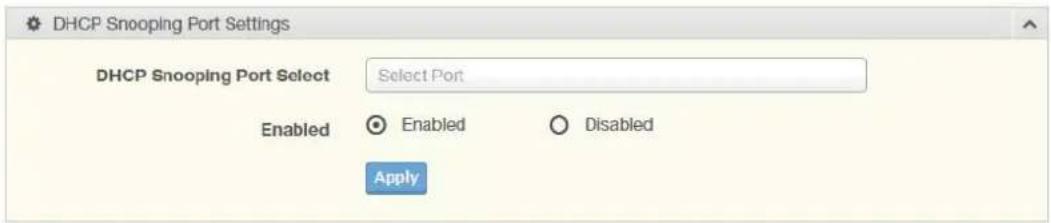
text_image
DHCP Snooping Port Settings DHCP Snooping Port Select Select Port Enabled Enabled Disabled ApplyFigure 4.87 Security > DHCP Snooping > Global Settings > DHCP Snooping Port Settings
The following table describes the items in the previous figure.
Item Description
DHCP Snooping Port Select the port to configure for the DHCP Snooping port. Select
Enabled Click Enabled or Disabled to enable DHCP Snooping port.
Apply Click Apply to save the values and update the screen.

text_image
DHCP Snooping Binding Port Settings DHCP Snooping Binding Port Select Select Port Enabled Enabled Disabled ApplyFigure 4.88 Security > DHCP Snooping > Global Settings > DHCP Snooping Binding Port Settings
The following table describes the items in the previous figure.
| Item Description | |
| DHCP Snooping Binding Port Select | Select the port to configure for the DHCP snooping binding port. |
| Enabled | Click Enabled or Disabled to enable DHCP Snooping binding. |
| Apply | Click Apply to save the values and update the screen. |
The ensuing table for DHCP Snooping Information settings are informational only: DHCP Snooping, DHCP Snooping Port and DHCP Snooping Binding Port.
4.7.11.2 Entry Settings
To access this page, click Security > DHCP Snooping > Entry Settings.
The ensuing table for IP Security Entry Information settings are informational only: MAC Address, IP Address, Lease Time, VLAN Id and Port.
4.7.12 ARP Spoofing
To access this page, click Security > ARP Spoofing.
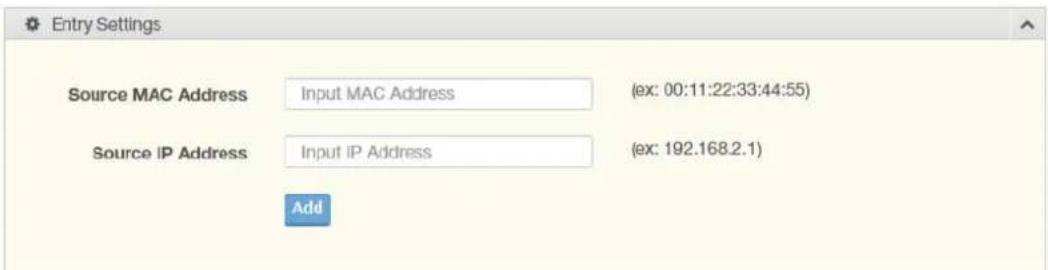
text_image
Entry Settings Source MAC Address Input MAC Address (ex: 00:11:22:33:44:55) Source IP Address Input IP Address (ex: 192.168.2.1) AddFigure 4.89 Security > ARP Spoofing
The following table describes the items in the previous figure.
| Item Description | |
| Source MAC Address | Enter the MAC address to set source MAC address. |
| Source IP Address | Enter the IP address to set source IP address. |
| Add Click Add to add an ARP spoofing. | |
The ensuing table for Entry Information settings are informational only: Source MAC, Source IP and Modify.
4.8 QoS
The QoS function allows you to configure settings for the switch QoS interface and how the switch connects to a remote server to get services.
4.8.1 General
Traditionally, networks operate on a best-effort delivery basis, all traffic has equal priority and an equal chance of being delivered in a timely manner. When there is congestion, all traffic has an equal chance of being dropped.
The QoS feature can be configured for congestion-management and congestion-avoidance to specifically manage the priority of the traffic delivery. Implementing QoS in the network makes performance predictable and bandwidth utilization much more effective.
The QoS implementation is based on the prioritization values in Layer 2 frames.
4.8.1.1 QoS Properties
The QoS Properties allows you to set the QoS mode.
To access this page, click QoS > General > QoS Properties.

text_image
QoS Properties QoS Mode Disabled Basic ApplyFigure 4.90 QoS > General > QoS Properties
The following table describes the items in the previous figure.
Item Description
| QoS Mode | Select Disabled or Basic to setup the QoS function. |
Apply Click Apply to save the values and update the screen.
The ensuing table for QoS Global Information settings are informational only: QoS Mode.
4.8.1.2 QoS Settings
Once the QoS function is enabled, you can configure the available settings.
To access this page, click QoS > General > QoS Settings.

text_image
QoS Settings Port Select Port CoS Value 0 Remark CoS Disabled Enabled Remark DSCP Disabled Enabled Remark IP Precedence Disabled Enabled ApplyFigure 4.91 QoS > General > QoS Settings
The following table describes the items in the previous figure.
| Item Description | |
| Port Enter the port number to associate with the QoS setting. | |
| CoS Value Click the drop-down menu to designate the Class of Service (CoS) value (0 to 7) for the Port entry. | |
| Remark CoS | Click Disabled or Enabled to setup the Remark CoS function. When enabled the LAN (preassigned priority values) is marked at Layer 2 boundary to CoS values. |
| Remark DSCP | Click Disabled or Enabled to setup the DSCP remark option for the QoS function. |
| Remark IP Precedence | Click Disabled or Enabled to setup the Remark IP Precedence for the QoS function. |
| Apply | Click Apply to save the values and update the screen. |
The ensuing table for QoS Status settings are informational only: Port, CoS value, Remark CoS, Remark DSCP and Remark IP Precedence.
4.8.1.3 Queue Scheduling
The switch support eight CoS queues for each egress port. For each of the eight queues, two types of scheduling can be configured: Strict Priority and Weighted Round Robin (WRR).
Strict Priority scheduling is based on the priority of queues. Packets in a high-priority queue are always sent first and packets in a low-priority queue are only sent after all the high priority queues are empty.
Weighted RoundRobin (WRR) scheduling is based on the user priority specification to indicate the importance (weight) of the queue relative to the other CoS queues. WRR scheduling prevents low-priority queues from being completely ignored during periods of high priority traffic. The WRR scheduler sends some packets from each queue in turn.
To access this page, click QoS > General > QoS Scheduling.
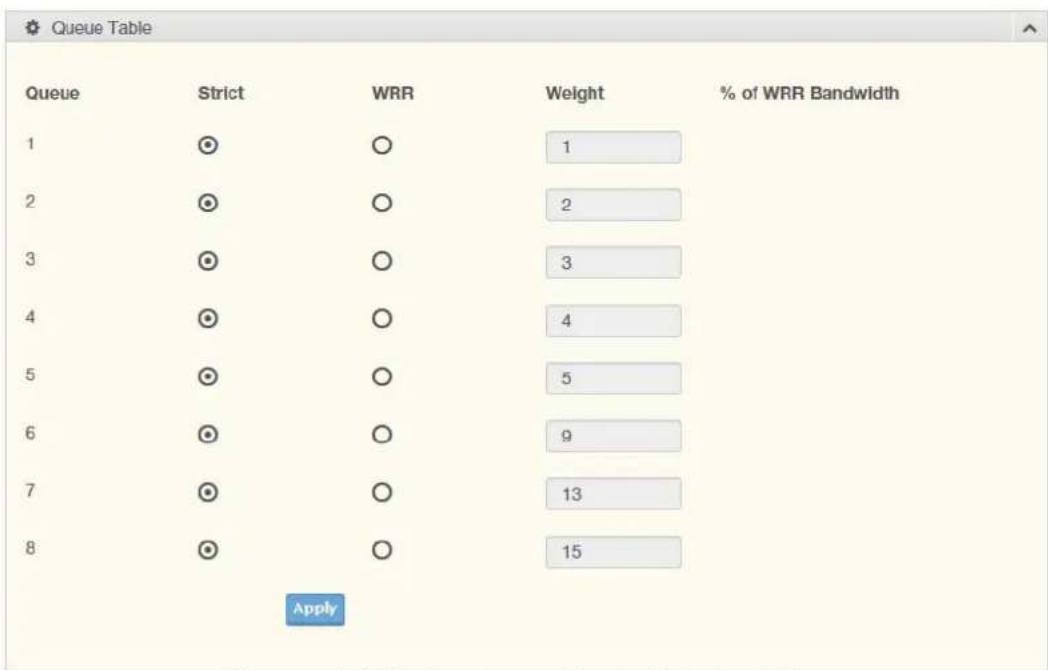
text_image
Queue Table Queue Strict WRR Weight % of WRR Bandwidth 1 ⊙ ○ 1 2 ⊙ ○ 2 3 ⊙ ○ 3 4 ⊙ ○ 4 5 ⊙ ○ 5 6 ⊙ ○ 9 7 ⊙ ○ 13 8 ⊙ ○ 15 ApplyFigure 4.92 QoS > General > QoS Scheduling
The following table describes the items in the previous figure.
Item Description
| Queue Queue entry for egress port. |
| Strict Select Strict to assign the scheduling designation to the selected queue. |
| WRR Select WRR to assign the scheduling designation to the selected queue. |
| Weight Enter a queue priority (weight) relative to the defined entries (WRR only). |
| % of WRR Bandwidth Displays the allotted bandwidth for the queue entry in percentage values. |
| Apply Click Apply to save the values and update the screen. |
The ensuing table for Queue Information settings are informational only: Strict Priority Queue Number.
4.8.1.4 CoS Mapping
The CoS Mapping allows you to apply CoS mapping.
To access this page, click QoS > General > CoS Mapping.
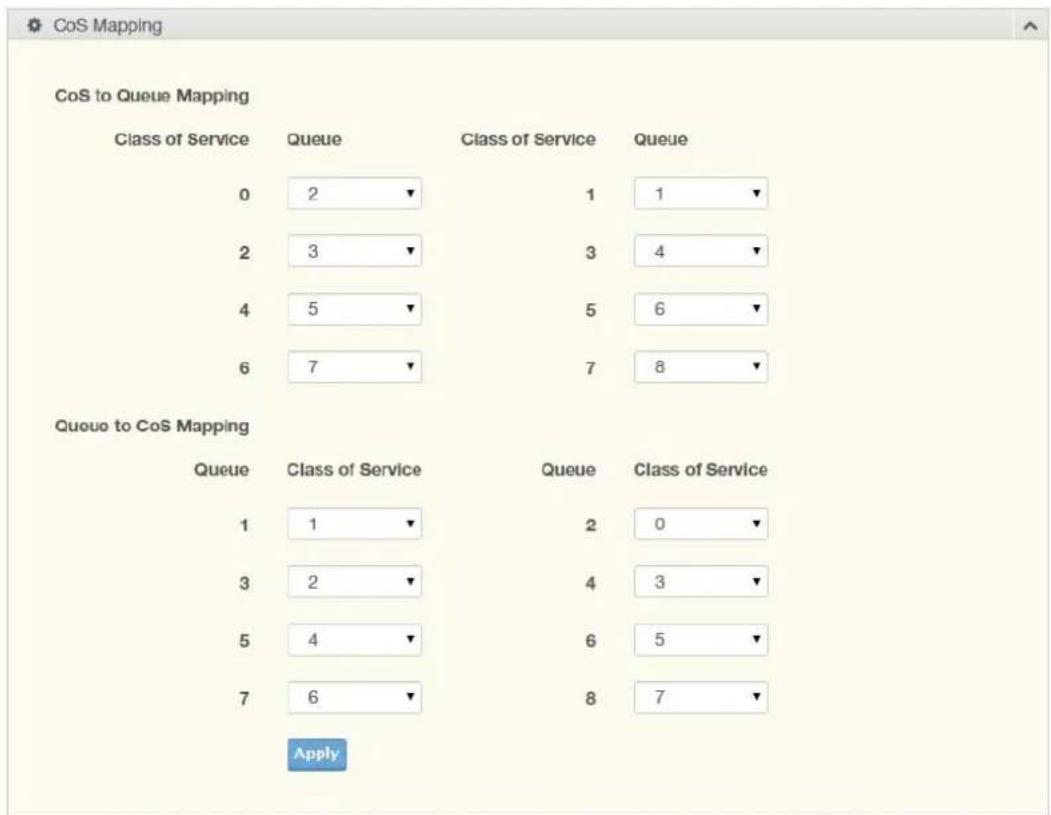
text_image
CoS Mapping CoS to Queue Mapping Class of Service Queue Class of Service Queue 0 2 1 1 2 3 3 4 4 5 5 6 6 7 7 8 Queue to CoS Mapping Queue Class of Service Queue Class of Service 1 1 2 0 3 2 4 3 5 4 6 5 7 6 8 7 ApplyFigure 4.93 QoS > General > CoS Mapping
The following table describes the items in the previous figure.
| Item Description | |
| CoS to Queue Mapping | |
| Class of Service Displays the CoS for the queue entry. | |
| Queue Click the drop-down menu to select the queue priority for selected CoS. | |
| Queue to CoS Mapping | |
| Queue Displays the queue entry for CoS mapping. | |
| Class of Service Click the drop-down menu to select the CoS type | |
| Apply | Click Apply to save the values and update the screen. |
The ensuing table for CoS Mapping Information settings are informational only: CoS and Mapping to Queue.
The ensuing table for Queue Mapping Information settings are informational only: Queue and Mapping to CoS.
4.8.1.5 DSCP Mapping
The DSCP to Queue mapping function maps queue values in incoming packets to a DSCP value that QoS uses internally to represent the priority of the traffic. The following table shows the DSCP to Queue map.
If these values are not appropriate for your network, you need to modify them.
To access this page, click QoS > General > DSCP Mapping.

text_image
DSCP Mapping DSCP to Queue Mapping DSCP Select DSCP Queue 1 Queue to DSCP Mapping Queue DSCP Queue DSCP 1 0 2 8 3 16 4 24 5 32 6 40 7 48 8 56 ApplyFigure 4.94 QoS > General > DSCP Mapping
The following table describes the items in the previous figure.
| Item Description |
| DSCP to Queue Mapping |
| DSCP Enter the DSCP entry to define the precedence values. |
| Queue Click the drop-down menu to select the queue designation for the DSCP value. |
| Queue to DSCP Mapping |
| Queue Displays the queue value for the DSCP map. |
| DSCP Enter the DSCP entry to define the precedence values. |
| Apply Click Apply to save the values and update the screen. |
| The ensuing table for DSCP Mapping Information settings are informational only: DSCP and Mapping to Queue. |
| The ensuing table for Queue Mapping Information settings are informational only: Queue and Mapping to DSCP. |
The IP Precedence Mapping allows you to set IP Precedence mapping.
To access this page, click QoS > General > IP Precedence Mapping.
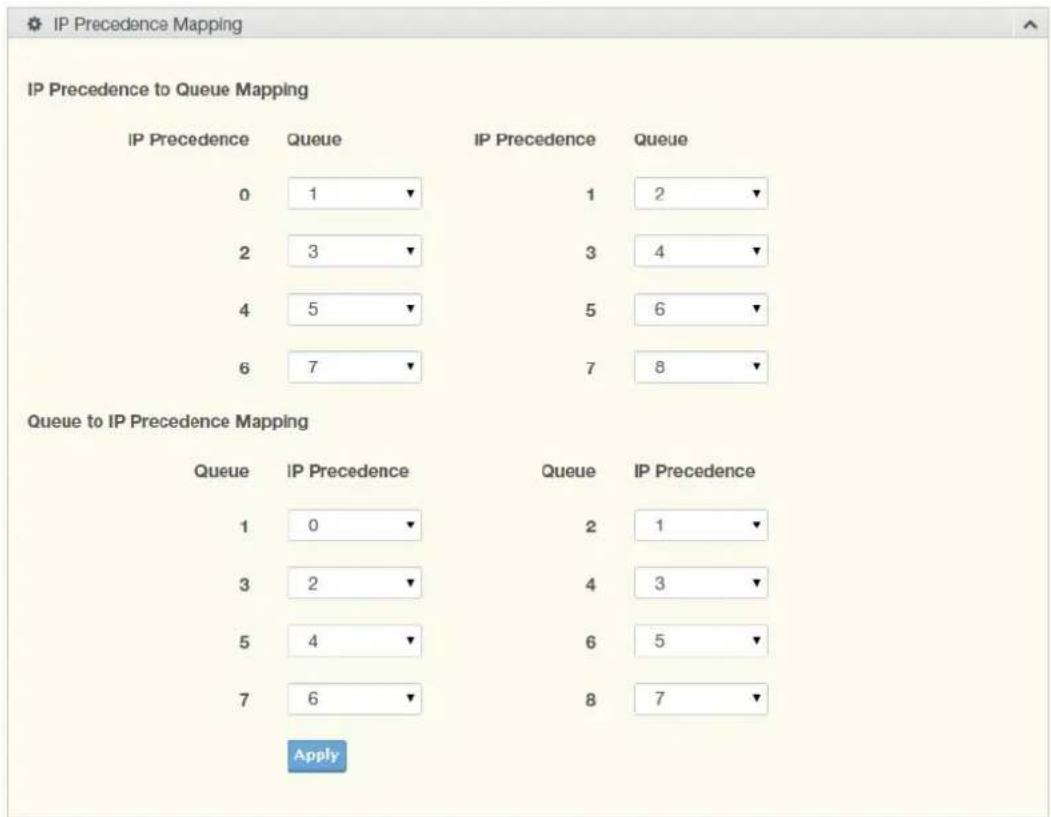
text_image
IP Precedence Mapping IP Precedence to Queue Mapping IP Precedence Queue IP Precedence Queue 0 1 1 2 2 3 3 4 4 5 5 6 6 7 7 8 Queue to IP Precedence Mapping Queue IP Precedence Queue IP Precedence 1 0 2 1 3 2 4 3 5 4 6 5 7 6 8 7 ApplyFigure 4.95 QoS > General > IP Precedence Mapping
The following table describes the items in the previous figure.
| Item Description | |
| IP Precedence to Queue Mapping | |
| IP Precedence Displays the IP precedence value for the queue map. | |
| Queue Click the drop-down menu to map a queue value to the selected IP precedence. | |
| Queue to IP Precedence Mapping | |
| Queue Displays the queue entry for mapping IP precedence values. | |
| IP Precedence Click the drop-down menu to map an IP precedence value to the selected queue. | |
| Apply | Click Apply to save the values and update the screen. |
The ensuing table for IP Precedence Mapping Information settings are informational only: IP Precedence and Mapping to Queue.
The ensuing table for Queue Mapping Information settings are informational only: Queue and Mapping to IP Precedence.
4.8.2 QoS Basic Mode
Quality of Service (QoS) allows to give preferential treatment to certain types of traffic at the expense of others. Without QoS, the switch offers best-effort service to each packet, regardless of the packet contents or size sending the packets without any assurance of reliability, delay bounds, or throughput.
QoS mode supports two modes: 802.1p and DSCP.
4.8.2.1 Global Settings
The Global Settings page allows you to configure the trust mode to a port selection.
To access this page, click QoS > QoS Basic Mode > Global Settings.
The function is only available when QoS Properties is set to Basic.
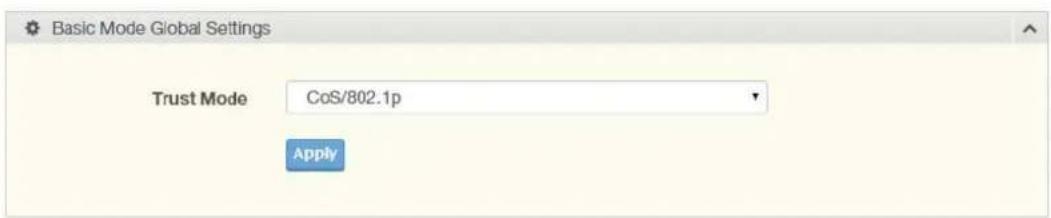
text_image
Basic Mode Global Settings Trust Mode CoS/802.1p ApplyFigure 4.96 QoS > QoS Basic Mode > Global Settings
The following table describes the items in the previous figure.
| Item Description | |
| Trust Mode | Click the drop-down menu to select the trust state of the QoS basic mode. |
| Apply Click Apply to save the values and update the screen. | |
The ensuing table for QoS Information settings are informational only: Trust Mode.
4.8.2.2 Port Settings
The Port Settings page allows you to define a trust state (enabled or disabled) to a listed port.
To access this page, click QoS > QoS Basic Mode > Port Settings.
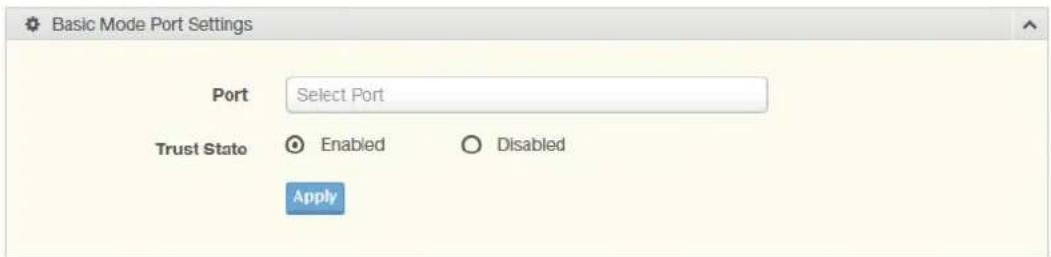
text_image
Basic Mode Port Settings Port Select Port Trust State Enabled Disabled ApplyFigure 4.97 QoS > QoS Basic Mode > Port Settings
The following table describes the items in the previous figure.
| Item Description | |
| Port Enter the port number for the QoS basic mode setting. | |
| Trust State | Select Enabled or Disabled to set the port's trust state status. |
| Apply Click Apply to save the values and update the screen. | |
The ensuing table for QoS Port Status settings are informational only: Port and Trust State.
4.8.3 Rate Limit
Rate Limits features control on a per port basis. Bandwidth control is supported for the following: Ingress Bandwidth Control, Egress Bandwidth Control and Egress Queue.
4.8.3.1 Ingress Bandwidth Control
The Ingress Bandwidth Control page allows you to configure the bandwidth control for a listed port.
To access this page, click QoS > Rate Limit > Ingress Bandwidth Control.
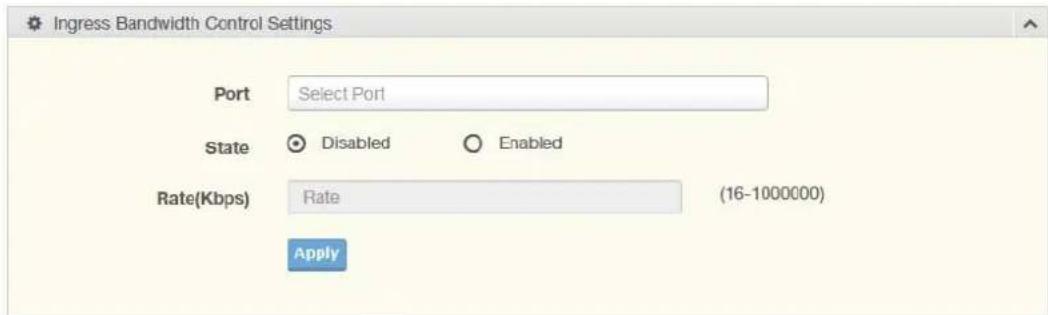
text_image
Ingress Bandwidth Control Settings Port Select Port State Disabled Enabled Rate(Kbps) Rate (16-1000000) ApplyFigure 4.98 QoS > Rate Limit > Ingress Bandwidth Control
The following table describes the items in the previous figure.
Item Description
| Port Enter the port number for the rate limit setup. | |
| State | Select Disabled or Enabled to set the port's state status. |
| Rate (Kbps) Enter the value in Kbps (16 to 1000000) to set as the bandwidth rate for the selected port. | |
| Apply | Click Apply to save the values and update the screen. |
The ensuing table for Ingress Bandwidth Control Status settings are informational only: Port and Ingress Rate Limit (Kbps).
4.8.3.2 Egress Bandwidth Control
The Egress Bandwidth Control page allows you to set the egress bandwidth control for a listed port.
To access this page, click QoS > Rate Limit > Egress Bandwidth Control.
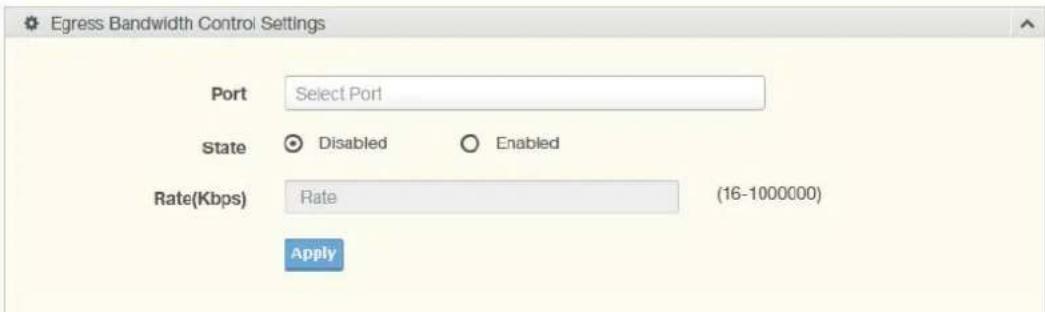
text_image
Egress Bandwidth Control Settings Port Select Port State Disabled Enabled Rate(Kbps) Rate (16-1000000) ApplyFigure 4.99 QoS > Rate Limit > Egress Bandwidth Control
The following table describes the items in the previous figure.
Item Description
Port Enter the port number to set the Egress Bandwidth Control.
| Item Description | |
| State | Select Disabled or Enabled to set the Egress Bandwidth Control state. |
| Rate (Kbps) | Enter the value in Kbps (16 to 1000000) to set the Egress Bandwidth rate. |
| Apply Click Apply to save the values and update the screen. | |
The ensuing table for Egress Bandwidth Control Status settings are informational only: Port and Egress Rate Limit (Kbps).
4.8.3.3 Egress Queue
The Egress Queue page allows you to set the egress bandwidth parameters. To access this page, click QoS > Rate Limit > Egress Queue.
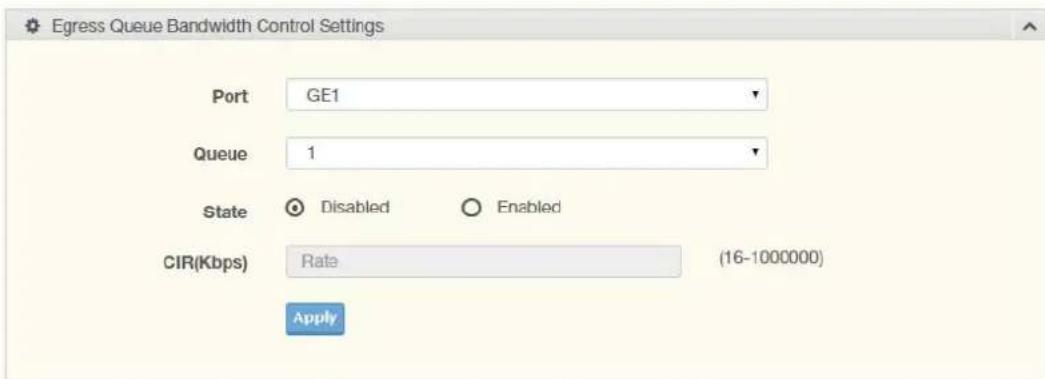
text_image
Egress Queue Bandwidth Control Settings Port GE1 Queue 1 State Disabled Enabled CIR(Kbps) Rate (16-1000000) ApplyFigure 4.100 QoS > Rate Limit > Egress Queue
The following table describes the items in the previous figure.
| Item Description | |
| Port Click the drop-down menu to select the port to define the Egress queue. | |
| Queue Click the drop-down menu to set the queue order for the Egress setting. | |
| State | Click Disabled or Enabled to set the Egress queue state. |
| CIR (Kbps) Enter the value in Kbps (16 to 1000000) to set the CIR rate for the Egress queue. | |
| Apply Click Apply to save the values and update the screen. | |
The ensuing table for FE1 Egress Per Queue Status settings are informational only: Queue Id and Egress Rate Limit (Kbps).
4.8.4 Bandwidth Guarantee
4.8.4.1 Global Settings
To access this page, click QoS > Bandwidth Guarantee > Global Settings.

text_image
Global Settings Status Disabled Enabled Guarantee Bandwidth 0 (1-900) Mbps Type UDP Source Port RTP H.264 UDP Source Port 0 (1-65535) Force Mode ApplyFigure 4.101 QoS > Bandwidth Guarantee > Global Settings
The following table describes the items in the previous figure.
| Item Description | |
| Status | Click Disabled or Enabled to set the guarantee bandwidth. |
| Guarantee Bandwidth | Enter the value for the guarantee bandwidth. |
| Type | Click UDP Source Port or RTP H.264 to set the guarantee bandwidth type. |
| UDP Source Port Enter the port number for the UDP source. | |
| Force Mode Click the check box to enable the force mode. | |
| Apply | Click Apply to save the values and update the screen. |
The ensuing table for Ingress Bandwidth Control Status settings are informational only: Status, Guarantee Bandwidth, Guarantee Type, UDP Source Port and Force Mode.
4.8.4.2 Utilization
To access this page, click QoS > Bandwidth Guarantee > Utilization.

text_image
Refresh Settings Refresh period 10 Secs Utilization 0 MbpsFigure 4.102 QoS > Bandwidth Guarantee > Utilization
The following table describes the items in the previous figure.
Item Description
Refresh period Click the drop-down menu to select refresh time.
Apply Click Apply to save the values and update the screen.
4.9 Management
4.9.1 LLDP
LLDP is a one-way protocol without request/response sequences. Information is advertised by stations implementing the transmit function, and is received and processed by stations implementing the receive function.
4.9.1.1 LLDP System Settings
The LLDP System Settings allows you to configure the status (enabled or disabled) for the protocol, set the interval for frame transmission, set the hold time multiplier and the re-initialization delay.
To access this page, click Management > LLDP > LLDP System Settings.

text_image
Global Settings Enabled Enabled Disabled LLDP PDU Disable Action Filtering Bridging Flooding Transmission Interval 30 (5-32767) Holdtime Multiplier 4 (2-10) Reinitialization Delay 2 (1-10) Transmit Delay 2 (1-8191) ApplyFigure 4.103 Management > LLDP > LLDP System Settings
The following table describes the items in the previous figure.
| Item Description | |
| Enabled | Click Enabled or Disabled to set the Global Settings state. |
| LLDP PDU Disable Action | Click to select the LLDP PDU handling action when LLDP is globally disabled. Options include: Filtered, Bridged, or Flooded. |
| Transmission Interval | Select the interval at which frames are transmitted. The default is 30 seconds, and the valid range is 5 to 32768 seconds. |
| Holdtime Multiplier | Select the multiplier on the transmit interval to assign to TTL. |
| Reinitialization Delay | Select the delay length before re-initialization. |
| Transmit Delay | Select the delay after an LLDP frame is sent. |
| Apply | Click Apply to save the values and update the screen. |
The ensuing table for LLDP Global Config settings are informational only: LLDP Enabled, LLDP PDU Disable Action, Transmission Interval, Holdtime Multiplier, Reinitialization Delay and Transmit Delay.
4.9.1.2 LLDP Port Settings
The LLDP Port Settings page allows you to configure the state (enabled or disabled) of the selected port.
To access this page, click Management > LLDP > LLDP Port Settings.

text_image
LLDP Port Configuration Port Select Select Ports State Disable ApplyFigure 4.104 Management > LLDP > LLDP Port Settings > LLDP Port Configuration
The following table describes the items in the previous figure.
Item Description
Port Select Enter the port number associated with the LLDP setting.
State Click the drop-down menu to select the LLDP port state.
Apply Click Apply to save the values and update the screen.

text_image
Optional TLVs Selection Port Select Select Ports Optional TLV Select Select Optional TLVs ApplyFigure 4.105 Management > LLDP > LLDP Port Settings > Optional TLVs Selection
The following table describes the items in the previous figure.
Item Description
Port Select Enter the port number associated with the TLV (optional) selection.
| Optional TLV Select | Click the drop-down menu to select the LLDP optional TLVs to be carried (multiple selections are allowed). |
| System Name: To include system name TLV in LLDP frames. | |
| Port Description: To include port description TLV in LLDP frames. | |
| System Description: To include system description TLV in LLDP frames. | |
| System Capability: To include system capability TLV in LLDP frames. | |
| 802.3 MAC-PHY: | |
| 802.3 Link Aggregation: | |
| 802.3 Maximum Frame Size: | |
| Management Address: | |
| 802.1 PVID: |
Apply Click Apply to save the values and update the screen.
The ensuing table for LLDP Port Status settings are informational only: Port, State and Selected Optional TLVs.
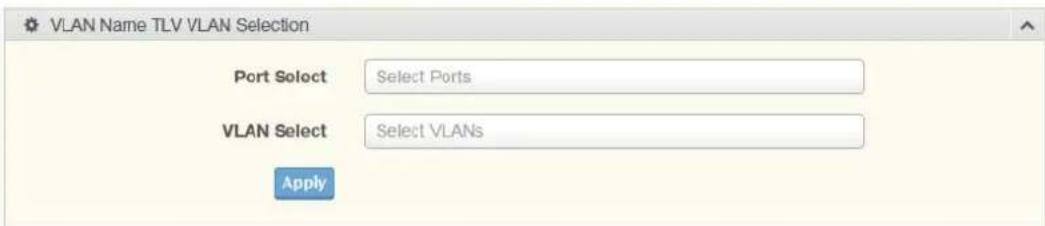
text_image
VLAN Name TLV VLAN Selection Port Select Select Ports VLAN Select Select VLANs ApplyFigure 4.106 Management > LLDP > LLDP Port Settings > VLAN Name TLV VLAN Selection
The following table describes the items in the previous figure.
Item Description
| Port Select Enter the port number to associated with the TLV selection. | |
| VLAN Select | Select the VLAN Name ID to be carried out (multiple selection is allowed). |
| Apply | Click Apply to save the values and update the screen. |
The ensuing table for LLDP Port VLAN TLV Status settings are informational only: Port and Selected VLAN.
4.9.1.3 LLDP Local Device Info
The LLDP Local Device Info page allows you to view information regarding network devices, providing that the switch has already obtained LLDP information on the devices.
To access this page, click Management > LLDP > LLDP Local Device Info.
The ensuing table for Local Device Summary settings are informational only: Chassis ID Subtype, Chassis ID, System Name, System Description, Capabilities Supported, Capabilities Enabled and Port ID Subtype.
The ensuing table for Port Status settings are informational only: Port, Selected VLAN and Detail (click the radio box and click Detail to displays the details).
4.9.1.4 LLDP Remote Device Info
The LLDP Remote Device Info page allows you to view information about remote devices, LLDP information must be available on the switch.
To access this page, click Management > LLDP > LLDP Remote Device Info.

text_image
Remote Device Info Detail Delete Refresh Sel Local Port Chassis ID Subtype Chassis ID Port ID Subtype Port ID System Name Time to LiveFigure 4.107 Management > LLDP > LLDP Remote Device Info
The following table describes the items in the previous figure.
Item Description
| Detail Click to display the device details. |
| Delete Click to delete the selected devices. |
| Refresh Click to refresh the remote device information list. |
4.9.1.5 LLDP Overloading
To access this page, click Management > LLDP > LLDP Overloading.
The ensuing table for LLDP Overloading settings are informational only: Port, Total (Bytes), Left to Send (Bytes), Status and Status (Mandatory TLVs, 802.3 TLVs, Optional TLVs and 802.1 TLVs).
4.9.2 SNMP
Simple Network Management Protocol (SNMP) is a protocol to facilitate the monitoring and exchange of management information between network devices. Through SNMP, the health of the network or status of a particular device can be determined.
4.9.2.1 SNMP Settings
The SNMP Settings page allows you to set the SNMP daemon state (enabled or disabled).
To access this page, click Management > SNMP > SNMP Settings.

text_image
SNMP Global Settings State Enabled Disabled ApplyFigure 4.108 Management > SNMP > SNMP Settings
The following table describes the items in the previous figure.
| Item Description | |
| State | Click Enabled or Disabled to define the SNMP daemon. |
| Apply Click Apply to save the values and update the screen. | |
The ensuing table for SNMP Information settings are informational only: SNMP.
4.9.2.2 SNMP Community
The SNMP Community page provides configuration options for the community.
SNMP v1 and SNMP v2c use the group name (Community Name) certification. It's role is similar to the password function. If SNMP v1 and SNMP v2c are used, you can go directly from the configuration settings to this page to configure the SNMP community.
To access this page, click Management > SNMP > SNMP Community.

text_image
Community Settings Community Name Input name Access Right ○ read-only ○ read-write ApplyFigure 4.109 Management > SNMP > SNMP Community
The following table describes the items in the previous figure.
| Item Description |
| Community Name Enter a community name (up to 20 characters). |
Item Description
Access Right Click the radio box to specify the access level (read only or read write)
Apply Click Apply to save the values and update the screen.
The ensuing table for Community Status settings are informational only: No., Community Name, Access Right and Delete (click to delete the desired community name).
4.9.2.3 SNMPv3 EngineID
To access this page, click Management > SNMP > SNMPv3 EngineID.

text_image
EngineID Settings SNMP EngineID 80.00.1F.88.80.1C.07.05.DB.38.6D.43.A1Figure 4.110 Management > SNMP > SNMPv3 EngineID
The following table describes the items in the previous figure.
Item Description
SNMP EngineID Enter the hexadecimal string to define the engine ID for SNMPv3 agent.
4.9.2.4 SNMPv3 Settings
The SNMPv3 Settings page allows you to create SNMP groups. The users have the same level of security and access control permissions as defined by the group settings.
To access this page, click Management > SNMP > SNMPv3 Settings.

text_image
User Settings User Name Input user name Access Right read-only read-write Encrypted Auth-Protocol None Password Input password Priv-Protocol None Password Input password AddFigure 4.111 Management > SNMP > SNMPv3 Settings
The following table describes the items in the previous figure.
Item Description
User Name Enter a user name (up to 32 characters) to create an SNMP profile.
Access Right Click read-only or read-write to define the access right for the profile.
Encrypted Click the option to set the encrypted option for the user setting.
| Item Description | |
| Auth-Protocol | Click the drop-down menu to select the authentication level: MD5 or SHA. The field requires a user password.■ MD5: specify HMAC-MD5-96 authentication level■ SHA: specify HMAC-SHA authentication protocol |
| Password Enter the characters to define the password associated with the authentication protocol. | |
| Priv-Protocol | Click the drop-down menu to select an authorization protocol: none or DES.The field requires a user password.■ None: no authorization protocol in use■ DES: specify 56-bit encryption in use |
| Password Enter the characters to define the password associated with the authorization protocol. | |
| Add Click Add to save the values and update the screen. | |
The ensuing table for User Status settings are informational only: User Name, Access Right, Auth-Protocol, Priv-Protocol and Delete (click to delete the desired user name).
4.9.2.5 SNMP Trap
The SNMP Trap page allows you to set the IP address of the node and the SNMP credentials corresponding to the version that is included in the trap message.
To access this page, click Management > SNMP > SNMP Trap.
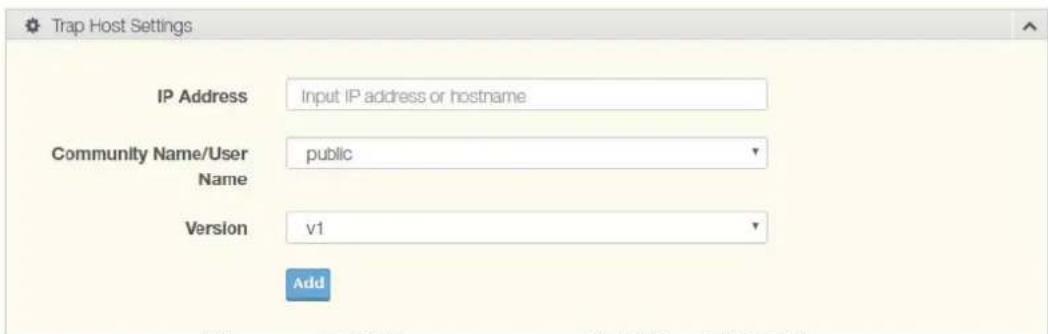
text_image
Trap Host Settings IP Address Input IP address or hostname Community Name/User public Name Version v1 AddFigure 4.112 Management > SNMP > SNMP Trap
The following table describes the items in the previous figure.
| Item Description | |
| IP Address Enter the IP address to designate the SNMP trap host. | |
| Community Name/ User Name | Click the drop-down menu to select a defined community name. |
| Version Click the drop-down menu to designate the SNMP version credentials (v1, v2c - trap, v2c - inform, v2c - trap or v2c - inform). | |
| Add Click Add to save the values and update the screen. | |
The ensuing table for Trap Host Status settings are informational only: No., IP Address, Community Name, Version and Delete (click to delete the desired IP address).
4.9.3 Power Over Ethernet
Power Over Ethernet is the function supplying power to Powered Devices (PD) through the switch in the event that AC power is not readily available.
Power over Ethernet can be used for the following areas:
■ Surveillance devices
■ I/O sensors for security requirements
■ Wireless access points
Series Supported Models
EKI 7712G-4FP, 7712G-4FPI
4.9.3.1 PoE System Settings
The PoE System Settings page allows you to configure the overload disconnect and the maximum available wattage.
To access this page, click Management > Power Over Ethernet > PoE System Settings.
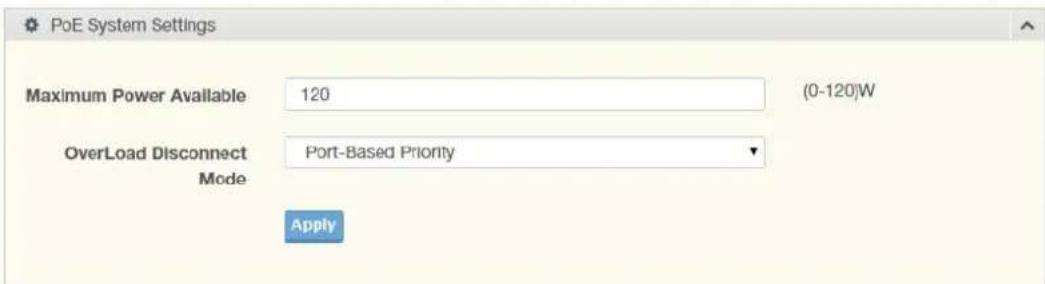
text_image
PoE System Settings Maximum Power Available 120 (0-120)W OverLoad Disconnect Port-Based Priority Mode ApplyFigure 4.113 Management > Power Over Ethernet > PoE System Settings
The following table describes the items in the previous figure.
| Item Description | |
| Maximum Power Available | Select the value in Watts to set the maximum available power. |
| OverLoad Disconnect Mode | Click the drop-down menu to designate the overload mode:■ Overload Port First:■ Port-Based Priority: |
| Apply | Click Apply to save the values and update the screen. |
The ensuing table for PoE System Information settings are informational only: Firmware Version, Maximum Power Available, Actual Power Consumption and Overload Disconnect Type.
4.9.3.2 PoE Port Settings
The PoE Port Settings page allows you to configure the port status, its power limitations, legacy mode status, and power limit settings.
To access this page, click Management > Power Over Ethernet > PoE Port Settings.
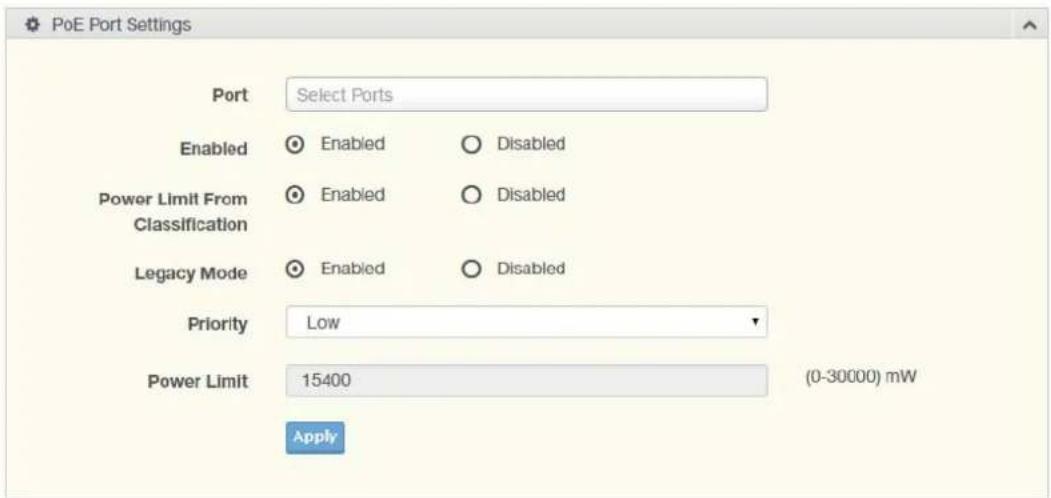
text_image
PoE Port Settings Port Select Ports Enabled Enabled Disabled Power Limit From Classification Enabled Disabled Legacy Mode Enabled Disabled Priority Low Power Limit 15400 (0-30000) mW ApplyFigure 4.114 Management > Power Over Ethernet > PoE Port Settings
The following table describes the items in the previous figure.
| Item Description | |
| Port Click the drop-down menu to select a PoE port. | |
| Enabled | Select Enabled or Disabled to designate the PoE port function by ports. |
| Power Limit From Classification | Select Enabled or Disabled to designate the power limit classification. |
| Legacy Mode | Select Enabled or Disabled to designate the legacy mode option for the port. |
| Priority | Click the drop-down menu to configure the power supply priority: Critical, Low, Medium or High. Default is Low. |
| Power Limit Enter a number to set the port power current limitation to be given to the Powered Device (PD) | |
| Apply Click Apply to save the values and update the screen. | |
The ensuing table for PoE Information settings are informational only: Port, Enable State, Power Limit From Classification, Priority, Legacy and Power Limit (W).
4.9.3.3 PoE Port Status
To access this page, click Management > Power Over Ethernet > PoE Port Status. The ensuing table for PoE Port Status settings are informational only: Port, Current (mA), Voltage (V), Power (W) and Temp. (°C).
4.9.4 TCP Modbus Settings
The TCP Modbus function allows for client-server communication between a switch module (server) and a device in the networking running MODBUS client software (client).
4.9.4.1 TCP Modbus Settings
The TCP Modbus Settings page allows you to configure the modbus function.
To access this page, click Management > TCP Modbus Settings > TCP Modbus Settings.
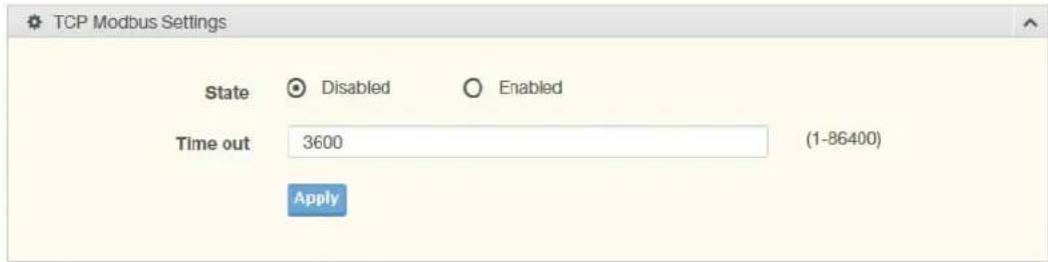
text_image
TCP Modbus Settings State Disabled Enabled Time out 3600 (1-86400) ApplyFigure 4.115 Management > TCP Modbus Settings > TCP Modbus Settings
The following table describes the items in the previous figure.
| Item Description | |
| State | Click Disabled or Enabled to set the TCP Modbus state. |
| Time out Enter the value (1 to 86400) to define the timeout period between transport time. | |
| Apply | Click Apply to save the values and update the screen. |
The ensuing table for TCP Modbus Status settings are informational only: TCP Modbus status and TCP Modbus time out.
4.9.5 DHCP Server
The Dynamic Host Configuration Protocol (DHCP) is a network protocol enabling a server to automatically assign an IP address to a computer from a defined range of numbers configured for a given network.
4.9.5.1 Status Settings
The Status Settings page allows you to configure the DHCP server mode (enabled or disabled).
To access this page, click Management > DHCP Server > Status Settings.

text_image
Status Settings DHCP Server ○ Enabled ○ Disabled Apply RestartFigure 4.116 Management > DHCP Server > Status Settings
The following table describes the items in the previous figure.
| Item Description | |
| DHCP Server | Select Enable or Disable to designate the DHCP server function type.When a new DHCP server mode is selected, the switch requires a system restart for the new mode to take effect. |
| Apply Click Apply to save the values and update the screen. | |
| Restart | Click Restart to have the switch perform a system restart function. In the event that the IP settings are changed, the DHCP server must be restarted for the IP settings to take effect. |
The ensuing table for Status Information settings are informational only: DHCP Server Service.
4.9.5.2 Global Settings
The Global Settings page allows you to configure the global settings for the DHCP function.
To access this page, click Management > DHCP Server > Global Settings.

text_image
Global Settings Lease Time Input time (60 - 864000) sec Low IP Address Input low IP High IP Address Input high IP Subnot Mask Input subnet mask Gateway Input gateway DNS Input DNS ApplyFigure 4.117 Management > DHCP Server > Global Settings
The following table describes the items in the previous figure.
| Item Description | |
| Lease Time Type in the value designating the lease time (60 - 864000) in seconds for each setting lease. | |
| Low IP Address Type in the value designating the lowest range in the IP address pool. | |
| High IP Address Type in the value designating the highest range in the IP address pool. | |
| Subnet Mask Type in the value designating the subnet mask for the IP address pool. | |
| Gateway Type in the value designating the gateway for the IP address pool. | |
| DNS Type in the value designating the DNS for the IP address pool. | |
| Apply Click Apply to save the values and update the screen. |
The ensuing table for Global Information settings are informational only: Lease Time, Low IP Address, High IP Address, Subnet Mask, Gateway, DNS and Clear (click to clear IP pool).
4.9.5.3 Port Settings
The Port Settings page allows you to configure selected ports for the DHCP function. To access this page, click Management > DHCP Server > Port Settings.
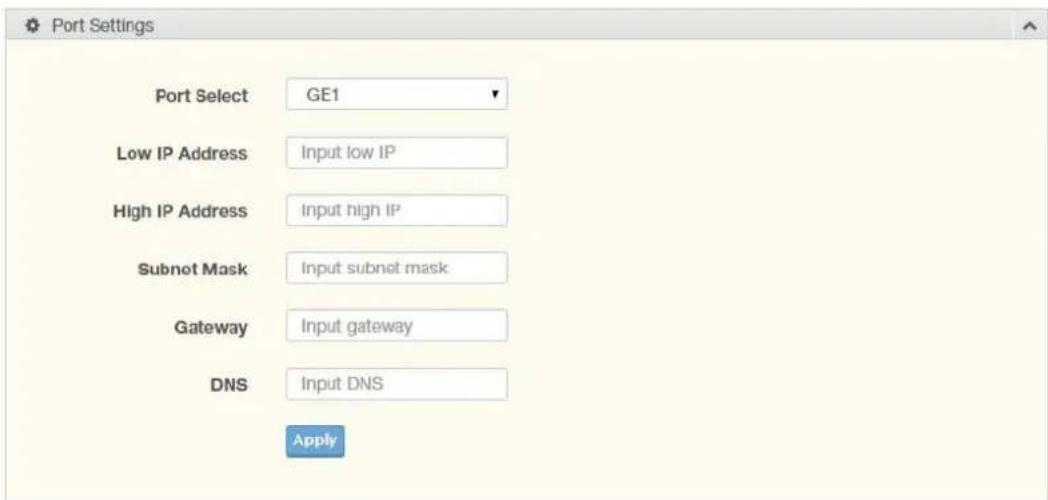
text_image
Port Settings Port Select GE1 Low IP Address Input low IP High IP Address Input high IP Subnot Mask Input subnet mask Gateway Input gateway DNS Input DNS ApplyFigure 4.118 Management > DHCP Server > Port Settings
The following table describes the items in the previous figure.
| Item Description | |
| Port Select | Click the drop-down menu to select a pre-defined port to configure.The suboptions are designated for the selected port. |
| Low IP Address Type in the value designating the lowest range in the IP address pool. | |
| High IP Address Type in the value designating the highest range in the IP address pool. | |
| Subnet Mask Type in the value designating the subnet mask for the IP address pool. | |
| Gateway Type in the value designating the gateway for the IP address pool. | |
| DNS Type in the value designating the DNS for the IP address pool. | |
| Apply Click Apply to save the values and update the screen. | |
The ensuing table for Port Information settings are informational only: Port, Low IP Address, High IP Address, Subnet Mask, Gateway, DNS, Edit (click to modify the settings) and Clear (click to clear the settings).
4.9.5.4 VLAN Settings
The VLAN Settings page allows you to configure selected ports for the VLAN function.
To access this page, click Management > DHCP Server > VLAN Settings.

text_image
VLAN Settings Entry 1 VLAN ID Input VLAN ID (1-4094) Low IP Address Input low IP High IP Address Input high IP Subnet Mask Input subnet mask Gateway Input gateway DNS Input DNS ApplyFigure 4.119 Management > DHCP Server > VLAN Settings
The following table describes the items in the previous figure.
Item Description
| Entry Click the drop-down menu to select a pre-defined port to configure. | |
| VLAN ID Type in the value to use as an identifier for the VLAN (1 to 4094). | |
| Low IP Address Type in the value designating the lowest range in the IP address pool. | |
| High IP Address Type in the value designating the highest range in the IP address pool. | |
| Subnet Mask Type in the value designating the subnet mask for the IP address pool. | |
| Gateway Type in the value designating the gateway for the IP address pool. | |
| DNS Type in the value designating the DNS for the IP address pool. | |
| Apply | Click Apply to save the values and update the screen. |
The ensuing table for Entry Information settings are informational only: Entry ID, VLAN ID, Low IP Address, High IP Address, Subnet Mask, Gateway, DNS, Edit (click to modify the settings) and Clear (click to clear the settings).
4.9.5.5 Option 82 Settings
The Option 82 Settings, also known as the DHCP relay agent information option, provide information about the network location of a DHCP client. In turn, the DHCP server uses the information to implement IP addresses or other parameters for the client.
To access this page, click Management > DHCP Server > Option 82 Settings.

text_image
Option 82 Settings Entry 1 Circuit ID Format String Circuit ID Content Input circuit ID content Remote ID Format String Remote ID Content Input remote ID content Low IP Address Input low IP High IP Address Input high IP Subnet Mask Input subnet mask Gateway Input gateway DNS Input DNS ApplyFigure 4.120 Management > DHCP Server > Option 82 Settings
The following table describes the items in the previous figure.
| Item Description | |
| Entry Click the drop-down menu to select an entry for the Option 82 setting. | |
| Circuit ID Format Click the drop-down menu to select the format of the circuit ID: string or hex. | |
| Circuit ID Content Enter the circuit ID string on the switch on which the request was received. | |
| Remote ID Format Click the drop-down menu to select the format of the remote ID: string or hex. | |
| Remote ID Content Enter the remote ID string of the host. | |
| Low IP Address Type in the value designating the lowest range in the IP address pool. | |
| High IP Address Type in the value designating the highest range in the IP address pool. | |
| Subnet Mask Type in the value designating the subnet mask for the IP address pool. | |
| Gateway Type in the value designating the gateway for the IP address pool. | |
| DNS Type in the value designating the DNS for the IP address pool. | |
| Apply Click Apply to save the values and update the screen. |
The ensuing table for Entry Information settings are informational only: Entry (click the drop-down menu to select an entry), Entry ID, Circuit ID Format, Circuit ID Content, Remote ID Format, Remote ID Content, Low IP Address, High IP Address, Subnet Mask, Gateway, DNS, Edit (click to modify the settings) and Clear (click to clear the settings).
4.9.5.6 Client MAC Settings
To access this page, click Management > DHCP Server > Client MAC Settings.

text_image
Client MAC Settings Entry ID Input Entry ID (1-100) Client MAC Address Input MAC Address IP Address Input IP Address Subnet Mask Input subnet mask Gateway Input gateway DNS Input DNS AddFigure 4.121 Management > DHCP Server > Client MAC Settings
The following table describes the items in the previous figure.
| Item Description | |
| Entry ID Type in the value designating the entry ID. | |
| Client MAC Address Enter the MAC address for DHCP server. | |
| IP Address Enter a value to specify the IP address of the interface. | |
| Subnet Mask Enter a value to specify the IP subnet mask for the interface. | |
| Gateway Enter a value to specify the gateway for the interface. | |
| DNS | Enter a value to specify the DNS server for the interface. |
| Apply | Click Apply to save the values and update the screen. |
The ensuing table for Client MAC Information settings are informational only: Entry ID, Client MAC Address, IP Address, Subnet Mask and Modify (Click Detail to display the detail information of desired entry id or Delete to delete the desired entry id).
4.9.5.7 Lease Entry
To access this page, click Management > DHCP Server > Lease Entry.
The ensuing table for Lease entry Table settings are informational only: IP Address, Client Mac, Start Time, End Time and Type.
4.9.6 SMTP Client
Simple Mail Transfer Protocol (SMTP) is a protocol to send e-mail messages between servers. SMTP is used to send messages from a mail client to a mail server. SMTP by default uses TCP port 25.
4.9.6.1 Global Settings
The Global Settings page allows you to set the active profile for the SMTP client. To access this page, click Management > SMTP Client > Global Settings.
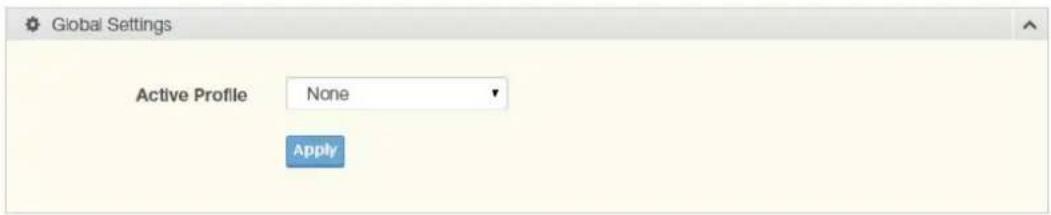
text_image
Global Settings Active Profile None ApplyFigure 4.122 Management > SMTP Client > Global Settings
The following table describes the items in the previous figure.
| Item Description | |
| Active Profile | Click the drop-down menu to select the profile status (None, 1 or 2). |
| Apply Click Apply to save the values and update the screen. | |
The ensuing table for SMTP Information settings are informational only: Active Profile Id.
4.9.6.2 Profile Settings
The Profile Settings page allows you to select the server IP, the server port, and sender mail for the listed profile.
To access this page, click Management > SMTP Client > Profile Settings.
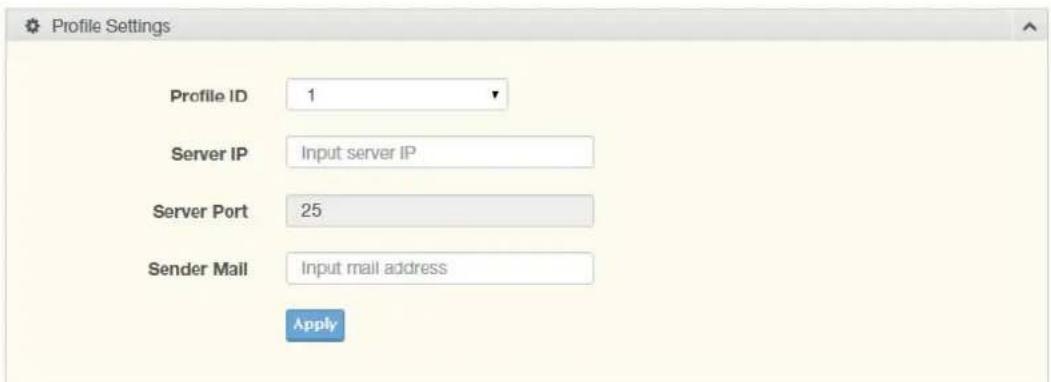
text_image
Profile Settings Profile ID 1 Server IP Input server IP Server Port 25 Sender Mail Input mail address ApplyFigure 4.123 Management > SMTP Client > Profile Settings > Profile Settings
The following table describes the items in the previous figure.
| Item Description | |
| Profile ID | Click the drop-down menu to select the identification type for the profile (1 or 2). |
| Server IP Enter the IP address to designate the server host. | |
| Server Port Enter the port number to designate the port associated with the server IP address. | |
| Sender Mail Enter the email address of the sender client. | |
| Apply Click Apply to save the values and update the screen. | |
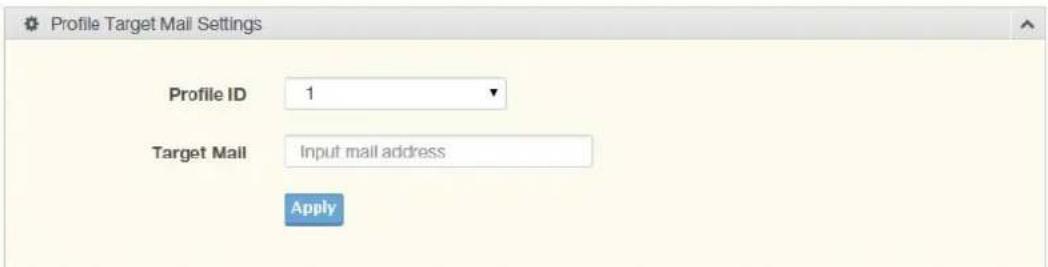
text_image
Profile Target Mail Settings Profile ID 1 Target Mail Input mail address ApplyFigure 4.124 Management > SMTP Client > Profile Settings > Profile Target Mail Settings
The following table describes the items in the previous figure.
Item Description
Profile ID Click the drop-down menu to select the identification type for the profile (1 or 2).
Target Mail Enter the email address of the target client.
Apply Click Apply to save the values and update the screen.
The ensuing table for Profile Information settings are informational only: Profile ID (click the drop-down menu to select a profile ID), Server IP, Server Port and Sender Mail Address.
4.9.6.3 Sending Message
The Sending Message page allows you to setup the log message for use with the SMTP client.
To access this page, click Management > SMTP Client > Sending Message.
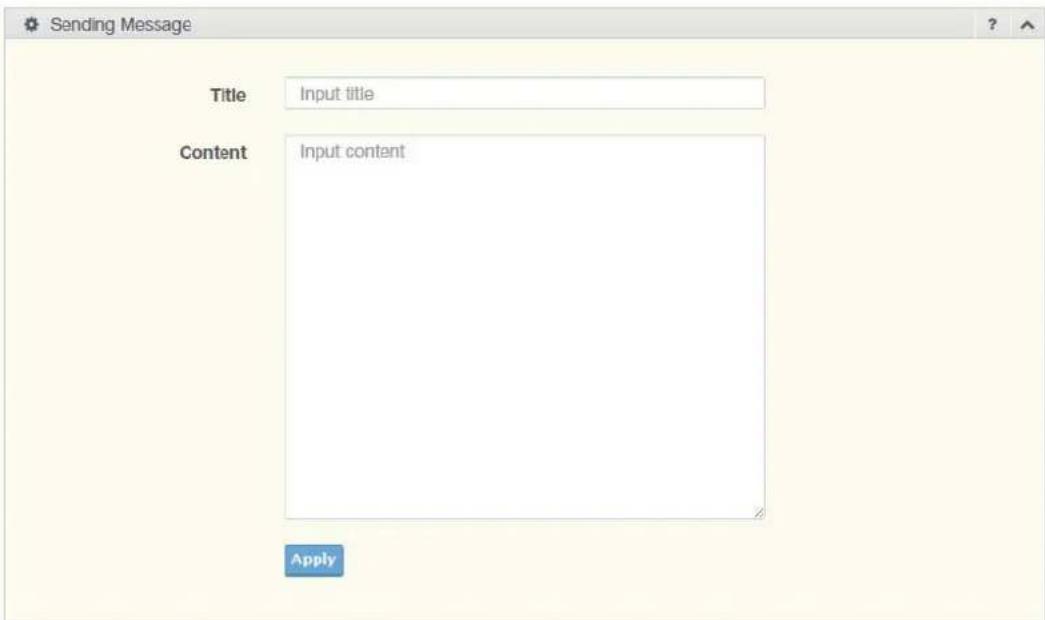
text_image
Sending Message Title Input title Content Input content ApplyFigure 4.125 Management > SMTP Client > Sending Message
The following table describes the items in the previous figure.
Item Description
Title Assign the title of the email. The maximum length is 20 characters (alphanumeric, symbols (. (dot), _ (underline), - (dash line) and space).
Item Description
Content Assign the content of the email. The maximum length is 64 characters (alphanumeric, symbols (. (dot), _ (underline), - (dash line) and space).
Apply Click Apply to save the values and update the screen.
4.9.7 RMON
Remote monitoring (RMON) uses a client-server model to monitor/manage remote devices on a network.
4.9.7.1 RMON Statistics
The RMON Statistics page allows you to view information regarding packet sizes and information for physical layer errors. The information displayed is according to the RMON standard.
To access this page, click Management > RMON > RMON Statistics.

text_image
RMON Ethernet Statistics Settings Index Input index (1-65535) Port GE1 Owner Input owner ApplyFigure 4.126 Management > RMON > Rmon Statistics
The following table describes the items in the previous figure.
Item Description
Index Enter an entry selection (1 to 65535) to display its statistical information.
Port Enter the respective port number for the selected entry.
Owner Enter the name of the owner of the RMON group.
Apply Click Apply to save the values and update the screen.
The ensuing table for Statistics Information settings are informational only: Index, Port, Drop Events, Octets, Packets, Broadcast, Multicast, Owner and Delete (click to delete the desired index).
4.9.7.2 RMON History
The RMON History page allows you to configure the display of history entries.
To access this page, click Management > RMON > RMON History.
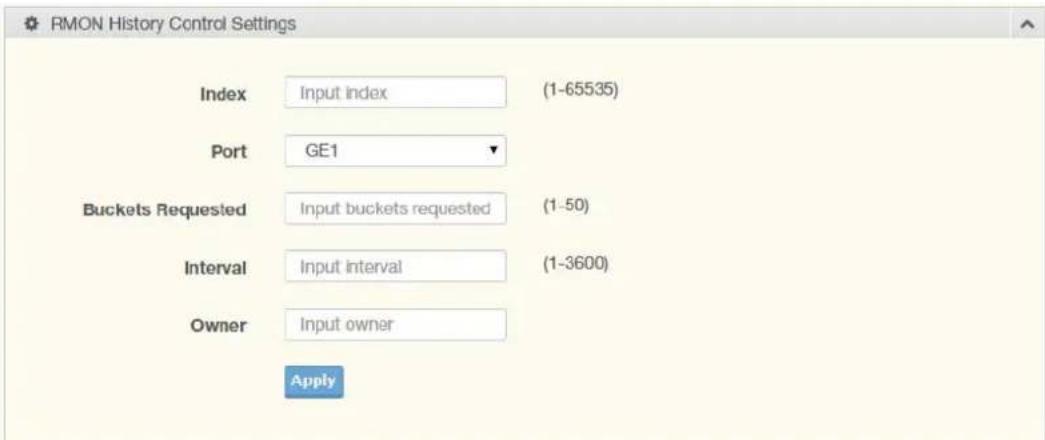
text_image
RMON History Control Settings Index Input index (1-65535) Port GE1 Buckets Requested Input buckets requested (1-50) Interval Input interval (1-3600) Owner Input owner ApplyFigure 4.127 Management > RMON > RMON History
The following table describes the items in the previous figure.
Item Description
| Index Enter the index entry (1 to 65535) to select the number of new history table entries. | |
| Port Select the specific port switch. | |
| Buckets Requested Enter the specific (1-50) number of samples to store. | |
| Interval Enter value in seconds (1 to 3600) to designate a specific interval time for the collection of samples. | |
| Owner Enter the name of the owner of the RMON history group. | |
| Apply | Click Apply to save the values and update the screen. |
The ensuing table for History Information settings are informational only: Index, Port, Buckets Requested, Interval, Owner and Delete (click to delete the desired index).
4.9.7.3 RMON Alarm
The RMON Alarm page allows you to configure RMON statistics group and alarm groups.
To access this page, click Management > RMON > RMON Alarm.

text_image
RMON Alarm Control Settings Index Input index (1-65535) Interval Input Interval (1-2147483647) Variable Input variable Sample Type Absolute Rising Threshold Input threshold (1-2147483647) Falling Threshold Input threshold (1-2147483647) Rising Event Index Input index (1-65535) Falling Event Index Input index (1-65535) Owner Input owner ApplyFigure 4.128 Management > RMON > Rmon Alarm
The following table describes the items in the previous figure.
Item Description
| Index Enter the index entry (1 to 65535) to define a specific Alarm Collection history entry. |
| Interval Enter a value (1 to 2147483647) to define the interval value for the Alarm Collection history. |
| Variable Enter the alarm variables to define the monitoring triggers. |
| Sample Type Enter the variable sample type. |
| Rising Threshold Enter the rising alarm threshold trigger. |
| Falling Threshold Enter the falling alarm threshold trigger. |
| Rising Event Index Enter the rising event index (1-65535) to define the alarm group. |
| Falling Event Index Enter the falling event index (1-65535) to define the alarm group. |
| Owner Enter the name of the owner of the RMON alarm group. |
| Apply Click Apply to save the values and update the screen. |
The ensuing table for Alarm Information settings are informational only: Index, Interval, Variable, Sample Type, Rising Threshold, Falling Threshold, Rising Event Index, Falling Event Index, Owner and Delete (click to delete the desired index).
4.9.7.4 RMON Event
The RMON Event page is used to configure RMON event groups. To access this page, click Management > RMON > RMON Event.
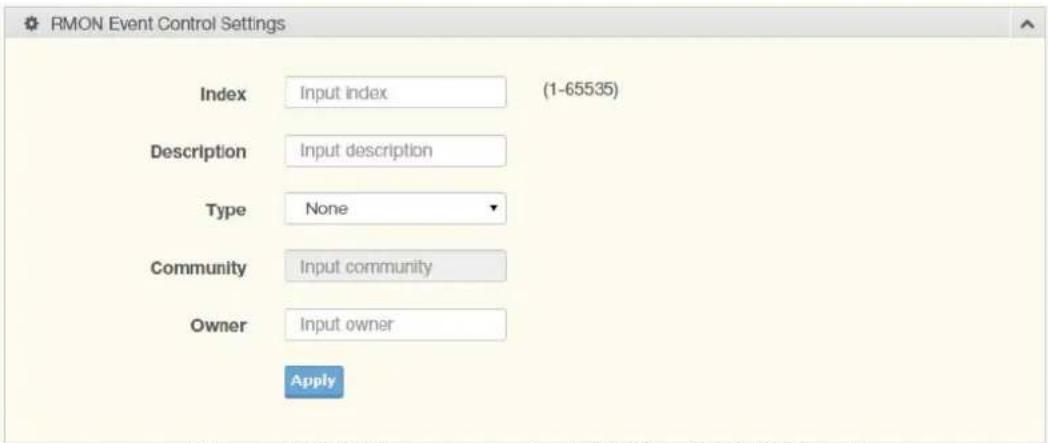
text_image
RMON Event Control Settings Index Input index (1-65535) Description Input description Type None Community Input community Owner Input owner ApplyFigure 4.129 Management > RMON > RMON Event
The following table describes the items in the previous figure.
| Item Description | |
| Index Enter the index entry (1 to 65535) to define a specific RMON event. | |
| Description Enter a value (1 to 2147483647) to define the interval value for the Alarm Collection history. | |
| Type Click the drop-down menu to define the event type: None, Log, SNMP Trap, Log and Trap. | |
| Community Enter the community string to be passed for the specified event. | |
| Owner Enter the name of the owner of the RMON event. | |
| Apply | Click Apply to save the values and update the screen. |
The ensuing table for Event Information settings are informational only: Index, Description, Type, Community, Owner and Delete (click to delete the desired index).
4.9.8 NTP Server
To access this page, click Management > NTP Server.

text_image
NTP Server NTP Server ○ Disabled ○ Enabled Manual Time ○ Disabled ○ Enabled Server Address 1 Input server Server Address 2 Input server Server Address 3 Input server Server Address 4 Input server Server Address 5 Input server Server Address 6 Input server Server Address 7 Input server Server Address 8 Input server Server Address 9 Input server Server Address 10 Input server ApplyFigure 4.130 Management > NTP Server
The following table describes the items in the previous figure.
Item Description
| NTP Server Click the radio button to enable or disable the NTP server function. | |
| Manual Time | Click the radio button to enable or disable the manual time function. |
| Server Address 1 ~ Server Address 10 | Enter the address of the NTP server. This is a text string of up to 64 characters containing the encoded unicast IP address or hostname of a NTP server. |
| Apply Click Apply to save the values and update the screen. | |
The ensuing table for NTP Server Status settings are informational only: INTP Server Status, Manual Time, Server AddressInformation Value, Server 1, Server 2, Server 3, Server 4, Server 5, Server 6, Server 7, Server 8, Server 9 and Server 10.
4.10 Diagnostics
Through the Diagnostics function configuration of settings for the switch diagnostics is available.
4.10.1 Cable Diagnostics
The Cable Diagnostics page allows you to select the port for applying a copper test. To access this page, click Diagnostics > Cable Diagnostics.

text_image
Select the port on which to run the copper test. Port GE1 Copper TestFigure 4.131 Diagnostics > Cable Diagnostics
The following table describes the items in the previous figure.
Item Description
Port Click the drop-down menu to select a pre-defined port for diagnostic testing. Giga ports are displayed with a channel A to D designation.
Copper Test Click Copper Test to display the test result for the selected port.
The ensuing table for Test Result settings are informational only: Port, Channel A, Cable Length A, Channel B, Cable Length B, Channel C, Cable Length C, Channel D and Cable Length D.
4.10.2 Ping Test
The Ping Test page allows you to configure the test log page.
To access this page, click Diagnostics > Ping Test.

text_image
Ping Test IP Address or hostname Input IP or hostname (x.x.x.x or hostname) Count 4 (1 - 5 | Default : 4 ) Interval (in sec) 1 (1 - 5 | Default : 1 ) Size (in bytes) 56 (8 - 5120 | Default : 56 ) Ping Results ApplyFigure 4.132 Diagnostics > Ping Test
The following table describes the items in the previous figure.
Item Description
| IP Address Enter the IP address or host name of the station to ping. The initial value is blank. The IP Address or host name you enter is not retained across a power cycle. Host names are composed of series of labels concatenated with periods. Each label must be between 1 and 63 characters long, maximum of 64 characters. |
| Count Enter the number of echo requests to send. The default value is 4.The value ranges from 1 to 5. The count entered is not retained across a power cycle. |
| Interval (in sec) Enter the interval between ping packets in seconds. The default value is 1. The value ranges from 1 to 5. The interval entered is not retained across a power cycle. |
| Size (in bytes) Enter the size of ping packet. The default value is 56. The value ranges from 8 to 5120. The size entered is not retained across a power cycle. |
Item Description
Ping Results Display the reply format of ping.
PING 172.17.8.254 (172.17.8.254): 56 data bytes
--- 172.17.8.254 ping statistics ---
4 packets transmitted, 0 packets received, 100% packet loss Or
PING 172.17.8.93 (172.17.8.93): 56 data bytes
64 bytes from 172.17.8.93: icmp_seq=0 ttl=128 time=0.0 ms
64 bytes from 172.17.8.93: icmp_seq=1 ttl=128 time=0.0 ms
64 bytes from 172.17.8.93: icmp_seq=2 ttl=128 time=0.0 ms
64 bytes from 172.17.8.93: icmp_seq=3 ttl=128 time=0.0 ms
--- 172.17.8.93 ping statistics ---
4 packets transmitted, 4 packets received, 0% packet loss round-trip min/avg/max = 0.0/0.0/0.0 ms
Apply Click Apply to display ping result for the IP address.
4.10.3 IPv6 Ping Test
The IPv6 Ping Test page allows you to configure the Ping Test for IPv6.
To access this page, click Diagnostics > IPv6 Ping Test.
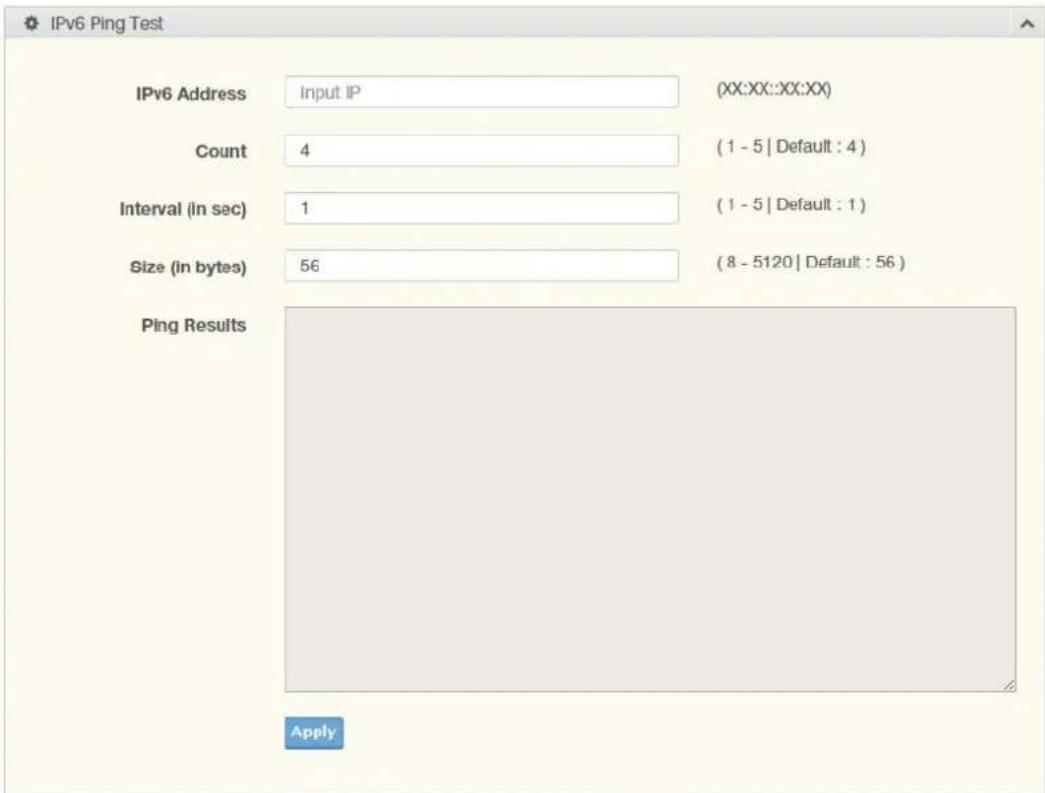
text_image
IPv6 Ping Test IPv6 Address Input IP (XX:XX::XX:XX) Count 4 (1 - 5 | Default : 4 ) Interval (in sec) 1 (1 - 5 | Default : 1 ) Size (in bytes) 56 (8 - 5120 | Default : 56 ) Ping Results ApplyFigure 4.133 Diagnostics > IPv6 Ping Test
The following table describes the items in the previous figure.
Item Description
| IPv6 Address Enter the IP address or host name of the station you want the switch to ping. The initial value is blank. The IP Address or host name you enter is not retained across a power cycle. Host names are composed of series of labels concatenated with dots. Each label must be between 1 and 63 characters long, and the entire hostname has a maximum of 64 characters. |
| Count Enter the number of echo requests you want to send. The default value is 4. The value ranges from 1 to 5. The count you enter is not retained across a power cycle. |
| Interval (in sec) Enter the interval between ping packets in seconds. The default value is 1. The value ranges from 1 to 5. The interval you enter is not retained across a power cycle. |
| Size (in bytes) Enter the size of ping packet. The default value is 56. The value ranges from 8 to 5120. The size you enter is not retained across a power cycle. |
| Ping Results Display the reply format of ping.PING 2222::777 (2222::777): 56 data bytes--- 2222::777 ping statistics ---4 packets transmitted, 0 packets received, 100% packet lossOrPING 2222::717 (2222::717): 56 data bytes64 bytes from 2222::717: icmp6_seq=0 ttl=128 time=10.0 ms64 bytes from 2222::717: icmp6_seq=1 ttl=128 time=0.0 ms64 bytes from 2222::717: icmp6_seq=2 ttl=128 time=0.0 ms64 bytes from 2222::717: icmp6_seq=3 ttl=128 time=0.0 ms--- 2222::717 ping statistics ---4 packets transmitted, 4 packets received, 0% packet lossround-trip min/avg/max = 0.0/2.5/10.0 ms |
Apply Click Apply to display ping result for the IP address.
4.10.4 System Log
4.10.4.1 Logging Service
The Logging Service page allows you to setup the logging services feature for the system log.
To access this page, click Diagnostics > System Log > Logging Service.

text_image
Logging Service Settings Logging Service Enabled Disabled ApplyFigure 4.134 Diagnostics > System Log > Logging Service
The following table describes the items in the previous figure.
Item Description
Logging Service Click Enabled or Disabled to set the Logging Service status.
Apply Click Apply to save the values and update the screen.
The ensuing table for Logging Information settings are informational only: Logging Service.
4.10.4.2 Local Logging
The Local Logging page allows you to designate a local target when the severity criteria is reached.
To access this page, click Diagnostics > System Log > Local Logging.
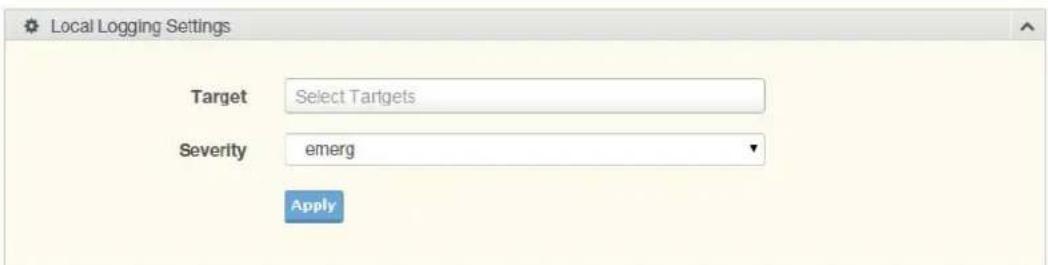
text_image
Local Logging Settings Target Select Targets Severity emerg ApplyFigure 4.135 Diagnostics > System Log > Local Logging
The following table describes the items in the previous figure.
Item Description
Target Enter the local logging target.
Item Description
Severity Click the drop-down menu to select the severity level for local log messages.
The level options are:
■ emerg: Indicates system is unusable. It is the highest level of severity
■ alert: Indicates action must be taken immediately
■ crit: Indicates critical conditions
■ error: Indicates error conditions
■ warning: Indicates warning conditions
■ notice: Indicates normal but significant conditions
■ info: Indicates informational messages
■ debug: Indicates debug-level messages
Apply Click Apply to save the values and update the screen.
The ensuing table for Local Logging Settings Status settings are informational only: Status, Target, Severity and Delete (click to delete the desired target).
4.10.4.3 System Log Server
The System Log Server page allows you to configure the log server.
To access this page, click Diagnostics > System Log > System Log Server.
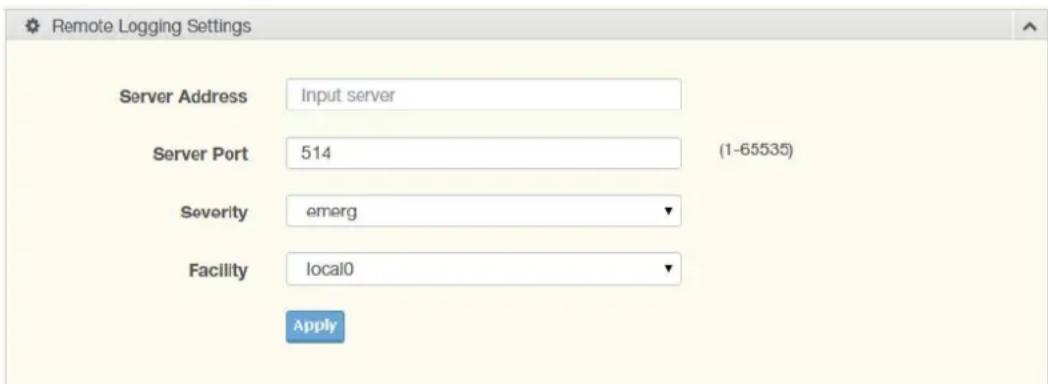
text_image
Remote Logging Settings Server Address Input server Server Port 514 (1-65535) Severity emerg Facility local0 ApplyFigure 4.136 Diagnostics > System Log > System Log Server
The following table describes the items in the previous figure.
Item Description
Server Address Enter the IP address of the log server.
Server Port Enter the Udp port number of the log server.
Severity Click the drop-down menu to select the severity level for local log messages. The default is emerg.
The level options are:
emerg: Indicates system is unusable. It is the highest level of severity
■ alert: Indicates action must be taken immediately
■ crit: Indicates critical conditions
■ error: Indicates error conditions
■ warning: Indicates warning conditions
■ notice: Indicates normal but significant conditions
■ info: Indicates informational messages
■ debug: Indicates debug-level messages
Item Description
Facility Click the drop-down menu to select facility to which the message refers.
Apply Click Apply to save the values and update the screen.
The ensuing table for Remote Logging Setting Status settings are informational only: Status, Server Info, Severity, Facility and Delete (click to delete the desired server address).
4.10.5 LED Indication
To access this page, click Diagnostics > LED Indication.

text_image
LED Indication LED Alarm State Enabled Disabled Event Power Failure Fiber Link-down Port Link- down Select Port ApplyFigure 4.137 Diagnostics > LED Indication
The following table describes the items in the previous figure.
Item Description
LED Click the drop-down menu to select LED indicator.
State Select Enable or Disable to enable LED alarm.
Event Click to select the event of LED alarm.
Apply Click Apply to save the values and update the screen.
The ensuing table for LED Information settings are informational only: Alarm.
The ensuing table for Event Information settings are informational only: LED (click the drop down menu to select LED), Event, State, and Delete (click to delete the desired event).
4.11 Tools
4.11.1 IXM
The IXM tool is an industrial Ethernet switch solution to help the users deploy industrial Ethernet switch hardware by allowing users with multiple, managed Ethernet switches in the field to eliminate the need to individually connect to each device to configure it.
To access this page, click Tools > IXM.

text_image
Devices Show 10 entries # Device Name Device Model Category IP Address MAC Address Firmware Version System Indicator No devices Previous NextFigure 4.138 Tools > IXM
The following table describes the items in the previous figure.
Item Description
| Search Field Enter criteria to search the IXM information. |
| # Displays the reference to the device number. |
| Device Name Displays the device name. |
| Device Model Displays the device model type. |
| Category Displays the device's category type. |
| IP Address Displays the device's IP address. |
| MAC Address Displays the device's IP MAC address. |
| Firmware Version Displays the device's firmware version. |
| System Indicator Displays the device's system indicator. |
| Previous Click Previous to back to previous page. |
| Next Click Next to go to next page. |
4.11.2 Backup Manager
The Backup Manager page allows you to configure a remote TFTP sever or host file system in order to backup the firmware image or configuration file.
To access this page, click Tools > Backup Manager.
The following figures represent multiple supported devices. Some interface screens may represent specific device models.
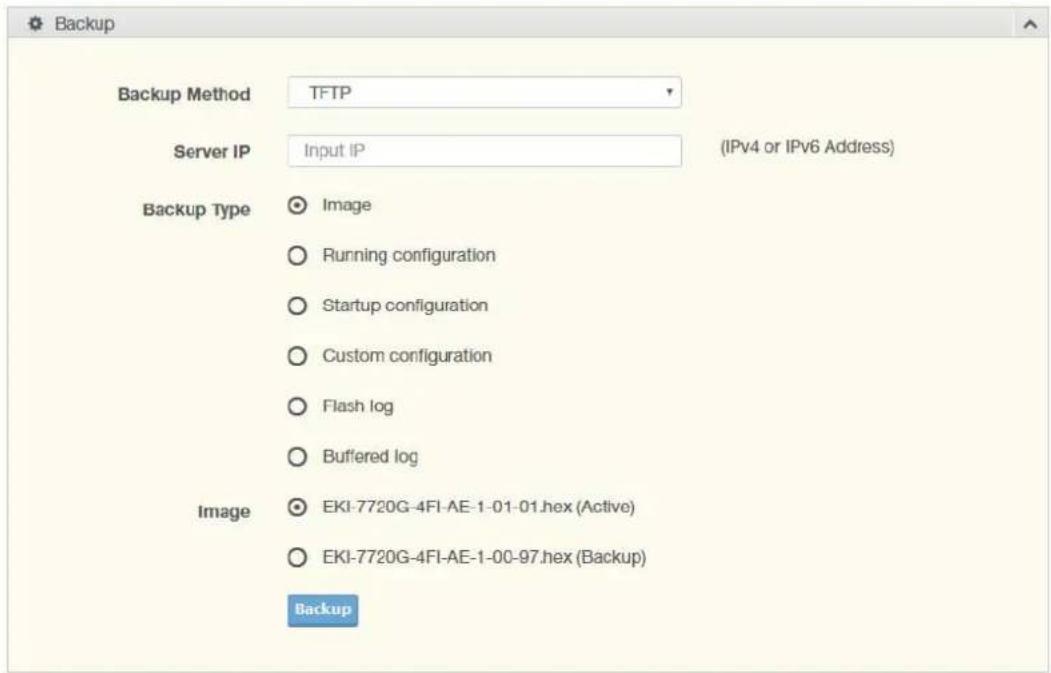
text_image
Backup Backup Method TFTP Server IP Input IP (IPv4 or IPv6 Address) Backup Type Image Running configuration Startup configuration Custom configuration Flash log Buffered log Image EKI-7720G-4FI-AE-1-01-01.hex (Active) EKI-7720G-4FI-AE-1-00-97.hex (Backup) BackupFigure 4.139 Tools > Backup Manager
The following table describes the items in the previous figure.
| Item Description |
| Backup Method Click the drop-down menu to select the backup method: TFTP or HTTP. |
| Server IP Enter the IP address of the backup server. |
| Backup Type Click a type to define the backup method: image: running configuration, startup configuration, custom configuration, flash log, or buffered log. |
| Image Click the format for the image type: Active or Backup. |
| Backup Click Backup to backup the settings. |
4.11.3 Upgrade Manager
The Upgrade Manager page allows you to configure a remote TFTP sever or host file system in order to upload firmware upgrade images or configuration files.
To access this page, click Tools > Upgrade Manager.
The following figures represent multiple supported devices. Some interface screens may represent specific device models.

text_image
Upgrade Upgrade Method TFTP Server IP Input IP (IPv4 or IPv6 Address) File Name Input file name Upgrade Type Image Startup configuration Running configuration Custom configuration Image EKI-7720G-4FI-AE-1-01-01.hex (Active) EKI-7720G-4FI-AE-1-00-97.hex (Backup) Auto UpgradeFigure 4.140 Tools > Upgrade Manager
The following table describes the items in the previous figure.
Item Description
| Upgrade Method Click the drop-down menu to select the upgrade method: TFTP or HTTP. | |
| Server IP Enter the IP address of the upgrade server. | |
| File Name Enter the file name of the new firmware version. | |
| Upgrade Type | Click a type to define the upgrade method: image, startup configuration, running configuration, or custom configuration. |
| Image Click the format for the image type: Active, Backup, or auto. | |
| Upgrade | Click Upgrade to upgrade to the current version. |
4.11.4 Dual Image
The Dual Image page allows you to setup an active and backup partitions for firmware image redundancy.
To access this page, click Tools > Dual Image.
The following figures represent multiple supported devices. Some interface screens may represent specific device models.
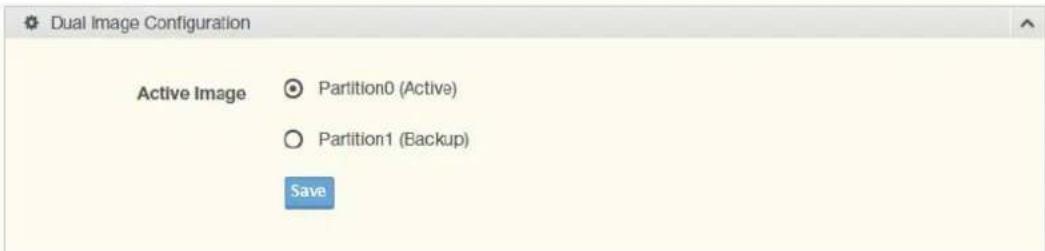
text_image
Dual Image Configuration Active Image Partition0 (Active) Partition1 (Backup) SaveFigure 4.141 Tools > Dual Image
The following table describes the items in the previous figure.
Item Description
Active Image Click the format for the image type: Active or Backup.
Save Click Save to save and keep the new settings.
The ensuing table for Image Information 0/1 settings are informational only: Flash Partition, Image Name, Image Size and Created Time.
4.11.5 Save Configuration
To access this page, click Tools > Save Configuration.
Click Save Configuration to FLASH to have configuration changes you have made to be saved across a system reboot. All changes submitted since the previous save or system reboot will be retained by the switch.
4.11.6 User Account
The User Account page allows you to setup a user and the related parameters. To access this page, click Tools > User Account.
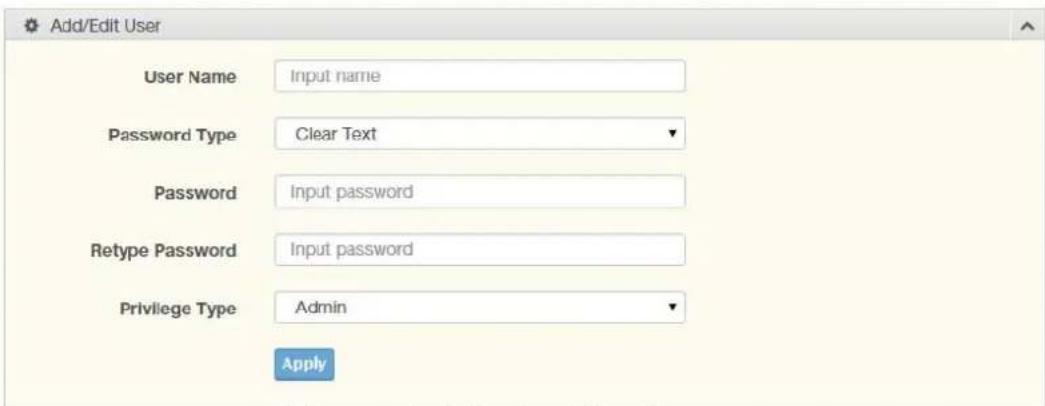
text_image
Add/Edit User User Name Input name Password Type Clear Text Password Input password Retype Password Input password Privilege Type Admin ApplyFigure 4.142 Tools > User Account
The following table describes the items in the previous figure.
Item Description
User Name Enter the name of the new user entry.
Item Description
| Password Type | Click the drop-down menu to define the type of password: Clear Text, Encrypted or No Password. |
| Password Enter the character set for the define password type. | |
| Retype Password Retype the password entry to confirm the profile password. | |
| Privilege Type Click the drop-down menu to designate privilege authority for the user entry: Admin or User. | |
| Apply Click Apply to create a new user account. | |
The ensuing table for Local Users settings are informational only: User Name, Password Type, Privilege Type and Delete (click to delete the desired user account).
4.11.7 N-Key
To access this page, click Tools > N-Key.
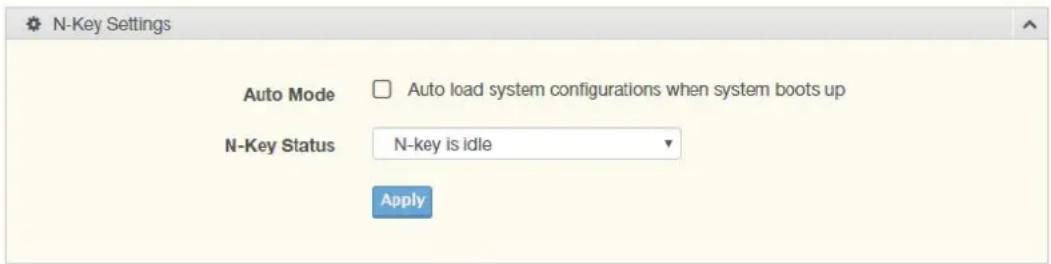
text_image
N-Key Settings Auto Mode Auto load system configurations when system boots up N-Key Status N-key is idle ApplyFigure 4.143 Tools > N-Key
The following table describes the items in the previous figure.
Item Description
| Auto Mode Click the option to set the auto mode for the N-Key status. | |
| N-Key Status | Click the drop-down menu to select N-Key status. |
| Apply Click Apply to create a new user account. | |
The ensuing table for N-Key Information settings are informational only: Auto Mode and N-Key Status.
4.11.8 Reset System
To access this page, click Tools > Reset System.
Click Restore to have all configuration parameters reset to their factory default values. All changes that have been made will be lost, even if you have issued a save.
Click Select Excepted Configuration to keep the configuration you selected when resetting.
Reset settings take effect after a system reboot.
4.11.9 Reboot Device
To access this page, click Tools > Reboot Device.
Click Reboot to reboot the switch. Any configuration changes you have made since the last time you issued a save will be lost.
The data map addresses of Advantech switches shown in the following table start from Modbus address 30001 for function code 4.
In the given example, the address offset 0x1000 (hex) equals Modbus address 34097, while the address offset 0x1100 (hex) equals Modbus address 34353.
The information given by the Advantech is shown in hex mode.
4.12.1 Modbus/TCP Mapping Table
| Catalog | Name | Data Type | Interpretation | Address Offset (Hex) | Address 3X | Description | |
| System Info Vendor ID =0x'13FE | 1 word 16 bits HEX 0x0000 30001 Vendor ID = 0x13FE | ||||||
| Unit ID = 0xFF 1 word 16 bits HEX 0x0001 30002 Unit ID = 0xFF | |||||||
| Product Code 1 word 16 bits HEX 0x0002 30003 Product Code | |||||||
| Vendor Name= "Advantech" | 16words | 32chars | ASCII 0x0010 30017 Vendor Name = | "Advantech"Word 0 Hi byte = 'A'Word 0 Lo byte = 'd'Word 1 Hi byte = 'v'Word 1 Lo byte = 'a'Word 2 Hi byte = 'n'Word 2 Lo byte = 't'Word 3 Hi byte = 'e'Word 3 Lo byte = 'c'Word 4 Hi byte = 'h'Word 4 Lo byte = '\0' | |||
| Product Name= "EKI-xxxx" | 16words | 32chars | ASCII 0x0020 30033 Product Name = | "EKI-xxxx"Word 0 Hi byte = 'E'Word 0 Lo byte = 'K'Word 1 Hi byte = 'l'Word 1 Lo byte = '-'Word 2 Hi byte = 'x'Word 2 Lo byte = 'x'Word 3 Hi byte = 'x'Word 3 Lo byte = 'x'Word 4 Hi byte = '\0' | |||
| Firmware Version | 2words | 32 bits HEX 0x020A 30523 Firmware Version | Word 0 Hi byte = majorWord 0 Lo byte = minorWord 1 Hi byte = releaseWord 1 Lo byte = build | ||||
| System Info Ethernet MACAddress | 3 words | 48 bits HEX 0x020E 30527 Ethernet MAC | |||||
| AddressEx: MAC = 00-19-CB-01-02-03Word 0 Hi byte = 0x00Word 0 Lo byte = 0x19Word 1 Hi byte = 0xCBWord 1 Lo byte = 0x01Word 2 Hi byte = 0x02Word 2 Lo byte = 0x03 | |||||||
| Revision Number | 16 words | 32 chars | ASCII 0x0211 30530 Product Name = | "YYY.xxxxx"Word 0 Hi byte = 'Y'Word 0 Lo byte = 'Y'Word 1 Hi byte = 'Y'Word 1 Lo byte = '.'Word 2 Hi byte = 'x'Word 2 Lo byte = 'x'Word 3 Hi byte = 'x'Word 3 Lo byte = 'x'Word 4 Hi byte = 'x'Word 4 Hi byte = '\0' | |||
| IP Address 2 words | 32 bits HEX 0x0400 31025 IP Address | ||||||
| Ex: IP = 192.168.1.1Word 0 Hi byte = 0xC0Word 0 Lo byte = 0xA8Word 1 Hi byte = 0x01Word 1 Lo byte = 0x01 | |||||||
| Port Info Port Status 1 word 16 bits HEX 0x1000 ~ | 0x101F | 34097 ~ 34128 | Port Status0x0000: Link down0x0001: Link up0xFFFF: No port | ||||
| Port 1 Status 1 word 16 bits HEX 0x1000 34097 | |||||||
| Port 2 Status 1 word 16 bits HEX 0x1001 34098 | |||||||
| Port 3 Status 1 word 16 bits HEX 0x1002 34099 | |||||||
| Port 4 Status 1 word 16 bits HEX 0x1003 34100 | |||||||
| Port 5 Status 1 word 16 bits HEX 0x1004 34101 | |||||||
| Port 6 Status 1 word 16 bits HEX 0x1005 34102 | |||||||
| Port 7 Status 1 word 16 bits HEX 0x1006 34103 | |||||||
| Port 8 Status 1 word 16 bits HEX 0x1007 34104 | |||||||
| Port 9 Status 1 word 16 bits HEX 0x1008 34105 | |||||||
| Port 10 Status 1 word 16 bits HEX 0x1009 34106 | |||||||
| Port 11 Status 1 word 16 bits HEX 0x100A 34107 | |||||||
| Port 12 Status 1 word 16 bits HEX 0x100B 34108 | |||||||
| Port 13 Status 1 word 16 bits HEX 0x100C | 34109 | ||||||
| Port 14 Status 1 word 16 bits HEX 0x100D | 34110 | ||||||
| Port Info Port Status 1 word 16 bits HEX 0x1000 ~ | 0x101F | 34097 ~ 34128 | Port Status0x0000: Link down0x0001: Link up0xFFFF: No port | ||||
| Port 1 Status 1 word 16 bits HEX 0x1000 34097 | |||||||
| Port 2 Status 1 word 16 bits HEX 0x1001 34098 | |||||||
| Port 3 Status 1 word 16 bits HEX 0x1002 34099 | |||||||
| Port 4 Status 1 word 16 bits HEX 0x1003 34100 | |||||||
| Port 5 Status 1 word 16 bits HEX 0x1004 34101 | |||||||
| Port 6 Status 1 word 16 bits HEX 0x1005 34102 | |||||||
| Port 7 Status 1 word 16 bits HEX 0x1006 34103 | |||||||
| Port 8 Status 1 word 16 bits HEX 0x1007 34104 | |||||||
| Port 9 Status 1 word 16 bits HEX 0x1008 34105 | |||||||
| Port 10 Status 1 word 16 bits HEX 0x1009 34106 | |||||||
| Port 11 Status 1 word 16 bits HEX 0x100A 34107 | |||||||
| Port 12 Status 1 word 16 bits HEX 0x100B 34108 | |||||||
| Port 13 Status 1 word 16 bits HEX 0x100C | 34109 | ||||||
| Port 14 Status 1 word 16 bits HEX 0x100D | 34110 | ||||||
| Port Info Port 15 Status 1 word 16 bits HEX 0x100E 34111 | |||||||
| Port 16 Status 1 word 16 bits HEX 0x100F 34112 | |||||||
| Port 17 Status 1 word 16 bits HEX 0x1010 34113 | |||||||
| Port 18 Status 1 word 16 bits HEX 0x1011 34114 | |||||||
| Port 19 Status 1 word 16 bits HEX 0x1012 34115 | |||||||
| Port 20 Status 1 word 16 bits HEX 0x1013 34116 | |||||||
| Port 21 Status 1 word 16 bits HEX 0x1014 34117 | |||||||
| Port 22 Status 1 word 16 bits HEX 0x1015 34118 | |||||||
| Port 23 Status 1 word 16 bits HEX 0x1016 34119 | |||||||
| Port 24 Status 1 word 16 bits HEX 0x1017 34120 | |||||||
| Port 25 Status 1 word 16 bits HEX 0x1018 34121 | |||||||
| Port 26 Status 1 word 16 bits HEX 0x1019 34122 | |||||||
| Port 27 Status 1 word 16 bits HEX 0x101A 34123 | |||||||
| Port 28 Status 1 word 16 bits HEX 0x101B 34124 | |||||||
| Port 29 Status 1 word 16 bits HEX 0x101C 34125 | |||||||
| Port 30 Status 1 word 16 bits HEX 0x101D 34126 | |||||||
| Port 31 Status 1 word 16 bits HEX 0x101E 34127 | |||||||
| Port 32 Status 1 word 16 bits HEX 0x101F 34128 | |||||||
| Port Speed 1 word 16 bits HEX 0x1100 ~ | 34353 ~ 0x111F | 34384 | Port Speed 0x0000: 10M-Half 0x0001: 10M-Full 0x0002: 100M-Half 0x0003: 100M-Full 0x0004: 1000M-Half 0x0005: 1000M-Full 0xFFFF: No port | ||||
| Port Info Port 28 Speed 1 word 16 bits HEX 0x111B 34380 | |||||||
| Port 29 Speed 1 word 16 bits HEX 0x111C 34381 | |||||||
| Port 30 Speed 1 word 16 bits HEX 0x111D 34382 | |||||||
| Port 31 Speed 1 word 16 bits HEX 0x111E 34383 | |||||||
| Port 32 Speed 1 word 16 bits HEX 0x111F 34384 | |||||||
| Flow Control 1 word 16 bits HEX 0x1200 ~ | 0x121F | 34609 ~ 34640 | Flow Control 0x0000: Off 0x0001: On 0xFFFF: No port | ||||
| Port 1 Flow Control | 1 word 16 bits HEX 0x1200 34609 | ||||||
| Port 2 Flow Control | 1 word 16 bits HEX 0x1201 34610 | ||||||
| Port 3 Flow Control | 1 word 16 bits HEX 0x1202 34611 | ||||||
| Port 4 Flow Control | 1 word 16 bits HEX 0x1203 34612 | ||||||
| Port 5 Flow Control | 1 word 16 bits HEX 0x1204 34613 | ||||||
| Port 6 Flow Control | 1 word 16 bits HEX 0x1205 34614 | ||||||
| Port 7 Flow Control | 1 word 16 bits HEX 0x1206 34615 | ||||||
| Port 8 Flow Control | 1 word 16 bits HEX 0x1207 34616 | ||||||
| Port 9 Flow Control | 1 word 16 bits HEX 0x1208 34617 | ||||||
| Port 10 Flow Control | 1 word 16 bits HEX 0x1209 34618 | ||||||
| Port 11 Flow Control | 1 word 16 bits HEX 0x120A 34619 | ||||||
| Port 12 Flow Control | 1 word 16 bits HEX 0x120B 34620 | ||||||
| Port 13 Flow Control | 1 word 16 bits HEX 0x120C 34621 | ||||||
| Port 14 Flow Control | 1 word 16 bits HEX 0x120D 34622 | ||||||
| Port 15 Flow Control | 1 word 16 bits HEX 0x120E 34623 | ||||||
| Port 16 Flow Control | 1 word 16 bits HEX 0x120F 34624 | ||||||
| Port 17 Flow Control | 1 word 16 bits HEX 0x1210 34625 | ||||||
| Port 18 Flow Control | 1 word 16 bits HEX 0x1211 34626 | ||||||
| Port 19 Flow Control | 1 word 16 bits HEX 0x1212 34627 | ||||||
| Port 20 Flow Control | 1 word 16 bits HEX 0x1213 34628 | ||||||
| Port 21 Flow Control | 1 word 16 bits HEX 0x1214 34629 | ||||||
| Port 22 Flow Control | 1 word 16 bits HEX 0x1215 34630 | ||||||
| Port 23 Flow Control | 1 word 16 bits HEX 0x1216 34631 | ||||||
| Port 24 Flow Control | 1 word 16 bits HEX 0x1217 34632 | ||||||
| Port 25 Flow Control | 1 word 16 bits HEX 0x1218 34633 | ||||||
| Catalog | Name | Data Type | Interpretation | Address Offset (Hex) | Address 3X | Description | ||
| Port Info Port 26 Flow Control | 1 word 16 bits HEX 0x1219 34634 | |||||||
| 35121 ~ 35741 | ||||||||
| Port Description Port Description = "100RX,RJ45." Word 0 Hi byte = '1' Word 0 Lo byte = '0' Word 1Hi byte = '0' Word 1 Lo byte = 'R' Word 2 Hi byte = 'X' Word 2 Lo byte = '.' Word 3 Hi byte = 'R' Word 3 Lo byte = 'J' Word 4 Hi byte = '4' Word 4 Lo byte = '5' Word 5 Hi byte = '.' Word 5 Lo byte = '\0' | ||||||||
| ASCII 0x148C 35261 | ||||||||
| Port Info Port 16 | 20 words | 40 chars | ASCII 0x152C 35421 | |||||
| Port 17 Description | 20 words | 40 chars | ASCII 0x1540 35441 | |||||
| Port 18 Description | 20 words | 40 chars | ASCII 0x1554 35461 | |||||
| Port 19 Description | 20 words | 40 chars | ASCII 0x1568 35481 | |||||
| Port 20 Description | 20 words | 40 chars | ASCII 0x157C 35501 | |||||
| Port 21 Description | 20 words | 40 chars | ASCII 0x1590 35521 | |||||
| Port 22 Description | 20 words | 40 chars | ASCII 0x15A4 35541 | |||||
| Port 23 Description | 20 words | 40 chars | ASCII 0x15B8 35561 | |||||
| Port 24 Description | 20 words | 40 chars | ASCII 0x15CC 35581 | |||||
| Port 25 Description | 20 words | 40 chars | ASCII 0x15E0 35601 | |||||
| Port 26 Description | 20 words | 40 chars | ASCII 0x15F4 35621 | |||||
| Port 27 Description | 20 words | 40 chars | ASCII 0x1608 35641 | |||||
| Port 28 Description | 20 words | 40 chars | ASCII 0x161C 35661 | |||||
| Port 29 Description | 20 words | 40 chars | ASCII 0x1630 35681 | |||||
| Port 30 Description | 20 words | 40 chars | ASCII 0x1644 35701 | |||||
| Port 31 Description | 20 words | 40 chars | ASCII 0x1658 35721 | |||||
| Port 32 Description | 20 words | 40 chars | ASCII 0x166C 35741 | |||||
| Link Up Counter | 1 word | 16 bits HEX 0x1700 ~ 0x171F | 35889 ~ 35920 | Link Up Counter Ex: port link up counter = 13 Received MODBUS response: 0x000D | ||||
| Port 1 Link Up Counter | 1 word | 16 bits HEX 0x1700 35889 | ||||||
| Port 2 Link Up Counter | 1 word | 16 bits HEX 0x1701 35890 | ||||||
| Port 3 Link Up Counter | 1 word | 16 bits HEX 0x1702 35891 | ||||||
| Port 4 Link Up Counter | 1 word | 16 bits HEX 0x1703 35892 | ||||||
| Port 5 Link Up Counter | 1 word | 16 bits HEX 0x1704 35893 | ||||||
| Port 6 Link Up Counter | 1 word | 16 bits HEX 0x1705 35894 | ||||||
| Port 7 Link Up Counter | 1 word | 16 bits HEX 0x1706 35895 | ||||||
| Port 8 Link Up Counter | 1 word | 16 bits HEX 0x1707 35896 | ||||||
| Port 9 Link Up Counter | 1 word | 16 bits HEX 0x1708 35897 | ||||||
| Port 10 Link Up Counter | 1 word | 16 bits HEX 0x1709 35898 | ||||||
| Port Info Port 11 Link | 1 word 16 bits HEX 0x170A 35899 | |||||||
| Up Counter | ||||||||
| Port 12 Link Up Counter | 1 word 16 bits HEX 0x170B 35900 | |||||||
| Port 13 Link Up Counter | 1 word 16 bits HEX 0x170C 35901 | |||||||
| Port 14 Link Up Counter | 1 word 16 bits HEX 0x170D 35902 | |||||||
| Port 15 Link Up Counter | 1 word 16 bits HEX 0x170E 35903 | |||||||
| Port 16 Link Up Counter | 1 word 16 bits HEX 0x170F 35904 | |||||||
| Port 17 Link Up Counter | 1 word 16 bits HEX 0x1710 35905 | |||||||
| Port 18 Link Up Counter | 1 word 16 bits HEX 0x1711 35906 | |||||||
| Port 19 Link Up Counter | 1 word 16 bits HEX 0x1712 35907 | |||||||
| Port 20 Link Up Counter | 1 word 16 bits HEX 0x1713 35908 | |||||||
| Port 21 Link Up Counter | 1 word 16 bits HEX 0x1714 35909 | |||||||
| Port 22 Link Up Counter | 1 word 16 bits HEX 0x1715 35910 | |||||||
| Port 23 Link Up Counter | 1 word 16 bits HEX 0x1716 35911 | |||||||
| Port 24 Link Up Counter | 1 word 16 bits HEX 0x1717 35912 | |||||||
| Port 25 Link Up Counter | 1 word 16 bits HEX 0x1718 35913 | |||||||
| Port 26 Link Up Counter | 1 word 16 bits HEX 0x1719 35914 | |||||||
| Port 27 Link Up Counter | 1 word 16 bits HEX 0x171A 35915 | |||||||
| Port 28 Link Up Counter | 1 word 16 bits HEX 0x171B 35916 | |||||||
| Port 29 Link Up Counter | 1 word 16 bits HEX 0x171C 35917 | |||||||
| Port 30 Link Up Counter | 1 word 16 bits HEX 0x171D 35918 | |||||||
| Port 31 Link Up Counter | 1 word 16 bits HEX 0x171E 35919 | |||||||
| Port 32 Link Up Counter | 1 word 16 bits HEX 0x171F 35920 | |||||||
| PoE Voltage 1 word 16 bits HEX 0x1800 ~ | 0x181F | 36145 ~ 36176 | PoE Voltage (V)Ex: poe voltage = 5Received MODBUS response: 0x0005 | |||||
| Port 1 PoE Voltage | 1 word 16 bits HEX 0x1800 36145 | |||||||
| Port 2 PoE Voltage | 1 word 16 bits HEX 0x1801 36146 | |||||||
| Port 3 PoE Voltage | 1 word 16 bits HEX 0x1802 36147 | |||||||
| Port 4 PoE Voltage | 1 word 16 bits HEX 0x1803 36148 | |||||||
| Port 5 PoE Voltage | 1 word 16 bits HEX 0x1804 36149 | |||||||
| Port 6 PoE Voltage | 1 word 16 bits HEX 0x1805 36150 | |||||||
| Port Info Port 7 PoE Voltage | 1 word 16 bits HEX 0x1806 36151 | |||||||
| 1 word 16 bits HEX 0x1807 36152 | ||||||||
| 1 word 16 bits HEX 0x1808 36153 | ||||||||
| 1 word 16 bits HEX 0x1809 36154 | ||||||||
| 1 word 16 bits HEX 0x180A 36155 | ||||||||
| 1 word 16 bits HEX 0x180B 36156 | ||||||||
| 1 word 16 bits HEX 0x180C 36157 | ||||||||
| 1 word 16 bits HEX 0x180D 36158 | ||||||||
| 1 word 16 bits HEX 0x180E 36159 | ||||||||
| 1 word 16 bits HEX 0x180F 36160 | ||||||||
| 1 word 16 bits HEX 0x1810 36161 | ||||||||
| 1 word 16 bits HEX 0x1811 36162 | ||||||||
| 1 word 16 bits HEX 0x1812 36163 | ||||||||
| 1 word 16 bits HEX 0x1813 36164 | ||||||||
| 1 word 16 bits HEX 0x1814 36165 | ||||||||
| 1 word 16 bits HEX 0x1815 36166 | ||||||||
| 1 word 16 bits HEX 0x1816 36167 | ||||||||
| 1 word 16 bits HEX 0x1817 36168 | ||||||||
| 1 word 16 bits HEX 0x1818 36169 | ||||||||
| 1 word 16 bits HEX 0x1819 36170 | ||||||||
| 1 word 16 bits HEX 0x181A 36171 | ||||||||
| 1 word 16 bits HEX 0x181B 36172 | ||||||||
| 1 word 16 bits HEX 0x181C 36173 | ||||||||
| 1 word 16 bits HEX 0x181D 36174 | ||||||||
| 1 word 16 bits HEX 0x181E 36175 | ||||||||
| 1 word 16 bits HEX 0x181F 36176 | ||||||||
| 1 word 16 bits HEX 0x1820 ~ | 0x183F | 36177 ~ 36208 | PoE Current (mA)Ex: poe current = 13Received MODBUS response: 0x000D | |||||
| 1 word 16 bits HEX 0x1820 36177 | ||||||||
| 1 word 16 bits HEX 0x1821 36178 | ||||||||
| Port Info Port 3 PoE | Current | 1 word 16 bits HEX 0x1822 36179 | ||||||
| Port 4 PoE Current | 1 word 16 bits HEX 0x1823 36180 | |||||||
| Port 5 PoE Current | 1 word 16 bits HEX 0x1824 36181 | |||||||
| Port 6 PoE Current | 1 word 16 bits HEX 0x1825 36182 | |||||||
| Port 7 PoE Current | 1 word 16 bits HEX 0x1826 36183 | |||||||
| Port 8 PoE Current | 1 word 16 bits HEX 0x1827 36184 | |||||||
| Port 9 PoE Current | 1 word 16 bits HEX 0x1828 36185 | |||||||
| Port 10 PoE Current | 1 word 16 bits HEX 0x1829 36186 | |||||||
| Port 11 PoE Current | 1 word 16 bits HEX 0x182A 36187 | |||||||
| Port 12 PoE Current | 1 word 16 bits HEX 0x182B 36188 | |||||||
| Port 13 PoE Current | 1 word 16 bits HEX 0x182C 36189 | |||||||
| Port 14 PoE Current | 1 word 16 bits HEX 0x182D 36190 | |||||||
| Port 15 PoE Current | 1 word 16 bits HEX 0x182E 36191 | |||||||
| Port 16 PoE Current | 1 word 16 bits HEX 0x182F 36192 | |||||||
| Port 17 PoE Current | 1 word 16 bits HEX 0x1830 36193 | |||||||
| Port 18 PoE Current | 1 word 16 bits HEX 0x1831 36194 | |||||||
| Port 19 PoE Current | 1 word 16 bits HEX 0x1832 36195 | |||||||
| Port 20 PoE Current | 1 word 16 bits HEX 0x1833 36196 | |||||||
| Port 21 PoE Current | 1 word 16 bits HEX 0x1834 36197 | |||||||
| Port 22 PoE Current | 1 word 16 bits HEX 0x1835 36198 | |||||||
| Port 23 PoE Current | 1 word 16 bits HEX 0x1836 36199 | |||||||
| Port 24 PoE Current | 1 word 16 bits HEX 0x1837 36200 | |||||||
| Port 25 PoE Current | 1 word 16 bits HEX 0x1838 36201 | |||||||
| Port 26 PoE Current | 1 word 16 bits HEX 0x1839 36202 | |||||||
| Port 27 PoE Current | 1 word 16 bits HEX 0x183A 36203 | |||||||
| Port 28 PoE Current | 1 word 16 bits HEX 0x183B 36204 | |||||||
| Port 29 PoE Current | 1 word 16 bits HEX 0x183C 36205 | |||||||
| Port 30 PoE Current | 1 word 16 bits HEX 0x183D 36206 | |||||||
| Port 31 PoE Current | 1 word 16 bits HEX 0x183E 36207 | |||||||
| Port 32 PoE Current | 1 word 16 bits HEX 0x183F 36208 | |||||||
| Port Info PoE Power 1 word 16 bits HEX 0x1840 ~ | 0x185F | 36209 ~ 36240 | PoE Power (W)Ex: poe power = 10Received MODBUS response: 0x000A | |||||
| Port Info Port 29 PoE Power | 1 word 16 bits HEX 0x185C 36237 | |||||||
| Port 30 PoE Power | 1 word 16 bits HEX 0x185D 36238 | |||||||
| Port 31 PoE Power | 1 word 16 bits HEX 0x185E 36239 | |||||||
| Port 32 PoE Power | 1 word 16 bits HEX 0x185F 36240 | |||||||
| PoE Temperature | 1 word 16 bits HEX 0x1860 ~ | 0x187F | 36241 ~ 36272 | PoE Temperature (C) Ex: poe temperature = 32 Received MODBUS response: 0x0020 | ||||
| Port 1 PoE Temperature | 1 word 16 bits HEX 0x1860 36241 | |||||||
| Port 2 PoE Temperature | 1 word 16 bits HEX 0x1861 36242 | |||||||
| Port 3 PoE Temperature | 1 word 16 bits HEX 0x1862 36243 | |||||||
| Port 4 PoE Temperature | 1 word 16 bits HEX 0x1863 36244 | |||||||
| Port 5 PoE Temperature | 1 word 16 bits HEX 0x1864 36245 | |||||||
| Port 6 PoE Temperature | 1 word 16 bits HEX 0x1865 36246 | |||||||
| Port 7 PoE Temperature | 1 word 16 bits HEX 0x1866 36247 | |||||||
| Port 8 PoE Temperature | 1 word 16 bits HEX 0x1867 36248 | |||||||
| Port 9 PoE Temperature | 1 word 16 bits HEX 0x1868 36249 | |||||||
| Port 10 PoE Temperature | 1 word 16 bits HEX 0x1869 36250 | |||||||
| Port 11 PoE Temperature | 1 word 16 bits HEX 0x186A 36251 | |||||||
| Port 12 PoE Temperature | 1 word 16 bits HEX 0x186B 36252 | |||||||
| Port 13 PoE Temperature | 1 word 16 bits HEX 0x186C 36253 | |||||||
| Port 14 PoE Temperature | 1 word 16 bits HEX 0x186D 36254 | |||||||
| Port 15 PoE Temperature | 1 word 16 bits HEX 0x186E 36255 | |||||||
| Port 16 PoE Temperature | 1 word 16 bits HEX 0x186F 36256 | |||||||
| Port 17 PoE Temperature | 1 word 16 bits HEX 0x1870 36257 | |||||||
| Port 18 PoE Temperature | 1 word 16 bits HEX 0x1871 36258 | |||||||
| Port 19 PoE Temperature | 1 word 16 bits HEX 0x1872 36259 | |||||||
| Port 20 PoE Temperature | 1 word 16 bits HEX 0x1873 36260 | |||||||
| Port 21 PoE Temperature | 1 word 16 bits HEX 0x1874 36261 | |||||||
| Port 22 PoE Temperature | 1 word 16 bits HEX 0x1875 36262 | |||||||
| Port 23 PoE Temperature | 1 word 16 bits HEX 0x1876 36263 | |||||||
| Catalog | Name | Data Type | Interpretation | Address Offset (Hex) | Address 3X | Description | |||||
| Port Info Port 24 PoE Temperature | 1 word 16 bits HEX 0x1877 36264 | ||||||||||
| 1 word 16 bits HEX 0x1878 36265 | |||||||||||
| 1 word 16 bits HEX 0x1879 36266 | |||||||||||
| 1 word 16 bits HEX 0x187A 36267 | |||||||||||
| 1 word 16 bits HEX 0x187B 36268 | |||||||||||
| 1 word 16 bits HEX 0x187C 36269 | |||||||||||
| 1 word 16 bits HEX 0x187D 36270 | |||||||||||
| 1 word 16 bits HEX 0x187E 36271 | |||||||||||
| 1 word 16 bits HEX 0x187F 36272 | |||||||||||
| Packet Info Tx Packets Counter | 4 words | 64 bits HEX 0x2000 ~ 0x207C | 38193 ~ 38317 | Tx Packets Ex: port 1 Tx Packet Amount = 11223344 Received MODBUS response: 0xAB4130 Word 0 = 0x0000 Word 1 = 0x0000 Word 2 = 0x00AB Word 3 = 0x4130 | |||||||
| 4 words | 64 bits HEX 0x2000 38193 | ||||||||||
| 64 bits HEX 0x2004 38197 | |||||||||||
| 64 bits HEX 0x2004 38201 | |||||||||||
| Catalog | Name | Data Type | Interpretation | Address Offset (Hex) | Address 3X | Description |
| Packet Info Port 17 Tx Packets | 4 words | 64 bits HEX 0x2040 38257 | ||||
| Port 18 Tx Packets | 4 words | 64 bits HEX 0x2044 38261 | ||||
| Port 19 Tx Packets | 4 words | 64 bits HEX 0x2048 38265 | ||||
| Port 20 Tx Packets | 4 words | 64 bits HEX 0x204C 38269 | ||||
| Port 21 Tx Packets | 4 words | 64 bits HEX 0x2050 38273 | ||||
| Port 22 Tx Packets | 4 words | 64 bits HEX 0x2054 38277 | ||||
| Port 23 Tx Packets | 4 words | 64 bits HEX 0x2058 38281 | ||||
| Port 24 Tx Packets | 4 words | 64 bits HEX 0x205C 38285 | ||||
| Port 25 Tx Packets | 4 words | 64 bits HEX 0x2060 38289 | ||||
| Port 26 Tx Packets | 4 words | 64 bits HEX 0x2064 38293 | ||||
| Port 27 Tx Packets | 4 words | 64 bits HEX 0x2068 38297 | ||||
| Port 28 Tx Packets | 4 words | 64 bits HEX 0x206C 38301 | ||||
| Port 29 Tx Packets | 4 words | 64 bits HEX 0x2070 38305 | ||||
| Port 30 Tx Packets | 4 words | 64 bits HEX 0x2074 38309 | ||||
| Port 31 Tx Packets | 4 words | 64 bits HEX 0x2078 38313 | ||||
| Port 32 Tx Packets | 4 words | 64 bits HEX 0x207C 38317 | ||||
| Rx Packets Counter | 4 words | 64 bits HEX 0x2100 | ~0x217C | 38449 ~ 38573 | Rx Packets Ex: port 1 Rx Packet Amount = 11223344 Received MODBUS response: 0xAB4130 Word 0 = 0x0000 Word 1 = 0x0000 Word 2 = 0x00AB Word 3 = 0x4130 | |
| Port 1 Rx Packets | 4 words | 64 bits HEX 0x2100 38449 | ||||
| Port 2 Rx Packets | 4 words | 64 bits HEX 0x2104 38453 | ||||
| Port 3 Rx Packets | 4 words | 64 bits HEX 0x2108 38457 | ||||
| Port 4 Rx Packets | 4 words | 64 bits HEX 0x210C 38461 | ||||
| Port 5 Rx Packets | 4 words | 64 bits HEX 0x2110 38465 | ||||
| Port 6 Rx Packets | 4 words | 64 bits HEX 0x2114 38469 | ||||
| Port 7 Rx Packets | 4 words | 64 bits HEX 0x2118 38473 | ||||
| Port 8 Rx Packets | 4 words | 64 bits HEX 0x211C 38477 | ||||
| Port 9 Rx Packets | 4 words | 64 bits HEX 0x2120 38481 | ||||
| Packet Info Port 10 Rx Packets | 4 words | 64 bits HEX 0x2124 38485 | ||||
| Port 11 Rx Packets | 4 words | 64 bits HEX 0x2128 38489 | ||||
| Port 12 Rx Packets | 4 words | 64 bits HEX 0x212C 38493 | ||||
| Port 13 Rx Packets | 4 words | 64 bits HEX 0x2130 38497 | ||||
| Port 14 Rx Packets | 4 words | 64 bits HEX 0x2134 38501 | ||||
| Port 15 Rx Packets | 4 words | 64 bits HEX 0x2138 38505 | ||||
| Port 16 Rx Packets | 4 words | 64 bits HEX 0x213C 38509 | ||||
| Port 17 Rx Packets | 4 words | 64 bits HEX 0x2140 38513 | ||||
| Port 18 Rx Packets | 4 words | 64 bits HEX 0x2144 38517 | ||||
| Port 19 Rx Packets | 4 words | 64 bits HEX 0x2148 38521 | ||||
| Port 20 Rx Packets | 4 words | 64 bits HEX 0x214C 38525 | ||||
| Port 21 Rx Packets | 4 words | 64 bits HEX 0x2150 38529 | ||||
| Port 22 Rx Packets | 4 words | 64 bits HEX 0x2154 38533 | ||||
| Port 23 Rx Packets | 4 words | 64 bits HEX 0x2158 38537 | ||||
| Port 24 Rx Packets | 4 words | 64 bits HEX 0x215C 38541 | ||||
| Port 25 Rx Packets | 4 words | 64 bits HEX 0x2160 38545 | ||||
| Port 26 Rx Packets | 4 words | 64 bits HEX 0x2164 38549 | ||||
| Port 27 Rx Packets | 4 words | 64 bits HEX 0x2168 38553 | ||||
| Port 28 Rx Packets | 4 words | 64 bits HEX 0x216C 38557 | ||||
| Port 29 Rx Packets | 4 words | 64 bits HEX 0x2170 38561 | ||||
| Port 30 Rx Packets | 4 words | 64 bits HEX 0x2174 38565 | ||||
| Port 31 Rx Packets | 4 words | 64 bits HEX 0x2178 38569 | ||||
| Port 32 Rx Packets | 4 words | 64 bits HEX 0x217C 38573 | ||||
| Tx Error Pack-ets Counter | 2 words | 32 bits HEX 0x2200 ~ | 0x223E | 38705 ~ 38767 | Tx Error Packets Ex: port 1 Tx Packet Amount = 11223344 Received MODBUS response: 0xAB4130 Word 0 = 0x00AB Word 1 = 0x4130 | |
| Port 1 Tx Error Packets | 2 words | 32 bits HEX 0x2200 38705 | ||||
| Port 2 Tx Error Packets | 2 words | 32 bits HEX 0x2202 38707 | ||||
| Port 3 Tx Error Packets | 2 words | 32 bits HEX 0x2204 38709 | ||||
| Packet Info Port 4 Tx Error Packets | 2 words | 32 bits HEX 0x2206 38711 | ||||
| Port 5 Tx Error Packets | 2 words | 32 bits HEX 0x2208 38713 | ||||
| Port 6 Tx Error Packets | 2 words | 32 bits HEX 0x220A 38715 | ||||
| Port 7 Tx Error Packets | 2 words | 32 bits HEX 0x220C 38717 | ||||
| Port 8 Tx Error Packets | 2 words | 32 bits HEX 0x220E 38719 | ||||
| Port 9 Tx Error Packets | 2 words | 32 bits HEX 0x2210 38721 | ||||
| Port 10 Tx Error Packets | 2 words | 32 bits HEX 0x2212 38723 | ||||
| Port 11 Tx Error Packets | 2 words | 32 bits HEX 0x2214 38725 | ||||
| Port 12 Tx Error Packets | 2 words | 32 bits HEX 0x2216 38727 | ||||
| Port 13 Tx Error Packets | 2 words | 32 bits HEX 0x2218 38729 | ||||
| Port 14 Tx Error Packets | 2 words | 32 bits HEX 0x221A 38731 | ||||
| Port 15 Tx Error Packets | 2 words | 32 bits HEX 0x221C 38733 | ||||
| Port 16 Tx Error Packets | 2 words | 32 bits HEX 0x221E 38735 | ||||
| Port 17 Tx Error Packets | 2 words | 32 bits HEX 0x2220 38737 | ||||
| Port 18 Tx Error Packets | 2 words | 32 bits HEX 0x2222 38739 | ||||
| Port 19 Tx Error Packets | 2 words | 32 bits HEX 0x2224 38741 | ||||
| Port 20 Tx Error Packets | 2 words | 32 bits HEX 0x2226 38743 | ||||
| Port 21 Tx Error Packets | 2 words | 32 bits HEX 0x2228 38745 | ||||
| Port 22 Tx Error Packets | 2 words | 32 bits HEX 0x222A 38747 | ||||
| Port 23 Tx Error Packets | 2 words | 32 bits HEX 0x222C 38749 | ||||
| Port 24 Tx Error Packets | 2 words | 32 bits HEX 0x222E 38751 | ||||
| Port 25 Tx Error Packets | 2 words | 32 bits HEX 0x2230 38753 | ||||
| Port 26 Tx Error Packets | 2 words | 32 bits HEX 0x2232 38755 | ||||
| Port 27 Tx Error Packets | 2 words | 32 bits HEX 0x2234 38757 | ||||
| Port 28 Tx Error Packets | 2 words | 32 bits HEX 0x2236 38759 | ||||
| Port 29 Tx Error Packets | 2 words | 32 bits HEX 0x2238 38761 | ||||
| Port 30 Tx Error Packets | 2 words | 32 bits HEX 0x223A 38763 | ||||
| Port 31 Tx Error Packets | 2 words | 32 bits HEX 0x223C 38765 | ||||
| Port 32 Tx Error Packets | 2 words | 32 bits HEX 0x223E 38767 | ||||
| Packet Info Rx Error Pack-ets Counter | 2 words | 32 bits HEX 0x2300 ~ | 0x233E | 38961 ~ 39023 | Rx Error PacketsEx: port 1 Rx Packet Amount = 11223344Received MODBUS response: 0xAB4130Word 0 = 0x00ABWord 1 = 0x4130 | |
| Port 1 RxError Packets | 2 words | 32 bits HEX 0x2300 38961 | ||||
| Port 2 RxError Packets | 2 words | 32 bits HEX 0x2302 38963 | ||||
| Port 3 RxError Packets | 2 words | 32 bits HEX 0x2304 38965 | ||||
| Port 4 RxError Packets | 2 words | 32 bits HEX 0x2306 38967 | ||||
| Port 5 RxError Packets | 2 words | 32 bits HEX 0x2308 38969 | ||||
| Port 6 RxError Packets | 2 words | 32 bits HEX 0x230A 38971 | ||||
| Port 7 RxError Packets | 2 words | 32 bits HEX 0x230C 38973 | ||||
| Port 8 RxError Packets | 2 words | 32 bits HEX 0x230E 38975 | ||||
| Port 9 RxError Packets | 2 words | 32 bits HEX 0x2310 38977 | ||||
| Port 10 RxError Packets | 2 words | 32 bits HEX 0x2312 38979 | ||||
| Port 11 RxError Packets | 2 words | 32 bits HEX 0x2314 38981 | ||||
| Port 12 RxError Packets | 2 words | 32 bits HEX 0x2316 38983 | ||||
| Port 13 RxError Packets | 2 words | 32 bits HEX 0x2318 38985 | ||||
| Port 14 RxError Packets | 2 words | 32 bits HEX 0x231A 38987 | ||||
| Port 15 RxError Packets | 2 words | 32 bits HEX 0x231C 38989 | ||||
| Port 16 RxError Packets | 2 words | 32 bits HEX 0x231E 38991 | ||||
| Port 17 RxError Packets | 2 words | 32 bits HEX 0x2320 38993 | ||||
| Port 18 RxError Packets | 2 words | 32 bits HEX 0x2322 38995 | ||||
| Port 19 RxError Packets | 2 words | 32 bits HEX 0x2324 38997 | ||||
| Port 20 RxError Packets | 2 words | 32 bits HEX 0x2326 38999 | ||||
| Port 21 RxError Packets | 2 words | 32 bits HEX 0x2328 39001 | ||||
| Port 22 RxError Packets | 2 words | 32 bits HEX 0x232A 39003 | ||||
| Port 23 RxError Packets | 2 words | 32 bits HEX 0x232C 39005 | ||||
| Port 24 RxError Packets | 2 words | 32 bits HEX 0x232E 39007 | ||||
| Port 25 RxError Packets | 2 words | 32 bits HEX 0x2330 39009 | ||||
| Port 26 RxError Packets | 2 words | 32 bits HEX 0x2332 39011 | ||||
| Packet Info Port 27 Rx | Error Packets | 2 words | 32 bits HEX 0x2334 39013 | |||
| Port 28 Rx Error Packets | 2 words | 32 bits HEX 0x2336 39015 | ||||
| Port 29 Rx Error Packets | 2 words | 32 bits HEX 0x2338 39017 | ||||
| Port 30 Rx Error Packets | 2 words | 32 bits HEX 0x233A 39019 | ||||
| Port 31 Rx Error Packets | 2 words | 32 bits HEX 0x233C 39021 | ||||
| Port 32 Rx Error Packets | 2 words | 32 bits HEX 0x233E 39023 | ||||
ADVANTECH
Enabling an Intelligent Planet
www.advantech.com
Please verify specifications before quoting. This guide is intended for reference purposes only.
All product specifications are subject to change without notice.
No part of this publication may be reproduced in any form or by any means, electronic, photocopying, recording or otherwise, without prior written permission of the publisher.
All brand and product names are trademarks or registered trademarks of their respective companies.
© Advantech Co., Ltd. 2019