EKI-2701HPI-AE - Network switch Advantech - Free user manual and instructions
Find the device manual for free EKI-2701HPI-AE Advantech in PDF.


User questions about EKI-2701HPI-AE Advantech
0 question about this device. Answer the ones you know or ask your own.
Ask a new question about this device
Download the instructions for your Network switch in PDF format for free! Find your manual EKI-2701HPI-AE - Advantech and take your electronic device back in hand. On this page are published all the documents necessary for the use of your device. EKI-2701HPI-AE by Advantech.
USER MANUAL EKI-2701HPI-AE Advantech
natural_image
Illustration of three network equipment units (user, server, and router) with no visible text or symbolsEKI-2701HPI-AE
Industrial IEEE 802.3at Gigabit PoE Injector
Copyright
The documentation and the software included with this product are copyrighted 2012 by Advantech Co., Ltd. All rights are reserved. Advantech Co., Ltd. reserves the right to make improvements in the products described in this manual at any time without notice. No part of this manual may be reproduced, copied, translated or transmitted in any form or by any means without the prior written permission of Advantech Co., Ltd. Information provided in this manual is intended to be accurate and reliable. However, Advantech Co., Ltd. assumes no responsibility for its use, nor for any infringements of the rights of third parties, which may result from its use.
Acknowledgements
Intel and Pentium are trademarks of Intel Corporation.
Microsoft Windows and MS-DOS are registered trademarks of Microsoft Corp.
All other product names or trademarks are properties of their respective owners.
Product Warranty (5 years)
Advantech warrants to you, the original purchaser, that each of its products will be free from defects in materials and workmanship for five years from the date of purchase.
This warranty does not apply to any products which have been repaired or altered by persons other than repair personnel authorized by Advantech, or which have been subject to misuse, abuse, accident or improper installation. Advantech assumes no liability under the terms of this warranty as a consequence of such events.
Because of Advantech's high quality-control standards and rigorous testing, most of our customers never need to use our repair service. If an Advantech product is defective, it will be repaired or replaced at no charge during the warranty period. For out-of-warranty repairs, you will be billed according to the cost of replacement materials, service time and freight. Please consult your dealer for more details.
If you think you have a defective product, follow these steps:
-
Collect all the information about the problem encountered. (For example, CPU speed, Advantech products used, other hardware and software used, etc.) Note anything abnormal and list any onscreen messages you get when the problem occurs.
-
Call your dealer and describe the problem. Please have your manual, product, and any helpful information readily available.
-
If your product is diagnosed as defective, obtain an RMA (return merchandise authorization) number from your dealer. This allows us to process your return more quickly.
-
Carefully pack the defective product, a fully-completed Repair and Replacement Order Card and a photocopy proof of purchase date (such as your sales receipt) in a shippable container. A product returned without proof of the purchase date is not eligible for warranty service.
-
Write the RMA number visibly on the outside of the package and ship it prepaid to your dealer.
Edition 1
Printed in Taiwan November 2012
Declaration of Conformity
CE
This product has passed the CE test for environmental specifications when shielded cables are used for external wiring. We recommend the use of shielded cables. This kind of cable is available from Advantech. Please contact your local supplier for ordering information.
CE
This product has passed the CE test for environmental specifications. Test conditions for passing included the equipment being operated within an industrial enclosure. In order to protect the product from being damaged by ESD (Electrostatic Discharge) and EMI leakage, we strongly recommend the use of CE-compliant industrial enclosure products.
FCC Class A
Note: This equipment has been tested and found to comply with the limits for a Class A digital device, pursuant to part 15 of the FCC Rules. These limits are designed to provide reasonable protection against harmful interference when the equipment is operated in a commercial environment. This equipment generates, uses, and can radiate radio frequency energy and, if not installed and used in accordance with the instruction manual, may cause harmful interference to radio communications. Operation of this equipment in a residential area is likely to cause harmful interference in which case the user will be required to correct the interference at his own expense.
Advantech Customer Services
Each and every Advantech product is built to the most exacting specifications to ensure reliable performance in the unusual and demanding conditions typical of industrial environments. Whether your new Advantech equipment is destined for the laboratory or the factory floor, you can be assured that your product will provide the reliability and ease of operation for which the name Advantech has come to be known.
Your satisfaction is our number one concern. Here is a guide to Advantech's customer services. To ensure you get the full benefit of our services, please follow the instructions below carefully.
Technical Support and Assistance
- Visit the Advantech web site at http://support.advantech.com where you can find the latest information about the product.
- Contact your distributor, sales representative, or Advantech's customer service center for technical support if you need additional assistance. Please have the following information ready before you call:
– Product name and serial number
– Description of your peripheral attachments
– Description of your software (operating system, version, application software, etc.)
– A complete description of the problem
– The exact wording of any error messages
Contents
Chapter 1 Overview......1
1.1 Introduction 2
1.2 Features 2
1.3 Specifications 3
1.4 Packing List.... 4
1.5 Dimensions 4
Figure 1.1 Dimensions....4
Chapter 2 Hardware Description ....5
2.1 Front Panel....6
2.2 Top View 6
2.3 Grounding the PoE Injector....6
2.4 Wiring the Power Inputs 6
2.5 RJ-45 Pin Assignments....7
Chapter 3 Installation....9
3.1 DIN-Rail Mounting.... 10
3.1.1 Assembling the DIN-Rail Clip.... 10
3.1.2 Hanging the PoE Injector 10
3.2 Wall-Mount Plate Mounting 11
Chapter 4 Troubleshooting ....13
4.1 Troubleshooting 14
Chapter 1
Overview
1.1 Introduction
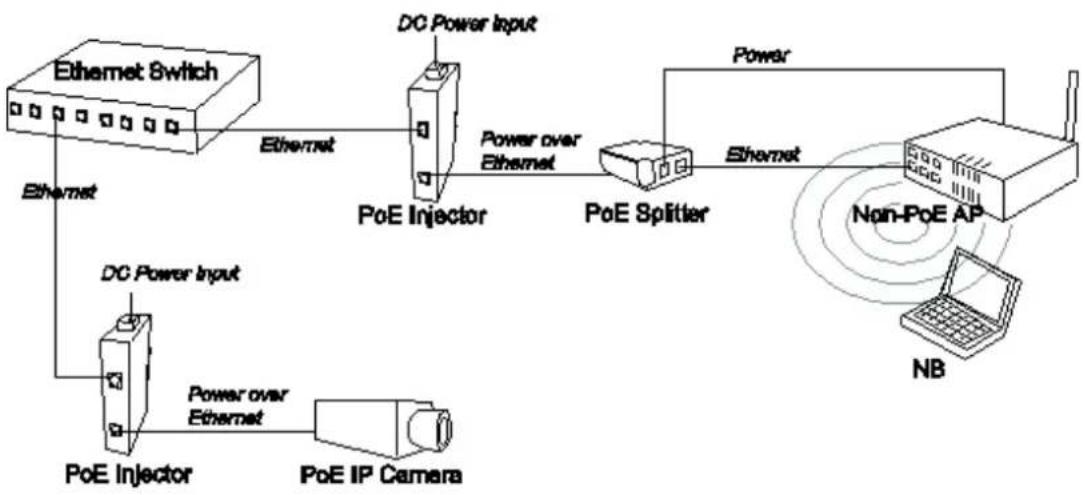
The Industrial Power over Ethernet Injector provides data and DC power through the Ethernet cable to PoE-equipped devices, such as IP camera, access point, PoE splitter or other equipment supporting IEEE 802.3at. The injector is typically installed near the Ethernet switch. The figure below presents the example for the Power over Ethernet Injector application.
flowchart
graph LR
    A["PoE Injector"] -->|DC Power Input| B["PoE Splitter"]
    B -->|Power over Ethernet| A
    A -->|Power over Ethernet| C["PoE IP Camera"]
    C --> D["Non-PoE AP"]
    D --> E["NB"]
    F["Ethernet Switch"] -->|Ethernet| G["PoE Injector"]
    G --> H["PoE Splitter"]
    H --> I["Non-PoE AP"]
    I --> J["Net"]
    style A fill:#f9f,stroke:#333
    style B fill:#ccf,stroke:#333
    style C fill:#cfc,stroke:#333
    style D fill:#fcc,stroke:#333
    style E fill:#cff,stroke:#333
    style F fill:#ffc,stroke:#333
    style G fill:#cfc,stroke:#333
    style H fill:#cfc,stroke:#333
    style I fill:#fcc,stroke:#333
    style J fill:#ffc,stroke:#333
1.2 Features
■ 10/100/1000BaseT Power over Ethernet Injector
IEEE802.3at compliant
■ Provides power feeding up to 30 watts
■ Overload current protection
■ DC power input ranging from 24 \~ 48 V
■ Wide operating temperature -40 \~ 75 °C
1.3 Specifications
| Standard | IEEE802.3 10BASE-TIEEE802.3u 100BASE-TXIEEE802.3ab 1000Base-TIEEE802.3af/at Power over Ethernet |
| Connector | LAN port: Data/Signal pins 1, 2, 3, 6PoE port: Data/Signal pins 1, 2, 3, 6Power pins [1, 2 (V+)], [3, 6 (V-)] |
| Network Cable | 10BASE-T: 2-pair UTP/STP Cat.3, 4,5 cableEIA/TIA-568 100-ohm (100 m)100BASE-TX: 2-pair UTP/STP Cat.5 cable (Cat. 5e recommended)EIA/TIA-568 100-ohm (100 m)1000Base-T: 4-pair UTP/STP Cat. 5e or above cableEIA/TIA-568 100-ohm (100 m) |
| LED | Power x 2PoE x 1 |
| Power Input | 24/48 V_DC |
| Power Consumption | 33.36 watts @ 24 V_DC |
| Operating Temperature | -40°C ~ 75°C (-40°F ~ 167°F) |
| Storage Temperature | -40°C ~ 85°C (-40°F ~ 185°F) |
| Operating/Storage Humidity | 5% ~ 95% Humidity (non-condensing) |
| Dimensions | 36 mm x 140 mm x 95 mm (W x H x D) |
| EMC | ■ CE, FCC Class A■ EN61000-6-4■ EN61000-6-2■ EN61000-4-2 (ESD)■ EN61000-4-3 (RS)■ EN61000-4-4 (EFT)■ EN61000-4-5 (Surge)■ EN61000-4-6 (CS)■ EN61000-4-8 (Magnetic Field) |
| Safety UL508 | |
1.4 Packing List
■ 1 x Power over Ethernet Injector
1 x Wall-mounting kit
■ 1 x User Manual (CD-ROM)
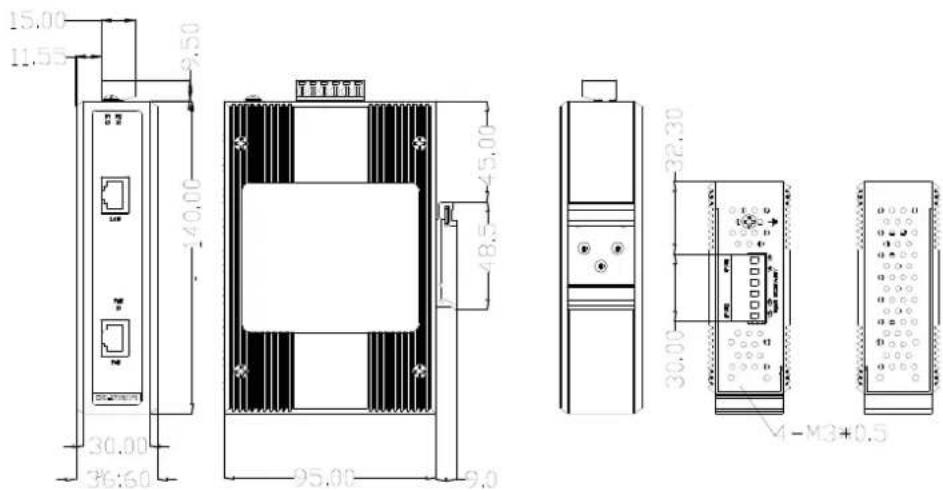
1.5 Dimensions
The Power over Ethernet Injector dimensions are 36 mm (W) × 140 mm (H) × 95 mm (D) .
text_image
15.00 11.55 9.50 140.00 30.00 36:60 95.00 48.5 45.00 32.30 30.00 M-M3+0.5Figure 1.1 Dimensions
Chapter 2
Hardware Description
2.1 Front Panel
On the front panel the Power over Ethernet Injector is equipped with two RJ-45 ports and three LED indicators.
■ LAN port: It is an ordinary RJ-45 Ethernet port for data transmitting and receiving.
■ PoE port: It is an RJ-45 Ethernet port capable of supplying power over the Ethernet cable as well as forwarding data to powered devices.
■ P1 & P2: The indicators light up when their respective power inputs are active.
■ PoE: This LED indicator lights up while power feeding works normally.
2.2 Top View
Designed with two power inputs, the PoE Injector allows users to supply redundant power rating in the range of 24 to 48V.
2.3 Grounding the PoE Injector
Follow the instructions below to attach the PoE Injector to ground.
Caution! When installing the PoE Injector, the ground connection must always be made first and disconnected last.

- On the top of the device, locate and remove the dome screw which has a ground symbol beside it.
- Attach the ground wire to the screw hole with the dome screw.
2.4 Wiring the Power Inputs
Please follow the steps below to wire power lines from the terminal block to the compliant external DC power source.
- Before wiring, make sure the power source is disconnected.
- Using the wire-stripping tool, strip a short piece of insulation from the output wires of the DC power source.
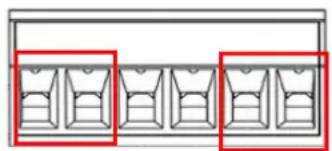
- Identify the positive and negative feed positions for the terminal block connection. See the symbols printed on the panel indicating the polarities and DC input power range in voltage.
natural_image
Pure diagram of a multi-compartment container or storage unit with no text, numbers, or symbolsPlugs for Power 1 & Power 2
-
Insert the exposed wires into the terminal block plugs. Only wires with insulation should extend from the terminal block plugs. Note that the polarities between the wires and the terminal block plugs must be positive to positive and negative to negative.
-
Use a slotted screwdriver to tighten the captive screws.
Caution! Use Copper Conductors Only, 60/75 C, tightening to 5 lb-in

The wire gauge for the terminal block should be in the range between 12 \~ 24 AWG.
2.5 RJ-45 Pin Assignments
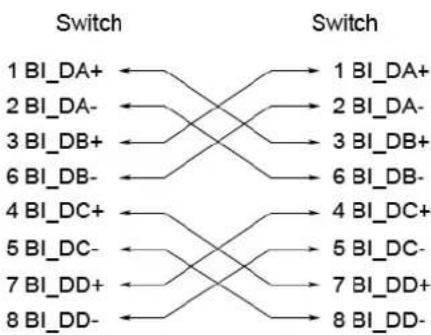
The UTP/STP ports will automatically sense for Fast Ethernet (10Base-T/100Base-TX) or Gigabit Ethernet (10Base-T/100Base-TX/1000Base-T) connection. Auto MDI/MDIX means that the port can connect to another switch or workstation without changing straight through or crossover cabling. See the figures below for straight through and crossover cable schema.
10/100Base-TX Pinouts
| Pin Number Assignment | |
| 1 | Tx+ |
| 2 | Tx- |
| 3 | Rx+ |
| 6 | Rx- |
Note! "+" and "-" signs represent the polarity of the wires that make up each wire pair.

The table below shows the 10Base-T/100Base-TX MDI and MDI-X port pinouts.
Pin Number MDI-X Signal Name MDI Signal Name
| 1 Receive Data plus (RD+) Transmit Data plus (TD+) | |
| 2 Receive Data minus (RD-) Transmit Data minus (TD-) | |
| 3 Transmit Data plus (TD+) Receive Data plus (RD+) | |
| 6 Transmit Data minus (TD-) | Receive Data minus (RD-) |
10/100Base-TX Cable Schema

10/100/1000Base-T Pinouts
The table below describes the gigabit Ethernet RJ-45 pinouts.
Pin Signal name Description
| 1 BI_DA+ Bi-directional pair A+ |
| 2 BI_DA- Bi-directional pair A- |
| 3 BI_DB+ Bi-directional pair B+ |
| 4 BI_DC+ Bi-directional pair C+ |
| 5 BI_DC- Bi-directional pair C- |
| 6 BI_DB- Bi-directional pair B- |
| 7 BI_DD+ Bi-directional pair D+ |
| 8 BI_DD- Bi-directional pair D- |
10/100/1000Base-T Cable Schema
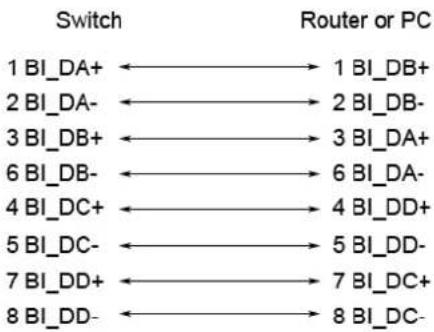
The following two figures illustrate the 10/100/1000Base-T cable schema.
flowchart
graph LR
    A["1 BI_DA+"] --> B["1 BI_DB+"]
    C["2 BI_DA-"] --> D["2 BI_DB-"]
    E["3 BI_DB+"] --> F["3 BI_DA+"]
    G["6 BI_DB-"] --> H["6 BI_DA-"]
    I["4 BI_DC+"] --> J["4 BI_DD+"]
    K["5 BI_DC-"] --> L["5 BI_DD-"]
    M["7 BI_DD+"] --> N["7 BI_DC+"]
    O["8 BI_DD-"] --> P["8 BI_DC-"]
Straight Through Cable Schema
flowchart
graph LR
    A["1 BI_DA+"] --> B["1 BI_DA+"]
    A --> C["2 BI_DA-"]
    A --> D["3 BI_DB+"]
    A --> E["6 BI_DB-"]
    A --> F["4 BI_DC+"]
    A --> G["5 BI_DC-"]
    A --> H["7 BI_DD+"]
    A --> I["8 BI_DD-"]
    B --> J["1 BI_DA+"]
    C --> K["2 BI_DA-"]
    D --> L["3 BI_DB+"]
    E --> M["6 BI_DB-"]
    F --> N["4 BI_DC+"]
    G --> O["5 BI_DC-"]
    H --> P["7 BI_DD+"]
    I --> Q["8 BI_DD-"]
Crossover Cable Schema
Chapter 3
Installation
3.1 DIN-Rail Mounting
3.1.1 Assembling the DIN-Rail Clip
The DIN-rail clip is screwed on the device in the factory. If not, please refer to the following steps and figure to secure the DIN-rail clip on the device.
-
Use the screws to secure the DIN-rail clip at the rear of the device.
-
To remove the DIN-rail clip, reverse step 1.

natural_image
Simple line drawing of a vertical rectangular device with three circular buttons on the front panel (no text or symbols)3.1.2 Hanging the PoE Injector
Follow the steps below to hang the device on the standard DIN rail.
- First, position the rear side of the unit directly in front of the DIN rail. Make sure the top of the clip hooks over the top of the DIN rail.

natural_image
Line drawing of a wooden plank with vertical slats and mounting holes, no text or symbols present- Push the unit downward.

natural_image
Pure electrical circuit lines without any symbols- Check the DIN-Rail clip is tightly fixed on the DIN rail.
- To remove the device from the track, reverse the steps above.
3.2 Wall-Mount Plate Mounting
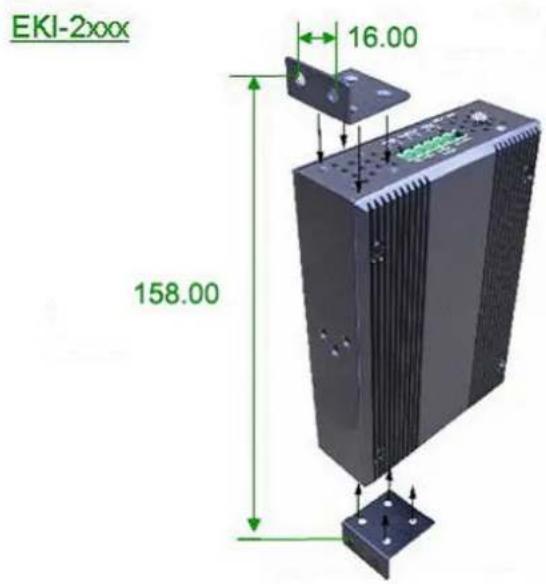
Follow the steps below to mount the device with the wall-mount plates.
- To remove the DIN-Rail clip from the device, unscrew the screws that secure it.
- Align the screw holes of the wall-mount plates with the ones of the device.
- Use the screws included to secure the wall-mount plates on the device.
- Use the hook holes of the wall-mount plates to hang the device on the wall.
- To remove the wall-mount plates, reverse the steps above.
text_image
EKI-2xxx 16.00 158.00Chapter 4
Troubleshooting
4.1 Troubleshooting
- Verify that you are using the right power cord/adapter. Please don't use a power adapter with DC outputs higher than the power rating of this equipment, or it will be damaged.
Select the proper UTP/STP cable for your network. Please check that you are using the right cable. Use unshielded twisted-pair (UTP) or shielded twisted-pair (STP) cable for the RJ-45 connections: 100Ω Category 3, 4, or 5 cable for 10Mbps connections or 100Ω Category 5 cable for 100Mbps connections. Also be sure that the length of any twisted-pair connection does not exceed 100 meters (328 feet).
Diagnosing LED Indicators: The device can be easily monitored through LED indicators, which describe common problems the user may encounter and where the user can find possible solutions.
If the power indicator does not light up when the power cord is plugged in, you may have a problem with power cord. Then check for loose power connections, power losses or surges at the power outlet. If you still cannot resolve the problem, contact your local dealer for assistance.
If the cables are properly connected and the LED indicators show normal, but the packets still cannot transmit, please check your system's Ethernet devices' configuration or status.
www.advantech.com
Please verify specifications before quoting. This guide is intended for reference purposes only.
All product specifications are subject to change without notice.
No part of this publication may be reproduced in any form or by any means, electronic, photocopying, recording or otherwise, without prior written permission of the publisher.
All brand and product names are trademarks or registered trademarks of their respective companies.
© Advantech Co., Ltd. 2012