86RTS4K - Television Cello - Free user manual and instructions
Find the device manual for free 86RTS4K Cello in PDF.


User questions about 86RTS4K Cello
0 question about this device. Answer the ones you know or ask your own.
Ask a new question about this device
Download the instructions for your Television in PDF format for free! Find your manual 86RTS4K - Cello and take your electronic device back in hand. On this page are published all the documents necessary for the use of your device. 86RTS4K by Cello.
USER MANUAL 86RTS4K Cello
natural_image
Front view of a blank flat-screen TV screen with no visible text, symbols, or markings.INSTRUCTION MANUAL
Contents:
Preface/ Whats in the box/ Fixing the stand feet ....3
Wall mounting/ Front IR sensor and TV buttons ....4
Rear view connections ....5
Remote control 6-8
Video and Audio connections/ Connecting AV with HDMI 9
Connecting digital audio device/ Connecting a USB storage device ....10-11
Power on the TV for the first time ....11
First time installation wizard ....12
Reset to factory default/ Select source/ Channel selection options ....13-14
Picture options ....14
Sound options/ Channel setup 15-17
Function menu 17-18
Setup menu ....18
Smart features ....19-21
Maintenance/ Trouble shooting ....22
Technical Specifications ....23
Safety warnings 23-26
Preface:
Thank you for choosing our 86" Smart 4K TV. This TV has many features and incorporates the latest technology to enhance your viewing experience. We recommend that you spend some time reading this instruction manual in order that you fully understand these features. Read all of the safety instructions carefully before use and keep this instruction manual for future reference.
Whats in the box:
• TV
- Stand & Stand fixing Screws ((M5 x 20) x 6)
- Power cable
- Remote control
- Batteries (2 x AAA)
- Quick start guide
- Warranty card
Fixing and the TV stand feet
Place the TV face down on a soft and flat surface (blanket, foam, cloth, etc.) to prevent any damage to the TV.
- Attach the stand feet in the positions shown below and secure them with supplied screws ((M5 x 20) x 6)
Fixing the TV stand feet
Place the TV face down on a soft and flat surface (blanket, foam, cloth, etc.) to prevent any damage to the TV.
- Attach the stand feet in the positions shown below and secure them with supplied screws ((M5 x 20) x 6)

natural_image
Simple diagram showing a blank rectangular frame with two red upward arrows pointing to the bottom of each arrow (no text or symbols)Wall mounting:
This TV is VESA-Compliant and has been designed to be wall mounted with a VESA-Compliant wall mounting kit. (Wall mounting kit and screws not included)
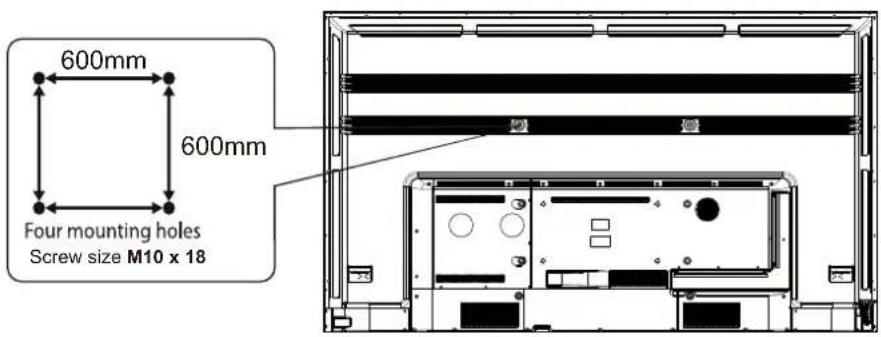
text_image
600mm 600mm Four mounting holes Screw size M10 x 18Front IR sensor and TV buttons

natural_image
Front view of a flat-screen TV with two labeled connectors (no text or symbols on the screen)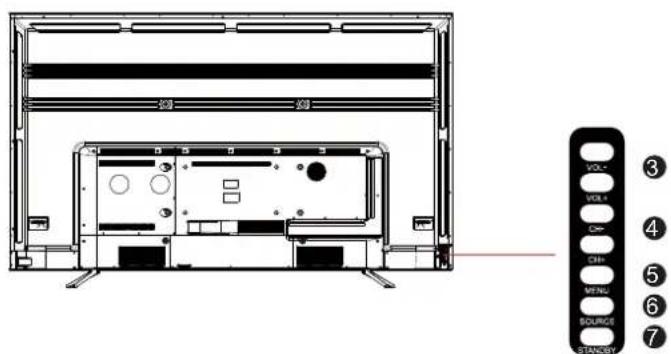
text_image
23 29 VOL+ VOL- CM- CH+ MEN- SOURCE STANLEY ③ ④ ⑤ ⑥ ⑦| 1 | IR (Infrared Receiver) | Receives IR signals from the remote control.Do not put anything near the sensor, as its function may be affected. |
| 2 | Power LED Illuminates | green when the TV is turned on. Illuminates red when the TV is in standby mode. The LED will alternate between red and green when the REC timer programming has started in standby mode. |
| 3 | VOL +/- Adjust the volume | |
| 4 | CH +/- Select channels | |
| 5 | MENU Displays the on-screen Menu options | |
| 6 | SOURCE | Select input source (HDMI1, HDMI2, HDMI3, HDMI4, AV) |
| 7 | STANDBY Switches the | TV ON/OFF from and to Standby mode |
text_image
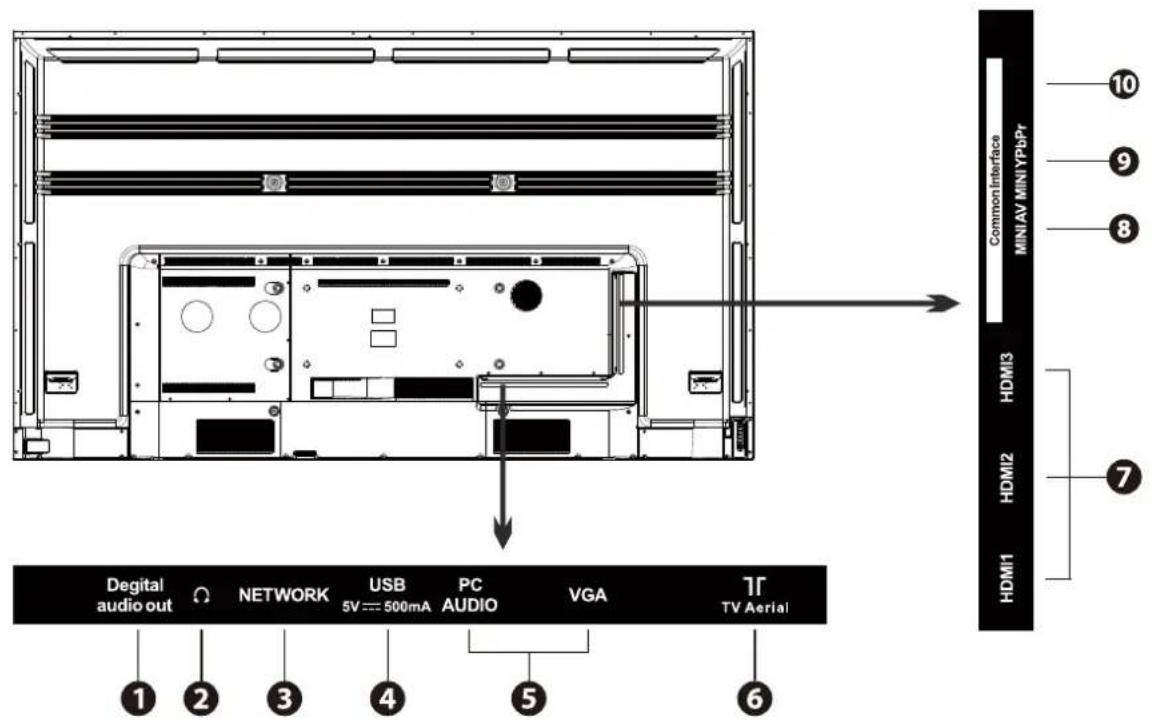
Digital audio out NETWORK USB 5V==500mA PC AUDIO VGA TV Aerial 1 2 3 4 5 6 10 9 8 HDMI3 HDMI2 HDMI1 Common Interface MINI AV MINI YPbPr| 1 | Digital Audio Out Digital output to audio system |
| 2 | Headphone out Connect to earphones |
| 3 | Network (RJ45) Connect the TV to the internet |
| 4 | USB Play video audio and text files and use as storage for recordings |
| 5 | VGA/PC AUDIO Connect to a PC or other devices with a |
| 6 | TV Aerial Connect the TV aerial |
| 7 | HDMI INPUTS Connect HDMI sockets on devices such as game consoles and DVD player |
| 8 | MINI AV Connect devices with composite video and audio outputs |
| 9 | MINI YPBPR Connect to a DVD player, Digital STB, or other devices with component and (YPbPr) video and audio output sockets. |
| 10 | Common Interface Allows the insertion of a common Access Module |
Remote control:
Dependant on the model of TV, some keys will have no function

text_image
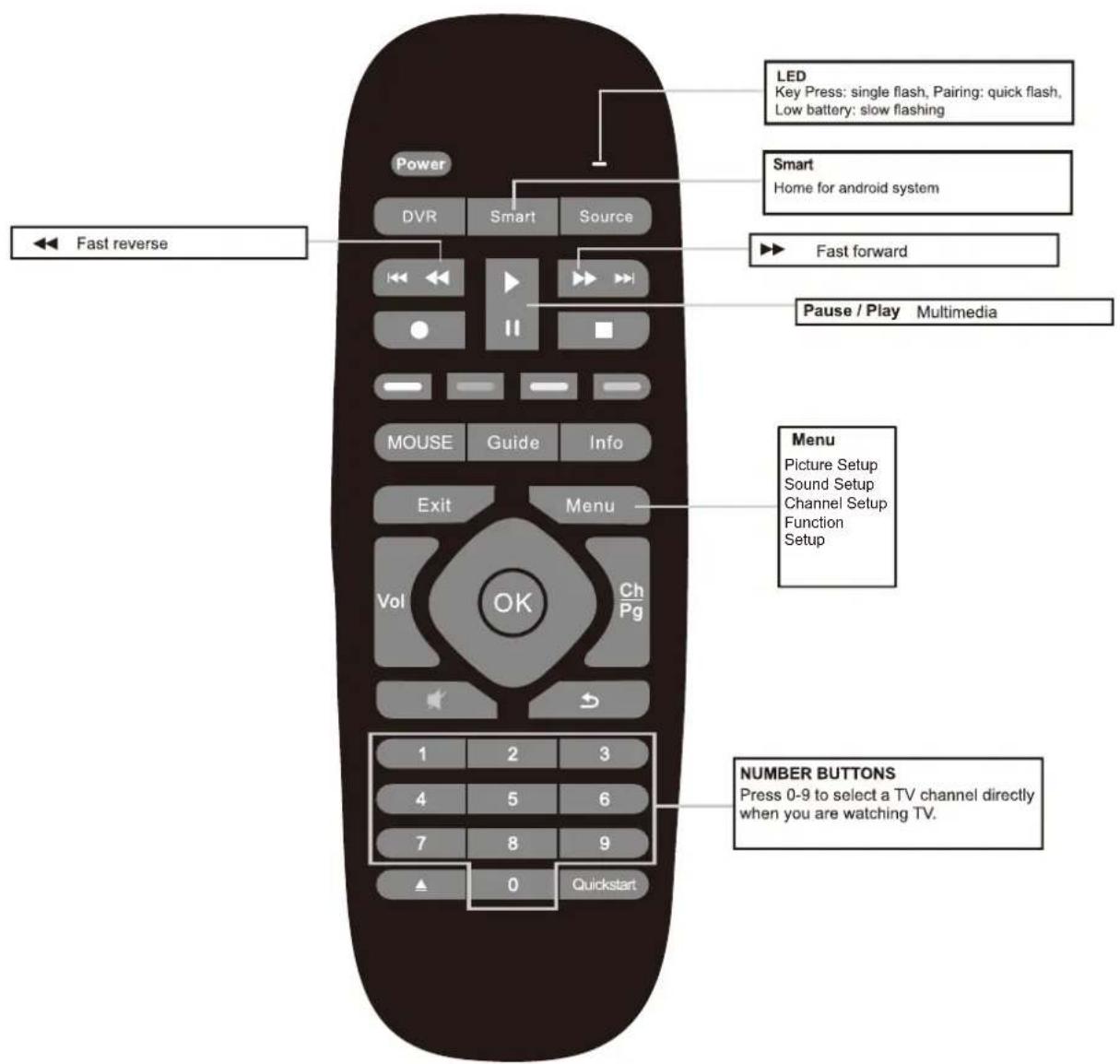
Power Turn on or standby DVR Active DVR menu* Prev Track Rec Start recording Mouse Turn the wireless mouse on/off Exit Exit from any menu Volume +/- Increase and decrease the volume Thumb stick (▲/▼/◄/►/OK) Allows you to navigate the on-screen menus and adjust the system settings to your preference. Mute Mute sound ▲ DVD Eject * Input ATV DVB-C DVB-T AV YPbPr HDMI 1/2/3 VGA Next Track Stop PVR & Multimedia Soft Keys. Reserved for MHEG in DTV Info key Provides information on the current program Ch Pg Vol OK 1 2 3 4 5 6 7 8 9 ▲ 0 Quickstart Channel +/- Increase and decrease the channel number Quickstart* Searches all DTV channels*Dependant on Model
Remote control:
Dependant on the model of TV, some keys will have no function
text_image
LED Key Press: single flash, Pairing: quick flash, Low battery: slow flashing Smart Home for android system Fast forward Pause / Play Multimedia Power DVR Smart Source ◄◄ Fast reverse ◄► MOUSE Guide Info Exit Menu Vol Ch Pg 1 2 3 4 5 6 7 8 9 ▲ 0 Quickstart NUMBER BUTTONS Press 0-9 to select a TV channel directly when you are watching TV.*Dependant on Model
The sensitivity of the mouse cursor can be adjusted by pressing and holding the OK key and using the Volume +/- keys to regulate the sensitivity (Fast/Slow). During this procedure the mouse cursor must be activated. The Mouse cursor is turned on and off by pressing the Mouse key.
Installing Batteries into the Remote Control
Plug in the TV and wait for the TV to power on and show a picture on the screen before inserting the batteries. This enables the wireless remote control to pair correctly with the TV.

natural_image
Diagram of a battery with two batteries and one connected to a battery, showing internal components (no text or symbols)- Insert 2 x 1.5V AAA batteries making sure to match the (+) and (-) ends of the batteries with the (+) and (-) ends shown in the batterie compartment.
- Close the batterie compartment cover.
The Remote-Control Operation Range

text_image
30° 30° 5M5 Meters is the normal distance recommended between the Remote control and the TV IR sensor and within 60° in front of the TV (See diagram). The operating distance may vary depending on the brightness of the room.
Video and Audio Connections
This TV supports High-Definition Multimedia Interface (HDMI) and High-Bandwidth Digital Content Protection (HDCP) Protocol.
| Best Video Performance | Signal Type | Separate Audio Connection Required |
| HDMI(480i/480p/576i/576p/720p/1080i/1080p) | No | |
| PC | YesPC AUDIO | |
| Component Video(480i/480p/576i/576p/720p/1080i/1080p) | YesMiniAV | |
| Composite Video | No |
Always connect a device to the TV with the highest quality connection available. Also, use good quality cables to ensure a good transfer of picture and sound.
An HDMI connection has the best picture and sound quality. One HDMI cable combines video and audio signals.
Connecting an AV device with an HDMI cable
Audio/Video devices:

text_image
Game Console Set-top Box Blu-ray Player / DVD Player / Recorder HDMI1 HDMI2 HDMI3 Common Interface MINIAV MINIYPbPr HDMI Cable (not included)After connecting to an external device (Blu-ray disc player, Game console, Set-top box, or personal computer) with the HDMI cable. Select the HDMI in the source menu and the TV will automatically detect the resolution coming from the device. For the best picture quality adjust the device output resolution up to 3840 x 2160p.
Connecting a Digital Audio Receiver

text_image
TV Aerial Digital audio out NETWORK Audio Cable (not included)For a better sound quality, you may want to listen to the TV audio output through your Home Sound System or Sound bar. The TV is fitted with an Optical Digital Audio Output. When purchasing a cable, it must be an Optical cable. When the Optical cable is connected to both devices select the source mode optical on the Sound system or Sound bar.
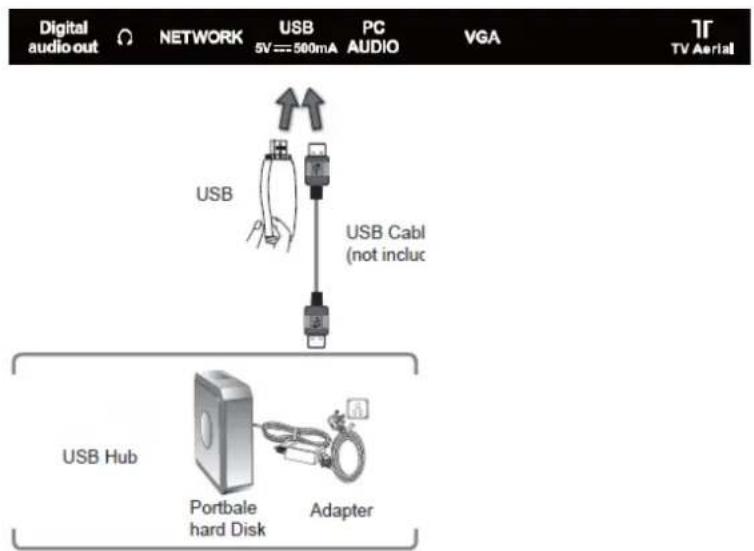
Connecting a USB Storage Device
flowchart
graph TD
    A["Digital audio out"] --> B["NETWORK"]
    B --> C["USB 5V == 500mA"]
    C --> D["PC AUDIO"]
    D --> E["VGA"]
    E --> F["TV Aerial"]
    G["USB Hub"] --> H["Portbale hard Disk"]
    H --> I["Adapter"]
    J["USB Cable (not incluc)"] --> C
    style A fill:#f9f,stroke:#333
    style F fill:#ccf,stroke:#333
- Switch off the TV before connecting any USB device
- Connect the USB storage device to the USB power of the TV
- Press the power button on the TV or the power key on the remote control to turn the TV on.
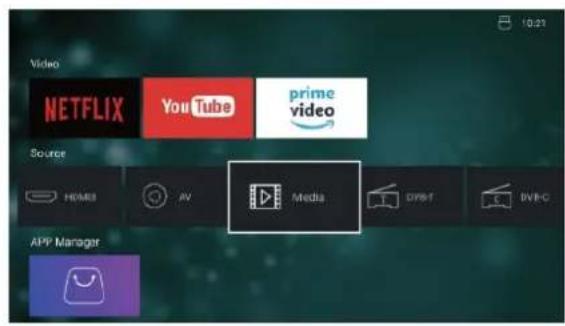
- Press the smart key on the remote control to show the smart home screen. In the source options select Media to view files on the USB device.
text_image
Video NETFLIX YouTube prime video Source HOMO AV Media DIVE DVD BVR-C APP Manager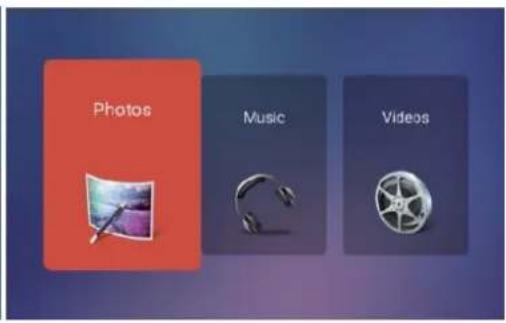
text_image
Photos Music Videos- If a hard disk is used, make sure its mains adapter is connected to the mains supply.
- If a USB hub is used, make sure its mains adapter is connected to the mains supply as the total current consumption may exceed 500mA.
- The maximum tested supported storage space of the hard disk is 1TB.
- The file system only supports Hi-Speed FS, FAT16, FAT32, NTFS formats (NTFS Compressed files are not supported).
- If you want to store the video streaming of a DTV programme, the transfer rate of the USB storage device must not be less than 5MB/s, otherwise the picture and sound of the programme will be affected and a warning message will be shown on the screen. If this happens, please upgrade your USB storage device.
- Disconnect the USB storage device if it is not in use.
• USB output: DC 5V 500mA
Powering on the TV for the first time

text_image
OR RF coaxial cable (not included)Connect the TV aerial to the TV aerial (RF) connector on the TV and to the TV house aerial connector on the wall.
Connect the TV to the house mains supply with the 3-pin plug. Turn on the TV by pressing the Power key on the remote control or the Standby button on the TV.
So that the wifi remote connects correctly with the TV point the remote control at the TV and insert the batteries. The red led light on the remote control will flash red for a few seconds then you will see the air mouse cursor on the screen. The mouse can be turned on and off by pressing the mouse key on the remote control.
First-time Start up Installation Wizard
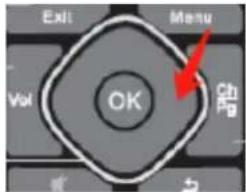
It is recommended to turn the mouse cursor off and use the OK key and navigation keys on the remote control to quickly manoeuvre through the Wizard. The Wizard is defaulted to UK settings.
Note all options are selected by pressing the right-side navigation key on the remote control.
text_image
Exit Menu Vol OK Chg-
Language
-
Time zone
-
Network (All WIFI options will be shown on the screen. Select the one you want and if applicable type in the password to activate, once connected continue with the right-side navigation key)
NOTE: After typing in the password use the remote mouse cursor to click on "connect" to the WIFI.
If the ethernet cable is connected to the RJ45 socket the TV will connect automatically.
-
Home (This is the typical and recommended power saving setting)
-
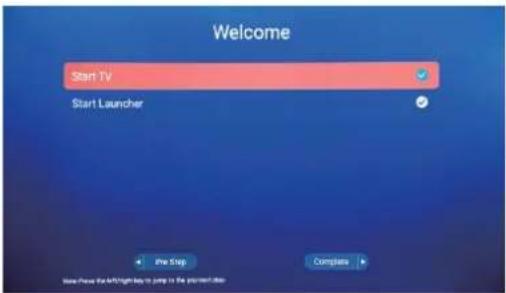
The Welcome screen offers two options
a) Start TV tuning
b) Start Launcher (Smart home screen)
If Start TV is selected scroll down and select DIGITAL AUTO TUNING, press the OK key and the TV tuning will begin.
If Start Launcher is selected the TV tuning will be skipped and the smart launcher homes screen will show.
text_image
Welcome Start TV Start Launcher The Step Complies
text_image
Digital Antenna Tuning Country UNITED KINGDOM Digital Auto Tuning Total Scattered: 0 Digital Manual Tuning LCN On Non Destruction Rescan Off Select Confirm Back/ExitReset the TV to factory default
If at a later date you wish to reset the TV to factory default settings. (Please be aware that this option will delete all of your preloaded apps and settings)
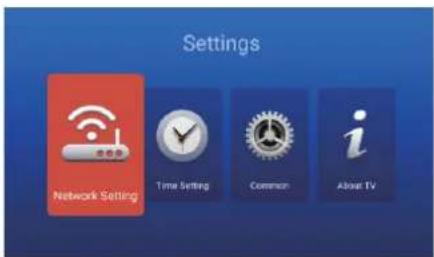
Press the smart key on the remote control to return to the launcher home screen then select the System Settings icon. Then select the option Common.
text_image
Settings Network Setting Time Setting Common About TV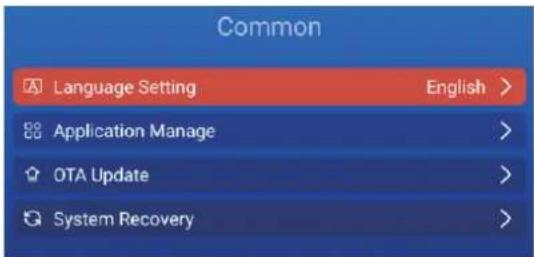
text_image
Common Language Setting English > Application Manage > OTA Update > System Recovery >Scroll down and select the option System Recovery, now select Factory Data Reset everything. The TV will restart with the First-time Installation Wizard.
Selecting the Input Source

text_image
Input source ATV DVB-C DVB-T AV YPbPr HDMI 1 HDMI 2 HDMI 3 VGA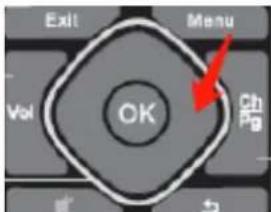
text_image
Exit Menu Vol OK 3h 2- Press the Source button on the TV or the Source key on the remote control to display the input source list.
Press the up/down navigation keys on the remote control to select the input source that you want. Choose from: ATV, DVB-C, DVB-T, AV, YPbPr, HDMI 1/2/3, VGA.
- Press the OK key on the remote control to confirm your selection.
Channel selection options
-
Use the Ch+/- key on the remote control to go up and down the channels
-
Type in the channel numbers using the numeric keys on the remote control. The number being typed in will appear top left of your screen in red. After a few seconds the TV will tune to the chosen channel. This process can be accelerated by pressing the OK key on the remote control after the channel number is on the screen.
-
Press the OK key on the remote control to display the channel list. Using the up/down navigation keys on the remote control to scroll to the channel you require. Press the OK key on the remote control to activate.
Display Channel Information
- Press the Info key on the remote control to display the channel information.
Volume Adjustment
- Press the Vol+/- key on the remote control to increase and decrease the volume on the TV.
- Press the Mute key on the remote control to turn off the sound completely. Once the sound is muted. Press the Mute key or the Vol+ key on the remote control to deactivate the mute function.
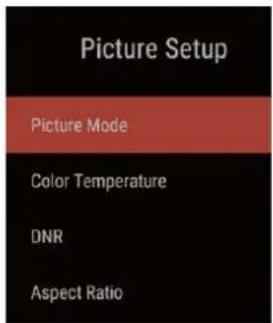
Picture Options in DVB-T mode (Television)
text_image
Picture Setup Picture Mode Color Temperature DNR Aspect Ratio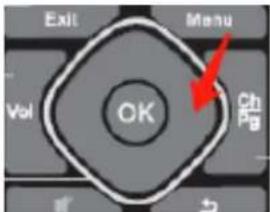
text_image
Exit Menu Vol OK Ch PgTo navigate all menus, use the up/down/left right navigation keys on the remote control. Press the EXIT key on the remote control to return to previous menu.
- Press the menu key on the remote control to activate the main menu
- Select Picture setup and activate with the OK key on the remote control
-
Picture mode: Select from Standard/Dynamic/Mild/User
-
Colour Temperature: Select from
-
Normal
• Cool (Increases blue tint)
• Warm (Increases red tint) -
DNR: Select from Off/Low/Middle/High/Auto
-
Aspect Ratio: Select from 4:3/16:9/Auto/Zoom1/Zoom2
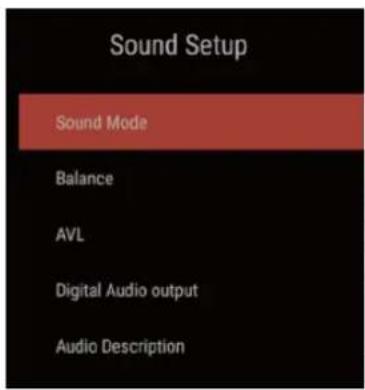
Sound Options in DVB-T mode (Television)
text_image
Sound Setup Sound Mode Balance AVL Digital Audio output Audio Description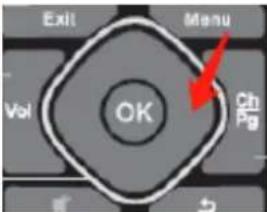
text_image
Exit Menu Vol OK Ch PgTo navigate all menus, use the up/down/left right navigation keys on the remote control. Press the EXIT key on the remote control to return to previous menu.
- Press the menu key on the remote control to activate the main menu
- Select Sound setup and activate with the OK key on the remote control
- Sound Mode: Select from Standard/Music/Movie/User
- Balance: Using the left/right navigation key select your preference of audio balance
- AVL: This feature automatically adjusts the audio level when the TV is turned on
- Digital Audio Output: Select the spdif mode from OFF/PCM/Auto
- Audio Description: Turn ON/OFF the Audio Description and set the Audio level
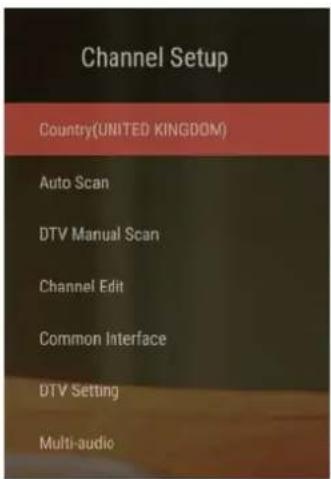
Channel Setup (TV, DTV or Radio Mode)
text_image
Channel Setup Country(UNITED KINGDOM) Auto Scan DTV Manual Scan Channel Edit Common Interface DTV Setting Multi-audio
text_image
Exit Menu Vol OK Ch PgTo navigate all menus, use the up/down/left right navigation keys on the remote control. Press the EXIT key on the remote control to return to previous menu.
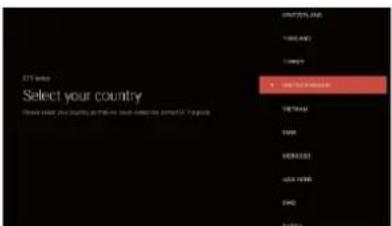
1. Select the country you are residing in
text_image
ETF Options Select your country Please select your country as the next year's corresponding amount of 'Trdgus' • NETTLEMENTS VIRGINAN FAXIS MOMATO DATA ITEMS SPDR BANKS2. Select Auto Scan to re-tune the TV channels
text_image
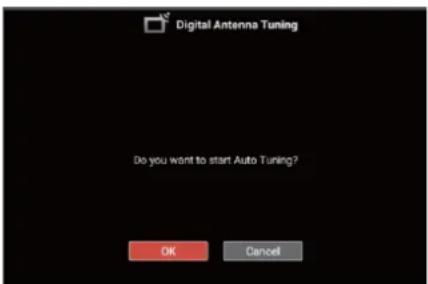
Digital Antenna Tuning Do you want to start Auto Tuning? OK CancelPress the OK Key on the remote control to start the TV channel tuning. Select Cancel to exit the Auto tune.
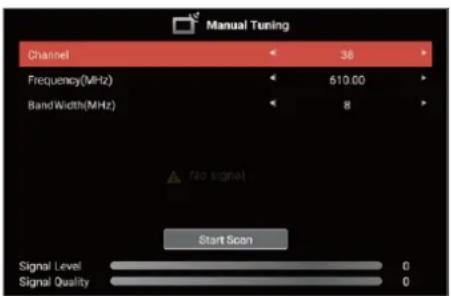
3. Select DTV Manual Scan to manually tune in TV channels
text_image
Manual Tuning Channel 38 Frequency(MHz) 610.00 BandWidth(MHz) 8 No signal Start Scan Signal Level 0 Signal Quality 0How to search Digital channels manually
The TV channel signal strength and quality indicators are at the bottom of the picture
a. Select a channel number
b. Select Start Scan to begin the manual search
4. Channel Edit

text_image
Channel Edit Number Name Type Frequency Function 1 SDTV Lock 682.00MHz 800 TV AS DTV 514.00MHz 801 RTS 1 HD DTV 514.00MHz 802 RTS 2 HD DTV 514.00MHz 803 RTS 3 DTV 514.00MHz 804 RTS SVET HD DTV 514.00MHz 805 TV SAGA DTV 514.00MHz 806 HAPPY TV DTV 514.00MHzEdit all TV channels with the help of the edit options Delete/Fav/Skip/Lock
a. Delete: Press the red key on the remote control to delete a channel
b. Fav: Press the yellow key on the remote control to add the highlighted channel to the favourite list
c. Skip: Press the green key on the remote control to enable the skip function. If enabled the chosen channel will be skipped when scrolling through the channel list
d. Lock: Press the blue key on the remote control to lock the channel. The channel will be pass word protected
Important note: Lock feature needs to be activated and password set in the Function menu before the Lock feature can be used. Read Function options.
-
Common Interface: Displays Information of any inserted CI module (Card)
-
DTV Setting
a. Subtitle language: Select subtitle language
b. Subtitle type: Select from Normal or Hard of Hearing
c. Audio type: Select from Normal or Hard of Hearing
- Multi-Audio: Select from the list of languages available
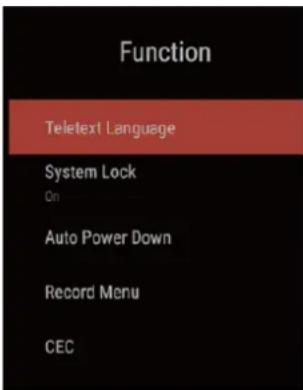
Function
text_image
Function Teletext Language System Lock On Auto Power Down Record Menu CEC
text_image
Exit Menu Vol OK Ch PgTo navigate all menus, use the up/down/left right navigation keys on the remote control. Press the EXIT key on the remote control to return to previous menu
- Teletext language: Select from West Europe/East Europe/Russian/Arabic
- System Lock: Press the OK key on the remote control to turn the lock system on and off
Important note: The default password is 0000. After changing the password please make sure to remember it. If you do forget your password the override password is 8899
a. Change PIN: Use this option to change your password
b. Program restrictions: This turns on the parental lock to set the age level of your choice to watch the channel. Select None to turn the parental lock off
-
Auto Power Down: The TV will power down if no activity on the TV or remote within the duration selected. Select from Off/1hr/2hr/3hr/4hr. The TV default setting is 4hr. Deactivate this function by selecting OFF
-
Record Menu
a. Record Disk Select: Select the device used to record on
b. Time-shift config: Turn on/off the Time-shift function
c. Start recording: Start instant record, select from recording durations, 10min/30min/1hr/3hr/End when device is full/ End when programme ends
d. Scheduled List: View and edit scheduled recordings
e. Recorded List: View and playback available previous recordings
5. CEC
Various options to control HDMI ports: turn the CEC ON/OFF
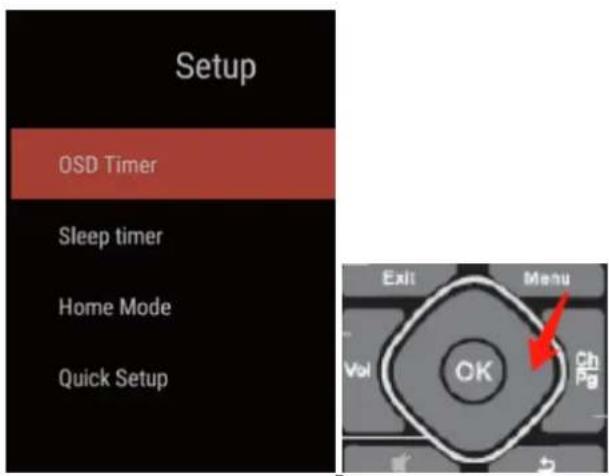
Setup
text_image
Setup OSD Timer Sleep timer Home Mode Quick SetupTo navigate all menus, use the up/down/left right navigation keys on the remote control. Press the EXIT key on the remote control to return to previous menu
-
OSD Timer: Select options of the duration the menus remain on screen from 10s/20s/30s/40s/50s/60s/Off
-
Sleep Timer: The TV will automatically go to standby if the sleep timer is set. Select from options Off/15min/30min/60min/90min/120min/180min
-
Home mode: Select from Home/Max Brightness
-
Quick Setup: Reset the TV for TV tuning
Smart Features (Launcher screen)
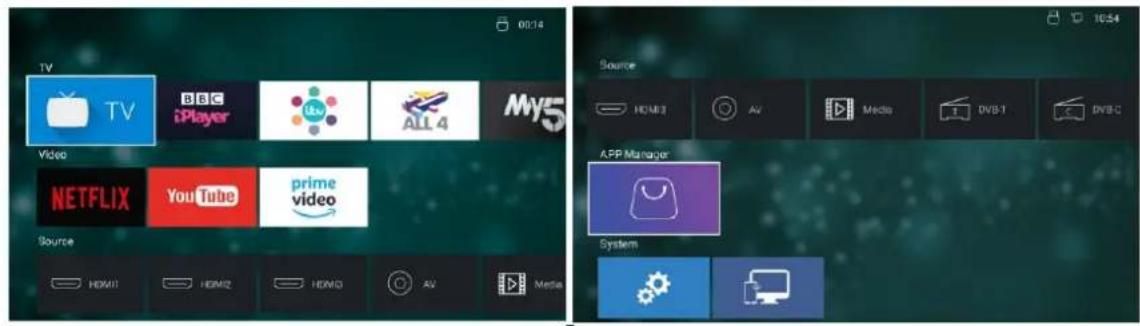
Launcher screen
Top
Bottom
The TV on demand apps and streaming apps are listed in the top two rows.
TV apps: BBCIplayer/ITVHub/All4/My5/UKTVPlay
Streaming apps: Netflix/YouTube/Amazon prime Video
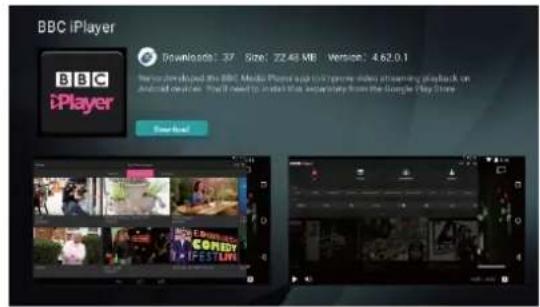
The apps are not pre-installed and you will need to install them by simply highlighting the app you want to install and pressing the OK key on the remote control. Press the OK key again to activate the download, the app will then download and install automatically.
text_image
BBC iPlayer Downloads: 37 Size: 22.48 MB Version: 4.62.0.1 BBC iPlayer New NextApp manager
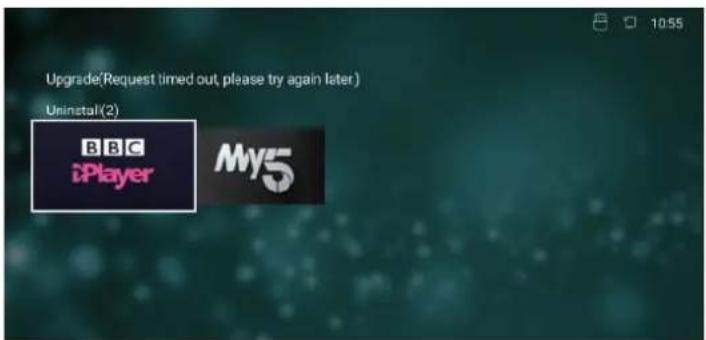
The app manager is on the 4^th row down and shows you what apps are installed and if any app updates are available.
text_image
Upgrade(Request timed out, please try again later) Uninstall(2) BBC iPlayer My5In this folder is also the option to uninstall any app. Uninstall by highlighting the app and press the OK key on the remote control. Select OK to uninstall.
If any updates are available, they will be in the app manager. If you find that an app is not opening on the home screen, please check the app manager for any updates.
To activate Netflix or Prime video you will need to have a Netflix and or an Amazon account with login details (user name and password)

text_image
NETFLIX YouTube prime videoYouTube will function normally but it is not possible to sign into a google account
TV App
text_image
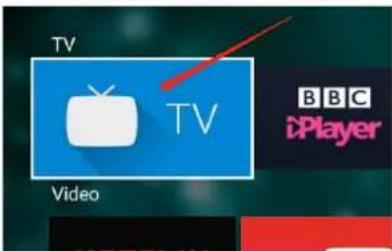
TV Video TV BBC iPlayerThe TV link Is a direct link to your television channels.
Screen Mirroring
text_image
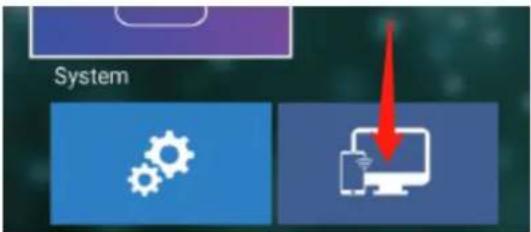
SystemHighlight the Screen mirroring app then press the OK key on the remote control to activate Now you can cast phones/Laptop/Tablets to the big screen
Note: The device and the TV must be connected to the same WIFI source
System settings
text_image
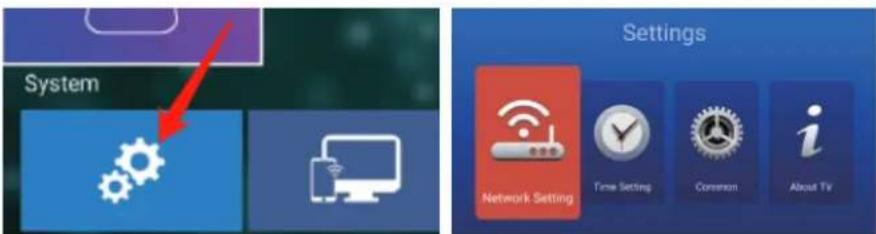
System Settings Network Setting Time Setting Common About TVHighlight and press OK on the remote control to activate system settings
Network Settings
text_image
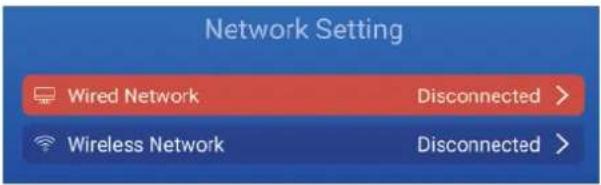
Network Setting Wired Network Disconnected > Wireless Network Disconnected >Highlight and select with the OK key on the remote control to open the wired and WIFI network settings.
Time Settings
text_image
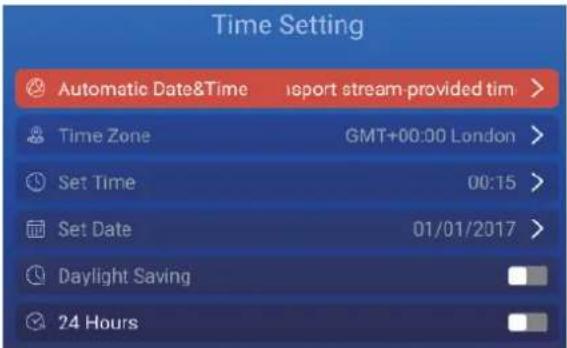
Time Setting Automatic Date&Time report stream-provided tim > Time Zone GMT+00:00 London > Set Time 00:15 > Set Date 01/01/2017 > Daylight Saving 24 HoursHighlight and select with the OK key on the remote control each option to set your preferences.
Common settings
text_image
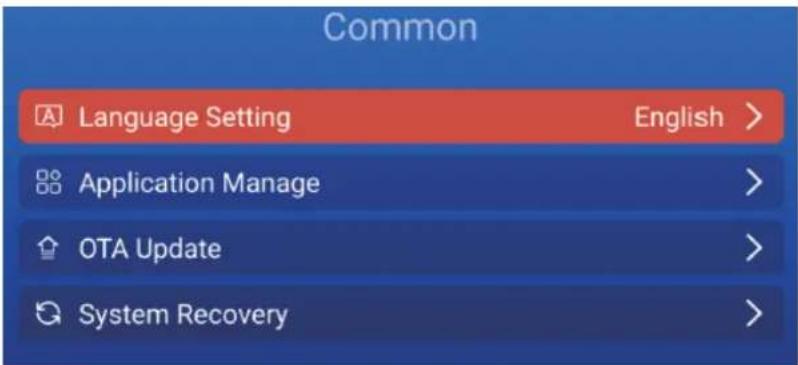
Common Language Setting English > Application Manage > OTA Update > System Recovery >Highlight and select with the OK key on the remote control each option to set preferences.
OTA Update: If any updates are available for your TV you will receive an upgrade prompt when you start up your TV. If you want to check manually then select OTA Update.
Note: The update will not delete any apps or personal settings.
System Recovery: To do a factory data reset select System Recovery, this will put the TV software back to factory default settings.
Note: Be aware that this process will delete all personal settings and all apps will need to be reinstalled.
Maintenance
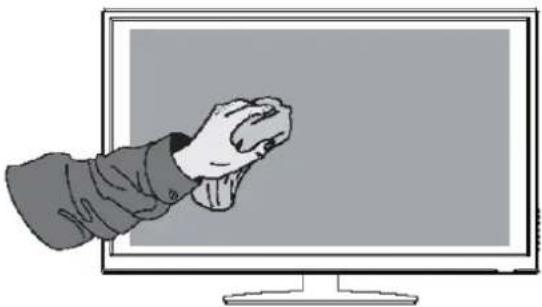
Be sure to disconnect the mains plug before cleaning the TV.
natural_image
Illustration of a hand holding a computer monitor with a blank screen (no text or symbols)-
Use a soft dry cloth to wipe away the dust from the screen and plastic surfaces
-
Use warm soapy water to get rid of stubborn marks. Soak the cloth then wring it until almost dry before wiping the TV.
-
After cleaning allow any dampness on the screen to dry before switching on the TV Important Note:
-
Never use alcohol, benzine, paint-thinner, cleaning fluid or other chemicals
-
Do not use compressed air to remove dust
Trouble shooting
Warning
Under no circumstances should you try to repair the TV by yourself, as this will invalidate the warranty. Do not remove the rear cabinet of the TV as there is a risk of electric shock. If a fault occurs, first check with the points listed below before calling the service help line (03334330312) for assistance.
| Problem | Solution |
| No power | -Check if the power cable is connected correctly-Press the power key on the TV to turn on the power |
| TV does not respond to the remote control | -Aim the remote directly at the sensor on the TV-Reduce the distance to the TV-Aim the remote at the TV sensor and remove and replace the batteries. |
| TV freezes | -The processor may have crashed, turn the TV off at the mains and re-start the TV. If freezing persists, call the help line. |
| TV turns itself off | -Check that the sleep timer is not set to turn off-Check that the screensaver option “Put device to sleep” is set to Never. Default setting is 3hrs |
Technical Specifications
| Screen size and system | 86” LED |
| Max Screen resolution | 3840 (H) x 2160(V) |
| Screen Brightness 200 Nits | |
| Contrast Ratio 1200: 1 | |
| Power Source AC 100-240V | |
| Processor | A53 quad core CPU @1.1GHz |
| RAM 2GB DDR4 | |
| GPU IMG GE7800 | |
| Built in Flash memory | 8GB |
| Operating System | Android 7.1 |
| Energy Efficiency Class | A |
| Average Annual Energy Consumption | 388kWh |
| Speaker power 8W + 8W | |
| Vesa wall mounting size / Screw size | 600 x 600mm / M10 x 18 |
| Dimension (W x D x H) without stand feet | 1939.6 x 90.3 x1127.4 mm |
| Dimension (W x D x H) with stand feet | 1939.6 x 295.4 x 1200.5mm |
| Net Weight | 43Kg |
Safety Warnings
- Read all the instructions carefully before using the TV and keep them for future reference
- If you pass the TV onto a third party make sure to include this instruction manual
- Make sure that the voltage marked on the black rating label on the rear of the TV matches your mains voltage
Safety
- Always disconnect the unit from the mains supply before connecting / disconnecting other devices or moving the TV
- Unplug the TV from the mains socket during a lightning storm
Mains Cable
- If the mains cable is damaged it must be replaced by the manufacture, its service centre, or similarly qualified persons in order to avoid a hazard
Damage
- Inspect the TV for damage after unpacking
- Do not continue to operate the TV if you are in any doubt about it working normally, or if it is damaged in any way – switch off, disconnect from the mains supply and call the service help line
Interference
- Do not place the TV on or near appliances which may cause electromagnetic interference. If you do it may adversely affect the operating performance of the TV and cause distorted picture or sound
Optimum Viewing
- View the TV in moderate light to prevent eye strain. It is recommended to watch the TV from a distance 3 – 7 times the screen height
LED Screen
- The LED /QLED screens are manufactured using high precision technology. However, some tiny black dots/ or bright dots (red, blue, or green in colour) may constantly appear on the screen. These points are generated in the LED Screen manufacturing process.
Location
- The TV must be placed on a flat stable surface and should not be subjected to vibrations
- The mains socket should be located close to the TV and should be easily accessible
• This TV is designed for indoor use only
Temperature
- Avoid extreme degrees of temperature, either hot or cold. Place the unit well away from heat sources such as radiators or gas / electric fires
- Avoid exposure to direct sunlight and other sources of heat
Naked Flames
- Never place any type of candle or naked flame on the top of or near the unit
Moisture
- To reduce the risk of fire, electric shock or product damage, do not expose to the TV to rain, moisture dripping or splashing. Keep containers such as cups or vases filled with liquids away from the TV.
Ventilation
- To prevent the risk of electric shock or fire hazard due to overheating, ensure that curtains and other materials do not obstruct the ventilation vents.
- Do not install or place this TV in a confined space. Ensure the TV is well ventilated
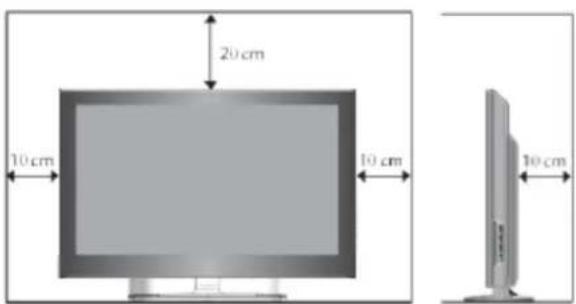
- Make sure that there is a gap of at least 10cm on both sides and a gap of 20cm at the top
text_image
20 cm 10 cm 10 cm 10 cmHeadphones
- Listening to loud sounds for prolonged periods of time may permanently damage your hearing
Batteries
- Please keep the batteries for the remote control away from young children
- Please dispose of the batteries correctly by following the guidance in this manual
Electronic waste recycling

This sign indicates that this product may not be disposed of with your regular household waste. The recycling and separate collection of such products is your responsibility. Please drop off the above-mentioned waste at a designated place for recycling electronic waste. If you do not know where to drop off, your electronic waste for recycling please contact your local council office or household waste collection service.
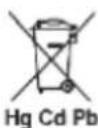
Hg Cd Pb The crossed out wheeled bin symbol indicates that batteries and / or accumulators must be collected and disposed of separately from household waste.
If the battery of accumulator contains more than the specified values of Lead (Pb), mercury (Hg), and/or cadmium (Cd) defined in the Battery directive (2006/66/EC), then the chemicals symbols for Lead (Pb), mercury (Hg), Cadmium (Cd) will appear below the crossed out wheeled dust bin symbol
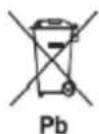
Pb By participating in separate collection of batteries, you will help to assure the proper disposal of products and batteries thus help to prevent potential negative consequences for the environment and human health.
For more detailed information about the collection and recycling programmes available in your country, please contact your local city or council office.

This appliance complies with the European Safety and Electrical directives.
It fulfils the following EU regulations:
EMC Directive 2014/30/EU
Test Standards:
EN55032:2015
EN55035:2017
EN61000-3-2:2014
EN61000-3-3:2013
LVD Directive 2014/35/EU
Test Standards:
EN 60065:2014