
RACKCONS2001 - Console StarTech.com - Free user manual and instructions
Find the device manual for free RACKCONS2001 StarTech.com in PDF.


| Product Type | 1U 20" Rackmount LCD Console for 19in Rack |
| Display Size | 20.1" |
| Panel Type | Active Matrix TFT LCD |
| Native Resolution | 1600 x 1200 @ 60Hz |
| Supported Colors | 16.7M Colors (8-bit with FRC) |
| Contrast Ratio | 1000:1 |
| Viewing Angle | 85° (Typ) Left/Right, 85° (Typ) Up/Down |
| Response Time | Rising: 15ms, Decay: 7ms |
| Pixel Pitch | 0.255mm x 0.255mm |
| Keyboard / Mouse | 106-key USB keyboard with touchpad |
| Connectors | 1x VGA (DE-15), 1x DVI-I (29-pin), 2x PS/2, 2x USB Type A, 1x 3.5mm audio jack, 1x DC power |
| Power Source | 100-240 VAC input |
| Power Adapter | Included (RACKCONS2001 only) |
| Dimensions (LxWxH) | 608.4mm x 448.7mm x 44mm |
| Net Weight | 15.5kg |
| Chassis Construction | Heavy duty steel |
| Mounting | 1U 19-inch rack with included slide rails |
| Operating Temperature | 0°C to 50°C (32°F to 122°F) |
| Storage Temperature | -20°C to 60°C (-4°F to 140°F) |
| Operating Humidity | 10% to 90% RH |
| Regulatory Certifications | CE, FCC Class B |
| Warranty | 2 years |
| OSD Controls | Brightness, Contrast, Color Temperature, Position, Language, Auto Tune, Recall |
| Included Accessories | VGA+PS/2 console cable, 3.5mm audio cable, USB cable, mounting rails, power adapter, power cord |
Frequently Asked Questions - RACKCONS2001 StarTech.com
User questions about RACKCONS2001 StarTech.com
0 question about this device. Answer the ones you know or ask your own.
Ask a new question about this device
Download the instructions for your Console in PDF format for free! Find your manual RACKCONS2001 - StarTech.com and take your electronic device back in hand. On this page are published all the documents necessary for the use of your device. RACKCONS2001 by StarTech.com.
USER MANUAL RACKCONS2001 StarTech.com
1U 20" High Resolution Rackmount LCD Console for 19in Rack
RACKCONS2001

natural_image
Black laptop with open rear panel and external drive slots, no visible text or symbols on the device itself.*actual product may vary from photos
For the most up-to-date information, please visit: www.startech.com
FCC Compliance Statement
This equipment has been tested and found to comply with the limits for a Class B digital device, pursuant to part 15 of the FCC Rules. These limits are designed to provide reasonable protection against harmful interference in a residential installation. This equipment generates, uses and can radiate radio frequency energy and, if not installed and used in accordance with the instructions, may cause harmful interference to radio communications. However, there is no guarantee that interference will not occur in a particular installation. If this equipment does cause harmful interference to radio or television reception, which can be determined by turning the equipment off and on, the user is encouraged to try to correct the interference by one or more of the following measures:
• Reorient or relocate the receiving antenna.
- Increase the separation between the equipment and receiver.
- Connect the equipment into an outlet on a circuit different from that to which the receiver is connected.
- Consult the dealer or an experienced radio/TV technician for help.
Use of Trademarks, Registered Trademarks, and other Protected Names and Symbols
This manual may make reference to trademarks, registered trademarks, and other protected names and/or symbols of third-party companies not related in any way to StarTech.com. Where they occur these references are for illustrative purposes only and do not represent an endorsement of a product or service by StarTech.com, or an endorsement of the product(s) to which this manual applies by the third-party company in question. Regardless of any direct acknowledgement elsewhere in the body of this document, StarTech.com hereby acknowledges that all trademarks, registered trademarks, service marks, and other protected names and/or symbols contained in this manual and related documents are the property of their respective holders.
Table of Contents
Introduction ....1
Packaging Contents ....1
Installation ....1
Hardware Installation .... 1
How to Use ....4
Connecting the Console....4
Turning on the Console 5
Configuring Display Settings....5
Testing the Console....6
Panel Controls and OSD Functions....6
Auto tune....7
Brightness....7
Contrast 7
Color....7
Position 8
Language 8
Recall....9
Exit 9
Power Indicator....9
Specifications ....10
Dimensions....11
Technical Support 12
Warranty Information 12
Introduction
Packaging Contents
• 1U LCD Rack Console Drawer
• VGA + PS/2 console cable
• 3.5mm mini-jack audio cable
- USB cable
• Mounting Rails - Set
• Power Adapter (RACKCONS2001 only)
- Power Cord
Installation
Hardware Installation
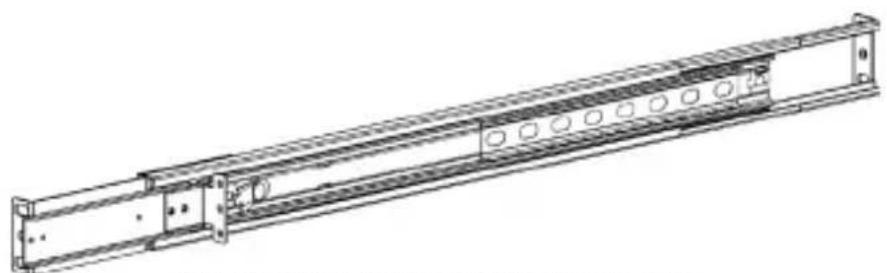
natural_image
Technical line drawing of a mechanical assembly with no visible text or symbolsSide Rails with front and rear brackets (2)
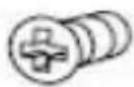
Screw kit
(Used to attach
Rail Mount to
Console body)
Hardware Kit Contents
- Please check that all packaging contents are present before installation. Make sure that nothing was damaged and/or lost during shipping process. If you encounter any problem, please contact StarTech.com (Phone#: 1-800-265-1844).
• Before installation, make sure all peripherals and computer have been turned off.
• The cabinet depth range must be in 764 \~ 1000 mm.
Mounting the console
- Adjust the sliding rail until the screw underneath is visible. Loosen (do not release) the two rear screws then adjust the rear bracket to fit the depth of your rack:
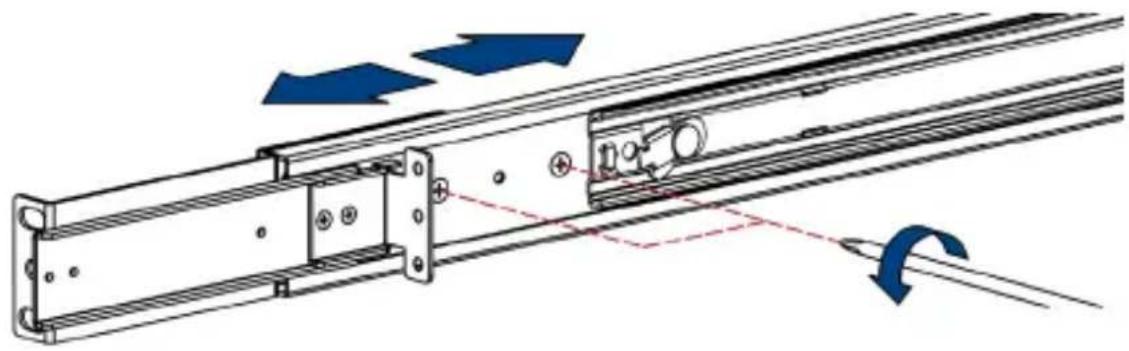
natural_image
Technical diagram of a mechanical rail assembly with directional arrows indicating motion (no text or symbols)- Install the rail into the rack by attaching them to the front/rear posts using the appropriate screws and nuts for your rack (not included):

natural_image
Technical line drawing of a mechanical assembly with mounting holes and railings (no text or symbols)- Tighten the rear screws that were loosened in Step 1:

natural_image
Technical line drawing of a mechanical assembly with mounting brackets and a curved component (no text or symbols)-
Install the remaining rail, by repeating Steps 1-3.
-
Gently extend the arms from the rails until they lock. Gently, but firmly insert the console into the left and right rails:
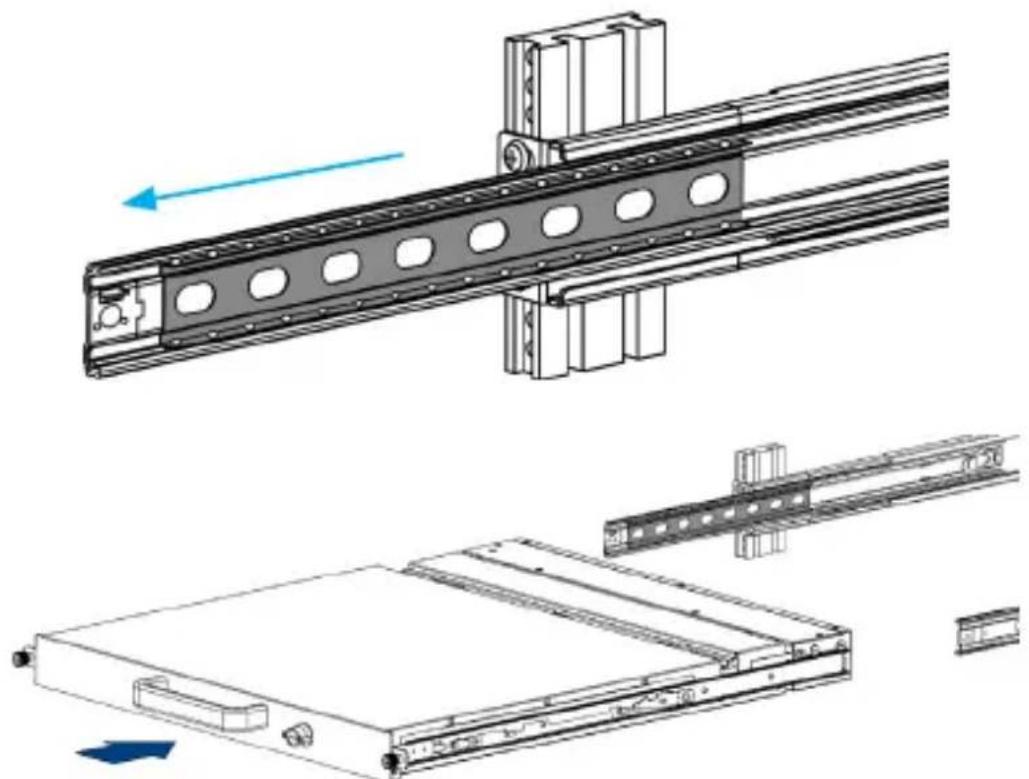
natural_image
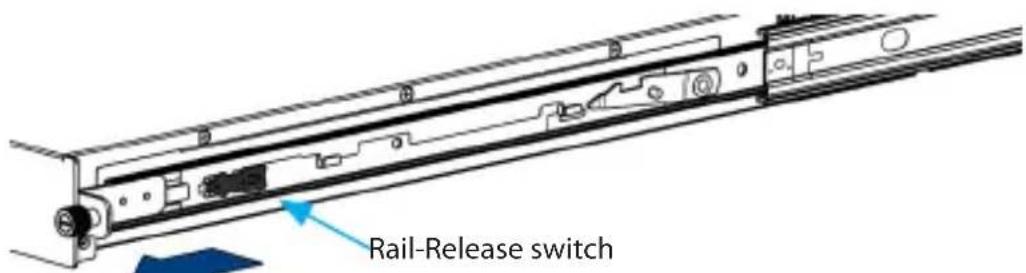
Technical line drawings of mechanical components and a server rack (no text or symbols)- There are small release switches on either side of the console unit. Pull both switches at the same time, as the console is installed onto the rails.
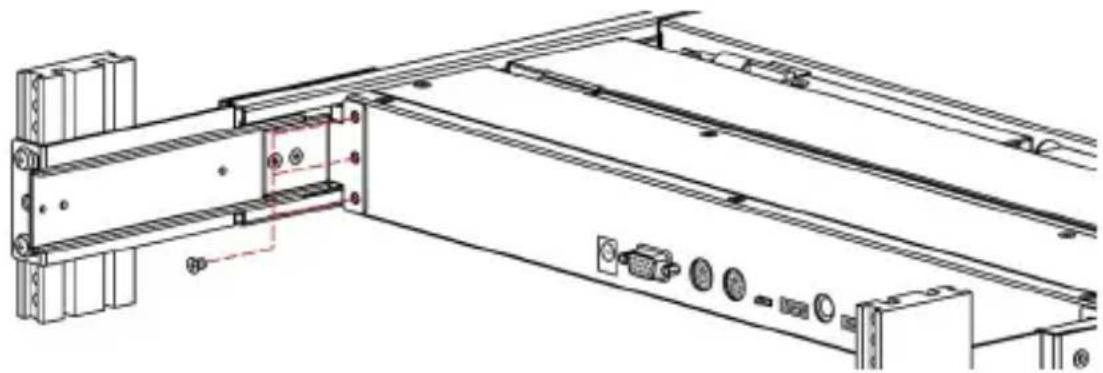
- Install three screws on each side of the rear of the console:
natural_image
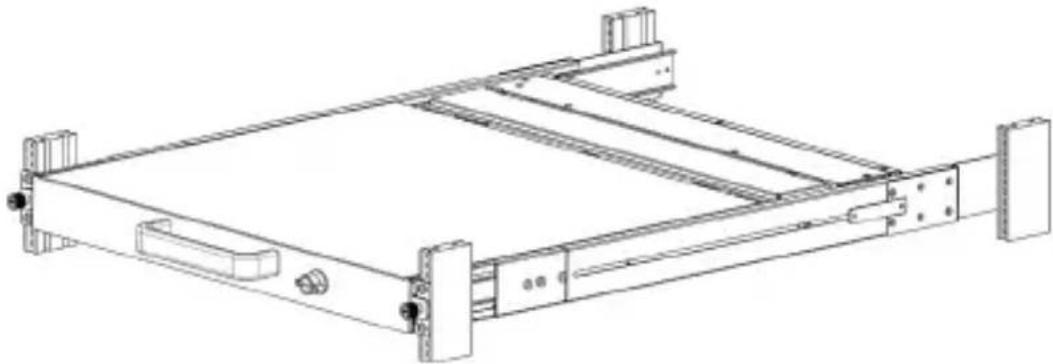
Technical line drawing of a mechanical assembly with no visible text or symbols- Installation is now complete.
natural_image
Technical line drawing of a mechanical frame assembly (no text or symbols)How to Use Connecting the Console
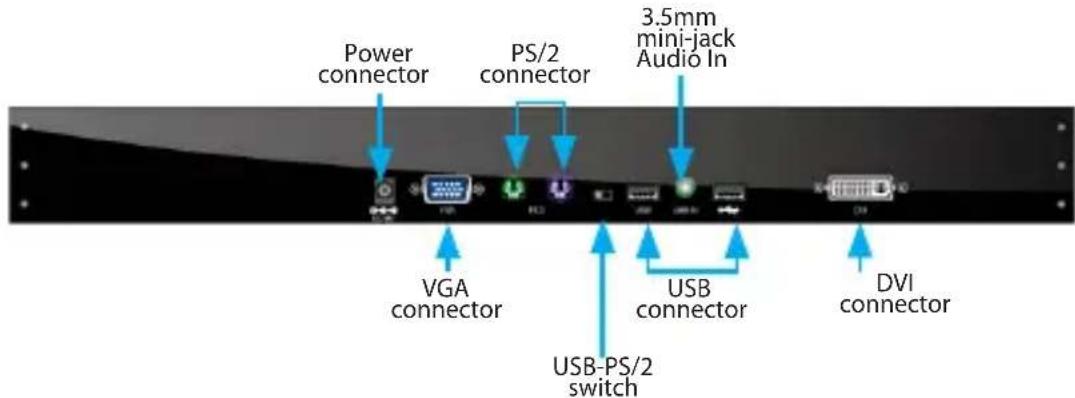
To connect the LCD console to a computer, perform the following steps:
- Turn off your computer.
- Connect the VGA or DVI video cable from the VGA/DVI output on the computer system to the VGA or DVI port on the rear of the rack console. Only connect one or the other, not both.
- Set the USB-PS/2 switch on the console to either USB or PS/2 mode, depending on which you wish to use to connect the computer.
- Connect either the USB or PS/2 connector on the rear of the rack console to a USB or PS/2 port on the computer system.
- For audio, connect a 3.5mm audio cable to the Line In connector on the console to the Line Out on the computer or external KVM (available separately, such as StarTech.com ID: SV831DUSBAU).
- Connect the power adapter and power cord to the power connector on the console. Connect the remaining end of the power cord to an available power outlet.
Note: The front USB port on this console is a USB 1.1 port for connecting an external keyboard / mouse only. It is not meant for high-speed data transfer.
Turning on the Console
Make sure all cables and the power adapter are connected properly. Be sure to tighten all connector screws. Grab the front handle and pull the console all the way out then lift the panel up. The power LED underneath the LCD monitor will light up green.
Configuring Display Settings
After connecting the rack console and turning on your computer, you may need to configure one or more of the following display settings to allow the computer to display at the console's native resolution. See Specifications for the correct resolution mode for your model.
• Display mode (also called desktop area or video resolution)
- Refresh rate (also called vertical scan rate or vertical sync)
• Color depth (also called color palette or number of colors)
Each video card has several controls that allow you to adjust the display settings, however, the software and driver for each video card is unique. In most cases, you can adjust these settings using a program or utility provided by the manufacturer of the video card. Most video cards use the Windows Display Properties control panel to configure the display. To open the Windows Display Properties, click the right mouse button in a blank area of the Windows desktop and then select Properties. The Settings tab usually lets you change the Color Palette and the Desktop Area (X by Y pixel resolution).
Some video cards integrate additional features into the Windows Display Properties control panel giving you an extra setup options that are flexible and easy to use. For example, the control panel may include an Advanced Properties button, an Adjustment tab, or a Refresh tab for changing other settings. Other video cards have a separate utility for setting display properties.
Whenever you change the resolution, color, or refresh rate, the image size, position, or shape may change. This behavior is normal. You can readjust the image using the monitor on-screen controls. For more information on the monitor on-screen controls, refer to Panel controls and OSD functions. For more information on configuring the display settings, please refer to the manual that accompanied your video card.
Testing the Console
To test that the console is working properly, perform the following steps:
- Power up the rack console, and then turn on your computer.
- Make sure the video image is centered within the screen area. Use the OSD controls to adjust the image (see Panel controls and OSD functions) or press the Auto button on the right hand side of the monitor.
Note: If the unit does not power up when the panel is pulled up, try pushing the soft power on/off button on the right side of the monitor panel to power up the unit.
Note: You can adjust the horizontal and vertical position, contrast, and brightness to better suit your video card and your personal preference.
Before you begin, make sure that power to all of the devices you will be connecting to the console have been turned off. To prevent damage to your installation due to ground potential difference, make sure that all of the devices being installed are properly grounded. Once all peripherals have been connected, please power them on.
Panel Controls and OSD Functions
The following controls are located on the bottom side of the console monitor:
Controls Descriptions

Soft power on/off. Adjacent LED is lit when on.
Auto Auto-synchronize and scale down display to any valid factory preset timings.
Up Press to scroll to the function you want to adjust.
Down Press to scroll to the function you want to adjust.
Menu To access the main menu. This button also acts as the Enter button.
Auto tune
Press the "Auto tune" button. The panel will adjust the display size automatically and also tune the panel to its optimized state.
Brightness
- Press the Menu button.
- Use the Down and Up buttons to scroll to Brightness.
- Press the Menu button to enter.
- Use the Down and Up buttons to adjust the brightness of the display.
- Press the Menu button to save your selection.
Contrast
- Press the Menu button.
- Use the Down and Up buttons to scroll to Contrast.
- Press the Menu button to enter.
- Use the Down and Up buttons to adjust the contrast of the display.
- Press the Menu button to save your selection.
Color
- Press the Menu button.
- Use the Down and Up button to scroll.
- Highlight Color, and press the Menu button to enter, which will launch the following screen:
Icon Description
9300°K To set CIE coordinates at 9300°K color
7500°K To set CIE coordinates at 7500°K color
6500°K To set CIE coordinates at 6500°K color
User To set user defined CIE
Auto color To automatically adjust color
Return To exit and return to the previous page
- Use the Down and Up buttons to adjust the contrast of the display.
- Press the Menu button to save your selection.
Position
- Press the Menu button.
- Use the Down and Up buttons to scroll.
- Highlight Position and press the Menu button to enter, which will launch the following screen:
Icon Description
Image Pos To adjust the position of the image
OSD Pos To adjust the position of the OSD
Return To exit and return to the previous page
- Use the Down and Up buttons to scroll.
- Press the Menu button to save your selection.
Language
- Press the Menu button.
- Use the Down and Up buttons to scroll.
- Highlight Language, and press the Menu button to select, which will launch the following screen:
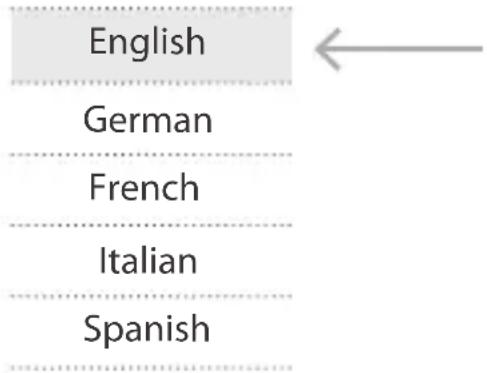
- Use the Down and Up buttons to scroll, and highlight the preferred language.
- Press the Menu button to save your selection.
Recall
- Press the Menu button.
- Use the Down and Up buttons to scroll to Recall. Press the Menu button to enter, where you will be able to select Yes/No using the Down and Up buttons. Once you have done so, press the Menu button. Note: selecting Yes will return your settings to the factory default state. Select No if you do not wish to make this change.
Exit
To exit the menu, scroll to Exit and press the Menu button.
Power Indicator
Light Color Status
Green ON
RED Standby
RED Suspend
RED OFF
Specifications
| RACKCONS2001 / RKCONS2001GB | |
| Display Size 20.1" | |
| Panel Type Active Matrix TFT LCD | |
| Resolution Capabilities 1600x1200 @ 60Hz (max.) | |
| Back Light six lamps | |
| Supported Colors 16.7M Colors (8-bit with FRC) | |
| Contrast Ratio 1000:1 | |
| Response Time | Rising Time: 15msDecay Time: 7ms |
| Pixel Pitch | 0.255mm x 0.255mm |
| Sync | 45~80KHz |
| Viewing Angle | Right-Left view: 85° (Typ)Up-Down view: 85° (Typ) |
| Keyboard / Mouse 106 key USB keyboard with touchpad | |
| Connectors | 1 x DE-15 VGA female1 x 29-pin DVI-I female2 x PS/2 female2 x USB type A1 x 3.5mm mini-jack1 x DC power |
| Power Source 100-240 VAC input | |
| Operating Temperature 0°C ~ 50°C (32°F ~ 122°F) | |
| Storage Temperature -20°C ~ 60°C (-4°F ~ 140°F) |
RACKCONS2001 / RKCONS2001GB
Humidity 10 \~ 90% RH
Dimension 608.4mm x 448.7mm x 44mm
Net Weight 15.5kg
Chassis Construction Heavy duty steel
Regulatory Certification CE/FCC
Dimensions
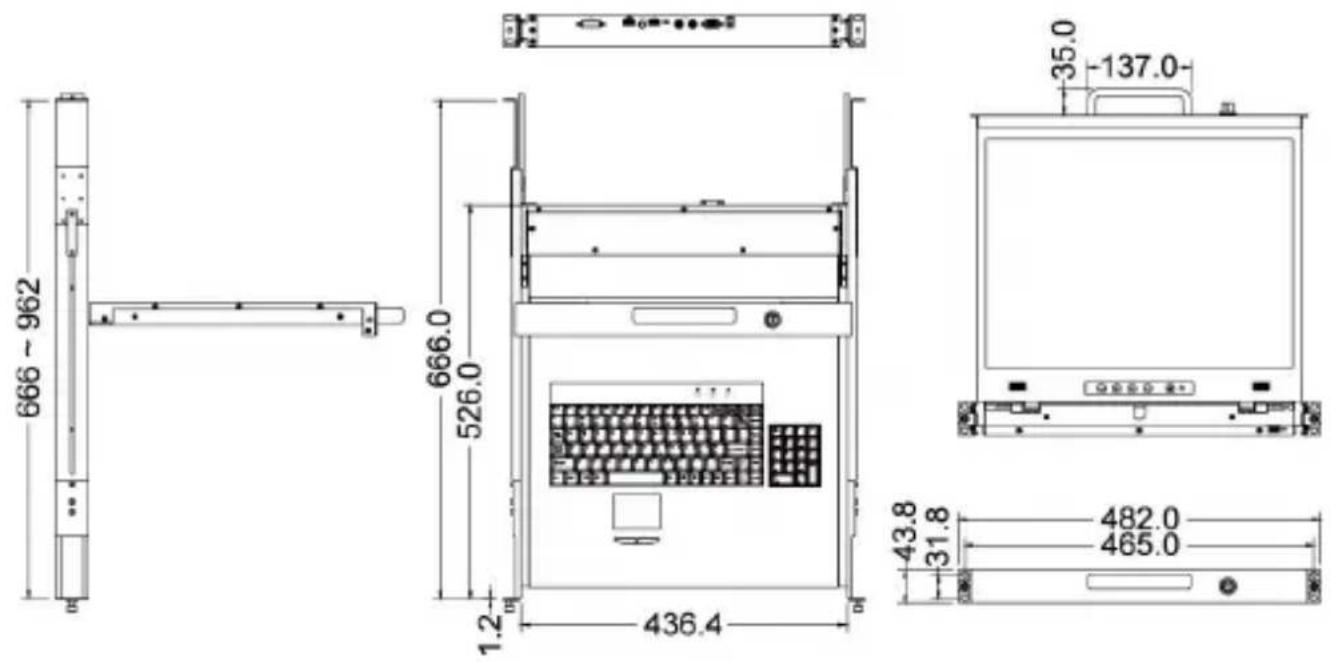
Technical Support
StarTech.com's lifetime technical support is an integral part of our commitment to provide industry-leading solutions. If you ever need help with your product, visit www.startech.com/support and access our comprehensive selection of online tools, documentation, and downloads.
For the latest drivers/software, please visit www.startech.com/downloads
Warranty Information
This product is backed by a two year warranty.
In addition, StarTech.com warrants its products against defects in materials and workmanship for the periods noted, following the initial date of purchase. During this period, the products may be returned for repair, or replacement with equivalent products at our discretion. The warranty covers parts and labor costs only. StarTech.com does not warrant its products from defects or damages arising from misuse, abuse, alteration, or normal wear and tear.
Limitation of Liability
In no event shall the liability of StarTech.com Ltd. and StarTech.com USA LLP (or their officers, directors, employees or agents) for any damages (whether direct or indirect, special, punitive, incidental, consequential, or otherwise), loss of profits, loss of business, or any pecuniary loss, arising out of or related to the use of the product exceed the actual price paid for the product. Some states do not allow the exclusion or limitation of incidental or consequential damages. If such laws apply, the limitations or exclusions contained in this statement may not apply to you.
Hard-to-find made easy. At StarTech.com, that isn't a slogan. It's a promise.
StarTech.com is your one-stop source for every connectivity part you need. From the latest technology to legacy products — and all the parts that bridge the old and new — we can help you find the parts that connect your solutions.
We make it easy to locate the parts, and we quickly deliver them wherever they need to go. Just talk to one of our tech advisors or visit our website. You'll be connected to the products you need in no time.
Visit www.startech.com for complete information on all StarTech.com products and to access exclusive resources and time-saving tools.
StarTech.com is an ISO 9001 Registered manufacturer of connectivity and technology parts. StarTech.com was founded in 1985 and has operations in the United States, Canada, the United Kingdom and Taiwan servicing a worldwide market.
- 1U 20" High Resolution Rackmount LCD Console for 19in Rack
- FCC Compliance Statement
- Use of Trademarks, Registered Trademarks, and other Protected Names and Symbols
- Table of Contents
- Introduction ....1
- Installation ....1
- How to Use ....4
- Specifications ....10
- Technical Support 12
- Warranty Information 12
- Introduction
- Packaging Contents
- Installation
- Hardware Installation
- Screw kit
- Hardware Kit Contents
- Mounting the console
- How to Use Connecting the Console
- Turning on the Console
- Configuring Display Settings
- Testing the Console
- Panel Controls and OSD Functions
- Controls Descriptions
- Auto tune
- Brightness
- Contrast
- Color
- Icon Description
- Position
- Language
- Recall
- Exit
- Power Indicator
- Light Color Status
- RACKCONS2001 / RKCONS2001GB
- Technical Support
- Warranty Information
- Limitation of Liability
Brand : StarTech.com
Model : RACKCONS2001
Category : Console