
INTEBOX8 - Series Card StarTech.com - Free user manual and instructions
Find the device manual for free INTEBOX8 StarTech.com in PDF.


| Product Type | RS232 Serial Connector Box |
| Brand | StarTech.com |
| Model | INTEBOX8 |
| Interface | RS232C |
| Number of Ports | 8 (DB25 male) |
| Connectors | 1 x DB37 female (to card), 1 x DB37 male (daisy-chain), 8 x DB25 male (serial devices) |
| Power Consumption | 5V @ 300mA, +12V @ 100mA, -12V @ 100mA |
| Compatible Cards | StarTech.com PCI232INTE (Intelligent Serial Card) |
| Expansion | Up to 8 boxes per card (64 ports per card), up to 2 cards per system (128 ports total) |
| Baud Rate | Up to 230400 bits/sec |
| Flow Control | Xon/Xoff (software) or CTS/RTS (hardware) |
| Data Signals | TXD, RXD, RTS, CTS, DSR, DTR, DCD, Signal Ground, Frame Ground |
| Operating Systems | Windows 2000/NT/XP, Linux (Slackware, Redhat), SCO UNIX |
| LED Indicator | Power/Activity LED on box |
| Dimensions (approx.) | 200 x 100 x 40 mm |
| Weight (approx.) | 500 g |
| Maintenance | Keep dry and dust-free; clean with a soft cloth |
| Safety | Use only with supplied cable; do not open casing; avoid static discharge |
| Repairability | No user-serviceable parts; contact StarTech.com support |
| Warranty | 1 year limited |
Frequently Asked Questions - INTEBOX8 StarTech.com
User questions about INTEBOX8 StarTech.com
0 question about this device. Answer the ones you know or ask your own.
Ask a new question about this device
Download the instructions for your Series Card in PDF format for free! Find your manual INTEBOX8 - StarTech.com and take your electronic device back in hand. On this page are published all the documents necessary for the use of your device. INTEBOX8 by StarTech.com.
USER MANUAL INTEBOX8 StarTech.com
INTELLIGENT S SERIAL CARD
Intelligent 3.3 volt/5 volt High Speed Serial PCI Card
PCI232INTE INTEBOX8
Instruction Guide
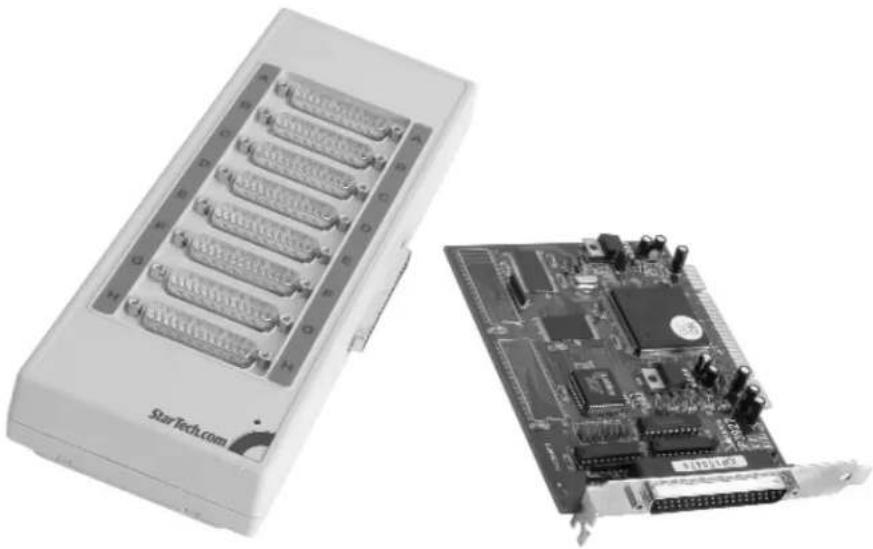
natural_image
Two electronic devices: a StarTech.com internal circuit board and a computer motherboard (no visible text or symbols on components)* Actual product may vary from photo
StarTech.com

The Professionals' Source For Hard-to-Find Computer Parts
FCC COMPLIANCE STATEMENT
This equipment has been tested and found to comply with the limits for a Class B digital device, pursuant to part 15 of the FCC Rules. These limits are designed to provide reasonable protection against harmful interference in a residential installation. This equipment generates, uses and can radiate radio frequency energy and, if not installed and used in accordance with the instructions, may cause harmful interference to radio communications. However, there is no guarantee that interference will not occur in a particular installation. If this equipment does cause harmful interference to radio or television reception, which can be determined by turning the equipment off and on, the user is encouraged to try to correct the interference by one or more of the following measures:
- Reorient or relocate the receiving antenna.
- Increase the separation between the equipment and receiver.
- Connect the equipment into an outlet on a circuit different from that to which the receiver is connected.
- Consult the dealer or an experienced radio/TV technician for help.
Table of Contents
Introduction 2
Installation 3
Driver Installation 4
Windows 4
SCO Unix 6
Linux 9
Technical Specifications 11
Technical Support 12
Warranty Information 12
Introduction
Thank you for purchasing a high-speed intelligent serial card and/or RS232 connector box from StarTech.com. Designed to reduce the load on the CPU and improve system performance, the PCI232INTE intelligent card uses a high speed RISC style processor to manage data flow between the main CPU and external serial devices. Just connect the card to one of our INTEBOX8 RS232 connector boxes to add 8 high speed serial ports to your system.
Features
- PCI232INTE and INTEBOX8 combine to provide you with 8 high-speed serial ports
- Intelligent card uses a high-speed RISC style processor to manage the data flow between the main CPU and external serial devices
- Reduces the load on the CPU and considerably improves the whole system performance
- Works with both 3.3 Volt and 5 Volt server slots (PCI232INTE)
- Can provide up to 64 serial ports using eight INTEBOX8 external connector boxes
- Compatible with major OS platforms, including Windows, Linux (Slackware or Redhat), and UNIX
Before You Begin
Toensure a quick and easy device installation, please read through this section carefully before attempting to install the device.
Requirements
- A computer running Windows XP/2000/NT, Linux (Slackware or Redhat), or UNIX SCO Open Server
• An open 3.3 or 5V PCI slot
Note: You must use the PCI232INTE card with at least one StarTech.com INTEBOX8 RS232 connector box. You can not plug a serial device directly into the card itself.
Contents
PCI232INTE INTEBOX8
• 1 x PCI232INTE intelligent serial card • 1 x INTEBOX8 connector box
• 1 x 37-pin serial cable
• D river disk(s) for Windows, Linux, and Unix
Installation
Note: In one system, you can install two intelligent serial cards. Each card can support up to eight INTEBOX8 connectors boxes, for a total of up to 64 devices per card or 128 serial devices per system.
Installing the Card
- Make sure that your system is unplugged and you are grounded.
- Remove the cover of your system (see your computer's user manual for details, if necessary) and gently turn your computer onto its side.
- Locate an empty PCI slot (usually white in color) and remove the metal plate that covers the rear bracket. You may need a Phillips screwdriver to perform this step. Hang on to the screw! You will need it to secure the card later.
- Gently insert the card into the empty slot, making sure it is firmly seated.
- Secure the card in place using the screw you removed in Step 3 and put your computer case back on.
- Plug the female end of the 37-pin serial cable into the port on the card. Plug the male end into the female port on your external connector box.
- If you are using multiple connector boxes, plug the two boxes directly together using their 37-pin connectors. You can have up to eight connector boxes per card.
- Turn the computer on.
Driver Installation
Note: Depending on your operating system and the configuration of your system, the instructions below may not be identical to what you see on your screen.
Windows
Windows XP/2000
Once you turn your computer on after installing the card, Windows will automatically detect the new hardware. Follow the onscreen prompts and direct Windows to the Win2000 folder on the driver disk (Windows 2000 and Windows XP use the same driver).
Notes:
- To change the COM port number: Windows will automatically assign the card a COM port number. If you need to specify another port number, you can use the setup utility included with the driver. Go to: Control Panel/System/Hardware/Device Manager/Multi-Port Serial Adapter/Setup. From here you will be able to set the target value.
- To install two PCI232INTE cards in the same system: You can differentiate between the two cards by using the jumper (located near the end of the card). The card with the jumper ON will have the lower COM number. The card with the jumper OFF will have the higher COM number.
- Using Hyperterm to confirm installation: If there are problems accessing the COM port, Hyperterm will reply with an “open fail” message.
- When Hyperterm is working properly but RAS is not: You may need to remove the "Modem" device and add it back in again. You can not use the Modem device before installing the driver. You need to create a new Modem device that will be used by the new COM port.
Windows NT
Before you begin, make sure that no other version of this driver exists on your system. Remove any older versions of the driver before installing the new versions.
- From your Control Panel, choose Network.
- Choose Add Adapter (do NOT choose Add Software).
- Insert your driver disk into the disk drive. Choose "Other: Requires disk from manufacturer."
- Direct Windows to the NT4 folder on the driver disk.
- Follow any onscreen prompts to complete the driver installation.
Notes:
- By default, the TTY port is assigned "COM3": You can specify the starting COM number during the installation procedure.
- You must reboot after installing the driver: After you reboot, the LED on the external connector box will be turned on. You can now use the serial ports on the external connector box.
- To install two PCI232INTE cards in the same system: You must differentiate between the two cards by using the jumper (located near the end of the card). The card with the jumper ON will have the lower COM number. The card with the jumper OFF will have the higher COM number.
- Using Hyperterm to confirm installation: If there are problems accessing the COM port, Hyperterm will reply with an "open fail" message.
- When Hyperterm is working properly but RAS is not: You may need to remove the "Modem" device and add it back in again. You can not use the Modem device before installing the driver. You need to create a new Modem device that will be used by the new COM port.
SCO UNIX
Under SCO UNIX, the card is considered an extra peripheral device. Therefore, a new device driver must be linked with the kernel to build a new kernel system. The card and external connector boxes will work after the new kernel system is restarted.
Under IBM PC/AT X86 (or compatible) or SCO Openserver 5.0.x, the Link Kit packages should be installed completely.
If you experience boot problems, you may have a low voltage level. Either use only one PCI232INTE in your system, reduce the number of INTEBOX8 boxes connected to your cards, or use a higher wattage power supply.
There are two methods for installing the drivers:
Using /etc/custom
- Log in as a super-user.
Login: root Password:
/etc/custom
Note: This command assumes that you have the 3.5" driver diskette in Drive A. If your Drive A is not a 3.5" disk drive, check for a "custom" command that will set the correct command line.
- Choose "Add a Supported Product" and select "Install one or more packages."
- When prompted for how many cards to install, enter 1 or 2.
- When asked to create a new kernel, choose Yes.
- When you see a message that the UNIX Kernel has been rebuilt, you have finished the installation. Reboot your computer.
Using the tar command
- Log in as a super-user:
Login: root Password: # cd /
- Extract all the files on the diskette using the tar command
tar xvf /dev/fd0135ds18
Note: This command assumes that you have the 3.5" driver diskette in Drive A. If your Drive A is not a 3.5" disk drive, check for a "tar" command that will set the correct command line.
- Type:
# cd /etc/IOP3927
- Type:
# ./build
- When asked to Install or Remove the Input/Output Processor, choose to Install it.
- Choose "Add a Supported Product" and select "Install one or more packages."
- When prompted for how many cards to install, enter 1 or 2.
- When asked to create a new kernel, choose Yes.
- When you see a message that the UNIX Kernel has been rebuilt, you have finished the installation. Reboot your computer.
After rebooting the kernel
The following message will be displayed:
PCIOP: unit=0 type= IOP3927F bus=0 dev=0 fun=0 map= 0xF4000000
·
.
Downloading IOP3927 card(s)......
PCIOP: unit=0 type=IOP3927F ports=8(P641)
Where:
"unit" denotes the installation card number in the system
"type" denotes the card's type
"map" denotes the mapping address and memory space of dual port RAM, this should be assigned by the PCI bus
"ports" denotes the number of ports (this will be eight times the number of INTEBOX8 boxes that are connected to the card)
When the above message appears and the LEDs on each INTEBOX is lit, the card has been installed successfully and is ready for use.
Note: If you get a message about the "map=" or "ports=" being incorrect or there is no message, try the following steps:
- Shut down and restart your system. If problems persist, you may need to re-execute the software installation procedure.
- If the system does not boot successfully, check the voltage level. If your voltage level is too low to support your system, reduce the number of PCI232INTE cards or INTEBOX8 boxes connected to your system.
- Make sure that the card is inserted firmly in the PCI slot and that the cable is firmly seated.
Serial Port Device Definitions
Card Definitions
| Card Number | Device Name |
| 1 tty6??2 tty7?? |
Note: Card 1 is the card with the jumper ON.
External Box Definitions
| Box Number Device Name | |
| 1 tty?1? | |
| 2 tty?2? | |
| 3 tty?3? | |
| 4 tty?4? | |
| 5 tty?5? | |
| 6 tty?6? | |
| 7 tty?7? | |
| 8 tty?8? | |
Note: The box nearest the card is Box 1.
I/O Port Number Definition
| Port Number | Device Name Device (non Modem) (Modem) | Name |
| A tty??a tty??AB tty??b tty??BC tty??c tty??CD tty??d tty??DE tty??e tty??EF tty??fG tty??g tty??GH tty??h tty??H | tty??f | tty??F |
For example, tty74e is a Non-Modem device plugged into port E on box 4 connected to card number 2. The device names tty63A is a Modem device plugged into port A on box 3 that is connected to card number 1.
Linux
Because there are so many different versions and configurations of Linux, it is impossible to provide one driver that will work for every configuration. Instead, this procedure uses the source code from your Linux kernel to compile a driver that is specific to your setup. You will create a one-time image file that will work with your current configuration. If you change your Linux kernel, you will have to repeat this procedure again.
Before you begin this installation, you will need the following:
- The source code for the Linux kernel you are using
- The source code must be installed in /usr/src/linux
-
The name of your Linux distribution (Slackware or Redhat)
• The Linux kernel version number -
Use the "tar" command to install all the files on the diskette.
<h1 id="cd">cd /</h1>
<h1 id="tar-xvf-devfd0">tar xvf /dev/fd0</h1>
<h1 id="cd-etcrayon">cd /etc/rayon</h1>
<h1 id="install">./Install</h1>
- Configure the module by following the on-screen prompts:
a. Choose your Linux distribution type (Slackware or Redhat)
b. Choose your target card type (IOP3927 card)
c. Choose your Linux kernel version number
d. Exit and reboot with the new settings
Note: You can have up to 64 serial ports for each card you install, depending on the number of INTEBOX8s you have installed.
Serial Port Device Definitions
Card Definitions
| Card Number | Device Name |
| 1 tty6?? | |
| 2 tty7?? |
Note: Card 1 is the card with the jumper ON.
External Box Definitions
| Box Number Device Name | |
| 1 tty?1? | |
| 2 tty?2? | |
| 3 tty?3? | |
| 4 tty?4? | |
| 5 tty?5? | |
| 6 tty?6? | |
| 7 tty?7? | |
| 8 tty?8? | |
Note: The box nearest the card is Box 1.
I/O Port Number Definition
| Port Number | Device Name |
| A tty??aB tty??bC tty??cD tty??dE tty??eF tty??fG tty??gH tty??h |
For example, the device named /dev/tty72h is the device plugged into port H on box 2 which is plugged into card number 2. The device named /dev/tty68g is the device plugged into port G on box 8 plugged into card number 1.
Because the driver source file is compiled and linked to your kernel source file, you may get an "unresolved variable" or error message in the next boot procedure if your run time image version is different than your kernel source file. You have to use your kernel source file to generate a one-time image file as your boot image file.
You can have an "etty" directory to test your TTY port. This utility file can be used to transmit/receive and verify data in the assigned TTY port.
You can also have an "om" directory to monitor your TTY port. This utility file can be used to monitor all the data transmit/receive activity in each port. One screen can only show 16 TTY ports, so there are two types of utilities. One type is used to monitor 16 TTY ports only. The second type is used to monitor all TTY ports and change the display screen to rotate through the different TTY ports, showing 16 TTY ports at a time.
Technical Specifications
| Connectors PCI232INTE: 1 x DB 37-pin (male) INTEBOX: 2 x DB 37-pin (female, male) 8 x 25-pin RS232 (male) |
| Serial Interface RS232C |
| System 133 MHz RISC style processors |
| Bus Interface 32-bit universal PCI |
| Memory 16 MByte SDRAM |
| I/O Buffer 512 KByte |
| Power Consumption PCI232INTE: 5V @ 680mA INTEBOX8: 5V @ 300mA, +12V @ 100mA & -12V @ 100mA |
| Data Signals RS232: F.G., TXD, RXD, RTS, CTS, DSR, DTR, DCD & Signal Ground |
| Expansion Capability Up to 64 ports using 8 RS232 external box connectors |
| OS compatibility Windows 2000/NT/XP, Linux & UNIX SCO Open Server |
| Flow Control Xon/Xoff control or CTS/RTS control |
| Baud Rate Up to 230400 bits/sec |
| Supported Slot Type 3.3V & 5V server slots |
Technical Support
The following technical resources are available for this StarTech.com product:
On-line help:
We are constantly adding new information to the Tech Support section of our web site. To access this page, click the Tech Support link on our homepage, www.startech.com. In the tech support section there are a number of options that can provide assistance with this product.
Knowledge Base - This tool allows you to search for answers to common issues using key words that describe the product and your issue.
FAQ - This tool provides quick answers to the top questions asked by our customers.
Downloads - This selection takes you to our driver download page where you can find the latest drivers for this product.
Call StarTech.com tech support for help:
USA/Canada: 1-519-455-4931
UK/Ireland/Europe: 00-800-7827-8324
Support hours: Monday to Friday 9:00AM to 5:00PM EST (except holidays)
Warranty Information
This product is backed by a one-year warranty. In addition, StarTech.com warrants its products against defects in materials and workmanship for the periods noted below, following the initial date of purchase. During this period, the products may be returned for repair, or replacement with equivalent products at our discretion. The warranty covers parts and labor costs only. StarTech.com does not warrant its products from defects or damages arising from misuse, abuse, alteration, or normal wear and tear.
Limitation of Liability
In no event shall the liability of StarTech.com Ltd. and StarTech.com USA LLP (or their officers, directors, employees or agents) for any damages (whether direct or indirect, special, punitive incidental, consequential, or otherwise), loss of profits, loss of business, or any pecuniary loss, arising out of or related to the use of the product exceed the actual price paid for the product.
Some states do not allow the exclusion or limitation of incidental or consequential damages. If such laws apply, the limitations or exclusions contained in this statement may not apply to you.
- INTELLIGENT S SERIAL CARD
- FCC COMPLIANCE STATEMENT
- Table of Contents
- Introduction
- Features
- Before You Begin
- Requirements
- Contents
- PCI232INTE INTEBOX8
- Installation
- Installing the Card
- Driver Installation
- Windows
- Notes:
- Windows NT
- SCO UNIX
- Using /etc/custom
- /etc/custom
- Using the tar command
- After rebooting the kernel
- Serial Port Device Definitions
- Linux
- Technical Support
- On-line help:
- Warranty Information
- Limitation of Liability
Brand : StarTech.com
Model : INTEBOX8
Category : Series Card