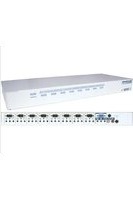
SV831MEDIA - Adapter StarTech.com - Free user manual and instructions
Find the device manual for free SV831MEDIA StarTech.com in PDF.


| Product Type | Multimedia Audio/Video Module for KVM Switch |
| Brand | StarTech.com |
| Model | SV831MEDIA |
| Compatible KVM Switches | SV831, SV831D, SV832DS StarView 8-Port KVM Switches |
| Audio Support | Microphone, Speaker (via EARPHONE RCA and stereo plug), Line In/Out |
| Video Support | Secondary VGA monitor port for all 8 computers (video selection follows KVM switch) |
| Connections - LINK | Two mini-DIN-8 ports for daisy-chaining A/V modules or connecting to KVM switch |
| Connections - Console | VGA (HDB-15), EARPHONE (RCA + stereo plug), MICROPHONE (stereo plug), LINE IN/OUT (stereo plug) |
| Connections - PC Side | VGA (HDB-15 male-to-female), EARPHONE, MICROPHONE, LINE IN/OUT via stereo cables |
| Special Features | Audio fade-in/out on EARPHONE switching; Audio Stick function (follow/independent computer selection) |
| Operating Systems Supported | Windows 98/2000/NT (for dual monitor extension) |
| Dimensions | Not provided in manual |
| Weight | Not provided in manual |
| Power Supply | Powered via KVM switch connection (no external power adapter) |
| Maintenance | No specific instructions; clean with dry cloth only |
| Safety | Follow standard electronic device safety; avoid liquids and static discharge |
| Spare Parts & Reparability | No user-serviceable parts; contact StarTech.com support |
Frequently Asked Questions - SV831MEDIA StarTech.com
User questions about SV831MEDIA StarTech.com
0 question about this device. Answer the ones you know or ask your own.
Ask a new question about this device
Download the instructions for your Adapter in PDF format for free! Find your manual SV831MEDIA - StarTech.com and take your electronic device back in hand. On this page are published all the documents necessary for the use of your device. SV831MEDIA by StarTech.com.
USER MANUAL SV831MEDIA StarTech.com
natural_image
Black StarView network device with ports and indicator lights (no readable text or symbols beyond branding)User'sManual
SV831MEDIA
Introduction
The SV831MEDIA is a high-performance multimedia audio/video module for use with an 8 port KVM switch. It supports microphone, speaker and line signal for 8 computers and provides a secondary VGA monitor port for all 8 computers. Audio selection from 1 out of 8 computers may or may not follow that of the KVM switch selection. Video selection always follows that of the KVM switch. The SV831MEDIA works with SV831, SV831D, SV832DS StarView KVM Switches.
Connection
LINK - There are 2 identical LINK ports on the unit. Connect either to the LINK port on an 8 port KVM switch via the mini-DIN-8 cable (included with the switch); the other LINK port can be connected to other A/V modules by switching them simultaneously.
CONSOLE – All console related ports are marked in white. VGA connects to a VGA monitor via the HDB-15 connector. The module provides two sets of connectors for EARPHONE (or speaker) outputs, RCA and stereo plug; either or both can be used. The MICROPHONE input connects to a microphone via a stereo plug. LINE IN/OUT is stereo plug for general purpose PC LINE IN/OUT.
PC Side – Connect VGA ports to PC VGA outputs using HDB-15 male-to-female cables. Connect EARNHONE to PC earphone (or speaker) outputs via stereo cables. Connect MICROPHONE to PC microphone inputs via stereo cables. Connect LINE IN/OUTs to PC LINE IN/OUT port via stereo cables.
Installation
The EARPHONE is designed with a special fade-in and fade-out feature to prevent any audio discomfort while switching from one PC to the other.

Operation
General - 1 A/V module to 1 KVM switch
Audio – When a computer is selected, the microphone signal is directed to that computer. Speaker and monitor signals come from the same computer. For KVM switches with an OSD (on-screen display) menu, the menu provides options for A/V module to select a computer different from that of the KVM switch. There are two options in Audio Stick function (
Video – With extra VGA cards installed on PCs, one A/V module enables you to view two monitors from one PC at the same time (a function provided by Windows 98/2000/NT when you check the box of Control Panel/Display/Display Property/Settings/ Extend my Windows desktop onto this monitor to enable multiple monitors on one PC). The checked box highlights automatically after the Windows detects a second VGA card.
Note: For 4 speaker surround support connect the front speakers into the headphone port and the rear speakers into the IN/OUT port.
The video selection always follows that of the KVM switch therefore you can view multiple VGA monitors from one PC all the time. Now, you can extend your Windows desktop for all your computers and switch accordingly. This is an important feature for those who have expanded the Window desktop using multiple monitors (commonly found in stock market applications).
Advanced - Multiple A/V modules to one KVM switch
For applications requiring more than two monitors on one computer, additional A/V modules can be LINKed together to switch all VGA outputs from a computer simultaneously. Please check the figure below for multiple multimedia A/V module connection.

flowchart
graph TD
    subgraph PS/2 Mouse
        A["PC Monitor #2"] --> B["PS/2 Mouse"]
        C["PC Monitor #1"] --> B
        D["PC Monitor #1"] --> B
    end
    subgraph PS/2 Keyboard
        E["PC Monitor #2"] --> F["PS/2 Mouse"]
        G["PC Monitor #1"] --> F
        H["PC Monitor #1"] --> F
    end
    I["KVM Switch"] --> J["A/V Module #1"]
    J --> K["A/V Module #2"]
    style PS/2 Mouse fill:#f9f,stroke:#333
    style PS/2 Keyboard fill:#ccf,stroke:#333
    style KVMSwitch fill:#cfc,stroke:#333
    style A/VModuleA["V"] fill:#fcc,stroke:#333
    style B/VModuleB["A/V"] fill:#cff,stroke:#333


Brand : StarTech.com
Model : SV831MEDIA
Category : Adapter