
FPC 6000 - Front Panel Controller Extron - Free user manual and instructions
Find the device manual for free FPC 6000 Extron in PDF.


| Product Type | Front Panel Controller for Extron matrix switchers |
| Display | 15.6-inch capacitive touchscreen, 1366x768 resolution |
| Mounting | 7U high, 19-inch wide rack-mountable panel; also wall-mountable |
| Power Supply | PoE (Power over Ethernet) via included PI 140 Power Injector, or optional 12 VDC, 3 A power supply (sold separately) |
| Network Interface | Ethernet (LAN) for matrix control; stores up to 10 IP addresses |
| Supported Matrix Switchers | FOX3 24X, 40X, 80X, 160X, 320X; FOX Matrix 3200, 7200, 14400; FOX Matrix 320X; multi-FOX 320X with Mediator |
| Presets | Up to 16 global presets (FOX3) and up to 80 rooms with 10 room presets each |
| Audio | Integrated speakers for audible feedback; master, click, and sound volume controls |
| Environmental Sensors | Ambient light sensor for auto brightness; motion sensor for wake-on-motion |
| Safety Compliance | FCC Class A, UL guidelines for rack mounting; safety instructions in manual |
| Default Login | Username: admin; Password: device serial number (factory) or "extron" after factory reset |
| Reset Modes | Use factory firmware, reset IP settings, factory defaults, toggle DHCP |
| Firmware Update | Via touchpanel web page (.eff files) or download from Extron website |
| Operating Temperature | Up to +104 °F (+40 °C) ambient |
| Included Accessories | PI 140 PoE power injector, rack-mount screws, mounting plate for wall installation |
Frequently Asked Questions - FPC 6000 Extron
User questions about FPC 6000 Extron
0 question about this device. Answer the ones you know or ask your own.
Ask a new question about this device
Download the instructions for your Front Panel Controller in PDF format for free! Find your manual FPC 6000 - Extron and take your electronic device back in hand. On this page are published all the documents necessary for the use of your device. FPC 6000 by Extron.
USER MANUAL FPC 6000 Extron
Matrix Switcher Accessories
FPC 6000
Front Panel Controller

Safety Instructions
Safety Instructions • English

WARNING: This symbol, ,when used on the product, is intended to alert the user of the presence of uninsulated dangerous voltage within the product's enclosure that may present a risk of electric shock.
ATTENTION: This symbol, when used on the product, is intended to alert the user of important operating and maintenance (servicing) instructions in the literature provided with the equipment.
For information on safety guidelines, regulatory compliances, EMI/EMF compatibility, accessibility, and related topics, see the Extron Safety and Regulatory Compliance Guide, part number 68-290-01, on the Extron website, www.extron.com.
All trademarks mentioned in this guide are the properties of their respective owners. The following registered trademarks ( ® ), registered service marks ( SM ), and trademarks ( TM ) are the property of RGB Systems, Inc. or Extron (see the current list of trademarks on the Terms of Use page at www.extron.com):
| Registered Trademarks®) |
| Cable Cubby, ControlScript, CrossPoint, DTP, eBUS, EDID Manager, EDID Minder, eLink, Extron, Flat Field, FlexOS, Glitch Free, Global Configurator, Global Scripter, GlobalViewer, Hideaway, HyperLane, IP Intercom, IP Link, Key Minder, LinkLicense, LockIt, MediaLink, MediaPort, NAV, NetPA, PlenumVault, PoleVault, PowerCage, PURE3, Quantum, ShareLink, Show Me, SoundField, SpeedMount, SpeedSwitch, StudioStation, System INTEGRATOR, TeamWork, TouchLink, V-Lock, VideoLounge, VN-Matrix, VoiceLift, WallVault, WindoWall, XPA, XTP, XTP Systems, and ZipClip |
| Registered Service MarkSM): S3 Service Support Solutions |
| TrademarksTM) |
| AAP, AFL (Accu-Rate Frame Lock), ADSP (Advanced Digital Sync Processing), AVEdge, CableCover, CDRS (Class D Ripple Suppression), Codec Connect, DDSP (Digital Display Sync Processing), DMI (Dynamic Motion Interpolation), Driver Configurator, DSP Configurator, DSVP (Digital Sync Validation Processing), EQIP, Everlast, FastBite, Flex55, FOX, FOXBOX, IP Intercom HelpDesk, MAAP, MicroDigital, Opti-Torque, PendantConnect, ProDSP, QS-FPC (QuickSwitch Front Panel Controller), Room Agent, Scope-Trigger, SIS, Simple Instruction Set, Skew-Free, SpeedNav, Triple-Action Switching, True4K, True8K, VectorTM 4K, WebShare, XTRA, and ZipCaddy |
FCC Class A Notice
This equipment has been tested and found to comply with the limits for a Class A digital device, pursuant to part 15 of the FCC rules. The Class A limits provide reasonable protection against harmful interference when the equipment is operated in a commercial environment. This equipment generates, uses, and can radiate radio frequency energy and, if not installed and used in accordance with the instruction manual, may cause harmful interference to radio communications. Operation of this equipment in a residential area is likely to cause interference. This interference must be corrected at the expense of the user.
NOTE: For more information on safety guidelines, regulatory compliances, EMI/EMF compatibility, accessibility, and related topics, see the Extron Safety and Regulatory Compliance Guide on the Extron website.
Conventions Used in this Guide
Notifications
In this user guide, the following are used:

WARNING: Potential risk of severe injury or death.
CAUTION: Risk of minor personal injury.
NOTE: A note draws attention to important information.
Software Commands
Commands are written in the fonts shown here:
^AR Merge Scene, ,Op1 scene 1,1 ^B 51 ^W^C
[∅1] R∅004∅03∅00∅04∅0∅08∅0∅06∅0 [∅2] 35 [17] [∅3]
Esc X1 * X17 * X20 * X23 * X21 CE←
NOTE: For commands and examples of computer or device responses mentioned in this guide, the character "0" is used for the number zero and "0" represents the capital letter "0".
Computer responses and directory paths that do not have variables are written in the font shown here:
Reply from 208.132.180.48: bytes=32 times=2ms TTL=32 C:\Program Files\Extron
Variables are written in slanted form as shown here:
ping xxx.xxx.xxx.xxx -t
SOH R Data STX Command ETB ETX
Selectable items, such as menu names, menu options, buttons, tabs, and field names are written in the font shown here:
From the File menu, select New.
Click the OK button.
Specifications Availability
Product specifications are available on the Extron website, www.extron.com.
Extron Glossary of Terms
A glossary of terms is available at www.extron.com/technology/glossary.aspx.
Contents
Introduction.... 1
About This Guide....1
About the FPC 6000....1
Features....1
Application Diagram....2
Matrix Switcher Terms....3
Installation Overview 4
Mounting....6
Installing the FPC 6000 in a Rack or Control Console....6
Underwriters Laboratories (UL) Guidelines for Rack Mounting....7
Wall Mounting the FPC 6000....7
Panel Features ...... 9
Front Panel Features....9 Rear Panel Features....10
Setup Menu....13
Setup Menu....13 Status....13 Network....14 Display....16 Audio....17 Advanced....17
FPC 6000 Web Page....19
FPC 6000 Web Page....19 Updating the Firmware....20 Downloading Firmware....20 Updating Firmware Using the Touchpanel Web Page....21
Operation....22
Login Screen....22 Ties Screen....24 Menu Buttons....25 Input Buttons....25 Output Buttons....25 Audio Button....26 Mute/Unmute Button....26 Select All....26 Take....26 Break....26 Clear Selection....26 Create a Tie....27 Break A Tie....28 Presets....30 Status Screen....34 I/O Info Screen....34 Customize Screen....35
Reset Modes....36
Use Factory Firmware ....36
Activation....36
Result ....36
Reset All IP Settings....37
Activation....37
Result ....37
Reset to Factory Defaults....37
Activation....37
Result ....37
Introduction
This guide describes how to install, configure, and operate the Extron FPC 6000 Front Panel Controller. Unless otherwise stated, the terms "Front Panel Controller," "touchpanel," and "FPC" refer to the Extron FPC 6000.
The topics covered in this section are:
• About the FPC 6000
- Features
• Application Diagram
• Matrix Switcher Terms
About the FPC 6000
The FPC 6000 uses an Extron TLP Pro 1520M TouchLink touchscreen to provide an intuitive, 15-inch control interface with straightforward menus for quick and easy system configuration.
The FPC 6000 is a stand-alone device that does not require an additional external controller or configuration with Global Configurator Plus and Professional or GUI Designer software.
The following FOX3 matrix switchers are supported:
- FOX3 24X, 40X, 80X, 160X and 320X (as a remote front panel controller)
The FPC 6000 continues to support the following matrices:
FOX Matrix 3200
FOX Matrix 7200
• FOX Matrix 14400
FOX Matrix 320X
• 1K Matrix systems (multi- FOX 320X with Mediator)
NOTE: Additional matrix switchers will be added in the future. See www.extron.com for the most recent information about compatible matrix switchers.
Features
- Intuitive, menu-driven 15" color touchscreen control interface
- Global presets — FOX3 supports up to 16 Global Presets.
- Room Presets—FOX3 supports up to 80 rooms, and for each room, up to 10 room presets are associated.
- Remote monitoring, access, and management of all set-up and control functions
- Ethernet capabilities — For matrix control from one or more locations over a local area network
• Multiple matrix control — The controller is capable of storing up to ten IP addresses. - 7U, rack-mountable panel — Can also be installed in a control console.
- Includes a PI 140 Power Injector — The FPC 6000 receives power and communication over a single Ethernet cable, eliminating the need for a local power supply.
Application Diagram
![graph TD A["Computer"] -->|USB 4K HDMI| B["FBX3 T 301 Fiber Optic Transmitter for HDMI"] C["Computer"] -->|USB 4K HDMI| D["FBX3 T 301 Fiber Optic Transmitter for HDMI"] E["Computer"] -->|USB 4K HDMI| F["FBX3 T 301 Fiber Optic Transmitter for HDMI"] G["Computer"] -->|USB 4K HDMI| H["FBX3 T 301 Fiber…](/content/2026/06/1227326/images/db526ca96713656297a2f88b59c8ac102fa90431cf3a9d29183e737980ab8172.jpg)
Figure 1. FPC 6000 Application Diagram
Matrix Switcher Terms
The following terms, which are used throughout this guide, apply to Extron matrix switchers:
- Tie — An input-to-output connection.
- Set of ties — An input tied to two or more outputs (an output can never be tied to more than one input).
- Configuration — One tie or more sets of ties.
- Current configuration — The configuration that is currently being used.
- Global preset — A configuration that has been stored. FOX3 matrix supports up to 16 Global Presets. When a global preset is retrieved from memory, it becomes the current configuration.
- Room preset — A configuration consisting of virtual outputs in a single room that has been stored. When a room preset is retrieved from memory, it becomes the current configuration. FOX3 matrix supports up to 80 Room Presets, and for each room, up to 10 room presets are associated.
- SFP — Small form-factor pluggable. The SFP is an interface used in fiber optic connections for direct signal connections or packet switched networks.
NOTE: The number of rooms and presets that are available depends on the matrix switcher that is connected to the FPC 6000. See the user guide for the matrix switcher at www.extron.com for further information.
Installation Overview
This section provides an overview of the installation process. Follow the links for a more detailed explanation of each step.
The FPC 6000 consists of:
• (1) 15 inch touchpanel
• (1) PoE power injector
• (1) 7U high, 19 inch wide, rack-mountable metal panel
- Obtain the following network information from your network administrator:
☐ Dynamic Host Configuration Protocol (DHCP) status (on or off). If DHCP is off, you also require:
□ IP address
□ Subnet mask
Gateway
□ User name — By default, this is admin
□ Password
NOTES:
- The factory configured passwords for all accounts on this device have been set to the device serial number. Passwords are case sensitive.
- If the device is reset to default settings, the password will be the default password configuration. The default password is extron.
- To change the password, you must use the Extron Toolbelt utility (see the Toolbelt Help File). Talk to your Extron rep about obtaining a license for Toolbelt.
☐ IP address for the matrix switcher
☐ Password for the matrix switcher — See the user guide for your matrix switcher for information about the password.
- Decide where the FPC 6000 will be mounted (see Mounting on page 6).
- Cable the unit:
☐ If you are using the provided PoE power injector, connect the FPC 6000 to the power injector and connect the power injector to the Ethernet LAN (see figure 6 on page 11).
☐ If you are using a 12 VDC power supply (not provided), connect the FPC 6000 directly to the LAN (see XTP/LAN/PoE input on page 11) and connect the power supply to FPC 6000.
ATTENTION:
- Do not power on the FPC 6000 until you have read the Attention notifications about power supplies (see page 11).
-
Ne branchez pas le FPC 6000 avant d'avoir lu les mises en garde sur les sources d'alimentation (voir page 11).
-
Set up the FPC 6000 for Network Communication:
☐ Use the Setup Menu (see page 13) to set the DHCP status and, if required, the IP address, subnet mask, gateway, and related settings for the FPC 6000.
□ Test the connection to the switcher.
Mounting
When the FPC 6000 ships, it is housed in a 7U high, 19 inch wide, rack-mountable panel that can be installed in any standard equipment rack or control console. Follow the instructions below and read the Underwriters Laboratories (UL) Guidelines for Rack Mounting on the next page.
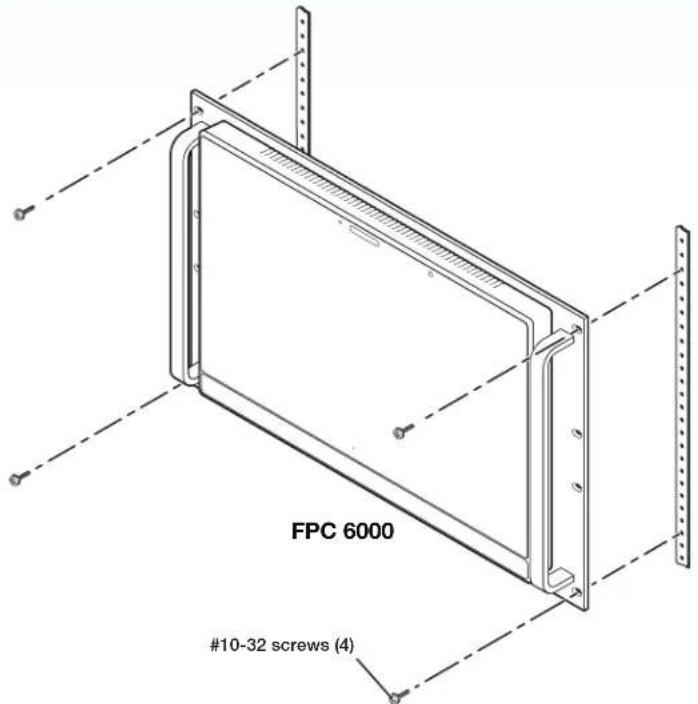
Figure 2. Rack Mounting the FPC 6000
Installing the FPC 6000 in a Rack or Control Console
The FPC 6000 is housed in a rack-mountable panel when it ships.
ATTENTION:
- All structural steps and electrical installation must be performed by qualified personnel in accordance with local and national building codes and electrical codes.
- Toute étape structurelle et installation électrique, doit être effectuée par un personnel qualifié, conformément aux codes du bâtiment, aux codes incendie et sécurité, et aux codes électriques, locaux et nationaux.
- Do not install the FPC 6000 in a fire resistant rated wall or partition assembly.
-
Ne pas installer le FPC 6000 dans un mur résistant au feu ou une cloison.
-
Decide where the FPC 6000 will be mounted.
- Use the four provided rack-mounting screws to secure the FPC 6000 to any standard equipment rack or control console. Follow the instructions in the "Underwriters Laboratories (UL) Guidelines for Rack Mounting" (see the next page) to ensure the rack is mounted safely.
Underwriters Laboratories (UL) Guidelines for Rack Mounting
The following Underwriters Laboratories (UL) guidelines are relevant to the safe installation of the FPC 6000 in a rack:
- Elevated operating ambient temperature — If the unit is installed in a closed or multi-unit rack assembly, the operating ambient temperature of the rack environment may be greater than room ambient temperature. Therefore, install the equipment in an environment compatible with the maximum ambient temperature (Tma: +104 °F, +40 °C) specified by Extron.
- Reduced air flow — Install the equipment in the rack so that the equipment gets adequate air flow for safe operation.
- Mechanical loading — Mount the equipment in the rack so that uneven mechanical loading does not create a hazardous condition.
- Circuit overloading — Connect the equipment to the supply circuit and consider the effect that circuit overloading might have on overcurrent protection and supply wiring. Give appropriate consideration to the equipment nameplate ratings when addressing this concern.
- Reliable earthing (grounding) — Maintain reliable grounding of rack-mounted equipment. Pay particular attention to supply connections other than direct connections to the branch circuit (such as the use of power strips).
Wall Mounting the FPC 6000
The FPC 6000 can also be wall-mounted, either using the Extron BB 700M wall box or directly into drywall. Some local building codes require the touchpanel to be mounted in a wall box. To use the BB 700M, see the TLP Pro 1220MG, TLP Pro 1520MG, and TLP Pro 1720MG Setup Guide, at www.extron.com. If the wall box is not required by local building codes, you can mount the touchpanel directly into drywall.
ATTENTION:
- Do not install the FPC 6000 in a fire resistant rated wall or partition assembly.
- Ne pas installer le FPC 6000 dans un mur résistant au feu ou une cloison.
- All structural steps and electrical installation must be performed by qualified personnel in accordance with local and national building codes and electrical codes.
-
Toute étape structurelle et installation électrique, doit être effectuée par un personnel qualifié, conformément aux codes du bâtiment, aux codes incendie et sécurité, et aux codes électriques, locaux et nationaux.
-
Download the cut-out template for the TLP Pro 1520MG from www.extron.com. Print it at 100% (no scaling).
- Use the template to mark the wall, cut the hole, and drill the four pilot holes (see figure 3, ①). The size of the cut-out hole is 8.90 inches (22.61 cm) wide x 5.70 inches (14.48 cm) high.
- The FPC 6000 ships, already mounted, in a rackmountable metal panel. Remove the FPC 6000, and unscrew the mounting plate from the panel.
- Secure the mounting plate to the mounting surface with four #10 screws (②). The installer must use screws and fasteners that are appropriate for the mounting surface.
- Run and connect cables to the back of the touchpanel (③, see Rear Panel Features on page 10).
- Insert the two provided Phillips pan head #6-32 x 3/4-inch length screws with washers in the mounting screw slot (4). Leave a gap for the flange at the bottom of the mounting plate to fit into (6).
- Hold the touchpanel at a slight angle and lower the notches at the top of the back panel over the hooks of the mounting plate (5).
- Swing the bottom of the touchpanel inwards so that it lies flat against the mounting plate with the flange at the bottom of the mounting plate sitting in a groove in the bottom of the touchpanel (6).
- Secure the touchpanel to the mounting plate with the mounting screws (⑦).
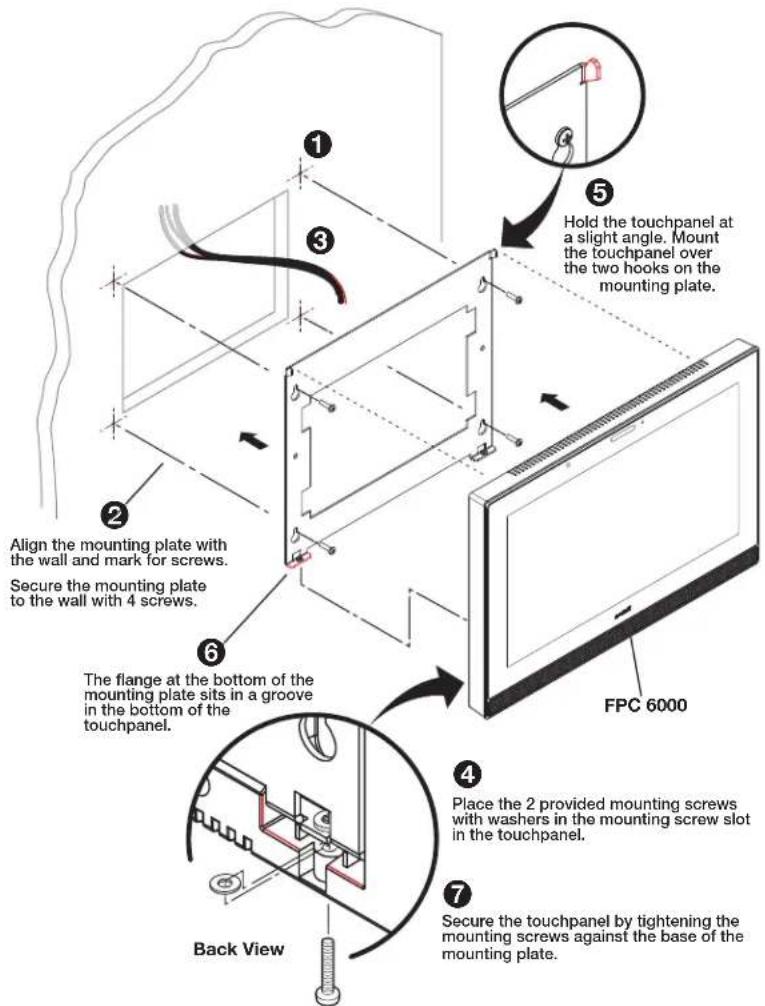
Figure 3. Wall Mounting the FPC 6000
Panel Features
This section describes:
- Front Panel Features
- Rear Panel Features
Front Panel Features
Figure 4 shows the front panel of the FPC 6000, removed from the mounting frame.
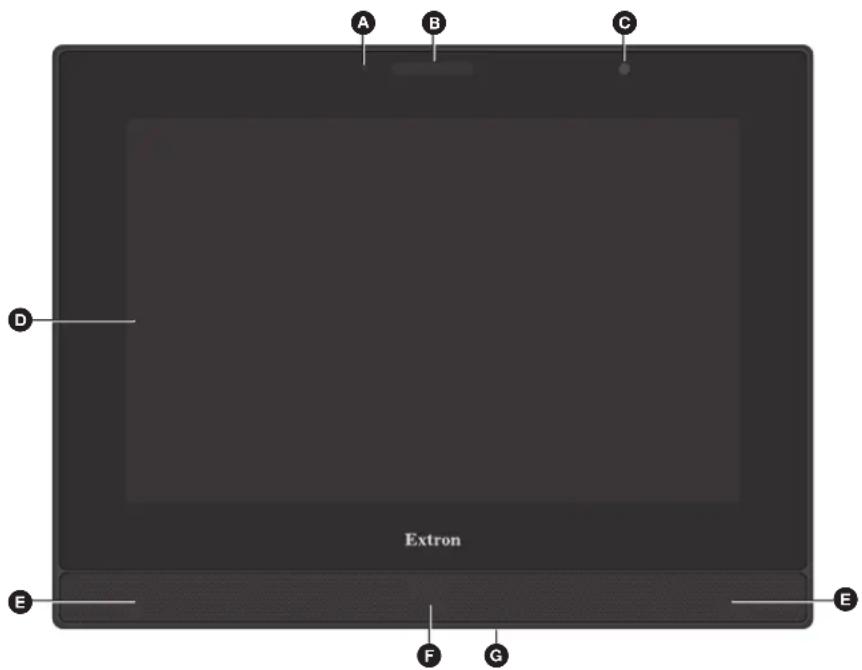
Figure 4. FPC 6000 Front Panel
A Communication LED — Lights briefly when the unit boots up. Otherwise, this LED has no function on the FPC 6000.
Status Light — Lights briefly when the unit boots up. Otherwise, this light has no function on the FPC 6000.
C Ambient Light Sensor — Monitors ambient light level and adjusts screen brightness.
D Capacitive Touch Screen — The FPC 6000 has a 15.6 inch screen with 1366x768 resolution.
E Speakers — Provide audible feedback from button presses.
F Motion Sensor — Detects motion in front of the touchpanel.
Menu Button — Activates the setup menu and calibration screen (see Setup Menu on page 13). It is accessed from under the touchpanel. It performs the same function as the rear panel Menu button but is easier to reach when the touchpanel is installed.
NOTE: Extron recommends using the FPC Settings link on the Login screen (see figure 20 on page 22) to open the setup menu.
Rear Panel Features
Figure 5 shows the rear panel of the FPC 6000, removed from the mounting frame.
NOTE: The ports marked D, E, and G have no function in the FPC 6000, and are covered with black plastic strips.
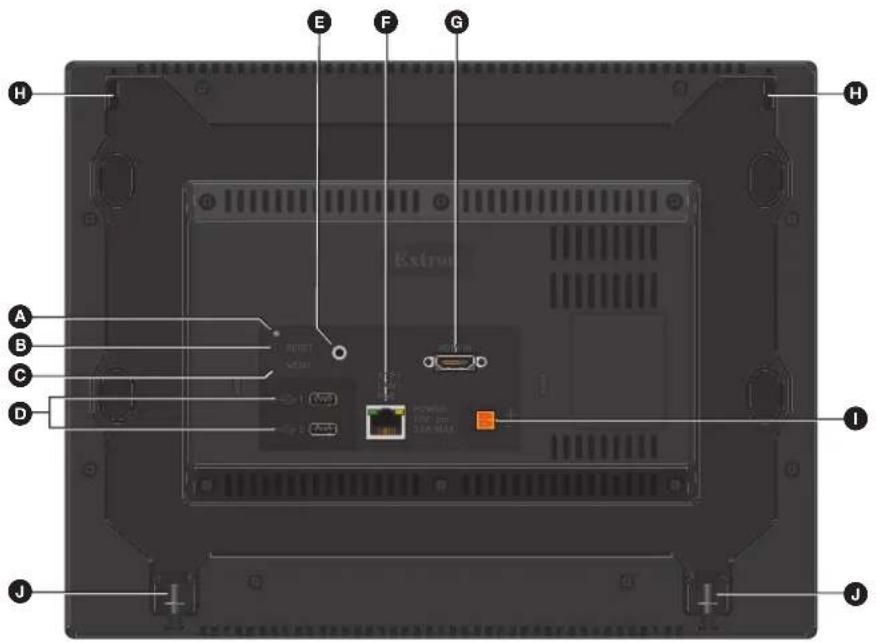
Figure 5. FPC 6000 Rear Panel
A Reset LED
F XTP/LAN/PoE input (see next page)
B Reset Button
G HDMI input (see page 12)
Menu Button
Mounting notches (see page 12)
D USB Connectors
12 VDC power supply input (see page 12)
Audio Output
Mounting screws (see page 12)
A Reset LED — Provides feedback about the reset status when the user presses the reset button (see Reset Modes on page 36)
B Reset Button — Pressing the Reset button allows the unit to be reset in any of three different modes (see Reset Modes).
Menu Button — Activates the setup menu and calibration screen (see Setup Menu on page 13).
NOTE: Extron recommends using the FPC Settings link on the Login screen (see figure 20 on page 22) to open the setup menu.
USB Connectors — This has no function in FPC 6000.
E Audio Output — This has no function in FPC 6000.
F XTP/LAN/PoE Input: (see figure 5, on the previous page)
NOTE: The FPC 6000 can be powered by either the provided PoE power injector or a 12 VDC, 3 A power supply (which must be purchased separately). Do not remotely power the touchpanel using an XTP device. Before connecting power to the FPC 6000, read the Attention notifications below.
- XTP Input — Do not connect the FPC 6000 directly to an XTP source.
• LAN Input — If you use the provided 12 VDC power supply, connect the FPC 6000 directly to the network using a twisted pair cable, terminated with an RJ-45 connector. - PoE Input — If you use the provided PoE power injector, connect the FPC 6000 to the power injector output and connect the power injector input to the LAN.
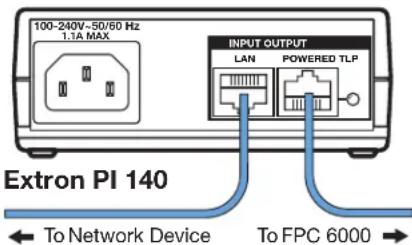
Figure 6. Connecting the Power Injector
ATTENTION:
G HDMI Input — This has no function in FPC 6000 (see figure 5 on page 10).
H Mounting Notches — Used to attach the mounting plate to the FPC 6000
12 VDC Power Supply Input — If you are not using Power over Ethernet, connect a 12 VDC, 3.0 A power supply to this captive screw connector. The power supply must be purchased separately. Extron recommends the PS 1230 Limited Power Source (LPS).
Mounting Screws — Used to secure the mounting plate to the FPC 6000.
Setup Menu
The setup menu allows initial configuration of the FPC 6000.
Setup Menu
To open the setup menu, press the Settings link at the bottom of the Login screen (see figure 20 on page 22), which appears when the FPC 6000 is powered on. Alternatively, press one of the Menu buttons, which are found on the rear panel (see figure 5, Ⓖ on page 10) or under the front panel (see figure 4, Ⓖ on page 9). Use a small screwdriver to press the button.
The menus open at the Status screen. There are five navigation buttons in the panel at the top of the screen. These open the following screens:
- Status
• Network (see the following page)
• Display (see page 16)
• Audio (see page 17)
• Advanced (see page 17)
The screens are selected by pressing the appropriate button in the navigation panel at the top of the screen. The button for the selected screen is yellow. The buttons for the remaining screens are black.
There is also a red Exit button in the top right corner of the screen. Pressing this button applies and saves any changes and closes the menu screens.
Status
Press the Status button in the navigation panel at the top of any screen to open the Status screen.
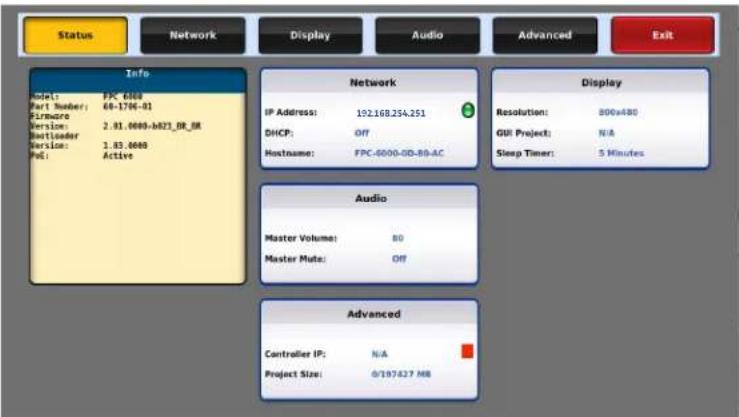
Figure 7. Status Screen
The Status screen is a read-only screen that provides basic information about the touchpanel. Each of the other four panels shows a summary of the information on the other screens. Pressing any of the panels opens the corresponding screen in the same way as pressing the buttons in the top navigation panel.
A green bubble in the Network panel lights when there is a network connection. A red square appears if there is no connection. The FPC does not require a control processor, and a red square appears next to the Controller IP to show that none is connected.
Network
Verify with your network administrator whether the IP address for the touchpanel is assigned by DHCP or set manually. If it is set manually, you need to obtain an IP address, a subnet mask, a gateway address, and a Domain Name Server (DNS) address (if needed) from the network administrator.
Press the Network button in the navigation panel at the top of the screen to open the Network screen.
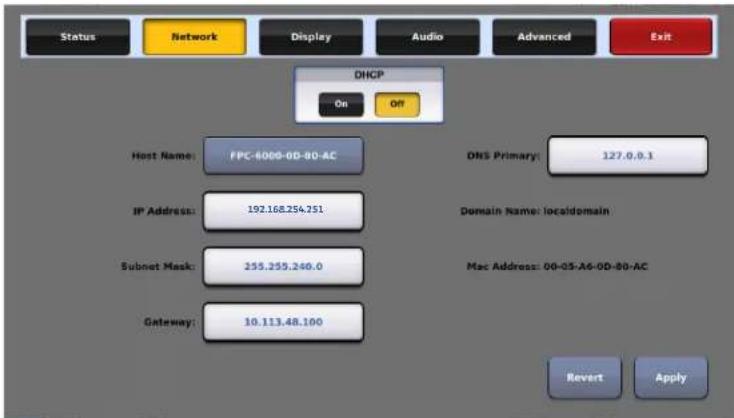
Figure 8. Network Screen
-
If IP addresses are assigned by DHCP, press On. The selected button is highlighted in yellow.
-
When DHCP is off, the Host Name button is grayed out and host name cannot be edited. All addresses can be edited (as shown in figure 8).
- When DHCP is on, the host name can be edited. The addresses are grayed out and cannot be edited because they are set by the DHCP server.
If IP addresses are assigned manually, press Off.
- If DHCP is on, you can edit the host name by pressing that button. A keypad opens:

Figure 9. Alphanumeric Keypad
• Use the keypad to enter a new name, which appears in the Host Name text box.
- Use the backspace character (x) to delete existing characters.
• The right and left arrows move the cursor inside the Host Name text box.
- Click the Shift key to toggle between upper and lower case letters.
- Press Enter to save the new name.
- If DHCP is off, set the unit IP address, subnet mask, gateway address, and DNS server address.
a. Press the button for the address to be edited. A screen opens, showing the address and a numerical keypad.

Figure 10. Numeric Pad for Setting IP Addresses
b. Press Clear to remove the old address. If you start typing without pressing Clear, the first octet is over-written and the other octets remain the same.
c. Press any octet button to highlight and start editing it.
d. Enter the 3-digit value for that octet (leading zeroes in the octet are ignored).
NOTE: Octets can have any value between 0 and 255. If you attempt to enter an invalid number, for example 892, you are able to enter the 89 but the 2 cannot be entered.
Press Back to delete the last digit. If no value has been entered for the selected octet, pressing Back moves the cursor back to the previous octet.
e. Press the next octet button and enter a value.
f. Repeat steps c through e until values have been entered for all four octets.
g. Press OK to save the changes and return to the Network screen or press Cancel to return to the Network screen without saving the changes.
- If you have changed any of the values in the Network screen, the background color of the button changes to blue. Press Apply to apply the new values or press
Revert to return to the previous values without saving the changes. The button returns to gray.
If you have not made any changes, the Apply and Revert buttons are grayed out.
Display
Press the Display button in the navigation panel at the top of the screen to open the Display screen.
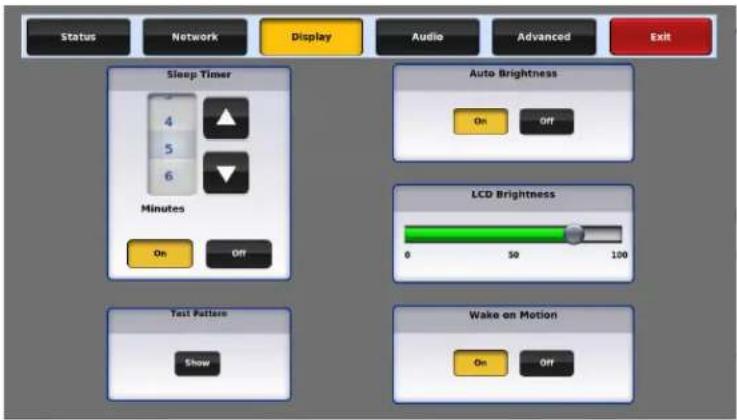
Figure 11. Display Screen
The Display screen allows you to set the Sleep Timer, Auto Brightness, LCD Brightness, and Wake on Motion.
- Sleep Timer — Determines how long the panel is inactive before it enters sleep mode, when the screen goes dark to save power. Toggle between On and Off. If the sleep timer is on, use the arrows to adjust the value between 1 and 120 minutes.
- Test Pattern — Allows you to go through a series of test patterns to check for dead or stick pixels.
- Auto Brightness — Provides a suitable amount of backlighting that is automatically calculated from the amount of ambient light detected by the light sensor (see figure 4, © on page 9).
• LCD Brightness — Allows you to adjust the screen brightness, using the slider control. - Wake on Motion — Activates the panel from Sleep mode when motion is detected near the unit. Toggle between On and Off.
Configuring the Motion Sensor
The Motion Sensor (see figure 4, F) detects motion between three to five feet from the touchpanel, and at least 15° from the center axis.
- If the Sleep Timer has been set and no motion has been detected for a user-defined period of time, the touchpanel enters sleep mode.
• If the Sleep Timer has not been set, the touchpanel does not enter sleep mode. - If Wake on Motion has been set and motion is detected by the sensor while the screen is in sleep mode, the screen display is restored and active.
- If Wake on Motion has not been set and the screen is in sleep mode, touch the screen to restore it to an active state.
Audio
Press the Audio button in the navigation panel at the top of the screen to open the Audio screen.

Figure 12. Audio Screen
On the Audio screen, use the Master, Click, and Sound slider controls to adjust the volume settings.
- Master — Sets the maximum volume for all the other sound volume settings. For example, if the master volume is set to 80 (80 percent of maximum), even when the sound volume is set to 100, it is equivalent to only 80 percent of maximum.
- Click — Sets the volume for audible feedback that accompanies events such as a screen button being pressed.
• Sound — Sets the volume of audio from any audio file playback.
Click on the Speaker icon at the bottom of each panel to toggle between audio on and audio mute.
Advanced
Press the Advanced button in the navigation panel at the top of the screen to open the Advanced screen.

Figure 13. Advanced Screen
Menu PIN
The PIN setup options allow you to enable, disable, or change the setup menu PIN. The PIN is a four-digit number. Each digit can have any value from 0-9.
If the PIN is enabled, users need to enter the number to access the setup menu pages.
- Select the first digit of the PIN.
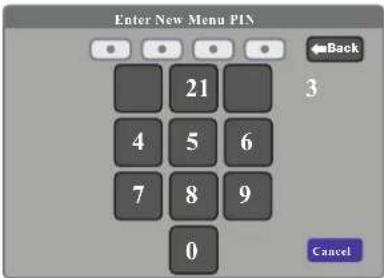
Figure 14. Numeric Keypad for Setting PIN
- Press a number on the keypad. That number is masked by a dot.
- Repeat steps 1 and 2 for the other three digits.
- The title bar changes to Confirm New Menu Pin.
- Enter the PIN a second time. When the PIN entered on the second occasion matches the PIN entered on the first occasion, the PIN is set and the dialog closes.
FPC 6000 Web Page
This section of the user guide provides information about:
• FPC 6000 Web Page
- Updating the Firmware
FPC 6000 Web Page
To access the FPC 6000 embedded web page, enter the IP address of the unit into the web browser of a PC connected to the same subnet. A dialog box opens asking for your user name (by default this is admin) and password.
NOTES:
- The factory configured passwords for all accounts on this device have been set to the device serial number. Passwords are case sensitive.
- If the device is reset to default settings, the password will be the default password configuration. The default password is extron.
- To change the password, you must use the Extron Toolbelt utility (see the Toolbelt Help File). Talk to your Extron rep about obtaining a license for Toolbelt.
This page provides general and network information about the unit. When logged in as a user, the page is read-only. When logged in as an Admin, the user has options to edit ALL information and update the unit firmware (see figure 15). Use the Setup Menu (see page 13) to configure the touchpanel network settings.
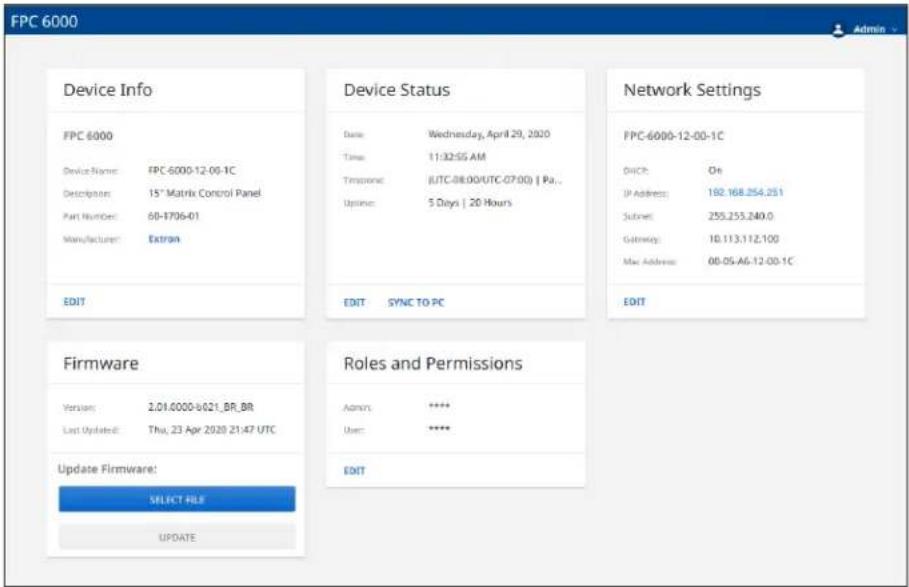
Figure 15. FPC 6000 Web Page
Updating the Firmware
Firmware for the FPC 6000 can be upgraded using the touchpanel web page. Before starting, consult your IT team and ensure that the touchpanel has a unique IP address.
Downloading Firmware
- Power on a computer that is connected to the same network as the touchpanel.
- On www.extron.com, click Download in the menu bar along the top of the page (see figure 16, ①).
- Click Firmware in the menu bar (②).
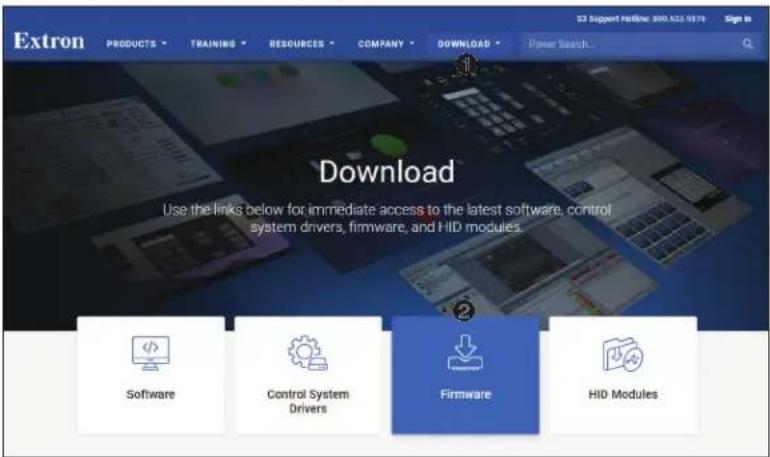
Figure 16. Firmware Download Center
- The Firmware Download Center opens. Click the letter F from the alphabet menu (see figure 17, ①).
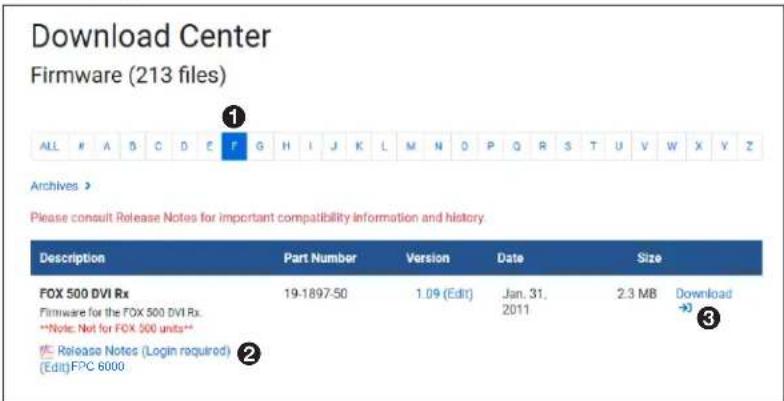
Figure 17. Firmware Download Center
- Scroll down the page until you find the firmware for the FPC 6000.
- Click Release Notes (②) for more information about the firmware (optional).
- Click Download (③).
- Enter the required information in the form that opens.
- Press the download button. An executable (.exe) file is downloaded to your computer. Run this program to place the firmware on your computer for future use. Make a note of the folder where the firmware is saved.
Updating Firmware Using the Touchpanel Web Page
- If you have not already done so, download the firmware file to a computer on the same network as the touchpanel (see the previous section).
NOTE: Firmware files must have a .eff extension.
- Open the FPC 6000 Web Page (see page 19).
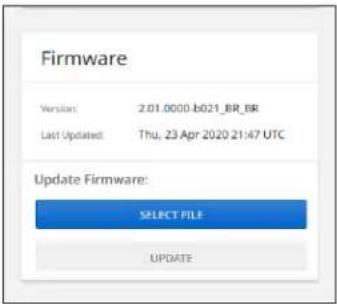
Figure 18. Touchpanel Web Page: Firmware Uploader Pane
- Click Browse.
- In the dialog box that opens, navigate to the firmware location and select the file.
- Click Upload. The firmware file is uploaded to the touchpanel.
The upload takes a few minutes. A series of popup screens provide information about the progress of the firmware update:
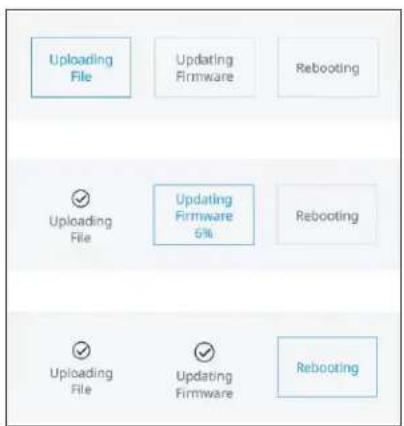
Figure 19. Popup Screens from Firmware Update
When the update is complete, the FPC 6000 reboots and the login screen is shown. You need to log in to the controller once again (see Login Screen on page 22).
- Click OK to refresh the web page. You also need to log in to the web page once again (see FPC 6000 Web Page on page 19).
Operation
The FPC 6000 is a touchscreen interface that allows the user to control, monitor, access, and manage a range of Extron matrix switchers via a direct connection or over a local area network. Two or more FPC units connected to the network allow the matrix switcher to be controlled from multiple locations.
This section of the guide describes the front panel login screen and how to use the four main screens:
- Login Screen
- Ties Screen
- Status Screen
• I/O Info Screen - Customize Screen
The login screen allows you to connect with a FOX matrix switcher over a LAN. The other screens allow you to control and monitor the switcher.
Login Screen
When the FPC 6000 is powered on, it opens to the Login screen.

Figure 20. FPC Login Screen
- Tap the Matrix IP Address text box to activate it.
An on-screen keyboard opens:
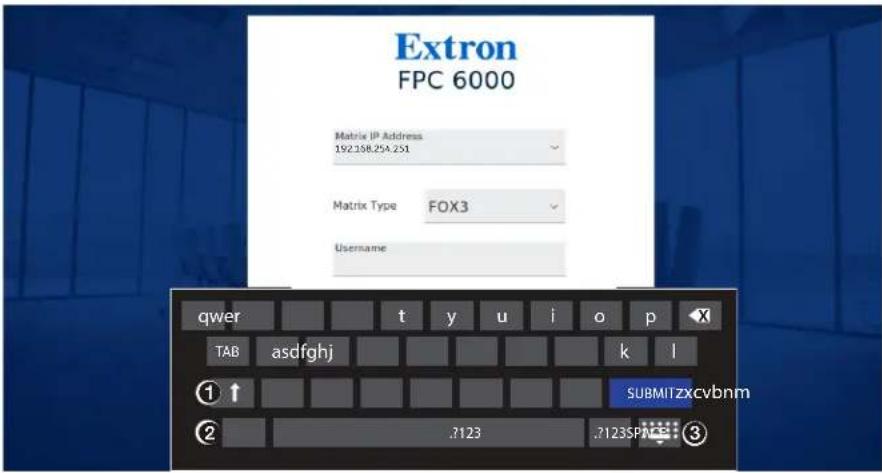
Figure 21. Keyboard
- Use the up arrow key (see figure 21, ①) to toggle between upper or lower case letters.
Use the numbers key (.?123, ②) to toggle between letters or special characters and numbers.
Use the keyboard key (3) to hide the keyboard.
-
If necessary, clear existing characters by pressing the text box to the right of the final character, and then repeatedly pressing the backspace key until all unwanted characters are removed.
-
Press the numbers key and use the keyboard to enter the IP address of the matrix switcher.
NOTE: If you have previously connected to a matrix switcher, the IP address might already be displayed or may be available in the dropdown menu.
-
Select the Matrix Type (4) using the dropdown, if it is not set already.
-
If required, press the Password text box and use the on-screen keyboard to enter the username (by default this is admin) and password for the matrix switcher.
NOTES:
- The factory configured passwords for all accounts on this device have been set to the device serial number. Passwords are case sensitive.
- If the device is reset to default settings, the password is the default password configuration. The default password is extron.
-
To change the password, you must use the Extron Toolbelt utility (see the Toolbelt Help File). Talk to your Extron rep about obtaining a license for Toolbelt.
-
Press Submit.
The FPC 6000 attempts to connect to the matrix switcher. If successful, the Ties Screen appears (see figure 23 on the next page).
If the FPC 6000 cannot connect to the matrix switcher, an error message appears:
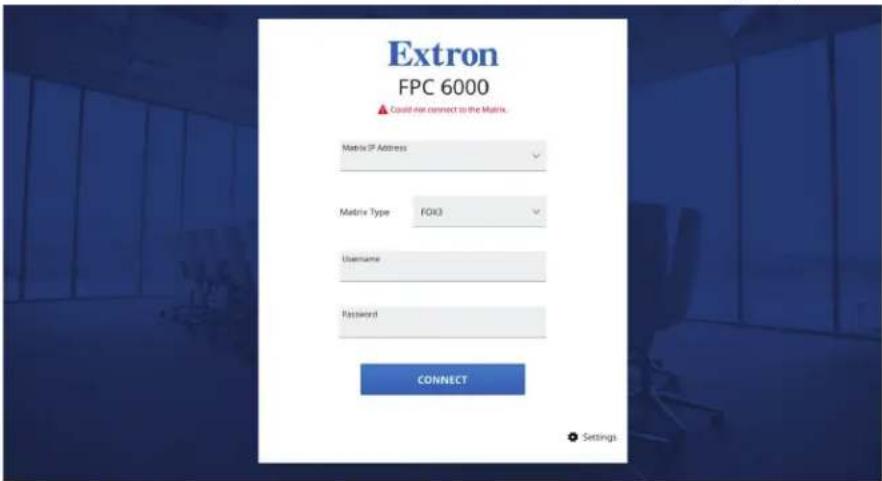
Figure 22. Error Connecting to Matrix
- Verify that you have the correct IP address and password before reentering the values.
Ties Screen
After successfully logging in, the Ties screen opens.
![graph TD A["INPUTS"] --> B["Input"] B --> C["Input"] C --> D["Input"] D --> E["Input"] E --> F["Output"] F --> G["Output"] G --> H["Output"] H --> I["Output"] I --> J["Output"] J --> K["Output"] K --> L["Output"] L --> M["Output"] M --> N["Output"] N --> O["Output"] O --> P["Output"] P --> Q["Output…](/content/2026/06/1227326/images/e311c409ea8eac1b6c3c51e0a95811d533b5ebf3a17909a93b287663c3b6b615.jpg)
Figure 23. Ties Screen
A Menu Buttons (see the next page)
B Input Buttons (see the next page)
© Change View:
• Grid (standard) - Default layout
• Grid (Internal Audio) - Displays the Internal Audio
- NumPad - Provides option to enter Input/Output in numerical format.
D Refresh
E Output Buttons (see the next page)
F Presets (see page 30)
G Signal Selection Buttons (see page 26)
H Mute/Unmute Button (see page 26)
Take (see page 26)
J Select All (see page 26)
K Clear Selection (see page 26)
NOTE: The number of input and output buttons that are available reflects the number of inputs and outputs on the matrix switcher to which the FPC 6000 is connected.
Menu Buttons
The FPC 6000 has five screens: the Connect (login) screen and four main screens. These are Ties, Status, I/O Info, and Customize. Five menu buttons on the left side of the screen (see figure 23, A on the previous page) allow you to navigate to the desired screen by pressing the appropriate button. These buttons are available on all FPC 6000 screens, and the currently selected button has a colored edge.
Input Buttons
The screen has two blocks of numbered buttons. The buttons on the left correspond to the matrix switcher inputs. The buttons on the right correspond to the matrix switcher outputs.
Before you make any ties, the input buttons (B) have a gray rectangle in the top right corner. The number in that rectangle corresponds to the number of the input on the switcher. When an input is selected, the button lights up.
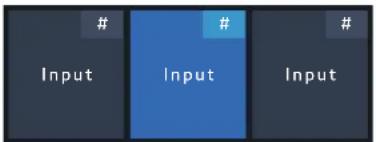
Figure 24. Selected and Unselected Inputs
The button also contains the name of the input. By default, this is Input XXX, where XXX is the same as the number in the top right corner of the button. Buttons can be renamed using Simple Instruction Set (SIS) commands (see the matrix switcher user guide for instructions) and through the PCS.
The FPC 6000 screen shows 20 inputs at a time. Use the scroll bar to the right of the inputs to navigate through all the inputs that are available with your matrix switcher.
NOTES:
- When selected, the button lights up.
• After 30 seconds with no front panel activity, all buttons time out. - After 3 minutes with no front panel activity, the panel enters power saving mode. The touchpanel becomes active again when it detects motion in front of the screen. (This timeout can be changed.)
Output Buttons
Before you make any ties, the output buttons (E) have a gray rectangle in the top right corner. The number in that rectangle corresponds to the number of the output on the switcher. When an output is selected, the button lights up. If the output is tied to an input, then the corresponding input button also lights up.
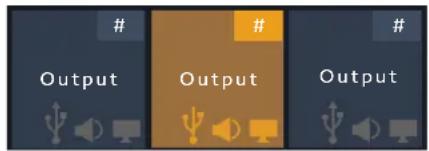
Figure 25. Selected and Unselected Outputs
The button also contains the name of the output. By default, this is Output XXX, where XXX is the same as the number in the top right corner of the button. Buttons can be renamed using SIS commands (see the matrix switcher user guide for instructions) and through the PCS.
The FPC 6000 screen shows 20 outputs at a time. Use the scroll bar to the right of the outputs to navigate through all the outputs that are available with your matrix switcher.
The button also provides information about the mute status of the output (see figure 26 on page 26).
Use the Mute/Unmute button (see figure 23, H on page 24) to change the mute status of an output that has been selected.
NOTES:
- When selected, the button lights up.
• After 30 seconds with no front panel activity, all buttons time out. - After 3 minutes with no front panel activity, the panel enters saving mode. The touchpanel becomes active again when it detects motion in front of the screen. (This timeout can be changed.)
Signal Selection Buttons
These buttons (G) are designed to select the matrix signal type being controlled. The user can decide to switch all signals (Video, Audio and USB) together, or select single or multiple signal types for breakaway switching.
NOTE: FOX3 USB breakaway switching requires a Matrix LinkLicense.
Mute/Unmute Button
When you select an output button, the mute/unmute button (H) becomes active. This button allows you to mute both the video and audio being sent to the selected output.
When you mute the audio and video, the output button shows a diagonal line through the audio and video icons (compare unmuted output 1 and muted output 2 in figure 26).
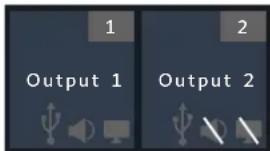
Figure 26. Unmuted and Muted Outputs
Select All
To create potential ties from a selected input to all outputs, press Select All (J). For the ties to go into effect, press the Take button.
NOTE: When you select an input and press Select All, the Mute button is renamed to become the Take button and the button that was labeled Take is renamed to become the Break button.
Take
When you link an input and an output, using the Ties screen, you create a potential tie. For the tie to go into effect, press the Take button (1).
Break
This button is not available on the default screen. It only becomes available when you select an input and press Select All.
Press Take to form ties between the selected input and all outputs. Or press Break to break all previously existing ties to the selected input.
Clear Selection
Ties created on this screen do not go into effect until they are saved by pressing Take. To undo ties before they have been saved, press the Clear Selection button (K).
Create a Tie
- Press the desired input button. The selected input button lights.
Any outputs that are already tied to that input also light.

Figure 27. Creating a Tie: Select Input
In figure 27, Input 182 is already tied to Outputs 121 and 128.
- Press one or more output buttons.
The selected output buttons light and a plus sign appears in the bottom right corner.
The Take button on the right of the screen becomes active, as indicated by the orange band along the right edge of the button.

Figure 28. Creating a Tie: Select One or More Outputs
In figure 28 a potential tie has been created between Input 186 and Output 115.
NOTE: You can also tie an input to all outputs by pressing the Select All button (see page 29).
- To make the potential tie permanent (created in step 2), press the Take button. This saves the changes that you have made.
Progress in saving the selection is shown in a bar that appears at the top of the screen.

Figure 29. Progress Bar
ATTENTION:
- One input can be tied to multiple outputs but each output can be tied only to a single input.
- Press the Clear Selection button to clear a tie before the changes have been made.
- When you have selected an input, you can press the Select All button to tie all the outputs to that input.
Break A Tie
To break an existing tie, follow these steps:
- Press the desired input button. The selected input button and any outputs that are already tied to it light up (see figure 27 on the previous page).
- Press one or more buttons for tied outputs that you wish to break.
A minus sign appears in the bottom right corner of the selected output button and the Take button becomes active.
In figure 30, Input 186 has existing links to Outputs 115, 121, and 128. Output 115 has been selected to break its tie with Input 186, as shown by the minus sign. Outputs 121 and 128 have not been pressed and the ties remain.
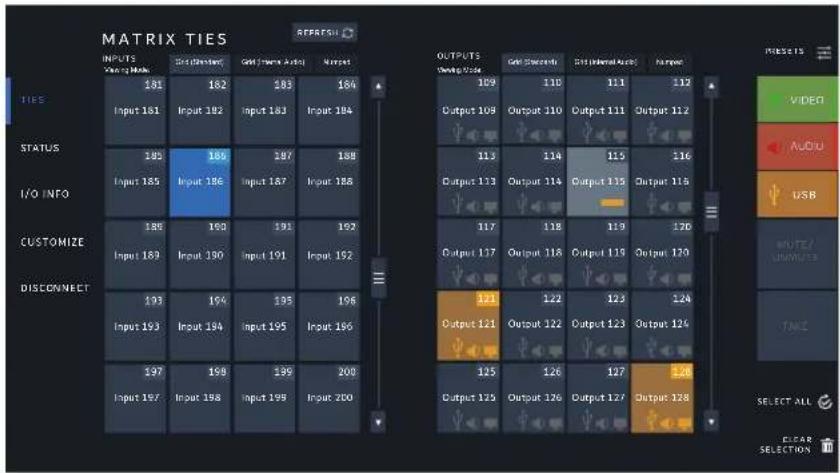
Figure 30. Breaking a Tie
- Click Take to permanently break the tie between the input and selected outputs.
While the tie between Input 186 and Output 115 is broken, the progress bar (see previous page, figure 29) appears with the text Output 115 disconnected.
Alternatively, click Clear Selection to remove the selection without saving it.
-
After selecting an input, you can press Select All. You will then have two options:
-
Press Take (see figure 31, ①), which ties the selected input to all outputs.
- Press Break ( ②), which breaks all ties to the selected input.

Figure 31. Select All Outputs
If you press Break, a warning dialog box opens:

Figure 32. Break Ties Warning Dialog
Press Break to break the ties or CANCEL to keep the ties. The Break button counts down in seconds. If neither button is pressed after 10 seconds, the request is cancelled and the ties are broken.
Presets
The configuration that is currently being used by the matrix switcher is the current configuration (or Configuration 0). Extron matrix switchers allow you to save commonly used configurations as presets, which can be recalled. Once they are recalled, they become the current configuration, replacing the configuration that was being used.
Global and Room Presets
There are two types of presets:
- Global preset
- Room preset
Global Preset
When a configuration is stored as a global preset, all active inputs and the outputs tied to them are saved. The number of global presets supported depends on the matrix switcher model. FOX 3200 models support up to 32 global presets. Other FOX models support up to 64 global presets. When a global preset is retrieved from memory, it becomes the current configuration.
Room Preset
A room consists of a small subset of virtual outputs that are logically related to each other. They do not have to be literally in the same room. They are grouped together for the convenience of the operator.
Rooms and room presets can be recalled but cannot be created with the FPC 6000. They must be created by SIS commands sent from a PC to the switcher (see the user guide for your matrix switcher).
- Depending on the model, Extron matrix switchers can support up to 10 rooms.
• Each room can have 1 to 16 virtual outputs.
• Each room can have up to 10 presets.
A room preset consists of virtual outputs in a single room that have been stored. When a room preset is retrieved from memory, it becomes the current configuration.
Saving Presets
Rooms and room presets must be saved using SIS commands (see the matrix switcher user guide for instructions).
To save a global preset follow these instructions:
- Create one or more sets of ties (see Create a Tie on page 27).
- Open the Presets menu (see figure 36 on page 32).
- Press Save As... The SAVING PRESET menu opens (see image on the right):
![SAVING PRESET SELECT GLOBAL PRESET 1 Classroom 1 Preset 1 2 Classroom 1 Preset 2 3 Classroom 1 Preset 3 4 Classroom 1 Preset 4 5 Classroom 1 Preset 5 6 Classroom 1 Preset 6 7 [unassigned] 8 [unassigned] 9 [unassigned] 10 [unassigned] 11 [unassigned] 12 [unassigned] 13 [unassigned] 14 [unassigned] Ex…](/content/2026/06/1227326/images/148907959d5f2bcc45ec5e9cc457cc810995748a16e545953f35d8e07276627b.jpg)
- Select an [unassigned] preset.
A keyboard opens:

Figure 33. Saving Preset Keyboard
- Press the keys to enter a name for the preset. The name appears in the text box above the keyboard.
Use the up arrow key for upper case letters or the .?123 key for numbers and special characters. You can use any combination of upper case letters, lower case letters, numbers, and special characters.
NOTE: If you do not name the preset, the next available name from the series Preset 1, Preset 2, etc. is automatically assigned.
- Press Submit on the keyboard or Save Preset in the SAVING PRESET menu.
The preset is saved.
Overwriting an Existing Preset
To overwrite an existing preset, follow these instructions:
- Create one or more sets of ties and open the SAVING PRESET menu as described in steps 1-3 of the previous section.
- Select one of the presets that has already been named and saved.
- Press Save Preset.
A warning dialog box appears:
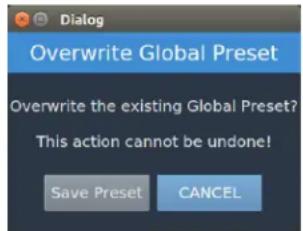
Figure 34. Overwrite Warning Dialog
- Press Save Preset to save or CANCEL to exit without saving.
Recalling a Global Preset
- To recall or save a preset, press the Presets button (see figure 23, F on page 24) on the right of the screen. The PRESETS menu opens.
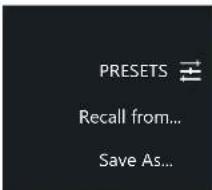
Figure 35. FPC 6000 Presets Menu
- Press Recall from [...].
The RECALLING PRESET menu opens as a sidebar on the right of the screen with the global presets listed.
- If required, press the Global tab (it is usually selected by default; figure 37, 1).
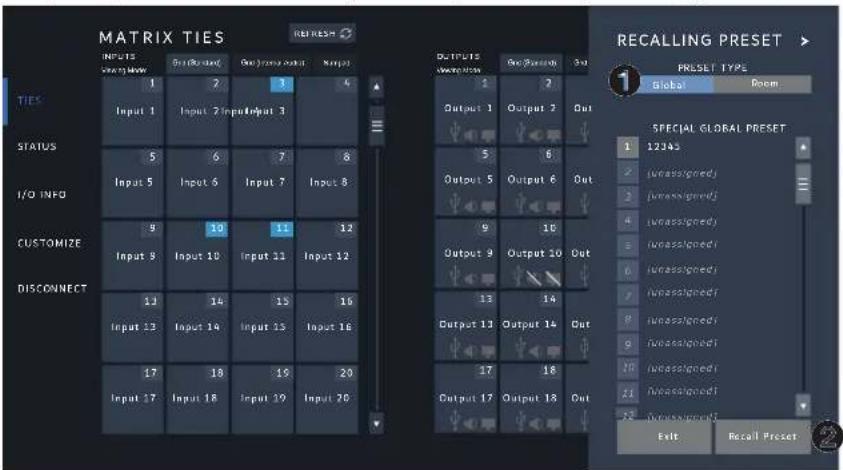
Figure 36. Recalling a Global Preset
- Press the global preset that you want to recall.
Use the scroll bar to view the complete list.
NOTE: The number of global presets available depends on the matrix switcher model. See the user guide for your matrix switcher for complete information.
- Press Recall Preset (②).
The progress bar (see figure 29 on page 28) appears with the message Global Preset X. NNN Successfully Recalled, where X is the number of the Global Preset and NNN is the name assigned to the preset.
The configuration in the recalled preset becomes the current configuration.
Recalling a Room Preset
- Open the Presets Menu (see figure 36 on the previous page).
- Press Recall from [...]. The RECALLING PRESET menu opens.
- Press the Room tab.
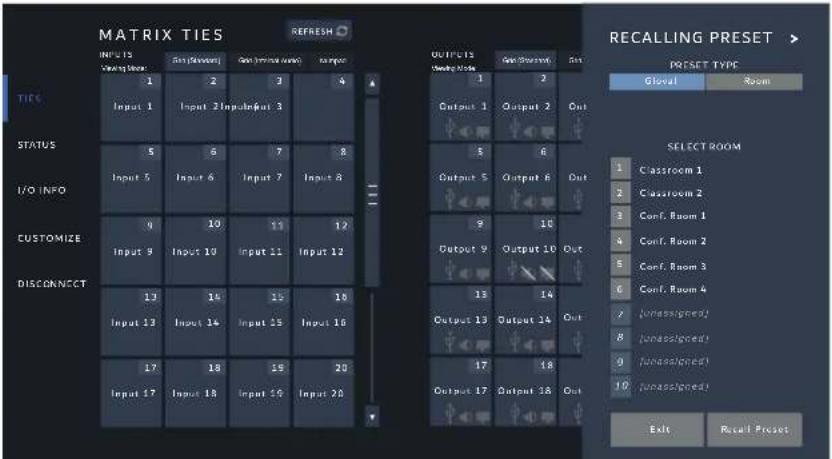
Figure 37. Selecting a Room
NOTE: Matrix switchers have ten rooms available.
- Press a number to select the desired room.
The selected room is shown at the top of the column and the presets that are available for that room are listed beneath.
NOTE: Ten presets are available for each room.

Figure 38. Recalling a Room Preset
- Press a number to select the room preset.
- Press Recall Preset.
The progress bar (see figure 29 on page 28) appears with the message Global Preset X. MNN Successfully Recalled, where X is the number of the Global preset and MNN is the name assigned to the preset.
Status Screen
This screen is read-only. It provides information about status of the matrix switcher. Press Status in the menu bar on the left of the screen. The Status screen opens.

Figure 39. FPC 6000 Status Screen
I/O Info Screen
The I/O Info screen allows you to find complete information about a single input or output. Press I/O Info in the menu bar on the left of the screen. The I/O Info screen opens with the Inputs tab selected. To select outputs, press the OUTPUTS button on the right side of the screen.
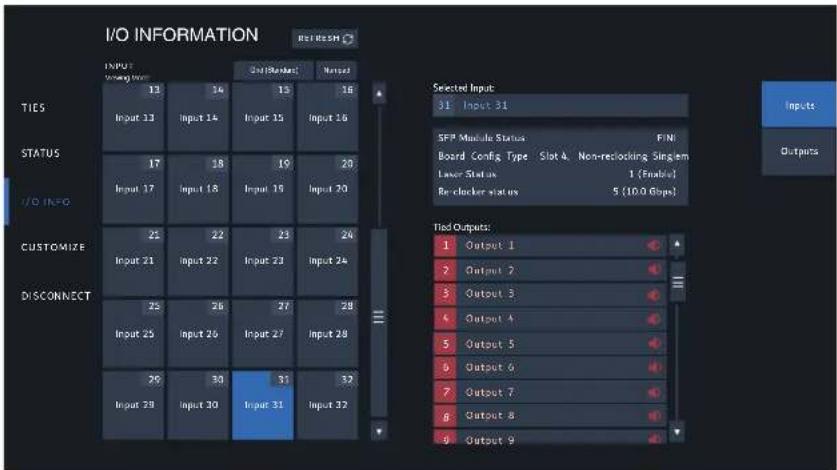
Figure 40. FPC 6000 I/O Info Screen (Inputs)
The inputs are organized in the same way that they are in the Ties screen.
From this screen, you can select an input by pressing an input button. When you press an input button, details about that input appear on the right side of the screen. If the input is tied to one or more outputs, that information is also shown.
Customize Screen
Press Customize in the menu bar on the left of the screen. The Customize screen opens.
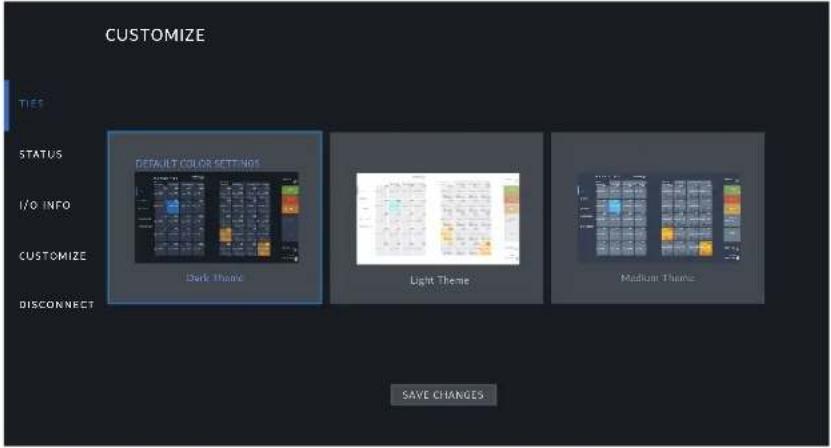
Figure 41. FPC 6000 Customize Screen
On this screen you can change the appearance of the graphical user interface.
There are three options:
• Dark Theme (default)
Medium Theme
Light Theme
1. Press the desired option. The selected option is highlighted in blue.
2. Press Save Changes to save the selection.
The FPC 6000 may take a few moments to update the screen view.
Reset Modes
The FPC 6000 has four reset modes that are initiated by pressing the Reset button:
• Use Factory Firmware
- Reset All IP Settings
- Reset to Factory Defaults
- Enable or Disable the DHCP Client
The Reset button is found on the rear panel (see figure 5, B on page 10).
Use Factory Firmware
This mode is used to boot up the unit with factory-installed firmware for a single power cycle in the event of a firmware update that failed or incompatibility issues arising with user-loaded firmware.
Activation
To start the Use Factory Firmware reset mode and replace firmware:
- Remove power from the touchpanel.
- On the touchpanel, hold down the recessed Reset button (see figure 5, B) while re-applying power to the unit. When power is restored, the Reset LED lights. Hold the Reset button for a further two seconds before releasing it. The touchpanel enters factory firmware mode.
- Upload new firmware to the unit as desired (see Updating Firmware Using the Touchpanel Web Page on page 21).
NOTE: Do not continue to operate the touchpanel using the factory firmware version. If you want to use the factory default firmware, you must upload that version again.
Result
The unit reverts to factory-installed firmware. Event scripting does not start if the unit is powered on in this mode. All user files and settings such as drivers, adjustments, and IP settings are maintained.
NOTE: To return the unit to the firmware version that was running prior to the reset, cycle power to the unit.
The login screen opens with the message Project Not Running.
The FPC 6000 cannot be accessed from the front panel.
The FPC 6000 IP address has not been changed. Use a PC to open the FPC 6000 web page and reinstall the latest firmware (see Updating Firmware Using the Touchpanel Web Page). Once the firmware is installed, the FPC 6000 will function normally.
Reset All IP Settings
This mode resets all IP settings to factory defaults.
Activation
To reset all IP settings:
- Hold down the Reset button (see figure 5, B, on page 10) for about 6 seconds until the Power LED blinks twice (once at 3 seconds and again at 6 seconds).
- Release and press Reset momentarily (for <1 second) within 1 second. Nothing happens if the momentary press does not occur within 1 second.
Result
Reset All IP Settings mode:
- Sets the IP address back to factory default (192.168.254.251).
- Sets the subnet back to factory default (255.255.255.0).
- Sets the default gateway address to the factory default (0.0.0.0).
- Sets all other IP settings, addresses, and domain and host names back to factory default.
- Turns DHCP off.
The screen goes black with a message Project Not Running. The FPC 6000 cannot be accessed from the front panel and the IP address has been changed.
Press the rear panel Menu button (see figure 5, © on page 10). Use the Network page of the Setup menu (see page 14) to reset the IP address.
Once the IP address has been reset, use a PC to open the FPC 6000 web page and reinstall the latest firmware (see Updating Firmware Using the Touchpanel Web Page on page 21). Once the firmware is installed, the FPC 6000 functions normally.
Reset to Factory Defaults
This mode resets all IP settings and touchpanel settings to factory defaults and removes all configurations. It allows you to start over with configuration and uploading.
Activation
To reset the unit to all factory default settings:
- Hold down the Reset button for about 9 seconds until the Power LED blinks three times (once at 3 seconds, again at 6 seconds, and again at 9 seconds).
- Release and press Reset momentarily (for < 1 second) within 1 second. Nothing happens if the momentary press does not occur within 1 second.
Result
Reset to Factory Defaults mode performs a complete reset to factory defaults (except the firmware):
- Does everything Reset All IP Settings mode does.
- Removes touchpanel user interface layout and configurations.
- Resets all touchpanel settings to factory default.
- Resets passwords to default
NOTES:
- The factory configured passwords for all accounts on this device have been set to the device serial number. Passwords are case sensitive.
- If the device is reset to default settings, the password is the default password configuration. The default password is extron.
- To change the password, you must use the Extron Toolbelt utility (see the Toolbelt Help File). Talk to your Extron rep about obtaining a license for Toolbelt.
The screen goes black with a message Project Not Running. The FPC 6000 cannot be accessed from the front panel and the IP address has been changed.
Press the rear panel Menu button (see figure 5, © on page 10). Use the Network page of the Setup menu (see page 14) to reset the IP address.
Once the IP address has been reset, use a PC to open the FPC 6000 web page and reinstall the latest firmware (see Updating Firmware Using the Touchpanel Web Page on page 21).
Once the firmware is installed, the FPC 6000 functions normally.
Enable or Disable the DHCP Client
This mode toggles between DHCP enabled and DHCP disabled. This can also be carried out from the Network screen of the see Setup Menu on page 13.
Activation
To enable or disable the DHCP client for the LAN port:
- Press the RESET button five times (consecutively).
- Release the button. Do not press the button within 3 seconds, following the fifth press.
Result
- If DHCP was enabled, it is now disabled. The Reset LED blinks three times.
- If DHCP was disabled, it is now enabled. The Reset LED blinks six times.
NOTES:
- DHCP toggle mode is supported on firmware version 3.0 or higher.
- By default DHCP is off and the unit uses a static IP address.
- When you disable DHCP, the unit reverts to using the previously-set static IP address.
Extron Warranty
Extron warrants this product against defects in materials and workmanship for a period of three years from the date of purchase. In the event of malfunction during the warranty period attributable directly to faulty workmanship and/or materials, Extron will, at its option, repair or replace said products or components, to whatever extent it shall deem necessary to restore said product to proper operating condition, provided that it is returned within the warranty period, with proof of purchase and description of malfunction to:
USA, Canada, South America, and Central America:
Extron
1230 South Lewis Street
Anaheim, CA 92805
U.S.A.
Asia:
Extron Asia Pte. Ltd.
135 Joo Seng Road, #04-01
PM Industrial Bldg.
Singapore 368363
Singapore
Japan:
Extron, Japan
Kyodo Building, 16 Ichibancho
Chiyoda-ku, Tokyo 102-0082
Japan
Europe:
Extron Europe
Hanzeboulevard 10
3825 PH Amersfoort
The Netherlands
China:
Extron China
686 Ronghua Road
Songjiang District
Shanghai 201611
China
Middle East:
Extron Middle East
Dubai Airport Free Zone
F13, PO Box 293666
Dubai, United Arab Emirates
Africa:
Extron South Africa
South Tower
160 Jan Smuts Avenue
Rosebank 2196, South Africa
This Limited Warranty does not apply if the fault has been caused by misuse, improper handling care, electrical or mechanical abuse, abnormal operating conditions, or if modifications were made to the product that were not authorized by Extron.
NOTE: If a product is defective, please call Extron and ask for an Application Engineer to receive an RA (Return Authorization) number. This will begin the repair process.
USA: 714.491.1500 or 800.633.9876
Asia:
65.6383.4400
Europe: 31.33.453.4040 or 800.3987.6673
Japan:
81.3.3511.7655
Africa: 27.11.447.6162
Middle East:
971.4.299.1800
Units must be returned insured, with shipping charges prepaid. If not insured, you assume the risk of loss or damage during shipment. Returned units must include the serial number and a description of the problem, as well as the name of the person to contact in case there are any questions.
Extron makes no further warranties either expressed or implied with respect to the product and its quality, performance, merchantability, or fitness for any particular use. In no event will Extron be liable for direct, indirect, or consequential damages resulting from any defect in this product even if Extron has been advised of such damage.
Please note that laws vary from state to state and country to country, and that some provisions of this warranty may not apply to you.
- MATRIX SWITCHER ACCESSORIES
- FPC 6000
- SAFETY INSTRUCTIONS
- SAFETY INSTRUCTIONS • ENGLISH
- FCC CLASS A NOTICE
- CONVENTIONS USED IN THIS GUIDE
- NOTIFICATIONS
- SOFTWARE COMMANDS
- SPECIFICATIONS AVAILABILITY
- EXTRON GLOSSARY OF TERMS
- CONTENTS
- INTRODUCTION.... 1
- INSTALLATION OVERVIEW 4
- MOUNTING....6
- PANEL FEATURES ...... 9
- SETUP MENU....13
- FPC 6000 WEB PAGE....19
- OPERATION....22
- RESET MODES....36
- INTRODUCTION
- ABOUT THE FPC 6000
- FEATURES
- MATRIX SWITCHER TERMS
- INSTALLATION OVERVIEW
- NOTES
- ATTENTION
- MOUNTING
- INSTALLING THE FPC 6000 IN A RACK OR CONTROL CONSOLE
- UNDERWRITERS LABORATORIES (UL) GUIDELINES FOR RACK MOUNTING
- WALL MOUNTING THE FPC 6000
- PANEL FEATURES
- FRONT PANEL FEATURES
- REAR PANEL FEATURES
- F XTP/LAN/POE INPUT: (SEE FIGURE 5, ON THE PREVIOUS PAGE)
- SETUP MENU
- STATUS
- NETWORK
- DISPLAY
- CONFIGURING THE MOTION SENSOR
- AUDIO
- ADVANCED
- MENU PIN
- FPC 6000 WEB PAGE
- UPDATING THE FIRMWARE
- DOWNLOADING FIRMWARE
- UPDATING FIRMWARE USING THE TOUCHPANEL WEB PAGE
- OPERATION
- LOGIN SCREEN
- TIES SCREEN
- MENU BUTTONS
- INPUT BUTTONS
- INPUT # INPUT
- OUTPUT BUTTONS
- OUTPUT OUTPUT # OUTPUT
- SIGNAL SELECTION BUTTONS
- MUTE/UNMUTE BUTTON
- SELECT ALL
- TAKE
- BREAK
- CLEAR SELECTION
- CREATE A TIE
- BREAK A TIE
- PRESETS
- GLOBAL AND ROOM PRESETS
- GLOBAL PRESET
- ROOM PRESET
- SAVING PRESETS
- OVERWRITING AN EXISTING PRESET
- RECALLING A GLOBAL PRESET
- RECALLING A ROOM PRESET
- STATUS SCREEN
- I/O INFO SCREEN
- CUSTOMIZE SCREEN
- RESET MODES
- USE FACTORY FIRMWARE
- ACTIVATION
- RESULT
- RESET ALL IP SETTINGS
- RESET TO FACTORY DEFAULTS
- ENABLE OR DISABLE THE DHCP CLIENT
- EXTRON WARRANTY
- USA, CANADA, SOUTH AMERICA, AND CENTRAL AMERICA
- ASIA
- JAPAN
- EUROPE
- CHINA
- MIDDLE EAST
- AFRICA
Brand : Extron
Model : FPC 6000
Category : Front Panel Controller