AXDSPX-FD3 - Audio Interface AXESS - Free user manual and instructions
Find the device manual for free AXDSPX-FD3 AXESS in PDF.


User questions about AXDSPX-FD3 AXESS
0 question about this device. Answer the ones you know or ask your own.
Ask a new question about this device
Download the instructions for your Audio Interface in PDF format for free! Find your manual AXDSPX-FD3 - AXESS and take your electronic device back in hand. On this page are published all the documents necessary for the use of your device. AXDSPX-FD3 by AXESS.
USER MANUAL AXDSPX-FD3 AXESS
natural_image
Collection of various electronic components and connectors, including a black rectangular device and various colored wires (no visible text or symbols)INTERFACE COMPONENTS
- AXDSPX-FD3 interface
- AXDSPX-FD3 interface harness
- AXDSPX-FD3 vehicle T-harness • Bass knob
APPLICATIONS
Visit AxxessInterfaces.com for current application list
Ford DSPX Interface (for Non-Amplified Vehicles with Pre-Wired Harness) 2020-Up
INTERFACE FEATURES
- Includes a DSP (Digital Signal Processor)
- Selectable 31 Band Graphic EQ or 5 Band Parametric EQ
• 10 individually assignable outputs - Independent equalization on each of the 10 outputs
- Independent high pass, low pass, and band pass filters
• Each channel can be delayed independently up to 10ms - Designed for non-amplified models
- Easy behind the radio installation with pre-wired harness
- Bass knob included for level control of subwoofer amp
- Settings adjusted via Bluetooth ^® in a smart device application (tablet or mobile phone), compatible with both Android and Apple devices
- Read, write, and store configurations for future recall
- Password protect feature available in the mobile app
- USB Micro B updatable
MetraOnline.com may be used to assist with dash assembly instructions. Simply enter your Year, Make, Model vehicle into the vehicle fit guide and look for the Dash Kit Installation Instructions.
www.MetraOnline.com
TABLE OF CONTENTS
Installation & Installation Options....2
Connections....3-4
Mobile App 5-6
Specifications 7
TOOLS & INSTALLATION ACCESSORIES REQUIRED
- Crimping tool and connectors, or solder gun, solder, and heat shrink • Tape • Wire cutter
- Zip-ties • Multimeter
Google Play Store

Apple App Store
iOS 12.1 or higher

INSTALLATION OPTIONS INSTALLAT
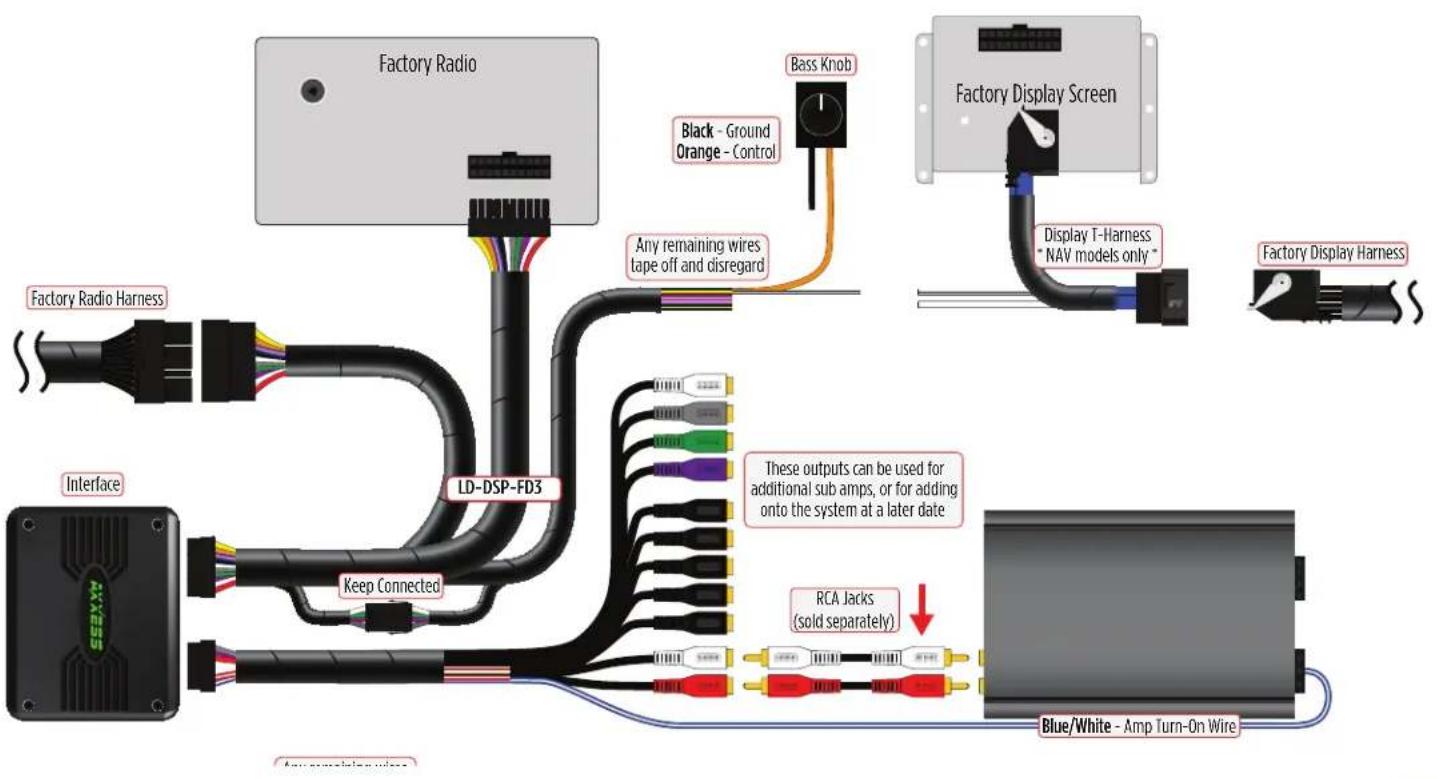
Adding a subwoofer to a factory system:
The diagram on Page 3 shows the connections that need to be made to add a subwoofer to the factory system.
Note: RCA jacks sold separately.
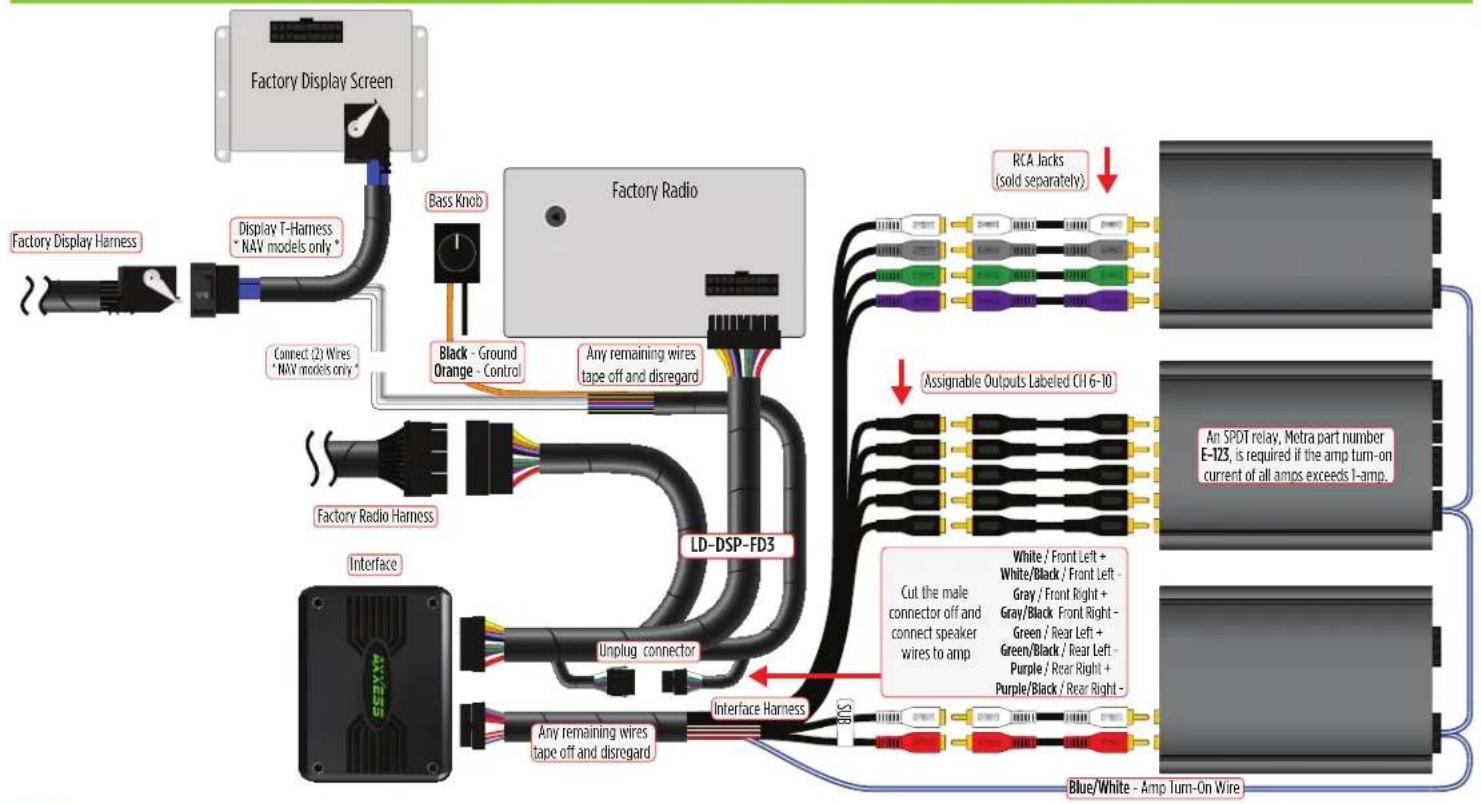
Adding a full-range of amps and subwoofer to a factory system:
The diagram on Page 4 shows the connections that need to be made to add: Subwoofer (RCA jacks sold separately)
Amplifier (SPDT relay E-123 required) or
Additional Amp (RCA jacks sold separately).
Note: The interface provides a 12-volt 1-amp output to turn on aftermarket amp(s). If installing multiple amps, an SPDT automotive relay will be required if the amp turn-on current of all amps combined exceeds 1-amp. Use Metra part number E-123 (sold separately) for best results.
N
- Disassemble the dash, unplug all connectors, and then remove the factory radio. ^†
- Install the AXDSPX-FD3 vehicle T-harness to the vehicle and make all necessary connections, but leave the amp turn-on wire disconnected.
- Plug the AXDSPX-FD3 vehicle T-harness to the AXDSPX-FD3 interface.
- Plug the AXDSPX-FD3 interface harness to the AXDSPX-FD3 interface.
- Download and install the AX-DSP-XL app from the Google Play Store or Apple App Store.
- Open the app then select the Bluetooth Connection tab. Follow the instructions to pair the mobile device to the interface. Refer to page 6 for more information.
- Scroll to the Configuration tab then select the vehicle type. Press the Lock Down button to save the configuration. Refer to page 7 for more information.
- Connect the amp turn-on wire.
- Adjust the settings in the app as desired. Press the Lock Down button to save any new configurations.
^ For dash disassembly instructions, refer to metraonline.com. Enter the year, make, and model of the vehicle in the Vehicle Fit Guide and find instructions under Metra Radio Install kits.
‡ Anytime the interface is locked down the key must be cycled off then back on.
ADDING A SUBWOOFER TO A FACTORY SYSTEM
text_image
Factory Radio Factory Radio Harness Factory Display Screen Black - Ground Orange - Control Any remaining wires tape off and disregard Display T-Harness "NAV models only" Factory Display Harness Interface Keep Connected LD-DSP-FD3 These outputs can be used for additional sub amps, or for adding onto the system at a later date RCA Jacks (sold separately) Blue/White - Amp Turn-On WireADDING A FULL-RANGE AMP & SUB TO A FACTORY SYSTEM
flowchart
graph TD
    A["Factory Display Screen"] --> B["Factory Radio"]
    B --> C["Black - Ground Orange - Control"]
    B --> D["Any remaining wires tape off and disregard"]
    B --> E["LD-DSP-FD3"]
    E --> F["Unplug connector"]
    E --> G["Interface Harness"]
    G --> H["Blue/White - Amp Turn-On Wire"]
    B --> I["Factory Display Harness"]
    I --> J["Display T-Harness * NAV models only *"]
    J --> K["Bass Knob"]
    K --> L["Connect (2) Wires * NAV models only *"]
    L --> M["Factory Radio Harness"]
    M --> N["Interface"]
    N --> O["Unplug connector"]
    O --> P["Interface Harness"]
    P --> Q["Blue/White - Amp Turn-On Wire"]
    B --> R["RCA Jacks (sold separately)"]
    R --> S["Assignable Outputs Labeled CH 6-10"]
    S --> T["Cut the male connector off and connect speaker wires to amp"]
    T --> U["White / Front Left + White/Black / Front Left - Gray / Front Right + Gray/Black Front Right - Green / Rear Left + Green/Black / Rear Left - Purple / Rear Right + Purple/Black / Rear Right - Blue/White - Amp Turn-On Wire"]
    S --> V["An SPOT relay, Metra part number E-123, is required if the amp turn-on current of all amps exceeds 1-amp."]
QUICK SETUP STEPS THROUGH AXDSP-XL APP
Google Play Store

Apple App Store
iOS 12.1 or higher
- Download and install the AXDSP-XL app from the Google Play Store or Apple App Store.
- Turn Vehicle Ignition on. Make sure the Remote Turn on lead is disconnected.
- Open the app: Select Bluetooth Connections page.
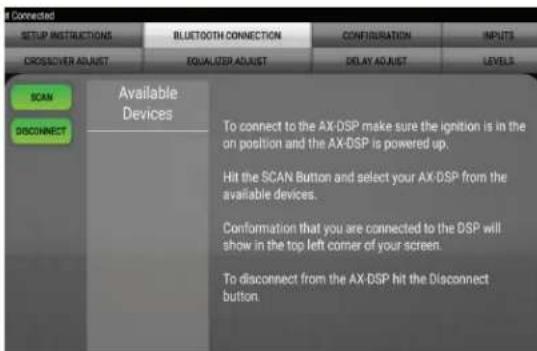
- Select Scan, all available AXDSP devices within range will be displayed. Select your AXDSP and hit connect. (Figure A)
-
Select the Configuration page.
-
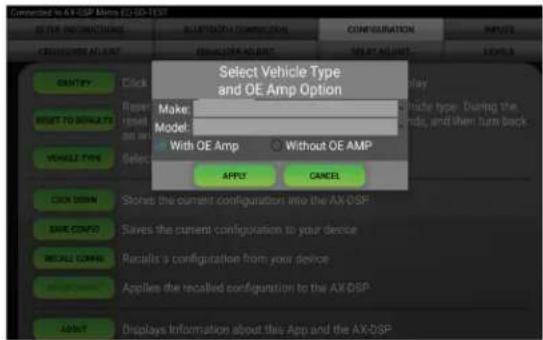
Select Vehicle Type Icon
- Select the Vehicle Make: ____ (Example: FORD)
- Select the Vehicle's model: ____ (Example: F150)
- Select With OE Amp
-
Hit Apply (Figure B)
-
Make sure radio volume is all the way down.
-
Connect the amp turn-on wire from the AXDSPX-FD3 T-harness to the aftermarket amplifiers.
text_image
Connected SETUP INSTRUCTIONS BLUETOOTH CONNECTION CONFIGURATION INPUTS CROSSOVER ADJUST EQUALIZER ADJUST DELAY ADJUST LEVELS SCAN DISCONNECT Available Devices To connect to the AX-DSP make sure the ignition is in the on position and the AX-DSP is powered up. Hit the SCAN Button and select your AX-DSP from the available devices. Conformation that you are connected to the DSP will show in the top left corner of your screen. To disconnect from the AX-DSP hit the Disconnect button(Figure A)
text_image
Select Vehicle Type and OE Amp Option Make: Model: With OE Amp Without OE AMP APPLY CANCEL(Figure B)
QUICK SETUP STEPS THROUGH AXDSP-XL APP (CONT.)
- From the Configuration page click the Identify button to confirm that the AXDSPX-FD3 is connected properly. If so, a chime will be heard from the front left speaker.
- Press the Lock Down button to save the configuration. (Do not turn ignition off until this process is completed) (Figure C)
- Select the Bluetooth Configurations page and disconnect the DSPX.
- Turn ignition off, close all door then lock vehicle using the key fob. The vehicle will need to sit uninterrupted for 10 minutes while the vehicle goes to sleep. (Make sure Key fob is 15 feet away from the vehicle)
- Unlock Vehicle, turn ignition on and test radio's functions.
- Adjust the DSP settings in the app as desired. Refer to the instructions under the Setup Instructions tab, or online at Axxessinterfaces.com for an explanation of each tab in the app.
Locking Down Data

text_image
Accessed by AX-DSP x Series 301 (2015.14) SELECT INSTRUCTIONS BLUTSOUTH CONNECTION CONFIGURATION ACCESS CIRCUSSION ACCOUNT CUSTOMER ACCOUNT TITLE ADDRESS IMPORTABLES IDENTIF Click this button to identify the AX-DSP, the clones will play NEXT TO OPALTS Reset the DSP customization settings, will not reset vehicle type. During the reset process, the amplifiers will star off for 5-10 seconds, and then turn back on once completed. VEGETY Select the type of vehicle the AX-DSP is installed in LOCK DOWN Shares the current configuration into the AX-DSP SAVE CONFIG Save the current configuration to your device FOR ALL CONFIG Reinstalls a configuration from your device and Configuration to the AX-DSP ABOUT Displays information about this App and the NET PASSING Changes password for accessing the AX-DSP Locking Down Data 37(Figure C)
Last and the most important:
You MUST lock down your
configuration and cycle the key!!!
SPECIFICATIONS
Input Impedance 1M Ohm
Input Channels 6
Input Options High Level or Low Level
Input Type Differential balanced
Input Voltage 0 - 28-volts (peak-to-peak)
(high level range)
Input Voltage 0 - 4.9-volts (peak-to-peak)
(low level range)
Output Channels 10
Output Voltage Up to 5-volts RMS
Output Impedance 50 Ohms
Equalizer Type 31 Band Graphic EQ, +/- 10dB
THD <0.03%
Frequency Response 20Hz - 20kHz
Crossover 3-Way LPF, BPF, HPF THP per channel
Crossover Type Linkwitz-Riley 24db slope
Sampling 48kHz
S/N Ratio 105dB @ 5-volts RMS
Operating Voltage 10-16 volts DC
Standby Current Draw 7mA
Operation Current Draw 150mA
Adjustments/Controls Application via Bluetooth
Remote Output 12 volts DC (signal sense) or ignition on

AXDSPX-FD3 INSTALLATION INSTRUCTIONS
Having difficulties? We're here to help.
Contact our Tech Support line at:
386-257-1187
Ory via email at:
techsupport@metra-autosound.com
Tech Support Hours (Eastern Standard Time)
Monday - Friday: 9:00 AM - 7:00 PM
Saturday: 10:00 AM - 5:00 PM
Sunday: 10:00 AM - 4:00 PM

Metra recommends MECP certified technicians