99-7384B - Unspecified AXESS - Free user manual and instructions
Find the device manual for free 99-7384B AXESS in PDF.


User questions about 99-7384B AXESS
0 question about this device. Answer the ones you know or ask your own.
Ask a new question about this device
Download the instructions for your Unspecified in PDF format for free! Find your manual 99-7384B - AXESS and take your electronic device back in hand. On this page are published all the documents necessary for the use of your device. 99-7384B by AXESS.
USER MANUAL 99-7384B AXESS
natural_image
Interior view of a car dashboard with touchscreen and air condition indicators (no readable text or symbols)Kia Optima 2017-2020\*
* With auto climate controls and Without factory amplifier
Visit MetraOnline.com for up-to-date vehicle specific applications.
KIT FEATURES
• ISO DIN radio provision with pocket
- ISO DDIN radio provision
- Includes electronics with laser etched graphics to display fan speed, mode, temp, and air bag indicator.
- Retains factory steering wheel controls and back up camera.
- Includes wiring and antenna adapter.
KIT COMPONENTS
• A) Radio trim panel • B) Radio brackets • C) Pocket • D) Climate display • E) (4) #8 x 3/8" Phillips screws • F) (2) Panel clips
• G) Wiring harness (not shown) • H) 3.5mm connector with stripped leads (not shown) • I) Antenna adapter (not shown) • J) ASWC-1 (not shown)
• K) AX-CAM6V (not shown)
AB
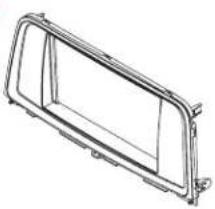
natural_image
Technical line drawing of a rectangular frame or enclosure with mounting brackets (no text or symbols)

D
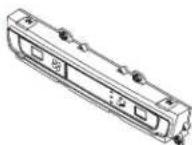
F
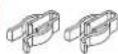
E

TABLE OF CONTENTS
Dash Disassembly 2-3
Kit Preparation 4
Kit Assembly
-ISO DIN radio provision with pocket ....5
-ISO DDIN radio provision 5
Wiring Instructions 6-13
Final Assembly 9
WIRING & ANTENNA CONNECTIONS
Wiring Harness: Included with kit
Antenna Adapter: Included with kit
Steering wheel control interface: Included with kit
12v to 6v camera stepdown: Included with kit
TOOLS REQUIRED
- Panel removal tool • Phillips screwdriver
CAUTION! All accessories, switches, climate controls panels, and especially air bag indicator lights must be connected before cycling the ignition. Also, do not remove the factory radio with the key in the on position, or while the vehicle is running.
DASH DISASSEMBLY
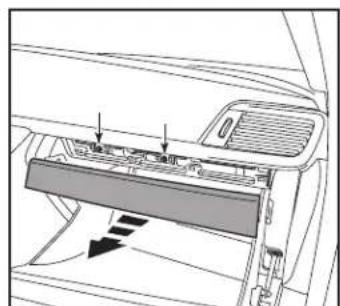
- Open the glove box and remove the trim at the top of the opening, and then remove the (2) Phillips screws exposed. (Figure A)
- Unclip the trim that runs along the dash from the right side A/C vent to the steering column, and then remove the (2) Phillips screws securing the A/C vent/hazard panel. (Figure B)
- Unclip and remove the right side trim panel from the center console, and then remove the (1) Phillips screw securing the A/C vent/hazard panel. (Figure C)
natural_image
Diagram of a car interior showing airflow or movement arrows, no text or symbols present(Figure A)

natural_image
Interior view of a car showing the dashboard and air intake manifold (no text or symbols visible)
natural_image
Interior view of a car dashboard and airway system (no text or symbols visible)(Figure C)(Figure B)
Continued on the next page
DASH DISASSEMBLY (CONT.)
- Unclip the A/C vent/hazard panel, disconnect the hazard switch, and then remove the panel. (Figure D)
- Using caution not to break the panel, carefully unclip and remove the radio trim panel. (Figure D)
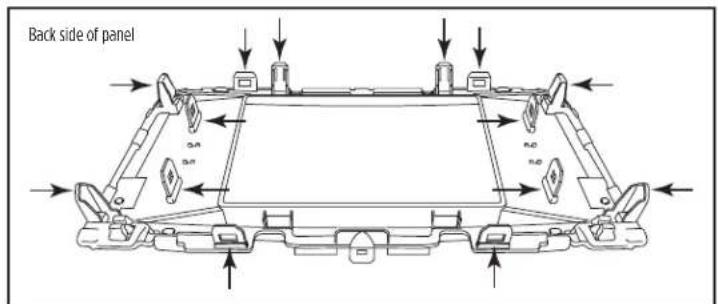
Note: This panel is incredibly difficult to remove. There are (14) clips that attach this panel to the vehicle. Unclip one of the clips from the bottom, then work up. This method seems to work best. Take note that the clips will clip back in unless something is holding the panel slightly out. (Figure E)
- Remove the (4) Philips screws securing the radio and then remove.
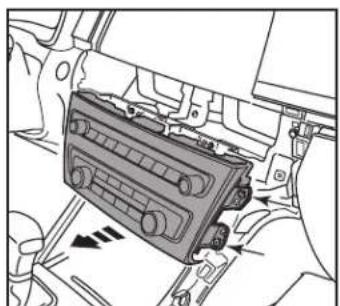
- Remove (2) Phillips screws securing the climate/radio control panel. Unclip the panel, then unplug and remove the panel. (Figure F)
Continue to Kit Preparation

natural_image
Interior view of a car showing dashboard, steering wheel, and dashboard lock (no text or symbols visible)(Figure D)
natural_image
Mechanical component diagram showing a car air vent assembly with no visible text or symbols(Figure F)
text_image
Back side of panel 3.0 3.0 n.0 n.0(Figure E)
KIT PREPARATION
From the factory climate/radio control panel
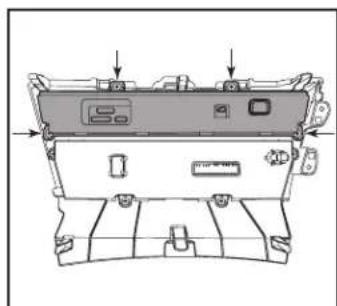
- Remove (4) Phillips screws securing the radio control panel, then remove the panel. (Figure A)
- Secure the climate display provided with the kit to the panel using the factory screws. (Figure B)
- Attach the (2) panel clips to the radio trim panel as shown. (Figure C)
Continue to Kit Assembly
natural_image
Technical line drawing of a mechanical device with mounting holes and internal components (no text or symbols)(Figure A) (Figure B) (Figure C)

natural_image
Technical line drawing of a car air vent assembly with labeled components (no text or symbols)
natural_image
Technical line drawing of a car front panel with mounting brackets and side-mounted sensors (no text or symbols)KIT ASSEMBLY
ISO DIN radio provision with pocket
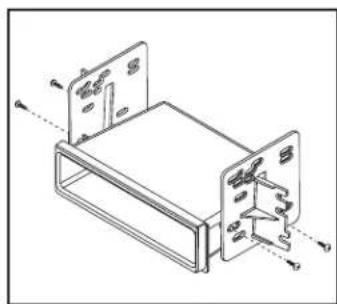
- Secure the radio brackets to the pocket using the (4) #8 x 3/8" Phillips screws provided. (Figure A)
- Remove the metal DIN sleeve and trim ring from the aftermarket radio.
- Slide the radio into the bracket/pocket assembly, then secure it to the assembly using the screws supplied with the radio. (Figure B)
Continue to Wiring Instructions
natural_image
Technical line drawing of a mechanical housing or enclosure with mounting flanges and internal components (no text or symbols)(Figure A)
ISO DDIN radio provision
- Secure the radio brackets to the radio using the screws supplied with the radio. (Figure A)
Continue to Wiring Instructions
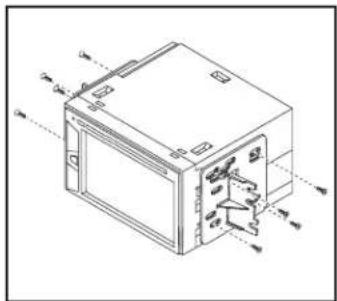
text_image
Technical diagram of a microwave oven with labeled components and internal compartments(Figure A)

natural_image
Technical line drawing of a device casing with internal components and mounting holes (no text or symbols)(Figure B)
WIRING INSTRUCTIONS
INTERFACE FEATURES
- Retains audio controls on the steering wheel via an ASWC-1
- Retains display of climate control info and passenger airbag indicator
- Provides NAV outputs (speed sense)
- Retains the factory backup camera
- Includes an AX-CAM6V 12 to 6V stepdown for the factory camera
INTERFACE COMPONENTS
• Vehicle wiring harness OPTI or OPTI2
Note: Only one vehicle harness will be used.
- Resistor harness OPTIRES
• 3.5 harness for SWC
• Steering wheel contol interface ASWC-1
- Camera interface AX-CAM6V
TABLE OF CONTENTS
Connections....7
Installation 8
Programming the ASWC-1 and climate display 9
Final assembly 9
(ASWC-1) Steering wheel control settings 10-13
- L.E.D. feedback
- Changing radio type
- Remapping the steering wheel control buttons
- Dual assignment instructions (long button press)
TOOLS REQUIRED
- Crimping tool and connectors, or solder gun, solder, and heat shrink
- Small flat-blade screwdriver • Tape • Wire cutter • Zip ties
CONNECTIONS
Attention! There are two vehicle harnesses provided for different model vehicles. Only one will be used in installation. Same instructions for both harnesses.
From the LD-OPTI or LD-OPTI2 to the aftermarket radio, connect the:
- Black wire to the radio's Ground wire. Also connect Black wire labeled: 'Camera Ground', if retaining backup camera.
- Yellow wire to the radio's 'Memory/Power' wire.
- Red wire to the radio's 'Accessory' wire.
- White to the Front Left Positive Speaker Wire.
- Gray to the Front Right Positive Speaker Wire.
- Green to the Left Rear Positive Speaker Wire.
• Purple to the Right Rear Positive Speaker Wire. - White/Black to the Front Left Negative Speaker Wire.
- Gray/Black to the Front Right Negative Speaker Wire.
- Green/Black to the Left Rear Negative Speaker Wire.
• Purple/Black to the Right Rear Negative Speaker Wire. - Blue wire to the radio's 'Antenna/ Remote' wire
- Orange to the radio's 'Illumination' wire.
- Blue/Pink to the radio's 'Vehicle Speed Sense' wire, if applicable.
- Red/White RCA's connect to the 'AUX-IN' on applicable radios.
The following (1) wire is only for multimedia/navigation radios that require this wire.
- Connect the Blue/Pink wire to the VSS/speed sense wire.
- Connect the Blue/White wire from the AX-CAM6V to a wire that has power while the vehicle is in reverse. This wire will have to be located in the vehicle, usually at the drivers side kick panel, or taillights.
- If retaining the factory AUX-In jack, connect the Red and White RCA jacks to the audio AUX-IN jacks from the aftermarket radio.
- Connect the Yellow RCA jack to the backup camera input.
- Tape off and disregard the Green/Purple wire, it will not be used in this application.
LD-OPTIRES:
- Connect the LD-OPTIRES between the two 6p connections of the OPT1 or OPT12 harness.
AX-CAM6V:
- Connect the Black wire to the Ground wires previously mentioned.
- Connect the Blue/White wire to the vehicle's Reverse wire.
- Connect the Blue/Red wire to the Red wire labeled: 'Camera Power 6v'.
CONNECTIONS (CONT.) INSTALL ATI
3.5mm jack steering wheel control retention:
The 3.5mm jack is to be used to retain audio controls on the steering wheel.
- For the radios listed below, connect the female 3.5mm connector with stripped leads, to the male 3.5mm SWC jack from the wiring harness included with the kit. Any remaining wires tape off and disregard:
- Eclipse: Connect the steering wheel control wire, normally Brown, to the Brown/White wire of the connector. Then connect the remaining steering wheel control wire, normally Brown/White, to the Brown wire of the connector.
• Metra OE: Connect the steering wheel control Key 1 wire(Gray) to the Brown wire. - Kenwood or select JVC with a steering wheel control wire: Connect the Blue/Yellow wire to the Brown wire.
Note: If your Kenwood radio auto detects as a JVC, manually set the radio type to Kenwood. See the instructions under changing radio type.
• XITE: Connect the steering wheel control SWC-2 wire from the radio to the Brown wire.
• Parrot Asteroid Smart or Tablet: Connect the 3.5mm jack into the AX-SWC-PARROT (sold separately), and then connect the 4-pin connector from the AX-SWC-PARROT into the radio.
Note: The radio must be updated to rev. 2.1.4 or higher software.
- Universal "2 or 3 wire" radio: Connect the steering wheel control wire, referred to as Key-A or SWC-1, to the Brown wire of the connector. Then connect the remaining steering wheel control wire, referred to as Key-B or SWC-2, to the Brown/White wire of the connector. If the radio comes with a third wire for ground, disregard this wire. Note: After the interface has been programmed to the vehicle, refer to the manual provided with the radio for assigning the SWC buttons. Contact the radio manufacturer for more information
- For all other radios: Connect the 3.5mm jack from the wiring harness included with the kit into the jack on the aftermarket radio designated for an external steering wheel control interface. Please refer to the aftermarket radios manual if in doubt as to where the 3.5mm jack goes to.
With the key in the off position:
- Connect the wiring harness included with the kit to the climate display, and then to the wiring harness in the vehicle.
- Locate the factory antenna connector in the dash and complete all necessary connections to the radio. Use the antenna adapter provided to adapt the factory antenna connector to the aftermarket radio.
- Connect the wiring harness included with the kit to the ASWC-1.
Attention! If retaining steering wheel controls, ensure that the SWC jack/wire is connected to the radio before proceeding. If this step is skipped, the interface will need to be reset for the steering wheel controls to function.
PROGRAMMING THE ASWC-1 AND CLIMATE DISPLAY
Programming the ASWC-1:
- Press and hold the Volume-Up button on the steering wheel, then turn the ignition on. The L.E.D. will start flashing rapidly, which means the ASWC-1 is looking for the vehicle and the radio.
Note: If the L.E.D. didn't start flashing rapidly, press the reset button for 3 seconds, while still holding the Volume-Up button.
- After a few seconds the L.E.D. should stop flashing rapidly, then go out for approximately 2 seconds.
- After approximately 2 seconds there will be a series of 7 Green flashes, some short, and some long. The long flashes represent the wires that are connected to the ASWC-1.
Tip: Knowing this will help to troubleshoot, if need be.
- The L.E.D. will pause for another 2 seconds, then flash Red up to 18 times depending on which radio is connected to the ASWC-1. Refer to the L.E.D. feedback section for information.
- This is the end of the auto detection stage. If the ASWC-1 detected the vehicle and the radio successfully, the L.E.D. will light up solid. Release from holding the Volume-Up button.
- Test the steering wheel controls for proper operation. Refer to “(ASWC-1) Steering wheel control settings” for customizing the buttons, if so desired.
Programming the climate display:
- Turn the parking lights on.
- Turn the vehicles light dimmer all the way down, then all the way up.
- Turn the lights off.
- Test all functions of the installation for proper operation, before reassembling the dash.
FINAL ASSEMBLY
- Secure the radio assembly to the dash using the factory screws.
- Reassemble the dash in reverse order of disassembly to complete the installation.
(ASWC-1) STEERING WHEEL CONTROL SETTINGS
L.E.D. feedback
The (18) Red L.E.D. flashes represent what brand radio the Axxess interface believes it is connected to. Each flash represents a different radio Manufacturer. For example, if you are installing a JVC radio, the Axxess interface will flash Red (5) times, and then stop. Following is a legend that dictates which radio Manufacturer corresponds to which flash.
L.E.D. feedback legend
| 1 flash - Eclipse (Type 1) † | 7 flashes - Alpine * | 13 flashes - LG |
| 2 flashes - Kenwood ‡ | 8 flashes - Visteon | 14 flashes - Parrot ** |
| 3 flashes - Clarion (Type 1) † | 9 flashes - Valor | 15 flashes - XITE |
| 4 flashes - Sony/Dual | 10 flashes - Clarion (Type 2) † | 16 flashes - Philips |
| 5 flashes - JVC | 11 flashes - Metra OE | 17 flashes - TBA |
| 6 flashes - Pioneer/Jensen | 12 flashes - Eclipse (Type 2) † | 18 flashes - JBL |
* Note: If the Axxess interface flashes Red (7) times, and you do not have an Alpine radio connected to it, that means the Axxess interface does not detect a radio connected to it. Verify that the 3.5mm jack is connected to the correct steering wheel jack/wire in the radio.
** Note: The AX-SWC-PARROT is required (sold separately). Also, the Parrot radio must be updated to rev. 2.1.4 or higher through www.parrot.com.
^ Note: If you have a Clarion radio and the steering wheel controls do not work, change the radio type to the other Clarion radio type; same for Eclipse. The following section explains how to do this.
‡ Note: If you have a Kenwood radio and the L.E.D. feedback comes back showing as a JVC radio, change the radio type to Kenwood. The following section explains how to do this.
Attention: The Axxess Updater App can also be used to program the following (3) sub-sections as well, pending that the Axxess interface has been programmed.
STEERING WHEEL CONTROL SETTINGS (CONT.)
Changing radio type
If the L.E.D. flashes do not match the radio you have connected, you must manually program the Axxess interface to tell it what radio it is connected to.
- After (3) seconds of turning the key on, press and hold the Volume-Down button on the steering wheel until the L.E.D. in the Axxess interface goes solid.
- Release the Volume-Down button; the L.E.D. will go out indicating the Axxess interface is in Changing Radio Type mode.
- Refer to the Radio Legend to know which radio number you would like to have programmed.
- Press and hold the Volume-Up button until the L.E.D. goes solid, and then release. Repeat this step for the desired radio number you have selected.
- Once the desired radio number has been selected, press and hold the Volume-Down button on the steering wheel until the L.E.D. goes solid. The L.E.D. will remain on for about (3) seconds while it stores the new radio information.
- Once the L.E.D. goes out, the Changing Radio Type mode will then end. You can now test the steering control wheel controls.
Note: If at any time the user fails to press any button for a period longer than (10) seconds, this process will abort.
Radio legend
1 flash - Eclipse (Type 1) 7 flashes - Alpine 13 flashes - LG
2 flashes - Kenwood 8 flashes - Visteon 14 flashes - Parrot
3 flashes - Clarion (Type 1) 9 flashes - Valor 15 flashes - XITE
4 flashes - Sony/Dual 10 flashes - Clarion (Type 2) 16 flashes - Philips
5 flashes - JVC 11 flashes - Metra OE 17 flashes - TBA
6 flashes - Pioneer/Jensen 12 flashes - Eclipse (Type 2) 18 flashes - JBL
STEERING WHEEL CONTROL SETTINGS (CONT.)
Remapping the steering wheel control buttons
Once the ASWC-1 has been programmed, the button assignment for the steering wheel controls may be reassigned if so desired. For example, if the Seek-Up button is preferred to be the Mute button instead. Follow the steps below to remap the steering wheel control buttons.
- Ensure the Axxess interface is visible so you can see the L.E.D. flashes to confirm button recognition.
Tip: Turning the radio off is recommended.
- Within the first twenty seconds of turning the ignition on, press and hold the Volume-Up button on the steering wheel until the L.E.D. goes solid.
- Release the Volume-Up button, the L.E.D. will then go out; The Volume-Up button has now been programmed.
- Follow the list in the Button Assignment Legend to reference the order in which the steering wheel control buttons need to be programmed.
Note: If the next function on the list is not on the steering wheel, press the Volume-Up button for (1) second until the L.E.D. comes on to skip that function, and then release the Volume-Up button. This will tell the Axxess interface that this function is not available, and it will move on to the next function.
- To complete the remapping process, press and hold the Volume-Up button until the L.E.D. in the Axxess interface goes out.
Button assignment legend
| 1. Volume-Up | 7. Preset-Up | 13. On-Hook |
| 2. Volume-Down | 8. Preset-Down | 14. Off-Hook |
| 3. Seek-Up/Next | 9. Power | 15. Fan-Up * |
| 4. Seek-Down/Prev | 10. Band | 16. Fan-Down * |
| 5. Source/Mode | 11. Play/Enter | 17. Temp-Up * |
| 6. Mute | 12. PTT (Push to Talk) | 18. Temp-Down * |
* Not applicable in this application
Note: Some radios may not have these commands. Please refer to the manual provided with the radio, or contact the radio manufacturer for specific commands recognized by that particular radio.
STEERING WHEEL CONTROL SETTINGS (CONT.)
Dual assignment instructions (long button press)
The ASWC-1 has the capability to assign (2) functions to a single button, except Volume-Up and Volume-Down. Follow the steps below to program the button(s) to the desired setting.
Note: Seek-Up and Seek-Down come pre-programmed as Preset-Up and Preset-Down for a long button press.
- Turn the key to ignition but do not start the vehicle.
- Press and hold the desired steering wheel control button for (10) seconds, or until the L.E.D. flashes rapidly. At this point release the button; the L.E.D. will then go solid.
- Press and release the Volume-Up button the number of times corresponding to the new button number selected. Refer to the Dual Assignment Legend. The L.E.D. will flash rapidly while the Volume-Up button is being pressed, and then go back to a solid L.E.D. once released. Proceed to the next step once the Volume-Up button has been pressed the desired number of times.
Caution: If more than (10) seconds elapses between pressing the Volume-Up button, this procedure will abort, and the L.E.D. will go out.
- Press the desired button to store it to memory. The L.E.D. will now go out indicating the new information has been stored to memory.
Note: These steps must be repeated for each button desired to assign a dual assignment feature to. To reset a button back to its default state, repeat Step 1, then press the Volume-Down button. The L.E.D. will go out, and the dual assignment feature for that button will be erased.
Dual assignment legend
| 1. Not allowed | 7. Preset-Up | 13. On-Hook |
| 2. Not allowed | 8. Preset-Down | 14. Off-Hook |
| 3. Seek-Up/Next | 9. Power | 15. Fan-Up * |
| 4. Seek-Down/Prev | 10. Band | 16. Fan-Down * |
| 5. Mode/Source | 11. Play/Enter | 17. Temp-Up * |
| 6. ATT/Mute | 12. PTT (Push to Talk) | 18. Temp-Down * |
* Not applicable in this application
IMPORTANT
If you are having difficulties with the installation of this product, please call our Tech Support line at 1-800-253-TECH. Before doing so, look over the instructions a second time, and make sure the installation was performed exactly as the instructions are stated. Please have the vehicle apart and ready to perform troubleshooting steps before calling.

KNOWLEDGE IS POWER
Enhance your installation and fabrication skills by supplying in the most recognized and supported
mobile electronics school in our industry.
Log onto www.installennstitute.com or call
800-354-6782 for more information and take steps toward a better tomorrow.

Metra recommends MECP certified technicians