MR5200A - Wi-Fi Access Point NETGEAR - Free user manual and instructions
Find the device manual for free MR5200A NETGEAR in PDF.


User questions about MR5200A NETGEAR
0 question about this device. Answer the ones you know or ask your own.
Ask a new question about this device
Download the instructions for your Wi-Fi Access Point in PDF format for free! Find your manual MR5200A - NETGEAR and take your electronic device back in hand. On this page are published all the documents necessary for the use of your device. MR5200A by NETGEAR.
USER MANUAL MR5200A NETGEAR
Models MR5100 and MR5200
NETGEAR, Inc.
350 E. Plumeria Drive December 202
San Jose, CA 95134, USA202-12578
Support and Community
Visit_netgear.com/support to get your questions answered and access the latest downloads.
You can also check out our NETGEAR Community for helpful advice at community.netgear.com.
Trademarks
©NETGEAR, Inc. NETGEAR and the NETGEAR Logo are trademarks of NETGEAR, Any non-NETGEAR trademarks are used for reference purposes only.
Regulatory and Legal
(If this product is sold in Canada, you can access this document in Canadian https://www.netgear.com/support/download/.)
For regulatory compliance information including the EU Declaration of Conformity, https://www.netgear.com/about/regulatory/.
See the regulatory compliance document before connecting the power supply.
For NETGEAR's Privacy Policy, visit https://www.netgear.com/about/privacy-policy.
By using this device, you are agreeing to NETGEAR's Terms and Conditions at https://www.netgear.com/about/terms-and-conditions. If you do not agree, return the device to your place of purchase within your return period.
Contents
Chapter 1 Get Started
Meet Your Mobile Router....8
Set Up Your Mobile Router....9
Recharge the Battery....9
Connect to the Internet....10
Replace a SIM Card....10
Home Screen....12
Powering Off/Resetting the Device....13
Security Credentials....13
Connect to the Mobile Router With Tethering....14
Customize the Mobile Router Settings....14
Log in to Your Mobile Router Web Page....15
Chapter 2 Use Your Mobile Router
View Estimated Data Usage on the Mobile Router....17
View Data Usage on the Mobile Router Web Page....17
View Messages From the Mobile Router....17
Send SMS Messages From the Mobile Router....18
View Messages From the Mobile Router Web Page....20
Send SMS Messages From the Mobile Router Web Page......21
Delete a Message From the Mobile Router....21
Delete a Message From the Mobile Router Web Page....22
View Alerts From the Mobile Router....23
View Alerts From the Mobile Router Web Page....23
Turn On Dual-Band WiFi From the Mobile Router Web Page.....24
Turn On Dual-Band WiFi From the Mobile Router......25
Manage Your Broadband Network Connection....26
View Mobile Broadband Network Status From the Mobile
Router....27
View Mobile Broadband Network Status From the Mobile Router
Web Page....28
Turn Domestic Data Off From the Mobile Router Web Page...28
Turn International Roaming On and Off From the Mobile
Router....29
Turn International Roaming On and Off From the Mobile Router
Web Page....30
Nighthawk M5 5G WiFi 6 Mobile Router
Connect to WiFi....30
Manage WiFi....31
Turn On 5 GHz WiFi From the Mobile Router....31
Turn On 5 GHz WiFi From the Mobile Router Web Page......32
Specify WiFi Settings From the Mobile Router....33
Change WiFi Settings From the Mobile Router Web Page.....34
Manage WiFi Security....34
Change WiFi Network Name and Password From the Mobile
Router....34
Change WiFi Network Names and Passwords From the Mobile
Router Web Page....35
Change WiFi Encryption Settings....36
Chapter 3 Manage Security
Change the Mobile Router Web Page Login Settings....39
View Connected Devices From the Mobile Router Web Page.....39
Activate SIM Security....40
Chapter 4 Maintain Your Mobile Router
Extend Battery Life....42
Adjust WiFi Settings to Optimize Battery Life....42
Set the Display to Increase Battery Life From the Mobile
Router....42
Set the Display to Increase Battery Life From the Mobile Router
Web Page....43
View Details About Your Device From the Mobile Router......45
View Details About Your Device From the Mobile Router Web
Page....46
Add and Select Access Point Names (APN)......46
Add an APN for Another Network....46
Select an APN to Use....48
Remove an APN Entry....48
Set Up Always-on WiFi....49
Set up Always-on WiFi From the Mobile Router....49
Set up Always-on WiFi From the Mobile Router Web Page.....50
Enable DMZ....50
Update Mobile Router Software and Firmware....51
Update Mobile Router Software and Firmware in Response to an
Update Available Alert....52
Check for Software Updates From the Mobile Router......52
Chapter 5 Frequently Asked Questions
Questions About Connecting and Disconnecting Devices and
Accessing the Internet....55
Nighthawk M5 5G WiFi 6 Mobile Router
What do I do if I can't connect a device to the mobile router?.5
What do I do if I can't access the Internet?......55
How do I disconnect from the mobile broadband network?....56
How do I nd out how many devices are connected to my mobile hotspot's WiFi networks?......56
What do I do if the No Signal icon displays?......56
Why can't my device access the mobile router web page when connected to a VPN?......56
Why can't my mobile router connect to a computer running
Windows Vista?......56
What do I do if my mobile router doesn't connect to my service provider's network?......57
Questions About the Mobile Router Web Page....58
How do I go back to the mobile hotspot web page?......58
What do I do if I forget my admin login password?......58
General Questions....58
Why isn't my battery charging?......58
Why is the Signal Strength indicator always low?......59
Why is the download or upload speed slow?......59
The LCD screen is not lit. How do I know if the mobile router still powered on? 59
How do I nd my computer's IP address?......59
Find the IP address on a Windows 7 or Windows 10 device.59
Find the IP address on a Windows 8 device....60
Find the IP address on a Mac OS X device....60
Find the IP address on devices running other operating systems....60
How do I nd a device's MAC address?......60
Find the MAC address on a Windows 7 or Windows 10 device....61
Find the MAC address on a Windows 8 device....61
Find the MAC address on a Mac OS X device....61
What do I do if the WiFi network name doesn't appear in the list of networks?......62
Chapter 6 Troubleshooting
View Alerts....64
SIM Not Installed....64
SIM Error - Check SIM....64
SIM Locked....64
Temperature-Related Alerts....64
Reset the Mobile Router....65
Reset the Mobile Router From the Mobile Router....65
Reset the Mobile Router From the Mobile Router Web Page...66
Appendix A Specifications
Battery Specifications....69
Display Specifications....70
Mechanical Specifications....71
MR5100-111EUS and MR5200-100EUS Mobile Band
Specifications....71
MR5200-100NAS Mobile Band Specifications....71
Package Contents....72
Port Specifications....72
Security Specifications....72
WiFi Specifications....73
Environmental Specifications....73
1
Get Started
This product regularly checks for new rmware and downloads any that is appro or you can check for and download new rmware manually. If the features or of your product does not match what is described in this manual, you might update your rmware.
This chapter provides an overview of mobile router features, and instructions for to set up your mobile router and connect to the Internet. The chapter covers tl topics:
• Meet Your Mobile Router
- Set Up Your Mobile Router
• Recharge the Battery
- Connect to the Internet
- Replace a SIM Card
- Home Screen
• Powering Off/Resetting the Device
• Security Credentials
- Connect to the Mobile Router With Tethering
- Customize the Mobile Router Settings
- Log in to Your Mobile Router Web Page
Meet Your Mobile Router
Before you connect your mobile router, familiarize yourself with its LCD screen, buttons, and connectors.
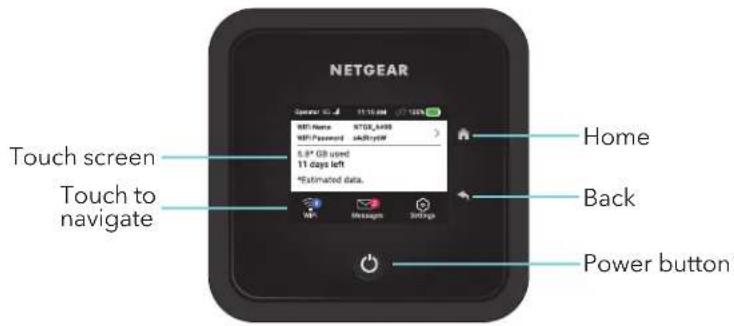
text_image
NETGEAR Touch screen Touch to navigate Home Back Power buttonFigure 1. Mobile router LCD and buttons
The mobile router comes with a USB-C charging cable.
The connectors include a USB 3.2 Type-C connector, an RJ45 ethernet port, and TS-9 external antenna connectors.
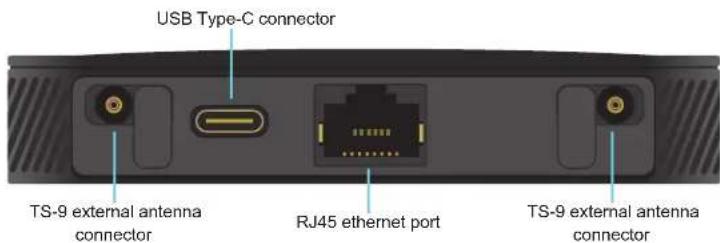
text_image
USB Type-C connector TS-9 external antenna connector RJ45 ethernet port TS-9 external antenna connectorFigure 2. Mobile router connectors
Set Up Your Mobile Router
To set up your mobile router:
- Insert the battery.
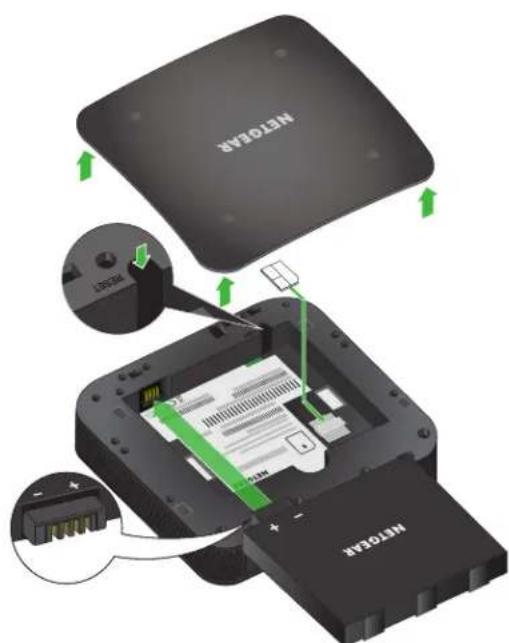
text_image
METROX METROX METROX- Install the back cover.
- Firmly close the back cover.
- Tap Power to power on the mobile router.
Recharge the Battery
Your battery comes partially charged.
To recharge your battery:
- Connect the USB-C charging cable to your mobile router.
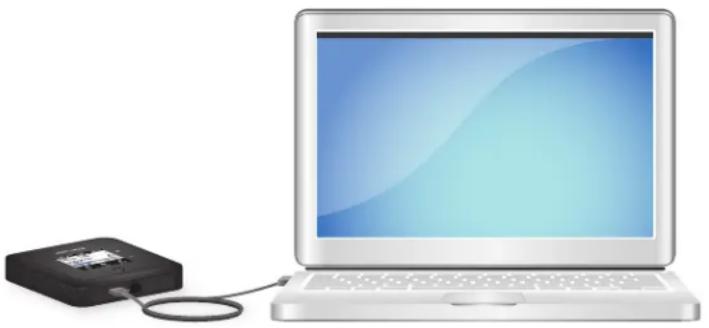
natural_image
Illustration of a laptop connected to a black USB drive (no text or symbols visible)- Connect the other end of the cable to the USB port on your computer or charger.
Connect to the Internet
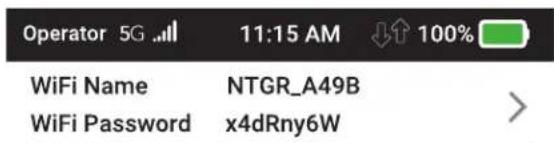
When you turn on your mobile router, it automatically connects to the network area. Connect your device to the mobile router WiFi network to access the Int
To connect to the Internet:
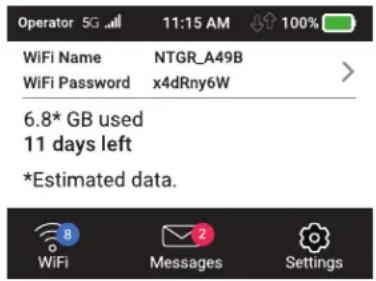
- Tap Power to turn on the mobile router.
The device powers up and the Power Off/Restart menu appears.
text_image
Operator 5G 11:15 AM 100% WiFi Name NTGR_A49B WiFi Password x4dRny6W 6.8* GB used 11 days left *Estimated data. WiFi Messages Settings- On your laptop or WiFi device, open your WiFi network connection manager
- Connect your device to the router with the WiFi name and password.
Replace a SIM Card
In some circumstances you might need to replace the SIM card.
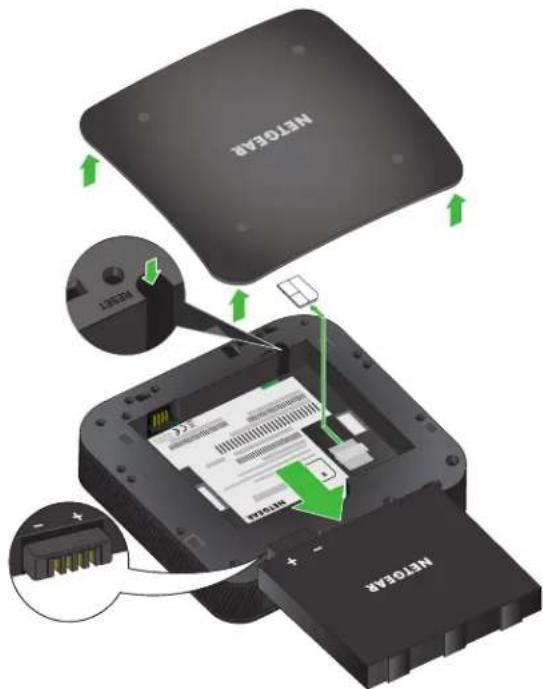
To replace a SIM card:
- Remove the back cover by lifting the corners.
- Remove the battery.
text_image
NET03A8 NET03A9 NET03A9 NET03A8- Slide out the SIM card.
-
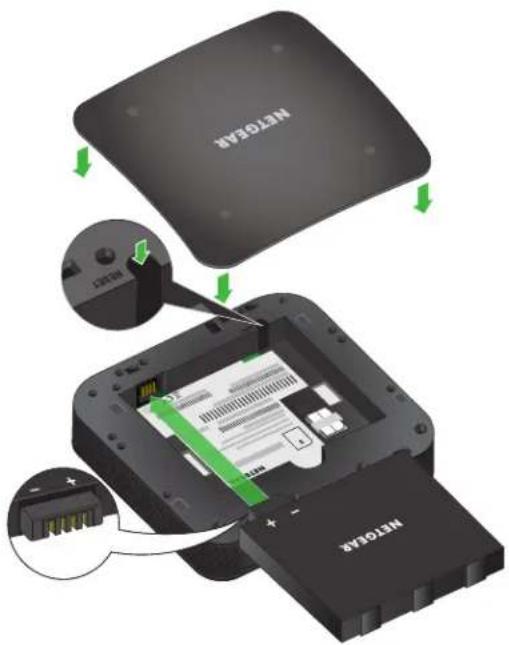
Insert the replacement SIM card.
-
Insert the battery.
text_image
NETOYA8 NETOYA8- Install the back cover.
Home Screen
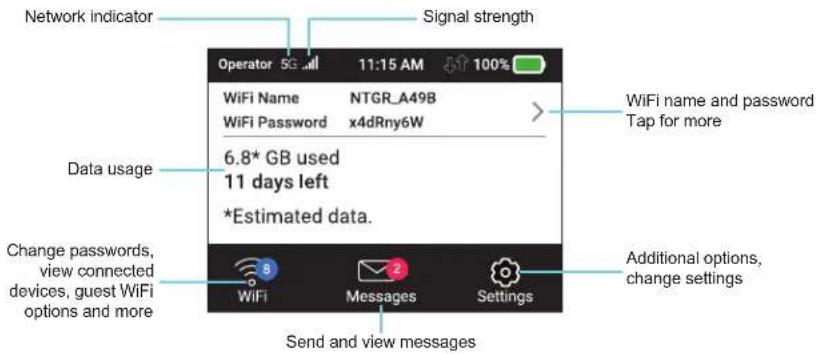
You can use the home screen to view the mobile router's status, congregate WiFi view data usage details, and view system alerts.
text_image
Network indicator Signal strength Operator 5G-mail 11:15 AM 100% WiFi Name NTGR_A49B WiFi Password x4dRny6W 6.8* GB used 11 days left *Estimated data. Data usage Change passwords, view connected devices, guest WiFi options and more Send and view messages Additional options, change settings Wi-Fi Messages SettingsFigure 3. LCD screen display
Note: Deletion of message must be done on the mobile router Web UI.
Table 1. Icons
DescriptionIcons

This indicates the strength of the mobile broadband network signal.

Your 5G wireless device displays the following network indicator to let you know you are connect the 5G network.
This indicates the amount of charge in the battery.

Powering Off/Resetting the Device
To power off or reset the device:
- Hold down the Power button for 5 seconds.
The Power Off/Reset menu appears and you are prompted to power off or device.
- Tap Power Off to power off the device, or choose reset to reset the device.
Security Credentials
Three passwords are associated with the mobile router:
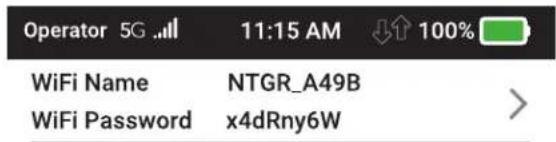
- WiFi password. Use this to connect your computer or WiFi device to your router network. This character string is unique to your device. It displays on mobile router touch screen. If the screen is blank (a power-saving feature), p and quickly release the Power button. The default WiFi password is also prir a label under the battery.
For information about changing WiFi passwords, see Change WiFi Encryption Set on page 36.
- Web admin login password. Use this to log in to the mobile router web an administrator. You must log in as an administrator to use certain features make changes to your mobile router settings. The default login password is on a label under the battery. The password should be changed after installing the user, and can be 5-31 characters in length.
Connect to the Mobile Router With Tethe
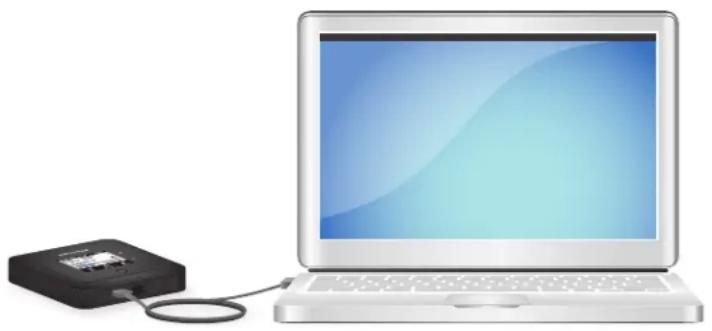
You can connect a computer to the mobile router using the USB-C cable inste connecting with WiFi. This kind of cable connection is called tethering.
Note: The computer's operating system detects the Nighthawk M5 5G WiFi 6 M Router the rst time you use the USB-C cable to connect the computer to the router.
To install drivers on computers running Windows:
- Ensure that the mobile router is powered off.
- Connect the mobile router to your computer using the USB cable.
natural_image
Illustration of a laptop connected to a USB drive (no text or symbols visible)The mobile router automatically powers on.
Note: Make sure that your computer has access to Internet when you start us tethering feature because your computer might need to access the Internet in to download the required software driver.
After the driver is installed, you can visit the mobile router web page to c your mobile router's advanced settings. This is an optional step.
Customize the Mobile Router Settings
You can personalize the mobile router and change its settings on the web page
To log in to your mobile router web page:
-
From a computer or WiFi device that is connected to the mobile router, la web browser.
-
Enter http://192.168.1.1.
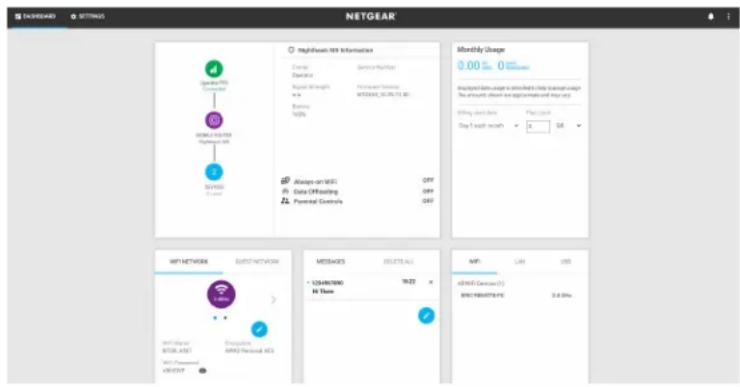
The mobile router web page displays.
- Enter the administrator login password.
The default password is printed on the product label. The password is case-s
text_image
NETGEAR Network 100 Connected SAMSUNG KONK NVR/OS On Line Monthly Usage 0.00 Monthly Usage Annotated Data Users can be installed using a monthly usage This account does not geographically or map to it. Starting data sets Play key Day 1 week month 0 0 WMT NETWORK GHOST NETWORK MESSAGES DELETE ALL • YEAR/WNS 19:22 No Show WMT LAN USB all WMT Services (C) WIN PROSYSTEM PLC 3.8-5% WMT ON LineLog in to Your Mobile Router Web Paç
Your mobile router comes congured and ready to use as is. You can use the router web page to manage advanced settings.
To log in to your mobile router web page:
- From the computer or WiFi device that is connected to the mobile router, web browser.
- Enter http://192.168.1.1.
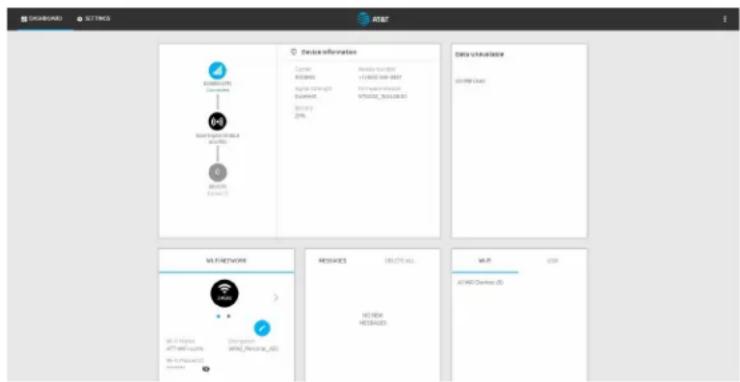
The mobile router web page displays.
- Enter the administrator login password.
The default password is printed on the product label. The password is case-s
flowchart
graph TD
    A["Device Information"] --> B["Data Download"]
    B --> C["Network Request"]
    C --> D["Message"]
    D --> E["API/HTTP Download"]
    C --> F["Network Request"]
    F --> G["Message"]
    G --> H["API/HTTP Request"]
2
Use Your Mobile Router
This chapter explains how to use your mobile router. The chapter covers the topic topics:
• View Estimated Data Usage on the Mobile Router
• View Data Usage on the Mobile Router Web Page
• View Messages From the Mobile Router
- Send SMS Messages From the Mobile Router
• View Messages From the Mobile Router Web Page
- Send SMS Messages From the Mobile Router Web Page
- Delete a Message From the Mobile Router
- Delete a Message From the Mobile Router Web Page
• View Alerts From the Mobile Router
• View Alerts From the Mobile Router Web Page
- Turn On Dual-Band WiFi From the Mobile Router Web Page
- Turn On Dual-Band WiFi From the Mobile Router
- Manage Your Broadband Network Connection
- Connect to WiFi
- Manage WiFi
- Manage WiFi Security
View Estimated Data Usage on the Mob Router
To view estimated data usage on the mobile router:
To wake the device, press the Power button.

text_image
Operator 5G all 11:15 AM 100% WiFi Name NTGR_A49B WiFi Password x4dRny6W 6.8* GB used 11 days left *Estimated data. WiFi Messages SettingsThe LCD screen shows the estimated data usage for the current billing cycle. in the data usage area provides more detailed information and options for cor usage limit warnings.
View Data Usage on the Mobile Router Page
To view data usage information on the mobile router web page:
- From a computer or WiFi device that is connected to the mobile router, la web browser.
- Enter http://192.168.1.1.
The mobile router web page displays.
- Enter the administrator login password.
The default password is printed on the product label. The password is case-s The mobile router web page displays the data usage for the current billing and for the current broadband session.
View Messages From the Mobile Router
You can tell from your mobile router display if you have unviewed messages, and can view them directly from there.
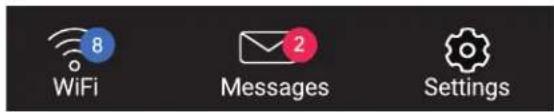
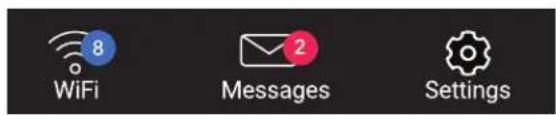
This router display indicates you have an unread message.
Note: Although you can view messages directly on the mobile router, use the router's web page to delete them.
text_image
Operator 5G 11:15 AM 100% WiFi Name NTGR_A49B WiFi Password x4dRny6W6.8* GB used
11 days left
*Estimated data.
text_image
8 WiFi Messages SettingsTo view messages from the mobile router display:
-
Tap Power to wake the mobile router.
-
Tap Messages.
The Messages screen displays.
- Tap the message to read the full text.
Note: If you are logged in as an administrator, the Messages option on the side menu indicates unread network messages. You can view SMS messages from network service provider on the mobile router web page.
Send SMS Messages From the Mobile Rc
You can send SMS messages from the mobile router.
To send SMS messages from the mobile router:
-
Tap Power to wake the mobile router.
-
Tap Messages.
The Messages screen displays and indicates if there are any SMS messages.
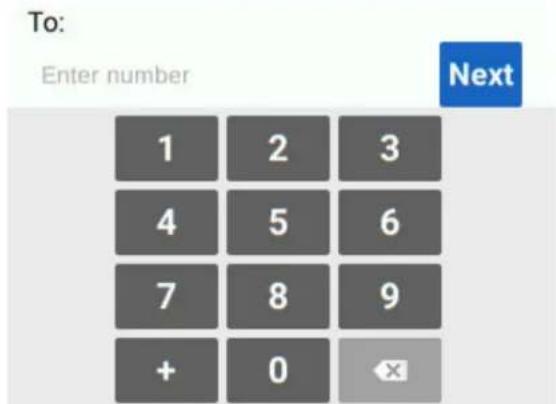
- Tap Compose.
A numeric keypad for for entering the phone number displays.
text_image
To: Enter number Next 1 2 3 4 5 6 7 8 9 + 0-
Use the keypad to type the phone number to which the message will be As you enter digits, the phone number appears in the To: eld.
-
Tap Next.
A keypad for entering the message appears.

text_image
Message: (0 / 70) Enter message q w e r t y u i o p a s d f g h j k l ↑ z x c v b n m !123 -- Type a message and tap Send.
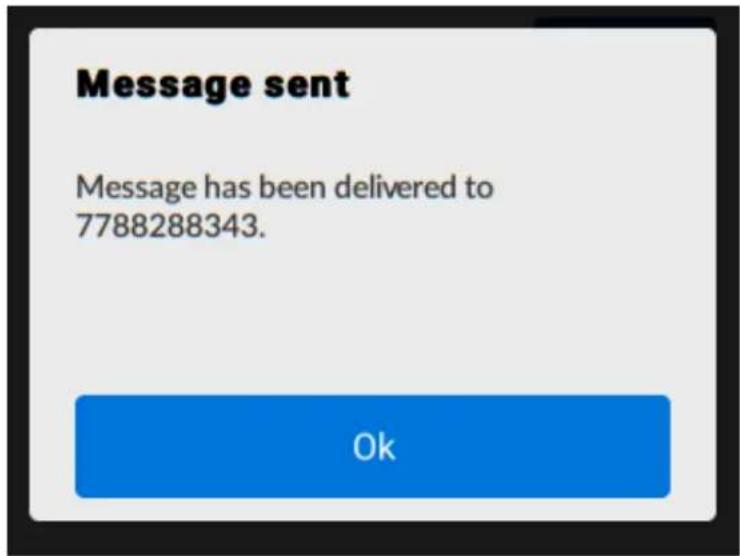
The Message Sent message appears and indicates that the message was sent
text_image
Message sent Message has been delivered to 7788288343. OkView Messages From the Mobile Router \ Page
To view messages from the mobile router web page:
- From a computer or WiFi device that is connected to the mobile router, la web browser.
- Enter http://192.168.1.1.
The mobile router web page displays.
- Enter the administrator login password.
The default password is printed on the product label. The password is case-s The home page displays.
- Select Messages.
A list of messages displays, showing the rst portion of the text.
- Click a message to read the full text.
Send SMS Messages From the Mobile Rc Web Page
You can can send SMS messages from the mobile Web page.
To send an SMS message from the mobile router Web page:
- From a computer or WiFi device that is connected to the mobile router, la web browser.
- Enter http://192.168.1.1.
The mobile router web page displays. - Enter the administrator login password.
The default password is printed on the product label. The password is case-s The home page displays. - Tap the Pencil icon.
The Messages page appears. Any new messages are shown. - In the Recipient Number field, type the phone number to which to send the
- In the message box, type the message you want to send.
- Click the Send button.
The SMS message is sent.
Delete a Message From the Mobile Rou
You can delete messages from your mobile router display.
To delete messages from the mobile router display:
- Press Power to wake the mobile router.
text_image
Operator 5G ...ll 11:15 AM ↓↑ 100% WiFi Name NTGR_A49B WiFi Password x4dRny6W >6.8* GB used
11 days left
*Estimated data.
text_image
8 WiFi Messages Settings- Tap Messages.
The Messages screen displays.
-
Select the message to delete.
-
Tap Delete.
The message is deleted.
Delete a Message From the Mobile Rou Web Page
To delete a message from the mobile router web page:
-
From a computer or WiFi device that is connected to the mobile router, la web browser.
-
Enter http://192.168.1.1.
The mobile router web page displays.
- Enter the administrator login password.
The default password is printed on the product label. The password is case-s The home page displays.
- Select Messages.
A list of messages displays, showing the rst portion of the text.
- Select the message and click the Delete button.
The message is deleted.
View Alerts From the Mobile Router
When you unlock the device screen, the device displays any current alerts.
- Unlock the device.
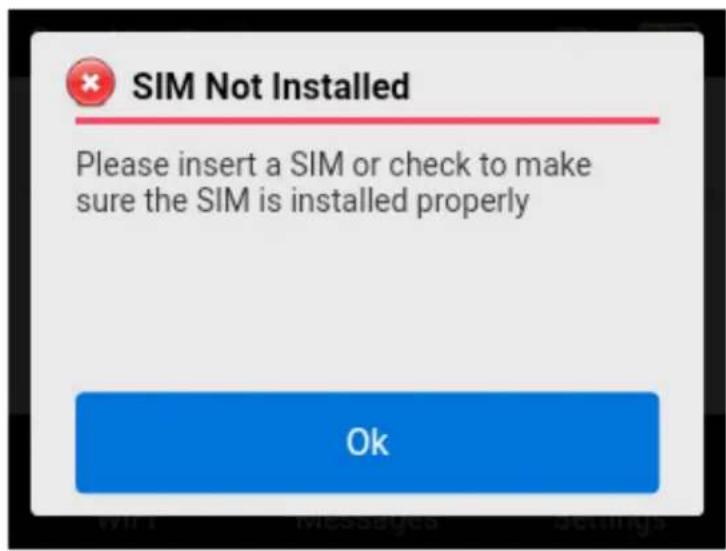
Any current alerts are shown on the display. For example, if no SIM card is the following alert appears:
text_image
SIM Not Installed Please insert a SIM or check to make sure the SIM is installed properly Ok- Use the arrow keys to cycle through the alerts and view each alert. After you have viewed the alerts, the dashboard appears.
View Alerts From the Mobile Router Wel Page
Your mobile router displays alerts to advise you of device status changes. When are outstanding alerts, the alerts displays on the screen. Alerts remain as long issues that cause them are active. When the issues are resolved, the alerts are automatically.
To view alerts from the mobile router web page:
-
From a computer or WiFi device that is connected to the mobile router, la web browser.
-
Enter http://192.168.1.1.
The mobile router web page displays.
- Enter the administrator login password.
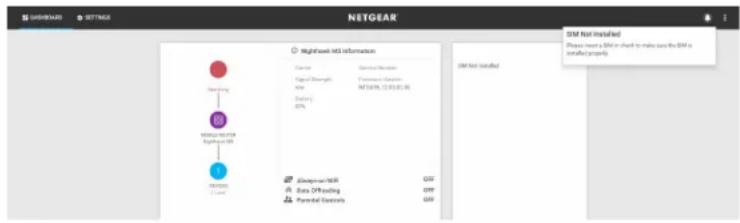
The default password is printed on the product label. The password is case-s. Any current alerts are shown on the display. For example, if no SIM card i the following alert appears:
text_image
NETGEAR Highwave MS information Current Signal Sources Signal Throughput Power NetGEAR, 12.03.03.06 Outflow 80% Highwave MS Data Offloading Parental Controls SM Not installed Please note a SM or share to make sure the SM is installed projects. SM Not installedFollow the instructions in each alert to address the conditions that caused it
Turn On Dual-Band WiFi From the Mobi Router Web Page
The mobile router can broadcast WiFi signals in the 2.4 GHz and 5 GHz WiFi. Note that the overall throughput speed could decrease when WiFi dual-band is e
To turn on dual-band WiFi from the mobile router web page:
- From a computer or WiFi device that is connected to the mobile router, la web browser.
- Enter http://192.168.1.1.
The mobile router web page displays.
- Enter the administrator login password.
The default password is printed on the product label. The password is case-s The home page displays.
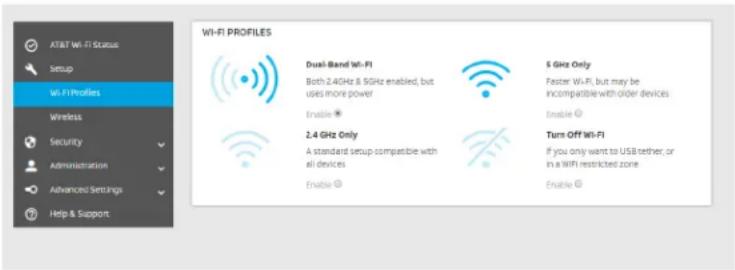
- Select WiFi > Options.
text_image
AT&T Wi-Fi Status Setup Wi-FiProfiles Wireless Security Administration Advanced Settings Help & Support Wi-Fi PROFILES Dual-Band Wi-Fi Both 2.4GHz & 5GHz enabled, but uses more power Enable * 2.4 GHz Only A standard setup compatible with all devices Enable * 5 GHz Only Faster Wi-Fi, but may be incompatible with older devices Enable * Turn Off Wi-Fi If you only want to USB tether, or in a WiFi restricted zone Enable *- Select Dual-Band WiFi.
The Save and Cancel buttons display at the bottom of the page.
- Click the Save button.
A message displays telling you that to save this change, your device must have WiFi connections.
Turn On Dual-Band WiFi From the Mobi Router
The mobile router can broadcast WiFi signals in the 2.4 GHz and 5 GHz WiFi. Note that the overall throughput speed could decrease when WiFi dual-band is e
To turn on dual-band WiFi from the mobile router web page:
- Tap Power to wake the device.
- Tap WiFi.
The WiFi screen displays.
- Tap Band.
The Band screen displays.
Band
Dual-Band WiFi

2.4 GHz
Most devices compatible
5 GHz
Fastest for 5GHz devices
- Tap Dual-Band WiFi.
- Tap OK.
Your settings are saved.
Manage Your Broadband Network Connection
You can view the mobile broadband network status, turn domestic data on and turn international roaming on and off.
View Mobile Broadband Network Status From the Mob Router
To view network status from the mobile router:
- To wake the device, tap Power.
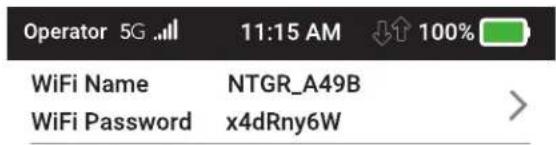
text_image
Operator 5G ... 11:15 AM ↓↑ 100% WiFi Name NTGR_A49B WiFi Password x4dRny6W >6.8* GB used
11 days left
*Estimated data.

text_image
8 WiFi Messages Settings- Tap Settings.
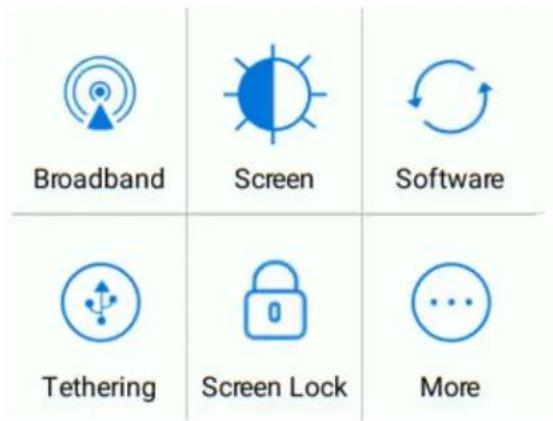
text_image
Broadband Screen Software Tethering Screen Lock More- Tap Broadband.
The Broadband screen displays the network status.
- To view details about the network status, tap Status.
The Network Status screen displays.
View Mobile Broadband Network Status From the Mob Router Web Page
To view network status from the mobile router web page:
- From a computer or WiFi device that is connected to the mobile router, la web browser.
- Enter http://192.168.1.1.
The mobile router web - Enter the administrator login password.
The default password is printed on the product label. The password is case-s The home page displays. - Select Settings > Network.
The Status page displays. - View the Network Status section.
Turn Domestic Data Off From the Mobile Router Web
Note: You can turn domestic data off, but not on from the web page.
To turn domestic data off from the mobile router:
- From a computer or WiFi device that is connected to the mobile router, la web browser.
- Enter http://192.168.1.1.
The mobile router web page displays. - Enter the administrator login password.
The default password is printed on the product label. The password is case-s The home page displays. - Select Settings > Advanced Settings > Cellular.
The preferences page displays. - Uncheck the Data check box.
The Save and Cancel buttons display at the bottom of the page. - Click the Save button.
Your settings are saved.
Your settings are saved.
Your settings are saved.
Your settings are saved.
Your settings are saved.
Your settings are saved.
outer Web Page
outer Web Page
outer Web Page
outer Web Page
outer Web Page
outer Web Page
outer Web Page
outer Web Page
outer Web Page
outer Web Page
Turn International Roaming On and Off From the Mok Router
To view network status from the mobile router:
- To wake the device, tap Power.
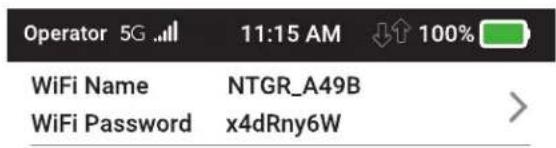
text_image
Operator 5G ...ll 11:15 AM ↓↑ 100% WiFi Name NTGR_A49B WiFi Password x4dRny6W >6.8* GB used
11 days left
*Estimated data.

text_image
8 WiFi Messages Settings- Tap Settings.
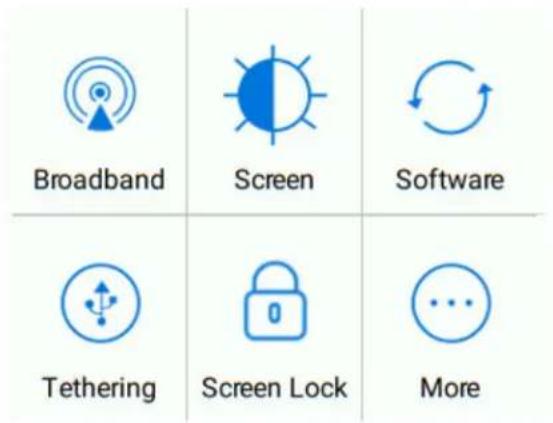
text_image
Broadband Screen Software Tethering Screen Lock More- Tap Broadband.
The Broadband screen displays the network status.
- Tap Int'l Roaming.
The International Roaming screen displays.
- Tap Int'l Roaming On/Off.
Your settings are saved.
Turn International Roaming On and Off From the Mok Router Web Page
Before you turn on international roaming, make sure that you are aware of any charges for data that you might incur.
To turn international roaming on and off:
- From a computer or WiFi device that is connected to the mobile router, la web browser.
- Enter http://192.168.1.1.
The mobile router web page displays.
- Enter the administrator login password.
The default password is printed on the product label. The password is case-s The home page displays.
- Select Settings > Advanced Settings > Cellular.
The preferences page displays.
- Uncheck the Roaming Data check box.
The Save and Cancel buttons display at the bottom of the page.
- Select the Save button.
Your settings are saved.
Connect to WiFi
You can connect up to 32 devices (such as smartphones, laptops, tablets, digital printers, gaming consoles, and digital picture frames) to your mobile router netw For information about setting connections for WiFi networks, see View Mobile Broa Network Status From the Mobile Router on page 27.
To connect using the WiFi password:
- On the WiFi device, view the list of available WiFi networks.
- Connect to the network that corresponds to your mobile router network as c on the LCD screen.
- When prompted, enter the WiFi password for your mobile router network. The WiFi password displays on the mobile router LCD screen. If the screen off, press and quickly release the Power button to wake the mobile router.
Manage WiFi
Advanced users can set up the WiFi radio of the mobile router to meet their by customizing settings on the mobile router web page.
On the mobile router web page, the following WiFi proles are available:
- Default, Dual-Band. Supports two separate WiFi networks simultaneously using both a 2.4- and 5-GHz frequency band.
• 2.4 GHz only. Share your main WiFi with 2.4 GHz devices that you trust. - 5 GHz WiFi. Share your main WiFi with 5 GHz devices that you trust.
- Turn Off WiFi. Turn off WiFi.
By default, Dual-Band is enabled. If your place of business does not allow WiFi any other reason you want to disable WiFi and use the mobile router only in mode, the mobile router gives you that option.
Note: Whenever you change WiFi settings, any devices connected to the mobile are disconnected and might need to be reconnected.
Turn On 5 GHz WiFi From the Mobile Router
When all of your devices support 5 GHz WiFi, use 5 GHz WiFi for faster do
To turn 5 GHz WiFi on and off from the mobile router:
- Tap Power to wake the device.
text_image
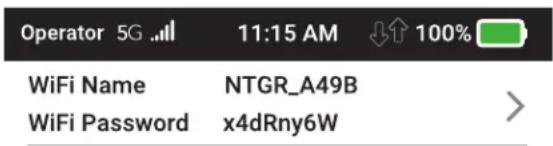
Operator 5G ...ll 11:15 AM ↓↑ 100% WiFi Name NTGR_A49B WiFi Password x4dRny6W >6.8* GB used 11 days left
*Estimated data.
text_image
8 WiFi Messages Settings- Tap WiFi.
The WiFi screen displays.
- Tap Band.
The WiFi Band screen displays.
- Tap 5 GHz.
A message displays to tell you that changing the WiFi info temporarily cause connectivity loss.
- Tap OK.
Your settings are saved.
Turn On 5 GHz WiFi From the Mobile Router Web
When all of your devices support 5 GHz WiFi, use 5 GHz WiFi for faster do
To turn on 5 GHz WiFi from the mobile router web page:
- From a computer or WiFi device that is connected to the mobile router, la web browser.
- Enter http://192.168.1.1.
The mobile router web page displays.
- Enter the administrator login password.
The default password is printed on the product label. The password is case-s The home page displays.
- Select Settings > Setup >WiFi Proles .
The WiFi Options page displays.
- Select 5GHz Only.
The Save and Cancel buttons display at the bottom of the page.
- Click the Apply button.
A message displays telling you that to save this change, your device must have WiFi connections.
- Click the Continue button.
Your settings are saved.
Specify WiFi Settings From the Mobile Router
To specify the WiFi settings from the mobile router:
- Tap Power to wake the device.
text_image
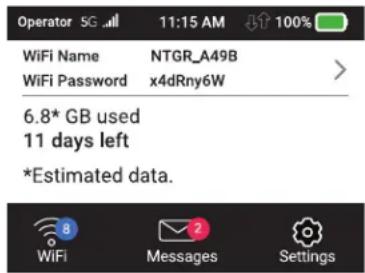
Operator 5G 11:15 AM 100% WiFi Name NTGR_A49B WiFi Password x4dRny6W 6.8* GB used 11 days left *Estimated data.- To turn the WiFi signal on or off:
a. Tap WiFi.
The WiFi screen displays.
b. Tap Options.
The WiFi Options screen displays.
c. Tap the WiFi eld.
d. To toggle the WiFi radio, tap WiFi On/Off.
A message displays to tell you that changing the WiFi info temporarily ca connectivity loss.
e. Tap OK.
Your settings are saved.
- To power down the WiFi radio after a set period of inactivity:
a. Tap WiFi .
The WiFi Options screen displays.
b. Tap Options.
The WiFi Options screen displays.
c. Tap the WiFi Standby eld to modify the standby timer.
The WiFi Standby screen displays.
d. Tap the setting for the selection that you want.
The Changes Saved screen appears.
e. Tap OK to continue.
Your settings are saved.
Use the mobile router web page to set up a prole that is more detailed basic proles offered on the mobile router.
Change WiFi Settings From the Mobile Router Web P
To select a WiFi prole or create a custom prole on the mobile router wel
- From a computer or WiFi device that is connected to the mobile router, la web browser.
- Enter http://192.168.1.1.
The mobile router web page displays.
- Enter the administrator login password.
The default password is printed on the product label. The password is case-s The home page displays.
- Select Settings > Setup > Wireless.
- Click the WiFi network to select it.
- To allow the WiFi information to be displayed on the mobile router home s leave the WiFi Info on Home check box selected.
- Click the Apply button.
A message displays to tell you that changing the WiFi info will temporarily connectivity loss.
Your settings are saved.
Manage WiFi Security
Note: When you change the WiFi settings, the mobile router resets. Any device connected to the mobile router are disconnected when the mobile router resets.
Change WiFi Network Name and Password From the M Router
The WiFi network name identifies your WiFi network and is visible to other WiFi devices.
To change the network name and password from the mobile router.
- Press the Power button to wake the device.
text_image
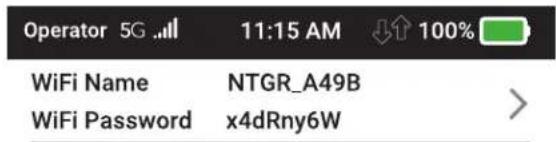
Operator 5G ...ll 11:15 AM ↓↑ 100% WiFi Name NTGR_A49B WiFi Password x4dRny6W >6.8* GB used
11 days left
*Estimated data.
text_image
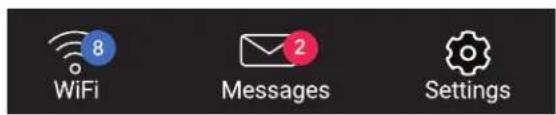
8 WiFi Messages Settings- Tap WiFi.
The WiFi screen displays.
- Tap Main WiFi.
The settings screen for the network displays.
- Tap the Pencil (Edit) icon beside the name or password.
A message displays telling you that currently connected devices must re-authent to the network with the updated information.
- Tap Continue.
The message closes.
-
Enter the new WiFi name and password.
-
Tap Done.
Your settings are saved.
Change WiFi Network Names and Passwords From the Mobile Router Web Page
The WiFi network name identifies your WiFi network and is visible to other WiFi devices.
To change network name and password from the mobile router web page:
-
From a computer or WiFi device that is connected to the mobile router, la web browser.
-
Enter http://192.168.1.1.
The mobile router web page displays.
- Enter the administrator login password.
The default password is printed on the product label. The password is case-s The home page displays.
- Select Settings > Setup > Wireless.
The WiFi connect page displays.
-
Change the WiFi Name and WiFi Password elds as desired.
-
Click the Continue button.
A message displays telling you that to save this change, your device must have WiFi connections.
- Click the Continue button.
Your settings are saved.
All devices that were connected must reconnect with the new name and pas
Change WiFi Encryption Settings
For information about WiFi security, see Security Credentials on page 13.
To change the type of security used for main WiFi:
-
From a computer or WiFi device that is connected to the mobile router, la web browser.
-
Enter http://192.168.1.1.
The mobile router web page displays.
- Enter the administrator login password.
The default password is printed on the product label. The password is case-s The home page displays.
- Select Settings > Setup > Wireless.
The wireless settings display.
- In the Encryption menu for main WiFi or guest WiFi, select a security option
- WPA2 Personal AES. Strong security supported by newer WiFi devices, the default.
- None. Anyone can access your WiFi network without a password and you responsible for charges incurred. Best practice is not to select this option.
The Apply and Discard buttons display at the bottom of the page.
- Click Apply and Discard.
A message displays telling you that to save this change, your device must have WiFi connections.
- Click Continue.
Your settings are saved.
- Reconnect your WiFi devices, if necessary, using the new WiFi credentials.
3
Manage Security
For information about WiFi security settings, see Manage WiFi Security on page The chapter covers the following topics:
- Change the Mobile Router Web Page Login Settings
• View Connected Devices From the Mobile Router Web Page - Activate SIM Security
Change the Mobile Router Web Page Lo Settings
You can change the host name for the mobile router web page. You can also the password to access the mobile router web page.
To change the login settings for the mobile router web page:
- From a computer or WiFi device that is connected to the mobile router, la web browser.
- Enter http://192.168.1.1. The mobile router web page displays.
- Enter the administrator login password. The default password is printed on the product label. The password is case-s The home page displays.
- Select Settings > Administration > Set Password. The password settings are displayed.
- In the Set Password eld, change the password used to log in as an admi Best practice is to set a more secure password. Enter a maximum of 31 characters.
- Click the Apply button. Your settings are saved.
View Connected Devices From the Mobile Router Web Page
To view the connected devices from the mobile router web page:
- From a computer or WiFi device that is connected to the mobile router, la web browser.
- Enter http://192.168.1.1:8080/. The mobile router web page displays.
- Enter the administrator login password. The default password is attadmin. The password is case-sensitive.
The home page displays.
Activate SIM Security
You can create another level of security by conging a PIN that you must enter you can manage the network connection or view SMS messages.
To activate SIM security:
- From a computer or WiFi device that is connected to the mobile router, la web browser.
- Enter http://192.168.1.1.
The mobile router web page displays.
- Enter the administrator login password.
The default password is printed on the product label. The password is case-s The home page displays.
- Select Settings > Security > SIM Security.
The SIM Security page displays.
- Click the Activate button.
- Enter your PIN and click the Apply button.
If you enter an incorrect PIN three times, the SIM is blocked. If the SIM is contact your network service provider to receive a PUK number to unblock t
4
Maintain Your Mobile Router
The chapter covers the following topics:
- Extend Battery Life
• View Details About Your Device From the Mobile Router
• View Details About Your Device From the Mobile Router Web Page - Add and Select Access Point Names (APN)
- Set Up Always-on WiFi
- Enable DMZ
- Update Mobile Router Software and Firmware
Extend Battery Life
The mobile router, by default, is configured to optimize battery life. The following affect battery life:
- Screen brightness.
- Standby time.
• Data throughput. - Mobile broadband signal strength (the better the signal, the longer the batter
- WiFi range.
To extend the battery life, use any of the following methods:
- Adjust WiFi settings.
- Adjust display settings.
- Use tethered USB.
Adjust WiFi Settings to Optimize Battery Life
Set the standby timer to a shorter period to minimize the wait time when no connected to either WiFi network before going into standby mode (the WiFi rack off).
Note: When you change the WiFi settings, any devices connected to the mobile are disconnected and might need to be reconnected.
You can set the following WiFi options to optimize battery life:
- Adjust the display settings. See Set the Display to Increase Battery Life From Mobile Router Web Page on page 43.
- Set the WiFi standby to 5 minutes.
Set the Display to Increase Battery Life From the Mo Router
Dim the screen to reduce the LCD screen's brightness level. Set the screen time a shorter period to reduce the amount of time the mobile router waits without screen being touched before the screen turns blank.
To change the screen brightness from the mobile router:
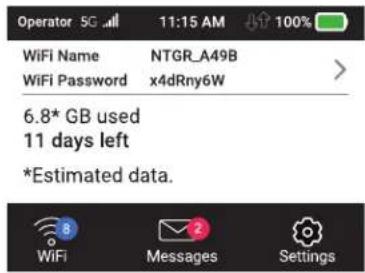
- Tap Power to wake the device.
text_image
Operator 5G 11:15 AM 100% WiFi Name NTGR_A49B WiFi Password x4dRny6W 6.8* GB used 11 days left *Estimated data. WiFi Messages Settings- Tap Settings.
text_image
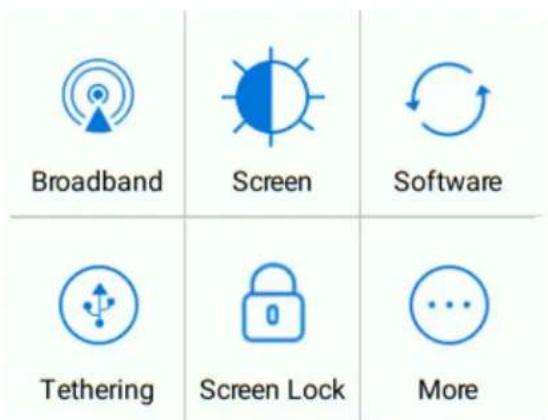
Broadband Screen Software Tethering Screen Lock More- Tap Screen.
The settings screen for the network displays.
-
Slide the Screen Brightness slider to the brightness that you want. Your settings are saved.
-
Tap Screen Timeout.
The Screen Timeout screen displays.
- Tap the eld for the selection that you want. Your settings are saved.
Set the Display to Increase Battery Life From the Mo Router Web Page
Dim the screen to reduce the LCD screen's brightness level. Set the screen time a shorter period to reduce the amount of time the mobile router waits without screen being touched before the screen turns blank.
To adjust display settings to increase battery life from the mobile router we
- From a computer or WiFi device that is connected to the mobile router, la web browser.
- Enter http://192.168.1.1.
The mobile router web page displays.
- Enter the administrator login password.
The default password is printed on the product label. The password is case-s The home page displays.
- Select Settings > Advanced Settings > Device.
The device settings page opens.
-
Adjust any of these settings:
-
Screen Brightness. From the menu, select the screen brightness level.
-
Screen Timeout. From the menu, select a shorter time period.
-
Click the Accept button.
Your settings are saved.
View Details About Your Device From th Mobile Router
You can view details about your device such as the model number, software v and IMEI (International Mobile Station Equipment Identity).
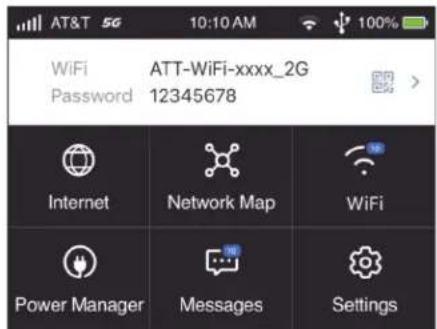
- Tap Power to wake the device.
text_image
AT&T 5G 10:10 AM WiFi ATT-WiFi-xxxx_2G Password 12345678 Internet Network Map WiFi Power Manager Messages Settings- Tap Settings.
text_image
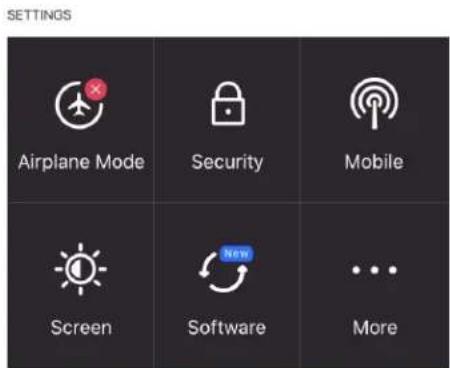
SETTINGS Airplane Mode Security Mobile Screen New Software More- Tap More.
The settings screen for the network displays.
- Tap More.
The additional settings screen displays.
- Tap Device Information.
The Device Information screen displays.
View Details About Your Device From th Mobile Router Web Page
You can view details about your device such as the model number, software v and IMEI (International Mobile Station Equipment Identity).
To view details about your device from the mobile router web page:
- From a computer or WiFi device that is connected to the mobile router, la web browser.
- Enter http://192.168.1.1. The mobile router web page displays.
- Enter the administrator login password. The default password is printed on the product label. The password is case-s The home page displays.
- Select Settings > Account. The About page displays details for your mobile router.
Add and Select Access Point Names (AF
Your mobile router comes precongured with the access point name (APN) for your network service provider. You can add additional APNs and select among the core APN for use by the mobile router. The mobile router checks the APN to detect type of network connection to establish.
Add an APN for Another Network
To add an APN for another network:
- From a computer or WiFi device that is connected to the mobile router, la web browser.
- Enter http://192.168.1.1. The mobile router web page displays.
-
Enter the administrator login password. The default password is printed on the product label. The password is case-s The home page displays.
-
Select Settings > Advanced Settings > Cellular.
The Add APN screen displays.
- Click the Add button.
The APN page displays.
- Specify the APN name.
The APN name is a label for display in the UI.
- Specify the APN
This step species the APN as dened by the carrier
- Change the PDP (data protocol), if necessary:
• IPV4
• IPV6
- IPV4V6
-
Change the PDP roaming protocol, if necessary:
-
None
• IPV4
• IPV6
• IPV4V6
Note: PDP roaming protocol is the IP protocol used while you are roaming example when you are traveling and the roaming network does not support
-
Select the network authentication mode:
-
None
• PAP - CHAP
-
PAP or CHAP
-
Enter the name and password, if they are required for the network.
- Click the ADD button.
The entry is added to the table.
Select an APN to Use
To select an APN to use:
- From a computer or WiFi device that is connected to the mobile router, la web browser.
- Enter http://192.168.1.1.
The mobile router web page displays. - Enter the administrator login password.
The default password is printed on the product label. The password is case-s The home page displays. - Select Settings > Advanced Settings > Cellular.
The APN page displays. - Select the Active radio button next to the APN entry.
The APN is selected.
Remove an APN Entry
To remove an APN entry:
- From a computer or WiFi device that is connected to the mobile router, la web browser.
- Enter http://192.168.1.1.
The mobile router web page displays. - Enter the administrator login password.
The default password is printed on the product label. The password is case-s The home page displays. - Select Settings > Advanced Settings > Cellular.
The APN page displays. - Select the box to the left of the APN.
- Click the Delete button.
The APN is removed.
Set Up Always-on WiFi
The mobile router can use a wired Internet connection with automatic failover s so that you can connect the mobile router to an existing DSL, cable, or ber-c modem. If the wired Internet connection goes down, the mobile router can autor and seamlessly switch over to the backup Internet connection over the mobile brc network for continuous connectivity.
Always-on WiFi will route all trafc over the Ethernet WAN. If the Ethernet conn fails, the device automatically switches to LTE
Note: Data Ofoading is disabled automatically by the rmware when users enable Always-on Wi; users don't need to disable ofoading manually before enabling Always-on WiFi.
Set up Always-on WiFi From the Mobile Router
To set up Always-on WiFi:
- Tap Power to wake the device.
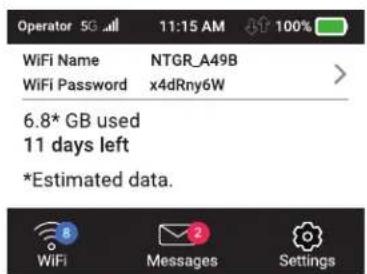
text_image
Operator 5G 11:15 AM 100% WiFi Name NTGR_A49B WiFi Password x4dRny6W 6.8* GB used 11 days left *Estimated data.- Tap Settings.
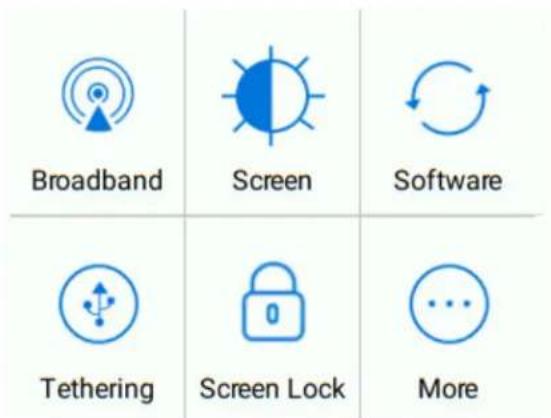
text_image
Broadband Screen Software Tethering Screen Lock More- Tap More.
4. Tap Always-on WiFi.
The Always-on screen appears
Set up Always-on WiFi From the Mobile Router Web
To set up Always-on WiFi:
- From a computer or WiFi device that is connected to the mobile router, la web browser.
- Enter http://192.168.1.1.
The mobile router web page displays. -
Enter the administrator login password.
The default password is printed on the product label. The password is case-s The home page displays. -
Select Settings > Setup >Always-on WiFi.
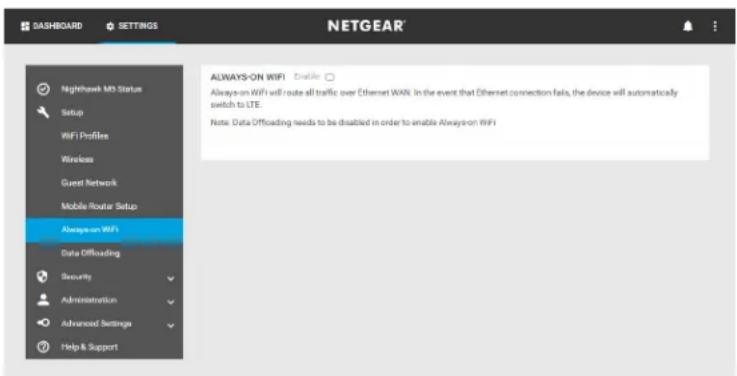
text_image
DASHBOARD SETTINGS NETGEAR® Nighthawk MD Status Setup WiFi Profiles Wireless Guest Network Mobile Router Setup Always-on WiFi Data Offloading Security Administration Advanced Settings Help & Support ALWAYS-ON WIFI Enable Always-on WiFi will route all traffic over Ethernet WAN. In the event that Ethernet connection fails, the device will automatically switch to LTE. Note: Data Offloading needs to be disabled in order to enable Always-on WiFi- To enable Always-on Wi, select the Enable check box.
Note: Data Ofoading is disabled automatically by the rmware when users enable Always-on Wi; users don't need to disable ofoading manually before enabling Always-on WiFi
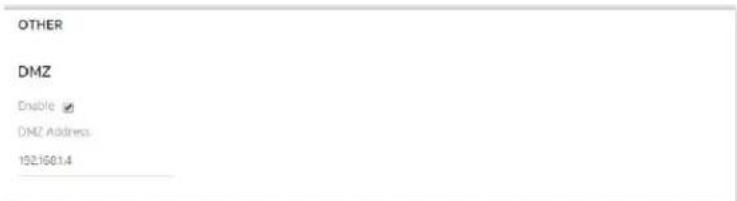
Enable DMZ
In a demilitarized zone (DMZ) network configuration, a computer runs outside the in the DMZ. This computer intercepts incoming Internet trafc, providing an extra
of protection for the rest of the network, and sending all incoming data to a IP address.
To enable the DMZ and designate a computer to screen incoming trafc:
-
From a computer or WiFi device that is connected to the mobile router, la web browser.
-
Enter http://192.168.1.1.
The mobile router web page displays.
- Enter the administrator login password.
The default password is printed on the product label. The password is case-s The home page displays.
- Select Settings > Advanced Settings > Other.
The mobile router page displays.
- Scroll down to display the DMZ section.
text_image
OTHER DMZ Enable DMZ Address 192.168.1.4-
Check the Enable check box.
-
In the DMZ Address eld, enter the IP address of the computer to which y all data sent.
If the mobile router is tethered using a USB cable, this address is 192.168. ^4 mobile router is connected using WiFi, the rst WiFi client's IP address is using 192.168.1.XX.
- Click the Apply button.
Your settings are saved.
Update Mobile Router Software and Firmware
The mobile router automatically checks for new software or rmware updates periodically. If an update becomes available, the mobile router displays an alert. can also check for updates manually without receiving an alert.
Update Mobile Router Software and Firmware in Respc to an Update Available Alert
To update the mobile router software or rmware in response to an Update Available alert:
- To wake the device, tap Power.
The home screen displays and shows the alert.
- Tap Install/Update.
The update process starts.
After the update install completes, the mobile router reboots.
Check for Software Updates From the Mobile Router
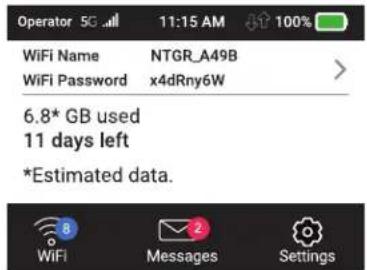
- Tap Power to wake the device.
text_image
Operator 5G 11:15 AM 100% WiFi Name NTGR_A49B WiFi Password x4dRny6W 6.8* GB used 11 days left *Estimated data.- Tap Settings.
text_image
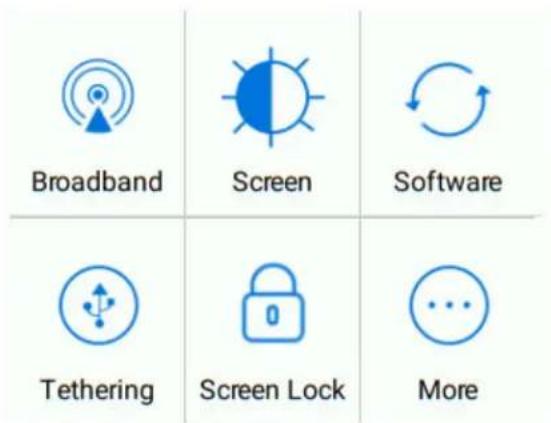
Broadband Screen Software Tethering Screen Lock More- Tap the Software button.
The Software Update screen displays.
- Tap the Check for updates now button.
The screen refreshes showing any available update.
-
Do one of the following:
-
If an upgrade is available and you want to install it, tap the Update now to install the update.
• To postpone the update, tap Postpone.
If you tap Update now, the update proceeds.
If you tap Postpone a message appears indicating the update will be posted for 4 hours. You can then click OK to accept the postponed update.
When the wait period is complete, after you are prompted to continue the tap Continue Update.
If the battery is low, a message appears indicating that the battery is low.
- To continue, connect the device to the charge and tap OK.
After the update install completes, the mobile router reboots.
5
Frequently Asked Questions
This chapter provides answers to possible questions about your mobile router:
• Questions About Connecting and Disconnecting Devices and Accessing the Internet
• Questions About the Mobile Router Web Page
- General Questions
Questions About Connecting and Disconnecting Devices and Accessing the Internet
Review these topics for answers to questions about connecting and disconnecting devices and accessing the Internet.
What do I do if I can't connect a device to the m
If you are experiencing problems connecting to the mobile router, try the follow suggestions:
- Turn off your mobile router and take the battery out, wait 10 seconds, put back in, and turn your mobile router on.
- Restart your computer or Wi device.
- Turn off or temporarily disable any security programs or rewalls.
- If possible, try using another computer or WiFi device to connect to your router. If you can, then the problem is with the device that cannot connect, mobile router.
What do I do if I can't access the Internet?
If you are connected to the mobile router but cannot connect to the Internet, following suggestions:
- Check the display status on the mobile router's LCD screen.
- Make sure that network coverage is available in your area.
• Make sure that your micro SIM card is active and enabled with data service - Wait one to two minutes for the mobile router to initialize.
- Check the device information screen to make sure the SIM information is dis (to ensure the MHS sees the SIM).
- Conrm that your account is activated and that no other Internet connections active.
- Switch your mobile router off and on and restart your computer or WiFi de
How do I disconnect from the mobile broadband net
Turning off domestic data and international roaming disconnects your mobile route from the mobile broadband network. For more information, see Turn Domestic D Off From the Mobile Router Web Page on page 28.
How do I nd out how many devices are connected mobile hotspot's WiFi networks?
The number next to the WiFi button on the mobile router's LCD home screen number of users (or devices) connected to your WiFi network. When you log i mobile router web page, the number of connected devices displays on the hon
What do I do if the No Signal icon displays?
If the No Signal ☐on ( ) displays, make sure that you are in your network s provider's coverage area.
Why can't my device access the mobile router web when connected to a VPN?
To directly access the mobile router web page hosted on the device, enter the http://192.168.1.1 in your browser.
Why can't my mobile router connect to a computer in Windows Vista?
A known issue exists whereby computers running Microsoft Windows Vista cannot an IP address from certain routers. More information and a x are available at http://support.microsoft.com/kb/928233, or visit the Microsoft support website and search for knowledge base article 928233.
What do I do if my mobile router doesn't connect service provider's network?
If your mobile router does not connect to your service provider's mobile broadband network, try the following suggestions:
- Make sure that your micro SIM account is active. To check micro SIM status your wireless service provider.
• If you use a prepaid micro SIM card, make sure that the account balance - If your mobile router still does not connect, you might need to create or default connection prole.
To check the default connection prole settings:
- From a computer or WiFi device that is connected to the mobile router, la web browser.
- Enter http://192.168.1.1.
The mobile router web page displays.
- Enter the mobile router password.
The default password is printed on the product label. The password is case-s The home page displays.
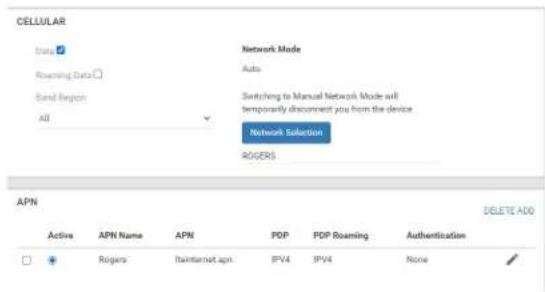
- Select Settings > Advanced Settings > Cellular.
text_image
CELLULAR Status Roaming Data Band Region All Network Mode Auto Switching to Manual Network Mode will temporarily disconnect you from the device Network Selection ROGERS APN DELETE ADD Active APN Name APN PDP PDP Roaming-Augustentication Rogers Taintanned APN IPV4 IPV4 None- Review ISP settings.
Questions About the Mobile Router Web Page
Review these topics for answers to questions about the mobile router web page
How do I go back to the mobile hotspot web page
To view the mobile router web page:
- From a computer or WiFi device that is connected to the mobile router, la web browser.
- Enter http://192.168.1.1.
The mobile router web page displays.
- Enter the administrator login password.
The default password is printed on the product label. The password is case-s The mobile router web page displays.
What do I do if I forget my admin login password?
The default admin login password is printed on the product label, and the mol web page URL is http://192.168.1.1.
If you changed the admin login password and can't remember the password that created, you must reset the mobile router back to factory defaults. See Reset t Router on page 65.
General Questions
Review these topics for answers to general questions about the mobile router.
Why isn't my battery charging?
If you are in a low-coverage area, are transferring a lot of data, or left the in a hot location, the internal temperature of the mobile router can rise above these conditions, the battery cannot be charged due to safety limits with lithium battery technology.
Check to ensure that the USB cable and the AC wall charger are connected as and are working correctly.
If the device is left charging for over seven consecutive days, the device auton enters a battery longevity mode to enhance the life of the battery. During this device stops charging and allows the battery level to drop to and maintain at approximately 75 percent. The next time the device is plugged into a charger, charging.
Why is the Signal Strength indicator always low?
Your mobile router's reception is poor. Try moving it to a location with a clean the sky (for example, near a window).
Why is the download or upload speed slow?
Data transfer speed depends on signal strength and interfering radio sources like electrical generators or other mobile router WiFi devices. Review the following possibilities:
- Check your signal strength and network type (for example, 5G is generally far than 4G).
- Check WiFi interference by powering the mobile router off and on to nd a WiFi channel.
- Change the WiFi band from 2.4 GHz to 5 GHz.
The LCD screen is not lit. How do I know if the r is still powered on?
The LCD screen dims to save energy. The LED continues to blink slowly to in the mobile router is still powered on. To wake the mobile router, tap Power.
How do I nd my computer's IP address?
The steps for nding your computer's IP address depend on the operating system your device runs an operating system not listed here, see the appropriate opera system documentation.
Find the IP address on a Windows 7 or Windows 10 device To address on a Windows 7 or Windows 10 device:
- Open the command prompt window:
a. Select Start > Run.
b. Enter cmd or command and click the OK button.
-
At the command prompt, enter ipcong and press Enter.
-
Write down the IP address for the entry that relates to the WiFi network c The IP address might be listed under IPv4 Address or something similar.
Find the IP address on a Windows 8 device To nd the IP address Windows 8 device:
- In the Charms bar, click the Search button.
- Select Command Prompt.
- At the command prompt, enter ipcong and press Enter.
- Write down the IP address for the entry that relates to the WiFi network c The IP address might be listed under IPv4 Address or something similar.
Find the IP address on a Mac OS X device To nd the IP address device:
- From the Apple menu, select System Preferences > Network.
- Select the WiFi adapter.
The IP address is displayed in the right pane.
Find the IP address on devices running other operating systems the IP address on devices running other operating systems:
Refer to the user documentation for your operating system or computer.
How do I nd a device's MAC address?
You must know the MAC address for a device when you are doing the follow
- Assigning an IP address based on a MAC address (when using DHCP)
- Allowing or denying devices access to your WiFi network (MAC ltering)
Tip: To display a list of connected devices, including the MAC address of each go to the mobile router web page and log in as an administrator. The connect list appears on the left side of the home page. Click the device links to disp MAC addresses.
The steps for nding a device's MAC address depend on the operating system. device runs an operating system not listed in the following procedures, see the appropriate operating system documentation.
Find the MAC address on a Windows 7 or Windows 10 device
the MAC address on a Windows 7 or Windows 10 device:
- Open the command prompt window:
a. Select Start > Run.
b. Enter cmd or command and click the OK button.
-
At the command prompt, enter ipcong /all and press Enter.
-
Write down the physical address for the entry that relates to the WiFi network connection.
It appears as a series of numbers and letters. This is the MAC address of adapter.
Find the MAC address on a Windows 8 device To nd the MAC ad
a Windows 8 device:
-
In the Charms bar, click the Search button.
-
Select Command Prompt.
-
At the command prompt, enter ipcong /all and press the Enter button.
-
Write down the physical address for the entry that relates to the WiFi network connection.
It appears as a series of numbers and letters. This is the MAC address of adapter.
Find the MAC address on a Mac OS X device To nd the MAC ac
Mac OS X device:
-
From the Apple menu, select System Preferences > Network.
-
Select the WiFi adapter that is connecting to the routing hardware.
-
Select Advanced.
-
Select Ethernet.
The Ethernet ID is displayed. This is the same as the MAC address.
What do I do if the WiFi network name doesn't ap| the list of networks?
If you do not see the mobile router's WiFi networks from your WiFi-enabled data, these suggestions:
- Refresh the list of networks.
- If the LCD screen is dark, the WiFi radio might be asleep. Tap Power to mobile router.
- Check the WiFi band settings and consider using the 2.4 GHz band for inch compatibility with client devices.
6
Troubleshooting
This chapter provides suggestions for troubleshooting problems that might arise with you are using your mobile router. The chapter covers the following topics:
• View Alerts
- Reset the Mobile Router
View Alerts
Your mobile router displays alerts to advise you of device status changes. See Messages From the Mobile Router Web Page on page 20.
SIM Not Installed
Ensure that the micro SIM card is installed correctly. For information about replace SIM, see Replace a SIM Card on page 10.
SIM Error - Check SIM
Ensure that your network service provider's micro SIM card is inserted in the router. If a problem still exists, contact customer service. The micro SIM card n damaged and need replacing.
SIM Locked
You can unlock the SIM.
To unlock the micro SIM card from the mobile router web page:
- Contact customer service for the PIN to unlock the micro SIM card.
- From a computer or WiFi device that is connected to the mobile router, la web browser.
- Enter http://192.168.1.1.
The mobile router web page displays. - Enter the administrator login password.
The default password is printed on the product label. The password is case-s The home page displays. - Enter the micro SIM PIN when prompted.
- Click the Save button.
Your settings are saved.
Temperature-Related Alerts
The mobile router is designed to work over a wide temperature range (for mc information, see Environmental Specifications on page ?). The mobile router shuts down automatically if it goes out of the supported temperature range.
Move the device to an area where the temperature is more suitable and, if the router is too warm, make sure that the area is well ventilated and air can cir the device.
Note: The battery might not recharge if the mobile router is outside the opera temperature range.
Reset the Mobile Router
You can reset the mobile router to the factory settings. This is useful if you admin login password for the mobile router web page.
If you reset the mobile router, all of your customizations are lost. If you want them, save them before doing the reset and restore them afterward. See Back Restore Mobile Router Settings on page ?.
Note: When you reset the mobile router, any currently connected devices lose and must be reconnected after the mobile router restarts.
Reset the Mobile Router From the Mobile Router
Start with the mobile router turned on.
To reset the mobile router directly from the mobile router:
- Tap Power to wake the device.

text_image
Operator 5G 11:15 AM 100% WiFi Name NTGR_A49B WiFi Password x4dRny6W 6.8* GB used 11 days left *Estimated data. WiFi Messages Settings- Tap Settings.
text_image
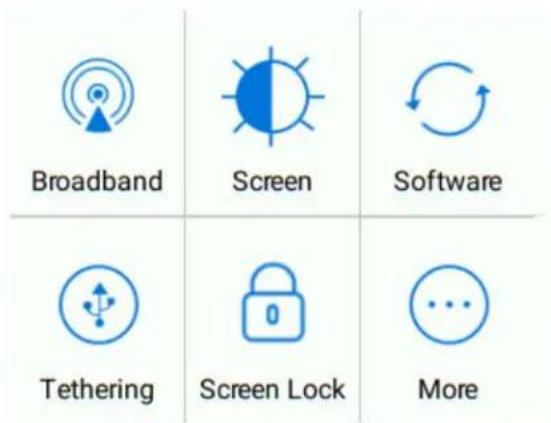
Broadband Screen Software Tethering Screen Lock More- Tap More.
The additional settings screen displays.
- Tap Factory Reset.
A message displays telling you that devices currently connected will lose Inter access.
- Tap Yes.
The mobile router resets to its factory settings.
Reset the Mobile Router From the Mobile Router Web
To reset the mobile router to its factory settings:
-
From a computer or WiFi device that is connected to the mobile router, la web browser.
-
Enter http://192.168.1.1.
The mobile router web page displays.
- Enter the administrator login password.
The default password is printed on the product label. The password is case-s The home page displays.
- Select Settings > Administrator > Factory Reset.
The Factory Reset page displays.
- Click the Reset Defaults button.
A message displays telling you that devices currently connected will lose Inter access.
- Click the Yes button.
The mobile router returns to its factory settings.
A
Specifications
This appendix covers the following topics:
- Battery Specifications
• Display Specifications
• Mechanical Specifications
• MR5100-111EUS and MR5200-100EUS Mobile Band Specifications
• MR5200-100NAS Mobile Band Specifications
• Package Contents - Port Specifications
• Security Specifications - WiFi Specifications
• Environmental Specifications
Battery Specifications
Battery specifications:
- Removable Li-ion battery
- Up to 13 hours of continuous usage
Note: 13+ hour battery life is achieved by the following heaviest case: stear YouTube for 1 hour, followed by 30 minutes of idle time, and then repeat 13 hours.
Display Specifications
The mobile router includes a 2.4 in. LCD touch screen.
Mechanical Specifications
Table 2. Physical dimensions
| DimensionParameter | ||
| Weight | 256 g (8.64 oz) with battery | |
| 105 mm (4.15 in.)Length | ||
| 105 mm (4.15 in.)Width | ||
| 21.5 mm (0.84 in.)Thickness | ||
MR5100-111EUS and MR5200-100EUS Mobile Band Specifications
Table 3. Mobile Bands
| BandTechnology | |||||||
| bands | 1, | 3, | 7, | 8, | 20, | 28, | 38, 404G/LTE |
| bands | n1, | n28, | n71, | n775G | NR | ||
| bands | 1, | 2, | 5, | 83GWODMA | |||
MR5200-100NAS Mobile Band Specifications
Table 4. Mobile Bands
| BandTechnology | ||||||||||||
| 4G/LTE | bands | 1, 38, | 2, 41, | 3, 46, | 4, 48, | 5, 66, | 7, 71, | 12, 13, | 13, 14, | 14, 25, | 25, 29, | 30, 30, |
Table 4. Mobile Bands (Continued)
| BandTechnology | |||||||
| 5G | NR | bands | n2, | n5, | n25, | n41, | n66, n71, n78 |
| 1, | 2, | 5, | 83G/WCDMA | ||||
| bands | |||||||
Package Contents
Your mobile router package includes the following:
• Nighthawk M5 5G WiFi 6 Mobile Router
- Removable lithium ion battery
- AC charger
- USB Type-C cable
- Quick Start Guide
- Safety leaet
Port Specifications
The mobile router provides one USB 3.1 Type-C port.
Security Specifications
Supported security features:
- WiFi security encryption
- VPN pass-through
- NAT rewall
- Password protected administration UI
WiFi Specifications
WiFi support:
- WiFi 802.11a/b/g/n/ac/ax, 2x2 MIMO
• 2.4/5 GHz Standalone
Environmental Specifications
Table 5. Recommended operating and storage temperatures
| TemperatureEnvironment | |
| Operating temperature | 0°C to 35°C(32 F to 95°F) |
| Storage temperature | -10°C to +60°C(14°F to 140°F) |