
QE82Q900RBU - Television SAMSUNG - Free user manual and instructions
Find the device manual for free QE82Q900RBU SAMSUNG in PDF.


| Product Type | QLED 8K Smart TV |
| Model | QE82Q900RBU |
| Screen Size | 82 inches (207 cm diagonal) |
| Display Resolution | 7,680 x 4,320 (8K) |
| Sound Output | 60 W |
| Dimensions (Without Stand) | 1835.0 x 1055.6 x 34.8 mm |
| Dimensions (With Stand) | 1835.0 x 1117.0 x 398.6 mm |
| Weight (Without Stand) | 50.0 kg |
| Weight (With Stand) | 51.2 kg |
| Power Supply | AC100-240V~ 50/60Hz |
| Power Consumption | 580 W |
| Standby Power | < 0.5 W (typical) |
| VESA Mount | 600 x 400 mm, M8 screws (19-21 mm) |
| Smart Remote | Included (Bluetooth pairing) |
| One Connect Box | Included |
| Operating Temperature | 10°C to 40°C |
| Operating Humidity | 10% to 80%, non-condensing |
| Wireless Connectivity | Wi-Fi (2.4/5 GHz), Bluetooth |
| Smart Hub | Yes (apps, streaming) |
| HDR Support | HDR10+, HLG |
| Eco Sensor | Yes (ambient light detection) |
| Safety Features | Anti-fall bracket, Class 1 Laser warning |
| Cleaning Instructions | Use soft dry cloth; avoid liquid, chemicals |
| Reparability | No user serviceable parts; contact qualified service |
Frequently Asked Questions - QE82Q900RBU SAMSUNG
User questions about QE82Q900RBU SAMSUNG
0 question about this device. Answer the ones you know or ask your own.
Ask a new question about this device
Download the instructions for your Television in PDF format for free! Find your manual QE82Q900RBU - SAMSUNG and take your electronic device back in hand. On this page are published all the documents necessary for the use of your device. QE82Q900RBU by SAMSUNG.
USER MANUAL QE82Q900RBU SAMSUNG
QE55Q900RBU QE65Q900RBU QE75Q900RBU
QE82Q900RBU QE98Q900RBU
900R
One Connect

Bending Cover


The terms HDMI and HDMI High-Definition Multimedia Interface, and the HDMI Logo are trademarks or registered trademarks of HDMI Licensing LLC in the United States and other countries.
QE55Q900RBU QE65Q900RBU QE75Q900RBU
QE82Q900RBU QE98Q900RBU

900R
Thank you for purchasing this Samsung product.
To receive more complete service, please register your product at www.samsung.com
Model ____ Serial No. ____
Before Reading This User Manual
This TV comes with this user manual and an embedded e-Manual. Before reading this user manual, review the following:
 | User Manual | Read this provided user manual to see information about product safety, installation, accessories, initial configuration, and product specifications. |
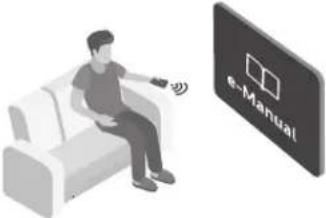 | e-Manual | For more information about this TV, read the e-Manual embedded in the product.To open the e-Manual,Settings > Support > Open e-Manual |
On the website (www.samsung.com), you can download the manuals and see its contents on your PC or mobile device.
Learning the e-Manual's assistance functions
- Some menu screens cannot be accessed from the e-Manual.
 | Search | Select an item from the search results to load the corresponding page. |
 | Index | Select a keyword to navigate to the relevant page.-The menus may not appear depending on the geographical area. |
 | Recent pages | Select a topic from the list of recently viewed topics. |
Learning the functions of the buttons that appear on e-Manual topic pages
 | Try Now | Allows you to access the corresponding menu item and try out the feature right away. |
 | Link | Access an underlined topic referred to on an e-Manual page immediately. |
Warning! Important Safety Instructions
Please read the Safety Instructions before using your TV.
Refer to the table below for an explanation of symbols which may be on your Samsung product.
| CAUTION |  | Class II product: This symbol indicates that a safety connection to electrical earth (ground) is not required. If this symbol is not present on a product with a mains lead, the product MUST have a reliable connection to protective earth (ground). | |
| RISK OF ELECTRIC SHOCK. DO NOT OPEN. | |||
| CAUTION: TO REDUCE THE RISK OF ELECTRIC SHOCK, DO NOT REMOVE COVER (OR BACK). THERE ARE NO USER SERVICEABLE PARTS INSIDE. REFER ALL SERVICING TO QUALIFIED PERSONNEL. |  | AC voltage: Rated voltage marked with this symbol is AC voltage. | |
 | This symbol indicates that high voltage is present inside. It is dangerous to make any kind of contact with any internal part of this product. |  | DC voltage: Rated voltage marked with this symbol is DC voltage. |
 | This symbol indicates that this product has included important literature concerning operation and maintenance. | Caution. Consult instructions for use: This symbol instructs the user to consult the user manual for further safety related information. | |
- The slots and openings in the cabinet and in the back or bottom are provided for necessary ventilation. To ensure reliable operation of this apparatus and to protect it from overheating, these slots and openings must never be blocked or covered.
- Do not place this apparatus in a confined space, such as a bookcase or built-in cabinet, unless proper ventilation is provided.
- Do not place this apparatus near or over a radiator or heat register, or where it is exposed to direct sunlight.
-
Do not place vessels (vases etc.) containing water on this apparatus, as this can result in a fire or electric shock.
-
Do not expose this apparatus to rain or place it near water (near a bathtub, washbowl, kitchen sink, or laundry tub, in a wet basement, or near a swimming pool, etc.). If this apparatus accidentally gets wet, unplug it and contact an authorised dealer immediately.
- This apparatus uses batteries. In your community, there might be environmental regulations that require you to dispose of these batteries properly. Please contact your local authorities for disposal or recycling information.
- Do not overload wall outlets, extension cords, or adaptors beyond their capacity, since this can result in fire or electric shock.
-
Power-supply cords should be placed so that they are not likely to be walked on or pinched by items placed upon or against them. Pay particular attention to cords at the plug end, at wall outlets, and at the point where they exit from the appliance.
-
To protect this apparatus from a lightning storm, or when left unattended and unused for long periods of time, unplug it from the wall outlet and disconnect the antenna or cable system. This will prevent damage to the set due to lightning and power line surges.
- Before connecting the AC power cord to the DC adaptor outlet, make sure that the voltage designation of the DC adaptor corresponds to the local electrical supply.
- Never insert anything metallic into the open parts of this apparatus. This may cause a danger of electric shock.
- To avoid electric shock, never touch the inside of this apparatus. Only a qualified technician should open this apparatus.
- Be sure to plug in the power cord until it is firmly seated. When unplugging the power cord from a wall outlet, always pull on the power cord's plug. Never unplug it by pulling on the power cord. Do not touch the power cord with wet hands.
- If this apparatus does not operate normally - in particular, if there are any unusual sounds or smells coming from it - unplug it immediately and contact an authorised dealer or Samsung service centre.
- Be sure to pull the power plug out of the outlet if the TV is to remain unused or if you are going to leave the house for an extended period of time (especially when children, elderly, or disabled people will be left alone in the house).
- Accumulated dust can cause an electric shock, an electric leakage, or a fire by causing the power cord to generate sparks and heat or by causing the insulation to deteriorate.
- Be sure to contact an authorised Samsung service centre for information if you intend to install your TV in a location with heavy dust, high or low temperatures, high humidity, chemical substances, or where it will operate 24 hours a day such as in an airport, a train station, etc. Failure to do so may lead to serious damage to your TV.
- Use only a properly grounded plug and wall outlet.
- An improper ground may cause electric shock or equipment damage. (Class I Equipment only.)
- To turn off this apparatus completely, disconnect it from the wall outlet. To ensure you can unplug this apparatus quickly if necessary, make sure that the wall outlet and power plug are readily accessible.
- Store the accessories (batteries, etc.) in a location safely out of the reach of children.
- Do not drop or strike the product. If the product is damaged, disconnect the power cord and contact a Samsung service centre.
- To clean this apparatus, unplug the power cord from the wall outlet and wipe the product with a soft, dry cloth. Do not use any chemicals such as wax, benzene, alcohol, thinners, insecticide, aerial fresheners, lubricants, or detergents. These chemicals can damage the appearance of the TV or erase the printing on the product.
- Do not expose this apparatus to dripping or splashing.
- Do not dispose of batteries in a fire.
- Do not short-circuit, disassemble, or overheat the batteries.
- There is danger of an explosion if you replace the batteries used in the remote with the wrong type of battery. Replace only with the same or equivalent type.
* Figures and illustrations in this User Manual are provided for reference only and may differ from the actual product appearance. Product design and specifications may change without notice.
Contents
Before Reading This User Manual 2
Warning! Important Safety Instructions 3
01 What's in the Box?
02 Connecting the TV to the One Connect
03 TV Installation
Mounting the TV on a wall 9
Providing proper ventilation for your TV 10
Safety Precaution: Securing the TV to the wall to
prevent falling 11
04 The Samsung Smart Remote
About the Buttons on the Samsung Smart Remote 12
Pairing the TV to the Samsung Smart Remote 13
Installing batteries into the Samsung Smart Remote 13
05 Running the Initial Setup
Using the TV Controller 14
06 Connecting to a Network
Network Connection - Wireless 15
Network Connection - Wired 15
07 Troubleshooting and Maintenance
Troubleshooting 16
What is Remote Support? 18
Eco Sensor and screen brightness 18
Caring for the TV 19
08 Specifications and Other Information
Specifications 20
Environmental Considerations 21
Decreasing power consumption 22
Licences 22
01 What's in the Box?
Make sure the following items are included with your TV. If any items are missing, contact your dealer.
• Samsung Smart Remote & Batteries (AAA x 2)
- User Manual
- Warranty Card / Regulatory Guide (Not available in some locations)
• One Connect Power Cable

Wall Mount Adapter Bending Cover
- The items' colours and shapes may vary depending on the models.
- Cables not included can be purchased separately.
- Check for any accessories hidden behind or in the packing materials when opening the box.
An administration fee may be charged in the following situations:
(a) An engineer is called out at your request, but it is found that the product has no defect (i.e., where the user manual has not been read).
(b) You bring the unit to a Samsung service centre, but it is found that the product has no defect (i.e., where the user manual has not been read).
You will be informed of the administration fee amount before a technician visits.

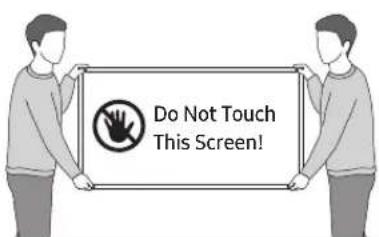
Warning: Screens can be damaged from direct pressure when handled incorrectly. We recommend lifting the TV at the edges, as shown.
02 Connecting the TV to the One Connect

- The method for connecting the One Invisible Connection to the TV may differ depending on the model. For more information, refer to Quick Setup Guide.
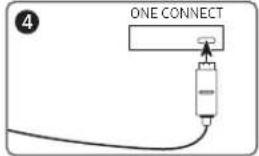
To connect the One Invisible Connection to the One Connect and your TV, follow these steps:
- After the TV is completely set up and placed in its final position, connect the One Invisible Connection to the One Connect and the TV as shown in Steps 1 to 4 above.
WARNING: Make sure that both connectors are fully and firmly connected. If either connector is not connected properly, there is a danger of severe electric shock.
- Connect the One Connect AC power cord to the One Connect, and then connect the cord to a wall outlet as shown in Step 5 above.
WARNING: Follow the directions exactly. Be sure to connect the power cord to the wall outlet as the last step. Always disconnect the power cord from the wall outlet before disconnecting the One Invisible Connection from the back of the TV or from the One Connect.
- See the illustrated Quick Setup Guide for more information.
- Connect your peripherals (aerial, cable box, Blu-ray player, etc.) to the One Connect. See the Accessory Kit for details.

- Do not use the One Connect in the upside-down or upright position.
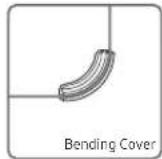
- When connecting the One Invisible Connection, use a Bending Cover, which prevents the cable of the One Invisible Connection from being bent at a 90 degree angle, to bend the cable. Failure to do so may cause damage to the cable.
- When connecting the One Invisible Connection, pay attention to the shapes and sizes of its connectors so that they are connected correctly. Failure to do so may cause product malfunction.
- When connecting the One Invisible Connection, be careful not to twist the cable of the One Invisible Connection. Failure to do so may cause performance degradation of the TV or damage to the cable.
- When arranging the remaining cable, refer to the figure on the previous page for the correct arrangement.
• Take care not to subject the cable to any of the actions below. The One Invisible Connection contains a power circuit. You could damage the cable and subject yourself to an electric shock. - Handle the One Connect carefully. It is heavy.


Bending Twisting Pulling Pressing on Electric shock
CLASS 1 LASER PRODUCT (One Invisible Connection)
- Caution - Invisible laser radiation when open. Do not stare into beam.
- Do not bend the One Invisible Connection cable excessively. Do not cut the cable.
- Do not place heavy objects on the cable.
- Do not disassemble either of the cable connectors.
- Caution - Use of controls, adjustments, or the performance of procedures other than those specified herein may result in hazardous radiation exposure.
03 TV Installation
Mounting the TV on a wall

If you mount this TV on a wall, follow the instructions exactly as set out by the manufacturer. Unless it is correctly mounted, the TV may slide or fall and cause serious injury to a child or adult and serious damage to the TV.
For models providing wall mount adapters, install them as shown in the figure below before installing the wall mount kit.
- Refer to the installation manual included with the Samsung wall mount kit.
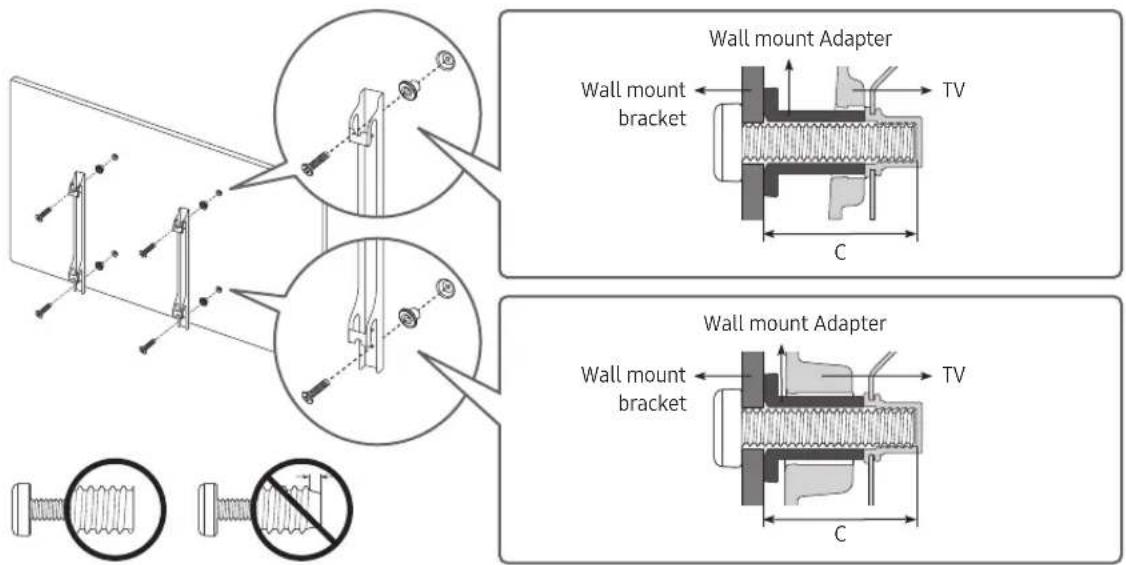
- Samsung Electronics is not responsible for any damage to the product or injury to yourself or others if you choose to install the wall mount on your own.
- You can install your wall mount on a solid wall perpendicular to the floor. Before attaching the wall mount to surfaces other than plaster board, contact your nearest dealer for additional information. If you install the TV on a ceiling or slanted wall, it may fall and result in severe personal injury.
- Standard dimensions for wall mount kits are shown in the table on the next page.
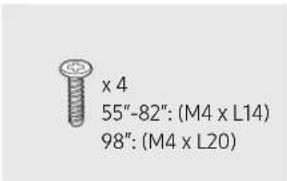
- If you are installing a third-party wall mount, note that the length of the screws you can use to attach the TV to the wall mount is shown in column C in the table on the next page.
- When installing a wall mount kit, we recommend you fasten all four VESA screws.
- If you want to install a wall mount kit that attaches to the wall using two top screws only, be sure to use a Samsung wall mount kit that supports this type of installation. (You may not be able to purchase this type of wall mount kit, depending on the geographical region.)
| TV size in inches | VESA screw hole specs (A * B) in millimetres | C (mm) | Standard Screw | Quantity | 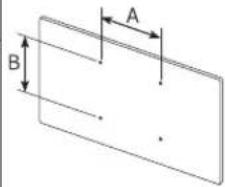 |
| 55200 x 200 18-20 | M8465-75 | 400 x 400 | |||
| 19-21 | |||||
| 82-98 600 x 400 |

Do not install your wall mount kit while your TV is turned on. This may result in personal injury from electric shock.
- Do not use screws that are longer than the standard dimension or do not comply with the VESA standard screw specifications. Screws that are too long may cause damage to the inside of the TV set.
- For wall mounts that do not comply with the VESA standard screw specifications, the length of the screws may differ depending on the wall mount specifications.
- Do not fasten the screws too firmly. This may damage the product or cause the product to fall, leading to personal injury. Samsung is not liable for these kinds of accidents.
- Samsung is not liable for product damage or personal injury when a non-VESA or non-specified wall mount is used or when the consumer fails to follow the product installation instructions.
- Do not mount the TV at more than a 15 degree tilt.
• Always have two people mount the TV onto a wall. - For 82 inch or larger models, have four people mount the TV onto a wall.
Providing proper ventilation for your TV
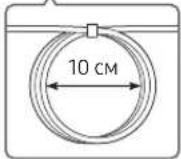
When you install your TV and One Connect, maintain a distance of at least 10 cm between the One Connect with other objects (walls, cabinet sides, etc.) to ensure proper ventilation. Failing to maintain proper ventilation may result in a fire or a problem with the product caused by an increase in its internal temperature.
- When you install your TV with a stand or a wall mount, we strongly recommend you use parts provided by Samsung Electronics only. Using parts provided by another manufacturer may cause difficulties with the product or result in injury caused by the product falling.
Safety Precaution: Securing the TV to the wall to prevent falling

Caution: Pulling, pushing, or climbing on the TV may cause the TV to fall. In particular, ensure your children do not hang on or destabilise the TV. This action may cause the TV to tip over, causing serious injuries or death. Follow all safety precautions provided in the Safety Flyer included with your TV. For added stability and safety, you can purchase and install the anti-fall device as described below.

WARNING: Never place a television set in an unstable location. The television set may fall, causing serious personal injury or death. Many injuries, particularly to children, can be avoided by taking simple precautions such as
- Using cabinets or stands recommended by the manufacturer of the television set.
- Only using furniture that can safely support the television set.
- Ensuring the television set is not overhanging the edge of the supporting furniture.
- Not placing the television set on tall furniture (for example, cupboards or bookcases) without anchoring both the furniture and the television set to a suitable support.
- Not placing the television set on cloth or other materials that may be located between the television set and supporting furniture.
- Educating children about the dangers of climbing on furniture to reach the television set or its controls.
If you are retaining and relocating the television set that you are replacing with this new set, you should apply the same precautions to the old set.
Preventing the TV from falling
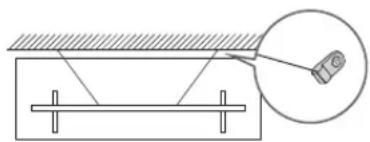
- Using the appropriate screws, firmly fasten a set of brackets to the wall. Confirm that the screws are firmly attached to the wall.
- You may need additional material such as wall anchors depending on the type of wall.
- Using the appropriately sized screws, firmly fasten a set of brackets to the TV.
- You may need additional material such as wall anchors depending on the type of wall.
- For the screw specifications, refer to the standard screw part in the table under "Mounting the TV on a wall".
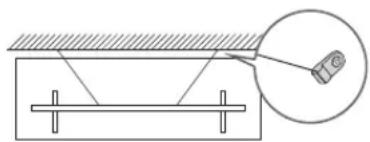
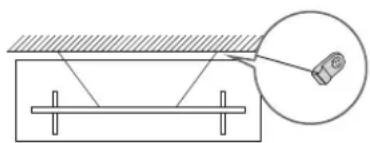
- Connect the brackets fixed to the TV and the brackets fixed to the wall with a durable, heavy-duty string, and then tie the string tightly.
- Install the TV near the wall so that it does not fall backwards. - Connect the string so that the brackets fixed to the wall are at the same height as or lower than the brackets fixed to the TV.
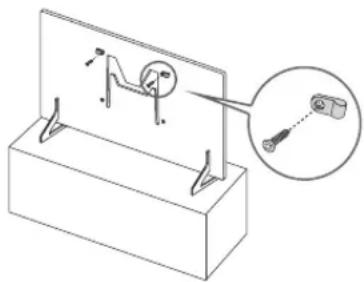
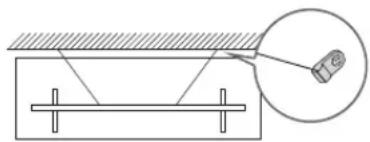
- The product colour and shape may vary depending on the model.
04 The Samsung Smart Remote
About the Buttons on the Samsung Smart Remote
- The images, buttons, and functions of the Samsung Smart Remote may differ depending on the model.
- The Universal Remote function operates normally only when you use the Samsung Smart Remote that comes with the TV.
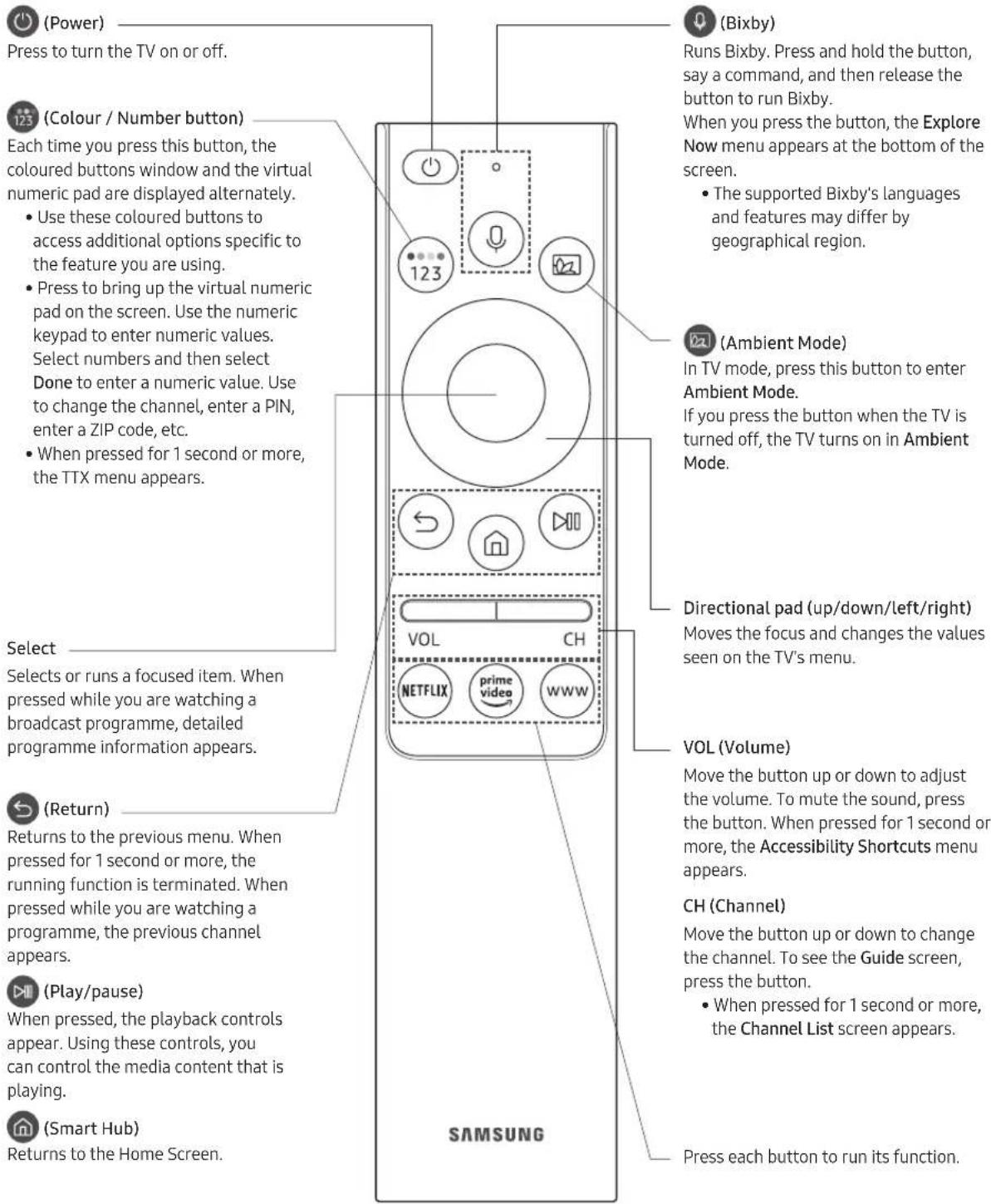
English - 12
Pairing the TV to the Samsung Smart Remote
![graph TD A["←"] --> B["→"] C["→"] --> D["→"]](/content/2026/06/1226536/images/c7ba48e2fd35014d0ea85c5707759fcfaed4559955901cbd2eb90fda778d17fb.jpg)
When you turn on the TV for the first time, the Samsung Smart Remote pairs to the TV automatically. If the Samsung Smart Remote does not pair to the TV automatically, point it at the remote control sensor of the TV, and then press and hold the buttons labelled and shown in the figure on the left simultaneously for 3 seconds or more.
Installing batteries into the Samsung Smart Remote

-
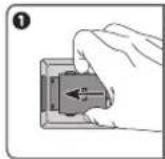
Press the ▲ button at the top rear of the Samsung Smart Remote. The body will pop out slightly from the body cover.
-
Turn the remote over, and then slide the body of the remote upwards until the battery compartment is revealed.
-
If there are batteries in the remote, press the ▶ and ◀ buttons on both sides of the battery compartment to remove the existing batteries.
-
Insert two new batteries (1.5V AAA type) into the battery compartment making sure that the batteries' polarities (+, -) are oriented correctly. When done, slide the body of the remote until it is nearly in its original position.
-
Turn the remote over, press and hold the ▲ button on the top rear, and then slide the body of the remote down into place.
- Alkaline batteries are recommended for longer battery life.
05 Running the Initial Setup
When you turn on your TV for the first time, it immediately starts the Initial Setup. The Initial Setup allows you to configure the basic settings for the TV to operate, such as broadcast reception, channel search, and network connection, at one time.
- Before starting the Initial Setup, be sure to connect external devices first.
• To use the TV's smart features, the TV must be connected to the Internet.
You can also start the Initial Setup using the TV's menu (图标 > Settings > General > Reset).
Follow the instructions displayed on the Initial Setup screen and configure the TV's basic settings to suit your viewing environment.
Using the TV Controller
You can use the TV Controller on the bottom right of the TV instead of the remote control to control most of the functions of your TV. While watching TV, you can change the channel by pressing the up and down directional buttons on the TV Controller or adjust the volume by pressing the left and right directional buttons. Press the ⏻ on the TV Controller to display the Control menu.
To run an item on the menu, press the directional buttons on the TV Controller to move the focus to the item, and then press the ⏻ button on the TV Controller.
- The screen may dim if the protective film on the SAMSUNG logo or the bottom right of the TV is not detached. Please remove the protective film.
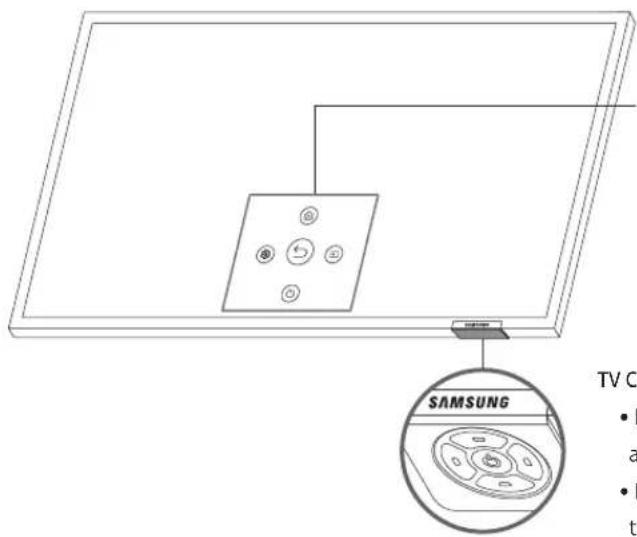
Control menu
Smart Hub
Settings
:Return
Source
Power off
TV Controller / Remote control sensor
- Press ⏻ button: Display the Control menu. / Select or run a focused item on the menu.
- Press and hold ⏻ button: The running function is terminated.
- Up/Down button: Changes the channel.
- Left/Right button: Changes the volume.
The TV Controller is located on the bottom right of the TV.
06 Connecting to a Network
Connecting the TV to a network gives you access to online services, such as Smart Hub, as well as software updates.
Network Connection - Wireless
Connect the TV to the Internet using a standard access point or modem.

Network Connection - Wired

Connect your TV to the network using a LAN cable.
- The TV will not be able to connect to the Internet if your network speed is below 10 Mbps.
- Use Cat7 (*STP Type) cable for the connection.
* Shielded Twisted Pair
07 Troubleshooting and Maintenance
Troubleshooting
If the TV seems to have a problem, first review this list of possible problems and solutions. Alternatively, review the Troubleshooting Section in the e-Manual. If none of these troubleshooting tips apply, please visit "www.samsung.com" and click on Support, or contact the Samsung service centre listed on the back cover of this manual.
- This TFT LED panel is made up of sub pixels which require sophisticated technology to produce. There may be, however, a few bright or dark pixels on the screen. These pixels will have no impact on the performance of the product.
- To keep your TV in optimum condition, upgrade to the latest software. Use the Update Now or Auto update functions on the TV's menu (Settings > Support > Software Update > Update Now or Auto update).
The TV won't turn on.
- Make sure that the AC power cord is securely plugged in to the One Connect and the wall outlet.
- Make sure that the wall outlet is working and the power indicator at the bottom right of the TV is lit and glowing a solid red.
- Try pressing the button at the bottom right of the TV to make sure that the problem is not with the remote control. If the TV turns on, refer to "The remote control does not work".
There is no picture/video/sound, or a distorted picture/video/sound from an external device, or "Weak or No Signal" is displayed on the TV, or you cannot find a channel.
- Make sure the connection to the device is correct and that all cables are fully inserted.
- Remove and reconnect all cables connected to the TV and the external devices. Try new cables if possible.
- Confirm that the correct input source has been selected ( > Source).
- Perform a TV self diagnosis to determine if the problem is caused by the TV or the device (Settings > Support > Self Diagnosis > Start Picture Test or Start Sound Test).
- If the test results are normal, reboot the connected devices by unplugging each device's power cord and then plugging it in again. If the issue persists, refer to the connection guide in the user manual of the connected device.
-
If you are not using a cable box or satellite box, and your TV is receiving TV signals from an antenna or a cable wall connector, run Auto Tuning to search for channels > Settings > Broadcasting > (Auto Tuning Settings) > Auto Tuning).
-
The Auto Tuning Settings may not appear depending on the model or geographical area.
- If you are using a cable box or satellite box, please refer to the cable box or satellite box manual.
The CI+ does not work.
- Your Samsung TV conforms to the CI+ 1.4 standards.
- Where a CI+ Common Interface module is incompatible with this device, then please remove the module and contact the CI+ operator for assistance.
The remote control does not work.
- Check if the power indicator at the bottom right of the TV blinks when you press the remote's Power button. If it does not, replace the remote control's batteries.
- Make sure that the batteries are installed with their poles (+/−) in the correct direction.
- Try pointing the remote directly at the TV from 1.5-1.8 m away.
- If your TV came with a Samsung Smart Remote (Bluetooth Remote), make sure to pair the remote to the TV.
The cable box or satellite box remote control doesn't turn the TV on or off or adjust the volume.
- Programme the cable box or satellite box remote control to operate the TV. Refer to the cable box or satellite box user manual for the SAMSUNG TV code.
The TV settings are lost after 5 minutes.
- The TV is in the Retail Mode. Change the Usage Mode in the General Menu to Home Mode (Settings >General >System Manager >Usage Mode >Home Mode).
Intermittent Wi-Fi
- Make sure the TV has a network connection ( [icon] > Settings > General > Network > Network Status).
- Make sure the Wi-Fi password is entered correctly.
- Check the distance between the TV and the modem or access point. The distance should not exceed 15.2 m.
- Reduce interference by not using or turning off wireless devices. Also, verify that there are no obstacles between the TV and the modem or access point. (The Wi-Fi strength can be decreased by appliances, cordless phones, stone walls/fireplaces, etc.)
Single story Multi story
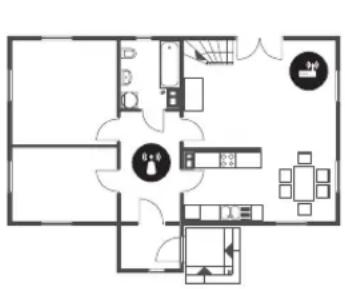


Wireless access point

Wireless repeater
- Contact your Internet Service Provider (ISP) and ask them to reset your network circuit to re-register the MAC addresses of your new modem or access point and the TV.
Video Apps problems (Youtube etc)
- Change the DNS to 8.8.8.8. Select > Settings > General > Network > Network Status > IP Settings > DNS setting > Enter manually > DNS Server > enter 8.8.8.8 > OK.
- Reset by selecting > Settings > Support > Self Diagnosis > Reset Smart Hub.
What is Remote Support?
Samsung Remote Support service offers you one-on-one support with a Samsung Technician who can remotely:
• Diagnose your TV
- Adjust the TV settings for you
• Perform a factory reset on your TV
• Install recommended firmware updates
How does Remote Support work?
You can easily get Samsung Remote Support service for your TV:
- Call the Samsung service centre and ask for remote support.
- Open the menu on your TV and go to the Support section. (Settings > Support)
- Select Remote Management, then read and agree to the service agreements. When the PIN screen appears, provide the PIN number to the technician.
- The technician will then access your TV.
Eco Sensor and screen brightness
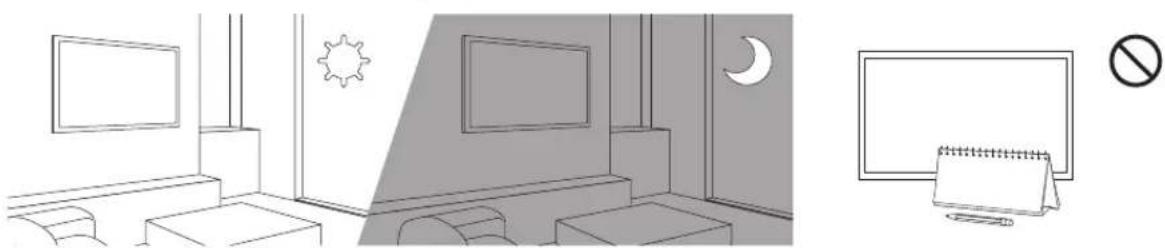
Eco Sensor adjusts the brightness of the TV automatically. This feature measures the light in your room and optimises the brightness of the TV automatically to reduce power consumption. If you want to turn this off, go to 📂 > ⚙️ Settings > General > Eco Solution > Ambient Light Detection.
- If the screen is too dark while you are watching TV in a dark environment, it may be due to the Ambient Light Detection function.
- The eco sensor is located at the bottom right of the TV. Do not block the sensor with any object. This can decrease picture brightness.
Caring for the TV
- If a sticker was attached to the TV screen, some debris can remain after you remove the sticker. Please clean the debris off before watching TV.
- The exterior and screen of the TV can get scratched during cleaning. Be sure to wipe the exterior and screen carefully using a soft cloth to prevent scratches.
- Do not spray water or any liquid directly onto the TV. Any liquid that goes into the product may cause a failure, fire, or electric shock.
- To clean the screen, turn off the TV, then gently wipe away smudges and fingerprints on the panel with a micro-fiber cloth. Clean the body or panel of the TV with a micro-fiber cloth dampened with a small amount of water. After that, remove the moisture with a dry cloth. While cleaning, do not apply strong force to the surface of the panel because it can damage the panel. Never use flammable liquids (benzene, thinner, etc.) or a cleaning agent. For stubborn smudges, spray a small amount of screen cleaner on a micro-fiber cloth, and then use the cloth to wipe away the smudges.

08 Specifications and Other Information
Specifications
| Model Name QE55Q900RBU QE65Q900RBU | ||
| Display Resolution | 7680 x 4320 7680 x 4320 | |
| Screen Size | 55 inches | 65 inches |
| Measured Diagonally | 138 cm | 163 cm |
| Sound (Output) | 60 W 60 W | |
| Dimensions (W x H x D) | ||
| Body | 1233.3 x 713.3 x 34.9 mm | 1452.2 x 836.4 x 34.1 mm |
| With stand | 1233.3 x 777.6 x 220.6 mm | 1452.2 x 898.2 x 304.9 mm |
| Weight | ||
| Without Stand | 21.2 kg | 30.2 kg |
| With Stand | 21.7 kg | 31.2 kg |
| Power Supply AC100-240V~ 50/60Hz AC100-240V~ 50/60Hz | ||
| Power Consumption 330 W 370 W | ||
| Model Name QE75Q900RBU QE82Q900RBU | ||
| Display Resolution | 7680 x 4320 7680 x 4320 | |
| Screen Size | 75 inches | 82 inches |
| Measured Diagonally | 189 cm | 207 cm |
| Sound (Output) | 60 W 60 W | |
| Dimensions (W x H x D) | ||
| Body | 1677.2 x 964.6 x 34.6 mm | 1835.0 x 1055.6 x 34.8 mm |
| With stand | 1677.2 x 1024.9 x 337.5 mm | 1835.0 x 1117.0 x 398.6 mm |
| Weight | ||
| Without Stand | 42.1 kg | 50.0 kg |
| With Stand | 43.3 kg | 51.2 kg |
| Power Supply AC100-240V~ 50/60Hz AC100-240V~ 50/60Hz | ||
| Power Consumption 435 W 580 W | ||
| Model Name QE98Q900RBU | |
| Display Resolution | 7680 x 4320 |
| Screen Size | 98 inches |
| Measured Diagonally | 247 cm |
| Sound (Output) | 60 W |
| Dimensions (W x H x D) | |
| Body | 2183.5 x 1249.4 x 39.9 mm |
| With stand | 2183.5 x 1323.1 x 463.3 mm |
| Weight | |
| Without Stand | 84.9 kg |
| With Stand | 87.1 kg |
| Power Supply AC100-240V~ 50/60Hz | |
| Power Consumption 830 W | |
Environmental Considerations
| Operating Temperature | 10°C to 40°C (50°F to 104°F) |
| Operating Humidity | 10% to 80%, non-condensing |
| Storage Temperature | -20°C to 45°C (-4°F to 113°F) |
| Storage Humidity | 5% to 95%, non-condensing |
- The design and specifications are subject to change without prior notice.
- For information about the power supply, and more information about power consumption, refer to the label-rating attached to the product.
- You can see the label-rating attached to the bottom of the One Connect.
- You can see the label-rating attached to the back of the TV. (For some models, you can see the label-rating inside the cover terminal.)
Decreasing power consumption
When you shut the TV off, it enters Standby mode. In Standby mode, it continues to draw a small amount of power. To decrease power consumption, unplug the power cord when you don't intend to use the TV for a long time.
Licences



The terms HDMI and HDMI High-Definition Multimedia Interface, and the HDMI Logo are trademarks or registered trademarks of HDMI Licensing LLC in the United States and other countries.
Recommendation - EU Only
CE
Hereby, Samsung Electronics, declares that this equipment is in compliance with Directive 2014/53/EU. The full text of the EU declaration of conformity is available at the following internet address: http://www.samsung.com go to Support > Search Product Support and enter the model name. This equipment may be operated in all EU countries. The 5 GHz WLAN(Wi-Fi) function of this equipment may only be operated indoors. BT max transmitter power : 100mW at 2.4GHz – 2.4835GHz Wi-Fi max transmitter power : 100mW at 2.4GHz–2.4835GHz, 5.15GHz–5.35GHz & 5.47GHz–5.725GHz
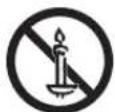
WARNING - TO PREVENT THE SPREAD OF FIRE, KEEP CANDLES OR OTHER ITEMS WITH OPEN FLAMES AWAY FROM THIS PRODUCT AT ALL TIMES.
SAMSUNG
ПАЙДАЛАНУШЫ
НУСКАУЛЫFЫ
QLED 8K
QE55Q900RBU QE65Q900RBU QE75Q900RBU
QE82Q900RBU QE98Q900RBU

900R
Oсы Samsung ənɪmɪn cateyp alfahnyçizfa pakmet.
One Connect

Bending Cover
ONE CONNECT

TV




Сымсыз кіру нуктесі

Сымсыз таратушы

The terms HDMI and HDMI High-Definition Multimedia Interface, and the HDMI Logo are trademarks or registered trademarks of HDMI Licensing LLC in the United States and other countries.
QE55Q900RBU QE65Q900RBU QE75Q900RBU
QE82Q900RBU QE98Q900RBU
900R
One Connect

One Invisible Connection (55-82 duym modellar)

One Invisible Connection (98 duymli model)
Taglik vinti

Devorga o'rnatish moslamasi

Bending Cover
- Modeliga bog'liq ravishda anjomlarning rangi va shakli turlicha bo'lishi mumkin.
- Kabellar to'plamga kirmaydi, ularni alohida xarid qilish mumkin.
- Qutini ochganda ayrim anjomlar o'rama orqasiga yoki ichiga berkinib qolishi mumkin.
Quyidagi hollarda to'lov olinishi mumkin:
(a) Talabingizga ko'ra mutaxassis chaqirildi, ammo mahsulotda muammolar topilmadi (ya'ni foydalanuvchi yo'riqnomasi ko'rib chiqilmagan).
(b) Jihozni Samsung xizmat markaziga olib keldingiz, ammo jihozda hech qanday nosozlik aniqlanmadi (ya'ni, foydalanuvchi qo'llanmasi o'qilmagan).

Bukish Burash Tortish Bosish Tok urishi
1-SINF LAZER JIHOZI (One Invisible Connection)
- Modeliga qarab, jihozning rangi va shakli farqlanishi mumkin.
04 Samsung Smart masofadan boshqarish pulti
Samsung Smart masofadan boshqarish pulti tugmalari haqida
Televizorni birinchi marta yoqqaningizda Samsung Smart masofadan boshqarish pulti avtomatik ravishda televizor bilan bog'lanadi. Agar Samsung Smart masofadan boshqarish pulti avtomatik ravishda televizorga bog'lanmasa, uni televizordagi pult datchigiga qaratib, chapdagi rasmda ko'rsatilgan va belgili tugmalarni birga 3 soniyadan ortiq bosib turing.
Samsung Smart masofadan boshqarish pulti ichiga batareya solish

- Samsung Smart masofadan boshqarish pulti orqasida tepadagi ▲ tugmasini bosing. Korpusi qoplamadan ozgina surilib chiqadi.
- Pultni ag'daring, keyin korpusini tepaga siljitib, batareya bo'linmasini oching.
- Pultda batareya bor bo'lsa, batareya bo'linmasining ikkala tomonidagi ▶ va ◀ tugmalarini bosib, mavjud batareyalarni olib tashlang.
- Batareya bo'linmasiga ikkita yangi batareya (1,5V AAA turidagi) soling, ularning qutblari (+,-) to'g'ri joylashsin. Tugatgach, pult korpusini deyarli avvalgi holatiga qaytgunicha siljiting.
- Pultni ag'daring va orqasida tepadagi ▲ tugmasini bosib turib, korpusini joyiga siljitib tushiring. • Uzoq vaqtga yetishi uchun ishqorli batareyalarni ishlatish tavsiya etiladi.
05 Dastlabki sozlash
Eco Sensor televizor yorqinligini avtomatik rostlaydi. Bu funksiya xonadagi yorug'likni o'lchab, elektrni tejash maqsadida televizor yorqinligini avtomatik tarzda optimallashtiradi. Bu funksiyani o'chirish: Parametrlar > Umumiy > Eko yechim > Yoritilganlik darajasini aniqlash.
08 Xarakteristikalar va boshqa ma'lumot
Xarakteristikalar
| Model nomi QE55Q900RBU QE65Q900RBU | ||
| Ekran ta'rifi (piksellar soni) | 7680 x 4320 7680 x 4320 | |
| Ekran o'lchami | 55 duym | 65 duym |
| Diagonal o'lchami | 138 sm | 163 sm |
| Tovush (chiqarish) | 60 Vt 60 Vt | |
| O'lchamlari (E x B x CH) | ||
| Korpus | 1233,3 x 713,3 x 34,9 mm | 1452,2 x 836,4 x 34,1 mm |
| Stend bilan | 1233,3 x 777,6 x 220,6 mm | 1452,2 x 898,2 x 304,9 mm |
| Vazni | ||
| Stendsiz | 21,2 kg | 30,2 kg |
| Stend bilan | 21,7 kg | 31,2 kg |
| Elektr ta'minoti | O'zgaruvchan tok 100-240V~ 50/60Gs | O'zgaruvchan tok 100-240V~ 50/60Gs |
| Energiya sarfi 330 Vt 370 Vt | ||
| Model nomi QE75Q900RBU QE82Q900RBU | ||
| Ekran ta'rifi (piksellar soni) | 7680 x 4320 7680 x 4320 | |
| Ekran o'lchami | 75 duym | 82 duym |
| Diagonal o'lchami | 189 sm | 207 sm |
| Tovush (chiqarish) | 60 Vt 60 Vt | |
| O'lchamlari (E x B x CH) | ||
| Korpus | 1677,2 x 964,6 x 34,6 mm | 1835,0 x 1055,6 x 34,8 mm |
| Stend bilan | 1677,2 x 1024,9 x 337,5 mm | 1835,0 x 1117,0 x 398,6 mm |
| Vazni | ||
| Stendsiz | 42,1 kg | 50,0 kg |
| Stend bilan | 43,3 kg | 51,2 kg |
| Elektr ta'minoti | O'zgaruvchan tok 100-240V~ 50/60Gs | O'zgaruvchan tok 100-240V~ 50/60Gs |
| Energiya sarfi 435 Vt 580 Vt | ||
| Model nomi QE98Q900RBU | |
| Ekran ta'rifi (piksellar soni) | 7680 x 4320 |
| Ekran o'lchami | 98 duym |
| Diagonal o'lchami | 247 sm |
| Tovush (chiqarish) | 60 Vt |
| O'lchamlari (E x B x CH) | |
| Korpus | 2183,5 x 1249,4 x 39,9 mm |
| Stend bilan | 2183,5 x 1323,1 x 463,3 mm |
| Vazni | |
| Stendsiz | 84,9 kg |
| Stend bilan | 87,1 kg |
| Elektr ta'minoti O'zgaruvchan tok 100-240V~ 50/60Gs | |
| Energiya sarfi 830 Vt | |
Atrof-muhit masalasi
| Ishlatish harorati | 10°C – 40°C (50°F – 104°F) |
| Ishlatish namligi | 10% – 80%, kondensatlanmaydi |
| Saqlash harorati | -20°C – 45°C (-4°F – 113°F) |
| Saqlash namligi | 5% – 95%, kondensatlanmaydi |
- Dizayni va texnik parametrari ogohlantirishsiz o'zgartirilishi mumkin.
- Quvvat ta'minoti va quvvat sarfi haqidagi batafsil ma'lumot uchun mahsulotga yopishtirilgan yorliqqa qarang.
- Yorliq One Connect tagiga yopishtirilgan.
- Yorliq televizorning orqa tomoniga yopishtirilgan. (Ayrim modellarda yorliq qoplamaning ichida bo'lishi mumkin.)
• Energiya samaradorligi stikeri - mavjud
Quvvat sarfini kamaytirish

The terms HDMI and HDMI High-Definition Multimedia Interface, and the HDMI Logo are trademarks or registered trademarks of HDMI Licensing LLC in the United States and other countries.
Tavsiya – faqat YI

Samsung Electronics shuni bayonot qiladiki, bu jihoz 2014/53/EU (Yevropa Ittifoqi) ko'rsatmasiga muvofiq keladi.
YI muvofiqlik bayonotining to'liq matnini quyidagi manzilda o'qish mumkin: http://www.samsung.com Support
Mahsulotning qo'llab-quvvatlashini qidiring va model nomini kiriting.
Bu jihozni barcha YI mamlakatlarida ishlatish mumkin.
Bu jihozning 5 GGs WLAN (Wi-Fi) funksiyasini faqat bino ichida ishlatish mumkin.
BT tarqatgich maks. quvvati : 100mVt 2,4GGs - 2,4835GGs
Wi-Fi tarqatgich maksimum quvvati : 100mVt 2,4GGs-2,4835GGs, 5,15GGs-5,35GGs & 5,47GGs-5,725GGs
OGOHLANTIRISH – YONG'IN TARQALISHINING OLDINI OLISH UCHUN SHAM YOKI BOSHQA OCHIQ OLOVLI NARSALARNI DOIMO USHBU MAHSULOTDAN UZOQDA TUTING.

SAMSUNG
QE55Q900RBU QE65Q900RBU QE75Q900RBU
QE82Q900RBU QE98Q900RBU
900R
One Connect

One Invisible Connection (55-82 инч-н загварууд)
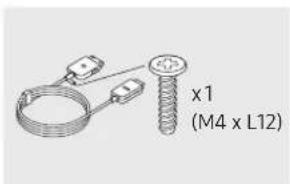
One Invisible Connection (98 инчийн загвар)
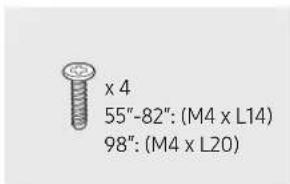
Босоо эрэг

Bending Cover
ONE CONNECT

TV




The terms HDMI and HDMI High-Definition Multimedia Interface, and the HDMI Logo are trademarks or registered trademarks of HDMI Licensing LLC in the United States and other countries.
- 900R
- BEFORE READING THIS USER MANUAL
- LEARNING THE E-MANUAL'S ASSISTANCE FUNCTIONS
- LEARNING THE FUNCTIONS OF THE BUTTONS THAT APPEAR ON E-MANUAL TOPIC PAGES
- WARNING! IMPORTANT SAFETY INSTRUCTIONS
- CONTENTS
- 01 WHAT'S IN THE BOX
- 02 CONNECTING THE TV TO THE ONE CONNECT
- 03 TV INSTALLATION
- 04 THE SAMSUNG SMART REMOTE
- 05 RUNNING THE INITIAL SETUP
- 06 CONNECTING TO A NETWORK
- 07 TROUBLESHOOTING AND MAINTENANCE
- 08 SPECIFICATIONS AND OTHER INFORMATION
- MOUNTING THE TV ON A WALL
- PROVIDING PROPER VENTILATION FOR YOUR TV
- SAFETY PRECAUTION: SECURING THE TV TO THE WALL TO PREVENT FALLING
- PREVENTING THE TV FROM FALLING
- ABOUT THE BUTTONS ON THE SAMSUNG SMART REMOTE
- PAIRING THE TV TO THE SAMSUNG SMART REMOTE
- INSTALLING BATTERIES INTO THE SAMSUNG SMART REMOTE
- USING THE TV CONTROLLER
- NETWORK CONNECTION - WIRELESS
- NETWORK CONNECTION - WIRED
- TROUBLESHOOTING
- THE TV WON'T TURN ON
- THE CI+ DOES NOT WORK
- THE REMOTE CONTROL DOES NOT WORK
- THE CABLE BOX OR SATELLITE BOX REMOTE CONTROL DOESN'T TURN THE TV ON OR OFF OR ADJUST THE VOLUME
- THE TV SETTINGS ARE LOST AFTER 5 MINUTES
- INTERMITTENT WI-FI
- VIDEO APPS PROBLEMS (YOUTUBE ETC)
- WHAT IS REMOTE SUPPORT
- HOW DOES REMOTE SUPPORT WORK
- ECO SENSOR AND SCREEN BRIGHTNESS
- CARING FOR THE TV
- DECREASING POWER CONSUMPTION
- LICENCES
- RECOMMENDATION - EU ONLY
- CE
- 1-SINF LAZER JIHOZI (ONE INVISIBLE CONNECTION)
- 04 SAMSUNG SMART MASOFADAN BOSHQARISH PULTI
- SAMSUNG SMART MASOFADAN BOSHQARISH PULTI TUGMALARI HAQIDA
- SAMSUNG SMART MASOFADAN BOSHQARISH PULTI ICHIGA BATAREYA SOLISH
- 05 DASTLABKI SOZLASH
- 08 XARAKTERISTIKALAR VA BOSHQA MA'LUMOT
- QUVVAT SARFINI KAMAYTIRISH
- TAVSIYA – FAQAT YI
Brand : SAMSUNG
Model : QE82Q900RBU
Category : Television