
HV-8000SX - Visualiser Elmo - Free user manual and instructions
Find the device manual for free HV-8000SX Elmo in PDF.


| Type of Product | Visual Presenter (Document Camera) |
| Dimensions (Folded) | 533 mm (W) x 449 mm (D) x 185 mm (H) / 21.0 x 17.7 x 7.3 in |
| Dimensions (Set Up) | 766 mm (W) x 449 mm (D) x 628 mm (H) / 30.2 x 17.7 x 24.7 in |
| Weight (Main Body) | 10.5 kg / 23.2 lbs |
| Power Source | AC 100-240 V, 50/60 Hz |
| Power Consumption | 0.7 A - 0.3 A |
| Image Pickup Element | 1/2" CCD, 1,500,000 pixels total |
| Effective Pixels | 1280 (H) x 1024 (V) |
| Lens | f = 7.2 - 72 mm (10x zoom), F2.8 |
| Zoom | Motorized with double speed function |
| Focus | Auto (one-push) / Manual (powered) |
| Iris | Auto (level adjustable) |
| White Balance | Full auto / One-push / Manual |
| Color/B&W Selection | Yes |
| Posi/Nega Conversion | Yes |
| Image Rotation | 90° steps (counterclockwise) |
| Freeze | Yes (Pause function) |
| Electronic Enlargement | 2x (can be scrolled) |
| Lighting | Upper (6W fluorescent) and Base (296x216 mm area) |
| Analog RGB Output | SXGA (1280x1024 @60Hz) / XGA (1024x768 @60Hz) compliant with VESA |
| Video Output | Composite video (RCA) and S-Video (mini DIN 4P), NTSC/PAL |
| Network Interface | Ethernet 10Base-T/100Base-TX (RJ-45), Web server, FTP, telnet |
| External Control | RS-232C (DSUB 9P), USB, Mouse (mini DIN 6P) |
| Supplied Accessories | Power cord, VGA cable, USB cable, Ethernet cross cable, video/audio cable, mouse, wireless remote, batteries, software CD, manual, warranty card |
| Operating Temperature | 5°C to 35°C (41°F to 95°F) |
| Operating Humidity | 30% to 85% (no condensation) |
| Cleaning | Use a soft, dry cloth. Do not use liquid cleaners or volatile solvents. |
| Safety Precautions | Do not expose to rain or moisture. Unplug before cleaning. Use only with recommended accessories. |
| Replaceable Parts | Fluorescent lamps (upper and base) – consult authorized service center |
| Optional Accessories | 5" TFT LCD monitor kit (LM-5011N), LCD monitor bracket (MS-500), accessory lens (ICL-430) |
Frequently Asked Questions - HV-8000SX Elmo
User questions about HV-8000SX Elmo
0 question about this device. Answer the ones you know or ask your own.
Ask a new question about this device
Download the instructions for your Visualiser in PDF format for free! Find your manual HV-8000SX - Elmo and take your electronic device back in hand. On this page are published all the documents necessary for the use of your device. HV-8000SX by Elmo.
USER MANUAL HV-8000SX Elmo
natural_image
Line drawing of a desktop computer with adjustable arm and screen (no text or symbols)Please read this instruction manual carefully before using this Visual Presenter and keep it for future reference.
IMPORTANT SAFEGUARDS
- Read Instructions – All the safety and operating instructions should be read before the appliance is operated.
■ Retain Instructions – The safety and operating instructions should be retained for future reference.
■ Heed Warnings – All warnings on the product and in the operating instructions should be adhered to.
■ Follow Instructions – All operating and use instructions should be followed. - Cleaning – Unplug this product from the wall outlet before cleaning. Do not use liquid cleaners or aerosol cleaners. Use a damp cloth for cleaning.
■ Attachments – Do not use attachments not recommended by the product manufacturer as they may cause hazards.
■ Water and Moisture – Do not use this product near water - for example, near a bath tub, wash bowl, kitchen sink, or laundry tub, in a wet basement, or near a swimming pool, and the like.
■ Accessories – Do not place this product on an unstable cart, stand, tripod, bracket, or table. The product may fall, causing serious injury to a child or adult, and serious damage to the product. Use only with a cart, stand, tripod, bracket, or table
recommended by the manufacturer, or sold with the product. Any mounting of the product should follow the manufacturer's instructions, and should use a mounting accessory recommended by the manufacturer.
■ Ventilation – Slots and openings in the cabinet are provided for ventilation and to ensure reliable operation of the product and to protect it from overheating, and these openings must not be blocked or covered. The openings should never be blocked by placing the product on a bed, sofa, rug, or other similar surface. This product should not be placed in a built-in installation such as a bookcase or rack unless proper ventilation is provided or the manufacturer's instructions have been adhered to.
■ Power Sources – This product should be operated only from the type of power source indicated on the marking label. If you are not sure of the type of power supply to your home consult your appliance dealer or local power company. For products intended to operate from battery power, or other sources, refer to the operating instructions.
■ Grounding or Polarization – This product may be equipped with either a polarized 2-wire AC line plug (a plug having one blade wider than the other) or a 3-wire grounding type plug, a plug having a third (grounding) pin. The 2-wire polarized plug will fit into the power outlet only one way. This is a safety feature. If you are unable to insert the plug fully into the outlet, try reversing the plug. If the plug still fails to fit, contact your electrician to replace your obsolete outlet. Do not defeat the safety purpose of the polarized plug. The 3-wire grounding type plug will fit into a grounding type power outlet. This is a safety feature. If you are unable to insert the plug into the outlet, contact your electrician to replace your obsolete outlet. Do not defeat the safety purpose of the grounding type plug.
■ Power-Cord Protection – Power-supply cords should be routed so that they are not likely to be walked on or pinched by items placed upon or against them, paying particular attention to cords at plugs, convenience receptacles, and the point where they exit from the product.
Lightning – For added protection for this product during a lightning storm, or when it is left unattended and unused for long periods of time, unplug it from the wall outlet and disconnect the antenna or cable system. This will prevent damage to the product due to lightning and power-line surges.
■ Overloading – Do not overload wall outlets, extension cords, or integral convenience receptacles as this can result in a risk of fire or electric shock.
■ A product and cart combination should be moved with care.
Quick stops, excessive force, and uneven surfaces may cause the product and cart combinat

■ Object and Liquid Entry – Never push objects of any kind into this product through openings as they may touch dangerous voltage points or short-out parts that could result in a fire or electric shock. Never spill liquid of any kind on the product.
■ Servicing – Do not attempt to service this product yourself as opening or removing covers may expose you to dangerous voltage or other hazards. Refer all servicing to qualified service personnel.
■ Damage Requiring Service – Unplug this product from the wall outlet and refer servicing to qualified service personnel under the following conditions:
- When the power-supply cord or plug is damaged.
- If liquid has been spilled, or objects have fallen into the product.
● If the product has been exposed to rain or water. - If the product does not operate normally by following the operating instructions. Adjust only those controls that are covered by the operating instructions as an improper adjustment of other controls may result in damage and will often require extensive work by a qualified technician to restore the product to its normal operation.
- If the product has been dropped or damaged in any way.
- When the product exhibits a distinct change in performance - this indicates a need for service.
■ Replacement Parts – When replacement parts are required, be sure the service technician has used replacement parts specified by the manufacturer or have the same characteristics as the original part. Unauthorized substitutions may result in fire, electric shock or other hazards.
■ Safety Check – Upon completion of any service or repairs to this product, ask the service technician to perform safety checks to determine that the product is in proper operating condition.
- Heat – The product should be situated away from heat sources such as radiators, heat registers, stoves, or other products (including amplifiers) that produce heat.


The lightning flash with arrowhead symbol, within an equilateral triangle, is intended to alert the user to the presence of uninsulated "dangerous voltage" within the product's enclosure that may be of sufficient magnitude to constitute a risk of electric shock to persons. This marking is located at the bottom of product.

The exclamation point within an equilateral triangle is intended to alert the user to the presence of important operating and maintenance (servicing) instructions in the literature accompanying the product.
WARNING: TO REDUCE THE RISK OF FIRE OR ELECTRIC SHOCK, DO NOT EXPOSE THIS PRODUCT TO RAIN OR MOISTURE.
THIS IS A CLASS A PRODUCT. IN A DOMESTIC ENVIRONMENT THIS PRODUCT MAY CAUSE RADIO INTERFERENCE IN WHICH CASE THE USER MAY BE REQUIRED TO TAKE ADEQUATE MEASURES.
INFORMATION
This equipment has been tested and found to comply with the limits for a Class A digital device, pursuant to Part 15 of the FCC Rules. These limits are designed to provide reasonable protection against harmful interference when the equipment is operated in a commercial environment. This equipment generates, uses, and can radiate radio frequency energy and, if not installed and used in accordance with the instruction manual, may cause harmful interference to radio communications. Operation of this equipment in a residential area is likely to cause harmful interference in which case the user will be required to correct the interference at his own expense.
USER-INSTALLER CAUTION:
Your authority to operate this FCC verified equipment could be voided if you make changes or modifications not expressly approved by the party responsible for compliance to Part 15 of the FCC rules.
BEFORE YOU USE
■ Use the Visual Presenter under the rated electrical conditions.
■ Do not leave the Presenter under direct sunlight or by heaters, or the Presenter may be discolored, deformed, or damaged.
■ Do not place the Presenter in any humid, dusty, windy or vibrating location. Use the Presenter in the following environmental conditions: Temperature: 5°C\~35°C (41°F\~95°F)
Humidity: 30%\~85% (No condensation)
■ Use a soft, dry cloth for cleaning. Do not use any volatile solvent, such as thinner or benzine.
■ Do not directly point the camera lens into the sun, or the camera may be damaged.
■ Caring for the batteries:
- If the Presenter is not used for a long time, take out the batteries from the wireless remote control.
- Do not use rechargeable Ni-Cd batteries.
- Do not use new and old batteries, or batteries of different types together.
- Do not try to recharge or short-circuit the batteries.
CONTENTS
1. PART NAMES AND FUNCTIONS .... 8
Appearance 8
Front Panel 8
Operation Panel 9
Rear Panel 10
Wireless Remote Contro 12
2. WIRELESS REMOTE CONTROL .... 13
Preparation 13
3. MOUSE 14
4. SETTING UP 15
Connection to the monitor and the projector 16
Connection to the analogue RGB-in terminal 16
Connection to the composite video-in terminal 16
Connection to the S video-in terminal 17
Analogue RGB signal 17
Signal allocation 17
Pin assignment 17
5. STORING THE PRESENTER 18
6. OPERATION PROCEDURES ...... 19
Simple steps for presenting printed material 19
Simple steps for showing transparent material, such as overhead
transparencies or slide film 20
7. VARIOUS FUNCTIONS ...... 21
Lighting 21
Zoom 22
Input selection 22
Table of Video- and Audio-in/out Terminal Selections 23
Output to the monitor 23
Table of Corresponding Signals 24
Electronic enlargement 25
Color/B&W selection 25
Posi/Nega conversion 26
Image rotation 26
Pause 26
Contrast 27
White Balance 27
Iris 28
Focus 29
Auto Focus 29
Powered Manual Focus 30
About the preset and move operation 30
LCD monitor bracket socket 31
Connecting to the LCD monitor out terminal 31
PC link software "Image Mate" 32
8. OSD (On-Screen Display) 33
Main menu 33
When the white balance is set 34
When the gamma is set 34
When the microphone volume is set 34
When the IP address is displayed 34
9. NETWORK FUNCTIONS ...... 36
Preparation for connection 36
Preparation before setting up 36
Connection to the network 37
Setting up of the network 37
Initialization of the network settings 39
Web server functions 39
Display of quasi-moving images 40
Display of static images 40
Operation of remote control 41
FTP client function 41
Setting up 42
Operation 43
FTP server functions 43
telnet server functions 43
Appendix 44
Setting items of the network 44
Setting items of the FTP client 44
Specifications of the FTP server 45
10. RS-232C SPECIFICATIONS 46
Setting up 46
Cable connection 46
Table of the communication commands 47
Data format specifications 48
Trasnmission Command (PC Visual Presenter) 49
Response data format (Visual Presenter PC) 49
Transmission specifications 50
Connection 50
11. TROUBLESHOOTING HINTS 51
Replacement of fluorescent lamp 51
12. SPECIFICATIONS 52
General 52
Network Specifications 52
Main camera 53
Lighting 54
Supplied accessories 54
Options 54
1. PART NAMES AND FUNCTIONS
○ Appearance

○ Front Panel

| Name Function | Reference Page | ||
| 16. P. | 20, P.21Lamp Buttons | To turn ON/OFF the lighting. | |
| 17. | Zoom Buttons | To change the image size. | P.19, P.29 |
| 18. | Auto Focus Button | To focus automatically (One-shot auto focus). (FOCUSFREE) | P.19, P.29 |

Operation Panel
- Monitor Output Buttons
- Focus Buttons25. Freeze Button
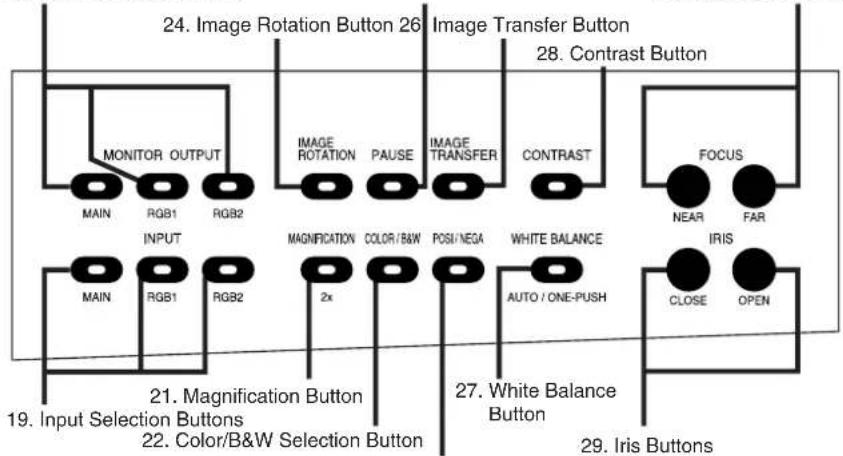
- Posi/Nega Conversion Button
| Name Function | Reference Page | ||
| 19. | Input Selection Buttons | To change the input line. | P.22 |
| 20. | Monitor Output Buttons | To select the signal for outputting to the NTSC/PAL monitor. | P.23 |
| 21. | Magnification Button To double the image size. | P.25 | |
| 22. | Color/B&W Selection Button | To present black-and-white material, such as documents. | P.25 |
| 23. | Posi/Nega Conversion Button | To show negative films. | P.20, P.26 |
| 24. | Image Rotation Button | To rotate the image. Every time this button is pressed, the image rotates counterclockwise by 90°. | P.26 |
| 25. | Freeze Button To freeze the image temporarily. | P.26 | |
| 26. | Image Transfer Button | To save the static image file in the host (e.g., PC) on the network. | P.43 |
| 27. | White Balance Button Auto/ One-Push | To change the mode between AUTO and ONE-PUSH. | P.27 |
| 28. | Contrast Button To make characters in documents, etc. visible clearly. | P.27 | |
| 29. | Iris Buttons To adjust the brightness of the screen. | P.28 | |
| 30. | Focus Buttons To adjust focus (powered). | P.29, P.30 | |

Rear Panel
![31. Power Cord Receptacle [AC IN] 32. Power Switch [POWER] 33. 12VDC Out Terminal [DC12V] 34. Mouse Terminal [MOUSE] 35. RS-232C Terminal [RS-232C] 36. Ethernet Terminal [Ethernet] 37. USB Terminal [USB] 38. Analogue RGB-out Terminal [OUTPUT·RGB OUT] 39. Vide-out Terminal [OUTPUT·S-VIDEO/VIDEO] 40. Audio-out Terminal 41. Video-in Terminal 1 42. Video-in Terminal 1 43. Audio-in Terminal 1 44. Audio-in Terminal 2 45. DIP Switch](/content/2026/06/1226296/images/c02b45d687d055a49eca6ce3e400702f3c2aede6d831ee73972817c7b416f647.jpg)
| Name Function | Reference Page | ||
| 31. | Power Cord Receptacle [AC IN] | Connected to the power cord connector. | P.19 |
| 32. | Power Switch [POWER] | To turn ON/OFF the power supply. | P.19 |
| 33. | 12VDC Out Terminal [DC12V] | To output 12VDC and the image. Can be connected to the LCD monitor (LM-5011N) (option) by using the LCD monitor connection cable (attached).Note: Do not connect the equipment other than LM-5011N. | P.31 |
| 34. | Mouse Terminal [MOUSE] | To connect the mouse (supplied accessory). | P.14 |
| 35. | RS-232C Terminal [RS-232C] | To connect the RS-232C cable when controlling the main unit from the PC.Note: This terminal cannot be used when the USB terminal is used to control the main unit. | P.46 |
| 36. | Ethernet Terminal [Ethernet] | To connect the Ethernet cable when the network function is used. | P.37 |
| 37. | USB Terminal [USB] | To connect the USB cable (attached) to transfer the image or control the main unit with the CD-ROM “Image Mate” (attached).Note: This terminal cannot be used when the RS-232C is used to control the main unit. | P.32 |
| 38. | Analogue RGB-out Terminal [OUTPUT·RGB OUT] | Image is output when this terminal is connected to RGB input equipment (e.g., liquid crystal projector, multi-sync monitor). | P.23 |
| 39. | Vide-out Terminal [OUTPUT·S-VIDEO/VIDEO] S-Video (mini DIN 4P) Composite video (RCA pinjack) | Image is output when these terminals are connected to the NTSC/PAL monitor (e.g., TV monitor). | P.23 |
| Audio-out Terminal | Audio signal is output when this terminal is connected to audio-in equipment. | P.2340. |
| Name Function | Reference Page | |||||
| 41. | Video-in Terminal 1 | Video signal from this terminal is output through the analogue RGB-out terminal when the input selection is set at RGB1. | P.22, P23 | |||
| 42. | Video-in Terminal 2 | Video signal from this terminal is output through the analogue RGB-out terminal when the input selection is set at RGB2. | P.22, P23 | |||
| 43. | Audio-in Terminal 1 | Audio signal from this terminal is output through the audio-out terminal when the input selection is set at RGB1. | P.22, P23 | |||
| 44. | Audio-in Terminal 2 | Audio signal from this terminal is output through the audio-out terminal when the input selection is set at RGB2. | P.22, P23 | |||
| 45. | DIP Switch | The functions can be switched as follows:[A]key: To switch the resolution of video output through the RGB-out terminal [RGB OUT].·SXGA ·XGA[β]key: To switch the TV output.·NTSC ·PAL[C]key: To switch the screen size of the TV output.·Over scan ·Under scan[ρ]key: To initialize the setting of the network function to its factory setting.·Normal operation ·InitializationKey alignment and functions: | ||||
| A | B | C | D | |||
| 0 | SXGA | NTSC | Over scan | Normal operation | ||
| 1 | XGA | PAL | Under scan | Initialization | ||
Note: Before switching the DIP switch key, be sure to turn OFF the power supply to the Presenter.
○ Wireless Remote Control

flowchart
graph LR
    A["46. [IRIS OPEN"]] --> B["IRIS OPEN"]
    A --> C["LAMP"]
    D["47. [IRIS CLOSE"]] --> E["IRIS CLOSE MOVE"]
    D --> F["IRIS NORMAL"]
    D --> G["PRESET"]
    H["48. [IRIS NORMAL"]] --> I["FOCUS NEAR"]
    H --> J["FOCUS FAR"]
    K["49. [FOCUS NEAR"]] --> L["TELE WIDDOM"]
    M["51. [ZOOM TELE"]] --> L
    N["52. [ZOOM WIDE"]] --> L
    O["53. [INPUT"]] --> P["INPUT"]
    O --> Q["AF"]
    R["54. [LAMP"]] --> S["54. [LAMP"]]
    T["55. [MOVE"]] --> U["55. [MOVE"]]
    V["56. [PRESET"]] --> W["56. [PRESET"]]
    X["50. [FOCUS FAR"]] --> Y["50. [FOCUS FAR"]]
    Z["52. [ZOOM WIDE"]] --> AA["52. [ZOOM WIDE"]]
    AB["57. [AF"]] --> AC["57. [AF"]]
| Button Name Function | Reference Page | |
| 46. F. | .28IRIS OPEN To open the AUTO iris. | |
| 47. F. | .28IRIS CLOSE To close the AUTO iris. | |
| 48. | IRIS NORMAL To reset the AUTO iris to the initial value. | P.28 |
| 49. F. | .29, P.30FOCUS NEAR To move the focus near. | |
| 50. F. | .29, P.30FOCUS FAR To move the focus far. | |
| 51. F. | ZOOM2TELE To zoom in. | P.29 |
| 52. F. | .19, P.22ZOOM WIDE To zoom out. | |
| 53. F. | .22INPUT To change the input system. | |
| 54. F. | .20, P.21LAMP To turn ON/OFF the lamp. | |
| 55. F. | .30MOVE To call the operating status of the Presenter saved in [PRESET]. | |
| 56. | PRESET To save the operating status of the Presenter. | P.30 |
| 57. | AF To focus automatically. | P.19, P.29 |
2. WIRELESS REMOTE CONTROL
Point the infrared emitting part of the wireless remote control unit at the infrared sensor of the Visual Presenter, located on the top of the column, and press the button for the desired function.
The receivable range may be narrowed when the Presenter is placed under sunlight, near an inverter fluorescent lamp or in any other unfavorable surroundings. Depending on the conditions of fluorescent lamps, etc. the sensor may fail to receive the infrared light. In such a case, relocate the Presenter, or take other countermeasures.
Receivable range
Distance : Approx. 7 m (23 ft.) or less from the light receiving area to the front of the wireless remote control
Angle : Approx. 30° degrees or less from the light receiving area to the front of the wireless remote control rightward, leftward, upward and downward, respectively

○ Preparation
Remove the battery case cover by pressing downward on the | OPEN| mark part in the direction as indicated by the arrow. Install 2 pcs of batteries (type R03, AAA) into the case in the direction as indicated there.
Note: Install the batteries with the right polarity.
Note: Change the batteries once a year.
Note: The batteries supplied with the Presenter are only for use in initially confirming the operation of the Presenter. It is not guaranteed that these batteries can work effectively for the indicated period.
3. MOUSE
Connect the mouse to the mouse terminal on the rear panel.
The mouse can control the display and operation of the OSD Menu screen, mouse pointer and the Electronic enlargement.
When the left button of the mouse is clicked, the OSD menu and the pointer are displayed. Set each function with the mouse.

The mouse is operated as follows:
- Left button...... To display or clear the pointer and menu alternately by clicking.

flowchart
graph LR
    A["The pointer is displayed"] --> B["Click"]
    B --> C["The menu is displayed"]
    C --> D["Click"]
    D --> E["The menu is cleared"]
    E --> F["Click"]
    F --> G["The pointer is cleared"]
To set each item on the OSD menu while the menu is in display. When the image is in electronic enlargement, the image scroll function is activated by dragging the mouse while holding down this button.
- Mouse wheel .... To scroll the enlarged screen up/down when the image is in electronic enlargement.
- Right button.... When this button is clicked when the pointer is in display, the electronic image enlargement function is activated with the position indicated by the pointer as a center.
Note: When the right button is clicked on the OSD menu, the menu functions are given priority.
Reference Page
• Electronic enlargement
P.25
Note: When using the mouse, connect the mouse before turning ON the power supply to the Presenter.
Note: Use the attached mouse.
If a mouse on the market is used, the normal operation cannot be guaranteed.
Note: The OSD display is assumed to be used for large projection sizes with a projector or the like. Therefore, the display on a monitor or a TV on hand may not be hard to see.
4. SETTING UP
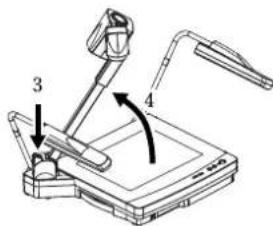
(1) Unfold the lighting unit arms fully until they come to the deadend. Unfold arm 1 and then arm 2 as illustrated.
(2) Press the column lock release button, and raise the column until the column lock release button returns to the original position. Make sure that the column has been completely locked.
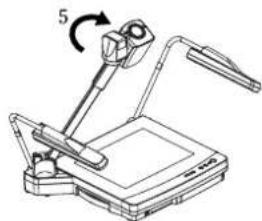
(3) Turn the main camera head as illustrated until it is stopped.
(4) Turn the main camera head until the lens faces to the stage.
(5) Plug the power cord into the power cord receptacle of the Presenter and the AC outlet.

natural_image
Technical line drawing of a mechanical device with a 5-degree rotation indicator (no text or symbols)
○ Connection to the monitor and the projector
The following settings of the Presenter can be switched with the DIP switch. Switch the settings according to the connection environment. The factory settings are as shown in the following table:
| Key | Function | Initial setting | |
| Key selection | Content | ||
| A | To switch the image output | 0 SXGA output | |
| B | To switch the TV output method | 0 | NTSC |
| C | To switch the TV output screen size | 0 | Over scan |
| D | To initialize the network function settings | 0 | Normal operation |
Note: Be sure to turn OFF the power supply to all equipment before making any connections to protect the Presenter and all the connected equipment.
Note: When switching the I/O selection switch key, be sure to turn OFF the power supply to the Presenter beforehand.
Note: Hold the cable plug when connecting or disconnecting the cables.
● Connection to the analogue RGB-in terminal
Connect the analogue RGB-out terminal [OUTPUT-RGBOUT] to the equipment having an analogue RGB-in terminal with the analogue RGB cable (attached) or a connection cable available on the market.
At this time, the position of the display may be deviated from the center. If deviated, manually adjust the horizontal and vertical positions on the connected equipment side. Also, vertical stripes may appear on the screen of the liquid crystal projector. That can be alleviated by manually adjusting the dot clock frequency on the projector side.

● Connection to the composite video-in terminal
Use the supplied RCA video/audio cable or a BNC cable available on the market.

● Connection to the S video-in terminal
Connect the S video-out terminal (mini DIN 4P) of the Presenter to the S video-in terminal of the TV/video monitor. For the S video mode, use an S video connection cable available on the market. If the equipment to be used is provided with a Y/C separate connector, a conversion adapter is necessary.

○ Analogue RGB signal
● Signal allocation

DSUB 15P shrink terminal (Female)
Video signal
Analogue 0.7V(p-p) 75Ω terminated
Horizontal synchronized signal
TTL level (positive/negative polarity)
Vertical synchronized signal
TTL level (positive/negative polarity)
● Pin assignment
| Pin No. | Name | Pin No. | Name | Pin No. | Name |
| 1 | Video signal (Red) | 6 | GND (Red) | 11 | GND |
| 2 | Video signal (Green) | 7 | GND (Green) | 12 | N.C |
| 3 | Video signal (Blue) | 8 | GND (Blue) | 13 | Horizontal synchronized signal |
| 4 | N.C | 9 | N.C | 14 | Vertical synchronized signal |
| 5 | GND | 10 | GND | 15 | N.C |
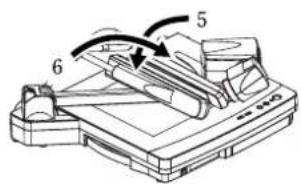
5. STORING THE PRESENTER
(1) Turn OFF the power switch, and unplug the power cord and the video cable.
(2) Turn the main camera head as illustrated until it is stopped.
Note: Be sure to set the camera head in the illustrated position before storing. Storing the main camera head in any other position may damage the stage surface or the lens.
(3) Press the column lock release button, and fold down the main column.
Note: The illustration shows the right storage position of the column. Never apply excessive force to the column.
(4) Fold down the lighting unit arms 5 and 6. Be sure to fold down arm 5 first as per the illustration.


6. OPERATION PROCEDURES
○ Simple steps for presenting printed material
(1) Turn ON the power switch.
Note: Before turning ON the power switch, connection to the monitor should have been completed.
Note: When the power switch is turned ON, the lighting unit lights up.
Note: If the power switch is turned ON immediately after being turned OFF, the Presenter may not operate. For restarting, turn OFF the Presenter and wait several seconds then turn ON.
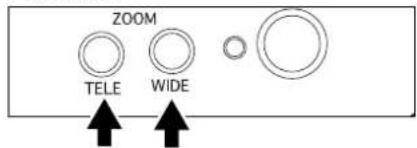
(2) Place the object on the stage. Adjust the image size according to the object size using the zoom buttons ([TELE] / [WIDE]) on the front panel or the zoom buttons ([TELE] / [WIDE]) on the wireless remote control, while watching the image on the TV monitor.
(3) Press the auto focus button [AUTO FOCUS] on the front panel or the auto focus button [AF] on the wireless remote control.
Note: The auto focus function works up to a height of approx. 10cm (3.9 in) above the stage surface when the zoom button [TELE] is set to the maximum.

natural_image
Technical line drawing of a device with a stand and cable, showing internal components and a close-up inset (no text or symbols)Front panel
Wireless remote control

Front panel

Wireless remote control

flowchart
graph TD
    A["INPUT"] --> B["Arrow pointing up"]
Simple steps for showing transparent material, such as overhead transparencies or slide film
(1) Press the base button [BASE] on the front panel or the lamp button [LAMP] on the wireless remote control to light up the base light (transparent lighting unit) built in the stage.
(2) To present a nega film, press the posi/nega conversion button [POSI / NEGA] on the operation panel to change the mode to [N] (Negative).
(3) To turn OFF the base light, press the base button [BASE] on the front panel or the lamp button [LAMP] on the wireless remote control again.
Front panel

Wireless remote control
Operation panel
Front panel

Wireless remote control

7. VARIOUS FUNCTIONS
○ Lighting
The upper lighting unit for presenting material such as printed matter and 3-D objects, and the baselight for presenting transparent material, such as slide, and negative films, are built in to the Presenter.
When the lamp button [LAMP]
([UPPER] / [BASE]) on the front panel or the lamp button [LAMP] on the wireless remote control is pressed, the fluorescent lamp lights up in 1 to 3 seconds.
Every time the lamp button [LAMP] on the wireless remote control is pressed, lighting is switched in a cycle of the lighting unit lights up the base light lights up the base light goes out.
The lighting unit lights up when the power supply is turned ON. To turn OFF the lamp, press the button for the respective lamp.
Front panel

Wireless remote control
Note: It is impossible to have the upper lighting unit and the baselight lit up together.
Note: To obtain a sharp image with good color rendering, it is sometimes necessary to use the upper lighting unit.
○ Zoom
Press the zoom button [TELE] on the front panel or wireless remote control, and the image will gradually be enlarged.
Front panel

Wireless remote control

Press the zoom button [WIDE] on the front panel or wireless remote control, and the image will gradually be reduced.
Front panel

Wireless remote control

○ Input selection
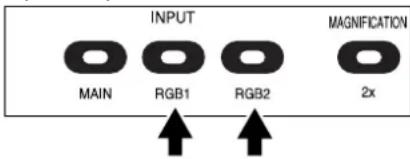
The respective images from two different sources such as a PC and an Elmo Presenter "HV-100XG" can be alternately presented on a TV by selecting the source by pressing the desired input selection buttons without changing the cable connections. The input can be switched by pressing the input select button
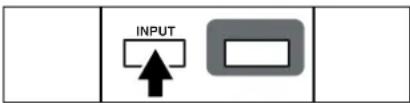
[RGB1] or [RGB2] on the operation panel or the input select button [INPUT] on the wireless remote control. The lighting of the indicator lamp indicates which input is now selected.
Every time the input selection button [INPUT] on the wireless remote control is pressed, input is switched in a cycle of
the Main RGB1 RGB2.
Input selection is possible as shown in the following table:
Operation panel
Wireless remote control
flowchart
graph TD
    A["INPUT"] --> B["Box with Up Arrow"]
    B --> C["Empty Box"]
● Table of Video- and Audio-in / out Terminal Selections
| Input | Video-out Terminal | Audio signal | Terminal | ||
| RGB | L | R | |||
| Main Unit | Main camera video signal | ○ | — | — | |
| Microphone | Monaural | — | ○ | ○ | |
| RGB1 | Main camera video signal | — | — | — | |
| External video signal 1 | RGB1 | ○ | — | — | |
| External audio signal 1 | Stereo 1 (L/R) | — | ○ | ○ | |
| Microphone | Monaural | — | ○ | ○ | |
| RGB2 | Main camera video signal | — | — | — | |
| External video signal 2 | RGB2 | ○ | — | — | |
| External audio signal 2 | Stereo 2 (L/R) | — | ○ | ○ | |
| Microphone | Monaural | — | ○ | ○ | |
○ Output to the monitor
Select the signal to be output to the NTSC/PAL monitor. When the monitor output button [RGB1] or [RGB2] on the operation panel is pressed while [RGB1] or [RGB2] is selected for the input selection, the indicator lamp lights up, and the image from the equipment connected to the external input terminal [RGB1] or [RGB2] is presented on the NTSC/PAL monitor. When the [MAIN] button of the monitor output on the control panel is pressed, the indicator lamp lights up, and the image from the main camera is presented on the NTSC/PAL monitor.
Operation panel

Note: The input signals to the external input terminal RGB1 and RGB2 can be output to the NTSC/PAL monitor if their frequencies are among the listed in the table at the next page.
● Table of Corresponding Signals
| Signal | Frequency | Resolution (Number of lines) | Polarity of the synchronized signal (P: Positive, N: Negative) | |||
| Horizontal Vertical | Pixel clock | |||||
| Mode name | kHz Hz MHz | Horizontal | Vertical HV | |||
| VGA1 | 37.861 | 85.080 31.500 | 640 | 350 | P / N | |
| VGA2 | 37.861 85.080 | 31.500 | 640 | 400 | N / P | |
| VGA3 | 37.972 | 85.039 | 35.500 | 720 | 400 | N / P |
| VGA@60Hz | 31.469 | 59.940 | 25.175 | 640 | 480 | N / N |
| VGA@72Hz | 37.861 | 72.809 | 31.500 | 640 | 480 | N / N |
| VGA@75Hz | 37.500 | 75.000 | 31.500 | 640 | 480 | N / N |
| VGA@85Hz | 43.269 | 85.008 | 36.000 | 640 | 480 | N / N |
| SVGA@56Hz | 35.156 | 56.250 | 36.000 | 800 | 600 | P / P |
| SVGA@60Hz | 37.879 | 60.317 | 40.000 | 800 | 600 | P / P |
| SVGA@72Hz | 48.077 | 72.188 | 50.000 | 800 | 600 | P / P |
| SVGA@75Hz | 46.875 | 75.000 | 49.500 | 800 | 600 | P / P |
| SVGA@85Hz | 53.674 | 85.061 | 56.250 | 800 | 600 | P / P |
| XGA@60Hz | 48.363 | 60.004 | 65.000 | 1024 | 768 | P / P |
| XGA@70Hz | 56.476 | 70.069 | 75.000 | 1024 | 768 | N / N |
| XGA@75Hz | 60.023 | 75.029 | 78.750 | 1024 | 768 | N / N |
| XGA@85Hz | 68.677 | 84.997 | 94.500 | 1024 | 768 | P / P |
| SXGA1 | 67.500 | 75.000 | 108.000 | 1152 | 864 | P / P |
| SXGA2 | 60.000 | 60.000 | 108.000 | 1280 | 960 | P / P |
| SXGA3 | 85.938 | 85.002 | 148.500 | 1280 | 960 | P / P |
| SXGA@60Hz | 63.981 | 60.020 | 108.000 | 1280 | 1024 | P / P |
| SXGA@75Hz | 79.976 | 75.025 | 135.000 | 1280 | 1024 | P / P |
| SXGA@85Hz | 91.146 | 85.024 | 157.500 | 1280 | 1024 | P / P |
| UXGA@60Hz | 75.000 | 60.000 | 162.000 | 1600 | 1200 | P / P |
| UXGA@65Hz | 81.250 | 65.000 | 175.500 | 1600 | 1200 | P / P |
| UXGA@70Hz | 87.500 | 70.000 | 189.000 | 1600 | 1200 | P / P |
| UXGA@75Hz | 93.750 | 75.000 | 202.500 | 1600 | 1200 | P / P |
| UXGA@85Hz | 106.250 | 85.000 | 229.500 | 1600 | 1200 | P / P |
| Mac 13 | 35.000 | 66.667 | 30.240 | 640 | 480 | P / P |
| Mac 16 | 49.725 | 74.550 | 57.283 | 832 | 624 | N / N |
| Mac 19 | 60.241 | 74.927 | 80.000 | 1024 | 768 | N / N |
| Mac 21 | 68.682 | 75.062 | 100.000 | 1152 | 870 | N / N |
| PC98 | 24.825 | 56.420 | 21.052 | 640 | 400 | N / N |
○ Electronic enlargement
To double the image.
To double the central part of the image, press the button [MAGNIFICATION] on the operation panel. When double magnification is selected, the indicator lamp lights up.
The image can be enlarged only within the shooting area of the main camera.
The mouse can be operated as follows:
Operation panel

- Left button.... To scroll the image according to the dragging of the mouse while holding down the left button.
- Mouse wheel...... To scroll up/down the enlarged screen.
- Right button .... To turn ON/OFF the double enlargement.
Note: When the electronic enlargement is tried while the mouse pointer is in display, since the left button of the mouse is limited to the scroll function, the mouse pointer and the OSD cannot be turned ON/OFF. To turn ON/OFF the mouse pointer and the OSD, turn OFF the electronic enlargement.
○ Color / B&W selection
To present the B&W (Black&White) material such as documents. Sharper image with no color blur on the monitor can be produced. Set to color mode for normal use.
Press the color/B&W selection button
[COLOR / B&W] on the operation panel, the indicator lamp lights up and the mode changes to B&W mode.
When the color/B&W selection button [COLOR / B&W] is pressed again, the indicator lamp goes out and the normal (COLOR) mode is resumed.
Operation panel

○ Posi / Nega conversion
To show a negative film.
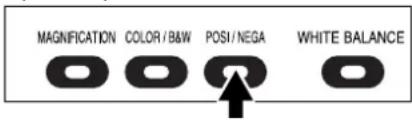
Press the posi/nega conversion button
[POSI / NEGA] on the operation panel or wireless remote control, the indicator lamp lights up and the image will be converted accordingly.
When the posi/nega conversion button
[POSI / NEGA] is pressed again, the indicator lamp goes out and the normal mode is resumed.
Operation panel

○ Image rotation
When the image rotation button [IMAGE ROTATION] on the operation panel is pressed, the image rotates. Every time the image rotation button [IMAGE
ROTATION] is pressed, the image rotates counterclockwise by 90°.
Operation panel

○ Pause
When the freeze button [PAUSE] on the operation panel is pressed, the image from the main camera freezes. When the freeze button [PAUSE] is pressed again, the freeze is canceled.
Operation panel

Note: When the image remains frozen, the functions such as color/B&W selection are not reflected on the output from the main camera.
○ Contrast
To present the material with a little half tone such as documents.
Images with sharp characters and lines contrasty with background can be obtained.
When the contrast button [CONTRAST] on the operation panel is pressed, the indicator lamp lights up, and the image becomes contrasty.
When the contrast button [CONTRAST] is pressed again, the indicator lamp goes out, and the image is reset to the normal condition.
Operation panel

○ White Balance
The camera of the Presenter automatically adjusts the shooting color balance (AUTO mode). However, depending on the color arrangement of document or the like, this color balance may be lost. In such case, shoot the stage surface, and press the white balance button [WHITE BALANCE] on the operation panel. Then, the mode is switched to the ONE-PUSH mode, the indicator lamp blinks and then lights up, and the white balance is fixed.
When the white balance button [WHITE BALANCE] is pressed again, the indicator lamp goes out, and the mode returns to the AUTO mode.
AUTO ....To set the white balance in the auto follow mode (initial setting). ONE-PUSH....To set the push-set white balance. By pressing the button [WHITE BALANCE], the white balance for the then color temperature is fixed.
Note: The automatically followed color temperature ranges from approx. 3000k to 8000k.
Note: When the white balance is set to the MANUAL mode on the OSD, the white balance is fixed, and the indicator lamp remains lighting. When the white balance button [WHITE BALANCE] on the operation panel is pressed while the indicator lamp is lighting, the indicator lamp goes out, and the mode is switched to the AUTO mode.
Operation panel

○ Iris
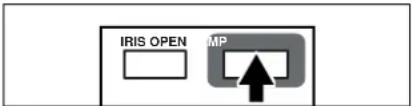
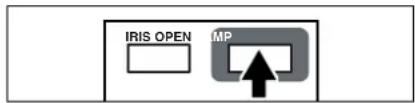
To adjust the Auto iris level of the lens. Press the iris button [OPEN] on the operation panel or the iris open button [IRIS OPEN] on the wireless remote control, and the iris will open.
Press the iris button [CLOSE] on the operation panel or the iris close button [IRIS CLOSE] on the wireless remote control, and the iris will close.
Press the iris normal button [IRIS
NORMAL] on the wireless remote control, and the initial setting will be resumed.
Note: When the image looks dark, adjust the brightness with iris control.
Operation panel

Wireless remote control

flowchart
graph TD
    A["IRIS OPEN"] --> B["IRIS CLOSE MOVE"]
    B --> C["IRIS NORMAL PRESET"]
    D["LAMP"] --> E["Output"]
○ Focus
- Auto Focus
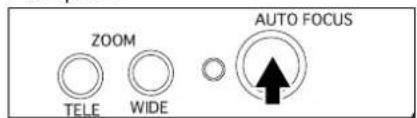
Press the auto focus button [AUTO FOCUS] on the front panel or the auto focus button [AF] on the wireless remote control, and the auto-focus will be activated.
While the auto-focus is in operation, the indicator lamp on the front panel blinks until the object is brought into focus.
The Presenter features a one-push auto focus function. Once focusing is completed, the auto focus function is released, and the focused position maintains unchanged (FOCUSFREE).
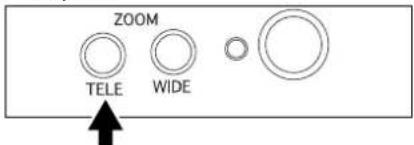
To obtain sharper image, zoom in on the object by pressing the zoom button
[TELE] on the front panel or wireless remote control and press the auto-focus botton.
However, the objects listed below may not be brought into focus in the auto focus mode. In these cases, use the manual focus mode.
- Objects bearing little contrast
- Objects with fine repeated patterns, such as lateral stripes and cross stripes
- Objects glittering or reflecting strong light
- Objects with bright background, or excessive contrast
- Objects in a dark picture plane
- Objects located near and far away at the same time
- Objects in motion
If the focus button [NEAR] or [FAR] on the front panel or the focus button
[FOCUS NEAR] or [FOCUS FAR] on the wireless remote control is pressed during the auto focus, the auto focus will be released.
Note: The auto focus function works up to a height of approx. 10cm (3.9 in) above the stage surface when the zoom button [TELE] is set to the maximum.
Front panel
Wireless remote control

Front panel
Wireless remote control

Operation panel
Wireless remote control

● Powered Manual Focus
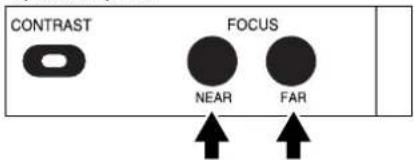
To focus on specific part of the material, such as 3-D material. Press the focus button [NEAR] or [FAR] on the operation panel or the focus button
[FOCUS NEAR] or [FOCUS FAR] on the wireless remote control.
Note: The auto focus functions up to approx. 10cm (3.9 in.) above the stage surface (with the close-up lens attached).
Operation panel

Wireless remote control

○ About the preset and move operation
The Presenter has a function of saving its operation status (Preset). The preset function is read with the move button
[MOVE] on the wireless remote control.
The operation status that can be saved includes:
- Preset zoom angle of view
- Adjustment status of AUTO iris level
- White balance status
- ON/OFF of aperture
- Status of gamma
- Lighting status
- Microphone level
Wireless remote control

1. How to move
When the move button [MOVE] on the wireless remote control is pressed, the Presenter is set to the preset status.
2. How to preset
When the preset button [PRESET] on the wireless remote control is pressed, the current status of the Presenter is saved.
○ LCD monitor bracket socket
The LCD monitor bracket socket is used for attaching an LCD monitor (optional) with an LCD monitor bracket (optional).

○ Connecting to the LCD monitor out terminal
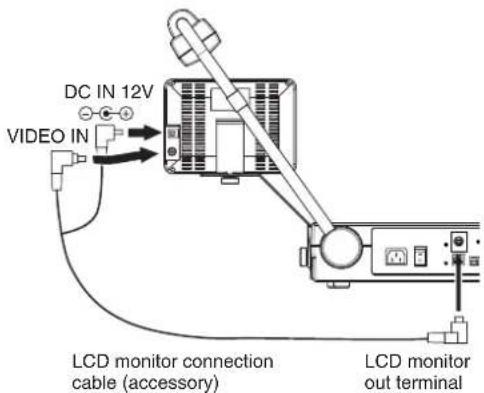
The LCD monitor (LM-5011N) can be connected by using the LCD monitor out terminal of the Presenter.
Note: When connecting to the LCD monitor out terminal, confirm the right connection direction.
Note: When using the LCD monitor connection cable, do not use the AC adapter or video cable attached to the LCD monitor (LM-5011N).
Note: The LCD monitor (LM-5011N) and the LCD monitor bracket are available on option, and not attached to this Presenter (HV-8000SX).

Mini DIN 9P (Female)
| 1 | VIDEO OUT |
| 2 | GND |
| 3 | NC |
| 4 | NC |
| 5 | NC |
| 6 | NC |
| 7 | +12V |
| 8 | GND |
| 9 | CONT. |
○ PC link software "Image Mate"
When the "Image Mate" is installed in the PC, the following operations are available:
• Image data transfer to the PC
• Operation of the Presenter by the PC
For details, refer to the installation manual of "Image Mate" and "manual.pdf" in the
CD-ROM.
8. OSD (On-Screen Display)
○ Main menu
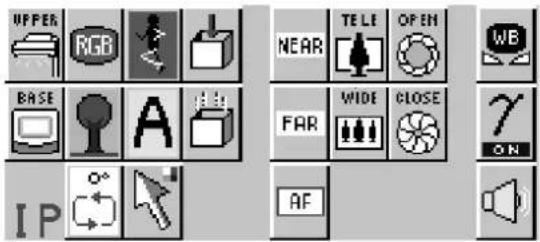
| Icon Name | Function | |
 | Upper light ON/OFF | To turn ON/OFF the upper light.When the Presenter is turned ON, the upper light remains at the previously saved settings. |
 | Base light ON/OFF | To turn ON/OFF the base light.When the Presenter is turned ON, the base light remains at the previously saved settings. |
 | Color/B&W selection | To switch the selection of the color/B&W of the screen. When the Presenter is turned ON, the color/B&W selection remains at the previously saved settings. |
 | Posi/Nega selection | To switch the selection of the positive/negative of the screen. When the Presenter is turned ON, the positive/negative selection remains at the previously saved settings. |
 | Image rotation To rotate the image counterclockwise by 90 .°When the Presenter is turned ON, the image rotation remains set at 0°. | |
 | Freeze To switch the selection of the static/moving image. When the Presenter is turned ON, the static/moving image selection remains at the previously saved settings. | |
 | Aperture selection | To switch the modulation (edge emphasis) of the image. When the Presenter is turned ON, the image modulation remains at the previously saved settings. The factory setting is “ON.” |
| Icon Name Function | ||
 | Pointer To change the color and shape of the pointer on the screen. Every time the left button of the mouse is clicked, the icon pointer is switched in order of “White arrow →Blue arrow →Yellow arrow→ Red arrow” and “White line →Blue line →Yellow line →Red line”. | |
 | Status saving | To save each status of the current aperture, lighting, white balance, preset zoom angle of view, gamma, auto iris level and microphone level. The settings save here are reflected on the Presenter when the Presenter is turned ON the next time. |
 | Initialization To reset the Presenter to the status of the factory settings | |
 | Focus NEAR/FAR | To adjust the focus of the lens. |
 | Auto Focus To focus the lens automatically. | |
 | Zoom TELE/WIDE | To adjust the zoom of the lens. |
 | Iris Close/Open | To adjust the auto iris level of the lens. |
○ When the white balance is set

○ When the gamma is set

○ When the microphone volume is set
○When the IP address is displayed

| Icon Name | Function | ||
 | White balance | To display the White Balance Adjustment menu. When the left button of the mouse is clicked again, the White Balance Adjustment menu is closed. | |
 | Auto To set the white balance in the AUTO FOLLOW mode (initial setting). | ||
 | One-push To set the push-set white balance. When the left button of the mouse is clicked, the white balance for the then color temperature is fixed. | ||
 | Manual To set the white balance withand. Adjust the white balance by clicking the left button of the mouse on the direction buttons beside the volume bar...To adjust the red component (1-99)...To adjust the green component (1-99)...To adjust the blue component (1-99). | ||
 | Gamma adjustment (0-7) | To switch the gamma setting value (0(1.0) / 1(0.9) / 2(0.8) / 3(0.7) / 4(0.6) / 5(0.5) / 6(0.4) / 7 (0.3)). When the Presenter is turned ON, the gamma setting value remains at the previously saved settings. The factory setting is “4 (0.6).” | |
 | Volume adjustment (0-63) | Volume adjustment (0-63) To adjust the audio volume from the microphone terminal.When the Presenter is turned ON, the volume adjustment remains at the previously saved settings. When the left button of the mouse is clicked on this icon, the volume bar is displayed. Adjust the audio volume by clicking the left button of the mouse on the direction buttons beside the volume bar. When the left button of the mouse is clicked on the icon of the volume adjustment again, the volume bar is closed. The factory setting is “50.” | |
 | IP address To display the IP address.When the left button of the mouse is clicked on this icon, the IP address of the Presenter is displayed. | ||
9. NETWORK FUNCTIONS
By connecting this Presenter to the network using Ethernet (10BASE-T/100BASE-TX), the following functions are made available from the host (e.g., PC) on the network:
- Web server functions – Displaying quasi-moving images, displaying static images and operating remote control through the Web browser.
- FTP client functions – Saving image files in the remote host by using the image transfer button [IMAGE TRANSFER].
- FTP server functions – Transferring image files.
- telnet server functions – Operating remote control and acquiring status data.
Note: It is not assured that this Presenter can be connected to all units on the network.
Note: The applicable Web browsers are Internet Explorer 4.0 and newer and Netscape 4.7 and newer. For any other browser, consult your dealer or an authorized ELMO service center.
○ Preparation for connection
Before connecting the Presenter to the network for use, the network must be set up (e.g., IP address). This Presenter provides two procedures for setting up the network as follows:
- Connecting the Presenter from the host on the network through the Web browser.
- Connecting the Presenter from the host on the network through telnet.
Here, the setup procedure using the Web browser is described.
For the setup procedure using telnet, consult your dealer or an authorized ELMO service center.
● Preparation before setting up
Before starting the setup, specify the IP address and subnet mask to be set up in the Presenter. For the IP address and subnet mask to be specified, ask the administrator of the network to be used.
This Presenter has been factory set on the network as follows:
IP address 192.168.0.100
Subnet mask 255.255.255.0
If the network address of the network to be used is not 192.168.0.0 or if there is any other host with the IP address 192.168.0.100 is already in operation on the same network, this Presenter cannot be connected to the network for setup. In this case, a network with the IP address 192.168.0.0 must be configured with this Presenter and the host for setting up this Presenter. Prepare a host having the IP address 192.168.0.X (X: 1\~254, excluding 100) and the subnet mask 255.255.255.0, and connect such host to the Presenter.
Reference Page
- Accessing the network
P.36, P.37, P38
● Connection to the network
- Connection using HUB
Connect the Ethernet terminal (RJ-45) of the Presenter to the HUB port with an Ethernet straight cable (UTP Category 5). For the HUB port, use a port other than the cascade port.

flowchart
graph LR
    A["RFID"] --> B["USB"]
    C["RFID"] --> D["MOUSE"]
    E["VIDEO L AUDIO R"] --> F["S-VIDEO"]
    G["RGB OUT"] --> H["OUTPUT"]
    I["RGB"] --> J["AUDIO L 1/2"]
    K["INPUT"] --> L["USB"]
    M["HUB"] --> N["Host"]
    O["Host"] --> P["Host"]
    Q["Ethernet straight cable"] --> A
    Q --> C
    Q --> E
    Q --> I
    Q --> M
    style A fill:#f9f,stroke:#333
    style C fill:#f9f,stroke:#333
    style E fill:#f9f,stroke:#333
    style I fill:#f9f,stroke:#333
    style M fill:#f9f,stroke:#333
    style N fill:#ccf,stroke:#333
    style P fill:#ccf,stroke:#333
- Connection to one host
Connect the Ethernet terminal (RJ-45) of the Presenter to the Ethernet terminal of the host with an Ethernet cross cable (UTP Category 5).

Note: Upon connection of this Presenter to other unit on the network through the Ethernet terminal, the communication protocol is adjusted automatically between the Presenter and the connected unit to 10BASE-T/100BASE-TX and HDX/FDX (i.e., "automatic negotiation"). Therefore, this Presenter may not be properly connected to some units on the network that do not comply with automatic negotiation.
● Setting up of the network
- Start the Web browser from the host connected to the Presenter.
- Enter the IP address or host name (if allocated) of the Presenter, following [http://], in the address column of the Web browser provided for entering the URL to be opened. For example, enter the IP address of this Presenter as "http://192.168.0.100/," since it has been factory set to 192.168.0.100.
- When the HV-800SX/8000SX/8500SX page is displayed in the Web browser, click the link [SET UP].

- Then, the Configurations page is displayed. Confirm the settings, and click the link [Network Configuration]. To display the Network Setting Input page, the authentication by the login password is required. When the entry of the password is requested, enter [root] for the user name and enter the password set at the Network Setting Input page. No password has been factory set. When the Presenter remains in the factory set condition, enter no password.
- When the Network Setting Input page is displayed, change the set values according to the environment of the network to be used. To reset the changed set values to the original set values, click the clear button [CLEAR].
- When all items have been set, click the submit button [SUBMIT]. When the message "The saving of the setup was completed. Please restart." is displayed, the setting up of the network is completed. Then, turn OFF the power supply. The set values are effective as of the time when the power supply is turned ON the next time. If the message "Incorrect value of setting exists. Please set up again." is displayed when the submit button [SUBMIT] is clicked, there is an incorrect value entered for setting. Go back to the Network Setting Input page and redo the setting.
Reference Page
· Appendix: Setting items of the network
P.44
Note: If there are more than one unit with the same IP address on the network, a disorder would be caused to the network. Therefore, set the IP address carefully.
Note: Once the submit button [SUBMIT] is clicked, do not turn OFF the power supply until the next screen is displayed. Otherwise, the set values will be destroyed and connection from the network will be disabled. If the connection is disabled, reset the settings to the factory settings by referring to "Initialization of Network Settings" in the next section, and the redo the setting.

| Network Configuration | |
| IP address | 1921680100 |
| Subnet mask | 2552552550 |
| Default Gateway | 0.0.00 |
| root password | |
| user password | |
| IP Client Configuration | |
| IMAGE TRANSFER | Disable |
| The IP address of the image receiving server | 00:00 |
| The port number / the image receiving server | 21 |
| The account / the image receiving server | anonymous |
| The password / the image receiving server | |
| Passive mode | Off |
| Destination directory to save | |
| Resolution | EXGA |
| File name of image | img |
| Add sequential number to file name? | Yes |
| The start number of sequence | 0 |
| The end number of sequence | 999 |
TOP
● Initialization of the network settings
If the connection from the network is disabled due to destruction of the network settings or disremembering of the set value, reset the settings to the factory settings by using the following procedure and then redo the settings:
- If the Presenter is in connection to the network, disconnect the Presenter from the network.
- In the power supply OFF state, lower the [D] key of the DIP switch key on the backside of the Presenter to [1].
- Turn ON the power supply, and wait for approx. 10 seconds.
- Turn OFF the power supply, and return the [D] key of the DIP switch to [0].
- Turn ON the power supply again. Then, the network settings and the FIP client settings are reset to the factory settings.
Note: Ensure that the [D] key of the DIP switch is returned to [0] after the initialization. If the key remains in the [1] position, the connection from the network is disabled.
○ Web server functions – Displaying quasi-moving images, displaying static image and operating remote control through the Web browser
When the Presenter is connected from the Web browser, quasi-moving images can be displayed, static images cab be displayed, and remote control can be operated. To connect the Presenter from the Web browser, enter the IP address or host name (if allocated) of the Presenter, following [http://], in the address column of the Web browser provided for entering the URL to be opened. Then, the HV-800SX/8000SX/8500SX page is displayed. Click the desired link there. Then, the selected function can be used.
Note: Even if the image is tried to be electronically magnified, rotated or frozen by operating this Presenter, the image output to the network is not affected by this operation.
● Display of quasi-moving images
When the link [LIVE] is clicked at the HV-800SX/8000SX/8500SX page, another window opens, and a quasi-moving live image is displayed. However, to display quasi-moving images, Java and JavaScript must have been set enabled. If the Presenter is used in the environment where Java or JavaScript are not set enabled, click the link [REFRESH]. Then, a page that renews static images at specified intervals is be displayed.

Quasi-moving images can be displayed simultaneously at up to 15 clients. If more clients access the Presenter, the screen displays the message "LIVE mode already has the limited number of access. Please wait or use REFRESH!"
The frame rate of the quasi-moving image is max. 3.75 frames per second. However, the frame rate depends on the processing capacity of the host, the network environment, the number of connections units, etc.
Note: If the power supply to the Presenter is turned OFF while the quasi-moving image is in display, the host displaying the quasi-moving image may, depending on the Web browser in use, continue the internal processing even if the Web browser is closed. Normally, this causes no problem. However, if this is repeated again and again, the operation of the host may be destabilized. If the host becomes unstable, restart the host.
● Display of static images
By clicking the links [SXGA], [VGA] and [QVGA] at the HV-800SX/8000SX/8500SX page, the quasi-moving image page and the REFRESH page, the static images of 1280X1024, 640X512 and 320X256 in size can be displayed, respectively. To save the static image, use the function of the Web browser.
When any link at the HV-800SX/8000SX/8500SX page is clicked, the static image is displayed in the same window. However, when any link at other pages is clicked, another window opens, and the static image is displayed in that window.
● Operation of remote control
When the link [CONTROL] at the quasi-moving image page is clicked, the CONTROL page is displayed. At the CONTROL page, the lighting can be changed, the zoom can be adjusted, the iris can be adjusted, the focus can be adjusted, the color/B&W can be switched, the posi/nega can be switched, the aperture can be adjusted, the contrast can be adjusted and the color tone (RGB) can be adjusted, all through remote control. Click the button for intended operation. For the adjustments of the zoom, iris, focus and color tone, a preset amount changes each time the button is clicked.

- FTP client function – Saving image files in the remote host by using the image transfer button [IMAGE TRANSFER]
When the image transfer button [IMAGE TRANSFER] on the operation panel is pressed, the image file can be saved in the host on the network set in [FTP Client Configuration]. To use this function, the FTP server of the host must be in operation at the saving destination.
Also to use this function, the FTP clients must be set beforehand.
This Presenter provides two procedures for setting the FTP clients as follows:
- Connecting the Presenter from the host on the network through the Web browser.
- Connecting the Presenter from the host on the network through telnet.
Here, the setup procedure using the Web browser is described.
For the setup procedure using telnet, ask your distributor or nearest branch or service office of ELMO.
Note: For some FTP servers, the image may be unable to be saved by using this function. For the information of the applicable FTP servers, consult your dealer or an authorized ELMO service center.
- Setting up
- Start the Web browser from the host connected to the Presenter.
- Enter the IP address or host name (if allocated) of the Presenter, following [http://], in the address column of the Web browser provided for entering the URL to be opened.
- When the HV-800SX/8000SX/8500SX page is displayed in the Web browser, click the link [SET UP].
- Then, the Configurations page is displayed. Confirm the settings, and click the link [FTP Client]
Configuration].
To display the FTP Client Setting Input page, the authentication by the login password is required.
Configurations
![Elmo HV-8000SX - Configuration]. - 1](/content/2026/06/1226296/images/1057b3edde6419fb3c08140b7e5ff56f57872898f50e56270f00cefedd9fe160.jpg)
FTP Client Configuration

TOP
When the entry of the password is requested, enter [root] or [user] for the user name and enter the password set at the Network Setting Input page. No password has been factory set. When the Presenter remains in the factory set condition, enter no password.
- When the FTP Client Setting Input page is displayed, change the set values according to the host at the saving destination. To reset the changed set values to the original set values, click the clear button [CLEAR].
- When all items have been set, click the submit button [SUBMIT].When the message "The saving of the setup was completed." is displayed, the setting up of the network is completed.
If the message "Incorrect value of setting exists. Please set up again." is displayed when the submit button [SUBMIT] is clicked, there is an incorrect value entered for setting. Go back to the FTP Client Setting Input page and redo the setting.
Reference Page
- Appendix: Setting items of the FTP client
P.44
Operation
- Check to confirm the image to be saved on the monitor.
- Press the image transfer button [IMAGE TRANSFER] on the operation panel.
- LED on the button blinks. When the LED goes out, saving is completed. Now, the next image can be saved.
- When the image cannot be saved, the LED on the button in blinking lights up. Then, check the settings and the like. To turn OFF the LED in lighting, press the image transfer button [IMAGE TRANSFER] again.
Operation panel
Note: When the host with IP Address set by the IP Address of the image receiving server does not exist on the network, it takes about 90 sec for LED to change from blink to lighting.

○ FTP server functions – Transferring image files
The host connected to the Presenter on the network can obtain the static image files of 3 sizes, 1280X1024 (file name: sxga.jpg), 640X512 (file name: vga.jpg) and 320X256 (file name: qvga.jpg) from this Presenter by using general-purpose FTP client software (e.g., Windows FTP command).
To use the FTP server function, the password is required. Enter "root" or "user" for the user name and enter the password set at the Network Setting page and corresponding to the user name. No password has been factory set. When the Presenter remains in the factory set condition, enter no password.
Only one client can use the FTP server function at the same time.
Reference Page · Appendix: Specifications of the FTP server P.45
Note: Since the FTP server discriminates between uppercase and lowercase characters, specify the file name with lowercase characters only.
Note: The file size displayed in the file list is given as a reference, and does not indicate the file size after saving. The date and time of updating the file always indicates 0:00, January 1, 2002.
○ telnet server functions – Performing remote operation and acquiring the status
This Presenter can be remotely controlled and its status can be acquired through telnet. For the information of the command, etc., consult your dealer or an authorized ELMO service center.
Appendix
- Setting items of the network
| Item Outline | |
| IP Address | The IP address of the Presenter.Specifies the value allocated by the administrator of the network in use.Factory set to 192.168.0.100. |
| Subnet mask | The mask value for separating the network address from the host address.Used in combination with the IP address to specify the network to which this Presenter belongs.Specifies the value allocated by the administrator of the network in use.Factory set to 255.255.255.0. |
| Default Gateway | Specifies the IP address of the router when this Presenter is used on the network equipped with a router. For the IP address of the router, ask the administrator of the network to in use. Factory set to 0.0.0.0. Set to 0.0.0.0. when using the Presenter on the network equipped with no router. |
| root password | The password for setting up the network and using telnet. Not factory set.Should preferably be set for the security purpose. |
| user password | The password for setting up the FTP client to enable the use of the image transfer button [IMAGE TRANSFER] and for using the FTP server function. Not factory set. |
- Setting items of the FTP client
| Item Outline | |
| IMAGE TRANSFER | Specifies Enable/Disable of the image transfer button [IMAGE TRANSFER]. Factory set to Disable. |
| The IP address / the image receiving server | Specifies the IP address of the destination host to save. Factory set to 0.0.0.0. |
| The port number / the image receiving server | Specifies the port number used by the FTP server in operation at the destination host to save. Normally, no need to be changed. Factory set to 21. |
| The account / the image receiving server | Specifies the account name used for connection to the destination host to save. Factory set to anonymous. |
| The password / the image receiving server | Specifies the password of the above account. Not factory set. |
| Passive mode | Specifies which mode is used for file transfer, the passive mode or active mode. When the port is limited by firewall, etc., use the passive mode. For whether the passive mode should be used or not, ask the administrator of the network in use. Factory set to no use. |
| Destination directory to save | Specifies the destination directory to save the image file. Specifies the write-enabled directory of the assigned account. Not factory set. (The root directory has been specified.) |
| Image size | Specifies the size of image to be saved from among SXGA, VGA and QVGA. The image sizes are 1280X1024 for SXGA, 640X512 for VGA, and 320X256 for QVGA. Factory set to SXGA. |
| File name of image | Specifies the name of the file to be saved. Automatically adds the extension [.jpg] to the file name. Since any file under the same name in the saving destination is overwritten, specify a different file name from the existing file names. Factory set to [img]. |
| Add sequential number to file name | Specifies whether Yes/No to the addition of sequential number to the file name. When [Yes] is specified, the image is saved under the file name specified for the image with the sequential number added (e.g., img000000.jpg, img000001.jpg) each time the file is saved. When the power supply to the Presenter is turned ON or the FTP client settings are changed, the sequential number to be added to the file name is reset to the number specified for the star number of sequence. Factory set to Yes. |
| Start number of sequence | Specifies the start number of sequence when the sequential number is add to the file name. Factory set to [0]. |
| End number of sequence | Specifies the end number of sequence when the sequential number is added to the file name. When the sequential number reaches the end number, the sequential number returns to the start number of sequence. Then, if there is a file already saved with the start number of sequence, that file will overwritten when the new file is saved. Therefore, the end number of sequence should preferably be larger. Factory set to 999. |
● Specifications of the FTP server
Port: No. 21
Connection time-out: 15min
Number of connections at the same time: 1
Corresponding command
| Command | ResponseOperation | |
| USER To enter the user name 331, 500, 530 | ||
| PASS To enter the password 230, 500, 503, 530 | ||
| PORT To notify the data port No. 200, 500 | ||
| TYPE To switch the file type 200 | ||
| PWD(XPWD) | To display the current directory 257 | |
| RETR To acquire the file 150, 226, 510, 552, 550 | ||
| PASV To enable the passive mode 227, 510 | ||
| LIST(NLST) | To acquire the file list 150, 226, 510 | |
| NOOP No operation 200 | ||
| QUIT To terminate (disconnection) 221 | ||
Response message
| 150 File status OK: About to open data connection. |
| 200 Command OK. |
| 220 FTP server ready. |
| 221 Goodbye. |
| 226 Closing data connection. |
| 227 Entering Passive Mode < IP address and port No. > |
| 230 User logged in. |
| 257 "/" is current directory. |
| 331 User name OK. Need password. |
| 500 Command not understood. |
| 502 Command not implemented. |
| 503 Login with USER first. |
| 510 port open fails. |
| 530 Not logged in. |
| 530 Already logged in. |
| 550 < File name >: No such file. |
| 552 Requested file action aborted. |
Note: Even when the file type is changed to ASCII at the TYPE command, the file is transmitted in the Binary mode.
10. RS-232C SPECIFICATIONS
The Presenter can be controlled by a PC connected to the Presenter through the RS-232C terminal [RS-232C].
○ Setting up
(1) Connect the Presenter to a PC with an RS-232C connection cable.
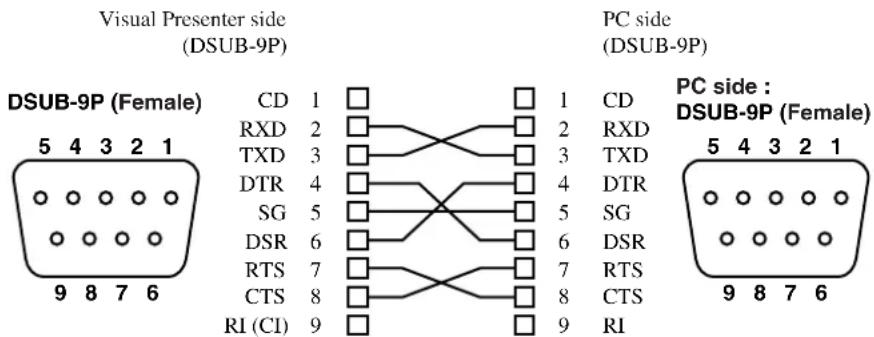
Note: When using an RS-232C cable available in the market, make sure of the connection shown the next page.
Note: To protect the Presenter and the PC, be sure to turn OFF all the power switches of all equipment before connecting.
(2) Start the PC, and set the communication mode of the RS-232C to the communication mode of the Presenter.
Note: For the information how to set the communication mode of the RS-232C, refer to the instruction manual of the PC.
(3) Start the PC program to operate the Presenter.
(4) Control through the RS-232C will start.
Note: For communication control, be sure to take the above steps for setting.
○ Cable connection
○ Table of the communication commands
| Function | Command | Parameter Data | Comments | |
| Auto Focus AF | 0 | ■■ | Command to execute the one-step Auto Focus. | |
| Focus adjustment | FO | +(NEAR)−(FAR)0(STOP) | ■■ | Command to adjust the Focus. |
| Zoom adjustment | ZO | +(TELE)−(WIDE)0(STOP) | ■■ | Command to adjust the Zoom. |
| Iris adjustment | IR | +(OPEN)−(CLOSE)0(STOP)1(AUTO) | ■■ | Command to adjust the Iris. |
| Lighting selection | PL | 0(OFF)1(BASE)2(UPPER) | ■■ | Command to select the Lighting. |
| Input selection | AV | 0(MAIN)1(RGB1)2(RGB2) | ■■ | Command to select the Input. |
| Posi/Nega conversion | NP | 0(POSI)1(NEGA) | ■■ | Command to convert Posi/Nega. |
| Color/B&W selection | CB | 0(COLOR)1(B&W) | ■■ | Command to select Color/B&W. |
| Video pointer display | PO | 0(OFF)1(ON) | ■■ | Command to turn ON/OFF the video pointer display. |
| Enlarged image movement | PM | 0(STOP)1(→)2(←)3(↓)4(↑) | ■■ | When the video pointer display is ONThe video pointer moves.When the image enlargement is ONThe enlarged image moves.1: To the right side.2: To the left side.3: To the upper side.4: To the lower side. |
| Image enlargement | MA Command to freeze On Image.1(ON) | ■■ | This command doubles the area centered around the video pointer display position. | |
| Freeze FZ Command to freeze On Image.1(ON) | ■■ | |||
| Local lockout LL | 0(OFF)1(ON) | ■■ | Command to disable the switches on the front operation panel and the wireless remote control. | |
| Gamma switch GM | 0 (1.0)1 (0.9)2 (0.8)3 (0.7)4 (0.6)5 (0.5)6 (0.4)7 | ■■ | Command to switch the gamma set value of the image. | |
| Image rotation RO | 0 (OFF)1 (90°)2 (180°)3 (270°) | ■■ | Command to rotate the image. | |
| Aperture selection | AP | 0 (OFF)1 (ON) | ■■ | Command to switch the modulation (edge emphasis) of the image. |
| White balance selection | AW | 0 (OFF)1 (AUTO)2 (ONE-PUSH) | ■■ | Command to switch the mode of the white balance. |
| Contrast selection | CT | 0 (OFF)1 (ON) | ■■ | Command to switch the contrast settings. |
| Default DF | 0 | ■■ | Command to reset to the initialized mode. | |
| Status request QS | 02 | ■■ | Command to inquire the status of the equipment. | |
| ROM version QR | 0 | ■■ | Command to refer to the ROM version. | |
| Response data Selection1 | SA Commandoff select the presence of the response to each operation command. Default is ON. | |||
| Response data Selection 2 | SC | 0 (OFF)1 (ON) | ■■ | Command to add CR [0Dh] to the end of the response data. Default is OFF. |
Note: "In the data column means that SPACE [20H] should be transmitted twice.
○ Data format specifications
This command is executed in the form of 1-command/1 packet. The next command is not accepted until the previous processing is completed.
- The communication command always starts with STX (Start of Text), and ends with ETX (END of Text).
- If the communication format or command name is wrong, NAK (Negative Acknowledgement) will be sent from the Presenter as a result of failing to receive correctly.
- When the communication format is correctly received, the Presenter sends ACK (Normal Acknowledgement).
● Transmission Command (PC Visual Presenter)
Each operation command is executed in ASCII code, and transmitted in a set of 7 bytes as follows:
| S | Command | Parameter | Data | E |
| T | T | |||
| X | X |
(Visual Presenter) ACK
● Response data format (Visual Presenter PC)
All response data is transmitted as ASCII code, and it covers parameter of the table of operation command.
- Status request format (Parameter 0)
| STX | Lighting selection | Input selection | Posi /Nega | Color /B&W | Pointer display | Image enlargement | Freeze | Local Lock out | ETX |
• Status request format (Parameter 2)
| STX | Resolution selection | γ selection | Image rotation | Aperture election | White balance selection | Contrast selection | 30H30 | E H30HT X |
- ROM version
| STX | V56H | H48H | G47H | **H **H | **H | ETX |
Version
○ Transmission specifications
• Full duplex start-stop sync. mode
- Start bit : 1 bit
- Data bit : 8 bits
- Stop bit : 1 bit
- Parity bit : None
• X parameter : None
- Baud rate (Communication speed) : 9600bps
○ Connection
If the RS-232C cable is not correctly connected between the Presenter and the PC, no acknowledgement is transmitted. Connect the RS-232C cable correctly, and fix it firmly with the connector set screws before the operation.
11. TROUBLESHOOTING HINTS
| Symptom Possible cause / countermeasure | |
| No Images on TV monitor | Cable is not properly connected to the video-in terminal of monitor.The power cord is disconnected from the wall AC outlet.The plug is disconnected from the power cord receptacle of the Presenter.The power switch is not turned ON.Zoom is set at TELE to display only white/black part of the material.The power switch is turned ON immediately after it is turned OFF.In this case, the Presenter may not start. Wait several seconds after turning OFF the power switch, and then turn ON the power switch. |
| Out of focus | The object is too close to the lens. Check if it does not stand higher than 10cm (3.9 in.) above the stage surface.Zoom is set at TELE after focusing at WIDE angle.Focus on the point of max. TELE.In the auto-focus, focusing is difficult in some cases. |
| The lamp is not quickly turned ON. | For protection purposes, the lamp is turned ON after preheating for 2 seconds. This is not a fault. |
| Image is too dark. | The intensity of illumination is not sufficient. Press the upper button [UPPER] on the front panel or the lamp button [LAMP] on the wireless remote control and turn ON the upper lamp.The AUTO iris level is on the "CLOSE" side. Press the open button [OPEN] on the operation panel or the iris open button [IRIS OPEN] on the wireless remote control. |
| The image is striped | This may be interference fringes between dots of printed matter and TV scanning lines or CCD pixels, which may be mitigated by changing the projection range.When using a liquid crystal projector, vertical stripes may appear on the screen. This may be mitigated by manually adjusting the dot clock frequency on the projector side (refer to P. 15). |
| Brightness tone is out of order. | This may be mitigated by switching gamma setting. |
If the trouble still remains after checking the above, consult your dealer or an authorized ELMO service center.
○ Replacement of fluorescent lamp
The lighting lamps (fluorescent lamps) are expendables. When any of them begins to shimmer or be less bright, replace it.
Note: For the replacement of the lamp, consult your dealer from whom you have purchased your Visual Presenter or an authorized ELMO service center.
12. SPECIFICATIONS
General
| Item | Specifications | ||
| Power source AC | 100-240V 50Hz/60Hz | ||
| Power consumption | 0.7A-0.3A | ||
| Outside dimensions | 533mm(W) X 449mm(D) X 185mm(H) (21.0 X 17.7 X 7.3 in) (When folded)766mm(W) X 449mm(D) X 628mm(H) (30.2 X 7.7 X 24.7 in) (When set up) | ||
| Weight 10.5kg (23.2lbs) (main body only) | |||
| Input selection | Main body / External 2 systems | ||
| Output terminal RGB output 1 | Mini DSUB 15P connector, female | × | |
| Composite video output | RCA pin jack/75Ω unbalanced (NTSC/PAL) | ||
| S-video output | Mini DIN 4P connector/75Ω unbalanced (NTSC/PAL) | ||
| Audio output (stereo) | RCA pin jack/adaptable impedance: 10kΩ or more, -10dB | ||
| LCD monitor output terminal | Mini DIN 9P connector, female | ||
| Input terminal | RGB input Mini DSUB 15P connector, female | ×2 | |
| Audio input (stereo) | 500mV (rms), impedance: 47kΩ or more,ø3.5mm stereo mini jack | ×2 | |
| Microphone input (monaural) | 6.3mm jack/adjustable impedance: 600Ω, -65dB | ×1 | |
| Ext. control terminal | RS-232C | DSUB 9P connector, male | ×1 |
| Mouse | Mini DIN 6P connector, female | ×1 | |
| USB | Type B receptacle | ×1 | |
| Ethernet 8-core modular type (RJ-45) | ×1 | ||
● Network Specifications
| Applicable browser | Internet Explorer 4.0 or upgrades, Netscape Navigator 4.7 or upgrades | |
| Image compression system | JPEG | |
| Image quality | Fixed | |
| Moving picture display | Resolution | 640 × 512 |
| Frame rate | Max. 3.75fps | |
| Still picture display | Resolution | 1280 × 1024, 640 × 512, 320 × 256 |
| Main unit remote operation | Illumination, Zoom, Focus, Iris, Color/B&W, Nega/Posi, Contrast, Contour Correction, RGB | |
| Physical interface | Standard | 10Bse-T/100Base-TX, Ethernet × 1 |
| Connector | 8P modular type (RJ-45) | |
| Applicable protocol | IP, ARP, TCP, UDP, ICMP, HTTP, FTP, telnet | |
● Main camera
| Item | Specifications |
| Lens f = 7.2 - 72mm (10 - time zoom), F2.8 | |
| Shooting speed 7.5 frames / sec | |
| Shooting area 362mm(H) X 290mm(V) (14.3 X 10.2 in) max.40mm(H) X 32mm(V) (1.6 X 1.3 in) min. | |
| Limit of focus adjustment | From the stage surface to 100mm (3.9 in) above the stage surface |
| Zooming Electromotive (with double speed function) | |
| Focusing Auto / electromotive / manual | |
| Iris Auto (level adjustable) | |
| Image pick-up element | 1/2 CCD |
| Total picture elements | 1434(H) X 1050(V), 1,500,000 pixels |
| Effective picture element | 1280(H) X 1024(V) |
| Sync. system Internal sync. | |
| Resolution | Analog RGB output: Horizontal 800TV lines or more;Vertical 800TV lines or more (SXGA output)Video output: Horizontal 400 TV lines or more |
| Analog RGB output | SXGA: Horizontal frequency 63.981kHz; Vertical frequency 60.020Hz(1280 X 1024 at 60Hz); Compliant with VESAXGA: Horizontal frequency 48.363kHz; Vertical frequency 60.004Hz(1024 X 768 at 60Hz); Compliant with VESA |
| Composite video output | Compliant with NTSC/PAL |
| S-video output | Compliant with NTSC/PAL |
| White balance | Full auto / one-push / manual |
| Posi/Nega conversion | Provided |
| Color/B&W selection | Provided |
| Image rotation | Provided |
| ProvidedContrast | |
| Resolution selection | Provided (SXGA / XGA) |
| Gamma selection | Provided (1.0 / 0.9 / 0.8 / 0.7 / 0.6 / 0.5 / 0.4 / 0.3) |
| Aperture selection | Provided |
| Video output selection | Provided (NTSC/PAL) |
| Freeze | Provided |
| Electronic image enlargement | Provided (double, can be scrolled) |
| Pointer | Controllable by mouse (color selectable) |
● Lighting
| Item | Specifications |
| Upper High frequency lighting mode, 3-wave-length type fluorescent lamp 6W(Model: FHL6EX-N) | |
| Base High frequency lighting mode, 3-wave-length type fluorescent lampArea size: 296mm (W) X 216mm (H) (11.7 X 8.5 in.) | |
● Supplied accessories
| QuantityName | |
| Power cord (2.5m) | 1 |
| Video-audio cable (2m) | 1 |
| Scroll mouse | 1 |
| Infrared wireless remote controller (RCW-632) | 1 |
| Batteries (Type R03, AAA) | 2 |
| LCD monitor connection cable | 1 |
| VGA cable (D·SUB 15P connector) | 1 |
| PC link software “Image Mate” | 1 |
| USB cable | 1 |
| Ethernet cable (UTP category 5 cross cable) | 1 |
| Instruction manual for HV-8000SX | 1 |
| Warranty card for HV-8000SX | 1 |
Options
- 5" TFT LCD color monitor kit (LM-5011N), LCD monitor bracket (MS-500) Accessory Lens (ICL-430)
Note: For the RCA pin, use a pin plug compliant with RC-6703.
Note: The above specifications are subject to change without notice.
Trademark Acknowledgements
VESA is a registered trademark of Video Electronics Standards Association.
VGA, SVGA, XGA and SXGA are trademarks or registered trademarks of International Business Machines Corporation.
ELMO, FOCUSFREE are trademarks of ELMO Co., Ltd.
Windows is a registered trademark of Microsoft Corporation, USA in the U.S. and other countries.
The official name of Windows is Microsoft Windows Operating System.
Netscape is a trademark or a registered trademark of Netscape Communications
Corporation in the U.S. and other countries.
All other trademarks are the property of their respective owners.
WARNING:
■ Unauthorized recording of copyrighted slide films, materials, photographs, etc. may infringe on the rights of copyright owners and be contrary to copyright laws.
ELMO
ELMO CO., LTD.
6-14, Meizen-cho, Mizuho-ku,
Nagoya, 467-8567, Japan
OVERSEAS SUBSIDIARY COMPANIES
U.S.A. ELMO Mfg. Corp.
1478 Old Country Road, Plainview, NY 11803-5034
Tel:(516)501-1400 Fax:(516)501-0429
E-mail:elmo@elmousa.com
web:http://www.elmousa.com
Canada ELMO Canada Mfg. Corp.
44 West Drive, Brampton, Ontario L6T 3T6
Tel:(905)453-7880 Fax:(905)453-2391
E-mail:info@elmocanada.com
web:http://www.elmocanada.com
Germany ELMO (Europe) G.m.b.H
Neanderstr. 18, 40233 Düsseldorf
Tel:(0211)376051 Fax:(0211)376630
E-mail:elmoeurope@AOL.com
web:http://www.elmo.de
Printed in Japan 6X1VHGN02


- IMPORTANT SAFEGUARDS
- INFORMATION
- USER-INSTALLER CAUTION:
- BEFORE YOU USE
- CONTENTS
- PART NAMES AND FUNCTIONS .... 8
- WIRELESS REMOTE CONTROL .... 13
- MOUSE 14
- SETTING UP 15
- STORING THE PRESENTER 18
- OPERATION PROCEDURES ...... 19
- VARIOUS FUNCTIONS ...... 21
- OSD (On-Screen Display) 33
- NETWORK FUNCTIONS ...... 36
- RS-232C SPECIFICATIONS 46
- TROUBLESHOOTING HINTS 51
- SPECIFICATIONS 52
- PART NAMES AND FUNCTIONS
- Operation Panel
- Rear Panel
- ○ Wireless Remote Control
- WIRELESS REMOTE CONTROL
- ○ Preparation
- MOUSE
- SETTING UP
- ○ Connection to the monitor and the projector
- ● Connection to the analogue RGB-in terminal
- ● Connection to the composite video-in terminal
- ● Connection to the S video-in terminal
- ○ Analogue RGB signal
- ● Signal allocation
- ● Pin assignment
- STORING THE PRESENTER
- OPERATION PROCEDURES
- ○ Simple steps for presenting printed material
- Simple steps for showing transparent material, such as overhead transparencies or slide film
- VARIOUS FUNCTIONS
- ○ Lighting
- ○ Zoom
- ○ Input selection
- ○ Output to the monitor
- ○ Electronic enlargement
- ○ Color / B&W selection
- ○ Posi / Nega conversion
- ○ Image rotation
- ○ Pause
- ○ Contrast
- ○ White Balance
- ○ Iris
- ○ Focus
- - Auto Focus
- ● Powered Manual Focus
- ○ About the preset and move operation
- How to move
- How to preset
- ○ LCD monitor bracket socket
- ○ Connecting to the LCD monitor out terminal
- ○ PC link software "Image Mate"
- OSD (On-Screen Display)
- ○ Main menu
- NETWORK FUNCTIONS
- ○ Preparation for connection
- ● Preparation before setting up
- ● Connection to the network
- ● Setting up of the network
- ● Initialization of the network settings
- ○ Web server functions – Displaying quasi-moving images, displaying static image and operating remote control through the Web browser
- ● Display of quasi-moving images
- ● Display of static images
- ● Operation of remote control
- - FTP client function – Saving image files in the remote host by using the image transfer button [IMAGE TRANSFER]
- - Setting up
- Configuration].
- Operation
- ○ FTP server functions – Transferring image files
- ○ telnet server functions – Performing remote operation and acquiring the status
- Appendix
- ● Specifications of the FTP server
- RS-232C SPECIFICATIONS
- ○ Setting up
- ○ Cable connection
- ○ Data format specifications
- ● Transmission Command (PC Visual Presenter)
- ● Response data format (Visual Presenter PC)
- ○ Transmission specifications
- ○ Connection
- TROUBLESHOOTING HINTS
- ○ Replacement of fluorescent lamp
- SPECIFICATIONS
- Options
- Trademark Acknowledgements
- WARNING:
- ELMO CO., LTD.
- OVERSEAS SUBSIDIARY COMPANIES
Brand : Elmo
Model : HV-8000SX
Category : Visualiser