KASMPLGOD2A - Air-conditioner Kogan - Free user manual and instructions
Find the device manual for free KASMPLGOD2A Kogan in PDF.


User questions about KASMPLGOD2A Kogan
0 question about this device. Answer the ones you know or ask your own.
Ask a new question about this device
Download the instructions for your Air-conditioner in PDF format for free! Find your manual KASMPLGOD2A - Kogan and take your electronic device back in hand. On this page are published all the documents necessary for the use of your device. KASMPLGOD2A by Kogan.
USER MANUAL KASMPLGOD2A Kogan
natural_image
3D rendered mechanical component with two green circular ports and a black handle (no text or symbols)KOGAN SMARTERHOME™ IP44 OUTDOOR SMART PLUG
KASMPLGOD2A
SAFETY & WARNINGS
- Fully insert the power plug into the electrical outlet during use.
- Do not insert a conductor or other tools to the outlet hole.
• Radio frequency might affect the operation of the smart plug.
• This smart plug is designed for outdoor use (IP44).
- Do not completely immerse the smart plug in water.
• To ensure the security of the electricity, the resistive load must not exceed 10A.
- Keep the smart plug out of the reach of children.
- If the smart plug, its power cord or power plug are damaged, cease use immediately and contact help.Kogan.com for support. This smart plug must only be repaired by a qualified electrician. Do not attempt to repair the smart plug yourself.
OVERVIEW

text_image
Power Plug Power Button & Indicator Power Button & IndicatorBEFORE FIRST USE
- Insert the power plug into an electrical outlet.
- Press one of the power buttons to turn the respective outlet on/off.
CONNECT TO SMARTERHOME™ APP
Install App
Download the "Kogan SmarterHome" app from the Play Store (Android) or App Store (iOS).
text_image
QR code image containing encoded data, no visible human-readable textPlay Store (Android)

text_image
QR code image containing encoded data, no visible human-readable textApp Store (iOS)
To Register:
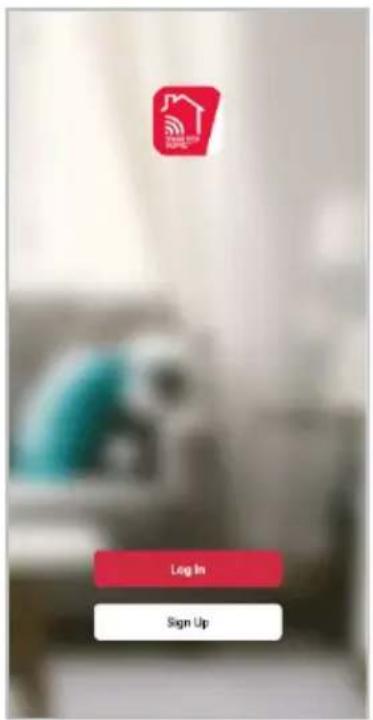
- If you already have a SmarterHome account, select 'Log In'. To register a new account, select 'Sign Up'.
- The system will automatically recognise your country. If needed, you can manually select your country from the drop-down box. Enter your email address and tap 'Get Verification Code' to continue.
- A 6-digit code will be sent to the submitted email address. Enter this code before the one-minute timer expires.
- Continue to the next page and complete your SmarterHome profile.
text_image
Log In Sign Up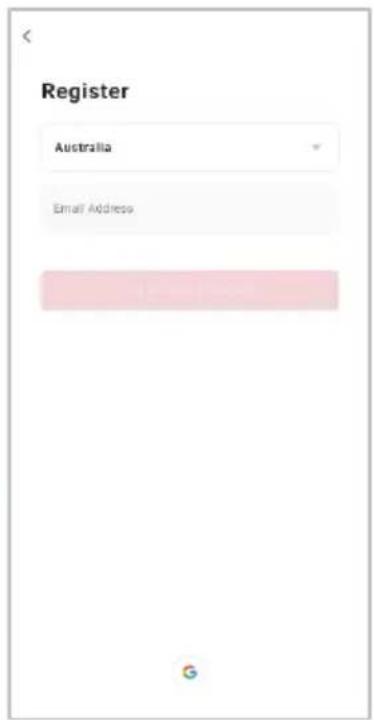
text_image
Register Australia Email Address G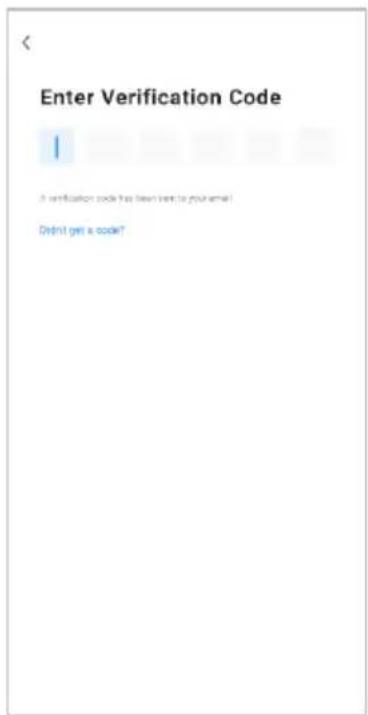
text_image
Enter Verification Code ! A verification code has been sent to your email! Didn't get a code?Set Device in Pairing Mode
When the device is first turned on, it may automatically enter pairing mode (one of the indicators will flash rapidly).
If not automatically in pairing mode when powered on, you can manually set the device in pairing mode by pressing and holding one of the power buttons for 5 seconds until the indicator flashes rapidly.
Add Device Through Network
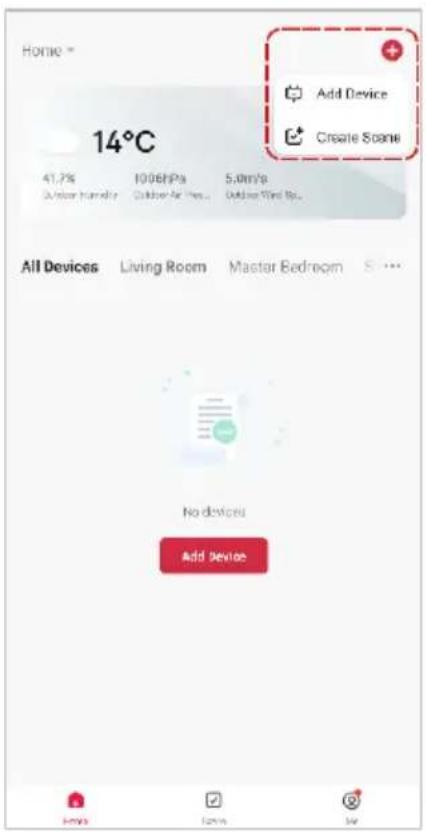
- Once registered, tap "Add Device" on the app's home page, or the "+" in the upper right corner, to add a new device through the network.
- Select the product type from the list of options in the app (Electrical > Plug with Energy Meter).
- Enter your Wi-Fi details. It is important that your SmarterHome™ device and the app are connected to the same Wi-Fi network during setup.
text_image
Home * 14°C 41.7% Outdoor Humidity 100kPa Outdoor Air Flux 5.0m/s Outdoor Wind Up Add Device Create Scene All Devices Living Room Master Bedroom S ... No devices Add device
text_image
Add Device Lighting Electrical Home Security Handling & Cooling Air Treatment Cleaning Appliances Kitchen Appliances Other Temp & Humidity Sensor (Hz) Garden Portable Power Station Wireless Switch (Zigbee) Wireless Switch (Bluetooth Mesh) Smart Touch Light Switch Gang Smart Blends Driver Power Strips Plug with Energy meter Power Point
text_image
Cancel Select 2.4 GHz Wi-Fi Network and enter password. If your WiFi is 5GHz, please set it to be 2.4GHz Common router setting method × WiFi - 9GHz ✓ WiFi - 2.4GHz Your WiFi network (2.4GHz) Password NextNotes:
- The device and the app have to use the same Wi-Fi network.
• The device is only compatible with 2.4Ghz networks. -
Depending on the product, Steps 3 and 4 may be in opposite order.
-
Ensure that the device is in pairing mode, with the indicator flashing rapidly, and tap "Confirm light is rapidly flashing".
- The device will commence the pairing process and connect to the app. Ensure your Wi-Fi router, mobile phone, and the SmarterHome™ device are kept close by until connection is complete.
- After successfully being added, you will have the option to rename the device and assign it to a location. It will now be listed on the app's home page. Tap the device listing to enter its control page.

text_image
Reset the device Power on the device and confirm that indicator light rapidly blinks Confirm indicator rapidly blink Next Resetting Devices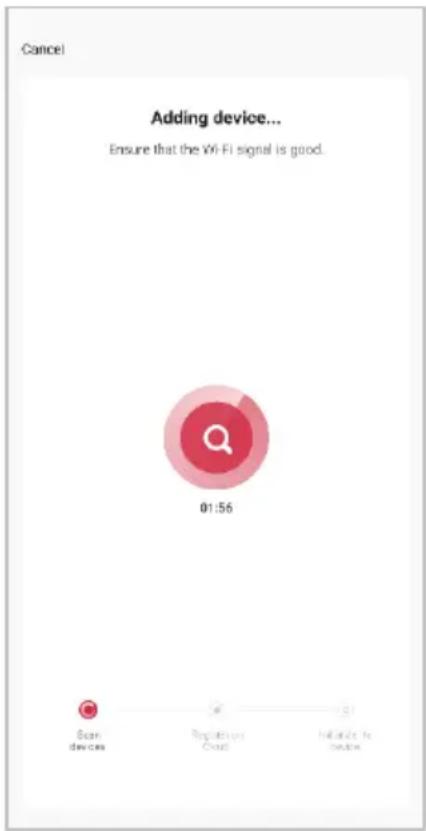
text_image
Cancel Adding device... Ensure that the Vi-Fi signal is good. 01:56 Scan devices Regulations Cloud Initialize No. Notice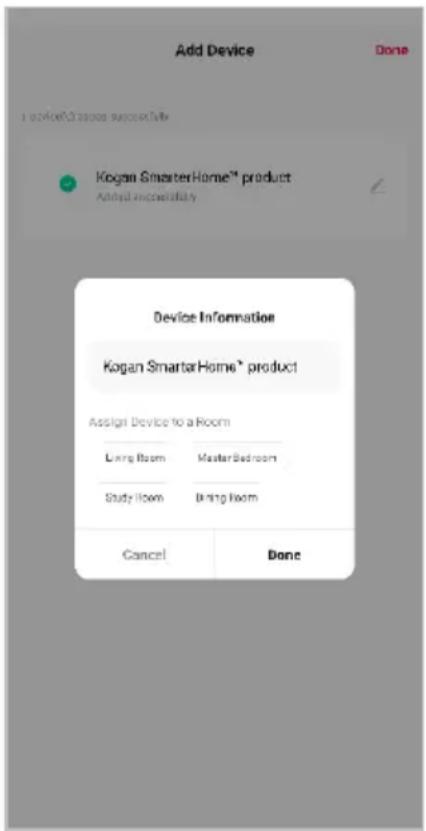
text_image
Add Device Done I recommend you successively Kogan SmasterHome™ product Added successfully Device Information Kogan SmasterHome® product Assign Device to a Room Living Room MasterBedroom Study Room Bring Room Cancel DoneNote:
Once connected, you can select Create Scene from the “+” in the upper right corner (or from the Scene tab) to group connected SmarterHome™ products and automate their functions.
Having Trouble Connecting?
The prior steps detail the process for EZ Mode connection. If that does not work for your connection, we suggest trying it again, and if still no success, attempting the following method for AP Mode connection.
Set Device in AP Pairing Mode
Set the device in pairing mode by pressing and holding one of the power buttons for 5 seconds until the indicator flashes slowly. If this is unsuccessful, repeat again after 3 seconds until the indicator flashes slowly.
Using AP Mode to Add Device
- Follow the previous steps to select your product type (Electrical > Plug with Energy Meter).
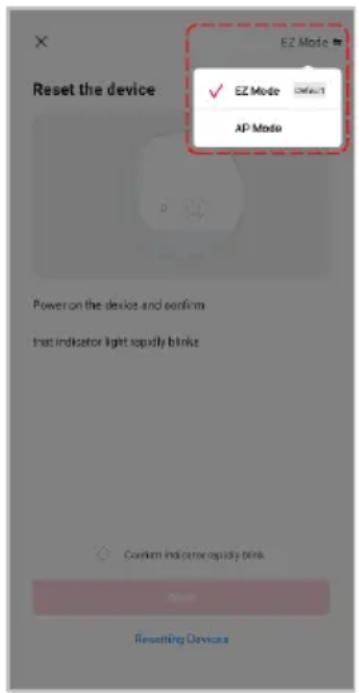
- Adjust your connection method by tapping on the mode type in the top-right corner of the screen. Select "AP Mode" for the set-up type.
- Ensure that the device is in pairing mode, with the indicator flashing slowly, and tap "Confirm light is slowly flashing".
- Enter your Wi-Fi details. It is important that your SmarterHome™ device and the app are connected to the same Wi-Fi network during setup.
text_image
Reset the device EZ Mode ✓ EZ Mode Select AP Mode Power on the device and confirm Inst indicator light rapidly blinks Confirm Indicate rapidly blink Resetting Devices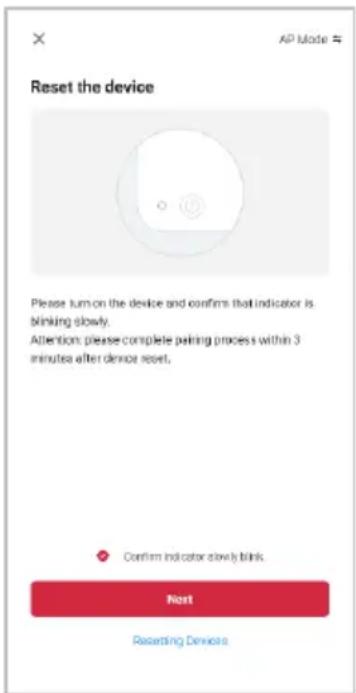
text_image
Reset the device Please sum on the device and confirms that indicator is blinking slowly. Attention: please complete peliring process within 3 minutes after device reset. Confirm indicator slowly blink. Next Resetting Devices
text_image
Cancel Select 2.4 GHz Wi-Fi Network and enter password. If your Wi-Fi is 5GHz, please set it to be 2.4GHz. Common router setting method × Wi-Fi: 1GHz ✓ Wi-Fi: 2.4GHz Your Wi-Fi network (2.4GHz) Password NextNotes:
- The device and the app have to use the same Wi-Fi network.
- The device is only compatible with 2.4Ghz networks.
-
Depending on the product, Steps 3 and 4 may be in opposite order.
-
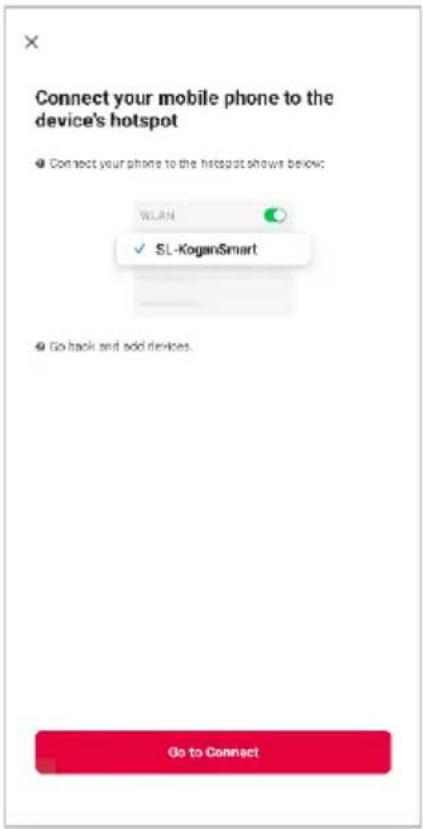
Follow the in-app prompts to continue AP Mode connection, which will pair your mobile phone to the device's Wi-Fi hotspot to ensure a connection. This may be named "SL-KoganSmart", "SmartLife-XXXX", or another similar name.
Note:
If the Wi-Fi hotspot does not appear on your phone in the list of available networks, your device may not be set in AP Pairing Mode correctly. Try repeating the steps outlined above to ensure your device is ready for connection.
- The device will commence the pairing process and connect to the app. Ensure your Wi-Fi router, mobile phone, and the SmarterHome™ device are kept close until connection is complete.
- After successfully being added, you will have the option to rename the device and assign it to a location. It will now be listed on the app's home page. Tap the device listing to enter its control page.
text_image
Connect your mobile phone to the device's hotspot ● Connect your phone to the hotspots shows below: WLAN SL-KoganSmart ● Go back and add devices. Go to Connect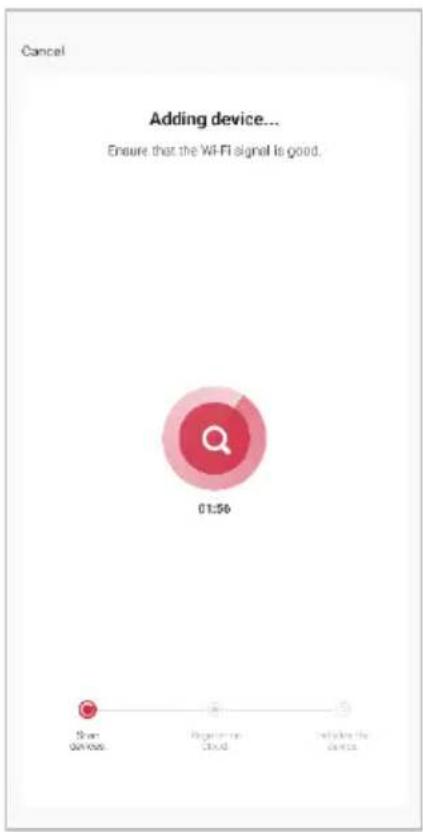
text_image
Cancel Adding device... Ensure that the Wi-Fi signal is good. 01:56 Share on user Registration Cloud Initiate the device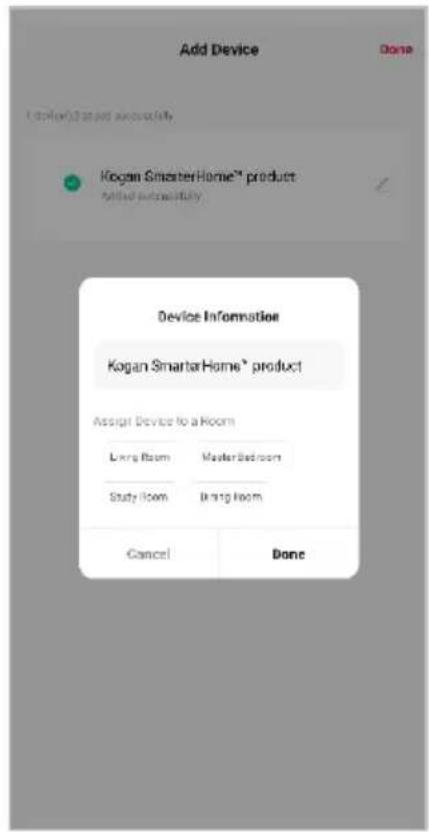
text_image
Add Device Done I transferred to your successfully Kogan SmasterHome™ product Added successfully Device Information Kogan SmasterHome® product Assign Device to a Room Living Room Master Bedroom Study Room Dring Room Cancel DoneNote:
Once connected, you can select Create Scene from the “+” in the upper right corner (or from the Scene tab) to group connected SmarterHome™ products and automate their functions.
GOOGLE HOME CONTROL
Note:
You will need to have set up a Google Home account prior to linking your Kogan SmarterHome™ device.
Adding "SmarterHome" to the Google Home App
- From the home page of the Google Home app, select the "+" icon (top left corner, see arrow in the below screenshot) to access the 'Add and manage' page.
- Select 'Set up device', then select the 'Works with Google' option.

text_image
Home Media Services Settings
text_image
Add and manage Add to home Setup device Invite home member Create speaker group Create new home Manage services Music Video Podcasts Next Award Rebates and rewards Pro services Offers Offers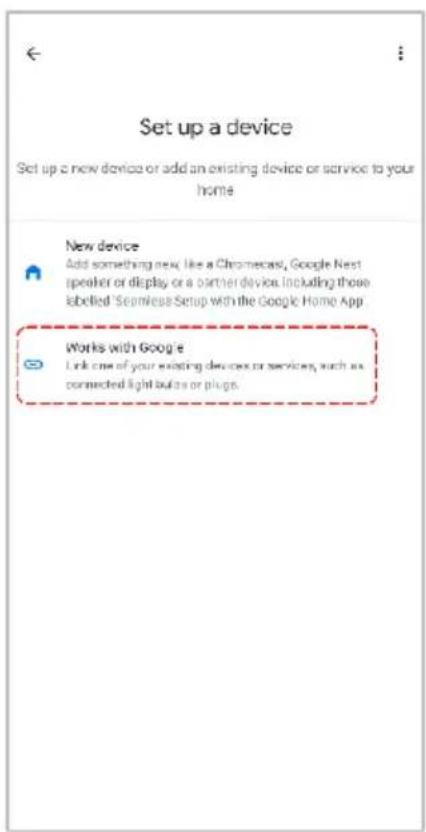
text_image
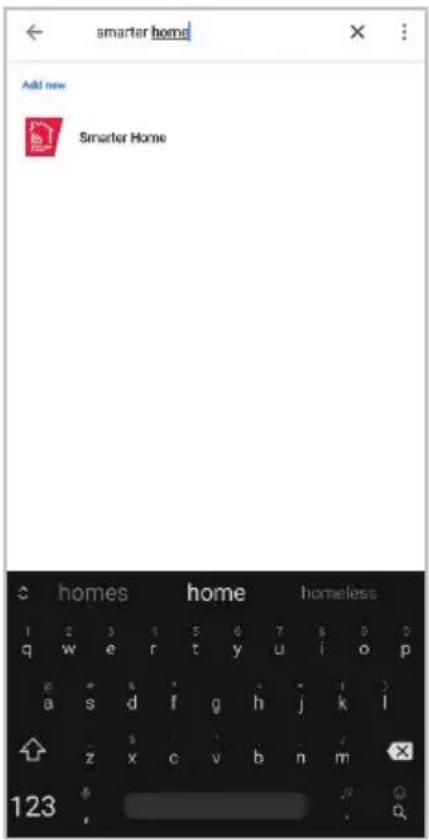
Set up a device Set up a new device or add an existing device or service to your home New device Add something new, like a Chromecast, Google Nest speaker or display or a barrier device, including those labelled Seamless Setup with the Google Home App. Works with Google Link one of your existing devices or services, such as connected light buttons or plugs.- Select the search bar and type 'Smarter Home' to locate the Kogan SmarterHome™ service.
- From here, you will be prompted to sign into your SmarterHome™ account using either your email or mobile phone number, depending on which method you used to register your account.
- Select "Kogan SmarterHome™" from the app options.
text_image
smarter home Add new Smarter Home homes home homeless 1 2 3 4 5 6 7 8 9 0 0 q w e r t y u i o p a s d f g h j k l z x c v b n m 123
text_image
Link an account to control Smarter Home on any device This link will be available on devices or services where you're signed in to your Google Account. You can change this link in your Google Account. Cancel Cancel
text_image
Choose App This account is registered with many apps, please select the accounts that belong to the device you want to operate this time. Tuya Smart Kogan Smarterhome Link devices for this App account- Tap 'Authorise' to grant Google permission to access the SmarterHome™ app and your devices.
- Once connected, the app will display any compatible devices linked to your SmarterHome™ account. From here you can assign them to rooms and set up any routines. Tap on any of the devices to view a list of available commands.
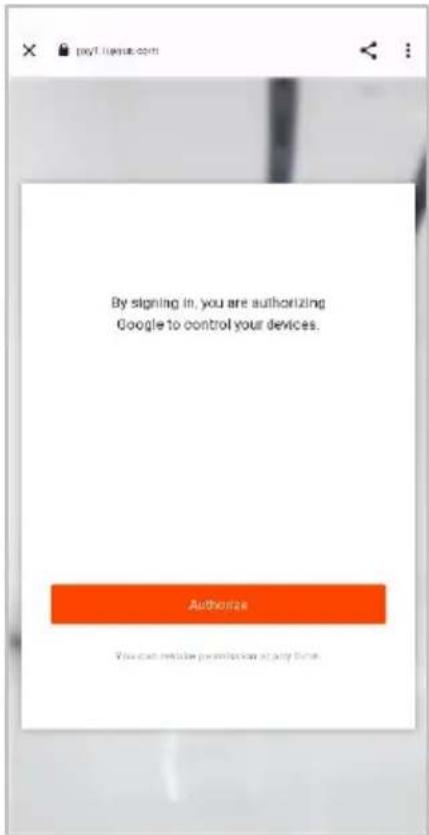
text_image
By signing in, you are authorizing Google to control your devices. Authorize You can make permission at any time.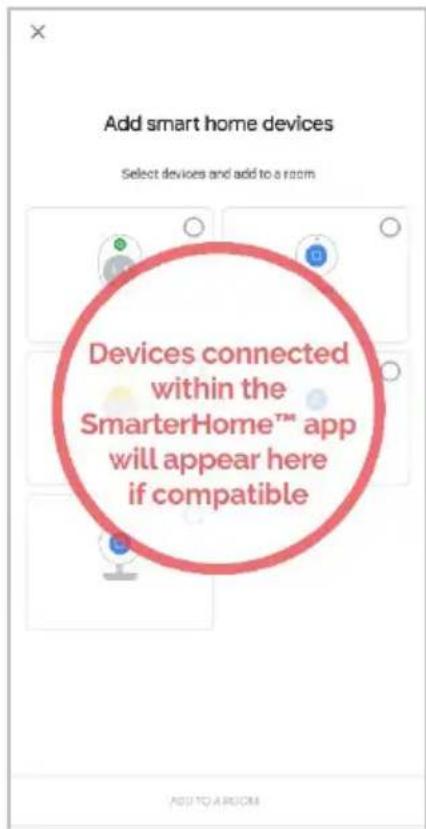
text_image
Add smart home devices Select devices and add to a room Devices connected within the SmarterHome™ app will appear here if compatibleNote:
Please note that Google Home can only control the base/core functions of any compatible SmarterHome™ devices. To make full use of this product's smart functionality, please use the Kogan SmarterHome™ app.
AMAZON ALEXA CONTROL
Note:
You will need to have set up an Alexa account prior to linking your Kogan SmarterHome™ device.
Adding "SmarterHome" to the Alexa App
- From the home page of the Alexa app, select the “=” icon in the bottom-right and select “Skills & Games” from the sidebar.
- Select the search bar and type 'Smarter Home' to locate the Kogan SmarterHome™ skill.
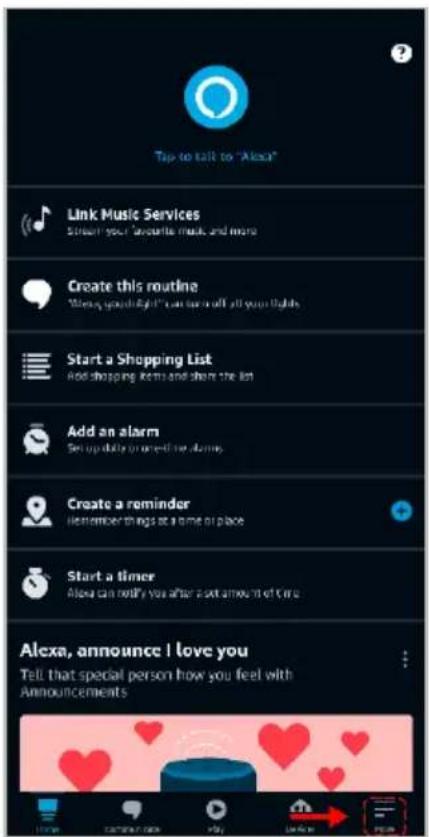
text_image
Tap to talk to "Alexa" Link Music Services Screen your favorite music and more Create this routine "Alexa, popular light" can be off all your lights Start a Shopping List Add shopping items and share the list Add an alarm Set up daily or next day alarm Create a reminder remember things at a time of place Start a timer Alexa can notify you after a next amount of time Alexa, announce I love you Tell that special person how you feel with Announcements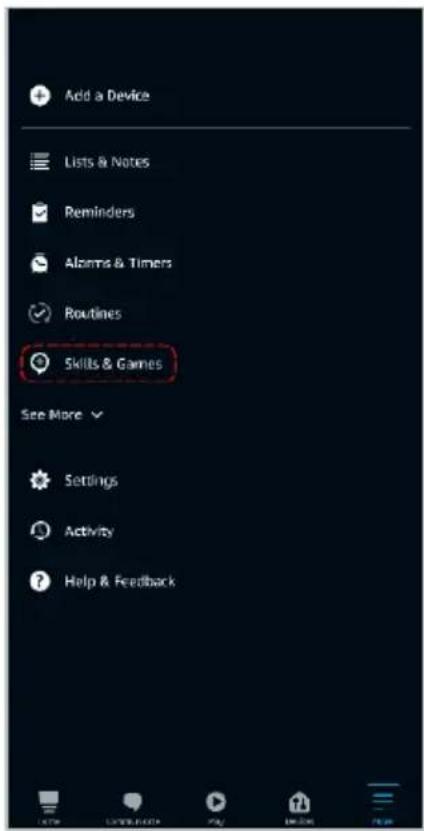
text_image
Add a Device Lists & Notes Reminders Alarms & Timers Routines Skills & Games See More Settings Activity Help & Feedback
text_image
SEARCH Search Keyword or skill name Kegan smarterhome! Sort: Relevance Smarter Home "Alexa, dim the bedroom light to 50%." Smart Home smartethome 1 2 3 4 5 6 7 8 9 0 q w e r t y u i o p @ a & * - + = ( ) a s d f g h j k l - s : : / z x c v b n m 123- Tap 'Enable to Use' to add the Kogan SmarterHome™ skill to Alexa.
- From here, you will be prompted to sign into your SmarterHome™ account using either your email or mobile phone number, depending on which method you used to register your account.
- Select "Kogan SmarterHome™" from the app options.

text_image
SMARTER HOME Smarter Home logan.com Rated Guidance Suggested! ENABLE TO USE Account linking required If you have any problem when you use this skill, you can contact us with email app-feedback@kegan.com.au You can simply ask Alexa to turn on, turn off or dim the light. There's no need to go to the switch to adjust you home light - ju... ✓ See More Start By Saying "Alexa, set bedroom light to cool white." "Alexa, dim the bedroom light to 50%." "Alexa, turn on my livingroom heater." English (AU) About Note Smart Home This skill may share device information with Amazon Learn more. Rated Guidance Suggested This skill contains dynamic content Light Developer Review Prices
text_image
pxy1.tuyue.com/pl/?from=kogc English Australia New Number/Email Address Next Step
text_image
Choose App This account is replaced with many apps, please select the account that excludes to the device you want to operate this time. Tuya Smart Kogan Smarterhome Link devices for this App account- Tap 'Authorise' to grant Alexa permission to access the SmarterHome™ app and your devices.
- Once connected, the app will perform a search and display the devices linked to your SmarterHome™ account. When your devices have successfully connected to the Alexa app, you will be able to control your Kogan SmarterHome™ devices via Alexa's voice commands.

text_image
pxy1.tuyaus.com/pl/authorize?fi Alexsby Amazon will be able to: Receive your public profile Control your devices over internet Authorize You can revoke permission at any time.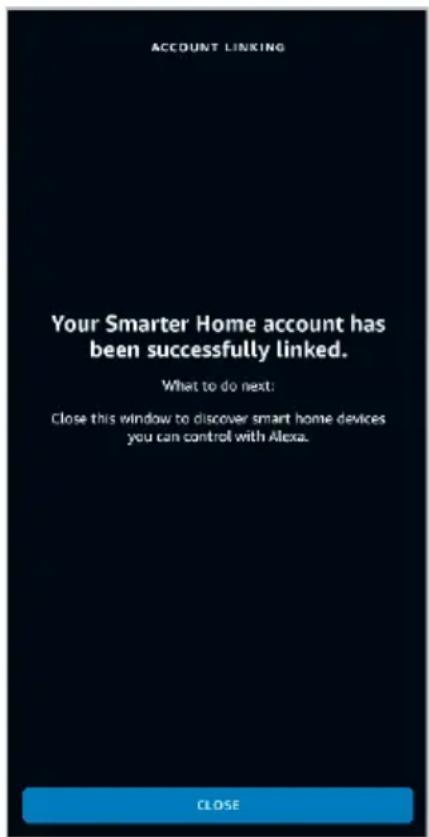
text_image
ACCOUNT LINKING Your Smarter Home account has been successfully linked. What to do next: Close this window to discover smart home devices you can control with Alexa. CLOSENote:
Please note that Alexa can only control the base/core functions of any compatible SmarterHome™ devices. To make full use of this product's smart functionality, please use the Kogan SmarterHome™ app.
OPERATION
Operating Environment
| Property | Temp °C | Humidity R.H. |
| Working -20~50 <80% | ||
| Storage -20~60 <80% |
App Functions
| Function Description | |
| Remote Control | Turn the outlet on/off. |
| Timer Set a timer to turn the outlet on/off. | |
| Update Online Update the app version through the app itself. | |
| Intelligent Share | Share with others. |
| Smart Config | Support Android and iOS’s smart config capabilities. |
Energy Monitoring
View the current, power, voltage and electrical quantity (KW-h) in real time on the app.

gauge
| Metric | Value | | :--- | :--- | | Current (kW) | 8902 | | Power (W) | 2017.2 | | Voltage (V) | 229.1 | | Total (kWh) | 3.48 | | Year 2024 | Unit: kW.h | | April | 3.48 > |SPECIFICATIONS
| Size | 119 x 60.5 x 61mm |
| Weight 230g | |
| Length of power cord 0.9 meters | |
| Shell material PC | |
| Shell colour White | |
| Waterproof IP44 | |
| plug Brass | |
| Copper bush Phosphorous bronze | |
| Power supply | AC100-240V |
| Input frequency 50/60Hz | |
| Load current | 10A max. 2400W resistive load |
| Energy monitoring With power meter | |
| WIFI standard WIFI 802.11 b/g/n | |
| Outlet control | 2 outlet is controlled individually on app. |
| WIFI frequency | 2.4GHz |
| Security | WAP/WAP2 |
| Encryption type WEP/TKIP/AES | |
| Working consumption | <0.9W |
| Standby consumption | <0.6 |
| Indicator light | Blue led |
| PER<8%. RX Sensitivity, 802.11b CCK Mode 11M | -91dBm |
| PER10%. RX Sensitivity, 802.11g OFDM Mode 54M | -75dBm |
| PER10%. RX Sensitivity, 802.11n OFDM Mode MCS7 | -72dBm |
NOTES
The Ground Truth image displays a single, solid horizontal line. According to Rule 2 (UNDERSCORE & LINE RULES), this is a stylistic or background line, not a placeholder underscore. Therefore, the OCR result must ignore it and output nothing or only meaningful text. The provided OCR content is "____", which consists of four underscores. This is an incorrect interpretation of the line as a fill-in-the-blank placeholder, violating the rule that stylistic lines must be ignored. The OCR has hallucinated underscores where none should exist based on the GT's visual context. Hence, the OCR result is inconsistent with the Ground Truth.
[Non-Text]
[Non-Text]
[EMPTY]
[Non-Text]
[Non-Text]
The Ground Truth image displays a single, continuous horizontal line, which is a stylistic or background element (like a ruled paper line). According to Rule 2, such lines must be ignored by the OCR result. The OCR content provided is "", which consists of no characters. Since the OCR output correctly ignores the stylistic line, it complies with Rule 2. Therefore, the OCR result is consistent with the Ground Truth.
[Non-Text]
[Non-Text]
[EMPTY]
[Non-Text]
[Non-Text]
The Ground Truth image displays a single, continuous horizontal line, which is a stylistic or background element (like a ruled paper line). According to Rule 2, such lines must be ignored by the OCR result. The provided OCR content is "____", which consists of underscores. Underscores are not equivalent to a solid line and are not permitted under the “Stylistic/Background Lines (Ignore)” rule. Outputting underscores for a stylistic line is incorrect because it misinterprets the line as a fill-in-the-blank placeholder. Since the OCR output incorrectly rendered a stylistic line as underscores (which should be ignored), this violates the rule. Therefore, the OCR result is inconsistent with the Ground Truth.
[Non-Text]
[Non-Text]
The Ground Truth image displays a single, continuous horizontal line, which is a stylistic or background element (like a ruled paper line). According to Rule 2, such lines must be ignored by the OCR result. The provided OCR content is "____", which consists of underscores. Underscores are not equivalent to a solid line and are not permitted under the “Stylistic/Background Lines (Ignore)” rule. Outputting underscores for a stylistic line is incorrect because it misinterprets the line as a fill-in-the-blank placeholder. Therefore, the OCR result is inconsistent with the Ground Truth.
[Non-Text]
[Non-Text]
____
[Non-Text]
[Non-Text]
The Ground Truth image displays a single, continuous horizontal line, which is a stylistic or background element (like a ruled paper line). According to Rule 2, such lines must be ignored by the OCR result. The provided OCR content is "____", which consists of underscores. Underscores are not equivalent to a solid line and are not permitted under the “Stylistic/Background Lines (Ignore)” rule. Outputting underscores for a stylistic line is incorrect because it misinterprets the line as a fill-in-the-blank placeholder. Since the OCR output incorrectly rendered a stylistic line as underscores (which should be ignored), this violates the rule. Therefore, the OCR result is inconsistent with the Ground Truth.
[Non-Text]
[Non-Text]
The Ground Truth image displays a single, continuous horizontal line, which is a stylistic or background element (like a ruled paper line). According to Rule 2, such lines must be ignored by the OCR result. The provided OCR content is "____", which consists of underscores. Underscores are not equivalent to a solid line and are not permitted under the “Stylistic/Background Lines (Ignore)” rule. Outputting underscores for a stylistic line is incorrect because it misinterprets the line as a fill-in-the-blank placeholder. Therefore, the OCR result is inconsistent with the Ground Truth.
[Non-Text]
[Non-Text]
The Ground Truth image displays a single, continuous horizontal line, which is a stylistic or background element (like a ruled paper line). According to Rule 2, such lines must be ignored by the OCR result. The provided OCR content is "____", which consists of underscores. Underscores are not equivalent to a solid line and are not permitted under the “Stylistic/Background Lines (Ignore)” rule. Outputting underscores for a stylistic line is incorrect because it misinterprets the line as a fill-in-the-blank placeholder. Therefore, the OCR result is inconsistent with the Ground Truth.
[Non-Text]
[Non-Text]
The Ground Truth image displays a single, solid horizontal line. According to Rule 2 (UNDERSCORE & LINE RULES), this is a stylistic or background line, not a placeholder underscore. Therefore, the OCR result must ignore it and output nothing or only meaningful text. The provided OCR content is "____", which consists of four underscores. This is an incorrect interpretation of the line as a placeholder, violating the rule that stylistic lines must be ignored. The OCR has hallucinated placeholder underscores where none should exist in the GT. This adheres to the strict requirement to ignore such lines.
[Non-Text]
[Non-Text]
The Ground Truth image displays a single, solid horizontal line, which is a stylistic or background element (like a ruled paper line or separator), not a placeholder for text. According to Rule 2, such stylistic/background lines must be ignored by the OCR result. The OCR content provided is "", which consists of no characters. This correctly represents the absence of any textual content in the GT and correctly matches the visual line as a stylistic element. Therefore, the OCR output should not contain any underscores or line representations. Outputting underscores for a stylistic line violates the rule and constitutes an error.
[Non-Text]
[Non-Text]
[Non-Text]
The Ground Truth image displays a single, solid horizontal line. According to Rule 2 (UNDERSCORE & LINE RULES), this is a stylistic or background line, not a placeholder underscore. Therefore, the OCR result must ignore it and output nothing or only meaningful text. The provided OCR content is "____", which consists of four underscores. This is an incorrect interpretation of the line as a placeholder, violating the rule that stylistic lines must be ignored. The OCR has hallucinated underscores where none should exist based on the GT's visual context. Hence, the OCR result is inconsistent with the Ground Truth.
[Non-Text]
[Non-Text]
The Ground Truth image displays a single, continuous horizontal line, which is a stylistic or background element (like a ruled paper line). According to Rule 2, such lines must be ignored by the OCR result. The provided OCR content is "____", which consists of underscores. Underscores are not equivalent to a solid line and are not permitted under the “Stylistic/Background Lines (Ignore)” rule. Outputting underscores for a stylistic line is incorrect because it misinterprets the line as a fill-in-the-blank placeholder. Therefore, the OCR result is inconsistent with the Ground Truth.
[Non-Text]
[Non-Text]
The Ground Truth image displays a single, solid horizontal line, which is a stylistic or background element (like a ruled paper line). According to Rule 2, such lines must be ignored by the OCR result. The provided OCR content is "____", which consists of underscores. Underscores are not equivalent to a solid line and are not permitted under the “Stylistic/Background Lines (Ignore)” rule. Outputting underscores for a stylistic line is incorrect because it misinterprets the line as a placeholder fill-in-the-blank area. Since the OCR output incorrectly rendered a stylistic line as underscores (which should be ignored), this violates the rule that stylistic lines must be ignored. Therefore, the OCR result is inconsistent with the Ground Truth.
[Non-Text]
(1) AD = BD = 1
广力云智慧零售收银系统
The Ground Truth image displays a single, solid horizontal line. According to Rule 2 (UNDERSCORE & LINE RULES), this is a stylistic or background line, not a placeholder underscore. Therefore, the OCR result must ignore it and output nothing or only meaningful text. The provided OCR content is "____", which consists of four underscores. This is an incorrect interpretation of the line as a fill-in-the-blank placeholder, violating the rule that stylistic lines must be ignored. The OCR has hallucinated underscores where none should exist based on the GT's visual context. Hence, the OCR result is inconsistent with the Ground Truth.
[Non-Text]
[Non-Text]
[EMPTY]
[Non-Text]
[Non-Text]
The Ground Truth image displays a single, continuous horizontal line, which is a stylistic or background element (like a ruled paper line). According to Rule 2, such lines must be ignored by the OCR result. The OCR content provided is "", which consists of no characters. Since the OCR output correctly ignores the background/stylistic line and produces no actual text, it complies with the “Stylistic/Background Lines (Ignore)” rule. Therefore, the OCR result is consistent with the Ground Truth.
[Non-Text]
[Non-Text]
[EMPTY]
[Non-Text]
[Non-Text]
The Ground Truth image displays a single, continuous horizontal line, which is a stylistic or background element (like a ruled paper line). According to Rule 2, such lines must be ignored by the OCR result. The provided OCR content is "____", which consists of underscores. Underscores are not equivalent to a solid line and are not permitted under the “Stylistic/Background Lines (Ignore)” rule. Outputting underscores for a stylistic line is incorrect because it misinterprets the line as a fill-in-the-blank placeholder. Since the OCR output incorrectly rendered a stylistic line as underscores (which should be ignored), this violates the rule. Therefore, the OCR result is inconsistent with the Ground Truth.
[Non-Text]
[Non-Text]
The Ground Truth image displays a single, continuous horizontal line, which is a stylistic or background element (like a ruled paper line). According to Rule 2, such lines must be ignored by the OCR result. The provided OCR content is "____", which consists of underscores. Underscores are not equivalent to a solid line and are not permitted under the “Stylistic/Background Lines (Ignore)” rule. Outputting underscores for a stylistic line is incorrect because it misinterprets the line as a fill-in-the-blank placeholder. Therefore, the OCR result is inconsistent with the Ground Truth.
[Non-Text]
[Non-Text]
____
[Non-Text]
[Non-Text]
The Ground Truth image displays a single, continuous horizontal line, which is a stylistic or background element (like a ruled paper line). According to Rule 2, such lines must be ignored by the OCR result. The provided OCR content is "____", which consists of underscores. Underscores are not equivalent to a solid line and are not permitted under the “Stylistic/Background Lines (Ignore)” rule. Outputting underscores for a stylistic line is incorrect because it misinterprets the line as a fill-in-the-blank placeholder. Therefore, the OCR result is inconsistent with the Ground Truth.
[Non-Text]
[Non-Text]
The Ground Truth image displays a single, continuous horizontal line, which is a stylistic or background element (like a ruled paper line). According to Rule 2, such lines must be ignored by the OCR result. The provided OCR content is "____", which consists of underscores. Underscores are not equivalent to a solid line and are not permitted under the “Stylistic/Background Lines (Ignore)” rule. Outputting underscores for a stylistic line is incorrect because it misinterprets the line as a fill-in-the-blank placeholder. Therefore, the OCR result is inconsistent with the Ground Truth.
[Non-Text]
[Non-Text]
The Ground Truth image displays a single, continuous horizontal line, which is a stylistic or background element (like a ruled paper line). According to Rule 2, such lines must be ignored by the OCR result. The provided OCR content is "____", which consists of underscores. Underscores are not equivalent to a solid line and are not permitted under the “Stylistic/Background Lines (Ignore)” rule. Outputting underscores for a stylistic line is incorrect because it misinterprets the line as a fill-in-the-blank placeholder. Therefore, the OCR result is inconsistent with the Ground Truth.
[Non-Text]
[Non-Text]
The Ground Truth image displays a single, solid horizontal line. According to Rule 2 (UNDERSCORE & LINE RULES), this is a stylistic or background line, not a placeholder underscore. Therefore, the OCR result must ignore it and output nothing or only meaningful text. The provided OCR content is "____", which consists of four underscores. This is an incorrect interpretation of the line as a placeholder, violating the rule that stylistic lines must be ignored. The OCR has hallucinated placeholder underscores where none exist in the GT, violating the rule to ignore such lines. Hence, the OCR result is inconsistent with the Ground Truth.
[Non-Text]
[Non-Text]
The Ground Truth image displays a single, solid horizontal line, which is a stylistic or background element (like a ruled paper line or separator), not a placeholder for text. According to Rule 2, such stylistic/background lines must be ignored by the OCR result. The OCR content provided is "", which consists of no characters. This correctly represents the absence of any textual content in the GT and correctly matches the visual line as a stylistic element. Therefore, the OCR output should have been empty or omitted this line entirely.
[Non-Text]
[Non-Text]
[Non-Text]
The Ground Truth image displays a single, solid horizontal line. According to Rule 2 (UNDERSCORE & LINE RULES), this is a stylistic or background line, not a placeholder underscore. Therefore, the OCR result must ignore it and output nothing or only meaningful text. The provided OCR content is "____", which consists of four underscores. This is an incorrect interpretation of the line as a placeholder, violating the rule that stylistic lines must be ignored. The OCR has hallucinated underscores where none should exist based on the GT's visual context. Hence, the OCR result is inconsistent with the Ground Truth.
[Non-Text]
[Non-Text]
The Ground Truth image displays a single, continuous horizontal line, which is a stylistic or background element (like a ruled paper line). According to Rule 2, such lines must be ignored by the OCR result. The provided OCR content is "____", which consists of underscores. Underscores are not equivalent to a solid line and are not permitted under the “Stylistic/Background Lines (Ignore)” rule. Outputting underscores for a stylistic line is incorrect because it misinterprets the line as a fill-in-the-blank placeholder. Therefore, the OCR result is inconsistent with the Ground Truth.
[Non-Text]
[Non-Text]
The Ground Truth image displays a single, solid horizontal line, which is a stylistic or background element (like a ruled paper line). According to Rule 2, such lines must be ignored by the OCR result. The provided OCR content is "____", which consists of underscores. Underscores are not equivalent to a solid line and are not permitted under the “Stylistic/Background Lines (Ignore)” rule. Outputting underscores for a stylistic line is incorrect because it misinterprets the line as a placeholder fill-in-the-blank area. Since the OCR output incorrectly rendered a stylistic line as underscores (which should be ignored), this violates the rule that stylistic lines must be ignored. Therefore, the OCR result is inconsistent with the Ground Truth.
[Non-Text]
(1) AD = BD = 1
广力云智慧零售收银系统
Need more information?
We hope that this user guide has given you the assistance needed for a simple set-up.
For the most up-to-date guide for your product, as well as any additional assistance you may require, head online to help.kogan.com
kogan.com