QN75QN900DP - TV SAMSUNG - Free user manual and instructions
Find the device manual for free QN75QN900DP SAMSUNG in PDF.


User questions about QN75QN900DP SAMSUNG
0 question about this device. Answer the ones you know or ask your own.
Ask a new question about this device
Download the instructions for your TV in PDF format for free! Find your manual QN75QN900DP - SAMSUNG and take your electronic device back in hand. On this page are published all the documents necessary for the use of your device. QN75QN900DP by SAMSUNG.
USER MANUAL QN75QN900DP SAMSUNG
Thank you for purchasing this Samsung product. To receive more complete service, please register your product at
www.samsung.com
Model Serial No.
To directly go to the page that provides instructions on how to use the manual for visually impaired users, select the Learn Menu Screen link below.
"Learn Menu Screen" Link
Contents
Guide
Connections
6 Connection Guide
7 Connecting an Antenna
8 Connecting to the network
12 Displaying your mobile device screen on the TV
14 Connection Cables for External Devices
16 Switching between external devices connected to the TV
18 Connection Notes
Remote Control and Peripherals
21 About the Samsung Smart Remote (QLED TV/The Frame/The Serif/S8*D/S9*D/DU9/DU8 Series/DU77**/BED model)
24 About the Remote Control (DU6/DU7/BED Series)(except for DU77** model)
27 Connecting the Samsung Smart Remote to the TV
28 Controlling External Devices with a Samsung Remote Control - Using the Universal Remote Setup
28 Learn how to use Samsung Smart Remote
28 Learn how to use Game Controller
29 Using Anynet+ (HDMI-CEC)
30 Controlling the TV with a Keyboard, Mouse, or Gamepad
35 Entering Text using the On-Screen Virtual Keyboard
Smart Features
37 Using Smart Hub
42 Using Ambient Mode
48 Using Art Mode
55 About the Daily+ Home screen
56 Using Samsung Gaming Hub
58 Using the Home Function
59 About the For You / Discover Home Screen
62 About the Live Home Screen
63 About the Apps Home Screen
67 About the Menu Home Screen
71 Using a Samsung account
73 Using Workspace
79 Using the User guide
81 Using the Internet
82 Using SmartThings
87 Playing pictures/video/music
92 Using Multi View
94 Using Bixby
99 Using the Game Bar
104 Using Auracast
TV Viewing and Recording
105 Using the Guide
108 Recording Programs
111 Setting Up Schedule Viewing
112 Using Timeshift
113 Buttons and functions available while recording a program or Timeshift
115 Using the Channel List
117 Using the channel edit function
118 Using a Personal Favorites List
119 TV-Viewing Support Functions
Picture and Sound
124 Using Intelligent Mode
127 Adjusting the Picture Quality
131 Changing the Picture Size and Position
132 Setting the Viewing Environment for External Devices
136 Configuring a Sound Mode and Expert Settings
138 Using the Sound Support Functions
System and Support
141 Using the Time Functions and the Timers
143 Using the Power and Energy Saving Functions
145 Using the Panel Care Functions
146 Updating the TV's Software
148 Using the Parental Settings function
149 Audio and Video Functions for the Visually or Hearing Impaired
155 Using Voice Assistants on the TV
156 Using Other Functions
159 Running Data Service Automatically
Precautions and Notes
160 Before Using the Recording and Timeshift Functions
162 Read Before Using Apps
163 Read Before Using the Internet Function
165 Read Before Playing Photo, Video, or Music Files
178 Read After Installing the TV
179 Supported Resolutions for UHD Input Signals
180 Resolutions for Input Signals supported by 8K models (QN7**D series or higher)
181 Supported Resolutions for FreeSync (VRR)
183 Read Before Connecting a Computer (Supported Resolutions)
186 Supported Resolutions for Video Signals
188 Read Before Using Bluetooth Devices
189 Licenses
Troubleshooting
Picture Issues
190 The screen is flashing or has become dark
190 The picture is not bright, or the picture colors do not look clear
191 The picture colors are black and white or do not look the way they should look
192 The TV automatically turns off by itself
192 TV (The Frame TV) cannot be turned off.
192 Unable to power on
193 The TV remains on or does not turn on automatically.
193 Unable to find a Channel
194 The TV image does not look as good as it did in the store
194 Displayed video looks blurry
194 The picture is distorted
195 There is a dotted line on the edge of the screen
195 The picture won't display in full screen
195 The Caption function in the TV menu is deactivated
195 Captions appear on the TV screen
195 The HDR of the connected external device turns off
Sound and Noise Issues
196 How can I connect an audio device to the TV?
196 There is no sound or the sound is too low at maximum volume.
196 The picture is good but there is no sound.
197 HDMI (eARC/ARC) is connected, and there is no sound.
197 The speakers are making an odd sound.
197 The sound is interrupted.
197 Whenever a function is used on the TV or the channel is changed, the TV voices the activity. The TV explains in voice-over the video scenes displayed on the screen.
198 The TV audio is not being played through the Soundbar or A/V receiver.
198 The sound is not heard clearly.
198 The volume of the external device cannot be adjusted.
198 I want to turn the TV and audio device off and on at the same time.
Channel and Broadcast Issues
199 "Weak or No Signal" displayed in TV mode or cannot find channel.
199 The TV is not receiving all channels.
199 The captions are not provided on a digital channel.
199 Broadcasting is deactivated.
External Device Connectivity Issues
200 The "Mode Not Supported" message appears.
200 The video is OK but there is no audio.
200 I want to connect to a PC and mobile device via screen mirroring.
201 No screen appears when connecting the TV to an external device.
201 I want to connect to a Bluetooth speaker.
201 The PC screen does not appear or it flickers.
Network Issues
202 Wireless network connection failed. Unable to connect to a wireless access point. Unable to connect to the network.
202 Wired network connection failed.
202 Connected to a local network, but not to the Internet.
Anynet+ (HDMI-CEC) Issues
203 What is Anynet+?
203 Anynet+ does not work. The connected device is not displayed.
204 I want to start Anynet+. I also want the connected devices to turn on when the TV is turned on.
204 I want to exit Anynet+. It is inconvenient to turn on other devices because the TV also turns on. It is inconvenient because the connected devices (e.g. set-top box) turn off together.
204 The message "Connecting to Anynet+ device..." or "Disconnecting from Anynet+ device" appears on the screen.
204 The Anynet+ device won't play.
Remote Control Issues
205 The remote control does not work.
205 External devices cannot be operated with the TV remote control.
Data Service
206 Why am I getting on-screen messages when I haven't selected the Data Service option?
206 How do I hide Data Service messages?
206 How do I use the Data Service?
206 What is an interactive service and how does it work?
206 A message displays "Receiving" but no change happens.
207 Nothing appears on the screen after the Data Service is launched.
207 What is Blur Reduction?
207 Why is the Data Service closed automatically?
Recording Issues
208 The Timeshift or recording function cannot be used.
208 Cannot record videos received from an external device or Samsung TV Plus.
208 The "Format Device" message appears when the Timeshift or recording function is used.
208 The recorded files on the TV are not played back on a PC.
Apps
209 I cannot find the app I want.
209 I launched an app, but it's in a different language. How can I change the language?
209 The app does not work properly. Its image quality is poor.
209 The Smart Hub Home Screen keeps appearing whenever you turn on the TV.
Media Files
210 Some files are interrupted during playback.
210 Some files can't be played.
Voice Assistant Issues
211 The microphone is off.
211 The voice commands do not work well.
211 Bixby/Alexa answers although I did not call it.
211 I spoke "Hi, Bixby/Alexa" but Bixby/Alexa does not answer.
212 Voice recognition does not work with the Samsung Smart Remote unlike other features. There is no response even if the Voice Assistant button is pressed.
212 During voice recognition, the heavy load message appears and the function does not work.
212 I want to see weather information of the desired area.
Other issues
213 The TV is hot.
213 The TV smells like plastic.
213 The settings are lost after 5 minutes or every time the TV is turned off.
213 The TV is tilted to the side.
213 The stand is wobbly or crooked.
213 I want to know how to attach and remove the TV stand.
214 A POP (TV's internal banner ad) appears on the screen.
214 The TV is making a popping noise.
214 The TV is making a humming noise.
214 The software update over the Internet has failed.
214 The TV narrates the screen events in voice-over.
Diagnosing TV operational issues
215 Self Diagnosis
217 Cannot select Broadcast Signal in Self Diagnosis.
217 Reset Smart Hub
217 Reset picture
217 Reset sound
Getting Support
218 Getting support through Remote Management
218 Finding the contact information for service
218 Requesting service
Accessibility Guidance
Learn Menu Screen
219 Using the Remote control
221 Using the Accessibility Menu
226 Using the TV with Voice Guide on
228 Using the guide
231 Using Schedule Viewing
232 Using the Channel List
234 Recording
237 Using Smart Hub
239 Launching the User guide
240 Using Bixby
Guide
Learn how to use various features.
Connections
You can watch live broadcasts by connecting an antenna cable to your TV and can get access to the network by using a LAN cable or wireless access point. Using various connectors, you can also connect external devices.
Connection Guide
You can view detailed information about external devices that can be connected to the TV.
≡ (left directional button) > Connected Devices > Connection Guide Try Now
It shows you how to connect various external devices such as video devices, game consoles, and PCs using pictures. If you select the connection method and an external device, the connection details appear.
• Audio Device: HDMI (eARC/ARC), Optical, USB, Bluetooth, Wi-Fi
• Video Device: HDMI, AV
- Smartphone: Screen Sharing (Smart View), Screen Sharing (Tap View), Samsung DeX, SmartThings, Camera Sharing, Apple AirPlay, NFC on TV
• PC: HDMI, Screen Sharing (Wireless), Easy Connection to Screen, Apple AirPlay
- Input Device: Remote Control, USB Keyboard, USB Mouse, USB Gamepad, USB Camera, Bluetooth Device
• Game Console: HDMI, AV
• External Storage: USB Flash Drive, Hard Disk Drive (HDD)
The connection method and available external devices may differ depending on the model.
Some functions may not be supported depending on the model or geographical area.
Using HDMI Troubleshooting, you can check the connection to HDMI cable and external devices (takes approximately 2 minutes).
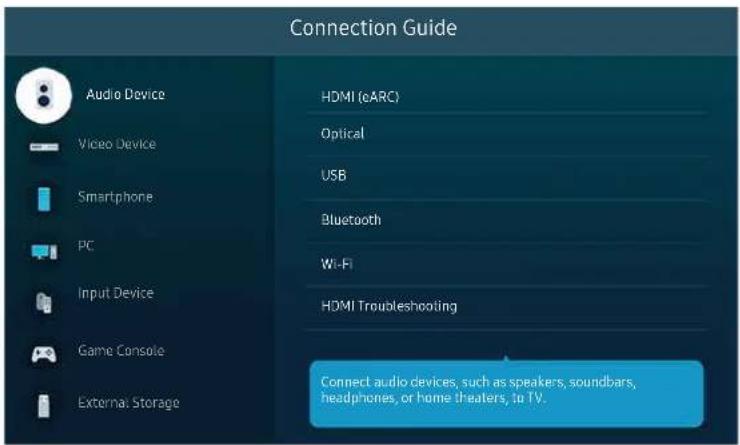
text_image
Connection Guide Audio Device Video Device Smartphone PC Input Device Game Console External Storage HDMI (eARC) Optical USB Bluetooth Wi-Fi HDMI Troubleshooting Connect audio devices, such as speakers, soundbars, headphones, or home theaters, to TV.The image on your TV may differ from the image above depending on the model and geographical area.
Connecting an Antenna
You can connect an antenna cable to your TV.
An antenna connection is not necessary if you connect a cable box or satellite box.
- Do not use excessive force when connecting the antenna cable; excessive force may cause deformation of the port. - To transport the product, first remove the antenna cable to prevent damage to the port.
The port on your TV may differ from the following figure depending on the product model and region.
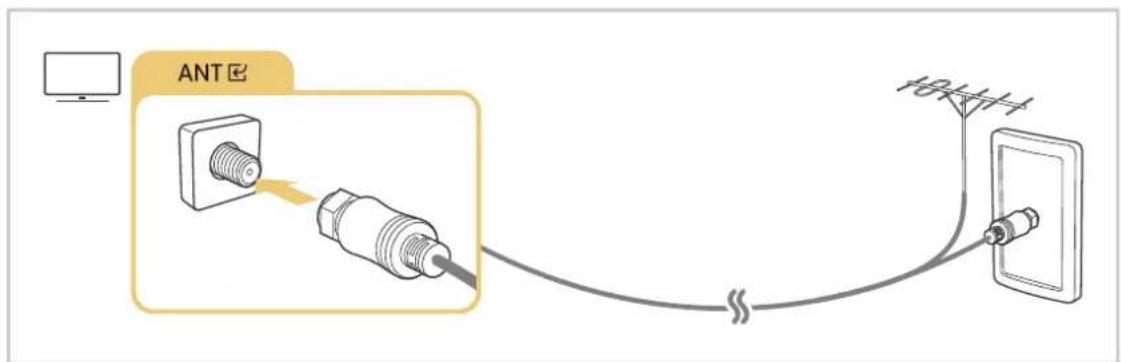
text_image
ANT 18+4+4Connecting to the network
You can get access to the network through your TV.
≡ (left directional button) Settings All Settings Connection Network Open Network Settings Try Now
Configure network settings to connect to an available network.
Establishing a wired network connection
≡ (left directional button) Settings All Settings Connection Network Open Network Settings Wired
If you connect a LAN cable, the TV automatically accesses the network.

text_image
LANIf the TV does not automatically connect to the network, refer to "Wired network connection failed." in "Troubleshooting."
To connect a LAN cable, use a CAT 7 (*STP type) cable for the connection. (100/10 Mbps)
* Shielded Twisted Pair
The TV will not be able to connect to the network if your network speed is below 10 Mbps.
This function may not be supported depending on the model.
Wired networks are not supported by some models.
Establishing a wireless network connection
≡ (left directional button) Settings All Settings Connection Network Open > Network Settings Wireless
Make sure that you have the wireless access point's name (SSID) and password settings before attempting to connect. The network name (SSID) and security key are available on the wireless access point's configuration screen. See the wireless access point's user manual for more information.

natural_image
Diagram showing a monitor connected to a wireless router via a cable, with no text or symbols present.
text_image
Wireless Connection Select your wireless network. SATE USB network 0 WP2 msadypmsat msadypmsat msadys Refresh Manage Saved NetworksThe image on your TV may differ from the image above depending on the model and geographical area.
If no wireless access point is found, select Add Network at the bottom of the list and enter the network name (SSID).
If your wireless access point has a WPS or PBC button, select Use WPS at the bottom of the list, and then push the WPS or PBC button on your access point within 2 minutes. The TV will connect automatically.
To view or delete previously connected network names (SSIDs), move the focus to Manage Saved Networks, and then press the Select button.
To disconnect Wi-Fi, select Disconnect in 📄 > ≡ (left directional button) > ⚙️ Settings > All Settings > Connection > Network Network Status. Now
Checking the network connection status
≡ (left directional button) Settings All Settings Connection Network Network > Status Try Now
View the current network status.
Resetting Your Network
≡ (left directional button) Settings All Settings Connection Network Reset Network Try Now
Restore the network settings to the factory default.
Turning on the TV with a mobile device
≡ (left directional button) Settings All Settings Connection Network Expert > Settings Power On with Mobile Now
You can turn on the TV using a mobile device connected to the same network as the TV.
This function is available with a mobile device connected to the TV through the SmartThings app on your mobile device or the Apple AirPlay function. Apple AirPlay may not be supported depending on the model or geographical area.
Connecting an IP control device to the TV
≡ (left directional button) Settings All Settings Connection Network Expert Settings IP Remote Now
You can connect an IP control device to the TV remotely to manage your IP device.
To use this function, Power On with Mobile must be turned on.
Turning this feature on may allow other IP control devices to control your TV. We recommend turning this feature on only if an authorized third-party custom controller is installed and configured specifically for a Samsung TV and if your Wi-Fi network is password protected.
This function may not be supported depending on the model or geographical area.
Allowing to connect a wireless network
≡ (left directional button) Settings All Settings Connection Network Expert Settings Wi-Fi / Now
You can enable the connection to Wi-Fi.
To connect a wireless network, the function must be active.
Changing the name of the TV
≡ (left directional button) > Settings > All Settings > Connection > Device Name Try Now
You can change the name of the TV on the network. Select User Input at the bottom of the list and change the name.
Displaying your mobile device screen on the TV
You can watch the screen of your mobile device on the TV screen through Smart View, Apple AirPlay or Tap View.
When you start screen sharing with a mobile device (Smart View / Apple AirPlay / Tap View), the TV screen switches to the Multi View or mobile device's screen. Watch multiple contents at the same time with the Multi View screen.
This function may not be supported depending on the model.
For more information, refer to "Using Multi View."
Using Screen Sharing(Smart View)
For information on how to share the screen with your mobile device, refer to 📂 > ≡ (left directional button) > 🌿 Connected Devices > Connection Guide > Smartphone > Screen Sharing (Smart View). Try Now
- To turn off Screen Sharing (Smart View), disconnect the mobile device or press the button on the remote control.
- Using the Smart View menu on your mobile device, you can change the settings such as aspect ratio.
Using Apple AirPlay
Use AirPlay if you are an iPhone or iPad user. For more information, refer to (left directional button) Connected Devices > Connection Guide > Smartphone > Apple AirPlay. Try Now
This function may not be supported depending on the model or geographical area.
To use Apple AirPlay, make sure Ⓜ > ≡ (left directional button) > ⚙️ Settings > All Settings > Connection > Apple AirPlay Settings is enabled.
Using Screen Sharing(Tap View)
Tap your mobile device on the TV, you can watch the Multi View or mobile device's screen through the TV screen. When you tap a mobile device on your TV while running a music app on your mobile device, the TV screen switches to the Music Wall screen.
- Enable Tap View, Tap Sound on your mobile device.
For more information about configuration, refer to 'Enabling Tap View'.
-
Turn on the screen of your mobile device.
-
Tap your mobile device on the TV. The TV screen switches to Multi View, Music Wall, or mobile device's screen.
When you perform Tap View in Ambient mode or Art mode (only in The Frame models), only the mobile device's screen appears on the TV.
- Watch the Multi View, Music Wall, or mobile device's screen on the TV screen.
This function may not be supported depending on the model.
This function is available in Samsung mobile devices with Android 8.1 or higher.
Music Wall screen is a function that allows you to enjoy music along with visual video effects that change according to the genre and beat of the music.
The displayed TV screen may differ depending on the model.
This function enables Screen/Sound Mirroring by detecting vibrations generated when you tap the mobile device on the TV.
Be sure to tap away from the TV screen and bezel corners. It may be scratched or broken to the TV or mobile device screen.
We recommend using your mobile device with the cover in place and lightly tap it on any external edge of the TV.
Enabling Tap View
Enable Tap View in the SmartThings app.
Depending on the SmartThings app version, you may need to register the TV with your mobile device.
This function may not be supported depending on the model.
-
Launch the SmartThings app on your mobile device.
-
Select Settings (in SmartThings app on your mobile device.
-
Set Tap View, Tap Sound to on.
Upon connection for the first time, select Allow on a pop-up window of the TV.
Connection Cables for External Devices
You can view detailed information about the connection cables for external devices that can be connected to the TV.
| Cable name Image Description | ||
| HDMI to HDMI | 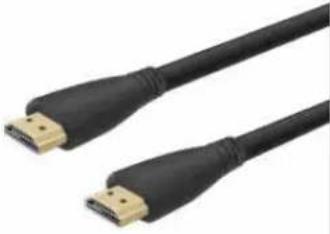 | Each cable simultaneously transmits digital video and audio signals from an external device to the HDMI port on the TV.Cables are divided into various types according to the types of input / output ports on external devices. |
| HDMI to MINI HDMI | 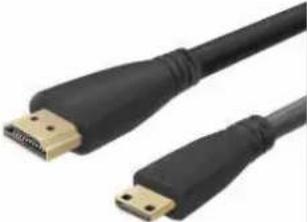 | |
| HDMI to Micro HDMI | 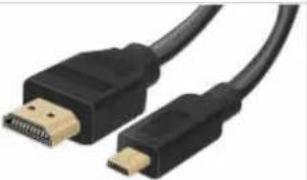 | |
| HDMI to USB Type-C | 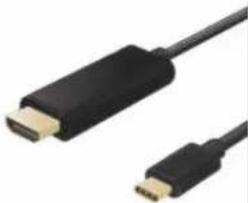 | |
| HDMI to DisplayPort | 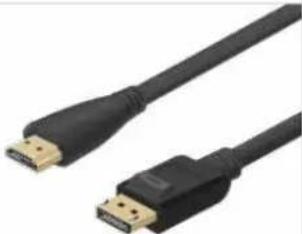 | |
| Mini DisplayPort to HDMI |  | |
| DVI to HDMI | 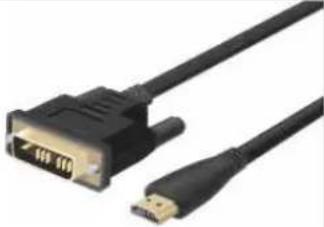 | DVI to HDMI cables can transmit only digital video signals and not audio signals. We recommend that you use HDMI to HDMI cables. |
| Optical | 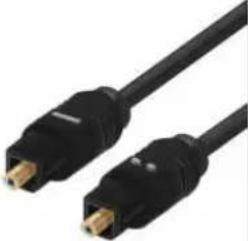 | Optical cables are used to transmit audio signals to external speakers with low signal loss.Optical cables can't transmit video signals. |
| Component |  | Component cables transmit analogue signals.The video signal is separated and transmitted to the red, green, and blue terminals to provide HD (1080i) pictures. The audio signal is transmitted to the red and white terminals. |
| Composite | 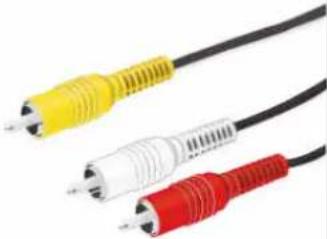 | Composite cables transmit analogue signals.The video signal is transmitted to the yellow terminal, and the audio signal is transmitted to the red and white terminals. |
Available connection cables may differ depending on the model or geographical area.
Switching between external devices connected to the TV
You can switch between TV programs and the content of external devices.
> ≡ (left directional button) Connected Devices
When you select a connected external device on the Sources screen, the output of the selected device is displayed on the TV's screen.
To control a device (Blu-ray player, game console, etc.) that supports universal remote control with the TV's remote control, connect the device to an HDMI port on the TV, and then turn on the device. The output displayed on the TV is automatically switched to the output of the device or you can configure universal remote control for the device automatically. For more information, refer to "Controlling External Devices with a Samsung Remote Control - Using the Universal Remote Setup."
When a USB device is connected to the USB port, a pop-up message appears that lets you switch easily to the media content listed on the device.
This function may not be supported depending on the device and geographical area.
Editing the name and icon of an external device
> ≡ (left directional button) Connected Devices
You can change the port name for a connected external device or add it to the Home Screen.
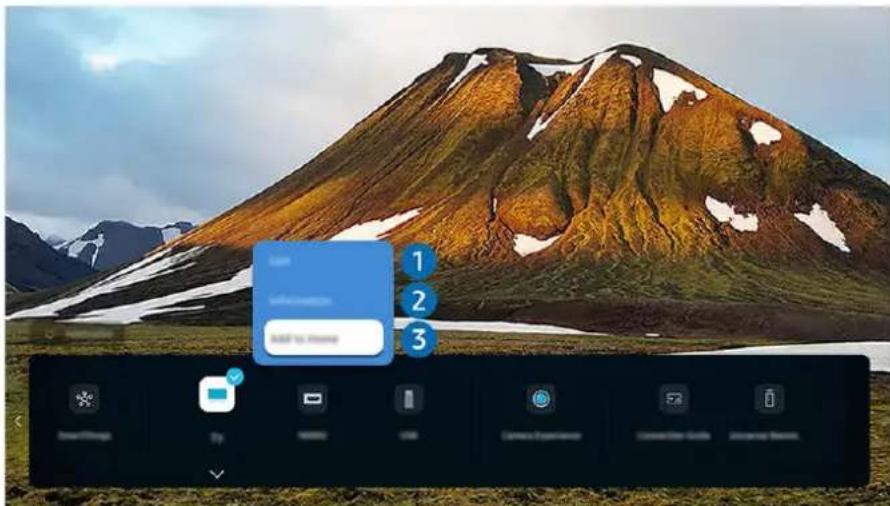
text_image
Screenshot of a macOS desktop with mountain background and app icons, showing status bar and menu optionsThe image on your TV may differ from the image above depending on the model and geographical area.
- Move the focus to a connected external device.
- Press the down directional button. The following functions become available:
Available functions may differ depending on the port type.
1
Edit
You can rename the input ports and change the device icons.
2
Information
You can view detailed information about an external device.
3
Add to Home
You can add the port of an external device to the Home Screen for quick switching.
Using additional functions
You can use the SmartThings feature.
- SmartThings
It allows the TV to connect and control the detected various devices in the same space.
For more information about SmartThings, refer to "Using SmartThings."
This function may not be supported depending on the model or geographical area.
You can use the following features on the Sources screen.
- Camera Experience
Connect a USB camera, or use the SmartThings app on your mobile phone to connect a camera.
Connect a camera to use video call, home workout, and other new features.
For details on how to connect, refer to Camera Sharing (☑ > ≡ (left directional button) > 🚙️ Connected Devices > Connection Guide Smartphone Camera Sharing).
This function may not be supported depending on the model.
- Connection Guide
Displays device connection instructions.
For more information, refer to "Connection Guide."
• Universal Remote Setup
Lets you register external devices to your Samsung remote control and control them using the Remote.
This function may not be supported depending on the model or geographical area.
For more information, refer to "Controlling External Devices with a Samsung Remote Control - Using the Universal Remote Setup."
Connection Notes
When connecting an external device, note the following.
The number of connectors and their names and locations may differ with the model.
Refer to the external device's operating manual when connecting it to the TV. The number of external device connectors, and their names and locations may differ with the manufacturer.
Connection notes for HDMI
- The following types of HDMI cables are recommended:
– High Speed HDMI Cable
– High Speed HDMI Cable with Ethernet
– Premium High Speed HDMI Cable
– Premium High Speed HDMI Cable with Ethernet
– Ultra High Speed HDMI Cable
- Use an HDMI cable with a thickness of 17 mm or less.
- Using a non-certified HDMI cable may result in a blank screen or a connection error.
- Some HDMI cables and devices may not be compatible with the TV due to different HDMI specifications.
- This TV does not support HDMI Ethernet Channel. Ethernet is a Local Area Network (LAN) built with coaxial cables standardized by the IEEE.
- Use a cable shorter than 3m to get the best UHD viewing quality.
- Many computer graphics adapters do not have HDMI ports, but have DVI or DisplayPort ports instead. If your PC does not support HDMI video out, connect your PC with a DVI to HDMI or HDMI to DisplayPort cable.
- When the TV is connected to an external device such as a DVD/BD player or a set-top box via HDMI, power sync mode will be automatically activated. In the power sync mode, the TV continues to detect and connect external devices via HDMI cable. This function can be deactivated by removing the HDMI cable of the connected device.
This function may not be supported depending on the model.
Connection notes for audio devices
- To obtain better TV audio quality, connect a soundbar or A/V receiver to the TV.
- If you connect an external audio device using an optical cable, the Sound Output setting automatically changes to the connected device. However, to make this happen, you must turn on the external audio device before connecting the optical cable. To manually change the Sound Output setting, do one of the following
This function may not be supported depending on the model.
- Use the Quick Settings screen to change to the connected device:
Use the Select button to select Receiver (Optical) on the Sound Output menu. (☐ > ≡ (left directional button) > ⚙️ Settings > Sound Output) Try Now
- Use the Settings screen to change to the connected device:
Select Receiver (Optical) on the Sound Output menu. (💡 > ≡ (left directional button) > ⚙️ Settings > All Settings Sound Sound Output) ow
Refer to the soundbar's user manual when connecting it to the TV.
- An unusual noise coming from a connected audio device while you are using it, may indicate a problem with the audio device itself. If this occurs, ask for assistance from the audio device's manufacturer.
- Digital audio is only available with 5.1 channel broadcasts.
Connection notes for computers
- For the resolutions supported by the TV, refer to "Read Before Connecting a Computer (Supported Resolutions)."
- If you want to connect your PC and TV wirelessly, both of them must be connected to each other on the same network.
- When sharing content with other network-based devices such as those in an IP (Internet Protocol) storage system, sharing may not be supported due to the network's configuration, quality, or functionality, for example, if the network has a NAS (Network-Attached Storage) device.
Connection notes for mobile devices
- To use the Smart View function, the mobile device must support a mirroring function such as Screen Mirroring or Smart View. To check whether your mobile device supports the mirroring function, refer to the mobile device's user manual.
- The Screen Sharing (Smart View) feature may not operate smoothly in a 2.4 GHz environment. For better experience, 5.0 GHz is recommended. 5 GHz may not be available depending on the model.
- To use Wi-Fi Direct, the mobile device must support the Wi-Fi Direct function. To check whether your mobile device supports Wi-Fi Direct, refer to the mobile device's user manual.
- The mobile device and your Smart TV must be connected to each other on the same network.
- Use AirPlay if you are an iPhone or iPad user. For more information, refer to 📄 > ≡ (left directional button) > Connected Devices > Connection Guide > Smartphone > Apple AirPlay. Try Now
This function may not be supported depending on the model or geographical area.
- The video or audio may stop intermittently, depending on network conditions.
- When sharing content with other network-based devices such as those in an IP (Internet Protocol) storage system, sharing may not be supported due to the network's configuration, quality, or functionality, for example, if the network has a NAS (Network-Attached Storage) device.
Connection notes for Portrait Mode
- If you connect the Auto Rotating Accessory (sold separately) to the TV, you can use the TV in Portrait Mode.
- To use the computer or console, connected via HDMI to the TV, in Portrait Mode, you need to change the device setting. Change the screen to Portrait Mode from the computer or console.
Portrait Mode is supported when a computer that uses Windows 10 or later or a console that supports Portrait Mode is connected.
This function may not be supported depending on the model.
Remote Control and Peripherals
You can control TV operations with your Samsung Smart Remote. Pair external devices such as a keyboard for ease of use.
About the Samsung Smart Remote (QLED TV/The Frame/The Serif/S8\*D/S9\*D/DU9/DU8 Series/DU77\*\*/BED model)
Learn about the buttons on the Samsung Smart Remote.

text_image
123 2 3 4 SAMSUNG| Button Description | |
| (Power) | Press to turn the TV on or off.For The Frame model, When watching TV, press to switch to Art mode. In Art mode, press to switch to the Home Screen. Press and hold to turn off the TV completely. |
| MIC / LED | Used as MIC when using voice recognition with the remote control.Do not impact the MIC hole or use a sharp object to poke into the hole. |
| (Voice Assistant) | Runs Voice Assistant. Press and hold the button, say a command, and then release the button to run Voice Assistant. |
| (Settings - Number - Color button) | You can access Setting menu / virtual numeric pad / Color buttons / Option pad / SmartThings directly.Accessing the SmartThings app using this button may not be supported, depending on the model.Use this button to access additional options that are specific to the feature in use.Press to bring up the virtual numeric pad on the screen. Use the numeric keypad to enter numeric values. Select numbers and then select Done or Enter Number to enter a numeric value. Use to change the channel, enter a PIN, ZIP code and etc.If the Color Button appears with a number strip on the screen, select the Color Button and then select a specific color by using the directional button (up, down, left, right). |
| Directional button (up, down, left, right) | Moves the focus. |
| Select | Selects or runs a focused item. When pressed while you are watching a broadcast program, detailed program information appears. |
| (Return) | Press to return to the previous menu. When pressed for 1 second or more, the running function is terminated. When pressed while you are watching a program, the previous channel appears. |
| (Smart Hub) | Press to switch to the Home Screen. |
| (Play/pause) | When pressed, the playback controls appear. Using these controls, you can control the media content that is playing.To use Game Bar, press and hold the button inGame Mode.Game Bar may not be supported depending on the model or geographical area. |
| +/− (Volume) | Move the button up or down to adjust the volume. To mute the sound, press the button. When pressed for 2 seconds or more, theAccessibility Shortcutsappears.may not be present, depending on the model or geographical area |
| ^/∨ (Channel) | Move the button up or down to change the channel. To see theGuidescreen, press the button.When pressed for 1 second or more, theChannel Listscreen appears.Press and hold the button up or down to quickly change the channel. |
| 4Launch app button | Launch the app indicated by the button.Available apps may differ depending on the geographical area or contents provider. |
Use the Samsung Smart Remote less than 6 m from the TV. The usable distance may vary with the wireless environmental conditions.
The images, buttons, and functions of the Samsung Smart Remote may differ with the model or geographical area.
To use the Samsung Smart Remote to control a compatible external device that does not support HDMI-CEC (Anynet+), you must configure universal remote control for the device. For more information, refer to "Controlling External Devices with a Samsung Remote Control - Using the Universal Remote Setup."
To use the Samsung Smart Remote to control a compatible external device that does support HDMI-CEC (Anynet+), connect the device to an HDMI port on the TV using an HDMI cable. For more information, refer to "Using Anynet+ (HDMI-CEC)."
About the Remote Control (DU6/DU7/BED Series)(except for DU77\*\* model)
Learn about the buttons on the Remote Control.

text_image
123 000 ① ② ③ SAMSUNG| Button Description | |
| (Power) | Press to turn the TV on or off. |
| (Settings - Number - Option button) | You can access Setting menu / virtual numeric pad / Option pad / SmartThings directly.Accessing the SmartThings app using this button may not be supported, depending on the model.Use this button to access additional options that are specific to the feature in use.Press to bring up the virtual numeric pad on the screen. Use the numeric keypad to enter numeric values. Select numbers and then selectDoneorEnter Numberto enter a numeric value. Use to change the channel, enter a PIN, ZIP code and etc. |
| (Color button) | When pressed, colored buttons appear on the screen. Use this button to access additional options that are specific to the feature in use. |
| 1Directional button (up, down, left, right) | Moves the focus. |
| 2Select | Selects or runs a focused item. When pressed while you are watching a broadcast program, detailed program information appears. |
| (Return) | Press to return to the previous menu. When pressed for 1 second or more, the running function is terminated. When pressed while you are watching a program, the previous channel appears. |
| (Smart Hub) | Press to switch to the Home Screen. |
| (Play/pause) | When pressed, the playback controls appear. Using these controls, you can control the media content that is playing.This function may not be supported depending on the model or geographical area. |
| +/— (Volume) | Move the button up or down to adjust the volume. To mute the sound, press the button. When pressed for 2 seconds or more, theAccessibility Shortcutsappears. |
| ^/√ (Channel) | Move the button up or down to change the channel. To see theGuidescreen, press the button.When pressed for 1 second or more, theChannel Listscreen appears.Press and hold the button up or down to quickly change the channel. |
| 3(Launch app button) | Launch the app indicated by the button.Available apps may differ depending on the geographical area or contents provider.This function may not be supported depending on the model or geographical area. |
The images, buttons, and functions of the Remote Control may differ with the model or geographical area.
To use the Remote Control to control a compatible external device that does not support HDMI-CEC (Anynet+), you must configure universal remote control for the device. For more information, refer to "Controlling External Devices with a Samsung Remote Control - Using the Universal Remote Setup."
To use the Remote Control to control a compatible external device that does support HDMI-CEC (Anynet+), connect the device to an HDMI port on the TV using an HDMI cable. For more information, refer to "Using Anynet+ (HDMI-CEC)."
Connecting the Samsung Smart Remote to the TV
Connect the Samsung Smart Remote to your TV to operate the TV.
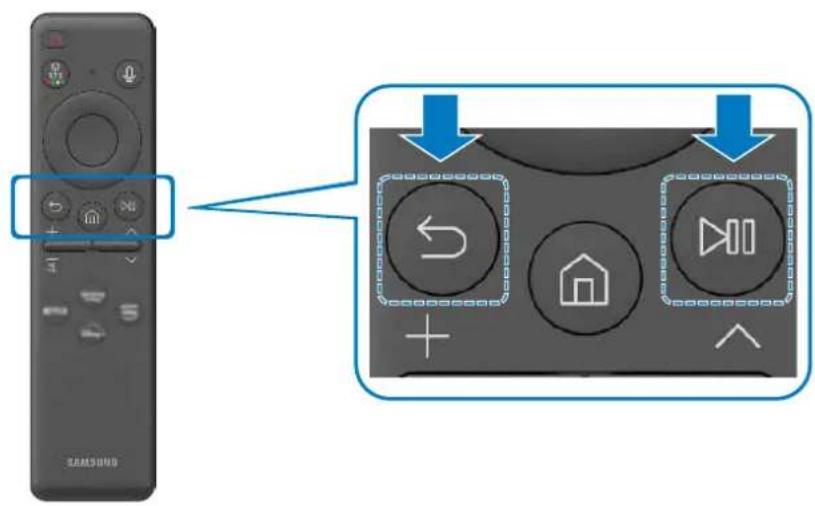
When you turn on the TV for the first time, the Samsung Smart Remote pairs to the TV automatically. If the Samsung Smart Remote does not pair to the TV automatically, point it at the front of the TV, and then press and hold the 5 and Buttons simultaneously for 3 seconds or more.
This function may not be supported depending on the model or geographical area.
text_image
Diagram showing a remote control with icons and directional arrows, including home, device, and play button labels.Controlling External Devices with a Samsung Remote Control - Using the Universal Remote Setup
Control the TV and connected external devices with a Samsung remote control.
≡ (left directional button) Connected Devices Universal Remote Setup
You can control all external devices connected to the TV using a single Samsung remote. Run the Universal Remote Setup menu to register external devices.
This function may not be supported depending on the model or geographical area.
You can also use the Anynet+ (HDMI-CEC) function to operate external Samsung devices with your TV's remote control without any additional setup. For more information, refer to "Using Anynet+ (HDMI-CEC)."
Specific external devices connected to the TV may not support the universal remote feature.
Do not place any obstacles in front of an external device and TV's logo. It may cause improper transmitted signals from the remote control.
If you have difficulty controlling external devices with the Universal Remote, try adjusting the positions of the external devices.
This function may not operate properly depending on the TV installation environment and the features of external devices.
Learn how to use Samsung Smart Remote
You can learn how to use Samsung Smart Remote.
≡ (left directional button) Settings Support Remote Control Guide
Find details on how to use the Samsung Smart Remote.
Press the menu to use a variety of functions of the Samsung Smart Remote.
This function may not be supported depending on the model.
Learn how to use Game Controller
You can learn how to use Game Controller.
≡ (left directional button) Settings Support Game Controller Guide
Find details on how to use the Game Controller.
Press the menu to learn more about the functions of each Game Controller button.
This function may not be supported depending on the model.
Button layouts may vary between controllers.
Using Anynet+ (HDMI-CEC)
Control an external device connected via Anynet+ (HDMI-CEC) with the remote control.
You can use the TV's remote control to control external devices that are connected to the TV by an HDMI cable and that support Anynet+ (HDMI-CEC). Note that you can only set up and operate Anynet+ (HDMI-CEC) with the remote control.
Connecting an external device through Anynet+ and using their menus
> ≡ (left directional button) Settings All Settings Connection External Device Manager Anynet+ (HDMI-CEC) Now
- Set Anynet+ (HDMI-CEC) to On.
- Connect an HDMI-CEC-compliant device to the TV.
- Turn on the connected external device.
The device is automatically connected to the TV. After the connection process is finished, you can access the menu of the connected device using your TV remote and control the device.
The connecting process can take up to 2 minutes to complete.
Read before connecting an Anynet+ (HDMI-CEC) device
Anynet+ (HDMI-CEC)-enabled devices must be connected to the TV with an HDMI cable. Note that some HDMI cables may not support Anynet+ (HDMI-CEC).
You can configure the TV's Universal Remote to control third-party cable boxes, Blu-ray players, and home theaters that do not support HDMI-CEC. For more information, refer to "Controlling External Devices with a Samsung Remote Control - Using the Universal Remote Setup."
Anynet+ cannot be used to control external devices that do not support HDMI-CEC.
The TV remote control may not work under certain circumstances. If this occurs, set up the device as an Anynet+ (HDMI-CEC)-enabled device again.
Anynet+ (HDMI-CEC) works only with external devices that support HDMI-CEC and when those devices are either in standby mode or turned on.
Anynet+ (HDMI-CEC) can control up to 12 compliant external devices (up to 3 of the same type) except for home theaters. Anynet+ (HDMI-CEC) can control only one home theater system.
To listen to 5.1 channel audio from an external device, connect the device to the TV via an HDMI cable and connect a 5.1 home theater system directly to the external device's digital audio output connector.
If an external device has been set up for both Anynet+ and a universal remote control, the device can be controlled only with the universal remote control.
Controlling the TV with a Keyboard, Mouse, or Gamepad
Connecting a keyboard, mouse or gamepad to make it easier to control the TV.
≡ (left directional button) Settings All Settings Connection External Device
Manager > Input Device Manager Try Now Try Now
You can connect a keyboard, mouse or gamepad to control the TV easily.
Connecting a USB keyboard, mouse, or gamepad
Plug the keyboard, mouse or gamepad cable into the USB port.
This function may not be supported by some apps or external devices.
XInput USB gamepads are supported.
For more information, refer to Input Device in Connection Guide (☐) > ≡ (left directional button) > 🚙 Connected Devices > Connection Guide Input Device)
Connecting a Bluetooth keyboard, mouse, or gamepad
≡ (left directional button) Settings All Settings Connection Bluetooth devices
Try Now
If your device was not detected, position the keyboard close to the TV, and then select Refresh. The TV scans for available devices again.
This function may not be supported by some apps or external devices.
A maximum of four gamepads can be connected, regardless of connection method (e.g., USB or Bluetooth).
- When using two BT audio devices, it is best to use USB gamepads.
- When using one BT audio device, up to two BT gamepads can be connected.
For more information, refer to the Bluetooth device's user manual.
This function may not be supported depending on the model or geographical area.
Using the keyboard and mouse
| Button Description | |
| Directional keys Moves the focus. | |
| Enter key Selects or runs a focused item | |
| ESC key Returns to the previous screen | |
| Number keys Enter numbers | |
| F1 key Turns on or off the TV | |
| F2 key | Displays the Settings menu / numeric keypad / Option pad / SmartThings appEach time you press this button, Settings menu / virtual numeric pad / Option pad / SmartThings app are displayed alternately. |
| F3 key Plays/pauses | |
| F4 key Displays the Settings screen | |
| F5 key Displays the Home Screen | |
| F6 key Displays the Sources screen | |
| F7 key Displays the Channel List | |
| F8 key Mutes the sound | |
| F9 / F10 key Adjusts the volume | |
| F11 / F12 key Changes the channel | |
| Page Up / Page Down Scrolls a webpage displayed by the Internet app. | |
| Left-click | Selects and runs an item.This function is not available in some apps.You can click a menu or link to start a function as you do on a PC. |
| Right-click | Calling up shortcut buttons, such as+/+/-^/√Easily access a menu by right-clicking on the mouse and selecting the menu from among the displayed shortcut buttons. Displayed shortcut buttons may differ, depending on the screen. |
The key operation may differ depending on some apps or the keyboard.
Using the Gamepad
Check the supported gamepads. Try Now

This function may not be supported depending on the model or geographical area.
| Manufacturer Controllers Connection Force feedback | |||
| Microsoft | Xbox Series X/S controller BT O | ||
| Xbox One S controller | BT | O | |
| USB O | |||
| Xbox 360 controller USB O | |||
| Xbox Elite Wireless Controller Series 2 BT O | |||
| Xbox Adaptive controller | BT | - | |
| USB - | |||
| Sony | Dualsense Edge | BT | O |
| USB O | |||
| Dualsense | BT | O | |
| USB O | |||
| DualShock 4 | BT | O | |
| USB O | |||
| Google Stadia controller | USB Not support | ||
| Wi-Fi Not support | |||
| Amazon Luna controller | BT | O | |
| USB O | |||
| Wi-Fi Not support | |||
| Joytron CYVOX DX | USB O | ||
| Logitech | F710 | USB O | |
| F510 | USB O | ||
| F310 | USB - | ||
| PowerA | MOGA XP5-X Plus Bluetooth controller | BT | - |
| USB - | |||
| Nvidia | Shield controller | BT | O |
| USB Not support | |||
| Nintendo | Nintendo Switch Pro | BT | O |
| USB O | |||
| Nintendo Joy-Con (L/R) | BT O | ||
Some keys are not available on this product depending on controller.
Force feedback :
"Not support" (This product can't support force feedback.)
"-" (Controllers don't have force feedback function.)
Tizen TVs will support only XInput mode for the supported gamepads.
Xbox controllers may require firmware updates.
Controller audio output (3.5 mm port) is not available on this product.
Other controllers may or may not work for cloud gaming.
Using the controller
| Button Description | |
| Left joystick and dpad 4 way navigation | |
| Right joystick | Up / Down : Volume control (Up / Down)Left / Right : Channel control (Up / Down) on TV screenSelect (press): Mute the sound |
| A button or X button (Sony Only) Enter (OK) | |
| B button or O button (Sony Only) Return (Cancel) | |
| Pressing and holding the B button or O button (Sony Only) | Exit |
| Home button | Gaming hub homepage (Gaming hub supported countries)Smart hub homepage |
| Pressing and holding the Home button (During cloud game play) Quick panel | |
| Option button on the left Game Bar (when Game Mode is turned on and an external source is connected) | |
| X button or □button (Sony Only) Numeric buttons (123) | |
| Pressing and holding the left and right joysticks simultaneously | Power Off (Turning power on is not possible)On The Frame models, the TV goes into Art mode. |
The button operation may differ depending on some apps or the controller.
If you connect controller to this product by Wi-Fi solution, you cannot use UI navigation function.
*Gaming Hub and Cloud game may not be supported depending on the country.
Setting up the input devices
≡ (left directional button) Settings All Settings Connection External Device Manager Input Device Manager Now
- Keyboard Settings
y Now
You can set up the keyboard with the Keyboard Language and Keyboard Type functions.
- Mouse Settings Try Now
You can set up the mouse with the Mouse Pointer Size, Primary Button and Pointer Speed functions.
Entering Text using the On-Screen Virtual Keyboard
Use the virtual keyboard to enter text on your TV.

text_image
1 As you enter characters, recommended text will be shown. 2 3 DagenThe image on your TV may differ from the image above depending on the model and geographical area.
1 Recommended text
When you type a word you want to use as a search term, this function displays related suggestions from which you can choose one.
2 Editing Buttons
By selecting any of pop-up Editing Buttons after entering characters on the virtual keyboard, you can quickly perform the editing function.
This function is only available when the Show Editing Buttons feature is turned on.
3 Settings
Select on the virtual keyboard screen. The following options are available:
The options available may differ depending on the function running currently.
- Recommended text
- Recommended text
- Reset Recommended Text Memory
- Show Editing Buttons
- Keypad Language
- Keypad Layout
Entering Text using the remote control's microphone and the on-screen virtual keyboard
When the virtual keyboard is on the screen, press and hold the button ⏻ on the Samsung Smart Remote, speak into the microphone on the Samsung Smart Remote, and then release the button. What you say appears on the screen as text.
Entering text with your voice may not be supported for some functions.
This function may not be supported depending on the model or geographical area.
The Samsung Smart Remote may not be supported depending on the model or geographical area.
Smart Features
You can enjoy various apps with Smart Hub.
Using Smart Hub
View descriptions of Smart Hub's basic functions.
From Smart Hub, you can use the Internet search function, install and use various apps, view photos and videos, or listen to music and perform more functions.
Some Smart Hub services are paid services.
To use smart functions, you should connect to a network, agree to the terms and conditions, and log in with your Samsung account.
Some Smart Hub features may not be supported depending on the service provider, language, or geographical area.
Smart Hub service outages can be caused by disruptions in your network service.
Displaying the Home Screen
Press button.

text_image
For You Live 10 Apps Recent Popular Searcher App App App App App AppThe image on your TV may differ from the image above depending on the model and geographical area.
1 Samsung Account
Go to the Samsung Account screen to create a new account or sign out of your account.
For more information, refer to "Using a Samsung account."
2 Search
Search for channels, programs, movies, and apps offered by Smart Hub.
To use the Search service, make sure the TV is connected to a network.
This function may not be supported depending on the model or geographical area.
3 Ambient
Set your TV to display content you desire, such as the time or weather, when the TV is not used.
To return to TV mode from Ambient mode, press 📄 > the left directional button > Home. Press the ● button to turn off the TV.
This function may not be supported depending on the model or geographical area.
For more information, refer to "Using Ambient Mode."

Art
When you are not watching TV or when the TV is turned off, you can use the Art mode function to edit image content, such as artworks, photos, or to display the content.
This function is supported only in The Frame.
For more information, refer to "Using Art Mode."


Daily+
Offers a variety of practical apps, including a home workout app, video chat app and remote medical service app, allowing you to conveniently experience different lifestyles at home.
This function may not be supported depending on the model or geographical area.
For more information, refer to "About the Daily+ Home screen."


Game
Play games from the TV screen by connecting a Controller to the TV. Configure settings to optimize the Controller and audio device for playing games.
This function may not be supported depending on the model or geographical area.
For more information, refer to "Using Samsung Gaming Hub".


Home
View a variety of TV programs. Install various apps offered by Smart Hub, such as video, music and sports apps, and use the apps from the TV.
For more information, refer to "Using the Home Function."

Menu
Manage external devices connected to the TV, and configure settings for various functions available on the TV.
For more information, refer to "About the Menu Home Screen."


Privacy Choices
From your TV, easily manage the privacy policy regarding services related to Smart Hub and verify how personal information is protected.
To use Smart Hub, you must agree to the Smart Hub service agreement and the collection and use of personal information. Without giving consent, you cannot use the additional features and services. You can view the entire text of the Terms & Privacy by navigating to 📋 > ≡ (left directional button) > ⚙️Settings > All Settings > General & Privacy > Terms & Privacy. Try Now
If you want to stop using Smart Hub, you can cancel the agreement. To cancel the Smart Hub service agreement, select Reset Smart Hub (图标 > ≡ (left directional button) > ⚙ Settings > Support > Device Care > Self Diagnosis > Reset Smart Hub). Try Now
This function may not be supported depending on the model or geographical area.
Launching Smart Hub automatically
≡ (left directional button) Settings All Settings General & Privacy Start Screen Option > Start with Smart Hub Home Try Now
Enabling Start with Smart Hub Home automatically launches Smart Hub when the TV is turned on. Navigate to this option to enable or disable the feature.
Launching the last used app automatically
≡ (left directional button) Settings All Settings General & Privacy Start Screen Option Autorun Last App Now
If Autorun Last App is set to On, the last used app is automatically run when you turn on the TV. You can also turn this function on or off. Press the Select button at the current menu.
This function may not be supported depending on the app.
This function may not be supported depending on the model.
Automatic Mirroring from Multi View
≡ (left directional button) Settings All Settings General & Privacy Start Screen Option Autorun Multi View Mirroring
If you screen mirror your mobile device, the Multi View automatically displays the device screen. Navigate to this option to enable or disable the feature.
This function may not be supported depending on the model or geographical area.
Automatic casting in Multi View
≡ (left directional button) Settings All Settings General & Privacy Start Screen Option > Autorun Multi View Casting Try Now
Casting YouTube content from the mobile device automatically displays the content on Multi View.
It is available on the screen for any broadcast, external device, or app that supports Multi View.
This function may not be supported depending on the model.
Launching Multi View automatically When rotating
≡ (left directional button) Settings All Settings General & Privacy Start Screen Option Autorun Multi View When Rotating
Multi View runs automatically when you rotate the screen to portrait mode.
This function may not be supported depending on the model.
This function is activated when the Auto Rotating Accessory (sold separately) is connected.
Testing Smart Hub connections
≡ (left directional button) Settings Support Device Care Self Diagnosis Smart Hub Connection Test Try Now
Resetting Smart Hub
≡ (left directional button) Settings Support Device Care Self Diagnosis Reset Smart Hub Try Now
You can reset the Smart Hub settings. To reset Smart Hub, enter the PIN. The default PIN is "0000." You can set the PIN in ⓗ > ≡ (left directional button) > ⚙️ Settings > All Settings > General & Privacy > System Manager > Change PIN. Try Now
Change PIN may not be supported depending on the model or geographical area.
Using Ambient Mode
Learn about the functions available in Ambient mode.
left directional button > Ambient Try Now
Set your TV to display a photo or content you desire when the TV is not used.
This function may not be supported depending on the model.
On The Frame models, the Ambient mode is integrated in the Art mode.
Press the button in Ambient mode screen to enter to Ambient Home.
In Ambient mode, some functions may not be supported.

text_image
Screenshot of a software interface with mountain landscape preview and UI elements for editing settingsThe image on your TV may differ from the image above depending on the model and geographical area.
1 Getting to Know Ambient Mode
Press View Help to briefly view information about Ambient mode, including functions.
2 NFT app List
You can download images from the NFT apps and use them in Ambient mode. You can move the app to another location by selecting List Edit located at the end of the list.
Supported NFT apps may vary, depending on the region.
Whenever a new NFT app is released, you can display a wider variety of NFT artworks.
3 Function and content preview
Select a preferred content and a preferred background and set them as your Ambient mode. While in Ambient mode, press the Select button and then the Up directional button on the remote control to view the content details.
You can use the SmartThings app on a Mobile Device to select a desired content and change the settings. Indicates content perfectly suited for the time of the day.
Available content categories may differ depending on the model or geographical area.
- Changing art work
Change the artwork to display in Ambient mode. Press the Select button on the remote control to move the focus to an artwork. Use the left or right directional button to move to the desired art work, and then press Select button on the remote control.
- View Details
View detailed information about the selected image.
- Favorite
Add or delete specific images in Favorite by pressing the Select button and then the Up directional button on the remote control. To view items that are set as Favorites, navigate to Ambient > Favorite.
- Favorite: The item is not set as favorite
- Favorite: The item is set as favorite
- Edit
Customize the settings to suit your preferences.

Available functions may not be supported depending on the model or content.
- Weather Filter
You can add a weather effect to content.
- Time Filter
You can select any background time format for content.
- Color
Changes the color of the content.
- Vibes
Selects a mood that matches the content.
- Backgrounds
Changes the background of the content.
- Shadow Effects
Applies a shadow effect that you select to the content.
- Filter
You can select an image filter effect to content.
- BGM Mode
You can add a background music to content.
- Screen Settings
You can adjust the settings such as content brightness, saturation, and color tone.
- Brightness
Adjusts the brightness of the content.
- Saturation
Adjusts the saturation of the content.
- Color Tone
Adjusts the colors of the content.
- Red Tone / Green Tone / Blue Tone
Adjusts the red, green, blue contrast.
Selecting Content Category
Available content categories may differ depending on the model or geographical area.
- Promoted by NFT Apps
Browse a variety of new and adventurous content with an app that provides NFT works.
- Favorite
While in Ambient mode, press the Select button on the remote control and press ♥ Favorite to save the displayed content to Favorite.
- Special Edition
Allows you to enjoy creative artwork and interior design content created by the world's finest artists and designers.
- Cinemagraph
Adds a looping animation to a specific part of the photo to make it more attention-grabbing.
- My Album
Allows you to set a photo stored in your mobile device or Samsung Cloud as the wallpaper of the Ambient mode screen.
To import photos from your mobile device or Samsung Cloud, use the SmartThings app on your mobile device.
For more information about how to configure the photo settings, select How to Select Photos.
• Q Collection
Provides content that is dedicated to Samsung QLED.
- Mood
Enjoy a range of options to create the right ambience to suit your mood.
- Relaxation
Relax with a selection of calming content inspired by nature to soothe your mood.
• Décor
Allows you to select content with a sensible and beautiful design.
- Info
Allows you to select essential real-time information, such as weather, temperature, time, and news.
- Artwork
Allows you to select content such as world famous photos and artwork.
- Background Theme
Allows you to select a background theme provided by Samsung.
Take a picture of a wall using the SmartThings app on your mobile device to create a custom background theme. When you use this function, there may be a delay in image transmission and optimization depending on network conditions.
A created Background Theme can be set as the background for content. To set it as the background for content, press the Select button on the remote control while in Ambient mode, and select Edit.
- Routine
Enjoy a range of routines, each displaying content to suit each part of your day or create your very own routines via the SmartThings app.

text_image
Background Theme Ambient Screen Options AUTO Auto - Windows Power Tools Screen Options What is the Internet UserThe image on your TV may differ from the image above depending on the model and geographical area.
4 Ambient Screen Options
Following Ambient mode options are configurable:
This menu can be found at the bottom of the Ambient home. To configure the option settings, scroll down to the far bottom.
Available options may vary depending on the model.
- Auto Brightness
Changes the auto brightness setting for Ambient mode.
When this function is set to Off, the brightness level of the TV screen is not automatically adjusted in response to the surrounding light level.
- Sleep After
Sets the time when the Ambient mode screen turns off automatically.
If there is no remote control input for the set time, the screen goes off.
- Reset My Album
Reset photos saved in My Album.
• What is Ambient?
Briefly view information about Ambient mode, including functions.
Entering the TV viewing screen from Ambient Mode
To access the TV screen from Ambient mode, press either the 🔒 or ↻ button to redirect to the Ambient mode Home Screen, press the left directional button on the remote control, and then select either 🔒 or 🔺 Home.
If the TV is off and the button is pressed, the Home screen appears.
Using Art Mode
Learn about the functions available in Art Mode.
> left directional button A
This function is supported only in The Frame.
You can use Art mode function to display image content such as artworks or photos when you are not watching TV in full screen mode.
- Press the ● button while using the TV, the TV switches to Art mode.
- Press the ● button in Art mode to enter to Home screen.
- Press the button in Art mode to enter to Art Home.
- To turn off the TV completely, press and hold the button on the remote control, or press the TV Controller button of the TV.
If you use a remote control other than the Samsung Smart Remote, the TV may not be turned off completely.
- In Art mode, the brightness and color tone of your TV are automatically adjusted depending on the ambient, and the TV can be automatically turned off.
The TV is set by default so that the screen turns off automatically when the ambient light dims in Art mode.
- Configure the motion sensor settings by using Art Mode Options (img) > left directional button > Art > Art Mode Options) at the bottom of the Art home displayed on the TV or using the mobile SmartThings app. The TV may automatically turn on or off by detecting user motions and other visual changes.
This function may not be supported depending on the model or geographical area.
- While in Art mode, use the SmartThings app on your mobile device to save photos on the device to the TV.
This function may not be supported depending on the TV model or mobile device.
Supported features may differ depending on the version of the SmartThings app.
About the Art Home screen
left directional button

text_image
Find Art for your Frame 1The image on your TV may differ from the image above depending on the model and geographical area.
1 List of image categories
From the displayed list of categories, select an image and press the Select button to view details about the image. Select Preview to preview the image in full screen for 30 seconds. If you like the image, you can keep it as an artwork by purchasing it or subscribing to the Membership.
If you select a saved image, the TV goes into Art mode. In Art mode, press Select button on the remote control to use the following menu options:
Available content categories may differ depending on the model or geographical area.
- Changing art work
Change the artwork to display in Art mode. Press the Select button on the remote control to move the focus to an artwork. Use the left or right directional button to move to the desired art work, and then press Select button on the remote control.
• View Details
View detailed information about the selected image.
- Favorite
Add or delete specific images in Favorite by pressing Select on the remote control. To view items that are set as Favorites, navigate to My Art Store Favorite.
- ♥ Favorite: The item is not set as favorite
- Favorite: The item is set as favorite
• Mat
Customize the border style and color to suit your preferences. To save changes, select the desired mat style and color, and press either the Select or Button.
Supported border styles may differ if the image aspect ratio is not 16:9 or the image resolution is lower than the recommended resolution.
Recommended resolution: 1920 x 1080 (for 32LS03D models) or 3840 x 2160 (for 43-inch and larger models)
- Screen Settings
Customize the Art mode screen settings to suit your preferences.
- Brightness
Adjust the screen brightness. Press the Select button to save the change.
- Color Tone
Adjust the image colors. Press the Select button to save the change.
- Brightness Reset
Reset the screen brightness to the default value.
- Recent
Manage recently displayed images.
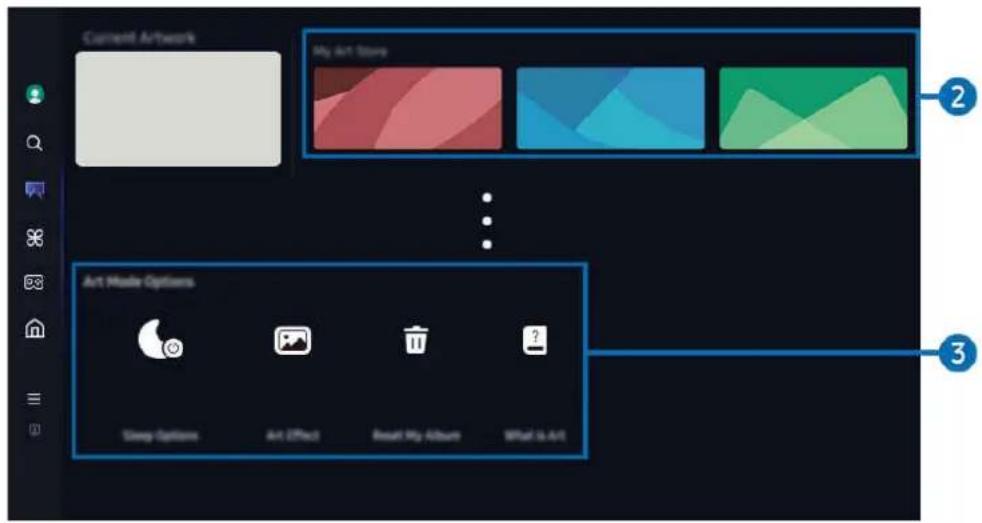
text_image
Current Artworks My Art Story Art Music Options Sleep Options Art (27Pro) Result My Album What is ArtThe image on your TV may differ from the image above depending on the model and geographical area.
2 My Art Store
- Favorites
Manage images saved in Favorite.
- Display All / Resume Play
Play images in Favorite as a slideshow.
- Delete
Select and delete multiple images in Favorite simultaneously.
- Membership
If you sign up for Membership, you can use artwork without any restrictions. You can also replace it with new artwork periodically to suit your preference.
Follow the on-screen instructions to proceed with the payment.
If you subscribe to a membership during your free trial period, your account is immediately switched to a membership account regardless of the remaining trial period, and you can use a variety of artworks without any restrictions.
- Payment Info
View artwork purchase details, and easily purchase artworks by entering required payment information.
For details about payment information, visit Samsung Checkout (sbox.samsungcheckout.com).
• History
View the content you recently viewed in Art mode, in order.
3 Art Mode Options
Configure options related to the Art mode screen.
This menu can be found at the bottom of the Art home. To configure the option settings, scroll down to the far bottom.
- Sleep Options
- Sleep After
The TV automatically turns off if no motion is detected around the TV for a specified period of time. Press the Select button to specify a time period.
- Motion Detector
Set the Motion Detector for the motion sensor. Press the Select button to set the sensitivity level.
Motion Detector may not be supported depending on the model or geographical area.
- Night Mode
The TV automatically turns off if no light is detected around the TV. This mode detects lights around the TV to automatically turn on or off the TV depending on the presence of light. Press the Select button to turn the mode on or off.
- Art Effect
The Art Effect is turned on by default. This displays content as close as possible to the original artwork. If you turn off the effect, content is displayed in the customized picture quality.
- Reset My Album
Reset your album and delete all records.
• What is Art?
Briefly view information about Art mode, including functions.
Import images from USB memory
- Connect the USB memory device storing images to the TV.
- The USB memory is automatically recognized, and the screen displays a list of image, music, and video files that are stored in the USB memory.
An alternative way to run the USB memory is to navigate to 📋 > ≡(left directional button) > 🔊 Connected Devices and select the USB memory.
- Navigate to the folder that contains the image file you want to save to the TV, and then select Options > Send to Art Mode.
- Select the image and press Send. The image, stored in the USB memory, is saved under Art mode.
Recommended resolutions (16:9): 1920 x 1080 (32-inch model), 3840 x 2160 (43-inch or larger models)
Using Art mode with the SmartThings app
You can download the SmartThings app from Google Play Store, Samsung Apps, or the App Store.
If the TV is not registered in your SmartThings app, press +(Add Device) and register the TV before using the mode.
The features or terminology may vary depending on the version of the SmartThings app.
On tablet devices, Art mode features may not be supported by the SmartThings app.
Once you have installed the SmartThings app on your mobile device, you can use the following functions:
- Selecting an image under Art mode.
- Saving photos from a mobile device to the TV: Use the Add picture function to save photos on a mobile device to the TV.
- Add Picture > select 2 to 3 images > Create Mat: Combine the 2 to 3 images to create a single image.
- My Album > select content, such as Dynamic Filter or Auto Gallery, and then press Select Photo to set the content as mobile photos.
- Subscribing to Art mode Membership
- Applying border styles and colors to images
- Setting the brightness for Art mode
- Setting Sleep After: When no motion is detected for the time specified in Art mode, the TV turns off automatically.
- Setting Motion Detector: Set the sensor sensitivity so that the TV turns on or off automatically when motion is detected in Art mode.
Motion Detector may not be supported depending on the model or geographical area.
- Setting Night Mode: This mode detects lights around the TV to automatically turn on or off the TV depending on the presence of light.
Precautions when using Art mode
Motion Sensor may not be supported depending on the model or geographical area.
- The motion sensor is located at the bottom of the TV. Do not block the sensor at the front of the TV. The motion sensor as well as the brightness and color tone of the screen can be affected.
- Art mode uses algorithms to minimize image burn-in that can be caused by displaying still images on the screen for long periods of time.
-
The performance of the sensor may vary depending on the TV installation and operating environment.
-
The screen brightness and color tone may be affected depending on the color of the floor on which the TV stands.
- In an environment where special light sources other than standard light sources (halogen, fluorescent) are used, the sensor's motion recognition performance may vary depending on the positions, types, and number of the light sources.
- If the area around the TV is too dark or bright, the screen brightness may be limited or the sensor may not work normally.
- If the TV is installed too high or too low, the sensor may not work normally.
- The motion sensor may sense motion from a flashing LED, a pet, a car moving outside the window, or other occurrence and start operating.
- Depending on the Auto Power Off function settings, the TV may turn off when there is no user input in Art mode, such as inputs from the remote control (m) > ≡ (left directional button) Settings All Settings General & Privacy > Power and Energy Saving > Auto Power Off). Try Now
- The following functions are disabled in Art mode.
- > ≡ (left directional button) Settings All Settings General & Privacy System Manager Time Sleep Timer Now
- (let directional button) Settings All Settings General & Privacy System Manager > Time Off Timer Now
- (let directional button) Settings All Settings General & Privacy Power and Energy > Saving Screen Saver Now
About the Daily+ Home screen
Offers a variety of practical apps, including a home workout app, video chat app and remote medical service app, allowing you to conveniently experience different lifestyles at home.
> left directional button Daily+
This function may not be supported depending on the model or geographical area.

text_image
Samsung Daily* Preview your home for working Design experience.The image on your TV may differ from the image above depending on the model and geographical area.
- SmartThings
It allows the TV to connect and control the detected various devices in the same space.
For more information about SmartThings, refer to "Using SmartThings."
This function may not be supported depending on the model or geographical area.
- Workspace
Use the TV to access your PC via remote PC or Screen Sharing (Wireless).
For more information, refer to "Using Workspace."
Using Samsung Gaming Hub
Gamestream a wide variety of games right on your TV through Samsung Gaming Hub. Connect your controller through Bluetooth or USB.
> left directional button Games
This function may not be supported depending on the model or geographical area.

text_image
App and Deserts App and Deserts Accriminarity and Music App and Deserts App and Deserts App and DesertsThe image on your TV may differ from the image above depending on the model and geographical area.
1 Learn More
Provides information about Samsung Gaming Hub and details on how to use devices.
2 Accessories and Music / Accessories
- Controllers
Select a Controller to connect to the TV.
For more information about supported controllers, refer to "Using the Gamepad".
- Audio
Select an Audio Device (e.g. Gaming Headset) to connect to the TV.
- Music Player
Manage the music to play when playing a game.
This function may not be supported depending on the model or geographical area.
3 Apps and Devices
Install or remove apps or devices that are required to play games.
4 Game list
Purchase games or subscribe to service offered by the Samsung Gaming Hub. Select a game to view the game details.
Installation of related apps is required to run some games.
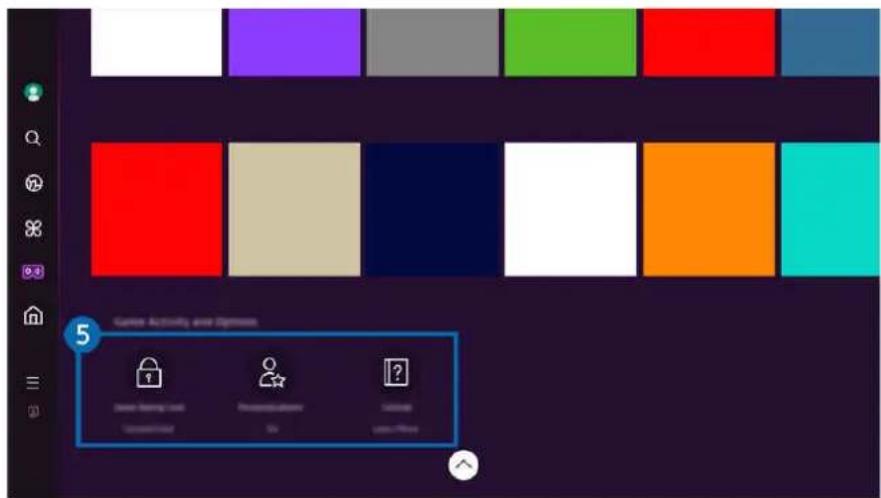
text_image
Game Activity and Opinions Game Activity and Opinions Game Activity and OpinionsThe image on your TV may differ from the image above depending on the model and geographical area.
5 Game Activity and Options
This menu is provided at the very bottom of the Samsung Gaming Hub screen. To configure Game Activity and Options, scroll down to the very bottom.
- Game Rating Lock
Set the age limit for playing games.
The age limit is only supported to cloud game browsing domain in Gaming Hub.
- Personalization
Tailored content is recommended, according to the games recently played by the user and the content the user is interested in.
- Tutorial
Provides information about the Samsung Gaming Hub and details on how to use devices.
Using the Home Function
View a variety of TV programs. Install various apps offered by Smart Hub, such as video, music and sports apps, and use the apps from the TV.
> left directional button Home

The image on your TV may differ from the image above depending on the model and geographical area.
1 For You / Discover
The app makes personalized recommendations based on the user's viewing experience. View currently popular content, or add frequently used apps to the Home screen.
For more information about For You / Discover, refer to "About the For You / Discover Home Screen."
The name of this function may appear differently depending on the model or geographical area.
2 Live
Watch TV programs currently on the air. Access the Guide screen to check the broadcast schedules and set up scheduled viewing for the programs you want.
For more information about Live, refer to "About the Live Home Screen."
This function may not be supported depending on the model or geographical area.
3 Apps
Install a variety of apps offered by Smart Hub, such as video, music, sports and game apps, and use the apps from the TV.
For more information about Apps, refer to "About the Apps Home Screen."
About the For You / Discover Home Screen
This screen makes personalized recommendations based on the user's viewing experience.
> left directional button Home For You / Discover
The name of this function may appear differently depending on the model.
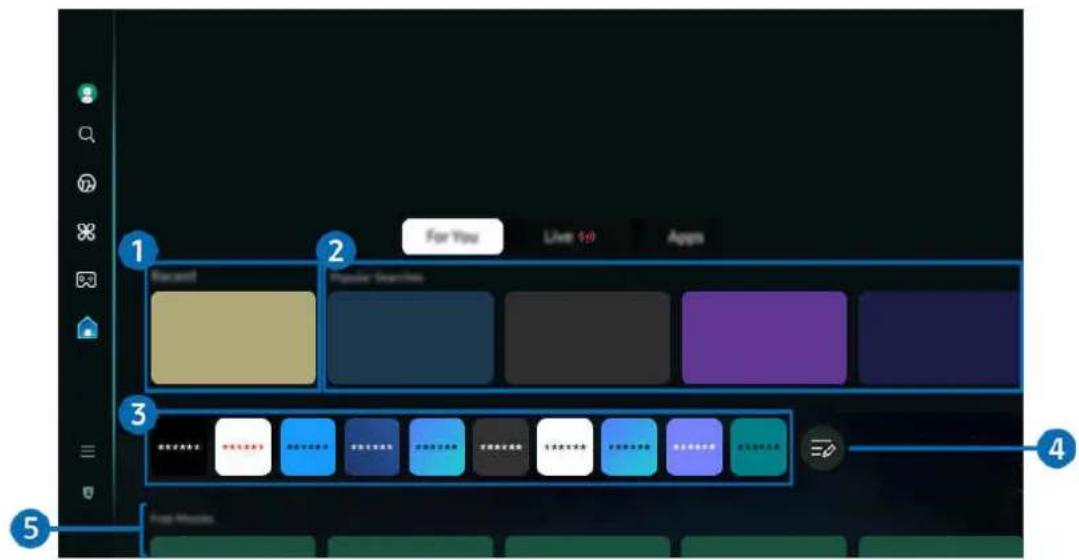
text_image
For You Live 100 Apps Record Practice Search 3 4 5 Frame OptionsThe image on your TV may differ from the image above depending on the model and geographical area.
1 Recent
Access your last watched TV program, app or last used input source.
2 Recommended for You / On Now
The name of this function may appear differently depending on the model or geographical area.
This function may not be supported depending on the model or geographical area.
This function may not be supported, depending on the input signal and settings.
• Recommended for You
Recommends content that are currently popular in many OTT services.
- On Now
Display a list of TV programs or Samsung TV Plus content items currently being aired.
3 App List
Add frequently used apps or delete apps on the Home screen, to suit your preferences.
4 List Edit
- Moving an item on the Home Screen
From the end of the list, select List Edit. Move the focus to the app to relocate, and press the down directional button on the remote control. Select Move from the option menu. Use the left or right button to reposition the app and then press Select. This repositions the app on the Home Screen.
Alternatively, move the focus to the app to relocate, press and hold the Select button, and then select Move.
- Removing an item on the Home Screen
From the end of the list, select List Edit. Move the focus to the app to remove, and press the down directional button on the remote control. Select Remove from the option menu. This removes the app from the Home Screen list.
Alternatively, move the focus to the app to delete, press and hold the Select button, and then select Remove.
To add a deleted app back to the list or add a downloaded new app to the Home screen, refer to "Managing installed apps."
5 Universal Guide
Universal Guide is a function that allows you to search for and enjoy various content, such as TV shows, dramas, and movies, in one place. Universal Guide can recommend content tailored to your preferences.
You can use this feature on your mobile device with the Samsung SmartThings app.
To access Universal Guide, press the down directional button on the remote control in Home Screen.
To enjoy the content from these apps on your TV, they must be installed on the TV.
When you watch some paid content, you may need to make a payment using their associated app.
Some content may be restricted depending on your network conditions and your subscriptions to paid channels.
Parental control is necessary when children use this service.
Images may look blurry depending on the service provider's circumstances.
This function may not be supported depending on the model or geographical area.
All YouTube 8K content recommended and provided through the Home screen of 8K TV is attributed to YouTube.
The picture quality of YouTube 8K Content can be affected by a variety of factors, including location, Internet bandwidth used at home, and Internet access speed.
Depending on your Internet connection environment, it may be temporarily played at a resolution rather than an 8K resolution.
The recommended connection speed for receiving 8K image quality (8K resolution) is at least 80 Mbps.
The loading time it takes to start watching YouTube 8K Content may vary depending on the Internet bandwidth or Internet access speed you are using at that time.
In the future, depending on the operation policy of Samsung and YouTube services, whether YouTube 8K content is recommended through the Home screen may vary.
This function may not be supported depending on the model or geographical area.
Media Options
This menu can be found at the bottom of the For You / Discover home. To configure the option settings, scroll down to the far bottom.
This function may not be supported depending on the model or geographical area.
- Preferences: Select a preferred service to receive content recommendations to suit your preference.
- Continue Watching: Choose content providers for Continue Watching. You can continue watching different shows in one place from all the Continue Watching-supported content providers listed below.
- Parental Lock: Redirect to the Parental Lock menu. Turn all parental control settings on or off.
- Auto Play Sound: When you browse and preview content, you can set the sound to come out or not automatically.
About the Live Home Screen
View TV programs currently on the air. Access the Guide screen to check the broadcast schedules and set up scheduled viewing for the programs you want.
left directional button Home Live>


text_image
For You Live 3d Apps 1 2 3The image on your TV may differ from the image above depending on the model and geographical area.
This function may not be supported depending on the model or geographical area.
1 On Now
Display a list of TV programs or Samsung TV Plus content items currently being aired.
This function may not be supported, depending on the input signal and settings.
2 Guide
See the programming schedules of different channels on a single screen. Use Guide to view the daily program schedule for each broadcaster. You can also find out detailed information about programs, watch a specific program, or schedule the recording of a program.
For more information about Guide, refer to "Using the Guide."
3 Genre
Select a genre to sort and display specific channels to suit your preferences.
This function may not be supported depending on the model or geographical area.
About the Apps Home Screen
Download and run various apps from Smart Hub.
> left directional button Home Apps
You can enjoy a wide range of content including video, music, sports and game apps, by installing the corresponding apps on your TV.
To use this feature, the TV must be connected to the network.
When Smart Hub is launched for the first time, the default apps are automatically installed. The default apps may differ depending on the model or geographical area.
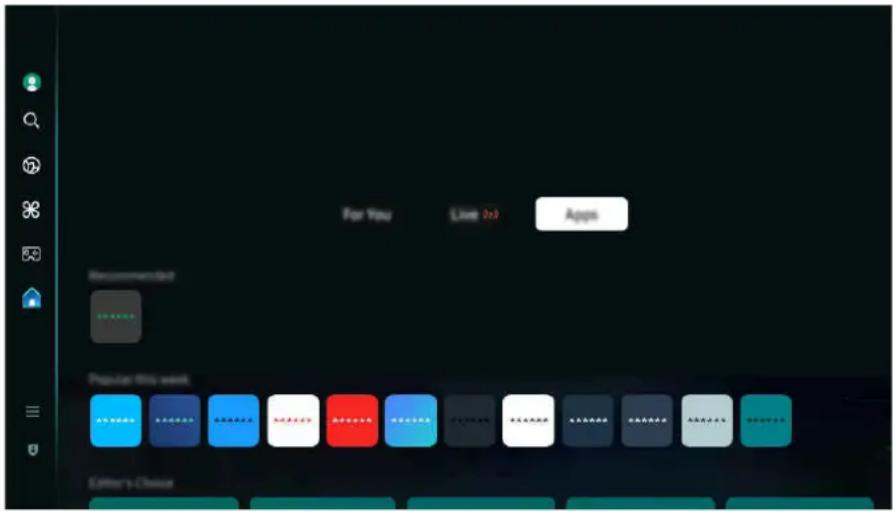
text_image
For You Live 2x3 Apps Recommended Poplar this week Editor's ChoiceThe image on your TV may differ from the image above depending on the model and geographical area.
Installing an app
- Move to the app you want to install, and then press the Select button. The detailed information screen appears.
- Select Install. When the installation is complete, the Open menu appears.
- Select Open to run the app immediately.
You can view installed apps on the Settings screen.
If the TV's internal memory is insufficient, you can install some specific apps on a USB device.
You can run an app installed on a USB device only when the USB device is connected to the TV. If the USB device is disconnected while an app is running, the app is terminated.
You cannot run an app installed on a USB device on a PC or another TV.
Launching an app
You can run the app desired from Downloaded App.
The icons below appear within the selected app's icon and indicate the following:
• : The app is installed on a USB device.
• : The app has a password.
• ©: The app needs to be updated.
• : The app supports the mirroring function.
Managing installed apps
To manage installed apps, access App Settings.
App Settings can be found at the bottom of the Apps screen. To access App Settings, scroll down to the bottom.
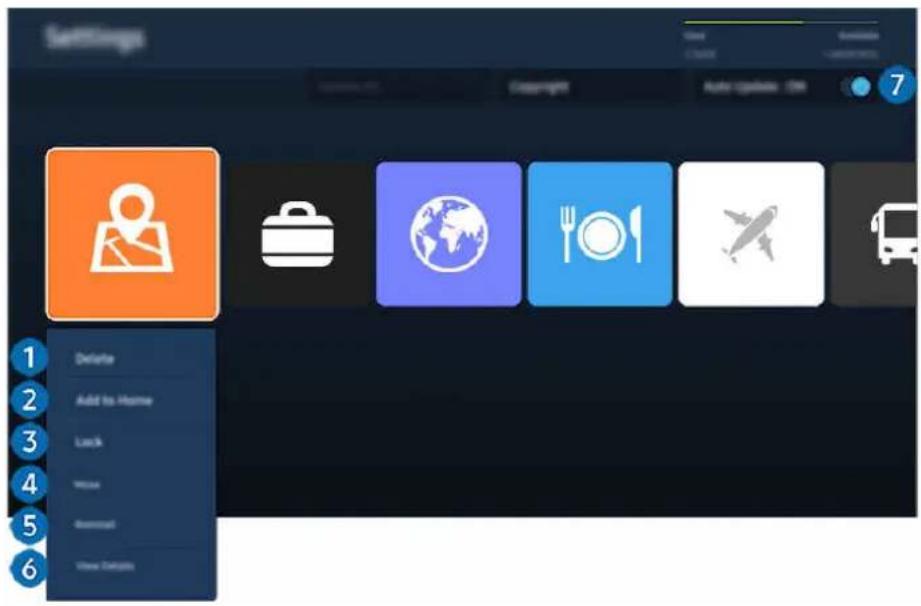
text_image
Settings Delete Add to Home Lock View Remove New DefaultsThe image on your TV may differ from the image above depending on the model and geographical area.
1 Removing an app
- Select an app to delete.
- Select Delete.
The selected app is deleted.
Ensure that the related app data is also removed when you remove an app.
Standard apps cannot be uninstalled.
2 Adding apps to the Home Screen
- Select an app to add.
- Select Add to Home.
- After the Home Screen appears, move the selected app to the desired location.
- Press the Select button.
The selected app is added to the Home Screen.
If the selected app is already added to the Home Screen, this function is disabled.
3 Locking and unlocking apps
- Select an app to lock or unlock.
- Select Lock/Unlock.
The selected app is locked or unlocked.
To lock or unlock an app, enter the PIN. The default PIN is "0000." You can set the PIN in Ⓜ > ≡(left directional button) > ⚙️ Settings > All Settings > General & Privacy > System Manager > Change PIN. Try Now
Change PIN may not be supported depending on the model or geographical area.
4 Moving apps
- Select an app to move.
- Select Move.
- Move the app to the desired location.
- Press the Select button.
The selected app is moved.
This function may not be supported depending on the model or geographical area.
5 Reinstalling an app
- Select the app to install again.
- Select Reinstall.
Reinstallation starts.
6 Checking the app information details
- Select the app to check.
- Select View Details.
The app information screen appears.
You can rate an app on the View Details screen.
7 Automatically updating apps
To automatically update the installed apps, set Auto Update to ON.
Automatic update is enabled only when the TV is connected to the network.
About the Menu Home Screen
Manage external devices connected to the TV, and configure settings for various functions available on the TV.
> left directional button Menu
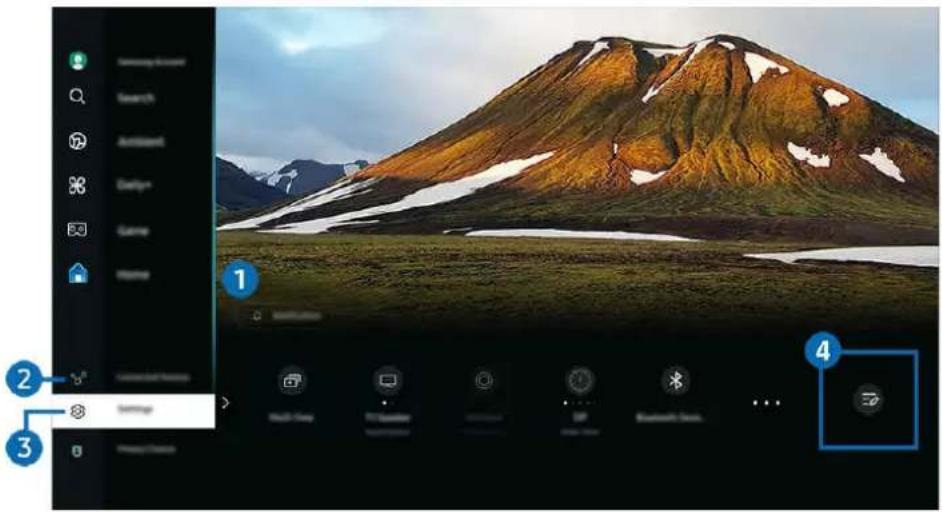
natural_image
Mountain landscape photo with snow-capped peaks and green grassland, displayed within a software interface (no readable text or symbols on the mountain itself)The image on your TV may differ from the image above depending on the model and geographical area.
1 Notification
You can view a list of notifications for all events that occur on your TV. A notification appears on the screen when it is time to schedule viewing, schedule recording, etc.
If you move the focus to Notification, and then press the Select button, a notification window appears on the right and the following functions are available:
- Delete All
You can delete all your notifications.
- Settings
You can select services you want to be notified about.
When you select Allow sound, notifications are displayed with a notification sound.


Connected Devices
Select an external device that is connected to the TV.
For more information, refer to "Switching between external devices connected to the TV."
3 Settings
Move the focus to the Settings menu to display quick setting options below the menu. Quick Settings can be used to quickly configure frequently used features.
The Settings items may not be supported depending on the model or geographical area.
- All Settings
Displays the Settings menu for configuring specific settings.
- Sound Output
You can select which speakers the TV uses for audio output. To change the audio output, press the Select button.
- Brightness
Easily configure the screen settings: Brightness, Contrast, Sharpness, Color and Tint (G/R).
- Picture Mode
Change the picture mode for the optimal viewing experience. Press the Select button to change the Picture Mode.
- Sound Mode
You can select a sound mode to optimize your listening experience. To change the sound mode, press the Select button. To make fine adjustments, press the down directional button, and then select Equalizer Setup.
- Intelligent Mode
Improves your viewing experience by recognizing your content, usage patterns and the environment around your TV.
This function may not be supported depending on the model or geographical area.
For more information about the Intelligent Mode, refer to "Using Intelligent Mode."
- Bluetooth devices
Connect your TV to Bluetooth devices. This can be done by selecting Bluetooth devices to automatically search for Bluetooth devices.
Connecting Bluetooth devices may not be supported depending on the model or geographical area.
- Wi-Fi / LAN
Check your network connection. To check your network connection or change the connection settings, press the down directional button, and select either Network Status or Network Settings.
This function may not be supported depending on the model or geographical area.
- Multi View
While watching the TV, you can simultaneously view multiple screens that are split.
For more information, refer to "Using Multi View."
This function may not be supported depending on the model or geographical area.
- Sleep Timer
You can turn off the TV automatically at a specific time. To change the sleep time, press the Select button. To set the specific time at which the TV turns off automatically, press the down directional button, and then select Set Up Off Timer.
- Game Mode
You can set the Game Mode to optimize the TV screen for better gaming performance. To turn Game Mode on or off, press the Select button. To set the detailed options, press the down directional button, and then select Go to Game Mode Settings.
This function is only available when an external input source is being used.
For more information, refer to "Setting the Viewing Environment for External Devices."
This function may not be supported depending on the model or geographical area.
- Caption
You can watch TV broadcasts with captions. To activate or deactivate the Caption function, press the Select button. To run Accessibility Shortcuts, press the down directional button, and then select Accessibility Shortcuts.
- Audio Language
You can change to the audio language you want to hear. To make fine adjustments, press the down directional button, and then select Go to Audio Options.
• Digital Output Audio Format
You can select an output format for digital audio. Note that the Dolby Digital+ option is only available via HDMI (eARC) for external devices that support the Dolby Digital+ format.
This function may not be supported depending on the model or geographical area.
- Picture Clarity
You can optimize pictures that contain a lot of motions. To turn this function on or off, press the Select button. To set the detailed options, press the down directional button, and then select Picture Clarity Settings.
This function may not be supported depending on the model or geographical area.
- Color Tone
You can select a color tone suitable for your viewing preferences. To change to a color tone that you want, press the Select button.
This function may not be supported depending on the model or geographical area.
• Energy Saving Solution
Reduce power consumption by adjusting brightness settings.
This function may not be supported depending on the model or geographical area.
• Power and Energy Saving
Display the Power and Energy Saving menu. Reduce energy consumption by changing your power preferences and other energy-saving options.
This function may not be supported depending on the model or geographical area.
- Auracast
You can listen to the TV's audio by connecting to a Bluetooth audio device that supports Auracast.
This function may not be supported depending on the model or geographical area.
Some models support the Auracast feature. For more information about Auracast, refer to "Using Auracast."
- Support
Displays the Support settings menu.
These functions may not be supported depending on the model or geographical area.
4 List Edit
From the end of the Settings list, select List Edit. You can change the location of functions in the Settings screen.
An alternative way to move a function is to move the focus to the function to move and then press and hold the Select button.
Using a Samsung account
Create and manage your own Samsung account.
≡ (left directional button) Settings All Settings General & Privacy System > Manager > Samsung Account Try Now Try Now
You can view the entire text of the Terms & Policy in Ⓜ > ≡ (left directional button) > ⚙ Settings > All Settings > General & Privacy Terms & Privacy after logging in to your Samsung account.
Follow the instructions on your TV screen to create or log in to a Samsung account.
Samsung account can be used on TV, mobile device, and website with one ID.
Signing in to a Samsung account
≡ (left directional button) Settings All Settings General & Privacy System > Manager Samsung Account Sign In
Creating a new account
≡ (left directional button) Settings All Settings General & Privacy System > Manager Samsung Account Create Account
Managing your Samsung account
≡ (left directional button) Settings All Settings General & Privacy System > Manager Samsung Account My Account
When you sign in to your Samsung account, you can use the following functions:
- Edit Profile
You can edit your account information.
To protect personal information, enter Edit Profile and then Sign-in Method is set to Select your ID and input password (high security).
If you want the TV to log you into your account automatically whenever you turn on the TV, click Stay Signed In.
When the TV is used by multiple people, turn off Stay Signed In to protect personal information.
- PIN Setting
Set or change your PIN.
- Payment Info
You can view or manage your payment information.
- Back up
You can back up the TV settings to your Cloud storage. When resetting or replacing the TV, you can also restore its settings with the backed-up settings.
- Product Registration
You can register the current TV or see the registered information. You can easily receive services after product registration.
You can see the registered information or delete it at the Samsung account website (https://account.samsung.com).
• Security and Privacy
You can read the Privacy Policy for Samsung accounts or change custom service settings.
- Sync Internet
Once you sign in to your Samsung account and configure the Sync Internet settings, you can share the favorites and website bookmarks that you registered on other devices.
- About Samsung account
You can view the user agreement and privacy policy.
For more information about the terms and conditions, special terms, select View Details.
- Remove Account
You can delete an account from the TV. Although you have deleted your Samsung account from the TV, you are not unsubscribed.
To unsubscribe from your Samsung account, visit the Samsung accounts website (https://account.samsung.com).
- Sign Out
When multiple people share the TV, you can sign out of your account to prevent others from using it.
To sign out of your Samsung Account (💡 > ≡ (left directional button) > ⚙Settings > All Settings > General & Privacy > System Manager > Samsung Account), move the focus to your account's icon, and then press the Select button. When a pop-up window appears, select Sign Out.
Using Workspace
Use the remote function to connect to and use a Windows PC, Mac, or mobile device from the TV.
left directional button > Daily+ > Workspace Try Now
Connect a Windows PC, Mac, or mobile device to the TV to easily use the device.
For easy computer use, connect a keyboard and a mouse to your TV in advance.
Using Screen Sharing (Windows PC) / AirPlay (Mac)
left directional button Daily+ Workspace Windows PC Screen Sharing
left directional button Daily+ Workspace Mac Screen Mirroring
Follow the instructions on the screen to adjust the PC settings and wirelessly connect the TV to the PC.
This function is only available for PCs that support wireless screen sharing.
This function may not be supported depending on the model or geographical area.
Connection via Windows OS is available in Windows 10 and later versions only.
Connection via Mac OS is available in AirPlay.
Using Easy Connection to Screen
left directional button Daily+ Workspace Windows PC Easy Connection
You can easily use remote access function after installing Easy Connection to Screen on your PC.
Follow the instructions on the screen to download and install the Easy Connection to Screen PC app. Then you can easily connect a remote PC.
- Download the Easy Connection to Screen PC app from http://smsng.co/easy and then install it on your PC.
- Log in to the same Samsung account for both TV and PC.
- When the PC is turned on and connected via the network, Workspace's Home Screen displays the PC.
The Easy Connection to Screen PC app is available in Windows 10 and later versions only.
Depending on the network environment including the firewall configuration, router type, and wireless signal strength, connection problems may occur, such as low speed, disconnection, or limited connection.
Connecting a Remote PC
left directional button > ✦ Daily+ > Workspace > Windows PC > Manual Connection Try Now
left directional button > ✕ Daily+> > Workspace > Mac > Remote Login Try Now
Provides Remote Desktop Connection (RDP) for remotely connecting to a PC running on Windows and Virtual Network Computing (VNC) for a PC running on Mac. To remotely connect to a PC, you must enter the IP address of the remote PC or select a saved profile. Enter a correct username and password. If there is any computer that can be accessed via the same network, the found IP is displayed.
To register a frequently used PC, move the focus to Manage User Profiles, and then press the Select button. When a pop-up window appears, select Add, and then enter the PC information.
When your PC enters in power saving mode, connection is not available. It is recommended to cancel the power saving mode.
It is recommended to connect the wired network because the screen or sound may be interrupted depending on the network condition.
- Configure your computer's settings to use the Workspace function.
Connection to Windows via the RDP protocol is available in Windows 10 Professional or higher.
Remote connection to a PC running on Mac via the VNC protocol is only supported for Mac OS X 10.5 or later.
- Windows OS:
1) Right-click the My PC icon on Desktop or Windows Explorer and then click Properties.
2) Click Remote Desktop and select Activate Remote Desktop.
- Mac OS:
1) Select Menu > System > Preferences and then click Sharing.
2) Select the Screen Sharing and Remote Login check box.
3) Run the resolution changing app downloaded from App Store and then change the resolution to 1440 x 900 or lower.
If you do not change the resolution in Mac OS, the previous image may appear while connecting a remote computer.
- Enter the required settings for connecting the computer remotely.

text_image
PC/Profile IP address or profile User via Enter a password Password Enter a password. Remember my credentials and add to the TV Route screen. You can connect directly from the home screen via Electrals. Connect httpThe image on your TV may differ from the image above depending on the model and geographical area.
1 PC/Profile
Enter the IP address or profile of the PC you want to connect to.
- In case of Windows, when the computer to connect is within the same network (router/AP), run "cmd" command in Settings > Network and Internet > View Network properties or in Start > Run, and then run "ipconfig" to check the IPv4 address of the computer.
- In case of Mac, you can check the IP address in Settings > Remote Access.
- When the TV and computer are not within the same network, it is required to know the public IP and configure the router and AP. Check whether the router connected to the computer supports port forwarding. When the company provides additional security features such as firewall, seek help from a security officer.
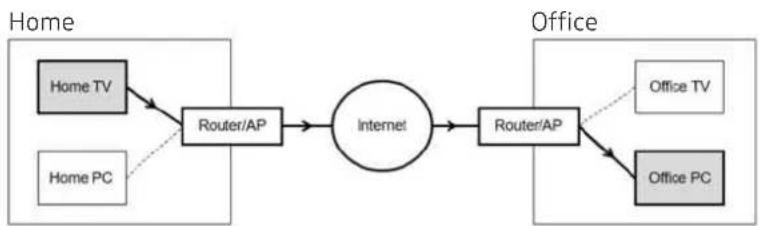
flowchart
graph LR
    subgraph Home
        A["Home TV"]
        B["Home PC"]
    end
    subgraph Internet
        C["Router/AP"]
        D["Internet"]
    end
    subgraph Office
        E["Office TV"]
        F["Office PC"]
    end
    A --> C
    B --> C
    C --> D
    D --> E
    E --> F
2 Username
Enter the Username of the computer. How to check the Username:
- Windows OS: Control Panel User Account Control
• Mac OS: System Preferences Users & Groups
3 Password
Enter the password for the login account.
For use of PIN, do not enter PIN but the specified password of the computer.
Playing Multimedia Content on a Remote PC
When you move the mouse cursor to the top of the screen after accessing a remote computer, the top bar appears. When the sharing folder icon is clicked in the top bar, the folders shared on Windows or Mac OS appear. You can play back any media content in a folder.
For more information about playing multimedia content, refer to "Playing pictures/video/music."
To use this function, the folder sharing option on the computer to access must have been enabled as shown below:
- Windows OS:
-
Run Windows Explorer and then move to the folder to share.
-
Right-click the folder and then click Properties.
-
After the Properties window appears, click the Sharing tab and then click Advanced Sharing.
-
After the Advanced Sharing window appears, select the Share this folder check box.
- Mac OS:
-
Select Menu > System Preferences and then click Sharing.
-
Select the File Sharing check box.
-
To add a folder to share, click the Add+ button at the bottom.
-
Select a folder and then click Add+.
It is recommended to connect the wired network because the screen or sound may be interrupted depending on the network condition.
When playing a video file via a remote computer, the screen or sound breaking may be encountered.
Controlling your Galaxy device with the keyboard and mouse
> left directional button Daily+ Workspace Multi Control
Control nearby Galaxy devices with the mouse and keyboard connected to the product.
To connect to nearby devices, turn on Multi Control, Wi-Fi and Bluetooth on the devices, and ensure that the devices are connected to the same wireless network and logged in with the same Samsung account.
This function may not be supported depending on the model or geographical area.
Using Samsung DeX
Run Samsung DeX on your mobile device to connect the software to the TV.
Follow the on-screen instructions to connect Samsung DeX. Some models may not be searched when connecting the TV from a mobile device through Samsung DeX. If that is the case, follow the instructions shown on the mobile device screen to connect the software.
This function is available only on mobile devices that support the wireless Samsung DeX.
Using Microsoft 365
You can read or create a document after accessing the Microsoft 365 website.
Run the site in full screen mode.
URL modification is impossible in the Microsoft 365 page.
Adding the Web Service
Select the Add Web Service icon. Use the bookmarking function of Workspace the browser, you can add or delete the web service link to or from Workspace.
To add the web service, you must be signed in to your Samsung account.
The number of web services that can be added to Workspace is limited.
Workspace browser not share data with Internet. (Web browser outside from Workspace)
Using Web Service
You can access the web service by selecting the web service icon added to Workspace.
The screen on the webpage may differ from that of a computer.
You can copy or paste any text. Some image formats are supported.
For easy and secured login in Web Service, Workspace Pass is additionally supported as well as Samsung Pass.
Setting Samsung Pass or Workspace Pass.
Set Samsung Pass or Workspace Pass to Use in 📂 > left directional button > ✕ Daily+ > Workspace > Run the Workspace browser (Additionally select Microsoft 365 or Add Web Service) > Internet Menu > Settings > General.
Workspace Pass allows you to easily manage the web service ID and password without biometric authentication on mobile devices. For this purpose, you must be signed in to your Samsung account. The password is encrypted to be safely stored on your TV.
However, the log in to Workspace Pass may not work depending on the site policy.
Workspace Pass only working on Workspace.
To securely access the web service, you can use the Workspace browser's automatic shutdown or clear the history logs.
Before accessing the web service, refer to "Read Before Using the Internet Function."
Workspace browser not share data with Internet. (Web browser outside from Workspace)
The web service supports the following keyboard shortcuts:
• F1: Returns to Workspace's Home Screen.
- F5: Refresh.
• F8: Mutes the sound.
• F9/F10: Adjusts the volume.
• F11: Switches between full screen or default screen.
Using the User guide
Control and read the manual embedded in your TV.
Launching the User guide
> ≡ (left directional button) Settings Support Open User guide
You can view the embedded User guide that contains information about your TV's key features.
You can download a copy of the User guide from Samsung's website to view or print on your PC or mobile device (https://www.samsung.com).
Some menu screens cannot be accessed from the User guide.
Using the buttons in the User guide

text_image
Home Guide 1 2 3 4 Device Care Try Guide Guide Troubleshooting Accessibility Guidance FAQThe image on your TV may differ from the image above depending on the model and geographical area.
1 Q (Search)
Select an item from the search results to load the corresponding page.
2 (Recently Viewed Topics)
Select a topic from the list of recently viewed topics.
3 (Sitemap)
It displays the lists for each item in User guide.
4 A-Z (Index)
Select a keyword to navigate to the relevant page.
This function may not be supported depending on the model or geographical area.
5 Device Care
Optimize and diagnose the condition of your TV. You can check and clean your storage space, diagnose problems or request technical support.
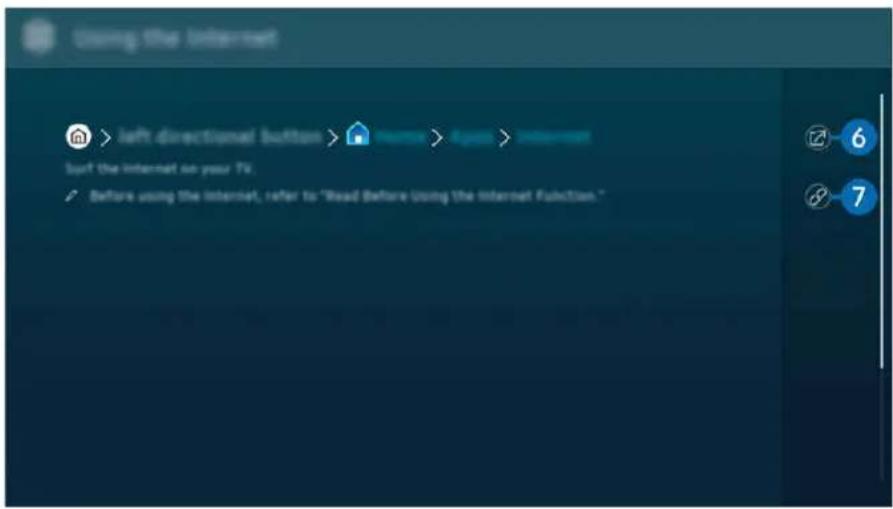
text_image
Using the Internet > left Directional Button > Home > Again > Internet Isn't the internet on your TV. ✓ Before using the Internet, refer to "Read Before Using the Internet Function." 6 7Words in blue (e.g., Internet) indicate a menu item.
The image on your TV may differ from the image above depending on the model and geographical area.
6 (Try Now)
Allows you to access the corresponding menu item and try out the feature right away.
7 (Link)
Access an underlined topic referred to on an User guide page immediately.
Using the Internet
Surf the Internet on your TV.
> left directional button Home Apps Internet
When you run Internet, you can see recently viewed websites or featured recommendations. When you select a desired website, you can get immediate access to it.
This function may not be supported depending on the model or geographical area.
You can use the Internet function more easily after connecting a keyboard and mouse.
You can scroll webpages with the directional button on the Samsung Smart Remote or Remote Control.
The webpages may differ from those on a PC.
Before using the Internet, refer to "Read Before Using the Internet Function."
The Internet app has an embedded Samsung Pass Settings ( [icon] > left directional button > [icon] Home > Apps > Internet > Internet Menu Settings Samsung Pass).
With Samsung Pass, you can log into the website easily and securely. When you visit the website again, you can log in with Samsung Pass Biometrics Authentication on your mobile device without entering your ID and password.
However, this Samsung Pass login may not work depending on the website policy. For this purpose, you must have been logged in the mobile device with a Samsung account registered in Samsung Pass.
Using SmartThings
It allows the TV to connect and control the detected various devices in the same space.
≡ (left directional button) > Connected Devices > SmartThings Try Now Try Now
left directional button > ✕ Daily+ > ✕ SmartThings Try Now Try Now
You can control the devices registered to the SmartThings cloud and devices directly connected to this product with a remote control.
This function may not be supported depending on the product or model.
Functions that can be controlled by remote control may not work depending on the location of the device. In this case, move the location of the device.
Power consumption may increase as SmartThings will operate when the TV is a low power or standby mode.
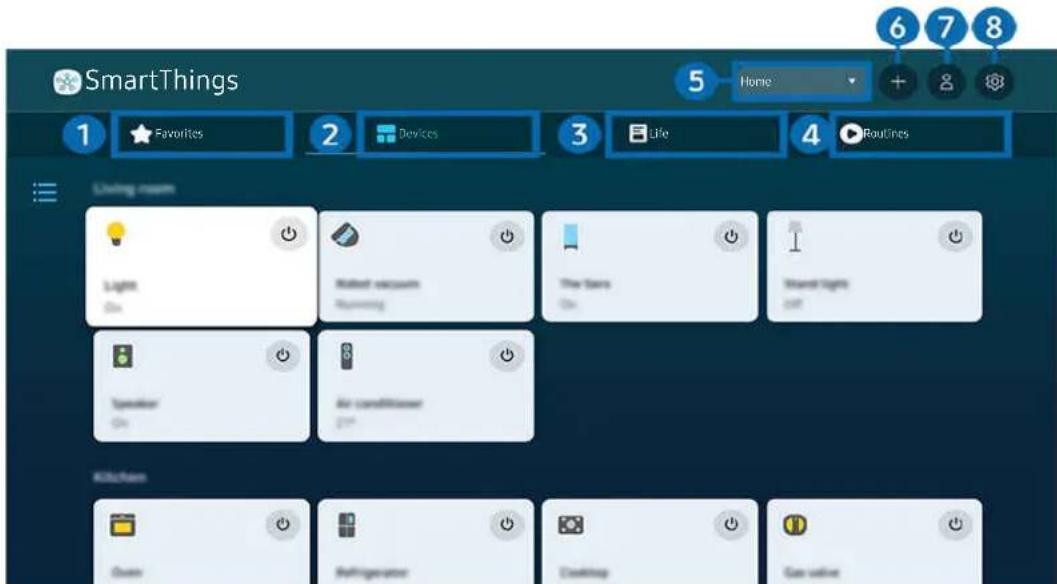
text_image
SmartThings 1 Favorites 2 Devices 3 Life 4 Routines Living room Light Air conditioners New Bars Smart Lights Air Conditioners Air Conditioners Cooking Gas waterThe image on your TV may differ from the image above depending on the model and geographical area.
1 Favorites
View devices or features that have been set as favorites from the Devices/Life/Routines tab.
2 Devices
View devices connected to SmartThings, and use the remote control to select and control any of the connected devices. In Map View, you can check the status of registered devices.
If you log in with the same account used for the mobile SmartThings app, you can view devices, registered through SmartThings, more intuitively from Map View.
List of devices compatible with the TV
| Type Description Detail | |
| Devices for IR remote control (IR Sniffing) | Air conditioner, air purifier, robot vacuum cleaner, electric fan, humidifier |
| Bluetooth devices Bluetooth speaker, headset, Soundbar, keyboard, mouse, game pad | |
| SmartThings devices | For details on SmartThings devices, access https://www.smartthings.com/products.√SmartThings devices can also be controlled from the mobile app. |
For a detailed list of supported devices, visit www.samsung.com.
This function may not be available depending on the external device.
3 Life
Displays recommended Life services that can be viewed or controlled from SmartThings.
Only Life services supported by the TV are displayed.
4 Routines
View or run scenes created from the Routines tab in the mobile SmartThings app.
5 Location or Device near TV
- Place
Displays all places connected via the SmartThings app.
- Devices near TV
Displays all the detected devices that can be connected and controlled.
You can run the control options after selecting a desired device.
Available options may differ depending on the device.
6 Add Device
Displays the list of devices that can be registered on your TV. You can register any by selecting a device.
7 Samsung Account
Go to the Samsung account screen to create a new account or sign out of your account.
If you are signed out of your Samsung account, select Sign In to sign in.
8 Settings
Edit devices connected to SmartThings, or configure notification settings for the devices. You can also turn on the Sensors or the SmartThings hub feature.
SmartThings Quick access
Control most used devices by accessing the 🔔 Connected Devices menu, without having to access SmartThings.
> ≡ (left directional button) Connected Devices
Use the SmartThings Hub features Try Now
Use the SmartThings Hub features on various Samsung products to connect IoT devices (e.g., light bulbs, plugs, or sensors) that are supported by SmartThings.
> ≡ (left directional button) Connected Devices SmartThings Settings SmartThings Hub
DU6/DU7/DU8/DU9/BED/The Serif series, 32LS03D model: SmartThings Dongle required to connect Zigbee/Thread.
Make sure to log in to the same Samsung account on your TV as your mobile SmartThings app.
This function may not be supported depending on the connected device type.
Register and manage devices via SmartThings
Try Now
Registering peripheral devices of the TV
- When there is a device detected near the TV, a registration pop-up appears on the TV screen.
When there is no device detected, the pop-up may not appear.
To connect a Bluetooth device, make sure that the device has been paired.
- Select Register to register the device.
To register an appliance, make sure that it uses IR and is detectable in the area around the TV. Supported devices and options may differ depending on the model.
Select Close. Then the device registration pop-up does not appear.
You can register a device in Ⓜ > ≡ (left directional button) > 🎨 Connected Devices > ❌ SmartThings > Add Device.
(←) > ≡ (left directional button) > 🎨 Connected Devices > SmartThings, you can see available options for each device. Try Now
Supportable options may differ depending on the device.
Registering a TV / Smart Appliance / IoT device from the mobile app
Use the mobile SmartThings app to register your TV, smart appliances or various IoT devices. Some IoT devices can only be registered using this mobile app. In the mobile app, tap the f(Add Device) to register a device.
Connect a doorbell to your TV, to receive a notification of the doorbell video and speak with the visitor while watching TV.
Only WWST (Works with SmartThings) certified doorbells are supported. Supported options may vary, depending on the device.
Use the screen's sensors via SmartThings Try Now
When you activate the sensor, you can see the sensor device on the SmartThings Device tab. You can create various IoT scenarios with TV without purchasing a separate IoT sensor.
> ≡ (left directional button) Connected Devices SmartThings Settings Sensors >
Each sensor can be activated with user consent.
Each sensor may not be supported depending on the model.
The sound sensor is supported when the microphone switch at the bottom of the TV is turned on. The TV microphone may not be supported, depending on the model and region.
Control SmartThings with Bixby Try Now
With Bixby on the product, you can control devices connected to SmartThings, as well as the TV, using voice commands.
This function may not be supported depending on the connected device type.
Control the display device from the mobile SmartThings app Try Now
From the mobile SmartThings App, use the TV remote control functionality, such as On/Off, Channel, Volume, and four directional buttons. You can also use Search, Apps, Ambient mode, Mobile Cam, and other functions from the mobile app.
Routines in the mobile SmartThings app allows you to automatically run apps installed on the TV.
With Routines, you can turn on the TV at your desired time and automatically run frequently used apps.
Playing pictures/video/music
Play media content stored on your TV, USB devices, mobile devices, cameras, PCs, etc.
≡ (left directional button) > Connected Devices > Connected Device Try Now
You can play media content saved on storage devices, such as USB devices, mobile devices, and cameras on the TV.
You cannot play media content if the content or the storage device is not supported by the TV. For more information, refer to "Read Before Playing Photo, Video, or Music Files."
Backup important files before connecting a USB device. Samsung is not responsible for damaged or lost files.
You can use the following functions on the media content list screen of a storage device.
- Filter By
Filters the media content by type of media.
- Sort By
Sorts the content list.
This function may not be supported depending on the type of external device.
- Options
Deletes or plays the selected media content in the media content list. When you select Refresh, the content list is reloaded.
You can delete only the recorded content. To delete content, change the Filter By option to Recorded.
Recorded may not be supported depending on the geographical area.
Playing multimedia content on a PC or mobile device
- Select a device with media content in Ⓜ > ≡ (left directional button) > 🚙 Connected Devices > Sources. The media content list in the device appears.
- Select a media content item from the list.
The selected content is played.
The content may not be played depending on the encoding method or file format. Furthermore, several functions may be restricted.
Content on devices connected to the TV via your network may not play smoothly due to network communication problems. If this occurs, use a USB device.
Playing multimedia content on a USB device
- Connect a USB device to the USB port.
- There is a content list browser shown directly.
If a USB device that contains the content you want to play is already connected to the TV, select the USB device in the 📗 > ≡ (left directional button) Connected Devices Sources screen.
- Select a content item to play from the list.
The selected content is played.
Listening to your mobile device sound through the TV speaker using Sound Mirroring
Enjoy listening to music in your living space. Visualizations are generated on your TV that alter and respond to the frequency of your music.
- Search for and connect to your TV from the Bluetooth device list on your mobile device.
- Select media content to play on your mobile device.
The selected contents media is played through the TV speaker.
This function may not be supported depending on the model
In some models, the image of the played content may differ depending on the mode.
If the TV and the soundbar are connected wirelessly, the operation may be restricted.
Buttons and functions available while playing multimedia content
Press the Select button while playing any video, photo, or recorded content. The following buttons appear.
The provided buttons and functions may not be supported depending on the model or geographical area.
The available buttons and functions may differ with the content you are viewing or playing.
- Pause / Play
Pauses or plays the multimedia content.
- Jump Backward / Jump Forward
Press the up directional button to move the focus to the playback control bar, and then select the left or right directional button in the playback control bar to move backward or forward by 10 seconds in the video.
- Move to a specific playback section, move up the focus on the playback bar, and then select one of the five thumbnails.
This function may not be supported depending on the file format.
- Stop
Stop the contents being played.
- Previous / Next
Displays the previous or the next multimedia content file.
If video playback time is 3 seconds or shorter and you press the button, the video starts from the beginning.
- Rewind / Fast Forward
Rewinds or fast forwards the multimedia content. To increase the rewind or fast forward speed up to 3 times faster than normal, select the button repeatedly. To return to normal speed, select the ▶ option or press the ▶ III button.
You can use the following functions when the video is paused. Note that with the video paused, the TV does not play audio.
- Slow Rewind or Slow Forward: Allows you to play a video slowly backward or forward by selecting the ◀ or ▶ option. There are 3 playback speeds. To change the playback speed, press the option repeatedly. To return to normal speed, select the ▶ option or press the ▶ button.
- 360 Mode
Provides a 360-degree view for videos and photos.
This function may not be supported depending on the file format.
Video files using the mjpeg codec do not support a 360-degree view.
When a video or photo does not support a 360-degree view, applying 360 rotation to it may cause the screen to look distorted.
Videos may be interrupted if 360 rotation is applied during double speed playback.
Videos that support a 360-degree view may be interrupted if 360 rotation is simultaneously applied with other functions during playback.
This function may not be supported for some resolutions.
This function may not be supported depending on the model.
• 360 Auto Rotation
Automatically adjusts the video's viewing angle by analyzing the amount of image changes during playback of a video file that provides a 360-degree view. When this function is started, the rotation starts in a short time.
When 360 Auto Rotation is focused, press the Select button to change to the following modes:
- General
- Dynamic
- Natural
This function is only available when 360 Mode is selected.
When 360 Auto Rotation is activated, automatic adjustment is followed. The adjustment position may differ depending on the image.
The video's viewing angle is manually adjusted in General mode.
This function may not be supported depending on the file format.
Video files that use the mjpeg codec do not support a 360-degree view.
When a video does not support a 360-degree view, applying 360 rotation to it may cause the screen to look distorted.
Videos may be interrupted if 360 rotation is applied during double speed playback.
Videos that support a 360-degree view may be interrupted if 360 rotation is simultaneously applied with other functions during playback.
This function may not be supported for some resolutions.
This function may not be supported depending on the model.
- Repeat
Plays the current multimedia content repeatedly or all multimedia content files in the same folder repeatedly.
- Shuffle
Plays music files in random order.
- Picture Off
Plays music files with the screen off.
- Screen Fit
Fits a photo to the screen.
- Rotate left / Rotate right
Rotates a photo left or right.
- Zoom
Zooms in a photo.
- Background Music
Pauses or resumes the background music while the TV displays photos.
This function is available after enabling the Background Music option.
- Options
The available options may differ with the model and content.
Function Description
| Slideshow Speed | Sets the slideshow speed.If there is only one image file in the USB device, the slide show is not played. |
| Slideshow Effect | Applies transition effects to the slide show.If there is only one image file in the USB device, the slide show is not played. |
| Background Music | Plays background music as you set in the pop-up window while the TV displays photos.The music files must be saved in the same USB device as the photo files.To pause the background music, selectBackground Musicon the playback screen bottom. |
| Subtitles | You can set the detailed subtitle options such as the language, sync, size, and color.If subtitles are not displayed correctly, check the encoding setting. |
| Rotate Rotates the video. | |
| Audio Language | Changes the audio language.This function is only available if the video supports multi-track sound. |
| Information Displays detailed information about the current multimedia content. | |
Using Multi View
You can view multiple content items through Multi View.
≡ (left directional button) > ⚙ Settings > 📄 Multi View Try Now
This function may not be supported depending on the model.
To start Multi View, navigate to Ⓜ > ≡ (left directional button) > ⚙️ Settings > ⚠️Multi View. Next, select the item you want from the Add View list. Or select Make My Own to configure a custom layout and screen. You can add or delete a screen in the current Multi View screen by pressing the down directional key on the Samsung Smart Remote.
With 8K models (QN7**D series or higher), you can configure a view with 3-5 screens.
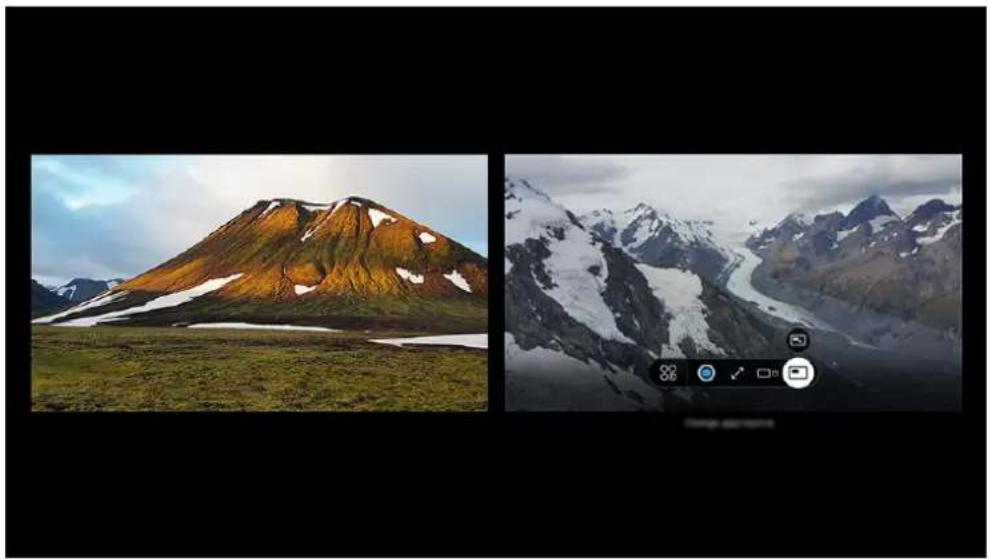
natural_image
Two-panel image showing a volcanic mountain landscape with snow patches and a desktop application icon (no text or symbols on the main image)The image on your TV may differ from the image above depending on the model and geographical area.
When Multi View is running, press the Select button to configure the following menus.
This function and the provided options for each menu icon may not be available depending on the model and region.
- App/Source
You can select from the content list displayed above.
- Content
You can view the currently displayed app or source.
After selecting a content item, you can control the screen or change the app and source.
- Maximize
View the selected screen in full screen mode.
• Return to Multi View
Reduce the maximized screen to the original size, and return to the Multi View.
- Screen Size
Selects the desired size of Multi View.
- Screen Position
Selects a position of the Multi View screen.
- Picture-in-Picture
Selects the position of a small screen on the full screen. The focusing left or right screen appears as small window.
- Double Audio
You will hear the sound of both screens at the same time by adjusting the ratio of each screens sound.
- Bluetooth Speaker
You can hear the sound by connecting the Bluetooth speaker.
- Full Screen
Multi View is ended and then the full screen appears.
- × Delete
You can delete the selected screen.
To close Multi View, press and hold the 📁 button or press the 🔒 button on the Samsung Smart Remote.
This function operates only by TV broadcasts, external devices, or apps that support Multi View.
While running Multi View, app casting from your mobile device is run on Multi View. This function is not available in some apps.
In some models, you can view the image on the camera connected to the SmartThings app of your mobile device.
Q-Symphony is not supported by Multi View.
When an external device that connects to a receiver or Soundbar is used in Multi View, sound outputs from the TV speaker, not from the receiver or Soundbar.
Using Bixby
Set Voice Assistant to Bixby. Speak into the microphone on your Samsung Smart Remote or TV to control your TV.
This function is available only if Voice Assistant is set to Bixby. (☐) > ≡ (left directional button) > ⚙️ Settings > All Settings General & Privacy Voice Voice Assistant)
Bixby is available only when the TV is connected to the network.
To use Bixby, you must register and sign in to your Samsung account. Some functions may not be supported if you are not signed in to your Samsung account.
Bixby only supports some languages, and the supported functions may differ depending on the geographical area.
Bixby may not be supported depending on the model or geographical area.
The microphone on TV is not supported depending on the model or geographical area.
Starting Bixby with voice
You can immediately start a conversation with Bixby by saying "Hi, Bixby." Say "Hi, Bixby", and the Bixby icon at the bottom of the TV screen is activated in Listen mode. Continue speaking.
When the distance to the TV is within 3 to 4 m, optimal performance is provided. For more information on how to use this function, refer to "I spoke "Hi, Bixby/Alexa" but Bixby/Alexa does not answer."
This function may not be supported depending on the model or geographical area.
Starting Bixby using buttons on the Samsung Smart Remote
You can have conversation with Bixby using the Samsung Smart Remote buttons. Press and hold the Button on your Samsung Smart Remote, say a command, and then release the Button.
For details on how to use Bixby, press the button once:
- When you press the button, the icon appears at the bottom right of the screen. Press the Select button to go to the Discover Bixby screen.

text_image
HDMI USBLearning about the Discover Bixby Screen

text_image
Bixby H! Let's learn about Bixby now. Learning to Buyy Learn how to order up Bixby. do to Tutorials Learn what Bixby can do. Browse Content Channels Music Streaming Open Apps and Services Device Control Device Control Media Controls Multi ViewThe image on your TV may differ from the image above depending on the model and geographical area.
1 Account
Log out after going to the Samsung Account screen.
If you are signed out of your Samsung account, select Account to sign in.
2 ? Tutorials
View tutorials related to the Bixby.
3 Settings
You can change the settings for using Bixby.
These functions may not be supported depending on the model or geographical area.
These functions can be set in Bixby Settings (m) > ≡ (left directional button) > ⚙Settings > All Settings > General & Privacy Voice Bixby Settings).
- Voice Wake-up
Configure settings on how to wake up Bixby with your voice. You can configure the following settings: Hands-free wake-up, Using your voice with a Soundbar's microphone, Wake-up phrase, Talk to Bixby without wake-up, and Wake-Up Sensitivity. (Bixby Settings Voice Wake-up).
The Voice Wake-up function may not be supported depending on the model or geographical area.
This function can be used only when the microphone switch at the bottom of the TV is active. The microphone on TV is not supported depending on the model or geographical area.
When the distance to the TV is within 3 to 4 m, optimal performance is provided. For more information on how to use this function, refer to "I spoke "Hi, Bixby/Alexa" but Bixby/Alexa does not answer."
• Language and voice style
You can change Bixby's language and voice style.
The languages of the TV and other apps will not change.
Bixby only supports some languages.
This function may not be supported in Bixby depending on the language selected.
- Bixby Feedback
Play a sound when Bixby starts and stops listening.
This function may not be supported depending on the model or geographical area.
- Preferred Services
Bixby will prioritize your preferred services for certain commands, but you can use any service by including its name in you command.
This function may not be supported depending on the model.
- Privacy
You can permit or prohibit Bixby from utilizing your personal information when you are using Bixby services.
- About Bixby
Displays the detailed terms and conditions.
4 Recommended commands
Displays recommended commands you can use to control the TV with Bixby given the current context.
If you do not want to see the recommended commands, set Voice Hint to Off. (☑ > ≡ (left directional button) > ⚙️ Settings > All Settings > General & Privacy > Voice > Voice Hint) Try Now
5 All Services
You can learn the voice commands that let you use Bixby in various situations. Use the directional buttons to move to the desired command, and then press the Select button. You can operate the TV with various voice commands.
Read Before Using Bixby
- The supported voice interaction languages and features may differ depending on the geographical area.
- If the language set differs from the language of your country, some features are not available.
- Bixby is available only when the TV is connected to the network.
- Even if the TV is connected to the network, there may be no response due to a Bixby server error.
- The existing functional specifications may be changed if Bixby is updated.
- Bixby is available only on TVs that support it and come with remote controls that have a microphone.
- Symbols including "-" and special characters are not supported. Consequently, if a word or sentence contains numeric values or symbols, the function may not operate properly.
- Searched results may not provide complete results.
- You may be required to pay for some apps. Consequently, you may encounter a service application or contract.
- To change the current channel by saying channel names as voice commands, you must finish Find Your Service Provider. Find Your Service Provider can be set in 📋 > ≡ (left directional button) Settings All Settings > Broadcasting Service Provider Info & Settings. Now
If the settings for the service provider are not configured yet, configure them in (left-directional button) > Settings > All Settings > General & Privacy > Factory data reset. Try Now
Service provider settings in initial setup may not be supported on geographical area.
- To use the voice text input function and the search function, you must consent to provisions allowing third parties to collect and use your voice data.
- To use the Bixby function, you must:
- Agree to Smart Hub's Terms of Use.
- Agree to a guidance regarding the collection and use of personal information for the Smart Hub service.
- Consent to the collection and use of personal information for the voice interaction-based service.
Provisions for using Bixby
- The voice interaction rate differs with the volume/tone, pronunciation, and ambient sound environment (TV sound and ambient noise).
Using the Game Bar
Control the Game Settings Monitoring and Game Enhancer Settings easily by using the Game Bar.

This function may not be supported depending on the model.
Starting the Game Bar
When Game Mode (图标 > ≡ (left directional button) > ⚙️ Settings > All Settings > Connection > Game Mode Settings > Game Mode) is On or Auto, press and hold the ➕️ button on your Samsung Smart Remote to start the Game Bar. Try Now
Learning about the Game Bar
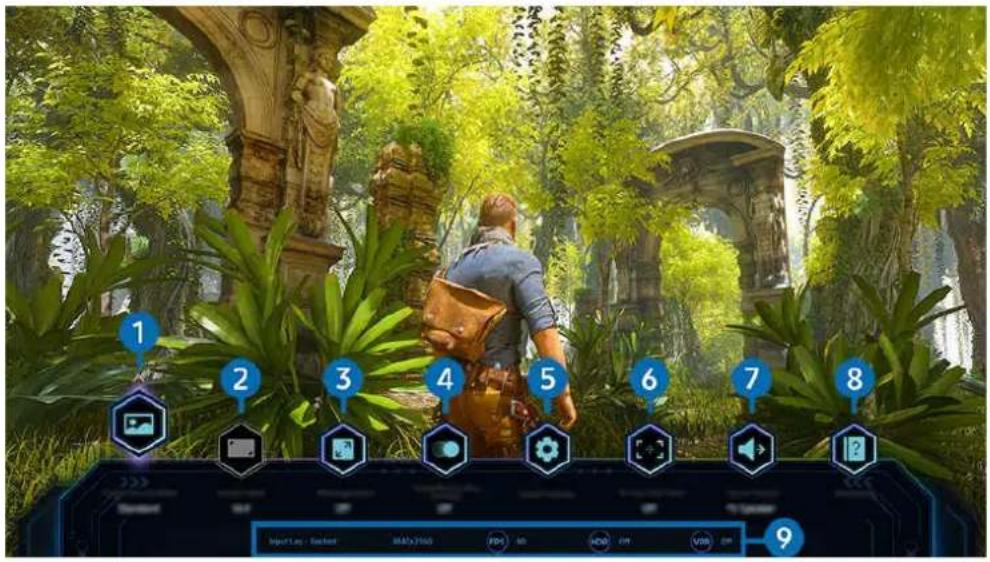
text_image
1 2 3 4 5 6 7 8 9 Input Log - Backed MAX:360 FPS No DVD OK VISI CN
The image on your TV may differ from the image above depending on the model and geographical area.

Game Genre
Specify the Game Picture Mode according to the current game genre. To customize the picture quality, select Custom 1 or Custom 2.
2 Screen Ratio
You can change the screen ratio from 16:9 (previous setting) to Ultra wide (21:9 or 32:9).
You have to set the resolution from your PC only once at first time.
The Game Bar's Screen Ratio can be changed only when the Ultra Wide resolution is supported in a game or PC. Whether or not to support the screen ratio of 21:9 and 32:9 depends on the title of the game so be sure to consult the game company.
3 Minimap Zoom
Use the directional buttons and Select button on the remote control to zoom in on specific areas of the game screen and adjust the zoom rate.

text_image
Game scene screenshot with neon map overlay and tactical gear, showing a tactical fight in an urban setting- For the Minimap supported resolution, refer to the table below.
| Game Bar Screen Ratio Resolution set in PC | |
| 16:9 3840 x 2160 (60/*120 Hz) | |
| 21:9 | 2560 x 1080 (60/*120 Hz) |
| 3840 x 1600 (60/*120 Hz) | |
| 32:9 3840 x 1080 (60/*120 Hz) | |
*: The refresh rate may not be supported depending on the model.
4 Game Motion Plus
Turn on this function to obtain a softer and clearer picture quality when playing a role-playing game (RPG) or adventure game which involves many dynamic scenes.
5 More settings
Configure specific settings to suit your preferences.
6 Virtual Aim Point
You can see the virtual aim point on the screen.
7 Sound Output
Change the sound output device. (e.g. TV Speaker, Soundbar, Bluetooth headset, etc.)
8 Help Guide
View details on how to use each menu item.
9 Current status display
- Input Lag: Shows the status of game input lag.
- Resolution: Shows the resolution of the currently running game.
- FPS: Shows the number of frames per second in real time. If VRR is active, the frame rate changes.
- HDR: Shown as On when an HDR game is running.
• VRR: Shows the variable refresh rate.
Using FreeSync
The FreeSync feature allows you to play seamless games without video interruption or delay. To use the FreeSync feature, activate the FreeSync feature from the external device.
- Models that support FreeSync Premium Pro - QN900D, QN8**D, QN95D, QN90D, QN8*D, QNX1D, Q8*D (except for 50-inch model), S95D
For resolutions at which FreeSync is supported, refer to "Supported Resolutions for FreeSync (VRR)."
Setting the Super Ultra Wide Game View
Set your PC Screen resolution to match the selected Screen Ratio in the Game Bar before activating the Super Ultra Wide Game.
If the TV is connected to a computer and Game Mode is set to either ON or Auto, the wide screen (21:9 or 32:9) is activated from the Game Bar.
This function may not be supported depending on the model.
Check if the game supports Ultra Wide resolution (21:9 or 32:9).
If you set the resolution on your PC for the first time, you can change the Screen Ratio through the Game Bar on your TV.
Game Bar Screen Ratio Resolution set in PC
| 21:9 | 3840 x 1600 (60 Hz)*3840 x 1600 (120 Hz)2560 x 1080 (60 Hz)2560 x 1080 (120 Hz) |
| 32:9 | 3840 x 1080 (60 Hz)3840 x 1080 (120 Hz) |
*: The resolution may not be supported depending on the model.
The supportable resolutions may differ depending on the model or HDMI port connected to the PC.
After setting the resolution, check if the PC's Window or Mac screen changes when you change the Screen Ratio on the Game Bar of your TV.
This function may not be supported depending on the OS or device.
If the connected external device is a gaming device, the function does not work even if you change the name of Source to "PC."
While you are playing a game, the screen ratio cannot be changed. Before running a game, first Select the desired screen ratio on the Game Bar and then run the game. For some games, you need to match the game resolution with the selected screen ratio in the Game Bar.
Changing the Super Ultra Wide Screen position
When playing a game at the Super Ultra Wide resolution, you can adjust the game screen position to the height of your eyes.
At the Super Ultra Wide resolution, use the ^/√ (channel) buttons to move the screen position to the top, center, or bottom.
Configuring 144 Hz / 165 Hz / 240 Hz game settings
If the TV is a model that supports 144 Hz / 165 Hz / 240 Hz, you can play 144 Hz / 165 Hz / 240 Hz games.
- Models that support 144 Hz: S95D, S90D, QN95D, QN90D (except for 98-inch models)
• Models that support 165 Hz: QN800D, QN850D
• Models that support 240 Hz: QN900D - Resolutions that support 144 Hz / 165 Hz / 240 Hz are as follows:
Game Bar Screen Ratio Resolution set in PC
| 16:9 | 1920 x 1080p @ 144 / 1920 x 1080p @ 165 / 1920 x 1080p @ 2403840 x 2160p @ 144 / 3840 x 2160p @ 165 / 3840 x 2160p @ 240 |
| 21:9 | 2560 x 1080p @ 144 / 2560 x 1080p @ 165 / 2560 x 1080p @ 2403840 x 1600p @ 144 / 3840 x 1600p @ 165 / 3840 x 1600p @ 240 |
| 32:93840 x 1080p @ 144 / 3840 x 1080p @ 165 / 3840 x 1080p @ 240 | |
Troubleshooting of the game screen and audio problems
After changing the Screen Ratio on the Game Bar, if the game screen and sound are not output properly, try to solve the problems as shown below.
- Check to see if the game supports Ultra Wide or your PC supports the Ultra Wide resolution.
- Restart the game after exiting it.
- Select the same resolution as that of the Game Bar.
- When the Screen Ratio changes properly, the screen appears as shown below.
16:921:932:9

natural_image
Person walking through a lush, leafless forest with large trees and a stone archway (no visible text or symbols)
natural_image
Person walking through a lush, forested garden with tall trees and greenery (no visible text or symbols)
natural_image
Person walking through a lush, forested area with trees and plants (no visible text or symbols)Using Auracast
You can listen to the TV's audio by connecting to a Bluetooth audio device that supports Auracast.
This feature is supported in the QN800D series or higher only.
This feature may not be supported depending on the models of the mobile device and Bluetooth audio device.
Using Auracast
≡ (left directional button) Settings All Settings Sound Expert Settings Auracast >
You can connect a Bluetooth device that supports Auracast to the TV.
Connect a Bluetooth audio device to the TV via the mobile device that is connected to the Bluetooth audio device. This can be done by using the Broadcast menu in the Bluetooth settings in the mobile device.
The location of the Broadcast menu may differ depending on the mobile device model.
This feature is supported in the QN800D series or higher only.
This feature can connect the TV to two or more Bluetooth devices that support Auracast, simultaneously.
This feature cannot connect the TV to a Bluetooth audio device that supports Auracast and a Bluetooth audio device that does not support Auracast simultaneously.
The Auracast feature may not be supported depending on the mobile device model.
Audio volume can be adjusted from the mobile device that is connected to the audio device.
When this feature is turned on, audio cannot be played from the Bluetooth audio device that is already connected to the TV and does not support Auracast.
If Auracast is turned on and you change the audio output device to the previously connected Bluetooth audio device, Auracast automatically turns off.
To turn on Auracast, change the audio output device to the TV speakers.
While Auracast is in use, other devices that support wireless connection cannot be used together. (e.g., Bluetooth Speaker, Wi-Fi Speaker, Headset, Soundbar, Gamepad, Keyboard, Mouse, Sound Mirroring, etc.)
Using a password
≡ (left directional button) Settings All Settings Sound Expert Settings Auracast > Use Password
If you set a password, you should enter the password when you connect an audio device to the TV via a mobile device, before using Auracast.
Changing your password
≡ (left directional button) Settings All Settings Sound Expert Settings Auracast > Reset Password
Change the password you use when connecting to Auracast.
TV Viewing and Recording
Use a variety of convenience features offered by your Samsung TV while watching TV. You can also edit your list of channels and create a list of favorite channels.
Using the Guide
See the programming schedules of different channels on a single screen.
Press the ^/√ (channel) button to access the Guide.
In the Guide, you can see the daily program schedules for each station, see program information, choose a program to watch, and set up a schedule viewing or recording.
The Record function may not be supported depending on the model geographical area.
To access information or additional features provided in the Guide from analog channels, you must set Service Provider during the initial configuration stage.
To view Guide, you must first configure Clock (图标 > ≡ (left directional button) > ⚙ Settings > All Settings > General & Privacy System Manager Time Clock)
For details on how to use the remote control, refer to the image guide at the top right.
About the Guide screen

text_image
LiveNOW from FOX 1003 Forged in Fire: The Deethumber Forged in Fire: CNAVRY Sable Forged in Fire... 1004 Movie 5... Inbound or Royal Position A Cluster... 1005 CBS News 1006 LiveNOW from FOX LiveNOW from FOX 1007 ABC Inc. Your Voice Your Voice 2024 One To... ABCN, Prime With Library Duck ABC World N...The image on your TV may differ from the image above depending on the model and geographical area.
1 Edit Channels / Edit
Edit channels stored on the TV.
For more information, refer to "Using the channel edit function."
The name of this function may appear differently depending on the model or geographical area.
2 Channel Filter
View channels and programs classified by type.
3 Additional options related to broadcast programs
Navigate to the desired program and press and hold the Select button to access the following options:
These functions may not be supported depending on the model and region.
- Schedule Viewing
You can schedule the viewing of a broadcast scheduled program.
- Cancel Scheduled Viewing
You can cancel scheduled viewings.
- View Details
You can see detailed information about the selected program. The information may differ or may not be provided depending on the broadcast signal.
- Record
You can make a recording of a current program.
- Stop
You can stop the recording function that is currently running.
- Edit Recording Time
You can change the start and end times of scheduled program recordings.
- Schedule Recording
You can schedule recording of a broadcast scheduled program.
- Cancel Scheduled Recording
You can cancel scheduled recordings.
Using additional features from the Guide
From the Guide, press either the or button to use additional features.
These functions may not be supported depending on the model or geographical area.
- Channel Filter
You can view channels and programs categorized by the types defined in Channel List.
- Schedule Manager
You can see the Recording & Schedule Manager or Schedule Manager screen.
For more information about Schedule Recording, refer to "Recording Programs."
For more information about Schedule Viewing, refer to "Setting Up Schedule Viewing."
- Antenna Type
You can change the type of broadcast signals the TV receives.
Recording Programs
Record a current or upcoming program using a USB device instead of a video recorder.
Connect a USB device to use the TV's recording features. Carefully read all related precautions before using a recording feature. For more information, refer to "Before Using the Recording and Timeshift Functions."
You can record only the programs that are received through an antenna.
The Appears next to the programs and channels scheduled for recording.
This function may not be supported depending on the model or geographical area.
The Instant and Timer Recording options from the Guide
- Record
- Select a program that is currently being broadcast and press the Select button.
- Select Record from the pop-up menu to start recording.
- Schedule Recording
- Select a program scheduled to be broadcast, and press the Select button.
- Select Schedule Recording from the pop-up menu to schedule recording.
Recording while watching a broadcast
- Record
- On the remote control, press the or button.
- Use the directional buttons to navigate to the control pad.
- Select Record to start recording.
Or press the button while watching a broadcast.
- Schedule Recording
- Press the Select button while watching a broadcast to load the program details window.
- Use the left or right directional button to navigate to a program scheduled to be broadcast, and press the Select button.
- Select Schedule Recording to schedule the recording of the program.
Using the recording schedule management screen
- On the remote control, press the or button.
- Use the directional buttons to navigate to the control pad.
- Select either Schedule Manager or Recordings to access the Recording & Schedule Manager screen.
The following options are available on the Recording & Schedule Manager screen:
Displayed menu options may vary depending on the model.
- Recordings
Watch Recordings.
Buttons shown on the display will vary depending on the file being played back. For more information about playback controls, refer to "Buttons and functions available while recording a program or Timeshift."
From the list, select a recording you wish to watch. The selected recording will start to play.
Move the focus to a recording to display Play, Delete, and View Details options on the right-side menu.
- Schedule Recording
Navigate to Schedules and press Schedule Recording. Add, edit, or cancel a program recording schedule.
Specify the Antenna, Channel, Repeat, Date, Start Time, and End Time settings and then select Save to schedule a recording of a specific program at a specific time on a specific date.
Up to thirty Schedule Viewing and Schedule Recording events may be created.
Ensure that the TV's Clock( [icon] > ≡ (left directional button) > Settings > All Settings > General & Privacy > System Manager Time Clock) setting is correct.
- Edit
You can set the start and end times for a schedule recording. You can set the start time up to 10 minutes before the program starts and the end time up to 10 minutes after the program ends.
- Delete
Remove a scheduled recording.
- View Details
See detailed information about a scheduled recording.
- Settings
- Start Recording Early
Change this setting so that the recording starts slightly earlier than the program start time shown in the Guide.
- Continue Recording After
Change this setting so that the recording ends slightly later than the program end time shown in the Guide.
- Symbol Information
Provide users with the information of the symbol and the explanation about an icon used in the schedule manager.
The menus may not appear depending on the model or geographical area.
Setting Up Schedule Viewing
Configure the TV to show a specific channel or program at a specific time and date.
This function may not be supported depending on the model or geographical area.
The Appears next to programs that have been configured for a scheduled viewing.
To set up a schedule viewing, you must first set the TV's clock ( Ⓜ > ≡(left directional button) > Settings > All Settings > General & Privacy > System Manager > Time > Clock) and set the time. Try Now
Using the schedule viewing options from the guide screen
On the Guide screen, select a program you would like to view, press the Select button, and then select Schedule Viewing in the pop-up menu that appears.
Using the schedule viewing options while watching a program
- Press the Select button while watching TV.
- The Program Info window appears.
- Select a program that will be broadcast using the left or right directional buttons.
- Press the Select button, and then select Schedule Viewing to schedule viewing of that program.
Using the viewing schedule management screen
- On the remote control, press the tor button.
- Use the directional buttons to navigate to the control pad.
- Select either Schedule Manager or Recordings to access the Recording & Schedule Manager screen.
Displayed menu options may vary depending on the model.
- Schedule Viewing
Navigate to Schedules and press Schedule Viewing. Add, edit, or cancel a program viewing schedule.
Up to thirty Schedule Recording and Schedule Viewing events may be created.
Ensure that the TV's Clock (图标) > ≡ (left directional button) > Settings > All Settings > General & Privacy > System Manager Time Clock) setting is correct.
- Edit
You can set the start time of a scheduled viewing. If you choose a program from the Guide, the Start Time can be set to up to 10 minutes before the program.
- Delete
You can delete scheduled viewings.
- View Details
You can view detailed information about scheduled viewings.
Using Timeshift
Watch scenes you missed and rewind to specific points of the program using Time Shift.
To activate Timeshift while watching a broadcast, press either the 📋 or 🏠 button, and then use the directional buttons on the remote control to select Timeshift or press the ▶ button. Try Now
Save the current broadcast program you are watching to a USB device to pause at specific scenes, view missed scenes, or rewind to specific points in the timeline.
When the Timeshift function is running, some functions are not available in ⓝ > ≡ (left directional button) > ⚙ Settings > All Settings Broadcasting.
To use Timeshift, you must connect a USB device for recording.
Read all precautions before using the Timeshift function. For more information, refer to "Before Using the Recording and Timeshift Functions."
This function may not be supported depending on the model or geographical area.
Buttons and functions available while recording a program or Timeshift
These are the controls and options available while recording broadcasts and using Timeshift.
Press the down directional button to display the control pad with the following options:
This function may not be supported depending on the model or geographical area.
The available buttons and functions may differ with the functions.
- Pause / Play
You can use the following functions when the video is paused. Note that with the video paused, the TV does not play audio.
- Slow Rewind or Slow Forward: Use 🔊 or 🔒 button to slow rewind or slow forward. Available speeds are 1/8, 1/4 and 1/2. Press the corresponding repeatedly to quickly increase the speed in slow mode by up to 3 times. To resume playback at normal speed, select 🔊 button.
While using Slow Rewind, you will be able to see the time difference between the recorded broadcast's current time and the rewound time.
- Jump Backward / Jump Forward
Press the up directional button to move the focus to the playback control bar, and then select the left or right directional button in the playback control bar to move backward or forward by 10 seconds in the video.
When the Jump Backward function is activated, you can view the difference between the current recording time and the current rewind time.
- Rewind / Fast Forward
Use or button to rewind or fast forward.
This function is not available while you are watching a program that is currently being broadcast.
- Stop Recording / Stop Timeshift
Ends the recording or Timeshift function.
- Record
You can switch from the Timeshift function to the recording function. When switching to the recording function, you can include the content recorded by the Timeshift function in the new recording.
This function is only available when the Timeshift function is running.
- Edit Recording Time
You can set for what period of time the program will be recorded.
This function is only available when a program is being recorded.
- Go to Live TV
While using Timeshift to view a previous scene, select Go to Live TV to return to live TV.
- Info
Loads a window containing information about the program being recorded or Time Shift has been activated for.
• Schedule Viewing / Schedule Recording
Add a viewing or recording schedule.
Using the Channel List
Change the channel or check programs on other digital channels.
Use the Channel List screen to change channels or see what programs are being broadcast on other digital channels.
Accessing the channel list
Press and hold the (Channel) button to open the Channel List.
Using the functions on the channel list screen
The Channel List screen icons indicate the following:
• : A favorite channel.
The following options are accessible from the top left of the Channel List screen.
- Air / Cable
Select Air or Cable as your preferred channel method.
Depending on the incoming broadcast signal, this option may not be supported.
Press the left button while in the Channel List screen to access the following options:
- Edit Channels / Edit
Edit the channels stored on your TV.
• All
Displays all saved channels.
The channels received to the currently selected Air / Cable are displayed.
- Samsung TV Plus
While the TV is connected to the Internet, you can watch popular programs or highlights for each theme through a virtual channel at any time. As with regular channels, the TV provides the daily program schedules for Samsung TV Plus.
This function may not be supported depending on the model or geographical area.
- Channel Type
Filters the list so that it includes channels of a selected type. However, Channel Type can only be used channels contain the type information.
This function may not be supported depending on the incoming broadcast signal.
- Genre
Select a genre to sort and display specific channels to suit your preferences.
This function may not be supported depending on the model or geographical area
- Favorites
Displays favorite channels from *Favorites 1 / Favorites, *My List 1 through *Favorites 5 / My List 4.
It displays only the Favorites that includes the favorite channel.
* : The name of this function may appear differently depending on the model or geographical area.
Using the channel edit function
Edit the channels stored on your TV.
Accessing the channel edit screen
- Display the Guide screen, and press Edit Channels / Edit on the left of the screen to access the edit-channel screen.
- Display the Channel List screen, and press Edit Channels / Edit on the bottom of the screen to access the edit-channel screen.
Using the channel edit functions
The Edit Channels / Edit screen icons indicate the following:
• : A favorite channel.
Select a channel from the Edit Channels / Edit screen to access the following options:
- Delete / Restore
Remove or recover a registered channel.
Once a channel is removed, it will not appear on Channel List. On the Edit Channels / Edit screen, the removed channel will appear in grey. A recovered channel will once again be visible on Channel List.
- Rename Channel
From Edit Channels / Edit, select the channel you wish to rename and then select Rename Channel.
Only one channel can be renamed at a time.
Available for analog channels only.
- Change Number
After selecting a channel to change in Edit Channels / Edit, select Change Number to change the channel number.
This function may not be supported depending on the model or geographical area.
When a channel number is changed, its channel information is not updated automatically.
- Save and Exit
Save the changes made under Edit Channels / Edit and exit.
Using a Personal Favorites List
Create frequently watched channels as favorite channels.
On the Edit Channels / Edit and Channel List screens, the ★ icon appears next to favorite channels.
Creating a Favorites List
- Access the Edit Channels / Edit screen.
For details on how to access the channel edit screen, refer to "Accessing the channel edit screen."
- Press the left directional button on the remote control to select the desired Favorites.
- Press the right directional button to select Add Channels.
- Select the desired channel in the list on the screen.
- Press Add to add the selected channel to the favorites list.
Select *Favorites, *My List 1 - My List 4 / Favorites 1 - Favorites 5 on the Edit Channels / Edit screen and the following functions are available.
Up to five Favorites can be created, which allows each member of the family to create their own favorites list.
* : The name of this function may appear differently depending on the model or geographical area.
- Add Channels
In the channel list, select one or more channels to add in the favorite list and then select Add Channels.
- Remove
Removes one or more channels from a favorites list.
- Change order
Changes the order of one or more channels selected in a favorites list.
- Rename Favorites
Renames a My List.
- Save and Exit
Saves and closes the Edit Channels / Edit screen.
TV-Viewing Support Functions
Use the functions that are available while watching TV.
Scanning for available channels
> ≡ (left directional button) Settings All Settings Broadcasting Auto Program or Auto Tuning Try Now
Do not use this function if your TV is connected to a cable box or satellite box.
If the TV has saved channels, Auto Program or Auto Tuning deletes the existing list, and then saves the newly scanned channels.
This function may not be supported depending on the model or geographical area.
The actual name may differ with specific geographical area.
Using Program Rating Lock
> ≡ (left directional button) Settings All Settings General & Privacy Parental Settings > Program Rating Lock/Program Rating Lock Settings Try Now
This function is useful for controlling what programs children can watch on the TV based on their ratings. Program Rating Lock/Program Rating Lock Settings does not, however, block programs originating from external sources, such as Blu-ray players, DVD players, or USB files.
Every time you access Program Rating Lock/Program Rating Lock Settings, you must enter the security PIN. You must also enter this PIN to watch a blocked program. The default PIN is "0000." To change the PIN, go to 📋 > ≡ (left directional button) > ⚙️ Settings > All Settings > General & Privacy > System Manager > Change PIN.
Try Now
The name of this function may appear differently depending on the model.
Program Rating Lock/Program Rating Lock Settings may not be supported depending on your input signal.
For more information about how to set your password, refer to "Setting up a password."
Change PIN may not be supported depending on the model or geographical area.
This function may not be supported depending on the model or geographical area.
Watching blocked / restricted programs
To watch a blocked program, enter the PIN when requested.
When initially showing a restricted program or movie, the screen is blank because the Program Rating Lock/Program Rating Lock Settings blocks it. Enter the PIN to unblock the program when a message appears requesting the code.
Restricting Viewing to Specific Channels
≡ (left directional button) Settings All Settings General & Privacy Parental Settings Apply Channel Lock Now
By selecting the menu, you can turn on or off the Apply Channel Lock function.
Lock specific channels to prevent children from watching adult content.
To use this function, the PIN number is required.
Configuring advanced broadcasting settings
≡ (left directional button) Settings All Settings Broadcasting Expert Settings Try Now
Scanning all digital channels
≡ (left directional button) Settings All Settings Broadcasting Expert Settings Digital Manual Tuning
This function may not be supported depending on the model or geographical area.
This function is available only when the Antenna is set to Air.
If a channel is locked using the Edit Channels / Edit function, the PIN input window appears.
Tuning broadcast signals manually
≡ (left directional button) Settings All Settings Broadcasting Expert Settings Manual Scan Try Now
You can scan for all the channels manually and store the scanned channels in the TV.
This function may not be supported depending on the model or geographical area.
Tuning digital channels
≡ (left directional button) Settings All Settings Broadcasting Expert Settings Manual Scan Digital Channel Tuning
Select New, and then configure Channel, Frequency and Bandwidth, and then select Search to automatically scan and store a list of digital channels in the TV.
This function may not be supported depending on the model or geographical area.
Tuning analog channels
≡ (left directional button) Settings All Settings Broadcasting Expert Settings Manual Scan Analogue Channel Tuning
Select New and configure Program, Color System, Sound System, Channel and Search to scan for analog channels. Then, select Store to store the scanned channels in the TV.
This function is only available for analog broadcasts.
This function may not be supported depending on the model or geographical area.
Channel mode
- P (program mode)
When tuning is complete, the broadcasting stations in your area have been assigned to position numbers from P0 to P99. You can select a channel by entering the position number in this mode.
• C (air channel mode) / S (cable channel mode)
These two modes allow you to select a channel by entering the assigned number for each air broadcasting station or cable channel.
Fine-tuning analog broadcasts
≡ (left directional button) Settings All Settings Broadcasting Expert Settings Fine Tune Try Now
This function is only available for analog broadcasts.
Transferring channel list
≡ (left directional button) Settings All Settings Broadcasting Expert Settings Transfer Channel List Try Now
You can import or export the channel list to a USB storage. To use this function, the PIN number is required.
- Import from USB: Imports channel list from a USB storage.
- Export to USB: Exports channel list saved in the TV to a USB storage.
This function is available when USB is connected.
This function may not be supported depending on the model or geographical area.
Choosing an appropriate video input color
≡ (left directional button) Settings All Settings Broadcasting Expert Settings Color System
This function is only available for analog broadcasts.
Setting satellite system
≡ (left directional button) Settings All Settings Broadcasting Expert Settings Satellite System Try Now
You can configure a set of satellite dish settings before performing a channel scan.
This function may not be supported depending on the model or geographical area.
Configuring advanced broadcasting audio settings
≡ (left directional button) Settings All Settings Broadcasting Expert Settings Audio Options
These functions may not be supported depending on the model or geographical area.
Audio Options functions differently for analog and digital channels.
• Audio Language or Audio Language Settings
This is the language you will hear while watching TV if the language is included in the broadcast signal.
- Audio Format
You can change the audio format you want to hear.
The supported audio format may differ with the broadcast program.
- Multi-Track Sound
You can select the multi-track sound function depending on broadcasting signal.
This function may not be supported depending on the model or geographical area.
- Preferred Object Audio
Configure the audio properties of the broadcast to your preferred configuration.
Setting the functions for the service provider
≡ (left directional button) Settings All Settings Broadcasting Service Provider Settings Try Now
This function may not be supported depending on the model or geographical area.
Enable or disable the broadcast service provider feature.
Viewing broadcast service provider info
≡ (left directional button) Settings All Settings Broadcasting Service Provider Info & Settings Try Now
Find out who the current broadcast service provider is and look up related information.
These settings can be configured only for available Service Provider.
Showing TVkey Interface menu
≡ (left directional button) Settings All Settings Broadcasting Expert Settings TVkey Interface
You can use the following functions:
• TVkey Menu: Show TVkey Interface menu.
- Delete TV Service: Show the TVkey operator list to delete.
This function may not be supported depending on the model or geographical area.
Broadcast Service App Connection
≡ (left directional button) Settings All Settings Broadcasting Expert Settings Broadcast Service App Connection
This function may not be supported depending on the model or geographical area.
Checking digital channel signal info and strength
≡ (left directional button) Settings Support Device Care Self Diagnosis Broadcast Signal
If your TV is attached to a separate, over-the-air antenna, you can use the signal strength information to adjust the antenna for increased signal strength and improved HD channel reception.
This function is only available for digital channels.
This function may not be supported depending on the geographical area.
Picture and Sound
You can change the settings for the picture and the sound according to your preference.
Using Intelligent Mode
Let the TV analyze the surrounding and the content you are watching so that it can provide an upgraded viewing experience.
≡ (left directional button) Settings All Settings General & Privacy Intelligent Mode Settings Intelligent Mode Now
In Intelligent Mode, the TV recognizes and analyzes the surroundings, noise, the content, and your usage patterns to provide the best viewing experience. You can turn the options below on or off. Create your preferred viewing environment.
This function may not be supported depending on the model or geographical area.
- Adaptive Picture
y Now
- Optimized
Optimizes brightness and provides the best picture quality in real time, based on the lighting condition and the content you're viewing.
- EyeComfort
EyeComfort syncs the sunrise/sunset times and ambient light intensity. After sunset, the mode provides warmer colors and lower brightness. The sunrise and sunset times can manually be changed.
This function may not be supported by some models, modes or apps. (e.g., Ambient Mode, Art Mode, and Game Mode)
To use EyeComfort, first you need to set the current time. Configure the Clock( [icon] > ≡ (left directional button) > Settings > All Settings > General & Privacy > System Manager > Time > Clock) setting. Try Now
The sunrise/sunset time sync function provided in EyeComfort may work differently, depending on the area and network connection.
- EyeComfort Mode Settings
This function is available only when Adaptive Picture is set to EyeComfort.
– EyeComfort Mode Duration
Set the sunrise and sunset time automatically. Or you can manually select the schedule.
- Start Time
Set the Start Time manually.
This function is available only when EyeComfort Mode Duration is set to Custom.
- End Time
Set the End Time manually.
This function is available only when EyeComfort Mode Duration is set to Custom.
- EyeComfort Mode Level
Adjust the level of the EyeComfort Mode screen.
• Active Voice Amplifier / Active Voice Amplifier Pro
Analyzes ambient noise and provides optimal sound depending on the noise.
This function is available only when the microphone switch at the bottom of the TV is active and the sound output is set to TV Speaker. The location of the microphone switch may vary depending on the model or geographical area. The microphone on TV is not supported depending on the model or geographical area.
While using this function, the TV does not save the data.
This function may not be supported by some modes or apps (e.g., Game Mode).
• Adaptive Sound+ / Adaptive Sound Pro
Provides optimized sound quality by analyzing the viewing space and the acoustic components of the content.
This function can be used only when the microphone switch at the bottom of the TV is active and the sound output is set to TV Speaker. The microphone on TV is not supported depending on the model or geographical area.
This function may not be supported by some modes or apps (e.g., Ambient Mode, Game Mode, Art Mode, and apps that control the TV sound).
While using this function, the TV does not save the data.
This function may not be supported depending on the model.
The name of this function may appear differently depending on the model.
• Adaptive Volume Now
Automatically adjusts to a specific volume level while you are watching TV. The TV analyzes your volume usage history by time period to automatically adjust the volume when you use an app or switch to an external input source.
This function is only available when the sound output of the TV is set to TV Speaker.
This function may not be supported by some apps or external devices.
This function's operation affects Auto Volume function, but it does not work the other way around.
This function operates based on your volume usage history, and may not operate if the volume usage history by time period is insufficient.
The amount of difference made by this function does not exceed +/- 5 levels from the current volume, and this function does not change the current volume if it exceeds 40.
Adjusting the Picture Quality
Change the Picture Mode and adjust Expert Settings.
Choosing a picture mode
≡ (left directional button) > Settings > All Settings > Picture > Picture Mode Try Now
You can select the Picture Mode that provides the best viewing experience.
Entertain and Graphic are supported only when you change the external device name to PC in PC mode.
• Dynamic
Makes the picture brighter and clearer in bright viewing environments.
- Standard
Is the default mode suitable for general viewing environments.
• Eco
This screen is provided to save energy.
This function may not be supported depending on the model or geographical area.
- Movie
Is suitable for watching TV or movies in a dark room.
• FILMMAKER MODE
This screen mode provides picture quality certified by UHD Alliance. The image defined as FILMMAKER MODE automatically switches to FILMMAKER MODE while watching.
This function may not be supported depending on the model or geographical area.
FILMMAKER MODE may look darker than other picture modes.
You can change FILMMAKER MODE to a different Picture Mode. However, the changed Picture Mode will be maintained even after watching the picture defined by FILMMAKER MODE.
FILMMAKER MODE™ logo is a trademark of UHD Alliance, Inc.
Configuring advanced picture settings
≡ (left directional button) > Settings > All Settings > Picture > Expert Settings Try Now
Configure the screen settings to your taste by using the following functions:
- Brightness y Now
Adjust the overall picture brightness. The closer to 50, the brighter the picture.
- Contrast Try Now
Adjust the difference between the darkest and brightest areas between objects and their background. The closer to 50, the larger the difference.
- Sharpness y Now
Adjust the outline sharpness of objects. The closer to 20, the sharper the object outlines.
- Color y Now
Adjust the chroma of a video. The closer to 50, the deeper the colors.
- Tint (G/R) y Now
Adjust the color tone. The higher either value, the redder or greener the video.
- Apply Picture Settings Try Now
Apply the selected picture settings to the current input source or all input sources.
• Picture Clarity Settings Try Now
Optimize a video that has many dynamic scenes.
When LED Clear Motion or Clear motion is set to On, the screen is flashing or has become darker than when it is Off.
- Local Dimming Now
Maximize the contrast ratio by automatically adjusting brightness for each section of the picture.
This function may not be supported depending on the model or geographical area.
• Contrast Enhancer Now
Automatically adjust the contrast to prevent excessive brightness differences between brighter and darker areas.
• Auto HDR Remastering Try Now
Enjoy HDR-like picture quality – even with SDR content.
This function may not be supported depending on the model or geographical area.
• HDR Tone Mapping y Now
Automatically adjusts the brightness with tone mapping processing according to the HDR content information.
This function is only available when the input signal is TV or HDMI (1080i).
- Film Mode y Now
Touch up an old video to improve the picture quality for a better viewing experience.
This function is only available when the input signal is TV or HDMI (1080i).
• Color Tone y Now
Select an appropriate color tone, according to the viewing situation.
- White Balance Try Now
Adjust the brightness of the colors red, green and blue so that the brightest area of the picture becomes white.
- Gamma y Now
Adjust the medium brightness of a video.
- Shadow Detail y Now
Adjust the brightness of a dim picture. The closer to 5, the brighter the dim picture.
• Color Space Settings Try Now
Select a range of colors that can be expressed on the picture.
• Color Booster Try Now
Select a range of colors that can be expressed on the picture.
This function may not be supported depending on the model or geographical area.
• Smart Calibration y Now
Automatically adjust the picture quality of a movie to obtain the quality intended by the movie producer.
This function may not be supported depending on the model or geographical area.
To use this function, use a Smartphone that is compatible with the function. The list of compatible models is shown below.
– Galaxy models: Galaxy S, Galaxy Note, Galaxy Fold, and Galaxy Flip series models that were released after January 2019
– iPhone models: Models with a Face ID function that were released after January 2019
Supported models may differ depending on the situation.
- Peak Brightness
Adjust the maximum peak brightness for a brighter screen.
This function may not be supported depending on the model or geographical area.
- Reset Picture y Now
Reset the picture settings to the default values.
Changing the Picture Size and Position
Change the picture size and position for your TV.
Changing the picture size settings
> ≡ (left directional button) Settings All Settings Picture Picture Size Settings
Try Now
These functions may not be available on Samsung TV Plus and some applications.
• Picture Size Now
You can change the size of the picture displayed on the TV screen to 16:9 Standard, Custom, or 4:3.
Supported picture sizes differ with the input signal. For more information about supported picture sizes, refer to "Picture sizes and input signals."
- Fit to Screen y Now
Fitting the picture to the screen.
This function may not be supported depending on the Picture Size setting.
This function may not be supported depending on the broadcast signals.
- Zoom and Position y Now
Adjusting the picture size or position.
This function is available only if Picture Size is set to Custom.
To change the picture position on analog channels, first enlarge the picture and then change the position.
Setting the Viewing Environment for External Devices
You can optimize the TV for viewing specific video formats.
Playing games on an optimized screen
≡ (left directional button) Settings All Settings Connection Game Mode Settings
Game Mode Try Now
You can set the Game Mode to optimize the TV screen for better gaming performance.
When you connect a video game console such as PlayStation and Xbox, Game Mode is set to Auto. When you connect the other game source such as PC, set the Game Mode to On through the above path. You can also set the Game Mode quickly from Home Screen (m > ≡ (left directional button) > Settings > Game Mode 😊).
This function may not be supported depending on the model.
The game mode is not available for normal TV viewing.
The screen may shake somewhat.
When you press and hold the ▶ button on the Samsung Smart Remote for 1 second or more in Game Mode, the Game Bar appears. This function may not be supported depending on the model.
When Game Mode is enabled, Picture Mode and Sound Mode are switched to Game automatically. Sound Mode may not be automatically switched depending on the selected audio device on the Sound Output menu.
When Game Mode is set to On, some functions are not available.
To use a different external device on the same port, remove the game console connection, set Game Mode to Off, and then connect the external device to the port.
The Game Mode functions used for Nintendo Switch™ are subject to change without prior notice.
Setting the Game Mode details
≡ (left directional button) Settings All Settings Connection Game Mode Settings Try Now
These functions may not be supported depending on the model or geographical area.
• Virtual Aim Point Now
You can see the virtual aim point on the screen.
This function may not be supported depending on the model or geographical area.
- Surround Sound y Now
You can make your games more immersive by using intense, three-dimensional sound optimized for games.
This function may not be supported depending on the model or geographical area.
• Dynamic Black Equalizer Try Now
You can easily detect items or hidden enemies lurking in dark corners by improving visibility and object details in dark scenes without washing out colors and contrast in brighter scenes.
This function may not be supported depending on the model or geographical area.
• Game Motion Plus Settings Try Now
You can configure the Game Motion Plus settings.
This function may not be supported depending on the model.
- Game Motion Plus
Turn on this function to obtain a softer and clearer picture quality when playing a role-playing game (RPG) or adventure game which involves many dynamic scenes.
- Blur Reduction
Reduce game screen blur to optimize fast-moving images.
This function may not be supported depending on the model or geographical area.
- Judder Reduction
Remove flicker from a game video to play the game with a clearer picture quality.
- LED Clear Motion
Turn on this function to adjust the LED backlight to make dynamic scenes look clearer.
This function may not be supported depending on the model.
- Clear motion
Turn on this function to make dynamic scenes look clearer.
This function may not be supported depending on the model.
- Game Picture Expert
You can adjust the options for specific picture quality features of your game.
This function may not be supported depending on the model or geographical area.
- HDR10+ GAMING
Basic mode provides the most accurate representation of the game's original creative intent. Advanced mode provides enhanced representation of game content to maximize visual impact.
- Game HDR
In accordance with the HGiG (HDR Gaming Interest Group) standard, it sets the optimal image quality for HDR games according to the brightness information of the contents.
When HDR sources are input in Game Mode, this menu is activated.
Game HDR entry path may be different in some models. (☑) > ≡ (left directional button) > ⚙️ Settings > All Settings > Connection Game Mode Settings Game HDR)
- Minimap Auto Detection
Automatically finds and zooms in on the minimap by analyzing the screen when using the Minimap Zoom feature.
This function may not be supported depending on the model or geographical area.
Using Input Signal Plus
> ≡ (left directional button) Settings All Settings Connection External Device Manager Input Signal Plus Now
Expands the input signal range for HDMI connections.
If the Input Signal Plus feature is turned off, HDR signals sent from an external device cannot be received.
When you select the HDMI connector you want to use for Input Signal Plus, and then press the Select button to set the Input Signal Plus function to On, the TV screen may flicker.
When you connect the TV to an external device that supports only the UHD 24 Hz or UHD 30 Hz frequency, or any FHD frequency, the Input Signal Plus function may not be available. In this case, turn off the Input Signal Plus function.
For more information about the supported UHD resolutions, refer to "Supported Resolutions for UHD Input Signals."
For more information about the supported 8K resolutions, refer to "Resolutions for Input Signals supported by 8K models (QN7**D series or higher)."
Using HDMI Black Level
≡ (left directional button) Settings All Settings Connection External Device Manager HDMI Black Level Now
Use HDMI Black Level to adjust the black level to compensate for low black levels, low contrast, or dull colors generated by external devices connected to the TV via an HDMI cable.
This function is only available when the input signal connected to the TV via an HDMI connector is set to RGB444.
Configuring Media Switching Settings
≡ (left directional button) Settings All Settings Connection External Device Manager Media Switching Settings
Configure specific settings related to media transition.
This function may not be supported depending on the model.
- Quick Media Switching
Quickly and seamlessly switches AV streams with different frequencies.
This feature is available only when a device that supports fast media switching is connected.
- Picture Adjustment
Display media images smoothly and clearly.
Configuring a Sound Mode and Expert Settings
Change the Sound Mode and adjust Expert Settings.
Choosing a sound mode
≡ (left directional button) > Settings > All Settings > Sound > Sound Mode Try Now
You can select the available sound mode that you prefer for a content type or your listening environment.
When an external device is connected, Sound Mode may change accordingly.
This function may not be supported depending on the model.
Configuring advanced sound settings
≡ (left directional button) > Settings > All Settings > Sound > Expert Settings Try Now
You can personalize the sound quality by adjusting the following settings.
Supported menu options may vary depending on the Sound Output setting.
• Balance y Now
Adjust the volumes of the left and right speakers to balance the sound levels.
When the TV is used in portrait mode, the Balance function may not work properly.
- Equalizer y Now
Customize the TV sound by adjusting the volume of high-pitched and low-pitched sounds.
This function is not available when the Adaptive Sound Pro or Active Voice Amplifier function is turned on.
This function is not available when the Sound Mode function is set to Adaptive Sound, Game or Amplify.
The name and properties of this function may appear differently depending on the connected external device.
• HDMI-eARC Mode y Now
You can connect an audio device that supports eARC via HDMI-eARC. Muting occurs temporarily during device connection.
This function may not be supported depending on the model.
• Digital Output Audio Format Try Now
Select a digital audio output format. If you select Auto, the audio output mode automatically changes to the mode supported by the connected soundbar or A/V receiver.
If you select the Pass-Through option, audio data is output with no processing.
This function is available when the input source is HDMI and the receiver is connected via HDMI-eARC.
• Digital Output Audio Delay Now
Adjust the output delay time for digital audio.
This function is available when the input source is HDMI and the receiver is connected via HDMI-ARC or HDMI-eARC.
When the receiver can't process the input source, it may operate in the Auto option.
This function may not be supported depending on the model.
• Dolby Atmos Now
When watching Product through the embedded speakers, the virtual surround sound effect of Dolby Atmos can be turned on or off.
If the TV has been installed in portrait mode by using separate accessories, the virtual surround sound effect through the TV speakers does not work.
This function may not be supported depending on the model.
• Auto Volume Now
Automatically adjusts the sound to a certain level when changing channels or switching to another external input.
• Sound Feedback Now
Plays the notification sound when manipulating a menu or selecting an option.
• Simultaneous Optical Output
The device connected via optical always outputs sound.
This function may not be supported depending on the model or geographical area.
- Auracast
You can listen to the TV's audio by connecting to a Bluetooth audio device that supports Auracast.
This function may not be supported depending on the model.
For more information about Auracast, refer to "Using Auracast."
- Reset Sound Now
Reset changed sound settings.
Standard audio signals are sampled at 48 kHz while HD audio signals are sampled at 96 kHz.
Some SPDIF receivers may not be compatible with HD audio format.
Using the Sound Support Functions
Configure the sound settings for your TV.
Selecting speakers
≡ (left directional button) > Settings > All Settings > Sound > Sound Output Try Now
You can select which speakers the TV uses for audio output.
If the soundbar is connected to the TV via both HDMI and Optical, HDMI may be selected first even if you select Optical.
External speakers may not be controlled with the Samsung Smart Remote. When an external speaker is enabled, some sound menus are not supported.
Samsung TV supports the Q-Symphony function.
- Q-Symphony links Samsung speakers to your TV speakers to play sounds from the different speakers simultaneously, offering the ultimate surround sound experience.
Your Samsung TV supports a USB sound device connection.
- USB 2.0 and higher devices are supported.
- Two USB sound devices can be connected at the same time.
Make sure to connect a USB sound device directly to a USB port. (USB hubs are not supported.)
Some USB sound device models may not be compatible with the TV.
Listening to the TV through Bluetooth devices
> ≡ (left directional button) Settings All Settings Sound Sound Output Bluetooth> Speaker List
You can connect Bluetooth audio devices to the TV. They must be paired using the TV's Bluetooth function. Refer to the user manual for your audio device such as Bluetooth speaker, soundbar, and headphones for detailed connection and usage.
If the TV fails to find a Bluetooth audio device, place the device closer to the TV, and then select Refresh.
When you turn on a paired Bluetooth audio device, the TV detects it automatically, and then displays a pop-up window. Use this pop-up window to activate / deactivate the Bluetooth audio device.
The sound quality may be affected by the condition of the Bluetooth connection.
Before using a Bluetooth audio device, refer to "Read Before Using Bluetooth Devices."
On some models, you can connect and use two Bluetooth devices simultaneously.
If multiple BT audio devices and BT input devices are simultaneously connected, sound from the audio devices may be choppy or key data from the input devices may be dropped.
The number of BT audio devices for connection can be limited to one device, for a stable game service.
If a call comes in while you listen to TV sound with Galaxy Buds, the Buds connects to the mobile phone and the TV sound is muted for connecting to the call.
When the call is ended, the Buds automatically connects to the TV. This feature is supported only when the TV and mobile phone are connected to the same Samsung account.
If the Galaxy Buds is disconnected while listening to TV sound with the Buds, the TV sound is muted.
Some models support the Auracast feature. For more information about Auracast, refer to "Using Auracast."
Playing TV sounds by configuring Q-Symphony Settings
> left directional button Settings All Settings Sound>Q-Symphony Setup
Use the Q-Symphony Setup feature to configure wired or wireless symphony settings.
Configuring wired symphony settings is possible only when a Samsung audio device that supports wired symphony functionality is connected to HDMI or Optical.
For Samsung audio devices that support Wi-Fi and Q-Symphony, it is possible to configure wireless symphony settings.
It is not possible to turn on wired symphony and wireless symphony modes simultaneously.
Some models can connect to two wireless audio devices at the same time.
This feature may not be supported, depending on your TV model and Samsung audio device.
If you set a Samsung wireless audio device as a device for wireless symphony, it is possible to set a position.
Position setting may not be supported, depending on the Samsung wireless audio device.
For device specifications, refer to the user manual for the Samsung audio device.
This function is not supported if your TV model is The Frame and installed in portrait orientation. To use the TV in landscape orientation, set up the feature again.
If Samsung soundbars or Samsung wireless speakers that support Q-Symphony are connected, surround sound configuration can be used when the following conditions are met.
- Two or more Samsung wireless speakers of the same type are connected to the same wireless network.
- A Samsung audio device that supports Wi-Fi is connected to the same wireless network as the TV.
For details on how to connect and use a Samsung audio device that supports Wi-Fi, refer to the device user manual.
Some Samsung wireless audio devices may not support a configuration that includes soundbars.
If you turn on screen mirroring mode while using a Samsung audio device that supports Wi-Fi, the connection is disconnected.
System and Support
You can configure system and support settings such as clock, timers, energy usage and software updates.
Using the Time Functions and the Timers
Set the current time and use the timer function.
≡ (left directional button) Settings All Settings General & Privacy System > Manager Time Now
You can set the Clock manually or automatically. Once the Clock is set, you can view the current time on the TV anytime.
You must set the clock in the following cases:
- The power cord is disconnected and then connected.
• The Clock Mode is changed from Auto to Manual. - The TV is not connected to the network.
- No broadcast signals are received.
Setting the clock automatically
≡ (left directional button) Settings All Settings General & Privacy System > Manager Time Clock Clock Mode Auto >
This function works only when the TV is connected to the network or is receiving digital broadcasts through a connected antenna.
The accuracy of the time information received may differ with the channel and signal.
If you get your TV signal from a cable broadcast receiver/set-top box or a satellite receiver/satellite set-top box connected to an HDMI or Component port, you must set the current time manually.
Adjusting the clock for time zone
≡ (left directional button) Settings All Settings General & Privacy System > Manager Time Clock Time Zone
Selects your time zone.
This function is only available when the Clock Mode is set to Auto.
This function may not be supported depending on the model or geographical area.
Changing the current time
≡ (left directional button) Settings All Settings General & Privacy System > Manager Time Clock Time Offset
Time Offset adjusts the time through a network connection.
This function is available only when Clock Mode is set to Auto, the TV fails to receive time information through normal broadcast signals, and the TV is connected to a network.
Setting the clock manually
≡ (left directional button) Settings All Settings General & Privacy System > Manager Time Clock Clock Mode Manual
When Clock Mode is set to Manual, you can directly enter the current date and time. Select the Date and Time by using the directional buttons on the remote control.
When power is cut off and then supplied, the settings for Date and Time are reset to deactivate the On Timer. When their settings are assigned again, the On Timer is activated.
Using the sleep timer
≡ (left directional button) Settings All Settings General & Privacy System > Manager Time Sleep Timer ow
You can use this function to automatically shut off the TV after a pre-set period of time. You can set the sleep timer for up to 180 minutes after which it will turn off the TV.
This function may not be supported in some viewing modes.
Turning off the TV using the off timer
≡ (left directional button) Settings All Settings General & Privacy System > Manager Time Off Timer ow
You can set Off Timer to shut off the TV automatically at a specific time. Off Timer is only available if the Clock has been set.
To use this function, first set the Clock (in > ≡ (left directional button) > Settings > All Settings > General & Privacy > System Manager Time Clock).
This function may not be supported depending on the model or geographical area.
Using the Power and Energy Saving Functions
Reduce the TV's energy consumption.
Reducing the power consumption of the TV
≡ (left directional button) Settings All Settings General & Privacy Power and Energy Saving Try Now
Reduce energy consumption by changing your power preferences and other energy-saving options.
• Brightness Optimization Try Now
Automatically adjust the picture brightness based on the ambient light level.
This function is not available when the Adaptive Picture function is turned on.
This function may not be supported depending on the model or geographical area.
• Minimum Brightness Now
When Brightness Optimization is turned on, you can manually adjust the minimum brightness of the TV screen. This function acts only when the value is less than the setting in Ⓜ > ≡ (left directional button) > ⚙️ Settings > All Settings Picture Expert Settings Brightness.
This function is not available when the Adaptive Picture function is turned on.
• Energy Saving Solution y Now
Reduce power consumption by adjusting brightness settings.
- Motion Lighting y Now
Adjusts the brightness in response to on-screen movements to reduce power consumption.
This function is not available when the Adaptive Picture or Game Mode function is turned on.
- Power Off Mode
Choose which screen mode you would like when the power is turned off.
This function may not be supported depending on the model.
• Screen Saver Try Now
Activate a screensaver when your TV displays a still image for two hours or more.
This function may not be supported depending on the model.
If your TV displays the same still image for 2 minutes, Screen Saver is automatically activated. Screen Saver cannot be turned off, to ensure protection of pixels. (S8*D/S9*D Series)
• Auto Power Saving y Now
When the TV is connected to Wi-Fi, this feature checks Wi-Fi signals and remote control usage data to determine whether the TV is used. If the TV is left idle, the feature automatically switches off the screen.
This feature may not be supported, depending on the Wi-Fi router.
This function may not be supported depending on the model.
• Auto Power Off y Now
Automatically turns off the TV to reduce unnecessary power consumption if the TV Controller and the remote control are not used for the set period of time.
In some regions, the Auto Power Off function may not be supported when Samsung TV Plus is operating.
• Available Remote Battery Try Now
You can check the Samsung Smart Remote's remaining amount of the battery.
This function may not be supported depending on the model.
- Remote Grip Sensor
Alerts users so that they can hold the remote control correctly, if the remote-control grip sensor senses any incorrect orientation of the remote control. When turned off, the alert turns off.
This function may not be supported depending on the model.
Using the Panel Care Functions
Adjusts settings to protect the screen.
Setting the Panel Care (S8*D/S9*D Series only)
≡ (left directional button) Settings All Settings General & Privacy Panel Care
This function is supported on the S8*D/S9*D Series only.
- Pixel Shift
Moves pixels at regular intervals to prevent screen issues.
When the Pixel Shift mode is used, some of the screen edges may move outside the screen borders and may not be visible. To fix the screen at the home position, turn off the Pixel Shift mode.
To prevent afterimage when viewing content with a lot of static images, turn on the Pixel Shift mode.
- Adjust Logo Brightness
Prevents screen issues by lowering the brightness of fixed images, such as logos and banners.
- Pixel Refresh
Adjusts pixels to provide a clearer screen. Some features, such as reservation, recording, and voice recognition, do not work during Pixel Refresh.
Run this function when there are after-images on the screen.
Updating the TV's Software
View your TV's software version and update it if necessary.
DO NOT turn off the TV's power until the update is complete. The TV will turn off and on automatically after completing the software update. Video and audio settings may be reset to their defaults after a software update.
≡ (left directional button) > Settings > Support > Software Update Try Now
Updating through the network
≡ (left directional button) > Settings > Support > Software Update > Update Now Try Now
Updating from the network requires an active network connection.
Updating through a USB device
≡ (left directional button) > Settings > Support > Software Update > Update Now Try Now
After downloading the update file from the Samsung website and storing it on a USB device, connect the USB device to the TV to update.
To update using a USB device, download the update package from Samsung.com to your computer. Then, save the update package in the USB device's top-level folder. Otherwise, the TV will not be able to locate the update package.
Updating the TV automatically
≡ (left directional button) > Settings > Support > Software Update > Auto Update Try Now
If the TV is connected to the network, you can have the TV's software update itself automatically while you are watching the TV. When the background update is completed, it is applied the next time the TV is turned on.
If you agree to the Smart Hub terms and conditions, Auto Update is set to On automatically. If you want this function disabled, use the Select button to turn it off.
This function may take a longer time if another network function is running concurrently.
This function requires a network connection.
Updating through the mobile network
≡ (left directional button) Settings Support Software Update Update with Cellular Network Try Now
Use a cellular network to update the software.
This function may not be supported depending on the model or geographical area.
Security updates information
Security updates are provided to strengthen the security of your device and protect your personal information. For more information on security updates, visit https://security.samsungtv.com.
The website supports only some languages.
Using the Parental Settings function
Configure content or app security settings.
≡ (left directional button) Settings All Settings General & Privacy Parental Settings Try Now
Restrict access to content or apps that require parental guidance. Locked content or apps can be accessed by entering the password.
- Apply Channel Lock Now
By selecting the menu, you can turn on or off the Apply Channel Lock function.
Lock specific channels to prevent children from watching adult content.
To use this function, the PIN number is required.
• Channel Lock Settings Now
Set the channel to lock or unlock.
- App Lock Now
Set the installed app to lock or unlock.
Audio and Video Functions for the Visually or Hearing Impaired
You can configure the functions for the visually or hearing impaired.
Running the accessibility functions
≡ (left directional button) Settings All Settings General & Privacy Accessibility
Try Now
Running Accessibility Shortcuts
The Accessibility Shortcuts provide easy access to the accessibility functions. To display the Accessibility Shortcuts, press and hold the (Volume) button for 2 seconds or more. You can easily turn on or turn off the functions, such as Voice Guide, Audio Description, Audio Subtitles, Picture Off, Magnification, High Contrast, Relumino Mode, Zoom Menu and Text, Grayscale, Color Inversion, SeeColors Mode, Learn TV Remote, Learn Menu Screen, Caption, Sign Language Zoom, Sign Language Guide, Learn Gesture Functions, Multi-output Audio, Slow Button Repeat, Auto Menu Sort, Accessibility Settings, etc.
Even if the Voice Guide is set to Off or muted, the voice guide for Accessibility Shortcuts is enabled.
The shortcut menus may not appear depending on the model or geographical area.
Enabling voice guides for the visually impaired
≡ (left directional button) Settings All Settings General & Privacy Accessibility
Voice Guide Settings Try Now
You can activate voice guides that describe the menu options aloud to aid the visually impaired. To activate this function, set Voice Guide to On. With Voice Guide on, the TV provides voice guides for channel change, volume adjust, information on current and upcoming programs, schedule viewing, other TV functions, and various content in the Internet, and in Search.
You can go to Voice Guide, and then press the Select button to turn the function on or off.
The Voice Guide is provided in the language that is specified on the TV Language. However, some languages are not supported by Voice Guide even though they are listed in the TV Language. English is always supported.
For more information about the TV Language settings, refer to "Changing the menu language."
Changing the volume, speed, and pitch, and the TV background volume of the Voice Guide
You can configure the Volume, Speed, Pitch, and the TV Background Volume of the voice guide.
Audio Description
≡ (left directional button) Settings All Settings General & Privacy Accessibility Audio Description Settings Try Now
You can activate an audio guide that provides an audio description of video scenes for the visually impaired. This function is only available with broadcasts that provide this service.
This function is only available on digital channels.
- Audio Description
Turns the audio description function on or off.
• Audio Description Volume
Adjusts the audio description volume.
Setting the audio subtitles
≡ (left directional button) Settings All Settings General & Privacy Accessibility Audio Subtitles Settings
This feature audibly reads captions displayed on video content. You can change the volume or speed of audible captions.
This function may not be supported depending on the model or geographical area.
The TV screen is turned off but audio continues
≡ (left directional button) Settings All Settings General & Privacy Accessibility Picture Off Try Now
Turn off the TV screen and provide only sound to reduce overall power consumption. When you press a button on the remote control other than Volume and Power while the screen is off, the TV screen turns back on.
This function may not be supported depending on the geographical area.
Enlarge the screen
≡ (left directional button) Settings All Settings General & Privacy Accessibility Magnification Try Now
Enlarge the screen to make the picture or text bigger. You can adjust the zoom level or move the zoom area by following the displayed instructions.
This function may not be supported depending on the model or geographical area.
White text on black background (high contrast)
≡ (left directional button) Settings All Settings General & Privacy Accessibility High Contrast Try Now
You can change Smart Hub and setting menu screens to white text on a black background and change the transparent TV menus to opaque automatically so that text can be more easily read.
If High Contrast is on, some Accessibility menus are not available.
Setting the screen to black and white
≡ (left directional button) Settings All Settings General & Privacy Accessibility Grayscale Try Now
You can change the color of the TV screen to black and white to sharpen blurred edges caused by colors.
If Grayscale is on, some Accessibility menus are not available.
This function may not be supported depending on the model or geographical area.
Inverting the screen color
≡ (left directional button) Settings All Settings General & Privacy Accessibility Color Inversion Try Now
You can invert the colors of the text and background for the setting menus displayed on the TV screen to make it easier to read them.
If Color Inversion is on, some Accessibility menus are not available.
This function may not be supported depending on the model or geographical area.
Setting the outline emphasis feature for viewers with low vision
≡ (left directional button) Settings All Settings General & Privacy Accessibility Relumino Mode Settings Try Now
This feature increases the contrast and brightness of the screen and emphasizes the outlines of images, so that viewers with low vision can see the screen more clearly.
This feature is only available when the input signal is TV or HDMI. It may not be available for some videos.
This input signal may differ depending on the model and geographical area.
- Together Mode
Shows the screen displayed when Relumino Mode is turned on and the screen displayed when the mode is turned off, side by side simultaneously.
This function may not be supported depending on the model or geographical area.
Enlarging the font (for the visually impaired)
≡ (left directional button) Settings All Settings General & Privacy Accessibility Zoom Menu and Text Try Now
You can enlarge the size of the font on the screen. To activate, set Zoom Menu and Text to On.
Learning about the remote control (for the visually impaired)
≡ (left directional button) Settings All Settings General & Privacy Accessibility Learn TV Remote Try Now
This function helps individuals with a visual impairment to learn the positions of the buttons on the remote control. When this function is activated, you can press a button on the remote control and the TV will tell you its name. Press the button twice to exit Learn TV Remote.
Learning about the TV menu
≡ (left directional button) Settings All Settings General & Privacy Accessibility Learn Menu Screen Try Now
Learn the menus on the TV screen. Once enabled, your TV will tell you the structure and features of the menus you select.
Showing captions
≡ (left directional button) Settings All Settings General & Privacy Accessibility Caption Settings Try Now
Set Caption to On to watch programs with the captions displayed.
Captions are not displayed by programs that do not support captions.
This function has no relationship with the features for controlling sub-titles of DVD or Blu-ray players. To control DVD or Blu-ray subtitles, use the sub-titles feature of the DVD or Blu-ray player and the player's remote control.
Selecting the caption language
≡ (left directional button) Settings All Settings General & Privacy Accessibility Caption Settings Caption Mode Now
- Default / CC1 \~ CC4 / Text1 \~ Text4
(Analog channels only) Operates in either analog TV channel mode or when a signal is supplied from an external device to the TV. (Depending on the broadcast signal, the analog caption function may or may not work with digital channels.)
- Default / Service1 \~ Service6 / CC1 \~ CC4 / Text1 \~ Text4
(Digital channels only) Works with digital channels. These functions may not be available in digital caption mode depending on the broadcast.
Enlarging the sign language screen for the hearing impaired
≡ (left directional button) Settings All Settings General & Privacy Accessibility Sign Language Zoom Settings Try Now
You can zoom in the sign language screen when the program you are watching provides it. First, set Sign Language Zoom to On, and then select Edit Sign Language Zoom to change the position and magnification of the sign language screen.
Listening to the TV through Bluetooth devices (for the hearing impaired)
≡ (left directional button) Settings All Settings General & Privacy Accessibility Multi-output Audio Try Now
You can turn on both the TV speaker and Bluetooth headphone at the same time. When this function is active, you can set the volume of the Bluetooth headphone higher than the volume of the TV speaker.
This function may not be supported depending on the model or geographical area.
For more information about connecting Bluetooth devices to the TV, refer to "Listening to the TV through Bluetooth devices."
Configuring the repeat settings for remote control buttons
≡ (left directional button) Settings All Settings General & Privacy Accessibility Remote Button Repeat Settings Try Now
You can configure the operation speed of the remote control buttons so that they slow down when you continually press and hold them. First, set Slow Button Repeat to On, and then adjust the operation speed in Repeat Interval.
Adjusting the caption position
≡ (left directional button) Settings All Settings General & Privacy Accessibility Caption Settings Auto Caption Position
You can adjust the caption position automatically.
This function is activated only for programs that support broadcast captions.
This function may not be supported depending on the model.
Setting the color correction feature for users with color blindness
≡ (left directional button) Settings All Settings General & Privacy Accessibility SeeColors Mode Try Now
This feature helps users with color blindness experience richer colors. Use this feature to customize the colors for your unique viewing conditions, to experience richer colors on the screen.
When SeeColors Mode is in use, some menus are disabled.
This function may not be supported depending on the model.
Using Voice Assistants on the TV
You can change the settings of a Voice Assistant after selecting it.
Select the Voice Assistant
≡ (left directional button) Settings All Settings General & Privacy Voice Voice Assistant Try Now
Select which Voice Assistant you would like to help control your TV.
To use this function, the TV must be connected to the network.
This function and Voice Recognition Solution Partner may not be supported depending on the model or geographical area.
Voice Assistant only supports some languages, and the supported functions may differ depending on the geographical area.
The Voice Wake-up function may not be supported depending on the model, Voice Assistant or geographical area.
• Bixby / Amazon Alexa
To use the Voice Assistant, follow the instructions on the TV screen to enable the selected Voice Assistant.
To change the settings for Voice Assistant, run the Settings menu under each Voice Assistant (☑ > ≡(left directional button) > ⚙️ Settings > All Settings > General & Privacy > Voice > Voice Assistant). Try Now
To enable the Settings menus for each Voice Assistant, log in each Voice Assistant.
For an example of Voice command, see the Settings menus for each Voice Assistant.
Using Other Functions
You can view other functions.
Changing the menu language
≡ (left directional button) Settings All Settings General & Privacy System > Manager Language Now
Setting up a password
≡ (left directional button) Settings All Settings General & Privacy System > Manager Change PIN Now
The PIN input window appears. Enter a PIN. Enter it again to confirm it. The default PIN is "0000."
This function may not be supported depending on the model or geographical area.
If you forget your PIN, you can reset it with your remote control. With the TV turned on, press the following buttons on the remote control in the order shown to reset the PIN to "0000."
Press (Volume) button. Volume Up Volume Down Volume Up. > > >
Enabling the AV Color System
≡ (left directional button) Settings All Settings General & Privacy System > Manager AV Color System
Normally the TV can receive image and sound with good quality when the AV Color System mode set to Auto. This mode detects the signal color system automatically. In case of some signal reception with color unsatisfactory, select the AV Color System mode to PAL-M, PAL-N or NTSC.
Available only in AV input mode.
Selecting Usage or Retail Mode
≡ (left directional button) Settings All Settings General & Privacy System > Manager Usage Mode / Now
You can set the TV for retail environments by setting Usage Mode to Retail Mode.
For all other uses, select Home Mode.
Use Retail Mode only in a store. With Retail Mode, some functions are disabled, and the TV settings automatically reset after a preset amount of time. This function may not be supported depending on the model.
This function may not be supported depending on the model.
Using the Maintenance Mode
≡ (left directional button) Settings Support Maintenance Mode
Protect your personal information while the TV is repaired or used by someone else. Once service mode turns on, access to the apps or content is blocked. To back up data in which settings are saved, connect a USB stick to the TV.
This function may not be supported depending on the model.
Managing External Devices
≡ (left directional button) Settings All Settings Connection External Device Manager Device Connect Manager Now
When you connect external devices such as mobile devices or tablets connected to the same network as the TV so you can share content, you can view the list of allowed devices and connected devices.
- Access Notification
Set whether to display a notification when an external device such as a mobile device or tablet attempts to connect to the TV.
- Device List
Manage a list of external devices registered to the TV.
Controlling your Galaxy device with the keyboard and mouse
≡ (left directional button) Settings All Settings Connection Multi Control
Turn on Multi Control to connect nearby Galaxy devices and use them with your keyboard and mouse.
To connect to nearby devices, turn on Multi Control, Wi-Fi and Bluetooth on the devices, and ensure that the devices are connected to the same wireless network and logged in with the same Samsung account.
This function may not be supported depending on the model or geographical area.
Using AirPlay
≡ (left directional button) Settings All Settings Connection Apple AirPlay Settings Try Now
You can use AirPlay to view content from your iPhone, iPad, or Mac on the TV screen.
This function may not be supported depending on the model or geographical area.
Restoring the TV to the factory settings
≡ (left directional button) Settings All Settings General & Privacy Factory data reset Try Now
You can restore all TV settings to the factory defaults.
- Select Factory data reset. The security PIN entry window appears.
- Enter the security PIN, and then select Reset. All settings are then reset. The TV turns off and on again automatically and displays the Initial Setup screen.
For more information on Factory data reset, refer to the Simple User Guide that came with the TV.
If you skipped some steps in the initial setup, run Set Up TV (图标) > ≡(left directional button) > 🚙 Connected Devices > TV > down directional button > Set Up TV), and then configure the settings in the steps you skipped. This function may not be supported depending on the model or geographical area.
Running Data Service Automatically
Allows the user to use information (text, still images, graphics, documents, software, etc.) transmitted via broadcast media.
> ≡ (left directional button) Settings All Settings Broadcasting Expert Settings Auto Run Data Service
You can set whether or not to automatically run data service. If the channel you are currently watching provides data service, you can enjoy a variety of data services by selecting the red color button.
This function may not be supported depending on the model or geographical area.
This function is not available when any other secondary function is under way.
Provided data service information may vary depending on the broadcast.
Changing the channel with the numeric keys while using data service may not be available, depending on the service.
If Auto Run Data Service is On, the loading screen is displayed and the function is not available temporarily.
Precautions and Notes
You can get instructions and information that you must read after installation.
Before Using the Recording and Timeshift Functions
Read these instructions before using Recording and Timeshift.
Before using the recording and schedule recording functions
Recording may not be supported depending on the model or geographical area.
- To schedule a recording, set Clock Mode to Auto. Set the Clock.
- (left directional button) Settings All Settings General & Privacy System Manager > Time Clock Now
- You can set up a maximum total of 30 Schedule Viewing and Schedule Recording entries.
- Recordings are DRM-protected and therefore cannot be played back on a computer or on a different TV. In addition, these files cannot be played back on your TV if its video circuit has been replaced.
- For a USB device for recording, it is recommended to use the USB hard disk that supports USB 2.0 or later and 5,400 rpm or higher. However, RAID-type USB hard drives are not supported.
- USB memory is not supported.
- The total recording capacity may differ with the amount of available hard drive space and the recording quality level.
- Schedule Recording requires at least 100 MB of free space on the USB storage device. Recording will stop if the available storage space falls below 50 MB while recording is in progress.
- If the available storage space falls below 500 MB while both the Schedule Recording and Timeshift functions are in progress, only the recording will stop.
- The maximum recording time is 720 minutes.
• Videos are played according to the TV settings. -
If the input signal is changed while recording is in progress, the screen will go blank until the change is made. In this case, recording will resume, but ● will not be available.
-
When using the Record or Schedule Recording function, the actual recording may start a second or two later than the specified time.
- If the Schedule Recording function is operating while a recording is being made on an HDMI-CEC external device, the priority is given to the Schedule Recording.
- Connecting a recording device to the TV automatically deletes abnormally saved recorded files.
- If the Sleep Timer or Auto Power Off has been set, the TV will override these settings, continue to record, and turn off after the recording has ended.
- > ≡ (left directional button) Settings All Settings General & Privacy System Manager Time Sleep Timer Now
- (Left directional button) Settings All Settings General & Privacy Power and Energy > Saving Auto Power Off Now
Before using the timeshift function
Timeshift may not be supported depending on the model or geographical area.
- For a USB device for recording, it is recommended to use the USB hard disk that supports USB 2.0 or later and 5,400 rpm or higher. However, RAID-type USB hard drives are not supported.
- USB memory or flash drives are not supported.
- The total recording capacity may differ with the amount of available hard drive space and the recording quality level.
- If the available storage space falls below 500 MB while both the Schedule Recording and Timeshift functions are in progress, only the recording will stop.
- The maximum amount of time available for the Timeshift function is 90 minutes.
- The Timeshift function is not available for locked channels.
- Time-shifted videos are played according to the TV settings.
- The Timeshift function may be terminated automatically once it reaches its maximum capacity.
- The Timeshift function requires at least 1.5 GB of free space available on the USB storage device.
Read Before Using Apps
Read this information before using Apps.
- If you want to download new apps using Apps, first sign in to your Samsung account.
- Due to the product characteristics featured on Samsung Smart Hub, as well as limitations in available content, certain features, applications, and services may not be available on all devices or in all territories. Visit https://www.samsung.com for more information on specific device information and content availability. Services and content availability are subject to change without prior notice.
- Samsung Electronics takes no legal responsibility whatsoever for any interruption of app services caused by the service provider for any reason.
- Application services may be provided in English only and available content may differ with the geographical area.
- For more information about applications, visit the applicable service provider's website.
- An unstable network connection may cause delays or interruptions. In addition, applications may terminate automatically depending on the network environment. If this occurs, check your network connection and try again.
- Application services and updates may become unavailable.
- Application content is subject to change by the service provider without prior notice.
- Specific services may differ with the version of the application installed on the TV.
- An application's functionality may change in future versions of the application. If this occurs, run the application's tutorial or visit the service provider's website.
- Depending on the service provider's policies, certain applications may not support multitasking.
- For details on how to subscribe or unsubscribe from an app, please contact the service provider.
Read Before Using the Internet Function
Read this information before using the Internet function.
- File download is not supported.
- The Internet function may not be able to access certain websites, including websites operated by certain companies.
- The TV does not support playback of flash videos.
• E-commerce for online purchases is not supported.
• ActiveX is not supported.
- Only a limited number of fonts are supported. Certain symbols and characters may not be displayed properly.
- The response to remote commands and the resulting on-screen display may be delayed while a webpage is loading.
- Loading a webpage may be delayed or suspended completely depending on the status of the participating systems.
- Copy and paste operations are not supported.
- When composing an email or a simple message, certain functions such as the font size and color selection may not be available.
- There is a limit to the number of bookmarks and the size of the log file that can be saved.
- The number of windows that can be opened concurrently is limited.
- Web browsing speed will differ with the network environment.
- Browsing history is saved from latest to oldest, with the oldest entries being overwritten first.
- Depending on the types of video/audio codecs supported, you may not be able to play certain HTML5 video and audio files.
- Video sources from PC-optimized streaming service providers may not play properly on our proprietary Internet browser.
Read before setting up a wireless network connection
Precautions for wireless network
- This TV supports the IEEE 802.11 a /b /g /n /ac communication protocols. Video files stored on a device connected to the TV via a Home Network may not play back smoothly.
Some of the IEEE 802.11 communication protocols may not be supported depending on the model or geographical area.
QN9**D series supports the IEEE 802.11 a /b /g /n /ac /ax communication protocols.
For models other than the QN9**D series, Samsung recommends using IEEE 802.11n.
- To use wireless network, the TV must be connected to a wireless access point or modem. If the wireless access point supports DHCP, the TV can use a DHCP or static IP address to connect to the wireless network.
- Select a channel that is not currently being used by the wireless access point. If the channel set is currently being used by the wireless access point to communicate with another device, the result is usually interference or a communications failure.
- Most wireless networks have an optional security system. To enable a wireless network's security system, you need to create a password using characters and numbers. This password is then needed to connect to a security-enabled access point.
Wireless security protocols
The TV only supports the following wireless network security protocols. The TV cannot connect to non-certified wireless access point.
- Authentication Modes: WEP, WPAPSK, WPA2PSK
• Encryption Types: WEP, TKIP, AES
In compliance with the Wi-Fi certification specifications, Samsung TVs do not support WEP or TKIP security encryption in networks running in the 802.11n mode. If the wireless access point supports WPS (Wi-Fi Protected Setup), you can connect the TV to your network using PBC (Push Button Configuration) or a PIN (Personal Identification Number). WPS automatically configures the SSID and WPA key settings.
Read Before Playing Photo, Video, or Music Files
Read this information before playing media content.
Limitations to the use of photo, video, and music files Try Now
- The TV supports MSC (Mass Storage Class) USB devices only. MSC is a class designation for mass storage devices. Types of MSC devices include external hard drives, flash card readers, and digital cameras. (USB hubs are not supported.) These kinds of devices must be connected directly to the USB port. If a USB extension cable is used or two external hard drives are used simultaneously, a USB device cannot be recognized or files contained in the device cannot be read. Do not disconnect USB devices while they are transferring files.
- When connecting an external hard drive, use the USB (HDD 5V 1A) port. We recommend that you use an external hard drive with its own power adapter.
On models without the HDD 5V 1A marking, connect the drive to one of the USB (5V 1.0A/0.5A) ports.
Some models do not support the HDD 5V 1A USB port. On such models that have 5V 1.0A and 5V 0.5A USB ports, connect the drive to one of those ports.
- Certain digital cameras and audio devices may not be compatible with the TV.
- If there are multiple USB devices connected to the TV, the TV might not be able to recognize some or all the devices. USB devices that use high-power input should be connect to the USB (HDD 5V 1A) port.
Some models do not support the HDD 5V 1A USB port. On such models that have 5V 1.0A and 5V 0.5A USB ports, connect the drive to one of those ports.
- The TV supports the FAT, exFAT, and NTFS file systems.
- In the media contents list, the TV can display up to 1,000 files per folder. If the USB device contains more than 8,000 files and folders, however, some files and folders might not be accessible.
- Certain files, depending on how they are encoded, may not play on the TV.
- Certain files are not supported on all models.
- The DivX and DTS codecs are not supported by the Samsung TV models released in 2024.
Supported subtitles
Subtitle formats
| Name Format | |
| MPEG-4 Timed text .ttxt | |
| SAMI .smi | |
| SubRip .srt | |
| SubViewer .sub | |
| Micro DVD .sub or .txt | |
| SubStation Alpha .ssa | |
| Advanced SubStation Alpha .ass | |
| SMPTE-TT Text .xml |
Video formats with subtitles
| Name Container | |
| Xsub AVI | |
| SubStation Alpha MKV | |
| Advanced SubStation Alpha MKV | |
| SubRip MKV | |
| VobSub MKV | |
| MPEG-4 Timed text MP4 | |
| TTML in smooth streaming MP4 | |
| SMPTE-TT TEXT MP4 | |
| SMPTE-TT PNG | MP4 |
Supported image formats and resolutions
| File extension Format Resolution | ||
| *.jpg | JPEG 16320 x 12240 | |
| *.jpeg | ||
| *.png PNG 4096 x 4096 | ||
| *.bmp BMP 4096 x 4096 | ||
| *.mpo MPO 15360 x 8640 | ||
| *.heic HEIF 16320 x 12240 | ||
The MPO format is supported partly.
The HEIF format is may not be supported depending on the model or geographical area.
HEIF supports only the single image of grid type (grid) and its minimum resolution must be at least 512 pixels in width or height.
Supported music formats and codecs
| File extension Format Codec Note | |||
| *.mp3 MPEG MPEG1 Audio Layer 3 | |||
| *.m4a*.mpa*.aac | MPEG4 AAC | ||
| *.flac | FLAC | FLAC | Supports up to 16/24 Bit, 48/96/192 kHz, 5.1 channel |
| *.ogg | OGG | Vorbis | Supports up to 2 channels |
| *.wma | WMA | WMA | WMA is supported up to 10 Pro 5.1 channels.WMA lossless audio is not supported. |
| *.wav | wav | wav | |
| *.mid*.midi | midi | midi | Supports type 0 and type 1.Seek is not supported.Supports USB device only. |
| *.ape | ape | ape | |
| *.aif*.aiff | AIFF | AIFF | |
| *.m4a ALAC | ALAC | ||
Supported video codecs (QLED TV(except for Q6*D/QE1D/Q7*D Series)/The Frame/The Serif/S8*D/S9*D/DU9 Series)
| File format | Container | Video codecs Resolution | Frame rate (fps) | Bitrate (Mbps) | Audio codecs | |
| *.avi*.mkv*.asf*.wmv*.mp4*.mov*.3gp*.vro*.mpg*.mpeg*.ts*.tp*.trp*.flv*.vob*.svi*.m2ts*.mts | AVIMKVASFMP43GPMOVFLVVROVOBPSTS | H.264 BP/MP/HP 4096 x 2160 | 4096 x 2160: 601920 x 1080: 120 | 60 | Dolby DigitalLPCMADPCM(IMA, MS)AACHE-AACWMADolby Digital+MPEG(MP3)AC-4G.711(A-Law, μ-Law)OPUS | |
| HEVC (H.265 - Main, Main10) | 4096 x 2160 | 4096 x 2160: 603840 x 2160: 120 | 80 | |||
| Motion JPEG 3840 x 2160 30 80 | ||||||
| MVC | 1920 x 1080 | 60 | 20 | |||
| MPEG4 SP/ASP | ||||||
| Window Media Video v9 (VC1) | ||||||
| MPEG2 | ||||||
| MPEG1 | ||||||
| Microsoft MPEG-4 v1, v2, v3 | 30 | |||||
| Window Media Video v7 (WMV1), v8 (WMV2) | ||||||
| H.263 Sorenson | ||||||
| VP6 | ||||||
| AV1 3840 x 2160 120 40 | ||||||
| *.webm WebM | VP8 1920 x 1080 60 20 | Vorbis | ||||
| VP9 (Profile 0, profile 2 supported) | 3840 x 2160 60 80 | |||||
| AV1 3840 x 2160 120 40 | ||||||
| *.rmvb RMVB RV8/9/10 (RV30/40) 1920 x 1080 60 20 RealAudio 6 | ||||||
Supported video codecs (Q7*D Series, 85DU8 Series)
| File format | Container | Video codecs Resolution | Frame rate (fps) | Bitrate (Mbps) | Audio codecs | |
| *.avi*.mkv*.asf*.wmv*.mp4*.mov*.3gp*.vro*.mpg*.mpeg*.ts*.tp*.trp*.flv*.vob*.svi*.m2ts*.mts | AVIMKVASFMP43GPMOVFLVVROVOBPSTS | H.264 BP/MP/HP | 4096 x 2160 | 4096 x 2160: 601920 x 1080: 120 | 60 | Dolby DigitalLPCMADPCM(IMA, MS)AACHE-AACWMA Dolby Digital+MPEG(MP3)AC-4G.711(A-Law, μ-Law)OPUS |
| HEVC (H.265 - Main, Main10) | 80 | |||||
| Motion JPEG 3840 x 2160 30 80 | ||||||
| MVC | 1920 x 1080 | 60 | 20 | |||
| MPEG4 SP/ASP | ||||||
| Window Media Video v9 (VC1) | ||||||
| MPEG2 | ||||||
| MPEG1 | ||||||
| Microsoft MPEG-4 v1, v2, v3 | 30 | |||||
| Window Media Video v7 (WMV1), v8 (WMV2) | ||||||
| H.263 Sorenson | ||||||
| VP6 | ||||||
| AV1 3840 x 2160 60 40 | ||||||
| *.webm WebM | VP8 1920 x 1080 60 20 | Vorbis | ||||
| VP9 (Profile 0, profile 2 supported) | 3840 x 2160 60 80 | |||||
| AV1 3840 x 2160 60 40 | ||||||
| *.rmvb RMVB RV8/9/10 (RV30/40) 1920 x 1080 60 20 RealAudio 6 | ||||||
Other restrictions
- Codecs may not function properly if there is a problem with the content.
- Video content does not play or does not play correctly if there is an error in the content or container.
- Sound or video may not work if they have standard bit rates/frame rates above the TV's compatibility ratings.
- If the Index Table is has an error, the Seek (Jump) function will not work.
- When playing video over a network connection, the video may not play smoothly because of data transmission speeds.
- Some USB/digital camera devices may not be compatible with the TV.
• HEVC codec is only available in MKV / MP4 / TS containers.
Video decoders
• H.264 UHD is supported up to Level 5.1.
– TV does not support FMO / ASO / RS
- Resolution is changed during video playback (Up to 3840 x 2160 is supported)
• H.264 FHD is supported up to Level 4.2.
– TV does not support FMO / ASO / RS
• HEVC UHD is supported up to Level 5.2.
- Resolution is changed during video playback (Up to 3840 x 2160 is supported)
• HEVC FHD is supported up to Level 4.1.
• VC1 AP L4 is not supported.
• GMC 2 or above is not supported.
Audio decoders
- WMA is supported up to 10 Pro 5.1 channels, M2 profile.
- WMA1, WMA lossless / Voice are not supported.
• QCELP and AMR NB/WB are not supported.
• Vorbis is supported for up to 5.1 channels. - Dolby Digital+ is supported for up to 5.1 channels.
- The supported sample rates are 8, 11.025, 12, 16, 22.05, 24, 32, 44.1, and 48 KHz, and differ with the codec.
Supported video codecs (Q6*D/QE1D Series (except for 32Q6*D Series)/DU8 Series (except for 85DU8 Series))
| File format | Container | Video codecs Resolution | Frame rate (fps) | Bitrate (Mbps) | Audio codecs | |
| *.avi*.mkv*.asf*.wmv*.mp4*.mov*.3gp*.vro*.mpg*.mpeg*.ts*.tp*.trp*.flv*.vob*.svi*.m2ts*.mts | AVIMKVASFMP43GPMOVFLVVROVOBPSTS | H.264 BP/MP/HP 4096 x 2160 60 60 | Dolby DigitalLPCMADPCM(IMA, MS)AACHE-AACWMA Dolby Digital+MPEG(MP3)AC-4G.711(A-Law, μ-Law)OPUS | |||
| HEVC (H.265 - Main, Main10) | 4096 x 2160 60 80 | |||||
| Motion JPEG 3840 x 2160 30 80 | ||||||
| MVC | 1920 x 1080 | 60 | 20 | |||
| MPEG4 SP/ASP | ||||||
| Window Media Video v9 (VC1) | ||||||
| MPEG2 | ||||||
| MPEG1 | ||||||
| Microsoft MPEG-4 v1, v2, v3 | 30 | |||||
| Window Media Video v7 (WMV1), v8 (WMV2) | ||||||
| H.263 Sorenson | ||||||
| VP6 | ||||||
| AV1 3840 x 2160 60 40 | ||||||
| *.webm WebM | VP8 1920 x 1080 60 20 | Vorbis | ||||
| VP9 (Profile 0, profile 2 supported) | 3840 x 2160 60 80 | |||||
| AV1 3840 x 2160 60 40 | ||||||
| *.rmvb RMVB RV8/9/10 (RV30/40) 1920 x 1080 60 20 RealAudio 6 | ||||||
Other restrictions
- Codecs may not function properly if there is a problem with the content.
- Video content does not play or does not play correctly if there is an error in the content or container.
- Sound or video may not work if they have standard bit rates/frame rates above the TV's compatibility ratings.
- If the Index Table is has an error, the Seek (Jump) function will not work.
- When playing video over a network connection, the video may not play smoothly because of data transmission speeds.
- Some USB/digital camera devices may not be compatible with the TV.
• HEVC codec is only available in MKV / MP4 / TS containers.
Video decoders
• H.264 UHD is supported up to Level 5.1.
– TV does not support FMO / ASO / RS
- Resolution is changed during video playback (Up to 3840 x 2160 is supported)
• H.264 FHD is supported up to Level 4.2.
– TV does not support FMO / ASO / RS
- HEVC UHD is supported up to Level 5.1. - Resolution is changed during video playback (Up to 3840 × 2160 is supported)
• HEVC FHD is supported up to Level 4.1.
• VC1 AP L4 is not supported.
• GMC 2 or above is not supported.
Audio decoders
- WMA is supported up to 10 Pro 5.1 channels, M2 profile.
- WMA1, WMA lossless / Voice are not supported.
• QCELP and AMR NB/WB are not supported.
• Vorbis is supported for up to 5.1 channels. - Dolby Digital+ is supported for up to 5.1 channels.
- The supported sample rates are 8, 11.025, 12, 16, 22.05, 24, 32, 44.1, and 48 KHz, and differ with the codec.
Supported video codecs (DU6/DU7/BED Series, 32Q6*D Series)
| File format | Container | Video codecs Resolution | Frame rate (fps) | Bitrate (Mbps) | Audio codecs | |
| *.avi*.mkv*.asf*.wmv*.mp4*.mov*.3gp*.vro*.mpg*.mpeg*.ts*.tp*.trp*.flv*.vob*.svi*.m2ts*.mts | AVIMKVASFMP43GPMOVFLVVROVOBPSTS | H.264 BP/MP/HP | 3840 x 2160 | 3840 x 2160: 301920 x 1080: 60 | 50 | Dolby DigitalLPCMADPCM(IMA, MS)AACHE-AACWMADolby Digital+MPEG(MP3)AC-4G.711(A-Law, μ-Law)OPUS |
| HEVC (H.265 - Main, Main10) | 60 50 | |||||
| Motion JPEG | 1920 x 1080 | 60 | 20 | |||
| MVC | ||||||
| MPEG4 SP/ASP | ||||||
| Window Media Video v9 (VC1) | ||||||
| MPEG2 | ||||||
| MPEG1 | ||||||
| Microsoft MPEG-4 v1, v2, v3 | 30 | |||||
| Window Media Video v7 (WMV1), v8 (WMV2) | ||||||
| H.263 Sorenson | ||||||
| VP6 | ||||||
| AV1 3840 x 2160 60 40 | ||||||
| *.webm WebM | VP8 1920 x 1080 60 20 | Vorbis | ||||
| VP9 (Profile 0, profile 2 supported) | 3840 x 2160 60 50 | |||||
| AV1 3840 x 2160 60 40 | ||||||
| *.rmvb RMVB RV8/9/10 (RV30/40) 1920 x 1080 60 20 RealAudio 6 | ||||||
Other restrictions
- Codecs may not function properly if there is a problem with the content.
- Video content does not play or does not play correctly if there is an error in the content or container.
- Sound or video may not work if they have standard bit rates/frame rates above the TV's compatibility ratings.
- If the Index Table is has an error, the Seek (Jump) function will not work.
- When playing video over a network connection, the video may not play smoothly because of data transmission speeds.
- Some USB/digital camera devices may not be compatible with the TV.
• HEVC codec is only available in MKV / MP4 / TS containers.
Video decoders
• H.264 FHD is supported up to Level 4.2. (TV does not support FMO / ASO / RS)
• H.264 UHD is supported up to Level 5.1. (TV does not support FMO / ASO / RS)
• HEVC FHD is supported up to Level 4.1.
• HEVC UHD is supported up to Level 5.1.
• VC1 AP L4 is not supported.
• GMC 2 or above is not supported.
Audio decoders
- WMA is supported up to 10 Pro 5.1 channels, M2 profile.
- WMA1, WMA lossless / Voice are not supported.
• QCELP and AMR NB/WB are not supported.
• Vorbis is supported for up to 5.1 channels. - Dolby Digital+ is supported for up to 5.1 channels.
- The supported sample rates are 8, 11.025, 12, 16, 22.05, 24, 32, 44.1, and 48 KHz, and differ with the codec.
Supported video codecs (QN8**D Series)
| File format | Container | Video codecs Resolution | Frame rate (fps) | Bitrate (Mbps) | Audio codecs | |
| *.avi*.mkv*.asf*.wmv*.mp4*.mov*.3gp*.vro*.mpg*.mpeg*.ts*.tp*.trp*.flv*.vob*.svi*.m2ts*.mts | AVIMKVASFMP43GPMOVFLVVROVOBPSTS | H.264 BP/MP/HP 4096 x 2160 | 1920 x 1080 | 4096 x 2160: 601920 x 1080: 120 | 60 | Dolby DigitalLPCMADPCM(IMA, MS)AACHE-AACWMADolby Digital+MPEG(MP3)AC-4G.711(A-Law, μ-Law)OPUS |
| HEVC (H.265 - Main, Main10) | 7680 x 4320 | 7680 x 4320: 603840 x 2160: 120 | 100 | |||
| Motion JPEG 3840 x 2160 30 80 | ||||||
| MVC | 1920 x 1080 | 60 | 20 | |||
| MPEG4 SP/ASP | ||||||
| Window Media Video v9 (VC1) | ||||||
| MPEG2 | ||||||
| MPEG1 | ||||||
| Microsoft MPEG-4 v1, v2, v3 | 30 | |||||
| Window Media Video v7 (WMV1), v8 (WMV2) | ||||||
| H.263 Sorenson | ||||||
| VP6 | ||||||
| AV1 7680 x 4320 | 7680 x 4320: 603840 x 2160: 120 | 80 | ||||
| *.webm WebM | VP8 1920 x 1080 60 20 | Vorbis | ||||
| VP9 (Profile 0, profile 2 supported) | 3840 x 2160 60 80 | |||||
| AV1 7680 x 4320 | 7680 x 4320: 603840 x 2160: 120 | 80 | ||||
| *.rmvb RMVB RV8/9/10 (RV30/40) 1920 x 1080 60 20 RealAudio 6 | ||||||
Because the specifications are based on the current 8K connectivity and decoding standards, future connectivity, broadcasting, and decoding standards may not be supported. Upgrading for meeting future standards may require purchase of additional devices.
Some third-party standards may not be supported.
Supported video codecs (QN9**D Series)
| File format | Container | Video codecs Resolution | Frame rate (fps) | Bitrate (Mbps) | Audio codecs | |
| *.avi*.mkv*.asf*.wmv*.mp4*.mov*.3gp*.vro*.mpg*.mpeg*.ts*.tp*.trp*.flv*.vob*.svi*.m2ts*.mts | AVIMKVASFMP43GPMOVFLVVROVOBPSTS | H.264 BP/MP/HP 4096 x 2160 | 4096 x 2160: 601920 x 1080: 120 | 60 | Dolby DigitalLPCMADPCM(IMA, MS)AACHE-AACWMADolby Digital+MPEG(MP3)AC-4G.711(A-Law, μ-Law)OPUS | |
| HEVC (H.265 - Main, Main10) | 7680 x 4320 | 7680 x 4320: 603840 x 2160: 120 | 100 | |||
| Motion JPEG 3840 x 2160 30 80 | ||||||
| MVC | 1920 x 1080 | 60 | 20 | |||
| MPEG4 SP/ASP | ||||||
| Window Media Video v9 (VC1) | ||||||
| MPEG2 | ||||||
| MPEG1 | ||||||
| Microsoft MPEG-4 v1, v2, v3 | 30 | |||||
| Window Media Video v7 (WMV1), v8 (WMV2) | ||||||
| H.263 Sorenson | ||||||
| VP6 | ||||||
| AV1 7680 x 4320 | 7680 x 4320: 603840 x 2160: 120 | 80 | ||||
| *.webm WebM | VP8 1920 x 1080 60 20 | Vorbis | ||||
| VP9 (Profile 0, profile 2 supported) | 7680 x 4320 60 80 | |||||
| AV1 7680 x 4320 | 7680 x 4320: 603840 x 2160: 120 | 80 | ||||
| *.rmvb RMVB RV8/9/10 (RV30/40) 1920 x 1080 60 20 RealAudio 6 | ||||||
Because the specifications are based on the current 8K connectivity and decoding standards, future connectivity, broadcasting, and decoding standards may not be supported. Upgrading for meeting future standards may require purchase of additional devices.
Some third-party standards may not be supported.
Other restrictions
- Codecs may not function properly if there is a problem with the content.
- Video content does not play or does not play correctly if there is an error in the content or container.
- Sound or video may not work if they have standard bit rates/frame rates above the TV's compatibility ratings.
- If the Index Table is has an error, the Seek (Jump) function will not work.
- When playing video over a network connection, the video may not play smoothly because of data transmission speeds.
- Some USB/digital camera devices may not be compatible with the TV.
• HEVC codec is only available in MKV / MP4 / TS containers.
Video decoders
• H.264 UHD is supported up to Level 5.1.
- TV does not support FMO / ASO / RS.
- Resolution is changed during video playback. (Up to 3840 x 2160 is supported)
• H.264 FHD is supported up to Level 4.2.
- TV does not support FMO / ASO / RS.
• HEVC UHD is supported up to Level 5.2.
- Resolution is changed during video playback. (Up to Level 5.1 3840 x 2160 is supported)
• HEVC FHD is supported up to Level 4.1.
• HEVC 8K is supported up to Level 6.1.
• VC1 AP L4 is not supported.
• GMC 2 or above is not supported.
Audio decoders
- WMA is supported up to 10 Pro 5.1 channels, M2 profile.
- WMA1, WMA lossless / Voice are not supported.
• QCELP and AMR NB/WB are not supported.
• Vorbis is supported for up to 5.1 channels. - Dolby Digital+ is supported for up to 5.1 channels.
- The supported sample rates are 8, 11.025, 12, 16, 22.05, 24, 32, 44.1, and 48KHz , and differ with the codec.
Read After Installing the TV
Read this information after installing the TV.
Picture sizes and input signals
The Picture Size is applied to the current source. The applied Picture Size will remain in effect whenever you select that source unless you change them.
| Input signal Picture size | |
| Component | 16:9 Standard, Custom, 4:3 |
| Digital channel (720p) | 16:9 Standard, Custom, 4:3 |
| Digital channel (1080i, 1080p) | 16:9 Standard, Custom, 4:3 |
| * Digital channel (3840 x 2160p @ 24/30 Hz) | 16:9 Standard, Custom |
| * Digital channel (3840 x 2160p @ 50/60 Hz) | 16:9 Standard, Custom |
| * Digital channel (4096 x 2160p) | 16:9 Standard, Custom |
| HDMI (720p) | 16:9 Standard, Custom, 4:3 |
| * HDMI (1080i, 1080p) | 16:9 Standard, Custom, 4:3 |
| * HDMI (3840 x 2160p) | 16:9 Standard, Custom |
| * HDMI (4096 x 2160p) | 16:9 Standard, Custom |
| *HDMI (7680 x 4320p) | 16:9 Standard, Custom |
| USB (720p) | 16:9 Standard, Custom, 4:3 |
| USB (1080i/p @ 60 Hz) | 16:9 Standard, Custom, 4:3 |
| * USB (3840 x 2160p @ 24/30 Hz) | 16:9 Standard, Custom |
| * USB (3840 x 2160p @ 60 Hz) | 16:9 Standard, Custom |
| * USB (4096 x 2160p @ 24/30/60 Hz) | |
| *USB (7680 x 4320p @ 24/30/60 Hz) | 16:9 Standard, Custom |
*: This input signal may differ depending on the model and geographical area.
The input ports for external devices may differ depending on the model and geographical area.
Installing an anti-theft lock
An anti-theft lock is a physical device that can be used to protect the TV against theft. Look for the lock slot on the back of the TV. The slot has a 📄con next to it. To use the lock, wrap the lock cable around an object that is too heavy to carry and then thread it through the TV's lock slot. The lock is sold separately. The method of using an anti-theft lock may differ for each model. Refer to the lock's user manual for more information.
This function may not be supported depending on the model or geographical area.
Supported Resolutions for UHD Input Signals
Check the supported resolution for UHD input signals.
• Resolution: 3840 x 2160p, 4096 x 2160p
This function may not be supported depending on the model.
If Input Signal Plus is set to Off
| Frame rate (fps) | Color Depth / Chroma Sampling | RGB 4:4:4 | YCbCr 4:4:4 | YCbCr 4:2:2 | YCbCr 4:2:0 |
| 50 / 60 8 bit - - - O | |||||
If Input Signal Plus is set to On
• Q6*D/QE1D Series, Q8*D Series (50-inch and smaller models)
- DU6/DU7/BED Series, DU8 Series (75-inch and smaller models)
• The Frame/The Serif Series (50-inch and smaller models)
| Frame rate (fps) | Color Depth / Chroma Sampling | RGB 4:4:4 | YCbCr 4:4:4 | YCbCr 4:2:2 | YCbCr 4:2:0 |
| 50 / 60 | 8 bit 0 0 0 0 | ||||
| 10 bit -- 0 0 |
- QLED TV (except for Q6*D/QE1D Series, Q8*D (50-inch and smaller models) Series)
- S8*D/S9*D Series
• DU8 Series (85-inch and larger models), DU9 Series
• The Frame/The Serif Series (55-inch and Larger models)
| Frame rate (fps) | Color Depth / Chroma Sampling | RGB 4:4:4 | YCbCr 4:4:4 | YCbCr 4:2:2 | YCbCr 4:2:0 |
| 50 / 60 | 8 bit 0 0 0 0 | ||||
| 10 bit 0 0 0 0 | |||||
| 120 | 8 bit 0 0 0 0 | ||||
| 10 bit 0 0 0 0 |
Resolutions for Input Signals supported by 8K models (QN7\*\*D series or higher)
Check the resolutions for input signals supported by 8K models (QN7**D series or higher).

This function may not be supported depending on the model.
If Input Signal Plus is set to Off
| Frame rate (fps) | Color Depth / Chroma Sampling | RGB 4:4:4 | YCbCr 4:4:4 | YCbCr 4:2:2 | YCbCr 4:2:0 |
| 50 / 60 8 bit - - - O | |||||
If Input Signal Plus is set to On
• Resolution: 3840 x 2160p, 4096 x 2160p
| Frame rate (fps) | Color Depth / Chroma Sampling | RGB 4:4:4 | YCbCr 4:4:4 | YCbCr 4:2:2 | YCbCr 4:2:0 |
| 50 / 60 | 8 bit 0 0 0 0 | ||||
| 10 bit 0 0 0 0 | |||||
| 120 | 8 bit 0 0 0 0 | ||||
| 10 bit 0 0 0 0 |
• Resolution: 7680 x 4320p
| Frame rate (fps) | Color Depth / Chroma Sampling | RGB 4:4:4 | YCbCr 4:4:4 | YCbCr 4:2:2 | YCbCr 4:2:0 |
| 24 / 30 / 50 / 60 | 8 bit 0 0 0 0 | ||||
| 10 bit 0 0 0 0 |
Supported Resolutions for FreeSync (VRR)
Check the supported resolutions for the FreeSync (VRR) signal.
When Game Mode is set to On or Auto, the FreeSync (VRR) function is activated.
FreeSync (VRR) is only available in select models. For models that support FreeSync (VRR), refer to "Using FreeSync."
This function may not be supported depending on the model.
| Resolution(Dots x lines) | Display format | Horizontal frequency(KHz) | Vertical frequency(Hz) | Clock frequency(MHz) | SCAN |
| 1920 x 1080 120 | Hz 135.000 120 297.000 progressive | ||||
| 2560 x 1080 120 | Hz 150.000 120 495.000 progressive | ||||
| 2560 x 1440 120 | Hz 150.000 120 495.000 progressive | ||||
| 3840 x 2160 120 | Hz 270.000 120 1188.000 progressive | ||||
| 3840 x 1080 120 | Hz 137.250 120 549.000 progressive | ||||
| 3840 x 1600 120 | Hz 99.419 120 521.750 | progressive | |||
| 4096 x 2160 120 | Hz 270.000 120 | 1188.000 progressive | |||
| *7680 x 4320 | 60 Hz | 264.000 | 60 | 2376.000 | progressive |
*: The resolution may not be supported depending on the model.
• Only models that support 144 Hz are supported
| Resolution(Dots x lines) | Display format | Horizontal frequency(KHz) | Vertical frequency(Hz) | Clock frequency(MHz) | SCAN |
| 1920 x 1080 144 | Hz 166.587 144 346.500 progressive | ||||
| 2560 x 1080 144 | Hz 172.339 | 144 470.830 | progressive | ||
| 3840 x 2160 144 | Hz 323.677 144 | 1424.180 | progressive | ||
| 3840 x 1080 144 | Hz 166.607 144 653.100 | progressive | |||
| 3840 x 1600 144 | Hz 246.569 144 1035.590 progressive |
• Only models that support 165 Hz are supported
| Resolution(Dots x lines) | Display format | Horizontal frequency(KHz) | Vertical frequency(Hz) | Clock frequency(MHz) | SCAN |
| 1920 x 1080 165 Hz | 192.788 165 401.000 progressive | ||||
| 2560 x 1080 | 165 Hz | 192.831 | 165 | 524.500 | progressive |
| 3840 x 2160 | 165 Hz | 385.750 | 165 | 1543.000 | progressive |
| 3840 x 1080 165 Hz | 196.502 165 1053.250 | progressive | |||
| 3840 x 1600 165 Hz | 285.750 | 165 1143.000 progressive | |||
- Only models that support 240 Hz are supported
| Resolution(Dots x lines) | Display format | Horizontal frequency(KHz) | Vertical frequency(Hz) | Clock frequency(MHz) | SCAN |
| 1920 x 1080 240 | Hz 291.587 240 606.500 progressive | ||||
| 2560 x 1080 240 | Hz 291.544 240 793.000 progressive | ||||
| 3840 x 2160 240 | Hz 540.000 240 2376.000 progressive | ||||
| 3840 x 1080 | 240 Hz | 291.563 | 240 | 1166.250 | progressive |
| 3840 x 1600 | 240 Hz | 431.750 | 240 | 1727.000 | progressive |
Read Before Connecting a Computer (Supported Resolutions)
Check the resolutions supported for PC input signals.
When you connect your TV to a computer, set the computer's video card to one of the standard resolutions listed in the tables below. The TV will automatically adjust to the resolution you choose. Note that the optimal and recommended resolutions are 3840 x 2160 @ 60 Hz (UHD models) and 7680 x 4320 @ 60 Hz (QN7**D Series or higher). Choosing a resolution not included in the tables can result in a blank or flickering screen or can turn on only the receiver of the remote control. Refer to the user manual of your graphics card for compatible resolutions.
The native resolutions are 3840 x 2160 @ 60 Hz (UHD models) and 7680 x 4320 @ 60 Hz (QN7**D Series or higher) with the Input Signal Plus set to On. The native resolution is 3840 x 2160 @ 30 Hz with the Input Signal Plus set to Off.
IBM
| Resolution(Dots x lines) | Display format | Horizontal frequency(KHz) | Vertical frequency(Hz) | Clock frequency(MHz) | Polarity(horizontal / vertical) |
| 720 x 400 70 Hz | 31.469 70.087 28.322 | -/+ |
MAC
| Resolution(Dots x lines) | Display format | Horizontal frequency(KHz) | Vertical frequency(Hz) | Clock frequency(MHz) | Polarity(horizontal / vertical) |
| 640 x 480 67 Hz | 35.000 66.667 30.240 - / - | ||||
| 832 x 624 75 Hz | 49.726 74.551 57.284 - / - | ||||
| 1152 x 870 75 Hz | 68.681 75.062 100.000 - / - |
VESA DMT
| Resolution(Dots x lines) | Display format | Horizontal frequency(KHz) | Vertical frequency(Hz) | Clock frequency(MHz) | Polarity(horizontal / vertical) |
| 640 x 480 60 Hz | 31.469 59.940 25.175 | -/- | |||
| 640 x 480 72 Hz | 37.861 72.809 31.500 | -/- | |||
| 640 x 480 75 Hz | 37.500 75.000 31.500 | -/- | |||
| 800 x 600 60 Hz | 37.879 60.317 40.000 | +/+ | |||
| 800 x 600 72 Hz | 48.077 72.188 50.000 | +/+ | |||
| 800 x 600 75 Hz | 46.875 75.000 49.500 | +/+ | |||
| 1024 x 768 | 60 Hz | 48.363 | 60.004 | 65.000 | -/- |
| 1024 x 768 | 70 Hz | 56.476 70.069 75.000 | -/- | ||
| 1024 x 768 75 Hz | 60.023 75.029 78.750 | +/+ | |||
| 1152 x 864 75 Hz | 67.500 75.000 108.000 | +/+ | |||
| 1280 x 720 | 60 Hz | 45.000 | 60.000 | 74.250 | +/+ |
| 1280 x 800 | 60 Hz | 49.702 | 59.810 | 83.500 | -/+ |
| 1280 x 1024 | 60 Hz | 63.981 60.020 108.000 | +/+ | ||
| 1280 x 1024 | 75 Hz | 79.976 | 75.025 | 135.000 | +/+ |
| 1440 x 900 | 60 Hz | 55.935 | 59.887 | 106.500 | -/+ |
| 1600 x 900 | 60 Hz | 60.000 | 60.000 | 108.000 | +/+ |
| 1680 x 1050 | 60 Hz | 65.290 | 59.954 | 146.250 | -/+ |
| 1920 x 1080 | 60 Hz | 67.500 | 60.000 | 148.500 | +/+ |
VESA CVT
| Resolution(Dots x lines) | Display format | Horizontal frequency(KHz) | Vertical frequency(Hz) | Clock frequency(MHz) | Polarity(horizontal / vertical) |
| 2560 x 1440 60 Hz | 88.787 59.951 241.500 + / - | ||||
| 2560 x 1440 120 Hz | 192.996 119.998 497.750 + / - |
The resolution may not be supported depending on the model.
2560 x 1440 @ 60 Hz resolution is not supported in Game Mode.
CTA-861
| Resolution(Dots x lines) | Display format | Horizontal frequency(KHz) | Vertical frequency(Hz) | Clock frequency(MHz) | Polarity(horizontal / vertical) |
| 1920 x 1080i 50 Hz | 28.125 50.000 74.250 + / + | ||||
| 1920 x 1080i 60 Hz | 33.750 60.000 74.250 + / + | ||||
| *1920 x 1080 100 Hz | 112.500 100.000 297.000 | + / + | |||
| *1920 x 1080 | 120 Hz | 135.000 | 120.003 | 297.000 | + / + |
| 3840 x 2160 30 Hz | 67.500 30.000 | 297.000 - / - | |||
| *3840 x 2160 | 60 Hz 135.000 60.000 | 594.000 - / - | |||
| *3840 x 2160 | 100 Hz 225.000 100.000 | 1188.000 + / + | |||
| *3840 x 2160 120 Hz | 270.000 120.000 | 1188.000 + / + | |||
| 4096 x 2160 | 24 Hz | 54.000 | 24.000 | 297.000 | + / + |
| 4096 x 2160 | 30 Hz | 67.500 | 30.000 | 297.000 | + / + |
| *4096 x 2160 | 50 Hz | 112.500 | 50.000 | 594.000 | + / + |
| *4096 x 2160 | 60 Hz | 135.000 | 60.000 | 594.000 | + / + |
| *4096 x 2160 | 100 Hz | 225.000 | 100.000 | 1188.000 | + / + |
| *4096 x 2160 | 120 Hz | 270.000 | 120.000 | 1188.000 | + / + |
| *7680 x 4320 | 24 Hz | 108.000 | 24.000 | 1188.000 | + / + |
| *7680 x 4320 | 30 Hz | 132.000 | 30.000 | 1188.000 | + / + |
| *7680 x 4320 | 50 Hz | 220.000 | 50.000 | 2376.000 | + / + |
| *7680 x 4320 | 60 Hz | 264.000 | 60.000 | 2376.000 | + / + |
*: The resolution may not be supported depending on the model.
Supported Resolutions for Video Signals
Check the resolutions supported for video signals.
CTA-861
| Resolution(Dots x lines) | Display format | Horizontal frequency(KHz) | Vertical frequency(Hz) | Clock frequency(MHz) | Polarity(horizontal / vertical) |
| 720 (1440) x 576i 50 Hz 15.625 50.000 27.000 - / - | |||||
| 720 (1440) x 480i 60 Hz 15.734 59.940 27.000 - / - | |||||
| 720 x 576 50 Hz 31.250 50.000 27.000 - / - | |||||
| 720 x 480 60 Hz 31.469 59.940 27.000 - / - | |||||
| 1280 x 720 50 Hz 37.500 50.000 74.250 + / + | |||||
| 1280 x 720 60 Hz 45.000 | 60.000 74.250 + / + | ||||
| 1920 x 1080i | 50 Hz 28.125 50.000 74.250 + / + | ||||
| 1920 x 1080i | 60 Hz 33.750 60.000 | 74.250 + / + | |||
| 1920 x 1080 | 24 Hz 27.000 | 24.000 74.250 + / + | |||
| 1920 x 1080 | 25 Hz | 28.125 25.000 | 74.250 + / + | ||
| 1920 x 1080 | 30 Hz 33.750 30.000 | 74.250 + / + | |||
| 1920 x 1080 | 50 Hz | 56.250 | 50.000 | 148.500 | + / + |
| 1920 x 1080 | 60 Hz 67.500 | 60.000 148.500 + / + | |||
| *1920 x 1080 | 100 Hz | 112.500 | 100.000 | 297.000 | + / + |
| *1920 x 1080 | 120 Hz | 135.000 | 120.003 | 297.000 | + / + |
| 3840 x 2160 | 24 Hz | 54.000 | 24.000 | 297.000 | + / + |
| 3840 x 2160 | 25 Hz | 56.250 | 25.000 | 297.000 | + / + |
| 3840 x 2160 | 30 Hz 67.500 | 30.000 297.000 | + / + | ||
| *3840 x 2160 | 50 Hz 112.500 | 50.000 | 594.000 + / + | ||
| *3840 x 2160 | 60 Hz 135.000 | 60.000 | 594.000 + / + | ||
| *3840 x 2160 | 100 Hz | 225.000 | 100.000 | 1188.000 | + / + |
| *3840 x 2160 | 120 Hz | 270.000 | 120.000 | 1188.000 | + / + |
| 4096 x 2160 24 Hz | 54.000 24.000 297.000 + / + | ||||
| 4096 x 2160 30 Hz | 67.500 30.000 297.000 + / + | ||||
| *4096 x 2160 50 Hz | 112.500 50.000 594.000 + / + | ||||
| *4096 x 2160 60 Hz | 135.000 60.000 594.000 + / + | ||||
| *4096 x 2160 100 Hz | 225.000 | 100.000 1188.000 | + / + | ||
| *4096 x 2160 | 120 Hz | 270.000 | 120.000 | 1188.000 | + / + |
| *7680 x 4320 24 Hz | 108.000 24.000 | 1188.000 | + / + | ||
| *7680 x 4320 | 30 Hz | 132.000 | 30.000 | 1188.000 | + / + |
| *7680 x 4320 | 50 Hz | 220.000 50.000 | 2376.000 + / + | ||
| *7680 x 4320 | 60 Hz | 264.000 | 60.000 | 2376.000 | + / + |
*: The resolution may not be supported depending on the model.
VESA CVT
| Resolution(Dots x lines) | Display format | Horizontal frequency(KHz) | Vertical frequency(Hz) | Clock frequency(MHz) | Polarity(horizontal / vertical) |
| 2560 x 1440 | 60 Hz | 88.787 | 59.951 | 241.500 | + / - |
| 2560 x 1440 | 120 Hz 192.996 | 119.998 497.750 | + / - |
The resolution may not be supported depending on the model.
Read Before Using Bluetooth Devices
Read this information before using a Bluetooth device.
This function may not be supported depending on the model or geographical area.
Restrictions on using Bluetooth
- Compatibility issues may occur, depending on the Bluetooth device. (A Mobile exclusive headphone may not be available, depending on the environment)
- Lip-sync errors may occur.
- The TV and Bluetooth device may disconnect, depending on the distance between them.
-
A Bluetooth device may hum or malfunction:
-
When a part of your body is in contact with the receiving/transmitting system of the Bluetooth device or the TV.
- When the device is subject to electrical variation from obstructions caused by a wall, corner, or office partitioning.
- When the device is exposed to electrical interference from same frequency-band devices including medical equipment, microwave ovens, and wireless LANs.
- If the problem persists, we recommend you use a wired connection.
- DIGITAL AUDIO OUT (OPTICAL) port
This function may not be supported depending on the model.
- HDMI (eARC/ARC) port
Licenses
Check the license information and trademarks applied in your TV.
Dolby Audio
Dolby, Dolby Atmos, Dolby Audio and the double-D symbol are registered trademarks of Dolby Laboratories Licensing Corporation. Manufactured under license from Dolby Laboratories. Confidential unpublished works. Copyright © 2012-2021 Dolby Laboratories. All rights reserved.

The terms HDMI, HDMI High-Definition Multimedia Interface, HDMI trade dress and the HDMI Logos are trademarks or registered trademarks of HDMI Licensing Administrator, Inc.
Open Source License Notice
Open Source used in this product can be found on the following webpage. (https://opensource.samsung.com)

This license may not be supported depending on the model or geographical area.




This license may not be supported depending on the model or geographical area. Please refer to the samsung.com website for detailed information regarding FreeSync.
Troubleshooting
The following are troubleshooting solutions for each problem.
Picture Issues
When the TV has trouble with the picture, these steps may help resolve the problem.
The screen is flashing or has become dark
If your TV is flickering or dimming sporadically, you may need to disable some of the energy efficiency features.
Disable Brightness Optimization, Energy Saving Solution, Motion Lighting, or Contrast Enhancer.
-
≡ (left directional button) > Settings > All Settings > General & Privacy > Power and Energy Saving > Brightness Optimization Try Now
-
≡ (left directional button) > Settings > All Settings > General & Privacy > Power and Energy Saving > Energy Saving Solution Try Now
-
≡ (left directional button) > Settings > All Settings > General & Privacy > Power and Energy Saving > Motion Lighting Try Now
-
≡ (left directional button) > Settings > All Settings > Picture > Expert Settings > Contrast Enhancer Try Now
Run Picture Test. When the tested image quality is normal, check the signal of the connected device.
- > ≡ (left directional button) Settings Support Device Care Self Diagnosis Picture Test Try Now
The picture is not bright, or the picture colors do not look clear
If the screen appears too dim, try changing the settings under Reset Picture or disabling Brightness Optimization, Energy Saving Solution.
- (Last directional button) Settings All Settings Picture Expert Settings Reset Picture Try Now
- > ≡ (left directional button) > Settings > All Settings > General & Privacy > Power and Energy Saving > Brightness Optimization Try Now
- > ≡ (left directional button) > Settings > All Settings > General & Privacy > Power and Energy Saving > Energy Saving Solution Try Now
Go to Picture and adjust the Picture Mode, Contrast, Brightness, and Sharpness settings.
-
≡ (left directional button) > Settings > All Settings > Picture > Picture Mode Try Now
-
≡ (left directional button) > Settings > All Settings > Picture > Expert Settings > Contrast Try Now
-
≡ (left directional button) > Settings > All Settings > Picture > Expert Settings > Brightness Try Now
-
≡ (left directional button) > Settings > All Settings > Picture > Expert Settings > Sharpness Try Now
-
≡ (left directional button) > Settings > All Settings > Picture > Expert Settings > Color Try Now
-
≡ (left directional button) > Settings > All Settings > Picture > Expert Settings > Tint (G/R) Try Now
The picture colors are black and white or do not look the way they should look
If the product's colors or absolute whites/blacks seem to be off, launch Picture Test.
- (left directional button) Settings Support Device Care Self Diagnosis Picture Test Try Now
If the test results indicate that the problem is not caused by the TV, do the following:
When using the One Connect Box, confirm that its video input connectors are connected to the correct external device video output connectors.
If using a component cable, ensure that the green (Y), blue (Pb), and red (Pr) cables are connected properly. Incorrect connections may cause color problems or a blank screen.
Component port may not be supported depending on the model.
Check whether Grayscale is set to On.
- > ≡ (left directional button) > Settings > All Settings > General & Privacy > Accessibility > Grayscale Try Now
The TV automatically turns off by itself
If your TV appears to turn off by itself, try disabling some of the TV's energy efficiency functions.
See if Sleep Timer has been enabled. The Sleep Timer automatically turns the TV off after a specified period of time.
- > ≡ (left directional button) > Settings > All Settings > General & Privacy > System Manager > Time > Sleep Timer Try Now
If the Sleep Timer has not been enabled, see if Auto Power Off or Off Timer has been enabled and disable it.
- > ≡ (left directional button) > Settings > All Settings > General & Privacy > Power and Energy Saving > Auto Power Off Try Now
- > ≡ (left directional button) > Settings > All Settings > General & Privacy > System Manager > Time > Off Timer Try Now
TV (The Frame TV) cannot be turned off.
If your TV is The Frame model, you can turn off the TV by pressing and holding the Power button. To switch from Art mode to TV mode or vice versa, short-press the Power button when the TV is on.
Unable to power on
If you are having problems powering on your TV, there are a number of things to check before calling the service department.
Confirm that the TV's power cord is connected correctly at both ends and that the remote control is operating normally.
Make sure that the antenna cable or cable TV cable is firmly connected.
If you have a cable box or satellite box, confirm that it is plugged in and turned on.
In case of a model that supports One Connect Box, check the One Invisible Connection or One Connect Cable between the TV and One Connect Box.
The TV remains on or does not turn on automatically.
If the surrounding area is too dark or bright, the motion sensor may not work normally. The performance of the motion sensor may be affected by the installation environment (height, tilt, obstacles). If the clothes you wear or your skin color is similar to the surrounding shading, the motion sensor may not work properly.
Motion Sensor may not be supported depending on the model or geographical area.
The TV responds to all visual changes around it (lights, displays, dogs, out-of-window changes, and other occurrences). You can adjust the response level by adjusting the sensitivity of the motion detector.
- left-directional button Art Art Mode Options Sleep Options Motion Detector >
Art Mode Options can be found at the bottom of the Art home. To configure the option settings, scroll down to the far bottom.
Motion Detector may not be supported depending on the model or geographical area.
Unable to find a Channel
If your TV is not connected to a cable box or satellite box, run Auto Program.
- > ≡ (left directional button) > Settings > All Settings > Broadcasting > Auto Program Try Now
When using a broadcast receiver such as set-top box and IPTV, check the connection to the TV.
- > ≡ (left directional button) > 🚙 Connected Devices > Connection Guide Try Now
When the symptom persists, contact your service provider.
The TV image does not look as good as it did in the store
Store displays are tuned to a digital UHD channel or HD channel.
Change the output resolution of your devices, such as digital broadcast receiver, IPTV, and set-top box to UHD or HD.
Be sure to use an HDMI cable to enjoy high quality videos.
- (left directional button) Connected Devices Connection Guide Video Device HDMI
To connect the TV with your PC, make sure that your PC's graphic card supports UHD resolutions.
For more information about the supported UHD resolutions, refer to "Supported Resolutions for UHD Input Signals."
For more information about the supported 8K resolutions, refer to "Resolutions for Input Signals supported by 8K models (QN7**D series or higher)."
Make sure that the set-top box or cable box supports the content or broadcast for UHD and set the resolution. For more information, contact your service provider.
When using a Samsung TV Plus channel, check the network connection. When the network speed is slow, the app may not work or the image quality may be poor.
Displayed video looks blurry
If you notice blurring or juddering on the screen, use the Picture Clarity Settings function to resolve the issue.
- (left directional button) Settings All Settings Picture Expert Settings Picture Clarity Settings Try Now
The picture is distorted
The compression of video content may cause picture distortions, especially in fast moving pictures from sports programs and action movies.
Remove and reconnect the power cord, and check the remote control battery.
If the signal reception is weak or poor, screen distortion may be visible but it is not a malfunction.
Mobile phones used close to the TV (within 3.2 ft) may cause noise on analog and digital channels.
There is a dotted line on the edge of the screen
Change Picture Size to 16:9 Standard.
- > ≡ (left directional button) > Settings > All Settings > Picture > Picture Size Settings > Picture Size Try Now
Change the output resolution of your external device.
The picture won't display in full screen
HD channels will have black bars on either side of the screen when displaying upscaled SD (4:3) content.
Black bars will appear at the top and bottom of the screen when you watch movies that have aspect ratios different from your TV.
Adjust the picture size options on your external device or set the TV to full screen.
- > ≡ (left directional button) > Settings > All Settings > Picture > Picture Size Settings > Picture Size Try Now
The Caption function in the TV menu is deactivated
When an external device is connected with an HDMI or Component cable, the Caption function is unavailable. Adjust the caption setting on the external device.
Captions appear on the TV screen
Turn off the Caption function in Caption Settings.
- > ≡ (left directional button) > Settings > All Settings > General & Privacy > Accessibility > Caption Settings Caption Now
The HDR of the connected external device turns off
If the Input Signal Plus feature is turned on, the range of receiving HDMI input signals is expanded, allowing you to view HDR content sent from an external device.
- > ≡ (left directional button) Settings All Settings Connection External Device Manager Input Signal Plus Try Now
This function may not be supported depending on the model.
Sound and Noise Issues
When the TV has difficulties with sound, these steps may help resolve the problem.
How can I connect an audio device to the TV?
The connection method may differ depending on the audio device, such as HDMI (eARC/ARC), Optical, Bluetooth, and Wi-Fi.
For more information about how to connect an audio device, run Connection Guide.
- (left directional button) Connected Devices Connection Guide Audio Device
There is no sound or the sound is too low at maximum volume.
Check the volume control of your TV, and then check the volume control of the external device (cable box or satellite box, DVD, Blu-ray, etc.) connected to your TV.
Check the cable connection between an external device and the TV and then try cable connection again.
The picture is good but there is no sound.
Check the Sound Output setting. If it is set to TV Speaker, check the volume setting.
• Ⓜ > ≡ (left directional button) > ⚙️ Settings > All Settings > Sound > Sound Output Try Now
If you are using an external device, check the device's audio output option.
For example, you may need to change your cable box's audio option to HDMI if the box connected to your TV is using an HDMI cable.
To listen to computer sound, connect an external speaker to the computer's audio output connector.
If your TV has a headphone jack, make sure there is nothing plugged into it.
Reboot the connected device by disconnecting and then reconnecting the device's power cable.
With a set-top box or cable box, check the cable connection and reboot the external device. When the symptom persists, contact your service provider.
HDMI (eARC/ARC) is connected, and there is no sound.
Check whether Digital Output Audio Format is set to Pass-Through.
If a soundbar or A/V receiver that does not support Dolby Digital+ is used and Pass-Through is selected, there is no sound when a Dolby Digital+ source is received.
It is recommended to set Digital Output Audio Format to Auto if only limited audio format is supported depending on the performance of the connected soundbar or A/V receiver.
- > ≡ (left directional button) > Settings > All Settings > Sound > Expert Settings > Digital Output Audio Format Auto
The speakers are making an odd sound.
Run Sound Test.
- > ≡ (left directional button) > Settings > Support > Device Care > Self Diagnosis > Sound Test Try Now
Make sure that the audio cable is connected to the correct audio output connector on the external device.
For antenna or cable connections, check the Broadcast Signal. A low signal level may cause sound distortions.
- > ≡ (left directional button) Settings Support Device Care Self Diagnosis Broadcast Signal
The sound is interrupted.
Sound quality may become affected if the wireless router is close to the Bluetooth speaker. Place the Bluetooth speaker as close as possible to the TV without obstacle between them. Do not place the wireless router close to the Bluetooth speaker body.
To minimize interruptions, we recommend a wireless access point that uses a 5 GHz frequency. 5 GHz may not be available depending on the model.
When the symptom persists, it is recommended to use wired connection such as HDMI (eARC/ARC) and Optical.
Whenever a function is used on the TV or the channel is changed, the TV voices the activity. The TV explains in voice-over the video scenes displayed on the screen.
Turn off the Voice Guide function in Voice Guide Settings.
- > ≡ (left directional button) > Settings > All Settings > General & Privacy > Accessibility > Voice Guide Settings Voice Guide Now
The TV audio is not being played through the Soundbar or A/V receiver.
Check the soundbar or A/V receiver's power supply and its settings.
- When connecting the optical cable between the TV and Soundbar or A/V receiver, make sure that the sound output is set Receiver (Optical) on your TV.
- In case of HDMI eARC connection, make sure that it is connected to the eARC dedicated HDMI port on your TV. However, the eARC can be used only when the Soundbar or A/V receiver supports the eARC feature.
The sound is not heard clearly.
Change to an appropriate sound mode.
- > ≡ (left directional button) > Settings > All Settings > Sound > Sound Mode Try Now
When Intelligent Mode and Adaptive Sound Pro are turned on, the sound effects are automatically adjusted to the surroundings.
- > ≡ (left directional button) > Settings > All Settings > General & Privacy > Intelligent Mode Settings > Intelligent Mode Try Now
This function may not be supported depending on the model.
To optimize the sound depending on the surroundings, select Adaptive Sound Pro.
- > ≡ (left directional button) > Settings > All Settings > General & Privacy > Intelligent Mode Settings > Adaptive Sound Pro Try Now
This function may not be supported depending on the model.
The volume of the external device cannot be adjusted.
Check the cable connection between the TV and the external device.
When connecting an external speaker such as home theater via HDMI, make sure it is connected to the HDMI (eARC/ARC) port on the TV. Make sure that the Ⓜ > ≡ (left directional button) > ⚙️ Settings > All Settings > Connection > External Device Manager > Anynet+ (HDMI-CEC) is active on your TV. Try Now
If a device is connected via Optical, volume control may not be possible, depending on the device.
I want to turn the TV and audio device off and on at the same time.
When you connect the Samsung Soundbar to the TV via Bluetooth, the power turns off and on together. It may not be supported depending on the Samsung Soundbar model.
When you connect an audio device that supports HDMI eARC to the HDMI (eARC) port on the TV, the power turns off and on together.
Channel and Broadcast Issues
When the TV has difficulties receiving broadcasts, these steps may help resolve the problem.
"Weak or No Signal" displayed in TV mode or cannot find channel.
Make sure that the external device is connected securely and turned on. Move to Sources to switch to other input sources.
- > ≡ (left directional button) Connected Devices Sources
When using a set-top box or cable box, check the broadcast signals or the network that is connected to the external device.
The TV is not receiving all channels.
Confirm that the coaxial cable is securely connected to the TV.
Run Factory data reset or Auto Program.
- > ≡ (left directional button) > Settings > All Settings > General & Privacy > Factory data reset Try Now
- > ≡ (left directional button) > Settings > All Settings > Broadcasting > Auto Program Try Now
The captions are not provided on a digital channel.
When watching channels with the antenna cable connected, run Caption Settings.
- > ≡ (left directional button) > Settings > All Settings > General & Privacy > Accessibility > Caption Settings Try Now
Some channels may not have caption data.
When watching a channel on an external device such as a set-top box and cable box, turn on the caption function on the device. For more information, contact your service provider.
Broadcasting is deactivated.
Broadcasting is only available when Source is set to TV.
Broadcasting cannot be accessed while you watch TV using a cable box or satellite box.
Broadcasting cannot be accessed while a recording is in progress or the Timeshift function is running.
Record and Timeshift may not be supported depending on the model or geographical area.
External Device Connectivity Issues
When the TV has difficulties connecting to external devices such as a PC, game console, or mobile device, these steps may help resolve the problem.
The "Mode Not Supported" message appears.
Adjust the output resolution of the external device to a resolution supported by the TV.
The video is OK but there is no audio.
If you are using an HDMI connection, check the audio output setting on your PC.
If you are using a DVI to HDMI cable, a separate audio cable is required.
To listen to the computer sound, connect external speakers to the audio output connection of the computer.
I want to connect to a PC and mobile device via screen mirroring.
To wirelessly connect the TV to your PC, read the instructions at PC > Screen Sharing (Wireless) in Connection Guide, and then try to connect.
• 📋 > ≡ (left directional button) > 🌐 Connected Devices > Connection Guide > PC > Screen Sharing (Wireless)
Confirm that the TV and your PC are connected to the same network.
To wirelessly connect the TV to your mobile device, read the instructions at Smartphone > Screen Sharing (Smart View) in Connection Guide, and then try to connect.
- > ≡ (left directional button) Connected Devices Connection Guide Smartphone Screen Sharing (Smart View) Try Now
If the TV has difficulties connecting to your PC or mobile device due to surrounding radio interferences, change the frequency of the wireless access band, and then try to connect.
No screen appears when connecting the TV to an external device.
For more information about how to connect an external device, run Connection Guide.
• > ≡ (left directional button) > 🚙 Connected Devices > Connection Guide Try Now
Make sure that the external device is connected securely and turned on. Move to Sources to switch to other input sources.
• (left directional button) Connected Devices Sources
Using HDMI Troubleshooting, you can check the connection to HDMI cable and external devices (takes approximately 2 minutes).
- > ≡ (left directional button) Connected Devices Connection Guide Video Device HDMI Troubleshooting
When using a set-top box or cable box, check the broadcast signals or the network that is connected to the external device.
I want to connect to a Bluetooth speaker.
For more information on how to connect a Bluetooth speaker, see Audio Device > Bluetooth in Connection Guide.
- > ≡ (left directional button) Connected Devices Connection Guide Audio Device Bluetooth
The PC screen does not appear or it flickers.
When the PC screen does not appear or the PC is not recognized, check the power supply of the PC and then reconnect the HDMI cable between the PC and TV. When the symptom persists, check that the PC is in Sleep mode and then set Input Signal Plus to On.
- > ≡ (left directional button) > Settings > All Settings > Connection > External Device Manager > Input Signal Plus Try Now
When the set resolution is not matched, it may cause a blank or flickering screen. For the PC supported resolution, refer to "Read Before Connecting a Computer (Supported Resolutions)."
Network Issues
When the TV has difficulties connecting to the network, these steps may help resolve the problem.
Wireless network connection failed. Unable to connect to a wireless access point. Unable to connect to the network.
≡ (left directional button) Settings Support Device Care Self Diagnosis Smart Hub Connection Test Try Now Try Now
Ensure that the network cable is connected and the router is powered on.
Connect your mobile device to the router via Wi-Fi.
Turn the router off and back on again. (Requires 2 to 3 minutes)
If a security key is required, make sure it has been entered correctly.
Unplug the TV's power cord and plug it back in or press and hold the power button for at least 3 seconds.
Make sure that there is no electromagnetic wave generating device placed between the TV and router.
If unable to establish a wireless internet connection, connect the TV to the wireless router via a LAN cable.
If the TV is able to connect to the internet normally via the cable connection, there might be a problem with the wireless router. In this case, try using a different wireless router.
Wired networks are not supported by some models.
Wired network connection failed.
Check if the LAN cable is plugged in on both ends. If it is plugged in, check if the access point is turned on. If it is on, turn it off, wait 1 or 2 minutes, and then turn it on.
Wired networks are not supported by some models.
Connected to a local network, but not to the Internet.
Connected to a local network, but not to the Internet.
Wired networks are not supported by some models.
- Check if the Internet LAN cable is connected to the access point's external LAN port.
- Check the DNS setting in IP Settings.
- > ≡ (left directional button) Settings All Settings Connection Network Network Status
IP Settings
Anynet+ (HDMI-CEC) Issues
When Anynet+ (HDMI-CEC) isn't working, these steps may help resolve the problem.
What is Anynet+?
You can use the TV's remote control to control external devices that support Anynet+ (HDMI-CEC) and that are connected to the TV via an HDMI cable. For example, if a connected external device supports Anynet+, you can have the connected device turn on or off when you turn the TV on or off.
Anynet+ does not work. The connected device is not displayed.
Make sure the device is an Anynet+ (HDMI-CEC) device. From the settings menu on the device, check and confirm that the HDMI-CEC option is enabled.
From the TV, check and confirm that the Anynet+ (HDMI-CEC) feature is set to On.
- (Last directional button) Settings All Settings Connection External Device Manager Anynet+ (HDMI-CEC) Try Now

Check and confirm that the device's power cable is securely plugged in.
Check the device's HDMI cable connection.
Anynet+ (HDMI-CEC) cannot function under specific circumstances. (when the TV is scanning channels or performing Factory data reset)
When connecting or disconnecting an HDMI cable, turn the TV off and then back on again.
I want to start Anynet+. I also want the connected devices to turn on when the TV is turned on.
Check if the Anynet+ device is properly connected to the TV, and then select Anynet+ (HDMI-CEC) menu to see if Anynet+ (HDMI-CEC) is set to On.
- (left directional button) Settings All Settings Connection External Device Manager Anynet+ (HDMI-CEC) Try Now

I want to exit Anynet+. It is inconvenient to turn on other devices because the TV also turns on. It is inconvenient because the connected devices (e.g. set-top box) turn off together.
To turn off the Anynet+ function of a device connected to the TV, turn off the Anynet+ (HDMI-CEC) function of the device.
- (left directional button) Settings All: Settings Connection External Device Manager Anynet+ (HDMI-CEC) Try Now

When Anynet+ (HDMI-CEC) is turned off, the soundbar connected via the HDMI (eARC) port does not turn off and on together with the TV. To prevent a specific device connected to the TV from turning off automatically, turn off the HDMI-CEC function on a specific device connected to the TV.
The message "Connecting to Anynet+ device..." or "Disconnecting from Anynet+ device" appears on the screen.
You cannot use the remote control when the TV is configuring Anynet+ or switching to the TV viewing screen.
Use the remote control after the TV has completed the Anynet+ configuration or has switched to the TV viewing screen.
The Anynet+ device won't play.
You cannot use the play function when Factory data reset is in progress.
Remote Control Issues
When the remote control isn't working, these steps may help resolve the problem.
The remote control does not work.
The connection between the remote control and the TV may be lost.
Point the Samsung Smart Remote at the front of the TV, and then press and hold the 5 and buttons simultaneously for 3 seconds or more.
Also, if the remote control does not work properly or its response is very slow, the battery might be low or dead.
- Charge the remote control by using the USB port (C-type) on the bottom, or turn over the remote to expose the solar cell.
- You can check remaining battery of Samsung Smart Remote with solar cell in ⓗ > ≡ (left directional button) > ⚙️ Settings > All Settings > General & Privacy > Power and Energy Saving > Available Remote Battery. Try Now
This function may not be supported depending on the model.
- If the remote control has batteries, replace them with new ones.
External devices cannot be operated with the TV remote control.
Check the cable connection between the TV and external devices.
When the symptom persists, set it manually in Ⓜ > ≡ (left directional button) > 🚙️ Connected Devices > Universal Remote Setup.
Data Service
When the TV has difficulties using Data Service, these steps may help resolve the problem.
Why am I getting on-screen messages when I haven't selected the Data Service option?
If Auto Run Data Service is set to On, messages will automatically appear on the screen when you watch a broadcast that supports the Data Service. If the broadcast doesn't support the Data Service, no messages will appear on the screen.
If you do not wish to receive Data Service messages, disable Auto Run Data Service.
How do I hide Data Service messages?
If you do not wish to receive Data Service messages, set Auto Run Data Service to Off.
- (labeled directional button) Settings Alt:Settings Broadcasting Expert Settings Auto Run Data Service
How do I use the Data Service?
Enabling the Auto Run Data Service option automatically displays messages on the screen whenever you watch a broadcast that supports the Data Service. You can press the corresponding buttons shown on the screen to access additional features and functions offered by that broadcast.
This function may not be supported depending on the model or geographical area.
What is an interactive service and how does it work?
Interactive services include viewer surveys, quizzes, ticket requests, product purchases, and other interactions between the viewer and the TV station. Generally, you will need to set up an account with the broadcaster and log in to the account in order to enjoy the interactive services they offer. Note that interactive services are only available when your TV is connected to the Internet. In addition, T-Commerce requires that you have a certificate.
Copy your certificate from the computer to a USB device and connect that device to the TV. (Interactive services are not being offered yet. The actual service launch date varies depending on the broadcaster.)
A message displays "Receiving" but no change happens.
This indicates an error has occurred while receiving data. An execution error message will also appear on the screen. If this happens, try again.
Nothing appears on the screen after the Data Service is launched.
The Data Service may be initializing or the signal may have been severed by the broadcaster.
What is Blur Reduction?
The Data Service can cause the same screen to appear and create a blur. Blur Reduction prevents this blurring effect.
The Blur Reduction function may not be supported depending on the model.
Why is the Data Service closed automatically?
The Data Service keeps running during Auto Protection Time.
Set Auto Power Off to Off to keep the Data Service running.
- > ≡ (left directional button) > Settings > All Settings > General & Privacy > Power and Energy Saving > Auto Power Off
Recording Issues
When Timeshift or Schedule recording aren't working, these steps may help resolve the problem.
The Timeshift or recording function cannot be used.
Check if there is a storage device connected to the TV.
Recording will automatically stop if the signal becomes too weak.
Check the free space on the storage device.
The function will not work if there isn't enough storage space on the USB device.
Before using the recording function, be sure to read all precautions. For more information, refer to "Before Using the Recording and Timeshift Functions."
This function may not be supported depending on the model or geographical area.
Cannot record videos received from an external device or Samsung TV Plus.
The recording function is only available for digital broadcast channels received by the TV. You cannot record videos received from an external device or Samsung TV Plus.
This function may not be supported depending on the model or geographical area.
The "Format Device" message appears when the Timeshift or recording function is used.
To use the recording function, the storage device connected to the TV must have been already formatted.
Formatting the storage device deletes all data from it, and the storage device is formatted in NTFS.
This function may not be supported depending on the model or geographical area.
The recorded files on the TV are not played back on a PC.
The recorded files on the TV can only be played back on the same TV. Those video files cannot be played back on a PC or other TV.
Playback may not work properly if the recording file has a problem. If the problem persists, check the recording file.
This function may not be supported depending on the model or geographical area.
Apps
When apps aren't working, these steps may help resolve the problem.
I cannot find the app I want.
To use smart functions, you should connect to a network, agree to the terms and conditions, and log in with your Samsung account. If these settings were not configured during the initial setting process, you can configure Smart Hub settings by running Apps from the Home Screen.
• > left directional button Home Apps>
If Smart Hub settings are complete but the app you want cannot be found on the Home Screen, you can find the app from Q Search or Apps. To add frequently used apps to the Home Screen, run the Add to Home feature from Apps.
- > left directional button > Home > Apps > App Settings > List of installed apps > Add to Home
I launched an app, but it's in a different language. How can I change the language?
Languages supported by an app may be different from the TV Language set in the menu.
The ability to change the language depends on the app's provider. Change the language from the settings menu in the app.
The app does not work properly. Its image quality is poor.
Check the network connection. When the network speed is slow, the app may not work or its image quality may be poor.
Uninstall and reinstall the app. For more information about app uninstallation, refer to "Managing installed apps."
The services of your application are not provided by the TV but by the application service provider.
Refer to the Help section on the application service provider's website.
The Smart Hub Home Screen keeps appearing whenever you turn on the TV.
Turn off the Start with Smart Hub Home function in Start Screen Option.
- > ≡ (left directional button) > Settings > All Settings > General & Privacy > Start Screen Option > Start with Smart Hub Home Try Now
Media Files
When files don't play, this may help resolve the problem.
Some files are interrupted during playback.
This problem may occur with unsupported files or high-bitrate files. Most files can be played back, but some files may not play smoothly.
Some files can't be played.
Some files that use an unsupported codec may not be played back.
Make sure that the codec is supported by the TV. For more information, refer to "Read Before Playing Photo, Video, or Music Files."
Voice Assistant Issues
When the Voice Assistant isn't working, these steps may help resolve the problem.
The microphone is off.
Turn on the microphone switch at the bottom of the TV. Each time the switch is turned on or off, the screen displays a pop-up window showing whether the microphone is turned on or off.
If the microphone is turned off, all voice recognition features and some sound features involving the microphone do not work.
The position and appearance of the microphone switch may differ depending on the model.
This function may not be supported depending on the model or geographical area.
The voice commands do not work well.
Voice commands may differ depending on the Voice Assistant. Refer to the command examples for each Voice Assistant.
- Bixby: Discover Bixby
- Amazon Alexa: 📋 > ≡ (left directional button) > ⚙️ Settings > All Settings > General & Privacy > Voice > Amazon Alexa Settings Try Now
This function and Voice Recognition Solution Partner may not be supported depending on the model or geographical area.
Bixby/Alexa answers although I did not call it.
The TV may recognize an ambient noise or everyday conversation as a call to Voice Assistant.
Turn off the Hands-free wake-up function or set the Wake-Up Sensitivity to Low.
- 📂 > ≡ (left directional button) > ⚙️ Settings > All Settings > General & Privacy > Voice > Bixby Settings > Voice Wake-up
• Baby Settings Voice Wake-up
This function and Voice Recognition Solution Partner may not be supported depending on the model or geographical area.
I spoke "Hi, Bixby/Alexa" but Bixby/Alexa does not answer.
When the TV is far from you or the ambient noise is so loud, the TV may be unable to recognize your voice.
- For best results, you need to be within 10 feet (3-4 m) of your TV. Please look at your TV screen and speak.
Turn on the Hands-free wake-up function.
• Bixby Settings Voice Wake-up Hands-free wake-up
This function and Voice Recognition Solution Partner may not be supported depending on the model or geographical area.
Voice recognition does not work with the Samsung Smart Remote unlike other features. There is no response even if the Voice Assistant button is pressed.
The connection between the remote control and the TV may be lost. Try pairing the remote control with the TV.
Point the Samsung Smart Remote at the front of the TV, and then press and hold the 5 and 10 buttons simultaneously for 3 seconds or more.
Also, if the remote control does not work properly or its response is very slow, the battery might be low or dead.
- Charge the remote control by using the USB port (C-type) on the bottom, or turn over the remote to expose the solar cell.
- You can check remaining battery of Samsung Smart Remote with solar cell in Ⓜ > ≡ (left directional button) > ⚙️ Settings > All Settings > General & Privacy > Power and Energy Saving > Available Remote Battery. Try Now
This function may not be supported depending on the model.
- If the remote control has batteries, replace them with new ones.
During voice recognition, the heavy load message appears and the function does not work.
Unplug and then plug the TV power cable and then try again after 1 minute and 30 seconds. It may take a while if the voice recognition server is being inspected.
I want to see weather information of the desired area.
Say with the area name included.
Other issues
Use these procedures to resolve other issues that may occur in relation to the product.
The TV is hot.
Watching TV for an extended period of time causes the panel to generate heat.
The heat from the panel is dissipated through internal vents running along the top of the TV.
The bottom, however, may feel hot to the touch after extended use.
Children watching TV need constant adult supervision to prevent them from touching the TV.
This heat, however, is not a defect and does not affect the TV's functionality.
The TV smells like plastic.
This smell is normal and will dissipate over time.
The settings are lost after 5 minutes or every time the TV is turned off.
If Usage Mode is set to Retail Mode, the TV's audio and video settings are automatically reset every 5 minutes.
Change Usage Mode to Home Mode.
- > ≡ (left directional button) > Settings > All Settings > General & Privacy > System Manager > Usage Mode Home Mode
This function may not be supported depending on the model or geographical area.
The TV is tilted to the side.
Remove the base stand from the TV and reassemble it.
The stand is wobbly or crooked.
Refer to the Unpacking and Installation Guide and make sure that the stand is assembled correctly.
I want to know how to attach and remove the TV stand.
For details on how to attach the stand, refer to the Unpacking and Installation Guide. To remove the stand, follow the attachment steps in reverse order. The Unpacking and Installation Guide can be downloaded from the Samsung Electronics website at https://www.samsung.com/support/.
A POP (TV's internal banner ad) appears on the screen.
Change Usage Mode to Home Mode.
- > ≡ (left directional button) > Settings > All Settings > General & Privacy > System Manager > Usage Mode Home Mode
This function may not be supported depending on the model or geographical area.
The TV is making a popping noise.
The expansion and contraction of the TV's outer casing may cause a popping noise.
This does not indicate a product malfunction.
The TV is safe to use.
The TV is making a humming noise.
Your TV utilizes high-speed switching circuits and high levels of electrical current. Depending on the TV's brightness level, the TV may seem slightly noisier than a conventional TV.
Your TV has undergone strict quality control procedures that meet our demanding performance and reliability requirements.
Some noise coming from the TV is considered normal and is not an acceptable cause for an exchange or refund.
The software update over the Internet has failed.
Check the network connection status.
- (left directional button) Settings All Settings Connection Network Network Status Try Now
If the TV is not connected to a network, connect it to a network.
The upgrade stops if you already have the latest software version.
The TV narrates the screen events in voice-over.
To turn off Voice Guide, move the focus from Accessibility Shortcuts to Voice Guide and then press the Select button. You can turn on or off Voice Guide. To run Accessibility Shortcuts, see the following:
- Press and hold the +/- (Volume) button on your Samsung Smart Remote or Remote Control.
Diagnosing TV operational issues
You can diagnose issues with your TV and Smart Hub and run reset functions.
Self Diagnosis
≡ (left directional button) > Settings > Support > Device Care > Self Diagnosis Try Now
Check whether the product is displaying images and playing sounds normally. Check whether modules and sensors are working normally. You can also configure settings related to Smart Hub reset.
Some functions may not be supported depending on the model or geographical area.
- Power
View information on the power supply history.
- SW Version Information
Check the currently installed software version, and update the software to the latest version, if necessary.
- Video Test
Play test videos to check for problems with the screen.
- Picture Test
Use test photos to check for problems with the screen.
- Sound Test
Play test sounds to check the sound quality.
- Remote Control
Check for problems with the Remote Control connection or buttons.
• HDMI Troubleshooting
Select the HDMI port and check whether the HDMI cable is connected properly.
- HDMI Signal
Check the signals, signal records and connections of external devices.
- HDMI-CEC Check
Check for an abnormally operating HDMI-CEC connection.
• Smart Hub Connection Test
Check the network connection.
• Wi-Fi
Check whether the Wi-Fi module is working normally. The result may appear to be a failure if there is no available access point (AP) in the vicinity.
- Bluetooth
Check whether the Bluetooth module is working normally.
- IoT Module
Check whether the IoT Module is working normally.
- Acceleration Sensor
Check whether the Acceleration Sensor is working normally.
- Light sensor
Check whether the light intensity sensor is working normally.
- Mic Test
Check whether the microphone module is working normally.
- Broadcast Signal
Check the condition of the current broadcast signal.
- Reset Smart Hub
Reset the Smart Hub information.
Cannot select Broadcast Signal in Self Diagnosis.
Verify that the current channel is a digital channel.
Broadcast Signal is only available for digital channels.
- (left directional button) Settings Support Device Care Self Diagnosis Broadcast Signal
Reset Smart Hub
Resets all Smart Hub settings to their factory defaults and deletes all information related to Samsung accounts, linked service accounts, Smart Hub service agreements, and Smart Hub applications.
- > ≡ (left directional button) Settings Support Device Care Self Diagnosis Reset Smart Hub Try Now
Reset picture
Resets current picture settings to the default settings.
- (left directional button) Settings All Settings Picture Expert Settings Reset Picture Try Now
Reset sound
Resets current sound settings to the default settings.
- (left directional button) Settings All Settings Sound Expert Settings Reset Sound Try Now
Getting Support
Get help directly from Samsung if you have a problem with your TV.
Getting support through Remote Management
≡ (left directional button) > Settings > Support > Remote Management Try Now
After consenting to our service agreement, you can use Remote Management to access Remote Support and have a Samsung service technician diagnose your TV, correct problems, and update your TV's software remotely via the web. You can also turn Remote Management on and off.
This function requires a network connection.
Finding the contact information for service
≡ (left directional button) > Settings > Support > About TV Try Now
You can view the address of the Samsung website, the call center phone number, your TV's model number, your TV's software version, Open Source License and other information you may need to get service support from a Samsung call agent or the Samsung website.
You can also view information by scanning the QR code of your TV.
You can also start this function by pressing and holding the button for 5 or more seconds. Continue holding the button until the customer information pop-up window appears.
Requesting service
≡ (left directional button) > Settings > Support > Device Care > Request Support Try Now
You can request service when you encounter a problem with the TV. Select the item matching the problem that you encountered, enter the required item, move the focus to Next, and then press the Select button. Select Request Now > Send or Schedule Appointment > Request > Send. Your service request will be registered. The Samsung Contact Center will contact you to set up or confirm your service appointment.
You must agree to the terms and conditions for the service request.
This function may not be supported depending on the geographical area.
This function requires a network connection.
Accessibility Guidance
Provides a menu and a remote control guide that aid the visually impaired.
Learn Menu Screen
Learn the menus on the TV screen. Once enabled, your TV will tell you the structure and features of the menus you select.
Using the Remote control
You can see the description of the buttons on the Samsung Smart Remote or Remote Control.
The Samsung Smart Remote may not be supported depending on the model or geographical area.
Orientation of the Samsung Smart Remote or Remote Control
Hold the remote control with the buttons facing towards you. The side with the button in the upper left is the top of the remote control.
Description of the Samsung Smart Remote or Remote Control
The images, buttons, and functions of the remote control may differ with the model or geographical area.
From top to bottom and left to right:
- The button is at the top left.
- Of the 2 buttons below the button on the Samsung Smart Remote the left one is the button and the right one is the button.
- There is a small LED (microphone) between the ⏻ button and the ⏻ button on the Samsung Smart Remote, but it cannot be felt by hand.
- Of the 2 buttons below the button on the Remote Control that comes with DU6/DU7/BED Series (except for DU77** model), the left one is the button and the right one is the button.
- If you press the button and then select the numeric/color button and press the down directional button, while viewing a program, the Recordings, Schedule Manager, Timeshift, Stop (when Record or Timeshift is running), Info, red, green, yellow and blue options appear.
Record and Timeshift may not be supported depending on the model or geographical area.
This function may not be supported depending on the geographical area.
- Underneath these two buttons are a round button and a large outer circle button. The round button is the Select button, and the large outer circle button consists of 4 directional buttons (up / down / left / right).
- Underneath the directional button are three buttons, one on the left, one on the right, and one in the center. The one on the left is the button and the one on the right is the button. The round button in the middle is the button.
- If you press the ▶ button while watching a TV program, the screen you are watching stops and a control bar appears. You can select Rewind, Play, Pause, Fast Forward, Stop Timeshift, Record, Go to Live TV, or Info. You can press the up directional button to go to the playback screen and check the time that the actual broadcast program is running and the timeshift time.
You can use the Slow Rewind or Slow Forward functions when you select the Pause option.
To use Record or Timeshift, you must connect a USB device.
This function may not be supported depending on the model or geographical area.
- Underneath the button are two thin horizontal buttons. These buttons protrude higher above the surface than the other buttons on the remote control. The one on the left is the volume button and the one on the right is the channel button. Push up from beneath or down from above to use these as rocker buttons to change the channel or volume.
- Briefly press the (Volume) button to mute the sound.
- Press and hold the +/- (Volume) button to open the Accessibility Shortcuts menu.
- Briefly press the ^/√ (Channel) button to open the Guide.
- Press and hold the ^/∨ (Channel) button to open the Channel List.
This function may not be supported depending on the model or geographical area.
Using the Accessibility Menu
View how to use the Accessibility menu functions and description of its functions.
This function may not be supported depending on the model or geographical area.
Running the Accessibility Shortcuts menu
You can turn on or turn off the accessibility functions such as Voice Guide, Audio Description, Audio Subtitles, Picture Off, Magnification, High Contrast, Relumino Mode, Zoom Menu and Text, Grayscale, Color Inversion, SeeColors Mode, Caption, Sign Language Zoom, Sign Language Guide, Slow Button Repeat, Auto Menu Sort, and you can move to the Learn TV Remote, Learn Menu Screen, Learn Gesture Functions, Multi-output Audio, and Accessibility Settings pages.
• Samsung Smart Remote / Remote Control
On the Samsung Smart Remote or Remote Control, there are two thin horizontal rocker buttons next to each other located slightly below the middle of the remote. The one on the left is the volume button. Press and hold the volume button to open the Accessibility Shortcuts menu.
Even if the Voice Guide is set to Off or muted, when you press and hold the volume button, the voice guide for Accessibility Shortcuts is enabled.
Running the Accessibility menu functions using the General menu
≡ (left directional button) Settings All Settings General & Privacy Accessibility
Try Now
You can also go to the Accessibility menu from the TV settings menu. This provides more options, for example, to change the speed of Voice Guide.
The TV will not verbalize this menu unless Voice Guide is already turned on.
- Press the button.
- Press the left directional button to navigate to ≡ Menu, and then press the up and down directional buttons to navigate to ⚙Settings.
- Press the Select button, and press All Settings to open the menu. Press Select to load the TV's Set menu.
-
Press the down directional button to reach General & Privacy, and then press the Select button to open this menu.
-
Place the focus on Accessibility, and press the Select button to open the menu.
- The menu will appear with Voice Guide Settings as the first selection. Highlight Voice Guide Settings, and then press the Select button.
- A menu appears with the options to change Voice Guide, and Volume, Speed, Pitch, TV Background Volume.
- Select the menu using the directional buttons, and then press the Select button.
The menus are activated when Voice Guide is on.
Running the Accessibility menu functions using Bixby
This function is available only if Voice Assistant is set to Bixby. ( [icon] > ≡(left directional button) > Settings > All Settings General & Privacy Voice Voice Assistant)
Bixby may not be supported depending on the model or geographical area.
To use Bixby, the TV must be set up and tuned and must be connected to the network. You can connect the TV to the network during the initial setup or do it later through the settings menu.
There are many commands you can say to control the TV. These can be used together with Voice Guide to give you voice input and voice output. You can use the Samsung Smart Remote but the TV must be connected to the network.
To speak a command, press and hold the 📊 button (located near the top right of the Samsung Smart Remote, directly right ⏻ button) and say the command, and then release the ⏻ button. The TV will confirm the command.
For example you can:
- Turn Voice Guide on
Press the ⏻ button on the Samsung Smart Remote, and then say "Voice Guide on." - Turn High Contrast on
Press the ⏻ button on the Samsung Smart Remote, and then say "High Contrast on."
Accessibility menu functions
• Voice Guide Settings
This function works on every screen on the TV and when turned on verbally tells you what the TV's current settings are and verbally provides details about the program you are watching. For example, it tells you the selected volume and the current channel and gives you program information. It also reads out the program information from the Guide screen.
- Audio Description
This feature provides commentary about what's happening in the scene as assistance for the visually impaired.
However, the feature must be supported by the broadcast you are watching.
This function may not be supported depending on the model or geographical area.
• Audio Subtitles Settings
This feature is intended for visually impaired viewers and audibly reads captions displayed on video content. You can change the volume or speed of audible captions.
This function may not be supported depending on the model or geographical area.
- Caption Settings
You can view the caption in programs that provide broadcast captions.
When watching a channel on an external device such as a set-top box and cable box, turn on the caption function on the device. For more information, contact your service provider.
• Sign Language Zoom Settings
You can zoom in the sign language screen when the program you are watching provides it.
This function may not be supported depending on the model or geographical area.
- Learn TV Remote
Learn the names and functions of the buttons on remote control. On this screen, pressing the power button (top left button) will turn off the TV, but when any other button is pressed the TV will say the button name and briefly tell what that button does. This teaching mode helps you to learn the location and operation of the buttons on the remote without affecting normal TV operation. Press the 📋 button twice to exit Learn TV Remote.
- Learn Menu Screen
Learn the menus on the TV screen. Once enabled, your TV will tell you the structure and features of the menus you select.
- Picture Off
Turn off the TV screen and provide only sound to reduce overall power consumption. When you press a button on the remote control other than Volume and Power while the screen is off, the TV screen turns back on.
- Magnification
Enlarge the screen to make the picture or text bigger. You can adjust the zoom level or move the zoom area by following the displayed instructions.
This function may not be supported depending on the model or geographical area.
- Multi-output Audio
You can turn on both the TV speaker and Bluetooth headphone designed for the hearing impaired at the same time. The hearing impaired can then set the volume of their Bluetooth headphone higher than the volume of the TV speaker without affecting the volume of the TV speaker, allowing both the hearing impaired and their families to listen to the TV at comfortable sound levels.
This function may not be supported depending on the model or geographical area.
- High Contrast
To display all menus with an opaque black background and a white font, providing maximum contrast.
If High Contrast is on, some Accessibility menus are not available.
- Relumino Mode Settings
This feature increases the contrast and brightness of the screen and emphasizes the outlines of images, so that viewers with low vision can see the screen more clearly.
This feature is only available when the input signal is TV or HDMI. It may not be available for some videos.
This input signal may differ depending on the model and geographical area.
- Together Mode
Shows the screen displayed when Relumino Mode is turned on and the screen displayed when the mode is turned off, side by side simultaneously.
This function may not be supported depending on the model or geographical area.
- Zoom Menu and Text
You can enlarge important elements on the menu such as the names of programs.
- Grayscale
You can change the color of the TV screen to black and white to sharpen blurred edges caused by colors.
If Grayscale is on, some Accessibility menus are not available.
This function may not be supported depending on the model or geographical area.
- Color Inversion
You can invert the colors of the text and background displayed on the TV screen to make it easier to read the text.
If Color Inversion is on, some Accessibility menus are not available.
This function may not be supported depending on the model or geographical area.
- SeeColors Mode
This feature helps users with color blindness experience richer colors.
Use this feature to customize the colors for your unique viewing conditions, to experience richer colors on the screen.
When SeeColors Mode is in use, some menus are disabled.
This function may not be supported depending on the model.
- Remote Button Repeat Settings
You can configure the operation speed of the remote control buttons so that they slow down when you continually press and hold them.
- Auto Menu Sort
Automatically sorts your frequently used menu items.
Using the TV with Voice Guide on
Turn on Voice Guide that describes the menu options aloud to aid the visually impaired.
Changing channel
You can change the channel in three of ways. Every time you change channels, the new channel details will be announced. The ways to change the channel are below.
- Channel List
Press and hold the ^/∨ (Channel) button to open the Channel List. Use the up or down directional button to move to a channel and press the Select button.
- (Channel) button
Of the two buttons that protrude from the center of the Samsung Smart Remote or Remote Control, the right one is the (Channel) button. Push up or pull down the (Channel) button to change the channel.
- Number button
Use the button on the Samsung Smart Remote or Remote Control, to open the virtual numeric pad, enter a number, and then select Done.
Using on-screen number entry via the Samsung Smart Remote or Remote Control
Use the virtual numeric pad to enter numbers (e.g. to enter a channel number or to enter a PIN).
Press the button on the Samsung Smart Remote or Remote Control and the virtual numeric pad with 2 rows appears on screen. Voice Guide speaks "virtual numeric pad, 6" which indicates that the number strip is on screen and the focus is on the number 6. This strip has the following buttons:
- In the top row, a list of Most Watched Channel is shown.
- Press the 123 or 123 button: On the bottom row: From the far left: 1, 2, 3, 4, 5, 6, 7, 8, 9, 0, -, Delete
The options that you can select in the virtual numeric pad may vary depending on the viewing mode.
Use the left and right directional buttons to move along the row, and then press the Select button to choose the numeric pad. When you have finished selecting all the numbers you need (for example, 123), press the directional button to move to the Done option, and then press the Select button to finish.
When entering a channel number, you can enter the number, and then select the Done option on the top row or you can enter the channel number and wait. After a short while, the channel will change and the virtual numeric pad will disappear from the screen.
Changing volume
Use the (Volume) button on the left to change the volume. Every time you change the volume, the new volume level will be announced.
• Samsung Smart Remote / Remote Control
Of the two buttons that protrude from the center of the Samsung Smart Remote or Remote Control, the left one is the (Volume) button. Push up or pull down the (Volume) button to change the volume.
Using program information
When watching TV, press the Select button to view program information which then appears at the top of the screen. Voice Guide will say program subtitles or audio descriptions if they are available. To view more detailed program information, press and hold the Select button. Voice Guide will say more details such as a synopsis of the program.
Press the left or right directional button to see what you can watch next on the same channel. Press the up or down directional button to move to other channels and see which programs are currently being broadcast on them.
Press to go back or close the program details.
This function may not be supported depending on the geographical area.
Using the guide
See an overview of each channel's program lineup.
When you want to know the program information for each channel while watching a broadcast program, press the ^/∨ (Channel) button on the Samsung Smart Remote or Remote Control. Use the directional buttons to view the program information.
You can see the daily program schedules for each broadcaster and program information in the Guide. You can select programs to schedule for viewing or recording.
You can also open the Guide using Bixby. Press and hold the ⏻ button on your Samsung Smart Remote, and then say "Guide."
This function may not be supported depending on the model or geographical area.
The information in the Guide is for digital channels only. Analog channels are not supported.
If the Clock is not set, the Guide is not provided. Set the Clock first. ( Ⓜ > ≡ (left directional button) > ⚙ Settings > All Settings > General & Privacy > System Manager > Time > Clock) Try Now
If you need to set the clock again, follow the instructions below.
- Press the button and press the left directional button on the remote control.
- Press the down directional button to move to the Settings.
- Press the Select button, and press the right directional button to move to the All Settings.
- Press the Select button to open the TV's All Settings menu.
- Use the up and down directional buttons to move to the General & Privacy menu, and then press the Select button.
- Use the up and down directional buttons to move to the System Manager menu, and then press the Select button.
- Select the Time menu, and then press the Select button.
- Select the Clock menu, and then press the Select button.
- Select the Clock Mode menu, press the Select button, and then select Auto or Manual.
If you select Manual, you can move to the Date or Time menu below to set the time or date.
When you open the Guide, a table grid of channels and programs is displayed. In the top rows, the selected filter type and the time are shown. Each row has a channel name on the left and programs on that channel on the right.
In the Guide, use the up and down directional buttons to move between channels and use the left and right directional buttons to move between programs at different times within a channel.
You can also use the button to enter a channel number and go to that channel directly. You can use the button to move to the program currently broadcasting.

When you move the focus to a program, you will hear the detailed information about the selected program. When you move the focus to a different channel, you will hear the channel name and number, and the program details. If you move to a different day, you will hear the day announced for the first program you reach on that day. The day is not repeated, so if you are not sure what the day is, you can move forwards and backwards 24 hours and then the day will be announced.
To view a program on now
In the Guide, move to the program currently broadcasting, and then press the Select button to go to live TV on the selected channel and program.
Other options in the guide
In the Guide, move to a broadcast scheduled program, and then press the Select button. A pop-up menu listing the functions below appears.
Use the up and down directional buttons to move within this menu, and then press the Select button to choose an item. Press 📄 to close the menu and go back to the Guide.
For the program you are currently watching, press the Select button.
- Record
You can record the program that you are currently watching or a program on another channel.
This function may not be supported depending on the model or geographical area.
- Stop
You can stop the recording function that is currently running.
This function may not be supported depending on the model or geographical area.
- Edit Recording Time
You can change the start and end times of scheduled program recordings.
This function may not be supported depending on the model or geographical area.
- Schedule Viewing
You can schedule the viewing of a broadcast scheduled program.
- Schedule Recording
You can schedule recording of a broadcast scheduled program.
This function may not be supported depending on the model or geographical area.
For more information on Schedule Recording, refer to "Recording."
- Cancel Scheduled Viewing / Cancel Scheduled Recording
You can cancel your scheduled viewings and recordings.
- View Details
You can see the detailed information on the selected program. The information may differ with the broadcast signal. If the information is not provided with the program, nothing appears.
Press the Select button on the View Details option. This will open the details pop-up window for that program which will display a synopsis. The details pop-up window contains detailed information and the OK option. After reading the detailed information, press the Select button on the remote control to close the pop-up window.
Using Schedule Viewing
Configure the TV to show a specific channel or program at a specific time and date.
This function may not be supported depending on the model or geographical area.
The Icon appears next to programs that have been configured for a schedule viewing.
To set up a schedule viewing, you must first set the TV's clock ( Ⓜ > ≡ (left directional button) > Settings > All Settings > General & Privacy > System Manager > Time > Clock) and set the time. Try Now
Setting up a schedule viewing
You can set up a schedule viewing on two screens.
• The Guide Screen
On the Guide screen, select a program you would like to view, and then press the Select button. Select Schedule Viewing on the pop-up menu that appears.
• The Program Info Screen
Press the Select button while watching the TV. The Program Info window appears. Select a broadcast scheduled program by using the left or right directional buttons, and then press the Select button. You can schedule watching the program by selecting Schedule Viewing.
Cancelling a scheduled viewing
You have two ways to cancel a scheduled viewing.
- Cancelling a scheduled viewing from the Guide
- Press the (channel) button to access the Guide.
- Move to the program to cancel the viewing schedule, and press the Select button.
- Move to Cancel Scheduled Viewing, and then press the Select button.
- When a pop-up message asking you to cancel the selected scheduled viewing appears, select Yes. The scheduled viewing is canceled and the Guide screen appears.
- Cancelling a scheduled viewing from Schedule Manager or Recordings
- On the remote control, press the or button.
- Use the directional buttons to move to the control pad.
-
Press the Select button to open Schedule Manager or Recordings.
If the TV supports the Recordings function, press the directional buttons to move to Schedules. -
Press the up directional button to move to the Schedules option.
- Use the down directional button to move to the list of programs scheduled to view.
- Use the right directional button to move to the Delete option, and then press the Select button to delete the selected item.
This function may not be supported depending on the model or geographical area.
Using the Channel List
See how to list the channels available on your TV.
Using Channel List, you can change the channel or check programs on other digital channels while watching TV.
Press and hold the ^/∨ (Channel) button to open the Channel List.
The focus is on the channel you are currently watching, and the name and number of the channel, along with the program title, are displayed.
Use the up and down directional buttons to move within the channel list (or use the ↗Channel) button to go up and down a page at a time). You can also use the 📋 button to enter a channel number and go to that channel directly.
Press the left directional button in the Channel List to move to the Category List. Use the up and down directional buttons to move within this list. Press the Select button to choose a category you want from the Category List. The Category List contains All, Favorites, Samsung TV Plus, and Channel Type. Use the up and down directional buttons to move to a channel you want to view, and then press the Select button.
This function may not be supported depending on the model or geographical area.
- Edit Channels / Edit
Edit the channels stored on your TV.
• All
Displays the channels that have been automatically searched.
These are the channels your TV will receive either over the air if your TV is set to Air or over cable if your TV is set to Cable. See Air or Cable below.
- Favorites
Displays *Favorites, *My List 1 - My List 4 / Favorites 1 - Favorites 5. Use the up and down directional buttons to move between the lists of favorites. Highlight the one you want, and then press the Select button. The channel list will now show only the channels in this list.
* : The name of this function may appear differently depending on the model or geographical area.
- Channel Type
Filters the list so that it includes channels of a selected type. However, Channel Type can only be used channels contain the type information.
This function may not be supported depending on the incoming broadcast signal.
- Samsung TV Plus
While the TV is connected to the network, you can watch popular programs or highlights for each theme through a virtual channel at any time. As with regular channels, the TV provides the daily program schedules for Samsung TV Plus.
This function may not be supported depending on the model or geographical area.
- Genre
Select a genre to sort and display specific channels to suit your preferences.
This function may not be supported depending on the model or geographical area
Recording
Recording a program to an external hard drive connected via USB.
This function may not be supported depending on the model or geographical area.
Read all precautions before using the recording feature. For more information, refer to "Before Using the Recording and Timeshift Functions."
Using the instant and schedule recording options from the guide screen:
To record a program that is on now, open the Guide by pressing the (channel) button, move to the program, and then press the Select button. You will get a pop-up menu. Use the up and down directional buttons to move to Record. Press the Select button to record the program. You will be returned to the program guide. Recording automatically ends at the time when the program ends.
To stop recording, press the down directional button while the program being recorded is displayed. The control bar appears. Move the focus to Stop Recording, and then press the Select button. When a pop-up window appears, select Stop.
To record a program that is on later, move to the program in the Guide, and then press the Select button. You will get a pop-up menu. Use the up and down directional button to move within this menu. Move to the Schedule Recording, and then press the Select button. You will hear a message saying the program has been set to record and then you will be returned to the program guide.
The 🔔 icon is placed visually next to the program title to show it is set to record. To find out if a program is set to record or to cancel a scheduled recording, press the Select button on the program. If it is already set to record, then the option on the menu will be Cancel Scheduled Recording. You can press the Select button to cancel the scheduled recording or just press the Button to go back to the program guide without cancelling the recording.
Recording the program you are watching
To display a menu for recording a program or starting the Timeshift function, press the button twice or press the button while watching the program. You can select the following functions on the menu:
- Record
Immediately starts to record the program you are watching.
- Timeshift
Starts the Timeshift function.
- Stop
Stops the recording or the Timeshift function that is running.
- Info
Displays the details about the program you ware watching.
Scheduling recording from the program info window
Press the Select button while viewing a program to display the program info window. In the program info window, use the left and right directional buttons to select a broadcast scheduled program, and then press the Select button. To schedule a recording for the program, select Schedule Recording.
Changing the recording time
When recording a live program you can specify how long you want to record for.
Press the down directional button to display the control bar at the bottom. Press the left or right directional buttons to move to Edit Recording Time, and then press the Select button. A slider scale appears and you will hear the recording time currently set. Use the left and right directional buttons to change the time, and then press the Select button. You will hear a menu that gives information about the recording time. To return to the program you are watching, press the ⬆ button on the remote.
The maximum recording time differs depending on the capacity of the USB device.
Viewing recorded programs
- On the remote control, press the or button.
- Use the directional buttons to move to the control pad.
- Select either Schedule Manager or Recordings to access the Recording & Schedule Manager screen.
To play a program, use the up and down directional buttons to move between program titles. Press the Select button to play the program or press the right directional button to move to a list of options. Use the up and down directional buttons to move between the options in this list. You can play, remove, or delete the program, or view the program details.
Select the Play option to play the program. The program will start. If you have watched part of this program before, you will get a pop-up menu on screen allowing you to Play (from start), Resume (from where you left off), or Cancel. Use the left and right directional buttons to move to the required option, and then press the Select button.
This function may not be supported depending on the model or geographical area.
Deleting a recorded program
You can delete any recorded program.
- Go to the list of Recordings to delete a recorded program.
- Use the up and down directional buttons to move to the recording you want to delete.
- Press the right directional button to move to a list of 3 options.
- Press the down directional button to move to the Delete option, and then press the Select button.
You will be asked if you want to remove the selected item.
- Press the left directional button to move to the Delete button, and then press the Select button to delete the program title.
The program will be deleted and you will be returned to the list of Recordings.
Using Smart Hub
Learn how to use Smart Hub to access apps, games, movies, and more.
Smart Hub
Use a variety of Smart Hub content offered by your Samsung TV.
Some Smart Hub services are for pay services.
To use smart functions, you should connect to a network, agree to the terms and conditions, and log in with your Samsung account.
Some Smart Hub features may not be supported depending on the service provider, language, or geographical area.
Smart Hub service outages can be caused by disruptions in your Internet service.
Press the button. You are redirected to the Home Screen of the content you are currently using. Press the left directional button, and try moving the focus to other items.
Use a variety of Smart Hub content, as follows: Samsung Account, Search, Ambient or Art, Daily+, Game, Home, Menu, Privacy Choices
Supported Smart Hub content may vary depending on the model and geographical area.
Using the Smart Hub Home Screen
On the leftmost part of the Smart Hub Home Screen is the static menu listed. You can quickly and easily use the listed menu items to access the main TV settings or external devices, search, and apps.
- Samsung Account
Go to the Samsung Account screen to create a new account or sign out of your account.
For more information, refer to "Using a Samsung account."
- Search
Search for channels, programs, movies, and apps offered by Smart Hub.
To use the Search service, make sure the TV is connected to a network.
This function may not be supported depending on the model or geographical area.
- Ambient
Set your TV to display content you desire, such as the time or weather, when the TV is not used.
To return to TV mode from Ambient mode, press 📂 > the left directional button > Home. Press the button to turn off the TV.
This function may not be supported depending on the model or geographical area.
For more information, refer to "Using Ambient Mode."
• Art
When you are not watching TV or when the TV is turned off, you can use the Art mode function to edit image content, such as artworks, photos, or to display the content.
This function is supported only in The Frame.
For more information, refer to "Using Art Mode."
• Daily+
Offers a variety of practical apps, including a home workout app, video chat app and remote medical service app, allowing you to conveniently experience different lifestyles at home.
This function may not be supported depending on the model or geographical area.
For more information, refer to "About the Daily+ Home screen."
• Game
Play games from the TV screen by connecting a Controller to the TV. Configure settings to optimize the Controller and audio device for playing games.
This function may not be supported depending on the model or geographical area.
For more information, refer to "Using Samsung Gaming Hub".
• Home
View a variety of TV programs. Install various apps offered by Smart Hub, such as video, music and sports apps, and use the apps from the TV.
For more information, about refer to "Using the Home Function."
- Menu
Manage external devices connected to the TV, and configure settings for various functions available on the TV.
For more information, refer to "About the Menu Home Screen."
- Privacy Choices
From your TV, easily manage the privacy policy regarding services related to Smart Hub and verify how personal information is protected.
To use Smart Hub, you must agree to the Smart Hub service agreement and the collection and use of personal information. Without giving consent, you cannot use the additional features and services. You can view the entire text of the Terms & Privacy by navigating to 📂 > ≡ (left directional button) > ⚙Settings > All Settings > General & Privacy > Terms & Privacy. Try Now
In order to rescind your consent to mandatory terms and conditions related to Smart Hub, launch Reset Smart Hub (☑) > ≡ (left directional button) > ⚙ Settings > Support > Device Care > Self Diagnosis > Reset Smart Hub). Try Now
This function may not be supported depending on the model or geographical area.
Launching the User guide
Open the user manual embedded in your TV.
≡ (left directional button) Settings Support Open User guide
You can view the embedded User guide containing information about your TV's key features.
Alternatively, you can download a copy of the User guide from Samsung's website (https://www.samsung.com).
Words in blue (e.g., Internet) indicate a menu item.
The User guide's Home Screen contains 1 row of menu icons. Use left and right directional buttons to move within a row. Press the Select button to open the section you want to read.
You can use the directional buttons on the remote control to use the functions on the top such as Search, Sitemap, and Index.
The User guide contains a section called "Learn TV Remote" in "Accessibility Guidance." This is particularly useful for people who cannot easily see the buttons on the control or who are not clear what each button does. When you are viewing this section of the User guide, pressing the buttons on the remote control will not affect the TV.
Using Bixby
Set Voice Assistant to Bixby. A guide to using Bixby to control your TV.
To use Bixby, your TV must be connected to the network and you must use the microphone on your Samsung Smart Remote.
To use Bixby, press and hold the ⏻ button on the Samsung Smart Remote, say a command into the microphone on the remote, and then release the button to run Bixby.
This function may not be supported depending on the model or geographical area.
The existing functional specifications may be changed if Bixby is updated.
This function is available only if Voice Assistant is set to Bixby. ( [icon] > ≡ (left directional button) > ⚙Settings > All Settings General & Privacy Voice Voice Assistant)
The supported language may differ depending on the geographical area.
Running Bixby
Press and hold the 📄 button on the Samsung Smart Remote. Bixby is activated in the listening mode, the Bixby icon appears at the bottom of the TV screen. Say a command, and then release the button. The TV provides feedback on how it understands the command, and then performs the commanded task.
If the TV does not understand the command, try again with more precise pronunciation.
This function may not be supported depending on the model or geographical area.
You can find a detailed description of the voice commands at Discover Bixby. Press the ⏻ button. The ⏻ icon appears at the bottom right of the screen. Press the Select button to go to the Discover Bixby screen.