DesignJet 30 - Printer HP - Free user manual and instructions
Find the device manual for free DesignJet 30 HP in PDF.


User questions about DesignJet 30 HP
0 question about this device. Answer the ones you know or ask your own.
Ask a new question about this device
Download the instructions for your Printer in PDF format for free! Find your manual DesignJet 30 - HP and take your electronic device back in hand. On this page are published all the documents necessary for the use of your device. DesignJet 30 by HP.
USER MANUAL DesignJet 30 HP
HP LF Printing Knowledge Center

Printing a "match to screen"
Application: Adobe Illustrator CS
Printer: HP Designjet 30/90/130 series
Software: EFI Designer Edition for HP
Operating System: Mac OS X
- First recommendations:
• See the Media type functionality & features and choose the most appropriate media.
- It is essential to have the media type correctly calibrated with the printer and print mode, consult the Calibrate my printer section.
- In order to get a correct display, it's also essential to have the monitor profiled, consult the Profile my monitor section.
-
Open the EFI Designer Edition RIP.
-
EFI Designer Edition RIP settings, Preferences:
• Color:
- Check the Active Color Management checkbox.
Paper name: Select the paper type that is loaded on the printer (always calibrated) and "Best" print quality. - Print resolution: 600 x 600.
- Color output mode: Photo print.
- You don't need to worry about the profiles and rendering intent because you will select PostScript Color Management option in the application, then, the application tells the RIP which source profile and rendering intent should be used for the conversion to the print space, these are the Document profile and the Print Space Intent of the application. The RIP color settings will be overridden.

text_image
Preferences General Color Layout Output Nesting Printer Spot Colors Paper profiles Activate Color Management Paper settings Paper name: HP Premium Plus Photo Paper Glossy (HP DYE, Best) Print resolution: 600 x 600 dpi Color mode: CMYKcm Color settings Color output mode: Photo print EFI profiles ColorSync RGB: AdobeRGB1998.icc Perceptual CMYK: Best_SWOP_Ref_Presssheet_2003.f Relative colorimetric (no paper whit Gray: ISOnewspaper26v4_gr.icc Relative colorimetric (no paper whit Add profile Delete profile Print RGB in grayscales Black Point Compensation Use embedded profiles Solid black: 0.0% Reset settings Save Prefs Load Prefs Cancel OK- Click OK
-
Open Adobe Illustrator CS.
-
Configure the Color Settings, Edit menu > Color Settings...:
• Make sure the Advanced Mode check box is ticked.
• Working Space > RGB: sRGB IEC61966-2.1.
- Working Space > CMYK: Euroscale Coated v2 (for Europe), U.S. Web Coated (SWOP) v2 (for US) and Japan Standard v2 (for Japan).
• Color Management Policies: Convert to working space.
• Profile Mismatches: check Ask When Opening and Ask When Pasting.
- Missing Profiles: check Ask When Opening.
- Conversion Options > Intent: Perceptual (for RGB images) or Relative Colorimetric (for CMYK images).

text_image
Color Settings Settings: Custom Advanced Mode Working Spaces RGB: sRGB IEC61966-2.1 CMYK: Euroscale Coated v2 Color Management Policies RGB: Convert to Working Space CMYK: Convert to Working Space Profile Mismatches: ✓ Ask When Opening ✓ Ask When Pasting Missing Profiles: ✓ Ask When Opening Conversion Options Engine: Adobe (ACE) Intent: Relative Colorimetric ✓ Use Black Point Compensation Description: Always preserves embedded color profiles in newly opened documents. For colors imported to RGB, color appearance overrides numeric values. For colors imported to CMYK, numeric values override appearance. OK Cancel Load Save- Click OK.
- Open the image, File menu > Open...:
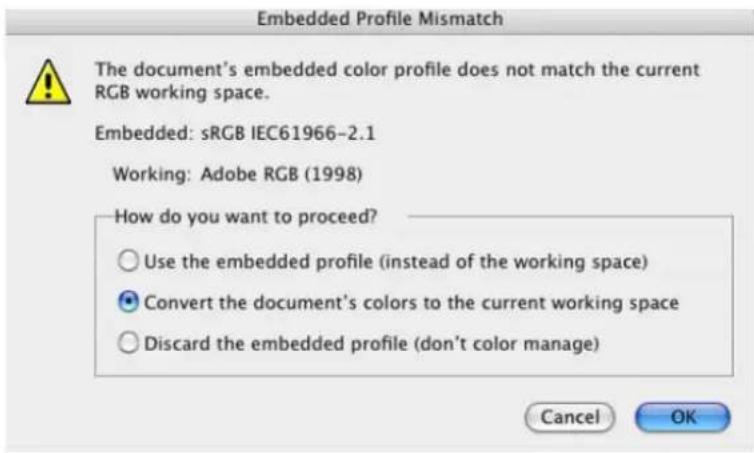
- If the document has an embedded color profile that does not match the current working space, select Convert document's colors to the current working space. Otherwise, select Assign current working space.
text_image
Embedded Profile Mismatch The document's embedded color profile does not match the current RGB working space. Embedded: sRGB IEC61966-2.1 Working: Adobe RGB (1998) How do you want to proceed? Use the embedded profile (instead of the working space) Convert the document's colors to the current working space Discard the embedded profile (don't color manage) Cancel OK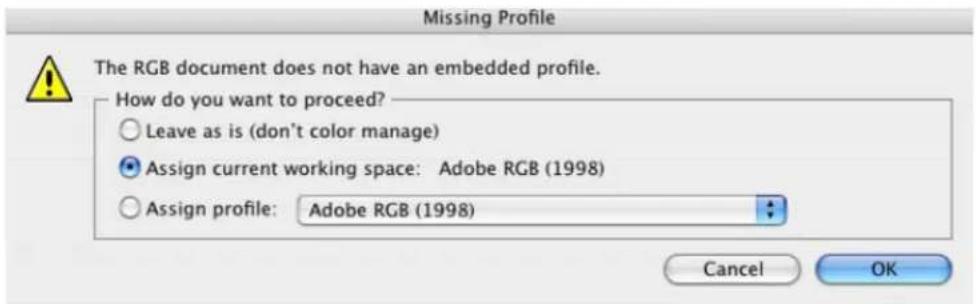
text_image
Missing Profile The RGB document does not have an embedded profile. How do you want to proceed? Leave as is (don't color manage) Assign current working space: Adobe RGB (1998) Assign profile: Adobe RGB (1998) Cancel OK- Click OK.
- If you place an image, you can embed the image in the document. If it has an embedded profile, it will be converted from the embedded color profile to the document color profile preserving the color appearance. If it doesn't have an embedded color profile, Illustrator will assign the document color profile.
- File menu > Place...: browse the image and uncheck the Link checkbox. If you are asked How do you want to treat the data?, select Convert.

text_image
Paste Profile Mismatch The source data's color profile does not match the destination document's color profile. Source: sRGB IEC61966-2.1 Destination: Adobe RGB (1998) How do you want to treat the data? Convert (preserve color appearance) Don't Convert (preserve color numbers) Cancel OK- Click OK.
-
Make sure you have configured the Document Setup appropriately for your document, File menu > Document Setup...
-
Driver Settings, File menu > Print...:
• Printer: Select the printer (ex. EFI Designer Edition).
• Page Setup...:
- Format for: Select the printer.
o Paper Size: Select the paper size of the media loaded on the printer. - Orientation: Select the orientation of your image on the paper.
- Click OK.
- Printer... button:
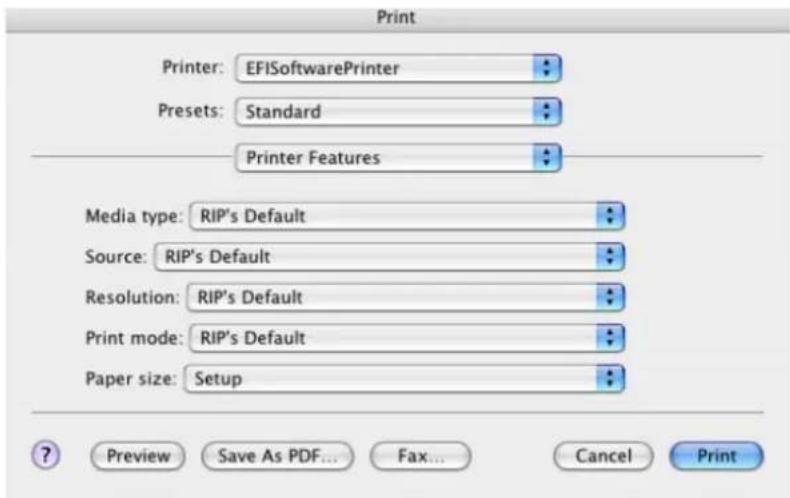
- Printer Features (Mac OS X v10.3):
- Paper Size: Setup.
- Select RIP's Default on the others settings.
text_image
Print Printer: EFISoftwarePrinter Presets: Standard Printer Features Media type: RIP's Default Source: RIP's Default Resolution: RIP's Default Print mode: RIP's Default Paper size: Setup Preview Save As PDF... Fax... Cancel Print- Click Print.
- Adobe Illustrator Print... settings:
- General (left hand menu):
o Media > Size: Defined by Driver.
- Options: Select the scaling option you need.
• Output (left hand menu):
o Mode: Composite.
• Color Management (left hand menu):
- Print Space > Profile: PostScript Color Management
- Print Space > Intent: Perceptual (for RGB images) or Relative Colorimetric (for CMYK images).

text_image
Print Print Preset: Custom Printer: EFISoftwarePrinter PPD: Default (EFI Software Printer) General Setup Marks & Bleed Output Graphics Color Management Advanced Summary Color Management Source Space sRGB IEC61966-2.1 Print Space Profile: PostScript® Color Management Intent: Perceptual Page Setup... Printer... Save Preset... Cancel Print Done- Click Print.
For more information on HP Designjet products
www.hp.com/go/designjet
© 2005 Hewlett-Packard Development Company, L.P. The information contained herein is subject to change without notice. The only warranties for HP products and services are set forth in the express warranty statements accompanying such products and services. Nothing herein should be construed as constituting an additional warranty. HP shall not be liable for technical or editorial errors or omissions contained herein.
Adobe Photoshop and PostScript are trademarks of Adobe Systems Incorporated. PANTONE is Pantone, Inc.'s check-standard trademark for color.
Rev. 1.0, 09/2005