GCS922 - KVM switch IOGEAR - Free user manual and instructions
Find the device manual for free GCS922 IOGEAR in PDF.


User questions about GCS922 IOGEAR
0 question about this device. Answer the ones you know or ask your own.
Ask a new question about this device
Download the instructions for your KVM switch in PDF format for free! Find your manual GCS922 - IOGEAR and take your electronic device back in hand. On this page are published all the documents necessary for the use of your device. GCS922 by IOGEAR.
USER MANUAL GCS922 IOGEAR
2-Port USB DVI KVM Switch
GCS922U
PART NO. Q1268-a
Package Contents
1 x GCS922U 2-Port USB DVI KVM Switch
1 x Quick Start Guide
1 x Warranty Card
Requirements
Console:
- 1 DVI display
• 1 set of USB keyboard and mouse
Computers
- 1 DVI-D Port
- 1 USB Port
Operating Systems
- Windows® 2000, Windows Vista®, Windows® 7, Windows® 8, 8.1
- Mac OS 9 to 10.x
- Oracle®Solaris
- Linux®
Overview
- Port LEDs
- Console Ports
- Mini USB Power Jack
-
Remote Port Selector
-
USB Keyboard and Mouse Connectors
- DVI Connectors

text_image
GIOEAR 1 2 3 4 5 62
Hardware Installation
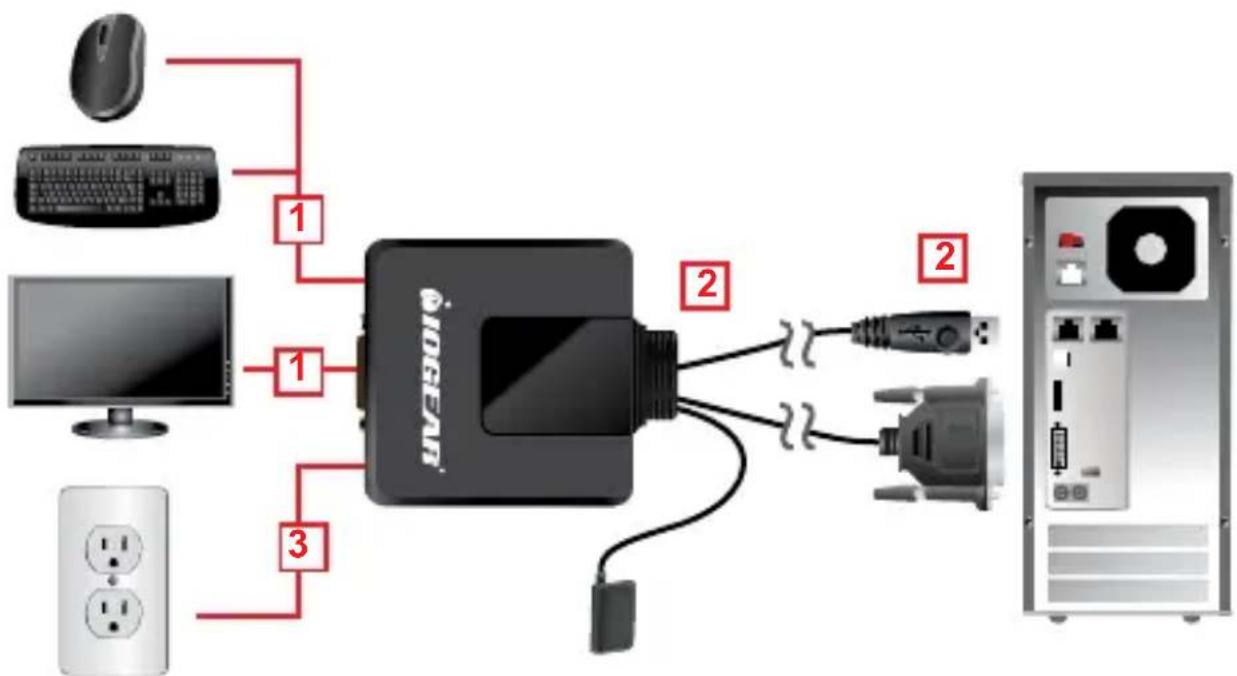
- Plug your USB keyboard, USB mouse and DVI monitor into their respective ports on the GCS922U.
Note: The USB mouse port can be used for USB peripheral sharing. To do so, plug the peripherals and your mouse into a USB hub, then plug the hub into the mouse port.
- Plug the USB and DVI connectors of the attached KVM cables into their respective ports on the computers you are installing.
Note: If there is only one USB port on the computer, you can connect a USB hub to the computer, and then plug the Keyboard/Mouse cable into the USB hub.
- (Optional) If the power supply to your attached USB peripheral(s) is not sufficient, plug in the USB to Mini USB cable* in the power jack to get power from another USB power source (i.e. PC, USB hub, 5V USB power adapter).
*Note: The USB to mini USB cable is not included.
flowchart
graph TD
    A["Computer"] -->|1| B["USB drive"]
    C["Windows"] -->|1| B
    D["Power outlet"] -->|3| B
    E["Mac"] -->|2| B
    F["Switch"] -->|2| B
    B --> G["Port 1"]
    B --> H["Port 2"]
Operation
4
- Power on your computers one at a time, letting each one boot completely, once you finish connecting them to the KVM switch.
- Press the remote button to switch between the two computers.
FCC Statement
This product has been tested and found to comply with the limits for a Class A digital device, pursuant to Part 15 of the FCC Rules. These limits are designed to provide reasonable protection against harmful interference when the equipment is operated in a commercial environment. This product generates, uses, and can radiate radio frequency energy. If this product is not installed and used as directed it may cause harmful interference to radio communications. Operating this product in a residential area will likely cause harmful interference which will require correction by the user at his/her personal expense.
CE Compliance
This device has been tested and found to comply with the following European Union directives: Electromagnetic Capability (2004/108/EC), Low Voltage (2006/95/EC) and R&TTED (1999/5/EC).
Limited Warranty
WE'RE HERE TO HELP YOU!
NEED ASSISTANCE SETTING UP THIS PRODUCT?
Make sure you:
- Visit www.iogear.com for more product information
- Visit www.iogear.com/support for live help and product support
Warranty Information
This product carries a 3 Year Limited Warranty. For the terms and conditions of this warranty, please go to http://www.iogear.com/support/warranty
Register online at http://www.iogear.com/register
Important Product Information
Product Model ____
Serial Number ____
Contact
iogear.custhelp.com
support@iogear.com
www.iogear.com