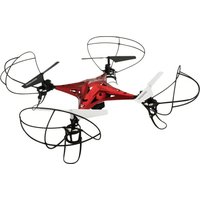
DRW637 - Drone GPX - Free user manual and instructions
Find the device manual for free DRW637 GPX in PDF.


| Product Type | Drone (Quadcopter with WiFi Camera) |
| Brand | GPX |
| Model | DRW637 |
| Material | Lightweight alloy housing |
| Camera Resolution | 480p (real-time) / 720p (recorded) |
| Camera Angle | Adjustable |
| Control Distance | Up to 260 feet (80 meters) |
| Flight Time | 5-7 minutes per battery |
| Charging Time | 90 minutes |
| Battery | 2 rechargeable lithium polymer batteries (included) |
| Remote Control | 2.4 GHz, requires 4 AA batteries (not included) |
| Gyroscope | 6-axis |
| Flight Modes | Auto-hover, 360 flips & tricks, 3 speed settings, headless mode |
| App Compatibility | Sky Rider Drones (iOS/Android) |
| Additional Features | LED navigation lights, Wi-Fi FPV, VR mode, intuitive mode (phone gyro control) |
| Included Accessories | 4 replacement rotors, smartphone cradle, screwdriver, AC/DC power adapter, user guide |
| Warranty | 30-day limited warranty |
Frequently Asked Questions - DRW637 GPX
User questions about DRW637 GPX
0 question about this device. Answer the ones you know or ask your own.
Ask a new question about this device
Download the instructions for your Drone in PDF format for free! Find your manual DRW637 - GPX and take your electronic device back in hand. On this page are published all the documents necessary for the use of your device. DRW637 by GPX.
USER MANUAL DRW637 GPX
natural_image
Black-and-white photo of a quadcopter drone with extended propellers and a central body (no text or symbols visible)METAL ALLOY DRONE
QUADCOPTER WITH WIFI CAMERA
USER'S GUIDE FOR MODEL DRW637 V1734-01
Warnings & Precautions
Important Safety Instructions
- Read and follow all instructions.
- Keep these instructions for future reference.
- Heed all Warnings.
- Intended for children ages 14 and higher. Adult supervision is required.
- Only use attachments/accessories specified by the manufacturer.
- Before flying, always check the body, rotors, and battery for any damage or obstructions.
- Battery should be free from cracks or swelling.
- Keep the rotors clear of any obstructions and body parts to avoid potential damage and injury.
- Manufacturer and dealer assume no liability for accidental damages from improper use or installation of parts, or from damage incurred from worn or broken parts.
- Pilots are responsible for their actions and any damage caused from improper use.
- Pilots should keep the craft in sight at all times during flight. If you lose sight of the craft at any time, power down and cease flight immediately.
- Only fly in large, open areas that are free from obstacles or potential hazards, such as trees, power lines, ceiling fans, and the like.
- Flying over bodies of water is not recommended.
- Flying at night is not recommended.
- Never try to retrieve the craft from areas you cannot safely reach, such as rooftops or trees.
- Never launch the craft from your hand.
- Never leave the craft unattended while it is powered on or while the battery is charging.
FCC Warnings
Warning: Changes or modifications to this unit not expressly approved by the party responsible for compliance could void the user's authority to operate the equipment.
NOTE: This equipment has been tested and found to comply with the limits for a Class B digital device, pursuant to Part 15 of the FCC Rules. These limits are designed to provide reasonable protection against harmful interference in a residential installation. This equipment generates, uses, and can radiate radio frequency energy and, if not installed and used in accordance with the instructions, may cause harmful interference to radio communications. However, there is no guarantee that interference will not occur in a particular installation. If this equipment does cause harmful interference to radio or television reception, which can be determined by turning the equipment off and on, the user is encouraged to try to correct the interference by one or more of the following measures:
- Reorient or relocate the receiving antenna.
- Increase the separation between the equipment and receiver.
- Connect the equipment into an outlet on a circuit different from that to which the receiver is connected.
- Consult the dealer or an experienced radio/TV technician for help.
Additional Warnings & Precautions
- WARNING: To reduce the risk of fire or electric shock, do not expose this apparatus to rain, moisture, dripping, or splashing.
- CAUTION: Use of controls or adjustments or performance of procedures other than those specified may result in personal injury.
- WARNING: Changes or modifications to this unit not expressly approved by the party responsible for compliance could void the user's authority to operate the equipment.
- CAUTION: Danger of explosion if battery is incorrectly replaced. Replace only with the same or equivalent type.
- Lithium batteries, like all rechargeable batteries, are recyclable and should be recycled or disposed of according to state and local guidelines. They should never be disposed of in normal household waste, and they should never be incinerated, as they might explode. Contact your local government for disposal or recycling practices in your area.
- WARNING: Shock hazard - Do Not Open.
- Battery shall not be exposed to excessive heat such as sunshine, fire, or the like. Keep new and used batteries away from children. If the battery compartment does not close securely, stop using the product and keep it away from children.
- If you think batteries might have been swallowed or placed inside any part of the body, seek immediate medical attention.
- Do not mix old and new batteries.
- Completely replace all old batteries with new ones.
- Do not mix alkaline, standard (carbon-zinc), or rechargeable (ni-cad, ni-mh, etc) batteries.
- Batteries should be recycled or disposed of as per state and local guidelines.
- WARNING: This product may contain chemicals known to the State of California to cause birth defects, or other reproductive harm (California Prop 65). Wash hands after handling.
- This product meets and complies with all Federal regulations.
Table of Contents
Table of Contents - 3
Metal Alloy Drone - 4
Features
Includes
Auto-Hover Feature - 5
Safety Notice
Emergency Stop
Overview - 6
Craft Layout & Features
Remote Control
Batteries & Charging - 8
Battery Charging Procedure
Remote Control Battery Installation
Flying - 10
Craft/Remote Link
Trim Adjustment - 12
Setting Trim & Countering Drift
Flying Tips & Features - 14
Tips for Safe Operation
Speed Setting
Flips & Tricks
Headless Mode
Wi-Fi Flight - 16
Sky Rider Drones App
Start Screen - 17
Settings Screen - 18
Flight Screen - 19
Intuitive Mode
Smartphone Cradle - 20
Virtual Reality Mode - 21
Camera & Memory Card - 22
Camera Function Without SD Card
Camera Function with SD Card
SD Card Install & Removal
Camera Angle Adjustment
Repair - 23
Parts Replacement
Rotor Replacement
Troubleshooting - 24
Customer Support - 25
Contact Information
International Support
Warranty
Metal Alloy Drone
FEATURES
• Lightweight alloy housing
- Auto-Hover
- 360^ flips & tricks
- 6-axis gyroscope
- Adjustable angle Wi-Fi camera
• Camera resolution: 480p/720p
- 3 speeds
• Control distance: up to 260 feet
• LED navigation lights
• Operating time: 5-7 minutes
- Charge time: 90 minutes
INCLUDES
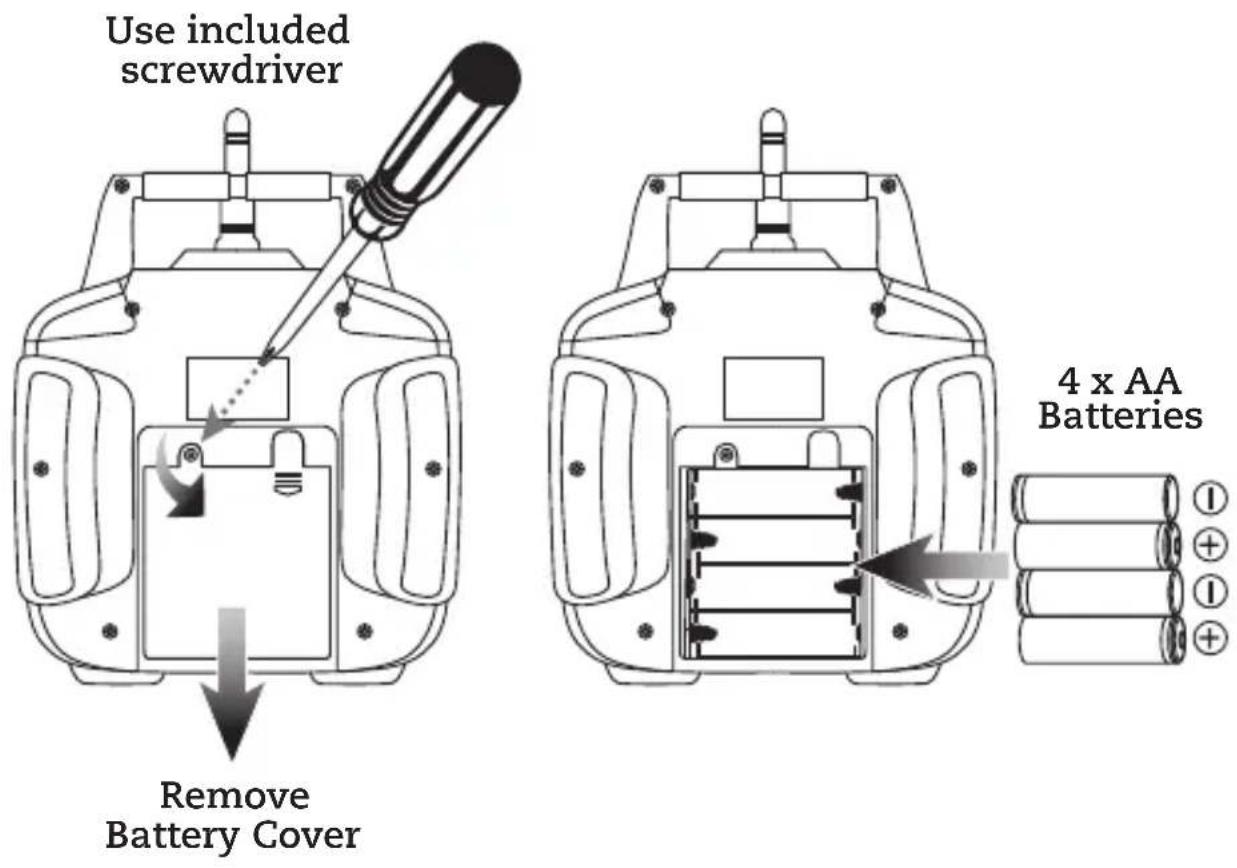
• 2.4 GHz remote control: requires 4 AA batteries (not included)
• 2 rechargeable lithium polymer batteries
- AC/DC power adapter
• 4 replacement rotors
- Detachable smartphone cradle
- Screwdriver
- User's guide and warranty

Auto-Hover Feature
The Metal Alloy Drone automatically hovers at any altitude. Use the Left Control Stick (throttle) to reach the desired altitude and then release. The throttle will return to a neutral position in the middle of its range of motion and the craft will hold that altitude until adjusted again by the user.
Note: The craft may shift in altitude within a range of approximately 8-12 inches.
SAFETY NOTICE
There is a delay of approximately 4-7 seconds between pulling the throttle to the OFF position and the motors actually powering OFF. PULLING DOWN ON THE THROTTLE DOES NOT IMMEDIATELY STOP THE ROTORS FROM SPINNING. You must hold the throttle in the lowest position and wait for the rotors to stop.
This is a normal and necessary operation of the craft, however, extra care must be taken to reduce the risk of injury or damage.
DO NOT POWER OFF THE REMOTE WHILE THE CRAFT IS ON AND THE ROTORS ARE SPINNING. This will not immediately stop the rotors from spinning and you will be unable to otherwise control the craft.
EMERGENCY STOP
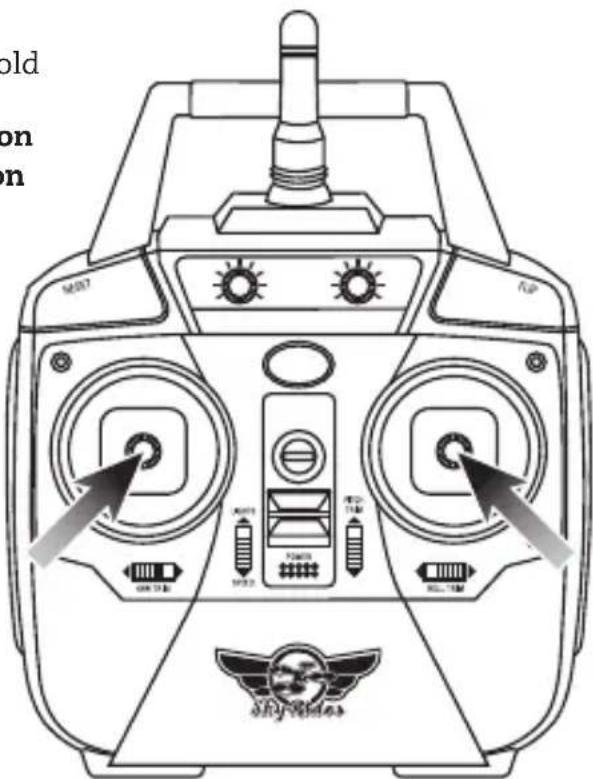
To stop the rotors immediately, push and hold both thumbsticks in the directions shown. It is not recommended to perform this action while the craft is in flight, only while it is on the ground.
Overview
CRAFT LAYOUT & FEATURES

Battery Compartment/Camera
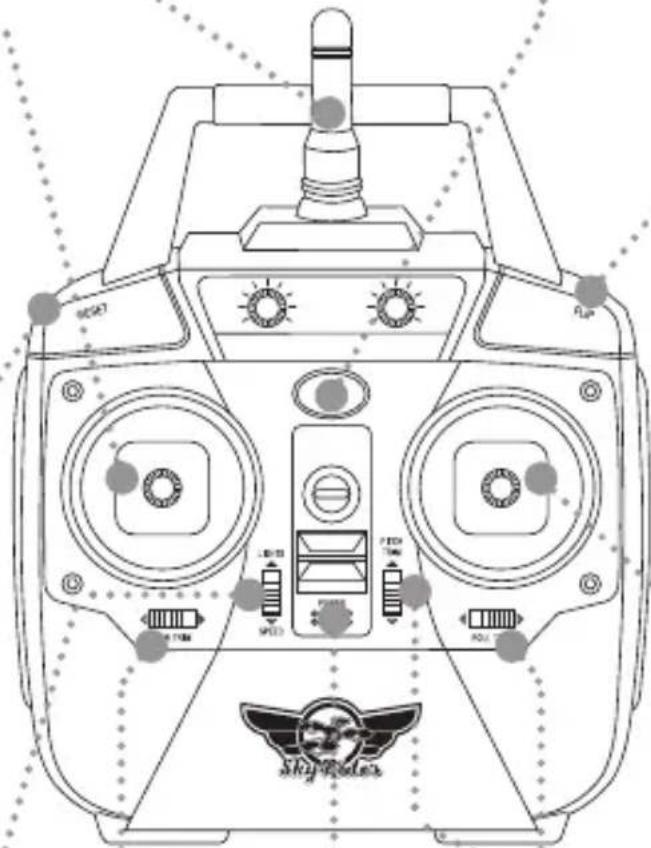
REMOTE CONTROL
Antenna
Left Control Stick
Increase Throttle: push forward
Decrease Throttle: push backward
Yaw/Spin: push left or right
Headless Mode: push down
Reset
Press to reset the craft and remote to factory default settings.
Lights/Speed Setting
Push forward to turn lights ON or OFF.
Push downward to adjust the control speed and sensitivity.
Power/Status Indicator
natural_image
Line drawing of a SkyRadar industrial control device with dual fans and control buttons (no text or symbols)Power Switch
Trim Adjustment
Flip
Press and hold, then push Right Control Stick in any direction to perform a flip.
Right Control Stick
Pitch: push forward/ backward
Roll/Bank: push left/right
Batteries & Charging
BATTERY CHARGING PROCEDURE
Before charging, be sure the craft and remote control are powered OFF. Failure to do so may result in injury.
REMINDER: Do not charge batteries overnight. Do not leave the batteries unattended while charging.
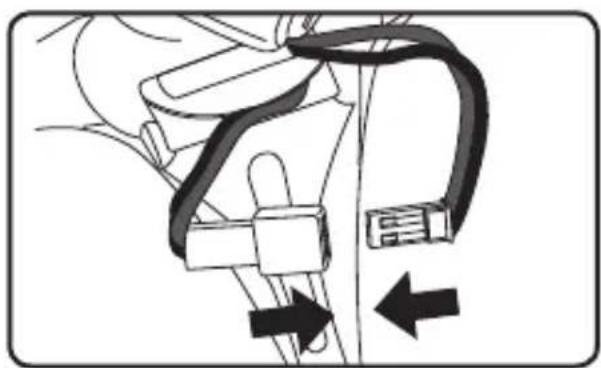
STEP 1
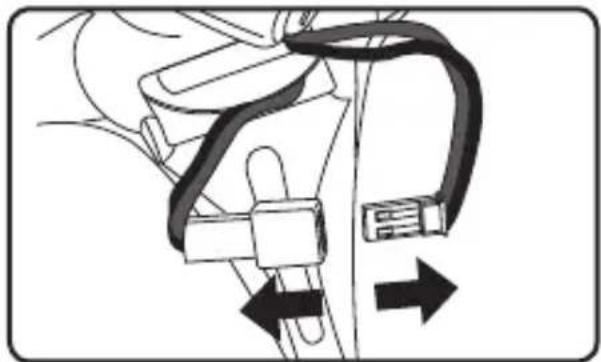
Disconnect the battery from the craft.
natural_image
Diagram of a mechanical clamp or connector with directional arrows indicating movement (no text or symbols)STEP 2
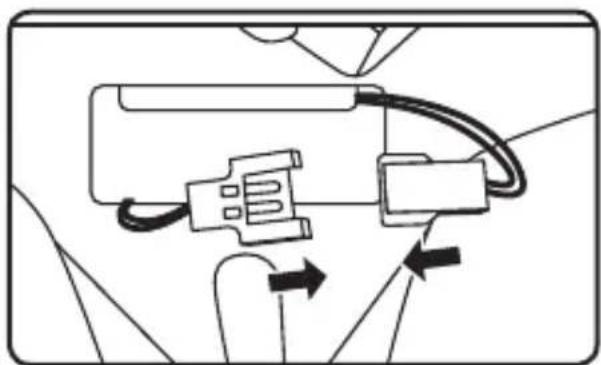
Attach the plug on the battery to the corresponding plug on the USB charging cable (included).
Be sure to match the plugs correctly or damage may occur.

natural_image
Line drawing of hands holding a small electronic component connected to a cable (no text or symbols)STEP 3
Plug the power adapter in to a standard wall outlet and connect it to the included battery charger.
While charging, the power adapter will display a red light.
When charging is complete, the power adapter will display a green light.

STEP 4
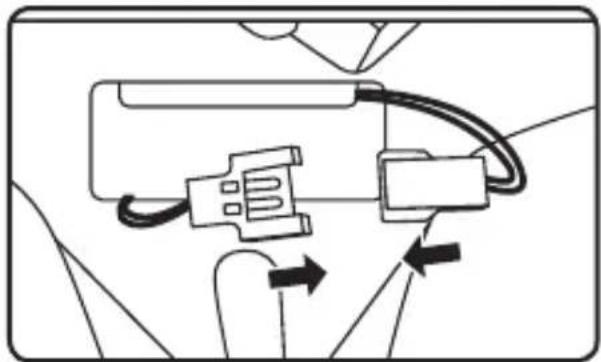
When charging is complete and you are ready to fly, reconnect the battery plug to the power cable on the craft.
The craft automatically powers ON when the plugs are connected.
natural_image
Diagram of a mechanical assembly with two arrows indicating directional movement (no text or symbols)REMOTE CONTROL BATTERY INSTALLATION
Flying
CRAFT/REMOTE LINK
Before flying, the craft and the remote must be linked together and the gyroscopes on the craft must be allowed to calibrate.
Begin with the craft and remote powered OFF.
STEP 1
Power the craft ON by connecting the battery plug to the power cable on the craft. The LED formation lights will blink as the craft searches for a signal from the remote.
natural_image
Diagram of a car's electrical connector with cable and switch (no text or labels)STEP 2
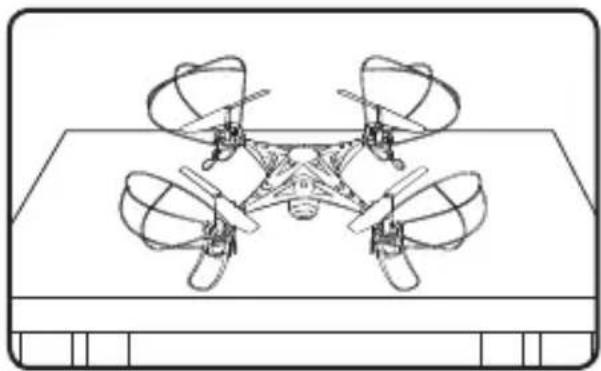
Place the craft on a flat, level surface. This is necessary for the craft's gyroscopes to properly align.
natural_image
Line drawing of a three-bladed drone on a flat surface (no text or symbols)STEP 3
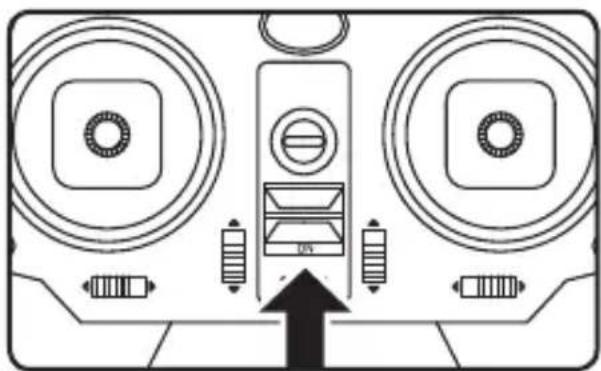
Power the remote control ON. The light on the remote will blink as it searches for the signal from the craft.
An audible chime will sound when the remote and the craft have linked with each other.
natural_image
Diagram of a speaker with two speakers and a central speaker, showing no text or symbolsSTEP 4
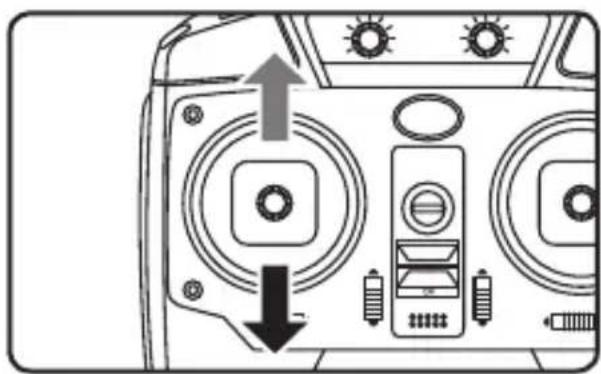
Push the Left Control Stick (throttle) fully forward, wait for a chime to sound, then pull the stick fully backward, and wait for a second chime. When this last chime has sounded, the rotors will automatically begin spinning and you are ready to fly.
natural_image
Front view of a vintage-style electronic device with buttons and dials, showing no text or symbolsSTEP 5
Push the Left Control Stick (throttle) forward to take off. When you release the stick, it will return to the neutral position and the craft should hover in place. Use both thumbsticks to control the craft.

natural_image
Diagram of a mechanical or robotic device with four articulated arms and a central body, shown in perspective view (no text or symbols)WHEN YOU'RE DONE FLYING...
To land and power off, pull down on the Left Control Stick and hold for
approximately 4 seconds or until the rotors have stopped spinning.
After safely landing, keep the Left Control Stick (throttle) in the lowest position (OFF). When the rotors have stopped spinning, power OFF the remote. This will ensure that no signals are accidentally sent to the craft, reducing the chance of injury. After this is done, it is safe to pick up and power OFF the craft.
REMINDER:
With the Auto-Hover feature, pulling down on the throttle does not immediately stop the rotors from spinning. You must hold the throttle in the lowest position and wait for the rotors to stop.
To stop the rotors immediately, push both control sticks up and inwards. It is not recommended to perform this action while the craft is in flight, only while it is on the ground.
Trim Adjustment
SETTING TRIM & COUNTERING DRIFT
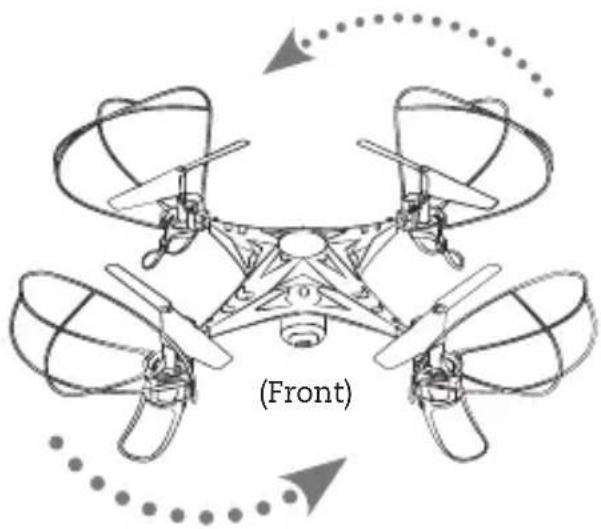
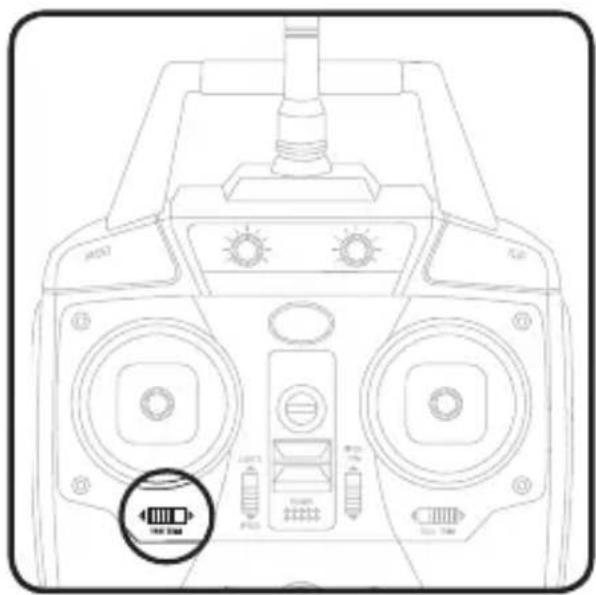
Even after the craft is calibrated, it may show a tendency to drift while airborne. Adjusting the trim will help counter this effect and allow you to better control the craft. To avoid potential damage, adjust the trim while attempting a stable hover. Try to avoid making any exaggerated movements with the flight controls. Adjust one trim setting at a time to avoid confusion.
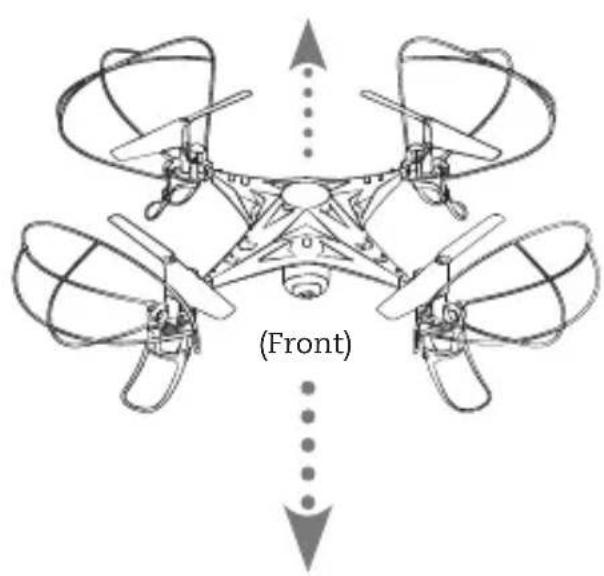
Remember, the white rotors and blue/white LED lights indicate the front of the craft.
Adjusting the trim will help with drift but it will not entirely eliminate it. Turbulence and other environmental conditions may still act on the craft to influence its direction and flight.
Craft yaws/spins to the left or right.
natural_image
Diagram of a four-bladed drone with propellers and a labeled front (front view), showing no text or symbols beyond the label.Adjust Yaw Trim.
natural_image
Line drawing of a control panel with buttons and indicator lights (no text or symbols)Craft pitches/angles forward or backward.
natural_image
Diagram of a four-bladed drone with propellers and directional arrows, labeled (Front), showing no text or symbols beyond the label.Adjust Pitch Trim.

natural_image
Line drawing of a vintage portable radio with dual speakers and control buttons (no text or symbols)Craft banks/rolls to the left or right.

natural_image
Two identical line drawings of a multi-rotor drone with propellers and control panels, shown in top and bottom views with directional arrows (no text or symbols)Adjust Roll Trim.

natural_image
Line drawing of a control panel with buttons and dials, no text or symbols presentFlying Tips & Features
- It is recommended to only fly in large, open spaces that are free of obstacles like power lines, trees, ceiling fans, etc.
- When flying indoors, avoid walls and ceilings, as the craft will be drawn towards them if closer than 2 to 3 feet.
- Stand behind the craft when first taking off, so that you and the craft are facing the same “forward” direction. This will make it easier to know which direction the unit is flying.
- Remember that the white propellers and white LED navigation lights indicate the front of the craft.
- Novice pilots should move the controls slowly and deliberately to get used to the craft's flying characteristics. Try using one control at a time.
- Practice basic flight operations like take off, hovering, and landing.
- If you crash, throttle down the engines IMMEDIATELY to reduce the chance of damage or injury. See Auto-Hover information on pg. 5 for details.
- If anything obstructs the propellers for any reason, throttle down IMMEDIATELY and safely clear the obstruction. Check for possible damage before flying again. See Auto-Hover information on pg. 5 for details.
SPEED SETTING
The craft has three settings for the responsiveness of the flight controls. Press the Speed Setting button once to set the desired speed.
- Low: Gives smooth and predictable control. The remote will chime once to indicate the speed.
- Medium: The craft will move and respond faster to all control inputs. The remote will chime twice to indicate the speed.
- High: Highest setting for maximum performance. The remote will chime three times to indicate the speed.
FLIPS & TRICKS
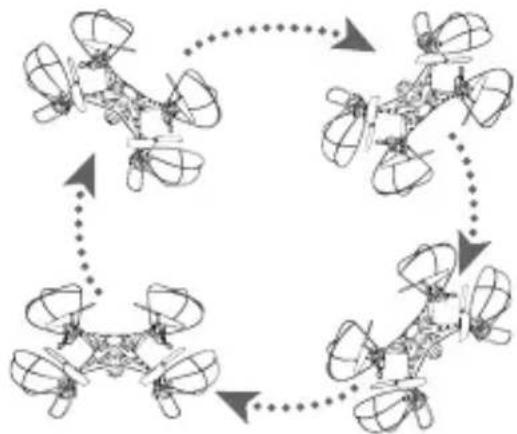
Before attempting any stunts, be sure that there is ample clear space around the craft, ideally 9 to 10 ft. in every direction. It is not recommended to attempt to stunt around or through any obstacles, as this may result in unintended damage.

natural_image
Front view of a portable electronic device with control knobs and indicator lights (no text or symbols visible)Press and hold the Flip button, then move the Right Control Stick in any direction.
flowchart
graph TD
    A["Top: Top-Left"] --> B["Top-Right"]
    B --> C["Top-Left"]
    C --> D["Bottom-Right"]
    D --> E["Bottom-Left"]
    E --> A
    style A fill:#f9f,stroke:#333
    style B fill:#f9f,stroke:#333
    style C fill:#f9f,stroke:#333
    style D fill:#f9f,stroke:#333
    style E fill:#f9f,stroke:#333
Craft will perform flip in the desired direction.
HEADLESS MODE
Headless Mode disables the default orientation of the craft, where the blue/white LEDs indicate the front of the craft. Instead, the craft will reorient its “front” based on the first Right Control Stick input from the user. This can be useful if you become disoriented while flying, or cannot visually determine which direction is “true front”.
To activate Headless Mode, press down (into the body of the remote control) on the Left Control Stick. Press again to deactivate Headless Mode. The remote will beep to indicate when Headless Mode is active or inactive.
Wi-Fi Flight
SKY RIDER DRONES APP
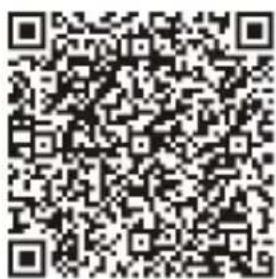
You can fly the craft using a Wi-Fi linked smartphone and the free Sky Rider Drones app. Scan the appropriate QR code to download the app. The app can also be found on the Apple App Store or Google Play Store by searching "Sky Rider Drones".
NOTE: Wi-Fi control may be interrupted if the flying area is experiencing interference from other nearby 2.4G equipment. Move to another area and try again.

IOS/iPhone (Apple)
Google Play (Android)
STEP 1
Power the craft ON by connecting the battery plug to the power cable on the craft. The LED formation lights will blink as the craft searches for a signal from the remote.
natural_image
Diagram of a vehicle's internal components with arrows indicating movement or force (no text or symbols)STEP 2
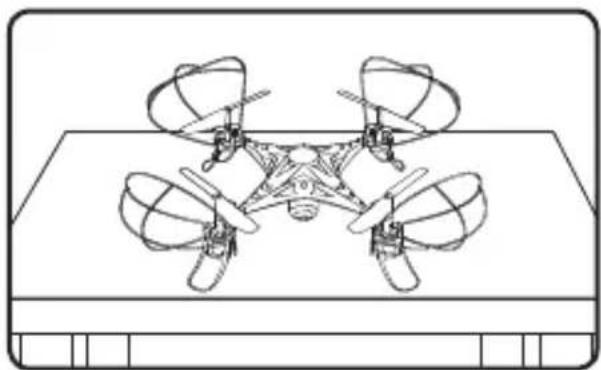
Place the craft on a flat, level surface. This is necessary for the craft's gyroscopes to properly align.
natural_image
Line drawing of a three-bladed drone on a flat surface (no text or symbols)Start Screen
STEP 3
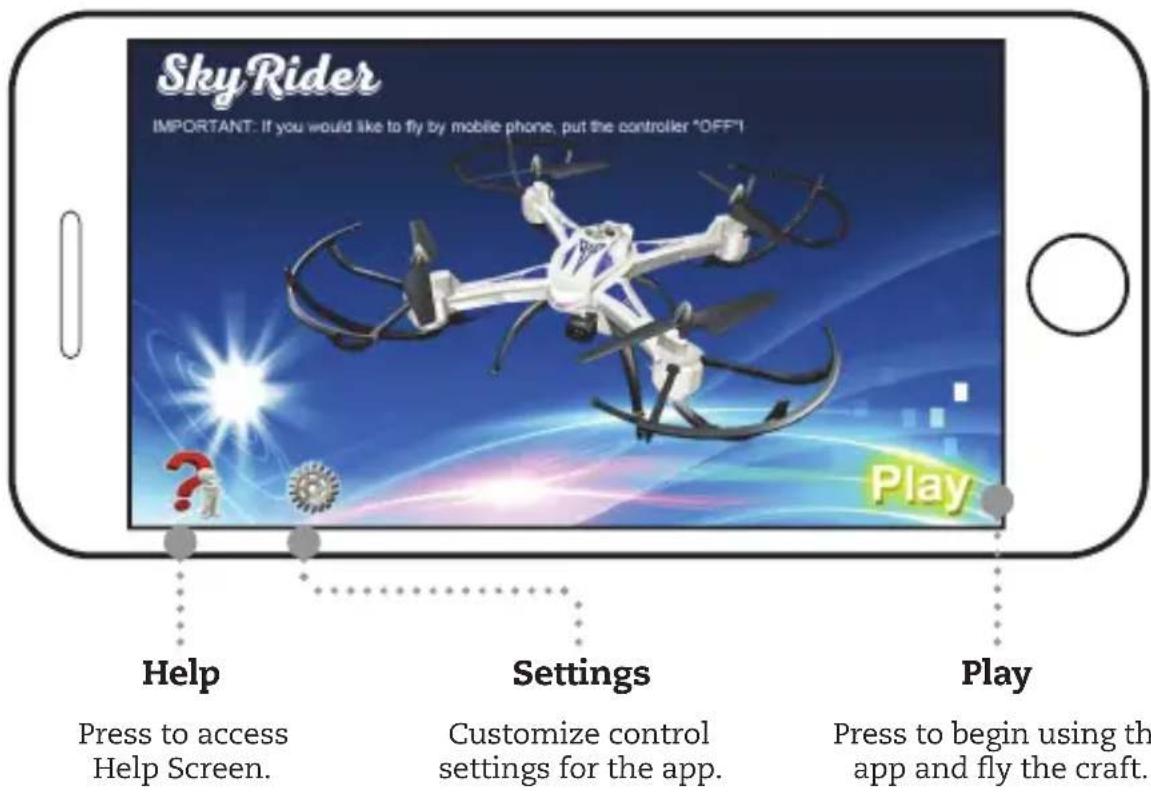
Open your phone's Wi-Fi settings and activate Wi-Fi, then search for and select Sky Rider from the Wi-Fi networks menu.
Once connected, open the app and click on the Play or Start icons to begin flying.
When Wi-Fi mode is active, you can save video and images directly to your phone.
Settings Screen
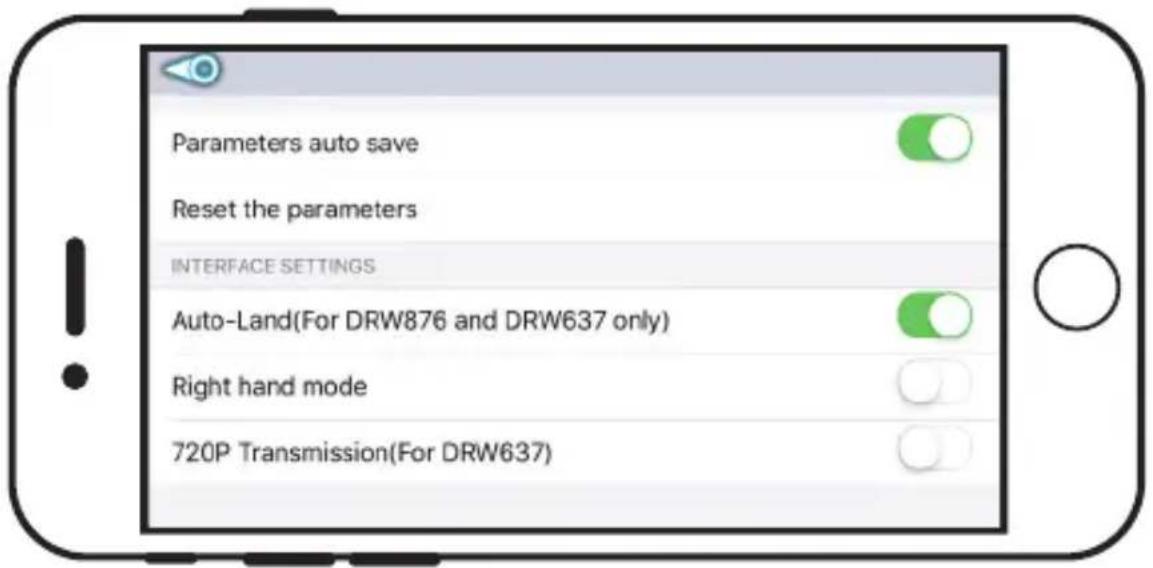
PARAMETERS AUTO SAVE
Trim settings adjusted in the app will be saved for future flights.
RESET THE PARAMETERS
Reset trim settings.
AUTO-LAND
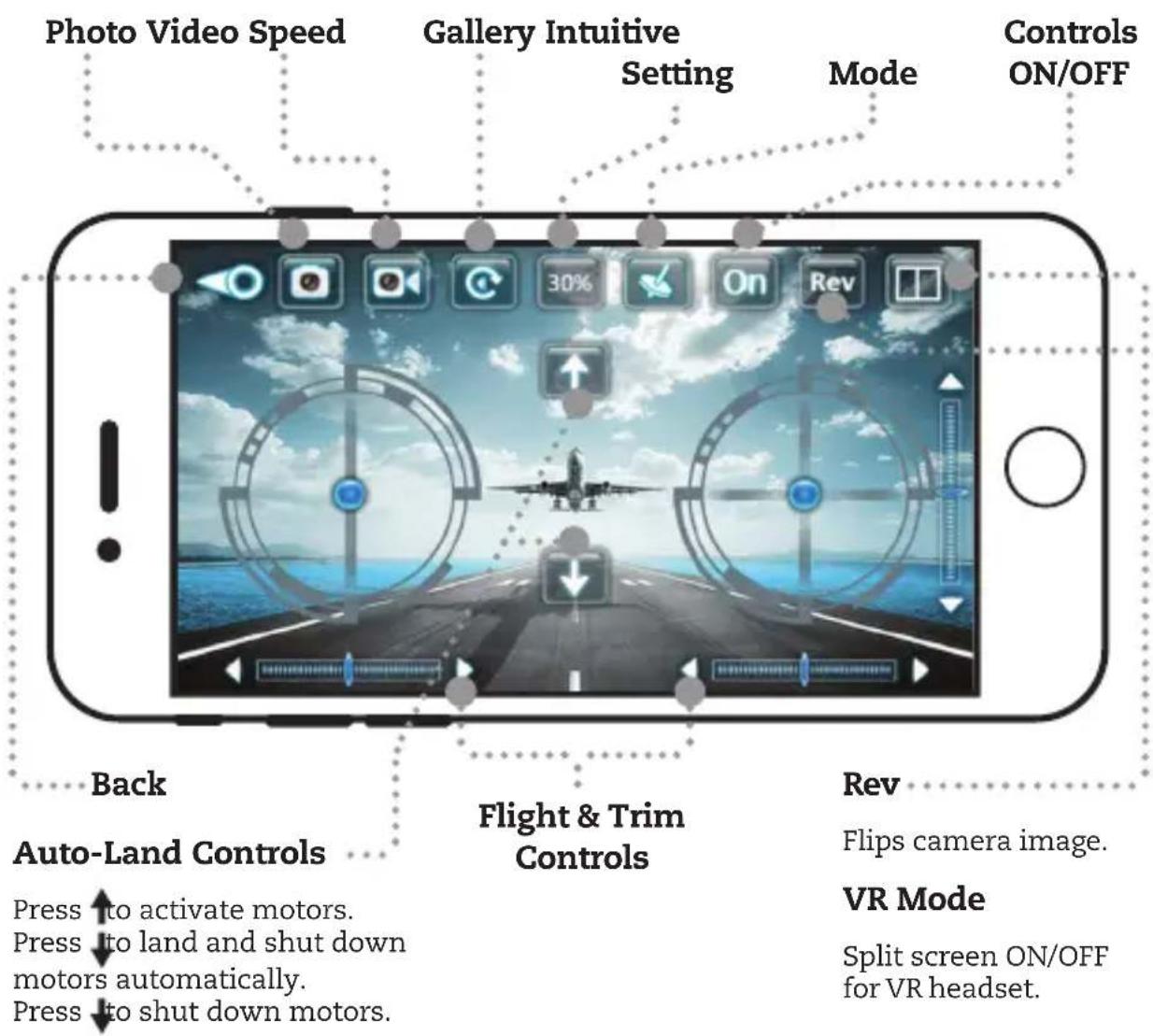
Due to the Auto-Hover feature, this setting must be activated prior to operating the craft from the app. See Auto-Land controls on the following page.
RIGHT HAND MODE
Reverses the locations of the Left and Right flight controls on the screen.
720P TRANSMISSION
Changes real-time display resolution in the app from 480p to higher quality 720p. Real-time transmission in 720p may be slower due to the greater amount of data being transmitted. Transmission is faster when using 480p. Transmission may be problematic in areas experiencing Wi-Fi interference.
Flight Screen
INTUITIVE MODE
This mode uses the gyroscopes in your phone to control the craft. Tilt the phone forward, back, left and right to control the pitch and roll of the craft. Throttle and yaw are still manually controlled from the Left Control Stick on the phone's screen.
Smartphone Cradle
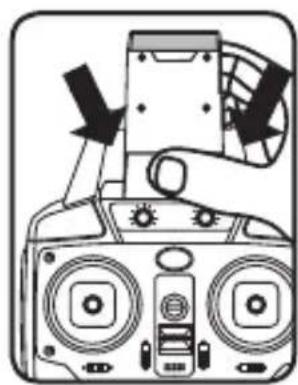
You can use your smartphone and the remote control together by attaching the included smartphone cradle to the top of the remote. This can be useful for photography and video, or for flying the craft just by watching the screen.

natural_image
Diagram showing a device with a downward arrow and a mechanical component (no text or symbols)Step 1
Slide the cradle into position on the remote antenna and handle.
natural_image
Diagram of a portable electronic device with front panels and buttons, no text or symbols presentStep 2
Gently press on the cradle until it locks into place.

natural_image
Diagram of a mechanical device with two ports and directional arrows indicating movement (no text or symbols)Step 3
Pull upwards on the top of the cradle so that it will fit your smartphone.

natural_image
Line drawing of a handheld device with front-mounted speakers and a tablet (no text or symbols)Step 4
Place your phone in the cradle and release the top portion. Your phone should sit firmly in place.

natural_image
Illustration of a hand turning a valve with an arrow indicating clockwise motion (no text or symbols)Removal
Gently pull the cradle off of the remote in a twisting motion, as shown above.
Virtual Reality Mode
VR Mode splits the phone's screen for use in a VR headset. Press the VR button on the screen to turn this feature ON or OFF. Use VR Mode to give a friend a fully immersive, point-of-view flying adventure.
NOTE:
- We do not recommend flying the craft while wearing a headset. The craft's camera has a limited forward view and the user's peripheral vision and situational awareness will be entirely obscured by the headset.
- On screen flight controls are locked out in VR Mode. You must have the regular remote connected in order to fly the craft.
- Images and video captured in VR Mode are not saved with the split screen view.
- USERS ASSUME ALL RISK AND ARE RESPONSIBLE FOR ANY DAMAGE CAUSED BY IMPROPER USE.

Camera & Memory Card
Use the camera controls in the Sky Rider app to save images and video directly to your phone. A Micro-SD memory card (not included) may be installed in the camera for additional storage options. Maximum card size is 32GB.
CAMERA FUNCTION WITHOUT SD CARD
Images and video will be saved to the connected smartphone.
- Select 720p Transmission (see pg.18) to save video at 720p resolution.
- Select 480p Transmission to save video at 480p resolution.
- Images are saved at 720p resolution, regardless of the Transmission Setting.
CAMERA FUNCTION WITH SD CARD
Images and videos will be saved to the connected SD card.
- Images and videos are both saved at 720p resolution, regardless of the Transmission Setting.
• Videos may be downloaded to a connected smartphone via the Sky Rider app.
SD CARD INSTALL & REMOVAL

natural_image
Diagram of a car's seatbelt mechanism with no text or symbolsGently push against the Micro-SD card until it clicks into or out of the card slot. Be sure to insert correctly or damage may occur.
CAMERA ANGLE ADJUSTMENT

natural_image
Three-step diagram showing a vehicle's internal components before and after assembly, with no visible text or symbols.Repair
REMINDER: Pilots are responsible for any damage caused by improper use.
PARTS REPLACEMENT
Standard parts such as extra batteries and remotes are available online for purchase when in stock. However, any non-standard parts such as cameras, screws, bodies, SD cards etc. can be ordered by placing an inquiry with our parts department at: partsinfo@dpiinc.com.
ROTOR REPLACEMENT
The craft comes with 4 replacement rotors, to be used if the originals are lost, broken or badly damaged.
Use a small Phillips head screwdriver (included) to remove and replace the center screw connecting the rotor to the motor shaft.
It is extremely important to use the correct rotor, A or B, for replacement.
The marking can be seen on the underside of the rotor near the shaft. Using the incorrect rotor will make the craft impossible to control.

Troubleshooting
If you are experiencing problems using or flying the craft, consult this table.
| PROBLEM POSSIBLE CAUSES SOLUTION | ||
| Craft does not respond to controls. | No power to remote or craft.Poor contact between power plugs.Craft is out of range. | Check remote batteries, replace if needed.Check craft battery, be sure it is fully charged.Be sure the power plugs are firmly connected.Be sure the remote has an unobstructed line of sight to the craft.Remain within the remote's 260 ft. range. |
| Craft is difficult to control or flies erratically. | Gyroscopes may be misaligned. | Power OFF, recalibrate remote and craft (see pg. 10). |
| Craft drifts while in flight. | Trim not set or needs adjustment. | Adjust trim settings (see pg. 12). |
| Craft suffers from mechanical trouble. | Damage to body, rotors or other major components. | Repair or replace parts as needed. |
| LED lights ON but craft does not respond to controls. | Low battery power. Recharge the battery. | |
Customer Support
CONTACT INFORMATION
Website: www.gpx.com
Email Support: prodinfo@dpiinc.com
Email Parts: partsinfo@dpiinc.com
Phone Support: 1-888-999-4215
WARRANTY
See included 30 Day Warranty for warranty information. Warranty and the most up-to-date version of this User's Guide can also be found at: http://gpx.com/drw637.html
INTERNATIONAL SUPPORT
To download this User's Guide in English, Spanish, and French, or to get answers to frequently asked questions, visit the support section at: www.gpx.com
Protect for Today Sustain for Tomorrow
Copyright © 2016 Digital Products International (DPI, Inc.) All other trademarks appearing herein are the property of their respective owners. Specifications are subject to change without notice.


- METAL ALLOY DRONE
- Warnings & Precautions
- Important Safety Instructions
- FCC Warnings
- Additional Warnings & Precautions
- Table of Contents
- Table of Contents - 3
- Metal Alloy Drone - 4
- Auto-Hover Feature - 5
- Overview - 6
- Batteries & Charging - 8
- Flying - 10
- Trim Adjustment - 12
- Flying Tips & Features - 14
- Wi-Fi Flight - 16
- Start Screen - 17
- Settings Screen - 18
- Flight Screen - 19
- Smartphone Cradle - 20
- Virtual Reality Mode - 21
- Camera & Memory Card - 22
- Repair - 23
- Troubleshooting - 24
- Customer Support - 25
- FEATURES
- INCLUDES
- Auto-Hover Feature
- SAFETY NOTICE
- EMERGENCY STOP
- Overview
- CRAFT LAYOUT & FEATURES
- REMOTE CONTROL
- Antenna
- Left Control Stick
- Reset
- Lights/Speed Setting
- Power/Status Indicator
- Flip
- Right Control Stick
- Batteries & Charging
- BATTERY CHARGING PROCEDURE
- STEP 1
- STEP 2
- STEP 3
- STEP 4
- REMOTE CONTROL BATTERY INSTALLATION
- Flying
- CRAFT/REMOTE LINK
- STEP 5
- WHEN YOU'RE DONE FLYING...
- REMINDER:
- Trim Adjustment
- SETTING TRIM & COUNTERING DRIFT
- Flying Tips & Features
- SPEED SETTING
- FLIPS & TRICKS
- HEADLESS MODE
- Wi-Fi Flight
- SKY RIDER DRONES APP
- Start Screen
- Settings Screen
- PARAMETERS AUTO SAVE
- RESET THE PARAMETERS
- AUTO-LAND
- RIGHT HAND MODE
- 720P TRANSMISSION
- Flight Screen
- INTUITIVE MODE
- Smartphone Cradle
- Virtual Reality Mode
- NOTE:
- Camera & Memory Card
- CAMERA FUNCTION WITHOUT SD CARD
- CAMERA FUNCTION WITH SD CARD
- SD CARD INSTALL & REMOVAL
- CAMERA ANGLE ADJUSTMENT
- Repair
- PARTS REPLACEMENT
- ROTOR REPLACEMENT
- Troubleshooting
- Customer Support
- CONTACT INFORMATION
- WARRANTY
- INTERNATIONAL SUPPORT
Brand : GPX
Model : DRW637
Category : Drone