
LRE-101C - Unknown Planet - Free user manual and instructions
Find the device manual for free LRE-101C Planet in PDF.


| Product Type | 1-Port 10/100TX over Coaxial Long Reach Ethernet Extender |
| Model | LRE-101C |
| Dimensions (W x D x H) | 94 x 70.3 x 26.2 mm (3.70 x 2.77 x 1.03 in) |
| Weight | 194 g (6.84 oz) |
| Power Requirements | 5V DC, 2A external power adapter |
| Ethernet Interface | 1 x 10/100BASE-TX RJ45 with auto-negotiation and auto-MDI/MDI-X |
| Long Reach Interface | 1 x BNC female for coaxial cable (75 ohm RG-6/U or RG-59/U) |
| Coaxial Cable Distance | Up to 2000 m (6561 ft) with data transmission |
| Ethernet Cable Distance | Up to 100 m (328 ft) with Cat5e UTP |
| Data Rate (at 200m) | 94/94 Mbps (Upstream/Downstream) |
| Modulation | Wavelet-OFDM |
| Security | 128-bit AES encryption |
| Operating Modes | DIP switch selectable Master or Slave |
| LED Indicators | Power (Green), LAN LNK/ACT (Green), Long Reach LNK (Green), Master (Green) |
| Housing | Metal |
| Standards Compliance | IEEE 802.3/802.3u, IEEE 802.3x, IEEE 802.1q, IEEE 1901 |
| Regulatory Compliance | FCC Part 15 Class A, CE |
| Operating Temperature | 0°C ~ 50°C (32°F ~ 122°F) |
| Storage Temperature | -10°C ~ 70°C (14°F ~ 158°F) |
| Operating Humidity | 5% ~ 95% (non-condensing) |
| Mounting Options | Wall-mount, optional DIN-rail kit (RKE-DIN), or 10/19-inch chassis |
| Package Contents | LRE-101C unit, DC 5V/2A power adapter, user manual |
Frequently Asked Questions - LRE-101C Planet
User questions about LRE-101C Planet
0 question about this device. Answer the ones you know or ask your own.
Ask a new question about this device
Download the instructions for your Unknown in PDF format for free! Find your manual LRE-101C - Planet and take your electronic device back in hand. On this page are published all the documents necessary for the use of your device. LRE-101C by Planet.
USER MANUAL LRE-101C Planet
1-Port 10/100TX over Coaxial
Long Reach Ethernet Extender
LRE-101C
User's Manual
Trademarks
Copyright © PLANET Technology Corp. 2022.
Contents are subject to revision without prior notice.
PLANET is a registered trademark of PLANET Technology Corp.
All other trademarks belong to their respective owners.
Disclaimer
PLANET Technology does not warrant that the hardware will work properly in all environments and applications, and makes no warranty and representation, either implied or expressed, with respect to the quality, performance, merchantability, or fitness for a particular purpose.
PLANET has made every effort to ensure that this User's Manual is accurate; PLANET disclaims liability for any inaccuracies or omissions that may have occurred.
Information in this User's Manual is subject to change without notice and does not represent a commitment on the part of PLANET. PLANET assumes no responsibility for any inaccuracies that may be contained in this User's Manual. PLANET makes no commitment to update or keep current the information in this User's Manual, and reserves the right to make improvements to this User's Manual and/or to the products described in this User's Manual, at any time without notice.
If you find information in this manual that is incorrect, misleading, or incomplete, we would appreciate your comments and suggestions.
FCC Statement
NOTE: This equipment has been tested and found to comply with the limits for a Class A digital device, pursuant to part 15 of the FCC Rules. These limits are designed to provide reasonable protection against harmful interference when the equipment is operated in a commercial environment. This equipment generates, uses, and can radiate radio frequency energy and, if not installed and used in accordance with the instruction manual, may cause harmful interference to radio communications. Operation of this equipment in a residential area is likely to cause harmful interference in which case the user will be required to correct the interference at his own expense.
ISEDC Statement
CAN ICES-003(A) / NMB-003(A)
This device complies with Industry Canada license-exempt RSS standard(s).
Operation is subject to the following two conditions: (1) this device may not cause interference, and (2) this device must accept any interference, including interference that may cause undesired operation of the device.
This device is compliant with Class A of CISPR 32. In a residential environment this equipment may cause radio interference.
Energy Saving Note of the Device
This power required device does not support Standby mode operation. For energy saving, please remove the power cable to disconnect the device from the power circuit. Without removing power cable, the device will still consume power from the power source. In view of Saving the Energy and reducing the unnecessary power consumption, it is strongly suggested to remove the power connection for the device if this device is not intended to be active.
WEEE Warning
To avoid the potential effects on the environment and human health as a result of the presence of hazardous substances in electrical and electronic equipment, end users of electrical and electronic equipment should understand the meaning of the crossed-out wheeled bin symbol. Do not dispose of WEEE as unsorted municipal waste and have to collect such WEEE separately.
Revision
PLANET Gigabit Ethernet over Coaxial Converter User's Manual
Model: LRE-101C
Revision: 1.0 (Sep. 2022)
Part No.: 2350-AA3A30-000
Table of Contents
- Package Contents...... 5
- Hardware Introduction....6
2.1 Physical Dimensions....6
2.2 Front View 7
2.3 Rear View 8
2.4 Power Information 9 - Product Specifications....10
- Installations....12
4.1 Wall-mount Installation ..... 12
4.2 Chassis Installation and Rack Mounting....13
4.3 Optional DIN-rail Installation....14 - Applications ....15
5.1 Point-to-Point Application -- LAN to LAN Connection....15
5.2 LRE-101C Point to Multi-point Application (IP surveillance) 16 - Performance Table....17
- Troubleshooting....18
- FAQs....19
- Customer Support....20
1. Package Contents
Thank you for purchasing PLANET LRE-101C 1-Port 10/100TX over Coaxial Long Reach Ethernet Extender. In the following sections, the term "EoC Converter" means the LRE-101C.
Open the box of the EoC Converter and carefully unpack it. The box should contain the following items:
LRE-101C DC 5V/2A Power Adapter
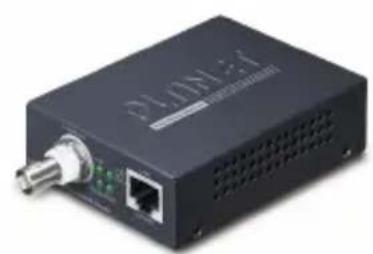

If any of these are missing or damaged, please contact your dealer immediately; if possible, retain the carton including the original packing material, and use them again to repack the product in case there is a need to return it to us for repair.
2. Hardware Introduction
2.1 Physical Dimensions
Dimensions (W x D x H): 94 x 70.3 x 26.2mm

Unit: mm
2.2 Front View
■ LRE-101C Front Panel
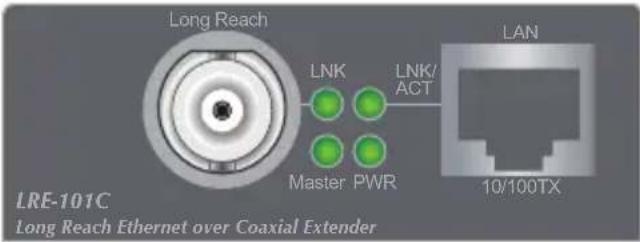
10/100TX RJ45 connector
▶ BNC female connector for Long Reach
▶ LEDs for power, Ethernet and Long Reach
■ LRE-101C LED Indicators
The rich diagnostic LEDs on the front panel can provide the operating status of individual port and whole system.
System
| LED Color | Function |
| PWR Green | Lit: Indicates that the EoC Converter has power. |
| Off: Indicates that the EoC Converter has no power. |
Long Reach Ethernet interface
| LED Color | Function |
| LNK Green | Lit: Indicates that theLong Reach Ethernetlink is established. |
| Off: Indicates that the port is link-down. |
10/100BASE-TX Port
| LED Color | Function | |
| LNK/ACT | Green | Lit: Indicates the link through TP port is successfully established. |
| Blink: Indicates the TP port is actively sending or receiving data. | ||
| Off: Indicates that the TP port is link-down. | ||
DIP Switch Setting
In the PtMP setting, it can be one master and more than one slave with BNC T connector.
| LED Color | Function |
| Master Green | Lit: Indicates that the LRE-101C is functioned as a Master. |
| Off: Indicates that the LRE-101C is functioned as a Slave. |
2.3 Rear View
■ LRE-101C Rear Panel

DIP switch: Master/Slave mode selectable
▶ DC jack (DC input) for power adapter
DIP Switch
The EoC Converter provides a selectable 2-position DIP switch. When switching to "Master", it supports PtMP, meaning it can be one master and more than one slave with BNC T connector.
| DIP | Function |
| Master The LRE-101C is functioned as a Master. | |
| Slave The LRE-101C is functioned as a Slave. | |

Note
By default, the 2-position DIP switch is set in the "Master" position and is operated as "CO". To operate, slide the DIP 1 switch to the "Slave" position. Just slide it to whatever position you prefer to fulfill your application requirement.
2.4 Power Information
The LRE-101C requires 5V DC, 2A power input, which conforms to the bundled AC adapter. Should you have the issue of power connection, contact your local sales representative.

2.5mm
DC Receptacle 2.5mm
+5V for each slot

DC receptacle is 2.5mm wide that conforms to the EoC Converter
2.5mm DC jack's central post. Do not install any improper unit.

Note
In some areas, installing a surge suppression device may also help to protect your EoC Converter from being damaged by unregulated surge or current to the EoC Converter or the power adapter.
3. Product Specifications
| Product LRE-101C | |||
| Hardware Specifications | |||
| LAN Ethernet interface | 1 10/100BASE-TX RJ45 Copper port, auto-negotiation/auto-MDI/MDI-X | ||
| Cabling Cat5e UTP or above | |||
| Maximum Distance | 100 meters | ||
| Maximum Frame Size | 1522 bytes | ||
| Long Reach Interface | 1 BNC female Ethernet over Coaxial | ||
| Cabling | Coaxial cable: 75 ohm RG-6/U cable, less than 12Ω/1000 ft RG-59/U cable, less than 30Ω/1000 ft | ||
| Maximum Distance | Max. 2000 with data transmission (6,561ft.) | ||
| Long Reach Ethernet Standard | IEEE 1901 | ||
| Modulation Type | Wavelet-OFDM | ||
| Security 128-bit | AES encryption | ||
| Frequency Band | 2~28MHz | ||
| Performance* | Distance | Data Rate (Upstream/Downstream) | |
| 200m 94/94Mbps | |||
| 600m 94/94Mbps | |||
| 800m 88/87Mbps | |||
| 1000m 76/73Mbps | |||
| 1200m 61/58Mbps | |||
| 1400m 45/43Mbps | |||
| Long Reach Interface Performance* | 1600m 35/33Mbps | ||
| 1800m 34/23Mbps | |||
| 2000m 3/8Mbps | |||
| Functionality DIP Switch Select Master or Slave mode | |||
| Dimensions(W x D x H) | 97 x 70.3 x 26 mm | ||
| Weight 194g | |||
| Housing Metal | |||
| Power Requirement 5V DC, 2A external power | |||
| LED Indicators | Power: GreenLAN: Green, 10/100Mbps LNK/ACTLong Reach: Green, LNKMaster: Green | ||
| Standards Conformance | |||
| Standards Compliance | IEEE 802.3/802.3u Ethernet standard compliantIEEE 802.3x Full-duplex flow controlIEEE 802.1q Tag VLAN Transparent, Multicast pass-through | ||
| Regulatory Compliance FCC Part 15 Class A, CE | |||
| Environment | |||
| Temperature | Operating: 0~50 degrees CStorage: -10~70 degrees C | ||
| Humidity | Operating: 5~95% (non-condensing)Storage: 5~95% (non-condensing) | ||
* The actual data rate will vary in the quality of the coaxial cables and environmental factors.
4. Installations
4.1 Wall-mount Installation
Step 1: Find a suitable wall to mount the LRE-101C.
Step 2: Screw two screws on the wall.

Step 3: Hang the LRE-101C on the screws from the wall.
Step 4: Repeat Chapter 2.4 Power Information on power supply to the LRE-101C.


Note
Before mounting the device to the wall, please check the location of the electrical outlet and the length of the Ethernet cable.
4.2 Chassis Installation and Rack Mounting
To install the EoC Converter in a 10-inch or 19-inch Converter Chassis with standard rack, follow the instructions described below.
Step 1: Place your LRE-101C on a hard flat surface, with the front panel positioned towards your front side.
Step 2: Carefully slide in the module until it is fully and firmly fitted into the slot of the converter chassis.
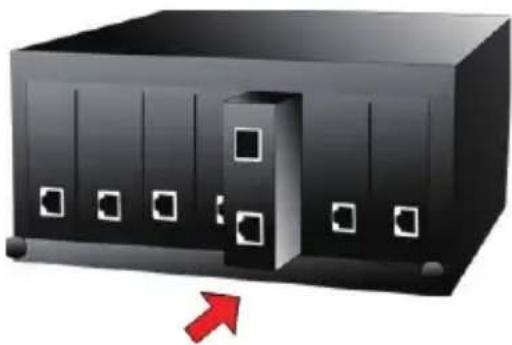
Step 3: Attach a rack-mount bracket to each side of the Converter Chassis with supplied screws attached to the package.
Step 4: After the brackets are attached to the Converter Chassis, use suitable screws to securely attach the brackets to the rack.
Step 5: Proceed with Step 4 and Step 5 of the 4.1 Installation section to connect the network cabling and supply power to your Converter Chassis.

Caution
You must use the screws supplied with the mounting brackets. Damage caused to the parts by using incorrect screws would invalidate your warranty.
4.3 Optional DIN-rail Installation
There are two DIN-rail holes on the left side of the LRE-101C that allows to be easily installed by DIN-rail mounting. PLANET optional DIN-rail mounting kit - RKE-DIN -- can be ordered separately. Refer to the following steps for the DIN-rail mounting of the LRE-101C:
Step 1: Screw the DIN rail on the LRE-101C.

Step 2: Now slide the DIN rail into the track.

Step 3: Check whether the DIN rail is tightly on the track.


You must use the screws supplied with the mounting brackets. Damage caused to the parts by using incorrect screws would invalidate your warranty.
5. Applications
The EoC Converter does not require any software configuration. Users can immediately use any feature of this product simply by attaching the cables and turning the power on. There are some key limitations on the EoC Converter. Please check the following items.
5.1 Point-to-Point Application -- LAN to LAN Connection
One set of the EoC Converter could be used to link two local area networks that are located in different places. Through the coaxial cable, it could set up a 100Mbps backbone, but one EoC Converter must be Master (CO mode) and the other one is Slave (CPE mode).
![graph LR A["Switch"] --> B["LRE-101C Master"] C["5V DC adapter"] --> B B --> D["Ethernet over Coaxial"] D --> E["PLAMET"] F["PC"] --> E G["5V DC adapter"] --> E H["Up to 2000m"] --> I["Point to Point Application"]](/content/2026/06/1225137/images/cfc582a0dd50343a5c0403e78fe983746d2b481d718645a1168ae0b63db5c639.jpg)
Connecting Standalone PC
Refer to the following procedures to set up the LRE-101C LAN to LAN connection.
- [LAN1] Set the LRE-101C in LAN 1 to be in the Master mode from the DIP switch.
- [LAN2] Set the LRE-101C in LAN 2 to be in the Slave mode from the DIP switch.
- Power on the LRE-101C Master and Slave at both sides by connecting its power source.
- Master or Slave LED will illuminate correspondingly.
- Connect coaxial cable from LAN1 LRE-101C to BNC port of the LAN2 LRE-101C.
- LNK LED will blink to illuminate at both LRE-101C units.
- Connect the LRE-101C Ethernet LAN port to other network device via regular Cat5e UTP cable.
5.2 LRE-101C Point to Multi-point Application (IP surveillance)
![graph TD A["Switch"] -->|Video| B["NVR"] B -->|Video| C["Monitor"] C --> D["LRE-101C Master"] D --> E["5V DC adapter"] E --> F["BNC Tee Connector"] F --> G["5V DC adapter"] G --> H["IP Camera"] H --> I["PLANET Slave"] I --> J["5V DC adapter"] J --> K["PLANET Slave"] K --> L["IP Camera"] L --> M["PLA…](/content/2026/06/1225137/images/3c36c150bcd490a6ede10bace3ecc4fff546ddea36b25ef12a01f0270ba8f0fa.jpg)
Building an IP surveillance system
Refer to the following procedure to set up an IP surveillance system with many pairs of the LRE-101C:
- Set the LRE-101C to be in the Master or Slave mode from the DIP switch on the rear panel.
- Power on the LRE-101C by connecting its power source.
- Power LED will illuminate.
- Connect coaxial cable to the Long Reach ports of two LRE-101C units.
- LNK LED will illuminate and blink.
- Connect Ethernet port to IP cameras via regular Cat. 5, 5e or 6 cable.
- Install the NVR and monitor and connect to one Ethernet switch.
- You can get data transmissions from all IP cameras.
6. Performance Table
■ LRE-101C Upstream/Downstream Performance
| Distance (meter)Coaxial | (Upstream/Downstream)Unit: Mbps | |
| 200 94 94 | ||
| 500 94 94 | ||
| 600 94 94 | ||
| 800 88 87 | ||
| 1000 76 73 | ||
| 1200 61 58 | ||
| 1400 45 43 | ||
| 1600 35 33 | ||
| 1800 34 23 | ||
| 2000 3 8 | ||
*** The actual data rate will vary in the quality of the coaxial cables and environmental factors.
7. Troubleshooting
SYMPTOM:
LNK LED does not light up after wire is connected to the Long Reach port.
CHECKPOINT:
Please note you must use one LRE-101C in Master mode and the other LRE-101C in Slave mode to make connection to each other work
SYMPTOM:
TP LED does not light after cable is connected to the port.
CHECKPOINT:
- Verify you are using the Cat5e or better cable with RJ45 connector to connect to the port.
- If your device (like LAN card) supports auto-negotiation, please try to manually set at a fixed speed of your device to solve this issue.
- The LRE-101C and the connected device's power are on or not.
- The port's cable is firmly seated in its connectors in the switch and in the associated device.
- The connecting cable is good and with the correct type.
- The connecting device, including any network adapter, is functional.
8. FAQs
Q1: What is the best distance for LRE-101C?
A1: In order to guarantee the stability and better quality of network, we suggest the distance should not exceed 700m (Cat.5 UTP) and 1200m (Phone wire).
9. Customer Support
Thank you for purchasing PLANET products. You can browse our online FAQ resource and User's Manual on PLANET Web site first to check if it could solve your issue. If you need more support information, please contact PLANET switch support team.
PLANET online FAQs:
https://www.planet.com.tw/en/support/faq
Switch support team mail address:
Copyright © PLANET Technology Corp. 2022.
Contents are subject to revision without prior notice.
PLANET is a registered trademark of PLANET Technology Corp.
All other trademarks belong to their respective owners.
- 1-PORT 10/100TX OVER COAXIAL
- LONG REACH ETHERNET EXTENDER
- TRADEMARKS
- DISCLAIMER
- FCC STATEMENT
- ISEDC STATEMENT
- ENERGY SAVING NOTE OF THE DEVICE
- WEEE WARNING
- REVISION
- TABLE OF CONTENTS
- PACKAGE CONTENTS
- HARDWARE INTRODUCTION
- 2.1 PHYSICAL DIMENSIONS
- 2.2 FRONT VIEW
- LRE-101C FRONT PANEL
- LRE-101C LED INDICATORS
- DIP SWITCH SETTING
- 2.3 REAR VIEW
- LRE-101C REAR PANEL
- DIP SWITCH
- 2.4 POWER INFORMATION
- PRODUCT SPECIFICATIONS
- INSTALLATIONS
- 4.1 WALL-MOUNT INSTALLATION
- 4.2 CHASSIS INSTALLATION AND RACK MOUNTING
- 4.3 OPTIONAL DIN-RAIL INSTALLATION
- APPLICATIONS
- 5.1 POINT-TO-POINT APPLICATION -- LAN TO LAN CONNECTION
- CONNECTING STANDALONE PC
- 5.2 LRE-101C POINT TO MULTI-POINT APPLICATION (IP SURVEILLANCE)
- BUILDING AN IP SURVEILLANCE SYSTEM
- PERFORMANCE TABLE
- TROUBLESHOOTING
- SYMPTOM
- CHECKPOINT
- FAQS
- CUSTOMER SUPPORT
Brand : Planet
Model : LRE-101C
Category : Unknown