
H-SPARTAN-2 - Unspecified Thor - Free user manual and instructions
Find the device manual for free H-SPARTAN-2 Thor in PDF.


| Product Type | Video Encoder / Streaming Device |
| Brand | Thor |
| Model | H-SPARTAN-2 |
| Input Interfaces | 2x HDMI, 2 x 3G-SDI |
| Output Interface | 1 x RJ45, 1Gbps IP Streaming |
| Supported Protocols | UDP/RTP (Unicast/Multicast), HLS, RTMP, HTTP |
| Control | LCD with 6 keys & 1 x RJ45 (Web NMS) |
| Video Encoding Format | H.264 AVC/HP@L4.0 |
| Video Input Resolution | 1080 50/60p, 1080 50/60i, 720 50/60p, 480i, 576i |
| Video Output Resolution | Up to 1080 30p |
| Video Bitrate | 2 ~ 14 Mbps (HDMI and SDI) |
| Rate Control | CBR / VBR |
| Chroma Sampling | 4:2:0, 4:2:2 |
| Audio Encoding Format | MPEG-1 Layer 2, AAC |
| Audio Bitrate | 64 ~ 384 Kbps |
| Audio Sample Rate | 44.1 kHz, 48.0 kHz |
| Management | LCD + Control buttons / Ethernet (Web NMS) |
| Firmware Upgrade | Via Ethernet (Web NMS) |
| Power Supply | DC 12V 2A |
| Dimensions (W x D x H) | 220 x 206 x 44 mm |
| Weight | 1000 g |
| Operating Temperature | 5°C - 40°C |
| Operating Humidity | 80% @ 30°C |
| Default IP Address | 192.168.0.168 |
| Default Password | 0000 |
| Maintenance & Cleaning | Use a dry soft cloth. Do not use liquids or sprays. Ensure device is powered off before cleaning. |
| Safety Precautions | Operate within specified temperature and humidity. Avoid exposure to water or excessive dust. Use only the provided power adapter. |
| Spare Parts & Repairability | Contact Thor support for spare parts or repair. Do not attempt internal repairs yourself. |
| General Information | For further tech support: 1-800-521-Thor(8467) or support@thorfiber.com |
Frequently Asked Questions - H-SPARTAN-2 Thor
User questions about H-SPARTAN-2 Thor
0 question about this device. Answer the ones you know or ask your own.
Ask a new question about this device
Download the instructions for your Unspecified in PDF format for free! Find your manual H-SPARTAN-2 - Thor and take your electronic device back in hand. On this page are published all the documents necessary for the use of your device. H-SPARTAN-2 by Thor.
USER MANUAL H-SPARTAN-2 Thor
| Interfaces | |
| Input | 2x HDMI, 2 x 3G-SDI |
| Output | 1 x RJ45, 1Gbps IP Streaming, Protocols: UDP/RTP(Unicast/Multicast)/HLS,RTMP, HTTP |
| Control | LCD with 6 keys & 1 x RJ45 (Web NMS) |
| Video Encoding | |
| Format | H.264 AVC/HP@L4.0 |
| Resolution | Input: 1080 50/60p, 1080 50/60i, 720 50/60p, 480i, 576i Output: up to 1080 30p |
| Bitrate | HDMI: 2~14Mbps SDI: 2~14Mbps |
| Rate Control | CBR/VBR |
| Chroma Sample | 4:2:0, 4:2:2 |
| GOP Structure | IBBP |
| Audio Encoding | |
| Format | Mpeg1L2, AAC |
| Bitrate | 64 ~ 384Kbps |
| Sample Rate | 44.1KHz, 48.0KHz |
| System | |
| Management | LCD + Control buttons/Ethernet |
| Language | English |
| Upgrade | Ethernet |
| General | |
| Power Supply | DC 12V 2A |
| Dimension | 220 x 206 x 44mm |
| Weight | 1000g |
| Environmental For Operating | Temperature: 5°C- 40°C Relative Humidity: 80% @ 30°C |
Application Example - Point to Point
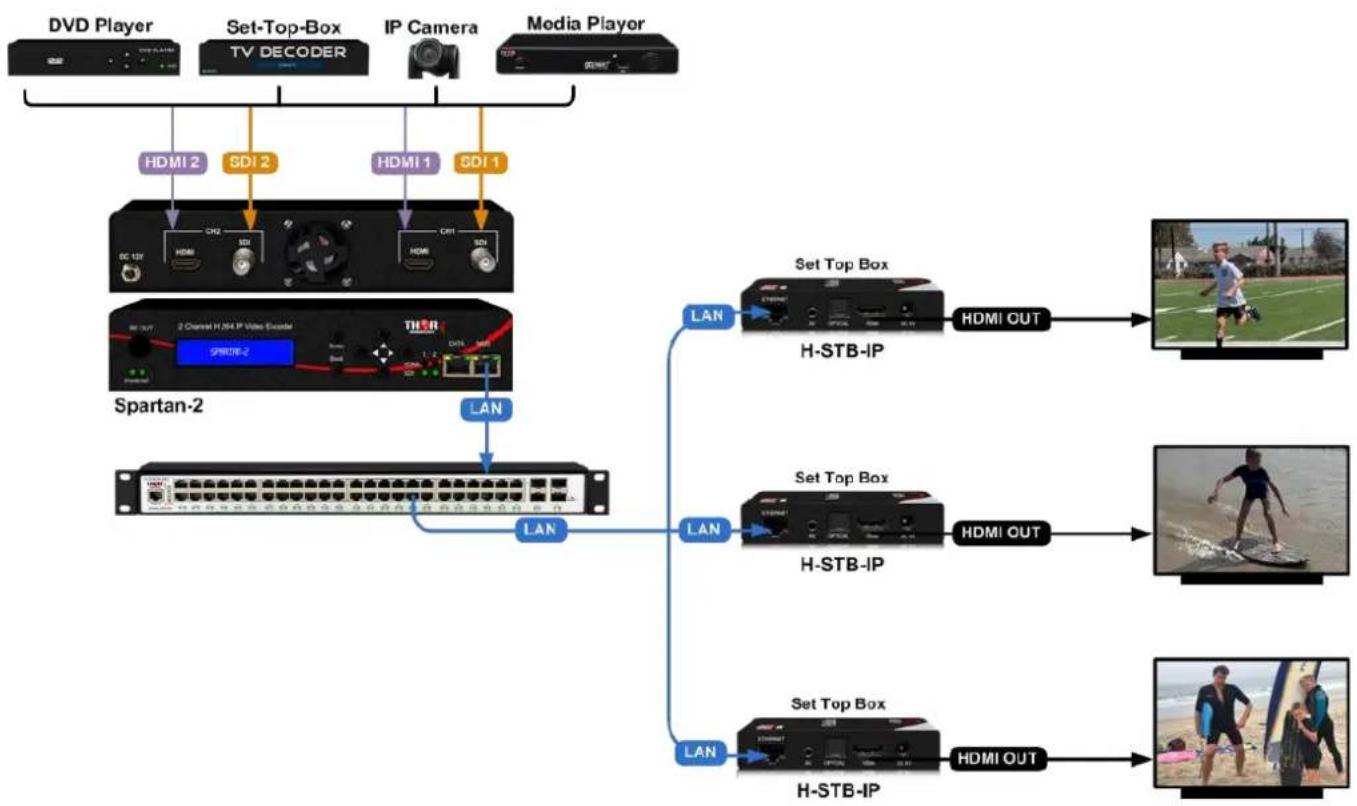
flowchart
graph TD
    A["DVD Player"] -->|HDMI 2| B["Set-Top-Box TV Decoder"]
    B -->|SDI 2| C["IP Camera"]
    C -->|HDMI 1| D["Media Player"]
    D -->|SDI 1| E["Spartan-2"]
    E -->|LAN| F["LAN"]
    F --> G["Set Top Box H-STB-IP"]
    G -->|HDMI OUT| H["Video Player Image"]
    F --> I["Set Top Box H-STB-IP"]
    I -->|HDMI OUT| J["Video Player Image"]
    F --> K["Set Top Box H-STB-IP"]
    K -->|HDMI OUT| L["Video Player Image"]
The device is configured using NMS. Access to the NMS is via the network connection
1. IP Address of Computer Setting
We must choose the static IP address according to the default gateway address. The first three numbers must be the same (192.168.0.x in the example).
System Control> Network Connections> LAN Connection> Properties> Internet Protocol Version 4 TCP/IPv4 > Properties> Use the following IP address:
IP address Computer: 192.168.0.20 and Subnet mask: 255.255.255.0.

2. IP Address of Computer Setting
2.1 Each machine can have different username and password settings.
2.2 Please log in before operation. Default IP is 192.168.0.168; Password: 0000

3. NMS Home Page & Status
Contents of the home page includes: Device Information/Encoder Setup/Streaming Setup/Network/Password/Upgrade/Configuration.
And device's Device Information details are also show on this page. Here you can know the Model Name, Serial Number, Firmware version, Boot Version, Modulator Version, Modulator Mode, MAC Address.

4. Encoder Setup
Use the Setting Setup Page to set the Encoder setup. You can change the program name, or choose the signal source is HDMI or SDI. You can also change the Video Bitrate, Rate Mode, Audio Encoder, Audio Bitrate, PMT PID, Video PID, Audio PID, PCR PID parameters.

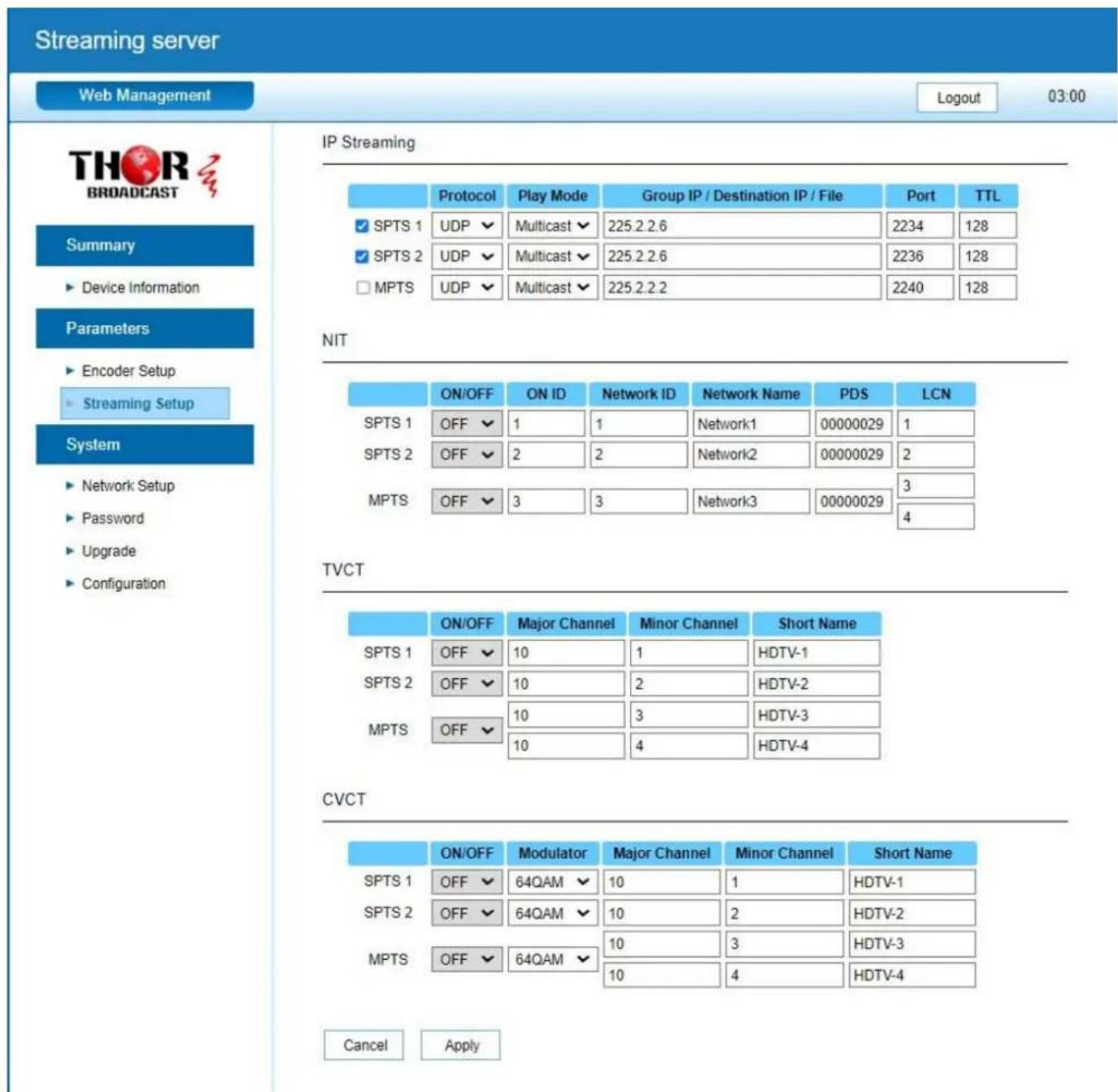
5. Streaming Setup
Use the Streaming Setup Page to setup your required streaming method. You can choose up to 2xSPTS or 1xMPTS. You can choose UDP/RTP (unicast and multicast), UDP/RTP is automatic analysis.
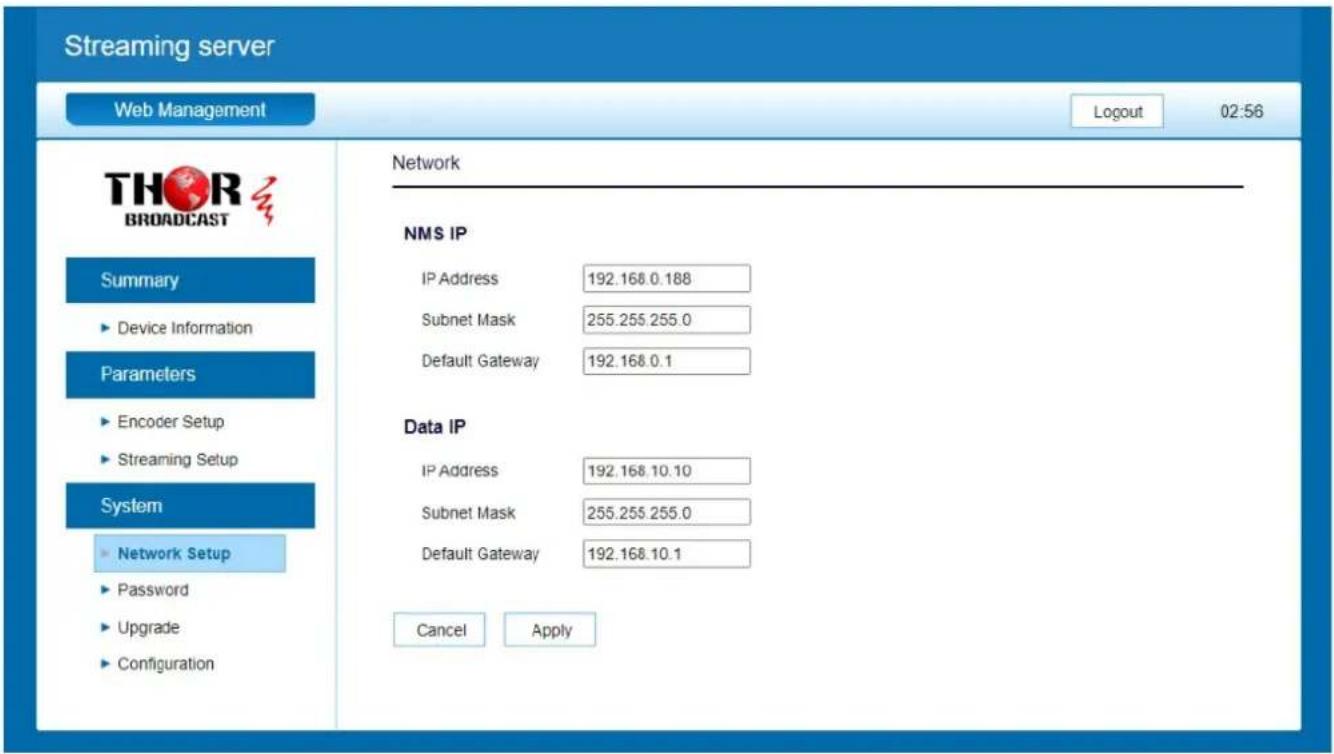
6. Network Setup
The Web Management default setting 192.168.0.168.
7. Password
You can modify the user name and password. In the New password field, enter the new password you want to change, also the same password as the new password to confirm.

8. Upgrade
Use the Upgrade page to update system firmware.

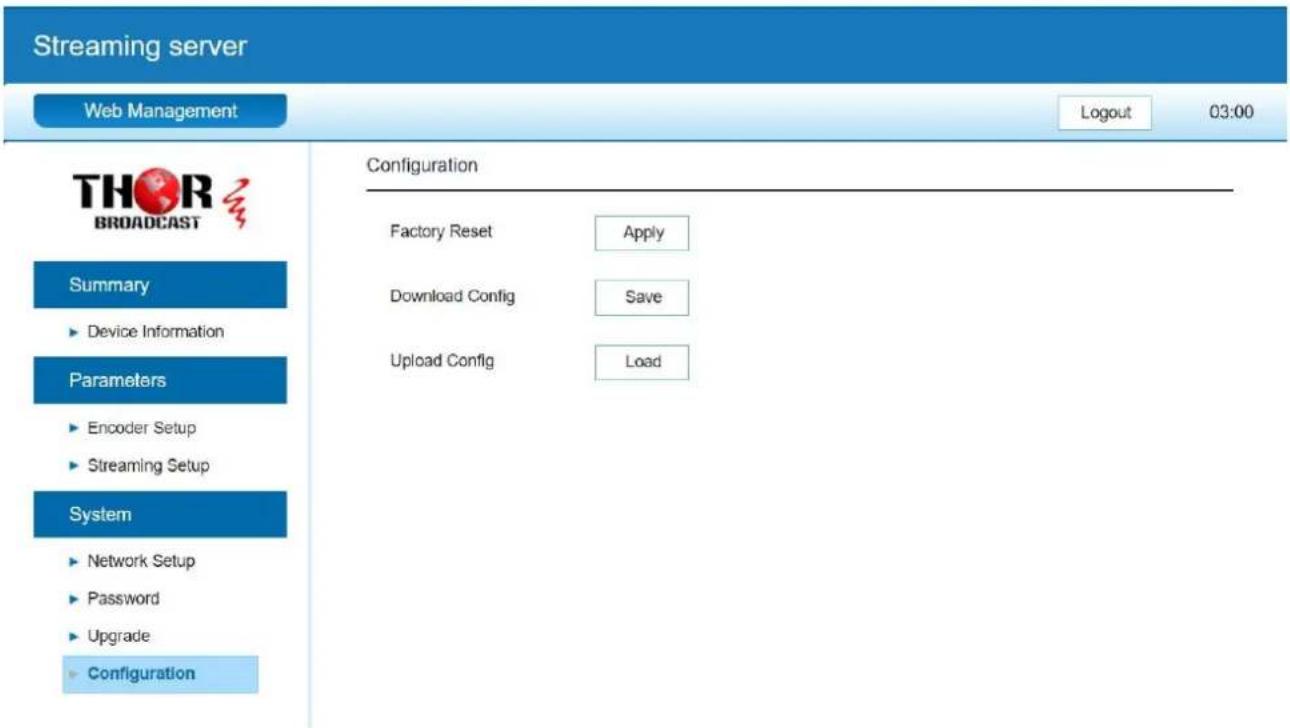
9. Configuration
Use the "Factory Reset" to reset configuration to factory default.
Use the "Download Config" to saved device setting configuration setting to PC.
Use the "Upload Config" to upload the file with pre-saved configuration settings to device.
For Further Tech Support
1-800-521-Thor(8467)
support@thorfiber.com
Brand : Thor
Model : H-SPARTAN-2
Category : Unspecified