CamVu720 - Security Camera Dedicated Micros - Free user manual and instructions
Find the device manual for free CamVu720 Dedicated Micros in PDF.


User questions about CamVu720 Dedicated Micros
0 question about this device. Answer the ones you know or ask your own.
Ask a new question about this device
Download the instructions for your Security Camera in PDF format for free! Find your manual CamVu720 - Dedicated Micros and take your electronic device back in hand. On this page are published all the documents necessary for the use of your device. CamVu720 by Dedicated Micros.
USER MANUAL CamVu720 Dedicated Micros
Installation and Configuration Manual
DM/CMVUVRD720
DM/CMVUVRD720/N

natural_image
Close-up of a white cylindrical security camera with a spherical lens, mounted on a flat surface (no visible text or symbols)Contents
Introduction ....3
Installation 7
Configuring the Unit....14
System 16
Display 37
Camera 42
ICR Settings....46
Schedule 58
Alarm 63
Network 79
Features & Text....96
Diagnostics ....101
Event Search 103
Unit Operation....105
Appendix A....119
Appendix B 126
Appendix C 127
Specification 128
Notes ......130
Index 131
Introduction

The CamVu720 Series are high definition IP Cameras offering up to 2 megapixel image streams in a choice of compression formats. With advanced features such as ICR, analytics support and direct configuration from associated Video Servers, the CamVu720 Series contains a powerful suite of enterprise-scale capabilities. The CamVu720 Series is also designed for Dedicated Micros next generation of video surveillance - Closed IPTV.
The CamVu720 provides high definition image streams up to 2 megapixel, with a configurable resolution of up to 1280x720 (16:9) and 1600x1200 (4:3). The powerful suite of streaming features ensure flexibility in remote viewing of the camera whilst on-board storage and supported transmission protocols such as AoE provide a wealth of local and remote recording options..
ANALYTICSCAPABLE
As part of our growing range of Analytics Capable products, the CamVu720 Series is able to contain the latest analytics solutions from Dedicated Micros including Object Left/Removed Detection Tripwire and Counting Tripwire, all locally hosted on the camera.
NETVU CONNECTED
With NetVu Connected products users can seamlessly integrate Video Servers, Cameras & Domes, Management Systems, mobile viewing devices and video walls together without the costly impact of significant integration time. A shared user interface helps minimise operator training whilst powerful features such as Direct configuration of PTZ Cameras and Domes from connected DVRs helps reduce installation time providing benefits to both end user and installer/integrator.
The incredible flexibility of Dedicated Micros NetVu Connected platform enables multi-environment security installations to be achieved with ease. Integration of Fixed and Mobile DVRs and Video Servers alongside products such as FireVu (for Video Smoke Detection) enable large scale solutions with several application requirements to be designed and built with ease.
MULTIPLE, SIMULTANEOUS VIDEO STREAMS
Dedicated Micros' unique Visual Signal Processor (ViSP) allows the CamVu720 Series to transmit multiple simultaneous MPEG-4, H.264 and/or JPEG images to any number of associated NetVu Connected devices for image viewing. Each stream can be tailored to suit the viewer's bandwidth requirements.
CLOSED IPTV
Dedicated Micros' award winning Closed IPTV solution combines open standard IP protocols with patent pending innovation to provide simple to install, safe and secure IP video solutions across new or existing networks.
Automatically allocating IP addresses to IP cameras by physical port, a Closed IPTV system is completely deterministic, creating firewalls and monitoring point-to-point IP connections so they cannot be hacked or intercepted. Critical to the security of a Closed IPTV system is the unique implementation of Trusted Endpoint technology; a secret signature, applied at lock down, enables endpoint devices such as IP cameras to be secure, immediately triggering a security alert should any interference be detected.
This ground breaking solution provides a very simple and secure answer to IP video, meaning that no prior knowledge of IP networking is required. Sophisticated and Dependable network security can be achieved with a single click.
Features
• Vandal Resistant High definition IP mini-dome
- Up to 2MP resolution
- Integrated Camera Recording and full enterprise video server within camera
- Can form part of a Closed IPTV system
• 2 alarm inputs and 1 relay output
- 1x audio input (mono) + 1x audio output (mono)– 3.5mm jack, 47kΩinput impedance
- Transmission of multiple, simultaneous video streams in MPEG-4, H.264 and JPEG format enables multiple users to view video streams at the settings they require
• AnalyticsCapable - enables analytics solutions to be deployed on your CCTV system
- Direct configuration from any compatible NetVu connected DVR or Video Server
• Power over Ethernet (PoE) / 12Vdc as standard
- MultiMode Recording - Dynamically-switchable resolution, record-rate & compression (MPEG-4/JPEG/H.264) settings
- Web server for remote configuration of camera features
- Local analogue test monitor output for use when positioning and adjusting the camera's field of view and focus
- Uses the latest Chipwrights ViSP to minimise power consumption and heat build up
Benefits
- The camera supports recording to local SD card or network attached storage using ATA over Ethernet
- The latest technology in the CamVu720 provides high definition image streams up to 2 megapixel, with a configurable resolution of up to 1280x720 (16:9) and 1600x1200 (4:3).
- Operates seamlessly within a NetVu Connected network.
- Remote configuration removes the need for multiple revisits
- Images recorded locally on the camera in JPEG format can be viewed over low bandwidth networks using MPEG-4
- On Board service connector allows local lens adjustment on a service monitor
• AnalyticsCapable features enable analytics solutions such as Object Left/Removed, People Counting and Video Tripwire to be deployed on your CCTV system.
CE NOTICE (EUROPEAN UNION)
This section contains the regulatory declarations for the EU for the CamVu VR Dome Camera.
CE
This product is marked with the CE symbol and indicates compliance with all applicable Directives. A "Declaration of Conformity" is held at Dedicated Micros LTD, 1200 Daresbury Park, Daresbury, Cheshire WA4 4HS
Hereby, Dedicated Micros LTD, declares that this product is in compliance with the essential requirements and other relevant provisions of Directive 95/5/EC.
Marking by the symbol CE indicates compliance of this Dedicated Micros product to the Electromagnetic Compatibility Directive 89/336/EEC, and the Low Voltage Directive 73/23/EEC of the European Union. Such marking is indicative that this system meets the following technical standards
• EN 61000-6-3 EMC Standard Residential, Commercial and Light Industry.
- EN 62000-3-3 Limitations of voltage changes, fluctuations and flicker in public low-voltage supply systems for equipment with rated current up to 16A.
• EN 61000-3-2 Limits for harmonic current emissions for equipment with rated current up to 16A.
• EN 50130-4 Immunity requirements for components of fire, intruder and social alarm systems.
• EN 60950 Safety of IT and similar equipment.
Further details about these applicable standards can be obtained from Dedicated Micros Ltd., 1200 Daresbury Park, Daresbury, Cheshire WA4 4HS
RF Interference warning
This is a class B product. In a domestic environment this product may cause radio frequency interference, in which case the user may be required to take adequate measures.
Important Safeguards
Read Instructions
All the safety and operating instructions should be read before the unit is operated and adhered to during operation. These instructions should be retained with the unit, and all warnings and cautions contained should be heeded.
Power Sources
This unit should be operated only from the type of power source indicated on the manufacturer's label.
Power Over Ethernet
This product supports PoE and when connected to a suitable switch, will not require an external PSU to drive the device.
Servicing and Repair
Do not attempt to service this unit yourself as opening or removing covers may expose you to dangerous voltage or other hazards.
Refer all servicing and repair to qualified service personnel.
Equipment
Use only attachments/accessories specified by the manufacturer.
Ventilation
Ensure unit is properly ventilated to protect from overheating.

To prevent fire or shock hazard, do not expose this equipment to rain or moisture. The lightning flash with arrowhead symbol within an equilateral triangle is intended to alert the user of this equipment that there are dangerous voltages within the enclosure which may be of sufficient magnitude to constitute a risk of electric shock.
WARNING
This is a class A product. In a domestic environment this product may cause radio interference in which case the user may be required to take adequate measures.
Regulatory Notes and FCC and DOC Information
(USA and Canadian Models Only)
Warning: This equipment has been tested and found to comply with the limits for a Class A digital device, pursuant to part 15 of the FCC rules. These limits are designed to provide reasonable protection against harmful interference when the equipment is operated in a commercial environment. This equipment generates, uses, and can radiate radio frequency energy and, if not installed and used in accordance with the instruction manual, may cause harmful interference to radio communications. Operation of this equipment in a residential area is likely to cause harmful interference in which case the user will be required to correct the interference at their own expense.
If necessary, the user should consult the dealer or an experienced radio/television technician for corrective action. The user may find the following booklet prepared by the Federal Communications Commission helpful: "How to Identify and Resolve Radio-TV Interference Problems".
This booklet is available from the US Government Printing Office, Washington, DC20402, Stock No. 004-000-00345-4.
This reminder is provided to call the CCTV system installer's attention to Art. 820-40 of the NEC that provides guidelines for proper grounding and, in particular, specifies that the cable ground shall be connected to the grounding system of the building, as close to the point of cable entry as practical.
Installation
The CamVu 720 is a surface mounted vandal resistant camera for installation directly onto a hard surface or mounting structure.
Parts Supplied
CamVu VR Dome Surface mount
4 x 5mm Wood screws
4 x Wall plugs
4 x 9.5mm O-rings
1 x T20 Security Torx key
This booklet
Parts Not Supplied
- Optional video service lead (part number DM/ICED-SERV)
- A PSU is not supplied with this camera. If the camera is used with Power over Ethernet (PoE) it is not necessary to use a separate PSU (if PoE is available use the ethernet connection) otherwise a suitable 12Vdc 0.5A PSU is required.
Alternatively a 12Vdc PSU(VS-PSU15W-EXT) can be purchased from Dedicated Micros.
Network and power cables enter the camera body inside a plastic or metal conduit either from the side or rear of the camera, refer to Appendix B for a scale pattern.
1 Loosen the four torx screws on the front of the camera using the torx screw key supplied.

natural_image
Top-down view of a circular security camera with a dome and label, surrounded by four directional arrows (no readable text or symbols on the device itself)2 Gently pull away the dome cover from the camera body and remove the plastic shroud. The dome cover is attached to the camera body with a retaining cord. Do not undo or cut this cord.
3 Unscrew the 2 captive screws at either side of the camera mount assembly and remove the camera assembly from the body.

natural_image
Interior view of a circular electronic device with visible circuitry and two white arrows pointing to specific components (no text or symbols)WARNING: Take Anti-Static precautions
4 Unscrew one of the two large screws, either at the side or rear of the camera body, depending on where the video and power cables are to enter the camera body. Note that the screw is wrapped in PTFE tape. This is necessary to ensure that moisture does not enter the camera body after the camera has been installed.
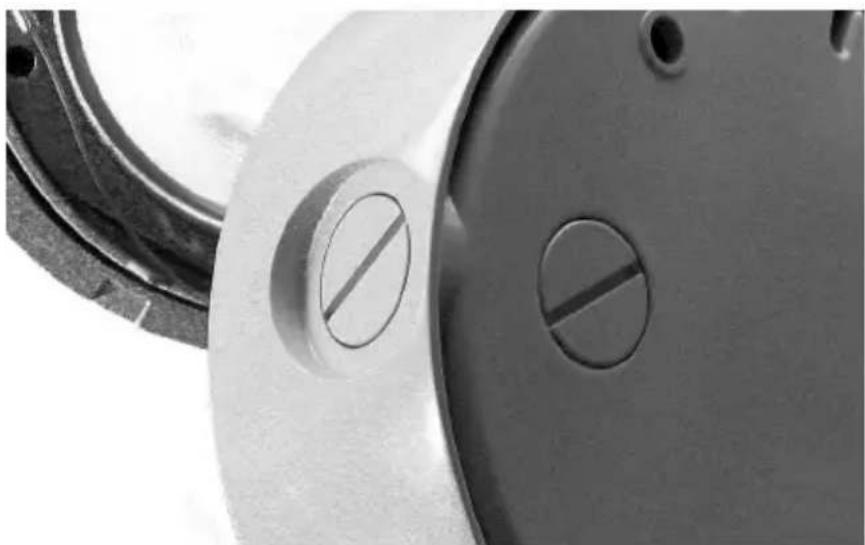
natural_image
Close-up of a metallic mechanical flange with two circular holes, no visible text or symbols5 Mark and drill the four screw holes required for fixing the camera body. An 8mm drill bit is suitable for use with the supplied wall plugs.
Note: If the video and power cables enter from the side of the camera, you may wish to fit a conduit in position temporarily at the side of the camera to align the camera before marking the screw holes.
If the video and power cables enter from the rear of the camera, mark and drill a hole for the conduit and leads. The size of hole required depends on the size of the conduit.
6 Attach a metal or plastic conduit with a suitable M20 screw thread to the side or rear entry point using PTFE tape to ensure a watertight seal. Ensure that the conduit does not foul the plastic camera mount inside the camera body.
7 Screw the camera body to the fixing surface using the screws, wall plugs and o-rings supplied. O-rings must be used to ensure that moisture does not enter the camera body after the camera has been installed. Do not over-tighten the screws.
8 Connect the Network to the RJ45 connector on the camera.
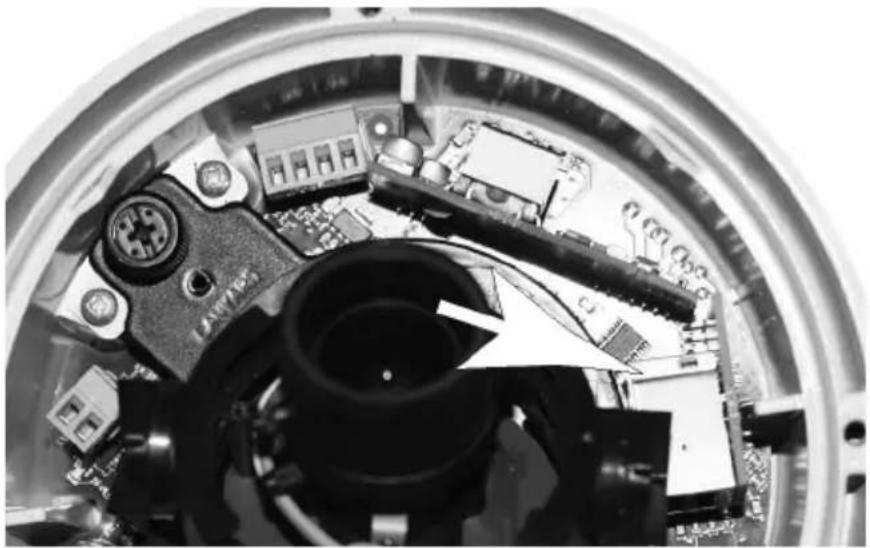
natural_image
Close-up of a mechanical assembly with visible circuit board and components, no text or symbols presentThe camera is Power over Ethernet capable, if not using PoE, connect the power cable to the power terminals.
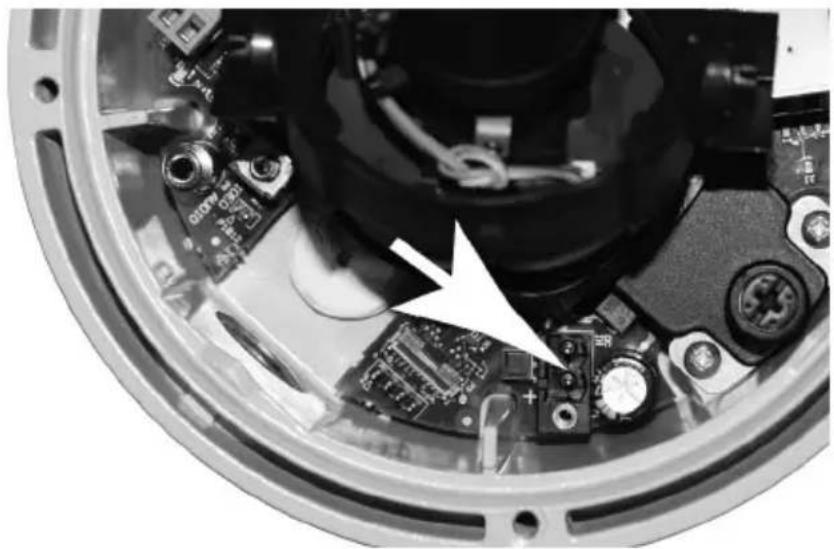
natural_image
Close-up of an electronic device's internal components, showing circuit board and wiring (no visible text or symbols)The camera operates from a 12V DC power supply. Connections and polarity are indicated next to the terminals. The power supply must be a UL Listed, Class 2 isolated type.
Note: A CAT5 cable must be used.
9 Fit the camera assembly back into its body and tighten the two captive screws.
10 Optionally attach a local monitor to the test point using an DM/ICED-SERV service connector (available separately) and adjust the camera as described in the Camera Settings section.
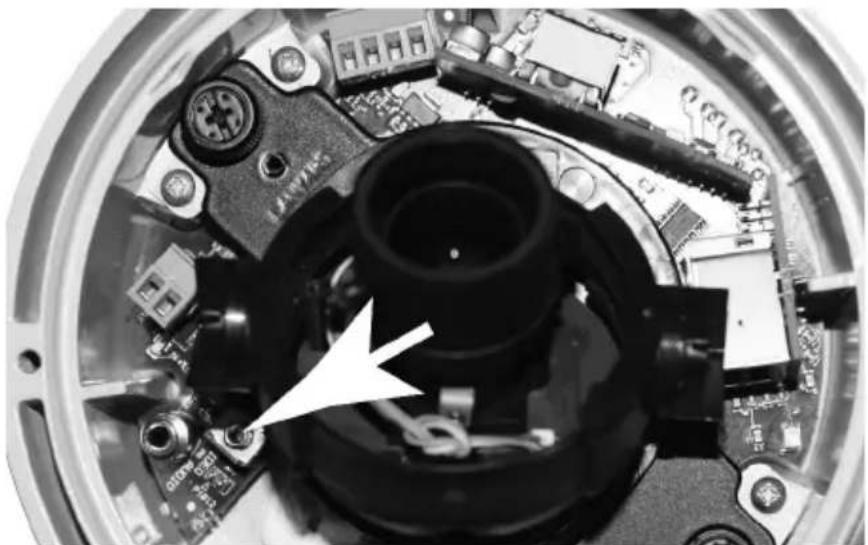
natural_image
Close-up of a mechanical assembly with visible components and a white arrow pointing to a component (no text or symbols)11 Visually align the screws on the dome front cover with the screw holes on the camera body to assist in replacing the dome cover.
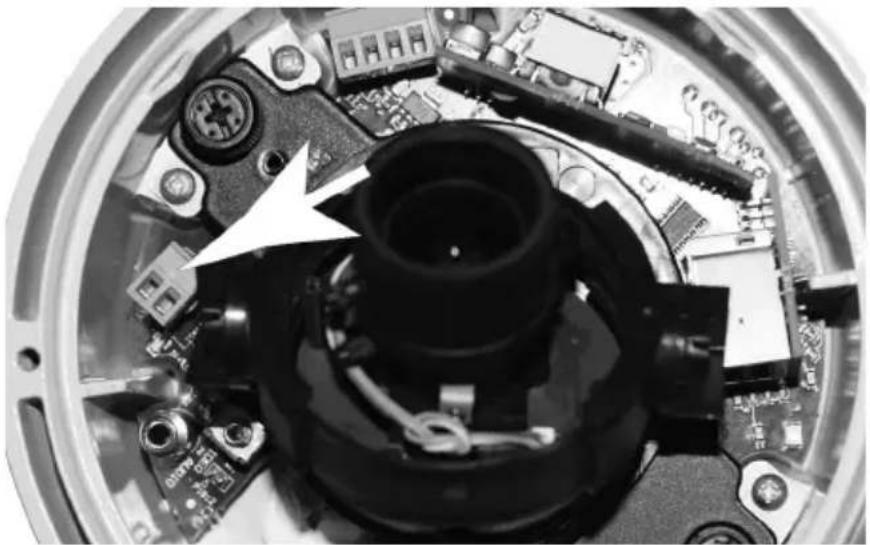
12 The CamVu 720 supports two normally open/closed alarm inputs via multiway connector arrowed in the image below.

natural_image
Close-up of a mechanical component with visible circuitry and wiring (no text or symbols)Alarm Connection Table Label Key Connection
0 A Alarm 1 +
GND B Alarm 1 -
1 C Alarm 2 +
GND D Alarm 2 -

text_image
A B C D13 The Camera has support for one relay. Connect the relay to the multiway connector arrowed in the image.
natural_image
Close-up of an electronic device interior showing internal components and wiring (no visible text or symbols)Relay Connection Information
1 onboard light duty relay output (500mA@12V-48V Max) The relay is not polarity sensitive.
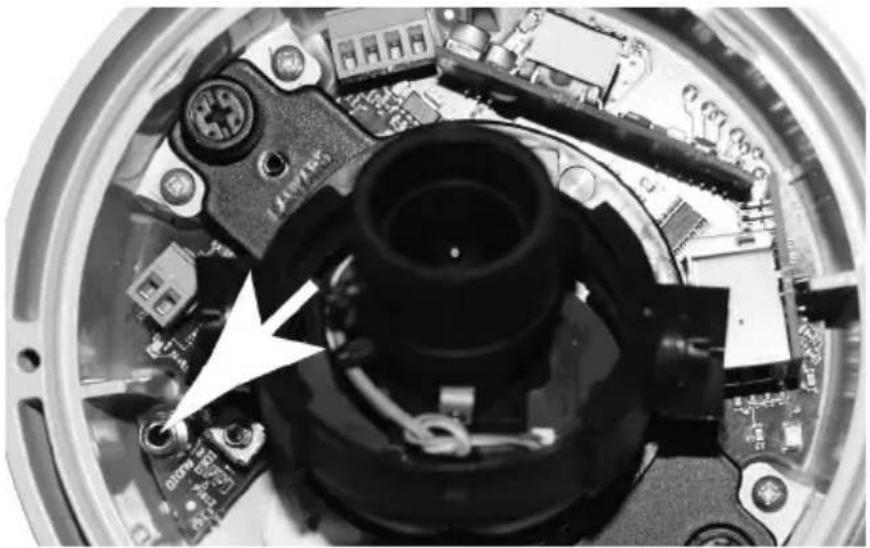
14 The unit supports one channel of bi-directional audio. Connect the audio equipment using a 3.5mm 90° jack plug to the phono socket shown in the image below.
natural_image
Close-up of a mechanical component with visible wiring and components, no readable text or symbols present.Audio Connection Information
3.5mm (phono) socket, 8KHz/16KHz/22KHz sampling 75Ω input impedance, 1V pk-pk, amplification req on output
Sleeve - ground,
Tip - audio out
Ring - audio in
15 Replace the dome front cover and tighten the torx screws, taking care not to trap the retaining cord in the edge of the front cover. Do not over-tighten the torx screws.
The power supply must be a class 2 isolated type.
Warning: This camera is a Class 2 device and therefore does not have an earth connection in the power cord.
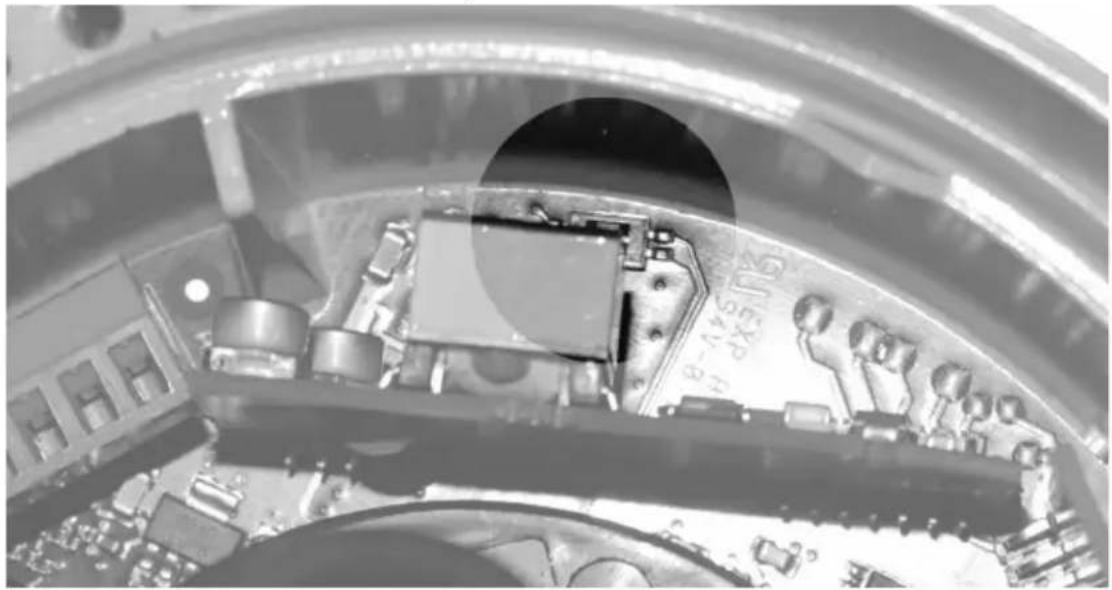
Note: To avoid unwanted reflections all LEDs within the camera including those on the network connector are disabled. The LEDs are enabled if SW1.1 (which is situated close to the alarms connector of the main board) is turned ON.
natural_image
Close-up of an electronic circuit board with visible components and a circular aperture (no readable text or symbols)Power over Ethernet
The camera can be powered from any suitable PoE injector conforming to IEEE 802.3-2008. End span and bridging injectors supported.
POE Injector
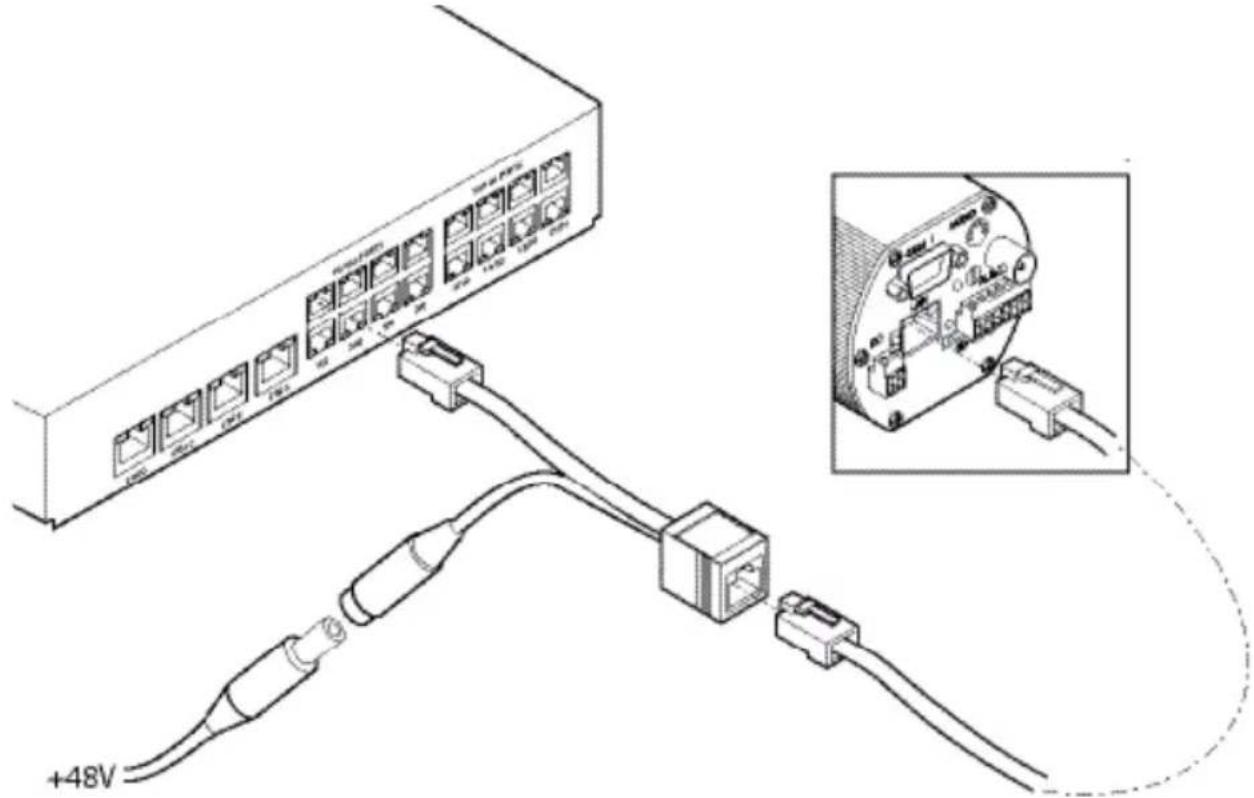
The Dedicated Micros POE Injector is designed to enable the use of POE (Power over Ethernet) before a POE capable switch has been installed. It is installed alongside a suitable 48Vdc 15W PSU. (DM/PSU/48V can be purchased separately from Dedicated Micros).

natural_image
Line drawing of a USB connector with labeled terminals A, B, and C (no text or symbols beyond labels)A Connection to DVR/NVR/Switch
B Connection to suitable 48Vdc 15W PSU (DM/PSU/48V recommended)
C Ethernet cable connection to camera.
Important: 48V is supplied to connection C. There is no voltage at Connection A. Do NOT connect an ethernet cable from connection C to a DVR/Switch as this could cause irreparable damage.
text_image
+48VNote: Layer 3 Enhanced Switch shown, normal Ethernet switch or DVR / NVR connection also compatible. CamVu2000 camera shown, RJ45 socket on dome is compatible.
POE Injector Power Supply specification
Adaptor socket - 5.5mm diameter with a 2.1mm central circular pin
+48V goes to the centre pin of the power connector - 0V to the outside barrel
Configuring the Unit
Using the Unit with Secure Closed IPTV
1) Connect the camera to a Closed IP Network switch using Cat5 network cable. The POE version of this camera will draw power from with the DM/NSW/CPP model switch, or with DM/NSW/CP model switch if connected to a POE injector and separate power supply.
2) Ensure that the Closed IP NVR or Console that the switch is connected to is in Configuration mode to allow new cameras connect.
3) Power up the camera and wait for the on-screen acknowledgement on the monitor attached to the Closed IP NVR or Console. Alternatively check the Camera Overview web page on the Closed IP NVR or Console to determine out the camera status.
4) Once the camera has been detected and added, remember to secure the switch by moving out of Configuration mode, failure to do this will leave the Closed IPTV system unsecured.
Locating the Unit IP address
The unit is configured using on-board configuration pages. This can be done remotely once the unit has been installed in its chosen location, using the web browser on a PC in the same subnet as the unit.
The unit configuration pages can be accessed using the unit IP address or DNS name. The unit has DHCP factory enabled. When the unit is connected to a DHCP network for the first time, an IP address is automatically assigned by the network switch or router it is connected to. Most routers will have the facility to enable DHCP and DNS, if it is not available, contact your network administrator.
The default DNS address for each unit is factory set as the serial number. This address can be found on the serial label on the unit or via the packaging the unit came in.
If DHCP and DNS are not available, the IP address can be found by connecting an analogue monitor to the BNC connection of the camera. The unit IP address is displayed on the analogue video output for 10 minutes from powering the unit on.
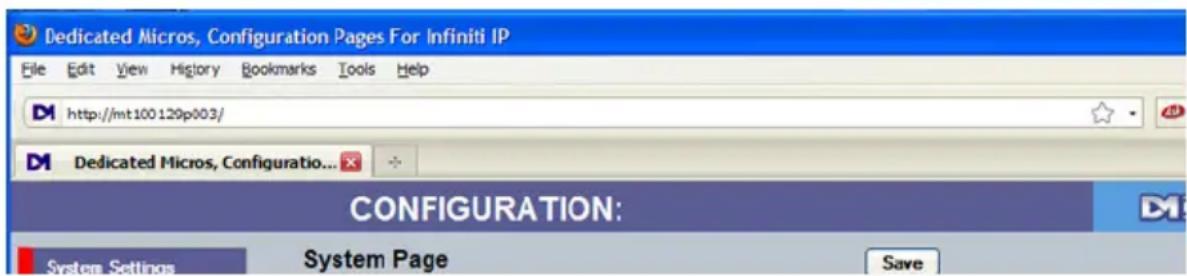
The DNS or IP address can be typed directly into the address bar of a web browser.
text_image
Dedicated Micros, Configuration Pages For Infiniti IP File Edit View History Bookmarks Tools Help http://mt100.120p003/ Dedicated Micros, Configuratio... CONFIGURATION: System Settings System Page SaveNote: The unit's DNS address can be changed subsequently to something more memorable or meaningful than its serial number by editing the System name option in the System configuration page.
Zero\_conf configuration
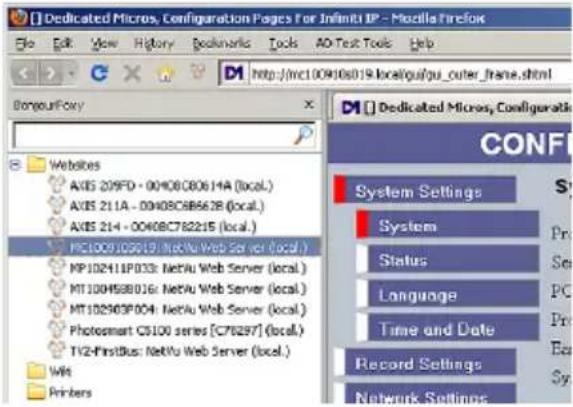
If a permanent IP address is not assigned to the unit, it will attempt to contact the DHCP server every time it starts up, and periodically thereafter. The unit support zero-configuration networking (sometimes known as Bonjour), this enables automatic discovery of computers, devices, and services on IP networks. Zero-configuration uses industry standard IP protocols to allow devices to automatically discover each other without the need to enter IP addresses or configure DNS servers. By loading a suitable free add-on to your web browser such as Bonjour for Windows for Internet Explorer or BonjourFoxy for FireFox zero configuration devices such as this unit can easily be discovered and accessed.
text_image
Dedicated Micros, Configuration Pages For Infinit IP - Mozilla Firefox File Edit View History Bookmarks Tools AO Test Tools Help http://mc100908019.localgui/gu_outer_frame.shtml Dedicated Micros, Configuration CONFI Systems Settings System Status Language Time and Date Record Settings Network Settings Web sites PC1009105019: Nettlu Web Server (local.) MP102411P033: Nettlu Web Server (local.) MT100H5B8016: Nettlu Web Server (local.) MT102903P004: Nettlu Web Server (local.) Photosmart CS100 series [C76297] (local.) TV2-FirstBus: Nettlu Web Server (local.) Wits PrintersAccessing the Configuration Pages
The unit is configured using the on-board configuration pages. To access these:
- Launch a web browser, preferably on a PC on the same subnet as the unit.
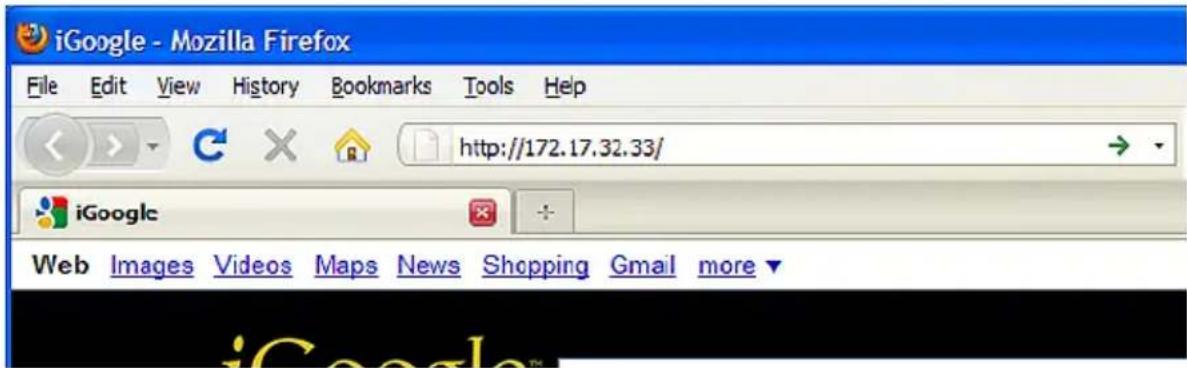
- Type the IP address (or DNS name if there is no fixed IP address) of the unit into the address bar.
text_image
iGoogle - Mozilla Firefox File Edit View History Bookmarks Tools Help http://172.17.32.33/ iGoogle Web Images Videos Maps News Shopping Gmail more- If prompted, enter a username and password. The default settings are; username:dm and password:web.
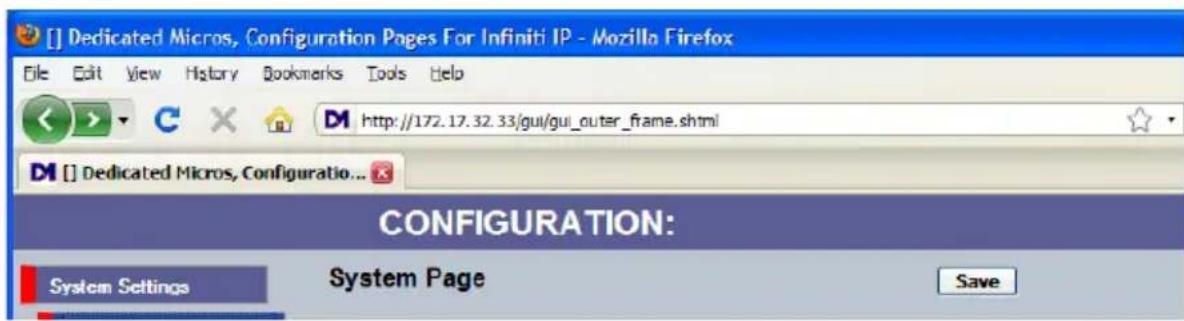
- The Main Menu page will be displayed.
text_image
[ ] Dedicated Micros, Configuration Pages For Infiniti IP - Mozilla Firefox File Edit View History Bookmarks Tools Help http://172.17.32.33/gui/gui_outer_frame.shtml [ ] Dedicated Micros, Configuratio... CONFIGURATION: System Settings System Page SaveThe configuration menus are accessible via the link on the left hand side of the page
System
The menus under the System heading allow the unit's core settings to be viewed, changed and the system software upgraded.
The Attributes option displays details about the unit including the IP address, unit serial number, MAC address and software version.
The Status page displays information about the unit's operating condition, shows how long the unit has been operating and the reason for the last reset. It also shows camera status and displays any failed cameras.
The Language page allows the system language to be set. The language can also be changed for the current session only.
The Time and Date page allows the unit time and date settings to be adjusted, including setting the timezone.
The Audio page shows the settings available for each of the audio channels and allows configuration of audio quality.
The Features page allows control of the different features that are available within the software including Email reporting and control of the display resolution.
The Maintain page allows the current configuration to be saved, and for previously saved settings to be loaded.
The PowerScript management pages allows individual PowerScripts to be disabled if required.
The Video Storage page allows configuration of the units ATA over Ethernet (AoE) function. AoE is a network protocol designed for simple high-performance access of storage devices over Ethernet networks. The external storage device must be located on the same network as the unit.
Attributes
This menu shows the general information about the unit including the version of software installed, the unit's serial number and the allocated DHCP IP address.

text_image
System Page Save Warning: This system has no user accounts configured. Ignore Accounts Product Descriptor CamVu VRD720 Video Standard PAL Serial Number MC110304N241 Number of Cameras 1 PCB Serial Number MX105275N258 Global PPS 25 Product Code CAMVU_VRD720 Video Storage Gbytes 0.85 Earliest Recording System Name cdi-nod720 MAC Address 10/100 Base T Zeroconf IP Address 00-00-D9-08-77-E8 IP Address 172.17.32.37 169.254.41.216 Sub Net 255.255.252.0 Gateway 172.17.32.254 Software Software Time/Date Accounts Network RefreshProduct Descriptor Details the product model.
Serial Number Identifies the serial number of the specific unit.
PCB Serial Number Displays the PCB (Printed Circuit Board) serial number of the unit.
Product Code Displays a code identifying the unit's specification.
Earliest Recording Displays the date/time of the earliest recording held on the unit.
System Name This field can be edited to allocate a name to the unit, which can be
typed directly into a browser to access the configuration pages on a DNS enabled network. This is displayed when the unit is accessed via NetVu ObserVer and is sent when transmitting information to a Remote Video Response Centres (RVRC).
MAC Address This is the MAC address assigned to the unit.
IP Address This is the IP address allocated to the unit.
Sub Net This is the subnet mask for the unit
Gateway This is the IP address of the default gateway (router) assigned by the DHCP server.
Video Standard Displays the video standard adopted by the unit i.e. PAL, NTSC.
Number of Cameras Shows the number of camera channels on the unit.
Global PPS Details the unit Global PPS (Pictures Per Second) recording rate.
Video Storage Gbytes Highlights the available video storage capacity in Gigabytes.
Software (Red) Links to the System Software details page
Software
This page details the installed software and may be needed if calling Technical Support.
Software Revision
| Software Revision | 6.6 (12.0081) NBMB 2011-05-04 11:11 |
| Loader Revision | 6.9 (12.0026) |
| Webpage Revision | wpB 1.0 (5630) ns |
| Boot Software Rev. | NBMB version 02.3 ecos ancestry v2_0_65 - built Nov 11 2010 |
| Cam CFG Version | 0.0 |
| Applet Version | 6.19 |
System
System (Red) Links back to the System Settings page
About (Blue) Opens the System->About page.
Refresh (Purple) Refreshes the current page
Status
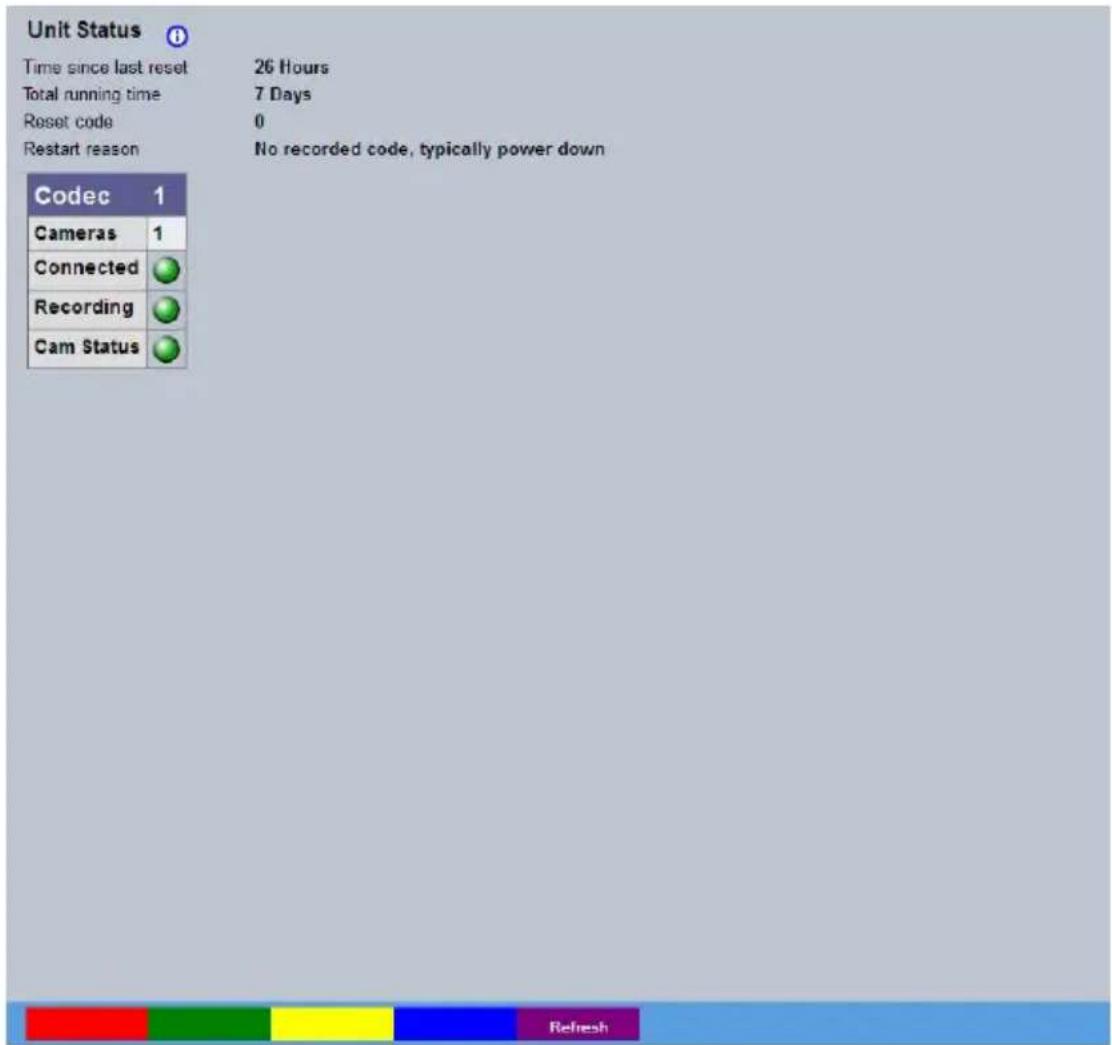
Unit Status
This menu details information regarding the status of the unit, notably the total time the unit has been operating and the time since its last reset.
text_image
Unit Status Time since last reset 26 Hours Total running time 7 Days Reset code 0 Restart reason No recorded code, typically power down Codec 1 Cameras 1 Connected Recording Cam Status RefreshTime since last reset Details the time since the unit was last reset.
Total running time Details the total time the unit has been operational.
Reset code The last reset code used is displayed.
Restart reason The reason for the last restart is displayed i.e. Controlled User Reset.
Refresh (Purple) Refreshes the current page
Alarm Status
This menu details information regarding the alarms and relays on the unit.

scatter
| Alarm Status | Count | | :--- | :--- | | Alarm Contacts | 01 | | Alarm Contacts | 02 | | Alarm Zones | 01 | | Alarm Zones | 02 | | Alarm Zones | 03 | | Alarm Zones | 04 | | Relay Outputs | 01 | Color: Red = alarms, Green = refresh, Yellow = alarms, Purple = refreshAlarm Contacts Details the status of the two alarm contacts on the unit. Light Green indicates the contact is closed, dark green indicates it is open.
Alarm Zones Details the status of the four alarm zones on the unit. Light Green indicates the zone is active, dark green indicates it is passive.
Relay Outputs Details the status of the relay output on the unit. Light Green indicates the relay is closed, dark green indicates it is open.
Alarms(Blue) Opens the Alarm Inputs page
Refresh (Purple) Refreshes the current page
About
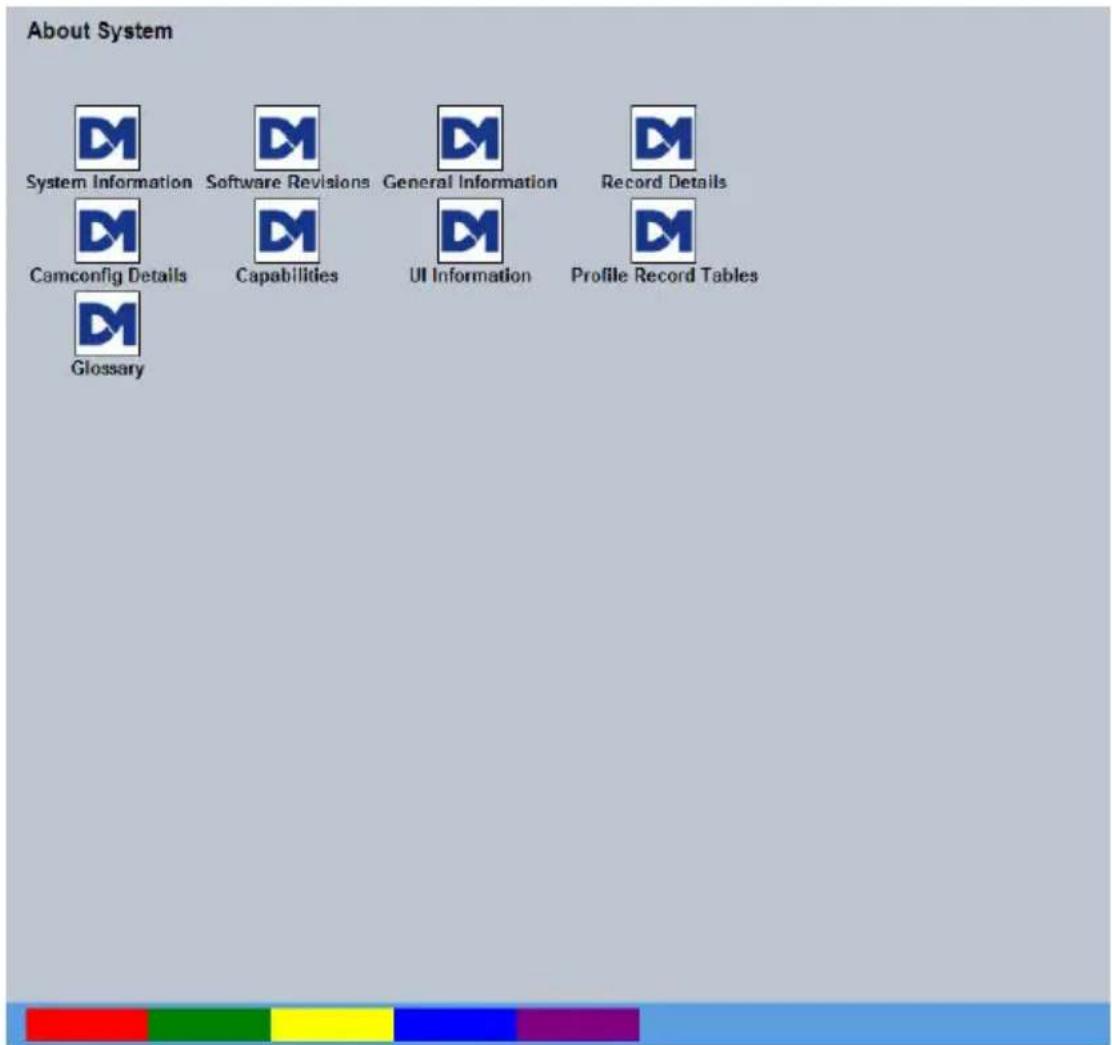
This page provides quick links to the pages required to fault find.
text_image
About System System Information Software Revisions General Information Record Details Camconfig Details Capabilities UI Information Profile Record Tables GlossarySystem Information Opens the System Settings->System page.
Software Revisions Opens the System Settings->Software page.
General Information Opens the General Information page (refer to 'Appendix A - General Information').
Record Details Opens the Record Details page (refer to 'Appendix A - Record Details').
Camconfig Details Opens the Camconfig Details page (refer to 'Appendix A - Camconfig Details').
Capabilities Opens the Capabilities Details page (refer to 'Appendix A - Capabilities Details').
UI Information Opens the UI Information page (refer to 'Appendix A - UI Information').
Profile Record Tables Opens the Profile Record Tables page (refer to 'Appendix A - Profile Record').
Refresh (Purple) Refreshes the current page
Logs
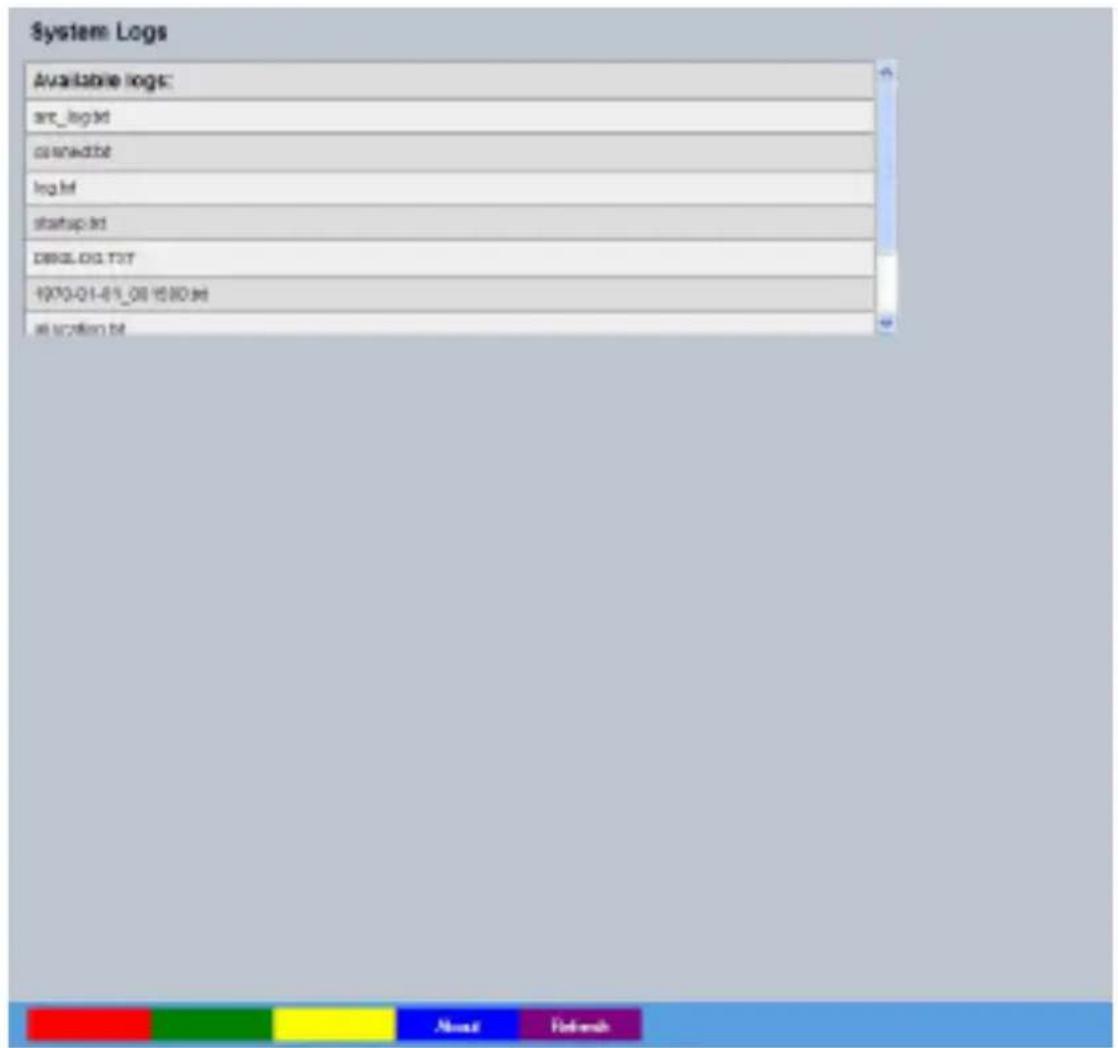
The log files stored in the camera can be accessed from this page. Selected logs are displayed on the page below.
text_image
System Logs Available logs: art_log.id code editor log.id startup.id DBCLLOG.TOT 1970-01-01_08 15:00.tot all version.totAbout (Blue) Opens the About page Refresh (Purple) Refreshes the current page
Network Security Logs
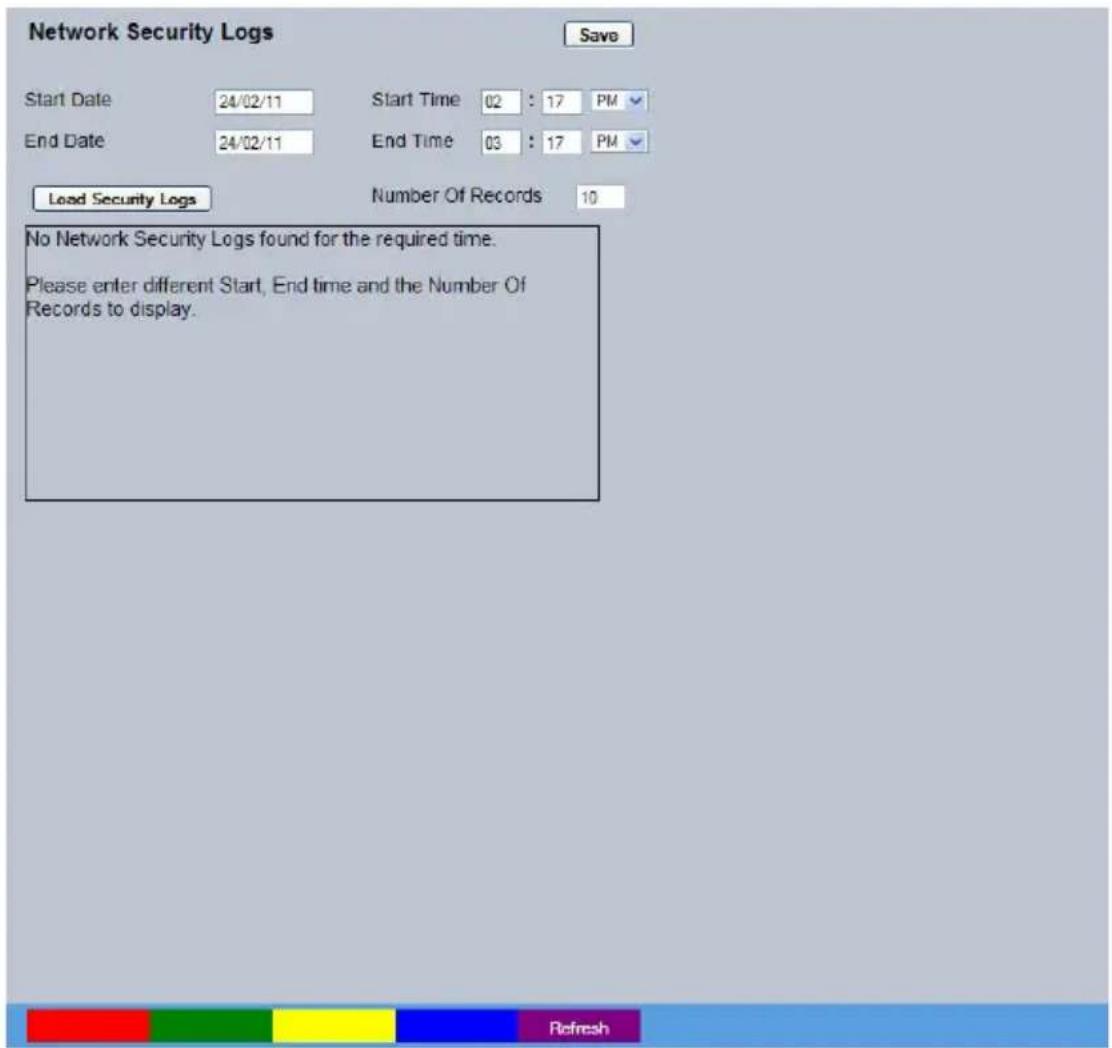
The log files stored in the camera can be accessed from this page. Selected logs are displayed on the page below.
text_image
Network Security Logs Start Date 24/02/11 Start Time 02 : 17 PM End Date 24/02/11 End Time 03 : 17 PM Load Security Logs Number Of Records 10 No Network Security Logs found for the required time. Please enter different Start, End time and the Number Of Records to display.Start Date Enter a start date to filter the security log entries
Start Time Enter a start time to filter the security log entries
End Date Enter an end date to filter the security log entries
End Time Enter an end time date to filter the security log entries
Load Security logs Displays security events that were logged within the start and end parameters
Refresh (Purple) Refreshes the current page
Language
This menu allows the system language to be set. Changing the System Language will effect all menu pages. If required, the language can also be changed for the current session only.

text_image
Language Setting the system wide language will require a reset of the unit to apply System Language English Reset Choose your language for this session, it will not affect the system wide language setting Session Language English Choose Reset RefreshSystem Language Select to change the system language setting.
Note: A server reboot will be required to implement system language changes. The unit can be rebooted via System Settings->Maintain->Reset, or by pressing 'Red' while on this page.
Session Language Select to change the language settings for the current session only.
Choose Select to immediately activate session language changes.
Reset (Red) Resets the unit
Refresh (Purple) Refreshes the current page
Time and Date
text_image
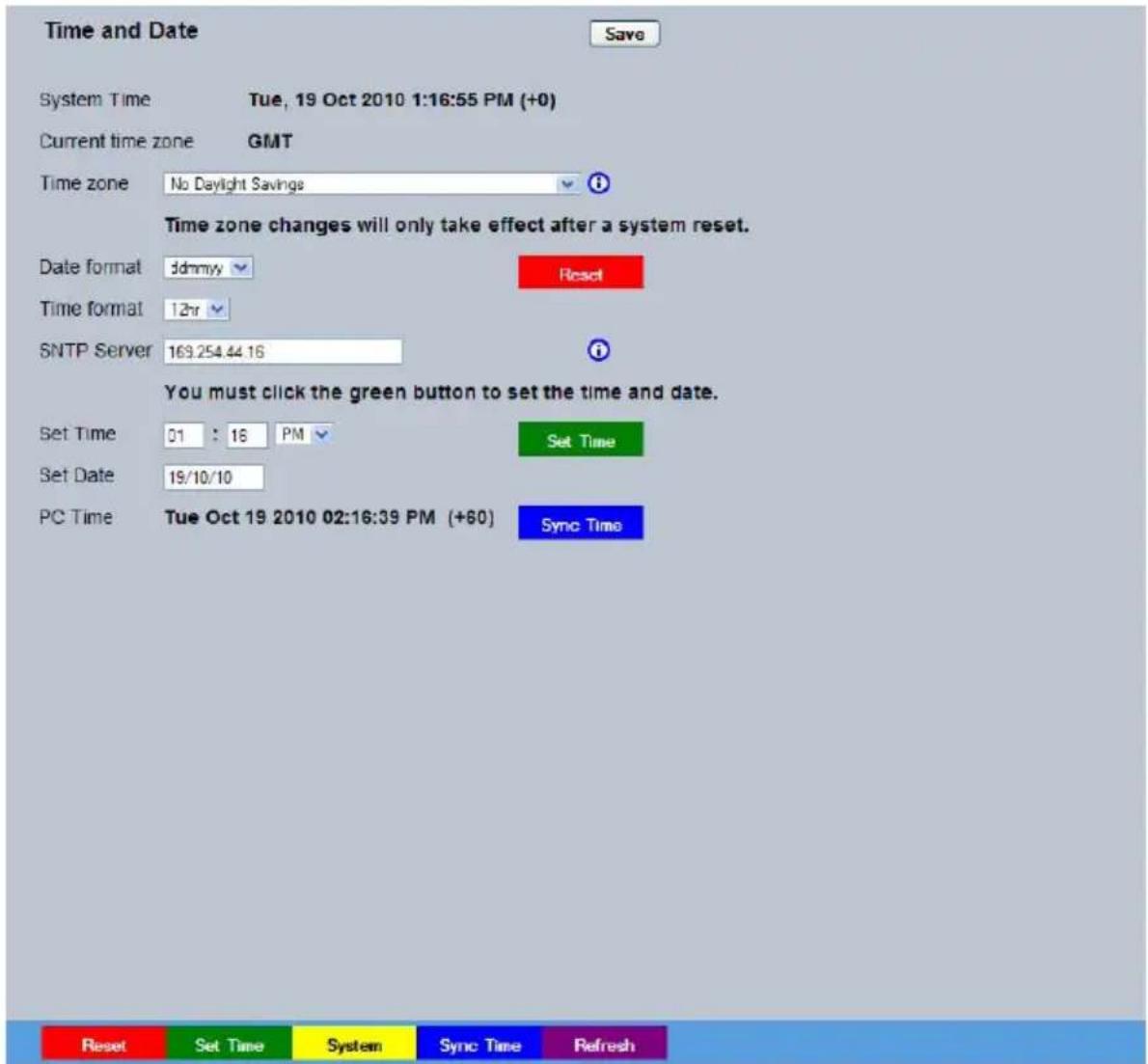
Time and Date System Time Tue, 19 Oct 2010 1:16:55 PM (+0) Current time zone GMT Time zone No Daylight Savings Time zone changes will only take effect after a system reset. Date format idmmy Reset Time format 12hr SNTP Server 163.254.44.16 You must click the green button to set the time and date. Set Time 01 : 16 PM Set Time Set Date 19/10/10 PC Time Tue Oct 19 2010 02:16:39 PM (+60) Sync Time Reset Set Time System Sync Time RefreshSystem Time The current system time and date is displayed.
Current Time Zone Displays the currently selected time zone settings.
Time Zone Select the relevant timezone offset from the accompanying drop down menu.
Date Format As default, the date is entered dd/mm/yy. It can also be displayed as mm/dd/yy or yy/mm/dd.
Reset(Red) Resets the unit
Time Format As default, the time displayed is in 12 hour format. This can be changed to 24 hour if required.
SNTP Server A Simple Network Time Protocol (SNTP) server allows external devices to connect and set their current date and time settings to that of the SNTP. If required, enter the SNTP server IP address here.
Set Time Allows current unit time to be updated.
Set Time (Green) Applies the new time.
Set Date Allows current unit date to be updated.
PC Time Displays the system time of the PC currently being used to view the configuration pages.
Sync Time (Blue) Use this button to synchronise the time of the unit to that of the PC being used to view the configuration pages.
Note: The PC Time and Sync Time options will only be available if viewing the menu via the configuration pages.
System (Yellow) Opens the System Settings->System page
Refresh (Purple) Refreshes the current page
Audio
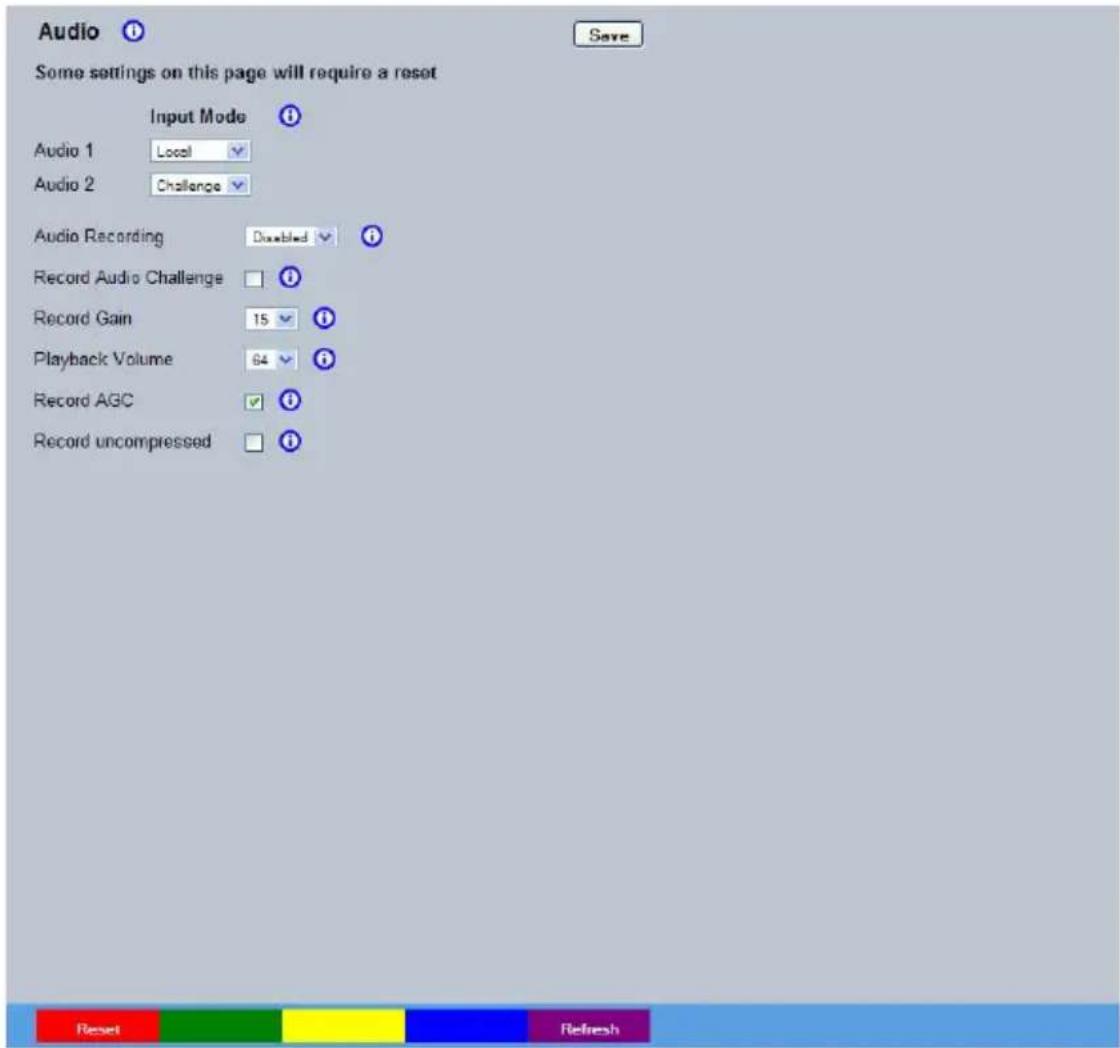
The Audio menu allows settings for the audio channel to be edited. Audio can be recorded via input.
text_image
Audio Some settings on this page will require a reset Input Mode Audio 1 Local Audio 2 Challenge Audio Recording Disabled Record Audio Challenge Record Gain 15 Playback Volume 64 Record AGC Record uncompressedAudio 1/2 Camera Audio can be recorded from camera inputs by selecting Local. Challenge audio i.e. originating from an Operator at an Remote Video Receiving Centre (RVRC), can be recorded by selecting Challenge.
Audio Recording This option allows the audio recording to be activated (Enabled) or deactivated (Disabled)
Record Audio Challenge Select this option to record an audio challenge originating from an operator at an RVRC.
Record Gain This option allows the Record Gain level to be set. This is the base setting from which the AGC (Automatic Gain Control) will operate. Select from 1 to 15. The default and recommended setting is 15.
Playback Volume Select a volume setting between 1 to 64 for audio playback.
Record AGC Select this option to activate the AGC function. AGC helps produce a better quality recording by removing background noise/distortion.
Record uncompressed Select this option to record audio in an uncompressed format.
Note: Recording in uncompressed format will significantly increase the disk space used.
Features
This menu enables the activation of system features such as Email Reporting.

text_image
System Network Video Other SaveSystem (Red) Opens the System Features page
Network (Green) Opens the System Features Network page (below)
Video (Yellow) Opens the System Features Video page (below)
Other (Blue) Opens the System Features Other page (below)
Refresh (Purple) Refreshes the current page
System Features
text_image
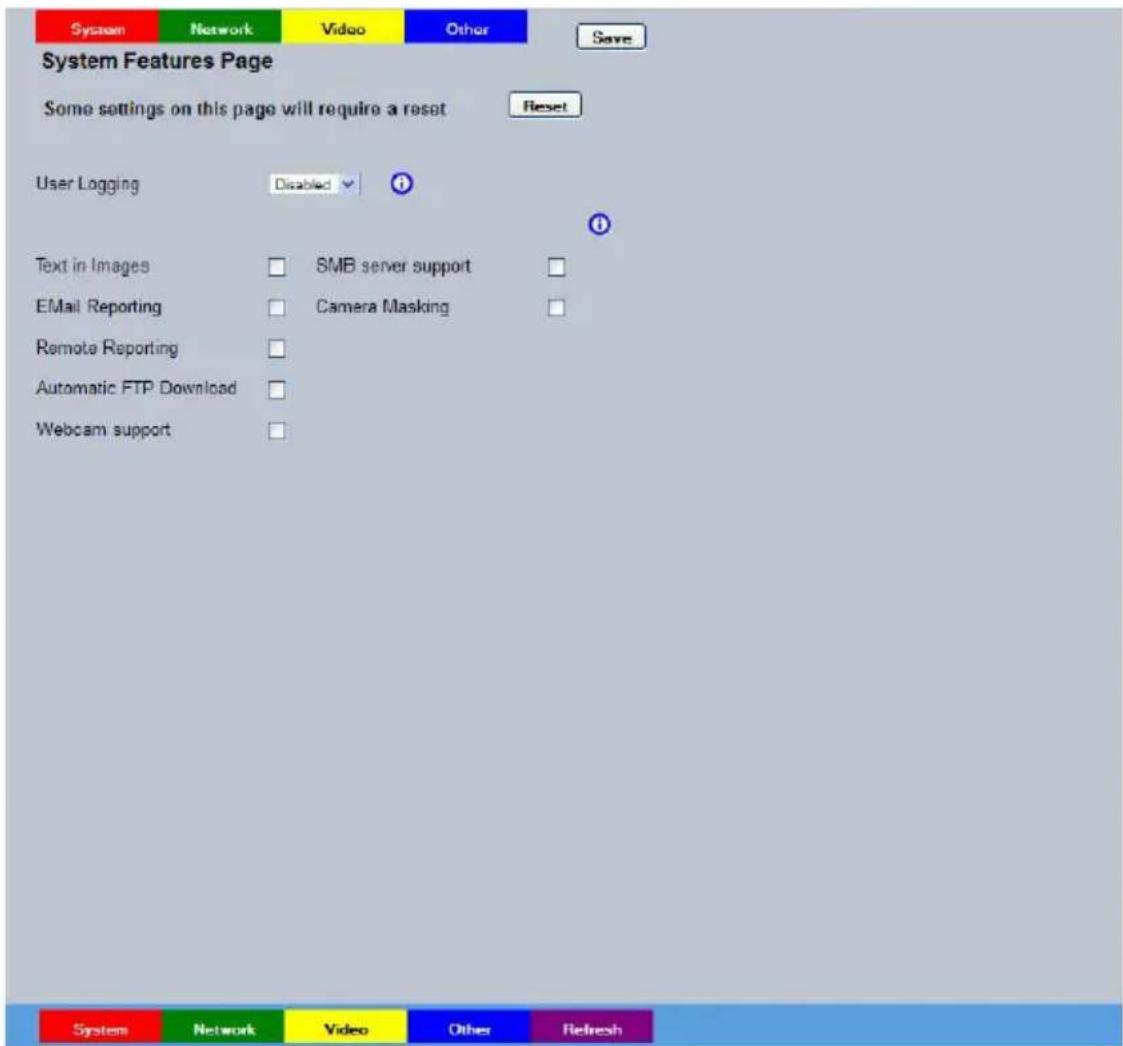
System Features Page Some settings on this page will require a reset Reset User Logging Disabled Text in Images SMB server support E-Mail Reporting Camera Masking Remote Reporting Automatic FTP Download Webcam supportUser Logging Enable this option to activate User Logging. Refer to 'Appendix A' for further information regarding the User Logging function.
Text in Images Select this option to activate the Text in Images function, refer to
'Analytics & Text-Text In Image' for more information.
Note: When de-selected here, the 'Text in Image' menu will no longer be displayed in the menu tree.
Email Reporting Select this option to activate the Email Reporting function, refer to
'Network Settings-E-mail' for more information.
Note: When de-selected here, the 'Email Reporting' menu will no longer be displayed in the menu tree.
Remote Reporting Select this option to activate the Remote Reporting function, refer to 'Network Settings-Remote Reporting' for more information.
Note: When de-selected here, the ‘Remote Reporting’ menu will no longer be displayed in the menu tree.
Automatic FTP Download Select this option to enable automatic FTP downloads to upgrade the unit and/or the configuration pages, refer to 'Network Settings-FTP Download' for more information.
Note: When de-selected here, the 'Automatic FTP Download' menu will no longer be displayed in the menu tree.
Webcam Support Select this option to activate the Webcam function. This allows the unit to emulate a webcam and send image from one video feed in webcam format, refer to 'Network Settings->Web Cam' for more information.
Note: When de-selected here, the 'Web Cam' menu will no longer be displayed in the menu tree.
SMB Server Support Select this option to activate the SMB (Server Message Block) file sharing function. When activated, the SMB protocol allows the unit to access PCs operating the Windows operating system (and Linux machines running Samba). This enables sharing of files and directories to/from the unit. The name of the SMB Workgroup on the network must be correctly entered in the SMB Workgroup option (see below). It is important that the Server Name assigned to the unit via 'Network Settings->Server Name' is unique within the workgroup being used. To access the unit via a PC running SMB (and has access to the same Workgroup); open My Network Places-Entire Network- Microsoft Windows Network. The Workgroup containing the unit and PC(s) should then be available. Files and folders can then be copied/added as required.
Note: Use the 10/100Mbps network option 'Net 2' for SMB purposes (the unique Server Name must be assigned via 'Network Settings-Server Name').
Camera Masking Select this option to activate the Camera Masking function, refer to 'Alarm Settings-Masked Cam Detection' for more information.
Note: When de-selected here, the ‘Masked Camera Detection’ menu will no longer be displayed in the menu tree. Camera Masking
System Features Network
text_image
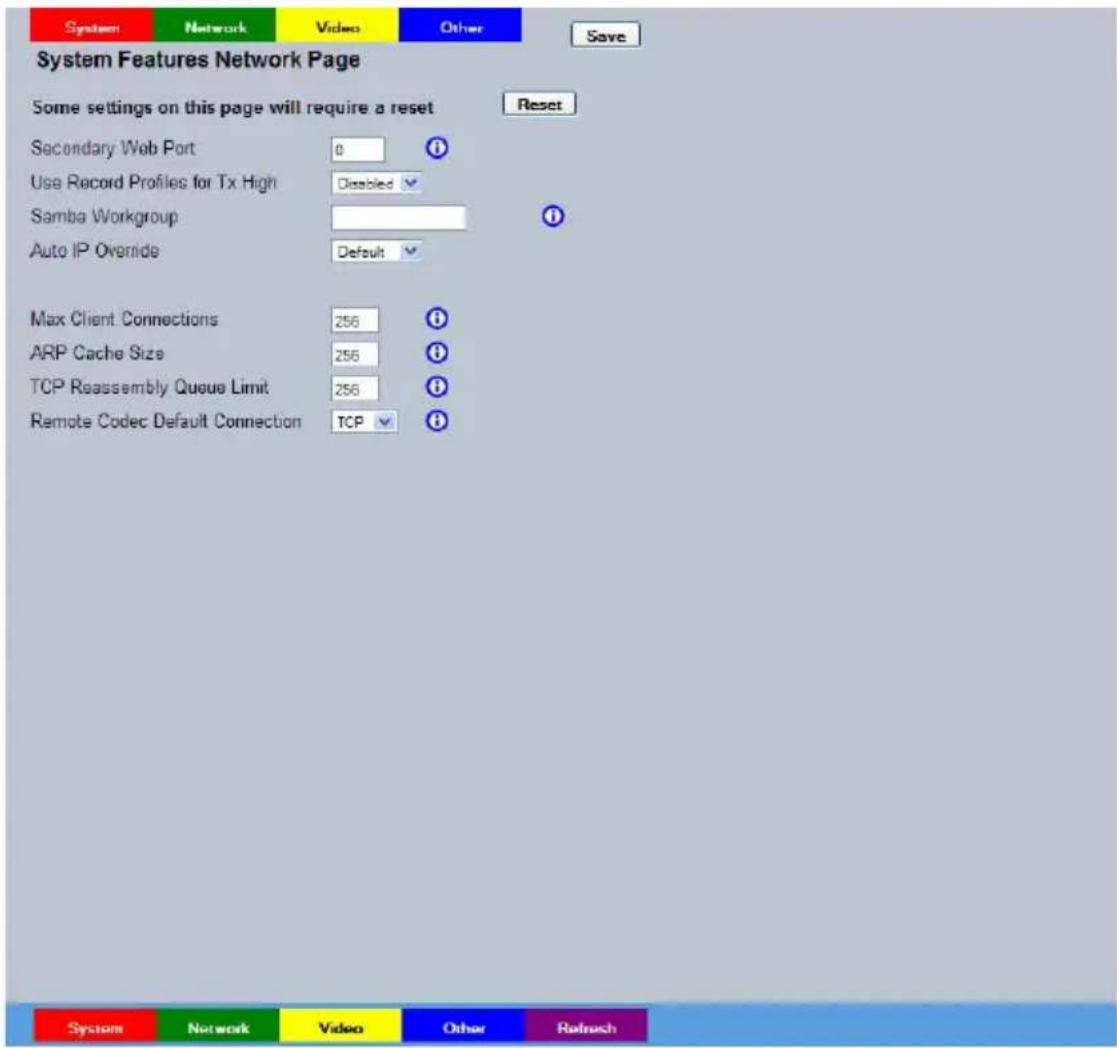
System Features Network Page Some settings on this page will require a reset Reset Secondary Web Port 0 Use Record Profiles for Tx High Disabled Samba Workgroup Auto IP Override Default Max Client Connections 256 ARP Cache Size 256 TCP Reassembly Queue Limit 256 Remote Codec Default Connection TCP| Secondary Web Port | If the default port setting for web serving has already been allocated, it is possible to configure a second port number i.e. the secondary web port can be set if the default web port is blocked by the firewall. |
| Use Record Profiles for Tx High | This option sets the Video Transmission profile for the ‘High’ setting to be identical to the settings (rate/quality/resolution) that are being recorded |
| Samba Workgroup | Enter the name of the Samba workgroup to enable sharing of files and directories to/from the unit. To access the unit via a PC running SMB (and has access to the same Workgroup); open My Network Places-Entire Network- Microsoft Windows Network. The Workgroup containing the unit and PC(s) should then be available. Files and folders can then be copied/added as required. |
| Auto IP Override | The Closed IPTV network can utilise zeroconf during initial configuration. This is set to disabled at the factory. Enable to attempt Zero Config address negotiation. |
| Max Client Connections | This setting limits the number of client connections to the server. The default is 256 but can be increased if there is high network traffic. |
| ARP Cache Size | This setting limits the number of cache entries available in the ARP table. The default setting of 256 is adequate for most instances |
TCP Reassembly Queue Limit This setting limits the maximum number of TCP segments allowed in the reassembly queue, to protect against a common DoS attack.
Remote Codec Default Connection This selects the initial connection type to use for an auto configured remote codec camera, select from TCP or UDP.
System (Red) Select to open the System->Features->System page
Network (Green) Select to open the System->Features->Network page
Video (Yellow) Select to open the System->Features->Video page
Other (Blue) Select to open the System->Features->Other page
Refresh (Purple) Refreshes the information on the current page.
System Features Video
text_image
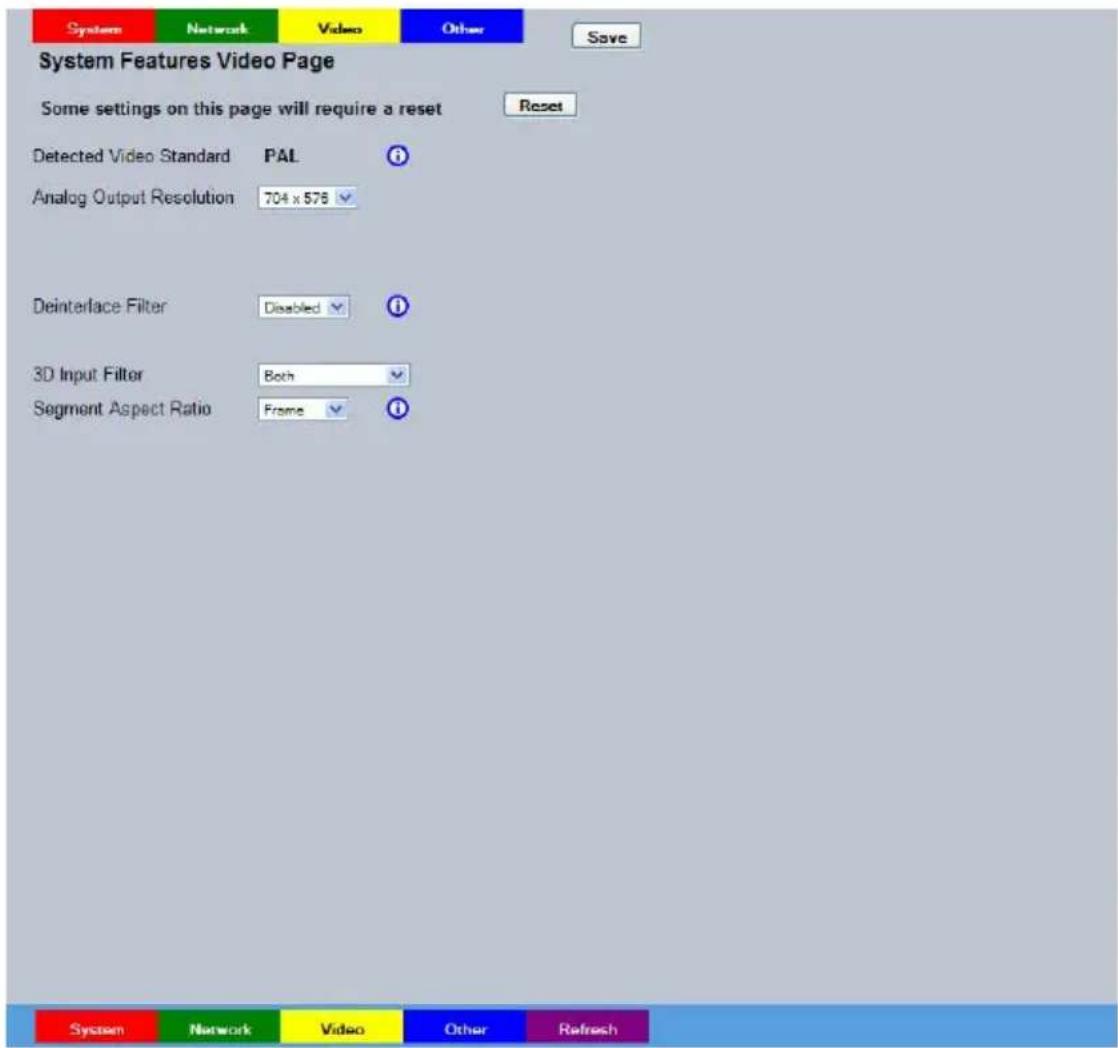
System Features Video Page Some settings on this page will require a reset Detected Video Standard PAL Analog Output Resolution 704 x 576 Deinterface Filter Disabled 3D Input Filter Both Segment Aspect Ratio Frame System Network Video Other RefreshDetected Video Standard Shows which video standard the camera is operating.
Analogue Output Resolution Allows selection of the resolution, options are 704 x 576, 704 x 512 and 640 x 512
Deinterlace Filter Select this option to improve display clarity and minimise the comb effect that may be visible when recording high motion scenes in high resolution.
3D Input Filter Options are Off, Time Domain Filter, Spatial Filter, or Both.
Segment Aspect Ratio This setting control how a 4:3 image is displayed in a multi-screen or wide screen format on the local viewer. The available display segment changes depending on the number of multi screen images selected for display. Stretch forces the image to fill the available display segment. This may result in some distortion of the display image. Zoom Fit forces the frame to fill the available segment completely and proportionally. Consequently some of the image at the top and bottom of the frame may be cropped. Frame Fit forces the frame to fill the available segment proportionally, resulting in black bars left and right on some multi display choices.
Network (Green) Select to open the System->Features->Network page
Video (Yellow) Select to open the System->Features->Video page
Other (Blue) Select to open the System->Features->Other page
Refresh (Purple) Refreshes the information on the current page.
System Features Other
text_image
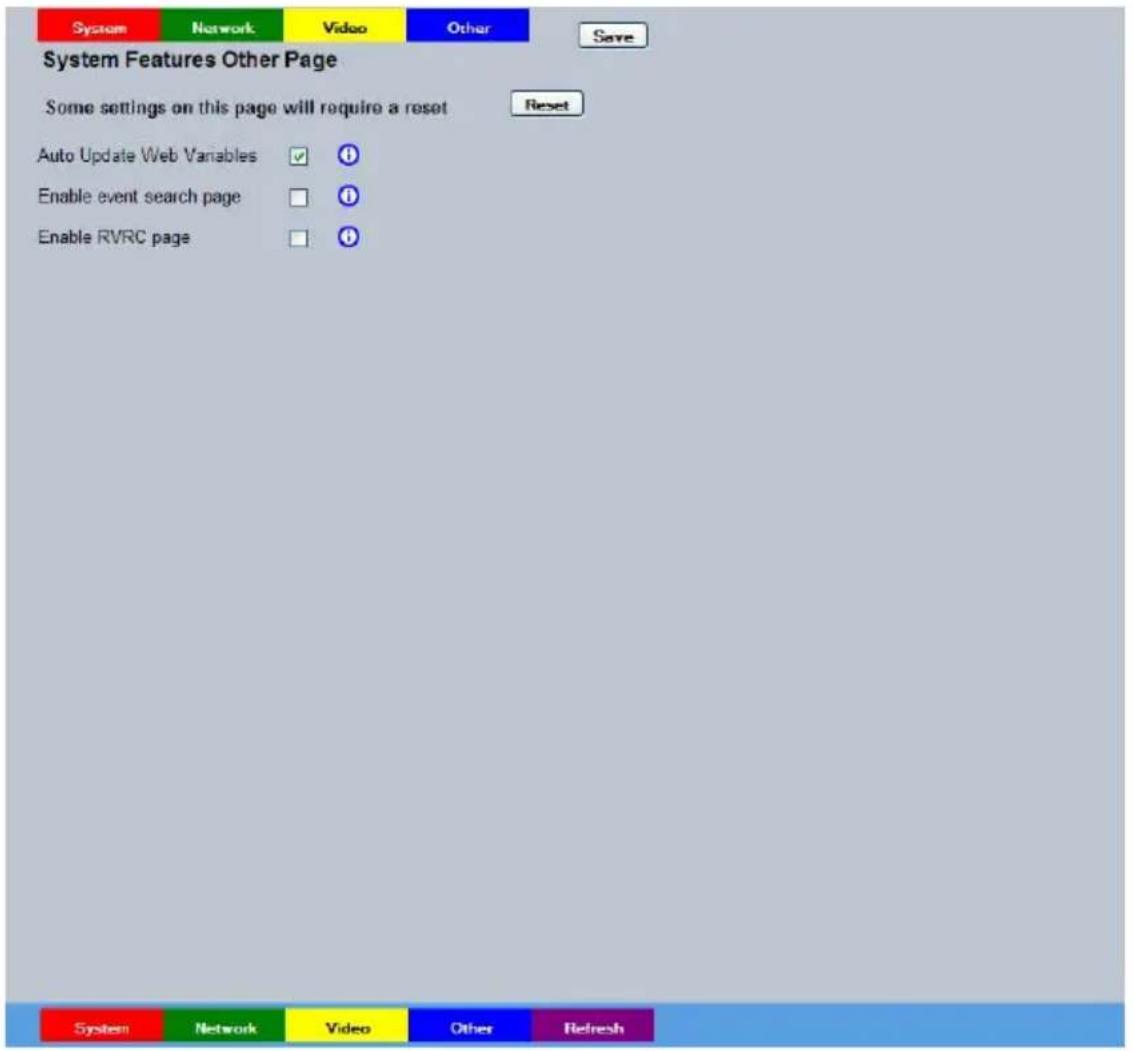
System Features Other Page Some settings on this page will require a reset Reset Auto Update Web Variables ✓ ① Enable event search page ☐ ① Enable RVRC page ☐ ① System Network Video Other RefreshAuto Update Web Variables This is used to enable/disable the configuration page auto update acceptance option which is displayed when the configuration page version has been updated.
The default is to auto accept and update the configuration pages.
Enable Event Search Page Select to enable the Event Search option.
Note: When de-selected here, the 'Event Search' menu will no longer be displayed in the menu tree.
Enable RVRC page Select this option to activate the RVRC Remote Set/Unset/Override function, refer to 'Record Settings-RVRC' for more information.
Note: When de-selected here, the 'RVRC' menu will no longer be displayed in the menu tree.
Maintain
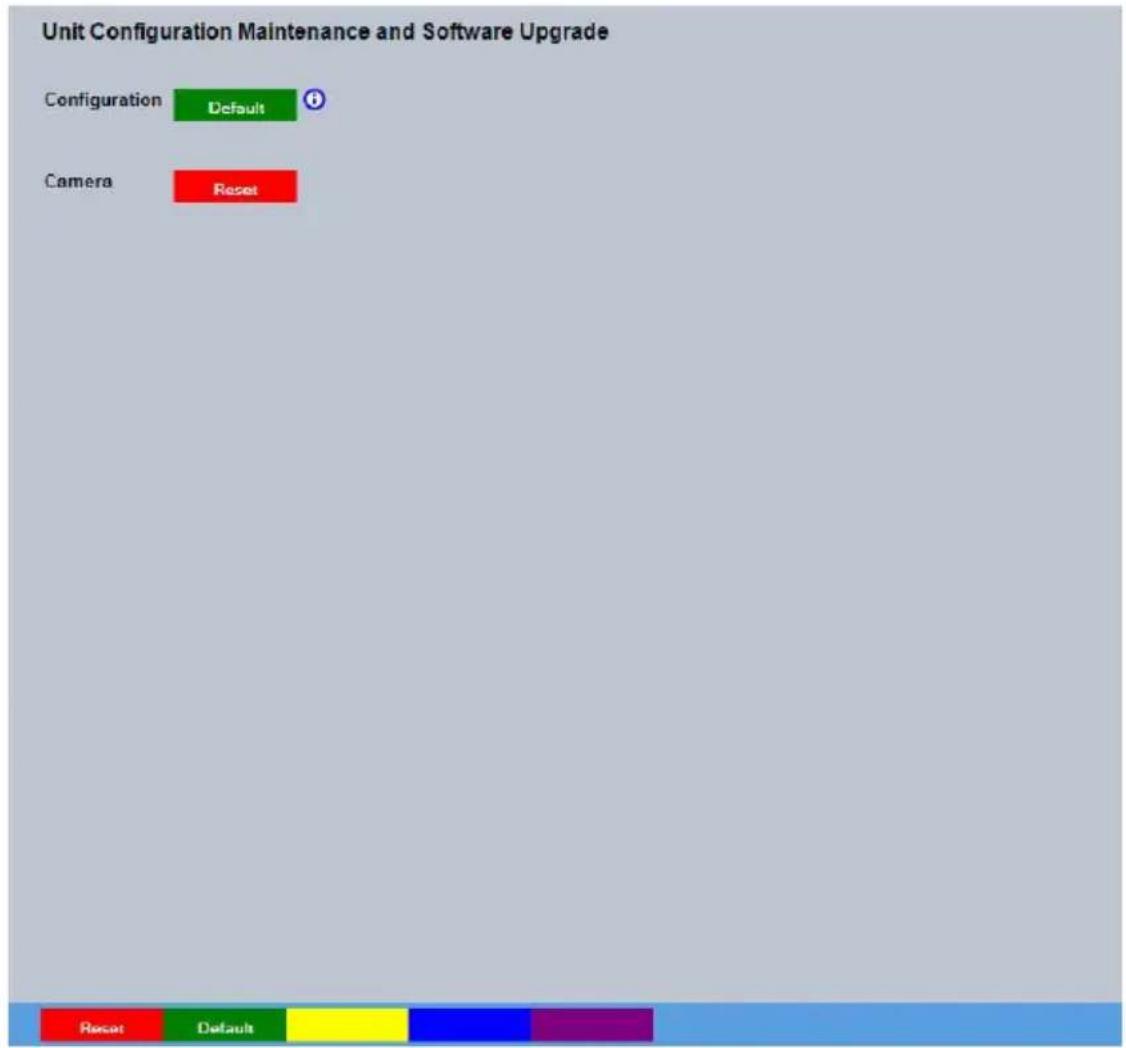
This menu allows the unit to be reset. The system can also be restored to factory defaults.
text_image
Unit Configuration Maintenance and Software Upgrade Configuration Default Camera Reset Reset DefaultCamera
Reset (Red) Select to restart the unit.
Configuration
Default (Green) Select to return the unit to its factory default settings and restart.
Powerscript Management
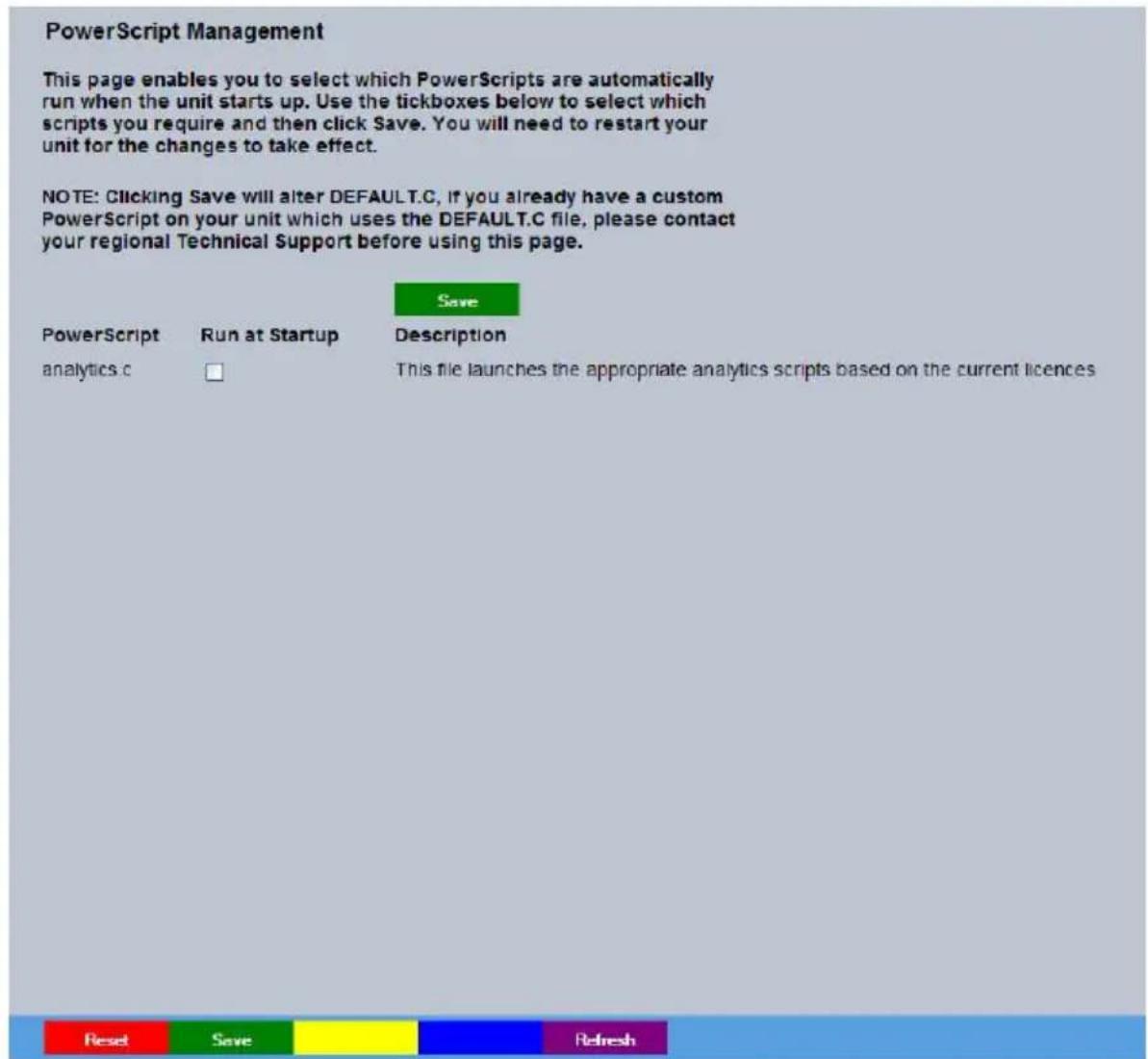
This page enables you to select which PowerScripts are automatically run when the unit starts up. Use the tickboxes below to select which scripts you require and then click Save.
Note: You will need to restart your unit for the changes to take effect.
Note: Clicking Save will alter DEFAULT.C, if you already have a custom PowerScript on your unit which uses the DEFAULT.C file, please contact your regional Technical Support before using this page.
text_image
PowerScript Management This page enables you to select which PowerScripts are automatically run when the unit starts up. Use the tickboxes below to select which scripts you require and then click Save. You will need to restart your unit for the changes to take effect. NOTE: Clicking Save will alter DEFAULT.C, if you already have a custom PowerScript on your unit which uses the DEFAULT.C file, please contact your regional Technical Support before using this page. PowerScript Run at Startup Description analytics.c This file launches the appropriate analytics scripts based on the current licences Save Reset Save RefreshReset(Red) Resets the unit
Save (Green) Saves the current settings
Refresh (Purple) Refreshes the current page
Display
The Display pages allows the default settings to be established for the Viewer menu. The viewer can be used to simulate local operation over the network, allowing locally stored images to be viewed.
The Viewer Defaults page allows the Viewer menu settings to be configured.
The User Accounts page helps protect configuration procedures by limiting access to specific users via accounts and passwords.
Viewer Defaults
The units Viewer function allows remote users to simulate local operation over a network. This menu allows configuration of settings for the Viewer function, refer to 'Operating The Viewer' for more information regarding the Viewer.

text_image
Viewer Defaults Save Remote Default Image Format MPEG Default Image Req High Applet Location /gu/viewer/applets/%OPERATING_SYSTEM% viewer- Set Location - Choose Location - Reset Reset RefreshDefault Image Format Camera images can be displayed in either JPEG or MPEG format on the LAN (local area network) and the WAN (wide area network).
Default Image Req The default size for images displayed full screen in the Viewer menus on the LAN and the WAN can de set at High, Medium, Low or None.
Applet Location The location of the unit's Viewer menu applet is displayed. The default
location will always be the applet installed on the unit. If accessing multiple units via a remote connection, all can be assigned the same Viewer applet. This will lessen the load time required when accessing different DVRs/Servers.
For example, if a local unit and a remote DVR are to be accessed, it is possible to set the Applet location for both DVRs as the local unit. If viewing the unit remotely, Dedicated Micros provide a remote applet located on the Dedicated Micros website (www.dedicatedmicros.com/software_release/windows/viewer-applet.jar). Due to possible bandwidth restrictions on the network the DVR is located, using this remote applet may improve data transfer speeds.
Set Location Select the applet location. Choose from 'Default location' i.e. the applet installed on the unit; or the 'Dedicated Micros website' option i.e. the remote applet.
Reset (Red) This button will restart the unit.
Refresh (Purple) Refreshes the current page
User Accounts
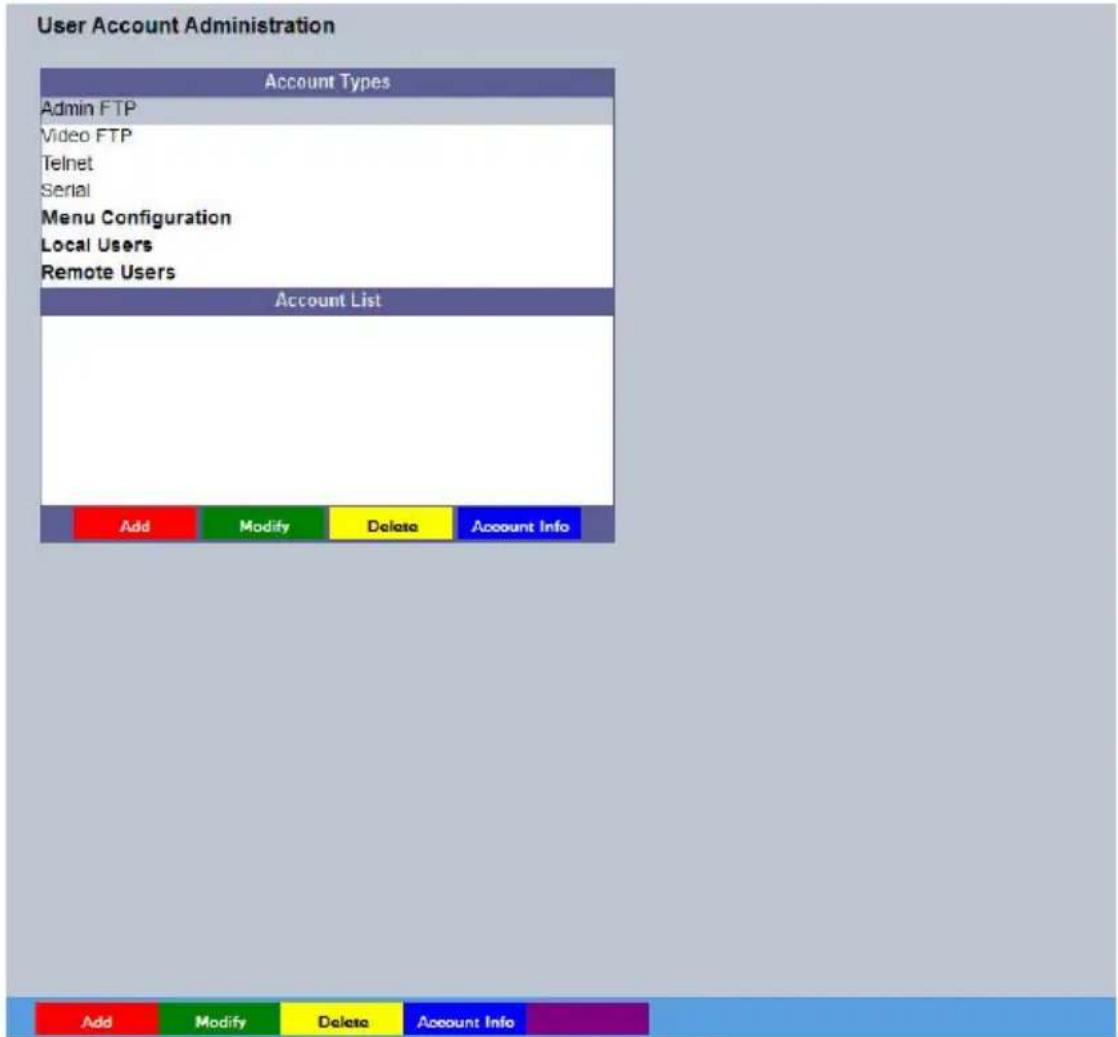
The unit can protect configuration procedures by limiting access via usernames and passwords. By default, no usernames and passwords are configured for any account type. The is a warning displayed on the main configuration page until usernames and passwords are configured.
text_image
User Account Administration Account Types Admin FTP Video FTP Telnet Serial Menu Configuration Local Users Remote Users Account List Add Modify Delete Account Info Add Modify Delete Account InfoAccount Types The available account types for which users and passwords can be assigned privileges are:
Admin FTP
Assigning username and password requirements for the Admin FTP function will limit access to the unit via an FTP connection.
Default username:none Default Password:none.
Video FTP
Assigning username and password requirements will limit access to the recorded video on the unit via an FTP connection. Default Username:dmftp Default Password:ftp.
Telnet
Assigning username and password requirements for Telnet connections will limit Telnet access to the unit (Telnet can be used to upgrade the unit). Default Username:dm Default Password:none.
Serial
Assigning username and password requirements for Serial
connections will limit access via a Serial link.
Default username:none Default Password:none.
Menu Configuration
Assigning WebPage Configuration privileges will limit access to
the Configuration menus when viewed remotely. When implemented, the user will be prompted for a username and password before access to the Configuration menus (via the main menu) will be granted.
Default Username:dm Default Password:none
Local Users
Assigning Local Users access privileges will limit access to the
Viewer pages for local users. When implemented, the local user will be prompted for a username and password before access to the Viewer pages (via the main menu) will be granted.
Default Username:dm Default Password:none
Remote Users
Assigning a username and password protects camera images
from unauthorised access.
Default username:none Default Password:none.
Note: Where there are no assigned, access will be granted to all users and no request for a username and password will be made.
Account List When an Account Type is highlighted, details of users with access will be displayed.
Add(Red) Highlight an administration feature i.e. Serial and select 'Add'. Enter the new User Name and Password. That user's name will now be displayed in the account list.
Modify (Green) To modify a user's settings, highlight the user in the list and press Modify.
Delete (Yellow) To delete a user's settings, highlight the user in the list and press Delete.
Camera
The Camera menus allow configuration of the camera setup, refer to the individual menus for further details.
The Setup page allows the quick configuration the camera setup.
The Iris Control page allows adjustments to settings of a DC drive lens when one is fitted. This is to allow for tolerances in manufacturers lenses.
Setup
This menu allows the configuration of local camera settings for the unit.

text_image
Camera Configuration Save Camera Title D720 Exposure Time 1/50 Collection Res HD720 Auto White Balance ✓ Exposure Level 60 Flip Video Mirror Video CDT-D720 1:D720 01-Jun-2011 1... Sharpness 35 Decrement - Increment + Decrement - Increment + RefreshCamera Title This title can be edited to allocate a name to the unit. This is displayed when the unit is accessed via NetVu ObserVer and is set when transmitting information to a Remote Video Response
Centre (RVRC)
Exposure Time Exposure time defaults to 1/50 which prevents blurring of the recorded image. For views containing high speed images, the setting can be increased (to a max of 1/100[PAL] or 1/120[NTSC]). For views containing static images, the setting can be decreased (to a min of 1)
Collection Res Setting the Max Collection Resolution limits the unit to record within the selected maximum resolution. Lowering the resolution settings will significantly lessen the storage capacity requirements when using Integrated Camera Recording. Available resolutions range from CIF to UXGA.
Auto White Balance Enables auto tracing white balance.
Exposure Level Sets the target exposure level that the electronic iris will try to attain. This can be used to adjust the brightness of the image.
Flip Video Used to invert the image when the camera is mounted upside down.
Mirror Video Select to 'mirror' the camera image (horizontal flip). Sharpness Manually adjust the image sharpness. Decrement - (Green) Decrease sharpness Increment + (Yellow) Increase Sharpness Refresh (Purple) Refreshes the current page
Iris Control
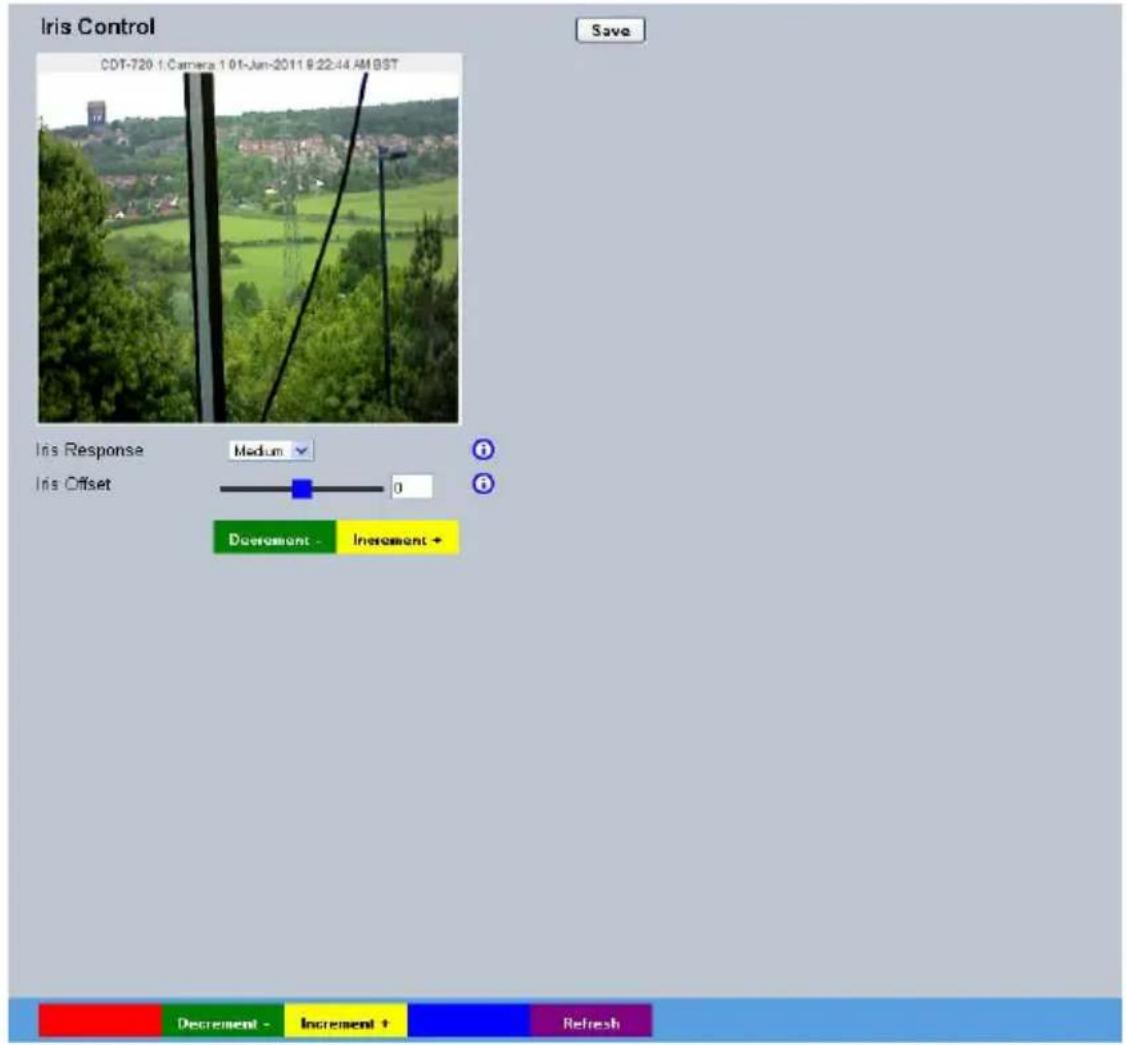
This menu is for advanced use only. It is factory set and should not require any alteration. Under normal operating conditions no adjustment is needed, however in certain circumstances benefits may be seen through minor adjustment for some DC drive lens.
text_image
Iris Control CDT-720 1:Camera 1.01-Jun-2011 9:22:44 AM BST Save Iris Response Medium Iris Offset 0 Decrement - Increment + Decrement - Increment + RefreshIris Response This will change the speed at which the Iris will respond to changes in lighting conditions. The default is for a medium speed of response however this can be set to react slower or faster to changes in the scene as desirable to suit lens types and conditions.
Iris Offse Iris Offset is calibrated from the factory. However it may be necessary to adjust this setting for different manufacturers lenses to allow for differences in their specification. If the images from the camera are pulsing in brightness, start by incrementing slowly until an improvement is seen. If by doing this the pulsing is actually getting worse, decrement instead to correct. If stability can not be reached then use the slower Iris response setting.
Save (Red) Save the current settings.
Decrement - (Yellow) Use the button to reduce the zero crossing point setting by 1 Increment + (Blue) Use the button to increase the zero crossing point setting by 1 Refresh (Purple) Refreshes the current page
ICR Settings
The ICR Settings menus allow configuration of the unit's record functions. ICR settings can be configured for normal operation, on alarm, by schedule and for set holiday and weekend periods. Selected video data can be saved and protected. Refer to the individual menus for further details.
The Default page allows the basic Recording settings to be edited.
The Profile Record page allows the recording configuration to be based on specific priorities. The record rate and quality can be customised to respond appropriately to the alarms and time of day. A high degree of control and flexibility is possible using these options.
The Protect Video page allows previously recorded data to be protected and retained. If needed, all recording can be halted and saved video deleted.
The AoE page allows configuration of the units ATA over Ethernet (AoE) function. AoE is a network protocol designed for simple high-performance access of storage devices over Ethernet networks Importantly the external storage device must be located on the same network as the unit.
The Video Storage page displays drives that are available for video recording and allows the formatting and allocation of these devices.
Default
The unit has a range of pre-defined configurations available. As standard the unit can record at 5pps MPEG4 and at a selected number of days. Alternatively the unit can be configured for 2pps JPEG recording on each camera or for MultiMode operation (note that this will result in the record duration being determined by the time period the unit is in alarm).
Note: This page is only relevant if images are being recorded to the camera. If a DVR is being used, recording direct to the camera may be disabled.

text_image
ICR Default Setup Save Days Recording Not Recording Timed Expiry (Days) 0 Camera Settings Normal Rate - MPEG4 6.25pos Reduce Duration/Enhance Quality (Days) 7 Default All RefreshDays Recording Displays the record duration possible using the current configuration.
Timed Expiry If required, all stored recorded video can be permanently deleted after a set number of days. Set to '0' to de-activate this function.
Camera Settings Choose the rate of non alarm recording to be used from the range of preset recording profiles. Select from Normal Rate-MPEG4 5pps, Normal Rate-JPEG 1pps or Normal Rate-MultiMode recording.
Record Duration/Enhance Quality The recording duration can be limited to a set number of days; allowing the recording quality to be enhanced for a shorter storage period.
Default All (Green) Restore record settings to factory defaults.
Refresh (Purple) Refreshes the current page.
Profile Record
It is possible to set the unit recording configuration based on specific priorities. The MultiMode recording feature offers the ability to set different recording rates, resolutions and compression formats across unset, set and override modes for each individual camera. By varying the quality, bit rate and file size of recorded images, the MultiMode function enables the recording capabilities of the unit to be greatly increased.
Note: This page is only relevant if images are being recorded to the camera. If a DVR is being used, recording direct to the camera may be disabled.
Simple Record

text_image
Profile Record Setup Menu view Simple Days Recording Infinity Channel 1: Camera 1 Comp PPS Quality UNSET Normal JPEG No Record User Defined UNSET Event JPEG No Record User Defined SET Normal JPEG No Record User Defined SET Event JPEG No Record User Defined OVERRIDE Normal JPEG No Record User Defined OVERRIDE Event JPEG No Record User Defined RefreshMenu View Switch to the Advanced Profile Record menu.
Days Recording Displays the record duration possible using the current configuration.
Unset/Set/Override Normal Shows the recording profile used by the camera if no Timer Functions are applied and the camera is operating under Normal (non Event) conditions, refer to the 'Schedules' section for further details.
Unset/Set/Override Event Shows the recording quality that will be used by the camera during an Alarm or Event. Note that Set and Override schedules will be used only when Timed Schedules are applied, refer to the 'Schedules' section for further details.
Note: Unset, Set and Override modes may be renamed via Record Settings->Schedule.
Comp Select image compression format (MPEG, JPEG or H264).
PPS The accompanying dropdown list allows the number of frames captured per second to be set.
The pictures per second (pps) option allows either 6, 5, 2, 1, 0.5, 0.25 or 0.1 pps to be recorded.
Pictures can also be recorded at 1/4, 1/2 or 3/4 Real Time.
To disable record, choose the 'No Record' option.
Select 'User Defined' to use settings established in the Advanced Profile Record menu.
Quality The accompanying dropdown list allows the quality of recorded images to be set. Select from Maximum, Very High, High, Medium, or Low. Select User Defined to use settings established in the Advance Profile Record menu.
Note: The higher the Quality setting, the greater the storage space needed.
Refresh (Purple) Refreshes the current page
Advanced Record
text_image
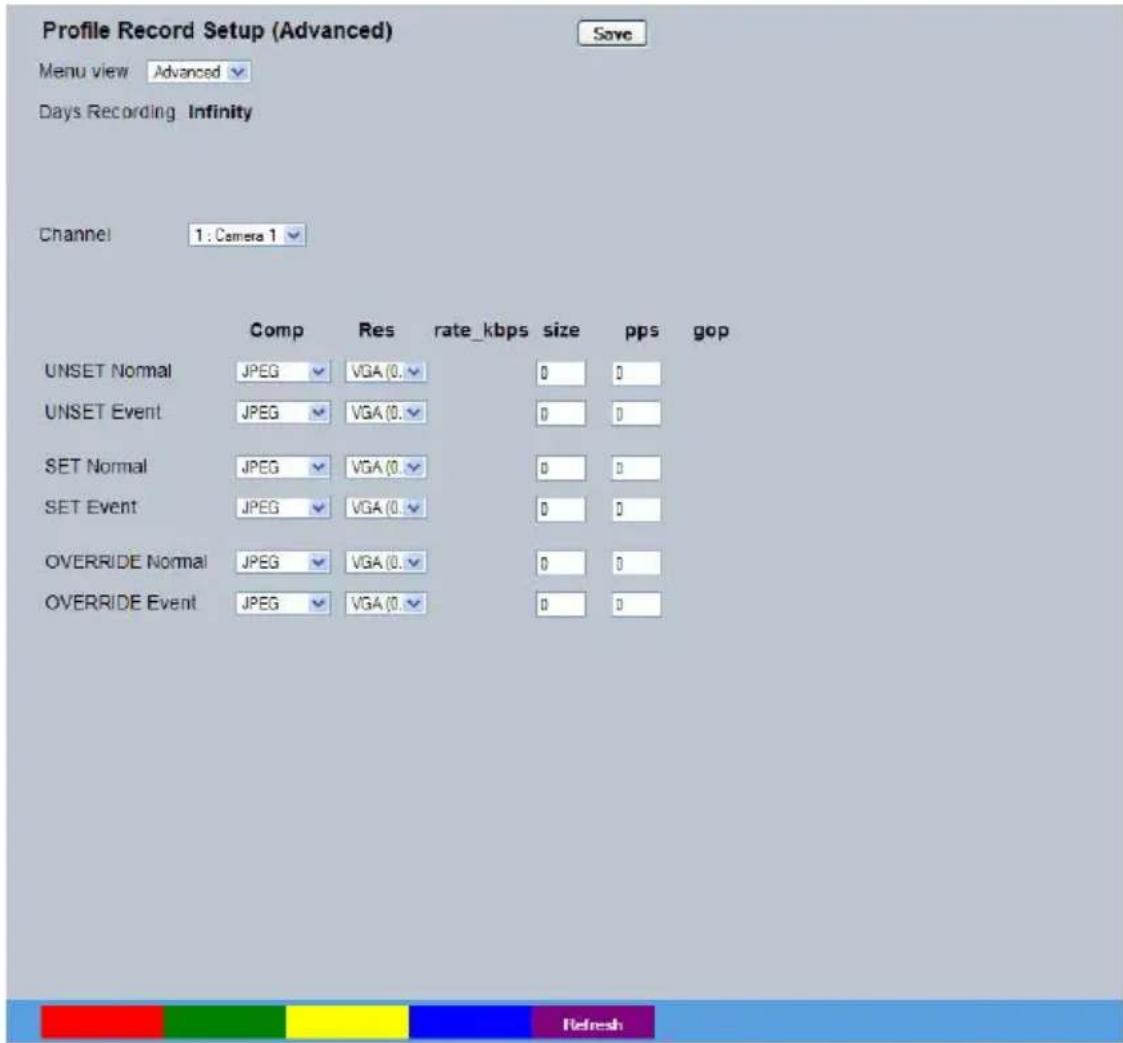
Profile Record Setup (Advanced) Save Menu view Advanced Days Recording Infinity Channel 1: Camera 1 Comp Res rate_kbps.size pps gop UNSET Normal JPEG VGA (0.✓ 0 0 UNSET Event JPEG VGA (0.✓ 0 0 SET Normal JPEG VGA (0.✓ 0 0 SET Event JPEG VGA (0.✓ 0 0 OVERRIDE Normal JPEG VGA (0.✓ 0 0 OVERRIDE Event JPEG VGA (0.✓ 0 0Menu View Switch to the Simple Profile Record menu.
Note: When Advanced Record settings have been changed, it is not possible access the Simple Record menu until the newly configured Advanced Record settings have been applied. To do this, open the Record menu and select the 'Save' option. It will then be possible to return to the Profile Record menu and access Simple Record.
Days Recording Displays the record duration possible using the current configuration.
Channel Displays the Camera Name.
Filter by Displays the Recording Settings.
Unset/Set/Override Normal Shows the recording profile used by the camera if no Timed Schedules are applied and the camera is operating under Normal (non Event) conditions. Refer to 'Schedule' for further information.
Unset/Set/Override Event Shows the recording quality that will be used by the camera during an Alarm or Event. Note that Set and Override schedules will be used only when Timed Schedules are applied. Refer to 'Schedule' for further information.
Comp Select image compression format (MPEG, JPEG or H264).
Res Select image resolution format (HD720, XGA, SVGA, VGA, QVGA, Q2VGA).
rate_kbps If MPEG4 is selected, the figure entered here will be the bit rate allocated. A higher bit rate will provide better quality. MPEG bit rates can be entered within the range of 45-2500K bits/second.
Size If JPEG is selected, the figure entered here will be the size of the JPEG transmitted (in Kbytes). JPEG file sizes can be configured within the range of 5-45Kbytes.
PPS Select the number of pictures recorded per second.
GOP If using MPEG4 recording, select the number of images recorded within a GOP (Group of Pictures). A GOP consists of an I-Frame (keyframe) and following P frames.
Refresh (Purple) Refreshes the current page.
Protect Video
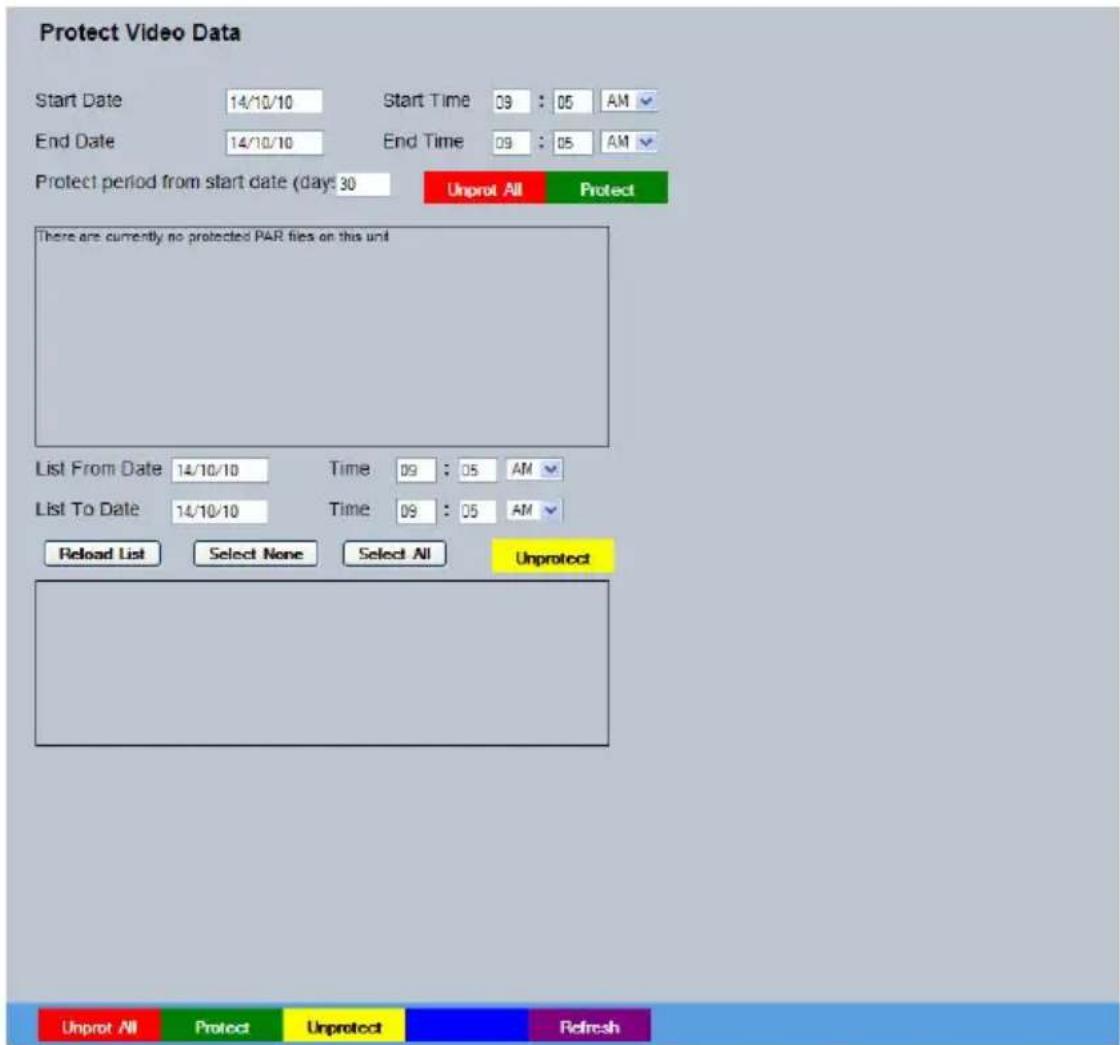
This menu allows the unit to automatically protect and retain recorded data in the camera. Previously saved data can also be unprotected. Enter a start and end time and select 'Reload List'. All saved video files from the chosen time period will be shown in the upper textbox. These recorded 'PAR' files can then be selected and protected via their accompanying checkboxes and the Protect option. Selected video files can also be unprotected via the Unprotect option.
The lower textbox provides a status report detailing which video files have been protected/unprotected.
text_image
Protect Video Data Start Date 14/10/10 Start Time 09 : 05 AM End Date 14/10/10 End Time 09 : 05 AM Protect period from start date (days: 30 Unprot All Protect There are currently no protected PAR files on this unit List From Date 14/10/10 Time 09 : 05 AM List To Date 14/10/10 Time 09 : 05 AM Reload List Select None Select All Unprotect Unprot All Protect Unprotect RefreshStart Date Enter a start date to protect video.
Start Time Enter a start time to protect video.
End Date Enter an end date to protect video.
End Time Enter an end time to protect video.
Protect Length (days) Enter the number of days that selected files will be protected for.
Protect Select this option to protect recorded video for the selected time period(s).
Unprotect Select this option to unprotect recorded video selected from the list.
Reload List This will refresh the video list according to the selections made in the Start Time/Date and End Time/Date dialog boxes.
Select None This de-selects all the available video files.
Select All This selects all the available video files.
List From Date/Time This dialog box allows a search to be made within the protected video list starting from a specific Time and Date.
List To Date/Time This dialog box allows a search within the protected video list to conclude at a specific Time and Date.
Refresh (Purple) Refreshes the current page.
AoE
This menu allows configuration of the units ATA over Ethernet (AoE) function. AoE is a network protocol designed for simple high-performance access of storage devices over Ethernet networks. Importantly the external storage device must be located on the same network as the unit. AoE does not rely on network layers such as IP and TCP, making it non routable i.e. routers cannot be used to forward a packet across disparate networks. AoE packets can only travel within a single local Ethernet storage area network (adds a physical layer of security to the information). The stored video can only be accessed by plugging directly into an ethernet socket in the same LAN as the host. This means AoE cannot be accessed over the Internet or other IP networks, but makes AoE more lightweight (with less load on the host), easier to implement, provides a layer of inherent security, and offers higher performance.

text_image
AoE Setup Logical Devices Device Name Mounted Status Capacity (Mb) Device ID Total Partitions No logical drives found Physical Devices Device ID Status Capacity (Mb) Partitions No physical drives foundLogical Devices Connected AOE Devices - Any devices in this panel are being used by the unit to store data. They can be freed by clicking on the Release button.
Physical Devices Available AOE Devices - Any devices in this panel are available on the network. They can be added to the storage capability of this unit by 'claiming' the storage. Unavailable storage is listed as Owned. Claimed storage capacity can be 'released' in the top panel.
Refresh (Purple) Refreshes the current page.
Video Storage
The Video Storage Allocation table displays drives that are available for video recording. Entries with the prefix '/HDD0' indicate the units local hard drive (if installed), entries prefixed by '/udd0' are recordable media connected to the unit via USB sockets (if fitted), an entry prefixed by '/mdd' are installed SD cards.
System Recording
Video Storage Allocation: 184 Partitions
| Device1 | Size(Mb) | Partitions | Allocate2 | Format3 | Realm | Feedback |
| MDD0 | 940 | 0 | Allocate | Format | Mounted | |
| MDD10 | 1882 | 184 | Deallocate | Format | Mounted |
Hauset
Stop Rec
Clear Video
Refresh
Device Entries with the prefix '/HDDx' (from 0 upwards) indicate the units
local hard drives (if installed), entries prefixed by '/uddx' (from 0 upwards) are recordable media connected to the unit via USB sockets, an entry prefixed by '/mdd0' is the installed SD card.
Subsequent MDDx entries are for extra SD cards (where fitted).
Size The device returns information when it is interrogated on connection
to the camera, the size of the recordable media is amongst this data.
Partitions The device returns information when it is interrogated on connection
to the camera, the number of partitions is amongst this data.
Allocate Formatted media can be allocated to the camera to allow it to be
used for recording. DM recommends that media is formatted before allocation, even if if has been used previously for video storage.
Realm Displays the status of the associated media.
Feedback Displays messages about the progress of formatting/allocation of the media.
Format (Red) Prepares the media for video storage, refer to 'To format additional Video Storage'.
Stop Rec (Yellow) Suspends Recording on the unit
Clear Video (Blue) Wipes the video from the drive to disable playback.
Refresh (Purple) Refreshes the current page
To format additional Video Storage
- Plug a USB storage device into one of the available USB ports and click the purple Refresh button. The newly connected device will be displayed with a '/UDD' prefix. The SD card (if installed) will also be displayed and can be allocated in the same way. USB devices will be prefixed '/UDD', SD cards will be prefixed '/MDD'.
- The device may require formatting. DM recommends the device is formatted even if it was previously been used as video storage. Click on the 'Format' button adjacent to the device listing to prepare the device for recording.
text_image
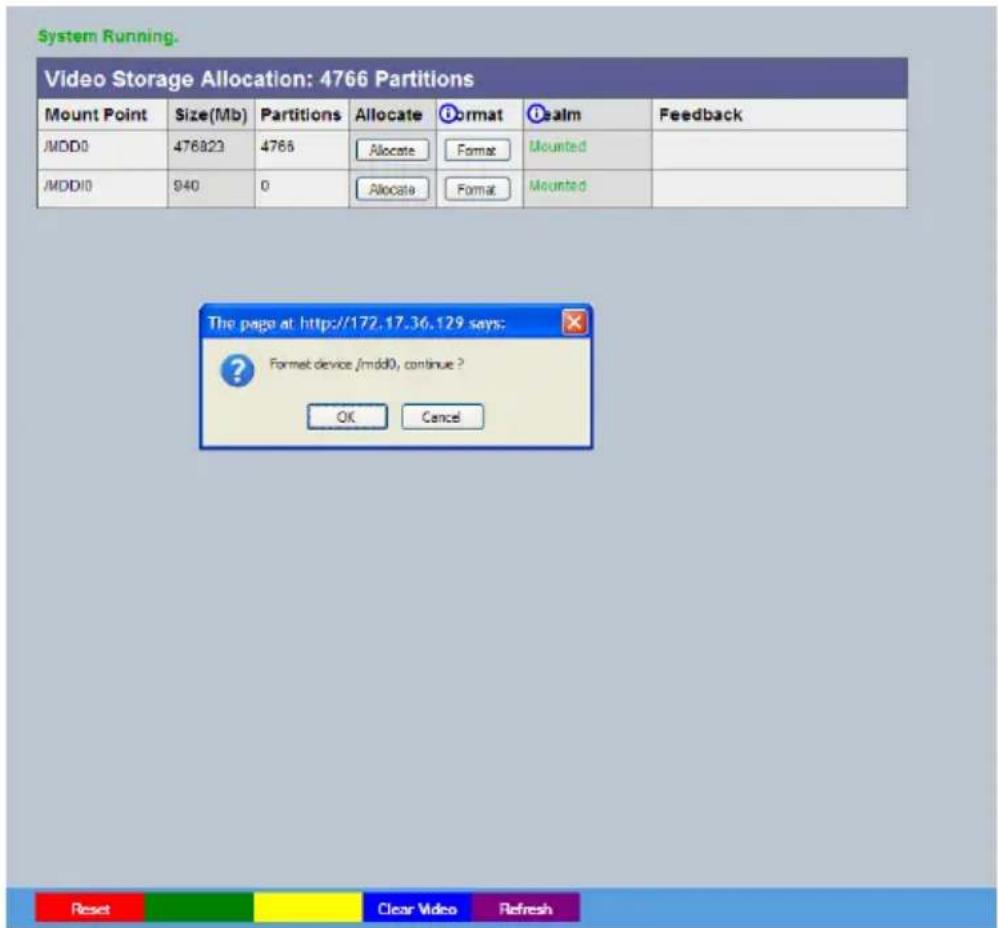
System Running. Video Storage Allocation: 4766 Partitions Mount Point Size(Mb) Partitions Allocate Format Realm Feedback /MDD0 476823 4768 Allocate Format Mounted /MDD10 940 0 Allocate Format Mounted The page at http://172.17.36.129 says: ? Format device /mdd0, continue ? OK Cancel Reset Clear Video Refresh- Allocate the formatted and mounted storage for video storage by clicking on the 'Allocate' button. Allocation takes between a few seconds and a few minutes, depending on the size of the drive, and the Feedback column will display information about the allocation process. The unit will require a Reset once allocation is complete.
Note: The unit application drive is protected, if it is allocated the unit will only remove the video folder. Formatting any other device will remove all data. In either case recording on the system is halted while formatting and, if already allocated, the formatted device will be de-allocated as a video storage device

text_image
System Running Video Storage Allocation: 4766 Partitions Mount Point Size(Mb) Partitions Allocate Format Alarm Feedback JMOD0 476823 4765 Allocate Format Mounted JMOD10 940 0 Allocate Format Mounted The page at http://172.17.36.129 says: ? Allocate device /mdd0 for video? OK Cancel Reset Clear Video RefreshThe system displays a confirmation box to ensure the correct device has been selected. Click OK to confirm, then reboot the system. Once the power has cycled, the system will build the required PAR files ready for recording to commence, progress will be displayed in the Feedback column.
Note: There will be a pause before recording begins, dependant on the size of the USB device as video partitions are built.
Schedule
This menu allows the Timer Function names to be configured. The Timer Function enables the unit to automatically be put into set/unset mode at specific times on specific days. This can help reduce unnecessary alarm triggers. The mode can be set by the DVR that the camera is connected to.
When the unit is in Set or Unset mode, combine with different recording qualities and rates under normal and alarm conditions for a high degree of control in a range of situations.
The Setup page allows configuration of the schedule including naming the modes of operation and controlling when the unit changes between modes.
The RVRC page allows a user to temporarily switch the unit's system state into set/unset/override mode.
Setup
This menu allows the Schedule function to be configured. This enables the unit to automatically be put into set/unset mode at specific times on specific days. This can help reduce unnecessary alarm triggers.
Combining when the unit is in Set or Unset mode with different recording qualities and rates under normal and alarm conditions gives a high degree of control in a range of situations.

text_image
Schedule Mode Title Unset UNSET Set SET Current Mode = UNSET Override OVERRIDE Day UNSET Time SET Time Sunday 00 : 00 ↓ 00 : 00 ↓ Monday 00 : 00 ↓ 00 : 00 ↓ Tuesday 00 : 00 ↓ 00 : 00 ↓ Wednesday 00 : 00 ↓ 00 : 00 ↓ Thursday 00 : 00 ↓ 00 : 00 ↓ Friday 00 : 00 ↓ 00 : 00 ↓ Saturday 00 : 00 ↓ 00 : 00 ↓ If both 00 00 then defaults to UNSET. If 24:00 then SETMode/Title Enables a name to be entered for Unset, Set and Override mode.
Note: Any changes to Mode titles here will affect the mode names displayed in the Profile Record, IP Record and Zone Input menu pages.
Current Mode Shows the current timer mode according to the names entered in the Mode/Title text boxes.
Day Specifies which Day of the week is being configured
NOTE: The next two descriptions utilise the standard name settings for the profiles (SET, UNSET). If these names have been changed on this page, these menu options will display the user configured names.
UNSET Time Specifies what time in format HH:MM the UNSET recording settings, configured on the Profile Recording page, will become operational
SET Time Specifies what time in format HH:MM the SET recording settings, configured on the Profile Recording page, will become operational
Note: The arrow button displayed next to each textbox allows settings to be replicated for those cameras listed below. This will only affect the adjacent option i.e. Mode arrow will replicate the Mode setting to all cameras below the clicked arrow.
Note: To disable one day, set both times to 00.00. To have the profile recording all 24 hours of a day, set both times to 24.00
Refresh (Purple) Refreshes the current page.
RVRC
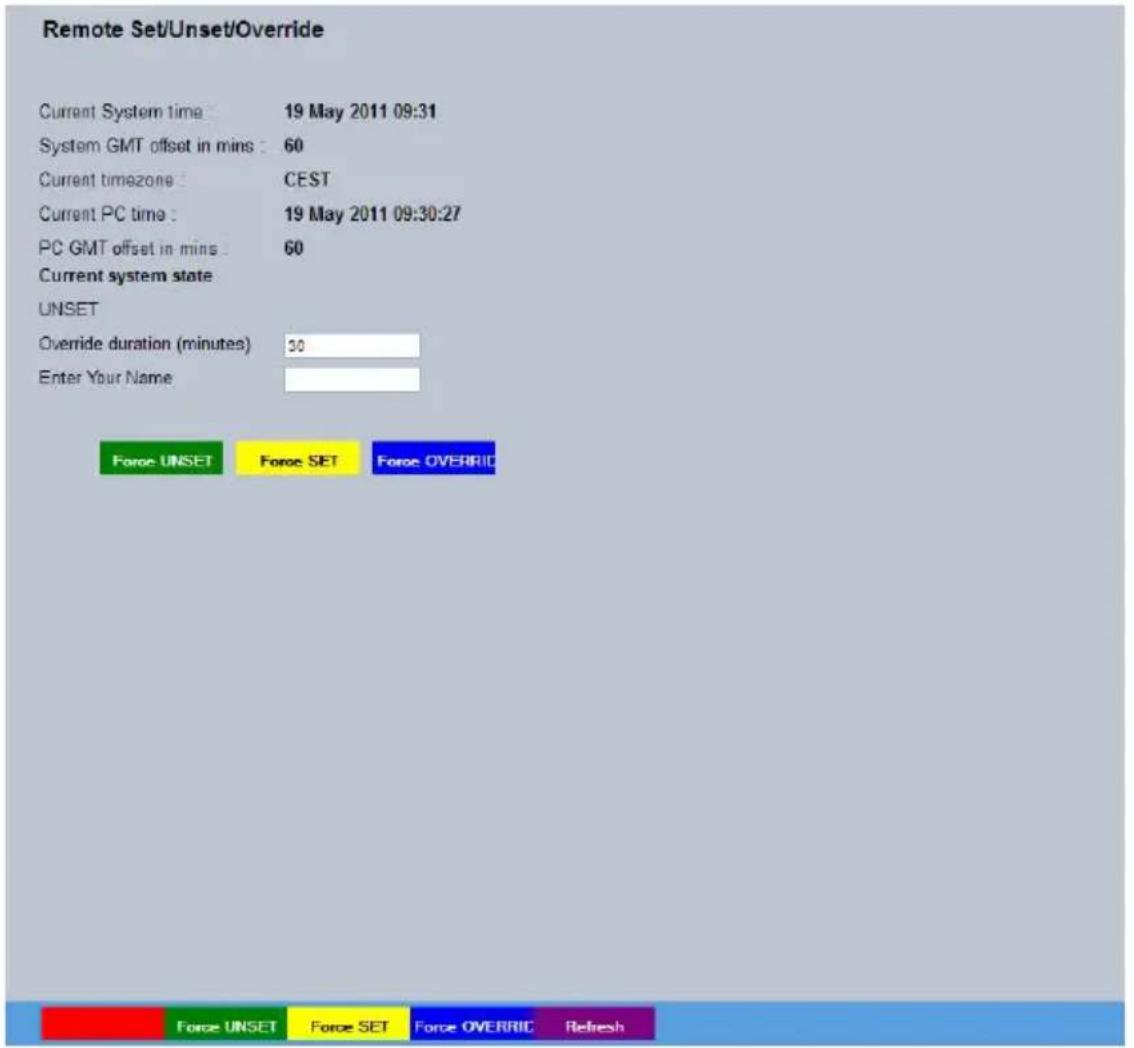
This menu allows a user to temporarily switch the unit's system state into set/unset/override mode. The user will be required to enter their name and also the intended override duration. The action will be logged.
Note: Refer to the Schedule menu for details of how to configure Set, Unset and Override modes: Record Settings->Schedule.
text_image
Remote Set/Unset/Override Current System time: 19 May 2011 09:31 System GMT offset in mins: 60 Current timezone: CEST Current PC time: 19 May 2011 09:30:27 PC GMT offset in mins: 60 Current system state UNSET Override duration (minutes) 30 Enter Your Name: Force UNSET Force SET Force OVERRIC Force UNSET Force SET Force OVERRIC RefreshCurrent System Time The unit's current date and time information will be displayed. This will be logged with any override action.
System GMT offset in mins Shows the number of minutes between the time in the time zone configured for the unit and GMT.
Current timezone Displays the configured time zone for this unit, as set on the System->Time and Date page.
Current PC Time The current date and time information of the PC currently being used to view the configuration pages will be displayed. This will be logged with any override action.
PC GMT offset in mins Shows the number of minutes between the time as configured on the connected PC and GMT.
Current system state The current system state will be displayed i.e. Set, Unset or Override.
Note: The system state names displayed here will depend on those entered via the Schedule menu: Record Settings->Schedule.
Override duration (minutes) Enter a time period for the override procedure. After this time period, the system state will return to that configured via the Schedule menu (for the current time).
Enter Your Name Enter your recognised user name. This will be logged.
Force UNSET(Green) Select to switch to Unset mode.
Force SET (Yellow) Select to switch to Set mode.
Force OVERRIDE (Blue) Select to switch to Override mode.
Refresh (Purple) Refreshes the information on the current page.
Alarm
The Alarm Settings menus allow configuration of the unit's alarm functionality. Individual alarm inputs and alarm zones can be configured. Global relays can be activated and the Activity grid set up, refer to the individual menus for further details.
The Inputs Page allows configuration of alarm channels. Two alarm channels are available.
The Alarm Input page allows configuration of alarm channels. Two alarm channels are available.
The Zone Input page enables the configuration of alarm zones. Up to 32 separate alarm zones can be created.
The Zone Actions page enables actions such as Go to Preset to be allocated to alarm zones. Zones can also be associated with a specific camera. On receipt of an alarm, images from the associated (primary) camera will automatically be displayed in the Viewer menu.
The Masked Cam(era) Det(ection) page allows camera masking to be configured. The Camera can detect when the lens has been obscured, i.e. by being covered or painted over. This page will enabled detection and set the threshold for activation.
The Alarm Response page enables configuration of responses following an Activity Detection trigger.
The Activity Setup page allowed activation and configuration of the Activity feature on all video inputs. The Activity feature enables the camera to automatically detect any movement/changes within the video scene. This can trigger a number of operations such as FTP alarm notification or an increase in the recording rate.
The VMD Configuration page enables the unit's VMD (Video Motion Detection) to be set-up. VMD allows a camera to automatically detect if there is any movement/changes within specific areas of the video scene.
The Global Actions page allows the onboard relay to be configured.
Inputs
This menu allows configuration of the alarm settings, refer to 'Installing the Unit' for hardware installation guidance.
text_image
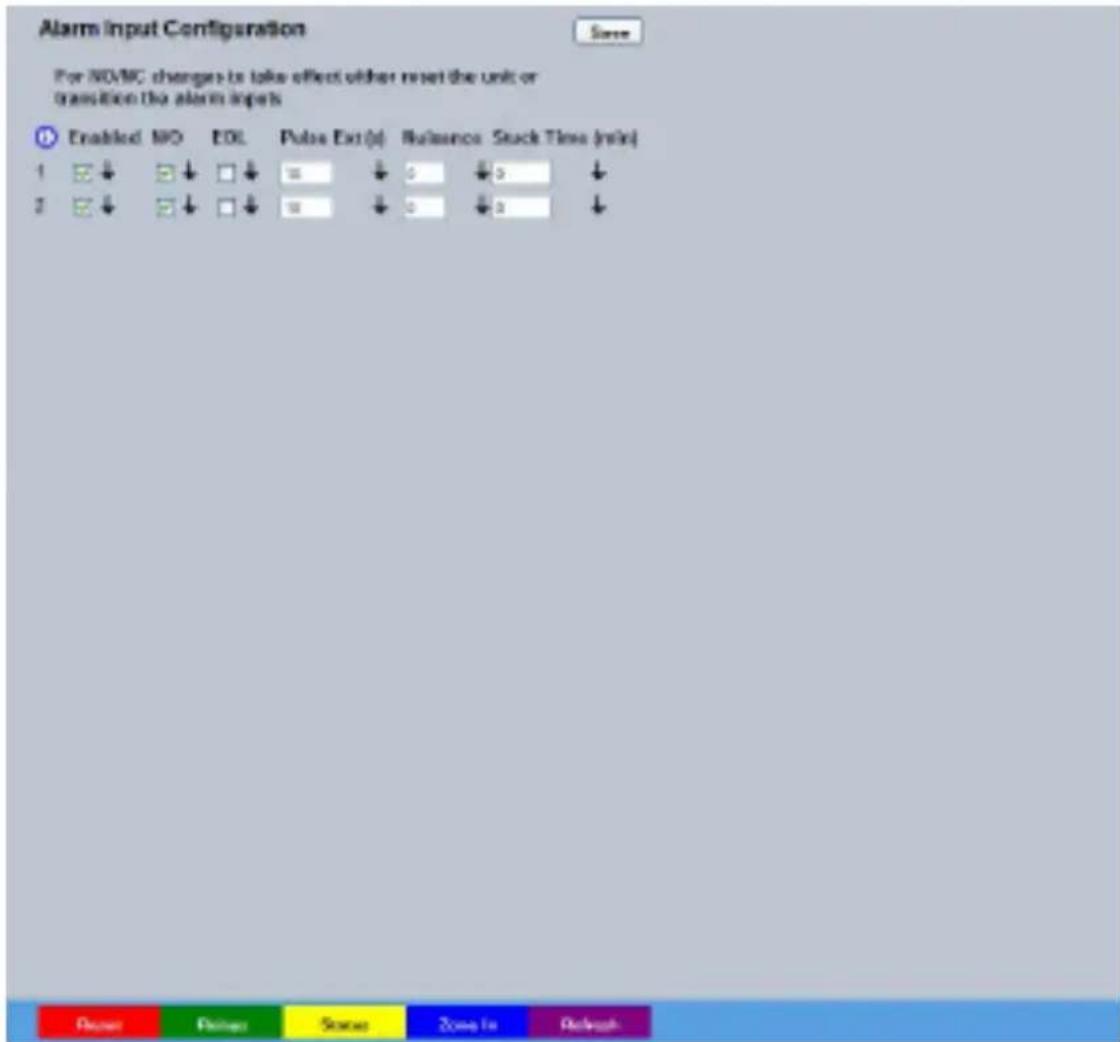
Alarm Input Configuration For NOVNC changes to take effect either reset the unit or transition the alarm inputs Enabled N/O EOL Pulse Ext (d) Reference Stuck Time (min) 1 ↓ ↓ ↓ □ ↓ 5 ↓ 5 ↓ 2 ↓ ↓ ↓ □ ↓ 8 ↓ 3 ↓ 3 ↓ Reset Planar Status Zone In RefreshNumber This identifies which input is being configured. The unit supports 2 on-board alarms.
Enabled Each input must be enabled to function. If the input is not enabled and an alarm is received, the unit will not acknowledge the alarm.
N_O (Normally Open Contact) N_O indicates the non-alarm state of the input. Tick the N_O checkbox to set the corresponding input to Normally Open. The alarm will then trigger when the input is closed (shorted). If left as Normally Closed (the default setting), the alarm will trigger when the input is opened.
Note: If EOL alarms are to be used, this option should not be selected i.e. leave set as Normally Closed.
EOL The End Of Line (EOL) option enables the inputs to detect any changes in the electronic input resistance. A change outside the expected values will result in a Tamper Alarm (short circuit or open circuit) being detected and the system switching to alarm mode.
Pulse Ext (s) A pulse extension is used to prevent double triggers on a single
alarm. The pulse extension time starts on an alarm trigger. If that contact is triggered again after the first alarm has finished but within the pulse extension, the second trigger will not restart the alarm, but will extend the current alarm duration. Enter the time in seconds for this extension.
Nuisance This is a repetitive detector value. When an alarm is received on
the unit, it will store the alarm time and monitor the number of times the same detector is triggered within an hour period. If the detector is triggered the number of times entered here, the unit will de-activate this detector from triggering an alarm for an hour. The unit will continue to monitor the detector and check how many times it is triggered during this period. If it is again triggered more than the amount set in the nuisance counter, it will remain de-activated for another hour. This will continue until the trigger value falls below the nuisance count setting. To disable this feature, leave the setting as '0'.
Stuck Time (min) If any of the alarms/detectors are active for a period longer than
specified here, they will automatically be omitted. This time period is set in minutes.
Note: The arrow button displayed next to each textbox allows settings to be replicated for those cameras listed below. This will only affect the adjacent option i.e. Enabled arrow will replicate the Enabled setting to cameras below the clicked arrow.
Reset (Red) This button will restart the unit.
Relays (Green) Opens the Alarm Settings -> Global Actions page
Status (Yellow) Opens the System Settings -> Status -> Alarm Status Page
Zone In (Blue) Opens the Zone Inputs page (below).
Refresh (Purple) Refreshes the current page.
Zone Inputs
This menu allows the configuration of established alarm zones. A single or multiple trigger can be used to generate an alarm. It is possible to allocate up to 32 alarm zones to carry out a combination of actions. Use these options in conjunction with the Zone Actions menu.

text_image
Zone Input Configuration Save Entry Time 0 Exit Time 0 Zone 1 Title Zone 1 Pre Alarm sec 2 Alarm Protect sec 10 Zone Input Rule Input No Connect OR No Connect AND No Connect NOT No Connect Alarm 24Hr Entry Initiator Entry Route Zone Enable in UNSET Exit Route Zone Enable in SET Exit Terminator Enable in OVERRIDEEntry timer This is the number of seconds allowed for the user to enter the zone and disable the alarms. If the alarm is not disabled within this period the alarm will be triggered.
Exit timer This is the number of seconds from the alarm being set within which the user must exit the set zone. If the user is still within the zone after this time period the alarm will be triggered.
Zone An alarm zone can be established to logically groups alarms and initiate actions when an alarm is activated, there are 32 configurable zones.
Title This information is stored along with the relevant images in the database, ensure this has relevance to the alarm zone.
Pre-Alarm sec. This is the time period prior to the start of the alarm included with the alarm recording for archive. These images will also be protected from being overwritten.
Note: It is recommended that the Pre-Alarm option be set to the same value as the Pre-Trigger setting in the "Profile Record" menu. This will ensure successful playback of high quality Pre-Trigger images. High quality pre-trigger images will only playback properly if review ( playback) starts prior to the pre-trigger initiation.
Alarm Protect sec. This is the minimum time period in seconds (from the start of the alarm) that is protected from being overwritten. This time will include the alarm trigger, the pulse extension and any post alarm recording. It will not include pre-alarm images.
Zone Input Rule This determines which input(s) will trigger the zone alarm:
Input This sets an input or system function as the primary alarm trigger. Select from Disk Low, Disk Full, Panic, Archiving Slow, Archiving Fault, Virtual 1-16, and Keyword Channel 1 (which will trigger the Alarm if any of the programmed keywords are detected).
Zone OR Input The Zone OR Input identifies an alternative input that can also be used to trigger the zone alarm. This means an alarm trigger can be received on the Zone Alarm Input or the Zone OR Input for the zone to be activated.
Zone AND Input The Zone AND Input identifies that an alarm trigger needs to be received on both the Zone Alarm Input and the Zone AND Input for the zone to be activated and the alarm action to the automatically initiated.
Zone NOT Input The unit will only issue the alarm actions if the trigger is received on the zone alarm input and NOT on the Zone input.
Alarm 24hr This option can be enabled for alarms that do not require change at any time and are to remain as programmed i.e. Panic Alarm. When this is selected, the Set, Unset and Override options are disabled.
Entry Route Zone This creates deferred alarms along a specified route while the entry time is active. This is in compliance with BS8418 (the British Standard for remote video reporting centres). Diverting from the entry route during the countdown will result in the alarm being triggered immediately. This allows staff entry without triggering an alarm prior to switching the system to Unset mode.
Exit route Zone This creates deferred alarms along a specified route while the exit time is active. This is in compliance with BS8418 (the British Standard for remote video reporting centres). Diverting from the exit route during the countdown will result in the alarm being triggered immediately. This allows staff to exit without triggering an alarm.
Exit Terminator This will trigger the exit timer if the system is set. A countdown timer will automatically start when the alarm is activated and ensure the alarm system is not activated by other specified alarm triggers for the Set time i.e. allowing a Guard to exit a building.
Entry Initiator This will trigger the entry timer if the system is set. A countdown timer will automatically start when the 'primary' alarm trigger i.e. front door, is actioned. This ensures the alarm system is not activated by other specified alarm triggers for the set time
Enable in Unset Each alarm can be configured to be active when the unit is in a specific operation mode. Enable this for the zone alarm to be active in Unset operation mode.
Enable in Set Each alarm can be configured to be active when the unit is in a specific operation mode. Enable this for the zone alarm to be active in Set operation mode.
Enable in Override Each alarm can be configured to be active when the unit is in a specific operation mode. Enable this for the zone alarm to be active in Override operation mode.
Note: Unset, Set and Override modes can be given more recognisable titles i.e. Day, Night, Weekend via the Schedule menu (Record Settings->Schedule).
Activity (Green) Select to open the Alarm->Activity menu Zone Act (Yellow) Select to open the Alarm->Zone Actions menu Alarm in (Blue) Select to open the Alarm->Inputs menu Refresh (Purple) Refreshes the information on the current page
Zone Actions
This menu allows actions to be allocated to individual alarm zones; Primary and Secondary cameras can be allocated to the zone and actions undertaken following alarm activation. This page should be configured in conjunction with the Zone Inputs menu.
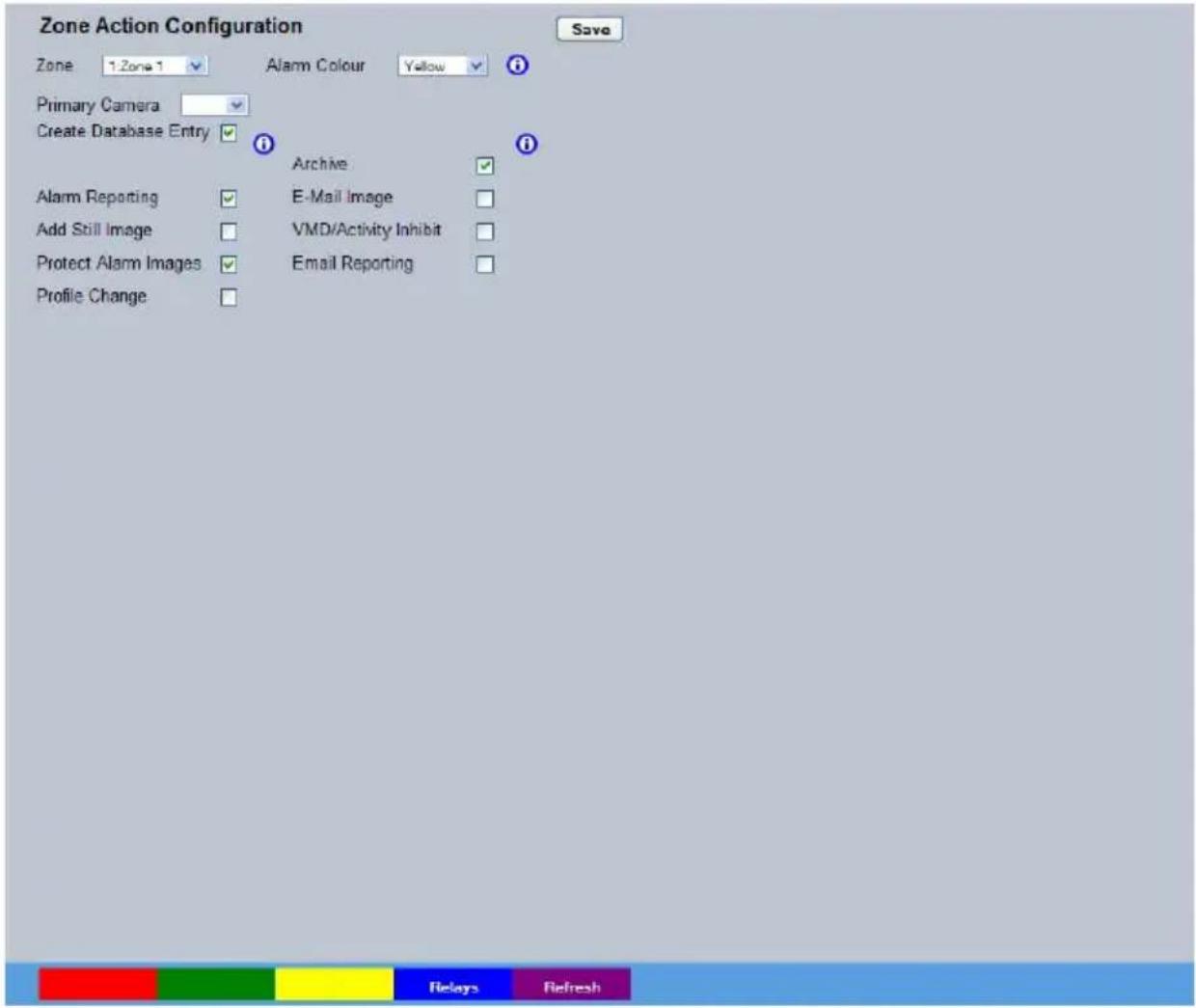
text_image
Zone Action Configuration Zone 1:Zone 1 Alarm Colour Yellow Save Primary Camera Create Database Entry Archive Alarm Reporting E-Mail Image Add Still Image VMD/Activity Inhibit Protect Alarm Images Email Reporting Profile ChangeZone Select a zone (alarm) to configure.
Alarm Colour This displays the local alarm text in the selected colour and can be useful in prioritising alarms. Options available are Red, Green, Blue, Yellow, Cyan and Magenta.
Primary Camera This allows a camera to be assigned as the primary camera associated with the Alarm Zone. The primary camera will be displayed when an alarm in this zone is triggered.
Create Database Entry An alarm activation will be added to the database. The zone title will be used as part of the entry information.
Alarm Reporting This must be enabled to allow the unit to send an alarm notification to an external destination i.e. an RVRC reporting via NetVu ObserVer.
Add Still Image This will record a still image of the trigger along with the standard recording. This can then be sent on to an external destination.
Protect Alarm Images Alarm images can automatically be protected from being overwritten.
Profile Change Select to enable the unit to switch from Normal to Event recording following alarm zone activation.
Archive Select to ensure the unit automatically downloads alarm images via an FTP connection to an FTP server.
E-mail Image If this option is selected, a JPEG will be added to the reporting e-mail (if E-mail Reporting is selected).
VMD/Activity Inhibit Select to inhibit (ignore) the VMD/Activity detection feature. for further information, refer to 'Alarm Settings->Activity Setup'.
E-mail Reporting The unit can send an e-mail when an alarm is detected. For further information, refer to 'Network->E-mail'.
Relays (Blue) Select to open the Alarm->Global Actions menu Refresh (Purple) Refreshes the information on the current page
Masked Cam Det
This page allows camera masking to be configured. The Camera can detect when the lens has been obscured, ie by being covered or painted over. This page will enabled detection and set the threshold for activation.
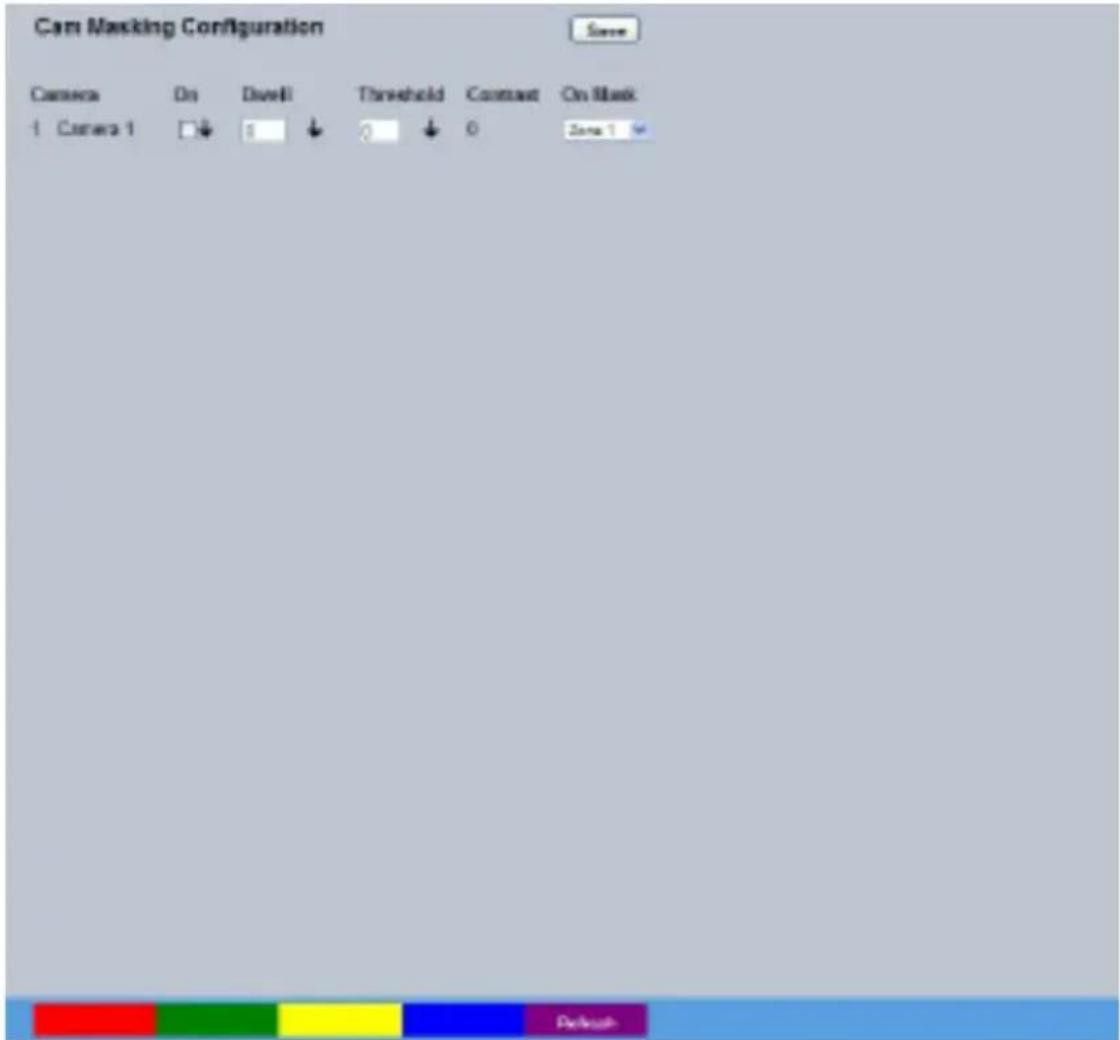
text_image
Cam Masking Configuration Save Camera On Dwell Threshold Contrast On Mask 1 Camera 1 □↓ 1 ↓ 0 ↓ 0 Zone 1Camera Shows the camera being configured
On Allows the features to be enabled/disabled
Dwell Sets the time in seconds before the alarm is generated
Threshold Sets the level at which the alarm is generated
Contrast This setting is not adjustable
On Mask Defines which zone will be activated when the camera is masked.
Refresh (Purple) Refreshes the current page.
Alarm Response
The unit can be set up to detect either VMD or Activity, depending on the level of detection required. Video Motion Detection enables a greater degree of control over detection settings and configuration than the Activity Setup function.
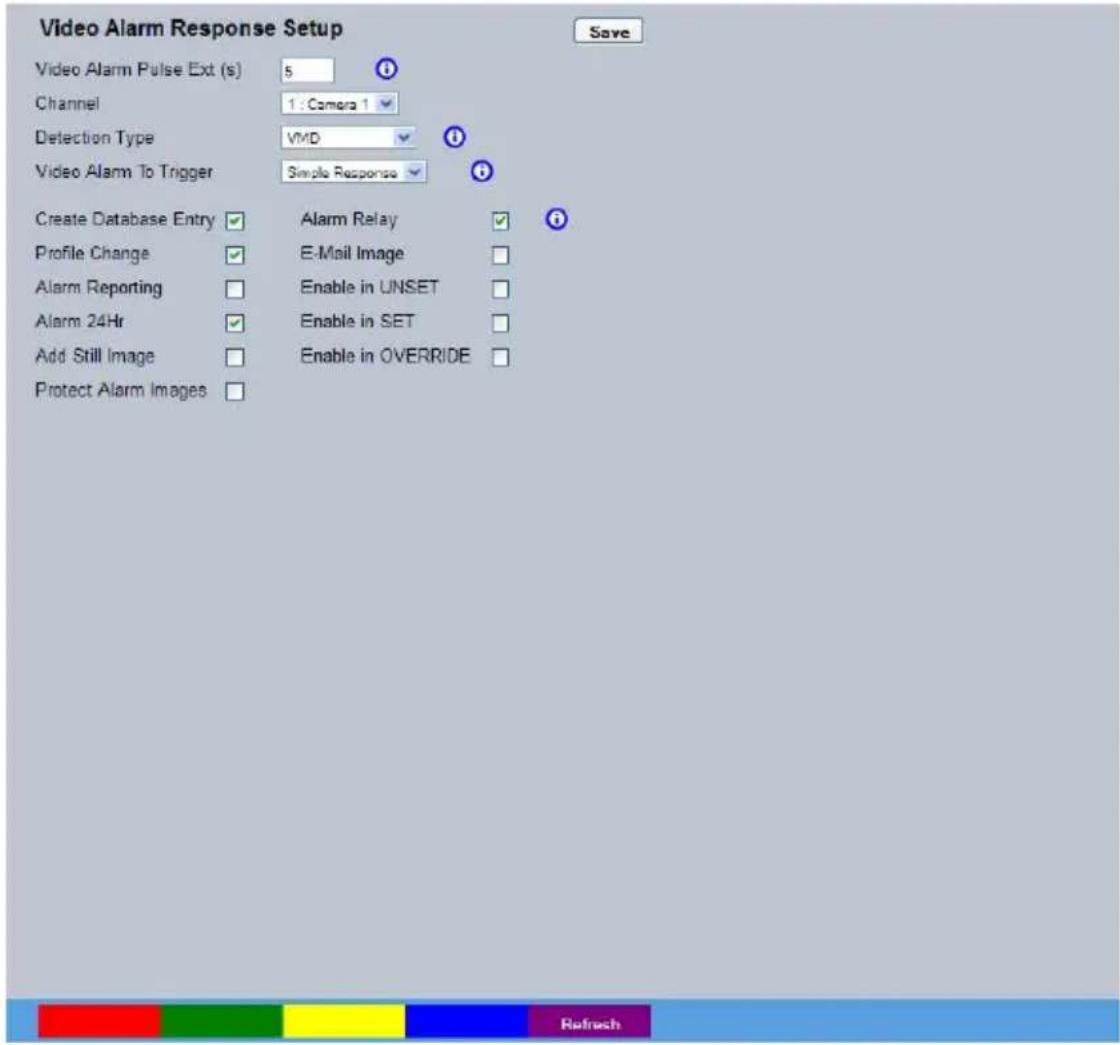
text_image
Video Alarm Response Setup Save Video Alarm Pulse Ext (s) 5 Channel 1: Camera 1 Detection Type VMD Video Alarm To Trigger Simple Response Create Database Entry ✓ Alarm Relay ✓ Profile Change ✓ E-Mail Image ✓ Alarm Reporting ✓ Enable in UNSET ✓ Alarm 24Hr ✓ Enable in SET ✓ Add Still Image ✓ Enable in OVERRIDE ✓ Protect Alarm Images ✓Video Alarm Pulse Ext (s) A pulse extension is used to prevent double triggers on a single alarm. The pulse extension time starts on an alarm trigger. If that contact is triggered again after the first alarm has finished but within the pulse extension, the second trigger will not generate a new alarm, but will extend the current alarm duration. Enter the time in seconds for this extension.
Note: This setting applies to both VMD and Activity.
Channel Shows the channel being configured.
Detection Type Configure the selected camera channel for Activity or VMD. To assign no detection settings, select 'None'.
Video Alarm To Trigger Following activation, select 'Simple Response' to trigger specific chosen responses from the options detailed below. Select 'Zone' to apply the Zone Input rules as configured in the Zone Input menu, refer to 'Zone Input' for more information.
Note: When Activity to Trigger is set to 'Zone'; the options detailed below are unavailable.
Create Database Entry When selected, an alarm entry will be added to the Event database. Profile Change Select to enable the unit to switch from Normal to Event recording following alarm activation.
Alarm Reporting This must be enabled for the unit to automatically connect on alarm. Alarm 24Hr This will ensure that Activity Detection is permanently enabled on this camera channel.
Add Still Image This will record a still image of the trigger along with the standard recording. This can then be sent on to an external destination.
Protect Alarm Images Select to automatically protect alarm images from being overwritten. Alarm Relay This will trigger the unit's on-board relay following VMD/Activity activation.
E-Mail Image This will email a still image (in JPEG format) of the VMD/Activity trigger to the email recipient as configured in the 'E-mail' menu (Network Settings->E-mail)
Enable in UNSET This will enable Activity Detection when the unit is in Day (Unset) operation mode.
Enable in SET This will enable Activity Detection when the unit is in Night (Set) operation mode.
Enable in OVERRIDE This will enable Activity Detection when the unit is in Weekend (Override) operation mode.
Note: Unset, Set and Override modes may be renamed via Record Settings->Schedule. Refresh (Purple) Refreshes the current page.
Activity Setup
The unit supports Activity Detection on all video inputs. It enables the camera to automatically detect any movement/changes within the video scene; this can trigger a number of operations such as FTP alarm notification and an increase in recording rate.
A still image of the selected camera will be shown in the Grid Editor screen. To establish an Activity zone, edit the cells displayed across the image.
This option should be used in conjunction with the Zone Inputs and Zone Actions menus.
If the camera is configured to detect VMD, the following warning will be displayed. Use the Alarm Settings->VMD/ACT Response menu option to configure 'Detection type' for Activity.
text_image
Activity Configuration Currently you do not have any cameras with activity enabled. Click the button below to set up: Aot SetupOnce Activity is configured, this page will be displayed

text_image
Activity Configuration Global Activity Mode Always Active Activity Channel 1 Camera 1 Activity Sensitivity Intron High Ged Editor Reload Img Set All Clear All Reload Img Set All Clear AllGlobal Activity Mode Select 'Always Active' for Detection to operate constantly
Activity Channel This is a drop down list of the video inputs on the unit, selecting an input will display images from the corresponding video source.
Activity Sensitivity This option allows the sensitivity setting to be established for the activity grid being configured. There are five settings to choose from: Indoor High, Indoor Low, Outdoor High, Outdoor Low, Very Low.
Grid Editor Use the Grid Editor by placing cells in areas of the camera view where movement will trigger an alarm. To enter cells navigate across the image via the Directional buttons of the I.R Remote Control). If viewing on a local monitor place a cell by pressing the OK button. If viewing via the configuration pages, use the mouse to navigate across the image, use the left mouse button to place a cell.
Reload Img (Red) This option will update the still image displayed in the Grid Editor.
Set All (Green) This option will insert a default square of 16 x 16 cells across the displayed video image.
Clear All (Yellow) This option will clear all entered cells.
VMD Configuration
The unit supports VMD (Video Motion Detection) to automatically detect if there is any movement/changes within the video scene.
Note: Video Motion Detection enables a greater degree of control over detection settings and configuration than the Activity Setup function. Each of the 16 VMD Zones can be directly sized and configured to suit specific requirements. VMD can only be accessed and configured remotely via the configuration pages.
If the camera are configured to detect Activity, the following warning will be displayed. Use the Alarm Settings-> VMD/ACT Response menu option to configure 'Detection type' for VMD.

text_image
VMD Configuration Currently you do not have any cameras with VMD enabled. Click the button below to set up: VMD SetupOnce Activity is configured, this page will be displayed

text_image
WMD Configuration Save Camera Camera 1 Zone 1 Mode Normal Pixel Count (%) 20 Global Activity Mode Always Active Pixel Change (%) 20 Pseudo Image Clear All Default Grid Refused Image Clear All Default Grid RefusedCamera Displays the available Camera source.
Zone There are 16 VMD zones within the image that can be individually configured, select the zone from the drop down list.
A selected zone can be re-sized by clicking the mouse button (use
the USB mouse if viewing on a local monitor) and then moving and clicking the mouse again. A rectangle will then be displayed based on these two selected points.
Mode The zone mode identifies when the reference image is taken for triggering VMD. The options are:
Normal The reference image is updated approx every second. This will only allow small changes in the scene without triggering
Last trigger The reference image is only updated when the VMD is triggered and is best used under controlled lighting, i.e. so there are no false triggers due to ambient light changes.
Static The reference image is collected on startup and is never updated. This would be used in 'sterile' areas where there are no changes expected.
Zone disabled This will disable the zone mode.
Pixel Count (%) This value is set as a percentage and equates to the percentage of pixels in the selected zone that must change for the VMD event to be triggered. The default setting is 20%.
Pixel Change (%) This setting is a percentage value of the overall change required in the greyscale to be included in the pixel count. The percentage change is defined over the complete range of black to white, a 100% pixel change would be from black to peak white. The default setting is 20%.
Global Activity Mode Select 'Always Active' for Detection to operate constantly Reload Img (Red) Refreshes the camera image.
Clear All (Green) Removes all defined zones from the image.
Default Grid (Yellow) Displays the default 16 zone grid across the whole image.
Global Actions
This menu allows configuration of the default relay actions supported on the unit.
The unit supports one onboard relay connection and global relay settings. This global relay can be triggered under specific conditions i.e. on receipt of any alarm or notification of Activity Detection.

text_image
Global Actions Image Protection Period 1 days Alarm Display Alert Normality Local Relay 1 Open On Zone ViDiActivity Camera Pad System Set Dist Cut Pad System Overrate Camera Slipped is Recording On Status More In Zone Act NetworkImage Protection Period Select a time period (in days) that images associated with an alarm will be protected from deletion.
Alarm Display Alert Enable this setting to display an alarm text alert in the colour specified in 'Alarm Colour' in the Zone Actions Menu.
Normally Select whether the normal state of the relay contact should be Open or Closed.
On Select to enable detection of the accompanying condition. Options available are; Zone, VMD/Activity, Camera Fail, System Set, Dial Out, System Override, Camera Masked and Is Recording.
Status (Green) Opens the System->Status->Unit page.
Alarm In(Yellow) Opens the Alarm->Inputs page.
Zone Act (Blue) Opens the Alarm->Zone Actions page.
Network
The Network Settings menus allow configuration of the unit's network functionality. Key network settings can be established such as 'fixing' the unit's IP address and maximum transmission rate. E-mail, remote reporting on alarm and FTP download can also be configured. Refer to the individual menus for further details.
The Network page allows configuration of the unit's network connections such as the name assigned to the unit and its IP address.
The Live Trans(mission) page enables JPEG and MPEG profiles to be created for transmitting images via a High, Medium or Low quality network connections to any viewing software or to another unit using this one as an IP source.
The Multicast page allows recordings from the unit's camera input to be forwarded to a port address; enabling multiple viewers to view live data using a suitable media player without the need to directly connect to the unit.
The Email page allows configuration of the Email feature. The unit can automatically transmit an e-mail to an SMTP Server following an event i.e. on receipt of an alarm or a camera failure notice.
The Remote Reporting page allows a Remote Video Receiving Centre's (RVRC) configuration details to be entered. The RVRC will then be contacted following a selected event occurring i.e. reported alarm or camera failure.
The Web Cam page allows the video input to be made available for transmission to a webserver via a designated webcam server. The image can then be incorporated into a web page and accessed via a standard web browser.
The FTP Download page allows data to be archived to a central FTP server. This could be on receipt of an alarm, Activity activation or at a scheduled time to back-up recorded video.
The Firewall page allows configuration of the onboard firewall.
The Connections page displays the current live connections to the unit.
Network
This menu allows network settings to be configured if required. The unit is DNS compliant, and can be referenced on the network using the configured server name (or serial number) if a DNS server is available.

text_image
Network Setup Save Server Name cdt-720 IP Address 0.0.0.0 Sub Net 0.0.0.0 Gateway 0.0.0.0 Primary DNS 0.0.0.0 Address Sub Net Gateway DNS DHCP 172.17.32.59 255.255.252.0 172.17.32.254 cdt-720.dmicros.com Max Transmission Rate kbits/sec 0 - No limit Tx Image Buffers 3 Ethernet MTU Bytes 1500 Max Transmission Timeout ms 250 This will require a resetServer Name This field can be edited to allocate a name to the unit. This would be used if accessing the unit via a Domain Name Server (DNS). It will initially default to the serial number of the unit.
IP Address An IP address can be manually allocated to the unit.
Sub Net A Subnet address of the unit network can be manually allocated.
Gateway This is the IP address of the default gateway (router).
Primary DNS This is the primary DNS server IP address for applications utilising domain names.
DHCP If DHCP is being utilised, the assigned IP address will be displayed here.
Note: If no IP address is manually configured, DHCP will automatically assign one. The unit interrogates the network for a DHCP server, which assigns an available IP address. This IP address can change every time the unit is powered up. If DNS is not available, it is recommended that DHCP be disabled by entering a suitable, free, static IP address.
Tip: Use DHCP to locate a free IP address, then fix the unit IP address to the free one by entering the details into the IP address, subnet and gateway fields.
Max Transmission Rate kbits/sec This shows the maximum transmission speed for the network type being used. If set to '0', transmission speed is not limited in the camera.
Note: This setting will limit and override any higher transmission rate entered in the Video Transmission menu (Configuration menu->Live Trans).
Tx Image Buffers This is used in order to improve the picture delivery over Ethernet when using a slow connection i.e. 256Kbps. A buffer setting of 1,2 or 3 is available (default setting is 1).
Ethernet MTU Bytes This is the maximum transmit unit for the Ethernet packet. The MTU is the largest physical packet size measured in bytes that the network can transmit. By default this figure is set to 1500bytes.
Max Transmission Timeout ms This is the time (in milliseconds) the unit will wait to re-send a packet if an acknowledgement is not received.
Reset (Red) Resets the unit to apply changes.
Rem Report (Green) Opens the Network Settings->Remote Reporting page.
Webcam (Yellow) Opens the Network Settings->Web Camera Configuration page.
Email (Blue) Opens the Network Settings->Email page.
Refresh (Purple) Refreshes the current page.
Live Trans
The unit transmits live images using JPEG or MPEG formats.
The NetVu Connected remote viewing software will use the settings configured on this page as the defaults for JPEG & MPEG; High, Medium and Low settings.
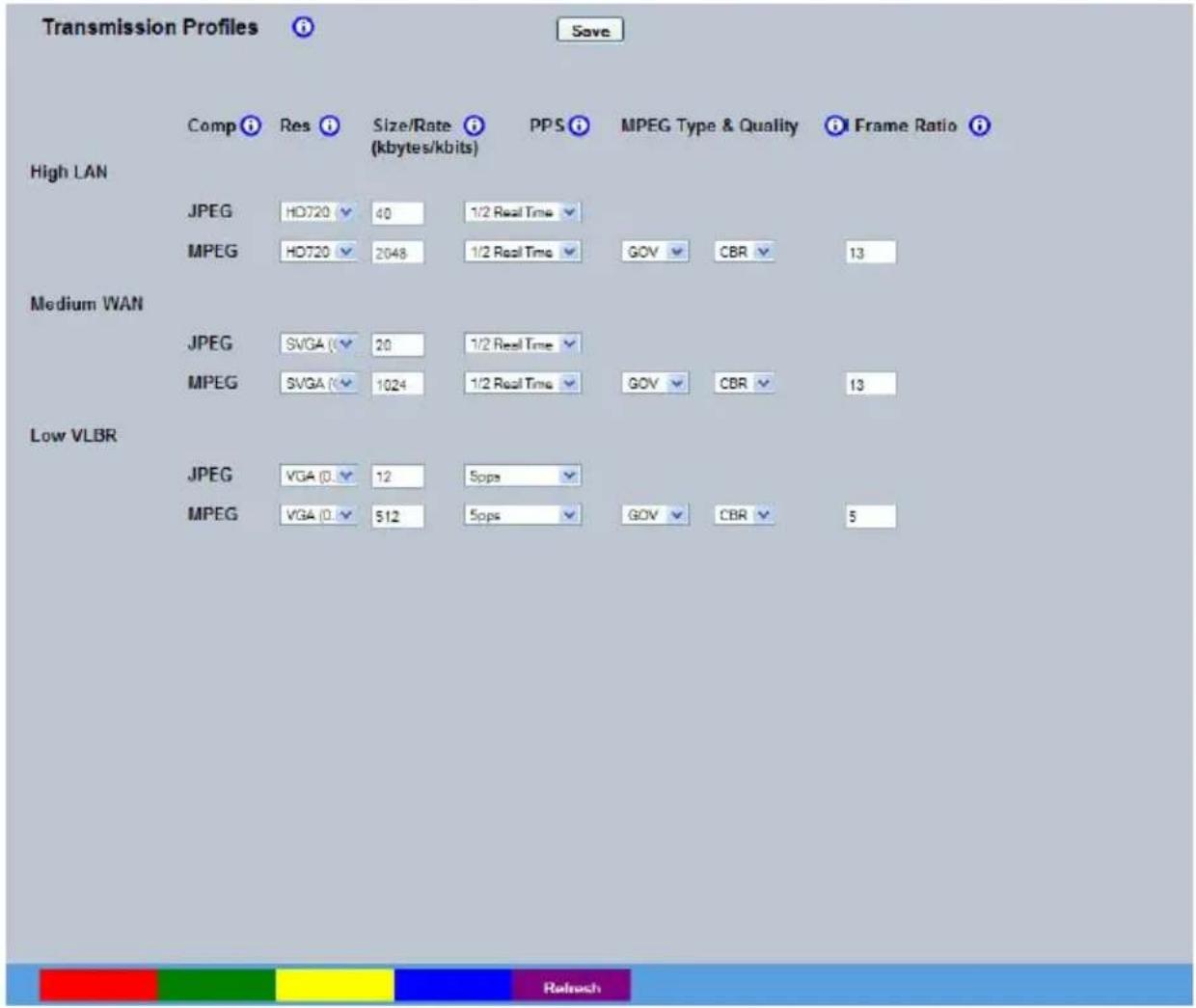
text_image
Transmission Profiles Save Comp Res Size/Rate PPS MPEG Type & Quality Frame Ratio (kbytes/kbits) High LAN JPEG HD720 40 1/2 Real Time MPEG HD720 2048 1/2 Real Time GOV CBR 13 Medium WAN JPEG SVGA 20 1/2 Real Time MPEG SVGA 1024 1/2 Real Time GOV CBR 13 Low VLBR JPEG VGA 0. 12 5ops MPEG VGA 0. 512 5ops GOV CBR 5High LAN/Medium WAN/Low VLBR
This shows the transmission settings configured for a High quality LAN (Local Area Network) connection, Medium quality WAN (Wide Area Network) connection or a Low quality VLBR (Very Low Bit Rate connection).
Comp Settings can be established for JPEG and MPEG compression
Res For MPEG and JPEG transmission, select image resolution settings (HD720, XGA, SVGA, VGA, QVGA, Q2VGA).
Size_rate For JPEG, the figure entered will be the size of the JPEG transmitted (in Kbytes).
JPEG file sizes can be configured in the range of 5-45Kb.
For MPEG4 the figure will be the bit rate allocated. A higher rate will provide better quality picture display.
MPEG bit rates in the range of 45-2500Kbits/second.
PPS This shows the number of pictures transmitted per second.
For JPEG, the actual images transmitted will depend on the bandwidth of the link, increasing the pictures sent per millisecond may introduce time lag if bandwidth is not sufficient i.e. this forces the same quality image through the available connection.
On MPEG transmission, increasing the pictures sent will also reduce the quality of the images i.e. this forces more images but maintains the defined bit rate.
MPEG Type & Quality Select whether transmitted MPEG4 images are sent as RAW data or in GOV (Group of Video) format.
RAW mode transmits a single I frame and then a sequence of P frames (until a change in transmission is detected).
GOV mode sends I and P frames in a standard format i.e. I to P frame ratio as set by the record parameters.
CBR maintains a Constant Bit Rate, selectable from a range of 2 - 31.
Select a suitable level of details from the drop down list. Constant Bit rate allows the storage requirements to be calculated with more accuracy.
I Frame Ratio Select the ration of I Frames recorded between each P Frame
Note: An MPEG I-frame is considerably larger than a P-frame. Therefore the higher the IP ratio, the higher the disk space required to store recorded images.
Refresh (Purple) Refreshes the current page.
Multicast
The Multicast page allows recordings from the unit's camera input to be forwarded to a port address; enabling multiple viewers to view live data using a suitable media player without the need to directly connect to the unit. In multi viewing scenarios, the demands on the unit are significantly reduced; improving overall performance.
This system has been validated using the 'Videolan VLC media player for MS Windows.
The Videolan VLC media player can be downloaded free of charge from:
www.videolan.org/vlc/download-windows.html
Please refer to Appendix B for guidance on configuring the Videolan VLC media player.
Note: Multicast can only used for live viewing, requests for stored images and events will still need to be made via the Viewer menu.
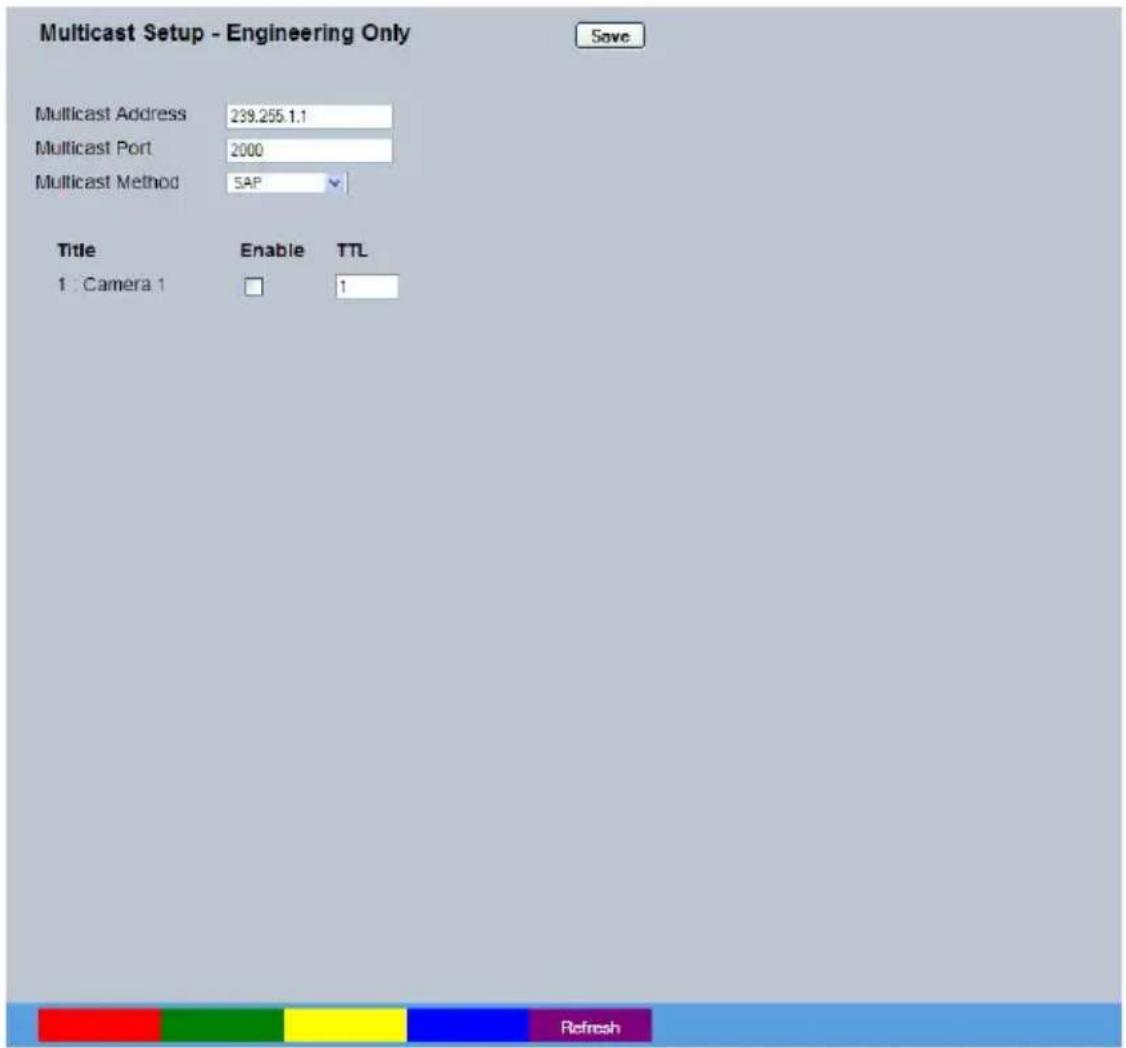
text_image
Multicast Setup - Engineering Only Save Multicast Address 239.255.1.1 Multicast Port 2000 Multicast Method SAP Title Enable TTL 1 Camera 1 1 RefreshMulticast Address Assign a unique IP address. This address is not assigned to any 'physical' unit. The VLC program will use this address (when configured to do so) as its multicast group and access any broadcast images via the configured port address (see below).
If there are multiple units using multicast, each one must have a unique IP address. Addresses 224.0.0.0 through 239.255.255.255 are usually designated as multicast addresses.
Multicast port Following configuration of the IP address, configure the port address. The address will default to 1234.
Multicast Method Select from 'SAP', 'HTTP', 'SAP + HTTP' or 'Always On'. SAP is recommended.
SAP will advertise your stream over the network when using the UDP streaming method, using the SAP protocol, using the Multicast Address as the name of the stream.
HTTP will stream by using the HTTP protocol on all the network interfaces of the server on port 8080.
Enable Tick this option to enable multicast.
TTL (Time to Live) This sets the numbers of routers the stream will be allowed to pass through, for UDP unicast and unicast access methods.. Enter one of the following numbers:
0 - restricts video to the same host
1 - restricts video to the same subnet
32 - restricts video to the same site
64 - restricts video to the same region
128 - restricts video to the same continent
255 - is unrestricted in scope
To configure your PC to utilise VLC with SAP Multicasting
Version 1.0.5
* Select Media -> Services Discovery -> SAP Announcements
* Select View -> playlist -> SAP Announcements
* All video servers with multicast enabled should then appear in the playlist window. Double click a server to start streaming data from it.
Version 0.8.6
* In VLC select Playlist -> Manage -> Services Discovery -> SAP Announcements
* Wait for the server to appear under "Session Announcements (SAP)" in the Playlist window.
* Click on one of the items advertised by the server.
* The server broadcasts SAP announcements periodically, the packets contain SDP entries which describe the stream contents for each multicast enabled camera. VLC listens for SAP announcements and adds them to the playlist.
The unit can automatically transmit an e-mail to an SMTP Server under numerous conditions i.e. on start up, on receipt of an alarm, camera failure etc. This allows the unit to be installed in unmanned applications where a Remote Video Response Centre (or Manager etc.) would be notified by e-mail if any of these conditions occur.

text_image
Email Save Connection Profile Ethernet Mail Server Address Username Password Recipient Email Recipient Display Name Reply To Email Reply To Display Name Sender Email Sender Display Name Test Email Send on Startup Email Image Res Thumbnail Send on Alarms Log Email Send on Camera Fail Send on Activity Event Send Image Test Email Zone Act Network Rom Report RefreshConnection Profile It is possible for the e-mail to be transmitted via the Ethernet network.
This setting presumes that the unit is connected to a LAN or WAN and allocated a valid IP address.
Mail Server Address This is the IP address or URL of the SMTP Server that the e-mail will be sent to. The SMTP server will then forward this to the intended recipient.
Username Enter the login details for the SMTP server.
Password Enter the login details for the SMTP server.
Recipient Email This is the e-mail address of the intended recipient.
Recipient Display Name This is the addressee name that will be shown in the email name field.
Reply to Email This field must be configured if the recipient is to reply to an e-mail.
The unit does not accept incoming e-mails therefore ensure this is a valid e-mail address.
Reply To Display Name This is the 'reply to' name that will be shown in the email name field.
Sender Email These optional fields indicate the source of the e-mail notification. If the fields are left blank the unit will use the system name to create a sender name.
Sender Display Name This is the sender name that will be shown in the email name field.
Send on Startup Select to send email notification on startup.
Send on Alarms Select to send email notification on alarm activation.
Send on Camera Fail Select to send email notification on camera fail.
Send on Activity Event Select to send email notification on activation of the Activity Detection feature.
Send Image Select to send accompanying image from supporting primary camera.
Email Image Res Select resolution settings for images sent as 'thumbnail' attachments.
Choose from: Thumbnail, LO (low res), MED (medium res) and HI (high res).
Log Email Select to log every e-mail transaction that the unit issues.
Test Email (Red) Sends a test message using the configured settings.
Zone Act (Green) Opens the Alarm Settings -> Zone Actions page.
Network (Yellow) Opens the Network Settings -> Network page.
Rem Report (Blue) Opens the Network Settings -> Remote Reporting page.
Refresh (Purple) Refreshes the current page
Remote Reporting
This menu details the configuration requirements for the unit to report to a Remote Video Receiving Centre (RVRC) following alarm activation.
Note: This menu will only be displayed if 'Remote Reporting' is selected in the System Settings->Features menu.

text_image
Remote Reporting Save Primary hostname Secondary hostname Public NAT address Video server port 0 Alarm server ref ID Remote alarm reporting □ Alarm responder port 23 Remote camfail reporting□ Dial retry time (secs) 5 Remote Startup Reporting□ Dial count 10 ARC Ping Enabled ✓ Zone Act Network Email RefreshPrimary hostname This is the IP address or URL of the initial host that the unit will transmit an alarm message to.
Primary dial profile It is possible for the alarm message to be transmitted via the Ethernet network or a dial up connection.
Secondary hostname If the unit is unable to contact the primary host, an alternative route can be identified via a secondary host. If there is only one alarm receiving IP address, you must enter the details in both the primary and secondary connection settings.
Secondary dial profile It is possible to select a separate dial profile for the secondary host.
Public (NAT) address This is the public IP (or domain name) for a unit connected to the Internet via a NAT Router or Firewall. This field should be left blank if NAT is not used e.g. a private network.
Video server port This field allows the RVRC to connect to the unit through a router that is using port forwarding e.g. if the video server does not appear on port 80 (HTTP), to the external network. Enter the port number used for forwarding here if required.
Alarm server ref. ID This is the reference name/ID that will be presented to the RVRC viewing application. It should therefore have some significance to the Operator.
Remote alarm reporting This must be enabled for the unit to automatically connect on alarm.
Remote camfail reporting Enabling this option ensures the unit reports camera failure on any of the inputs to the RVRC.
Remote Startup Reporting This will send an alarm report when the unit starts up. Any system resets will be identified.
ARC Ping Enabled Should the modem/router at the Alarm Receiving Centre be dormant, the unit will 'Ping' the ARC prior to sending reporting data.
Alarm responder port This specifies the network port number used for reporting to the alarm server. In normal circumstances this should be left at the default value (23).
Dial retry time (secs) If the initial connection attempt fails, the unit will wait for the specified time period (in seconds) before attempting to re-connect.
Dial count This identifies the number of times the unit will attempt to connect after a failed attempt. A setting of '0' means no limit and the unit will continue to try and connect until successful.
Zone Act (Green) Opens the Alarm Settings -> Zone Actions page.
Network (Yellow) Opens the Network Settings -> Network page.
Email (Blue) Opens the Network Settings -> Email page.
Refresh (Purple) Refreshes the current page
Web Cam
Any of the video inputs on the unit can be made available for transmission to a webserver via a designated webcam server. These images can then be incorporated into a web page and accessed via a standard web browser.
Note: This menu will only be displayed if 'Webcam Support' is selected in the System Settings->Features menu.
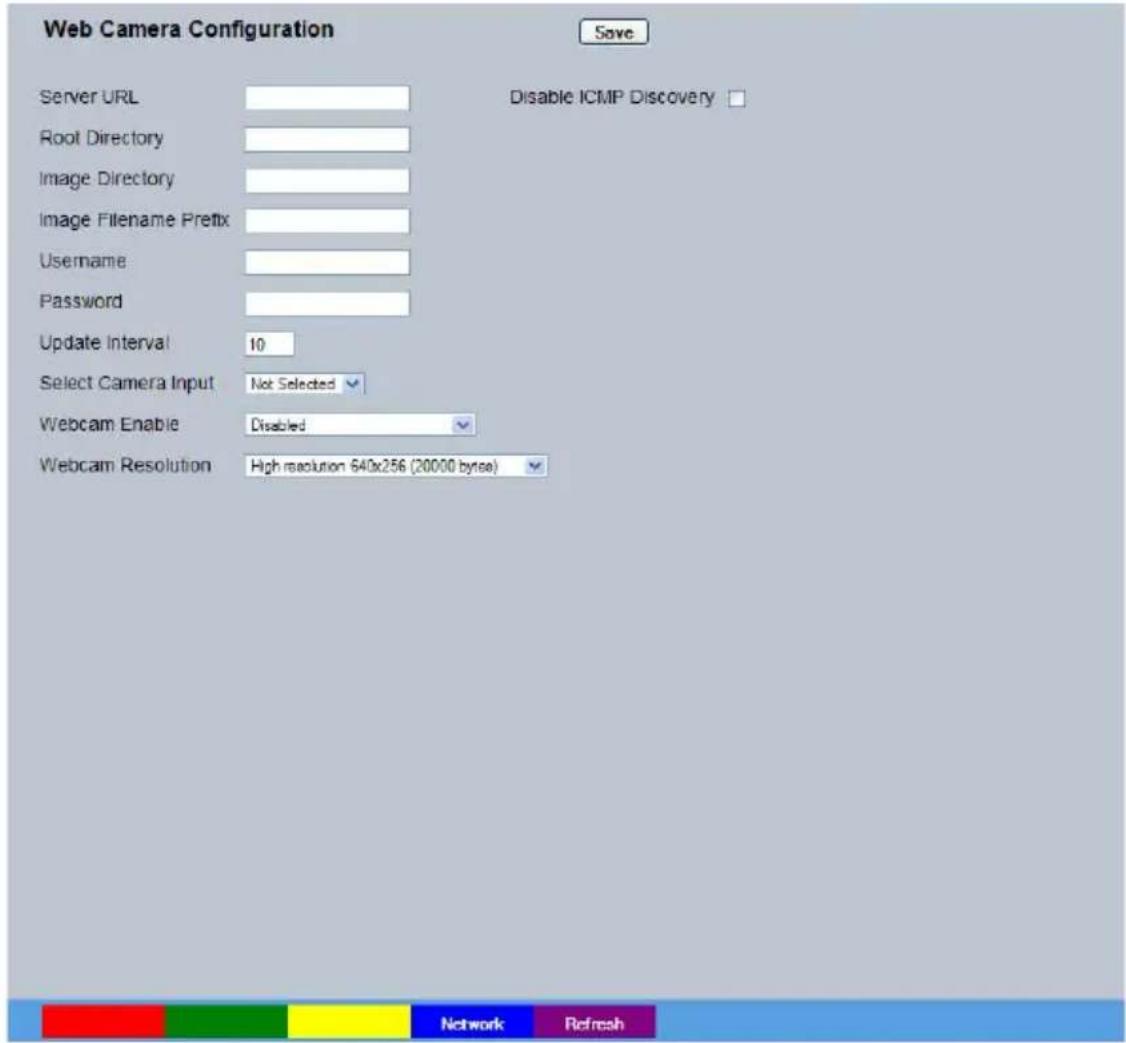
text_image
Web Camera Configuration Save Server URL Disable ICMP Discovery Root Directory Image Directory Image Filename Prefix Username Password Update Interval 10 Select Camera Input Not Selected Webcam Enable Disabled Webcam Resolution High resolution 640x256 (20000 bytes) Network RefreshServer URL This is the IP address, URL or Domain Name of the Webcam
Server. Images will be uploaded from the unit to this server at specified time intervals.
Root Directory This is the main/root directory on the webcam server where the image directory will be located.
Image Directory This directory will be created when the initial image is uploaded to the webcam server, it is the directory where all images will be saved on the server.
Image Filename Prefix This is an identifier for images sent from the unit and will be stored as a prefix to the file name.
Username If it is necessary to use an authentication process to access the webcam server, enter the relevant username here.
Password If it is necessary to use an authentication process to access the
webcam server, enter the relevant password here.
Update Interval This is the minimum update interval between each image transmitted from the unit.
Select Camera Input This allows the feature to be disabled.
Webcam Enable The Web Cam function can be: 'Always Enabled', 'Enabled when system SET', 'Enabled when system UNSET' or 'Disabled'.
Webcam Resolution Select a High, Medium or Low webcam resolution settings to best match the monitor settings of the operator receiving the images.
Network (Blue) Opens the Network Settings -> Network page.
Refresh (Purple) Refreshes the current page
FTP Download
The unit can archive images to a central FTP (File Transfer Protocol) server. This could be on receipt of an alarm, activation of the Activity Detection or at a scheduled time to backup recorded video. Using FTP in a multi-unit application ensures that all files are stored in one central location for each of the units, offering efficient file management and easy review capabilities.
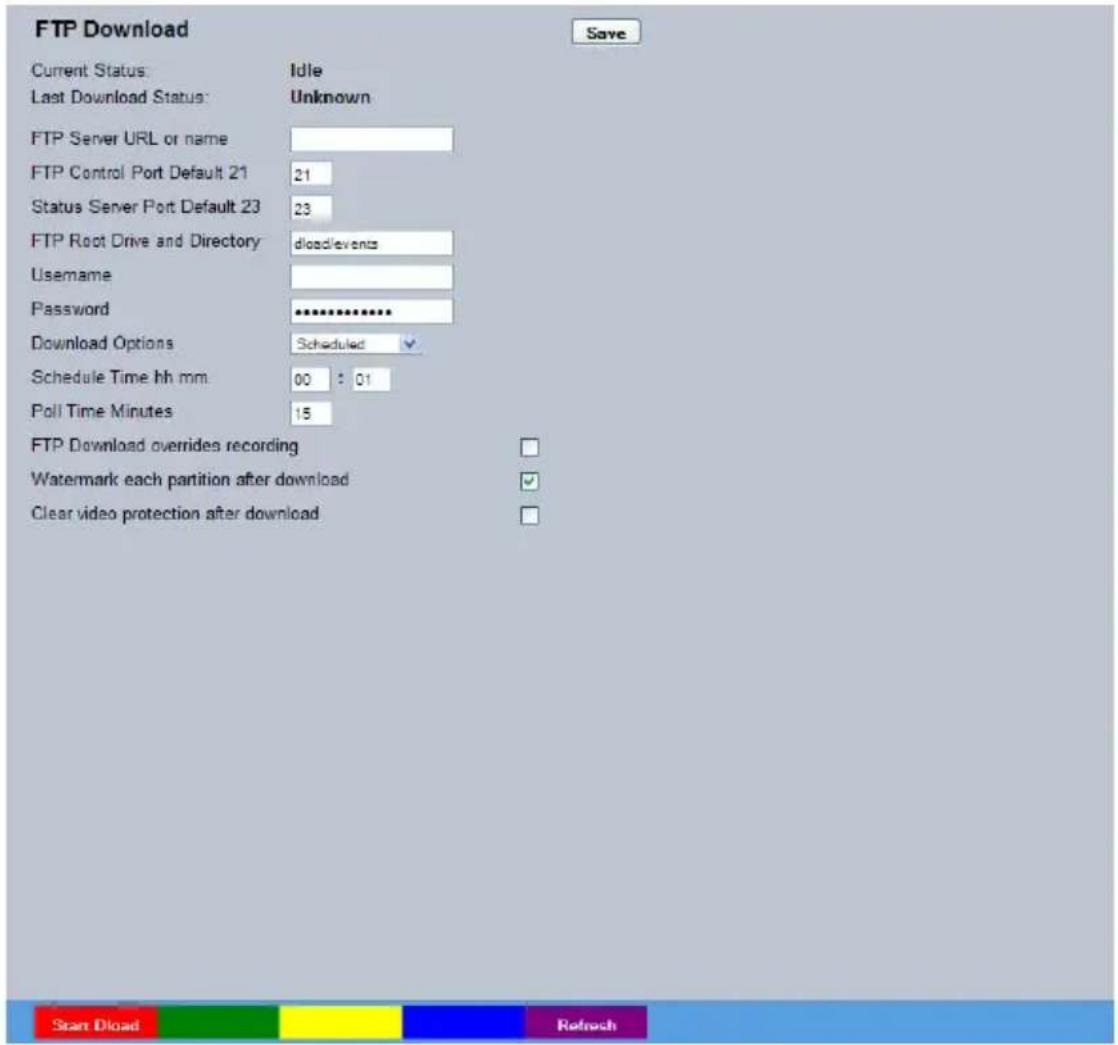
text_image
FTP Download Current Status: Idle Last Download Status: Unknown FTP Server URL or name FTP Control Port Default 21 21 Status Server Port Default 23 23 FTP Root Drive and Directory dlosd/events Username Password ********** Download Options Scheduled Schedule Time hh mm 00 : 01 Poll Time Minutes 15 FTP Download overrides recording Watermark each partition after download ✓ Clear video protection after download Start Dload RefreshFTP Server URL or name This is the IP address, URL or name of the FTP server the unit will connect to for FTP image download purposes.
FTP Control Port Default 21 The default port for FTP use is port 21. If this port has already been allocated on the network, it is possible to identify and allocate an alternative port.
Status Server Port Default 23 The default port for the Server Status function is port 23, if this port has already been allocated on the network, it is possible to identify and allocate an alternative port number.
FTP Root Drive and Directory This is the directory where the images are to be stored, it is recommended that a name associated with the unit be used for ease of retrieval.
Username If it is necessary to use an authentication process to access the FTP server, enter the relevant username here.
Password If it is necessary to use an authentication process to access the FTP server, enter the relevant password here.
Download options Select one of the following options from the drop down menu:
On Connection This will automatically start the Archive download when the unit detects the archive destination is present.
Scheduled It is possible to force the unit to archive images at a scheduled time, enter a time to activate this function each day.
Polled This will set the unit to activate archive download at regular intervals, the time is in minutes and is the period between the end of one archive download and the start of the next.
Manual only The archive process will only commence when the user initiates the action.
Schedule time hh mm If 'Scheduled' has been selected in Download Options, enter a time for the download to take place each day.
Poll time Minutes If 'Polled' has been selected in Download Options, enter the number of minutes which will elapse between the conclusion of one archive download and the start of the next.
Watermark each partition This enables a watermark to be generated and stored in a text after download file downloaded with the video to the FTP server (for each image partition). This watermark is logged in the log file.
Clear video protection
after download This automatically clears the image protection from successfully downloaded images.
Start Dload (Red) Begins the configured download
Refresh (Purple) Refreshes the current page
Firewall
This page allows configuration of the on-board firewall. The top ports are pre-configured with typical settings that can be edited, there are user defined ports available at the bottom of the list. Preconfigured ports can be disabled by unchecking the 'open' box.
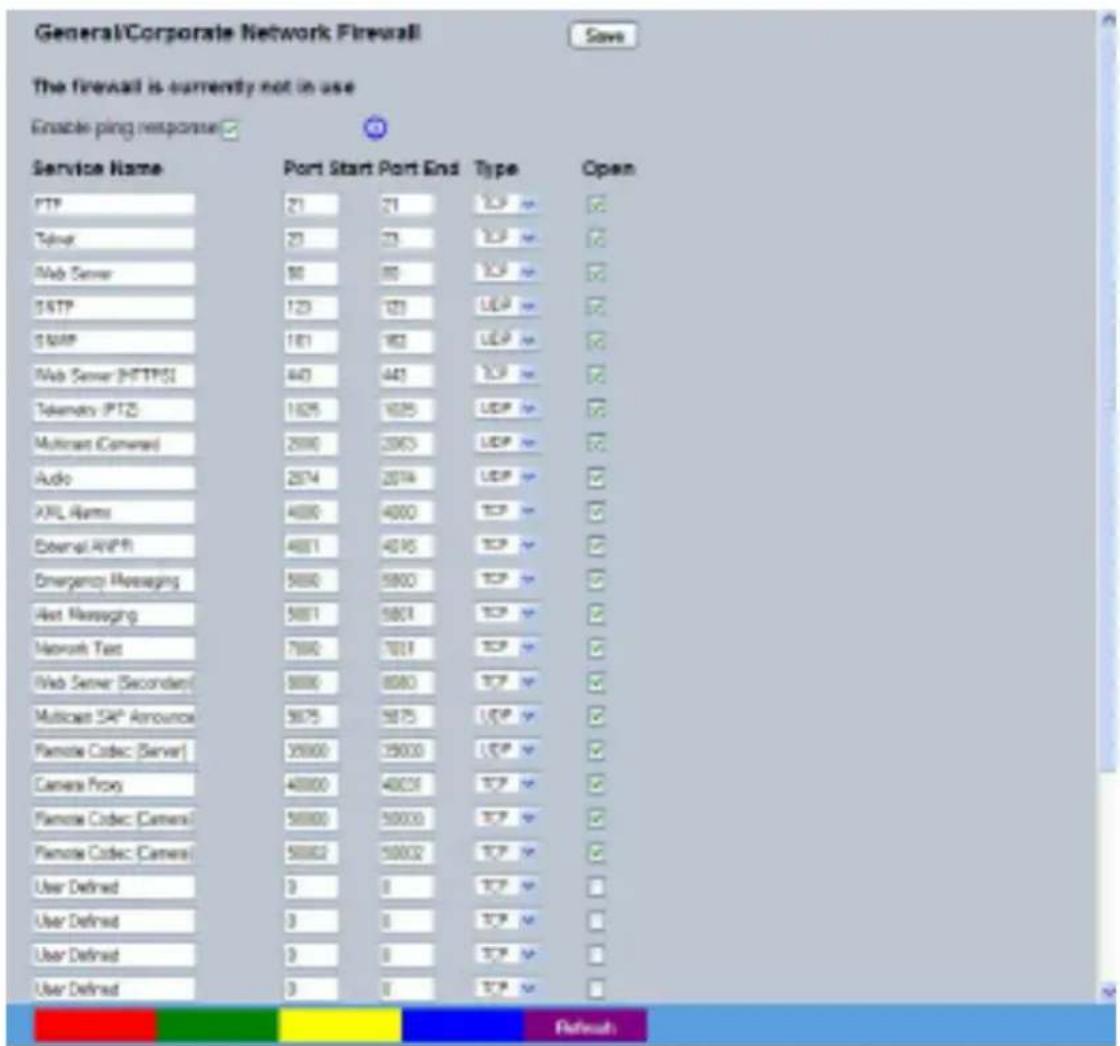
text_image
General/Corporate Network Firewall The firewall is currently not in use Enable ping response Service Name FTP 21 21 TCP 21 23 TCP 80 80 TCP 123 123 UDP 181 182 UDP 443 443 TCP 1626 1626 UDP 2000 2000 UDP 2074 2074 UDP 4000 4000 TCP 4001 4015 TCP 5000 5000 TCP 5001 5001 TCP 7000 7011 TCP 8000 8080 TCP 9075 9075 TCP 35000 35000 TCP 40000 40000 TCP 50000 50000 TCP 50002 50002 TCP 3 3 3 TCP 3 3 TCP 3 3 TCPEnable PING response By default this option is enabled and allows the unit to be pinged.
Disabling this option will make the unit less visible on the network
Table Entry Up to 32 Configuration settings may be entered.
Service Name Details the assigned name of the service using the opened port on the firewall.
Port Start Displays the start of the port range used by the service
Port End Displays the end of the port range used by the service
Note: To open a single port, enter the same number in the Port Start and Port End boxes.
Type Displays the type of port to open, select from TCP or UDP.
Open Displays if the port is open or not.
Refresh (Purple) Refreshes the current page
Connections
This page shows the IP addresses of users connected to this unit. It is for information only and cannot be edited or configured.
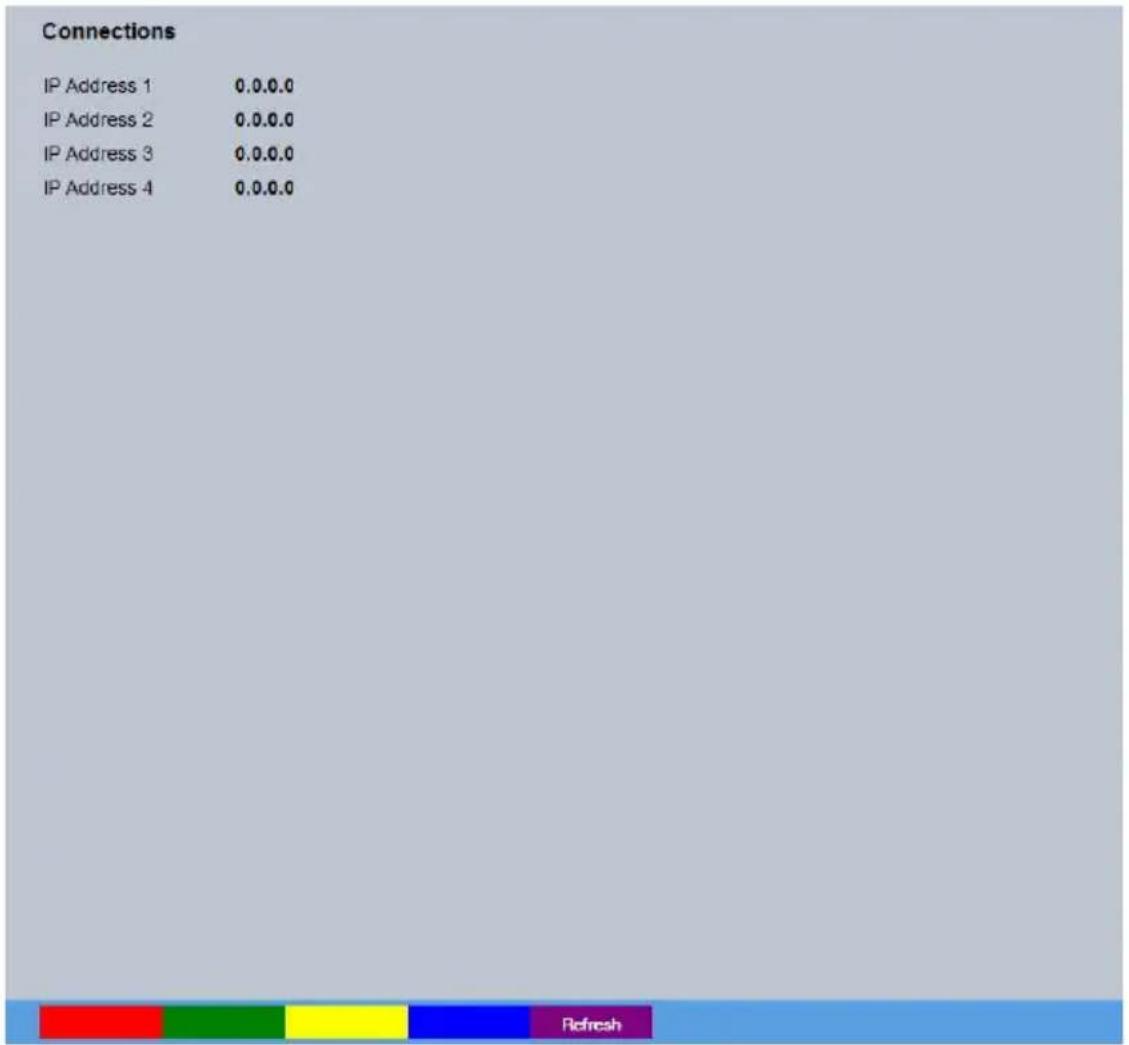
text_image
Connections IP Address 1 0.0.0.0 IP Address 2 0.0.0.0 IP Address 3 0.0.0.0 IP Address 4 0.0.0.0Refresh (Purple) Refreshes the current page
Features & Text
The Analytics and Text menus allow configuration of the unit's text in image and keywords functionality. Refer to the individual menus for further details.
The unit is AnalyticsCapable. Please call Dedicated Micros on +44 (0) 845 600 9500 for further information on our range of Analytics based solutions.
The Text In Image page allows the unit to integrate text data with recorded images i.e. a cash register with a camera positioned at the point of sale.
The Keyword page can be used in conjunction with the Text in Image function. Keywords can be entered, which when detected, will trigger an alarm. Up to 30 keywords can be created.
Features
Dedicated Micros has created a range of analytics components and solutions designed to work with AnalyticsCapable products. The range of applications include: Automatic Number Plate Recognition (ANPR), Object Left and Removed, Access Control, People Counting and Perimeter Protection.

text_image
DID YOU KNOW THAT THIS PRODUCT IS AnalyticsCapable FOR FURTHER INFORMATION PLEASE CALL + 44 (0) 845 600 9500- For further information regarding the range of Dedicated Micros Analytics solutions, please call: +44 (0) 845 600 9500
Text In Image
It is possible to integrate the unit into a system were text information can be stored with relevant images for review. This would be most useful in a Retail or Finance application were text data originating from a cash register could be displayed in real time with the video images of the same Point of Sale.
Note: This menu will only be displayed if 'Text in Image' is selected in the System Settings->Features menu.

text_image
Text in Image Text in image changes will only take effect after a system meet. Recorded lines per frame 19 Recorded characters per line 40 Text Timeout (Secs) 2 Show Indefinitely Channel Camera Text Port Type 04 Part Text Filter Pair Tax Enable Keywords Window Keywords false extension 8 Bonus Zone Arm Keywords RefreshRecorded lines per frame This controls how many lines of text are stored on the server, and not how many are displayed on screen. This allows more data to be saved than is shown.
Recorded characters per line Controls the width of the lines displayed on screen.
Text Timeout (Secs) This setting controls how long, in seconds, the text is shown on-screen (selecting 0 will show the text indefinitely).
Channel Select the camera input for configuration from the drop down list.
Text Port Type Select the input source for Text in Image data. Select 'Off' to switch the function off or 'Network to use the unit's Network port.
Text Filter Select the text filter option from the drop down list. The options are: Plain Text (default), RAW, EPSON, Laserjet, DM POS Receipt, DM POS Journal, TVC-1066
Enable Keywords This enables or disables the Keyword feature, allowing the unit to treat certain pre-programmed words received via the text stream as event triggers, refer to 'Keywords' for guidance on creating Keyword triggers.
Keywords Pulse Extension The pulse extension extends the trigger period to avoid double triggers occurring, i.e. If a second keyword is received, after the first alarm is finished but within this period, the unit will not create a new event.
Reset (Red) Resets the unit to apply changes.
Zone Act (Green) Opens the Alarm Settings -> Zone Actions page.
Keywords (Yellow) Opens the Features & Text -> Text -> Keywords page.
Refresh (Purple) Refreshes the current page
Keywords
This menu allows a specific keyword received via the text stream to be configured and enabled as an event trigger. The 'Enable Keyword' function needs to be activated in the 'Text in Image' menu for this feature to operate.
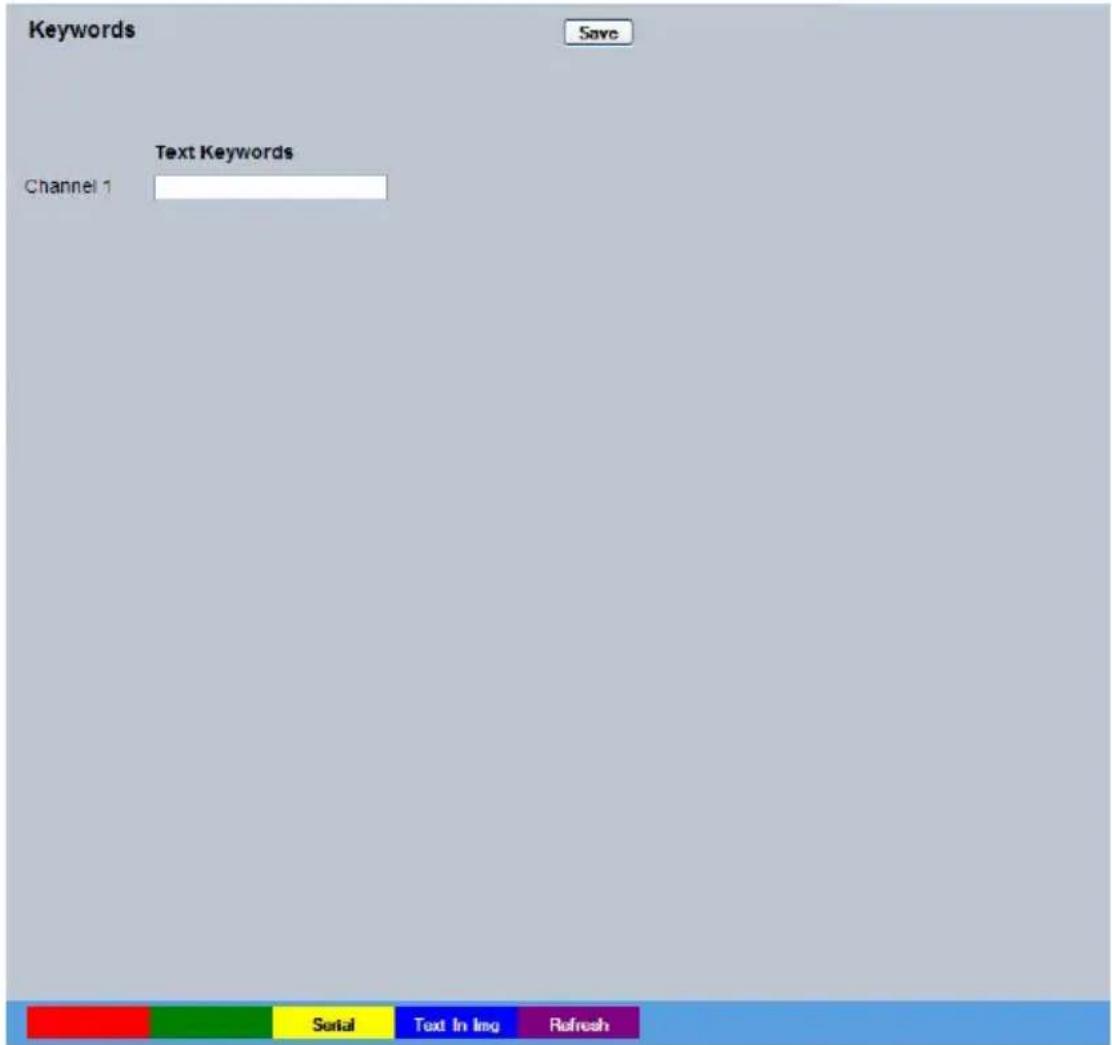
text_image
Keywords Save Text Keywords Channel 1 Serial Text In Img RefreshText Keyword The unit can be configured to react to a keyword appearing in text data and treat it as an alarm zone input. In turn this generates events in the event database. The keyword can be up to 20 characters in length. The keyword will be active on the selected Zone keyword channel, refer to "Zone Input - Input".
Note: Refer to 'Text In Image' and 'Serial Ports' for further guidance on integrating text data.
Serial (Yellow) Opens the System Settings -> Serial Ports page.
Text In Img (Blue) Opens the Features & Text -> Text -> Text In Image page.
Refresh (Purple) Refreshes the current page
Diagnostics
The Diagnostics menus gives engineers the ability to quickly and accurately diagnose any problems with the unit. This menu will normally only be used on a Technical Support call.
The Debug Parser menus allow detailed analysis of the debug output from the camera and maybe used to assist with fault finding. The debug can be filtered in order to isolate and highlight events that are of interest.
Debug Parser
This menu allow detailed analysis of the debug output from the camera and maybe used to assist with fault finding. The debug can be filtered in order to isolate and highlight events that are of interest.

text_image
Debug Parser Web Version View: Settings Filter Debug filter 1 Search text DEBUG: Text colour #00FFFF Background colour #000000 Font family snal Font size 12 Font weight normal RefreshView Defines whether the debug settings on the debug output will be displayed.
Filter Specifies which of the Debug Filters is being configured.
Search text Specifies the text to be searched for in the Debug stream.
Text colour Allows configuration of the parser window font colour.
Background colour Allows configuration of the parser window background.
Font family Allows the display font family to be specified.
Font size Allows the display font size to be specified.
Font weight Allows the display font weight to be specified.
Refresh (Purple) Refreshes the current page
Event Search
The Event Search menu allows recorded event images to be quickly searched for and reviewed. The Search criteria can be limited to a specific date/time and/or individual cameras.
Note: Event Search will only be available when the 'Enable Event Search Page' option is enabled via the System Settings->Features menu.

text_image
Event Viewer Events/Page: 12 Start Date: 20/10/10 Start Time: 17:37 AM End Date: 20/10/10 End Time: 12:37 PM Camera: Search Note: SREs will only be available for video recorded as jpeg Search RefreshEvent/Page Select the amount of events. Still images (thumbnail size) to be displayed per results page.
Start Date Enter a Start Date for the Event Search.
Start Time Enter a Start Time for the Event Search.
End Date Enter an End Date for the Event Search.
End Time Enter an End Time for the Event Search.
Cameras Select the camera channel(s) to be included in the Event Search.
A range of cameras can be selected by entering a hyphen between the first and last required camera i.e.1-8. A selection of individual cameras can be chosen by entering a comma between each camera i.e. 1,3,5,8. Events captured by cameras not in this selection will be ignored. There is only one camera available.
Search (Red) When the Event Search parameters have been entered, select 'Search'.
Event Search Results
After selecting 'Search' (Red), a still image of each captured event (within the chosen search criteria) will be displayed. It may be necessary to scroll through the results pages to view all events. If the number of events exceeds the events displayed per page (configured in Event/Page).
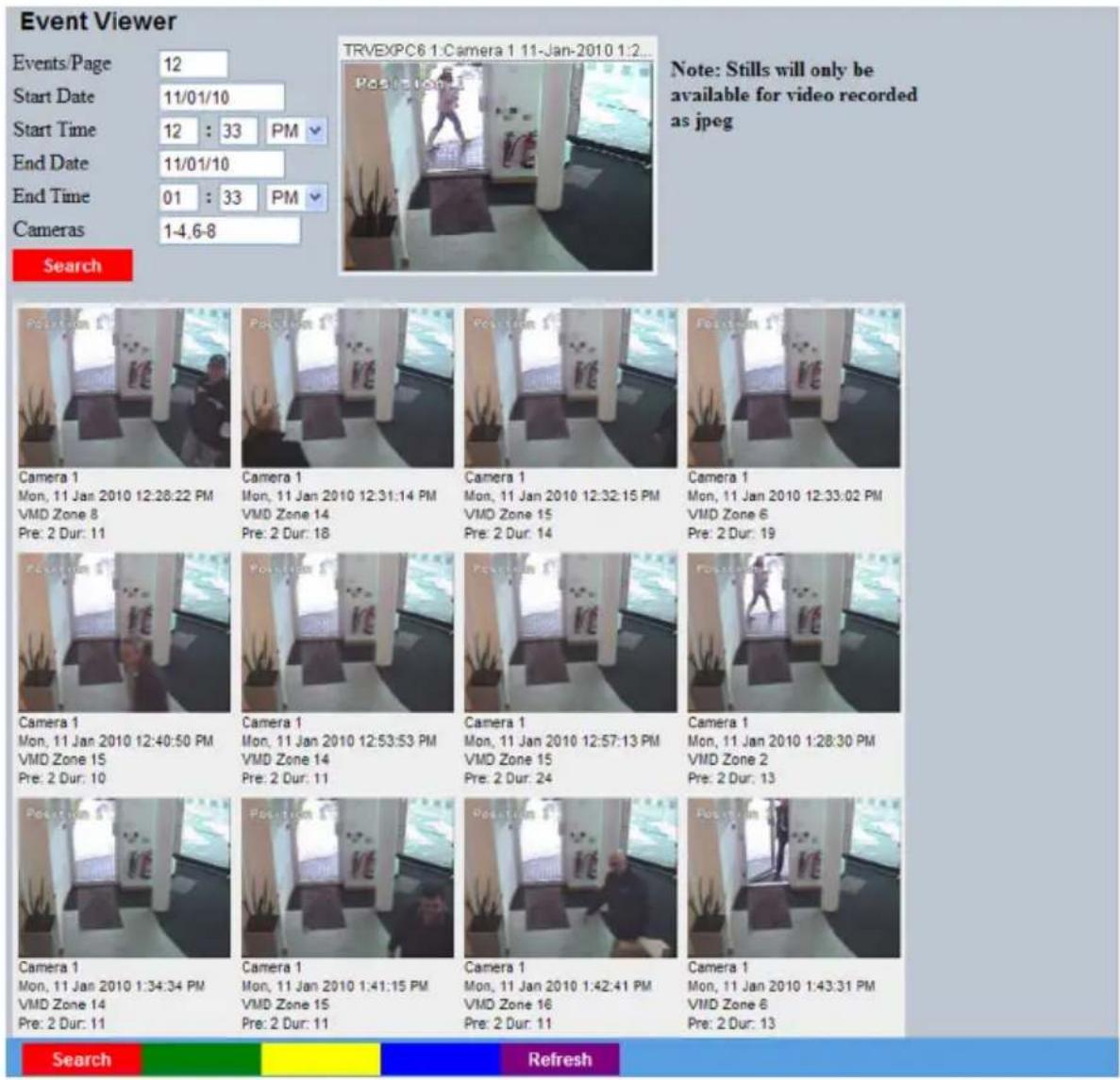
text_image
Event Viewer Events/Page 12 Start Date 11/01/10 Start Time 12 : 33 PM End Date 11/01/10 End Time 01 : 33 PM Cameras 1-4.6-8 TRVEXPC6 1:Camera 1 11-Jan-2010 1:2... Position 1 Note: Stills will only be available for video recorded as jpeg Search Camera 1 Mon, 11 Jan 2010 12:28:22 PM VMD Zone 8 Pre: 2 Dur: 11 Camera 1 Mon, 11 Jan 2010 12:31:14 PM VMD Zone 14 Pre: 2 Dur: 18 Camera 1 Mon, 11 Jan 2010 12:32:15 PM VMD Zone 15 Pre: 2 Dur: 14 Camera 1 Mon, 11 Jan 2010 12:33:02 PM VMD Zone 6 Pre: 2 Dur: 19 Camera 1 Mon, 11 Jan 2010 12:34:50 PM VMD Zone 15 Pre: 2 Dur: 10 Camera 1 Mon, 11 Jan 2010 12:53:53 PM VMD Zone 14 Pre: 2 Dur: 11 Camera 1 Mon, 11 Jan 2010 12:57:13 PM VMD Zone 15 Pre: 2 Dur: 24 Camera 1 Mon, 11 Jan 2010 1:28:30 PM VMD Zone 2 Pre: 2 Dur: 13 Camera 1 Mon, 11 Jan 2010 1:34:34 PM VMD Zone 14 Pre: 2 Dur: 11 Camera 1 Mon, 11 Jan 2010 1:41:15 PM VMD Zone 15 Pre: 2 Dur: 11 Camera 1 Mon, 11 Jan 2010 1:42:41 PM VMD Zone 16 Pre: 2 Dur: 11 Camera 1 Mon, 11 Jan 2010 1:43:31 PM VMD Zone 6 Pre: 2 Dur: 13 Search RefreshClick on the thumbnail image to playback an event. That event will then playback in the window at the top of the menu.
Note: To zoom into the event currently in playback mode, right click it with the mouse. The 'Set Zoom Level' option will be displayed. The image can be set to display at up to 800% of its recorded size. Note that the view window will not increase in size, use the scroll bars to navigate the enlarged image.
IMPORTANT: Still event images will only be available for video recorded in JPEG mode (MPEG4 thumbnail Stills will appear 'blank'); however event data recorded in either JPEG or MPEG4 mode can be replayed.
Unit Operation
The unit can be viewed and accessed remotely via the webpages.
Operating the Viewer
Navigation is via a colour coded softkey system. The coloured menu provides an intuitive approach to operator and installer use.
The function of the keys will change according to whether the unit is in Live or Playback mode.
View Control
The View Control page allows the camera to be displayed full screen.
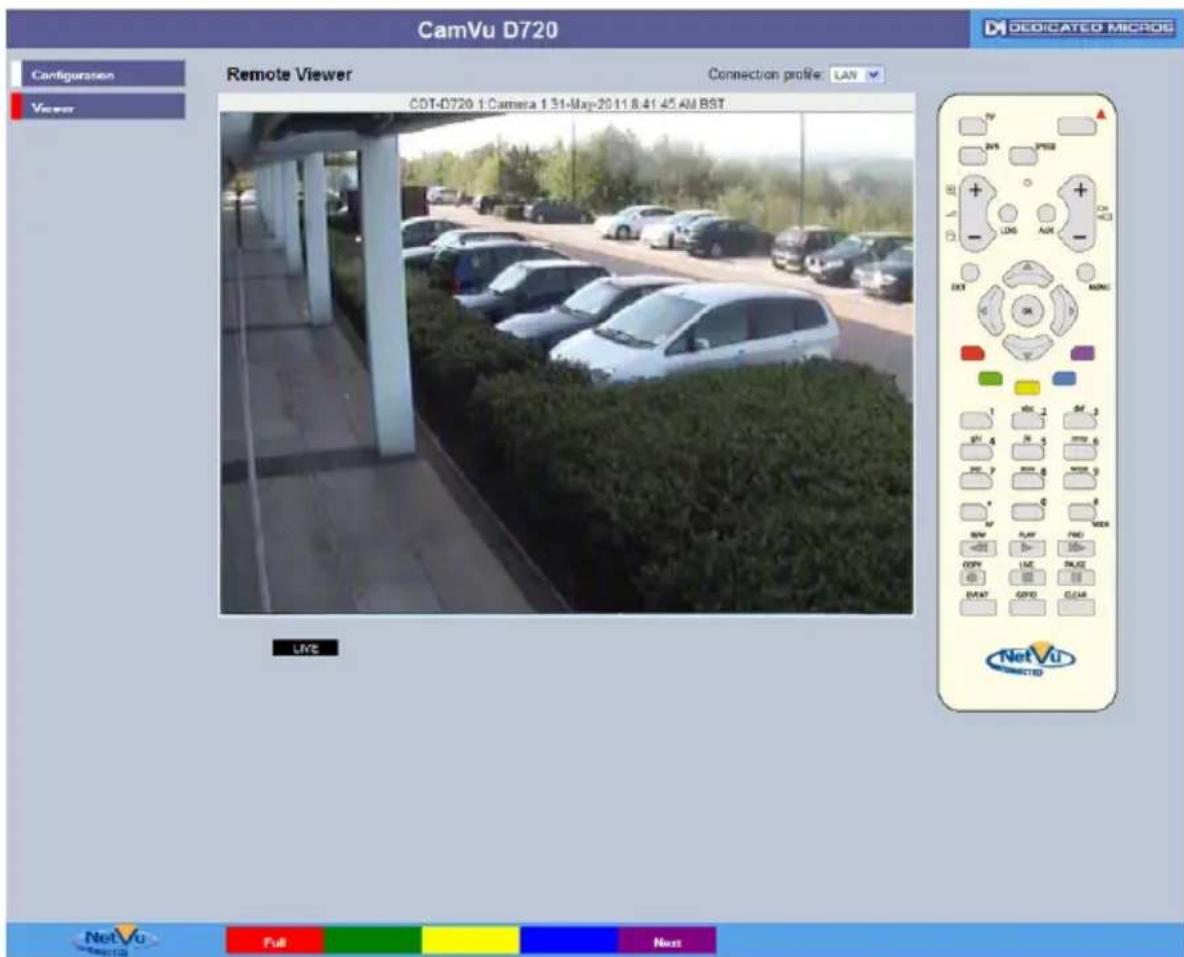
text_image
CamVu D720 Configuration Remote Viewer Connection profile: LAN COT-D720 1:Camera 1.31-May-20 11.8.41 45 AM BST Viewer Live NetVu DIRECTOR Full Next DEDICATED MICROGRed Full Show currently selected camera full screen.
Purple Next Opens the next page of the Viewer menu.
Note: For information on creating Camera Selection maps, refer to the Display Setting->Map Config' section for further information.
Video Control
The Video Control page offers video playback functions i.e. play, pause, rewind and fast forward.
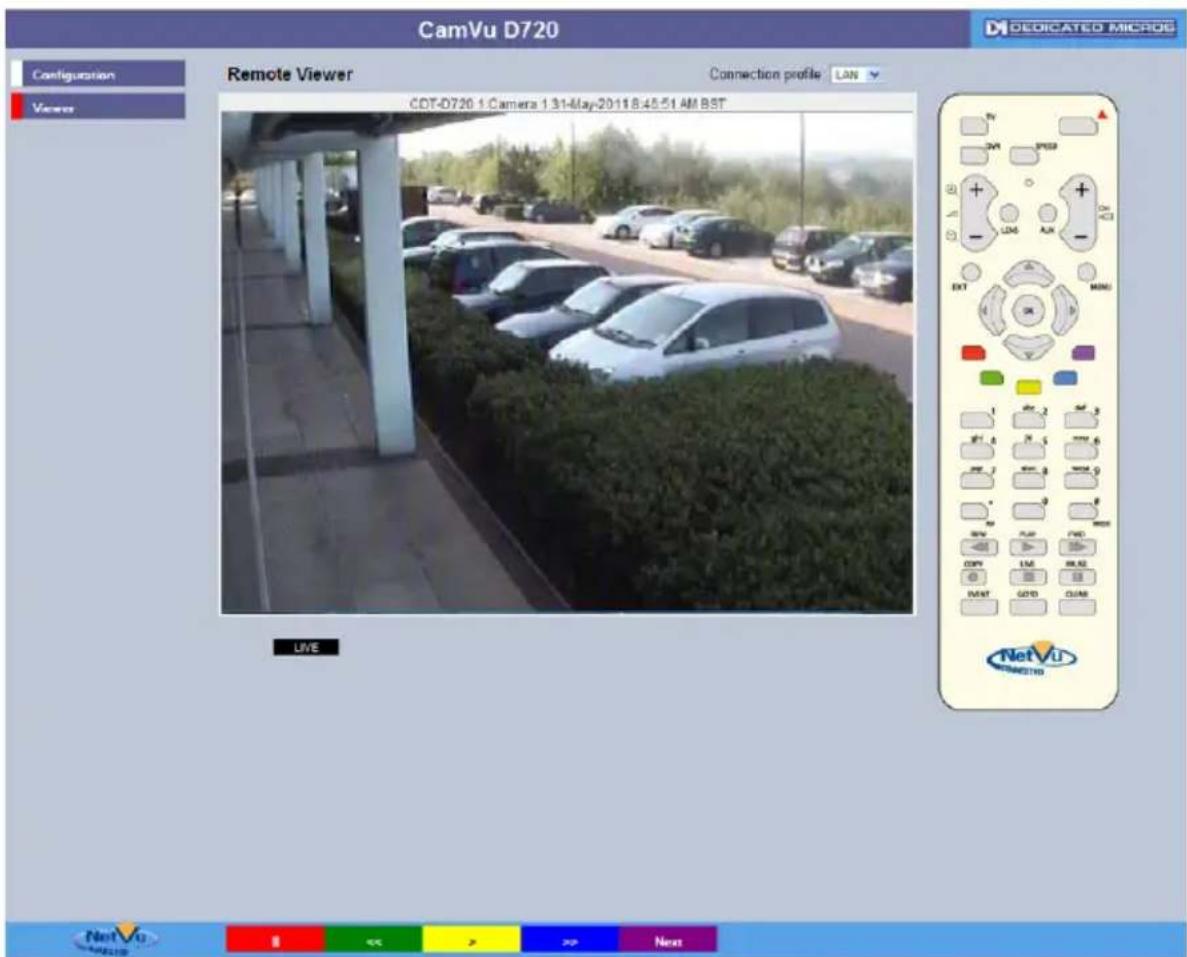
text_image
CamVu D720 Configuration Remote Viewer Connection profile LAN CDT-D720 1:Camera 1.31-May-2011 8:45:51 AM BST Viewer LIVE NetVu DEDICATED MICROG NextRed II Freezes current video display.
Green << Rewinds current video.
Yellow > Plays from current position.
Blue >> Fast forwards video up to current
recording position.
Purple Next Opens the next page of the Viewer menu.
Selection Page
The Selection page allows access to various image and event playback functions.
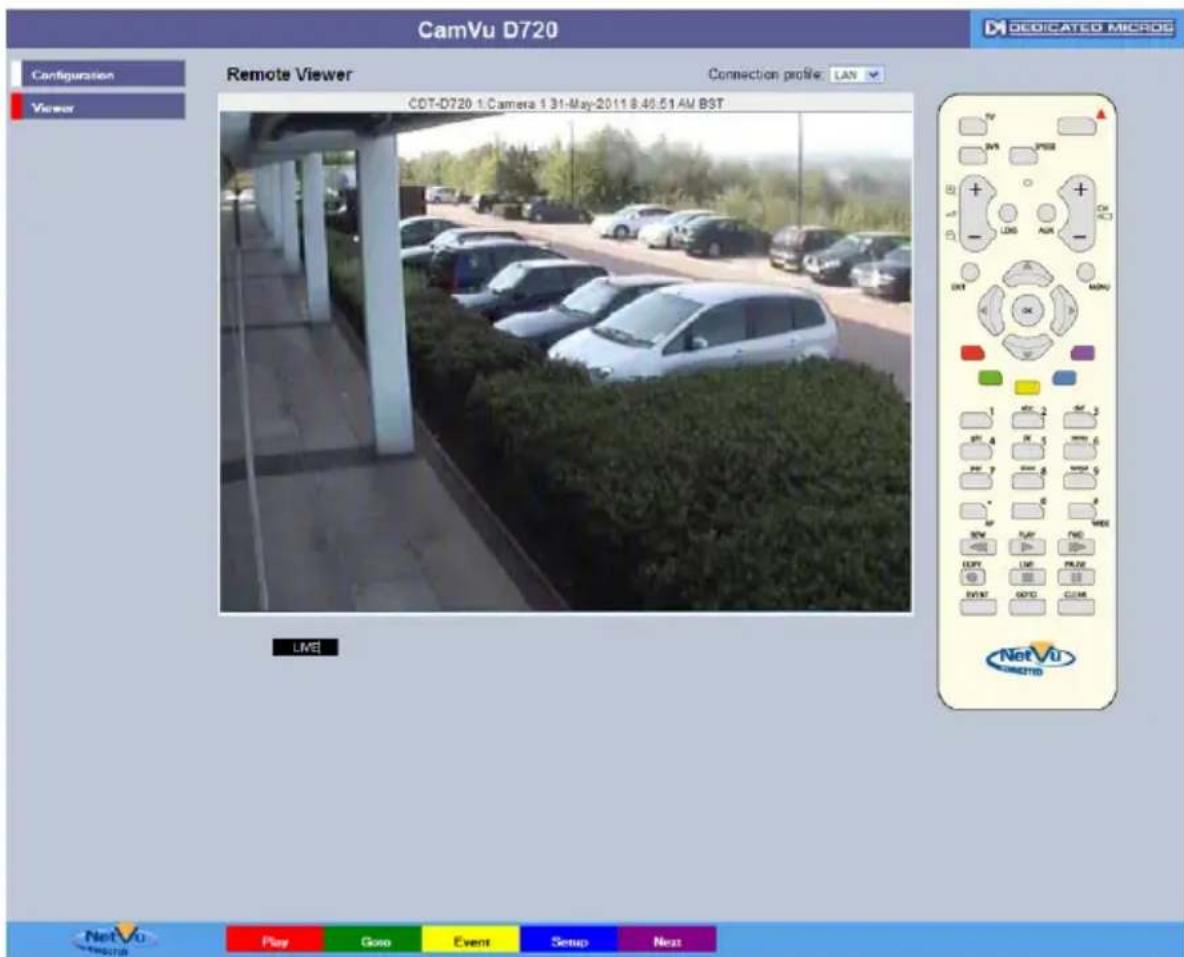
text_image
CamVu D720 Configuration Remote Viewer Connection profile: LAN COT-D720 1/Camera 1 31-May-2011 8:46:51 AM BST Viewer LME NetVu DIRECTOR Play Goo Event Setup NextRed Play Switches the selected camera(s) shown onscreen
into Play mode.
Green Goto Opens the Goto menu.
Yellow Event Displays the Events menu.
Blue Setup Opens the Configuration menu pages.
IMPORTANT: Selecting this option will exit the Viewer menus. This will be logged in the User Activity Log as the current user terminating the session, refer to 'Appendix C' for further information regarding the User Activity Log.
Purple Next Opens the next page of the Viewer menu.
Goto Menu
Timeline Navigation
The Timeline Navigation page and the accompanying Video Timeline feature allows quick and easy investigation of recorded video data. The Goto button opens the initial Timeline Navigation page.
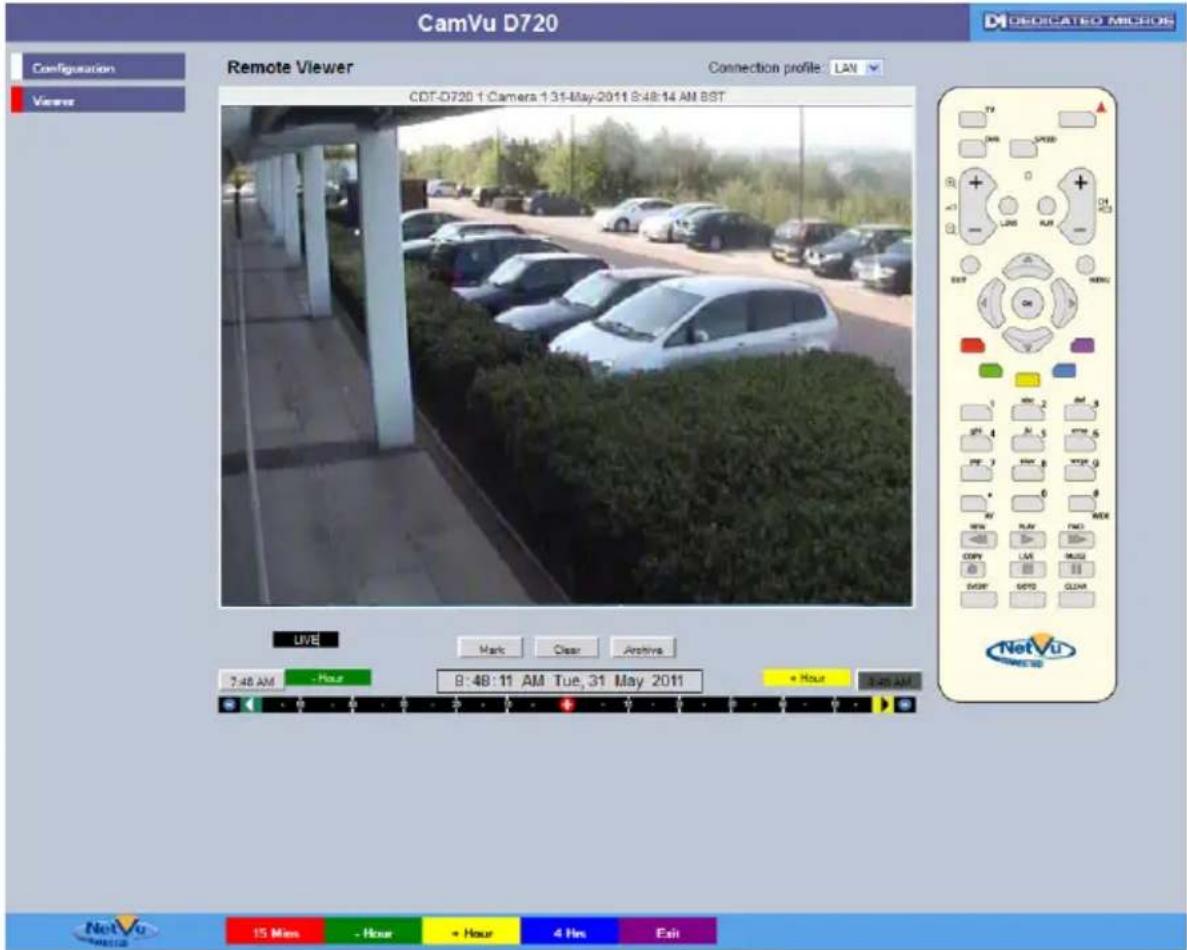
text_image
CamVu D720 Configuration Viewer Remote Viewer Connection profile: LAN CDT-D720 1 Camera 1:31-May-2011 8:48:14 AM BST TV DWR SPEED 0 + - LIFE AIR ON BST NEW TV MIN MIN AV MIN AV MIN AV MIN AV MIN AV MIN AV MIN AV MIN AV MIN AV MIN AV MIN AV MIN AV MIN AV MIN AV MIN AV MIN AV MIN AV MIN AV MIN AV MIN AV MIN AV MIN AV MIN AV MIN AV MIN AV MIN UVE Mark Clear Archive 3:48 AM - Hour 8:48:11 AM Tue, 31 May 2011 + Hour 3:45 AM NetVu 15 Miss - Hour + Hour 4 Nos ExitSoftkeys The coloured softkey options will change depending on the scale
used to review the recorded images. In the above example:
- Selecting the 15 Mins (Red) button will change the softkey options to 15 minute segments i.e. the user can progress 15 mins from/prior the current playback time.
- Selecting the -Hour button (Green) will progress the video to a point exactly one hour prior to the time shown in the date/time display.
- Selecting the +Hour button (Yellow) will progress the video to a point exactly one hour in advance of the ime shown in the date/time display.
- Selecting the 4Hrs (Blue) button will change the softkey options to four hour segments i.e. the user can progress four hours from/prior the current playback time.
- Selecting the Exit (Purple) button will always exit the Timeline Navigation menu.
Note: Depending on the scale used to review the video i.e. Seconds, Minutes, Hours, or Days; the above softkey options will differ, however the same intuitive principles remain.
Video Timeline
The Video Timeline allows intuitive, rapid navigation within recorded video. To aid navigation, the timeline can be set to display periods ranging from 15 seconds to four weeks. The timeline can be clicked anywhere in the scale to instantly play recorded images from that point.

text_image
12:38 PM - Hour 1:38:57 PM Tue, 31 May 2011 + Hour 2:38 PMDate/Time Display (Grey) Shows the currently selected date/time.
Note: The Date/Time Display shows the last time selected via the timeline. During playback, the Date/Time Display remains static while the 'running' time is shown in the bottom left corner of the playback image.
Timeline

vigation from the time and
date currently shown in the Date/Time Display window. The scale changes to correspond to the time period chosen for investigation i.e. if a scale of one hour is selected it will be possible to move up to one hour prior, or one hour in advance of the displayed time (unless that selected time has not been recorded yet). For example, with a scale of one hour, click '10' on the left side of the timeline to play video from 10 minutes prior to the Date/Time Display. To advance in time, click on the right side of the timeline.
Time Scale Options
- 15 seconds
- 1 minute
- 15 minutes
• 1 hour - 4 hours
• 1 day
• 1 week
• 4 week
Change Scale
Utilise the buttons shown below to change the scale.
Note: The coloured softkey buttons can also be used to alter the scale, refer to "Softkey Guidance" for further details).
Decrease Scale button (Red)

es the scale
e of the displayed timeline by one
step i.e. if the scale is currently one hour, selecting this button will reduce it to 15 minutes, selecting it again will reduce it to one minute etc.
Increase Scale button (Blue)
Increases the scale
of the timeline by one step i.e. if
the scale is currently one hour, selecting this button will increase it to four hours, selecting it again will increase it to one day etc.
Left Navigation Arrow (Green)

ting the left r
navigation arrow will play recorded
images from the maximum prior time available via the current timeline i.e. if a one hour time scale is displayed, selecting the Left Navigation Arrow will play video from one hour prior. This can also be selected via the Green softkey button.
Right Navigation Arrow (Yellow)

ecting the rig
ht navigation arrow will play
recorded images from the maximum future time available via the current timeline i.e. if a one hour time scale is displayed, selecting the Right Navigation Arrow will play video from one hour in advance. This can also be selected via the Yellow softkey button.
Event List
Alarms and activity detection, plus system Events i.e. camera fails, are tagged and stored in the Event List. Each Event is labelled with an event type (alarm, activity or system) and its time and date. To view any additional pages of Event data, use the Yellow/Blue Softkeys. If viewing locally, use the Up/Down Directional buttons to select a specific Event, press the OK button to display the full list. When viewing remotely, selecting any Event with the mouse will display the full Event list. If viewing locally, press PLAY on the IR Remote Control/Keyboard to playback an event. If viewing remotely, highlight a chosen event with the mouse to playback.
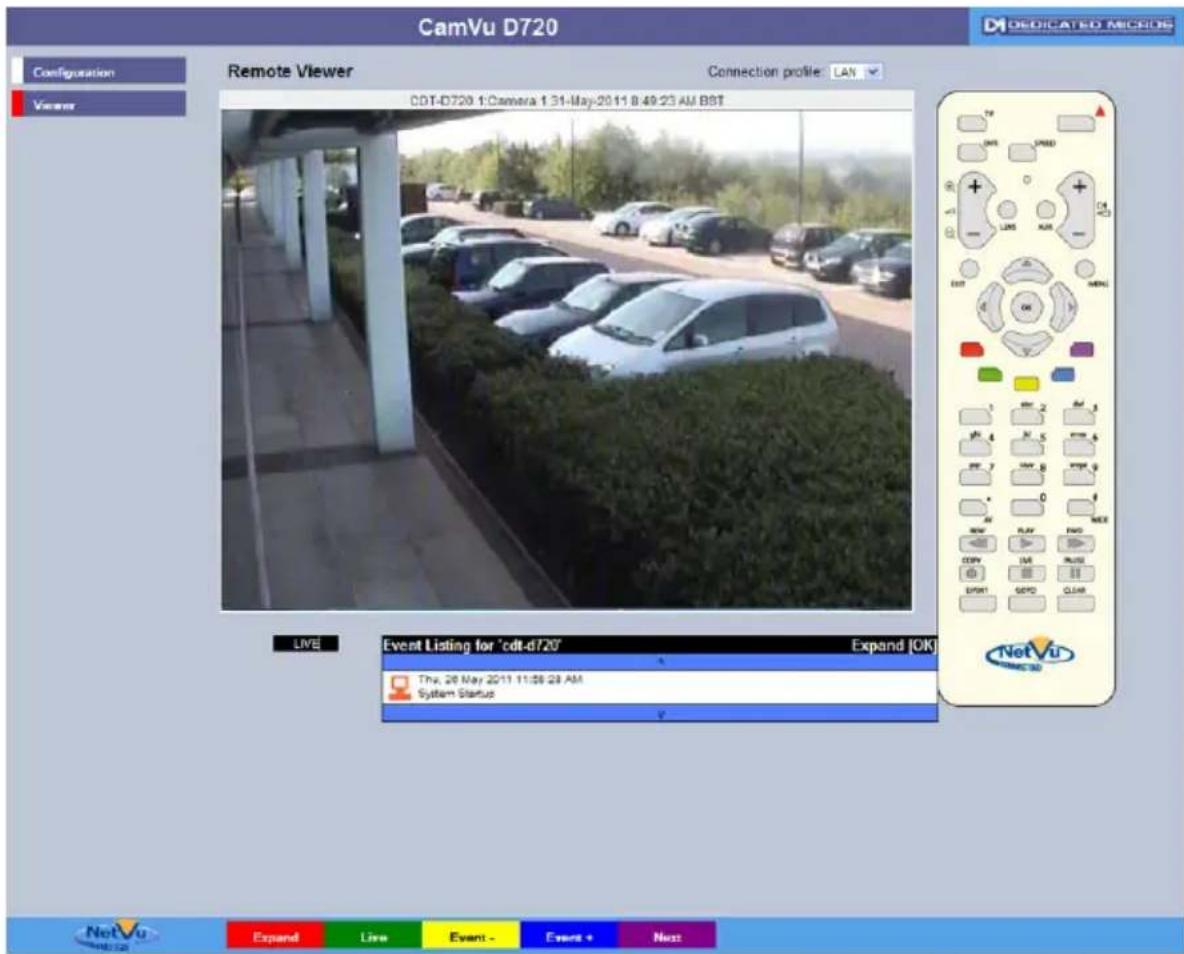
text_image
CamVu D720 Configuration Remote Viewer Connection profile: LAN CDT-D720 1:Camera 1 31-May-20 11 8:49:25 AM BBT Live Event Listing for 'cdt-d720' System Startup Expand | OK Thx, 26 May 2011 11:06 28 AM System Startup NetVu Expand Live Event - Events + NextRed Play Select to playback the highlighted event.
Green Live Select to view live images from the currently
selected camera.
Yellow Page - Select to display the previous page of
Event data.
Blue Page + Select to display the next page of Event data.
Purple Next Select to open the Event Copy and
Search menu.
Event Copy and Search Menu
The Event Copy and Search menu allows events to be searched and filtered by event type. The 'Filter option' allows access to the 'Filter Search' menu.
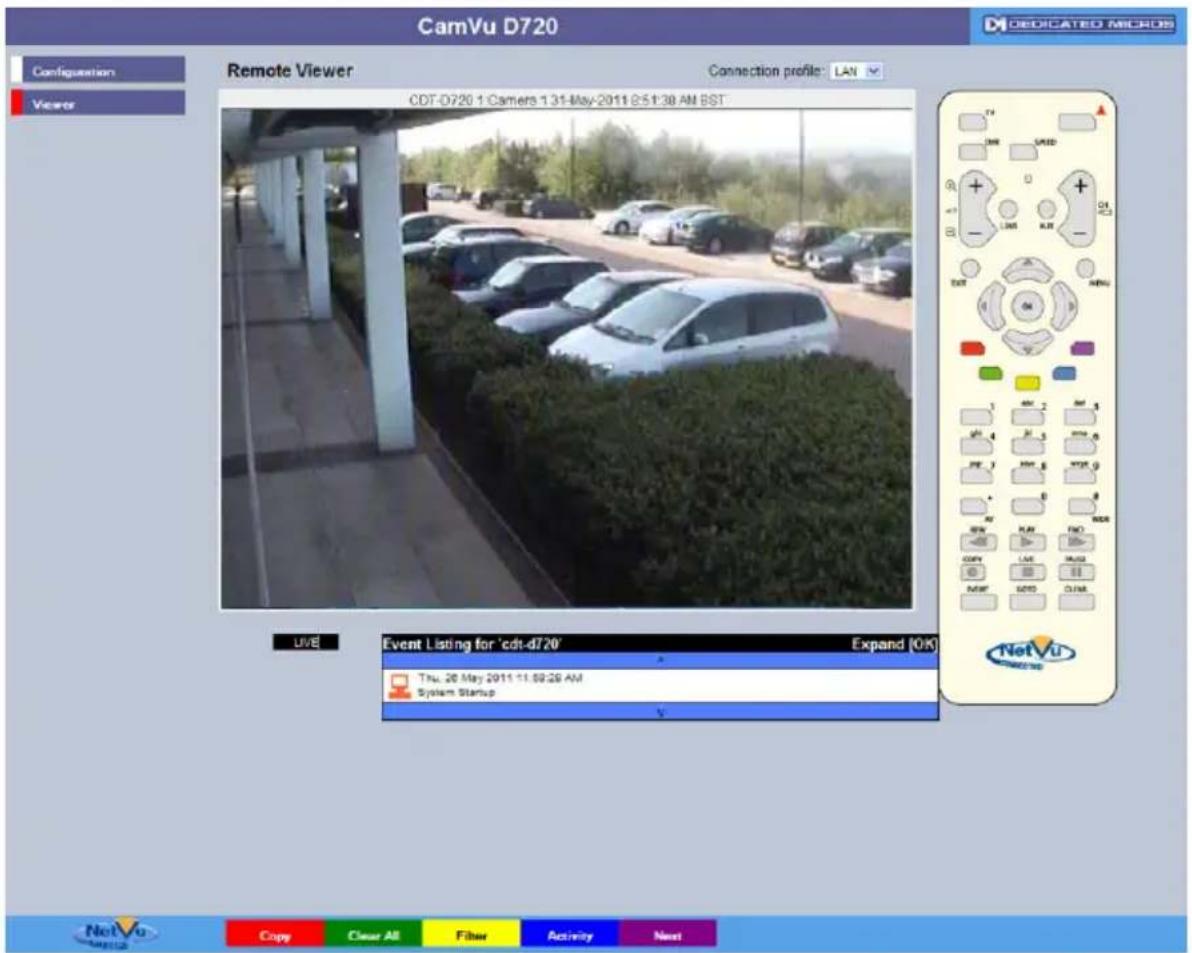
text_image
CamVu D720 Configuration Remote Viewer Connection profile: LAN CDT-D720 1 Cameras 1 31-May-2011 9:51:38 AM BST Live Event Listing for 'cdt-d720' Expand (OK) Thu. 26 May 2011 11:00:28 AM System Startup NetVu Copy Clear All Filter Activity NextRed Copy Select to add the currently highlighted event to the
Copy menu.
Green Clear All Select to clear ALL events from the copy menu.
Note: Single events can be deleted via the Copy menu.
Yellow Filter Select to display the Filter Search menu, refer to;
Operating The Viewer->Filter Search for further guidance.
Blue Activity Select to open the Activity Search menu, refer to;
Operating The Viewer->Activity Search for further guidance.
Purple Next Opens the Play menu for the currently
selected camera.
Filter Search Menu
When searching a large number of stored events, the Filter Search menu allows events to be filtered by time, camera channel and category.
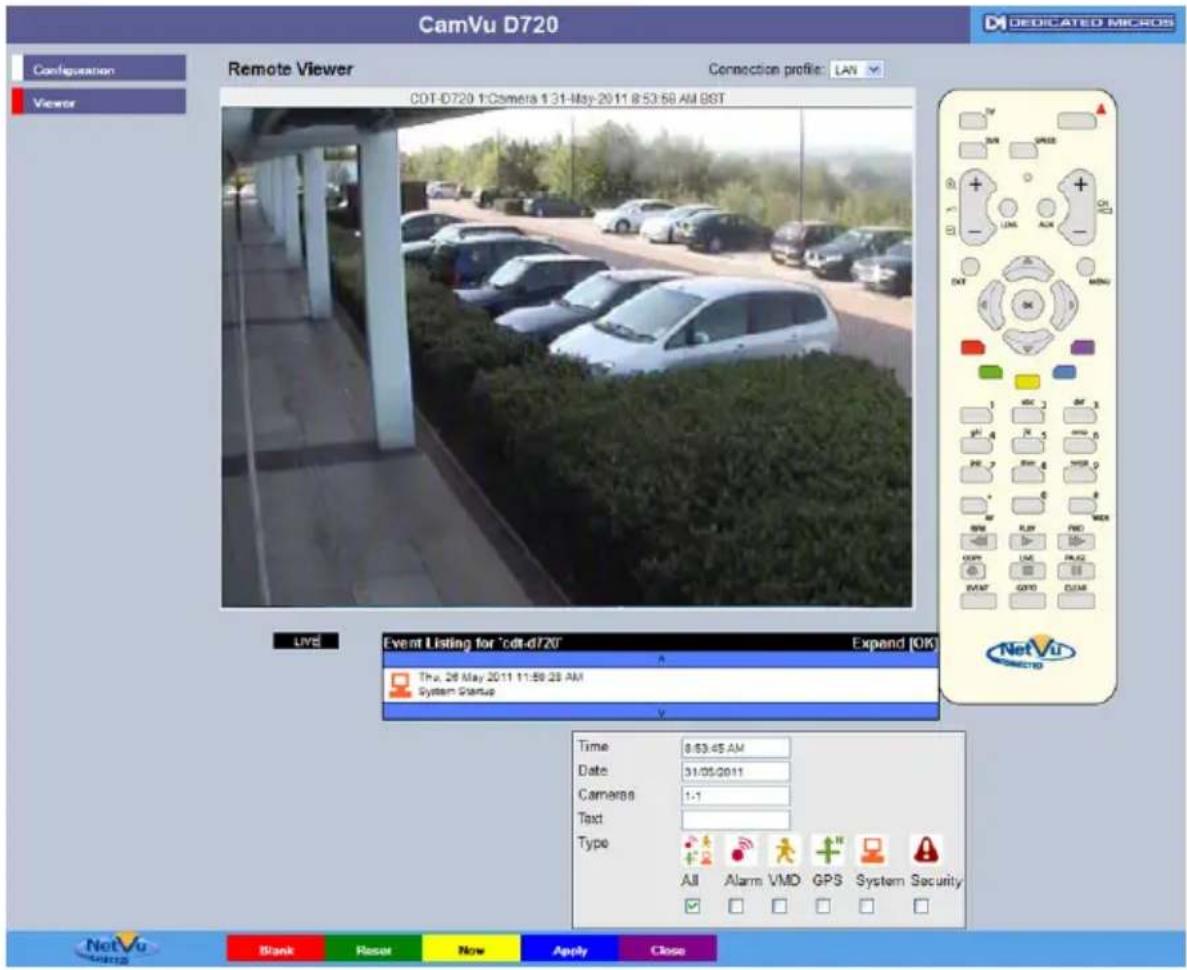
text_image
CamVu D720 Configuration Viewer Remote Viewer Connection profile: LAN COT-D720 1:Camera 1:31-May-2011 8:53:58 AM BST Event Listing for 'cdt-d720' Expend [OK] Thu, 26 May 2011 11:59:28 AM System Status V Time: 8:53:45 AM Date: 31/05/2011 Camera: 1:1 Text: Type: All Alarm VMD GPS System Security DEDICATED MICROS NetVu G0012 Blank Reset Now Apply CloseFilter Search Box

text_image
Time 8:53:45 AM Date 31/05/2011 Cameras 1-1 Text Type All Alarm VMD GPS System SecurityFrom Time Select a start time for the Event filter. Events prior to
this time will be ignored.
From Date Select a start date for the Event filter. Events prior to
this date will be ignored.
Cameras Select which cameras are to be included within the
Event search. A range of cameras can be selected by entering a hyphen between the first and last required camera i.e.1-8. A selection of individual cameras can be chosen by entering a comma between each camera i.e. 1,3,5,8. Events captured by other cameras will be ignored.
Text If searching for text in image events, enter the
required text here.
Type The event search can be filtered to include all,
or specific event types only. The event types are: Alarm, VMD, GPS and System. Each type is assigned a specific symbol, these symbols accompany each listed event for easy recognition.
Red Blank Select to remove all data currently displayed in the
Filter Search Box.
Green Reset Select to reset the Filter Search box. The current
Time/Date will be displayed plus all available cameras.
Yellow Now Select to enter the current Time/Date. Any additional
displayed search criteria will remain.
Blue Apply Select to apply any changes made to the Filter
Search box.
Purple Close Select to return to the Event Copy and
Search menu.
Activity Search Menu
The Activity Search menu allows the search criteria to be further narrowed to only include events which have occurred within specific segments of the camera view. Firstly, enter a start/end Time and Date, then select a camera channel. Use the Grid option to select a specific segment of the camera view.

text_image
CamVu 720 Remote Viewer Connection profile: LAN COT-D720 1:Camera 1.31-May-2011 8:53:59 AM 98T CAMVU 720 DEDICATED MICROS Configuration Viewer PLAN Event Listing for 'cdt.720' Expand |OK Wed. 01 Jun 2011 11:55:13 AM 1(1) : Activity From Time 11:55:12 AM From Date 01/06/2011 To Time 11:55:12 AM To Date 01/06/2011 Camera 1 Blank Reset Grid Apply Close Not Vu Not Vu Not Vu Not Vu Not Vu Not Vu Not Vu Not Vu Not Vu Not Vu Not Vu Not Vu Not Vu Not Vu Not Vu Not Vu Not Vu Not Vu Not Vu Not Vu Not Vu Not Vu Not Vu Not Vu Not Vu Not Vu Not Vu Not Vu Not Vu Not Vu Not Vu Not Vu Not Vu Not VuFrom Time Select a start time for the Activity filter. Events prior
to this time will be ignored.
From Date Select a start date for the Activity filter. Events prior
to this date will be ignored.
To Time Select an end time for the Activity filter. Events after
this time will be ignored.
To Date Select a end date for the Activity filter. Events after
this date will be ignored
Cameras Select which camera to include within the Activity
search. A range of cameras can be selected by entering a hyphen between the first and last required camera i.e.1-8. A selection of individual cameras can be chosen by entering a comma between each camera i.e. 1,3,5,8. Events captured by other cameras will be ignored.
Red Blank Select to remove all data currently displayed in the
Filter Search Box.
Green Reset Select to reset the Filter Search box. The current
Time/Date will be displayed plus all available cameras.
Yellow Grid Select to open the Grid menu.
Blue Apply Select to apply any change made to the Filter
Search box.
Purple Close Select to return to the Event Copy and
Search menu.
Activity Grid Menu
The Activity Grid menu allows the event search criteria to be further narrowed to only display events which have occurred within a segment of the camera view. A grid will be displayed across the image of the selected camera channel. Using the options outlined below, the grid can be configured to create activity zones within the image. Only events which have occurred within these zones will then be displayed in the Activity Search menu for the chosen camera channel.
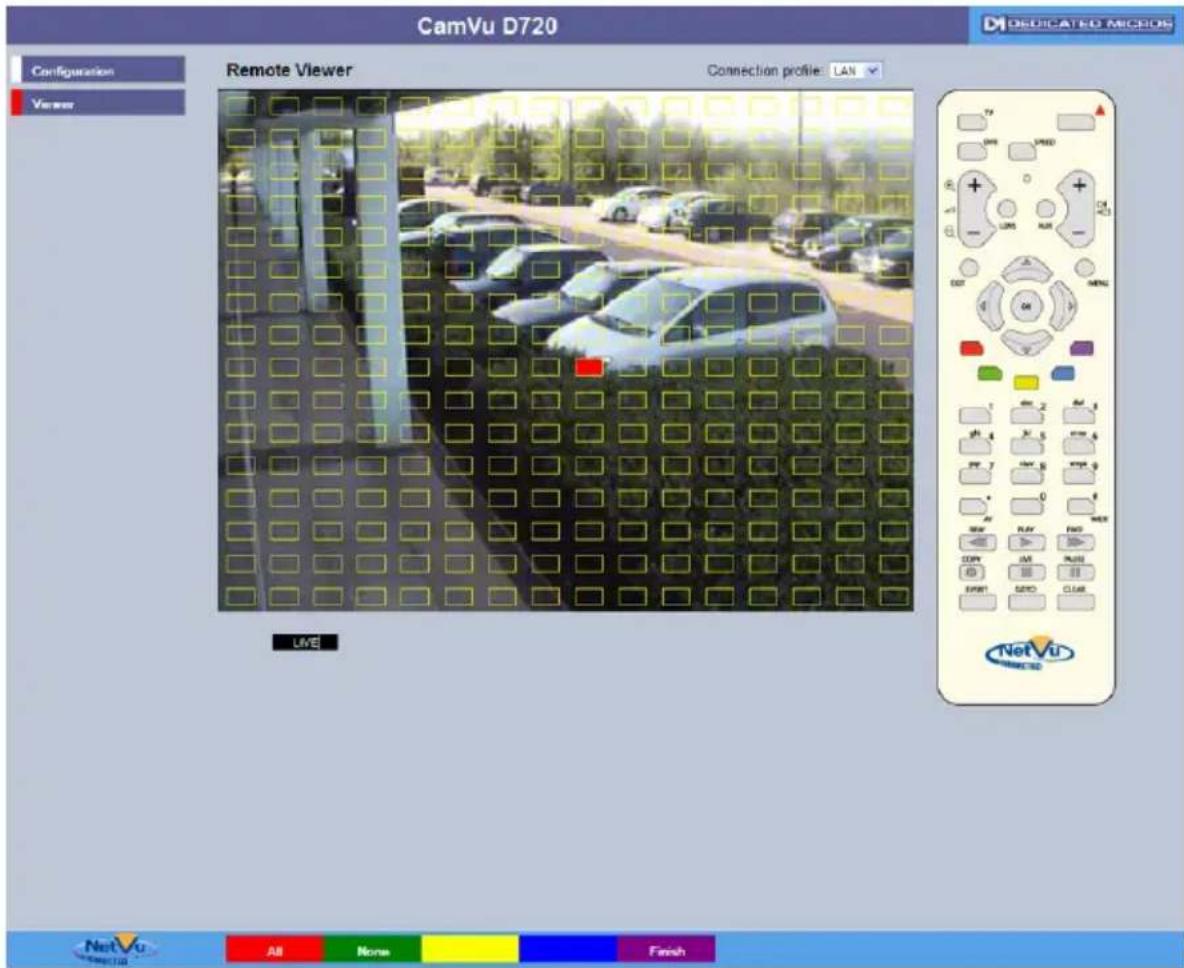
text_image
CamVu D720 Configuration Remote Viewer Connection profile: LAN Viewer Live NetVu NetVu All None FinishRed All This option will display a default rectangle of 18x16
cells across the video image.
Green None This option will delete all cells from the displayed
video image.
A zone can be created directly via the mouse. Click on a cell and then on a separate cell. The area to be included in the Activity zone will be created linking these points.
IMPORTANT: The area (cells) highlighted yellow constitutes the activity detection zone. Any activity events occurring within the area created using the Start and end points will be ignored.
Note: Multiple zones can be created within the same camera view.
Purple Finish Select to return to the Activity Search menu.
Appendix A
General Information
This page gives an overview of the units current settings including IP address, connections to the camera, the locations that data is being read from and written to, and which recording profile is active.
| Useful Information | |
| Setting | Value |
| Current recording profile | UNSET Mode |
| Features enabled | Text in Image EMail Reporting Remote Reporting Webcam support SMB server support Challenge Audio Camera Masking |
| App drive | mdd0 |
| Data drive | mdd10 |
| FTP drive | mdd0 |
| NVR drive | nvd0 |
| Web drive | mdd0 |
| Video drives | mdd10 |
| Connected clients | 172.17.32.58 |
| Your IP address | 172.17.52.43 |
About (Blue) Opens the About page Refresh (Purple) Refreshes the current page
Record Details
This page displays the configured recording settings for the unit. The current record mode being used by the unit can be found on the General Information page.
| Recording Configuration | |||||||
| 1: Camera 1 | |||||||
| Type | |||||||
| Recording | No | ||||||
| Class | Standard Resolution | ||||||
| Configured Profiles | UNSET Mode | SET Mode | OVERRIDE Mode | ||||
| Normal | Event | Normal | Event | Normal | Event | ||
| Mode | JPEG | JPEG | JPEG | JPEG | JPEG | JPEG | |
| PPS (ms) | 0 (0) | 0 (0) | 0 (0) | 0 (0) | 0 (0) | 0 (0) | |
| Resolution | VGA | VGA | VGA | VGA | VGA | VGA | |
| MPEG Bitrate | - | - | - | - | - | - | |
| GOP Ratio | - | - | - | - | - | - | |
| JPEG Filesize | 0 | 0 | 0 | 0 | 0 | 0 | |

About (Blue) Opens the About page
Refresh (Purple) Refreshes the current page
Camconfig Details
This page displays the capabilities of the camera in terms of resolution and supported compression formats. This camera does not support audio, alarms, relay or lens de-warping so all these parameters return 0.
| Camera Configuration Data | |||
| Camera | Property | Value | Type |
| 1: Camera*Camera not recordingCamera class: Standard Resolution | query_string | vid_std=0&hres=640&vres=480&aspect_ratio=4.3&resolutions=VGA;QVGA,Q2VGA&resolution_codes=4;7,8&mpeg_enabled=TRUE&jpeg_enabled=TRUE&h264_enabled=TRUE&alarms=0&relays=0&audio_in=0x0&audio_out=0x0&lens_type=0 | string |
| vid_std | 0 | number | |
| hres | 640 | number | |
| vres | 480 | number | |
| aspect_ratio | 4:3 | string | |
| resolutions | VGA,QVGA,Q2VGA | object | |
| resolution_codes | 4,7,8 | object | |
| mpeg_enabled | true | boolean | |
| jpeg_enabled | true | boolean | |
| h264_enabled | true | boolean | |
| alarms | 0 | number | |
| relays | 0 | number | |
| audio_in | 0 | number | |
| audio_out | 0 | number | |
| lens_type | 0 | number | |
About (Blue) Opens the About page Refresh (Purple) Refreshes the current page
Capabilities
This information page shows the capability settings for the camera. These parameters determine how the camera performs and what options are available on the configuration pages.
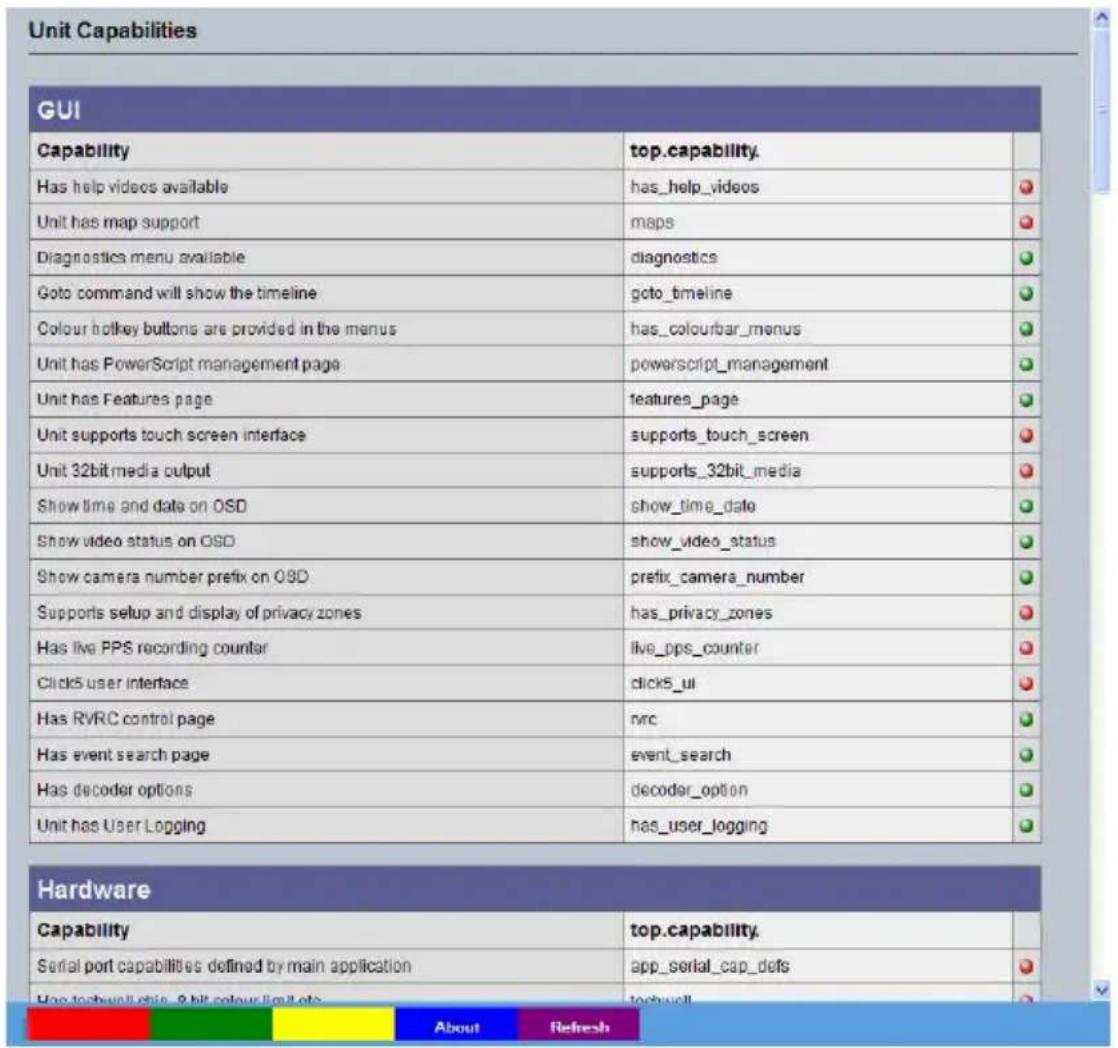
text_image
Unit Capabilities GUI Capability Has help videos available Unit has map support Diagnostics menu available Goto command will show the timeline Colour hotkey buttons are provided in the menus Unit has PowerScript management page Unit has Features page Unit supports touch screen interface Unit 32bit media output Show time and date on OSD Show video status on OSD Show camera number prefix on OSD Supports setup and display of privacy zones Has live PPS recording counter Click5 user interface Has RVRC control page Has event search page Has decoder options Unit has User Logging top.capability. has_help_videos maps diagnostics goto_timeline has_colourbar(SCUS) powerscript_management features_page supports_touch_screen supports_32bit_media show_time_date show_video_status prefix_camera_number has_privacy_zones live_pps_counter clicks_ui nvc event_search decoder_option has_user_logging Hardware Capability Serial port capabilities defined by main application App_serial_cap_defs About RefreshAbout (Blue) Opens the About page
Refresh (Purple) Refreshes the current page
UI Information
The UI page shows the settings stored in the camera which configure the user interface.
About (Blue) Opens the About page Refresh (Purple) Refreshes the current page
Profile Record Tables
This page shows the different settings available in the record configurations. The current default settings are indicated by crosses.
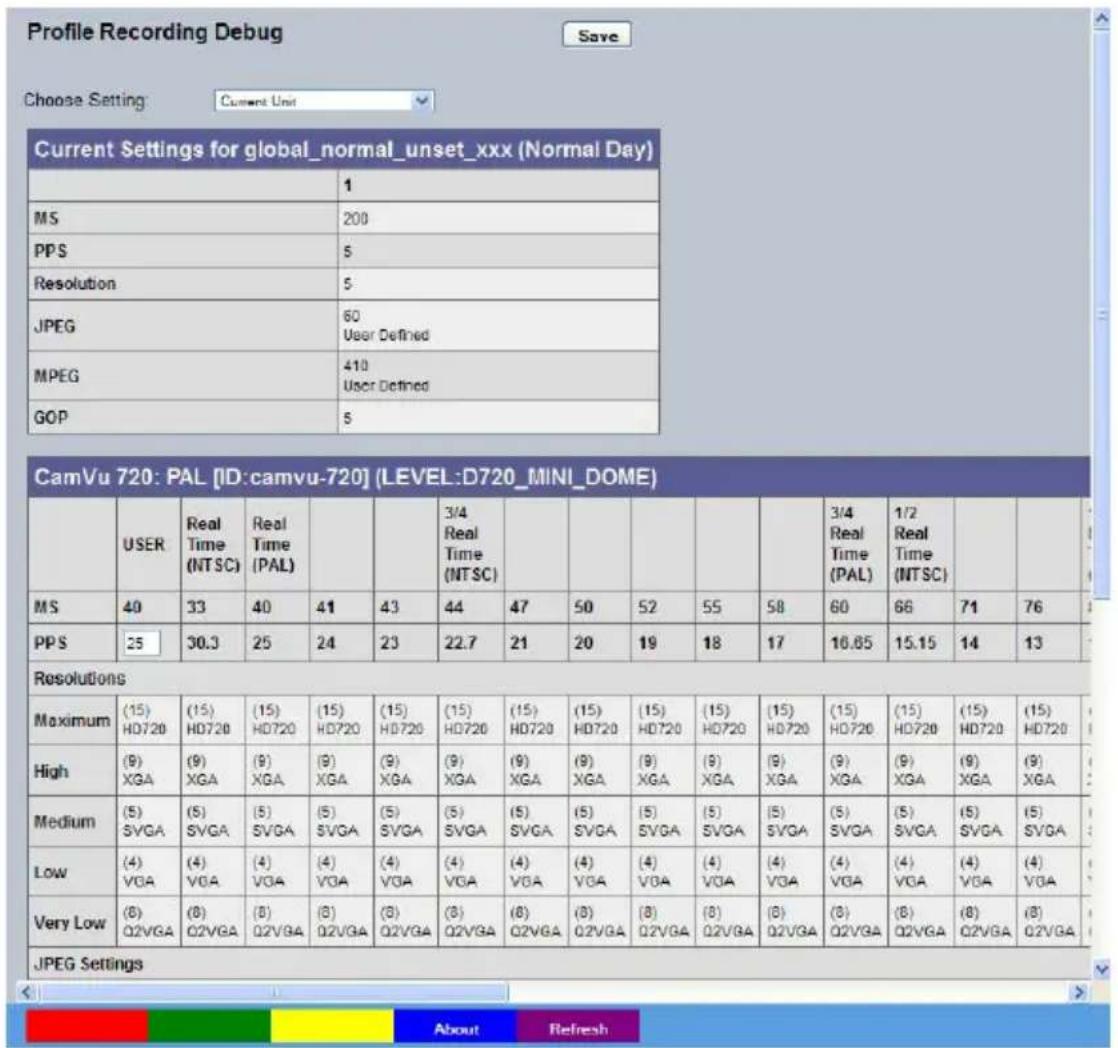
text_image
Profile Recording Debug Choose Setting: Current Unit Current Settings for global_normal_unset_xxx (Normal Day) 1 MS 200 PPS 5 Resolution 5 JPEG 60 User Defined MPEG 410 User Defined GOP 5 CamVu 720: PAL [ID:camvu-720] (LEVEL:D720_MINI_DOME) USER Real Time Real Time (NTSC) (PAL) 3/4 Real Time (NTSC) HT720 HD720 HD720 HD720 HD720 HD720 HD720 HD720 HD720 HD720 HD720 HD720 HD720 HD720 HD720 HD720 HD720 HD720 HD720 HD720 HD720 HD720 HD720 HD720 HD720 HD720 MS 40 33 40 41 43 44 47 50 52 55 58 60 66 71 76 PPS 25 30.3 25 24 23 22.7 21 20 19 18 17 16.85 15.15 14 13 Resolutions Maximum (15) (15) (15) (15) (15) (15) (15) (15) (15) (15) (15) (15) (15) (15) (15) (15) (15) (15) (15) (15) (15) (15) (15) (15) (15) (15) High (9) (9) (9) (9) (9) (9) (9) (9) (9) (9) (9) (9) (9) (9) (9) (9) (9) (9) (9) (9) (9) (9) (9) (9) (9) (9) (9) (9) (9) (9) (9) (9) (9) (9) Medium (5) (5) (5) (5) (5) (5) (5) (5) (5) (5) (5) (5) (5) (5) (5) (5) (5) (5) (5) (5) (5) (5) (5) (5) Low (4) (4) (4) (4) (4) (4) (4) (4) (4) (4) (4) (4) (4) (4) (4) (4) (4) Very Low (8) (8) (8) (8) (8) (8) (8) (8) (8) (8) (8) (8) (8) (8) JPEG Settings About RefreshAbout (Blue) Opens the About page
Refresh (Purple) Refreshes the current page
Glossary
This page provides quick reference to the technical terms used throughout the manuals and on the configuration pages, and allows alphabetical indexing and free text searching.

text_image
Glossary Search: Search A-Z A B C D E F G H I J K L M N O P G R S T U Y W X Y ZSearch (Red) Enter text into the search box and then click this button to find all related terms.
A-Z (Green) Activates the letter selection buttons allowing all subjects within a selected index letter to be displayed. Previous (Yellow) and Subsequent (Blue) letters can then be selected and displayed
Refresh (Purple) Refreshes the current page
Appendix B
User Activity Logging
User Activity logging can be enabled or disabled via the System Setting->Features menu. When this feature is enabled, the unit will record all actions performed via the user interface. These actions include Viewing the live stream, activating telemetry, altering the unit configuration, viewing recorded video, archiving video and any system events such as restarting the unit.
Data recorded will include the user name, login time and date, what action was performed, which channels were viewed and which telemetry instructions were issued.
The log files will be retained on the unit for as long as any related video files are kept. One log file will be created daily as a text file and will be named automatically (using the date of creation), and stored in the logs directory on the unit. This can then be downloaded via ftp if required.
| Action Stored Data | |
| User Login Username, | Local or Remote, Login |
| Local Archive Username, | Local or Remote control, Media |
| Remote Raw Archive 1 http | Username, Submission requesting archive time |
| Remote Selective Archive http | Username, Submission requesting archive time |
| Remote Raw Archive 2 FTP | Username, List of downloaded files |
| Configuration Username, | Local or remote, Menus changed, Items changed |
| Playback Username, | Remote, Channel viewed, From time |
| Live Username, | Remote, Channel viewed |
| System Events Username, | Event Info |
Appendix C
Pattern for Ceiling Dome

text_image
80 42 10 Ø7 28 48.5 65.3 NOT TO SCALENote: Place this page on a photocopier and enlarge 141% (A4->A3) to get an accurate template.
Specification
IMAGE SENSOR : 1/3" CMOS progressive scan
VIDEO PROCESSOR : SoC DSP (CW5631)
MINIMUM ILLUMINATION (all using frame integration) Comparable sensitivity at 10pps - 2.85 lux
CMVU720: 0.3 lux at F1.2, CMVUD720: 0.3 lux at F1.3, CMVUVRD720: 0.3 lux at F1.3
SHUTTER TIME : 1/100s to 1/1s
LENS
CMVU720: C/CS with back focus adjustment ring. Direct drive DC iris via 4-pin square type socket on the side of the camera. 1/3" or 1/4" lenses can be used (1/4" ideal for 720p resolutions) CMVUD720/CMVUVRD720: Integrated 3-10mm Varifocal with DC iris, F1.3. Aspherical glass with IR corrective coating
VIDEO SPECIFICATIONS
COMPRESSION : JPEG, H.264 and MPEG-4.
MAXIMUM OUTPUT RESOLUTION : 720p (16:9 Ratio), 2MP (4:3 Ratio)
MAXIMUM IMAGE RATE
Maximum 30pps @ 800x600px (single connection to camera) 15pps at up to 1600x1200 (4:3, 2MP) & 1280x720 (16:9, 1MP) IMAGE STREAMING
Multiple, simultaneous, individual video streams in any supported compression format, bit rate or resolution can be sent to any connected user TRANSCODING
Transmit multiple simultaneous MPEG-4, H.264 and/or MJPEG recorded image streams to any number of associated NetVu Connected devices for image viewing. Each stream can be tailored to suit bandwidth requirements. Resolution and format can be dynamically changed without the need to stop and then restart the stream. This operation is carried out independently of high resolution recordings.
COMPOSITE VIDEO OUTPUT
(PAL / NTSC) live display, initially operational for 10 minutes (user configurable) to enable camera focusing / configuration. Video output can also be used as part of a media display or emergency messaging capability.
INTEGRATED CAMERA RECORDING (ICR)
ICR combines recording capability and a full enterprise video server within the camera. Record camera footage at the unit as well as any associated Video Server. An integrated Micro SD expansion port provides local recording capability whilst ATA over Ethernet (AoE) protocol provides highly-secure point-to-point transfer of video files to separate, remote, storage devices for backup and longterm archiving. Enables a tiered storage architecture that ensures no single point of failure.
IMAGE CONTROL
Camera Title, Lens Select, AWB, Electronic Iris, Exposure Level, Flip/Mirror Video, Sharpness Control
NETWORK & CONFIGURATION SPECIFICATIONS
NETWORK SUPPORT
DCCP, DHCP, HTTP, HTTPS, IPv4, SMTP, Bonjour, ICMP, DNS, NTP, TCP, UPP, UDP, ICMP, DHCP, ARP, RTP, Telnet, FTP, AoE, SNMP, ZeroConf WEB PAGE CONFIGURATION
Simple Web page configuration will allow the following functions to be configured: Camera setup, Manual update of viewing profiles, Network and Alarm settings (CMVUVRD720 includes Audio Settings)
DIRECT CAMERA CONFIGURATION
Directly configure from the associated NetVu Connected Video Server. In addition, when used within a Closed IPTV system, default settings (such as streaming rate, resolution, aspect ratio, telemetry, lens configuration etc.) can be automatically assigned to the camera
INTEGRATION SPECIFICATIONS
APPLICATION SUPPORT
Browser: IE 5.5 / Firefox 2.0 and above
Developer: Java via Dedicated Micros SDK
NETVU OBSERVER - SEAMLESS VIDEO MANAGEMENT
Dedicated Micros NetVu Observer video management software allows seamless viewing and control of live and recorded images from any NetVu
Connected product (IP or analogue) in a single interface. The ability to view multiple sites simultaneously makes management of any security installation efficient. The inclusion of RVRC (ARC) features such as EDP, event characterisation and report generation make NetVu ObserVer ideal for remote monitoring of multiple sites. (Supplied with Product, Apple Mac Version Available)
ALARMS & RELAYS
Video Motion Detection (VMD) & Activity Detection, Zoned alarms based on multiple inputs.
On alarm actions include; Alarm Reporting, Record Profile change, Email, Relay Closure (Relay closure on models with relay outputs only)
CMVUVRD720: 2 physical alarm inputs & 1 physical relay output.
AUDIO
CMVUVRD720: 1x audio input (mono) - 3.5mm jack, 47kΩinput impedance, 1x audio output (mono) - 3.5mm jack, 47kΩinput impedance
GENERAL SPECIFICATIONS
ENCLOSURE
CMVU720: Zintec case, Cast Zinc lens mount, V0 ABS trim
CMVUD720: Grey ABS. Clear polycarbonate bubble
CMVUVRD720: IP66 Die cast aluminium LM25 Base, Lexan Polycarbonate Bubble
CONNECTIONS
Ethernet: 10/100 BaseT RJ45 Connector PoE
Storage: Micro SD slot for recording. Supplied with 2GB class 4 card. CMVU720: Secondary Micro SD slot for recording
Power: Terminal Block
CMVUVRD720: Terminal Block for Alarms & Relays
MOUNTING OPTIONS
CMVU720: 1/4" 20 UNC mounts on top and bottom
CMVUD720: Ceiling, Surface (via provided fixings), 3-axis GyroView set up
CMVUVRD720: Surface (via provided fixings), 3-axis GyroView set up
MEASUREMENTS
CMVU720: 123 (L) x 60 (H) x 60 (W) (mm)
CMVUD720: 120 (L) x 120 (W) x 110 (H) (mm)
CMVUVRD720: 148 (L) x 148 (W) x 104 (H) (mm)
WEIGHT
CMVU720: 0.4kg (14oz) without lens CMVUD720: 0.3kg (10.5oz) CMVUVRD720: 1.18kg (41.6oz)
POWER
CMVU720: 12Vdc-24Vac/PoE, Consumption: 4.5W CMVUD720: PoE only, Consumption: 4.5W CMVUVRD720: 12Vdc/PoE, Consumption: 4.5W
POWER OVER ETHERNET
IEEE 802.3-2008. End span and bridging injectors supported.
Supplied with a PoE injector to allow power to be applied to the connecting Ethernet cable without the need for a PoE enabled network switch. This allows 48V power (supplied separately) to be provided down the line to the camera on the same cable that is used for data transmission.
ENVIRONMENTAL
Operating Temperature: -10^ to +50^ ( 14^ to 122^ ) Storage Temperature: -10^ to +70^ ( 14^ to 158^ )
Operating Humidity: 20% to 80% relative humidity, non condensing Storage Humidity: 20% to 90% relative humidity, non condensing
Notes
Changelog
1.1 Removed reference to CamVu 500 (page 5) inherited from dual version manual Added Iris Control page Removed Lens Config page
Index
About 22
Activity Grid Menu 118
Activity Search Menu 116
Activity Setup 74
Advanced Record....50
Alarm 63
Alarm Connection Table....10
Alarm Response....72
Alarm Status....21
ANALYTICSCAPABLE 3
AoE 54
Appendix A 119
Appendix B....126
Appendix C....127
Attributes....17
Audio 28
Audio Connection Information....11
Benefits....4
Camconfig Details....121
Camera 35
Camera 42
Capabilities....122
CE NOTICE (EUROPEAN UNION) 4
Change Scale.... 111
CLOSED IPTV 3
Configuration 35
Configuring the Unit....14
Connections 95
Debug Parser....102
Default....47
Diagnostics....101
Display 37
E-mail 86
Equipment 5
Event Copy and Search Menu....112
Event List....112
Event Search....103
Event Search Results....104
Features 4
Features 29
Features 97
Features & Text 96
Filter Search Menu....114
Firewall....94
FTP Download 92
General Information 119
Global Actions 78
Glossary....125
Goto Menu 109
HIGH DEFINITION STREAMING & RECORDING ....3
ICR Settings 46
Important Safeguards....5
Inputs 64
Installation 7
INTEGRATION SPECIFICATIONS 129
Introduction 3
Iris Control....45
Keywords....100
Language 25
Live Trans....82
Locating the Unit IP address....14
Logs 23
Maintain....35
Masked Cam Det 71
Multicast 84
MULTIPLE, SIMULTANEOUS VIDEO STREAMS ....3
NETVU CONNECTED 3
Network 79
Network 80
NETWORK & CONFIGURATION SPECIFICATIONS .....128
Network Security Logs 24
Operating the Viewer 105
Pattern for Ceiling Dome....127
POE Injector....12
Power over Ethernet 12
Power Over Ethernet....5
Powerscript Management ....36
Power Sources 5
Profile Record 48
Profile Record Tables 124
Protect Video 52
Read Instructions 5
Record Details....120
Regulatory Notes and FCC and DOC Information ......6
Relay Connection Information....11
Remote Reporting 88
RF Interference warning....5
RVRC 61
Schedule 58
Selection Page 108
Servicing and Repair 5
Setup 43
Setup 59
Simple Record....48
Software 19
Specification....128
Status 20
System 16
System Features 29
System Features Network....31
System Features Other 33
System Features Video 32
Text In Image 98
Time and Date....26
Timeline Navigation....109
Time Scale Options....110
To configure your PC to utilise VLC with SAP Multicasting ...85
To format additional Video Storage....56
UI Information....123
Unit Operation 105
Unit Status....20
User Accounts 40
User Activity Logging....126
Using the Unit with Secure Closed IPTV....14
Ventilation....5
Video Control 107
VIDEO SPECIFICATIONS....128
Video Storage 55
Video Timeline....110
View Control....106
Viewer Defaults 38
VMD Configuration....76
Web Cam 90
Zero_conf configuration 14
Zone Actions 69
Zone Inputs....66
Dedicated Micros Ltd.
1200 Daresbury Park, Daresbury,
Cheshire, WA4 4HS, UK
Dedicated Micros Germany
Hamtorstaße 9
41460 Neuss, Germany
Dedicated Micros France
Dedicated Micros Slovenia
Delavska cesta 26,
4208 Sencure, Slovenia
Dedicated Micros Benelux
Joseph Chantraineplantsoen 1,
3070 Kortenberg, Belgium
Dedicated Micros USA.
14434 Albemarle Point Place, Suite 100,
Chantilly, Virginia 20151 USA
Freephone: 800 864 7539
Dedicated Micros, Australia PTY.
5/3 Packard Avenue, Castle Hill,
NSW 2154, Australia
Dedicated Micros, Asia PTY
2 Kallang Pudding Road
08-08 Mactech Industrial Building
Singapore 349307
Dedicated Micros Middle East
Building 12, Suite 302, P.O. Box 500291, Dubai Internet
City, Dubai, United Arab Emirates
Dedicated Micros (Malta) Ltd.
BLB017, Bulebel Industrial Estate,
Zejtun, ZTN3000, Malta
INSTALLED BY

MI-I-CV7RD/E1-1