
LCG-300W - Network gateway Planet - Free user manual and instructions
Find the device manual for free LCG-300W Planet in PDF.


| Product Type | Industrial LoRaWAN Wireless Gateway |
| Model | LCG-300W |
| Dimensions (W x D x H) | 50 x 135 x 135 mm |
| Weight | 0.9 kg |
| Power Input | 9-54V DC, 1.3A (dual redundant) |
| Power Consumption | 12.5 W / 42.7 BTU |
| Operating Temperature | -40 to 75°C |
| LoRaWAN Frequency Bands | EU868, US915, AS923 (Sub 1G) |
| LoRaWAN Receiving Sensitivity | -142.5 dBm |
| LoRaWAN Output Power | 27 dBm max. |
| Ethernet Ports | 4 x 10/100/1000BASE-T LAN, 1 x WAN (RJ45) |
| Wi-Fi Standard (LCG-300W only) | IEEE 802.11a/b/g/n/ac/ax (2.4GHz & 5GHz dual-band) |
| Wi-Fi Data Rate | Up to 600 Mbps (2.4GHz) + 1200 Mbps (5GHz) |
| Serial Interface | 1 x RJ45 RS-485 port |
| Digital I/O | 2 x DI (0-24V), 2 x DO (open collector) |
| VPN Tunnels | Up to 60 (IPsec, PPTP, L2TP, SSL) |
| Firewall | SPI firewall, DoS/DDoS protection, content filtering |
| Management | Web (HTTP/HTTPS), SNMP v1/2/3, SSHv2, TLSv1.2, Planet NMS, CloudViewer |
| Enclosure | IP30 metal case, DIN-rail / wall-mount |
| Warranty & Certifications | CE, FCC Class A, WEEE |
Frequently Asked Questions - LCG-300W Planet
User questions about LCG-300W Planet
0 question about this device. Answer the ones you know or ask your own.
Ask a new question about this device
Download the instructions for your Network gateway in PDF format for free! Find your manual LCG-300W - Planet and take your electronic device back in hand. On this page are published all the documents necessary for the use of your device. LCG-300W by Planet.
USER MANUAL LCG-300W Planet
User's Manual
Industrial LoRaWAN Gateway
LCG-300 Series
Copyright
Copyright (C) 2022 PLANET Technology Corp. All rights reserved.
The products and programs described in this User's Manual are licensed products of PLANET Technology, This User's Manual contains proprietary information protected by copyright, and this User's Manual and all accompanying hardware, software, and documentation are copyrighted.
No part of this User's Manual may be copied, photocopied, reproduced, translated, or reduced to any electronic medium or machine-readable form by any means, electronic or mechanical including photocopying, recording, or information storage and retrieval systems, for any purpose other than the purchaser's personal use, and without the prior express written permission of PLANET Technology.
Disclaimer
PLANET Technology does not warrant that the hardware will work properly in all environments and applications, and makes no warranty and representation, either implied or expressed, with respect to the quality, performance, merchantability, or fitness for a particular purpose.
PLANET has made every effort to ensure that this User's Manual is accurate; PLANET disclaims liability for any inaccuracies or omissions that may have occurred. Information in this User's Manual is subject to change without notice and does not represent a commitment on the part of PLANET. PLANET assumes no responsibility for any inaccuracies that may be contained in this User's Manual. PLANET makes no commitment to update or keep current the information in this User's Manual, and reserves the right to make improvements and/or changes to this User's Manual at any time without notice.
If you find information in this manual that is incorrect, misleading, or incomplete, we would appreciate your comments and suggestions.
FCC Compliance Statement
This Equipment has been tested and found to comply with the limits for a Class A digital device, pursuant to Part 15 of the FCC rules. These limits are designed to provide reasonable protection against harmful interference in a residential installation. This equipment can radiate radio frequency energy and, if not installed and used in accordance with the instructions, may cause harmful interference to radio communications.
However, there is no guarantee that interference will not occur in a particular installation. If this equipment does cause harmful interference to radio or television reception, which can be determined by turning the equipment off and on, the user is encouraged to try to correct the interference by one or more of the following measures:
- Reorient or relocate the receiving antenna.
- Increase the separation between the equipment and receiver.
- Connect the equipment into an outlet on a circuit different from that to which the receiver is connected.
Consult the dealer or an experienced radio/TV technician for help.
CE mark Warning

The is a class A device, In a domestic environment, this product may cause radio interference, in which case the user may be required to take adequate measures.
WEEE

To avoid the potential effects on the environment and human health as a result of the presence of hazardous substances in electrical and electronic equipment, end users of electrical and electronic equipment should understand the meaning of the crossed-out wheeled bin symbol. Do not dispose of WEEE as unsorted municipal waste and have to collect such WEEE separately.
Trademarks
The PLANET logo is a trademark of PLANET Technology. This documentation may refer to numerous hardware and software products by their trade names. In most, if not all cases, these designations are claimed as trademarks or registered trademarks by their respective companies.
Revision
User's Manual of PLANET Industrial LoRaWAN Gateway
Model: LCG-300 and LCG-300W
Rev.: 1.0 (April, 2022)
Part No. EM-LCG-300 series_v1.0
Table of Contents
Chapter 1. Product Introduction....7
1.1 Package Contents....8
1.3 Overview 9
1.4 Features....11
1.5 Product Specifications ....13
Chapter 2. Hardware Introduction ......17
2.1 Physical Descriptions....17
2.2 Hardware Installation 19
Chapter 3. Preparation....22
3.1 Requirements....22
3.2 Setting TCP/IP on your PC 23
3.3 Planet Smart Discovery Utility....30
Chapter 4. Web-based Management ......32
4.1 Introduction 32
4.2 Logging in to the LoRaWAN Gateway 32
4.3 Main Web Page....33
4.4 System 35
4.4.1 Setup Wizard 37
4.4.2 Dashboard 44
4.4.3 System Status....46
4.4.4 System Service....47
4.4.5 Statistics....48
4.4.6 Connection Status 49
4.4.7 SNMP....50
4.4.8 NMS....51
4.4.9 Fault Alarm....53
4.4.10 Digital Input / Output....54
4.4.11 Modbus 56
4.4.12 Remote Syslog 57
4.5 Network....58
4.5.1 WAN....59
4.5.2 WAN Advanced....61
4.5.3 LAN Setup....62
4.5.4 Multi-Subnet....63
4.5.5 Routing....63
4.5.6 WAN IPv6 Setting 65
4.5.7 DHCP....65
4.5.8 DDNS....67
4.5.9 MAC Address Clone 69
4.6 LoRa 70
4.6.1 LoRa 71
4.6.2 LoRaWAN....72
4.6.3 ABP Decryption....73
4.6.4 MQTT....74
4.6.5 LoRa Log 75
4.7 Security 76
4.7.1 Firewall....77
4.7.2 MAC Filtering....79
4.7.3 IP Filtering....80
4.7.4 Web Filtering....82
4.7.5 Port Forwarding 83
4.7.6 DMZ 84
4.8 Virtual Private Network....85
4.8.1 IPSec 86
4.8.2 GRE 89
4.8.3 PPTP Server 91
4.8.4 L2TP Server....93
4.8.5 SSL VPN....95
4.8.6 VPN Connection 96
4.9 Wireless 97
4.9.1 2.4G Wi-Fi....98
4.9.2 5G Wi-Fi....99
4.9.3 MAC ACL....100
4.9.4 Wi-Fi Advanced....101
4.9.5 Wi-Fi Statistics....102
4.9.6 Connection Status 103
4.10 Maintenance....104
4.10.1 Administrator....105
4.10.2 Date and Time 106
4.10.3 Saving/Restoring Configuration....107
4.10.4 Upgrading Firmware 108
4.10.5 Reboot / Reset....109
4.10.6 Diagnostics 110
Appendix A: DDNS Application 111
Chapter 1. Product Introduction
Thank you for purchasing PLANET Industrial LoRaWAN Gateway, LCG-300 Series. The descriptions of these models are as follows:
| LCG-300 | Industrial LoRaWAN Gateway with 5-Port 10/100/1000T |
| LCG-300W | Industrial LoRaWAN Wireless Gateway with 5-Port 10/100/1000T |
"LoRaWAN Gateway" mentioned in the manual refers to the above models.
1.1 Package Contents
The package should contain the following:
- Industrial LoRaWAN Gateway x 1
- Quick installation guide x 1
● PLANET CloudViewer QIG x1
● Wall-mount plate w/screw x 1 set - RJ45 dust cap x 6
- LoRa antenna x 1
- Antenna dust cap x 1 (LCG-300W x 3)
● Dual band Wi-Fi antenna x 2 (LCG-300W only)

Note
If any of the above items are missing, please contact your dealer immediately.
1.2 Overview
Connect to LoRa Network with Excellent LoRaWAN Gateway
PLANET LCG-300 series is an industrial-grade LoRaWAN gateway with reliable connectivity for IoT deployments. With LoRaWAN protocol support, it helps to bridge LoRa wireless network to an IP network. The LoRa wireless allows sensors to transmit data over extremely long ranges with low power consumption. The LCG-300 series is fully compatible with LoRaWAN protocol and supports connection with up to 300 end-nodes. It also provides pre-configured standard LoRaWAN frequency bands for different countries. PLANET LCG-300 series is a best choice to help you to promote the implementation of AIoT network.

Comprehensive Features for Industrial environemnt
The LCG-300 also features five Ethernet ports (4 LANs and 1 WAN), serial port (RS-485), and DI and DO interfaces designed in a compact yet rugged metal case. The LCG-300 also features several main categories across your industrial network deployments:
- SSL VPN and robust hybrid VPN (IPSec/PPTP/L2TP over IPSec)
● Cybersecurity and SPI firewall security protection - Easy management with setup wizard, DHCP server and dashboard
LoRaWAN Compatibility
LoRaWAN is a low-power, wide area networking protocol built on top of the LoRa radio modulation technique. LoRaWAN networks and devices such as sensor and gateway allow public or private network to connect multiple applications such as IoT, M2M, smart city, sensor network, and industrial automation applications in the same space. The LCG-300 is LoRaWAN compatible and make sure it works well with LoRa sensor without any problem.
Excellent Ability in Threat Defense
The LCG-300 has built-in SPI (stateful packet inspection) firewall and DoS/DDoS attack mitigation functions to provide high efficiency and extensive protection for your network. Thus, virtual server and DMZ functions can let you set up servers in the Intranet and still provide services to the Internet users.
Cybersecurity Network Solution to Minimize Security Risks
The cybersecurity feature included to protect the switch management in a mission-critical network virtually needs no effort and cost to install. For efficient management, the LCG-300 is equipped with HTTPS web and SNMP management interfaces. With the built-in web-based management interface, the LCG-300 offers an easy-to-use, platform independent management and configuration facility. The LCG-300 supports SNMP and it can be managed via any management software based on the standard SNMP protocol.
1.3 Features
Key Features
• Supports EU868, US915, AS923 (Sub 1G)
• 8 programmable parallel demodulation paths
- 2 x DI/DO and 1 serial port (RS485) for Modbus applications
• SSL VPN and robust hybrid VPN (IPSec/PPTP/L2TP over IPSec)
• Stateful packet inspection (SPI) firewall and content filtering
- Blocks DoS/DDOS attack, port range forwarding
• Planet NMS controller system and CloudViewer app supported
- -45 to 75 degrees C operating temperature; DIN-rail and fanless designs
Hardware
• 4 x 10/100/1000BASE-T RJ45 LAN ports, auto-negotiation, auto MDI/MDI-X
• 1 x 10/100/1000BASE-T RJ45 WAN port, auto-negotiation, auto MDI/MDI-X
- 1 x LoRa antenna
• 1 x serial console port (RS485)
- 1 x reset button
LoRa Interface
• Supports EU868/AU915/US915/AS923(Sub 1G)
- 8 programmable parallel demodulation paths
RF Interface Characteristics (LCG-300W only)
- Features 2.4GHz (802.11b/g/n/ax) and 5GHz (802.11a/n/ac/ax) dual band for carrying high load traffic
• 2T2R MIMO technology for enhanced throughput and coverage - Provides multiple adjustable transmit power control
• High speed up to 1.8Gbps (600Mbps for 2.4GHz or 1200Mbps for 5GHz) wireless data rate
IP Routing Feature
- Static Route
- Dynamic Route
- OSPF
Firewall Security
- Cybersecurity
• Stateful Packet Inspection (SPI) firewall - Blocks DoS/DDoS attack
- Content Filtering
• MAC Filtering and IP Filtering
• NAT ALGs (Application Layer Gateway) - Blocks SYN/ICMP Flooding
VPN Features
- IPSec/Remote Server (Net-to-Net, Host-to-Net), GRE, PPTP Server, L2TP Server, SSL Server/Client (Open VPN)
• Max. Connection Tunnel Entries: 60 VPN tunnels,
• Encryption methods: DES, 3DES, AES, AES-128/192/256
• Authentication methods: MD5, SHA-1, SHA-256, SHA-384, SHA-512
Networking
- Outbound load balancing
- Failover for dual-WAN
• Static IP/PPPoE/DHCP client for WAN
• DHCP server/NTP client for LAN - Protocols: TCP/IP, UDP, ARP, IPv4, IPv6
• Port forwarding; QoS; DMZ; IGMP; UPnP; SNMPv1, v2c, v3 - MAC address clone
• DDNS: PLANET DDNS, Easy DDNS, DynDNS and No-IP
Others
- Setup wizard
• Dashboard for real-time system overview
• Supported access by HTTP or HTTPS - Auto reboot
• PLANET NMS System and Smart Discovery Utility for deployment management
• Planet CloudViewer app for real-time monitoring
1.4 Product Specifications
| Models | LCG-300W | LCG-300 |
| Hardware Specifications | ||
| Copper Ports | 5 10/100/1000BASE-T RJ45 Ethernet ports including3 LAN ports (Ports 1 to 3)1 LAN/WAN port (Port 4)1 WAN port (Port 5) | |
| Serial Interface | RJ45 serial port | |
| Cellular Antenna | 2 dBi external antennas with SMA connectors for LoRa | |
| DI & DO Interfaces | 2 Digital Input (DI):Level 0: -24V~2.1V (±0.1V)Level 1: 2.1V~24V (±0.1V)Input Load to 24V DC, 10mA max.2 Digital Output (DO):Open collector to 24V DC, 100mA max. | |
| Connector | Removable 6-pin terminal block for power inputPin 1/2 for Power 1, Pin 3/4 for fault alarm, Pin 5/6 for Power 2 | |
| Reset Button | < 5 sec: System reboot> 5 sec: Factory default | |
| Enclosure | IP30 metal case | |
| Installation | DIN rail, desktop, wall-mounting | |
| Dimensions | 50 x 135 x 135 mm (W x D x H) | |
| Weight | 0.9 kg | 0.9 kg |
| Power Requirements | 9~54V DC, 1.3A | 9~54V DC, 1.3A |
| Power Consumption | 12.5 W / 42.7 BTU | 8 watts/ 27.3 BTU |
| LED Indicators | System:P1 (Green), P2 (Green)Alarm (Red), I/O (Red)Ethernet Interfaces (Ports 1-4 and WAN Port):1000 LNK/ACT (Green)10/100 LNK/ACT (Amber)LoRa:LoRa (Green)Wi-Fi:2.4G(Green), 5G(Green) | System:P1 (Green), P2 (Green)Alarm (Red), I/O (Red)Ethernet Interfaces (Ports 1-4 and WAN Port):1000 LNK/ACT (Green)10/100 LNK/ACT (Amber)LoRa:LoRa (Green) |
| LoRaWAN | |||
| Frequency Band | EU version: 863~870MHZUS version: 902~928MHI N865/EU868/RU864/US915/AU915/KR920/AS923 | ||
| Receiving Sensitivity | -142.5dBm | ||
| Output Power | 27dBm Max. | ||
| Wireless | |||
| Standard | IEEE 802.11a/n/ac/ax 5GHzIEEE 802.11g/b/n/ax 2.4GHz | -- | |
| Band Mode | 2.4G & 5G concurrent mode | -- | |
| Frequency Range | 2.4GHz | America FCC:2.412~2.462GHzEurope ETSI:2.412GHz~2.472GHz | -- |
| 5GHz | 5.15GHz ~5.875GHz | -- | |
| Operating Channels | 2.4GHz | America FCC: 1~11Europe ETSI: 1~13 | -- |
| 5GHz | America FCC:Non-DFS: 36, 40, 44, 48,149,153,157,161,165DFS: 52, 56, 60, 64, 100,104, 108, 112, 116, 132, 136,140Europe ETSI:Non-DFS: 36, 40, 44, 48DFS: 52, 56, 60, 64, 100,104, 108, 112, 116, 120, 124,128, 132, 136, 1405GHz channel list may vary in different countriesaccording to their regulations. | -- | |
| Channel Width | 20MHz, 40MHz, 80MHz | -- | |
| Data Transmission Rates | Transmit: 600 Mbps* for 2.4 GHz and 1200 Mbps* for 5 GHzReceive: 600 Mbps* for 2.4 GHz and 1200 Mbps* for 5 GHz*The estimated transmission distance is based on the theory. | -- | |
| The actual distance will vary in different environments. | |||
| Transmission Power | 11b: 23dbm+/- 1.5dbm @11Mbps11g: 20dbm+/- 1.5dbm @54Mbps11g/n: 20dBm +/- 1.5dbm @MCS7, HT2017dBm@MCS7,HT4011a: 19.5dBm +/- 1.5dbm @54Mbps11a/n: 19.5dBm+/- 1.5dbm @MCS7, HT2017dBm@MCS7, HT4011ac HT20: 20+/-1.5dBm @MCS811ac HT40: 17+/-1.5dBm @MCS911ac HT80: 14.5+/-1.5dBm @MCS911ax HT20: 20+/-1.5dBm @MCS911ax HT40: 17 +/- 1.5dBm @MCS911ax HT80: 14.5 +/- 1.5dBm @MCS11 | -- | |
| Encryption Security | WEP (64/128-bit) encryption securityWPA / WPA2 (TKIP/AES)WPA-PSK / WPA2-PSK (TKIP/AES) /WPA3-PSK (TKIP/AES)802.1x Authenticator | -- | |
| Wireless Advanced | Wi-Fi Multimedia (WMM)Auto channel selectionWireless output power managementMAC address filtering | -- | |
| Advanced Functions | |||
| VPN | ■ IPSec/Remote Server (Net-to-Net, Host-to-Net)■ GRE■ PPTP Server■ L2TP Server■ SSL Server/Client (Open VPN) | ||
| VPN Tunnels | Max. 60 | ||
| VPN Throughput | Max. 100Mbps | ||
| Encryption Methods | DES, 3DES, AES or AES-128/192/256 encrypting | ||
| AuthenticationMethods | MD5/SHA-1/SHA-256/SHA-384/SHA-512 authentication algorithm | ||
| Management | |||
| Basic Management Interfaces | Web browserSNMP v1, v2cPLANET Smart Discovery utility and NMS controller supported | ||
| Secure Management Interfaces | SSHv2, TLSv1.2, SNMP v3 | ||
| System Log | System Event Log | ||
| Others Setup wizard | DashboardSystem status/serviceStatisticsConnection statusAuto rebootDiagnostics | ||
| Standards Conformance | |||
| Regulatory Compliance | CE, FCC | ||
| Environment | |||
| Operating | Temperature: -40 ~ 75 degrees CRelative humidity: 5 ~ 90% (non-condensing) | ||
| Storage | Temperature: -40 ~ 85 degrees CRelative humidity: 5 ~ 90% (non-condensing) | ||
Chapter 2. Hardware Introduction
2.1 Physical Descriptions
Front View
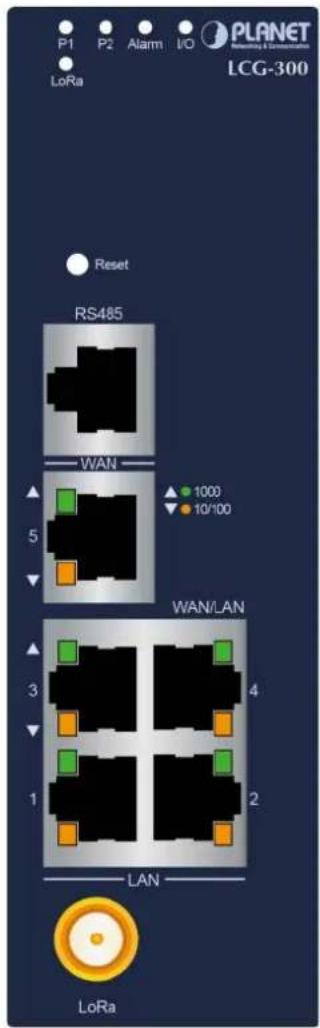
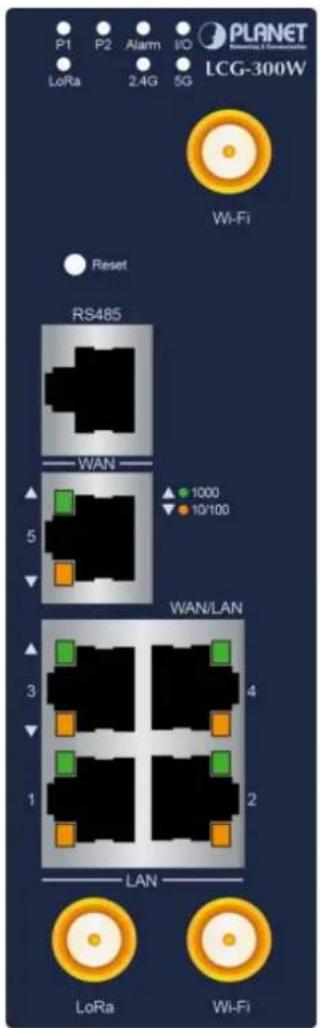
LED Definition:
■ System
| LED Color Function | ||
| P1 | Green | Lights to indicate DC power input 1 has power. |
| P2 | Green | Lights to indicate DC power input 2 has power. |
| Alarm | Red | Lights to indicate that power or port has failed. |
| I/O | Red | Lights to indicate that power or port has failed or DI has event. |
| LoRa | Green | Lights to indicate the LoRaWAN is enabled. |
| 2.4G | Green | Lights up when 2.4G Wi-Fi service is enabled (LCG-300W only) |
| 5G | Green | Lights up when 5G Wi-Fi service is enabled (LCG-300W only) |
LAN Per 10/100/1000Mbps port (Port-1 to Port-4)
| LED Color Function | |||
| 1000LNK/ACT | Green | Lights: | To indicate that the port is operating at 1000Mbps. |
| Blinks: | To indicate that the switch is actively sending or receiving data over that port. | ||
| 10/100LNK/ACT | Amber | Lights: | To indicate that the port is operating at 10/100Mbps. |
| Blinks: | To indicate that the switch is actively sending or receiving data over that port. | ||
■ WAN Per 10/100/1000Mbps port (Port-5)
| LED Color Function | |||
| 1000LNK/ACT | Green | Lights: | To indicate that the port is operating at 1000Mbps. |
| Blinks: | To indicate that the switch is actively sending or receiving data over that port. | ||
| 10/100LNK/ACT | Amber | Lights: | To indicate that the port is operating at 10/100Mbps. |
| Blinks: | To indicate that the switch is actively sending or receiving data over that port. | ||
2.2 Hardware Installation
Refer to the illustration and follow the simple steps below to quickly install your LoRaWAN Gateway.
2.2.1 LoRa Antenna Installation
Step 1: Connect LoRa antennas to the LoRa antenna extension.
Step 2: Fasten the LoRa antenna extensions to the connectors.

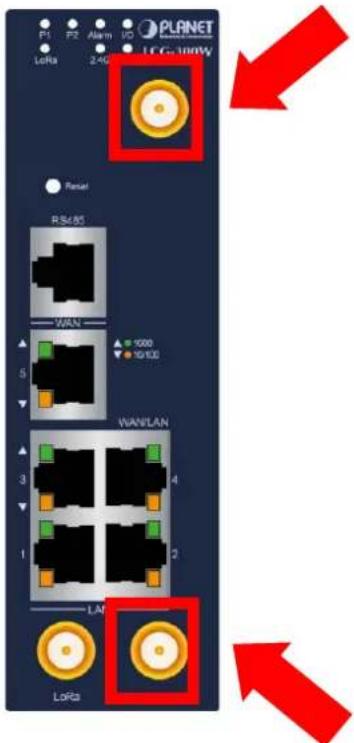
2.2.2 Wi-Fi Antenna Installation
Step 1: Fasten the two dual-band antennas to the antenna connectors on the front panel of the LoRaWAN Gateway.
Step 2: You can bend the antennas to fit your actual needs.
3.4 Wiring the Power Inputs
The 6-contact terminal block connector on the top panel of LoRaWAN Gateway is used for two DC redundant power inputs. Please follow the steps below to insert the power wire.

When performing any of the procedures like inserting the wires or tightening the wire-clamp screws, make sure the power is OFF to prevent from getting an electric shock.
- Insert positive and negative DC power wires into contacts 1 and 2 for POWER 1, or 5 and 6 for POWER 2.
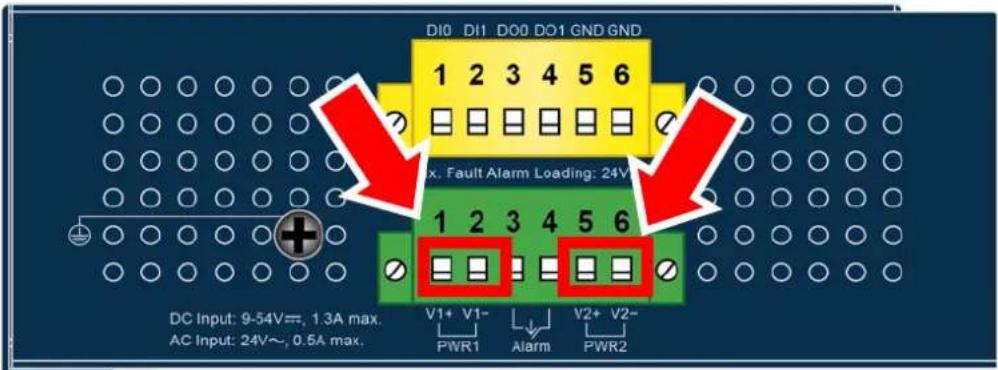

Please make sure the input voltage is under the specification of the LoRaWAN Gateway.
- Tighten the wire-clamp screws for preventing the wires from loosening.

1
2
3
4
5
6
Power 1
Alarm
Power 2
+
-
+
-

The wire gauge for the terminal block should be in the range between 12 and 24 AWG.
CAUTION
PWR1 and PWR2 must provide the same DC voltage while operating with dual power input.
3.5 Grounding the Device
User MUST complete grounding wired with the device; otherwise, a sudden lightning could cause fatal damage to the device. EMD (Lightning) DAMAGE IS NOT CONVERED UNDER WARRANTY.
3.6 Wiring the Fault Alarm Contact
The fault alarm contacts are in the middle of the terminal block connector as the picture shows below. Inserting the wires, the LoRaWAN Gateway will detect the fault status of the power failure or port failure, and then will form an open circuit. The following illustration shows an application example for wiring the fault alarm contacts
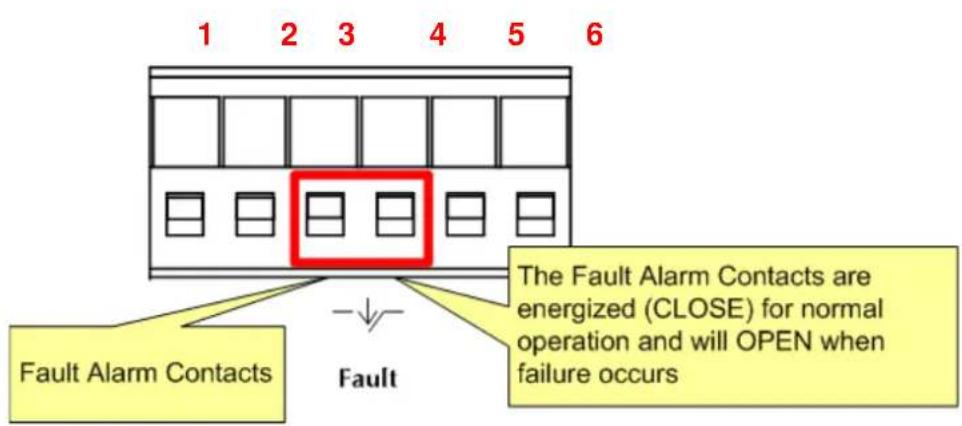
Insert the wires into the fault alarm contacts

-
The wire gauge for the terminal block should be in the range between 12 and 24 AWG.
-
Alarm relay circuit accepts up to 24V (max.) and 1A current.
Chapter 3. Preparation
Before getting into the device's web UI, user has to check the network setting and configure PC's IP address.
3.1 Requirements
User is able to confirm the following items before configuration:
- Please confirm the network is working properly; it is strongly suggested to test your network connection by connecting your computer directly to ISP.
- Suggested operating systems: Windows 7 / 8 / 10.
- Recommended web browsers: IE / Firefox / Chrome.
3.2 Setting TCP/IP on your PC
The default IP address of the LoRaWAN Gateway is 192.168.1.1, and the DHCP Server is on. Please set the IP address of the connected PC as DHCP client, and the PC will get IP address automatically from the VPN LoRaWAN Gateway
Please refer to the following to set the IP address of the connected PC.
Windows 7/8
If you are using Windows 7/8, please refer to the following:
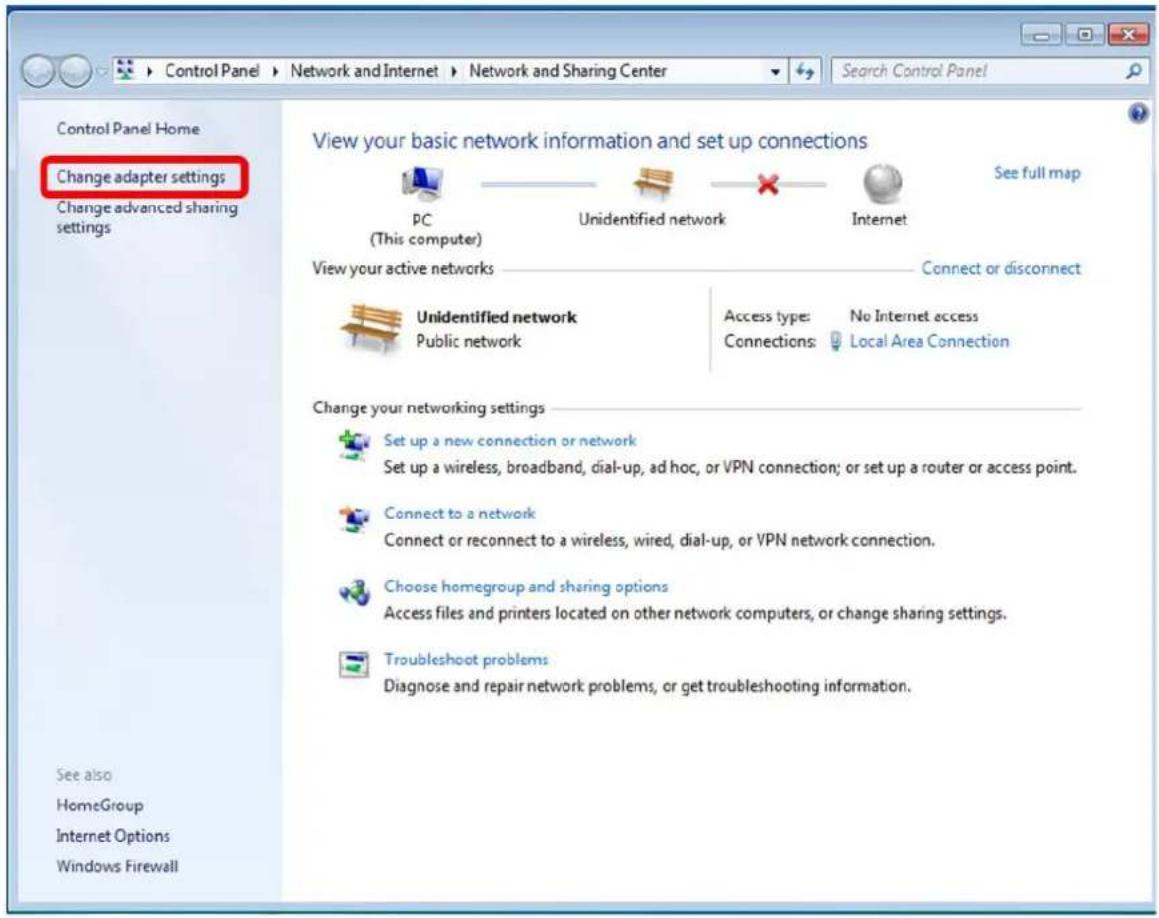
- Click on the network icon from the right side of the taskbar and then click on "Open Network and Sharing Center".

2. Click "Change adapter settings".
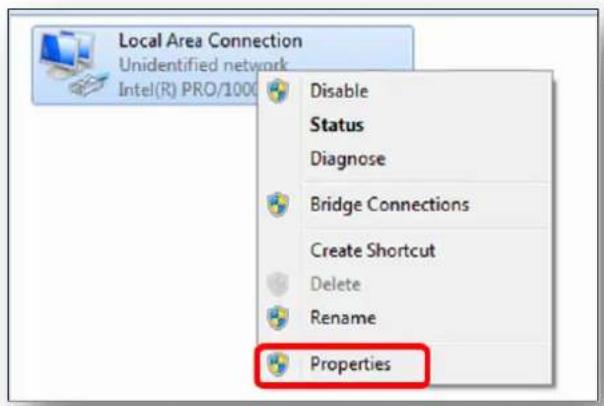
3. Right-click on the Local Area Connection and select Properties.
- Select Internet Protocol Version 4 (TCP/IPv4) and click Properties or directly double-click on Internet Protocol Version 4 (TCP/IPv4).
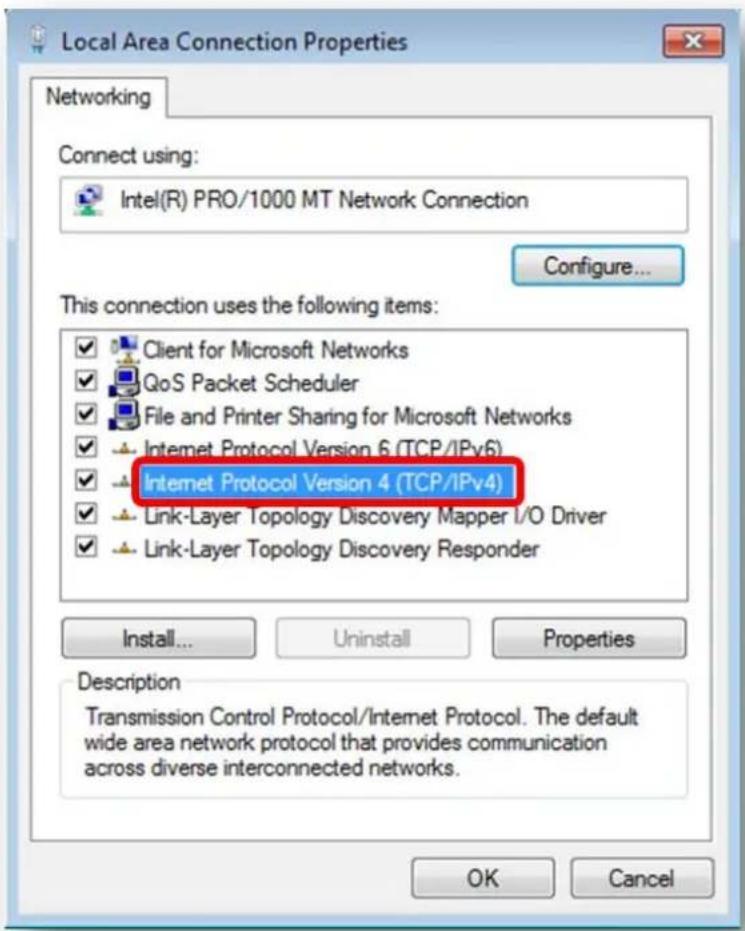
- Select "Use the following IP address" and "Obtain DNS server address automatically", and then click the "OK" button.

Windows 10
If you are using Windows 10, please refer to the following:
- In the search box on the taskbar, type "View network connections", and then select View network connections at the top of the list.

- Right-click on the Local Area Connection and select Properties.

- Select Internet Protocol Version 4 (TCP/IPv4) and click Properties or directly double-click on Internet Protocol Version 4 (TCP/IPv4).
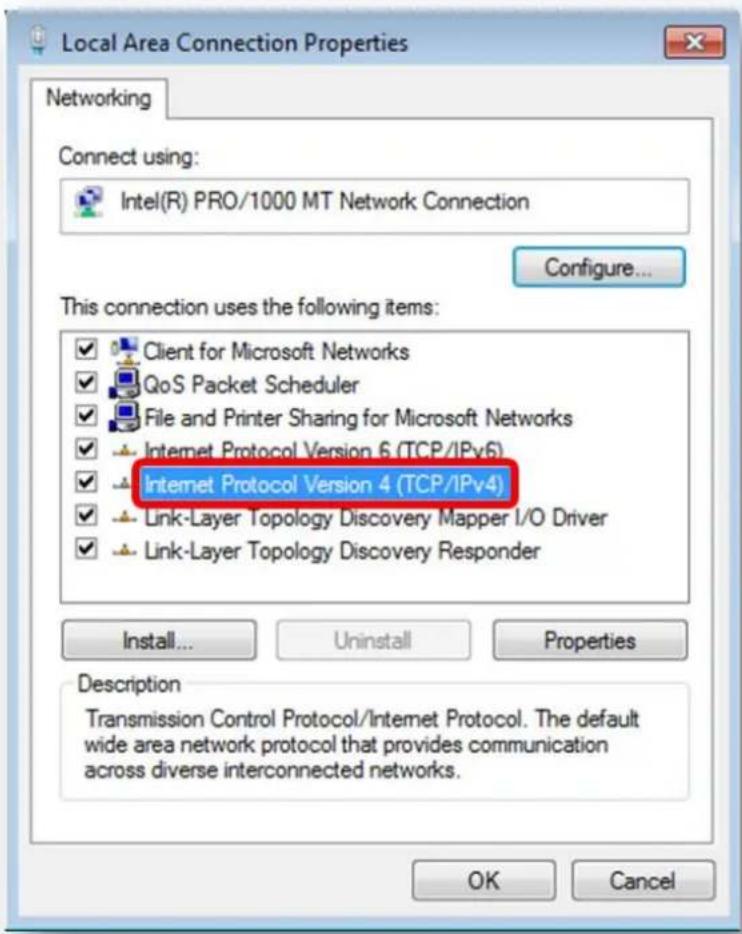
- Select "Use the following IP address" and "Obtain DNS server address automatically", and then click the "OK" button.

3.3 Planet Smart Discovery Utility
For easily listing the LoRaWAN Gateway in your Ethernet environment, the search tool -- Planet Smart Discovery Utility -- is an ideal solution.
The following installation instructions are to guide you to running the Planet Smart Discovery Utility.
- Download the Planet Smart Discovery Utility in administrator PC.
- Run this utility as the following screen appears.


Figure 3-1-6: Planet Smart Discovery Utility Screen

If there are two LAN cards or above in the same administrator PC, choose a different LAN card by using the "Select Adapter" tool.
- Press the "Refresh" button for the currently connected devices in the discovery list as the screen shows below:
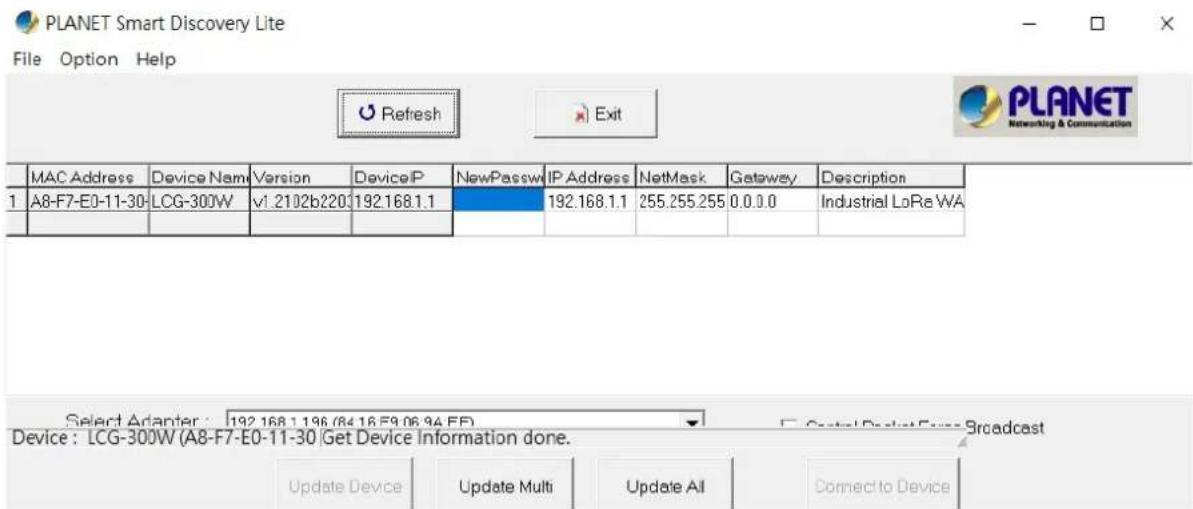
Figure 3-1-7: Planet Smart Discovery Utility Screen
-
This utility shows all necessary information from the devices, such as MAC address, device name, firmware version, and device IP subnet address. It can also assign new password, IP subnet address and description to the devices.
-
After setup is completed, press the "Update Device", "Update Multi" or "Update All" button to take effect. The functions of the 3 buttons above are shown below:
■ Update Device: use current setting on one single device.
■ Update Multi: use current setting on choose multi-devices.
■ Update All: use current setting on whole devices in the list.
The same functions mentioned above also can be found in "Option" tools bar.
-
To click the "Control Packet Force Broadcast" function, it allows you to assign a new setting value to the device under a different IP subnet address.
-
Press the "Connect to Device" button and the Web login screen appears.
Press the "Exit" button to shut down the Planet Smart Discovery Utility.
Chapter 4. Web-based Management
This chapter provides setup details of the device's Web-based Interface.
4.1 Introduction
The device can be configured with your Web browser. Before configuring, please make sure your PC is under the same IP segment with the device.
4.2 Logging in to the LoRaWAN Gateway
Refer to the steps below to configure the LoRaWAN Gateway:
Step 1. Connect the IT administrator's PC and LoRaWAN Gateway's LAN port (port 1) to the same hub / switch, and then launch a browser to link the management interface address which is set to http://192.168.1.1 by default.

The DHCP server of the LoRaWAN Gateway is enabled. Therefore, the LAN PC will get IP from the VPN LoRaWAN Gateway If user needs to set IP address of LAN PC manually, please set the IP address within the range between 192.168.1.2 and 192.168.1.254 inclusively, and assigned the subnet mask of 255.255.255.0.
Step 2. The browser prompts you for the login credentials. (Both are "admin" by default.)
Default IP address: 192.168.1.1
Default user name: admin
Default password: admin
Default SSID (2.4G): PLANET_2.4G (LCG-300W only)
Default SSID (5G): PLANET_5G (LCG-300W only)

Administrators are strongly suggested to change the default admin and password to ensure system security.
4.3 Main Web Page
After a successful login, the main web page appears. The web main page displays the web panel, main menu, function menu, and the main information in the center.

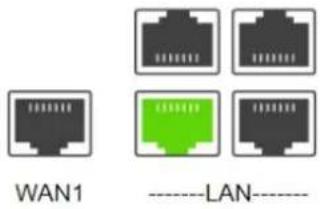
The web panel displays an image of the device's ports as shown in Figure 4-3-2.

Figure 4-2: Web Panel
| Object | Icon | Function |
| WAN/LAN |  | To indicate the LAN with the RJ45 plug-in. |
 | To indicate network data is sending or receiving |
Main Menu
The main menu displays the product name, function menu, and main information in the center. Via the Web management, the administrator can set up the device by selecting the functions those listed in the function menu and button as shown in Figures 4-3-2 and 4-3-3.

Figure 4-3-2: Function Menu
| Object Description | |
| System | Provides System information of the LoRaWAN Gateway |
| Network | Provides WAN, LAN and network configuration of the LoRaWAN Gateway |
| LoRa | Provides LoRa configuration of the LoRaWAN Gateway |
| Security | Provides Firewall and security configuration of the LoRaWAN Gateway |
| VPN | Provides VPN configuration of the LoRaWAN Gateway |
| Wireless | Provides wireless configuration of the LoRaWAN Gateway (LCG-300W only) |
| Maintenance | Provides firmware upgrade and setting file restore/backup configuration of the LoRaWAN Gateway |

Figure 4-3-3: Function Button
| Object Description | |
 | Click the "Refresh button" to refresh the current web page. |
 | Click the "Logout button" to log out the web UI of the LoRaWAN Gateway |
4.4 System
Use the System menu items to display and configure basic administrative details of the LoRaWAN Gateway The System menu shown in Figure 4-4-1 provides the following features to configure and monitor system.
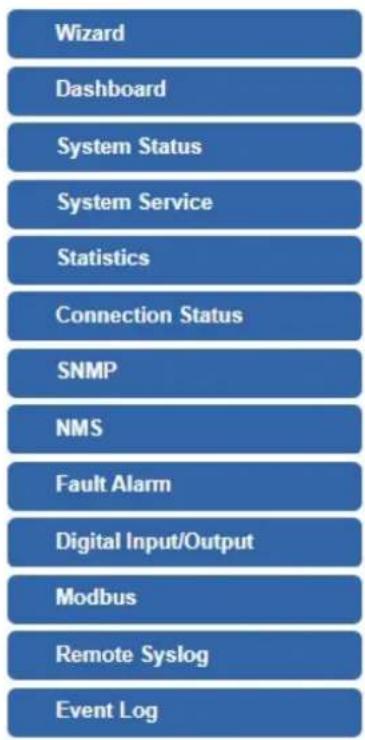
Figure 4-4-1: System Menu
| Object Description | |
| Wizard | The Wizard will guide the user to configuring the LoRaWAN Gateway easily and quickly. |
| Dashboard | The overview of system information includes connection, port, and system status. |
| System Status | Display the status of the system, Device Information, LAN and WAN. |
| System Service | Display the status of the system, Secured Service and Server Service |
| Statistics | Display statistics information of network traffic of LAN and WAN. |
| Connection Status | Display the DHCP client table and the ARP table |
| SNMP | Display SNMP system information |
| NMS | Enable/Disable NMS on LoRaWAN Gateway |
| Fault Alarm | Configure fault alarm on LoRaWAN Gateway |
| Digital Input/Output | Configure digital input and output on LoRaWAN Gateway |
| Modbus | Configure Modbus on LoRaWAN Gateway |
| Remote Syslog | Enable Captive Portal on LoRaWAN Gateway |
| Event Log | Display Event Log information |
4.4.1 Setup Wizard
The Wizard will guide the user to configuring the LoRaWAN Gateway easily and quickly. There are different procedures in different operation modes. According to the operation mode you switch to, please follow the instructions below to configure the LoRaWAN Gateway via Setup Wizard as shown in Figure 4-4-2.
![graph LR A["1 Account"] --> B["2 LAN"] B --> C["3 WAN"] C --> D["4 Security Settings"] D --> E["5 Setup Completed"]](/content/2026/06/1224379/images/78432bcd6f3d36294723a44e39bcb29d4e03d32a10b60ea9ef232e30a198f5cb.jpg)
Figure 4-4-2: Setup Wizard
Step 1: Account Modification
Set up the Username and Password for the Account Modification as shown in Figure 4-4-3.
![graph LR A["1 Account"] --> B["2 LAN"] B --> C["3 WAN"] C --> D["4 Security Settings"] D --> E["5 Setup Completed"]](/content/2026/06/1224379/images/891b81d95e4acf70152c626ea9f3bea1e480366a83b3532f5de7ba4348e53b5c.jpg)

Figure 4-4-3: Account Modification
Step 2: LAN Interface
Set up the IP Address and Subnet Mask for the LAN interface as shown in Figure 4-4-4.
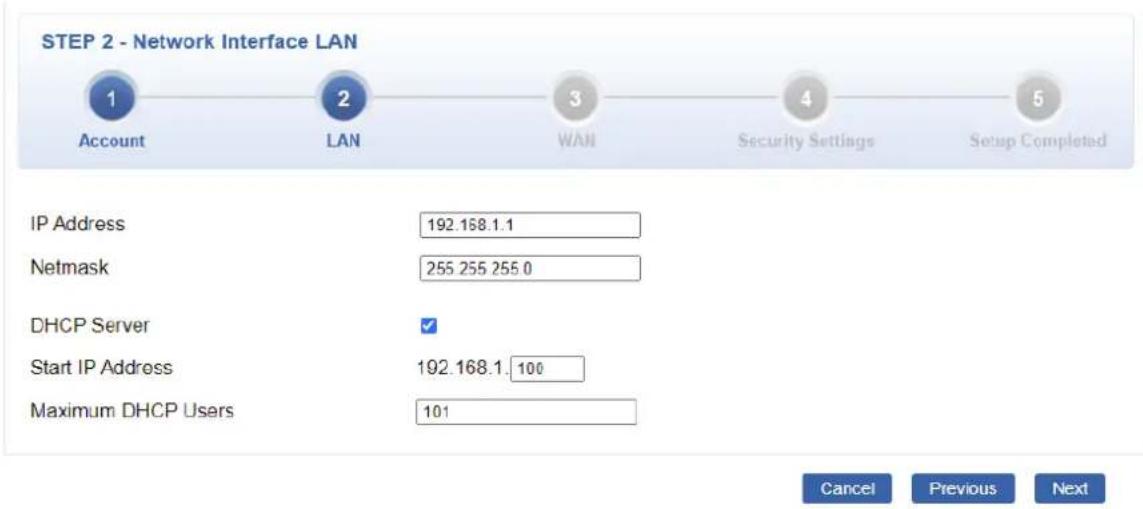
Figure 4-4-4: Setup Wizard – LAN Configuration
| Object Description | |
| IP Address | Enter the IP address of your LoRaWAN Gateway The default is 192.168.1.1. |
| Subnet Mask | An address code that determines the size of the network. Normally use 255.255.255.0 as the subnet mask. |
| DHCP Server | By default, the DHCP Server is enabled.If user needs to disable the function, please uncheck the box. |
| Start IP Address | By default, the start IP address is 192.168.1.100.Please do not set it to the same IP address of the LoRaWAN Gateway |
| Maximum DHCP Users | By default, the maximum DHCP users are 101, which means the LoRaWAN Gateway will provide DHCP client with IP address from 192.168.1.100 to 192.168.1.200 when the start IP address is 192.168.1.100. |
| Next | Press this button to do the next step. |
| Cancel | Press this button to undo any changes made locally and revert to previously saved values. |
Step 3: WAN Interface
The LoRaWAN Gateway supports two access modes on the WAN side shown in Figure 4-4-5 and Figure 4-4-6
![graph LR A["1 Account"] --> B["2 LAN"] B --> C["3 WAN"] C --> D["4 Security Settings"] D --> E["5 Setup Completed"]](/content/2026/06/1224379/images/780012215fc97e8f698126b31192d151d557a5879d5a9ba002dcf34e332582e5.jpg)
Figure 4-4-5: Setup Wizard – WAN 1 Configuration

Figure 4-4-6: Setup Wizard – WAN Configuration
Mode 1 -- Static IP
Select Static IP Address if all the Internet port's IP information is provided to you by your ISP. You will need to enter the IP Address, Netmask, Default Gateway and DNS Server provided to you by your ISP. Each IP address entered in the fields must be in the appropriate IP form, which are four octets separated by a dot (x.x.x.x). The LoRaWAN Gateway will not accept the IP address if it is not in this format. The setup is shown in Figure 4-4-7.
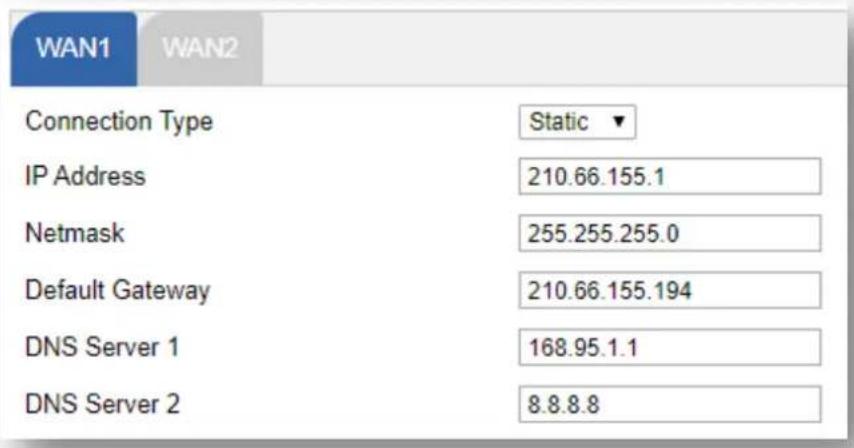
Figure 4-4-7: WAN Interface Setup – Static IP Setup
| Object | Description |
| IP Address | Enter the IP address assigned by your ISP. |
| Netmask | Enter the Netmask assigned by your ISP. |
| Default Gateway | Enter the Gateway assigned by your ISP. |
| DNS Server | The DNS server information will be supplied by your ISP. |
| Next | Press this button for the next step. |
| Previous | Press this button for the previous step. |
| Cancel | Press this button to undo any changes made locally and revert to previously saved values. |
Mode 2 -- DHCP Client
Select DHCP Client to obtain IP Address information automatically from your ISP. The setup is shown in Figure 4-4-8.
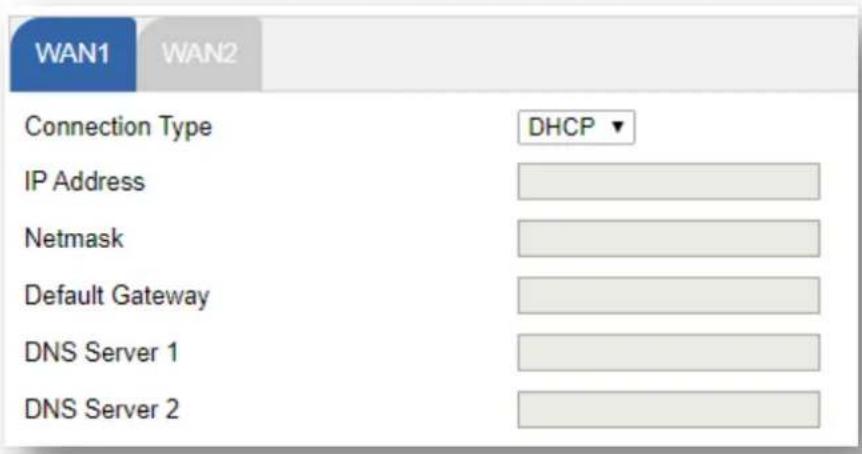
Figure 4-4-8: WAN Interface Setup – DHCP Setup
Step 5: Security Setting
Set up the Wireless Settings as shown in Figure 4-4-9.
![graph LR A["1 Account"] --> B["2 LAN"] B --> C["3 WAN"] C --> D["4 Security Settings"] D --> E["5 Setup Completed"] F["SPI Firewall"] --> G["Enable ○ Disable"] H["Block SYN Flood"] --> I["Enable ○ Disable"] J["Block ICMP Flood"] --> K["Enable ○ Disable"] L["Block WAN Ping"] --> M["Enable ○ Disable"]…](/content/2026/06/1224379/images/ce6f599ed064fa85cba191fca8d0152242159b6cd40364dd740bee4ea1f3c3e5.jpg)
Figure 4-4-9: Setup Wizard – Security Setting
| Object | Description |
| SPI Firewall | The SPI Firewall prevents attack and improper access to network resources.The default configuration is enabled. |
| Block SYN Flood | SYN Flood is a popular attack way. DoS and DDoS are TCP protocols. Hackers like using this method to make a fake connection that involves the CPU, memory, and so on.The default configuration is enabled. |
| Block ICMP Flood | ICMP is kind of a pack of TCP/IP; its important function is to transfer simple signal on the Internet. There are two normal attack ways which hackers like to use, Ping of Death and Smurf attack.The default configuration is disabled. |
| Block WAN Ping | Enable the function to allow the Ping access from the Internet network.The default configuration is disabled. |
| Remote Management | Enable the function to allow the web server access of the LoRaWAN Gateway from the Internet network.The default configuration is disabled. |
Step 6: Setup Completed
The page will show the summary of LAN, WAN and Security settings as shown in Figure 4-4-11.
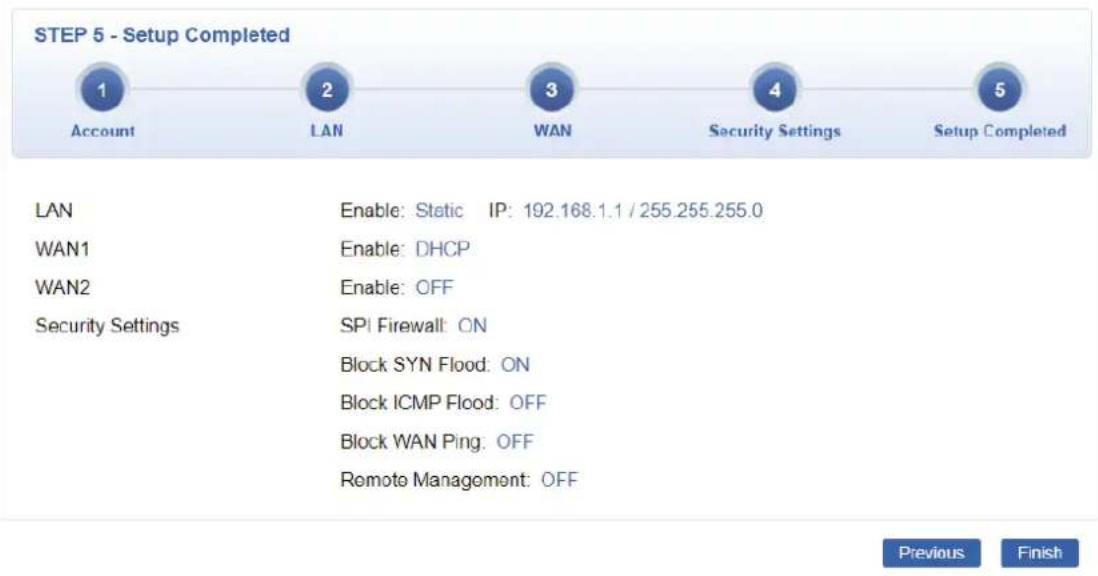
Figure 4-4-11: Setup Wizard – Setup Completed
| Object | Description |
| Finish | Press this button to save and apply changes. |
| Previous | Press this button for the previous step. |
4.4.2 Dashboard
The dashboard provides an overview of system information including connection, port, and system status as shown in Figure 4-4-12.
![graph LR A["Desktop Computer"] -->|Green Line| B["Wireless Router"] B -->|Red Line| C["Global Network"] style A fill:#333,stroke:#fff,color:#fff style B fill:#999,stroke:#000,color:#fff style C fill:#666,stroke:#000,color:#fff](/content/2026/06/1224379/images/722af03a1fca5cf5456fec35300225c32738e1b02ed9f15a6adab35ae1b952d0.jpg)
Port Status
System Information
Wireless Status
2.4GHz
Status: ON
Channel: 10
Client List: 0

5GHz
Status: ON
Channel: 48
Client List: 0
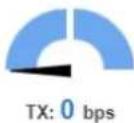
Figure 4-4-12: Dashboard
WAN/LAN Connection Status
| Object Description | |
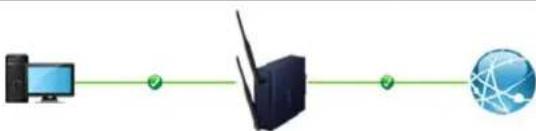 | The status means WAN is connected to Internet and LAN is connected. |
 | The status means WAN is disconnected to Internet and LAN is connected. |
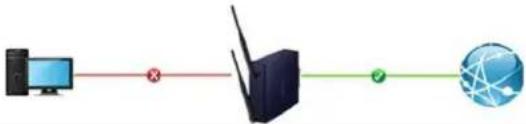 | The status means WAN is connected to Internet and LAN is disconnected. |
Port Status
| Object Description | |
 | Ethernet port is in use. |
 | Ethernet port is not in use. |
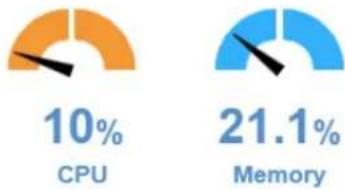
System Information
| Object | Description |
| CPU | Display the CPU loading |
| Memory | Display the memory usage |
Wireless Status
| Object | Description | |
 |  | Wireless is in use. |
| RX: 0 bps | TX: 0 bps | |
 |  | Wireless is not in use. |
| RX: 0 bps | TX: 0 bps | |
4.4.3 System Status
This page displays system status information as shown in Figure 4-4-13.
Device Information
| Model Name | LCG-300W |
| Firmware Version | v1.2102b220303 |
| Region | ETSI |
| Current Time | 2022-04-22 Friday 17:11:23 |
| Running Time | 0 day, 00:48:34 |
| Power Status | PWR1:ON, PWR2:ON |
| Alarm Status | Alarm |
| DI and DO Status | Triggered |
WAN1
| MAC Address | A8:F7:E0:11:30:53 |
| Connection Type | DHCP |
| Display Name | WAN1 |
| IP Address | |
| Netmask | |
| Default Gateway |
LAN
| MAC Address | A8:F7:E0:11:30:52 |
| IP Address | 192.168.1.1 |
| Netmask | 255.255.255.0 |
| DHCP Service | Enable |
| DHCP Start IP Address | 192.168.1.100 |
| DHCP End IP Address | 192.168.1.200 |
| Max DHCP Clients | 101 |
2.4GHz WiFi
| Status | ON |
| SSID | LCG300W_2.4G |
| Channel | 10 |
| Encryption | WPA2 Personal (TKIP+AES) |
| MAC Address | A8:F7:E0:11:30:57 |
5GHz WiFi
| Status | ON |
| SSID | LCG300W-cloudviewer_test 1 |
| Channel | 48 |
| Encryption | WPA2/WPA3 Personal |
| MAC Address | A8:F7:E0:11:30:58 |
Figure 4-4-13: System Status
4.4.4 System Service
This page displays system service information as shown in Figure 4-4-14.
Server Service
| # | Action | Service | Status |
| 1 | Enabled | DHCP Service | DHCP Table: 1 |
| 2 | Disabled | DDNS Service | Not enabled |
| 3 | Disabled | Quality of Service | |
| 4 | Enabled | 2.4GHz WiFi | SSID: LCG300W_2.4G |
| 5 | Enabled | 5GHz WiFi | SSID: LCG300W-cloudviewer_test 1 |
Secured Server Service
| # | Action | Service | Status |
| 1 | Enabled | Cybersecurity | TLS 1.2, TLS 1.3 |
| 2 | Enabled | SPI Firewall | |
| 3 | Disabled | MAC Filtering | (Active / Maximum Entries)0 / 32 |
| 4 | Disabled | IP Filtering | (Active / Maximum Entries)0 / 32 |
| 5 | Disabled | Web Filtering | (Active / Maximum Entries)0 / 32 |
| 6 | Disabled | IPSec VPN Server | (Active / Maximum Tunnels)0 / 32 |
| 7 | Disabled | GRE | (Active / Maximum Tunnels)0 / 5 |
| 8 | Disabled | PPTP | (Active / Maximum Tunnels)0 / 91 |
| 9 | Disabled | SSL VPN | (Active / Maximum Tunnels)0 / 100 |
| 10 | Disabled | L2TP | (Active Tunnels)0 |
Figure 4-4-14: System Service
4.4.5 Statistics
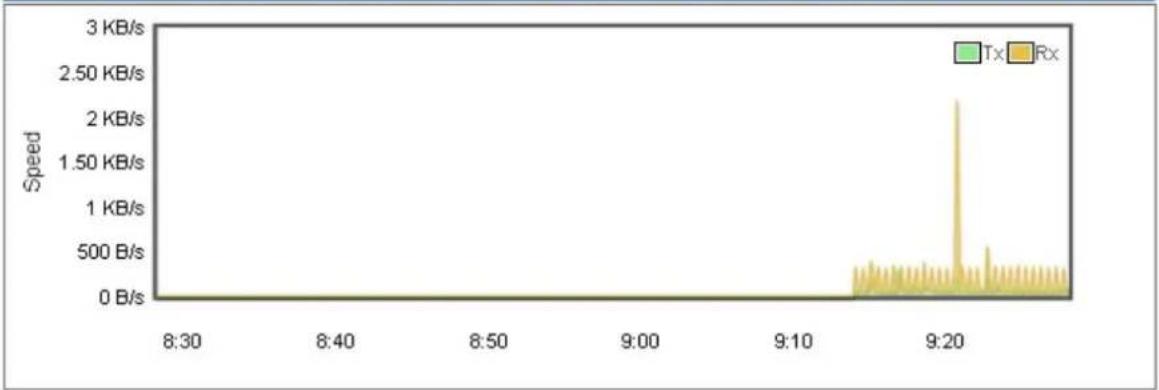
This page displays the number of packets that pass through the LoRaWAN Gateway on the WAN and LAN. The statistics are shown in Figure 4-4-15.
WAN1
LAN

Figure 4-4-15: Statistics
4.4.6 Connection Status
The page will show the DHCP Table and ARP Table. The status is shown in Figure 4-4-16.
| DHCP Table | |||
| Name | IP Address | MAC Address | Expiration Time |
| ARP Table | |||
| IP Address | MAC Address | ARP Type | |
| 8.8.8.8 | 00:00:00:00:00:00 | unknow | |
| 208.67.222.222 | 00:00:00:00:00:00 | unknow | |
| 8.8.8.8 | 00:00:00:00:00:00 | unknow | |
| 208.67.222.222 | 00:00:00:00:00:00 | unknow | |
| 192.168.1.18 | 00:00:00:00:00:00 | unknow | |
| 192.168.1.69 | 00:30:11:11:11:12 | dynamic | |
| 192.168.1.69 | 00:30:11:11:11:12 | dynamic | |
Figure 4-4-16: Connection Status
4.4.7 SNMP
This page provides SNMP setting as shown in Figure 4-4-21.

Figure 4-4-21: SNMP
| Object Description | |
| Enable SNMP | Disable or enable the SNMP function.The default configuration is enabled. |
| Read/Write Community | Allows entering characters for SNMP Read/Write Community of the LoRaWAN Gateway |
| System Name | Allows entering characters for system name of the LoRaWAN Gateway |
| System Location | Allows entering characters for system location of the LoRaWAN Gateway |
| System Contact | Allows entering characters for system contact of the LoRaWAN Gateway |
| Apply Settings | Press this button to save and apply changes. |
| Cancel Changes | Press this button to undo any changes made locally and revert to previously saved values. |
4.4.8 NMS
The LCG-300 series can support both NMS controller and CloudViewer Sever for remote management. PLANET's NMS Controller is a Network Management System that can monitor all kinds of deployed network devices, such as managed switches, media converters, routers, smart APs, VoIP phones, IP cameras, etc., compliant with the SNMP Protocol, ONVIF Protocol and PLANET Smart Discovery utility. The CloudViewer is a free networking service just for PLANET Products. This service provides simplified network monitoring and real-time network status. Working with PLANET CloudViewer app, user can easily check network status, device information, Port and PoE status from Internet. Other services are not included.
NMS Configuration is shown in Figure 4-4-22..

Figure 4-4-22 NMS Configuration Page
LAN Configuration is shown in Figure 4-4-23.

Figure 4-4-23 NMS Controller – LAN Configuration Page
| Object Description | |
| • NMS Controller IP address | The IP address of NMS Controller |
| • Authorization Status | Indicates the authorization status of the switch to NMS Controller |
The CloudViewer Server – Internet configuration – is shown in Figure 4-4-24.
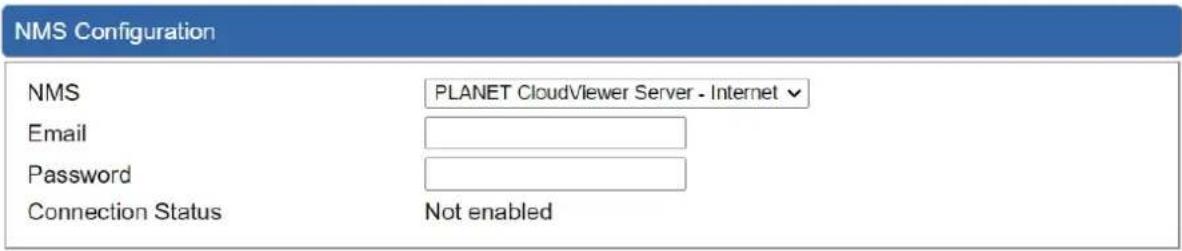
Figure 4-4-24 CloudViewer Server – Internet Configuration Page
| Object Description | |
| The email registered on CloudViewer Server | |
| • Password | The password of your CloudViewer account |
| • Connection Status | Indicates the status of connecting CloudViewer Server |
4.4.9 Fault Alarm
This page provides fault alarm setting as shown in Figure 4-4-25.
| Fault Alarm Output | |
| Enable | □Enable |
| Record | System Log □SMS |
| Event | Power Fail □Port Fail |
| Power Alarm | PWR1 □PWR2 |
| Port Alarm | 1 2 3 4 5 |
Figure 4-4-25: Fault Alarm
| Object Description | |
| Enable | Controls whether Fault Alarm is enabled. |
| Record | Controls whether Record is sending System log or SMS. |
| Event | Detects there is Port Failure or Power Failure, or both. |
| Power Alarm | Detects PWR1 or PWR2 is at fault, or both. |
| Port Alarm | Detects which Port or all is or are at fault. |
4.4.10 Digital Input / Output
This page provides Digital Input / Output setting as shown in Figure 4-4-26.
| Digital Input/Output Control Configuration | |||
| Digital Input 0 | Digital Input 1 | ||
| Enable | Enable | Enable | Enable |
| DI Condition | High to Low▼ | DI Condition | High to Low▼ |
| Event Description | Event Description | ||
| Action | System Log SMS | Action | System Log SMS |
| Digital Output 0 | Digital Output 1 | ||||||||||
| Enable | Enable | Enable | Enable | ||||||||
| Action | Power Fail | Port Fail | DI 0 | DI 1 | Action | Power Fail | Port Fail | DI 0 | DI 1 | ||
| DO Condition | High to Low | DO Condition | High to Low | ||||||||
| Power Alarm | PWR1 | PWR2 | Power Alarm | PWR1 | PWR2 | ||||||
| Port Fail Alarm | 1 | 2 | 3 | 4 | 5 | Port Fail Alarm | 1 | 2 | 3 | 4 | 5 |
Figure 4-4-26: Digital Input / Output
| Object Description | |
| • Enable | Check the Enable checkbox to enable Digital Input / output function. Uncheck the Enable checkbox to disable Digital input / output function. |
| • Condition | As Digital Input: Allows user to select High to Low or Low to High. This means a signal received by system is from High to Low or From Low to High. It will trigger an action that logs a customized message or issue the message from the switch.As Digital Output: Allows user to select High to Low or Low to High. This means that when the switch's power fails or port fails, the system will issue a High or Low signal to an external device such as an alarm. |
| • Event Description | Allows user to set a customized message for Digital Input function alarm. |
| • Action | As Digital Input: Allows user to record alarm message to System log, syslog or issues out via SNMP Trap or SMTP.As default SNMP Trap and SMTP are disabled, please enable them first if you want to issue alarm message via them.As Digital Output:Allows user to monitor an alarm from port failure, power failure, Digital Input 0 (DI 0) and Digital Input 1(DI 1) which means if Digital Output has detected these events, then Digital Output would be triggered according to the setting of Condition. |
| • Power Alarm | Allows user to choose which power module that needs to be monitored. |
| • Port Alarm | Allows user to choose which port that needs to be monitored. |
4.4.11 Modbus
This page provides Modbus setting as shown in Figure 4-4-27.
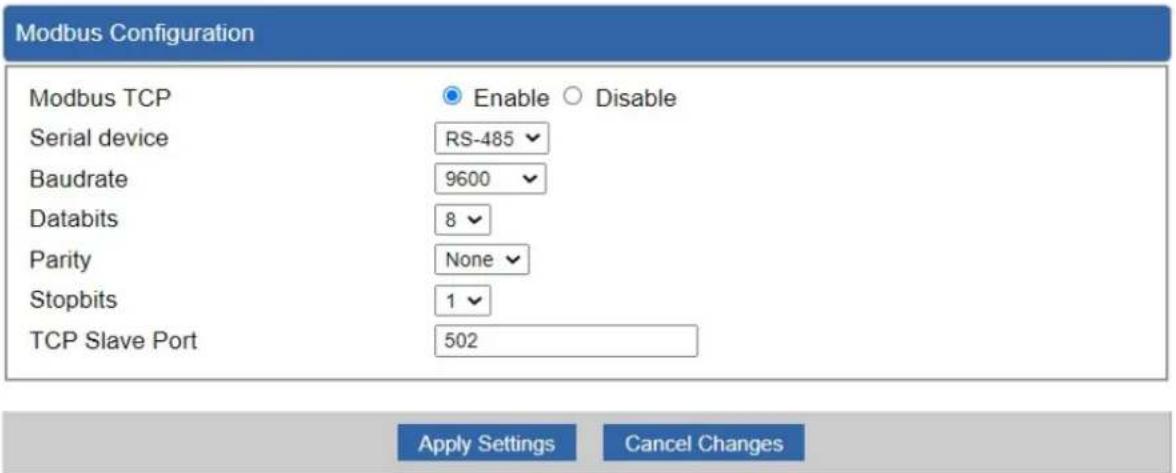
Figure 4-4-27: Modbus
| Object Description | |
| Enable | Enable/disable Modbus function. |
| Serial device | The industrial device server supports three interfaces. |
| Baudrate | The rate of data transmission to and from the attached serial device. |
| Databit | Indicates the number of the bits in a transmitted data package. |
| Parity | This parameter controls the error checking mode. |
| Stopbits | The stop bit follows the data and parity bits in serial communication. |
| TCP Slave Port | The data service center's listening port. |
4.4.12 Remote Syslog
This page provides remote syslog setting as shown in Figure 4-4-28.

Figure 4-4-28: Remote Syslog
| Object Description | |
| Enable | Controls whether remote syslog is enabled |
| Syslog Server IP | Indicates the IPv4 host address of syslog server |
| Port Destination | Configure port for remote syslog |
4.5 Network
The Network function provides WAN, LAN and network configurations of the LoRaWAN Gateway as shown in Figure 4-5-1.

Figure 4-5-1: Network Menu
| Object | Description |
| WAN | Allows setting WAN interface. |
| WAN Advanced | Allows setting WAN Advanced settings. |
| LAN | Allows setting LAN interface. |
| Multi-Subnet | Allows setting Multi-Subnet1 ~ Subnet4 interface. |
| VLAN | Disable or enable the VLAN function.The default configuration is disabled. |
| UPnP | Disable or enable the UPnP function.The default configuration is disabled. |
| Routing | Allows setting Route. |
| RIP | Disable or enable the RIP function.The default configuration is disabled. |
| OSPF | Disable or enable the OSPF function.The default configuration is disabled. |
| IGMP | Disable or enable the IGMP function.The default configuration is disabled. |
| IPv6 | Allows setting IPv6 WAN interface. |
| DHCP | Allows setting DHCP Server. |
| DDNS | Allows setting DDNS and PLANET DDNS. |
| MAC AddressClone | Allows setting WAN MAC Address Clone. |
4.5.1 WAN
This page is used to configure the parameters for Internet network which connects to the WAN port of the LoRaWAN Gateway as shown in Figure 4-5-2
. Here you may select the access method by clicking the item value of WAN access type.


Figure 4-5-2: WAN
| Object | Description | |
| WAN Access Type | Please select the corresponding WAN Access Type for the Internet, and fill out the correct parameters from your local ISP in the fields which appear below. | |
| Static | Select Static IP Address if all the Internet ports' IP information is provided to you by your ISP (Internet Service Provider). You will need to enter the IP address, Netmask, Gateway, and DNS Server provided to you by your ISP.Each IP address entered in the fields must be in the appropriate IP form, which are four octets separated by a dot (x.x.x.x). The LoRaWAN Gateway will not accept the IP address if it is not in this format.IP AddressEnter the IP address assigned by your ISP.NetmaskEnter the Subnet Mask assigned by your ISP.GatewayEnter the Gateway assigned by your ISP.DNS ServerThe DNS server information will be supplied by your ISP. | |
| DHCP | Select DHCP Client to obtain IP Address information automatically from your ISP. | |

Note
WAN IP, whether obtained automatically or specified manually, should NOT be on the same IP net segment as the LAN IP; otherwise, the LoRaWAN Gateway will not work properly. In case of emergency, press the hardware-based "Reset" button.
4.5.2 WAN Advanced
This page is used to configure the advanced parameters for Internet area network which connects to the WAN port of your LoRaWAN Gateway as shown in Figure 4-5-3. Here you may change the setting for Load Balance Weight, Detect Interval, Detect Link Up Threshold, etc.
WAN1
Load Balance Weight
External Connection Detection
Detect Interval
Detect Link Up Threshold
Detect Link Down Threshold
Custom Detect Host 1
Custom Detect Host 2

- Enable - Disable
5 Seconds
8 Time(s)
3 Time(s)
8.8.8.8
208.67.222.222
WAN2
Load Balance Weight
External Connection Detection
Detect Interval
Detect Link Up Threshold
Detect Link Down Threshold
Custom Detect Host 1
Custom Detect Host 2

■ Enable ○ Disable
5 Seconds
8 Time(s)
3 Time(s)
8.8.8.8
208.67.222.222
Apply Settings
Cancel Changes
Figure 4-5-3: LAN Setup
| Object | Description |
| Load Balance Weight | Load Balance Weight allows you to set a relative weight (from 1 - 10) for each WAN port. |
| External Connection Detection | Enable to detect the status of WAN connection. |
| Detect Interval | Set the detect interval as you need.The recommended value is 5 (default). |
| Detect Link Up Threshold | Set the times for detecting link up.The recommended value is 8 (default). |
| Detect Link Down Threshold | Set the times for detecting link down.The recommended value is 3 (default). |
| Custom Detect Host | The host is used to check whether the internet connection is alive or not. |
4.5.3 LAN Setup
This page is used to configure the parameters for local area network which connects to the LAN port of your LoRaWAN Gateway as shown in Figure 4-5-4. Here you may change the settings for IP address, subnet mask, DHCP, etc.

Figure 4-5-4: LAN Setup
| Object | Description |
| IP Address | The LAN IP address of the LoRaWAN Gateway and default is 192.168.1.1. |
| Net Mask | Default is 255.255.255.0. |
4.5.4 Multi-Subnet
This page provides multi-subnet setting as shown in Figure 4-5-5.
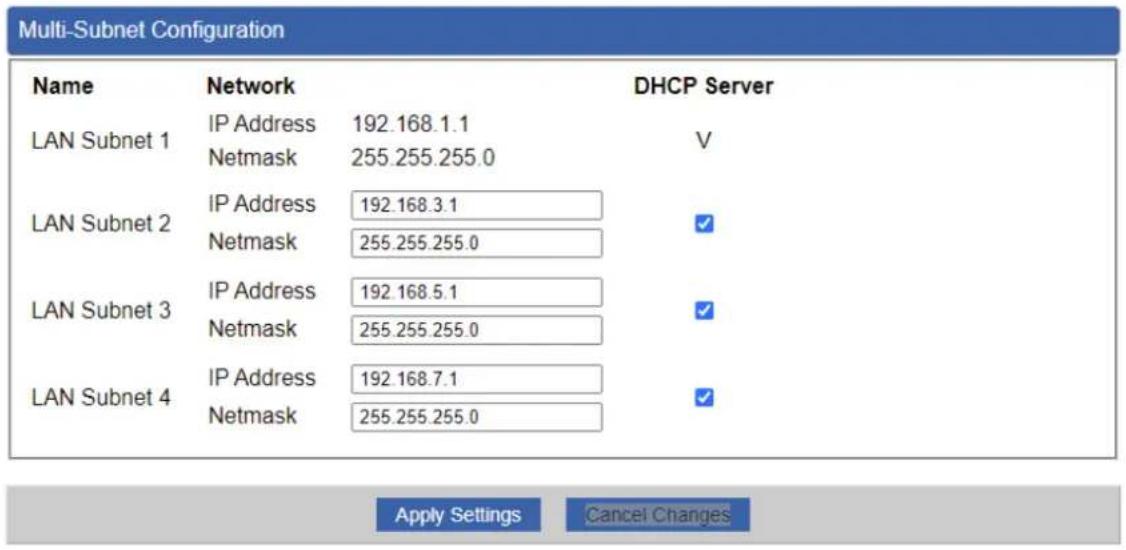
Figure 4-5-5: Multi-Subnet
4.5.5 Routing
Please refer to the following sections for the details as shown in Figures 4-5-6 and 4-5-7.
| Routing config list | |||||||
| Number | Type | Destination | Netmask | Gateway | Interface | Comment | Action |
| Current Routing table in the system | |||||||
| Number | Destination | Netmask | Gateway | Interface | |||
| 1 | 0.0.0.0 | 0.0.0.0 | 192.168.0.180 | LOCAL | |||
| 2 | 0.0.0.0 | 0.0.0.0 | 192.168.1.18 | WAN1 | |||
| 3 | 0.0.0.0 | 0.0.0.0 | 192.168.1.19 | WAN2 | |||
| 4 | 192.168.0.0 | 255.255.255.0 | 0.0.0.0 | LAN | |||
| 5 | 192.168.1.0 | 255.255.255.0 | 0.0.0.0 | WAN1 | |||
| 6 | 192.168.1.0 | 255.255.255.0 | 0.0.0.0 | WAN2 | |||
Figure 4-5-6: Routing table
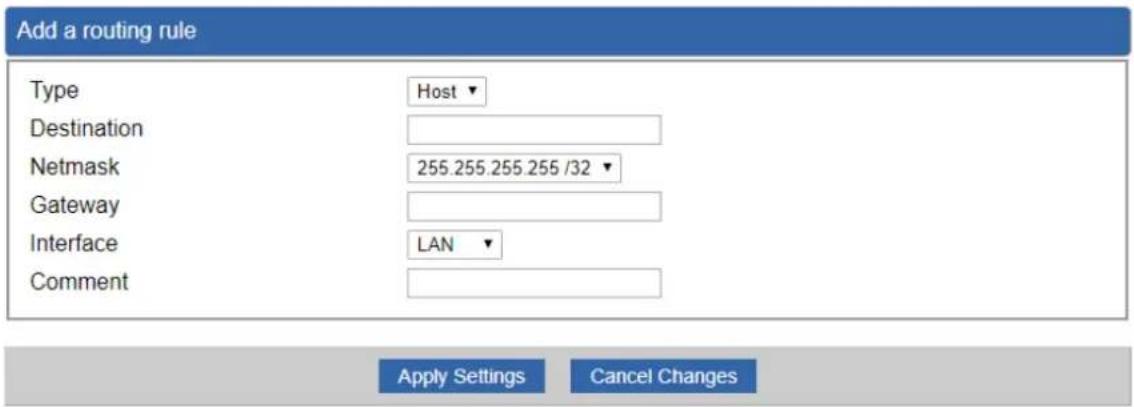
Figure 4-5-7: Routing setup
Routing tables contain a list of IP addresses. Each IP address identifies a remote LoRaWAN Gateway (or other network gateway) that the local LoRaWAN Gateway is configured to recognize. For each IP address, the routing table additionally stores a network mask and other data that specifies the destination IP address ranges that remote device will accept.
| Object | Description |
| Type | There are two types: Host and Net.When the Net type is selected, user does not need to input the Gateway. |
| Destination | The network or host IP address desired to access. |
| Net Mask | The subnet mask of destination IP. |
| Gateway | The gateway is the router or host's IP address to which packet was sent. It must be the same network segment with the WAN or LAN port. |
| Interface | Select the interface that the IP packet must use to transmit out of the router when this route is used. |
| Comment | Enter any words for recognition. |
4.5.6 WAN IPv6 Setting
This page is used to configure parameter for IPv6 internet network which connects to WAN port of the LoRaWAN Gateway as shown in Figure 4-5-8. It allows you to enable IPv6 function and set up the parameters of the LoRaWAN Gateway's WAN. In this setting you may change WAN connection type and other settings.

Figure 4-5-8: IPv6 WAN setup
| Object | Description |
| Connection Type | Select IPv6 WAN type either by using DHCP or Static. |
| IPv6 Address | Enter the WAN IPv6 address. |
| Subnet Prefix Length | Enter the subnet prefix length. |
| Default Gateway | Enter the default gateway of the WAN port. |
4.5.7 DHCP
The DHCP service allows you to control the IP address configuration of all your network devices. When a client (host or other device such as networked printer, etc.) joins your network it will automatically get a valid IP address from a range of addresses and other settings from the DHCP service. The client must be configured to use DHCP; this is something called "automatic network configuration" and is often the default setting. The setup is shown in Figure 4-5-9.
DHCP Server
DHCP Service
Start IP Address
Maximum DHCP Users
Set DNS
Primary DNS Server
Secondary DNS Server
WINS
Lease Time
Domain Name
■ Enable ◎ Disable
192.168.1.100
101
Automatically Manually
| 1440 |
| PLANET |
Apply Settings
Cancel Changes
Figure 4-5-9: DHCP
| Object | Description |
| DHCP Service | By default, the DHCP Server is enabled, meaning the LoRaWAN Gateway will assign IP addresses to the DHCP clients automatically.If user needs to disable the function, please set it as disable. |
| Start IP Address | By default, the start IP address is 192.168.1.100.Please do not set it to the same IP address of the LoRaWAN Gateway |
| Maximum DHCP Users | By default, the maximum DHCP users are 101, meaning the LoRaWAN Gateway will provide DHCP client with IP address from 192.168.1.100 to 192.168.1.200 when the start IP address is 192.168.1.100. |
| Set DNS | By default, it is set as Automatically, and the DNS server is the LoRaWAN Gateway's LAN IP address.If user needs to use specific DNS server, please set it as Manually, and then input a specific DNS server. |
| Primary/Secondary DNS Server | Input a specific DNS server. |
| WINS | Input a WINS server if needed. |
| Lease Time | Set the time for using one assigned IP. After the lease time, the DHCP client will need to get new IP addresses from the LoRaWAN GatewayDefault is 1440 minutes. |
| Domain Name | Input a domain name for the LoRaWAN GatewayDefault is Planet. |
4.5.8 DDNS
The LoRaWAN Gateway offers the DDNS (Dynamic Domain Name System) feature, which allows the hosting of a website, FTP server, or e-mail server with a fixed domain name (named by yourself) and a dynamic IP address, and then your friends can connect to your server by entering your domain name no matter what your IP address is. Before using this feature, you need to sign up for DDNS service providers such as PLANET DDNS (http://www.planetddns.com) and set up the domain name of your choice.
PLANET DDNS website provides a free DDNS (Dynamic Domain Name Server) service for PLANET devices. Whether the IP address used on your PLANET device supporting DDNS service is fixed or dynamic, you can easily connect the devices anywhere on the Internet with a meaningful or easy-to-remember name you gave. PLANET DDNS provides two types of DDNS services. One is PLANET DDNS and the other is PLANET Easy DDNS as shown in Figure 4-5-10.
PLANET DDNS
For example, you've just installed a PLANET IP camera with dynamic IP like 210.66.155.93 in the network. You can name this device as "Mycam1" and register a domain as Mycam1.planetddns.com at PLANET DDNS (http://www.planetddns.com). Thus, you don't need to memorize the exact IP address but just the URL link: Mycam1.planetddns.com.
PLANET Easy DDNS
PLANET Easy DDNS is an easy way to help user to get your Domain Name with just one click. You can just log in to the Web Management Interface of your devices, say, your LoRaWAN Gateway, and check the DDNS menu and just enable it. You don't need to go to http://www.planetddns.com to apply for a new account. Once you enabled the Easy DDNS, your PLANET Network Device will use the format PLxxxxxx where xxxxxx is the last 6 characters of your MAC address that can be found on the Web page or bottom label of the device. (For example, if the LoRaWAN Gateway's MAC address is A8-F7-E0-81-96-C9, it will be converted into pt8196c9.planetddns.com)
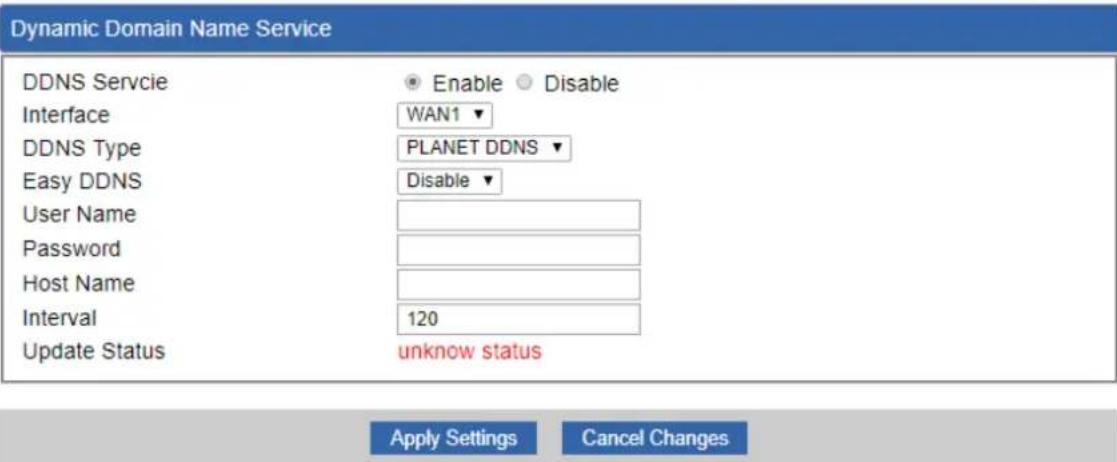
Figure 4-5-10: PLANET DDNS
| Object | Description |
| DDNS Service | By default, the DDNS service is disabled.If user needs to enable the function, please set it as enable. |
| Interface | User is able to select the interface for DDNS service.By default, the interface is WAN 1. |
| DDNS Type | There are three options:1. PLANET DDNS: Activate PLANET DDNS service.2. DynDNS: Activate DynDNS service.3. NOIP: Activate NOIP service.Note that please first register with the DDNS service and set up the domain name of your choice to begin using it. |
| Easy DDNS | When the PLANET DDNS service is activated, user is able to select to enable or disable Easy DDNS.When this function is enabled, DDNS hostname will appear automatically. User doesn't go to http://www.planetddns.com to apply for a new account. |
| User Name | The user name is used to log into DDNS service. |
| Password | The password is used to log into DDNS service. |
| Host Name | The host name as registered with your DDNS provider. |
| Interval | Set the update interval of the DDNS function. |
| Update Status | Show the connection status of the DDNS function. |
4.5.9 MAC Address Clone
Clone or change the MAC address of the WAN interface. The setup is shown in Figure 4-5-11.

Figure 4-5-11: MAC Address Clone
| Object | Description |
| Clone WAN MAC | Set the function as enable or disable. |
| MAC Address | Input a MAC Address, such as A8:F7:E0:00:06:62. |
4.6 LoRa
The LoRa menu provides LoRa functions as shown in Figure 4-6-1. Please refer to the following sections for the details.

Figure 4-6-1: Cellular menu
| Object | Description | |
| LoRa | Allows setting LoRa configuration. | |
| LoRaWAN | Allows setting LoRaWAN configuration. | |
| ABP Decryption | Allows setting ABP Decryption configuration. | |
| MQTT | Allows setting MQTT configuration. | |
| LoRa Log | Displays LoRa log | |
4.6.1 LoRa
This page provides LoRa configuration as shown in Figure 4-6-2.
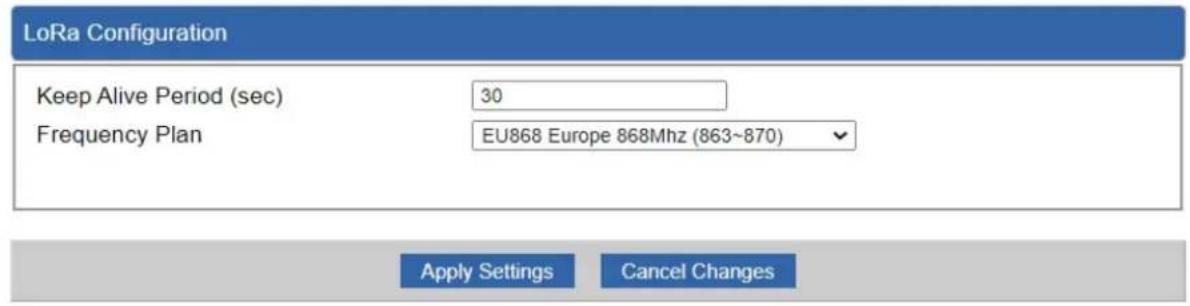
Figure 4-6-2: LoRa configuration
| Object | Description |
| Keep Alive Period (sec) | After the configured length of time, the Gateway will issue a Pull request to the specified IP address to confirm its connection is still active. |
| Frequency Plan | Set the frequency plan to match the end node we use, so to receive the LoRaWAN packets from the LoRaWAN sensorEU:863~870MHz (IN865/EU868/RU864)US: 902~928MHz (US915/AU915/KR920/AS923) |
4.6.2 LoRaWAN
This page provides LoRaWAN configuration as shown in Figure 4-6-3.

Figure 4-6-3: LTE/NR advanced
| Object | Description |
| LoRaWAN Server Mode | The service of LoRaWAN |
| The registered email of LoRaWAN server | |
| Gateway ID | The unique identity of the base station, which the server can distinguish different LoRaWAN base station |
| Service Provider | The service provider of LoRaWAN server |
| Server Address | The IP address of LoRaWAN server |
| Server Uplink Port | LoRaWAN data service center program uplink port. Value range is 0-65535 and the default value is 1700. |
| Server Downlink Port | LoRaWAN data service center program downlink port. Value range is 0-65535 and the default value is 1700 |
4.6.3 ABP Decryption
This page provides ABP Decryption configuration as shown in Figure 4-6-4.
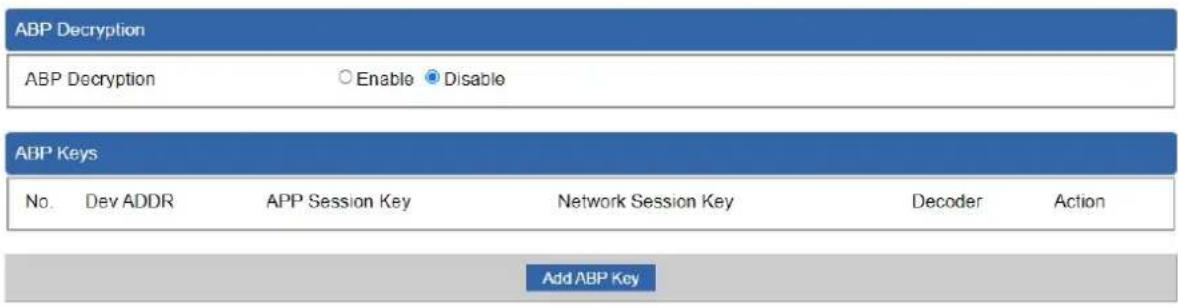
Figure 4-6-4: ABP Decryption
| Object | Description |
| No. | The number of ABP Decryption devices |
| Dev ADDR | The Dev ADDR of devices |
| APP Session Key | The APP session key of devices |
| Network Session Key | The network session Key of devices |
| Decoder | The decoder way |
| Action | The action status of sensor or node |
4.6.4 MQTT
This page provides MQTT Client Configuration as shown in Figure 4-6-5.
![MQTT Client Configuration Enable Quality of Service [-q] Broker Address [-h] Broker Port [-p] User ID [-u] Password [-P] Client ID [-i] Certificate [--cert] Key [--key] CA File [--cafile] Enable Disable QoS 0 1883 N/A Choose File No file chosen N/A Choose File No file chosen N/A Choose File No file…](/content/2026/06/1224379/images/71a228d905c760cb69ead9e839dc4a7ba4ee8921d40d7040153b4efd8e04a43e.jpg)
Figure 4-6-5: MQTT Client Configuration
| Object | Description |
| Enable | Enable or disable MQTT service |
| Quality of Service | The level of quality of service |
| Broker Address | The IP address of MQTT broker server |
| Broker Port | The port of MQTT broker server |
| User ID | The user ID for MQTT broker |
| Password | The password for MQTT broker |
| Client ID | The client identifier for MQTT broker |
| Certificate | The certificates for MQTT SSL authentication |
| Key | The key for MQTT SSL authentication |
| CA File | The CA file for MQTT SSL authentication |
4.6.5 LoRa Log
This page shows the frequency for LoRa Radio and traffics in Figure 4-6-6.

Figure 4-6-6: LoRa Radio and traffics
4.7 Security
The Security menu provides Firewall, Access Filtering and other functions as shown in Figure 4-7-1. Please refer to the following sections for the details.

Figure 4-7-1: Security menu
| Object | Description |
| Firewall | Allows setting DoS (Denial of Service) protection as enable. |
| MAC Filtering | Allows setting MAC Filtering. |
| IP Filtering | Allows setting IP Filtering. |
| Web Filtering | Allows setting Web Filtering. |
| Port Range Forwarding | Allows setting Port Forwarding. |
| QoS | Allows setting Qos. |
| DMZ | Allows setting DMZ. |
4.7.1 Firewall
A "Denial-of-Service" (DoS) attack is characterized by an explicit attempt by hackers to prevent legitimate users of a service from using that service. The LoRaWAN Gateway can prevent specific DoS attacks as shown in Figure 4-7-2.
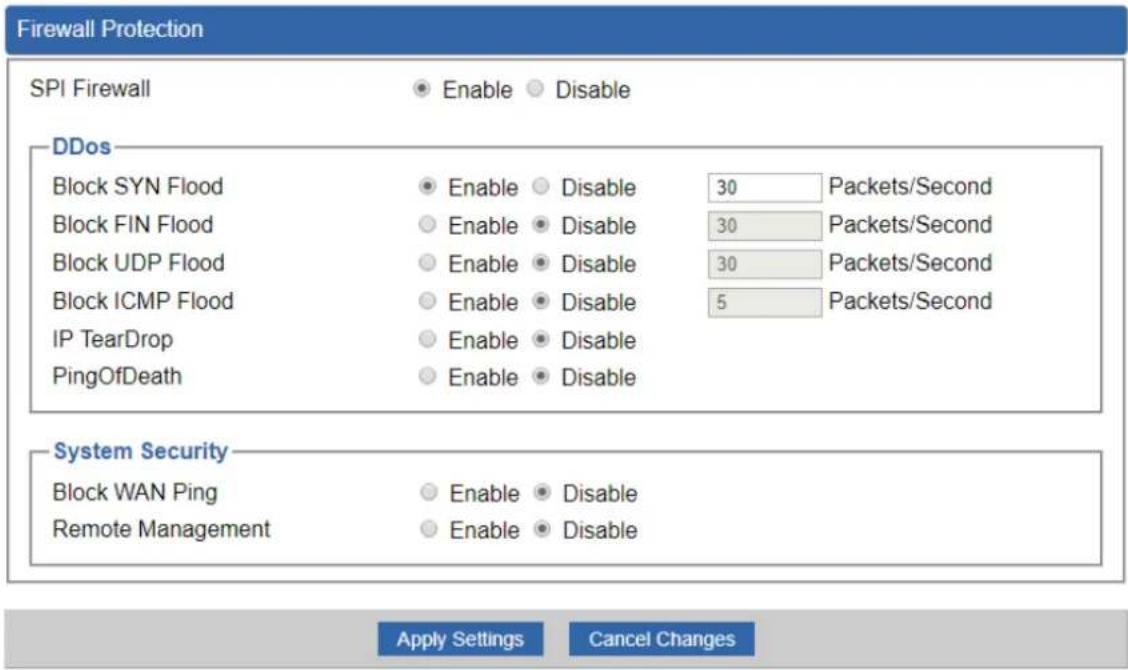
Figure 4-7-2: Firewall
| Object | Description |
| SPI Firewall | The SPI Firewall prevents attack and improper access to network resources.The default configuration is enabled. |
| Block SYN Flood | SYN Flood is a popular attack way. DoS and DDoS are TCP protocols. Hackers like using this method to make a fake connection that involves the CPU, memory, and so on.The default configuration is enabled. |
| Block FIN Flood | If the function is enabled, when the number of the current FIN packets is beyond the set value, the LoRaWAN Gateway will start the blocking function immediately.The default configuration is disabled. |
| Block UDP Flood | If the function is enabled, when the number of the current UPD-FLOOD packets is beyond the set value, the LoRaWAN Gateway will start the blocking function immediately.The default configuration is disabled. |
| Block ICMP Flood | ICMP is kind of a pack of TCP/IP; its important function is to transfer simple signal on the Internet. There are two normal attack ways which hackers like to use, Ping of Death and Smurf attack.The default configuration is disabled. |
| IP TearDrop | If the function is enabled, the LoRaWAN Gateway will block Teardrop attack that is targeting on TCP/IP fragmentation reassembly codes. |
| Ping Of Death | If the function is enabled, the LoRaWAN Gateway will block Ping of Death attack that aims to disrupt a targeted machine by sending a packet larger than the maximum allowable size causing the target machine to freeze or crash. |
| Block WAN Ping | Enable the function to allow the Ping access from the Internet network.The default configuration is disabled. |
| Remote Management | Enable the function to allow the web server access of the LoRaWAN Gateway from the Internet network.The default configuration is disabled. |
4.7.2 MAC Filtering
Entries in this table are used to restrict certain types of data packets from your local network or Internet through the LoRaWAN Gateway Use of such filters can be helpful in securing or restricting your local network as shown in Figure 4-7-3.
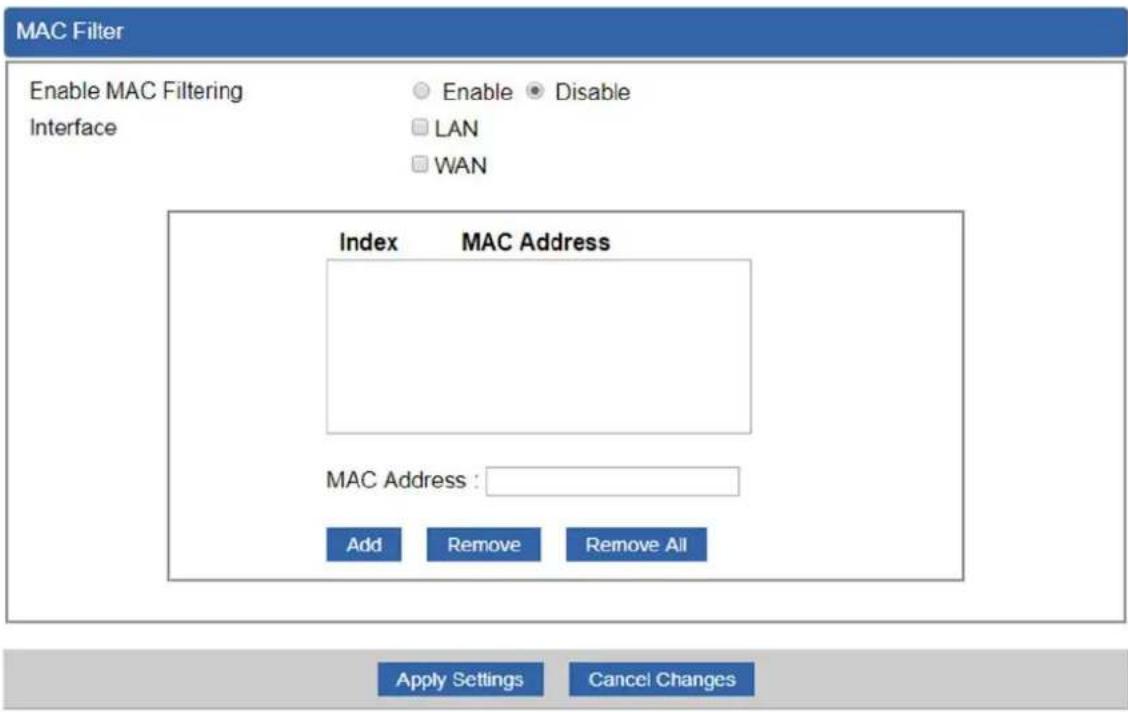
Figure 4-7-3: MAC Filtering
| Object | Description |
| Enable MAC Filtering | Set the function as enable or disable.When the function is enabled, the LoRaWAN Gateway will block traffic of the MAC address on the list. |
| Interface | Select the function works on LAN, WAN or both. If you want to block a LAN device's MAC address, please select LAN, vice versa. |
| MAC Address | Input a MAC address you want to control, such as A8:F7:E0:00:06:62. |
| Add | When you input a MAC address, please click the “Add” button to add it into the list. |
| Remove | If you want to remove a MAC address from the list, please click on the MAC address, and then click the “Remove” button to remove it. |
| Remove All | If you want to remove all MAC addresses from the list, please click the “Remove All” button to remove all. |
4.7.3 IP Filtering
IP Filtering is used to deny LAN users from accessing the public IP address on internet as shown in Figure 4-7-4. To begin blocking access to an IP address, enable IP Filtering and enter the IP address of the web site you wish to block.

Figure 4-7-4: IP Filtering
| Object | Description |
| IP Filtering | Set the function as enable or disable. |
| Add IP Filtering Rule | Go to the Add Filtering Rule page to add a new rule. |
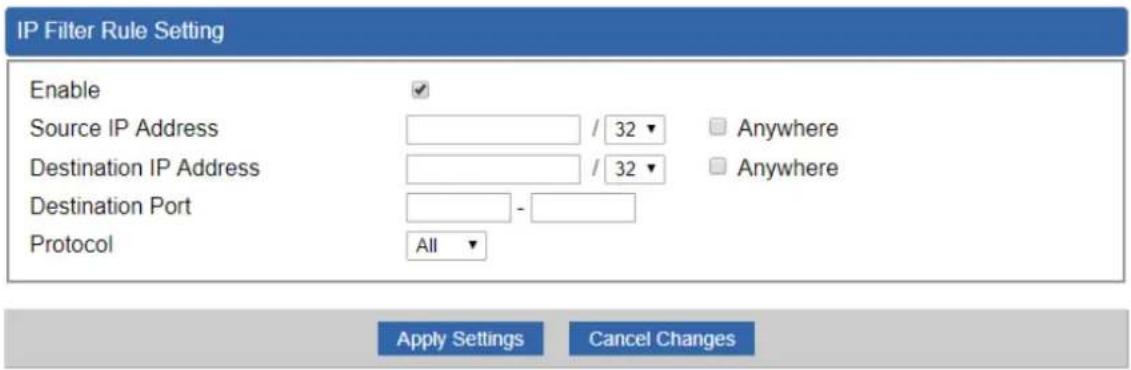
Figure 4-7-5: IP Filter Rule Setting
| Object | Description |
| Enable | Set the rule as enable or disable. |
| Source IP Address | Input the IP address of LAN user (such as PC or laptop) which you want to control. |
| Anywhere (of source IP Address) | Check the box if you want to control all LAN users. |
| Destination IP Address | Input the IP address of web site which you want to block. |
| Anywhere (of destination IP Address) | Check the box if you want to control all web sites, meaning the LAN user can’t visit any web site. |
| Destination Port | Input the port of destination IP Address which you want to block.Leave it as blank if you want to block all ports of the web site. |
| Protocol | Select the protocol type (TCP, UDP or all).If you are unsure, please leave it to the default all protocol. |
4.7.4 Web Filtering
Web filtering is used to deny LAN users from accessing the internet as shown in Figure 4-7-6. Block those URLs which contain keywords listed below.
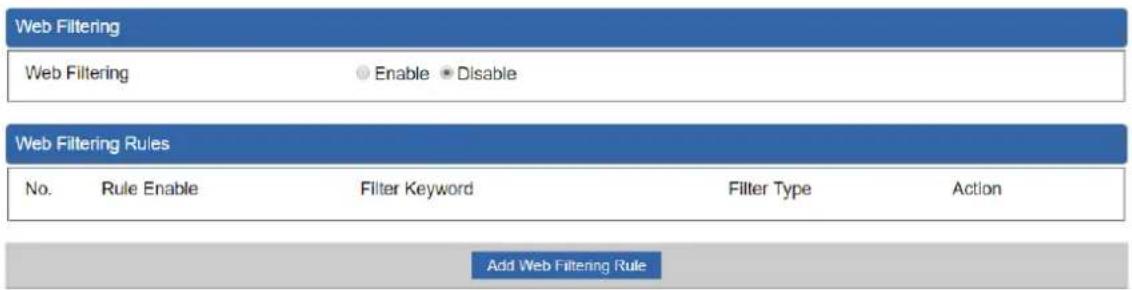
Figure 4-7-6: Web Filtering
| Object | Description |
| Web Filtering | Set the function as enable or disable. |
| Add Web Filtering Rule | Go to the Add Web Filtering Rule page to add a new rule. |
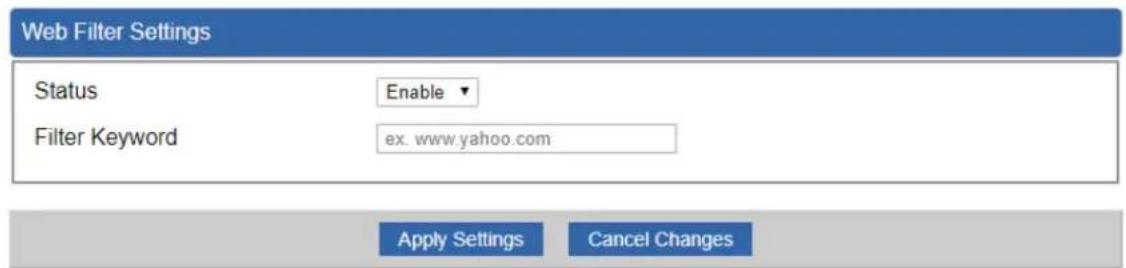
Figure 4-7-7 Web Filtering Rule Setting
| Object | Description |
| Status | Set the rule as enable or disable. |
| Filter Keyword | Input the URL address that you want to filter, such as www.yahoo.com. |
4.7.5 Port Forwarding
Entries in this table allow you to automatically redirect common network services to a specific machine behind the NAT firewall as shown in Figure 4-7-8. These settings are only necessary if you wish to host some sort of server like a web server or mail server on the private local network behind your LoRaWAN Gateway's NAT firewall.
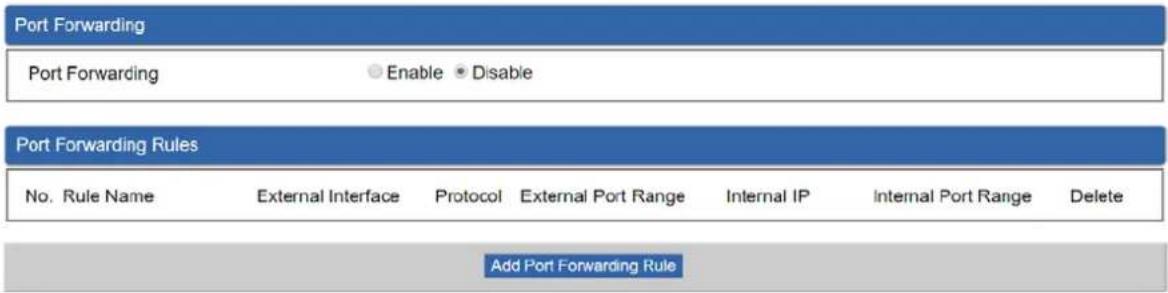
Figure 4-7-8: Port Forwarding
| Object | Description |
| Port Forwarding | Set the function as enable or disable. |
| Add Port Forwarding Rule | Go to the Add Port Forwarding Rule page to add a new rule. |

Figure 4-7-9: Port Forwarding Rule Setting
| Object | Description |
| Rule Name | Enter any words for recognition. |
| Protocol | Select the protocol type (TCP, UDP or both). If you are unsure, please leave it to the default both protocols. |
| External Service Port | Enter the external ports you want to control. For TCP and UDP services, enter the beginning of the range of port numbers used by the service. If the service uses a single port number, enter it in both the start and finish fields. |
| Virtual Server IP Address | Enter the local IP address. |
| Internal Service Port | Enter local ports you want to control. For TCP and UDP Services, enter the beginning of the range of port numbers used by the service. If the service uses a single port number, enter it in both the start and finish fields. |
4.7.6 DMZ
A Demilitarized Zone is used to provide Internet services without sacrificing unauthorized access to its local private network as shown in Figure 4-7-9. Typically the DMZ host contains devices accessible to Internet traffic, such as Web (HTTP) servers, FTP servers, SMTP (e-mail) servers and DNS servers.

Figure 4-7-9: DMZ
| Object | Description |
| DMZ | Set the function as enable or disable. If the DMZ function is enabled, it means that you set up DMZ at a particular computer to be exposed to the Internet so that some applications/software, especially Internet/online game can have two way connections. |
| DMZ IP Address | Enter the IP address of a particular host in your LAN which will receive all the packets originally going to the WAN port/Public IP address above. |
4.8 Virtual Private Network
To obtain a private and secure network link, the LoRaWAN Gateway is capable of establishing VPN connections. When used in combination with remote client authentication, it links the business' remote sites and users, conveniently providing the enterprise with an encrypted network communication method. By allowing the enterprise to utilize the Internet as a means of transferring data across the network, it forms one of the most effective and secure options for enterprises to adopt in comparison to other methods.
The VPN menu provides the following features as shown in Figure 4-8-1

Figure 4-8-1: VPN Menu
| Object | Description |
| IPsec | Allows setting IPsec function. |
| IPsec Remote Server | Disable or enable the IPsec Remote Server function.The default configuration is disabled. |
| GRE | Allows setting GRE function. |
| PPTP | Allows setting PPTP function. |
| L2TP | Allows setting L2TP function. |
| SSL VPN | Allows setting SSL VPN function. |
| Certificates | Download System CA Certificate |
| VPN Connection | Allows checking VPN Connection Status. |
4.8.1 IPSec
IPSec (IP Security) is a generic standardized VPN solution. IPSec must be implemented in the IP stack which is part of the kernel. Since IPSec is a standardized protocol it is compatible to most vendors that implement IPSec. It allows users to have an encrypted network session by standard IKE (Internet Key Exchange). We strongly encourage you to use IPSec only if you need to because of interoperability purposes. When IPSec lifetime is specified, the device can randomly refresh and identify forged IKE's during the IPSec lifetime.
This page will allow you to modify the user name and passwords as shown in Figure 4-8-2.

Figure 4-8-2: IPSec
| Object | Description |
| Add IPSec Tunnel | Go to the Add IPSec Tunnel page to add a new tunnel. |

Figure 4-8-3: IPSec Tunnel
| Object Description | |
| IPSec Tunnel Enable | Check the box to enable the function. |
| Tunnel Name | Enter any words for recognition. |
| Interface | This is only available for host-to-host connections and specifies to which interface the host is connecting.1. WAN 1.2. WAN 2. |
| Local Network | The local subnet in CIDR notation. For instance, "192.168.1.0". |
| Local Netmask | The netmask of this LoRaWAN Gateway |
| Remote IP Address | Input the IP address of the remote host. For instance, "210.66.1.10". |
| Remote Network | The remote subnet in CIDR notation. For instance, "210.66.1.0". |
| Remote Netmask | The netmask of the remote host. |
| Dead Peer Detection | Set up the detection time of DPD (Dead Peer Detection).By default, the DPD detection's gap is 30 seconds, over 150 seconds to think that is the broken line.When VPN detects opposite party reaction time, the function will take one of the actions: "Hold" stand for the system will retain IPSec SA, "Clear" stand for the tunnel will clean away and waits for the new sessions, "Restart" will delete the IPSec SA and reset VPN tunnel. |
| Preshare Key | Enter a pass phrase to be used to authenticate the other side of the tunnel. Should be the same as the remote host. |
| IKE | Select the IKE (Internet Key Exchange) version. |
| Connection Type | 1. Main.2. Aggressive. |
| ISAKMP | It provides the way to create the SA between two PCs. The SA can access the encoding between two PCs, and the IT administrator can assign to which key size or Preshare Key and algorithm to use. The SA comes in many connection ways.1. AES: All using a 128-bit, 192-bit and 256-bit key. AES is a commonly seen and adopted nowadays.2. 3DES: Triple DES is a block cipher formed from the DES cipher by using it three times. It can achieve an algorithm up to 168 bits.3. SHA1: The SHA1 is a revision of SHA. It has improved the shortcomings of SHA. By producing summary hash values, it can achieve an algorithm up to 160 bits.4. SHA2: Either 256, 384 or 512 can be chosen5. MD5 Algorithm: MD5 processes a variably long message into a fixed-length output of 128 bits.6. DH Group: Either 1, 2, 5, 14, 15, 16, 17, or 18 can be chosen. |
| IKE SA Lifetime | You can specify how long IKE packets are valid. |
| ESP | It offers AES, 3 DES, SHA 1, SHA2, and MD5.1. AES: All using a 128-bit, 192-bit and 256-bit key. AES is a commonly seen and adopted nowadays.2. 3DES: Triple DES is a block cipher formed from the DES cipherby using it three times. It can achieve an algorithm up to 168 bits.3. SHA1: The SHA1 is a revision of SHA. It has improved the shortcomings of SHA. By producing summary hash values, it can achieve an algorithm up to 160 bits.4. SHA2: Either 256, 384 or 512 can be chosen.5. MD5 Algorithm: MD5 processes a variably long message into a fixed-length output of 128 bits. |
| ESP Keylife | You can specify how long ESP packets are valid. |
| Perfect Forward Secrecy (PFS) | Set the function as enable or disable. |
4.8.2 GRE
This section assists you in setting the GRE Tunnel as shown in Figure 4-8-4.
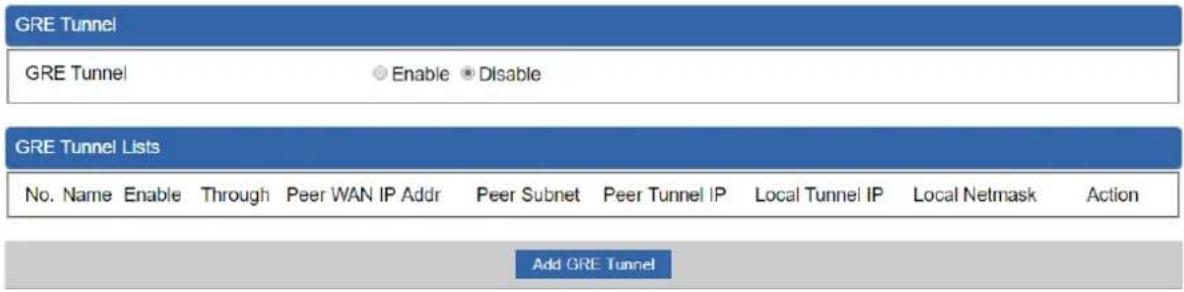
Figure 4-8-4: GRE
| Object | Description |
| GRE Tunnel | Set the function as enable or disable. |
| Add GRE Tunnel | Go to the Add GRE Tunnel page to add a new tunnel. |
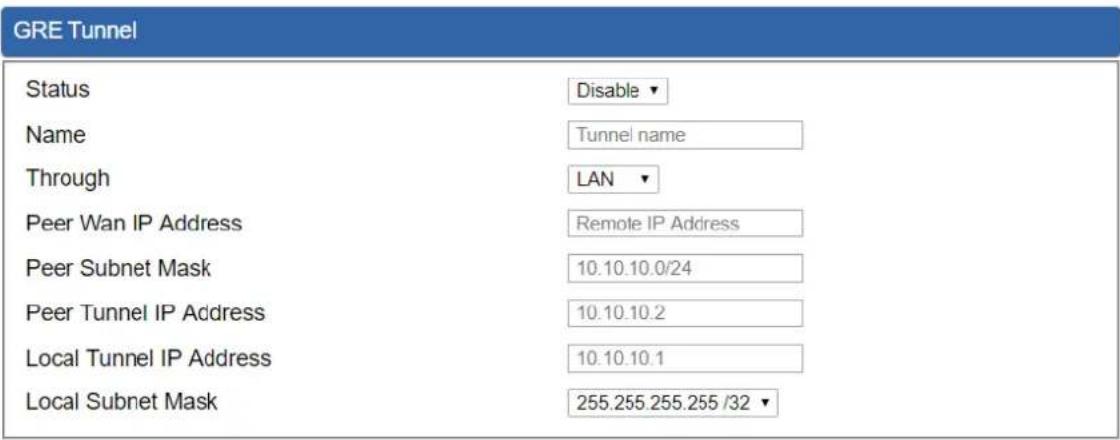
Apply Settings
Cancel Changes
Figure 4-8-5: GRE Tunnel
| Object Description | |
| Active | Check the box to enable the function. |
| Tunnel Name | Enter any words for recognition. |
| Through | This is only available for host-to-host connections and specifies to which interface the host is connecting.1. LAN.2. WAN 1.3. WAN 2. |
| Peer WAN IP Address | Input the IP address of the remote host. For instance, "210.66.1.10". |
| Peer Netmask | The remote subnet in CIDR notation. For instance, "210.66.1.0/24". |
| Peer Tunnel IP Address | Input the Tunnel IP address of remote host. |
| Local Tunnel IP Address | Input the Tunnel IP address of remote host. |
| Local Netmask | Input the Tunnel IP address of the LoRaWAN Gateway |
4.8.3 PPTP Server
Use the IP address and the scope option needs to match the far end of the PPTP server; its goal is to use the PPTP channel technology, and establish Site-to-Site VPN where the channel can have equally good results from different methods with IPSec. The PPTP server is shown in Figure 4-8-6.

Figure 4-8-6: PPTP server
| Object Description | |
| PPTP Server | Set the function as enable or disable. |
| Broadcast | Enter any words for recognition. |
| Force MPPEEncryption | Set the encryption as enable or disable. |
| CHAP | Set the authentication as enable or disable. |
| MSCHAP | Set the authentication as enable or disable. |
| MSCHAP v2 | Set the authentication as enable or disable. |
| DNS | When the PPTP client connects to the PPTP server, it will assign the DNS server IP address to client. |
| WINS | When the PPTP client connects to the PPTP server, it will assign the WINS server IP address to client. |
| Server IP Address | Input the IP address of the PPTP Server. For instance, "192.168.10.1". |
| Clients IP Address (Start/End) | When the VPN connection is established, the VPN client will get IP address from the VPN Server. Please set the range of IP Address. For instance, the start IP address is "192.168.10.10", the end IP address is "192.168.10.100". |
| User and Password | Create the username and password for the VPN client. |
4.8.4 L2TP Server
This section assists you in setting the L2TP Server as shown in Figure 4-8-7.
L2TP Server
L2TP Server
Server IP Address
Clients IP Address Start
Clients IP Address End
With IPsec
Preshare Key
- Enable - Disable
192.168.50.1
192.168.50.100
192.168.50.200
- Enable - Disable
Users
User
1 test
2 user
3 user
4 user
5 user
Password
test
1234
1234
1234
1234
IPsec
Phase 1
Connection Type
ISAKMP
IKE SA Lifetime
Phase 2
ESP
ESP Keylife
- Main - Aggressive
AES(128 bit) SHA1
3 hours
AES (128 bit) ▼ SHA1
1 hours

Figure 4-8-7: L2TP Server
| Object | Description |
| L2TP Server | Set the function as enable or disable. |
| Server IP Address | Input the IP address of the L2TP Server. For instance, "192.168.50.1". |
| Clients IP Address(Start/End) | When the VPN connection is established, the VPN client will get IP address from the VPN Server. Please set the range of IP Address. For instance, the start IP address is "192.168.50.100", the end IP address is "192.168.50.200". |
| With IPsec | Set the function as enable to make the L2TP work with IPsec encryption. |
| Preshare Key | Enter a pass phrase. |
| User and Password | Create the username and password for the VPN client. |
| Connection Type | 1. Main.2. Aggressive. |
| ISAKMP | It provides the way to create the SA between two PCs. The SA can access the encoding between two PCs, and the IT administrator can assign to which key size or Preshare Key and algorithm to use. The SA comes in many connection ways.1. AES: All using a 128-bit, 192-bit and 256-bit key. AES is a commonly seen and adopted nowadays.2. 3DES: Triple DES is a block cipher formed from the DES cipher by using it three times. It can achieve an algorithm up to 168 bits.3. SHA1: The SHA1 is a revision of SHA. It has improved the shortcomings of SHA. By producing summary hash values, it can achieve an algorithm up to 160 bits.4. SHA2: Either 256, 384 or 512 can be chosen.5. MD5 Algorithm: MD5 processes a variably long message into a fixed-length output of 128 bits.6. DH Group: Either 1, 2, 5, 14, 15, 16, 17, or 18 can be chosen. |
| IKE SA Lifetime | You can specify how long IKE packets are valid. |
| ESP | It offers AES, 3 DES, SHA 1, SHA2, and MD5.1. AES: All using a 128-bit, 192-bit and 256-bit key. AES is a commonly seen and adopted nowadays.2. 3DES: Triple DES is a block cipher formed from the DES cipher by using it three times. It can achieve an algorithm up to 168 bits.3. SHA1: The SHA1 is a revision of SHA. It has improved the shortcomings of SHA. By producing summary hash values,it can achieve an algorithm up to 160 bits.4. SHA2: Either 256, 384 or 512 can be chosen.5. MD5 Algorithm: MD5 processes a variably long message into a fixed-length output of 128 bits. |
| ESP Keylife | You can specify how long ESP packets are valid. |
4.8.5 SSL VPN
This section assists you in setting the SSL Server as shown in Figure 4-8-8.

Figure 4-8-8: SSL Server
| Object Description | |
| SSL VPN Server | Set the function as enable or disable. |
| Port | Set a port for the SSL Service. Default port is 1194. |
| Tunnel Protocol | Set the protocol as TCP or UDP. |
| Virtual Network Device | Set the Virtual Network Device as TUN or TAP. |
| Interface | User is able to select the interface for SSL service using. |
| VPN Network | The VPN subnet in CIDR notation. For instance, "192.168.20.0". |
| Network Mask | The netmask of the VPN. |
| Encryption Cipher | There are four encryption types: None, AES-128 CBC, AES-192 CBC or AES-256 CBC. |
| Hash Algorithm | There are five types of Hash Algorithm: None, SHA1, SHA1, SHA512 or MD5. |
| Export client.ovpn | Export a configuration for the SSL client. User is able to upload it to VPN client (such as Open VPN software). |
4.8.6 VPN Connection
This page shows the VPN connection status as shown in Figure 4-8-9.

Figure 4-8-9: VPN Connection Status
| Object Description | |
| VPN Connection Status | Click the IPSec/GRE/.../SSL VPN bookmark to check the current connection status. |
4.9 Wireless
The Wireless menu provides the following features as shown in Figure 4-10-1

Figure 4-9-1: Wireless Menu
| Object Description | |
| 2.4G Wi-Fi | Allow to configure 2.4G Wi-Fi. |
| 5G Wi-Fi | Allow to configure 5G Wi-Fi. |
| MAC ACL | Allow configure MAC ACL. |
| Wi-Fi Advanced | Allow to configure advanced setting of Wi-Fi. |
| Wi-Fi Statistics | Display the statistics of Wi-Fi traffic. |
| Connection Status | Display the connection status. |
4.9.1 2.4G Wi-Fi
This page allows the user to define 2.4G Wi-Fi as shown in Figure 4-10-2.
2.4G WiFi Configuration
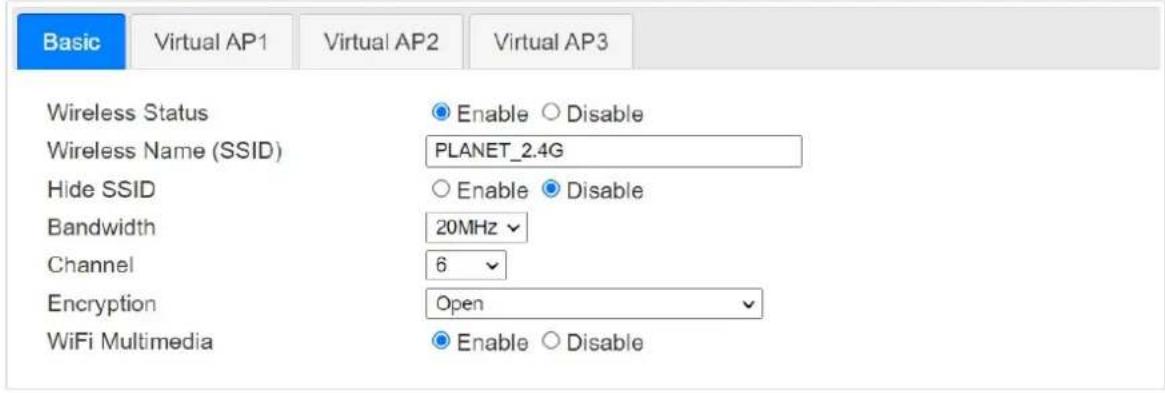
Figure 4-10-2: 2.4G WFI
| Object Description | |
| Wireless Status | Allows user to enable or disable 2.4G WiFi |
| Wireless Name (SSID) It is the wireless network name. The default 2.4G SSID is “PLANET_2.4G” | |
| Hide SSID | Allows user to enable or disable SSID |
| Bandwidth | Select the operating channel width, “20MHz” or “40MHz” |
| Channel | It shows the channel of the CPE. Default 2.4GHz is channel 6. |
| Encryption | Select the wireless encryption. The default is “Open” |
| WiFi Multimedia | Enable/Disable WMM (Wi-Fi Multimedia ) function |
4.9.2 5G Wi-Fi
This page allows the user to define 5G Wi-Fi as shown in Figure 4-10-3.
5G WiFi Configuration
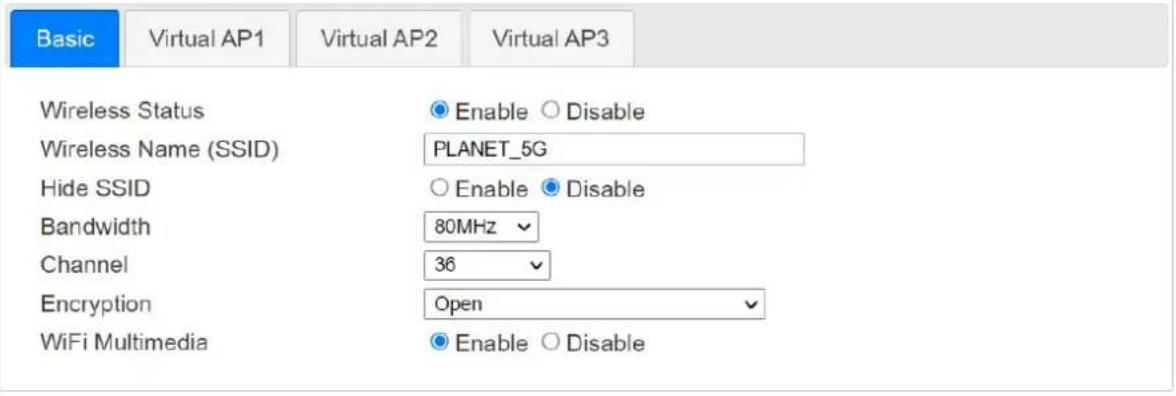
Figure 4-10-3: 5G WFI
| Object Description | |
| Wireless Status | Allows user to enable or disable 5G Wi-Fi |
| Wireless Name (SSID) | It is the wireless network name. The default 5G SSID is “PLANET_5G” |
| Hide SSID | Allows user to enable or disable SSID |
| Bandwidth | Select the operating channel width, “20MHz” or “40MHz” or “80MHz” |
| Channel | It shows the channel of the CPE. Default 5GHz is channel 36. |
| Encryption | Select the wireless encryption. The default is “Open” |
| Wi-Fi Multimedia | Enable/Disable WMM (Wi-Fi Multimedia ) function |
4.9.3 MAC ACL
This page provides MAC ACL configuration as shown in Figure 4-10-4.
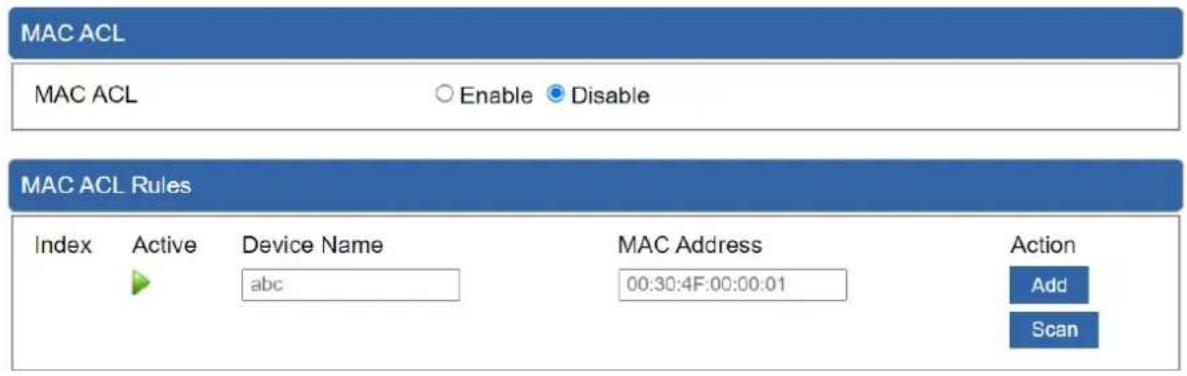
Figure 4-10-4: MAC ACL
| Object Description | |
| Active Allows the devices to pass in the rule | |
| Device Name Set an allowed device name | |
| MAC Address | Set an allowed device MAC address |
| Add | Press the “Add” button to add end-device that is scanned from wireless network and mark them |
| Scan Connect to client list | |
4.9.4 Wi-Fi Advanced
This page allows the user to define advanced setting of Wi-Fi as shown in Figure 4-10-5.
WiFi Advanced
| 2.4G Mode | 11 AX | |
| 5G Mode | 11 AX | |
| 2.4GHz Maximum Associated Clients | 32 | (Range 1~64) |
| 5GHz Maximum Associated Clients | 32 | (Range 1~64) |
| 2.4G Coverage Threshold | -90 | (-95dBm ~ -60dBm) |
| 5G Coverage Threshold | -90 | (-95dBm ~ -60dBm) |
| 2.4G TX Power | Max(100%) | |
| 5G TX Power | Max(100%) |
Figure 4-10-5: Wi-Fi advanced
| Object Description | |
| 2.4G Mode | 11AC: Select 802.11B/G or 802.11N/G11AX: Select 802.11B/G or 802.11N/G or 802.11AX |
| 5G Mode | 11AC: Select 802.11A or 802.11AN or 802.11AC11AX: Select 802.11A or 802.11AN or 802.11AC or 802.11AX |
| 2.4GHz Maximum Associated Clients | The maximum users are 64 |
| 5GHz Maximum Associated Clients | The maximum users are 64 |
| 2.4G Coverage Threshold | The coverage threshold is to limit the weak signal of clients occupying session. The default is -90dBm |
| 5G Coverage Threshold | The coverage threshold is to limit the weak signal of clients occupying session. The default is -90dBm |
| 2.4G TX Power | The range of transmit power is Max (100%), Efficient (75%), Enhanced (50%), Standard (25%) or Min (15%). In case of shortening the distance and the coverage of the wireless network, input a smaller value to reduce the radio transmission power |
| 5G TX Power | The range of transmit power is Max (100%), Efficient (75%), Enhanced (50%), Standard (25%) or Min (15%). In case of shortening the distance and the coverage of the wireless network, input a smaller value to reduce the radio transmission power |
4.9.5 Wi-Fi Statistics
This page displays Wi-Fi statistics as shown in Figure 4-10-6.
2.4G
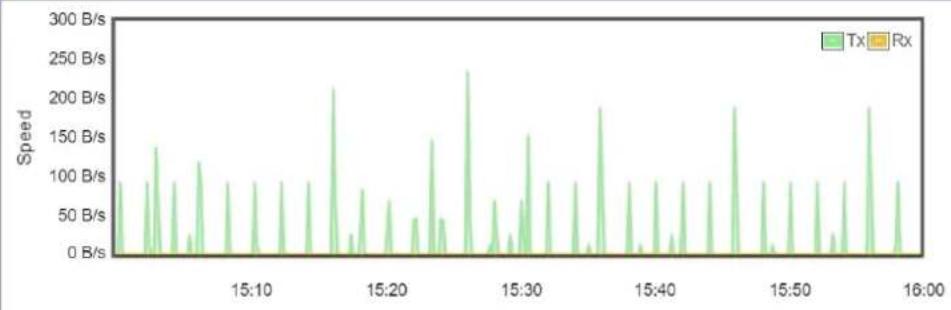
5G

Figure 4-10-6: Wi-Fi statistics
4.9.6 Connection Status
This page shows the host names and MAC address of all the clients in your network as shown in Figure 4-10-7.
| Client List | ||||
| No. | Name | MAC Address | Signal | Connected Time |
Figure 4-10-7: Connection status
| Object Description | |
| Name | Display the host name of connected clients. |
| MAC Address | Display the MAC address of connected clients. |
| Signal | Display the connected signal of connected clients. |
| Connected Time | Display the connected time of connected clients. |
4.10 Maintenance
The Maintenance menu provides the following features for managing the system as shown in Figure 4-11-1
![graph TD A["Administrator"] --> B["Date & Time"] B --> C["Save/Restore Configuration"] C --> D["Firmware Upgrade"] D --> E["Reboot / Reset"] E --> F["Auto Reboot"] F --> G["Diagnostics"]](/content/2026/06/1224379/images/c27298574102f6c6cd5d007c73f1d2cd17e365a95803e618973b139ca3e34241.jpg)
Figure 4-11-1: Maintenance Menu
| Object | Description |
| Administrator | Allows changing the login username and password. |
| Date & Time | Allows setting Date & Time function. |
| Save/Restore Configuration | Export the LoRaWAN Gateway's configuration to local or USB sticker.Restore the LoRaWAN Gateway's configuration from local or USB sticker. |
| Firmware Upgrade | Upgrade the firmware from local or USB storage. |
| Reboot / Reset | Reboot or reset the system. |
| Auto Reboot | Allows setting auto-reboot schedule. |
| Diagnostics | Allows you to issue ICMP PING packets to troubleshoot IP. |
4.10.1 Administrator
To ensure the LoRaWAN Gateway's security is secure, you will be asked for your password when you access the LoRaWAN Gateway's Web-based utility. The default user name and password are "admin". This page will allow you to modify the user name and passwords as shown in Figure 4-11-2.

Figure 4-11-2: account and password page
| Object Description | |
| Username | Input a new username. |
| Password | Input a new password. |
| Confirm Password | Input password again. |
4.10.2 Date and Time
This section assists you in setting the system time of the LoRaWAN Gateway. You are able to either select to set the time and date manually or automatically obtain the GMT time from Internet as shown in Figure 4-11-3.
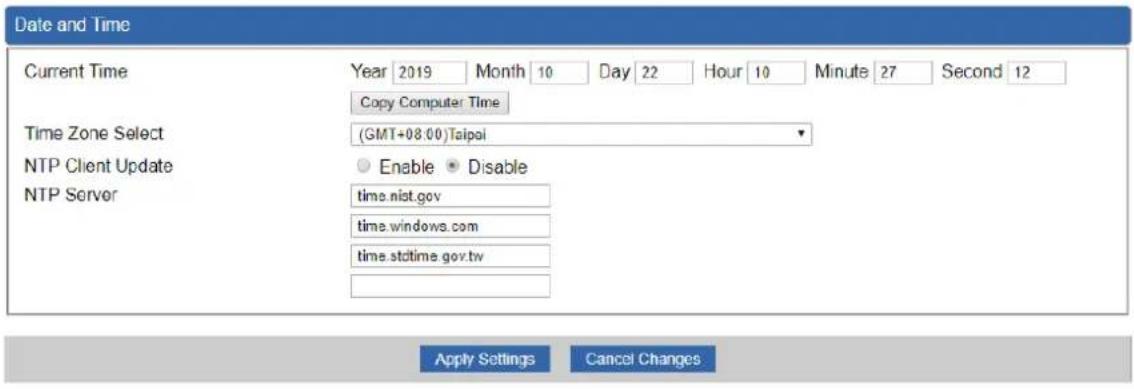
Figure 4-11-3: date and time page
| Object Description | |
| Current Time | Show the current time.User is able to set time and date manually. |
| Time Zone Select | Select the time zone of the country you are currently in. The LoRaWAN Gateway will set its time based on your selection. |
| NTP Client Update | Once this function is enabled, LoRaWAN Gateway will automatically update current time from NTP server. |
| NTP Server | User may use the default NTP sever or input NTP server manually. |
4.10.3 Saving/Restoring Configuration
This page shows the status of the configuration. You may save the setting file to either USB storage or PC and load the setting file from USB storage or PC as Figure 4-11-4 is shown below:

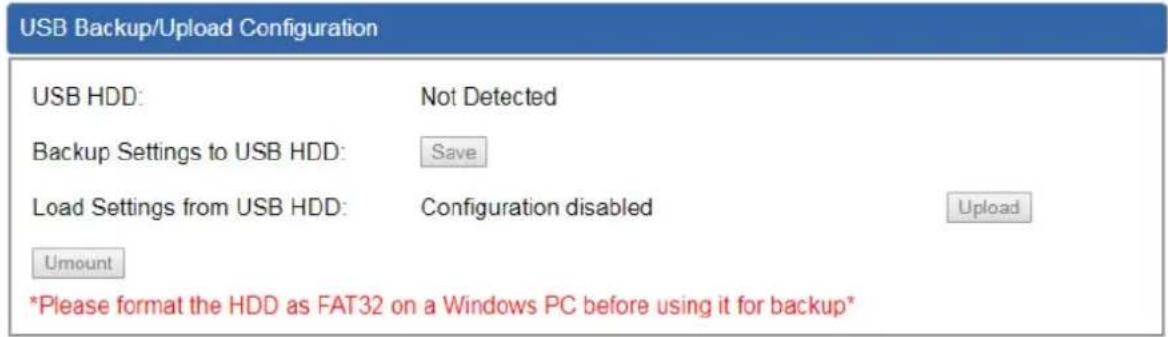
Figure 4-11-4: Saving/Restoring Configuration
■ Save Setting to PC
| Object | Description |
| Configuration Export | Press theExportbutton to save setting file to PC. |
| Configuration Import | Press theChoose Filebutton to select the setting file, and thenpress theImportbutton to upload setting file from PC. |
■ Save Setting to USB Storage
| Object | Description |
| USB Storage | The status of USB storage. |
| Backup Settings to USB Storage | Press the Save button to save setting file to USB storage. |
| Load Settings from USB Storage | Press the Upload button to upload setting file from USB storage. |
| Unmount | Before removing the USB storage from the LoRaWAN Gateway, pleasepress the Umount button first. |
4.10.4 Upgrading Firmware
This page provides the firmware upgrade function as shown in Figure 4-11-5
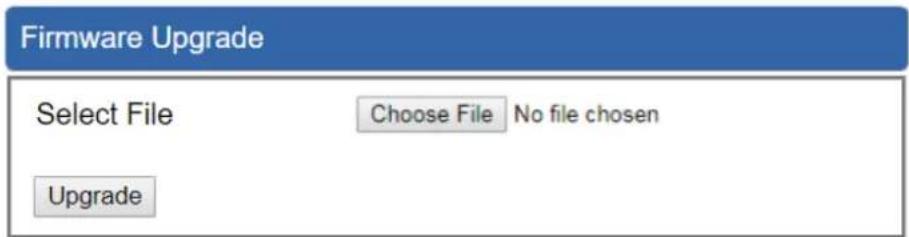
Figure 4-11-5: firmware upgrade page
| Object | Description |
| Choose File | Press the button to select the firmware. |
| Upgrade | Press the button to upgrade firmware to system. |
4.10.5 Reboot / Reset
This page enables the device to be rebooted from a remote location. Once the Reboot button is pressed, users have to re-log in the Web interface as Figure 4-11-6 is shown below:
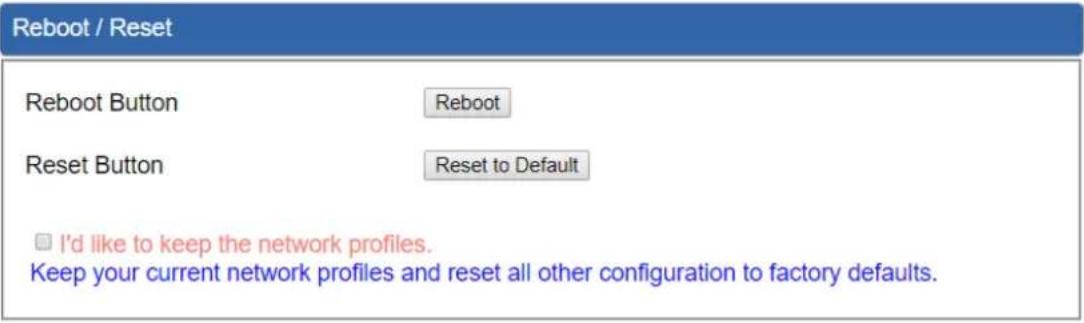
Figure 4-11-6: reboot/reset page
| Object | Description |
| Reboot | Press the button to reboot system. |
| Reset | Press the button to restore all settings to factory default settings. |
| I'd like to keep the network profiles. | Check the box and then press the button to keep the current network profiles and reset all other configurations to factory defaults. |
4.10.6 Diagnostics
The page allows you to issue ICMP PING packets to troubleshoot IP connectivity issues. After you press "Ping", ICMP packets are transmitted, and the sequence number and roundtrip time are displayed upon reception of a reply. The Page refreshes automatically until responses to all packets are received, or until a timeout occurs as shown in Figure 4-11-7
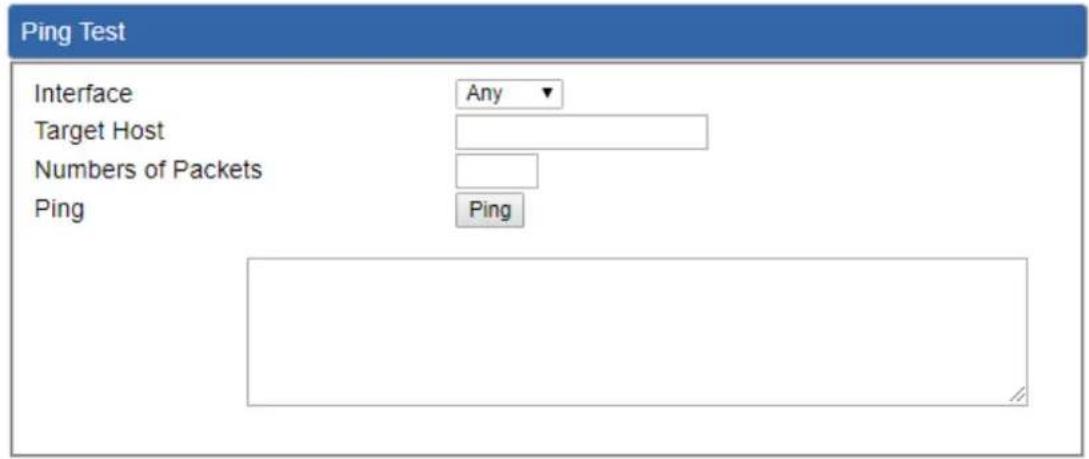
Figure 4-11-7: diagnostics page
| Object | Description |
| Interface | Select an interface of the LoRaWAN Gateway |
| Target Host | The destination IP Address or domain. |
| Number of Packets | Set the number of packets that will be transmitted; the maximum is 100. |
| Ping | The time of ping. |

Be sure the target IP address is within the same network subnet of the LoRaWAN Gateway, or you have to set up the correct gateway IP address.
Appendix A: DDNS Application
Configuring PLANET DDNS steps:
Step 1: Visit DDNS provider's web site and register an account if you do not have one yet. For example, register an account at http://planetddns.com
Step 2: Enable DDNS option through accessing web page of the device.
Step 3: Input all DDNS settings.
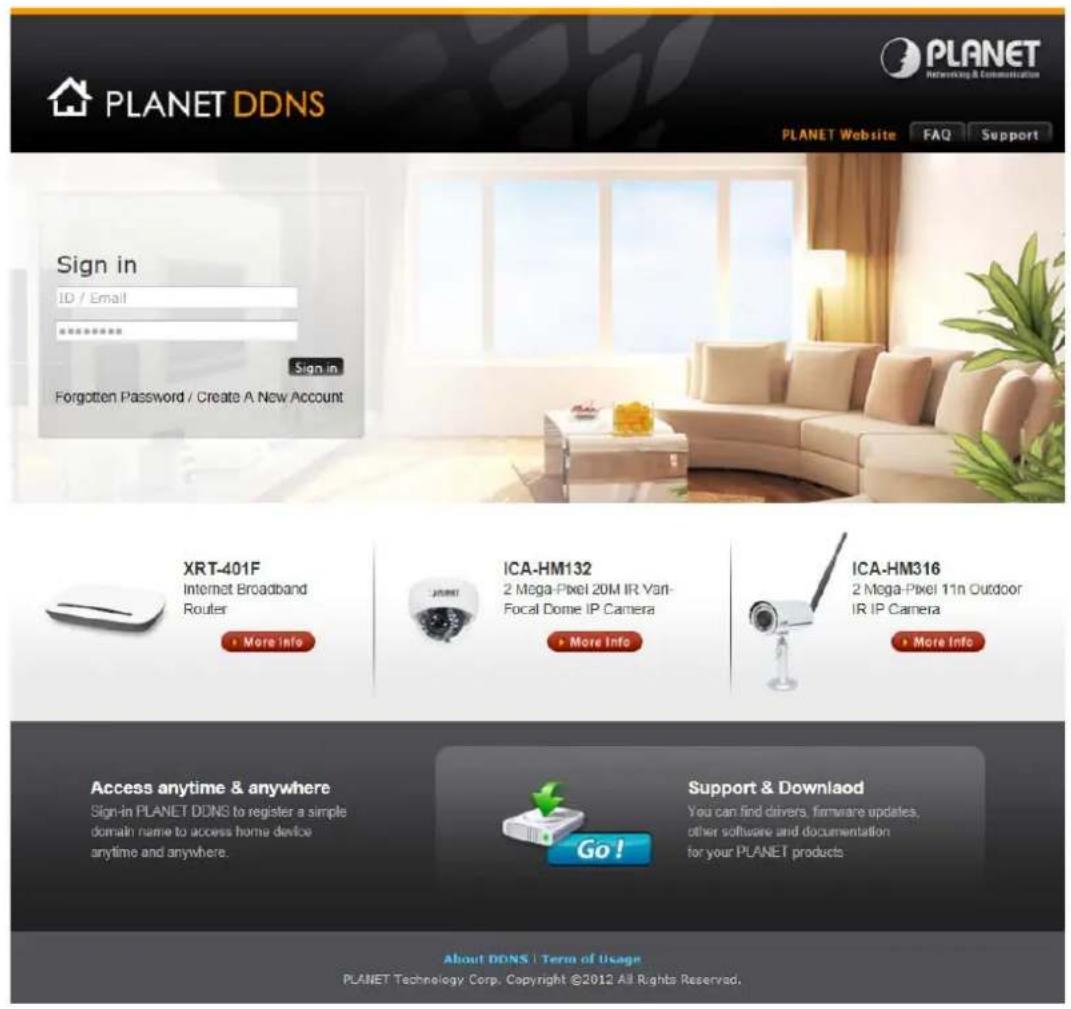


- USER'S MANUAL
- INDUSTRIAL LORAWAN GATEWAY
- COPYRIGHT
- DISCLAIMER
- FCC COMPLIANCE STATEMENT
- CE MARK WARNING
- WEEE
- TRADEMARKS
- REVISION
- TABLE OF CONTENTS
- CHAPTER 1. PRODUCT INTRODUCTION....7
- CHAPTER 2. HARDWARE INTRODUCTION ......17
- CHAPTER 3. PREPARATION....22
- CHAPTER 4. WEB-BASED MANAGEMENT ......32
- 4.5 NETWORK....58
- 4.6 LORA 70
- 4.7 SECURITY 76
- 4.8 VIRTUAL PRIVATE NETWORK....85
- 4.9 WIRELESS 97
- 4.10 MAINTENANCE....104
- CHAPTER 1. PRODUCT INTRODUCTION
- 1.1 PACKAGE CONTENTS
- 1.2 OVERVIEW
- CONNECT TO LORA NETWORK WITH EXCELLENT LORAWAN GATEWAY
- COMPREHENSIVE FEATURES FOR INDUSTRIAL ENVIRONEMNT
- LORAWAN COMPATIBILITY
- EXCELLENT ABILITY IN THREAT DEFENSE
- CYBERSECURITY NETWORK SOLUTION TO MINIMIZE SECURITY RISKS
- 1.3 FEATURES
- KEY FEATURES
- HARDWARE
- LORA INTERFACE
- RF INTERFACE CHARACTERISTICS (LCG-300W ONLY)
- IP ROUTING FEATURE
- FIREWALL SECURITY
- VPN FEATURES
- NETWORKING
- OTHERS
- CHAPTER 2. HARDWARE INTRODUCTION
- 2.1 PHYSICAL DESCRIPTIONS
- LED DEFINITION
- 2.2 HARDWARE INSTALLATION
- 2.2.1 LORA ANTENNA INSTALLATION
- 2.2.2 WI-FI ANTENNA INSTALLATION
- 3.4 WIRING THE POWER INPUTS
- CAUTION
- 3.5 GROUNDING THE DEVICE
- 3.6 WIRING THE FAULT ALARM CONTACT
- CHAPTER 3. PREPARATION
- 3.1 REQUIREMENTS
- 3.2 SETTING TCP/IP ON YOUR PC
- WINDOWS 7/8
- CLICK "CHANGE ADAPTER SETTINGS
- RIGHT-CLICK ON THE LOCAL AREA CONNECTION AND SELECT PROPERTIES
- WINDOWS 10
- 3.3 PLANET SMART DISCOVERY UTILITY
- CHAPTER 4. WEB-BASED MANAGEMENT
- 4.1 INTRODUCTION
- 4.2 LOGGING IN TO THE LORAWAN GATEWAY
- 4.3 MAIN WEB PAGE
- MAIN MENU
- 4.4 SYSTEM
- 4.4.1 SETUP WIZARD
- STEP 1: ACCOUNT MODIFICATION
- STEP 2: LAN INTERFACE
- STEP 3: WAN INTERFACE
- MODE 1 -- STATIC IP
- MODE 2 -- DHCP CLIENT
- STEP 5: SECURITY SETTING
- STEP 6: SETUP COMPLETED
- 4.4.2 DASHBOARD
- WAN/LAN CONNECTION STATUS
- PORT STATUS
- SYSTEM INFORMATION
- WIRELESS STATUS
- 4.4.3 SYSTEM STATUS
- 4.4.4 SYSTEM SERVICE
- 4.4.5 STATISTICS
- 4.4.6 CONNECTION STATUS
- 4.4.7 SNMP
- 4.4.8 NMS
- 4.4.9 FAULT ALARM
- 4.4.10 DIGITAL INPUT / OUTPUT
- 4.4.11 MODBUS
- 4.4.12 REMOTE SYSLOG
- 4.5 NETWORK
- 4.5.1 WAN
- 4.5.2 WAN ADVANCED
- WAN1
- WAN2
- 4.5.3 LAN SETUP
- 4.5.4 MULTI-SUBNET
- 4.5.5 ROUTING
- 4.5.6 WAN IPV6 SETTING
- 4.5.7 DHCP
- DHCP SERVER
- 4.5.8 DDNS
- PLANET DDNS
- PLANET EASY DDNS
- 4.5.9 MAC ADDRESS CLONE
- 4.6 LORA
- 4.6.1 LORA
- 4.6.2 LORAWAN
- 4.6.3 ABP DECRYPTION
- 4.6.4 MQTT
- 4.6.5 LORA LOG
- 4.7 SECURITY
- 4.7.1 FIREWALL
- 4.7.2 MAC FILTERING
- 4.7.3 IP FILTERING
- 4.7.4 WEB FILTERING
- 4.7.5 PORT FORWARDING
- 4.7.6 DMZ
- 4.8 VIRTUAL PRIVATE NETWORK
- 4.8.1 IPSEC
- 4.8.2 GRE
- 4.8.3 PPTP SERVER
- 4.8.4 L2TP SERVER
- L2TP SERVER
- USERS
- IPSEC
- 4.8.5 SSL VPN
- 4.8.6 VPN CONNECTION
- 4.9 WIRELESS
- 4.9.1 2.4G WI-FI
- 2.4G WIFI CONFIGURATION
- 4.9.2 5G WI-FI
- 5G WIFI CONFIGURATION
- 4.9.3 MAC ACL
- 4.9.4 WI-FI ADVANCED
- 4.9.5 WI-FI STATISTICS
- 4.9.6 CONNECTION STATUS
- 4.10 MAINTENANCE
- 4.10.1 ADMINISTRATOR
- 4.10.2 DATE AND TIME
- 4.10.3 SAVING/RESTORING CONFIGURATION
- SAVE SETTING TO PC
- SAVE SETTING TO USB STORAGE
- 4.10.4 UPGRADING FIRMWARE
- 4.10.5 REBOOT / RESET
- 4.10.6 DIAGNOSTICS
- APPENDIX A: DDNS APPLICATION
Brand : Planet
Model : LCG-300W
Category : Network gateway