RoadScanner 700GPS - Dash cam PRESTIGIO - Free user manual and instructions
Find the device manual for free RoadScanner 700GPS PRESTIGIO in PDF.


User questions about RoadScanner 700GPS PRESTIGIO
0 question about this device. Answer the ones you know or ask your own.
Ask a new question about this device
Download the instructions for your Dash cam in PDF format for free! Find your manual RoadScanner 700GPS - PRESTIGIO and take your electronic device back in hand. On this page are published all the documents necessary for the use of your device. RoadScanner 700GPS by PRESTIGIO.
USER MANUAL RoadScanner 700GPS PRESTIGIO
About this user manual
This user manual is specially designed to detail the device's functions and features.
- Please read this manual before using the device to ensure safe and properuse.
- Descriptions are based on the device's default settings.
- Prestigio continuously strives to improve its products. Due to software upgrading, some contents in this user manual may be different from your product. Prestigio reserves the rights to revise this user manual or withdraw it at any time without prior notice. Please take your product as standard.
Conventions used in this manual
In this user manual, we use the following symbols to indicate useful and important information:

Caution: provides safety precaution and important information.

Note: gives additional information.

Tips: usage tips.
The order of options or menus you must select to perform a step.
1. Unboxing
1
Inside your package

natural_image
Illustration of various electronic devices including a box, camera, notebook, and plug (no text or symbols)- Car video recorder • Car charger •
- Suction mount • USB cable
Quick start guide
- Crowbar
Device overviewe
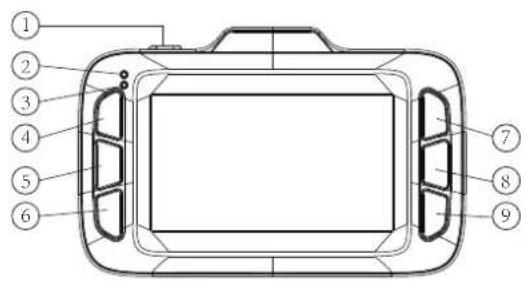
text_image
Technical diagram of a device rear panel with numbered components for identification
text_image
Technical diagram of a device with numbered components, likely an electronic device or fan assembly.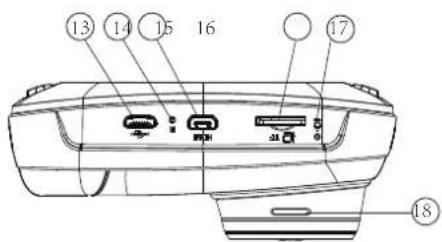
text_image
Technical diagram of a device rear panel with numbered labels pointing to ports and connectors- Power Button
- Charging Indicator
- Recording Indicator
4.UP/Volume Key
5.OK:Confirm Button - Down/Sound record button
- MENU: Menu/Return
8.MUTE: Mute
9.MODE: Mode/Photo taking - Radar Guided Panel
11.Lens - Chargeable GPS holder contact
- USB Slot
- Reset Button
15.HD-Port
16.microSD Slot
17.MIC
18.Speaker
2. Getting started
Insert a micro SD card
Before starting video recording, please insert a micro SD card (not included) into the slot until it locks in place.
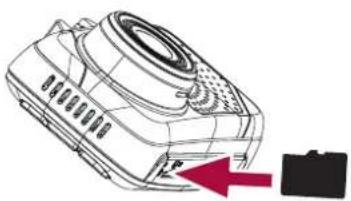
natural_image
Diagram of a projector with a black case and red arrow indicating direction (no text or symbols)
The device will automatically recognize it as default storage and all the data will besaved on this card.
Install suction mount

text_image
Diagram showing three steps of a device installation or assembly process, with numbered annotations indicating sequence.- Follow the arrow pointing direction to insert the suction mount and lock the device into its holder.
- Remove the protection paper from the suction mount, and position the device on the clean windshield or dashboard.
Charge the battery
Before using the device for the first time, please fully charge the Li-ion battery. The battery will be completely charged in 1-2 hours.
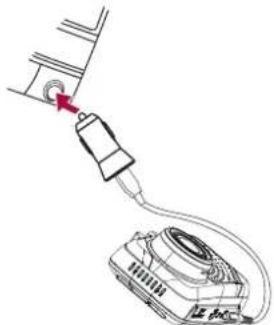
natural_image
Diagram showing a device connected to a cable with a red arrow indicating a connection point (no text or symbols present)- Using the car charger: charge the device through cigarette lighter. The device will start charging after the car engine is turned on.
- Using micro USB cable:connect the device to AC 5V adapter or the USB port of a computer/laptop.
3. Settings
Before recording, you can set up the device according to your requirements.
Radar Settings
In recording mode press [MENU] to switch to radar setting menu.
Radar mode: Select the radar mode: Highway, City1, City2, Auto
Highway Speed Limit: Select 10-160km/h or cancel limit
City1 Speed Limit: Select 10-160km/h or cancel limit
City2 Speed Limit: Select 10-160km/h or cancel limit
Automute: on/off
X band: on/off
K band: on/off
Laser: on/off
Strelka: on/off
Radar mute speed: Set the maximum speed. After driving over that limit, the device will alert with the sign on display and without sound.
Radar off speed: Set the maximum speed. After driving over that limit, the device will not alert.
Radar Warning: Off/Voice/Dec. Voice – the device alerts with icon and voice. Dee – the device alerts with icon and beep sound. Off – the device will not alert. By default is “Voice” mode.
GPS-informer Settings
In Radar mode press [MENU] to switch to GPS-informer setting menu.
Alarm warning: voice/dee. Voice – the device alerts with icon and voice. Dee – the device alerts with icon and beep sound.
GPS Speed Display: on/off
Overspeed: Set the maximum overspeed. Select 10-40km/h or off.
Maximal speed control: Select 10\~160km/h.
Distance to the speedcam: Select the distance to the speedcam 400-1000m or auto.
Delete All POI: yes/no, Please note that all coordinates settled manually will be also deleted.
Video Settings
In GPS-informer mode press [MENU] to switch to Video setting menu.
Video Resolution: Select the resolution of recorded video: 2560×1080 30P, 2304×1296 30P, 1920×1080 30P, 1280×720 60P, 1280×720 30P
Video Recycle: Set the video duration (1, 3, 5, 20 minutes or off) for loop recording. When the micro SD card is full, the device will delete the oldest unlocked video files automatically.
WDR: on/off
WB: Select the Auto; Sunny; Cloudy; Fluorescent1; Incandescent. Select an appropriate white balance, so images have a true-to-life color range. It is for specific lighting situations.
AE bias: Exposure Parameters Setting, adjusting Brightness, select from -2.0EV、
-1.7EV-1.3EV、-1.0EV、-0.7EV、-0.3EV、0.0EV、+0.3EV、+0.7EV、+1.0EV、
+1.3EV+1.7EV+2.0EV. Set exposure value to determine how much light the camera's sensor receives. For lowlight situations, use a higher exposure.
AE Meter: Metering Mode Setting - select from Spot ;Center; Average.
Motion Detection: Turn on or off motion detection. If there is any motion detected while car DVR has power but not recording, your car DVR will start recording automatically.
Microphone: on/off. Set to record sound or not.
Date/Time Stamp: Select watermark for Date; Time; Driver ID; Coordinates; Speed; Azimuth
Plate Stamp: off/enter plate. Stamp the car plate numbers into the videos.
Time lapse: Select off, 1sec, 5sec, 10sec, 30sec
General Settings
Language: Choose your language
Time Setup: Set time on device
Time Zone: Set the time zone on device
Auto sync time: on/off
Auto power off: Set automatic power off when the device is not in use: 5min, 3min, 1min or off
Volume: Select 1-7 or off
Anti-flicker: Select auto, 50Hz, 60Hz
G-sensor setting: Select Off; Low; Medium; High. Select the sensitivity of the G-sensor. The smaller the number is, the higher the sensitivity is. When reaching the sensitive value (such as collision), the recording file will be automatically protected.
Driver time warning: Select Off; 1hour; 2hours; 3hours; 4hours
Auto backlight off: Select Off; 30sec.; 1min.; 3min.; 5min.
Card Volume: Select Total, Used, Remaining
Delay Power Off: Select Off; 10sec.; 20sec.; 30sec.; 1min.; 3min
Image rotation: on/off
Front vehicle moving system: on/off. Alerting the driver to movement detected in front of the car.
Low light warning system: on/off. The function warns you when it detects low light.
Format: format SD card
Default Setting: on/off
Version: Software version
Playback Settings
In general setting mode press [MENU] to switch to replay setting menu.
Recycle Video: Press OK to play video. Press [MENU] to delete file.
Emergency Video: Emergency recording videos, under replay mode, press MENU button to open and delete file.
4. Recording
Record a video
Auto video recording
Connect the device to car charger, when the car engine launches, the device will automatically turn on and start loop video recording. When shut off the car engine, the device will save the last file and turnoff.
Manual video recording
Press [OK] button to start and stop videorecording.
Record the sound
In recording mode, press [MUTE] to record or not the sound.
5. File management
Browse files
- In video preview mode, press [MENU] 5 times to enter the playbackmode.
- Press [OK] to play the videos.
- Press [▲] / [▼] to scroll through the files.
Delete a file
In playback mode, press [MENU] button to open 'Delete file', select to delete this file or all files.
4
6. Playback
Play video on DVR
- In video preview mode, press [MENU] 5 times to enter the playbackmode.
- Press [OK] to start/Pause playback.
- Press [MENU] again to exit playbackmode.
Playback on PC
-
Remove memory card from DVR and insert it into computer's cardreader. (DVR's USB port data transmission OFF: for charging purpose only)
-
Connect DVR to PC ( DVR's USB port data transmission ON: for charging and data transmission )

There are two versions for DVR's port, please choose a method according real function
Playback on GPS video player
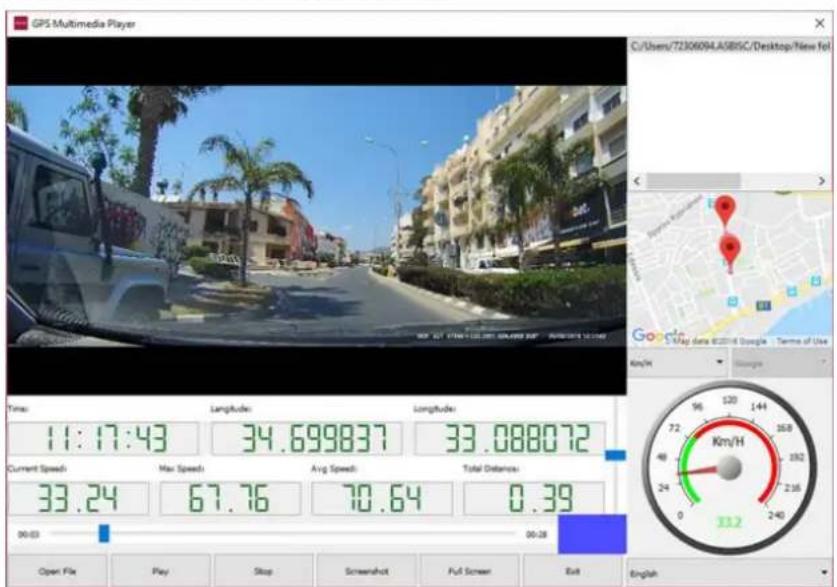
- Install the "Player.exe" stored on
http://www.prestigio.ru/catalogue/DVRs/RoadScanner_700GPS#/product-support/software
2.. Connect the car DVR to the PC by the included micro USB cable
3.. Open the player, select the file and start playback. It will show your video and tracks.
text_image
GPS Multimedia Player C:\Users\7230694.A5BISC/Desktop\New.fol Time: 11:17:43 Current Speed: 33.24 00:03 Longitude: 34.699837 Max Speed: 67.76 Longitude: 33.088072 Avg Speed: 70.64 Total Distance: 0.39 Km/H Open File Play Stop Screenshot Full Screen Exit English
- choose your language
- choose speed units
- choose map
- track location via map or coordinates
- see the speed and time
To update POI (speedcam) database
Download database and isnstruction: http://www.prestigio.com/catalogue/DVRs/RoadScanner_700GPS#/product-support/firmware
7. Specifications
7
| Display | 2.7" |
| Solution | Ambarella A7LA50 |
| Image Sensor | OV4689 |
| Viewing Angle | 170° |
| Video Resolution | 2560×1080@30fps, 2304×1296@30fps1920×1080@45fps, 1280×720@60fps1920×1080@30fps, 1920×1080@30fps HDR1280×720@30fps, 1280×720@30fps HDR |
| Video Format | MP4 |
| Picture Format | JPEG |
| Memory | Micro SD/SDHC up to 128 GB (class 10) |
| Microphone | Built-in |
| Motion Detection | Yes |
| GPS | Yes |
| G-sensor | Yes |
| Power Source | Built-in battery 250 mAh, car charger |
| Interface | Micro USB 2.0, HD-port |
| Operating Temperature | 0°C - 50°C |
| Dimension | 61×95×38mm (H×W×D) |
| Weight | 111g |
| Bands | X-BAND (10.525GHz, ±100m), K-BAND(23.3 to 24.4GHz), LASER (904 NM),CT BAND (24.150+-0.1GHz) |