EXPF5C-1 - Security Camera Moog - Free user manual and instructions
Find the device manual for free EXPF5C-1 Moog in PDF.


User questions about EXPF5C-1 Moog
0 question about this device. Answer the ones you know or ask your own.
Ask a new question about this device
Download the instructions for your Security Camera in PDF format for free! Find your manual EXPF5C-1 - Moog and take your electronic device back in hand. On this page are published all the documents necessary for the use of your device. EXPF5C-1 by Moog.
USER MANUAL EXPF5C-1 Moog
EXO Fixed HD Camera System
High Definition Camera Systems for Harsh Environments
EXVF5C-1....720P, 12x optical zoom, Vandal resistant with wall / pole mount
EXPF5C-1....720P, 12x optical zoom, Pressurized with wall / pole mount
EXVF5C-2....1080P, 10x optical zoom, Vandal resistant with wall / pole mount
EXPF5C-2.....1080P, 10x optical zoom, Pressurized with wall / pole mount
natural_image
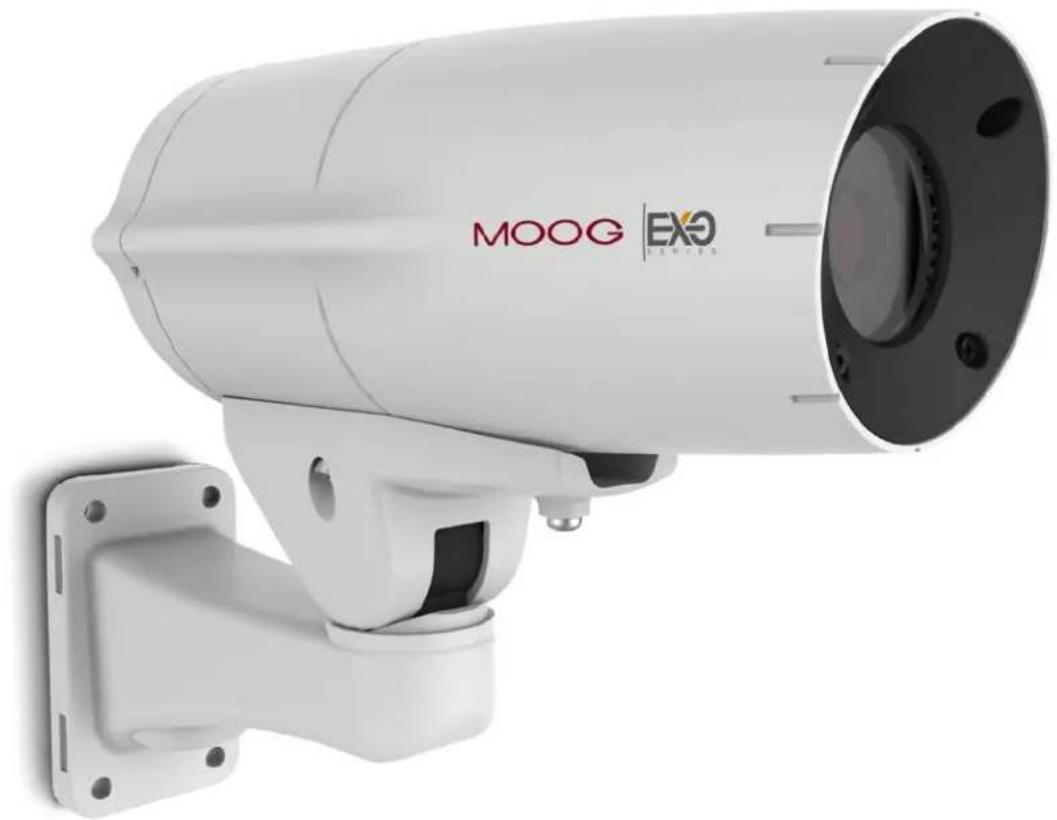
Exterior view of a white MOOG EXO security camera mounted on a wall (no text or symbols visible on the device itself)IMPORTANT SAFEGUARDS SAFETY PRECAUTI
1 Read these instructions.
2 Keep these instructions.
3 Heed all warnings
4 Follow all instructions.
5 Do not use this apparatus near water.
6 Clean only with damp cloth.
7 Do not block any of the ventilation openings. Install in accordance with the manufacturers instructions.
8 Cable Runs- All cable runs must be within permissible distance.
9 Mounting - This unit must be properly and securely mounted to a supporting structure capable of sustaining the weight of the unit.
Accordingly:
a. This installation should be made by a qualified service person and should conform to all local codes.
b. Care should be exercised to select suitable hardware to install the unit, taking into account both the composition of the mounting surface and the weight of the unit.
10 Do not install near any heat sources such as radiators, heat registers, stoves, or other apparatus (including amplifiers) that produce heat.
11 Do not defeat the safety purpose of the polarized or grounding-type plug. A polarized plug has two blades with one wider than the other. A grounding type plug has two blades and a third grounding prong. The wide blade or the third prong are provided for your safety. When the provided plug does not fit into your outlet, consult an electrician for replacement of the obsolete outlet.
12 Protect the power cord from being walked on or pinched particularly at plugs, convenience receptacles, and the point where they exit from the apparatus.
13 Only use attachment/ accessories specified by the manufacturer.
14 Use only with a cart, stand, tripod, bracket, or table specified by the manufacturer, or sold with the apparatus. When a cart is used, use caution when moving the cart/ apparatus combination to avoid injury from tip-over.
15 Unplug this apparatus during lighting storms or when unused for long periods of time.
16 Refer all servicing to qualified service personnel. Servicing is required when the apparatus has been damaged in any way, such as power-supply cord or plug is damaged, liquid has been spilled of objects have fallen into the apparatus, the apparatus has been exposed to rain or moisture, does not operate normally, or has been dropped.
Be sure to periodically examine the unit and the supporting structure to make sure that the integrity of the installation is intact. Failure to comply with the foregoing could result in the unit separating from the support structure and falling, with resultant damages or injury to anyone or anything struck by the falling unit.
UNPACKING
Unpack carefully. Electronic components can be damaged if improperly handled or dropped. If an item appears to have been damaged in shipment, replace it properly in its carton and notify the shipper.
Be sure to save:
1 The shipping carton and packaging material. They are the safest material in which to make future shipments of the equipment.
2 These Installation and Operating Instructions.
SERVICE
If technical support or service is needed, contact us at the following number:
TECHNICAL SUPPORT
AVAILABLE 24 HOURS
1 - 800 - 554 - 1124

text_image
CAUTION RISK OF ELECTRIC SHOCK DO NOT OPEN CAUTION: TO REDUCE THE RISK OF ELECTRIC SHOCK, DO NOT REMOVE COVER ( OR BACK). NO USER- SERVICE- ABLE PARTS INSIDE. REFER SEVICING TO QUALIFIED SERVICE PERSONNEL.
The lightning flash with an arrowhead symbol, within an equilateral triangle, is intended to alert the user to the presence of non-insulated “dangerous voltage” within the product’s enclosure that may be of sufficient magnitude to constitute a risk to persons.
The exclamation point within an equilateral triangle is intended to alert the user to presence of important operating and maintenance (servicing) instructions in the literature accompanying the appliance.
Product Warranty Registration
Register Your Products Online
www.moogS3.com/technical-support/product-registration
Moog values your patronage. We are solely committed to providing you with the highest quality products and superior customer service. With 3-Year and 5-Year warranties (depending on the product purchased) we stand behind every product we sell.
See full warranty details at www.moogS3.com/technical-support/warranty-plan/
Register your products today to receive the following benefits:
- Simple and Trouble-Free RMA process
• Product / software updates - Special promotions
- Eliminate the need to archive purchase documents such as receipts, purchase orders, etc.
Limited Warranty for Moog Products
Moog - Decatur Operations, subsequently referred to as "Manufacturer," warrants these products to be free from defects in material or workmanship as follows:
| PRODUCT CATEGORY PARTS \ LABOR | |
| All Enclosures and Electronics Five (5) Years | |
| Accessory Brackets Five (5) Years | |
| Controllers Three (3) Years | |
| Power Supplies / IR Illuminators Three (3) Years | |
| Poles / PolEvatorsTM / CamEvator Three (3) Years | |
| Warrior SeriesTM / Q-ViewTM | Three (3) Years |
| SView SeriesTM | Three (3) Years 6 months if used in auto scan / tour operation |
| DeputyDomeTM, NiteTracTM, Igloo Dome, PurgeDomeTM | Three (3) Years 6 months if used in auto scan / tour operation |
| EXO SeriesTM Dome and Fixed Camera Systems* Three (3) Years 6 months if used in auto scan / tour operation | |
| EXO SeriesTM GeminEye Visible and Thermal Camera Systems One (1) Year | |
During the labor warranty period, to repair the Product, Purchaser will either return the defective product, freight prepaid, or deliver it to Manufacturer at Moog Decatur Operations, 2525 Park Central Boulevard, Decatur, Georgia, 30035. The Product to be repaired is to be returned in either its original carton or a similar package affording an equal degree of protection with a RMA # (Return Materials Authorization number) displayed on the outer box or packing slip. To obtain a RMA# you must contact our Technical Support Team at 800.554.1124, extension 101. Manufacturer will return the repaired product freight prepaid to Purchaser. Manufacturer is not obligated to provide Purchaser with a substitute unit during the warranty period or at any time. After the applicable warranty period, Purchaser must pay all labor and/or parts charges. The limited warranty stated in these product instructions is subject to all of the following terms and conditions.
TERMS AND CONDITIONS
- NOTIFICATION OF CLAIMS: WARRANTY SERVICE: If Purchaser believes that the Product is defective in material or workmanship, then written notice with an explanation of the claim shall be given promptly by Purchaser to Manufacturer. All claims for warranty service must be made within the warranty period. If after investigation, Manufacturer determines the reported problem was not covered by the warranty, Purchaser shall pay Manufacturer for the cost of investigating the problem at its then prevailing per incident billable rate. No repair or replacement of any Product or part thereof shall extend the warranty period of the entire Product. The specific warranty on the repaired part only shall be in effect for a period of ninety (90) days following the repair or replacement of that part or the remaining period of the Product parts warranty, whichever is greater.
- EXCLUSIVE REMEDY: ACCEPTANCE: Purchaser's exclusive remedy and Manufacturer's sole obligation is to supply (or pay for) all labor necessary to repair any Product found to be defective within the warranty period and to supply, at no extra charge, new or rebuilt replacements for defective parts.
- EXCEPTIONS TO LIMITED WARRANTY: Manufacturer shall have no liability or obligation to Purchaser with respect to any Product requiring service during the warranty period which is subjected to any of the following: abuse, improper use, negligence, accident, or acts of God (i.e., hurricanes, earthquakes), modification, failure of the end-user to follow the directions outlined in the product instructions, failure of the end-user to follow the maintenance procedures recommended by the International Security Industry Organization, written in product instructions, or recommended in the service manual for the Product. Furthermore, Manufacturer shall have no liability where a schedule is specified for regular replacement or maintenance or cleaning of certain parts (based on usage) and the end-user has failed to follow such schedule; attempted repair by non-qualified personnel; operation of the Product outside of the published environmental and electrical parameters, or if such Product's original identification (trademark, serial number) markings have been defaced, altered, or removed. Manufacturer excludes from warranty coverage Products sold AS IS and/or WITH ALL FAULTS and excludes used Products which have not been sold by Manufacturer to the Purchaser. All software and accompanying documentation furnished with, or as part of the Product is furnished "AS IS" (i.e., without any warranty of any kind), except where expressly provided otherwise in any documentation or license agreement furnished with the Product. ANY COST ASSOCIATED WITH REMOVAL OF DEFECTIVE PRODUCT AND INSTALLATION OF REPLACEMENT PRODUCT IS NOT INCLUDED IN THIS WARRANTY.
- PROOF OF PURCHASE: The Purchaser's dated bill of sale must be retained as evidence of the date of purchase and to establish warranty eligibility.
DISCLAIMER OF WARRANTY
EXCEPT FOR THE FOREGOING WARRANTIES, MANUFACTURER HEREBY DISCLAIMS AND EXCLUDES ALL OTHER WARRANTIES, EXPRESS OR IMPLIED, INCLUDING, BUT NOT LIMITED TO ANY AND/OR ALL IMPLIED WARRANTIES OF MERCHANTABILITY, FITNESS FOR A PARTICULAR PURPOSE AND/OR ANY WARRANTY WITH REGARD TO ANY CLAIM OF INFRINGEMENT THAT MAY BE PROVIDED IN SECTION 2-312(3) OF THE UNIFORM COMMERCIAL CODE AND/OR IN ANY OTHER COMPARABLE STATE STATUTE. MANUFACTURER HEREBY DISCLAIMS ANY REPRESENTATIONS OR WARRANTY THAT THE PRODUCT IS COMPATIBLE WITH ANY COMBINATION OF NON-MANUFACTURER PRODUCTS OR NON-MANUFACTURER RECOMMENDED PRODUCTS PURCHASER MAY CHOOSE TO CONNECT TO THE PRODUCT.
LIMITATION OF LIABILITY
THE LIABILITY OF Manufacturer, IF ANY, AND PURCHASER'S SOLE AND EXCLUSIVE REMEDY FOR DAMAGES FOR ANY CLAIM OF ANY KIND WHATSOEVER, REGARDLESS OF THE LEGAL THEORY AND WHETHER ARISING IN TORT OR CONTRACT, SHALL NOT BE GREATER THAN THE ACTUAL PURCHASE PRICE OF THE PRODUCT WITH RESPECT TO WHICH SUCH CLAIM IS MADE. IN NO EVENT SHALL MANUFACTURER BE LIABLE TO PURCHASER FOR ANY SPECIAL, INDIRECT, INCIDENTAL, OR CONSEQUENTIAL DAMAGES OF ANY KIND INCLUDING, BUT NOT LIMITED TO, COMPENSATION, REPLACEMENT LABOR COSTS, REIMBURSEMENT, OR DAMAGES ON ACCOUNT OF THE LOSS OF PRESENT OR PROSPECTIVE PROFITS OR FOR ANY OTHER REASON WHATSOEVER.
Electrical Specifications
EXO Fixed

English
Power Input:
- 24VAC model 30W max. (with heater)
- PoE IEEE 802.3-AT
- 12VDC model 18W max. (with heater)
The Fixed EXO HD Camera System is designed to accept (3) different power inputs. They are:
1). PoE - (Factory Ready - EX*F5C-1 models)
2). 24 Volt AC - (Factory Ready - EX*F5C-1 models)
3). 12 Volt DC - (Factory Ready - EX*F5C12-1 models)
PoE Midspan Sold Separately: MS30WA
30 W midspan, 802.3at compliant, 100-240Vac Input, 3 prong power plug.

Español
Entrada de energía:
natural_image
Technical line drawing of a cylindrical mechanical component with flanges and mounting holes (no text or symbols)Main Camera

natural_image
Technical line drawing of a mechanical bracket component (no text or symbols)Wall Mount (mount varies based on application)
natural_image
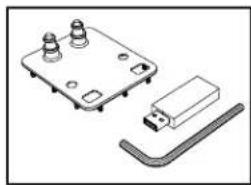
Technical illustration of a mechanical component with three pins and a USB port (no text or symbols)Hardware Packet:
Mount Gasket Screws
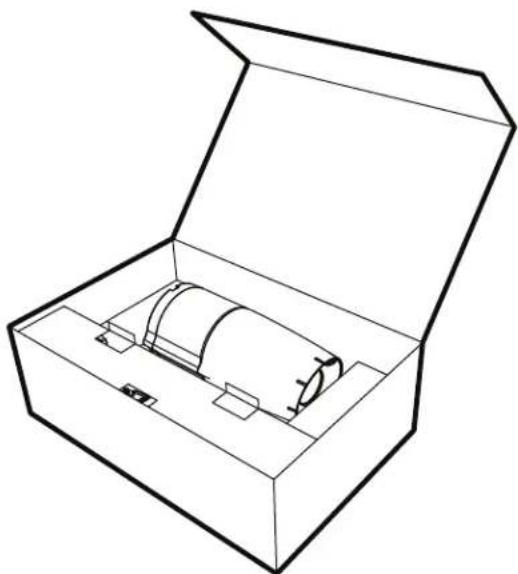
natural_image
Line drawing of an open box containing a cylindrical object with internal components (no text or symbols)
Proper Assembly of Mounting Bracket
EXO Fixed

text_image
Wiring Access Holes: Must be rear facing Base MountCAUTION: When assembling the mounting bracket, make sure all the wiring access holes are facing towards the rear of the base mount.
- PRECAUCIÓN: Al montar la consola de montaje, cerciórese de que todos los agujeros de acceso del cableado son revestimiento hacia la parte posterior del portal bajo del acceso de los montaje.
- ATTENTION : En assemblant le support, assurez-vous que toutes les ouvertures d'accès de câblage sont revêtement vers l'arrière du portail bas d'accès de bâtis.
- VORSICHT: Wenn Sie die Schienenplatte zusammenbauen, stellen Sie sicher, dass alle VerdrahtungsZugangslöcher Einfassung in Richtung zur Rückseite des niedrigen Einfassungszugangsportals sind.
- CUIDADO: Ao montar o suporte, certifique-se que todos os furos de acesso da fiação são revestimento para a parte traseira do portal baixo do acesso das montagens.
- ATTENZIONE: Nel montare il montaggio - la staffa, si assicura che tutti i fori di accesso dei collegamenti siano rivestimento verso la parte posteriore del portale basso di accesso dei supporti.
1
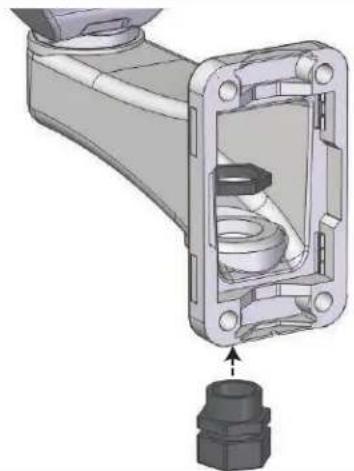
natural_image
Mechanical assembly diagram showing a housing component with internal tubing and a connector (no text or symbols)If running wire through a conduit to the housing mount, first install appropriate fittings to the mount base.
- Si se ejecuta a través de un cable de conducto a la carcasa de montaje, primero instale los accesorios adecuados para la base de montaje.
- Si vous utilisez le câble dans un conduit à la monture logement, installez d'abord raccords appropriés à la base de monture.
- Wenn Laufen Draht über eine Leitung mit dem Gehäuse montieren, installieren Sie zuerst geeignete Armaturen an der Halterung Basis.
- Se você estiver executando fio através de um canal para a montagem de habitação, primeiro instale acessórios apropriados à base de montagem.
- Se l'esecuzione del filo attraverso un condotto al monte degli alloggi, prima installare raccordi appropriati per la base di montaggio.
2

natural_image
Technical illustration of a mechanical assembly with bolts and housing (no text or symbols)Attach mount to wall with suitable hardware (not provided).
- Ate el montaje a la pared con el hardware conveniente (no proporcionado).
- Attachez le bâti au mur avec le matériel approprié (non fourni).
- Bringen Sie Einfassung zur Wand mit der verwendbaren Hardware an (nicht bereitgestellt).
- Una a montagem à parede com a ferragem apropriada (não fornecida).
- Attacchi il supporto alla parete con fissaggi adatti (non forniti).
POLE MOUNTING
3
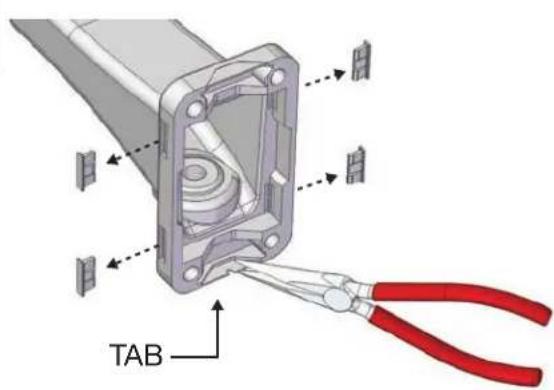
text_image
TABIf attaching to pole, first break away tabs with pliers and remove (4) strap plugs.
- Si atan al poste, el primeros rompen lejos lengüetas con los alicates y quitan (4) los enchufes de la correa.
- Si attachant au poteau, les premiers cassent loin des étiquettes avec des pinces et enlèvent (4) des prises de courrole.
- Bei der Befestigung zum Pfosten, brechen erste weg Vorsprünge mit Zangen und entfernen (4) Bügelstecker.
- Se unindo ao pólo, o primeiros quebram afastado abas com alicates e removem (4) plugues da cinta.
- Se attaccando al palo, i primi rompono via le linguette con le pinze e rimuovono (4) la cinghia tappa.
4

natural_image
3D mechanical assembly diagram showing a bracket and housing components (no text or symbols)Thread straps (not provided) through the mount as shown.
- Pase las correas (no incluidos) a través del soporte como se muestra.
- Sangles de la discussion (non fournies) dans le support comme indiqué.
- Themen-Riemen (nicht mitgeliefert) durch die Halterung wie gezeigt.
- Correias do Tópico (não fornecidos) através da montagem imediata.
• Cinghie di discussione (non in dotazione) attraverso il supporto come illustrato.
Pole or Wall Mount (Use Steel Straps to Mount to Pole)
5

text_image
Gasket Nipples CablePierce the gasket nipples (as needed). Place the gasket as shown. Pass wires without connectors thru gasket and nipples.
- Alimente el cable a través del soporte, perforre las entrerroscas de la junta (según lo necesitado). Coloque la junta como se muestra.
- Alimentez le câble par la parenthèse, percez les mamelons de garniture (comme nécessaire). Placez la garniture comme montrée.
- Ziehen Sie Kabel durch Haltewinkel ein, durchbohren Sie die Dichtungsnippel (wie gebraucht). Setzen Sie die Dichtung wie gezeigt.
- Alimente o cabo através do suporte, perfure os bocais da gaxeta (como necessário). Coloc a gaxeta como mostrada.
- Alimenti il cavo tramite la staffa, perfori gli ugelli della guarnizione (come stato necessario). Disponga la guarnizione come indicata.
6
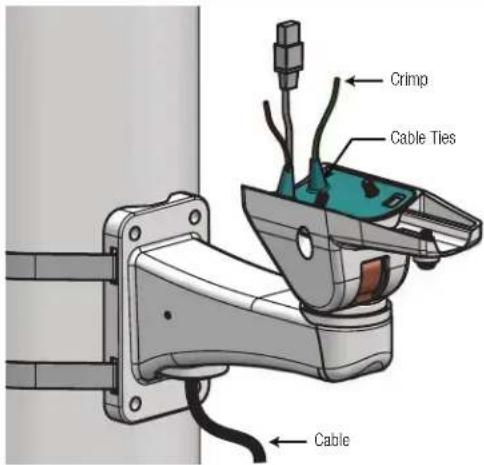
text_image
Crimp Cable Ties CableCrimp the connectors as needed. Then use cable ties on the nipples to secure, leave an extra 2" of cable.
- Crimp los conectores según sea necesario. A continuación, utilice bridas para cables en los pezones para asegurar, deje un 2 extra "del cable.
- Sertir les connecteurs si nécessaire. Ensuite, utiliser des attaches câbles sur les mamelons pour sécuriser, laisser un 2 supplémentaire "de câble.
- Crimp die Anschlüsse je nach Bedarf. Dann nutzen Sie Kabelbindern an den Brustwarzen zu sichern, lassen einen zusätzlichen 2 "Kabel.
- Cravar os conectores conforme necessário. Em seguida, use abraçadeiras nos mamilos para garantir, deixe um 2 extra "de cabo.
- Crimpare i connettori se necessario. Quindi utilizzare fascette sui capezzoli per fissare, lasciare un 2 in più "di cavo.
7

natural_image
3D rendering of a surveillance camera with exposed internal components and cable connections (no text or symbols)Place the camera on the bracket, carefully feed the wires and connectors through the housing and into the rear cavity. Use the provided captive screws and the 5mm Allen key (included) to mount.
Coloca la carcasa en el soporte, se alimentan cuicadosamente los cables y conectores a través del alojamiento y dentro de la cavidad trasera. Use los tomillos suministrados y la llave Allen de 5 mm (incluido) para montar.
- Placer le boîtier sur le support, nourrir soigneusement les câbles et les connecteurs à travers le boîtier et dans la cavité arrière. Utilisez les vis imperdables fournies et la clé Allen de 5mm (inclus) pour monter.
- Legen Sie das Gehäuse auf der Konsole, es vorsichtig die Kabel und Stecker durch das Gehäuse und in den hinteren Hohiraum. Verwenden Sie die mitgelieferten unverlierbaren Schrauben und die 5mm Inbusschlüssel (im Lieferumfang) zu monteren.
- Colocar a caixa do suporte, com cuidado alimentar os fios e ligações através do invólucro e para dentro da cavidade traseira. Use os parafusos fornecidos ea chave Allen de 5 mm (incluído) para montar.
- Posizionare la custodia sulla staffa, fare avanzare i cavi e connettori attraverso l'alloggiamento e nella cavità posteriore. Utilizzare le viti fornite e la chiave Allen da 5 mm (in dotazione) per montare.
8
FACING REAR OF CAMERA

text_image
STEP 1 (B- Completely loosen) STEP 2 (A- Slightly loosen) (B) DETAIL M DATA DETAIL N RJ45 / PoE Input Alarm IN 1 POWER *(Shipped from factory for 24Vac input. For 12Vdc input; see 12Vdc ADDENDUM section) Alarm IN 2 (A) Detail M Detail N* Speaker Audio Ground Mic Ground Negative DC (-) AC (NEU) Positive DC (+) AC (Live)Make all final connections in the rear cavity. To do so, rotate the rear cover by slightly loosing the screw marked (A) and completely loosing the screw marked (B). Then make all of the nessecary wiring connections.
Thoroughly loosen the (2) captive screws (shown in DETAIL A) with provided 5mm Allen Key (included) to remove the front part of the camera system.
- Completamente afloje los dos (2) tornillos (que se muestra en detalle A) con la llave Allen de 5 mm suministrado (incluido) para quitar la parte frontal del sistema de cámaras.
- Complètement desserrer l'(2) vis Imperdables (représenté en détail A) avec fourni 5mm Clé Allen (Inclus) pour retirer la partie avant du système de caméra.
- Gründlich lockem die (2) unverlierbaren Schrauben (Im Detall gezeigt A) versehen mit 5mm Inbusschlüssel (im Lieferumfang enthalten), um den vorderen Teil des Kamera-System zu entfernen.
- Completamente soitar a (2) parafusos (mostrados em detalhe A) fornecido com cinco milímetros Chave Allen (incluido) para remover a parte da frente do sistema de câmera.
- Accuratamente allentare la (2) viti di fissaggio (mostrato in dettaglio A) fornito con 5 millimetri chiave a brugola (inclusa) per rimuovere la parte anteriore del sistema di telecamere.
B

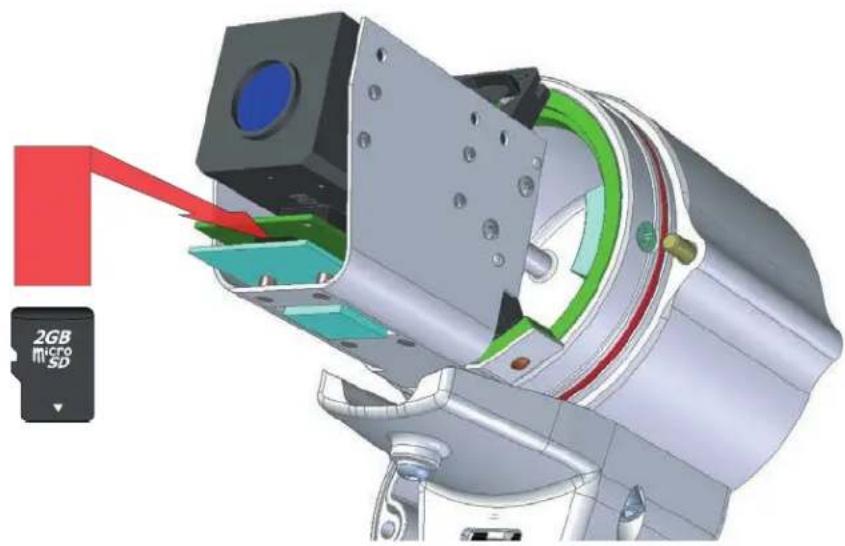
To Access the Micro SD Card Slot:
FIRST: MAKE SURE UNIT IS POWERED OFF COMPLETELY
natural_image
3D mechanical assembly diagram showing a device with a red arrow pointing to a microSD card labeled '2GB' (no text or symbols on the diagram itself)The micro SD card slot is found at the front of the camera, just under the camera on the lower board.
- Inserte la tarjeta SD.
- Insérez la carte SD.
- Legen Sie die SD-Karte.
- Insira o cartão SD.
- Inserire la scheda SD.
Recommended micro SD card sizes
MIN: 2GB
MAX: 32GB
* Recommended Class 10 rated card
natural_image
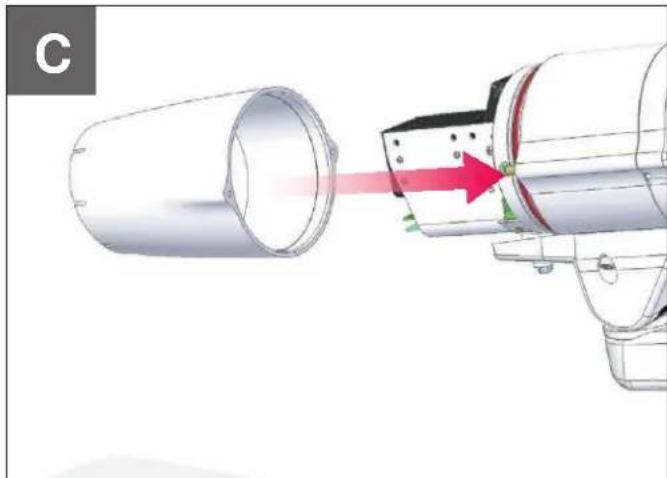
Diagram of a mechanical device emitting a red light beam into a cylindrical component (no text or symbols visible)Reinstall front of enclosure and tighten the (2) screws from step 9A.
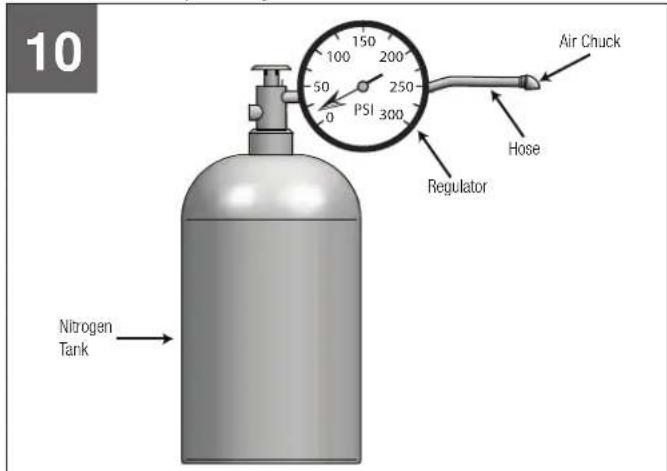
Pressurize the Unit (NOT required for the Non-Pressurized Vandal Unit)
text_image
10 Air Chuck Hose Regulator PSI 300 150 200 100 50 0 Nitrogen TankWhen pressurizing unit be sure to set the gauge or regulator slightly above the housing pressure target of 5-7psi (0.35-0.5bar).
- Al presurizar la unidad esté seguro de fijar el calibrador o el regulador levemente sobre la blanco de la presión de la cubierta de 5-7psi (0.35-0.5bar).
- En pressurisant l'unité soyez sûr de placer la mesure ou le régulateur légèrement au-dessus de la cible de pression de logement de 5-7psi (0.35-0.5bar).
- Wenn Sie Maßeinheit unter Druck setzen, seien Sie sicher, die Lehre oder den Regler über das Gehäusedruckziel von 5-7psi (0.35-0.5bar) etwas einzustellen.
- Ao pressurizar a unidade seja certo ajustar ligeiramente o calibre ou o regulador acima do alvo da pressão da carcaça de 5-7psi (0,35-0,5bar).
- Nel pressurizzare l'unità sia sicuro regolare un po'il calibro o il regolatore sopra l'obiettivo di pressione dell'alloggiamento di 5-7 psi (0.35-0.5bar).
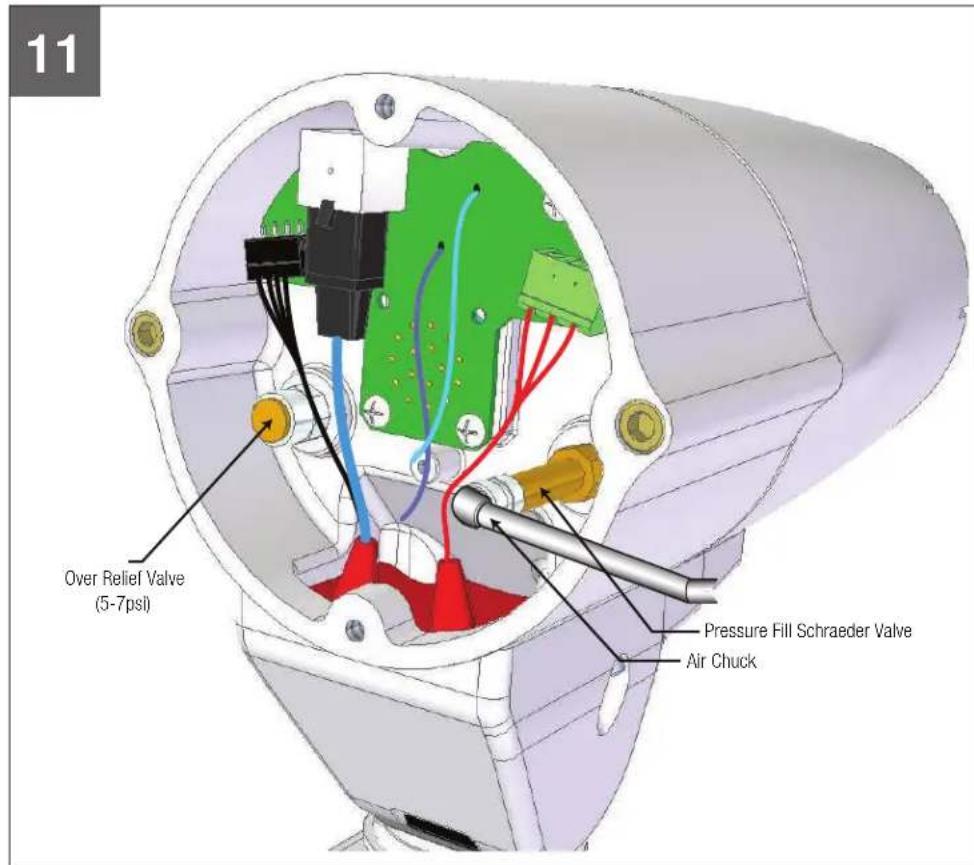
Pressurize the Unit Cont.
text_image
11 Over Relief Valve (5-7psi) Pressure Fill Schraeder Valve Air ChuckPlace the air chuck on the fill valve and begin filling with inert gas such as nitrogen until pressure relief valve opens.
- Coloque la tirada del aire en la válvula del tanque y comience a llenar hasta que la válvula de descarga de presión se abra.
- Placez le mandrin d'air sur la valve de réservoir et commencez à remplir jusqu'à ce que la valve de décompression s'ouvre.
- Setzen Sie die Luftklemme auf das Behälterventil und fangen Sie an zu füllen, bis Druckablassventil sich öffnet.
- Coloc o mandril do ar na válvula do tanque e comece a encher-se até que a válvula de escape de pressão abra.
- Disponga il mandrino dell'aria sulla valvola del carro armato e cominci a riempire fino a che la valvola limitatrice della pressione non si apra.
12

text_image
12 Depress to Purge Pressure Fill Schraeder ValveDepress the fill valve. Drain all air from the housing and repeat 3 times to remove all moisture.
- Presione la válvula del terraplén. Salga todo el aire de la cubierta y de la repetición 3 veces de quitar toda la humedad.
- Enfoncez la valve de suffisance. Évacuez tout l'air le logement et la répétition 3 fois d'enlever toute l'humidité.
- Drücken Sie das Fülleventil nieder. Lassen Sie alle Luft aus dem Gehäuse und der Wiederholung 3mal, alle Feuchtigkeit zu entfernen ab.
- Comprima a válvula da suficiência. Saia todo o ar da carcaça e da repetição 3 vezes remover toda a umidade.
- Deprima la valvola del materiale di riempimento. Tolga tutta l'aria dall'alloggiamento e dalla ripetizione 3 volte rimuovere tutta l'umidità.
13
text_image
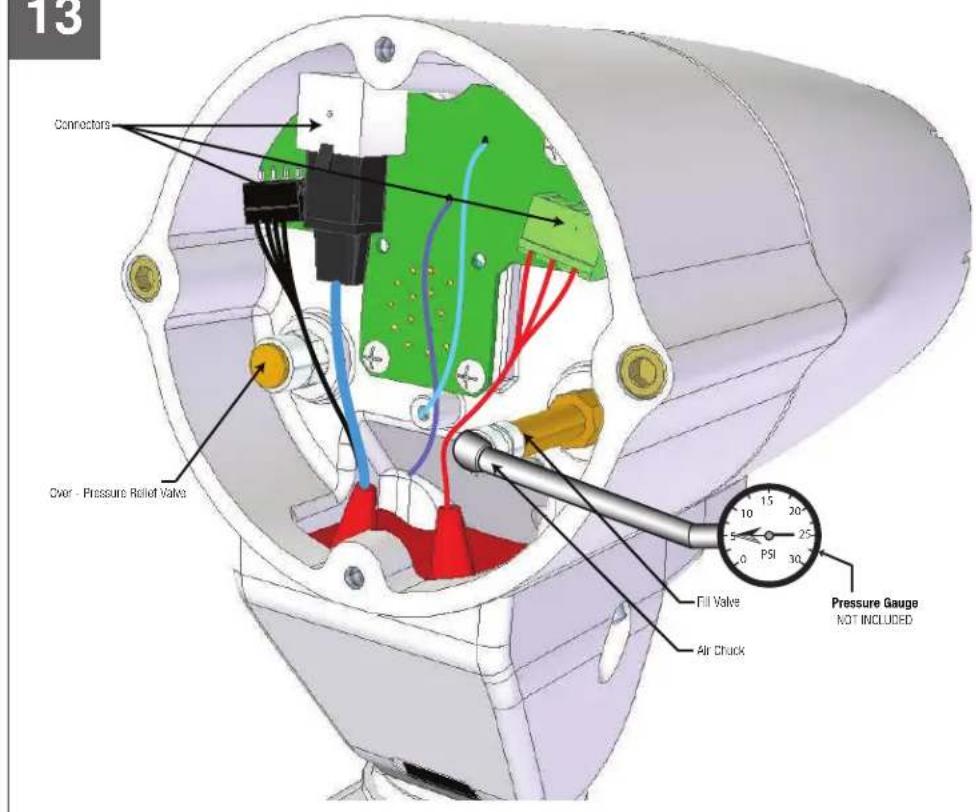
13 Connectors Over - Pressure Relief Valve Fill Valve Air Chuck Pressure Gauge NOT INCLUDEDAfter purging and refilling, check the housings pressure. It should be around 5-7psi (0.35-0.5bar).
- Después de purgar y de rellenar, compruebe la presión de las cubiertas. Debe estar alrededor de 5-7psi (0.35-0.5bar).
- Après la purge et le remplissage, vérifiez la pression de logements. Elle devrait être autour de 5-7psi (0.35-0.5bar).
- Nachdem Sie bereinigt haben und wieder gefüllt haben überprüfen Sie den Gehäusedruck. Er sollte um 5-7psi (0.35-0.5bar) sein.
- Após a remoção e o reenchimento, verific a pressão das carcaças. Deve ser em torno de 5-7psi (0.35-0.5bar).
- Dopo l'eliminazione dell'inceppo ed il riempimento, controlli la pressione degli alloggiamenti. Dovrebbe essere intorno a 5-7psi (0.35-0.5bar).
14
text_image
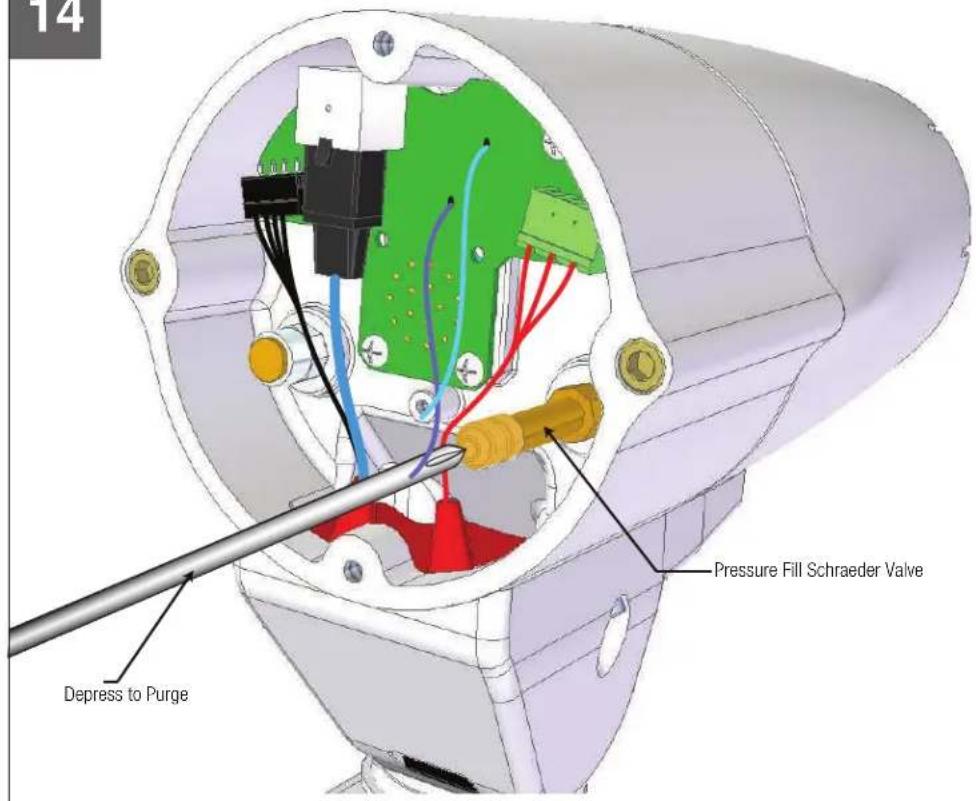
14 Depress to Purge Pressure Fill Schraeder ValveIf the pressure in housing is more than 5-7psi, drain the valve until you reach the specified level of 5-7psi.
- Si la presión en la vivienda es más que el 5-7 psi, la válvula de desagüe hasta que llegue al nivel especificado de 5-7 psi.
- Si la pression dans le logement est plus que 5-7 psi, vidanger le robinet jusqu'à ce que vous atteignez le niveau spécifié de 5-7 psi.
- Wenn der Druck im Gehäuse ist mehr als 5-7psi, lassen Sie das Ventil, bis Sie die angegebene Höhe der 5-7psi erreichen.
- Se a pressão na carcaça é mais do que 5 7psi, escorra a válvula até chegar ao nível especificado de 5-7psi.
- Se la pressione nel contenitore è superiore a 5-7psi, la valvola di scarico fino a raggiungere il livello specificato di 5-7psi.
Replacement Parts List
EXO Fixed HD Camera
text_image
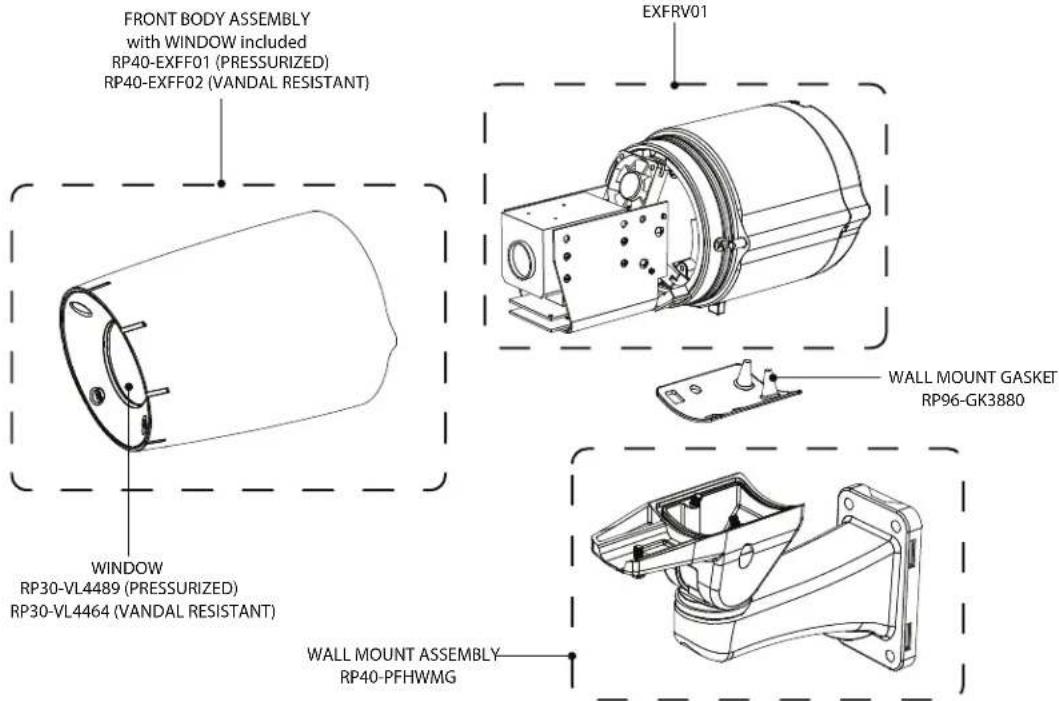
FRONT BODY ASSEMBLY with WINDOW included RP40-EXFF01 (PRESSURIZED) RP40-EXFF02 (VANDAL RESISTANT) EXFRV01 WINDOW RP30-VL4489 (PRESSURIZED) RP30-VL4464 (VANDAL RESISTANT) WALL MOUNT GASKET RP96-GK3880 WALL MOUNT ASSEMBLY RP40-PFHWMGPRODUCT SAFETY WARNING
Moog, Inc. Recommends the following addendum instruction be done by someone equipped with the correct tools and training. In addition to these instructions, a working knowledge of the disassembly/reassembly procedures is required. If the 12 volt DC input setting is not possible at your field location, please contact Moog for further assistance. Please read the entire instruction thoroughly before beginning the modification to allow for 12VDC.
WARNING
TURN OFF ANY POWER TO UNIT
PRIOR TO BEGINNING 12V DC PROCEDURE
A1
DETAIL A
FACING REAR OF ENCLOSURE
text_image
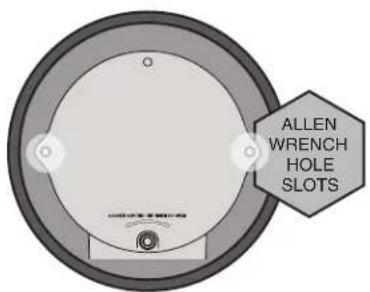
ALLEN WRENCH HOLE SLOTS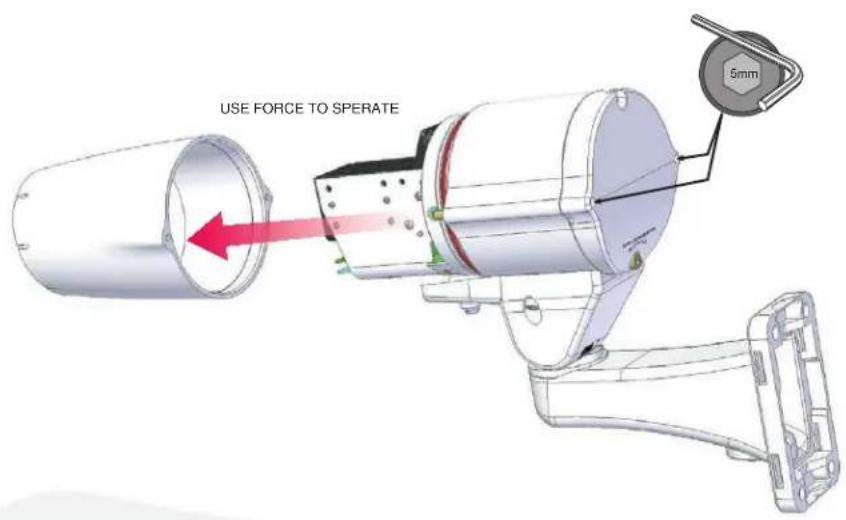
text_image
USE FORCE TO SPERATE 5mmThoroughly loosen the (2) captive screws (shown in DETAIL A) with provided 5mm Allen Key (included) to remove the front part of the camera system.
- Completamente afloje los dos (2) tornillos (que se muestra en detalle A) con la llave Allen de 5 mm suministrado (incluido) para quitar la parte frontal del sistema de cámaras.
- Complètement desserrer l'(2) vis imperdables (représenté en détail A) avec fourni 5mm Clé Allen (inclus) pour retirer la partie avant du système de caméra.
- Gründlich lockern die (2) unverlierbaren Schrauben (im Detail gezeigt A) versehen mit 5mm Inbusschlüssel (im Lieferumfang enthalten), um den vorderen Teil des Kamera-System zu entfernen.
- Completamente soltar a (2) parafusos (mostrados em detalhe A) fomecido com cinco millímetros Chave Allen (incluído) para remover a parte da frente do sistema de câmera.
- Accuratamente allentare la (2) viti di fissaggio (mostrato in dettaglio A) fornito con 5 millimetri chiave a brugola (inclusa) per rimuovere la parte anteriore del sistema di telecamere.
A2

natural_image
3D mechanical assembly diagram showing a cylindrical component with internal components and directional arrows (no text or symbols)Remove the (2) side screws. These are located directly in front of the O-Ring gasket.
- Quite los (2) tornillos laterales. Éstos están situados directamente enfrente de la junta tórica.
- Retirez les (2) vis latérales. Ils sont situés directement en face de la joint O-Ring.
- Entfemen Sie die (2) seitlichen Schrauben. Diese befinden sich direkt vor der O-Ring-Dichtung.
- Rimuovere le (2) viti laterali. Questi si trovano direttamente di fronte alla guamizione O-Ring.
- Retire os (2) parafusos laterais. Estes encontram-se directamente em frente da junta O-Ring.
A3

natural_image
Technical illustration of a mechanical device with red arrows indicating direction, showing internal components and a blue component (no text or symbols present)While holding the camera bracket securely, remove the (2) camera bracket ring nuts.
- Mientras sujeta el soporte de la cámara con seguridad, quite los dos (2) cámaras virolas soporte.
- Tout en maintenant le support de la caméra en toute sécurité, retirer les deux (2) Support de caméra bagues.
- Halten Sie die Kamera Halterung sicher, entfernen Sie die (2) Kameraschiene Ringmuttern.
- Enquanto segura o suporte da câmara de forma segura, retire os (2) Câmera suporte nozes anel.
- Mentre si tiene la staffa della telecamera in modo sicuro, togliere i (2) fotocamera ghiere staffa.
A4
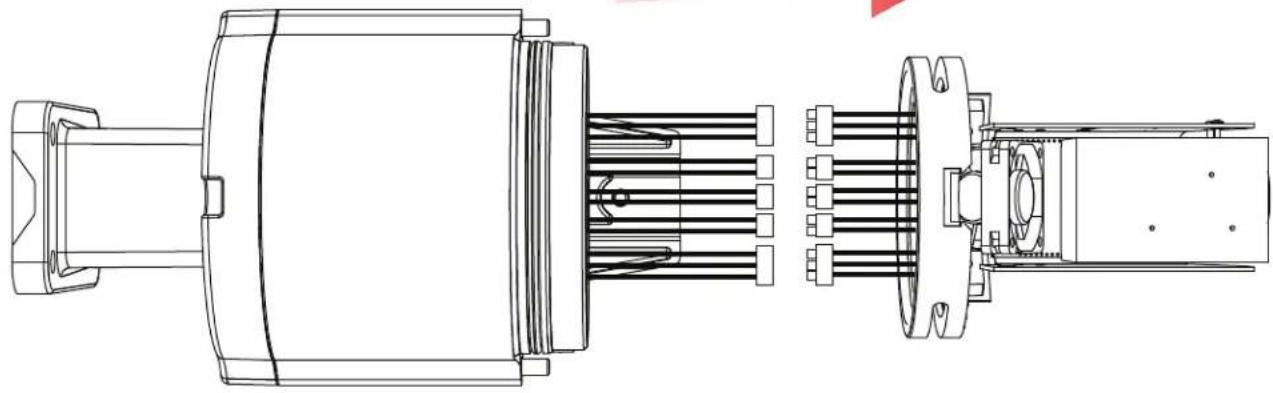
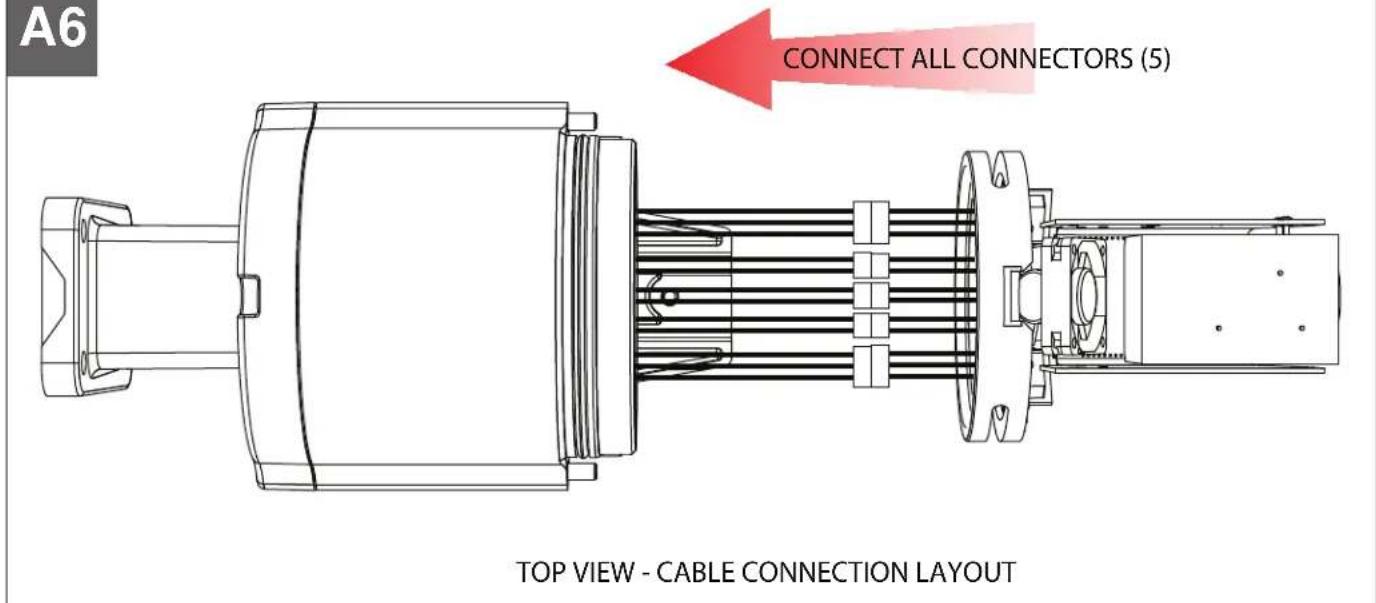
DISCONNECT ALL CONNECTORS (5)
natural_image
Technical line drawing of an electric motor assembly showing internal components and housing (no text or labels)TOP VIEW - CABLE CONNECTION LAYOUT
Disconnect all connectors.
- Desconecte todos los conectores.
• Débranchez tous les connecteurs.
• Trennen Sie alle Anschlüsse. - Desligue todos os conectores.
• Staccare tutti i connettori.
natural_image
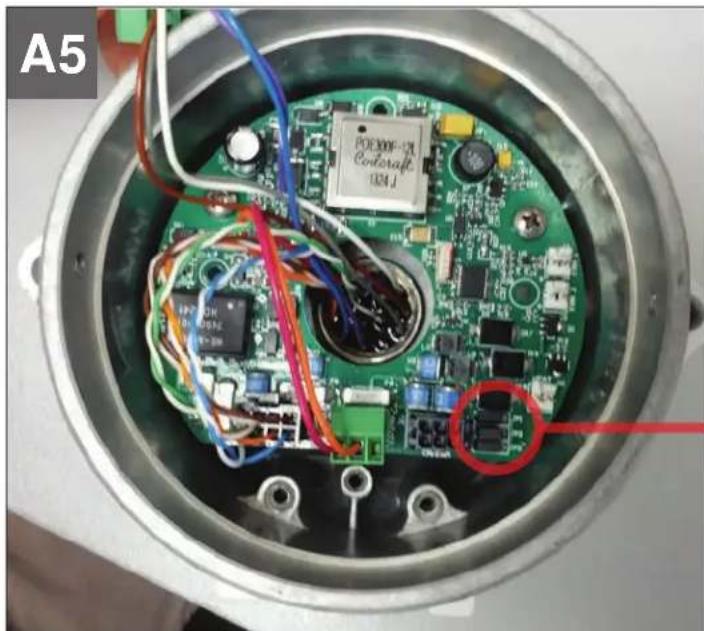
Interior view of an electronic device showing a green circuit board with various components and wiring, no visible text or symbols.24v & PoE 12v
natural_image
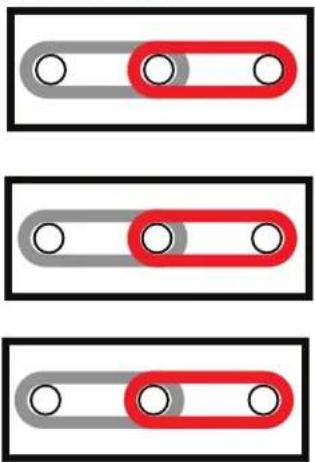
Three identical toggle switches with gray and red buttons, no text or symbols presentMove all 3 jumpers to the right for 12V mode.
Move jumpers to the correct position (as shown above).
- Mueva los puentes en la posición correcta (como se muestra más arriba).
- Déplacer les cavaliers sur la position correcte (voir ci-dessus).
- Bewegen Sie Jumper in die richtige Position (wie oben dargestellt).
- Mover jumpers para a posição correta (como mostrado acima).
- Spostare i ponticelli nella posizione corretta (come mostrato sopra).
text_image
A6 CONNECT ALL CONNECTORS (5) TOP VIEW - CABLE CONNECTION LAYOUTReconnect all connectors.
- Vuelva a conectar todos los conectores.
• Rebranchez tous les connecteurs. - Schließen Sie alle Anschlüsse.
- Volte a ligar todos os conectores.
• Ricollegare tutti i connettori.
A7
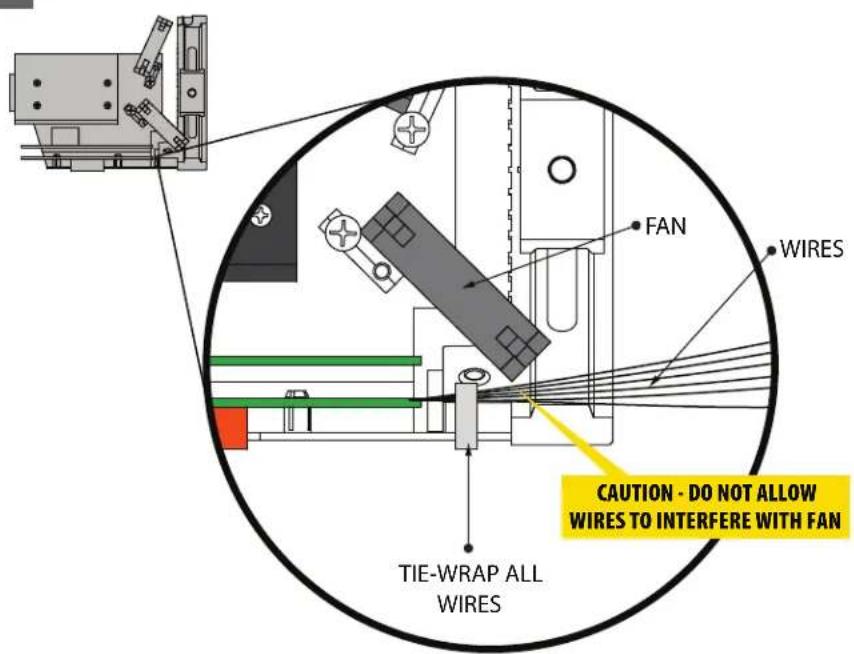
PROPER CABLE MANAGEMENT
text_image
FAN WIRES CAUTION - DO NOT ALLOW WIRES TO INTERFERE WITH FAN TIE-WRAP ALL WIRESSIDE VIEW
CAMERA BRACKET ASSEMBLY
Do not allow wires to interfere with fan.
natural_image
Technical illustration of a mechanical device with highlighted components and directional arrows (no text or symbols)While holding the camera bracket securely, reinstall the (2) camera bracket ring nuts.
- Mientras sujeta el soporte de la cámara con seguridad, vuelva a instalar los dos (2) cámaras virolas soporte.
- Tout en maintenant le support de la caméra en toute sécurité, réinstallez les deux (2) Support de caméra bagues.
- Halten Sie die Kamera Halterung sicher, installieren Sie die (2) Kameraschiene Ringmuttern.
- Enquanto segura o suporte da câmara de forma segura, reinstale os (2) Câmera suporte nozes anel.
- Mentre si tiene la staffa della telecamera in modo sicuro, reinstallare i (2) fotocamera ghiere staffa.
A9
natural_image
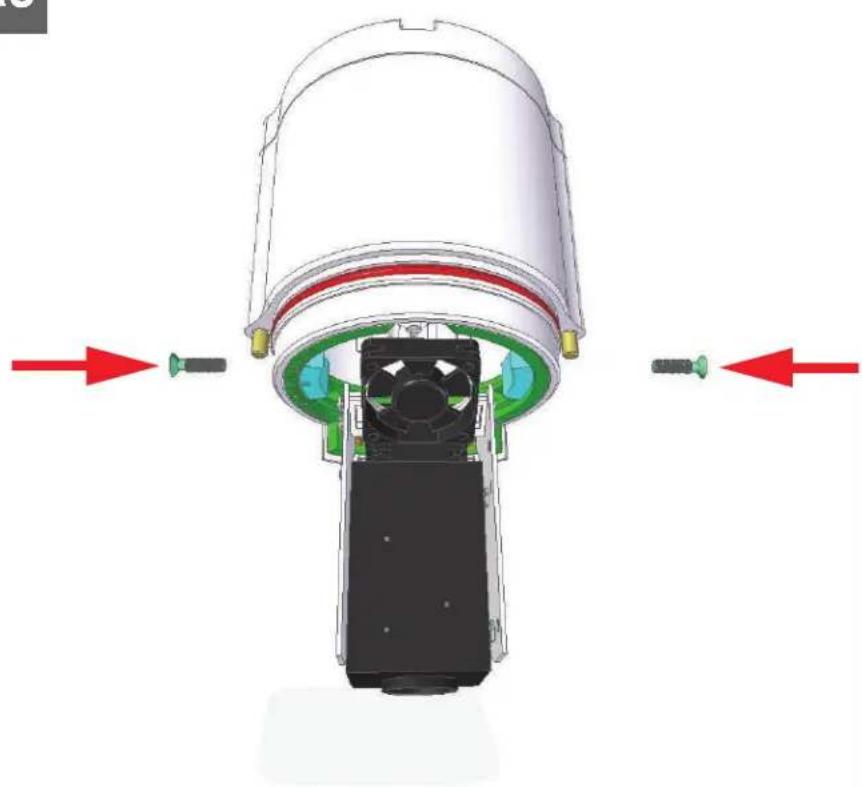
Technical diagram of a mechanical assembly with red arrows indicating directional components (no text or symbols present)Tightly secure the (2) side screws to the O-Ring gasket.
- Asegure firmemente los (2) tornillos laterales de la junta tórica.
- Bien serrer les deux (2) vis latérales du joint torique.
- Dicht sichern (2) seitlichen Schrauben auf den O-Ring-Dichtung.
- Fortemente proteger os (2) parafusos laterais para a junta de O-Ring.
- Fissare saldamente le (2) viti laterali per la guarnizione O-Ring.
A10

natural_image
3D rendering of a mechanical component with a red arrow indicating flow or direction (no text or symbols)Reinstall front of enclosure and tighten the (2) screws from step 9A.
Configuration / Video In / Point to Point 2.3.4
Configuration / Video In / Text Overlay 2.3.5
Configuration / Video In / Motion Detection 2.3.6
Configuration / Video In / Privacy Zones 2.3.7
Configuration / Audio In 2.3.8
Configuration / Audio Out 2.3.9
Configuration / Recording 2.4.0
Configuration / User Accounts 2.4.1
Maintenance 3.0.0
Live Viewer 4.0.0
Live Viewer Pan / Tilt and Presets 4.1.0
Recording 5.0.0
Performing Batch Firmware Update 6.0.0
Point to Point Connections 7.0.0
Troubleshooting Guide 8.0.0
SOFTWARE SETUP
1.0.0 Moog Discovery Tool
By factory default, the Moog EXO Camera is configured in DHCP. If you are not using a DHCP server it will automatically allocate itself an APIPA (Automatic Private IP Addressing) address in the range 169.254.0.1 to 169.254.255.254 with subnet mask 255.255.0.0.
Initial device network configuration is done via the Moog Discovery Tool (MDT), a tool provided by Moog that can be found on the company's web site and on the flash drive supplied with each camera system. The flash drive also contains a copy of Microsoft Silverlight 5. Both programs should be installed on the your local server.
The MDT plays 3 important roles:
- Discovery of all Moog EXO Cameras
- Allows for remote configuration of the IP address and subnet mask
- Permits batch firmware upgrade of all common EXO devices
Note: Silverlight is a free plug in and is required to interface with the Moog EXO Web browser.
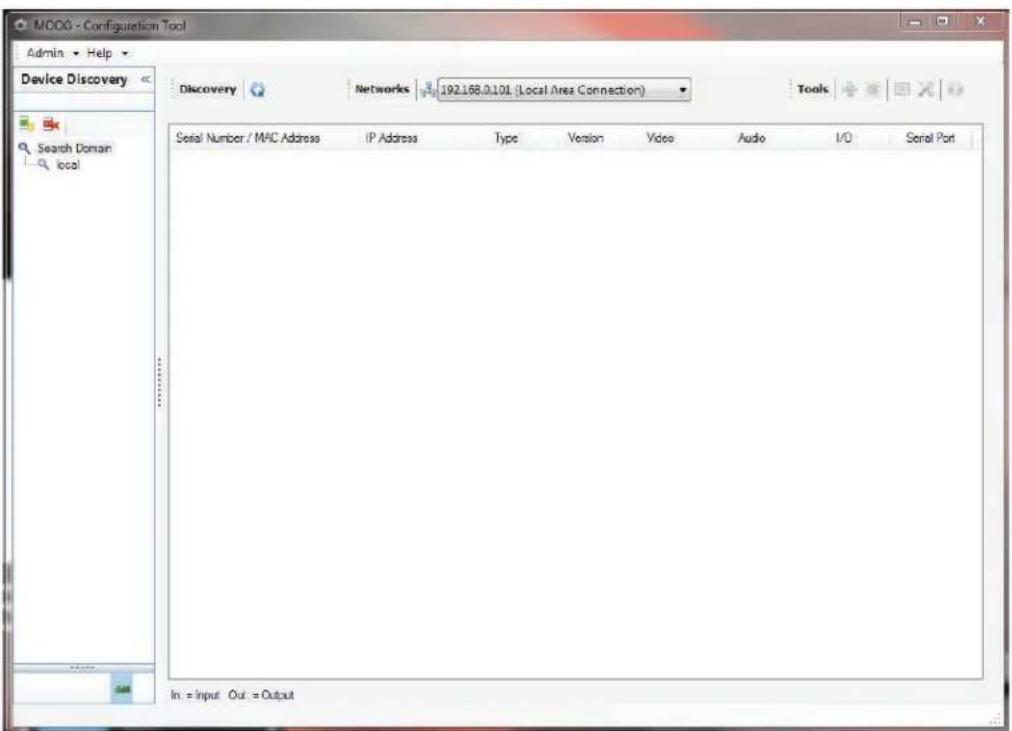
Once your device is installed on your network and powered up, launch MDT from any computer on the network and the following window will be displayed:
The MDT supports 2 ways to discover a device. The first way doesn't need any configuration and uses the Bonjour discovery protocol. In order to be able to discover a device via Bonjour, the network must support multicast delivery.
text_image
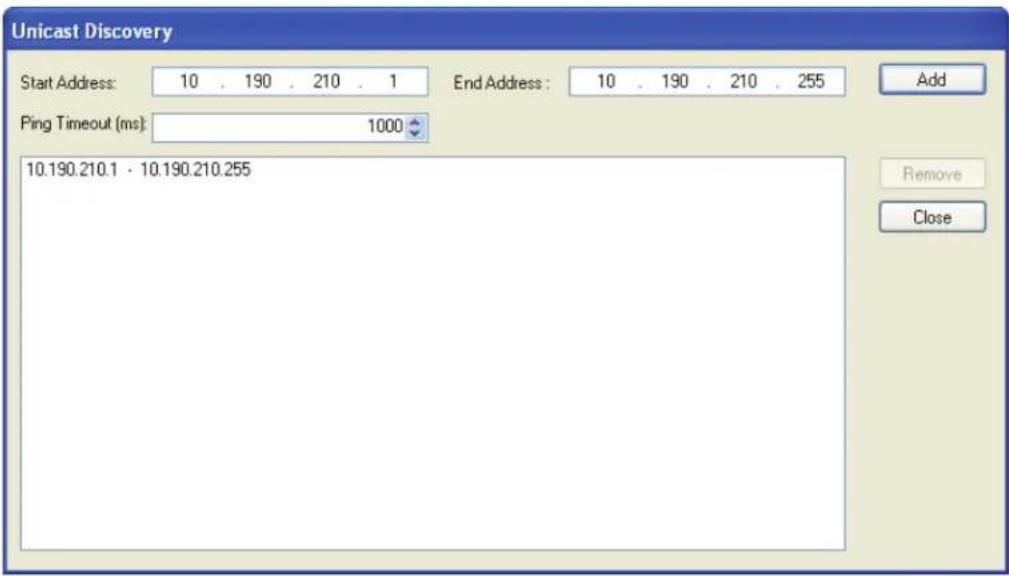
MODO - Configuration Tool Admin Help Device Discovery Search Domain local Discovery Networks 192.168.0.101 (Local Area Connection) Tools Serial Number / MHC Address IP Address Type Version Video Audio I/O Serial Port In: = Input Out: = OutputIf it is not the case, you can use the second way, which is the Unicast Discovery. The Unicast Discovery can be configured by using the "Unicast Discovery" configuration form. This configuration form is available via the Admin / Unicast Discovery menu option.
text_image
Unicast Discovery Start Address: 10 . 190 . 210 . 1 End Address: 10 . 190 . 210 . 255 Add Ping Timeout (ms): 1000 10.190.210.1 · 10.190.210.255 Remove CloseTo configure the Unicast Discovery, add one or more IP address ranges. The Unicast Discovery tries to reach a device at a specific IP address in the configured ranges. The discovery can be a long process if the range of IP addresses is large and the device is at the end of the range. To accelerate the discovery, add several small ranges of IP addresses. The ping timeout option can be increased for a high latency network.
The MDT will display as many devices as it discovers on the network

If no DHCP server was able to assign an IP address to a Moog EXO Camera, it will appear in the MDT device list with an APIPA address (169.254.*.*). If a Moog EXO Camera displays an APIPA address it must be configured with a valid IP address before it can be remotely configured by selecting assign IP address from the selection list and configuring the TCP / IP settings.

Once the IP information is set, the Silverlight web application served by the EXO Camera can be launched from the MDT or directly in your web browser by typing the device's IP address in the address bar. You can start to use your networked video management system for final system configuration or you can configure advanced parameters using the Moog EXO web based management.
Application
When entering the Web Application, the following window will be displayed. You will be asked a username and password. The default User name and Password is 'admin'.
(To reset the user name and password see / Configurations / User Accounts)

text_image
MOOG Authenticating... Login Login To access this system, you need to provide the following credentials: Username: Password: Remember me. Log in Product: MOOG-EXO-HD Version: 0.1.2.3 Up time: User:2.1.0 System Status
text_image
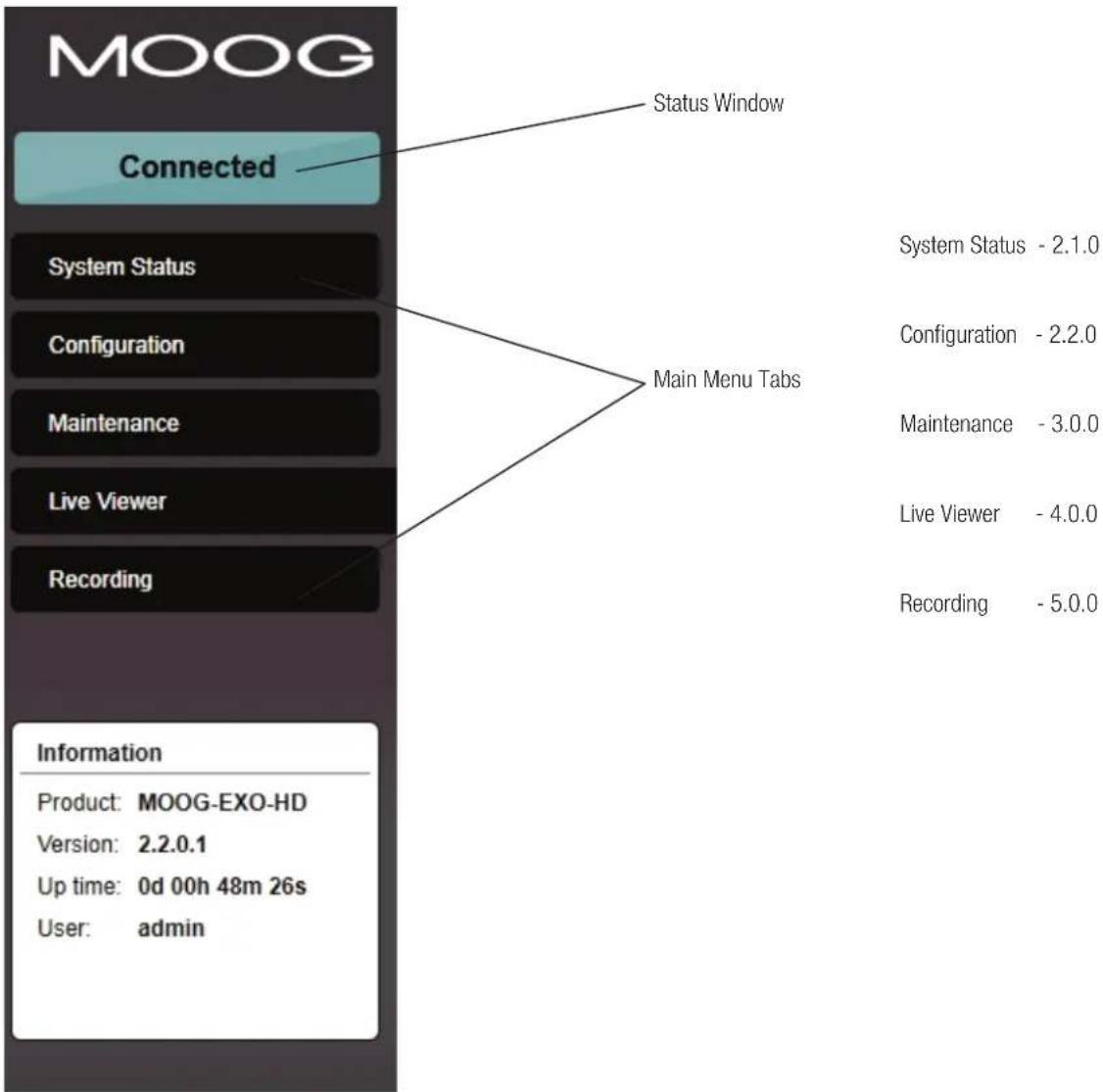
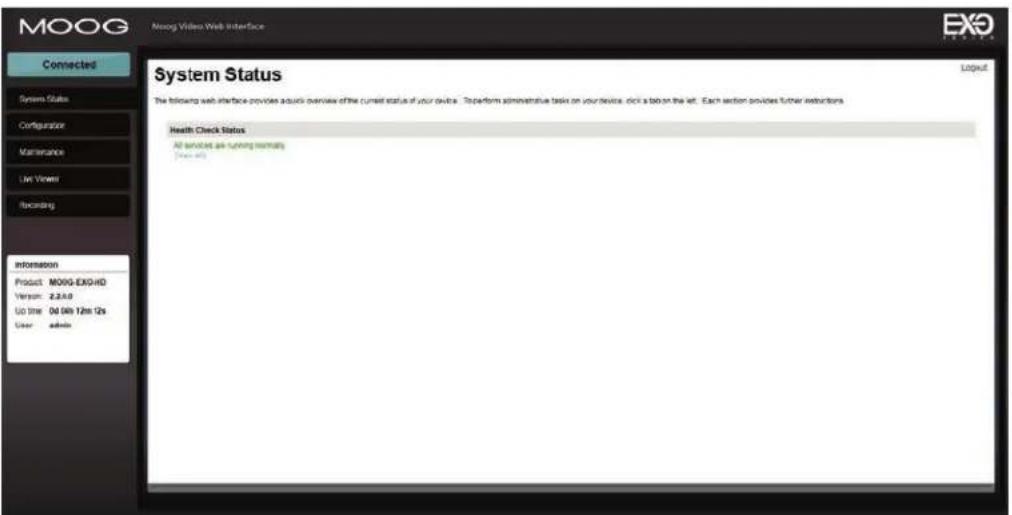
MOOG Connected System Status Configuration Maintenance Live Viewer Recording Information Product: MOOG-EXO-HD Version: 2.2.0.1 Up time: 0d 00h 48m 26s User: admin Status Window Main Menu Tabs System Status - 2.1.0 Configuration - 2.2.0 Maintenance - 3.0.0 Live Viewer - 4.0.0 Recording - 5.0.0Upon successfully logging into the web interface, a welcome screen will be displayed. The welcome screen shows general device health status as well as firmware version and system uptime.
text_image
MOOG MOOG Video Web Interface Connected System Status Configuration Maintenance Live Viewer Recording Information Product: MOOG-EXOHD Version: Z.2.4.0 Up time: 0d 0th 12m 0s User: admin System Status The following web interface provides acyclic overview of the current status of your devices. To perform administrative tasks on your device, click a bit on the left. Each section provides further instructions. Health Check Status All services are running internally (Yes/No) Health Check Status All services are running internally (Yes/No)Configuration / System
Under the Configuration section, select the System tab to perform the following operations:
• View product model information, current firmware version and serial number.
- Specify a custom name; this name can be used by third-party software to display a selected name for the device.
Configuration
Please select from the following subsections:

text_image
System Date / Time Network Video In Audio In Audio Out User Accounts General Product type: MOOG-EXO-HD-12X Serial number: M100-3130-8000-0019 Firmware version: 3.3.0.3.8984 Custom name: Unknown Use Recorder Module
- Enable edge recording by checking the "Use Recorder Module" checkbox. Disabling edge recording will accelerate the device's boot time.
To enable edge recording an SD card must be added to the camera interface card, located in the EXO system device. - SD cards are not provided as a standard feature. Directions for installing the SD card are provided in the first section of this installer manual. Edge recording set up is done through the Recording Tab in the Live Viewer EXO screen.
Note: Recording menu will only be displayed when user recorder module check box is selected. You must save, and then reboot to complete selection. - SD Card: Use 2GB to 32 GB Micro SD Card of class 6 or above. You must make sure the card is formatted to FAT32 or EXT3.
Configuration
Please select from the following subsections:

text_image
System Date / Time Network Video In Audio In Audio Out User Accounts General Hide Current UTC Time: 05/06/2013 10:27:41 Date / Time Update Hide Time zone: (GMT) Coordinated Universal Time Update UTC Time: 05/06/2013 09:08:37 Sync Save CancelUnder the Configuration section, select the Date Time tab to perform the following operations:
- Set the time zone in which the device is operating.
- Manually set the current date and time for the device's internal clock.
• Note: For an accurate time stamp, you must sync UTC Time.
2.2.2 Configuration / Network
Configuration / Network
Configuration
Please select from the following subsections:

text_image
System Date / Time Network Video In Audio In Audio Out User Accounts Network Interface #1 - Local Area Connection - eth0 Hide ✓ Use DHCP IP address: 192.168.0.100 Subnet mask: 255.255.255.0 Default gateway: 192.168.0.1 Host Name Configuration Show NTP Configuration Show HTTP Configuration Show API Selection Show Bonjour Show SNMP Show RTSP Configuration Show Multicast ShowUnder the Configuration section, select the Network tab to perform the following operations:
- Set the camera's IP parameters; DHCP or static IP information.
- Configure an NTP server to allow the device to automatically update its internal clock using an NTP server.
2.2.4 Configuration / Network / Host Name Configuration-NPT

text_image
Host Name Configuration Host name: NTP Configuration NTP server address: Hide HideNPT Server- use when desiring to have local network time as default, to do so you must enter the IP address on the local NPT server used on the network.
2.2.5 Configuration / Network / HTTP
- Change the device's HTTP configuration, Note: Avoid changing these settings unless absolutely necessary.

text_image
HTTP Configuration HTTP port: 80 (1 - 65535) HTTPS port: 443 (1 - 65535) Authentication mode: Digest Accept HTTPS connections Accept HTTPS onlyNOTE:
To control the EXO Camera system with a VMS software system, you must enable the required Network APIs. Enable PSIA
- or GENETEC API depending on which VMS platform you intend to use with the device. Disabling any unrequired APIs will accelerate boot time.

text_image
API Selection PSIA GENETEC API Bonjour Search domain: .local Bonjour Discovery Enabled• Note: ONVIF standard is built in and does not require activation. If using ONVIF you do not need to select an API.
- Set Bonjour discovery protocol settings.
- Modify SNMP settings to match with any SNMP software you wish to use for monitoring the device.
2.2.7 Configuration / Network / SNMP Configuration

text_image
SNMP Agent Port: 161 (1 - 65535) Enabled: ✓ V1 ✓ V2 ✓ V3 V1/V2 Read Community: public V1/V2 Write Community: public V3 Security: Users: ✓ Allow users with Administrator-level rights ✓ Passwords shorter than 8 characters will be repeated to fill 8 characters. Authentication Method: None Privacy Method: None Privacy Passphrase: *********2.2.8 Configuration / Network / RTSP Configuration

text_image
RTSP Configuration Hide RTSP server port: 554 (1 - 65535) Session Timeout: 30 (1 - 120) Authentication mode: Digest2.2.9 Configuration / Network / Multicast
If using Multicast output, Insert Multicast start IP, and select start port.

text_image
Multicast Hide Multicast start IP: 237.0.0.1 Multicast start port: 40000 (1 - 65535) Multicast TTL: 1 (1 - 255)2.3.1 Configuration / Video In / Video Input
Configuration
Please select from the following subsections:
text_image
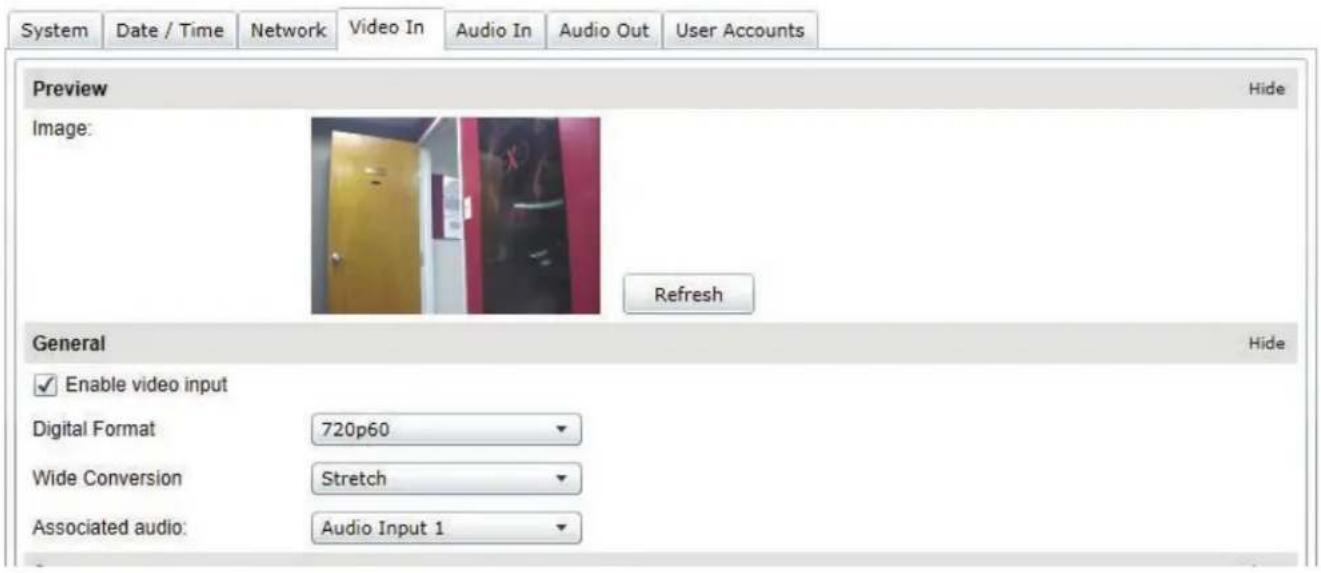
System Date / Time Network Video In Audio In Audio Out User Accounts Preview Hide Image: Refresh General Hide Enable video input Digital Format 720p60 Wide Conversion Stretch Associated audio: Audio Input 1Under the Configuration section, select the Video In tab to perform the following operations: Digital format – choices are, 720 50fps, 720 60fps.
2.3.2 Configuration / Video In / Sensor
Configure camera bloc / sensor parameters. These parameters will also be saved to the camera bloc itself if possible:

text_image
System Date / Time Network Video In Audio In Audio Out User Accounts General Show Sensor Hide Mirror None ✓ Auto Focus □ Wide Dynamic Range □ IR Cut-Retractable (ICR): ✓ Auto ICR Auto ICR Threshold: 5 (0 - 100) While Balance: Outdoor Auto Auto Exposure: Auto ✓ Enable Digital Zoom Zoom Initial: 0 (0 - 100) Current*: 0 (0 - 100) Digital Zoom Initial: 0 (0 - 100) Current*: 0 (0 - 100) □ Use Transparent Port Reset Sensor * Make sure to reload the current values before using them, they may change without the current page being updatedUse the narrow pull down function for vertical and horizontal rotation of the image.
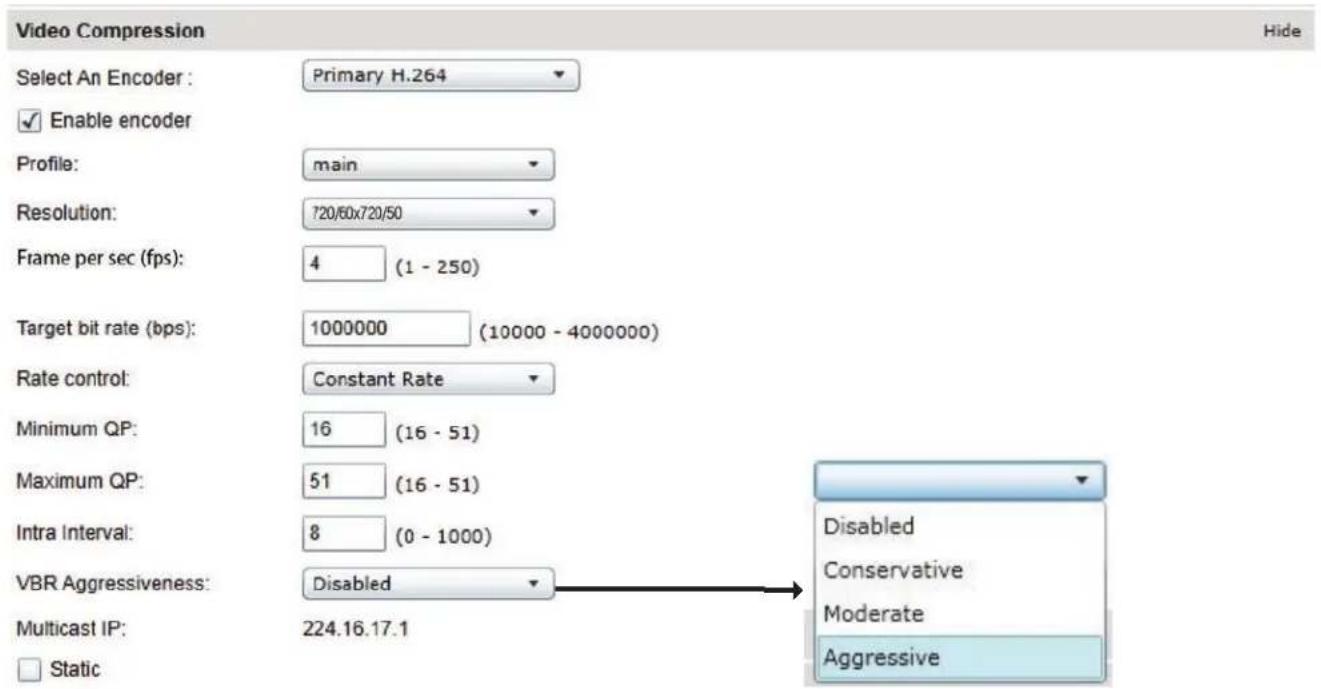
Configure video compression parameters for any of the three available codec instances (Primary H.264, Secondary H.264 and MJPEG). Most VMS software solutions will interact with these parameters and thus it is suggested to leave these at default values in the web interface.
VBR aggressiveness however is unique to Moog EXO Cameras and proposes various levels (disabled to aggressive) of motion triggered rate control. The more aggressive the setting, the more variation motion will have on the rate control. It is strongly suggested to disable VBR aggressiveness for low bit rate scenarios (below 1Mbps) as this parameter may negatively affect perceived video quality.
2.3.3 Configuration / Video In / Video Compression
text_image
Video Compression Select An Encoder : Primary H.264 Enable encoder Profile: main Resolution: 720/60x720/50 Frame per sec (fps): 4 (1 - 250) Target bit rate (bps): 1000000 (10000 - 4000000) Rate control: Constant Rate Minimum QP: 16 (16 - 51) Maximum QP: 51 (16 - 51) Intra Interval: 8 (0 - 1000) VBR Aggressiveness: Disabled Multicast IP: 224.16.17.1 Static Hide Disabled Conservative Moderate AggressiveSet Quantization (QP) level to desired rate. The higher the number the greater the compression. (16 very low, 51 very high)
Frame Rate - Allows you to specify the frame rate to be used by the codec.
Rate Control - Allows you to choose between Variable Bit Rate and Constant Bit Rate. The first option will instruct the H.264 codec to dynamically adjust the bit rate in order to meet both the target quality (QP) and frame rate settings. The second option will instruct the H.264 codec to prioritize target bit rate and vary quality (QP) first and frame rate as a last resort.
This parameter allows you to specify the compression range that the codec will use to determine image quality during compression. In order to force a specific quality setting, you can set the minimum and maximum to the same value. The lower the value, the better the quality will be.
This parameter allows you to specify if the codec should take into account the level of motion in the image for bit rate calculations. You can select from Conservative, Moderate and Aggressive options for this setting. Using the Conservative option, the codec will allow bit rate to drop up to 34 of the configured target bit rate when no motion is detected in the image. Using the Moderate option, the codec will allow bit rate to drop up to 12 of the configured target bit rate when no motion is detected in the image. Using the Aggressive option, the codec will allow bit rate to drop up to 14 of the configured target bit rate when no motion is detected in the image. You can disable this feature by selecting the disabled option.
2.3.4 Configuration / Video In / Point to Point
- Configure point to point video connections (up to three) for creating persistent video streams from the encoder to a network endpoint.

text_image
Point to Point Select a Connection : Point to Point 1 Enabled Description: Encoder: Primary H.264 Destination IP: 0.0.0.0 Destination Port: 0 (1 - 65535)2.3.5 Configuration / Video In / Text Overlay

text_image
Text Overlay Image: EIO PRESSORIZED Hide Refresh Enable Selected String : String 2 String Size Medium String Position 0.911,0.047 String Text MOOG (Set it to %dz for current date and time and to %tz only for the time) Text BoxTo insert a text overlay:
• There are (2) available strings (Text blocks). Select string.
- Select string size.
- For string position click mouse inside string position box.
o Text bar will appear on video image.
o If you wish to relocate, simply click in desired position.
o Type desired text into String Text Box.
o Press Save Button.
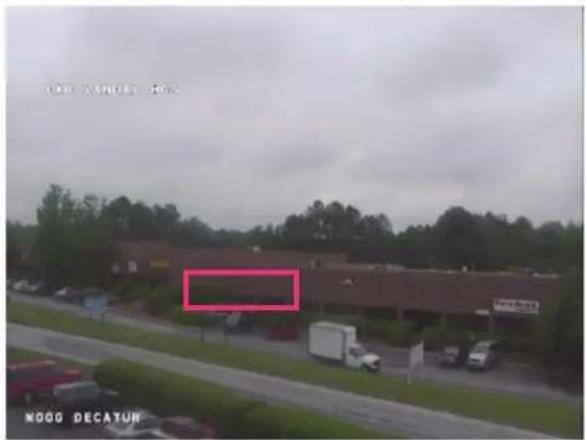
2.3.6 Configuration / Video In / Motion Detection
Motion Detection
Hide
Image:
text_image
MOOG DECATURRefresh
Select a Region of Interest:
Region 1

Enabled
Region Position
0.715,0.506,0.874,0.672
Frame Count
4 (1 - 20)
Sensitivity
95 (0 - 100)
On Threshold
20 (0 - 100)
Off Threshold
10 (0 - 100)
Select from 1 of 4 available regions:
- With mouse click on region position box.
- Bring mouse pointer to view window and drag box around area for motion detection.
- Select desired Frame Count, Sensitivity and Thresholds.
- Press "Save" button to store information.
-
You can select up to (4) separate "Motion" windows.
-
Frame count: Number of frames required to trigger motion
- Sensitivity: No sensitivity, 100 MAX sensitivity
- Threshold: % of image required to trigger, both thresholds must have a value; "off" value must be lower than "on".
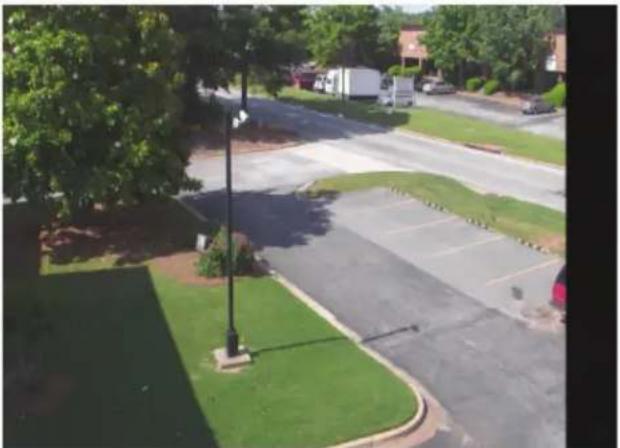
2.3.7 Configuration / Video In / Privacy Zones
Privacy Zones are used to block out video in areas view is not permitted or desired.
Privacy Zones
Hide
Image:
natural_image
Aerial view of a residential area with parked vehicles, a paved lot, and green lawns under trees (no visible text or symbols)Refresh
Current Position
Pan
-85.78
Tilt
-1.54
Zoom
0.00
Refresh Position
Select a Privacy Zone
Zone 1

Enable
Position
Pan
0.00
(-180.00 - 180.00)
Use Current
Tilt
0.00
(-90.00 - 90.00)
Zoom
0.00
(0.00 - 100.00)
Size
Width
100
(1 - 100)
Height
100
(1 - 100)
Configuration
Please select from the following subsections:
text_image
System Date / Time Network Video In Audio In Audio Out User Accounts General Hide Sampling rate (Hz): 8000 Gain: 10 (0 - 20) Compression Hide Type: G711 Mode: ulaw Point to Point Hide Select a Connection : Point to Point 1 Enabled Description: Destination IP: 0.0.0.0 Destination Port: 0 (1 - 65535)
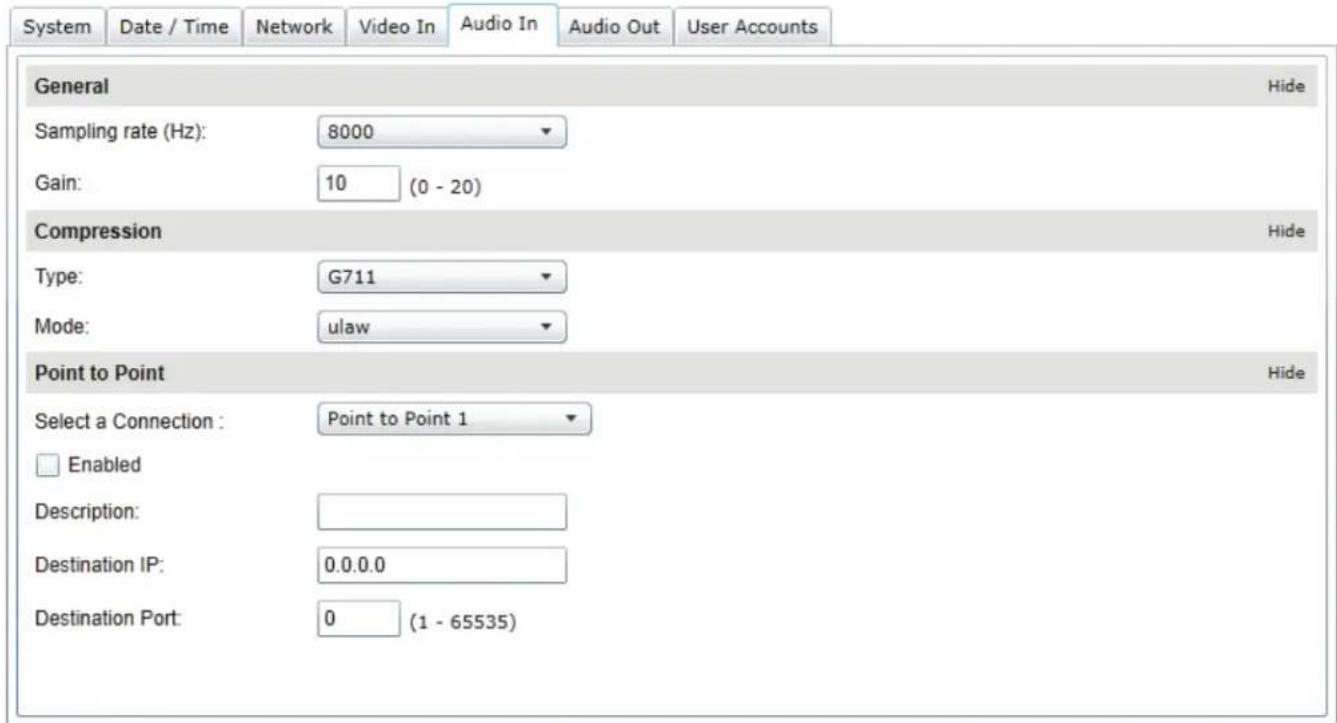
Under the Configuration section, select the Audio In tab to perform the following operations:
- Configure audio input compression parameters.
- Configure point to point audio connections (up to three) for creating persistent audio streams from the encoder to a network endpoint.
Configuration
Please select from the following subsections:

text_image
System Date / Time Network Video In Audio In Audio Out User Accounts General Hide Sampling rate (Hz): 8000 Gain: 10 (0 - 20) Type: PCM Point to Point Hide Enabled Description: Use Multicast Source Port: 0 (1 - 65535) Save CancelUnder the Configuration section, select the Audio Out tab to perform the following operations:
- Configure audio output parameters.
- Configure a point to point audio connection for receiving a persistent audio stream from a network endpoint.
Configuration
Please select from the following subsections:

text_image
System Date / Time Network Video In Audio In Audio Out Recording User Accounts Enabled Current Recorder State: Recording storage not configured Storage Profile: General Hide NVR Detection Mode: Server Ping Ping Timeout: 60 (1 - 3600 s) Ping IP Address: 0.0.0.0 Grooming Mode: Chronological Maximum File Duration: 120 (120 - 3600 s) Maximum File Size: 128 (8 - 1024 MB) Video Input Selection Show Per-Input Configuration Hide Recording Status: Not Recording... Record Video From: Primary H.264 Input Record Mode: Do Not Record Record when connection with the server is lost. (NVR detection required.) Record on demand. Record on Motion Event Record when the specified I/O event occurs. (I/O event input required.) I/O Event Input: I/O Event Input State: On Video Retention Time: 30 (1 - 365 days)

text_image
Video Input Selection Select a video input: Video Input 1 Per-Input Configuration Recording Status: Not Recording... Record Video From: Primary H.264 Input Record Mode: Record On Event Record when connection with the server is lost. (NVR detection required.) Record on demand. Record on Motion Event Record when the specified I/O event occurs. (I/O event input required.) I/O Event Input: I/O Event Input State: On Video Retention Time: 30 (1 - 365 days) Force Immediate Deletion of Video After Retention Time Mute AudioNote: Recording Menu will NOT be visible unless activated; see 2.20 System configuration.
• Grooming mode; Select method to remove files from full SD card. (Chronological will remove old files first.)
Under the Configuration section, select the User Accounts tab to perform the following operations:
Configuration
Please select from the following subsections:

text_image
System Date / Time Network Video In Audio In Audio Out User Accounts Authentication Hide Authentication Method: Username/Password User Accounts Hide admin (Administrator) Old Password: Remove User New Password: Change Password New Password: New User Hide Username: Password: Password: Role: User Poweruser Superuser Administrator Add UserSave
Cancel
- Select the web interface's authentication method. A dual passphrase is made available for additional security.
- Manage user accounts which have access to the device.
User Roles:
Administrator: All is available
Superuser: All is available except the user management
Poweruser: All is available except the user management and the recording
User:
Only access basic operations: system information, live video (no position controls), date time management and password change
Maintenance
Please select from the following operations:
| Retrieve system information file. | Click here | |
| Perform a firmware update. | Update | |
| Flash the status LED on the current device. | Identify | |
| Reboot: | Device | |
| Reset device to default settings: | Reset | Include network settings |
This section describes how to update your Moog EXO Cameras to newer firmware versions from the web application.
- To find the latest file go to http://videolarm.com/technical-support/software-firmware-downloads/.
- Click on "EXO Camera Firmware" - click, save file.
- Navigate to your device's web application using your favorite web browser.
- Click on the Maintenance tab.
- Click on the Update button, locate downloaded firmware. You will be asked for the firmware update file; please select the .iof file which was provided by Moog.
- You will see the following messages indicating the status of the update:
o Firmware upload in progress... (100%)
• Lasts around 95 seconds.
o Firmware uploaded. Saving to internal storage... (0%)
• Lasts around 45 seconds.
o Validating and decompressing firmware... (0%)
• Lasts around 105 seconds.
o Firmware ready for installation. Rebooting device... (0%)
• Web page will disconnect from device until device has rebooted.
• You will be prompted for login once the device is up again.
• Lasts around 110 seconds.
o Testing firmware stability... (26%)
- Lasts 120 seconds.
o Firmware update complete. (100%)
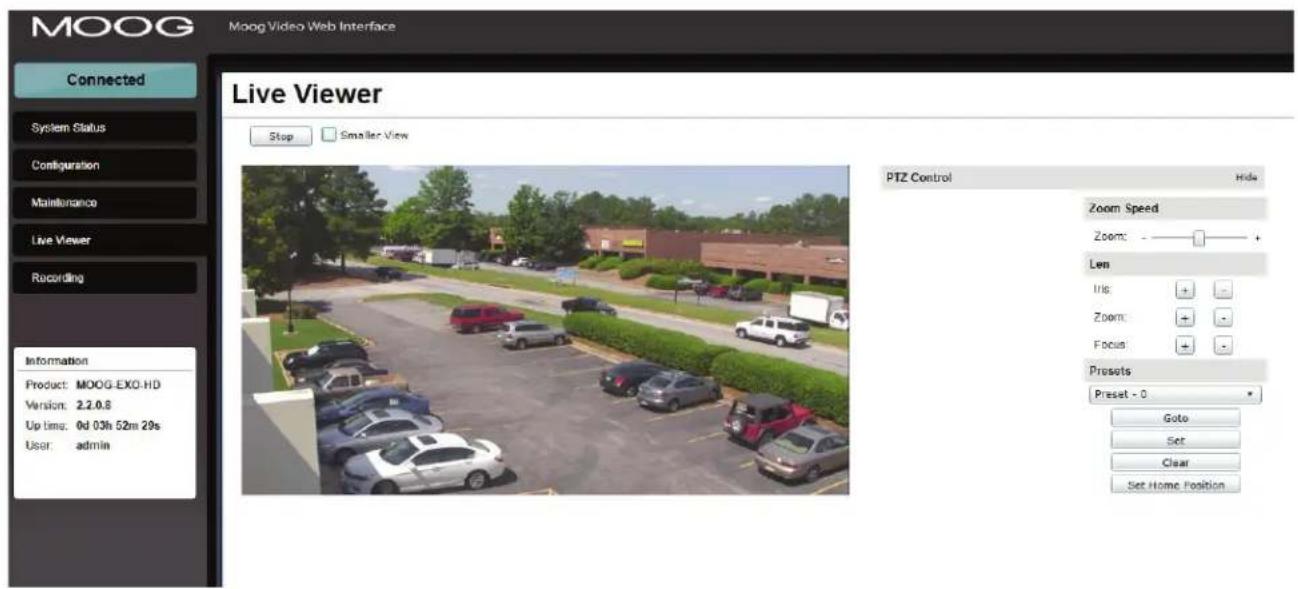
Use Live View for:
• Live Camera View
- Start and Stop Recording
- Camera Control
- Setting Presets
- Adjust View Scale
text_image
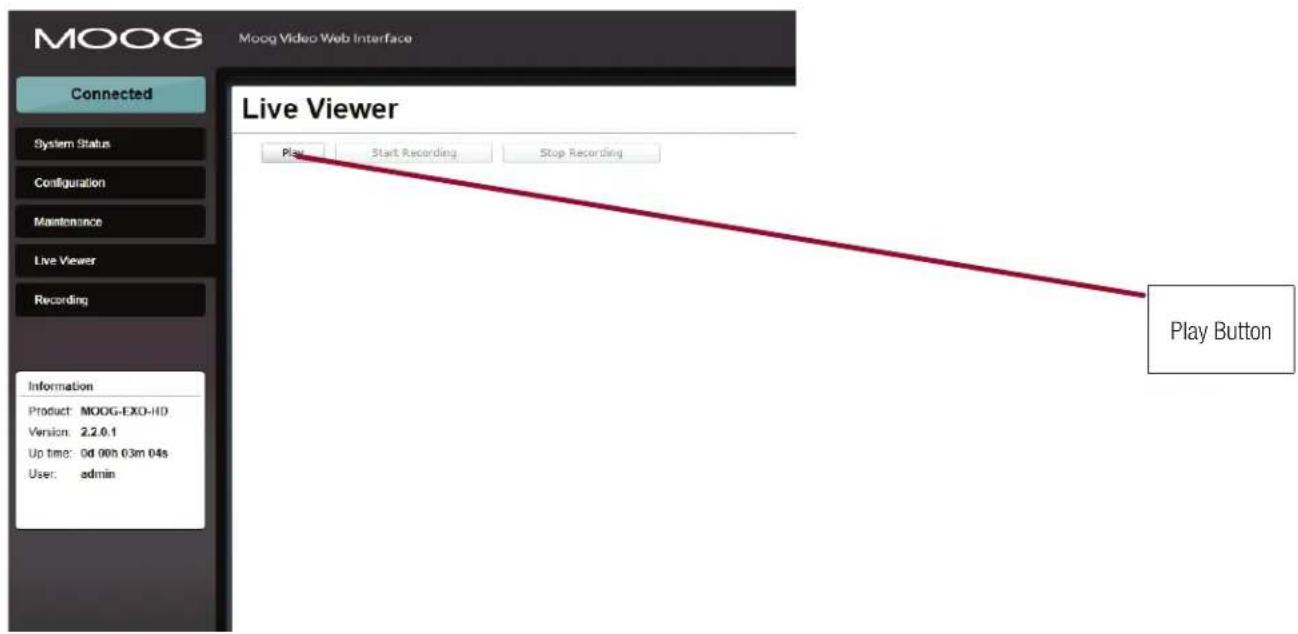
MOOG Moog Video Web Interface Connected System Status Configuration Maintenance Live Viewer Recording Live Viewer Stop Smaller View Information Product: MOOG-EXO-HD Version: 2.2.0.8 Up time: 0d 03h 52m 29s User: admin PTZ Control Hide Zoom Speed Zoom: - + Len Iris: + - Zoom: + - Focus: + - Presets Preset - 0 Goto Set Clear Set Home PositionTo enable live you must activate by pressing the "Play" button.
text_image
MOOG Moog Video Web Interface Connected System Status Configuration Maintenance Live Viewer Recording Live Viewer Play Start Recording Stop Recording Play Button Information Product: MOOG-EXO-IID Version: 2.2.0.1 Up time: 0d 00h 03m 04s User: adminTo adjust viewing scale for 1024 x 768 monitor, press smaller view.
Live Viewer
text_image
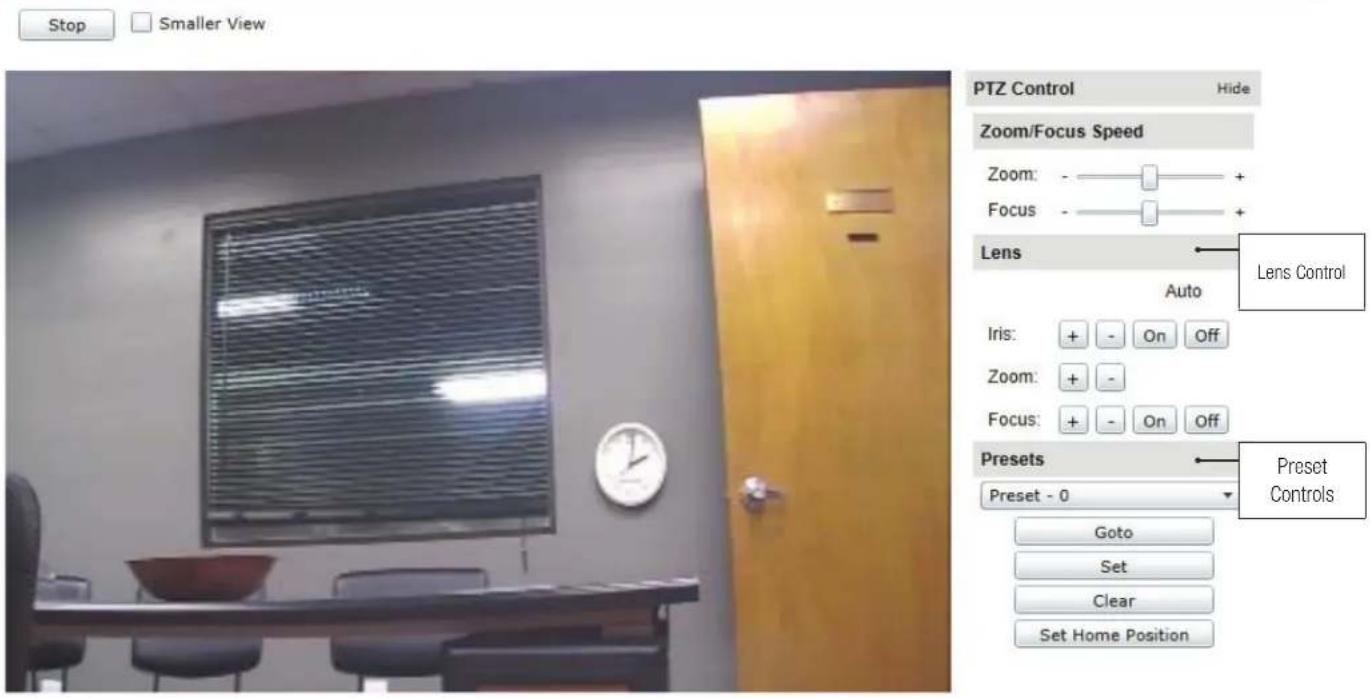
Stop Smaller View PTZ Control Hide Zoom/Focus Speed Zoom: - + Focus: - + Lens Auto Lens Control Iris: + - On Off Zoom: + - Focus: + - On Off Presets Preset Controls Preset - 0 Goto Set Clear Set Home Position• Speed Control: To increase speed, slide control knob to the right.
- Lens Funtion: Use +/- buttons to update Iris, Zoom and Focus.
- Preset Functions.
o First Select Preset Number.
o Then position Camera and lens to desired position.
o Press "Set" to save Preset.
o For additional presets, repeat process.
o To clear, select desired preset and press "clear".
- Home Position: Move the camera to desired position, press "Set Home Position" – Camera will use this as the default start up position.
Recording
Select a video input:
Refresh Video Playback Inputs
To activate recording mode you must go to Configuration / System / Use Recorder Mode. Click "Use Recorder Mode" checkbox. This will activate additional Recording controls in the recording window. You must "Save" and then "Reboot" after making this change.

text_image
> Select Video Input Recording Select a video input: Video Input 1 Refresh Video Playback Inputs Time Format: UTC time + 1/1/1970 + 4/23/2013 + 4/24/2013 + 4/25/2013 + 4/26/2013 > Select Date of the Recording Recording Select a video input: Video Input 1 Refresh Video Playback Inputs Time Format: UTC time - 1/1/1970 Refresh Select All Lock Selected Unlock Selected Delete Selected Clip Start Time: 1:48:15 AM - Duration: 00:00:06 ✓ Clip Start Time: 2:00:11 AM - Duration: 00:00:08 ✓ Clip Start Time: 2:00:45 AM - Duration: 00:00:12 ✓ Clip Start Time: 2:02:27 AM - Duration: 00:00:13 ✓ Clip Start Time: 3:46:06 AM - Duration: 00:00:28 ✓ + 4/23/2013 + 4/24/2013 + 4/25/2013 + 4/26/2013Then select the filed clip you wish to view
Note: You must have either VLC Player or Windows Media Player installed.
This section describes how to perform a batch update of multiple Moog EXO Camera devices to newer firmware versions from the MDT.
The batch firmware update works by starting a firmware update session. Only one session at time is allowed and only 20 devices can be selected by session.
From the MDT, select one or more devices of the same type.
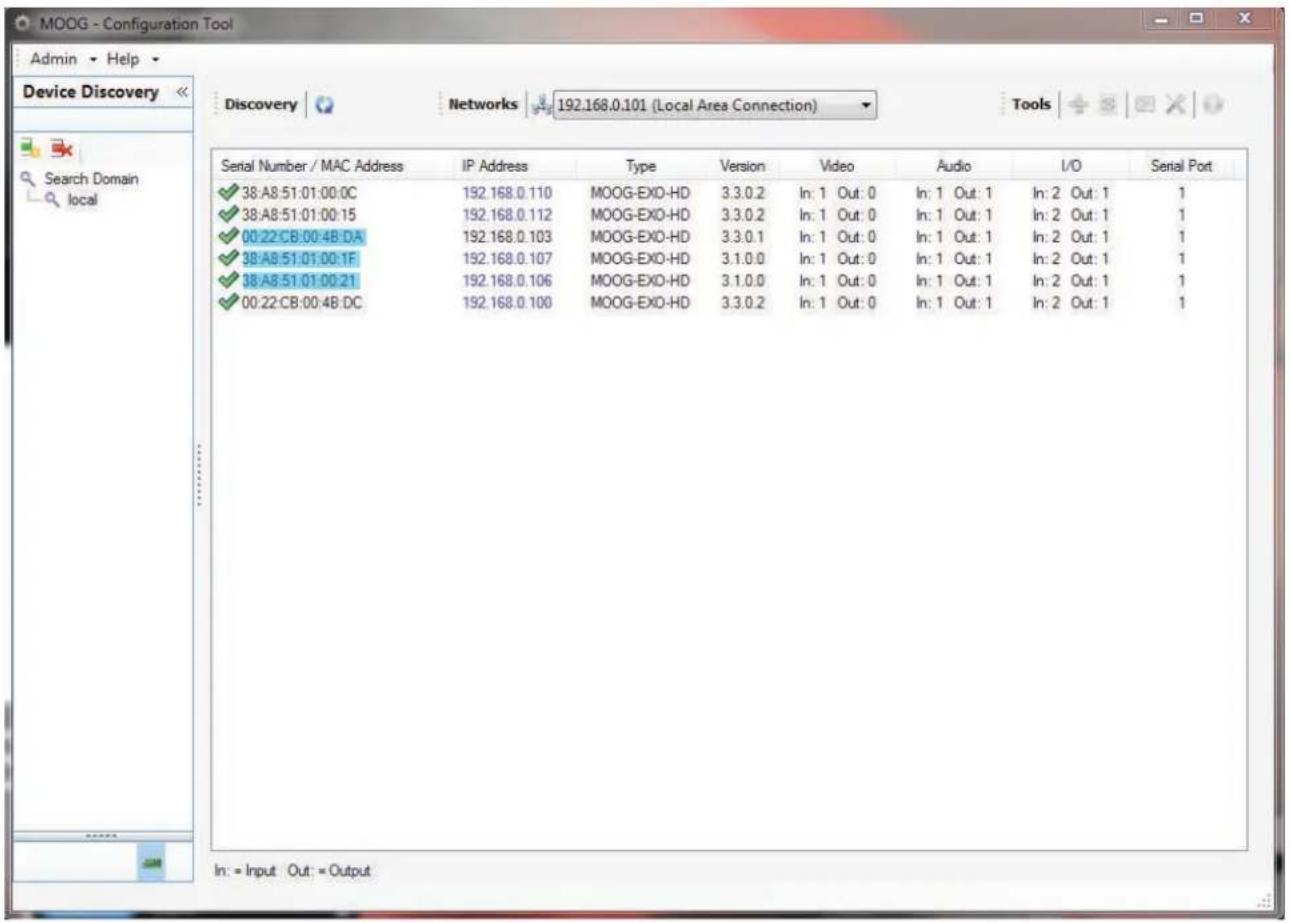
By using the right mouse button on the selected devices, choose the "Firmware Update" menu option.
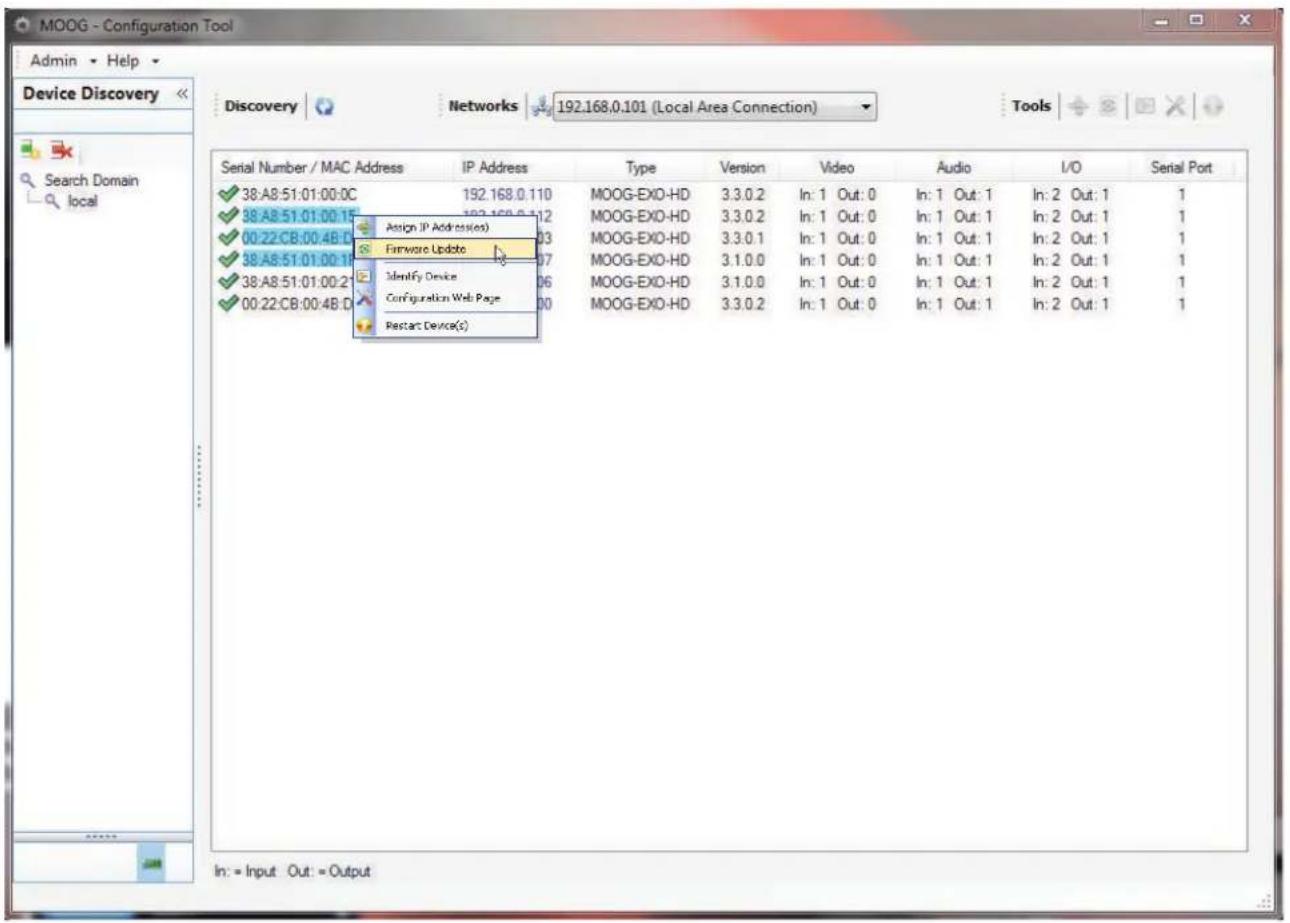
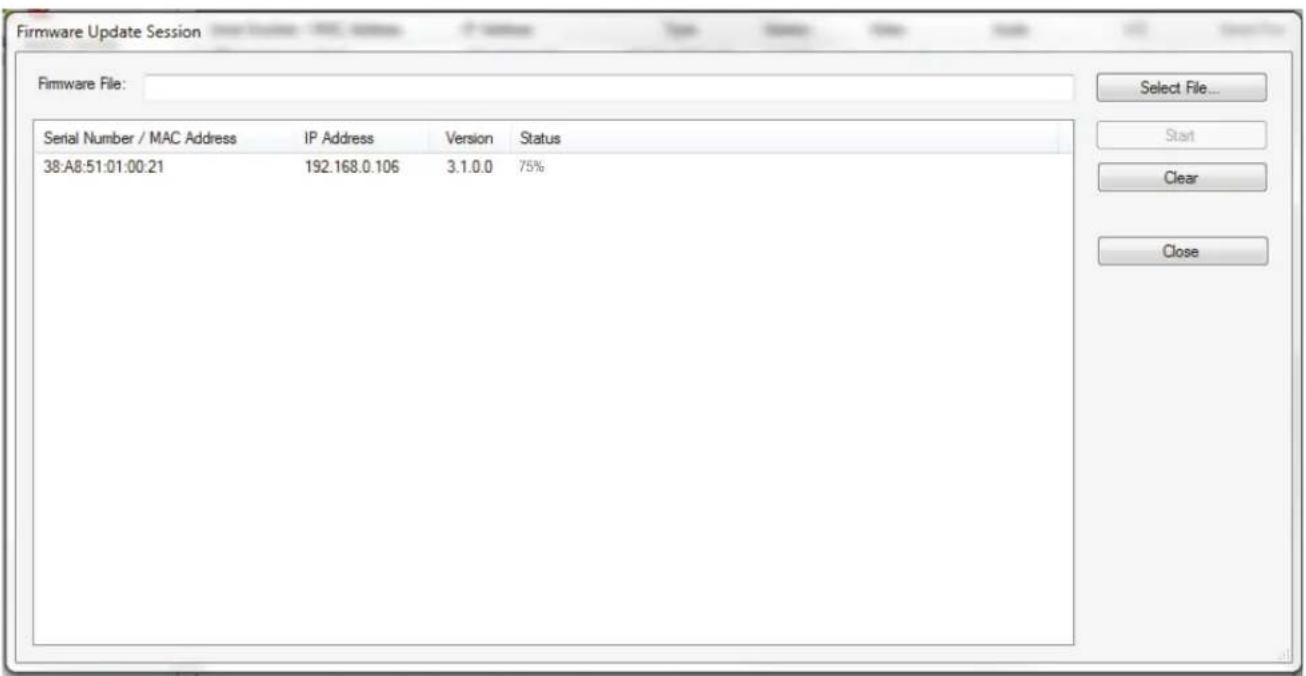
To start a firmware update session, choose the ".iof" file corresponding to the new firmware by clicking to the "Select File ..." button. Once selected, click the "Start" button.
text_image
Firmware Update Session Firmware File: Serial Number / MAC Address IP Address Version Status 38:A8:51:01:00.21 192.168.0.106 3.1.0.0 75% Select File... Start Clear CloseOnce started, the "Firmware Update Session" window shows the progress of the firmware update. This window can be closed at any moment without losing the current session.
If closed, the progress of the current session can be followed by reopening the "Firmware Update Session" window by clicking the 🔒 button from the "Tools" toolbar.
Once done, clear the current session from the "Firmware Update Session" window and restart a new session if needed.
7.0.0 Point to Point Connections
Point-to-point connections between a Moog EXO Camera and a Decoder can be configured using the device's web application.
In the Moog EXO web application, in the Configuration section, go to the Video In tab. Scroll down all the way to the bottom of the configuration page. The last 3 sections are named Point to Point 1, 2 and 3.
Here's a quick overview of the settings available for a connection:
- Enabled: Indicates whether this connection is to be used.
• Description: Free-form user description of the connection, not used by the device. - Encoder: Indicates which video feed is to be sent over the point-to-point connection. Possible values include «Primary H.264» and «Secondary H.264». These values refer to the encoders configured in previous sections of the same web page.
- Destination IP: Address where to send the video. This is usually the address of a Decoder. The destination can also be a multicast group address. DNS names are not yet supported, only IP addresses.
- Destination Port: Network port where to send the video. This value must match the port value in the Decoder.
Once all the settings have been set, click on Save at the bottom of the page to apply them. The Moog EXO Camera then creates or updates the connection as needed.
8.0.0 Troubleshooting Guide
• Device does not seem to boot-up
o Verify that a power supply is connected to the device.
- Cannot discover the device or communicate via the network
Dynamic discovery of the Moog Camera requires multicast networking to be supported by your network and switch equipment. (Bonjour protocol)
o Make sure you have connected the device to your network.