CCT2312W - Security Camera Costar - Free user manual and instructions
Find the device manual for free CCT2312W Costar in PDF.


| Product Type | Security Camera |
| Brand | Costar |
| Model | CCT2312W |
| Image Sensor | 2MP CMOS |
| Video Output | TVI / CVBS (NTSC/PAL) |
| Resolution | Up to 1080P |
| Frame Rate | 25/30 FPS |
| Power Supply | 12V DC (typical) |
| Operating Temperature | -10°C to +50°C |
| Dimensions | Not specified |
| Weight | Not specified |
| Main Functions | 3D-DNR, Smart-IR, Sens-Up, Defog, WDR, Motion Detection |
| Lens Type | DC or Manual (user selectable) |
| Day/Night Mode | Auto, Color, B/W, External |
| White Balance | Auto, AWB, AWC, Manual |
| Backlight Compensation | HLC, BLC, WDR |
| Privacy Masking | Up to 16 zones |
| Motion Detection | Yes, with sensitivity and zone settings |
| Communication | RS-485 (CAM ID, Baud Rate) |
| Cleaning Instructions | Use soft cloth, avoid strong detergents |
| Safety Notes | Install by qualified personnel, avoid humidity, no user serviceable parts |
| Spare Parts / Repairability | No user-replaceable parts; contact qualified service |
Frequently Asked Questions - CCT2312W Costar
User questions about CCT2312W Costar
0 question about this device. Answer the ones you know or ask your own.
Ask a new question about this device
Download the instructions for your Security Camera in PDF format for free! Find your manual CCT2312W - Costar and take your electronic device back in hand. On this page are published all the documents necessary for the use of your device. CCT2312W by Costar.
USER MANUAL CCT2312W Costar
The lightning flash with an arrowhead symbol, within an equilateral triangle is intended to alert the user to the presence of uninsulated dangerous voltage within the product's enclosure that may be of sufficient magnitude to constitute a risk of electric shock to persons.

The exclamation point within an equilateral triangle is intended to alert the user to the presence of important operating and maintenance (servicing) instructions in the literature accompanying the appliance.
INFORMATION - This equipment has been tested and found to comply with limits for a Class A digital device, pursuant to part 15 of the FCC Rules & CE Rules. These limits are designed to provide reasonable protection against harmful interference when the equipment is operated in a commercial environment. This equipment generates, uses, and can radiate radio frequency energy and, if not installed and used in accordance with the instruction manual, may cause harmful interference to radio communications. Operation of this equipment in a residential area is likely to cause harmful interference in which case the user will be required to correct the interference at his own expense.
WARNING - Changes or modifications not expressly approved by the manufacturer could void the user's authority to operate the equipment.
CAUTION : To prevent electric shock and risk of fire hazards:
Do NOT use power sources other than those specified.
Do NOT expose this appliance to rain or moisture.
This installation should be made by a qualified service person and should conform to all local codes.
Contents
Contents 3
General Features 4
Precautions 5
Safety Instructions 6
Menu Set Up 7
● Transfer Video Interface
The combination of a 2MP CMOS image sensor and TVI DSP provides an excellent resolution of TVI picture.
● 3D-DNR
Smart 3DNR prevents the image blurring of moving object and activates only if moving objects are appearing on the scene.
Smart-IR
No saturation image, vivid image in darkness! "TVI" camera makes very sharp video image in darkness! This technology eliminates saturation of video image of the closer object in darkness by control of the IR sensitivity. Saturation never happens in our "TVI" cameras, you can enjoy vivid image in any dark condition!
● Sens-Up
Despite a limited & low light condition, Sens-Up - Max. x32 helps the viewer to get visible and clear images.
- Defog
Defog function improve the clarity of images taken in poor conditions such as fog, smoke, rain or snow.
● WDR
A powerful and advanced technology that captures clean and superior high resolution picture even where images appear dark and strong back light.
● CVBS (Composite Video Blanking and Sync)
TV system is switchable 'NTSC' or 'PAL' with built-in OSD.
● Intelligent Function
An extra ordinary technology enables TVI camera become an ultimate and of solution by providing intelligent features based on motion detection. It strengthens crime prevention and detection.
Precautions
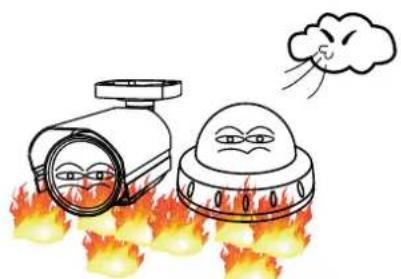
Do not install the camera in extreme temperature conditions.
natural_image
Cartoon illustration of a surveillance camera emitting smoke from flames, with a distressed helmet nearby (no text or symbols)Only use the camera under conditions where temperatures are between -10°C and +50°C. Be especially careful to provide ventilation when operating under high temperatures.
Do not install or use the camera in an environment where the humidity is high.

natural_image
Cartoon illustration of a smiling camera and a satellite with a lid, accompanied by a small container (no text or symbols)Do not install or use the camera in an environment where the humidity is high.
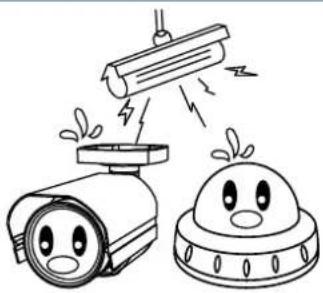
Do not install the camera under unstable lighting conditions.
natural_image
Illustration of a flashlight emitting exhaust smoke from a battery, with a cartoon character observing (no text or symbols)Severe lighting change or flicker can cause the camera to work improperly.
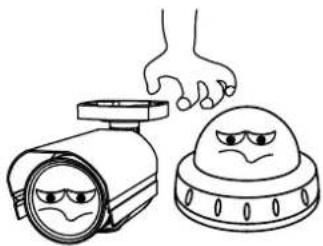
Do not touch the front lens of the camera.
natural_image
Illustration of a hand crushing a helmet and a dome-shaped object (no text or symbols)This is one of the most important parts of the camera. Be careful not to leave fingerprints on the lens cover.
Never keep the camera pointed directly at strong light.

natural_image
Illustration of a sun shining on a device and a helmet with a smiling face (no text or symbols)It can cause malfunctions to occur.
Do not drop the camera or subject it to physical shocks.

natural_image
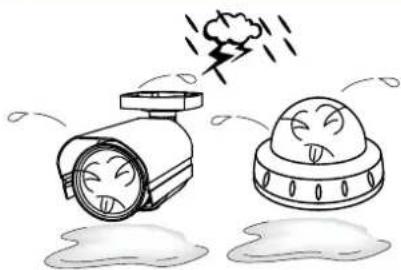
Illustration of two anthropomorphic surveillance cameras falling off from ground (no text or symbols)Do not expose the camera to rain or spill liquids on it.
natural_image
Cartoon illustration of two anthropomorphic surveillance cameras emitting smoke and snow (no text or symbols)If it gets wet, wipe dry immediately. Liquids can contain minerals that corrode the electronic components.
Do not expose the camera to radioactivity.

natural_image
Illustration of a warning light emitting smoke next to a cartoon character (no text or symbols)If exposed to radioactivity the CCD will fail.
NOTE
* If the camera is exposed to spotlight or object reflecting strong light, smear or blooming may occur.
* please check that the power satisfies the normal specification before connecting the camera.
Safety Instructions
Precautions for use
This camera should be installed by qualified personnel only
There are no user serviceable parts inside
Do not disassemble this camera other than to make initial adjustments
Use appropriate low voltage power cable to prevent fire or electrical shock
Please insure that your installation area can support the weight of the camera
Please handle this camera carefully :
Do not use a strong or abrasive detergent when cleaning the camera
Do not expose the camera to direct sun
Do not install camera in places where humidity is high
Do not install near cooling or heating device
Do not expose camera to rain or moisture
How to Set Up the camera menu
- Setup Menu
| MENU SUB MENU 1 SUB | MENU 2 SUB MENU 3 SUB MENU 4 | |||
| 1.LENS | DC | MODE | INDOOR / OUTDOOR / DEBLUR | |
| RETURN | ||||
| MANUAL | MODE | NORMAL / DEBLUR | ||
| RETURN | ||||
| 2.EXPOSURE | BRIGHTNESS | 0 ~ 20 | ||
| SHUTTER | AUTO | |||
| MANUAL | SPEED 1/30 ~ 1/30000RETURN | |||
| FLICKER | ||||
| SENS-UP | OFF~ X32 | |||
| AGC | 0 ~ 20 | |||
| RETURN | ||||
| 3.WHITE BAL | AUTO | |||
| AWB | ||||
| AWC-SET | ||||
| MANUAL | KELVIN | LOW / MIDDLE / HIGH | ||
| R-GAIN | 0 ~ 20 | |||
| B-GAIN | 0 ~ 20 | |||
| RETURN | ||||
| 4.BACKLIGHT | OFF | |||
| HLC | LEVEL | 0 ~ 20 | ||
| MODE | ALL DAY / NIGHT ONLY | |||
| RETURN | ||||
| H-POS | 0 ~ 18 | |||
| V-POS | 0 ~ 17 | |||
| H-SIZE | 0 ~ 18BLC | |||
| V-SIZE | 0 ~ 17 | |||
| RETURN | ||||
| WDR | WEIGHT | LOW / MIDDLE / HIGH | ||
| RETURN | ||||
| 5.DNR OFF / LOW / MIDDLE / HIGH | ||||
| 6.DAY&NIGHT | SMART IR | 0 ~ 20 | ||
| AGC THRES | 0 ~ 20 | |||
| AGC MARGIN | 0 ~ 20AUTO | |||
| DELAY | LOW/MIDDLE/HIGH | |||
| RETURN | ||||
| COLOR | ||||
| B/W | SMART IR | 0 ~ 20 | ||
| RETURN | ||||
| EXTERN | SMART IR | 0 ~ 20 | ||
| EXTERN S/W | LOW/HIGH | |||
| DELAY | LOW/MIDDLE/HIGH | |||
| RETURN | ||||
| 7.IMAGE | SHARPNESS | 0 ~ 20 | ||
| GAMMA | 0.45 ~ 0.65 | |||
| COLOR GAIN | 0 ~ 20 | |||
| MIRROR | ON/OFF | |||
| FLIP | ON/OFF | |||
| D-ZOOM | X 1.0 ~ X 8.0 | |||
| ACE | LOW/MIDDLE/HIGH | |||
| DEFOG | OFF | |||
| ON | MODE AUTO MANUAL | |||
| LEVEL LOW/MIDDLE/HIGHRETURN | ||||
| SHADING | OFF | |||
| ON | WEIGHT 0% + 100%RETURN | |||
How to Set Up the camera menu
- Setup Menu
| PRIVACY | OFF | ||||
| ON | ZONE NUM 0~15 | ||||
| ZONE DISP ON/OFF | |||||
| H-POS 0~60 | |||||
| V-POS 0~33 | |||||
| H-SIZE 0~60 | |||||
| V-SIZE 0~33 | |||||
| Y LEVEL 0~20 | |||||
| CR LEVEL 0~20 | |||||
| CB LEVEL 0~20 | |||||
| RETURN | |||||
| RETURN | |||||
| 8.MOTION | OFF | ||||
| ON | SENSITIVITY | 0 ~ 20 | |||
| DC MODE | 1 ~ 6 | ||||
| WINDOW TONE | 0 ~ 3 | ||||
| WINDOW USE | OFF/ON | ||||
| DET H-POS | 1 ~ 60 | ||||
| DET V-POS | 1 ~ 34 | ||||
| DET H-SIZE | 1 ~ 60 | ||||
| DET V-SIZE | 1 ~ 34 | ||||
| ALARM | OFF/ON | ||||
| RETURN | |||||
| 9.SYSTEM | COM. | CAM ID | 0 ~ 255 | ||
| BAUDRATE | 2400 / 4800 / 9600 / 57600 / 115200 | ||||
| RETURN | |||||
| IMAGE RANGE | FULL | ||||
| COMP | |||||
| USER | OFFSET 0~20 | ||||
| RETURN | |||||
| OUTPUT MODE | 720P / 720P CROP/ 1080P | ||||
| COLOR SPACE | YUV / SD-CBCR / HD-CBCR | ||||
| FRAME RATE | 25 FPS / 30 FPS | ||||
| H-DELAY | OFF/ON | ||||
| CVBS | PAL / NTSC | ||||
| LANGUAGE | ENG / CHN / CHN(S) / JPN / KOR | ||||
| COLOR BAR | OFF/ON | ||||
| RESET | ON | ||||
| RETURN | |||||
| 10.EXIT | |||||
Menu Set Up
Menu setting can be selected by the button inside the camera.
- Press the set button.
* The Set Up menu will be displayed on the monitor.
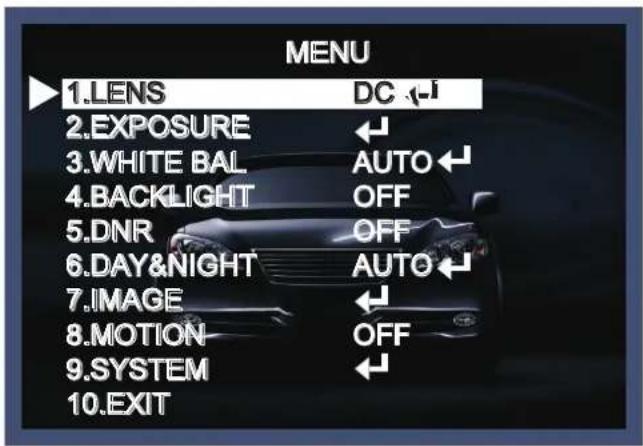
- Move and select the required function using the Up and Down button.
* Move the triangular indicator Up or Down to select the desired feature by pressing the Up or Down button.
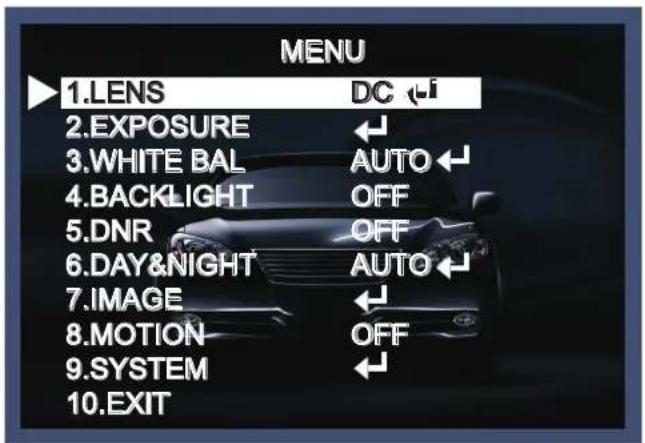
- Change menu settings using the Left or Right button.
* Available values or Status are displayed by pressing the Left or Right buttons.
Press the button until desired value / status is displayed.
- After Changing the setting move the arrow indicator to EXIT and press the
SET button to EXIT.
NOTE
* Move to the available submenu by moving ←arrow to desired feature.
LENS
- Move the triangular indicator to LENS using the Up and Down buttons on the Set Up menu screen.
- Select the desired lens type by pressing the Left or Right button.

NOTE

* When you select the mode setup, you can select INDOOR, OUTDOOR or DEBLUR depending on the installation environment.
*On manual mode, you can select NORMAL or DEBLUR depending on the installation environment.
EXPOSURE
- On the Set Up menu, Select EXPOSURE by using the Up or Down button.

- Select the desired shutter mode by pressing the Left or Right button.
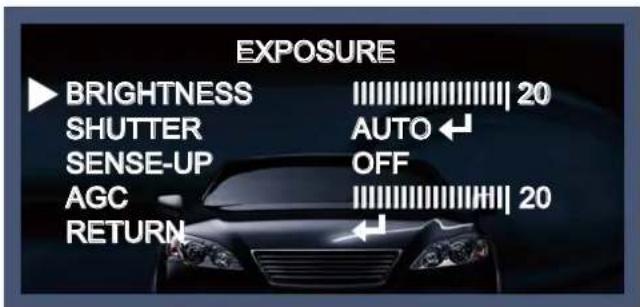
◆ BRIGHTNESS : The brightness can be adjusted. The brightness control range is 1\~20.
◆ SHUTTER : DC lens is launched with the setting of 1/30 and the manual lens is launched with the setting of Auto shutter, but the shutter speed can be adjusted from 1/30 to 1/30,000.
→ FLK : Select FLK mode if flickering occurs ; caused by the unmatched frequency of electric light.
NOTE
* Sense-Up mode is not worked when Electronic shutter is selected as Manual.
◆ SENSE-UP : The bright screen can be displayed by sensing the degree of the darkness automatically under the circumstance of low light condition or at night.
→ Off \~x32 Level Adjustable.
◆ AGC (Auto Gain Control) : The higher the AGC level is, the more noises appear.
→ 0\~20 Level selectable.
White Balance
Use this function when the color adjustment of a screen is needed.
- Move the triangular indicator to WHITE BAL on the SETUP menu screen using the Up and Down button.
- Select the desired mode by using the left or Right button.

◆ AUTO : Use this mode when the color temperature is from 2,500k to 9,500k.
◆ AWB : The function to search for the color which is matched well with the ambient environment.
◆ AWC→SET : After letting camera focus on the blank white paper to the best condition of current lighting environment, press the SET button. If the lighting condition is changed, Re-adjustment should be needed.
◆ MANUAL : Manual compensation make the more detailed control possible. First, after adjusting the white balance using the ATW or AWB mode, change the mode into the manual compensation mode and then press Set button. While looking at the color change of the subject seen on the screen after setting up the proper color temperature, increase the each value of the blue and the red.

- KELVIN : LOW/MIDDLE/HIGH level adjustable.
- R-GAIN : 0\~20 level adjustable.
- B-GAIN : 0\~20 level adjustable.
- Return : Every function is set up at the EXPOSURE menu, and then return the previous menu.
NOTE
The White Balance may not be worked properly in the following conditions. If this doesn't work, use the AWB mode.
* When there is a very high color temperature in the circumstances of the subject.
(for example, clear sky, Sunset)
* It is very dark.
* If the camera is headed to the fluorescent light directly or if there is a drastic lighting change, The operation of White balance may become unstable.
BACKLIGHT
On this menu, backlight image can be compensated by users selecting one of modes. (HLC, BLC, WDR)
- Move the triangular indicator to BACKLIGHT on the SETUP menu screen using the Up and Down button.
- Select the desired mode by using the left or Right button.
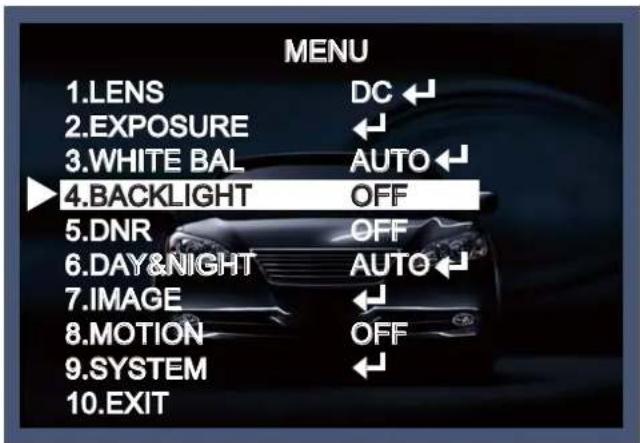
◆ Off : Deactivated status.
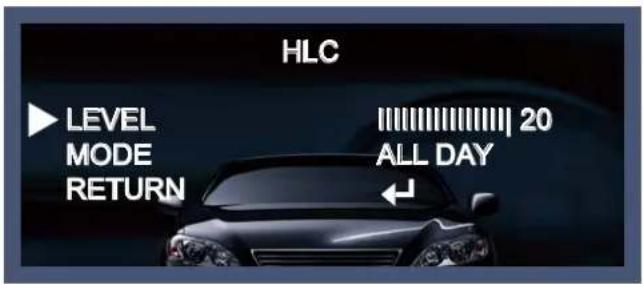
◆ HLC : This fuction is used to surpress or strong light source (for example, headlights of cars during nighttime) so that other subjects can be seen in more detail. If you select HLC, a submenu appears where you can make finer adjustments.
- LEVEL : Adjust the brightness level from which on the light source is to be masked out. 0\~20 level adjustable.
- MODE : All day/night only adjustable.
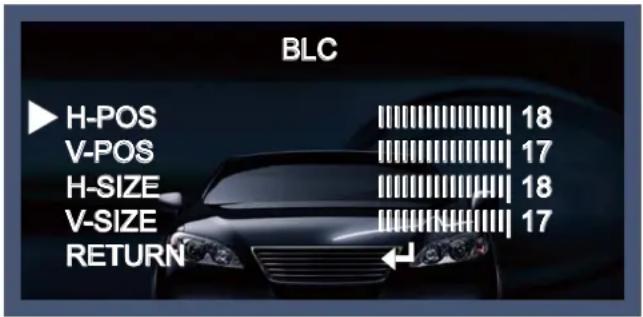
◆ BLC : This function is used to counterbalance the screen image by increasing the brightness so that a subject which appears dark due to a strong backlight can be displayed in more detail. If you select BLC, a submenu appears where you can make finer adjustments.
- H-POS/V-POS/H-SIZE/V-SIZE : Define the position and size of the area of interest by changing the position & size.
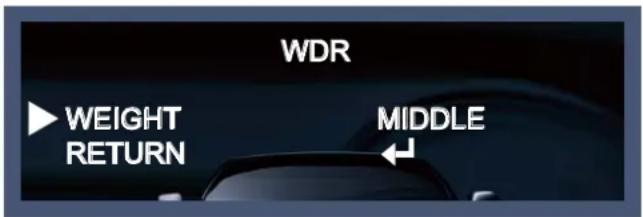
◆ WDR : The WDR (Wide Dynamic Range) fuction works to correct excessive light within the frame to produce a usable image. When the image has simultaneous bright and dark areas, it makes both areas distinct. If you select WDR, a submenu appears where you can make finer adjustments.
- WEIGHT [MIDDLE, HIGH, LOW] : Select the WDR level of the camera.
DNR
This function is used to improve the picture quality by filtering the noise which is generated under low brightness conditions. You can set different levels here.
- Move the triangular indicator to DNR by using the Up and Down button.
- Select the mode to use by pressing the left or Right button and LOW/MIDDLE/HIGH level selectable.

Day&Night
You can change the color mode of color or black / white by setting up the mode.
- Select Day&Night using the Up or Down button on the Set Up menu screen.
- Select the desired mode using the Left or Right buttons.
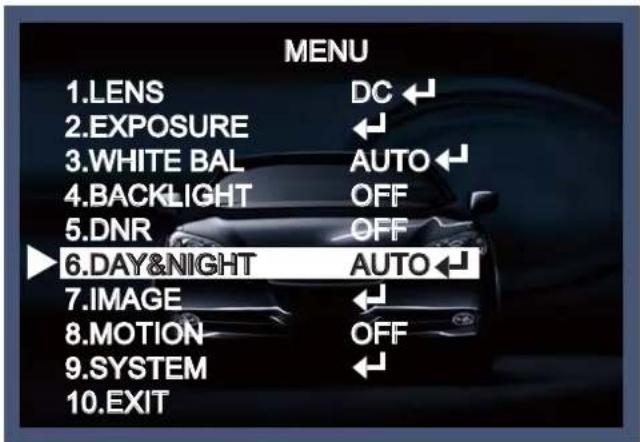
◆ AUTO : Automatically, It shifts into the color mode in the bright environment and the B/W mode in the low light condition. It can adjust the delay time, starting brightness and end brightness according to the ambient conditions by pressing the Set button.
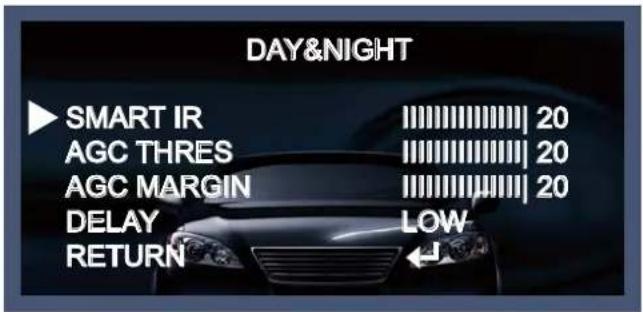
- SMART IR : 0\~20 smart IR level adjustable.
- AGC THRES : 0\~20 AGC THRES level adjustable.
- AGC MARGIN : 0\~20 AGC MARGIN level adjustable.
- DELAY [LOW/MIDDLE/HIGH] : Set the delay time for switching between COLOR and B/W
◆ COLOR : Making the video output color always.
◆ B / W : Making the video output B/W always.

- SMART IR : It controls the IR LED (bright portion base), saturation is not expected. 0\~20 level adjustable.
◆ EXTERN : It can change the color or B/W mode automatically through the connection with the ground terminal. (Option for box camera and IR camera)
- SMART IR : It controls the IR LED (bright portion base), saturation is not expected. 0\~20 level adjustable.
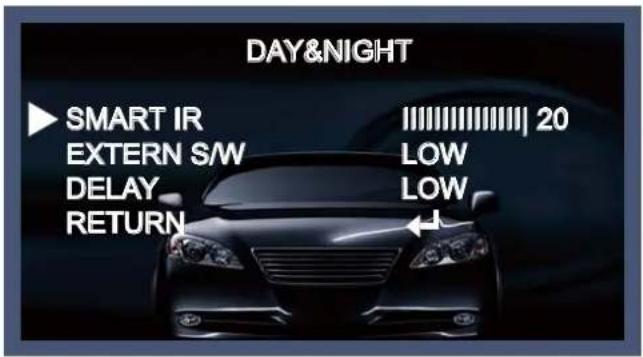
- EXTERN S/W [LOW/HIGH] : Set the external signal for switching between COLOR and B/W.
- DELAY [LOW/MIDDLE/HIGH] : Set the delay time for switching between color and B/W .
IMAGE
When selecting, the following submenu will appear.

Here you can optimise the image quality by adjusting different options.
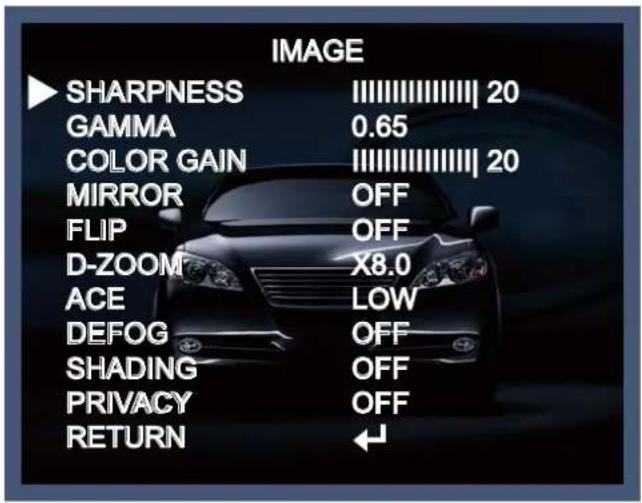
- SHARPNESS [1 \~ 20]: Adjusts the image sharpness. If the level goes up excessively, it may affect the video image and generate a noise.
- GAMMA [0.45 \~ 0.65] : Changes the gamma curve of the camera.
- COLOR GAIN [0 \~ 20]: Changes the color gain of the camera.
- MIRROR [ON, OFF] : Mirrors the image horizontally on the screen.
-
FLIP [ON, OFF] : Flips the image vertically on the screen.
-
D-ZOOM : You can use the digital zoom with x1\~x8 magnification. The higher the digital zoom magnification is, the lower the resolution is.
- ACE [LOW/MIDDLE/HIGH] : Intelligent lighting level control to overcome even strong backlight conditions.
- DEFOG [ON, OFF] : This function helps to recognize the object in a dusty weather condition. ON, a submenu appears where you can make finer adjustments.
- SHADING [ON, OFF] : Compensates the shading effects of lenses when the lens is set to a very wide angle. This function will reduce the brightness difference between the centre and the edges. If you select ON, a submenu appears where you can make finer adjustments.
◆ PRIVACY [ON, OFF] : This is used to hide certain areas on the monitor. You can designate each different 16 area. The size of a designated area can be adjusted. The color of a privacy area can be selected various colors. When you select the return, the setting values in this function menu are saved, then get out of this menu.
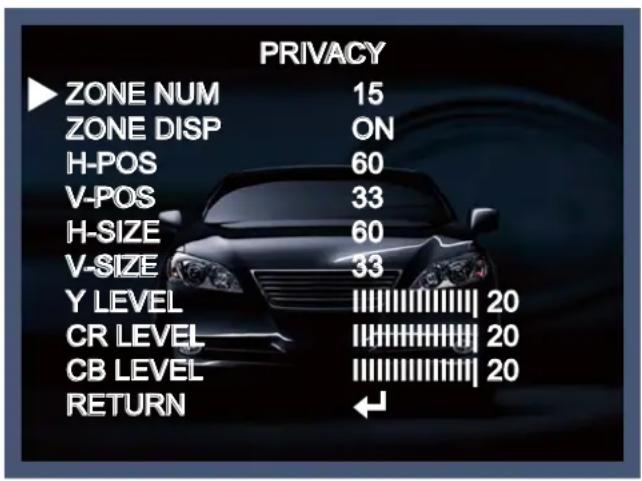
- ZONE NUM [0\~15] : Select a mask out of the 16 mask areas and set the options below for the selected mask.
- ZONE DISP [ON, OFF] : Choose ON to activate privacy masks and press OFF to deactivate masks.
- H-POS [0\~60] : Define the horizontal start position of the privacy mask.
- V-POS [0\~33] : Define the vertical start position of the privacy mask.
- H-SIZE [0\~60] : Define the horizontal size of the privacy mask.
- V-SIZE [0\~33] : Define the vertical size of the privacy mask.
- Y LEVEL [0\~20] : Define the brightness of the mask color.
- CR LEVEL [0\~20] : Define the red amount of the mask color.
- CB LEVEL [0\~20] : Define the blue amount of the mask color.
MOTION
This function is used to detect moving objects in the monitored area. When choosing ON, the following submenu will appear where you can adjust the settings for the MOTION function.
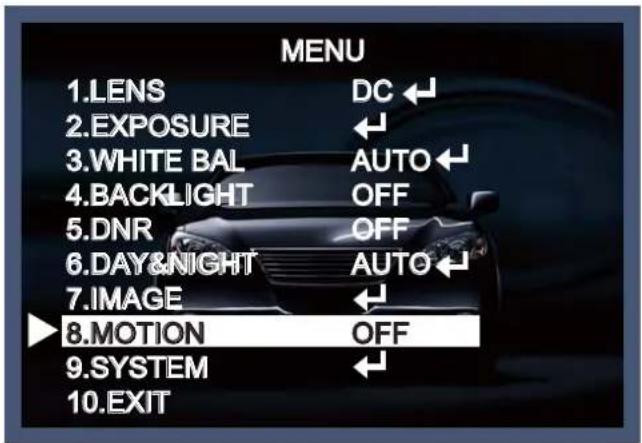
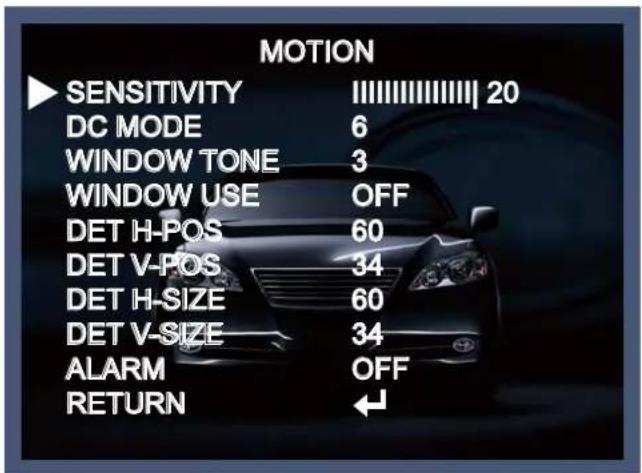
- SENSITIVITY [0\~20] : The higher the setting value is, the higher the sensitivity gets, even though the movement of a subject.
- DC MODE [0\~6] : Adjust window tone where not use motion function.
- WINDOW TONE [0\~3] : Select the window tone.
- WINDOW USE [ON, OFF]
- DET H-POS [0\~60] : Define the horizontal start position of the monitoring area.
- DET V-POS [0\~34] : Define the vertical start position of the monitoring area.
- DET H-SIZE [0\~60] : Define the horizontal size of the monitoring area.
- DET V-SIZE [0\~34] : Define the vertical size of the monitoring area.
- ALARM [ON, OFF] : In motion situation, you can select the details of option setting.
SYSTEM
This can be used when you want to select the additional function control.
-
When the SETUP menu is displayed, select SYSTEM using the Up and Down button.
-
Select one of the mode using the Up and Down button.
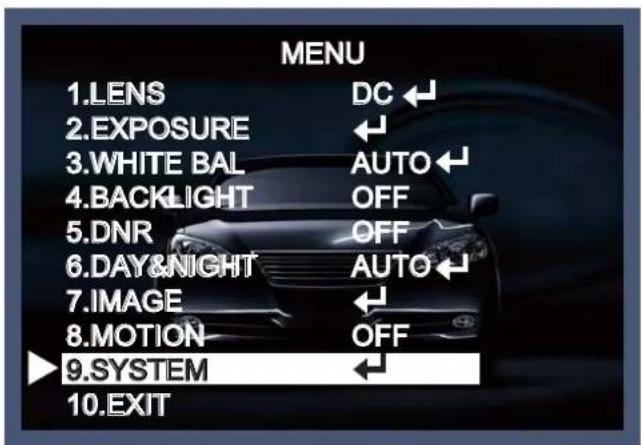

- COM. : This menu id used for RS-485 communication. Users are able to select CAM ID(0\~255) and BAUD RATE (2400/4800/9600/57600/115200).
- IMAGE RANGE [FULL/COMP/USER] : Adjust the rate of YC signal to 100%(FULL), 75%(COMP) or 100%\~75%(USER).
- OUTPUT MODE [720P/720P CROP/1080P] : Choose output type.
- COLOR SPACE [YUV/SD-CBCR/HD-CBCR] : Select different color settings for a warmer or a colder image.
- FRAME RATE [25 FPS/30 FPS] : Choose a frame rate.
- H-DELAY [ON, OFF] : Compensate image size of screen according to DVR.
- CVBS [PAL/NTSC] : Select the video format that matches the present TV system.
- LANGUAGE : ENG, CHN, CHN(S), JPN, KOR
- COLOR BAR [OFF/ON] : Check current condition with color bar.
- RESET [ON] : All settings will be restored to factory default.
Exit
Press the Set button in the exit menu to save the current settings and exit the Set Up menu.
Trouble Shooting
| PROBLEM | POSSIBLE CAUSE |
| Nothing appears on the screen. | Check the power cable, power supply output and video connection between the camera and monitor. |
| The image on the screen is dim. | Are the camera lens or the lens glass dirty?Clean the lens / glass with a soft clean cloth.Adjust the monitor controls, as required.If the camera is facing a very strong light, change the camera position.Adjust the lens focus. |
| The image on the screen is dark. | Adjust the contrast control of the monitor.If there is an intermediate device, correctly set the 75Ω/Hz. |
| The camera is not working properly and the surface of the camera is hot. | Check the camera is correctly connected to an appropriate regulated power source. |
| Motion Detection is not activated. | Has MOTION DET been set to ON in the menu?Has MD AREA been properly defined? |
| The color of the picture is not correct. | Check the settings in WHITE BALANCE menu. |
| The image on the screen flickers. | Make sure that the camera isn't facing direct sunlight or fluorescent lighting. If necessary,change the camera position. |
| The SENS-UP does not work. | Check that the AGC setting in the EXPOSURE menu isn't set to OFF. |
- MEMO -
- MEMO -
- MEMO -
- MEMO -
- Contents
- Contents 3
- General Features 4
- Precautions 5
- Safety Instructions 6
- Menu Set Up 7
- ● Transfer Video Interface
- ● 3D-DNR
- Smart-IR
- ● Sens-Up
- - Defog
- ● WDR
- ● CVBS (Composite Video Blanking and Sync)
- ● Intelligent Function
- Precautions
- NOTE
- Safety Instructions
- Precautions for use
- Please handle this camera carefully :
- How to Set Up the camera menu
- - Setup Menu
- Menu Set Up
- LENS
- EXPOSURE
- White Balance
- BACKLIGHT
- DNR
- Day&Night
- IMAGE
- MOTION
- SYSTEM
- Exit
- Trouble Shooting
Brand : Costar
Model : CCT2312W
Category : Security Camera