
KD-UPS52U - Switch Key Digital - Free user manual and instructions
Find the device manual for free KD-UPS52U Key Digital in PDF.


| Product Type | 4K/18G Multi-Format Presentation Switcher with Soft Codec Enabling |
| Brand | Key Digital |
| Model | KD-UPS52U |
| Video Inputs | 1x HDBaseT, 2x HDMI, 1x DisplayPort, 1x USB-C |
| Video Outputs | 1x HDMI (mirrored), 1x HDBaseT (mirrored) |
| Audio Outputs | 1x Analog L/R Balanced/Unbalanced (6-pin), 1x PCM Digital (RCA) |
| Maximum Video Resolution | 4K/UHD @ 50/60Hz 4:4:4 (18Gbps) |
| HDCP Support | HDCP 2.2 and earlier |
| HDR Support | Yes |
| USB Connectivity | 2x USB-A (device), 1x USB-B (host), 1x USB-C (input), 1x Micro USB (service) |
| Control Methods | Front panel buttons, IR remote, RS-232, TCP/IP, USB, KD-App (iOS) |
| HDBaseT Extension (4K) | Up to 100m / 328ft |
| HDBaseT Extension (1080p) | Up to 150m / 492ft |
| Power over HDBaseT | Yes (powers Rx and compatible Tx) |
| EDID Management | Internal library of 15 handshakes plus native copy |
| Auto-Switching | Yes (toggle switch or command) |
| CEC Manager | Yes (power, volume, mute control of displays) |
| Audio De-embedding | Analog and PCM digital outputs from selected source |
| Dimensions (W x D x H) | 8.27 x 7.20 x 1.75 in (210 x 183 x 44.4 mm) |
| Weight | 4.0 lbs (1.81 kg) |
| Power Supply | 48V/1.66A (80W), model KD-PS80W48VC (included) |
| Warranty | 3 years limited |
| Mounting Options | Half-rack width, rack ears, under-table L-brackets |
| Safety & Maintenance | Clean with dry cloth; connect all cables before power; service by qualified personnel |
Frequently Asked Questions - KD-UPS52U Key Digital
User questions about KD-UPS52U Key Digital
0 question about this device. Answer the ones you know or ask your own.
Ask a new question about this device
Download the instructions for your Switch in PDF format for free! Find your manual KD-UPS52U - Key Digital and take your electronic device back in hand. On this page are published all the documents necessary for the use of your device. KD-UPS52U by Key Digital.
USER MANUAL KD-UPS52U Key Digital
4K/18G Multi-Format, Soft Codec Enabling Presentation Switcher with Auto Switching, 5 Inputs (HDBT, 2xHDMI, DP, USB-C), 2 Mirrored Outputs (HDBT, HDMI), USB, LAN, ARC, Audio De-Embed, IR, RS-232, IP Control, CEC Manager™. Includes Rx.


The Experts in Digital Video Technology and Solutions™
Default static IP address: 192.168.1.239, port 23
Table of Contents
About KD-UPS52U 3
Quick Setup Guide 6
Connect 6
Configure 7
Control 10
Application Examples 12
Mounting Options 14
Connections, Buttons, and LEDs 15
System Integration with KD-CamUSB, KD-Amp220, KD-App 25
TCP/IP and RS-232 Commands 27
Specifications 30
Warranty Information 31
Product Warnings & Safety Instructions
31

Default IP Address: 192.168.1.239
Operation Manual Guide
Please visit www.keydigital.com for the latest product documentation, firmware, control drivers and software downloads. Product features and specifications are subject to change without notice
Always follow the instructions provided in this Operating Manual.
About KD-UPS52U
Key Digital® KD-UPS52U is a 4K/18G KD-App Ready universal presentation switcher + soft-codec enabling interface with CEC Manager™, auto switching, and audio de-embedding creating a user friendly, simplified presentation system. KD-UPS52U features two HDMI, 1 Display Port, one USB-C, and one HDBaseT input which integrates natively with universal presentation + USB switching wall plate transmitters, KD-X4x1WUTx, or KD-X3x1WUTx, or table mounted KD-PS22UTx (each sold separately). KD-UPS52U also features two USB-A and one USB-B connectors, enabling connected laptops and computers to connect with web cams, USB microphones, touchscreen displays, conferencing DSPs, and more. Mirrored HDMI and HDBaseT outputs enable audience + presenter views and the HDBaseT output marries in with the included KD-X100MRx for integrating monitors or projectors up to 100m / 328ft away when the selected source is outputting 4K/ UHD (up to 150m / 492ft at 1080p). Designed for professional audio video installations in conference rooms, board rooms, classrooms, lecture halls, auditoriums, and more, KD-UPS52U enables connected video sources to be displayed on up to two connected displays while analog (balanced/unbalanced) and digital (PCM) audio de-embed ports feed audio of the selected source into an amplifier, DSP, or sound bar. Integrating KD-UPS52U with KD-AMP220 and KD-CAMUSB will enable an app-ready all-in-one solution for control of video switching, sound and speech enforcement, and PTZ camera control. Key Digital CEC Manager™ enables basic controls of the connected displays for a simplistic all-in-one integration system. KD-UPS52U presentation switcher supports all SD, HD, VESA and Ultra HD/4K video standards with HDR header information included in a variety of 4K EDID handshakes. In addition to IR, RS-232, and TCP/IP control, KD-UPS52U can also be controlled via trigger voltage and features status-monitoring LEDs.
Key Features
- Presentation Switcher Kit: Includes KD-UPS52U and KD-X100MRx. Add KD-X4x1WUTx or kD-X3x1WUTx wall plate HDBaseT Tx for plug-in on walls, floor and table boxes, or KD-PS22UTx for plug-in at tables and lecterns.
- Presentation Switching: 1 HDBaseT, 2 HDMI, 1 Display Port, 1 USB-C source selection by push button, IP, RS-232, IR, auto switching, or trigger control.
- Soft-Codec Enabling System: USB Host + Device ports create connectivity hub for professional USB cameras and microphones, audio DSP, keyboard, mouse, or touchscreen display with connected computer
• PTZ USB Camera Integration: Integrates natively with KD-CAMUSB for full PTZ control via KD-App - KD-AMP220 Control Mode: Command forward to KD-AMP220 for an all-in-one user-friendly control UI of video switching, audio, and speech enforcement
-
KD-App Ready: Network scan & detect populates pre-built GUI including connected display/projector controls via CEC Manager™
-
Ease of Integration: Complete configuration using Key Digital Management Software™ Pro
- Ultra HD/4K: Supports up to 4096x2160 or 3840x2160 24/25/30/60hz at 4:4:4 (signals up to 18Gbps bandwidth)
- Auto-Switching: Automatic selection of newly detected source and switching from newly disconnected source when enabled
- CEC Manager™: Power, volume, and muting controls of the connected display/projector without additional control wiring. Selection of desired CEC command recipient.
- Audio De-embedding: Audio of the selected source is de-embedded at the unit's analog L/R balanced/unbalanced and PCM digital audio connectors
• HDCP Licensing: Fully licensed and compatible with HDCP 2.2
• HDR: More life-like images through a greater range of luminance levels - Power Over HDBaseT: Rx unit (included) and wall plate Tx unit (sold separately) powered by KD-UPS52U
• Installation: Half-rack width with rack and under-table mounting ears included
• Signal Extension: For resolution and cable quality
- 4K/UHD (18G): Up to 100m / 328ft
- 1080p: Up to 150m / 492ft
- Deep Color Support: Up to UHD/4K 30Hz 4:4:4/12 bits or 60Hz 4:2:2/12 bit
- Full Buffer System™: Manages TMDS re-clocking / signal re-generation, HDCP authentication to source & display, EDID Control handshake, and Hot Plug Detection Voltage
- EDID Management: Internal library with 15 internal EDID handshakes including 4K with HDR in addition to native EDID data copied from the Rx display/device
• RS-232: Bi-Directional control to/from Tx and Rx/Presentation Switch unit
• Unit Control Mode: Provides TCP/IP and RS-232 control and status of/from Tx unit - Lossless compressed digital audio: Support for Dolby® TrueHD, Dolby® Digital Plus, Dolby Atmos®, and DTS-HD Master Audio™
- Control System Support: Fully controllable by all TCP/IP and RS-232 supported control systems via open API.
Accessories
• Qty 1: Power supply, 48V/1.66A, 80W, Model KD-PS80W48VC
• Qty 1: Remote control and battery set (model KD-RMPS)
• Qty 2: Mounting bracket (L-Bracket)
• Qty 4: L-Bracket mounting screw
• Qty 1: Half-rack ear mount
• Qty 1: Short rack ear
• Qty 4: Rack Ear Screw
• Qty 1: RX Extender (model KD-X100MRx)
• Qty 2: Mounting bracket for KD-X100MRx (L-Bracket)
• Qty 4: L-Bracket mounting screw for KD-X100MRx
• Qty 1: 6-pin blue color terminal block plug
• Qty 1: 6-pin green color terminal block plug
• Qty 3: 3-pin green color terminal block plug
• Qty 1: 6ft Micro USB to USB A data cable (USB 2.0)
• Qty 1: 6ft USB B to USB A data Cable (USB 2.0)
• Qty 1: IR Emitter (3.5mm mono)
• Qty 1: IR Sensor (3.5mm stereo)
Quick Setup Guide
Begin with the KD-UPS52U and KD-X100MRx, KD Transmitter (sold separately), all source, display devices, audio system, and any other connected peripherals powered off.
Connect
- Connect video sources into the HDMI, Display Port, and USB-C input ports of KD-UPS52U
a. Note: For USB-C, cable must be USB-C 3.2 Gen 2 to support AV at the needed bandwidth.
b. (Optional) Connect HDMI, Display Port, USB-C, VGA sources to wall plate / table transmitter (sold separately). Port connectivity varies by transmitter model.
- Connect video displays/projectors to the HDMI output ports of KD-UPS52U and/or KD-X100MRX
- Connect USB hosts and devices. For USB camera, microphone, speakers, audio DSP, keyboard, or mouse integration, connect USB devices into desired USB A ports and USB host computer to desired USB B ports at KD-X100MRx, KD-UPS52U, or Transmitter.
a. USB devices must be connected at same location, see USB Modes Selection Table.
b. Ensure USB toggle switches have chosen USB Device or Host as desired.
- Connect CAT5e/6 cabling from KD-UPS52U's HDBaseT outputs to KD-X100MRX HDBaseT input and (optional) from KD-UPS52U's HDBaseT input to transmitter (sold separately)
- Connect audio to send audio of the select source into KD-Amp220 use KD-UPS52U's analog audio de-embed port. For other audio systems use the digital or analog outputs ports located on KD-UPS52U or KD-X100MRx.
- (Optional) Connect RS-232 wiring for Integrated System. If utilizing KD-AMP220 or KD-CAMUSB integration control mode, connect RS-232 wiring from KD-UPS52U Unit Control TxD and Ground pins into KD-AMP220 and KD-CAMUSB RxD and Ground. Using a stripped mono or stereo audio cable is recommended, but other cables will work as well. See below diagram
- Connect Control System. For KD-App control and/or IP control from a control system or PC, connect TCP/IP port to network. RS-232 and IR control may also be utilized, but IP control is required for KD-CamUSB and KD-Amp220 integrated systems.
- (Optional) Connect display/projector's IR/RS-232 from control system into pass-thru ports of KD-UPS52U and IR/RS-232 ports of the KD-X100MRX.
a. Alternatively, KD-UPS52U CEC Manager features can send power on and off commands via CEC on the HDMI connection.
- Connect power. Screw-in power supply to the KD-UPS52U unit, and then connect power to outlets.
- Power on sources, displays, audio systems, connected computers, USB devices and hosts to use system.
Integrated Systems Wiring: KD-UPS52U with KD-Amp220 and KD-CamUSB

flowchart
graph TD
    A["IP to RS-232 Conversion"] --> B["KD-UPS52U"]
    B --> C["AND / OR"]
    B --> D["Tx + Gnd to RxD + Ground HDBaseT Output"]
    D --> E["HDBaseT"]
    E --> F["KD-X100MRx"]
    F --> G["Tx + Gnd to RxD + Ground to KD-CAMUSB"]
    F --> H["KD-CAMUSB"]
    style A fill:#f9f,stroke:#333
    style B fill:#ccf,stroke:#333
    style C fill:#cfc,stroke:#333
    style D fill:#fcc,stroke:#333
    style E fill:#cff,stroke:#333
    style F fill:#ffc,stroke:#333
    style G fill:#fcc,stroke:#333
    style H fill:#fcc,stroke:#333
Configure
Configure KD-UPS52U with Key Digital Management Software Pro (KDMS Pro). Download HERE
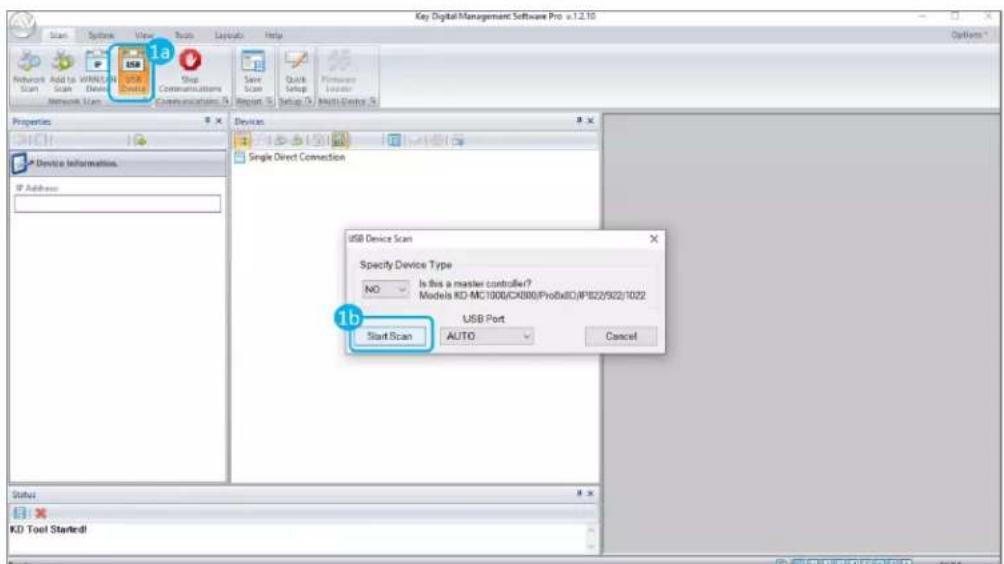
- Connect to KD-UPS52U from your PC using the USB micro port on the face of the unit
- Open the KDMS Pro software and perform a USB scan (fig. 1a). Choose "NO" and Start Scan when the USB Device Scan prompt appears (fig. 1b)
- Choose the detected device from the Devices window (fig. 2a)
- Set the desired Device Name in the KD-UPS52U Information window (fig. 2b)
- In the Network Settings section of the Properties window, enter the desired IP settings (fig. 2c)
a. IP Address (default is 192.168.1.239)
b. Subnet Mask (default is 255.255.255.0)
c. Gateway (default is 192.168.1.1)
d. Port (default is 23)
e. Note: If using KD-App, please do not change the port number.
- Save (fig. 2d)
![Scan System View Tools Layouts Help Properties 2d KD-PS42 Information Device Name: Room 121 F/W Version: 1.03 F/W Release Date: 2/20/2019 Read Update Firmware Update Network Settings MAC Address: 60:89:B1:31:00:0F DHCP IP Address: 192.168.001.21 IP Mask: 255.255.000.000 Gateway: 192.168.001.001 Port: 0023 Devices Single Direct Connection USB Switchers 192.168.001.216 (KD-UPS52U "Room121") 2a Status 15:25:13 USB[COM4] DETECTED. 15:25:13 USB[COM4] - "KD-UPS52U" Devicefound](/content/2026/06/1223998/images/f4bd61bea592f4ec410fb092e0cf4465a5b9610f2cb54d54f3818be3ea5cd433.jpg)
- Set the EDID handshaking to position "A" for 4K video with 2ch audio. Choose setting "4" for 1080p video with 2ch audio.
- Refer to the Connections, Buttons, and LEDs section for more information on the remaining control rotaries, slide switches, etc. Full access to all settings/commands is achieved via terminal session using Tera Term or PuTTy software.
Additional configuration steps for control by KD-App and KDMS Pro
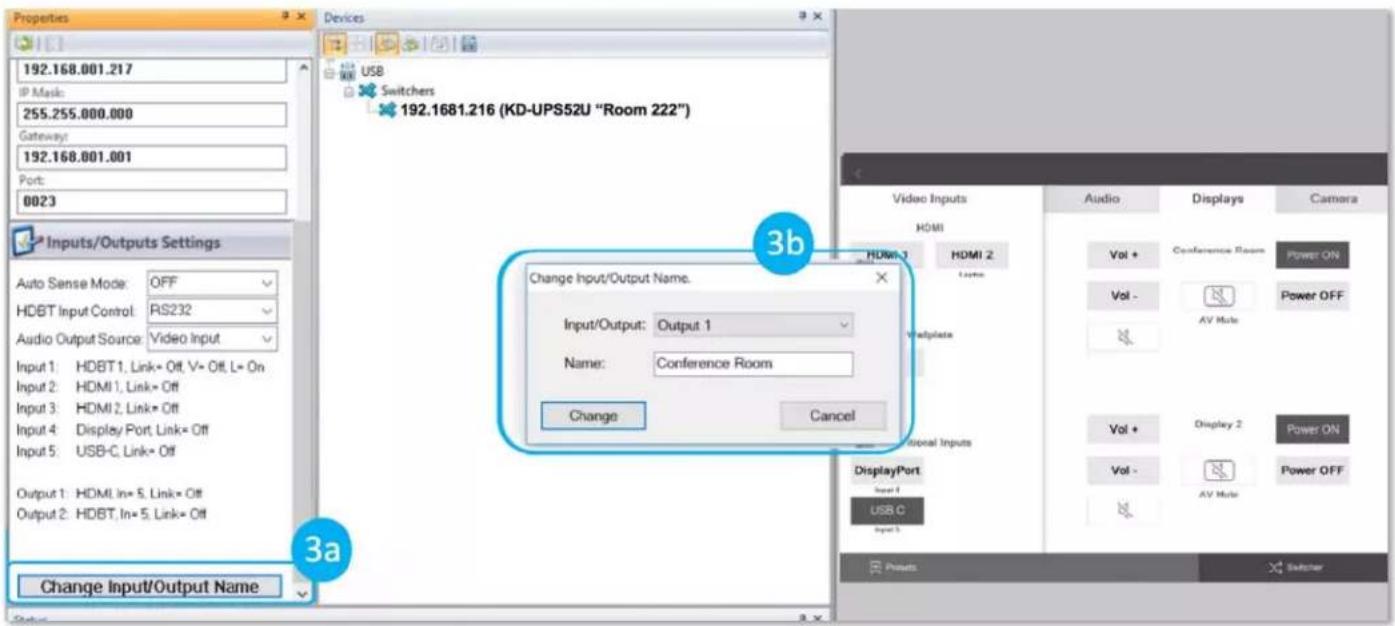
- Set the desired Input/Output names by entering the Input/Output Settings section of the properties window, and selecting the Change Input/Output Name button (fig. 3a), selecting the desired input/output and entering the name (fig. 3b)
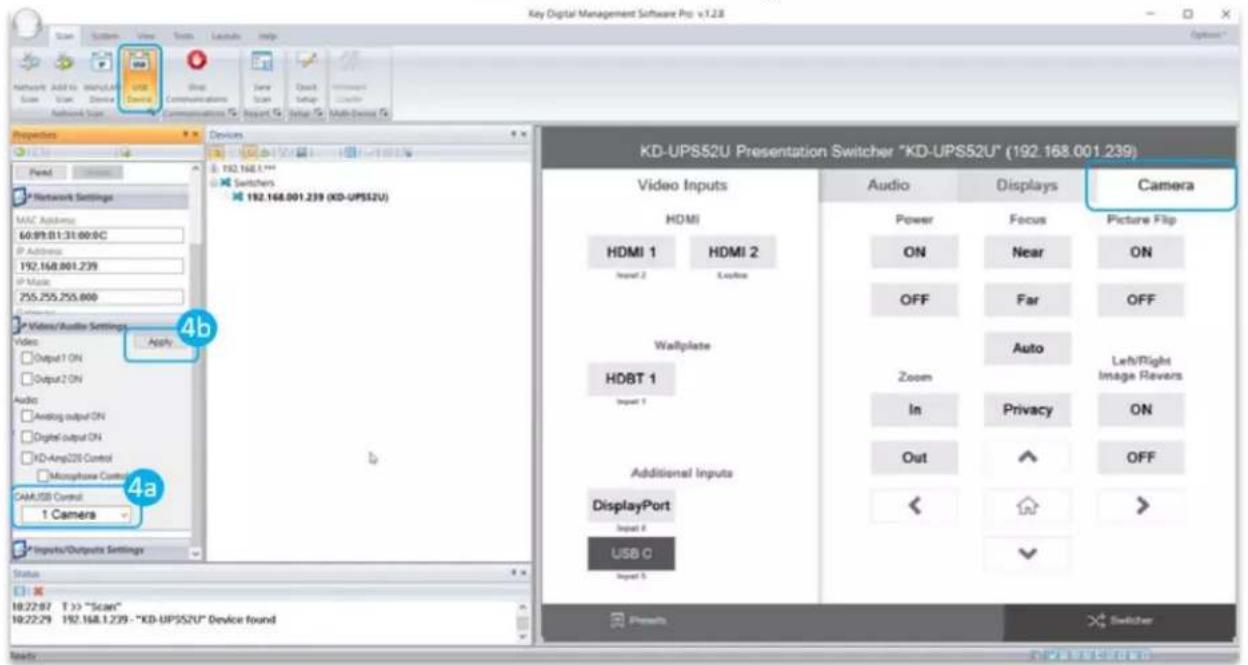
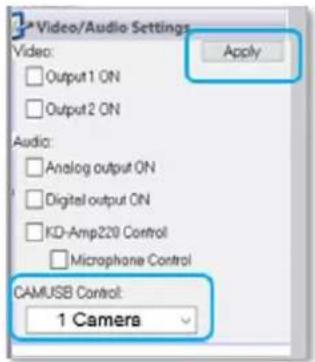
- If utilizing KD-CamUSB integration control mode, choose the quantity of cameras needed to control (fig 4a). Press Apply (fig 4b)
a. Note: Controlling more than two cameras will require the use of active third-party RS-232 signal distribution. Maximum of seven cameras is supported.
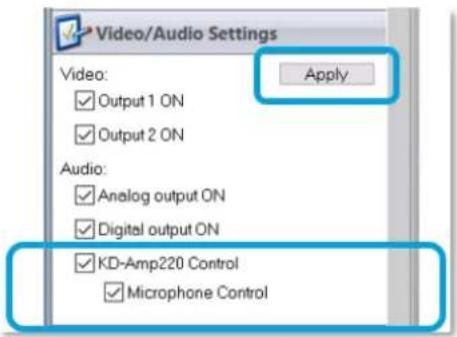
- If utilizing KD-AMP220 integration control mode, choose the KD-AMP220 Control selection box (fig. 5a) in the Audio/Video properties section. To control the mix level of KD-AMP220's microphone input, choose the selection box for Microphone Control (fig. 5b).

- Your unit is now ready to control from the KDMS™ Control Panel, KD-App, or by professional control system.
Control
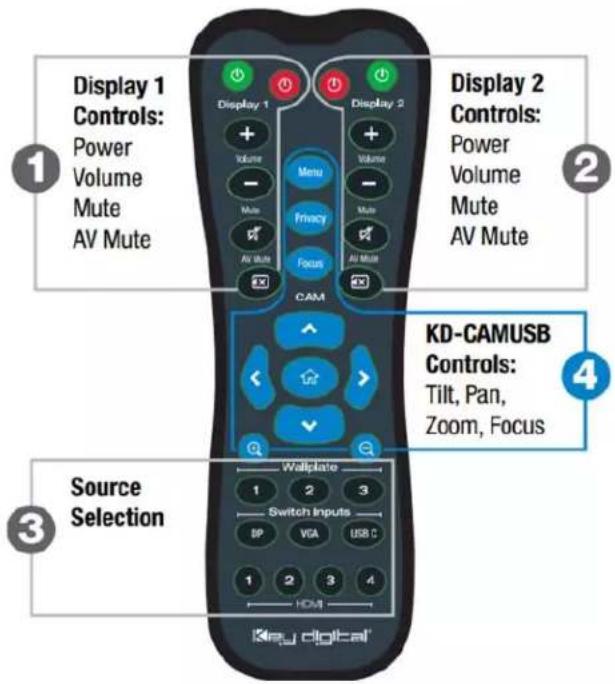
Option 1: Control via Remote Control
- Output 1 display/projector control via CEC
- Output 2 display/projector control via CEC
- Input selection of KD-UPS52U connected sources
- KD-CamUSB (sold separately) IR control
Option 2: Control via KD-App, KDMS Pro™
KD-UPS52U is controllable by Key Digital's user-friendly iOS App (downloadable in the App Store) or Key Digital® Management Software™ (downloadable here).
- Connect and Configure your KD-UPS52U as described in this Connect & Configure sections
- Download and open KD-App and/or KDMS™
- Ensure the iOS device and/or PC computer are on the same network with KD-UPS52U
- Perform a network scan in the KD-App/KDMS™
- Select and control the selected KD-UPS52U To enter KDMS Pro end-user mode, key CTRL + ALT + N after selecting the unit in the devices tree.
Key Digital® App on the App Store
Option 3: Control via professional control system
KD-UPS52U allows control over serial interface for bi-directional communication.
- For RS-232 control use pins 4, 5, and 6 of the Unit Control port
- For TCP/IP control the default static IP address is 192.168.1.239, with port 23
Default static IP address: 192.168.1.239, port 23
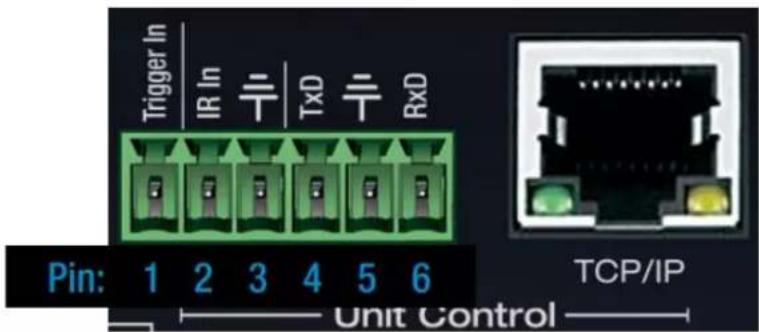
- For the past 10 years, most Key Digital matrix switches have supported a standard audio + video switching command. KD-UPS52U is also controllable by this command, so if you have previously integrated Key Digital matrixes by third-party control systems you may have success using the same driver/module.
a. Switching Video + Audio together (two commands supported)
i. SPO01SIyy yy = input number (01-05)
ii. SPOSlyy yy = input number (01-05)
b. Display CEC On / Off
i. SPOxxTVy xx = output number (01-02), y = ON or OFF
• See the TCP/IP and RS-232 Commands section for full command set.

Test for proper operation of the unit and cables in your system before permanently securing the unit for final installation. Ensure that you leave enough ventilation space to provide sufficient airflow and cooling
Application Examples
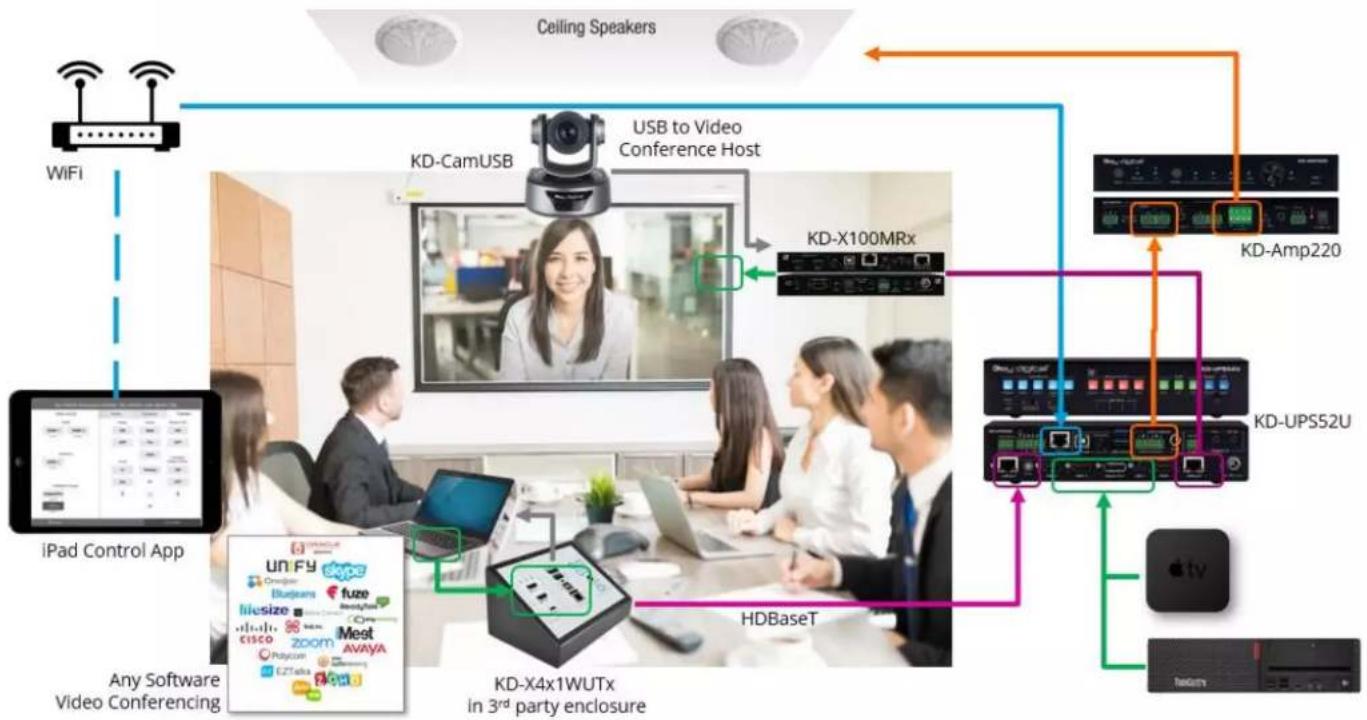
Complete Key Digital Presentation Solution
flowchart
graph TD
    A["Ceiling Speakers"] --> B["WiFi"]
    A --> C["iPad Control App"]
    A --> D["Any Software Video Conferencing"]
    B --> E["KD-CamUSB"]
    C --> F["HDBaseT"]
    D --> G["KD-X4x1WUTx in 3rd party enclosure"]
    E --> H["USB to Video Conference Host"]
    F --> I["KD-X100MRx"]
    G --> J["KD-Amp220"]
    H --> K["KD-UPS52U"]
    I --> L["Apple TV"]
    J --> M["Macpu"]
    K --> N["Video Conferencing System"]
    L --> O["Video Conferencing System"]
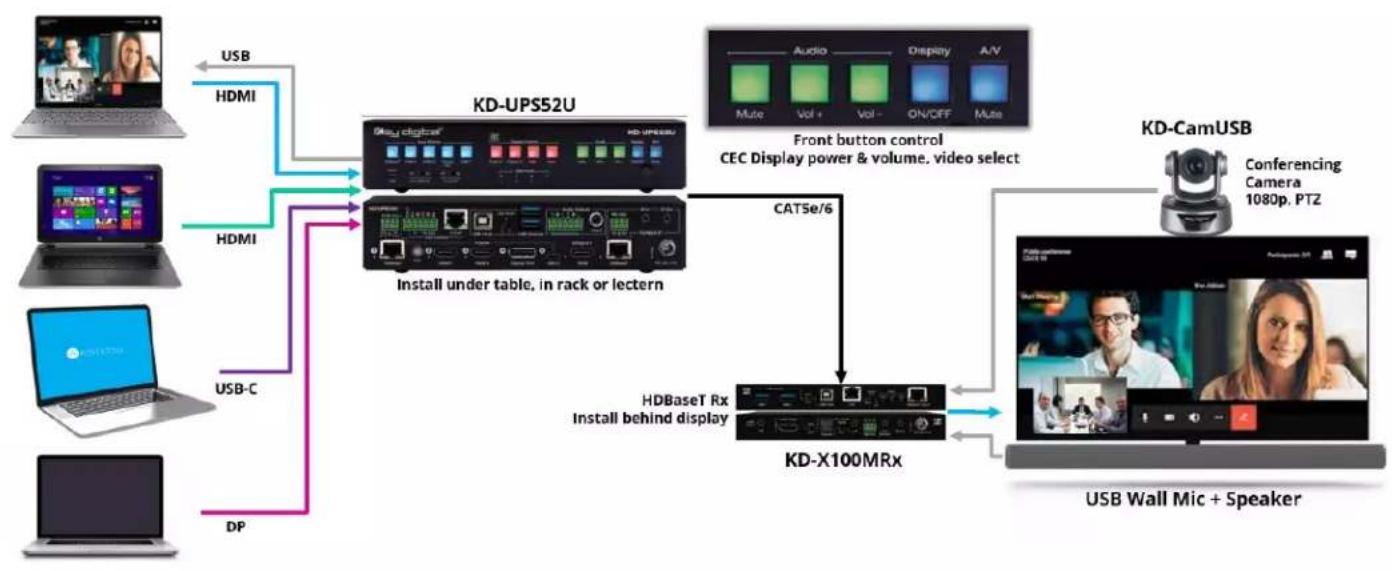
CEC Controlled Conferencing Room
flowchart
graph TD
    A["User Device"] -->|USB| B["KD-UPS52U"]
    C["Laptop"] -->|HDMI| B
    D["Laptop"] -->|USB-C| B
    E["User Device"] -->|DP| B
    B -->|Install under table, in rack or lectern| F["Audio digital"]
    F --> G["Front button control CEC Display power & volume, video select"]
    G --> H["KD-X100MRx"]
    H --> I["USB Wall Mic + Speaker"]
    J["Conferencing Camera 1080p, PTZ"] --> I
    K["Audio Display A/V"] --> H
    L["Video Player"] --> H
    M["Audio Video"] --> H
    N["Display Audio"] --> H
    O["On/OFF Audio"] --> H
    P["Audio Mask"] --> H
    Q["Audio Mask"] --> H
    R["Audio Mask"] --> H
    S["Audio Mask"] --> H
    T["Audio Mask"] --> H
    U["Audio Mask"] --> H
    V["Audio Mask"] --> H
    W["Audio Mask"] --> H
    X["Audio Mask"] --> H
    Y["Audio Mask"] --> H
    Z["Audio Mask"] --> H
    AA["Audio Mask"] --> H
    AB["Audio Mask"] --> H
    AC["Audio Mask"] --> H
    AD["Audio Mask"] --> H
    AE["Audio Mask"] --> H
    AF["Audio Mask"] --> H
    AG["Audio Mask"] --> H
    AH["Audio Mask"] --> H
    AI["Audio Mask"] --> H
    AJ["Audio Mask"] --> H
    AK["Audio Mask"] --> H
    AL["Audio Mask"] --> H
    AM["Audio Mask"] --> H
    AN["Audio Mask"] --> H
    AO["Audio Mask"] --> H
    AP["Audio Mask"] --> H
    AQ["Audio Mask"] --> H
    AR["Audio Mask"] --> H
    AS["Audio Mask"] --> H
    AT["Audio Mask"] --> H
    AU["Audio Mask"] --> H
    AV["Audio Mask"] --> H
    AW["Audio Mask"] --> H
    AX["Audio Mask"] --> H
    AY["User Device"] -->|USB| B
    AZ["User Device"] -->|HDMI| B
    BA["User Device"] -->|HDMI| B
    BB["User Device"] -->|USB-C| B
    BC["User Device"] -->|DP| B
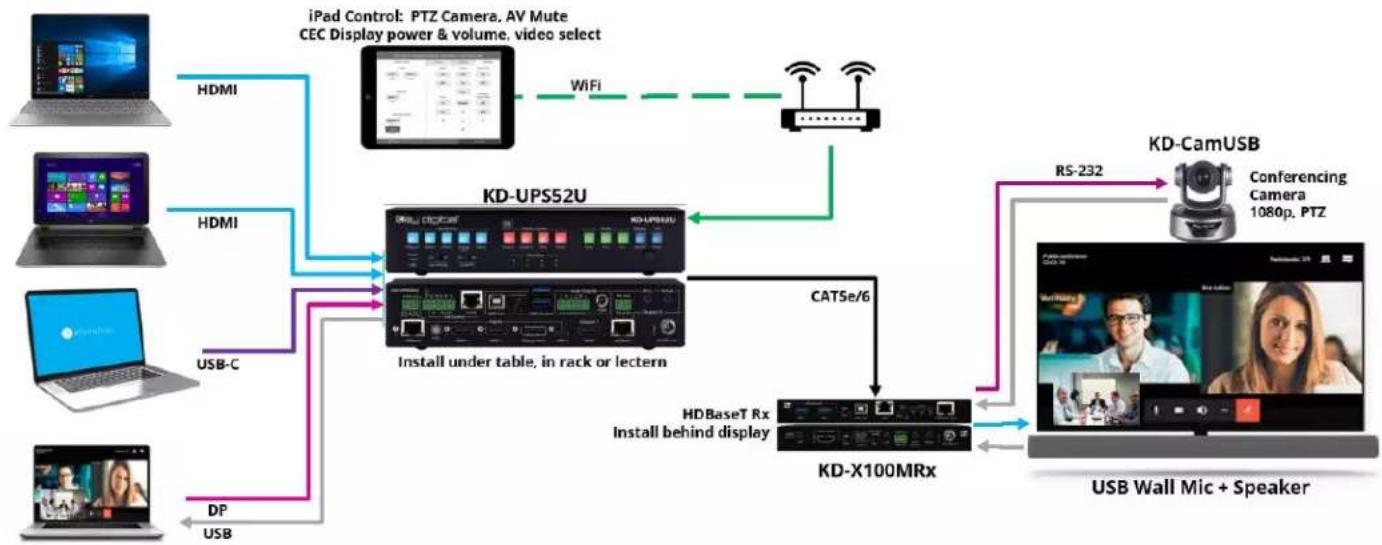
iPad Presentation Switcher and Camera Control
flowchart
graph TD
    A["User Device"] -->|HDMI| B["KD-UPS52U"]
    C["Laptop with iPad"] -->|HDMI| B
    D["Laptop with Bluetooth"] -->|USB-C| B
    E["User Device"] -->|DP USB| B
    B -->|WiFi| F["RF/Server"]
    B -->|CATSe/6| G["KD-X100MRx"]
    G --> H["USB Wall Mic + Speaker"]
    I["iPad Control: PTZ Camera, AV Mute CEC Display power & volume, video select"] --> B
    J["Conferencing Camera 1080p, PTZ"] --> H
    K["RS-232"] --> H
    L["HDBaseT Rx Install behind display"] --> G
Large Room with Table Plug-in Switcher
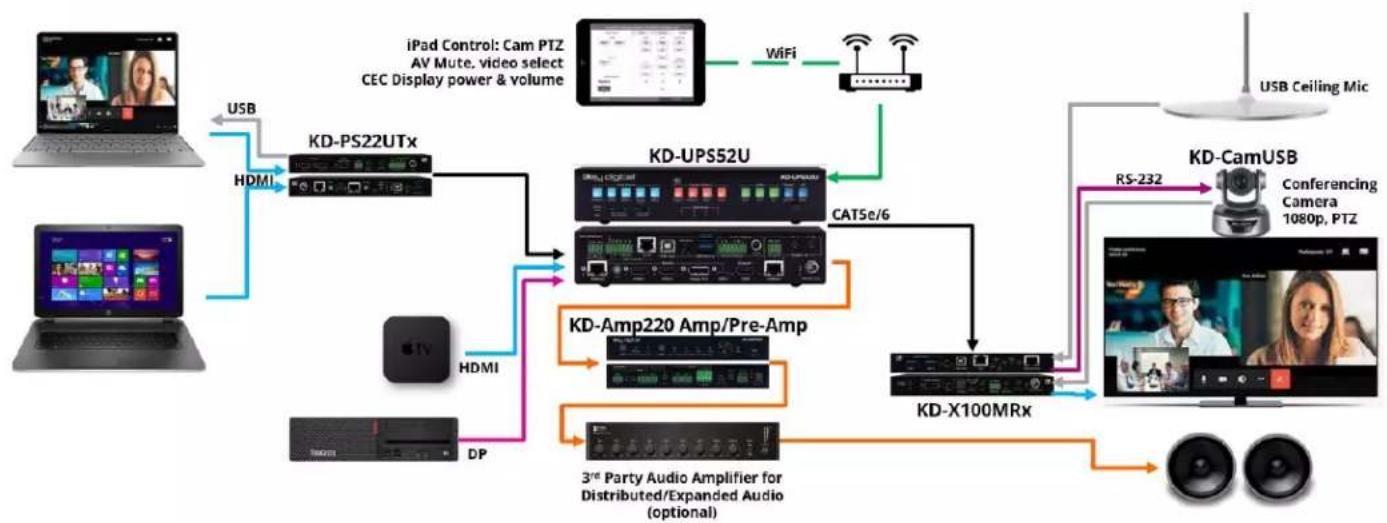
flowchart
graph TD
    A["User Device"] -->|USB| B["KD-PS22UTx"]
    A -->|HDMI| C["KD-Amp220 Amp/Pre-Amp"]
    A -->|HDMI| D["3rd Party Audio Amplifier for Distributed/Expanded Audio (optional)"]
    B --> E["KD-UPSS2U"]
    C --> E
    D --> E
    E --> F["KD-X100MRx"]
    F --> G["Conferencing Camera 1080p, PTZ"]
    G --> H["RS-232"]
    H --> I["KD-CamUSB"]
    I --> J["USB Ceiling Mic"]
    K["iPad Control: Cam PTZ AV Mute, video select CEC Display power & volume"] --> L["WiFi"]
    L --> M["Podband"]
    M --> N["Device"]
    O["Mac"] --> P["HDMI"]
    P --> Q["HDMI"]
    Q --> R["HDMI"]
    R --> S["HDMI"]
    S --> T["HDMI"]
    T --> U["HDMI"]
    U --> V["HDMI"]
    V --> W["HDMI"]
    W --> X["HDMI"]
    X --> Y["HDMI"]
Mounting Options
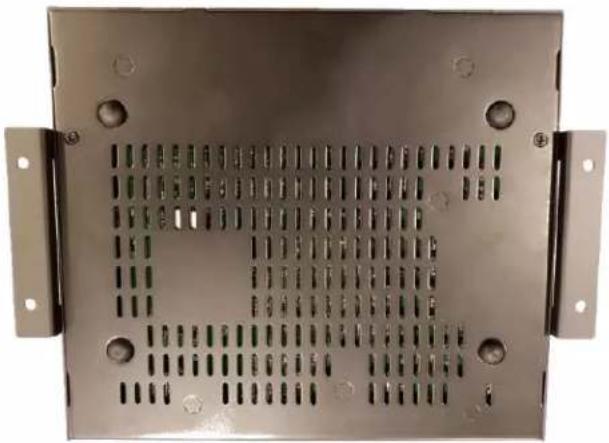
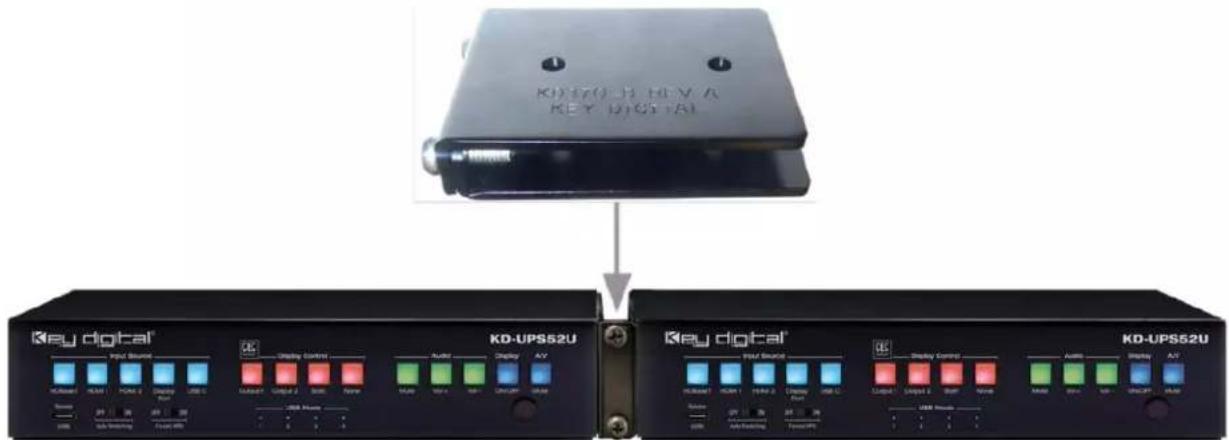
KD-UPS52U includes hardware for multiple mounting options.
- For mounting in a standard-width rack, use the included half-rack blank and short rack ear

- For mounting under table or on wall, use the included L brackets
natural_image
Metal perforated panel with mounting holes and a central slot, no visible text or symbols- For mounting two units side by side in a standard-width rack, use KD-BKTHF (sold separately)
Connections, Buttons, and LEDs
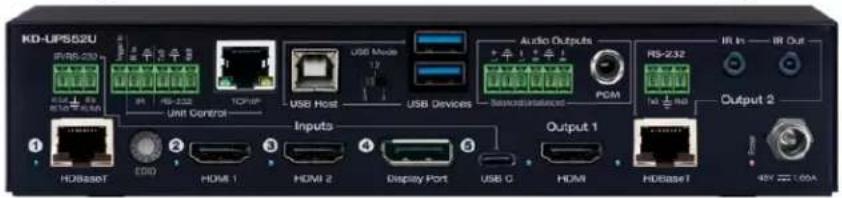
Inputs and EDID Handshaking Rotary

HDBaseT (Input 1): Using a CAT5e/6 cable, connect from a compatible KD Transmitter.
- KD-PS22UTx – Black box transmitter with 2x HDMI inputs, and USB host and device ports. Designed for under-table installation.
- KD-X4x1WUTx – Wall plate transmitter with 2x HDMI, 1x USB-C, and 1x DP input, USB host and device ports, and CEC display control button pad. Designed for installation in a US triple-gang wall plate on wall, in a table or floor pocket.
- KD-X3x1WUTx - Wall plate transmitter with 1x HDMI, 1x VGA + L/R, and 1x DP input, USB host and device ports, and CEC display control button pad. Designed for installation in a US triple-gang wall plate on wall, in a table or floor pocket.
• 4K/UHD (18G): Up to 100m / 328ft
• 1080p: Up to 150m / 492ft - Provides power over HDBaseT to connected transmitter
- Link light to the left of the port illuminates solid from healthy HDBaseT connectivity with Tx unit and active incoming video signal.
- Does not support Dolby® Vision
HDMI (Input 2 and 3): Using an HDMI cable, connect your HDMI sources.
• Supports up to UHD/4K @ 50/60 fps [4:4:4], 18Gbps
- Supports HDR
• Compliant with HDCP 2.2 and previous
- Supports lossless compressed audio formats including Dolby® TrueHD, Dolby® Digital Plus, Dolby Atmos®, and DTS-HD Master Audio™
- Does not support CEC pass through from connected Rx unit / presentation switch
- Link light to the left of each port illuminates when there is an active HDMI signal passing through.
Display Port (Input 4): Using a Display Port cable, connect your source.
• Supports up to UHD/4K @ 50/60 fps [4:4:4], 18Gbps
- Supports HDR
• Supports Display Port version 1.3 and previous
• Compliant with HDCP 2.2 and previous
USB-C (Input 5): Using a USB-C cable, connect your source.
• Supports up to UHD/4K @ 50/60 fps [4:4:4], 18Gbps
- Supports HDR
- For USB-C, cable must be USB-C 3.2 Gen 2 to support AV at the needed bandwidth
• Utilizes Display Port over USB-C alt mode
• Supports Display Port version 1.3 and previous
• Compliant with HDCP 2.2 and previous
Supported standard 4K video formats:
| Resolution | Bandwidth | |
| 1 | 4K@24/25/30 [4:4:4] 8bit | < 10.2Gbps |
| 2 | 4K@24/25/30 [4:2:2] 8/10/12bit | < 10.2Gbps |
| 3 | 4K@50/60 [4:2:0] 8bit | < 10.2Gbps |
| 4 | 4K@24/25/30 [4:4:4] 10/12bit | < 18Gbps |
| 5 | 4K@50/60 [4:2:2] 8/10/12bit | < 18Gbps |
| 6 | 4K@50/60 [4:2:0] 10/12bit | < 18Gbps |
| 7 | 4K@50/60 [4:4:4] 8bit | < 18Gbps |
EDID Handshaking Rotary
- EDID authentication is provided from the unit to the connected inputs/sources.
- Inputs/sources connected to a KD Transmitter receive their EDID handshake from the KD Transmitter
- The EDID file (AKA "handshake" is selected using the EDID rotary and provides a list of compatible video and audio formats as well as digital data, informing the source device what it should outputs.
- Most sources will comply with a new EDID file without a power-cycle, but devices do behave differently
- Adjustments may speed up sync time during source selection
| Position | EDID Handshake Description | EDID Rotary |
| 0 | Copy EDID from HDMI Output 1 | 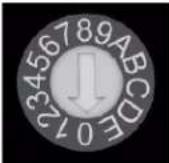 Note: Default position is “A” Note: Default position is “A” |
| 1 | 1080i, 2CH AUDIO | |
| 2 | 1080i, DOLBY/DTS 5.1 | |
| 3 | 1080i, HD AUDIO | |
| 4 | 1080p, 2CH AUDIO | |
| 5 | 1080p, DOLBY/DTS 5.1 | |
| 6 | 1080p, HD AUDIO | |
| 7 | 4Kx2K@60, 10.2G, HDR, 2CH AUDIO | |
| 8 | 4Kx2K@60, 10.2G, HDR, DOLBY/DTS 5.1 | |
| 9 | 4Kx2K@60, 10.2G, HDR, HD AUDIO | |
| A | 4Kx2K@60, 18G, HDR, 2CH AUDIO | |
| B | 4Kx2K@60, 18G, HDR, DOLBY/DTS 5.1 | |
| C | 4Kx2K@60, 18G, HDR, HD AUDIO | IMPORTANT: Please apply light pressure to the EDID rotary when making your selection. |
| D | 1280x720p@60 DVI (no audio) | |
| E | 1920x1080p@60 DVI (no audio) | |
| F | 4Kx2K@30, 10.2G, HDR, 2CH AUDIO |
Outputs
The HDMI and HDBaseT outputs are mirrored. The selected source is viewed on both outputs simultaneously.
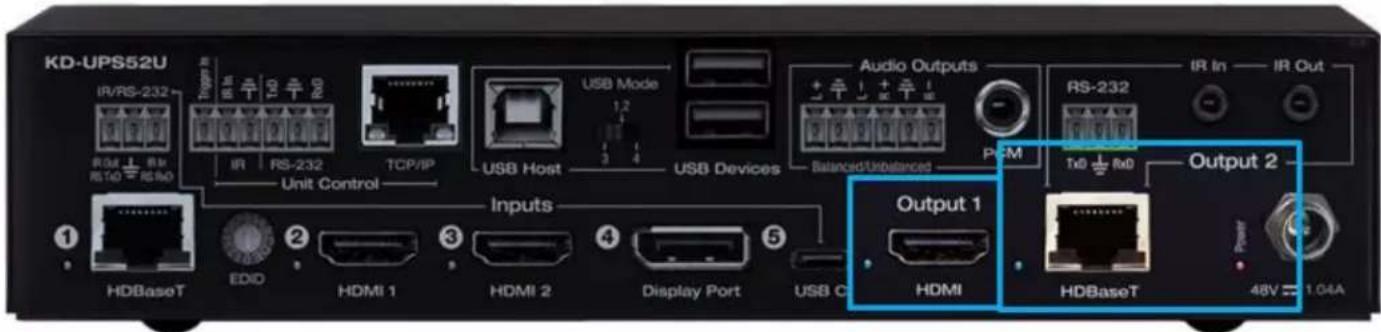
HDMI (Output 1): Using an HDMI cable, connect your display or system. For DVI-D/DVI-I sources use an appropriate adapter. For Display Port, use active adapters.
• Supports up to UHD/4K @ 50/60 fps [4:4:4], 18Gbps
- Supports HDR
• Compliant with HDCP 2.2 and previous
- Supports lossless compressed audio formats including Dolby® TrueHD, Dolby® Digital Plus, Dolby Atmos®, and DTS-HD Master Audio™
• Supports CEC Manager™ control of connected supporting display. Does not support CEC pass through.
- Link light to the left of port illuminates when there is HPD from the connected display.
HDBaseT (Output 2): Connect a CAT5e/6 cable to the Rx unit at the HDBaseT Input port.
• 4K/UHD (18G): Up to 100m / 328ft
• 1080p: Up to 150m / 492ft in Long Range Mode
- Use with included KD-X100MRx.
- Compatible with third party HDBaseT Rx, including projectors, but cannot be guaranteed.
- Provides power over HDBaseT to connected transmitter
- Link light to the left of the port illuminates solid from healthy HDBaseT connectivity with Rx unit.
- Does not support Dolby® Vision
Audio Outputs

- Analog and digital de-embedded audio from the selected source
• There are no volume or tone control features
• There are no pre-amp features
| Audio Input Signal Format | Analog Output | Digital Output |
| 2ch PCM | Pass-Through | Pass-Through |
| Multi-Channel PCM | Front L/R Pass-Through | MUTE |
| Dolby®, DTS TM 5.1 / 6.1 | MUTE | Pass-Through |
| HD Audio(incl. Dolby®, DTS TM 7.1) | MUTE | MUTE |
Analog L/R Balance/Unbalanced
- 6-pin terminal block
- Drives audio signals up to 2 VRMS with a sampling rate of 192Hz
• Automatically mutes if audio formatting is not PCM 2ch - Pin assignment:
○ Left + is Pin 1; Left - is Pin 3; Left Ground is Pin 2
○ Right + is Pin 4; Right - is Pin 6; Right Ground is Pin 5
PCM Digital
- RCA coaxial
• SPDIF IEC 60958 format
• Compatible with sampling rates up to 192KHz
• Supports multi-channel Dolby® surround formats up to 5.1 and DTV™ 6.1
• Automatically mutes if audio formatting is not PCM, Dolby®, or DTS™
Service USB Port
- Micro USB port
- Used for configuration and control from PC via KDMS Pro or third-party control terminal
- Used for firmware updates (consult with Key Digital tech support before updating firmware)
• Supports USB driver for Windows 10, 7, XP, Mac, Linux - Will register as "Prolific USB-to-Serial Comm Port in Device Manager
- Can be used as RS-232 control port. Baud rate is 57,600 unless adjusted otherwise
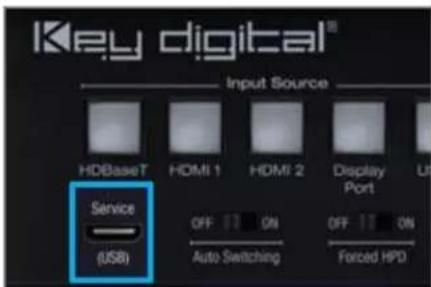

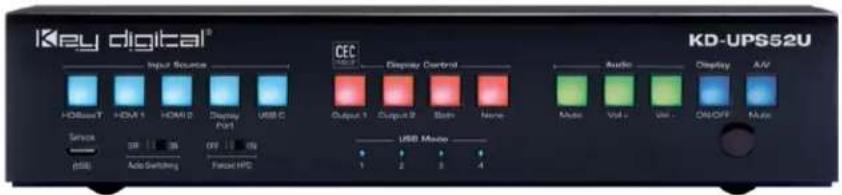
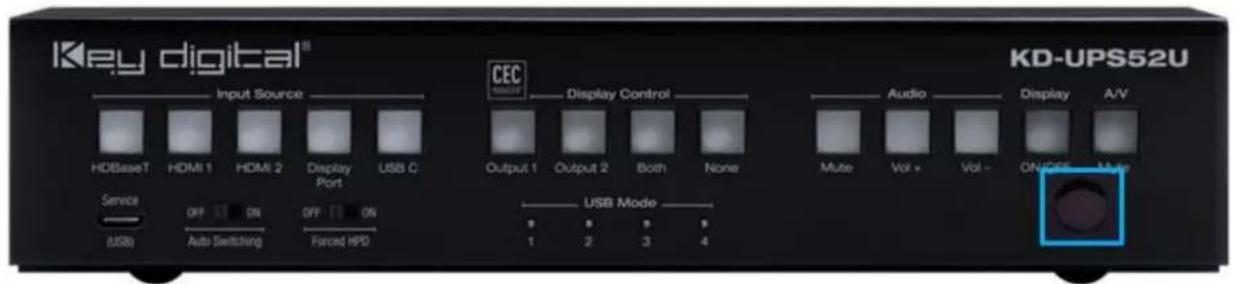
Front Panel Buttons
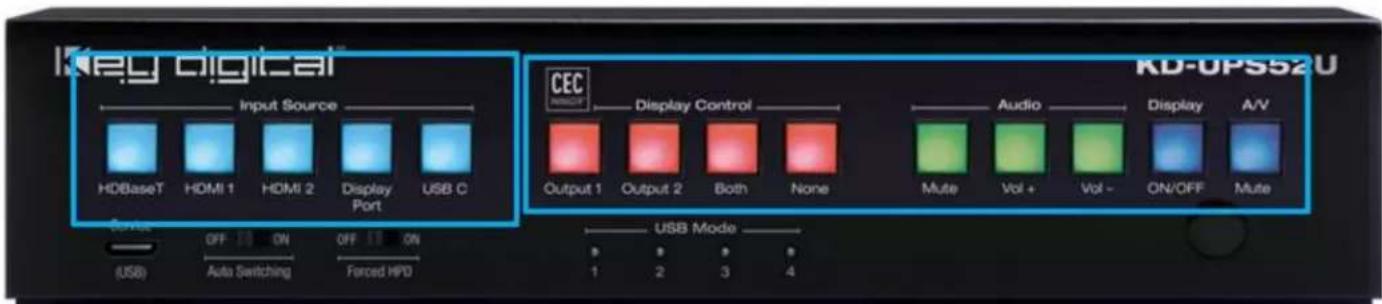
Input Source (Blue)
• Used for selecting the desired source to be routed to both outputs.
- When an input source selection occurs, a Power On CEC command is sent to the display(s) enabled on the Display Control button section
CEC Manager™ Display Control (Red)
- Choose the display that you desire CEC control commands be sent to
CEC Manager™ Commands (Green & Blue)
- Sends CEC commands via HDMI to the display(s) specified by the Display Control buttons.
- Ensure that CEC is enabled on your displays/projectors. Depending on the manufacturer, HDMI-CEC may be given a different name. View THIS ARTICLE for a list of CEC names and how to enable CEC on popular displays.
- With KD-Amp220 mode enabled, Mute, Vol +, and Vol -, buttons send RS-232 commands to the KD-Amp220 instead of CEC commands to the displays(s)
- When Vol + or Vol – button is held, the command is sent every 0.5 second
- Pressing the A/V Mute button sends a black screen to the output. It is not a CEC command.
Note: Press and hold HDMI 1 + A/V Mute buttons simultaneously for 10 seconds to apply a factory default reset. Release the buttons when all front LEDs turn off and the unit will re-boot.
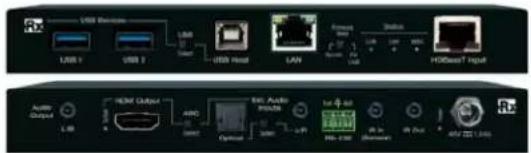
USB Ports and Mode Switch
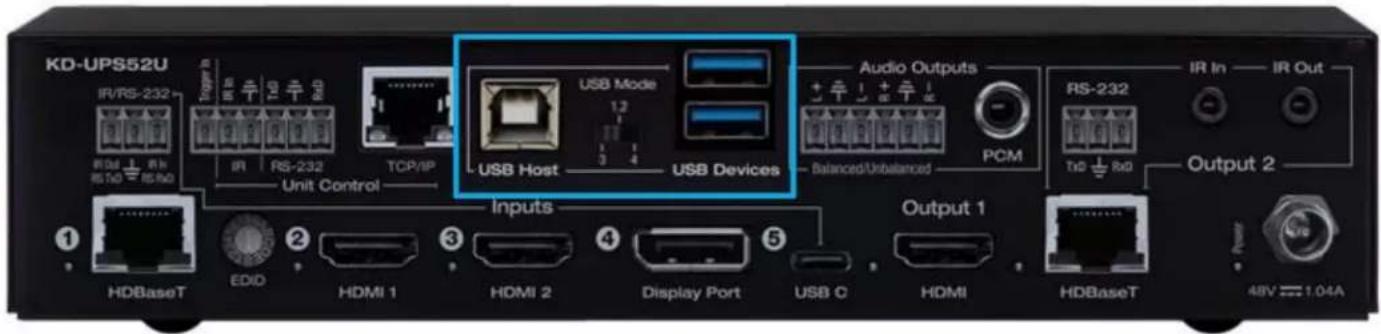
USB Host Port
• Used for connecting to USB host (ie computer, conferencing appliance)
- Not used for connected to USB devices (ie web cam, USB mic, keyboard, mouse, touchscreen)
• Supports USB 2.0 and previous
- Use Mode switch to determine USB signal flow. Refer to below USB Modes table
USB Device Ports
• Used for connecting to USB endpoints (ie web cam, USB mic, keyboard, mouse, touchscreen)
- Not used for connected to USB host (ie computer, conferencing appliance)
• Supports use with USB hubs but may not exceed 15 endpoint devices
- Provides 5V 500mA power
• Supports USB 2.0 and previous
- Use Mode switch to determine USB signal flow. Refer to below USB Modes table
USB Mode Selection and Table
KD-UPS52U has several USB modes to accommodate multiple scenarios for USB pass-thru.
The USB mode lights on the front of the unit illuminate to indicate the current scenario selected.
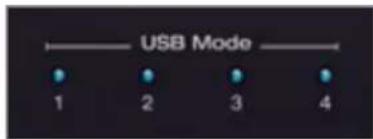
IMPORTANT: Please allow at least 1 minute for new USB signal flow to establish after moving the USB mode switch. During this transition, HDBaseT input and output connections may temporarily drop.
Mode 1: USB Host is connected to the KD Transmitter, USB device is connected to HDBaseT Rx
Mode 2: USB Host is connected to the KD Transmitter, USB device is connected to KD-UPS52U device ports
Mode 3: Supports two routes for USB control
- USB Host connected to KD-UPS52U, USB device is connected to KD-X100MRx
- USB Host connected to KD Transmitter, USB device is connected to KD-UPS52U
Mode 4: Supports two routes for USB control
- USB Host connected to KD-X100MRx, USB device is connected to KD-UPS52U
• USB Host connected to KD-UPS52U, USB device is connected to KD Transmitter
| USB Mode | USB Host(s) | USB Device(s) | |
| 1 | USB Host is connected into KD Transmitter* | Example: Conference Room Web Cam | USB Device is connected into KD-X100MRx |
| 2 | USB Host is connected into KD-X100MRx | Example: Interactive SmartBoard Keyboard Mouse | USB Device is connected into KD Transmitter** |
| USB Mode | USB Host(s) | USB Device(s) | |
| 3 | USB Host (blue) is connected into KD-UPS52U | Examples: Blue: Conference Room Web Cam Green: Keyboard Mouse into NUC PC | USB Device (blue) is connected into KD-X100MRx |
| USB Host (green) is connected into KD Transmitter* | USB Device (green) is connected into KD-UPS52U | ||
| 4 | USB Host (blue) is connected into KD-X100MRx | Examples: Blue: Interactive SmartBoard Web Cam Green: Keyboard Mouse into NUC PC | USB Device (blue) is connected into KD-UPS52U |
| USB Host (green) is connected into KD-UPS52U | USB Device (green) is connected into KD Transmitter* |
* Compatible KD Transmitter models currently include KD-PS22UTx, KD-X4x1WUTx, KD-X3x1WUTx. **Use USB hub for multiple USB devices into KD-x4x1WUTx, KD-x3x1WUTx
Unit Control Ports
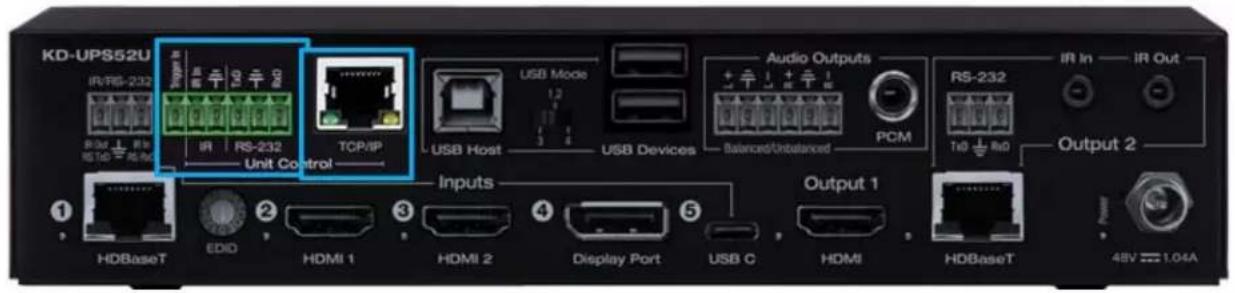
Unit Control Phoenix Connector
- 6-pin terminal block for Trigger In, IR and RS-232
- TCP/IP and RS-232 commands may be found in the TCP/IP & RS-232 Commands section
- Pinout:
○ Pin 1 = Trigger In
○ Pin 2 = IR In
○ Pin 3 = IR/Trigger Ground
○ Pin 4 = RS-232 Tx Data
○ Pin 5 = RS-232 Ground
○ Pin 6 = RS-232 Tx Data

TCP/IP Control Port
- Default static IP address is 192.168.1.239, port 23
- Connect an ether cable from the KD-UPS52U to a network router or connect a straight through cable directly from a PC
- Unit configuration, control, and firmware updates are achieved with Key Digital Management software downloaded at www.keydigital.com
- A single TCP/IP connection made at KD-UPS52U, KD-X100MRx, or KD Transmitter enables IP connection to the KD-UPS52U and the KD Transmitter. Ensure that the KD-UPS52U and the KD Transmitter each device has been assigned a unique IP address to avoid IP conflicts.
IR Sensor
• Used to collect line-of-sight IR from remote control
- Receives signals from a 90irc angle at up to 30ft away.
- Mount an IR emitter from Compass Control Pro or to control by another professional control system
HDBaseT Control Pass-Thru Ports

Input 1 HDBaseT IR/RS-232 Pass-Thru
• 3-pin terminal block for IR or RS-232.
- IR and RS-232 extensions not supported simultaneously
• Maximum supported IR burst frequency = 55kHz
- Pinout:
- Pin 1 = IR Out / RS-232 Tx Data
- Pin 2 = Ground
○ Pin 3 = IR In / RS-232 Rx Data
- Corresponds with IR or RS-232 control ports of compatible KD Transmitter
Note: If IR signal input at KD-UPS52U and output at the KD Transmitter is required, please use KD-PS22UTx.
- KD-X4x1WUTx and KD-X3x1WUTx do not feature IR Output ports and therefore IR signals input on this port will have no corresponding IR output port unless used with KD-PS22UTx
Output 2 HDBaseT IR In & Out Pass-Thru
- 2x 3.5mm mono
- Pinout
- Tip = Signal
○ Sleeve = Ground - IR In corresponds with IR Out port of KD-X100MRx
- IR Out corresponds with IR In port of KD-X100MRx
• Maximum supported IR burst frequency = 55kHz
Output 2 HDBaseT RS-232 Pass-Thru
- 3-pin terminal block
- Pinout:
○ Pin 1 = RS-232 Tx Data
○ Pin 2 = Ground
- Pin 3 = RS-232 Rx Data
• Corresponds with RS-232 control ports of KD-X100MRx
Power
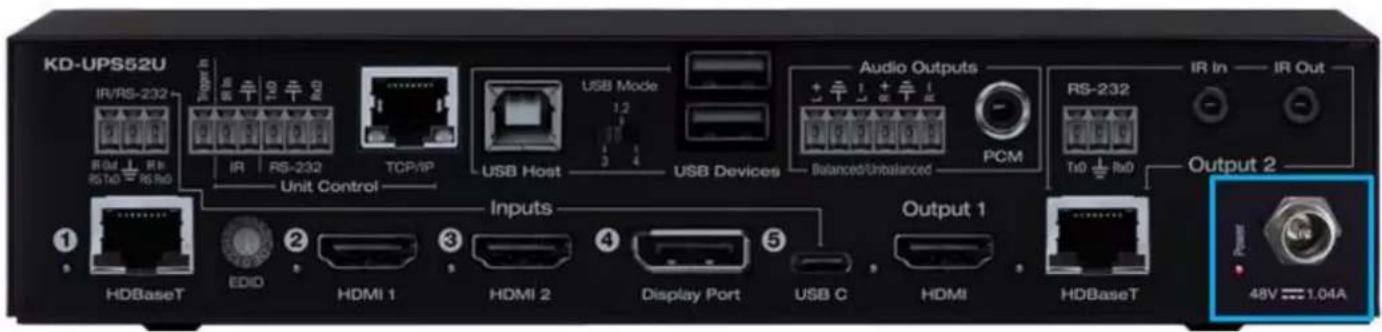
• 48V/1.04A (50W) Power Supply
- Provides power to KD-UPS52U, KD-X100MRx, and the connected KD Transmitter
WARNING:
Do NOT connect power supply at KD-UPS52U, KD-X100MRx, and/or KDPS22UTx simultaneously.
Auto Switching and Forced HPD Switches
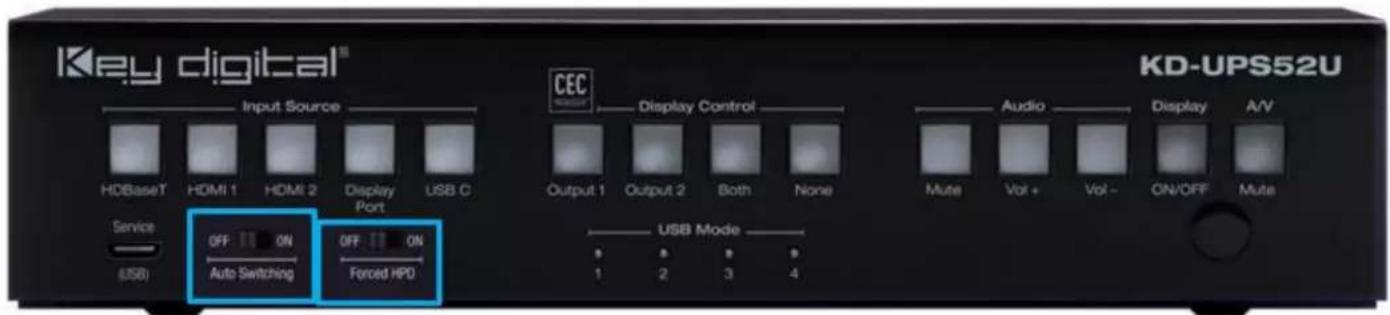
Auto Switching
- ON: Unit will automatically select a newly detected active source. If current source is disconnected or becomes inactive, auto sensing will sequentially advance to an active input/source
• OFF: Unit is in normal mode and regular switching functionality will occur - IF Auto sensing has been set via any method other than the front toggle switch, it will be automatically disabled when the KD-UPS52U is manually controlled by the front panel button, IR, RS-232, TCP/IP, or USB control. If fixed Auto Switching is required, please set via the front toggle switch
Forced HPD Troubleshooting Tool
• ON: Hot Plug Detection (HPD) voltage is fixed on at the connected displays and sources
• OFF: HPD voltage is passed through HDMI cabling as typical HDMI behavior.
System Integration with KD-CamUSB, KD-Amp220, KD-App
KD-UPS52U may be integrated with KD-CamUSB and/or KD-Amp220 and controlled by the Key Digital iOS app for a simplistic, user-friendly AV system that does not require programming a professional control system.
- Download the Key Digital iOS app for free from the App Store
- Ensure Connection steps 5, 6, and 7 have been completed, as instructed in the Quick Setup Guide section
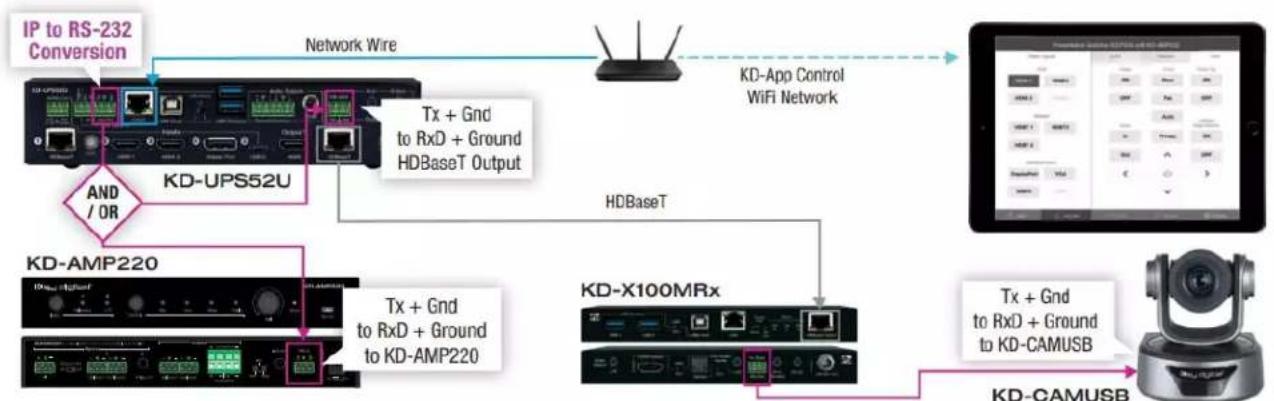
flowchart
graph TD
    A["IP to RS-232 Conversion"] --> B["Network Wire"]
    B --> C["KD-UPS52U"]
    C --> D["AND / OR"]
    D --> E["KD-AMP220"]
    E --> F["Tx + Gnd to RxD + Ground to KD-AMP220"]
    F --> G["HDBaseT"]
    G --> H["KD-X100MRx"]
    H --> I["Tx + Gnd to RxD + Ground to KD-CAMUSB"]
    I --> J["KD-CAMUSB"]
    C --> K["KD-App Control WiFi Network"]
    H --> L["User Interface Device"]
- Ensure Configuration steps 4, 5, 9, 10, and 11 have been completed, as instructed in the Quick Setup Guide section
- Ensure the iPad / iOS device is on the same network with KD-UPS52U
- Open Key Digital app and press DEVICES button to begin scan
- Select the KD-UPS52U unit to enter control GUI
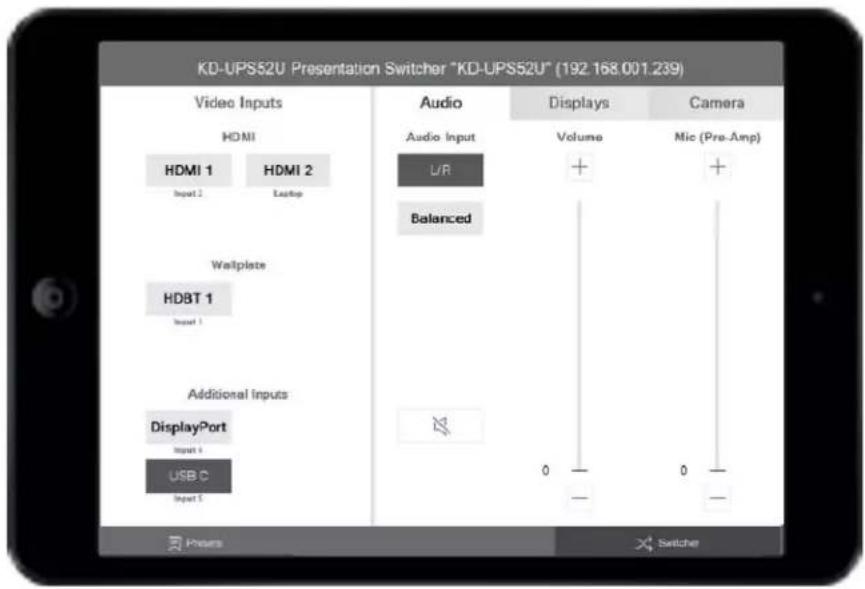
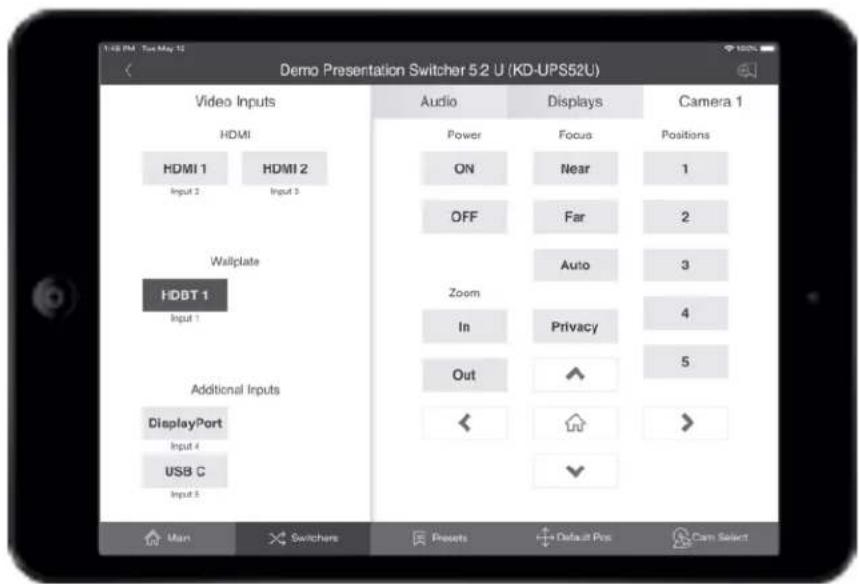
KD-UPS52U control GUI
Video source selection is always visible at the left-side of screen.
Input names entered in KDMS Pro are visible as sub-text beneath each Video Input button
Display CEC control page is visible on the right-side of screen.
If an output is turned OFF in KDMS Pro, that display control button group is no longer visible.

Output names entered in KDMS Pro are visible at the top-center of each Display control button group.
If KD-Amp220 control and KD-CamUSB mode have been activated, the Audio and Camera page tabs are visible. They are invisible if they have not been activated.
Audio Control
With KD-Amp220 control mode activated, the Audio control page may be entered, offering speaker volume and mute, microphone mix level (optional), and KD-Amp220 source selection.
Enable Microphone Control in KDMS Pro to make the Mic mix level controls visible.
Camera Control
With KD-CamUSB control mode activated, the Camera control page may be entered for pan, tilt, zoom, power, preset calling and preset creation.
Up to 7 KD-CamUSB cameras may be controlled, with the camera selection button on the bottom-right corner of the screen.
TCP/IP and RS-232 Commands
- KD-UPS52U allows control over serial interface for bi-directional communication.
- Use Unit Control pins 4, 5, and 6 for RS-232 communication
- Serial interface may also be accessed using a TCP/IP connection or using the USB Service port
- Default IP address is 192.168.1.239, with default port 23
- A single TCP/IP connection made at KD-UPS52U, KD-X100MRx, or KD

Transmitter enables IP connection to the KD-UPS52U and the KD Transmitter. Ensure that the KD-UPS52U and the KD Transmitter each device has been assigned a unique IP address to avoid IP conflicts.
Connection Protocol
- Baud Rate = 57,600 bits per second as default
Note: Activating KD-CamUSB or KD-Amp220 control mode will automatically adjust the baud-rate to 9,600. It must be 9,600 to support KD-CamUSB and KD-Amp220 Integrated Systems
- Data Bits = 8
- Stop Bits = 1
- Parity = None
- Flow Control = None
- Carriage Return = Required at end of each string
Notes:
- Commands are not case-sensitive
- Spaces are shown for clarity; commands should NOT have any spaces
• After a new command is received, a prompt should be sent back
Help Command (H). Returns entire API in readable format:
| -- | Key Digital Systems HELP | -- |
| -- | KD-UPS52U | F/W Version : 1.00 |
| -- | -- | |
| -- | H : Help | -- |
| -- | STA : Show Global System Status | -- |
| -- | -- | |
| -- | Video Output Setup Commands: xx = [01-02,A=All], yy = [01-02,U,D] | -- |
-- SPO SI yy : Set Output to Video Input yy --
-- SPO xx SI yy : Set Output to Video Input yy --
-- SPO xx ON/OFF : Set Output xx ON/OFF --
-- SPO xx VM E/D : Set Output xx Video Mute Enable/Disable --
-- SPO xx DBG ON/OFF : Set Output xx Debug Mode ON/OFF --
-- SPO xx LRM ON/OFF : Set HDBT Output xx Long Range Mode ON/OFF --
-- Display Control Commands: xx = [01-02,A=All] --
-- SPO xx TV ON/OFF : Set Display xx ON/OFF (Turn TV On/OFF) --
-- SPO xx AV U/D : Set Display xx Volume Up/Down --
-- SPO xx AM E/D/T : Set Display xx Audio Mute Enabled/Disabled/Toggle--
-- Audio Output Setup Commands: [E=Enable, D=Disable] --
-- SPO AA E/D : Set External Analog Audio Output Enable/Disable --
-- SPO DA E/D : Set External PCM/Digital Audio Output Enable/Disable --
-- SPO AMP ON/OFF : Set AMP220 Control Mode ON/OFF --
-- SPO MIC ON/OFF : Set AMP220 MIC Mode ON/OFF --
-- SPO AS x : Set Audio Source x to Audio Output --
[ x: 0=Video Input, 1=HDBaseT Out(ARC), 2:HDMI Out(ARC) ] --
-- Input/Output/Device Naming Commands [xx=01-04] (c=Max. 16 Chars) --
-- SPI xx WN ccccccccccccccc : Write Input xx Name --
-- SPI xx RN : Read Input xx Name --
-- SPO xx WN ccccccccccccccc : Write Output xx Name --
-- SPO xx RN : Read Output xx Name --
-- SPC WN ccccccccccccccc : Write Device Name --
-- SPC RN : Read Device Name --
-- Network Setup, ( xxx=[000-255], zzzz=[0001\~9999] ) --
-- SPCETIPA xxx.xxx.xxx.xxx : Set Host IP Address to xxx.xxx.xxx.xxx --
-- SPCETIPM xxx.xxx.xxx.xxx : Set Net Mask to xxx.xxx.xxx.xxx --
-- SPCETIPR xxx.xxx.xxx.xxx : Set Route IP Address to xxx.xxx.xxx.xxx --
-- SPCETIPP zzzz : Set TCP/IP Port to zzzz --
-- SPCETIPB : Apply New Network Config --
-- System Control Setup Commands: --
-- SPC AS z : Set Auto Sense Mode x = [0=OFF,1=AUTO,2=FORCED ON] --
-- SPC FB E/D : Enable/Disable Front Panel Buttons --
-- SPC CAM z : Set CAMUSB Control Mode z = [0-7]
-- SPC RSB z : Set USB RS232 Baud Rate to z bps, z=[0-5] --
-- [0:115200, 1:57600, 2:38400, 3:19200, 4:9600, 5:4800] --
-- SPC DF : Reset to Factory Defaults --
-- SPC DF00 : Reset to Factory Defaults without Network Reset --
Status Command (STA). Returns unit status and settings in readable format:
-- Key Digital Systems STATUS --
-- Model: KD-UPS52U, Device Name: KDUPS52U_0001 --
-- Main F/W Ver: 1.00, Splitter Ver: 1.00, CEC Ver: 1.00 --
-- Service : Baud Rate=115200bps, Data=8bit, Parity=None, Stop=1bit --
-- Front Panel Button : Enabled , CAMUSB Control Mode : 0 --
-- Network Setting(Web Server/TCP Control) Status --
-- MAC Address = 60:89:B1:36:00:01 --
-- Host IP Address = 192.168.001.239 --
-- Net Mask = 255.255.255.000 --
-- Router IP Address = 192.168.001.001 --
-- TCP Port = 0023 --
-- Video Input Status --
-- EDID = DEFAULT 10, FORCED HPD = ON, AUTO SENSE = OFF --
-- 01 : HDMI1, LINK = ON --
-- 02 : HDMI2, LINK = OFF
--
-- Video Output Status (D=Disable, E=Enable)
--
HDMI Output : IN = 01, OUT = ON, V/MUTE = D, LINK = ON, DBG = OFF
--
HDBT Output : IN = 01, OUT = ON, V/MUTE = D, LINK = ON, DBG = OFF
--
LRM = OFF
--
--
-- Display Output Status (CEC Control)
--
HDMI Output : TV = ON, A/V MUTE = Disable, A/MUTE = Disable
--
HDBT Output : TV = ON, A/V MUTE = Disable, A/MUTE = Disable
--
--
Audio Output Status
--
Audio Output : IN = Video 01, Balanced = Enabled, PCM = Enabled
--
AMP220 Mode = OFF, MIC Mode = OFF
Specifications
Technical
• AV Inputs: 2x HDMI, 1x Display Port, 1x USB-C,
- AV Outputs: 1x HDBaseT RJ45, 1x HDMI, 1x Analog Audio on 6-pin terminal block, 1x Digital Audio on PCM RCA
- DDC Signal (Data): Input DDC Signal: 5 Volts p-p (TTL)
• HDMI Video/Audio Signal: Input Video Signal: 1.2 Volts p-p
- Display Port Video/Audio Signal: Input Video Signal: 1.2 Volts p-p
- USB-C Video/Audio Signal: Input Video Signal: 1.2 Volts p-p
- RJ45 Connectors: Shielded Link Connector, 2x HDBaseT, 1x LAN
- Unit Control: TCP/IP on RJ45, Bi-directional RS-232, Serial IR, IR sensor, USB Micro
- RS-232 Connector: 1x 3-pin terminal for unit control, 2x 3-pin terminal for pass-thru to/from HDBaseT Input and HDBaseT output
- IR Connectors: 1x IR Sensor, 1x 2-pin terminal for unit control, 1x 2-pin terminal for IR pass-thru to HDBaseT Input, 1x 3.5mm mono for IR input pass-thru to HDBaseT Output, 1x 3.5mm mono for IR output pass-thru from HDBaseT Output
• RS-232 Connector: 3-pin phoenix terminal
General
• Regulation: CE, RoHS, WEEE, EAC
• Enclosure: Black metal
• Product Dimensions: 8.27 x 7.20 x 1.75" (210 x 183 x 44.4mm)
• Product Weight: Weight: 4.0 lbs / 1.81 kg
• Packaging Dimensions: 15.16 x 9.10 x 3.94 (385 x 230 x 100 mm)
• Packaging Weight: 11.0 lbs / 5kg
Warranty Information
All Key Digital® products are built to high manufacturing standards and should provide years of trouble-free operation. They are backed by a Key Digital Limited 3 Year Product Warranty Policy.
http://www.keydigital.com/warranty.htm
Product Warnings & Safety Instructions

Important Product Warnings:
- Connect all cables before providing power to the unit.
- Test for proper operation before securing unit behind walls or in hard to access spaces.
- If installing the unit into wall or mounting bracket into sheet-rock, provide proper screw support with bolts or sheet-rock anchors.

Safety Instructions:
Please be sure to follow these instructions for safe operation of your unit.
- Read and follow all instructions.
- Heed all warnings.
- Do not use this device near water.
- Clean only with dry cloth.
- Install in accordance with the manufacturer's instructions.
- Do not install near any heat sources such as radiators, heat registers, stoves, or other apparatus (including amplifiers) that produce heat.
-
Only use attachments/accessories specified by the manufacturer.
-
Refer all servicing to qualified service personnel. Servicing is required when the device has been damaged in any way including:
o Damage to the power supply or power plug
- Exposure to rain or moisture

Power Supply Use:
You MUST use the Power Supply provided with your unit or you VOID the Key Digital® Warranty and risk damage to your unit and associated equipment.
- Table of Contents
- Default IP Address: 192.168.1.239
- About KD-UPS52U
- Key Features
- Accessories
- Quick Setup Guide
- Connect
- Configure
- Configure KD-UPS52U with Key Digital Management Software Pro (KDMS Pro). Download HERE
- Additional configuration steps for control by KD-App and KDMS Pro
- Control
- Option 1: Control via Remote Control
- Option 2: Control via KD-App, KDMS Pro™
- Option 3: Control via professional control system
- Application Examples
- iPad Presentation Switcher and Camera Control
- Large Room with Table Plug-in Switcher
- Mounting Options
- Connections, Buttons, and LEDs
- EDID Handshaking Rotary
- Outputs
- Analog L/R Balance/Unbalanced
- PCM Digital
- Service USB Port
- Input Source (Blue)
- CEC Manager™ Display Control (Red)
- CEC Manager™ Commands (Green & Blue)
- USB Ports and Mode Switch
- USB Host Port
- USB Device Ports
- USB Mode Selection and Table
- Mode 4: Supports two routes for USB control
- Unit Control Ports
- Unit Control Phoenix Connector
- TCP/IP Control Port
- IR Sensor
- HDBaseT Control Pass-Thru Ports
- Input 1 HDBaseT IR/RS-232 Pass-Thru
- Output 2 HDBaseT IR In & Out Pass-Thru
- Output 2 HDBaseT RS-232 Pass-Thru
- Power
- WARNING:
- Auto Switching and Forced HPD Switches
- Auto Switching
- Forced HPD Troubleshooting Tool
- System Integration with KD-CamUSB, KD-Amp220, KD-App
- KD-UPS52U control GUI
- Audio Control
- Camera Control
- TCP/IP and RS-232 Commands
- Connection Protocol
- Notes:
- Help Command (H). Returns entire API in readable format:
- Status Command (STA). Returns unit status and settings in readable format:
- Specifications
- Technical
- General
- Warranty Information
- Product Warnings & Safety Instructions
- Important Product Warnings:
- Safety Instructions:
- Please be sure to follow these instructions for safe operation of your unit.
- Power Supply Use:
Brand : Key Digital
Model : KD-UPS52U
Category : Switch