PLDVRCAMG36 - Surveillance Camera Pyle - Free user manual and instructions
Find the device manual for free PLDVRCAMG36 Pyle in PDF.


| Type | Surveillance Camera / Traveling Recorder |
| Display | 2.7" LCD (16:9) |
| Front Lens | Ultra-wide 140°, rotatable 20° up/down |
| Rear Lens | Ultra-wide 120°, high resolution |
| Image Sensor | 1/4" low-noise high-quality photographic element |
| Battery | Built-in lithium polymer, rechargeable, charging time approx. 240 min |
| Power Supply | 5V 500mA via USB or vehicle-mounted power source |
| Memory Card Slot | Micro TF (Micro SD) card, supports high-capacity |
| Video Format | AVI |
| TV Output | NTSC/PAL |
| Audio | Built-in microphone and speaker |
| GPS | Scanning and positioning for route tracking |
| Gravity Sensor | Adjustable sensitivity (low/general/high/off) for impact detection |
| Languages | English, German, French, Spanish, Italian, Portuguese, Traditional/Simplified Chinese, Japanese |
| Auto Recording | Starts recording automatically when vehicle starts; delayed start to prevent surge damage |
| System Requirements | Windows 2000/XP/Vista/7, Mac OS X 10.3.6+ |
| Accessories Included | Vehicle power supply, TV line, vehicle mount, GPS module, specification sheet |
| Maintenance | Clean lens with a soft, dry cloth; avoid harsh chemicals |
| Safety | Low battery auto shut-off to protect device and data |
| Repairability | Contact Pyle support for spare parts and service |
Frequently Asked Questions - PLDVRCAMG36 Pyle
User questions about PLDVRCAMG36 Pyle
0 question about this device. Answer the ones you know or ask your own.
Ask a new question about this device
Download the instructions for your Surveillance Camera in PDF format for free! Find your manual PLDVRCAMG36 - Pyle and take your electronic device back in hand. On this page are published all the documents necessary for the use of your device. PLDVRCAMG36 by Pyle.
USER MANUAL PLDVRCAMG36 Pyle
natural_image
Digital camera driver displaying a red car on a digital screen, with an inset close-up of the camera's lens (no text or symbols visible)Content
Product Structure ....
Begin to use traveling recorder ....
Battery Charging ....
Insert a memory card ....
Adjust the positions of the lens ....
Turn on and turn off ....
Basic operations of the traveling recorder ....
Change operating mode ....
Setup menu ....
System setting ....
How to shoot ....
Start / Stop shooting ....
Open / Close audio ....
Video playback and file management......
Video playback ....
Computer access to the machine file......
Reset of this machine
Product characteristics ....
Technical Specifications ....
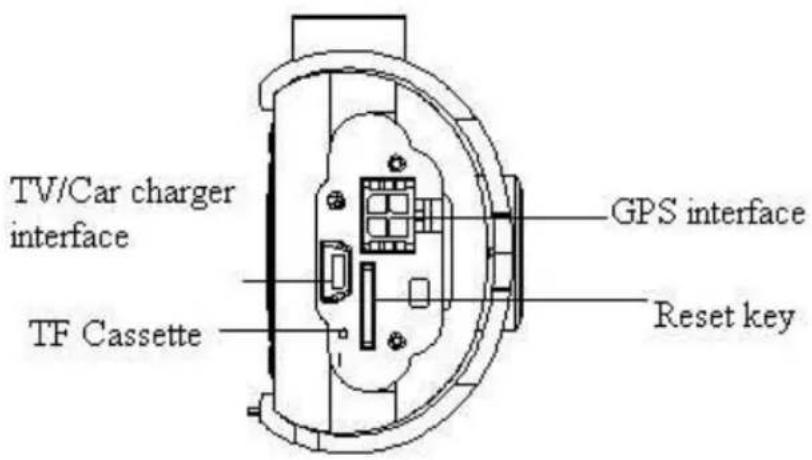

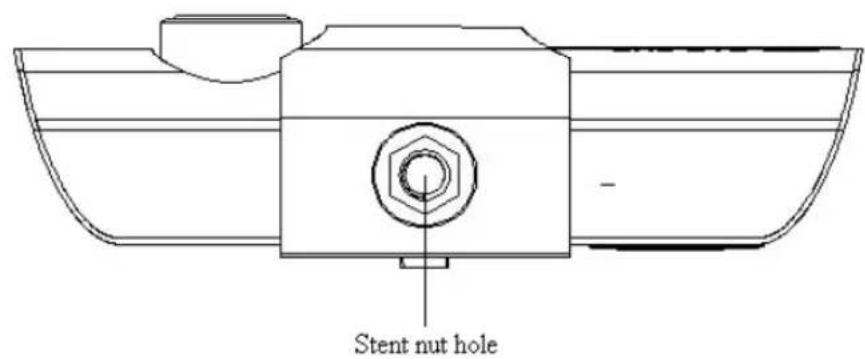
Begin to use traveling recorder
Battery Charging
There are two methods for battery charging:
1 Using USB line to connect the machine with the computer for charging;
2 Using accessory vehicle-mounted power source for charging.
In the whole process of charging, charging indicator lights up in red. When the charging is finished, indicator automatically extinguishes. The whole charging process takes about 240 minutes.
Insert a memory card
Insert TF (Micro SD) memory card straightly into the slot in accordance with the indicating direction on the machine body until hear a “Ka” sound.
Remove card: Push the TF card inside and the card will pop up. Then you can remove.
Notice:
When using the memory card for the machine for the first time, since the format of the memory card is not compatible with the machine, you must use the machine or attached tool software (ACIR 2017-2018) to format the memory card (The formatting of the memory card by computer is not supported). Formatting will permanently delete all the data on the memory card, including the protected image, which can not be restored. Therefore, before formatting the memory card, please back up important data.
If you can't use the machine to format the memory card format, please use attached software ( ) on a computer.
Adjust the positions of the lens
The front lens of this machine can be turned 20 degrees up and down in order to better meet the recorder fixed position and get better shooting.
Turn on and turn off
Turn on: press power supply once for a relative long time until red ON indicator lights up.
Turn off: press power supply once more time for a relative long time until red ON indicator extinguish.
Notice:
When in low battery, the traveling recorder will prompt automatic off because of low battery.
Basic operations of the traveling recorder
Change operating mode
This machine has two operating modes: pickup and playback. Press MODE button to change between them.
Setup menu
Press MENU button to enter MENU page, now the column of “Menu setting” is in blue background.
In the menu setting page, click left and right keys to select the required setting fields; click "OK" button to accept the settings, again presses the MENU key to exit the menu.
System setting: You can make system setting in framing preview mode.
Video mode: double lens /front lens /back lens;
Time setting: press left and right keys for time adjustment; press OK key to confirm and exit;
Formatting: press the OK key to enter and select Yes/No;
Video format: NTSC/PAL setting;
Voice: On/Off;
Recording: On/Off;
Language: English / German / French / Spanish / Italian / Portuguese /
Traditional Chinese / Simplified Chinese/ Japanese
Screen preset: On/Off;
Automatic video protection sensitivity: low / general / high /
automatically turn off video protection function (This function set gravity sensor to start up automatic video recording sensitivity).
Frequency: 50HZ / 60HZ.
How to shoot
Start / Stop shooting:
In the shooting mode, press OK key to start shooting, then press OK
key again to stop shooting.
When the traveling recorder is on or insert a memory card, it will automatically start shooting.
Open / Close audio:
During video recording process, pressing left key can fast open / close audio in the video.
Video playback and file management
Press MODE key to enter playback mode and now the screen shows playback picture of the last video file.
Video playback:
Press left and right buttons to select audio and video files need playback.
Press OK key for play and pause of the video file.
Computer access to the machine file
This machine does not support USB protocol. Computer access to the
recorded file of this machine can be done by a device supporting IF card (such as a card reader).
When the machine insert memory card and complete formatting for the first time, it will automatically generate specialized software tool ( ) in the memory card. Computer access to the file of the machine must be done via this tool.
Notice:
(1) For easy use and to avoid abnormal circumstance of the storage card causing software tool damage, it is recommended to backup the tool on computer.
(2) The computer operating system must be Windows 2000 / XP / Vista / Windows 7, MAC OS x above 10.3.6.
Usage of the software ( ) :
- Use card reader to read video information on the TF card.
In TF card disk under "my computer", the user can see three files: ap.bin、Default_Folder.ini and
- Run
- Open the player to play video documents.
Click to open the player.
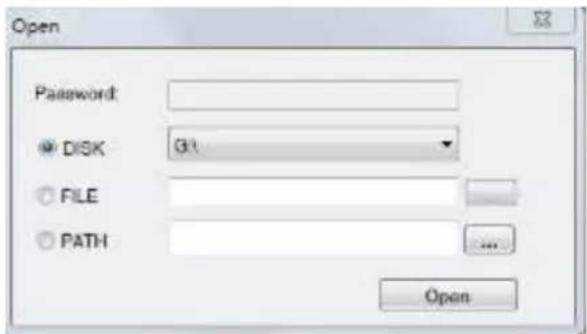
Select TF Card disk path, then click the "apply" to load and automatically play the document in the card.
Clicking the ActiveX can control playing state: from left to right can realize: slow turning / stop / play (pause) / fast turning.
- Select double lens channel:
Clicking the Act select double lens channel of video playing: double lens / front lens / back lens.
5. Video on file:
Select video file for save ☑ and click 📄 to pop up saving file path picture. After selection, click “sure” to save the selected file.
6. Photo on file:
Select image photo for save and click 🔒 to pop up saving file path picture. After select the path, click the "save".
7. Delete document:
Select the video file not needed ☑ and click 📄. Appear "sure/ cancel" options, select "Sure" to delete the selected video file.
8. Kit:
Kit can proceed as follows: SD card formatting / upload software to the SD card / SD card speed test / map selection and user password setting.
Click to enter the kit.
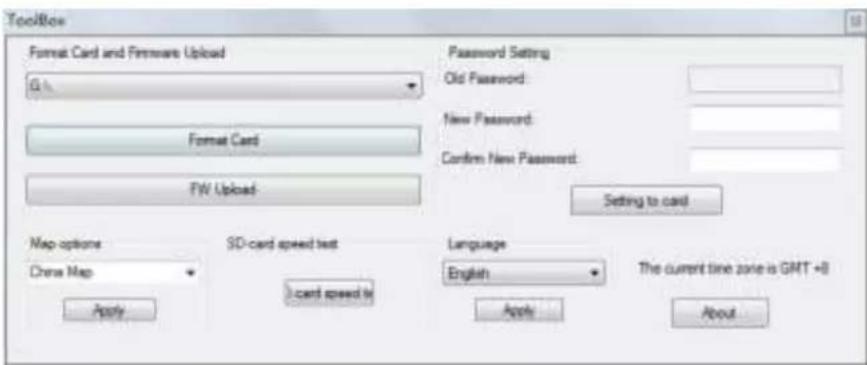
9. Google map:

Click , and the computer will connect to Google map via Internet and show travelling path on the map. You can trace the travelling path of the vehicle.

10. Gravity sensor:
Click 📌, watch the video on the computer, at the same time read and display the gravity sensing data, trace accident and abnormal circumstance occurred during the driving process.
11. Other operations:
Click [icon] respectively from left to right, and following operations can be realized: repair film / unlock protection / choose to display size.
Reset of this machine
When abnormal circumstance occur due to improper operation, you can press reset button and then restart the machine, now the machine can return to normal.
Product characteristics
—Ultra small volume; the front lens with ultra wide angle of 140 degrees can be rotated up and down 20 degrees; the back lens with ultra wide-angle of 120 degrees high resolution; this perfect modular design is more convenient for various angle and high resolution video shooting.
—Built-in 1/4 inch low-noise and high-quality photographic element
can capture ultra clear picture in a dark place.
—Built-in lithium battery with charging and meanwhile recording function.
—Built-in microphone/speaker.
—Support high-capacity Micro TF Card
—Automotive turning on and recording function when the vehicle start.
—With a delayed start function to prevent transient pulse current damage machine at the moment the vehicle start.
—GPS scanning and positioning。
—Gravity induced SENSOR
Technical Specifications
| LCD screen size | 2.7 “(16:9) |
| Lens | Front lens with ultra wide angle of 140 degrees; back lens with ultra wide-angle of 120 degrees |
| Optional language | English / German / French / Spanish / Italian / Portuguese / Traditional Chinese / Simplified Chinese/ Japanese |
| Video format | AVI |
| TF memory card slot | Micro TF |
| Microphone / speaker | Built-in |
| Television output | NTSC/PAL |
| TV output and DC access | 5V 500MA |
| Battery | Built-in lithium polymer battery |
| System requirement | Windows 2000/XP/Vista/Windows 7,MAC OS x above 10.3.6 |
Note: we reserve the modification right of the machine design and specifications without notice.
Accessories list
- Vehicle-mounted power supply; 2.TV line; 3.Vehicle mount; 4.GPS module; 5. Specification.

- Content
- Product Structure ....
- Begin to use traveling recorder ....
- Basic operations of the traveling recorder ....
- Change operating mode ....
- Setup menu ....
- How to shoot ....
- Video playback and file management......
- Computer access to the machine file......
- Reset of this machine
- Product characteristics ....
- Technical Specifications ....
- Begin to use traveling recorder
- Battery Charging
- Insert a memory card
- Notice:
- Adjust the positions of the lens
- Turn on and turn off
- Basic operations of the traveling recorder
- Change operating mode
- Setup menu
- How to shoot
- Video playback and file management
- Computer access to the machine file
- Video on file:
- Photo on file:
- Delete document:
- Kit:
- Google map:
- Gravity sensor:
- Other operations:
- Product characteristics
- Accessories list
Brand : Pyle
Model : PLDVRCAMG36
Category : Surveillance Camera