47LB2DE - Soundbar LG - Free user manual and instructions
Find the device manual for free 47LB2DE LG in PDF.


User questions about 47LB2DE LG
0 question about this device. Answer the ones you know or ask your own.
Ask a new question about this device
Download the instructions for your Soundbar in PDF format for free! Find your manual 47LB2DE - LG and take your electronic device back in hand. On this page are published all the documents necessary for the use of your device. 47LB2DE by LG.
USER MANUAL 47LB2DE LG
User's Guide Specification
- Model Description
| MODEL | 50PB2DR-AC,42LC2DR-AC42/47LB2DE-AA | BRAND | LG | Part No. | 38289U0569D(0702-REV05) | |
| SUFFIX | AUSTRALIA | Product Name | 50PB2DR, 42LC2DR,42/47LB2DE | |||
| 2. Printing Specification | ||||||
| 1. Trim Size (Format) : 210mm x 280 mm2. Printing Colors•Cover : 3 COLORS (PMS207C, PMS431C, BLACK)•Inside : 2 COLOR (BLACK, PMS207U)3. Stock (Paper)• Cover : Coated paper , Snow White 150 g/m2• Inside : Uncoated paper , 백상지 80 g/m24. Printing Method : Off set5. Bindery : Perfect bind6. Language : English (1)7. Number of pages : 124 | ||||||
| NOTES | "This part contains Eco-hazardous substances(Pb, Cd, Hg, Cr6+, PBB, PBDE, etc.)within LG standard level,Details should be followed Eco-SCM management standard[LG(56)-A-2524].Especially, Part should be followed and controlled the following specification.(1)Eco-hazardous substances test report should be submittedwhen Part certification test and First Mass Production.(2) Especially, Don't use or contain lead(Pb) and cadmium(Cd) in ink. | |||||
| Special Instructions3. | ||||||
| (1) Origin Notification* LGEIN : Printed in Indonesia * LGEWA : Printed in U.K.* LGESP : Printed in Brazil * LGEMX : Printed in Mexico* LGEND : Printed in China * LGEIL : Printed in India* LGEMA : Printed in Poland | ||||||
| 4. Changes | ||||||
| 9 | ||||||
| 8 | ||||||
| 7 | ||||||
| 6 | ||||||
| 5 | Feb./27/07 ong ju seok S7-74160 | Deleted logos. | ||||
| 4 | Feb./08/07ong ju seok S7-72191 | Amended spec. | ||||
| 3 | Feb./02/07 ong ju seok | S7-71767 | Applied the PQ test results | |||
| 2 | Dec./11/06ong ju seok | S6-64970 | 1. Amended progress bar2. Added the model name (42/47LB2DE-AA) | |||
| 1 | Sep./13/06 Park sun young | S6-56409 | Applied the PQ test results | |||
| REV.NO. | MM/DD/YY | SIGNATURE | CHANGE NO. | CHANGE CONTENTS | ||
Pagination sheet
P/NO.38289U0569D
LCD TVLCD MRKELA SMARPLASMA TY

LCD TV | PLASMA TV OWNER'S MANUAL
LCD TV MODEL PLASMA TV MODEL
42LC2DR 50PB2DR
42LB2DE
47LB2DE
Please read Information Manual included together before reading this manual and operating your set.
Please read this manual carefully before operating your set. Retain it for future reference. Record model number and serial number of the set. See the label attached on the back cover and quote this information to your dealer when you require service.
LG Electronics Inc.

Digital Video Broadcasting
DVB is a registered trademark of the DVB Project


(42/47LB2DE ONLY)
P/NO : 58289U0569D (0702-REV05) Printed in Korea
CONTENTS
INTRODUCTION
Accessories 6
Home Menu 7
Front & Back Panel Information (For 50PB2DR). 8-9
Front & Back Panel Information (For 42LC2DR). 10-11
Remote Control Key Functions 12-13
INSTALLATION
Swivel Stand 14
Attaching the TV to a wall....15
Back Cover for Wire Arrangement....16-17
Desktop Pedestal Installation....18
CONNECTIONS & SETUP
Antenna Connection....19
HDSTB Setup 20-22
VCR Setup 23-24
Another A/V Source Setup 25
Digital Audio Output 26
External A/V Source Setup 27
DVD Setup....28-29
PC Setup 30-33
BASIC OPERATION
Turning the TV On 34
Initializing setup 34
Volume Adjustment 35
Programme Selection....35
SPECIAL FUNCTIONS
DVR (Digital Video Recorder)
Timeshift 36-38
Recording 39-41
Manual Recording 42
Recorded TV 43-48
Scheduled 49
HDD Format 50
Record Quality 51
PIP/POP/Twin Picture
Watching PIP/POP/Twin Picture 52
Selecting an Input Signal Source for PIP/Twin Picture 53
TV Program Selection for PIP 53
Moving the PIP sub picture 53
Swapping PIP/Twin Picture 54
Adjusting Main and Sub Picture Sizes for Twin Picture....54
POP(Picture-out-of-Picture: Programme Scan) .....55
TELETEXT
Switch On/Off 56
Simple Text 56
Top Text 56
Fastext 57
Special Teletext....57
EPG (Electronic Programme Guide)
Switch on/off EPG 58
Select a programme 58
TV MENU
On Screen Menus Selection and Adjustment .... 59
Setup(Programme)
Auto Programme Tuning....60
Manual Programme Tuning 61-62
Fine tuning (In Analogue mode only) 63
Assigning a station name (In Analogue mode only) ....64
Programme Edit 65-66
Calling up the Channel List 67
Digital signal strength (In Digital mode only) .... 68
Main Picture Source Selection 69
Aux.Label 70
Booster (In Digital mode only) 71
Picture Adjustment
Picture Status Memory (PSM) 72
Adaptive Picture Mode (APM) 73
Brightness Adjustment 73
Manual Picture Control (PSM-User Option) .....74
XD 75
Colour Temperature Control 76-77
- Auto Colour Temperature Control....76
- Manual Colour Temperature Control....77
Advanced 78-79
- Cinema 78
- Black Level....79
Video Preset 80
Audio Adjustment
Sound Status Memory (SSM) 81
Manual Sound Control (SSM-User Option) .... 82-83
Auto Volume Leveller (AVL) 84
Balance 85
TV Speakers On/Off Setup 86
Stereo Reception (In Analogue mode only) ..... 87
Sound output selection 87
Time Setting
Auto Clock Setup 88
Manual Clock Setup 89
On/Off Time Setup 90
Sleep Timer....91
Auto Sleep 92
Optional Features
Subtitle (In Digital mode only) 93
Child Lock 94
Picture Format 95
XD Demo 96
ISM (Image Sticking Minimization) Method
(50PB2DR only) 97
Low Power (50PB2DR) 98
Front Index (50PB2DR) 99
Lock Adjustment
Setting Up Your password....100
Lock System....100
Set Password....101
Block Programme....102
Parental Guidance (In Digital mode only) ..... 103
Aux. Block 103
APPENDIX
External Control Device Setup 104-110
IR Codes 111-112
Programming the Remote Control 113
Programming Codes 114-115
Troubleshooting Checklist....116-117
Maintenance 118
Product Specifications....119
INTRODUCTION
FEATURE OF THIS TV
What is a Plasma TV?
Using plasma is the best way to achieve flat panel displays with excellent image quality and large screen sizes that are easily viewable. The Plasma TV can be thought of as a descendant of the neon lamp and or a series of fluorescent lamps.
How does it work?
Plasma TV is an array of cells, known as pixels, which are comprised of three sub-pixels, corresponding to the colors red, green, and blue. Gas in a plasma state is used to react with phosphors in each sub-pixel to produce colored light (red, green, or blue). These phosphors are the same types used in Cathode Ray Tube (CRT) devices such as televisions and common computer monitors.
Plasma TV offers a rich, dynamic display because each sub-pixel is individually controlled by advanced electronics to produce over 16 million different colors. This means that you get perfect images that are easily viewable in a display that is fewer than five inches thick.
160° - Wide angle range of vision
Your flat panel plasma screen offers an exceptionally broad viewing angle of over 160 degrees. This means that the display is clear and visible to viewers anywhere in the room.
Wide Screen
The wide screen offers a theater-like experience in your own home.
Multimedia
Connect your plasma display to a PC and use it for conferencing, games, and Internet browsing. The Picture-in-Picture feature allows you to view your PC and video images simultaneously.
Versatile
The light weight and thin size makes it easy to install your plasma display in a variety of locations where conventional TVs do not fit.
The Plasma TV Manufacturing Process: a few minute colored dots may be present on the Plasma TV screen
The Plasma TV is composed of 0.9 to 2.2 million cells. A few cell defects will normally occur in the Plasma TV manufacturing process. Several tiny, minute colored dots visible on the screen should be acceptable. This also occurs in other Plasma TV manufacturers' products. The tiny dots appearing does not mean that this Plasma TV is defective. Thus a few cell defects are not sufficient cause for the Plasma TV to be exchanged or returned. Our production technology minimizes these cell defects during the manufacture and operation of this product.
Cooling Fan Noise- This feature is not available for all models.
In the same way that a fan is used in a PC computer to keep the CPU (Central Processing Unit) cool, the Plasma TV is equipped with cooling fans to cool the Monitor and improve its reliability. Therefore, a certain level of noise could occur while the fans are operating and cooling the Plasma TV.
The fan noise doesn't have any negative effect on the Plasma TV's efficiency or reliability. The noise from these fans is normal during the operation of this product. We hope you understand that a certain level of noise from the cooling fans is acceptable and is not sufficient cause for the Plasma TV to be exchanged or returned.
FOR LCD TV
If the TV feels cold to the touch, there may be a small “flicker” when it is turned on. This is normal, there is nothing wrong with TV.
Some minute dot defects may be visible on the screen, appearing as tiny red, green, or blue spots. However, they have no adverse effect on the monitor's performance.
Avoid touching the LCD screen or holding your finger(s) against it for long periods of time. Doing so may produce some temporary distortion effects on the screen.
On Disposal
a. The fluorescent lamp used in this product contains a small amount of mercury.
b. Do not dispose of this product with general household waste.
c. Disposal of this product must be carried out in accordance to the regulations of your local authority.
INTRODUCTION
ACCESSORIES
Ensure that the following accessories are included with your product. If an accessory is missing, please contact the dealer where you purchased the product.

Owner's Manual Batteries

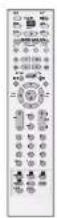

Remote Control Power Cord

Polishing Cloth
Polish the screen with the cloth.
* lightly wipe stained spot on the exterior only with the cleansing cloths for the product exterior if there is stain or fingerprint on surface of the exterior.
* Do not wipe roughly when removing stain. Please be aware that excessive force may cause scratch or discoloration.
For 50PB2DR

2-Wall brackets

2-eye-bolts
For 42LC2DR/42LB2DE/47LB2DE

2-TV Bracket Bolts

2-TV Brackets,
2-Wall Brackets

Cable Management (Refer to p.17)

Twister Holder
Arrange the wires
with the twister holder.
HOME MENU
This menu is a contents guide.
In the HOME Menu, you can access the recorded list of DVR, the TV Guide, the DVR recording schedule, Manual Recording of the DVR or the TV Menu.

text_image
INPUT POWER MODE TVDIA INPUT BRIGHT VCR ARC DVD TEXTPIGUIDE INFO PIP PR-PIP PR+ PIP INPUTSWAP ■ ▶ II • ← ← → ← MENU XSTUDIO LIVE TV EXIT MARK TIME SHIFT OK TIME SHIFT + + VOL OLVIEW + + PR PAGE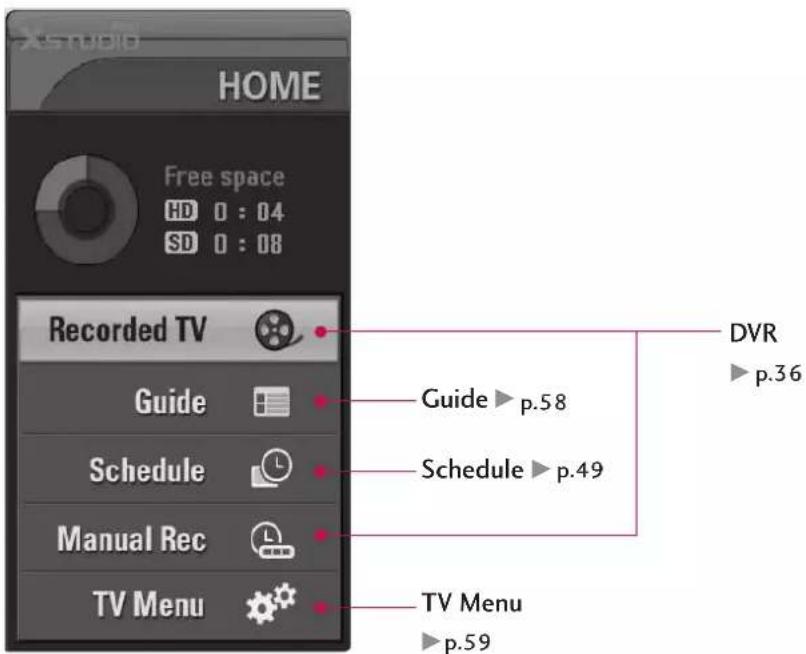
text_image
HOME Free space HD 0 : 04 SD 0 : 08 Recorded TV Guide Schedule Manual Rec TV Menu Guide ▶ p.58 Schedule ▶ p.49 TV Menu ▶ p.59 DVR ▶ p.36FRONT & BACK PANEL INFORMATION
This is a representation of the front panel of model 50PB2DR.
■ Image shown may be somewhat different from your TV.
Front Panel Controls
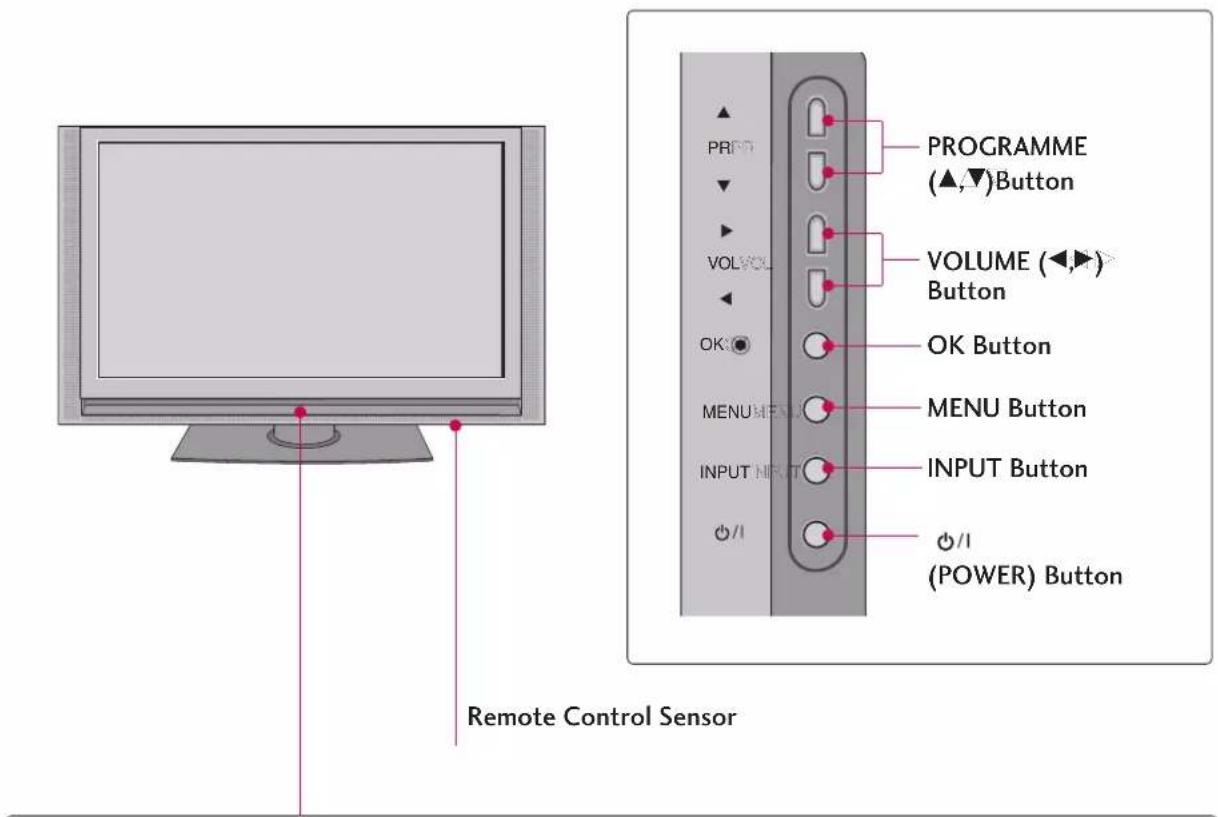
text_image
PROGRAMME (▲,▼)Button VOLUME (◄,►) Button OK Button MENU Button INPUT Button ○/1 (POWER) Button Remote Control Sensor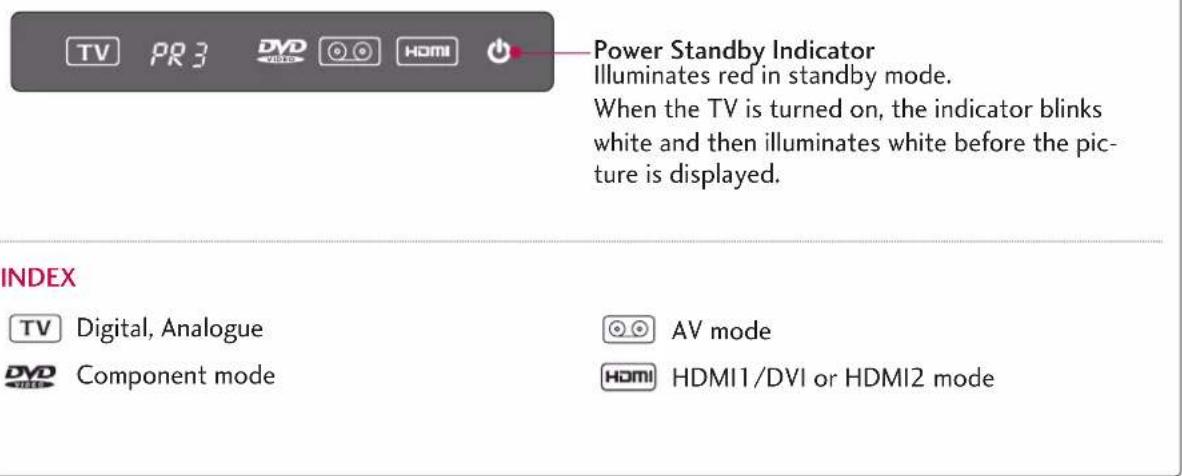
text_image
TV PR 3 DVD HDMI Power Standby Indicator Illuminates red in standby mode. When the TV is turned on, the indicator blinks white and then illuminates white before the picture is displayed. INDEX TV Digital, Analogue AV mode DVD Component mode HDMI HDMI1/DVI or HDMI2 modeThis manual explains the features available on the 50PB2DR.
■ Image shown may be somewhat different from your TV.
Back Connection Panel
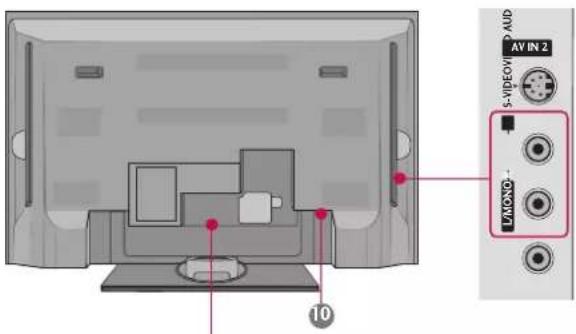
text_image
AV IN 2 S-VIDEO 10AUDIO Input
Connections are available for listening to stereo sound from an external device.
VIDEO Input
Connects the video signal from a video device.
text_image
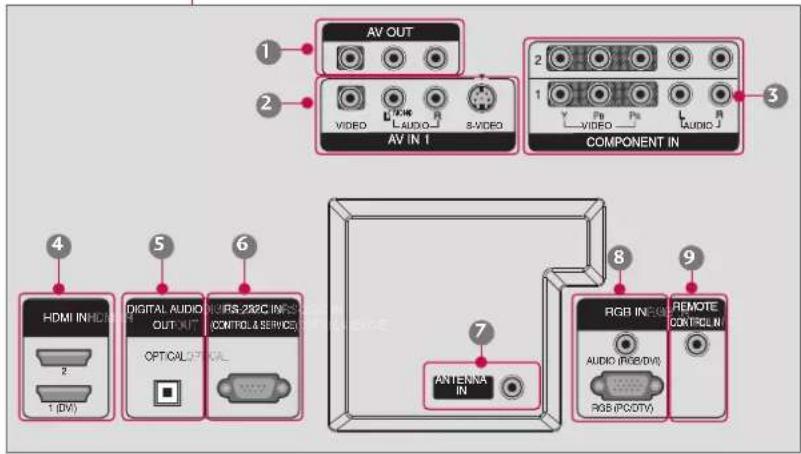
AV OUT VIDEO AV IN 1 S-VIDEO COMPONENT IN 2 1 3 4 5 6 DIGITAL AUDIO OUT IN OPTICAL OPTICAL MIPS 232C INF (CONTOL & SERVICE) ANTENA IN 8 9 REMOTE CONTROL IN RGB IN (RGB/DVD) AUDIO (RGB/DVD) RGB (PCDTV)1 AV OUT
Connect a second TV or monitor.
② AV (Audio/Video) IN 1
Connect audio/video output from an external device to these jacks.
S-VIDEO
Connect S-Video out from an S-VIDEO device.
3 COMPONENT IN
Connect a component video/audio device to these jacks.
4 HDMI IN
Connect a HDMI signal.
Or DVI(VIDEO)signal to the this port with a HDMI to DVI cable.
5 DIGITAL AUDIO OUT OPTICAL
Connect digital audio from various types of equipment. Note: In standby mode, these ports do not work.
6 RS-232C IN (CONTROL & SERVICE) PORT
Connect to the RS-232C port on a PC.
⑦ ANTENNA IN
Connect antenna signals to this jack.
8 RGB/AUDIO IN
Connect the output from a set-top box or PC to the appropriate input port.
9 Remote Control Port
Connect your wired remote control.
10 Power Cord Socket
For operation with AC power.
Caution: Never attempt to operate the TV on DC power.
FRONT & BACK PANEL INFORMATION
This is a front panel of 42LC2DR/42LB2DE/47LB2DE.
■ Image shown may be somewhat different from your TV.
Front Panel Controls
42LC2DR

text_image
Remote Control SensorPower Standby Indicator
Illuminates red in standby mode.
When the TV is turned on, the indicator blinks white and then illuminates white before the picture is displayed.

text_image
PR VOL OK MENU INPUT / PROGRAMME (▲,▼)Button VOLUME (◄►) Button OK Button MENU Button INPUT Button / (POWER) Button42/47LB2DE

text_image
Remote Control Sensor Power Standby Indicator • illuminates red in standby mode. • illuminates white when the set is switched on. POWER Button INPUT Button MENU Button OK Button VOL VOLUME ◀,▶)Buttons PR PROGRAMME (▼,▲)ButtonsThis is the back panel of 42LC2DR/42LB2DE/47LB2DE.
■ Image shown may be somewhat different from your TV.
Back Connection Panel
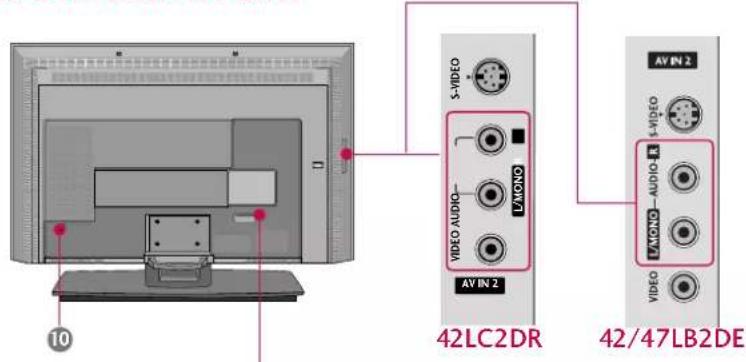
Connections are available for listening to stereo sound from an external device.
VIDEO Input
Connects the video signal from a video device.

text_image
AV OUT VIDEO L Audio R S-VIDEO AV IN 1 COMPONENT IN 2 1 VIDEO L R 3 4 5 6 DIGITAL AUDIO OUT OPTICAL RS-232C IN (CONTROLS SERVICE) HDMI IN 2 1(CVD) 7 ANTENNA IN 8 RGB IN AUDIO (RGB/CDV) RGB (PC/DTV) 9 REMOTE CONTROL IN1 AV OUT
Connect a second TV or monitor.
② AV (Audio/Video) IN 1
Connect audio/video output from an external device to these jacks.
S-VIDEO
Connect S-Video out from an S-VIDEO device.
3 COMPONENT IN
Connect a component video/audio device to these jacks.
4 HDMI IN
Connect a HDMI signal.
Or DVI(VIDEO)signal to the this port with a HDMI to DVI cable.
5 DIGITAL AUDIO OUT OPTICAL
Connect digital audio from various types of equipment. Note: In standby mode, these ports do not work.
6 RS-232C IN (CONTROL & SERVICE) PORT
Connect to the RS-232C port on a PC.
7 ANTENNA IN
Connect cable signals to this jack.
8 RGB/AUDIO IN
Connect the output from a set-top box or PC to the appropriate input port.
9 Remote Control Port
Connect your wired remote control.
10 Power Cord Socket
For operation with AC power.
Caution: Never attempt to operate the TV on DC power.
REMOTE CONTROL KEY FUNCTIONS
When using the remote control, aim it at the remote control sensor on the TV.
| D/A INPUT(Digital TV/Analogue TV) | Selects digital or analogue mode. |
| INPUT | External input modes rotate in regular sequence: Digital, Analogue, AV1-2, Component 1-2, RGB-DTV (or RGB-PC), HDMI1/DVI, HDMI2. |
| POWER | Switches the set between ON and STANDBY. |
| ARC | Selects your desired picture format. ▶ p.95 |
| ★ +/- | ○Adjusts brightness on screen. ▶ p.73○It returns to the default settings brightness by changing mode source. |
| XSTUDIO mode control buttons | ○Use for DVR record or trick play. ▶ p.42, 43, 49○Controls the XSTUDIO mode.○For further details, see the DVR section. |
| VCR/DVD control buttons | Control some video cassette recorders or DVD players ("RECORD" button is not available for DVD player). |
| OK | Accepts your selection or displays the current mode. |
| THUMBSTICK(Up/Down/Left Right/OK) | ○Adjusts menu settings.○Selects menu item. |
| VOLUME +/- | Increase/decrease the sound level. |
| Q.VIEW | Returns to the previously viewed programme. |
| MUTE | Switches the sound on or off. |
| PROGRAMME +/- | Selects a programme. |
| PAGE UP/DOWN | Move from one full set of screen information to the next one. |
| NUMBER buttonLIST | Displays the programme list. ▶ p.67 |
| FAV (FAVOURITE) | Displays the selected favourite programmes. |
| I/II | Selects the sound output or the audio mode. ▶ p.87 |
| APM | Concurrently, compare with the Dynamic, Standard, Mild, User1 and User2 on the screen. ▶ p.73 |
| SLEEP | Sets the sleep timer. ▶ p.91 |
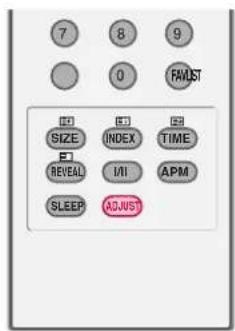
| ADJUST | Adjust the screen Resolution, position, clock, and phase. ▶ p.33 |

text_image
INPUT POWER MODE TVD/A INPUT BRIGHT VCR ARC DVD TEXTPI GUIDE INFO PIP PR- PIP PR+ SWAP PIP INPUT MENU XSTUDIO LIVE TV EXIT MARK TIME SHIFT TIME OK VOL QVIEW PR PAGE MUTE FAVUST 1 2 3 4 5 6 7 8 9 0 SIZE INDEX TIME REVEAL I/II APM SLEEP ADJUSTTV, VCR, DVD. Selects the remote operating mode: TV, VCR, DVD. Select other operating modes, for the remote to operate external devices.
GUIDE Shows a programme schedule. ▶ p.58
INFO Shows the present screen information.
PIP Switches to PIP, POP and Twin picture modes or off mode. ▶ p.52-55
PIP PR +/- Selects a programme for the sub picture.▶ p.53
SWAP Alternates between main and sub picture in PIP/Twin picture mode. p.54
PIP INPUT Selects the input mode for the sub picture. ▶ p. 53
COLOUR They are used as per the indications or functions displayed on the TV screen in the case of Button Text displays (Teletext, EPG) and programme edit.
EXIT Returns to TV viewing from any menu.
MENU Selects a menu.
XSTUDIO PRO Enter to the XSTUDIO PRO mode.
LIVE TV • When playing the recorded program: Return to the last selected input source.
- When delaying: Return to the last selected input source.
MARK Selects the wanted functions.
① TELETEXT These buttons are used for teletext.
BUTTONS Text button is used to enable teletext services while other buttons are for teletext functions.
* For further details, see the 'Teletext' section. ▶ p.56-57
Installing Batteries

natural_image
Illustration of a hand holding a rectangular object with a curved arrow indicating downward motion (no text or symbols)- Open the battery compartment cover on the back side and install the batteries matching correct polarity (+with +,-with -).
- Install two 1.5V AA batteries. Don't mix old or used batteries with new ones.
- Close cover.
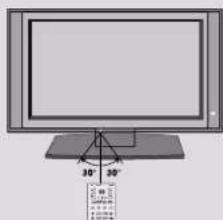
Remote control effective range
text_image
30° 20° 10° 5° 0° -5° -10° -15° -20°
text_image
30° 30°■ Use a remote control up to 7 meters distance and 30 degree (left/right) within the receiving unit scope.
■ Dispose of used batteries in a recycle bin to preserve environment.
INSTALLATION
SWIVEL STAND
This features is available on the 50PB2DR.
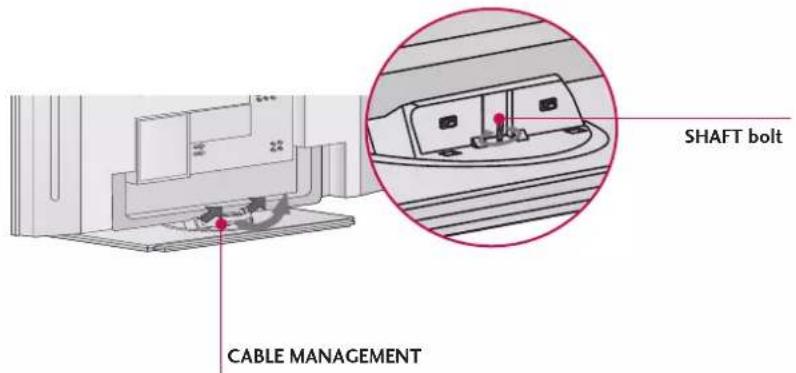
Separate the CABLE MANAGEMENT from TV. And loosen the shaft bolt counterclockwise completely.
text_image
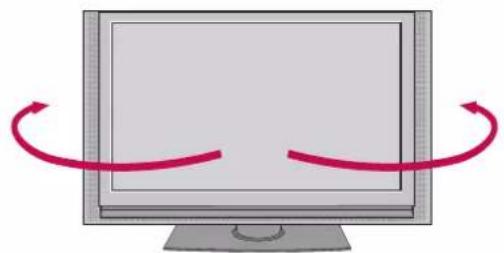
SHAFT bolt CABLE MANAGEMENTThe TV can be conveniently swivelled on its stand 20^ to the left or right to provide the optimum viewing angle.
natural_image
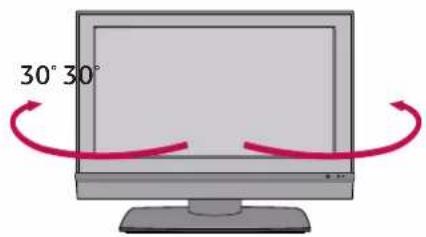
Illustration of a computer monitor with two curved arrows indicating rotation or movement (no text or symbols)This features is available on the 42LC2DR/42LB2DE/47LB2DE.
text_image
30° 30°The TV can be conveniently swivelled on its stand 30^ to the left or right to provide the optimum viewing angle.
ATTACHING THE TV TO A WALL
■ Image shown may be somewhat different from your TV.
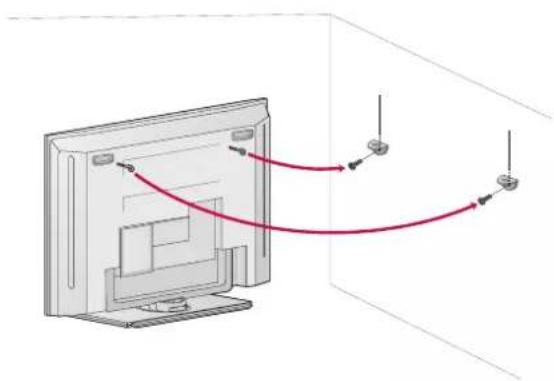
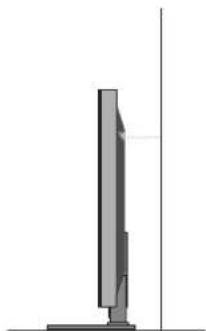
Set it up close to the wall so the product doesn't fall over when it is pushed backwards.
The instructions shown below is a safer way to set up the product, which is to fix it on the wall so the product doesn't fall over when it is pulled in the forward direction. It will prevent the product from falling forward and hurting people. It will also prevent the product from damage caused by fall. Please make sure that children don't climb on or hang from the product.
42LC2DR/42LB2DE/47LB2DE50PB2DR
natural_image
Diagram showing a computer monitor with cable routing and connectors, no text or symbols present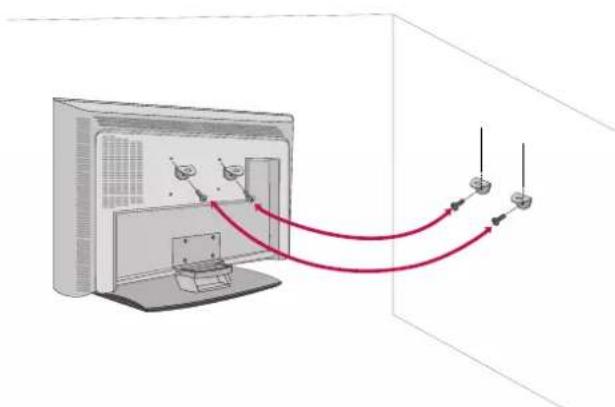
natural_image
Diagram showing a computer monitor with cable routing and connecting cables (no text or symbols)■ Insert the eye-bolts (or TV brackets and bolts) to tighten the product to the wall as shown in the picture.
* If your product has the bolts in the eye-bolts position before inserting the eye-bolts, loosen the bolts.
Insert the eye-bolts and tighten them securely in the upper holes.
Secure the wall brackets with the bolts (not provided as parts of the product, must purchase separately) on the wall. Match the height of the bracket that is mounted on the wall to the holes in the product.
Ensure the eye-bolts or brackets are tightened securely.
natural_image
Side view of a vertical computer monitor with a stand (no text or symbols visible)■ Use a sturdy rope (must be purchased separately) to secure the TV. It is safer to tie the rope so it runs horizontally between the wall and the TV.
INSTALLATION
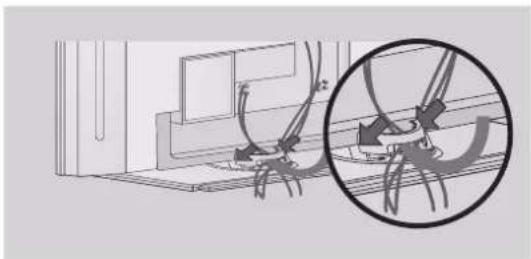
BACK COVER FOR WIRE ARRANGEMENT
This features is available on the 50PB2DR.
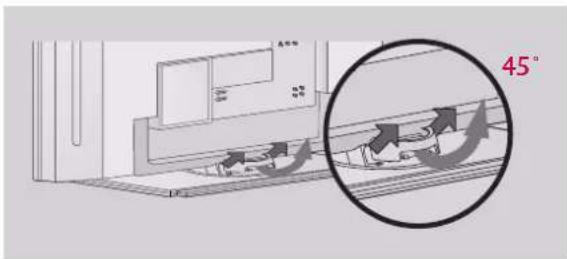
1 Hold the CABLE MANAGEMENT with both hands and pull it backward as shown.
text_image
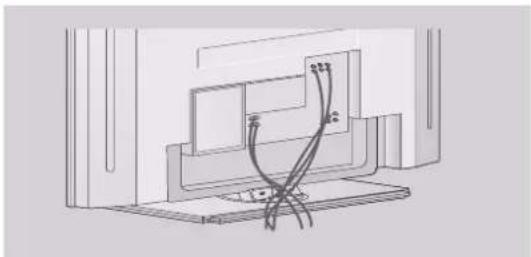
45°2 Connect the cables as necessary. To connect additional equipment, see the Connections & Setup section.
natural_image
Technical line drawing of a mechanical assembly with no visible text or symbols3 Install the CABLE MANAGEMENT as shown.
natural_image
Technical diagram showing mechanical components and a magnified inset of a bracket (no text or symbols)NOTE
Do not hold the CABLE MANAGEMENT when moving the product. - If the product is dropped, you may be injured or the product may be broken.
This features is available on the 42LC2DR/42LB2DE/47LB2DE.
■ Image shown may be somewhat different from your TV.
1 Connect the cables as necessary.
After connecting the cables neatly, arrange the cables to the Cable Holder. To connect an additional equipment, see the Connections & Setup section.

text_image
Diagram of a computer monitor with cable routing and wiring connections, showing labeled points and wiring paths.2 Install the CABLE MANAGEMENT as shown.

text_image
CABLE MANAGEMENT3 Bundle the cables using the supplied twister holder.

text_image
TWISTER HOLDERHow to remove the CABLE MANAGEMENT
Hold the CABLE MANAGEMENT with both hands and pull it upward.

natural_image
Diagram showing a computer monitor with a magnified view of a mechanical component, no text or symbols present.NOTE
Do not hold the CABLE MANAGEMENT when moving the product.
- If the product is dropped, you may be injured or the product may be broken.
DESKTOP PEDESTAL INSTALLATION
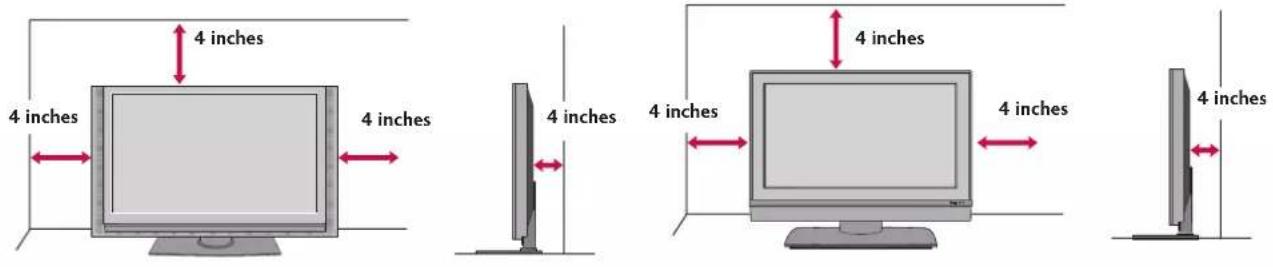
For proper ventilation, allow a clearance of 4 inches on each side from the wall.
42LC2DR/42LB2DE/47LB2DE50PB2DR
text_image
4 inches 4 inches 4 inches 4 inches 4 inches 4 inches 4 inches 4 inches
CAUTION
▶ Ensure adequate ventilation by following the clearance recommendations.
■ Image shown may be somewhat different from your TV.
text_image
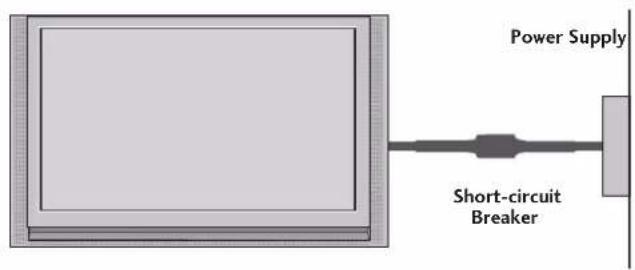
Power Supply Short-circuit BreakerGROUNDING
Ensure that you connect the earth ground wire to prevent possible electric shock. If grounding methods are not possible, have a qualified electrician install a separate circuit breaker.
Do not try to ground the unit by connecting it to telephone wires, lightening rods, or gas pipes.
CONNECTIONS & SETUP
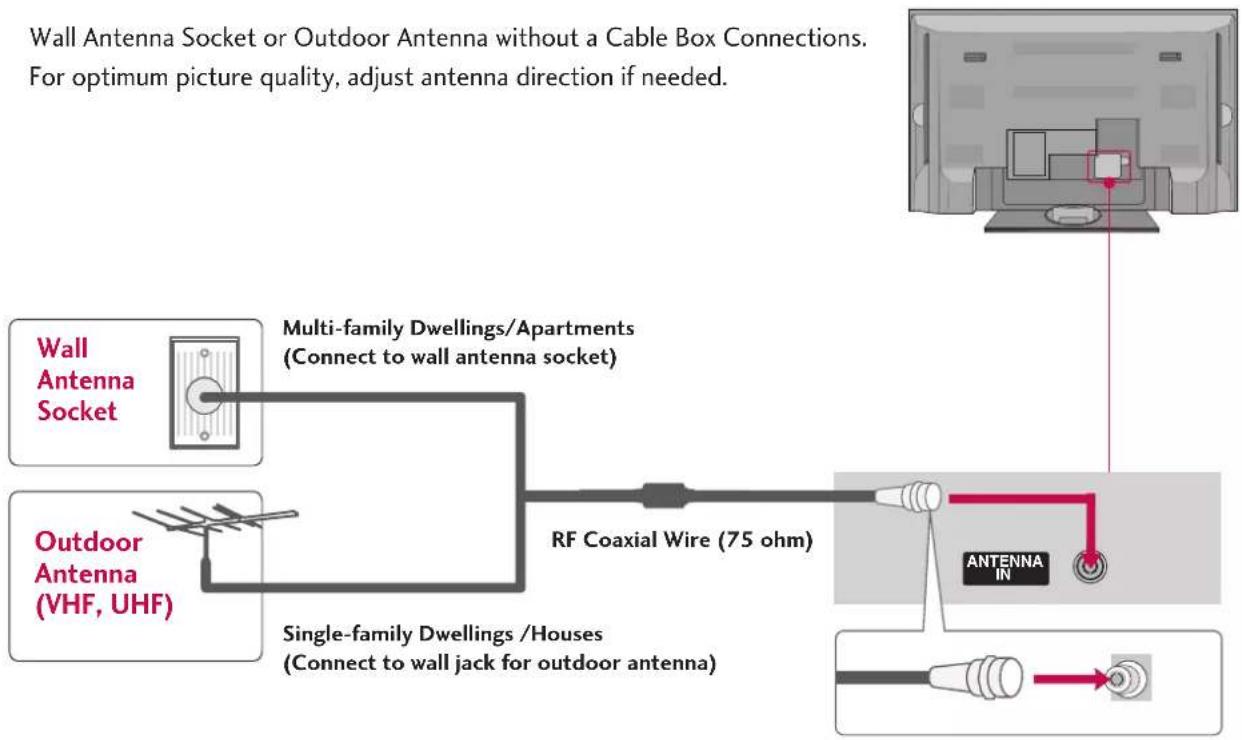
ANTENNA CONNECTION
Wall Antenna Socket or Outdoor Antenna without a Cable Box Connections. For optimum picture quality, adjust antenna direction if needed.
flowchart
graph TD
    A["Wall Antenna Socket"] --> B["Multi-family Dwellings/Apartments (Connect to wall antenna socket)"]
    C["Outdoor Antenna (VHF, UHF)"] --> D["Single-family Dwellings/Houses (Connect to wall jack for outdoor antenna)"]
    D --> E["RF Coaxial Wire (75 ohm)"]
    E --> F["Antenna IN"]
    F --> G["Output"]

flowchart
graph LR
    A["Antenna"] --> B["UHF"]
    A --> C["VHF"]
    B --> D["Signal Amplifier"]
    C --> D
    D --> E["Antenna IN"]
    E --> F["Output"]
■ To improve the picture quality in a poor signal area, please purchase a signal amplifier and install properly.
If the antenna needs to be split for two TV's, install a 2-Way Signal Splitter.
■ If the antenna is not installed properly, contact your dealer for assistance.
NOTE
The TV will let you know when the analogue and digital programme scans are complete.
CONNECTIONS & SETUP
HDSTB SETUP
This TV can receive Digital Over-the-air signal without an external digital set-top box. However, if you do receive digital signals from a digital set-top box or other digital external device, refer to the figure as shown below.
When connecting Component cable
1. How to connect

Connect the video outputs (Y, PB, PR) of the digital set top box to the COMPONENT IN VIDEO 1 jacks on the set. Match the jack colors
$$ (Y = \text { green }, P _ {B} = \text { blue }, \text { and } P _ {R} = \text { red }) $$

Connect the audio output of the digital set-top box to the COMPONENT IN AUDIO 1 jacks on the set.
2. How to use
■ Turn on the digital set-top box.
(Refer to the owner's manu-al for the digital set-top box.)
■ Select Component 1 input source using the INPUT button on the remote control.
If connected to COMPONENT IN 2 input, select Component 2 input source.

text_image
V100000 ① ② COMPONENT IN COMPONENT S-VIDEO Y PA PR L R VIDEO AUDIO| Signal | Component 1/2 | RGB-DTV | HDMI |
| 480i | Yes | No | No |
| 480p | Yes | Yes | Yes |
| 576i | Yes | No | No |
| 576p | Yes | Yes | Yes |
| 720p | Yes | Yes | Yes |
| 1080i | Yes | Yes | Yes |
| 1080p(24, 30, 50, 60 Hz)(42/47LB2DE only) | 24p/30p | No | Yes |
* In some resolution (1080p), the PIP, Twin Picture, TV Guide, and some other functions are not available.
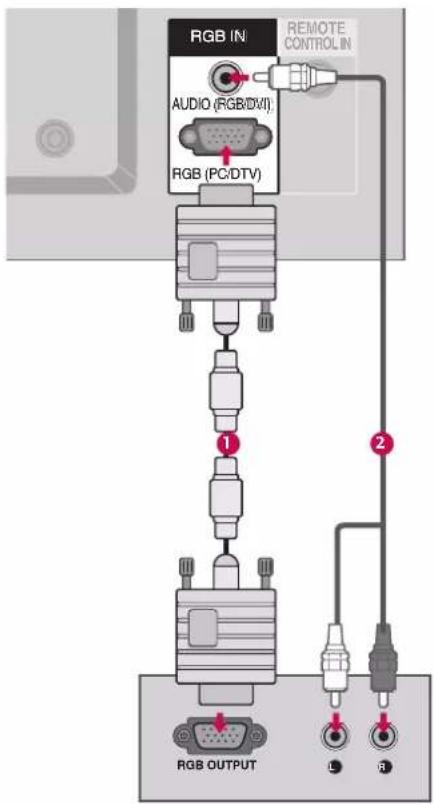
When connecting D-sub 15pin cable
1. How to connect

Connect the RGB output of the digital set-top box to the RGB (PC/DTV) jack on the set.

Connect the audio outputs of the digital set-top box to the AUDIO(RGB/DVI) jack on the set.
2. How to use
■ Turn on the digital set-top box.
(Refer to the owner's manual for the digital set-top box)
■ Select RGB-DTV input source using the INPUT button on the remote control.
When connecting HDMI cable
1. How to connect

Connect the digital set-top box to HDMI IN jack on the set.

No separated audio connection is necessary.
2. How to use
■ Turn on the digital set-top box.
(Refer to the owner's manual for the digital set-top box.)
■ Select HDMI1/DVI or HDMI2 input source using the INPUT button on the remote control.
NOTE
If the digital set-top box supports Auto HDMI function, the output resolution of the source device will be automatically set to 1280x720p.
If the digital set-top box player does not support Auto HDMI function, you need to set the output resolution appropriately. To get the best picture quality, adjust the output resolution of the source device to 1280x720p.
text_image
RGB IN AUDIO (RGB/DVI) REMOTE CONTROL IN RGB (PC/DTV) ① ② RGB OUTPUT L R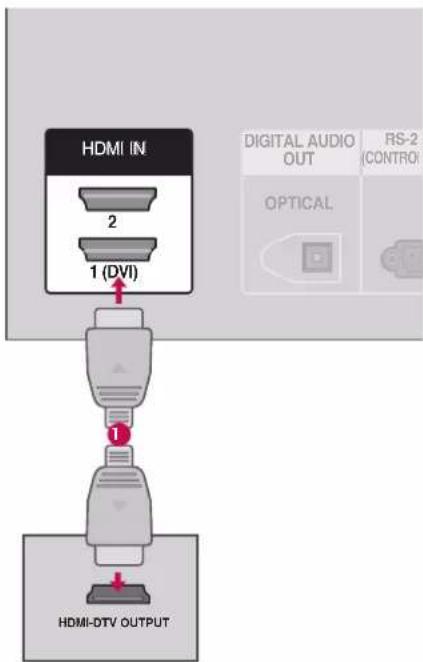
text_image
HDMI IN 2 1 (DVI) DIGITAL AUDIO OUT RS-2 (CONTRO) OPTICAL HDMI-DTV OUTPUTCONNECTIONS & SETUP
When connecting HDMI to DVI cable

flowchart
graph TD
    A["HDMI IN HDMI"] -->|2| B["1 (DVI)"]
    B --> C["DVI-DTV OUTPUT"]
    C -->|1| D["RGB IN RGB REM CONTROL"]
    C -->|2| E["ANTENNA IN"]
    E --> F["RGB (PC/DTV)"]
    G["DIGITAL AUDIO OUT"] --> H["OPTICAL"]
    I["RS-232C IN (CONTROL& SERVICE)"] --> J["RS-232C IN (CONTROL& SERVICE)"]
    K["AUDIO (RGB/DVI) -AUDIO"] --> L["RGB (PC/DTV)"]
1. How to connect
1 Connect the DVI output of the digital set-top box to the HDMI IN 1 (DVI) jack on the set.
2 Connect the audio output of the digital set-top box to the AUDIO(RGB/DVI) jack on the set.
2. How to use
■ Turn on the digital set-top box. (Refer to the owner's manual for the digital set-top box.)
■ Select HDMI1/DVI input source using the INPUT button on the remote control.
VCR SETUP
■ To avoid picture noise (interference), leave an adequate distance between the VCR and TV.
If the 4:3 picture format is used; the fixed images on the sides of the screen may remain visible on the screen. This phenomenon is common to all manufactures and in consequence the manufactures warranty does not cover the product bearing this phenomenon.
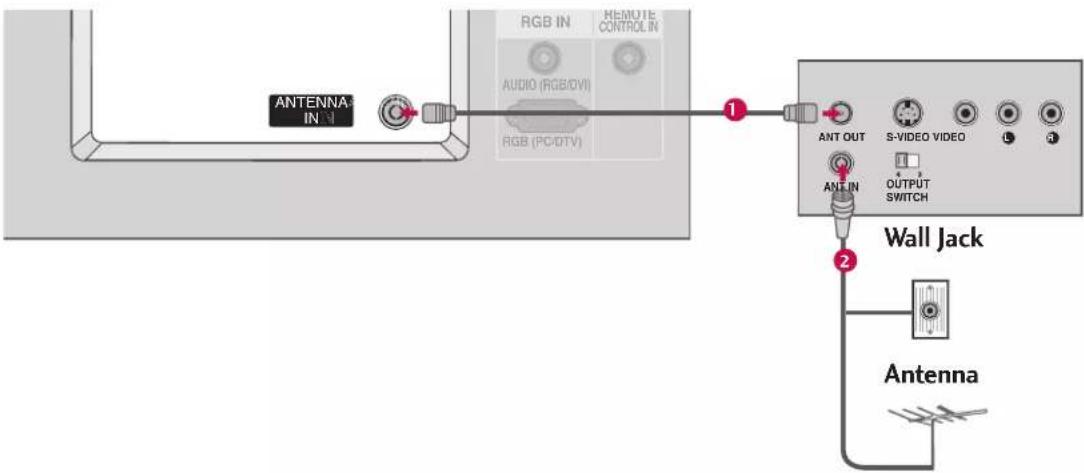
When connecting with an antenna
text_image
ANTENNA IN RGB IN REMOTE CONTROL IN AUDIO (RGB/OW) RGB (PC/DTV) 1 ANT OUT S-VIDEO VIDEO OUTPUT SWITCH 2 Wall Jack Antenna1. How to connect
1 Connect the RF antenna out socket of the VCR to the Antenna socket on the set.
2 Connect the antenna cable to the RF antenna in socket of the VCR.
2. How to use
■ Match the appropriate programme between the TV and VCR for viewing.
- Insert a video tape into the VCR and press PLAY on the VCR. (Refer to the VCR owner's manual.)
CONNECTIONS & SETUP
When connecting with an RCA cable
1. How to connect
1 Connect the AUDIO/VIDEO jacks between TV and VCR. Match the jack colors(Video = yellow, Audio Left = white, and Audio Right = red)
2. How to use
■ Insert a video tape into the VCR and press PLAY on the VCR. (Refer to the VCR owner's manual.)
■ Select AV1 input source using the INPUT button on the remote control.
■ If connected to AV IN2, select AV2 input source.
When connecting with an S-Video cable
1. How to connect
1 Connect the S-VIDEO output of the VCR to theS-VIDEO input on the set. The picture quality is improved; compared to normal composite (RCA cable) input.
2 Connect the audio outputs of the VCR to the AUDIO input jacks on the set.
2. How to use
- Insert a video tape into the VCR and press PLAY on the VCR. (Refer to the VCR owner's manual.)
■ Select AV1 input source using the INPUT button on the remote control.
■ If connected to AV IN2, select AV2 input source.
NOTE
The picture quality is improved: ; compared to normal composite (RCA cable) input.

text_image
L R S-VIDEO/VIDEN IN OUTPUT SWITCH ANT OUT 1 AV OUT VIDEO L(ONO) R [AUDIO] S-VIDEO AV IN 1NOTE
If you have a mono VCR, connect the audio cable from the VCR to the AUDIO L(MONO) jack of the set.

text_image
L R S-VIDEOVIDEOANT IN OUT SW_CH ANT OUT 2 1 AV OUT L(MON) R LAUDIO S-VIDEO VIDEO AV IN 1 2 1 Y VIDEO COICAUTION
Do not connect to both Video and S-Video at the same time. In the event that you connect both Video and the S-Video cables, only the S-Video will work.
ANOTHER A/V SOURCE SETUP
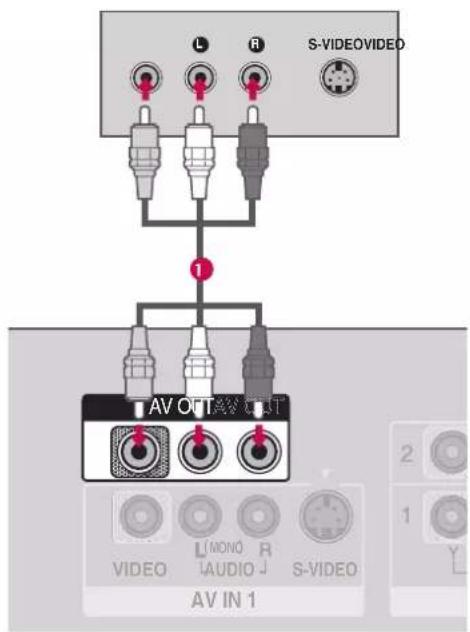
The TV has a special signal output capability which allows you to hook up a second TV or monitor.
1. How to connect

Connect the second TV or monitor to the TV's AV OUT jacks.

See the Operating Manual of the second TV or monitor for further details regarding that device's input settings.

NOTE
Component1-2, RGB-PC/RGB-DTV, HDMI/DVI, DTV input sources cannot be used for AV out.
We recommend to use the AV OUT jacks for VCR recording.
text_image
L R S-VIDEO/VIDEO 1 AV OUT VIDEO L MONO R S-VIDEO AUDIO J AV IN 1CONNECTIONS & SETUP
DIGITAL AUDIO OUTPUT
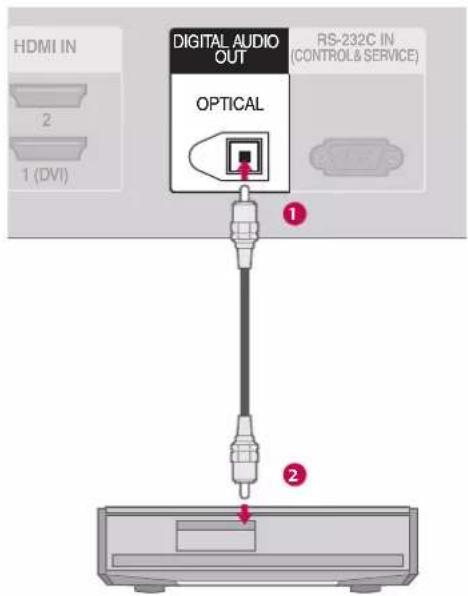
Send the TV's audio to external audio equipment via the Digital Audio Output (Optical) port.
1. How to connect
1 Connect one end of an optical cable to the TV Digital Audio (Optical) Output port.
2 Connect the other end of the optical cable to the digital audio (optical) input on the audio equipment.
3 Set the "TV Speaker option - Off" in the AUDIO menu. (▶ p.86). See the external audio equipment instruction manual for operation.
NOTE
When connecting with external audio equipment, such as amplifiers or speakers, please turn the TV speakers off. (▶ p.86)
CAUTION
Do not look into the optical output port. Looking at the laser beam may damage your vision.
text_image
HDMI IN 2 1 (DVI) DIGITAL AUDIO OUT OPTICAL RS-232C IN (CONTROLS & SERVICE) ① ②EXTERNAL A/V SOURCE SETUP
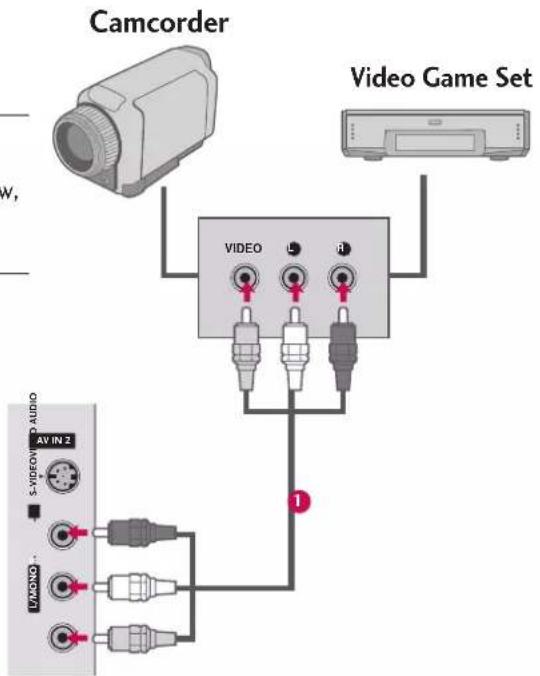
1. How to connect

Connect the AUDIO/VIDEO jacks between TV and external equipment. Match the jack colors.(Video = yellow, Audio Left = white, and Audio Right = red)
2. How to use
■ Select AV1 input source using the INPUT button on the remote control.
■ If connected to AV IN2 input, select AV2 input source.
■ Operate the corresponding external equipment.
text_image
Camcorder Video Game Set VIDEO L R 1 V/ANO AV IN 2 AUDIOi.e)50PB2DR
CONNECTIONS & SETUP
DVD SETUP
When connecting Component cables
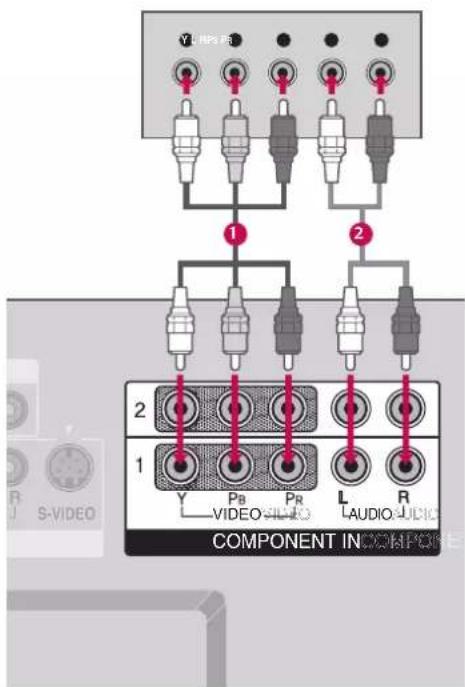
1. How to connect
1 Connect the video outputs (Y, PB, PR) of the DVD to the COMPONENT IN VIDEO1 jacks on the set. Match the jack colors (Y = green, PB = blue, and PR = red).
2 Connect the audio outputs of the DVD to the COMPONENT IN AUDIO1 jacks on the set.
2. How to use
■ Turn on the DVD player, insert a DVD.
■ Select Component 1 input source using the INPUT button on the remote control.
■ If connected to COMPONENT IN 2 input, select Component 2 input source.
- Refer to the DVD player's manual for operating instructions.
text_image
YL NPS 1 2 COMPONENT INCOMPONE 1 Y P# PR L R VIDEO AUDIO AUDIO AUDIOComponent Input ports
To get better picture quality, connect a DVD player to the component input ports as shown below.
| Component ports on the TV | Y | P_B | P_R |
| Video output ports on DVD player | Y | Pb | Pr |
| Y | B-Y | R-Y | |
| Y | Cb | Cr | |
| Y | Pb | Pr |
When connecting with an S-Video cable
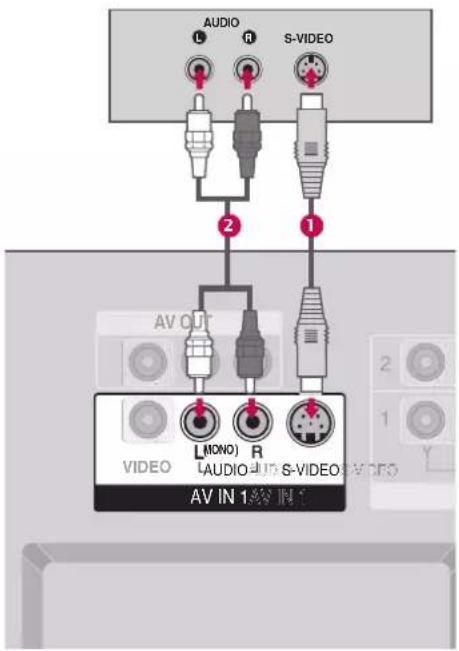
1. How to connect

Connect the S-VIDEO output of the DVD to the S-VIDEO input on the set.

Connect the audio outputs of the DVD to the AUDIO input jacks on the set.
2. How to use
■ Turn on the DVD player, insert a DVD.
■ Select AV1 input source using the INPUT button on the remote control.
■ If connected to AV IN2, select AV2 input source.
- Refer to the DVD player's manual for operating instructions.
When connecting HDMI cable
1. How to connect

Connect the HDMI output of the DVD to the HDMI IN jack on the set.

No separate audio connection is necessary.
2. How to use
■ Select HDMI1/DVI or HDMI2 input source with using the INPUT button on the remote control.
- Refer to the DVD player's manual for operating instructions.

NOTE
If the DVD supports Auto HDMI function, the DVD output resolution will be automatically set to 1280x720p.
If the DVD does not support Auto HDMI, you need to set the output resolution appropriately.
To get the best picture quality, adjust the output resolution of the DVD to 1280x720p.
text_image
AUDIO L R S-VIDEO 2 1 AV OUT L(MONO) R VIDEO S-VIDEO AV IN 1.5V IN
text_image
HDMI IN (红板) 2 1 (DVI) DIGITAL AUDIO OUT RS-2 (CONTRO OPTICAL HDMI-DVD OUTPUTCONNECTIONS & SETUP
PC SETUP
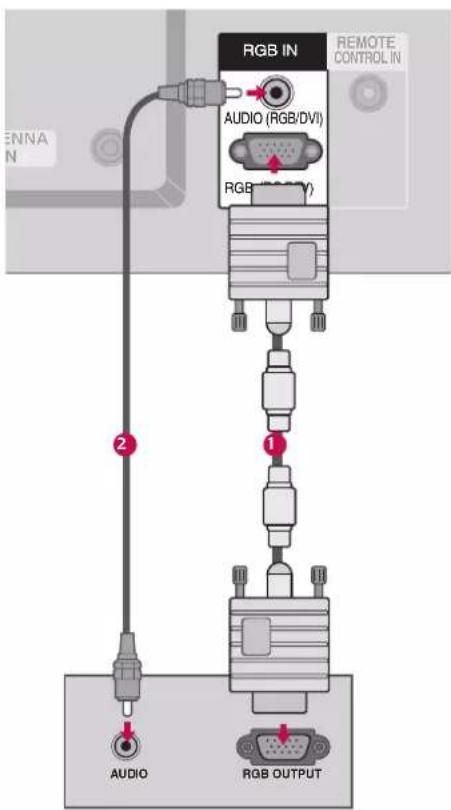
This TV provides Plug and Play capability, meaning that the PC adjusts automatically to the TV's settings. The TV perceives 640x480, 60Hz as DTV 480p based on the PC graphic card. If necessary, change the screen scanning rate for the graphic card accordingly.
When connecting D-sub 15pin cable
1. How to connect
1 Connect the RGB output of the PC to the RGB (PC/DTV) jack on the set.
2 Connect the PC audio output to the AUDIO (RGB/DVI) jack on the set.
2. How to use
■ Turn on the PC and the set.
■ Select RGB-PC input source in main input option of SETUP menu.(▶ p.69)
■ Once you select RGB-PC in main input option of Special menu, INPUTbutton is also available for this purpose.
NOTE
▶ Check the image on your TV. There may be noise associated with the resolution, vertical pattern, contrast or brightness in PC mode. If noise is present, change the PC output to another resolution, change the refresh rate to another rate or adjust the brightness and contrast on the VIDEO menu until the picture is clear. If the refresh rate of the PC graphic card can not be changed, change the PC graphic card or consult the manufacturer of the PC graphic card.
text_image
RGB IN AUDIO (RGB/DVI) REMOTE CONTROL IN RGB (RGB/DVI) 2 1 AUDIO RGB OUTPUTWhen connecting HDMI to DVI cable
flowchart
graph TD
    A["HDMI IN HDMI"] -->|2| B["1 (DVI)"]
    B --> C["Digital Audio OUT"]
    C --> D["RS-232C IN (CONTROL & SERVICE)"]
    D --> E["OPTICAL"]
    E --> F["Antenna IN"]
    F --> G["RGB INHIA"]
    G --> H["REMOTE CONTROL IN"]
    G --> I["AUDIO (RGB/DVI)"]
    G --> J["AUDIO (RGB/DVI)"]
    G --> K["RGB (RGB/DTV)"]
    L["DVI-PC OUTPUT"] --> M["AUDIO"]
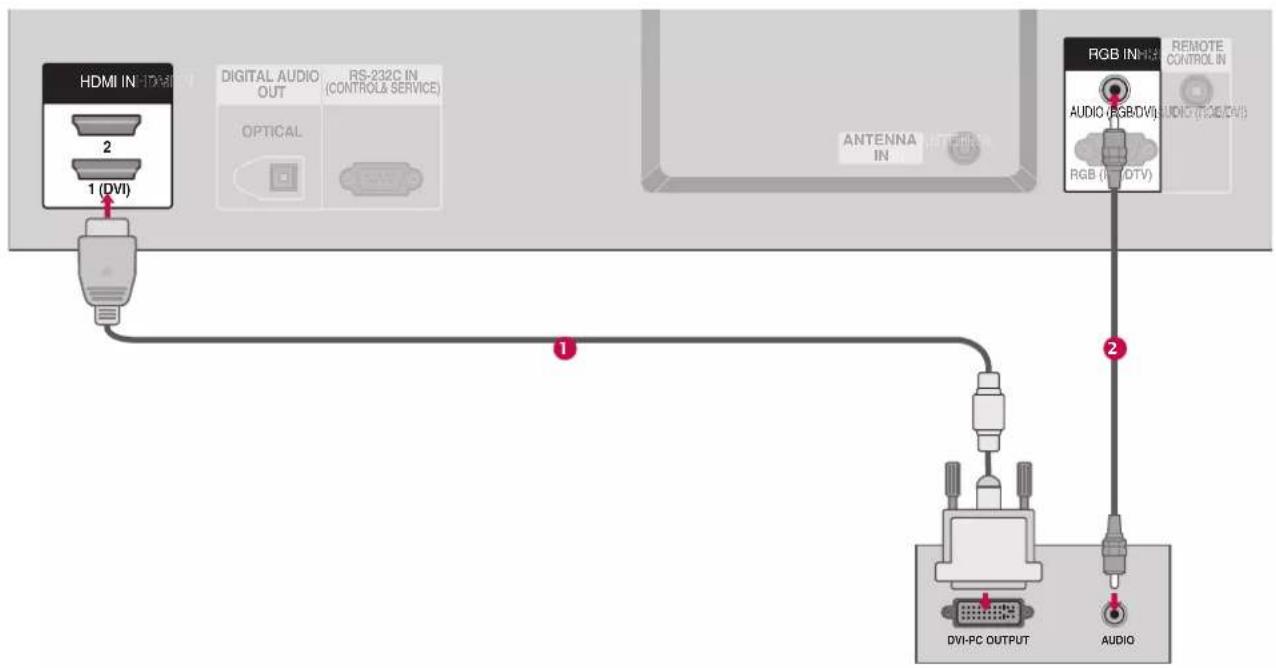
1. How to connect
1 Connect the DVI output of the PC to the HDMI IN 1 (DVI) jack on the set.
2 Connect the PC audio output to the AUDIO (RGB/DVI) jack on the set.
2. How to use
■ Turn on the PC and the set
■ Select HDMI1/DVI input source using the INPUT button on the remote control.
NOTE
If the PC has a DVI output and no HDMI output, a separated audio connection is necessary.
CONNECTIONS & SETUP
NOTES
To get the best picture quality, adjust the HDMI to 1920x1080, 60Hz (42/47LB2DE only).
To get the best picture quality, adjust the PC graphics card to 1024x768, 60Hz.
▶ Depending on the graphics card, DOS mode may not work if a HDMI to DVI Cable is in use.
When Source Devices are connected with HDMI/DVI Input, the output PC Resolution(VGA, SVGA, XGA), Position and Size may not fit on the Screen. As shown in the picture below, press the ADJUST button to adjust the screen Position of the TV SET and contact a PC graphics card service center.
When Source Devices connected with HDMI/DVI Input, output TV SET Resolution (480p, 576p, 720p, 1080i) and TV SET Display fit EIA/CEA-861-B Specification to Screen. If not, refer to the Manual of HDMI/DVI Source Devices or contact your service center.
If the HDMI/DVI Source Device is not connected to the Cable or if there is a poor cable connection, "No signal" is displayed in the HDMI/DVI Input. In this case, that Video Resolution is not supported. If "Invalid Format" is displayed, refer to the Source Device manual or contact your service center.
Avoid keeping a fixed image on the screen for a long period of time. The fixed image may become permanently imprinted on the screen.
The synchronization input form for Horizontal and Vertical frequencies is separate.
If you select HDMI/DVI, HDMI2 input source in main input option of SETUP menu and set HDMI-PC 1920 x 1080 in your PC format, you can get best picture quality with matching 1:1 pixel (42/47LB2DE only).
Supported Display Specifications (RGB/HDMI-PC)
| Resolution | Horizontal Vertical Frequency(kHz) Frequency(Hz) | |
| 640x350 | 31.468 70.09 | |
| 640x480 | 31.469 59.9437.861 72.8037.500 75.00 | |
| 720x400 | 31.46 70.08 | |
| 800x600 | 35.15637.87948.077 72.1846.875 | 56.2560.3175.00 |
| 1024x768 | 48.36356.47660.023 | 60.0070.0675.02 |
| 1280x768 | 47.776 | 59.870 |
| 1360x768 | 47.720 | 59.799 |
| 1366x768 | 47.130 | 59.65 |
| 1920x1080(42/47LB2DE only) | 67.500 | 60.00 |
* RGB-PC mode only: 640x350, 720x400
* HDMI-PC mode only: 1920x108(42/47LB2DE only)
Supported Display Specifications (RGB/HDMI-DTV)
| Resolution | Horizontal Vertical Frequency(kHz) Frequency(Hz) | |
| 720x576 | 31.25 | 50.00 |
| 720x480 | 31.47 | 59.94 |
| 31.50 | 60.00 | |
| 1280x720 | 37.50 | 50.00 |
| 44.96 | 59.94 | |
| 45.00 60.00 | ||
| 1920x1080i | 28.125 | 50.00 |
| 33.72 | 59.94 | |
| 33.75 | 60.00 | |
| 1920x1080p(42/47LB2DE only) | 27.00 | 24.00 |
| 33.75 | 30.00 | |
| 56.25 | 50.00 | |
| 67.50 | 60.00 | |
* HDMI-DTV mode only: 1920x1080p(42/47LB2DE only)
Screen Setup for External Input Mode
Overview
When Component, RGB or HDMI/DVI are selected in Main Input, the following restrictions apply.
In HDMI/DVI-PC and HDMI/DVI-DTV mode, only Position is available.
In Component and RGB-DTV mode, Clock is not available.
After connecting RGB-PC to PC input and checking the screen quality.
When you change the resolution, select the proper resolution in present input to see the best picture appearance.
Adjustment for screen Resolution, Position, Clock, Phase, Reset
1 Press the ADJUST button and then use ▲ or ▼ button to select Resolution, Position, Clock, or Phase.
2 Press the OK button and then use ▲ /▼ or ◀ /▶ button to make appropriate adjustments.
■ The Phase adjustment range is -32 \~ +32
■ The Clock adjustment range is -30 \~ +30.
3 Press the OK button.
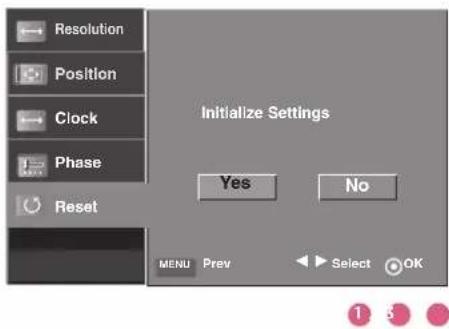
Initializing (Reset to original factory values)
To initialize the adjusted values.
1 Press the ADJUST button and then use ▲ or ▼ button to select Reset.
2 Press the OK button and then use ◀ or ▶ button to select Yes.
3 Press the OK button.
text_image
7 8 9 0 FWUST SIZE INDEX TIME REVEAL I/II APM SLEEP ADJUST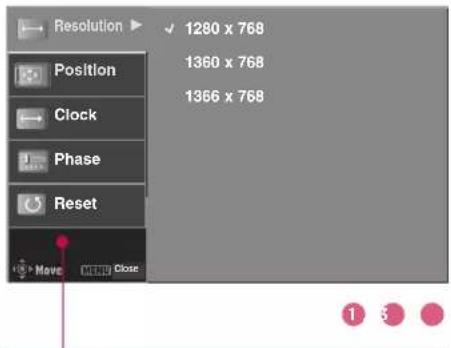
text_image
Resolution Position Clock Phase Reset Move MENU Close 1280 x 768 1360 x 768 1366 x 768 1 3Resolution This function allows you select resolution of XGA/WXGA. (Up to 1366x768, 60Hz)
Position This function is to adjust picture to left/right and up/down as you prefer.
Clock This function is to minimize any vertical bars or stripes visible on the screen background. And the horizontal screen size will also change.
Phase This function allows you to remove any horizontal noise and clear or sharpen the image of characters.
text_image
Resolution Position Clock Phase Reset Initialize Settings Yes No MENU Prev Select OK
BASIC OPERATION
TURNING THE TV ON
1 Ensure the power cord is connected correctly.
When connected to power the TV switches to standby mode.
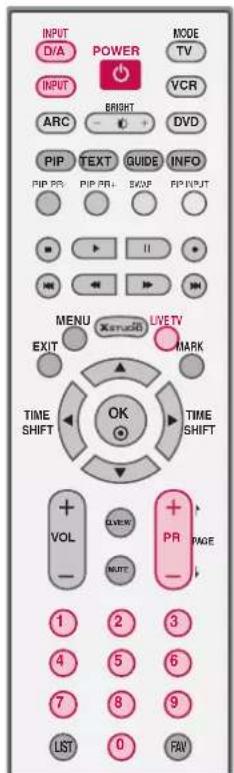
In standby mode, press the ,/ | INPUT, PR + / --button on the TV or press the POWER, INPUT, D/A INPUT, LIVE TV, PR + / -; Number (0\~9) button on the remote control.
2 Select the viewing source by using the INPUT button on the remote control.
■ This TV is programmed to remember which mode it was last set to, even if you turn the TV off.
3 When finished using the TV, press the POWER button on the remote control. The TV reverts to standby mode.
NOTE
If you intend to be away on vacation, disconnect the power plug from the wall power outlet.
INITIALIZING SETUP
1 If the OSD (On Screen Display) is displayed on the screen as figure 1 after turning on the set, you can adjust the Auto Programme tuning, Time Zone selection or Password setting.
NOTE
It will automatically disappear after approx. 40 seconds unless a button is pressed.
This OSD (On Screen Display) is displayed only once when you purchase TV and turn it on.
text_image
INPUT D/A POWER MODE TV INPUT BRIGHT VCR ARC DVD PIP TEXT GUIDE INFO PIP PR PIP PR SWIF PIP INPUT II MENU LIVE TV EXIT MARK TIME SHIFT TIME SHIFT + - VOL VIEW + - NOTE PAGE - LIST 0 FAV 1 2 3 4 5 6 7 8 9Installation Guide
Welcome
The Following process guides you to complete initial settings. This initial setup appears the first time you turn the TV on. The settings can be changed in menu once entered.
Next
Figure 1.
VOLUME ADJUSTMENT
Adjust the volume to suit your personal preference.
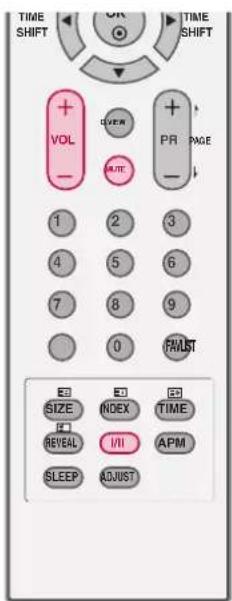
1
Press the VOL + / --button to adjust the volume.
2
If you want to switch the sound off, press the MUTE button.
3
You can cancel the Mute function by pressing the MUTE, I/II or VOL + / --button.
text_image
TIME SHIFT +VOL - VIEW PR PAGE 1 2 3 4 5 6 7 8 9 0 FAILST SIZE INDEX TIME REVEAL I/II APM SLEEP ADJUSTPROGRAMME SELECTION
Automatically finds all programmes available through antenna or cable inputs, and stores them in memory on the programme list.
1
Press the PR + / --or NUMBER buttons to select a programme number.

text_image
+VOL SVIEW +PR PAGE - WRITE 1 2 3 4 5 6 7 8 9 0 FAMUST SIZE INDEX TIME REVEAL I/II APM SLEEP ADJUSTSPECIAL FUNCTIONS | DVR (DIGITAL VIDEO RECORDER)
TIMESHIFT
This function allows the unit to automatically record live TV and make it available for reviewing at any time.
With Timeshift turned on, you may pause and rewind normal TV viewing at any time without missing any of the live broadcast.

text_image
INPUT D/A POWER INPUT ARC BRIGHT DV MODE TV VCR PIP TEXT GUIDE INFO PIP PPG PIP PPG SNAP PIP NEXT MENU LIVE TV EXIT MARK TIME SHIFT OK TIME SHIFT1 Press the MENU button and then use ▲/or ▼button to select the DVR menu.
2 Press the ▶ button and then use ▲ or ▼ button to select the Timeshift mode.
3 Press the ▶ button and then use ▲ or ▼ button to select O○ or Off.
4 Press EXIT button to return to normal TV viewing.

text_image
SETUP PICTURE AUDIO TIME SPECIAL LOCK DVD > Manual record Schedule list Recorded TV Timeshift mode HDD format Record quality1

text_image
SETUP PICTURE AUDIO TIME SPECIAL LOCK DVR +Move HBD Prev Manual record Schedule list Recorded TV Timeshift mode HDD format Record quality Off ✓ On2 3
Using the Timeshift function

text_image
LIVE 0:49-32 1 2 3 41 After selecting the Timeshift Mode On, press the OK button.
As soon as Timeshift starts, a progress bar indicating the current recording status is displayed in the bottom of the screen.
- Press the EXIT button to hide the 'Progress Bar' or press the OK button to display the 'Progress Bar'.
This function is preserved even change a programme on progressing the Timeshift.
The 'Progress Bar'?
This function indicates a possible DVR reshowing section, a current on-screen and real on-broadcasting position, a section of section-recording.
① Status of current displayed video.
2 Current save time.
3 30 minute intervals from Timeshift start time. (Total - 2 hours).
4 Indicates current Timeshift position.
2 When finished with the Timeshift function, enter the option menu and turn Timeshift Mode Off.
NOTE
▶ DVR (Digital Video Recorder) : A device which records and plays broadcast program contents onto a hard disk in TV or SET TOP BOX.
If available hard-disk space is low when Timeshift is initiated, the oldest information is deleted.
In order to save hard-disk space, nothing is saved when there is no signal.
The total storage space of the hard-disk is 250GB(42LC2DR/50PB2DR), 160GB(42/47LB2DE). 10GB minimum is reserved for Timeshift.
When turning power on, it may take up to 3 minutes to initialize the HDD.
Because an analog broadcast is transferred to a digital signal, video that contains rapid movement may show "cross stripes". This happens when the analog signal is compressed and then restored in the digital signal. The unit will attempt to reduce this excessive picture noise.
When using the PIP/POP mode, Timeshift is stopped.
Timeshift is available in AV1-2, Antenna, Component1-2 mode.
Timeshift is not available for Audio only programmes.
In 42/47LB2DE models, when the set is connected to 1080p external equipment, Timeshift is stopped.
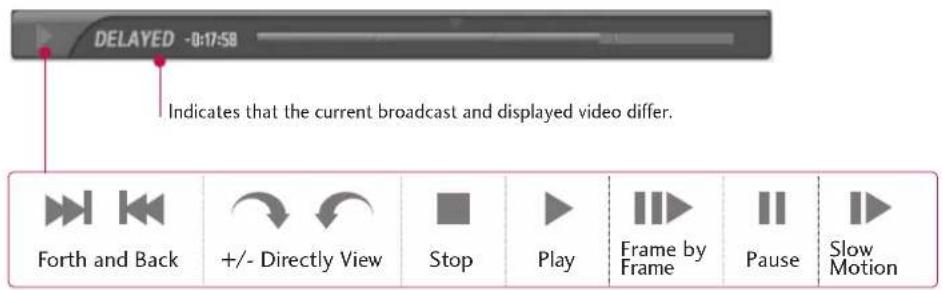
Using the Timeshift function, play
When using Timeshift, there are diverse playback options.
text_image
DELAYED -0:17:58 Indicates that the current broadcast and displayed video differ. Forth and Back +/- Directly View Stop Play Frame by Frame Pause Slow Motion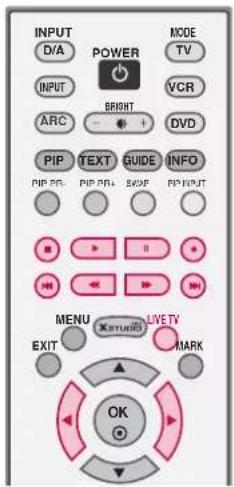
text_image
INPUT D/A POWER MODE TV INPUT VCR ARC BRIGHT DVD PIP TEXT GUIDE INFO PIP RO PIP PA SVD FP INPUT MENU MINTUOS LIVE TV EXIT MARK OKUsing the remote control
You can shift playback to any point within the recorded program.
 | When playing, press the REW(◀) or FF(▶) button.■ Press → → → → to speed up.■ Pressing these buttons repeatedly increases the fast forward/reverse speed. |
  | Press the on button to move back and forth within the current program.■ Press the button to jump about 30 seconds forward.■ Pressing the button to jump about 8 seconds backward. |
 | During playback, press the Pause(◀) button.■ Still screen is displayed.■ Repetedly press the Pause(◀) button to advance frame by frame.■ Press the Pause(◀) button and then the FF(▶) button for slow motion (as indicated by ▶.) |
 | ■ When using the ◀ or ▶ button during playback the cursor can be viewed on the screen. |
 | Press the PLAY(◀) button to return to normal playback. |
LIVE TV | If you want to return to the last selected input mode, press the LIVE TV button. |
RECORDING
Use this function to record the program you are watching on the main screen (Analogue or Digital broadcast.)
Instant Record
This function records the currently displayed programme.
1 Select the desired programme to record and then press the button. During recording is displayed. Use this feature to record up to 2 hours of programming.
2 If you want to stop recording, press the button. And then recording will stop.
■ While recording, if you press the ⏻ button before 10 seconds of recording time has passed, this message is displayed.
If you press the Ⓧ button after more than 10 seconds of recording time has passed, this message is displayed.

Recording failed. Length is less than 10 seconds.

Recording completed.
3 You can add/subtract recording time by pressing the button while recording. Press the ◀ or ▶ button repeatedly to add/subtract to the recording time. Each time you press ◀ or ▶ button the recording duration changes as shown below.
$$ \begin{array}{l} + 1 0 \mathrm{min} > + 2 0 \mathrm{min} > + 3 0 \mathrm{min} > + 4 0 \mathrm{min} > + 5 0 \mathrm{min} > + 1 \mathrm{hr} \ \text { No Change } \ - 1 0 \mathrm{min} > - 2 0 \mathrm{min} > - 3 0 \mathrm{min} > - 4 0 \mathrm{min} > - 5 0 \mathrm{min} > - 1 \mathrm{hr} \end{array} $$
SPECIAL FUNCTIONS | DVR (DIGITAL VIDEO RECORDER)
The extra recording time added to the existing setting equals the final recording time.

After adjusting the recording time, select OKPress the OK button to check the adjusted recording time. The progress bar will be displayed.

text_image
REC 0:40:34/1:00:00 Total recording duration Elapsed recording time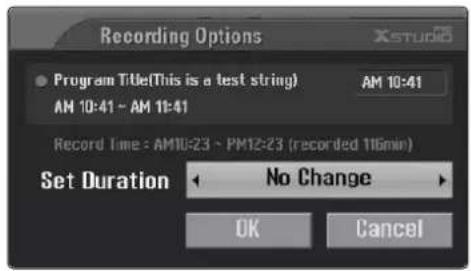
text_image
Recording Options XSTUB08 Program Title(This is a test string) AM 10:41 AM 10:41 - AM 11:41 Record Time = AM10:23 ~ PM12:23 (recorded 116min) Set Duration No Change OK Cancel3

Recording stops when the selected duration is reached or when you press the button.
Note: Although recording has stopped, the Timeshift feature remains active.

NOTE
When recording, if the available storage space becomes low, the recording will be automatically stopped.
Recordings of less than 10 seconds will not be saved.
To save disk space while recording analog or digital broadcasts, no data is saved if there is no signal.
The recording function will not initiate for a copy-protected program.
The displayed time differs slightly from the actual time.
In no signal or film source, the displayed time slightly differ from the actual time.
The recording can not be used with content-protected programs on progressing Timeshift.

Cannot record due to copy protection.
If you press Record while watching a broadcast (with content-protected program) using the Timeshift function, recording begins from that point.
If you record for a long time, in a state of the Analogue signal is weak, remained recording time may be short.
Watching & Record
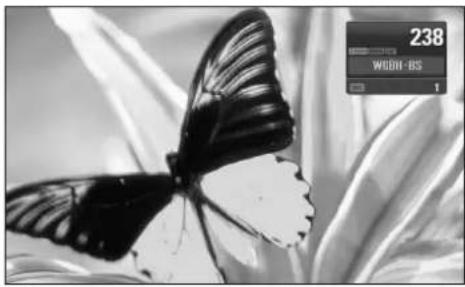
While recording, you can change programmes or inputs without disturbing the recording.

After starting an Instant Record or Reserved Record, change the programme or input.
■ When changing to the programme being recorded in Watch & Record, the screen is changed to Instant Record state or Reserved Record state.

NOTE
When a digital broadcast is being recorded, another digital broadcast cannot be watched.
When a component input source is being recorded, another programme or source cannot be watched.

CAUTION
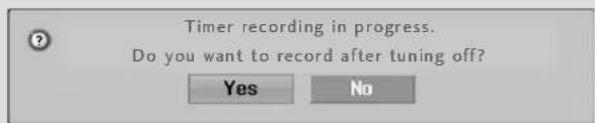
▶ if you turn the power off while recording, the message shown below is displayed.
text_image
Timer recording in progress. Do you want to record after tuning off? Yes NoIf you select Yes, recording continues and the power is turned off.
If you select No, recording stops and then power is turned off.
natural_image
Black-and-white close-up of a butterfly perched on a flower, with a small display screen showing '238' and 'WGBN-BS' in the corner (no readable text on the butterfly or background)MANUAL RECORDING
This function is used to perform reserved recording.

text_image
INPUT POWER MODE TVD/A INPUT BRIGHT VCR ARC DVD TEXTPGUIDE INFO PID DIS PID DIS SCIF PID INPUT MENU XENTUCK LIVE TV EXIT MARK OK
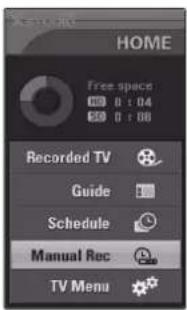
Press the button to display
HOME menu. Use the
▲ or ▼ button to select the Manual Rec and then use the OK or ▶ button.
text_image
HOME Free space 0:04 50 0:08 Recorded TV Guide Schedule Manual Rec TV Menu
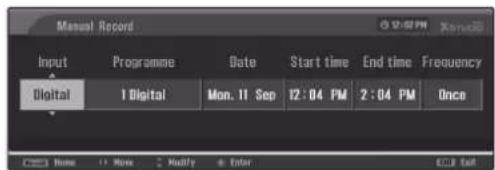
Manual Rec screen is displayed as shown below.
Use the ▲▼◀▶ buttons to set the Input, Programme, Date, Start Time, End Time, Frequency.
Input: Select the input source from the available options (Digital, Analogue, AV1-2, Component1-2).
▶ Programme : Select either the current programme or a scanned programme.
Date : You can select a date up to one month in the future. The max duration is 8 hours.
▶ Start Time /End Time : Ensure you have set AM or PM correctly.
▶ Frequency : Choose either Once, Daily, Weekly, Weekday, Weekend.
1
text_image
Manual Record Input Programme Date Start time End time Frequency Digital 1 Digital Mon. 11 Sep 12:04 PM 2:04 PM Once Home More Modify Enter CUI Edit2

After setting the Manual Rec, press the OK button.
RECORDED TV
You can view the recorded program list at a glance.

Press the button to display
HOME menu.
Use the ▲ or ▼ button to select the Recorded TV and then use the OK or ▶ button.

text_image
HOME Free Space 00 0 : 04 00 0 : 08 Recorded TV Guide Schedule Manual Rec TV Menu Recorded TV Page 1/2 Not Marked West M 4/4 (Mon) 1:23 Document1 2/2 (Wed) 21:53 Wow 5/5 (Thu) 2:47 Winged 1/1 (Sat) 1:47 Hellinging 3/3 (Thu) 0:17 Bloom. 5/5 (Mon) 1:40 ART1 2/2 (Thu) 2:13 ART2 8/8 (Mon) 0:58 Jetsons1 5/9 (Fri) 2:30 Jetsons2 10:10 (Mon) 2:47 Good 19/11 (Fri) 3:20 Oh!! 12/12 (Mon) 0:02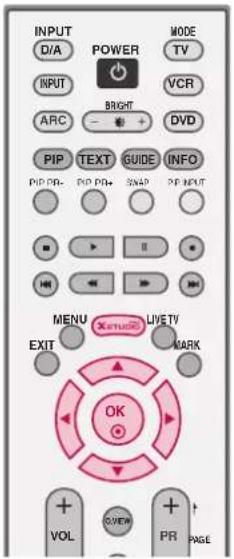
text_image
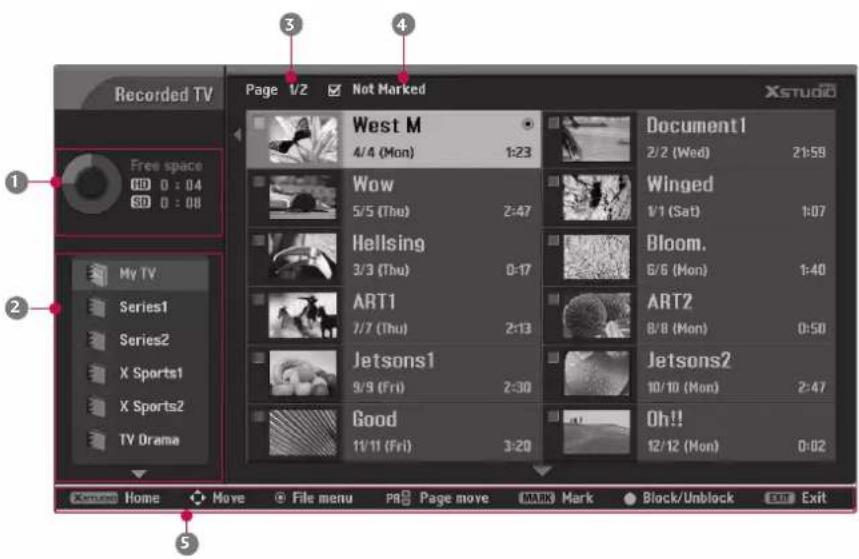
INPUT D/A POWER MODE TV INPUT VCR ARC BRIGHT DVD PIP TEXT GUIDE INFO PIP PR- PIP PR+ SNAP PIP NEXT MENU XENTUDO LIVE TV EXIT MARK OK VOL VIEW PR PAGEScreen Components
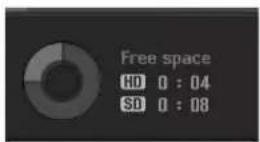
① Usable HDD
2 Folder List
3 Current page/Total pages
4 Marked thumbnail photo number
5 Direct Buttons
text_image
Recorded TV Page 1/2 Not Marked Xstudio 1 Free space ID 0 : 04 SD 0 : 08 My TV Series1 Series2 X Sports1 X Sports2 TV Drama 2 5 3 4 Document1 2/2 (Wed) 21:59 Winged 1/1 (Sat) 1:07 Bloom. 6/6 (Mon) 1:40 ART1 7/7 (Thu) 2:13 Art2 8/8 (Mon) 0:50 Jetsons1 9/9 (Fri) 2:30 Jetsons2 10/10 (Mon) 2:47 Good 11/11 (Fri) 3:20 Oh!! 12/12 (Mon) 0:02Recorded programme Selection and PopUp Menu
The thumbnail recorded list is shown above.
1 Use the PR +/- button for page up/down navigation.
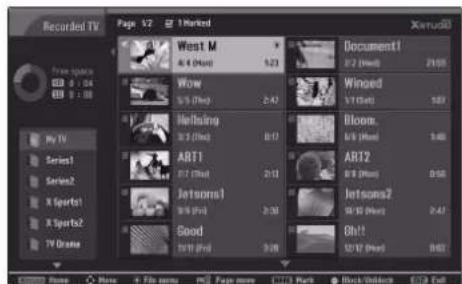
2 Use the button to move or delete from the list. A is displayed next to the thumbnail photo if an item is marked.
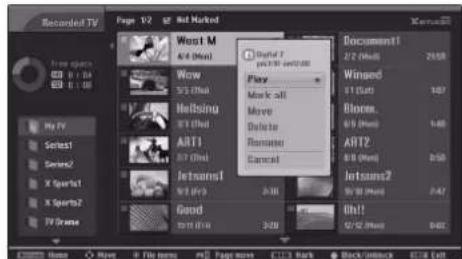
3 Use ▲▼◀▶ buttons to navigate the appropriate thumbnail photo, then press the ○○ button to open the pop-up menu.
▶ Play : Begin playback of selected recorded program.
▶ Mark All: mark all recorded programmes on the current folder.
▶ Unmark All : Change marked recorded programmes to unmarked recorded programmes.
▶ Move : Move recorded programme saved in HDD to a different folder.
▶ Delete : Delete the selected recorded programs.
▶ Rename : Edit recorded programme title.
▶ Cancel : Close the Pop-up menu.
4 Press EXIT button to return to TV viewing or press button to return to the HOME menu.
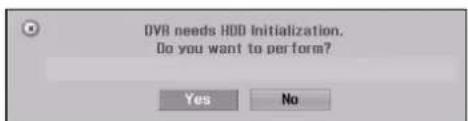
If the HDD has a problem performing a function (Recording) related to the DVR, select Yes or No to initialize HDD.
If you select Yes, the Recorded List (Recording) will be deleted. If you select No, the DVR may not function properly.
If the temperature is below zero (0°C), a warning message is displayed to protect the HDD from error and the DVR from incorrect operation.

text_image
Recorded TV Page 52 - Not Market West M 8/4 (Plus) 123 Wow 9/5 (Plus) 2.47 Rebiting 9/3 (Plus) 0.17 ART1 9/7 (Plus) 2.13 Jetsone1 9/5 (Plus) 2.06 Good 10/11 (Plus) 3.20 Document1 8/2 (Plus) 7155 Winged 9/1 (Plus) 101 Bloom, 6/8 (Plus) 0.45 ART2 9/8 (Plus) 8.52 Jetsone2 10/10 (Plus) 2.47 Oh! 10/12 (Plus) 8.42 Share - Move - File name: Page name E-133 Mark Black/Unlock $1.18 Left1
text_image
Recorded TV Page 52 1 Marked Xeroxid West M Document1 4.6 (Movie) 2.3 2.2 (Movie) 2105 Wow Winced 5.5 (Movie) 2.42 175 (Movie) 187 Herbizing Bloom. 3.3 (Movie) 0.17 3.9 (Movie) 3.48 ABTI AR12 3.7 (Movie) 2.13 8.9 (Movie) 0.58 Jetsons1 Jetsons2 3.9 (Movie) 2.47 Good Oh! 3.9 (Movie) 3.08 3.07 3.07 3.07 3.07 3.07 3.07 3.07 3.07 3.07 3.07 3.07 3.07 3.07 3.07 3.07 3.07 3.07 3.07 3.07 3.07 3.06 3.06 3.06 3.06 3.06 3.06 3.06 3.06 3.06 3.06 3.06 3.06 3.06 3.06 3.06 3.06 3.06 3.06 3.06 3.06 3.05 3.05 3.05 3.05 3.05 3.05 3.05 3.05 3.05 3.05 3.05 3.05 3.05 3.05 3.05 3.05 3.05 3.05 3.05 3.05 3.04 3.04 3.04 3.04 3.04 3.04 3.04 3.04 3.04 3.04 3.04 3.04 3.04 3.04 3.04 3.04 3.04 3.04 3.04 3.04 3.03 3.03 3.03 3.03 3.03 3.03 3.03 3.03 3.03 3.02 3.02 3.02 3.02 3.02 3.02 3.02 3.022
text_image
Recorded TV Page 1/2 Hot Marked Worst M 4/4 (Max) Wow 5/3 (Max) Hillsing 5/1 (Max) ART1 5/7 (Max) Jetsansl 5/1 (Max) Good 10/1 (Max) Document1 2/2 (Max) 26.58 Winged 5/1 (Max) 1.07 Bloom. 6/5 (Max) 1.48 ART2 8/8 (Max) 0.50 Jetsansl2 9/10 (Max) 2.47 Oh!! 6/2 (Max) 0.01 © 2007 © 2007 © 2007 © 2007 © 2007 © 2007 © 2007 © 2007 © 2007 © 2007 © 2007 © 2007 © 2007 © 2007 © 2007 © 2007 © 2007 © 2007 © 2007 © 2007 © 2007 © 2007 © 2007 © 2007 © 2007 © 2007 © 2007 © 2007 © 2007 © 1999 © 1999 © 1999 © 1999 © 1999 © 1999 © 1999 © 1999 © 1999 © 1999 © 1999 © 1999 © 1999 © 1999 © 1999 © 1999 © 1999 © 1999 © 1999 © 1999 © 1999 © 1999 © 1999 © 1999 © 1999 © 1999 © 1999 © 1999 © 1999 © 2007 © 2007 © 2007 © 2007 © 2007 © 2007 © 2007 © 2007 © 2007 © 2007 © 2007 © 2007 © 2007 © 2007 °C: Move © File menu PC: Page more C/C: Rank Back/Backback ©C: List
text_image
Recorded TV Page 57 1 Market West M 4/4 (Most) Wow 5/5 (Most) Hellings 3/3 (Most) ABTI 2/7 (Most) Jetsons1 8/9 (Most) Good 10/11 (Most) Document1 2/2 (Most) Winbond 3/1 (Most) Bloom. 6/5 (Most) ART2 8/8 (Most) Jetsom2 10/10 (Most) 8x1! 8x12 (Most) X:10.1 File name: X Files name: FID Page name: 1723 Mark Back/Unlock X:10.13
text_image
OVR needs HDD Initialization. Do you want to perform? Yes No☒ DVR initialization cannot start because of low temperature.
4
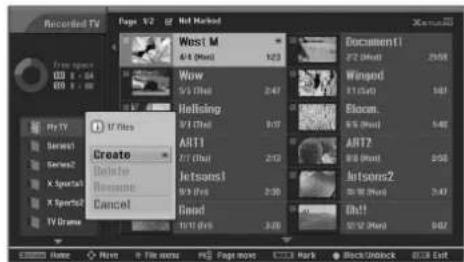
Folder List
Select a desired folder in the folder list and then press the OOKK button to view the detailed menu.
▶ Create: Create new folder.
▶ Delete: Delete folder (except 'My TV').
▶ Rename: Edit folder name (except 'MyTV').
Use the ▲▼◀▶ and ○○buttons to edit folder name.
Move the cursor to OK and press the OK button to save.
▶ Cancel: Close the detailed menu.
text_image
Recorded TV Page 1/2 Hot Market West M A/3 (Host) 1/23 How 5/5 (Host) 2:47 Holling 9/17 (Host) 9:17 Art11 7/7 (Host) 2:13 Jetsans1 8/5 (Host) 2:30 Good 10/12 (Host) 3:20 Document1 F2 (Host) 2568 Wingod E1 (Host) 161 Elocan. 5/5 (Host) 4:40 ART2 8/8 (Host) 8:50 Jinsons2 9/18 (Host) 2:43 Oh!! 50/12 (Host) 0:57 Home None File name PC Page name S...3 Mark Block/unlock C:\Users Exit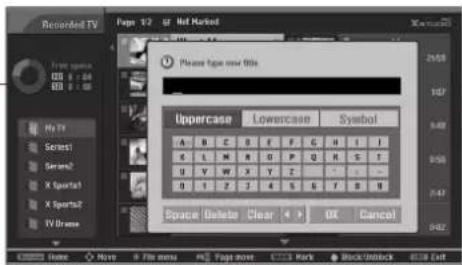
Block/Unblock for the recorded programme
Blocks any recorded programmes that you do not want to watch or that you do not want another person to watch.
1 Use ▲▼◀▶ buttons to select the desired recorded programme.
2 Press the BLUE button to block or unblock it.
NOTE
If you change your password, change the password in Set password option of LOCK menu.
SPECIAL FUNCTIONS | DVR (DIGITAL VIDEO RECORDER)
Playing recorded programs
You can play the selected program in the recorded program list.
1 Play a recorded program.
2 While playing, You can see a diversified playback screen as shown below.
At first, an icon showing current playback mode is displayed as marking PLAYING. Then press the OK button to display the progress bar.
■ To stop displaying the recorded programs icon, press the EXIT button.

text_image
PLAYING 0:14:46 /0:33:20The 'Progress Bar'?
This function indicates a possible DVR reshowing section, a current on-screen and real on-broadcasting position, a section of section-recording.
1 Indicates movement of recorded program.
2 Indicates status of recorded program.
3 Indicates elasped playback time.
4 Indicates total playback time.
⑤ Indicates a quarter of program runtime.
6 Indicates current playback position.
Using the remote control
You can shift playback to any point within the recorded program.
| When playing, press the REW(◀) or FF(▶) button.■ Press → -> → -> to speed up.■ Pressing these buttons repeatedly increases the fast forward/reverse speed. | |
| Press the 🔗 or 🔘 button to move back and forth within the current program.■ Press the 🔘 button to jump about 30 seconds forward.■ Pressing the 🔘 button to jump about 8 seconds backward. | |
| During playback, press the Pause (▶) button.■ Still screen is displayed.■ Repetedly press the Pause (▶) button to advance frame by frame.■ Press the Pause (▶) button and then the FF (▶) button for slow motion (as indicated by ▶). | |
| After using ▶ to rewind while playing, press the ◀ button to return to the prior screen. | |
| Press the PLAY(▶) button to return to a normal playback. | |
| LIVE TV | When playing the recorded program: Return to the last selected input source.When delaying: Return to the last selected input source. |
| If you press the STOP(▶) button, you can watch TV. |
Editing a section
You can save the desired screen in the recorded program list after editing the recorded program.
1 At the point you wish to start editing, press the button.
■ The progress bar will show the edited section as red.
It is possible to search (or), and pause while editing the section.
2 When you wish to stop, press the button.
■ Stop editing the section.
3 If you repeat steps 1,2, it is possible to edit more programs.

text_image
EDITING 0:10:40 / 5:00:004 If you press the button to stop the recorded program playback, this message is displayed as shown below.

▶ Save : Save contents of the edited section and finish the playback of the recorded program.
Undo : Don't save contents of the edited section and finish the playback of the recorded program.
▶ Cancel: The screen returns to playback.
NOTE
It is possible to play the recording / reserved recording.
▶ You may hear noise from the hard-disk during playback of the recorded program. This is normal and does not indicate a problem.
When saving the content of the edited section, delete the portion not selected.
When power fails during editing, the program may not be saved or edited. Press the STOP (☐) button after checking the recording list.
You can edit up to 10 sections.
You must select at least 10 seconds for the edited portion to be saved.
On playing the recorded programme, repeat a section
You can set the recording to repeat the same section.
1
At the point you wish to start, press the button.

text_image
PLAYING 0:14:46 /0:33:20■ The following symbol will appear:
2
At the point you wish to finish, press the button.
■ The following symbol appears:
■ Repeatedly play the marked section.
■ You can not make sections of less than 5 seconds.
■ The progress bar for the repeated section will be shown in blue.
3
Press the button to stop playing the repeat section.
!
NOTE
It is possible to search using (/).
Pause to edit a section while repeating.
When the progress bar is out of the repeat section using the ◀ or ▶ button, the repeat section playing will be stop.
SCHEDULED
This function is available to use in DVR menu.
1 Press the button to display HOME menu. Use the ▲ or ▼ button to select the Schedule and then use the ○ or ▶ button.

text_image
HOME Free space 0:04 0:08 Recorded TV Guide Schedule Manual Rec TV Menu LG Company Timemachine TV 7 SEVEN Sat. 5 Aug 4:05PM-5:45PM Recording reservation Once Title Programme Date Start Frequency LG Company Tim... 7 SEVEN Sat. 5 Aug 4:05 PM Once No title AV1 Mon. 7 Aug 7:15 AM Daily Friends 90 Nine Digi... Tue. 8 Aug 7:08 PM Weekly No title PR 99 My TV Fri. 11 Aug 11:25 AM Weekday No title Component1 Tue. 15 Aug 3:10 PM Once TEN News 999 TEN Digital Sat. 19 Aug 8:10 PM Weekend2 Schedule screen is displayed as shown. Use ▲ or ▼ button to select recorded programme.
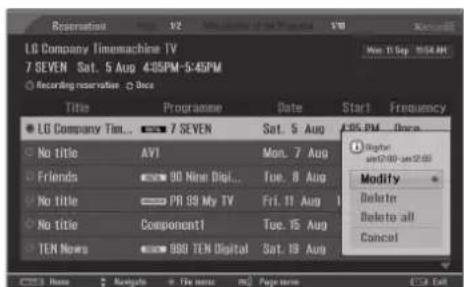
Recorded programme Selection and PopUp Menu
1 Use ▲ or ▼ button to select the recorded programme you want.
2 Press the O OK button to open the pop-up menu.
▶ Modify : Modify the schedule of the recorded program selection.
▶ Delete: Delete the recorded program.
▶ Delete All : Delete all recorded programs.
text_image
LG Company Timomachine TV 7 SEVEN Sat. 5 Aug 4:05PM-5:45PM Recording reservation Once Title Programme Date Start Frequency LG Company Tim... 7 SEVEN Sat. 5 Aug 4:05 PM - Since No title AVI Mon. 7 Aug Friends 90 Newi Digi... Tue. 8 Aug No title PR 99 My TV Fri. 11 Aug No title Component1 Toc. 15 Aug TEN News 999 TEN Digital Sat. 15 Aug Modify Delete Delete all Cancel1
3 Press EXIT button to return to TV viewing or press 📄 button to return to the HOME menu.
HDD FORMAT
Erases all programs and initializes the hard drive.

text_image
INPUT D/A POWER INPUT ARC BRIGHT DVHD PIP TEXT GUIDE INFO PIP PR+ PIP PR- SWAP PIP OUT MENU EXIT LIVE TV MARK TIME SHIFT OK TIME SHIFT1 Press the MENU button and then use ▲ or ▼ button to select the DVR menu.
2 Press the ▶ button and then use ▲ or ▼ button to select HDD Format.
3 Press the OK or ▶ button.
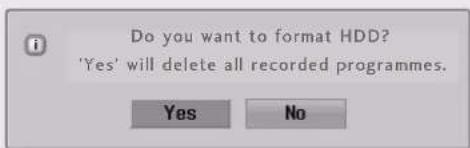
Select Yes or No to format HDD as shown below.
text_image
Do you want to format HDD? 'Yes' will delete all recorded programmes.- If you select Yes, the Recorded List (Recording) will be deleted. Even if you select NNothe DVR may not function if there are problems with the hard drive.
4 Press EXIT button to return to TV viewing or press MENU button to return to the previous menu.
text_image
SETUP PICTURE AUDIO TIME SPECIAL LOCK DVD Manual record Schedule list Recorded TV Timeshift mode HDD format Record quality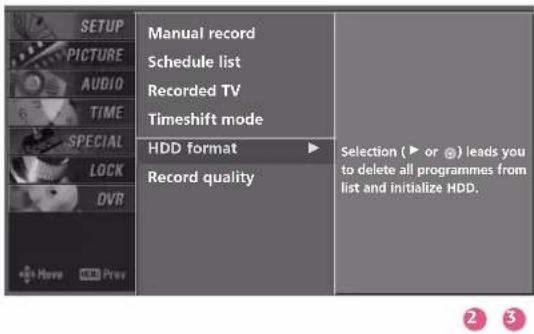
text_image
SETUP PICTURE AUDIO TIME SPECIAL LOCK DVR +Have DVD Prev Manual record Schedule list Recorded TV Timeshift mode HDD format Record quality Selection (► or ⭕) leads you to delete all programmes from list and initialize HDD.RECORD QUALITY
This function is available on Manual record.
In Analogue, AV1-2, Component 1-2 mode, this function is also available.
The record quality always works best on Timeshift and Instant record.
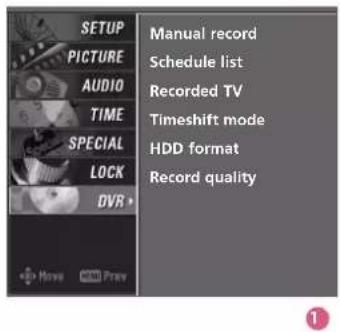
1 Press the MENU button and then use ▲ or ▼ button to select the DVR menu.
2 Press the ▶ button and then use ▲ or ▼ button to select Record quality.
3 Press the ▶ button and then use ▲ or ▼ button to select Best, High or Basic.
4 Press EXIT button to return to TV viewing or press MENU button to return to the previous menu.

text_image
INPUT POWER MODE TVD/A INPUT BRIGHT VCR ARC DVD TEXTPIGUIDE INFO PIP PP-PIP PP+ PIP INPUTSIVE MENU LIVE TV EXIT MARK TIME SHIFT TIME SHIFT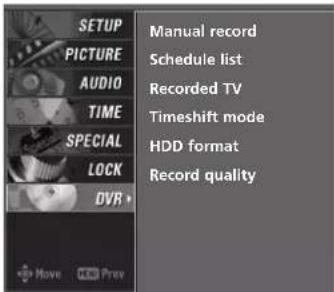
text_image
SETUP PICTURE AUDIO TIME SPECIAL LOCK DVD + →Move DVD Prev Manual record Schedule list Recorded TV Timeshift mode HDD format Record quality1

text_image
SETUP PICTURE AUDIO TIME SPECIAL LOCK DVD Move Prev Manual record Schedule list Recorded TV Timeshift mode HDD format Record quality ▶ Only for manual record and analogue source (analogue broadcast AV1, AV2, Component1, Component2) ✓ Best High Basic2 3
SPECIAL FUNCTIONS | PIP / POP / Twin Picture
PIP lets you view 2 different inputs (sources) on your TV screen at the same time. One source will be large and the other source will be shown in a smaller inset image.
Twin Picture mode splits the screen into two images, allowing two picture sources to be shown on the TV screen at the same time. Each source is given half the screen.

text_image
INPUT POWER MODE TVDIA INPUT BRIGHT VCR ARC DVD TEXTFIGURE INFO PIP PR-PIP PR+ PIP INPUTSWAR MENU Xstrued5 LIVE TV EXIT MARK TIME SHIFT OK TIME SHIFTWatching PIP/POP/Twin Picture
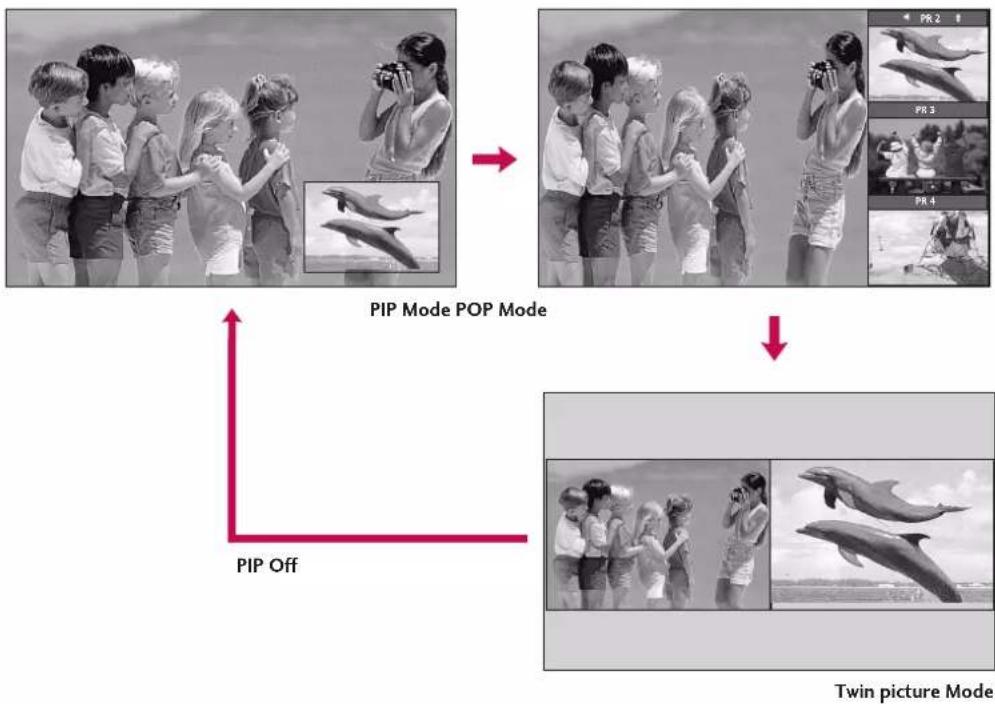
Press the PIP button to access the sub picture.
Each press of PIP changes the PIP options as shown below.
flowchart
graph TD
    A["PIP Mode POP Mode"] --> B["PIP Off"]
    B --> C["Twin picture Mode"]

NOTE
When the sub picture size is 1/2 of the main picture, the picture quality may deteriorate.
The motion of the sub picture can be unnatural because the set displays full screen by synchronizing the main picture source when the refresh rate between the main picture source and the sub picture source is different in PIP mode.
Selecting an Input Signal Source for PIP/Twin Picture
Use the PIP INPUT button to select the input source for the sub picture. Each press of PIP INPUT changes the PIP source.
Main Picture Source Available Sub Picture Sources
| Digital Analogue, AV1, and AV2 | |
| Analogue Analogue, Digital, AV1, and AV2 | |
| AV1-2, Component1-2, RGB, HDMI/DVI | Digital, Analogue, AV1-2 |
TV Program selection for PIP
1 Press the PIP button.
2 Select the Digital or Analogue option on the Sub input menu or with the PIP INPUT button. Use the PIP PR+ / PIP PR- button to select a programme for the sub picture.
Moving the PIP sub picture
In PIP mode, press the ▲▼◀▶ buttons to move the sub picture to a different location on the screen.

natural_image
Black-and-white photo collage showing a child celebrating with three inset images of dolphins, no text or symbols present.Swapping the PIP/Twin Picture
Repeatedly, use the SWAP button to switch the main and sub pictures.
■ When the main picture is in Digital, Analogue or AV modes, swapping is available.
PIP

natural_image
Black-and-white photo of three children sitting on a bench with raised fists, accompanied by inset images of dolphins (no text or symbols)Main Picture Sub Picture
SWAP

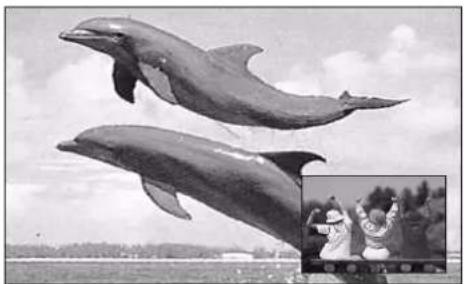
natural_image
Two dolphins taking off from a beach, with an inset photo of people watching (no visible text or symbols)Twin Picture

natural_image
Black-and-white photo collage showing children and three dolphins in various poses (no text or symbols)Main Picture Sub Picture
SWAP


natural_image
Black-and-white photo collage showing two dolphins in flight and a group of children observing or photographing them (no text or symbols)Adjusting Main and Sub Picture Sizes for Twin Picture
1 Use the ▲▼◀▶ buttons to change main and sub picture sizes in Twin Picture mode.
■ If the screen is adjusted to the maximal size, the large screen is filled with entire program vertically as shown.

natural_image
Black-and-white photo of children and a girl outdoors, with inset images of dolphins (no text or symbols)POP (Picture-out-of-Picture : Programme Scan)
Use POP to search the programs of all the memorized programmes one-by-one on the 3 PIP screen display, (while the main picture source remains the current programme). The pictures of all the programmed programmes are searched with the 3 POP screens.
1 Press the PIP button to activate the POP mode while in PIP mode.
■ Programme selection : Use ▶ button to enlarge the selected programme being searched on the PIP screen to shift it for viewing on the Main screen.
- PIP selection : Use ▲ or ▼ button to select one of 3 PIP screen pictures in POP mode.
■ When watching Analogue TV on Main picture, Digital TV channels are scanned as the Sub pictures. However, when watching Digital TV on Main picture, only Analogue TV channels are scanned as the Sub picture.
2 Press the EXIT button to cancel POP mode.
NOTE
▶ Run Auto programme before using POP mode.

natural_image
Black-and-white photo of children interacting with a camera, alongside four inset photos showing dolphins and animals (no text or symbols)SPECIAL FUNCTIONS | TELETEXT
* This feature is not available in all countries.
- Teletext is a free service broadcast by some TV stations which gives up-to-the-minute information on news, weather, television programmes, share prices and many other topics.
- The teletext decoder of this TV can support the SIMPLE, TOP and FASTEXT systems. SIMPLE (standard teletext) consists of a number of pages which are selected by directly entering the corresponding page number. TOP and FASTEXT are more modern methods allowing quick and easy selection of teletext information.
Switch On/Off
Press the TEXT button to switch to teletext. The initial page or last page appears on the screen.
Two page numbers, TV station name, date and time are displayed on the screen headline. The first page number indicates your selection, while the second shows the current page displayed.
Press the TEXT or EXIT button to switch off teletext.
SIMPLE Text
* This feature is not available in all countries.
■ Page selection
1 Enter the desired page number as a three digit number with the NUMBER buttons. If during selection you press a wrong number, you must complete the three digit number and then re-enter the correct page number.
2 The PR +/--button can be used to select the preceding or following page.
TOP Text
* This feature is not available in all countries.
- The user guide displays four fields-red, green, yellow and blue at the bottom of the screen. The yellow field denotes the next group and the blue field indicates the next block.
■ Block / group / page selection
1 With the BLUE button you can progress from block to block.
2 Use the yellow button to proceed to the next group with automatic overflow to the next block.
3 With the GREEN button you can proceed to the next existing page with automatic overflow to the next group. Alternatively the PR + button can be used.
4 The red button permits to return to previous selection. Alternatively the PR- button can be used.
■ Direct page selection
Corresponding to the SIMPLE teletext mode, you can select a page by entering it as a three digit number using the NUMBER buttons in TOP mode.
FASTEXT
- The teletext pages are colour coded along the bottom of the screen and are selected by pressing the corresponding coloured button.
■Page selection
- Press the button to select the index page.
- You can select the pages which are colour coded along the bottom line with the same coloured buttons.
- Corresponding to the SIMPLE teletext mode, you can select a page by entering its three digit page number with the NUMBER buttons in FASTEXT mode.
- The PR +/- button can be used to select the preceding or following page.
Special Teletext Functions

REVEAL
Press this button to display concealed information, such as solutions of riddles or puzzles. Press this button again to remove the information from the display.

SIZE
Selects double height text.
Press this button to enlarge the top half of the page.
Press this button again to enlarge the bottom half of the page.
Press this button again to return to the normal display.

TIME
a. When viewing a TV programme, press this button to display the time at the top right hand corner of the screen. Press this button again to remove the display.
b. In the teletext mode, press this button to select a sub page number. The sub page number is displayed at the bottom of the screen. To hold or change the sub page, press the RED, GREEN, or PR +/- buttons.
Press this function again to exit.
SPECIAL FUNCTIONS | EPG(ELECTRONIC PROGRAMME GUIDE)
- In Digital Mode Only
This system has an Electronic Programme Guide (EPG) to help your navigation through all the possible viewing options.
The EPG supplies information such as programme listings, start and end times for all available services. In addition, detailed information about the programme is often available in the EPG (the availability and amount of these programme details will vary, depending on the particular broadcaster).
This function can be used only when the EPG information is broadcast by broadcasting companies.
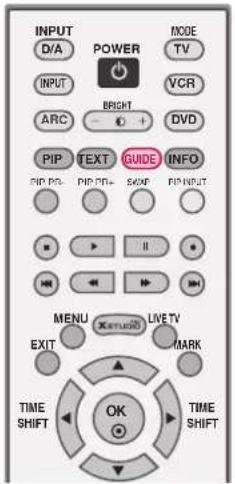
text_image
INPUT D/A POWER MODE TV INPUT VCR ARC BRIGHT DVD PIP TEXT GUIDE INFO PIP PN- PIP PN+ SOAP PIP INPUT MENU X#T#O# LIVE TV MARK EXIT TIME SHIFT OK TIME SHIFTSwitch on/off EPG
Press the GUIDE button to switch on EPG.
Press the GUIDE or EXIT button again to switch off EPG and return to TV viewing.

text_image
Programme Guide The Bold And The Beautiful 11 TEN Digital 4:30PM-4:59PM Mon 15 Dec 4:59PM The story of the glamorous ferrester family: their loves,tragedics, triumphs and struggles for power in the fashion industry. TV NOW NEXT 11 TEN Digital The Bold And The Beauti... 12 TEN HD The Bold And The Beauti... 13 TEN Digital 1 No Information 14 TEN Digital 2 No Information 15 TEN Digital 3 No Information 16 TEN Digital 4 No Information TEN News TEN News No Information No information No information No information Pr.Change Radio More InfoSelect a programme
Press the ▲▼◀▶ buttons to select desired programme, then press the OK button to display the selected programme.
| Remote Control Buttons | Function |
| RED Shows the TV | or Radio programmes |
| GREEN The detail | information on or off |

text_image
Programme Guide TEN News 11 TEN Digital 4:30PM~4:59PM Mon 15 Dec 4:59PM RON WILSON and JESSICA ROWE present a comprehensive coverage of local, national and overseas news. includes sport and the latest weather with TIM BAILEY. @ Subtitle # Digital Information BackTV MENU
ON SCREEN MENUS SELECTION AND ADJUSTMENT
Your TV's OSD (On Screen Display) may differ slightly from what is shown in this manual.
1 Press the MENU button and then use ▲ or ▼ button to select each menu.
2 Press the ▶ button and then use ▲ ▼ ◀ ▶ buttons to display the available menus.
SETUP

text_image
SETUP PICTURE AUDIO TIME SPECIAL LOCK DVR +Move 30 Prev Auto programme Manual programme Programme edit Signal strength Main input Sub input Aux. label Booster Set ID

PICTURE

text_image
SETUP PICTURE AUDIO TIME SPECIAL LOCK DVR +Move Prev PSM Colour temperature XD Advanced Video preset
DVR
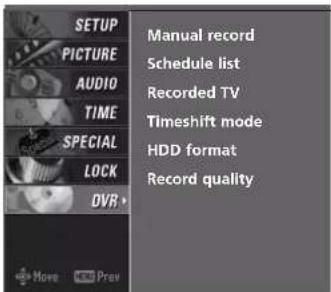
text_image
SETUP PICTURE AUDIO TIME SPECIAL LOCK DVR Manual record Schedule list Recorded TV Timeshift mode HDD format Record quality
AUDIO
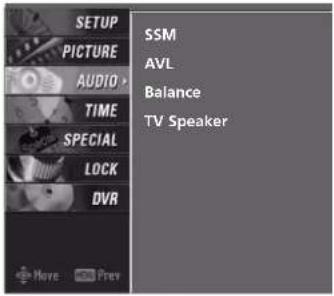
text_image
SETUP PICTURE AUDIO TIME SPECIAL LOCK DVR SSM AVL Balance TV Speaker
LOCK

text_image
SETUP PICTURE AUDIO TIME SPECIAL LOCK DVR Move Prev Lock system Set password Block programme Parental guidance Aux. blockSPECIAL

text_image
SETUP PICTURE AUDIO TIME SPECIAL LOCK DVR Subtitle Child lock ARC XD Demo ISM method Low power Front index Only 50PB2DRTIME

text_image
SETUP PICTURE AUDIO TIME SPECIAL LOCK DVR Auto clock Manual clock Off time On time Sleep timer Auto sleepTV MENU | SETUP(PROGRAMME)
AUTO PROGRAMME TUNING
In Digital Mode: It depends on the each digital programme.
In Analogue Mode: Up to 100 TV stations can be stored in this set by programme numbers (0 to 99).
Once you have preset the stations, you will be able to use the PR + / - or NUMBER buttons to scan the stations you programmed.
Stations can be tuned using automatic or manual modes.
A password is required to gain access to Auto programme or Manual programme menu if the Lock system is turned on.
If you forgot your password, press '7', '7', '7', '7' on the remote control.
In Australia, if no station name can be assigned to a station, the programme number is assigned and stored as ---- followed by a number see 'Assigning a station name' section to assign the station name.

text_image
INPUT POWER MODE TVD/A INPUT BRIGHT VCR ARC DVD TEXTP GUIDE INFO PIP PR, PIP PR+ PIP INPUT/SWAP MENU XSTUDI LIVE TV MARK EXIT TIME SHIFT OK TIME SHIFT1 Press the MENU button and then ▲ or ▼ button to select the SETUP menu.
2 Press the ▶ button and then ▲ or ▼ button to select Auto programme.
3 Press the ▶ button to select Storage from. Select the beginning programme number with the ▲ or ▼ button or NUMBER buttons.
4 Press the ▶ button to select To start.
5 Press the OK button to begin auto programming. All receivable stations are stored.
To stop auto programming, press the OK button. When auto programming is completed, the Programme edit menu appears on the screen. See the 'Programme Edit' section to edit the stored programme.
6 Press EXIT button to return to normal TV viewing.
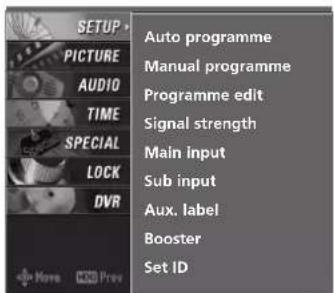
text_image
SETUP PICTURE AUDIO TIME SPECIAL LOCK DVR Auto programme Manual programme Programme edit Signal strength Main input Sub input Aux. label Booster Set ID1
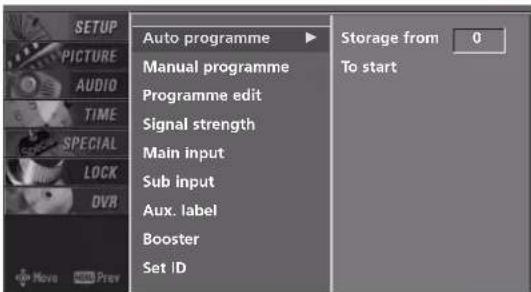
text_image
SETUP Auto programme Manual programme Programme edit Signal strength Main input Sub input Aux. label Booster Set ID Storage from 0 To start2 3
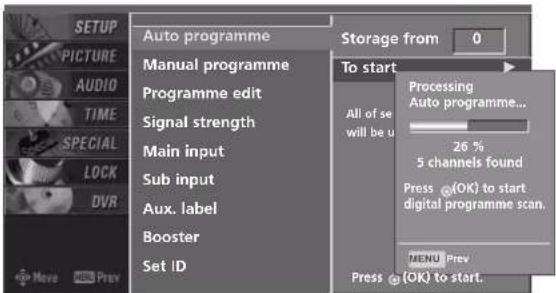
text_image
SETUP PICTURE AUDIO TIME SPECIAL LOCK DVR Auto programme Manual programme Programme edit Signal strength Main input Sub input Aux. label Booster Set ID Storage from 0 To start Processing Auto programme... All of se will be u 26 % 5 channels found Press (OK) to start digital programme scan. MENU Prev Press (OK) to start.4 5
MANUAL PROGRAMME TUNING
In Digital Mode
Manual programme lets you manually add a programme to your programme list.
1 Press the MENU button and then use ▲ or ▼ button to select the SETUP menu.
2 Press the ▶ button and then use ▲ or ▼ button to select Manual programme.
3 Press the ▶ button and then use ▲ or ▼ button to select the programme number you want to add.
4 Press the OK button to store the programme. When the programme number you want to add is already added in programme list, the message "Already programmed channel. Do you want to update?" will appear. If you want to keep on manual programming, select YES with using ▶/▶ button. Then, press the OK button. Otherwise select NNO When the programme is stored, the Programme edit menu appears on the screen. See the 'Programme Edit' section to edit the stored programme.
5 Press EXIT button to return to normal TV viewing.

text_image
INPUT D/A POWER MODE TV INPUT BRIGHT VCR ARC DVD PIP TEXT GUIDE INFO PIP PR- PIP PR+ SWAP PIP INPUT MENU LIVETV EXIT MARK TIME SHIFT TIME SHIFT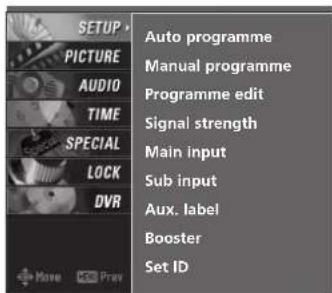
text_image
SETUP PICTURE AUDIO TIME SPECIAL LOCK DVR Auto programme Manual programme Programme edit Signal strength Main input Sub input Aux. label Booster Set ID1
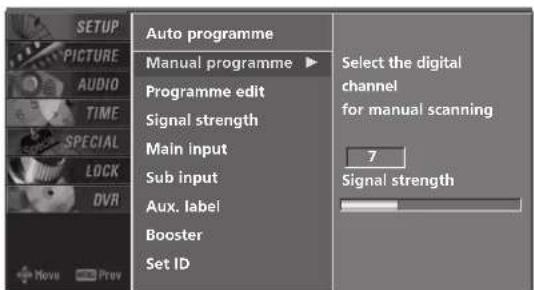
text_image
AUTO PROGRAMME Manual programme ▶ Programme edit Signal strength Main input Sub input Aux. label Booster Set ID Select the digital channel for manual scanning 7 Signal strength2

text_image
AUTO PROGRAMME Manual programme Programme edit Signal strength Main input Sub input Aux. label Booster Set ID Select the digital channel for manual scanning 7 Signal strength3 4
MANUAL PROGRAMME TUNING Continued
In Analogue Mode
Manual programme lets you manually tune and arrange the stations in whatever order you desire. Also you can assign a station name with five characters to each programme number.
1 Press the MENU button and then use ▲ or ▼ button to select the SETUP menu.
2 Press the ▶ button and then use ▲ or ▼ button to select Manual programme.
3 Press the ▶ button to select Band. Press the ▲ or ▼ button to select V/UHF or Cable as required.
4 Press the ▶ button to select Channel. Press the ▲ or ▼ button to select the desired channel number.
5 Press the ▶ button to select Search. Press the ▲ or ▼ button to commence searching. If a station is found the search will stop.
6 If this station is the one required, press the ◀ or ▶ button to select Storage. Select the desired programme number with the ▲ or ▼ button.
7 Press the OK button to store it.
8 To store another station, repeat steps 3 to 7.
9 Press EXIT button to return to normal TV viewing.
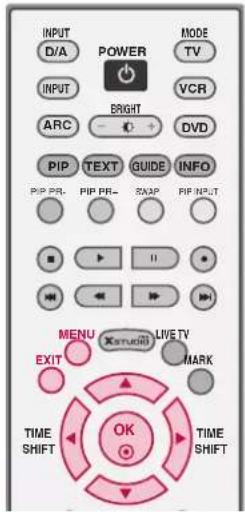
text_image
INPUT D/A POWER MODE TV INPUT BRIGHT VCR ARC DVD PIP TEXT GUIDE INFO PIP PR- PIP PR- SACP PIP INPUT MENU Xstru#t# LIVE TV MARK EXIT TIME SHIFT OK TIME SHIFT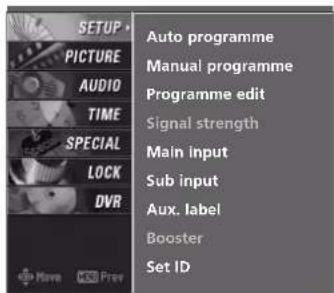
text_image
SETUP PICTURE AUDIO TIME SPECIAL LOCK DVR Auto programme Manual programme Programme edit Signal strength Main input Sub input Aux. label Booster Set ID1

text_image
AUTO PROGRAMME Manual programme ▶ Programme edit Signal strength Main input Sub input Aux. label Booster Set ID Band V/UHF Channel 1 Search Up/Down Fine Up/Down Name - Storage 02

text_image
AUTO PROGRAMME Manual programme Programme edit Signal strength Main input Sub input Aux. label Booster Set ID Band V/URF Channel 1 Search Up/Down Fine Up/Down Name ---- Storage 0 Press (OK) to store.3 4 5 6 7
FINE TUNING - In Analogue Mode only
Normally fine tuning is only necessary if reception is poor. The finely tuned programme will be indicated by a yellow number during programme selection.
1 Press the MENU button and then use ▲ or ▼ button to select the SETUP menu.
2 Press the ▶ button and then use ▲ or ▼ button to select Manual programme.
3 Press the ▶ button and then ◀ or ▶ button to select Fine.
4 Press the ▲ or ▼ button to fine tune for the best picture and sound.
5 Press the O O Button to store.
6 Press EXIT button to return to normal TV viewing.

text_image
INPUT D/A POWER INPUT BRIGHT ARC DV PIP TEXT GUIDE INFO PIP PR+ PIP PR+ SWAP PIP INPUT MENU Xstudi LIVETV MARK EXIT TIME SHIFT OK TIME SHIFT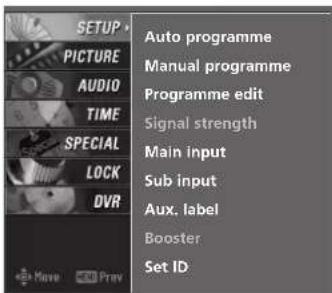
text_image
SETUP PICTURE AUDIO TIME SPECIAL LOCK DVR Auto programme Manual programme Programme edit Signal strength Main input Sub input Aux. label Booster Set ID1

text_image
AUTO PROGRAMME Manual programme ▶ Programme edit Signal strength Main input Sub input Aux. label Booster Set ID Band V/UHF Channel 1 Search Up/Down Fine Up/Down Name - Storage 02

text_image
SETUP PICTURE AUDIO TIME SPECIAL LOCK DVR Auto programme Manual programme Programme edit Signal strength Main input Sub input Aux. label Booster Set ID Band V/UHF Channel 1 Search Up/Down Fine Up/Down Name - Storage 0 Press @(OK) to store.3 4 5
ASSIGNING A STATION NAME - In Analogue Mode only
You can assign a station name to each programme number.

text_image
INPUT D/A POWER MODE TV INPUT BRIGHT VCR ARC DVD PIP TEXT GUIDE INFO PIP PR-PIP PR-SWAP RIP INPUT MENU LIVE TV EXIT MARK TIME SHIFT OK TIME SHIFT1 Press the MENU button and then use ▲ or ▼ button to select the SETUP menu.
2 Press the ▶ button and then use ▲ or ▼ button to select Manual programme.
3 Press the ▶ button and then use ◀ or ▶ button to select Name.
4 Press the ▲ or ▼ button. You can use the numeric 0 to 9, the alphabet A to Z +, -, and blank.
5 Press the ◀ or ▶ button to select the position and make your choice of the second character, and so on.
6 Press the OK button to store.
7 Press EXIT button to return to normal TV viewing.

text_image
SETUP PICTURE AUDIO TIME SPECIAL LOCK DVR Auto programme Manual programme Programme edit Signal strength Main input Sub input Aux. label Booster Set ID1
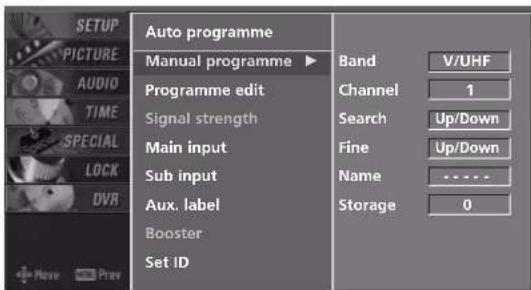
text_image
AUTO PROGRAMME Manual programme ▶ Programme edit Signal strength Main input Sub input Aux. label Booster Set ID Band V/UHF Channel 1 Search Up/Down Fine Up/Down Name **** Storage 02
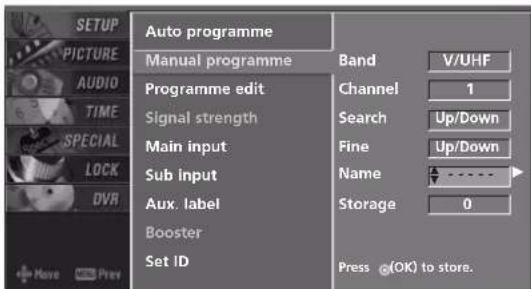
text_image
AUTO PROGRAMME Manual programme Band V/UHF Programme edit Channel 1 Signal strength Search Up/Down Main input Fine Up/Down Sub input Name Sub input Aux. label Storage 0 Booster Set ID Press ⭕(OK) to store.3 4 5
PROGRAMME EDIT
This function enables you to delete or skip the stored programmes. Also you can move some stations to other programme numbers or copy blank station data into the selected programme number.
1 Press the MENU button and then use ▲ or ▼ button to select the SETUP menu.
2 Press the ▶ button and then use ▲ or ▼ button to select Programme edit.
3 Press the ▶ button.
4 ■ Deleting a programme (In Analogue Mode Only) a. Select a programme to be deleted with the ▲▲▼▼ ◀◀▶buttons. b. Press the RED button twice. The selected pro- gramme is deleted, all the following programmes are shifted up one position.
■ Copying a programme (In Analogue Mode Only)
a. Select a programme to be copied with the ▲▼◀▶buttons.
b. Press the GREEN button.
c. Move the programme to the desired programme number with the ▲▼◀▶ buttons.
d. Press the GREEN button again to copy the programme. All the following programmes are shifted down one position.

text_image
INPUT D/A POWER MODE TV INPUT BRIGHT VCR ARC DVD PIP TEXT GUIDE INFO PIP PR. PIP PR+ SWAP PIP INPUT MENU XSTUDIO LIVETV MARK EXIT TIME SHIFT OK TIME SHIFT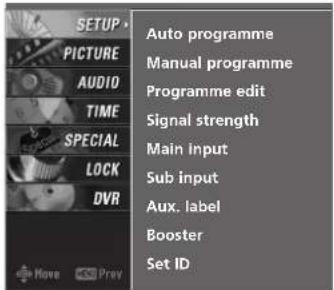
text_image
SETUP PICTURE AUDIO TIME SPECIAL LOCK DVR Auto programme Manual programme Programme edit Signal strength Main input Sub input Aux. label Booster Set ID1
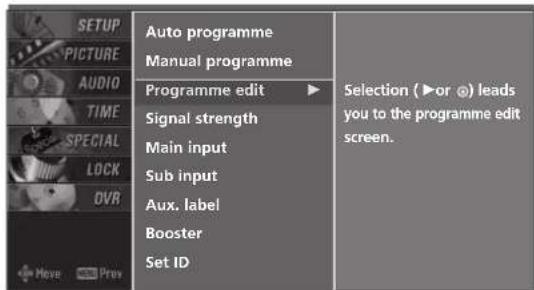
text_image
SETUP PICTURE AUDIO TIME SPECIAL LOCK OVR Auto programme Manual programme Programme edit ▶ Signal strength Main input Sub input Aux. label Booster Set ID Selection (►or ⭉) leads you to the programme edit screen.2
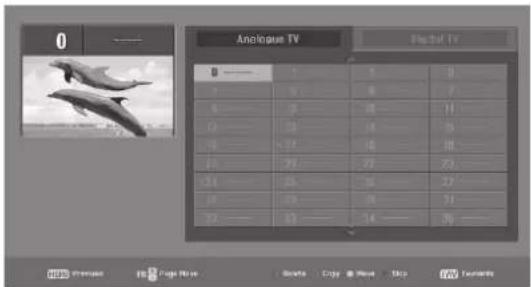
text_image
Analog TV Playoff TV 0 1 2 3 4 5 6 7 8 9 10 11 12 13 14 15 16 17 18 19 20 21 22 23 24 25 26 27 28 29 30 31 32 33 34 35 36 37 38 39 40 41 42 43 44 45 46 47 48 49 50 51 52 53 54 55 56 57 58 59 60 61 62 63 64 65 66 67 68 69 70 71 72 73 74 75 76 77 78 79 803 4 5
TV MENU | SETUP(PROGRAMME)
■ Moving a programme (In Analogue Mode Only)
a. Select a programme to be moved with ▲ ▼ ◀▶ buttons.
b. Press the YELLOW button.
c. Move the programme to the desired programme number with the ▲ ▼ ◀▶ buttons.
d. Press the YELLOW button again to release this function.
■ Skipping a programme number
a. Select a programme number to be skipped with ▲▼◀▶ buttons.
b. Press the BLUE button. The skipped programme number turns to blue.
c. Press the BLUE button again to release the skipped programme.
When a programme number is skipped it means that you will be unable to select it using the PR+ / --button during normal TV viewing. If you want to select the skipped programme, directly enter the programme number with the NUMBER buttons or select it in the programme edit or table menu.
■ Selecting Favourite Programme
a. Select your favourite programme number with ▲▼◀▶ buttons and then press the FAV button. It will automatically include the selected programme into your favourite programmes list and a heart-mark will appear in front of that programme number. You can store up to 20 programmes.

Repeatedly press the FAV button to select stored favourite programmes in normal TV viewing.

text_image
INPUT D/A POWER MODE TV INPUT BRIGHT VCR ARC DVD PIP TEXT GUIDE INFO PIP PR PIP PR- SWAP PIP INPUT MENU XSTUDIO LIVE TV EXIT MARK TIME SHIFT OK TIME SHIFT + - VOL + - VIEW PR PAGE WRITE 1 2 3 4 5 6 7 8 9 LIST 0 FAV SIZE INDEX TIME REVEAL VII APM SLEEP ADJUSTCALLING UP THE CHANNEL LIST
You can check the programmes stored in the memory by displaying the channel list.
In digital mode, the programmes shown belong to the current channel.
In analogue mode, all memorized channels are shown.
Displaying programme list
■ Press the LIST button to display the channel list. The channel list appears on the screen.

text_image
ANALOGUE PRO Channel List PR 0 ✓ PR 1 ✓ PR 2 ✓ PR 3 PR 4Selecting a programme in the programme list
1 Select a programme with the ▲▼ button in the channel list.
2 The set switches to the chosen programme number.

text_image
INPUT POWER MODE TVDIA INPUT BRIGHT VCR ARC DVD TEXTPIGUIDE INFO PIP PR- PIP PR+ SWAP PIP INPUT MENU XSTUCO LIVE TV EXIT MARK TIME SHIFT OK TIME SHIFT VOL VIEW PAGE MUTE 1 2 3 4 5 6 7 8 9 UST 0 FAV SIZE INDEX TIME REVEAL VII APM SLEEP ADJUSTDIGITAL SIGNAL STRENGTH - In Digital Mode only
Reveals how strong your DTV signal is and whether you need to adjust your antenna.
The higher the signal strength, the less likely you are to experience picture degradation.
Digital TV Signals; May not be available in all areas, nor broadcast all programmes.

text_image
INPUT D/A POWER INPUT BRIGHT ARC DVD PIP TEXT GUIDE INFO PIP PR PIP PR+ GMP PIP INPUT MENU XSTUDIO LIVE TV MARK EXIT TIME SHIFT OK TIME SHIFT1 Press the MENU button and then use ▲ or ▼ button to select the SETUP menu.
2 Press the ▶ button and then use ▲ or ▼ button to select Signal strength.
3 View the on-screen signal strength monitor to see the strength of the signal being received.

text_image
SETUP PICTURE AUDIO TIME SPECIAL LOCK DVR Auto programme Manual programme Programme edit Signal strength Main input Sub input Aux. label Booster Set ID1

text_image
AUTO PROGRAMME Manual programme Programme edit Signal strength Main input Sub input Aux. label Booster Set ID Bad Normal Good2
MAIN PICTURE SOURCE SELECTION
Alternatively you can select the Digital, Analogue, AV1-2, Component 1-2, RGB-PC (or RGB-DTV), HDMI1/DVI, or HDMI2 mode by pressing the INPUT button.
Press the D/A INPUT button to select digital or analogue mode.
1 Press the MENU button and then use ▲ or ▼ button to select the SETUP menu.
2 Press the ▶ button and then use ▲/or ▼ button to select Main input.
3 Press the ▶ button and then use ▲ or ▼ to select Digital, Analogue, AV 1, AV 2, Component 1, Component 2, RGB-PC, RGB-DTV, HDMI1/DVI, or HDMI2.
■ To toggle between RGB-DTV and RGB-PC, select RGB-DTV(or RGB-PC) and press ▶ button.
4 Press EXIT button to return to normal TV viewing.

text_image
INPUT D/A POWER INPUT BRIGHT ARC DVD PIP TEXT GUIDE INFO PIP PR- PIP PR+ SWAP PP INPUT MENU XSTUDS LIVETV EXIT MARK TIME SHIFT OK TIME SHIFT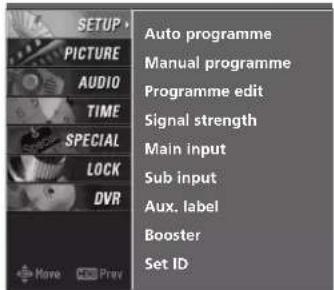
text_image
SETUP PICTURE AUDIO TIME SPECIAL LOCK DVR Auto programme Manual programme Programme edit Signal strength Main input Sub input Aux. label Booster Set ID1

text_image
SETUP PICTURE AUDIO TIME SPECIAL LOCK DVR Move Prev Auto programme Manual programme Programme edit Signal strength Main input Sub input Aux. label Booster Set ID Digital Analogue AV1 AV2 Component1 Component2 RGB-PC HDMI1/DVI HDMI22 3
Sub Picture Source Selection
Select sources for the Sub Input in the Setup menu.
See Page 53 for selecting the input source for the sub picture by pressing the PIP INPUT button.
TV MENU | SETUP(PROGRAMME)
AUX. LABEL
Sets a label for each input source which is in use when you press INPUT button.
1 Press the MENU button and then use ▲/or ▼button to select the SETUP menu.
2 Press the ▶ button and then use ▲ or ▼ button to select Aux. label.
3 Press the ▶ button and then use ▲ or ▼ button to select the source: AV1, AV2, Component1, Component2, RGB, HDMI1/DVI or HDMI2.
4 Press the ◀ or ▶ button to select the label.
5 Press EXIT button to return to TV viewing or press MENU button to return to the previous menu.
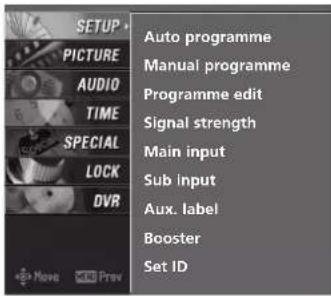
text_image
SETUP PICTURE AUDIO TIME SPECIAL LOCK DVR +Move Prev Auto programme Manual programme Programme edit Signal strength Main input Sub input Aux. label Booster Set ID1
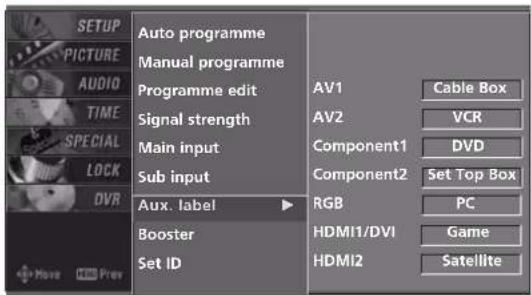
text_image
AUTO PROGRAMME MANUAL PROGRAMME PROGRAMME edit AV1 Cable Box AV2 VCR Signal strength Component1 DVD Main input Component2 Set Top Box Sub input RGB PC Aux. label HDMI1/DVI Game Booster Set ID HDMI2 SatelliteBOOSTER - In Digital Mode only
If the reception is poor in the fringe areas, set Booster to O○nWhen the picture condition is good, do not set Booster to O○nn
1 Press the MENU button and then use ▲ or ▼ button to select the SETUP menu.
2 Press the ▶ button and then use ▲ or ▼ button to select Booster.
3 Press the ▶ button and then use ▲ or ▼ button to select Off or O○nn
4 Press EXIT button to return to normal TV viewing.
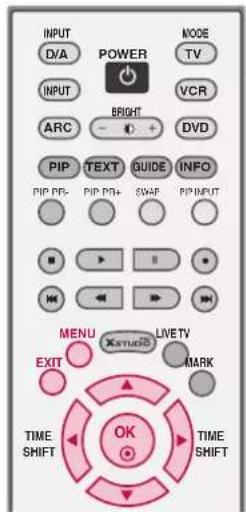
text_image
INPUT D/A POWER INPUT BRIGHT ARC DVD PIP TEXT GUIDE INFO PIP PR- PIP PR+ SWAP PIP INPUT MENU XSTUSS LIVETV EXIT MARK TIME SHIFT OK TIME SHIFT
text_image
SETUP PICTURE AUDIO TIME SPECIAL LOCK DVR Auto programme Manual programme Programme edit Signal strength Main input Sub input Aux. label Booster Set ID1

text_image
AUTO PROGRAMME MANUAL PROGRAMME PROGRAMME edit Signal strength Main input Sub input Aux. label Booster Set ID Off ✓ On2 3
TV MENU | PICTURE ADJUSTMENT
PICTURE STATUS MEMORY (PSM)
This function adjusts the set to the best picture appearance. When adjusting picture options (contrast, brightness, colour, sharpness and tint) manually, PSM is automatically changed to User.
Picture options Dynamic, Standard, and Mild are preset and programmed for good picture quality at the factory and cannot be changed.
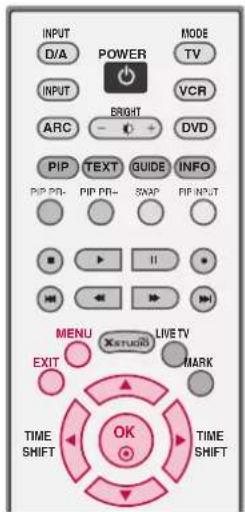
text_image
INPUT D/A POWER MODE TV INPUT BRIGHT VCR ARC DVD PIP TEXT GUIDE INFO PIP PR- PIP PR- SNAP RIP INPUT MENU LIVE TV EXIT MARK TIME SHIFT OK TIME SHIFT1 Press the MENU button and then use ▲ or ▼ button to select the PICTURE menu.
2 Press the ▶ button and then use ▲ or ▼ button to select PSM.
3 Press the ▶ button and then use ▲ or ▼ button to select Dynamic, Standard, Mild, User1, or User2.
4 Press EXIT button to return to normal TV viewing.
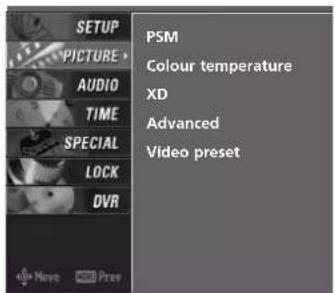
text_image
SETUP PICTURE AUDIO TIME SPECIAL LOCK DVR PSM Colour temperature XD Advanced Video preset1
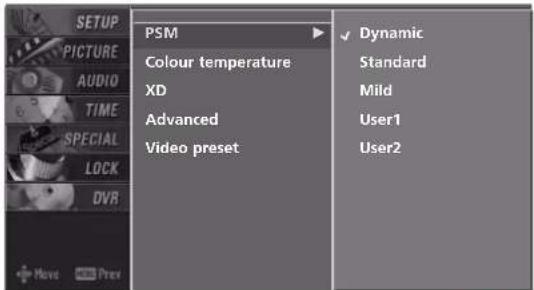
text_image
SETUP PICTURE AUDIO TIME SPECIAL LOCK DVR +Move Prex PSM Colour temperature XD Advanced Video preset ✓ Dynamic Standard Mild User1 User22 3
ADAPTIVE PICTURE MODE (APM)
Allows you to select your preferred picture mode after compairing the four different picture (Dynamic, Standard, Mild, and User1 (or User2)) settings.
1 Press the APM button once. The screen is divided into 4 sections.
2 Use the ▲▼◀▶ buttons to navigate between the 4 screen sections.
By pressing the OButton, you can select the desired mode.
NOTE
While in the APM mode, only the POWER, APM, OQ, EXIT, ▲
▼◀▶, VOLUME ▲△, MUTE buttons on the remote control are usable.
▶ APM screen will automatically disappear after approx. 40 seconds unless a button is pressed.
BRIGHTNESS ADJUSTMENT
Adjust the brightness using this button on the remote control.
1 Press the button.
2 Adjust the desired screen brightness.

text_image
VOL MUTE PR PAGE 1 2 3 4 5 6 7 8 9 0 FAILST SIZE INDEX TIME REVEAL I/II APM SLEEP ADJUST
text_image
Standard Mild User1 Navigate Select Exit Exit1 2
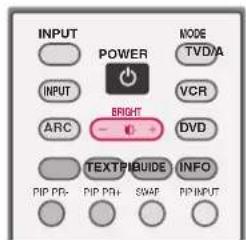
text_image
INPUT POWER MODE TVD/A INPUT VCR ARC BRIGHT DVD TEXTPIGUIDE INFO PIP PP+ PIP PA+ SWAP PIP INPUT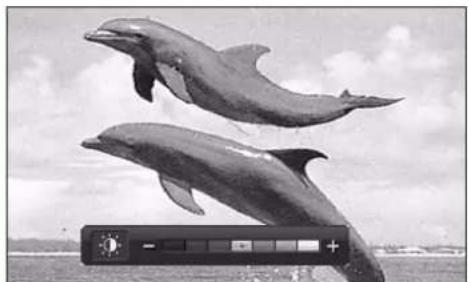
natural_image
Two dolphins leaping out of water under cloudy sky, with a small UI panel at bottom (no readable text or symbols)1 2
MANUAL PICTURE CONTROL (PSM-User option)
You can adjust picture Contrast, Brightness, Colour, Sharpness, and Tint options to the levels you prefer.
In NTSC AV, Component 60Hz, RGB-DTV 60Hz, HDMI/DVI-DTV 60Hz, RGB-PC, HDMI/DVI-PC mode, Tint is also available.
The adjustment for PICTURE menu (Contrast, Brightness, Colour, Sharpness, and Tint) affect both the main and sub picture in PIP, Twin Picture, or POP mode.
1 Press the MENU button and then use ▲ or ▼ button to select the PICTURE menu.
2 Press the ▶ button and then use ▲ or ▼ button to select PSM.
3 Press the ▶ button and then use ▲ or ▼ button to select User 1 or User 2.
4 Press the ▶ button and then use ▲ or ▼ button to select the desired picture option (Contrast, Brightness, Colour, Sharpness, or Tin).
5 Press the ▶ button and then use ◀ or ▶ button to make appropriate adjustments.
6 Press EXIT button to return to normal TV viewing.
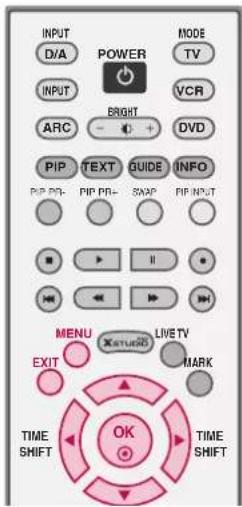
text_image
INPUT D/A POWER MODE TV INPUT VCR ARC BRIGHT DVD PIP TEXT GUIDE INFO PIP PR- PIP PR- SWAP RIP INPUT MENU XSTUDIO LIVE TV EXIT MARK TIME SHIFT OK TIME SHIFT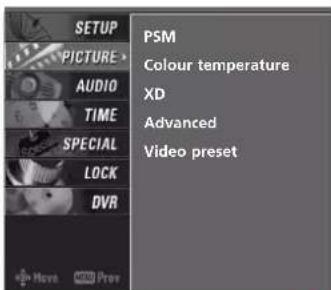
text_image
SETUP PICTURE > AUDIO TIME SPECIAL LOCK DVR PSM Colour temperature XD Advanced Video preset1
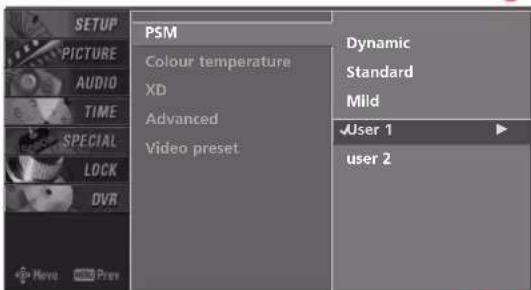
text_image
SETUP PICTURE AUDIO TIME SPECIAL LOCK DVR Move Prev PSM Colour temperature XD Advanced Video preset Dynamic Standard Mild User 1 user 22 3
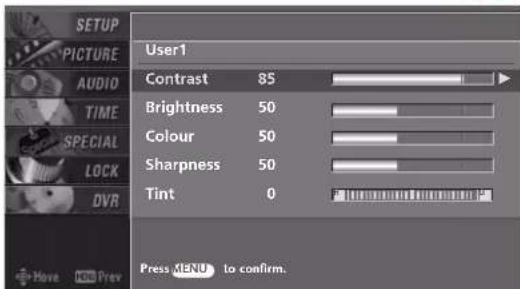
text_image
SETUP PICTURE AUDIO TIME SPECIAL LOCK DVR User1 Contrast 85 Brightness 50 Colour 50 Sharpness 50 Tint 0 Press MENU to confirm.4
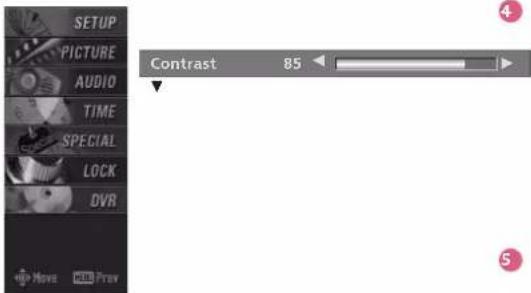
text_image
SETUP PICTURE AUDIO TIME SPECIAL LOCK DVR Contrast 85 Move Ctrl PrevXD
XD is LG Electronic's unique picture improving technology to display a real HD source through an advanced digital signal processing algorithm.
When selecting PSM options (Dynamic, Standard and Mild), XD is automatically changed to Auto.
But when selecting PSM options (User 1 and User 2), you can choose the Auto / Manual.
When selecting the Manual, you can adjust the XD contrast, XD colour and XD noise.
1 Press the MENU button and then use ▲ or ▼ button to select the PICTURE menu.
2 Press the ▶ button and then use ▲ or ▼ button to select XXDD
3 Press the ▶ button and then use ▲ or ▼ button to select Auto or Manual.
Selecting the Manual
-
Press the ▶ button and then use ◀ or ▶ button to select XD contrast, XD colour or XD noise.
-
XD contrast: Optimizing the contrast automatically according to the brightness of the reflection.
- XD colour: Adjusting the colors of the reflection automatically to reproduce as closely as possible to natural colors.
- XD noise : Removing the noise up to the point where it does not damage the original picture.
- Use the ▲ or ▼ button to select O○ or Off.
4 Press EXIT button to return to normal TV viewing.
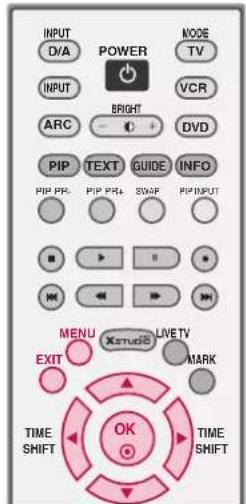
text_image
INPUT DVA POWER INPUT BRIGHT ARC DVD PIP TEXT GUIDE INFO PIP PRC PIP PRA SWAP PIP INPUT MENU XSTUDS LIVE TV MARK EXIT TIME SHIFT OK TIME SHIFT
text_image
SETUP PICTURE AUDIO TIME SPECIAL LOCK DVR PSM Colour temperature XD Advanced Video preset Move Prev1
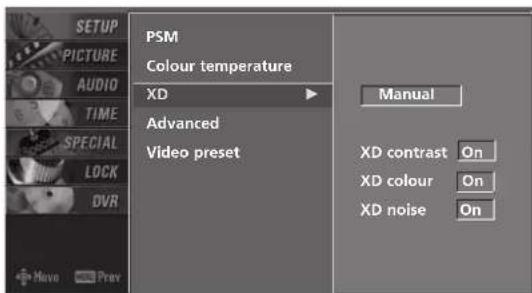
text_image
PSTM Colour temperature XD Advanced Video preset Manual XD contrast On XD colour On XD noise On2 3
COLOUR TEMPERATURE CONTROL
Auto Colour Temperature Control
Choose one of three automatic color adjustments. Set to warm to enhance hotter colors such as red, or set to cool to see less intense colors with more blue.

text_image
INPUT D/A POWER INPUT Bright ARC DVD PIP TEXT GUIDE INFO PIP PR- PIP PR- SWAP PIP INPUT MENU XSTUDIO LIVE TV EXIT MARK TIME SHIFT OK TIME SHIFT1 Press the MENU button and then use ▲ or ▼ button to select the PICTURE menu.
2 Press the ▶ button and then use ▲ or ▼ button to select Colour temperature.
3 Press the ▶ button and then use ▲ or ▼ button to select either Warm, Medium, Cool, or User.
4 Press EXIT button to return to normal TV viewing.
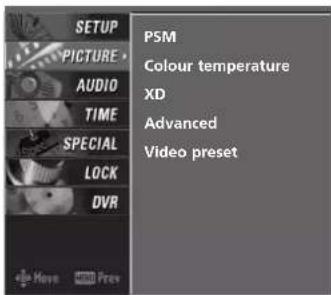
text_image
SETUP PICTURE AUDIO TIME SPECIAL LOCK DVR +Move Prev PSM Colour temperature XD Advanced Video preset1

text_image
SETUP PICTURE AUDIO TIME SPECIAL LOCK DVR +Move DVD Prev PSM Colour temperature ▶ XD Advanced Video preset Warm Medium ✓ Cool User2 3
Manual Colour Temperature Control
You can also adjust the detailed settings (Red, Green, Blue) by selecting the User menu.
1 Press the MENU button and then use ▲ or ▼ button to select the PICTURE menu.
2 Press the ▶ button and then use ▲ or ▼ button to select Colour temperature.
3 Press the ▶ button and then use ▲ or ▼ button to select User.
4 Press the ▶ button and then use ▲ or ▼ button to select Red, Green, or Blue.
5 Press the ▶ button and then use ◀ or ▶ button to make appropriate adjustments.
■ The adjustment range of Red, Green, or Blue is -20\~+20.
6 Press EXIT button to return to normal TV viewing.

text_image
INPUT D/A POWER INPUT ARC BRIGHT - + DVD PIP TEXT GUIDE INFO PIP PR. PIP PR4 SWAP PIP INPUT MENU XSTUDIO LIVETV MARK EXIT TIME SHIFT OK TIME SHIFT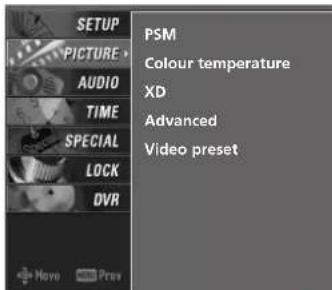
text_image
SETUP PICTURE AUDIO TIME SPECIAL LOCK DVR PSM Colour temperature XD Advanced Video preset Move Prev1
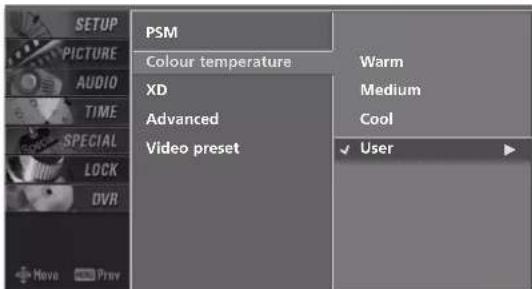
text_image
SETUP PICTURE AUDIO TIME SPECIAL LOCK DVR + Have Prey PSM Colour temperature XD Advanced Video preset Warm Medium Cool ✓ User2 3

text_image
SETUP PICTURE AUDIO TIME SPECIAL LOCK DVR User Red 0 Green 0 Blue 0 Press MENU to confirm.4

text_image
SETUP PICTURE AUDIO TIME SPECIAL LOCK DVR Red 0 Muse PrevTV MENU | PICTURE ADJUSTMENT
ADVANCED-CINEMA
Set up the TV for the best picture appearance for viewing movies.
This feature operates only in AV1-2 (480i, 576i) and Component (480i, 576i) mode.

text_image
INPUT D/A POWER MODE TV INPUT VCR ARC BRIGHT DVD PIP TEXT GUIDE INFO PIP PR- PIP PR- SWAP PIP INPUT MENU XSTUDIO LIVE TV MARK EXIT TIME SHIFT OK TIME SHIFT1 Press the MENU button and then use ▲ or ▼ button to select the PICTURE menu.
2 Press the ▶ button and then use ▲ or ▼ button to select Advanced.
3 Press the ▶ button and then use ▲ or ▼ button to select Cinema.
4 Press the ▶ button and then use ▲ or ▼ button to select O○orOff
5 Press EXIT button to return to normal TV viewing.
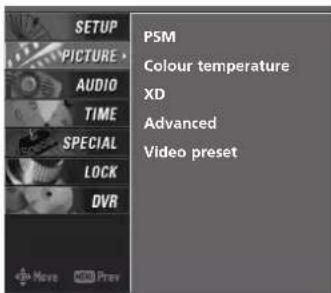
text_image
SETUP PICTURE AUDIO TIME SPECIAL LOCK DVR +Move MOV Prev PSM Colour temperature XD Advanced Video preset1

text_image
SETUP PICTURE AUDIO TIME SPECIAL LOCK DVR Move Prev PSM Colour temperature XD Advanced Video preset Cinema Black level Off Auto2 3 4
Adjusting the contrast and the brightness of the screen using the black level of the screen.
This feature operates only in AV1, AV2, HDMI1/DVI or HDMI2 mode.
1 Press the MENU button and then use ▲ or ▼ button to select the PICTURE menu.
2 Press the ▶ button and then use ▲ or ▼ button to select Advanced.
3 Press the ▶ button and then use ▲ or ▼ button to select Black Level
4 Press the ▶ button and then use ▲ or ▼ button to select Auto, Low, or High
Auto
Realizing the black level of the screen and set it to High or Low automatically.
Low
The Black Level of the screen gets darker.
High
The Black Level of the screen gets brighter.
5 Press EXIT button to return to normal TV viewing.

text_image
INPUT D/A POWER INPUT BRIGHT ARC DVD PIP TEXT GUIDE INFO PIP PIP, PIP PRA SWAP PIP INPUT MENU XSTUDIO LIVETV EXIT MARK TIME SHIFT OK TIME SHIFT
text_image
SETUP PICTURE AUDIO TIME SPECIAL LOCK DVR PSM Colour temperature XD Advanced Video preset Move Prev1
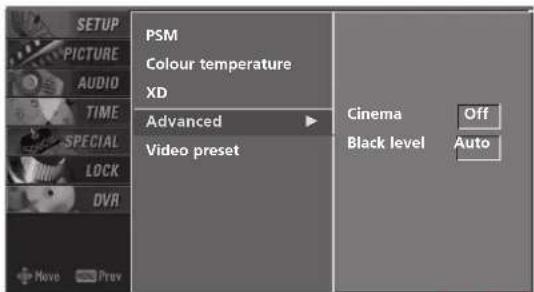
text_image
SETUP PICTURE AUDIO TIME SPECIAL LOCK DVR +Move Prev PSM Colour temperature XD Advanced Video preset Cinema Off Black level Auto2 3 4
TV MENU | PICTURE ADJUSTMENT
VIDEO PRESET
Use to quickly reset all the Picture menu options to their original factory preset values.

text_image
INPUT D/A POWER INPUT BRIGHT ARC DVD PIP TEXT GUIDE INFO PIP PR PIP PR- SAMP PIP INPUT MENU XSTUDIO LIVE TV EXIT MARK TIME SHIFT OK TIME SHIFT1 Press the MENU button and then use ▲ or ▼ button to select the PICTURE menu.
2 Press the ▶ button and then use ▲ or ▼ button to select Video preset
3 Press the ▶ button to reset the picture menu options to original values.

text_image
SETUP PICTURE AUDIO TIME SPECIAL LOCK DVR +Move MOV Prev PSM Colour temperature XD Advanced Video preset1
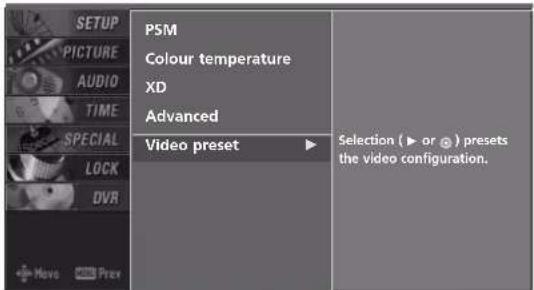
text_image
SETUP PICTURE AUDIO TIME SPECIAL LOCK DVR Move Prev P5M Colour temperature XD Advanced Video preset Selection (► or ⏻) presets the video configuration.2 3
TV MENU | AUDIO ADJUSTMENT
SOUND STATUS MEMORY (SSM)
SSM lets you enjoy the best sound without any special adjustment because the TV sets the appropriate sound options based on the programme content.
When adjusting sound options (treble and bass) manually, SSM is automatically changed to User.
Standard, Music, Movie, and Sports are preset for good sound quality at the factory and are not adjustable.
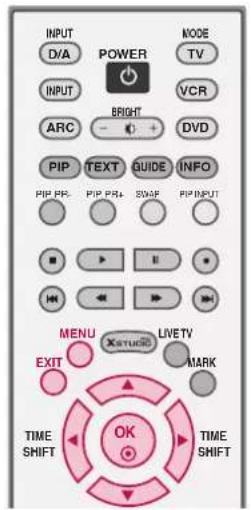
text_image
INPUT DVA POWER INPUT BRIGHT ARC DVD PIP TEXT GUIDE INFO PIP PIP PIP PRA SWAF PIP INPUT MENU XETUDIO LIVETV MARK EXIT TIME SHIFT OK TIME SHIFT1 Press the MENU button and then use ▲ or ▼ button to select the AUDIO menu.
2 Press the ▶ button and then use ▲ or ▼ button to select SSM.
3 Press the ▶ button and then use ▲ or ▼ button to select Standard, Music, Movie, Sports, or User.
4 Press EXIT button to return to normal TV viewing.
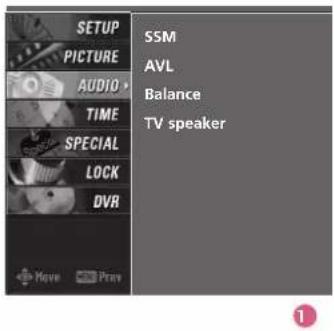
text_image
SETUP PICTURE AUDIO TIME SPECIAL LOCK DVR SSM AVL Balance TV speaker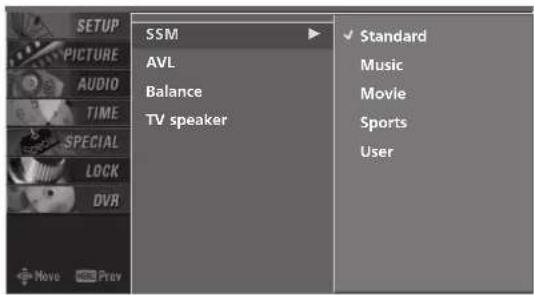
text_image
SETUP PICTURE AUDIO TIME SPECIAL LOCK DVR SSM AVL Balance TV speaker ✓ Standard Music Movie Sports User2 3
MANUAL SOUND CONTROL (SSM-User option)
Adjust the sound to suit your taste and room situations.

text_image
INPUT D/A POWER INPUT BRIGHT ARC DVD PIP TEXT GUIDE INFO PIP PR. PIP PR. SAMP PIP INPUT MENU Xstrudio LIVE TV EXIT MARK TIME SHIFT OK TIME SHIFT1 Press the MENU button and then use ▲ or ▼ button to select the AUDIO menu.
2 Press the ▶ button and then use ▲ or ▼ button to select SSM.
3 Press the ▶ button and then use ▲ or ▼ button to select User.
4 Press the ▶ button and then use ▲ or ▼ button to select the desired sound option (Treble, Bass, or Front Surround).
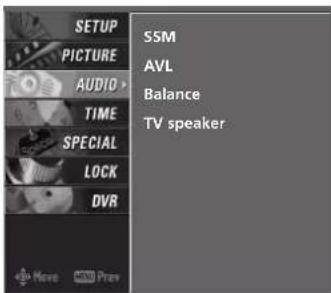
text_image
SETUP PICTURE AUDIO TIME SPECIAL LOCK DVR SSM AVL Balance TV speaker1
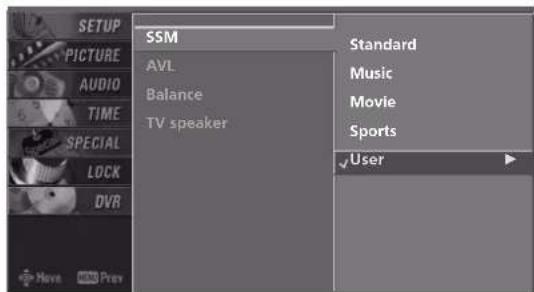
text_image
SETUP PICTURE AUDIO TIME SPECIAL LOCK DVR SSM AVL Balance TV speaker Standard Music Movie Sports User Move Prev2 3

text_image
SETUP PICTURE AUDIO TIME SPECIAL LOCK DVR User Treble 50 Bass 50 Front Surround Off Press MENU to confirm.4

Press the ▶ button and then use ◀ or ▶ button to make appropriate adjustments.
Selecting the Front surround
Press the ▶ button and then use ◀ or ▶ button to select Off, 3D Echo sound system or SRS(Sound Retrieval System)TruSurround XT.

Front Surround SRS TruSurround XT

Press EXIT button to return to normal TV viewing.
SRS TruSurround XT
Takes advantage of any multi-channel format without needing to add extra speakers or equipment. Dialog clarity, bass enrichment, and the addition of stereo audio enhancement produces an immersive sound experience from standard stereo material.
3D Echo sound system
Creates a stunning simulated stereo effect from any mono sound and a realistic three-dimensional sound with a very wide and deep sound stage.
AUTO VOLUME LEVELER (AVL)
AVL automatically keeps on an equal volume level even if you change programmes.
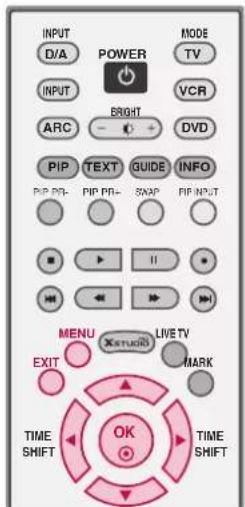
text_image
INPUT D/A POWER INPUT Bright ARC DVD PIP TEXT GUIDE INFO PIP PR- PIP PR+ SNAP PIP INPUT MENU XSTUDIO LIVE TV MARK EXIT TIME SHIFT OK TIME SHIFT1 Press the MENU button and then use ▲ or ▼ button to select the AUDIO menu.
2 Press the ▶ button and then use ▲ or ▼ button to select AVL.
3 Press the ▶ button and then use ▲ or ▼ button to select Off or OQnn
4 Press EXIT button to return to normal TV viewing.
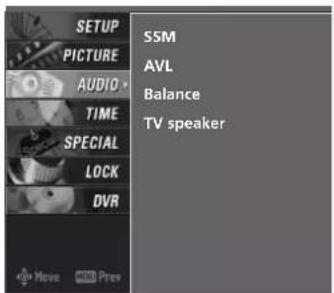
text_image
SETUP PICTURE AUDIO TIME SPECIAL LOCK DVR SSM AVL Balance TV speaker1

text_image
SETUP PICTURE AUDIO TIME SPECIAL LOCK DVR SSM AVL Balance TV speaker ✓ Off On2 3
BALANCE
Adjust the left/right sound of speaker to suit your taste and room situations.
1 Press the MENU button and then use ▲ or ▼ button to select the AUDIO menu.
2 Press the ▶ button and then use ▲ or ▼ button to select Balance.
3 Press the ▶ button and then use ◀ or ▶ button to make appropriate adjustments.
4 Press EXIT button to return to normal TV viewing.
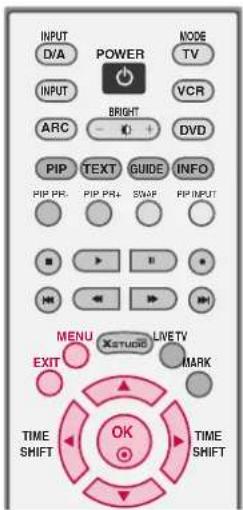
text_image
INPUT DVA POWER INPUT BRIGHT ARC DVD PIP TEXT GUIDE INFO PIP PPE PIP PPA SWAP PIP INPUT MENU XSTUDIO LIVETV EXIT MARK TIME SHIFT OK TIME SHIFT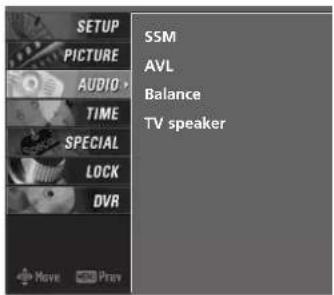
text_image
SETUP PICTURE AUDIO TIME SPECIAL LOCK DVR SSM AVL Balance TV speaker Move Prev1

text_image
SETUP PICTURE AUDIO TIME SPECIAL LOCK DVR SSM AVL Balance 0 TV speaker2
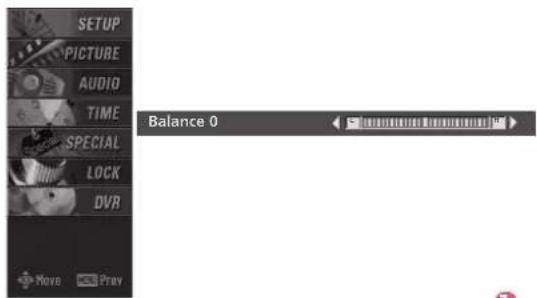
text_image
SETUP PICTURE AUDIO TIME SPECIAL LOCK DVR Balance 0 Move Prev3
TV SPEAKERS ON/OFF SETUP
Turn the TV speakers off if using external audio equipment. In AV1-2, Component1-2, RGB PC/DTV and HDMI/DVI mode, the audio signal can be outputted even though there is no video signal.

text_image
INPUT D/A POWER MODE TV INPUT VCR ARC BRIGHT DVD PIP TEXT GUIDE INFO PIP PR- PIP PR+ SWAP PIP INPUT MENU XSTUDIO LIVE TV MARK EXIT TIME SHIFT OK TIME SHIFT1 Press the MENU button and then use ▲ or ▼ button to select the AUDIO menu.
2 Press the ▶ button and then use ▲ or ▼ button to select TV speaker.
3 Press the ▶ button and then use ▲ or ▼ button to select Off or OOnn
4 Press EXIT button to return to normal TV viewing.

text_image
SETUP PICTURE AUDIO TIME SPECIAL LOCK DVR SSM AVL Balance TV speaker1
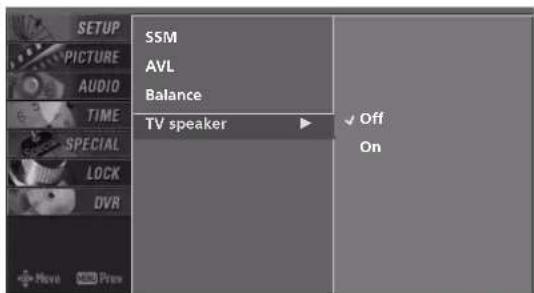
text_image
SETUP PICTURE AUDIO TIME SPECIAL LOCK DVR SSM AVL Balance TV speaker Off On2 3
STEREO RECEPTION - In Analogue Mode only
■ Mono sound selection
If the stereo signal is weak in stereo reception, you can switch to mono by pressing the I/II button twice. In mono reception, the clarity of sound is improved. To switch back to stereo, press the I/II button twice again.
| Broadcast On Screen Display | |
| Mono MONO | |
| Stereo MONO / STEREO | |
SOUND OUTPUT SELECTION
In AV 1-2, Component 1-2, RGB-PC/DTV, HDMI1/DVI or HDMI2 mode, you can select output sound for the left and right loud-speakers.
Repeatedly press the I/II button to select the sound output.
L+R: Audio signal from audio L input is sent to the left loud speaker and audio signal from audio R input is sent to the right loud speaker.
L+L: Audio signal from audio L input is sent to left and right loud speakers.
R+R: Audio signal from audio R input is sent to left and right loud speakers.

NOTE
In digital mode, repeatedly press the I/II button to change the audio mode (MPEG or DOLBY DIGITAL).

text_image
INPUT D/A POWER MODE TV INPUT BRIGHT VCR ARC DVD PIP TEXT GUIDE INFO PIP PR- PIP PR- SWAP PIP INPUT MENU XSTUDO LIVETV EXIT MARK TIME SHIFT OK TIME SHIFT + - VOL QVIEW PR PAGE MUTE 1 2 3 4 5 6 7 8 9 UST 0 FAV SIZE INDEX TIME REVEAL I/II APM SLEEP ADJUSTTV MENU | TIME SETTING
AUTO CLOCK SETUP
The time is automatically set from a digital channel signal.
The digital channel signal includes information for the current time provided by the broadcasting station.
Set the clock manually, if the current time is set incorrectly by the auto clock function.

text_image
INPUT D/A POWER MODE TV INPUT VCR ARC RIGHT DVD PIP TEXT GUIDE INFO PIP PR PIP PR SNAP PIP INPUT MENU Xstudio LIVE TV MARK EXIT TIME SHIFT OK TIME SHIFT1 Press the MENU button and then use ▲ or ▼ button to select the TIME menu.
2 Press the ▶ button and then use ▲ or ▼ button to select Auto clock.
3 Press the ▶ button and then use ▲ or ▼ button to select OQnn
4 Press the ▶ button and then use ▲ or ▼ button to select your viewing area time zone:
NSW/ACT, NNITAS, WASSAQLD, or VIC
5 Press EXIT button to return to normal TV viewing.

text_image
SETUP PICTURE AUDIO TIME SPECIAL LOCK DVR Auto clock Manual clock Off time On time Sleep timer Auto sleep1

text_image
SETUP PICTURE AUDIO TIME SPECIAL LOCK DVR Auto clock Manual clock Off time On time Sleep timer Auto sleep Off ✓ On Time Zone NSW/ACT2

text_image
SETUP PICTURE AUDIO TIME SPECIAL LOCK DVR Auto clock Manual clock Off time On time Sleep timer Auto sleep Off ✓ On Time Zone ⓍNSW/ACT3 4
MANUAL CLOCK SETUP
If the current time setting is wrong, reset the clock manually.
1 Press the MENU button and then use ▲ or ▼ button to select the TIME menu.
2 Press the ▶ button and then use ▲ or ▼ button to select Manual clock.
3 Press the ▶ button and then use ◀ or ▶ to select either the year, date, or time option. Once selected, use the ▲ or ▼ button to set the year, date, and time options.
4 Press EXIT button to return to normal TV viewing.

text_image
INPUT DVA POWER MODE TV INPUT VCR BRIGHT ARC DVD PIP TEXT GUIDE INFO PIP PP+ PIP PPA+ SWAP PIP INPUT MENU XstruDC LWETV MARK EXIT TIME SHIFT OK TIME SHIFT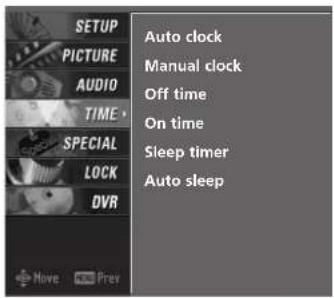
text_image
SETUP PICTURE AUDIO TIME SPECIAL LOCK DVR +Move Prev Auto clock Manual clock Off time On time Sleep timer Auto sleep1
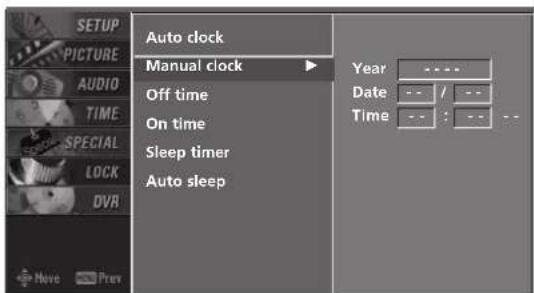
text_image
SETUP PICTURE AUDIO TIME SPECIAL LOCK DVR Auto clock Manual clock Off time On time Sleep timer Auto sleep Year Date Time --- / -- --- : -- --2 3
ON/OFF TIME SETUP
The time function operates only if the current time has been set.
The Off-Time function overrides the On-Time function if they are both set to the same time.
The TV must be in standby mode for the On-Time function to work.
If you do not press any button within 2 hours after the TV turns on with the On Time function, the TV will automatically revert to standby mode.
1 Press the MENU button and then use ▲ or ▼ button to select the TIME menu.
2 Press the ▶ button and then use ▲ or ▼ button to select Off Time or On Time.
3 Press the ▶ button and then use ▲ or ▼ button to select O○nn
■ To cancel the On/Off time function, select Off.
4 Press the ▶ button and then use ▲ or ▼ button to set the hour.
5 Press the ▶ button and then use ▲ or ▼ button to set the minutes.
Only On time Press the ▶ button and then use ▲ or ▼ to select the programme at turn-on.
Press the ▶ button and then use ▲ or ▼ to set the sound level at turn-on.
7 Press EXIT button to return to normal TV viewing.
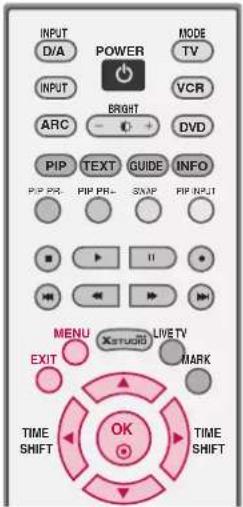
text_image
INPUT D/A POWER MODE TV INPUT VCR ARC BRIGHT DVD PIP TEXT GUIDE INFO PIP PRI... PIP PRI+ SNAP PIP INPUT MENU Xstudi LIVE TV MARK EXIT TIME SHIFT OK TIME SHIFT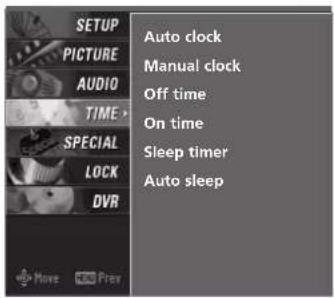
text_image
SETUP PICTURE AUDIO TIME SPECIAL LOCK DVR Auto clock Manual clock Off time On time Sleep timer Auto sleep1
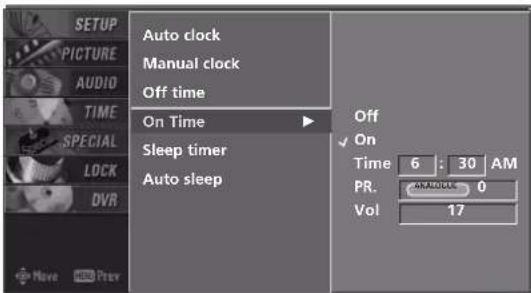
text_image
SETUP PICTURE AUDIO TIME SPECIAL LOCK DVR Auto clock Manual clock Off time On Time Sleep timer Auto sleep Off On Time 6 : 30 AM PR: ANALOGUE 0 Vol 172 3 4 5 6
SLEEP TIMER
You don't have to remember to switch the set off before you go to sleep.
The sleep timer automatically switches the set to standby after the preset time has elapsed.

text_image
VOL — MUTE PR — PAGE 1 2 3 4 5 6 7 8 9 LIST 0 FAV SIZE INDEX TIME REVEAL I/II APM SLEEP ADJUST1 Press the SLEEP button repeatedly to select the number of minutes. First the Off option appears on the screen, followed by the following sleep timer options: 10, 20, 30, 60, 90, 120, 180, and 240 minutes.
When the number of minutes you want is displayed on the screen, press the SLEEP button. The timer begins to count down from the number of minutes selected.
3 To check the remaining minutes before the TV turns off, press the SLEEP button once.
4 To cancel the Sleep Timer, press the SLEEP button repeatedly to select Off.
5 When you switch the set off, the set cancels the preset sleep time.
■You can also set up the Sleep timer in the TIME menu.
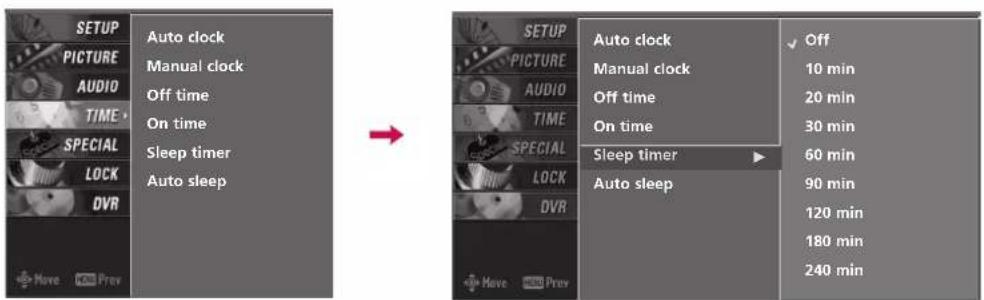
text_image
SETUP PICTURE AUDIO TIME SPECIAL LOCK DVR → AUTO clock Manual clock Off time On time Sleep timer Auto sleep SETUP PICTURE AUDIO TIME SPECIAL LOCK DVR Auto clock Manual clock Off time On time Sleep timer Auto sleep Off 10 min 20 min 30 min 60 min 90 min 120 min 180 min 240 minAUTO SLEEP
If the TV set is on and there is no input signal, the TV turns off automatically after 10 minutes.
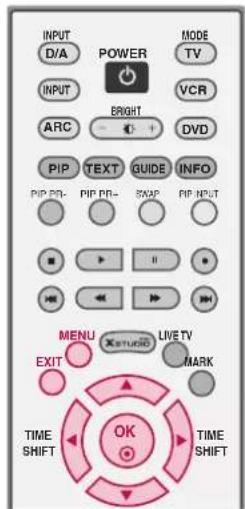
text_image
INPUT D/A POWER MODE TV INPUT BRIGHT VCR ARC DVD PIP TEXT GUIDE INFO PIP PR- PIP PR- SWAP PIP INPUT MENU LIVE TV Xstudio MARK EXIT TIME SHIFT OK TIME SHIFT1 Press the MENU button and then use ▲ or ▼ button to select the TIME menu.
2 Press the ▶ button and then use ▲ or ▼ button to select Auto sleep.
3 Press the ▶ button and then use ▲ or ▼ button to select Off or OOn
4 Press EXIT button to return to normal TV viewing.

text_image
SETUP PICTURE AUDIO TIME SPECIAL LOCK DVR Auto clock Manual clock Off time On time Sleep timer Auto sleep1

text_image
AUTO PICTURE AUDIO TIME SPECIAL LOCK DVR Auto clock Manual clock Off time On time Sleep timer Auto sleep ✓ Off On2 3
TV MENU | OPTIONAL FEATURES
SUBTITLE - In Digital Mode only
You can select Subtitle on or off with the TEXT button in DTV mode.

text_image
INPUT D/A POWER INPUT BRIGHT ARC DVD PIP TEXT GUIDE INFO PIP PR- PIP PR+ SWAP PIP INPUT MENU XSTUDIO LIVETV MARK EXIT TIME SHIFT OK TIME SHIFT1 Press the MENU button and then use ▲ or ▼ button to select the SPECIAL menu.
2 Press the ▶ button and then use ▲ or ▼ button to select Subtitle.
3 Press the ▶ button and then use ▲ or ▼ button to select Off or OQ.n
4 Press EXIT button to return to normal TV viewing.
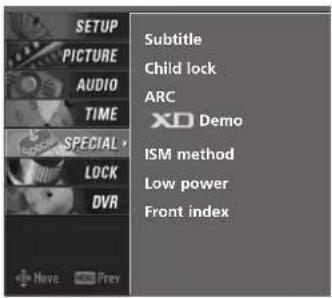
text_image
SETUP PICTURE AUDIO TIME SPECIAL > LOCK DVR Subtitle Child lock ARC XD Demo ISM method Low power Front index1

text_image
SETUP PICTURE AUDIO TIME SPECIAL LOCK DVR Subtitle Child lock ARC XD Demo ISM method Low power Front index Off On Have Prey2 3
TV MENU | OPTIONAL FEATURES
CHILD LOCK
The TV can be set so that the remote control is needed to control it. This feature can be used to prevent unauthorized viewing.
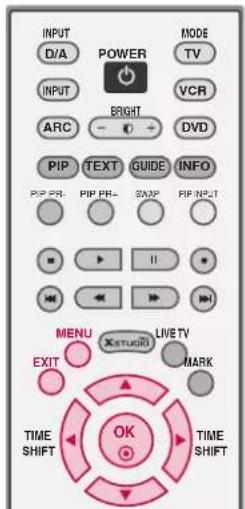
text_image
INPUT D/A POWER INPUT BRIGHT ARC DVD PIP TEXT GUIDE INFO PIP PR PIP PRA STAMP PIP INPUT MENU XSTUDIO LIVE TV MARK EXIT TIME SHIFT OK TIME SHIFT1 Press the MENU button and then use ▲ or ▼ button to select the SPECIAL menu.
2 Press the ▶ button and then use ▲ or ▼ button to select Child lock
3 Press the ▶ button and then use ▲ or ▼ button to select Offor OO.nn
4 Press EXIT button to return to normal TV viewing.
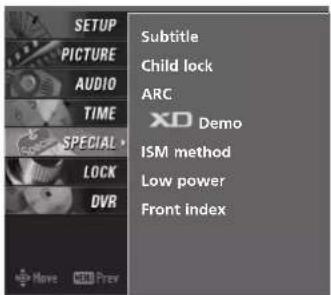
text_image
SETUP PICTURE AUDIO TIME SPECIAL - LOCK DVR Subtitle Child lock ARC XC Demo ISM method Low power Front index
text_image
SETUP PICTURE AUDIO TIME SPECIAL LOCK DVR + Have Print Subtitle Child lock ARC XD Demo ISM method Low power Front index Off On2
NOTE
With the lock on, the display 'Child lock : On' appears on the screen if any button on the front panel is pressed while viewing the TV.
The display 'Child lock : On' will not appear on the screen if any button on the front panel is pressed while displaying the menus.
PICTURE FORMAT
You can watch TV in various picture formats; Auto, 4:3, 16:9 (Wide), 14:9, Zoom, Cinema zoom and 1:1 Pixel.

NOTE
If a fixed image is displayed on the screen for a long time, it may become imprinted on the screen and remain visible. This phenomenon is common to all manufactures and in consequence the manufactures warranty does not cover the product bearing this phenomenon.

Press the ARC button repeatedly to select the desired picture format.
■You can also adjust ARC in the SPECIAL menu.

text_image
INPUT POWER MODE TVDIA INPUT BRIGHT VCR ARC DVD TEXTPIGUIDE INFO PIP PPF. PIP PR+ SWAP PIP INPUT MENU XstruRt LIVETY EXIT MARK TIME SHIFT OK TIME SHIFTAuto
Selects the proper picture proportion to match the source's image. (4:3 4:3, 16:9 → 16:9)
4:3
Choose 4:3 when you want to view a picture with an original 4:3 aspect ratio.
16:9
Adjust the picture horizontally, in a linear proportion to fill the entire screen.
14:9
The screen size is, more enlarged at both sides, to create a spectacular view.
You can move the 14:9 screen using ▲ or ▼ ▽ button. The adjustment range is -10 - +10.
Zoom
Choose Zoom when you want to view the picture without any alteration. However, the top and bottom portions of the picture will be cropped.
You can move the Zoom screen using ▲ or ▼ button. The adjustment range is -16 - +16.
Cinema Zoom
Choose Cinema Zoom when you want to enlarge the picture in correct proportion. Note: When enlarging or reducing the picture, the image may become distorted.
You can adjust the enlarge proportion of Cinema Zoom using ▲ or ▼ button. The adjustment range is 1-16.
1:1 Pixel
Displays the picture for 1080i or 1080p source in the original size when parts of the picture are cut off.

NOTE
In HDMI/DVI-PC and RGB-PC mode, 4:3 and 16:9 is available.
▶ Auto: When your TV receives the wide screen signal, it will be automatically changed to the picture format sent. (Not available in all countries)
In HDMI/DVI(1080i, 50/60Hz or 1080p, 50/60Hz)mode, 1:1 Pixel is available.
TV MENU | OPTIONAL FEATURES
XD DEMO
Allows you to select your preferred picture mode after compairing the four different picture (Dynamic, Standard, Mild, and User1 (or User2)) settings.

text_image
INPUT D/A POWER MODE TV INPUT BRIGHT VCR ARC DVD PIP TEXT GUIDE INFO PIP PR- PIP PR- SNAP PIP INPUT MENU XSTUDS LIVE TV MARK EXIT TIME SHIFT OK TIME SHIFT1 Press the MENU button and then use ▲ or ▼ button to select the SPECIAL menu.
2 Press the ▶ button and then use ▲ or ▼ button to select XO Demo.
3 Press the ▶ button to start XO Demo.
4 Press EXIT button to stop XD demo.
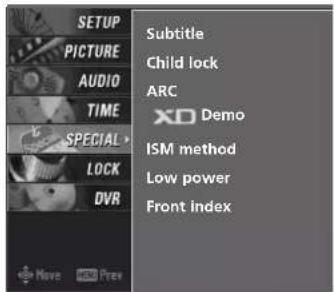
text_image
SETUP PICTURE AUDIO TIME SPECIAL LOCK DVR Subtitle Child lock ARC XD Demo ISM method Low power Front index1

text_image
SETUP PICTURE AUDIO TIME SPECIAL LOCK DVR + Have MOV Prev Subtitle Child lock ARC XD Demo ISM method Low power Front index Selection ( ▶or ▲) leads you to the XD Demo.2 3
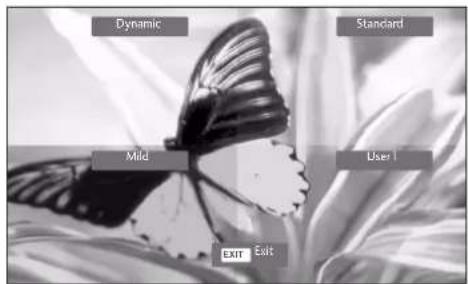
text_image
Dynamic Standard Mild User 1 EXIT ExitISM (Image Sticking Minimization) METHOD
- 50PB2DR only
A frozen still picture from a PC/video game displayed on the screen for prolonged periods will result in a fixed ghost image. Use our unique method to minimize any fixed image on the screen.
1 Press the MENU button and then use ▲ or ▼ button to select the SPECIAL menu.
2 Press the ▶ button and then use ▲ or ▼ button to select ISM method.
3 Press the ▶ button and then use ▲ or ▼ button to select either Normal, White wash, Orbiter or Inversion.
■ Normal If image sticking is never a problem, ISM is not necessary - set to Normal.
- Orbiter Orbiter may help prevent ghost images. However, it is best not to allow any fixed image to remain on the screen. To avoid a permanent image on the screen, the image will move once per 2 minutes.
■ Inversion Inversion will automatically invert the plasma display panel color every 30 minutes.
■ White wash White Wash removes permanent images from the screen.
NOTE
An excessive permanent image may be impossible to clear entirely with White Wash. To return to normal viewing, press any button.
4 Press EXIT button to return to normal TV viewing.

text_image
INPUT D/A POWER INPUT BRIGHT ARC DVD PIP TEXT GUIDE INFO PIP PRI- PIP PRI SWAP PIP INPUT MENU Xstudio LIVETV EXIT MARK TIME SHIFT OK TIME SHIFT
text_image
SETUP PICTURE AUDIO TIME SPECIAL * LOCK DVR Subtitle Child lock ARC XD Demo ISM method Low power Front index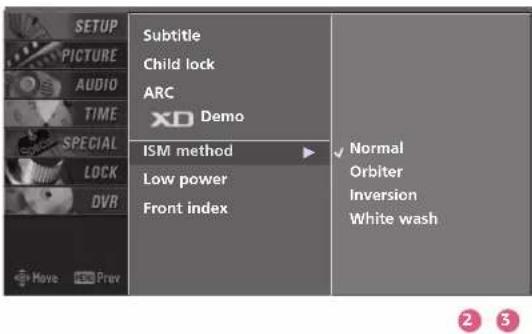
text_image
SETUP PICTURE AUDIO TIME SPECIAL LOCK OVR Have Prev Subtitle Child lock ARC XD Demo ISM method Low power Front index Normal Orbiter Inversion White washTV MENU | OPTIONAL FEATURES
LOW POWER - 50PB2DR only
Low power reduces the plasma display power consumption.

text_image
INPUT D/A POWER MODE TV INPUT BRIGHT VCR ARC DVD PIP TEXT GUIDE INFO PIP PR. PIP PR- STMP PIP INPUT MENU XSTUDIO LIVE TV MARK EXIT TIME SHIFT OK TIME SHIFT1 Press the MENU button and then use ▲ or ▼ button to select the SPECIAL menu.
2 Press the ▶ button and then use ▲ or ▼ button to select Low power.
3 Press the ▶ button and then use ▲ or ▼ button to select Off or OQnn
■ When you select O, the screen darkens.
4 Press EXIT button to return to normal TV viewing.

text_image
SETUP PICTURE AUDIO TIME SPECIAL LOCK DVR Subtitle Child lock ARC XD Demo ISM method Low power Front index1

text_image
SETUP PICTURE AUDIO TIME SPECIAL LOCK DVR Subtitle Child lock ARC XD Demo ISM method Low power Front index Off On2 3
FRONT INDEX - 50PB2DR only
1 Press the MENU button and then use ▲ or ▼ button to select the SPECIAL menu.
2 Press the ▶ button and then use ▲ or ▼ button to select Front index.
3 Press the ▶ button and then use ▲ or ▼ button to select Off, Dark or Bright.
4 Press EXIT button to return to normal TV viewing.

text_image
SETUP PICTURE AUDIO TIME SPECIAL LOCK DVR Subtitle Child lock ARC XD Demo ISM method Low power Front index1
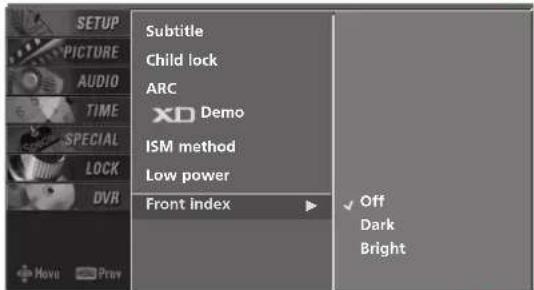
text_image
SETUP PICTURE AUDIO TIME SPECIAL LOCK DVR Subtitle Child lock ARC XD Demo ISM method Low power Front index Off Dark Bright2 3
TV MENU | LOCK ADJUSTMENT
SETTING UP YOUR PASSWORD
Set up is used to block specific programmes, ratings, and external viewing sources.
A password is required to gain access to this menu.
1 Press the MENU button and then use the ▲ or ▼ button to select the LOCK menu. Then, press the ▶ button.
■ Enter the password as requested.
■ The TV is set up with the initial password "0-0-0-0".
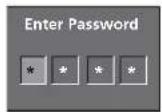
LOCK SYSTEM
Enables or disables the blocking scheme you set up previously.
1 After inputting the current password, use the ▲ or ▼▼ button to choose Lock system.
2 Press the ▶ button and then use the ▲ or ▼ button to select On or Off.
■ When you select On, the Lock System is enabled.
3 Press EXIT button to return to normal TV viewing.

text_image
SETUP PICTURE AUDIO TIME SPECIAL LOCK - DVR Lock system Set password Block programme Parental guidance Aux. block1
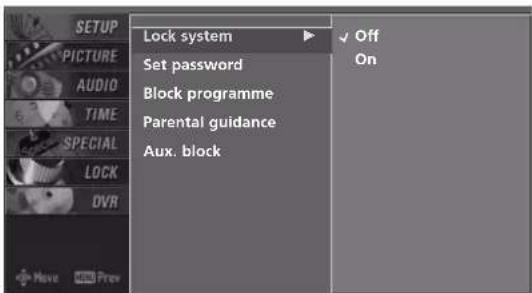
text_image
SETUP PICTURE AUDIO TIME SPECIAL LOCK DVR Lock system Set password Block programme Parental guidance Aux. block Off On2
SET PASSWORD
Change the password by inputting a new password twice.
1 After inputting the password, use the ▲ or ▼ button to choose Set password.
2 Press the ▶ button and then choose any 4 digits for your new password next to New.
As soon as the 4 digits are entered, re-enter the same 4 digits on the Confirm.
The new password is memorized.
3 Press EXIT button to return to normal TV viewing.
NOTE
If you ever forget your password, key in '7', '7', '7', '7' on the remote control.
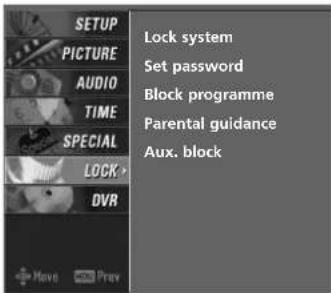
text_image
SETUP PICTURE AUDIO TIME SPECIAL LOCK > DVR Have Prev Lock system Set password Block programme Parental guidance Aux. block1
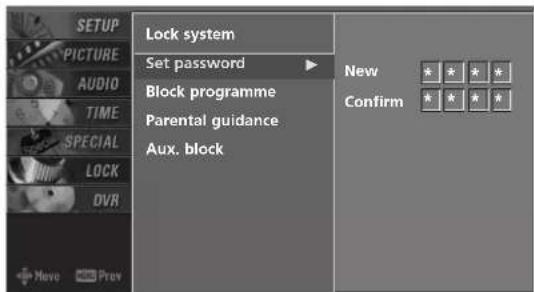
text_image
SETUP PICTURE AUDIO TIME SPECIAL LOCK DVR Move Prev Lock system Set password Block programme Parental guidance Aux. block New Confirm * * * * * * * *2
TV MENU | LOCK ADJUSTMENT
BLOCK PROGRAMME
Select a programme number that you wish to block.
1 After inputting the password, use the ▲ or ▼ button to choose Block programme.
2 Press the ▶ button. You will now see a screen filled with programme numbers and a preview picture.
3 Use ▲▼◀▶ buttons to select a programme and then use the OButton to block or unblock it.
4 Press EXIT button to return to TV viewing or press MENU button to return to the previous menu.
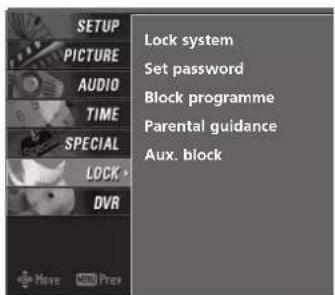
text_image
SETUP PICTURE AUDIO TIME SPECIAL LOCK DVR Lock system Set password Block programme Parental guidance Aux. block1
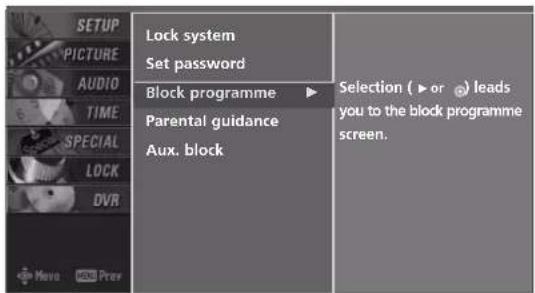
text_image
SETUP PICTURE AUDIO TIME SPECIAL LOCK DVR Lock system Set password Block programme ▶ Parental guidance Aux. block Selection ( ▶ or ⚙) leads you to the block programme screen. Move Import Prev2

text_image
16 Analog TV Junction TV 1 2 3 4 5 6 7 8 9 10 11 12 13 14 15 16 17 18 19 20 21 22 23 24 25 26 27 28 29 30 31 32 33 34 35 36 37 38 39 40 41 42 43 44 45 46 47 48 49 50 51 52 53 54 55 56 57 58 59 60 61 62 63 64 65 66 67 68 69 70 71 72 73 74 75 76 77 78 79 80 81 82 83 84 85 86 87 88 89 90 91 92 93 94 95 96 97 98 99 1003
PARENTAL GUIDANCE - In Digital Mode only
Prevents children from watching certain children's TV programs, according to the ratings limit set.

After inputting the password, use the ▲ or ▼ button to choose Parental guidance.

Press the ▶ button and then use the ▲ or ▼ to select G, PP CM, M A A A ∅r R.
■ G (General audiences)
■ PG (Parental guidance suggested)
■ M (Mature audiences)
■ MA (Mature adult audiences)
■ AV (Adult audiences)
■ R (Restricted)
■ Blocking Off (Permits all programmes)

Press EXIT button to return to normal TV viewing.
AUX. BLOCK
Enables you to select a source to block from the external source devices you have hooked up.

After inputting the password, use the ▲ or ▼ button to choose Aux. block.

Press the ▶ button and then use the ◀ or ▶ button to select a source.

Press the ▶ button and then use the ▲ or ▼ button to select O○or Off on the each source.

Press EXIT button to return to normal TV viewing.
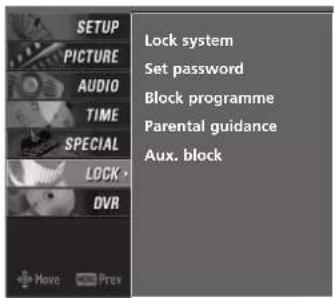
text_image
SETUP PICTURE AUDIO TIME SPECIAL LOCK DVR Lock system Set password Block programme Parental guidance Aux. block1

text_image
SETUP PICTURE AUDIO TIME SPECIAL LOCK DVR Lock system Set password Block programme Parental guidance Aux. block Blocking off : permits all programmes G PG M MA AV R Blocking Off2
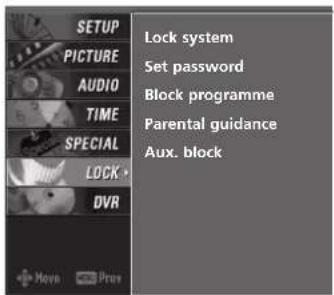
text_image
SETUP PICTURE AUDIO TIME SPECIAL LOCK > DVR Move Prev Lock system Set password Block programme Parental guidance Aux. block1
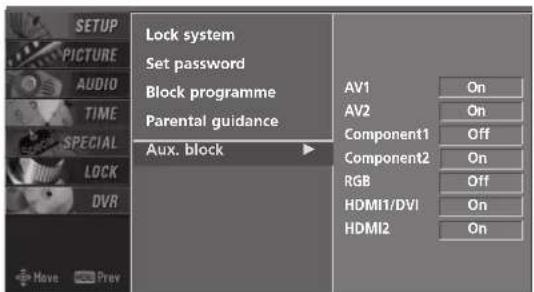
text_image
SETUP PICTURE AUDIO TIME SPECIAL LOCK DVR Have Prev Lock system Set password Block programme Parental guidance Aux. block AV1 On AV2 On Component1 Off Component2 On RGB Off HDMI1/DVI On HDMI2 On2 3
APPENDIX
EXTERNAL CONTROL DEVICE SETUP
Connect the RS-232C (serial port) input jack to an external control device (such as a computer or an A/V control system) to control the TV's functions externally.
Note: RS-232C connection cables are not supplied with the TV.
RS-232C Setup
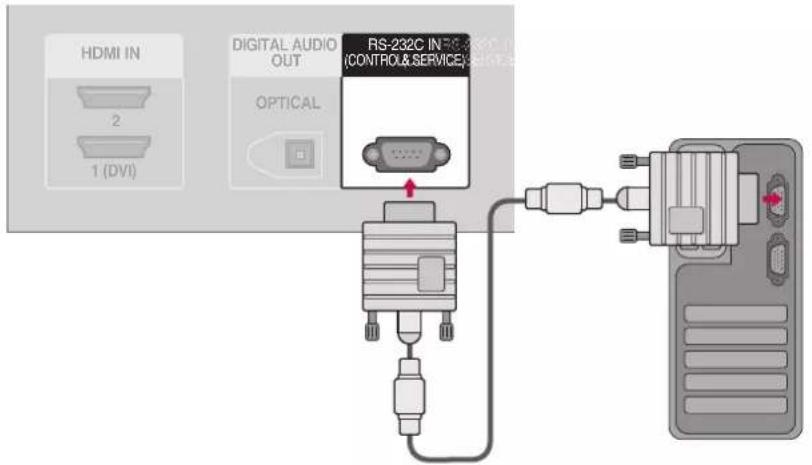
text_image
HDMI IN 2 1 (DVI) DIGITAL AUDIO OUT RS-232C IN 78.35°C CONTROL & SERVICE OPTICALType of Connector; D-Sub 9-Pin Male
No. Pin Name
1 No connection
2 RXD (Receive data)
3 TXD (Transmit data)
4 DTR (DTE side ready)
5 GND
6 DSR (DCE side ready)
7 RTS (Ready to send)
8 CTS (Clear to send)
9 No Connection
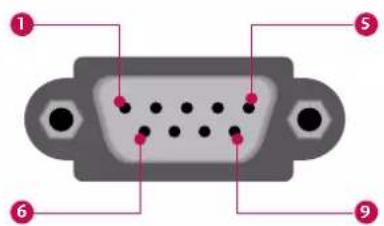
text_image
Diagram of a V124 D-sub connector with numbered pins pointing to specific portsRS-232C Configurations
7-Wire Configurations (Standard RS-232C cable)
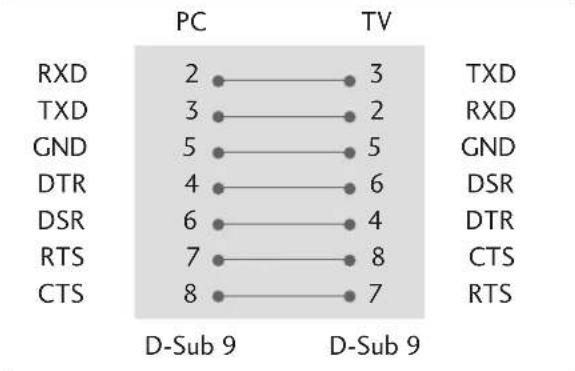
line
| Category | PC | TV | |---|---|---| | RXD | 2 | 3 | | TXD | 3 | 2 | | GND | 5 | 5 | | DTR | 4 | 6 | | DSR | 6 | 4 | | RTS | 7 | 8 | | CTS | 8 | 7 | D-Sub 9 D-Sub 9 TXD RXD GND DSR DTR CTS RTS3-Wire Configurations(Not standard)

other
| Signal | PC | TV | | :--- | :--- | :--- | | RXD | 2 | 3 | | TXD | 3 | 2 | | GND | 5 | 5 | | DTR | 4 | 6 | | DSR | 6 | 4 | | RTS | 7 | 7 | | CTS | 8 | 8 | D-Sub 9 D-Sub 9 TXD RXD GND DTR DSR RTS CTSSet ID
Use this function to specify a TV ID number.
Refer to 'Real Data Mapping1'. See page 107.
1 Press the MENU button and then use ▲ or ▼ button to select the SETUP menu.
2 Press the ▶ button and then use ▲ or ▼ button to select Set ID.
3 Press the ▶ button and then use ▲ or ▼ button to adjust Set ID to choose the desired TV ID number. The adjustment range of Set ID is 1\~99.
4 Press EXIT button to return to TV viewing or press MENU button to return to the previous menu.
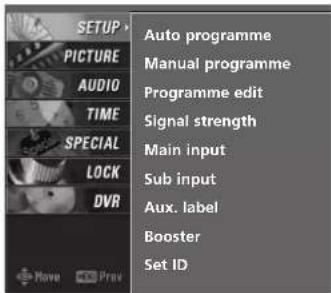
text_image
SETUP PICTURE AUDIO TIME SPECIAL LOCK DVR Auto programme Manual programme Programme edit Signal strength Main input Sub input Aux. label Booster Set ID1

text_image
AUTO PROGRAMME MANUAL PROGRAMME PROGRAMME edit Signal strength Main input Sub input Aux. label Booster Set ID2 3
Communication Parameters
■ Baud rate : 9600 bps (UART)
■ Data length : 8 bits
■ Parity : None
■ Stop bit : 1 bit
■ Communication code : ASCII code
■ Use a crossed (null modem) cable.
Command Reference List
| COMMAND1 | COMMAND2 | DATA (Hexadecimal) | COMMAND1 | COMMAND2 | DATA (Hexadecimal) | ||
| 01. Power | k | a | 0 ~ 1 | 17. Bass | k | s | 0 ~ 64 |
| 02. Input Select | k | b | 0 ~ 9 | 18. Balance | k | t | 0 ~ 64 |
| 03. Aspect Ratio | k | c | See p.107 | 19. Colour Temperature | k | u | 0 ~ 3 |
| 04. Screen Mute | k | d | 0 ~ 1 | 20. Red Adjustment | k | v | 0 ~ C8 |
| 05. Volume Mute | k | e | 0 ~ 1 | 21. Green Adjustment | k | w | 0 ~ C8 |
| 06. Volume Control | k | f | 0 ~ 64 | 22. Blue Adjustment | k | $ | 0 ~ C8 |
| 07. Contrast | k | g | 0 ~ 64 | 23. PIP Input Source | k | y | 0 ~ 3 |
| 08. Brightness | k | h | 0 ~ 64 | 24. ISM Method | j | p | 0 ~ 3 |
| 09. Colour | k | i | 0 ~ 64 | 25. Low Power | j | q | 0 ~ 1 |
| 10. Tint | k | j | 0 ~ 64 | 26. Orbiter Time Setting | j | r | 1 ~ FE |
| 11. Sharpness | k | k | 0 ~ 64 | 27. Orbiter Pixel Setting | j | s | 1 ~ 3 |
| 12. OSD Select | k | l | 0 ~ 1 | ||||
| 13. Remote Control/ Key Lock | k | m | 0 ~ 1 | 28. Channel Tuning | m | a | See p.109 |
| 29. Send IR Code | m | c | See p.110 | ||||
| 14. PIP/POP/Twin | k | n | 0 ~ 3 | ||||
| 15. PIP Position | k | q | 0 ~ 3 | ||||
| 16. Treble | k | r | 0 ~ 64 |
Only 50PB2DR model
Transmission / Receiving Protocol
Transmission
[Command1][Command2][ ][Set ID][ ][Data][Cr]
[Command 1]: First command to control the set. (j, k, m or x)
[Command 2]: Second command to control the set.
[Set ID] : You can adjust the Set ID to choose desired TV ID number in Setup menu. Adjustment range is 1 \~ 99. When selecting Set ID '0', every connected the TV is controlled. Set ID is indicated as decimal (1 \~ 99) on menu and as Hexa decimal (0x0 \~ 0x63) on transmission/receiving protocol.
[DATA] : To transmit command data. Transmit 'FF' data to read status of command.
[Cr] : Carriage Return ASCII code '0x0D'
[ ] : ASCII code 'space (0x20)'
OK Acknowledgement
[Command2][ ][Set ID][ ][OK][Data][x]
The TV transmits ACK (acknowledgement) based on this format when receiving normal data. At this time, if the data is data read mode, it indicates present status data. If the data is data write mode, it returns the data of the PC computer.
Error Acknowledgement
[Command2][ ][Set ID][ ][NG][Data][x]
The TV transmits ACK (acknowledgement) based on this format when receiving abnormal data from non-viable functions or communication errors.
Data1: Illegal Code
Data2: Not supported function
Data3: Wait more time
01. Power (Command2:a)
To control Power On/Off of the TV.
Transmission [k][a][ ][Set ID][ ][Data][Cr]
Data 0 : Power Off Data 1 : Power On
Acknowledgement [a][ ][Set ID][ ][OK/NG][Data][x]
* In a like manner, if other functions transmit 'FF' data based on this format, Acknowledgement data feedback presents status about each function.
02. Input Select (Command2:b) (Main Picture Input) To select input source for the TV.
Transmission [k][b][ ][Set ID][ ][Data][Cr]
Data 0: Digital
Data 5: Component 2
Data 1: Analogue
Data 6: RGB-DTV
Data 2: AV1
Data 7: RGB-PC
Data 3: AV2
Data 8: HDMI1/DVI
Data 4: Component 1
Data 9: HDMI2
Acknowledgement [b][ ][Set ID][ ][OK/NG][Data][x]
03. Aspect Ratio (Command2:c) (Main picture format) To adjust the screen format.
You can also adjust the screen format using the ARC button on remote control or in the Special menu.
Transmission [k][c][ ][Set ID][ ][Data][Cr]
Date 0: Auto
1:4:3
2:16:9
04. Screen Mute (Command2:d)
To select screen mute on/off.
Transmission [k][d][ ][Set ID][ ][Data][Cr]
Data 0 : Screen mute off (Picture on)
Data 1: Screen mute on (Picture off)
Acknowledgement [d][ ][Set ID][ ][OK/NG][Data][x]
05. Volume Mute (Command2:e)
To control volume mute on/off.
You can also adjust mute using the MUTE button on remote control.
Transmission [k][e][ ][Set ID][ ][Data][Cr]
Data 0 : Volume mute off (Volume on)
Data 1 : Volume mute on (Volume off)
Acknowledgement [e][ ][Set ID][ ][OK/NG][Data][x]
06. Volume Control (Command2:f)
To adjust volume.
You can also adjust volume with the volume buttons on remote control.
Transmission [k][f][ ][Set ID][ ][Data][Cr]
Refer to 'Real data mapping1' as shown below.
Acknowledgement [f][ ][Set ID][ ][OK/NG][Data][x]
07. Contrast (Command2:g)
To adjust screen contrast.
You can also adjust contrast in the Picture menu.
Transmission [k][g][ ][Set ID][ ][Data][Cr]
Data Min: 0 \~ Max: 64
Refer to 'Real data mapping1' as shown below.
Acknowledgement [g][ ] [Set ID][ ] [OK/NG][Data][x]
08. Brightness (Command2:h)
To adjust screen brightness.
You can also adjust brightness in the Picture menu.
Transmission [k][h][ ][Set ID][ ][Data][Cr]
Data Min : 0 \~ Max : 64(*transmit by Hexadecimal code)
Refer to 'Real data mapping1' as shown below.
Acknowledgement [h][ ][Set ID][ ][OK/NG][Data][x]
09. Colour (Command2:i)
To adjust the screen colour.
You can also adjust colour in the Picture menu.
Transmission [k][i][ ][Set ID][ ][Data][Cr]
Refer to 'Real data mapping1' as shown below.
Acknowledgement [i][ ][Set ID][ ][OK/NG][Data][x]
*Real data mapping 1
0:Step 0
A: Step 10 (SET ID 10)
F: Step 15 (SET ID 15)
10:Step 16 (SET ID 16)
•
63:Step 99 (SET ID 99)
64:Step 100
Tint: R50 \~ G50, Balance: L50 \~ R50
10. Tint (Command2:j)
To adjust the screen tint (only 60Hz).
You can also adjust tint in the Picture menu.
Transmission [k][j][ ][Set ID][ ][Data][Cr]
11. Sharpness (Command2:k)
To adjust the screen sharpness.
You can also adjust sharpness in the Picture menu.
Transmission [k][k][ ][Set ID][ ][Data][Cr]
Data Min: 0 \~ Max: 64
*Refer to 'Real data mapping1'. See page 107.
Acknowledgement [k][ ][Set ID][ ][OK/NG][Data][x]
12. OSD Select (Command2:I)
To select OSD (On Screen Display) on/off.
Transmission [k][l][ ][Set ID][ ][Data][Cr]
Data 0: OSD off
Data 1: OSD on
Acknowledgement [I][ ] [Set ID][ ] [OK/NG][Data][x]
* When setting "OSD - Off", every OSD doesn't display on screen.
13. Remote Control Lock Mode (Command2:m)
To lock the remote control and the front panel controls on the set.
Transmission [k][m][ ][Set ID][ ][Data][Cr]
Data 0: Lock off
Data 1: Lock on
Acknowledgement [m][ ][Set ID][ ][OK/NG][Data][x]
14. PIP / POP / Twin Picture (Command2:n)
To control the PIP (Picture-in-Picture)/POP/Twin picture. You can also control the PIP/POP/Twin picture using the PIP button on the remote control.
Transmission [k][n][ ][Set ID][ ][Data][Cr]
Data 0: PIP off
2: POP
1: PIP
3: Twin picture
Acknowledgement [n][ ][Set ID][ ][OK/NG][Data][x]
15. PIP Position (Command2:q)
To select sub picture position for PIP.
Transmission [k][q][ ][Set ID][ ][Data][Cr]
Data 0: Right down on screen
Data 1: Right up on screen
Data 2: Left up on screen
Data 3: Left down on screen
Acknowledgement [q][ ][Set ID][ ][OK/NG][Data][x]
16. Treble (Command2:r)
To adjust treble.
You can also adjust treble in the Audio menu.
Transmission [k][r][ ][Set ID][ ][Data][Cr]
Data Min: 0 \~ Max: 64(*transmit by Hexadecimal code)
*Refer to 'Real data mapping1'. See page 107.
Acknowledgement [r][ ][Set ID][ ][OK/NG][Data][x]
17. Bass (Command2:s)
To adjust bass.
You can also adjust bass in the Audio menu.
Transmission [k][s][ ][Set ID][ ][Data][Cr]
Data Min: 0 \~ Max: 64(*transmit by Hexadecimal code)
*Refer to 'Real data mapping1'. See page 107.
Acknowledgement [s][ ][Set ID][ ][OK/NG][Data][x]
18. Balance (Command2:t)
To adjust balance.
You can also adjust balance in the Audio menu.
Transmission [k][t][ ][Set ID][ ][Data][Cr]
Data Min: 0 \~ Max: 64(*transmit by Hexadecimal code)
*Refer to 'Real data mapping1'. See page 107.
Acknowledgement [t][ ][Set ID][ ][OK/NG][Data][x]
19. Colour Temperature (Command2: u)
To adjust colour temperature.
You can also adjust colour temperature in the Picture menu.
Transmission [k][u][ ][Set ID][ ][Data][Cr]
Data 0: Medium 1: Cool 2: Warm 3: User
Acknowledgement [u][ ][Set ID][ ][OK/NG][Data][x]
To adjust red in colour temperature
Transmission [k][v][ ][Set ID][ ][Data][Cr]
Data Min:0 \~ Max:C8
*Refer to "Real data mapping 2". See page 109.
Acknowledgement [v][ ][Set ID][ ][OK/NG][Data][x]
21. Green Adjustment(Command:w)
To adjust green in colour temperature.
Transmission [k][w][ ][Set ID][ ][Data][Cr]
Data Min:0 \~ Max:C8
*Refer to "Real data mapping 2" as shown below
Acknowledgement [w][ ][Set ID][ ][OK/NG][Data][x]
To adjust blue in colour temperature.
Transmission [k][\$][ ][Set ID][ ][Data][Cr]
Data Min:0 \~ Max:C8
*Refer to "Real data mapping 2" as shown below
Acknowledgement [\$][ ][Set ID][ ][OK/NG][Data][x]]
*Real data mapping 2
0:-20
5:-19
A:-18
• • • •
5F: -1
64:0
69:+1
• • • •
C3: +19
C8:+20
23. PIP Input Select (Command2:y)
To select input source for sub picture in PIP/Twin picture mode. You can also adjust input source for sub picture using PIP INPUT button remote control.
Transmission [k][y][ ][Set ID][ ][Data][Cr]
Data 0: Digital
Data 2: AV1
Data 1: Analogue
Data 3: AV2
Acknowledgement [y][ ][Set ID][ ][OK/NG][Data][x]
24. ISM Method (Command2:p)
(Only 50PB2DR model)
To control the ISM method. You can also adjust ISM method in Special menu.
Transmission [j][p][ ][Set ID][ ][Data][Cr]
Data 0: Normal
Data 1: Orbiter
Data 2: Inversion
Data 3: White Wash
Acknowledgement [p][ ][Set ID][ ][OK/NG][Data][x]
25. Low Power (Command2:q)
(Only 50PB2DR model)
To reduce the power consumption of the set. You can also adjust Low power in Special menu.
Transmission [j][q][ ][Set ID][ ][Data][Cr]
Data 0: low power off
1: low power on
Acknowledgement [q][ ][Set ID][ ][OK/NG][Data][x]
26. Orbiter Time Setting (Command2:r)
(Only 50PB2DR model)
To adjust orbiter operation time term.
Transmission [j][r][ ][Set ID][ ][Data][Cr]
Data Min: 1 \~ Max: FE(*transmit by Hexadecimal code), Unit: Second
*Refer to 'Real data mapping1'. See page 107.
Acknowledgement [r][ ][Set ID][ ][OK/NG][Data][x]
27. Orbiter Pixel Setting (Command2:s)
(Only 50PB2DR model)
To adjust pixel number in orbiter function.
Transmission [j][s][ ][Set ID][ ][Data][Cr]
Data Min: 1 \~ Max: 3
*Refer to 'Real data mapping1'. See page 107.
Acknowledgement [s][ ][Set ID][ ][OK/NG][Data][x]
28. Channel Tuning (Command: m a)
To tune channel to following programme number
Transmission [m][a][ ][Set ID][ ][Data0][ ][Data1][ ][Data2][Cr]
Data 0: High channel data
Data 1: Low channel data
Data 2:00: Analogue TV Main
: 01: Analogue TV Sub
: 10: Digital Main
: 11: Digital Sub
ex) Analogue TV Main: ma 0 00 01 00
Digital Sub: ma 0 00 0A 11
* Channel Data Range:
Analogue TV: 0 \~ 63
Digital TV: 0 \~ 3E7
- Send IR Code (Command: m c)
To send IR remote key code
Transmission[m][c][ ][Set ID][ ][Data][Cr]
DataKeycode:Refertopage112.
Acknowledgement[c][ ][Set ID][ ][OK/NG][Data][x]
IR CODES
1. How to Connect
■ Connect your wired remote control to the Remote Control port on the TV.
2. Remote Control IR Codes
■ Output waveform
Single pulse, modulated with 37.917KHz signal at 455KHz
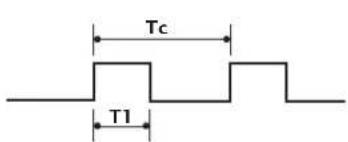
text_image
Tc T1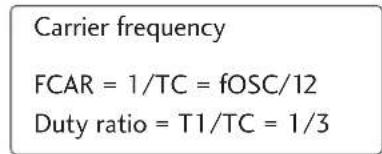
text_image
Carrier frequency FCAR = 1/TC = fOSC/12 Duty ratio = T1/TC = 1/3■ Configuration of frame
1st frame

text_image
Lead code Low custom code High custom code Data code Data code C0 C1 C2 C3 C4 C5 C6 C7 C0 C1 C2 C3 C4 C5 C6 C7 D0 D1 D2 D3 D4 D5 D6 D7 D0 D1 D2 D3 D4 D5 D6 D7Repeat frame

text_image
Repeat code Tf- Lead code

text_image
9 ms 4.5 ms■ Repeat code

text_image
0.55 ms 9 ms 2.25 ms■ Bit description

text_image
Bit "0" 0.56 ms 1.12 ms
text_image
Bit "1" 0.56 ms 2.24 ms■ Frame interval: Tf
The waveform is transmitted as long as a key is depressed.

text_image
Tf Tf Tf=108ms @455KHzAPPENDIX

| Code (Hexa) | Function Note | Code (Hexa) | Function Note | ||
| 50 | D/A INPUT | Remote control Button | D6 TV | Discrete IR Code | |
| OB INPUT | Remote control Button | (TV Input Selection) | |||
| 08 | POWER | Remote control Button (Power On/Off) | 5A | AV1 | Discrete IR |
| 79 | ARC | Remote control Button | (AV1 Input Selection) | ||
| OE | SLEEP | Remote control Button | D0 AV2 | Discrete IR Code | |
| 10-19 | Number Key 0-9 | Remote control Button | (AV2 Input Selection) | ||
| 1A Q.VIEW | Remote control Button | BF | COMPONENT1 | Discrete IR Code | |
| 09 MUTE | Remote control Button | (Component1 Input Selection) | |||
| 02 | VOL + | Remote control Button | D4 COMPONENT2 | Discrete IR Code | |
| 03 | VOL - | Remote control Button | (Component2 Input Selection) | ||
| 00 | PR + | Remote control Button | D5 RGB-PC Discrete IR Code | ||
| 01 | PR - | Remote control Button | (RGB-PC Input Selection) | ||
| 1E | FAV | Remote control Button | D7 RGB-DTV Discrete IR Code | ||
| 40 | ▲ | Remote control Button | (RGB-DTV Input Selection) | ||
| 41 | ▼ | Remote control Button | C6 HDMI1/DVI | Discrete IR Code | |
| 07 | ◀ | Remote control Button | (HDMI/DVI Input Selection) | ||
| 06 | ▶ | Remote control Button | CC HDMI2 | Discrete IR Code | |
| 44 OK | Remote control Button | (HDMI2 Input Selection) | |||
| 43 | MENU | Remote control Button | 76 | Ratio 4:3 | Discrete IR Code |
| 5B EXIT | Remote control Button | (Only 4:3 Mode) | |||
| 60 PIP | Remote control Button | 77 | Ratio 16:9 | Discrete IR Code | |
| 72 | PIP PR - | Remote control Button | (Only 16:9 Mode) | ||
| 71 | PIP PR + | Remote control Button | AF Ratio Zoom | Discrete IR Code | |
| 63 | SWAP | Remote control Button | (Only Zoom Mode) | ||
| 61 | PIP INPUT | Remote control Button | C4 POWER ON | Discrete IR Code | |
| 92 | APM | Remote control Button | (Only Power On) | ||
| A9 GUIDE | Remote control Button | C5 POWER OFF Discrete IR Code | |||
| 64 | SIZE | Remote control Button | (Only Power Off) | ||
| 70 | INDEX | Remote control Button | CB ADJUST Remote control Button | ||
| 26 | TIME | Remote control Button | BO | PLAY | Remote control Button |
| 2A REVEAL | Remote control Button | BA | PAUSE | Remote control Button | |
| 20 | TEXT | Remote control Button | B1 | STOP | Remote control Button |
| 72 | RED | Remote control Button | BD REC | Remote control Button | |
| 71 | GREEN | Remote control Button | 8F | REW | Remote control Button |
| 63 | YELLOW | Remote control Button | 8E | FF | Remote control Button |
| 61 | BLUE | Remote control Button | 7D MARK | Remote control Button | |
| OA | I/II | Remote control Button | 7C X-STUDIO Remote control Button | ||
| AA | INFO | Remote control Button | 9E | LIVE TV | Remote control Button |
| E1 | - * | Remote control Button | B2 GO TO PREV | Remote control Button | |
| E0 | + | Remote control Button | B3 GO TO NEXT | Remote control Button | |
| 53 | LIST | Remote control Button | |||
PROGRAMMING THE REMOTE CONTROL
The remote is a multi-brand or a universal remote. It can be programmed to operate most remote-controllable devices of other manufacturers.
Note that the remote may not control all models of other brands.
Programming a code into a remote mode
To find out whether your remote can operate the device without programming, turn on the device such as a VCR and press the corresponding mode button on the remote.
After that, press the POWER button. If the device is turned off then it responds properly and the remote need not to be programmed. If not, the remote should be programmed to operate the device. The programming procedures are explained below.
2 Press the MENU and MUTE button continuously at the same time for 2 seconds, the current selected device button will be illuminated.
If you don't press any button for 20 seconds, the light on the mode button will be turned off. In that case, you have to repeat from step 2.
3 Enter code numbers using the number button on the remote by referring the code table on the following pages. When pressing the button, the light blinks. If the device turned off, the programming is successful.
4 Press the MENU button to store the code. After blinking twice, this code is stored.
5 Test the remote functions to see if the device responds properly. If not, repeat from step 2.
PROGRAMMING CODES
VCRs
| Brand Codes Brand Codes Brand Codes | ||||||||
| AIWA 034 | MAGNAVOX | 031 033 034 041 | SAMSUNG | 032 040 102 104 | ||||
| AKAI016043046124 | 067 068 | 105 107 109112 | ||||||
| 125146 | MARANTZ | 012031033067 | 113 115 120 122 | |||||
| AMPRO 072 | 069 | 125 | ||||||
| ANAM 031 033 103 | MARTA 101 | SANSUI | 022 043 048 135 | |||||
| AUDIO DYNAMICS | 012 023039043 | MATSUI | 027 030 | SANYO | 003 007 010 014 | |||
| BROKSONIC | 035 037 129 | MEI | 031 033 | 102 134 | ||||
| CANON | 028 031 033 | MEMOREX | 003 010014031 | SCOTT | 017 037 112 129 | |||
| CAPEHART | 108 | 033 034053072 | 131 | |||||
| CRAIG | 003 040135 | 101102 134139 | SEARS 003 008 009 010 | |||||
| CURTIS MATHES | 031 033 041 | MCA | 045046059 | 013 014 017 020 | ||||
| DAEWOO | 005 007010064 | MINOLTA | 013020 | 031 042 073 081 | ||||
| 065 108 110 111 | MITSUBISHI | 013020045046 | 101 | |||||
| 112 116 117 119 | 049 051 059 061 | SHARP 031 054 149 | ||||||
| DAYTRON | 108 | 151 | SHINTOM | 024 | ||||
| DBX | 012023 039 043 | MTC | 034040 | SONY | 003 009 031 052 | |||
| DYNATECH | 034 053 | MULTITECH | 024 034 | 056 057 058 076 | ||||
| ELECTROHOME | 059 | NEC | 012023039 043 | 077 078149 | ||||
| EMERSON | 006 017025 027 | 048 | SOUNDESIGN | 034 | ||||
| 029 031 034 035 | NORDMENDE | 043 | STS | 013 | ||||
| 036037046 101 | OPTONICA | 053 054 | SYLVANIA | 031 033 034 059 | ||||
| 129 131 138 153 | PANASONIC | 066 070 074 083 | 067 | |||||
| FISHER | 003 008 009 010 | 133 140145 | SYMPHONIC | 034 | ||||
| FUNAI 034 | TANDY | 010034 | ||||||
| GE | 031 033 063 072 | PENTAX | 013020031033 | TATUNG | 039 043 | |||
| 107 109 144 147 | 063 | TEAC | 034 039 043 | |||||
| GO VIDEO | 132 136 | PHILCO | 031 034 067 | TECHNICS | 031 033 070 | |||
| HARMAN KARDON | 012045 | PHILIPS 031 | 033 034 054 | TEKNIKA | 019 031 033 034 | |||
| HITACHI | 004 018 026 034 | 067 071 101 | 101 | |||||
| 043 063 137150 | PILOT | 101 | THOMAS | 034 | ||||
| INSTANTREPLAY | 031 033 | PIONEER | 013021048 | TMK | 006 | |||
| JCL | 031 033 | PORTLAND | 108 | TOSHIBA | 008 013042 047 | |||
| JCPENNY | 012013015033 | PULSAR | 072 | 059082112 131 | ||||
| 040 066 101 | QUARTZ | 011 014 | TOTEVISION | 040 101 | ||||
| JENSEN 043 | QUASAR | 033 066 075 145 | UNITECH | 040 | ||||
| JVC | 012031033043 | RCA | 013020033034 | VECTOR RESEARCH | 012 | |||
| 048 050 055 060 | 040 041 062 063 | VICTOR | 048 | |||||
| 130150152 | 107 109 140 144 | VIDEO CONCEPTS | 012 034 046 | |||||
| KENWOOD | 014034 039 043 | 145147 | VIDEOSONIC | 040 | ||||
| 047 048 | REALISTIC | 003 008 010014 | WARDS | 003 013 017 024 | ||||
| LG (GOLDSTAR) | 001 012 013 020 | 031 033 034 040 | 031 033 034 040 | |||||
| 101 106 114 123 | 053 054101 | 053054131 | ||||||
| LLOYD | 034 | RICO 058 | YAMAHA | 012034 039 043 | ||||
| LXI | 003 009 013014 | RUNCO | 148 | ZENITH | 034 048 056 | |||
| 017 034 101 106 | SALORA | 014 | 058 072080 101 | |||||
| MAGIN | 040 | |||||||
VCRs
| Brand Codes Brand Codes Brand Codes | |||||||||||||
| ABC 003 004 039 | 042 | 074 | REMBRANT | 025 | |||||||||
| 046 052 053 | LG (GOLDSTAR) | 001 | 106 | 101 | 005 | SAMSUNG | 102 | 107 | 030 | 068 | |||
| AJIN112 | M-NET | 037 | SCIENTIFIC ATLANTA | 003 | 011 | 041 | 042 | ||||||
| ANTRONIK014 | MACOM | 033 | 043 | 045 | 046 | ||||||||
| ARCHER005 007 | 014 024 | MAGNAVOX | 010 | 012 | 064 | 079 | SHERITECH | 022 | |||||
| CABLE STAR 026 | MEMOREX | 100 | SIGNAL | 030 | |||||||||
| CENTURION 092 | MOVIE TIME | 028 | 032 | SIGNATURE | 052 | ||||||||
| CENTURY | 007 | NSC | 015 | 028 | 038 | 071 | SL MARX | 030 | |||||
| CITIZEN | 007 | 073 | SPRUCER | 047 | 078 | ||||||||
| COLOUR VOICE | 065 090 | OAK | 016 | 031 | 037 | 053 | STARCOM | 002 | 004 | 008 | 009 | ||
| COMBANO | 080 081 | PANASONIC | 044 | 047 | STARGATE | 008 | 030 | ||||||
| COMTRONICS | 019 030 | PARAGON | 100 | TADIRAN | 030 | ||||||||
| DIAMOND | 023 | TAEKWANG | 110 | ||||||||||
| EAGLE | 020 030 040 | PHILIPS | 006 | 012 | 013 | 020 | TAIHAN | 105 | |||||
| EASTERN | 057 062 066 | 065 | 085 | 090 | TANDY 017 | ||||||||
| ELECTRICORD | 032 | PIONEER | 034 | 051 | 052 | 063 | TEXSCAN | 029 | |||||
| GE | 072 | 076 | TOCOM | 039 | 040 | 056 | |||||||
| GEMINI | 008 022 025 054 | POST NEWS WEEK | 016 | TOSHIBA | 100 | ||||||||
| GI | 052 074 | PRUCER | 059 | UNIKA | 007 | 014 | 024 | ||||||
| GOLDEN CHANNEL | 030 | PTS | 011 | 048 | 071 | 072 | UNITED CABLE | 004 | 053 | ||||
| HAMLIN | 049 050 055 | 073 | 074 | UNIVERSAL | 005 | 007 | 014 | 024 | |||||
| HITACHI | 052 055 | PULSAR | 100 | 026 | 027 | 032 | 035 | ||||||
| HOSPITALITY | 070 077 | RCA | 047 | VIEWSTAR | 012 | 015 | 018 | 086 | |||||
| JERROLD | 002 003 004 008 | REGAL | 049 | 050 | 087 | 088 | 089 | ||||||
| 009 010 052 069 | REGENCY | 057 | ZENITH | 100 | 114 | 060 | 093 | ||||||
DVD
| Brand Codes | Brand Codes | Brand Codes | |||||||
| APEX DIGITAL | 022 | MITSUBISHI | 002 | RCA | 005 | 006 | |||
| DENON | 020 | 014 | NAD | 023 | SAMSUNG | 011 | 015 | ||
| GE | 005 | 006 | ONKYO | 008 | 017 | SONY | 007 | ||
| HARMAN KARDON | 027 | PANASONIC | 003 | 009 | THOMPSON | 005 | 006 | ||
| JVC | 012 | PHILIPS | 013 | TOSHIBA | 019 | 008 | |||
| LG | 001 | 010 | 016 | 025 | PIONEER | 004 | 026 | YAMAHA | 009018 |
| MAGNAVOX | 013 | PROCEED | 021 | ZENITH | 010016 | 025 | |||
| MARANTZ | 024 | PROSCAN | 005 | 006 |
TROUBLESHOOTING CHECKLIST
| The operation does not work normally. | |
| The remote control doesn’t work | Check to see if there is any object between the product and the remote control causing obstruction. Ensure you are pointing the remote control directly at the TV.Ensure that the batteries are installed with correct polarity (+ to +, - to -).Ensure that the correct remote operating mode is set: TV, VCR etc.Install new batteries. |
| Power is suddenly turned off | Is the sleep timer set?Check the power control settings. Power interruptedNo broadcast on station tuned with Auto off activated. |
| The operation does not work normally. | |
| No picture &No sound | Check whether the product is turned on.Try another channel. The problem may be with the broadcast.Is the power cord inserted into wall power outlet?Check your antenna direction and/or location.Test the wall power outlet, plug another product's power cord into the outlet where the product's power cord was plugged in. |
| Picture appears slowly after switching on | This is normal, the image is muted during the product startup process. Please contact your service center, if the picture has not appeared after five minutes. |
| No or poor color or poor picture | Adjust Color in menu option.Keep a sufficient distance between the product and the VCR.Try another channel. The problem may be with the broadcast.Are the video cables installed properly?Activate any function to restore the brightness of the picture. |
| Horizontal/vertical bars or picture shaking | Check for local interference such as an electrical appliance or power tool. |
| Poor reception on some channels | Station or cable product experiencing problems, tune to another station. |
| Lines or streaks in pictures | Station signal is weak, reorient antenna to receive weaker station.Check for sources of possible interference.Check antenna (Change the direction of the antenna). |
The audio function does not work.
| Picture OK & No sound | ■Press the VOL or VOLUME button.■Sound muted? Press MUTE button.■Try another channel. The problem may be with the broadcast.■Are the audio cables installed properly? |
| No output from one of the speakers | ■Adjust Balance in menu option. |
| Unusual sound from inside the product | ■A change in ambient humidity or temperature may result in an unusual noise when the product is turned on or off and does not indicate a fault with the product. |
There is a problem in PC mode. (Only PC mode applied)
| The signal is out of range | ■ Adjust resolution, horizontal frequency, or vertical frequency.■ Check the input source. |
| Vertical bar or stripe on background & Horizontal Noise & Incorrect position | ■ Work the Auto configure or adjust clock, phase, or H/V position. (Option) |
| Screen color is unstable or single color | ■ Check the signal cable.■ Reinstall the PC video card. |
APPENDIX
MAINTENANCE
Early malfunctions can be prevented. Careful and regular cleaning can extend the amount of time you can enjoy your new TV.
Caution: Be sure to turn the power off and unplug the power cord before you begin any cleaning.
Cleaning the Screen
Here's a great way to keep the dust off your screen for a while. Wet a soft cloth in a mixture of lukewarm water and a little fabric softener or dish washing detergent. Wring the cloth until it's almost dry, and then use it to wipe the screen.
2 Make sure the excess water is off the screen, and then let it air-dry before you turn on your TV.
Cleaning the Cabinet
■ To remove dirt or dust, wipe the cabinet with a soft, dry, lint-free cloth.
■ Please be sure not to use a wet cloth.
Extended Absence
CAUTION
If you expect to leave your TV dormant for a long time (such as a vacation), it's a good idea to unplug the power cord to protect against possible damage from lightning or power surges.
PRODUCT SPECIFICATIONS
| MODELS | 50PB2DR(50PB2DR-AC) | 42LC2DR(42LC2DR-AC) | |
| Dimensions(Width x Height x Depth) | Including stand | 54.4 x 35.9x 14.8 inches | 41.5 x 32.0 x 11.9 inches |
| 1382.0 x 913.0 x 377.0mm | 1054.0 x 813.0 x 302.0 mm | ||
| Excluding stand | 54.4 x 33.4 x 4.9 inches | 41.5 x 29.4x 5.4 inches | |
| 1382.0 x 848.5 x 125.0 mm | 1054.0 x 746.0 x 136.8 mm | ||
| Weight | including stand | 134.59 pounds / 61.05kg | 90.95 pounds / 41.2 kg |
| excluding stand | 105.93 pounds / 48.05 kg | 76.4 pounds / 34.6 kg | |
| Power requirementTelevision SystemProgram CoverageExternal Antenna Impedance | AC100-240V ~ 50/60HzPAL B/G, DVB-TVHF 0-12, UHF 20-75, CATV 02-44, DTV 06-12, 27-6975 ohm | ||
| Environment condition | Operating Temperature | 32 ~ 104°F (0 ~ 40°C)Less than 80% | |
| Operating Humidity | |||
| Storage Temperature | -4 ~ 140°F (-20 ~ 60°C)Less than 85% | ||
| Storage Humidity | |||
| MODELS | 42LB2DE(42LB2DE-AA) | 47LB2DE(47LB2DE-AA) | |
| Dimensions(Width x Height x Depth) | Including stand | 46.3x30.2x11.8inches | 50.0x32.6x12.4 inches |
| 1175.0x768.0x300.0mm | 1280.0x828.0x315.0 mm | ||
| Excluding stand | 46.3 x 26.4 x 5.7 inches | 50.0 x 28.3x 5.3 inches | |
| 1175.0x670.0x143.8mm | 1280.0x718.0x135.0 mm | ||
| Weight | including stand | 96.3 pounds / 43.7kg | 129.9 pounds/58.9 kg |
| excluding stand | 76.9 pounds / 34.9 kg | 104.5 pounds/47.4 kg | |
| Power requirementTelevision SystemProgram CoverageExternal Antenna Impedance | AC100-240V ~ 50/60HzPAL B/G, DVB-TVHF 0-12, UHF 20-75, CATV 02-44, DTV 06-12, 27-6975 ohm | ||
| Environment condition | Operating Temperature | 32 ~ 104°F (0 ~ 40°C)Less than 80% | |
| Operating Humidity | |||
| Storage Temperature | -4 ~ 140°F (-20 ~ 60°C)Less than 85% | ||
■ The specifications shown above may be changed without prior notice for quality improvement.