WS-01T-C - Weather Station Ambient Weather - Free user manual and instructions
Find the device manual for free WS-01T-C Ambient Weather in PDF.


User questions about WS-01T-C Ambient Weather
0 question about this device. Answer the ones you know or ask your own.
Ask a new question about this device
Download the instructions for your Weather Station in PDF format for free! Find your manual WS-01T-C - Ambient Weather and take your electronic device back in hand. On this page are published all the documents necessary for the use of your device. WS-01T-C by Ambient Weather.
USER MANUAL WS-01T-C Ambient Weather
Ambient Weather WS-01T-C Color Changing Wireless Temperature Night Light with Ambient Backlight (Console Only) User Manual

ambient weather
Table of Contents
1 Introduction....2
2 Getting Started 2
2.1 Parts List....3
2.2 Night Light Power Up....3
2.3 Battery Replacement 4
2.4 The Indoor Temperature Probe....5
2.5 Display Console Layout....6
3 Night Light Operation....6
3.1 Quick Display Mode 6
3.2 Set (Program) Mode 7
3.4 Sensor Search Mode....10
3.5 Best Practices for Wireless Communication 10
3.6 Min/Max Mode 11
3.7 Manually Turn the Backlight On and Off....11
3.8 Adjustment or Calibration....12
3.9 Temperature Calibration....12
4 Personalizing Color Ranges....12
5 Glossary of Terms....13
6 Specifications....13
6.1 Wireless Specifications .... 13
6.2 Measurement Specifications....13
6.3 Power....13
7 Troubleshooting Guide....14
8 Liability Disclaimer ....14
9 FCC Statement....15
10 Warranty Information ....16
11 Battery Safety Information....17
1 Introduction
Thank you for your purchase of the Ambient Weather WS-01T-C Color Changing Wireless Temperature Night Light with Ambient Backlight (console only). The following user guide provides step by step instructions for installation, operation and troubleshooting. To download the latest manual and additional troubleshooting tips, please visit:
http://ambientweather.wikispaces.com/ws01t
The WS-01T-C includes an indoor temperature sensor (there is a sensor inside the display) as well as supports up to 8 remote sensors (sensors and receivers are sold separately):
| Item Number | Image | Description |
| F007T |  | 8-channel sensor measures temperature. Applications include indoor and outdoor air temperature measurement. |
| F007TP | 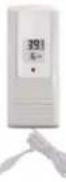 | 8-channel sensor measures probe temperature. Applications include refrigerators and freezers (where the probe is placed inside the appliance(s) and the display is outside), water temperature, soil temperature and ground temperature. |
| F007PF | 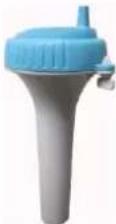 | 8-channel pool float thermometer. Applications include pools, spas, and lakes. |
| WS-01T-C | 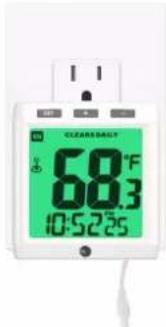 | Add as many display consoles as you like to your existing system. For example, you can have one remote sensor display temperature and place a night light display console in every room. |
2 Getting Started

Note: The power up sequence must be performed in the order shown in this section (insert
batteries in the remote transmitter(s) first (optional), power up the night light second).
2.1 Parts List
| 1 | Night LightFrame Dimensions (LxHxW): 2.6 x 2.3 x 2.4 inLCD Dimensions (LxW): 1.9 x 1.9 in |
| 1 | CR2032 Battery |
| 1 | Manual |
2.2 Night Light Power Up
-
Move the optional remote thermometer(s) about 5 to 10^ away from the night light (if the sensor is too close, it may not be received by the night light). If you have more than one transmitter, make sure they are all powered up and transmitting on different channels.
-
Plug the night light into the wall outlet. Watch for the backlight to change colors. Indoor Temperature will be displayed after AC ON is displayed temporarily in the time field.
-
Release the Pull Tab to energize the back-up battery, as shown in Figure 1.
-
The console will instantly display indoor temperature. The remote temperature will update on the display within a few minutes on the appropriate channel.
While in the search mode, the remote search icon will be constantly displayed.
If you have more than once remote sensor (up to eight remotes are supported), the display will automatically toggle between sensors until all sensors have reported in.
Do not touch any buttons until the remote sensor has reported in, or the radio search icon is no longer on, otherwise the remote sensor search mode will be terminated.
When the remote sensor temperature has been received, the console will automatically switch to the normal mode, and all further settings can be performed.
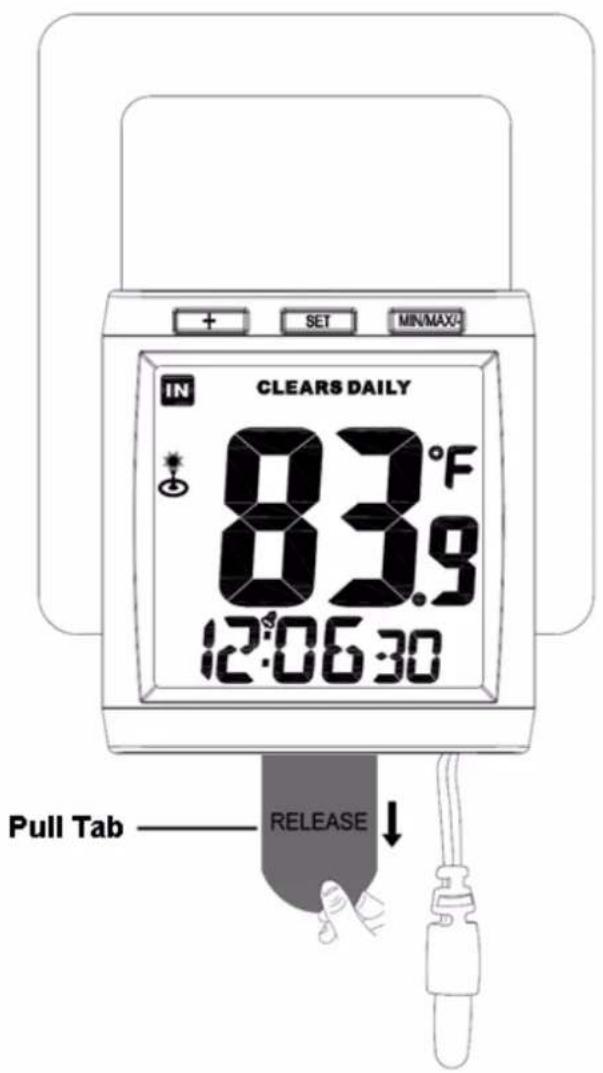
text_image
IN CLEARS DAILY 83.9°F 12:06:30 Pull Tab RELEASEFigure 1
2.3 Battery Replacement
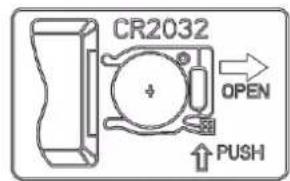
To replace the battery, push the battery release tab with one finger and pull the battery holder with a second finger, as shown in Figure 2 A and B.
Insert the new battery (+ terminal up, as shown in Figure 2 C). Push the battery holder into the night light.

Note: The battery door mechanism prevents small children from accessing the battery
compartment. Warning: Keep the battery away from children. If infant happens to swallow the battery, consult a doctor immediately.
text_image
CR2032 OPEN PUSH▼ RELEASE
A

text_image
CR2032 OPEN PUSH RELEASE RESET PUSH OPEN CR2032 3VB

text_image
CR2032 OPEN PUSH RELEASE RESET PUSH CR2032 3V CR2032 3VC
Figure 2
2.4 The Indoor Temperature Probe
The purpose of the indoor temperature probe is to provide an accurate temperature reading that is not influenced by the internal heating of the night light body. The probe cannot be removed, and
will insure your temperature reading is accurate and can be trusted.
2.5 Display Console Layout

Note: The following illustration shows the full segment LCD display for description purposes only and will not appear like this during normal operation.
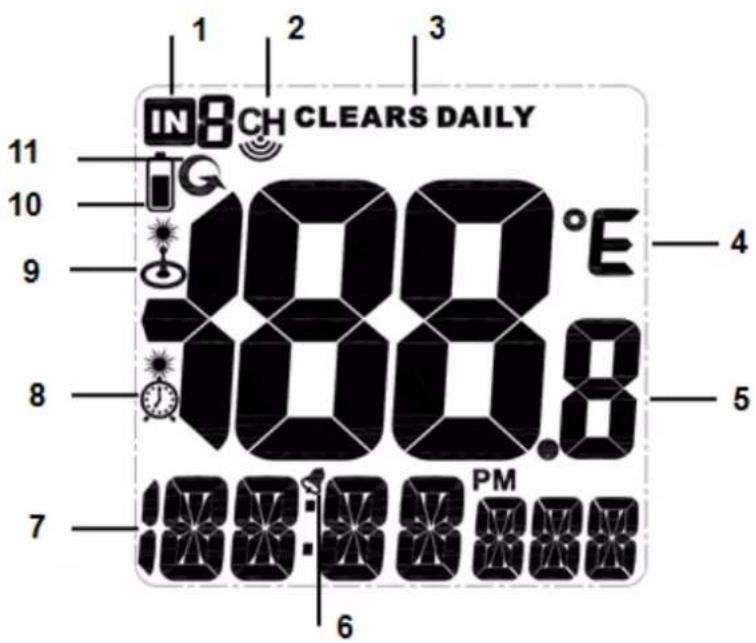
text_image
IN CH CLEARS DAILY 100.8°C 4 5 6 7 8 9 10 11 PM- Indoor temperature icon
- Outdoor temperature icon (CH 1-8)
- Min/Max reset (clears daily)
- Temperature units (°F or °C)
- Temperature display
-
Time alarm icon
-
Time display
- TIM icon (backlight timer option)
- CNT icon (backlight control option)
- Transmitter Low power indicator
- Scroll mode (CH 1-8)
Figure 3
3 Night Light Operation

Note: The night light has three keys for easy operation: SET key, CH/+ key and
MIN/MAX/- key.
3.1 Quick Display Mode
While in Normal Mode, press (do not hold) the SET key to enter the Quick Display Mode as follows:
- Once for time/week
- Twice for date.
• Three times for time alarm
• Four times for time/second
3.2 Set (Program) Mode
While in Normal Mode, press and hold the SET key for at least three seconds to enter the Set Mode. The first setting will begin flashing. You can press the SET key again to skip any step, as defined below.

Note: In the Set mode, press the [CH/+] key or [MINMAX/-] key to change or scroll the value. Hold the [CH/+] key or [MINMAX/-] key for three seconds to increase/decrease rapidly.

Note: In Set mode, to enter the normal mode, complete all set mode operations or wait 30
seconds for timeout.
-
12/24 Hour Format (default: 12h): Press the [CH/+] key to change between 12 hour and 24 hour format.
-
Change Hour. Press the SET key again to set the hour. Press the [CH/+] key or [MINMAX/-] key to adjust the hour up or down. Note the PM icon is present during afternoon hours.
-
Change Minute. Press the SET key again to set the minute. Press the [CH/+] key or [MINMAX/-] key to adjust the minute up or down.
-
Date Format (default: MM-DD): Press the SET key again to enter the day/month format mode. Press the [CH/+] key to switch between DD-MM-YY and MM-DD-YY.
-
Change Month. Press the SET key again to set the calendar month. Press the [CH/+] key or [MINMAX/-] key to adjust the calendar month.
-
Change Day. Press the SET key again to set the calendar day. Press the [CH/+] key or [MINMAX/-] key to adjust the calendar day.
-
Change Year. Press the SET key again to set the calendar year. Press the [CH/+] key or [MINMAX/-] key to adjust the calendar year.
-
Time Alarm Hour. Press the SET key again to set time alarm hour. Press the [CH/+] key or [MINMAX/-] key to adjust the hour up or down. While the alarm value is flashing, press and hold the SET button for three seconds to turn the alarm on and off. The time alarm icon will
appear when set, and disappear when disabled. Press (do not hold) the SET key to advance to the next setting.
- Time Alarm Minute. Press the SET key again to set time alarm minute. Press the [CH/+] key or [MINMAX/-] key to adjust the minute up or down. While the alarm value is flashing, press and hold the SET button for three seconds to turn the alarm on and off. The time alarm icon
will appear 📋 when set, and disappear when disabled. Press (do not hold) the SET key to advance to the next setting.
- Temperature Units of Measure (default: °F): Press the SET key again to change the temperature units of measure (the UNITSET icon will be displayed). Press the [CH/+] key to

ambient weather
switch between °F and °C units of measure.
- Max/Min Clearing. Press the SET key again to set the max/min clearing mode (CLR ON/OFF). The Max/Min can be programmed to clear daily (at midnight) or manually. Press the [CH/+] key to switch between “Clears Daily” and Clears Manually.
- Backlight Color Setting (default: Outdoor or CH1). Press the SET key again to set the backlight color defined parameter (the LED icon will be displayed). Press [CH / + ] key or [MINMAX/+] key to toggle between OUT (uses the channel 1 temperature to automatically display backlight color). IN (uses the indoor temperature to automatically display backlight color) or USE (manually set your own backlight color to one of 11 choices).
The following section is based on the OUT, IN or USE setting selected.
12.1 OUT Backlight Color Setting (reference Figure 4).
12.2 Outdoor Backlight Color Low (OUT default: 10): Press the SET key again to change the lower range of the color changing backlight spectrum (the LOWER icon will be displayed). Press the [CH/+] key or [MINMAX/+] key to adjust the low temperature limit.
12.3 Indoor Backlight Color High (default: 100): Press the SET key again to change the upper range of the color changing backlight spectrum (the UPPER icon will be displayed).
12.4 IN Backlight Color Setting (reference Figure 4).
12.5 Indoor Backlight Color Low (IN default: 58): Press the SET key again to change the lower range of the color changing backlight spectrum (the LOWER icon will be displayed). Press the [CH/+] key or [MINMAX/+] key to adjust the low temperature limit.
12.6 Indoor Backlight Color High (default: 85): Press the SET key again to change the upper range of the color changing backlight spectrum (the UPPER icon will be
The following table provides 11 different backlight colors for reference:
| No. | Color (USE) | Colors | OUT Temp (°F) | IN Temp (°F) | Comments (Manually set maximum and minimum values) |
| 0 | Cold Purple | <10 | <58 | LOW | |
| 1 | Fuchsia | 10-20 | 58-61 | Color Increment = (HI-LOW)/9 | |
| 2 | Purple | 20-30 | 61-64 | ||
| 3 | Blue | 30-40 | 64-67 | ||
| 4 | Aqua | 40-50 | 67-70 | ||
| 5 | Dark Green | 50-60 | 70-73 | ||
| 6 | Light Green | 60-70 | 73-76 | ||
| 7 | Yellow | 70-80 | 76-79 | ||
| 8 | Orange | 80-90 | 79-82 | ||
| 9 | Red | 90-100 | 82-85 | ||
| 10 | Red Hot | >100 | >85 | HI | |
 Note: This manual is not printed in color. To view the actual color chart, visit: http://site.ambientweatherstore.com/Manuals/ws01t.pdf to view the actual color.Note: Reference Section 4 Personalizing Color Ranges to modify the color changes to best suit your comfort level and location. Note: This manual is not printed in color. To view the actual color chart, visit: http://site.ambientweatherstore.com/Manuals/ws01t.pdf to view the actual color.Note: Reference Section 4 Personalizing Color Ranges to modify the color changes to best suit your comfort level and location. | |||||
Figure 4
- Backlight Control Setting (default: ON). Press the SET key again to set the backlight color control option. Press [CH/+] key or [MINMAX/-] key to toggle between CNT (automatic light control sensing), TIM (manually set your own defined light time) or ON (light permanently ON).
The following section is based on the CNT, ON or TIM setting selected.
13.1 In CNT mode, the icon 🧑 will be displayed, and the backlight will automatically turn on when it is dark. The backlight will automatically turn off when it is light.
13.2 In TIM mode, the icon will be displayed, and the backlight will turn on at a specific
Version 1.1 ©Copyright 2016, Ambient LLC. All Rights Reserved. Page 9
time of day, and turn off after a time period has elapsed. (Default time: 5:00 PM, Default time period: 12h).
13.2.1 Press the SET key again to set the hour of the day the backlight will turn on. Press the [CH/+] key or [MINMAX/-] key to adjust the hour up or down.
13.2.2 Press the SET key again to set the minute of the day the backlight will turn on. Press the [CH/+] key or [MINMAX/-] key to adjust the minute up or down.
13.2.3 Press the SET key again to set the time period or length of time the backlight will be turned on. Press the [CH/+] key or [MINMAX/-] key to adjust the time period between 1 hour to 24 hours.
13.3 In ON mode, the backlight will light permanently.
- Backlight Contrast: Press the SET key again to change the backlight brightness (the BRIGHT icon will be displayed). Press the [CH/+] key or [MINMAX/-] key to adjust the backlight contrast from 1 (dim) to 8 (bright).
3.3 Channel Selection
Press the CH/+ button to switch the display between in, remote sensors 1 through 8, and scroll mode. In scroll mode, all of the indoor and detected outdoor sensors will be displayed in five second intervals.
3.4 Sensor Search Mode
If any of the sensor communication is lost, dashes (--.-) will be displayed on the screen. To reacquire the signal:
- If a specific channel is lost, press the CH/+ button to display this channel, then Press and hold the CH/+ button for 3 seconds, and the remote search icon will be constantly displayed for up to 3 minutes. Once the signal is reacquired, the remote search icon will turn off, and the current values will be displayed.
- If new sensors are added, subtracted, or multiple sensor channels are lost, press the CH/+ button to display the IN Channel, then Press and hold the CH/+ button for 3 seconds, and the remote search icon will be constantly displayed for up to 10 minutes. Once the signal is reacquired, the remote search icon will turn off, and the current values will be displayed.
3.5 Best Practices for Wireless Communication
Wireless communication is susceptible to interference, distance, walls and metal barriers. We recommend the following best practices for trouble free wireless communication.
-
Electro-Magnetic Interference (EMI). Keep the console several feet away from computer monitors and TVs.
-
Radio Frequency Interference (RFI). If you have other 433 MHz devices and communication is intermittent, try turning off these other devices for troubleshooting purposes. You may need to relocate the transmitters or receivers to avoid intermittent communication.
- Line of Sight Rating. This device is rated at 300 feet line of sight (no interference, barriers or walls) but typically you will get 100 feet under most real-world installations, which include passing through barriers or walls.
- Metal Barriers. Radio frequency will not pass through metal barriers such as aluminum siding. If you have metal siding, align the remote and console through a window to get a clear line of sight.
3.6 Min/Max Mode
The Min/Max mode displays the minimum and maximum temperature (since reset of the unit) for the indoor temperature, and remote channels 1 through 8.
Prior to entering the MIN/MAX mode, press the CHANNEL/+ button to select the temperature value you wish to view.
- Display Maximum. Press the MIN/MAX/- key once to display the maximum. The MAX icon will be displayed.
- Clear Maximum. To reset the maximum values to the current values, press and hold the MIN/MAX/- button for 3 seconds.
- Display Minimum. Press the MIN/MAX/- key again to display the minimum. The MIN icon will be displayed.
- Clear Minimum. To reset the minimum values to the current values, press and hold the MIN/MAX/- button for 3 seconds.
To return to normal mode, press the MIN/MAX/- key again.
3.7 Manually Turn the Backlight On and Off
In normal mode, press and hold MIN/MAX/- key for 3 seconds to turn on the backlight. LED ON will be displayed.
Press and hold the MIN/MAX/- key again to turn off the backlight. LED OFF will be displayed.
Depending on the backlight control mode, if the backlight is turned off manually, it will turn on again based on the following criteria:
- In the LED CNT mode (automatic light control sensing), the light will turn on again when darkness is sensed.
- In the LED TIM mode (manually set your own defined light time), the light will turn on again at the programmed time of day.
3.8 Adjustment or Calibration
Note: The calibrated value can only be adjusted on the console. The remote sensor(s) always displays the un-calibrated or measured value.
The purpose of calibration is to fine tune or correct for any sensor error associated with the devices margin of error. The measurement can be adjusted from the console to calibrate to a known source.
Calibration is only useful if you have a known calibrated source you can compare it against, and is optional. This section discusses practices, procedures and sources for sensor calibration to reduce manufacturing and degradation errors. Do not compare your readings obtained from sources such as the internet, radio, television or newspapers. They are in a different location and typically update once per hour.
The purpose of your weather station is to measure conditions of your surroundings, which vary significantly from location to location.
The WS-01T supports up to eight remote sensors. Each of the eight sensors can be calibrated.
3.9 Temperature Calibration
Prior to entering the calibration mode, press the CH/+ key to select the temperature you wish to adjust.
To enter the temperature calibration mode, press and hold the SET and CH/+ keys at the same time for five seconds, and the temperature value will begin flashing. Press the CH/+ key to increase the temperature and the MIN/MAX/- key to decrease the temperature reading in 0.1° increments. To rapidly increase (or decrease) the temperature reading, press and hold the CH/+ or MIN/MAX/- key.
To return the temperature to the actual or uncalibrated measurement, press the SET button.
Once the displayed temperature equals the calibrated source, press and hold the SET button for three seconds, or wait 30 seconds for timeout, and the temperature value will stop flashing.
4 Personalizing Color Ranges
You can customize your background color ranges to suit your location, or personal preferences.
For example, if you live in Alaska, your definition of hot and cold may be very different if you live in Arizona.

ambient weather
Likewise, if you track your indoor comfort level, your comfort range may be very different than someone else.
Example 1: I live in Arizona, and the temperature ranges from 20 °F to 110 °F.
Color Increment = (HI-LOW)/9 = (110 - 20)/9 = 10 °F.
Example 2: I live in Alaska, and the temperature ranges from -20°F to 70°F.
Color Increments = (HI-LOW)/9 = (70 - (-20))/9 = 10 °F.
5 Glossary of Terms
| Term | Definition |
| Accuracy | Accuracy is defined as the ability of a measurement to match the actual value of the quantity being measured. |
| Range | Range is defined as the amount or extent a value can be measured. |
6 Specifications
6.1 Wireless Specifications
• Line of sight wireless transmission (in open air): 100m, 30m under most conditions.
7 Troubleshooting Guide
| Problem | Solution |
| The nightlight does not turn on. | Check the night light control mode settings (Section 3.2) |
| Optional wireless remote (thermometer) not reporting in to console.There are dashes (--.-) on the display console. | If any of the sensor communication is lost, dashes (--.-) will be displayed on the screen. To reacquire the signal, press and hold the + button for 3 seconds, and the remote search icon will be constantly displayed. Once the signal is reacquired, the remote search icon will turn off, and the current values will be displayed.The maximum line of sight communication range is 300 feet and 100 feet under most conditions. Move the sensor assembly closer to the display console.If the sensor assembly is too close (less than 5 feet), move the sensor assembly away from the display console.Make sure the remote sensor LCD display is working and the transmitter light is flashing once per 60 seconds.Install a fresh set of batteries in the remote thermometer. For cold weather environments, install lithium batteries.Make sure the remote sensors are not transmitting through solid metal (acts as an RF shield), or earth barrier (down a hill).Move the display console around electrical noise generating devices, such as computers, TVs and other wireless transmitters or receivers.Move the remote sensor to a higher location. Move the remote sensor to a closer location. |
| Outdoor color does not change as expected. | Make sure the optional outdoor sensor is assigned to Channel 1. |
8 Liability Disclaimer
Please help in the preservation of the environment and return used batteries to an authorized depot.
The electrical and electronic wastes contain hazardous substances. Disposal of electronic waste in
Version 1.1 ©Copyright 2016, Ambient LLC. All Rights Reserved. Page 14
wild country and/or in unauthorized grounds strongly damages the environment.
Reading the “User manual” is highly recommended. The manufacturer and supplier cannot accept any responsibility for any incorrect readings and any consequences that occur should an inaccurate reading take place.
This product is designed for use in the home only as indication of weather conditions. This product is not to be used for medical purposes or for public information.
The specifications of this product may change without prior notice.
This product is not a toy. Keep out of the reach of children.
Warning: Keep batteries away from children. If infant happens to swallow batteries, consult a doctor immediately. Never charge batteries. Charging batteries may cause battery electrolyte to seethe or battery internal pressure to rise. Leakage, heating, explosion or ignition of batteries may result. Do not heat or dispose of batteries in fire. Do not modify nor disassemble batteries. This may damage gaskets, and may cause ignition, heating, leakage or explosion. Insert batteries (+) (-) correctly. Erroneous insertion of batteries may result in battery short-circuiting depending on types of devices. Leakage, heating, explosion or ignition of batteries may result. In case of eye contact with battery electrolyte, immediately flush eyes thoroughly with water, do not rub the eyes, and consult a doctor. In case battery electrolyte comes into contact with the mouth, gargle and rinse thoroughly and consult a doctor immediately. Do not connect (+) and (-) of batteries by wire. Do not carry nor store batteries with metallic necklace or hairpin.
No part of this manual may be reproduced without written authorization of the manufacturer.
Ambient, LLC WILL NOT ASSUME LIABILITY FOR INCIDENTAL, CONSEQUENTIAL, PUNITIVE, OR OTHER SIMILAR DAMAGES ASSOCIATED WITH THE OPERATION OR MALFUNCTION OF THIS PRODUCT.
9 FCC Statement
Statement according to FCC part 15.19:
This device complies with part 15 of the FCC rules. Operation is subject to the following two conditions:
-
This device may not cause harmful interference.
-
This device must accept any interference received, including interference that may cause undesired operation.
Statement according to FCC part 15.21:
Modifications not expressly approved by this company could void the user's authority to operate the equipment.
Statement according to FCC part 15.105:
NOTE: This equipment has been tested and found to comply with the limits for a Class B digital device, pursuant to Part 15 of the FCC Rules. These limits are designed to provide reasonable protection against harmful interference in a residential installation. This equipment generates, uses and can radiate radio frequency energy and, if not installed and used in accordance with the instructions, may cause harmful interference to radio communications.
However, there is no guarantee that interference will not occur in a particular installation. If this equipment does cause harmful interference to radio or television reception, which can be determined by turning the equipment off and on, the user is encouraged to try to correct the interference by one or more of the following measures:
• Reorient or relocate the receiving antenna.
- Increase the separation between the equipment and receiver.
- Connect the equipment into an outlet on a circuit different from that to which the receiver is connected.
- Consult the dealer or an experienced radio/TV technician for help.
10 Warranty Information
Ambient, LLC provides a 1-year limited warranty on this product against manufacturing defects in materials and workmanship.
This limited warranty begins on the original date of purchase, is valid only on products purchased and only to the original purchaser of this product. To receive warranty service, the purchaser must contact Ambient, LLC for problem determination and service procedures.
Warranty service can only be performed by a Ambient, LLC. The original dated bill of sale must be presented upon request as proof of purchase to Ambient, LLC.
Your Ambient, LLC warranty covers all defects in material and workmanship with the following specified exceptions: (1) damage caused by accident, unreasonable use or neglect (lack of reasonable and necessary maintenance); (2) damage resulting from failure to follow instructions contained in your owner's manual; (3) damage resulting from the performance of repairs or alterations by someone other than an authorized Ambient, LLC authorized service center; (4) units used for other than home use (5) applications and uses that this product was not intended (6) the products inability to receive a signal due to any source of interference or metal obstructions and (7) extreme acts of nature, such as lightning strikes or floods.
This warranty covers only actual defects within the product itself, and does not cover the cost of installation or removal from a fixed installation, normal set-up or adjustments, claims based on misrepresentation by the seller or performance variations resulting from installation-related circumstances.
11 Battery Safety Information
Warning: Keep batteries away from children. If infant happens to swallow batteries, consult a doctor immediately. Never charge batteries. Charging batteries may cause battery electrolyte to seethe or battery internal pressure to rise. Leakage, heating, explosion or ignition of batteries may result. Do not heat or dispose of batteries in fire. Do not modify nor disassemble batteries. This may damage gaskets, and may cause ignition, heating, leakage or explosion. Insert batteries (+) (-) correctly. Erroneous insertion of batteries may result in battery short-circuiting depending on types of devices. Leakage, heating, explosion or ignition of batteries may result. In case of eye contact with battery electrolyte, immediately flush eyes thoroughly with water, do not rub the eyes, and consult a doctor. In case battery electrolyte comes into contact with the mouth, gargle and rinse thoroughly and consult a doctor immediately. Do not connect (+) and (-) of batteries by wire. Do not carry nor store batteries with metallic necklace or hairpin.
