Phaser 840 - Printer XEROX - Free user manual and instructions
Find the device manual for free Phaser 840 XEROX in PDF.


User questions about Phaser 840 XEROX
0 question about this device. Answer the ones you know or ask your own.
Ask a new question about this device
Download the instructions for your Printer in PDF format for free! Find your manual Phaser 840 - XEROX and take your electronic device back in hand. On this page are published all the documents necessary for the use of your device. Phaser 840 by XEROX.
USER MANUAL Phaser 840 XEROX
natural_image
White printer with paper lid and control panel (no visible text or symbols)www.tek.com/Color_Printers/
Tektronix®
Contents
Tektronix Supplies and Accessories 1
Getting the Most From Your Printer 2
The Front Panel 3
Print Quality Modes 4
TekColor™ Color Corrections 4
Media Trays 5
Supported Page Sizes and Print Area 7
Using the Manual Feed Slot for Single-Sided Printing 8
Printing on Envelopes 10
Loading Media Trays 11
Printing on Labels 12
Automatic Duplex Printing 14
Adding Ink 16
Emptying the Waste Tray 17
Replacing the Maintenance Kit 18
Media Jams 19
Troubleshooting Print Quality 24
Hints for Moving the Printer 27
Getting More Information 28
Getting Help 29
Symbols

Note
General information

Caution
Use caution or damage to the printer may result.

Hot
Hot surface on or in the printer. Use caution to avoid personal injury.
Copyright © 1999 by Tektronix, Inc. All rights reserved.
Tektronix ^® , Phaser ^® , PhaserShare ^® and ColorStix ^® are registered trademarks of Tektronix, Inc.
Tektronix Supplies and Accessories
Supplies Order number Description
| ColorStix ^ Ink | 016-1604-00 3 Black sticks |
| 016-1605-00 5 Cyan sticks plus 2 Black sticks | |
| 016-1606-00 5 Magenta sticks plus 2 Black sticks | |
| 016-1607-00 5 Yellow sticks plus 2 Black sticks | |
| 016-1582-00 2 Cyan sticks plus 1 Black stick | |
| 016-1583-00 2 Magenta sticks plus 1 Black stick | |
| 016-1584-00 2 Yellow sticks plus 1 Black stick |
Premium Paper
| A/Letter (U.S.) 016-1368-00 500 sheets | 24 lb. bond, 90 g/m2 |
| A4 (Metric Letter) 016-1369-00 500 sheets |
Premium Transparencies
| A/Letter (U.S.) 016-1724-00 50 sheets |
| A4 (Metric Letter) 016-1725-00 50 sheets |
Standard Transparencies
| A/Letter (U.S.) 016-1720-00 50 sheets | |
| A4 (Metric Letter) 016-1721-00 50 sheets | |
| Maintenance Kit | 016-1727-00 Replacement maintenance roller and counter (life: 30,000 images) |
Accessories Order number Description
| Standard Paper / Transparency Trays | 436-0330-00 A/Letter (U.S.) | ||
| 436-0332-00 A4 (Metric Letter) | |||
| High-Capacity Transparency/Label Trays | 436-0336-00 A/Letter (U.S.) | ||
| 436-0338-00 A4 (Metric Letter) | |||
| Cleaning Kit | 016-1595-00 Alcohol wipes and foam swabs | ||
| Printer CD-ROM | 063-3166-00 -00 English | -70 Chinese, Simplified | |
| Printer diskettes | 063-2627-00 | -10 French | -80 Chinese, Traditional |
| -20 Italian | |||
| -30 German | |||
| -40 Spanish | -90 Korean | ||

To order supplies and accessories, contact your local dealer or visit the Tektronix web site:
www.tektronix.com/Color_Printers/supplies
Ordering Information
Getting the Most From Your Printer
| Supplies Startup KitZ840SSOption 01 for Metric | ColorSlix® ink: 5 each CMY, plus 6 BlackTektronix Transparencies (50 sheets) |
| High-Capacity Paper Tray AssemblyZ840LTAOption 01 for Metric | Increased paper-printing capacityIncreased printing versatility and convenienceUp to two stacking trays can be used |
| Plus Feature SetZ840FP | High Resolution / Photo print-quality mode, 1200 x 600 dpiAdds automatic duplex (two-sided) print capabilityAdds SCSI card for connecting an external hard drive or a scannerAdds 32 Mbytes of memory (64 Mbytes total)Check Print functionalityQuick Collate functionality (requires a hard drive) |
| Printer StationZCARTA | Ergonomic surface heightProvides storage for supplies |
| Scanner supportRequires Plus Features | Use your printer as a color copierFor a list of supported scanners, contact your local Tektronix reseller, or visit the Tektronix web site |
| Hard Disk Drives | Required for collationExtends font capacity |
| ZDISK | External SCSI Hard Drive (Requires Plus Feature) |
| ZDISK3 | Internal IDE Hard Drive |
| PhaserShare®Network Card | Easy to installIncreases speed and/or shareabilityHigh-performance network connectivity |
| ZNBFE | 100Base-T Ethernet |
| ZNBTR | Token Ring |
| ZNBLT | LocalTalk |
| PhaserLinkTM SoftwareRequires network connection via TCP/IP | View printer status using any web browserControl printer settingsLink to online documentation via the World Wide WebReceive electronic mail when consumables are low or other printer maintenance is required |
| Additional memory | Improved performanceUp to 128 Mbytes maximum |
| ZMB32 | 32 Mbytes |
| ZMB64 | 64 Mbytes |
The Front Panel
■ Provides access to printer settings (tray, print-quality mode, network settings, etc.).
■ Displays the printer's operating status (Ready to Print, Printing, etc.).
- Alerts you to replace consumables, load media, and clear jams.
Key
1 Error indicator
2 Power indicator
3 Printer model
4 Display
5 Navigation arrows. Use the arrows to scroll the front panel menus.
6 Select button. Selects highlighted settings.
7 Help button. Press at any time for additional information on displayed menu options or status messages.
8 Printer Identification. Accesses printer setup menus and printer descriptions
9 Help Topics. Describes common printer tasks.

text_image
1 2 3 4 5 Phaser 840 Plus READY TO PRINT Menu Printer Identification Help Topics ? Help Select 6 7 8 9Printing
Print Quality Modes
Print-quality modes Maximum speed*
| Fast Color■ Fastest full-color output | 10 ppm Paper5 ppm Transparency |
| Standard■ General-purpose mode for full-color printing■ Best quality mode for printing transparencies | 6 ppm Paper3 ppm Transparency |
| Enhanced†■ Superior text resolution and very smooth light colors | 3 ppm Paper |
| High Resolution/Photo†■ Highest-quality color prints■ Near-photographic detail■ 1200 x 600 dpi■ Requires Plus Features Set | 2 ppm Paper |
* Approximate number of pages per minute.
† Transparencies will be printed in Standard mode.
TekColor™ Color Corrections
| Automatic | ■ Automatically applies the best color correction mode to each element on the page |
| None | ■ No color correction made to colors■ Used with the PANTONE® Color Chart for PANTONE® Color matching |
| Vivid Color | ■ Produces the brightest possible colors and makes blues appear less purple |
| sRGB Display | ■ Closely approximates the colors on a standard display screen |
| SWOP Press | ■ Specification for Web Offset Publications. Used to match U.S. press standards |
| Euroscale Press | ■ Used to match equivalent Imation Matchprint® proofs |
| Commercial Press | ■ Used to match commercial Imation Matchprint ® proofs |
| SNAP Press | ■ Specifications for Non-Heat Advertising Printing■ Used to match standards for printing on uncoated and newsprint papers |
| DIC | ■ Used to match Dai Nippon printing inks on coated paper |
| Toyo | ■ Used to match commercial Toyo printing inks on coated paper |
| FujiProof | ■ Used to match the Fuji Color Art System for commercial North American proofs |
| Monochrome | ■ Grayscale printing■ Used to print page masters for photocopying in black-and-white |
All About Media
Standard Paper/Transparency Tray
Tray sizes: A/Letter A4

natural_image
Isometric technical drawing of a mechanical housing or enclosure with internal compartments and mounting points (no text or symbols)Paper
■ 200-sheet capacity
■ Bond or equivalent, 60 - 120 g/m ^2 , 16 - 32 lb.
■ Cover stock up to 176 g/m ^2 , 65 lb., single-sided only
Transparencies
■ 50-sheet capacity
■ Use only Phaser 840 printer transparencies
Labels
■ 50-sheet capacity
■ Recommended Avery ^TM White Laser Labels, for example: U.S. 5160, 5960
Metric L7162
High-Capacity Transparency/Label Tray
Tray sizes: A/Letter A4

natural_image
Isometric line drawing of a mechanical housing or enclosure with internal compartments and mounting points (no text or symbols)Transparencies
■ 175-sheet capacity
■ Use only Phaser 840 printer transparencies
Labels
■ 100-sheet capacity
■ Recommended Avery ^TM White Laser Labels, for example: U.S. 5160, 5960 Metric L7162
Media and Trays
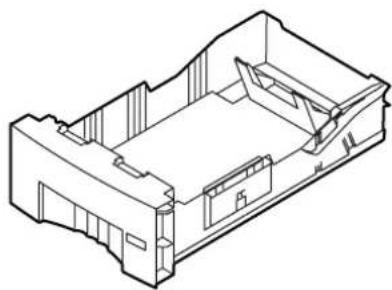
High-Capacity Paper Tray
Tray sizes:
A/Letter A4
natural_image
Isometric line drawing of a mechanical housing or enclosure with internal compartments and mounting points (no text or symbols)Paper only
■ 500-sheet capacity
■ Bond or equivalent, 60 - 120 g/m ^2 , 16 - 32 lb.

You can use up to two High-Capacity Paper Tray Assemblies with your printer.
Manual Feed Slot
Paper
A/Letter A4
■ Bond or equivalent,
60 - 120 g/m², 16 - 32 lb.
■ Cover stock up to 216 g/m ^2 , 80 lb. Do not use for automatic duplex printing
■ Card stock/Index up to 216 g/m ^2 , 110 lb. Do not use for automatic duplex printing
Transparencies
A/Letter A4
■ Use only Phaser 840 printer transparencies
Labels
A/Letter A4
■ Recommended Avery ™ White Laser Labels, for example: U.S. 5160, 5960 Metric L7162
■ Recommended Avery ™ White Laser Labels, for example: U.S. 5160, 5960 Metric L7162
natural_image
Illustration of a printer being inserted into a slot, with a red arrow indicating the insertion direction (no text or symbols present)Envelopes
■ #10 (U.S.)
■ #6 34 (U.S.)
C5
DL
Choukei 3 Gou
Choukei 4 Gou
Supported page sizes and print area
In a supported driver, select Print. Select Page Size. Choose one of the following media sizes.
Margins
Media Page size Print area Top/Bottom Sides
1 Letter 8.5 x 11 in. 8.112 x 10.612 in. .2 in. .2 in.
2 A4 210 x 297 mm 200 x 283 mm 5 mm 5 mm
3 Envelopes
| #10 (U.S.) | 4.13 x 9.5 in. | 3.2 x 9.24 in. | .2 in. | .8 in. |
| #6 ^3/_4 (U.S.) | 3.65 x 6.5 in. | 3.2 x 6.2 in. | .2 in. | .28 in. |
| C5 | 162 x 229 mm | 80 x 219 mm | 5 mm | 77 mm |
| DL | 110 x 220 mm | 80 x 210 mm | 5 mm | 25 mm |
| Choukei 3 Gou | 120 x 235 mm | 80 x 225 mm | 5 mm | 35 mm |
| Choukei 4 Gou | 90 x 205 mm | 80 x 195 mm | 5 mm | 5 mm |

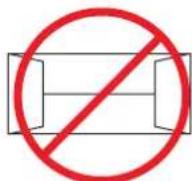
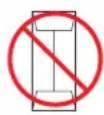
Never use envelopes with an end flap, or with windows or metal clasps; they will damage the printer. Only use the recommended envelope sizes. Envelopes must always be placed with the flap face-up.
1
natural_image
Plain light blue square with a thin gray border (no text or symbols)2

natural_image
Blank light blue rectangle with a thin gray border (no text or symbols)3

9102-04
Using the Manual Feed Slot for Single-Sided Printing
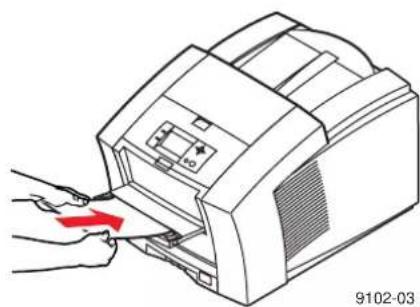
1 In a supported printer driver, select Manual Feed Paper or Manual Feed Transparency.

Make sure that duplex printing is disabled in the printer driver.
2 To send the job to the printer, click Print.
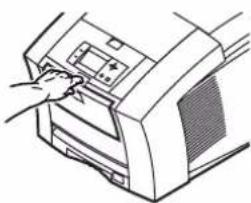
3 Open the manual feed slot.
4 Adjust the guides for your media size (Letter or A4).
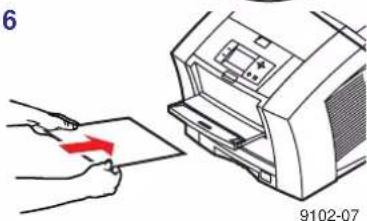
5 When the front panel reads Waiting for Manual Feed, insert one sheet of media until it stops:
■ Top of the page enters first.
■ Side to be printed is face-down.
6 Wait for the front panel's prompt before inserting additional sheets.
3
natural_image
Line drawing of a printer with a hand operating the paper (no text or symbols present)4

text_image
4 LETTER A4
natural_image
Illustration of hands operating a printer with a red arrow indicating the press or download (no text or symbols present)6
text_image
6 9102-07
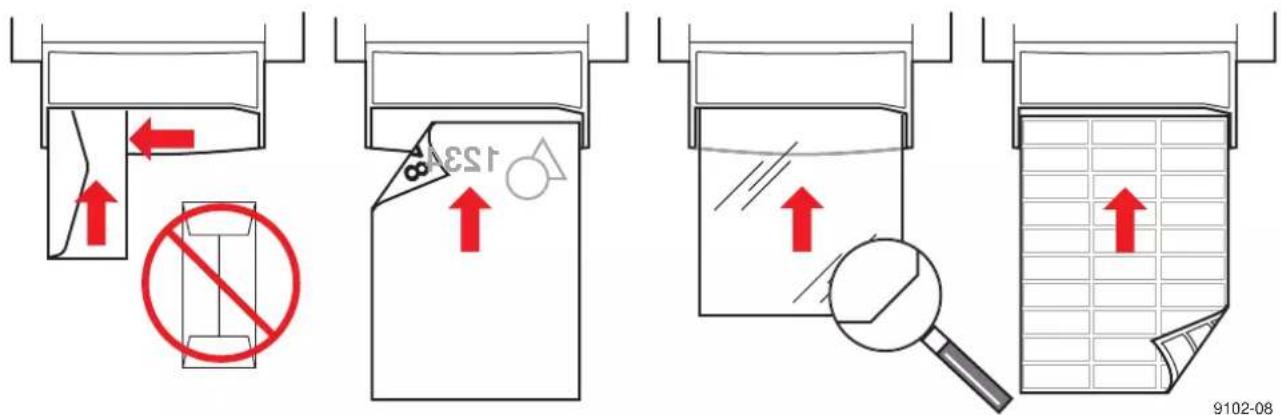
Refer to page 15 for instructions on loading letterhead for duplex printing.
Envelopes Letterhead Tektronix Transparencies Labels
text_image
Diagram illustrating four stages of a textile or fabric processing process with red arrows indicating movement and no text labels.
Never use envelopes with an end flap, or with windows or metal clasps; they will damage the printer. Only use the recommended envelope sizes. Envelopes must always be placed with the flap face-up.

Heavy media is not recommended for duplex printing. Make sure that the duplex printing option is turned off before printing on heavy media.
Printing on Envelopes

This printer should be used for occasional envelope printing only. Do not print envelopes in high volumes.
1 In your application, create a document matching the measurements of the envelope (see page 7 for dimensions).
2 From your application, make these selections and send the job to the printer:
■ Set the orientation to Landscape.
■ Select your envelope size.
■ Select Manual Feed Paper as the Paper Source.
■ If your application has a tool for creating envelopes, select the feed method that matches the illustration in Step 3.
3 Insert one envelope into the manual feed slot:
■ Short end enters first
■ Side with the flap is face-up.
■ Flap end is on the left.

Guidelines for envelope printing
■ Use the recommended envelope sizes (see page 7)
■ No end flaps
■ No windows or metal clasps
■ No exposed gummed surfaces
■ Single-sided printing only
- Keep unused envelopes in their original packaging to avoid dust

Many applications include a tool for creating an envelope. Refer to your application's documentation.
For Macintosh users: If the envelope address prints upside-down, to correct select Page Setup; select Landscape and Envelope size. In PostScript Options select Flip Horizontal and Flip Vertical.
In Microsoft WORD, from the Tools menu, select Envelope and Label. After clicking the Feed button, select Face Down, Clockwise Rotation, Left Flap, and Use Envelope Feeder. In the Envelope Page Setup dialog, select Landscape, Flip Horizontal and Flip Vertical.
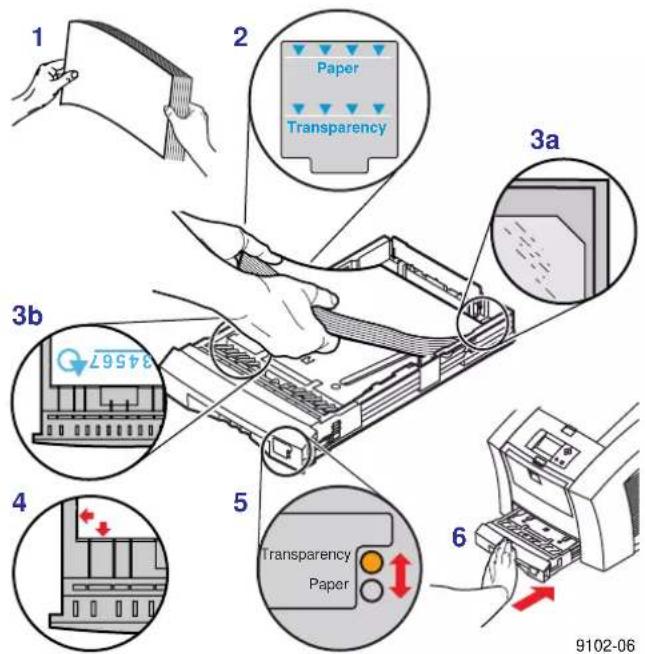
Loading Media Trays
1 Fan the media to help separate the sheets.
2 Use the tray's maximum-capacity label to determine how much media to load.
3 Load media with the side to be printed face-up.
a Load transparencies with the notch at the back of the tray.
b For single-sided printing, load letterhead paper with the top of the page at the front of the tray.
For double-sided printing on letterhead, refer to page 15.
4 Place the media snugly against the inside front wall of the tray.
5 Set the media switch on the side of the printer for the appropriate media.

If you are loading labels in the Paper/Transparency tray, set the media switch to Paper.
6 Insert the tray into the printer.
text_image
1 2 Paper Transparency 3a 3b 4 5 Transparency Paper 6 9102-06Printing on Labels
1 Insert the label sheets into the appropriate tray:
Tray Capacity Paper Orientation Indicator Setting
| Paper/Transparency tray 50 sheets | 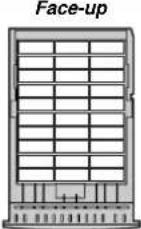 | Transparency ○ Paper ● | |
| High-Capacity Transparency/ Label tray | 100 sheets | Transparency ○ Label ● | |
| Manual Feed slot 1 sheet | Face-down | — | |
 | |||
Recommended Avery™ White Laser Labels, for example:
A/Letter: 5160 5960
A4: L7162

Make sure that duplex printing is disabled in the printer driver.

Keep labels in a cool, dry place. Never store labels in a high-humidity environment. Labels stored under such conditions will jam in the printer.
Store unused labels flat in their containers.
Rotate stock frequently. Long periods of storage can cause the labels to curl and will jam the printer.
2 If your application has a setting for Avery labels, use it as a template.
Otherwise, refer to the instructions included with the labels for margin settings.
3 In the Print dialog box, make these selections:
■ Select the appropriate tray.
■ Disable the duplex printing option.
4 Send the job to the printer.
Guidelines for printing on labels
■ Use recommended labels.
■ Each label is at least 25.4 x 66.7 mm (1 x 2.625 in.) in size. Smaller labels may peel off and damage printer components.
■ If any of the labels on a sheet are missing, do not use that sheet; it may damage printer components.
Automatic Duplex Printing
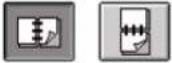
Automatically make double-sided prints using the media trays or the manual feed slot. In the Print dialog box, select the Duplex option and a binding preference (how the page turns):
| Macintosh Drivers | |
| LaserWriter 8.5.1 | ■ From the pull-down menu, choose Layout.■ Select Print on Both Sides.■ Select a binding preference. |
 | |
| LaserWriter 8.3.4 | ■ Click the Options button.■ Select 2-Sided Printing.■ Select Short-Edge Binding or Long-Edge Binding. |
| PC Drivers | |
| Windows 95 / Windows 98 | ■ Click the Properties button.■ Click the Paper tab.■ Click More Options button and select your binding preference. |
| Windows NT4 | ■ Click the Properties button.■ Click the Advanced tab.■ Under Paper/Output, select your option for Print on Both Sides. |
| Landscape Portrait | ||
| Long edge |  | 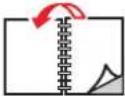 |
| Short edge |  |  |
Loading pre-printed paper for double-sided printing
To load pre-printed paper such as letterhead, follow these additional steps.
1 Load the paper in the media tray or the manual feed slot:
Paper tray Manual feed slot
■ Letterhead side is face-down.
■ Letterhead side is face-up.
■ Place the top of the page at the back of the tray.
■ Top of the page enters the printer last.
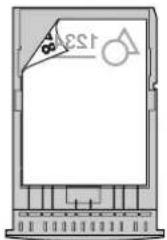
text_image
EST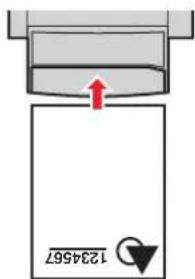
text_image
1234567
When the printer operates in automatic duplex mode, the paper partially exits before printing the second side. To avoid paper jams, do not touch the paper before it completely exits the printer.
2 In the Print dialog box, select the tray by location:
■ Upper
Middle
■ Lower
■ Manual Feed Paper
Automatic Duplex Printing
Consumables
Adding Ink

Use only Phaser 840 printer ColorStix® ink; other Phaser ColorStix ink will not fit this printer and will damage it if used. Keep ink in its packaging until you are ready to use it.
1 Open the top cover. A color-coded label inside the top cover corresponds to the color of each ink-loading bin.
2 Remove the ink stick from its packaging.
3 Place the appropriate color ink stick into the ink-loading bin that appears low. Do not force the ink sticks into the ink-loading bins.

Each ink stick is uniquely shaped to fit into the correct ink-loading bin. Insert the ink stick's narrow end first.
4 Close the top cover.
The front panel may read Melting Ink until the printer is ready for printing.

text_image
9102-53
To avoid ink jams, never insert broken ink sticks into the ink-loading bins.
Emptying the Waste Tray
1 Open the front cover.
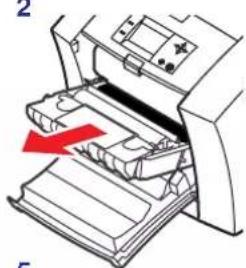
2 Grasp the maintenance drawer, labeled as A, and pull it out of the printer.

The maintenance drawer may be locked while the ink cools after the front panel troubleshooting routine, Eliminate Light Stripes.
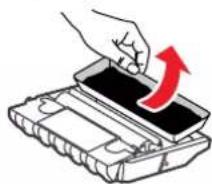
3 Lift the waste tray, labeled as B, from the maintenance drawer.

The waste tray may be hot; handle it carefully.
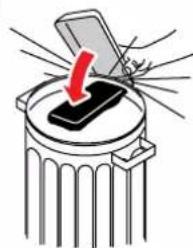
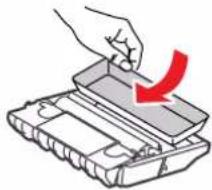
4 Empty the waste tray. Ink is non-toxic and can be discarded as normal office waste.
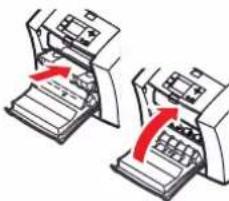
5 Replace the waste tray in the maintenance drawer.
6 Reinsert the maintenance drawer into the printer and close the front cover.

The printer may be hot. Do not reach into the printer while the maintenance drawer is removed.
1

natural_image
Diagram of a printer's internal structure with a red arrow indicating compression or disassembly (no text or symbols present)2
natural_image
Diagram of a printer with a red arrow indicating compression or disassembly process (no text or symbols present)3
4
natural_image
Illustration of a trash bin with a red arrow pointing to a black object, no text or symbols present5
natural_image
Illustration of a hand using a tool to press down a tray (no text or symbols visible)6
natural_image
Two identical 3D printing machines with red arrows indicating motion, no text or symbols present9102-28
Replacing the Maintenance Kit
The maintenance kit is a consumable that consists of the maintenance roller and counter. The kit is located in the maintenance drawer, labeled as A, behind the printer's front cover.
The front panel displays these messages:
Front panel message Action
Maintenance Kit is low Order a replacement maintenance kit; replace the maintenance kit soon.
Replace Maintenance Kit Replace the maintenance kit to continue printing.

The maintenance kit that ships with a new printer has a life of 10,000 prints. Replacement maintenance kits have a life of 30,000 prints.
Detailed, illustrated instructions are included with each new maintenance kit.
Order number 016-1727-00

natural_image
Illustration of a printer's internal structure with a red arrow indicating the process (no text or symbols present)
The printer may be hot. Do not reach into the printer while the maintenance drawer is removed.
Removing and Preventing Media Jams
The front panel message indicates the jam location and information on how to clear the jam. To prevent jams, use the recommended media (see page 5) and occasionally clean the printer's rollers.
Media Jam - Open exit cover to clear

natural_image
Illustration of two hands holding a rectangular object with a red upward arrow, no text or symbols presentSolution
If the media has partially exited the printer at the exit slot, follow these steps. Otherwise, refer to the solution on page 20.
1 Using both hands, remove the jammed media.
2 Remove the entire sheet of paper; any pieces of paper left in the printer may cause more jams.
Prevention: Clean the exit rollers
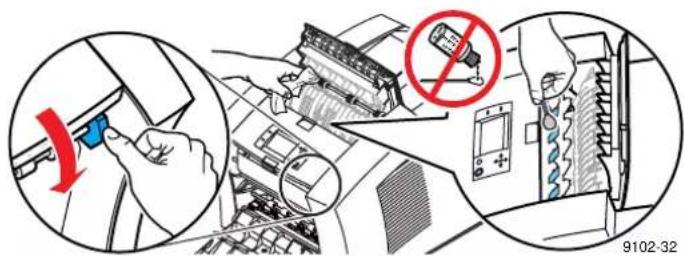
■ Use a pre-soaked alcohol cloth to clean the exit rollers. Use the blue thumbwheel to turn the rollers.
■ Use a dry swab to wipe oil and ink from the blue exit fingers.
text_image
Diagram illustrating a mechanical or electrical switch mechanism with labeled components and a prohibition symbol
Use isopropyl alcohol that is at least 90% pure; alcohol that has additives can damage the printer.

For complete cleaning instructions, refer to the online topic "Cleaning the printer" on the printer's CD-ROM or web site.
Media Jams
Media Jam - Open exit cover to clear
natural_image
Illustration of hands holding a drawer with a control panel (no text or symbols visible)Solution
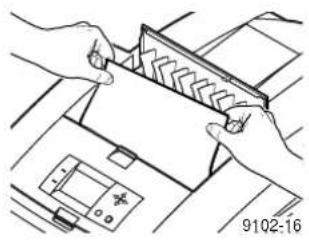
1 Open the exit cover.
2 Using both hands, remove the jammed media.
3 Remove the entire sheet of paper; any pieces of paper left in the printer may cause more jams.
Media Jam - Open front cover to clear

text_image
Diagram showing hands operating a printer with red arrows indicating process, and a magnified inset highlighting the device's internal structure.Solution
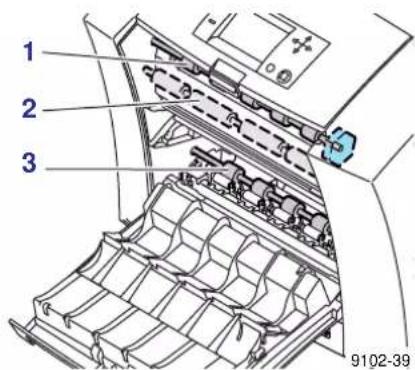
1 Open the front cover.
2 Using both hands, remove the jammed media.
3 If there is any resistance to removing the jammed media, turn the blue thumbwheel to help feed the paper.
4 Remove the entire sheet of paper; any pieces of paper left in the printer may cause more jams.
Prevention: Clean the feed rollers
■ Use a pre-soaked alcohol cloth to clean rollers in rows 1, 2, and 3.
■ Use the blue thumbwheel to turn the rollers in rows 1 and 3.
text_image
1 2 3 9102-39
Use isopropyl alcohol that is at least 90% pure; alcohol that has additives can damage the printer.

For complete cleaning instructions, refer to the online topic "Cleaning the printer" on the printer's CD-ROM or web site.
Media Jam - Retry manual feed

natural_image
Illustration of hands using a printer to press or export a document (no text or symbols visible)Solution
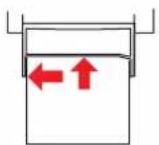
1 Using both hands, remove the jammed media.
2 When prompted by the display message, reinsert the sheet of paper using both hands.

Make sure that you insert the media properly, so that it enters the printer straight and evenly.
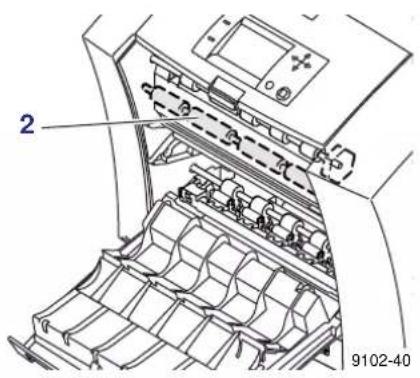
Prevention: Clean the feed rollers
■ Use a pre-soaked alcohol cloth to clean the rollers in row 2.
text_image
2 9102-40
Use isopropyl alcohol that is at least 90% pure; alcohol that has additives can damage the printer.

For complete cleaning instructions, refer to the online topic "Cleaning the printer" on the printer's CD-ROM or web site.
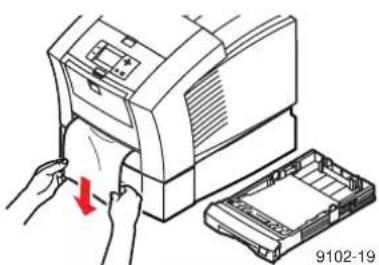
Media Jam - Remove media (or upper) tray to clear
natural_image
Illustration of hands inserting a printer into a plastic case (no text or symbols)Solution
1 Remove the media tray (if your printer has more than one tray, pull out the upper tray).
2 Using both hands, remove the jammed media.
Prevention: Clean the upper pick roller
1 Remove the media tray for easy access to the roller.
2 Open the front cover and remove the maintenance drawer (A).
3 Use a pre-soaked alcohol cloth to clean the pick roller.

text_image
Diagram showing hand inserting a device into an air conditioner unit, with magnified insets highlighting the component.
Use isopropyl alcohol that is at least 90% pure; alcohol that has additives can damage the printer.

For complete cleaning instructions, refer to the online topic "Cleaning the printer" on the printer's CD-ROM or web site.
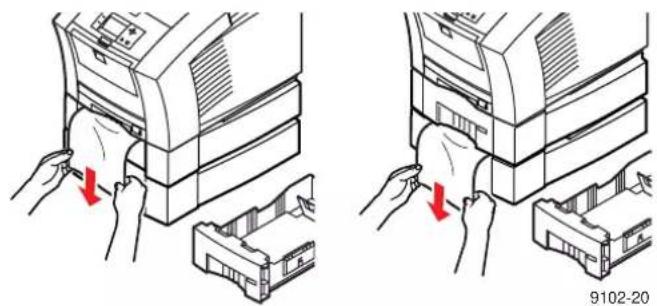
Media Jam - Remove middle tray to clear Media Jam - Remove lower tray to clear
natural_image
Illustration of two hands inserting a device into a storage unit, showing internal components and red arrows indicating movement (no text or symbols)Solution
1 Remove the media tray named in the front panel display.
2 Using both hands, carefully remove the jammed media.
Prevention: Clean the feed rollers
■ Remove all media trays for easy access to the feed rollers.
■ Use a pre-soaked alcohol cloth to clean the lower trays' feed rollers.

natural_image
Illustration of hands operating a computer with two red arrows indicating action buttons (no text or symbols present)
Use isopropyl alcohol that is at least 90% pure; alcohol that has additives can damage the printer.

For complete cleaning instructions, refer to the online topic "Cleaning the printer" on the printer's CD-ROM or web site.
Troubleshooting Print Quality
Print Quality Problems Solution Instructions
Light stripes or missing colors. Clean the printhead with
the printer's front panel troubleshooting routine.

text_image
Diagram showing a document with a red arrow pointing to a large letter 'A', likely indicating a transformation or annotation.1 On the front panel, scroll to Menu. Press Select.
2 Scroll to Troubleshooting; press Select.
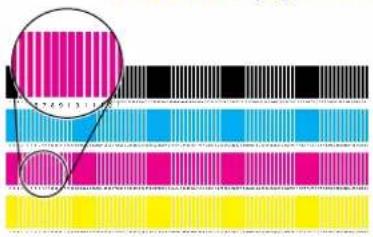
3 Scroll to Print Test Page; press Select. If print looks like example B in the illustration, go on to Step 4.
4 Scroll to Eliminate Light Stripes; press Select.
5 Confirm that the problem is corrected: from the Troubleshooting menu, select Print Test Page.
6 Repeat Step 4 as necessary. If light stripes persist after three consecutive clean cycles, turn off the printer for four hours to allow the ink to cool and solidify. Then turn on the printer and repeat the clean cycles, if necessary. For more details, refer to the online topic, "Light Stripes on Prints," on the printer's CD-ROM or web site.
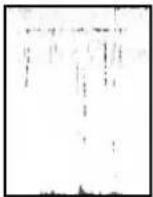
These illustrations show a correct Test Page and an example of a Test Page with a missing color bar.
A. Correct test page B. Missing color bar
natural_image
Color swatch pattern with alternating black, cyan, magenta, and yellow squares (no text or symbols)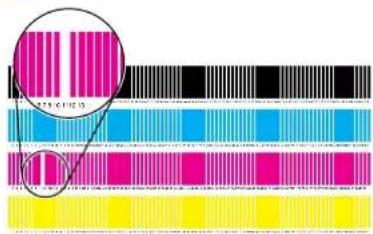
text_image
SPECIFIED9102-51
Print Quality Problems Solution Instructions
 | Oil (drum fluid)on a print.orInk smears onthe front, back oredges of a page. | Clean the printer's internalpaper path; see the frontpanel troubleshootingroutine. | 1 Load the upper tray with sheets of clean, high-grade paper, preferably heavypaper ( 120 g/m^2 , 32 lb.). This cleaning routine uses several sheets of paper.2 On the front panel, scroll toMenu. Press Select.3 Scroll toTroubleshooting; press Select.4 Scroll toRemove Ink Smears; press Select.5 If the problem persists, additional cleaning may be necessary. Referto the topics on the printer's CD-ROM or visit the Tektronix web siteatwww.tektronix.com. |

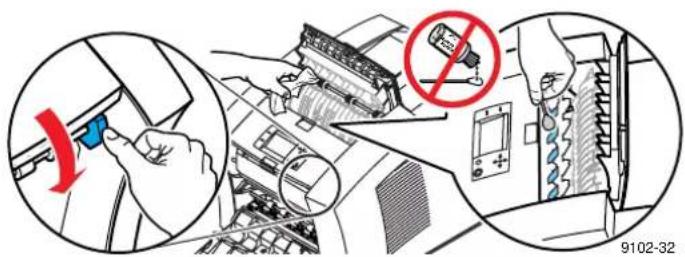
Ink streaks or marks on the top edge, front or back of a page.
Clean the printer's paper- exit path.
■ Use a pre-soaked alcohol cloth to clean the exit rollers. Use the blue thumbwheel to turn the rollers.
■ Use a dry swab to wipe oil and ink from the blue exit fingers.
text_image
Diagram illustrating a diagnostic or safety operation with labeled components and a red prohibition symbolTroubleshooting
Troubleshooting
Print Quality Problems Solution Instructions

Ink smears on the bottom edge of a page.
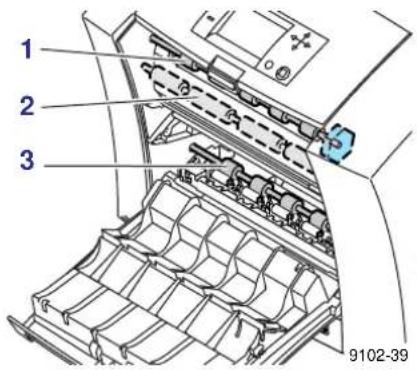
Clean the paper-feed rollers.
1 Open the front cover and remove the maintenance drawer.
2 Use a pre-soaked alcohol cloth to clean rollers in rows 1, 2, and 3. Use the blue thumbwheel to turn the rollers in rows 1 and 3.
text_image
1 2 3 9102-39Hints for Moving the Printer
All moves
Follow these guidelines when moving the printer within the office and preparing it for shipment:
1 The printer must be cool before moving it; otherwise, ink spills may damage the printer. Use this method:
■ Turn off the printer. Before the front panel goes blank (you have only 4 seconds), select Shut Down For Moving Printer.
The printer takes about 15 minutes to cool; during that time, the front panel reports its progress. When the cool-down is complete, the front panel goes blank. It is now safe to move the printer.
2 Removing the upper media tray provides a place for your hands when lifting the printer.
3 Always move the printer separately from its High-Capacity Paper Tray Assembly.

text_image
36 kg 79 lb. 9102-46Preparing the printer for shipment
■ Always repack the printer properly to ensure its safe shipment; refer to the online instructions, "Repacking the Printer," on the printer's CD-ROM or web site.
■ Always remove the maintenance drawer (A) before shipment to avoid damage to the printer. Place the drawer in a plastic bag for storage.

natural_image
Close-up of a printer's internal structure with a red arrow indicating a component, no visible text or symbols
Parts of the printer may be hot; to avoid personal injury, allow the printer to cool and use caution when handling it.
Getting More Information
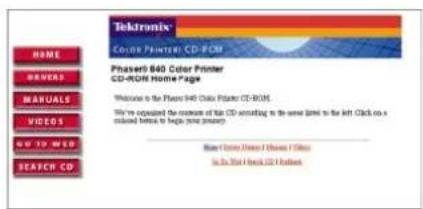
Your printer CD-ROM contains an entire web site that you can easily view and search with a standard web browser — even if you don't have Internet access. If you do have access to the World Wide Web, the CD-ROM home page also provides direct links to the other web-based resources listed here.
Printer CD-ROM
■ Advanced Features and Troubleshooting
■ Consumables instructions
■ Setup Guide
■ Video help
■ Networking manuals
■ Cleaning instructions
■ Repacking instructions
■ Printer drivers
■ Material Safety Data Sheets (MSDS)
text_image
Tektronix Color Printer CD-ROM Phases® 840 Color Printer CD-ROM Home Page Welcome to the Phases® 840 Color Printer CD-ROM. We're upgraded the maximum of that CD according to the same title to the left. Click on a address below to help you choose! Make a new, double, or triple button. In Do You Build Our Web HelpTektronix Web Site
■ Product and supplies information
■ Downloading printer drivers
■ Finding your local dealer
■ Online documentation
www.tektronix.com/Color_Printers/

TekSMART™ Knowledge Base
■ Application issues
■ Networking issues
■ Printer errors
■ Print quality issues
- Troubleshooting
■ Latest tips from technical support
www2.tek.com/merlin/tko
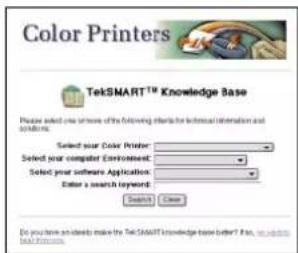
text_image
Color Printers TekSMART® Knowledge Base Please select one server of the following details for technical information and 解决方案: Selected your Color Printer Selected your computer Environment Selected your software Application Enter a search keyword Do you have already make the TekSMART knowledge base better? But, we will change it.Online Color Resources
■ Step-by-step lessons
■ Using clip art
■ Articles and product reviews
■ Tips and techniques
■ Templates and tools
■ Questions and answers
www.colorize.com

text_image
learn see do. ask download link colorize.com Indonesia contact us A.T.see learn's page 03 welcome! what's topic?Getting Help
Online Services
World Wide Web: www.tektronix.com/Color_Printers/
TekSMART™
Knowledge Base: www2.tek.com/merlin/tko
Technical support: www.tektronix.com/Color_Printers/support/colcare.html
Current software.
Anonymous ftp server: www.ektramix.com/Color_Filters/support/software.html
Subscribe to email update notices: ftp.tek.com/Color_Printers
www.tektronix.com/Color_Printers/support/subscribe.html
Supplies
Information on local Tektronix dealers:
www.tektronix.com/Color_Printers/contacts
U. S.
1-800-835-6100
Canada
1-800-661-5625
Outside U.S. and
Canada
Contact your local Tektronix office for a list of local resellers
Customer Support Centers
Australia
1-800-811-177
France
01 69 86 8137
New Zealand
+61 2 9888 0100
Austria
0660 5804
Germany
0180 525 3535
Norway
(22) 723 801
Belgium
02 720 9602
Hong Kong
2585-6655
Singapore (ASEAN)
1-800-356-5565
Brazil
0800 16 0220
India (South Asia)
(91) 80-227-5577
Spain
902 239 272
Canada
1-800-835-6100
Italy
02 45 287 000
Sweden
(08) 299 071
China
10-6235-1230
Japan
81 3 3448 4872
Switzerland
155 9493
Denmark
(44) 533 444
Korea
2-528-5299
Taiwan
(02) 2757-1571
Eastern Europe and
the Middle East
Luxembourg
400 847
Thailand
2-645-4407
+44 190
Finland
Netherlands
(040) 267 0440
U.K.
(01) 908 681 707
U.S.
1-800-835-6100
070-9102-00
ΣΛ
