Document Centre 470 ST - Printer XEROX - Free user manual and instructions
Find the device manual for free Document Centre 470 ST XEROX in PDF.


User questions about Document Centre 470 ST XEROX
0 question about this device. Answer the ones you know or ask your own.
Ask a new question about this device
Download the instructions for your Printer in PDF format for free! Find your manual Document Centre 470 ST - XEROX and take your electronic device back in hand. On this page are published all the documents necessary for the use of your device. Document Centre 470 ST by XEROX.
USER MANUAL Document Centre 470 ST XEROX
August 2001 701P36442
Xerox Document Centre Model ____
Serial Number ____
If you have a problem or need supplies:
In the USA
Calling for Service and ordering Replaceable Units 1-800-821-2797 (USA)
Ordering Supplies 1-800 822-2200 (USA)
In Canada
Calling for Service 1-800-939-3769 (Canada)
Ordering Supplies and Replaceable Units 1-800-668-0199 (Canada)
Xerox Corporation
Global Knowledge & Language Services
800 Phillips Road - Bldg 845-17S
Webster, New York 14580
USA
©2001 by Xerox Corporation. All rights reserved.
Printed in the United States of America
Copyright protection claimed includes all forms and matters of copyrighted material and information now allowed by statutory or judicial law or hereinafter granted, including without limitation material generated from the software programs that are displayed on the screen such as icons, screen display looks, etc.
XEROX®, The Document Company® and the stylized X and identifying product names and numbers are registered trademarks of XEROX CORPORATION and Xerox Canada Ltd. is a licensee of all the trademarks.
The Document Centre ST model includes an implementation of LZW licensed under U.S. Patent 4,558,302.
Product names used in this guide may be trademarks or registered trademarks of their respective companies and are hereby acknowledged.
This document contains images of screens that were created using Zinc Application Framework software version 3.5 © January 1997 Zinc Software Inc.
As an ENERGY STAR® partner, Xerox Corporation has determined that this product meets the ENERGY STAR® guidelines for energy efficiency.
Terra Choice Environmental Services Inc. of Canada has verified that this Xerox product conforms to all applicable Environmental Choice EcoLogo requirements for minimized impact to the environment.
While the information in this Guide is correct at the time of first publication, Xerox reserves the right at any time to change the information without notice. Changes are made periodically to this document. Changes and technical updates will be added in subsequent editions.


The Document Centre ST model includes software provided by the Internet Software Consortium.
Copyright (c) 1995, 1996, 1997, 1998, 1999, 2000, 2001
The Internet Software Consortium - DHCP. All rights reserved.
Redistribution and use in source and binary forms, with or without modification, are permitted provided that the following conditions are met:
Redistributions of source code must retain the above copyright notice, this list of conditions and the following disclaimer.
Redistributions in binary form must reproduce the above copyright notice, this list of conditions and the following disclaimer in the documentation and/or other materials provided with the distribution.
Neither the name of The Internet Software Consortium - DHCP nor the names of its contributors may be used to endorse or promote products derived from this software without specific prior written permission.
This Software Is Provided By The Internet Software Consortium And Contributors "As Is" And Any Express Or Implied Warranties, Including, But Not Limited To, The Implied Warranties Of Merchantability And Fitness For A Particular Purpose Are Disclaimed. In No Event Shall The Internet Software Consortium Or Contributors Be Liable For Any Direct, Indirect, Incidental, Special, Exemplary, Or Consequential Damages (Including, But Not Limited To, Procurement Of Substitute Goods Or Services; Loss Of Use, Data, Or Profits; Or Business Interruption) However Caused And On Any Theory Of Liability, Whether In Contract, Strict Liability, Or Tort (Including Negligence Or Otherwise) Arising In Any Way Out Of The Use Of This Software, Even If Advised Of The Possibility Of Such Damage.
US Federal Communications Commission
Note: This equipment has been tested and found to comply with the limits for a Class B digital device, pursuant to Part 15 of the FCC Rules. These limits are designed to provide reasonable protection against harmful interference in a residential installation. This equipment generates, uses and can radiate radio frequency energy and, if not installed and used in accordance with the instructions, may cause harmful interference to radio communications. However, there is no guarantee that interference will not occur in a particular installation. If this equipment does cause harmful interference to radio or television reception, which can be determined by turning the equipment off and on, the user is encouraged to try to correct the interference by one or more of the following measures:
- Reorient or relocate the receiving antenna.
- Increase the separation between the equipment and receiver.
- Connect the equipment into an outlet on a circuit different from that to which the receiver is connected.
- Consult the dealer or an experienced radio/TV technician for help.
Changes or modifications to this equipment not specifically approved by the Xerox Corporation may void the user's authority to operate this equipment.
Shielded cables must be used with this equipment to maintain compliance with FCC regulations.
This device complies with Part 15 of the FCC Rules. Operation is subject to the following two conditions: (1) This device may not cause harmful interference, and (2) this device must accept any interference received, including interference that may cause undesired operation.
Contact: Xerox Corporation Phone: 1-800-828-6571 Address: 800 Phillips Road Webster, New York 14580 USA
Canadian EME
This Class B digital apparatus complies with Canadian ICES-003.
US Federal Communications Commission
- The FCC has established rules that permit this device to be directly connected to the telephone network. Standardized jacks are used for these connections. This equipment should not be used on party lines or coin lines.
- If this device is malfunctioning, it may also be causing harm to the telephone network; this device should be disconnected until repair has been made. If this is not done, the telephone company may temporarily disconnect service.
- The telephone company may make changes in its technical operations and procedures; if such changes affect the compatibility or use of this device, the telephone company is required to give adequate notice of the changes. You will be advised of your right to file a complaint with the FCC.
- If the telephone company requests information on what equipment is connected to their lines, inform them of:
A. the telephone number this unit is connected to.
B. the ringer equivalence number.
C. the USOC jack required.
D. the FCC Registration number.
Items ‘B’ and ‘D’ are indicated on the label.
The Ringer Equivalence Number (REN) is used to determine how many devices can be connected to your telephone line. In most areas, the sum of the RENs of all devices on any one line should not exceed five (5.0). If too many devices are attached, they may not ring correctly.
Service Requirements
In the event of equipment malfunction, all repairs should be performed by Xerox or authorized agent. It is the responsibility of users requiring service to report the need for service to Xerox or to an authorized agent. Service can be obtained at:
Xerox Customer Support
1301 Ridgeview Drive, Bldg. 301
Lewisville, TX 75067
Telephone: (800) 821-2797
Canadian Industry Requirements
Notice: The Canadian Industry Canada label identifies certified equipment. This certification means that the equipment meets certain telecommunications network protective, operational and safety requirements. The Department does not guarantee the equipment will operate to the user's satisfaction.
Before installing this equipment, users should ensure that it is permissible to be connected to the facilities of the local telecommunications company. The equipment must also be installed using an acceptable method of connection. In some cases, the company's inside wiring associated with a single line individual service may be extended by means of a certified connector assembly (telephone extension cord). The customer should be aware that compliance with the above conditions may not prevent degradation of service in some situations.
Repairs to certified equipment should be made by an authorized Canadian maintenance facility designated by the supplier. Any repairs or alterations made by the user to this equipment, or equipment malfunctions, may give the telecommunications company cause to request the user to disconnect the equipment.
Users should ensure for their own protection that the electrical ground connections of the power utility, telephone lines and internal metallic water pipe system, if present, are connected together. This precaution may be particularly important in rural areas.
Caution: Users should not attempt to make such connections themselves, but should contact the electric inspection authority, or electrician, as appropriate.
The Load Number (LN) assigned to each terminal device denotes the percentage of the total load to be connected to a telephone loop that is used by the device, to prevent overloading. The termination on a loop may consist of any combination of devices subject only to the requirement that the total of the Load Numbers of all the devices does not exceed 100.
For service in Canada call (800) 939-3769
Congress, by statute, has forbidden the copying of the following items. Penalties of fine or imprisonment may be imposed on those guilty of making such copies. This list is not all-inclusive. In case of doubt, consult your attorney.
-
Copyrighted material, unless permission of the copyright owner has been obtained or the copying falls within the “fair use” or library reproduction provisions of the copyright law. Further information of these provisions may be obtained from the Copyright Office, Library of Congress, Washington, DC 20559 (circular R21).
-
United States Government obligations or securities such as:
• Certificates of Indebtedness
- Coupons from Bonds
• Gold and Silver Certificates
• Treasury Notes and United States Bonds
● Federal Reserve and Federal Reserve Bank Notes
• Certificates of Deposit
• National Bank currency
- Fractional Notes
• Paper money and Postal Money Orders
- Bonds and obligations of certain agencies of the government, such as FHA
- Bonds. (US Savings Bonds may be photographed only for publicity purposes in connection with the campaign for the sale of such bonds)
- Internal Revenue Stamps. (If it is necessary to copy a legal document on which there is a cancelled revenue stamp, this may be done provided the reproduction of the document is performed for lawful purposes)
- Postage Stamps, cancelled or uncancelled. (For philatelic purposes, postage stamps may be photographed provided the reproduction is black and white and less than 3/4 or more than 1 1/2 times the linear dimensions of the original)
- Bills, checks, or drafts for money drawn by or on authorized offices of the United States
- Stamps and other representatives of value, of whatever denomination, which may be or have been issued under any Act of Congress
-
Adjusted compensation Certificates for veterans of the World Wars.
-
Obligations or Securities of any foreign government, bank, or corporation.
-
Certificates of Citizenship or Naturalization. (Foreign naturalization certificates may be photographed).
-
Passports. (Foreign passports may be photographed).
-
Immigration papers.
-
Badges, identification cards, passes or insignias carried by military or Naval personnel, or by members of the various Federal Departments and Bureaus, such as the FBI and Treasury (unless the photograph is ordered by the head of such Department or Bureau).
-
Copying of the following is also prohibited in certain states: automobile licences, driver's licenses, and automobile Certificates of Title.
-
Draft Registration cards and Selective Service Induction papers which bear any of the following information:
-
Registrant's earnings or income
- Registrant's dependency status
- Registrant's court record
- Registrant's previous military service
- Registrant's physical or mental condition
Exception: US Army and Navy discharge certificates may be photographed.
Table Of Contents
1. Safety Notes 1-1
Symbology 1-2
Electrical Safety 1-2
Emergency Power Off 1-4
Ozone Information 1-5
Laser Safety 1-6
Operational Safety 1-7
Safety Extra Low Voltage Approval 1-9
2. Start Here 2-1
Terms and Typeface 2-2
Default 2-2
Image Orientation 2-2
Paper Orientation 2-2
Interchangeable Terms 2-2
Typefaces 2-3
Information Sources 2-4
At the Machine 2-4
At the Workstation (for ST Models) 2-4
Used by the Machine Administrator 2-4
Frequently Asked Questions 2-5
My Document Centre looks different-Why? 2-5
Are there other options available? 2-5
What is the difference between DC and ST? 2-6
Where is Information about Copying? 2-6
What are System Management Tools? 2-6
Where is network connectivity information? 2-6
3. Product Overview ....3-1
Hardware Component Diagram 3-2
Document Feeder and Scanner 3-3
Document Glass 3-4
Paper Trays (Trays 1 - 4) ....3-5
Setting Up Paper Trays 3-5
Auto Tray Switching 3-6
Bypass Tray (Tray 5) 3-7
High Capacity Feeder (Tray 6) 3-8
User Interface 3-9
Touch Screen 3-11
Finisher 3-12
Offsetting Catch Tray 3-13
Convenience Stapler 3-14
4. Making Copies 4-1
Basic Copying Tab 4-2
Output 4-3
Sorting options 4-3
Stapling options 4-3
More... 4-4
More Output Options 4-4
More Stapling Options 4-5
2 Sided Copy 4-6
More... 4-7
Side 2 Rotation 4-7
Reduce / Enlarge 4-8
Normal Setting 4-9
Entering numbers from the keypad 4-9
Custom Setting 4-10
Paper Supply 4-11
More.... 4-11
Image Adjustment Tab 4-12
Image Quality 4-13
Original Type 4-13
Lighten/Darken 4-14
Background Suppression 4-14
More Image Quality 4-15
How to use the Image Quality settings 4-16
How to use the More Image Quality settings 4-17
Bound Originals 4-18
Binding Erase 4-19
Bound Originals and 1 to 2 sided copying 4-19
Using Bound Originals with Build Job 4-20
Copying both pages to one side of a Sheet 4-20
Edge Erase 4-21
Original Input 4-22
Auto 4-22
Manual Platen Input 4-23
Mixed Size Originals 4-24
Image Shift 4-26
Output Format Tab 4-27
Transparency Dividers 4-28
Booklet Creation 4-29
Multi-Up 4-30
Covers 4-31
Notes about 2-sided covers 4-31
Invert Image 4-33
Job Assembly Tab 4-34
Build Job 4-35
Build Job Controls 4-36
Sample Set 4-37
Stored Programming 4-38
5. Fax (Optional Feature) 5-1
Setting Up a Network Fax 5-2
Fax Repository Setups ....5-3
Fax Network Service Login 5-4
Login - Authentication Access 5-5
Getting to the Fax Feature 5-7
Sending a Fax 5-8
Basic Faxing Screen 5-9
Dialing Options 5-9
Dialing Characters 5-10
Dial Pause [,] 5-10
Long Pause [l] 5-10
Group Dial [N] 5-11
Mask Data [/] 5-11
Password Check Switch [S] 5-11
Wait for network tone detection [W] 5-11
Pulse-to-Tone Switch [:] 5-12
Local ID [+] Character Check [+] 5-12
Local ID [space] Character Check [] 5-12
Begin DTMF [*] 5-12
End DTMF [#] 5-12
Phone List 5-13
Resolution 5-14
Sides Scanned 5-14
More Fax Features screen 5-15
Image Quality 5-16
Delayed Send 5-17
Original Input 5-18
Auto 5-18
Manual Platen Input 5-18
6. Network Scanning (Optional Feature) 6-1
Scanning resources 6-2
Template Overview 6-4
Scrolling through the Template Name List 6-4
Selecting the correct Distribution Template 6-5
Making Templates 6-5
Changing Preprogrammed Template Selections 6-5
How to scan a document 6-6
Network Scanning Tab 6-7
Image Adjustment tab 6-12
Output Format 6-16
Filing Setups 6-17
Internet Services (Embedded HTTP Server) 6-19
Authentication 6-21
Configuring the Authentication Server 6-22
Service Access Control 6-23
Network Authentication Access 6-24
How to enter Login Name and Password 6-24
Guest Access 6-25
How to enter Guest Access password 6-25
7. E-mail (Optional Feature) 7-1
E-mail Network Service Login 7-2
Login - Authentication Access 7-3
Adding Recipients to the Address List 7-8
How to Add Recipients 7-10
Address Book 7-11
Image Adjustment Tab 7-12
Output Format Tab 7-13
8. Job Status 8-1
Job Status 8-2
Scrolling through the Job Status List 8-2
Other Queues 8-4
Managing the Job Queue 8-5
Job Commands 8-5
Required Resources 8-6
9. Machine Status 9-1
Machine Information Tab 9-2
Machine Details 9-3
Paper Tray Status 9-4
Billing Counters 9-5
Print Reports 9-6
The Faults Tab 9-7
The Supplies Tab 9-8
- Tools 10-1
System Management Tools Overview 10-2
Tools Screen 1 - System Settings 10-3
Tools Screen 1 - Screen Defaults and Auditron Administration ...... 10-4
Tools Screen 1 - Feature Defaults and Network Connectivity ...... 10-5
Tools Screen 2 - Supplies, Configuration, Tests, Power Saver ...... 10-6
Tools Screen 3 - Setups, Software Upgrade, Service Access Control . 10-7
System Settings Screen 1 10-8
System Settings Screen 2 10-9
System Settings Screen 3 10-10
Paper Management System 10-11
Paper Attributes 10-11
Tray Settings 10-11
Tray Management 10-12
Tray Settings 10-13
Stock Settings 10-15
Default Stock 10-16
Paper Substitution 10-17
Standard Size Required 10-18
Audio Tones 10-19
Display Brightness 10-20
Time and Date 10-21
Set Date and Time 10-21
Greenwich Mean Time Offset 10-21
Timers 10-22
Configuration Report 10-23
Job Sheets 10-24
Banner Sheets 10-24
Fax Status Sheets 10-24
Error Sheets 10-24
Scan Status Sheets 10-24
Stock Choice 10-25
Reduce and Enlarge Presets 10-26
Measurements ......10-27
Document Scanner Size Sensing ....10-28
Decurler Setting 10-29
Display Options 10-30
Image Rotation 10-31
Contention Management 10-32
Single Job Mode 10-33
Output Options 10-34
Thin Stapled Sets 10-34
Out Of Staples Option 10-35
Output Location for Non-Stapled Jobs 10-35
Within Job Offsetting 10-35
Electronic Hole Removal 10-36
Feature Defaults (Copy jobs) 10-37
Screen Defaults ....10-38
Online/Offline 10-39
Connectivity and Network Setup 10-40
Supplies Management 10-41
Service Plan 10-41
Replacement Method 10-41
Feed Roll Cartridge Replacement 10-41
Xerographic Module Reorder Notification 10-42
Fuser Module Reorder Notification 10-42
Resetting the Feed Roll Cartridge Counters 10-43
Configuration and Setup 10-44
50/60 Hz 10-44
Document Scanner Cover Color 10-44
Optional Services 10-44
Xerox Customer Call Center 10-45
Disk Finisher Setup 10-45
Remote Data Transfer Setups ....10-46
Enable Incoming Calls 10-47
Entering the Outlet Telephone Number 10-48
Using a PhoneShare Device 10-49
Sixth Sense 10-50
Connecting the Telephone Line 10-51
Machine Tests 10-52
Image Quality Tests and Patterns 10-53
Xerographic System Routine 10-54
User Interface Tests 10-55
Video Path Diagnostics Test 10-57
Echo Tests 10-58
Network Connectivity Test 10-59
Remote Testing Access for Network Controller 10-60
Customer Software upgrade 10-61
Upgrading Machine Software 10-61
Power Saver Administration 10-62
Low Power Mode Indications 10-62
Power Saver Timer Values 10-63
Software Reset 10-64
- Tracking Usage ...... 11-1
Auxiliary Accounting Devices 11-2
Installing an Auxiliary Accounting Device 11-2
Auxiliary Device Notes 11-3
Auxiliary Interface Setup 11-4
Job Timer 11-4
Large Image Counter 11-5
Print Job Control 11-5
Internal Auditorn 11-6
Internal Auditron Overview 11-7
Planning an Auditor System 11-8
Planning User Accounts 11-8
Planning General Accounts 11-9
User and General Account Combinations 11-10
Managing Data and other considerations 11-11
Auditron Report Software 11-11
Assign a Backup Auditron Administrator 11-11
Prevent unauthorized use of the Copier 11-11
Setting up your Internal Auditron System 11-12
Initializing the Auditor System 11-12
Changing the Tools password ....11-14
Auditron Initialization 11-15
User Accounts and Access Rights 11-16
Access 11-17
Default Account 11-17
Auditron General Accounts 11-18
Network Accounting Overview (Optional Feature) 11-19
Types of Tracked Data 11-20
Using Network Accounting 11-21
Logging In and Out of the Document Centre 11-22
Setting Up Network Accounting ....11-23
12. Reference 12-1
Copy Job Default Settings 12-2
Tools Defaults ....12-14
Relocating your Document Centre ....12-22
The ENERGY STAR® Programme 12-24
Low Power Indications ....12-25
Setting Tray 6 to hold either A4 or 8.5 x 11 inch paper .....12-27
Material Safety Data Sheets 12-28
Document Centre Document Security Note 12-31
Greenwich Mean Time Offset 12-33
Xerox on the Web 12-35
13. Paper & Stock 13-1
Paper and Stock Performance Information ....13-2
Paper Handling Guidelines 13-2
Paper Tray Media Capability 13-3
General Stapling Guidelines 13-4
Loading Types of Common Stock 13-13
Document Feeder Paper Stock information 13-15
Paper Loading, Storage and Handling 13-17
- Machine Maintenance 14-1
Power On Procedures 14-2
Power Off Procedures 14-3
Machine Faults 14-5
Replaceable Units and Supplies 14-8
Expected life of Replaceable Units 14-8
Reordering Replaceable Units and Supplies 14-9
Changing the Finisher Staple Cartridge 14-10
Cleaning the Machine 14-11
- Problem Solving 15-1
General Operating Guidelines 15-2
Calling the Welcome Center 15-3
Diagnostic Tools 15-4
Troubleshooting Tips 15-6
- Glossary 16-1
Index
1. Safety Notes
Your Xerox product and supplies have been designed and tested to meet strict safety requirements. These include safety agency examination and approval, and compliance to established environmental standards. Please read the following instructions carefully before operating the machine and refer to them as needed to ensure the continued safe operation of your machine. The safety testing and performance of this product have been verified using Xerox materials only.
Follow all warnings and instructions marked on or supplied with the product.

This symbol on the machine indicates a heated surface.
Electrical Safety
CAUTION Ensure that the power connection for your machine satisfies these requirements.

| Document Centre Model Power | Requirements |
| 490 Model DC or ST 208V Outlet | Dedicated 20A circuit |
| 480/470/460 DC or ST 115V Outlet | Dedicated 20A circuit |
-
The power receptacle for the machine must meet the requirements stated on the data plate on the rear of the machine.
-
The socket outlet shall be installed near the equipment and shall be easily accessible.
-
Use the power cable that is supplied with your Document Centre. Do not use an extension cord or remove or modify the power cord plug.
-
Plug the power cable directly into a correctly grounded electrical outlet. If you are not sure, consult an electrician.
-
Do not use an adapter to connect the Document Centre to an electrical outlet that lacks a ground connection terminal.
- The power cord is the disconnect device for this machine.
- Do not override or disable electrical or mechanical interlocks.
- Do not push objects into slots or openings on the machine. Electrical shock or fire may result.
- Do not obstruct ventilation openings. These openings prevent overheating of the Document Centre.
If any of the following conditions occur, turn off the Document Centre immediately and disconnect the power cable from the electrical outlet. Contact an authorized Xerox Service Representative to correct the problem:
- The Document Centre emits unusual odors, or makes unusual noises.
- The power cable is damaged or frayed.
- A wall panel circuit breaker, fuse, or other safety device has been tripped.
- Liquid is spilled into the Document Centre.
- The Document Centre is exposed to water.
- Any part of the Document Centre is damaged.
NOTE
The only method to remove all power from the Document Centre is to disconnect the power cable from the electrical outlet.
This product produces ozone during normal operation. The ozone produced is dependent on copy volume and is heavier than air. Install the system in a well ventilated room with the minimum cubic requirements size listed below. Providing the correct environmental parameter will ensure the concentration levels meet safe limits.
The minimum cubic requirements are listed below:
Table 1: Ozone requirements
| Document Centre Product Ozone Cubic requirement | |
| 490/480/470/460 DC or ST 1,060 ft | 3 |
To determine if the room has the required volume to meet the ozone requirement, the length of the room multiplied by its width and height should be equal to or greater than the cubic volume listed above.
If you need additional information about ozone, visit www.xerox.com. Select the link to Environment, Health and Safety then scroll down to EH&S Publications. You can also request the Xerox publication Facts about Ozone (part number 610P64653) by calling 1-800-828-6571 in the United States and Canada.
CAUTION Use of controls, adjustments or procedures other than those

specified in this guide may result in hazardous light exposure.
The Document Centre complies with international safety standards and is certified as a Class 1 Laser Product.
With specific regard to lasers, the equipment complies with laser product performance standards set by governmental, national, and international agencies as a Class 1 Laser Product. It does not emit hazardous light, as the beam is totally enclosed during all phases of customer operation and maintenance.
Xerox equipment and supplies have been designed and tested to meet strict safety requirements. These include safety agency examination, approval and compliance with established environmental standards.
To ensure the continued safe operation of your Document Centre, follow these safety guidelines at all times:
Always Do These
- Always connect equipment to a correctly grounded power outlet. If in doubt, have the outlet checked by a qualified electrician.
- Always follow all warnings and instructions that are marked on or are supplied with the equipment.
- Always exercise care when moving or relocating the equipment. Please contact your local Xerox Service Department to arrange relocation of the machine to a location outside of your building.
- Always locate the machine on a solid support surface (not on plush carpet) that has adequate strength to support the weight of the machine.
- Always locate the machine in an area that has adequate ventilation and room for servicing.
- Always use materials and supplies that are specifically designed for your Xerox equipment. Use of unsuitable materials may result in poor performance and possibly a hazardous situation.
NOTE
Your Document Centre is equipped with an energy saving device to conserve power when the machine is not in use. The machine may be left on continuously.
Never Do These
- Never use an adapter plug to connect equipment to a power source that lacks a ground connection terminal.
- Never obstruct ventilation openings. They are provided to prevent overheating.
- Never push objects of any kind into the ventilation openings.
- Never attempt any maintenance function that is not specifically described in the Document Centre documentation.
- Never remove any covers or guards that are fastened with screws. There are no operator serviceable areas within these covers.
- Never position the machine near a radiator or any other heat source.
- Never override or “cheat” any of the electrical or mechanical interlock devices.
- Never operate the equipment if you notice unusual noises or odors. Disconnect the power cord from the power outlet and call the Xerox Welcome Center.
These Xerox Digital Copiers/Printers are in compliance with various governmental agencies and national safety regulations. All system ports meet the requirements for Safety Extra Low Voltage (SELV) circuits for connection to customer-owned devices and networks. Additions of customer-owned or third-party accessories that are attached to these printers/copiers must meet or exceed the requirements previously listed. All modules that require external connection must be installed per Xerox installation procedures.
2. Start Here
This Reference Guide contains information on both the Document Centre ST copier/printer system and the Document Centre DC digital copier.

text_image
Load your originals or press the Feature button to display the screen where you can make copies, prints or scans. Press the button for the appropriate feature. Ready to scan your job. Basic Copying More Copy Features E-mail Fax Network Scanning Output 2 Sided Copy Reduce / Enlarge Paper Supply Top Tray - Collated 1 → 1 Sided 100% Auto Paper Main Tray - Collated 1 → 2 Sided Auto % 6 M 1 Staple D 2 → 2 Sided A3→A4 (71%) 1 M 1 Staple D 2 → 1 Sided A4→A3 (161%) 2 M More... More... More... Features Job Status Machine Status Power Saver Touch any key to begin Help ? Language X Access A ABC OFF Clear All 1 2 3 GHJ MO Interrupt 4 5 6 PORT TUV WX2 Stop/Pause 7 8 9 Start - 0 # Del Pause CDefault
The term default simply refers to the assigned value or setting that the machine uses in the absence of input from a user. Most default settings can be changed to accommodate specific needs.
Image Orientation
Images are oriented in one of two directions, Portrait or Landscape.


Paper Orientation
There are two paper orientations
- Long Edge Feed (LEF) The short edges of the paper are across the top and bottom, and the long edges are on each side.
- Short Edge Feed (SEF) The long edges of the paper are across the top and bottom, and the short edges are on each side.
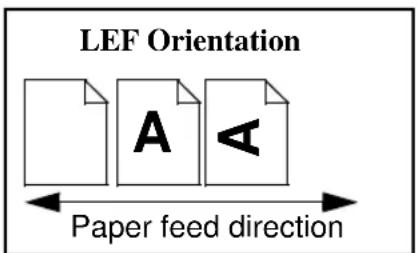
flowchart
graph LR
    A["Document A"] --> B["Letter"]
    C["Paper Feed Direction"] --> D["Arrow"]
    style A fill:#f9f,stroke:#333
    style B fill:#ccf,stroke:#333
    style C fill:#cfc,stroke:#333
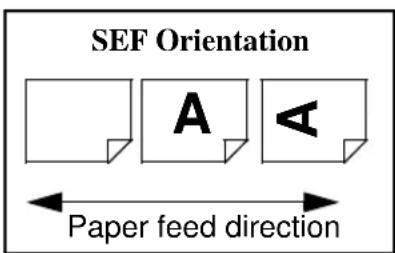
text_image
SEF Orientation A ◀ Paper feed directionNOTE
For the fastest printing or copying speed, feed the documents and load the paper Long Edge Feed (LEF).
Interchangeable Terms
The following terms are used interchangeably throughout this guide.
- Duplex is synonymous with 2-sided copy or print.
• Paper is synonymous with stock or media.
• Machine is synonymous with Document Centre.
Typefaces
Bold typeface identifies the first mention of major features or selections and their associated options.
Italic typeface is used to emphasize a word or phrase. For example: Always follow safety procedures when operating equipment. In addition, references to other chapters, publications, or features are displayed in Italic typeface.
NOTE statements provides information that may affect a task. For example:
NOTE
Changing the defaults will affect every subsequent job. If you have a series of jobs that use the same programming features, consider using the Stored Programming feature.
CAUTION statements identify mechanical damage that can result from an action or alert the user of a potentially critical procedure or practice. For example:
CAUTION

Ensure that the power connection satisfies the following requirements.
WARNING statements alert you to conditions that may affect your safety or that of other personnel. For example:
WARNING
Do not touch the rolls of the fuser when you change the Fuser Module. The rolls are hot.
Use the following information sources to answer your questions.
At the Machine
- Labels are affixed at points of need throughout the system. They depict information about loading originals or paper stock.
• Green or Gold colored areas
Gold colored areas typically indicate the handle or levers to push or pull when removing Replaceable Modules or Cartridges.
Green colored areas are where you clear jams.
- The User Interface Touch Screen displays important messages about the status of the machine.
- The User Guide provides information and instructions about using the features of the machine to perform copying tasks.
- The Help system provides you point-of-need information.
At the Workstation (for ST Models)
- The Quick Start Guide for Printing contains easy-to-use and helpful information.
- The CentreWare Help System is available by clicking on the help button on the Print Driver.
Used by the Machine Administrator
natural_image
Cartoon character with spiky hair and wide-brimmed arms, waving hand (no text or symbols)- The Reference Guide provides detailed information about all features and settings as well as maintenance.
- The Personal Learning Program is designed to help train new users by providing interactive training on copying and maintenance tasks. It also includes a computer-based simulation of copying tasks that can be practiced at a computer workstation.
My Document Centre looks different-Why?
The Document Centre is available in multiple configurations with the choice of an on-line stapler, telephone line connection, and a high capacity paper feeder. A fully configured system includes these options. The Reference Guide covers a fully configured Document Centre.
Are there other options available?
Xerox provides optional software solutions that extend the capabilities of the Document Centre family. These solutions include:
- Authentication - The ability to limit access to Document Centre services. Authentication is the verification and authorization of user identity.
- E-mail - The ability to scan an image at the Document Centre and e-mail it through a Local Area Network connection (LAN)
- Fax - The ability to scan an image at the Document Centre and Fax it through a Local Area Network connection
- Network Scanning - The ability to create an electronic image file which is then stored on a server. The file can be processed further or electronically distributed depending on the available applications
- Network Accounting - The ability to track usage of all jobs processed at the Document Centre
What is the difference between DC and ST?
The ST is a printer and copier. The optional software solutions discussed in the above paragraph can be installed on these models. The DC is a copier that can be easily upgraded to a printer as your needs dictate.
Where is Information about Copying?
This book provides detailed information on all the copying features as well as describing the System Management Tools (Tools) used by the Machine Administrator. For step-by-step instructions on making copies refer to the User Guide.
What are System Management Tools?
The Tools function is specifically intended to be used by the Machine Administrator to customize the machine to a specific work environment.
Where is network connectivity information?
Please consult the System Administration Guide for detailed information.
3. Product Overview
This chapter provides an overview of the Document Centre, which is intended to help you to understand basic machine operations and components. This chapter provides a comprehensive discussion of the following:
• Standard and optional components
• Component locations
• Component capabilities
The main components of the Document Centre are identified in the diagram below. Your configuration may differ slightly, depending on the options installed on your machine.
Scan your originals once using the Document Feeder.
or
Use the Document Glass underneath the cover to scan originals that will not feed through the Document Feeder.
Touch the Screen to make your copy selections. Use the buttons to access other features.
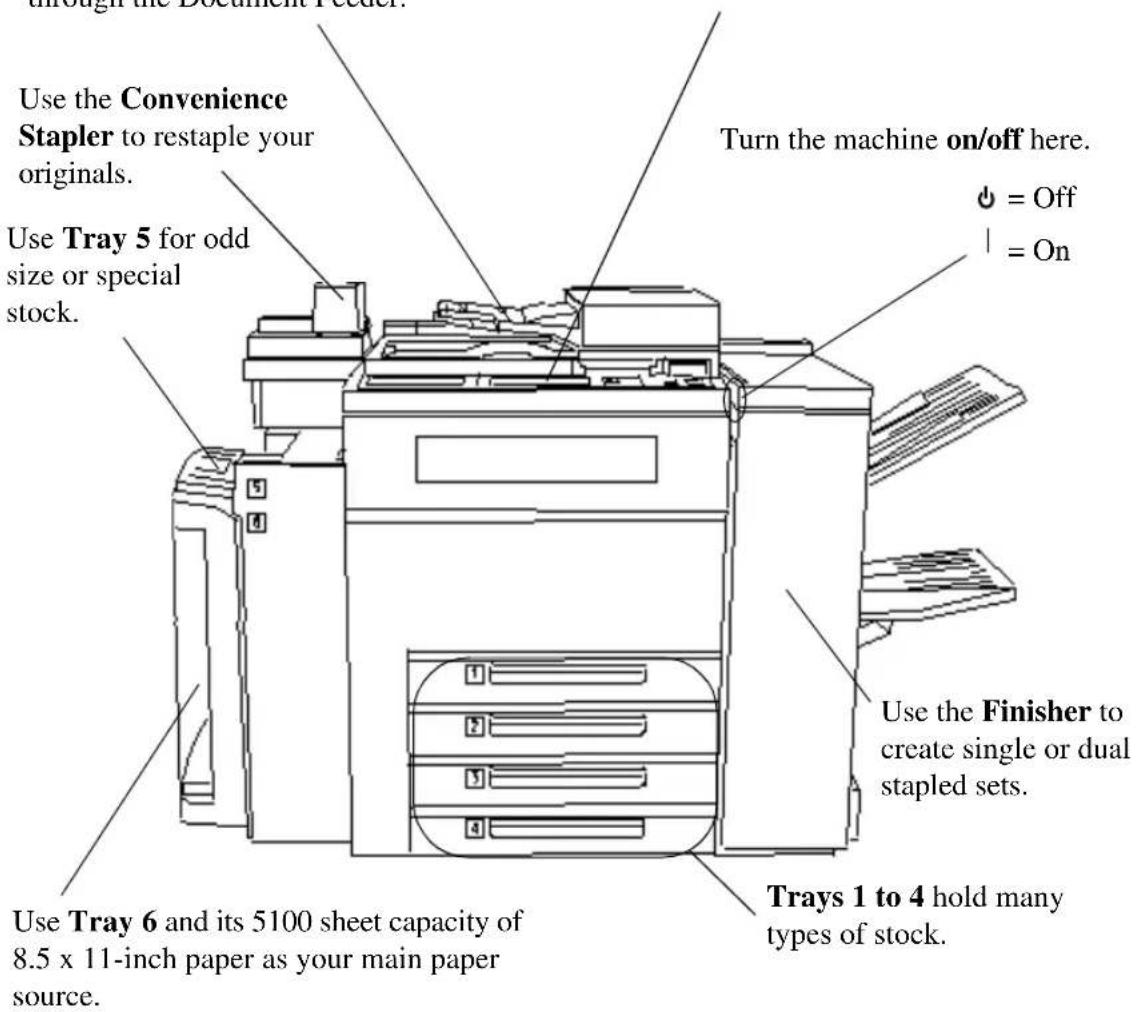
text_image
Use the Convenience Stapler to restaple your originals. Use Tray 5 for odd size or special stock. Turn the machine on/off here. = Off = On Use the Finisher to create single or dual stapled sets. Trays 1 to 4 hold many types of stock. Use Tray 6 and its 5100 sheet capacity of 8.5 x 11-inch paper as your main paper source.
text_image
Scanner (Underneath Cover and Glass) Document FeederDocument Feeder
The Document Feeder, is used to feed your single- and double-sided originals into the machine. The scanner, located under the Document Glass, captures the images of the originals.
| Document Centre Sheet Capacity | |
| 490/480 DC or ST 100 sheets of 20 pound paper, less if using heavier paper | |
| 470/460 DC or ST 75 sheets of 20 pound paper, less if using heavier paper |
Load your originals in the Document Feeder face up, with the first page on top.
NOTE
Do not feed transparencies or glossy photos through the Document Feeder. Use the Document Glass to avoid damaging these types of originals.
Scanner
The scanner creates an electronic image of the document which is stored by the system. The scanner also moves depending where the originals will be scanned from and its need for self-calibration.

text_image
Press green button to separate cover Registration Corner The Document Glass is divided into 2 areas. Main Area Document Feeder Scanning Area Bound Original Registration MarkWhen making copies from the Document Glass use the Main Area.
Place your original on the glass face down. Use the Registration Corner in the upper left corner of the glass. The largest size original that can be scanned from the glass is 11 x 17 inches.
When making copies using the Document Feeder, the scan bar underneath the Document Glass will move to align the left edge of the Document Feeder Scanning Area. As originals are fed, the scanner will capture the images.
NOTE
It is important to clean both areas of the Document Glass to prevent streaks and improve document detection. Refer to Chapter 14, Machine Maintenance for additional information.

text_image
Paper Trays 1 - 4The Paper Trays hold up to 500 sheets of 20 lb. stock each. You can adjust the trays to hold many sizes of paper, up to 11 x 17 inches. A service representative can permanently adjust a tray to handle 12 x 18 inch paper. To permanently dedicate a tray to handle this size paper, contact the Xerox Welcome Center.
Refer to Chapter 13, Paper and Stock for a listing of acceptable stock and paper sizes, orientations, and weights.
NOTE
To achieve the maximum printing speed, paper should be loaded LEF in the paper trays whenever possible.
Setting Up Paper Trays
The Document Centre uses a system of programmable settings to manage the Paper Trays and the stock. These settings are established by the Machine Administrator and determine whether a user can change the programmed stock attributes.
There are four stock attributes: size, orientation, type, and color. Correctly setting the Edge Guides in the paper trays allows the machine to sense the stock size and orientation automatically.
The Machine Administrator will set up each tray to be Fully Adjustable, Dedicated, or, on a DC model, Size Only.
If the tray is Fully Adjustable, anyone can change the stock size, type and color through a pop-up screen that appears when the paper tray is opened then closed. This screen provides the option to confirm or to change the paper settings.
When a Dedicated paper tray is opened, a pop-up screen will appear on the Touch Screen identifying the stock that should be loaded in that tray; however, it will not allow you to reprogram the settings. Only the Machine Administrator can change the stock attributes for a Dedicated paper tray.
A Size Only paper tray allows anyone to adjust the size of the paper stock that can be loaded in that tray. The system will not display the type and color of the stock and will assume it to be the standard default stock, which is typically plain white paper. This is available only on a DC model.
The ST model requires certain sheet orientation for network print jobs. A message on the screen will notify you when the orientation is not correct to support network printing.
NOTE
To avoid undesired output results, ensure that the programmed stock settings match the actual tray contents and all the stock in the tray is identical.
Auto Tray Switching
Auto Tray Switching provides the ability to draw stock from another tray when the initial tray becomes empty.
In order for this feature to work properly, the Machine Administrator must enable the Auto Selection on the trays. Refer to page 10-14 for information on enabling Auto Selection.
The Bypass Tray is an additional paper tray designed for quick and easy loading of both standard and non-standard paper. It can physically extend to accommodate different stock sizes and orientations. You can load a maximum of 50 sheets of standard weight 20 pound stock. If using a heavier stock, use fewer than 50 sheets.
The Bypass Tray can also hold non-standard size and weight paper such as transparencies, labels, covers, index, and bond paper. Refer to Chapter 13, Paper and Stock for additional information.

text_image
Bypass Tray (Tray 5)A confirmation window may appear when paper is loaded in the Bypass Tray. Use this to confirm or change the paper size, type, or color. If an incorrect size is confirmed, jams may occur or unexpected image shift on the printed output could result.
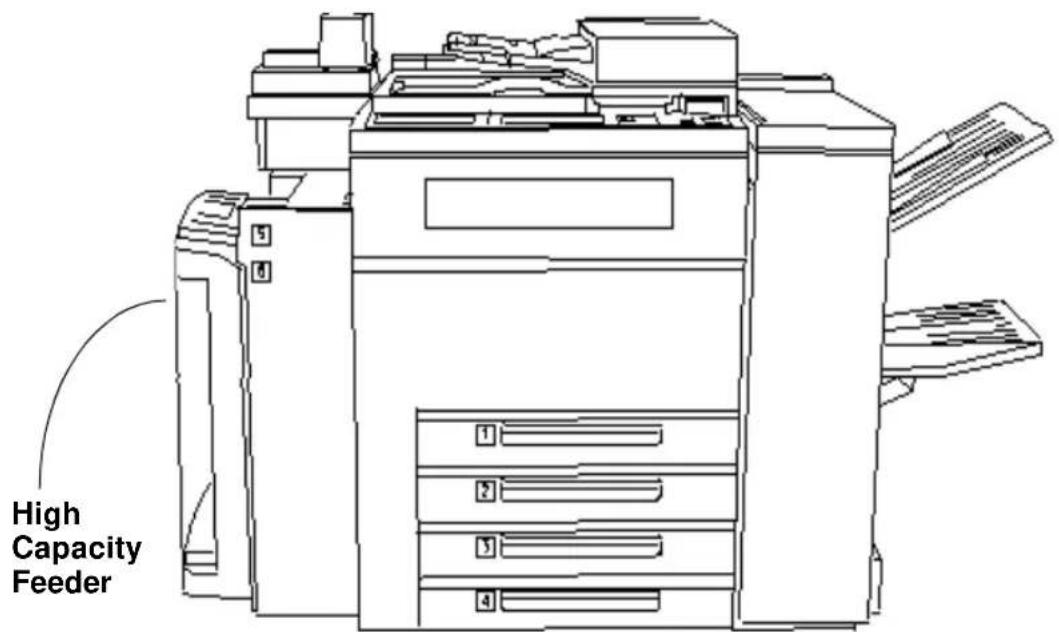
The High Capacity Feeder (Tray 6) is located under the Bypass Tray and saves you from having to load the other individual paper trays with 8.5 x 11 inch paper. You can load 5100 sheets of 20 lb. 8.5 x 11 inch Long Edge Feed (LEF) paper. The High Capacity Feeder can feed only 8.5 x 11 inch or A4 LEF paper and cannot be adjusted to hold any other sizes or orientations.
Reloading Paper
Open the cover and wait for the tray to lower in order to reload paper. After reloading paper, close the cover and the tray will automatically rise.
The High Capacity Feeder can also accommodate 8.5 x 11 inch punched or colored LEF paper between 16 to 32 lb.
text_image
High Capacity Feeder
text_image
Ready to scan your job. Basic Copying More Copy Features E-mail Fax Network Scanning Output 2 Sided Copy Reduce / Enlarge Paper Supply Top Tray - Collated 1 → 1 Sided 1 → 2 Sided Auto % 6.5x11 D 1 Staple D 2 → 2 Sided 17"→11" (64%) 1.5x11 D 2 → 1 Sided 14"→11" (70%) 2.5x11 D More... More... More... Power Saver Touch any key to begin Pathway Buttons Power Saver Indicator Light Keypad Feature Buttons Help Language X Access A Clear All Interrupt StopPause StartThe User Interface is divided into four major categories: Touch Screen, Pathway buttons, Keypad, and Feature buttons.
-
The Touch Screen allows users to view, program, and select the options, features, and functions that are available in the various pathways. Touch the screen to activate a feature.
-
There are three Pathway buttons that enable the access to the primary machine functions and features.
-
Features: Allows you to programme copy, fax, scan, and e-mail jobs. For more details, refer to the chapters pertaining to these functions.
- Job Status: Allows you to view and manage jobs that are or have been queued into the system. Refer to Chapter 8, Job Status, for more detailed information.
-
Machine Status: Provides information pertaining to machine faults, how to contact Xerox, and supplies. Refer to Chapter 9, Machine Status, for more detailed information.
-
The Power Saver Indicator Light, when lit, indicates that the Power Saver feature is active. Touch any key or the Touch Screen to exit this mode.
-
The Keypad is used to input specific values and includes a Clear (C) button to clear your last entry, and a Dial Pause button, which may be used when entering telephone numbers for the online support link feature.

5. Feature buttons include the following:
• Start: Submits a job for scanning.
- Stop/Pause: Select this button to stop any scanning and/or printing that is currently in process. A pop-up screen will appear, providing the options to cancel or to resume the scanning and printing.
If an option is not selected, the job will automatically resume printing, based on a time set by the Machine Administrator.
If neither scanning option is selected and the originals are removed from the Document Feeder, the portion of the job already scanned eventually will be deleted from memory, based on a time set by the Machine Administrator. If the originals remain in the Document Feeder no action will occur until they are removed or one of the options is selected.

- Help: Provides access to the on-line help system. Help is based on the current feature selection on the Touch Screen.
- Clear All: Clears any selections and resets the Features Pathway to its default setting. It does not delete jobs from the Job Queue, reset languages, or exit Help.
If you are not in the default pathway (Features for DC models and Job Status for ST models), a pop-up screen will appear indicating that confirming the window will reset all pathways to their default values and you will be returned to your default pathway.

- The Access (A) button serves two functions. It allows users to log into and out of the system when Authentication or the internal Auditor feature is active. It also is the entrance to the Tools Pathway which is used by the Machine Administrator to customize the machine. Access is restricted and requires a password to login.
- Language: Provides access to the languages that can be displayed on the Touch Screen.
- Interrupt: This button stops the job that is currently printing at the end of a complete set. It will then print the copy job just scanned.
To use this feature, select the Interrupt button before pressing the Start button to make copies.


Touch Screen

text_image
Ready to scan your job. Basic Copying Image Adjustment Output Format Job Assembly All Services Output 2 Sided Copy Reduce / Enlarge Paper Supply Top Tray - Collated 1 → 1 Sided 1 → 2 Sided Auto % 6.85x11 1 Staple 2 → 2 Sided 17"→11" (64%) 1.05x11 2 → 1 Sided 14"→11" (70%) 2.05x11 More... More... More... More... Touch Pathway Screen Buttons Help Language Access Features Job Status Machine Status Power Saver Touch any key to begin ABC OK Clear All 1 2 3 GH JG MAY 4 5 6 PORS TUY WXOZ 7 8 9 - 0 # Dial Paser CYou will make the majority of your selections on the Touch Screen.
The actual screen will vary depending on the Pathway buttons selected or optional software that is available on your Document Centre.
- Features Pathway - To make copies, send a fax or an e-mail, or perform a network scanning job, press the Features button. Press the Fax, Network Scanning or Copy buttons on the Touch Screen to access these features.
- Job Status Pathway - To check on the status of your job, press the Job Status button.
- Machine Status Pathway- To check on the status of the machine, press the Machine Status button.
The Touch Screen also displays important messages about the current condition of the machine.
Important messages are displayed here

text_image
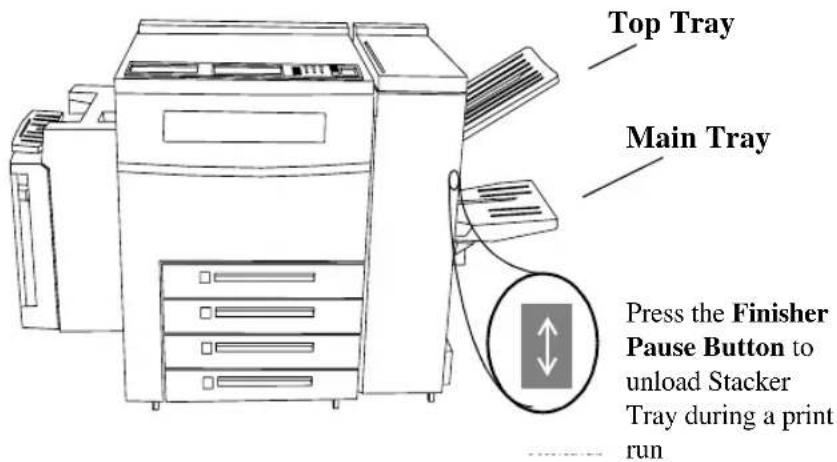
Ready to scan your job. 1 Image Quality Undo Cancel Save Original Type Normal Halftone Photo Text Photo Lighten / Darken Lighten Normal Darken Background Suppression On OffThe Finisher consists of the Top Tray and the Stacker Tray.
The Top Tray receives sheets that are purged from the system. It can hold up to 250 sheets of small paper. It can be set as a destination tray for non-stapled jobs. Copies that are less than 6.7 inches long in the feed direction or 8 inches long in the cross-feed direction will go to the Top Tray rather than the Main Tray.
The Main Tray is the output tray for all other copies. This tray can hold up to 2000 unstapled sheets. It has two staplers, each with a 5000 staple cartridge, that can staple sheets ranging in size from 6.7 x 8 inch to 12 x 18 inch of 16 to 110 lb. stock.
To ensure that the stapling of thin sets is satisfactory, the machine stops after producing between 80 and 100 sets of 2 -15 sheets to allow you to unload the machine. It automatically resumes printing after it is unloaded or after one minute. These options are adjustable in Tools. Refer to page 10-34 for more information.
Some versions of hardware may not require these options.
text_image
Top Tray Main Tray Press the Finisher Pause Button to unload Stacker Tray during a print runNOTE
Removing output while the machine is running may produce finished sets that are incorrectly stapled. To unload the Finisher while it is printing, Press the Finisher Pause button and wait for the tray to lower. After you unload, press the button again to continue.
Offsetting Catch Tray

natural_image
Line drawing of a printer with paper feeders and a paper airplane, no text or symbols presentThe Offsetting Catch Tray is available on the Document Centre 460 DC or ST. Output is delivered face down in offsetting sets. The Offsetting Catch Tray holds a maximum of 250 sheets of 20 lb. media and does not provide stapling options.

text_image
Convenience StaplerThe Convenience Stapler attaches to the back left corner of the machine.
It is designed for restapling originals and can also be used as an offline stapler. The Convenience Stapler can handle a maximum of 50 sheets of 20lb . paper. It contains a cartridge that holds 5000 staples.
The staple cartridge used in the Convenience Stapler is identical to the cartridges used in the Finisher and may be interchanged.
4. Making Copies
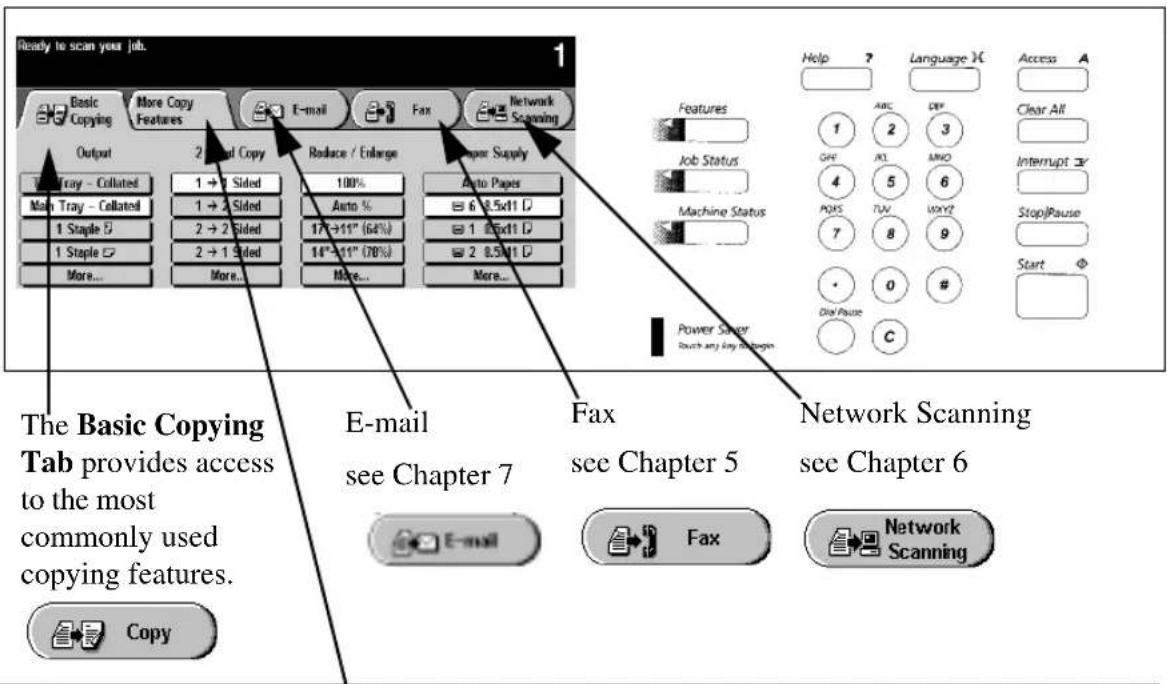
The Features button allows you access to the copy selections. Load your originals or press the Features button to display the screen where you can make copies, prints or scans. Press your selection on the Touch Screen.
If you do not see a screen similar to the one shown below, press the Features Button.
text_image
Ready to scan your job. Basic Copying More Copy Features Output 2 Sided Copy Reduce / Enlarge Paper Supply 100% Auto Paper 6 0.5x11 D 1 Staple E 2 + 2 Sided 17°+11" (64%) 1 Staple E 2 + 1 Sided 14°-11" (78%) 2 0.5x11 D More... More... E-mail see Chapter 7 Fax see Chapter 5 Network Scanning see Chapter 6 Power Sheet Touch any key steps? Help Language X Access A ABC DEV Clear All 1 2 3 OFF NO. AMO Interrupt X 4 5 6 MOS TUV. Vony? 7 8 9 StopPause 0 # Die Pause C Copy CopyMore Copy Features Tab provides access to three additional tabs
The Image
Adjustment Tab provides access to the various image enhancement settings.
The Output
Format Tab allows you to produce booklets, presentations, and other sophisticated output.
The Job Assembly Tab allows you to combine individual jobs into a complete set and contains other selections.
The E-mail tab
allows you to enter e-mail addresses and manually build an address list.

natural_image
Line drawing of a hand inserting a small object into a rectangular device (no text or symbols)
text_image
Ready to scan your job. Basic Copying Image Adjustment Output Format Job Assembly All Services Output 2 Sided Copy Reduce / Enlarge Paper Supply Top Tray - Collated 1 → 1 Sided 100% Auto Paper Main Tray - Collated 1 → 2 Sided Auto % 17"→11" (64%) 1 8.5x11 1 Staple 2 → 2 Sided 14"→11" (70%) 1 Staple 2 → 1 Sided More... More... More... 6 8.5x11 1 8.5x11 2 8.5x11 More...The Basic Copying Tab is the default screen for the Features Pathway. It contains the most commonly used features including:
- Output
- 2 Sided Copy
- Reduce / Enlarge
- Paper Supply
The sections of this chapter that follow explain in greater detail how to use each of these features.
Output

flowchart
graph TD
    A["Basic Layout"] --> B["Output"]
    C["Main Tray - Collated"] --> D["Top Tray - Collated"]
    E["Main Tray - Collated"] --> F["Main Tray - Collated"]
    G["1 Staple"] --> H["1 Staple"]
    I["1 Staple"] --> J["1 Staple"]
    K["More..."] --> L["More..."]
Collated
Sorting options
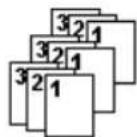
Select Collated if you want your output stacked in sets to match the sequence of your originals. Depending on the machine configuration you can direct the output to the Top Tray or to the Main Tray.
Stapling options
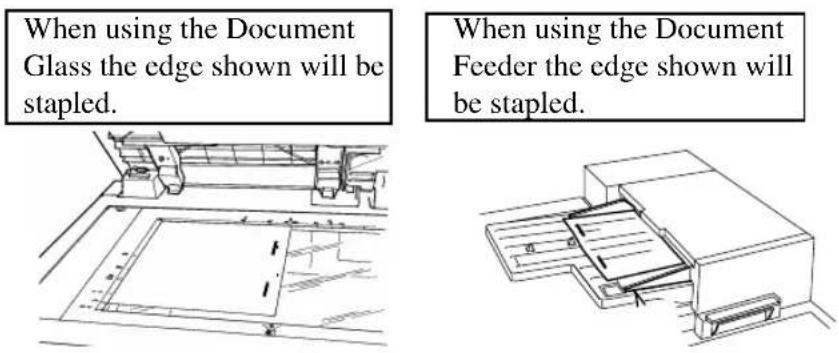
If your Document Centre is equipped with a Finisher, you will see the stapling options; otherwise, stapling options will not be visible. Sets of up to 50 sheets can be stapled. All stapled jobs are delivered to the Main Output Tray. Single pages, or sets of more than 50 sheets will not be stapled.
For additional stapling information refer to the Paper and Stock Chapter, page 13-4.
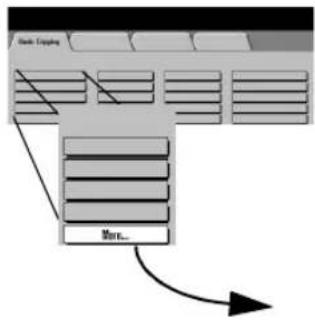
More...
flowchart
graph TD
    A["Back-Capping"] --> B["Move..."]
    B --> C["End"]

text_image
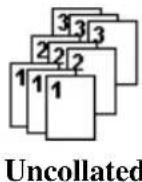
Ready to scan your job. 1 Output Options Undo Cancel Save Collated No Staples 2 Staples Top Output Tray Uncollated 1 Staple 1 Staple Main Output TrayThe Collated, 1 Staple LEF, 1 Staple SEF, Top Tray and Main Tray options perform in the same manner as the options provided on the Basic Copying Tab (refer to the previous page). Additional output choices include Uncollated, 2 Staples, and No Staples.
More Output Options
Use the Output Options screen to select specific Sort, Staple, and Output Tray preferences for your job.
Any output selection made on the Basic Copy screen will be reflected on the Output Options screen when the More... button is selected.
Select Uncollated if you want your output sorted into stacks of individual pages.
To close the Output Options screen, select Undo, Cancel or Save. Any selections made on this screen will be reflected on the Basic Copy screen.
More Stapling Options
Stapling is only allowed in the main tray.
Select 2 Staples to produce output with staples on the side or across the top depending on the feed direction of the paper.
Select No Staples to produce Collated or Uncollated non-stapled jobs. Non-stapled jobs can be directed to the Top Output or Main Output Tray.
NOTE
To achieve the best staple location, select the Paper Supply orientation that matches the format of the original document. If the appropriate paper is not detected, the system will prompt you to load the paper. If the job is run without loading the correct paper, a message will display advising you that the staple is not in the optimal position.
2 Sided Copy

flowchart
graph TD
    A["Start Copy"] --> B["2 Sided Copy"]
    B --> C["1 → 1 Sided"]
    B --> D["1 → 2 Sided"]
    B --> E["2 → 2 Sided"]
    B --> F["2 → 1 Sided"]
    B --> G["More..."]
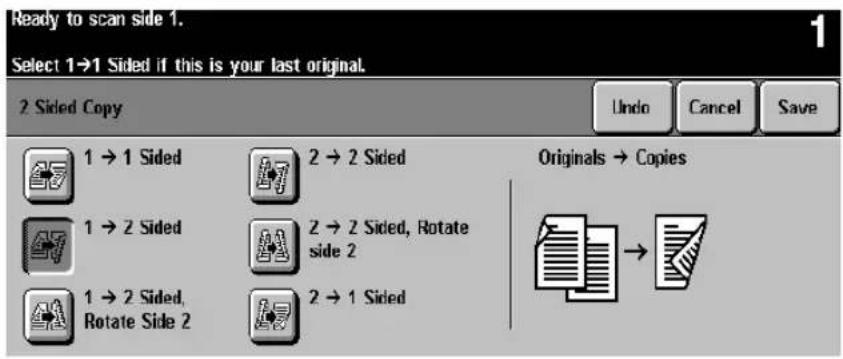
The 2 Sided Copy selection provides you the option to make one- or two-sided copies from one- or two-sided originals from either the Document Feeder or the Document Glass.
- 1→1 S i d e d : Use this option when your originals are prin 1 side only and you want single-sided copies.
- 1→2 S i d e d : Use this option when your originals are prin one side only and you want to produce two-sided copies. For example, if you have two single-sided originals, the image from the first original would be on the first side of the copy and the image of the second original will be on the second side of the copy.
- 2→2 S i d e d : Use this option if your originals are double-and you also want double-sided copies.
- 2→1S S i d e d : Use this option when your originals are dou sided, and you want single-sided copies.
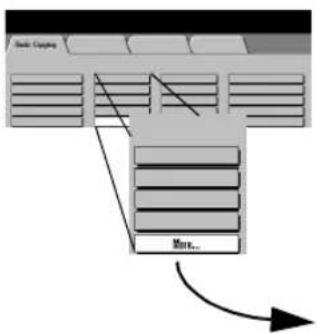
Selecting More... displays another screen that offers additional options for making double-sided copies (as discussed on the next page).
NOTE
When either 1 - 2 or 2 - 2 Sided Copy is selected and the original is scanned from the Document Glass, no output copies will be printed until the side 2 image has been scanned.
More...
flowchart
graph TD
    A["Back-Coupling"] --> B["Mark..."]
    B --> C["End"]
text_image
Ready to scan side 1. Select 1→1 Sided if this is your last original. 2 Sided Copy Undo Cancel Save 1 → 1 Sided 2 → 2 Sided Originals → Copies 1 → 2 Sided 2 → 2 Sided, Rotate side 2 1 → 2 Sided, Rotate Side 2 2 → 1 SidedThe 1 - 1 Sided, 2 - 1 Sided, 1 - 2 Sided and 2 - 2 Sided options perform in the same manner as the options provided on the Basic Copying Tab (refer to the previous page).
Side 2 Rotation
For both the 1 - 2 and 2 - 2 Rotate Side 2 selections, the second image is rotated 180 degrees so that the copy reads in a “head to toe” manner, similar to a calendar-type orientation.


1-2 Rotate Side 2 2-2 Rotate Side 2
The Document Centre can rotate images except 11 x 17 inches. If you want to rotate this size, set the reduction options to 97% or increase Border Erase to 0.2 inches.
NOTE
When the 1-2 Sided option is selected and originals are fed SEF onto SEF copy paper, Side 2 rotation should be selected in order to obtain the correct copy orientation. This capability is especially helpful when creating dual stapled sets.
Reduce / Enlarge

flowchart
graph TD
    A["Auto"] --> B["Reduce / Enlarge"]
    B --> C["100%"]
    B --> D["Auto %"]
    B --> E["17"→11" (64%)"]
    B --> F["14"→11" (78%)"]
    B --> G["More..."]
The Reduce / Enlarge option provides a variety of reduction and enlargement options to adjust the size of the output image from 25% to 400%.
Originals placed on the Document Glass can be enlarged by as much as 400%. Originals fed through the Document Feeder can be enlarged as much as 200%.
100% produces an image on your copies the same size as the image on your original document.
Auto% proportionally reduces or enlarges the image on your originals based on the size of the original and the size of the selected output paper.
The Auto% selection cannot be used with the Auto Paper selection. If Auto% is selected and then Auto Paper is selected, a message will appear indicating that the combination cannot be selected and the machine will select a paper tray with the correct size that contains the standard paper type and color.
The next two positions can be customized by the Machine Administrator. In the screen pictured above, the first 2 positions are:
17"→11"(64%) reduces an 11x17 inch sized image to fit on 8.5x11 inch paper.
14”→1” (78%) reduces an 8.5x14 inch sized image to fit on 8.5x11 inch paper.
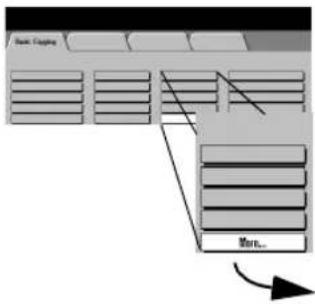
Selecting More... provides two additional reduction and enlargement options, Normal and Custom, as shown on the next two pages.
Normal Setting
flowchart
graph TD
    A["Start Copy"] --> B["Memory"]
    B --> C["End"]

text_image
Ready to scan your job. Reduce / Enlarge Undo Cancel Save Normal 100 100% 25 - 400 ▲ 64% 154% Custom Auto % 100 78% 200% 25% 129% 8.5"→11" 11"→17" 17"→11" 8.5"→14"Select Normal to reduce or enlarge your output image the same proportion percentage in both directions.
The 100% and Auto% provide the same functionality as described on the previous page and are located here for your convenience.
In addition, there are six preset percentages of reduction or enlargement, from 25% to 200%, designed for resizing to common document sizes when copying from the Document Feeder.
Entering numbers from the keypad
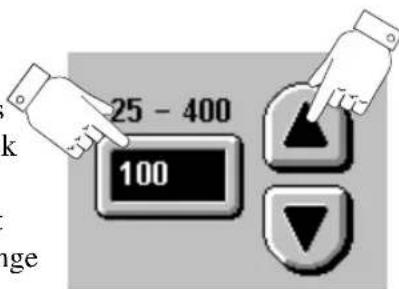
When copying from the Document Glass you can make non-preset adjustments as illustrated below:
Using the keypad.
If the box does not have a black background, simply touch it and it will change to black.
Then enter a number from the keypad.
text_image
25 - 400 100Using the scroll buttons
Press the arrows to adjust the reduce/ enlarge percentages in 1% increments.
Custom Setting
flowchart
graph TD
    A["Main Coupling"] --> B["Main..."]
    B --> C["Main..."]
    style A fill:#f9f,stroke:#333
    style C fill:#bbf,stroke:#333
text_image
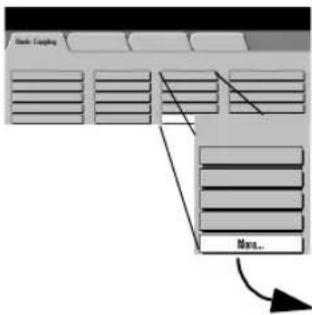
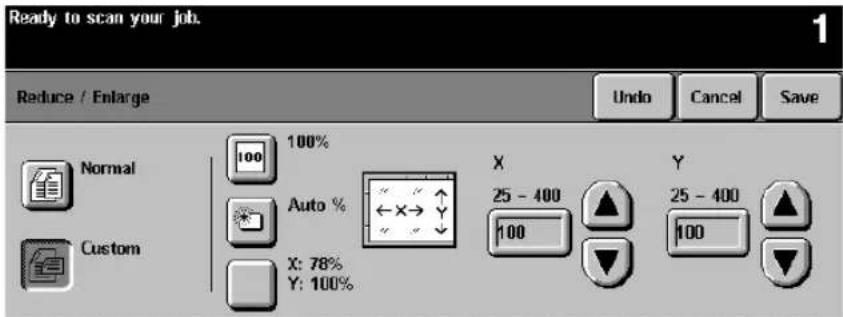
Ready to scan your job. Reduce / Enlarge Undo Cancel Save Normal 100% Auto % X 25 - 400 Y 25 - 400 Custom X: 78% Y: 100% 100 100Choose Custom to adjust the height (Y) and the width (X) dimensions for reduction or enlargement independently. Your output will NOT be reduced or enlarged proportionally.
100%: Produces an image the same size as your original document.
Auto%: When Auto% is used in the Custom Reduce / Enlarge screen, it automatically reduces or enlarges the image on your output based on the size of the original and the size of the output stock. It will stretch the original image to fill the output stock, using different percentages in the X and Y directions if necessary.
X 78%, Y 100% preselect: This selection automatically reduces the X dimension of the output to 78% (width). Y remains the same (height) dimension. This selection enables you to reduce an 8.5 x 14 inch SEF original to fill an 8.5 x 11 inch paper. The percentages in this section can be adjusted by your Machine Administrator.
X, Y adjustments: You can also adjust the X and Y dimensions manually in 1% increments by using the scroll arrows. Touch the upper scroll arrow to increase a dimension.
You can also enter a percentage by touching the X: and Y: boxes and entering the percentage from the keypad.
Paper Supply

flowchart
graph TD
    A["Web Browser"] --> B["Paper Supply"]
    B --> C["Auto Paper"]
    B --> D["5 8.5x11"]
    B --> E["6 8.5x11"]
    B --> F["1 8.5x11"]
    B --> G["More..."]
This is where you choose the paper tray for your copy job. The trays displayed on the Basic Copying tab are based on priorities set by the Machine Administrator.
When Auto Paper is selected the machine will pick the correct paper for your copy job.
If the Machine Administrator enabled Standard Size Required, the machine may be required to use one of the following standard sizes with the default type and color: 8.5 x 11 inch, 8.5 x 14 inch, or 11 x 17 inch.
If Standard Size Required is not active or if the image is not one of the standard sizes, the machine will pick the smallest available size with the default type and color that will accommodate the image.
More...
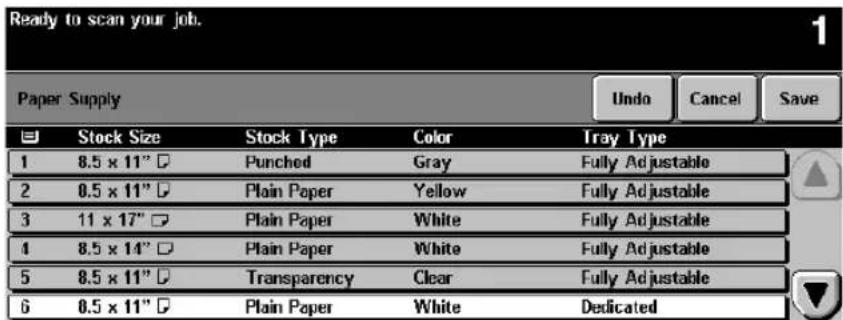
Pressing the More... button displays all paper stocks that are loaded in the machine. The paper size, the orientation, the stock type and the color are shown for each tray. Select a tray by touching the associated line on the display. Refer to page 10-13 for more information on Tray Type.
flowchart
graph TD
    A["Men..."] --> B
    B --> C
    C --> D
    D --> E
    E --> F
    F --> G
    G --> H
    H --> I
    I --> J
    J --> K
    K --> L
    L --> M
    M --> N
    N --> O
    O --> P
    P --> Q
    Q --> R
    R --> S
    S --> T
    T --> U
    U --> V
    V --> W
    W --> X
    X --> Y
    Y --> Z
text_image
Ready to scan your job. 1 Paper Supply Undo Cancel Save Stock Size Stock Type Color Tray Type 1 8.5 x 11" □ Punched Gray Fully Adjustable 2 8.5 x 11" □ Plain Paper Yellow Fully Adjustable 3 11 x 17" □ Plain Paper White Fully Adjustable 4 8.5 x 14" □ Plain Paper White Fully Adjustable 5 8.5 x 11" □ Transparency Clear Fully Adjustable 6 8.5 x 11" □ Plain Paper White DedicatedImage Adjustment Tab

natural_image
Simple line drawing of a hand holding a rectangular object (no text or symbols)Job Review Summaries
text_image
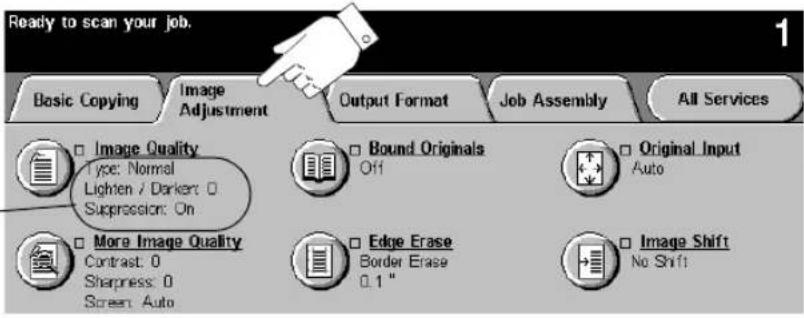
Ready to scan your job. Basic Copying Image Adjustment Output Format Job Assembly All Services □ Image Quality Type: Normal Lighten / Darker: 0 Suppression: On □ More Image Quality Contrast: 0 Sharpness: 0 Screen: Auto □ Bound Originals Off □ Original Input Auto □ Edge Erase Border Erase 0.1 " □ Image Shift No ShiftTo access the Image Adjustment tab, select the More Copy Features tab.
The Image Adjustment Tab provides the following features for fine-tuning the appearance of your finished output.
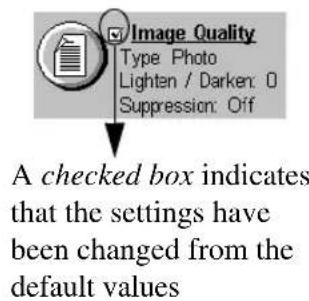
text_image
Image Quality Type Photo Lighten / Darker: 0 Suppression: Off A checked box indicates that the settings have been changed from the default values- Image Quality
- More Image Quality
- Bound Originals
- Edge Erase
- Original Input
- Image Shift
Select any of the buttons to view additional options. A separate screen will appear for each feature. You may set as many features as you choose for each copy job.
The text next to the feature button, called a Job Review Summary, reflects the current settings for that feature. A checked box indicates that this feature has been modified from its default setting.
Most feature screens include three buttons to confirm or cancel your choices.

text_image
Undo Cancel Save Auto to Edit Image Material Type Balance Locking New Save- The Undo button resets the current screen to the default values that were set when the screen was opened.
- The Cancel button resets the screen and returns to the previous screen.
- The Save button saves your choices and returns you to the previous screen.
Image Quality
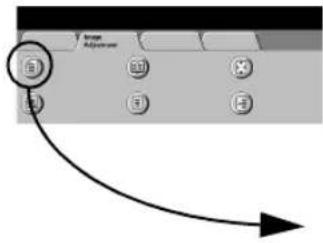
text_image
Image Adjustment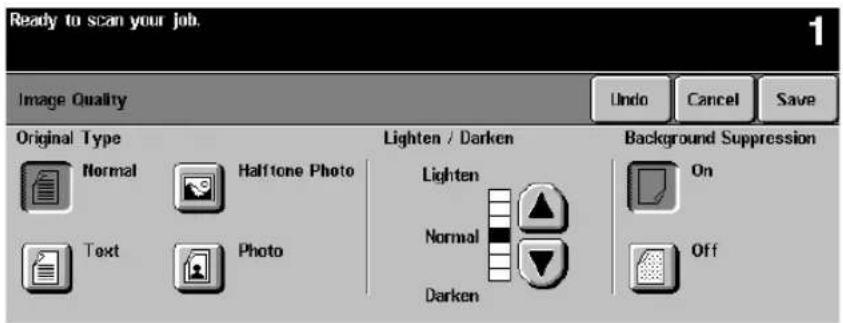
text_image
Ready to scan your job. 1 Image Quality Undo Cancel Save Original Type Normal Halftone Photo Text Photo Lighten / Darken Lighten Normal Darken Background Suppression On OffUse this feature to enhance the quality of your output.
Original Type
This feature provides a convenient way to enhance the copy quality of your output based on the type of original images you are copying.
The Normal, Text, and Halftone Photo Original Types use Auto IQ® Image Processing to classify each pixel in the image and to apply the appropriate image processing to enhance the copy quality for each type of pixel. The Photo Original Type applies a special contrast setting and screen to the entire scanned page.
- Normal - This is the standard setting and is appropriate for the majority of the jobs run on the machine. It is designed to provide high quality copies of originals that contain a mixture of text, graphics, and pictures.
- Text - Use this option if your original contains only text or line art. This will result in the sharpest edges for the text and the line art.
- Halftone Photo - Use this option if your original is from a magazine or other source that contains high quality lithographic images or continuous tone photographs with text and/or graphics. This setting will produce better pictures, but slightly reduces sharpness for text and line art.
- Photo - This option is specifically designed to copy continuous tone photographs or printed halftone originals. Use this option if your original is a photograph or halftone picture without any text or lines. Any text or lines copied in this mode will be less sharp than if you select any of the other Original Types.
Lighten/Darken
Lighten/Darken provides controls to adjust the lightness or darkness of the output.
Use Darken (press the down scroll button) to darken the copy from light originals such as pencil images.
Lighten can be used to lighten a copy when the lower contrast or the Background Suppression On adjustments are not adequate. For example, use Lighten (press the up scroll button) to copy more details in the dark areas of an original, to suppress the background from colored paper originals, and to eliminate lines resulting from paste-ups, or backside show-through.
Background Suppression
Background Suppression is automatically selected when any Original Type other than Photo is selected. Background Suppression automatically reduces or eliminates the background from colored paper originals or from newspaper originals.
Turn Background Suppression off when you encounter the following conditions:
- Using the Darken adjustment does not produce a satisfactory copy when copying very light originals
- The original has a gray or colored border such as a certificate. The machine will incorrectly assume that the border of the document is the background level of the entire original and consequently cause the entire image to appear lighter
- To bring out fine detail that was lost due to the dark edge or gutter when using Bound Originals
More Image Quality

text_image
Range Subspace B M R B →
text_image
Ready to scan your job. More Image Quality Contrast High Normal Low Sharpness Sharp Normal Soft Screen Auto Special Undo Cancel SaveContrast controls the differences between the image densities within the copy. Lower contrast settings improve the copy quality of pictures by reproducing more detail in light and dark areas of the original. Higher settings produce more vivid blacks and whites for sharper text and lines but less detail in pictures. Use the scroll buttons to adjust the contrast values.
Sharpness controls the balance between sharp text and moiré (undesirable patterns within the image). Generally, sharpness is used to enhance the copy quality after evaluating the output. Use the scroll buttons to adjust the sharpness values from sharper to softer after you view your output.
High sharpness settings provide the sharpest text and lines, but increase the likelihood of moiré.
Screen
This is only available for the Normal, Text, and Halftone Photo Original Types.
The Auto setting is preset at the factory to be on when Normal, Text, or Halftone Photo is selected. It eliminates the risk of blotches or small areas that have a different texture or pattern appearance than the surrounding area, but produces a slightly grainier picture than if Special is used.
The Special selection can be utilized to enhance continuous tone photographs or high frequency halftone images. It is used to create smoother, less grainy output for continuous tone and halftone images, but the risk of blotchy copy quality defects is higher.
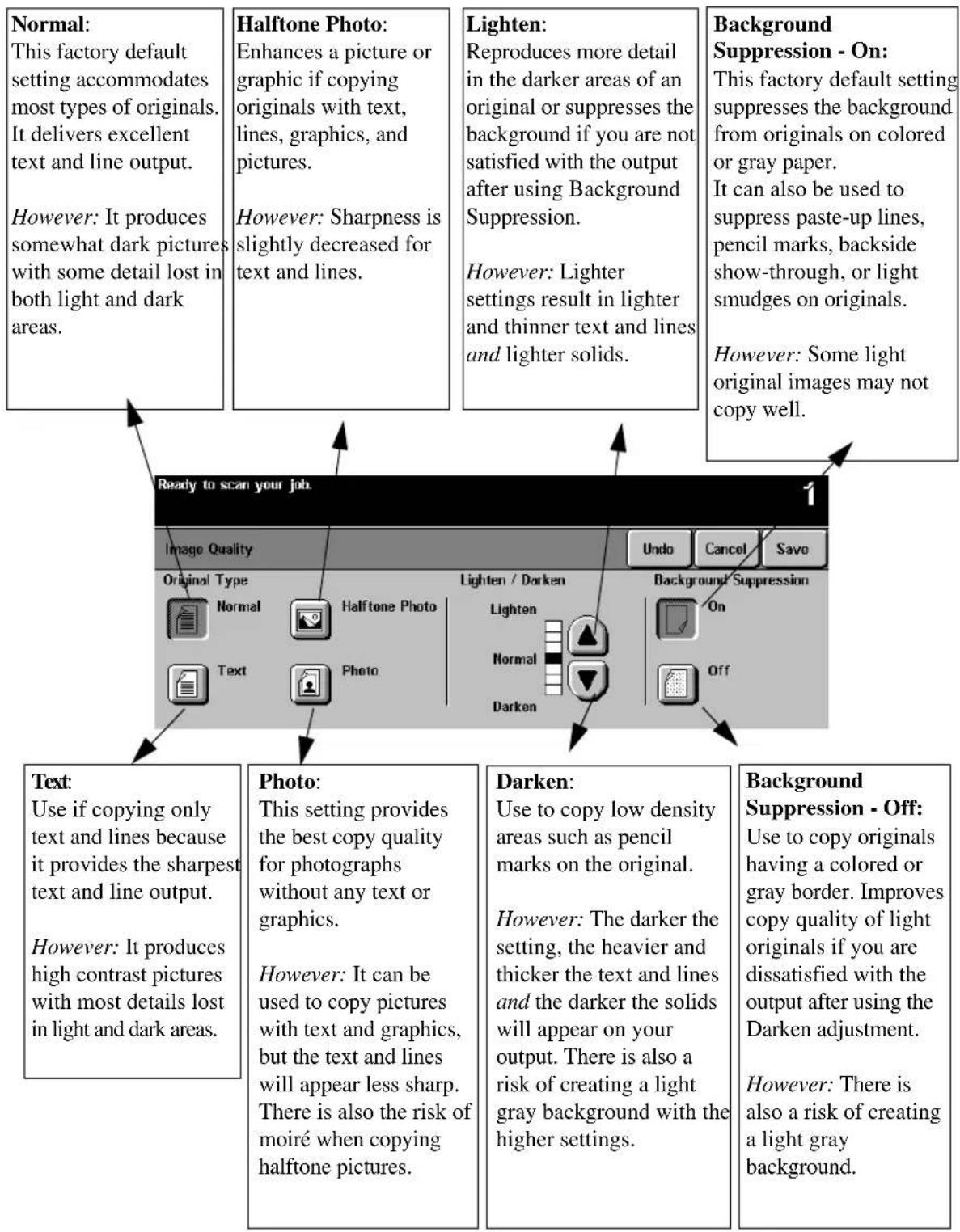
How to use the Image Quality settings
text_image
Normal: This factory default setting accommodates most types of originals. It delivers excellent text and line output. However: It produces somewhat dark pictures with some detail lost in both light and dark areas. Halftone Photo: Enhances a picture or graphic if copying originals with text, lines, graphics, and pictures. However: Sharpness is slightly decreased for text and lines. Lighten: Reproduces more detail in the darker areas of an original or suppresses the background if you are not satisfied with the output after using Background Suppression. However: Lighter settings result in lighter and thinner text and lines and lighter solids. Background Suppression - On: This factory default setting suppresses the background from originals on colored or gray paper. It can also be used to suppress paste-up lines, pencil marks, backside show-through, or light smudges on originals. However: Some light original images may not copy well. Ready to scan your job. Image Quality Original Type Normal Text Photo This setting provides the best copy quality for photographs without any text or graphics. However: It produces high contrast pictures with most details lost in light and dark areas. Darken: Use to copy low density areas such as pencil marks on the original. However: The darker the setting, the heavier and thicker the text and lines and the darker the solids will appear on your output. There is also a risk of creating a light gray background with the higher settings. Background Suppression - Off: Use to copy originals having a colored or gray border. Improves copy quality of light originals if you are dissatisfied with the output after using the Darken adjustment. However: There is also a risk of creating a light gray background.How to use the More Image Quality settings

flowchart
graph TD
    A["Contrast - High\nHigher contrast causes the blacks and whites to appear more vivid and the text to appear sharper.\nHowever: Increasing the contrast will result in darker pictures and less detail in both the lightest and the darkest areas."] --> B["Ready to scan your job."]
    C["Sharpness - Sharp\nIncreasing sharpness will increase the edge definition of text and lines.\nHowever: The higher the sharpness setting, the more likely moiré will appear on your output."] --> B
    D["Screen - Auto:\nThis factory preset is the best mode for most originals and avoids the risk of copy quality blotches on the output.\nHowever: Pictures and solid areas may appear more grainy."] --> B
    E["Contrast - Low\nThe lower the setting, the better the pictorial copy quality. There will be more detail in the lightest and darkest areas of the output.\nHowever: Decreasing the contrast reduces the text and line sharpness."] --> B
    F["Sharpness - Soft\nThe lower the setting, the softer the image will appear. The lower settings reduce or eliminate moiré.\nHowever: The lower the setting, the less edge definition of text and lines."] --> B
    G["Screen - Special:\nThis provides smoother and less grainy pictures.\nHowever: There is a higher risk of blotches from certain types of originals."] --> B
Bound Originals
text_image
George & Young Adjustment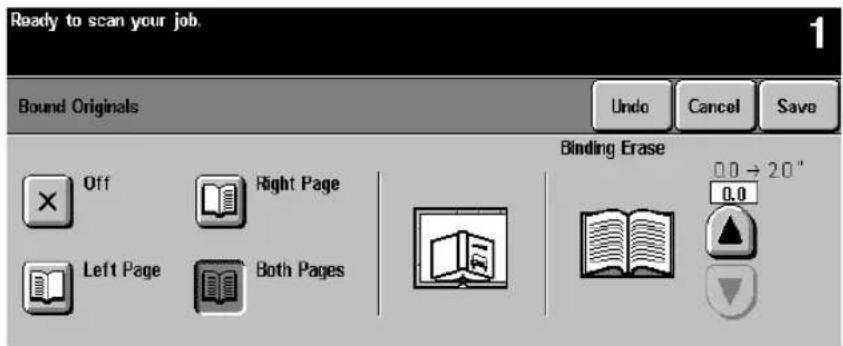
text_image
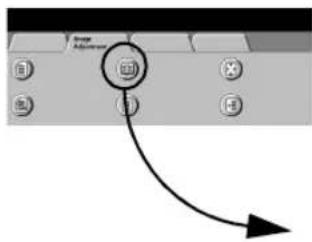
Ready to scan your job. 1 Bound Originals Undo Cancel Save Binding Erase 0.0 → 2.0 ° 0.0 Off Right Page Left Page Both PagesThis feature is used to copy pages from books or other bound documents onto separate single-sided or double-sided pages. The Machine Administrator can add additional scanning options for the Both Pages selection giving you the choice of scanning left to right or right to left.
To use this feature:
- Open the Document Glass cover. The cover must remain open during copying.
- Place the book face down anywhere on the Document Glass, with the bottom edge of the bound document towards the front of the machine.
- To avoid skewing the book and therefore the copy, align with the Book Binding Mark on the front edge of the glass.
- When an original is placed on the front edge of the glass, any information within 0.25 inches of the bottom edge of an original placed will be deleted on the copy. Most books do not have information within this area. If this is not the case, place the original anywhere on the glass at least 0.25 inches away from the front edge.
-
To compensate for books having dark borders or edges, refer to page 4-23 for additional information.
-
Select Left Page, Right Page, or Both Pages.
-
If necessary, apply light pressure in the center of the book to flatten it in order to minimize distortion of the image.
-
Press the Start button. Remember, as this is an automatic feature from the glass, the machine will make multiple scans. Do not remove the original until all scans are completed.
Binding Erase
text_image
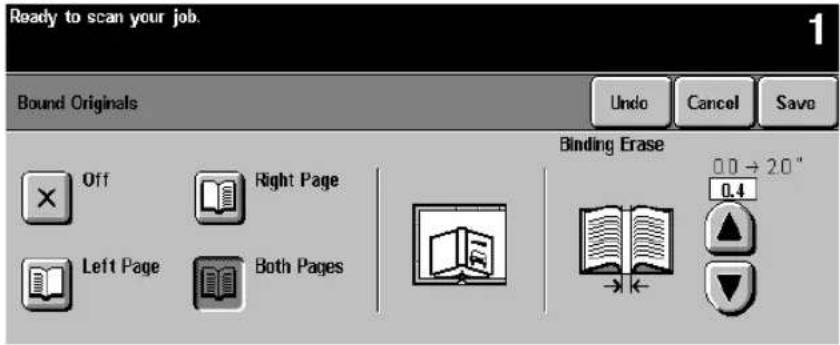
Ready to scan your job. 1 Bound Originals Undo Cancel Save Binding Erase Off Right Page 0.0 → 2.0" 0.4 Left Page Both PagesBinding Erase allows you to reduce the output shadow caused by the center binding of the book. To adjust the amount of Binding Erase, touch the arrow keys to change the amount erased.
For Left Page and Right Page options, the area erased can be adjusted in 0.1 inch increments, up to 1.0 inch.
For the Both Pages option, the erased area can be adjusted in 0.2 inch increments up to 2.0 inches with the erased amounts divided equally between both pages.
Bound Originals and 1 to 2 sided copying
To use this feature with 1 to 2 sided copy, select the 1 to 2 sided copy option, then select Bound Originals. Position your original on the Document Glass as required, select the appropriate page setting in Bound Originals, and press the Start button. Prepare your original to copy the second side, select the appropriate page in Bound Originals to copy and press the Start button again. As soon as the machine processes the second original, it will print the output.

text_image
Originals RightLeft
Features 1 to 2 sided copying Bound Originals
Output
Using Bound Originals with Build Job
Use Build Job to copy individual pages that are distributed throughout the book or individual chapters with minimal button pushing or adjustment of originals.
For Example:
Select the following features to copy multiple pages:
Original Input

flowchart
graph TD
    A["Left"] --> B["Right"]
    C["Both"] --> D["Output"]
    style A fill:#f9f,stroke:#333
    style B fill:#ccf,stroke:#333
    style C fill:#cfc,stroke:#333
    style D fill:#fcc,stroke:#333
    classDef left fill:#fff,stroke:#000;
    classDef right fill:#fff,stroke:#000;
    class A,B,C left
    class C,D right
What to do
- On the Job Assembly Tab, Select Build Job, then On, then Save.
- Select 1 to 2 sided copy.
- Select the desired quantity from the keypad.
- On the Basic Copy Tab, Select the output paper size and select Auto% to fill the output paper stock. Select stapled sets, if desired.
- On the Image Adjustment Tab, select Bound Originals.
- Select the page or pages to copy on the Bound Original screen. Press the Start button. Repeat until all the pages have been scanned.
- Press the Build Job Controls button, then press End Build Job to print your job.
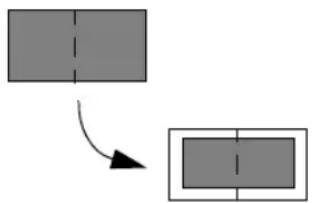
flowchart
graph TD
    A[" "] --> B[" "]
    style A fill:#ccc,stroke:#333
    style B fill:#ccc,stroke:#333
Copying both pages to one side of a Sheet
To print both pages of the book on one output page, do not use the Bound Originals feature. Place your book on the Document Glass as you would a non-bound document (place in upper left corner of Document Glass). If you use Auto% the machine will find your original and make the necessary adjustments to the image to fit it onto a single sheet of paper.
Edge Erase
This feature allows you to “refresh” the quality of an original that has become frayed at the edges, has punched holes, has staple marks or other extraneous marks.
Border Erase adds equal amounts of white space on all edges of your copies. The default is 0.1 inches. All marks or defects on the border are deleted. Use the scroll buttons to adjust the amount erased.
The Edge Erase option (screen pictured above) allows you to adjust the amount erased for each of the four edges independently. The default is 0.1 inches. Make your selections, using the scroll arrows. Use 0.7 inch on the appropriate edge to erase drill hole marks from your copies.
For both Border Erase and Edge Erase, the range to be erased for each edge can be adjusted in 0.05 inch increments up to 2.0 inches. The amount to be erased extends across the entire width/height of the page.
If producing duplex copies, the left and right erase values will be mirrored for each side. For example:
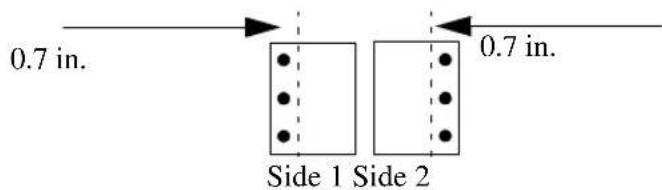
text_image
0.7 in. Side 1 Side 2 0.7 in.The Print to Edge feature allows images to be printed to the edge of the output stock. It may, however, reduce the ability of the system to clean itself and can cause defects on your output if used excessively.
Original Input
text_image
Image Adjustment X B
text_image
Ready to scan your job. Original Input Undo Cancel Save Auto Use to describe the size of the originals. Manual Platen Input • Auto is the Normal Mode for this feature. Use Auto to automatically detect the size of the originals in the Document Feeder. Mixed Size Originals • Use Manual Platen to enter document dimensions for use in Document Glass scanning.This selection allows you the option to program the size of originals or to allow the Document Centre to determine the size automatically.
Auto
Originals scanned, using the Document Feeder
Auto is the normal operating mode of the machine and allows the machine to determine automatically the size of the originals fed through the Document Feeder.
Originals scanned, using the Document Glass
When originals are scanned from the Document Glass and you have selected an auto feature such as Auto Paper, Auto%, or Auto Center, the system will scan the original twice. The first scan is a prescan to determine the size and location of the original, and the second scan is the scan that captures the image.
This is useful if you are scanning an odd-size original from the Document Glass; for example, business cards, receipts, checks, or small billing statements.
NOTE
Scanning multiple or odd-shape originals using an Auto feature will produce a black area around or between the originals.
Manual Platen Input

text_image
Ready to scan your job. 1 Original Input Auto Standard Sizes Custom Size 5.5 x 8.5" Manual Platen Input 5.5 x 0.5" 8.5 x 11" Mixed Size Originals 8.5 x 11" 8.5 x 14" Undo Cancel SaveThe Manual Platen Input feature allows you to specify the dimensions of the document scanning region. There are several dimensions that correspond to common document sizes and orientations.
Select a standard size or use Custom size to manually adjust the scanning dimensions. The adjustment range is 1 x 1 inch to 17 x 11.7 inches.
The originals are assumed to be registered at the left rear corner of the Document Glass.
Use this feature to scan:
● originals with dark edges that are difficult for the machine to detect
- transparency originals
Bound Originals and Manual Platen Input
You may want to consider combining these features when your bound original has dark edges.
Align the book with the Book Binding Guide Mark on the front of the Document Glass and enter the dimensions for one page of the book. The allowed range is 1 x 1 inch to 8.5 x 11.7 inch. Use the keypad to enter the adjustments. The machine will calculate the total dimensions of the book.
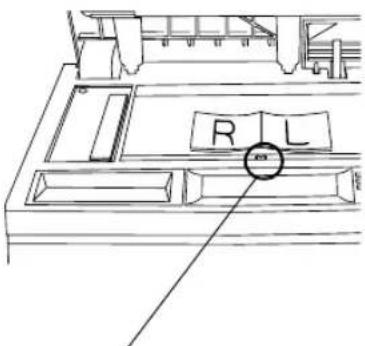
text_image
R LBook Binding Guide Mark
Mixed Size Originals
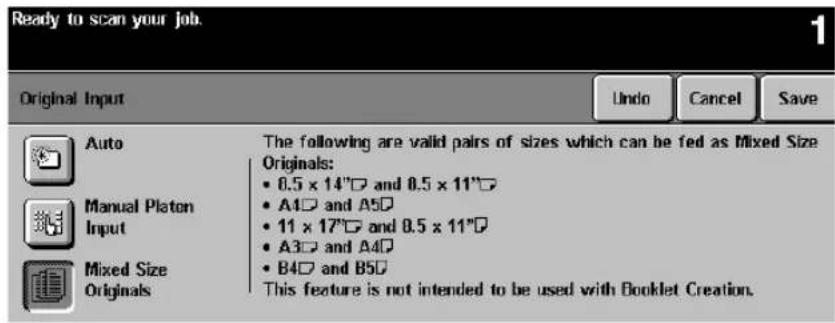
text_image
Ready to scan your job. Original Input Auto Manual Platon Input Mixed Size Originals The following are valid pairs of sizes which can be fed as Mixed Size Originals: • 0.5 x 14"□ and 0.5 x 11"□ • A4□ and A5□ • 11 x 17"□ and 0.5 x 11"□ • A3□ and A4□ • B4□ and B5□ This feature is not intended to be used with Booklet Creation.This feature allows users to input original documents of mixed sizes and produce them as a single copy job. Users can select mixed size output using the Mixed Size Originals button or allow the system to automatically determine a common copy size. The default is automatic common copy size.
The originals must all have the same width and must be fed from the Document Feeder. If valid sizes are not scanned, a warning message will appear and the job will be deleted.
NOTE
If the system displays a paper stock error message, the machine's document size values might require adjustment. Valid document size sensing is programmable by the Machine Administrator.
| Input What to do | |
 | If you want thesame size output, load your originals, select a paper size and press Auto% on the Basic Copying Tab.If you wantmixed size output, see the procedure on page 4-25. |
Mixed Size Output
To produce mixed size copies you must first tell the system to expect Mixed Size Originals otherwise, the output will be on common size paper. Go to the Image Adjust Tab. On the Original Input screen, select the Mixed Size Originals button.
When mixed size output is desired, any one of these options must also be selected: Auto Paper, Auto%, or Auto Center.
Examples of US document size combinations are as follows:
- 8.5 x 11-inch (SEF) and 8.5 x 14-inch (SEF)
- 8.5 x 11-inch (LEF) and 11 x 17-inch (SEF)
Scanning time for one-sided originals is significantly slower than normal when this option is selected. Double-sided documents can be processed with this feature, at no loss in productivity.
Mixed Size Originals cannot be selected if both Auto Paper and 1-2 Sided options are selected.
NOTE
Use Auto Paper to produce the same size output as the original sizes. The copy paper must be the same size and orientation as the originals.
Use Auto% to produce the same size output based on the paper size you select.
Image Shift

text_image
Ready to scan your job. Image Shift Undo Cancel Save No Shift Auto Center Margin Shift Side 1 Side 2 0.0 - 2.0 " 0.1 0.0 - 2.0 " 0.1This feature allows you to control the position of the image on the output page. There are three selections:
No Shift is the default setting, and makes no adjustment.
Auto Center automatically centers the scanned image on the output paper. To work effectively, the original should be smaller than the selected output paper stock or the image should be reduced.
Margin Shift (screen pictured above) allows you to create a binding edge. The image can be adjusted up or down on the page and/or shifted to the right or left. Use the scroll buttons to adjust the amount of shift.
For Margin Shift, the amount of shift for each edge can be adjusted in 0.1 inch increments up to 2.0 inches in each direction (from top or bottom, from right or left).
Image Shift - Duplex Operation
The Document Centre is capable of shifting the image on the second side of a document. You can mirror the first side or adjust the shift independently. To access this feature, press the Side 2 button.

natural_image
Line drawing of a hand pressing down on a rectangular device (no text or symbols)
text_image
Ready to scan your job. Basic Copying Image Adjustment Output Format Job Assembly All Services Transparencies No Dividers Multi-Up Off Covers None Booklet Creation Off Invert Image Mirror Image: Off Negative Image: OffWhen you select the Output Format Tab, you will find features that produce different options for the finished output.
The following features are located in Output Format:
- Transparencies
- Booklet Creation
- Multi-Up
- Covers
- Invert Image
The sections that follow in this chapter explain how to use each of these features in more detail.
Transparency Dividers

text_image
Apply a new game kit Target Event 1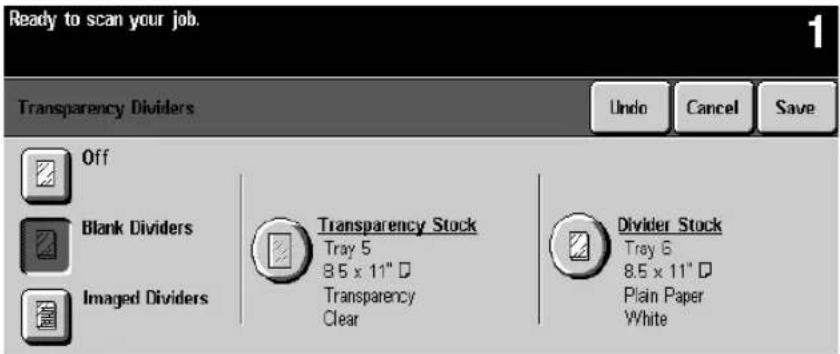
text_image
Ready to scan your job. 1 Transparency Dividers Undo Cancel Save Off Blank Dividers Imaged Dividers Transparency Stock Tray 5 8.5 x 11" □ Transparency Clear Divider Stock Tray 6 8.5 x 11" □ Plain Paper WhiteThis feature allows you to create a single set of transparencies with either blank or printed dividers. Use this screen to select the correct transparency and stock trays. Pressing either the Transparency Stock or Divider Stock buttons allows you to select the paper tray that contains the desired stock.
When producing a transparency set, it will always be single-sided on transparency stock and collated with no stapling if dividers are selected.
You can only set the quantity to one when using this feature.
Dividers
You have three options for Transparency Dividers; Off, Blank Dividers, or Imaged Dividers. Any stock loaded in the machine may be used as a divider as long as its size and orientation matches that of the transparencies.
- Off is the initial setting. Dividers will not be produced until you select either Blank or Imaged Dividers.
- Blank Dividers places a blank sheet between each transparency.
- Imaged Dividers places the same image on the divider sheet as on the transparency.
Booklet Creation
text_image
Mally to save your job Danger format 1 2 3 4 5 6 7 8 9 10 11 12 13 14 15 16 17 18 19 20 21 22 23 24 25 26 27 28 29 30 31 32 33 34 35 36 37 38 39 40 41 42 43 44 45 46 47 48 49 50 51 52 53 54 55 56 57 58 59 60 61 62 63 64 65 66 67 68 69 70 71 72 73 74 75 76 77 78 79 80
text_image
Ready to scan side 1. Booklet Creation Undo Cancel Save Original Input Off 1 Sided Originals On 2 Sided OriginalsUse this feature to create multipage booklets from a sequential set of either 1-sided or 2-sided originals. The machine will reduce and correctly position each image to fit on the desired page so that when the page is folded a booklet will be created.
The Machine Administrator can enable an option that produces booklets that read either left to right or right to left.
NOTE
You must input your originals LEF and use output paper that has SEF orientation.
Refer to the illustration below to see how to make a booklet.
| Step 1 Step 2 Step 3 | ||
Load the originals in the Document Feeder has Short Long Edge Feed (LEF). or[IMAGE]Orientation of Ordered originals or[IMAGE]Orientation of Ordered originals | Ensure that the Paper Tray Edge Feed (SEF) Stock. 11 x 17 in., 8.5 x 11 in., or 8.5 x 14 in. SEF stock 11 x 17 in., 8.5 x 11 in., or 8.5 x 14 in. SEF stock | Fold the output sheet. (page) (page) (Inside front page) (Inside front page) |
Multi-Up
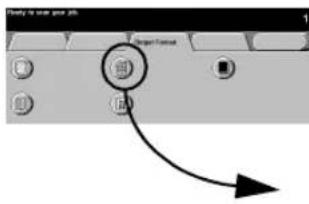
text_image
Ready to write your job OK Target Formset OK OK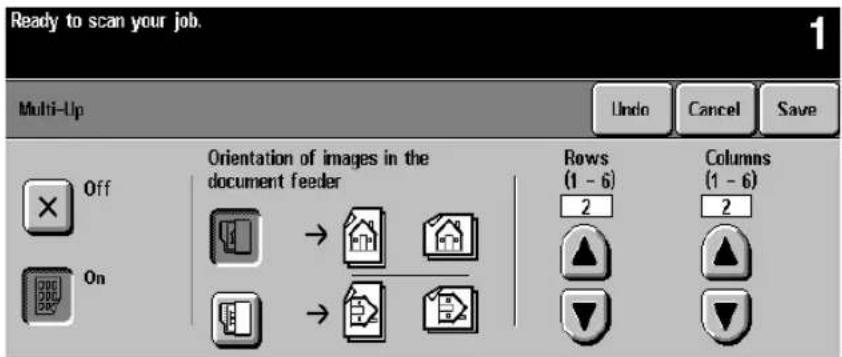
text_image
Ready to scan your job. Multi-Up Undo Cancel Save Off Orientation of images in the document feeder Rows (1 - 6) 2 Columns (1 - 6) 2 On → →The Multi-Up feature is ideal for handouts, storyboards, or for archival purposes. Using the Multi-Up feature, you can create documents with up to 36 images for small statement size paper reduced onto 11 x 17 inch paper. The practical limit is 16 for 8.5 x 11 inch paper.
To use this feature: Select the button that identifies to the machine how your original images are oriented. There must be one original for each image.
Select the desired number of Rows and/or Columns, from 1 to 6. The actual number of images is limited by the minimum reduction value (25%) and the selected output stock.
The examples below are typical output that can be produced when using the Multi-Up feature.
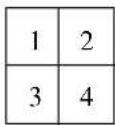
4 originals using
2 rows and
2 columns

6 originals using
3 rows and
2 columns

2 originals using
2 rows and
1 column
Covers
text_image
Close from more poor job Close From
text_image
Ready to scan your job. Covers Undo Cancel Save No Covers Back only Front only Front and Back Output Cover Images 1 Sided Cover Stock Tray 6 8.5 x 11" D Plain Paper WhiteThis feature allows you to add covers using stock drawn from a different tray than your copies. You can have 1-sided or 2-sided front or back covers, with or without an image.
The Covers section provides the following options:
- No Covers will not produce any covers.
- Select Front only to create a front cover.
- Select Back only to create a back cover.
- Selecting Front and Back creates both front and back covers for your job. This selection is required if you are adding covers to booklets.
The Output Cover Images button allows you to select blank, 1-sided, 2-sided, or 2-sided with the second side rotated.
The Cover Stock button allows you to select the tray in which you have loaded the cover stock. The cover stock must be at least as large as the stock for the body of the job.
If you create 1-sided covers with images, the machine uses the first image and last image of your original set as the cover images.
Notes about 2-sided covers
If you have an odd number of originals and you want a blank page on the back cover, you must add a blank page to your original set.
Otherwise, the last two images of your odd number of originals will be printed on the back cover. A blank page will be inserted between the back cover images and the body of the document.
Output Cover Images
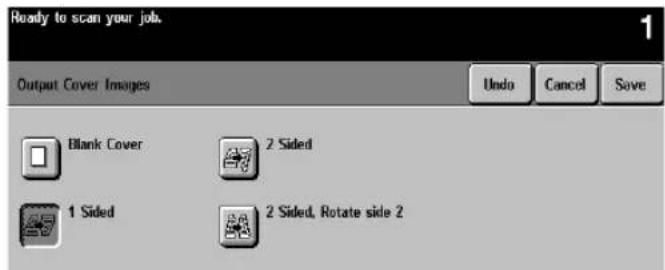
text_image
Ready to scan your job. Output Cover Images Undo Cancel Save Blank Cover 2 Sided 1 Sided 2 Sided, Rotate side 2Select this option in order to print images on one or both sides of your covers.
- Select Blank Cover if you want covers without images.
- Select 1 Sided covers to place the first original submitted in the job as the front cover image, and the last image as the image on the inside back cover of your document.
- Select 2 Sided covers to place the first two images of your original set on the front and back side of the cover. The back cover will be based on the last two images in the job.
- Select 2 Sided Rotate side 2 to rotate the second side 180 degrees.
NOTE
To produce one-sided covers with the back image on the outside of the booklet, select 2-sided covers and insert a blank page in the set of originals at the location to be left blank.
Cover Stock

text_image
Ready to scan your job. 1 Cover Stock Selections Undo Cancel Save Stock Size Stock Type Stock Color Tray Type 1 8.5 x 11" □ Punched Gray Fully Adjustable 2 8.5 x 11" □ Plain Paper Yellow Fully Adjustable 3 11 x 17" □ Plain Paper White Fully Adjustable 4 8.5 x 14" □ Plain Paper White Fully Adjustable 5 8.5 x 11" □ Heavyweight White Fully Adjustable 6 8.5 x 11" □ Plain Paper White DedicatedSelect Cover Stock to select the paper tray with the desired stock. The orientation of the selected cover stock must be the same as the body of your copy job.
Invert Image

text_image
Target Forward Button
text_image
Ready to scan your job. Invert Image Undo Cancel Save Mirror Image Off Negative Image Off On OnThis feature allows you to make Mirror Image or Negative Image copies of your original documents.
Mirror Image
As illustrated below, this option changes the direction of the original image creating a mirror of the original. This option is primarily used to transpose the position of a graphic.
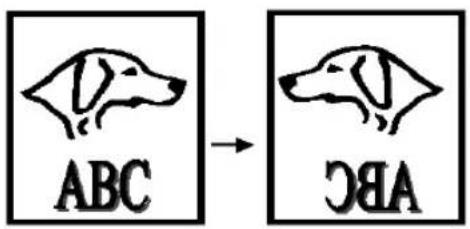
text_image
ABC → DBANegative Image
Some originals have a dark background and white text. Using Negative Image on these originals can save on dry ink consumption. This option will create copies that are the opposite of the original document as illustrated below.

text_image
F → F
natural_image
Line drawing of a hand inserting a card into a device (no text or symbols)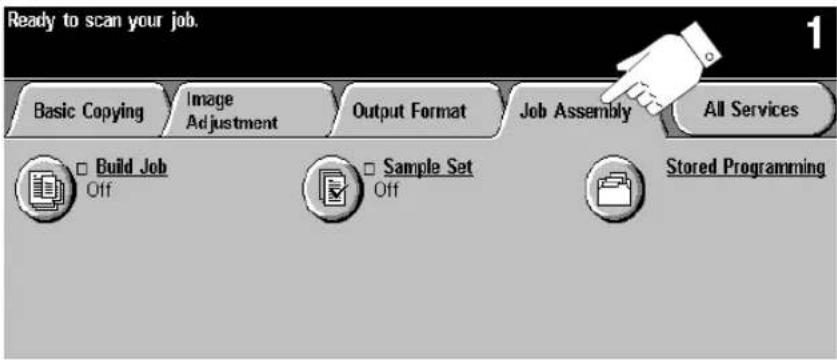
text_image
Ready to scan your job. Basic Copying Image Adjustment Output Format Job Assembly All Services Build Job Off Sample Set Off Stored ProgrammingUse the Job Assembly tab to combine multiple documents into a single job, produce a sample set of a job before printing large quantities or storing the programming of up to 10 jobs. These features include the following:
- Build Job
- Sample Set
- Stored Programming
Build Job
text_image
All Assembly
text_image
Ready to scan your Build Job segment. Build Job Build Job Controls Cancel Save Off Select Build Job to program, scan, and store individual job segments. After all segments have been scanned, select End Build Job to print the entire job. On MAX number of images = 1000.Build Job enables you to combine multiple, individually programmed job segments from either the Document Glass or the Document Feeder into a single copy job.
You can feed more than the maximum number of originals through the Document Feeder by splitting the job into multiple segments or by adding inserts to a large job. For more options see Build Job Controls on page 4-36.
Quantity, stapling, and collation options can be adjusted at any time, and will assume the values of the last job segment.
NOTE
The recommended limits of Build Job are 100 individual job segments and 1000 8.5 x 11 inch images with 5% area coverage. If these limits are exceeded, your job may be deleted.
Build Job Controls

text_image
Ready to scan your Build Job segment. 1 Originals Scanned Build Job Controls Close End Build Job Cancel Sample Printing Sample Last Segment Delete All Segments Delete Last SegmentAfter the final segment is scanned, press the End Build Job button to accept the programming. The entire job will be printed and Build Job will automatically deselect.
Use Sample Last Segment to see a proof of the last segment you just scanned. The copy will go to the default output tray. If you are satisfied with the sample you can continue programming your job.
Use Delete Last Segment to delete the last segment that was just scanned. You can continue programming your job.
Use Cancel Sample Printing to halt a sample print job that is currently running. This option can save paper and time by stopping the sample printing of a large segment. You can then reprogram and rescan the segment.
Use Delete All Segments to delete the current job and return to the main Build Job screen.
Sample Set

text_image
All Assembly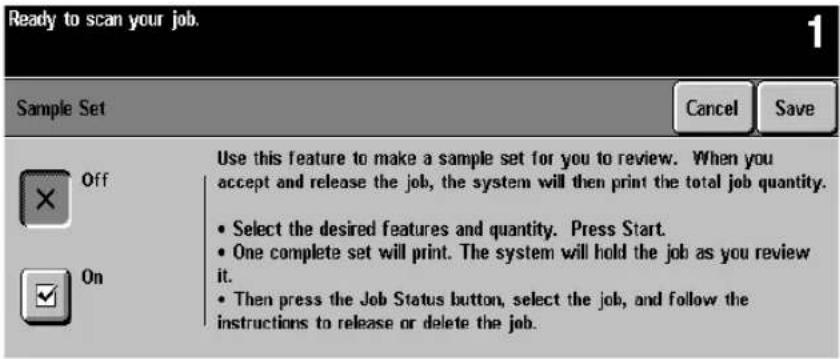
text_image
Ready to scan your job. 1 Sample Set Cancel Save Off Use this feature to make a sample set for you to review. When you accept and release the job, the system will then print the total job quantity. • Select the desired features and quantity. Press Start. • One complete set will print. The system will hold the job as you review it. • Then press the Job Status button, select the job, and follow the instructions to release or delete the job.Use this feature to review your output to ensure that it is exactly what you expect before printing a large quantity.
Sample Set will print out one complete set, and then place the remaining job on hold in the Job Queue.
Access the job queue by pressing the Job Status button, then touch your job on the screen to access an additional screen. If the output is acceptable, press Release and the programmed number of sets will be produced. If the output is not acceptable, press Delete to delete the job from the queue. Reprogram and rescan the entire job.
Stored Programming

text_image
Job Assembly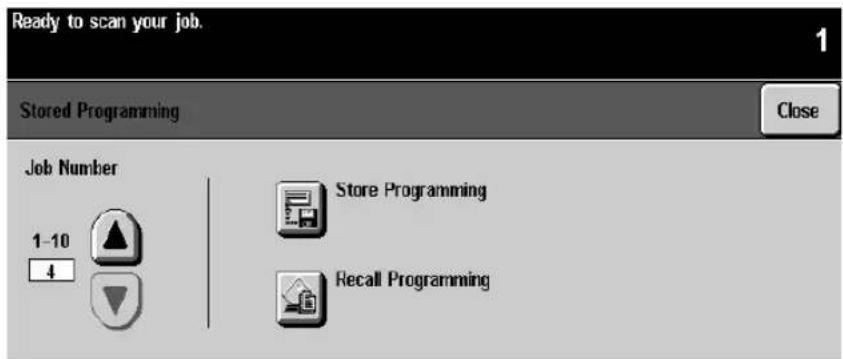
text_image
Ready to scan your job. Stored Programming Close Job Number 1-10 4 Store Programming Recall ProgrammingThis feature allows you to program up to 10 programming sequences. This feature is helpful to store commonly used selections or combinations of selections such as Edge Erase and Bound Originals.
To use this feature, use the up and down scroll buttons on the scrolling list to select the desired storage location, then press a function button - Store or Recall Programming.
Use the Store Programming feature to store the current programming selection. A confirmation message will ask you if you want to overwrite the existing programming in that location. If you choose to overwrite, the new programming will be stored in that location.
Every time you use this, a confirmation message will be displayed.
Use the Recall Programming feature to retrieve past programming that has been stored in a selected location. First, select a Job Number, then press the Recall Programming button. The recalled programming will overwrite the current copy programming. After being recalled, the selections can be modified further.
Check your programming values when applying stored programming values to a Build Job segment. Some stored programming, such as Multi-Up, cannot be recalled in the middle of a Build Job segment.
5. Fax (Optional Feature)
The Facsimile (Fax) feature is optional on the Document Centre.
If installed, it connects a networked Document Centre to a server running a network fax solution. The Network Fax software manages the transmission of files created by the Document Centre and receipt of incoming fax files to be printed on the Document Centre.
Coupling the Document Centre's rapid 1 or 2-sided scanning capability with an enterprise-wide Network Fax software solution, will provide your organization a great deal of power to meet your productivity needs.
Your Network Fax documentation will contain detailed information about configuring the Fax hardware and software to receive and route incoming faxes, access on-line telephone listings or other specialized features.
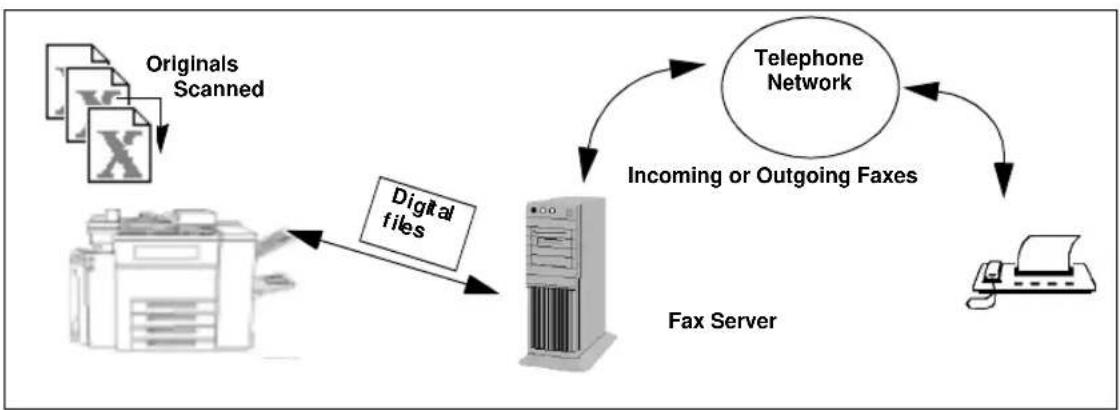
flowchart
graph TD
    A["Originals Scanned"] --> B["Digital files"]
    B --> C["Fax Server"]
    C --> D["Telephone Network"]
    D --> E["Incoming or Outgoing Faxes"]
    E --> F["Printer"]
    C --> G["Printed Fax Server"]
The person responsible for installing the Document Centre to a network should follow these steps to set up the faxing solution.
-
There are special software and hardware components required to enable the Network fax solution. You may need:
-
A server for the Network Fax software. If you are using an existing server with Network Fax software, use the Network Fax documentation to add the Document Centre to your existing Fax network.
-
Specialized hardware and software installed at the Document Centre. Contact Xerox to ensure your machine meets the minimum requirements and to make any required upgrades to your machine.
-
Enable the Faxing option on the Document Centre.
A Xerox technician will install any required hardware or software on your Document Centre to enable the Faxing option.
- Setup the Document Centre Fax Repository settings at the
Document Centre. Refer to the next page for more information.
Originals Faxed from the Document Centre are scanned and saved to a location on the server. The fax software watches this directory and faxes any files it finds to the specified destination.
The identification of this repository location is part of the fax component software setup. The same location must be entered into the Document Centre so the machine will route a faxed job to the correct location.
- Installation is complete.
Fax Repository Setups
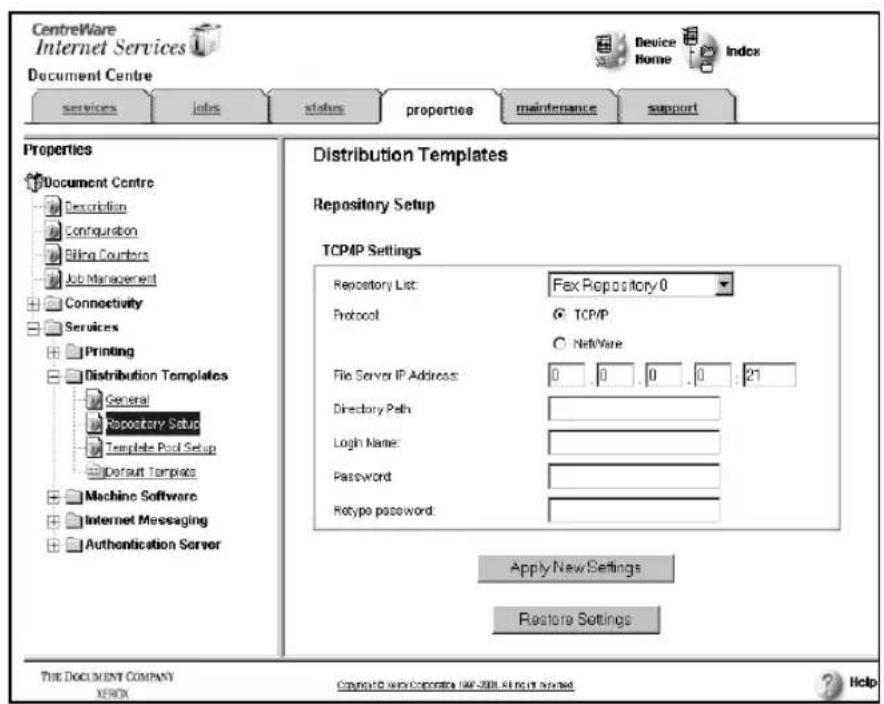
text_image
CentreWare Internet Services Document Centre Services Jobs status properties maintenance support Properties Document Centre Description Configuration Billing Counters Job Management Connectivity Services Printing Distribution Templates General Repository Setup Template Pool Setup Default Templates Machine Software Internet Messaging Authentication Server Distribution Templates Repository Setup TCP/IP Settings Repository List: Fax Repository 0 Protocol ○ TCP/IP ○ NetWare File Server IP Address: 0 .0 0 .0 .21 Directory Path: Login Name: Password: Retype password: Apply New Settings Restore Settings THE DOCUMENT COMPANY X90X CopyrightS.COM.CNRC-2008.41.06.17.03.03.03.03.03.03.03.03.03.03.03.03.03.03.03.03.03.03.03.03.03.03.03.03.03.03.03.03.03.03.03.03.03.03. Device Home Index Apply New Settings Restore SettingsThe Fax Repository is the location on the server where faxes that are processed by the Document Centre are stored until they can be sent to the final destination using the Network Fax software.
Use Internet Services Fax Repository Setup screens to identify the path from the Document Centre to the location on the server where the Network Fax software will find fax jobs to send. Fax setup screens are used by the individual responsible for maintaining the network aspects of the faxing function. Refer to the System Administration Guide for more details.
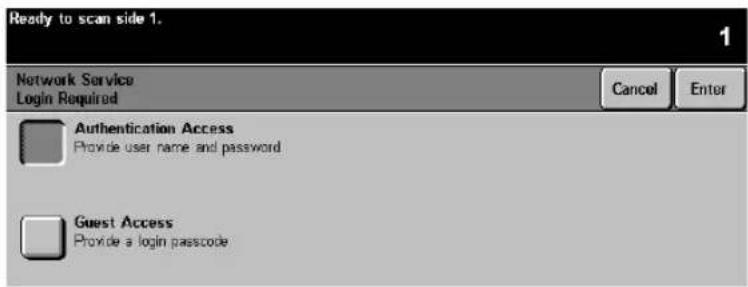
text_image
Ready to scan side 1. Network Service Login Required Cancel Enter Authentication Access Provide user name and password Guest Access Provide a login passcodeAccess to the fax features can be restricted by the System Administrator. This provides security and tracking of fax documents. Restriction levels include Network Access, Guest Access, or both.
If Network Service Login is required you will be presented with a Login Required screen.
- Authenticated Access requires a Network Login Name and Password.
- Guest Access requires a passcode which can be provided by the System Administrator.
Login - Authentication Access

text_image
Ready to scan side 1. Current Domain: usamic Type your network user name, then select Enter. Network Authenticated Access Step 1 of 2 Change Domain aaa 123 Exit Enter User Name: # q w e r t y u i o p _ a s d f g h j k l j l z x c v b n m ; , .Using the touch screen
- Select Authentication Access. You will be presented with a keyboard on the User Interface.
- Enter your Login Name. Press the enter button.
- Enter your Password. Press the enter button.
The system will attempt to validate the login information through the network server. If the account information is authenticated the restriction will be released and the Fax tab can be selected.
NOTE
The system will allow 5 attempts to validate login name and password. If any of the information is incorrect on the last attempt, you will be notified on the local user interface and all users will be locked out of all services offering authentication for a period of 5 minutes.
Logout

To Log off, press the Access button to the right of the screen, and then press the Logout button.
text_image
Ready to scan side 1. Network Service Login Required Cancel Enter Authentication Access Provide user name and password Type passcode using the keypad to the right, then select Enter Guest Access Provide a login passcodeUsing the keypad on the user interface:
- Enter the passcode (maximum of nine digits).
- Press the enter button.
The system will attempt to validate the login information. If the passcode is authenticated the restriction will be released and the Fax tab can be selected.
NOTE
The system will allow 5 attempts to validate login name and password. If any of the information is incorrect on the last attempt, you will be notified on the local user interface and all users will be locked out of all services offering Guest Access authentication for a period of 5 minutes.
Logoff

To Log off, press the Access button to the right of the screen, and then press the Logout button.
Getting to the Fax Feature

text_image
FaxWhen Fax has been installed on the Document Centre the Fax button will be available on the right hand side of the Touch Screen of the Features Pathway.
Access to the fax features can be restricted. When authentication is enabled, users will be required to login.

text_image
Feature Screen displayed after originals are loaded and the Fax button is pressed. Features button If you cannot see the copy, Fax or Scan selection, press this button Ready to scan your job. Basic Fixing More Fax Features E-mail Copy Network Scanning 2671111 Dating Options Add to Send List Dating Characters Send List... ( 2 ) Phone List Resolution Standard 1 Sided Fine 2 Sided Sides Scanned 2 Sided/Rotated Telephone number appears here Select 1 or 2-sided originals Use the keypad to enter telephone numbers Help 7 Language) C Access A ABC OK Clear All 1 2 3 GNC NO. MND Interrupt 4 5 6 POIS TUV WXYZ Stop/Pause 7 8 9 Start 0 # One Pause C
text_image
Ready to scan your job. Basic Faxing More Fax Features E-mail Copy Network Scanning 2671111 Dialing Options Add to Send List Dialing Characters Send List... ( 2 ) Phone List Resolution Standard Fine Sides Scanned 1 Sided 2 Sided 2 Sided/Rotated- Load your originals.
If using the Document Feeder, load face up. The Document Centre has an image rotation feature that enables you to feed originals Long Edge Feed even if the destination Fax can only print Short Edge Feed.
-
Press the Fax button to display the Fax screen.
-
If Faxing 2-sided originals, touch the 2-sided button.
-
Enter the fax number using the numeric keypad.
To send a fax to more than one number, press the Add to Send list button then enter the next telephone number. Repeat until all the numbers have been added.
Press the Send List button to view the list of destination phone numbers.
You can also use the Phone List to add preprogrammed numbers to the Send List. Refer to page 5-13.
Use the Dial Pause button on the control panel to add a pause between characters if necessary.
Add other Dialing Characters as necessary. Refer to page 5-10.
- Press Start.
The Document Centre will scan the originals and store the electronic files in the Fax Repository.
Confirmation Sheets and Transmission sheets. If enabled by your Machine Administrator, the machine will print a Confirmation Sheet when the job is successfully transferred to the Fax repository. When the job is received by the distant station and the Network Fax software has enabled transmission reports, a transmission report will be printed.
- Remove your original documents.
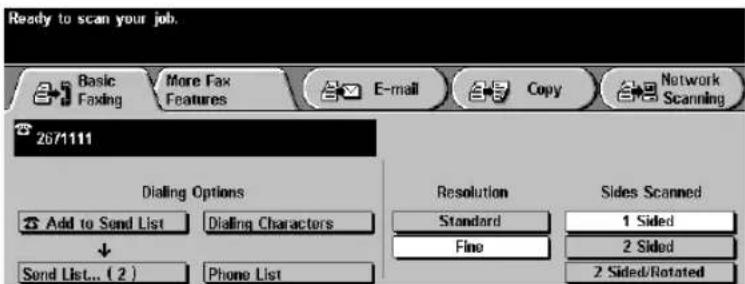
text_image
Ready to scan your job. Basic Faxing More Fax Features E-mail Copy Network Scanning 2671111 Dialing Options Add to Send List Dialing Characters Send List... ( 2 ) Phone List Resolution Standard Fine Sides Scanned 1 Sided 2 Sided 2 Sided/RotatedThe most commonly used faxing features can be found on the Basic Faxing Tab.
Dialing Options
The Dialing Options area contains a window where the telephone number entered is displayed. Once it is displayed you can add it to a list of destination telephone numbers, add a special character, or access a list of up to 30 stored telephone numbers.
Add to Send List/Send List Selection:
The Document Centre allows you to send a fax to multiple locations. To send a Fax to multiple locations, you simply have to build a list of destination telephone numbers. This list is known as the Send List.
To add a number to the send list, simply enter the number using the keypad or the Phone List and press the Add to Send List button. You can also access stored numbers by pressing the Phone List.
The number on the Send List button will change indicating how many telephone numbers currently reside in the send list.
If you press the Send List button, you can view and delete telephone numbers.
Dialing Characters
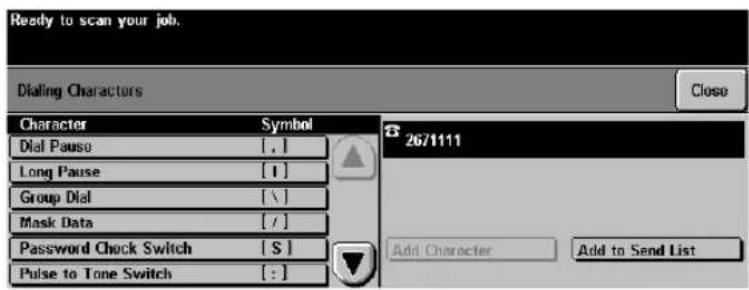
text_image
Ready to scan your job. Dialing Characters Close Character Symbol Dial Pause [.] Long Pause [1] Group Dial [\] Mask Data [/] Password Check Switch[S] Pulse to Tone Switch [:] 267/1111 Add Character Add to Send ListDialing characters are special characters that provide a unique capability when dialing through a telephone network or to a specific fax machine. Depending on the setup of the telephone and communication lines, some or all of the following characters may be needed.
Dial Pause [,]
This character provides a 3 second pause in dialing. This pause gives the Document Centre time to switch from an inside line to an outside line during automatic dialing.
For additional pause time, add multiple pause characters. However, do not add pauses unless a delay is expected. If using charge code numbers, enter a pause after the fax number, but before the charge code numbers, to ensure that the telephone line is ready to accept the numbers.
Dial Pause [,] is also available as a button on the keypad.
Long Pause [l]
This character provides a 5 second pause in dialing. This pause is used if you normally have a long wait for a dial tone.
Group Dial [\\]
Group Dial indicates that you are about to enter an identifier for a group that has previously been setup using the Network Fax software. When the job is sent, the Network Fax software will pick out the group ID and send a copy to everyone listed in that group.
NOTE
Using the Group Dial character, you can access a phone list that is created and stored on the network. Refer to the Network Fax software documentation for more information.
Mask Data [/]
Use this character to hide information on printed reports. Characters between the forward slash symbols will appear as asterisks (*). For Example, if you require a special charge code or want to conceal a credit card number required for a call, simply use the mask data character. In this example, the slashes mask a 5 digit charge code. Example: 9,5555555,/***/ the information between the slash symbols is masked.
Password Check Switch [S]
Use for remote terminal identification. This character verifies that the correct number has been dialed, which is very important if sending a confidential document. A password is required before transmission to a remote machine. For example, 1234567S4567 (where as 1234567 is the telephone number and 4567 after the S is the ID number) instructs the machine to check for validity, which is also known as Secure Send. The machine does not dial any number after the S. The number after the S is the ID number.
Wait for network tone detection [W]
Use to suspend dialing until an expected network tone is detected. Or it can be used to detect a specific tone when accessing an outside line or other services.
Pulse-to-Tone Switch [:]
Use to switch from pulse dialing to tone or touch-tone dialing. After switching from pulse to tone, you cannot switch back to the original mode during the fax operation. You might need to use pulse mode to make the connection and tone mode to access a mailbox. Dial the number and wait for instructions. After the call is answered and the greeting is heard, you are prompted to press 1 (or some other designated character) if you are calling from a touch-tone phone. When the designated character is selected, the system switches from pulse to tone.
Local ID [+] Character Check [+]
This may be required as part of some international telephone numbers (n + place of 00).
Local ID [space] Character Check []
This is used to improve readability. For example, adding spaces to a telephone number as 1 234 5678 instead of 12345678.
Begin DTMF [\*]
This will allow the user to enter DTMF Dual Tone characters in a fax number from the Local User Interface in a fax number.
End DTMF [#]
This will allow the user to end DTMF Dual Tone characters in a fax number from the Local User Interface in a fax number.
NOTE
The [*] and [#] buttons are located on the Document Centre keypad.
Phone List
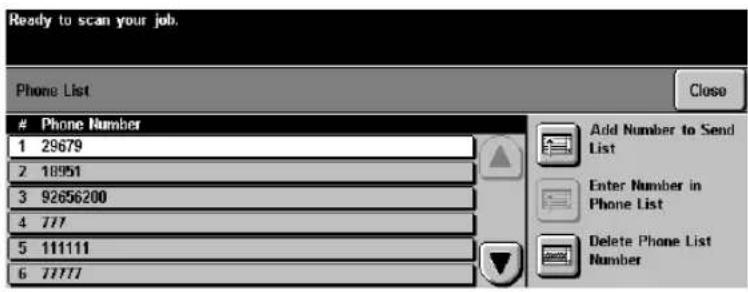
text_image
Ready to scan your job. Phone ListPhone Number
1 29679 2 18951 3 92656200 4 777 5 111111 6 77777 Add Number to Send List Enter Number in Phone List Delete Phone List NumberThis screen allows you to store up to 30 destination fax numbers. You can add or delete numbers in the Phone List.
To add numbers to the Phone List follow the steps below:
- On the Basic Faxing Screen, enter the telephone number using the keypad.
- Press the Phone List button. Although the telephone number you just entered will disappear from view, it is still stored in memory.
- Press the slot where you wish to store the number. If the slot contains a telephone number you will be prompted to overwrite it.
- Press the Enter number in Phone List button. The number will now be stored in the Phone list for future use.
Resolution
The resolution affects the appearance of the fax at the receiving fax terminal. A higher resolution yields better quality for photos. A lower resolution reduces communication time.
Standard (200 x 100 dpi) - Is recommended for text documents. It requires less communication time, but does not produce the best image quality for graphics and photos.
Fine (200 x 200 dpi) - Is recommended for line art. It produces output with a resolution between super fine and standard. This is the default resolution and the best choice in most cases.
Sides Scanned
This selection allows you to scan 1-sided, 2-sided or 2-sided rotated originals:
1 Sided -each original is single-sided.
2 Sided -each original is double-sided.
2 Sided Rotate - This is ideal if your second side is in a head to toe configuration.
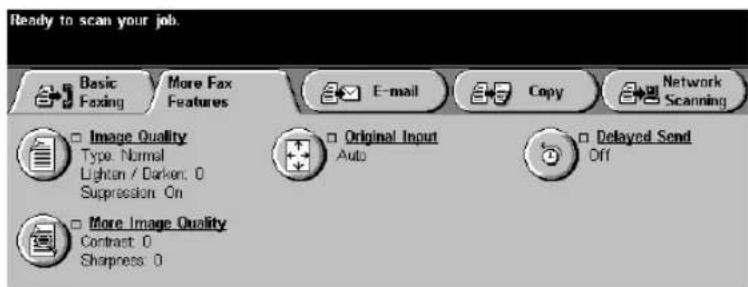
text_image
Ready to scan your job. Basic Faxing More Fax Features E-mail Copy Network Scanning □ Image Quality Type: Normal Lighten / Darker: 0 Suppression On □ Original Input Auto □ Delayed Send Off □ More Image Quality Contrast: 0 Sharpness: 0The More Fax Features tab contains specific features to modify a fax. Simply touch the tab to display options for:
- Image quality
- Delaying transmission
- Specifying the size of the original
Image Quality
Image Quality Settings

text_image
Ready to scan your job. Basic Faxing More Fax Features E-mail Copy Network Scanning Image Quality Type: Normal Lighten / Darken: 0 Suppression On More Image Quality Contrast: 0 Sharpness: 0 Original Input Auto Delayed Send OffThe Image Quality buttons allow you to adjust 5 settings, Original Type, Lighten/Darken, Background Suppression, Contrast and Sharpness. For more information, refer to page 4-13.
Original Type: There are 4 Original Type settings.
- Normal - This is the standard setting and is appropriate for the majority of the jobs run on the machine.
- Text - Use this option if your original contains only text or line art. This will result in the sharpest edges for the text and the line art.
- Halftone Photo- Use this option if your original contains high quality lithographic images or continuous tone photographs with text and/or graphics.
- Photo - This option is specifically designed to copy only continuous tone photographs or printed halftone originals.
Background Suppression: automatically deletes a colored or gray background.
Lighten/Darken: provides controls to adjust the lightness or darkness of the output.
Contrast: controls the differences between the image densities within the copy. Lower settings reproduce more detail in light and dark areas of the original. Higher settings produce more vivid blacks and whites for sharper text and lines but less detail in pictures.
Sharpness: controls the balance between sharp text and moiré (undesirable patterns within the image). Generally, sharpness is used to enhance the copy quality after evaluating the output.
Delayed Send
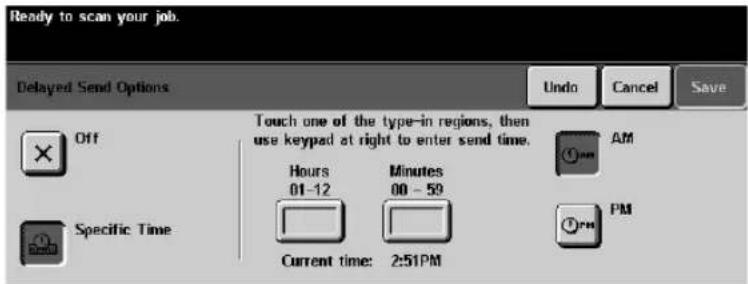
text_image
Ready to scan your job. Delayed Send Options Undo Cancel Save Off Touch one of the type-in regions, then use keypad at right to enter send time. Hours Minutes AM 01-12 00 - 59 Current time: 2:51PM Specific Time PMThis feature can be used to specify a time to transmit faxes during off-peak hours when telephone charges are lower or when sending to another country/time zone.
To use the Delayed Send feature:
- Load the original.
- Touch the More Fax Features tab on the first Fax screen.
- Touch the Delayed Send button.
- Touch the Specific Time button.
- Use the Keypad to enter the time when you would like the fax to be transmitted.
- Press Save and press Start.
NOTE
If a power outage occurs, all pending Delay Send jobs will be queued to start immediately once power is restored.
Original Input

text_image
Ready to scan your job. Original Input Undo Cancel Save Auto Manual Platen Input Use to describe the size of the originals. • Auto is the Normal Mode for this feature. Use Auto to automatically detect the size of the originals in the Document Feeder. • Use Manual Platen to enter document dimensions for use in Document Glass scanning.This screen allows you the option to program the size of originals or to allow the Document Centre to determine the size automatically.
Auto
Originals scanned, using the Document Feeder
Auto is the normal operating mode of the machine and allows the machine to determine the size automatically.
Originals scanned, using the Document Glass
When originals are scanned from the Document Glass with the cover open the system will scan the original twice. The first scan is a prescan to determine the size and location of the original. The second scan will capture the image.
Manual Platen Input
This option allows you to specify the dimensions of the document scanning region. Use this for hard to detect originals like transparencies or originals with dark borders.
Select a standard size or use Custom size to manually adjust the scanning dimensions. The adjustment range is 1 x 1 inch to 17 x 11.7 inches.
The originals are assumed to be registered at the left rear corner of the Document Glass.
6. Network Scanning (Optional Feature)
If your Document Centre is equipped with the Network Scanning option you will be able to create an electronic file from a hard copy original. The electronic file can be filed, faxed, or distributed through e-mail.
The scanned document is converted to either a single page or multi-page digital document and stored electronically.
The graphic representations of the touch screens in this chapter are based on a fully configured Document Centre and the appearance of these interface screens may differ slightly on other models or configurations. However, feature descriptions and functionality remain the same.

flowchart
graph TD
    A["Originals Scanned"] --> B["Digital files"]
    B --> C["Templates"]
    C --> D["Computer 1"]
    D --> E["Computer 2"]
    E --> F["Computer 3"]
This Reference Manual contains detailed information about the screens available when your Document Centre is scan-enabled. There are other sources of information that will help you to:
- setup scanning
- locate the latest drivers
- access your Document Centre's Internet Services
CentreWare™ Network Scanning Services Guide
This book contains information about configuring the optional Xerox CentreWare ^TM software applications and your Document Centre to enable scanning documents from the Document Centre. Additionally, it provides information on how to use the Xerox CentreWare ^TM applications such as the CentreWare ^TM Network Scanning software and how to create Distribution Templates.
PaperPort®, TextBridge Pro® and Document Centre Image Retriever™ manuals
These manuals describe the optional applications that enable you to manage scanned images and perform Optical Character Recognition (OCR) of your scanned images using PaperPort®, TextBridge Pro®, and the Document Centre Image Retriever™.
These manuals are supplied in electronic format on the Scan to PC Desktop ^TM Kit CD-ROMs.
Resources Provided on the World Wide Web
| Web Site General Contents | |
| www.xerox.com This is a source of general solution overview and options for upgrade. | |
| www.centreware.com Contains CentreWareTM general information with links to the latest drivers and utilities. | |
System Administration Guide
This book contains information about configuring and using Internet-Based Administration and Scan Services.
Internet Services is the embedded HTTP server application that is available on network enabled models. Internet Services enables you to access printing and scanning features, view status, manage jobs, and perform Document Centre management using a browser application over the Internet or intranet.
Successful network scanning requires selecting a template at the Document Centre. Templates contain preselected options which will be applied to the scanned original. These options include:
- Destination Location (Server location, Desktop address, Fax numbers, e-mail addresses, or combination)
- Update Template List
• Document Management fields
Template Destination - This setting will change depending on the destination assigned to the template
Template list -Six template names are visible on the Touch Screen. To access other templates use the scroll buttons.

text_image
Ready to scan your job. Network Scanning Image Adjustment Output Format All Services Template Name DEFAULT @ DLOWY @ ELLEN MICHAEL MGR MAIL RESUMES Template Details Destination: XEROX-CHIL1-MOL1/UISERS/SELLENSScan Update Template List Document Management FieldsThis counter lists your location in the template list. In this case, screen 1 of 9 screens.
Scrolling through the Template Name List
- To quickly get to a specific page in the Template Name list, use the keypad to identify the page number then select the pound (#) key. The counter will display the page location.
- To advance through the list one page at a time, use the up and the down arrow keys.
Selecting the correct Distribution Template
Selecting the correct template depends on how you want your scan job processed and where you want the scanned image sent. Typically, your System Administrator will have established a template for your use.
Select a template based on where you want the file to be sent. You can change the Sides Scanned, Image Quality and More Scan Features settings after you select a Template. To change the destination you must select a different template.
Making Templates
Templates can be created or changed using CentreWare ^TM software. For more information on creating templates, refer to the CentreWare ^TM Network Scanning Services User manual. This manual was included with the CentreWare ^TM software documentation that accompanied your machine. It is also available over the Internet at www.centreware.com or www.xerox.com.
Templates can also be created or changed using the Document Centre Internet Services provided by the embedded web server. Refer to the System Administration Guide for more information.
If the template has been recently created or modified, press the Update Template Name button on the Network Scanning tab. The system will retrieve the latest version of all templates from the file server to the Document Centre.
Template names are limited to 20 characters. Template names containing more than 20 characters will be shortened to the first 20 characters. Remember this when you are searching for existing templates or assigning template names.
Changing Preprogrammed Template Selections
After a template is selected, most of the preprogrammed settings can be changed such as sides scanned, image quality, resolution, and document management fields.
The output destination assigned to the template cannot be changed at the machine.
To change a template destination, you must either edit the existing template or create a new template using either the CentreWare Template utility or Internet Services.

-
Load the original into the Document Feeder or place it on the Document Glass.
-
Touch the Network Scanning button.

text_image
Ready to scan your job. Basic Copying More Copy Features E-mail Fax Network Scanning Output 2 Sided Copy Reduce / Enlarge Paper Supply Top Tray - Collated 1 → 1 Sided 100% Auto Paper Main Tray - Collated 1 → 2 Sided Auto % 6.85x11 1 Staple 2 → 2 Sided 17"→11" (64%) 1 8.5x11 1 Staple 2 → 1 Sided 14"→11" (78%) 2 8.78x11.69 More... More... More... More...- Select a template that contains the destination and other settings for your scan job from the Template Name List.
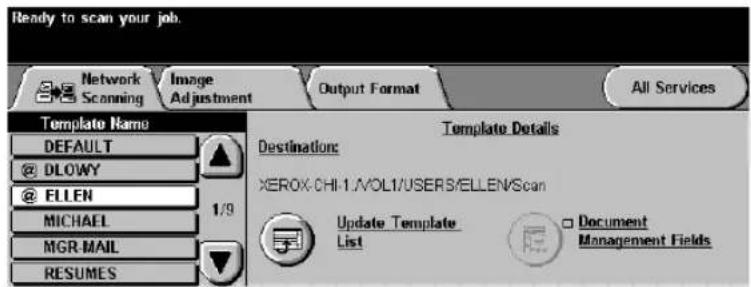
text_image
Ready to scan your job. Network Scanning Image Adjustment Output Format All Services Template Name DEFAULT @ DLOWY @ FLEN MICHAEL MGR-MAIL RESUMES Template Details Destination: XEROX:CHI 1.A/VOL1/USERS/ELLEN/Scan Update Template List Document Management Fields-
If you require additional scanning options, touch the More Scan Features tab and then select the desired button.
-
Press Start.
The job will be processed in accordance with the programmed settings contained in the template.
This tab contains the following selections:
- Template Name
- Template Details
- Destination
- Update Template List
• Document Management Fields

text_image
Ready to scan your job. Network Scanning Image Adjustment Output Format All Services Template Name DEFAULT @ DLOWY @ ELLLEN MICHAEL MGR MAIL RESUMES Template Details Destination: XEROX-CHI-1:AVOL1/USERS/ELLEN/Scan Update Template List Document Management FieldsTemplate Name
The Template Name list contains the factory default template that is supplied with the Document Centre. The default template appears at the top of the list and is selected automatically. All other templates follow in alpha-numeric order. There is a maximum limit of up to 250 templates.
There are two types of templates:
- Template names starting with the @ symbol are templates that currently reside at the machine. These templates have been created using Internet Services.
- Templates without the @ symbol are templates that have been created using CentreWare™ Network Scanning Software.
The Template Details section on the right hand side of the screen displays information about the selected template. Each time you select another template file, this area will update to display information associated with the selected template.
Any changes made to the template at the machine are temporary. Permanent changes must be made with the same utility that created the template.
Destination
The destination area shows where the template will send the processed scan job. Unlike the other scanning options, this address is not changeable at the machine. To change a template destination, you must either edit the existing template or create a new template using either the CentreWare™ Template utility or Internet Services.
Update Template list
Use this button to pull the latest templates from the file server. If the server cannot be accessed, an error message is displayed. Files with an incorrect template file name format will be grey in appearance.
Document Management
Field - This feature is only available when you use a template containing Document Management Fields information.
Document Management Fields allow you to include variable programmable data with a scanned file. The information is stored in the Job Log along with the scanned file. The Job Log can be accessed by using Document Management Information software in order to retrieve or route the stored files.
The following describes the options available when creating a template with Document Management Fields information:
Field Name: Used by your Document Management Information software to access the Document Management Fields data. Up to 128 characters can be entered. This option cannot be left blank.
Control Panel Prompt: Defines the prompt message that will be displayed at the Document Centre. Up to 50 characters can be used although only 25 will be displayed. This option is not editable at the machine.
Default Value: Defines the actual data that is to be assigned to a particular Control Panel Prompt. Up to 128 characters can be entered although only 60 will be displayed. Default Values can be temporarily altered at the machine for the job being scanned.
NOTE
Use Internet Services or CentreWare ^TM to edit or create templates. Up to 6 Document Management Fields can be programmed for each template.
Adding Document Management Fields

text_image
CentreWare Internet Services Document Centre Home Index services jobs status properties maintenance support new delete copy Job Submission Distribution Templates Distribution Templates Variance NewTemplate Document Management Fields Add... Field Name Field Label Default Value Label1 Label1 Label Label2 Label2 Leave Label3 Label3 Stay Edit... Delete THE DOCUMENT COMPANY NIREX Copyright © Xenter Corporation 1007-26-08 - all rights reserved. helpOnce the System Administrator has defined the repositories and default templates, the templates are available to all users.
To access and modify templates within Internet Services from the Main Window on the Document Centre's homepage, perform the following steps:
- Select Services.
- Select Distribution Templates.
- Select the required template.
- Scroll to the Document Management Fields area and select the Add... button.
- Select Add New Field button.
NOTE
Use the Add, Edit or Delete buttons to create, modify or delete a Document Management Field entry. Up to 6 Document Management Fields can be programmed for each template.
Using a template containing Document Management Fields information
- Place a document on the Document Glass or in the Document Feeder.
- Select All Services. Select Network Scanning.
- Select the template containing Document Management Fields. data. The Document Management Fields names contained in the template will be displayed on the touch screen.
- Create your customized fields.
- Select the Enter button.
NOTE
Refer to the Internet Services chapter of the System Administration Guide for details on creating templates with Document Management Fields.

text_image
Ready to scan your job. Network Scanning Image Adjustment Output Format All Services □ Image Quality Type Normal Lighten / Darker: 0 Suppression On □ More Image Quality Contract: 0 Sharpness: 0 □ Sides Scanned 1 Sided Portrait □ Original Input Auto □ Edge Frase Border Frase 0,1" □ Resolution 300x300x1This tab contains the following selections:
- Image Quality
- Sides Scanned
- Original Input
- More Image Quality
- Edge Erase
- Resolution
Image Quality
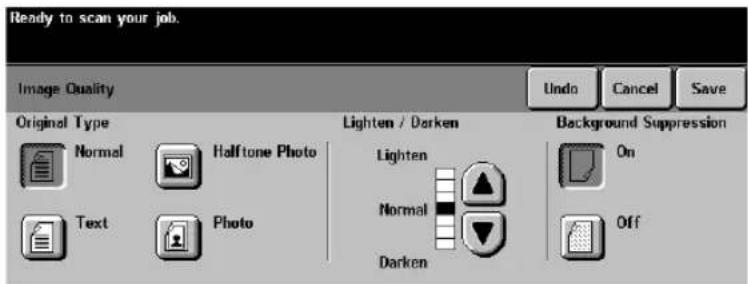
text_image
Ready to scan your job. Image Quality Undo Cancel Save Original Type Normal Holtone Photo Text Photo Lighten / Darken Lighten Normal Darken Background Suppression On OffThe Image Quality button allows you to set the Image Quality setting for specific types of originals. You can choose from Normal, Text, Halftone Photo or Photo.
Original Type controls the contrast and sharpness of the image and the way the digital image is produced.
- Normal - This is the standard setting and is appropriate for the majority of jobs run on the machine. It is designed to provide high quality copies of originals that contain a mixture of text, graphics, and pictures.
- Text - Use this option if your original contains only text or line art. This will result in the sharpest edges for the text and the line art.
- Halftone Photo- Use this option if your original is from a magazine or other source that contains high quality lithographic images or continuous tone photographs with text and/or graphics. This setting will produce better pictures, but slightly reduces sharpness of text and line art.
- Photo - This option is specifically designed to copy continuous tone photographs or printed halftone originals. Use this option if your original is a photograph or halftone picture without any text or lines. Any text or lines copied in this mode will be less sharp than if you select any of the other Original Types.
Background Suppression: enables you to enhance documents that have colored backgrounds. The Background Suppression feature automatically deletes a colored or gray background.
Lighten/Darken: provides controls to adjust the lightness or darkness of the output.
Sides Scanned
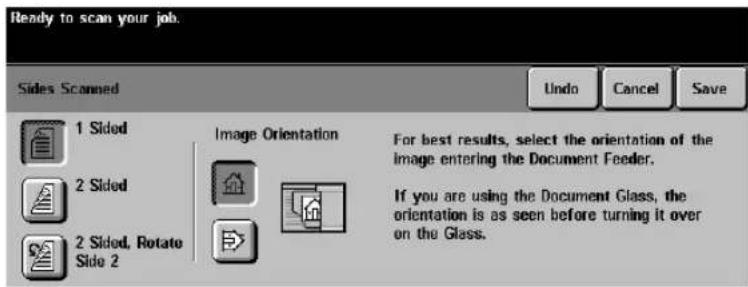
text_image
Ready to scan your job. Sides Scanned Undo Cancel Save 1 Sided 2 Sided 2 Sided, Rotate Side 2 Image Orientation For best results, select the orientation of the image entering the Document Feeder. If you are using the Document Glass, the orientation is as seen before turning it over on the Glass.This option allows you to select which sides will be scanned. You can choose from 1 sided, 2 sided or 2 sided Rotate Side 2.
It also allows to you orient your scanned image to better facilitate processing by applications using Optical Character Recognition (OCR). In the event you select the incorrect image orientation button, most OCR application software will allow you to reorient it.

Press this button if the bottom of your original will enter the Document Feeder first. This is independent of portrait and landscape and Long Edge or Short Edge Feed.

Press this button if you can read your originals as they lay in the Document Feeder. This is independent of portrait and landscape and Long Edge or Short Edge Feed.
Original Input
This feature should be used when scanning from the Document Glass if you have hard to detect originals.
- Auto: Automatically detects the size of the original. If scanning from the Document Glass, the Document Centre will scan the document twice.
- Manual Platen Input: defines the size of the area on the Document Glass where the Document Centre will scan. It assumes the original is registered in the upper left corner.
Edge Erase
This feature allows you to “refresh” the quality of an original that has become frayed at the edges, has punched holes, has staple marks or other extraneous marks. The Border Erase, Edge Erase, and Scan to Edge options perform in the same manner as the options in the Making Copies Chapter, see page 4-21 for more details.
Resolution
You can choose from the following scanning resolutions:
$$ \begin{array}{l} 2 0 0 \times 2 0 0 \times 1 \ 2 0 0 \times 1 0 0 \times 1 \ 3 0 0 \times 3 0 0 \times 1 \ 6 0 0 \times 6 0 0 \times 1 \ \end{array} $$
The higher the scanning resolution, the larger the image file created. For OCR applications, 300x300 usually provides the best results.

text_image
Ready to scan your job. Network Scanning Image Adjustment Output Format All Services File Format TIFFOutput Format tab allows you to select the File Format of your scanned file. You can choose TIFF, Multipage TIFF, or PDF file formats. The most universal format is PDF. Use TIFF to scan each page of a multiple page document as a single file. Use Multipage TIFF to scan multiple pages as a single file.

text_image
CentreWare Internet Services Document Centre services jobs status properties maintenance support Properties Document Centre Description Configuration Billing Counters Job Management Connectivity Services Printing General Printer Languages PostScript PCL TIFF Distribution Templates General Repository Satus Template Pool Setup Default Templates Machine Software Internet Messaging Authentication Server Distribution Templates Repository Setup TCP/IP Settings Repository List: Document Repository 0 Protocol TCP/IP NetWare File Server IP Address: 0.0.0.0: 21 Directory Path: Login Name: Password: Retype password: Apply New Settings Restore Settings THE DOCUMENT COMPANY NEREX Copyright © Xerox Corporation 1997-2000. All rights reserved. helpScanning setup screens are used by the individual responsible for maintaining the network aspects of the scanning function. Setup screens are located in Internet Services. Refer to the System Administration Guide for more details.
Scan Repository Settings
Use Internet Services Repository Setup to enter the information required to store scans on a server. These settings also apply to the default template.
If you are using the TCP/IP filing protocol, you will be able to enter the Login, Server and Path location.
If you are using the NetWare Filing protocol, you will be able to enter the Login, Server and Volume, Path and NDS settings (if applicable).
Template Pool Setup
The Template Pool is the location on the server where templates created using the CentreWare™ Scanning Services Template utility are stored.
If you are using the TCP/IP filing protocol, you will be able to enter the Login, Server and Path location.
If you are using the NetWare Filing protocol, you will be able to enter the Login, Server and Volume, Path and NDS settings (if applicable).
Polling Setup
This setting sets the time interval for the Document Centre to Poll the Template Pool for new templates.
Internet Services (Embedded HTTP Server)
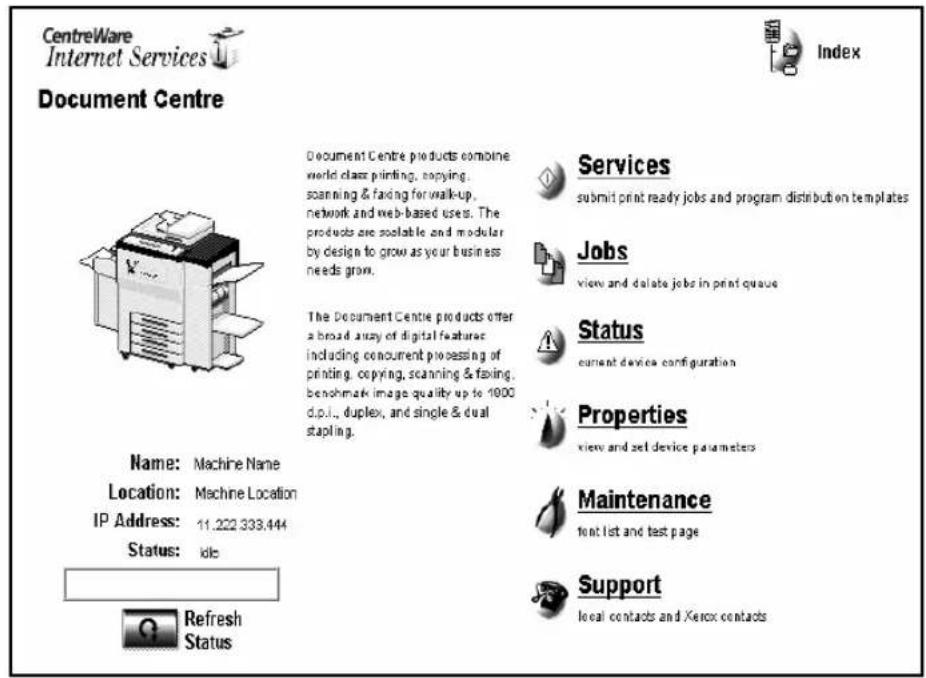
text_image
CentreWare Internet Services Document Centre Name: Machine Name Location: Machine Location IP Address: 11.222.333.444 Status: idle Refresh Status Document Centre products combine world-class printing, copying, scanning & fading for walk-up, network and web-based uses. The products are portable and modular by design to grow as your business needs grow. The Document Centre products offer a broad array of digital features including concurrent processing of printing, copying, scanning & faxing, benchmark image quality up to 1000 d.p.i., duplex, and single & dual stapling. Services submit print ready jobs and program distribution templates Jobs view and delete jobs in print queue Status current device configuration Properties view and set device parameters Maintenance font list and test page Support local contacts and Xerox contacts IndexInternet Services uses the computer inside the Document Centre as a server. You can access a web page on the server. Use the web page as an alternate method to print and scan documents. This feature can be used when the network server is unavailable or when you do not know how to connect to your network printers.
Internet Services enables you to:
- Setup Network Scanning Repository
- Setup Fax Repository
- Enable the Document Centre to accept software upgrade files.
- Access scanning features such as template creation and Network Authentication login permissions
- Access printing features
• View machine and job status - Manage jobs
See the System Administration Guide for more information on using the Web Server.
How to access Internet Services
Internet Services supports print ready files only. All files must be submitted in print ready format. See the System Administrator Guide for more details.
-
Type the Document Centre's IP address in your browser's URL field. For example, http://10.12.123.234. The Document Centre's Home Page will open.
-
Click an icon or a link to access the desired page.
NOTE
If you don't know the Document Centre's IP address, run a Configuration Report. The IP address is located under the heading TCP/IP Settings.
Authentication is the verification of user identity and authorization. If your Document Centre is equipped with this option you will be able to configure the system so users cannot initiate a service unless authentication is provided.
This option can be a useful network security management tool. When enabled you can limit access to Document Centre services such as Scanning, E-mail, and Network Fax.
This section provides information about each Authentication screen and function found in a fully featured Document Centre. Your configuration may vary slightly.
Use Internet Services to setup the Authentication Server. Refer to the System Administration Guide for details.
Configuring the Authentication Server

text_image
CentreWare Internet Services Document Centre 265ST Device Home Index services jobs status properties maintenance support Properties Document Centre 265ST Description Job Management Connectivity Physical Connections Ethernet Parallel Protocols Services Printing Internet Messaging Authentication General Authentication Type: Kerberos (Salarts) Kerberos (Windows 2000) NDS (Novell 4, 5) SMB (Windows NT 4) SMB (Windows 2000) Default Domain Controller Name or IP Address: IP Address Host Name IP Address and optional Part: 13 138 158 19 Domain: Backup IP Address and optional Part: 0 0 0 0 NOTE: IP IP and Host Name are both entered, Host Name will take precedence. Alternate Domain Controllers Alternate IP Address 1 and optional Part: 0 0 0 0 Alternate Domain 3: Alternate Backup IP Address 1 and optional Part: 0 0 0 0 Alternate IP Address 2 and optional Part: 0 0 0 0 Alternate Domain 2: Alternate Backup IP Address 2 and optional Part: 0 0 0 0 The Document Company 2015 Copyright © Series Securities, 1997-2000. All rights reserved. helpUse Internet Services to configure the Authentication Server. Refer to the System Administration Guide for details.
- Type the Server IP address in your browser's URL field.
- On the main window, select the Properties button.
- Select Services.
- Select Authentication, then select the General folder.
- Enter the Authentication type, Machine Name or IP Address and Alternate Domain Controller information.

flowchart
graph TD
    A["Tools Screen 1"] --> B["More"]
    B --> C["Tools Screen 2"]
    C --> D["More"]
    D --> E["Tools Screen 3"]
    E --> F["Service Access Control"]

text_image
Ready - Select Features to scan your job. Tools Mode Screen 3 of 3 Back Go To Screen 1 Exit Tools Service Access ControlService Access Control allows you to leave the Document Centre open or configure the system so users cannot initiate a service unless authentication is provided.
You can choose to allow the system to be:
- Open. This means that any user can approach the system and initiate any service without network Authentication. This setting is independent of any accounting access that may be required by the system.
- Guest Mode Only. This requires the user to enter a system passcode to access the protected system functions.
- Network Authentication Only. This requires a user to enter at least a user name and password based on the authentication environment selected by the Machine Administrator. Refer to Tools page 44 to enable or disable network configuration settings.
- Both Guest Mode and Authentication Mode.
NOTE
If a system is set to require network authentication, you may also choose to enable Guest Mode With Passcode. This will allow the users the option of authentication mode.

text_image
Ready to scan side 1. Network Service Login Required Cancel Enter Authentication Access Provide user name and password Guest Access Provide a login passcodeIf Network Authentication is required you will be presented with a Login Required screen. Network Authenticated Access requires a Network Login Name and Password. If you do not have a network account on the local network, select Guest Access.
How to enter Login Name and Password
Using the touch screen:
- Select Authenticated Access. You will be presented with a keyboard on the User Interface.
- Enter your Login Name. Press the enter button.
- Enter your Password. Press the enter button.
The system will attempt to validate the login information through the network server. If the account information is authenticated the restriction will be released.
NOTE
The system will allow 5 attempts to validate login name and password. If any of the information is incorrect on the last attempt, you will be notified on the local user interface and all users will be locked out of all services offering authentication for a period of 5 minutes.

text_image
Ready to scan side 1. Network Service Login Required Authentication Access Provide user name and password Guest Access Provide a login passcode Cancel Enter Type passcode using the keypad to the right, then select Enter.Guest Access can be used when individuals do not have personal accounts on the local network. Guest Access requires a passcode that can be obtained from the Machine Administrator.
Once the information is authenticated, the restricted services can be selected.
How to enter Guest Access password
Using the keypad on the user interface:
- Enter the passcode (maximum of nine digits).
- Press the enter button.
The system will attempt to validate the login information. If the passcode is authenticated the restriction will be released.
NOTE
The system will allow 5 attempts to validate the Guest Mode Passcode. If the passcode is incorrect on the last attempt, you will be notified on the local user interface and all users will be locked out of all services offering Guest Mode authentication for a period of 5 minutes.
7. E-mail (Optional Feature)
If your Document Centre is equipped with the e-mail option, you will be able to create an electronic file from a hard copy original and distribute the file through e-mail from your Document Centre. This feature enables you to manually build an E-mail Address List or search an Address Book. You can add and remove recipients and edit the Subject line of the e-mail message.
The Machine Administrator can setup the e-mail environment and server protocols using Internet Services. See the System Administration Guide for details.

text_image
Ready to scan side 1. Network Service Login Required Cancel Enter Authentication Access Provide user name and password Guest Access Provide a login passcodeAccess to the e-mail features can be restricted by the System Administrator. This provides security and tracking of e-mail documents. Restriction levels include Network Access, Guest Access, or both.
If Network Service Login is required you will be presented with a Login Required screen.
- Authenticated Access requires a Network Login Name and Password.
- Guest Access requires a passcode which can be provided by the System Administrator.
Login - Authentication Access
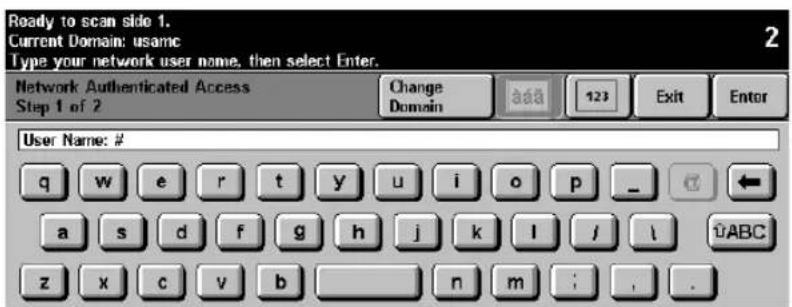
text_image
Ready to scan side 1. Current Domain: usame Type your network user name, then select Enter. Network Authenticated Access Step 1 of 2 Change Domain aaa 123 Exit Enter User Name: # q w e r t y u i o p _ a s d f g h j k l j \ z x c v b _ n m ; , .Using the touch screen:
- Select Authentication Access. You will be presented with a keyboard on the User Interface.
- Enter your Login Name. Press the enter button.
- Enter your Password. Press the enter button.
The system will attempt to validate the login information through the network server. If the account information is authenticated the restriction will be released and the e-mail tab can be selected.
NOTE
The system will allow 5 attempts to validate login name and password. If any of the information is incorrect on the last attempt, you will be notified on the local user interface and all users will be locked out of all services offering authentication for a period of 5 minutes.
Access
To log off, press the Access button to the right of the screen, and then press the Logoff button.
text_image
Ready to scan side 1. Network Service Login Required Cancel Enter Authentication Access Provide user name and password Type passcode using the keypad to the right, then select Enter. Guest Access Provide a login passcodeUsing the keypad on the user interface:
- Enter the passcode (maximum of nine digits).
- Press the enter button.
The system will attempt to validate the login information. If the passcode is authenticated the restriction will be released and the e-mail tab can be selected.
NOTE
The system will allow 5 attempts to validate login name and password. If any of the information is incorrect on the last attempt, you will be notified on the local user interface and all users will be locked out of all services offering Guest Access authentication for a period of 5 minutes.

To log off, press the Access button to the right of the screen, and then press the Logoff button.
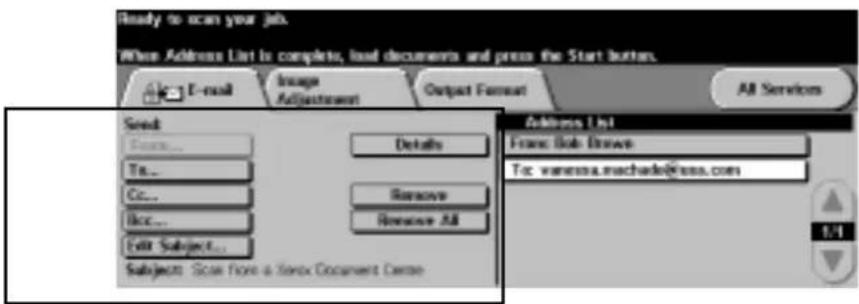
text_image
Ready to scan your job. When Address List is complete, load documents and press the Start button. E-mail Image Adjustment Output Format All Services Send Forms... Details Tr... Remove Cc... Remove All Edit Subject... Subjects: Store Store & Firefox Document Center Address List Franc Job Drawn Tc: wannssa.machade@css.com 1.4Selecting the e-mail tab accesses the first e-mail screen.
You can select the features on this screen to enter the Simple Mail Transfer Protocol (SMTP) e-mail addresses, or search the available address books to select the address information to build the Address List for a job.
NOTE
When manually typing e-mail addresses be sure to enter an SMTP-compliant e-mail address format such as anyone@anycompany.com.
From...
The sender of the message. The name is visible to all recipients of the message. This field is automatically populated when Authentication is enabled.
To...
The intended recipient(s) of the message.
Cc...
A copy of the message is sent to the recipient in this box, and the recipient's name is visible to other recipients of the message.
Bcc...
A copy of the message is sent to the recipient in this box, and the recipient's name is not visible to other recipients of the message.
Edit Subject...
Allows you to change the topic of the message.
Subject:
The topic of the message.
Details
Displays the recipient address information and From addresses in the Address List. Only available when the Address List has at least one entry.
Remove
Deletes a selected address from the current Address List. A confirmation message will be displayed. Only available when the Address List has at least one entry.
Remove All
Deletes all the addresses in the current Address List. A confirmation message will be displayed. Only available when the Address List has at least one entry.
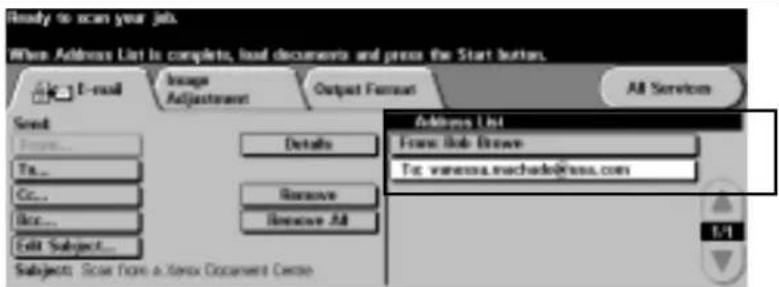
text_image
Ready to scan your job. When Address List is complete, load documents and press the Start button. E-mail Image Adjustment Output Format All Services Send: Tsa... Cc... Box... Edit Subject... Details Remove Remove All Addrs List From: Bob Drowe To: wanessa.machado@css.com 1/1 Subjects: Store from a text Document CenterThe Address List is manually compiled by the sender much in the way you would from your personal computer. Select the To, Cc, or Bcc button. The Add Entry international keyboard will open. Use the keyboard to enter the recipient e-mail address. Up to 128 recipient addresses can be entered into the Address List.
Once an e-mail address is entered in the Address List the Details, Remove, and Remove All options will be available.
NOTE
When selecting a To, Cc, Bcc recipient in the Address List only the address entry details will be displayed. When selecting a From entry you can select the Reply to button to edit the Reply to address.
Adding Recipients to the Address List
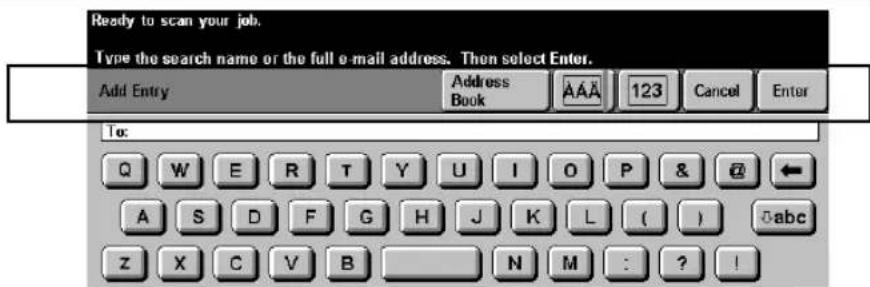
text_image
Ready to scan your job. Type the search name or the full e-mail address. Then select Enter. Add Entry Address Book AAA 123 Cancel Enter To: Q W E R T Y U I O P & ← A S D F G H J K L ( ) abc Z X C V B N M : ? !Use the Add Entry international keyboard to enter the name or full e-mail address of the message recipient. The active address book is displayed on this screen.

Use this button to switch between the different address books that have been enabled by the System Administrator.

Use this button to switch between the International Keyboard - Standard Characters and the International Keyboard - Accented Characters.

Use this button to display the number /symbols keyboard characters. Depending on your selection the button label will change.
Cancel
The cancel button will close the active window and ignore all entries.
Enter
The Enter button will initiate the recipient search activity using information shown in the type-in region of the window. The system will search the selected Address Book for matching entries.

Use the C button to clear all the characters, or use the Back-Arrow button to back space and delete one character at a time. Press and hold the button to clear characters until there are no more characters or the button is released.
Use this button to change the keyboard characters to upper case or lower case. Depending on your selection the button label will change.
- Select either the To..., Cc..., or Bcc... button. The Add Entry screen will display.
- Using the touch screen, enter an SMTP-compliant recipient name. For example, anyone@anycompany.com. You can choose an Address Book and enter the full name or a portion of the name of the recipient.
- Select the enter button. The system will search the Address Book and list all the names that match.
You can examine detailed information on any matches by selecting any line in the search results window. When the correct match is found touch the enter button to add the recipient to the Address List.
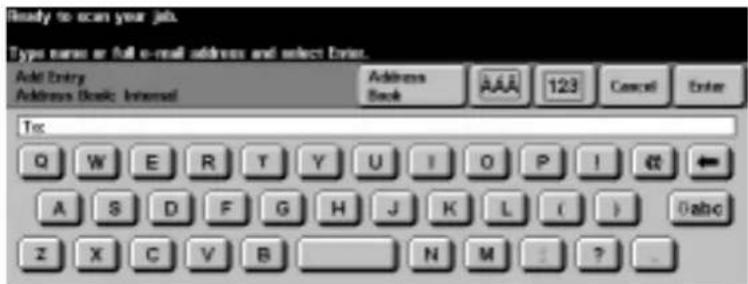
text_image
Ready to scan your job. Type name or full e-mail address and select Email. Add Entry Address Book: Internal Address Book AAA 123 Cancel Enter Tec Q W E R T Y U I O P I € ← A S D F G H J K L ( ) 0abc Z X C V B N M : ? _The Public Address Book stores external or company addresses on the machine. Normally updated by the System Administrator within Internet Services.
The Internal Address Book stores internal company addresses on the network. Created by the System Administrator with the company network.

text_image
Ready to scan your job. To Log Off, press the Access button to the right of this screen E-mail Image Adjustment Output Format All Services Image Quality Type Normal Lighten / Darker: 0 Suppression On Sides Scanned 1 Sided Portrait Original Input Auto More Image Quality Contrast: 0 Sharpness: 0 Edge Erase Border Erase 0,1 ° Resolution 300x300x1The Image Adjustment Tab provides the following features for fine-tuning the appearance of your finished output. These features function the same throughout the Document Centre options.
• Original Input see page 6-15 for details
• Resolution see page 6-15 for details
• Image Quality see page 6-13
Select any of the buttons to view additional options. A separate screen will appear for each feature. You may set as many features as you choose for each e-mail job.
The text next to the feature button, called a Job Review Summary, reflects the current settings for that feature. A checked box indicates that this feature has been modified from its default setting.
Most feature screens include three buttons to confirm or cancel your choices.

text_image
Undo Cancel Save- The Undo button resets the current screen to the default values that were set when the screen was opened.
- The Cancel button resets the screen and returns to the previous screen.
The Save button saves your choices and returns you to the previous screen.

text_image
Ready to scan your job. E-mail Image Adjustment Output Format All Services Document Format TIFF Reply To ANYONE@ANYCOMPANY.COMOutput Format allows you to select the Document Format of your scanned file and change the Reply To address.
Document Format
You can send e-mail jobs in TIFF, Multipage TIFF, or Image Only PDF document formats. The most universal format is Image Only PDF. Use this if there is concern as to the software loaded on the recipient's personal computer. Use TIFF to send each page of a multiple page document as a single file. Use Multipage TIFF to send multiple pages as a single file.
Reply To
Use the Reply To feature to enter an address different from the sender. This is useful when you wish to receive replies from recipients or error notification. If no entry is made for Reply To the same address as the e-mail sender will be used. If no sender was authenticated, the Reply To field message will not be sent or populated by the machine.
8. Job Status
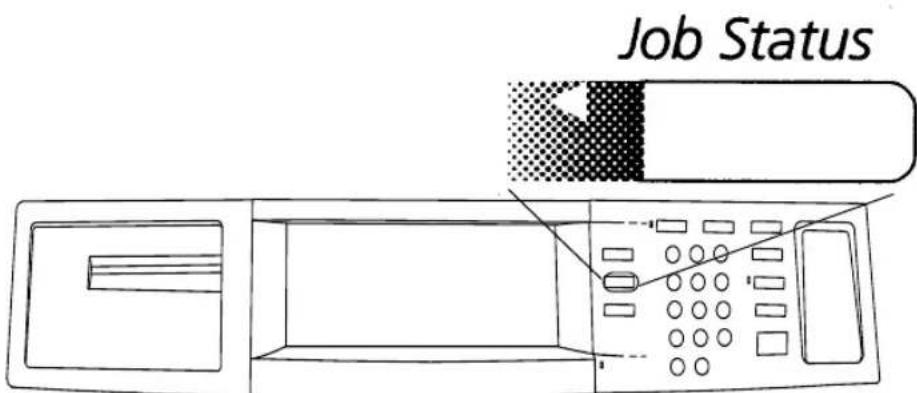
text_image
Job StatusThe Job Status button allows you to view and manage the job queue. The Job Queue is simply a list of all the jobs the machine has processed or is in the process of completing.
The job queue can display up to 50 jobs. You can alter the sequence if necessary by promoting or deleting jobs in the queue.
How does the machine know whether to print a copy or print job first? Using the Contention Management setting in Tools, the Machine Administrator can establish the order in which copy and print jobs will be printed. For additional information, refer to page 10-32.
Job Status
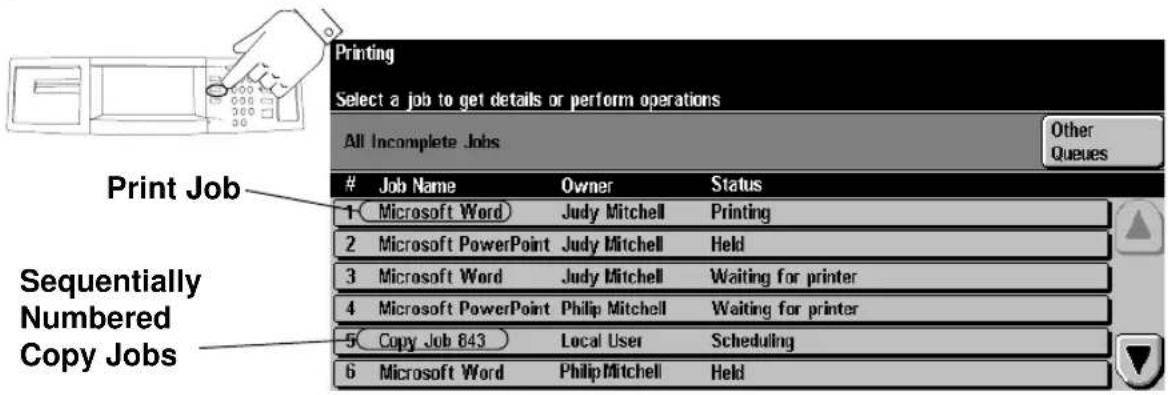
text_image
Printing Select a job to get details or perform operations All Incomplete Jobs Other QueuesJob Name Owner Status
1 Microsoft Word Judy Mitchell Printing 2 Microsoft PowerPoint Judy Mitchell Held 3 Microsoft Word Judy Mitchell Waiting for printer 4 Microsoft PowerPoint Philip Mitchell Waiting for printer 5 Copy Job 843 Local User Scheduling 6 Microsoft Word Philip Mitchell Held Sequentially Numbered Copy JobsThis screen displays all the jobs currently in the queue. Each will be identified with the following information: Queue number, Job Name, Owner and Status.
Scrolling through the Job Status List
- To quickly get to a specific page in the Job Status list, use the keypad to identify the page number then select the pound (#) key.
- To advance through the list one page at a time, use the up and the down arrow keys.
All copy jobs will have a Job Name of Copy Job followed by a number. The owner is identified as Local User. Print Job owners will be identified by name. Common messages and explanations are listed below:
Table 1: Job Processing Status
| Processing State | Explanation |
| Processing The | machine is currently processing the image for this job. |
| Printing The | machine is currently printing or is scheduled to print the job. |
| Completed This | job has completed printing. This status will be seen only when the completed jobs screen is selected. |
Table 1: Job Processing Status
| Processing State | Explanation |
| Held + reason | This job has been temporarily stopped from processing. The job will remain in the queue until released. |
| Deleted This job was deleted from the queue. | |
| Paused The pause button on the User Interface has been pressed. | |
| Waiting for the printer | The job is waiting to use printer resources. |
| Pending The print job has not yet been formatted. | |
| Formatting The machine is converting the job into printable format. | |
| Transferring The electronic file is transferring from the machine to the network. | |
| Scanning The machine is scanning your original and converting it into an electronic image. | |
| Waiting for scanner | The job is waiting to use scanner resources. |
| Scheduling The job is being scheduled in the print queue. | |
Other Queues

text_image
Other Queues 1. New York Times 2. Microsoft Word 3. Microsoft PowerPoint 4. Microsoft PowerPoint 5. Microsoft PowerPoint 6. Google Flash 7. Microsoft Word 8. Other Files 9. Other Files 10. Other Files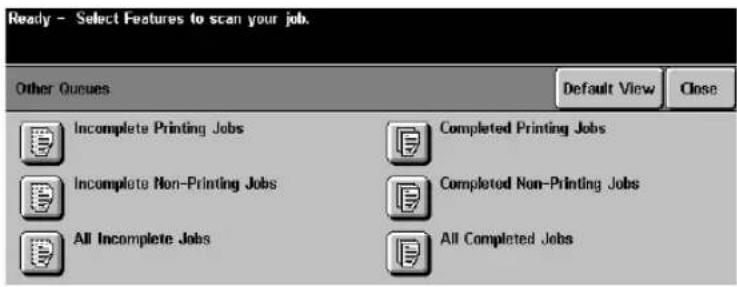
text_image
Ready - Select Features to scan your job. Other Queues Default View Close Incomplete Printing Jobs Completed Printing Jobs Incomplete Non-Printing Jobs Completed Non-Printing Jobs All Incomplete Jobs All Completed JobsThe Other Queues button allows you to change the listing of jobs in the queue. Options include the following:
- Incomplete Printing Jobs - All print or copy jobs waiting to be processed or currently are being printed
- Incomplete Non-Printing Jobs - All scan or fax jobs waiting to be processed or currently being printed
- All Incomplete Jobs - All jobs that are waiting to be processed or currently are being printed
- Completed Printing Jobs - All print or copy jobs that are printed or have been deleted
- Completed Non-Printing Jobs - All scan or fax jobs that are printed or have been deleted
- All Completed Jobs - All jobs that are waiting to be processed or currently are being printed
To change the queue listing shown, press a different queue button and press Close.
NOTE
It may take several seconds to respond to your selection.
Managing the Job Queue
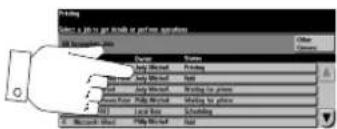
text_image
Open Name: 100% Name: 100% Edit Name: 100% Edit Name: 100% Edit Name: 100% Edit Name: 100% Edit Name: 100% Edit Name: 100% Edit Name: 100% Edit Name: 100% Edit Name: 100% Edit Name: 100% Edit Name: 100% Edit None Name: 100% Name: 100% Name: 100% Name: 100% Name: 100% Name: 100% Name: 100% Name: 100% Name: 100% Name: 100% Name: 100% Name: 100% Name: 100% Name: 100% Name: 100% Name: Name: Name: Name: Name: Name: Name: Name: Name: Name: Name: Name: Name: Name: Name: Name: Name: Name: Name: Name: Name: Name: Name: Name: Name: Name: Name: Name: Name: Name: Name: Name: Name: Name: Name: Name: Name: Name: Name: Name: Name: Name: Name: Name: Name: Name: Name: Name: Name: Name: Name:Touch the job on the screen to highlight it and bring up more options.

text_image
Printing All incomplete jobs Progress of Your Job Required Resources Close EX5051C1.XLS Waiting for printer Job Commands Delete Job Details Number of Images 3 Quantity Completed 0 of 1 Tray in UseJob Commands
Select one of the Job Command buttons to Delete, Promote, Release a job, or to obtain additional information about a job. These options depend upon the current state of the job being processed. The options may or may not appear depending on the current job state.
- Press Delete to remove a job from the queue. Any job can be deleted using this feature regardless of the originator.
- Press Promote to promote a job to the top of the Job Queue. Print jobs must be formatted before they can be promoted. The promoted job will move near the top of the Job Queue. There must be more than 10 images and several jobs ahead of your job to allow your job to be promoted.
- Press Release to release a held job. This feature is used to print the sets that are held after selecting Sample Set or Secure Print.
- Press Hold to prevent a job from printing.
- Press the Job Details button to access another screen that provides detailed information about the job. This information includes, Submission time, type of output, reduction factor, and other job characteristics.
Required Resources

text_image
Required Resources USECIOUS Number of Images 0 Quantity Computer 0 or 1 Date as: 2000 USECIOUS Number of Images 0 Quantity Computer 0 or 1 Date as: 2000 USE COUNCIOUS Browse Job Details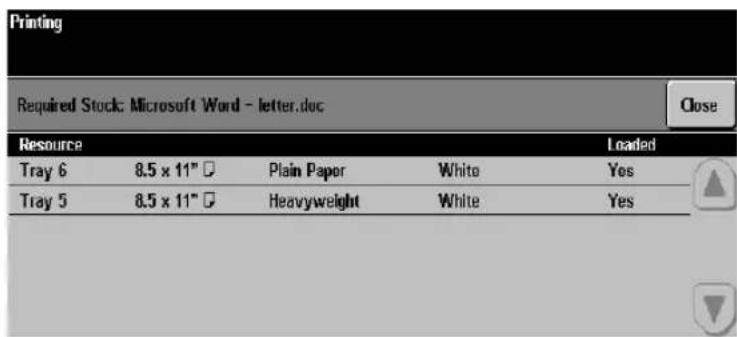
text_image
Printing Required Stock: Microsoft Word - letter.doc Close Resource Tray 6 8.5 x 11" □ Plain Paper White Yes Tray 5 8.5 x 11" □ Heavyweight White YesThe Required Resources button shows the size, type, and color of the stock required to print the job. It also details whether the paper stock required is loaded in the machine.
9. Machine Status

text_image
Machine StatusThe Machine Status pathway offers access to important information about the machine. This information is divided under three tabs: Machine Information, Faults, and Supplies.
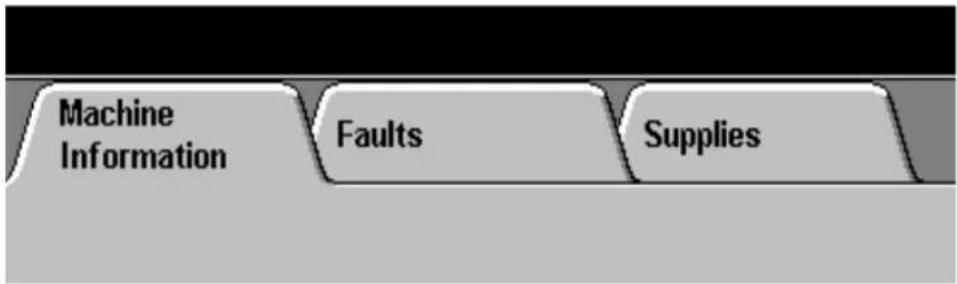
text_image
Machine Information Faults SuppliesTypically, you will use the Machine Status button to check the following:
• Determine the status of the paper trays and how they are configured
• Identify any faults listed
• Determine the billing information
- Determine the projected end of life of Feed Roll Cartridges and other consumable items
- Print Call For Service Reports. These reports contain specific information that will help you identify faults when reporting problems to Xerox

text_image
Ready - Select Features to scan your job. Machine Information Faults Supplies Machine Details Paper Tray Status Billing Counters Print ReportsThis screen provides access to the information listed below:
- Machine Details
- Paper Tray Status
- Billing Counters
- Print Reports
Machine Details

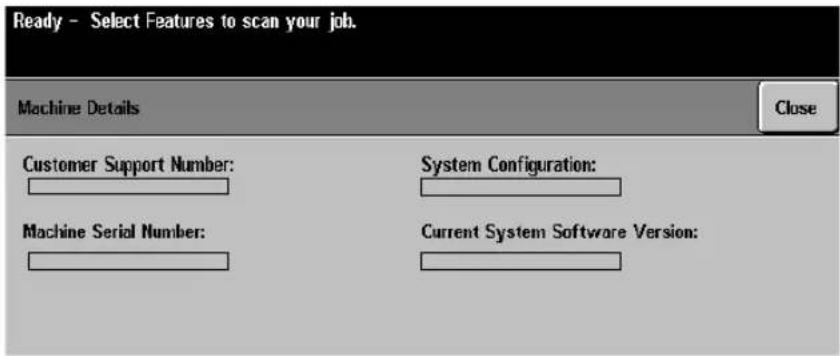
text_image
Ready - Select Features to scan your job. Machine Details Close Customer Support Number: Machine Serial Number: System Configuration: Current System Software Version:The Machine Details screen contains the data that is exclusive to your machine.
Basic system information is required when you call the Welcome Center for customer support and is found here:
• The Customer Support Number (The Welcome Center)
• Machine Serial Number
• System Configuration number for your machine
• Current System Software Version
NOTE
Always refer to this information and have it available when you call the Welcome Center.
Paper Tray Status

text_image
Ready - Select Features to scan your job. Tray Status Status Size Type Color 1 Ready 8.5 x 11" □ Transparencios White 2 Ready 8.5 x 11" □ Plain Paper Yellow 3 Ready 8.5 x 14" □ Plain Paper White 4 Ready 8.5 x 11" □ Plain Paper White 5 Ready 8.5 x 11" □ Heavyweight White 6 Ready 8.5 x 11" □ Plain Paper WhiteThe Paper Tray Status screen provides quick access to information about the paper trays, including tray status, size, stock type, and stock color. Refer to page 10-11 for more information about the Paper Tray Management System.
The status indicators are as follows:
- Ready indicates that the paper tray is not in use at this time and is available to provide paper stock for a job.
- In Use indicates that paper for the current job is being fed from this tray.
- Waiting indicates that the required paper for the current job is loaded in this tray, but the tray is not currently feeding paper.
- Faulted indicates that the tray is not available for processing until the fault condition has been cleared.
- Disabled indicates that this paper tray is not available for processing.
- Not Ready indicates that the paper tray is not available for use.
● Empty indicates that the paper tray is not loaded with stock.
Check this screen before making any adjustments to a tray. If the status is faulted, disabled, or not ready, check with the Machine Administrator.
Billing Counters
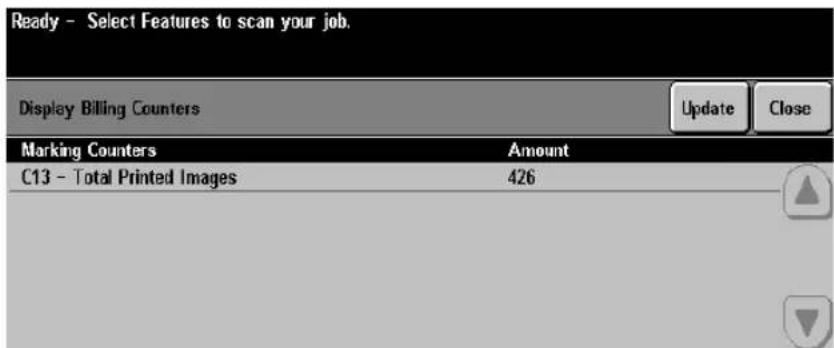
text_image
Ready - Select Features to scan your job. Display Billing Counters Update Close Marking Counters Amount C13 - Total Printed Images 426The Billing Counters feature provides access to machine usage and billing information. Billing Counters vary depending on your billing plan and configuration.
Select the Billing Counters button to view the current number and types of images your machine has produced. This information is subsequently used to generate your bill.
Print Reports

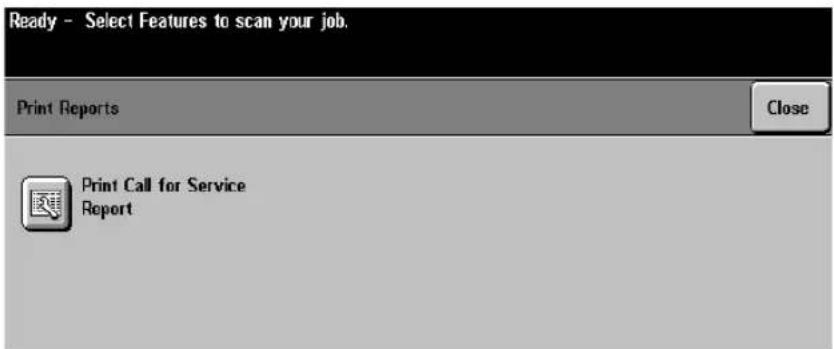
text_image
Ready - Select Features to scan your job. Print Reports Close Print Call for Service ReportPress the Print Call for Service Report button to generate a printed report. This report contains specific information that will be helpful when reporting problems to Xerox.
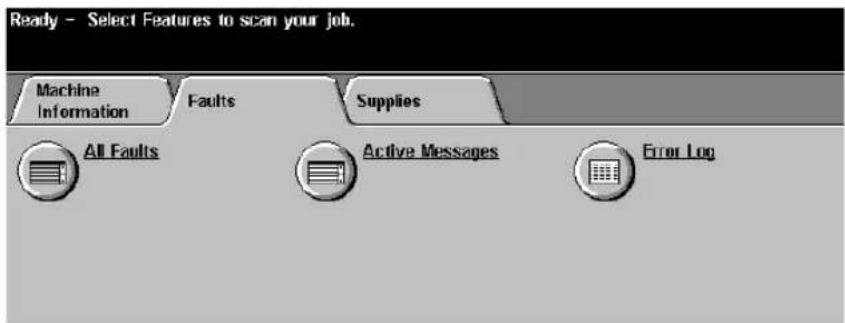
text_image
Ready - Select Features to scan your job. Machine Information Faults Supplies All Faults Active Messages Error LogA fault is an unplanned event that prevents the machine from performing as expected. For example, a tray will be out of paper, the end of life of a Replaceable Unit will be reached, a jam will occur, or a hardware problem will occur.
The Faults Tab presents three options to diagnose system problems:
- The All Faults selection presents a scrolling list of all active faults that are currently detected by the machine.
- Active Messages contains a numeric list of codes, each corresponding to a message that is displayed on the Touch Screen.
- The Error Log list provides a dated and time stamped list of the last 20 error codes that have been reported on the machine. The list is presented in descending sequence, from newest error code to oldest.
NOTE
Use this information when reporting a problem to the Welcome Center.

text_image
Ready - Select Features to scan your job. Machine Information Faults Supplies Feed Roll Cartridge End of Life Tray 2 365 Days Tray 3 365 Days Tray 4 365 Days Tray 5 365 Days Tray 1 365 Days Document Scanner 365 Days Xerographic Module Image Count: 4,440 Projected End of Life: 65 Days Automatically Ordered On: Fuser Module Image Count: 4,447 Projected End of Life: 197 Days Automatically Ordered On:This screen lists the approximate number of days until each Replaceable Unit, including Roll Cartridges are expected to reach their end of life. The number of days left is an approximation and is a calculation based on your daily volume.
When the Xerographic and Fuser modules need to be reordered or replaced a message will appear on the Touch Screen.
The Machine Administrator is generally responsible for changing the replaceable units.
NOTE
Recently replaced or seldom used trays may indicate end of life greater than 365 days. As the Trays and Feed Rolls are used, this number will automatically adjust.
10. Tools
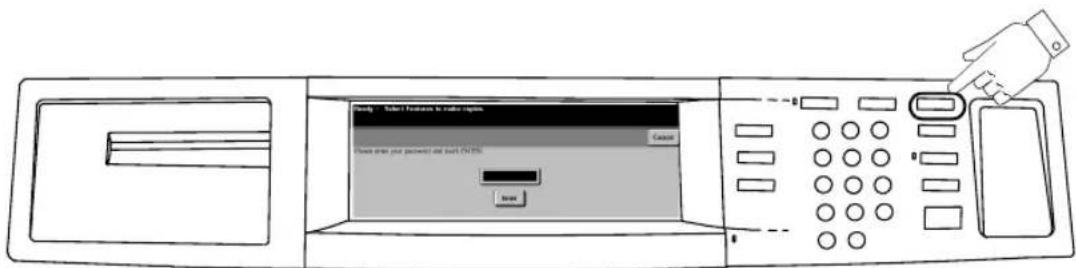
text_image
Cancel Cancel Check order your password at both ON/O OKUser Interface Login Screen
This chapter provides information about each Tools screen and function. This section contains screens from a fully featured Document Centre. This includes Printing, scanning, faxing, Network Accounting and telephone connection options. Your configuration may vary slightly.
The System Management Tools allow you to customize, and maintain, the Document Centre. This collection is commonly known simply as Tools. Using Tools, you can:
- Change the factory settings or defaults for a variety of features; for example, tone loudness, specific programming features, and Power Saver Administration.
- Perform basic maintenance tasks; for example, adjusting screen brightness or resetting the software.
- Perform a variety of system tests, typically with assistance from Xerox.
User Interface

natural_image
Line drawing of a hand inserting a button into a device (no text or symbols)Press here to access Tools
Default password 1111
To enter Tools, press the Access button, located on the upper right-hand corner of the User Interface, and enter the password of 1111. If you have an ST Model, Select Go to Tools. On a DC model with Auditorn active, press Tools Pathway after you enter the password. On a DC model without an active Auditorn you will immediately access the Tools functions after you enter the password and press enter.
NOTE
The factory preset password for Tools is 1111. It is strongly recommended that you change the password. Refer to page 11-14 to learn how to change the Tools password.
The following tables describe the Tools screens and list reference points within this document for additional information.
Tools Screen 1 - System Settings

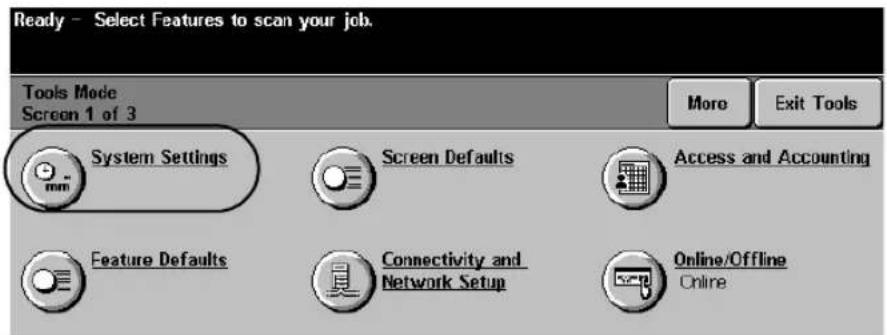
text_image
Ready - Select Features to scan your job. Tools Mode Screen 1 of 3 More Exit Tools System Settings mm Screen Defaults Access and Accounting Feature Defaults Connectivity and Network Setup Online/Offline OnlineSystem Settings (3 Screens)
| Screen 1See page 10-8Tray ManagementAudio TonesDisplay BrightnessSet Date and TimeTimersReduce/Enlarge Presets (DC machines)Configuration Report (ST machines) | Screen 2See page 10-9MeasurementsDocument Scanner Size SensingDisplay OptionsReduce/Enlarge Presets (ST machines)Job Sheets (ST machines)Image Rotation (DC machines)Output Options (DC machines)Decurler Settings | Screen 3See page 10-10Contention ManagementOutput Options (ST machines)Image RotationElectronic Hole RemovalSingle Job Mode (DC machines) |
Tools Screen 1 - Screen Defaults and Auditorn Administration

text_image
Ready - Select Features to scan your job. Tools Mode Screen 1 of 3 More Exit Tools System Settings Screen Defaults Access and Accounting Feature Defaults Connectivity and Network Setup Online/Offline Online| Screen Defaults●Entry Screen Default●Job Status Default●Language DefaultRefer to page 10-38 | This selection allows you to choose the initial screen that users will see at the machine, display either incomplete or completed print jobs, or change the language of the Touch Screen display. |
| Access and Accounting●Internal Auditorn Setups●Auxiliary Interface Setups●Network Accounting Setups●Authentication Mode●Tools Mode AccessRefer to Chapter “11. Tracking Usage” | This selection is used to set up the auditorn accounts that enable you to control the access to the machine and to track copy usage.You can change theToolspassword using this selection. |
Tools Screen 1 - Feature Defaults and Network Connectivity


text_image
Ready - Select Features to scan your job. Tools Mode Screen 1 of 3 More Exit Tools System Settings Screen Defaults Access and Accounting Feature Defaults Connectivity and Network Setup Online/Offline Online| Feature DefaultsSet Feature DefaultsRefer to page 10-37 | Allows you to change the default settings for the copy feature tabs to best fit your environment. |
| Connectivity and Network Setup(ST models only)Parallel PortPhysical MediaNetwork SetupRefer to page 10-40 | The System Administrator uses this feature to make the correct network settings.Refer to theSystem Administration Guidefor more information. |
| Online/Offline(ST models only)OnlineOfflineRefer to page 10-39 | The System Administrator uses this feature to connect or disconnect the machine from the network. |
Tools Screen 2 - Supplies, Configuration, Tests, Power Saver
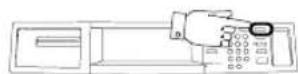

text_image
Ready - Select Features to scan your job. Tools Mode Screen 2 of 3 Back More Exit Tools Supplies Management Configuration and Setup Remote Data Transfer Setups Machine Tests Power Saver Software Reset Administration| Supplies ManagementRefer to page 10-41 | This selection accesses the options for:Service PlanWarning Message NotificationReplacement MethodFeed Roll Cartridge Replacement |
| Configuration and SetupRefer to page 10-44 | This selection accesses the options for:Document Scanner Cover Color50/60 HzOptional ServicesXerox Customer r Centre NumberDisk Finisher Setup |
| Remote Data Transfer SetupsRefer to page 10-46 | This is where you setup the Remote Data Transfer information or Sixth Sense. |
| Machine TestsRefer to page 10-51 | Allows access to machine diagnostics to assist you in identifying machine problems. On a DC model, this option is located on the first Tools screen. |
| Power Saver AdministrationRefer to page 10-62 | Where the time interval is set to switch from Standby to Low Power and subsequently from Low Power to Sleep or on a DC model to off. You can also enable or disable the automatic power down feature. |
| Software ResetReset System Software or Network ControllerRefer to page 10-63 | This is the button to access where you reset some machine systems without powering off the machine. On a DC model, this option is located on the first Tools screen. |
Tools Screen 3 - Setups, Software Upgrade, Service Access Control

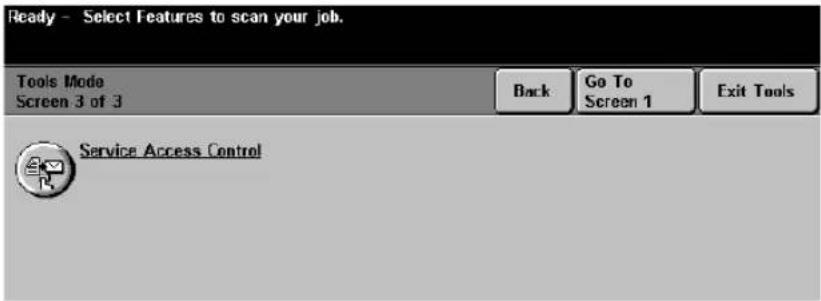
text_image
Ready - Select Features to scan your job. Tools Mode Screen 3 of 3 Back Go To Screen 1 Exit Tools Service Access Control| Service Access ControlRefer to page 6-23 | This selection allows you to restrict access to network services such as e-mail and fax. |
System Settings Screen 1

text_image
Ready - Select Features to scan your job. System Settings Screen 1 of 3 More Close Exit Tools Tray Management Display Brightness Timers Level 14 of 20 Audio Tones Time and Date Configuration Report Fault: Low 08/20/98 Enabled Conflict Low 11:12AM Selection: Low Offset 0.0 Hours Offset 0.0 Hours| Tray ManagementRefer to page 10-12 | Establish the paper tray and stock management system. This allows the Auto Paper and Auto Tray Switching features to function properly. It also determines the paper trays that will be displayed on the Basic Copying Tab. |
| Audio TonesRefer to page 10-19 | Adjust the audio tone volume levels. |
| Display BrightnessRefer to page 10-20 | Adjust the brightness setting for the Touch Screen. |
| Time and DateRefer to page 10-21 | Set the time, date, and the display format. |
| TimersRefer to page 10-22 | Set the time interval when the machine will return to a default selection after use; printing will be resumed after a period of inactivity; or a job will be deleted from memory if it is not completed. |
| Reduce/Enlarge PresetsRefer to page 10-26 | Change the factory default settings. This feature is on the first System Setting screen on DC models. |
| Configuration ReportRefer to page 10-23 | Enable or disable automatic printing of a configuration report when the machine connects to a network. You can also print a report at any time by pressing the print now selection. |


System Settings Screen 2

text_image
Ready - Select Features to scan your job. System Settings Screen 2 of 3 Back More Close Exit Tools Job Sheets Reduce / Enlarge Presets Measurements 0"0mm Units: inches Separator: 123,456.00 Decurlor Setting Display Options Document Scanner Size Bound Originals: Off Booklet. Off Sensing| MeasurementsRefer to page 10-27 | Establish the measurement units and the numeric separator. |
| Document Scanner Size SensingRefer to page 10-28 | Changes the default size zone settings for documents fed into the Document Feeder. |
| Decurler SettingRefer to page 10-29 | This allows you to reduce the amount of paper curl in the output copies. |
| Display OptionsRefer to page 10-30 | Provides a choice of scanning sequence for bound originals and reading sequence for booklets. This is useful for copying books or creating booklets that read either left to right or right to left. |
| Reduce / Enlarge PresetsRefer to page 10-26 | Sets the presets (on this screen in ST models) displayed on the Basic Copying Tab and when Normal or Custom R/E is selected.(DC machines located on screen 1 of 3) |
| Job SheetsRefer to page 10-24 | Provides the choice of printing information sheets such as Banner sheets, Error sheets, Fax Status sheets, and Scan Status sheets. You can choose the type of stock they are printed on. (ST models only). |
| Image RotationRefer to page 10-31 | Enables the automatic image rotation when Auto% or Auto Paper is selected. (On this screen in DC models) |
| Output OptionsRefer to page 10-34 | On this screen in DC models. Refer to the next page for details. |
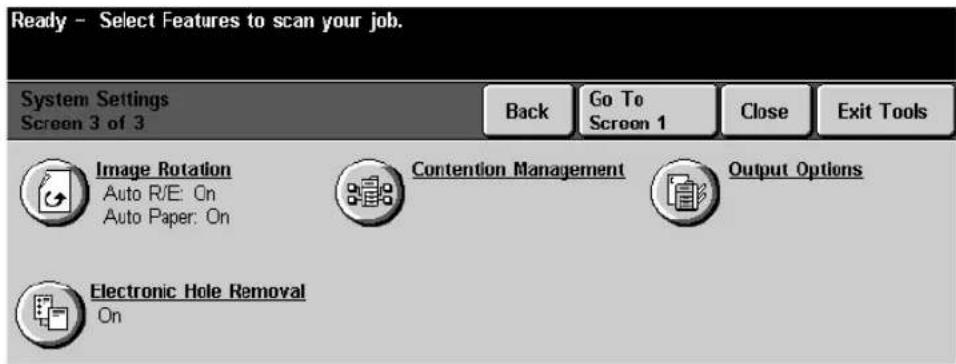
text_image
Ready - Select Features to scan your job. System Settings Screen 3 of 3 Back Go To Screen 1 Close Exit Tools Image Rotation Auto R/E: On Auto Paper: On Contention Management Output Options Electronic Hole Removal On| System Settings Screen 3 options may vary depending on machine configuration. | |
| Contention ManagementRefer to page 10-32 | Sets the priority in the queue for copy and print jobs. |
| Output OptionsRefer to page 10-34 | Where the adjustments are made to the quantity of thin stapled sets that are produced before the machine automatically pauses.You can enable or disable the feature that separates printed sets within a job.Controls what happens when stapled sets are selected and the machine runs out of staples. Options are to continue and to produce unstapled sets or hold the job until staples are replenished.You can also select the tray, either the top or the main, to send completed non-stapled jobs such as Print, Copy or Other jobs. |
| Image RotationRefer to page 10-31 | Enables the automatic image rotation when Auto% or Auto Paper is selected. |
| Electronic Hole RemovalRefer to page 10-36 | Enables the removal of the black circles left when copying a document that has punched holes. Originals must be placed in the Document Feeder. |
| Single Job ModeRefer to page 10-33 | Limits the job queue by allowing one copy job at a time. (DC models only). |


Paper Management System
The Document Centre tracks the attributes of the paper in each tray either automatically, or through user programming or a combination of both. Each tray can be Dedicated to a specific type of stock, made Fully Adjustable by all users or, on a DC model machine, adjustable by Size Only based on the needs of your environment.
Paper Attributes
The Document Centre allows four attributes to be programmed at the machine. These attributes include:
- Size - This is the physical dimensions of the media. The machine will automatically detect this.
- Orientation - Paper will be fed into the machine either Long Edge Feed (LEF) or Short Edge Feed (SEF). The machine will automatically detect this.
- Color - The color of the paper stock loaded in the tray (e.g. red, yellow, or clear).
- Type- Describes exactly what type of media is loaded in the tray (e.g. letterhead, hole-punched, or transparencies).
Tray Settings
In a Dedicated tray the Machine Administrator assigns the size, orientation, color and type of the tray contents. These selections are only changeable by someone with Machine Administrator access. When a Dedicated tray is opened, a pop-up screen will inform the user which specific paper must be used in the tray.
In a Fully Adjustable tray the size, orientation, color, and type of the tray contents must be programmed by the user. Each time the tray is closed, the user must confirm the tray contents.
In a Size Only tray, available only on the DC Model, the user can adjust size and orientation of the stock. The tray will function just like those in typical light lens copiers. Type and color are assumed to be the default stock.
Tray Management

flowchart
graph TD
    A["Tools Screen 1"] --> B["System Settings"]
    B --> C["System Settings 1"]
    C --> D["Tray Management"]
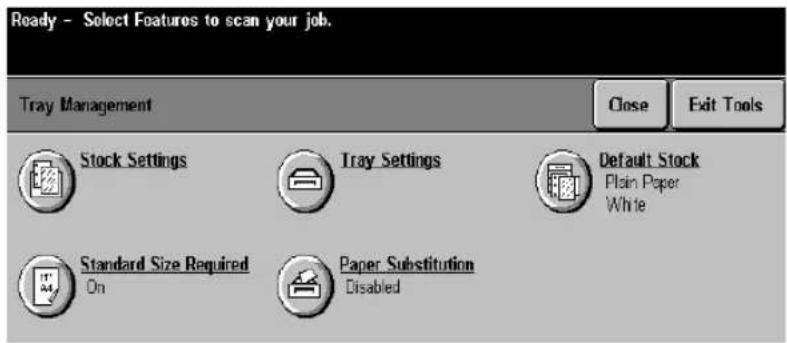
text_image
Ready - Select Features to scan your job. Tray Management Close Exit Tools Stock Settings Tray Settings Default Stock Plain Paper White Standard Size Required Paper Substitution On DisabledThere are several selections on this screen.
- Tray Settings allows you to program trays as Fully Adjustable, Dedicated, or on a DC model, Size Only. You can also set tray priorities and enable Auto Selection.
- Stock Settings allows you to set the stock size, color, or type for Dedicated trays only.
- Default Stock is where you set the stock type and color.
- Standard Size Required is used to control machine operation when Auto Paper is used to select a paper size. If this feature is On, only standard size papers can be selected automatically when Auto Paper is selected. If this feature is Off, any paper on which the entire image will fit can be used.
- Paper Substitution allows the automatic substitution of US and metric equivalent paper sizes for network print jobs. For example, 8.5 x 11 inch paper will be automatically substituted for A4 paper when 8.5 x 11 inch paper is not available in the machine.
Some image loss may occur. Refer to page 10-17 for more information. This feature is not available on the DC models.
NOTE
In ST models, in order for the system to print error and configuration reports correctly, at least one tray must be loaded with 8.5 x 11 inch paper and Auto Selection should be enabled.
Tray Settings

flowchart
graph TD
    A["Tools Screen 1"] --> B["System Settings"]
    B --> C["System Settings 1"]
    C --> D["Tray Management"]
    C --> E["Tray Management"]
    C --> F["Tray Settings"]
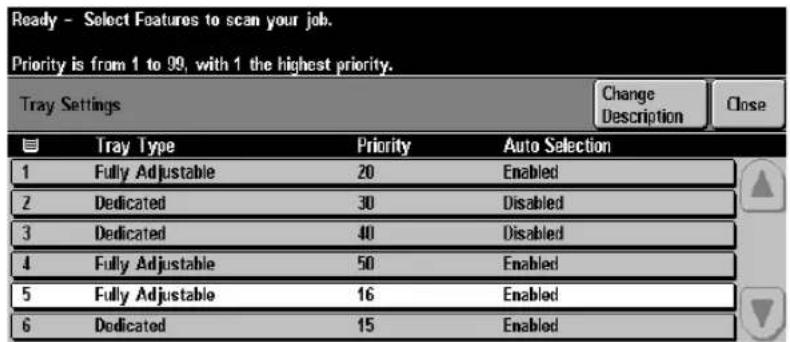
text_image
Ready - Select Features to scan your job. Priority is from 1 to 99, with 1 the highest priority. Tray Settings Change Description Close Tray Type Priority Auto Selection 1 Fully Adjustable 20 Enabled 2 Dedicated 30 Disabled 3 Dedicated 40 Disabled 4 Fully Adjustable 50 Enabled 5 Fully Adjustable 16 Enabled 6 Dedicated 15 EnabledUse this screen to view and change the setup of each tray. Select a tray from the scrolling list and then select the Change Description button to change the Tray Type, Priority, or Auto Selection.

flowchart
graph TD
    A["Change Description"] --> B["Arrow"]
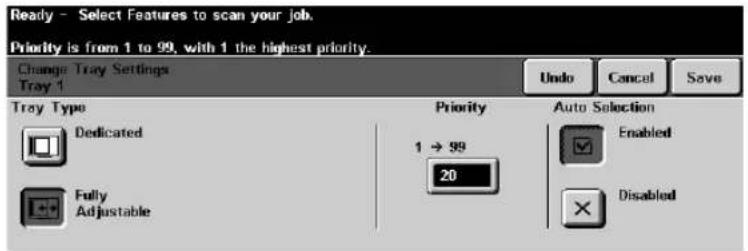
text_image
Ready - Select Features to scan your job. Priority is from 1 to 99, with 1 the highest priority. Change Tray Settings Tray 1 Tray Type Dedicated Fully Adjustable Priority 1 → 99 20 Auto Selection Enabled DisabledTray Type
A Fully Adjustable tray allows a user to program any paper attributes. The machine will detect the size and LEF/SEF orientation, and the user changes the type and color through a pop-up screen that appears after a tray is closed.
A Dedicated tray requires that the same paper always be used in this tray. The Machine Administrator assigns the paper size, LEF/SEF orientation, type, and color that must be used.
A Size Only tray is available only on the DC Model. The machine detects the size and LEF/SEF orientation. However, type and color descriptions are not programmable with this setting. The machine assumes that the default type and color are contained in this tray.

text_image
Highest Lowest ① → ⑨ 99 20Tray Priority Settings
The window in this input region will accept values from 1 (highest priority) to 99 (lowest priority).
The tray Priority setting performs two functions.
- It determines which tray will be used when two trays are loaded with the same paper and Auto Paper is selected. The tray with the highest priority that contains the selected stock with the default type and color will be the tray that is used.
- It also determines which paper trays are displayed on the Basic Copying Tab as indicated below. The trays with the highest priority (lowest number) will be displayed.
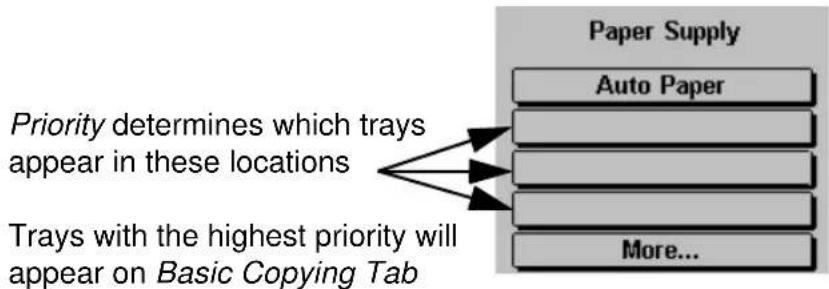
flowchart
graph TD
    A["Priority determines which trays appear in these locations"] --> B["Trays with the highest priority will appear on Basic Copying Tab"]
    C["Paper Supply"] --> D["Auto Paper"]
    C --> E["More..."]
Auto Selection
This selection enables the Auto Tray Switching feature which makes the tray and its pre-programmed contents available when Auto Paper is selected at the machine or a tray is selected in the Print Driver.
Disabling this option makes a tray unavailable for Auto Tray Switching.
Copy Jobs. Auto Tray Switching will only work when the Auto Paper option is selected and the job requires the system default size and color. For more information on setting the default size and color refer to page 10-16.
Print Jobs (ST models only). Print Job Auto Tray Switching differs slightly in that it will complete a print job as long as another tray has the same stock as the initially selected tray.
Stock Settings
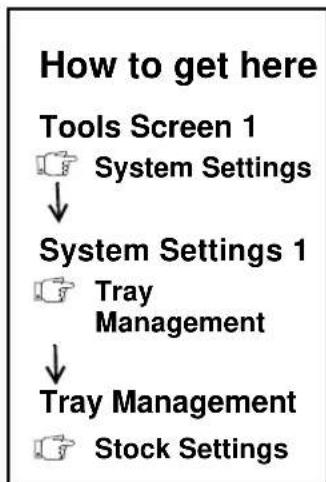
flowchart
graph TD
    A["Tools Screen 1"] --> B["System Settings"]
    B --> C["System Settings 1"]
    C --> D["Tray Management"]
    C --> E["Tray Management"]
    C --> F["Stock Settings"]
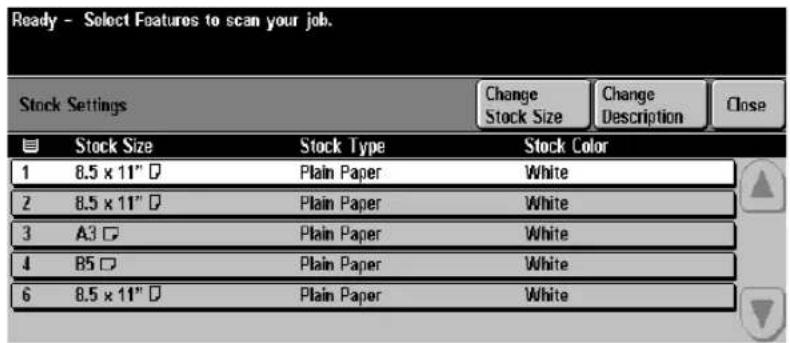
text_image
Ready - Select Features to scan your job. Stock Settings Change Stock Size Change Description Close Stock Size Stock Type Stock Color 1 8.5 x 11" D Plain Paper White 2 8.5 x 11" D Plain Paper White 3 A3 D Plain Paper White 4 B5 D Plain Paper White 6 8.5 x 11" D Plain Paper WhiteThis screen is used to establish the settings for Dedicated Trays. If a tray is designated as Fully Adjustable or Size Only (on DC models), this feature is not used and the Change Stock Size and Change Description buttons will not be selectable.
The stock size, orientation, type and color for each tray is displayed on this screen. To select a tray, touch the tray row on the Touch Screen.
Press Change Stock Size or Change Description to make a change. Follow the instructions on the new screen.
Default Stock

flowchart
graph TD
    A["Tools Screen 1"] --> B["System Settings"]
    B --> C["System Settings 1"]
    C --> D["Tray Management"]
    C --> E["Tray Management"]
    C --> F["Default Stock"]

text_image
Ready - Select Features to scan your job. Default Stock Settings Undo Cancel Save Stock Type Stock Color Plain Paper White Punched Blue Transparency Yellow Letterhead Green Heavyweight Pink Recycled ClearThis selection allows the programming of the default stock. Typically, this is the most common stock that will be used in the machine. It is also used by the machine to determine from which tray to print banner sheets for ST model machines.
When Auto Paper is selected on DC model machines and the machine encounters a situation where Auto Tray Switching can be used, the machine will use only trays that are loaded with the programmed default stock type and color.
On ST model machines, the default color and type are assigned to network printing jobs that do not specify color or type.
Paper Substitution

flowchart
graph TD
    A["Tools Screen 1"] --> B["System Settings"]
    B --> C["System Settings 1"]
    C --> D["Tray Management"]
    C --> E["Tray Management"]
    E --> F["Paper Substitution"]
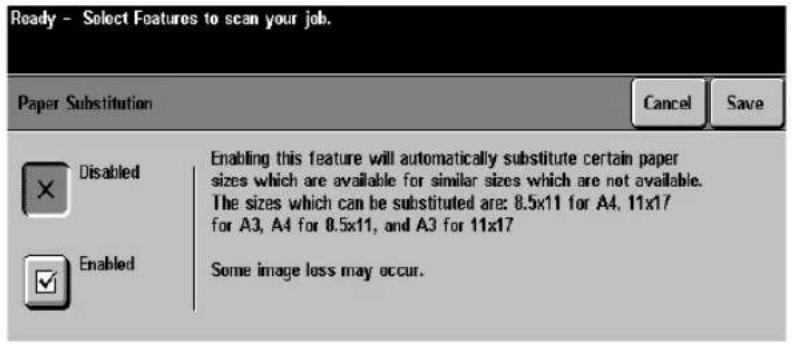
text_image
Ready - Select Features to scan your job. Paper Substitution Cancel Save Disabled Enabled Enabling this feature will automatically substitute certain paper sizes which are available for similar sizes which are not available. The sizes which can be substituted are: 8.5x11 for A4, 11x17 for A3, A4 for 8.5x11, and A3 for 11x17 Some image loss may occur.This ST model feature allows the automatic substitution of common US and Metric paper equivalents for network printing, specifically:
| Desired Size Substituted Size |
| 8.5 x 11 inch A4 |
| 11 x 17 inch A3 |
| A4 8.5 x 11 inch |
| A3 11 x 17 |
NOTE
Some image loss may occur because the physical dimensions of the paper sizes are different.
Standard Size Required
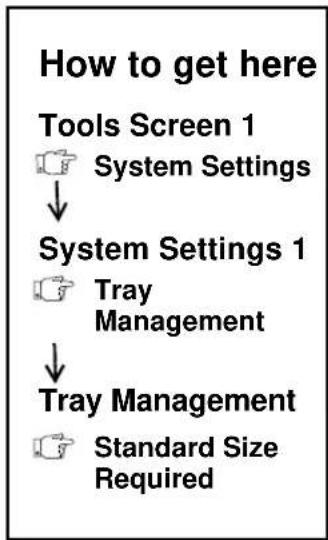
flowchart
graph TD
    A["Tools Screen 1"] --> B["System Settings"]
    B --> C["System Settings 1"]
    C --> D["Tray Management"]
    D --> E["Tray Management"]
    E --> F["Standard Size Required"]
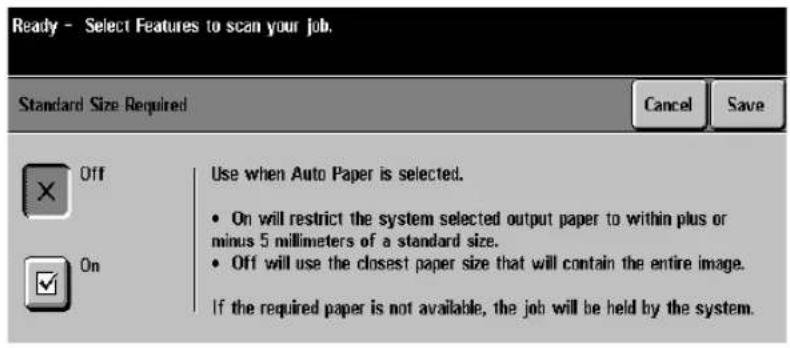
text_image
Ready - Select Features to scan your job. Standard Size Required Cancel Save Off Use when Auto Paper is selected. On will restrict the system selected output paper to within plus or minus 5 millimeters of a standard size. Off will use the closest paper size that will contain the entire image. If the required paper is not available, the job will be held by the system.This feature determines which paper sizes are selected when Auto Paper is used during a copy job and the paper that is available in the machine is not within 0.2 inches of the size of the output image.
If paper is available that is within 0.2 inches of the size of the output image, that paper automatically will be selected and used regardless of which Standard Size option is selected.
Standard Size refers to the following sizes: 8.5 x 11 inch, 8.5 x 14 inch, or 11 x 17 inch.
- If the output image is within 0.2 inches of a standard size and there is no paper loaded that is the same size as the output image and:
Standard Size Required is On, the job will not be printed. The user will be instructed to load the required paper size, select a different paper, or Reduction/Enlargement value (R/E%).
Standard Size Required is Off, the job will run, using the smallest paper that will hold the entire output image. If no paper is large enough, the user will be instructed to load a larger paper or to change the R/E%.
- If the output image is not within 0.2 inches of a standard size, the machine will run the job, using the smallest paper that will hold the entire output image. If no paper is large enough, the job will not be printed. The user will be instructed to load a larger paper or to change the R/E%.
Audio Tones
How to get here
Tools Screen 1 System Settings ↓ System Settings 1 Audio Tones
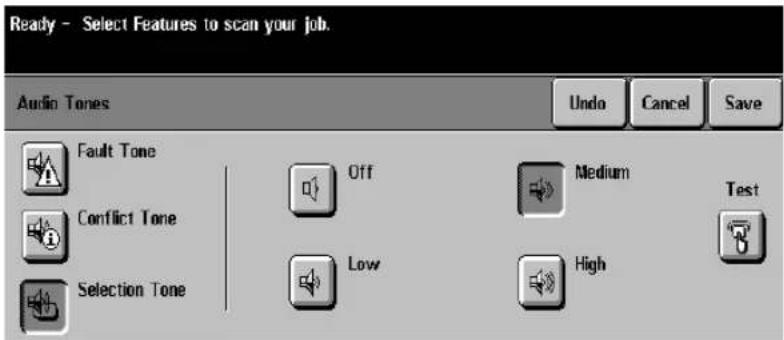
text_image
Ready - Select Features to scan your job. Audio Tones Undo Cancel Save Fault Tone Off Medium Test Conflict Tone Low High Selection ToneThe machine generates three types of audio tones to notify you of an event that has occurred at the machine.
- The Fault tone will ring, for example, when the machine is out of paper.
- The Conflict tone will ring, for example, when an incorrect Touch Screen or User Interface selection has been made.
- The Selection tone will ring, for example, when the machine accepts your selection.
This screen allows the audio tone volume to be changed individually for each type of audio tone. The volume settings are either Off, Low, Medium, or High.
Press the Test button to listen to the volume level of each tone.
Display Brightness

flowchart
graph TD
    A["Tools Screen 1"] --> B["System Settings"]
    B --> C["System Settings 1"]
    C --> D["Display Brightness"]

text_image
Ready - Select Features to scan your job. User Interface Display Brightness Undo Cancel Save Display Brightness 1-20 10Typical display buttons Control settings
This screen controls the display brightness of the Touch Screen. Under certain lighting conditions, you may want to adjust the display in order to minimize glare and to improve Touch Screen readability.
As you adjust the control settings, the display of typical buttons will change to reflect the current setting.
The brightness settings are adjusted in increments of one and take effect after the scroll button is released. To lighten the Touch Screen display, increase the brightness value. To darken the display, decrease the brightness value.
Time and Date

flowchart
graph TD
    A["Tools Screen 1"] --> B["System Settings"]
    B --> C["System Settings 1"]
    C --> D["Set Date and Time"]
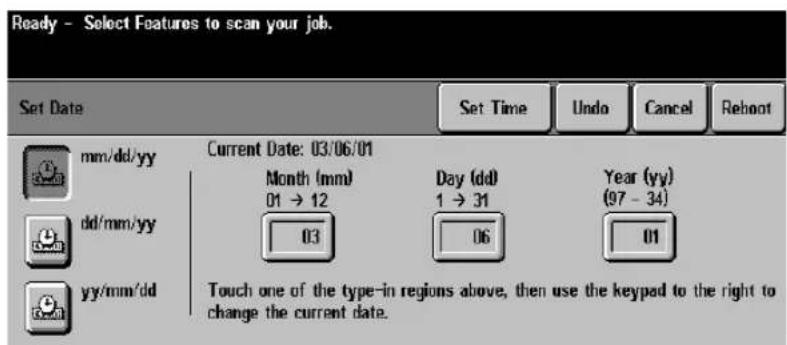
text_image
Ready - Select Features to scan your job. Set Date Set Time Undo Cancel Reboot mm/dd/yy Current Date: 03/06/01 Month (mm) Day (dd) Year (yy) 01 → 12 1 → 31 (97 - 34) dd/mm/yy 03 06 01 yy/mm/dd Touch one of the type-in regions above, then use the keypad to the right to change the current date.
text_image
10. ToolsSet Date and Time
This feature allows you to set the system time and date. Any changes require the system to be rebooted before they take effect.
Time options:
• The time format - 12 or 24 hour
• The current Hours, Minutes, and Seconds
• AM or PM (12 hour format only)
Date options:
• The date format
• Current Month, Day, and Year
NOTE
The machine does not adjust itself automatically for Daylight Savings Time.
Greenwich Mean Time Offset
This option allows you to synchronize the time stamp of several geographically dispersed machines connected by a computer network. This feature is only available on machines with Sixth Sense. Press the button to scroll to the number of hours your time zone is ahead or behind the time in London, England.
Use the chart on page 12 - 33 for assistance.
Timers

flowchart
graph TD
    A["How to get here"] --> B["Tools Screen 1"]
    B --> C["System Settings"]
    C --> D["System Settings 1"]
    D --> E["Timers"]
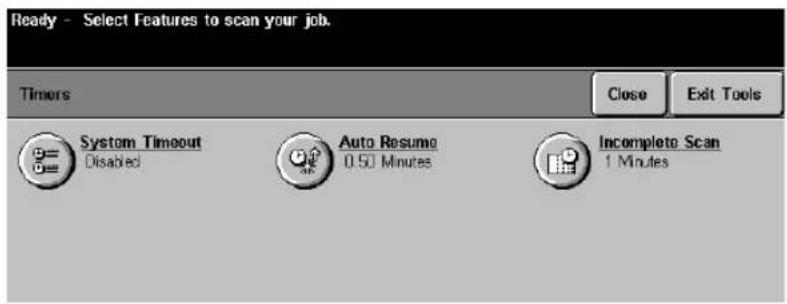
text_image
Ready - Select Features to scan your job. Timers Close Exit Tools System Timeout Disabled Auto Resume 0.50 Minutes Incomplete Scan 1 MinutesSystem Timeout controls the time interval between the last action at the User Interface and when the Touch Screen resets to the default settings.
When you press the System Timeout button you can set the time from 1 to 10 minutes in 1 minute increments or disable the timer. The default time is 1 minute.
Auto Resume controls the time interval between when a job is paused using the Pause button and when printing is resumed.
When you press the Auto Resume button you can set the time from 15 seconds to 2 minutes in 15-second increments (0.25 min.) or disable the timer. The default time is 30 seconds.
Incomplete Scan controls the time interval between a job that is only partially scanned into memory and its deletion from memory. This occurs when a job is partially scanned into memory and the documents are removed from the Document Feeder.
The job will be deleted from memory based on the value set in this feature.
When you press the Incomplete Scan button you can set the time from 1 to 10 minutes in 1-minute increments or disable the timer. Default time is 3 minutes.
External devices connected to the Document Centre also share this timer. If a job using an external attachment is prevented from operating by the external device and it is not allowed to resume, it will be deleted when the timer expires.
Configuration Report
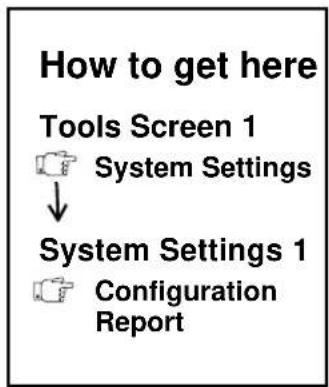
flowchart
graph TD
    A["Tools Screen 1"] --> B["System Settings"]
    B --> C["System Settings 1"]
    C --> D["Configuration Report"]

text_image
Ready - Select Features to scan your job. Configuration Report Cancel Save Do not print Configuration Report at Power On Print Configuration Report now Print Configuration Report at Power On
text_image
10. ToolsThis network related option is not available on the DC model.
When a Document Centre ST is powered on and ready to print, a system configuration report will print out to indicate that the network printing functions are ready.
This report is also available by pressing the Print Configuration Report button shown on the screen above.
The configuration report contains information about the setup of the Document Centre. This information includes network connection profiles, settings, and the paper tray configurations.
Typically the copy functions will be ready prior to the printing functions and readiness of the machine is indicated by a message on the Touch Screen.
Job Sheets
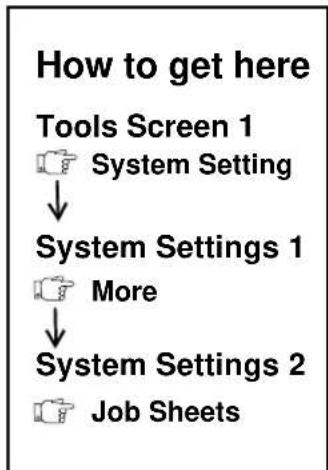
flowchart
graph TD
    A["How to get here"] --> B["Tools Screen 1"]
    B --> C["System Setting"]
    C --> D["System Settings 1"]
    D --> E["More"]
    E --> F["System Settings 2"]
    F --> G["Job Sheets"]
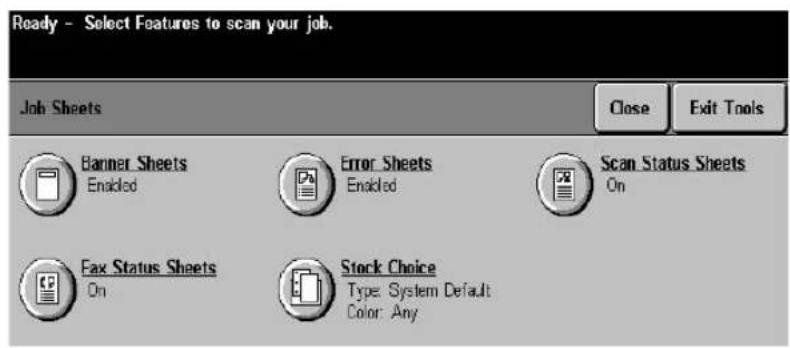
text_image
Ready - Select Features to scan your job. Job Sheets Close Exit Tools Banner_Sheets Enabled Error_Sheets Enabled Scan Status Sheets On Fax Status Sheets On Stock Choice Type: System Default Color: AnyBanner Sheets
This feature allows you to control the printing of banner sheets. These are the sheets that separate your print job from another one. Although banner sheets can be enabled or disabled in the Print Driver, this feature allows you to prevent banner sheets from being printed regardless of the selection in the Print Driver.
Fax Status Sheets
This feature allows you to generate informational sheets pertaining to the status of Network Fax jobs. These sheets will describe the status of the Network Fax job as it travels between the Document Centre and the Network fax server.
Error Sheets
This feature allows you to generate informational sheets each time there is an error encountered with a print job.
Scan Status Sheets
This feature allows you to generate informational sheets pertaining to the status of Network Scan jobs. These sheets will describe the status of the scan job as it travels between the Document Centre and the scan repository.
Stock Choice
Use this feature to designate the stock and color for any of the job sheets (Banner Sheets, Fax Status Sheets, Error Sheets, Scan Status Sheets).
- Using the Touch Screen, press the desired row to make a Stock Type selection.
NOTE
Ensure that the correct stock description is selected otherwise print jobs will be held in the queue waiting for resources. See Stock Settings on page 10-15 for details on changing stock descriptions.
- Press the desired row to make a Stock Color selection.
- Press the Save button to save your choices.
Reduce and Enlarge Presets
How to get here
(On an ST model)
Tools Screen 1

System Setting
System Setting

More

System Settings 2

Reduce/Enlarge Presets
(On a DC model)
Tools Screen 1

System Setting
System Settings 1

Reduce/Enlarge Presets
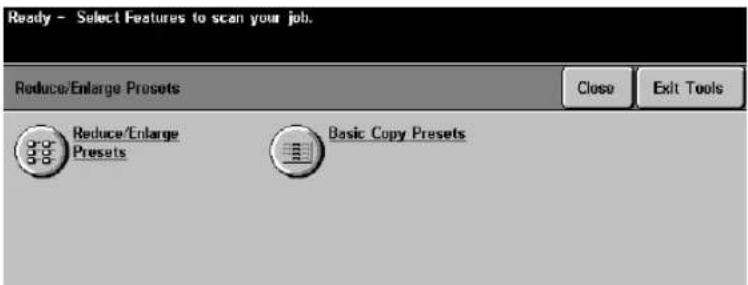
text_image
Ready - Select Features to scan your job. Reduce/Enlarge Presets Close Exit Tools Reduce/Enlarge Presets Basic Copy PresetsReduce/Enlarge Presets (Normal or Custom)
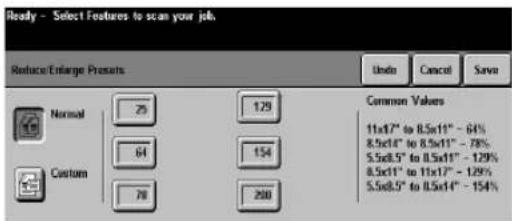
text_image
Ready - Select Features to scan your job Reduce/Enlarge Presets Undo Cancel Save Normal 25 129 Common Values 64 154 11x17" to 8.5x11" - 64% Custom 78 200 8.5x14" to 8.5x11" - 78% 5.5x8.5" to 8.5x11" - 129% 8.5x11" to 11x17" - 129% 5.5x8.5" to 8.5x14" - 154%The factory presets that are found when either the Normal or Custom Reduction/Enlargement buttons are pressed. These buttons are found when the More... option under the Basic Copying Tab Reduction/Enlargement is pressed.
Basic Copy Presets

text_image
Ready - Select Features to scan your job. Basic Copy Presets 25% 64% 78% 129% 154% 200% 25% 64% 78% 129% 154% 200% Undo Cancel SaveThis screen controls the options that appear on the initial copy screen.
NOTE
To change the presets, follow the instructions on the User Interface.
Measurements
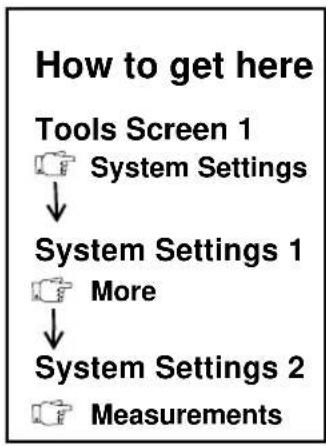
flowchart
graph TD
    A["Tools Screen 1"] --> B["System Settings"]
    B --> C["System Settings 1"]
    C --> D["More"]
    D --> E["System Settings 2"]
    E --> F["Measurements"]
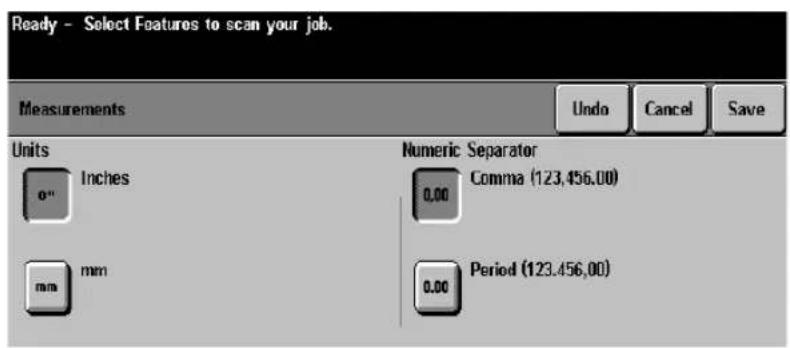
text_image
Ready - Select Features to scan your job. Measurements Undo Cancel Save Units 0" Inches mm mm Numeric Separator 0.00 Comma (123,456,00) 0.00 Period (123,456,00)You can program the machine to display measurements in either inches or millimeters on the Touch Screen. If you select mm, most paper stock sizes and measurements will be displayed in increments of 1 mm. If inches are selected, the increments will generally be 0.1 inches.
Some common sizes such as US Letter 8.5 x 11 inch will be displayed in inches even though the display is set for mm.
Metric sizes such as A4 will be displayed regardless of the units of measure selected.
You also can select either a comma or a period as a numeric separator that will be used for displaying values above 999.
Document Scanner Size Sensing

flowchart
graph TD
    A["Tools Screen 1"] --> B["System Settings"]
    B --> C["System Settings 1"]
    C --> D["More"]
    D --> E["System Settings 2"]
    E --> F["Document Scanner Size Sensing"]

text_image
Ready - Select Features to scan your job. Place a sample of the original in the document feeder. Document Scanner Size Sensing Undo Cancel Save Standard Sizes Custom Size 85 8 x 10" 10.5 x 7.25" 10.5 x 8" 8.5 x 11" Use this feature to set document feeder size sensing if you normally scan special sizes such as 0x10. - Place a sample of the document in the document feeder and select the correct size from the list at left. - If the correct size does not appear in the list, select Custom Size and enter the correct value.There are 12 preprogrammed size zones that are used to detect the size of the originals that are fed through the Document Feeder.
When using the Document Feeder, if you scan originals that are not one of the default sizes, a loss of image or dark edges may occur. If this is the case, follow the instructions listed on page 12-19 to redefine a size zone. This page also contains a complete listing of the default size zones.
NOTE
Once a zone is changed, the system assumes that any document that is loaded and matches this zone is the new size until the zone is changed again.
Decurler Setting
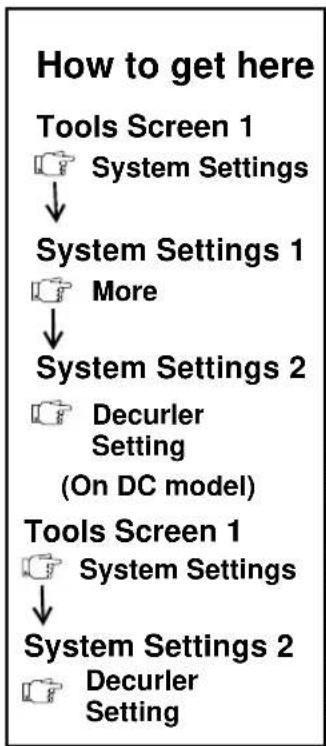
flowchart
graph TD
    A["Tools Screen 1"] --> B["System Settings"]
    B --> C["System Settings 1"]
    C --> D["More"]
    D --> E["System Settings 2"]
    E --> F["Decurler Setting\n(On DC model)"]
    F --> G["Tools Screen 1"]
    G --> H["System Settings"]
    H --> I["System Settings 2"]
    I --> J["Decurler Setting"]

text_image
Ready - Select Features to scan your job. Decurler Setting Auto Decurler Enabled Auto Decurler Disabled Max Decurler Enabled Select "Auto Decurler Enabled" to allow the machine to automatically minimize curl on output copies. Make the "Disabled" selection to turn the machine's decurling capability off. Select "Maximum" to allow the machine to maximize the output copy decurling capability.The Decurler Setting allows you to reduce the amount of paper curl in the output copies.
The available options are Automatic Decurler Enabled, Automatic Decurler Disabled, and Maximum Decurler Enabled.
The factory default for a machine with a Finisher is Automatic Decurler Enabled. For machines with an Offsetting Catch Tray, the setting is High Decurling.
This setting normally does not require adjustment.
NOTE
If you feel an adjustment is warranted, contact the Welcome Center. Changing without consulting the Welcome Center may not improve your situation.
Display Options

flowchart
graph TD
    A["Tools Screen 1"] --> B["System Settings"]
    B --> C["System Settings 1"]
    C --> D["More"]
    D --> E["System Settings 2"]
    E --> F(Display Options)
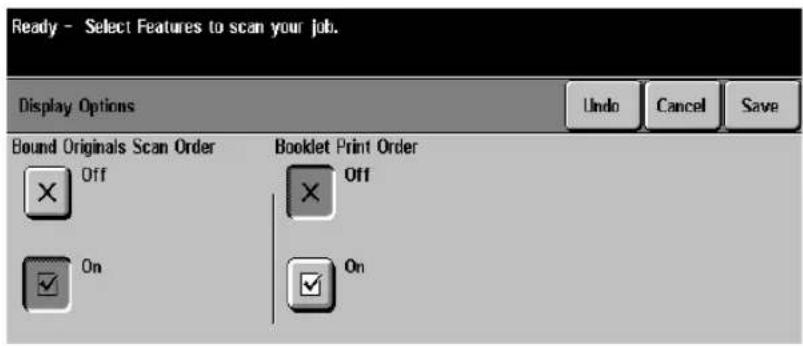
text_image
Ready - Select Features to scan your job. Display Options Undo Cancel Save Bound Originals Scan Order Booklet Print Order Off On Off OnThis feature allows you to add options to the Bound Originals and Booklet Creation Screens. These options are useful when reproducing documents where the reading sequence may be either right to left or left to right.
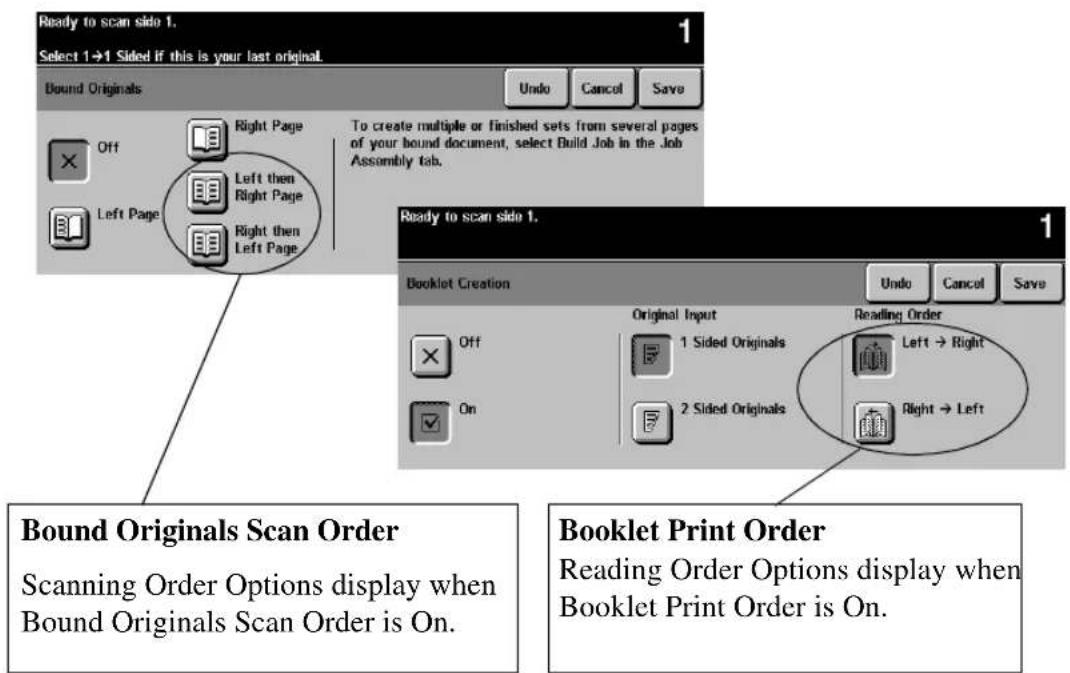
text_image
Ready to scan side 1. Select 1→1 Sided if this is your last original. Bound Originals Undo Cancel Save Off Right Page Left then Right Page Right then Left Page To create multiple or finished sets from several pages of your bound document, select Build Job in the Job Assembly tab. Ready to scan side 1. Booklet Creation Undo Cancel Save Original Input Reading Order Off 1 Sided Originals Left → Right On 2 Sided Originals Right → Left Bound Originals Scan Order Scanning Order Options display when Bound Originals Scan Order is On. Booklet Print Order Reading Order Options display when Booklet Print Order is On.Additional options will appear when Display Options are on
Image Rotation
How to get here
(On an ST model)
Tools Screen 1
System Setting
System Settings 2
More

System Settings 3

Image Rotation
(On a DC model)
Tools Screen 1

System Settings 1

More

System Settings 2

Image Rotation
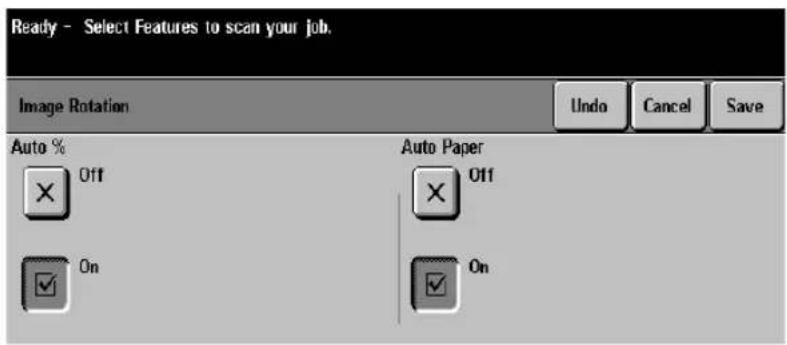
text_image
Ready - Select Features to scan your job. Image Rotation Undo Cancel Save Auto % Off On Auto Paper Off OnWhen the orientation of the originals and the output paper does not match, this feature allows the scanned original image to be rotated automatically 90 degrees in order to fit on the output paper. This feature only applies to copy jobs.
If either Auto% or Auto Paper are selected, all the documents must be scanned, and the digital images rotated before printing will start, which requires approximately one second per image rotated. (The 2-sided copy option, Rotate Side 2 is not affected by these Image Rotation settings).
By rotating the image 90 degrees, a single orientation of loaded paper stock can be used for multiple job types. For example:
- Reduce SEF 8.5 x 14 inch or 11 x 17 inch originals and rotate the reduced image 90 degrees onto 8.5 x 11 inch LEF paper. This eliminates the need to load and use SEF 8.5 x 11 inch paper, which runs at half the rate of LEF paper.
- Enlarge LEF 8.5 x 11 inch originals to SEF 11 x 17 inch paper. This allows the originals to be loaded in the usual LEF orientation, whether copied at 100% or enlarged beyond 100%.
Auto% will reduce or enlarge the original image automatically so that it will fit on the selected copy paper.
Auto Paper automatically selects the best paper size for the original being copied.
Contention Management

flowchart
graph TD
    A["Tools Screen 1"] --> B["System Settings"]
    B --> C["System Settings 1"]
    C --> D["More"]
    D --> E["System Settings 2"]
    E --> F["More"]
    F --> G["System Settings 3"]
    G --> H["Contention Management"]
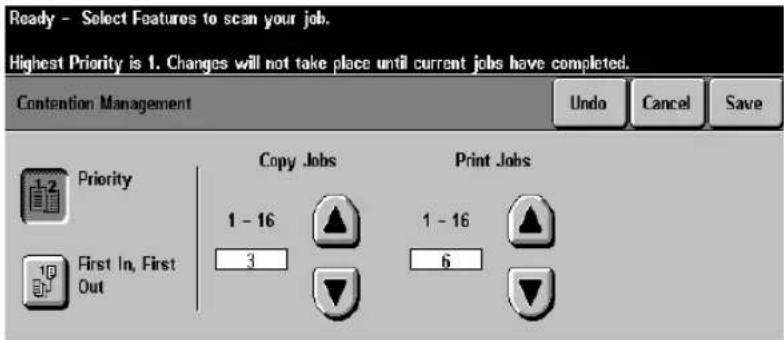
text_image
Ready - Select Features to scan your job. Highest Priority is 1. Changes will not take place until current jobs have completed. Contention Management Undo Cancel Save Priority Copy Jobs Print Jobs 1 - 16 1 - 16 First In, First 3 6 OutThis feature allows you to control whether copy jobs or print jobs have printing priority when entering the job queue. Options such as promote or interrupt are not affected by this feature. This feature option is not available on the DC model.
Priority
The Priority button allows you to set the relative priority for copy and print jobs. The lower the number the higher the priority. The default setting allows copy jobs to take priority over print jobs. This allows the user who is standing at the machine making a copy to generally receive their output before a print job.
To change the priority setting, use the scroll bars to ensure the type of job (Copy or Print) you want to print first has the lower number. The wide range (1 - 16) is reserved for future enhancements.
A print job will be completed before the copy job begins to print unless the Interrupt button is selected.
NOTE
When copy jobs have priority, and several small print jobs are formatted and waiting to be printed, the scanned copy job will usually wait until a small image buffer (approximately 5 images) empties. Then the copy job will print.
First In/First Out
Jobs are scheduled to print based on their entry into the Job Queue. This is regardless of whether they are copy or print jobs.
Single Job Mode

flowchart
graph TD
    A["How to get here\n(On DC model only)"] --> B["Tools Screen 1"]
    B --> C["System Setting"]
    C --> D["System Settings 1"]
    D --> E["More"]
    E --> F["System Settings 2"]
    F --> G["More"]
    G --> H["System Settings 3"]
    H --> I["Single Job Mode"]
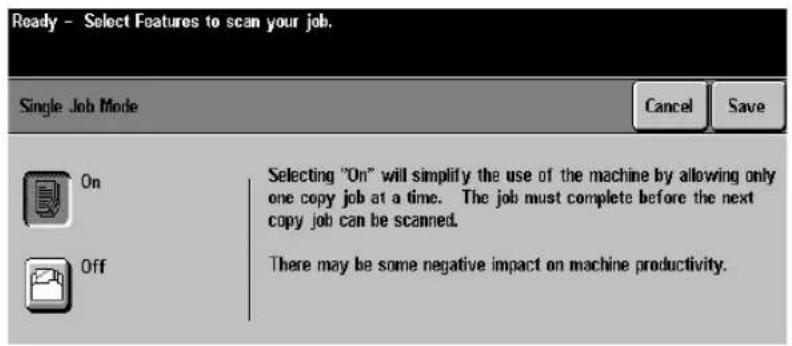
text_image
Ready - Select Features to scan your job. Single Job Mode Cancel Save On Selecting "On" will simplify the use of the machine by allowing only one copy job at a time. The job must complete before the next copy job can be scanned. Off There may be some negative impact on machine productivity.This feature limits the job queue by allowing one copy job at a time. You can program ahead but each job must be completed before the system will scan the next job.
NOTE
This feature is available on DC models only. Depending on your machine configuration, this feature may appear on the System Settings 3 Screen.
Output Options
How to get here
(On an ST model)

System Setting
System Settings 2
System Settings 3
Output Options
(On a DC model)

System Settings 1
System Settings 2
Output Options
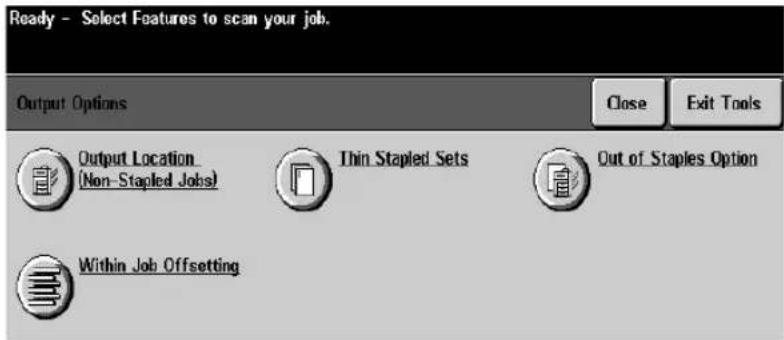
text_image
Ready - Select Features to scan your job. Output Options Close Exit Tools Output Location (Non-Stapled Jobs) Thin Stapled Sets Out of Staples Option Within Job OffsettingThin Stapled Sets
This option and one or more of its options may or may not appear depending on your hardware configuration. Stapling thin sets (sets between 5 and 20 sheets of paper) poses a special challenge because of the rise in paper caused by the added thickness of the staple.
Thickness caused by staples
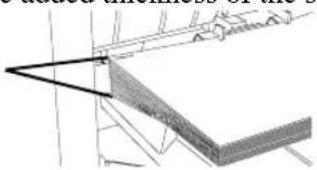
text_image
Technical diagram showing a 3D structural section with labeled dimensions and angles, likely from an engineering or physics context.This button allows you to change the following:
- The number of sheets the machine will consider as a thin stapled set.
- The number of thin stapled sets that will be produced before the machine will automatically pause.
- What the machine will do after it pauses. It will either automatically resume or remain paused.
Out Of Staples Option
Complete job without stapling - If this option is selected, the job will print without stapling. Any remaining sets will be printed without staples.
Fault/Hold job - If this option is selected, the job will be held until a staple cartridge is replaced.
Any jobs requiring stapling that have not started will not print. Any jobs in the process of printing that require stapling will be held and a fault message will display.
Output Location for Non-Stapled Jobs
A fully featured Document Centre has a Finishing device that contains two output trays, the top and main tray. This feature allows you to select the destination of non-stapled jobs. This includes Copy, Print, and Other jobs.
For example, using this feature you can enable all incoming non-stapled print jobs to be sent to the top tray.
Within Job Offsetting
When enabled, this feature separates printed sets within a job by slightly offsetting each set. The feature can be enabled or disabled by selecting the desired button. The default is enabled.
When the feature is disabled, output copies will be delivered to the output tray in an even stack. This is helpful when users print large volume jobs where offsetting is not required. This feature is not recommended for thin stapled sets (sets between 2 and 15 sheets of paper).
Electronic Hole Removal
How to get here
(On an ST model)
Tools Screen 1

System Setting
System Setting

More

System Settings 2

More

System Settings 3

Electronic Hole Removal

text_image
Ready - Select Features to scan your job. Electronic Hole Removal Cancel Save On Off When On is selected, this feature will suppress the black circles commonly left when copying documents with punched holes. This feature works only with use of the Document Feeder. It is turned off automatically with use of Photo Mode.This feature is an optional kit that enables the removal of the black circles left when copying originals that have punched holes.
Originals must be placed in the Document Feeder and the Electronic Hole Removal feature must be enabled.
How to get here
Tools Screen 1

Feature Defaults

text_image
Tools enabled. Not ready to program. 1 Select End Defaults to return to the Feature Defaults entry screen. Basic Copying Image Adjustment Output Format Job Assembly End Defaults Output 2 Sided Copy Reduce / Enlarge Paper Supply Top Tray - Collated 1 → 1 Sided 100% Auto Paper Main Tray - Collated 1 → 2 Sided Auto % 17"→11" (64%) 1 8.5x11 1 Staple 2 → 2 Sided 14"→11" (76%) 1 Staple 2 → 1 Sided More... More... More... More...You can change the factory Feature Defaults and customize the settings to your work environment. Changing the default settings does not change the machine capabilities. It only changes the preset programming selections when the machine automatically resets itself or when Clear All is pressed.
NOTE
Changing the defaults will affect every job. If you have a series of jobs that use the same programming features, consider using the stored programming features.
To change the features default settings, access Tools and press Set Defaults. Follow the User Interface instructions. Make the appropriate default changes by touching the screen.
Press End Defaults to return to the previous screen. Press Close to return to the Tools Screen.
How to get here
Tools Screen 1 Screen Defaults
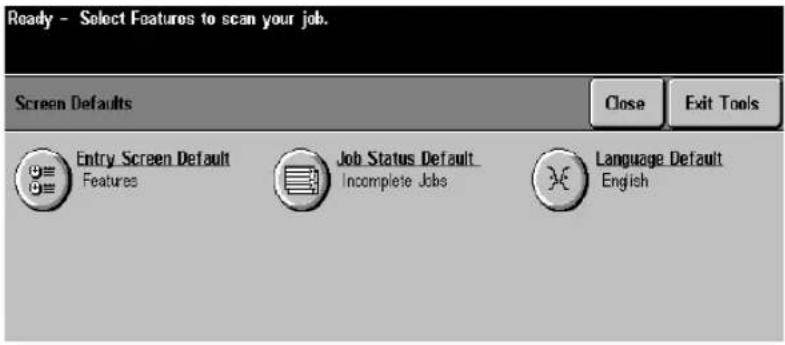
text_image
Ready - Select Features to scan your job. Screen Defaults Close Exit Tools Entry Screen Default Features Job Status Default Incomplete Jobs Language Default English- The Entry Screen Default option allows you to control which screen appears when the machine resets after a timeout or a Clear All has been initiated. The available options are: Features, Machine Status, Job Status.
- The Job Status Default controls which type of jobs in the Job Status Queue will be viewed as a default. The choices are Incomplete Printing Jobs, Incomplete Non-Printing Jobs, All Incomplete Jobs, Completed Printing Jobs, Completed Non-Printing Jobs, and All Completed Jobs.
- The Language Default will select the Touch Screen default language display if multiple languages are installed on your machine. This button will not function if only one language is available.
How to get here
Tools Screen 1 Online/Offline
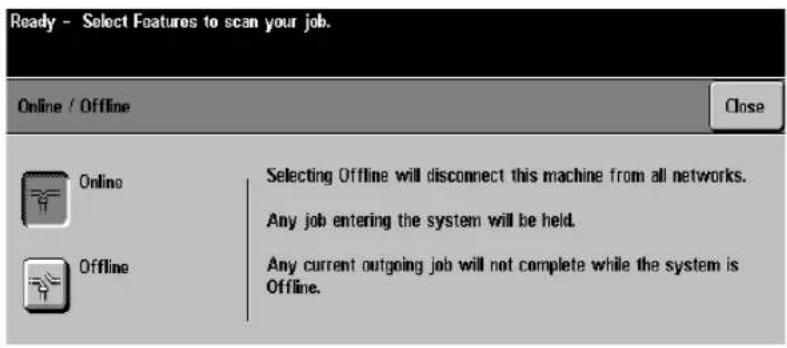
text_image
Ready - Select Features to scan your job. Online / Offline Close Online Selecting Offline will disconnect this machine from all networks. Any job entering the system will be held. Offline Any current outgoing job will not complete while the system is Offline.Use this option to connect the machine to the network after all the appropriate network settings are made. It is not available on the DC model.
To access the connectivity settings see the following page.
To take the machine offline, simply press the Offline button and wait a few moments. The machine will notify you when it is disconnected from the network.
NOTE
You can complete copy jobs if the machine is offline.
Connectivity and Network Setup

text_image
How to get here Tools Screen 1 Connectivity and Network Setup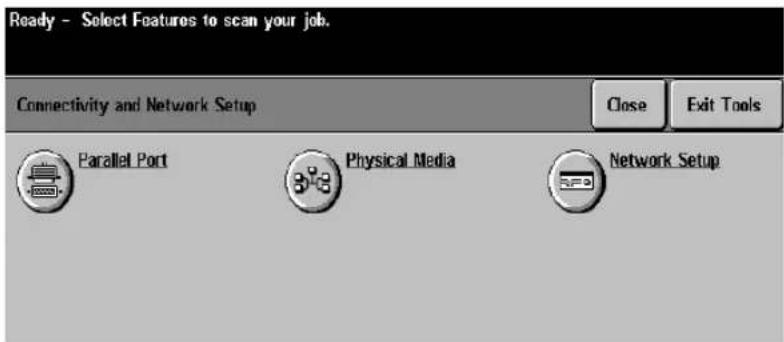
text_image
Ready - Select Features to scan your job. Connectivity and Network Setup Close Exit Tools Parallel Port Physical Media Network SetupUse this option to make network settings. It is not available on the DC model.
Your System Administrator will need to access these screens to place the machine on the network.
NOTE
Any changes to these settings will cause the machine to reboot.
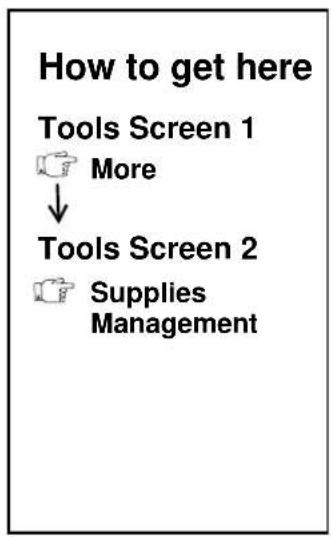
flowchart
graph TD
    A["How to get here"] --> B["Tools Screen 1"]
    B --> C["More"]
    C --> D["Tools Screen 2"]
    D --> E["Supplies Management"]
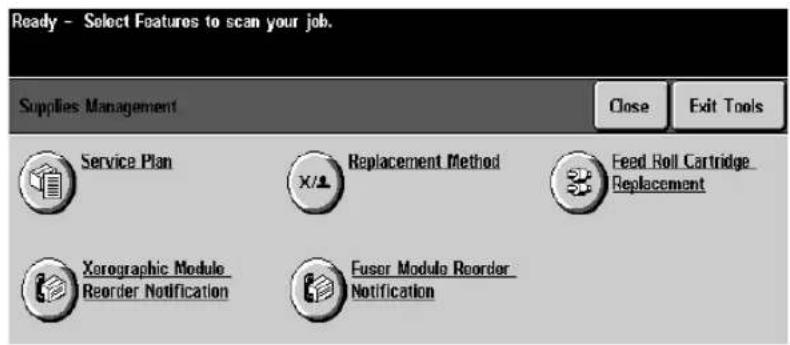
text_image
Ready - Select Features to scan your job. Supplies Management Close Exit Tools Service Plan Replacement Method Feed Roll Cartridge Replacement X/1 Xerographic Module Reorder Notification Fusor Module Reorder NotificationThis screen provides the functions to help you to manage the reordering and replacement of your Replaceable Unit supplies.
Service Plan
This selection allows you to program or to change the Service Plan you have entered into with Xerox. To change the Service Plan contact the Welcome Center.
Replacement Method
This setting defines who is responsible for replacing the Xerographic, Fuser or Dry Ink Cartridge.
Feed Roll Cartridge Replacement
This screen tells you the projected end of life of each of the Paper Feed Roll Cartridges and is where you reset the Feed Roll Cartridge Counters. You must be in the Feed Roll Replacement screen to reset the counters.
Xerographic Module Reorder Notification
Use this screen to set the interval between the day that the Xerographic Module reorder message appears and when the unit must be replaced. You can also cancel messages that are currently displayed on the Touch Screen.
Fuser Module Reorder Notification
Use this screen to set the interval between the day that the Fuser Module reorder message appears and when the unit must be replaced. You can also cancel messages that are currently displayed on the Touch Screen.
Resetting the Feed Roll Cartridge Counters
NOTE The Paper Feed Roll counter must be reset whenever a Feed Roll is replaced. If the counters are not reset, paper misfeeds will likely occur from the paper tray with the newly changed Feed Roll.
To reset the counters follow the instructions below:
- Press the Access button.
- Enter the Access login password. Press the Go to Tools button.
-
Select More to access the second tools screen.
-
Select Supplies Management.
-
Select Feed Roll Cartridge Replacement. The following screen should appear. This screen must be showing to reset a Feed Roll counter.
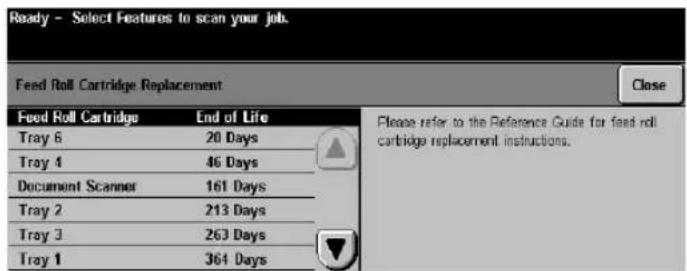
text_image
Ready - Select Features to scan your job. Feed Roll Cartridge Replacement Close Feed Roll Cartridge End of Life Tray 6 20 Days Tray 4 46 Days Document Scanner 161 Days Tray 2 213 Days Tray 3 263 Days Tray 1 364 Days Please refer to the Reference Guide for feed roll cartridge replacement instructions.-
After you replace the Feed Roll and close the tray, a pop-up screen will appear.
-
Confirm the Cartridge replacement on the pop-up screen. This will reset the counter.
-
Select Close.
-
Select Exit Tools.
-
Return the old Feed Roll Cartridge to Xerox.
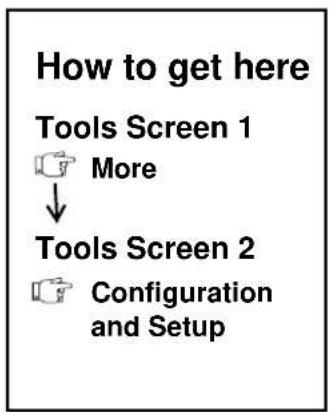
flowchart
graph TD
    A["How to get here"] --> B["Tools Screen 1"]
    B --> C["More"]
    C --> D["Tools Screen 2"]
    D --> E["Configuration and Setup"]
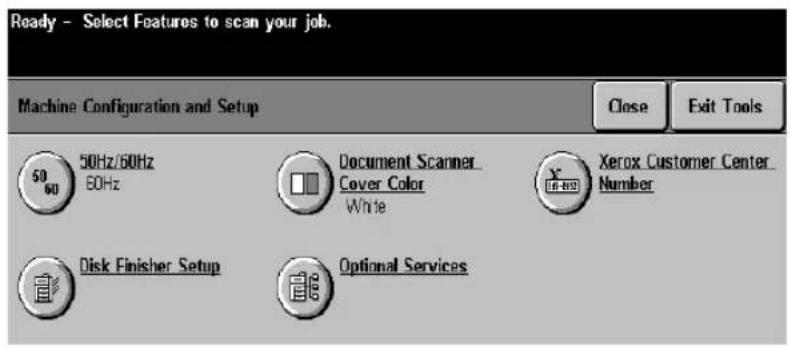
text_image
Ready - Select Features to scan your job. Machine Configuration and Setup 50 Hz/60Hz 60Hz Document Scanner Cover Color White Xerox Customer Center Number Disk Finisher Setup Optional Services Close Exit ToolsAny changes to the configuration require a system reboot.
50/60 Hz
The correct Hertz setting for your location has been made at the factory prior to installation. Do not change it. If you have any questions contact the Welcome Center.
Document Scanner Cover Color
A white cover is standard, but gray is available as a separate installable kit. A gray cover allows the Auto features (Auto%, Auto Paper, and Auto Center) to be used with the cover closed. If a gray cover is installed, this button must be changed to gray.
Optional Services
After any of the optional network services (Network Scanning, Network E-mail, Network Fax or Network Accounting) are installed on your Document Centre, use this feature to enable them.
This feature should be enabled after the optional services are installed. Refer to the specific chapters for more information on installing the optional services.
Xerox Customer Call Center
Use this button to change the customer support telephone number displayed on the Machine Details Screen.
Disk Finisher Setup
If you add a finisher different than the one initially installed, use this button to program the machine with the correct finisher code.
The machine will recognize the addition of this feature and prompt you to confirm the new settings. Simply follow the instructions on the Touch Screen to complete the programming.
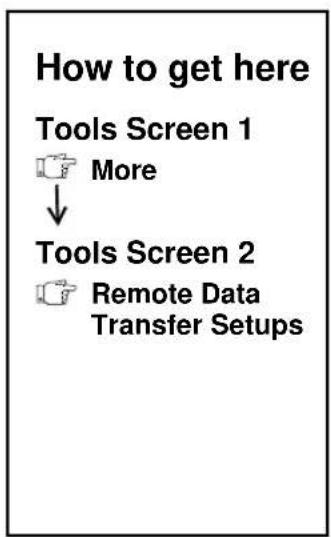
flowchart
graph TD
    A["How to get here"] --> B["Tools Screen 1"]
    B --> C["More"]
    C --> D["Tools Screen 2"]
    D --> E["Remote Data Transfer Setups"]
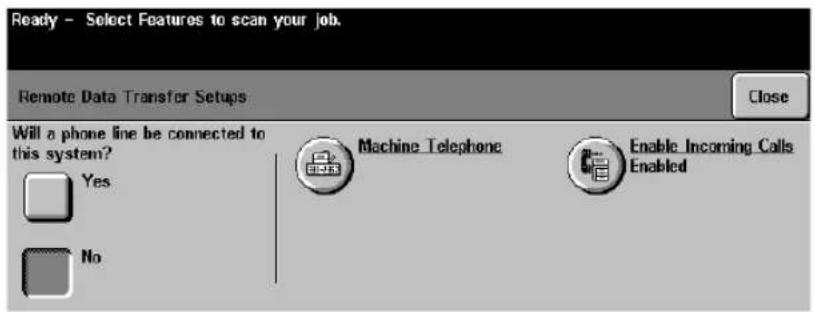
text_image
Ready - Select Features to scan your job. Remote Data Transfer Setups Will a phone line be connected to this system? Yes No Machine_Telephone Enable_Incoming_Calls Enabled CloseOn the main setup screen you can:
- Decide whether or not a telephone line will be connected to the device
- Input the Machine Telephone Number
- Enable Incoming Calls
Enable Incoming Calls
How to get here
Tools Screen 1

More

Tools Screen 2

Remote Data Transfer Setups

Remote Data Transfer Setups

Enable Incoming Calls
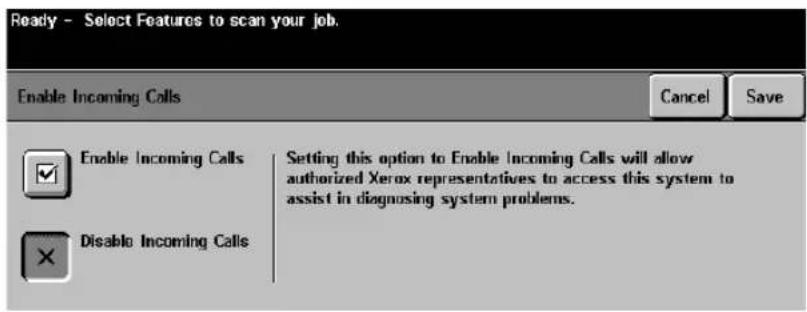
text_image
Ready - Select Features to scan your job. Enable Incoming Calls Cancel Save Enable Incoming Calls Setting this option to Enable Incoming Calls will allow authorized Xerox representatives to access this system to assist in diagnosing system problems. Disable Incoming CallsUse this screen to enable or disable incoming calls from authorized Xerox representatives. This feature allows remote diagnosing of system problems.
If an actual service visit is required, information that is gathered will provide the technician with a better understanding of the problem and will help to identify the necessary parts to fix the machine the first time. This ultimately reduces the time that is required for an on-site service call.
Entering the Outlet Telephone Number

flowchart
graph TD
    A["How to get here"] --> B["Tools Screen 1"]
    B --> C["More"]
    C --> D["Tools Screen 2"]
    D --> E["Remote Data Transfer Setups"]
    E --> F["Remote Data Transfer Setups"]
    F --> G["Machine Telephone"]
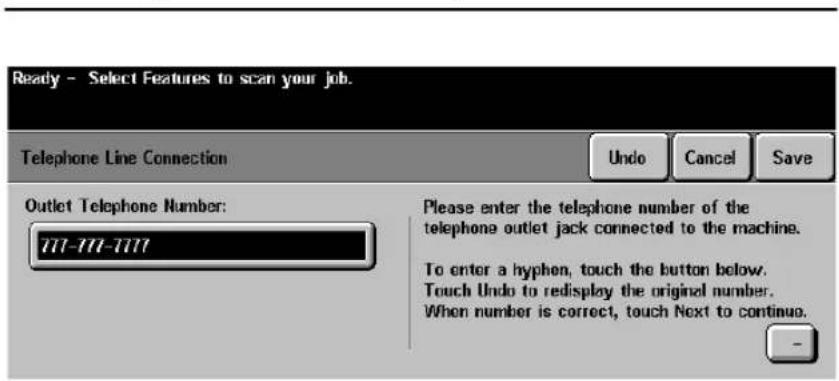
text_image
Ready - Select Features to scan your job. Telephone Line Connection Undo Cancel Save Outlet Telephone Number: 777-777-7777 Please enter the telephone number of the telephone outlet jack connected to the machine. To enter a hyphen, touch the button below. Touch Undo to redisplay the original number. When number is correct, touch Next to continue.If the telephone number of the machine is changed, for example, by relocating the machine to a different area, a new telephone number must be programmed.
Navigate to the Outlet Telephone number screen and using the keypad, enter the new telephone number.
Using a PhoneShare Device
To enter the extension when using a PhoneShare device, follow the procedure listed below. For additional information refer to the PhoneShare Instructions.
- Enter the Machine Telephone Number.
- Press the Dial Pause button on the User Interface to create a pause. A comma will be shown on the screen.
- Enter the two digit System Extension Identifier.
- Enter the Extension.
The number with the extension should look like this:
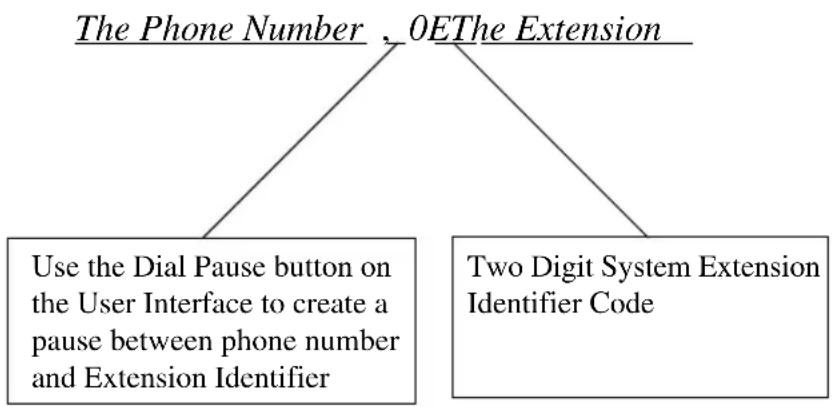
flowchart
graph TD
    A["The Phone Number"] --> C["Use the Dial Pause button on the User Interface to create a pause between phone number and Extension Identifier"]
    B["OEThe Extension"] --> C
    B --> D["Two Digit System Extension Identifier Code"]
- Save the settings and exit Tools. The changes are now effective. The machine will automatically notify Xerox of the telephone number in order to enable a Technician to use the Sixth Sense online support link if necessary.
| The optional Sixth Sense On Line Support Link is a telephone line connection between the machine and Xerox. You can enable an authorized Xerox service technician to access the machine remotely by telephone to enable real time problem analysis and resolution. If you are using the Auditorn reporting software to help manage the Internal Auditorn you can dial into the machine over this link to download account information. | |
| NOTE | Please note, the Sixth Sense On Line Support Link tool does not permit the access to any image or information that has been printed, is currently being printed, or is in the queue to be printed. |
Connecting the Telephone Line
To install the link follow the procedures listed below.
NOTE
The on-line support link requires either a dedicated telephone line or a PhoneShare Kit to share the line with up to three other devices. The telephone line must be an analog telephone line (not a digital telephone line).
- Power off the machine. Connect one end of the phone cord to the machine's phone jack marked P4. This jack is located in the recessed area at the lower rear of the machine.

text_image
P4 Jack (RJ11) Location Document Centre 490/480/470/460- Connect the other end of the cord to the telephone line that will be used for the modem communications.
- Power on the machine.

flowchart
graph TD
    A["Tools Screen 1"] -->|More| B["Tools Screen 2"]
    B --> C["Machine Tests"]
    D["Tools Screen 1"] --> E["Machine Tests"]

text_image
Ready to scan your job. Machine Tests Screen 1 of 2 More Close Exit Tools Image Quality Tests and Patterns Xerographic System Routine Video Path Diagnostics Test User Interface Tests Echo Test Network Connectivity TestSelecting the Machine Tests button allows access to the diagnostics listed below:
• Image Quality Tests and Patterns
• Xerographic System Routine
- User Interface Tests
• Video Path Diagnostics Test
- Echo Test (ST models only)
• Network Connectivity Test (ST models only)
- Remote Testing Access for Network Controller (ST models only)
NOTE
Run these tests if a problem occurs and the Welcome Center recommends that you use these tests to help diagnose a problem.
Image Quality Tests and Patterns

flowchart
graph TD
    A["How to get here\n(On an ST model)"] --> B["Tools Screen 1"]
    B --> C["More"]
    C --> D["Tools Screen 2"]
    D --> E["Machine Tests"]
    E --> F["Machine Tests"]
    F --> G["Image Quality Tests and Patterns"]

    H["(On a DC model)"] --> I["Tools Screen 1"]
    I --> J["Machine Tests"]
    J --> K["Machine Tests"]
    K --> L["Image Quality Tests and Patterns"]

text_image
Ready - Select Features to scan your job. 1 Image Quality Tests and Patterns Undo Close Image Quality Tests Image Quality Test Number 1 - 6 Features 1 Sided 8.5 x 11" D Start Test Image Quality Test PatternsThese tests and test patterns help in troubleshooting the Xerographic System. These tests are designed to be interpreted by an authorized Xerox Representative or by you with assistance from the Welcome Center.
Image Quality Tests
The machine has a variety of tests that are designed to determine problems or faults with the Xerographic System. Each test produces a pattern or patterns that can be used to evaluate the printing capability of a particular aspect of the Xerographic System.
Image Quality Patterns
The Image Quality Patterns are documents that are resident in the machine memory. When these documents are printed, they test and validate the functionality of the Xerographic System.
Xerographic System Routine
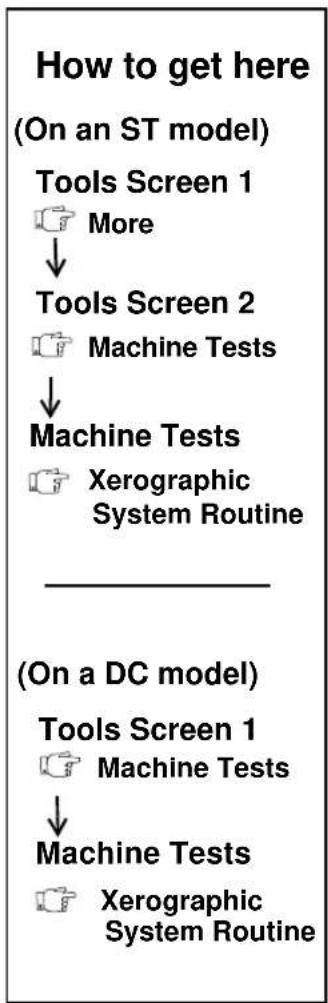
flowchart
graph TD
    A["Tools Screen 1"] --> B["More"]
    B --> C["Tools Screen 2"]
    C --> D["Machine Tests"]
    D --> E["Machine Tests"]
    E --> F["Xerographic System Routine"]
    G["(On a DC model)"] --> H["Tools Screen 1"]
    H --> I["Machine Tests"]
    I --> J["Machine Tests"]
    J --> K["Xerographic System Routine"]
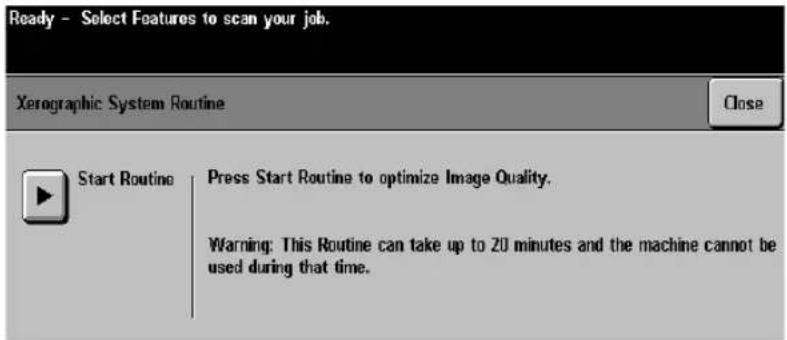
text_image
Ready - Select Features to scan your job. Xerographic System Routine Close Start Routine Press Start Routine to optimize Image Quality. Warning: This Routine can take up to 20 minutes and the machine cannot be used during that time.The Document Centre automatically adjusts the Xerographic module to enable optimal Image Quality. This selection allows you to manually initiate the Xerographic Routine.
This routine can take from 4 to 20 minutes depending upon the conditions of the Xerographic System.
User Interface Tests

flowchart
graph TD
    A["Tools Screen 1<br>More"] --> B["Tools Screen 2<br>Machine Tests"]
    B --> C["Machine Tests<br>User Interface Tests"]
    D["(On a ST model)"] --> E["Tools Screen 1<br>Machine Tests"]
    E --> F["Machine Tests<br>User Interface Tests"]
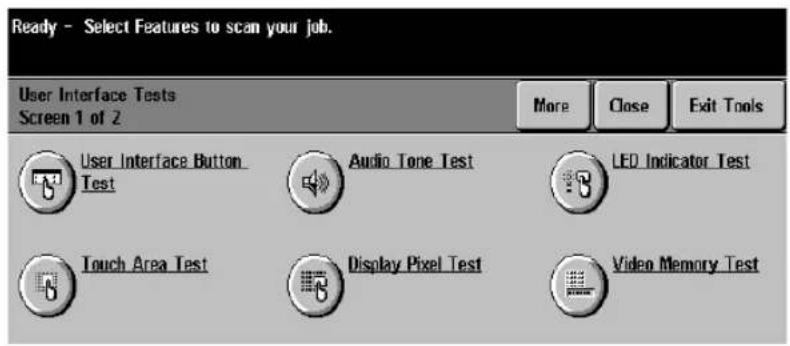
text_image
Ready - Select Features to scan your job. User Interface Tests Screen 1 of 2 More Close Exit Tools User Interface Button Test Audio Tone Test LED Indicator Test Touch Area Test Display Pixel Test Video Memory Test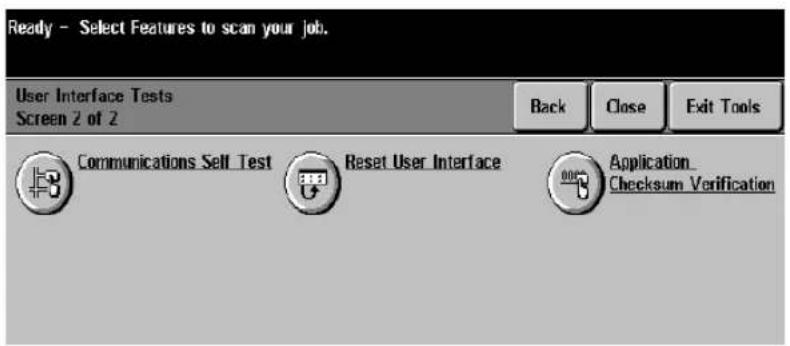
text_image
Ready - Select Features to scan your job. User Interface Tests Screen 2 of 2 Back Close Exit Tools Communications Self Test Reset User Interface Application _ Checksum VerificationThese tests are designed to test the performance of the User Interface functions. Information and instructions for each of these diagnostic tests are provided on the User Interface after the individual test button is selected.
The table below lists the User Interface Tests and their function.
| Test Function | |
| User Interface Button Test | This test determines if the buttons on the User Interface are functioning correctly. |
| Touch Area Test | This test determines if the Touch Screen is functioning correctly. |
| Audio Tone Test | This test determines if the audio tones on the User Interface are functioning correctly. |
| Display Pixel Test | This test determines if the Touch Screen pixels are displaying correctly. |
| LED Indicator Test | This test determines if the lights on the panel are functioning correctly. |
| Video Memory Test | Tests the video memory to isolate video quality problems. |
| Communications Self Test | Use this test to determine if the User Interface is communicating correctly with the rest of the machine.If the machine passes the test on the first try, message will be displayed indicating that machine passed the test. The Communication Self Test will make three total attempts before a failure message is displayed. Because of the multiple test attempts, it may take a few minutes for the fail message to appear. |
| Reset User Interface | This function resets the software that controls the User Interface. |
| Application Checksum Verification | Use this test to validate the checksum value of the software against a known value. This is helpful in determining if the software is incorrect or has become corrupted. |
Video Path Diagnostics Test

flowchart
graph TD
    A["How to get here"] --> B["Tools Screen 1"]
    B --> C["More"]
    C --> D["Tools Screen 2"]
    D --> E["Machine Tests"]
    E --> F["Machine Tests"]
    F --> G["Video Path Diagnostics Test"]
    G --> H["(On a DC model)"]
    H --> I["Tools Screen 1"]
    I --> J["Machine Tests"]
    J --> K["Machine Tests"]
    K --> L["Video Path Diagnostics Test"]

text_image
Ready - Select Features to scan your job. Video Path Diagnostics Test Close Press Start to run the Video Path Diagnostics test. Start Diagnostics TestThe Video Path Diagnostics Test tests the circuitry and verifies the electronic path involved in the process of moving the digitized image to the Xerographic module.
To activate this test, press the Video Path Diagnostics button and follow the instructions displayed on the User Interface.
Echo Tests
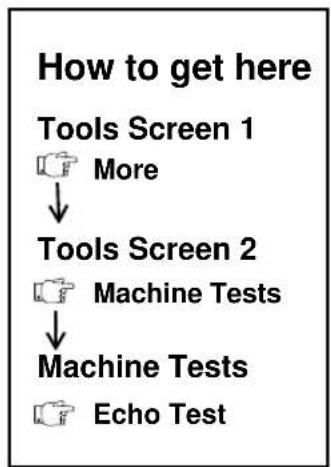
flowchart
graph TD
    A["Tools Screen 1"] --> B["More"]
    B --> C["Tools Screen 2"]
    C --> D["Machine Tests"]
    D --> E["Machine Tests"]
    E --> F["Echo Test"]
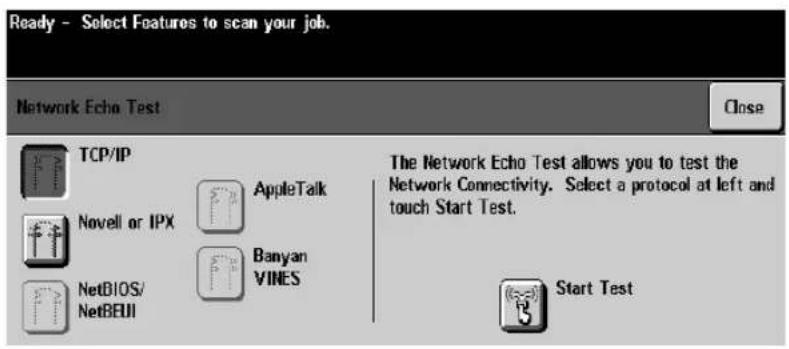
text_image
Ready - Select Features to scan your job. Network Echo Test Close TCP/IP Novell or IPX NetBIOS/ NetBEUI AppleTalk Banyan VINES The Network Echo Test allows you to test the Network Connectivity. Select a protocol at left and touch Start Test. Start TestUse this option to perform an echo test which tests the electronic pathway from the machine to the network. It is not available on DC Models.
Network Connectivity Test
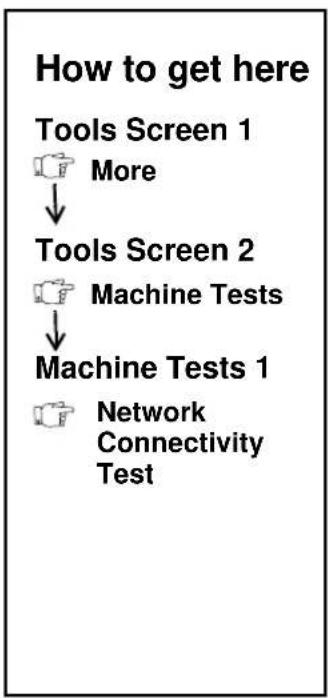
flowchart
graph TD
    A["Tools Screen 1"] --> B["More"]
    B --> C["Tools Screen 2"]
    C --> D["Machine Tests"]
    D --> E["Machine Tests 1"]
    E --> F["Network Connectivity Test"]
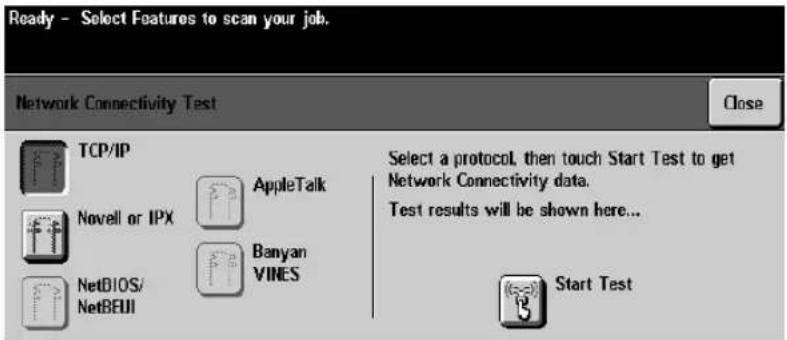
text_image
Ready - Select Features to scan your job. Network Connectivity Test Close TCP/IP Novell or IPX NetBIOS/ NetBEUI AppleTalk Banyan VINES Select a protocol, then touch Start Test to get Network Connectivity data. Test results will be shown here... Start TestUse this option to test the network connectivity of the machine. It is not available on DC Models.
Remote Testing Access for Network Controller
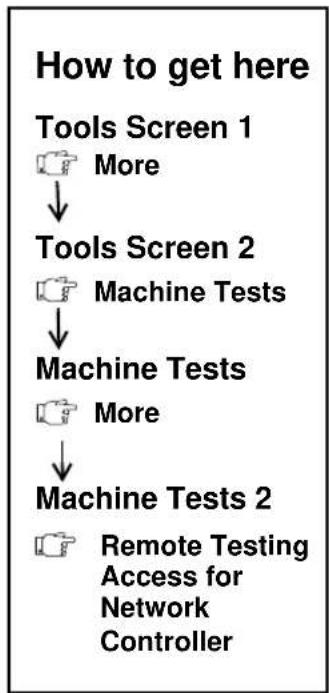
flowchart
graph TD
    A["How to get here"] --> B["Tools Screen 1"]
    B --> C["More"]
    C --> D["Tools Screen 2"]
    D --> E["Machine Tests"]
    E --> F["Machine Tests"]
    F --> G["More"]
    G --> H["Machine Tests 2"]
    H --> I["Remote Testing Access for Network Controller"]
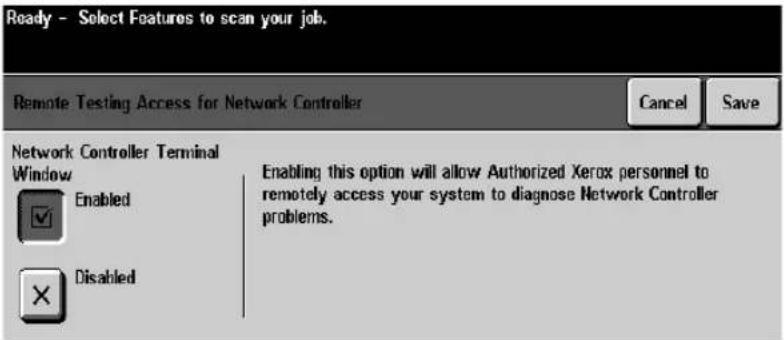
text_image
Ready - Select Features to scan your job. Remote Testing Access for Network Controller Cancel Save Network Controller Terminal Window Enabled Disabled Enabling this option will allow Authorized Xerox personnel to remotely access your system to diagnose Network Controller problems.This screen allows Xerox to remotely access your Document Centre to diagnose Network Controller problems. Refer to Sixth Sense in this chapter for more details on remote access.
Customer Software upgrade
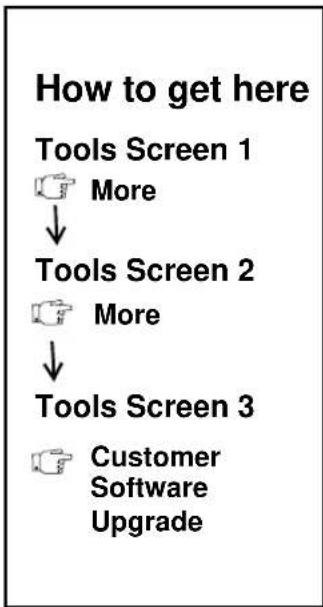
flowchart
graph TD
    A["How to get here"] --> B["Tools Screen 1"]
    B --> C["More"]
    C --> D["Tools Screen 2"]
    D --> E["More"]
    E --> F["Tools Screen 3"]
    F --> G["Customer Software Upgrade"]
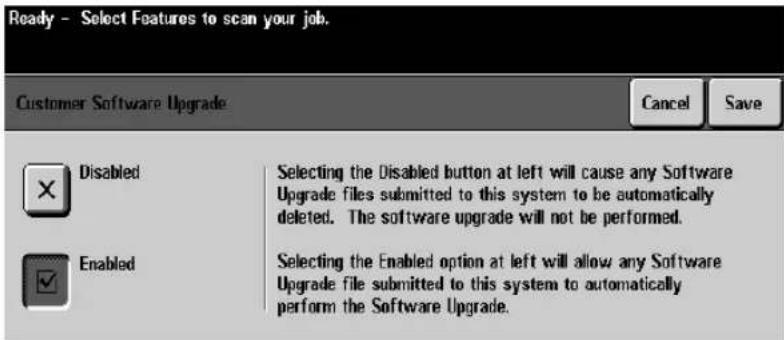
text_image
Ready - Select Features to scan your job. Customer Software Upgrade Cancel Save Disabled Selecting the Disabled button at left will cause any Software Upgrade files submitted to this system to be automatically deleted. The software upgrade will not be performed. Enabled Selecting the Enabled option at left will allow any Software Upgrade file submitted to this system to automatically perform the Software Upgrade.This screen is used when you are upgrading the Document Centre machine software without assistance from Xerox. This has no effect on updating CentreWare software or Print Drivers that are used with the ST models.
This type of upgrade is also independent of adding the software options of Network Fax, Network Scanning and Network Accounting.
Upgrading Machine Software
To successfully complete the upgrade, simply follow the directions that accompanied the software and ensure that the enabled button is active on this screen.
Power Saver Administration
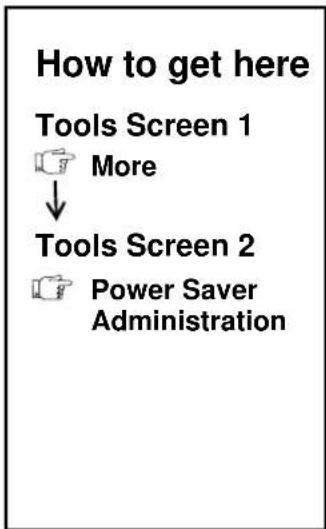
flowchart
graph TD
    A["Power Saver Administration"] --> B["Tools Screen 2"]
    B --> C["Tools Screen 1"]

text_image
Ready - Select Features to scan your job. Set Duration Times Undo Cancel Save From Standby Mode to Low Power Mode 15 - 120 Minutes 15 From Low Power Mode to Sleep Mode 0 - 120 Minutes 75ST Model Power Saver Administration Screen
The machine has an energy saver feature that minimizes energy usage to reduce the overall machine operation cost. The ST and DC models have slightly different Power Saver Administration features. A DC model will automatically power off after both timers have expired. The ST models simply enters a sleep mode.
Adjust the timers by touching the appropriate box on the screen and using the keypad to enter the desired value. Ensure that the box has a black background; otherwise, it cannot be accessed by the keypad. Press the Save button to exit the screen and save your changes.
On DC Models this screen will provide an option to disable the automatic power off feature.
Low Power Mode Indications
The only indication the machine is in Low Power Mode is a blank Touch Screen and the Power Saver Indicator light is illuminated.
Green light is illuminatedTouch Screen is blank
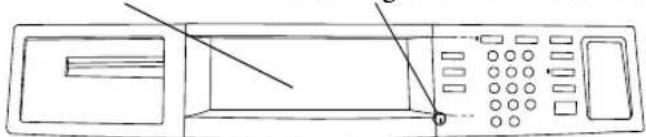
natural_image
Line drawing of a microwave oven with control panel and tray (no text or symbols)Power Saver Timer Values
DC models automatically reduce the power consumption from a Standby Power Mode (waiting to be used) to a Low Power Mode to completely Off (requiring the machine to be powered on). The ST models enter a Sleep Mode rather than powering itself off.
NOTE
All timers are reset automatically when a User Interface button or the Touch Screen is touched.
Table 1: DC Model Default Power Saver Timer Values
| Standby to Low Power | Low Power to Off | |
| 490/480/470/460 DC | ||
| Factory Default 15 mins 75 mins | ||
| Timer Range 15-120 mins 0-120 mins | ||
Table 2: ST Model Default Power Saver Timer Values
| Standby to Low Power | Low to Sleep | |
| 490/480/470/460 ST | ||
| Factory Default 1 | 5 mins 75 mins | |
| Timer Range 1 | 5-120 mins 0-120 mins | |
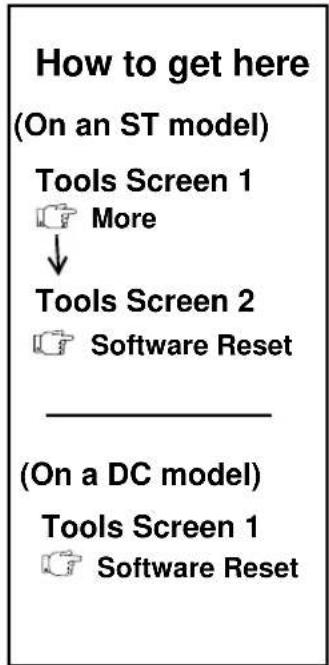
flowchart
graph TD
    A["How to get here\n(On an ST model)"] --> B["Tools Screen 1\nMore"]
    B --> C["Tools Screen 2\nSoftware Reset"]
    C --> D["(On a DC model)"]
    D --> E["Tools Screen 1\nSoftware Reset"]

text_image
Ready - Select Features to scan your job. Software Reset Close Reset System Software Use of either of these controls can be more efficient than turning the power on and then off. Generally, use should be restricted to when the system instructs you to perform a reset. Reset Network Controller Reset BothThe Software Reset button performs a “warm” reboot of the system. This is useful if the system becomes unresponsive for an extended period of time.
The options displayed depend on your machine model:
- Reset System Software
- Reset Network Controller (ST models only)
- Reset Both (ST models only)
The warm reboot differs from using the white on/off switch to boot the machine. With a warm reboot, power is not lost to the fuser and Xerographic module thereby reducing the time needed for the machine to return to full functionality.
On DC models, copy jobs will be lost if Reset System Software is selected.
On ST Models, copy jobs in the system will be lost when Reset System Software or Reset Both is selected. Copy jobs will not be lost if Reset Network Controller is selected. Print Jobs are not lost as a result of the resets.
11. Tracking Usage
The Document Centre has standard tools to track copy usage. Optional software can be installed to track copy, print, scan and fax usage.
Standard Tools
- Auxiliary devices such as key card readers or coin boxes can be connected to the Document Centre. Refer to page 11-2 for additional information.
- An internal tracking feature known as an Internal Auditron, is standard on all Document Centre configurations. This feature provides copy management capability. There is additional software available to remotely retrieve the usage data. It can then be exported into a database or spreadsheet application for further processing. Refer to page 10-6 for more information.
Optional Tools
- The Network Accounting solution, in conjunction with a network accounting software product can provide the ability to track print, copy, scan and fax usage by User or Account ID. The complete solution will provide the centralized data collection of the Document Service usage on a per machine basis over the network. Contact Xerox if you need more capability than the Internal Auditor provides. Refer to page 11-20 for additional information.
You can connect an optional Auxiliary Interface such as a card reader or coin box to the Document Centre.
Installing an Auxiliary Accounting Device
To install a device:
- Power off the machine.
- Following the instructions that are provided with the Auxiliary Interface device. Connect it to the Document Centre as illustrated below.
The external device interface is located on the back of the machine in a recessed area as indicated below. Connect the device to the P7 jack as indicated.
-
After the device is connected, apply power to the machine.
-
In the Tools section, go to Tools Screen and press the Access and Accounting button. Press Authentication Mode, then press Auxiliary Interface. This will permit the Document Centre to communicate with the external accounting device.
Where to connect an external device

text_image
P7 JackDocument Centre 490/480/470/460
Auxiliary Device Notes
The Auxiliary Device will charge copies to the account that is active when the copies are printed at the Document Centre.
If several jobs are programmed and scanned ahead, they will be charged to the account that was active when the job was printed.
The Auxiliary Device cannot correctly track changes if the account is changed before the copies are printed.
To charge copies to the correct account, only use the program and scan ahead capability of the Document Centre with jobs that will be charged to the same account.
If multiple accounts are required, group the jobs such that all the jobs for each account are printed before changing the account number.
This is the only method to ensure correct copy charges will be captured when using an external accounting device.
NOTE
The Internal Auditor will track jobs as they are scanned which allows accounting designations to be changed before the jobs have physically printed.
Auxiliary Interface Setup
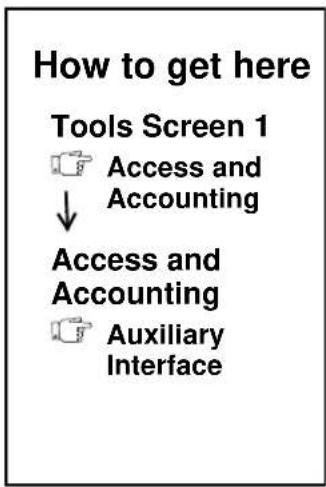
text_image
How to get here Tools Screen 1 Access and Accounting ↓ Access and Accounting Auxiliary Interface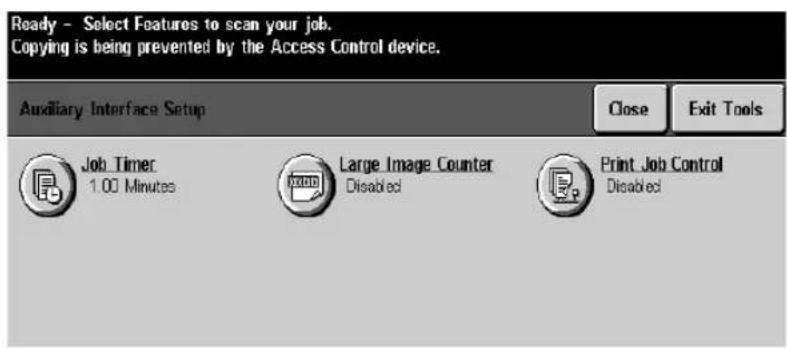
text_image
Ready - Select Features to scan your job. Copying is being prevented by the Access Control device. Auxiliary Interface Setup Close Exit Tools Job_Timer 1.00 Minutes Large Image Counter Disabled Print Job Control DisabledNOTE Auxiliary Interface must be active to access this setup screen.
Job Timer
When a job is running and the external device allowing the job to run requires additional credits, the Job Timer option allows the control of the time interval between when a job requires additional credits and the job is automatically deleted from the job queue.
When you press the Job Timer button another window will appear. You can disable the feature or set the timer from 25 to 15 minutes in 15 second (.25) increments. The default is 1 minute.
If the Job Timer feature is disabled, your job will remain in the queue until it is manually deleted.
Large Image Counter
This option allows the system to count single output sheets larger than 15 inches such as 11 x 17 or 12 x 18 inches as more than one sheet.
This feature will require machine users to spend more credits when using large output sheets. The meter will register double meter counts when large paper is detected.
When the Large Image Counter button is pressed, another screen will appear displaying Enable and Disable buttons.
When the feature is disabled the system will register single meter counts on all output regardless of sheet size.
Print Job Control
This option allows you to hold all print jobs entering the system requiring users to enter the correct amount of credit before the job is released for printing. Held jobs must be released manually by the user after the correct credits have been added to the printing control device.
When you press the Print Job Control button another screen will appear displaying Enable and Disable buttons.
If this option is disabled, the system will print all incoming print jobs.
The Internal Auditron is the standard system on the Document Centre that allows you to control access to the copier and track copy usage on an account basis. This information can then be collected and used as appropriate.
To help you manage the data collection and account setup tasks, the Document Centre documentation kit contains a software program that allows you to collect and modify data using a PC with either a direct or remote connection.
Once the data is collected, you can modify it off line and use the software program to update the Auditor system on the machine.
When the Internal Auditor is active, users will be presented with a Login screen.
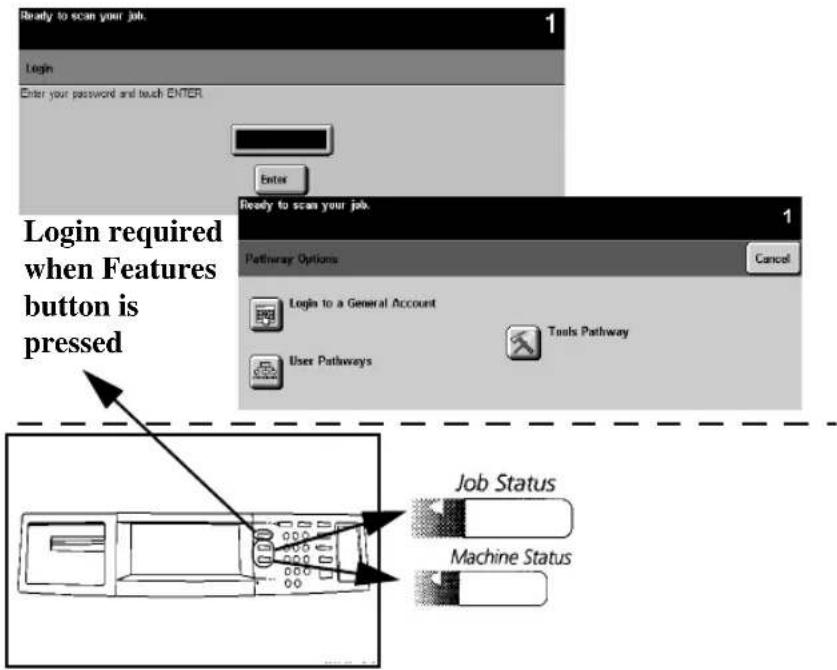
text_image
Ready to scan your job. 1 Login Enter your password and touch ENTER Enter Ready to scan your job. 1 Pathway Options Cancel Login required when Features button is pressed Login to a General Account Tools Pathway User Pathways Job Status Machine StatusNo login required when these buttons are pressed
Internal Auditron Overview
The Internal Auditor system is a two-level system.
-
User Accounts: This account requires a 1 to 12-digit User Number to use the copying functions of the machine. Copies made are charged to the User Account corresponding to the User Number entered.
-
General Accounts: if necessary, you can create a second layer of accounts requiring users to enter a User Number and an additional 1 to 4-digit General account number. Copies will be charged to the General Account rather than the User Account. Users with access to the General Accounts can access all the General Accounts.
Level 1
User Accounts
Internal Auditron Illustration
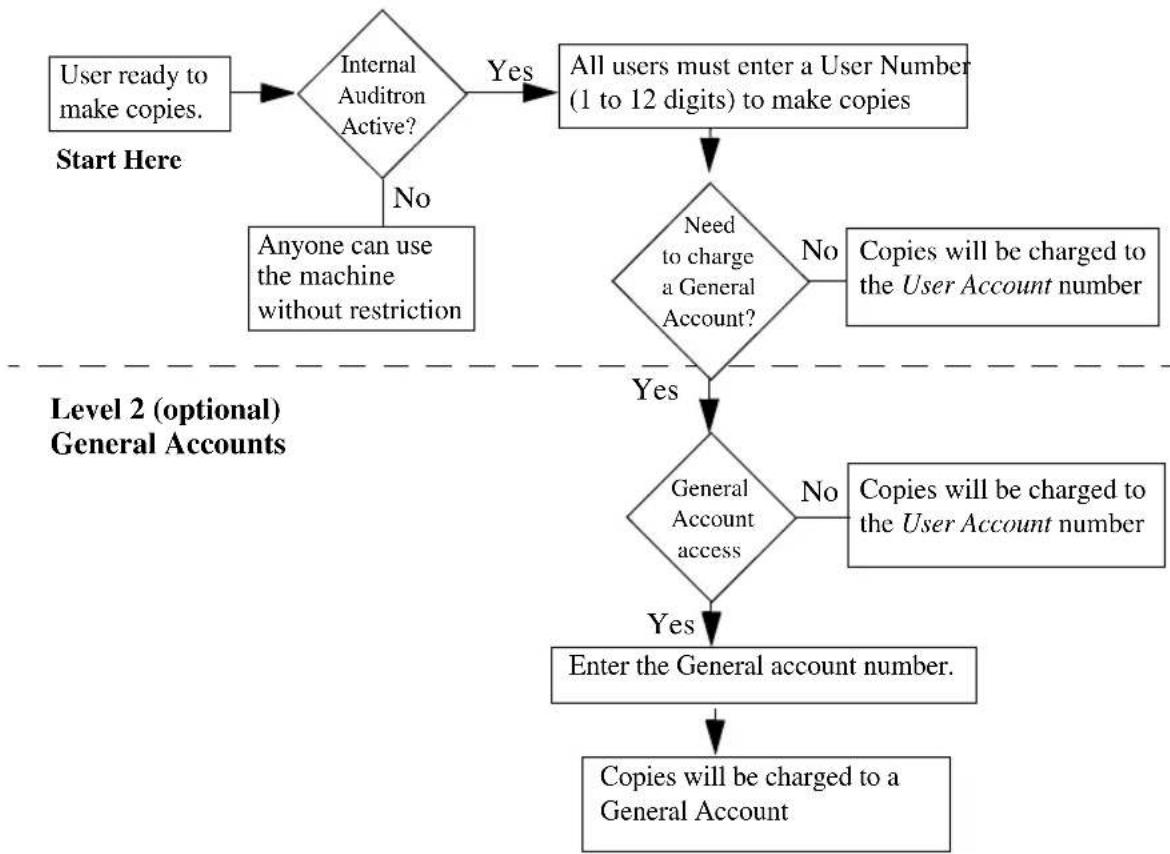
flowchart
graph TD
    A["User ready to make copies."] --> B{Internal Auditorn Active?}
    B -->|Yes| C["All users must enter a User Number (1 to 12 digits) to make copies"]
    B -->|No| D["Anyone can use the machine without restriction"]
    C --> E{Need to charge a General Account?}
    E -->|No| F["Copies will be charged to the User Account number"]
    E -->|Yes| G{General Account access}
    G -->|No| H["Copies will be charged to the User Account number"]
    G -->|Yes| I["Enter the General account number."]
    H --> J["Copies will be charged to a General Account"]
    I --> K["End"]
    style A fill:#f9f,stroke:#333
    style K fill:#f9f,stroke:#333
Planning an Auditron System
Start planning by determining your objectives for the Internal Auditron System. Are they primarily to control access, to record copy usage information, or a combination of both?
Determine the number of machines that you want to incorporate into your Auditor System. Each individual Document Centre must be setup with the appropriate account information.
Decide if you want to have only User Accounts or both User and General Accounts. Use General Accounts if you need an additional level to track copy counts of users who share projects or clients.
Planning User Accounts
The User Accounts can represent individuals or work groups. Each user account will have a unique user number assigned.
If you decide to use General Accounts, decide which User Numbers will be given access rights to the General Accounts.
Develop a matrix, such as the one below, to help you visualize the overall Auditron System.
Table 1: Auditron System Matrix Example
| User User | Account | User Number | Account Limit | Access Rights | ||
| Tools | Auditron Administrator | General Accounts | ||||
| Machine Administrator | 1 | 2 | 2 | 4 | 8 9 | N |
| Finance 2 0390 | No N | N | Y | |||
| User #1 | 3 | 23400 | 200 | Y | Y | Y |
| User #2 | 4 | 4376 | 7,500 | N | N | Y |
| User #3 | 5 | 6596 | 2,700 | N | N | N |
| Project #1 | 7 | 428 | 5,000 | N | N | N |
| Continue with the matrix until all the required User Accounts have been assigned.*User Account 1 must always have Tools and Administrator access. | ||||||
Planning General Accounts
Use General Accounts if you need an additional level to track copy counts of users who share special projects or clients.
Remember, a User Number with General Account access rights is needed to access General Accounts.
Develop a matrix that identifies the General Accounts and their purpose; for example, General Account #1 is copy information for client XYZ.
| General Account Number Purpose | |
| 1 Client XYZ | |
| 2 Client ABC | |
| 3 Special Project #1 | |
| 4 Special Project #2 | |
| Complete the matrix for all the required General Accounts. | |
User and General Account Combinations
Once you have determined how many User Accounts and General Accounts you will need, you have to determine the total number of User and General Accounts that the Document Centre will recognize.
There is a dedicated amount of disk space reserved on the Document Centre for the Internal Auditor. When you activate this disk space, you have to tell the Document Centre how many User and General Accounts to create. You do not have to use all the created accounts.
Each User Number uses a portion of memory, with User Accounts requiring slightly more memory than a General Account. All you have to do is enter the number of the User Account, and the Document Centre will determine the number of General Accounts. The more User Accounts you have, the fewer General Accounts will be available.
The table below shows some of the possible User and General Account combinations.
Table 2: User and General Account Combinations
| User Accounts General Accounts | |
| 1 | 1 |
| 500 9,333 | |
| 1000 7000 | |
| 1500 4,666 | |
| 2000 2,333 | |
| 2500 0 |
Managing Data and other considerations
Auditron Report Software
Data can be retrieved manually or, using special software, downloaded into a personal computer.
A CD included with your documentation contains software that enables account information to be downloaded into a database, changed and returned to the Document Centre as an update.
Simply load the CD and follow the on screen instructions.
Assign a Backup Auditron Administrator
Is someone available to serve as a backup for the Auditorn Administrator? This individual should be identified and trained by the primary Auditorn Administrator to manage the system when required. The User Account assigned to the backup Administrator should be given Administrator rights.
Prevent unauthorized use of the Copier
How critical is security in your environment? Avoid common User Numbers and sequences such as 1234 or 9999. Use up to 12 digits for User Accounts. Remember, anyone with General Account access can make copies that are charged to ANY of the General Accounts. Also, anyone can press a series of digits to try to gain access to the machine.
For security purposes, if three incorrect User Number entries are made within 1 minute, further entries will be prevented for 3 minutes.
Setting up your Internal Auditron System
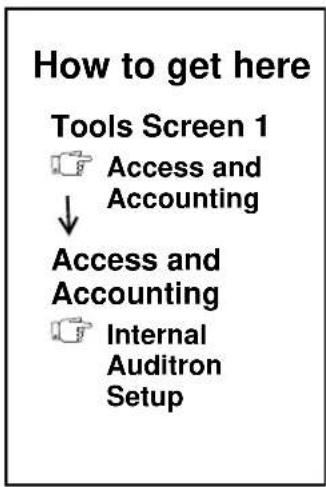
text_image
How to get here Tools Screen 1 Access and Accounting ↓ Access and Accounting Internal Auditron Setup
text_image
Ready - Select Features to scan your job. Internal Auditorn Setup Close Exit Tools Auditron Initialization User Accounts and Access Rights Auditron General AccountsAfter your Auditor plan is complete, you have to enter the information into the Document Centre.
Detailed descriptions of each of the screens are found on the following pages.
Initializing the Auditor System
- Go to the first Tools screen and open the Access and Accounting Screen.
- Press the Internal Auditor Setup button. If it is not selectable, press the Authentication button then press the Internal Auditor button and Close.
- Press the Auditron Initialization button and enter the number of User Accounts you identified on your planning matrix. The Document Centre will automatically determine the number of General Accounts. Press the Initialize Auditron button to clear the memory and allow the device to accept new information.

Auditron Initialization

User Accounts and Access Rights
- There are two ways to input User Account data into the Internal Auditor.
Manual Input at the Machine
If you have a relatively few number of accounts or no access to a PC you can input the information into the Document Centre manually. Press the User Accounts and Access Rights button to open the User Accounts and Access Rights screen. This is the screen where you will enter all the User Account information, including User Numbers and access rights to Tools, Auditorn Administrator, and the General Accounts.
Use the scroll bars to navigate to open accounts.
Using a Computer
If you have a PC with a Serial Cable or a modem you can connect the computer to the Document Centre and download information into the Auditor.
The CD that accompanied the Document Centre documentation contains the Auditor Report Software. You can also download the software from the World Wide Web at www.xerox.com/drivers. First select your operating system, language and type of Document Centre. Click Go. The file will be listed under utilities.
Read and follow the accompanying Auditorn Reporting Software documentation to install and use the software.
- Exit Tools. Users will now be required to enter a User Number to make copies.
You should also change the password of the Machine Administrator Account. Detailed instructions are found on page 11-14.
It is strongly recommended that you change the password that initially comes with the machine (1111). Follow these steps to change the password:
- Select Access and enter Tools using the default password, 1111.
- Press Access and Accounting.
- Press the Tools Mode Access button.
- Select the User Number field by touching the User Number area. When the background is black the new User Number can be entered. Use the keypad to enter a new User Number. Record the User Number.
- Press the Close button.
- Exit Tools.
- Validate the new password by re-entering Tools, using the new password. If you are not successful, contact the Welcome Center.
NOTE
The default User Number for User Account 1 is 1111. It is reserved for Account 1 and cannot be assigned as a User Number for any other account.
How to get here
Tools Screen 1
Access and
↓ Accounting
Access and
Accounting
Internal
↓ Auditron Setup
Internal Auditorn Setup
Auditron Initialization
Auditron Initialization
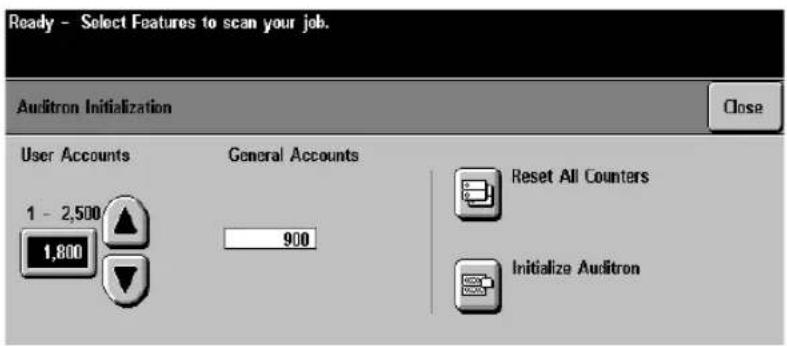
text_image
Ready - Select Features to scan your job. Auditron Initialization Close User Accounts General Accounts 1 - 2,500 1,800 900 Reset All Counters Initialize AuditronThere are three options on this screen.
User Accounts. Use the scroll buttons to increase or decrease the number of User Accounts or enter a number using the keypad. The number of User Accounts entered will automatically determine the number of General Accounts. The more user accounts that are created, the fewer General Accounts will be created.
If the number of accounts has been modified and the Close button is selected, a pop-up screen will appear with two options; begin the initialization process or cancel. If cancel is selected, the number of accounts will be restored to the original values, and the confirmation screen and initialization screen will be closed.
Reset all account counters. Reset All Counters resets the account counters to zero for all User and General Accounts and will leave Auditorn programming intact.
Initialize Auditorn. When this is selected, all existing Auditorn data and programming will be erased, and the Tools access User Number will be reset to 1111.
NOTE
Selecting Initialize Auditor will always produce a confirmation screen. If OK is selected twice, the Auditor will be initialized, and all the existing programming and the account data will be deleted.
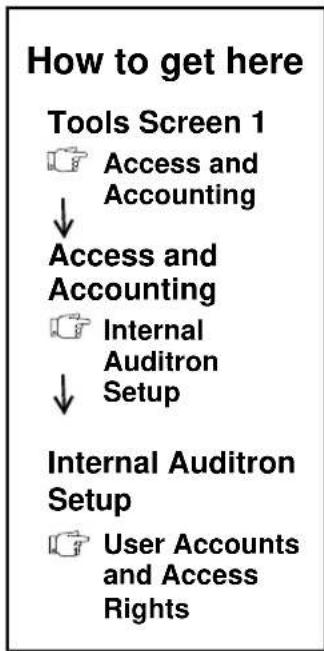
flowchart
graph TD
    A["Tools Screen 1"] --> B["Access and Accounting"]
    B --> C["Access and Accounting"]
    C --> D["Internal Auditron Setup"]
    D --> E["Internal Auditron Setup"]
    E --> F["User Accounts and Access Rights"]
User Accounts and Access Rights
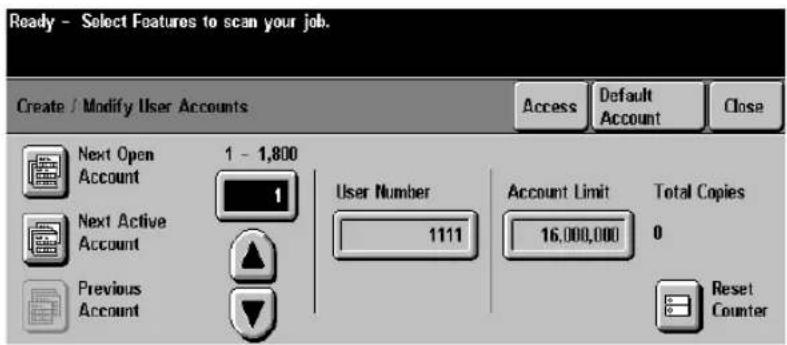
text_image
Ready - Select Features to scan your job. Create / Modify User Accounts Access Default Account Close Next Open Account 1 - 1,800 Next Active Account 1 Previous Account User Number 1111 Account Limit 16,000,000 Total Copies 0 Reset CounterThis screen allows you to assign the User Account User Number, the account copy limits, and the access rights. You can also view the total number of copies made and reset the account copy counter.
To create or modify an account, enter the account numbers, using the keypad directly, by scrolling or by pressing the Next Active Account (a User Number is assigned), Next Open Account (a User Number is not assigned), or Previous Account (last account selected) button. When the end of the list is reached the first account will be displayed.
User Numbers can be 1-12 digits in length with leading zeros recognized. Account Limit is the maximum number of copies allowed for the currently displayed account. This figure ranges from 0 to 16,000,000. The Total Copies counter displays the total copy count for the selected account.
Reset Counter resets the total copies count for the current account to zero.
When the Internal Auditor is used, the copies that are made are charged to the User or General Account that was active when the originals were scanned.
Access
Press the Access button to display the Access Rights screen. This is where you provide account access to the General Accounts, the Machine Administrator or the Auditorn Administrator functions.
The system will ensure that Account 1 will always be given both the Machine Administrator and the Electronic Auditorn Administrator rights.
Typically, 1-3 people have the access rights to the Machine Administration and the Electronic Auditorn Administration.
Default Account
Pressing this button will reset the currently displayed account to its defaults.
Table 3: Account Defaults
| Setting Default | |
| User Number None | |
| Account Limit 16,000,000 | |
| Copy Count 0 | |
| General Account Access No | |
| Tools Access No | |
| Auditron Administrator Access No |
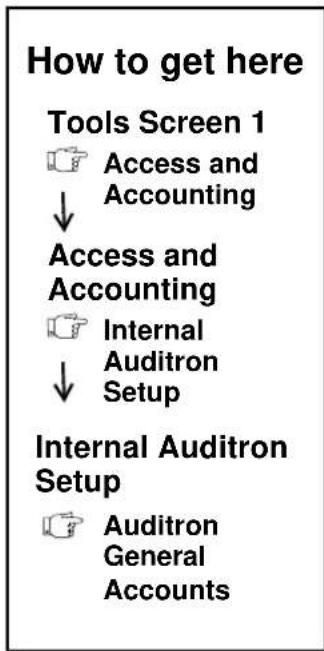
flowchart
graph TD
    A["Tools Screen 1"] --> B["Access and Accounting"]
    B --> C["Access and Accounting"]
    C --> D["Internal Auditron Setup"]
    D --> E["Internal Auditron Setup"]
    E --> F["Auditron General Accounts"]
Auditron General Accounts

text_image
Ready - Select Features to scan your job. Modify Auditor General Accounts Close Next Open Account 1 - 900 Next Active Account Previous Account Total Copies 0 Reset CounterThis screen allows you to view and/or reset the copy counters for an individual General Account.
Enter the account number directly, using the keypad, by scrolling, or by pressing the Next Open Account, the Next Active Account or the Previous Account button.
The Next Active Account button allows you to jump to the next account in the list that has a recorded copy count.
The Next Open Account button allows you to jump to the next account in the list that has no copies recorded. In both cases, if the end of the list is reached, the list will wrap around to the first account.
The Previous Account button displays the previous account that was selected.
The Total Copies counter displays the total current copy count for the selected account.
Reset Counter resets the copy count to zero for the currently selected account. A confirmation window will be displayed to verify this selection.
NOTE
Unlike User Accounts, there is no upper limit to the number of copies that can be charged to a General Account.
Network Accounting is an optional feature of the Document Centre. To install Network Accounting, contact your Xerox representative.
This option provides the ability to track the usage of print, copy, scan and fax job services from multiple Document Centre machines over the network.
Once the option is installed, users will be required to enter a pre-defined User ID and Account ID at the machine for copy, scan and fax jobs and at the client workstation for print jobs.
Usage can be tracked by user or account from a centralized location over the network. The Administrator will also have the ability to produce reports that provide information necessary to determine the appropriate expense allocation, the most efficient location, and overall productivity of the Document Centre Systems.
Refer to the documentation supplied with your network software for complete information on how to create user/account login IDs and reports utilizing the standard report libraries supplied.
Types of Tracked Data
If you have the Network Accounting option already enabled you can use the standard reports provided by your network accounting software.
Table 4: Types of Data tracked by some network accounting software products
| Copy or Print Services Fax | Services Scan Services | |
| Account Account Account | ||
| User User User | ||
| Number of Simplex Pages Number of Simplex Pages Number of Simplex Pages | ||
| Number of Duplex Pages Number of Duplex Pages Number of Duplex Pages | ||
| Paper Size Number of Phone Numbers Called | Scanned Image Size | |
| 1 or 2 Staples | Destination Phone Number List | Count of Images by Size |
| Media Type | Fax Server Path Location | Document Path Location |
| Media Page Count | Number of Pages sent to server | Number of Pages sent to Location |
| Media Size | Completion Time | Template/Job Name |
| Number of Sets | Completion Time | |
| Job State | ||
| Completion Time | ||
Using Network Accounting
When Network Accounting is enabled on your system, users will be required to enter an up to 16 character User ID and up to a 32 character Account ID to make any Copy, Scan or Fax selections at the machine.

text_image
Ready to scan your job. 1 Login Please input your User and Account IDs User ID Account ID EnterNetwork Accounting Login Screen at the Document Centre
If users attempt to print from their workstation, they will be presented with a login screen prior to sending their print job. This Client login screen will be seen in any customer driver, web submission tool, or TIFF submission tool. LPR (UNIX environment) is currently not supported.
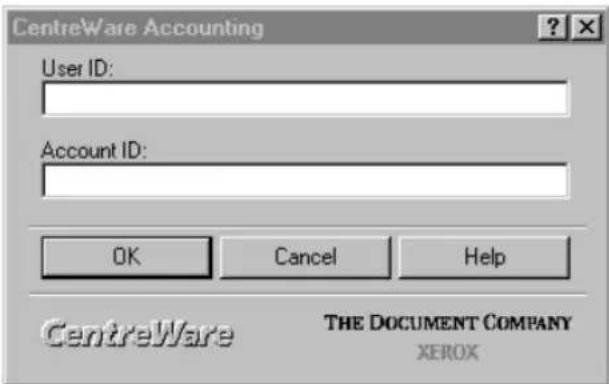
text_image
CentreWare Accounting User ID: Account ID: OK Cancel Help CentreWare THE DOCUMENT COMPANY XEROXNetwork Accounting Login Screen at the Work Station
Logging In and Out of the Document Centre
Logging into the Document Centre
- Press either User or Account ID button.
- A keyboard with characters will appear
- Enter the correct ID code, using the keypad to enter numeric characters.
- Press Save and repeat for the next ID.
- The Enter button will become selectable.
- Press Enter
- After you have successfully logged in, the features screen will display.
Logging Out
- Press either the Access or Clear All buttons.
- Press the Log Out button
Setting Up Network Accounting
How to get here
Tools Screen 1
Access and Accounting
Authentication Mode
Use the following steps to setup the network accounting option:
- Arrange for a software and hardware upgrade.
Contact Xerox to arrange for a Document Centre hardware and software upgrade as well as delivery of network accounting software.
- Install the Upgrade on the Document Centre.
A Xerox representative will install or upgrade the Document Centre hardware and software.
- Ensure the Document Centre has TCP/IP and HTTP protocols enabled.
Your computer network administrator has to enable TCP/IP and HTTP protocols otherwise Network Accounting will not work on your machine.
Go to Tools and press the Connectivity and Network Setup button on the first Tools Screen. There will be a delay as the network information is gathered. Press the Network Setup button. Press the TCP/IP options button and a screen such as the one shown below should appear.
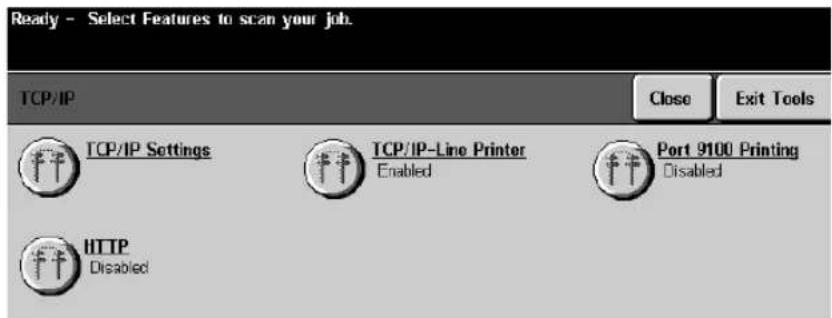
text_image
Ready - Select Features to scan your job. TCP/IP Close Exit Tools TCP/IP Settings TCP/IP-Line Printer Port 9100 Printing Enabled Disabled HTTP DisabledPress the TCP/IP Settings button. This will display a new screen.
On the new screen, enable HTTP protocol by pressing the HTTP button.
Press Exit Tools.
- Enable Network Accounting at the Machine.
After the network accounting software is installed, go to the first Tools screen and press the Access and Accounting button to display the Authentication Mode button.
Access and Accounting Screen

text_image
Ready - Select Features to scan your job. Access and Accounting Close Exit Tools Authentication Mode Internal Audition Setup Network Accounting Setup Auxiliary Interface Setup Tools Mode AccessPress the Authentication Mode button to display the Authentication Mode screen.
Network Accounting Screen

text_image
Ready - Select Features to scan your job. Authentication Mode Undo Cancel Save None Auxiliary Interface Internal Auditron Network Accounting Use these options to enable the desired Authentication Mode. Setups for the desired Mode/Device may then be accessed when the Save button is selected.Press Network Accounting then Save. This will allow you to access the Network Accounting Setups screen you will need in Step 7. Proceed with the installation of the software.
Access and Accounting Screen with Network Accounting enabled
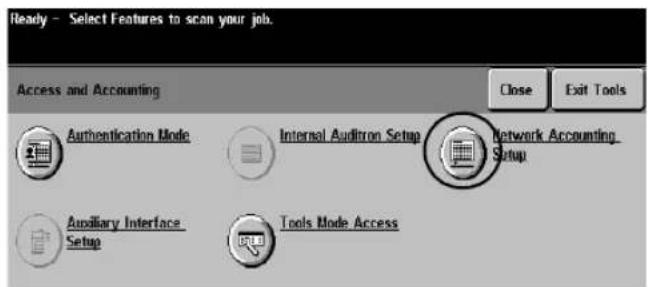
text_image
Ready - Select Features to scan your job. Access and Accounting Close Exit Tools Authentication Mode Internal Audition Setup Network Accounting Setup Auxiliary Interface Setup Tools Mode Access- Install the network accounting software.
The documentation that accompanies the software contains the procedures for establishing communications between the software and a networked Document Centre. The person who is responsible for your computer network should install the software.
Using the documentation, create the User and Account IDs.
- Upgrade Client Print Drivers.
Distribute new Print Drivers containing the Network Accounting option. If possible, distribute these drivers with the Accounting option already selected. The Print Drivers are part of CentreWare software.
If the drivers are distributed without the option enabled, workstation users will need to configure the drivers. If they do not properly configure the driver, jobs sent to the Document Centre will be deleted.
Generally, the Network Accounting Enable box on the driver is found by clicking on the Network Accounting enabled Document Centre Printer and selecting either Properties or Document Defaults from the file pull down selection.
Check the Enable Accounting box and any other boxes you wish. Close the window when you are through.
You should see a screen similar to the one shown below.

text_image
This box must be checked WhiteBread Properties General Details Paper/Output Document Options Image Options Layout/Watermark Fonts PostScript User Preferences System Configuration About ControlWare Monitoring ✓ Monitor My Jobs Accounting ✓ Enable Accounting Save Accounting Codes Conceal User ID [*** Conceal Account ID [*] Note: You will be prompted to enter Accounting Codes when you print Paper Size Custom Sizes... Default Size: 8.5 x 11" Letter OK Cancel Help- Complete Document Centre Network Accounting Setups.
Choose to Enable or Disable Authentication in the Network Accounting Setup as follows.
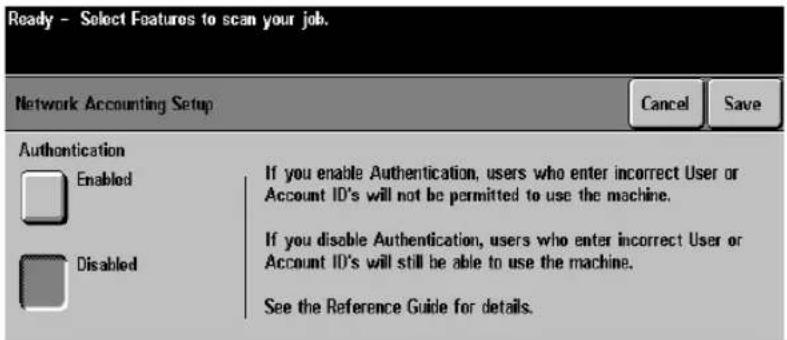
text_image
Ready - Select Features to scan your job. Network Accounting Setup Cancel Save Authentication Enabled Disabled If you enable Authentication, users who enter incorrect User or Account ID's will not be permitted to use the machine. If you disable Authentication, users who enter incorrect User or Account ID's will still be able to use the machine. See the Reference Guide for details.The Network Accounting Setup screen contains two options, Authentication Enabled or Disabled.
Authentication Enabled
If you want to track copy, print, scan and fax usage by both User ID, Account ID and amount of resources each user account uses (for example, types and sizes of paper stock, duplex or simplex, stapled or not stapled) ensure the Authentication is Enabled.
This requires the Document Centre to accept only valid User and Account IDs.
User ID requires between a 1 and 16 character code be entered.
Account ID requires between 1 and 32 character code be entered.
Authentication Disabled
If you want to track the types and sizes of paper stock, duplex or simplex, stapled or not stapled, that are used by the Document Centre ensure the Authentication method is disabled.
This allows the Document Centre to accept both valid and invalid User and Account IDs.
Disabling the Authentication may be useful if conducting an analysis of the resources used on a particular Document Centre before Authentication Controls are instituted.
Users will still be required to enter at least one character into the User and Account ID fields.
12. Reference
This section contains significant reference information that can assist you with productivity improvement opportunities.
• Feature Default settings
• User Interface Default settings
• System Default settings
- Relocation Requirements
- ENERGY STAR® Programme
- Setting Tray 6 to hold either A4 or 8.5 x 11-inch paper
- Attaching an external accounting device
• Material Safety Data Sheets
- Document Security
• Xerox on the Web
This section contains a list of all default settings. Please note: Changing default settings will affect every subsequent job.
Table 1: Basic Copying Tab Defaults
| Feature Area Options | Factory | Default | Explanation and Notes |
| Output | Top Tray CollatedMain Tray CollatedStaple (optional)More | Collated Selects | whether or not the output is produced in sequential collated sets or in separate stacks of each original. |
| 2-sided copy | 1 to 11 to 22 to 22 to 11 to 2 Rotate Side 22 to 2 Rotate Side 2 | 1 to 1 sided Selects | the number of sides to be copied. |
| Reduce/Enlarge | 100%Auto17 to 11 inch(64%)14 to 11 inch(78%)NormalCustomSix presets: 25%, 64%, 78%, 129%, 154%, 200% | 100% Selects | the amount of reduction/enlargement for a document being scanned. |
| Paper Supply | Auto PaperSpecific tray | Tray 6, if installed, otherwise Tray 1 | Allows the machine to determine automatically where to draw the correct paper stock. |
Table 2: Image Adjustment Tab Defaults
| Feature Area Options Factory | Default | Explanation and Notes | |
| Image Quality | |||
| Original TypeNormalTextHalftonePhotoPhoto | Normal Normal will handle most of the typical jobs and is the best general use mode.If the majority of originals will be text, magazines or photographs, change the default accordingly. | ||
| Lighten/Darken-3 to +3 | Normal0 | Controls the lightness or darkness of the output. | |
| Background Suppression | On Prevents the reproduction of unwanted variations that result from originals with colored backgrounds or originals that are very thin with images on the second side that bleed through. | ||
| More Image Quality | |||
| Contrast-3 to +3 | Normal0 | Controls the amount of difference between the lightest and darkest areas on the output. | |
| Sharpness-3 to +3 | Normal0 | Controls the amount of edge definition on the output. | |
| Auto Special | Auto | Autow reduces the risk of blotches or small areas that have a different texture or pattern appearance than the surrounding area.Special creates smoother, less grainy output, but the risk of blotchy copy quality defects is higher. | |
Table 2: Image Adjustment Tab Defaults
| Feature Area Options Factory | Default | Explanation and Notes | |
| Bound Originals | OffLeft pageRight pageBoth pages | Off Tells the machine which page to scan.Some documents may require a different scanning sequence. If the Display Options for BoundOriginals are enabled, a user can choose the correct scanning when the Both Pages button is selected document, either right to left or left to right. | |
| Edge Erase | BorderEdgePrint to Edge | Border Border Erase adds equal amounts of white space on all edges of your copies.Edge Erase provides the ability to adjust independently the amount to erase along any of the document edges.Print to Edge enables images to be printed to the edge of the output paper. Print to edge cannot be selected as a default. | |
Table 2: Image Adjustment Tab Defaults
| Feature Area Options Factory | Default | Explanation and Notes | |
| Original Input | AutoManual Platen InputMixed Size Originals | Auto Default | It setting cannot be changed.Auto allows the machine to determine document size by using position of the Document Feeder edge guides.Manual Platen Input provides the ability to control the dimensions of the scanning region and should be used if the original has a dark or black border that cannot be automatically detected by the machine.Mixed Size Originals provides the ability to handle original documents of mixed sizes using the Document Feeder. The feature can produce mixed size output or allow the system to automatically determine a common copy size. |
| Image Shift | No ShiftAuto CenterMargin Shift | No Shift Allows control of image placement on the output page.No Shift provides no adjustment and is the same as the original.Auto Center centers the image on the output page.Margin Shift provides the ability to add a specific margin on the output page. | |
Table 3: Output Format Tab Defaults
| Feature Area Options Factory | Default | Explanation and Notes | |
| Transparencies | OffBlank DividersImaged Dividers | Off Provides the ability to produce transparencies with dividers in the same job. It cannot be selected as a default. | |
| Booklet Creation | OffOn | Off Automatically puts the scanned images in the correct sequence to make a booklet.The display options for Booklet Creation can be set to allow users to choose whether the sequence of images is from Front to Back or Back to Front. | |
| Multi-Up | OffOn | Off Automatically reduces multiple images of the originals and places them on a single page. It cannot be selected as a default. | |
| Covers | No CoversFrontBackFront and Back | No Covers Provides the ability to produce covers on a document. It cannot be selected as a default. | |
| Invert Image Mirror ImageOffOn | Off Allows you to change the direction of the original image creating a mirror of the original. | ||
| Negative ImageOffOn | Off Provides the ability to create output that is the opposite of the original. | ||
Table 4: Job Assembly Tab Defaults
| Feature Area Options Factory | Default | Explanation and Notes | |
| Build Job | ● On● Off | Off Provides | the ability to combine multiple documents into a single job. It cannot be selected as a default. |
| Sample Set | ● On● Off | Off Produces | a single set of a job while holding the rest of the job in memory. This enables a user to review the printed set and either release it for printing or delete it if it is not acceptable. It cannot be selected as a default. |
| Stored Programming | None None | defined | Provides the ability to store up to 10 commonly used programming sequences. It cannot be selected as a default. |
Table 5: Scan Defaults
| Feature Area Factory Default Explanation and Notes | ||
| Basic Scanning Tab | The defaults for the scanning tabs are not changeable. The features displayed on the screens depend upon which template is selected.You can make a new template with the options you require for a permanent change or select a template and make temporary modifications on the screen. | |
| Template Name Default Template | ||
| Sides Scanned 1 Sided Portrait | Selects the page orientation and number of sides to be scanned. | |
| Image Quality Normal Lighten/Darken - 0 Suppression On | Normal is appropriate for most jobs run on the machine.Lighten/Darken provides controls to adjust the lightness or darkness of the output.Suppression automatically deletes a colored or gray background. | |
| More Scan Features Tab | ||
| More Image Quality | Contrast - 0 Sharpness - 0 | Contrast controls the amount of difference between the lightest and darkest areas on the output.Sharpness controls the amount of edge definition on the output. |
| Resolution 300x300x1 The higher the scanning resolution, the larger the image file created. For OCR applications, 300x300 usually provides the best results. | ||
| Original Input Auto Controls the contrast and sharpness of the image and the way the digital image is produced. | ||
Table 5: Scan Defaults
| Feature Area Factory Default Explanation and Notes | ||
| Edge Erase | BorderEdgeScan to Edge | Border Erase adds equal amounts of white space on all edges of your copies.Edge Eraseprovides the ability to adjust independently the amount to erase along any of the document edges.Scan to Edge enables images to be scanned and imaged to the edge of the output paper. Scan to edge cannot be selected as a default. |
Table 6: Fax Defaults
| Feature Area Factory Default Explanation and Notes | ||
| Basic Fax Tab | ||
| Sides Scanned 1 Sided Portrait | Selects the orientation and the number of sides to be scanned. | |
| Resolution Fine Fine (200x200 dpi) is recommended for line art. It produces output with a resolution between super fine and standard. | ||
| More Fax Features Tab | ||
| Image Quality Normal Lighten/Darken - 0 Suppression On | Normal is appropriate for most jobs run on the machine.Lighten/Darken provides controls to adjust the lightness or darkness of the output.Suppression automatically deletes a colored or gray background. | |
| More Image Quality | Contrast - 0 Sharpness - 0 | Contrast controls the differences between the image densities within the copy.Sharpness controls the balance between sharp text and undesirable patterns within the image. |
| Delayed Send Off | Used to specify a time to transmit faxes. | |
| Original Input Auto Allows the machine to automatically determine the sheet size. | ||
Table 7: User Interface, Power Saver, and Configuration Defaults
| Feature Area Options Factory | Default | Explanation and Notes | |
| Screen Defaults | |||
| Entry Screen Default | FeaturesJob StatusMachine Status | ST ModelsJob StatusDC ModelsFeatures | Specifies the pathway that will be shown when the machine resets itself or when Clear All is pressed. |
| Job Status Default | Incomplete Printing JobsCompleted Printing Jobs | Incomplete Printing Jobs | Identifies the types of jobs that will be shown in the Job Queue.Depending on your configuration, other options are also available. |
| Language Default | Available when multiple languages are installed. | English Allows | the default display language to be changed on the User Interface. |
| Power Saver Administration | |||
| DC Models | |||
| Standby Power mode to Low Power Mode | 490/480470/460 DC15 to 120 min. | 490/480470/460 DC15 min. | The Power Saver feature reduces the machine operation cost by minimizing the power consumption when the machine is idle for a significant period of time. |
| Low Power Mode to Off | 490/480470/460 DC0 to 120 min. | 490/480470/460 DC75 min. | |
| Auto Shut Off | EnableDisable | Enable Disable | prevents the DC Model from automatically powering itself off. |
Table 7: User Interface, Power Saver, and Configuration Defaults
| Feature Area Options Factory | Default | Explanation and Notes | |
| ST Models | |||
| Standby Power Mode to Low Power Mode | 490/480470/460 ST15 to 120 min. | 490/480470/460 ST15 min. | The Power Saver feature reduces the machine operation cost by minimizing the power consumption when the machine is idle for a significant period of time. |
| Low Power Mode to Sleep | 490/480470/460 ST0 to 120 min. | 490/480470/460 ST75 min. | |
| Decurler Setting | Automatic Decurler EnabledAutomatic Decurler DisabledMaximum Decurler Enabled | Models with a Finisher, Automatic Decurler EnabledModels with a Offsetting Catch Tray, High | Adjust this setting to reduce the paper curl in your output copies. |
| Machine Configuration | |||
| Document Scanner Cover Color | WhiteGray | White Identifies | to the machine the color of the document cover pad. A gray pad allows prescanning of originals on the Document Glass with the Document Cover closed. |
| 50/60 Hz | 50 or 60 Hz 60 Hz This is configured by | Xerox prior to delivery to match your power source. Do not change it. | |
Table 7: User Interface, Power Saver, and Configuration Defaults
| Feature Area Options Factory | Default | Explanation and Notes | |
| Supplies Management | |||
| Service Plan A, B, C, D B Determined at installation by your service plan. | |||
| Reorder Message time | 1 to 25 days 3 days | Sets the notification period when a Replaceable Unit must be reordered to minimize downtime. | |
| Replacement Method | CustomerXerox | Customer Determined at installation. | |
| Auditron | |||
| NoneInternalAuxiliaryNetwork | None When Internal is selected, users must enter a password in order to make copies.Select Auxiliary when connecting an external accounting device to the machine.Auxiliary refers to connecting a coin box or card reading device.Network uses a Network server to track copies, prints, faxes and scans. | ||
Use the Tools features to customize your machine to your work environment. Each button provides access to change a variety of options.
Table 8: System Settings Defaults
| Feature Area Options | Factory Default | Explanation and | Notes |
| Tray Management | |||
| Trays 1 - 4 | Size OnlyFullyAdjustableDedicated | DC ModelsSize OnlyST ModelsFully Adjustable | Fully Adjustable allows the user to adjust the size and the stock type of the tray.Dedicated allows users only to use the programmed stock that is in the tray.If you want to dedicate a tray to use specific stock such as transparencies, letterhead, or non-standard stock use this setting.Size Only allows users to adjust size and orientation of stock in a tray. |
| Tray 5 (Bypass Tray) | Size OnlyFullyAdjustable | DC ModelsSize OnlyST ModelsFully Adjustable | This tray is designed to be easily loaded with non-standard stock. |
| Tray 6 (High Capacity Feeder) | Dedicated Dedicated | This tray is designed to increase the availability of either 8.5 x 11 inch or A4 paper. | |
Table 8: System Settings Defaults
| Feature Area | Options | Factory Default | Explanation and Notes |
| Default Stock Stock Type Plain Paper The Default Stock | Type is the most commonly used stock. | ||
| Standard Size Required | On/Off Off If on, standard size images will be produced only on standard paper sizes. If the standard size is unavailable, the job with standard size images will be placed on hold.If off and the desired stock is unavailable, the output will be produced on stock capable of containing the image. | ||
| Paper Substitution | EnabledDisabled | Disabled Substitutes common US and metric sizes. This option is not available in DC models. | |
| Audio Tones | |||
| Fault | OffLowMediumHigh | High Sets the tone that sounds when the machine needs attention.Consider lowering the volume if the machine is located in an office area. | |
| Conflict | OffLowMediumHigh | Medium Sets the tone that sounds when conflicting features or invalid data is entered.Consider lowering volume if the machine is located in a populated area. | |
| Selection | OffLowMediumHigh | Low | Sets the tone that sounds when a selection is made on the User Interface. |
Table 8: System Settings Defaults
| Feature Area Options | Options Factory Default | Explanation and | Notes |
| Measurements | |||
| Units Inches or mm Inches Sets the appropriate measurement units. | |||
| Numeric separator | Comma or Period Comma Sets the standard numeric separator. | ||
| Set Time and Date | Time12 -24 hrDatemm/dd/yydd/mm/yyyy/mm/dd | 24 hrdd/mm/yy | Use this function to set and format the date and time used by the machine.To modify the date and time settings, follow the instructions displayed on this feature. |
| Timers | |||
| System Timeout | Disable or Enable 1 to 10 mins | Enable, 1 minute C | Controls the amount of time until the Touch Screen is reset to the default settings. |
| Incomplete Scan | Disable or Enable 1 to 10 minutes | Enable, 3 minutes | Controls the amount of time between an incomplete job that is partially scanned into memory and its deletion from memory.If a job is partially scanned into memory and the originals have been removed from the Document Feeder for this amount of time, the job will be deleted. |
| Auto Resume | Disable or Enable 0.25 to 2 minutes. | Enabled0.5 minutes. | Controls the amount of time that elapses between when a job is paused and when it will resume printing automatically. |
Table 8: System Settings Defaults
| Feature Area Options | Factory Default | Explanation and | Notes |
| R/E Presets | |||
| Reduce/Enlarge Preset #1 | 25% Set the preset | figure for first preset. | |
| Reduce/Enlarge Preset #2 | 64% Set the preset | figure for the second preset button. | |
| Reduce/Enlarge Preset #3 | 78% Set the preset | figure for the third preset button. | |
| Reduce/Enlarge Preset #4 | 129% Set the preset | figure for the fourth preset button. | |
| Reduce/Enlarge Preset #5 | 154% Set the preset | figure for the fifth preset button. | |
| Reduce/Enlarge Preset #6 | 200% Set the preset | figure for the sixth preset button. |
Table 8: System Settings Defaults
| Feature Area Options | Options Factory Default | Explanation and | Notes |
| Document Scanner Size Sensing | Zones 1 to 6 | 12 Zones<= less than>= greater thanZone 1A= < 9 in.B= < 7.6 in.5.5 x 8.5 in.(SEF)Zone 2A= 9-12.8 in.B= < 7.6 in.7.25 x 10.5 in.(SEF)Zone 3A= >12.8 in.B= < 7.6 in.7.25 x 10.5 in.(SEF)Zone 4A= <9 in.B= 7.6 - 9.2 in.8.5 x 5.5 in. (LEF)Zone 5A= 9-12.8 in.B= 7.6 - 9.2 in.8.5 x 11 in. (SEF)Zone 6A=>12.8 in.B= 7.6 - 9.2 in.8.5 x 14 in. (SEF) | The Document Feeder senses the paper size and, using 12 size zones, will pick a paper size corresponding to the size it detects. Each of these zones have unique width and length dimensions, represented by the letters B and A below.Document Feeder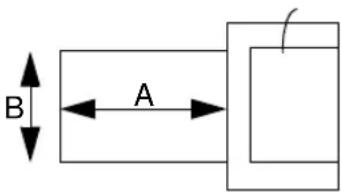 If an original is fed through the Document Feeder and does not correspond to an existing zone, image loss or black edges may occur.Each zone can be redefined, using following the procedure. If an original is fed through the Document Feeder and does not correspond to an existing zone, image loss or black edges may occur.Each zone can be redefined, using following the procedure. |
Table 8: System Settings Defaults
| Feature Area Options | Options Factory Default | Explanation and | Notes |
| Document Scanner Size Sensing (Continued) | Zones 7 to 12 | Zone 7A= <9 in.B= 9.2 - 11.3 in.11 x 8.5 (LEF)Zone 8A= 9-12.8 in.B= 9.2 - 11.3 in.11 x 8.5 (LEF)Zone 9A= >12.8 in.B= 9.2 - 11.3 in.11 x 17 in. (SEF)Zone 10A= <9 in.B= >11.3 in.A4 (LEF)Zone 11A= 9-12.8 in.B= >11.3 in.A4 (LEF)Zone 12A= >12.8 in.B= >11.3 in.A3 (SEF) | Changing Zones1. Load the document in the Document Feeder and ensure that the Edge Guides are touching the paper.2. EnterTools, Press System Settings, thenMore, Press Document Scanner Size Sensing. The common original sizes will be displayed that correspond to your original. If there is a size to match the document that is loaded in the Document Feeder, select the appropriate size matching your original, then selectSave.3. If there is a not a size that matches the document that is loaded in the Document Scanner, selectCustomsize.Enter the document size, using the User Interface and the keypad.Select Save.4. ExitTools. In order for the new size zones to take effect, remove and reinsert the document in the Document Feeder. |
Table 8: System Settings Defaults
| Feature Area Options | Options Factory Default | Explanation and | Notes |
| Electronic Hole Removal | |||
| On/Off Off Enables | the removal of the | black circles left when copying a document that has punched holes. | |
| Image Rotation | |||
| Auto% | Enabled/Disabled Enabled | Auto% will automatically enlarge or reduce the image of an original to fit on the selected paper. Rotation occurs when the substitute paper is different than the original orientation. | |
| Auto Paper | Enabled/Disabled | Enabled | Auto Paper permits the rotation of the image to fit paper that is oriented differently from the original. |
| Display Options | On/Off Off Provides | additional options for the Bound Originals or Booklet Creation features. These options are useful when you normally copy documents in languages that read either left to right or right to left. | |
| Bound Originals | On/Off Off On provides the option of | selecting either right to left or left to right scanning when both pages of a book are being copied. | |
Table 8: System Settings Defaults
| Feature Area Options | Factory Default | Explanation and | Notes |
| Booklet Creation | On/Off Off On provides the option of | selecting either right to left or left to right reading order when creating a booklet.Off only provides the current reading order when creating a booklet. | |
| Remote Testing Access for Network Controller | Enabled/Disabled Disabled Allows authorized Xerox personnel to remotely access your system to diagnose Network Controller problems. | ||
| Customer Software Upgrade | Enabled/Disabled Disabled | ||
Moving your Document Centre to a new location on the same floor or a different floor through elevator can be handled without assistance from Xerox. Contact Xerox to arrange a move to a different building.
Use the following procedure to relocate a Document Centre:
- Power-off the machine and disconnect the telephone cord, power cord and any network connections.
- Unlock the right wheel casters by pressing the lever on each wheel up. To enable better steering and avoid tipping, the machine is designed to be moved left to right with the right casters in an unlocked position. Do not attempt to unlock the left casters.
- Pushing on the right side of the machine (the side with the swivel casters) will make it easier to steer it. Do not push against the Document Feeder as this may damage the machine.
- Ensure that the minimum space requirements diagrammed on the following page and that the ozone requirements detailed on page 1-4 are met. The dimensions assume a moveable installation (carpet no deeper than 0.25 inch or 7 mm). The wall outlet must be installed near the equipment and be easily accessible.
- Plug in the phone line and the power cord and reestablish the network connection if necessary. Power on the machine. Reenter the machine telephone number if it has changed and inform the Welcome Center of the new number.
- Lock the casters in position by pressing the caster wheel lever down.
Document Centre 490/480470/460 Space Requirements

text_image
Phone Cord 14ft. (4.25m) Power Cord 10ft. (3m) 5 in. (127mm) 28 in. (711mm) 69 in. (1752mm)* 36 in. (914mm)* A B C*U.S.A. and Canada only: If installing in a hallway or exit route, allow 44 in. (1118 mm) more in front to meet fire code requirements.
Table 9: Document Centre Space requirements
| Input Device | Output Device | A B C D | |||
| None OCT** | 13 in. (330 mm) | 10 in. (254 mm) | 70 in. (1778 mm) | 47 in. (1194 mm) | |
| Bypass Tray or HCF/Bypass* | OCT** | 15 in. (381 mm) | 10 in. (254 mm) | 86 in. (2184 mm) | 61 in. (1549 mm) |
| None Finisher | 13 in. (330 mm) | 18 in. (457 mm) | 86 in. (2184 mm) | 55 in. (1397 mm) | |
| Bypass Tray or HCF/Bypass* | Finisher | 15 in. (381 mm) | 18 in. (457 mm) | 102 in. (2591mm) | 69 in. (1753 mm) |
*HCF/Bypass = combination High Capacity Feeder with Bypass Tray
**OCT = Offsetting Catch Tray.

text_image
energyAs an ENERGY STAR® partner, Xerox has determined that this product meets the ENERGY STAR® guidelines for energy efficiency.
Energy Savings
The machine has adjustable timers, found in Tools under the Power Saver Administration selection. The factory defaults are set to minimize the energy and the resources used in a typical work environment.
Both timers are reset automatically to their programmed values when a User Interface button or the Touch Screen is touched.
The machine automatically reduces energy consumption when it is not being used, as indicated in the illustration below.
DC Model Machine Power Consumption
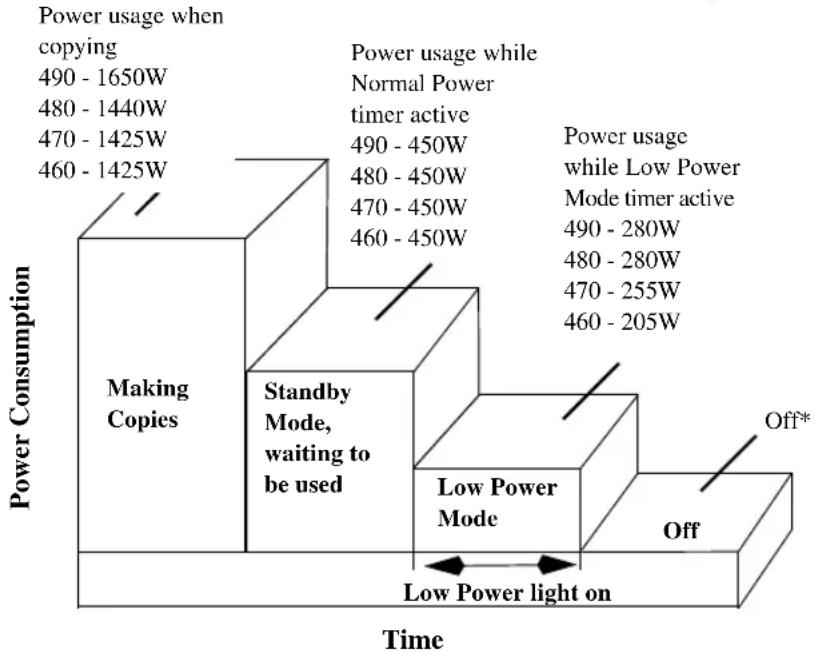
bar_stacked
| Time | Power Usage (W) | Power Light on (W) | | :--- | :--- | :--- | | 490 - 1650W | 470 - 1425W | 460 - 1425W | | 480 - 1440W | 470 - 1425W | 460 - 1425W | | 490 - 450W | 470 - 450W | 460 - 450W | | 480 - 450W | 470 - 450W | 460 - 450W | | 490 - 450W | 490 - 450W | 470 - 450W | | 480 - 450W | 490 - 450W | 470 - 450W | | Power usage while Normal Power timer active | 490 - 450W | 490 - 450W | | Power usage while Low Power Mode timer active | 490 - 280W | 480 - 280W | | Power usage while Low Power Mode timer active | 490 - 280W | 480 - 280W | | Power usage while Low Power Mode timer active | 470 - 255W | 470 - 255W | | Power usage while Low Power Mode timer active | 470 - 255W | 460 - 205W | | Off* | Off | Off* | | Low Power Light on Power Consumption | Low Power Light on Power Consumption | Low Power Light on Power Consumption | | Making Copies | Standby Mode, waiting to be used | Low Power Light on Power Consumption |* Machine will automatically power itself off. The Auto shut off can be disabled in Tools

bar_stacked
ST Model Machine Power Consumption | Time | Off* | Low Power light on | Low Power Mode | Low Power Usage | | :--- | :--- | :--- | :--- | :--- | | 490 - 1650W | 460 - 1425W | 470 - 450W | 490 - 450W | Normal Power timer active | | 480 - 1440W | 470 - 1425W | 470 - 450W | 490 - 450W | Normal Power timer active | | 470 - 1425W | 480 - 450W | 470 - 450W | 490 - 450W | Normal Power timer active | | 460 - 1425W | 490 - 450W | 480 - 450W | 490 - 280W | Power usage while Low Power Mode timer active | | 480 - 280W | 490 - 280W | 470 - 260W | 460 - 260W | Power usage while in Sleep Mode | | 490 - 280W | 490 - 280W | 480 - 260W | 460 - 260W | Power usage while in Sleep Mode | | 480 - 65W | 490 - 280W | 470 - 260W | 460 - 260W | Power usage while in Sleep Mode | | 480 - 65W | 480 - 65W | 470 - 65W | 460 - 65W | Power usage while in Sleep Mode | | Off* | 460 - 65W | (not labeled) | (not labeled) | (not labeled) | The chart displays 'Power consumption' on the Y-axis and 'Time' on the X-axis. The legend indicates four categories: 'Making Copies', 'Standby Mode, waiting to be used', 'Low Power Mode', and 'Sleep Mode'. The diagram visually represents power usage changes over time with color-coded segments for each category.* Machine does not automatically power itself off
Low Power Indications
The only observable indication that the machine is in the Low Power Mode as opposed to off is by observing the condition of the Power Saver Light on the User Interface.
It is important that the walk-up users can identify when the machine is in the Low Power Mode as opposed to off. The only way to recover from the Low Power Mode is to touch either a User Interface button or the Touch Screen.
If you want to use the machine and it is in the Low Power Mode, simply touch any User Interface button or the Touch Screen. The DC/ST Models will be ready to make copies within 30 seconds for the Document Centre 490/480/470 and within 45 seconds for the 460.
Paper and Resource Savings
The second feature of ENERGY STAR® is paper resource conservation.
You are encouraged to create two-sided copies whenever possible for both the environmental and the financial benefits. We recommend you set the Sides Copied default to 1- to 2-sided copies.
For more information about how to change these settings, refer to the Setting Feature Defaults (Copy Jobs) section in Chapter 10, Tools.
This machine is compatible with most types of recycled paper having greater than 50% recycled content and greater than 10% post-consumer content. For best results, it is recommended that you use Xerox recycled papers
For more information about these features or the ENERGY STAR® programme, please contact the Welcome Center.
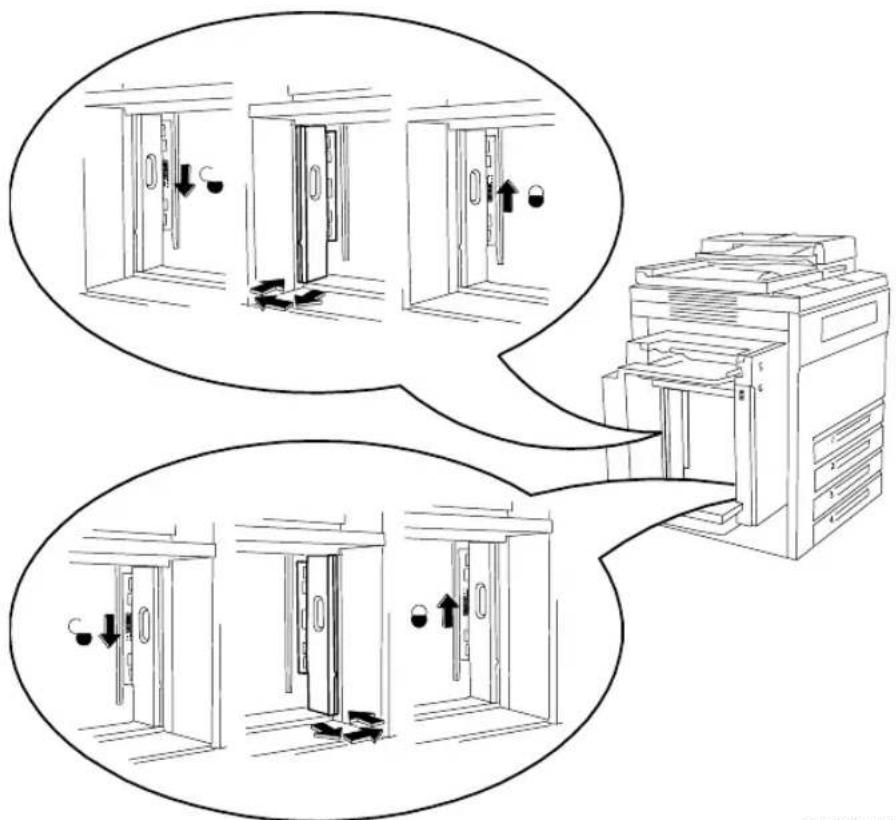
flowchart
graph TD
    A["Door Door Opening"] --> B{Step 1: Down Understand}
    B --> C["Step 2: Up Understand"]
    C --> D["Step 3: Left Understand"]
    D --> E["Step 4: Right Understand"]
    E --> F["Step 5: Down Understand"]
    F --> G["Step 6: Up Understand"]
    G --> H["Step 7: Left Understand"]
    H --> I["Step 8: Right Understand"]
0800066B-LKS
Example: Changing from 8.5 x 11-in. to A4 settings Changing from 8.5 x 11 inch to A4 (illustrated above): Adjust each paper guide to the A4 position, starting with the rear guide: First, slide the black latch down to release the guide. Second, move the guide out, over, and in, into the A4 position. Third, slide the latch up to lock the guide. Repeat the procedure for the front guide.
Changing from A4 to 8.5 x 11 inch: Adjust each paper guide to the 8.5 x 11 inch position, starting with the rear guide: First, slide the black latch down to release the guide. Second, move the guide out, over, and into the 8.5 x 11 in. position. Third, slide the latch up to lock the guide. Repeat the procedure for the front guide.
When either adjustment has been made, you must program the tray for the correct size of paper.
XEROX Material Safety Data Sheet MSDS No:D-0403A
Date:2/18/83
Revision:9/30/96
Manufacturer: Xerox Corporation Telephone # (s):
Rochester, NY 14644 Safety Information: (800) 828-6571
Health Emergency: (716) 422-2177
Transportation Emergency: (716) 422-1230
Section I - Product Identification
Trade Names/Synonyms: Platen Glass, Lens and Mirror Cleaner Part No.: 43P81, 8R3669
Chemical Name: None
WHMIS Status: Class B/Div. 2, Flammable liquid and Class D, Div. 2B, Toxic
Ingredients (% by wt.) CAS No.
Ethyl alcohol (75-85%) 64-17-5
Isopropanol alcohol (5-15%) ^1
Water (5-10%) 7732-18-5
67-63-0
Section II - Emergency and First Aid
Primary Route of Entry: Symptoms of Overexposure:
Inhalation Central nervous system depression,
respiratory distress, and gastrointestinal irritation.
Eyes:
Flush thoroughly with water.
Skin:
Wash thoroughly with soap and water
Inhalation:
Remove from exposure.
Ingestion: Additional Information:
Dilute stomach contents
with several glasses of water.
Medical Conditions Generally Aggravated by Exposure:
None when used as described by product literature.
None.
Section III - Toxicology and Health Information
This material has been evaluated by Xerox Corporation.
Oral LD _50 : >21 g/kg (rats) practically non-toxic.
TLV: 1000 ppm (ethyl alcohol)
Dermal LD _50 : >20 g/kg (rabbits) practically non-toxic.
400 ppm (isopropyl alcohol)
Inhalation LC _50 : N.D.
PEL: 1000 ppm (ethyl alcohol)
Eye Irritation: Irritant
400 ppm (isopropyl alcohol)
Skin Sensitization: Not a sensitizer.
STEL: 500 ppm (isopropyl alcohol)
Skin Irritation: Not an irritant.
Ceiling: N.E.
Human Patch: Non-irritating, non-sensitizing.
XEL ^2 : N.E.
Mutagenicity: N.D.
Carcinogens: None present
Aquatic LC _50 : N.D.
Additional Information: Prolonged or repeated skin contact may cause defatting of the skin.
Section IV - Physical Data
| Appearance/Odor: | Clear liquid / alcoholic odor | Softening Range: | N.A. |
| Boiling Point: 76-82 | °C Melting Point: N.A. | ||
| Solubility in Water: Completely Specific Gravity (H | _2O=1 : 0.82 | ||
| Evaporation Rate: | 3.1 (N-butylacetate=1) | Vapor Pressure (mm Hg): | 15 @ 20°C |
| Vapor Density (Air=1): | 0.85 | pH: | 10.6 |
| Volatile: | 100% (Wt.)N.A.% (Vol.) | VOC: | 780 g/l |
Section V - Fire and Explosion Data
| Flash Point (Method Used): | 27°C (80°F) ASTM Open Cup |
| Flammable Limits: | LEL: N.A., UEL: N.A. |
| NFPA 704: | Health - 0, Fire - 3, Reactivity - 0 |
| Extinguishing Media: | Alcohol foam, carbon dioxide, dry chemical |
| Special Fire Fighting Procedures: | None |
| Fire and Explosion Hazards: | None |
Section VI -Reactivity Data
| Stability: | Stable |
| Hazardous Polymerization: | Will Not Occur |
| Hazardous Decomposition Products: | None |
| Incompatibility (Materials to Avoid): | Acetyl chloride, oxidizers |
Section VII - Special Protection Information
| Respiratory Protection: | None required when used as intended in Xerox products. |
| Eye Protection: | None required when used as intended in Xerox products. |
| Protective Gloves: | Nitrile or latex gloves. Use fresh gloves with each new operation. |
| Other: | None |
Section VIII - Special Precautions
Handling and Storage: Do not handle or store near heat, sparks, flames, or oxidizing agents. Store in a cool place.
Conditions to Avoid: Avoid prolonged or repeated skin contact.
Section IX- Spill, Leak, and Disposal Procedures
For Spills or Leakage: Eliminate sources of ignition. Small spills should be flushed with large quantities of water. Large spills should be absorbed with vermiculate or similar absorbent material and collected for disposal.
Waste Disposal Method: Absorb liquid with vermiculate or other absorbent material or atomize into an incinerator where permitted. Dispose of in accordance with federal, state, and local regulations.
Section X - Transportation Information
| Correct Shipping name | Hazard ID# Packing Exception may apply | ||||
| Class Group | |||||
| D.O.T. | Flammable Liquid, n.o.s. (ethyl alcohol, Isopropanol) | 3 | 1993 | III | Limited Quantity: 49CFR 173.150 (b) Consumer Commodity, ORM-D: 49CFR 173.150 |
| (b) | |||||
| I.A.T.A. | Flammable Liquid, n.o.s. (ethyl alcohol, Isopropanol) | 3 | 1993 | III | N.D. |
| I.M.O. | Flammable Liquid, n.o.s. (ethyl alcohol, Isopropanol) | 3.3 | 1993 | III | N.D. |
^1 This ingredient is a toxic chemical subject to the reporting requirements of Section 313 of Title III of the Superfund Amendments and Reauthorization Act of 1986 and 40CFR Part 372.
^2 XEL-Xerox Exposure Limit.
N.A. - Not Applicable N.E. - None Established N.D. - Not Determined 600E66270
The following discussion summarizes how remote and local service tools interact with the Document Centre 490/480/470/460 DC/ST as well as the state of customer image data when the job is complete.
Service
The Document Centre can be accessed locally through a Portable Service Workstation (PWS) or remotely through the optional Sixth Sense feature using a standard telephone line. Both tools are designed for the same purpose, to assist with the service of the machine. The Sixth Sense feature allows Xerox Service Personnel to diagnose problems the customer is having with the machine to either fix the machine during a session or prepare for a service call. The capabilities of the PWS and Sixth Sense are similar: running diagnostic programs, collecting fault information, and reading and modifying control parameters.
These tools do not provide access to any customer image data. There is no connection to where the data exists in the system from either the PWS or Sixth Sense. The sole interaction with the printing function for service personnel is the ability to request the system to print internally-generated test patterns.
Customer Job Life (Images)
For a copy job, as a customer job is scanned, the information is stored in RAM (random access memory) and is transferred to the image disk, an internal hard disk drive. The image information on the image disk is virtually encrypted because it is compressed with a non-standard format and is stored with non-deterministic location and size. The machine knows where the data resides because a series of ‘pointers’ contained in RAM identifies the location and compressed size of each image. Whenever a job is completed, or whenever power is turned off, the information in RAM is cleared, resulting in the inability for the machine to ever access the data again. Subsequent images will overwrite the compressed data on RAM and on the image disk. This means that no one else has the ability to print your job on either the present 490/480/470/460 Digital Copier or any other one.
A print job uses a separate hard drive. The ESS hard drive in the
Print Controller stores the print jobs in the Page Description Language (PDL) that the workstation creates through your print driver. These files are usually PostScript or PCL. As the files are interpreted into bitmaps, the bitmaps are transferred to the marking part of the device. This is similar to your scanned copy images entering the digital copier through the document scanner. Once the job has printed, the pointers to the PDL files are automatically deleted. Subsequent jobs will overwrite the PDL files on the ESS hard drive.
A note of caution: when using ‘Sample Set’, the first set is printed and then the job is automatically held. The user should be careful to either release or delete the job after receiving the ‘Sample Set’ to prevent the job from being held in the queue. Similarly, for Secure Print jobs, the job should be printed as soon as possible since it is resident in the system until it is printed.
Image Residue on the Photoreceptor (Imaging) Belt
After printing and during cycle out, the photoreceptor belt passes by both the cleaning station and erase lamp removing residual toner and charge. After printing high security documents, the user can run a copy of two blank sheets of paper to initiate the cleaning and erase cycles again, reassuring no potential latent (electrostatic) image remains on the photoreceptor.
If you have other questions, or need further clarification please call your local Customer Support Center.
Use this table to determine the correct Greenwich Mean Time Offset (GMT.)
Table 10: Greenwich Mean Time Offset
| GMT Offset | Cities or Areas |
| -12 Eniwetok | |
| -11 Samoa | |
| -10 Hawaii | |
| -9 Alaska | |
| -8 Pacific | United States (PST), Vancouver |
| -7 Mountain United States (MST) | |
| -6 Belize, | Central United States (CST), Houston, Mexico City |
| -5 Eastern | United States (EST), Lima, Montreal |
| -4 Antigua, | Atlantic, Grenada |
| -3 Brasilia, | Buenos Aires |
| -2 Mid-Atlantic | |
| -1 Cape Verdes | |
| 0 Greenwich Mean Time (GMT), Dakar, Dublin, London, Reykjavik | |
| +1 Algiers, | Berlin, Danderyd, Madrid, Milano, Paris, Rome, Vienna |
| +2 Cairo, | Damascus, Holargos, Israel |
| +3 Kuwait, | Moscow, Qatar, Riyadh |
| +4 Abu Dhabi, | Muscat |
| +5 Islamabad, | Karachi |
| +6 Almaty, | Dhaka |
Table 10: Greenwich Mean Time Offset
| GMT Offset | Cities or Areas |
| +7 Bangkok, Jakarta | |
| +8 Beijing, Hong Kong, Singapore | |
| +9 Osaka, Tokyo | |
| +10 Brisbane, Guam, Melbourne, Sydney | |
| +11 Magadan, Solomon Is. | |
| +12 Auckland, Fiji, Wellington | |
http://www.xerox.com
Xerox Corporation's home page.
http://www.centreware.com/
Download the latest CentreWare drivers, software and documentation.
http://www.xeroxnexus.com/
Connection to Xerox and partner solution development, marketing, sales, training, and support.
13. Paper & Stock
The Document Centre can process a variety of different types of media stock to accommodate your needs.
This chapter contains information about the paper stock you can use in the machine and how you can expect it to perform. Stapling guidelines, the correct loading of special stocks is also discussed as well as paper storage requirements.
The following tables list the Document Centre performance expectations for both one-sided and two-sided prints and copies, on paper and on other throughput materials.
Table 1: Performance and Tray matrix for 20 lb. standard paper
Table 2: Performance and Tray matrix for 80 gsm standard paper
Table 3: Performance of non-standard paper and media (e.g., letterhead, transparencies, labels, etc.)
Table 4: Performance of new and recycled plain paper
Table 5: Instructions for loading a variety of special stocks
Table 6: Document Feeder paper feeding information
Paper Handling Guidelines
You may experience unacceptable paper handling and/or print quality performance in the following situations:
• Use of lower quality paper
- Extreme hot and humid or cold and dry environments
All paper sizes can be duplexed except those that are smaller than the size depicted below.
This side must be between 6.7 to 18 inches to be printed on both sides (duplexed)
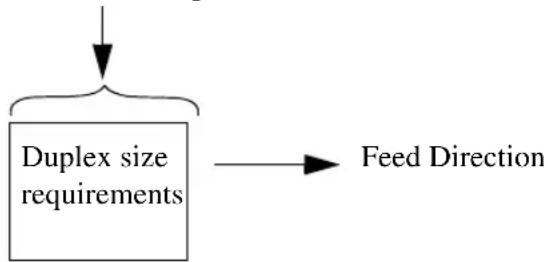
flowchart
graph TD
    A["Input"] --> B["Duplex size requirements"]
    B --> C["Feed Direction"]
Paper Tray Media Capability
The illustration below outlines the capabilities of the individual paper trays and their ability to process a variety of paper sizes.
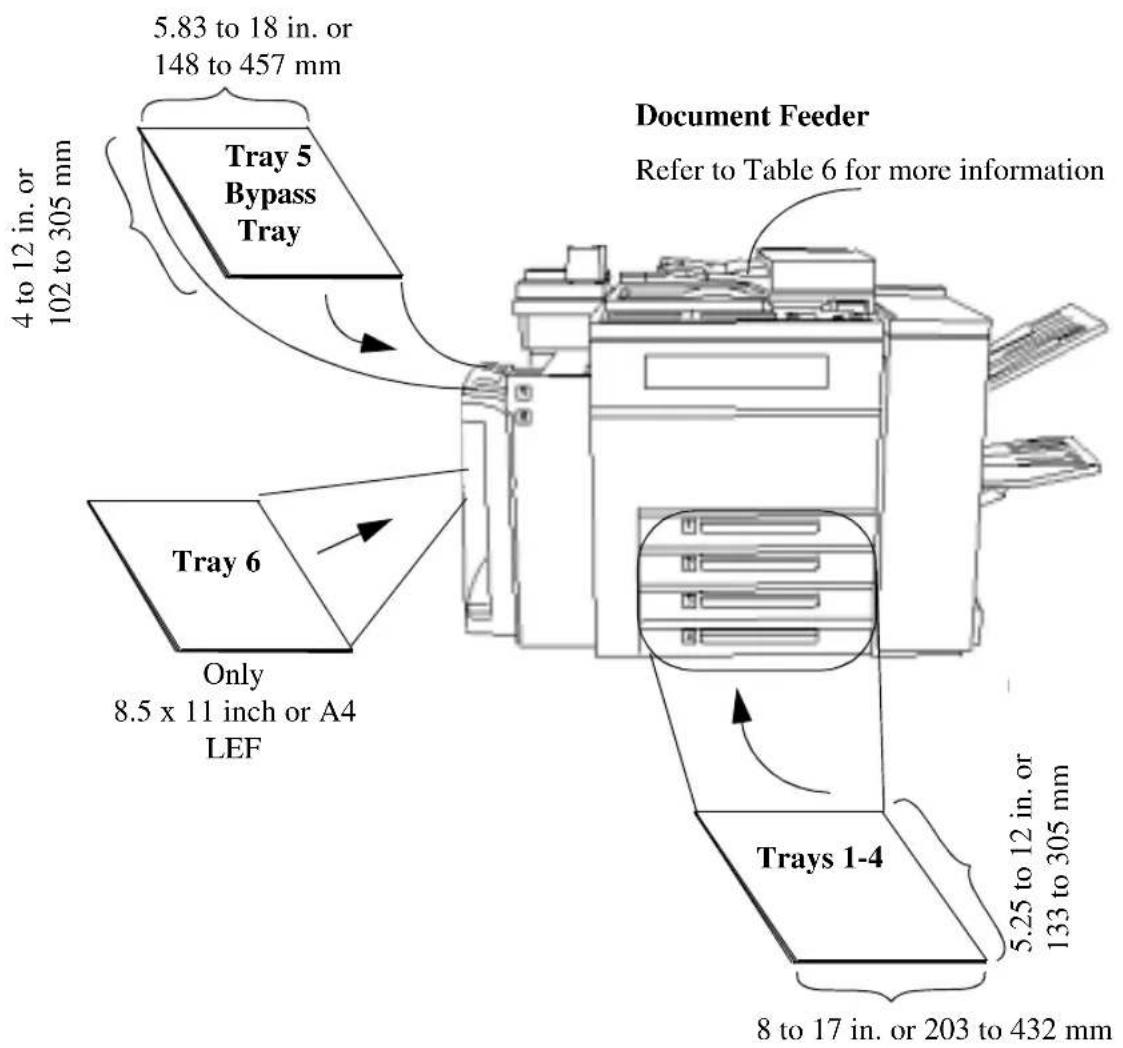
text_image
5.83 to 18 in. or 148 to 457 mm Tray 5 Bypass Tray 4 to 12 in. or 102 to 305 mm Tray 6 Only 8.5 x 11 inch or A4 LEF Document Feeder Refer to Table 6 for more information Trays 1-4 5.25 to 12 in. or 133 to 305 mm 8 to 17 in. or 203 to 432 mmCall the Welcome Center to set Trays 1, 2, 3, or 4 to process 12 x 18 inch stock permanently.
General Stapling Guidelines
The following information is provided for machines with a Finisher.
Dimensions that can be stapled:
This side must be between 8 to 12 inches to be stapled
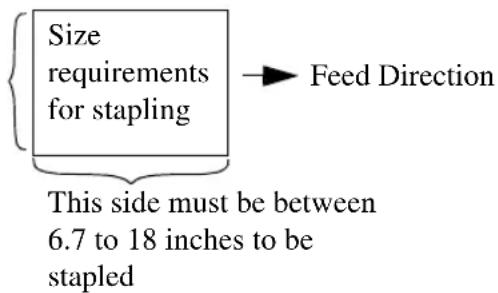
text_image
Size requirements for stapling → Feed Direction This side must be between 6.7 to 18 inches to be stapledWeights that can be stapled
The Finisher can staple a maximum of 50 sheets of 20 lb. paper. The table below lists the maximum staple capability for other paper weights.
| Weight Maximum stapled sheets | |
| 20 lb. 50 | |
| 24 lb. 44 | |
| 32 lb. 33 | |
| 65 lb. Cover or 110 Index 22 | |
Making Stapled Copies:
When making stapled copies, orient your document so the edge you want stapled is visible when placed in the Document Feeder (as you face the machine). Select the appropriate Paper Supply orientation to achieve the desired staple location. The following table illustrates the recommended feed direction of the original to achieve the best staple location.
| Feed Direction of Common Paper Sizes | Desired Staple Location Paper | Supply Output Options | Select this Staple Button | |
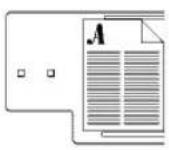 8.5 x 11 8.5 x 11 | 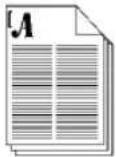 | 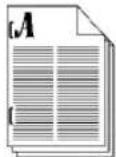 | Auto Paper Supply or select the appropriate size LEF paper. |   |
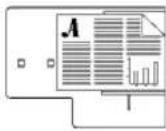 8.5 x 1111 x 178.5 x 14 8.5 x 1111 x 178.5 x 14 |  |  | Auto Paper Supply or select the appropriate size SEF paper |   |
 8.5 x 11 8.5 x 11 | 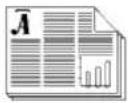 |  | Auto Paper Supply or select the appropriate size SEF paper |   |
| Feed Direction of Common Paper Sizes | Desired Staple Location Paper | Supply Output Options | Select this Staple Button |
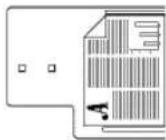 8.5 x 11 8.5 x 11 |  | Auto Paper Supply or select the appropriate size LEF paper. |  |
 8.5 x 118.5 x 14 8.5 x 118.5 x 14 |  | To achieve optimum staple location with this feed direction you must select 8.5 inch, SEF Paper Supply. |  |
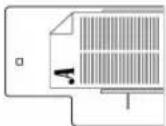 8.5 x 1111 x 178.5 x 14 8.5 x 1111 x 178.5 x 14 |  | Auto Paper Supply or select the appropriate size SEF paper. |  |
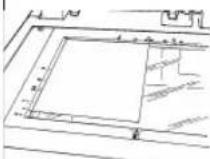 | Build Job is required when stapling copies made from the document glass.Refer to the Making Copies Chapter page 35 for more information about Build Job. | Auto Paper Supply or select the appropriate size LEF or SEF paper. |
Tables 1 and 2 identify the paper performance for each tray that is using standard 20 lb. or 80 gsm paper. Note: LEF (Long Edge Feed) and SEF (Short Edge Feed) indicate the orientation of the paper in a paper tray and which edge of the paper will be fed into the machine first. For more information on LEF and SEF, refer to Chapter 2.
Legend and Footnotes
The following symbols represent the expected paper handling and the copy quality performance in typical operating environments.
- = Best performance.
= Good performance.
□ = Fair-good performance. Significant performance degradation is likely, particularly paper handling.
Blank = Not recommended. Exceeds design specifications. Unacceptable performance likely.
Table 1: Performance and Tray matrix for 20 lb. standard paper
| Trays: | 1 - | 4 | 5 | 6 | ||
| Common Sizes | ||||||
| Letter 8.5 x 11 in. 216 x 279 mm LEF SEF | ●○ | ●○ | ● | |||
| Legal 8.5 x 14 in. 216 x 356 mm SEF | ○ | ○ | ||||
| Ledger 11 x 17 in. 297 x 420 mm SEF | ● | ● | ||||
| Statement 5.5 x 8.5 in. 140 x 216 mm SEF | ○ | ○ | (b) | |||
| 5 x 7 in. 127 x 177.8 mm SEF | □ | (b) | ||||
| Executive 7.25 x 10.5 in. 184 x 267 mm LEF SEF | ○ | ○○ | (b) | |||
| 8 x 10 in. 203 x 254 mm LEF SEF | □□ | □□ | ||||
| Letter 9 x 11 in. 229 x 279 mm LEF SEF | ○□ | ○□ | ||||
| cover 12 x 18 in. 305 x 457 mm SEF | □ | □ | (c) | |||
Table 2: Performance and Tray matrix for 80 gsm standard paper
| Trays: | 1 - | 4 | 5 | 6 | |||
| Common Sizes | |||||||
| A4 210 x 297 mm 8.27 x 11.69 in. LEF | ●○ | ●○ | ● | ||||
| A3 | 297 x 420 mm | 11.69 x 16.54 in. | SEF | ● | ● | ||
| A5 148 x 210 mm 5.83 x 8.27 in. | LEF | ○ | □○ | (a, b)(b) | |||
| A6 | 105 x 148 mm | 4.13 x 5.83 in. | SEF | ○ | (b) | ||
| B4 | 257 x 364 mm | 10.12 x 14.33 in. | SEF | ● | ● | ||
| B5 | 182 x 257 mm 7.17 x 10.12 in. LEF | ● | ○● | (b) | |||
| B6 | 128.5 x 182 mm | 5.06 x 7.17 in. | SEF | □ | (b) | ||
| A4 cover Stock | 223 x 297 mm 8.78 x 11.69 in. LEF | ○○ | ○○ | ||||
| Spanish | 215 x 315 mm | 8.46 x 12.4 in. | SEF | ○ | ○ | ||
| Foolscap | 215 x 330 mm | 8.5 x 13 in. | SEF | ○ | ○ | ||
| 220 x 330 mm 8.66 x 13 in. | SEF □ | □ | |||||
(a) Cannot be duplexed.
(b) The output will go to the Top Tray in a machine with a Finisher and cannot be stapled.
(c) Requires a technical specialist to permanently setup, any of the trays 1 - 4 to handle 12 x 18-inch or 305 x 457 mm paper. After any of these trays is setup to handle this size, it cannot run other sizes. Tray 5, however, can be used without any special setup intervention.
Table 3 describes the performance of a variety of non-standard paper and media. You may run this type of media by following the guidelines below and if the dimensions of the media are within the size limits previously discussed for standard paper.
Legend and Footnotes
The following symbols represent both the expected paper handling and copy quality performance in typical operating environments.
- = Best performance.
= Good performance.
□ = Fair-good performance. Significant performance degradation is likely, particularly paper handling.
X = Not recommended. Exceeds design specifications. Unacceptable performance likely.
Table 3: Non-standard paper performance
| Throughput Material Rating Notes | ||
| Letterhead ** (d, e) | ||
| Pre-printed forms ** (d) | ||
| Pre-drilled/pre-punched holes (standard locations) ** (d) | ||
| Coated paper | ○ - □ | (h) |
| Mylar reinforced: LEF (Mylar on long edge)SEF | □X | |
| Transparencies:Clear/plainNon-removable white stripeRemovable stripe: LEFSEFPaper backed: | XX□□XX | (j)(j)(j)(j) |
| Labels: LEFSEF | ○- □X | (d, k) |
Table 3: Non-standard paper performance
GBC-brand or pre-punched LEFwith rectangular holes: (holes on long edge) SEFThis type of paper only works when theholes are at the rear of the paper tray. Paper loaded in a tray,with holes at rear of tray Paper loaded in a tray,with holes at rear of tray | X○(d) | |
| Never Tear type □ | ||
| Drafting film □ | ||
| Perforated: perforations are parallel to the feed directionperforations are perpendicular to the feed direction | ○□ | (i)(i) |
| Envelopes (standard medium to large letter size) X | ||
| Tabs | X | |
| Carbonless | □ | |
| Textured Papers, Vellum Bristol papers | X | (1) |
| Smooth Cover Index Stock | ○ | |
| Window Stock | X |
** Same performance as shown in Table 1 for the corresponding paper sizes.
(d) Refer to Table 5 or to the paper tray label for the correct paper loading orientation.
(e) Embossed letterhead may cause degraded paper handling, and possibly minor image deletion defects near the embossed area on either side of the paper.
(f) Refer to Table 5 for more information.
(g) This note is not used.
(h) Performance is highly dependent on the quality of the coated paper. Frequent use of coated papers, especially lower quality papers, might cause increased contamination in the machines which could degrade the paper handling capability and the print or quality performance for all papers.
(i) Image deletion defects might occur near the perforation, especially if the perforation is parallel to the feed direction.
(j) 2-sided copies or prints (duplex) should not be selected when this stock is used.
(k) Recommend that running is from Bypass Tray (Tray 5) only.
(1) Blank or preprinted covers are acceptable. Fusing quality and Fix level images on 65 lb. cover stock, vellum Bristol papers and other textured surface stock will be poor. This stock is not recommended for images.
Table 4 lists the new and the recycled plain paper weights and the performance you can expect when they are run through the Document Centre.
Legend and Footnotes
The following symbols represent the expected paper handling and the copy quality performance in typical operating environments.
- = Best performance.
= Good performance.
□ = Fair-good performance. Significant performance degradation is likely, particularly paper handling.
X = Not recommended. Exceeds design specifications. Unacceptable performance likely.
Table 4: New and Recycled Plain Papers
| Throughput Material (8.5 x 11 in. or A4) Trays | 1-5 Tray 6 | |
| Paper weight | ||
| Less than 16 lb. or 61 gsm | X | X |
| Between 16-20 lb. or 61-75 gsm | ○ | X |
| Between 20-32 lb. or 75-120 gsm | ● | ● |
| Between 32-110 (index) lb. or 120-203 gsm | □ | X |
| Greater than 110 (index) lb. or 203 gsm | X | X |
Use the Table 5 to identify the common uses and special requirements for the variety of stock types that the Document Centre machine can accommodate.
Table 5: Loading Special Stock
| Stock Type Common Uses Recommendation | ||
Hole-punched Ringed binders | red binders | Use long-edge feed paper for best copy speed.Load with holes on the left in Trays 5-6.Load with holes on the right in Trays 1-4. |
Perforated Pages for partial removal, such as order forms and receipts | removal, such as order forms and receipts | Where possible, load with the perforation parallel to the feed direction. |
Pre-printed and letterhead | Common correspondence, mailings and advertising materials | Use ultra-violet cured or oxidative inks to extend the life of the Feed Roll Cartridges.Load face up in Trays 1 - 4.Load face down in Trays 5 - 6. |
Reinforced Mylar edge | Ring binders | Load reinforced edge on right Trays 1 - 4.Load reinforced edge on left Trays 5 - 6.Use Long Edge Feed only. |
Card stock Covers, | signs | Feed from the Bypass Tray for the best results.For best results set Heavy Weight attribute from Trays 1-4. |
Table 5: Loading Special Stock
| Stock Type Common Uses Recommendation | ||
Transparencies Presentations | Use white-striped transparencies. Do not use clear or paper-backed transparencies.It is recommended that transparencies be fed from the Bypass Tray (Tray 5) or from Tray 1 on machines without a Bypass Tray.Refer to the label on the tray for the orientation of striped transparencies.When using transparencies with removable stripes, load with the stripe up in Tray 5 and the stripe down in Tray 1.Do not duplex. | |
Labels Self-adhesive | labels for envelopes and packaging | Do not duplex.For best results, feed labels into the machine LEF only.Labels pose a special problem because, depending on the number of labels per sheet, there is an opportunity for the label to separate from the backing while inside the machine.Load face-up in Trays 1-4.Load face-down in Trays 5-6. |
Table 6 identifies the potential feeding problems when the
Document Feeder is used. All feeding problems can be avoided if the original is scanned from the Document Glass.
Table 6: Document Feeder Paper Stock Information
| Types and condition of originals | Rating Notes | |
| Coated paper | □ Feeding lightweight coated originals (approximately 16 lb. or 61gsm) will normally work fine. You may experience problems with the registration of copy images if a color image is within 0.4 inches of the leading edge (the side that is fed into the Document Feeder first) of the original. | |
| High Talc paper | ○ - □ | Originals with a high talc content may contaminate the Document Feeder Feed Rolls, resulting in degraded performance. |
| Originals produced on a Xerox 5100 Duplicator | □ On copies with a high area coverage, (pictures and half-tones) tends to rub off on the Feed Rolls causing feeding faults. | |
| Originals produced on a Xerox 5090 or 5390 Duplicator | ○ - □ | Oils used to fuse the copies need to dry at least 2 hours in order to prevent feeding problems. After the oil has dried, feeding is not a problem. |
| Xerographic Color Originals | ✕ Copy | Xerographic color originals from the Document Glass in order to avoid feeding problems. |
| Originals consisting of mostly pencil marks | ✕ Originals having a high percentage of pencil marks (pencil sketches for example) will transfer the lead to the Feed Rolls, causing the originals to smear. This is not the case for originals that contain occasional pencil marks in the document (i.e., a reviewed marked-up copy). | |
Table 6: Document Feeder Paper Stock Information
| Types and condition of originals | Rating Notes |
| Dog-Eared Originals (originals with folded corners) | X Originals with dog-ears or folded corners on the lead edge may cause a jam. Ensure that the folds are removed. |
| Too Many Sheets in the Stack | X Depending on the model, the Document Feeder can feed up to 75, or 100 sheets of 20 lb. paper. The quantity that can be fed decreases with the heavier paper. For example, approximately 44 sheets of 24 lb. or 33 sheets of 20 lb. can be feed through the Document Feeder. Use Build Job to feed more than these amounts as a single copy job. |
| Folded Originals | X Folded Originals pose a special problem as they do not trigger the automatic sensors in the Document Feeder. Remove the folds before feeding. |
| Originals with sticky notes attached | X Remove the sticky notes from originals prior to feeding originals. The sticky notes may jam or trigger the incorrect sensors, causing poor copies. |
| Envelopes X Copy from the Document Glass. | |
| Tab Stock X Copy from the Document Glass. | |
| Labels X Copy from the Document Glass. | |
| GBC - brand papers | X Copy from the Document Glass. |
| Glossy Photographs | X Copy from the Document Glass. |
| Transparencies X Copy from the Document Glass. | |
Loading
Before loading paper, unwrap the paper from the moisture resistant wrappings, discard the wrapper and insert the paper in the tray. Use the labels or directions in this section to correctly load special stock. Fanning the paper edges is not required, but may be beneficial with certain stocks in dry environments.
Storing and Handling Paper
Damaged, curled, or damp paper can cause jams and image quality problems. Follow these simple rules to store paper stock:
- Store paper in dry conditions, away from extreme heat or cold, such as radiators or open windows.
- Lay the paper flat on a shelf or pallet above floor level.
- If possible, leave the paper wrapped and boxed until you are ready to use it; otherwise, re-wrap partly used packages of paper.
Load the paper in the paper trays 1 - 4 seam side of the paper ream up. Load the paper in the High Capacity Feeder and Bypass Tray with the seam side down.
The seam refers to the side of a ream of paper with a split in the wrapping. It may also be referred to as arrow side first.
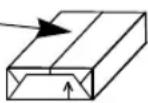
NOTE
Paper stored in extremely humid environments (i.e., left in a machine over an extended period of time) may have to be replaced with fresh stock in order to ensure optimal feeding and image quality.
14. Machine Maintenance
The Document Centre is designed to maximize machine uptime. This includes using a short paper path in order to reduce jams, and Replaceable Units in order to avoid extended periods of downtime.
This chapter discusses some basic maintenance procedures including the following;
• Powering the machine on and off correctly
- Clearing Faults
- Changing the Replaceable Units
• Cleaning the Document Glass
• Cleaning the Document Feeder
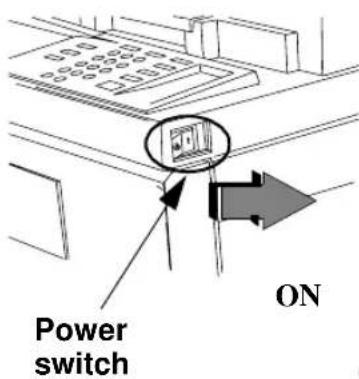
text_image
Power switch ONThe Power switch is the white switch located on the right side of the machine. Press the ( ) symbol toward the back of the machine in order to turn the power on.
When the Basic Copying Screen appears, your job can be programmed. As soon as the screen displays the message, Ready to Scan your Job, jobs may be scanned. Jobs will not print until the fuser is ready.
The entire powering up process typically takes approximately 4 minutes for a Document Centre DC model.
An ST model will require an additional 2-4 minutes while the network connections are restored. Copy jobs can be made while the network connections are restored.
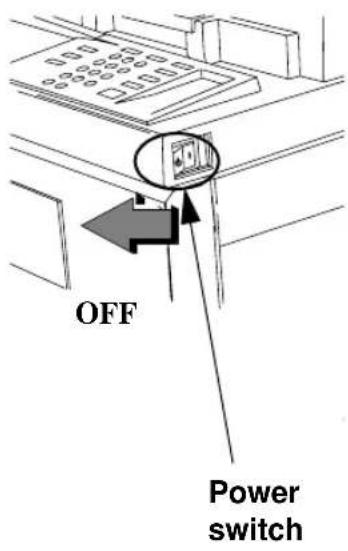
text_image
OFF Power switchThere are two non-emergency methods used to power off the Document Centre.
Preferred Method
Pressing the Symbol to the left or towards the front of the machine will turn the power off. A confirmation screen will appear asking you to select Quick Power Off or Power Saver Mode.
If Quick Power Off is selected and confirmed, the machine will begin a controlled power down sequence.
If there are any jobs in the queue, a second pop-up screen will appear warning that jobs in the queue will be deleted if the machine is powered off. Confirmation of this screen will result in the deletion of any jobs in the queue during the power down sequence.
If Power Saver Mode is selected and confirmed, the machine will immediately enter Low Power Mode. Refer to the section about ENERGY STAR® in Chapter 10 for more information.
If the machine is in the Low Power Mode, you must press a button on the User Interface panel or the Touch Screen to activate the machine in order to power the machine off, using the white power switch ⏻
The white button is disabled when the machine is in Low Power Mode.
NOTE
Using the white power switch is the preferred method of powering down the machine.

text_image
Secondary Power off switch OFFSecondary Method
A red button, located inside the machine, is the secondary option to power off the machine. This power off procedure immediately cuts power to the machine in an uncontrolled manner without confirmation or delay. Any copy jobs in the queue will be immediately lost without confirmation. It is recommended that this method be used only if the preferred method is unavailable.
Use the secondary method (red button) during the first 15 seconds after initially turning the Power On or upon direction from your authorized Xerox Representative.
After the Red Button is used, the machine will take a longer period of time to reboot.
Emergency Power Off Procedures
Disconnecting the main power cable from the power source is the ONLY method to cut power completely in an emergency.
If any of the following conditions occur, disconnect the power cable from the power socket immediately and contact an authorized Xerox Service Representative to correct the problem.
- The Document Centre emits unusual odors, or makes unusual noises.
• The power cable is damaged or frayed. - A wall panel circuit breaker, fuse, or other safety device has been tripped.
• Liquid is spilled into the Document Centre.
• The Document Centre is exposed to water.
• Any part of the Document Centre is damaged.

text_image
Ready to scan your job. Clear the jam in area 3, then remove sheets from area 2. Fault Instructions Close • Remove the paper from area 2. It may be necessary to lift the green handle. • Close the front door.Occasionally, a fault will occur at the machine that may prevent you from using the machine, such as:
- Out of Paper
- Low Dry Ink
- Module/Cartridge end of life
- Paper Jam
Detailed instructions for clearing these and other faults will be displayed on the Touch Screen. Simply follow the instructions shown on the screen.
Paper Jams
When a paper jam occurs, the Touch Screen automatically displays a fault screen, describing the location of the jam. Instructions and animated graphics showing the required actions will also be displayed on the screen.
After the jam is cleared, follow the instructions displayed on the screen.
If the jam occurred in the middle of your job, the machine will automatically recover and reprint the sheets that were jammed.
NOTE
When removing jammed media from the machine, use the green handles and knobs, as indicated on the Touch Screen.
Jam Clearance Areas
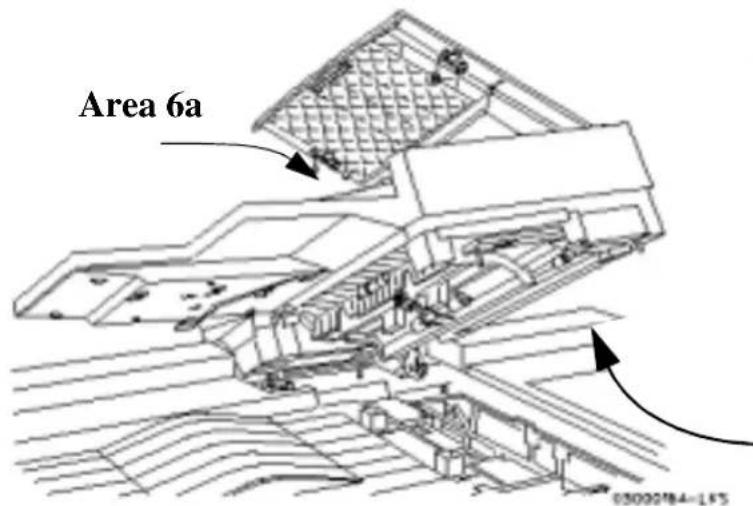
text_image
Area 6a 03000184-1F5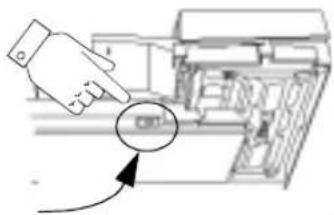
natural_image
Hand pointing at a button on a mechanical device (no text or symbols visible)Lift the lid and press the green button as indicated To separate the lid from the Document Feeder.
Area 6b

text_image
Technical diagram of a mechanical assembly with numbered components and directional arrows indicating parts of motion or assembly.Area 4
Duplex area: look for sheets on top of this open space.
Area 3a
Look beneath the label to find the sheet. Do not push down or lift up on the label.
Area 3
Fuser area: includes areas 3b, 3c, and 3d. Access these areas by pulling the green handle. CAUTION - THIS AREA MAY BE HOT
Area 3e
Open the top 2 paper trays to access this area. Look for dropped sheets.
Area 1
Sheets will frequently be left in this area when jams occur, due to improper feeding.
Area 2
Lift handle: the machine is programmed to circulate paper to this area in the event of a jam. Do not move the handle to left. Ensure the handle is fully locked before closing the Front Door or the handle may be blocked or damaged.

text_image
Area 7- High Capacity F Bypass Tray. Op Area 7a Area 5- FinisherArea 7-
High Capacity Feeder and Bypass Tray. Open to access Area 7a
Area 5- Finisher
Open to access Areas 5, 5a, and 5b

text_image
Document (Installed Roll Cartr Dry Inl Fuse XeDocument Feeder Feed Roll Cartridge (Installed by Xerox. These are different than Paper Feed Roll Cartridges)
Dry Ink Cartridge
Fuser Module
Xerographic Module
Paper Feed Roll Cartridge
Installed by Xerox
(1 per Paper Tray, incl. Trays 5 and 6)
Developer Collector Bottle
included as part of the Xerographic Module
Replaceable Units
There are two Replaceable Units; the Xerographic Module and the Fuser Module.
The machine will display a message on the Touch Screen when a Xerographic or Fuser Module needs to be reordered. Replace the modules when directed by Xerox or at the end of life. You can adjust the notification time for the warning and reorder messages using System Management Tools.
To replace a Replaceable Unit, simply follow the detailed instructions contained within the replacement box and use the box and prepaid return label to return the old unit to Xerox.
Expected life of Replaceable Units
The expected life remaining for the Feed Roll Cartridges can be obtained by pressing the Supplies button on the Machine Information Tab in the Machine Status pathway. This screen will also show the number of copies processed through the Xerographic and Fuser Modules.
Refer to the table below for the expected life of Replaceable Units.
| Item Expected Life | |
| Dry Ink 23,500 copies | averaging 6% area coverage. Actual performance depends on the types of originals copied. |
| Xerographic Module 2 | - 5 months, depending on your copy or print volume. |
| Fuser Module 4 - 10 m | months, depending on your copy or print volume. |
Supplies
The machine uses two types of supplies, the Dry Ink Cartridge and the Staple Cartridges. Contact your normal supplier to reorder these supplies.
Reordering Replaceable Units and Supplies
The table below lists the correct telephone number to call to order supplies or replaceable units.
| Ordering Supplies (800) 822-2200 (USA)(800) 668-0199 (Canada) | |
| Ordering Replaceable Units | (800) 821-2797 (USA)(800) 668-0199 (Canada) |
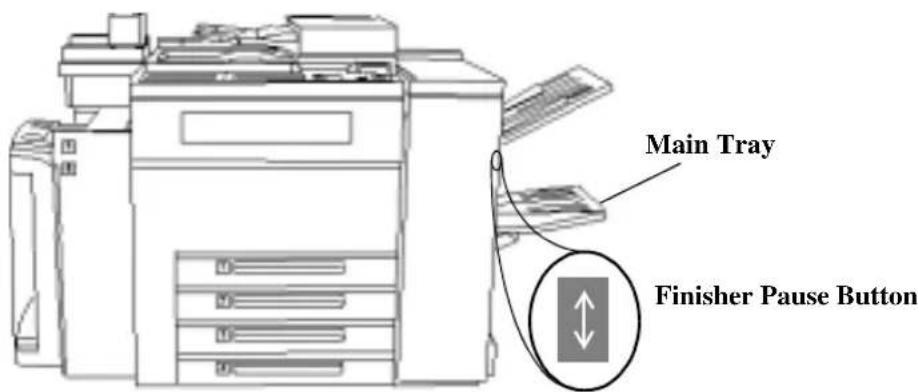
text_image
Main Tray Finisher Pause ButtonThe Document Centre Finisher has two staplers, each with a Staple Cartridge that holds 5000 staples. The system will display a fault screen when a cartridge needs to be replaced.
Complete the following steps to clear the fault message:
- Press the Finisher Pause Button and wait for the tray to lower.
- Open the stapler access door (located above the Main Tray).
- Remove the Staple Cartridge. Refer to the diagram on the inside of the stapler access door.
- Insert the new Staple Cartridge and close the stapler access door.
- Press the Finisher Pause Button to reactivate the Finisher.
NOTE
Contact Xerox if you have any problems removing or inserting the Staple Cartridge.
CAUTION

To avoid damage to the machine, do not pour or spray water or cleaner directly into the Document Centre. Do not use any abrasive cleaners to clean the Document Centre. Do not force cloth or towels into confined areas or force parts open.
Document Glass
Maintaining Optimum Performance
The Document Centre scanner is one of the most sensitive in the industry and one of the reasons you can produce copies with unparalleled image quality. In order to maintain this level of image quality the Document Glass must be cleaned.
Document Feeder Scan Area
Spots and specks in the Document Feeder Scan Area can show-up as streaks on copies made when the Document Feeder is used.
Main Document Glass
Specks and dirt can also cause image detection problems when using the main glass. The scanner may interpret contamination as part of the image during a pre-scan and produce faulty copies.

text_image
Main Area, Clean entire area. Document Feeder Scan Area Ensure at least 1 inch immediately to right of the black plastic ramp is cleaned.Recommended Cleaning materials:
- Soft, lint-free cleaning towels.
- Xerox Platen Glass Lens and Mirror Cleaner, part number 8R3669.
Apply a non-abrasive cleaner to a towel rather than to the glass surface. Wipe both areas of the glass, ensuring that it is free of dirt and smudges. Wipe away any residue from the cleaner.
Document Feeder
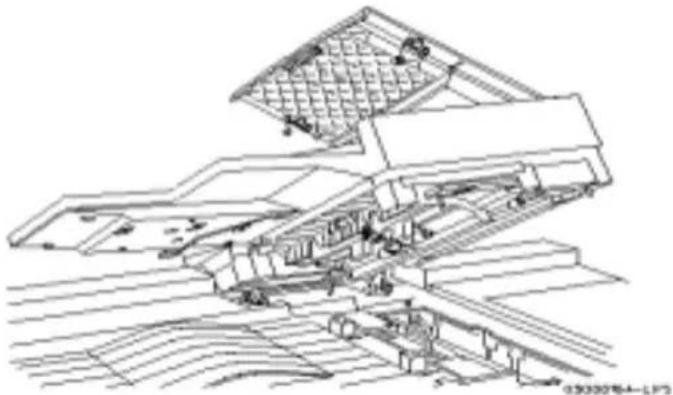
natural_image
Architectural line drawing of a modern building complex with tiered roof and surrounding landscape (no text or symbols)Cleaning the Document Feeder routinely will help prevent misfeeds. The cleaning procedure is:
- Dampen one end of a towel with Xerox Lens and Mirror Cleaner(8R3669).
- Open the Document Scanner Top Cover. Clean the rolls and all visible, black-colored surfaces.
- Close the Document Scanner Top Cover and raise the Document Feeder. Clean the rolls and all visible, black-colored surfaces.
- Clean the entire surface of the Document Glass as described previously. Repeat as required.
- Ensure that the Feed Rolls are dry before you use the machine.
User Interface and User Interface Touch Screen
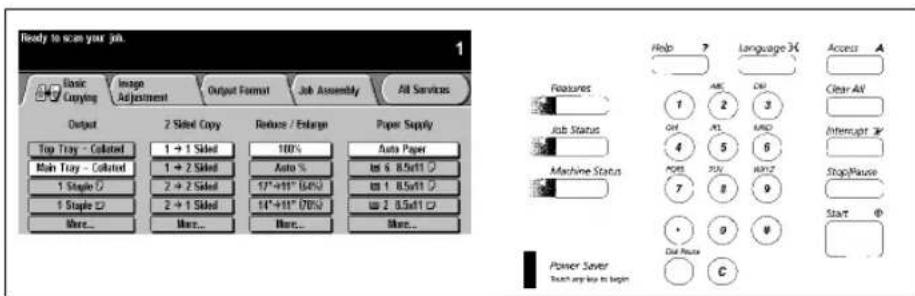
text_image
Ready to scan your job. Basic Copying Image Adjustment Output Format Job Assembly All Services Output 2 Sidel Copy Reduce / Extend Paper Supply Top Tray - Colated 1 + 1 Sidel Auto % Auto Paper Main Tray - Colated 1 Staple C 2 + 2 Sidel 17*+11" (64%) 10% 8.5x11 C 1 Staple D 2 + 1 Sidel 14*+11" (78%) 10% 8.5x11 C More... More... More... More... Features Job Status Machine Status Help Language X Access Clear AV Interrupt StopPause Start Power Saveer Touch any like to beginClean the User Interface with a lint-free cloth dampened with common household cleaner or Xerox Lens and Mirror Cleaner and wipe.
15. Problem Solving
The following pages provide an overview of some of the problems that may occur with the Document Centre and contain a variety of tables that will assist you in solving hardware, software and programming problems. It provides information on how to contact the Welcome Center.
A variety of situations can affect the quality of your output. For optimal performance, ensure the following guidelines are followed.
- Do not position the Document Centre in direct sunlight or near a heat source such as a radiator.
- Avoid sudden changes in the environment surrounding the Document Centre. When a change occurs, allow the Document Centre at least two hours to adjust to its new environment, depending on the extent of the change.
- Follow routine maintenance schedules for cleaning areas such as the Document Glass and the output trays.
- Always set the Edge Guides in the paper trays to the size of the media in the tray. Otherwise, you may experience jams.
Calling the Welcome Center
If you are experiencing difficulty with your Document Centre, check the suggestions in the following Table of Troubleshooting Tips to see if you can solve the problem before contacting the Welcome Center. You might be able to resolve the situation quickly. If the difficulty persists, contact the Xerox Welcome Center. The Welcome Center telephone number is conveniently located on the Machine Information screen.
The Welcome Center will want to know the following information: The nature of the problem, the Machine Serial number, the fault code if any, and the name and location of your company.
NOTE
If you require assistance from the Welcome Center, contact them at the following phone number.
USA (800) 821-2797 Canada (800) 939-3769
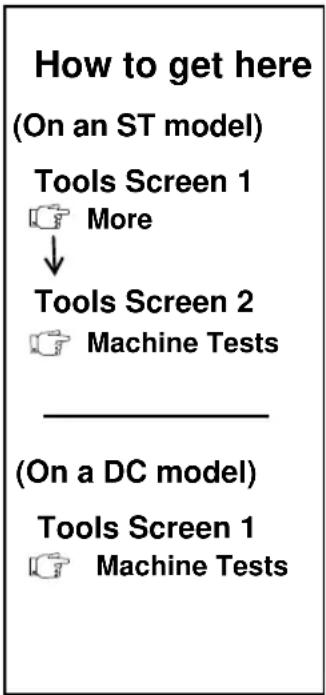
flowchart
graph TD
    A["Tools Screen 1"] -->|More| B["Tools Screen 2"]
    B --> C["Machine Tests"]
    D["Tools Screen 1"] --> E["Machine Tests"]
The Document Centre is equipped with a variety of diagnostic tools to identify and isolate any problems that may occur. In most cases, these checks are performed in consultation with an authorized technician or the Welcome Center. This section describes symptoms and problem resolution for problems associated with hardware.
Use the table below to identify the applicable test for your situation.
| Symptom Applicable Tests | |
| ● Image Quality is Poor The | most common image quality problem for copy jobs is caused by glass that is dirty. Before you perform any tests, clean the glass.The second most common image quality problem is caused by selecting the incorrect image quality type when using any of the image quality adjustments found in the Image Adjustment tab.Image Quality Tests and Patterns. These specially designed patterns and tests are used to verify that the device is producing the optimal image quality. Each pattern tests a different image feature and is designed to be interpreted by the Welcome Center or an authorized technician.Xerographic System Routine. The Document Centre automatically adjusts the Xerographic module to enable optimal Image Quality. This selection allows you to manually initiate the Xerographic Routine. |
| User Interface Tests Use these | tests if you suspect that the UI is not functioning correctly. Additional information may be found on the User Interface when the test is selected. |
| ● Buttons Malfunctioning | The User Interface Button Test helps to determine if the buttons on the User Interface are functioning correctly. |
| ● Touch Screen not responding | The Touch Area Test allows the Machine Administrator to determine if the Touch Screen on the UI is functioning correctly. |
| ● No audio tones | The Audio Tones Test helps to determine if the audio tones on the UI are functioning correctly. |
| ● The display is not readable or portions omitted | The Display Pixel Test verifies that each pixel on the display UI is functioning correctly. Press 2 to toggle between white and black screen. Press 1 to end the test. |
| ● LEDs on the control panel not functioning | The LED Indicator Test allows you to determine if the LEDs on the UI are functioning correctly. |
| ● You have been asked to complete this test by a Xerox technician. | The Video Memory test allows you to determine if the memory used by the video controller is functioning correctly. |
| ● Machine not responding to commands from the User Interface | Use the Communications Self Test to verify that the User Interface is communicating correctly with the rest of the machine. |
| ● The User Interface is not responsive. | Reset User Interface. This resets the software that runs the User Interface without powering off the machine. |
| ● The software will not recognize new hardware. | Application Checksum Verification. Use to isolate problems and to verify that the system software is not corrupted. |
| ● Appears to scan the original but won’t print | Video Path Diagnostics. Use to isolate problems and to verify that the electronic path between the scanner and Xerographic module is functioning correctly. |
Troubleshooting Tips
| Problem Symptom Recommendation | ||
| Power | ||
| The machine will not power on | Check to see that the machine is not in Low Power Mode as indicated by the green light on the User Interface.Push the white power button to the ON position.Check to see if the power cord is correctly installed.Examine the circuit breaker for the line to see if the AC outlet is receiving voltage. | |
| Paper Handling | ||
| A document set will not feed through the Document Feeder | Ensure that all staples or clips have been removed from the originals.Check to see if the Document Feeder is overloaded. The 490/480 can hold 100 sheets, the 460/470 can hold 75 sheets of 20 lb. Use Build Job if you have more originals than this.Check to see if the document set is fully inserted into the Document Feeder.Ensure that the edge guides are adjusted to touch the sides of the originals.Ensure that the Feed Roll Cartridge is correctly engaged. Reseat if necessary.Check for obstructions in the Document Feeder.Ensure that the Document Feeder cover is closed.Check that the machine is not in diagnostics mode as indicated by a message on the User Interface. | |
| Problem Symptom Recommendation | ||
| Paper Handling (cont'd) | Repeated paper jams or misfeeds in Tray 5 (Bypass Tray) | Ensure that the correct paper size is displayed on the Touch Screen.Remove the stock and reload the tray. Do not add paper to the tray when paper is already loaded. Instead, remove the paper, combine the additional paper with the paper from the tray, and reload the tray.Depending on the model, ensure that there are no more than 100 or 75 sheets of 20 lb. in the Tray.Ensure that the Edge Guides are adjusted to touch the sides of the paper.Check for obstructions at the paper entrance.Ensure that the Feed Roll Cartridge is engaged correctly. |
| Repeated shut down from jams in Area 3 or copies with unexpected image shift when feeding from Tray 5 | After tray is reloaded, confirm the stock attributes, especially the size, on the Touch Screen. Ensure that the stock is correctly programmed.Remove the stock and reload the tray.Depending on the Document Centre model, ensure that there are no more than 100 or 75 sheets of 20 lb. paper in the tray, fewer if sheets are a heavier weight.Adjust the Edge Guides to touch the side of the paper in the tray. | |
| Paper Jams inside the machine | Check the Paper Path for obstructions.Make sure that the area 2 lever is in the correct position (down).Flip the paper over in the paper tray.Check the paper tray Edge Guides to see if they are against the edges of the paper.Check that the Touch Screen is displaying the correct size for the paper in use.Load fresh paper. | |
| Paper Handling (cont'd) | Repeated Check Tray Messages on the User Interface and the paper is loaded in the tray | Adjust the edge guides against the stack of paper in the tray.If the edge guides were not set against the paper stock in the tray when Start was selected, delete the job in the job queue and begin again. |
| Paper Curls | Load the paper in the paper trays seam side of the paper up. Load the paper in the High Capacity Feeder and Bypass Tray with the seam side down.The seam refers to the side of a ream of paper with a split in the wrapping. It may also be referred to as arrow side first.Load non-standard media in the Bypass Tray.If the paper curls excessively, flip the paper over in the applicable paper tray. | |
| The Finisher does not stack the output correctly | Unload the finisher tray frequently. Depending on your machine configuration there may be a pause button on the side of the finisher.Do not remove stapled sets while the finisher is compiling. | |
| The Finisher does not staple or staple well | The finisher does not staple stacks of more than 50 sheets of 20 lb. paper.Use less than 50 sheets of paper if they are heavier than 20 lb.Check the User Interface for a fault message indicating no staples. Replace the staple cartridge. | |
| Output Quality | ||
| The machine did not enlarge an 8 1/2 x 11 inch document to fill an 11 x 17 inch page | Ensure that the correct tray is selected.11 x 17-inch paper can be loaded in the trays short edge feed only. Select Reduce/Enlarge, More...then Custom then Auto%.Orient the original SEF. If using the Document Feeder, ensure the document Size is correctly defined. Refer to page 10-28 for more information. | |
| Stray marks or black marks from three-hole punched originals are not removed | Use the Edge Erase to erase the edge with the drilled holes.Copy from the document glass with the Document Cover down. | |
| Images are out of sequence or upside down when the Booklet Creation Feature is used | Ensure that the originals are in the correct sequence.Feed LEF originals to SEF orientated paper stock.Enable the display options for Booklet Creation and ensure that the correct sequence is selected (i.e., Left to Right or Right to Left). | |
| The output is blank Check the feeding of the originals. Check that they are:Loaded in the Document feeder prior to pressing Start.Loaded face up either in the Document Feeder or face down on the Document Glass. | ||
| Output Quality (cont'd) | There are streaks, lines, spots, or black, solid, or dotted lines | Clean the Document Glass, especially near the black plastic ramp on the glass, if using the Document Feeder.Run the job from the Document Glass.Check the quality of the original. Use Border Erase or Edge Erase to remove lines from the edges of the document.Turn on Background Suppression.Load fresh paper. |
| Image Loss | When copying a document from a larger paper size to a smaller size, use Auto% to reduce the image onto the smaller size.Use reduction i.e., copy at 90% instead of 100%.Select Auto Center and run the job again.If scanning from the Document Glass, select Manual Platen Input and define the document size. Register the document in the left rear corner and copy with the cover down.If using the Document Feeder, ensure the document Size is correctly defined. Refer to page 10 -28 for more information. | |
| A message is displayed that the machine cannot sense the size of the original on the glass | Select Original Size in the Image Adjustment Tab and enter the size.Rescan the original, leaving the cover raised. | |
| Output Quality (cont'd) | Jobs scan but do not print | Some jobs require image processing before printing. This may take as long as 2 seconds per page.Check the Job Status to determine if a job is processing. There may be a job in the queue with a status of paused. Delete this job if it remains in the state over 3 minutes.This may possibly be a result of an incorrect feature combination. Select Software Reset. |
| Machine automatically deletes the jobs | If accompanied by an out of memory message, check the Job Queue and delete unnecessary jobs.Ensure that all paper jams have been cleared and that there is no torn paper inside a jam area.If the machine is scanning and printing the different jobs, wait until the current printing job is completed.If the machine is scanning and printing the same job, use Build Job to delay printing. Scanning complicated half-tones while printing complicated half-tones requires more memory than typical copy jobs.If using the Document Feeder, check that originals are flat and not folded. | |
| Output does not reflect the selections made on the Touch Screen | Press Clear All between jobs. | |
| Copy Quality | ||
| Output is too light or too dark | Check the quality of the original.Select Lighten or Darken.Select text, if the original is text. | |
| Copy Quality (cont'd) | Blurred images on output | Load fresh paper.If copying from the Document Glass, check the quality of the originals, set the input to Manual Platen Input, close the cover and try again. Ensure that the original is entirely flat against the Document Glass. |
| Missing characters on output | Load fresh paper.Try using a smoother paper.Select darken if the original is light or the font is colored. | |
| Gloss variations (coining) | Check the quality of the original.If the original has large areas of solid density, adjust the contrast. | |
| Ghosting | Check the quality of the original.Clean the Document Glass, if it is being used.Rotate the original 180 degrees and try the job again. | |
| Washout | Check the quality of the original.Cancel Background SuppressionIf the image is lighter near the borders, select a darker Image Quality setting on the Touch Screen. | |
| Solid density variations | Check the quality of the original.Adjust the Lighten or Darken selection. | |
| Blotches - small areas that have a different texture or pattern appearance than the surrounding area | Select Auto screen.Select Photo original type and select less sharpness for text and lines. | |
| Copy Quality (cont'd) | Moiré - a wavy pattern defect created by the interaction of the halftone frequency on the original and the halftone frequency used to produce the copy | Use a reduced Sharpness setting.If Auto is selected, use Special or if Special is selected, use Auto.Use Halftone Photo original type with Special or Auto screen. |
| Grainy or “noisy” pictures | Use Special Screen.Select Photo and select less sharpness. | |
| Fuzzy text or lines | Select Text, Halftone Photo, or Normal type of original.Increase Sharpness and/or Contrast. | |
| Low density images such as pencil marks are not copied | If Background Suppression is On, Darken the copy.If Background Suppression is Off, turn on Background Suppression. | |
| Low density images such as paste-up marks are copied | If Background Suppression is On, Lighten the copy.If Background Suppression is Off, turn on Background Suppression. | |
| Images on the back side of the original print out on the front | If Background Suppression is On, lighten the copy.If Background Suppression is Off, turn on Background Suppression.If copying from the Document Glass, keep the Document Glass Cover raised. | |
| Lines appear on the copies when the Document Feeder is used | Thoroughly clean the glass under the Document Feeder. Refer to the Maintenance section for additional information about cleaning the Document Glass. | |
| Skewed images or sheets in the output tray | Check area 2 jam clearance handle and ensure that it is securely latched. | |
| Other Problems | ||
| The system scans originals but does not print them. The top job in the Job Status list shows a status of printingorThe system indicates that it is scanning originals but nothing happens | If the Touch Screen is displaying a message stating that the system is warming up, you must wait until the system is completely warmed up.Attempt to delete the top job in the Job Status list.If deleting the job in the queue does not resolve the problem, select software reset in Tools or power off the machine using the white button on the right side of the machine. Wait 1 minute, then power on the machine, using the same switch. Note: All copy jobs in the Job Queue will be lost. | |
| Touch Screen resets before programming is complete. | Check the time-out values in Tools. Ensure that the values set are long enough for users to complete their programming. | |
| A black border appears along one or more sides of copies when using the Document Feeder. | The Document Feeder Edge Guides may not be adjusted to meet the sides of the originals.If using the Document Feeder, ensure the document Size is correctly defined. Refer to page 10 -28 for more information.If the original is undersized or non-standard, use the Document Glass to scan the job. Use Auto% to fill the output page if necessary.Use Edge Erase to eliminate black edge.If a portion of the original is folded, unfold that portion and rescan the job. | |
| The job remains in the Job Status Queue after copying is complete. | Sample Set may have been selected. Delete the held job and ensure that the feature default timer is not disabled or set to a time that is too long. | |
| Problem Symptom Recommendation | ||
| Other Problems (cont'd) | Copying a booklet using bound originals does not capture the image correctly. | The Document Glass Cover must be raised.If the image along the bottom edge of the document is not captured and the original is aligned on the bottom edge of the Document Glass, place the booklet along the far edge of the Document Glass. |
| A queued job will not promote | Common Causes - The job must be completely formatted (i.e. converted into printer language) before it can be promoted. | |
Machine deletes jobs scanned through the Document Feeder.Error Message Screen The job was deleted because a document was larger than expected. Try flattening the document and either rescan it through the Document Feeder, or scan it from the Document Glass.Sensors on the Document Feeder Tray The job was deleted because a document was larger than expected. Try flattening the document and either rescan it through the Document Feeder, or scan it from the Document Glass.Sensors on the Document Feeder Tray | The machine compares the size determined by the sensors and the actual size it detects when scanning a job. If there is a conflict, the job will be deleted and a message on the Touch Screen will ask you to flatten the original and rescan.If this occurs and you are not using a folded original, correct these common problems.The Document Feeder guides are incorrectly set.The originals are poorly stacked. The lead edge of the stack may be uneven.The sensors in the Document Feeder trays are activated by something other than the originals (for example, a hand or the next copy job).There is a non-standard size in the Document Feeder or a non-standard size zone has been defined.Refer to Document Size Sensing on page 10-28.Originals are in poor physical condition (for example, the originals are folded, damaged, have folded corners, stapled) or do not easily separate from each other. | |
16. Glossary
Term Explanation
A4, A3, B4, B5 These are common metric paper sizes. Refer to Chapter 13, Paper & Stock, for more details.
Auto IQ® This Image Quality enhancement enables the copier to determine the type of pixel as well as the surrounding pixels while it is scanning. Based on the types of pixels identified, the copier will produce the best possible image.
Background Suppression This feature prevents the reproduction of unwanted background variations that result from originals having either colored backgrounds or that are printed on a very thin stock on which the images on the second side tend to bleed through. Use this feature to copy from documents printed on colored paper.
Booklets A booklet is three or more images on a single sheet of paper that, when folded, create a readable booklet. The Document Centre has the ability to create booklets on a variety of paper stock. Refer to page 4-29 for more information about this powerful feature.
| Build Job This feature allows the Document Centre to accept multiple job segments and combine them into a single job. Each segment can have different characteristics such as paper size, 1-or 2-sided images, or scanned from the glass or through the Document Feeder. Refer to page 4-35 for more information about this powerful feature. | |
| Calendar-type orientation | A 2-sided page where the second side has the same orientation as the first when viewed from top to bottom. |
| Collated Copies of a document delivered in the same sequence as the originals. | |
| Constant Velocity Transport (CVT) | The CVT Transport is the narrow strip of glass that you see on the right of the Document Glass. It is where the machine scans documents when the Document Feeder is used. |
| Continuous Tone A photographic image that contains gradient tones from black to white. A photograph (from a camera) is a continuous tone as opposed to a picture in a magazine. | |
| Contrast The intensity of the display of an image, or the degree of difference between the gray tones on a document page. | |
| Dividers (inserts) Paper that is used to separate sections or pages. | |
| Duplex An image on both sides of a page. | |
| Error Sheet Error sheets are generated when a print or copy job is unexpectedly terminated by the system, or when a job is completed without all of the requested features (e.g. stapling, special paper, fonts). | |
| gsm The metric designation for paper weight in grams per square meter. | |
| Halftone The reproduction of continuous tone images such as a photograph through a contact screen, which converts the image into dots of various sizes. | |
| Image Rotation This Document Centre feature enables completion of a job regardless of the orientation of the paper stock in the paper trays. If the original and the selected stock in the tray are oriented differently, the Document Centre Digital Copier will rotate the image to match the orientation of the Paper Tray stock. | |
Image Shift This refers to the ability to shift the scanned image of an original with respect to the paper output. It is designed to be used for creating a binding edge. Refer to page 4-26 for more information.
Input Original documents that you feed into the machine.
Job Progress Screen A pop-up screen that is displayed on the User Interface when the Start button is pushed. This window provides information about the active job.
Job Queue The Document Centre has the ability to stack jobs as it processes them. This feature enables the Document Centre to scan ahead. The Job Queue can be accessed via the Job Status pathway button. For more information refer to Chapter 8, Job Status.
Job Review Summaries These are text descriptions on the screen next to feature buttons and that identify the current setting of the button.
Keypad The numeric buttons on the User Interface.
LDAP Lightweight Directory Access Protocol
Long Edge Feed (LEF) As the paper is fed into the machine from either the Document Feeder or any of the Paper Trays, the longest edge of the paper enters the machine first.
Machine A designated individual who sets the defaults and maintains the Administrator machine. Someone who has access to system tools.
Media The material on which the copies or prints are printed. Synonymous with stock.
Moiré An undesirable pattern caused by the interaction of two halftones.
Multipage TIFF This is a special type of TIFF file which results from combining single page TIFF formatted files into one file.
Pathway Buttons The functions of the machine are divided into four separate and distinct pathways, Features, Job Status, Machine Status and Tools. Features contains all the programming selections needed to produce the job. Job Status provides queue management functions, Machine Status provides information about the projected replacement requirements for consumables, and information pertaining to the repair of the machine. The Tools pathway is designed for the System Administrator to manage both the operation and the troubleshooting of the machine.
Photograph A selection that optimizes a copy of a photograph or a document having varying shades of grey. See continuous tone.
Platen This is also known as the Document Glass.
Print to Edge This feature allows the Document Centre to print an image anywhere on the paper up to and including the very edge of the paper stock.
Registration This term refers to the location of either the document as it is placed on the Document Glass or in the Document Feeder. It can also refer to the placement of the image as it appears on the output.
Resolution Quantifying the quality of print in terms of the number of dots per a given area (typically an inch).
Scanning Sensing the image on an original and creating an electronic image of the document.
Scan Once, Print Many This Document Centre Feature enables the single scanning of a document, regardless of the number of copies requested. After the document is scanned once, it is Raster Image Processed (RIP) once, temporarily stored to the image disk until the job is completed, then the image is deleted.
Short Edge Feed (SEF) As the paper is fed into the machine from either the Document Feeder or any of the Paper Trays, the shortest edge of the paper enters the machine first.
Sharpness Sharpness adjusts the amount of edge definition on the output. If the image appears slightly out of focus, increasing the Sharpness value may make the image clearer.
SMTP Simple Mail Transfer Protocol
Stock See Media
System Administrator This person connects the Document Centre to the network so it can print jobs from your work station.
TIFF This is the abbreviation for Tagged Image Format File. It is a common industry standard.
Tray Settings The following tray settings are available:
In a Dedicated tray the Machine Administrator assigns the size, orientation, color and type of the tray contents.
In a Fully Adjustable tray the size, orientation, color, and type of the tray contents can be programmed by the user.
In a Size Only tray, available only on the Digital Copier, the user can adjust size and the orientation of the stock. The tray will function just like those in typical light lens copiers. Type and color are assumed to be the default stock.
Trayless Duplex This Document Centre feature is possible because the paper stock continually cycles through the machine until it has the desired number of images. As opposed to residing in a duplex tray until the machine is ready to use the partially printed stock. A Trayless Duplex system significantly reduces the likelihood of jams.
Uncollated Copies of a original set delivered in stacks of each original as opposed to sets of all the originals.
Xerographic Module A Replaceable Unit that contains the xerographic elements of the machine.
Index
A
Accounts - Auditron 11-6
Active Telephone Line 10-46
Application Checksum
Verification 10-56
Audio Tones
Changing the Volume 10-19
Testing 10-56
Auditron
External Devices 11-2
Overview 11-6
Setting up a system 11-6
Tools password
Changing 11-14
Authentication
Authentication Overview 6-21
E-mail Authentication 7-2
E-mail Guest Access 7-4
E-mail Network Access 7-3
Fax Authentication 5-4
Fax Network Access 5-5, 5-6
Guest Access Overview 6-25
Network Access Overview 6-24
Server Configuration 6-22
Auto features 4-22
Auto Paper Selection 4-11, 10-14
Auto Reduction Enlargement 4-8
Auto Resume Timer 10-22
Auto Selection option 10-14
Auto Tray Switching 3-6, 10-16
Auxiliary Interface Setup 11-4
B
Banner Sheets 10-9, 10-16, 10-24, 10-25
Basic Copying Tab
2 Sided Copy 4-6
Default settings 12-2
Output 4-3
Paper Supply 4-11
Reduce / Enlarge 4-8
Billing Counters 9-5
Binding Erase feature 4-19
Black Hole Removal 10-36
Booklet Creation
Layout examples 4-29
Print Order
Changing 10-30
Border Erase feature 4-21
Bound Originals 4-18
1-2 sided copies 4-19
Scan order
Changing 10-30
Brightness
See Display Brightness
Build Job
How to use 4-35
Using with Bound Originals 4-20
Buttons
Features 4-1
Job Status 8-1
Machine Status 9-1
User Interface 3-9
Bypass Tray
Paper Specifications 3-7
C
Card stock
Loading 13-13
Change Tray Settings 10-13
Changing the Staple Cartridge 14-10
Cleaning
Document Feeder 14-12
Document Glass 14-11
Touch Screen 14-12
Clear All Button 3-10
Collated 16-2
Color Banner Sheets 10-25
Colored tags
Green and Gold 2-4
Communications Self-test 10-56
Configuration Report option 10-23
Consumables
See Supplies
Contention Management option 10-32
Continuous Tone 16-2
Contrast 16-2
Convenience Stapler 3-14
Copy All
Copy Quality 4-13, 4-15, 4-16, 4-17
Problem Solving 15-9
See Image Quality
Copying
2-sided originals 4-6
Adjusting Image Quality 4-13
Bound Originals 4-18
Mixed Size Originals 4-24
Counters
Billing 9-5
Feed Roll 9-8, 10-41
Covers
Using the Covers feature 4-31
Customer Replaceable Units 14-8
Customer Support 9-3
D
Darken 4-14
Defaults
Complete listing of 12-2
Delayed Start(Fax) 5-17
Deleting a job 8-5
Dial Characters(Fax) 5-10
Dial pause(Fax) 5-10
Display 10-20
Display Brightness Changing 10-20
Display Options screen 10-30
Display Pixel Test 10-56
Distribution Templates 6-2 Selecting 6-5
Dividers, Transparency 4-28
Document Centre Components 3-2
Document Feeder Cleaning 14-1
Sheet Capacity 3-3
Stock input information 13-15
Document Glass How to clear
Document Scanner Size Sensing
Changing zone size 12-19
List of zones 12-18
Document Security 12-31
Double Sided Copies 4-6
Dry Ink
Expected Life 14-9
Ordering 14-9
Duplex 16-2
Duplex Copies 4-6
E
Edge Erase 4-21, 12-9
Electronic Hole Removal 10-36
E-mail Authentication Mode 7-2
Email Overview 7-1
ENERGY STAR® Program 12-24
Enlarge 4-8
Enlargement Reduction 4-8
Entry Screen
Changing the Default setting 10-38
Envelopes
Copying 13-16
Printing 13-10
Error Log 9-7
Error Sheets, color 10-25
External Auditron 11-2
Connecting 11-2
F
Faults
Clearing 14-5
The Fault Tab 9-7
Fax
Access to 5-7
Delayed Send 5-17
Dialing 5-10
Enabling optional services 10-44
Fax Screen 5-8
Fax Status Sheets, color 10-25
Installation 5-2
Sending 5-8
Setups 5-3
Feature buttons 3-10
Feature Screens
Basic Copying Tab 4-2
Changing Defaults 10-37
Changing the reset time 10-22
Image Adjustment Tab 4-12, 7-12
Job Assembly Tab 4-34
Output Format Tab 4-27
Feed Roll Cartridge
Counter reset 10-43
End of life 10-41
Fine - Resolution(Fax) 5-14
Finisher 3-12
Convenience Stapler 3-14
Stapling Options 4-3
Unloading while running 3-12
Foreign Interface
See External Auditorn
Fuser Module
Expected Life 14-9
Module Reorder 10-42
Touch Screen Messages 10-42
G
General Accounts
Planning 11-9
Greenwich Mean Time 10-21, 12-33
H
Halftone 16-2
Help
Information Sources 2-4
On-line Help system 3-10
High Capacity Feeder
Paper Specifications 3-8
Hole-punched paper
Black circles on copies 10-36
Hole-punched paper, loading 13-13
How to
Access
System Tools 10-2
Adjust
Audio Tone volume 10-19
Power Saver Timer 10-44
Programming time 10-22
Change
Features default values 10-37
Humidity Adjustment 10-54
Initial UI Screen 10-38
Time and Date 10-21
Tools password 11-14
Track Copy and Print Usage 11-1
Humidity Controls
Adjusting 10-29
I
Image Adjustment 6-12
Image Adjustment Tab 4-12
Bound Originals 4-18
Default settings 12-3
Edge Erase 4-21
Image Quality 4-13
Image Shift 4-26
More Image Quality 4-15
Original Input 4-22
Image Orientation 2-2
Image Quality 4-13
Background Suppression 4-14
Contrast 4-15
Lighten/Darken 4-14
Problem Solving 15-4
Sharpness 4-15
Use of settings 4-16
Image Quality Tests/Patterns 10-53
Image Quality(Scan) 6-13
Image Rotation
Side 2 Rotation 4-7
Image Shift 4-26
Incomplete Scan Timer 10-22
Information Sources 2-4
Internet Services 6-19
How to Access 6-20
Interrupt button 3-10
Invert Image
Creating a Mirror Image 4-33
Creating a Negative Image 4-33
J
Jams
Clearance Areas 14-6
Clearing 14-5
Job Offset 10-35
Job Progress Screen 16-3
Job Queue
Job Status 8-5
Maximum Memory 8-1
Single Job Mode 10-33
Job Review Summaries 4-12
Job Sheets, colored 10-25
Job Status
Default setting 10-38
Job Status button 8-1
Job Supplement
See Build Job 4-20
Job Timer 11-4
K
Keypad 16-3
L
Labels 13-14
Landscape 2-2
Language
Changing the display 3-10, 10-38
Large Image Counter 11-5
LED Indicator Test 10-56
Lighten 4-14
Local ID(Fax) - character check 5-12
Calling for Help 9-3
Machine Status Button 9-1
Machine Telephone Number 10-48
Machine Tests
Image Tests and Patterns 10-53
User Interface Tests 10-55
Video Path Diagnostics Test 10-57
Xerographic System Test 10-54
Maintenance
Cleaning the machine 14-11
Fault Clearance 14-5
Power On/Off 14-2
Making Stapled Copies 13-4
Manual Platen Input screen 4-23
Mask data(Fax) 5-11
Masking Black holes on copies 10-36
Measurement
Setting mm or inches 10-27
Media
See paper
Memory
Job Queue 8-1
Messages
Active Messages 9-7
Fault 14-5
Mirror Image 4-33
Mixed Size Originals
Copying 4-24
Output 4-25
Moiré 4-15, 15-13, 16-3
Moving an image 4-26
Multi-Up feature
Layout Examples 4-30
Mylar Paper, Loading 13-13
N
Negative Image
See Invert Image
Network
Connectivity options 10-40
Installation Procedures
See the System Administration Guide
Online/Offline options 10-39
Tests
Echo 10-58
Network connectivity 10-59
Network Accounting
Accounting Options 11-26
Enabling Optional Services 10-44
Network Fax, see Fax
Network Scanning, see Scanning
Newsletter, making a 4-29
Non-Stapled Jobs 10-35
0
Offsetting Catch Tray 3-13
Optional Services 10-44
Orientation
Image 2-2
Original Input screen 4-22
Original Size(Scan) 6-15, 6-16
Output Format Tab
Booklet Creation 4-29
Covers 4-31
Invert Image 4-33
Multi-Up 4-30
Transparencies 4-28
Output Options 10-34
Offsetting 10-35
Out Of Staples Option 10-35
Ozone Information
Room Volume 1-5
P
Paper
Automatic Size Substitution 10-17
Jams 14-5
Loading Special Stock 13-13
Selectable Options 4-11
Storage and Handling 13-17
Throughput performance 13-2
Paper Feed Roll Cartridges 9-8, 10-43
Paper Tray Settings
Setting the Default Stock 10-16
Paper Trays
Bypass Tray 3-7
High Capacity Feeder 3-8
Media Capacity 13-3
Setting Up Paper Trays 3-5
Status 9-4
Trays 1 to 4 3-5
Password
Changing 11-14
Tools Password, default 10-2
Password check switch(Fax) 5-11
Pathways
Features 4-1
Job Status 8-1
Listing of 3-9
Machine Status 9-1
Perforated Paper, loading 13-13
Phone List 5-13
PhoneShare Device
Connecting 10-49
Photograph
Copying 4-13, 6-13
PIN number 11-6
Platen 16-4
Portrait 2-2
Power
Power Saver Administration 10-44, 12-11, 12-12
Power Saver Light 3-9
Resetting the Software 10-64
Turning the Machine On/Off 14-2
Pre-printed and letterhead Paper, Loading 13-13
Print Job Control 11-5
Print to Edge 4-21
Priority
Setting Job Priority 10-32
Using Interrupt 3-10
Problem Solving 15-1
Proof
See Sample Set 4-37
Proof, see Sample Set
Pulse-to-tone switch(Fax) 5-12
Q
Queue
See Job Queue
Queue Management
Job Status 8-2
R
Reading Order
Books and Booklets
Adding User Options 10-30
Reduce 4-8
Reduce/Enlarge 4-8
Changing Presets 10-26
Custom applications 4-10
Registration 16-4
Using the Document Glass 3-4
Relocation
Ozone Requirements 1-5
Space Requirements 12-22
Remote Data Transfer Setup 10-46
Replaceable Units 14-8
Locations 14-8
Reorder and Replacement 10-41
Resetting
Feed Roll Counters 10-41
System Software 10-64
User Interface 10-56
Resolution(Fax) 5-14
S
Safety
Electrical 1-2
Laser 1-6
Operational 1-7
Sample Set 4-37
Scanner 3-3
Scanning
Edge Erase 6-15
Enabling optional services 10-44
Scan Resolution 6-15
Scan Status Sheets, color 10-25
Scanning Documents 6-6
Setups and installation 6-17
Template Overview 6-4
Security
See Document Security 12-31
Sending a Fax 5-7
Service
Calling for 15-3
Settings
Default Stock 10-16
Stock 10-15
Tray Settings 10-13
Setups(Fax) 5-3
Sheet Capacity 3-3
Sheet orientation 3-6
Shifting an image 4-26
See Booklet Creation 4-29
Single Job Mode 10-10, 10-33
Sixth Sense
Connecting P4 jack 10-51
Software Reset option 10-64
Sorting options 4-3
Standard - Resolution(Fax) 5-14
Standard Features (Scan) 6-6
Standard Size Required option 10-18
Staple Cartridge, Changing 14-10
Stapler
General Guidelines 13-4
Ordering cartridges 14-9
Staple Cartridge, Changing 14-10
Stapling limits 3-12
Stapling
Convenience Stapler 3-14
Making Stapled Copies 13-4
Options 4-3
Status of job 8-1
Stock
See Paper
Stock Choice 10-25
Stock Settings 10-15
Stop/Pause button 3-10
Stored Programming feature 4-38
Supplies Management
Changing the Service Plan 10-41
Feed Roll Cartridge counters Resetting 10-43
Ordering supplies 14-9
Supplies Tab
Paper Feed Roll Cartridges 9-8
System Management Tools see Tools
System Settings
Audio Tones 10-19
Display Brightness 10-20
Display Options 10-30
Humidity Adjustment 10-29
Image Rotation 10-31
Measurement 10-27
Reduce and Enlarge Presets 10-26
Scanner Size Sensing 10-28
Set Time and Date 10-21
Timers 10-22
Tray Management 10-11
T
Tabs
Printing 13-10
Telephone Numbers
entering machine number 10-48
Templates
Overview 6-4
Quick Navigation 6-4
Thin Stapled Sets 10-34
Thumbnail images 4-30
Time and Date
Setting 10-21
Timers
Auto Resume 10-22
Incomplete Scan 10-22
Power Saver 10-62
System Timeout 10-22
Tools
Access Code 10-2
Changing the password 11-14
Overview 10-2
Touch Area Test 10-56
Touch Screen 3-9, 3-11
Adjusting the Brightness 10-20
Adjusting the reset time 10-22
setting the default screen 10-38
Testing 10-56
Transparencies 13-14
Transparency Dividers 4-28
Tray Management
Changing Tray 6 paper size 12-27
Changing Tray Settings 10-13
Standard Size Required 10-18
Stock Settings 10-15
Tray Priority 10-14
Tray Settings 10-13
Trim
See Border Erase 4-21
Troubleshooting
Copy Quality 15-11
Hardware Problems 15-4
Other Problems 15-14
Output Quality 15-9
Paper Handling 15-6
power 15-6
Tips 15-6
U
Uncollated 4-3
User Accounts 11-16
User Interface
Feature buttons 3-10
Layout 3-9
Testing 10-56
Touch Screen 3-11
V
Video Memory Test 10-56
Video Path Diagnostics Test 10-57
W
Wait-Network tone detection 5-11
Welcome Center 9-3
Calling 15-3
Within Job Offsetting 10-35
X
Xerographic Module
Expected Life 14-9
Module Reorder 10-42
Ordering 14-9
Touch Screen Messages 10-42
Xerographic System Test 10-54
Xerox
Calling for help 15-3
Machine Administrator Quick Reference
Refer to these pages for more information
Access:
System Management Tools......page 10 - 2
The Billing Counters ......page 9 - 5
Feed Roll Counters, resetting......page 10 - 43
Configuration Report ......page 10 - 23
Fax Features ......page 6 - 1
Network Scanning Features......page 7 - 1
Network Accounting ......page 11 - 20
Change:
Change the Tools password......page 11 - 14
the Audio Tone volume ......page 10 - 19
the Power Saver Timer......page 10 - 62
the Touch Screen brightness ......page 10 - 20
the Features default values......page 10 - 37
the Features screen reset time......page 10 - 22
Setup:
a system to track usage page 11 - 1
the Paper Tray Management System......page 10 - 11
Output Options (send jobs to the top tray) ...page 10 - 35