X51B1E - Surveillance Camera Dahua Technology - Free user manual and instructions
Find the device manual for free X51B1E Dahua Technology in PDF.


User questions about X51B1E Dahua Technology
0 question about this device. Answer the ones you know or ask your own.
Ask a new question about this device
Download the instructions for your Surveillance Camera in PDF format for free! Find your manual X51B1E - Dahua Technology and take your electronic device back in hand. On this page are published all the documents necessary for the use of your device. X51B1E by Dahua Technology.
USER MANUAL X51B1E Dahua Technology
Mandatory actions to be taken towards cybersecurity
1. Change Passwords and Use Strong Passwords:
The number one reason systems get “hacked” is due to having weak or default passwords. It is recommended to change default passwords immediately and choose a strong password whenever possible. A strong password should be made up of at least 8 characters and a combination of special characters, numbers, and upper and lower case letters.
2. Update Firmware
As is standard procedure in the tech-industry, we recommend keeping NVR, DVR, and IP camera firmware up-to-date to ensure the system is current with the latest security patches and fixes.
"Nice to have" recommendations to improve your network security
1. Change Passwords Regularly
Regularly change the credentials to your devices to help ensure that only authorized users are able to access the system.
2. Change Default HTTP and TCP Ports:
- Change default HTTP and TCP ports for systems. These are the two ports used to communicate and to view video feeds remotely.
- These ports can be changed to any set of numbers between 1025-65535. Avoiding the default ports reduces the risk of outsiders being able to guess which ports you are using.
3. Enable HTTPS/SSL:
Set up an SSL Certificate to enable HTTPS. This will encrypt all communication between your devices and recorder.
4. Enable IP Filter:
Enabling your IP filter will prevent everyone, except those with specified IP addresses, from accessing the system.
5. Change ONVIF Password:
On older IP Camera firmware, the ONVIF password does not change when you change the system's credentials. You will need to either update the camera's firmware to the latest revision or manually change the ONVIF password.
6. Forward Only Ports You Need:
- Only forward the HTTP and TCP ports that you need to use. Do not forward a huge range of numbers to the device. Do not DMZ the device's IP address.
- You do not need to forward any ports for individual cameras if they are all connected to a recorder on site; just the NVR is needed.
7. Disable Auto-Login on SmartPSS:
Those using SmartPSS to view their system and on a computer that is used by multiple people should disable auto-login. This adds a layer of security to prevent users without the appropriate credentials from accessing the system.
8. Use a Different Username and Password for SmartPSS:
In the event that your social media, bank, email, etc. account is compromised, you would not want someone collecting those passwords and trying them out on your video surveillance system. Using a different username and password for your security system will make it more difficult for someone to guess their way into your system.
9. Limit Features of Guest Accounts:
If your system is set up for multiple users, ensure that each user only has rights to features and functions they need to use to perform their job.
10. UPnP:
- UPnP will automatically try to forward ports in your router or modem. Normally this would be a good thing. However, if your system automatically forwards the ports and you leave the credentials defaulted, you might end up with unwanted visitors.
- If you manually forwarded the HTTP and TCP ports in your router/modem, this feature should be turned off regardless. Disabling UPnP is recommended when the function is not used in real applications.
11. SNMP:
Disable SNMP if you are not using it. If you are using SNMP, you should do so only temporarily, for tracing and testing purposes only.
12. Multicast:
Multicast is used to share video streams between two recorders. Currently there are no known issues involving Multicast, but if you are not using this feature, deactivation can enhance your network security.
13. Check the Log:
If you suspect that someone has gained unauthorized access to your system, you can check the system log. The system log will show you which IP addresses were used to login to your system and what was accessed.
14. Physically Lock Down the Device:
Ideally, you want to prevent any unauthorized physical access to your system. The best way to achieve this is to install the recorder in a lockbox, locking server rack, or in a room that is behind a lock and key.
The regulatory information herein might vary according to the model you purchased. Some information is only applicable for the country or region where the product is sold.
FCC Information

CAUTION
Changes or modifications not expressly approved by the party responsible for compliance could void the user's authority to operate the equipment.
FCC conditions:
This device complies with part 15 of the FCC Rules. Operation is subject to the following two conditions:
- This device may not cause harmful interference.
- This device must accept any interference received, including interference that may cause undesired operation.
FCC compliance:
This equipment has been tested and found to comply with the limits for a digital device, pursuant to part 15 of the FCC Rules. This equipment generate, uses and can radiate radio frequency energy and, if not installed and used in accordance with the guide, may cause harmful interference to radio communication.
- For class A device, these limits are designed to provide reasonable protection against harmful interference in a commercial environment. Operation of this equipment in a residential area is likely to cause harmful interference in which case the user will be required to correct the interference at his own expense.
- For class B device, these limits are designed to provide reasonable protection against harmful interference in a residential installation. However, there is no guarantee that interference will not occur in a particular installation. If this equipment does cause harmful interference to radio or television reception, which can be determined by turning the equipment off and on, the user is encouraged to try to correct the interference by one or more of the following measures:
- Reorient or relocate the receiving antenna.
- Increase the separation between the equipment and receiver.
- Connect the equipment into an outlet on a circuit different from that to which the receiver is connected.
- Consult the dealer or an experienced radio/TV technician for help.
General
This user's manual (hereinafter referred to be "the Manual") introduces the functions and operations of the DVR devices (hereinafter referred to be "the Device").
Models
| Series | Models |
| XVR Cooper series | DH-XVR1B04/DH-XVR1B04H/DH-XVR1B08/DH-XVR1B08H/DH-XVR1B16/DH-XVR1B16H |
| XVR4 series | DH-XVR4104C-X/DH-XVR4108C-X/DH-XVR4116HS-X/DH-XVR4104HS-X/DH-XVR4108HS-X/DH-XVR4104HS-X1/DH-XVR4108HS-X1/DH-XVR4104C-X1/DH-XVR4108C-X1/DH-XVR4216AN-X/DH-XVR4232AN-X |
| XVR5 series | DH-XVR5108C-X/DH-XVR5104C-4KL-X/DH-XVR5104C-X/DH-XVR5108H-X/DH-XVR5116H-X/DH-XVR5104H-4KL-X/DH-XVR5108H-4KL-X/DH-XVR5116H-4KL-X/DH-XVR5108HE-X/DH-XVR5116HE-X/DH-XVR5108HS-X/DH-XVR5116HS-X/DH-XVR5104HS-4KL-X/DH-XVR5108HS-4KL-X/DH-XVR5104HS-X/DH-XVR5104H-X/DH-XVR5104HE-X/ DH-XVR5104HS-X1/DH-XVR5104C-X1DH-XVR5216AN-X/DH-XVR5232AN-X/DH-XVR5104H-X1/DH-XVR5104HE-X1/DH-XVR5208AN-4KL-X/DH-XVR5216AN-4KL-X/DH-XVR5216A-X/DH-XVR5432L-X/DH-XVR5832S-X/DH-XVR5108H-4KL-X-8P/DH-XVR5208AN-4KL-X-8P/DH-XVR5216AN-4KL-X-16P/DH-XVR5416L-X/DH-XVR5408L-X/DH-XVR5816S-X/DH-XVR5808S-X |
| XVR7 series | DH-XVR7104E-4KL-X/DH-XVR7108E-4KL-X/DH-XVR7104E-4KL-B-X/DH-XVR7108E-4KL-B-X/DH-XVR7104HE-4KL-X/DH-XVR7108HE-4KL-X/DH-XVR7116HE-4KL-X/DH-XVR7108HE-4K-X/DH-XVR7208A-4KL-X/DH-XVR7216A-4KL-X/DH-XVR7208A-4K-X/DH-XVR7416L-4KL-X/ DH-XVR7816S-4KL-X/DH-XVR7816S-4KL-X-LP |
Safety Instructions
The following categorized signal words with defined meaning might appear in the Manual.
| Signal Words | Meaning |
 DANGER DANGER | Indicates a high potential hazard which, if not avoided, will result in death or serious injury. |
 WARNING WARNING | Indicates a medium or low potential hazard which, if not avoided, could result in slight or moderate injury. |
 CAUTION CAUTION | Indicates a potential risk which, if not avoided, could result in property damage, data loss, lower performance, or unpredictable result. |
 TIPS TIPS | Provides methods to help you solve a problem or save you time. |
 NOTE NOTE | Provides additional information as the emphasis and supplement to the text. |
Revision History
| No. | Version | Revision Content | Release Time |
| 1 | V1.0.0 | First Release. | February 27, 2018 |
| 2 | V1.0.1 | Add eight models. | March 27, 2018 |
| 3 | V1.1.0 | 1. Add four models.2. Add following sections:◇ Regulatory Information◇ Privacy Protection Notice◇ Using Reset Button on the Mainboard◇ Configuring White Light◇ Configuring Siren◇ Viewing PoC Information3. Update following sections:◇ About the Manual◇ Important Safeguards and Warnings◇ Configuring IVS Function◇ Configuring Face Detection | June 10, 2018 |
| 4 | V1.2.0 | 1. Add fourteen models.2. Update following sections:◇ Important Safeguards and Warnings◇ Initializing the Device◇ Configuring POS Settings | July 20, 2018 |
| 5 | V1.2.1 | Add one model | September 20, 2018 |
| 6 | V1.2.2 | 1. Add four models.2. Add SMD. | November 23, 2018 |
| 7 | V1.3.0 | Update safety baseline functions.1. Matching language automatically during initialization; changing GMT time zone to UTC time zone; matching PAL and NTSC automatically;2. Password on the local login interface is displayed with plaintext;3. Reboot is not required after service port number is changed;4. Adding record control tab;5. Adding encoding enhancement function;6. Adding 802.1x access certification and firewall function;7. Adding TV adjustment function;8. Adding POS function at web;9. E model pushes battery status to mobile phone;10. Combine the channel info and POC info interface; | January 16, 2019 |
Privacy Protection Notice
As the device user or data controller, you might collect personal data of others such as face, fingerprints, car plate number, Email address, phone number, GPS and so on. You need to be in compliance with the local privacy protection laws and regulations to protect the legitimate rights and interests of other people by implementing measures include but not limited to: providing clear and visible identification to inform data subject the existence of surveillance area and providing related contact.
About the Manual
- The Manual is for reference only. If there is inconsistency between the Manual and the actual product, the actual product shall prevail.
- We are not liable for any loss caused by the operations that do not comply with the Manual.
- The Manual would be updated according to the latest laws and regulations of related regions. For detailed information, see the paper manual, CD-ROM, QR code or our official website. If there is inconsistency between paper manual and the electronic version, the electronic version shall prevail.
-
All the designs and software are subject to change without prior written notice. The product updates might cause some differences between the actual product and the Manual. Please contact the customer service for the latest program and supplementary documentation.
-
There still might be deviation in technical data, functions and operations description, or errors in print. If there is any doubt or dispute, please refer to our final explanation.
- Upgrade the reader software or try other mainstream reader software if the Manual (in PDF format) cannot be opened.
- All trademarks, registered trademarks and the company names in the Manual are the properties of their respective owners.
- Please visit our website, contact the supplier or customer service if there is any problem occurred when using the device.
- If there is any uncertainty or controversy, please refer to our final explanation.
This Chapter describes the contents covering proper handling of the Device, hazard prevention, and prevention of property damage. Read these contents carefully before using the Device, comply with them when using, and keep it well for future reference.
Operation Requirement
- Do not place or install the Device in a place exposed to sunlight or near the heat source.
- Keep the Device away from dampness, dust or soot.
- Keep the Device installed horizontally on the stable place to prevent it from falling.
• Wall-mounting is not supported. - Do not drop or splash liquid onto the Device, and make sure there is no object filled with liquid on the Device to prevent liquid from flowing into the Device.
• Install the Device in a well-ventilated place, and do not block the ventilation of the Device. - Operate the device within the rated range of power input and output.
- Do not dissemble the Device.
- Transport, use and store the Device under the allowed humidity and temperature conditions.
Electrical Safety
- Use the battery of specified manufacturer; otherwise there might result in explosion. When replacing battery, make sure the same type is used. Improper battery use might result in fire, explosion, or inflammation.
- Follow the instructions to dispose of the used battery.
- Use the recommended power cables in the region and conform to the rated power specification.
- Use the power adapter provided with the Device; otherwise, it might result in people injury and device damage.
- The power source shall conform to the requirement of the Safety Extra Low Voltage (SELV) standard, and supply power with rated voltage which conforms to Limited power Source requirement according to IEC60950-1. Please note that the power supply requirement is subject to the device label.
- Connect the device (I-type structure) to the power socket with protective earthing.
- The appliance coupler is a disconnection device. When using the coupler, keep the angle for easy operation.
Cybersecurity Recommendations.... I
Regulatory Information...... III
Foreword IV
Important Safeguards and Warnings....IX
1 Introduction.... 1
1.1 Overview ...... 1
1.2 Functions.... 1
2 Getting Started .... 3
2.1 Checking the Components....3
2.2 Installing HDD 3
2.2.1 DH-XVR5108C-X/DH-XVR5104C-4KL-X/DH-XVR5104C-X/ DH-XVR4104C-X/DH-XVR4108C-X/DH-XVR5104C-X1/ DH-XVR4104C-X1/DH-XVR4108C-X1 4
2.2.2 DH-XVR7104E-4KL-X/DH-XVR7108E-4KL-X/DH-XVR7104E-4KL-B-X/ DH-XVR7108E-4KL-B-X....5 2.2.3
DH-XVR4116HS-X/DH-XVR5108HS-X/DH-XVR5116HS-X/DH-XVR5104HS-4KL-X/DH-XVR5108HS-4KL-X/ DH-XVR5108H-X/DH-XVR5116H-X/DH-XVR5104H-4KL-X/DH-XVR5108H-4KL-X/DH-XVR511
6H-4KL-X/DH-XVR5108HE-X/DH-XVR5116HE-X/DH-XVR7104HE-4KL-X/DH-XVR7108HE-4KL-X/DH-XVR7116HE-4KL-X/DH-XVR7108HE-4K-X/DH-XVR5104HS-X/
DH-XVR4104HS-X/DH-XVR5104H-X/DH-XVR5104HE-X/DH-XVR4108HS-X/DH-XVR5104HS-X1/DH-XVR4104HS-X1/ DH-XVR4108HS-X1/DH-XVR5104H-X1/DH-XVR5104HE-X1......6 2.2.4
DH-XVR4216AN-X/DH-XVR4232AN-X/DH-XVR5216AN-X/DH-XVR5232AN-X/DH-XVR5208AN-4KL-X/DH-XVR5216AN-4KL-X/DH-XVR5216A-X/DH-XVR7208A-4KL-X/DH-XVR7216A-4KL-X/DH-XVR7208A-4K-X/DH-XVR5108H-4KL-X-8P/DH-XVR5208AN-4KL-X-8P/DH-XVR5216AN-4KL-X-16P 7
2.2.5 DH-XVR7416L-4KL-X/DH-XVR5432L-X 8
2.2.6 DH-XVR7816S-4KL-X/DH-XVR5832S-X/DH-XVR7816S-4KL-X-LP 8
2.3 Installing Device into Rack....9
3 The Grand Tour....10
3.1 Front Panel.... 10
3.1.1 DH-XVR5108C-X/DH-XVR5104C-4KL-X/DH-XVR5104C-X/ DH-XVR4104C-X/DH-XVR4108C-X/DH-XVR5104C-X1/ DH-XVR4104C-X1/DH-XVR4108C-X1....10
3.1.2 DH-XVR7104E-4KL-X/DH-XVR7108E-4KL-X/DH-XVR7104E-4KL-B-X/DH-XVR7108E-4KL-B-X....11
3.1.3
DH-XVR5108H-X/DH-XVR5116H-X/DH-XVR5104H-4KL-X/DH-XVR5108H-4KL-X/DH-XVR511
6H-4KL-X/DH-XVR5108HE-X/DH-XVR5116HE-X/DH-XVR4116HS-X/DH-XVR5108HS-X/DH-X
VR5116HS-X/DH-XVR5104HS-4KL-X/DH-XVR5108HS-4KL-X/
DH-XVR5104HS-X/DH-XVR4104HS-X/DH-XVR4108HS-X/DH-XVR5104H-X/DH-XVR5104HE
-X/DH-XVR5108H-4KL-X-8P/ DH-XVR5104HS-X1/DH-XVR4104HS-X1/DH-XVR4108HS-X1/
4 Connecting Basics.... 36
4.1 Typical Connection Diagram....36
4.2 Connecting to Video and Audio Input and Output 38
4.2.1 Video Input....38
4.2.2 Video Output 38
4.2.3 Audio Input 39
4.2.4 Audio Output 39
4.3 Connecting to Alarm Input and Output 39
4.3.1 Introducing Alarm Port 40
4.3.2 Alarm Input.... 40
4.3.3 Alarm Output 41
4.3.4 Alarm Output Relay Parameters.... 41
4.4 Connecting to RS-485 Port 42
5 Local Configurations 43
5.1 Initial Settings....43
5.1.1 Booting up....43
5.1.2 Initializing the Device 43
5.1.3 Resetting Password....48
5.1.4 Setting Up with the Startup Wizard 54
5.2 Live View....73
5.2.1 Live View Screen....74
5.2.2 Live View Control Bar 75
5.2.3 Navigation Bar 78
5.2.4 Shortcut Menu 79
5.2.5 Color Setting 81
5.2.6 Live View Display....83
5.2.7 Configuring Tour Settings 88
5.3 Entering Main Menu....91
5.4 Controlling PTZ Cameras 93
5.4.1 Configuring PTZ Connection Settings....93
5.4.2 Working with PTZ Control Panel 95
5.4.3 Configuring PTZ Functions....97
5.4.4 Calling PTZ Functions 99
5.4.5 Calling OSD Menu....101
5.5 Configuring Camera Settings....102
5.5.1 Configuring Image Settings.... 102
5.5.2 Configuring Encode Settings....105
5.5.3 Configuring Overlay Settings....109
5.5.4 Configuring Covered Area Settings....110
5.5.5 Configuring Channel Type 111
5.5.6 Upgrading Coaxial Camera 112
5.6 Configuring Remote Devices....113
5.6.1 Adding Remote Devices....113
5.6.2 Managing Remote Devices 125
5.7 Configuring Record Settings.... 128
5.7.1 Enabling Record Control 129
5.7.2 Configuring Recorded Video Storage Schedule 130
5.8 Configuring Snapshot Settings 130
5.8.1 Configuring Snapshot Trigger.... 130
5.8.2 Configuring Snapshot Storage Schedule 134
5.8.3 Backing up Snapshots to FTP 134
5.9 Playing Back Video 135
5.9.1 Enabling Record Control 135
5.9.2 Instant Playback 136
5.9.3 Main Interface of Video Playback.... 136
5.9.4 Smart Search....143
5.9.5 Marking and Playing Back Video 143
5.9.6 Playing Back Snapshots.... 146
5.9.7 Playing Back Splices 146
5.9.8 Using the File List 147
5.10 Alarm Events Settings.... 148
5.10.1 Alarm Information.... 148
5.10.2 Alarm Input Settings 149
5.10.3 Alarm Output Settings.... 156
5.10.4 Video Detection 159
5.10.5 System Events.... 168
5.11 Smart Detection.... 175
5.11.1 SMD 175
5.11.2 Configuring Face Detection 178
5.11.3 Configuring IVS Function.... 183
5.12 IoT Function 205
5.12.1 Configuring Sensor Settings.... 205
5.12.2 Configuring Temperature and Humidity Camera 213
5.12.3 Configuring Wireless Siren 225
5.13 Configuring POS Settings.... 226
5.13.1 Searching the Transaction Records 226
5.13.2 Configuring POS Settings.... 227
5.14 Configuring Backup Settings 229
5.14.1 Finding USB Device 229
5.14.2 Backing up Files 229
5.15 Network Management....231
5.15.1 Configuring Network Settings....231
5.15.2 Configuring Network Testing Settings 249
5.16 Configuring Account Settings.... 253
5.16.1 Configuring User Account....253
5.16.2 Configuring Group Account 259
5.16.3 Configuring ONVIF Users....263
5.17 Audio Management....264
5.17.1 Configuring Audio Files.... 264
5.17.2 Configuring Playing Schedule for Audio Files 266
5.18 Storage Management 268
5.18.1 Configuring Basic Settings 268
5.18.2 Configuring the Recording and Snapshot Schedule 269
5.18.3 Configuring HDD Manager 269
5.18.4 Configuring Record.... 270
5.18.5 Configuring Advance Settings 270
5.18.6 Configuring Quota....272
5.18.7 Configuring HDD Detecting Settings 274
5.18.8 Configuring Record Estimate 277
5.18.9 Configuring FTP Storage Settings....279
5.19 Configuring System Settings 281
5.19.1 Configuring General System Settings 281
5.19.2 Configuring RS232 Settings 283
5.19.3 Configuring Security Settings....284
5.19.4 Configuring System Maintenance Settings 287
5.19.5 Exporting and Importing System Settings 288
5.19.6 Restoring Default Settings....290
5.19.7 Upgrading the Device 291
5.20 Viewing Information 294
5.20.1 Viewing Version Details.... 294
5.20.2 Viewing Log Information 295
5.20.3 Viewing Event Information.... 297
5.20.4 Viewing Network Information.... 298
5.20.5 Viewing HDD Information 300
5.20.6 Viewing Channel Information....301
5.20.7 Viewing Data Stream Information....302
5.20.8 Viewing Device Status....303
5.20.9 Viewing PoC Information 305
5.21 Logout the Device 306
6 Web Operations....307
6.1 Connecting to Network....307
6.2 Logging in the Web 307
6.3 Resetting Password 308
6.4 Introducing Web Main Menu 312
7 FAQ 314
Appendix 1 Glossary....320
Appendix 2 HDD Capacity Calculation .... 322
Appendix 3 Compatible Backup Devices 324
Appendix 3.1 Compatible USB list....324
Appendix 3.2 Compatible SD Card list 325
Appendix 3.3 Compatible Portable HDD list.... 325
Appendix 3.4 Compatible USB DVD List....325
Appendix 3.5 Compatible SATA DVD List.... 325
Appendix 3.6 Compatible SATA HDD List .... 326
Appendix 4 Compatible CD/DVD Burner List.... 331
Appendix 5 Compatible Displayer List .... 332
Appendix 6 Compatible Switcher 333
Appendix 7 Earthing .... 334
Appendix 7.1 What Is the Surge .... 334
Appendix 7.2 The Earthing Modes ...... 335
Appendix 7.3 Thunder Proof Ground Method in the Monitor System .... 336
Appendix 7.4 The Shortcut Way to Check the Electric System by Digital Multimeter....337
Appendix 8 RJ45-RS-232 Connection Cable Definition 340
1.1 Overview
The Device is an excellent digital monitor product for security industry. The embedded LINUX OS assures the stable operation. The H.265 and G.711 technologies assure the high quality image and low bit stream. The frame-by-frame play function displays more details for analysis, and provides the functions such as record, playback, and monitor and assures the synchronization for audio and video. The Device also adopts the advanced control technology and great network data transmission capability.
The Device adopts embedded design to achieve high security and reliability. It can work in the local end and, with strong networking capability it can get connected to the professional surveillance software (Smart PSS) to form a security network to show its powerful remote monitoring function.
The Device is applicable to the areas such as bank, telecom, electricity, traffic, intelligent residential district, factory, warehouse, resources, and water conservancy facilities.
1.2 Functions
NOTE
The functions might be different depending on the software and hardware version of the model you purchased.
Smart Detection
- Smart detection: Effectively detect persons and motor vehicles in the video.
- Face detection: Effectively recognize faces in the video, analyze and carry out structured storage of faces, and search faces quickly.
- Analyze IVS, carry out tripwire and zone intrusion analysis of persons and vehicles, and effectively filter false report caused by tree leaves, rain and brightness changes.
Real-time Surveillance
- Support VGA port and HDMI port to realize the surveillance through monitors.
- Support HDMI, VGA, and TV output at the same time.
IoT Management
Provide specific management module for IoT features including humidity and temperature data reports and alarms linkage.
Sensor Integration
Integrate coaxial cameras with diverse array of sensors such as temperature, humidity and wireless alarm devices.
Storage Management
- Special data format to guarantee data security and avoid the risk of modifying data viciously.
• Support digital watermark.
Compression Format
Support multiple-channel audio and video signal. An independent hardware decodes the audio and video signal from each channel to maintain video and audio synchronization.
Backup Function
- Support backup operation through USB port (such as USB storage disk, portable HDD, and burner).
- Client-end user can download the file from local HDD through network to backup.
Record & Playback
- Support each channel real-time record independently, and simultaneously support the functions such as search, backward play, network monitor, record search, and download.
- Support various playback modes: slow play, fast play, backward play and frame by frame play.
- Support time title overlay so that you can view event accurate occurred time.
- Support zooming in the selected area in the live view.
Network Operation
Support network remote real-time monitor, remote record search and remote PTZ control.
Alarm Activation
- Several relay alarm outputs to realize alarm activation and on-site light control.
- The alarm input port and output port have the protection circuit to guarantee the Device safety.
Communication Port
• RS-485 port can realize alarm input and PTZ control.
• RS-232 port can connect to keyboard, COM port of PC or the matrix control.
- Standard Ethernet port can realize network remote access function.
- The dual-network port has the multi-address, fault tolerance, load balance setup mode.
PTZ Control
Support PTZ decoder through RS-485 port.
Intelligent Operation
• Support mouse operation function.
- Support "copy and paste" function for the same settings.
UPnP (Universal Plug and Play)
Establish mapping connection between LAN and WAN through UPnP protocol.
Camera Self-adaptive
Auto-recognize and work with the PAL or NTSC camera and HD camera.
2.1 Checking the Components

NOTE
The actual appearance, component, or quantity might be different depending on the model you purchased.
When you receive the Device, please check against the following checking list. If any of the items are missing or damaged, contact the local retailer or after-sales engineer immediately.
| Sequence | Checking items | Requirement | |
| 1 | Package | Appearance | No obvious damage. |
| Packing materials | No broken or distorted positions that could be caused by hit. | ||
| 2 | Labels | Labels on the device | Not torn up. ⚙ NOTEDo not tear up or throw away the labels; otherwise the warranty services are not ensured. You need to provide the serial number of the product when you call the after-sales service. |
| 3 | Device | Appearance | No obvious damage. |
| Data cables, power cables, fan cables, mainboard | No connection loose. | ||
2.2 Installing HDD
Please check whether the HDD is already installed in the Device when you first time using the Device. It is suggested to use the HDD recommended officially. Do not use the PC HDD.

CAUTION
Shut down the device and then unplug the power cable before you open the case to replace the HDD.
2.2.1 DH-XVR5108C-X/DH-XVR5104C-4KL-X/DH-XVR5104C-X/ DH-XVR4104C-X/DH-XVR4108C-X/DH-XVR5104C-X1/ DH-XVR4104C-X1/DH-XVR4108C-X1

natural_image
Close-up of a white electronic device casing with multiple ports and mounting holes (no visible text or symbols)- Remove the screws to take off the cover.

natural_image
Close-up of a green circuit board inside a black hard drive housing with visible slots and screw holes (no text or symbols)- Fix the screws on the HDD but do not fasten them.

natural_image
Close-up of a hand holding a CD-ROM drive with visible circuit board and wiring (no readable text or symbols)- Match the screws with the holes on the DVR to place the HDD.

natural_image
Close-up of a white electronic component with multiple switches and a rectangular slot (no visible text or symbols)- Turn the DVR upside down to see the screws and then fasten them.

natural_image
Close-up of a black electronic device with multiple colored cable connectors (blue, yellow, red, black) attached to its base (no visible text or symbols)- Use the HDD cable and power cable to connect HDD and mainboard.

natural_image
Front view of a white electronic device with multiple ports and a central display (no visible text or symbols)- Put back the cover and fasten the screws.
2.2.2 DH-XVR7104E-4KL-X/DH-XVR7108E-4KL-X/DH-XVR7104E-4KL-B-X/ DH-XVR7108E-4KL-B-X
2.2.2.1 Installing Battery

NOTE
The battery is only provided with some models.

natural_image
Interior view of a computer motherboard showing CPU socket, RAM slots, and wiring (no visible text or labels)- Pull the battery cable through the hole.

natural_image
Close-up of a hand inserting a component into a computer motherboard with visible circuitry and components (no text or symbols)- Connect to the cable into the port.
2.2.2.2 Installing HDD

NOTE
Skip step 6 if the battery is not equipped with the model you purchased.

natural_image
Back view of a computer interface with ports, connectors, and a central port (no visible text or symbols)- Remove the screws to take off the cover.

natural_image
Front view of a silver computer chassis with ventilation slots and mounting points (no visible text or symbols)- Remove the screws to take off the bracket.

natural_image
Close-up of a hand holding a black rectangular object against a wooden surface (no visible text or symbols)- Put the HDD onto the bracket.

natural_image
Close-up of a handheld electronic device with a perforated panel and control buttons (no visible text or symbols)- Match the holes on the bracket with the screw holes on HDD.

natural_image
Close-up of a computer monitor with a pen inserted, showing ports and buttons (no visible text or symbols)- Use screws to fix the HDD onto the bracket.

natural_image
Close-up of a hand inserting a component into a computer motherboard (no visible text or symbols)- (Optional) Pull the battery cable through the hole to connect into the cable port.

natural_image
Close-up of a computer motherboard with visible CPU socket and wiring (no text or symbols)- Use the HDD cable and power cable to connect HDD and mainboard.

natural_image
Front view of a computer drive chassis showing ventilation slots and ports (no visible text or labels)- Install the bracket back and then fasten the screws.

natural_image
White rectangular electronic device with a lid and internal components, placed on a wooden surface (no visible text or symbols)- Put back the cover and fasten the screws.
2.2.3 DH-XVR4116HS-X/DH-XVR5108HS-X/DH-XVR5116HS-X/DH-XVR5104HS-4KL-X/DH-XVR5108HS-4KL-X/ DH-XVR5108H-X/DH-XVR5116H-X/DH-XVR5104H-4KL-X/DH-XVR5108H-X/DH-XVR5116H-4KL-X/DH-XVR5108HE-X/DH-XVR5116HE-X/DH-XVR7104HE-4KL-X/DH-XVR7108HE-4KL-X/DH-XVR7108HE-4K-X/DH-XVR5104HS-X/ DH-XVR4104HS-X/DH-XVR5104H-X/DH-XVR5104HE-X/DH-XVR4108HS-X/DH-XVR5104HS-X1/DH-XVR4104HS-X1/ DH-XVR4108HS-X1/DH-XVR5104H-X1/DH-XVR5104HE-X1

text_image
VGA A/B 0C12V- Remove the screws on the rear panel.

natural_image
Close-up of a green circuit board inside a black hard drive with visible cooling fan (no text or symbols)- Fix the screws on the HDD, but do not be fastened.

text_image
Hand holding a CD-ROM drive with visible label and wiring, partially installed in an electronics device.- Place the HDD onto the Device.

natural_image
Close-up of two black probes with metallic contacts on a white perforated board (no text or symbols visible)- Turn the device to see the back side of it. Align the

natural_image
Close-up of a hard disk drive with blue and yellow wires attached, no visible text or symbols- Use the HDD cable and power cable to connect

natural_image
Close-up of a dark, flat surface with no visible text or symbols- Put back the cover and fix the screws.
screws of the HDD with the holes on the back of the device, and then fix the screws.
HDD and mainboard.
2.2.4 DH-XVR4216AN-X/DH-XVR4232AN-X/DH-XVR5216AN-X/DH-XVR5232AN-X/DH-XVR5208AN-4KL-X/DH-XVR5216AN-4KL-X/DH-XVR5216A-X/DH-XVR7208A-4KL-X/DH-XVR7216A-4KL-X/DH-XVR7208A-4K-X/DH-XVR5108H-4KL-X-8P/DH-XVR5208AN-4KL-X-8P/DH-XVR5216AN-4KL-X-16P

- Remove the screws on the cover.

natural_image
Internal view of a computer drive showing internal components and circuit board (no text or symbols visible)- Fix the screws onto the HDD, but do not be fastened.

natural_image
Close-up of a hard disk drive with visible label and circuitry (no readable text or symbols)- Put the HDD into the Device.

natural_image
Close-up of a white electronic device with multiple black connectors and a circular button (no visible text or symbols)- Turn the device to see the back side of it. Align the screws of the HDD with the holes on the back of the device, and then fix the screws.

natural_image
Close-up of a metallic electrical meter with black, red, and yellow wires connected to a blue cable (no visible text or symbols)- Use the HDD cable and power cable to connect HDD and mainboard.

natural_image
Black rectangular electronic device with a flat top and base, no visible text or symbols- Put back the cover and fix the screws.
2.2.5 DH-XVR7416L-4KL-X/DH-XVR5432L-X

natural_image
Close-up of a server rack with a metallic cable and ventilation grille (no visible text or symbols)- Remove the screws on cover.

natural_image
Close-up of a hand placing a small electronic component into a silver rack, with a battery partially visible below (no text or symbols)- Use the screws to fix the HDD onto the bracket.

natural_image
Close-up of hands installing a green circuit board component with a blue plastic clip (no visible text or symbols)- Connect one end of HDD cable to the HDD.

natural_image
Close-up of a gloved hand inserting a blue component into an electronic circuit board (no visible text or symbols)- Connect the other end of HDD cable to the mainboard.

natural_image
Close-up of a green circuit board with visible components and wiring, partially enclosed in an electronic device (no text or symbols)- Use the power cable to connect HDD and mainboard.

natural_image
Black rectangular electronic device with a flat top and a flat base (no visible text or symbols)- Put back the cover and fix the screws.
2.2.6 DH-XVR7816S-4KL-X/DH-XVR5832S-X/DH-XVR7816S-4KL-X-LP

natural_image
Close-up of a server rack with a hexagonal ventilation grille and a metal rack attachment (no visible text or symbols)- Remove the screws on the cover.

natural_image
Close-up of a computer drive bay with two labeled buttons and a green circuit board (no readable text or symbols)- Fix the HDD(s) onto the bracket. Remove the top bracket if you want to install HDD to the bottom bracket.

natural_image
Close-up of a gloved hand holding a green electronic component with visible circuitry (no text or symbols)- Connect one end of HDD cable to the HDD.

natural_image
Close-up of a gloved hand holding a blue plastic object over a computer motherboard (no visible text or symbols)- Connect the other end of HDD cable to the

natural_image
Close-up of a mechanical assembly with metallic components and a green component (no visible text or symbols)- Use the power cable to connect HDD and

natural_image
Exterior view of a black electronic device with a flat top and base (no visible text or symbols)- Put back the cover and fix the screws.
2.2.7 DH-XVR1B04/DH-XVR1B04H/DH-XVR1B08/DH-XVR1B08H/DH-XVR1B16/DH-XVR1B16H

natural_image
Close-up of a computer interface showing ports and a cable inserted (no visible text or symbols)- Remove the screws on the cover.

natural_image
Electronic circuit board with green and black components, wires, and connectors (no visible text or symbols)- Connect the HDD cable and power cable to HDD, and fasten the screws in HDD.

natural_image
Close-up of hands installing a component into a computer motherboard with visible wiring (no text or symbols)- Align the screws of the HDD with the holes on the back of the device.

natural_image
Close-up of a computer monitor rear panel with screwdriver inserted, showing no text or symbols visible- Turn the Device upside down and then fasten the screws.

natural_image
Back view of a computer hard disk drive showing internal components and wiring (no readable text or symbols)- Connect the HDD cable and the power cable to the mainboard.

natural_image
Exterior view of a black rectangular electronic device with a flat top and base (no text or symbols visible)- Put back the cover and fasten the screws.
2.3 Installing Device into Rack
NOTE
Only DH-XVR7416L-4KL-X/DH-XVR5432L-X/DH-XVR7816S-4KL-X/DH-XVR5832S-X models support this installation.
To install the DVR into rack, do the following:
Step 1 Check whether the in-house temperature is lower than 35^(95^) and make sure the 15cm (6 inches) spacing around the Device for ventilation.
Use six screws to fix the DVR on each side. Step 2 Install from the bottom up. Step 3

CAUTION
If you want to install more accessories to the rack, take preventive measures to avoid power socket overload.
____ (Optional) Install more accessories to the rack if needed.Step 4
This chapter introduces various components of the Device, remote control and mouse operations.
3.1 Front Panel
3.1.1 DH-XVR5108C-X/DH-XVR5104C-4KL-X/DH-XVR5104C-X/
DH-XVR4104C-X/DH-XVR4108C-X/DH-XVR5104C-X1/
natural_image
Simple geometric diagram with a square and rounded rectangle, no text or symbols present.Figure 3-1
| Icon | Name | Function |
| [7846] | HDD status indicator | The indicator is off when the HDD is running normally.The indicator glows blue when the HDD is in malfunction. |
| [217C] | Power status indicator | The indicator is off when the power is connected abnormally.The indicator glows blue when the power is connected normally. |
 | Network status indicator | The indicator is off when the network connection is correct.The indicator glows blue when the network connection is abnormal. |
Table 3-1
3.1.2 DH-XVR7104E-4KL-X/DH-XVR7108E-4KL-X/DH-XVR7104E-4KL-B-X/ DH-XVR7108E-4KL-B-X

text_image
1 2 3 4 5 6 @lhua TECHNOVANT 7Figure 3-2
| No. | Button/Icon | Function |
| 1 | Power | Turns on/off the DVR. The indicator glows blue when the DVR is turned on. |
| 2 | HDD status indicator | The indicator glows blue when the HDD is in malfunction. |
| 3 | Network status indicator | The indicator glows blue when the network connection is abnormal. |
| 4,5,6 | Battery status indicator | When the battery remains full or no less than sixty percent, the No.4 indicator is on, and the No.5 and No.6 are out.When the battery remains between thirty percent and sixty percent, the No.5 indicator is on and the others are out.When the battery remains between one percent and thirty percent, the No.6 indicator is on and the others are out.When the battery is exhausted, the DVR is turned off, or there is no battery attached to the DVR, all the three indicators are out. |
| 7 | USB port | Connects to external devices such as USB storage device, keyboard, and mouse. |
Table 3-2
3.1.3 DH-XVR5108H-X/DH-XVR5116H-X/DH-XVR5104H-4KL-X/D H-XVR5108H-4KL-X/DH-XVR5116H-4KL-X/DH-XVR5108HE-X/DH- XVR5116HE-X/DH-XVR4116HS-X/DH-XVR5108HS-X/DH-XVR511 6HS-X/DH-XVR5104HS-4KL-X/DH-XVR5108HS-4KL-X/ DH-XVR5104HS-X/DH-XVR4104HS-X/DH-XVR4108HS-X/DH-XVR 5104H-X/DH-XVR5104HE-X/DH-XVR5108H-4KL-X-8P/ DH-XVR5104HS-X1/DH-XVR4104HS-X1/DH-XVR4108HS-X1/ DH-XVR5104H-X1/DH-XVR5104HE-X1

text_image
1 2 3 4Figure 3-3
| No. | Port Name | Function |
| 1 | HDD | Glows blue when HDD status is abnormal. |
| 2 | NET | Glows blue when network status is abnormal. |
| 3 | POWER | Glows blue when the power is connected properly. |
| 4 | USB port | Connects to peripheral devices such as USB storage device, keyboard, and mouse. |
Table 3-3
3.1.4 DH-XVR7104HE-4KL-X/DH-XVR7108HE-4KL-X/DH-XVR7116HE-4KL-X/DH-XVR7108HE-4K-X

text_image
@Jhua TECHNOLOGY 1Figure 3-4
| No. | Port Name | Function |
| 1 | USB port | Connects to peripheral devices such as USB storage device, keyboard and mouse. |
Table 3-4
3.1.5 DH-XVR4216AN-X/DH-XVR4232AN-X/DH-XVR5216AN-X/DH-XVR5232AN-X/DH-XVR5208AN-4KL-X/DH-XVR5216AN-4KL-X/DH-XVR5216A-X/DH-XVR5208AN-4KL-X-8P/DH-XVR5216AN-4KL-X-16P

text_image
1 2 3 4 5Figure 3-5
| No. | Port Name | Function |
| 1 | Status indicator light | Glows blue when the device is working properly. |
| 2 | HDD | Glows blue when HDD status is abnormal. |
| 3 | NET | Glows blue when network status is abnormal. |
| 4 | POWER | Glows blue when the power is connected properly. |
| 5 | USB port | Connects to the external devices such as keyboard, mouse, and USB storage device. |
Table 3-5
3.1.6 DH-XVR7208A-4KL-X/DH-XVR7216A-4KL-X/DH-XVR7208A-4K-X

text_image
@lhua TECHNOLOGY 1 2Figure 3-6
| No. | Port Name | Function |
| 1 | Status indicator light | Glows blue when the device is working properly. |
| 2 | USB port | Connects to the external devices such as keyboard, mouse, and USB storage device. |
Table 3-6
text_image
@thua TECHNOLOGY X 1 2Figure 3-7
| No. | Port Name | Function |
| 1 | IR receiver | Receives infrared signal from remote control. |
| 2 | USB port | Connects to peripheral devices such as USB storage device, keyboard, and mouse. |
Table 3-7
3.1.8 DH-XVR7816S-4KL-X/DH-XVR7816S-4KL-X-LP

text_image
@thua TECHNOLOT X 1 2Figure 3-8
| No. | Port Name | Function |
| 1 | IR receiver | Receives infrared signal from remote control. |
| 2 | USB port | Connects to peripheral devices such as USB storage device, keyboard, and mouse. |
Table 3-8
| No. | Port Name | Function |
| 1 | Status indicator light | Glows blue when the device is working properly. |
| 2 | HDD | Glows blue when HDD status is abnormal. |
| 3 | NET | Glows blue when network status is abnormal. |
| 4 | POWER | Glows blue when the power is connected properly. |
| 5 | USB port | Connects to peripheral devices such as USB storage device, keyboard, and mouse. |
Table 3-9
3.1.10 DH-XVR5832S-X/DH-XVR5808S-X/DH-XVR5816S-X

text_image
1 2 3 4 5Figure 3-10
| No. | Port Name | Function |
| 1 | Status indicator light | Glows blue when the device is working properly. |
| 2 | HDD | Glows blue when HDD status is abnormal. |
| 3 | NET | Glows blue when network status is abnormal. |
| 4 | POWER | Glows blue when the power is connected properly. |
| 5 | USB port | Connects to peripheral devices such as USB storage device, keyboard, and mouse. |
Table 3-10
3.1.11 DH-XVR1B04/DH-XVR1B04H/DH-XVR1B08/DH-XVR1B08H /DH-XVR1B16/DH-XVR1B16H

natural_image
Line drawing of a rectangular electronic device with no visible text or symbols on the body3.2 Rear Panel
3.2.1 DH-XVR5108C-X/DH-XVR5104C-4KL-X/DH-XVR5104C-X/ DH-XVR4104C-X/DH-XVR4108C-X/DH-XVR5104C-X1/ DH-XVR4104C-X1/DH-XVR4108C-X1

text_image
HI CEMEA 1 2 3 4 5 6 7 VGA DOX3011 DO12VFigure 3-11
| No. | Port Name | Function |
| 1 | Video input port | Connects to analog camera to input video signal. |
| 2 | USB port | Connects to external devices such as USB storage device, keyboard and mouse. |
| 3 | VGA port | Outputs analog video data to the connected display with VGA port. |
| 4 | HDMI port | High definition audio and video signal output port.The port outputs the uncompressed high definition video and multi-channel audio data to the connected display with HDMI port. |
| 5 | Network port | Connects to Ethernet port. |
| 6 | Power input port | Inputs 12V DC power. |
| 7 | Ground terminal. |
Table 3-11
3.2.2 DH-XVR7104E-4KL-X/DH-XVR7108E-4KL-X/DH-XVR7104E-4KL-B-X/ DH-XVR7108E-4KL-B-X

text_image
VIDEO IN AUDIO 8 6 4 2 7 5 3 1 A/B VGA HDMI DC12V DC OUT 12V 1 2 3 4 5 6 7 8 9 10 11 12Figure 3-12

text_image
VIDEO IN AUDIO 8 6 4 2 7 5 3 1 A/B VGA HDMI 5 6 7 8 9 10 DC12V DC OUT 12V 1 2 3 4 5 6 7 8 9 10 11 12Figure 3-13
| No. | Port Name | Function |
| 1 | Video input port | Connects to analog camera to input video signal. |
| 2 | Audio input port | Receives audio signal output from the devices such as microphone. |
| 3 | Audio output port | Outputs audio signal to the devices such as the sound box. |
| 4 | RS-485 communication port | Connects to the control devices such as speed dome PTZ.RS-485_A port is connected by the cable A and RS-485_B is connected to the cable B. |
| 5 | HDMI port | High definition audio and video signal output port.The port outputs the uncompressed high definition video and multi-channel audio data to the connected display with HDMI port. |
| 6 | VGA port | Outputs analog video data to the connected display with VGA port. |
| 7, 8 | USB port | Connects to external devices such as USB storage device, keyboard and mouse. |
| 9 | Network port | Connects to Ethernet port. |
| 10 | Power input port | Inputs12V DC power. |
| 11 | Power output port | Outputs 12V DC power. |
| 12 | Ground | Ground terminal. |
Table 3-12
3.2.3 DH-XVR4116HS-X/DH-XVR5108HS-X/DH-XVR5116HS-X/DH-XVR5104HS-4KL-X/DH-XVR5108HS-4KL-X/DH-XVR5104HS-X/DH-XVR4104HS-X/DH-XVR4108HS-X/DH-XVR5104HS-X1/DH-XVR4104HS-X1/DH-XVR4108HS-X1

text_image
1 2 3 4 5 6 7 89 10 11 VIDEO IN AUDIO IN AUDIO OUT VGA AB DC/IV E2Figure 3-14
| No. | Port Name | Function |
| 1 | Video input port | Connects to analog camera to input video signal. |
| 2 | Audio input port | Receives audio signal output from the devices such as microphone. |
| 3 | Audio output port | Outputs audio signal to the devices such as the sound box. |
| 4 | HDMI port | High definition audio and video signal output port.The port outputs the uncompressed high definition video and multi-channel audio data to the connected display with HDMI port. |
| 5 | Network port | Connects to Ethernet port. |
| 6 | RS-485 communication port | Connects to the control devices such as speed dome PTZ.RS-485_A port is connected by the cable A and RS-485_B is connected to the cable B. |
| 7 | VGA port | Outputs analog video data to the connected display with VGA port. |
| 8 | USB port | Connects to external devices such as USB storage device, keyboard and mouse. |
| 9 | Power input port | Inputs 12V DC power. |
| 10 | Power cable fastener | Use clamp to secure the power cable on the DVR in case there is any loss. |
| 11 | Ground terminal. |
Table 3-13
3.2.4 DH-XVR5108H-X/DH-XVR5116H-X/DH-XVR5104H-4KL-X/DH-XVR5108H-4KL-X/DH-XVR5116H-4KL-X/DH-XVR5108HE-X/DH-XVR5116HE-X/DH-XVR7104HE-4KL-X/DH-XVR7108HE-4KL-X/DH-XVR7116HE-4KL-X/DH-XVR7108HE-4K-X/DH-XVR5104H-X/DH-XVR5104HE-X/DH-XVR5104H-X1/DH-XVR5104HE-X1

text_image
1 2 3 4 5 6 7 8 9 10 11 12 13 14 VIAO IN AUDIO IN AUDIO VILA A/B DC/DY ON HDMI AUDIO OUTFigure 3-15
| No. | Port Name | Function |
| 1 | Alarm input port 1–16 | Four groups of alarm input ports (Group 1: port 1 to port 4; Group 2: port 5 to port 8; Group 3: port 9 to port 12; Group 4: port 13 to port 16). These ports receive the signal from the external alarm source. There are two types: NO (Normally Open) and NC (Normally Closed).NOTEWhen your alarm input device is using external power, please make sure the alarm input device and the Device have the same ground. |
| Alarm output port 1–3 (NO1–NO3; C1–C3) | Three groups of alarm output ports (Group 1: port NO1–C1, Group 2: port NO2–C2, Group 3: port NO3–C3). These ports output alarm signal to the alarm device. Please make sure power supply to the external alarm device.NO: Normally open alarm output port.C: Alarm output public end. | |
| 1= | Ground. | |
| 2 | Video input port | Connects to analog camera to input video signal. |
| 3 | Audio input port | Receives audio signal output from the devices such as microphone. It corresponds to video input port 1. |
| 4 | DB25 port | Connects to the audio splitter taken from the package to convert to audio input port which receives the audio signal from devices such as microphone. It corresponds to video input ports 2–16. |
| 5 | Audio output port | Outputs audio signal to the devices such as the sound box. |
| 6 | HDMI port | High definition audio and video signal output port.The port outputs the uncompressed high definition video and multi-channel audio data to the connected display with HDMI port. |
| 7 | USB port | Connects to external devices such as USB storage device, keyboard and mouse. |
| 8 | Network port | Connects to Ethernet port. |
| 9 | RS-485 communication port | Connects to the control devices such as speed dome PTZ.RS-485_A port is connected by the cable A and RS-485_B is connected to the cable B. |
| 10 | Power input port | Inputs 12V DC power. |
| 11 | VGA port | Outputs analog video data to the connected display with VGA port. |
| 12 | Power button | Turns on/off the DVR. |
| 13 | Power cable fastener | Use a cable tie to secure the power cable on the DVR to prevent loss. |
| 14 | Ground terminal. |
Table 3-14
3.2.5 DH-XVR4216AN-X/DH-XVR4232AN-X/DH-XVR5216AN-X/DH-XVR5232AN-X/DH-XVR5208AN-4KL-X/DH-XVR5216AN-4KL-X/DH-XVR5216A-X/DH-XVR7208A-4KL-X/DH-XVR7216A-4KL-X/DH-XVR7208A-4K-X

text_image
1 2 3 4 5 6 7 8 9 10 11 12 13 VIDEO IN AUDIO IN VISA ON OFF HDMI AIR A/O 5 6 7 8 9 10 11 12Figure 3-16
| No. | Port Name | Function |
| 1 | Ground terminal. | |
| 2 | Alarm input port 1-16 | Four groups of alarm input ports (Group 1: port 1 to port 4; Group 2: port 5 to port 8; Group 3: port 9 to port 12; Group 4: port 13 to port 16). These ports receive the signal from the external alarm source. There are two types: NO (Normally Open) and NC (Normally Closed).NOTEWhen your alarm input device is using external power, please make sure the alarm input device and the DVR connect to the same ground. |
| Alarm output port 1-3 (NO1-NO3; C1-C3) | Three groups of alarm output ports. (Group 1: port NO1-C1, Group 2: port NO2-C2, Group 3: port NO3-C3). These ports output alarm signal to the alarm device. Please make sure power supply to the external alarm device.NO: Normally open alarm output port.C: Alarm output public end. | |
| ± | Ground. | |
| 3 | Video input port | Connects to analog camera to input video signal. |
| 4 | Audio input port | Receives audio signal output from the devices such as microphone. |
| 5 | Audio output port | Outputs audio signal to the devices such as the sound box. |
| 6 | HDMI port | High definition audio and video signal output port.The port outputs the uncompressed high definition video and multi-channel audio data to the connected display with HDMI port. |
| 7 | USB port | Connects to the external devices such as keyboard, mouse, and USB storage device. |
| 8 | Network port | Connects to Ethernet port. |
| 9 | RS-485 communication port | Connects to the control devices such as speed dome PTZ.RS-485_A port is connected by the cable A and RS-485_B is connected to the cable B. |
| 10 | Power input port | Inputs 12V DC power. |
| 11 | VGA port | Outputs analog video data to the connected display with VGA port. |
| 12 | Power button | Turns on/off the DVR. |
| 13 | Power cable fastener | Use clamp to secure the power cable on the DVR in case there is any loss. |
Table 3-15
3.2.6 DH-XVR5108H-4KL-X-8P/DH-XVR5208AN-4KL-X-8P/DH-XV R5216AN-4KL-X-16P

text_image
1 VIDEO IN 2 3 4 5 6 VIDEO OUT AUDIO IN 7 8 9 10 11 12 13 14 15 16 17 18 19 20 21 22 23 24 25 26 27 28 29 30 31 32 33 34 35 36 37 38 39 40 41 42 43 44 45 46 47 48 49 50 51 52 53 54 55 56 57 58 59 60 61 62 63 64 65 66 67 68 69 70 71 72 73 74 75 76 77 78 79 80 81 82 83 84 85 86 87 88 89 90 91 92 93 94 95 96 97 98 99 100Figure 3-17
| No. | Port Name | Function |
| 1 | Video input port | Connects to analog camera to input video signal. |
| 2 | Video output port | Connects to video output devices such as TV. |
| 3 | Audio input port | Receives audio signal output from the devices such as microphone. |
| 4 | Audio output port | Outputs audio signal to the devices such as the sound box. |
| 5 | VGA port | Outputs analog video data to the connected display with VGA port. |
| 6 | Power button | Turns on/off the DVR. |
| 7 | USB port | Connects to the external devices such as keyboard, mouse, and USB storage device. |
| 8 | HDMI port | High definition audio and video signal output port.The port outputs the uncompressed high definition video and multi-channel audio data to the connected display with HDMI port. |
| 9 | Network port | Connects to Ethernet port. |
| 10 | RS-485 communication port | Connects to the control devices such as speed dome PTZ.RS-485_A port is connected by the cable A and RS-485_B is connected to the cable B. |
| 11 | Power input port | Inputs power. |
| 12 | (STKY) | Ground terminal. |
Table 3-16
3.2.7 DH-XVR7416L-4KL-X/DH-XVR5432L-X/DH-XVR5416L-X

text_image
1 2 3 4 5 6 7 8 9 10 11 12 13 14 15 16Figure 3-18
| No. | Port Name | Function |
| 1 | Ground terminal. | |
| 2 | Power input port | Inputs power. |
| 3 | Power button | Turns on/off the DVR. |
| 4 | Audio input port | Receives audio signal output from the devices such as microphone. |
| 5 | Audio input port (MIC IN) | Tow-way talk input port which receives analog audio signal output from the devices such as microphone and pickup. |
| 6 | Audio output port (MIC OUT) | Tow-way talk output port which outputs the analog audio signal to the devices such as the sound box. |
| 7 | Audio output port | Outputs audio signal to the devices such as the sound box. |
| 8 | Video output port | Connects to video output devices such as TV. |
| 9 | Video input port | Connects to analog camera to input video signal. |
| 10 | Alarm input port 1-16 | Four groups of alarm input ports (Group 1: port 1 to port 4; Group 2: port 5 to port 8; Group 3: port 9 to port 12; Group 4: port 13 to port 16). These ports receive the signal from the external alarm source. There are two types: NO (Normally Open) and NC (Normally Closed).NOTEWhen your alarm input device is using external power, please make sure the input device and the DVR connect to the same ground. |
| Alarm output port 1-5 (NO1-NO5; C1-C5; NC5)RS-485 communication port | Five groups of alarm output ports (Group 1: port NO1-C1,Group 2:port NO2-C2,Group 3:port NO3-C3, Group 4: port NO4-C4, Group 5: port NO5, C5, NC5). These ports output alarm signal to the alarm device. Please make sure power supply to the external alarm device.NO: Normally open alarm output port.C: Alarm output public end.NC: Normally closed alarm output port.Connects to the control devices such as speed dome PTZ.RS-485_A port is connected by the cable A and RS-485_B is connected to the cable B. | |
| Four-wire full-duplex RS-485 port (T+, T-, R+, R-) | Four-wire full-duplex 485 port. T+ and T- is the output wire; R+ and R- is the input wire. | |
| Power output control for alarm (CTRL 12V) | Controls the 6^th channel power output for alarm.Turns off power output when there is alarm output.Turns on power output when the alarm is cleared. | |
| 12V power output port | Provides power to external devices such as camera and alarm device. Please note the power supply shall be below 1A. | |
| ± | Ground. | |
| 10 | Network port | Connects to Ethernet port. |
| 12 | VGA port | Outputs analog video data to the connected display with VGA port. |
| 13 | HDMI port | High definition audio and video signal output port.The port outputs the uncompressed high definition video and multi-channel audio data to the connected display with HDMI port. |
| 14 | RS-232 debug COM | The port is used for general COM debug to configure IP address or transfer transparent COM data. |
| 15 | USB port | Connects to the external devices such as keyboard, mouse, and USB storage device. |
| 16 | eSATA port | External SATA port which connects to the device with SATA port.Perform the jumper configuration when connecting HDD. |
Table 3-17
3.2.8 DH-XVR5808S-X

text_image
1 2 3 4 5 6 7 8 9 10 11 12 13 14 15 16Figure 3-19
| No. | Port Name | Function |
| 1 | GND | Ground. |
| 2 | Power button | Turns on/off the Device. |
| 3 | Power input port | Inputs power. |
| 4 | Audio input port | Receives the analog audio signal output from the devices such as microphone. |
| 5 | Audio input port (MIC IN) | Tow-way talk input port which receives the analog audio signal output from the devices such as microphone, pickup. |
| 6 | Audio output port (MIC OUT) | Tow-way talk output port which outputs the analog audio signal to the devices such as the sound box. |
| 7 | Audio output port | Outputs the analog audio signal to the devices such as the sound box. |
| 8 | Video output port | Connect to video output devices such as TV. |
| 9 | Alarm input port 1-16 | Four groups of alarm output ports (Group 1: port 1 to port 4; Group 2: port 5 to port 8; Group 3: port 9 to port 12; Group 4: port 13 to port 16). These ports receive the signal from the external alarm source. There are two types; NO (Normally Open) and NC (Normally Closed).When your alarm input device is using external power, please make sure the device and the NVR have the same ground. |
| Alarm output port 1-5 (NO1-NO5; C1-C5; NC5) | Five groups of alarm output ports. (Group 1: port NO1-C1,Group 2:port NO2-C2,Group 3:port NO3-C3, Group 4: port NO4-C4, Group 5: port NO5, C5, NC5). These ports output alarm signal to the alarm device. Please make sure power supply to the external alarm device.NO: Normally open alarm output port.C: Alarm output public end.NC: Normally closed alarm output port. | |
| RS-485 communication port | You can connect to the control devices such as speed dom PTZ. RS-485_A port is connected by the cable A and RS-485_B is connected to the cable B. | |
| Four-wire full-duplex RS-485 port (T+, T-, R+, R-) | Four-wire full-duplex 485 port. T+ and T- is the output wire; R+ and R- is the input wire. | |
| Control power output (CTRL 12V) | Controls the 6^th channel power output for alarm.Turns off power output when there is alarm output.Turns on power output when the alarm is cleared. | |
| 12V power output port | Provides power to external devices such as camera and alarm device. Please note the supplying power shall be below 1A. | |
| ± | Ground. | |
| 10 | Video input port | Connect to analog camera to input video signal. |
| 11 | Network port | Connects to Ethernet port. |
| 12 | VGA video output | Outputs analog video signal. It can connect to the monitor to view analog video. |
| 13 | RS-232 debug COM. | It is for general COM debug to configure IP address or transfer transparent COM data. |
| 14 | HDMI port | High definition audio and video signal output port. It outputs the same video source as VGA. It supports 1080P resolution output and supports mouse operation and control.Please note when the HDMI output resolution is 4K, the VGA output stops. |
| 15 | USB port | Connects to the external devices such as keyboard, mouse, and USB storage device. |
| 16 | eSATA port | External SATA port which connects to the device with SATA port.Perform the jumper configuration when connecting HDD. |
Table 3-18
3.2.9 DH-XVR5408L-X

text_image
1 2 3 4 5 6 7 8 9 10 VGA 11 12 13 14 15 16Figure 3-20
| No. | Port Name | Function |
| 1 | GND | Ground. |
| 2 | Power button | Turns on/off the Device. |
| 3 | Power input port | Inputs power. |
| 4 | Audio input port | Receives the analog audio signal output from the devices such as microphone. |
| 5 | Audio input port (MIC IN) | Tow-way talk input port which receives the analog audio signal output from the devices such as microphone, pickup. |
| 6 | Audio output port (MIC OUT) | Tow-way talk output port which outputs the analog audio signal to the devices such as the sound box. |
| 7 | Audio output port | Outputs the analog audio signal to the devices such as the sound box. |
| 8 | Video output port | Connect to video output devices such as TV. |
| 9 | Alarm input port 1-16 | Four groups of alarm output ports (Group 1: port 1 to port 4; Group 2: port 5 to port 8; Group 3: port 9 to port 12; Group 4: port 13 to port 16). These ports receive the signal from the external alarm source. There are two types; NO (Normally Open) and NC (Normally Closed).When your alarm input device is using external power, please make sure the device and the NVR have the same ground. |
| Alarm output port 1-5 (NO1-NO5; C1-C5; NC5) | Five groups of alarm output ports. (Group 1: port NO1-C1, Group 2: port NO2-C2, Group 3: port NO3-C3, Group 4: port NO4-C4, Group 5: port NO5, C5, NC5). These ports output alarm signal to the alarm device. Please make sure power supply to the external alarm device.NO: Normally open alarm output port.C: Alarm output public end.NC: Normally closed alarm output port. | |
| RS-485 communication port | You can connect to the control devices such as speed dom PTZ. RS-485_A port is connected by the cable A and RS-485_B is connected to the cable B. | |
| Four-wire full-duplex RS-485 port (T+, T-, R+, R-) | Four-wire full-duplex 485 port. T+ and T- is the output wire; R+ and R- is the input wire. | |
| Control power output (CTRL 12V) | Controls the 6^th channel power output for alarm.Turns off power output when there is alarm output.Turns on power output when the alarm is cleared. | |
| 12V power output port | Provides power to external devices such as camera and alarm device. Please note the supplying power shall be below 1A. | |
| ± | Ground. | |
| 10 | Video input port | Connect to analog camera to input video signal. |
| 11 | Network port | Connects to Ethernet port. |
| 12 | VGA video output | Outputs analog video signal. It can connect to the monitor to view analog video. |
| 13 | RS-232 debug COM. | It is for general COM debug to configure IP address or transfer transparent COM data. |
| 14 | HDMI port | High definition audio and video signal output port. It outputs the same video source as VGA. It supports 1080P resolution output and supports mouse operation and control.Please note when the HDMI output resolution is 4K, the VGA output stops. |
| 15 | USB port | Connects to the external devices such as keyboard, mouse, and USB storage device. |
| 16 | eSATA port | External SATA port which connects to the device with SATA port. Perform the jumper configuration when connecting HDD. |
Table 3-19
3.2.10 DH-XVR7816S-4KL-X/DH-XVR5832S-X/DH-XVR5816S-X

text_image
1 2 3 4 5 6 7 8 9 10 11 12 13 14 15 16Figure 3-21
| No. | Port Name | Function |
| 1 | GND | Ground. |
| 2 | Power input port | Inputs power. |
| 3 | Power button | Turns on/off the Device. |
| 4 | Audio input port | Receives the analog audio signal output from the devices such as microphone. |
| 5 | Audio input port (MIC IN) | Tow-way talk input port which receives the analog audio signal output from the devices such as microphone, pickup. |
| 6 | Audio output port (MIC OUT) | Tow-way talk output port which outputs the analog audio signal to the devices such as the sound box. |
| 7 | Audio output port | Outputs the analog audio signal to the devices such as the sound box. |
| 8 | Video output port | Connect to video output devices such as TV. |
| 9 | Alarm input port 1-16 | Four groups of alarm output ports (Group 1: port 1 to port 4; Group 2: port 5 to port 8; Group 3: port 9 to port 12; Group 4: port 13 to port 16). These ports receive the signal from the external alarm source. There are two types; NO (Normally Open) and NC (Normally Closed).When your alarm input device is using external power, please make sure the device and the NVR have the same ground. |
| Alarm output port 1-5 (NO1-NO5; C1-C5; NC5) | Five groups of alarm output ports. (Group 1: port NO1-C1, Group 2: port NO2-C2, Group 3: port NO3-C3, Group 4: port NO4-C4, Group 5: port NO5, C5, NC5). These ports output alarm signal to the alarm device. Please make sure power supply to the external alarm device.NO: Normally open alarm output port.C: Alarm output public end.NC: Normally closed alarm output port. | |
| RS-485 communication port | You can connect to the control devices such as speed dom PTZ. RS-485_A port is connected by the cable A and RS-485_B is connected to the cable B. | |
| Four-wire full-duplex RS-485 port (T+, T-, R+, R-) | Four-wire full-duplex 485 port. T+ and T- is the output wire; R+ and R- is the input wire. | |
| Control power output (CTRL 12V) | Controls the 6^th channel power output for alarm.Turns off power output when there is alarm output.Turns on power output when the alarm is cleared. | |
| 12V power output port | Provides power to external devices such as camera and alarm device. Please note the supplying power shall be below 1A. | |
| 1= | Ground. | |
| 10 | Video input port | Connect to analog camera to input video signal. |
| 11 | Network port | Connects to Ethernet port. |
| 12 | VGA video output | Outputs analog video signal. It can connect to the monitor to view analog video. |
| 13 | RS-232 debug COM. | It is for general COM debug to configure IP address or transfer transparent COM data. |
| 14 | HDMI port | High definition audio and video signal output port. It outputs the same video source as VGA. It supports 4K resolution output and supports mouse operation and control.Please note when the HDMI output resolution is 4K, the VGA output stops. |
| 15 | USB port | Connects to the external devices such as keyboard, mouse, and USB storage device. |
| 16 | eSATA port | External SATA port which connects to the device with SATA port. Perform the jumper configuration when connecting HDD. |
Table 3-20
3.2.11 DH-XVR7816S-4KL-X-LP

text_image
1 2 3 4 5 6 7 8 9 10 11 12 13 14 15 16 HDMI VGA HDMI1 HDMI2 17Figure 3-22
| No. | Port Name | Function |
| 1 | Audio output port | Outputs the analog audio signal to the devices such as the sound box. |
| 2 | Video output port | Connect to video output devices such as TV. |
| 3 | Audio input port (MIC IN) | Tow-way talk input port which receives the analog audio signal output from the devices such as microphone, pickup. |
| 4 | Audio output port (MIC OUT) | Tow-way talk output port which outputs the analog audio signal to the devices such as the sound box. |
| 5 | Audio input port | Receives the analog audio signal output from the devices such as microphone. |
| 6 | Alarm input port 1-16 | Four groups of alarm output ports (Group 1: port 1 to port 4; Group 2: port 5 to port 8; Group 3: port 9 to port 12; Group 4: port 13 to port 16). These ports receive the signal from the external alarm source. There are two types; NO (Normally Open) and NC (Normally Closed).When your alarm input device is using external power, please make sure the device and the NVR have the same ground. |
| Alarm output port 1-5 (NO1-NO5; C1-C5; NC5) | Five groups of alarm output ports. (Group 1: port NO1-C1,Group 2:port NO2-C2,Group 3:port NO3-C3, Group 4: port NO4-C4, Group 5: port NO5, C5, NC5). These ports output alarm signal to the alarm device. Please make sure power supply to the external alarm device.NO: Normally open alarm output port.C: Alarm output public end.NC: Normally closed alarm output port. | |
| RS-485 communication port | You can connect to the control devices such as speed dom PTZ. RS-485_A port is connected by the cable A and RS-485_B is connected to the cable B. | |
| Four-wire full-duplex RS-485 port (T+, T-, R+, R-) | Four-wire full-duplex 485 port. T+ and T- is the output wire; R+ and R- is the input wire. | |
| Control power output (CTRL 12V) | Controls the 6^th channel power output for alarm.Turns off power output when there is alarm output.Turns on power output when the alarm is cleared. | |
| 12V power output port | Provides power to external devices such as camera and alarm device. Please note the supplying power shall be below 1A. | |
| G | Ground. | |
| 7 | RS-232 debug COM. | It is for general COM debug to configure IP address or transfer transparent COM data. |
| 8 | VGA video output | Outputs analog video signal. It can connect to the monitor to view analog video. |
| 9 | Power button | Turns on/off the Device. |
| 10 | Power input port | Inputs power. |
| 11 | Loop out | Outputs the video signal of the corresponding video input port. |
| 12 | Video input port | Connect to analog camera to input video signal. |
| 13 | Network port | Connects to Ethernet port. |
| 14 | USB port | Connects to the external devices such as keyboard, mouse, and USB storage device. |
| 15 | eSATA port | External SATA port which connects to the device with SATA port. Perform the jumper configuration when connecting HDD. |
| 16 | HDMI port | High definition audio and video signal output port. It outputs the same video source as VGA. It supports 4K resolution output and supports mouse operation and control.Please note when the HDMI output resolution is 4K, the VGA output stops. |
| 17 | GND | Ground. |
Table 3-21
| No. | Port Name | Function |
| 1 | Video input port | Connect to analog camera to input video signal. |
| 2 | Audio input port | Receives the analog audio signal output from the devices such as microphone. |
| 3 | Audio output port | Outputs the analog audio signal to the devices such as the sound box. |
| 4 | VGA video output | Outputs analog video signal. It can connect to the monitor to view analog video. |
| 5 | HDMI port | High definition audio and video signal output port. It outputs the same video source as VGA. It supports 4K resolution output and supports mouse operation and control.Please note when the HDMI output resolution is 4K, the VGA output stops. |
| 6 | USB port | Connects to the external devices such as keyboard, mouse, and USB storage device. |
| 7 | Network port | Connects to Ethernet port. |
| 8 | Power input port | Inputs power. |
| 9 | GND | Ground. |
Table 3-22
| No. | Port Name | Function |
| 1 | Video input port | Connect to analog camera to input video signal. |
| 2 | Audio input port | Receives the analog audio signal output from the devices such as microphone. |
| 3 | Audio output port | Outputs the analog audio signal to the devices such as the sound box. |
| 4 | GND | Ground. |
| 5 | Power cable fastener | Use clamp to secure the power cable on the DVR in case there is any loss. |
| 6 | VGA video output | Outputs analog video signal. It can connect to the monitor to view analog video. |
| 7 | HDMI port | High definition audio and video signal output port. It outputs the same video source as VGA. It supports 4K resolution output and supports mouse operation and control.Please note when the HDMI output resolution is 4K, the VGA output stops. |
| 8 | USB port | Connects to the external devices such as keyboard, mouse, and USB storage device. |
| 9 | Network port | Connects to Ethernet port. |
| 10 | Power input port | Inputs power. |
Table 3-23
3.3 Remote Control Operations

NOTE
Please note the remote control is not our standard accessory and might not be included in the accessory bag. It is supplied dependent on the model you purchased.

text_image
1 Zoom* Focus* Add 2 3 Zoom* Focus- Ira* 7 5 Zoom* Ira* 8 4 Esc Rec 10 Enter 11 12 13 Mult Fn 14 1. , 2ABC 3DEF 4GHI 5JKL 6MNO 7PQRS 8TUV 9WXYZ Shift 0↓ -/- 15Figure 3-25
| No. | Name | Function |
| 1 | Power button | Press this button to boot up or shut down the device. |
| 2 | Address | Press this button to input device serial number, so that you can control the Device. |
| 3 | Forward | Multi-step forward speed and normal speed playback. |
| 4 | Slow motion | Multi-step slow motion speed or normal playback. |
| 5 | Next record | In playback state, press this button to play back the next video. |
| 6 | Previous record | In playback state, press this button to play back the previous video. |
| 7 | Play/Pause | In normal playback state, press this button to pause playback.In pause state, press this button to resume to normal playback.In live view window interface, press this button to enter video search menu. |
| 8 | Reverse/pause | In the reverse playback state, press this button to pause reverse playback. |
| In the reverse playback pause state, press this button to resume to playback reversing state. | ||
| 9 | Esc. | Go back to previous menu or cancel current operation (close front interface or control). |
| 10 | Record | Start or stop record manually.In record interface, use the direction buttons to select the channel that you want to record.Press this button for at least 1.5 seconds, and the manual record interface will be displayed. |
| 11 | Direction keys | Switch between current activated controls by going left or right.In playback state, the keys control the playback progress bar.Aux function (such as operating the PTZ menu). |
| 12 | Enter/menu key | Confirms an operation.Go to the OK button.Go to the menu. |
| 13 | Multiple-window switch | Switch between multiple-window and one-window. |
| 14 | Fn | In single-channel monitoring mode, press this button to display the PTZ control and color setting functions.Switch the PTZ control menu in PTZ control interface.In motion detection interface, press this button with direction keys to complete setup.In text mode, press and hold this button to delete the last character. To use the clearing function: Long press this button for 1.5 seconds.In HDD menu, switch HDD recording time and other information as indicated in the pop-up message. |
| 15 | Alphanumeric keys | Input password, numbers.Switch channel.Press Shift to switch the input method. |
Table 3-24
3.4 Mouse Operations

NOTE
The operations are based on the considerations for right-handed users.
| Operation | Function |
| Click left mouse button | Password input dialogue box pops up if you have not logged in yet.In live view window interface, you can go to the main menu. |
| When you have selected one menu item, click it to view menu content. | |
| Implement the control operation. | |
| Modify check box or motion detection status. | |
| Click combo box to pop up drop-down list. | |
In text box, click the corresponding button on the panel to enter a numeral or English character (small/capitalized).In English input mode: Click to enter a backspace and click to delete the previous character.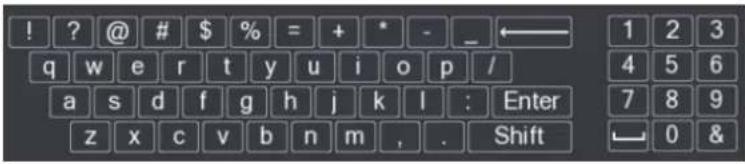 In numeral input mode: Click to clear and click to delete the previous character. In numeral input mode: Click to clear and click to delete the previous character. | |
| Double-click left mouse button | Implement special control operations such as double-click one item in the file list to play back the video. |
| In multiple-window mode, double-click one channel to view in full-window. Double-click current video again to go back to previous multiple-window mode. | |
| Right-click | Right-click in live view window interface, the shortcut menu is displayed. For different series product, the shortcut menu may vary. |
| Exit current menu without saving the modification. | |
| Click scroll wheel button | In numeral input box: Increase or decrease numeral value. |
| Switch the items in the combo box. | |
| Page up or page down. | |
| Point to select and move | Select current control and move it. |
| Dragging a selection box with left mouse button | Select motion detection zone. |
| Select privacy mask zone. |
Table 3-25
This chapter introduces the typical connection diagrams and ports connections.
4.1 Typical Connection Diagram

NOTE
The following figure is for reference only. The actual product shall govern.

text_image
Alarm Input Alarm Output Video Input Audio Input PTZ RS485 VGA Output Power Switch USB Port Audio Output HDMI Output Network Switch Power Socket Power Cable Fastener Network User Network User Network User Network KeyboardFigure 4-1

text_image
Video Input Audio Input PTZ VGA Output VIDEO IN AUDIO VGA HDMI Audio Out HDMI Output Network User Network User Network User Network UserFigure 4-2
4.2 Connecting to Video and Audio Input and Output
4.2.1 Video Input
The video input interface is BNC. The input video format includes: PAL/NTSC BNC (1.0V P-P, 75Ω).
The video signal should comply with your national standards.
The input video signal shall have high SNR, low distortion; low interference, natural color, and suitable lightness.
Guarantee the stability and reliability of the camera signal
The camera shall be installed in a cool, dry place away from the conditions such as direct sunlight, inflammable, and explosive substances.
The camera and the DVR should have the same grounding to ensure the normal operation of the camera.
Guarantee stability and reliability of the transmission line
Please use high quality, sound shielded BNC. Please select suitable BNC model according to the transmission distance.
If the distance is too long, you should use twisted pair cable, and you can add video compensation devices or use optical fiber to ensure video quality.
You should keep the video signal away from the strong electromagnetic interference, especially the high tension current.
Keep connection lugs in well contact
The signal line and shielded wire should be fixed firmly and in well connection. Avoid dry joint, lap welding, and oxidation.
4.2.2 Video Output
Video output includes a BNC (PAL/NTSC1.0V _P-P , 75Ω) output, a VGA output, and HDMI output. System supports BNC, VGA and HDMI output at the same time.
When you are using pc-type monitor to replace the monitor, please pay attention to the following points:
- To defer aging, do not allow the pc monitor to run for a long time.
- Regular demagnetization will keep device maintain proper status.
- Keep it away from strong electromagnetic interference devices.
Using TV as video output device is not a reliable substitution method. You also need to reduce the working hour and control the interference from power supply and other devices. The low quality TV may result in device damage.
4.2.3 Audio Input
This series of products audio input port adopt BNC port.
Due to high impedance of audio input, please use active sound pick-up.
Audio transmission is similar to video transmission. Try to avoid interference, dry joint, loose contact and it shall be away from high tension current.
4.2.4 Audio Output
The audio output signal parameter is usually over 200mv 1KΩ (BNC or RCA). It can directly connect to low impedance earphone, active sound box or amplifier-drive audio output device.
If the sound box and the pick-up cannot be separated spatially, it is easy to arouse squeaking. In this case you can adopt the following measures:
- Use better sound pick-up with better directing property.
- Reduce the volume of the sound box.
- Using more sound-absorbing materials in decoration can reduce voice echo and improve acoustics environment.
- Adjust the layout of speaker and pickup to reduce squeaking.
4.3 Connecting to Alarm Input and Output
Please read the followings before connecting.
Alarm input
- Make sure alarm input mode is grounding alarm input.
- Grounding signal is needed for alarm input.
- Alarm input needs the low level voltage signal.
- Alarm input mode can be either NC (Normally Closed) or NO (Normally Open).
- When you are connecting two DVRs or you are connecting one DVR and one other device, use a relay to separate them.
Alarm output
The alarm output port should not be connected to high power load directly (It shall be less than 1A) to avoid high current which might result in relay damage. Use the contactor to realize the connection between the alarm output port and the load.
How to connect PTZ decoder
- Ensure the decoder has the same grounding with DVR; otherwise the PTZ might not be controlled. Shielded twisted wire is recommended and the shielded layer is used to connect to the grounding.
- Avoid high voltage. Ensure proper wiring and some thunder protection measures.
- For too long signal wires, 120Ω should be parallel connected between A, B lines on the far end to reduce reflection and guarantee the signal quality.
- “485 A, B” of DVR cannot parallel connect with “485 port” of other device.
- The voltage between of A, B lines of the decoder should be less than 5V.
Make sure the front-end device has soundly earthed
Improper grounding might result in chip damage.
4.3.1 Introducing Alarm Port

NOTE
The alarm input ports are dependent on the model you purchased.

text_image
↓ NO1 C1 ↓ NO2 C2 ↓ NO3 C3 ↓ NO4 C4 ↓ NO5 C5 NC5 ↓ CTRL 12V T+ T- R+ R- 1 2 3 4 ↓ 5 6 7 8 ↓ A B ↓ 9 10 11 12 ↓ 13 14 15 16 ↓ ↓Figure 4-3
| Icon | Description |
| 1, 2, 3, 4, 5, 6,7, 8, 9, 10, 11,12, 13, 14, 15, 16 | ALARM 1 to ALARM 16. The alarm becomes active in low voltage. |
| NO1 C1, NO2 C2,NO3 C3, NO4 C4 | There are four groups of normally open activation output (on/off button). |
| NO5 C5 NC5, | There is one group of normally open activation output (on/off button). |
| CTRL 12V | Control power output of the alarm output channel 6. Electric current:500mA.When there is an alarm output, close the power output.When the alarm is cancelled, open the power output. |
| +12V | Rated power supply.Electric current: 500mA. |
| [wz34] | Ground cable. |
| 485 A/B | 485 communication port. They are used to control devices such as decoder. 120Ω should be parallel connected between A, B lines if there are too many PTZ decoders. |
| T+,T-,R+,R- | Four-wire full-duplex RS-485 port.T+ T-: output wire.R+ R-: input wire. |
Table 4-1
4.3.2 Alarm Input
Refer to the following figure for more information.
- Grounding alarm inputs which includes NO (Normally Open) and NC (Normally Closed) type.
- Parallel connect COM end and GND end of the alarm detector (Provide external power to the alarm detector).
-
Parallel connect the Ground of the DVR and the ground of the alarm detector.
-
Connect the NC port of the alarm sensor to the DVR alarm input (ALARM).
- Use the same ground with that of DVR if you use external power to the alarm device.

flowchart
graph TD
    A["+12V"] --> B["GND"]
    C["+12V"] --> D["GND"]
    E["+12V"] --> F["COM"]
    G["PC"] --> H["COM"]
    I["Alarm device connection terminal"] --> J["ALARM"]
    K["Alarm device connection terminal"] --> L["GND"]
Figure 4-4
4.3.3 Alarm Output
- Provide external power to external alarm device.
• To avoid overloading, read the following relay parameters table carefully.
• RS-485 A/B cable is for the A/B cable of the PTZ decoder.
4.3.4 Alarm Output Relay Parameters

NOTE
Refer to the actual product for relay model information.
| Model | HFD23/005-1ZS | HRB1-S-DC5V | |
| Material of the touch | AgNi+ gold-plating | AuAg10/AgNi10/CuNi30 | |
| Rating (Resistance Load) | Rated switch capacity | 30V DC 1A/125V AC 0.5A | 24V DC 1A/125V AC 2A |
| Maximum switch power | 62.5VA/30W | 250VA/48W | |
| Maximum switch voltage | 125V AC/60V DC | 125V AC/60V DC | |
| Maximum switch currency | 2A | 2A | |
| Insulation | Between touches | 400VAC 1 minute | 500VAC 1 minute |
| Between touch and winding | 1000VAC 1 minute | 1000VAC 1 minute | |
| Turn-on Time | 5ms maximum | 5ms maximum | |
| Turn-off Time | 5ms maximum | 5ms maximum | |
| Longevity | Mechanical | 1 × 10^7 times(300 times/MIN) | 5 × 10^6 times(300 times/MIN) |
| Electrical | 1 × 10^5 times(30 times/MIN) | 2.5 × 10^4 times(30 times/MIN) | |
| Working Temperature | -30°C—+70°C | -40°C—+70°C | |
4.4 Connecting to RS-485 Port
____ Connect the RS-485 cable of the PTZ camera to the RS-485 port on the Device. Step 1 Ensure the match of A and B interfaces.
____ Connect the video out cable of the PTZ camera to the video input port on the Device. Step 2
Turn on the PTZ camera.Step 3
Read the following notes prior to using the Device.
NOTE
- The interfaces in the Manual are used for introducing the operations and only for reference. The actual interface might be different dependent on the model you purchased. If there is inconsistency between the Manual and the actual product, the actual product shall govern.
- The Manual is a general document for introducing the product, so there might be some functions described for the Device in the Manual not apply to the model you purchased.
- Conventions for mouse operations on a menu.
◇ Click: On the menu, left-click the mouse once on an option to enter the option setting.
◇ Right-click: On any interface, right-click the mouse once to return to the previous level.
For details about mouse operations, see "3.4 Mouse Operations."
5.1 Initial Settings
5.1.1 Booting up

CAUTION
- Ensure the input voltage corresponds to the power requirement of the Device. Power on the Device after the power cable is properly connected.
- To protect the Device, connect the Device with the power cable first, and then connect to the power source.
- To ensure the stable work of the Device and the external devices connected to the Device and to prolong the HDD life, it is recommended to refer to the national related standard to use the power source that provides stable voltage with less interference from ripples. UPS power source is recommended.
____ Connect the Device to the monitor. Step 1
Step 2 Plug in the power cable to the Device.
Press the power button to turn on the Device. The power indicator light is on. Step 3 On the connected monitor, the live view screen is displayed by default. If you turn on the Device during the time period that is configured for recording, the system starts recording after it is turned on, and you will see the icon indicating recording status is working in the specific channels.
5.1.2 Initializing the Device
When booting up for the first time, you need to configure the password information for admin (by default).

NOTE
To secure the Device, it is strongly recommended for you to properly keep the password for admin and modify it regularly.
Turn on the Device. Step 1
The Location, Language and Video Standard interface is displayed. See Figure 5-1.

text_image
Device Initialization Location Please select Language English Video Standard PAL NextFigure 5-1
Step 2 Select your location from the drop-down list, then language and video standard will match your location automatically. You can change the language and video standard manually.
Click Next. Step 3
The Dahua Software License Agreement interface is displayed. See Figure 5-2.

text_image
DAHUA SOFTWARE LICENSE AGREEMENT 1. PREAMBLE IMPORTANT NOTICE, PLEASE READ CAREFULLY: 1.1 This Agreement is a Software License Agreement between you and Zhejiang Dahua Technology Co.,Ltd. (hereinafter referred to as 'Dahua'). Please read this software license agreement (hereinafter referred to as 'Agreement') carefully before using the Software. By using Dahua Software, you are deemed to agree to be bound by the terms of this Agreement. If you do not agree to the terms of this Agreement, please do not install or use the Software, and click the 'disagree' button (If there is any provision for 'agree' or 'disagree'). If the Software you get is purchased as part of Dahua device, and you do not agree to the terms of this Agreement, you may return this device/Software within the return period to Dahua or authorized distributor where you purchased from for a refund, but it should be subject to the Dahua's return policy. 1.2 Consent to use of data I have read and agree to all termsFigure 5-2
Step 4 Tick the check box that I have read and agree to all terms, and then click Next. The System Zone and System Time interface is displayed. See Figure 5-3.

text_image
Device Initialization System Zone (UTC+08:00)Beijing, Chongqing, Hong ... System Time 2019 -01 -21 11:22:10 NextFigure 5-3
Select system zone, configure system time, and then click Next. Step 5 The Enter Password interface is displayed. See Figure 5-4.

text_image
Device Initialization 1. Enter Password → 2. Unlock Pattern → 3. Password Protection User admin Password Use a password that has 8 to 32 characters, it can be a combination of letter(s), number(s) and symbol(s) with at least two kinds of them.(please do not use special symbols like ' '; &) Conf... Pro... NextFigure 5-4
Configure the password information for admin. For details, see Table 5-1. Step 6
| Parameter | Description |
| User | By default, the user isadmin. |
| Password | In thePasswordbox, enter the password for admin.The new password can be set from 8 characters through 32 characters and contains at least two types from number, letter and special characters (excluding", "", ",",":" and "&"). |
| Confirm Password | |
| Prompt Question | In thePrompt Questionbox, enter the information that can remind you of the password.NOTEOn the login interface, click , the prompt will display to help you find back the password. |
 | Clickto turn off the Device. |
Table 5-1
Click Next. Step 7
The Unlock Pattern interface is displayed. See Figure 5-5.

text_image
Device Initialization 1. Enter Password → 2. Unlock Pattern → 3. Password Protection Please draw the unlock pattern. Back SkipFigure 5-5
Draw an unlock pattern. Step 8
After the setting is completed, the Password Protection interface is displayed. See
Figure 5-6.

NOTE
- The pattern that you want to set must cross at least four points.
- If you do not want to configure the unlock pattern, click Skip.
- Once you have configured the unlock pattern, the system will require the unlock pattern as the default login method. If you skip this setting, enter the password for login.

text_image
Device Initialization 1. Enter Password → 2. Unlock Pattern → 3. Password Protection Email Address To reset password, please input properly or Security Questions update in time Question 1 What is your favorite children's book? Answer Question 2 What was the first name of your first boss? Answer Question 3 What is the name of your favorite fruit? Answer SaveFigure 5-6
Configure the protection parameters for password. For details, see Table 5-2. Step 9 After configuration, if you forget the password for admin user, you can reset the password through the reserved email address or security questions. For details about resetting the password, see "5.1.3 Resetting Password."
If you do not want to configure the settings, disable the email address and security questions functions on the interface.
| Password Protection Mode | Description |
| Email Address | Enter the reserved email address.In the Email Address box, enter an email address for password reset. If you forget the password, enter the security code that you will get from this reserved email address to reset the password of admin. |
| Security Questions | Configure the security questions and answers.If you forget the password, enter the answers to the questions can make you reset the password. |
| NOTEIf you want to configure the email or security questions function later or you want to change the configurations, select Main Menu > ACCOUNT > USER. | |
Table 5-2
Click Save to complete the settings. Step 10
The End-User License Agreement interface is displayed.
Step 11 Select I have read and agree to all terms check box.
Step 12 Click Next.
The Startup Wizard interface is displayed. For details about quick settings during startup, see "5.1.3.3 Resetting Password."
5.1.3 Resetting Password
You can reset the password by the following methods when you forget the password for admin account.
- If the password reset function is enabled, you can use mobile phone to scan the QR code to reset the password. For details, see "5.1.3.2 Resetting Password on Local Interface."
- If the password reset function is disabled, there are two situations:
If you configured security questions, you can find back the password by the security questions.
If you did not configure the security questions, you can only use the reset button on the mainboard to restore the Device to factory default. For details, see "5.1.3.3 Using Reset Button on the Mainboard."

NOTE
Not all models are provided with reset button.
5.1.3.1 Enabling Password Reset Function
Step 1 Select Main Menu > SYSTEM > SECURITY > System Service.
The System Service interface is displayed. See Figure 5-7.

text_image
SYSTEM GENERAL RS232 > SECURITY SYSTEM MAINTAIN IMP/EXP DEFAULT UPGRADE Firewall System Service Password Reset Mobile Phone Push CGI ONVIF NTP Server Audio/Video Transmis... The corresponding device or software shall support video decryption function. Apply BackFigure 5-7
Enable the Password Reset function. Step 2

NOTE
This function is enabled by default.
____ Click Apply to save the settings. Step 3
5.1.3.2 Resetting Password on Local Interface
Step 1 Enter the login interface.
- If you have configured unlock pattern, the unlock pattern login interface is displayed. See Figure 5-8. Click Forgot Pattern, the password login interface is displayed. See Figure 5-9.
- If you did not configure unlock pattern, the password login interface is displayed.
See Figure 5-9. Click to display the password with plaintext.

NOTE
To login from other user account, on the unlock pattern login interface, click Switch User; or on the password login interface, in the User Name list, select other users to login.

text_image
SYSTEM LOGIN admin Forgot Pattern Switch UserFigure 5-8

text_image
SYSTEM LOGIN User Name admin Password OK CancelFigure 5-9
Click

- If you have set the reserved email address, the Prompt message interface is displayed. See Figure 5-10.
- If you did not set the reserved email address, the email entering interface is displayed. See Figure 5-11. Enter the email address, and then click Next, the Prompt message interface is displayed. See Figure 5-10.

text_image
Prompt In order to provide a secure password reset environment, we need to collect your e-mail address, device MAC address, device SN, etc. All collected info is used only for the purposes of verifying device validity and sending a security code to you. Do you agree and want to continue the operation? OK CancelFigure 5-10

text_image
Reset Password Reset Type QR Code Email Address To reset password, please input properly or update in time Next CancelFigure 5-11
Click OK. Step 3
The Reset Password interface is displayed. See Figure 5-12.

NOTE
After clicking OK, the system will collect your information for password reset, and the information includes but not limited to email address, MAC address, and device serial number. Read the prompt carefully before clicking OK.

text_image
Reset Password Reset Type QR Code SN: 000000000000000000 Scan the QR code on the actual interface Note(For admin only): Option 1. Please download DMSS and then from More-Reset Device Password, scan the left QR code. Option 2. Please use an APP to scan the left QR code to get encryption strings. And then send the strings to support_rpwd@global.dahuatech.com. The security code will be delivered to 2***@qq.com. Security code New CancelFigure 5-12
Reset the password. Step 4
- QR code
Follow the onscreen instructions to get the security code in your reserved email address. In the Security code box, enter the security code.

CAUTION
- You can get the security code twice by scanning the same QR code. If you need to get the security code once again, refresh the interface.
- Use the security code received in your email box to reset the password within 24 hours; otherwise the security code becomes invalid.
• Security questions
1) On the Reset password interface as shown in Figure 5-11, in the Reset Type list, select Security Questions, the Security Questions interface is displayed, see Figure 5-13.

NOTE
If you did not configure the security questions before, in the Reset Type list, there will be no Security Questions.
2) In the Answer box, enter the correct answers.

text_image
Reset Password Reset Type Security Questions Question 1 What is your favorite children's book? Answer Question 2 What was the first name of your first boss? Answer Question 3 What is the name of your favorite fruit? Answer Next CancelFigure 5-13
Click Next. Step 5
The new password resetting interface is displayed. See Figure 5-14.

text_image
Reset Password Reset password of (admin) New Password Use a password that has 8 to 32 characters, it can be a combination of letter(s), number(s) and symbol(s) with at least two kinds of them.(please do not use special symbols like " "; & ) Confirm Password Save CancelFigure 5-14
Step 6 In the New Password box, enter the new password and enter it again in the Confirm Password box.
Click Save. The password resetting is started. Step 7
After resetting is completed, a pop-up message is displayed.
Click OK. Step 8
A pop-up message is displayed asking if you want to sync the password with the remote devices, see Figure 5-15.
- Click Cancel, the resetting is finished.
- Click OK, the Sync Info interface is displayed. See Figure 5-15.

text_image
Reset the password Reset password of (admin) New Password Use a password that has 8 to 32 Confirm Pass Message Do you want to sync Password with the remote device connecting via the default protocol? OK Cancel Save CancelFigure 5-15

NOTE
This message appears only when there are digital channels instead of only analog channels.

text_image
Sync Info Finished 2 Channel IP Address Results 1 9 192.168.9.156 Password:Succeed 2 10 192.168.9.59 Password:Succeed FinishedFigure 5-16
5.1.3.3 Using Reset Button on the Mainboard
You can always use the reset button on the mainboard to reset the Device to the factory default.
NOTE
Not all models are provided with reset button.
____ Disconnect the Device from power source, and then remove the cover panel. For Step 1 details about removing the cover panel, see "2.2 Installing HDD."
Find the reset button on the mainboard, and then press and hold the reset button for 5 Step 2 seconds to 10 seconds. See Figure 5-17 for the location of the reset button.

natural_image
Close-up of a printed circuit board with various electronic components and connectors (no readable text or symbols)Figure 5-17
____ Reboot the Device. Step 3
After the Device is rebooted, the settings have been restored to the factory default. You can start resetting the password.
5.1.4 Setting Up with the Startup Wizard
5.1.4.1 Entering Startup Wizard
The Startup Wizard helps you configure the basic settings to set up the Device.
After you have initialized the Device, the Startup Wizard interface is displayed. See Figure 5-18.

text_image
Startup Wizard Welcome to use startup wizard. This startup wizard will help you set parameters. Click Next to continue. ✓ Auto-check for updates Automatically notify me when updates are available. The system checks for updates daily. To inform you of the latest firmware upgrades for your device, we need to collect device info such as IP address, device name, language preference, firmware version, device SN, etc. All collected info is used only for the purposes of verifying device validity and pushing upgrade notifications. You can anytime withdraw your consent from Setting->System-> Upgrade on device interface.Figure 5-18

NOTE
- If you select the Auto-check for updates check box, the system will notify you automatically when updates are available.
- After the auto-check function is enabled, to notify you to update timely, the system will collect the information such as IP address, device name, firmware version, and device serial number. The collected information is only used to verify the legality of the Device and push upgrade notices.
- If you clear the Auto-check for updates check box, the system will not perform automatic checks.
5.1.4.2 Configuring General Settings
You can configure the general settings for the Device such as Device name, language, and settings for instant playback.
You can also configure general settings by selecting Main Menu > SYSTEM > GENERAL > General.
Step 1 On the Startup Wizard interface, click Next.
The General interface is displayed. See Figure 5-19.

text_image
General Device Name XVR Device No. 8 Language ENGLISH Video Standard NTSC Instant Play(Min.) 5 Auto Logout(Min.) 10 Monitor Channel(s) when I... IPC Time Sync IPC Time Sync Period (hour) 24 Navigation Bar Mouse Sensitivity - + 850 Back NextFigure 5-19
Configure the general settings parameters. See Table 5-3. Step 2
| Parameter | Description |
| Device Name | In the Device Name box, enter the Device name. |
| Device No. | In the Device No. box, enter a number for the Device. |
| Language | In the Language list, select a language for the Device system. |
| Video Standard | In the Video Standard list, select PAL or NTSC according to your actual situation. |
| Instant Play (Min.) | In the Instant Play box, enter the time length for playing back the recoded video. The value ranges from 5 to 60.On the live view control bar, click the instant playback button to play back the recorded video within the configured time. |
| Auto Logout (Min.) | In the Auto Logout box, enter the standby time for the Device. The Device automatically logs out when it is not working for the configured time period. You need to login the Device again.The value ranges from 0 to 60. 0 indicates there is not standby time for the Device.Click Monitor Channel(s) when logout. You can select the channels that you want to continue monitoring when you logged out. |
| IPC Time Sync | Syncs the Device time with IP camera. |
| IPC Time Sync Period (hour) | In the IPC Time Sync Period box, enter the interval for time sync. |
| Navigation Bar | Enable the navigation bar. When you click on the live view screen, the navigation bar is displayed. |
| Mouse Sensitivity | Adjust the speed of double-click by moving the slider.The bigger the value is, the faster the double-clicking speed must be. |
Table 5-3
5.1.4.3 Configuring Date and Time Settings
You can configure the system time, choose the time zone, set the daylight saving time, and enable the NTP server.
You can also configure date and time settings by selecting Main Menu > SYSTEM > GENERAL > Date &Time.
Step 1 After you have configured the general settings, on the General interface, click Next. The Date &Time interface is displayed. See Figure 5-20.

text_image
SYSTEM GENERAL RS232 SECURITY SYSTEM MAINTAIN IMP/EXP DEFAULT UPGRADE General Date&Time Holiday System Time 2019 -01 - 18 10 : 52 : 33 System Zone (UTC-11:00)Coordinated Universal Time-11 Date Format YYYY MM DD Date Separator - Time Format 24-HOUR DST DST Type Week Date Start Time 2000 -01 -01 00 : 00 End Time 2000 -01 -01 00 : 00 NTP Server time.windows.com Manual Update Port 123 Interval(Min.) 60 Apply BackFigure 5-20
Configure the settings for date and time parameters. See Table 5-4. Step 2
| Parameter | Description |
| System Time | In the System Time box, enter time for the system.Click the time zone list, you can select a time zone for the system, and the time in adjust automatically. CAUTIONDo not change the system time randomly; otherwise the recorded video cannot be searched. It is recommended to avoid the recoding period or stop recording first before you change the system time. CAUTIONDo not change the system time randomly; otherwise the recorded video cannot be searched. It is recommended to avoid the recoding period or stop recording first before you change the system time. |
| System Zone | In the System Zone list, select a time zone for the system. |
| Date Format | In the Date Format list, select a date format for the system. |
| Date Separator | In the Date Separator list, select a separator style for the date. |
| Time Format | In the Time Format list, select 12-HOUR or 24-HOUR for the time display style. |
| DST | Enable the Daylight Saving Time function. Click Week or click Date. |
| Start Time | Configure the start time and end time for the DST. |
| End Time | |
| NTP | Enable the NTP function to sync the Device time with the NTP server. |
| Server | In the Server box, enter the IP address or domain name of the corresponding NTP server.Click Manual Update, the Device starts syncing with the server immediately. |
| Port | The system supports TCP protocol only and the default setting is 123. |
| Interval (Min.) | In the Interval box, enter the amount of time that you want the Device to sync time with the NTP server. The value ranges from 0 to 65535. |
Table 5-4
5.1.4.4 Configuring Network Settings
You can configure the basic network settings such as net mode, IP version, and IP address of the Device.
You can also configure network settings by selecting Main Menu > NETWORK > TCP/IP.
Step 1 After you have configured the date and time settings, on the Date&Time interface, click Next.
The NETWORK interface is displayed. See Figure 5-21

text_image
NETWORK TCP/IP CONNECTION Wi-Fi 3G/4G PPPoE DDNS EMAIL UPnP SNMP MULTICAST REGISTER ALARM CENTER P2P 802.1x Net Mode Multi-address Default Ethernet Port Ethernet Port1 Ethernet Card Ethernet Port1 IP Version IPv4 MAC Address 26.12.12.05.10.32 DHCP IP Address 172 . 12 . 30 . 15 Subnet Mask 255 . 225 . 9 . 6 Default Gateway 172 . 12 . 0 . 1 DNS DHCP Preferred DNS 8 . 8 . 8 . 8 Alternate DNS 8 . 8 . 4 . 4 MTU 1500 Test Apply BackFigure 5-21
Configure the settings for network parameters. See Table 5-5. Step 2
| Parameter | Description |
| Net Mode | Multi-address: Two Ethernet ports work separately through either of which you can request the Device to provide the services such as HTTP and RTSP. You need to configure a default Ethernet port (usually the Ethernet port 1 by default) to request the services from the device end such as DHCP, Email and FTP. If one of the two Ethernet ports is disconnected as detected by networking testing, the system network status is regarded as offline.Fault Tolerance: Two Ethernet ports share one IP address. Normally only one Ethernet port is working and when this port fails, the other port will start working automatically to ensure the network connection.When testing the network status, the network is regarded as offline only when both of the two Ethernet ports are disconnected. The two Ethernet ports are used under the same LAN.Load Balance: Two network cards share one IP address and they are working at the same time to share the network load averagely. If one of them fails, the other can continue working normally. When testing the network status, the network is regarded as offline only when both of the two Ethernet ports are disconnected. The two Ethernet ports are used under the same LAN.NOTEThe Device with single Ethernet port does not support this function. |
| Default Ethernet Port | In the Ethernet Card list, select an Ethernet port as a default port.This setting is available only when the Multi-address is selected in the Net Mode list. |
| IP Version | In the IP Version list, you can select IPv4 or IPv6. Both versions are supported for access. |
| MAC Address | Displays the MAC address of the Device. |
| DHCP | Enable the DHCP function. The IP address, subnet mask and default gateway are not available for configuration once DHCP is enabled.If DHCP is effective, the obtained information will display in the IP Address box, Subnet Mask box and Default Gateway box. If not, all values show 0.0.0.0.If you want manually configure the IP information, disable the DHCP function first.If PPPoE connection is successful, the IP address, subnet mask, default gateway, and DHCP are not available for configuration. |
| IP Address | Enter the IP address and configure the corresponding subnet mask and default gateway. |
| Subnet Mask | NOTE |
| Default Gateway | IP address and default gateway must be in the same network segment. |
| DNS DHCP | Enable the DHCP function to get the DNS address from router. |
| Preferred DNS | In the Preferred DNS box, enter the IP address of DNS. |
| Alternate DNS | In the Alternate DNS box, enter the IP address of alternate DNS. |
| MTU | In the MTU box, enter a value for network card. The value ranges from 1280 byte through 1500 byte. The default is 1500.The suggested MTU values are as below.1500: The biggest value of Ethernet information package. This value is typically selected if there is no PPPoE or VPN connection, and it is also the default value of some routers, network adapters and switches.1492: Optimized value for PPPoE.1468: Optimized value for DHCP.1450: Optimized value for VPN. |
| Test | Click Test to test if the entered IP address and gateway are interworking. |
Table 5-5
5.1.4.5 Configuring P2P Settings
You can add the Device into your cell phone client or the platform to manage.
You can also configure P2P function by selecting Main Menu > NETWORK > P2P.

NOTE
Make sure the DVR is connected into the Internet, and if yes, in the Status box of the P2P interface, it shows Online.
Step 1 After you have configured the network settings, on the NETWORK interface, click Next.
The P2P interface is displayed. See Figure 5-22.

text_image
P2P Enable To assist you in remotely managing your device, the P2P will be enabled. After enabling P2P and connecting to Internet, we need to collect IP address, MAC address, device name, device SN, etc. All collected info is used only for the purpose of remote access. If you don't agree to enable P2P function, please deselect the check box. Status Offline Cell Phone Client Scan the QR code on the actual interface Device SN Scan QR to Download 000000000000000000 Back NextFigure 5-22
Enable the P2P function. Step 2

NOTE
After the P2P function is enabled and connected to the Internet, the system will collects your information for remote access, and the information includes but not limited to email address, MAC address, and device serial number.
You can start adding the device.
- Cell Phone Client: Use your mobile phone to scan the QR code to add the device into the Cell Phone Client, and then you can start accessing the Device.
- Platform: Obtain the Device SN by scanning the QR code. Go to the P2P management platform and add the Device SN into the platform. Then you can access and manage the device in the WAN. For details, refer to the P2P operation manual.

NOTE
- You can also enter the QR code of Cell Phone Client and Device SN by clicking

on the top right of the interfaces after you have entered the Main Menu.
- If selection of this function is canceled, the Message interface is displayed. See Figure 5-23. Choose to enable it or not according to your actual need.

text_image
Message P2P connection is different from mobile push function. If you want to stop pushing alarm information to remote client, please turn off " Mobile push" function from Setting->System-> Security->System Service.Figure 5-23
To use this function, take adding device into Cell Phone Client as an example.
Adding Device into Cell Phone Client
Use your cell phone to scan the QR code under Cell Phone Client to download the Step 1 application.
____ On your cell phone, open the application, and then tap Step 2
The menu is displayed. You can start adding the device.
1) Tap Device Manager.
The Device Manager interface is displayed. See Figure 5-24.

text_image
Device Manager Search Device Create device cardFigure 5-24
Tap + on the top right corner. 2)
The interface requiring device initialization is displayed. A pop-up message reminding you to make sure the Device is initialized is displayed.
3) Tap OK.
◇ If the Device has not been initialized, Tap Device Initialization to perform initializing by following the onscreen instructions.
◇ If the Device has been initialized, you can start adding it directly.
Tap Add Device. 4)
The Add Device interface is displayed. See Figure 5-25.

NOTE
You can add wireless device or wired device. The Manual takes adding wired device as an example.

text_image
P2P Register Mode: P2P Name: SN: Username: admin Password: Live Preview: Extra > Playback: Extra > Start Live PreviewFigure 5-25
Tap P2P. 5)
The P2P interface is displayed. See Figure 5-26.

text_image
P2P Register Mode: P2P Name: SN: Username: admin Password: Live Preview: Extra > Playback: Extra > Start Live PreviewFigure 5-26
6) Enter a name for the DVR, the username and password, scan the QR code under Device SN.
Tap Start Live Preview. 7)
The Device is added and displayed on the live view interface of the cell phone. See Figure 5-27.

text_image
Live Preview XVR7-4KL-CAM 1 2017-11-21 09:30 PM CAM 1 XVR7-4KL-CAM 3 2017-11-21 09:30 PM CAM 2 XVR7-4KL-CAM 4 2017-11-21 09:30 PM CAM 3 CAM 4 1/2Figure 5-27
5.1.4.6 Configuring Encode Settings
You can configure the settings of main stream and sub stream for the Device.
You can also configure encode settings by selecting Main Menu > CAMERA > ENCODE > Encode.
Step 1 After you have configured the P2P settings, on the P2P interface, click Next.
The Encode interface is displayed. See Figure 5-28.

text_image
Encode Channel 1 Main Stream Smart Codec Type General Compression H.265 Resolution 1920x1080(1080P) Frame Rate(FPS) 25 Bit Rate Type CBR Quality 4 I Frame Interval 1 S Bit Rate(Kb/S) 2048 More Setting Sub Stream Video Type Sub Stream 1 Compression H.265 Resolution 352x288(CIF) Frame Rate(FPS) 15 Bit Rate Type CBR Quality 4 I Frame Interval 1 S Bit Rate(Kb/S) 320 More Setting Default Copy Back NextFigure 5-28
Configure the settings for the main/sub streams parameters. See Table 5-6. Step 2
| Parameter | Description |
| Channel | In the Channel list, select the channel that you want to configure the settings for. |
| Smart Codec | Enable the smart codec function. This function can reduce the video bit stream for non-important recorded video to maximize the storage space. |
| Type | Main Stream: In the Type list, select General, MD (Motion Detect), or Alarm.Sub Stream: This setting is not configurable. |
| Compression | In the Compression list, select the encode mode.H.265: Main profile encoding. This setting is recommended.H.264H: High profile encoding. Low bit stream with high definition.H.264: Main profile encoding.H.264B: Baseline profile encoding. This setting requires higher bit stream compared with other settings for the same definition. |
| Resolution | In the Resolution list, select resolution for the video.The maximum video resolution might be different dependent on your device model. |
| Frame Rate (FPS) | Configure the frames per second for the video. The higher the value is, the clearer and smoother the image will become. Frame rate changes along with the resolution.Generally, in PAL format, you can select the value from 1 through 25; in NTSC format, you can select the value from 1 through 30. However, the actual range of frame rate that you can select depends on the capability of the Device. |
| Bit Rate Type | In the Bit Rate Type list, select CBR (Constant Bit Rate) or VBR (Variable Bit Rate). If you select CBR, the image quality cannot be configured; if you select VBR, the image quality can be configured. |
| Quality | This function is available if you select VBR in the Bit Rate List.The bigger the value is, the better the image will become. |
| I Frame Interval | The interval between two reference frames. |
| Bit Rate (Kb/S) | In the Bit Rate list, select a value or enter a customized value to change the image quality. The bigger the value is, the better the image will become. |
| Video | Enable the function for sub stream. |
| Audio Encode | Click More Setting, the More Setting interface is displayed.• Audio Encode: This function is enabled by default for main stream. You need to manually enable it for sub stream 1. Once this function is enabled, the recorded video file is composite audio and video stream.• Audio Source: In the Audio Source list, you can select LOCAL and HDCVI.3. LOCAL: The audio signal is input from Audio In port.4. HDCVI: The audio signal is input from HDCVI camera.• Audio Format: In the Audio Format list, select a format that you need. |
| Audio Source | |
| Audio Format |
Table 5-6
5.1.4.7 Configuring Snapshot Settings
You can configure the basic snapshot settings such as quantity of snapshot each time, channel(s) to take snapshot, and image size and quality of snapshot.
You can also configure general settings by selecting Main Menu > CAMERA > ENCODE > Snapshot.
For more information about snapshot settings, see "5.8 Configuring Snapshot Settings."
Step 1 After you have configured the encode settings, on the Encode interface, click Next.
The SNAPSHOT interface is displayed. See Figure 5-29.

text_image
SNAPSHOT Manual Snap 1 /Time Channel 1 Mode General Image Size 352x288(CIF) Image Quality 4 Interval 1 Second Default Copy Back NextFigure 5-29
Configure the settings for the snapshot parameters. See Table 5-7. Step 2
| Parameter | Description |
| Manual Snap | In the Manual Snap list, select how many snapshots you want to take each time. |
| Channel | In the Channel list, select the channel that you want to configure the settings for. |
| Mode | In the Mode list, you can select Human Face, Event, or General as the event type for which you want to take a snapshot.General: The snapshot is taken during the scheduled period.Event: The snapshot is taken when there is an alarm event occurs, such as motion detection event, video loss, and loca alarms.Human Face: The snapshot is taken when the face is detected.The face detection function is support only with the Channel 1. |
| Image Size | In the Image Size list, select a value for the image. The bigger the value is, the better the image will become. |
| Image Quality | Configure the image quality by 6 levels. The higher the level is, the better the image will become. |
| Interval | Configure or customize the snapshot frequency. |
Table 5-7
5.1.4.8 Configuring Basic Storage Settings
You can configure the settings for the situations when HDD is full, file length and time length of recorded video, and the settings if to auto-delete the old files.
You can also configure basic storage settings by selecting Main Menu > STORAGE > BASIC.
Step 1 After you have configured the encode settings, on the SNAPSHOT interface, click Next.
The BASIC interface is displayed. See Figure 5-30.

text_image
BASIC HDD Full Overwrite Pack Mode Time Length 60 Min. Auto-Delete Old Files Never Back NextFigure 5-30
Configure the basic storage settings parameters. See Table 5-8. Step 2
| Parameter | Description |
| HDD Full | Configure the settings for the situation when all the read/write discs are full, and there are no more free discs.SelectStop Recordto stop recordingSelectOverwriteto overwrite the recorded video files always from the earliest time.[WSCT]NOTEThe locked recorded video files will not be overwritten. |
| Pack Mode | Configure the time length and file length for each recorded video. |
| Auto-Delete Old Files | Configure whether to delete the old files and if yes, in theAuto-Delete Old Fileslist, selectCustomizedto configure the time length for how long you want to keep the old files. |
Table 5-8
5.1.4.9 Configuring Recorded Video Storage Schedule
You can configure the schedule for the recorded video such as channels to record, alarm settings, and the armed period.
You can also configure recorded video storage settings by selecting Main Menu > STORAGE > SCHEDULE > Record.
Step 1 After you have configured the basic storage settings, on the BASIC interface, click Next.
The Record interface is displayed. See Figure 5-31.

text_image
Record Channel 1 Pre-record 4 Sec. Redundancy All General MD Alarm MD&Alarm Intel POS 0 2 4 6 8 10 12 14 16 18 20 22 24 Sunday Monday Tuesday Wednesday Thursday Friday Saturday Default Copy Back NextFigure 5-31
Configure the record settings parameters. See Table 5-9. Step 2
| Parameter | Description |
| Channel | In the Channel list, select a channel to record the video. |
| Pre-record | In the Pre-record list, enter the amount of time that you want to start the recording in advance. |
| Redundancy | If there are several HDDs installed to the Device, you can set one of the HDDs as the redundant HDD to save the recorded files into different HDDs. In case one of the HDDs is damaged, you can find the backup in the other HDD.Select Main Menu > STORAGE > HDD MANAGER, and then set a HDD as redundant HDD.Select Main Menu > STORAGE > SCHEDULE > Record, and then select the Redundancy check box.If the selected channel is not recording, the redundancy function takes effect next time you record no matter you select the check box or not.If the selected channel is recording, the current recorded files will be packed, and then start recording according to the new schedule.NOTENot all models support this function.The redundant HDD only back up the recorded videos but not snapshots. |
| Event type | Select the check box of the event type which includes General, MD (motion detect, video loss, tempering, diagnosis), Alarm (IoT alarms, local alarms, alarms from alarm box, IPC external alarms, IPC Offline alarms), MD&Alarm, Intel (IVS events, face detection), and POS. |
| Period | Define a period during which the configured recording setting is active.  NOTEThe system only activates the alarm in the defined period. NOTEThe system only activates the alarm in the defined period. |
| Copy | Click Copy to copy the settings to other channels. |
Table 5-9
Define the video recording period by drawing or editing. By default, it is active all the Step 3 time.
- Define the period by drawing.
Select the check box of event type. See Figure 5-32. 1)

text_image
General MD Alarm MD&Alarm Intel POSFigure 5-32
Define a period. The system supports maximum six periods. 2)
Define for the whole week: Click ☐ next to All, all the icon switches to ☑, you can define the period for all the days simultaneously.
Define for several days of a week: Click before each day one by one, the icon switches to you can define the period for the selected days simultaneously.
3) On the timeline, drag to define a period. The Device starts recoding the selected event type in the defined period. See Figure 5-33.

bar
| Day | All | General | MD | Alarm | MD&Alarm | Intel | POS | | --------- | --- | ------- | --- | ----- | -------- | ----- | --- | | Sunday | | 16 | 8 | 24 | | | | | Monday | | 24 | | | | | | | Tuesday | | 19 | | | | 19 | | | Wednesday | | 24 | | | | | | | Thursday | | 19 | | | | | 13 | | Friday | | 24 | | | | | | | Saturday | | 24 | | | | | |Figure 5-33
The color bar indicates the event type that is effective in a defined period:

- Recording priority in case of event types are overlapped: MD&Alarm > Alarm > Intel > MD > General.
- Select the check box of event type, and then click to clear the defined period.
- When selecting MD&Alarm, the MD and Alarm check boxes will be cleared respectively.
- Define the period by editing. Take Sunday as an example.
Click

The Period interface is displayed. See Figure 5-34.

text_image
Period Current Date: Sunday Period 1 00:00 - 24:00 ✓ General □ MD □ Alarm □ MD&Alarm □ Intel □ POS Period 2 00:00 - 24:00 □ General □ MD □ Alarm □ MD&Alarm □ Intel □ POS Period 3 00:00 - 24:00 □ General □ MD □ Alarm □ MD&Alarm □ Intel □ POS Period 4 00:00 - 24:00 □ General □ MD □ Alarm □ MD&Alarm □ Intel □ POS Period 5 00:00 - 24:00 □ General □ MD □ Alarm □ MD&Alarm □ Intel □ POS Period 6 00:00 - 24:00 □ General □ MD □ Alarm □ MD&Alarm □ Intel □ POS Copy □ All Sunday □ Monday □ Tuesday □ Wednesday □ Thursday □ Friday □ Saturday Apply CancelFigure 5-34
Enter the time frame for the period and select the event check box. 2)
◇ There are six periods for you to set for each day.
Under Copy, select All to apply the settings to all the days of a week, or select specific day(s) that you want to apply the settings to.
3) Click Apply to save the settings.
Step 4 Click Apply to complete the settings.
NOTE
- Click Copy to copy the settings to other channels.
- After configuring the recording schedule settings, you need to perform the following operations to start recording according to the defined schedule.
Enable the alarm event and configure the settings for the recording channel. For details, see "5.10 Alarm Events Settings."
☐ You need to enable the recording function, see "5.9.1 Enabling Record Control."
5.1.4.10 Configuring Snapshot Storage Schedule
You can configure the storage schedule for the snapshot such as channels to take snapshot, alarm settings, and the armed period.
You can also configure snapshot storage settings by selecting Main Menu > STORAGE > SCHEDULE > Snapshot.
Step 1 After you have configured the video recording settings, on the Record interface, click Next.
The SNAPSHOT interface is displayed. See Figure 5-35.

text_image
Snapshot Channel 1 All General MD Alarm MD&Alarm Intel 0 2 4 6 8 10 12 14 16 18 20 22 24 Sunday Monday Tuesday Wednesday Thursday Friday Saturday Default Copy Back FinishedFigure 5-35
Configure the snapshot settings parameters. See Table 5-10. Step 2
| Parameter | Description |
| Channel | In the Channel list, select a channel to take a snapshot. |
| Event type | Select the check box of the event type which includes General, MD, Alarm, MD&Alarm, Intel, and POS. |
| Period | Define a period during which the configured snapshot setting is active. For details about defining a period, see "5.1.4.9 Configuring Recorded Video Storage Schedule." |
| Copy | Click Copy to copy the settings to other channels. |
Table 5-10
Click Finished. Step 3
A pop-up message is displayed.
Click OK. Step 4
The live view screen is displayed. The setting with startup wizard is completed. You can start using the Device.
____ (Optional) After the setting with startup wizard is completed, if the connected HDMI Step 5 display resolution is inconsistent with default resolution (1280*1024), a dialog box will pop up. See Figure 5-36. Choose to switch the resolution or not.

text_image
Change Resolution The monitor supports 3840 x 2160 resolution, do you want to change the device resolution? OK CancelFigure 5-36
5.2 Live View
After you logged in the Device, the live view is displayed. See Figure 5-37. The number of channels displayed depends on your model.

text_image
CAM 1 i 1
natural_image
Exterior view of a paved walkway with wooden railings and blue bollards, surrounded by trees and a distant gate (no signage or text visible)
natural_image
Interior view of a subway station corridor with pedestrians walking, no visible text or signage
text_image
CAM 4 ? 4Figure 5-37
Also, you can click on the top right of the main interface to enter the live view screen. See Figure 5-38.

text_image
XVR 4.0 LIVE VIDEO View, search, and play recorded videos. ALARM View and search live alarm Information. Configure alarm event actions. SMART DETECTION Search SMD, face detection, and IVS information, and configure related settings. POS View POS information and configure related settings. IoT IoT live video preview, search, export reports, and configure function settings. BACKUP Search and back up video files. MANAGEMENT CAMERA NETWORK STORAGE SYSTEM ACCOUNT INFOFigure 5-38
5.2.1 Live View Screen
You can view the live video from the connected cameras through each channel on the screen.
- By default, the system time, channel name and channel number are displayed on each channel window. This setting can be configured by selecting Main Menu > CAMERA > OVERLAY.
- The figure in the bottom right corner represents channel number. If the channel position is changed or the channel name is modified, you can recognize the channel number by this figure and then perform the operations such as record query and playback.
For the icons displayed on each channel, see Table 5-11.
| Icon | Function |
| Indicates recording status. This icon displays when the video is being recorded. | |
| This icon displays when the motion detection occurs in the scene. | |
| This icon displays when the video loss is detected. | |
| This icon displays when the channel monitoring is locked. |
Table 5-11
TIPS
To switch the position of two channels, point to one of the two channels, and then drag the window to the other channel.
5.2.2 Live View Control Bar
The live view control bar provides you access to perform the operations such as playback, zoom, real-time backup, manual snapshot, voice talk, adding remote devices, and streams switch.
When you move the pointer to the top middle position of a channel window, the live view control bar is displayed. See Figure 5-39 for analog channel and Figure 5-40 for digital channel.

If there is not operation for six seconds after the control bar is displayed, the control bar hides automatically.

text_image
1 2 3 4 5 6 7Figure 5-39

text_image
Interior photo of a subway station platform with visible signage and digital displays, including phone icons and station numbers 8 and 9.Figure 5-40
| No. | Function | No. | Function | No. | Function |
| 1 | Instant Play | 4 | Manual Snap | 7 | Siren |
| 2 | Digital Zoom | 5 | Mute | 8 | Audio Talk |
| 3 | Real-time Backup | 6 | White Light | 9 | Camera Registration |
Table 5-12
5.2.2.1 Instant Playback
You can play back the previous five minutes to sixty minutes of the recorded video.
By clicking the instant playback interface is displayed. The instant playback has the following features:
- Move the slider to choose the time you want to start playing.
- Play, pause and close playback.
- The information such as channel name and recording status icon are shielded during instant playback and will not display until exited.
- During playback, screen split layout switch is not allowed.
- To change the playback time, select Main Menu > SYSTEM > GENERAL, in the Instant Play box, enter the time you want to play back. See Figure 5-41.

text_image
SYSTEM GENERAL RS232 SECURITY SYSTEM MAINTAIN IMP/EXP DEFAULT UPGRADE General Date&Time Holiday Device Name XVR Device No. 8 Language ENGLISH Video Standard PAL Instant Play(Min.) 5 Auto Logout(Min.) 2 Monitor Channel(s) when logout IPC Time Sync IPC Time Sync Period (hour) 24 Navigation Bar Mouse Sensitivity - + 850 Apply BackFigure 5-41
5.2.2.2 Digital Zoom
You can enlarge a specific area of the image to view the details by either of the following two ways.
- Click +, the icon switches to 🔍. Hold down the left mouse button to select the area you want to enlarge. The area is enlarged after the left mouse button is released.
- Point to the center that you want to enlarge, rotate the wheel button to enlarge the area.

NOTE
- For some models, when the image is enlarged in the first way described previously, the selected area is zoomed proportionally according to the window.
- When the image is in the enlarged status, you can drag the image toward any direction to view the other enlarged areas.
- Right-click on the enlarged image to return the original status.
5.2.2.3 Real-time Backup
You can record the video of any channel and save the clip into a USB storage device.
By clicking, the recording is started. To stop recording, click this icon again. The clip is automatically saved into the connected USB storage device.
5.2.2.4 Manual Snapshot
You can take one to five snapshots of the video and save into a USB storage device.
By clicking you can take snapshots. The snapshots are automatically saved into the connected USB storage device. You can view the snapshots on your PC.

NOTE
To change the quantity of snapshots, select Main Menu > CAMERA > ENCODE > Snapshot, in the Manual Snap list, select the snapshot quantity.
5.2.2.5 Mute (Analog channel only)
You can mute the video sound by clicking . This function is supported in single-channel view.
5.2.2.6 White Light (Supported on camera with white light function)
Click to manually control the camera to turn on the white light function.
5.2.2.7 Siren (Supported on camera with siren function)
Click to manually control the camera to generate alarm sound.
5.2.2.8 Bidirectional Talk (Digital channel only)
You can perform the voice interaction between the Device and the remote device to improve efficiency of emergency. This function is supported only when the remotely connected IPC device supports bidirectional talk.
- Click 📁, the icon switches to 📋, the bidirectional talk of the remote device is turned on. The bidirectional talk of other digital channels is disabled.
- Click 📂 to cancel the bidirectional talk. The bidirectional talk of other digital channels is resumed.
5.2.2.9 Remote Devices (Digital channel only)
You can view the information of remote devices and add new remote devices to replace the current connected devices.
By clicking, the Camera Registration interface is displayed. For details about adding the remote devices, see "5.6 Configuring Remote Devices."
5.2.3 Navigation Bar
You can access the functions to perform operations through the function icons on the navigation bar. For example, you can access Main Menu and switch window split mode. See Figure 5-42.

The navigation bar is disabled by default. It does not appear in the live view screen until it is enabled. To enable it, select Main Menu > SYSTEM > GENERAL, enable the Navigation Bar, and then click Apply.

text_image
Toolbar with application icons and labels, including home, folder, search bar, and document iconFigure 5-42
| Icon | Function |
 | Open Main Menu. |
 | Expand or condense the navigation bar. |
 | Select view layout. |
 | Go to the previous screen. |
 | Go to the next screen. |
 | Enable tour function. The icon switches to [IMAGE] |
 | Open the PTZ control panel. For details, see "5.4 Controlling PTZ Cameras." |
 | Open theColor Settinginterface. For details, see "5.2.5 Color Setting.""NOTEThis function is supported only in single-channel layout. |
 | Open the record search interface. For detail, see "5.9 Playing Back Video." |
 | Open theEVENTinterface to view the device alarm status. For details, see "5.20.3 Viewing Event Information." |
 | Open theCHANNEL INFOinterface to display the information of each channel. |
 | Open theCAMERA REGISTRATIONinterface. For details, see "5.6.1 Adding Remote Devices." |
 | Open theNETWORKinterface. For details, see "5.15.1 Configuring Network Settings." |
 | Open theHDD MANAGERinterface. For details, see "5.18.3 Configuring HDD Manager." |
 | Open theUSB MANAGERinterface. For details about USB operations, see "5.14.2 Backing up Files", "5.20.2 Viewing Log Information", "5.19.5 Exporting and Importing System Settings", "5.19.7 Upgrading the Device." |
Table 5-13
5.2.4 Shortcut Menu
You can quickly access some function interfaces such as main menu, record search, PTZ setting, color setting and select the view split mode.
Right-click on the live view screen, the shortcut menu is displayed. See Figure 5-43. For details about the functions of shortcut menu, see Table 5-14.

NOTE
After you access any interface through shortcut menu, you can return to the previous screen by right-clicking on the current screen.

text_image
Main Menu Search PTZ View 1 View 4 View 8 View 9 View 16 View 25 View 36 Previous Screen Next Screen Camera Registration Manual Preview Mode Auto Focus Color Setting Image Sub PortFigure 5-43
| Function | Description |
| Main Menu | Open Main Menu interface. |
| Search | Open the PLAYBACK interface where you can search and play back record files. |
| PTZ | Open the PTZ interface. |
| View Layout | Configure the live view screen as a single-channel layout or multi-channel layout. |
| Previous Screen | Click Previous Screen to go to the previous screen. For example, if you are using 4-split mode, the first screen is displaying the channel 1-4, click Next screen, you can view channel 5-8. |
| Next Screen | |
| Camera Registration | Open the CAMERA REGISTRATION interface. For details, see "5.6 Configuring Remote Devices Adding Remote Devices." |
| Manual | Select Record, you can configure the recording mode as Auto or Manual, or stop the recording. You can also enable or disable snapshot functionSelect Alarm Out, you can configure alarm output settings. |
| Preview Mode | Select General, the layout of live view screen is as default.Select Show Face List, the detected face snapshots are displayed in the bottom of the live view screen. |
| Auto Focus | Point to the channel window and right-click on it to open the shortcut menu, and then clickAuto Focus.NOTENot all cameras support this function. |
| Color Setting | Open theCOLORinterface where you can adjust the video image color. |
| Image | Click to modify the camera properties. |
| Sub Port | Click to switch to extra screen control. |
Table 5-14
5.2.5 Color Setting
You can adjust the video image color effect such as sharpness, brightness, and contrast. The parameters are different according to the connected camera type. Take analog channel as an example.
In the live view screen, right-click on the analog channel to see the shortcut menu, and then select Color Setting, the COLOR interface is displayed. See Figure 5-44.
For details, see "5.5.1 Configuring Image Settings."

text_image
COLOR Period Period 1 Effective Time 00:00 - 24:00 Saturation + 50 Brightness + 50 Contrast + 50 Hue + 50 Sharpness + 1 Color Mode Standard EQ + 0 Position + 16 Customized Default Apply BackFigure 5-44
| Parameter | Description |
| Period | Divide 24 hours into two periods and configure the corresponding color settings. |
| Effective Time | Enable the function and then set the effective time for each period. |
| Sharpness | Adjust the sharpness of image edge. The bigger the value is, the more obvious the image edge, and the noise is also greater.The value ranges from 1 to 15. The default value is 1. |
| Hue | Adjust the hue of image. The value ranges from 0 to 100. The default value is 50. |
| Brightness | Adjust the image brightness. The value ranges from 0 to 100. The default value is 50.The bigger the value is, the brighter the image will become. You can adjust this value when the image as a whole looks dark or bright. However, the image is likely to become dim if the value is too big.The recommended range is between 40 and 60. |
| Contrast | Adjust the image contrast. The bigger the value is, the more obvious the contrast between the light area and dark area will become. You can adjust this value when the contrast is not obvious. However, if the value is too big, the dark area is likely to become darker and the light area over exposed. If the value is too small, the image is likely to become dim.The value ranges from 0 to 100. The default value is 50. The recommended range is between 40 and 60. |
| Saturation | Adjust the color shades. The bigger the value, the lighter the color will become. This value does not influence the general image lightness.The value ranges from 0 to 100. The default value is 50. The recommended range is between 40 and 60. |
| Color Mode | In the Color Mode list, you can select Standard, Soft, Bright, Colorful, Bank, Customized 1, Customized 2, Customized 3, and Customized 4.The sharpness, hue, brightness, contrast and saturation will adjust automatically according to the selected color mode. |
| EQ | Enhance the image effect. Adjust the effect value.Click , i  e is adjusted to the optimized effect automatically.Click e is adjusted to the optimized effect automatically.Click  the current effect setting will be locked.NOTEOnly HD analog channel supports this function. the current effect setting will be locked.NOTEOnly HD analog channel supports this function. |
| Position | Adjust the display position of the image in the channel window. The value indicates pixel. The default value is 16.NOTEThis function is only supported by analog channel. |
| Customized | You can customize four color modes.1. Click Customized. The Customized Color interface is displayed.2. In the Color Mode list, select Customized 1, for example. Then configure the settings for sharpness, hue, brightness contrast and saturation. If you select All, the configuration will applies to all four customized color modes.3. Click OK.4. On the COLOR interface, in the Color Mode list, you can select the customized color mode. |
Table 5-15
5.2.6 Live View Display
5.2.6.1 Configuring Display Settings
You can configure the display effect such as displaying time title and channel title, adjusting image transparency, and selecting the resolution.
Select Main Menu > DISPLAY > Display. Step 1 The DISPLAY interface is displayed. See Figure 5-45.

text_image
DISPLAY DISPLAY VIEW TOUR ZERO-CHANNEL TV ADJUST Main Screen Extra Screen Out Port VGA/HDMI1 Enable ✓ Time Display Out Port HDMI2 ✓ Channel Title Resolution 1280x720 Original Rate ✓ IVS Rule Preview ✓ SMD Preview ✓ Live Audio Live Audio Volume - + 50 Transparency - + 0% Resolution 1280x1024 Preview Mode General Apply BackFigure 5-45
Configure the settings for the display parameters. See Table 5-16. Step 2
| Parameter | Description |
| Parameter | Description | |
| Main Screen | Out Port | Indicates the main screen port. |
| Time Display | Select the Time Display check box, the current system time displays in each channel window in live view screen. To hide the time, clear the check box. | |
| Channel Title | Select the Channel Title check box, the channel name, channel number and recording status display in each channel window in live view screen. To hide the time, clear the check box. | |
| Original Rate | Select the Original Rate check box, the video image displays in its actual size in the channel window. | |
| IVS Rule Preview | Select the IVS Rule Preview check box to enable IVS rule preview function. | |
| SMD Preview | Select the SMD Preview check box to enable SMD preview function.NOTEMaximum three SMD boxes can be displayed at the same time. | |
| Live Audio | Select the Live Audio check box to enable the audio adjustment function in the channel window on the live view screen.Move the slider to adjust the volume of live audio. | |
| Live Audio Volume | ||
| Transparency | Configure the transparency of the graphical user interface (GUI). The higher the value, the more transparent the GUI becomes. | |
| Resolution | Select resolution for the video. The default resolution for VGA port and HDMI port is 1280×1024.NOTESome of the resolution options might not be supported on the HDMI port. | |
| Preview Mode | General: No information is displayed on the channel window.Show Face List: Displays the detected face snapshots taken as a result of face detection on the bottom of the live view screen.NOTENot all models support this function. | |
| Extra Screen | Enable | Enable extra screen function. After this function is enabled, you can select which port as extra screen port, and the other port automatically becomes the main screen port. |
| Out Port | Select the VGA port or HDMI port as the port connected by a secondary monitor. For example, if you select HDMI port as the extra screen port, the VGA port automatically becomes the main screen port. A device that supports HDMI2 can only select HDMI2. | |
| Resolution | Select resolution for the video. The default resolution for VGA | |
| port and HDMI port is 1280×720. ⓄNOTE Some of the resolution options might not be supported on the HDMI port. | ||
| [KSHK] NOTE The main menu does not display on the extra screen. If you do not enable the extra screen function, both the VGA port and HDMI port display the same image. | ||
Table 5-16
5.2.6.2 Configuring Viewing Layout
You can configure the view layout in the live view screen.
Step 1 Select Main Menu > DISPLAY > VIEW.
The View Setting interface is displayed. See Figure 5-46.

text_image
DISPLAY DISPLAY VIEW TOUR ZERO-CHANNEL TV ADJUST View Setting 1 2 3 4 5 6 7 8 9 10 11 12 13 14 15 16 Apply BackFigure 5-46
Configure the view layout by clicking the layout buttons on the bottom. See Figure 5-47. Step 2

Figure 5-47
For example, click 📄 and select 9-16, the view layout changes immediately, see Figure 5-48.

text_image
DISPLAY DISPLAY VIEW TOUR ZERO-CHANNEL TV ADJUST View Setting 9 10 11 12 16 15 14 13 Apply BackFigure 5-48
____ Adjust the position of channels if needed. Step 3
In the channel list, for example, in the channel 9 list, you can select 10, and then the channel 9 and channel 10 exchange positions.
____ Click Apply to complete the settings. Step 4
The live view screen displays the same layout as configured in this section.
5.2.6.3 Configuring Zero-Channel Settings
You can view several video sources on one channel on the web end.
Select Main Menu > DISPLAY > ZERO-CHANNEL. Step 1
The ZERO-CHANNEL interface is displayed. See Figure 5-49.

text_image
DISPLAY DISPLAY VIEW TOUR ZERO-CHANNEL TV ADJUST Enable Compression H.264 Resolution 704*576(D1) Frame Rate(FPS) 25 Bit Rate(Kb/S) 1024 Apply BackFigure 5-49
Configure the settings for the zero-channel parameters. See Table 5-17. Step 2
| Parameter | Description |
| Enable | Enable zero-channel function. |
| Compression | In the Compression list, select the video compression standard according to the device capability. The default is H.265. |
| Resolution | In the Resolution list, select the video resolution. The default is 704×576 (D1). |
| Frame Rate (FPS) | Select a value between 1 and 25 for PAL standard, and between 1 and 30 for NTSC standard. The actual arrange is decided and selected dependent on the Device capability. |
| Bit Rate (Kb/S) | The default value is 1024Kb/S. The actual arrange is decided and selected dependent on the Device capability and frame rate. |
Table 5-17
Click Apply to save the settings. Step 3
In the live interface on the web, click ☐ ☐ ☐ ☐ ☐ ☐ ☐ ☐ ☐ ☐ ☐ ☐ ☐ ☐ ☐ ☐ ☐ ☐ ☐ ☐ ☐ ☐ ☐ ☐ ☐ ☐ ☐ ☐ ☐ ☐ ☐ ☐ ☐ ☐ ☐ ☐ ☐ ☐ ☐ ☐ ☐ ☐ ☐ ☐ ☐ ☐ ☐ ☐ ☐ ☐ ☑ to select one of the multi-channel modes, and then you can view the local video image.
5.2.6.4 Configuring TV
NOTE
Not all models support this function.
You can adjust the border margins in top, bottom, left and right directions as well as the brightness of the monitor connected to the Video out port of the Device.
Step 1 Select Main Menu > DISPLAY > TV ADJUST.
The TV ADJUST interface is displayed. See Figure 5-50.

text_image
DISPLAY DISPLAY VIEW TOUR ZERO-CHANNEL > TV ADJUST Display Mode Main Screen Top Margin - + 0 Bottom Margin - + 0 Left Margin - + 0 Right Margin - + 0 Brightness - + 128 Default Apply BackFigure 5-50
Step 2 Configure the parameters according to your actual situation. Display mode can be Main Screen or Extra Screen.
____ Click Apply to complete the settings. Step 3
5.2.7 Configuring Tour Settings
You can configure a tour of selected channels to repeat playing videos. The videos display in turn according to the channel group configured in tour settings. The system displays one channel group for a certain period and then automatically changes to the next channel group.
Select Main Menu > DISPLAY > TOUR. Step 1
The TOUR interface is displayed. There are Main Screen tab and Extra Screen tab, see Figure 5-51 and Figure 5-52.

text_image
DISPLAY DISPLAY VIEW TOUR ZERO-CHANNEL TV ADJUST Main Screen Extra Screen Enable Interval(Sec.) 5 Video Detect View 1 Alarm View 1 Window Split View 1 16 ✓ Channel Group 1 ✓ 1 2 ✓ 2 3 ✓ 3 4 ✓ 4 5 ✓ 5 6 ✓ 6 7 ✓ 7 8 ✓ 8 9 ✓ 9 10 ✓ 10 11 ✓ 11 12 ✓ 12 Add Modify Delete Move up Move down Apply BackFigure 5-51

text_image
DISPLAY DISPLAY VIEW TOUR ZERO-CHANNEL TV ADJUST Main Screen Extra Screen Enable Interval(Sec.) 5 Window Split View 1 10 ✓ Channel Group 1 ✓ 1 2 ✓ 2 3 ✓ 3 4 ✓ 4 5 ✓ 5 6 ✓ 6 7 ✓ 7 8 ✓ 8 9 ✓ 9 10 ✓ 10 Add Modify Delete Move up Move down Apply BackFigure 5-52
Configure the settings for the tour parameters for both Main Screen and Extra Screen. Step 2 See Table 5-18.
| Parameter | Description |
| Enable | Enable tour function. |
| Interval (Sec.) | Enter the amount of time that you want each channel group displays on the screen. The value ranges from 5 seconds to 120 seconds, and the default value is 5 seconds. |
| Video Detect, Alarm | Select the View 1 or View 8 for Motion Detect tour and Alarm Tour (system alarm events). |
| Window Split | In the Window Split list, select View 1, View 4, View 8, or other modes that are supported by the Device. |
| Channel Group | Display all channel groups under the current Window Split setting.Add a channel group: Click Add, in the pop-up Add Group channel, select the channels to form a group, and then click Save.Delete a channel group: Select the check box of any channel group, and then click Delete.Edit a channel group: Select the check box of any channel group and then click Modify, or double-click on the group. The Modify Channel Group dialog box is displayed. You can regroup the channels.Click Move up or Move down to adjust the position of channel group. |
Table 5-18
____ Click Apply to save the settings. Step 3
TIPS
- On the top right of the live view screen, use the left mouse button or press Shift to switch between (image switching is allowed) and (image switching is not allowed) to turn on/off the tour function.
- On the navigation bar, click 📋 to enable the tour and click 📋 to disable it.
Adding a Channel Group
Click Add. Step 1
The Add Group interface is displayed. See Figure 5-53.

text_image
Add Group 1 2 3 4 5 6 7 8 9 10 11 12 13 14 15 16 17 18 19 20 21 22 23 24 Group Order: OK BackFigure 5-53
____ Select the channels that you want to group for tour. See Figure 5-54. Step 2

NOTE
If you want to select more than one channel, in the Window Split list, do not select View 1.

text_image
Add Group 1 2 3 4 5 6 7 8 9 10 11 12 13 14 15 16 17 18 19 20 21 22 23 24 Group Order: 5,6,7,8 OK BackFigure 5-54
Click OK to complete the settings. Step 3
Modifying a Channel Group
Double-click on a channel group, the Modify Channel Group interface is displayed. See Figure 5-55.
You can modify channel group and click OK to complete the settings.

text_image
Modify Channel Group 1 2 3 4 5 6 7 8 9 10 11 12 13 14 15 16 17 18 19 20 21 22 23 24 Group Order: 1,2,3,4 OK BackFigure 5-55
5.3 Entering Main Menu
Right-click on the live view screen, the shortcut menu is displayed, Click Main Menu and then login the system. The Main Menu is displayed, see Figure 5-56.

text_image
XVR4.0 1 VIDEO View, search, and play recorded videos. 2 POS View POS information and configure related settings. 3 ALARM View and search live alarm information. Configure alarm event: actions. 4 SMART DETECTION Search SMD, face detection, and IVS information, and configure related settings. 5 IOT IoT live video preview, search, export reports, and configure function settings. 6 BACKUP Search and back up video files. 7 MANAGEMENT CAMERA NETWORK STORAGE SYSTEM ACCOUNT INFOFigure 5-56
| No. | Icon | Description |
| 1 | Function tiles | Includes six function tiles:VIDEO, ALARM, SMART DETECTION, POS, IoT, and BACKUP. Click each tile to open the configuration interface of the tile.VIDEO: Search for and play back the recorded video saved on the Device.ALARM: Search for alarm information and configure alarm event actions.SMART DETECTION: Search SMD, face detection, and IVS information, and configure related settings.POS: You can connect the Device to the POS (Point of Sale) machine and receive the information from it.IoT: IoT live video preview, search, export reports, and configure function settings.BACKUP: Search and back up the video files to the external storage device such as USB storage device. |
| 2 | Switch icon | indicates the current page of main menu. Clickto switch to the next page. |
| 3 | Configura tion menu | Includes six configurations through which you can configure camera settings, network settings, storage settings, system settings, account settings, and view information. |
| 4 | Live | Clickto go to the live view screen. |
| 5 |  | When you point to  current user account is displayed. current user account is displayed. |
| 6 |  | Click  , select Logout, Reboot, or Shutdown according to your actual situation. , select Logout, Reboot, or Shutdown according to your actual situation. |
| 7 |  | Displays Cell Phone Client and Device SN QR Code.Cell Phone Client: Use your mobile phone to scan the QR code to add the device into the Cell Phone Client, and then you can start accessing the Device from your cell phone.Device SN: Obtain the Device SN by scanning the QR code. Go to the P2P management platform and add the Device SN into the platform. Then you can access and manage the device in the WAN. For details, refer to the P2P operation manual. You can also configure P2P function in the local configurations. See "5.1.4.5 Configuring P2P Settings." |
Table 5-19
5.4 Controlling PTZ Cameras
PTZ is a mechanical platform that carries a camera and a protective cover and performs overall control remotely. A PTZ can move in both horizontal and vertical direction to provide all-around view to the camera.

NOTE
Before operating PTZ, ensure the network connection between PTZ and the Device.
5.4.1 Configuring PTZ Connection Settings
You need to configure the PTZ connection settings before use.
- Local connection: RS-485 Port for connecting Speed Dome or coaxial cable for connecting coaxial camera.
- Remote connection: local area network.
Step 1 Select Main Menu > CAMERA > PTZ.
The PTZ interface is displayed. See Figure 5-57.

text_image
CAMERA IMAGE ENCODE OVERLAY PTZ CHANNEL TYPE REGISTRATION COAXIAL UPGRADE Channel 1 Speed 5 Zoom + Focus + Iris + PTZ Type Local Control Mode HDCVI Protocol HDCV13.0 Address 1 Baudrate 9600 Data Bits 8 Stop Bits 1 Parity None Copy Apply CancelFigure 5-57
Configure the settings for the PTZ connection parameters. See Table 5-20. Step 2
| Parameter | Description |
| Channel | In the Channel list, select the channel that you want to connect the PTZ camera to. |
| PTZ Type | Local: Connect through RS-485 port or coaxial cable.Remote: Connect through network by adding IP address of PTZ camera to the Device. |
| Control Mode | In the Control Mode list, select Serial or HDCVI. For HDCVI series product, select HDCVI. The control signal is sent to the PTZ through the coaxial cable. For the serial mode, the control signal is sent to the PTZ through the RS-485 port. |
| Protocol | In the Protocol list, select the protocol for the PTZ camera, for example, select HDCVI3.0. |
| Address | In the Address box, enter the address for PTZ camera. The default is 1. [ZTSW] NOTEThe entered address must be the same with the address configured on the PTZ camera; otherwise the PTZ camera cannot be controlled from the Device. |
| Baudrate | In the Baudrate list, select the baudrate for the PTZ camera. The default is 9600. |
| Data Bits | The default is 8. |
| Stop Bits | The default is 1. |
| Parity | The default is NONE. |
Table 5-20
____ Click Apply to save the settings. Step 3

NOTE
Click Copy to copy the settings to other channels.
5.4.2 Working with PTZ Control Panel
PTZ control panel performs the operations such as directing camera in eight directions, adjusting zoom, focus and iris settings, and quick positioning.
Basic PTZ Control Panel
Right-click on the live view screen and then select PTZ. The PTZ control panel is displayed. See Figure 5-58.

text_image
Speed 5 - Zoom + - Focus + - Iris +Figure 5-58

NOTE
The functions with buttons in gray are not supported by the system.
| Parameter | Description |
| Speed | Controls the movement speed. The bigger the value is, the faster the movement will be. |
| Zoom |  : Zoom out. : Zoom out. : Zoom in. : Zoom in. |
| Focus |  : Focus far. : Focus far. : Focus near. : Focus near. |
| Iris |  : Image darker. : Image darker. : Image brighter. : Image brighter. |
PTZ movement | Supports eight directions.Fast positioning button.Positioning: Click to enter the fast positioning screen, and then click anywhere on the live view screen, the PTZ will turn to this point and move it to the middle of the screen.Zooming: On the fast positioning screen, drag to draw a square on the view. The square supports zooming.1. Dragging upward is to zoom out, and dragging downward is to zoom in.2. The smaller the square, the larger the zoom effect.  Not all models support this function and can only be controlled through mouse operations. Not all models support this function and can only be controlled through mouse operations. |
 | Click  can control the four directions (left, right, up, and down)PTZ movement through mouse operation. can control the four directions (left, right, up, and down)PTZ movement through mouse operation. |
 | Click  open the expanded PTZ control panel. open the expanded PTZ control panel. |
Table 5-21
Expanded PTZ Control Panel
On the basic PTZ control panel, click to open the expanded PTZ control panel to find more options. See Figure 5-59.

text_image
Speed 5 - Zoom + - Focus + - Iris +Figure 5-59

NOTE
- The functions with buttons in gray are not supported by the system.
- Right-click once to return to the interface of PTZ basic control panel.
| Icon | Function | Icon | Function |
 | Preset |  | Auto Pan |
 | Tour |  | Flip |
 | Pattern |  | Reset |
 | Autoscan |  | Click the AUX Config icon to open the PTZ functions settings interface. |
 | AUX Switch |  | Click the Enter Menu icon to open the MENU OPERATION interface. |
Table 5-22
5.4.3 Configuring PTZ Functions
5.4.3.1 Configuring Presets
____ On the Expanded PTZ Control Panel, click Step 1 The Preset interface is displayed. See Figure 5-60.

text_image
PTZ Preset Tour Pattern Border Preset 1 Setting Del PresetFigure 5-60
____ Click the direction arrows to the required position. Step 2
In the Preset box, enter the value to represent the required position. Step 3
Click Setting to complete the preset settings. Step 4
5.4.3.2 Configuring Tours
____ On the Expanded PTZ Control Panel, click Step 1
The PTZ interface is displayed.
Click the Tour tab. Step 2
The Tour tab is displayed. See Figure 5-61.

text_image
PTZ Preset Tour Pattern Border Preset 1 Patrol No. 0 Add Preset Del Preset Del TourFigure 5-61
In the Patrol No. box, enter the value for the tour route. Step 3
In the Preset box, enter the preset value. Step 4
Click Add Preset. Step 5
A preset will be added for this tour.

NOTE
- You can repeat adding more presets.
- Click Del Preset to delete the preset for this tour. This operation can be repeated to delete more presets. Some protocols do not support deleting.
5.4.3.3 Configuring Patterns
On the Expanded PTZ Control Panel, click Step 1
The PTZ interface is displayed.
____ Click the Pattern tab. Step 2
The Pattern interface is displayed. See Figure 5-62.

text_image
PTZ Preset Tour Pattern Border Pattern 1 Start EndFigure 5-62
In the Pattern box, enter the value for pattern. Step 3
Step 4 Click Start to perform the directions operations. You can also go to the PTZ Control Panel to perform the operations of adjusting zoom, focus, iris, and directions.
Step 5 On the PTZ interface, click End to complete the settings.
5.4.3.4 Configuring AutoScan
On the Expanded PTZ Control Panel, click Step 1
The PTZ interface is displayed.
____ Click the Border tab. Step 2 The Border interface is displayed. See Figure 5-63.

text_image
PTZ Preset Tour Pattern Border Left RightFigure 5-63
____ Click the direction arrows to position the left and right borders. Step 3
5.4.4 Calling PTZ Functions
After you have configured the PTZ settings, you can call the PTZ functions for monitoring from the Expanded PTZ Control Panel. See Figure 5-64.

text_image
Speed 5 - Zoom + - Focus + - Iris +Figure 5-64
5.4.4.1 Calling Presets
On the Expanded PTZ Control Panel, in the No. box, enter the value of the preset that Step 1 you want to call.
____ Click to call the preset. Step 2
____ Click again to stop calling the preset. Step 3
5.4.4.2 Calling Tours
Step 1 On the Expanded PTZ Control Panel, in the No. box, enter the value of the tour that you want to call.
Click to call the tour. Step 2
Click again to stop calling the tour. Step 3
5.4.4.3 Calling Patterns
On the Expanded PTZ Control Panel, in the No. box, enter the value of the pattern that Step 1 you want to call.
____ Call to call the pattern. Step 2
The PTZ camera moves according to the configured pattern repeatedly.
____ Click again to stop calling the pattern. Step 3
5.4.4.4 Calling AutoScan
On the Expanded PTZ Control Panel, in the No. box, enter the value of the border that Step 1 you want to call.
Click Step 2
The PTZ camera performs scanning according to the configured borders.
Click again to stop auto scanning. Step 3
5.4.4.5 Calling AutoPan
____ On the Expanded PTZ Control Panel, click to start moving in horizontal direction. Step 1
Step 2 Click again to stop moving.
5.4.4.6 Using AUX Button
On the Expanded PTZ Control Panel, click 🔒 the AUX setting interface is displayed. See Figure 5-65.
- In the Direct Aux list, select the option that corresponds to the applied protocol.
- In the Aux Num box, enter the number that corresponds to the AUX switch on the decoder.

text_image
AUX Direct Aux NONE On Off Aux Num 1 On OffFigure 5-65
5.4.5 Calling OSD Menu
For the coaxial camera, you can call the OSD menu through the Expanded PTZ Control Panel. See Figure 5-64.
On the Expanded PTZ Control Panel, click Step 1
The MENU OPERATION interface is displayed. See Figure 5-66.

text_image
MENU OPERATION Enter CancelFigure 5-66
Click Enter. Step 2 The OSD menu is displayed. See Figure 5-67.

text_image
No HDD Format NTSC Video Mode 1080/425J Backlight Mode OFF > Image Adjustment Exposure White Balance Auto Day/Night AutoJ Language English Advanced Reset Exit CAM 1Figure 5-67
Step 3 On the MENU OPERATION interface, click the arrow button to select the onscreen parameters.
Click Enter to complete the settings. Step 4
5.5 Configuring Camera Settings
5.5.1 Configuring Image Settings
You can configure the image settings such as saturation, contrast, brightness, sharpness for each connected camera.
Select Main Menu > CAMERA > IMAGE. Step 1
The IMAGE interface is displayed. See Figure 5-68 for analog channel and Figure 5-69 for digital channel.

text_image
CAMERA > IMAGE ENCODE OVERLAY PTZ CHANNEL TYPE REGISTRATION COAXIAL UPGRADE Channel 1 Cable Type COAXIAL Period Time Period 1 Effective Time 00:00 - 24:00 Saturation + 50 Brightness + 50 Contrast + 50 Hue + 50 Sharpness + 1 Image Enhance + 30 NR + 80 Default Apply BackFigure 5-68

text_image
CAMERA > IMAGE ENCODE OVERLAY PTZ CHANNEL TYPE REGISTRATION COAXIAL UPGRADE Channel 10 2012-11-01 02:56:56 Config File Day Saturation + 50 Brightness + 50 Contrast + 50 Sharpness + 50 More Setting Default Refresh Apply BackFigure 5-69
Configure the settings for the image parameters. See Table 5-23. Step 2 On the digital channel interface, click More Setting to display more parameters.
| Parameter | Description |
| Channel | In the Channel list, select the channel that you want to configure. |
| Cable Type | In the Cable Type list, select the cable type that the camera uses. NOTENot all models support this function. |
| Period | In the Period list, select a time period for the image settings. The image settings will be only used during the selected period. |
| Effective Time | Enable the effective function.In the Effective Time box, enter the start time and end time for the period you selected. |
| Saturation | Adjusts the color shades. The bigger the value, the lighter the color will become. This value does not influence the general image lightness.The value ranges from 0 to 100. The default value is 50. The recommended range is between 40 and 60. |
| Contrast | Adjusts the image contrast. The bigger the value is, the more obvious the contrast between the light area and dark area will become. You can adjust this value when the contrast is not obvious. However, if the value is too big, the dark area is likely to become darker and the light area over exposed. If the value is too small, the image is likely to become dim.The value ranges from 0 to 100. The default value is 50. The recommended range is between 40 and 60. |
| Brightness | Adjusts the image brightness. The bigger the value is, the brighter the image will become. You can adjust this value when the image as a whole looks dark or bright. However, the image is likely to become dim if the value is too big.The value ranges from 0 to 100. The default value is 50. The recommended range is between 40 and 60. |
| Hue | Adjusts the hue of image. The value ranges from 0 to 100. The default value is 50. |
| Sharpness | Adjusts the sharpness of image edge. The bigger the value is, the more obvious the image edge, and the noise is also greater.The value ranges from 1 to 15. The default value is 1. |
| Image Enhance | Adjusts the image definition. The bigger the value is, the clearer the image will become, but there will be more noises. |
| NR | Reduces the noises from image. The bigger the value is, the better the image will become. |
| Config File | In the Config File list, select Day, Night, Normal, or Switch By Period. The system configures the parameters correspondingly.Day: Apply the configuration during daytime.Night: Apply the configuration during nighttime.Normal: Apply the configuration during day and night.Switch by Period: If you select this option, you need to configure the sunrise time and sunset time where you are located. |
| Mirror | Enable the function, the left and right side of the video image will be switched. It is disabled by default. |
| 3D Denoise | This function specially applies to the image which frame rate is configured as 2 at least. It reduces the noises by making use of the information between two frames. The bigger the value is, the better the effect. |
| Flip | In the Flip list, you can select 180^ to change the video image display. By default, the setting is No Flip. |
| Light | In the Light list, select Close or Enable to use the backlight compensation or not. |
| Scene Mode | Configure the white balance to adjust the general hue of the image. The default setting isAuto.Auto: Automatically apply white balance to different colors to make the image color display normally.Sunny: Apply the threshold value to sunny environment.Night: Apply the threshold value to night.Customized: Manually adjust the Red Gain and Blue Gain values. |
| Day & Night | Configure the color and black&white mode of the image. This setting is not affected by the configuration files. The default setting isAuto.Color: The camera outputs color image only.Auto: Depends on the camera, such as overall brightness and whether there is an IR light, either color image or black&white image is output.B/W: The camera outputs Black and white image only.By Time: The camera outputs image according to the configured sunrise time and sunset time. |
Table 5-23
Click Apply to complete the settings. Step 3
5.5.2 Configuring Encode Settings
5.5.2.1 Encode
Select Main Menu > CAMERA > ENCODE > Encode. Step 1 The Encode interface is displayed. See Figure 5-70.

text_image
CAMERA IMAGE Encode Snapshot Encode Enhanc... ENCODE CHANNEL 1 OVERLAY PTZ CHANNEL TYPE REGISTRATION COAXIAL UPGRADE Main Stream Smart Codec Type General Compression H.265 Resolution 1920x1080(1080P) Frame Rate(FPS) 30 Bit Rate Type CBR Quality 1 I Frame Interval 1 S Bit Rate(Kb/S) 2048 More Setting Sub Stream Video Type Sub Stream1 Compression H.265 Resolution 352x240(CIF) Frame Rate(FPS) 15 Bit Rate Type CBR Quality 4 I Frame Interval 1 S Bit Rate(Kb/S) 320 More Setting Default Copy Apply BackFigure 5-70
Configure the settings for the main/sub streams parameters. See Table 5-24. Step 2
| Parameter | Description |
| Channel | In the Channel list, select the channel that you want to configure the settings for. |
| Smart Codec | Enable the smart codec function. This function can reduce the video bit stream for non-important recorded video to maximize the storage space. |
| Type | Main Stream: In the Type list, select General, MD (Motion Detect), or Alarm.Sub Stream: This setting is not configurable. |
| Compression | In the Compression list, select the encode mode.H.265: Main profile encoding. This setting is recommended.H.264H: High profile encoding. Low bit stream with high definition.H.264: General profile encoding.H.264B: Baseline profile encoding. This setting requires higher bit stream compared with other settings for the same definition. |
| Resolution | In the Resolution list, select resolution for the video.The maximum video resolution might be different dependent on your device model. |
| Frame Rate (FPS) | Configure the frames per second for the video. The higher the value, the clearer and smoother the image will become. Frame rate changes along with the resolution.Generally, in PAL format, you can select the value from 1 through 25; in NTSC format, you can select the value from 1 through 30. However, the specific range of frame rate that you can select depends on the capability of the Device. |
| Quality | This function is available if you select VBR in the Bit Rate List.The higher the value, the better the image will become. |
| I Frame Interval | The interval between two reference frames. |
| Bit Rate (Kb/S) | In the Bit Rate list, select a value or enter a customized value to change the image quality. The bigger the value is, the better the image will become. |
| Video | Enable the function for sub stream. |
| Audio Encode | Click More Setting, the More Setting interface is displayed.• Audio Encode: This function is enabled by default for main stream. You need to manually enable it for sub stream 1. Once this function is enabled, the recorded video file is composite audio and video stream.• Audio Source: In the Audio Source list, you can select LOCAL and HDCVI.3. LOCAL: The audio signal is input from Audio input port.4. HDCVI: The audio signal is input from HDCVI camera.• Audio Format: In the Audio Format list, select a format that you need. |
| Audio Source | |
| Audio Format |
Table 5-24
Step 3 Click Apply to complete the settings.

NOTE
Click Copy to copy the settings to other channels.
5.5.2.2 Snapshot
Step 1 Select Main Menu > CAMERA > ENCODE > Snapshot.
The Snapshot interface is displayed. See Figure 5-71.

text_image
CAMERA IMAGE Encode Snapshot Encode Enhanc... ENCODE OVERLAY PTZ CHANNEL TYPE REGISTRATION COAXIAL UPGRADE Manual Snap 1 /Time Channel 1 Mode General Image Size 352x240(CIF) Image Quality 4 Interval 1 Second Default Copy Apply BackFigure 5-71
Configure the settings for the snapshot parameters. See Table 5-25. Step 2
| Parameter | Description |
| Manual Snap | In the Manual Snap list, select how many snapshots you want to take each time. |
| Channel | In the Channel list, select the channel that you want to configure the settings for. |
| Mode | In the Mode list, you can select General, Event, or Human Face as the event type for which you want to take a snapshot.General: The snapshot is taken during the scheduled period.Event: The snapshot is taken when there is an alarm event occurs, such as motion detection event, video loss, and loca alarms.Human Face: The snapshot is taken when the face is detected.The face detection function is support only with the Channel 1. |
| Image Size | In the Image Size list, select a value for the image. The bigger the value is, the better the image will become. |
| Image Quality | Configures the image quality by 6 levels. The higher the level, the better the image will become. |
| Interval | Configures or customizes the snapshot frequency. You can select 1 second per one snapshot to 7 seconds per one snapshot. The maximum is 3600 seconds per one snapshot. |
Table 5-25
Step 3 Click Apply to complete the settings.
5.5.2.3 Encode Enhancement

NOTE
- Only some series products support encode enhancement.
- Enabling or disabling this function will take effect after the device is rebooted.
This function is disabled by default. After it is enabled, when main stream resolution is 4K, the frame rate can be 10 fps.
Step 1 Select Main Menu > CAMERA > ENCODE > Encode Enhancement.
The Encode Enhancement interface is displayed. See Figure 5-72.

text_image
CAMERA IMAGE ENCODE OVERLAY PTZ CHANNEL TYPE REGISTRATION COAXIAL UPGRADE Encode Snapshot Encode Enhancement Encode Enhanc... LIVE Default Apply BackFigure 5-72
Step 2 Click

and Encode Enhancement, to enable this function.
5.5.3 Configuring Overlay Settings
You can configure to display system time and channel name on each channel window in the live view screen.
Select Main Menu > CAMERA > OVERLAY > Overlay. Step 1
The Overlay interface is displayed. See Figure 5-73.

text_image
CAMERA IMAGE ENCODE OVERLAY PTZ CHANNEL TYPE COAXIAL UPGRADE Overlay Cover-Area Channel 1 2018-01-31 11:10:00 CAM 1 Time Display YYYY MM DD Channel Title CAM 1 Default Copy Apply BackFigure 5-73
Configure the settings for the text overlay parameters. See Table 5-26. Step 2
| Parameter | Description |
| Channel | In the Channel list, select the channel that you want to configure the settings for. |
| Time Display | Select the Time Display check box to display the system time on each channel window in the live view screen.In the Time Display list, select time display style. |
| Channel Title | Select the Channel Title check box to display the channel name on each channel window in the live view screen.In the Channel Title box, enter the name for the selected channel. |
Table 5-26
Click Apply to complete the settings. Step 3

NOTE
Click Copy to copy the settings to other channels.
5.5.4 Configuring Covered Area Settings
Select Main Menu > CAMERA > OVERLAY > Cover-Area. Step 1
The Cover-Area interface is displayed. See Figure 5-74.

text_image
CAMERA IMAGE ENCODE > OVERLAY PTZ CHANNEL TYPE COAXIAL UPGRADE Overlay Cover-Area Channel 1 2 3 4 Preview Record 1 2 3 4 Default Apply BackFigure 5-74
Configure the settings for the covered area parameters. See Table 5-27. Step 2
| Parameter | Description |
| Channel | In the Channel list, select the channel that you want to configure the settings for. |
| Preview | Preview: Select the Preview check box to apply the configured covered block to the selected channel window in the live view screen.Record: Select the Record check box to apply the configured covered block to the selected channel window during recording.To configure covering block, do the following:1. Select the Preview check box or the Record check box, or select the both. The "1, 2, 3, 4" buttons are activated.2. Click the buttons to select blocks.A triangle solid black block is displayed.3. Drag the block to the area that you want to cover and adjust the size of the block. You can configure total 4 covered blocks. |
| Record |
Table 5-27
Step 3 Click Apply to complete the settings.
5.5.5 Configuring Channel Type
You can configure the channel type as Analog or IP channel.
Step 1 Select Main Menu > CAMERA > CHANNEL TYPE.
The CHANNEL TYPE interface is displayed. See Figure 5-75.

Configure the channels. Step 2
- Analog Channel: Select the transmission medium such as CVI, CVBS, and then follow the onscreen instructions to complete the settings.
- IP Channel: You can enable the IP channels by disabling the corresponding analog channels. The Device also provides expanded IP channels for your use, such as the 17–32 channels in Figure 5-75.
NOTE
- The 17–32 channels are only for IP camera and the range changes dependent on the model you purchased.
- The channel selection for analog camera or IP camera are in sequence, for example, if you want to select channels for IP camera, you need to select from the last channel number Channel 16 first, which means, you cannot jump to select the channel 15 directly until you have selected the channel 16.
Step 3 Click Apply and follow the onscreen instructions to complete the settings.
5.5.6 Upgrading Coaxial Camera
Select Main Menu > CAMERA > COAXIAL UPGRADE. Step 1 The COAXIAL UPGRADE interface is displayed. See Figure 5-76.

text_image
CAMERA IMAGE ENCODE OVERLAY PTZ CHANNEL TYPE REGISTRATION COAXIAL UPGRADE Update File Browse Devices(0/2) Channel Process System Version Manufacturer 1 -- V1.000.0003.1.R.201... Dahua 5 -- V1.000.0002.3.R.201... Dahua Start UpgradeFigure 5-76
Click Browse. Step 2
The Browse interface is displayed.
Step 3 Select the upgrade file and then click OK.
The COAXIAL UPGRADE interface is displayed.
NOTE
You need to insert the USB storage device that contains the upgrading files.
Select the check box of the channel that you want to upgrade. Step 4
Click Start Upgrade. Step 5
If the upgrading is successful, the system pops up a message indicating the upgrading is completed.
5.6 Configuring Remote Devices
5.6.1 Adding Remote Devices
NOTE
This function is available after you have configured the channel type as IP channel as described in previous section, see "5.5.5 Configuring Channel Type."
You can add remote devices by adding the IP address.
Select Main Menu > CAMERA > REGISTRATION > Registration, the Registration interface is displayed. See Figure 5-77.

text_image
CAMERA IMAGE ENCODE OVERLAY PTZ CHANNEL TYPE REGISTRATION COAXIAL UPGRADE Registration Status Firmware Upgrade Uninitialized Initialize Show Filter IPC 0 Edit Preview Status IP Address Manu Device Search Add Manual Add Added Device Channel Edit Delete Status IP Address Delete Residue bandwidth/Total bandwidth: 49.50Mbps/49... Import ExportFigure 5-77
| Parameter | Description |
| Uninitialized | Enable theUninitializedfunction, the uninitialized devices out of the searched devices are displayed in the searched device list. |
| Initialize | Select the uninitialized device from the uninitialized device list, and the clickInitializeto start initializing device. |
| Show Filter | In theShow Filterlist, select the remote device type that you want to display in the searched device list.None: Display all types of devices.IPC: Display the front-end devices.DVR: Display all storage devices such as NVR, DVR and HCVR.OTHER: Display the devices that do not belong to IPC or DVRType. |
| Searched Device List | Displays the searched devices. You can view the device information such as status, IP address. |
| Device Search | ClickDevice Search, the searched devices display in the searched device list.To adjust the display sequence, in the title line, you can click the IP address, Manufacturer, Type, MAC Address, Port, or Device Name text. For example, click the IP address text, the sequence iconIP Address - is displayed.[IMAGE]NOTE"**" is displayed next to the added device. |
| Add | In the Searched Device List area, select the device that you want to add. |
| Manual Add | Add the device by manually configuring settings such as IP address, channel selection. For details, see "5.6.1.3 Adding Remote Devices Manually." |
| Added Device List | Displays the added devices. You can edit and delete the device, and view the device information. |
| Delete | Select the check box of the added device, and then click Delete to delete the added device. |
| Import | Select the searched devices and then click Import to import the devices in batches. |
| Export | Select the added devices and then click Export. The exported devices information is saved into the USB storage device. |
Table 5-28
5.6.1.1 Initializing Remote Devices
You can reset the password and IP address of the remote devices through initializing.
Click Device Search. Step 1
The searched devices are displayed in the table. See Figure 5-78.

text_image
CAMERA IMAGE ENCODE OVERLAY PTZ CHANNEL TYPE REGISTRATION COAXIAL UPGRADE Registration Status Firmware Upgrade Uninitialized Initialize Show Filter IPC 50 Edit Preview Status IP Address Mar 1 ✓ LIVE ✓ 192.168.1.19 2 ✓ LIVE ✗ 192.168.1.31 3 ✓ LIVE ✓ 192.168.1.123 4 ✓ LIVE ✓ 192.168.1.131 5 ✓ LIVE ✓ 192.168.1.151 6 ✓ LIVE ✓ 192.168.1.154 Device Search Add Manual Add Added Device Channel Edit Delete Status IP Address Delete Residue bandwidth/Total bandwidth: 49.50Mbps/49... Import ExportFigure 5-78
Enable the Initialized function. Step 2 The uninitialized devices are displayed. See Figure 5-79.

text_image
CAMERA IMAGE ENCODE OVERLAY PTZ CHANNEL TYPE REGISTRATION COAXIAL UPGRADE Registration Status Firmware Upgrade Uninitialized Initialize Show Filter IPC 1 Edit Preview Status IP Address Manu 1 192.168.1.108 Dc Device Search Add Manual Add Added Device Channel Edit Delete Status IP Address Delete Residue bandwidth/Total bandwidth: 61.50Mbps/61... Import ExportFigure 5-79
Select the uninitialized device that you want to initialize. Step 3
Click Initialize. Step 4
The Enter Password interface is displayed. See Figure 5-80.

text_image
Enter Password ✓ Using current device password and email info. NextFigure 5-80
Configure the password and email information. Step 5
NOTE
If you select the Using current device password and email info check box, the remote device automatically uses the current password and email information, so you do not need to set the password and email address again and can go to Step 6.
1) Clear the Using current device password and email info check box.
The password setting interface is displayed. See Figure 5-81.

text_image
Enter Password Using current device password and email info. User admin Password Use a password that has 8 to 32 characters, it can be a combination of letter(s), number(s) and symbol(s) with at least two kinds of them. (please do not use special symbols like " . . . & ) Confirm Password NextFigure 5-81
Configure the settings for the password setting parameters. See Table 5-29. 2)
| Parameter | Description |
| User | The default is admin. |
| Password | The new password can be set from 8 characters through 32 characters and contains at least two types from number, letter and special characters (excluding "", "",;", clarifies and "&").Please enter a strong password according to the password strength bar indication. |
| Confirm Password |
Table 5-29
Click Next. 3)
The Password Protection interface is displayed. See Figure 5-82.

text_image
Password Protection ✓ Email Address To reset password, please input properly or update in time Back Next SkipFigure 5-82
4) Select the Email Address box and enter the email address that you want to reserve for password reset in the future.

If you do not want to set the reserved email address, click Skip.
Step 6 Click Next.
The NETWORK interface is displayed. See Figure 5-83.

text_image
NETWORK Checked Device No.: 1 DHCP STATIC IP Address 192 . 168 . 1 . 108 Incremental Value 1 Subnet Mask 255 . 255 . 255 . 0 Default Gateway 192 . 168 . 1 . 1 1 IP Address 1 192.168.1.108 Back Next SkipFigure 5-83
Configure the IP address. Step 7
- Select the DHCP check box, you do not need to enter the IP address information, because the system will allocate one IP address to the remote device.
- Select the STATIC check box, you need to enter the IP address, subnet mast, default gateway, and incremental value. The system will allocate the IP address to the remote devices by progressively increasing the last part of the IP address when initializing devices in batches.

NOTE
When configuring IP address for multiple remote devices which were not in the same network segment, these remote devices will belong to the same network segment after configuration.
Click Next. Step 8
The initializing is started. After the process is completed, see Figure 5-84.

text_image
Device Initialization Device Initialization Finished 1 IP Address Serial No. Results 1 192.168.1.108 000000000000000 Initialize:Succeed Modify IP:Succeed FinishedFigure 5-84
____ Click Finished to complete the settings. Step 9
5.6.1.2 Adding Remote Devices Automatically
Step 1 On the Registration interface, click Device Search The searched devices are displayed. See Figure 5-85.

text_image
CAMERA IMAGE ENCODE OVERLAY PTZ CHANNEL TYPE REGISTRATION COAXIAL UPGRADE Registration Status Firmware Upgrade Uninitialized Initialize Show Filter IPC 50 Edit Preview Status IP Address Mar 1 ✓ LIVE ✓ 192.168.1.19 2 ✓ × 192.168.1.31 3 ✓ LIVE ✓ 192.168.1.123 4 ✓ LIVE ✓ 192.168.1.131 5 ✓ LIVE ✓ 192.168.1.151 6 ✓ LIVE ✓ 192.168.1.154 Device Search Add Manual Add Added Device Channel Edit Delete Status IP Address Delete Residue bandwidth/Total bandwidth: 49.50Mbps/49... Import ExportFigure 5-85
____ Select the check box of the device. Step 2
Click Add. Step 3
The device is added into the Added Device area.

- You can also double-click the device to add it into the Added Device area.
- You can add devices in batches.
5.6.1.3 Adding Remote Devices Manually
Step 1 On the Registration interface, click Manual Add.
The Manual Add interface is displayed. See Figure 5-86.

text_image
Manual Add Channel 21 Manufacturer Onvif IP Address 192.168.0.0 RTSP Port 554 HTTP Port 80 User Name admin Password Remote Channel 1 Decoder Buffer Default Encrypt Auto TCP UDP MULTICAST OK BackFigure 5-86
Configure the settings for the manual adding device parameters. See Table 5-30. Step 2
| Parameter | Description |
| Channel | In the Channel list, select the channel that you want use on the Device to connect the remote device. |
| Manufacturer | In the Manufacturer list, select the manufacturer of the remote device. |
| IP Address | In the IP Address box, enter the IP address of remote device. ⓄNOTEThe default is 192.168.0.0 which the system cannot connect to. |
| RTSP Port | The default value setting is 554. You can enter the value according to your actual situation. |
| HTTP Port | The default value setting is 80. You can enter the value according toyour actual situation.If you enter other value, for example, 70, and then you should enter 70 after the IP address when logging in the Device by browser. |
| User Name | Enter the user name of the remote device. |
| Password | Enter the password of the user for the remote device. |
| Remote Channel | Enter the remote channel number of the remote device that you want to add. |
| Decoder Buffer | In the Decoder Buffer list, select Default, Realtime, or Fluent. |
| Protocol Type | If the remote device is added through private protocol, the default type is TCP.If the remote device is added through ONVIF protocol, the system supports Auto, TCP, UDP, or MULTICAST.If the remote device is added through other manufacturers, the system supports TCP and UDP. |
| Encrypt | If the remote device is added through ONVIF protocol, selecting the Encrypt check box will provide encryption protection to the data being transmitted.NOTETo use this function, the HTTPS function should be enabled for the remote IP camera. |
Table 5-30
Click Apply to save the settings. Step 3
NOTE
- Only one device can be added manually at one time.
• indicates successful connection and indicates connection failed.
5.6.1.4 Modifying or Deleting Remote Devices
You can modify and delete the added devices.
- To modify the remote devices, do the following:
Click or double-click a device. Step 1
The Edit interface is displayed. See Figure 5-87.

text_image
Edit Channel 10 Manufacturer Onvif IP Address 192.168.1.123 RTSP Port 554 HTTP Port 80 User Name admin Password ••••••• Remote Channel 1 Decoder Buffer Default Auto TCP UDP MULTICAST Copy OK BackFigure 5-87
Step 2 In the Channel list, select the channel that you want to modify settings for.
Click OK to save the settings. Step 3

Click Copy to copy the user name and password to other channels.
- To delete one or more added devices, do the following:
◇ Click to delete one device.
◇ Select the check box of the devices that you want to delete, and then click Delete.
5.6.1.5 Modifying IP Address
You can modify a single IP address or multiple IP addresses of remote devices at one time.
- To modify a single IP address, do the following:
In the Searched Device list area, click for the device that you want to modify IP. Step 1 The Modify IP interface is displayed. See Figure 5-88.

text_image
Modify IP IP Address 192 . 168 . 3 . 133 Subnet Mask 255 . 255 . 0 . 0 Default Gateway 192 . 168 . 0 . 1 User Name admin Password Add OK BackFigure 5-88
Configure the settings for IP address, subnet mask, default gateway, user name, and Step 2 password.
Step 3 Enable the Add function to add the device into the Added Device area.
Click OK to save the settings. Step 4
- To modify IP address in batches, do the following:
In the Searched Device list area, select the devices that you want to modify IP address Step 1 in batches.
Click Step 2
The Modify IP interface is displayed. See Figure 5-89.

text_image
Modify IP Batch Modify Start Address 192 . 168 . 3 . 133 Subnet Mask 255 . 255 . 0 . 0 Default Gateway 192 . 168 . 0 . 1 User Name admin Password Add OK BackFigure 5-89
Enable the Batch Modify function. Step 3
Step 4 Configure the settings for start IP address (the IP address is allocated in sequence), subnet mask, default gateway, user name, and password.
Step 5 Enable the Add function to add the devices into the Added Device area.
Step 6 Click Apply to save the settings.
5.6.1.6 Exporting IP Address
You can export the added IP address to the USB storage device.

The exported information is saved in .csv file, which includes IP address, port number, channel number, manufacturer, user name, and password.
Insert the USB storage device to the USB port of the Device. Step 1
Click Export. Step 2
The Browse interface is displayed. See Figure 5-90.

text_image
Browse Device Name sdb1(USB USB) Refresh Format Total Space 28.63 GB Free Space 27.04 GB Address // Name Size Type Delete ■ LOST.DIR Folder ■ Android Folder ■ err Folder ■ 1234567 Folder ■ NVR Folder ■ Screenshot_20180523-133141.png 75.8 KB File File Backup Encryption New Folder OK BackFigure 5-90
Configure the save path. Step 3
Click OK to save the settings. Step 4
A pop-up message indicating "Successfully exported" is displayed.
Click OK. Step 5

When exporting IP address, the File Backup Encryption check box is selected by default. The file information includes IP address, port, channel number, manufacturer, user name, and password.
- If you select the File Backup Encryption check box, the file format is .backup.
- If you clear the File Backup Encryption check box, the file format is .csv. In this case, there might be a risk of data leakage.
5.6.1.7 Importing IP Address
You can add remote devices by importing IP address information.
Insert the USB storage device to the USB port of the Device. Step 1
Click Import. Step 2
The Browse interface is displayed. See Figure 5-91.

text_image
Browse Device Name sda5(USB DISK) Refresh Total Space 15.60 GB Free Space 15.60 GB Address // Name Size Type Delete IP Folder RemoteConfig_20171103141044.csv 464 B File Config File OK BackFigure 5-91
Select the file that you want to import. Step 3
____ Click OK to start importing. Step 4
After importing is completed, a pop-up message indicating "The import succeeded" is displayed.
NOTE
If the IP address that you want to import already exists in the Device, the system will pop up a message to ask you whether to overwrite the existing content.
- Click OK to replace the existing one.
- Click Cancel to add it as a separate device in the Added Device area.

CAUTION
- You can edit the exported .csv file and be cautious not to change the file format; otherwise the file cannot be imported as it will be judged as invalid.
- The language of .csv file must match the Device language.
- The import and export through customized protocol is not supported.
5.6.2 Managing Remote Devices
You can view the status of remote devices and upgrade.
5.6.2.1 Viewing Status
You can view the device information such as connection status, IP address, motion detection, video loss detection, camera name, and manufacturer.
Select Main Menu > CAMERA > REGISTRATION > Status, the Status interface is displayed. See Figure 5-92.

text_image
CAMERA IMAGE ENCODE OVERLAY PTZ CHANNEL TYPE REGISTRATION COAXIAL UPGRADE Registration Status Firmware Upgrade Device Status Channel Status IP Address MD Video Loss Tampering 11 192.168.1.123 -- -- -- RefreshFigure 5-92
5.6.2.2 Viewing Firmware Information
You can view the device firmware information such as channel number, IP address, manufacturer, system version, video input, audio input, and alarm in.
Select Main Menu > CAMERA > REGISTRATION > Firmware, the Firmware interface is displayed. See Figure 5-93.

text_image
CAMERA IMAGE Registration Status Firmware Upgrade ENCODE OVERLAY Channel IP Address Manufacturer Type System Version No. Vi PTZ 11 192.168.3.136 SD-E56... 2.460.0001.... 2L01505YA... CHANNEL TYPE REGISTRATION COAXIAL UPGRADE RefreshFigure 5-93
5.6.2.3 Upgrading Remote Devices
Select Main Menu > CAMERA > REGISTRATION > Upgrade. Step 1 The Upgrade interface is displayed. See Figure 5-94.

text_image
CAMERA IMAGE ENCODE OVERLAY PTZ CHANNEL TYPE REGISTRATION COAXIAL UPGRADE Registration Status Firmware Upgrade Device Upgrade(0/1) Channel Status IP Address System Version Process Upgrade Port 11 192.168.1.123 To be upgraded Detect 37777 File Upgrade Manual Check Online UpgradeFigure 5-94
_ Upgrade the device. Step 2
- File Upgrade
1) Insert a USB storage device containing the upgrade files into the USB port of the Device.
Select the devices that you want to upgrade. 2)
Click File upgrade. 3)
The File Upgrade interface is displayed.
4) Select the upgrading files and click Apply.
- Online Upgrade
1) Click Detect or select the check box the device that you want to upgrade and click Manual Check.
The system starts detecting if there is a new version on the online server.
Select the check box of all the devices that have new version. 2)
3) Click Online Upgrade.

NOTE
- The system will pop up a message to indicate if the upgrading is successful.
- You can use the Type list to filter the devices so that you can find the devices quickly.
5.7 Configuring Record Settings
You can record video manually or automatically and configure the recording settings to main stream and sub stream respectively.
5.7.1 Enabling Record Control

CAUTION
- Manual recording operation requires the user have the permission to access STORAGE settings.
- Check to ensure the HDD installed in the Device has been formatted properly.
To enter the record control interface, do the following:
____ Right-click on the live view screen, the shortcut menu is displayed. On the shortcut Step 1 menu, select Manual > Record Control.
The RECORD interface is displayed, see Figure 5-95.

text_image
RECORD Main Stream All 1 2 3 4 5 6 7 8 9 10 11 12 13 14 15 16 Auto Manual Stop Sub Stream Auto Manual Stop Snapshot Enable Disable Apply BackFigure 5-95
Configure the settings for the record control parameters. See Table 5-31. Step 2
| Parameter | Description |
| Channel | Displays all the analog channels and the connected digital channels. You can select a single channel or select All. |
| Record status | Auto: Automatically record according to the record type and recording time as configured in the recording schedule.Manual: Keep general recording for 24 hours for the selected channel.Stop: Do not record. |
| Snapshot status | Enable or disable the scheduled snapshot for the corresponding channels. |
Table 5-31
Step 3 Click Apply.
5.7.2 Configuring Recorded Video Storage Schedule
You need to configure the storage schedule for the recorded video so that the recorded video can be saved. For details, see "5.1.4.9 Configuring Recorded Video Storage Schedule."
5.8 Configuring Snapshot Settings
5.8.1 Configuring Snapshot Trigger
The snapshot is divided into scheduled snapshot, event triggered snapshot, and face detection triggered snapshot. When the both are enabled, the event triggered snapshot has the priority.
- If there is no alarm event, the system performs scheduled snapshot.
- If there is any alarm event, the system performs event triggered snapshot.
5.8.1.1 Configuring Scheduled Snapshot
____ Right-click on the live view screen, the shortcut menu is displayed. Step 1
On the shortcut menu, select Manual > Record Control. Step 2
The RECORD interface is displayed.
Step 3 In the Snapshot area, enable the snapshot for the channels if needed. See Figure 5-96.

text_image
RECORD Main Stream All 1 2 3 4 5 6 7 8 9 10 11 12 13 14 15 16 Auto Manual Stop Sub Stream Auto Manual Stop Snapshot Enable Disable Apply BackFigure 5-96
Select Main Menu > CAMERA > ENCODE > Snapshot. Step 4
The Snapshot interface is displayed.
Step 5 In the Mode list, select General, and then configure other parameters. See Figure 5-97.

text_image
CAMERA IMAGE Encode Snapshot Encode Enhanc... ENCODE OVERLAY PTZ CHANNEL TYPE REGISTRATION COAXIAL UPGRADE Manual Snap 1 /Time Channel 1 Mode General Image Size 352x240(CIF) Image Quality 4 Interval 1 Second Default Copy Apply BackFigure 5-97
Click Apply to save the settings. Step 6
- If you have configured the snapshot schedule, the configuration has been completed.
- If you have not configured the snapshot schedule, see "5.1.4.10 Configuring Snapshot Storage Schedule."
5.8.1.2 Configuring Event Triggered Snapshot
Select Main Menu > CAMERA > ENCODE > Snapshot. Step 1
The Snapshot interface is displayed.
Step 2 In the Mode list, select Event, and then configure other parameters. See Figure 5-98.

text_image
CAMERA IMAGE Encode Snapshot Encode Enhanc... ENCODE Manual Snap 1 /Time CHANNEL 1 Mode Event Image Size 352x240(CIF) Image Quality 4 Interval 1 Second Default Copy Apply Back OVERLAY PTZ CHANNEL TYPE REGISTRATION COAXIAL UPGRADEFigure 5-98
Step 3 Select Main Menu > ALARM > VIDEO DETECT, and select the event type to configure, for example, select the Motion Detect tab. See Figure 5-99.

text_image
ALARM ALARM INFO ALARM INPUT ALARM OUTPUT > VIDEO DETECT ABNORMALITY Motion Detect Video Loss Tampering Diagnosis Channel 1 Region Setting Enable MD Enable PIR Period Setting Anti-Dither 5 Sec. Alarm Out Setting Latch 10 Sec. Show Message Alarm Upload Send Email Record Channel 1 2 3 4 5 6 7 8 9 10 11 12 13 14 15 16 PTZ Setting Post Record 10 Sec. Tour 1 2 3 4 5 6 7 8 9 10 11 12 13 14 15 16 Snapshot 1 2 3 4 5 6 7 8 9 10 11 12 13 14 15 16 Video Matrix Buzzer Log Voice Prompts None Default Copy Test Apply BackFigure 5-99
Step 4 Select the Snapshot check box and select the corresponding channel.
Click Apply. Step 5
5.8.1.3 Configuring Face Detection Triggered Snapshot
Select Main Menu > CAMERA > ENCODE > Snapshot. Step 1
The Snapshot interface is displayed.
Step 2 In the Mode list, select Human Face, and then configure other parameters. See Figure 5-100.

text_image
CAMERA IMAGE Encode Snapshot ENCODE OVERLAY PTZ CHANNEL TYPE REGISTRATION COAXIAL UPGRADE Manual Snap 1 /Time Channel 1 Mode Human Face Image Size 1280*720(720P) Image Quality 4 Interval 1 SFR... Default Apply CancelFigure 5-100
Step 3 Select Main Menu > FACE DETECT > PARAMETERS > Human Face. The Human Face interface is displayed. See Figure 5-101.

text_image
FACE DETECT SMART SEARCH HUMAN FACE CHANNEL 1 Target Filter Setting Enable Period Setting Alarm Out Setting Latch 10 Sec. Send Email Record Channel 1 2 3 4 5 6 7 8 9 10 11 12 13 14 15 16 PTZ Setting Post Record 10 Sec. Snapshot 1 2 3 4 5 6 7 8 9 10 11 12 13 14 15 16 Buzzer Log Voice Prompts None Default Apply BackFigure 5-101
Step 4 Select the Snapshot check box and select the corresponding channel.
Click Apply. Step 5
5.8.2 Configuring Snapshot Storage Schedule
You need to configure the storage schedule for the snapshot so that the snapshot can be saved. For details, see "5.1.4.10 Configuring Snapshot Storage Schedule."
5.8.3 Backing up Snapshots to FTP
Select Main Menu > STORAGE > FTP. Step 1
The FTP interface is displayed. See Figure 5-102.

text_image
STORAGE BASIC SCHEDULE HDD MANAGER RECORD ADVANCE QUOTA HDD DETECT REC ESTIMATE FTP Enable FTP SFTP (Recommended) Server Port 22 Anonymity User Name Password Remote Directory File Length(MB) 0 Image Upload Interval(Sec.) 2 Channel 1 Week Day Fri Alarm Intel MD General Period 1 00:00 - 24:00 Period 2 00:00 - 24:00 Default Test Apply BackFigure 5-102
Step 2 Enable the FTP function and configure the parameters. For details, see "5.18.9 Configuring FTP Storage Settings."
The snapshots will be uploaded to FTP for backup.
5.9 Playing Back Video
5.9.1 Enabling Record Control

CAUTION
- Manual recording operation requires the user have the permission to access STORAGE settings.
- Check to ensure the HDD installed in the Device has been formatted properly.
To enter the record control interface, do the following:
____ Right-click on the live view screen, the shortcut menu is displayed. On the shortcut Step 1 menu, select Manual > Record Control. The RECORD interface is displayed, see Figure 5-103.

text_image
RECORD Main Stream All 1 2 3 4 5 6 7 8 9 10 11 12 13 14 15 16 Auto Manual Stop Sub Stream Auto Manual Stop Snapshot Enable Disable Apply BackFigure 5-103
Configure the settings for the record control parameters. See Table 5-32. Step 2
| Parameter | Description |
| Channel | Displays all the analog channels and the connected digital channels. You can select a single channel or select All. |
| Record status | • Auto: Automatically record according to the record type and recording time as configured in the recording schedule.• Manual: Keep general recording for 24 hours for the selected channel.• Stop: Do not record. |
| Snapshot status | Enable or disable the scheduled snapshot for the corresponding channels. |
Table 5-32
5.9.2 Instant Playback
You can use the instant playback function to play back the previous five minutes to sixty minutes of the recorded video in any channel. For details about instant playback function, see "5.2.2.1 Instant Playback."
5.9.3 Main Interface of Video Playback
You can search for and play back the recorded video saved on the Device.
Select Main Menu > VIDEO, the video search interface is displayed. See Figure 5-104.

text_image
From R/W HDD RECORD 7 8 1 CAM NAME A1 CAM 1 A2 CAM 2 A3 CAM 3 A4 CAM 4 A5 CAM 5 A6 CAM 6 A7 CAM 7 A8 CAM 8 A9 CAM 9 A10 CAM 10 D1 CAM 11 D2 CAM 12 D3 CAM 13 Stop Sync All General Alarm Motion Intel POS 24hr 2hr 1hr 30min 14 9Figure 5-104
| No. | Function | Description |
| 1 | Display Window | Display the searched recorded video or picture. It supports playing in single-channel, 4-channel, 9-channel, and 16-channel simultaneously.NOTEWhen playing back in a single channel mode, hold down the left mouse button to select the area that you want to enlarge. The area is enlarged after the left mouse button is released. To exit the enlarged status, right-click on the image. |
| 2 | PlaybackControls Bar | Playback control buttons. For details about the control buttons, see "5.9.3.1 Introducing Playback Controls." |
| 3 | Time Bar | Display the type and time period of the current recorded video.In the 4-channel layout, there are four time bars are displayed; in the other view layouts, only one time bar is displayed.Click on the colored area to start playback from a certain time.In the situation when you are configuring the settings, rotate the wheel button on the time bar, the time bar is zooming in from 0. In the situation when playback is ongoing, rotate the wheel button on the time bar, the time bar is zooming from the time point where the playback is located.Time bar colors: Green indicates general type; Red indicates external alarm; Yellow indicates motion detection; Blue indicates intelligent events; Purple indicates POS events.For some models, when you are clicking on the blank area in the time bar, the system automatically jumps to the next time point where there is a recorded video located. |
| 4 | Play Status | Includes two playback status: Play and Stop. |
| 5 | Sync | Select the Sync check box to simultaneously play recorded videos of different channels in the same period in multi-channel view. |
| 6 | Record type | Select the check box to define the recording type to search for. |
| 7 | Search type | Select the content to play back: Record, PIC, Splice Playback. For details about the selecting search type, see "5.9.3.2 Selecting Search Type." |
| 8 | Calendar | Click the date that you want to search, the time bar displays the corresponding record.The dates with record or snapshot have a small solid circle under the date. |
| 9 | View Layout and Channel Selection | In the CAM NAME list, select the channel(s) that you want to play back.The window split is decided by how you select the channel(s). For example, if you select one channel, the playback is displayed in the single-channel view; if you select two to four channels, the playback is displayed in the four-channel view. The maximum is eight channels.Click to switch the streams. indicates in stream, andicates sub stream. |
| 10 | Video Splice | Splice a section of recorded video and save it. For details about splicing a recorded video, see "5.9.3.3 Clipping Recorded Video." |
| 11 | Backup | Back up the recorded video files. For details, see "5.9.3.4 Backing up Recorded Video." |
| 12 | List Display | This area includesMark ListandFile List.: theMark Listbutton, the marked recorded videolist is displayed. Double-click the file to start playing. theMark Listbutton, the marked recorded videolist is displayed. Double-click the file to start playing. :Click theFile Listbutton, the searched recorded videolist is displayed. You can lock the files. For details, see "5.9.8 Using the File List." :Click theFile Listbutton, the searched recorded videolist is displayed. You can lock the files. For details, see "5.9.8 Using the File List." |
| 13 | Full Screen | Clicl display in full screen. In the full screen mode, point to the bottom of the screen, the time bar is displayed. Right-click on the screen to exit full screen mode. display in full screen. In the full screen mode, point to the bottom of the screen, the time bar is displayed. Right-click on the screen to exit full screen mode. |
| 14 | Time Bar Unit | You can select 24hr, 2hr, 1hr, or 30min as the unit of time bar. The time bar display changes with the setting. |
Table 5-33
5.9.3.1 Introducing Playback Controls Bar
You can perform the operations such as control the speed of playback, add mark, and take snapshots through the playback controls bar. See Figure 5-105 and Table 5-34.

natural_image
User interface screenshot showing playback controls and navigation icons (no readable text or symbols)Figure 5-105

NOTE
The play backward function and playback speed are dependent on the product version. The actual product shall govern. You can also contact the technical support to consult the hardware version information.
| Icon | Function |
| Play/Pause.During playing back, you can switch between play and pause. | |
| Stop.During playing back, you can click the Stop button to stop playback. | |
| [37V6] | Play Backward.During playing back, click the Play Backward button to backward play the recorded video, the button switches to ; [XTAB]  to stop playing backward.During playing back, click to start playing forward. to stop playing backward.During playing back, click to start playing forward. |
| [DSTH] | Previous Frame/Next Frame.When the playback is paused, click single-frame recorded video.When playing back single-frame recorded video, click W352 to start playing forward. |
 | Slow Playback.During playing back, click to set the speed of slow playback as SlowX1/2, SlowX1/4, SlowX1/8, or SlowX1/16.During fast playback, click to down the speed of fast playback. |
 | Fast Playback.During playing back, click Y2W8 to set the speed of fast playback as FastX2, FastX4, FastX8, or FastX16.During slow playback, click to speed up slow playback. |
 | Previous Day/Next Day.Click or click to play the previous day or next day of the current recorded video. |
| [1822] | Adjust volume of playback. |
 | Smart Search. For details about using the smart search, see "5.9.4 Smart Search." |
 | Smart detection. Click to select person or vehicle. The system plays the detected person or vehicle videos.NOTEPerson and vehicle can be selected simultaneously. |
 | In the full screen mode, click to take a snapshot and save into the USB storage device or mobile HDD. |
| [zxwg] | Add Mark for the recorded view. For details about adding mark, see "5.9.5 Marking and Playing Back Video." |
| [w366] | Hide POS Hide.During single-channel playback, click  play or hide POS information on the screen. play or hide POS information on the screen. |
Table 5-34
5.9.3.2 Selecting Search Type
You can search the recorded videos, splice, or snapshots from HDD or external storage device.
- From R/W HDD: Recorded videos or snapshots playback from HDD of the Device. See Figure 5-106.

text_image
From R/W HDD RECORDFigure 5-106
- From I/O Device: Recorded videos playback from external storage device. See Figure 5-107.
Click Browse, select the save path of recorded video file that you want to play.
Double-click the video file or click to start playing.

text_image
From I/O Device sdb5 Refresh BrowseFigure 5-107
5.9.3.3 Clipping Recorded Video
During playback, clip sections of recorded video and save to the USB storage device. For the video clip interface, see Figure 5-108.

text_image
00:00:00 - 00:00:00Figure 5-108
Step 1 Select a recorded video that you want to play.
- Click ▶ to start playing from the beginning.
- Double-click anywhere in the time bar colored area to start playback.
Step 2 Click on the time bar to select the start time, and then click ✗ to start clipping.
____ Click on the time bar to select the end time, and then click to stop clipping. Step 3
Click . Step 4
The BACKUP dialog box is displayed. You can back up the files.

NOTE
- You can clip the video of a single-channel or multiple channels.
• Maximum 1024 files can be backed up at one time.
• The files that are selected in the File List cannot be clipped.
5.9.3.4 Backing up Recorded Video
You can back up the recorded video file or splice video file into the USB storage device.
Step 1 Select the recorded video file that you want to back up. You can select the following two types of files:
- Recorded video file: Click
the File List area is displayed. Select the file(s) - Splice video file. For details about splicing video file, see "5.9.3.3 Clipping Recorded Video."

Click . Step 2
The BACKUP dialog box is displayed. See Figure 5-109.

text_image
BACKUP 1 Name(Type) Free Space/Total Space Device Status 1 √ sdb5(USB DISK) 15.60 GB/15.60 GB Ready 2 √ CH Type Start Time End Time Size(KB) 1 √ 1 R 17-11-08 01:00:00 17-11-08 02:00:00 1847872 2 √ 1 R 17-11-08 02:00:00 17-11-08 03:00:00 1847632 Space Required / Space Remaining:3.52 GB/15.60 GB Backup ClearFigure 5-109
Step 3 Click Backup.
NOTE
If you do not want to back the file, clear the check box.
5.9.4 Smart Search
During playback, you can analyze a certain area to find if there was any motion detection event occurred. The system will display the images with motion events of the recorded video.

NOTE
Not all models support this function.
To use the Smart Search function, you need to enable the motion detection for the channel by selecting Main Menu > ALARM > VIDEO DETECT > Motion Detect.
To use the Smart Search function, do the following:
Step 1 Select Main Menu > VIDEO, the video search interface is displayed.
Step 2 In the CAME NAME list, select the channel(s) that you want to play.
Click or double-click anywhere in the time bar colored area to start playback. Step 3
Click . Step 4
The grid is displayed on the screen.
NOTE
- Only single-channel supports smart search.
- If multi-channels are selected, double-click on the channel window to display this channel only on the screen, and then you can start using smart search function.
____ Drag the pointer to select the searching area. Step 5
NOTE
The grid area supports 22×18(PAL) and 22×15(NTSC).
Step 6 Click

The screen starts playing back the motional splices of recorded video for the selected searching area.
Step 7 Click

5.9.5 Marking and Playing Back Video
You can mark the recording for somewhere important. Then you can easily find the marked recording by searching time and mark name.
Marking a Video
Step 1 Select Main Menu > VIDEO, the video search interface is displayed.
Step 2 In the playback mode, click

The Add Mark dialog box is displayed. See Figure 5-110.

text_image
Add Mark Mark Time 2017-11-08 04:28:22 Name Default OK CancelFigure 5-110
In the Name box, enter a name. Step 3
Click OK. Step 4
This marked video file displays in the Mark List.
Playing Back Marked Video

NOTE
This function is supported on single-channel playback.
In the CAME NAME list, select one channel. Step 1
Click Step 2
The Mark List interface is displayed. See Figure 5-111.

text_image
00 : 00 : 00 1 Mark Time Name 03:19:30 123 10:30:34 456 Name Play time before the mark 0 Sec.Figure 5-111
Double-click the file that you want to play back. Step 3
To search the marked video by time, in the SEARCH box on the top of the interface,
enter the time, and then click

Playing Back Time before the Mark
You can configure to play N seconds of the marked video before the marked time.
In the Name box, enter the name of a marked video. Step 1
Step 2 In the Playback time before the mark box, enter N seconds.

The playback starts from N seconds before the marked time.

If there is N seconds exist before the marked time, the playback starts from N seconds before the marked time. If there is not, it plays back as much as there is.
Managing Marked Video
In the Mark List interface, click

the Manager interface is displayed. See Figure 5-112.

text_image
Manager Channel 5 Start Time 2017 -11 -08 00 : 00 : 00 End Time 2017 -11 -09 00 : 00 : 00 Search 2 CH Mark Time Name 1 5 2017-11-08 03:19:30 123 2 5 2017-11-08 10:30:34 456 Delete CancelFigure 5-112
- Be default, it manages all the marked videos of the selected channel.
- To search the marked video, select channel number from the Channel list, enter time in Start Time box and End Time box, and then click Search.
- All the marked videos display in time order.
- To modify the name of marked video, double-click a marked video, the Edit Mark dialog box is displayed.
- To delete the marked video, select the marked video, and then click Delete.

After opening the Manager interface, the playback will pause until exiting this interface. If the marked video that was in playing back is deleted, the playback will start from the first marked video in the Mark List.
5.9.6 Playing Back Snapshots
You can search and play back the snapshots.
Step 1 Select Main Menu > VIDEO, the video search interface is displayed.
In the Search Type list, select PIC. Step 2
In the Channel list, select a channel number. Step 3
In the Calendar area, select a date. Step 4
Click Step 5
The system starts playing snapshots according to the configured intervals.
5.9.7 Playing Back Splices
You can clip the recorded video files into splices and then play back at the same time to save your time.

Not all models support this function.
Step 1 Select Main Menu > VIDEO, the video search interface is displayed.
Step 2 In the Search Type list, select Splice Playback; In the Split Mode list, select 4, 9, or 16. See Figure 5-113.

text_image
From R/W HDD Splice Playback 4Figure 5-113
In the Calendar area, select a date. Step 3
In the CAM NAME list, select a channel. Step 4

Only single-channel supports this function.
Step 5 Start playing back splices. See Figure 5-114.
- Click ▶, the playback starts from the beginning.
- Double-click anywhere on the time bar, the playback starts from where you click.

text_image
0:00:11 0:05 0:10 0:15 0:20 0:25 0:30 0:35 0:40 0:45 0:50 0:55 1Figure 5-114

Every recorded video file must be at least five minutes. If a recorded video file is less than 20 minutes but still choose to split into four windows, the system will automatically adjust the windows quantity to ensure every splice is more than five minutes, and in this case it is possible that there are no images are displaying in some windows.
5.9.8 Using the File List
You can view all the recorded videos within a certain period from any channel in the File List.
Step 1 Select Main Menu > VIDEO, the video search interface is displayed.
Select a channel(s). Step 2
Click Step 3
The File List interface is displayed. See Figure 5-115.

text_image
1 StartTime Type 00:00:00 R 01:00:00 R 02:00:00 R 03:00:00 R 04:00:00 R 05:00:00 R 06:00:00 R 07:00:00 R 08:00:00 R 09:00:00 R 10:00:00 R 11:00:00 R Start Time 17-11-08 00:00:00 End Time 17-11-08 01:00:00 Size(KB) 1847776Figure 5-115
____ Start playback. Step 4
- Click ▶, the playback starts from the first file by default.
- Click any file, the system plays back this file.
NOTE
- In the time box on the top of the file list interface, you can enter the specific time to search the file that you want to view.
- In the File List area, there are 128 files can be displayed.
- File type: R indicates general recorded video; A indicates recorded video with external alarms; M indicates recorded video with motion detection events; I indicates recorded video with intelligent vents.
- Click ← to return to the interface with calendar and CAM NAME list.
Locking and Unlocking the Recorded Video
- To lock the recorded video, on the File List interface, select the check box of the recorded video, and then click The locked video will not be covered.
- To view the locked information, click [icon], the FILE LOCKED interface is displayed.

NOTE
The recorded video that is under writing or overwriting cannot be locked.
- To unlock the recorded video, in the FILE LOCKED interface, select the video, and then click Unlock. See Figure 5-116.

text_image
FILE LOCKED 2 CH Type Start Time End Time Size(KB) 1 ✓ 1 R 2017 11:08 10:00:00 2017 11:08 11:00:00 1460416 2 □ 1 R 2017-10-21 00:00:00 2017-10-21 01:00:00 1919216 Unlock CancelFigure 5-116
5.10 Alarm Events Settings
5.10.1 Alarm Information
You can search, view and back up the alarm information.
Step 1 Select Main Menu > ALARM > ALARM INFO.
The ALARM INFO interface is displayed. See Figure 5-117.

text_image
ALARM > ALARM INFO ALARM INPUT ALARM OUTPUT VIDEO DETECT ABNORMALITY Type All Start Time 2018 -02 -05 00 :00 :00 End Time 2018 -02 -06 00 :00 :00 Search 49 Log Time Event Playback 36 2018-02-05 11:37:46Figure 5-117
Step 2 In the Type list, select the event type; In the Start Time box and End Time box, enter the specific time.
Step 3 Click Search.
The search results are displayed.
Step 4 Click Backup to back up the search results into the external storage device.
NOTE
- Click to play the recorded video of alarm event.
- Select an event and click Details to view the detailed information of the event.
5.10.2 Alarm Input Settings
Connect the alarm input and output ports by referring to "4.3 Connecting to Alarm Input and Output." You can configure the alarm settings for each channel individually or apply the settings to all channels and then save the settings.
5.10.2.1 Configuring Local Alarms
You can connect the alarm device to the alarm input port of the Device. When the alarm is activated on the alarm device, the alarm information will be uploaded to the Device, and then the Device outputs the local alarms in the way that you configure in this section.
Step 1 Select Main Menu > ALARM > ALARM INPUT > Local.
The Local interface is displayed. See Figure 5-118.

text_image
ALARM ALARM INFO Local Alarm Box IPC Ext IPC Offline HDCVI Alarm > ALARM INPUT ALARM OUTPUT VIDEO DETECT ABNORMALITY Alarm In 1 Alarm Name Alarm In1 Enable Type NO Period Setting Anti-Dither 5 Sec. Alarm Out Setting Latch 10 Sec. Show Message Alarm Upload Send Email Record Channel 1 2 3 4 5 6 7 8 9 10 11 12 13 14 15 16 PTZ Setting Post Record 10 Sec. Tour 1 2 3 4 5 6 7 8 9 10 11 12 13 14 15 16 Snapshot 1 2 3 4 5 6 7 8 9 10 11 12 13 14 15 16 Extra Screen Buzzer Log Voice Prompts None Default Copy Apply BackFigure 5-118
Configure the settings for the local alarms. See Table 5-35. Step 2
| Parameter | Description |
| Alarm In | Select the channel number. |
| Alarm Name | Enter the customized alarm name. |
| Enable | Enable or disable the local alarm function. |
| Type | In the Type list, select NO or select NC as the voltage output type. |
| Period | Click Setting to display setting interface.Define a period during which the motion detection is active. For details, see "Setting Motion Detection Period" section in "5.10.4.1 Configuring Motion Detect Settings." |
| Anti-Dither | Configure the time period from end of event detection to the stop of alarm. |
| Alarm Out | Click Setting to display setting interface.General Alarm: Enable alarm activation through the alarm devices connected to the selected output port.External Alarm: Enable alarm activation through the connected alarm box.Wireless Siren: Enable alarm activation through devices connected by USB gateway or camera gateway. |
| Latch | Set a length of time for the Device to delay turning off alarm after the external alarm is cancelled. The value ranges from 0 seconds to 300 seconds, and the default value is 10 seconds. |
| Show Message | Select the Show Message check box to enable a pop-up message in your local host PC. |
| Alarm Upload | Select the Alarm Upload check box to enable the system to upload the alarm signal to the network (including alarm center) when an alarm event occurs. |
| Send Email | Select the Send Email check box to enable the system to send an email notification when an alarm event occurs. ⓄNOTETo use this function, make sure the email function is enabled in Main Menu > NETWORK > EMAIL. |
| Record Channel | Select the channel(s) that you want to record. The selected channel(s) starts recording after an alarm event occurs. ⓄNOTEThe recording for local alarm recording and auto recording must be enabled. For details, see "5.1.4.9 Configuring Recorded Video Storage Schedule" and "5.9.1 Enabling Record Control." |
| PTZ | Click Setting to display the PTZ interface. Enable PTZ linkage actions, such as selecting the preset that you want to be called when an alarm event occurs. |
| Post Record | Set a length of time for the Device to delay turning off recording after the alarm is cancelled. The value ranges from 10 seconds to 300 seconds, and the default value is 10 seconds. |
| Tour | Select the Tour check box to enable a tour of the selected channels. |
| Snapshot | Select the Snapshot check box to take a snapshot of the selected channel. ⓄNOTETo use this function, select Main Menu > CAMERA > ENCODE Snapshot, in the Mode list, select Event. |
| Extra Screen | Select the check box to enable the function. When an alarm even occurs, the extra screen outputs the settings configured in Main Menu > DISPLAY > TOUR > Extra Screen. ⓄNOTENot all models support this function. To use this function, extra screen shall be enabled. |
| Buzzer | Select the check box to activate a buzzer noise at the Device. |
| Log | Select the check box to enable the Device to record a local alarm log. |
| Voice Prompts | Select to enable audio broadcast/voice prompts in response to a local alarm event. |
Table 5-35
Click Apply to complete the settings. Step 3
NOTE
- Click Default to restore the default setting.
- Click Copy, in the Copy dialog box, select the additional channel(s) that you want to copy the local alarm settings to, and then click Apply.
5.10.2.2 Configuring Alarms from Alarm Box
You can connect the alarm box to the RS-485 port of the Device. When the alarm is detected by the alarm box, the alarm information will be uploaded to the Device, and then the Device outputs the alarms in the way that you configure in this section.
Step 1 Select Main Menu > ALARM > ALARM INPUT > Alarm Box.
The Alarm Box interface is displayed. See Figure 5-119.

text_image
ALARM ALARM INFO Local Alarm Box IPC Ext IPC Offline HDCVI Alarm > ALARM INPUT ALARM OUTPUT VIDEO DETECT ABNORMALITY Alarm Box 4 Status Alarm In 1 Enable Alarma: Alarm In49 Type: NO Period Setting Alarm Out Setting Latch 10 Sec. Show Message Send Email Record Channel 1 2 3 4 5 6 7 8 9 10 11 12 13 14 15 16 PTZ Setting Post Record 10 Sec. Tour 1 2 3 4 5 6 7 8 9 10 11 12 13 14 15 16 Snapshot 1 2 3 4 5 6 7 8 9 10 11 12 13 14 15 16 Extra Screen Buzzer Log Voice Prompts None Default Apply BackFigure 5-119
Step 2 In the Alarm Box list, select the alarm box number corresponding to the address number configured by the DIP switch on the Alarm Box.
Step 3 In the Alarm In list, select the alarm input port on the Alarm Box.
Step 4 Configure the settings for other parameters of the Alarm Box. For details, see Table 5-35.
Step 5 Click Apply to complete the settings.
NOTE
Click Default to restore the default setting.
5.10.2.3 Configuring Alarms from External IP Cameras
Step 1 Select Main Menu > ALARM > ALARM INPUT > IPC Ext.
The IPC Ext interface is displayed. See Figure 5-120.

text_image
ALARM ALARM INFO Local Alarm Box IPC Ext IPC Offline HDCVI Alarm > ALARM INPUT ALARM OUTPUT VIDEO DETECT ABNORMALITY Channel 13 Enable Period Setting Anti-Dither 5 Sec. Alarm Out Setting Latch 10 Sec. Show Message Alarm Upload Send Email Record Channel 1 2 3 4 5 6 7 8 9 10 11 12 13 14 15 16 PTZ Setting Post Record 10 Sec. Tour 1 2 3 4 5 6 7 8 9 10 11 12 13 14 15 16 Snapshot 1 2 3 4 5 6 7 8 9 10 11 12 13 14 15 16 Extra Screen Buzzer Log Voice Prompts None Default Copy Refresh Apply BackFigure 5-120
Configure the alarm input settings from the external IPC. For details, see Table 5-35. Step 2 Click Apply to complete the settings. Step 3
NOTE
- Click Default to restore the default setting.
- Click Copy to copy the settings to other channels.
- Click Refresh to refresh configured settings.
5.10.2.4 Configuring Alarms for IP Camera Offline
You can configure the alarm settings for the situation when the IP camera is offline. Step 1 Select Main Menu > ALARM > ALARM INPUT > IPC Offline. The IPC Offline interface is displayed. See Figure 5-121.

text_image
ALARM ALARM INFO Local Alarm Box IPC Ext IPC Offline HDCVI Alarm > ALARM INPUT ALARM OUTPUT VIDEO DETECT ABNORMALITY Channel 13 Enable Alarm Out Setting Latch 10 Sec. Show Message Alarm Upload Send Email Record Channel 1 2 3 4 5 6 7 8 9 10 11 12 13 14 15 16 PTZ Setting Post Record 10 Sec. Tour 1 2 3 4 5 6 7 8 9 10 11 12 13 14 15 16 Snapshot 1 2 3 4 5 6 7 8 9 10 11 12 13 14 15 16 Extra Screen Buzzer Log Voice Prompts None Default Copy Apply BackFigure 5-121
Configure the alarm input settings from the offline IPC. For details, see Table 5-35. Step 2 Click Apply to complete the settings. Step 3
NOTE
- Click Default to restore the default setting.
- Click Copy to copy the settings to other channels.
5.10.2.5 Configuring Alarms from HDCVI Devices
Step 1 Select Main Menu > ALARM > ALARM INPUT > HDCVI Alarm. The HDCVI Alarm interface is displayed. See Figure 5-122.

text_image
ALARM ALARM INFO Local Alarm Box IPC Ext IPC Offline HDCVI Alarm > ALARM INPUT ALARM OUTPUT VIDEO DETECT ABNORMALITY Channel All 1 Enable Setting Status Channel Type Name 1 HDCVI Voltage Alarm Chn1-HDCVI Voltage Alarm-1 Apply BackFigure 5-122
Step 2 In the Channel list, select a channel or all.
Step 3 Click

The Setting interface is displayed. See Figure 5-123.

text_image
Setting Access Type Camera Gateway Access Point Chn2-Airfly Type HDCVI Voltage Alarm Name Chn2-HDCVI Voltage A... Period Setting PTZ Setting Alarm Out Setting Latch 10 Sec. Post Record 10 Sec. Anti-Dither 5 Sec. ✓ Record CH 1 2 3 4 5 6 7 8 9 10 11 12 13 14 15 16 □ Snapshot 1 2 3 4 5 6 7 8 9 10 11 12 13 14 15 16 □ Tour 1 2 3 4 5 6 7 8 9 10 11 12 13 14 15 16 □ Voice Prompts None More Setting Setting Default OK BackFigure 5-123
Step 4 Configure the settings for other parameters of the Alarm Box. For details, see Table 5-35.
____ Click OK to save the settings. Step 5
5.10.3 Alarm Output Settings
5.10.3.1 Configuring Alarm Output
When the Device activates alarms, the connected alarm device generates alarms in the way that you can configure in this section. You can connect to the output port of the Device or connect wirelessly.
- Auto: When an alarm event is triggered on the Device, the connected alarm device generates alarms.
- Manual: The alarm device is forced to keep generating alarms.
- Stop: The alarm output function is not enabled.
Step 1 Select Main Menu > ALARM > ALARM OUTPUT > ALARM OUT. The ALARM OUTPUT interface is displayed. See Figure 5-124.

text_image
ALARM ALARM INFO ALARM INPUT > ALARM OUTPUT VIDEO DETECT ABNORMALITY Alarm Out White Light Siren General Alarm Alarm Type All 1 2 3 4 5 6 Auto Manual Stop Status Ext. Alarm Alarm Box 1 Alarm Type Auto Manual Stop Status Alarm Release OK Apply BackFigure 5-124
Step 2 Configure the settings for the alarm output. For details, see Table 5-36.
| Parameter | Description | |
| General Alarm | Alarm Type | Select alarm type for each alarm output port. |
| Status | Indicates the status of each alarm output port. | |
| Ext. Alarm | Alarm Box | Select the alarm box number corresponding to the address number configured by the DIP switch on the Alarm Box. |
| Alarm Type | Select the alarm type for each alarm output ports. | |
| Status | Indicates the status of each alarm output port. | |
| Alarm Release | Click OK to clear all alarm output status. | |
Table 5-36
____ Click Apply to save the settings. Step 3
5.10.3.2 Configuring White Light
When the motion detection alarm is activated, the system links the camera to generate white light alarm.

NOTE
To use this function, connect at least one white light camera to your Device.
Step 1 Select Main Menu > ALARM > ALARM OUTPUT > White Light.
The White Light interface is displayed. See Figure 5-125.

text_image
ALARM ALARM INFO ALARM INPUT > ALARM OUTPUT VIDEO DETECT ABNORMALITY Alarm Out White Light Siren Channel 2 Latch 30 Sec. Mode Solid On Flash Flash Frequency Low Refresh Apply BackFigure 5-125
Step 2 Configure the settings for the white light parameters. See Table 5-37.
| Parameter | Description |
| Channel | In the Channel list, select a channel that is connected to a white light camera. |
| Latch | Set a length of time for the Device to delay turning off alarm after the alarm is cancelled. The value ranges from 5 seconds to 30 seconds, and the default value is 5 seconds. |
| Mode | Set the alarm mode of white light to be Solid on or Flash. |
| Flash Frequency | When setting the alarm mode of white light to be Flash, you can select the flash frequency from Low, Middle, and High. |
Table 5-37
Click Apply to complete the settings. Step 3
5.10.3.3 Configuring Siren
When the motion detection alarm is activated, the system links the camera to generate sound alarm.

NOTE
To use this function, connect at least one camera that supports audio function.
Step 1 Select Main Menu > ALARM > ALARM OUTPUT > Siren.
The Siren interface is displayed. See Figure 5-126.

text_image
ALARM ALARM INFO ALARM INPUT > ALARM OUTPUT VIDEO DETECT ABNORMALITY Alarm Out White Light Siren Channel 2 Play Latch 30 Sec. Audio Clip Clip 1 Volume High Audio Clip Upgrade Upgrade File Browse Start Upgrade Refresh Apply BackFigure 5-126
Configure the settings for the siren parameters. See Table 5-38. Step 2
| Parameter | Description |
| Channel | In the Channel list, select a channel that is connected to a camera that supports audio function. |
| Play | Click Play to manually trigger the IP camera to play audio file. |
| Latch | Set a length of time for the Device to delay turning off alarm after the alarm is cancelled. The value ranges from 5 seconds to 30 seconds, and the default value is 5 seconds. |
| Audio Clip | Select the audio clip for the siren sound. The default setting is Clip 1. |
| Volume | Select the volume for the audio clip. You can select the flash frequency from Low, Middle, and High. |
| Update File | Import the upgrade audio file (.bin) to upgrade the alarm audio file of the camera. For details, see "Upgrade Audio File of Camera." |
Table 5-38
Click Apply to complete the settings. Step 3
Upgrade Audio File of Camera

NOTE
This function is supported only on the local interface.
Prepare a USB device or other external storage device and plug it into the Device. Step 1 Click Browse. Step 2
The Browse interface is displayed. See Figure 5-127.

text_image
Browse Device Name sdb5(USB USB) Refresh Total Space 15.62 GB Free Space 14.51 GB Address // Name Size Type Delete printf_20180202093719.txt 1.0 KB File kmsg_printf_20180202093719.txt 21.2 KB File printf.txt 648.0 KB File kmsg_printf.txt 1.7 KB File printf_20180202094124.txt 903 B File kmsg_printf_20180202094124.txt 0 B File Update File OK BackFigure 5-127
Select the upgrade audio file (.bin). Step 3
Click OK to return to the Siren interface. Step 4
Step 5 Click Start Upgrade to upgrade the alarm audio file of the camera.
5.10.4 Video Detection
Video detection adopts computer vision and image processing technology. The technology analyzes the video images to detect the obvious changes such as moving objects and blurriness. The system activates alarms when such changes are detected.
5.10.4.1 Configuring Motion Detect Settings
When the moving object appears and moves fast enough to reach the preset sensitivity value, the system activates the alarm.
Step 1 Select Main Menu > ALARM > VIDIEO DETECT > Motion Detect.
The Motion Detect interface is displayed. See Figure 5-128.

text_image
ALARM ALARM INFO ALARM INPUT ALARM OUTPUT VIDEO DETECT ABNORMALITY Motion Detect Video Loss Tampering Diagnosis Channel 1 Region Setting Enable MD Enable PIR Period Setting Anti-Dither 5 Sec. Alarm Out Setting Latch 10 Sec. Show Message Alarm Upload Send Email Record Channel 1 2 3 4 5 6 7 8 9 10 11 12 13 14 15 16 PTZ Setting Post Record 10 Sec. Tour 1 2 3 4 5 6 7 8 9 10 11 12 13 14 15 16 Snapshot 1 2 3 4 5 6 7 8 9 10 11 12 13 14 15 16 Extra Screen Buzzer Log Voice Prompts None White Light Siren Default Copy Test Apply BackFigure 5-128
Step 2 Configure the settings for the motion detection parameters. See Table 5-39.
| Parameter | Description |
| Channel | In the Channel list, select a channel to set the motion detection. |
| Region | Click Setting to define the motion detection region. |
| Enable MD | Enable or disable the motion detection function. |
| Enable PIR | PIR function helps enhancing the accuracy and validity of motion detect. It can filter the meaningless alarms that are activated by the objects such as falling leaves, flies. The detection range by PIR is smaller than the field angle.PIR function is enabled by default if it is supported by the cameras.Enabling PIR function will get the motion detect to be enabled automatically to generate motion detection alarms; if the PIR function is not enabled, the motion detect just has the genera effect.NOTEOnly when the channel type is CVI, the PIR function can be enabled.If the camera does not support PIR function, it will be unusable.If the Device does not support PIR function, it will not be displayed on the interface. |
| Period | Define a period during which the motion detection is active. |
| Anti-Dither | Configure the time period from end of event detection to the stop of alarm. |
| Alarm Out | Click Setting to display setting interface.General Alarm: Enable alarm activation through the alarm devices connected to the selected output port.External Alarm: Enable alarm activation through the connected alarm box.Wireless Siren: Enable alarm activation through devices connected by USB gateway or camera gateway. |
| Latch | Set a length of time for the Device to delay turning off alarm after the external alarm is cancelled. The value ranges from 0 seconds to 300 seconds, and the default value is 10 seconds. If you enter 0, there will be no delay. |
| Show Message | Select the Show Message check box to enable a pop-up message in your local host PC. |
| Alarm Upload | Select the Alarm Upload check box to enable the system to upload the alarm signal to the network (including alarm center when an alarm event occurs. |
| Send Email | Select the Send Email check box to enable the system to send an email notification when an alarm event occurs.NOTETo use this function, make sure the email function is enabled in Main Menu > NETWORK > EMAIL. |
| Record Channel | Select the channel(s) that you want to record. The selected channel(s) starts recording after an alarm event occurs.NOTEThe recording for motion detection and auto recording function must be enabled. For details, see "5.1.4.9 Configuring Recorded Video Storage Schedule" and "5.9.1 Enabling Record Control." |
| PTZ | Click Setting to display the PTZ interface.Enable PTZ linkage actions, such as selecting the preset that you want to be called when an alarm event occurs.NOTEMotion Detect can only activate PTZ preset. |
| Post Record | Set a length of time for the Device to delay turning off recording after the alarm is cancelled. The value ranges from 10 seconds to 300 seconds, and the default value is 10 seconds. |
| Tour | Select the Tour check box to enable a tour of the selected channels. |
| Snapshot | Select the Snapshot check box to take a snapshot of the selected channel.NOTETo use this function, select Main Menu > CAMERA > ENCODE > Snapshot, in the Mode list, select Event. |
| Extra Screen | Select the check box to enable the function. When an alarm event occurs, the extra screen outputs the settings configured inMain Menu > DISPLAY > TOUR > Extra Screen.NOTENot all models support this function.To use this function, extra screen shall be enabled. |
| Buzzer | Select the check box to activate a buzzer noise at the Device. |
| Log | Select the check box to enable the Device to record a local alarm log. |
| Voice Prompts | Select to enable audio broadcast/voice prompts in response to a motion detection event. |
| White Light | Select the check box to enable the white light alarm of the camera. |
| Siren | Select the check box to enable the sound alarm of the camera. |
Table 5-39
Click Apply to save the settings. Step 3
NOTE
- Click Default to restore the default setting.
- Click Copy, in the Copy dialog box, select the additional channel(s) that you want to copy the motion detection settings to, and then click Apply.
- Click Test to test the settings.
Setting the Motion Detection Region
Step 1 Next to Region, click Setting.
The region setting screen is displayed.
____ Point to the middle top of the interface. Step 2
The setting interface is displayed. See Figure 5-129.

text_image
Name Region1 Sensitivity - + 80 Threshold - + 0Figure 5-129
Configure the regions settings. You can configure totally four regions. Step 3
1) Select one region, for example, click

2) Drag on the screen to select the region that you want to detect. The selected area shows the color that represents the region.
3) Configure the parameters.
| Parameter | Description |
| Name | Enter a name for the region. |
| Sensitivity | Every region of every channel has an individual sensitivity value.The bigger the value is, the easier the alarms can be activated. |
| Threshold | Adjust the threshold for motion detect. Every region of every channel has an individual threshold. |
Figure 5-130
NOTE
When anyone of the four regions activates motion detect alarm, the channel where this region belongs to will activate motion detect alarm.
____ Right-click on the screen to exit the region setting interface. Step 4 Step 5 On the Motion Detect interface, click Apply to complete the settings.
Setting Motion Detection Period
NOTE
The system only activates the alarm in the defined period.
____ Next to Period, click Setting. Step 1 The Setting interface is displayed. See Figure 5-131.

text_image
Setting All 0 2 4 6 8 10 12 14 16 18 20 22 24 Sunday Monday Tuesday Wednesday Thursday Friday Saturday Default OK BackFigure 5-131
____ Define the motion detection period. By default, it is active all the time. Step 2 • Define the period by drawing.
◇ Define for a specified day of a week: On the timeline, click the half-hour blocks to select the active period.
◇ Define for several days of a week: Click ☐ before each day, the icon
switches to 📁 On the timeline of any selected day, click the half-hour blocks to select the active periods, all the days with 📁 will take the same settings.
Define for all days of a week: Click All, all switches to On the timeline of any day, click the half-hour blocks to select the active periods, all the days will take the same settings.
- Define the period by editing. Take Sunday as an example.
Click

The Period interface is displayed. See Figure 5-132.

text_image
Period Current Date: Sunday Period 1 00:00 - 24:00 Period 2 00:00 - 24:00 Period 3 00:00 - 24:00 Period 4 00:00 - 24:00 Period 5 00:00 - 24:00 Period 6 00:00 - 24:00 Copy All Sunday Monday Tuesday Wednesday Thursday Friday Saturday OK BackFigure 5-132
Enter the time frame for the period, and then select the check box to enable the 2) settings.
◇ There are six periods for you to set for each day.
Under Copy, select All to apply the settings to all the days of a week, or select specific day(s) that you want to apply the settings to.
Click OK to save the settings. 3)
Step 3 On the Motion Detect interface, click Apply to complete the settings.
5.10.4.2 Configuring Video Loss Settings
When the video loss occurs, the system activates the alarm.
Step 1 Select Main Menu > ALARM > VIDIEO DETECT > Video Loss.
The Video Loss interface is displayed. See Figure 5-133.

text_image
ALARM Motion Detect Video Loss Tampering Diagnosis Channel 1 Enable Period Setting CAM AntiDither 0 Sec. Alarm Out Setting Latch 10 Sec. Show Message Alarm Upload Send Email Record Channel 1 2 3 4 5 6 7 8 9 10 11 12 13 14 15 16 PTZ Setting Post Record 10 Sec. Tour 1 2 3 4 5 6 7 8 9 10 11 12 13 14 15 16 Snapshot 1 2 3 4 5 6 7 8 9 10 11 12 13 14 15 16 Buzzer Log Voice Prompts None Default Copy Apply BackFigure 5-133
Step 2 To configure the settings for the video loss detection parameters, see "5.10.4.1 Configuring Motion Detect Settings."

NOTE
For PTZ activation, different from motion detection, the video loss detection can activate PTZ preset, tour, and pattern.
Click Apply to complete the settings. Step 3

NOTE
- Click Default to restore the default setting.
- Click Copy, in the Copy dialog box, select the additional channel(s) that you want to copy the motion detection settings to, and then click Apply.
5.10.4.3 Configuring Tampering Settings
When the camera lens is covered, or the video is displayed in a single color because of the causes such as sunlight status, the monitoring cannot be continued normally. To avoid such situations, you can configure the tampering alarm settings.
Step 1 Select Main Menu > ALARM > VIDIEO DETECT > Tampering.
The Tampering interface is displayed. See Figure 5-134.

text_image
ALARM ALARM INFO ALARM INPUT ALARM OUTPUT VIDEO DETECT ABNORMALITY Motion Detect Video Loss Tampering Diagnosis Channel 1 Enable Sensitivity 3 Period Setting CAM AntiDither 0 Sec. Alarm Out Setting Latch 10 Sec. Show Message Alarm Upload Send Email Record Channel 1 2 3 4 5 6 7 8 9 10 11 12 13 14 15 16 PTZ Setting Post Record 10 Sec. Tour 1 2 3 4 5 6 7 8 9 10 11 12 13 14 15 16 Snapshot 1 2 3 4 5 6 7 8 9 10 11 12 13 14 15 16 Buzzer Log Voice Prompts None Default Copy Apply BackFigure 5-134
Step 2 To configure the settings for the tampering detection parameters, see "5.10.4.1 Configuring Motion Detect Settings."

NOTE
For PTZ activation, different from motion detection, the video loss detection can activate PTZ preset, tour, and pattern.
Click Apply to complete the settings. Step 3

NOTE
- Click Default to restore the default setting.
- Click Copy, in the Copy dialog box, select the additional channel(s) that you want to copy the motion detection settings to, and then click Apply.
5.10.4.4 Configuring Diagnosis Settings

NOTE
This function can be used only when it is supported by the camera.
When the video appear the conditions such as blurry, overexposed, or the color changes, the system activates the alarm.
Step 1 Select Main Menu > ALARM > VIDIEO DETECT > Diagnosis.
The Diagnosis interface is displayed. See Figure 5-135.

text_image
ALARM ALARM INFO ALARM INPUT ALARM OUTPUT VIDEO DETECT ABNORMALITY Motion Detect Video Loss Tampering Diagnosis Channel 1 Enable Rule Setting Period Setting Alarm Out Setting Latch 10 Sec. Show Message Alarm Upload Send Email Buzzer Log Voice Prompts None Default Apply BackFigure 5-135
Step 2 To configure the settings for the diagnosis parameters, see "5.10.4.1 Configuring Motion Detect Settings."
Step 3 Click Apply to complete the settings.
NOTE
Click Default to restore the default setting.
Setting the Types for Diagnosing Targets
____ Next to Rule, click Setting. Step 1
The Diagnosis interface is displayed. See Figure 5-136.

text_image
Diagnosis Stripe Noise Color Cast Out of Focus Overexposure Apply BackFigure 5-136
Select the items that you want to diagnose and set the threshold (30 by default). See Step 2 Table 5-40.
| Parameter | Description |
| Stripe | A horizontal, vertical or diagonal stripe that might appear in the video because of device aging or electronic interruption. Such stripe brings visual interruption. |
| Noise | Video noises such as blurriness or quality reduction that is caused by optical distortion or device problem during camera shooting. |
| Color Cast | Variances in the normal proportions of RGB colors. |
| Out of Focus | Blurry video is caused during camera shooting, transferring and processing. Such condition is a common image quality reduction problem and defined as out of focus. |
| Overexposure | The video brightness refers to the intensity of image pixel. The range is between 0 (the darkest black) and 255 (the brightest white). If the brightness exceeds the threshold, the image is over exposed. |
| Threshold | The range is from 1 through 100. If the value after diagnosing is higher than what you set, the system activates the alarm to the corresponding diagnosing types such as stripe. |
Table 5-40
____ Click Apply to save the settings. Step 3
The system returns to the Diagnosis interface.
Click Apply to complete the settings. Step 4
Click Default to restore the default setting.

5.10.5 System Events
You can configure the alarm output for three types of system event (HDD, Network, and User). When there is an abnormal system event occurs, the system activates alarms in the way that you configure in this section.
5.10.5.1 Configuring HDD Event Settings
Step 1 Select Main Menu > ALARM > ABNORMITY > HDD. The HDD interface is displayed. See Figure 5-137.

text_image
ALARM ALARM INFO ALARM INPUT ALARM OUTPUT VIDEO DETECT ABNORMALITY HDD Network User Device Event Type No HDD Enable Alarm Out Setting Latch 10 Sec. Show Message Alarm Upload Send Email Buzzer Log Voice Prompts None Apply BackFigure 5-137
Configure the settings for the HDD event. See Table 5-41. Step 2
| Parameter | Description |
| Event Type | In the Event Type list, select No HDD, HDD Error, or HDD No Space as the event type. |
| Enable | Enable or disable the HDD event detection function. |
| Alarm Out | Click Setting to display setting interface.General Alarm: Enable alarm activation through the alarm devices connected to the selected output port.External Alarm: Enable alarm activation through the connected alarm box.Wireless Siren: Enable alarm activation through devices connected by USB gateway or camera gateway. |
| Latch | Set a length of time for the Device to delay turning off alarm after the external alarm is cancelled. The value ranges from 10 seconds to 300 seconds, and the default value is 10 seconds. |
| Show Message | Select the Show Message check box to enable a pop-up message in your local host PC. |
| Alarm Upload | Select the Alarm Upload check box to enable the system to upload the alarm signal to the network (including alarm center) when an alarm event occurs. |
| Send Email | Select theSend Emailcheck box to enable the system to send an email notification when an alarm event occurs. ⓄNOTETo use this function, make sure the email function is enabled inMain Menu >NETWORK >EMAIL. |
| Buzzer | Select the check box to activate a buzzer noise at the Device. |
| Log | Select the check box to enable the Device to record a local alarm log. |
| Voice Prompts | Select to enable audio broadcast/voice prompts in response to a HDD alarm event. |
Table 5-41
____ Click Apply to complete the settings. Step 3
5.10.5.2 Configuring Network Event Settings
Step 1 Select Main Menu > ALARM > ABNORMITY > Network. The Network interface is displayed. See Figure 5-138.

text_image
ALARM HDD Network User Device Event Type Net Disconnection Enable Alarm Out Setting Latch 10 Sec. Show Message Send Email Record Channel 1 2 3 4 5 6 7 8 9 10 11 12 13 14 15 16 Buzzer Log Post Record 10 Sec. Voice Prompts None Apply BackFigure 5-138
Configure the settings for the Network event. See Table 5-42. Step 2
| Parameter | Description |
| Event Type | In the Event Type list, select Net Disconnection, IP Conflicted, or MAC Conflicted as the event type. |
| Enable | Enable or disable the Network event detection function. |
| Alarm Out | Click Setting to display setting interface.General Alarm: Enable alarm activation through the alarm devices connected to the selected output port.External Alarm: Enable alarm activation through the connected alarm box.Wireless Siren: Enable alarm activation through devices connected by USB gateway or camera gateway. |
| Latch | Set a length of time for the Device to delay turning off alarm after the external alarm is cancelled. The value ranges from 10 seconds to 300 seconds, and the default value is 10 seconds. |
| Show Message | Select the Show Message check box to enable a pop-up message in your local host PC. |
| Send Email | Select the Send Email check box to enable the system to send an email notification when an alarm event occurs.NOTETo use this function, make sure the email function is enabled in Main Menu > NETWORK > EMAIL. |
| Buzzer | Select the check box to activate a buzzer noise at the Device. |
| Log | Select the check box to enable the Device to record a local alarm log. |
| Post Record | Continue to record for some time after the alarm is ended. The value ranges from 10 seconds to 300 seconds. |
| Voice Prompts | Select to enable audio broadcast/voice prompts in response to a network alarm event. |
Table 5-42
Click Apply to complete the settings. Step 3
5.10.5.3 Configuring User Event Settings
Step 1 Select Main Menu > ALARM > ABNORMITY > User. The User interface is displayed. See Figure 5-139.

text_image
ALARM ALARM INFO ALARM INPUT ALARM OUTPUT VIDEO DETECT > ABNORMALITY HDD Network User Device Event Type Illegal Login Attempt(s) 5 Enable Lock Time 5 Min. Alarm Out Setting Latch 10 Sec. Buzzer Log Send Email Voice Prompts None Apply BackFigure 5-139
Configure the settings for the User event. See Table 5-43. Step 2
| Parameter | Description |
| Event Type | In the Event Type list, select Illegal Login. |
| Enable | Enable the user error detection function.If you do not enable this function, there will be no limit for wrong password entry and the account cannot be locked because of the wrong password. |
| Attempt(s) | Set the maximum number of allowable wrong password entries. The account will be locked after your entries exceed the maximum number. |
| Lock Time | Set how long the account is locked for. The value ranges from 1 minute to 60 minutes. |
| Alarm Out | Click Setting to display setting interface.General Alarm: Enable alarm activation through the alarm devices connected to the selected output port.External Alarm: Enable alarm activation through the connected alarm box.Wireless Siren: Enable alarm activation through devices connected by USB gateway or camera gateway. |
| Latch | Set a length of time for the Device to delay turning off alarm after the external alarm is cancelled. The value ranges from 10 seconds to 300 seconds, and the default value is 10 seconds. |
| Send Email | Select theSend Emailcheck box to enable the system to send an email notification when an alarm event occurs. ⓄNOTETo use this function, make sure the email function is enabled inMain Menu >NETWORK >EMAIL. |
| Buzzer | Select the check box to activate a buzzer noise at the Device. |
| Log | Select the check box to enable the Device to record a local alarm log. |
| Voice Prompts | Select to enable audio broadcast/voice prompts in response to a user account alarm event. |
Table 5-43
____ Click Apply to complete the settings. Step 3
5.10.5.4 Configuring Device Event Settings
Step 1 Select Main Menu > ALARM > ABNORMITY > Device.
The Device interface is displayed.
Step 2 In Event Type drop-down list, select Network Security Exception. See Figure 5-140.

text_image
ALARM ALARM INFO ALARM INPUT ALARM OUTPUT VIDEO DETECT ABNORMALITY HDD Network User Device Event Type Network Security Exc... Enable Alarm Out Setting Latch 10 Sec. Show Message Send Email Buzzer Log Voice Prompts None Apply BackFigure 5-140
Step 3 (Optional) In Event Type drop-down list, select Battery Low Space. See Figure 5-141.

text_image
ALARM ALARM INFO ALARM INPUT ALARM OUTPUT VIDEO DETECT ABNORMALITY HDD Network User Device Event Type Battery Low Space Enable Less Than 30 Alarm Out Setting Latch 10 Sec. Show Message Send Email Buzzer Log Voice Prompts None Apply BackFigure 5-141
Configure the settings for the Device event. See Table 5-44. Step 4
| Parameter | Description |
| Event Type | Network Security Exception, including brute force attack of Web path, brute force attack of session ID, session connection over-limit and abnormal program in trusted environment.Battery Low Space: The battery is displayed in different colors depending on its space. NOTEOnly E models with battery support Battery Low Space. NOTEOnly E models with battery support Battery Low Space. |
| Enable | Click the switch behind Enable.  s that it is enabled. s that it is enabled. |
| Alarm Out | Click Setting to set alarm output port. Enable alarm activation through the alarm devices connected to the selected output port when an alarm occurs. |
| Latch | Set a length of time for the Device to delay turning off alarm after the external alarm is cancelled. The value ranges from 10 seconds to 300 seconds, and the default value is 10 seconds.NOTEThere is no delay when the latch is 0. |
| Buzzer | Select the check box to activate a buzzer noise at the Device. |
| Log | Select the check box to enable the Device to record a network exception log. |
| Parameter | DescriptionSelect theSend Emailcheck box to enable the system to send an email notification when an alarm event occurs. |
| Send EMAIL | To use this function, make sure the email function is enabled inMain Menu > NETWORK > EMAIL. |
| Voice Prompts | Select to enable audio broadcast/voice prompts in response to a user account alarm event. |
Table 5-44
Click Apply to complete the settings. Step 5
5.11 Smart Detection
Smart detection includes SMD, human face and IVS.
The system processes and analyzes video images, abstracts key information from the video, and activates alarms when it detects that person, vehicle, face or behavior matches the detection rule.
☐ Not all models support this function.
☐ SMD, face detection function, and IVS function cannot be enabled at the same time.
5.11.1 SMD
The system processes and analyzes video images, effectively detects persons and vehicles in the video, and activates alarms. Meanwhile, the system carries out structured storage of the detection result, to search it quickly in the future.
5.11.1.1 Configuring SMD Settings
Set SMD parameters. When the Device detects information, the system activates alarms. Step 1 Select Main Menu > SMART DETECTION > PARAMETERS > SMD.
The SMD interface is displayed. See Figure 5-142.

text_image
SMART DETECTION SMART SEARCH > PARAMETERS SMART PLAN SMD Human Face IVS Channel 1 Enable Sensitivity Middle Alarm Object ✓ Person ✓ Vehicle Default Apply BackFigure 5-142
Select the channel and enable. Step 2 Set parameters. See Figure 5-50. Step 3
| Parameter | Description |
| Sensitivity | Set sensitivity, including high, middle, and low. The higher the sensitivity is, the bigger alarm probability will be, the bigger false alarm rate will be. The system selects middle by default. |
| Alarm object | Select alarm object, including person and vehicle. |
Table 5-45
____ Click Apply to save configuration. Step 4
5.11.1.2 Smart Search
Filter SMD videos that meet criteria and play back the videos.
Step 1 Select Main Menu > SMART DETECTION > SMART SEARCH > SMD.
The SMD interface is displayed. See Figure 5-143.

text_image
SMART DETECTION SMART SEARCH SMD Human Face IVS PARAMETERS SMART PLAN Channel All Type All Begin Time 2018 -11 -12 00:00:00 End Time 2018 -11 -13 00:00:00 SearchFigure 5-143
Select channel, type, begin time and end time, and then click Search. Step 2 The search result is displayed. See Figure 5-144.
- Click to play back the video.
- Tick the check box before the video, and then click Export to export the video to external USB.

text_image
SMART DETECTION > SMART SEARCH SMD Human Face IVS CHANNEL All Type All Begin Time 2018 -11 -12 00:00:00 End Time 2018 -11 -13 00:00:00 Search 1 Channel Type Begin Time End Time Playback 1 4 Person 2018-11-12 10:54:24 2018-11-12 10:55:14 1/ 1 1 Info ExportFigure 5-144
5.11.2 Configuring Face Detection
You can configure the face detection settings and search the detected faces in the defined time period.

NOTE
- Not all models support this function.
- Only the analog channel 1 supports this function. The IP channel does not support this function.
• SMD, face detection function, and IVS function cannot be enabled at the same time.
5.11.2.1 Configuring Face Detection Settings
When the Device detects the human faces, the system activates alarms.
Step 1 Select Main Menu > SMART DETECTION > PARAMETERS > Human Face.
The Human Face interface is displayed. See Figure 5-145.

text_image
SMART DETECTION SMART SEARCH SMD Human Face IVS > PARAMETERS SMART PLAN Channel 1 Enable Rule Setting Period Setting Alarm Out Setting Latch 10 Sec. Show Message ✓ Alarm Upload Send Email ✓ Record Channel 1 2 3 4 5 6 7 8 9 10 11 12 13 14 15 16 PTZ Setting Post Record 10 Sec. Tour 1 2 3 4 5 6 7 8 9 10 11 12 13 14 15 16 Snapshot 1 2 3 4 5 6 7 8 9 10 11 12 13 14 15 16 Extra Screen ✓ Buzzer ✓ Log Voice Prompts None White Light ✓ Siren Default Apply BackFigure 5-145
Configure the settings for the face detection parameters. See Table 5-46. Step 2
| Parameter | Description |
| Channel | In the Channel list, select the channel that you want to configure the face detection settings. NOTE Only the analog channel 1 supports this function. |
| Enable | Enable or disable the face detection function. |
| Rule | Click Setting to draw areas to filter the target. NOTE You can configure two filtering targets (maximum size and minimum size). When the target is smaller than the minimum size or larger than the maximum size, no alarms will be activated. The maximum size should be larger than the minimum size. |
| Period | Define a period during which the detection is active. For details, see "Setting Motion Detection Period" section in "5.10.4.1 Configuring Motion Detect Settings." |
| Alarm Out | Click Setting to display setting interface. Enable alarm activation function. Select the alarm output port(s) to which the peripheral alarm devices are connected. When an alarm event occurs, the system links the peripheral alarm devices connected to the selected output port. |
| Latch | Set a length of time for the Device to delay turning off alarm after the external alarm is cancelled. The value ranges from 0 seconds to 300 seconds. If you enter 0, there will be no delay. |
| Show Message | Select the Show Message check box to enable a pop-up message in your local host PC. |
| Alarm Upload | Select the Alarm Upload check box to enable the system to upload the alarm signal to the network (including alarm center when an alarm event occurs. |
| Send Email | Select the Send Email check box to enable the system to send an email notification when an alarm event occurs.NOTETO use this function, make sure the email function is enabled in Main Menu > NETWORK > EMAIL. |
| Record Channel | Select the channel(s) that you want to record. The selected channel(s) starts recording after an alarm event occurs.NOTEThe recording for intelligence event and auto recording function must be enabled. For details, see "5.1.4.9 Configuring Recorded Video Storage Schedule" and "5.9.1 Enabling Record Control." |
| PTZ | Click Setting to display the PTZ interface.Enable PTZ linkage actions, such as selecting the preset that you want to be called when an alarm event occurs.NOTEFace Detect can only link PTZ preset. |
| Post Record | Set a length of time for the Device to delay turning off recording after the alarm is cancelled. The value ranges from 10 seconds to 300 seconds. |
| Tour | Select the Tour check box to enable a tour of the selected channels. |
| Snapshot | Select the Snapshot check box to take a snapshot of the selected channel.NOTETo use this function, make sure the following settings are configured:The snapshot function is enabled for motion detect alarms in Main Menu > STORAGE > SCHEDULE > Snapshot.Select Main Menu > CAMERA > ENCODE > Snapshot, in the Mode list, select Human Face. |
| Extra Screen | Select the check box to enable the function. When an alarm event occurs, the extra screen outputs the settings configured in Main Menu > DISPLAY > TOUR > Extra Screen.NOTENot all models support this function.To use this function, extra screen shall be enabled. |
| Buzzer | Select the check box to activate a buzzer noise at the Device. |
| Log | Select the check box to enable the Device to record a local alarm log. |
| Voice Prompts | Select to enable audio broadcast in response to a human face detection event. |
| White Light | Select the check box to activate a white light camera to trigger white light alarm. |
| Siren | Select the check box to activate an audio camera to trigger audio alert |
Table 5-46
Step 3 Click Apply to complete the settings.
5.11.2.2 Searching for Detected Faces

NOTE
To comply with relevant regulations, the faces have received fuzzy processing.
Step 1 Select Main Menu > SMART DETECTION > SMART SEARCH > Human Face.
The Human Face interface is displayed. See Figure 5-146.

text_image
SMART DETECTION > SMART SEARCH SMD Human Face IVS PARAMETERS Begin Time 2018 -11 -12 00 :00 :00 End Time 2018 -11 -13 00 :00 :00 SMART PLAN Graph List SearchFigure 5-146
Step 2 In the Begin Time box and End Time box, enter the time.
Step 3 Select the display by clicking Graph or clicking List.
Step 4 Click Search.
The faces searched in the defined period are displayed. See Figure 5-147 or Figure 5-148.

NOTE
Click Export to export the search results to the connected USB device.

text_image
SMART DETECTION > SMART SEARCH SMD Human Face IVS PARAMETERS SMART PLAN Begin Time 2018 - 11 - 12 00 : 00 : 00 End Time 2018 - 11 - 13 00 : 00 : 00 Graph List All 2018-11-12 10:4852 Search ExportFigure 5-147

text_image
SMART DETECTION > SMART SEARCH SMD Human Face IVS PARAMETERS Begin Time 2018-11-12 00:00:00 End Time 2018-11-13 00:00:00 GRAPH List Search 1 Channel Type Begin Time End Time Playback 1 1 Face Detect 2018-11-12 10:48:52 2018-11-12 10:48:52 ExportFigure 5-148
5.11.2.3 Playing the Detected Faces
Step 1 On the displayed faces as shown in Figure 5-147, double-click on the face. The VIDEO interface is displayed. See Figure 5-149.

text_image
VIDEO Channel: 1 Time: 2018-02-07 09:13:16 BackFigure 5-149
Click to start playing the recorded detected face. Step 2 Click Back to exit the playing interface and return to the faces displaying interface. Step 3
5.11.3 Configuring IVS Function
The IVS function processes and analyzes the images to extract the key information to match with the preset rules. When the detected behaviors match with the rules, the system activates alarms.

The IVS function and face detection function cannot be enabled at the same time.
5.11.3.1 Configuring Intelligent Settings
You can configure the intelligent settings for both analog cameras and IP cameras.

- Not all models support this function. - Please disable the expanded IP channels first before using this function for analog cameras.
Step 1 Select Main Menu > SMART DETECTION > PARAMETERS > IVS.
The IVS interface is displayed. See Figure 5-150.

text_image
SMART DETECTION SMART SEARCH SMD Human Face IVS > PARAMETERS SMART PLAN Channel 1 1 Enable Name Type Draw Trigger Delete P 1 Rule3 Abandoned Add Apply BackFigure 5-150
In the Channel list, select the channel number that you want to configure the IVS Step 2 function.
Step 3 Click Add.
One line of rule is displayed. See Figure 5-151.

text_image
SMART DETECTION SMART SEARCH SMD Human Face IVS > PARAMETERS SMART PLAN Channel 1 1 Enable Name Type Draw Trigger Delete P 1 Rule3 Intrusion / Add Apply BackFigure 5-151
Configure the parameters for the rule that you selected. Step 4
Select the check box of the rule to enable it. Step 5
Step 6 Click Apply to complete the settings.
5.11.3.1.1 Configuring Tripwire Rules
When the target object crosses the tripwire in the defined direction, the system activates alarms.
- The tripwire can be configured as a straight line or broken line.
- Supports detecting one-way or two-way tripwire crossing.
● Supports multiple tripwires in the same scenario to meet the complexity.
• Supports size filtering for target.
Step 1 On the rule line that you added, in the Type list, select Tripwire. See Figure 5-152.

text_image
SMART DETECTION SMART SEARCH SMD Human Face IVS > PARAMETERS SMART PLAN Channel 1 1 Enable Name Type Draw Trigger Delete P 1 ✓ Rule3 Tripwire ✓ Add Apply BackFigure 5-152
Draw a tripwire. Step 2
1) In the Channel list, select the channel that you want to configure the rules for.
Click

The monitoring screen to configure the tripwire rules is displayed. See Figure 5-153 for analog camera and the IP camera without preset, and see Figure 5-154 for IP camera with preset.

text_image
Tripwire Name Rule1 Direction A To B OKFigure 5-153

text_image
Tripwire Name Rule1 Direction A To B Preset 1_Preset1 OKFigure 5-154
Configure the settings for the parameters of drawing rules. See Table 5-47. 3)
| Parameter | Description |
| Name | Enter the customized rule name. |
| Direction | Set the direction of the tripwire. You can choose A to B (left to right), B to A (right to left), and Both. |
| Filtering Target | Click  draw areas to filter the target. ⓄNOTEYou can configure two filtering targets (maximum size and minimum size). When the target that is crossing the tripwire is smaller than the minimum size or larger than the maximum size, no alarms will be activated. The maximum size should be larger than the minimum size. draw areas to filter the target. ⓄNOTEYou can configure two filtering targets (maximum size and minimum size). When the target that is crossing the tripwire is smaller than the minimum size or larger than the maximum size, no alarms will be activated. The maximum size should be larger than the minimum size. |
| Preset | In the Preset list, select the preset that you want to configure the rule for. |
Table 5-47
Drag to draw a tripwire. The tripwire can be a straight line, broken line or polygon. 4) Click OK to save the settings. 5)
ck to set the actions to be triggered. Step 3
The Trigger interface is displayed. See Figure 5-155.

text_image
Trigger Period Setting Alarm Out Setting Latch 10 Sec. Show Message ✓ Alarm Upload Send Email Record Channel 1 2 3 4 5 6 7 8 PTZ Setting Post Record 10 Sec. Tour 1 2 3 4 5 6 7 8 Snapshot 1 2 3 4 5 6 7 8 Extra Screen Buzzer ✓ Log Voice Prompts None White Light Siren OK BackFigure 5-155
Configure the triggering parameters. See Table 5-48. Step 4
| Parameter | Description |
| Period | Click Setting to display set interface.Define a period during which the alarm linkage is active. For details, see "Setting Motion Detection Period" section in "5.10.4.1 Configuring Motion Detect Settings." |
| Alarm Out | ClickSettingto display setting interface.General Alarm: Enable alarm activation through the alarm devices connected to the selected output port.External Alarm: Enable alarm activation through the connected alarm box.Wireless Siren: Enable alarm activation through devices connected by USB gateway or camera gateway. |
| Latch | Set a length of time for the Device to delay turning off alarm after the external alarm is cancelled. The value ranges from 0 seconds to 300 seconds, and the default value is 10 seconds. |
| Show Message | Select theShow Messagecheck box to enable a pop-up message in your local host PC. |
| Alarm Upload | Select theAlarm Uploadcheck box to enable the system to upload the alarm signal to the network (including alarm center when an alarm event occurs. |
| Send Email | Select theSend Emailcheck box to enable the system to send an email notification when an alarm event occurs.NOTETo use this function, make sure the email function is enabled inMain Menu > NETWORK > EMAIL. |
| Record Channel | Select the channel(s) that you want to record. The selected channel(s) starts recording after an alarm event occurs.NOTEThe recording for intelligence event and auto recording function must be enabled. For details, see "5.1.4.9 Configuring Recorded Video Storage Schedule" and "5.9.1 Enabling Record Control." |
| PTZ | ClickSettingto display the PTZ interface.Enable PTZ linkage actions, such as selecting the preset that you want to be called when an alarm event occurs. |
| Post Record | Set a length of time for the Device to delay turning off recording after the alarm is cancelled. The value ranges from 10 seconds to 300 seconds. |
| Tour | Select theTourcheck box and the channels to enable a tour of the selected channels when an alarm event occurs. |
| Snapshot | Select theSnapshotcheck box to take a snapshot of the selected channel when an alarm event occurs.NOTETo use this function, selectMain Menu > CAMERA > ENCODE > Snapshot, in the Mode list, select Event. |
| Extra Screen | Select the check box to enable the function. When an alarm event occurs, the extra screen outputs the settings configured inMain Menu > DISPLAY > TOUR > Extra Screen.NOTENot all models support this function.To use this function, extra screen shall be enabled. |
| Buzzer | Select the check box to activate a buzzer noise at the Device when an alarm event occurs. |
| Log | Select the check box to enable the Device to record a local alarm log when an alarm event occurs. |
| Voice Prompts | Select the check box to enable audio broadcast in response to an alarm event. |
| White Light | Select the check box to activate a white light camera to trigger white light alarm. |
| Siren | Select the check box to activate an audio camera to trigger audio alert |
Table 5-48
____ Click OK to save the settings. Step 5
The INTELL SETTING interface is displayed.
Step 6 Select the Enable check box, and then click Apply.
The tripwire detecting function is active. When the target object crosses the tripwire in the defined direction, the system activates alarms.
5.11.3.1.2 Configuring Intrusion Rules
When the target enters and leaves the defined detection area, or the target appears in the defined area, the system activates alarms.
- You can define the shape and quantity of intrusion areas.
• Supports detecting the behaviors that enter and leave the intrusion areas. - Supports detecting the behaviors that are moving in the intrusion areas. The quantity of areas and lasting time can be configured.
• Supports size filtering for target.
Step 1 On the rule line that you added, in the Type list, select Intrusion. See Figure 5-156.

text_image
SMART DETECTION SMART SEARCH PARAMETERS SMART PLAN SMD Human Face IVS Channel 1 2 Enable Name Type Draw Trigger Delete P 1 Rule3 Tripwire ✓ ✓ ✓ 2 Rule4 Intrusion ✓ ✓ ✓ Add Apply BackFigure 5-156
Draw an area. Step 2
1) In the Channel list, select the channel that you want to configure the rules for.
Click

The monitoring screen to configure the intrusion rules is displayed. See Figure 5-157 for analog camera and the IP camera without preset, and see Figure 5-158 for IP camera with preset.

text_image
Intrusion Name Rule2 Action Appear Cross Direction Enter&Exit OK area1Figure 5-157

text_image
Intrusion Name Rule2 Action Appear Cross Preset 1_Preset1 OK area1Figure 5-158
Configure the settings for the parameters of drawing rules. See Table 5-49. 3)
| Parameter | Description |
| Name | Enter the customized rule name. |
| Action | Configure the actions that are defined as intrusion. You can select theAppearcheck box and theCrosscheck box. |
| Direction | In theDirectionlist, select the direction of crossing the configured area. You can selectEnter&Exit, Enters, and Exits. |
| Filtering Target | Click  draw areas to filter the target.NOTEYou can configure two filtering targets (maximum size and minimum size). When the target that is crossing the tripwire is smaller than the minimum size or larger than the maximum size, no alarms will be activated. The maximum size should be larger than the minimum size. draw areas to filter the target.NOTEYou can configure two filtering targets (maximum size and minimum size). When the target that is crossing the tripwire is smaller than the minimum size or larger than the maximum size, no alarms will be activated. The maximum size should be larger than the minimum size. |
| Preset | In thePresetlist, select the preset that you want to configure the rule for. |
Table 5-49
Drag to draw an area. 4)
Click OK to save the settings. 5)
____ Click to set the actions to be triggered. For details, see "5.11.3.1.1 Configuring Step 3 Tripwire Rules."
Step 4 Select the Enable check box, and then click Apply.
The intrusion detecting function is active. When the target enters and leaves the area, or the target appears in the defined area, the system activates alarms.
5.11.3.1.3 Configuring Abandoned Rules
When the object is placed in the defined detection area for more than the set time, the system activates alarms.
- You can define the shape and quantity of detecting areas.
• Period value can be configured.
• Supports size filtering for target.
Step 1 On the rule line that you added, in the Type list, select Abandoned. See Figure 5-159.

text_image
SMART DETECTION SMART SEARCH PARAMETERS SMART PLAN SMD Human Face IVS Channel 1 3 Enable Name Type Draw Trigger Delete P 1 Rule3 Tripwire ✓ 🎨 2 Rule4 Intrusion ✓ 🎨 3 Rule5 Abandoned ✓ 🎨 Add Apply BackFigure 5-159
Draw an area. Step 2
1) In the Channel list, select the channel that you want to configure the rules for.

The monitoring screen to configure the abandoned rules is displayed. See Figure 5-160 for analog camera and see Figure 5-161 for IP camera.

text_image
Abandoned Name Rule3 Period 30 Sec. OK objectFigure 5-160

text_image
Abandoned Name Rule3 Period 30 Sec. Preset 1_Preset1 OK object1Figure 5-161
Configure the settings for the parameters of drawing rules. See Table 5-50. 3)
| Parameter | Description |
| Name | Enter the customized rule name. |
| Period | Configure the minimum time period for activating alarms by detecting the abandoned objects. |
| Filtering Target | Click  draw areas to filter the target.NOTEYou can configure two filtering targets (maximum size and minimum size). When the target that is crossing the tripwire is smaller than the minimum size or larger than the maximum size, no alarms will be activated. The maximum size should be larger than the minimum size. draw areas to filter the target.NOTEYou can configure two filtering targets (maximum size and minimum size). When the target that is crossing the tripwire is smaller than the minimum size or larger than the maximum size, no alarms will be activated. The maximum size should be larger than the minimum size. |
| Preset | In the Preset list, select the preset that you want to configure the rule for. |
Table 5-50
Drag to draw an area. 4)
Click OK to save the settings. 5)
____ Click to set the actions to be triggered. For details, see "5.11.3.1.1 Configuring Step 3 Tripwire Rules."
Step 4 Select the Enable check box, and then click Apply. The abandoned object detecting function is active.
5.11.3.1.4 Configuring Missing Rules
When the target is taken away from the defined detection area exceeds the set time, the system activates alarms.
Step 1 On the rule line that you added, in the Type list, select Missing. See Figure 5-162.

text_image
SMART DETECTION SMART SEARCH PARAMETERS SMART PLAN SMD Human Face IVS Channel 1 4 Enable Name Type Draw Trigger Delete P 1 Rule3 Tripwire # 2 Rule4 Intrusion # 3 Rule5 Abandoned # 4 Rule6 Missing # Add Apply BackFigure 5-162
Draw an area. Step 2
1) In the Channel list, select the channel that you want to configure the rules for.
Click

The monitoring screen to configure the missing rules is displayed. See Figure 5-163 for analog camera and the IP camera without preset, and see Figure 5-164 for IP camera with preset.

text_image
Missing Name Rule4 Period 30 Sec. OK objectFigure 5-163

text_image
Missing Name Rule4 Period 30 Sec. Preset 1_Preset1 OKFigure 5-164
Configure the settings for the parameters of drawing rules. See Table 5-51.3)
| Parameter | Description |
| Name | Enter the customized rule name. |
| Period | Configure the minimum time period for activating alarms by detecting the missing objects. |
| Filtering Target | Click  draw areas to filter the target.NOTEYou can configure two filtering targets (maximum size and minimum size). When the target that is crossing the tripwire is smaller than the minimum size or larger than the maximum size, no alarms will be activated. The maximum size should be larger than the minimum size. draw areas to filter the target.NOTEYou can configure two filtering targets (maximum size and minimum size). When the target that is crossing the tripwire is smaller than the minimum size or larger than the maximum size, no alarms will be activated. The maximum size should be larger than the minimum size. |
| Preset | In the Preset list, select the preset that you want to configure the rule for. |
Table 5-51
Drag to draw an area. 4)
Click OK to save the settings. 5)
____ Click to set the actions to be triggered. For details, see "5.11.3.1.1 Configuring Step 3 Tripwire Rules."
Step 4 Select the Enable check box, and then click Apply.
The missing object detecting function is active. When the target is taken away from the defined area exceeds the set time, the system activates alarms.
5.11.3.2 Enabling the Intelligent Settings for IP Camera

NOTE
- Not all IP cameras support this function.
- The interface might be different depending on the connected IP camera.
After configuring the intelligent settings for IP cameras (refer to "5.11.3.1 Configuring Intelligent Settings"), you still need to enable to apply the configurations. For example, you have configured the intelligent settings for IP camera as displayed in Figure 5-165, and then click Apply to save the settings.

text_image
SMART DETECTION SMART SEARCH SMD Human Face IVS > PARAMETERS SMART PLAN Channel 1 2 Enable Name Type Draw Trigger Delete P 1 Rule3 Tripwire # 2 Rule4 Intrusion # Add Apply BackFigure 5-165
Click SMART PLAN. Step 1
The SMART PLAN interface is displayed.
Step 2 In the Channel list, select the IP camera channel that you have configured the intelligent settings.
- For the IP camera with preset, see Figure 5-166.

NOTE
The IP camera with preset means the speed dome. The displayed preset information has been configured before on the speed dome from front-end intelligence settings.

text_image
SMART DETECTION SMART SEARCH PARAMETERS SMART PLAN SMD Human Face IVS Channel 6 Preset 1_Preset1 Add 0 Preset Delete Refresh Apply BackFigure 5-166
- For the IP camera without preset, see Figure 5-167.

text_image
SMART DETECTION SMART SEARCH PARAMETERS > SMART PLAN SMD Human Face IVS Channel 1 IVS Button Add Apply BackFigure 5-167
Enable the IVS function. Step 3
- For the IP camera with preset, do the following:
1) In the Preset list, select 1_Preset1.

NOTE
All the presets that the IP camera has are displayed in the Preset list, and you just need to select the preset that you have configured the intelligent settings as shown in Figure 5-165.
Click Add. 2)
The selected preset is displayed in the table and the IVS button and Face Detect button are displayed. See Figure 5-168.

text_image
SMART DETECTION SMART SEARCH PARAMETERS SMART PLAN SMD Human Face IVS Channel 6 Preset 1_Preset1 Add 0 Preset Delete 1 Preset1 IVS button Refresh Apply BackFigure 5-168
Select the line of 1_Preset1.3)
Click IVS button to enable the intelligent settings to preset 1. The buttons is 4) displayed in blue.
Click Apply to complete the settings. 5)
- For the IP camera without preset, click the IVS button and then click Apply to complete the settings.
5.11.3.3 Using Smart Search
You can search for the intelligent events and display in graph or list.
Select Main Menu > SMART DETECTION > SMART SEARCH. Step 1
The SMART SEARCH interface is displayed. See Figure 5-169.

text_image
SMART DETECTION SMART SEARCH SMD Human Face IVS PARAMETERS SMART PLAN Channel All Type All Begin Time 2019 -01 -18 00 :00 :00 End Time 2019 -01 -19 00 :00 :00 Graph List SearchFigure 5-169
Step 2 In the Channel list, select the channel that you want to search for the events.
Step 3 In the Type list, select the event type that you want to search.
Step 4 In the Begin Time box and End Time box, enter the date and time.
Step 5 Select the display mode of the search results by clicking Graph or List.
Click Search. Step 6
The results that satisfy the searching conditions are displayed. See Figure 5-170 and Figure 5-171.

text_image
SMART DETECTION > SMART SEARCH SMD Human Face IVS PARAMETERS SMART PLAN Channel All Type All Begin Time 2019 -01 -18 00 :00 :00 End Time 2019 -01 -28 00 :00 :00 Graph List Search All 2019-01-23 08:53:59 2019-01-23 08:53:59 Missing InclusionFigure 5-170

text_image
SMART DETECTION > SMART SEARCH SMD Human Face IVS PARAMETERS SMART PLAN Channel All Type All Begin Time 2019 -01 -18 00 :00 :00 End Time 2019 -01 -28 00 :00 :00 Graph List Search 2 Channel Type Begin Time End Time Playback 1 1 Missing 2019-01-23 08:53:59 2019-01-23 08:53:59 2 1 Intrusion 2019-01-23 08:53:59 2019-01-23 08:53:59 ExportFigure 5-171
Double-click the video or click Step 7
The video playback interface is displayed. See Figure 5-172.

text_image
VIDEO Channel: 1 Time: 2018-04-23 08:53:59 Type: Intrusion BackFigure 5-172
____ Click to play back the recorded video. Step 8
Step 9 Click Back to stop the playback and return to the SMART SEARCH interface.
NOTE
Click Export to export the recorded video files.
5.12 IoT Function
5.12.1 Configuring Sensor Settings
You can connect external sensors wirelessly through the Device with USB gateway or through connecting to a camera gateway. After connection, you can activate alarm events through external sensors.
5.12.1.1 Connecting Sensor through Device
NOTE
Only the Device with USB gateway supports this function.
Step 1 Select Main Menu > IoT > MANAGER > Sensor Pairing.
The Sensor Pairing interface is displayed. See Figure 5-173.

text_image
IoT REALTIME DISPLAY SEARCH INFO MANAGER Sensor Pairing Temperature/Hu... Wireless Detector Wireless Siren Access Type All 1 Edit Delete Status Access Type Access Point Type AddFigure 5-173
Step 2 In the Access Type list, select USB Gateway.
Click Add. Step 3
The Add interface is displayed. See Figure 5-174.

text_image
Add Access Type USB Gateway Add Way Pair Pair Access Point USB Gateway-1 Serial No. Name Type Class Status -- BackFigure 5-174
Click Pair. Step 4
The Device starts pairing with the sensor.
After pairing is completed, see Figure 5-175.

text_image
Add Access Type USB Gateway Add Way Pair Pair Access Point USB Gateway-1 Serial No. 3J01837AAZ00008 Name USB-Panic Button-1 Type Panic Button Class Alarm In Status Connected BackFigure 5-175
Click Back to exit the pairing interface. Step 5
The added sensor information is displayed. See Figure 5-176.

NOTE
Click to modify the sensor name; click to delete sensor information.

text_image
IoT REALTIME DISPLAY Sensor Pairing Temperature/Hu... Wireless Detector Wireless Siren SEARCH INFO Access Type USB Gateway MANAGER 1 Edit Delete Status Access Type Access Point Type 1 USB Gateway USB-1 Panic Button Refresh AddFigure 5-176
5.12.1.2 Connecting Sensor through Camera with Gateway

NOTE
Only the camera with gateway supports this function.
Step 1 Select Main Menu > IoT > MANAGER > Sensor Pairing.
The Sensor Pairing interface is displayed. See Figure 5-177.

text_image
IoT REALTIME DISPLAY Sensor Pairing Temperature/Hu... Wireless Detector Wireless Siren SEARCH INFO MANAGER Access Type: All 1 Edit Delete Status Access Type Access Point Type AddFigure 5-177
Step 2 In the Access Type list, select Camera Gateway.
Step 3 In the Channel list, select the channel that is connected to the camera.
Click Add. Step 4
The Add interface is displayed. See Figure 5-178.

text_image
Add Access Type Camera Gateway Add Way Pair Pair Access Point Chn2-Air Serial No. Name Type Class Status -- BackFigure 5-178
Click Pair. Step 5
The Device starts pairing with the sensor.
After pairing is completed, see Figure 5-179.

text_image
Add Access Type Camera Gateway Add Way Pair Pair Access Point Chn6-Air Serial No. 3J01837AAZ00008 Name Chn6-Panic Button-1 Type Panic Button Class Alarm In Status Connected BackFigure 5-179
Click Back to exit the pairing interface. Step 6
The added sensor information is displayed. See Figure 5-180.

NOTE
Click to modify the sensor name; click to delete sensor information.

text_image
IoT REALTIME DISPLAY Sensor Pairing Temperature/Hu... Wireless Detector Wireless Siren SEARCH INFO Access Type Camera Gateway Channel All MANAGER 1 Edit Delete Status Access Type Access Point Type 1 ✓ ✓ ● Camera Gat... Chn2-Airfly Panic Button CI AddFigure 5-180
5.12.1.3 Configuring Alarm Linkage
Step 1 Select Main Menu > IoT > MANAGER > Wireless Detector.
The Wireless Detector interface is displayed. See Figure 5-181.

text_image
IoT REALTIME DISPLAY Sensor Pairing Temperature/Hu... Wireless Detector Wireless Siren SEARCH INFO MANAGER Access Type All 1 Enable Setting Status 1 Access Type Camera Gateway Access Point Chn2-Airfly Type Panic Button Apply BackFigure 5-181
Step 2 In the Access Type list, select USB Gateway, Camera Gateway, or All.
NOTE
When Access Type is Camera Gateway, you can select Channel to filter the status of present wireless detector.
Click Step 3
The Setting interface is displayed. See Figure 5-182.

text_image
Setting Access Type Camera Gateway Access Point Chn2-Airfly Type Panic Button Name Chn2-Panic Button-1 Period Setting PTZ Setting Alarm Out Setting Latch 10 Sec. Post Record 10 Sec. Anti-Dither 5 Sec. ✓ Record CH 1 2 3 4 5 6 7 8 9 10 11 12 □ Snapshot 1 2 3 4 5 6 7 8 9 10 11 12 □ Tour 1 2 3 4 5 6 7 8 9 10 11 12 □ Voice Prompts None More Setting Setting Default OK BackFigure 5-182
Step 4 Configure the settings for alarm linkage. For details, see Table 5-52.
| Parameter | Description |
| Name | Enter the customized alarm name. |
| Period | Click Setting to display setting interface.Define a period during which the motion detection is active. For details,see "Setting Motion Detection Period" section in "5.10.4.1 Configuring Motion Detect Settings." |
| PTZ | Click Setting to display the PTZ interface.Enable PTZ linkage actions, such as selecting the preset that you want to be called when an alarm event occurs. |
| Alarm Out | Click Setting to display setting interface.General Alarm: Enable alarm activation through the alarm devices connected to the selected output port.External Alarm: Enable alarm activation through the connected alarm box.Wireless Siren: Enable alarm activation through devices connected by USB gateway or camera gateway. |
| Latch | Set a length of time for the Device to delay turning off alarm after the external alarm is cancelled. The value ranges from 0 seconds to 300 seconds, and the default value is 10 seconds. |
| Post Record | Set a length of time for the Device to delay turning off recording after the alarm is cancelled. The value ranges from 10 seconds to 300 seconds, and the default value is 10 seconds. |
| Anti-Dither | Configure the time period from end of event detection to the stop of alarm. |
| Record Channel | Select the channel(s) that you want to record. The selected channel(s) starts recording after an alarm event occurs.NOTEThe recording for alarm and auto recording must be enabled. For details, see "5.1.4.9 Configuring Recorded Video Storage Schedule" and "5.9.1 Enabling Record Control." |
| Snapshot | Select the Snapshot check box to take a snapshot of the selected channel.NOTETo use this function, select Main Menu > CAMERA > ENCODE Snapshot, in the Mode list, select Event. |
| Tour | Select the Tour check box to enable a tour of the selected channels. |
| Voice Prompts | Select to enable audio broadcast/voice prompts in response to a local alarm event. |
| More Setting | Show Message: Select the Show Message check box to enable a pop-up message in your local host PC.Buzzer: Select the check box to activate a buzzer noise at the Device.Video Matrix: Select the check box to enable the function. When an alarm event occurs, the video output port outputs the settings configured in "Main Menu > DISPLAY > TOUR."NOTENot all models support this function.Send Email: Enable the system to send an email notification when an alarm event occurs.NOTETo use this function, make sure the email function is enabled in Main Menu > NETWORK > EMAIL.Log: Select the check box to enable the Device to record a local alarm logExtra screen: Select the check box to enable the function. When an alarm event occurs, the extra screen outputs the settings configured in Main Menu > DISPLAY > TOUR > Extra Screen.NOTENot all models support this function.To use this function, extra screen shall be enabled. |
Table 5-52
____ Click OK to save the settings. Step 5 Step 6 On the Wireless Detector interface, click Apply to complete the settings.
5.12.2 Configuring Temperature and Humidity Camera
You can view, search and export the temperature and humidity data of camera with such sensors and configure the alarm event settings.
To use this function, please make sure there is at least one camera with temperature and humidity sensor has been connected to the Device.
5.12.2.1 Enabling Detecting Function
You should enable the IoT function the first time when you enter this interface. Step 1 On the main menu, select IoT > MANAGER > Temperature/Humidity. The Temperature/Humidity interface is displayed. See Figure 5-183.

text_image
IoT REALTIME DISPLAY Sensor Pairing Temperature/Hu... Wireless Detector Wireless Siren LIVE SEARCH INFO MANAGER 2 Enable Setting Access Point Type Detect Position Nam 1 Chn 6 Temperature Chn6-Temperature- 2 Chn 6 Humidity Chn6-Humidity-1Figure 5-183
Step 2 Select the Enable check boxes to enable IoT function. See Figure 5-184.

text_image
IoT REALTIME DISPLAY Sensor Pairing Temperature/Hu... Wireless Detector Wireless Siren SEARCH INFO MANAGER 2 Enable Setting Access Point Type Detect Position Nam 1 ✓ Chn 6 Temperature Chn6-Temperature- 2 ✓ Chn 6 Humidity Chn6-Humidity 1Figure 5-184
The Device starts detecting the temperature and humidity data from the camera and display on the Realtime Display interface.
5.12.2.2 Viewing Temperature and Humidity Data
You can view the temperature and humidity data on the REALTIME DISPLAY interface after the IoT function is enabled.
In the Refresh Interval box, select data refresh interval. For example, you can select 5 Sec.
You can also display the temperature and humidity data in graphical way by selecting the Display Graph check box to. See Figure 5-185 for humidity data in graphical way.

text_image
IoT > REALTIME DISPLAY SEARCH INFO MANAGER Refresh Interval 5 Sec. Display Graph Access Point Type Detect Position Name Current Valu Chn 6 Temperature Chn6-Temperature-1 26°C Chn 6 Humidity Chn6-Humidity-1 30/-101 Temperature Chart Humidity Chart (%RH) Chn6-Humidity-1 Clear LockedFigure 5-185

NOTE
Click Clear to delete the data.
5.12.2.3 Exporting Temperature and Humidity Data
You can export the temperature and humidity data in .BMP format. Take exporting humidity data as an example.
Prepare a USB device and plug it into the Device. Step 1
Step 2 On the Realtime Display interface, click the Humidity tab. See Figure 5-186.

text_image
IoT REALTIME DISPLAY SEARCH INFO MANAGER Refresh Interval 5 Sec. Display Graph Access Point Type Detect Position Name Current Valu Chn 6 Temperature Chn6-Temperature-1 26°C Chn 6 Humidity Chn6-Humidity-1 30°C RU Temperature Chart Humidity Chart (%RH) Chn6-Humidity-1 Clear Locked ExitFigure 5-186
Click Locked to lock the data. Step 3
The export button is enabled.
Step 4 Click Export. The system starts exporting the data.
After exporting is finished, a Message dialog box is displayed.
Click OK. Step 5
You can find the exported data on your USB device.
5.12.2.4 Configuring Alarm Linkage
You can configure alarm linkage settings for temperature and humidity data.
5.12.2.4.1 Configuring Alarm Linkage for Temperature Data
Step 1 On the main interface, select IoT > MANAGER > Temperature/Humidity. The Temperature/Humidity interface is displayed. See Figure 5-187.

text_image
IoT REALTIME DISPLAY Sensor Pairing Temperature/Hu... Wireless Detector Wireless Siren SEARCH INFO MANAGER 2 Enable Setting Access Point Type Detect Position Nam 1 Chn 6 Temperature Chn6-Temperature- 2 Chn 6 Humidity Chn6-Humidity-1Figure 5-187
____ On the temperature information line, click Step 2 The Setting interface is displayed. See Figure 5-188.

text_image
Setting Access Point Chn6 Type Temperature Detect Position Name Chn6-Temperature-1 Preview Channel 6 Event Type High Upper Limit 26 °C Enable Period Setting PTZ Setting Alarm Out Setting Latch 10 Sec. Post Record 10 Sec. Anti-Dither 5 Sec. Record CH 1 2 3 4 5 6 7 8 9 10 11 12 Snapshot 1 2 3 4 5 6 7 8 9 10 11 12 Tour 1 2 3 4 5 6 7 8 9 10 11 12 Voice Prompts None More Setting Setting Default Save BackFigure 5-188
Configure the settings for alarm linkage. See Table 5-53. Step 3
| Parameter | Description |
| Access Point | Indicates the channel that the camera is connected to. |
| Type | Temperature by default. |
| Detect Position Name | Set the detect position name. |
| Preview Channel | Select the channel that you want to preview to help monitor the channel of access point. This channel could be the channel o access point or any other channels according to your actual situation. |
| Event Type | Select event type asHighor Low, and set the upper and low temperature limit respectively. For example, select event type asHighand set upper limit as28, the alarm occurs when the temperature reaches 28°C. |
| Upper Limit | |
| Enable | Enable the alarm function. |
| Period | Define a period during which the alarm setting is active. For more information about setting the period, see "5.10.4.1 Configuring Motion Detect Settings." |
| Alarm Out | ClickSettingto display setting interface.General Alarm: Enable alarm activation through the alarm devices connected to the selected output port.External Alarm: Enable alarm activation through the connected alarm box.Wireless Siren: Enable alarm activation through devices connected by USB gateway or camera gateway. |
| PTZ | ClickSettingto display the PTZ interface.Enable PTZ linkage actions, such as selecting the preset that you want to be called when an alarm event occurs. |
| Latch | Set a length of time for the Device to delay turning off alarm after the external alarm is cancelled. The value ranges from 0 seconds to 300 seconds, and the default value is 10 seconds. If you enter 0, there will be no delay. |
| Post Record | Set a length of time for the Device to delay turning off recording after the alarm is cancelled. The value ranges from 10 seconds to 300 seconds, and the default value is 10 seconds. |
| Anti-Dither | Configure the time period from end of event detection to the stop of alarm. |
| Snapshot | Select the check box to take a snapshot of the selected channel.NOTETo use this function, make sure the snapshot is enabled motion detect alarms inMain Menu >STORAGE>SCHEDULE>Snapshot. |
| Record CH | Select the channel(s) that you want to record. The selected channel(s) starts recording after an alarm occurs.NOTEThe recording for IoT alarms and auto recording function must be enabled. For details, see "5.1.4.9 Configuring Recorded Video Storage Schedule" and "5.9.1 Enabling Record Control." |
| Tour | Select the check box to enable a tour of the selected channels.NOTETO use this function, make sure the tour is enabled and configured inMain Menu > DISPLAY > TOUR. |
| Voice Prompts | Select to enable audio broadcast/voice prompts in response to a temperature alarm event. |
| More Setting | Show Message: Select theShow Messagecheck box to enable a pop-up message in your local host PC.Buzzer: Select the check box to activate a buzzer noise at the Device.Video Matrix: Select the check box to enable the function.When an alarm event occurs, the video output port outputs the settings configured in"Main Menu > DISPLAY > TOUR."NOTENot all models support this function.Send Email: Enable the system to send an email notification when an alarm event occurs.NOTETo use this function, make sure the email function is enabled in Main Menu > NETWORK > EMAIL.Log: Select the check box to enable the Device to record a local alarm log.Extra screen: Select the check box to enable the function.When an alarm event occurs, the extra screen outputs the settings configured inMain Menu > DISPLAY > TOUR > Extra Screen.NOTENot all models support this function.To use this function, extra screen shall be enabled. |
Table 5-53
Click Save to save the settings. Step 4
5.12.2.4.2 Configuring Alarm Settings for Humidity Data
You can configure the alarm event by setting the humidity data.
Step 1 On the main interface, select IoT > MANAGER > Temperature/Humidity.
The Temperature/Humidity interface is displayed. See Figure 5-189.

text_image
IoT REALTIME DISPLAY Sensor Pairing Temperature/Hu... Wireless Detector Wireless Siren SEARCH INFO MANAGER 2 Enable Setting Access Point Type Detect Position Nam 1 Chn 6 Temperature Chn6-Temperature- 2 Chn 6 Humidity Chn6-Humidity-1Figure 5-189
____ On the humidity information line, click Step 2 The Setting interface is displayed. See Figure 5-190.

text_image
Setting Access Point Chn 5 Type Humidity Detect Position Name Chn6-Humidity-1 Preview Channel 6 Event Type High Humidity Upper Limit 60 %RH Enable Period Setting PTZ Setting Alarm Out Setting Latch 10 Sec. Post Record 10 Sec. Anti-Dither 5 Sec. Record CH 1 2 3 4 5 6 7 8 9 10 11 12 13 14 15 16 Snapshot 1 2 3 4 5 6 7 8 9 10 11 12 13 14 15 16 Tour 1 2 3 4 5 6 7 8 9 10 11 12 13 14 15 16 Voice Prompts None More Setting Setting Default Save BackFigure 5-190
Configure the settings for the following parameters. See Table 5-54. Step 3
| Parameter | Description |
| Access Point | Indicates the channel that the camera is connected to. |
| Type | Humidity by default. |
| Detect Position Name | Set the detect position name. |
| Preview Channel | Select the channel that you want to preview to help monitor the channel of access point. This channel could be the channel o access point or any other channels according to your actual situation. |
| Event Type | Select event type asHigh Humidityor Low Humidity, and set the upper and low humidity limit respectively. For example, select event type asHigh Humidityand set upper limit as60, the alarm occurs when the humidity reaches 60%RH. |
| Upper Limit | |
| Enable | Enable the alarm function. |
| Period | Define a period during which the alarm setting is active. For more information about setting the period, see "5.10.4.1 Configuring Motion Detect Settings." |
| Alarm Out | ClickSettingto display setting interface.General Alarm: Enable alarm activation through the alarm devices connected to the selected output port.External Alarm: Enable alarm activation through the connected alarm box.Wireless Siren: Enable alarm activation through devices connected by USB gateway or camera gateway. |
| PTZ | ClickSettingto display the PTZ interface.Enable PTZ linkage actions, such as selecting the preset that you want to be called when an alarm event occurs. |
| Latch | Set a length of time for the Device to delay turning off alarm after the external alarm is cancelled. The value ranges from 0 seconds to 300 seconds, and the default value is 10 seconds. If you enter 0, there will be no delay. |
| Post Record | Set a length of time for the Device to delay turning off recording after the alarm is cancelled. The value ranges from 10 seconds to 300 seconds, and the default value is 10 seconds. |
| Anti-Dither | Configure the time period from end of event detection to the stop of alarm. |
| Snapshot | Select the check box to take a snapshot of the selected channel.NOTETo use this function, make sure the snapshot is enabled motion detect alarms inMain Menu >STORAGE>SCHEDULE>Snapshot. |
| Record CH | Select the channel(s) that you want to record. The selected channel(s) starts recording after an alarm occurs.NOTEThe recording for IoT alarms and auto recording function must be enabled. For details, see "5.1.4.9 Configuring Recorded Video Storage Schedule" and "5.9.1 Enabling Record Control." |
| Tour | Select the check box to enable a tour of the selected channels. ⓄNOTETo use this function, make sure the tour is enabled and configured in Main Menu > DISPLAY > TOUR. |
| Voice Prompts | Select to enable audio broadcast/voice prompts in response to a temperature alarm event. |
| More Setting | Show Message: Select the Show Message check box to enable a pop-up message in your local host PC.Buzzer: Select the check box to activate a buzzer noise at the Device.Video Matrix: Select the check box to enable the function. When an alarm event occurs, the video output port outputs the settings configured in "Main Menu > DISPLAY > TOUR." ⓄNOTENot all models support this function.Send Email: Enable the system to send an email notification when an alarm event occurs. ⓄNOTETo use this function, make sure the email function is enabled in Main Menu > NETWORK > EMAIL.Log: Select the check box to enable the Device to record a local alarm log. |
Table 5-54
____ Click Save to save the settings. Step 4
5.12.2.5 Searching IoT Information
You can search and backup all your IoT data.
To back up the data, you should prepare a USB device and plug it into the Device.
Step 1 On the main interface, select IoT > SEARCH INFO. See Figure 5-191.

text_image
IoT REALTIME DISPLAY SEARCH INFO MANAGER Access Point 1 Display Type List Type All Status All Start Time 2017-11-06 00:00:00 End Time 2017-12-06 00:00:00 Search 0 Time Access Point Type Detect Position Name C 0/0 1 Copy To BackupFigure 5-191
Configure the parameters settings. See Table 5-55. Step 2
| Parameter | Description |
| Access Point | Indicates the channel that the camera is connected to. |
| Display Type | In the Display Type list, select List or Graph. |
| Type | Select the information type that you want to search. You can select Humidity or Temperature. |
| Status | Select the information state that you want to search.This option is available when you select List in the Display Type list. |
| Start Time | Enter the start time and end time for the information that you want to search. |
| End Time |
Table 5-55
Click Search. Step 3
The system starts search according to your parameters settings. After searching is finished, the result displays.
• For the data displayed in list, see Figure 5-192.

Click Go To to switch result pages.

text_image
IoT REALTIME DISPLAY SEARCH INFO MANAGER Access Point 1 Display Type List Type All Status All Start Time 2017-11-06 00:00:00 End Time 2017-12-06 00:00:00 Search 120 Time Access Point Type Detect Position Name 1 2017-11-07 21:13:58 Chn 1 Humidity Chn1-Humidity-1 2 2017-11-07 21:14:00 Chn 1 Temperature Chn1-Temperature-1 3 2017-11-07 21:14:01 Chn 1 Humidity Chn1-Humidity-1 4 2017-11-07 21:14:09 Chn 1 Temperature Chn1-Temperature-1 5 2017-11-07 21:14:10 Chn 1 Humidity Chn1-Humidity-1 6 2017-11-07 21:14:14 Chn 1 Humidity Chn1-Humidity-1 7 2017-11-07 21:14:23 Chn 1 Humidity Chn1-Humidity-1 8 2017-11-07 21:16:04 Chn 1 Temperature Chn1-Temperature-1 9 2017-11-07 21:16:06 Chn 1 Temperature Chn1-Temperature-1 10 2017-11-07 21:16:07 Chn 1 Humidity Chn1-Humidity-1 11 2017-11-07 21:16:16 Chn 1 Temperature Chn1-Temperature-1 12 2017-11-07 21:16:17 Chn 1 Humidity Chn1-Humidity-1 13 2017-11-07 21:16:26 Chn 1 Temperature Chn1-Temperature-1 14 2017-11-07 21:16:27 Chn 1 Humidity Chn1-Humidity-1 15 2017-11-07 21:16:36 Chn 1 Temperature Chn1-Temperature-1 III I/ 85 >> 1 Go To BackupFigure 5-192
• For the data displayed in graph, see Figure 5-193.

text_image
IoT REALTIME DISPLAY SEARCH INFO MANAGER Access Point 1 Display Type Graph Type Humidity Start Time 2017-11-06 00:00:00 End Time 2017-12-06 00:00:00 Search (%RH) Chn1-Humidity-1 BackupFigure 5-193
Click Backup. The system starts exporting the data. Step 4
After exporting is finished, a Message dialog box is displayed.
Click OK. Step 5
You can find the exported data on your USB device.
5.12.3 Configuring Wireless Siren
You can connect the wireless siren to the Device, when there is an alarm event activated on the Device, the wireless siren generate alarms.
Step 1 Select Main Menu > IoT > MANAGER > Wireless Siren.
The Wireless Siren interface is displayed. See Figure 5-194.

text_image
IoT REALTIME DISPLAY SEARCH INFO MANAGER Sensor Pairing Temperature/Hu... Wireless Detector Wireless Siren USB Gateway Mode Auto Manual Stop Camera Gateway Mode All 1 2 3 4 5 6 7 8 Auto Manual Stop Alarm Release OK Apply BackFigure 5-194
Configure the settings for the wireless alarm output. For details, see Table 5-56. Step 2
| Parameter | Description |
| USB Gateway,Camera Gateway | ● Auto: Automatically activate alarm if the alarm output function for wireless siren is enabled for specific events. For example, if you want to enable the alarm output through wireless siren for motion detection, see "Alarm Output" parameter in Table 5-39.● Manual: Activate alarm immediately.● Stop: Do not activate alarm. |
| Alarm Release | Click OK to clear all alarm output status of wireless siren. |
Table 5-56
Click Apply to save the settings. Step 3
5.13 Configuring POS Settings
You can connect the Device to the POS (Point of Sale) machine and receive the information from it. This function applies to the scenarios such as supermarket POS machine. After connection is established, the Device can access the POS information and display the overlaid text in the channel window.

NOTE
Playing POS information in the local playback and viewing the POS information in the live view screen support single-channel mode and four-channel mode. Displaying monitoring screen and playing back in the web support multi-channel mode.
5.13.1 Searching the Transaction Records

NOTE
The system supports fuzzy search.
Step 1 Select Main Menu > POS > POS SEARCH.
The POS SEARCH interface is displayed. See Figure 5-195.

text_image
POS POS SEARCH POS SETUP POS SEARCH Search Channel 1 Start Time 2018 -07 -17 00 :00 :00 End Time 2018 -07 -18 00 :00 :00 Transaction Time Channel Play 0/0Figure 5-195
Step 2 In the POS SEARCH box, enter the information such as transaction number on your receipt, amount, or product name.
Step 3 In the Start Time box and End Time box, enter the time period that you want to search the POS transaction information.
Click Search. Step 4
The searched transaction results display in the table.
5.13.2 Configuring POS Settings
Step 1 Select Main Menu > POS > POS SETUP.
The POS SETUP interface is displayed. See Figure 5-196.

text_image
POS POS SEARCH POS SETUP POS Name pos1 Enable Record CH Privacy Protocol Type POS Connect Type TCP Convert UTF-8 Overlay TURN Network time out 100 Sec. Time Display 120 Sec. Font Size Medium Color POS Info Line Delimiter Default Apply BackFigure 5-196
Configure the settings for the POS parameters. See Table 5-57. Step 2
| Parameter | Description |
| POS Name | In the POS Name list, select the POS machine that you want to configures settings for. Click  modify the POS name. NOTEThe POS name supports 21 Chinese characters or 63 English characters. modify the POS name. NOTEThe POS name supports 21 Chinese characters or 63 English characters. |
| Enable | Enable the POS function. |
| Record CH | Select the channel(s) that you want to record. The selected channel(s) starts recording after an alarm occurs. NOTEThe recording for POS alarms and auto recording function must be enabled. For details, see "5.1.4.9 Configuring Recorded Video Storage Schedule" and "5.9.1 Enabling Record Control." |
| Privacy Setup | Enter the privacy content. |
| Protocol Type | Select POS by default. Different machine corresponds to different protocol. |
| Connect Type | In the Connect Type list, select the connection protocol type.Click in the IP Address interface is displayed.In the Source IP box, enter the IP address (the machine that is connected to the Device) that sends messages. |
| Convert | Select a character encoding mode. |
| Overlay | In the Overlay list, Select TURN or ROLL.TURN means to turn a page when there are 16 lines of overlay information.ROLL means to roll up the interface when there are 16 lines of overlay information. The first line disappears each time.NOTEWhen local preview mode is 4-split, overlay information is substituted when there are 8 lines. |
| Network time out | When the network is not working correctly and cannot be recovered after the entered timeout limit, the POS information will not display normally. After the network is recovered, the latest POS information will be displayed. |
| Time Display | Enter the time that how long you want to keep the POS information displaying. For example, enter 5, the POS information disappear from the screen after 5 seconds. |
| Font Size | In the Font Size list, select Small, Medium, or Big as the text size of POS information |
| COLOR | In the color bar, click to select the color for the text size of POS information. |
| POS Info | Enable the POS Info function, the POS information displays in the live view screen. |
| Line Delimiter | It does not need to configure. The system goes to a new line 1s after no data is received.If you enter a line delimiter, the system goes to a new line when overlay information identifies the line delimiter (hexadecimal).For example, if line delimiter is F and overlay information is 123156789, the local preview and web overlay information is displayed as:1236789 |
Table 5-57
Click Apply to complete the settings. Step 3
5.14 Configuring Backup Settings
5.14.1 Finding USB Device
When you inset a USB storage device into the USB port of the Device, the Device detects the USB storage device and pops up "Find USB device" interface, which provides you a shortcut to perform backup and upgrading operations. See Figure 5-197.
For details, see "5.14.2 Backing up Files", "5.20.2 Viewing Log Information", "5.19.5 Exporting and Importing System Settings", and "5.19.7 Upgrading the Device."

text_image
Find USB device. Name: sda5(USB DISK) Capacity: 15.60 GB/15.60 GB(Free/Total) File Backup Log Backup Config Backup System UpgradeFigure 5-197
5.14.2 Backing up Files
You can back up the recorded videos and snapshots.
Select Main Menu > BACKUP. Step 1
The BACKUP interface is displayed. See Figure 5-198.

text_image
BACKUP Device Name sda5(USB DISK) Format 15.60 GB/15.60 GB(Free/Total) Path Browse Record CH 1 Type All Start Time 2017-11-06 00:00:00 End Time 2017-11-06 09:24:36 File Format DAV Search Clear 0 Channel Type Start Time End Time Size(KB) 0.00 KB(Space Needed) BackupFigure 5-198
Configure the settings for the backup parameters. See Table 5-58. Step 2
| Parameter | Description |
| Device Name | In the Device Name list, select the device that you want to back up the files to. |
| Format | Click Format, the Format interface is displayed.If the capacity of external storage device is less than 2TB, you can select FAT32 or NTFS to format it.If the capacity of external storage device is equal to or more than 2TB, you can only select NTFS to format it. |
| Path | Click Browse, the Browse interface is displayed. Select the route where you want to search for the files. |
| Record CH | In the Record CH list, select the channel where you want to search for the files. |
| Type | In the Type list, select the file type that you want to search. |
| Start Time | Enter the start time and end time for the files that you want to search. |
| End Time | |
| File Format | In the File Format list, select the file format as DAV or MP4 that you want to search. |
Table 5-58
Click Search to search the files that meet the configured settings. Step 3
The searched results will display in the table.
Select the files that you want to back up. Step 4
Step 5 Click Backup to back up the selected files to the configured path.
5.15 Network Management
5.15.1 Configuring Network Settings
You can ensure the network interworking between the Device and other devices through configuring the network settings.
5.15.1.1 Configuring TCP/IP Settings
You can configure the settings for the Device such as IP address, DNS according to the networking plan.
Select Main Menu > NETWORK > TCP/IP, the TCP/IP interface is displayed. See Figure 5-199. For details about parameter settings, see "5.1.4.4 Configuring Network Settings."

text_image
NETWORK TCP/IP CONNECTION Wi-Fi 3G/4G PPPoE DDNS EMAIL UPnP SNMP MULTICAST REGISTER ALARM CENTER P2P 802.1x Net Mode Multi-address Default Ethernet Port Ethernet Port1 Ethernet Card Ethernet Port1 IP Version IPv4 MAC Address 26.1.0.1.2.0.0.0.0.0.0.0.0.0.0.0.0.0.0.0.0.0.0.0.0.0.0.0.0.0.0.0.0.0.0.0.0.0.0.0.0.0.0.0.0.0.0.0.0.0.0.0.0.0.0.15 DHCP IP Address 172 . 12 . 20 . 15 Subnet Mask 255 . 255 . 0 . 0 Default Gateway 172 . 12 . 0 . 1 DNS DHCP Preferred DNS 8 . 8 . 8 . 8 Alternate DNS 8 . 8 . 4 . 4 MTU 1500 Test Apply BackFigure 5-199
5.15.1.2 Configuring Port Settings
You can configure the maximum connection accessing the Device from Client such as WEB, Platform, and Mobile Phone and configure each port settings.
Step 1 Select Main Menu > NETWORK > CONNECTION.
The CONNECTION interface is displayed. See Figure 5-200.

text_image
NETWORK TCP/IP > CONNECTION Wi-Fi 3G/4G PPPoE DDNS EMAIL UPnP SNMP MULTICAST REGISTER ALARM CENTER P2P 802.1x Max Connection 128 (0 -128) TCP Port 37777 (1025 - 65535) UDP Port 37778 (1025 - 65535) HTTP Port 80 (1 - 65535) RTSP Port 554 (1 - 65535) POS Port 38800 (1025 - 65535) HTTPS Enable HTTPS Port 443 (1 - 65535) NTP Server Port 123 (1 - 65535) Apply BackFigure 5-200
Configure the settings for the connection parameters. See Table 5-59. Step 2

NOTE
The parameter setting can take effect without need to reboot the device.
| Parameter | Description |
| Max Connection | The allowable maximum clients accessing the Device at the same time, such as WEB, Platform, and Mobile Phone.Select a value between 1 and 128. The default value setting is 128. |
| TCP Port | The default value setting is 37777. You can enter the value according to your actual situation. |
| UDP Port | The default value setting is 37778. You can enter the value according to your actual situation. |
| HTTP Port | The default value setting is 80. You can enter the value according to your actual situation.If you enter other value, for example, 70, and then you should enter 70 after the IP address when logging in the Device by browser. |
| RTSP Port | The default value setting is 554. You can enter the value according to your actual situation. |
| POS Port | Data transmission. The value range is from 1 through 65535. The default value is 38800. |
| HTTPS Enable | Enable HTTPS. |
| HTTPS Port | HTTPS communication port. The default value setting is 443. You can enter the value according to your actual situation. |
Table 5-59
5.15.1.3 Configuring Wi-Fi Connection Settings
You can make wireless connection between the Device and the other devices in the same network through Wi-Fi settings, facilitating the devices connection and mobility.

Only the Device with Wi-Fi module supports this function.
Step 1 Select Main Menu > NETWORK > Wi-Fi.
The Wi-Fi interface is displayed. See Figure 5-201.

text_image
NETWORK TCP/IP CONNECTION Wi-Fi Auto Connect 0 SSID Signal Intensity Wi-Fi Working Info Current Hotspot No Connection IP Address ...... Subnet Mask ...... Default Gateway ...... MULTICAST REGISTER ALARM CENTER P2P 802.1x Refresh CURRENT CHANGE Apply BackFigure 5-201
Configure the settings for the Wi-Fi connection parameters. See Table 5-60. Step 2
| Parameter | Description |
| Wi-Fi Auto Connect | Enable Wi-Fi Auto Connect.After the Device is restarted, it will automatically connect to the nearest hotspot that had been connected successfully. |
| Refresh | Refresh the hotspot list. The self-adaption function such as adding password is supported if such setting was once configured. |
| Connect | In the hotpots list, select a hotspot, and then click Connect.To reconnect the same hotspot, disconnect first and then reconnect.To connect to other hotspot, disconnect from the current connected hotspot first, and then connect to the other hotspot. |
| Disconnect | To disconnect from a hotspot, click Disconnect. |
Table 5-60
Click Apply to complete the settings. Step 3 After the Device is connected to a Wi-Fi hotspot, in the Wi-Fi Working Info area, the current hotspot, IP address, subnet mask, and default gateway are displayed.
5.15.1.4 Configuring 3G/4G Settings
You can connect a wireless 3G/4G module to the USB port of the Device and then access the Device with the IP address provided by the module.

NOTE
Not all models support this function.
Connect the wireless 3G/4G module to the USB port of the Device. Step 1
Step 2 Select Main Menu > NETWORK > 3G/4G.
The 3G/4G interface is displayed, see Figure 5-202.

text_image
NETWORK TCP/IP CONNECTION Wi-Fi 3G/4G PPPoE DDNS EMAIL UPnP SNMP MULTICAST REGISTER ALARM CENTER P2P 802.1x TD-LTE Area 1 Ethernet Card Ite0 Enable Area 2 Network Type TD-LTE APN 3gnet AUTH NO_AUTH Dial No. *99# Dial Wireless Network Module State : IP Address Area 3 SIM State EXIST Subnet Mask PPP State OFFLINE Default Gateway Apply BackFigure 5-202
The 3G/4G interface is consisted of three areas:
- Area 1: Displays the signal strength.
- Area 2: Displays the module configurations.
- Area 3: Displays the connection state.

NOTE
The information of Area 2 will display after the 3G/4G module is connected; while the information of Area 1 and Area 3 will display only after the 3G/4G function is enabled.
The Device starts identifying the wireless module and displays the recognized Step 3 information for the parameters in Area 2. See Table 5-61.
| Parameter | Description |
| Ethernet Card | Displays the name of Ethernet card. |
| Network Type | Displays the network type. Different type represents different supplier. |
| APN | Displays the default APN number. |
| Dial No. | Displays the default dial No. |
| AUTH | Authentication mode. You can select PAP, CHAP, or NO_AUTH. |
Table 5-61
Select the Enable check box. Step 4 Click Dial to start connecting. Step 5 After the connection is established, the result is displayed in the Wireless Network area. See Figure 5-203.

text_image
NETWORK TCP/IP CONNECTION Wi-Fi 3G/4G PPPoE DDNS EMAIL UPnP SNMP MULTICAST REGISTER ALARM CENTER P2P 802.1x TD-LTE Ethernet Card Ite0 Enable Network Type TD-LTE APN 3gnet AUTH NO_AUTH Dial No. *99# Disconnect Wireless Network Module State : IP Address 192.168.59.234 SIM State EXIST Subnet Mask 255.0.0.0 PPP State ONLINE Default Gateway 192.168.59.235 Apply BackFigure 5-203
Click Apply to complete the settings. Step 6
Supported 3G/4G Modules by the Device
• China Mobile 3G/4G: ZTE MF832S
• China Mobile 4G: ZTE MF832S
• China Unicom 3G: ZTE MF667S, HUAWEI E353U-1
• China Telecom 4G: HUAWEI EC122, ZTE AC2736
NOTE
- If the Device is connected to China Telecom 3G/4G network, you can login the Device with the public IP address through the PC of public internet (The HTTP port is not configured as 80). If the Device is connected to China Unicom or China Mobile 3G network, which are defined as private network, therefore you cannot login the Device through PC that is connected to public internet.
- The Ethernet card names that are displayed on the 3G/4G interface are not constant, and they could be ppp5, ppp6, ppp7 or ppp8 and are different depending on the USB2.0 port on the Device that is connected to the 3G module.
- If you dial to connect to 3G/4G network, you have to keep trying till succeeded. The default gateway could be switched depending on the priority of Ethernet cards.
- The China Unicom and China Mobile 3G/4G modules in USB flash disk style do not support EDGE mode for the moment.
5.15.1.5 Configuring PPPoE Settings
PPPoE is another way for the Device to access the network. You can establish network connection by configuring PPPoE settings to give the Device a dynamic IP address in the WAN. To use this function, firstly you need to obtain the user name and password from the Internet Service Provider.
Step 1 Select Main Menu > NETWORK > PPPoE.
The PPPoE interface is displayed. See Figure 5-204.

text_image
NETWORK TCP/IP CONNECTION Wi-Fi 3G/4G > PPPoE DDNS EMAIL UPnP SNMP MULTICAST REGISTER ALARM CENTER P2P 802.1x Enable User Name Password IP Address 0 . . . . . . 0 0 . . . . . . 0 Apply BackFigure 5-204
Enable the PPPoE function. Step 2
Step 3 In the User Name box and Password box, enter the user name and password accordingly provided by the Internet Service Provider.
Click Apply to complete the settings. Step 4
The system pops up a message to indicate the successfully saved. The IP address appears on the PPPoE interface. You can use this IP address to access the Device.

NOTE
When the PPPoE function is enabled, the IP address on the TCP/IP interface cannot be modified.
5.15.1.6 Configuring DDNS Settings
When the IP address of the Device changes frequently, the DDNS function can dynamically refresh the correspondence between the domain on DNS and the IP address, ensuring you access the Device by using the domain.
Preparing for Configuration
Please confirm if the Device supports the DDNS Type and log in the website provided by the DDNS service provider to register the information such as domain from PC located in the WAN.

NOTE
After you have registered and logged in the DDNS website successfully, you can view the information of all the connected devices under this user name.
Configuring Steps
Select Main Menu > NETWORK > DDNS. Step 1
The DDNS interface is displayed. See Figure 5-205.

text_image
NETWORK TCP/IP CONNECTION Wi-Fi 3G/4G PPPoE > DDNS EMAIL UPnP SNMP MULTICAST REGISTER ALARM CENTER P2P 802.1x Enable After enabling DDNS function, third-party server may collect your device info. DDNS Type Dyndns DDNS Host IP members.dyndns.org Domain Name User Name Password Interval 5 Min. Apply BackFigure 5-205
Configure the settings for the DDNS parameters. Step 2
• Non Quick DDNS type. See Table 5-62.
| Parameter | Description |
| Enable | Enable the DDNS function. Ⓞ NOTE After enabling DDNS function, the third-party might collect you Device information. |
| DDNS Type | Type and address of DDNS service provider. • Type: Dyndns DDNS; address: members.dyndns.org • Type: NO-IP DDNS; address: dynupdate.no-ip.com • Type: CN99 DDNS; address: members.3322.org |
| Host IP | |
| Domain Name | The domain name for registering on the website of DDNS service provider. |
| User Name | Enter the user name and password obtained from DDNS service provider. You need to register (including user name and password) on the website of DDNS service provider. |
| Password | |
| Interval | Enter the amount of time that you want to update the DDNS. |
Table 5-62
- Quick DDNS type. See Table 5-63.
| Parameter | Description |
| Enable | Enable the DDNS function. |
| DDNS Type | Type of DDNS service provider. |
| Host IP | Address of DDNS service provider. The default is www.quickddns.com which cannot be modified. |
| Domain Name | The domain name for registering on the website of DDNS service provider.Select the domain mode as default domain or customized domain.The default domain format is "MAC address (without ".")quickddns.com"The customized domain format is "name. quickddns.com." |
| In the Email box, enter the email address that is used to access the DDNS service provider. | |
| Test | After configuration is completed, click Test to check whether the domain name is successfully registered. If yes, go to the next step; if not, please check the network connection status. |
Table 5-63
Step 3 Click Apply to complete the settings.
Enter the domain name in the browser on your PC, and then press Enter.
If the web interface of the Device is displayed, the configuration is successful. If not, the configuration is failed.
5.15.1.7 Configuring EMAIL Settings
You can configure the email settings to enable the system to send the email as a notification when there is an alarm event occurs.
Step 1 Select Main Menu > NETWORK > EMAIL.
The EMAIL interface is displayed. See Figure 5-206.

text_image
NETWORK TCP/IP CONNECTION Wi-Fi 3G/4G PPPoE DDNS EMAIL UPnP SNMP MULTICAST REGISTER ALARM CENTER P2P 802.1x Enable SMTP Server MailServer Port 25 User Name Password Anonymity Mail Receiver Receiver1 Email Address none Sender Title XVR ALERT Attachment Authentication TLS Interval 120 Sec. Health Enable Interval 60 Min. Test Apply BackFigure 5-206
Configure the settings for the email parameters. See Table 5-64. Step 2
| Parameter | Description |
| Enable | Enable the email function. |
| SMTP Server | Enter the address of SMTP server of sender's email account. |
| Port | Enter the port value of SMTP server. The default value setting is 25. You can enter the value according to your actual situation. |
| User Name | Enter the user name and password of sender's email account. |
| Password | |
| Anonymity | If enable the anonymity function, you can login as anonymity. |
| Mail Receiver | In the Mail Receiver list, select the number of receiver that you want to receive the notification. The Device supports up to three mail receivers. |
| Email Address | Enter the email address of mail receiver(s). |
| Sender | Enter the sender's email address. It supports maximum three senders separated by comma. |
| Title | Enter the email subject.Supports Chinese, English and Arabic numerals. It supports maximum 64 characters. |
| Attachment | Enable the attachment function. When there is an alarm event, the system can attach snapshots as an attachment to the email. |
| Authentication | Select the encryption type: NONE, SSL, or TLS.NOTEFor SMTP server, the default encryption type is TLS. |
| Interval (Sec.) | This is the interval that the system sends an email for the same type of alarm event, which means, the system does not send an email upon any alarm event.This setting helps to avoid the large amount of emails caused by frequent alarm events.The value ranges from 0 to 3600. 0 means that there is no interval. |
| Health Enable | Enable the health test function. The system can send a test email to check the connection. |
| Interval (Min.) | This is the interval that the system sends a health test email.The value ranges from 30 to 1440. 0 means that there is no interval. |
| Test | Click Test to test the email sending function. If the configuration is correct, the receiver's email account will receive the email.NOTEBefore testing, clickApplyto save the settings. |
Table 5-64
Click Apply to complete the settings. Step 3
5.15.1.8 Configuring UPnP Settings
You can map the relationship between the LAN and the WAN to access the Device on the LAN through the IP address on the WAN.
Preparation for Configuration
- Login the router to set the WAN port to enable the IP address to connect into the WAN.
- Enable the UPnP function at the router.
- Connect the Device with the LAN port on the router to connect into the LAN.
- Select Main Menu > NETWORK > TCP/IP, configure the IP address into the router IP address range, or enable the DHCP function to obtain an IP address automatically.
Configuration Steps
Select Main Menu > NETWORK > UPnP. Step 1 The UPnP interface is displayed. See Figure 5-207.

text_image
NETWORK TCP/IP CONNECTION Wi-Fi 3G/4G PPPoE DDNS EMAIL > UPnP SNMP MULTICAST REGISTER ALARM CENTER P2P 802.1x PAT Status Offline LAN IP WAN IP PAT Table 7 Service Name Protocol Int.Port Ext.Port Edit 1 HTTP TCP 80 80 ✓ 2 TCP TCP 37777 37777 ✓ 3 UDP UDP 37778 37778 ✓ 4 RTSP UDP 554 554 ✓ 5 RTSP TCP 554 554 ✓ 6 SNMP UDP 161 161 ✓ 7 HTTPS TCP 443 443 ✓ Apply BackFigure 5-207
Configure the settings for the UPnP parameters. See Table 5-65. Step 2
| Parameter | Description |
| PAT | Enable the UPnP function. |
| Status | Indicates the status of UPnP function.Offline: Failed.Online: Succeeded. |
| LAN IP | Enter IP address of router on the LAN.NOTEAfter mapping succeeded, the system obtains IP address automatically without performing any configurations. |
| WAN IP | Enter IP address of router on the WAN.NOTEAfter mapping succeeded, the system obtains IP address automatically without performing any configurations. |
| PAT Table | The settings in PAT table correspond to the UPnP PAT table on the router.• Service Name: Name of network server.• Protocol: Type of protocol.• Int. Port: Internal port that is mapped on the Device.• Ext. Port: External port that is mapped on the router.[IMAGE]NOTETo avoid the conflict, when setting the external port, try to use the ports from 1024 through 5000 and avoid popular ports from 1 through 255 and system ports from 256 through 1023.When there are several devices in the LAN, please reasonably arrange the ports mapping to avoid mapping to the same external port.When establishing a mapping relationship, please ensure the mapping ports are not occupied or limited.The internal and external ports of TCP and UDP must be the same and cannot be modified.Clickto modify the external port. |
Table 5-65
____ Click Apply to complete the settings. Step 3 In the browser, enter http://WAN IP: External IP port. You can visit the LAN Device.
5.15.1.9 Configuring SNMP Settings

NOTE
Not all models support this function.
You can connect the Device with some software such as MIB Builder and MG-SOFT MIB Browser to manage and control the Device from the software.
Preparation for Configuration
- Install the software that can manage and control the SNMP, such as MIB Builder and MG-SOFT MIB Browser
- Obtain the MIB files that correspond to the current version from the technical support.
Configuration Steps
Select Main Menu > NETWORK > SNMP. Step 1 The SNMP interface is displayed. See Figure 5-208.

text_image
NETWORK TCP/IP CONNECTION Wi-Fi 3G/4G PPPoE DDNS EMAIL UPnP SNMP MULTICAST REGISTER ALARM CENTER P2P 802.1x Enable Version V1 V2 V3 (Recommended) SNMP Port 161 Read Community Write Community Trap Address Trap Port 162 Read Only User Public Read/Write User Private Authentication Type MD5 Authentication Type MD5 Authentication Pa... Authentication Pa... Encryption Type CBC-DES Encryption Type CBC-DES Encryption Password Encryption Password Apply BackFigure 5-208
Configure the settings for the SNMP parameters. See Table 5-66. Step 2
| Parameter | Description |
| Enable | Enable the SNMP function. |
| Version | Select the check box of SNMP version(s) that you are using. Ⓞ NOTE The default version is V3. There is a risk of select V1 or V2. |
| SNMP Port | Indicates the monitoring port on the agent program. |
| Read Community | Indicates the read/write strings supported by the agent program. |
| Write Community | |
| Trap Address | Indicates the destination address for the agent program to send the Trap information. |
| Trap Port | Indicates the destination port for the agent program to send the Trap information. |
| Read Only User | Enter the user name that is allowed to access the Device and has the "Read Only" permission. |
| Read/Write User | Enter the user name that is allowed to access the Device and has the "Read and Write" permission. |
| Authentication Type | Includes MD5 and SHA. The system recognizes automatically. |
| Authentication Password | Enter the password for authentication type and encryption type. The password should be no less than eight characters. |
| Encryption Password | |
| Encryption Type | In the Encryption Type list, select an encryption type. The default setting is CBC-DES. |
Table 5-66
____ Compile the two MIB files by MIB Builder. Step 3
Run MG-SOFT MIB Browser to load in the module from compilation. Step 4
____ On the MG-SOFT MIB Browser, enter the Device IP that you want to manage, and then Step 5 select the version number to query.
Step 6 On the MG-SOFT MIB Browser, unfold the tree-structured directory to obtain the configurations of the Device, such as the channels quantity and software version.
5.15.1.10 Configuring Multicast Settings
When you access the Device from the network to view the video, if the access is exceeded, the video will not display. You can use the multicast function to group the IP to solve the problem.
Select Main Menu > NETWORK > MULTICAST. Step 1 The MULTICAST interface is displayed. See Figure 5-209.

text_image
NETWORK TCP/IP CONNECTION Wi-Fi 3G/4G PPPoE DDNS EMAIL UPnP SNMP MULTICAST REGISTER ALARM CENTER P2P 802.1x Enable IP Address 239 , 255 , 42 , 42 Port 36666 Apply BackFigure 5-209
Step 2 Configure the settings for the multicast parameters. See Table 5-67.
| Parameter | Description |
| Enable | Enable the multicast function. |
| IP Address | Enter the IP address that you want to use as the multicast IP.The IP address ranges from 224.0.0.0 through 239.255.255.255. |
| Port | Enter the port for the multicast. The port ranges from 1025 through 65000. |
Table 5-67
Click Apply to complete the settings. Step 3 You can use the multicast IP address to login the web. See Figure 5-210. On the web login dialog box, in the Type list, select MULTICAST. The web will automatically obtain the multicast IP address and join. Then you can view the video through multicast function.

text_image
XVR Login in admin Password TCP TCP UDP MULTICAST LoginFigure 5-210
5.15.1.11 Configuring Register Settings
You can register the Device into the specified proxy server which acts as the transit to make it easier for the client software to access the Device.
Select Main Menu > NETWORK > REGISTER. Step 1 The REGISTER interface is displayed. See Figure 5-211.

text_image
NETWORK TCP/IP CONNECTION Wi-Fi 3G/4G PPPoE DDNS EMAIL UPnP SNMP MULTICAST REGISTER ALARM CENTER P2P 802.1x Enable No. 1 Server IP Address 0.0.0.0 Port 8000 Sub Device ID 0 Apply BackFigure 5-211
Configure the settings for the register parameters. See Table 5-68. Step 2
| Parameter | Description |
| Enable | Enable the register function. |
| Server IP Address | Enter the server IP address or the server domain that you want to register to. |
| Port | Enter the port of the server. |
| Sub Service ID | This ID is allocated by the server and used for the Device. |
Table 5-68
____ Click Apply to complete the settings. Step 3
5.15.1.12 Configuring Alarm Center Settings
You can configure the alarm center server to receive the uploaded alarm information. To use this function, the Alarm Upload check box must be selected. For details about alarm event settings, see "5.10 Alarm Events Settings."
Select Main Menu > NETWORK > ALARM CENTER. Step 1
The ALARM CENTER interface is displayed. See Figure 5-212.

text_image
NETWORK TCP/IP CONNECTION Wi-Fi 3G/4G PPPoE DDNS EMAIL UPnP SNMP MULTICAST REGISTER > ALARM CENTER P2P 802.1x Enable Protocol Type ALARM CENTER Host IP 10 . 1 . 0 . 2 Port 1 Self-Report Time All 08:00 Apply BackFigure 5-212
Configure the settings for the alarm center parameters. See Table 5-69. Step 2
| Parameter | Description |
| Enable | Enable the alarm center function. |
| Protocol Type | In theProtocol Typelist, select protocol type. The default is ALARM CENTER. |
| Host IP | The IP address and communication port of the PC installed with alarm client. |
| Port | |
| Self-Report Time | In theSelf-Report Timelist, select time cycle and specific time for uploading alarm. |
Table 5-69
____ Click Apply to complete the settings. Step 3
5.15.1.13 Configuring P2P Settings
You can manage the devices by using P2P technology to download the application and register the devices. For details, see "5.1.4.5 Configuring P2P Settings."
5.15.1.14 802.1x
The Device can be connected with LAN after passing 802.1x certification.
Select Main Menu > NETWORK > 802.1x. Step 1
The 802.1x interface is displayed. See Figure 5-213 and Figure 5-214.

text_image
NETWORK TCP/IP CONNECTION Wi-Fi 3G/4G PPPoE DDNS EMAIL UPnP SNMP MULTICAST REGISTER ALARM CENTER P2P 802.1x Ethernet Card Ethernet Port1 Enable Authentication PEAP CA Certificate Browse User Name Password Apply BackFigure 5-213

text_image
NETWORK TCP/IP CONNECTION Wi-Fi 3G/4G PPPoE DDNS EMAIL UPnP SNMP MULTICAST REGISTER ALARM CENTER P2P 802.1x Ethernet Card Ethernet Port1 Enable Authentication TLS Identity CA Certificate Browse Client Certificate Browse Private Key Browse Private Key Password Apply BackFigure 5-214
____ Select the Ethernet card you want to certify. Step 2
Step 3 Select Enable and configure parameters. See Table 5-70.
| Parameter | Description |
| Authentication | PEAP: protected EAP protocol.TLS: Transport Layer Security. Provide privacy and data integrity between two communications application programs. |
| Identity | It can be configured when Authentication is TLS. |
| CA Certificate | Enable it and click Browse to import CA certificate from flash drive. |
| Username | The username shall be authorized at server. |
| Password | Password of the corresponding username. |
| Client Certificate | When Authentication is TLS, click Browse to import from flash drive. |
| Private Key | |
| Private Key Password | It can be configured when Authentication is TLS. |
Table 5-70
Click Apply to complete the settings. Step 4
5.15.2 Configuring Network Testing Settings
5.15.2.1 Testing the Network
You can test the network connection status between the Device and other devices.
Step 1 Select Main Menu > INFO > NETWORK > Network Test.
The Network Test interface is displayed. See Figure 5-215.

text_image
INFO VERSION LOG EVENT > NETWORK HDD CHANNEL INFO BPS Online User Network Load Network Test Network Test Destination IP Test Result Test Network Sniffer Packet Backup Device Name:sdb5(USB DISK) Refresh Address/ Browse Name IP Sniffer Packet Size Sniffer Packet Backup LAN1 192.168.20.13 0KBFigure 5-215
In the Destination IP box, enter the IP address. Step 2
Click Test. Step 3
After testing is completed, the test result is displayed. You can check the evaluation for average delay, packet loss, and network status. See Figure 5-216.

text_image
INFO VERSION LOG EVENT NETWORK HDD CHANNEL INFO BPS Online User Network Load Network Test Network Test Destination IP 192.168.20.13 Test Result Average Delay: 1.0ms Packet Loss Rate: 0% Network Status: OK Network Sniffer Packet Backup Device Name sdb5(USB DISK) Address / Refresh Browse Name IP Sniffer Packet Size Sniffer Packet Backup LAN1 192 168.20.13 0KBFigure 5-216
5.15.2.2 Capturing Packet and Backing up
Packet capture means the operations such as capturing, resending, and editing data that are sent and received during network transmission. When there is network abnormality, you can perform packet capturing and back up into the USB storage device. This date can be provided to the technical support for analyzing the network condition.
Step 1 Select Main Menu > INFO > NETWORK > Network Test.
The Network Test interface is displayed. See Figure 5-217.

text_image
INFO VERSION LOG EVENT > NETWORK HDD CHANNEL INFO BPS Online User Network Load Network Test Network Test Destination IP Test Result Test Network Sniffer Packet Backup Device Name:sdb5(USB DISK) Refresh Address/ Browse Name IP Sniffer Packet Size Sniffer Packet Backup LAN1 192 168.20.13 0KBFigure 5-217
Connect a USB storage device to the Device. Step 2
Click Refresh. Step 3
The Device starts detecting the USB storage device and displays its name in the Device Name box.
Select the route of the data that you want to capture and back up. Step 4
1) In the Network Sniffer Packet Backup area, click Browse.
The Browse interface is displayed. See Figure 5-218.

text_image
Browse Device Name sda5(USB DISK) Refresh Total Space 15.60 GB Free Space 15.60 GB Address // Name Size Type Delete Play IP Folder RemoteConfig_20171103141044.csv 464 B File printf_20171105172349.txt 451.3 KB File kmsg_printf_20171105172349.txt 14.9 KB File New Folder OK BackFigure 5-218
Select the route. 2)

NOTE
- If there are several USB storage devices are connected to the Device, you can select from the Device Name list.
- Click Refresh to total space, free space and the file list in the selected USB storage device.
- In the case of insufficient capacity, click to delete the needless files.
- Click New Folder to create a new folder in the USB storage device.
3) Click Apply to save the route selection settings.
The Test interface is displayed again.
Click to start packet capturing and backing up. Step 5

- Only the data packet of one LAN can be captured at one time.
- After capturing starts, you can exit the Test interface to perform other operations such as web login and monitoring.
Step 6 Click to stop capturing.
The backup data is saved in the selected route under the naming style "LAN name-time.pcap." See Figure 5-219. You can open it by using Wireshark software.

text_image
Browse Device Name sda5(USB DISK) Refresh Total Space 15.60 GB Free Space 15.60 GB Address // Name Size Type Delete Play IP Folder RemoteConfig_20171103141044.csv 464 B File printf_20171105172349.txt 451.3 KB File kmsg_printf_20171105172349.txt 14.9 KB File LAN1-20171107135215 pcap 1.18 MB File New Folder OK BackFigure 5-219
5.16 Configuring Account Settings
You can add, modify and delete user accounts, groups, and ONVIF users, and set security questions for admin account.

NOTE
- The user name supports 31 characters and group name supports 15 characters. The user name can be consisted of letter, number, " _ ", "@", ".".
- You can set maximum 64 users and 20 groups. The group name by "User" and "Admin" cannot be deleted. You can set other groups and define the relevant permissions. However, the admin account cannot be set randomly.
- You can manage the account by user and group and the name cannot be repeated. Every user must belong to a group, and one user only belongs to one group.
5.16.1 Configuring User Account
5.16.1.1 Adding a User Account
Step 1 Select Main Menu > ACCOUNT > USER.
The USER interface is displayed. See Figure 5-220.

text_image
ACCOUNT USER GROUP ONMIF USER 1 User Name Group ... Modify Delete Status MAC A... Memo 1 admin admin Login Local admin's account Add UserFigure 5-220
Click Add User. Step 2
The Add User interface is displayed. See Figure 5-221.

text_image
Add User User Name Password Memo Group admin Period Setting Confirm Password User MAC Authority System Playback Monitor All ACCOUNT SYSTEM SYSTEM INFO MANUAL CONTROL STORAGE EVENT NETWORK CAMERA SECURITY BACKUP DEVICE MAINTENANCE OK BackFigure 5-221
Configure the settings for the parameters of adding a user account. See Table 5-71. Step 3
| Parameter | Description |
| User Name | Enter a user name and password for the account. |
| Password | |
| Confirm Password | Re-enter the password. |
| Memo | Optional.Enter a description of the account. |
| User MAC | Enter user MAC address |
| Group | Select a group for the account.[IMAGE]NOTEThe user rights must be within the group permission. |
| Period | ClickSetto displaySetinterface.Define a period during which the new account can login the device.The new account cannot login the device during the time beyond the set period. |
| Authority | In theAuthorityarea, select the check boxes in theSystemtab,Playbacktab, andMonitortab.[IMAGE]NOTETo manage the user account easily, when defining the user account authority, it is recommended not to give the authority to the common user account higher that the advanced user account. |
Table 5-71
Click OK to complete the settings. Step 4
Setting Permitted Period
____ Next to Period, click Setting. Step 1
The Set interface is displayed. See Figure 5-222.

text_image
Set All 0 2 4 6 8 10 12 14 16 18 20 22 24 Sunday Monday Tuesday Wednesday Thursday Friday Saturday Default Apply BackFigure 5-222
Define the permitted period. By default, it is active all the time. Step 2
- Define the period by drawing.
☐ Define for a specified day of a week: On the timeline, click the half-hour blocks to select the active period.
◇ Define for several days of a week: Click before each day, the icon
switches to 📄 on the timeline of any selected day, click the half-hour blocks to select the active periods, all the days with 📄 will take the same settings.
Define for all days of a week: Click All, all the switches to On the timeline of any day, click the half-hour blocks to select the active periods, all the days will take the same settings.
- Define the period by editing. Take Sunday as an example.
Click

The Period interface is displayed. See Figure 5-223.

text_image
Period Current Date: Sunday Period 1 00:00 - 24:00 Period 2 00:00 - 24:00 Period 3 00:00 - 24:00 Period 4 00:00 - 24:00 Period 5 00:00 - 24:00 Period 6 00:00 - 24:00 Copy All Sunday Monday Tuesday Wednesday Thursday Friday Saturday OK BackFigure 5-223
Enter the time frame for the period and select the check box to enable the settings. 2)
◇ There are six periods for you to set for each day.
Under Copy, select All to apply the settings to all the days of a week, or select specific day(s) that you want to apply the settings to.
Click OK to save the settings. 3)
Step 3 Click OK.
5.16.1.2 Modify a User Account
Step 1 Select Main Menu > ACCOUNT > USER.
The USER interface is displayed. See Figure 5-224.

text_image
ACCOUNT USER GROUP ONMIF USER 1 User Name Group ... Modify Delete Status MAC A... Memo 1 admin admin Login Local admin's account Add UserFigure 5-224

Click for the user account that you want to modify. Step 2
The Modify User interface is displayed. See Figure 5-225.

text_image
Modify User User Name admin Modify Password Old Password New Password Confirm Password Prompt Question 1 User MAC Email Address 2***@qq.com Group Memo Unlock Pattern Security Questions Authority System Playback Monitor All ACCOUNT SYSTEM SYSTEM INFO MANUAL CONTROL STORAGE EVENT NETWORK CAMERA SECURITY BACKUP DEVICE MAINTENANCE OK BackFigure 5-225
Change the settings for password, user name, user group, user MAC, memo, period, Step 3 and authority.
NOTE
The new password can be set from 8 digits through 32 digits and contains at least two types from number, letter and special characters (excluding "", "", ",",":" and "&").
For the admin account, you can enter or modify email address, enable/disable the unlock pattern, modify the security questions.
- In the Email Address box, enter the email address, and the click Save to save the setting.
- To use the unlock pattern, enable Unlock Pattern, click 📄, draw a pattern in the Unlock Pattern interface, and then click Save to save the setting.
- Configuring security questions.
Click Security Questions. 1)
The Security Questions interface is displayed. See Figure 5-226.

text_image
Security Questions Successfully set. Please delete it first if you want to reset security question!again. Question 1 What is your favorite children's book? Answer Question 2 What was the first name of your first boss? Answer Question 3 What is the name of your favorite fruit? Answer Setting DeleteFigure 5-226
2) In the Question list, select questions and enter the answers in the Answer box. Click Setting to save the settings. 3)
You can use the security questions and answers to reset the password for admin account.

To reset the security questions, on the Security Questions, enter the correct answers for each question, and then click Delete.
Click OK to complete the settings. Step 4
5.16.1.3 Deleting a User Account
Step 1 Select Main Menu > ACCOUNT > USER.
The USER interface is displayed. See Figure 5-227.

text_image
ACCOUNT USER GROUP ONMIF USER 1 User Name Group ... Modify Delete Status MAC A... Memo 1 admin admin Login Local admin's account Add UserFigure 5-227
Click for the user account that you want to delete. Step 2
A Message is displayed.
____ Click OK to delete a user account. Step 3
5.16.2 Configuring Group Account
5.16.2.1 Adding a Group
Step 1 Select Main Menu > ACCOUNT > GROUP. The GROUP interface is displayed. See Figure 5-228.

text_image
ACCOUNT USER GROUP ONMIF USER 2 Group Name Modify Delete Memo 1 admin / administrator group 2 user / user group Add GroupFigure 5-228
Click Add Group. Step 2
The Add Group interface is displayed. See Figure 5-229.

text_image
Add Group Group Name Memo Authority System Playback Monitor All ACCOUNT SYSTEM SYSTEM INFO MANUAL CONTROL STORAGE EVENT NETWORK CAMERA SECURITYBACKUP DEVICE MAINTENANCE OK BackFigure 5-229
Configure the settings for the parameters of adding a group. See Table 5-72. Step 3
| Parameter | Description |
| Group Name | Enter a name for the group. |
| Memo | Optional.Enter a description of the account. |
| Authority | In the Authority area, select the check boxes in the System tab,Playback tab, and Monitor tab. |
Table 5-72
____ Click OK to complete the settings. Step 4
5.16.2.2 Modifying a Group
Step 1 Select Main Menu > ACCOUNT > GROUP.
The GROUP interface is displayed. See Figure 5-230.

text_image
ACCOUNT USER GROUP ONVIF USER 2 Group Name Modify Delete Memo 1 admin / administrator group 2 user / user group Add GroupFigure 5-230
____ Click for the group account that you want to modify. Step 2
The Modify Group interface is displayed. See Figure 5-231. Step 3

text_image
Modify Group Group user Group Name user Memo user group Authority System Playback Monitor All ACCOUNT SYSTEM SYSTEM INFO MANUAL CONTROL STORAGE EVENT NETWORK CAMERA SECURITY BACKUP DEVICE MAINTENANCE OK BackFigure 5-231
____ Change the settings for group name, memo, and authority. Step 4
Click OK to complete the settings. Step 5
5.16.2.3 Deleting a Group
Step 1 Select Main Menu > ACCOUNT > GROUP.
The GROUP interface is displayed. See Figure 5-232.

text_image
ACCOUNT USER GROUP ONVIF USER 2 Group Name Modify Delete Memo 1 admin / administrator group 2 user / user group Add GroupFigure 5-232
____ Click for the user account that you want to delete. Step 2
A Message is displayed.
____ Click OK to delete a group. Step 3
5.16.3 Configuring ONVIF Users
The device manufactured by other company can connect to the Device through ONVIF protocol by an authorized ONVIF account.

The admin account is created for ONVIF users right after the Device has been initialized
Step 1 Select Main Menu > ACCOUNT > ONVIF USER.
The ONVIF USER interface is displayed. See Figure 5-233.

text_image
ACCOUNT USER GROUP ONVIF USER 1 User Name Group Name Modify Delete 1 admin admin Add UserFigure 5-233
Click Add User. Step 2
The Add User interface is displayed. See Figure 5-234.

text_image
Add User User 123 Password Confirm Password Group admin OK BackFigure 5-234
____ Enter user name, password, and select the group that you want this account to belong Step 3 to.
Click OK to save the settings. Step 4


text_image
Click to modify the account; Click to delete the account.5.17 Audio Management
Audio management function manages audio files and configures the playing schedule. When there is an alarm event, the audio file can be activated.
5.17.1 Configuring Audio Files
You can add audio files, listen to audio files, rename and delete audio files, and configure the audio volume.
Step 1 Select Main Menu > AUDIO > FILE MANAGER.
The FILE MANAGER interface is displayed. See Figure 5-235.

text_image
AUDIO SCHEDULE > FILE MANAGER 0 File Name Size Play Rename Delete VOICE : HDD Mode Volume - + AddFigure 5-235
Click Add. Step 2
The Add interface is displayed. See Figure 5-236.

text_image
Add Device Name sdb5(USB DISK) Refresh Total Space 15.60 GB Free Space 15.59 GB Address // Name Size Type Delete IP Folder FSU6016U Folder RemoteConfig_20171103141044.csv 464 B File printf_20171105172349.txt 451.3 KB File kmsg_printf_20171105172349.txt 14.9 KB File LAN1-20171107135215.pcap 1.18 MB File LAN1-20171109135008.pcap 9.16 MB File softmusic.mp3 2.14 MB File OK BackFigure 5-236
Select the audio files that you want to import. Step 3
Step 4 Click OK to start importing audio files from the USB storage device.
If the importing is successful, the audio files will display in the FILE MANAGER interface. See Figure 5-237.

text_image
AUDIO SCHEDULE > FILE MANAGER 1 File Name Size Play Rename Delete 1 softmusic.mp3 2.14 MB VOICE : HDD Mode Volume - + AddFigure 5-237
The imported audio files are automatically saved into the HDD, so you do not need to connect to the USB storage device to get the file next time.
- Click to play the audio file.
- Click to rename the audio file.
- Click to delete the audio file.
- To decrease or increase the playing volume, move the slider to the left or to the right.
5.17.2 Configuring Playing Schedule for Audio Files
You can configure the settings to play the audio files during the defined time period.
Step 1 Select Main Menu > AUDIO > SCHEDULE.
The SCHEDULE interface is displayed. See Figure 5-238.

text_image
AUDIO SCHEDULE FILE MANAGER Period File Name Interval Repeat Output 00 : 00 - 24 : 00 None 60 Min. 0 Mic 00 : 00 - 24 : 00 None 60 Min. 0 Mic 00 : 00 - 24 : 00 None 60 Min. 0 Mic 00 : 00 - 24 : 00 None 60 Min. 0 Mic 00 : 00 - 24 : 00 None 60 Min. 0 MIC 00 : 00 - 24 : 00 None 60 Min. 0 Mic Apply BackFigure 5-238
Configure the settings for the schedule parameters. See Table 5-73. Step 2
| Parameter | Description |
| Period | In the Period box, enter the time. Select the check box to enable the settings.You can configure up to six periods. |
| File Name | In the File Name list, select the audio file that you want to play for this configured period. |
| Interval | In the Interval box, enter the time in minutes for how often you want to repeat the playing. |
| Repeat | Configure how many times you want to repeat the playing in the defined period. |
| Output | Includes two options: MIC and Audio. It is MIC by default. The MIC function shares the same port with talkback function and the latter has the priority. |
Table 5-73

NOTE
- The finish time for audio playing is decided by audio file size and the configured interval.
- Playing priority: Alarm event > Talkback > Trial listening > Audio file.
Click Apply to complete the settings. Step 3
5.18 Storage Management
Storage management function manages the stored resources such as recorded video files and storage space. The function aims at providing easier operation and improving the storage efficiency.
5.18.1 Configuring Basic Settings
Step 1 Select Main Menu > STORAGE > BASIC.
The BASIC interface is displayed. See Figure 5-239.

text_image
STORAGE >BASIC SCHEDULE HDD MANAGER HDD DETECT REC ESTIMATE FTP HDD Full Overwrite Pack Mode Time Length 60 Min. Auto-Delete Old Files Never Apply BackFigure 5-239
Configure the settings for the basic settings parameters. See Table 5-74. Step 2
| Parameter | Description |
| HDD Full | Configure the settings for the situation all the read/write discs are full, and there is no more free disc.SelectStop Recordto stop recordingSelectOverwriteto overwrite the recorded video files always from the earliest time. |
| Pack Mode | Configure the time length and file length for each recorded video. |
| Auto-Delete Old Files | Configure whether to delete the old files and if yes, configure the days. |
Table 5-74
____ Click Apply to complete the settings. Step 3
5.18.2 Configuring the Recording and Snapshot Schedule
The system starts recording and taking snapshot according to the configured schedule. For details, see "5.1.4.9 Configuring Recorded Video Storage Schedule" and "5.1.4.10 Configuring Snapshot Storage Schedule."
5.18.3 Configuring HDD Manager
You can view the HDD information, format HDD, and configure the HDD type through HDD manager.
Step 1 Select Main Menu > STORAGE > HDD MANAGER.
The HDD MANAGER interface is displayed. See Figure 5-240.
In the table, you can view the information of current HDD, such as device name, HDD type, status, total space and free space, and serial number of the HDD port.

text_image
STORAGE BASIC SCHEDULE HDD MANAGER RECORD ADVANCE QUOTA HDD DETECT REC ESTIMATE FTP 1* Device Name Physical Position Type Health status Free Sp All - - - 0.00 1* sda main board-7 Read/Write Normal 0.00 Refresh Format Apply BackFigure 5-240
Configuring the settings for the HDD manager. Step 2
- HDD type setting: In the Type list, select Read/Write, Read-Only or Redundant, and then click Apply to save the settings.
- HDD format: Select the HDD that you want to format, click Format, in the pop-up message, click OK to start formatting, and then following the onscreen message to complete formatting.
5.18.4 Configuring Record
Record type includes auto and manual record. You can configure record type of main stream and sub stream. See "5.7 Configuring Record Settings".
5.18.5 Configuring Advance Settings
Create HDD group, and save main stream, sub stream and snapshot of designated channels to the HDD group.

CAUTION
- If the interface displays that "Current HDD Mode is Quota Group", click "Change to HDD Group Mode", and then configure HDD group.
- You can enable either HDD Group Mode or Quota Group. The system prompts to reboot the device each time when you switch the mode.
Select Main Menu > STORAGE > ADVANCE > HDD. Step 1
The HDD interface is displayed. See Figure 5-241.

text_image
STORAGE BASIC SCHEDULE HDD MANAGER RECORD ADVANCE QUOTA HDD DETECT REC ESTIMATE FTP HDD Main Stream Sub Stream Snapshot Current HDD Mode is HDD Group. Device Name Group sdb 1 sda 1 Apply BackFigure 5-241
Step 2 Select group for each HDD, and then click Apply to complete the settings.
Step 3 After configuring HDD group, click Main Stream, Sub Stream and Snapshot tabs respectively, to configure the saving of main stream, sub stream and snapshot information of different channels to different HDD groups. See Figure 5-242, Figure 5-243 and Figure 5-244.

text_image
STORAGE BASIC SCHEDULE HDD MANAGER RECORD ADVANCE QUOTA HDD DETECT REC ESTIMATE FTP HDD Main Stream Sub Stream Snapshot Current HDD Mode is HDD Group. Set All Channels 1 All Channel Group Channel Group Channel Group Channel Group Channel Group 1 1 2 1 3 1 4 1 5 1 6 1 7 1 8 1 9 1 10 1 11 1 12 1 13 1 14 1 15 1 16 1 17 1 18 1 19 1 20 1 21 1 22 1 23 1 24 1 25 1 26 1 27 1 28 1 29 1 30 1 31 1 32 1 Apply BackFigure 5-242

text_image
STORAGE BASIC SCHEDULE HDD MANAGER RECORD ADVANCE QUOTA HDD DETECT REC ESTIMATE FTP HDD Main Stream Sub Stream Snapshot Current HDD Mode is HDD Group. Set All Channels 1 All Channel Group Channel Group Channel Group Channel Group Channel Group 1 1 2 1 3 1 4 1 5 1 6 1 7 1 8 1 9 1 10 1 11 1 12 1 13 1 14 1 15 1 16 1 17 1 18 1 19 1 20 1 21 1 22 1 23 1 24 1 25 1 26 1 27 1 28 1 29 1 30 1 31 1 32 1 Apply BackFigure 5-243

text_image
STORAGE BASIC SCHEDULE HDD MANAGER RECORD ADVANCE QUOTA HDD DETECT REC ESTIMATE FTP HDD Main Stream Sub Stream Snapshot Current HDD Mode is HDD Group. Set All Channels 1 All Channel Group Channel Group Channel Group Channel Group Channel Group 1 1 2 1 3 1 4 1 5 1 6 1 7 1 8 1 9 1 10 1 11 1 12 1 13 1 14 1 15 1 16 1 17 1 18 1 19 1 20 1 21 1 22 1 23 1 24 1 25 1 26 1 27 1 28 1 29 1 30 1 31 1 32 1 Apply BackFigure 5-244
Click Apply to complete the settings. Step 4
5.18.6 Configuring Quota
By configuring quota, allocate fixed storage capacity to each channel, and distribute the storage space of each channel reasonably.

CAUTION
- If the interface displays that "Current HDD Mode is HDD Group", click "Change to Quota Mode", and then configure quota.
- You can enable either HDD Group Mode or Quota Group. The system prompts to reboot the device each time when you switch the mode.
Select Main Menu > STORAGE > QUOTA. Step 1 The QUOTA interface is displayed. See Figure 5-245.

text_image
STORAGE BASIC SCHEDULE HDD MANAGER RECORD ADVANCE QUOTA HDD DETECT REC ESTIMATE FTP Current HDD Mode is HDD Group. Change to Quota Mode Channel 1 HDD Quota Free Space HDD Quota Free Space SATA1 SATA2 SATA3 SATA4 SATA5 SATA6 SATA7 SATA8 Apply CancelFigure 5-245
Select the channels you want to configure, and select quota from the drop-down list of Step 2 corresponding HDD.
Step 3 Click Apply to complete the settings.
NOTE
Click Statistics to view the quota of each channel in HDD. See Figure 5-246.

text_image
Statistics 1 Channel Quota 1 Other Channels 3.63 TBFigure 5-246
5.18.7 Configuring HDD Detecting Settings

NOTE
Not all models support this function.
HDD detecting function detects the current status of HDD to let you know the HDD performance and replace the defective HDD.
5.18.7.1 Detecting HDD
You can detect HDD by key area detect and global detect.
- Key area detect: Detect the files saved in HDD. The detected bad track can be repaired by formatting. If there are no files in HDD, the system cannot detect the bad track.
- Global detect: Detect the whole HDD through Windows, which takes time and might affect the HDD that is recording the video.
Step 1 Select Main Menu > STORAGE > HDD DETECT > Detect.
The Detect interface is displayed. See Figure 5-247.

text_image
STORAGE BASIC SCHEDULE HDD MANAGER RECORD ADVANCE QUOTA > HDD DETECT REC ESTIMATE FTP Detect Report Type Key Area Detect HDD Select HDD(s) Start Detect Good Bad Block =0 MB Detected HDD No. 0 Total Space 0.00 GB Error - Current HDD - Detect Speed - Process - Detect Time - Remaining Time -Figure 5-247
Step 2 In the Type list, select Key Area Detect or Global Detect; and in the HDD list, select the HDD that you want to detect.
Click Start Detect. Step 3
The system starts detecting the HDD. After detecting is completed, see Figure 5-248.
NOTE
During detecting, click Pause to pause detecting, click Continue to restart detecting, and click Stop Detect to stop detecting.

text_image
STORAGE BASIC SCHEDULE HDD MANAGER RECORD ADVANCE QUOTA > HDD DETECT REC ESTIMATE FTP Detect Report Type Key Area Detect HDD main board-3 Start Detect Good Bad Block = 1244 MB Detected HDD No. 1 Total Space 2794.52 GB Error 0 Current HDD 1 Detect Speed 23 MB/S Process 100.00 % Detect Time 00:00:06 Remaining Time 00:00:00Figure 5-248
5.18.7.2 View Detecting Results
After the detecting is completed, you can view the detecting reports to find out the problem and replace the defective HDD to avoid data loss.
Step 1 Select Main Menu > STORAGE > HDD DETECT > Report.
The Report interface is displayed. See Figure 5-249.

text_image
STORAGE BASIC SCHEDULE HDD MANAGER RECORD ADVANCE QUOTA > HDD DETECT REC ESTIMATE FTP Detect Report 1 HDD Port No. Detect Type Start Time Capacity 1 main board-3 Key Area Detect 2019-01-18 15:19:11 2794.52 GBFigure 5-249
Click

p 2
The Details interface is displayed. You can view detecting results and S.M.A.R.T reports. See Figure 5-250 and Figure 5-251.

text_image
Details Detect Results S.M.A.R.T Type Key Area Detect Backup to USB device Good Bad Block = 1244 MB Detected HDD No. 1 Total Space 2794.52 GB Error 0 HDD Port No. 1 Error Sector List No. Sector NoFigure 5-250

text_image
Details Detect Results S.M.A.R.T Port 1 Model WDCWD30EURX63T0FY0 No. WDWMC4N0428917 Status HDD state is good Describe: Smart ID Attribute Threshold Value Worst Value Current Value 1 Read Error Rate 51 200 200 6 3 Spin Up Time 21 238 176 3083 4 Start/Stop Count 0 95 95 5041 5 Reallocated Sector Count 140 200 200 0 7 Seek Error Rate 0 200 200 0 IIIFigure 5-251
5.18.8 Configuring Record Estimate
Record estimate function can calculate how long you can record video according to the HDD capacity, and calculate the required HDD capacity according to the record period.
Step 1 Select Main Menu > STORAGE > REC ESTIMATE.
The REC ESTIMATE interface is displayed. See Figure 5-252.

text_image
STORAGE BASIC SCHEDULE HDD MANAGER RECORD ADVANCE QUOTA HDD DETECT REC ESTIMATE FTP Cha... Edit Bit Rate(Kb/S) Record Time Resolution Frame Rate ✓ 1 ✓ 2048 24 1920x1080(1080P) 30 ✓ 2 ✓ 2048 24 1920x1080(1080P) 30 ✓ 3 ✓ 2048 24 1920x1080(1080P) 30 ✓ 4 ✓ 2048 24 1920x1080(1080P) 30 ✓ 5 ✓ 2048 24 1920x1080(1080P) 30 ✓ 6 ✓ 2048 24 1920x1080(1080P) 30 ✓ 7 ✓ 2048 24 1920x1080(1080P) 30 ✓ 8 ✓ 2048 24 1920x1080(1080P) 30 ✓ 9 ✓ 2048 24 1920x1080(1080P) 30 ✓ 10 ✓ 2048 24 1920x1080(1080P) 30 ✓ 11 ✓ 2048 24 1920x1080(1080P) 30 ✓ 12 ✓ 2048 24 1920x1080(1080P) 30 ✓ 13 ✓ 2048 24 1920x1080(1080P) 30 ✓ 14 ✓ 2048 24 1920x1080(1080P) 30 ✓ 15 ✓ 2048 24 1920x1080(1080P) 30 ✓ 16 ✓ 2048 24 1920x1080(1080P) 30 ✓ 17 ✓ 2048 24 720P 25 Known Space Known Time Capacity TB= GB Select Time Days Note: The record estimation data here is for reference only. Please be cautious when you are calculating record period.Figure 5-252
Click

The Edit dialog box is displayed. See Figure 5-253.
You can configure the resolution, frame rate, bit rate and record time for the selected channel.

text_image
Edit Channel 1 Resolution 2560*1440(2560x1440) Frame Rate 15 Bit Rate 4096 (32 - 6144)Kb/S Record Time 24 h Copy OK BackFigure 5-253
Click OK to save the settings. Step 3
Then the system will calculate the time period that can be used for storage according to the channels settings and HDD capacity.

NOTE
Click Copy to copy the settings to other channels.
Calculating Recording Time
Step 1 On the REC ESTIMATE interface, click the Known Space tab.
The Known Space interface is displayed. See Figure 5-254.

text_image
Known Space Known Time Capacity 0 TB = 0 GB Select Time 0 Days Note: The record estimation data here is for reference only. Please be cautious when you are calculating record period.Figure 5-254
Click Select. Step 2
The Select HDD(s) interface is displayed.
Select the check box of the HDD that you want to calculate. Step 3
In the Known Space tab, in the Time box, the recording time is displayed. See Figure 5-255.

text_image
Known Space Known Time Capacity 7 TB = 7000 GB Select Time 9 Days Note: The record estimation data here is for reference only. Please be cautious when you are calculating record period.Figure 5-255
Calculating HDD Capacity for Storage
Step 1 On the REC ESTIMATE interface, click the Known Time tab. The Known Time interface is displayed. See Figure 5-256.

text_image
Known Space Known Time Time 0 Days Capacity 0 TB = 0 GB Note: The record estimation data here is for reference only. Please be cautious when you are calculating record period.Figure 5-256
Step 2 In the Time box, enter the time period that you want to record. In the Capacity box, the required HDD capacity is displayed. See Figure 5-257.

text_image
Known Space Known Time Time 22 Days Capacity 15.571 TB = 15571 GB Note: The record estimation data here is for reference only. Please be cautious when you are calculating record period.Figure 5-257
5.18.9 Configuring FTP Storage Settings
You can store and view the recorded videos and snapshots on the FTP server.
Preparation for Configuration
Purchase or download a FTP server and install it on your PC.

For the created FTP user, you need to set the write permission; otherwise the upload of recorded videos and snapshots will be failed.
Configuration Steps
Step 1 Select Main Menu > STORAGE > FTP. The FTP interface is displayed. See Figure 5-258.

text_image
STORAGE BASIC SCHEDULE HDD MANAGER RECORD ADVANCE QUOTA HDD DETECT REC ESTIMATE FTP Enable FTP SFTP (Recommended) Server Port 22 Anonymity User Name Password Remote Directory File Length(MB) 0 Image Upload Interval(Sec.) 2 Channel 1 Week Day Fri Alarm Intel MD General Period 1 00:00 - 24:00 Period 2 00:00 - 24:00 Default Test Apply BackFigure 5-258
Configure the settings for the FTP settings parameters. See Table 5-75. Step 2
| Parameter | Description |
| Enable | Enable the FTP upload function. |
| FTP type | Select FTP type.FTP: Plaintext transmission.SFTP: Encrypted transmission (recommended) |
| Server | IP address of FTP server. |
| Port | FTP: The default is 21.SFTP: The default is 22. |
| Anonymity | Enter the user name and password to login the FTP server. |
| User Name | Enable the anonymity function, and then you can login anonymously without entering the user name and password. |
| Password | |
| Remote Directory | Create folder on FTP server.If you do not enter the name of remote directory, system automatically creates the folders according to the IP and time.If you enter the name of remote directory, the system creates the folder with the entered name under the FTP root directory first, and then automatically creates the folders according to the IP and time. |
| File Length(M) | Enter the length of the uploaded recorded video.If the entered length is less than the recorded video length, only a section of the recorded video can be uploaded.If the entered length is more than the recorded video length, the whole recorded video can be uploaded.If the entered length is 0, the whole recorded video will be uploaded. |
| Image Upload Interval (Sec.) | If this interval is longer than snapshot interval, the system takes the recent snapshot to upload. For example, the interval is 5 seconds, and snapshot interval is 2 seconds per snapshot, the system uploads the recent snapshot every 5 seconds.If this interval is shorter than snapshot interval, the system uploads the snapshot per the snapshot interval. For example, the interval is 5 seconds, and snapshot interval is 10 seconds per snapshot, the system uploads the snapshot every 10 seconds.To configure the snapshot interval, selectMain Menu > CAMERA > ENCODE > Snapshot. |
| Channel | Select the channel that you want to apply the FTP settings. |
| Week Day | Select the week day and set the time period that you want to upload the recorded files. You can set two periods for each week day. |
| Period 1, Period 2 | |
| Record type | Select the record type (Alarm, Intel, MD, and General) that you want to upload. The selected record type will be uploaded during the configured time period. |
Table 5-75
Click Test. Step 3
The system pops up a message to indicate success or failure. If failed, please check the network connection or configurations.
____ Click Apply to complete the settings. Step 4
5.19 Configuring System Settings
5.19.1 Configuring General System Settings
You can configure the device basic settings, time settings, and holiday settings.
For details about basic and time settings, see "5.1.4.2 Configuring General Settings" and "5.1.4.3 Configuring Date and Time Settings."
To configure the holiday settings, do the following:
Step 1 Select Main Menu > SYSTEM > GENERAL > Holiday.
The Holiday interface is displayed. See Figure 5-259.

text_image
SYSTEM GENERAL General Date&Time Holiday RS232 0 Status Name Date Period Operation SECURITY SYSTEM MAINTAIN IMP/EXP DEFAULT UPGRADE Add a HolidayFigure 5-259
Click Add a Holiday. Step 2
The Add a Holiday interface is displayed. See Figure 5-260.

text_image
Add a Holiday Holiday Name Repeat Mode Once Always Holiday Range Date Week Start Time 2017 - 11 - 09 End Time 2017 - 11 - 09 Add More Add CancelFigure 5-260
Configure the holiday name, repeat mode, time range according to your actual Step 3 situation.
Click Add. Step 4
The added holiday information is displayed. See Figure 5-261.
NOTE
Enable the Add More function, so you can continue adding holiday information.

text_image
SYSTEM GENERAL RS232 SECURITY SYSTEM MAINTAIN IMP/EXP DEFAULT UPGRADE General Date&Time Holiday 1 Status Name Date Period Operation 1 newyear 1.18 -1.31 14 day(s) Add a HolidayFigure 5-261
5.19.2 Configuring RS232 Settings
You can configure serial port function, Baud rate and so on.

NOTE
Only some series products support this RS232.
Select Main Menu > SYSTEM > RS232.
The RS232 interface is displayed. See Figure 5-262.

text_image
SYSTEM GENERAL > RS232 SECURITY SYSTEM MAINTAIN IMP/EXP DEFAULT UPGRADE Function Console Baud Rate 115200 Data Bits 8 Stop Bits 1 Parity None Apply BackFigure 5-262
| Parameter | Description |
| Function | Select serial port control protocol. Console: Upgrade the program and debug with the console and mini terminal software. Keyboard: Control this Device with special keyboard. Adapter: Connect with PC directly for transparent transmission of data. Protocol COM: Configure the function to protocol COM, in order to overlay card number. PTZ Matrix: Connect matrix control. It is Console by default. |
| Baud Rate | Select Baud rate, which is 115200 by default. |
| Data Bits | It ranges from 5 to 8, which is 8 by default. |
| Stop Bits | It includes 1 and 2. |
| Parity | It includes none, odd, even, mark and null. It is none by default. |
Table 5-76
5.19.3 Configuring Security Settings
To ensure the network security and protect data, you can configure the access permission to the Device from host IP (host IP means the PC or server that has an IP).
- White list includes the host IP that are permitted to access the Device.
- Black list includes the host IP that are not permitted to access the Device.
- Updata time white list includes the host IP that are permitted to sync the Device time.
5.19.3.1 Configuring Firewall
Step 1 Select Main Menu > SYSTEM > SECURITY > Firewall. The Firewall interface is displayed. See Figure 5-263.

text_image
SYSTEM GENERAL RS232 SECURITY SYSTEM MAINTAIN IMP/EXP DEFAULT UPGRADE Firewall System Service Type Network Access Enable Mode Trusted Sites Blocked Sites Allow the host of the IP or MAC in the following list to access the specified port of current... Host IP/MAC Port Edit Delete Add Apply BackFigure 5-263
Step 2 Select Enable to enable function in the Type list. Configure the parameters. See Table 5-77. Step 3
| Parameter | Description |
| Type | In the Type list, you can select Network Access, Sync Time-Whitelist, Forbid Ping and Semi Join.Network Access: Configure access right of IP host.Sync Time-Whitelist: Allow designated IP host to synchronize or change Device time. Prevent multiple IP hosts from synchronizing system time with one Device repeatedly.Forbid Ping: The Device does not respond to Ping requests.Semi Join: Protect Device operation from hacker attack. |
| Mode | Mode can be configured when Type is Network Access.If Trusted Sites is enabled, you can visit device port successfully with IP/MAC hosts in Trusted Sites.If Blocked Sites is enabled, you cannot visit device port with IP/MAC hosts in Blocked Sites. |
| Add | When Type is Network Access, you can configure IP Address, IP Segment and MAC Address. |
| IP Address | Enter IP Address, Start Port and End Port that is allowed or forbidden. |
| Start Port | |
| End Port | NOTEWhen Type is IP Address, they can be configured. Start Port and End Port can be configured only in Network Access Type. |
| Start Address | Enter Start Address and End Address of IP SegmentNOTEWhen Type is IP Segment, they can be configured. |
| End Address | |
| MAC Address | Enter MAC Address that is allowed or forbiddenNOTEWhen Type is MAC Address, it can be configured. |
Table 5-77
Click Apply to complete the settings. Step 4
5.19.3.2 Configuring System Service Settings
You can enable or disable the system internal services.
Step 1 Select Main Menu > SYSTEM > SECURITY > System Service.
The System Service interface is displayed. See Figure 5-264.

text_image
SYSTEM GENERAL RS232 SECURITY SYSTEM MAINTAIN IMP/EXP DEFAULT UPGRADE Firewall System Service Password Reset Mobile Phone Push CGI ONVIF NTP Server Audio/Video TransmIs... The corresponding device or software shall support video decryption function. Apply BackFigure 5-264
Configure the parameters. For details, see Table 5-78. Step 2
| Parameter | Description |
| Password Reset | Enable or disable the password reset function. It is enabled by default.[IMAGE]NOTEIf the password reset function is disabled, you can find back the password by the security questions. Make sure you have configured the security questions. |
| Mobile Phone Push | If you enable this function, the snapshots that are activated by the alarm event on the Device can be sent to mobile phone.NOTEThis function is enabled by default. |
| CGI | If this function is enabled, the remote devices can be added through the CGI protocol.NOTEThis function is enabled by default. |
| ONVIF | If this function is enabled, the remote devices can be added through the ONVIF protocol.NOTEThis function is enabled by default. |
| Audio/Video Transmission | Enable or disable the audio and video stream encryption.NOTE• If enabled, make sure the devices or software support decryption.• The audio and video data with third-party platform or device cannot be encrypted for transmission. To guarantee audio and video data safety, it is recommended to disable CGI and ONVIF services. |
Table 5-78
Click Apply to complete the settings. Step 3
5.19.4 Configuring System Maintenance Settings
When the Device has been running for a long time, you can configure the auto reboot when the Device is not working. You can also configure the case fan mode to reduce noise and extend the service life.
Step 1 Select Main Menu > SYSTEM > SYSTEM MAINTAIN.
The SYSTEM MAINTAIN interface is displayed. See Figure 5-265.

text_image
SYSTEM GENERAL RS232 SECURITY > SYSTEM MAINTAIN IMP/EXP DEFAULT UPGRADE Auto Reboot Never Case Fan Mode Always run Apply BackFigure 5-265
Configure the settings for the system maintenance parameters. See Table 5-79. Step 2
| Parameter | Description |
| Auto Reboot | In theAuto Rebootlist, select the reboot time. |
| Case Fan Mode | In theCase Fan Modelist, you can selectAlways run or Auto. If you selectAuto, the case fan will stop or start according to the external conditions such as the Device temperature.NOTENot all models support this function, and it is only supported on the local configuration interface. |
Table 5-79
Click Apply to complete the settings. Step 3
5.19.5 Exporting and Importing System Settings
You can export or import the Device system settings if there are several Devices that require the same setup.

NOTE
- The IMP/EXP interface cannot be opened if the backup operation is ongoing on the other interfaces.
- When you open the IMP/EXP interface, the system refreshes the devices and sets the current directory as the first root directory.
- Click Format to format the USB storage device.
Exporting System Settings
Step 1 Select Main Menu > SYSTEM > IMP/EXP.
The IMP/EXP interface is displayed. See Figure 5-266.

text_image
SYSTEM GENERAL RS232 SECURITY SYSTEM MAINTAIN IMP/EXP DEFAULT UPGRADE Device Name Refresh Format Total Space Free Space Address Name Size Type Delete Play New Folder Import ExportFigure 5-266
Insert a USB storage device into one of the USB ports on the Device. Step 2
Click Refresh to refresh the interface. Step 3
The connected USB storage device is displayed. See Figure 5-267.

text_image
SYSTEM GENERAL RS232 SECURITY SYSTEM MAINTAIN IMP/EXP DEFAULT UPGRADE Device Name:sdb5(USB DISK)RefreshFormat Total Space 15.60 GB Free Space 15.41 GB Address / Name Size Type Delete IP Folder # FSU6016U Folder # IVSS Folder # RemoteConfig_20171103141044.csv 464 B File # printf_20171105172349.txt 451.3 KB File # kmsg_printf_20171105172349.txt 14.9 KB File # LAN1-20171107135215.pcap 1.18 MB File # LAN1-20171109135008.pcap 9.16 MB File # softmusic.mp3 2.14 MB File # lemontree.mp3 6.66 MB File # VID_20171105_135734.mp4 43.60 MB File # printf_20171113101348.txt 30.29 MB File # IP PTZ Camera_20171116100220_201711... 527.2 KB File # printf_20171117110546.txt 19.91 MB File # kmsg_printf_20171117110546.txt 14.8 KB File # New Folder Add Import ExportFigure 5-267
Click Export. Step 4 There is a folder under the name style of "Config_[YYYYMMDDhhmmss}". Double-click this folder to view the backup files.
Importing System Settings
Insert a USB storage device containing the exported configuration files from another Step 1 Device) into one of the USB ports on the Device.
Step 2 Select Main Menu > SYSTEM > IMP/EXP.
The IMP/EXP interface is displayed.
Click Refresh to refresh the interface. Step 3
The connected USB storage device is displayed.
____ Click on the configuration folder (under the name style of Step 4
"Config_[YYYYMMDDhhmmss]") that you want to import.
Click Import. Step 5
The Device will reboot after the imported is succeeded.
5.19.6 Restoring Default Settings
NOTE
Only Admin account supports this function.
You can select the settings that you want to restore to the factory default.
Step 1 Select Main Menu > SYSTEM > DEFAULT.
The DEFAULT interface is displayed. See Figure 5-268.

text_image
SYSTEM GENERAL RS232 SECURITY SYSTEM MAINTAIN IMP/EXP > DEFAULT UPGRADE Please select setting entries that you want to default. Select All CAMERA EVENT SYSTEM NETWORK STORAGE Factory Default Apply BackFigure 5-268
____ Restore the settings. Step 2
- Select the settings that you want to restore, and then click Apply. The system starts restoring the selected settings.
- Click Factory Default, and then click OK. The system starts restoring the whole settings.
5.19.7 Upgrading the Device
5.19.7.1 Upgrading File
Insert a USB storage device containing the upgrade files into the USB port of the Step 1 Device.
Step 2 Select Main Menu > SYSTEM > UPGRADE.
The UPGRADE interface is displayed. See Figure 5-269.

text_image
SYSTEM GENERAL RS232 SECURITY SYSTEM MAINTAIN IMP/EXP DEFAULT UPGRADE File Upgrade If you need to upgrade system now,please insert USB upgrade disk,then press the start button to start upgrade.Don't shut down the power during upgrade! System Upgrade Online Upgrade Auto-check for updates System Version 4.000.0000002.0 Build Date 2019-01-17 Manual Check It is the latest versionFigure 5-269
Click System Upgrade. Step 3
The System Upgrade interface is displayed. See Figure 5-270.

text_image
System Upgrade Device Name:sdb5(USB DISK)Refresh Total Space 15.60 GB Free Space 15.60 GB Address / Name Size Type Delete IP Folder 音 RemoteConfig_20171103141044.csv 464 B File 音 printf_20171105172349.txt 451.3 KB File 音 kmsg_printf_20171105172349.txt 14.9 KB File 音 LAN1-20171107135215.pcap 1.18 MB File 音 Update File Start BackFigure 5-270
Click the file that you want to upgrade. Step 4
The selected file is displayed in the Update File box.
Click Start. Step 5
5.19.7.2 Performing Online Upgrade
When the Device is connected to Internet, you can use online upgrade function to upgrade the system.
Before using this function, you need to check whether there is any new version by auto check or manual check.
• Auto check: The Device checks if there is any new version available at intervals.
- Manual check: Perform real-time check whether there is any new version available.

CAUTION
Ensure the correct power supply and network connection during upgrading; otherwise the upgrading might be failed.
Step 1 Select Main Menu > SYSTEM > UPGRADE.
The UPGRADE interface is displayed. See Figure 5-271.

text_image
SYSTEM GENERAL RS232 SECURITY SYSTEM MAINTAIN IMP/EXP DEFAULT UPGRADE File Upgrade If you need to upgrade system now,please insert USB upgrade disk,then press the start button to start upgrade.Don't shut down the power during upgrade! System Upgrade Online Upgrade Auto-check for updates System Version 4.000.0000002.0 Build Date 2019-01-17 Manual Check It is the latest versionFigure 5-271
Check whether there is any new version available. Step 2
• Auto check: Enable Auto-check for updates.
• Manual check: Click Manual Check.
The system starts checking the new versions. After checking is completed, the check result is displayed.
- If the "It is the latest version" text is displayed, you do not need to upgrade.
- If the text indicating there is a new version, please go the step 3. See Figure 5-272.

text_image
SYSTEM GENERAL SECURITY SENSOR SYSTEM MOUNTAIN IMR/EXP DEFAULT UPGRADE File Upgrade If your need to upgrade system now, please insert USB upgrade disk, then press the start button to start upgrade. Don't shut down the power during upgraded! System Upgrade Online Upgrade Auto-check for updates System Version: 2.618.000024.0 Build Date 2017-11-07 Manual Check Found New Version: 2.618.000024.1 Band Date 2017-11-08 New Version information Upgrade NowFigure 5-272
Click Upgrade now. Step 3
5.19.7.3 Uboot Upgrading

CAUTION
- Under the root directory in the USB storage device, there must be "u-boot.bin.img" file and "update.img" file saved, and the USB storage device must be in FAT32 format.
- Make sure the USB storage device is inserted; otherwise the upgrading cannot be performed.
When starting the Device, the system automatically check whether there is a USB storage device connected and if there is any upgrade file, and if yes and the check result of the upgrade file is correct, the system will upgrade automatically. The Uboot upgrade can avoid the situation that you have to upgrade through +TFTP when the Device is halted.
5.20 Viewing Information
You can view the information such as log information, HDD information, and version details
5.20.1 Viewing Version Details
You can view the version details such as device model, system version, and build date.
Select Main Menu > INFO > VERSION, the VERSION interface is displayed. See Figure 5-273.

text_image
INFO > VERSION LOG EVENT NETWORK HDD CHANNEL INFO BPS Device Model DH-XVR7816S-4KL-X Record Channel 32 Alarm In 16 Alarm Out 6 Hardware Version V1.0 System Version V4.000.0000002.0 Build Date 2019-01-17 Web Version V3.2.7.109946 SN 0 Onvif Server Version 16.12(V1.2.3.675222) Onvif Client Version V2.4.1 Security Baseline Version V2.0Figure 5-273
5.20.2 Viewing Log Information
You can view and search the log information.
NOTE
- If there is no HDD installed, the system can save up to 10,000 logs.
- If there is HDD installed and has been formatted, the system can save up to 500,000 logs.
- If there is HDD installed, the logs about system operations are saved in the memory of the Device and other types of logs are saved into the HDD. If there is no HDD installed, the other types of logs are also saved in the memory of the Device.
- When formatting the HDD, the logs will not be lost. However, if you take out the HDD from the Device, the logs might be lost.
Select Main Menu > INFO > LOG. Step 1 The LOG interface is displayed. See Figure 5-274.

text_image
INFO VERSION LOG EVENT NETWORK HDD CHANNEL INFO BPS Type All Start Time 2019 -01 - 18 00 :00 :00 End Time 2019 -01 - 19 00 :00 :00 Search 82 Log Time Event 68 2019-01-18 11:49:17 User logged out.Figure 5-274
Step 2 In the Type list, select the log type that you want to view (System, Config, Storage, Record, Account, Clear, Playback, and Connection) or select All to view all logs.
Step 3 In the Start Time box and End Time box, enter the time period to search, and then click Search.
The search results are displayed. See Figure 5-275.

text_image
INFO VERSION LOG EVENT NETWORK HDD CHANNEL INFO BPS Type All Start Time 2019 -01 - 18 00 :00 :00 End Time 2019 -01 - 18 23 :00 :00 Search 82 Log Time Event 68 2019-01-18 11:49:17 User logged out.Figure 5-275

NOTE
- Click Details or double-click the log that you want to view, the Detailed Information interface is displayed. Click Next or Previous to view more log information.
- Click Backup to back up the logs into the USB storage device.
- Click Clear to remove all logs.
5.20.3 Viewing Event Information
You can view the event information of the Device and channel.
Select Main Menu > INFO > EVENT, the EVENT interface is displayed. See Figure 5-276.

text_image
INFO VERSION LOG > EVENT NETWORK HDD CHANNEL INFO BPS Alarm Type Alarm Status Video Loss 1 2 3 4 5 6 7 8 9 10 11 12 13 14 15 16 Net Disconnection Net Disconnect RefreshFigure 5-276
5.20.4 Viewing Network Information
You can view the online users, network data transmission details, and test network. For details about testing network, see "5.15.2.1 Testing the Network."
5.20.4.1 Viewing Online Users
You can view the online user information and block any user for a period of time.
Select Main Menu > INFO > NETWORK > Online users, the Online users interface is displayed. See Figure 5-277.

text_image
INFO VERSION LOG EVENT NETWORK HDD CHANNEL INFO BPS Online User Network Load Network Test User Name IP User Login Time Block admin 192.168.12.133 2017-12-05 17:01:50 Block 60 Sec.Figure 5-277
To block an online user, click and then enter the time that you want to block this user. The maximum value you can set is 65535.
The system detects every 5 seconds to check whether there is any user added or deleted, and update the user list timely.
5.20.4.2 Viewing the Network Load
Network load means the data flow which measures the transmission capability. You can view the information such as data receiving speed and sending speed.
Step 1 Select Main Menu > INFO > NETWORK > Network Load. The Network Load interface is displayed. See Figure 5-278.

line
| Metric | Value | | ---------------- | --------- | | MAC Address | 34:85:89:38:A3:B9 | | Status | Succeed | | IP Address | 172.12.20.13 | | Type | Ethernet | | MTU | 1492 |Figure 5-278
Click the LAN name that you want to view, for example, LAN1. Step 2 The system displays the information of data sending speed and receiving speed.

NOTE
- The default display is LAN1 load.
- Only one LAN load can be displayed at one time.
5.20.5 Viewing HDD Information
You can view the HDD quantity, HDD type, total space, free space, status, and S.M.A.R.T information.
Select Main Menu > INFO > HDD, the HDD interface is displayed. See Figure 5-279.

text_image
INFO VERSION LOG EVENT NETWORK > HDD CHANNEL INFO BPS 1* Device Name Physical Position Type Total Space Free Space All 2.72 TB 0.00 MB 1* sda main board-1 Read/Write 2.72 TB 0.00 MBFigure 5-279
| Parameter | Description |
| No. | Indicates the number of the currently connected HDD. The asterisk (*) means the current working HDD. |
| Device Name | Indicates name of HDD. |
| Physical Position | Indicates installation position of HDD. |
| Type | Indicates HDD type. |
| Total Space | Indicates the total capacity of HDD. |
| Free Space | Indicates the usable capacity of HDD. |
| Status | Indicates the status of the HDD to show if it is working normally. |
| S.M.A.R.T | View the S.M.A.R.T reports from HDD detecting. |
Table 5-80
5.20.6 Viewing Channel Information
You can view the camera information connected to each channel.
Select Main Menu > INFO > CHANNEL INFO, the CHANNEL INFO interface is displayed. See Figure 5-280.

text_image
INFO VERSION LOG EVENT NETWORK HDD CHANNEL INFO BPS Channel Format Mode 1 720P -- 2 -- -- 3 -- -- 4 -- -- 5 -- -- 6 -- -- 7 -- -- 8 -- -- Note AF: The max. power consumption of PoC camera is 6W. AT: The max. power consumption of PoC camera is 12W. --: Non-PoC camera or no camera is connected. Tips 0 AF PoC camera(s) and 0 AT PoC camera(s) are connected, 4 AT PoC camera(s) or 8 AF PoC camera(s) can be added.Figure 5-280
5.20.7 Viewing Data Stream Information
You can view the real-time data stream rate and resolution of each channel.
Select Main Menu > INFO > BPS, the BPS interface is displayed. See Figure 5-281.

bar
| Channel | Kb/S | Resolution | Wave | | :--- | :--- | :--- | :--- | | 1 | 109 | 2560*1440 | | | 2 | 2057 | 1920*1080 | | | 3 | 108 | 2560*1440 | | | 4 | 109 | 2560*1440 | | | 5 | 109 | 2560*1440 | | | 6 | 111 | 2560*1440 | | | 7 | 110 | 2560*1440 | | | 8 | 110 | 2560*1440 | |Figure 5-281
5.20.8 Viewing Device Status

NOTE
Not all models support this function.
You can view the information about device status.
Select Main Menu > ALARM > ABNORMALITY > Device. Step 1
The Device interface is displayed. See Figure 5-282.

text_image
ALARM ALARM INFO ALARM INPUT ALARM OUTPUT VIDEO DETECT ABNORMALITY HDD Network User Device Event Type Battery Low Space Enable Less Than 30 Alarm Out Setting Latch 10 Sec. Show Message Send Email Buzzer Log Voice Prompts None Apply BackFigure 5-282
Step 2 Select Battery Low Space for Event Type, tick the switch behind Enable, and then click Apply.
Step 3 Select Main Menu > INFO > DEVICE STATUS.
The DEVICE STATUS interface is displayed. See Figure 5-283.

text_image
INFO VERSION LOG EVENT NETWORK HDD > DEVICE STATUS CHANNEL INFO BPS Battery Capacity 90%Figure 5-283
| Status |  |  |  |  |  |
| Battery Capacity | Above 60% | 30%-60% | Below 30% | Charging | Charging completed |
Table 5-81
5.20.9 Viewing PoC Information

NOTE
Not all models support this function.
You can view the information about PoC camera, such as quantity, mode, and power consumption.
Select Main Menu > INFO > PoC INFO, the PoC INFO interface is displayed. See Figure 5-284.

text_image
INFO VERSION LOG EVENT NETWORK HDD DEVICE STATUS CHANNEL INFO BPS PoC INFO Channel Mode 1 AF 2 AT 3 AF 4 AT 5 — 6 — 7 — 8 — 9 AF 10 AT 11 AF 12 AT 13 — 14 — 15 — 16 — Note AF : The max. power of PoC camera is 6W. AT : The max. power of PoC camera is 12W. -- : Non-PoC camera or no camera is connected. Tips 4 AF PoC camera(s) and 4 AT PoC camera(s) are connected, 2 AT PoC camera(s) or 5 AF PoC camera(s) can be added.Figure 5-284
| Parameter | Description |
| AF | The maximum power of PoC camera is 6 W. |
| AT | The maximum power of PoC camera is 12 W. |
| -- | Non PoC camera or no camera is connected. |
5.21 Logout the Device
On the top right of the Main Menu interface or on any interface after you have entered the Main
Menu, click

- Select Logout, you will log out the device.
- Select Reboot, the Device will be rebooted.
- Select Shut down, the Device will be turned off.
If you do not have shutdown authority, enter gesture or password first.

NOTE
- The interfaces in the Manual are used for introducing the operations and only for reference. The actual interface might be different dependent on the model you purchased. If there is inconsistency between the Manual and the actual product, the actual product shall govern.
- The Manual is a general document for introducing the product, so there might be some functions described for the Device in the Manual not apply to the model you purchased.
- Besides Web, you can use our Smart PSS to login the device. For detailed information, please refer to Smart PSS user's manual.
6.1 Connecting to Network

NOTE
- The factory default IP of the Device is 192.168.1.108.
- The Device supports monitoring on different browsers such as Safari, Firefox, Google to perform the functions such as multi-channel monitoring, PTZ control, and device parameters configurations.
____ Check to make sure the Device has connected to the network. Step 1
Configure the IP address, subnet mask and gateway for the PC and the Device. For Step 2 details about network configuration of the Device, see "5.1.4.4 Configuring Network Settings."
____ On your PC, check the network connection of the Device by using "ping ***.***.***.***". Step 3 Usually the return value of TTL is 255.
6.2 Logging in the Web
____ Open the IE browser, enter the IP address of the Device, and then press Enter. Step 1 The Login in dialog box is displayed. See Figure 6-1.

text_image
@Jhua TECHNOLOGY Web Login TCP Forgot Password LoginFigure 6-1
____ Enter the user name and password. Step 2
NOTE
- The default administrator account is admin. The password is the one that was configured during initial settings. To security your account, it is recommended to keep the password properly and change it regularly.
- Click to display the password.
- If you forget the password, click Forgot Password to reset the password. For details about resetting the password, see "6.3 Resetting Password."
Click Login. Step 3
6.3 Resetting Password
You can reset the password by the following methods when you forget the password for admin account.
- If the password reset function is enabled, you can use mobile phone to scan the QR code on the local interface or web interface to reset the password.
- If the password reset function is disabled, the system prompts indicating password resetting function is disabled. To reset the password, try either of the following ways:
◇ Login the web with other user account to enable the password reset function.
- Go to local interface to reset the password. For details, see "5.1.3 Resetting Password."
Step 1 Login the Web of the Device.
The Login in dialog box is displayed. See Figure 6-2.

text_image
@Jhua TECHNOLOGY Web Login TCP Forgot Password LoginFigure 6-2
Step 2 Click Forgot Password.
The Reset Password interface is displayed. See Figure 6-4.

text_image
Reset Password 1.Info 2.Reset Type 3.Reset Password In order to provide a secure password reset environment, we need to collect your e-mail address, device MAC address, device SN, etc. All collected info is used only for the purposes of verifying device validity and sending a security code to you. Do you agree and want to continue the operation? OK CancelFigure 6-3
Click OK. Step 3
The reset type interface is displayed. See Figure 6-4.

text_image
Reset Password 1.Info → 2.Reset Type 3.Reset Password SN:**********00000 Scan the QR code on the actual interface Note(For admin only): Option 1. Please download EasyViewer and then from More-Reset Device Password, scan the left QR code. Option 2. Please use an APP to scan the left QR code to get encryption strings. And then send the strings to support_gpwd@htmicrochip.com. The security code will be delivered to 1***@qq.com. Security code CancelFigure 6-4
Follow the onscreen instructions to scan the QR code and get the security code. Step 4

CAUTION
- You can get the security code twice by scanning the same QR code. If you need to get the security code once again, please refresh the interface.
- Please use the security code received in your email box to reset the password within 24 hours; otherwise the security code becomes invalid.
- Wrong security code entrance up to five times will cause the security code locked for five minutes. After five minutes, you can continue to use this security code.
Step 5 In the Security code box, enter the security code received in your reserved email box.
Click Next. Step 6
The new password resetting interface is displayed. See Figure 6-5

text_image
Reset Password 1.Reset Type → 2.Reset the password User Name admin Password Confirm Password Cancel SaveFigure 6-5
Step 7 In the Password box, enter the new password and enter it again in the Confirm Password box.

NOTE
The new password can be set from 8 characters through 32 characters and contains at least two types from number, letter and special characters (excluding "", "", ";", :, ":" and "&").
Click Save. The password resetting is started. Step 8
After resetting is completed, a pop-up message is displayed to indicate the result and you will see the login interface is displayed. Then you can use the new password to login the web.
6.4 Introducing Web Main Menu
After you have logged in the Web, the main menu is displayed. See Figure 6-6. For detailed operations, you can refer to "5 Local Configurations."

text_image
MANAGEMENT 2019-01-24 14:16:05 Thursday 1 2 3 4 5 6 LIVE View real-time video VIDEO View, search, and play recorded videos. ALARM View and search like alarm automatics configure alarm ever actions SMART DETECTION Search SMB, face detection, and IV3 information, and configure related settings. POS View FOS information and configure returned settings. IoT IoT live video preview, search export reports, and configure function settings.Figure 6-6
| No. | Icon | Description |
| 1 |  | Includes configuration menu through which you can configure camera settings, network settings, storage settings, system settings, account settings, and view information. |
| 2 | None | Displays system date and time. |
| 3 |  | When you point to , the current user account is displayed. |
| 4 |  | Click , select Logout, Reboot, or Shutdown according to your actual situation. |
| 5 |  | Displays Cell Phone Client and Device SN QR Code.Cell Phone Client: Use your mobile phone to scan the QR code to add the device into the Cell Phone Client, and then you can start accessing the Device from your cell phone.Device SN: Obtain the Device SN by scanning the QR code. Go to the P2P management platform and add the Device SN into the platform. Then you can access and manage the device in the WAN. For details, please refer to the P2P operation manual. You can also configure P2P function in the local configurations. See "5.1.4.5 Configuring P2P Settings." |
| 6 |  | Displays the web main menu. |
| 7 | None | Includes eight function tiles: LIVE, VIDEO, ALARM, SMART DETECTION, POS, IoT, DISPLAY, and AUDIO. Click each tile to open the configuration interface of the tile.LIVE: You can perform the operations such as viewing real-time video, configuring channel layout, setting PTZ controls, and using smart talk and instant record functions if needed.VIDEO: Search for and play back the recorded video saved on the Device.ALARM: Search for alarm information and configure alarm event actions.SMART DETECTION: Search SMD, face detection, and IVS information, and configure related settings.POS: View POS information and configure related settings.IoT: IoT live video preview, search, export reports, and configure function settings.DISPLAY: Configure the display effect such as displaying content, image transparency, and resolution, and enable the zero-channel function.AUDIO: Configure audio announcements and import audio files. |
Table 6-1
1. DVR cannot boot up properly.
There are following possibilities:
- Input power is not correct.
- Power connection is not correct.
- Power switch button is damaged.
- Program upgrade is wrong.
- HDD malfunction or something wrong with HDD jumper configuration.
- Seagate DB35.1, DB35.2, SV35 or Maxtor 17-g has compatibility problem. Please upgrade to the latest version to solve this problem.
- Front panel error.
- Main board is damaged.
2. DVR frequently shuts down or stops running.
There are following possibilities:
- Input voltage is not stable or it is too low.
- HDD malfunction or something wrong with jumper configuration.
- Button power is not enough.
- Front video signal is not stable.
- Working environment is too harsh, too much dust.
- Hardware malfunction.
3. Hard disk cannot be detected.
There are following possibilities:
- HDD is broken.
- HDD jumper is damaged.
- HDD cable connection is loose.
- Main board SATA port is broken.
4. There is no video output whether it is one-channel, multiple-channel or all-channel output.
There are following possibilities:
- Program is not compatible. Please upgrade to the latest version.
- Brightness is 0. Please restore factory default setup.
- There is no video input signal or it is too weak.
- Check privacy mask setup or your screen saver.
• DVR hardware malfunctions.
5. Real-time video color is distorted.
There are following possibilities:
- When using BNC output, NTSC and PAL setup is not correct. The real-time video becomes black and white.
- DVR and monitor resistance is not compatible.
- Video transmission is too long or degrading is too huge.
- DVR color or brightness setup is not correct.
6. Cannot search local records.
There are following possibilities:
- HDD jumper is damaged.
- HDD is broken.
- Upgraded program is not compatible.
- The recorded file has been overwritten.
- Record function has been disabled.
7. Video is distorted when searching local records.
There are following possibilities:
• Video quality setup is too low.
- Program read error, bit data is too small. There is mosaic in the full screen. Please restart the DVR to solve this problem.
- HDD data jumper error.
- HDD malfunction.
• DVR hardware malfunctions.
8. No audio under monitor state.
There are following possibilities:
- It is not a power picker.
- It is not a power acoustics.
• Audio cable is damaged.
• DVR hardware malfunctions.
9. There is audio under monitor state but no audio under playback state.
There are following possibilities:
- Setup is not correct. Please enable audio function.
- Corresponding channel has no video input. Playback is not continuous when the screen is blue.
10. System time is not correct.
There are following possibilities:
- Setup is not correct.
- Battery contact is not correct or voltage is too low.
• Crystal oscillator is broken.
11. Cannot control PTZ on DVR.
There are following possibilities:
- Front panel PTZ error.
- PTZ decoder setup, connection or installation is not correct.
- Cable connection is not correct.
- PTZ setup is not correct.
- PTZ decoder and DVR protocol is not compatible.
- PTZ decoder and DVR address is not compatible.
- When there are several decoders, please add 120 Ohm between the PTZ decoder A/B cables furthest end to delete the reverberation or impedance matching. Otherwise the PTZ control is not stable.
- The distance is too far.
12. Motion detection function does not work.
There are following possibilities:
- Period setup is not correct.
-
Motion detection zone setup is not correct.
-
Sensitivity is too low.
- For some versions, there is hardware limit.
13. Cannot log in client-end or web.
There are following possibilities:
- For Windows 98 or Windows ME user, please update your system to Windows 2000 sp4. Or you can install client-end software of lower version. Please note right now, our DVR is not compatible with Windows VISTA control.
• ActiveX control has been disabled. - No dx8.1 or higher. Please upgrade display card driver.
• Network connection error.
• Network setup error. - Password or user name is invalid.
- Client-end is not compatible with DVR program.
14. There is only mosaic no video when preview or playback video file remotely.
There are following possibilities:
• Network fluency is not good.
- Client-end resources are limit.
- There is multiple-cast group setup in DVR. This mode can result in mosaic. Usually we do not recommend this mode.
- There is privacy mask or channel protection setup.
- Current user has no right to monitor.
• DVR local video output quality is not good.
15. Network connection is not stable.
There are following possibilities:
• Network is not stable.
- IP address conflict.
- MAC address conflict.
- PC or DVR network card is not good.
16. Burn error /USB back error.
There are following possibilities:
- Burner and DVR are in the same data cable.
- System uses too much CPU resources. Please stop record first and then begin backup.
- Data amount exceeds backup device capacity. It might result in burner error.
- Backup device is not compatible.
- Backup device is damaged.
17. Keyboard cannot control DVR
There are following possibilities:
- DVR serial port setup is not correct.
- Address is not correct.
- When there are several switchers, power supply is not enough.
- Transmission distance is too far.
18. Alarm signal cannot be disarmed.
There are following possibilities:
- Alarm setup is not correct.
- Alarm output has been open manually.
- Input device error or connection is not correct.
- Some program versions might have this problem. Please upgrade your system.
19. Alarm function is null.
There are following possibilities:
- Alarm setup is not correct.
- Alarm cable connection is not correct.
- Alarm input signal is not correct.
- There are two loops connect to one alarm device.
20. Remote control does not work.
There are following possibilities:
- Remote control address is not correct.
- Distance is too far or control angle is too small.
- Remote control battery power is low.
- Remote control is damaged or DVR front panel is damaged.
21. Record storage period is not enough.
There are following possibilities:
- Camera quality is too low. Lens is dirty. Camera is installed against the light. Camera aperture setup is not correct.
- HDD capacity is not enough.
- HDD is damaged.
22. Cannot playback the downloaded file.
There are following possibilities:
- There is no media player.
- No DXB8.1 or higher graphic acceleration software.
- There is no DivX503Bundle.exe control when you play the file transformed to AVI via media player.
- No DivX503Bundle.exe or ffdshow-2004 1012 .exe in Windows XP OS.
23. Forgot local menu operation password or network password
Please contact your local service engineer or our sales person for help. We can guide you to solve this problem.
24. When I login via HTTPS, a dialogue says the certificate for this website is for other address.
Please create server certificate again.
25. When I login via HTTPS, a dialogue says the certificate is not trusted.
Please download root certificate again.
26. When I login via HTTPS, a dialogue says the certificate has expired or is not valid yet.
Please make sure your PC time is the same as the device time.
27. I connect the general analog camera to the device, there is no video output.
There are following possibilities:
- Check camera power supplying, data cable connection and other items.
- This series device does not support the analog camera of all brands. Please make sure the device supports general standard definition analog camera.
28. I connect the standard definition analog camera or the coaxial camera to the device, there is no video output.
There are following possibilities:
- Check camera power supplying, or camera data cable connection.
- For the product supports analog standard definition camera/HD camera, you need to go to the Main Menu > CAMERA > CHANNEL TYPE to select corresponding channel type and then restart the DVR.
29. I cannot connect to the IP channel.
There are following possibilities:
- Check the camera is online or not.
- Check IP channel setup is right or not (such as IP address, user name, password, connection protocol, and port number).
- The camera has set the whitelist (Only the specified devices can connect to the camera).
30. After I connected to the IP channel, the one-window output is OK, but there is no multiple-window output.
There are following possibilities:
- Check the sub stream of the camera has been enabled or not.
- Check the sub stream type of the camera is H.264 or not.
- Check the device supports camera sub stream resolution or not (such as 960H, D1, and HD1).
31. After I connected to the IP channel, the multiple-window output is OK, but there is no one-window output.
There are following possibilities:
- Check there is video from the IP channel or not. Please go to the Main Menu > INFO > BPS to view bit stream real-time information.
- Check the main stream of the camera has been enabled or not.
- Check the main stream type of the camera is H.264 or not.
- Check the device supports camera main stream resolution or not (such as 960H, D1, and HD1).
- Check camera network transmission has reached the threshold or not. Please check the online user of the camera.
32. After I connected to the IP channel, there is no video output in the one-window or the multiple-window mode. But I can see there is bit stream.
There are following possibilities:
- Check the main stream/sub stream type of the camera is H.264 or not.
- Check the device supports camera main stream/sub stream resolution or not (such as 1080P, 720P, 960H, D1, and HD1).
- Check the camera setup. Please make sure It supports the products of other manufacturers.
33. DDNS registration failed or cannot access the device domain name.
There are following possibilities:
- Check the device is connected to the WAN. Please check the device has got the IP address if the PPPoE can dial. If there is a router, please check the router to make sure the device IP is online.
- Check the corresponding protocol of the DDNS is enabled. Check the DDNS function is OK or not.
- Check DNS setup is right or not. Default Google DNS server is 8.8.8.8, 8.8.5.5. You can use different DNS provided by your ISP.
34. I cannot use the P2P function on my cell phone or the WEB.
There are following possibilities:
- Check the device P2P function is enabled or not. (Main menu->Setting->Network->P2P)
- Check the device is in the WAN or not.
- Check cell phone P2P login mode is right or not.
- It is the specified device P2P login port or not when you are using P2P client.
- Check user name or password is right or not.
- Check P2P SN is right or not. You can use the cell phone to scan the QR code on the device P2P interface (Main Menu > Network > P2P), or you can use the version information of the WEB to confirm. (For some previous series products, the device SN is the main board SN, it might result in error.)
35. I connect the standard definition camera to the device, there is no video output.
There are following possibilities:
- Check the DVR supports standard definition signal or not. Only some series products support analog standard definition signal, coaxial signal input.
- Check channel type is right or not. For the product supports analog standard definition camera/HD camera, you need to go to the Main Menu > CAMERA > CHANNEL TYPE to select corresponding channel type (such as analog) and then restart the DVR. In this way, the DVR can recognize the analog standard definition.
- Check camera power supplying, or camera data cable connection.
36. I cannot connect to the IP camera.
There are following possibilities:
- Check DVR supports IP channel or not. Only some series products support A/D switch function, it can switch analog channel to the IP channel to connect to the IP camera. From Main Menu > CAMERA > CHANNEL TYPE, select the last channel to switch to the IP channel. Some series product products support IP channel extension, it supports N+N mode.
- Check the IPC and the DVR is connected or not. Please go to the Main Menu > CAMERA > REGISTRATION to search to view the IP camera is online or not. Or you can go to the Main Menu > INFO > NETWORK > Network Test, you can input IP camera IP address and then click the Test button to check you can connect to the IP camera or not.
- Check IP channel setup is right or not (such as IP address, manufacturer, port, user name, password, and remote channel number).
Daily Maintenance
- Please use the brush to clean the board, socket connector and the chassis regularly.
- The device shall be soundly earthed in case there is audio/video disturbance. Keep the device away from the static voltage or induced voltage.
- Please unplug the power cable before you remove the audio/video signal cable, RS-232 or RS-485 cable.
- Do not connect the TV to the local video output port (VOUT). It might result in video output circuit.
- Always shut down the device properly. Please use the shutdown function in the menu, or you can press the power button in the front panel for at least three seconds to shut down the device. Otherwise it might result in HDD malfunction.
- Please make sure the device is away from the direct sunlight or other heating sources. Please keep the sound ventilation.
- Please check and maintain the device regularly.
The abbreviations in this glossary are related to the Manual.
| Abbreviations | Full term |
| BNC | Bayonet Nut Connector |
| CBR | Constant Bit Rate |
| CIF | Common Intermediate Format |
| DDNS | Dynamic Domain Name Service |
| DHCP | Dynamic Host Configuration Protocol |
| DNS | Domain Name System |
| DST | Daylight Saving Time |
| DVR | Digital Video Recorder |
| FTP | File Transfer Protocol |
| HDD | Hard Disk Drive |
| HDMI | High Definition Multimedia Interface |
| HTTP | Hyper Text Transfer Protocol |
| IoT | Internet of Things |
| IP | Internet Protocol |
| IVS | Intelligent Video System |
| LAN | Local Area Network |
| MAC | Media Access Control |
| MTU | Maximum Transmission Unit |
| NTP | Network Time Protocol |
| NTSC | National Television Standards Committee |
| ONVIF | Open Network Video Interface Forum |
| PAL | Phase Alteration Line |
| PAT | Port Address Translation |
| POS | Point of Sale |
| PPPoE | Point-to-Point Protocol over Ethernet |
| PSS | Professional Surveillance Software |
| PTZ | Pan Tilt Zoom |
| RCA | Radio Corporation of American |
| RTSP | Real Time Streaming Protocol |
| S.M.A.R.T | Self-Monitoring-Analysis and Reporting Technology |
| SATA | Serial Advanced Technology Attachment |
| SMTP | Simple Mail Transfer Protocol |
| SNMP | Simple Network Management Protocol |
| TCP | Transmission Control Protocol |
| TFTP | Trivial File Transfer Protocol |
| UDP | User Datagram Protocol |
| UPnP | Universal Plug and Play |
| VBR | Variable Bit Rate |
| VGA | Video Graphics Array |
| WAN | Wide Area Network |
Calculate total capacity needed by each DVR according to video recording (video recording type and video file storage time).
According to Formula (1) to calculate storage capacity q_i that is the capacity of each Step 1 channel needed for each hour, unit MB.
Formula (1): q_i d_i 1024.
In the formula: d_i means the bit rate, unit Kbit/s
____ After video time requirement is confirmed, according to Formula (2) to calculate the Step 2 storage capacity m_i , which is storage of each channel needed unit MB.
Formula (2): m_i = q_i × h_i × D_i
In the formula:
- h_i means the recording time for each day (hour)
- D_i means number of days for which the video shall be kept
According to Formula (3) to calculate total capacity (accumulation) q_T that is needed Step 3 for all channels in the DVR during scheduled video recording.
$$ \text { Formula (3): } q _ {T} = \sum_ {i = 1} ^ {c} m _ {i} $$
In the formula: C means total number of channels in one DVR
Step 4 According to Formula (4) to calculate total capacity (accumulation) q_T that is needed for all channels in DVR during alarm video recording (including motion detection).
$$ \text {Formula (4):} q _ {T} = \sum_ {i = 1} ^ {c} m _ {i} \times a \% $$
In the formula: a% means alarm occurrence rate
You can refer to the following table for the file size in one hour per channel. (All the data listed below are for reference only.)
| Bit stream size (max) | File size | Bit stream size (max) | File size |
| 96Kbps | 42MB | 128Kbps | 56MB |
| 160Kbps | 70MB | 192Kbps | 84MB |
| 224Kbps | 98MB | 256Kbps | 112MB |
| 320Kbps | 140MB | 384Kbps | 168MB |
| 448Kbps | 196MB | 512Kbps | 225MB |
| 640Kbps | 281MB | 768Kbps | 337MB |
| 896Kbps | 393MB | 1024Kbps | 450MB |
| 1280Kbps | 562MB | 1536Kbps | 675MB |
| 1792Kbps | 787MB | 2048Kbps | 900MB |
Appendix 3.1 Compatible USB list
| Manufacturer | Model | Capacity |
| Sandisk | Cruzer Micro | 512MB |
| Sandisk | Cruzer Micro | 1GB |
| Sandisk | Cruzer Micro | 2GB |
| Sandisk | Cruzer Freedom | 256MB |
| Sandisk | Cruzer Freedom | 512MB |
| Sandisk | Cruzer Freedom | 1GB |
| Sandisk | Cruzer Freedom | 2GB |
| Kingston | DataTraveler II | 1GB |
| Kingston | DataTraveler II | 2GB |
| Kingston | DataTraveler | 1GB |
| Kingston | DataTraveler | 2GB |
| Maxell | USB Flash Stick | 128MB |
| Maxell | USB Flash Stick | 256MB |
| Maxell | USB Flash Stick | 512MB |
| Maxell | USB Flash Stick | 1GB |
| Maxell | USB Flash Stick | 2GB |
| Kingax | Super Stick | 128MB |
| Kingax | Super Stick | 256MB |
| Kingax | Super Stick | 512MB |
| Kingax | Super Stick | 1GB |
| Kingax | Super Stick | 2GB |
| Netac | U210 | 128MB |
| Netac | U210 | 256MB |
| Netac | U210 | 512MB |
| Netac | U210 | 1GB |
| Netac | U210 | 2GB |
| Netac | U208 | 4GB |
| Teclast | Ti Cool | 128MB |
| Teclast | Ti Cool | 256MB |
| Teclast | Ti Cool | 512MB |
| Teclast | Ti Cool | 1GB |
| Sandisk | Cruzer Micro | 2GB |
| Sandisk | Cruzer Micro | 8GB |
| Sandisk | Ti Cool | 2GB |
| Sandisk | Hongjiao | 4GB |
| Lexar | Lexar | 256MB |
| Kingston | Data Traveler | 1GB |
| Kingston | Data Traveler | 16GB |
| Kingston | Data Traveler | 32GB |
| Aigo | L8315 | 16GB |
| Sandisk | 250 | 16GB |
| Kingston | Data Traveler Locker+ | 32GB |
| Netac | U228 | 8GB |
Appendix 3.2 Compatible SD Card list
| Manufacturer | Standard | Capacity | Card type |
| Transcend | SDHC6 | 16GB | Big |
| Kingston | SDHC4 | 4GB | Big |
| Kingston | SD | 2GB | Big |
| Kingston | SD | 1GB | Big |
| Sandisk | SDHC2 | 8GB | Small |
| Sandisk | SD | 1GB | Small |
Appendix 3.3 Compatible Portable HDD list
| Manufacturer | Model | Capacity |
| YDStar | YDstar HDD box | 40GB |
| Netac | Netac | 80GB |
| Iomega | Iomega RPHD-CG" RNAJ50U287 | 250GB |
| WD Elements | WCAVY1205901 | 1.5TB |
| Newsmy | Liangjian | 320GB |
| WD Elements | WDBAAR5000ABK-00 | 500GB |
| WD Elements | WDBAAU0015HBK-00 | 1.5TB |
| Seagate | FreeAgent Go(ST905003F) | 500GB |
| Aigo | H8169 | 500GB |
Appendix 3.4 Compatible USB DVD List
| Manufacturer | Model |
| Samsung | SE-S084 |
| BenQ | LD2000-2K4 |
Appendix 3.5 Compatible SATA DVD List
| Manufacturer | Model |
| LG | GH22NS30 |
| Samsung | TS-H653 Ver.A |
| Samsung | TS-H653 Ver.F |
| Samsung | SH-224BB/CHXH |
| SONY | DRU-V200S |
| SONY | DRU-845S |
| SONY | AW-G170S |
| Pioneer | DVR-217CH |
Appendix 3.6 Compatible SATA HDD List

NOTE
Please upgrade the DVR firmware to latest version to ensure the accuracy of the table below. Here we recommend HDD of 500GB to 4TB capacity.
| Manufacturer | Series | Model | Capacity | Port Mode |
| Seagate | Video 3.5 | ST1000VM002 | 1TB | SATA |
| Seagate | Video 3.5 | ST2000VM003 | 2TB | SATA |
| Seagate | Video 3.5 | ST3000VM002 | 3TB | SATA |
| Seagate | Video 3.5 | ST4000VM000 | 4TB | SATA |
| Seagate | SV35 | ST1000VX000 | 1TB | SATA |
| Seagate | SV35 | ST2000VX000 | 2TB | SATA |
| Seagate | SV35 | ST3000VX000 | 3TB | SATA |
| Seagate | SV35 (Support HDD data recovery offered by Seagate) | ST1000VX002 | 1TB | SATA |
| Seagate | SV35 (Support HDD data recovery offered by Seagate) | ST2000VX004 | 2TB | SATA |
| Seagate | SV35 (Support HDD data recovery offered by Seagate) | ST3000VX004 | 3TB | SATA |
| Seagate | SkyHawk HDD | ST1000VX001 | 1TB | SATA |
| Seagate | SkyHawk HDD | ST1000VX005 | 1TB | SATA |
| Seagate | SkyHawk HDD | ST2000VX003 | 2TB | SATA |
| Seagate | SkyHawk HDD | ST2000VX008 | 2TB | SATA |
| Seagate | SkyHawk HDD | ST3000VX006 | 3TB | SATA |
| Seagate | SkyHawk HDD | ST3000VX010 | 3TB | SATA |
| Seagate | SkyHawk HDD | ST4000VX000 | 4TB | SATA |
| Seagate | SkyHawk HDD | ST4000VX007 | 4TB | SATA |
| Seagate | SkyHawk HDD | ST5000VX0001 | 5TB | SATA |
| Seagate | SkyHawk HDD | ST6000VX0001 | 6TB | SATA |
| Seagate | SkyHawk HDD | ST6000VX0023 | 6TB | SATA |
| Seagate | SkyHawk HDD | ST6000VX0003 | 6TB | SATA |
| Seagate | SkyHawk HDD | ST8000VX0002 | 8TB | SATA |
| Seagate | SkyHawk HDD | ST8000VX0022 | 8TB | SATA |
| Seagate | SkyHawk HDD | ST100000VX0004 | 10TB | SATA |
| Seagate | SkyHawk HDD(Support HDD data recovery offered by Seagate) | ST1000VX003 | 1TB | SATA |
| Seagate | (Support HDD data recovery offered by Seagate) | ST2000VX005 | 2TB | SATA |
| Seagate | (Support HDD data recovery offered by Seagate) | ST3000VX005 | 3TB | SATA |
| Seagate | (Support HDD data recovery offered by Seagate) | ST4000VX002 | 4TB | SATA |
| Seagate | (Support HDD data recovery offered by Seagate) | ST5000VX0011 | 5TB | SATA |
| Seagate | (Support HDD data recovery offered by Seagate) | ST6000VX0011 | 6TB | SATA |
| Seagate | (Support HDD data recovery offered by Seagate) | ST8000VX0012 | 8TB | SATA |
| WD | WD Green | WD10EURX (EOL) | 1TB | SATA |
| WD | WD Green | WD20EURX (EOL) | 2TB | SATA |
| WD | WD Green | WD30EURX (EOL) | 3TB | SATA |
| WD | WD Green | WD40EURX (EOL) | 4TB | SATA |
| WD | WD Purple | WD10PURX | 1TB | SATA |
| WD | WD Purple | WD20PURX | 2TB | SATA |
| WD | WD Purple | WD30PURX | 3TB | SATA |
| WD | WD Purple | WD40PURX | 4TB | SATA |
| WD | WD Purple | WD50PURX | 5TB | SATA |
| WD | WD Purple | WD60PURX | 6TB | SATA |
| WD | WD Purple | WD80PUZX | 8TB | SATA |
| WD | WD Purple | WD10PURZ | 1TB | SATA |
| WD | WD Purple | WD20PURZ | 2TB | SATA |
| WD | WD Purple | WD30PURZ | 3TB | SATA |
| WD | WD Purple | WD40PURZ | 4TB | SATA |
| WD | WD Purple | WD50PURZ | 5TB | SATA |
| WD | WD Purple | WD60PURZ | 6TB | SATA |
| WD | WD Purple | WD80PURZ | 8TB | SATA |
| WD | WD Purple | WD4NPURX | 4TB | SATA |
| WD | WD Purple | WD6NPURX | 6TB | SATA |
| TOSHIBA | Mars | DT01ABA100V | 1TB | SATA |
| TOSHIBA | Mars | DT01ABA200V | 2TB | SATA |
| TOSHIBA | Mars | DT01ABA300V | 3TB | SATA |
| TOSHIBA | Sonance | MD03ACA200V | 2TB | SATA |
| TOSHIBA | Sonance | MD03ACA300V | 3TB | SATA |
| TOSHIBA | Sonance | MD03ACA400V | 4TB | SATA |
| TOSHIBA | Sonance | MD04ABA400V | 4TB | SATA |
| TOSHIBA | Sonance | MD04ABA500V | 5TB | SATA |
| Seagate | Constellation ES series (SATA interface) | ST1000NM0033 | 1TB | SATA |
| Seagate | Constellation ES series (SATA interface) | ST2000NM0033 | 2TB | SATA |
| Seagate | Constellation ES series (SATA interface) | ST3000NM0033 | 3TB | SATA |
| Seagate | Constellation ES series (SATA interface) | ST4000NM0033 | 4TB | SATA |
| Seagate | Constellation ES series (SATA interface) | ST1000NM0055 | 1TB | SATA |
| Seagate | Constellation ES series (SATA interface) | ST2000NM0055 | 2TB | SATA |
| Seagate | Constellation ES series (SATA interface) | ST3000NM0005 | 3TB | SATA |
| Seagate | Constellation ES series (SATA interface) | ST4000NM0035 | 4TB | SATA |
| Seagate | Constellation ES series (SATA interface) | ST6000NM0115 | 6TB | SATA |
| Seagate | Constellation ES series (SATA interface) | ST8000NM0055 | 8TB | SATA |
| Seagate | Constellation ES series (SATA interface) | ST10000NM0016 | 10TB | SATA |
| Seagate | Constellation ES series (SATA interface) | ST4000NM0024 | 4TB | SATA |
| Seagate | Constellation ES series (SATA interface) | ST6000NM0024 | 6TB | SATA |
| Seagate | Constellation ES series (SAS interface) | ST1000NM0023 | 1TB | SATA |
| Seagate | Constellation ES series (SAS interface) | ST2000NM0023 | 2TB | SATA |
| Seagate | Constellation ES series (SAS interface) | ST3000NM0023 | 3TB | SATA |
| Seagate | Constellation ES series (SAS interface) | ST4000NM0023 | 4TB | SATA |
| Seagate | Constellation ES series (SAS interface) | ST6000NM0014 | 6TB | SATA |
| Seagate | Constellation ES series (SAS interface) | ST1000NM0045 | 1TB | SATA |
| Seagate | Constellation ES series (SAS interface) | ST2000NM0045 | 2TB | SATA |
| Seagate | Constellation ES series (SAS interface) | ST3000NM0025 | 3TB | SATA |
| Seagate | Constellation ES series (SAS interface) | ST4000NM0025 | 4TB | SATA |
| Seagate | Constellation ES series (SAS interface) | ST6000NM0095 | 6TB | SATA |
| Seagate | Constellation ES series (SAS interface) | ST6000NM0034 | 6TB | SATA |
| Seagate | Constellation ES series (SAS interface) | ST8000NM0075 | 8TB | SATA |
| WD | WD RE series (SATA interface) | WD1003FBYZ | 1TB | SATA |
| WD | WD RE series (SATA interface) | WD1004FBYZ (replace WD1003FBYZ) | 1TB | SATA |
| WD | WD RE series (SATA interface) | WD2000FYYZ | 2TB | SATA |
| WD | WD RE series (SATA interface) | WD2004FBYZ (replace WD2000FYYZ) | 2TB | SATA |
| WD | WD RE series (SATA interface) | WD3000FYYZ | 3TB | SATA |
| WD | WD RE series (SATA interface) | WD4000FYYZ | 4TB | SATA |
| WD | WD (SATA interface) | WD2000F9YZ | 2TB | SATA |
| WD | WD (SATA interface) | WD3000F9YZ | 3TB | SATA |
| WD | WD (SATA interface) | WD4000F9YZ | 4TB | SATA |
| WD | WD (SATA interface) | WD4002FYYZ | 4TB | SATA |
| WD | WD (SATA interface) | WD6001FSYZ | 6TB | SATA |
| WD | WD (SATA interface) | WD6002FRYZ | 6TB | SATA |
| WD | WD (SATA interface) | WD8002FRYZ | 8TB | SATA |
| HITACHI | Ultrastar series (SATA interface) | HUS724030ALA640 | 3TB | SATA |
| HITACHI | Ultrastar series (SATA interface) | HUS726060ALE610 | 6TB | SATA |
| HITACHI | Ultrastar series (SATA interface) | HUH728060ALE600 | 6TB | SATA |
| HITACHI | Ultrastar series (SATA interface) | HUH728080ALE600 | 8TB | SATA |
| HITACHI | Ultrastar series (SAS interface) | HUS726020AL5210 | 2TB | SATA |
| HITACHI | Ultrastar series (SAS interface) | HUS726040AL5210 | 4TB | SATA |
| HITACHI | Ultrastar series (SAS interface) | HUS726060AL5210 | 6TB | SATA |
| Seagate | Pipeline HD Mini | ST320VT000 | 320GB | SATA |
| Seagate | Pipeline HD Mini | ST500VT000 | 500GB | SATA |
| Seagate | Pipeline HD Mini | ST2000LM003 (EOL) | 2TB | SATA |
| TOSHIBA | 2.5-inch PC series | MQ01ABD050V | 500GB | SATA |
| TOSHIBA | 2.5-inch PC series | MQ01ABD100V | 1TB | SATA |
| SAMSUNG | HN-M101MBB | HN-M101MBB (EOL) | 1TB | SATA |
| Seagate | 2.5-inch enterprise series | ST1000NX0313 | 1TB | SATA |
| Seagate | 2.5-inch enterprise series | ST2000NX0253 | 2TB | SATA |

NOTE
Please upgrade the DVR firmware to latest version to ensure the accuracy of the table below. And you can use the USB cable with the model recommended to set USB burner.
| Manufacturer | Model | Port Type | Type |
| Sony | DRX-S50U | USB | DVD-RW |
| Sony | DRX-S70U | USB | DVD-RW |
| Sony | AW-G170S | SATA | DVD-RW |
| Samsung | TS-H653A | SATA | DVD-RW |
| Panasonic | SW-9588-C | SATA | DVD-RW |
| Sony | DRX-S50U | USB | DVD-RW |
| BenQ | 5232WI | USB | DVD-RW |
Please refer to the following table form compatible displayer list.
| Brand | Model | Dimension (Unit: inch) |
| BENQ (LCD) | ET-0007-TA | 19-inch (wide screen) |
| DELL (LCD) | E178FPc | 17-inch |
| BENQ (LCD) | Q7T4 | 17-inch |
| BENQ (LCD) | Q7T3 | 17-inch |
| HFNOVO (LCD) | LXB-L17C | 17-inch |
| SANGSUNG (LCD) | 225BW | 22-inch (wide screen) |
| HFNOVO (CRT) | LXB-FD17069HB | 17-inch |
| HFNOVO (CRT) | LXB-HF769A | 17-inch |
| HFNOVO(CRT) | LX-GJ556D | 17-inch |
| Samsung (LCD) | 2494HS | 24-inch |
| Samsung (LCD) | P2350 | 23-inch |
| Samsung (LCD) | P2250 | 22-inch |
| Samsung (LCD) | P2370G | 23-inch |
| Samsung (LCD) | 2043 | 20-inch |
| Samsung (LCD) | 2243EW | 22-inch |
| Samsung (LCD) | SMT-1922P | 19-inch |
| Samsung (LCD) | T190 | 19-inch |
| Samsung (LCD) | T240 | 24-inch |
| LG (LCD) | W1942SP | 19-inch |
| LG (LCD) | W2243S | 22-inch |
| LG (LCD) | W2343T | 23-inch |
| BENQ (LCD) | G900HD | 18.5-inch |
| BENQ (LCD) | G2220HD | 22-inch |
| PHILIPS (LCD) | 230E | 23-inch |
| PHILIPS (LCD) | 220CW9 | 23-inch |
| PHILIPS (LCD) | 220BW9 | 24-inch |
| PHILIPS (LCD) | 220EW9 | 25-inch |
| Brand | Model | network working mode |
| D-LinK | DES-1016D | 10/100M self-adaptive |
| D-LinK | DES-1008D | 10/100M self-adaptive |
| Ruijie | RG-S1926S | Five network modes:• AUTO• HALF-10M• FULL-10M• HALF-100M• FULL-100M |
| H3C | H3C-S1024 | 10/100M self-adaptive |
| TP-LINK | TL-SF1016 | 10/100M self-adaptive |
| TP-LINK | TL-SF1008+ | 10/100M self-adaptive |
Appendix 7.1 What Is the Surge
Surge is a short current or voltage change during a very short time. In the circuit, it lasts for microsecond. In a 220V circuit, the 5KV or 10KV voltage change during a very short time (about microseconds) can be called a surge. The surge comes from two ways: external surge and internal surge.
- The external surge: The external surge mainly comes from the thunder lightning. Or it comes from the voltage change during the on/off operation in the electric power cable.
- The internal surge: The research finds 88% of the surge from the low voltage comes from the internal of the building such as the air conditioning, elevator, electric welding, air compressor, water pump, power button, duplicating machine and other device of inductive load.
The lightning surge is far above the load level the PC or the micro devices can support. In most cases, the surge can result in electric device chip damage, PC error code, accelerating the part aging, data loss and etc. Even when a small 20 horsepower inductive engine boots up or stops, the surge can reach 3000V to 5000V, which can adversely affect the electronic devices that use the same distribution box.
To protect the device, you need to evaluate its environment, the lighting affection degree objectively. Because surge has close relationship with the voltage amplitude, frequency, network structure, device voltage-resistance, protection level, ground and etc. The thunderproof work shall be a systematic project, emphasizing the all-round protection (including building, transmission cable, device, ground and etc.). There shall be comprehensive management and the measures shall be scientific, reliable, practical and economic.
Considering the high voltage during the inductive thundering, the International Electrotechnical Commission (IEC) standard on the energy absorbing step by step theory and magnitude classification in the protection zone, you need to prepare multiple precaution levels.
You can use the lightning rod, lightning strap or the lightning net to reduce the damage to the building, personal injury or the property.
The lightning protection device can be divided into three types:
- Power lightning arrester: There are 220V single-phrase lightning arrester and 380V three-phrase lightening arrester (mainly in parallel connection, sometimes use series connection) You can parallel connect the power lightning arrester in the electric cable to reduce the short-time voltage change and release the surge current. From the BUS to the device, there are usually three levels so that system can reduce the voltage and release the current step by step to remove the thunderstorm energy and guarantee the device safety. You can select the replaceable module type, the terminal connection type and portable socket according to your requirement.
- Signal lightning arrester: This device is mainly used in the PC network, communication system. The connection type is serial connection. Once you connected the signal lightning
arrestor with the signal port, it can cut the channel of the thunderstorm to the device, and on the other hand, it can discharge the current to the ground to guarantee the device proper work. The signal lightning arrester has many specifications, and widely used in many devices such as telephone, network, analog communication, digital communication, cable TV and satellite antenna. For all the input port, especially those from the outdoor, you need to install the signal lightning arrester.
- Antenna feed cable lightning arrester: It is suitable for antenna system of the transmitter or the device system to receive the wireless signal. It uses the serial connection too.
Please note, when you select the lighting arrester, please pay attention to the port type and the earthing reliability. In some important environment, you need to use special shielded cable. Do not parallel connect the thunder proof ground cable with the ground cable of the lightning rod. Please make sure they are far enough and grounded respectively.
Appendix 7.2 The Earthing Modes
We all know the earthing is the most complicated technology in the electromagnetism compatibility design since there is no systematic theory or module. The earthing has many modes, but the selection depends on the system structure and performance.
The following are some successfully experience from our past work.
- One-point ground: In the following figure you can see there is a one-point ground. This connection provides common point to allow signal to be transmitted in many circuits. If there is no common point, the error signal transmission occurred. In the one-point ground mode, each circuit is just grounded only and they are connected at the same point. Since there is only one common point, there is no circuit and so, there is no interference.

flowchart
graph TD
    A["Shielded Cable"] --> B["Main power"]
    C["Sub-system (Or device) #1"] --> D["Sub-system (Or device) #2"]
    E["Sub-system (Or device) #3"] --> F["Sub-system (Or device) #4"]
    G["Sub-system (Or device) #N"] --> H["System or sub-system earthing point"]
- Multiple-point ground: In the following figure, you can see the internal circuit uses the chassis as the common point. While at the same time, all devices chassis use the earthing as the common point. In this connection, the ground structure can provide the lower ground resistance because when there are multiple-point grounds; each ground cable is as short as possible. And the parallel cable connection can reduce the total conductance of the ground conductor. In the high-frequency circuit, you need to use the multiple-point ground mode and each cable needs to connect to the ground. The length shall be less than the 1/20 of the signal wavelength.

flowchart
graph TD
    A["Device"] --> B["Signal Earthing"]
    A --> C["Device Earthing"]
    B --> D["Safety Earthing"]
    C --> E["Device Earthing"]
    style A fill:#f9f,stroke:#333
    style B fill:#ccf,stroke:#333
    style C fill:#ccf,stroke:#333
    style D fill:#dfd,stroke:#333
    style E fill:#dfd,stroke:#333
- Mixed ground: The mix ground consists of the feature of the one-point ground and multiple-point ground. For example, the power in the system needs to use the one-point ground mode while the radio frequency signal requires the multiple-point ground. So, you can use the following figure to earth. For the direct current (DC), the capacitance is open circuit and the circuit is one-point ground. For the radio frequency signal, the capacitance is conducive and the circuit adopts multiple-point ground.

natural_image
Pure electrical circuit lines without any symbolsWhen connecting devices of huge size (the device physical dimension and connection cable is big comparing with the wave path of existed interference), then there are possibility of interference when the current goes through the chassis and cable. In this situation, the interference circuit path usually lies in the system ground circuit.
When considering the earthing, you need to think about two aspects: One is the system compatibility, and the other is the external interference coupling into the earth circuit, which results in system error. For the external interference is not regular, it is not easy to resolve.
Appendix 7.3 Thunder Proof Ground Method in the Monitor System
- The monitor system shall have sound thunder proof earthing to guarantee personnel safety and device safety.
• The monitor system working ground resistance shall be less than 1Ω.
- The thunder proof ground shall adopt the special ground cable from the monitor control room to the ground object. The ground cable adopts copper insulation cable or wire and its ground section shall be more than 20mm ^2 .
- The ground cable of the monitor system can not short circuit or mixed connected with the strong alternative current cable.
- For all the ground cables from the control room to the monitor system or ground cable of other monitor devices, please use the copper resistance soft cable and its section shall be
more than 4mm^2 .
- The monitor system usually can adopt the one-point ground.
- Please connect the ground end of 3-pin socket in the monitor system to the ground port of the system (protection ground cable)
Appendix 7.4 The Shortcut Way to Check the Electric System by Digital Multimeter
For 220V AC socket, from the top to the bottom, E (ground cable), N (neutral cable), L(live cable). Please refer to the following figure.

text_image
N L E N LThere is a shortcut way to check these thee cables connection are standard or not (not the accurate check).

CAUTION
In the following operations, the multimeter range shall be at 750V.
For E (earth cable)
Turn the digital multimeter to 750V AC, use your one hand to hold the metal end, and then the other hand insert the pen to the E port of the socket. See the following figure. If the multimeter shows 0, then you can see current earth cable connection is standard. If the value is more than 10, then you can know there is inductive current and the earth cable connection is not proper.

natural_image
Hand holding a white electrical outlet connected to a red wire, with a digital multimeter displaying the power supply (no text or symbols visible)For L (live cable)
Turn the digital multimeter to 750V AC, use your one hand to hold the metal end, and then the other hand insert the pen to the L port of the socket. See the following figure. If the multimeter shows 125, then you can see current live cable connection is standard. If the value is less than 60, then you can know current live cable connection is not proper or it is not the live cable at all.

natural_image
Hand holding a red wire connected to a white electrical outlet, with a digital multimeter displaying 125 (no visible text or symbols on the device)For N (Neutral cable)
Turn the digital multimeter to 750V AC, use your one hand to hold the metal end, and then the other hand insert the pen to the N port of the socket. See the following figure. If the multimeter shows 0, then you can see current N cable connection is standard. If the value is more than 10, then you can see there is inductive current and the neutral cable connection is not proper. If the value is 120, then you can know that you have misconnected the neutral cable to the live cable.

natural_image
Hand holding a red wire connected to a digital multimeter displaying a 0.00 value, with no visible text or symbols on the device or background.Here we are going to make standard RS-232 port and standard RJ45 (T568B).
Please refer to the following figure for RJ45 cable definition.

natural_image
Illustration of a multi-layered electronic device with color-coded wires (no text or symbols visible)
text_image
1 2 3 4 5 6 7 8 W O W BL W G W B O G BL B$$ W = \text { White } \quad O = \text { Orange } $$
$$ B L = B l u e \quad G = G r e e n $$
$$ \mathbf {B} = \text { Brown } $$
Please refer to the following figure for RS-232 pin definition.

text_image
PIN 1 PIN 5 PIN 6 PIN 9Cross Connection
Please refer to the following figure for connection information.

text_image
NC 9 NC 8 NC 7 NC 6 RS232 5 GND 4 NC 3 TXD 2 RXD 1 NC 1 DAT+ 2 DAT- 3 DBR+ 4 DC+ 5 DC- 6 DBR- 7 DD+ 8 DD- BJ01 BJ02 RJ45Please refer to the following table for detailed crossover cable connection information.
| RJ45 (T568B) | RJ45 (Network cable) | RS-232 | Signal Description |
| 4 | Blue | 2 | RXD |
| 5 | White and blue | 3 | TXD |
| 3 | White and green | 5 | GND |
Straight Connection
Please refer to the following figure for straight cable connection information.

text_image
NC 9 NC 8 NC 7 NC 6 RS232 5 GND 4 NC 3 RXD 2 TXD 1 NC 1 2 DAT+ DAT- DBR+ DC+ DC- DBR- DD+ DD- BJ01 BJ02 RJ45Please refer to the following table for straight connection information.
| RJ45 (T568B) | RJ45 (Network cable) | RS-232 | Signal Description |
| 4 | Blue | 3 | RXD |
| 5 | White and blue | 2 | TXD |
| 3 | White and green | 5 | GND |
Dahua Technology USA
23 Hubble
Irvine, CA 92618
Tel: (949) 679-7777
Fax: (949) 679-5760
Support: 877-606-1590
Sales: sales.usa@dahuatech.com
Support: support.usa@dahuatech.com