SRCAMV6.5MAX - Fishing rod Super Rod - Free user manual and instructions
Find the device manual for free SRCAMV6.5MAX Super Rod in PDF.


User questions about SRCAMV6.5MAX Super Rod
0 question about this device. Answer the ones you know or ask your own.
Ask a new question about this device
Download the instructions for your Fishing rod in PDF format for free! Find your manual SRCAMV6.5MAX - Super Rod and take your electronic device back in hand. On this page are published all the documents necessary for the use of your device. SRCAMV6.5MAX by Super Rod.
USER MANUAL SRCAMV6.5MAX Super Rod
natural_image
Hand holding smartphone displaying a flight simulator interface with camera icons, alongside a black Super Cam (no text or symbols on device)SRCAMV6.5MAX Super Cam Max
20 M Wireless Inspection Camera with on-board memory
Contents ...... 3
Start-up guide 4
Super Cam Max features 5
Super Cam Max App 6
- Buttons Configuration 6
- Manual/Auto Focus 6
- Brightness 6
- Pinch Zoom 6
- Saving Pictures/Videos 7
- Settings 8
- Icon Options 9
Charging the Super Cam Max 10
Connecting the Super Cam Max to multiple devices .... 11
Specifications 12
Warranty 13
FAQs 14
1 Carry Case
② Type C Charging Cable
3 Super Cam Max Wireless Inspection
4 Camera - With On-Board Memory
Super Rod Flexi
Super Rod Gooseneck
6 Super Rod Tuff Hook
7 Adaptors
8 Male Gender Changer
9 Super Magnet
10 1m Telescopic Stick
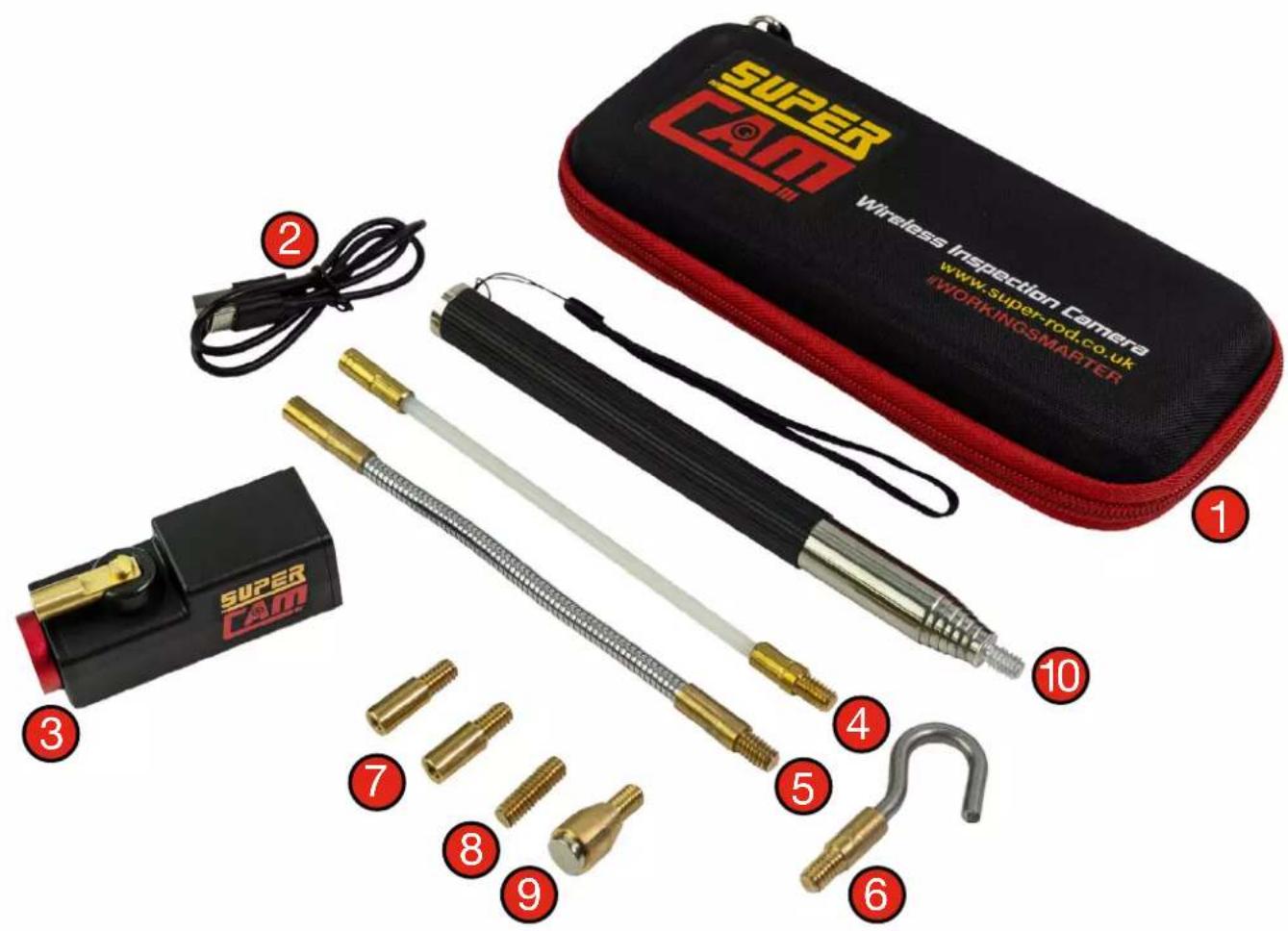
text_image
SUPER CAM wireless Inspection camera www.super-rod.co.uk WORKINGSMARTER 1 2 3 4 5 6 7 8 9 10DOWNLOAD THE SUPER CAM APP: Scan the QR Code to get the App or search for Super Rod

Requires Android V6.0 or later

text_image
QR code image with red border, no readable text or symbols beyond the matrix pattern
Requires IOS V11.2 or later

text_image
QR code image with red border, no readable text or symbols beyond the matrix pattern
text_image
SUPER CAM AWORKINGSMARTER WITH... SUPER 200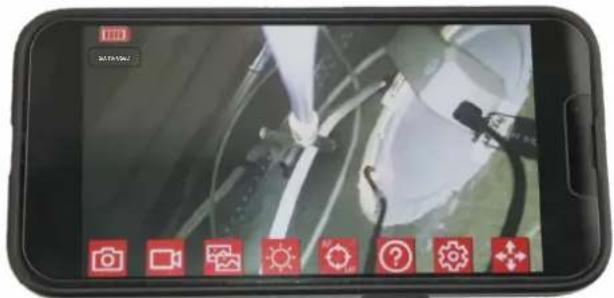
text_image
Smartphone screen displaying a camera interface with icons for settings, navigation, and security features.Apple, the App Store and the Apple Logo are trademarks of Apple Inc., registered in the U.S. and other countries. Google Play and the Google Play logo are trademarks of Google LLC
On first use you need to give the App access to the gallery of photos and videos on your device to be able to allow you to save photos and videos.
CONNECT TO YOUR SUPER CAM MAX CAMERA:
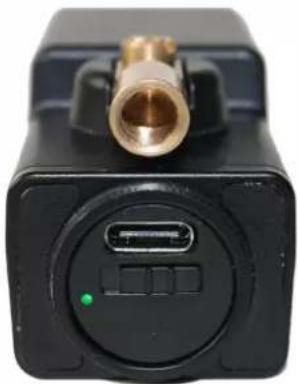
First unscrew the red cap at the back of the camera. Turn the power switch on. Once on, the dot should be green.
natural_image
Close-up of a black electronic device with a brass connector and a green indicator light (no visible text or symbols)Ensure the camera is charged, the on button has been pushed to the right and that the green light is on.
Turn on WiFi connection in your Settings on Apple devices or Connections on your Android devices
Click on WiFi and search for "Super Cam xxxxxx" on the WiFi list (no other WiFi network is needed)
SUPER CAM MAX FEATURES
Work safer and smarter by streaming high resolution to your smart device in real time for up to 20m. Also record anytime/anywhere even when the WiFi signal is out-of-reach. Maximise storage with the on-board memory card, even if smart device storage is full.
• Maximum operating distance
• Use underground and underwater
• Speed up visual inspections
• Accurate inspection reports/quotations
- Easier fault finding
- Safe working in hard-to-reach places
• Time-saving cable installation
• INSPECT • ROUTE • CAPTURE DATA • WORKSAFE

text_image
SUPER AM 20M | 30M | 40M | 50M → On-board memory for maximum reach
text_image
SUPER AM 6 Adjustable bright white LEDs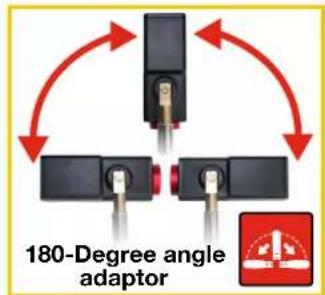
text_image
180-Degree angle adaptor
natural_image
Close-up of a black and red tool tip against a plain white background (no text or symbols visible)
text_image
ORK SAFECONNECT TO YOUR SMART PHONE OR TABLET

text_image
Includes 1m telescopic stick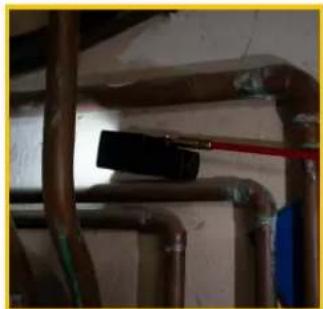
natural_image
Close-up of industrial piping and a flashlight mounted on a wall (no visible text or symbols)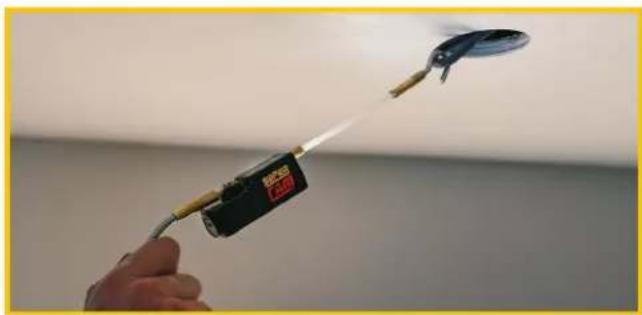
natural_image
Hand holding a handheld electronic device with a curved lens, against a plain wall (no text or symbols visible)
text_image
Vertical sequence of red icons representing file, wireless signal, upward arrow, battery, and AF/MF labelsOn-board memory when WiFi signal out-of-reach - Memory Capacity: 16GB, 10,000 pictures, 30h video recording
Wireless range up to 20m - In line of sight
Always up viewing mode - When the camera rotates, the image stays the right way up (when selected in settings)
60 min fast charge - Fully charged in 1h with Type-C USB quick charge
Auto/manual focus - Long press icon for manual adjustments

text_image
Vertical sequence of five red square icons representing basic security and communication symbols: lightning bolt, shield, Wi-Fi, lock, speaker, and finger.Non-contact voltage detector - Audio & visual alert, 50V-1000V AC
IP67 dustproof and waterproof - Only when back cap is securely fastened
Built-in WiFi hotspot - Provides a high resolution live stream up to a 20m range
Record video with sound - Accurate inspection reports for your customers
Digital pinch zoom - Increases visibility and precision on inspections
BUTTON CONFIGURATION
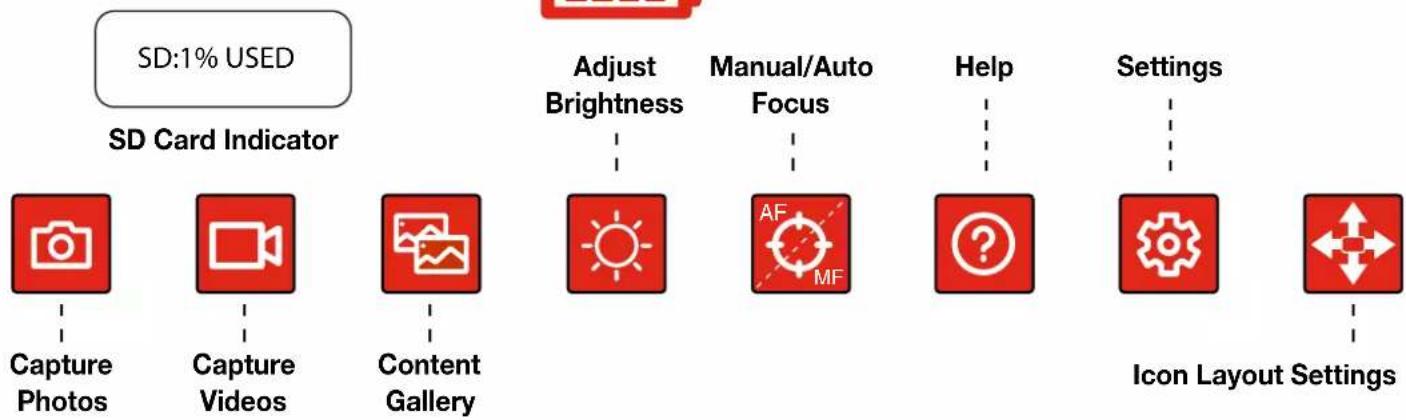
flowchart
graph LR
    A["Capture Photos"] --> B["Capture Videos"]
    B --> C["Content Gallery"]
    D["Adjust Brightness"] --> E["AF MF"]
    F["Manual/Auto Focus"] --> G["?"]
    H["Help"] --> I["Settings"]
    J["Icon Layout Settings"] --> K["Settings"]
    L["SD:1% USED"] --> M["SD Card Indicator"]
AUTO/MANUAL FOCUS

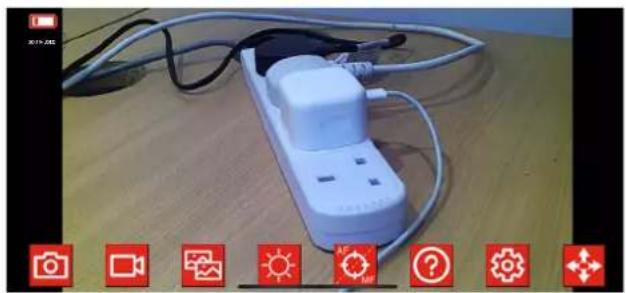
Tap the AF/MF icon on your Super Cam app to adjust the focus. Alternatively, long press on the AF/MF icon and adjust the focus with a slider for detailed close-up viewing.

natural_image
Experimental setup with wires, a plug, and a camera interface (no readable text or symbols)BRIGHTNESS

Tap the Brightness icon on your Super Cam app to adjust the lighting. Alternatively, long press on the icon and adjust the brightness up or down with a slider.

natural_image
Experimental setup with a white plug, cables, and a small white dot connected by wires (no visible text or symbols)PINCH ZOOM

Use 2 fingers to use the digital zoom to bring your image closer.
natural_image
White electrical plug with cable and plug connectors on a wooden surface, displayed against a plain background (no text or symbols visible)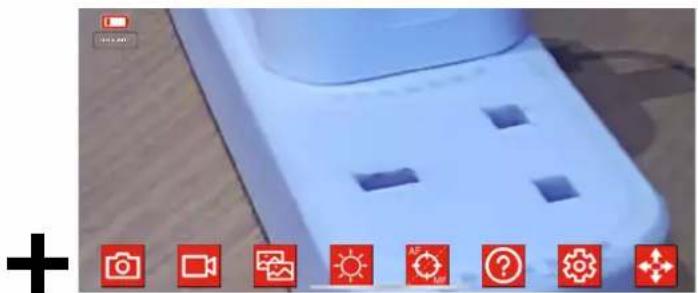
natural_image
Close-up of a blue ergonomic device with four square cutouts and a plus button, no visible text or symbols on the device itself.SAVING PICTURES/VIDEOS

Tap the Camera icon to take a picture.

On-board memory when WiFi signal is out-of-reach
You can either save photos to the SD Card, or save to your device memory, the picture will be stored in both your Super Cam app photo gallery and the camera roll from the device you are using if "Phone" is selected in the Settings. If "SD Card" is selected in the Settings, the picture will then be stored in the SD Memory section of of the app and the camera roll from the device you are using.

Tap the Video icon to take a video
If "Phone" is selected in the Settings, the video will be saved in your Super Cam app video gallery automatically as well as the camera roll from the device you are using. If "SD Card" is selected in the Settings, the video will then be stored in the SD Memory section of the app as well as the camera roll from the device you are using.
Photo Gallery
Tap on the Photo Gallery icon to access all images taken with your Super Cam Max.

To view an image, tap on it. To delete and image press 'select' and tap on the image(s) you want to select then press delete.
Video Gallery

Tap on the Video Gallery icon to access all footage taken with your Super Cam Max.
To view a video, tap on it.
To delete an image press 'select' and tap on the video(s) you want to select then press delete.
WIN!
For a chance to receive a gift send us your best footage and images captured using the Super Cam Max. If your content is shared then we will send you a gift. Any content you sent us can be used for marketing purposes. Send your content to sales@super-rod.co.uk
text_image
Save Cancel
text_image
GALLERY SD MEMORY DEVICE MEMORY Send us some of your best footage and images captured using the Super Cam. If we use your content you will receive a free gift. Any content you send to us may be used for marketing purposes. Please send any Super Cam content you wish to submit to sales@super-rod.co.uk
text_image
PHOTO GALLERY Select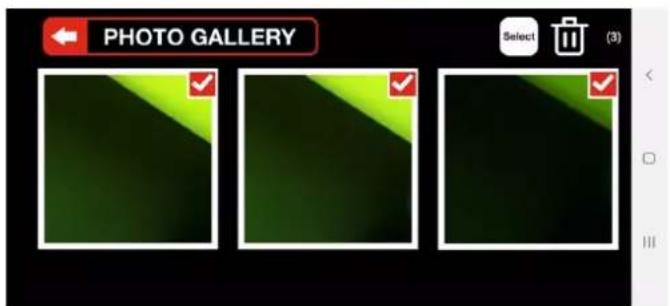
text_image
PHOTO GALLERY Select (3)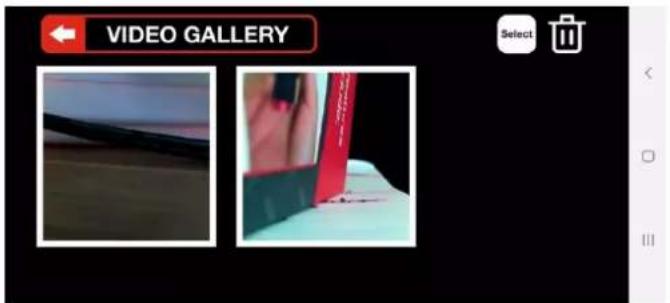
text_image
VIDEO GALLERY Select
text_image
VIDEO GALLERY Select (3)SETTINGS

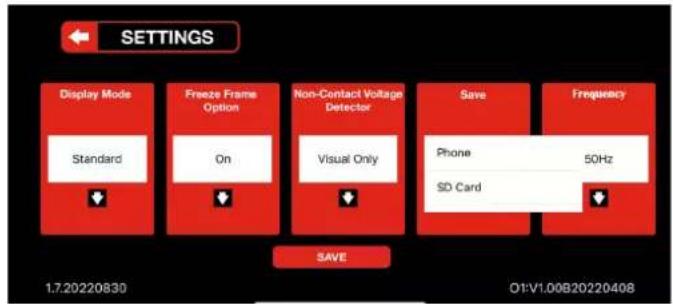
The Settings screen allows you to do the following: Change the Display Mode from Standard to Always up Round or Full Screen, Save to SD card or phone options.
Change the settings to save your pictures and videos:
- Phone - stored in both your Super Cam app photo gallery and the camera roll from the device you are using
- SD Card - stored in the SD Memory section of the Super Cam app and the camera roll from the device you are using
- Standard Mode: the image on the screen rotates as the camera rotates
- Always up Mode (either Round or Full Screen): the image on the screen remains the right way up on the app display, regardless of the camera's orientation
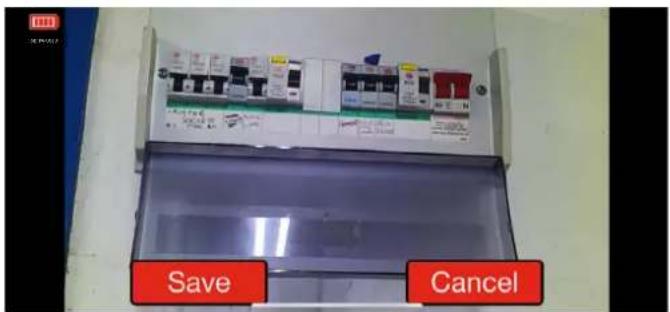
Change the Freeze Frame option
- On: this will allow you to have a choice to save the image or not when taking a picture
- Off: the image you have taken will save automatically
Change the settings for the Non-Contact Voltage Detector
- Off: The Voltage detector is deactivated
- Visual Only: Red light around the image on our Super Cam app
- Visual & Audible: Red light around the image on your Super Cam app as well as a beeping sound
Make sure you save once you have changed the settings.
text_image
SETTINGS Display Mode Standard Freeze Frame Option On Non-Contact Voltage Detector Visual Only Save Frequency Phone 50Hz SD Card 1.7.20220830 O1:V1.00B20220408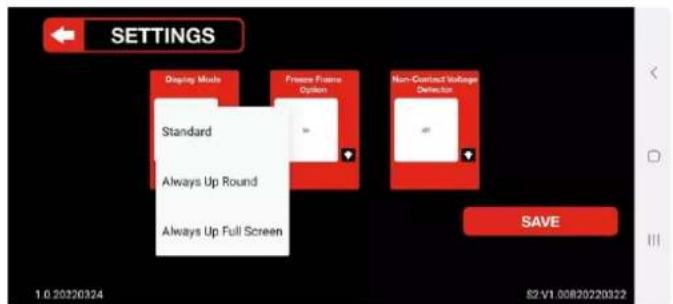
text_image
SETTINGS Display Mode Freeze Frame Option Standard Always Up Round Always Up Full Screen Non-Contact Voltage Detection SAVE 1.0 20220324 S2-V1 00B20220322
text_image
SETTINGS Display Mode On Freeze Frame Option Off Non-Contact Voltage Deflection SAVE 1.0.20220324 S2 V1.00820220322
text_image
SETTINGS Display Mode Freeze Frame Option New Contact Voltage Detector Off Visual Only Visual & Audible SAVE 10.20220324 52-V1 00820220322
text_image
WARNING: THIS LEAD SHOULD NOT CONTINENT CONDUCTOR. Wires in the mains lead are coloured in accordance with the following code: Blue: Neutral Brown: Live The flexible cord of this accessory must be connected to a piece of equipment before being plugged into a socket-outlet. The equipment to which this device is at least 1 hour is in the circuit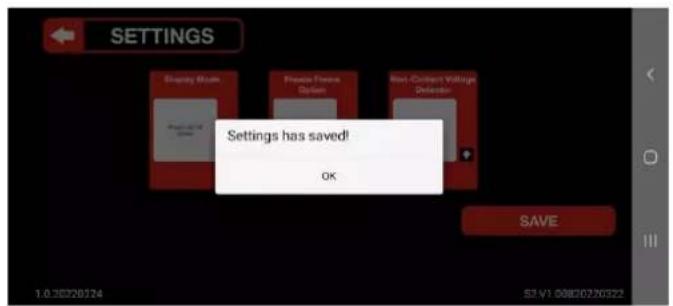
text_image
SETTINGS Display Main Private Focus Option Rest-Contamin Village Detection Settings has saved! OK SAVE 1.0.302024 S3.V1 08830276322ICON OPTIONS

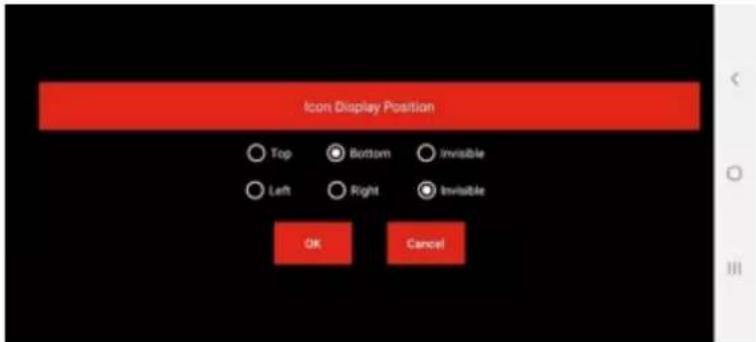
Press long on the Icon Options icon to choose the position of the icons
text_image
Icon Display Position Top Bottom Invisible Left Right Invisible OK Cancel
text_image
CANCEL DOMON OPTIONS Bottom - Left Bottom Right Invisible Top - Left Top - Right Top Invisible Invisible
natural_image
Red battery icon with four vertical bars (no text or symbols)A Type-C USB Charging Cable is included in the Super Cam Max kit. The Super Cam Max features a fast-charge allowing you to charge it fully in an hour.
natural_image
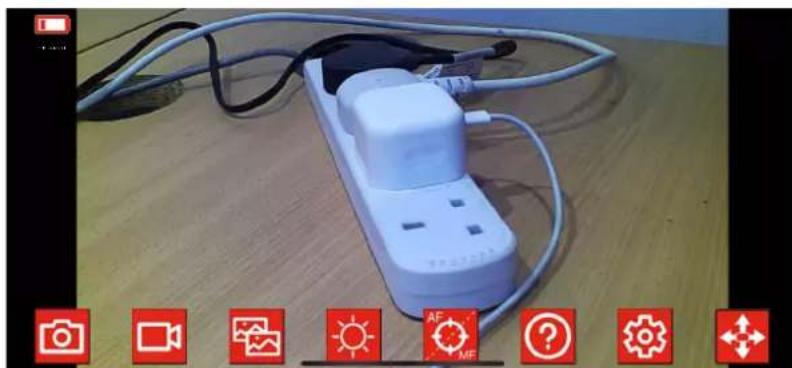
Coiled black cable with a metallic connector, isolated on white background (no text or symbols)The charge is indicated on the top left of your screen while using the app
natural_image
White electrical plug with wires and connectors on a wooden surface, displayed in a photo editing interface (no readable text or symbols)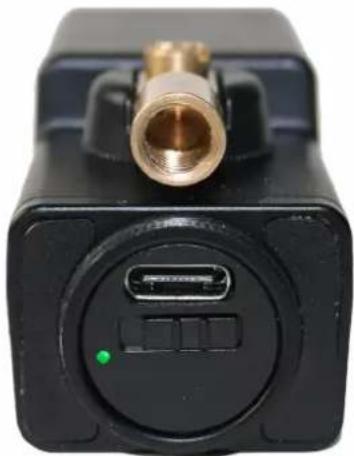
natural_image
Close-up of a black electronic device with a brass connector and a green indicator light (no visible text or symbols)Green light when in use.
natural_image
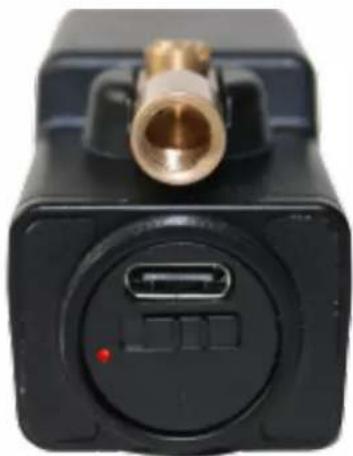
Close-up of a black electronic device with a brass connector and ports (no visible text or symbols)Red light when it's charging
natural_image
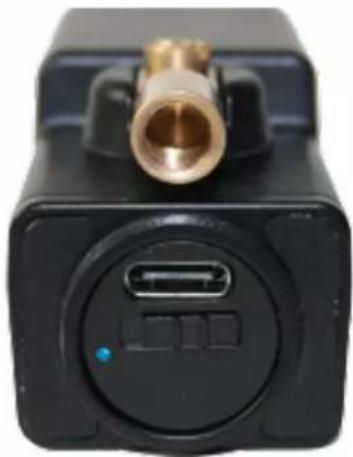
Close-up of a black electronic device with a brass connector and a circular ports (no visible text or symbols)Blue light when it's fully charged
CONNECTING THE SUPER CAM TO MULTIPLE DEVICES
Connect your Super Cam Max wirelessly to multiple devices at the same time allowing users not in same location to use the same Super Cam Max. Users will be able to view the same thing and control the features directly on their device.
To connect multiple devices to the Super Cam Max:
Turn on WiFi connection in your Settings on Apple devices or Con nections on your Android devices Click on WiFi and search for "Super Cam xxxxxx" on the WiFi list (no other WiFi network is needed)
Note: There is no limit of numbers of devices connected to the same camera, but the more devices connected the higher latency. For better users' experience two devices is recommended.

natural_image
Two smartphones displaying a photo recording system with connected power lines and a charging plug (no visible text or symbols)
natural_image
Laptop displaying a photo of a charging station connected to a laptop keyboard, with no visible text or symbols on the devices or background.| SRCAMV6.5MAX - Super Cam Max Wireless Inspection Camera Specifications | |
| Wireless Range 20m with WiFi Hotspot on boardmemory when signal is out of reach | |
| Memory Capacity 16GB, 10,000 pictures 30h videorecording | |
| Frequency 2.4GHz WIFI | |
| Camera Resolution 720p (1280 x 720) for both live andrecorded videos | |
| Operating Time approx 90 mins (LEDs full) to 105mins (LEDs off) | |
| Charging Time 60 min fast charge | |
| Viewing Angle 33 Degrees (Horizontal) | |
| Charge Port USB Type C | |
| Battery Capacity 650mAh | |
| Battery Type lithium polymer | |
| Operating Temperature 0 degrees to 35 degrees Celsius | |
| Storage Temperature -20 degrees to 45 Degrees Celsius | |
| Charge Voltage | 5V DC |
| Non-Contact Voltage Detector Sensitivity | best sensitivity 150 voltage AC andabove - CATIII 600V |
| Non-Contact Voltage Detector Sensor Range | 50V-1000V AC (Approx) |
| Adjustable bright white LEDs | 6 white - control functionality via theapp (off, 25%, half, full) |
| IP67 | dustproof and waterproof with backcap on |
| Built in right angle adaptor | 180 degrees |
The Super Cam Max warranty covers defects in materials and workmanship for a period of 2 years after date of original retail purchase.
At its option, Super Rod will repair or replace, any product which fails to conform to this warranty. This warranty does not apply to damage from alterations, abuse, misuse, lack of maintenance, or normal wear and tear of the product.
This warranty explicitly does NOT cover cut or deliberately damaged tape, rust or corrosion or foreign material, cracked or broken cases, or bent hooks or bent/missing accessories.
Please email sales@super-rod.co.uk, or simply return your Super Cam Max to your place of purchase with proof of purchase.
Important Information – Li-Ion Batteries
The Super Cam Max camera contains a Li-Ion battery. For optimal battery life, do not store the camera while the battery is flat, do not store the camera in temperatures of over 35^ C ( 95^ F) and if the camera is not being used, top up the charge every 6 months.
I can't connect or see the camera when I search on Bluetooth?
The Super Cam Max has a built-in WiFi hotspot. No other network is needed, and the camera does not connect via Bluetooth. Refer to the start-up guide on page X to connect the Super Cam Max to your device.
Can I use the camera underground, underwater or inside a conduit?
The Super Cam Max is IP67 dustproof and waterproof only when back cap is securely fastened. When using the Super Cam Max underground, underwater or inside a metallic conduit you might loose the WiFi signal so the live video might be interrupted. However you will still be able to record footage as long as the SD Card option is selected in the Settings. The content can then be retrieve in the SD Gallery.
How long does the battery last?
The Super Cam Max will give you up to 90 minutes of use, with the LEDs on full brightness and 105 minutes of use with the LEDs off, before it needs recharging.
What does the rear LED indicate?
Green light when in use.
Red light when it's charging
Blue light when it's fully charged.
Refer to page X for more information.
I don't use Super Rods can i use the Super Cam Max with other cable rods on the market?
Yes the Super Cam Max comes with two Cable Rod Adaptors that has M4 & M5 threads, these can be used with the Super Cam Max to fit most Cable Rods sold in the UK & Europe.
I can connect to the WiFi, but it won't show an image in the iOS App? It shows an error message Error(100)(Connect the device time out!)
Go to Settings-> Mobile Data-> Scroll down to find the Super Cam App and turn off to prevent the App trying to use mobile data.
I can connect to the WiFi, but it won't show an image in the Android App? It shows an error message Error(100)(Connect the device time out!)
Go to Settings-> Connections-> Data Usage-> Mobile Data only apps-> Scroll down to find the Super Cam App. Turn off background data to prevent the App trying to use mobile data.