WorkCentre Pro C2636 - Printer XEROX - Free user manual and instructions
Find the device manual for free WorkCentre Pro C2636 XEROX in PDF.


User questions about WorkCentre Pro C2636 XEROX
0 question about this device. Answer the ones you know or ask your own.
Ask a new question about this device
Download the instructions for your Printer in PDF format for free! Find your manual WorkCentre Pro C2636 - XEROX and take your electronic device back in hand. On this page are published all the documents necessary for the use of your device. WorkCentre Pro C2636 by XEROX.
USER MANUAL WorkCentre Pro C2636 XEROX
Quick Reference Guide
701P41734-e
MAXIMIZE YOUR PRODUCTIVITY by taking advantage of all the capabilities of your device. A Training and Information CD was supplied with your product. The CD provides animated tutorials and interactive screens. When installed on your network it will always be available to everyone, or load it on your hard drive for easy access.
©Copyright 2004 by Xerox Corporation. All Rights Reserved.
Copyright protection claimed includes all forms and matters of copyrighted material and information now allowed by statutory or judicial law or hereinafter granted, including without limitation, material generated from the software programs that are displayed on the screen such as styles, templates, icons, screen displays, looks, etc.
Internet Explorer is a copyright protected program of Microsoft Corporation. Novell® and NetWare® are registered trademarks of Novell, Inc. Netscape® is a registered trademark of Netscape Communications Corporation. Adobe® and PostScript® are registered trademarks of Adobe Systems Incorporated. TIFF is a copyright of Adobe Systems Incorporated. AppleTalk, LaserWriter, and Macintosh are trademarks of Apple Computer, Inc. PCL® and HP-GL® are registered trademarks of Hewlett-Packard Corporation. WinZip® is a registered trademark of Nico Mak Computing, Incorporated. ACITS LPR Printing for Windows 95 is a copyright of the University of Texas at Austin.
Xerox ^® , The Document Company ^® , The stylized X ^® , and all Xerox product names and product numbers mentioned in this publication are trademarks of XEROX CORPORATION. Other company brands and product names may be trademarks or registered trademarks of the respective companies and are also acknowledged.
Table of Contents
1 Welcome....1-1
Introduction....1-2
About this Guide....1-2
Conventions 1–2
Additional Resources 1–4
Overview of Features at the Machine....1-5
Overview of Features at the Workstation....1-7
Safety....1-8
Introduction 1-8
Safety Notes....1-9
Environmental Compliance....1–13
Environmental ChoiceM....1–14
Product Recycling and Disposal 1–14
Regulatory Information....1–15
FCC Part 15 1–15
ICES-003....1–15
US Regulatory Information for the Fax Kit option....1–16
Canadian Regulatory Information for the Fax Kit option 1–19
Illegal Copying....1-20
United States....1–20
Canada....1–22
2 Getting Started....2-1
Machine Overview....2-2
Control Panel Overview....2-3
Power On or Off....2-4
Loading Paper....2-5
Making Copies....2-6
Sending an Embedded Fax....2-7
Sending a Server Fax....2-8
Sending an Internet Fax....2-9
Scanning a Document....2-10
Sending an E-mail.... 2-11
Printing from a PC.... 2–12
Printing with Internet Services.... 2–13
Logging On / Logging Off.... 2–14
Further Assistance....2-15
3 Copy....3-1
Copy 3-2
Basic Copying....3-3
Output 3-4
2-Sided....3-5
Reduce/Enlarge 3–6
Paper Supply 3-8
Color Options ....3–10
Output Color....3-11
Preset Color Options....3-12
Color Balance 3–13
Sharpness/Saturation 3–13
Color Shift 3-14
Image Adjustment.... 3–15
Image Quality....3–16
Original Type....3-17
Bound Originals 3–18
Edge Erase 3-19
Original Input....3-20
Image Shift....3-21
Output Format....3-22
Transparencies 3–23
Booklet Creation 3-24
Page Layout....3-25
Invert Image 3-26
Covers....3-27
Job Assembly....3-28
Build Job 3-29
Sample Set 3-31
Stored Programming....3-32
4 Fax....4-1
Fax....4-2
Basic Faxing - Embedded Fax....4-4
Dialing Options....4-5
Resolution 4-7
Sides Scanned....4–8
Image Adjustment....4-9
Image Quality....4–10
Original Input....4-11
Bound Originals....4-12
Original Type....4-13
Added Fax Features....4-14
Fax Sending Features....4–14
Fax Reports....4-20
Mailboxes....4-21
Dial Directory Setup 4-22
Advanced Fax Features....4-23
Comment Setup 4-26
Basic Faxing - Server Fax 4-27
Dialing Options....4–28
Resolution 4-30
Sides Scanned....4–31
More Fax Features 4-32
Image Quality....4–33
Original Type....4-34
Original Input....4-35
Delayed Send....4-36
Authentication Mode....4-37
5 Internet Fax ....5-1
Internet Fax....5-2
Send: 5-3
Address List 5-3
Entering an E-mail Address for Internet Fax....5-4
Color Options ....5-6
Output Color....5-6
Image Adjustment....5-7
Image Quality....5–8
Original Type....5-9
Sides Scanned....5–10
Resolution 5-11
Original Input....5-12
Output Format....5-13
Document Format 5-14
Acknowledgment Report....5–15
Reply To....5–15
Message Body 5–16
Authentication Mode.... 5–17
6 Network Scanning....6-1
Scan....6-2
Scanning Resources....6-2
Network Scanning....6-3
Repositories....6–4
Template Overview....6-4
Template Destinations 6–5
Destination Details....6-5
Color Options 6–6
Output Color....6-6
Image Adjustment....6-7
Image Quality....6-8
Original Type....6-9
Sides Scanned.... 6–10
Edge Erase 6-11
Original Input....6-12
Resolution 6-13
Output Format....6-14
Document Name 6-15
If File Already Exists 6–15
Document Format 6-16
Document Management Fields ....6–17
Add File Destinations....6–17
Refresh Destinations....6–18
Authentication Mode....6-18
7 E-mail....7-1
E-mail....7-2
Send: 7-3
Address List 7-3
Entering an E-mail Address 7-4
Color Options 7–6
Output Color....7-6
Image Adjustment....7-7
Image Quality....7-8
Original Type....7-9
Sides Scanned....7–10
Edge Erase 7–11
Original Input....7–12
Resolution 7-13
Output Format....7-14
Document Format 7–15
Reply To....7–16
Message Body 7-16
Authentication Mode 7-17
8 Print....8-1
Introduction to Print....8-2
Printer Driver Features....8-3
Control Options 8-3
Advanced 8-4
Paper/Output....8-4
Image Options....8-4
Layout/Watermark....8-5
9 Maintenance....9-1
Customer Replaceable Units....9-2
Cleaning the Machine....9-3
User Interface....9-3
Calibration....9-4
Further Assistance....9–5
10 Troubleshooting 10-1
General 10-2
Fault Clearance....10-3
Paper jams....10–3
Document jams 10-3
Xerox Welcome and Support Center....10-4
Locating the serial number....10-4
Troubleshooting Tips.... 10-5
Power....10-5
Document Handler 10-5
Paper Handling 10-5
Finisher 10-6
Output Quality 10-7
11 Index 11-1
1 W ELCOME
▶Introduction....1-2
Overview of Features at the Machine... ...... 1-5
Overview of Features at the Workstation.....1-7
▶ Safety.... 1-8
Environmental Compliance....1-13
Regulatory Information....1-15
▶ Illegal Copying.... 1-20
INTRODUCTION...
Thank you for choosing the Xerox CopyCentre/WorkCentre Pro.
Your CopyCentre/WorkCentre Pro is a digital device capable of being used for copying, faxing, printing and scanning. If your needs change, your machine can be upgraded with the appropriate optional software or hardware units. For further information contact your Xerox representative.
Depending on your model, your machine will print/copy 28, 36, or 45 prints per minute.
The digital design of the CopyCentre/WorkCentre Pro enables:
- more output options - for example creating booklets, putting multiple images on a single page, inserting dividers into a transparency set and combining multiple segments into a single job.
- fewer jams and damaged originals because originals are only scanned once
- high quality output which can be enhanced and customized to your unique specifications.
About this Guide
This Quick Reference Guide supports the various features that may be available on your configuration.
Refer to Chapter 2 Getting Started for a brief overview of the main features to help you get started. Further chapters offer more information on the options available.
For additional assistance at the machine press the Help button. If your CopyCentre/WorkCentre Pro is connected to the network, use the CentreWare Help system or click on the Help button in the Print Driver.
Conventions
Throughout this Guide, you will find that some terms are used interchangeably:
▶ Paper is synonymous with media.
Document is synonymous with original.
Page is synonymous with sheet.
- CopyCentre/WorkCentre Pro is synonymous with the machine.
The following pages offer further information about the conventions used within this Guide.
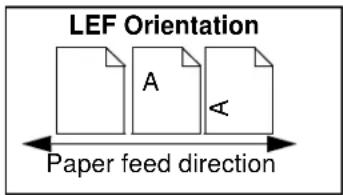
Orientation
Orientation refers to the direction of images on the page. When the image is upright, the paper (or other media) can be one of two ways:
Long Edge When observed from the front of the machine, paper or originals with the long edges Feed (LEF) / to the left and right of the paper tray or document handler. Portrait
text_image
LEF Orientation Paper feed directionShort Edge When observed from the front of the machine, paper or originals with the short Feed (SEF) / Landscape edges to the left and right of the paper tray or document handler.

text_image
SEF Orientation A ◀ Paper feed directionItalic typeface
The Italic typeface is used to emphasize a word or phrase. In addition, references to other publications are displayed in Italic typeface. For example:
- For more information refer to the System Administrator CD (CD1), contained in the CopyCentre/WorkCentre Pro CD Pack delivered with your CopyCentre/WorkCentre Pro.
Bracket text typeface:
The [Bracket Text] typeface is used to emphasize the selection of a feature mode or button. For example:
Select [Machine Details].
Notes
Notes are statements that provide additional information. For example:
NOTE: Originals must be loaded in the Document Handler when using this feature.
Hints
Hints help users to perform a task. For example:

HINT: This option is useful for saving toner (dry ink) consumption for images with a dark background and white text.
Specification note
Offers more in-depth specification information relating to the machine. For example:
i Tray 2 holds 520 sheets of 20 lb. paper. Sizes range from 5.5" x 8.5" to 11" x 17".
Cautions
Cautions are statements that suggest mechanical damage as a result of an action. For example:
CAUTION: Use of controls or adjustments or performance of procedures other than those specified herein may result in hazardous radiation exposure.
Warnings
Warnings are statements that alert users to the possibility of personal injury. For example:
WARNING: This product must be connected to a protective earthing circuit.
Additional Resources
Should you require more detailed information about any of the features available on your CopyCentre/WorkCentre Pro, please refer to the Training and Information CD (CD2), contained in the CopyCentre/WorkCentre Pro CD Pack delivered with your CopyCentre/WorkCentre Pro.
The Training and Information CD is intended for all users, including Machine Administrators. It contains comprehensive information about your new product including interactive how-to's and tutorials. To ensure maximum productivity is gained from your CopyCentre/WorkCentre Pro, please copy the program contained on the CD onto your network so that all users have access.
OVERVIEW OF FEATURES AT THE MACHINE...
Using the powerful CopyCentre/WorkCentre Pro features you can:
Scan Once and Print Many
When making copies the CopyCentre/WorkCentre Pro only has to scan a document once regardless of the number of copies needed. This reduces the risk of jams and damage to originals.
Perform Different Tasks Simultaneously
The CopyCentre/WorkCentre Pro performs different tasks simultaneously. A job can be added to the job queue by scanning it, even while the CopyCentre/WorkCentre Pro is printing another job.
Make Copies Look Like Originals
The CopyCentre/WorkCentre Pro allows the reproduction of high quality images, especially photographs, graphics, text, or a combination. Compare your output to that from other copiers and see the difference.
Customize Image Size and Placement
You can manipulate the appearance of the image on the output stock.
- Shift the image to create margins for binding.
- Automatically reduce, enlarge, or center your images.
- Print multiple reduced images on a single page.
Use Digital Features to Simplify your Work Process
Use the Build Job feature to divide a copy job into different segments and apply different settings to each of the segments. This allows you to:
- combine originals from the Document Glass and the Document Handler into a single job.
- create a single job, using different programming features for each original.
- feed more than the maximum number of originals through the Document Handler without reprogramming.
Use the Transparency feature to produce transparencies with transparency separators in one step.
Use the Booklet Creation feature to automatically sequence and reduce or enlarge the images when making booklets.
Use the Covers feature to automatically add covers to your documents.
Use the Mixed Size Originals feature to copy mixed size originals simultaneously. Produces copies on uniform size paper or mixed size paper.
Be Environmentally Friendly
This product complies with a variety of international standards for environmental protection and is compatible with most recycled paper.
Scan Documents to Create Electronic Files (Optional)
This optional feature allows you to create electronic files from your originals which can be:
- filed on the server
- routed over the network to your desktop
- distributed through an e-mail system
- Automatically placed into a Document Management Application
- Once your original paper document has been converted to an electronic digital document you can change, manage, share and distribute the document in electronic form, using a wide variety of software applications.
Fax Documents (Optional)
The optional Embedded Fax service is a walk up feature that enables you to transmit and receive hard copy faxes directly from your machine to another over a telephone network.
The optional Server Fax service is a walk up feature available only on the WorkCentre Pro configuration. When enabled you will be able to scan your documents and send them to any type of fax machine that is connected to a telephone network, via your fax server.
NOTE: Both Embedded and Server Fax can be installed on the WorkCentre Pro at the same time, however only one service can be enabled for use.
The optional Internet Fax service, available only on the WorkCentre Pro configuration, allows users to transmit and receive documents as an e-mail attachment. This type of fax travels over the internet or intranet.
OVERVIEW OF FEATURES AT THE WORKSTATION...
If your CopyCentre/WorkCentre Pro is connected to a network you can use the following features. Contact your System Administrator to get connected.
CentreWare Print Drivers
The Print Driver extends the productivity power of the CopyCentre/WorkCentre Pro to your desktop. Options include:
- 1-sided or 2-sided
• Stapled sets if you have a Finisher - Resolutions up to 1200x1200 dpi
- Add standard or customized watermarks
- Secure Printing (print your confidential document after you get to the printer)
CentreWare Tools
The CentreWare software suite also offers optional User Management Tools and Network Scanning tools.
CentreWare Internet Services
Every CopyCentre/WorkCentre Pro has a 'built in' web Home Page which allows print-ready files to be sent to any CopyCentre/WorkCentre Pro via the World Wide Web. This feature is accessed via Internet Services.
SAFETY...
Introduction
Your Xerox product and supplies have been designed and tested to meet strict safety requirements. These include safety agency approval and compliance to established environmental standards. Please read the following instructions carefully before operating the product and refer to them as needed to ensure the continued safe operation of your product.
The safety testing and performance of this product have been verified using Xerox materials only.
WARNING:Any unauthorized alteration, which may include the addition of new functions or connection of external devices, may impact the product certification. Please contact your authorized local dealer for more information.
Follow all warnings and instructions marked on, or supplied with the product.

This WARNING Mark alerts users to areas of the product where there is the possibility of personal injury.
This WARNING Mark alerts users to areas of the product where there are heated surfaces which should not be touched.
Safety Notes

WARNING: This product must be connected to a protective earthing circuit.
This product is equipped with a 3-wire type plug, provided with a protective earthing pin. This plug will fit only into an earthed power outlet. This is a safety feature. To avoid risk of electric shock, contact your electrician to replace the receptacle if you are unable to insert the plug into the outlet. Never use an earthed adapter plug to connect the product to a power source receptacle that lacks an earth connection terminal.
This product should be operated from the type of power source indicated on the marking label. If you are not sure of the type of power available, consult your local power company.
Disconnect Device for this product is the power cord. To remove all electrical power to the product, disconnect the power cord from the power receptacle.

Do not put your hands into the fuser area, located just inside the exit tray area, as you may be burned.
Do not use pressurized air-spray cleaning aids on or in this equipment. Some pressurized air-spray containers contain explosive mixtures and are not suitable for use in electrical applications. Use of such cleaners can result in a risk of explosion and fire.
Electrical Safety
Use only the power cord supplied with this equipment.
Plug the power cord directly into a grounded electrical outlet. Do not use an extension cord. If you do not know whether or not an outlet is grounded, consult a qualified electrician.
This equipment is to be used on a 120V, 15A branch circuit. If this machine needs to be moved to a different location, contact a Xerox service representative or your authorized local representative or service support organization.
➢ Improper connection of the equipment-grounding conductor can result in electrical shock.
Do not place this equipment where people might step on or trip on the power cord.
Do not place objects on the power cord.
Do not override or disable electrical or mechanical interlocks.
Do not obstruct the ventilation openings.
➢ Never push objects of any kind into slots or openings on this equipment.
If any of the following conditions occur, switch off the power to the machine immediately and disconnect the power cord from the electrical outlet. Call an authorized local service representative to correct the problem.
The equipment emits unusual noise or odors.
The power cord is damaged or frayed.
A wall panel circuit breaker, fuse, or other safety device has been tripped.
Liquid is spilled into the copier/printer.
The equipment is exposed to water.
➢ Any part of the equipment is damaged.
Never use a plug that lacks an earth connection terminal to connect the product to an electrical outlet.
This equipment should not be placed in a built-in installation unless proper ventilation is provided. Please contact your Authorized local dealer for further information.
Never locate the equipment near a radiator or any other heat source.
Operator Accessible Areas
This equipment has been designed to restrict operator access to safe areas only. Operator access to hazardous areas is restricted with covers or guards, which would require a tool to remove. Never remove these covers or guards.
Maintenance
Any operator product maintenance procedures will be described in the user documentation supplied with the product. Do not carry out any maintenance on this product, which is not described in the customer documentation.
Do not remove covers or guards that are fastened with screws. There are no parts behind these covers that you can maintain or service. Do not perform any maintenance procedures unless you have been trained to do them by an authorized local dealer or unless a procedure is specifically described in the user documentation.
Cleaning your Product
Before cleaning this product, unplug the product from the electrical outlet. Always use materials specifically designated for this product, the use of other materials may results in poor performance and may create a hazardous situation. Do not use aerosol cleaners, they may be explosive and flammable under certain circumstances.
Ozone Safety
This product will produce ozone during normal operation. The ozone produced is heavier than air and is dependent on copy volume. Providing the correct environmental parameters as specified in the Xerox installation procedure will ensure that the concentration levels meet safe limits.
If you need additional information about ozone, please request the xerox publication Ozone by calling 1-800-828-6571 in the United States and Canada. In other markets, please contact your authorized local dealer or Service Provider.
Laser Safety
This product complies with safety standards and is certified as a Class 1 Laser product under the Center for Devices and Radiological Health (CDRH) of the US Food and Drug Administration (FDA) implemented regulations for laser products. This product complies with FDA 21 CFR 1940.10 and 1040.11 except for deviations pursuant to Laser Notice No. 50, dated 26 July 2001. These regulations apply to laser products marketed in the United States. The label on the machine indicates compliance with CDRH regulations and must be attached to laser products marketed in the United States. This product does not emit hazardous laser radiation.
CAUTION: Use of controls or adjustments or performance of procedures other than those specified herein may result in hazardous exposure of laser light.
Since radiation emitted inside this product is completely confined within the protective housing and external covers, the laser beam cannot escape from the machine during any phase of the user operation.
This product contains laser warning labels. These labels are intended for use by Xerox Service Representatives and are placed on or near panels or shields that require special tools for removal. Do not remove any of the panels. There are no operator serviceable areas inside these covers.
Safety Standards
This Xerox product is safety certified by Underwriters Laboratories Incorporated to Standards UL60950, 3rd Edition (2000), and CSA International CAN/CSA C22.2 No.60950-00 3rd Edition.
ENVIRONMENTAL COMPLIANCE...
Environmental Choice ^M

Terra Choice Environmental Services, Inc., of Canada has verified that this Xerox product conforms to all applicable Environmental Choice EcoLogo requirements for minimized impact to the environment.
As a participant in the Environmental Choice program, Xerox Corporation has determined that this product meets the Environmental Choice guidelines for energy efficiency.
Environment Canada established the Environmental Choice program in 1988 to help consumers identify environmentally responsible products and services.
Copier, printer, digital press, and fax products must meet energy efficiency and emissions criteria, and exhibit compatibility with recycled supplies. Currently, Environmental Choice has more than 1600 approved products and 140 licensees.
Xerox has been a leader in offering EcoLogo approved products.
Product Recycling and Disposal
Xerox operates a worldwide equipment takeback and reuse/recycle program.
Contact your Xerox sales representative (1-800-ASK-XEROX) to determine whether this Xerox product is part of the program. For more information about Xerox environmental programs, visit www.xerox.com/environment.
If you are managing the disposal of your Xerox Product, please note that the product contains lead and other materials whose disposal may be regulated due to environmental considerations. The presence of lead is fully consistent with global regulations applicable at the time the product was placed on the market. For recycling and disposal information, contact your local authorities. In the United States, you may also refer to the Electronic Industries Alliance web site:
www.eiae.org.
REGULATORY INFORMATION...
FCC Part 15
This equipment has been tested and found to comply with the limits for a Class "A" digital device, pursuant to Part 15 of the FCC Rules. These limits are designed to provide reasonable protection against harmful interference when the equipment is operated in a commercial environment. This equipment generates, uses and can radiate radio frequency energy and, if not installed and used in accordance with the instruction manual, may cause harmful interference to radio communications.
Operation of this equipment in a residential area is likely to cause harmful interference in which case the user will be required to correct the interferences at their own expense.
Changes or modifications to this equipment not specifically approved by the Xerox Corporation may void the user's authority to operate this equipment.
WARNING: Shielded cables must be used with this equipment to maintain compliance with FCC regulations.
ICES-003
This Class "A" digital apparatus complies with Canadian ICES-003.
US Regulatory Information for the Fax Kit option
Fax Send Header Requirements
The Telephone Consumer Protection Act of 1991 makes it unlawful for any person to use a computer or other electronic device, including FAX machines, to send any message unless such message clearly contains in a margin at the top or bottom of each transmitted page or on the first page of the transmission, the date and time it is sent and an identification of the business or other entity, or other individual sending the message and the telephone number of the sending machine or such business, other entity, or individual. (The telephone number provided may not be a 900 number or any other number for which charges exceed local or long-distance transmission charges.) The country location, telephone number identifying the machine, the header text information (business name), the send and receive behavior and dial type must be entered when installing the Embedded Fax kit option. Refer to the System Administration CD (CD1) for further information on installing Embedded Fax and the Embedded Fax Tutorial contained in this program for information about the Transmit Header Print feature.
Data Coupler Information
This equipment complies with Part 68 of the FCC rules and the requirements adopted by the Administrative Council for Terminal Attachments (ACTA). A label is fixed to the product that contains, among other information, the FCC approved number US:XRXFB03BFAXKIT. If requested, this number must be provided to the telephone company.
An FCC compliant telephone cord and modular plug is provided with this equipment. It is designed to be connected to the telephone network or premises wiring using a compatible modular jack that is Part 68 compliant.
You may safely connect the machine to the following standard modular jack: USOC RJ-11C using the compliant telephone line cord (with modular plugs) provided with the installation kit. See installation instructions for details.
To order the correct service from the local telephone company please quote the codes listed below: Facility Interface Code (FIC), Service Order Code (SOC), USOC Jack code and Ringer Equivalence Number (REN).
FIC 02LS2
SOC 9.0F
USOC Jack RJ-11C
REN 0.3
WARNING: Ask your local telephone company for the modular jack type installed on your line. Connecting this machine to an unauthorized jack can damage telephone company equipment. You, not Xerox, assume all responsibility and/or liability for any damage caused by the connection of this machine to an unauthorized jack.
The Ringer Equivalent Number (REN) is used to determine the number of devices that may be connected to a telephone line. Excessive RENs on a telephone line may result in the devices not ringing in response to an incoming call. In most but not all areas, the sum of RENs should not exceed five (5.0). To be certain of the number of devices that may be connected to a line, as determined by the total RENs, contact the local telephone company. The REN for this product is part of the FCC Approval Number US:XRXFB03BFAXKIT. The digits represented by 03 are the REN without a decimal point (e.g., 03 is a REN of 0.3).
If this Xerox equipment causes harm to the telephone network, the telephone company will notify you in advance that temporary discontinuance of service may be required. But if advance notice isn't practical, the telephone company will notify the customer as soon as possible. Also, you will be advised of your right to file a complaint with the FCC if you believe it is necessary.
The telephone company may make changes in its facilities, equipment, operations or procedures that could affect the operation of the equipment. If this happens the telephone company will provide advance notice in order for you to make necessary modifications to maintain uninterrupted service.
If trouble is experienced with this Xerox equipment, for repair or warranty information, please contact the Xerox Welcome Center telephone number 800-821-2797. If the equipment is causing harm to the telephone network, the telephone company may request that you disconnect the equipment until the problem is resolved.
Repairs to the machine should be made only by a Xerox representative or an authorized Xerox service agency. This applies at any time during or after the service warranty period. If unauthorized repair is performed, the remainder of the warranty period is null and void.
This equipment must not be used on party lines. Connection to party line service is subject to state tariffs. Contact the state public utility commission, public service commission or corporation commission for information.
If your office has specially wired alarm equipment connected to the telephone line, ensure the installation of this Xerox equipment does not disable your alarm equipment. If you have questions about what will disable alarm equipment, consult your telephone company or a qualified installer.
IMPORTANT SAFETY INSTRUCTIONS
When using your telephone equipment, basic safety precautions should always be followed to reduce the risk of fire, electric shock, and injury to persons, including the following:
Do not use this product near water, for example, near a bath tub, wash bowl, kitchen sink, or laundry tub, in a wet basement, or near a swimming pool.
- Avoid using a telephone (other than a cordless type) during an electrical storm. There may be a remote risk of electric shock from lightning.
➢ Do not use the telephone to report a gas leak in the vicinity of the leak.
Use only the power cord and batteries indicated in this manual. Do not dispose of batteries in a fire. They may explode. Check with local codes for possible special disposal instructions.
SAVE THESE INSTRUCTIONS.
Canadian Regulatory Information for the Fax Kit option
This product meets the applicable Industry Canada technical specifications. A label is affixed to the product that contains the Canadian approval # IC:482I-FAXKIT. If requested, the number must be provided to the telephone company. The Ringer Equivalence Number (REN) is an indication of the maximum number of devices allowed to be connected to a telephone interface. The termination on an interface may consist of any combination of devices subject only to the requirement that the sum of the RENs of all the devices does not exceed five. The Canadian REN value of this equipment is 0.3.
Repairs to certified equipment should be made by an authorized Canadian maintenance facility designated by the supplier. Any repairs or alterations made by the user to this equipment, or equipment malfunctions, may give the telecommunications company cause to request the user to disconnect the equipment.
Users should ensure for their own protection the electrical ground connections of the power utility, telephone lines and internal metallic water pipe system, if present, are connected together. This precaution may be particularly important in rural areas.
CAUTION:Users should not attempt to make such connections themselves, but should contact the appropriate electric inspection authority or electrician, as appropriate.
NOTE: The Industry Canada label identifies certified equipment. This certification means that the equipment meets certain telecommunications network protective, operational and safety requirements as prescribed in the appropriate Terminal Equipment Technical Requirements document(s). The Department does not guarantee the equipment will operate to the users satisfaction.
Before installing this equipment, users should ensure that it is permissible to be connected to the facilities of the local telecommunications company. The equipment must also be installed using an acceptable method of connection. The customer should be aware that compliance with the above conditions may not prevent degradation of service in some situations.
ILLEGAL COPYING...
United States
Congress, by statute, has forbidden the copying of the following subjects under certain circumstances. Penalties of fine or imprisonment may be imposed on those guilty of making such copies.
➢ Obligations or Securities of the United States Government, such as:
Certificates of Indebtedness
Coupons from Bonds
Silver Certificates
United States Bonds
Federal Reserve Notes
Certificates of Deposit
National Bank currency
Federal Reserve Bank Notes
Gold Certificates
Treasure Notes
Fractional Notes
Paper money
Bonds and obligations of certain agencies of the government, such as FHA Bonds (US Savings Bonds may be photographed only for publicity purposes in connection with the campaign for the sale of such bonds.)
Internal Revenue Stamps (If it is necessary to copy a legal document on which there is a canceled revenue stamp, this may be done provided the reproduction of the document is performed for lawful purposes.)
Postage Stamps, canceled or uncanceled (For philatelic purposes, postage stamps may be photographed provided the reproduction is black and white and less than 3/4 or more than
1 1/2 times the linear dimensions of the original.)
Postal Money Orders
Bills, checks, or drafts for money drawn by or on authorized officers of the United States
Stamps and other representatives of value, of whatever denomination, which may be or have been issued under any Act of Congress
Adjusted compensation Certificates for veterans of the World Wars
➢ Obligations or Securities of any foreign government, bank, or corporation
Copyrighted material (unless permission of the copyright owner has been obtained or the copying falls within the "fair use" or library reproduction provisions of the copyright law). Further information of these provisions may be obtained from the Copyright Office, Library of Congress, Washington, DC 20559 (circular R21)
➢ Certificates of Citizenship or Naturalization. (Foreign naturalization certificates may be photographed.)
Passports (Foreign passports may be photographed.)
Immigration papers
Draft Registration cards
➢ Selective Service Induction papers which bear any of the following information:
Registrant's earnings or income
Registrant's dependency status
Registrant's court record
Registrant's previous military service
Registrant's physical or mental condition
NOTE: Exception: US Army and Navy discharge certificates may be photographed.
Badges, identification cards, passes or insignias carried by military or Naval personnel, or by members of the various Federal Departments and Bureaus, such as the FBI and Treasury (unless the photograph is ordered by the head of such Department or Bureau)
NOTE: Copying of the following is also prohibited in certain states: automobile licences, driver's licenses, and automobile Certificates of Title. This list is not all-inclusive. In case of doubt, consult your attorney.
Canada
Parliament, by statute, has forbidden the reproduction of the following subjects under certain circumstances. Penalties of fine or imprisonment may be imposed on those guilty of making such reproductions.
- Current bank notes or current paper money
- Obligations or securities of a government or bank.
- Exchequer bill paper or revenue paper.
- The public seal of Canada or of a province, or the seal of a public body or authority in Canada, or of a court of law.
- Proclamations, orders, regulations or appointments, or notices thereof (with intent to falsely cause same to purport to have been printed by the Queen's Printer for Canada, or the equivalent printer for a province).
- Marks, brands, seals, wrappers or designs used by or on behalf of the Government of Canada or of a province, the government of a state other than Canada or a department, board, Commission or agency established by the Government of Canada or of a province or of a government of a state other than Canada.
- Impressed or adhesive stamps used for the purpose of revenue by the Government of Canada or of a province or by the government of a state other than Canada.
- Documents, registers or records kept by public officials charged with the duty of making or issuing certified copies thereof, where the copy falsely purports to be a certified copy thereof.
- Copyrighted material or trademarks of any manner or kind without the consent of the copyright or trademark owner.
The above list is provided for your convenience and assistance, but it is not all-inclusive, and no liability is assumed for its completeness or accuracy. In case of doubt, consult your solicitor.
2 G ETTING STARTED
▶ Machine Overview....2-2
▶ Control Panel Overview....2-3
Power On or Off....2-4
Loading Paper....2-5
Making Copies....2-6
➢Sending an Embedded Fax....2-7
▶ Sending a Server Fax....2-8
▶ Sending an Internet Fax....2-9
➢ Scanning a Document....2-10
➢ Sending an E-mail.....2-11
➢Printing from a PC....2-12
▶ Printing with Internet Services... 2-13
➢ Logging On / Logging Off......2-14
➢ Further Assistance....2-15
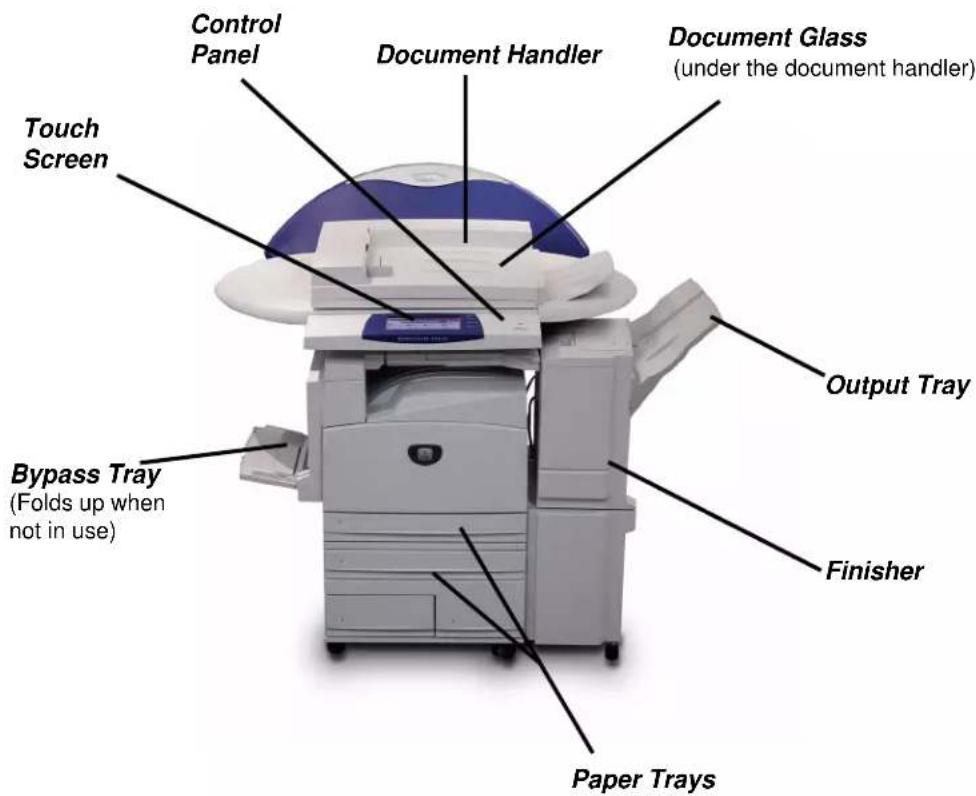
MACHINE OVERVIEW...
text_image
Control Panel Document Handler Document Glass (under the document handler) Touch Screen Output Tray Bypass Tray (Folds up when not in use) Finisher Paper TraysNOTE: This is a photograph of a fully configured WorkCentre Pro with Office Finisher. The features available are dependent on your machine configuration.
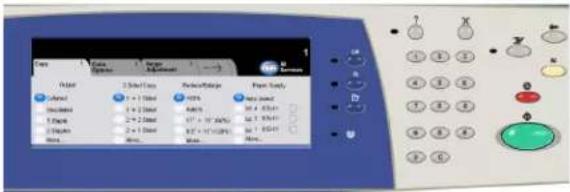
CONTROL PANEL OVERVIEW...

Help
Accesses additional information.
The Touch Screen
Displays and selects all the available programming features, plus fault clearance procedures and general machine information.

Language
Changes text to an alternative language.

Access

Clear All
Resets all the features to their default settings.

Interrupt
Temporarily stops the current job to allow a priority job to be run.
Pause
Temporarily stops the current job.
text_image
Cry 1 Case Options 1 Image 1 Name 1 Size 1 Balance 1 Balance 1 Balance 1 Balance 1 Balance 1 Balance 1 Balance 1 Balance 1 Balance 1 Balance 1 Balance 1 Balance 1 Balance 1 Balance 1 Balance 1 Balance 1 Balance 1 Balance 1 Balance 1 Balance 1 Balance 1 Balance 1 Balance 1 Balance 1 Balance 1 Finish
Start
Starts the job.

Features
Displays the job features on the screen.
Dial Pause
Enters a pause in a telephone number when transmitting a fax.
Hash
Indicates the dialing character or designates a group dial number. Also used when entering a password.

Job Status
Displays job progress information.

Clear
Deletes numeric values or the last digit entered.

Machine Status
Displays the current status of the machine.
POWER ON OR OFF...

To power ON:
➢ Press the ON/OFF switch. The entire powering up process takes less than 4 minutes. Hold the ON/OFF switch down for 5 seconds. The lights on the control panel will flash. It may be up to 30 seconds before you see any lights on the control panel or screens appear on the touch screen.

natural_image
Illustration of a printer with a paper airplane being inserted, showing no text or symbols.NOTE: Certain functions of the machine, e.g. copying, will be available before other functions e.g. printing.

To power OFF:
➢ Press the ON/OFF switch. Hold the ON/OFF switch down for 5 seconds. A confirmation screen will appear asking you to select a power down option.

text_image
Power Off Options Quick Power Off Enter Power Saver mode Cancel
If Quick Power Off is selected and confirmed, the machine will begin a controlled power down sequence.
NOTE: The machine remains on for approximately 30 seconds before the power is terminated.
If there are any jobs in the queue, a second pop-up screen will appear warning that jobs in the queue will be deleted if the machine is powered off. Confirmation of this screen will result in the deletion of any jobs in the queue during the power down sequence.
If Enter Power Save is selected and confirmed, the machine will immediately enter Low Power Mode. If there are any jobs in the queue, a second pop-up screen is displayed.
NOTE: The ON/OFF switch is disabled in Low Power Mode.
To re-activate the machine when in this mode, touch a button on the touch screen or control panel.
LOADING PAPER...

➢ Open the required paper tray.
NOTE: For the Tray 1 plus High Capacity Feeder Option, Paper Trays 1 and 2 are fully adjustable, while Paper Trays 3 and 4 are dedicated paper trays which hold 8.5" x 11" long edge feed paper only. For the Tray 1 plus 3-Tray Option, Paper Trays 1 to 4 are fully adjustable. For the Tray 1 plus 1-Tray Option, Paper Trays 1 and 2 are fully adjustable.

➢ Load paper. Paper must not be loaded above the fill line.
➢ Close the tray
NOTE: For Paper Trays 1 to 4, make sure the guides are just touching the paper, otherwise the size automatically detected may be incorrect.
Select [Confirm] OR select [Change Size] and/or [Change Description] to reprogram the tray if the paper size, type or color has changed.
NOTE: Make sure the Size, Type and Color are all correct. For standard copy paper the following should apply: Size - 8.5"x11" Type - Plain paper Color - White
MAKING COPIES...

Load the documents.
NOTE: Documents are only scanned once.

Access the Copy tab - if necessary select the Features button on the control panel.

Select the required features on the touch screen.
Press Start.
Copy Features include...
Color options
➢ Image quality adjustment
▶ Auto Reduce/Enlarge
▶ Copying mixed size originals
➢ Adding blank dividers into transparency sets
Arranging multiple images on a page
- Adding printed or blank covers
Image Shift
➢ Erasing edges and borders
Build Job to apply different programming within a stack of documents
Storing the programming for frequently run jobs
Creating booklets
SENDING AN EMBEDDED FAX...
Embedded Fax is an optional walk up fax feature on your machine. If the Basic Fax screen matches that displayed in step 2, then Embedded Fax is enabled. Please contact your System Administrator for further assistance.
NOTE: Both Embedded and Server Fax can be installed on the WorkCentre Pro at the same time, however only one service can be enabled for use.
1
2
Load the documents.
Select [Fax].

text_image
Ready - Enter phone number. Basic Faxing Image Adjustment Added Fax Features All Services Dialing Options Send List....(0) Speed Dial Dialing Characters Keypad Dial Resolution Standard Fine Superfine Sides Scanned 1 Sided 2 SidedNOTE: You may need to select [All Services] first.
➢ Enter the telephone number.
3
Select the required features on the touch screen.
➢ Press Start.
Fax Features include...
Adjusting the resolution
➢ Faxing double sided originals
➢ Programming the size of the originals being scanned
➢ Image quality adjustment
▶ Delaying the start time of a fax
- Adding a cover letter
- Sending to more than one recipient
Mailbox storage and polling to and from your machine
Setting the transmission speed
SENDING A SERVER FAX...
Network Server Fax will be available if your machine is connected to the network, a supported third party supplied network server fax is available on the network, and the optional Network Server Fax Integration kit has been enabled and set up for use.

Load the documents.

Select [Fax].
NOTE: You may need to select [All Services] first.
Enter the telephone number.

Select the required features on the touch screen.
➢ Press Start.
Fax Features include...
Adjusting the resolution
➢ Faxing double sided originals
➢ Programming the size of the originals being scanned
➢ Image quality adjustment
▶ Delaying the start time of a fax
SENDING AN INTERNET FAX...
Internet Fax will be available if your machine is connected to the network and the optional Internet Fax kit has been enabled and set up for use.

Load the documents.
Select [Internet Fax].
NOTE: You may need to select [All Services] first.
➢ Select [To..], enter the recipient e-mail details and select [Save].
Select [Edit Subject], enter a subject and select [Save].
Select the required features on the touch screen.
Press Start.
Internet Fax Features include...
Color options
Setting up a Public or Internal Address Book
Adjusting the resolution
➢ Scanning double sided originals
➢ Programming the size of the originals being scanned
➢ Image quality adjustment
➢ Changing the default document format setting
SCANNING A DOCUMENT...
Network Scanning will be available if your machine is connected to the network and the optional Network Scanning kit has been enabled and set up for use.

Load the documents.

➢ Select [Network Scanning].
NOTE: You may need to select [All Services] first.
Select the template required.
Select the required features on the touch screen.
➢ Press Start.
On completion access your job at your workstation.
Scan Features include...
Color options
Adjusting the image output requirements
Adjusting the resolution
➢ Scanning double sided originals
- Programming the size of the originals being scanned
➢ Changing the destination for the scanned image
SENDING AN E-MAIL...
E-mail will be available if your machine is connected to the network and the optional E-mail kit has been enabled and set up for use.

Load the documents.
Select [E-mail].
NOTE: You may need to select [All Services] first.

Select [From], enter your e-mail details and select [Enter].
➢ Select [To], enter the recipient e-mail details and select [Enter].
Select [Edit Subject], enter a subject and select [Save].
Select the required features on the touch screen.
➢ Press Start.
Scan to E-mail Features include...
Color options
➢ Setting up a Public or Internal Address Book
Adjusting the resolution
➢ Scanning double sided originals
➢ Programming the size of the originals being scanned
➢ Image quality adjustment
➢ Document Format - TIFF, Multi-Page TIFF, PDF
PRINTING FROM A PC...
If the WorkCentre Pro is connected to a network, documents can be printed directly from your PC via the CentreWare print driver supplied.

➢ Select [Print] in your application.
Select the WorkCentre Pro as your printer.

➢ Select [Properties], make your selections and click [OK].
➢ Click [OK] and then [Print].
Print Features include...
Color options
➢ Printing 1 or 2 sided
➢ Printing stapled sets if the machine has a Finisher
➢ Changing the printing resolution
- Adding a banner sheet
- Adding a front cover
Adjusting the image quality
- Adding watermarks
PRINTING WITH INTERNET SERVICES...
Internet Services uses the embedded Web User Interface which enables communication between the HTTP server and the machine. This option is available when the WorkCentre Pro is connected to a network.

➢ Open your Web Browser, then enter: http:// and the printer TCP/IP address.
➢ Touch the Enter key on your workstation keyboard.
➢ Click on [Services].
Make your selections.
➢ Use the scroll bar on the right to move to the bottom of the page.

➢ Click on [Browse] and locate the file to be printed.
➢ Click on [Submit Job].
Internet Services Features include...
Creating, modifying and deleting scan templates if Network Scanning is available
➢ Promoting, deleting or releasing a job in the Print Queue
➢ Reviewing the status of the WorkCentre Pro
NOTE: For more detailed information on using Internet Services please contact your System Administrator.
LOGGING ON / LOGGING OFF...
If the Internal Auditron or the optional Network Accounting has been enabled to track machine use, a valid User Number needs to be entered in order to access the machine functions.

To Log on when the Internal Auditor has been enabled, enter a valid User Number (Password).
To Log on when Network Accounting has been enabled, enter a valid User ID and Account ID.

Select [Enter] and complete your job

To Log out, press the Access button on the control panel, then select [Logout] on the touch screen.
FURTHER ASSISTANCE...

Access the Job Queue
➢ Press the Job Status button on the control panel. The All Incomplete Jobs queue will be displayed.
- Review the status of the job.
➢ Select [Other Queues] to access and review the other queues available.
Access the on-line Help
Select [Help] at any time to access the on-line help screens.
- Messages, screen instructions and animated graphics provide additional information.
For additional Help
If you need any additional help on using your CopyCentre color copier or WorkCentre Pro color copier/printer you can:
Refer to the Training and Information CD (CD2), contained in the CopyCentre/WorkCentre Pro CD Pack delivered with your CopyCentre/WorkCentre Pro.
Contact your System and/or Machine Administrator.
Visit our Customer Web Site at www.xerox.com or contact the Xerox Welcome and Support Center quoting the machine serial number.
➢ Press the Machine Status button on the control panel.
Select [Machine Details] to display the machine serial number.
NOTE: The serial number can also be found on a metal plate toward the rear of the machine in Area 1, in the back of the fuser module.
3 C OPY
▶ Copy....3-2
▶ Basic Copying....3-3
Color Options .... 3-10
➢ Image Adjustment....3-15
Output Format....3-22
➢Job Assembly....3-28
COPY...
The Copy feature is standard on the CopyCentre/WorkCentre Pro. Access to the Copy features is gained using the Features button on the control panel. This chapter contains information about the options available within Copy.
The tabs available for selecting the Copy features are:
▶ Copy
Color Options
Image Adjustment
Output Format
▶ Job Assembly
BASIC COPYING...

text_image
Copy 1 Color Options 2 Image Adjustment 3 ... All Services Output 2 Sided Copy Reduce/Enlarge Paper Supply Collated 1 → 1 Sided 100% Auto Select Uncollated 1 → 2 Sided Auto% 4 8.5x11 1 Staple 2 → 2 Sided 17" > 11" (64%) 3 8.5x11 2 Staples 2 → 1 Sided 8.5" > 11" (129%) 1 8.5x11 More... More... More...The Copy tab is the default screen for the Features Pathway. Use the Copy tab to select the standard features for a copy job.
Touch any of the top level buttons to select a feature. Multiple options can be selected for each copy job if required.
To view all the options for a feature, select More....
Most feature screens include three buttons to confirm or cancel your choices.
The Undo button resets the current screen to the default values that were displayed when the screen was opened.
The Cancel button resets the screen and returns to the previous screen.
The Save button saves the selections made and returns to the previous screen.
Output
Output is used to select the finishing requirements for the job. The options will depend on the finishing output device available.
Options:
COLLATED Select Collated for output stacked in sets to match the sequence of the originals.
UNCOLLATED Select Uncollated for output sorted into stacks of individual pages.
The above output will be delivered in one of the following depending on the output tray:
| WITH OFFSET | Each copy set will be slightly offset to allow easy separation. |
| WITHOUT OFFSET | The copy sets will not be offset. |
STAPLED Available if the CopyCentre/WorkCentre Pro is equipped with the Office Finisher, which offers a selection of single or double stapling options. Collated and uncollated stapled sets will be delivered offset to the finisher.
Staples 2 - 50 sheets. The 50-sheet maximum applies to up to 24lb / 90 gsm paper.
PUNCHED Available if the CopyCentre/WorkCentre Pro is equipped with the Advanced Office Finisher or the Professional Finisher (with Booklet Maker), which offer a selection of stapling and hole punching options.
FOLDED Available if the CopyCentre/WorkCentre Pro is equipped with the Professional Finisher (with Booklet Maker), which offers a selection of stapling, hole punching, folding, and booklet making options.
2-Sided
text_image
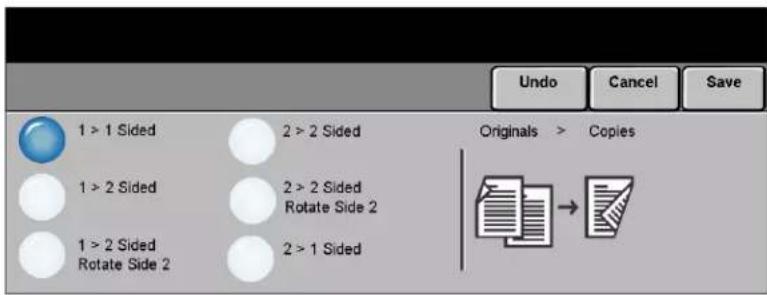
Undo Cancel Save 1 > 1 Sided 2 > 2 Sided 1 > 2 Sided 2 > 2 Sided 1 > 2 Sided Rotate Side 2 2 > 1 Sided Originals > CopiesUp to 50 double-sided copies, ranging in size from 8.5" x 5.5" to 11" x 17". can be made automatically from one or two-sided originals.
Options:
1→1 SIDED Use this option for originals that are printed on 1 side only and single-sided copies are required.
1→2 SIDED Use this option for originals that are printed on 1 side only and double-sided copies are required.
1→2 S this option produces double-sided copies from single-sided originals and rotates every second side image. Use this option to create documents which can be read in a "head to toe" manner, for example a calendar.
2→2 SIDED Use this option for originals that are printed on 2 sides and double-sided copies are required.
2→2 S This option produces double-sided copies from double-sided originals and rotates every second side image. The "read" orientation for this option varies depending on the input originals. For example, if "head to head" orientation originals are scanned, the output will be "head to toe". If "head to toe" orientation originals are scanned the output produced will be "head to head".
2→1 SIDED Use this option for originals that are printed on 2 sides and single-sided copies are required.
Reduce/Enlarge
text_image
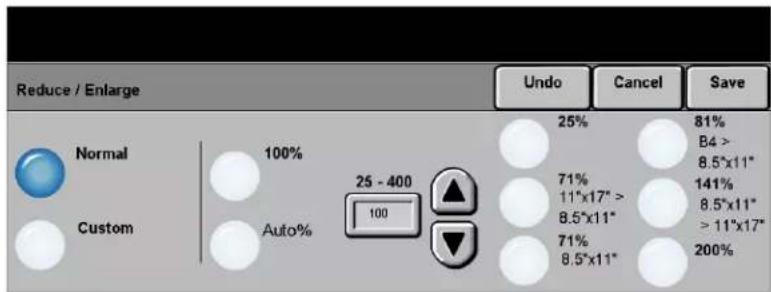
Reduce / Enlarge Undo Cancel Save Normal 100% 25 - 400 25% Custom Auto% 100 71% 8.5"x11" > 141% 8.5"x11" > 11"x17" 71% 8.5"x11" 200% B4 > 8.5"x11"The Reduce / Enlarge option provides a variety of reduction and enlargement options. Originals placed on the Document Glass or sent to the machine electronically can be reduced or enlarged between 25% to 400%. Originals fed through the Document Handler can be reduced or enlarged between 25% to 200%. The preset Reduce/Enlarge options that appear on the Copy tab can be set in Tools mode.
Options:
The following options appear after pressing the More... button on the Copy tab.
NORMAL Use this option to proportionately reduce or enlarge the output image in both directions by the % selected.
Normal options are as follows
| 100% | Produces an image on the copies the same size as the image on the original. |
| AUTO % | Proportionally reduces or enlarges the image on the copies based on the size of the original and the size of the selected output paper. |
| % SET 25 - 400 | Use this option to select the percentage of reduction or enlargement required using the keypad on the control panel. To use the keypad, select the box displaying the current reduce/enlarge percentage.The scroll buttons can also be used to adjust the reduce/enlarge percentage, in 1% increments. |
| PRESET OPTIONS | The most commonly used reduce/enlarge percentages have been provided as preset options. These preset options can be customized to meet individual needs. |
CUSTOM Use this option to adjust the height (Y) and the width (X) dimensions for reduction or enlargement of each dimension independently.
Custom options are as follows:
| 100% | Produces an image on the copies the same size as the image on the original. |
| AUTO % | Automatically fits the image of the original onto the paper selected. |
| X: Y: 25 - 400% | Enables you to customize the width(X) and height(Y) reduction or enlargement to suit your own requirements. A percentage can also be entered by touching the X or Y box and using the keypad. |
| NOTE: Output will NOT be reduced or enlarged proportionally. |
Paper Supply
text_image
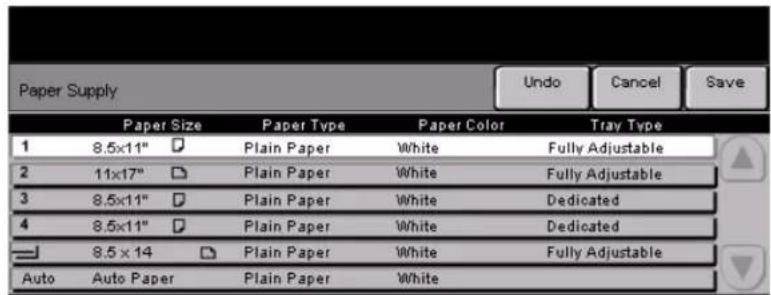
Paper Supply Undo Cancel Save Paper Size Paper Type Paper Color Tray Type 1 8.5x11" Plain Paper White Fully Adjustable 2 11x17" Plain Paper White Fully Adjustable 3 8.5x11" Plain Paper White Dedicated 4 8.5x11" Plain Paper White Dedicated 8.5 x 14 Plain Paper White Fully Adjustable Auto Auto Paper Plain Paper WhiteUse the Paper Supply options to select Auto Paper or a paper tray for the copy job.
① Transparencies can be fed from Tray 1 or the Bypass Tray.
Options:
All configurations of the CopyCentre/WorkCentre Pro include one standard Paper Tray (Tray 1). There are also three optional tray configurations available on the CopyCentre/WorkCentre Pro. You can choose an additional 1-Tray with Stand Option, an additional 3-Tray Option, or an additional High Capacity Feeder Option.
Tray 1 plus 1-Tray with Stand Option
AUTO With this option selected the machine chooses the correct paper for the copy job based on the size of the originals being scanned.
TRAYS 1 & 2 Use this option to select the paper loaded in Trays 1 and 2.
① Trays 1 and 2 each hold 520 sheets of 20 lb. paper. Sizes range from 5.5" x 8.5" to 11" x 17".
BYPASS TRAY Use this option when feeding individual types of stock, for example letterhead or labels for one-off jobs.
The Bypass Tray holds 100 sheets of 20 lb.paper. Sizes range up to 12" x 19".
Tray 1 plus 3-Tray Option
AUTO With this option selected the machine chooses the correct paper for the copy job based on the size of the originals being scanned.
TRAYS 1 TO 4 Use this option to select the paper loaded in Trays 1 to 4.
In this configuration, Trays 1 to 4 each hold 520 sheets of 20 lb. paper. Sizes range from 5.5" x 8.5" to 11" x 17".
BYPASS TRAY Use this option when feeding individual types of stock, for example letterhead or labels for one-off jobs.
① The Bypass Tray holds 100 sheets of 20 lb. paper. Sizes range from 4.25" x 5.5" SEF to 12" x 19" SEF.
Tray 1 plus High Capacity Feeder Option
AUTO With this option selected the machine chooses the correct paper for the copy job based on the size of the originals being scanned.
TRAYS 1 & 2 Use these options to select the paper loaded in Trays 1 and 2.
(i) Tray 1 and 2 each hold 520 sheets of 20 lb. paper. Sizes range from 5.5" x 8.5" to 11" x 17".
TRAYS 3 & 4 Use these options to select the paper loaded in Trays 3 and 4.
In this configuration, Tray 3 can hold 867 sheets of 20 lb. paper, and tray 4 holds 1133 sheets of 20 lb. paper, for a total of 2000 sheets. 8.5" x 11" LEF size paper can be loaded.
BYPASS TRAY Use this option when feeding individual types of stock, for example letterhead or labels for one-off jobs.
① The Bypass Tray holds 100 sheets of 20 lb. paper. Sizes range from 4.25" x 5.5" SEF to 12" x 19" SEF.
COLOR OPTIONS ...

text_image
Copy 1 Color Options 2 Image Adjustment 3 ...→ All Services Output Color Auto Detect Color Black and White More... Preset Color Options Sharpness/Saturation Sharpness Saturation Color Balance Color Shift Normal LivelyThe Color Options tab is used to select different color features for the finished output.
Touch any of the top level buttons to select a feature. To view all the options for a feature, select the feature required. Multiple options can be selected for each copy job if required.
The text next to the feature button, called a Job Review Summary, reflects the current settings for that feature. A green light indicates that this feature has been modified from its initial default settings.
Most feature screens include three buttons to confirm or cancel your choices.
The Undo button resets the current screen to the default values that were displayed when the screen was opened.
The Cancel button resets the screen and returns to the previous screen.
The Save button saves the selections made and returns to the previous screen.
Output Color
When you touch More... on the Color Options tab, you will access the Output Color screen. Use the Output Color options to select the desired color settings for your copies.

text_image
Output Color Auto Detect Black and White Color Single Color Red Green Blue Cyan Magenta Yellow Undo Cancel SaveOptions:
AUTO DETECT This option enables the copier to determine if the document is black and white or color. If the document is black and white, the Black & White option is selected automatically. If the document is color, the Color option is selected automatically.
COLOR This option enables the copier to make copies using all four toner colors: Yellow, Magenta, Cyan, and Black.
BLACK & WHITE This option should be selected when the desired output is a black and white copy. When Black & White is selected only Black toner is used.
SINGLE COLOR This option enables the machine to make copies using only one color. You can choose between Red, Green, Blue, Cyan, Magenta, or Yellow.
Preset Color Options

text_image
Ready to scan your job Preset Color Options Undo Cancel Save Normal Selecting a preset color option may adjust the following features for optimal image quality: Sharpness/Saturation, Color Shift, Color Balance, Image Quality. Lively Warm Cool BrightUse this feature to change color settings to produce various predetermined effects.
Options:
NORMAL This option makes no changes to the image quality and produces copies with the same quality and density of the original.
LIVELY This option uses the highest color saturation to produce rich, vivid output colors.
BRIGHT This option produces a sharp, clear image on the copy.
WARM This option produces a soft image on the copy by transforming low density colors into light and reddish colors.
Cool This option produces a strong, clear blue tone on the copy.
Color Balance
text_image
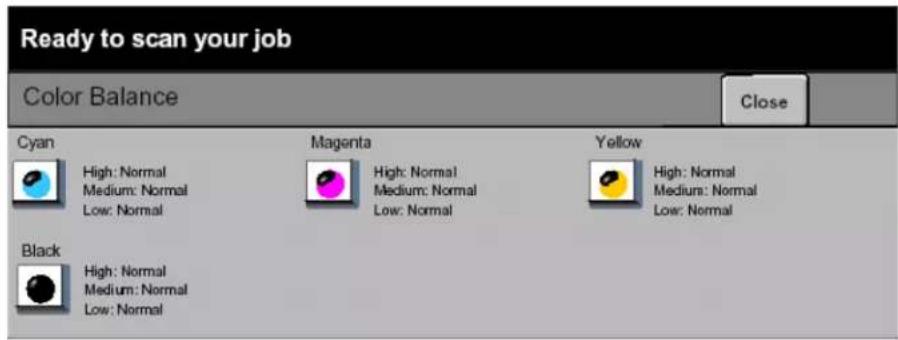
Ready to scan your job Color Balance Close Cyan High: Normal Medium: Normal Low: Normal Magenta High: Normal Medium: Normal Low: Normal Yellow High: Normal Medium: Normal Low: Normal Black High: Normal Medium: Normal Low: NormalUse this feature to adjust the balance between colors and the overall amount of color on the output using the up and down scroll buttons for each color.
Sharpness/Saturation

text_image
Ready to scan your job Sharpness/Saturation Undo Cancel Save Sharpness Sharpen Normal Soften Saturation Vivid Normal PastelUse this feature to adjust the amount of definition and overall richness of color on the copy.
Options:
SHARPNESS This option allows you to adjust the amount of edge definition using the up and down scroll buttons.
SATURATION This option allows you to adjust the overall richness of color using the up and down scroll buttons.
Color Shift

text_image
Ready to scan your job Color Shift Undo Cancel Save Warm Normal Cool Color Shift allows you to adjust your document so that the colors appear warmer or cooler.Use this feature to shift all of the copy colors toward the adjacent hue using the up and down scroll buttons.
If you scroll toward Warm, the red colors shift toward the yellow hue, the green colors shift toward the cyan hue, and the blue colors shift toward the magenta hue.
If you scroll toward Cool, the red colors shift toward the magenta hue, the blue colors shift toward the cyan hue, and the green colors shift toward the yellow hue.
IMAGE ADJUSTMENT...

text_image
Copy 1 Color Options 2 Image Adjustment 3 ...→ All Services Image Quality Lighten/Darken: 1 Suppression: On Contrast: 0 Original Type Type: Photo Bound Originals Off Original Input Auto Edge Erase Border Erase 0.1" Image Shift No ShiftThe Image Adjustment tab provides copy features used for adjusting the appearance of the copy output.
Touch any of the top level buttons to select a feature. To view all the options for a feature, select the feature required. Multiple options can be selected for each copy job if required.
The text next to the feature button, called a Job Review Summary, reflects the current settings for that feature. A green light indicates that this feature has been modified from its initial default settings.
Most feature screens include three buttons to confirm or cancel your choices.
The Undo button resets the current screen to the default values that were displayed when the screen was opened.
The Cancel button resets the screen and returns to the previous screen.
The Save button saves the selections made and returns to the previous screen.
Image Quality

text_image
Image Quality Undo Cancel Save Lighten/Darken: Lighten: Normal: Darken: Background Suppression: Off: On: Contrast: Variable AutoUse this feature to enhance the quality of your output.
Options:
LIGHTEN / DARKEN Adjusts the lightness or darkness of the output. To darken the output, select the down scroll button. To lighten the output, select the up scroll button.
BACKGROUND Prevents undesired marks or images that are printed on the back of an original from SUPPRESSION appearing on the output copies.
CONTRAST This option controls the differences between the image densities within the copy. Select a lower setting to improve the copy quality of pictures. Select a higher setting to produce more vivid colors for sharper text and lines.
Original Type
text_image
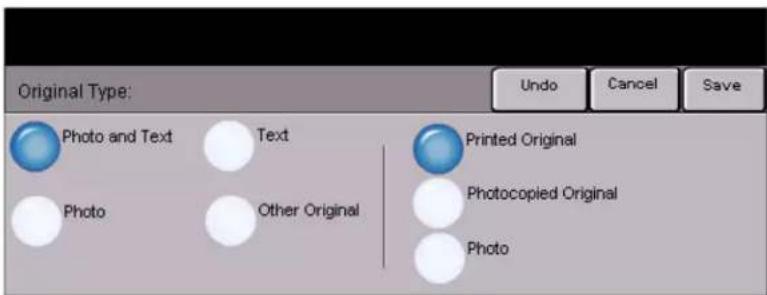
Original Type: Undo Cancel Save Photo and Text Text Printed Original Photocopied Original Photo Other Original PhotoUse this feature to enhance the copy quality of the output based on the type of original being scanned.
Options:
PHOTO & TEXT Use this option for original documents that contain lithographs, or pictures and printed text.
PHOTO Use this option for original documents that contain photographs.
Photo & Text and Photo options are as follows:
| PRINTED ORIGINAL | Use this option when copying from magazines, lithographs, or other printed documents. |
| PHOTOCOPIED ORIGINAL | Use this option when copying Xerographic reproductions. |
| PHOTOGRAPH | Use this option when copying photographs. |
TEXT Use this option when copying text documents composed of fine line characters or other high contrast documents with bright, dense colors.
OTHER ORIGINALS
Use this option when copying original documents containing colored backgrounds, originals marked by highlighter pens, and documents printed on inkjet printers.
Other Originals options are as follows:
| MAP | Use this options when copying originals with fine details. |
| INKJET ORIGINALS | Use this option when copying originals made on inkjet printers. |
| HIGHLIGHTED ORIGINALS | Use this option when copying originals marked with a highlighter pen. |
Bound Originals
text_image
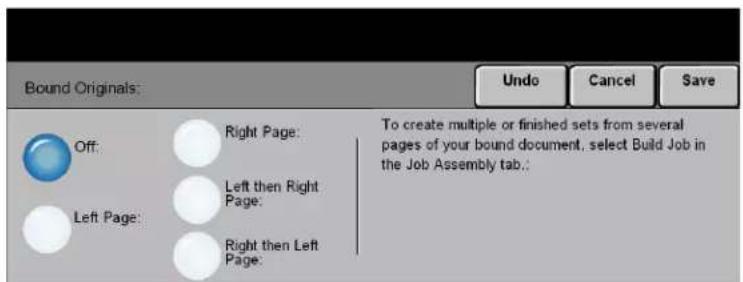
Bound Originals: Undo Cancel Save Off: Right Page: Left Page: Left then Right Page: Right then Left Page: To create multiple or finished sets from several pages of your bound document, select Build Job in the Job Assembly tab.This feature is used to copy pages from bound documents onto separate single-sided or double-sided pages.
The bound original is placed face down on the Document Glass with the spine of the book lined up with the marker on the rear edge of the glass. Align the top of the bound original against the rear edge of the document glass. Do not close the document handler during the copying process if Auto Reduce/Enlarge is selected.

HINT: If necessary, apply a little pressure to the center of the book to flatten it during scanning. Do not close the document handler and apply pressure. Applying pressure to the closed document handler may result in machine damage.
Options:
OFF The feature is switched off.
LEFT PAGE Copies only the page on the left when looking at the open book, face up.
RIGHT PAGE Copies only the page on the right when looking at the open book, face up.
LEFT THEN RIGHT Copies both pages of an open book, starting with the left page. PAGE
RIGHT THEN LEFT Copies both pages of an open book, starting with the right page. PAGE
BINDING ERASE Erases a specified area from the center of the book to eliminate unwanted marks caused by scanning the binding. When Left Page or Right Page is selected between 0 and 1.0 inch can be erased. When Both Pages is selected, between 0 and 2.0 inches can be erased.
Edge Erase

text_image
Edge Erase Border Erase Edge Erase Border 0.1 - 2.0" 0.10 Undo Cancel SaveUse this feature to "refresh" the quality of an original that has become torn or frayed at the edges, or that has hole punch, staple or other marks.
Options:
BORDER ERASE Erases equal amounts on all edges of the copies. Up to 2.0 inches (0 - 50 mm) in 0.05 inch (0.1 mm) increments can be erased.
EDGE ERASE Use to erase a specific amount from a specific edge of the copy. Up to 2.0 inches (0 - 50 mm) in 0.05 inch (0.1 mm) increments can be erased from each edge.
Original Input
text_image
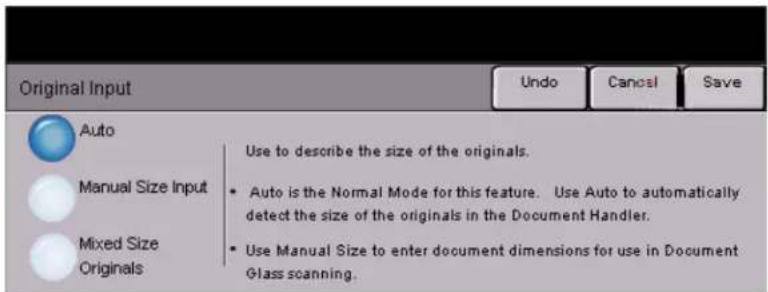
Original Input Auto Manual Size Input Mixed Size Originals Use to describe the size of the originals. • Auto is the Normal Mode for this feature. Use Auto to automatically detect the size of the originals in the Document Handler. • Use Manual Size to enter document dimensions for use in Document Glass scanning.Use this option to program the size of the originals being scanned or enable the machine to recognize the size of the originals.
Options:
AUTO Use this option to allow the machine to recognize the size of the originals being fed through the document handler.
MANUAL SIZE Use this option to specify the dimensions of the document scanning region when INPUT scanning from the document glass. There are several dimensions that correspond to common document sizes and orientations.
Select a standard size or use Custom to manually adjust the scanning dimensions.
MIXED SIZE Use this feature to input original documents of mixed sizes and produce them as a single copy job. To produce copies which are all on the same size paper, select a specific paper tray and Auto% Reduce/Enlarge. To produce mixed size output, select Auto Paper and 100% Reduce/Enlarge.
Image Shift
text_image
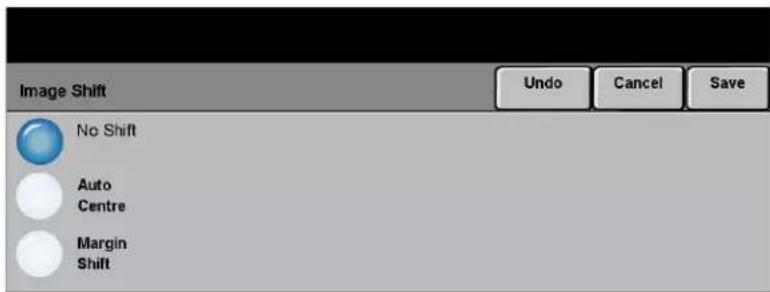
Image Shift Undo Cancel Save No Shift Auto Centre Margin ShiftThis feature enables the position of the image on the page to be adjusted.
Options:
No SHIFT The image position is not adjusted.
AUTO CENTER Use to automatically center the scanned image on the output paper.
MARGIN SHIFT Use to create a binding edge for the document. The image can be adjusted up or down on the page and/or shifted to the right or left. Use the scroll buttons to adjust the amount of shift. The image can be shifted between 0.0 and 2.0 inches, in 0.05in. increments.
Margin Shift options are as follows:
| SIDE 1 | Shifts the image on Side 1. |
| SIDE 2 | Shifts the image on Side 2. The shift on Side 2 can be set to mirror the shift on Side 1 or adjusted independently. |
OUTPUT FORMAT...
text_image
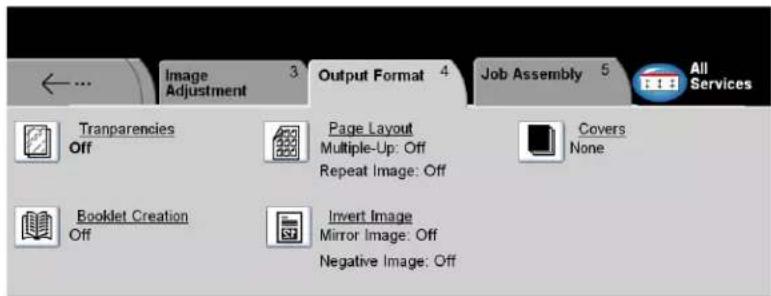
Image Adjustment Output Format Job Assembly All Services Transparencies Off Page Layout Multiple-Up: Off Repeat Image: Off Covers None Booklet Creation Off Invert Image Mirror Image: Off Negative Image: OffThe Output Format tab is used to produce different options for the finished output.
Touch any of the top level buttons to select a feature. To view all the options for a feature, select the feature required. Multiple options can be selected for each copy job if required.
The text next to the feature button, called a Job Review Summary, reflects the current settings for that feature. A green light indicates that this feature has been modified from its initial default settings.
Most feature screens include three buttons to confirm or cancel your choices.
The Undo button resets the current screen to the default values that were displayed when the screen was opened.
The Cancel button resets the screen and returns to the previous screen.
The Save button saves the selections made and returns to the previous screen.
Transparencies
text_image
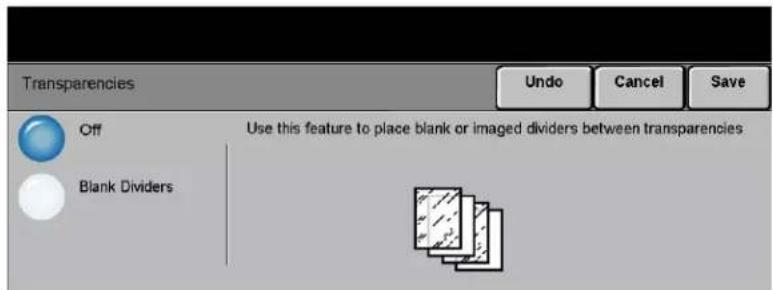
Transparencies Undo Cancel Save Off Use this feature to place blank or imaged dividers between transparencies Blank DividersThis feature allows the creation of a single set of transparencies with blank dividers. When dividers are selected a transparency set will always be single-sided on transparency stock with no stapling.
Options:
OFF The feature is switched off.
BLANK DIVIDERS Use this option to place a blank sheet between each transparency. If you select Blank Dividers, select the desired paper tray source for the Transparency paper and the Divider paper.
Booklet Creation

text_image
Booklet Creation Undo Cancel Save No Auto Booklet Layout Booklet Layout 1 Sided Originals Booklet Layout 2 Sided Originals No Fold or Staple Booklet Fold and Staple Booklet Fold OnlyNOTE: The screen shown above may be slightly different depending on the finishing options installed on your machine.
Use this feature to create multipage booklets from a sequential set of either single-sided or double-sided originals. The machine will reduce and correctly position each image to fit on the required page. When the page is folded a booklet will be created.
NOTE: Your originals should be loaded Long Edge Feed (LEF) in the document handler with the output paper loaded Short Edge Feed (SEF) in the paper tray.
Options:
Booklet Creation options are as follows:
| BOOKLET LAYOUT1 SIDED ORIGINALS | Select this option if the originals are single-sided. |
| BOOKLET LAYOUT2 SIDED ORIGINALS | Select this option if the originals are double-sided. |
Page Layout
text_image
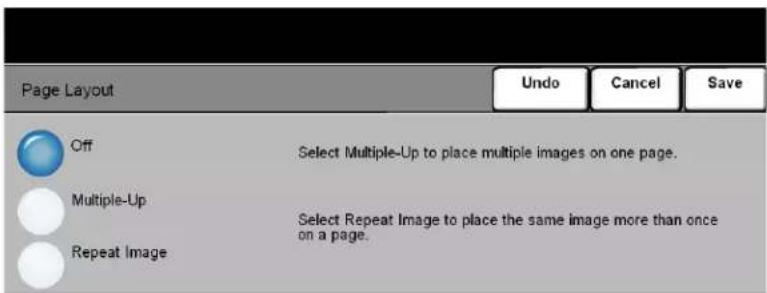
Page Layout Undo Cancel Save Off Select Multiple-Up to place multiple images on one page. Multiple-Up Select Repeat Image to place the same image more than once Repeat Image on a page.This feature is used to create documents with multiple images. It is ideal for creating handouts, storyboards or documents used for archival purposes.
NOTE: Originals must be loaded in the Document Handler when using this feature.
Options:
OFF The feature is switched off.
MULTIPLE-UP Use to print multiple different images on a single page. The Multiple-Up options are as follows:
| ORIENTATION | Use to select the image and load orientation of the input originals. |
| Rows | Selects the required number of Rows, between 1 and 6. |
| COLUMNS | Selects the required number of columns, between 1 and 6. |
REPEAT IMAGE Use to print the same image more than once on a single page. The Repeat Image options are as follows:
| Rows | Selects the required number of Rows, between 1 and 10. |
| COLUMNS | Selects the required number of columns, between 1 and 10. |
NOTE: The number of images will be limited by the minimum reduction value of 25% and the size of the selected output.
Invert Image

text_image
Invert Image Mirror Image Off On Negative Image Off On Undo Cancel SaveThis feature enables Mirror Image or Negative Image copies to be produced.
Options:
MIRROR IMAGE Use this option to change the direction of the original image, creating a mirror of the original. This option is primarily used to change the position of a graphic.
NEGATIVE IMAGE Use Negative Image to create copies that are the opposite of the original document. For black and white images, the white areas become black and the black areas become white. For color images, the magenta areas become green, the cyan areas become red, and the yellow images become blue.

HINT: This option is useful for saving toner (dry ink) consumption for black and white images with a dark background and white text.
Covers

text_image
Covers Undo Cancel Save No Covers Back Only Front Only Front and BackUse this feature to automatically add covers to your copied set using stock taken from a different tray than the copies.
Options:
No COVERS The feature is switched off.
FRONT ONLY Use this option to add a front cover to the copies.
BACK ONLY Use this option to add a back cover to the copies.
FRONT AND BACK Use this option to add both a front and back cover to the copies.
If Covers options are selected, program the following options:
OUTPUT COVER Use this option to select the imaging requirements for the covers. Output Cover IMAGES Images options are as follows:
| BLANK COVER | Adds Blank covers to the copies. |
| 1 SIDED | Places the first original in the job as the front cover image, and the last image as the image on the inside back cover of the document. |
| 2 SIDED | Places the first two images of the original set on the front and back of the front cover. The back cover will use the last two images in the job. |
| 2 SIDED, ROTATE SIDE 2 | Produces 2 sided covers with the second side rotated to enable a “head to toe” style output. |
COVER PAPER Use this option to select the tray required for the cover paper.
JOB ASSEMBLY...
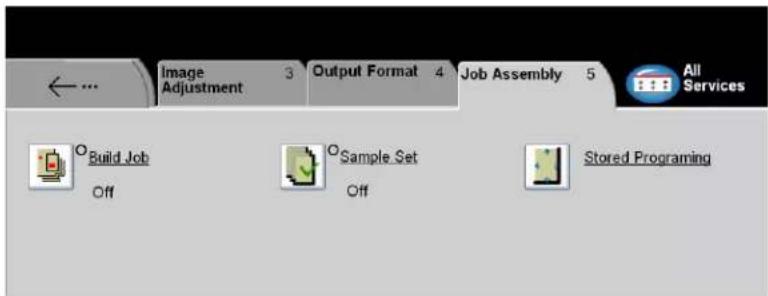
text_image
Image Adjustment 3 Output Format 4 Job Assembly 5 All Services Build Job Off Sample Set Off Stored ProgrammingThe Job Assembly tab is used to combine multiple documents into a single job, produce a sample set of a job or for storing the programming of up to 1000 images.
Touch any of the top level buttons to select a feature. To view all the options for a feature, select the feature required. Multiple options can be selected for each copy job if required.
The text next to the feature button, called a Job Review Summary, reflects the current settings for that feature. A green light indicates that this feature has been modified from its initial default settings.
Most feature screens include three buttons to confirm or cancel your choices.
The Undo button resets the current screen to the default values that were displayed when the screen was opened.
The Cancel button resets the screen and returns to the previous screen.
The Save button saves the selections made and returns to the previous screen.
Build Job
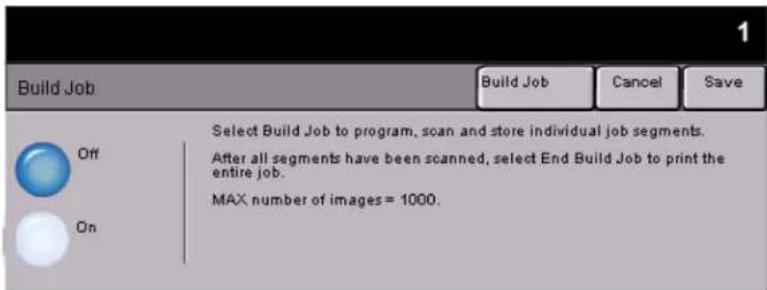
text_image
Build Job Build Job Cancel Save Select Build Job to program, scan and store individual job segments. After all segments have been scanned, select End Build Job to print the entire job. MAX number of images = 1000.Use this feature to build a job that requires different settings for each page. For example, if a set of documents consists of some pages with text and some with photos, the appropriate setting for each original can be applied and the job can still be completed as a single job.

HINT: Quantity, Stapling and Collation options can be adjusted at any time and will assume the values of the last job segment.
To use Build Job, split the job into programming and scanning segments. Ensure Build Job is selected and program and scan the first segment. Continue to program and load segments until the whole job has been scanned. Select End Build Job when the entire job has been scanned.
Options:
OFF The feature is switched off.
ON Use to enable the Build Job feature.
BUILD JOB Offers options which can be selected when using Build Job.
CONTROLS Build Job Controls options are as follows:
| END BUILD JOB | Select this option after the last segment of the job has been scanned. The job will be sent to print. |
| SAMPLE LAST SEGMENT | Select to see a proof of the last segment scanned. |
| DELETE LAST SEGMENT | Use to delete the last segment scanned. |
| CANCEL SAMPLE PRINTING | Use to stop and cancel the sample segment that is currently printing. |
| DELETE ALL SEGMENTS | Use to delete the current job and return to the main Build Job screen. |
Sample Set
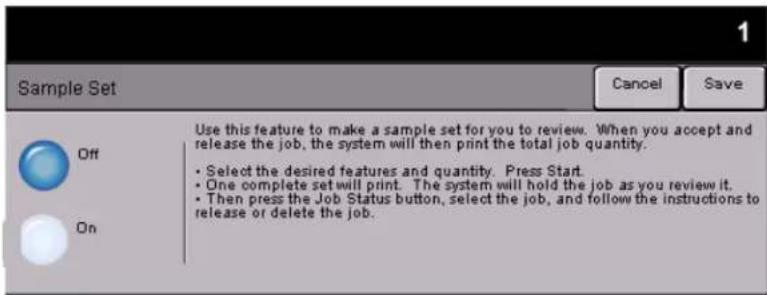
text_image
Sample Set Cancel Save Use this feature to make a sample set for you to review. When you accept and release the job, the system will then print the total job quantity. • Select the desired features and quantity. Press Start. • One complete set will print. The system will hold the job as you review it. • Then press the Job Status button, select the job, and follow the instructions to release or delete the job.This feature is used to review the output to ensure that it is exactly what is required prior to printing a large quantity.
Options:
OFF The feature is switched off.
ON Use to enable the Sample Set feature. One complete set of the job will be printed. To print the remainder of the job, press the Job Status button and select your job in the queue.
If the output is acceptable, select Release, the job will be completed.
If the output was not acceptable or the job is no longer required, select Delete to delete the job from the queue. Reprogram and rescan the entire job.
Stored Programming
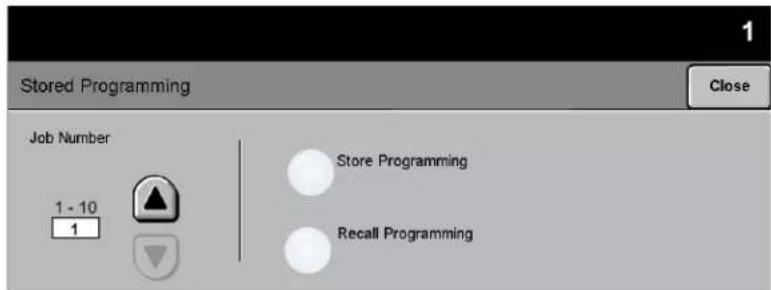
text_image
Stored Programming 1 Job Number 1 - 10 1 Store Programming Recall ProgrammingUse this feature to program up to 10 commonly used programming sequences. For example, combinations of selections such as Edge Erase and Bound Originals.
The machine stores only the programming features for the job, NOT the images. Each time a stored job is used the images must be scanned.
To use this feature, use the up and down scroll buttons on the scrolling list to select the required storage location, then select a function button - Store or Recall Programming.
Options:
JOB NUMBER Use to scroll to a job number between 1 and 10.
STORE Use this option to store the current programming selections. If a job has already been stored under the selected Job Number, an Overwrite Confirmation Message appears. If Overwrite is selected, the new programming will be stored.
RECALL Use this option to retrieve programming that has been stored under a specified job programming number. First select a Job Number, then select Recall Programming. The recalled programming will overwrite the current copy programming.
After being recalled, the selection can be modified further and re-stored if required.
4 F AX
➢Fax 4-2
▶ Basic Faxing - Embedded Fax......4-4
➢ Image Adjustment....4-9
➢Added Fax Features 4-14
▶ Basic Faxing - Server Fax......4-27
➢ More Fax Features......4-32
▶Authentication Mode 4-37
Fax is an optional feature which may not be available on your machine. There are two types of Fax service - Embedded Fax and Server Fax. Although both Fax services can be installed, only one fax service can be enabled. Your System Administrator will set up the default fax service. This chapter contains information about the options available within both fax services.
NOTE: Embedded Fax is the default service when both fax services are installed.
EMBEDDED FAX
Once enabled on your machine, you will be able to transmit and receive hard copy fax jobs over the telephone network directly to and from another fax machine. Your images are sent from your machine directly to the fax number entered. This type of fax travels over normal telephone lines and will therefore be charged at telephone rates. If the Basic Faxing screen looks like the one shown below, with the Superfine option shown, then Embedded Fax is enabled.
NOTE: A second fax line is also available as an additional option.
For information about the Embedded Fax options available please refer to page 4-4.

text_image
Ready - Enter phone number. Basic Faxing Image Adjustment Added Fax Features All Services Dialing Options Send List...(0) Speed Dial Dialing Characters Keypad Dial Resolution Standard Fine Superfine Sides Scanned 1 Sided 2 SidedSERVER FAX Available only on the WorkCentre Pro configuration. Once enabled on your machine, you will be able to transmit and receive hard copy faxes without a dedicated telephone line on the machine. Your images are sent from your machine to a Third Party fax server which forwards them on to the fax number you entered. This type of fax travels over normal telephone lines and will therefore be charged at telephone rates. If the Basic Faxing screen looks like the one shown below then Server Fax is enabled.
For more information about the Server Fax options available please refer to page 4-27.
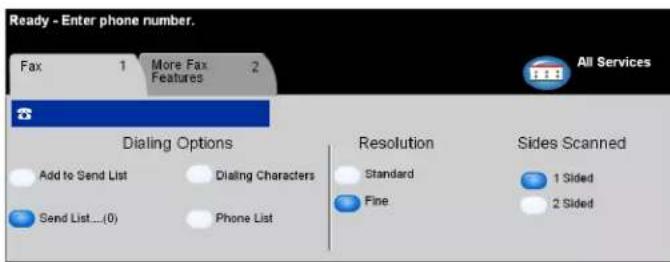
text_image
Ready - Enter phone number. Fax 1 More Fax Features 2 All Services Dialing Options Add to Send List Dialing Characters Resolution Sides Scanned Send List...(0) Phone List Standard Fine 1 Sided 2 SidedBASIC FAXING - EMBEDDED FAX
The Basic Faxing tab is the default Embedded Fax screen. Use the options available on this screen to enter the recipient telephone number and to select the standard features for your fax job.
Access to the Basic Faxing features is gained using the Features button on the control panel.
Depending on the options enabled and how your machine has been configured, you may have to select All Services in the top right-hand corner first.
The tabs available for selecting Fax features are:
Basic Faxing
➢ Image Adjustment
➢ Added Fax Features

text_image
Ready - Enter phone number. Basic Faxing Image Adjustment Added Fax Features All Services Dialing Options Send List....(0) Speed Dial Dialing Characters Keypad Dial Resolution Standard Fine Superfine Sides Scanned 1 Sided 2 SidedTouch any of the top level buttons to select a feature. Multiple options can be selected for each fax job if required.
Most feature screens include three buttons to confirm or cancel your choices.
The Undo button resets the current screen to the default values that were displayed when the screen was opened.
The Cancel button resets the screen and returns to the previous screen.
The Save button saves the selections made and returns to the previous screen.
Dialing Options
FAX
Use the Dialing Options to enter an individual fax number or a group of fax numbers already stored within the Send List. Special dialing characters can also be added to your fax number from here.
There are two methods of entering a phone number - Manually using the keypad or by selecting a number already stored within the Send List.
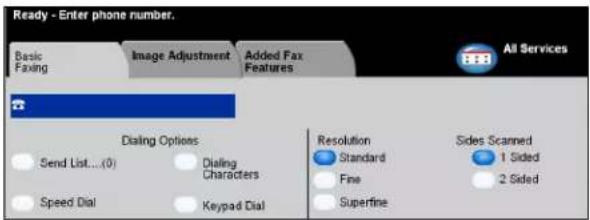
text_image
Ready - Enter phone number. Basic Fixing Image Adjustment Added Fax Features All Services Dialing Options Send List... (0) Speed Dial Dialing Characters Keypad Dial Resolution Standard Fine Superfine Sides Scanned 1 Sided 2 SidedOptions:
SEND LIST Used to send a fax to multiple destinations. Send List fax numbers can be added manually using the keypad, or by using the Speed Dial options. Individual or Group lists can be created.
Selecting the Send List accesses the Directory screen. The Directory stores and displays the fax recipient details. Information includes the recipients name, fax number and transmission preferences, for example the resolution and communication mode. Individual and Group entries can be stored within the Send List.
The Group Directory allows a combination of specific individual names and numbers to be stored within a group. Group members must first be programmed from the Individual Directory. When sending a fax to a group, simply enter the one group number and each individual within the group will receive the document.

HINT: When individual directory numbers are deleted from the Phone List they will also be deleted from the Group.
NOTE: All Directory entries are current and will not be deleted once a fax job has been completed.
SPEED DIAL Speed Dial numbers are automatically created when a fax destination number is entered in the individual directories or phonebook. Using the Speed Dial number saves time typing the complete fax destination number.
DIALING Dialing characters are special characters used for entering fax numbers. They are CHARACTERS entered as part of the telephone number:
| BEGIN DTMF [*] | Starts a sequence of DTMF (Dual Tone Multi-frequency) characters. |
| END DTMF [#] | Ends a sequence of DTMF (Dual Tone Multi-frequency) characters. |
| WAIT FOR DIAL TONE [=] | Suspends dialing until an expected network dial tone is detected. Can also be used to detect a specific tone when accessing an outside line or other services. |
| PULSE TO TONE SWITCH [:] | Used to switch from pulse dialing to DTMF (tone or one-touch) dialing. After switching from pulse to tone, you cannot switch back to the original mode during the fax procedure. |
| READABILITY DIGITS [()] | Identifies the different components of the fax number, for example the dialing code (1234) 56789. |
| START MAILBOX SIGNALLING [!] | Pauses regular fax dialing and starts DTMF (Dual Tone Multi-frequency) procedure for the fax mailbox. |
| PAUSE [,] | Gives the machine time to switch from an inside line to an outside line during automatic dialing. For additional pause time, add multiple pauses. For charge code numbers, enter a pause after the fax number but before the charge code number. |
| PRIVATE DATA DELIMITER [/] | Protects confidential information, For example, if a special charge code or credit card number is required for a call. The / character should be selected before and after entering confidential numbers. The numbers and characters entered between this character will appear as asterisks (*). |
| LINE SELECTION IDENTIFIER [<1>] | Used to select Line 1 to dial the number. Selecting this character temporarily overwrites the fax settings and is for the current job only. |
| LINE SELECTION IDENTIFIER [<2>] | Used to select Line 2 (if installed) to dial the number. If a second line is not installed then this option will not be available. Selecting this character temporarily overwrites the fax settings and is for the current job only. |
Resolution
The Resolution affects the appearance of the fax at the receiving fax terminal. A higher resolution produces better quality for photos. However, a lower resolution reduces communication time.

text_image
Ready - Enter phone number. Basic Faxing Image Adjustment Added Fax Features All Services Dialing Options Send List....(0) Speed Dial Dialing Characters Keypad Dial Resolution Standard Fine Superfine Sides Scanned 1 Sided 2 SidedOptions:
STANDARD 200 x 100 dpi - Recommended for text documents. It requires less communication time, but does not produce the best image quality for graphics and photos.
FINE 200 x 200 dpi - Recommended for line art and photos. This is the default resolution and the best choice in most cases.
SUPERFINE 600 x 600 dpi - Recommended for photos and halftones, or images that have gray tones. It requires more communication time, but produces the best image quality.
NOTE: Manufacturers definitions of Superfine may vary.
Sides Scanned
This is used to specify whether the originals are single-sided or double-sided. For 2-sided originals the orientation can also be programmed.
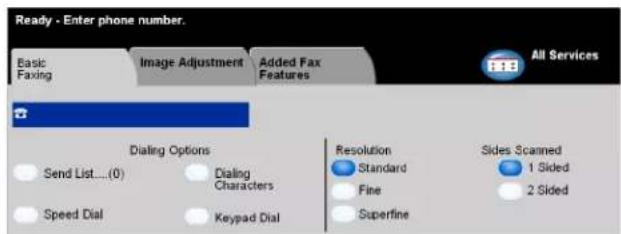
text_image
Ready - Enter phone number. Basic Faxing Image Adjustment Added Fax Features All Services Dialing Options Send List... (0) Speed Dial Dialing Characters Keypad Dial Resolution Standard Fine Superfine Sides Scanned 1 Sided 2 SidedOptions:
1 SIDED Use this option for originals that are printed on one side only.
2 SIDED Use this option for originals that are printed on both sides.
IMAGE ADJUSTMENT
FAX
The Image Adjustment tab provides further features that can be applied to your fax job.
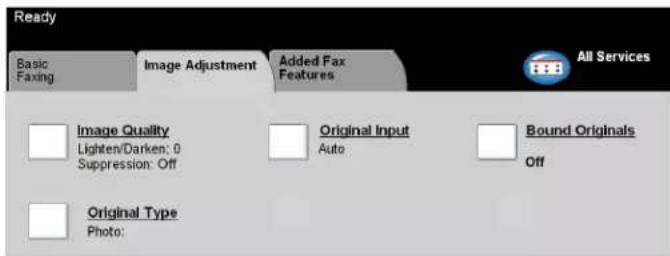
text_image
Ready Basic Faxing Image Adjustment Added Fax Features All Services Image Quality Lighten/Darken: 0 Suppression: Off Original Input Auto Bound Originals Off Original Type Photo:Touch any of the top level buttons to select a feature. To view all the options for a feature, select the feature required. Multiple options can be selected for each fax job if required.
The text next to the feature button, called a Job Review Summary, reflects the current settings for that feature. A checked box indicates that this feature has been modified from its initial default settings.
Most feature screens include three buttons to confirm or cancel your choices.
The Undo button resets the current screen to the default values that were displayed when the screen was opened.
The Cancel button resets the screen and returns to the previous screen.
The Save button saves the selections made and returns to the previous screen.
Image Quality
Use this feature to enhance the quality of the outgoing fax.

text_image
Items Size Temp Image Adjustment Output Point Parameters All Services Image Quality Lighten/Darken: 0 Appearance Off Original Time Photo Original Time Original Time Original Time Original Time Original Time Original Time Original Time Original Time Original Time Original Time Original Time Original Time Original Time Original Time Original Time Original Time Original Time Original Time Original Time Original Time Original Time Original Time Original Time Original Time Original Time Original Time Original Time Original Time Original Time Original Time Original Time Original Time Original Time Original TimeLIGHTEN / DARKEN Adjusts the lightness or darkness of the fax. To darken the fax, select the down scroll button. To lighten the fax, select the up scroll button.
BACKGROUND This option automatically reduces or eliminates the dark background resulting from SUPPRESSION colored paper or newspaper originals.
NOTE: Background Suppression is disabled if the Original Type is Photo.
Original Input
FAX
This feature enables users to specify the size of the original document when scanning from the Document Glass or Document Handler. The machine uses this information to calculate the size of your original and the scanned image.
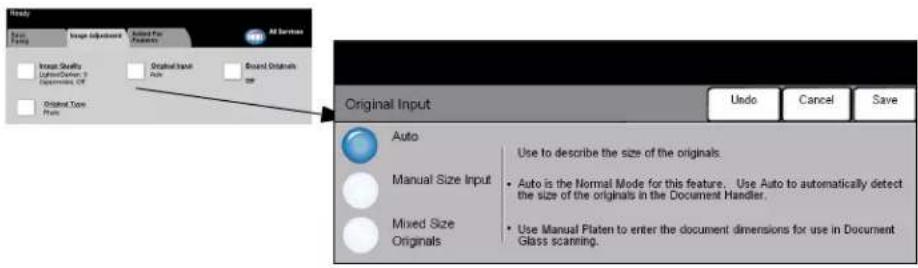
text_image
Original Input Auto Manual Size Input Mixed Size Originals Use to describe the size of the originals. • Auto is the Normal Mode for this feature. Use Auto to automatically detect the size of the originals in the Document Handler. • Use Manual Flaten to enter the document dimensions for use in Document Glass scanning.Options:
AUTO This is the default option. Auto automatically detects the size of the originals in the Document Handler.
MANUAL SIZE Use this option to specify the dimensions of the document scanning region when INPUT scanning from the Document Glass. There are several pre-set dimensions that correspond to common document sizes and orientations.
MIXED SIZE Use this feature to scan a document containing mixed size originals. The originals must be the same width, for example 8.5x11inch long edge feed and 11x17inch short edge feed. Load documents in the Document Handler when using this feature.
Bound Originals
Use this option to program which page or pages of a bound document are to be scanned and faxed. This feature will not be available unless the fax destination number has been entered.
The bound original is placed face down on the Document Glass with the spine of the book lined up with the marker on the rear edge of the glass. Align the top of the bound original against the rear edge of the document glass. Do not close the document handler during the faxing process.

HINT: If necessary, apply a little pressure to the centre of the book to flatten it during scanning.
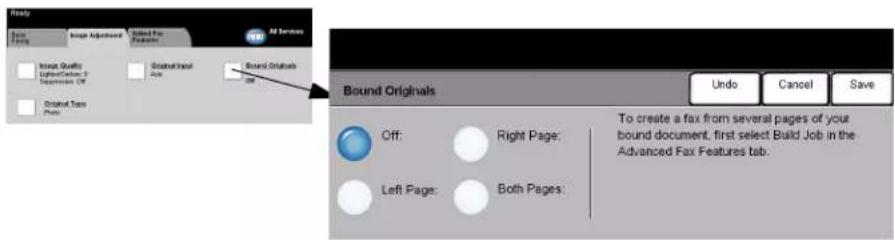
text_image
Bound Form Image Adjusted Added Pro Features All Services Input Quality LightCell: 2 Suppression Off Original Type Page Ground Label Auto Bound Originals Bound Originals Undo Cancel Save Off: Right Page: To create a fax from several pages of your bound document, first select Build Job in the Advanced Fax Features tab. Left Page: Both Pages:Options:
OFF The feature is switched off.
RIGHT PAGE Faxes only the page on the right when looking at the open book, face up.
LEFT PAGE Faxes only the page on the left when looking at the open book, face up.
BOTH PAGES Faxes both pages of an open book, in left to right order when looking at the open book face up. Each page is placed on a separate sheet of paper.
BINDING ERASE Erases a specified area from the centre of the book to eliminate unwanted marks caused by scanning the binding area. Up to 1.0 inch can be erased.
Original Type
Use this option to enhance the quality of the fax based on the type of original being scanned.
FAX
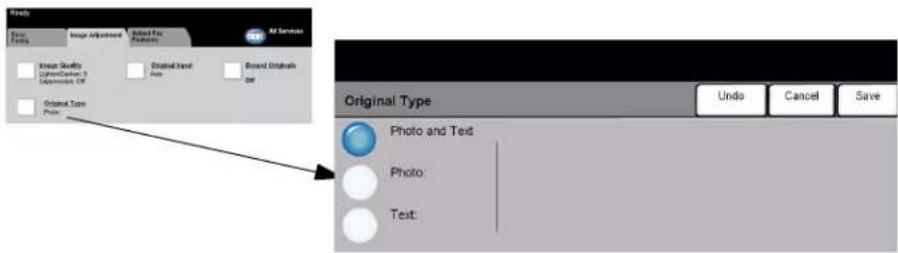
text_image
File View Image Adjustment Add to File Features Image Quality Lock/Control: 0 Lock/Control: 0 Original Type Photo Original Type Photo and Text Photo: Text: Undo Cancel SaveOriginal Type options are as follows:
| PHOTO AND TEXT | This is the standard setting and can be used for most originals. |
| PHOTO | Use for continuous tone photographs or printed half-tone originals |
| TEXT | Use for originals containing text or line art. |
ADDED FAX FEATURES
The Added Fax Features tab provides further fax features which can be used when transmitting faxes.
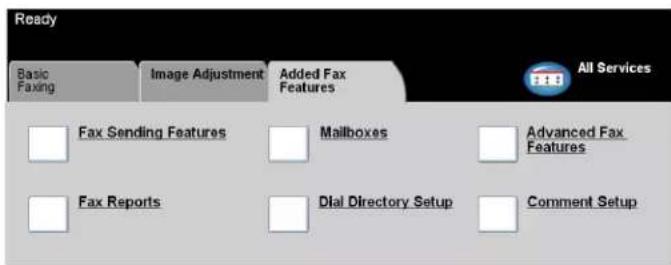
text_image
Ready Basic Faxing Image Adjustment Added Fax Features All Services Fax Sending Features Mailboxes Advanced Fax Features Fax Reports Dial Directory Setup Comment SetupTouch any of the top level buttons to select a feature. To view all the options for a feature, select the feature required. Multiple options can be selected for each fax job if required.
Most feature screens include three buttons to confirm or cancel your choices.
The Undo button resets the current screen to the default values that were displayed when the screen was opened.
The Cancel button resets the screen and returns to the previous screen.
The Save button saves the selections made and returns to the previous screen.
Fax Sending Features
Select this feature to access the options which enable you to apply additional transmission features to your fax job.
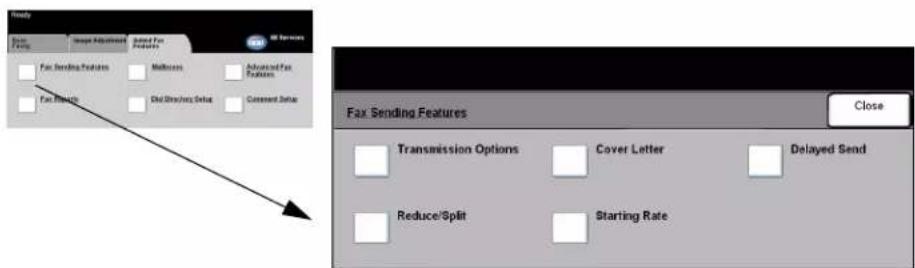
text_image
Fax Sending Features Transmission Options Cover Letter Delayed Send Reduce/Split Starting RateTransmission Options
Allows transmission information to be included with your fax job.
FAX

text_image
For Shipping Options Close Transmission Options Cover Letter Delivered Send Reduce Options Winning Note Transmission Options Cancel Save Transmission Report Off On Transmit Header Print Off OnOptions:
TRANSMISSION This report contains details about the fax together with a reduced copy of the REPORT image from the first page. When sending a fax to multiple recipients, a Broadcast Report will be printed listing all of the recipients.
TRANSMIT HEADER PRINTs partial or full details of the transmission in the header of each page of your fax job.
Partial header details include:
- the sending fax machine's telephone number
• the date and time the fax was sent - the page number.
Full header details include:
- the sending fax machine's telephone number and name
• the date and time the fax was sent - the page number.
NOTE: The machine telephone number and name are set up when Embedded Fax is installed. The time is displayed as a 12 or 24 hour clock, depending on the system settings.
Reduce/Split
Use this option to choose how your faxed document is printed if your document paper size is larger than the receiving machines capability.
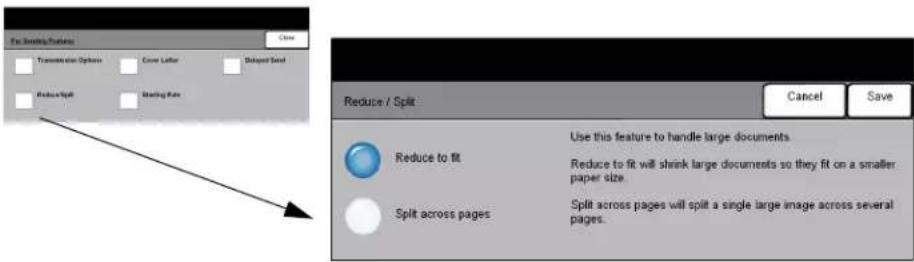
text_image
Fac-Blending/Flatten Close Transmission Options Cover Letter Dropout Send Reduce Split Starting Rate Reduce / Split Cancel Save Reduce to fit Use this feature to handle large documents. Reduce to fit will shrink large documents so they fit on a smaller paper size. Split across pages Split across pages will split a single large image across several pages.Options:
REDUCE TO FIT Reduces the faxed document to fit the paper size of the receiving fax machine.
SPLIT ACROSS If this option is selected the receiving fax machine will either split the faxed PAGES document into two equal parts, or print the majority of the image on to one page and the remainder on the next page.
NOTE: Due to print margins some of the image may be lost around the edges when using the split feature.
Cover Letter
FAX
Use this option to add a cover letter to your fax job. Users can add text in the "To", "From" and "Comment" fields.
NOTE: The Cover Letter title is added automatically.

text_image
For Existing Features Transaktion Options Cover Letter Defend Seed Reduce Shift Share Rate Cover Letter Cancel Save Off To: From, and Comment Fields To: Directory Name From: Machine Name Comment: OnOptions:
To: Displays the recipient's fax number or name. Select the keyboard button to amend the recipient's name.
FROM: Displays the sending machines local name. Select the keyboard button to amend the sender's name.
COMMENT: Use the up/down buttons to move through the list. The selected Comment will be displayed in the Comment area on the Cover Letter. Selecting No Comment will leave the Comment text region blank.

HINT: Only one Comment can be selected at a time.
NOTE: For more information about setting up a Comment please refer to page 4-22.
Starting Rate
Use this option to set the transmission speed of your fax job.
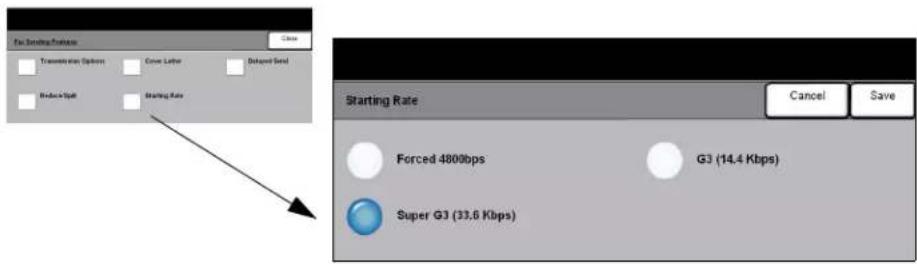
text_image
For Existing Products Transmission System Close Letter Diluted Set Redock Shift Starting Rate Starting Rate Cancel Save Forced 4800bps G3 (14.4 Kbps) Super G3 (33.6 Kbps)Options:
FORCED 4800 BPS Used in areas of low quality communication, when experiencing telephone noise or when fax communications are susceptible to errors.
SUPER G3 (33.6) Determines the communication mode to be used based on the maximum KBPS capabilities of the remote machine. The initial transmission speed will be 33,600 Bits per second.
G3 (14.4 KBPS) Selects the communications mode based on the maximum capabilities of the remote machine. The initial transmission speed will be 14,400 Bits per second.
Delayed Send
FAX
Use Delayed Send to specify a time at which to send a fax. The time can be set between 15 minutes and 23 hours 59 minutes. This feature is very useful when transmitting faxes during off-peak hours or when sending to another country or time zone.
A 12 or 24 hour clock can be set. If the 12 hour clock is set, you must also select either the AM or PM button.
NOTE: Batch Send is a feature, which is set up by your System Administrator. It allows multiple fax jobs to be sent to the same destination during the same transmission session. If sending a fax job that has the same destination as a job already held as a Delayed Send job, a pop-up window will be displayed on the touch screen asking you whether to send your fax now or add it to the job being sent at a later time. Select the option required to complete your job.

text_image
For Sending Options Transmission Options Cover Letter Delayed Send Reduce Shift Starting Rate Delayed Send Off Specific Time Touch one of the type-in regions, then use keypad at right to enter send time. Hours Minutes 00 - 23 00 - 59 15 42 Current time is 15:42 Cancel SaveOptions:
OFF The feature is switched off.
SPECIFIC TIME Enables users to enter the actual time the fax is to be sent.
Fax Reports
This feature enables you to obtain hard copy information about the status of the fax feature on your machine.
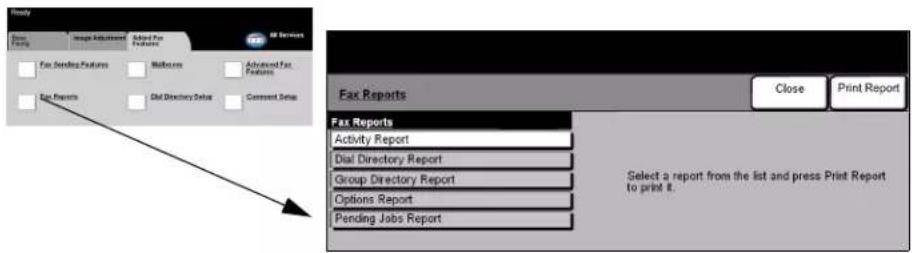
text_image
Email Form Help Image Adjustment Select Fax Features Fax Requests Features Mailroom Advanced Fax Features Fax Reports Dist Directory Set Comment Set Fax Reports Close Print Report Fax Reports Activity Report Dial Directory Report Group Directory Report Options Report Pending Jobs Report Select a report from the list and press Print Report to print it.Options:
Fax Reports options are as follows:
| ACTIVITY REPORT | Displays the last 50 fax activities completed on the machine. |
| DIAL DIRECTORY REPORT | Lists all the numbers stored in the Dial Directory. |
| GROUP DIRECTORY REPORT | Lists all the numbers stored within each group within the Group Directory. |
| OPTIONS REPORT | Provides the machine configuration, firmware level and options. |
| PENDING JOBS REPORT | Displays the fax jobs in the machine's memory waiting to be sent or printed. This report also gives a percentage of available memory on the machine. |
Mailboxes
FAX
Enabled by your System Administrator, this option allows you to store documents in a mailbox. The mailbox can be located on the same machine you are using (local mailbox), or sent to a mailbox on a remote machine (remote mailbox). Documents held within the mailbox are recognized as stored for polling, printing or deleting by the user. To access a mailbox you must enter the 3 digit mailbox number and 4 digit mailbox passcode. Please contact your System Administrator for further assistance.
NOTE: The storage time for faxes is set up by your System Administrator.

text_image
Send to Mailboxes Store to Mailbox Send to a Remote Mailbox Print Mailbox Documents Delete Mailbox Documents All Services Fax Requests Features Mailboxes Advanced Fax Features Fax Reports Directaries Settle Statement Settle Mailboxes CancelOptions:
STORE TO Allows users to scan and store fax documents for polling. Documents are stored in MAILBOX your mailbox and automatically sent to a remote fax machine when requested.
PRINT MAILBOX Allows you to print a hard copy of the documents stored in a mailbox. DOCUMENTS
DELETE MAILBOX Allows you to delete all the documents stored within a mailbox.
DOCUMENTS
NOTE: If the Delete Mailbox Documents or Print Mailbox Documents button is selected then both received and stored documents within the selected mailbox will be printed or deleted.
SEND TO A Allows you to send a fax document directly to an individual's private mailbox on a REMOTE MAILBOX remote machine.
NOTE: This feature will only be available when the remote machine has mailbox capability and when the user sending the document knows the mailbox number of the recipient.
Dial Directory Setup
Use this feature to store destination names and fax numbers in your machine.
Entries stored here will be available for selection within the Send List feature on the Basic Faxing tab.
Dialing Groups can also be set up, comprising of many individual entries.

HINT: This feature saves time when sending faxes to frequently used destinations.
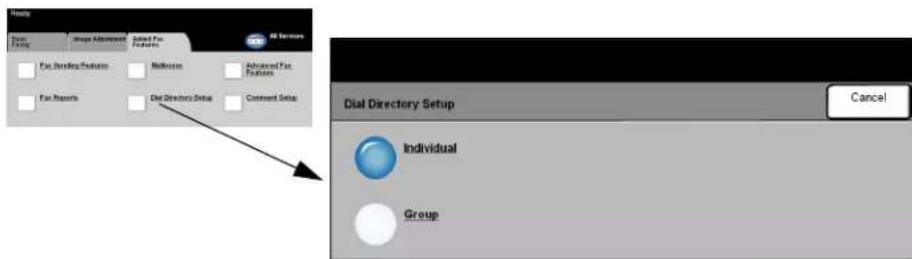
text_image
File Setting Image Adjustment Selected Fox Features All Services Fox Settings Feature Multibox Advanced Fox Features Fox Reports Dial Directory Setup Comment Setup Dial Directory Setup Cancel Individual GroupOptions:
INDIVIDUAL Use this option to set up individual fax destination names, numbers and settings.
GROUP Use this option to set up a group of directory locations under one number. Using a Group Dial Directory means that you only have to enter one group number to send to multiple destinations.
NOTE: A new Group Dial List must be created using those destinations already stored as an Individual Directory or Group Directory list.
Advanced Fax Features
FAX
Offers advanced features which enable you to transmit large, complex jobs; scan and store fax jobs for retrieval by another fax machine, or poll another fax machine.
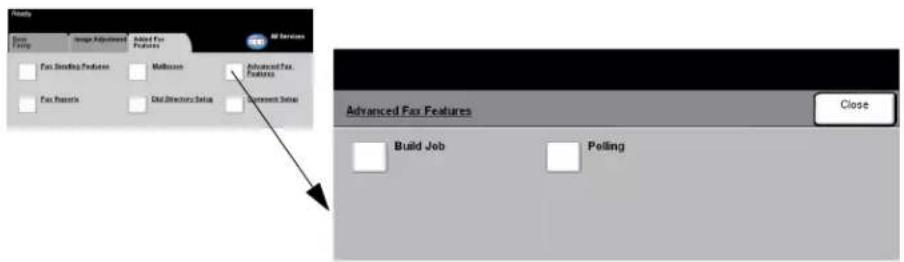
text_image
Advanced Fax Features Build Job PollingBuild Job
Use this feature to fax a job that requires different settings for each page or a segment of pages. This feature is also useful if your fax job has more than 50 pages which exceeds the maximum capacity of the Document Handler.
NOTE: The destination fax number must be entered prior to using Build Job.
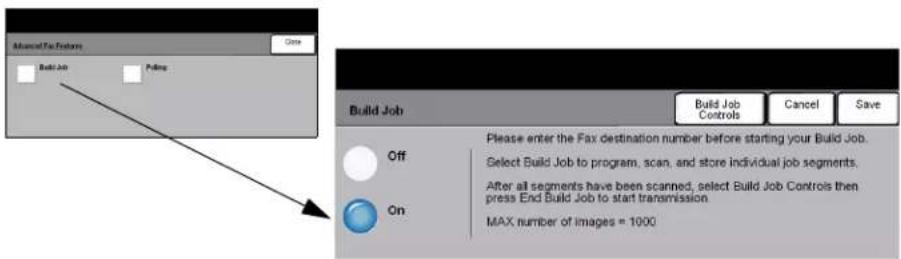
text_image
Microsoft Tax System Close Build Job Piling Build Job Build Job Controls Cancel Save Please enter the Fax destination number before starting your Build Job. Select Build Job to program, scan, and store individual job segments. After all segments have been scanned, select Build Job Controls then press End Build Job to start transmission. MAX number of images = 1000Options:
OFF The feature is switched off.
ON Use to enable the Build Job feature.
BUILD JOB Offers options which can be selected when using Build Job.
CONTROLS Build Job Controls options are as follows:
| END BUILD JOB | Select this option after the last segment of the job has been scanned. The job will be sent to print. |
| DELETE LAST SEGMENT | Use to delete the last segment scanned. |
| DELETE ALL SEGMENTS | Use to delete the current job and return to the main Build Job screen. |
Polling
Polling enables you to store fax documents into the machine's memory for retrieval by another remote fax machine, or poll a remote fax machine or mailbox
FAX

text_image
Admitted Fax Features Store Air Polling Polling Store for Polling Poll Remote Fax Poll Remote Mailbox CloseOptions:
STORE FOR This option allows users to scan documents and store them. When remote machines poll the device, they are able to retrieve the scanned document(s). Passcodes can be set up to control which machines have access to the documents stored.
POLL REMOTE FAX This option allows users to set up their machine to contact a remote fax machine to locate and receive faxes stored by the remote machine.
POLL REMOTE This option allows users to set up their machine to contact a remote mailbox which is set up on a remote fax machine. When contact has been made the remote machine sends the faxes stored within the mailbox.
Comment Setup
This feature allows you to create, modify or delete comments that you want to appear on the fax Cover Letter. Up to 10 comments can be stored on the machine.
To add or modify a comment select an empty entry from the comment list and select Edit. Using the keyboard enter the comment you wish to store. A maximum of 30 characters can be entered. To delete a comment, select the comment from the list and select Delete.
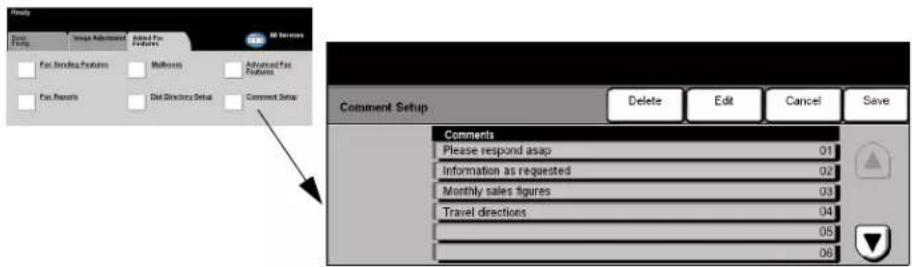
text_image
Comment Setup Delete Edit Cancel Save Comments Please respond asap 01 Information as requested 02 Monthly sales figures 03 Travel directions 04 05 06BASIC FAXING - SERVER FAX
FAX
The Basic Faxing tab is the default Server Fax screen. Use the options available on this screen to enter the recipient telephone number and to select the standard features for a fax job.
Access to the Basic Faxing features is gained using the Features button on the control panel.
Depending on the options enabled and how your machine has been configured, you may have to select All Services in the top right-hand corner first.
The tabs available for selecting Fax features are:
Basic Faxing
More Fax Features

text_image
Ready - Enter phone number. 1 More Fax Features 2 All Services Dialing Options Add to Send List Dialing Characters Resolution Sides Scanned Send List... (0) Phone List Standard Fine 1 Sided 2 SidedTouch any of the top level buttons to select a feature. Multiple options can be selected for each fax job if required.
Most feature screens include three buttons to confirm or cancel your choices.
The Undo button resets the current screen to the default values that were displayed when the screen was opened.
The Cancel button resets the screen and returns to the previous screen.
The Save button saves the selections made and returns to the previous screen.
Dialing Options
The Dialing Options area contains a window where the telephone number entered is displayed. Once it is displayed, it can be added to a list of destination telephone numbers, a special character can be added, or a list of up to 30 stored telephone numbers can be accessed.
There are two methods of entering a phone number - Manually using the keypad or by selecting a number already stored in the Phone List.
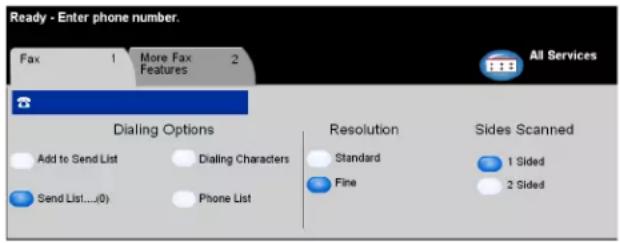
text_image
Ready - Enter phone number. Fax 1 More Fax Features 2 All Services Dialing Options Add to Send List Dialing Characters Send List...(0) Phone List Resolution Sides Scanned Standard 1 Sided Fine 2 SidedOptions:
ADD TO SEND LIST
Used when you want to send a fax to more than one destination. Enter the number using the keypad or select the Phone List button and select a stored number. Then select the Add to Send List button. Continue to add numbers until all the locations have been entered.
SEND LIST
Stores the list of telephone numbers entered, to enable faxing to multiple locations. The number on the Send List button will change, indicating how many telephone numbers currently reside in the Send List.
Select the Send List button to view or delete telephone numbers.
DIALING Dialing characters are special characters used for entering fax numbers and are CHARACTERS entered as part of the telephone number:
| DIAL PAUSE [,] | Allows the machine enough time to switch from an inside line to an outside line. The delay depends on the fax server. |
| LONG PAUSE [I] | This pause is used if a longer period is required to gain a dial tone. |
| GROUP DIAL [] | Indicates that an identifier for a previously set up group is about to be entered. |
| MASK DATA [/] | Used to hide information on printed reports. Characters entered between two forward slash symbols will appear as asterisks. |
| PASSWORD CHECK SWITCH [S] | Used for remote terminal identification. This character verifies that the correct number has been dialed. |
| PULSE-TO-TONE SWITCH [:] | Use to switch from Pulse dialing to Tone dialing. |
| WAIT FOR NETWORK TONE DETECTION [W] | Use to suspend dialing until an expected network tone is detected. |
| LOCAL ID [+] CHARACTER CHECK [+] | Required as part of some international telephone numbers (in place of 00). |
| LOCAL ID [SPACE] CHARACTER CHECK [] | Used to improve readability. For example, adding spaces to a telephone number as 1 234 5678 instead of 12345678. |
FAX
PHONE LIST The Phone List can store up to 30 fax numbers. Enter the fax number and select Phone List. Select an empty number and then Enter Phone List, the number will be stored. Fax numbers in the Phone List can also be added to the Send List. Entries displayed in the phone list will not be deleted once a fax job has been completed.
Resolution
The Resolution affects the appearance of the fax at the receiving fax terminal. A higher resolution yields better quality for photos. A lower resolution reduces communication time.
text_image
Ready - Enter phone number. Fax 1 More Fax Features 2 All Services Dialing Options Add to Send List Dialing Characters Resolution Sides Scanned Send List...(0) Phone List Standard Fine 1 Sided 2 SidedOptions:
STANDARD 200 x 100 dpi - Recommend for text documents. It requires less communication time, but does not produce the best image quality for graphics and photos.
FINE 200 x 200 dpi - Recommended for line art and photos. This is the default resolution and the best choice in most cases.
Sides Scanned
This is used to specify whether the originals are single-sided or double-sided. For 2-sided originals the orientation can also be programmed.
FAX

text_image
Ready - Enter phone number. Fax 1 More Fax Features All Services Dialing Options Add to Send List Dialing Characters Send List...(6) Phone List Resolution Sides Scanned Standard 1 Sided Fine 2 SidedOptions:
1 SIDED Use this option for originals that are printed on 1 side only.
2 SIDED Use this option for originals that are printed on both sides.
MORE FAX FEATURES
The More Fax Features tab provides additional fax features which can be used with your fax job.

text_image
Ready Fax 1 More Fax Features 2 All Services Image Quality Lighten/Darken: 0 Background Suppression: Off Original Input Auto Delayed Send Off Original Type Photo:Touch any of the top level buttons to select a feature. To view all the options for a feature, select the feature required. Multiple options can be selected for each fax job if required.
The text next to the feature button, called a Job Review Summary, reflects the current settings for that feature. A checked box indicates that this feature has been modified from its initial default settings.
Most feature screens include three buttons to confirm or cancel your choices.
The Undo button resets the current screen to the default values that were displayed when the screen was opened.
The Cancel button resets the screen and returns to the previous screen.
The Save button saves the selections made and returns to the previous screen.
Image Quality
Use this feature to enhance the quality of the outgoing fax.


text_image
Image Quality Lighten/Darken: Lighten: Normal: Darken: Background Suppression: Off: On:Options:
LIGHTEN / DARKEN Adjusts the lightness or darkness of the fax. To darken the fax, select the down scroll button. To lighten the fax, select the up scroll button.
BACKGROUND This option automatically reduces or eliminates the dark background resulting from SUPPRESSION colored paper or newspaper originals.
NOTE: Background Suppression is disabled if the Original Type is Photo.
Original Type
Use this feature in addition to the settings selected using the Image Quality option, to further enhance the quality of your output.

text_image
Image Text Image Adjustment Add to For Features All Services Image Quality AutoCorrect-2 Suppression Off Original Text Photo Original Text Photo and Text Photo: Text:Use this option to enhance the quality of the fax based on the type of original being scanned.
Original Type options are as follows:
| PHOTO AND TEXT | This is the standard setting and can be used for most originals. |
| PHOTO | Use for continuous tone photographs or printed half-tone originals |
| TEXT | Use for originals containing text or line art. |
Original Input
Use this option to programme the size of the originals being scanned or enable the machine to recognize the size of the originals automatically.
FAX

text_image
Original Input Auto: Use to describe the size of the originals. Manual Size Input Auto is the Normal Mode for this feature Use Auto to automatically detect the size of the originals in the Document Handler. Mixed Size Originals Use Manual Platen to enter the document dimensions for use in Document Glass scanning.Options:
AUTO Use this option to enable the machine to recognize the size of the originals being fed through the Document Handler.
MANUAL SIZE Use this option to specify the dimensions of the document scanning region when INPUT scanning from the document glass. There are several dimensions that correspond to common document sizes and orientations.
Select a standard size or use Custom to manually adjust the scanning dimensions.
MIXED SIZE Use this feature to scan a document containing mixed size originals. The originals must be the same width, for example 8.5x11inch long edge feed and 11x17inch short edge feed. Load documents in the Document Handler when using this feature.
Delayed Send
Use Delayed Send to specify a time, within the next 24 hours, at which to send a fax. This feature can be used to transmit faxes during off-peak hours or is useful when sending to another country or time zone. The time to send is added to the job information sent to the fax server with the scanned image. The Third Party Fax Server retains the fax for sending at the specified time.
This feature can be set as a 12 or 24 hour clock. If the 12 hour clock is set, you must also select either the AM or PM button.

text_image
Reads File 1 Show For Passes Mean Quality Optimization: 0 Background Suppression Off Original Type Share Original Type Order Onset Dend Off Delayed Send Cancel Save Touch one of the type-in regions, then use keypad at right to enter send time. Off Hours 00 - 23 Minutes 00 - 59 Specific Time 15 42 Current time is 15:42Options:
OFF The feature is switched off.
SPECIFIC TIME Enables users to enter the actual time the fax is to be sent.
AUTHENTICATION MODE
FAX
Authentication is a useful network security management tool - limiting, restricting and monitoring access to the network via the machine. Authentication can be set up by the System Administrator to restrict access to the features within Scan to E-mail, Network Scanning, Server Fax and Internet Fax.
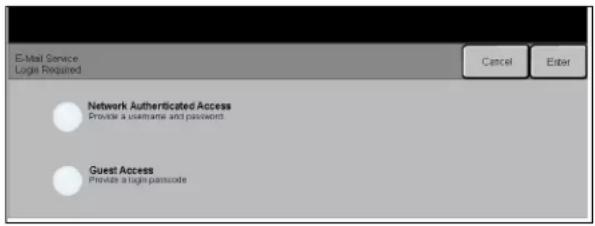
text_image
E-Mail Service Login Required Cancel Enter Network Authenticated Access Provide a username and password. Guest Access Provide a login passwordThere are two authentication modes available:
NETWORK Requires your network login name and password. If you do not have a network AUTHENTICATION account on the local network you will not be authenticated using this mode.
GUEST ACCESS Requires a generic passcode that is set up by the System Administrator. You will need to obtain the passcode from the System Administrator.
Contact your System Administrator for further assistance.
FAX
5 I NTERNET FAX
▶ Internet Fax....5-2
Color Options ....5-6
➢ Image Adjustment....5-7
Output Format....5-13
▶Authentication Mode....5-17
INTERNET FAX...
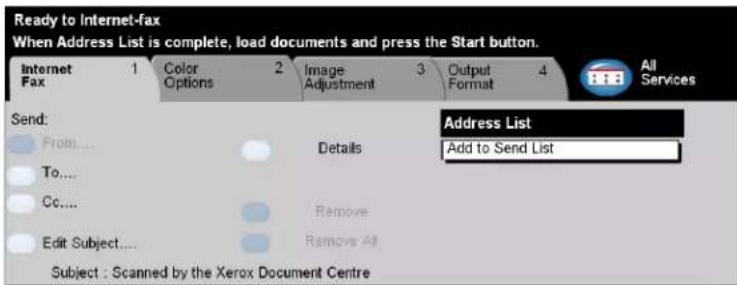
text_image
Ready to Internet-fax When Address List is complete, load documents and press the Start button. Internet Fax 1 Color 2 Image 3 Output 4 All Options Adjustment Format Services Send: From... Details Add to Send List To... Cc... Remove Edit Subject... Remove All Subject : Scanned by the Xerox Document CentreThe Internet Fax feature is optional on the WorkCentre Pro. This chapter contains information about the options available within Internet Fax.
When enabled, Internet Fax will allow you to send your scanned images as an e-mail attachment to a specified recipient or recipients. This type of fax travels over the internet or intranet.
The basic Internet Fax screen allows you to enter the SMTP (Simple Mail Transfer Protocol) e-mail addresses for your fax. You can also use this screen to add and remove recipients and edit the subject line.
NOTE: An SMTP compliant e-mail address format must be used. For example, anyone@anycompany.com.
Access to the Internet Faxing features is gained using the Features button on the control panel.
Depending on the options enabled and how your machine has been configured, you may have to select All Services in the top right-hand corner first.
The tabs available for selecting the Internet Fax features are:
Internet Fax
Color Options
➢ Image Adjustment
Output Format
Touch any of the top level buttons to select a feature. Multiple options can be selected for each fax job if required.
Most feature screens include three buttons to confirm or cancel your choices.
The Undo button resets the current screen to the default values that were displayed when the screen was opened.
The Cancel button resets the screen and returns to the previous screen.
The Save button saves the selections made and returns to the previous screen.
Send:
Use the Send options to enter recipient information.
Options:
FROM Use this option to enter the From e-mail address.
NOTE: If you accessed Internet Fax via Authentication Mode, the From e-mail address will be linked with the login name and cannot be changed.
To Use this option to enter the e-mail address of the required recipient.
Cc Use this option to enter the e-mail address of the required recipient you wish to be copied on the e-mail job.
EDIT SUBJECT Use this option to edit the default e-mail subject. The subject is the title of the e-mail and not the text contained within the e-mail. The subject line can contain up to 248 characters and is displayed on the touch screen under the Edit Subject button.
DETAILS Use this option to view the details of the selected recipient. The information displayed is determined by how the address was originally added to the Address List - from either the Internal or Public Address Book, or entered manually.
REMOVE Use this option to delete the selected address from the Address List.
REMOVE ALL Use this option to delete all the addresses from the Address List. A confirmation pop-up message will be displayed.
SCROLL BUTTONS Use the Scroll Buttons located to the right of the Address List to move through the list.
Address List
Displays all the recipient addresses entered for the current Internet Fax job. Up to 128 recipients addresses can be entered in the list.
Entering an E-mail Address for Internet Fax
E-mail addresses can be entered in one of two ways - manually or via an address book.
NOTE: When entering e-mail details you can change the keypad to show upper or lower case, accented characters or numbers by selecting any Back button.
Manually
If you already know the full SMTP e-mail address of your recipient, or if you know that the recipient is not in any of the configured address books, you can select the To... button and use the keypad on the touch screen to enter the e-mail address. Your machine will check that it is an SMTP address. If it is not an SMTP address, your machine will search the address book for a matching entry.
The entered e-mail address will be shown in the Address List.
Selecting the details for a manually entered e-mail address will only display the e-mail address, no other details are available.
Address Books
Address books contain a list of e-mail addresses and details that are relevant to your company and/or you. If configured, your machine is able to support two types of e-mail address books - Public and Internal. When an entry is made in To, From or Cc the Address Book displays search results for one or both configured address books.
Use the keypad on the touch screen to enter the e-mail recipients name. As with most search facilities you do not need to enter the full name and can search the address book on the first few letters.
When you have entered the required e-mail search criteria select the Enter button. If there are no matching entries select the Change Address Book button to search the other address book.
NOTE: The Change Address Book button will only be displayed if both the address books have been configured.
If one or more matches are found based on the search criteria, the matches are displayed on the touch screen. Use the up and down scroll bars to locate the required recipient. Highlight the recipient in the list and select the Add button. Continue this process until you have added all the required recipients and on completion select Done. The entered e-mail address will be shown in the Address List.
Address Book Types
Public Address Book
The Public Address Book stores external company addresses on the machine. The address book contains a list of user names and their e-mail addresses.
The file must be a CSV (Comma Separated Value) format for your machine to be able to read the file contents. The completed file is imported to the machine via CentreWare Internet Services. Your machine will not allow the import of a Public Address Book file that does not end with the .CSV file extension.
A valid CSV file is in the format: Name, SMTP e-mail address. For example the following are both valid CSV format file entries:
Smith, smith@company.com
"Smith, John", john.smith@company.com
The order in which the entries are sorted in the CSV file determines the order displayed in the Public Address Book at your machine.
Internal Address Book
Otherwise known as the LDAP (Lightweight Directory Access Protocol), the Internal Address Book stores internal company addresses on the company network. The System Administrator creates the Internal Address Book.
The display of the search results is defined by the LDAP. For example, the LDAP server can return a search query "And" as "Andrew Smith" when the result "Andrews, James" may have been expected. The lastname, firstname or firstname, lastname display is controlled by the LDAP server and not your machine.
If you have successfully logged in via Authentication mode, your machine will automatically attempt to match your login name to your e-mail address. Your name will then be entered into the From e-mail address field. You will not be able to change this.
COLOR OPTIONS ...
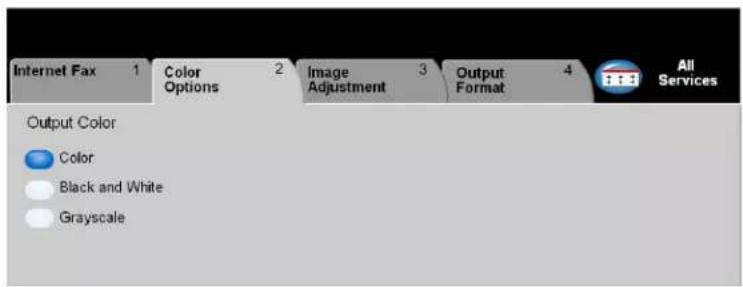
text_image
Internet Fax 1 Color Options 2 Image Adjustment 3 Output Format 4 All Services Output Color Color Black and White GrayscaleThe Color Options tab is used to select different color features for the scanned Internet Fax image.
Touch any of the top level buttons to select a feature. To view all the options for a feature, select the feature required. Multiple options can be selected for each copy job if required.
The text next to the feature button, called a Job Review Summary, reflects the current settings for that feature. A green light indicates that this feature has been modified from its initial default settings.
Most feature screens include three buttons to confirm or cancel your choices.
The Undo button resets the current screen to the default values that were displayed when the screen was opened.
The Cancel button resets the screen and returns to the previous screen.
The Save button saves the selections made and returns to the previous screen.
Output Color
Use this feature to select the desired output color.
Options:
COLOR This option scans and sends the job in color.
BLACK & WHITE This option should be selected when the desired output is a black and white copy. When Black & White is selected only Black toner is used.
GRAYSCALE Use this option when the original contains halftone images.
IMAGE ADJUSTMENT...
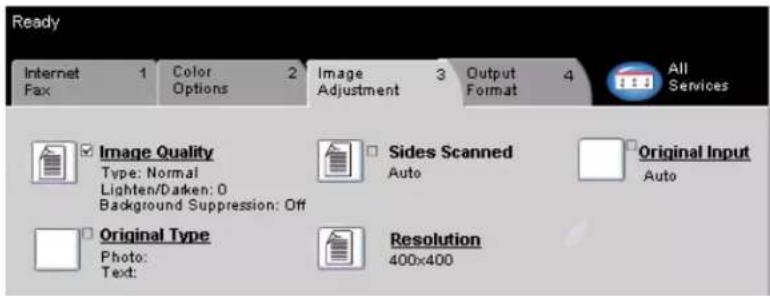
text_image
Ready Internet 1 Color 2 Image 3 Output 4 All Fax Options Adjustment Format Services Image Quality Type: Normal Lighten/Daiken: 0 Background Suppression: Off Original Type Photo: Text: Sides Scanned Auto Original Input Auto Resolution 400x400The Image Adjustment tab is used to temporarily program features to enhance the appearance and style of the scanned Internet Fax image.
Touch any of the top level buttons to select a feature. To view all the options for a feature, select the feature required. Multiple options can be selected for each fax job if required.
The text next to the feature button, called a Job Review Summary, reflects the current settings for that feature. A green light indicates that this feature has been modified from its initial default settings.
Most feature screens include three buttons to confirm or cancel your choices.
The Undo button resets the current screen to the default values that were displayed when the screen was opened.
The Cancel button resets the screen and returns to the previous screen.
The Save button saves the selections made and returns to the previous screen.
Image Quality

text_image
Image Quality Lighten/Darken: Lighten: Normal: Darken: Background Suppression: Off: On:Use this feature to enhance the quality of your scanned originals.
Options:
LIGHTEN / DARKEN This option provides controls to adjust the lightness or darkness of black and white output. To darken the output, press the down scroll button. To lighten the output, press the up scroll button.
BACKGROUND Prevents undesired marks or images that are printed on the back of an original from SUPPRESSION appearing on the output.
Original Type
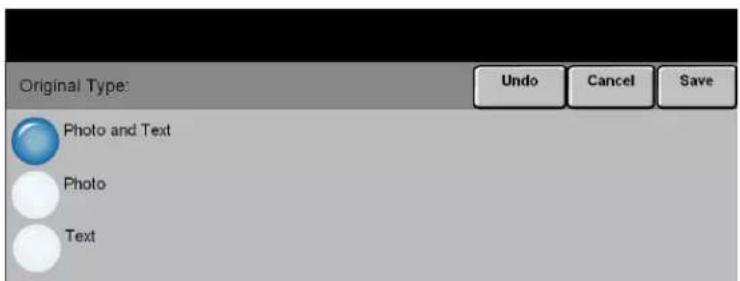
text_image
Original Type: Undo Cancel Save Photo and Text Photo TextUse this feature to enhance the quality of the output based on the type of original being scanned.
Options:
PHOTO & TEXT Use this option for original documents that contain lithographs, or pictures and printed text.
PHOTO Use this option for original documents that contain photographs.
TEXT Use this option when copying text documents composed of fine line characters or other high contrast documents with bright, dense colors.
Sides Scanned
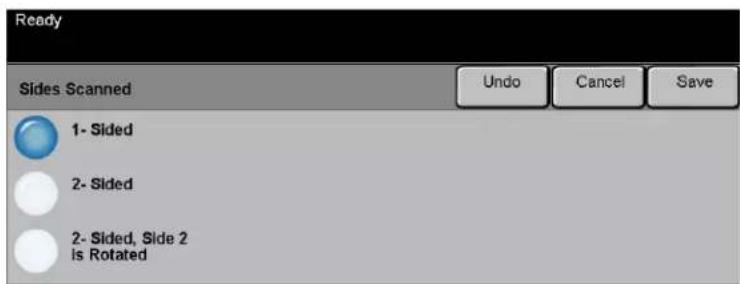
text_image
Ready Sides Scanned Undo Cancel Save 1- Sided 2- Sided 2- Sided, Side 2 Is RotatedThis feature is used to specify whether the originals are single-sided or double-sided. For 2-sided originals the orientation can also be programmed.
Options:
1 SIDED Use this option for originals that are printed on 1 side only.
2 SIDED Use this option for originals that are printed on both sides.
2 SIDED, ROTATE Use this option for originals that are printed on both sides. This option creates SIDE 2 documents which can be read in a "head to toe" manner, for example a calendar.
Resolution
Resolution affects the appearance of the scanned image. The higher the scanning resolution the better the image quality.
Options:
200X100 Produces the smallest image file size and is only recommended for use with simple (STANDARD) text documents.
NOTE: 200x100 is disabled if the Document Format is PDF.
200x200 (FINE) Recommended for use with average quality text documents and line art. Does not produce the best image quality for photos and graphics. This is the default setting.
300x300 Recommended for use with high quality text documents that are destined to pass through Optical Character Reference (OCR) applications. Also recommended for high quality line art or medium quality photos and graphics. This is the default resolution and the best choice in most cases.
400x400 Recommended for use with high quality photos and graphics. It produces a larger (NON-STANDARD) image file size, but delivers a better image quality.
600x600 Recommended for use with high quality photos and graphics. It produces the largest image file size, but delivers the best image quality. (NON-STANDARD)
LARGEST FILE Very little compression. It produces the largest file size, but delivers the best image (BEST IMAGE quality. QUALITY)
SMALLER FILE Some compression. It produces a larger file size, but delivers a better image quality. (BETTER IMAGE QUALITY)
SMALLEST FILE Maximum compression. It produces the smallest file size, but delivers good image (GOOD IMAGE quality. QUALITY)
Original Input

text_image
Original Input Auto Manual Size Input Use to describe the size of the originals. • Auto is the Normal Mode for this feature. Use Auto to automatically detect the size of the originals in the Document Handler. • Use Manual Size Input to enter the document dimensions for use in Document Glass scanning.Use this option to program the size of the originals being scanned or program the machine to determine the size of the originals automatically.
NOTE: It is recommended that the originals are of the same size. Using originals that are not of the same size may result in a reduced-size image being processed by the Fax recipient.
Options:
AUTO Use this option to allow the machine to determine the size of the originals being fed through the document handler automatically.
MANUAL SIZE Use this option to specify the dimensions of the document scanning region when INPUT scanning from the document glass. There are several dimensions that correspond to common document sizes and orientations.
Select a standard size or use Custom to manually adjust the scanning dimensions.
OUTPUT FORMAT...

text_image
Ready to Internet-fax Internet Pat 1 Color Options 2 Image Adjustment 3 Output Format 4 All Services Document Format Multi-page TIFF Reply To myfax@xerox.com Message Body Message Added Acknowledgement Report EnabledUse this feature to temporarily change the settings required for the scanned image.
Touch any of the top level buttons to select a feature. To view all the options for a feature, select the feature required. Multiple options can be selected for each fax job if required.
The text next to the feature button, called a Job Review Summary, reflects the current settings for that feature. A green light indicates that this feature has been modified from its initial default settings.
Most feature screens include three buttons to confirm or cancel your choices.
The Undo button resets the current screen to the default values that were displayed when the screen was opened.
The Cancel button resets the screen and returns to the previous screen.
The Save button saves the selections made and returns to the previous screen.
Document Format
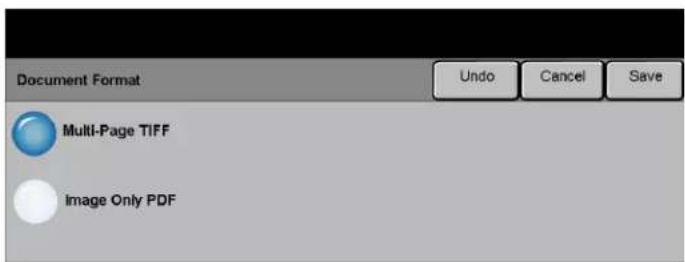
text_image
Document Format Undo Cancel Save Multi-Page TIFF Image Only PDFUse the Document Format option when your job is to be sent with a different file format than that set as the default.
Options:
MULTI-PAGE TIFF Multi-Page Tagged-Image File Format. One TIFF file containing several pages of scanned images.
IMAGE ONLY PDF Image Only Portable Document Format. This format can be viewed with a PDF viewer.
Acknowledgment Report

text_image
Acknowledgement Report Cancel Save Disabled An Acknowledgement Report contains information about the delivery status for each of recipient of the Internet Fax job you are sending. Selecting "Enabled" will print a report after the job has been submitted. You cannot select "Disabled" if the device administrator has configured the device to always print an Acknowledgement Report. EnabledUse this feature to print a report containing the delivery status of your job. The report will include the number of successful, failed and unconfirmed recipients.
Options:
ENABLED Use this option to print a status report after the job has been sent.
DISABLED Use this option to switch the feature off.
NOTE: If the default setting for this feature is already Enabled you will not be able to disable this feature.
Reply To

text_image
Add Entry Address Book: Internal Change Address Book äää 123 Cancel Enter Reply To: jack.white@mycompany.com q w e r t y u i o p _ @ ← a s d f g h j k l ; \ ABC z x c v b n m . . /Use the Reply To feature to alter the default address to which replies to your Internet Fax job can be sent.
Message Body
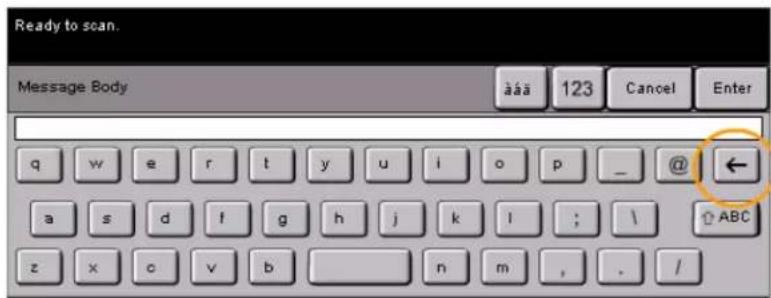
text_image
Ready to scan. Message Body äää 123 Cancel Enter q w e r t y u i o p _ @ ← a s d f g h j k l ; \ ABC z x c v b n m , . /Use this feature to edit the default e-mail message being transmitted with the job. The message body is the text contained within the e-mail and not the e-mail subject line. The message entered will only be available for the current job.
NOTE: The default message is set up by your System Administrator.
AUTHENTICATION MODE...
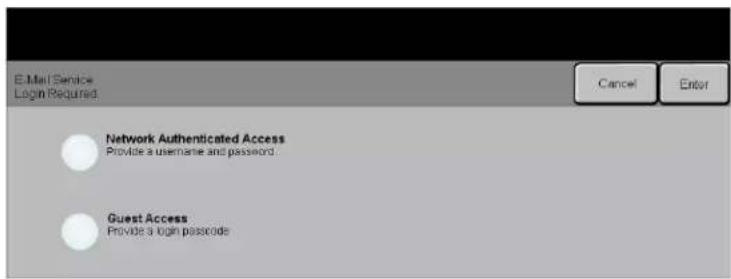
text_image
E-Mail Service Login Required Cancel Enter Network Authenticated Access Provide a username and password. Guest Access Provide a login passwordAuthentication is a useful network security management tool - limiting, restricting and monitoring access to the network via the machine. Authentication can be set up by the System Administrator to restrict access to the features within Scan to E-mail, Network Scanning and Internet Fax. Once enabled, it will apply to all three services.
There are two authentication modes available:
NETWORK Requires your network login name and password. If you do not have a network authentication account on the local network you will not be authenticated using this mode.
GUEST ACCESS Requires a generic passcode that is set up by the System Administrator. You will need to obtain the passcode from the System Administrator.
Contact your System Administrator for further assistance.
6 N ETWORK SCANNING
▶ Scan....6-2
▶Network Scanning....6-4
➢ Color Options....6-7
➢ Image Adjustment....6-8
Output Format....6-15
➢Refresh Destinations......6-19
▶Authentication Mode....6-19
SCAN...
The Network Scanning feature is optional on the WorkCentre Pro. It is not available on the CopyCentre.
If the Network Scanning option has been enabled, an electronic file can be created from a hard copy original. The scanned document is converted to an electronic file and stored electronically. The electronic file can be filed, faxed, or distributed through e-mail.
This chapter contains information about the options available within Network Scanning.
Scanning Resources
There are other sources of information available:
CentreWare Network Scanning Services
Enables the installation, set up and management of Network Scanning Services on the network. Network Scanning Services is composed of several different elements that work together to create and deliver the scanned document to its final destination. Refer to the CentreWare Network Scanning Services Pack delivered with the Scanning Services Kit.
FreeFlow™ Office
FreeFlow Office (available in Standard and Professional versions) is a web-based network scanning application that allows a user to:
scan their hard copy documents to a variety of destinations including E-mail addresses, FTP folders and web URL's
➢ Scan their hard copy documents to a variety of document repositories, including Domino.doc and DocuShare
CentreWare Internet Services
Internet Services is the embedded HTTP server application that is available on network enabled models. Internet Services enables you to access printing and scanning features, view status, manage jobs, and perform CopyCentre/WorkCentre Pro management using a browser application over the Internet or intranet. To access Internet Services open your web browser and enter the CopyCentre/WorkCentre Pro IP Address in the Address or Location field.
Resources Provided on the World Wide Web
| WEB SITE | GENERAL CONTENTS |
| www.xerox.com This is | a source of general solution overview and options for upgrade. |
| www.centreware.com | Contains CentreWare general information with links to the latest drivers and utilities. |
NETWORK SCANNING...

text_image
Ready Network Scanning Color Options 2 Image Adjustment 3 ...→ All Services Template Destinations Destination Details DEFAULT File: Purchase Orders Bsmith Cstrohrer Gdavis 1/3 Fwright JdoeAccess to the Network Scanning features is gained using the Features button on the control panel.
Depending on the options enabled and how your machine has been configured, you may have to select All Services in the top right-hand corner first.
Use the Network Scanning tab on the touch screen to select the standard features for a scan to file job.
The tabs available for selecting Network Scanning features are:
Network Scanning
Color Options
➢ Image Adjustment
Output Format
➢ Refresh Destinations
Touch any of the top level buttons to select a feature. Multiple options can be selected for each scan job if required.
Most feature screens include three buttons to confirm or cancel your choices.
The Undo button resets the current screen to the default values that were displayed when the screen was opened.
The Cancel button resets the screen and returns to the previous screen.
The Save button saves the selections made and returns to the previous screen.
Repositories
Repositories are directories or filing locations set up on a server where your scanned files are held. Before you can use Network Scanning your System Administrator must set up the repositories available to your machine. The repositories are defined in the template and cannot be changed at the WorkCentre Pro.
Template Overview
Successful network scanning requires selecting a template at the WorkCentre Pro. Templates contain pre-selected options which will be applied to the scanned original, for example, information about the final destination of your job (the repository) and the image quality settings are defined within the template, along with the template name.
MAKING TEMPLATES
Templates can be created or changed using CentreWare Scan Services, CentreWare Internet Services, or FreeFlow Office. Contact your System Administrator for further information.

HINT: Template names are limited to 20 characters. Template names containing more than 20 characters will be shortened to the first 20 characters. Remember this when searching for existing templates or assigning template names.
SELECTING A Select a template based on where the file is required to be sent. Normally, the TEMPLATE System Administrator will have established a template for use by each user. CHANGING After a template is selected, most of the preprogrammed settings can be temporarily PREPROGRAMMED changed such as sides scanned, image quality and resolution. TEMPLATE The output destination assigned to the template cannot be changed at the machine. SELECTIONS
Template Destinations
The Template Destination lists the templates stored on the machine. On installation it will contain the factory default template that is supplied with the WorkCentre Pro. The default template appears at the top of the list and is selected automatically. All other templates follow in alpha-numeric order. There is a maximum limit of 250 templates.
There are two types of templates:
Template names starting with the @ symbol have been created using Internet Services.
Templates without the @ symbol are templates that have been created using CentreWare Network Scanning Software.
SCROLLING Use the Scroll Buttons located to the right of the Template List to move through the THROUGH THE list one page at a time and select a Template.
TEMPLATE LIST To quickly get to a specific page in the Template list, use the keypad to identify the page number then select the hash (#) key. The counter will display the page location.
Destination Details
The Destination Details section on the right side of the screen displays information about the selected template. Each time you select another template file, this area will update to display information associated with the selected template.
COLOR OPTIONS...
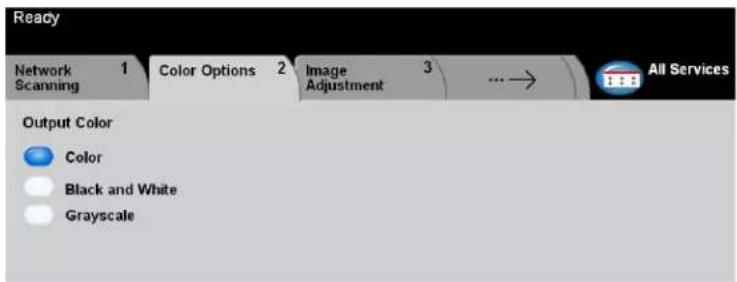
text_image
Ready Network Scanning 1 Color Options 2 Image Adjustment 3 ...→ All Services Output Color Color Black and White GrayscaleThe Color Options tab is used to select different color features for the scanned image.
Touch any of the top level buttons to select a feature. To view all the options for a feature, select the feature required. Multiple options can be selected for each copy job if required.
The text next to the feature button, called a Job Review Summary, reflects the current settings for that feature. A green light indicates that this feature has been modified from its initial default settings.
Most feature screens include three buttons to confirm or cancel your choices.
The Undo button resets the current screen to the default values that were displayed when the screen was opened.
The Cancel button resets the screen and returns to the previous screen.
The Save button saves the selections made and returns to the previous screen.
Output Color
Use this feature to select the desired output color.
Options:
COLOR This option scans and sends the job in color.
BLACK & WHITE This option should be selected when the desired output is a black and white copy. When Black & White is selected only Black toner is used.
GRAYSCALE Use this option when the original contains halftone images.
IMAGE ADJUSTMENT...
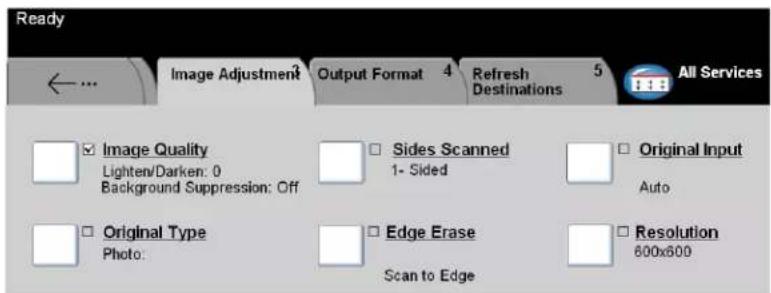
text_image
Ready ← ... Image Adjustment Output Format 4 Refresh 5 All Services Image Quality Sides Scanned Original Input Lighten/Darken: 0 1- Sided Auto Background Suppression: Off Original Type Edge Erase Resolution Photo Scan to Edge 600x600The Image Adjustment tab is used to program features relating to the scanned images.
Touch any of the top level buttons to select a feature. To view all the options for a feature, select the feature required. Multiple options can be selected for each scan job if required.
Most feature screens include three buttons to confirm or cancel your choices.
The Undo button resets the current screen to the default values that were displayed when the screen was opened.
The Cancel button resets the screen and returns to the previous screen.
The Save button saves the selections made and returns to the previous screen.
Image Quality

text_image
Image Quality Lighten/Darken: Lighten: Normal: Darken: Background Suppression: Off: On:Use this feature to enhance the quality of your scanned originals.
Options:
LIGHTEN / DARKEN Adjusts the lightness or darkness of black and white output. To darken the output, select the down scroll button. To lighten the output, select the up scroll button.
BACKGROUND Prevents undesired marks or images that are printed on the back of an original from SUPPRESSION appearing on the output.
Original Type
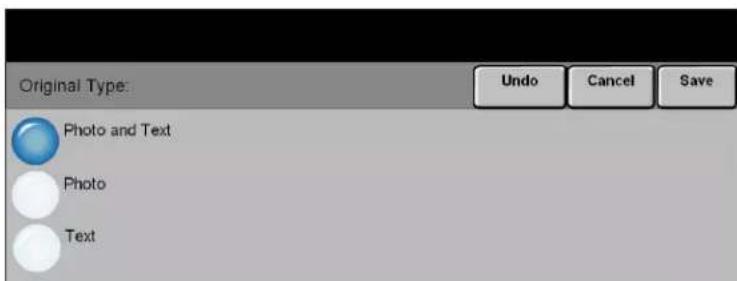
text_image
Original Type: Undo Cancel Save Photo and Text Photo TextUse this feature to enhance the quality of the output based on the type of original being scanned.
Options:
PHOTO & TEXT Use this option for original documents that contain lithographs, or pictures and printed text.
PHOTO Use this option for original documents that contain photographs.
TEXT Use this option when copying text documents composed of fine line characters or other high contrast documents with bright, dense colors.
Sides Scanned
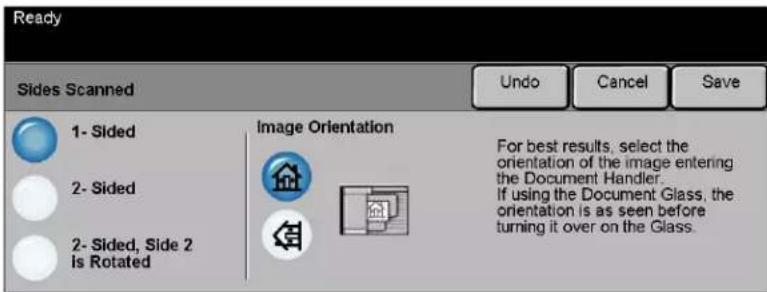
text_image
Ready Sides Scanned Undo Cancel Save 1- Sided 2- Sided 2- Sided, Side 2 Is Rotated Image Orientation For best results, select the orientation of the image entering the Document Handler. If using the Document Glass, the orientation is as seen before turning it over on the Glass.This is used to specify whether the originals are single-sided or double-sided. For 2-sided originals the orientation can also be programmed.
Options:
1 SIDED Use this option for originals that are printed on 1 side only.
2 SIDED Use this option for originals that are printed on both sides.
2 SIDED, ROTATE Use this option for originals that are printed on both sides. This option creates SIDE 2 documents which can be read in a "head to toe" manner, for example a calendar.
IMAGE Use this option to identify the image orientation before scanning. ORIENTATION
Edge Erase

text_image
Edge Erase Border Erase Edge Erase Scan to Edge Border 0-2" 2Use this feature to "refresh" the quality of an original that has become torn or frayed at the edges, or that has hole punch, staple or other marks.
Options:
BORDER ERASE Erases equal amounts on all edges of your output image. Up to 2.0 inches (0 - 50 mm) in 0.05 inch (0.1 mm) increments can be erased.
EDGE ERASE Use to erase a specific amount from a specific edge of the image. Up to 2.0 inches (0 - 50 mm) in 0.05 inch (0.1 mm) increments can be erased from each edge.
SCAN TO EDGE Use this option to scan to the edge of the output stock.
Original Input
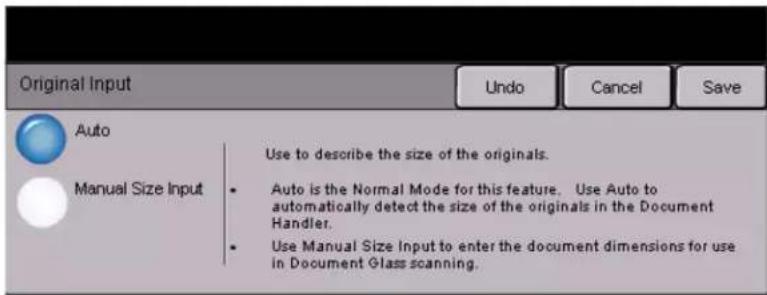
text_image
Original Input Auto Manual Size Input Use to describe the size of the originals. • Auto is the Normal Mode for this feature. Use Auto to automatically detect the size of the originals in the Document Handler. • Use Manual Size Input to enter the document dimensions for use in Document Glass scanning.Use this option to program the size of the originals being scanned or enable the machine to recognize the size of the originals.
Options:
AUTO Use this option to allow the machine to determine the size of the originals being fed through the document handler.
MANUAL SIZE Use this option to specify the dimensions of the document scanning region when INPUT scanning from the document glass. There are several dimensions that correspond to common document sizes and orientations.
Select a standard size or use Custom to manually adjust the scanning dimensions. Use this option to scan the image to the edges of the original.
Resolution
Resolution affects the appearance of the scanned image. The higher the scanning resolution the better the image quality.
Options:
200x200 Recommended for use with average quality text documents and line art. Does not produce the best image quality for photos and graphics.
300x300 Recommended for use with high quality text documents, that are destined to pass through OCR applications. Also recommended for high quality line art or medium quality photos and graphics. This is the default resolution and the best choice in most cases.
400x400 Recommended for use with high quality photos and graphics. It produces a larger image file size, but delivers a better image quality.
600x600 Recommended for use with high quality photos and graphics. It produces the largest image file size, but delivers the best image quality.
LARGEST FILE Very little compression. It produces the largest file size, but delivers the best image (BEST IMAGE quality. QUALITY)
SMALLER FILE Some compression. It produces a larger file size, but delivers a better image quality. (BETTER IMAGE QUALITY)
SMALLEST FILE Maximum compression. It produces the smallest file size, but delivers good image (GOOD IMAGE quality. QUALITY)
OUTPUT FORMAT...
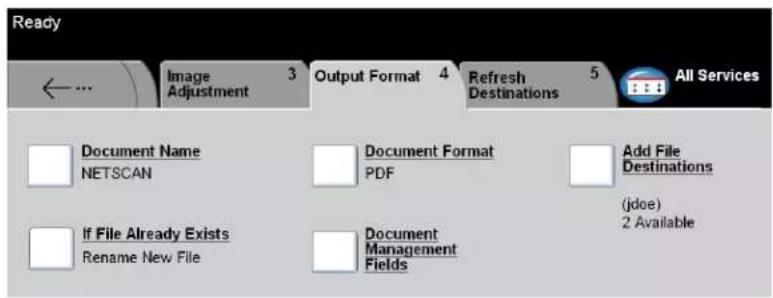
text_image
Ready ← ... Image Adjustment 3 Output Format 4 Refresh Destinations 5 All Services Document Name NETSCAN Document Format PDF Add File Destinations If File Already Exists Rename New File Document Management Fields (jdoe) 2 AvailableUse the features available to temporarily change the format of the scanned image file at the destination server.
Touch any of the top level buttons to select a feature. To view all the options for a feature, select the feature required. Multiple options can be selected for each scan job if required.
The text next to the feature button, called a Job Review Summary, reflects the current settings for that feature. A green light indicates that this feature has been modified from its initial default settings.
Most feature screens include three buttons to confirm or cancel your choices.
The Undo button resets the current screen to the default values that were displayed when the screen was opened.
The Cancel button resets the screen and returns to the previous screen.
The Save button saves the selections made and returns to the previous screen.
Document Name
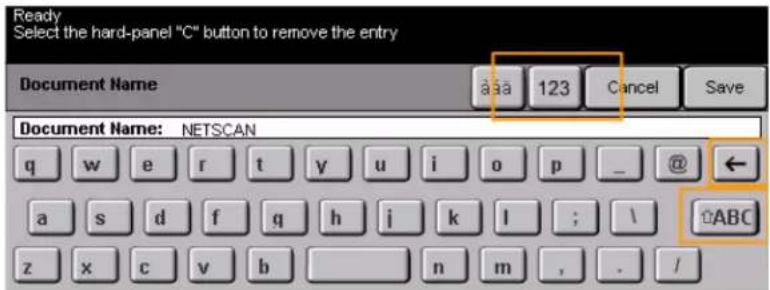
text_image
Ready Select the hard-panel "C" button to remove the entry Document Name aaa 123 Cancel Save Document Name: NETSCAN q w e r t y u>i[o p_@ a s d f g h j k l ;\ABC z x c v b Kn,m , . /Use Document Name to specify the name of the folder that you want your scanned image stored to. This option only applies to the folder name.
If File Already Exists

text_image
Ready If file already exists: Undo Cancel Save Rename New File Append to Existing File Overwrite Existing File Do not saveUse this option to tell the machine what to do when the document destination folder already contains a document with the same name as your current scan job.
Options:
RENAME NEW FILE Use this option when you want the machine to name the new file (or folder) with a unique name.
OVERWRITE Use this option to replace the existing file that has the same filename as the newly EXISTING FILE created scanned image file
APPEND TO Use this option to add the newly created scanned image file to an existing document EXISTING FILE with the same name as the document being scanned.
NOTE: This option is not available with Multi-Page Tiff and PDF file format options.
Do NOT SAVE Use this option to abort the scanning operation if a file with the same name as the newly created scanned image file is detected.
Document Format
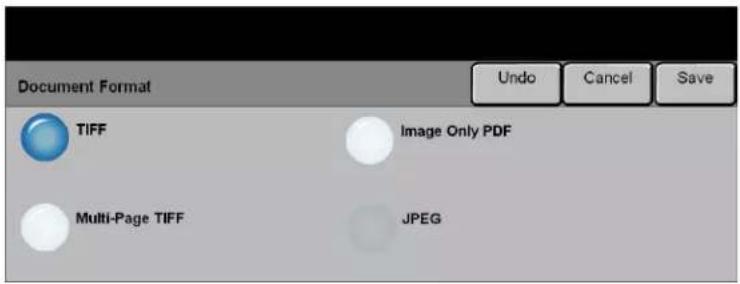
text_image
Document Format Undo Cancel Save TIFF Image Only PDF Multi-Page TIFF JPEGUse this feature to temporarily change the file type of the scanned image file at the destination server. The default setting is the same as the value entered in the selected template.
Options:
TIFF Tagged-Image File Format. A graphic file that can be opened in a variety of graphic software packages across a variety of computer platforms.
MULTI-PAGE TIFF Multi-Page Tagged-Image File Format. One TIFF file containing several pages of scanned images.
IMAGE ONLY PDF Image Only Portable Document Format. This format can be viewed with a PDF viewer.
JPEG Joint Photographic Experts Group. A graphic file that can be opened in a variety of graphic software packages across a variety of computer platforms.
Document Management Fields

text_image
Ready Touch OK after reviewing or entering the requested information. Document Management Field Cancel OK Case Number Region Billing Code 00125549Document Management Fields allows you to enter information into the template from your machine which is unique to your scanning requirements. These fields must be enabled when creating the template at the Web UI.
NOTE: If your selected template does not contain any enabled fields the Document Management Fields button will not be available.
Add File Destinations

text_image
Ready Additional File Destinations Show File Path Done Add Alternates Destination Details (Jdoe) Special Orders scan on //server/very... File (Alternate): Special Orders File: Purchase OrdersUse this feature to add file destinations to any template. A maximum of 5 file destinations can be added to a template. If the selected template contains 1 destination you can add an additional 4 destinations using this feature, however if the selected template contains 5 destinations the Add File Destination button is not available.
REFRESH DESTINATIONS...
Select the Refresh Destinations tab to access the Update Template List feature.
Touch the Update Template List button if the template has been recently created or modified. The system automatically updates the Template List.
AUTHENTICATION MODE...

text_image
E-Mail Service Login Required Cancel Enter Network Authenticated Access Provide a username and password. Guest Access Provide a login passwordAuthentication is a useful network security management tool - limiting, restricting and monitoring access to the network via the machine. Authentication can be set up by the System Administrator to restrict access to the features within Scan to E-mail, Network Scanning and Internet Faxing. Once enabled, it will apply to all three services.
There are two authentication modes available:
NETWORK Requires your network login name and password. If you do not have a network AUTHENTICATION account on the local network you will not be authenticated using this mode.
GUEST ACCESS Requires a generic passcode that is set up by the System Administrator. You will need to obtain the passcode from the System Administrator.
Contact your System Administrator for further assistance.
7 E - MAIL
E-mail....7-2
➢ Color Options .... 7-6
➢ Image Adjustment....7-7
Output Format....7-14
▶Authentication Mode ....7-17
E-MAIL...
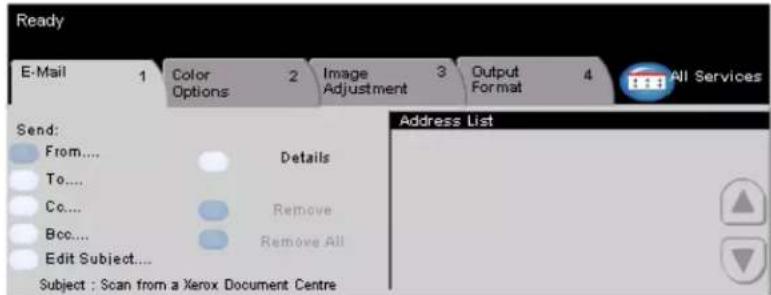
text_image
Ready E-Mail 1 Color Options 2 Image Adjustment 3 Output Format 4 All Services Send: From.... Details To.... Co.... Remove Bcc... Remove All Edit Subject.... Subject : Scan from a Xerox Document Centre Address ListThe E-mail feature is optional on the WorkCentre Pro. It is not available on the CopyCentre. This chapter contains information about the options available within E-mail.
When enabled, scanned images can be sent as an e-mail attachment to a specified e-mail recipient or recipients. To use scan to e-mail you must enter an SMTP (Simple Mail Transfer Protocol) e-mail address, for example, anyone@anycompany.com.
NOTE: Sending high-resolution color documents using the E-mail feature may cause documents to exceed file size limits.
Access to the E-mail features is gained using the Features button on the control panel. Use the E-mail tab to add and remove recipients and edit the subject line.
Depending on the options enabled and how your machine has been configured, you may have to select the All Services button in the top right-hand corner to access E-mail.
The tabs available for selecting E-mail features are:
E-mail
Color Options
Image Adjustment
Output Format
Touch any of the top level buttons to select a feature. Multiple options can be selected for each scan job if required.
Most feature screens include three buttons to confirm or cancel your choices.
The Undo button resets the current screen to the default values that were displayed when the screen was opened.
The Cancel button resets the screen and returns to the previous screen.
The Save button saves the selections made and returns to the previous screen.
Send:
Use the Send options to enter recipient information.
Options:
FROM Use this option to enter the From e-mail address. The From e-mail address is set by the System Administrator.
NOTE: If you accessed E-mail via Authentication Mode, the From e-mail address will be associated with the login name and cannot be changed.
To Use this option to enter the e-mail address of the recipient.
Cc Use this option to enter the e-mail address of the recipient you wish to be copied on the e-mail job.
Bcc Use this option to enter the e-mail address of the recipient you wish to be copied on the e-mail job, without their name being displayed on the e-mail.
EDIT SUBJECT Use this option to edit the default e-mail subject. The subject is the title of the e-mail and not the text contained within the e-mail. The subject line can contain up to 248 characters and is displayed on the touch screen under the Edit Subject button.
DETAILS Use this option to view the details of the selected recipient. The information displayed is determined by how the address was originally added to the Address List - from either the Internal or Public Address Book, or entered manually.
REMOVE Use this option to delete the selected address from the Address List.
REMOVE ALL Use this option to delete all the addresses from the Address List. A confirmation pop-up message will be displayed.
SCROLL BUTTONS Use the Scroll Buttons located to the right of the Address List to move through the list.
Address List
Displays all the recipient addresses entered for the current scan to e-mail job. Up to 128 recipients addresses can be entered in the list.
Entering an E-mail Address
The e-mail address can be entered in one of two ways - manually or via an address book.
NOTE: When entering e-mail details you can change the keypad to show upper or lower case, accented characters or numbers by selecting any Back button.
Manually
If you already know the full SMTP e-mail address of the recipient, or if you know that the recipient is not in any of the configured address books, you can select the To... button and use the keypad on the touch screen to enter the e-mail address. Your machine will check that it is an SMTP address. If it is not an SMTP address, your machine will search the address book for a matching entry.
The entered e-mail address will be shown in the Address List.
Selecting the details for a manually entered e-mail address will only display the e-mail address, no other details are available.
Address Books
Address books contain a list of e-mail addresses and details that are relevant to your company and/or you. If configured, your machine is able to support two types of e-mail address books - Public and Internal. When an entry is made in To, From or Cc the Address Book displays search results for one or both configured address books.
Use the keypad on the touch screen to enter the e-mail recipient's name. As with most search facilities you do not need to enter the full name and can search the address book on the first few letters.
When you have entered the e-mail search criteria, select the Enter button. If there are no matching entries, select the Change Address Book button to search the other address book.
NOTE: The Change Address Book button will only be displayed if both the address books have been configured.
If one or more matches are found based on the search criteria, the matches are displayed on the touch screen. Use the up and down scroll bars to locate the recipient. Highlight the recipient in the list and select the Add button.
Continue this process until you have added all the required recipients and on completion select Done. The entered e-mail addresses will be shown in the Address List.
Address Book Types
Public Address Book
The Public Address Book stores external company addresses on the machine. The address book contains a list of user names and their e-mail addresses.
The file must be a .CSV (Comma Separated Value) format for your machine to be able to read the file contents. The completed file is imported to the machine via CentreWare Internet Services. Your machine will not allow the import of a Public Address Book file that does not end with the .CSV file extension.
A valid CSV file is in the format: Name, SMTP e-mail address. For example the following are both valid CSV format file entries:
Smith, smith@company.com
"Smith, John", john.smith@company.com
The order in which the entries are sorted in the CSV file determines the order displayed in the Public Address Book at your machine.
Internal Address Book
Otherwise known as the LDAP (Lightweight Directory Access Protocol), the Internal Address Book stores internal company addresses on the company network. The System Administrator creates the Internal Address Book.
The display of the search results is defined by the LDAP. For example, the LDAP server can return a search query "And" as "Andrew Smith" when the result "Andrews, James" may have been expected. The lastname, firstname or firstname, lastname display is controlled by the LDAP server and not your machine.
If you have successfully logged in via Authentication mode, your machine will automatically attempt to match your login name to your e-mail address. Your name will then be entered into the From e-mail address field. You will not be able to change this.
COLOR OPTIONS ...
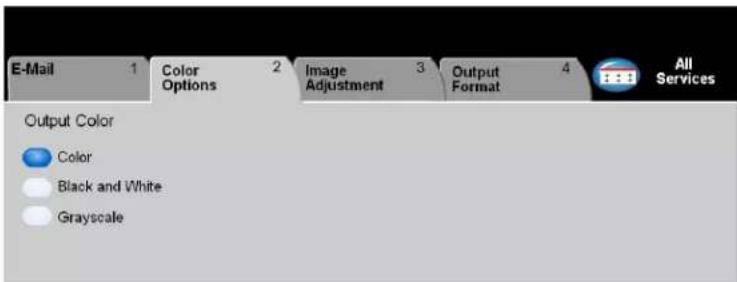
text_image
E-Mail 1 Color Options 2 Image Adjustment 3 Output Format 4 All Services Output Color Color Black and White GrayscaleThe Color Options tab is used to select different color features for the scanned image.
Touch any of the top level buttons to select a feature. To view all the options for a feature, select the feature required. Multiple options can be selected for each copy job if required.
The text next to the feature button, called a Job Review Summary, reflects the current settings for that feature. A green light indicates that this feature has been modified from its initial default settings.
Most feature screens include three buttons to confirm or cancel your choices.
The Undo button resets the current screen to the default values that were displayed when the screen was opened.
The Cancel button resets the screen and returns to the previous screen.
The Save button saves the selections made and returns to the previous screen.
Output Color
Use this feature to select the desired output color.
Options:
COLOR This option scans and sends the job in color.
BLACK & WHITE This option should be selected when the desired output is a black and white copy. When Black & White is selected only Black toner is used.
GRAYSCALE Use this option when the original contains halftone images.
IMAGE ADJUSTMENT...
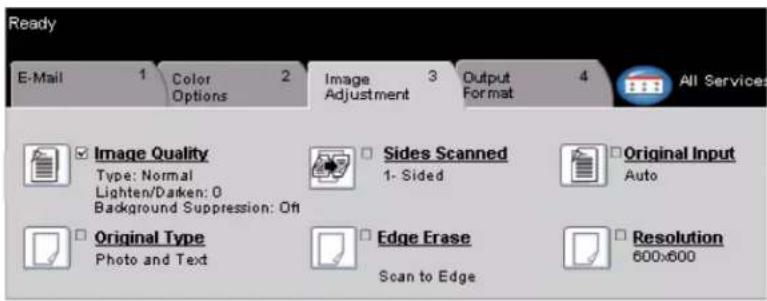
text_image
Ready E-Mail 1 Color 2 Image 3 Output 4 All Services Options Adjustment Format All Services Image Quality Type: Normal Lighten/Darken: 0 Background Suppression: Off Original Type Photo and Text Sides Scanned 1- Sided Original Input Auto Edge Erase Scan to Edge Resolution 600x600The Image Adjustment tab is used to temporarily program features to enhance the appearance and style of the scanned e-mail image.
Touch any of the top level buttons to select a feature. To view all the options for a feature, select the feature required. Multiple options can be selected for each e-mail job if required.
The text next to the feature button, called a Job Review Summary, reflects the current settings for that feature. A green light indicates that this feature has been modified from its initial default settings.
Most feature screens include three buttons to confirm or cancel your choices.
The Undo button resets the current screen to the default values that were displayed when the screen was opened.
The Cancel button resets the screen and returns to the previous screen.
The Save button saves the selections made and returns to the previous screen.
Image Quality

text_image
Image Quality Lighten/Darken: Lighten: Normal: Darken: Background Suppression: Off: On:Use this feature to enhance the quality of your scanned originals.
Options:
LIGHTEN / DARKEN Adjusts the lightness or darkness of black and white output. To darken the output, press the down scroll button. To lighten the output, press the up scroll button.
BACKGROUND Prevents undesired marks or images printed on the back of an original from SUPPRESSION appearing on the output.
Original Type
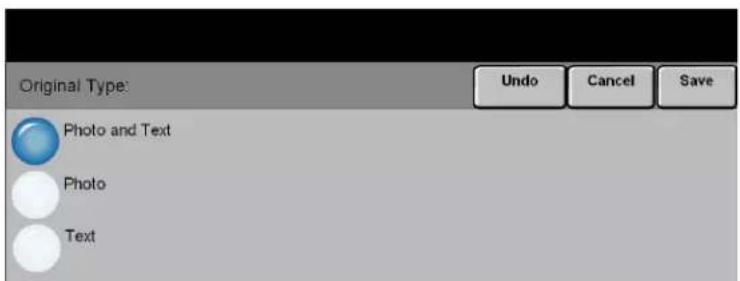
text_image
Original Type: Undo Cancel Save Photo and Text Photo TextUse this feature to enhance the quality of the output based on the type of original being scanned.
Options:
PHOTO & TEXT Use this option for original documents that contain lithographs, or pictures and printed text.
PHOTO Use this option for original documents that contain photographs.
TEXT Use this option when copying text documents composed of fine line characters or other high contrast documents with bright, dense colors.
Sides Scanned
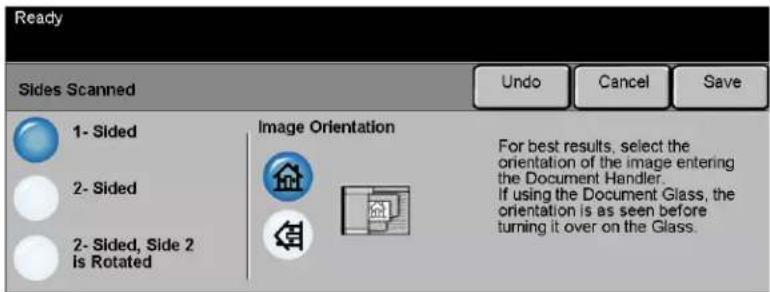
text_image
Ready Sides Scanned Undo Cancel Save 1- Sided Image Orientation For best results, select the orientation of the image entering the Document Handler. If using the Document Glass, the orientation is as seen before turning it over on the Glass. 2- Sided 2- Sided, Side 2 Is RotatedThis is used to specify whether the originals are single-sided or double-sided. For 2-sided originals the orientation can also be programmed.
Options:
1 SIDED Use this option for originals that are printed on 1 side only.
2 SIDED Use this option for originals that are printed on both sides.
2 SIDED, ROTATE Use this option for originals that are printed on both sides. This option creates SIDE 2 documents which can be read in a "head to toe" manner, for example a calendar.
IMAGE Use this option to identify the image orientation before scanning. ORIENTATION
Edge Erase

text_image
Edge Erase Border Erase Edge Erase Scan to Edge Border 0-2" 2Use this feature to "refresh" the quality of an original that has become torn or frayed at the edges, or that has hole punch, staple or other marks.
Options:
BORDER ERASE Erases equal amounts on all edges of your output image. Up to 2.0 inches (0 - 50 mm) in 0.05 inch (0.1 mm) increments can be erased.
EDGE ERASE Use to erase a specific amount from a specific edge of the image. Up to 2.0 inches (0 - 50 mm) in 0.05 inch (0.1 mm) increments can be erased from each edge.
SCAN TO EDGE Use this option to scan to the edge of the output stock.
Original Input
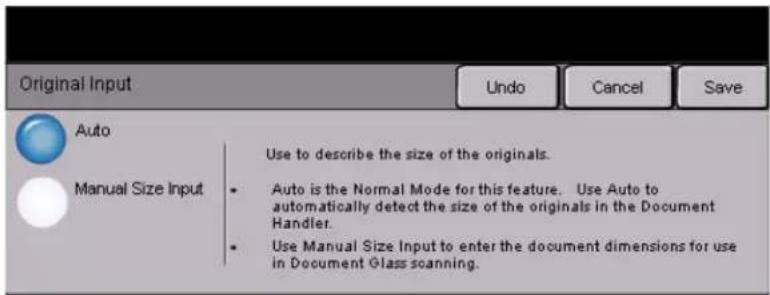
text_image
Original Input Auto Manual Size Input Use to describe the size of the originals. • Auto is the Normal Mode for this feature. Use Auto to automatically detect the size of the originals in the Document Handler. • Use Manual Size Input to enter the document dimensions for use in Document Glass scanning.Use this option to program the size of the originals being scanned or enable the machine to recognize the size of the originals automatically.
Options:
AUTO Use this option to allow the machine to recognize the size of the originals being fed through the document handler.
MANUAL SIZE Use this option to specify the dimensions of the document scanning region when INPUT scanning from the document glass. There are several dimensions that correspond to common document sizes and orientations.
Select a standard size or use Custom to manually adjust the scanning dimensions.
Resolution
Resolution affects the appearance of the scanned image. The higher the scanning resolution the better the image quality.
Options:
200x200 Recommended for use with average quality text documents and line art. Does not produce the best image quality for photos and graphics.
300x300 Recommended for use with high quality text documents, that are destined to pass through Optical Character Recognition (OCR) applications. Also recommended for high quality line art or medium quality photos and graphics. This is the default resolution and the best choice in most cases.
400x400 Recommended for use with high quality photos and graphics. It produces a larger image file size, but delivers a better image quality.
600x600 Recommended for use with high quality photos and graphics. It produces the largest image file size, but delivers the best image quality.
LARGEST FILE Very little compression. It produces the largest file size, but delivers the best image (BEST IMAGE quality. QUALITY)
SMALLER FILE Some compression. It produces a larger file size, but delivers a better image quality. (BETTER IMAGE QUALITY)
SMALLEST FILE Maximum compression. It produces the smallest file size, but delivers good image (GOOD IMAGE quality. QUALITY)
OUTPUT FORMAT...
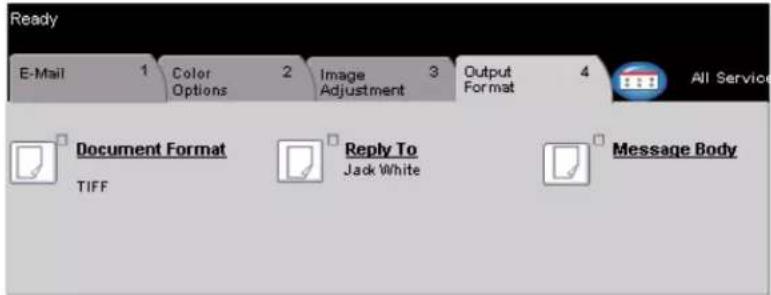
text_image
Ready E-Mail 1 Color 2 Image 3 Output 4 All Service Options Adjustment Format Document Format TIFF Reply To Jack White Message BodyUse this feature to change the Reply To e-mail address and to identify the file format required for the e-mail scanned image.
Touch any of the top level buttons to select a feature. To view all the options for a feature, select the feature required. Multiple options can be selected for each e-mail job if required.
The text next to the feature button, called a Job Review Summary, reflects the current settings for that feature. A green light indicates that this feature has been modified from its initial default settings.
Most feature screens include three buttons to confirm or cancel your choices.
The Undo button resets the current screen to the default values that were displayed when the screen was opened.
The Cancel button resets the screen and returns to the previous screen.
The Save button saves the selections made and returns to the previous screen.
Document Format
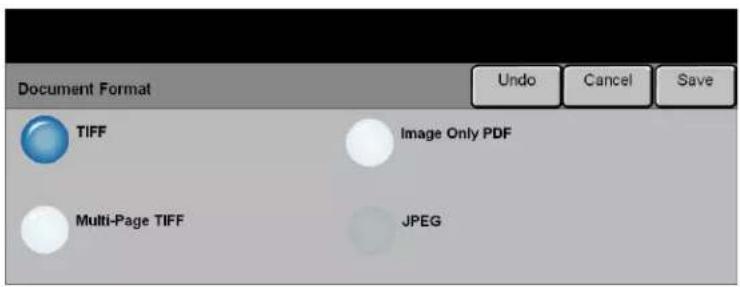
text_image
Document Format Undo Cancel Save TIFF Image Only PDF Multi-Page TIFF JPEGUse the Document Format option when the job is to be sent with a different file format than that set as the template default.
Options:
TIFF Tagged-Image File Format. A graphic file that can be opened in a variety of graphic software packages across a variety of computer platforms.
MULTI-PAGE TIFF Multi-Page Tagged-Image File Format. One TIFF file containing several pages of scanned images.
IMAGE ONLY PDF Image Only Portable Document Format. This format can be viewed with a PDF viewer.
JPEG Joint Photographic Experts Group. A graphic file that can be opened in a variety of graphic software packages across a variety of computer platforms.
Reply To

text_image
Add Entry Address Book: Internal Change Address Book äää 123 Cancel Enter Reply To: jack.white@mycompany.com q w e r t y u i o p _ @ ← a s d f g h j k l ; \ ABC z x c v b n m , . /Use the Reply To feature to alter the default address to which replies to an e-mail job can be sent.
Message Body
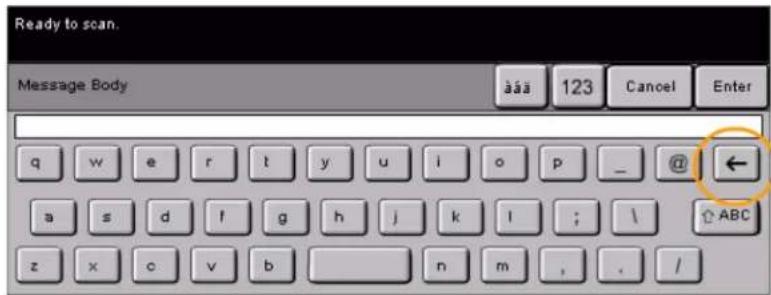
text_image
Ready to scan. Message Body a a a 123 Cancel Enter q w e r t y u i o p _ @ ← a s d f g h j k l ; \ ABC z x c v b n m , . /Use this feature to edit the default e-mail message. The message body is the text contained within the e-mail and not the e-mail subject line.
AUTHENTICATION MODE ...

text_image
E-Mail Service Login Required Cancel Enter Network Authenticated Access Provide a username and password. Guest Access Provide a login passwordAuthentication is a useful network security management tool - limiting, restricting and monitoring access to the network via the machine. Authentication can be set up by the System Administrator to restrict access to the features within Scan to E-mail, Network Scanning and Internet Faxing. Once enabled, it will apply to all three services.
There are two authentication modes available:
NETWORK Requires your network login name and password. If you do not have a network AUTHENTICATION account on the local network you will not be authenticated using this mode.
GUEST ACCESS Requires a generic passcode that is set up by the System Administrator. You will need to obtain the passcode from the System Administrator. Contact your System Administrator for further assistance.
8 P RINT
▶Introduction to Print....8-2
Printer Driver Features....8-3
INTRODUCTION TO PRINT...
When the CopyCentre/WorkCentre Pro is connected to the network, electronic jobs that require printing can be sent from a workstation directly to the machine.
The CentreWare printer drivers enable printing from a workstation to a CopyCentre/WorkCentre Pro on a network. The CentreWare drivers contain a variety of feature options which enable print jobs to be customized.
For further information please refer to the CentreWare Network Services CD delivered with your CopyCentre/WorkCentre Pro.
PRINTER DRIVER FEATURES...
There are a number of Printer Drivers available for the CopyCentre/WorkCentre Pro. The features available will depend on the printer driver being used. The following descriptions provide an overview of the typical features provided by the CopyCentre/WorkCentre Pro Printer Drivers.
For information about a specific Printer Driver feature, please refer to the on-line Help facility provided as part of the Printer Driver software.
Control Options
There are a number of options which appear on all of the printer driver screens:
OK Saves all the new settings and closes the driver or dialog. These new settings remain in effect until changed.
CANCEL Closes the dialog and returns all settings in the tabs to the values that were in place before the dialog was opened. Any changes made are lost.
APPLY Saves all the changes made without closing the driver.
DEFAULTS Resets the current tab and all its settings to the system default values. The action of this button applies only to the current tab. All other tabs remain unchanged.
DEFAULT ALL Resets options to default system values on the Paper Output, Layout, and Image Options tabs. Other features and tabs may not have specific default settings and will not be affected by this button.
HELP Select Help in the bottom right of the printer driver screen or [F1] on the PC keyboard for information on the displayed printer driver screen.
If the tip of the mouse pointer is rested on top of a control, Microsoft Windows will display a brief Help Tip about that control. If the right mouse button selects a control, the Help system provides more detailed information.
Advanced
This tab can be used to select options such as Number of Copies, Image Orientation, and Color Correction. Banner sheets and set offsets can also be requested on this tab.
Paper/Output
This tab can be used to select options such as the Job Type, Paper Type, Covers, Transparency Separators, 2 Sided Printing, Output Color, and Output Destination. Stapling and other finishing options can be set on this tab if you have an optional finisher on your machine. The choices available are based on the options enabled on the machine. Use the scroll arrows to change the settings. To display the job type list, use the arrow scroll button next to Normal Print.
Available Job Types:
NORMAL PRINT Displays the print driver screen features.
SECURE PRINT Enables a password to be entered to protect a job. The job will be held in a queue and not printed until the same password is entered at the CopyCentre/WorkCentre Pro. To print the job, select the job in the Print Queue and press the Release button. The Secure Print Login pop-up window prompts a password to be entered to release and print the job.
SAMPLE SET Enables users to print and proof a single copy of a document before printing the remaining document sets/copies. The remaining sets are held in the CopyCentre/WorkCentre Pro print queue until the job is released via the CopyCentre/WorkCentre Pro control panel.
When using this feature ensure that the Print dialog in the application does not provide a Collate option. If it does, turn the Collate option OFF in order for the Sample Set feature to work properly. If Collate is not turned OFF, the application may submit the entire job as a single document.
DELAYED PRINT Delays processing a job until a later time. After selecting Delayed Print, enter the time of day the job is to be processed. The job will be placed on hold until the specified time. The job is then released automatically and placed at the end of the list of pending jobs in the Print Queue. The job is then formatted and printed as a normal job.
Image Options
This tab can be used to select an Inverted Image or a Mirrored Image for a document. This tab also contains features to adjust the Image Quality, Margins, and to set Reduce/Enlarge values.
Layout/Watermark
This tab can be used to change the layout of a document and add watermarks. In addition, documents can be printed 1 Up, 2 Up and so on, up to 16 Up. Booklet Layout is also available on this tab.
9 M AINTENANCE
➢ Customer Replaceable Units... 9-2
▶ Cleaning the Machine....9-3
▶ Calibration....9-4
➢ Further Assistance....9-5
CUSTOMER REPLACEABLE UNITS...
There are several replaceable units on the machine:
Drum Cartridges (4)
Toner (Dry Ink) Cartridges (4)
Fuser Module
Waste Toner Collector
The machine will display a message on the Touch Screen when any of the above need to be reordered. This message is a warning that the unit is nearing the end of its life.
Only replace the unit when a message actually instructs you to do so.
CAUTION: Do NOT remove the covers or guards that are fastened with screws. You cannot maintain or service any of the parts that are behind these covers and guards. Do NOT attempt any maintenance procedure that is NOT specifically described in the documentation supplied with your machine.
To replace a Replaceable Unit, simply follow the detailed instructions contained within the replacement box.
To find out more information about each replaceable unit please refer to the Training and Information CD (CD2), contained in the CopyCentre/WorkCentre Pro CD Pack delivered with your CopyCentre/WorkCentre Pro.

HINT: To place an order for replaceable units or any other Xerox consumables, please contact your local Xerox Representative giving your Company Name, product number and the machine serial number.
CLEANING THE MACHINE...
WARNING: When cleaning the machine do NOT use organic or strong chemical solvents or aerosol cleaners. Do NOT pour fluids directly onto any area. Use supplies and cleaning materials only as directed in this documentation. Keep all cleaning materials out of the reach of children.

User Interface
Use a soft, lint-free cloth, lightly dampened with water.
Wipe clean the entire area, including the touch screen.
Remove any residue with a clean cloth or paper towel.
CALIBRATION...
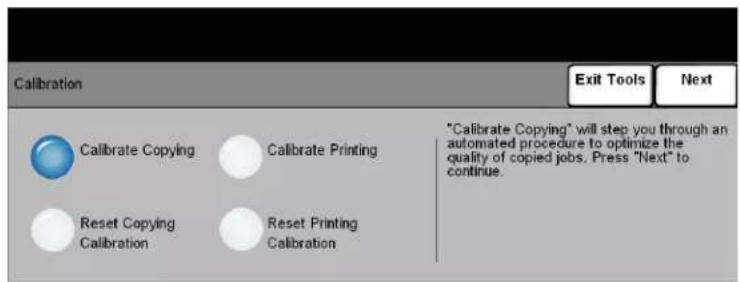
text_image
Calibration Exit Tools Next "Calibrate Copying" will step you through an automated procedure to optimize the quality of copied jobs. Press "Next" to continue. Calibrate Copying Calibrate Printing Reset Copying Calibration Reset Printing CalibrationCalibration can be performed to correct or adjust image quality problems associated with printing and copying. The Calibration feature is accessed via the Tools Login screen.
NOTE: You can open the Tools Login screen by touching the Access button on the Control Panel. It is not necessary to enter a passcode to access the Calibration feature. To view the calibration options, press the Enter button on the right side of the Tools Login screen.
When you select Calibrate Copying, you will have the opportunity to move through a series of steps to optimize the quality of copied jobs. The machine will print a calibration pattern for you to place on the platen glass. After the pattern is placed on the platen glass, the machine will scan the calibration pattern, and automatically make adjustments as required.
Selecting the Reset Copying Calibration button restores the factory default calibration settings for copying. Because of environmental variations, default settings may not optimize copy quality.
When you select Calibrate Printing, you will have the opportunity to move through a series of steps to optimize the quality of printed jobs. The machine will print two calibration targets for you to place in the document handler. The machine will scan the calibration targets, and automatically make adjustments as required. You will be prompted to evaluate a Before Calibration sample, and an After Calibration sample. Finally, you will be prompted to Approve or Cancel the adjustments based on the printed samples.
Selecting the Reset Printing Calibration button restores the factory default calibration settings for printing. Because of environmental variations, default settings may not optimize print quality.
FURTHER ASSISTANCE...
For any additional help visit our customer web site at www.xerox.com or contact the Xerox Welcome and Support Center quoting the machine serial number.

➢ Press the Machine Status button on the control panel.

The Machine Information screen will be displayed.
Select [Machine Details].
The Customer Support Number for the Welcome and Support Center and the Machine Serial Number for your machine will be displayed.

HINT: The Machine Serial Number can also be found on a metal plate, toward the back of the machine in Area 1, in the back of the fuser module.
10TROUBLESHOOTING
➢ General .... 10-2
▶ Fault Clearance....10-3
Xerox Welcome and Support Center... .....10-4
➢ Troubleshooting Tips......10-5
GENERAL ...
A variety of situations can affect the quality of your output. For optimal performance, ensure the following guidelines are followed:
- Do not position the CopyCentre/WorkCentre Pro in direct sunlight or near a heat source such as a radiator.
- Avoid sudden changes in the environment surrounding the CopyCentre/WorkCentre Pro. When a change occurs, allow the CopyCentre/WorkCentre Pro at least two hours to adjust to its new environment, depending on the extent of the change.
- Follow routine maintenance schedules for cleaning areas such as the Document Glass and User Interface.
- Always set the Edge Guides in the paper trays to the size of the media in the tray and ensure the screen is displaying the correct size.
- Ensure paper clips and paper debris do not contaminate the machine.
FAULT CLEARANCE...

When a fault occurs, a fault screen is displayed which provides recovery instructions.
➢ Follow these instructions to clear the fault.
NOTE: The jammed sheets will automatically be reprinted.

Paper jams
The fault screen will indicate the location of the jam.
➢ Open the doors indicated in the instructions displayed to remove the jammed paper.
NOTE: Any printed sheets removed will automatically be reprinted once the paper jam is cleared.
Document jams
Remove all the documents from the document handler and document glass as instructed.
➢ Re-order the documents as at the start of the job and reload. The documents will be recycled automatically to recover the job.
If you are unable to clear the fault, refer to the next section to contact your local Xerox Welcome and Support Center for assistance.
XEROX WELCOME AND SUPPORT CENTER...
If a fault cannot be resolved by following the touch screen instructions, check the Troubleshooting Tips in the next section - they may help to solve the problem quickly. If the difficulty persists, contact the Xerox Welcome and Support Center. The Welcome and Support Center will want to know the following information: The nature of the problem, the Machine Serial number, the fault code (if any) plus the name and location of your company.
Locating the serial number

➢ Press the Machine Status button on the control panel.

The Machine Information screen will be displayed.
Select [Machine Details].
The Customer Support Number for the Welcome and Support Center telephone number and Machine Serial Number for your machine will be displayed.
NOTE: The serial number can also be found on a metal plate toward the rear of the machine in Area 1, in the back of the fuser module.
TROUBLESHOOTING TIPS...
Power
The machine will not power on:
➢ Check to see that the machine is not in Low Power Mode as indicated by the green light on the User Interface.
Switch the ON/OFF button to the ON position.
➢ Check to see if the power cord is correctly installed.
Document Handler
Documents will not feed through the Document Handler
➢ Ensure that all staples or paper clips have been removed from the originals.
➢ Ensure the Document Handler is not overloaded. The Document Handler can hold 50 sheets of 20lb paper. Use Build Job if you have more originals than this.
➢ Check to see if the document set is fully inserted into the Document Handler. The green light on the Document Handler will light when documents are fully inserted.
➢ Ensure that the edge guides are adjusted to touch the sides of the originals.
➢ Check for obstructions or paper debris in the Document Handler.
➢ Ensure that the Document Handler cover is closed.
➢ Check that the machine is not in diagnostics mode as indicated by a message on the User Interface.
Paper Handling
Repeated paper jams or misfeeds
➢ Ensure that the correct paper size is displayed on the Touch Screen.
Remove the stock and reload the tray. Remove the paper, combine the additional paper with the paper from the tray, turn the paper over, and reload the tray.
➢ Ensure the paper tray is not filled above the MAX line.
➢ Ensure that the Edge Guides are adjusted to touch the sides of the paper.
➢ Check for obstructions at the paper entrance.
Paper Jams inside the machine
➢ Check the Paper Path for obstructions.
➢ Flip the paper over in the paper tray.
➢ Check the paper tray Edge Guides to see if they are against the edges of the paper.
➢ Check that the Touch Screen is displaying the correct size for the paper in use.
Load fresh paper.
Repeated Check Tray Messages on the User Interface and the paper is loaded in the tray
Adjust the edge guides against the stack of paper in the tray.
If the edge guides were not set against the paper stock in the tray when Start was selected, delete the job in the job queue and begin again.
Paper Curls
➢ Load the paper in the paper trays seam side of the paper up. Load the paper in the Bypass Tray with the seam side down.
The seam refers to the side of a ream of paper with a split in the wrapping. It may also be referred to as arrow side first.

➢ Load non-standard media in the Bypass Tray.
If the paper curls excessively, flip the paper over in the applicable paper tray.
Finisher
The Finisher does not stack the output correctly
▶ Unload the finisher tray frequently.
Do not remove stapled sets while the finisher is compiling.
The Finisher does not staple or staple well
Use less than 50 sheets of paper if they are heavier than 20 lb., 80 gsm.
The maximum number of sheets is 20 when stapling heavyweight paper.
➢ Check the User Interface for a message indicating a need for staples. Replace the staple cartridge.
Output Quality
Stray marks or black marks from hole punched originals are not removed
➢ Use the Edge Erase to erase the edge with the drilled holes.
➢ Copy from the document glass with the Document Cover down.
Images are out of sequence or upside down when the Booklet Creation Feature is used
➢ Ensure that the originals are in the correct sequence.
➢ Feed LEF originals to SEF orientated paper stock.
➢ Enable the display options for Booklet Creation and ensure that the correct sequence is selected (i.e. Left to Right or Right to Left).
The output is blank
➢ Ensure the originals are loaded either face up in the Document Handler or face down on the Document Glass.
Streaks, lines, spots, or black, solid, or dotted lines on the prints
➢ Run the job from the Document Glass.
➢ Check the quality of the original. Use Border Erase or Edge Erase to remove lines from the edges of the document.
➢ Turn on Background Suppression.
Load fresh paper.
Image Loss
When copying a document from a larger paper size to a smaller size, use Auto% to reduce the image onto the smaller size.
Use reduction i.e., copy at 90% instead of 100%.
➢ Select [Auto Center] and run the job again.
If scanning from the Document Glass, select [Manual Platen Input] and define the document size. Register the document in the right rear corner and copy with the cover down.
Blurred images on output
Load fresh paper.
If copying from the Document Glass, check the quality of the originals, set the input to Manual Size Input, close the cover and try again. Ensure that the original is entirely flat against the Document Glass.
Missing characters on output
Load fresh paper.
- Try using a smoother paper.
Select darken if the original is light or the font is colored.
Gloss variations
▶ Check the quality of the original.
If the original has large areas of solid density, adjust the contrast.
Ghosting
▶ Check the quality of the original.
Clean the Document Glass, if it is being used.
Rotate the original 180 degrees and try the job again.
The machine cannot sense the size of the original on the glass
➢ Select [Original Input] in the Image Adjustment Tab and enter the size.
➢ Rescan the original, leaving the cover down.
Jobs scan but do not print
Some jobs require image processing before printing.
➢ Check the Job Status queue to determine if a job is processing. There may be a job in the queue with a status of paused. Delete this job if it remains in the state over 5 minutes.
This may possibly be a result of an incorrect feature combination. The software may need to be reset. Contact your System Administrator.
Output does not reflect the selections made on the Touch Screen
➢ Press Clear All between jobs.
11 INDEX
Numerics
2-Sided
Copy 3–5
A
About this Guide 1-2
Acknowledgment Report Internet Fax 5–15
Add File Destination Network Scanning 6–17
Added Fax Features Embedded Fax 4–14
Additional Resources 1–4
Advanced Fax Features Embedded Fax 4–23
Advanced Tab Print 8-4
Authentication Mode
E-mail 7-17
Internet Fax 5-17
Network Scanning 6–18
Server Fax 4-37
Auto Detect 3–11
B
Basic Copying 3–3
Basic Faxing Embedded Fax 4-4 Server Fax 4-27
Booklet Creation Copy 3–24
Bound Originals Copy 3–18 Embedded Fax 4–12
Build Job
Copy 3-29
Embedded Fax 4-24
C
Calibration 9–4
Cleaning the Machine 9–3, 9–4
Color Balance
Copy 3–13
Color Options
Copy 3–10
E-mail 7-6
Internet Fax 5–6
Network Scanning 6–6
Color Shift
Copy 3–14
Comment Setup
Embedded Fax 4-22
Control Panel Overview 2–3
Conventions 1–2
Copy 3-2
Paper Supply 3–8
Cover Letter
Embedded Fax 4-17
Covers
Copy 3-27
Customer Replaceable Units 9-2
D
Delayed Send
Embedded Fax 4-19
Server Fax 4-36
Destination Details
Network Scanning 6–5
Dial Directory Setup Embedded Fax 4-27
Dialing Options Server Fax 4–28
Dialling Options Embedded Fax 4–5
Document Format E-mail 7-15 Internet Fax 5-14 Network Scanning 6-16
Document Handler Troubleshooting Tips 10–5
Document Management Fields Network Scanning 6–17
Document Name Network Scanning 6–15
E
Edge Erase Copy 3–19 E-mail 7–11 Network Scanning 6–11
E-mail 7-2
Entering an Address E-mail 7-4 Internet Fax 5-4
Environmental Choice 1–14
Environmental Compliance 1–13
F
Fault Clearance Troubleshooting 10–3
Fax 4-2
Fax Reports Embedded Fax 4–20
Fax Sending Features Embedded Fax 4–14
Finisher Troubleshooting Tips 10–6 Further Assistance 2–15, 9–5
G
General 10–2
|
ICES-003 1–15 If File Already Exists
Network Scanning 6–15
Illegal Copying 1–20
Image Adjustment Copy 3–15
E-mail 7-7
Embedded Fax 4-9
Internet Fax 5-7
Network Scanning 6–7
Image Options Tab Print 8-4
Image Quality Copy 3-1
E-mail 7-8
Embedded Fax 4-10
Internet Fax 5-8
Network Scanning 6–8
Server Fax 4-33
Image Shift Copy 3–21
Internet Fax 5-2
Invert Image
Copy 3-26
J
Job Assembly Copy 3–28
L
Layout/Watermark Tab Print 8-5
Loading Paper 2–5
Locating the Serial Number 10-4
Logging On / Off 2–14
M
Machine Features Overview 1–5
Machine Overview 2–2
Mailboxes Embedded Fax 4-21
Making Copies 2–6
Message Body E-mail 7-16 Internet Fax 5-16
More Fax Features Server Fax 4-32
Multiple-Up 3–25
Multi-up
Copy 3-25
N
Network Scanning 6–3
0
Original Input
Copy 3-20
E-mail 7-12
Embedded Fax 4-11
Internet Fax 5-12
Network Scanning 6–12
Server Fax 4-35
Original Type
Copy 3–17
E-mail 7-9
Embedded Fax 4-13
Internet Fax 5-9
Network Scanning 6–9
Server Fax 4-34
Output
Copy 3-4
Output Color
Copy 3–11
E-mail 7-6
Internet Fax 5-6
Network Scanning 6–6
Output Format
Copy 3-22
E-mail 7-14
Internet Fax 5-13
Network Scanning 6–14
Output Quality
Troubleshooting Tips 10–7
P
Paper Handling
Troubleshooting Tips 10–5
Paper Supply
Copy 3-8
Paper/Output Tab
Print 8-4
Polling
Embedded Fax 4-25
Power
Troubleshooting Tips 10–5
Power On or Off 2-4
Preset Color Options
Copy 3–12
Print 8-2
Printer Driver Control Options 8-3
Printer Driver Features 8-3
Printing from a PC 2–12
Printing with Internet Services 2–13
R
Reduce/Enlarge
Copy 3–6
Reduce/Split
Embedded Fax 4-16
Refresh Destinations
Network Scanning 6–18
Regulatory Information 1–15
Repeat Image 3–25
Reply To
E-mail 7-16
Internet Fax 5–15
Repositories
Network Scanning 6–4
Resolution
E-mail 7-13
Embedded Fax 4-7
Internet Fax 5-11
Network Scanning 6–13
Server Fax 4-30
S
Safety 1–8
Safety Notes 1–9
Sample Set
Copy 3-31
Scan 6-2
Scanning a Document 2–10
Scanning Resources
Network Scanning 6-2
Send
E-mail 7-3
Internet Fax 5-3
Sending a Server Fax 2-8
Sending an E-mail 2-11
Sending an Embedded Fax 2-7
Sending an Internet Fax 2-9
Sharpness/Saturation
Copy 3-13
Sides Scanned
E-mail 7-10
Embedded Fax 4-8
Internet Fax 5-10
Network Scanning 6–10
Server Fax 4-31
Single Color 3-11
Starting Rate
Embedded Fax 4-18
Stored Programming
Copy 3–32
T
Template Destinations
Network Scanning 6–5
Template Overview
Network Scanning 6–4
Transmission Options
Embedded Fax 4–15
Transparencies
Copy 3-23
Troubleshooting 10-2
Troubleshooting Tips 10–5
W
Welcome 1–2
Workstation Features Overview 1–7
X
Xerox Welcome and Support Center 10-4
701P41734
September 2004
Xerox Corporation
Global Knowledge and Language Services
780 Salt Road
Webster, New York 14580