Viera TH-L50ET60M - TV PANASONIC - Free user manual and instructions
Find the device manual for free Viera TH-L50ET60M PANASONIC in PDF.


User questions about Viera TH-L50ET60M PANASONIC
0 question about this device. Answer the ones you know or ask your own.
Ask a new question about this device
Download the instructions for your TV in PDF format for free! Find your manual Viera TH-L50ET60M - PANASONIC and take your electronic device back in hand. On this page are published all the documents necessary for the use of your device. Viera TH-L50ET60M by PANASONIC.
USER MANUAL Viera TH-L50ET60M PANASONIC
Operating Instructions LED TV

natural_image
Front view of a flat-screen monitor with blank screen (no text or symbols)VIERA
Contents
Be Sure to Read
Important Notice 2
Safety Precautions 3
Quick Start Guide
Accessories 5
Connections 7
Identifying Controls 11
First time Auto Tuning 13
Using your VIERA
Operations 14
How to Use eHELP 15
Viewing 3D images 16
Others
FAQs....17
Maintenance 17
Specifications 18
For more detailed instructions, refer to [eHELP] (Built-in Operating Instructions).

text_image
eHELP
• How to use [eHELP]→ (p. 15)


DOLBY DIGITAL PLUS
dts® 2.0+Digital Out
realD3D
- For the information of the trademarks, refer to [eHELP] (Support > Licence).
Important Notice
Panasonic does not guarantee operation and performance of peripheral devices made by other manufacturers; and we disclaim any liability or damage arising from operation and/or performance from usage of such other maker's peripheral devices.
The recording and playback of content on this or any other device may require permission from the owner of the copyright or other such rights in that content. Panasonic has no authority to and does not grant you that permission and explicitly disclaims any right, ability or intention to obtain such permission on your behalf. It is your responsibility to ensure that your use of this or any other device complies with applicable copyright legislation in your country. Please refer to that legislation for more information on the relevant laws and regulations involved or contact the owner of the rights in the content you wish to record or playback.
This product is licensed under the AVC patent portfolio license for the personal and non-commercial use of a consumer to (i) encode video in compliance with the AVC Standard ("AVC Video") and/or (ii) decode AVC Video that was encoded by a consumer engaged in a personal and non-commercial activity and/or was obtained from a video provider licensed to provide AVC Video. No license is granted or shall be implied for any other use.
Additional information may be obtained from MPEG LA, LLC.
See http://www.mpegla.com.
Panasonic and its affiliates make no representations or warranties of any kind with respect to the USB devices and the performance of communication between the USB devices and the USB port of Panasonic products, and expressly disclaims any and all warranties, whether express or implied or otherwise, including without limitation any implied warranty of fitness for a particular purpose, any loss of data, and any implied warranties arising from course of dealing or course of performance of data communication between the USB devices and the USB port of Panasonic products.
Transport only in upright position
Safety Precautions
To help avoid risk of electrical shock, fire, damage or injury, please follow the warnings and cautions below:
■ Mains plug and lead
Warning
If you detect anything unusual, immediately remove the mains plug.

- This TV is designed to operate on AC 110-240 V, 50 / 60 Hz.
- Insert the mains plug fully into the socket outlet.
- Ensure that the mains plug is easily accessible.
- Disconnect the mains plug when cleaning the TV.
- Do not touch the mains plug with wet hands.

• Do not damage the mains lead.
- Do not place a heavy object on the lead.
- Do not place the lead near a high temperature object.
- Do not pull on the lead. Hold onto the mains plug body when disconnecting the plug.
- Do not move the TV with the lead plugged into a socket outlet.
- Do not twist the lead, bend it excessively or stretch it.
- Do not use a damaged mains plug or socket outlet.
- Ensure the TV does not crush the mains lead.
- Do not use any mains lead other than that provided with this TV.
Take care
Warning
- Do not remove covers and never modify the TV yourself as live parts are accessible when they are removed. There are no user serviceable parts inside.
- Do not expose the TV to rain or excessive moisture. This TV must not be exposed to dripping or splashing water and objects filled with liquid, such as vases, must not be placed on top of or above the TV.
- Do not insert foreign objects into the TV through the air vents.
- Do not use an unapproved pedestal / mounting equipment. Be sure to ask your local Panasonic dealer to perform the setup or installation of approved wall-hanging brackets.


- Do not apply strong force or impact to the display panel.
- Do not place the TV on sloped or unstable surfaces, and ensure that the TV does not hang over the edge of the base.
• This TV is designed for table-top use. - Do not expose the TV to direct sunlight and other sources of heat.


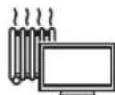
To prevent the spread of fire, keep candles or other open flames away from this product at all times

■ Dangerous part / Small object
Warning
- This product contains possibly dangerous parts such as plastic bags, that can be breathed in or swallowed by young children accidentally. Keep these parts out of reach of young children.
- Do not allow children to handle any small objects such as SD Card. The small object could be swallowed by young children. Remove SD Card immediately after use and store out of reach of young children.


Pedestal
Warning
- Do not disassemble or modify the pedestal.
Caution
- Do not use any pedestal other than the one provided with this TV.
- Do not use the pedestal if it becomes warped or physically damaged. If this occurs, contact your nearest Panasonic dealer immediately.
- During setup, make sure that all screws are securely tightened.
- Ensure that the TV does not suffer any impact during installation of the pedestal.
- Ensure that children do not climb onto the pedestal.
• Install or remove the TV from the pedestal with at least two people.
• Install or remove the TV by the specified procedure.
Radio wave
Warning
- Do not use the TV in any medical institutions or locations with medical equipment. Radio waves may interfere with the medical equipment and cause accidents due to the malfunction.
- Do not use the TV near any automatic control equipment such as automatic doors or fire alarms. Radio waves may interfere with the automatic control equipment and cause accidents due to the malfunction.
- Keep the distance at least 22 cm from the TV when you have a cardiac pacemaker. Radio waves may interfere with the operation of the pacemaker.
- Do not disassemble or alter the TV in any way.
■ Built-in wireless LAN
Caution
- Do not use the built-in wireless LAN to connect to any wireless network (SSID*) for which you do not have usage rights. Such networks may be listed as a result of searches. However, using them may be regarded as illegal access.
*SSID is a name for identifying a particular wireless network for transmission. - Do not subject the built-in wireless LAN to high temperatures, direct sunlight or moisture.
- Data transmitted and received over radio waves may be intercepted and monitored.
- The built-in wireless LAN uses 2.4 GHz and 5 GHz frequency bands. To avoid malfunctions or slow response caused by radio wave interference, keep the TV away from the devices such as other wireless LAN devices, microwaves, mobile phones and the devices that use 2.4 GHz and 5 GHz signals when using the built-in wireless LAN.
- When noises occur due to the static electricity, etc., the TV might stop operating for the protection of the devices. In this case, turn the TV off with Mains power On / Off switch, then turn it on again.
- Additional information for the wireless LAN and access point may be on the following website. (English only) http://panasonic.net/viera/support
Ventilation
Caution
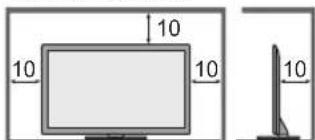
Allow sufficient space around the TV in order to help prevent excessive heat, which could lead to early failure of some electronic components.
Minimum distance:
text_image
10 10 10 10(cm)
- Ventilation should not be impeded by covering the ventilation openings with items such as newspapers, tablecloths and curtains.
- Whether you are using a pedestal or not, always ensure the vents at the bottom of the TV are not blocked and there is sufficient space to enable adequate ventilation.

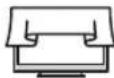
■ Moving the TV
Caution
Before moving the TV, disconnect all cables.
- Move the TV with at least two people. Support as shown to avoid injury by the TV tipping or falling.

■ When not in use for a long time
Caution
This TV will still consume some power even in the Off mode, as long as the mains plug is still connected to a live socket outlet.
- Remove the mains plug from the wall socket when the TV is not in use for a prolonged period of time.
■ Use conditions
Caution
• This appliance is intended for use in tropical climates.
■ Battery for the Remote Control
Caution
- Incorrect installation may cause battery leakage, corrosion and explosion.
- Replace only with the same or equivalent type.
- Do not mix old and new batteries.
- Do not mix different battery types (such as alkaline and manganese batteries).
- Do not use rechargeable batteries (Ni-Cd, etc.).
- Do not burn or break up batteries.
- Do not expose batteries to excessive heat such as sunshine, fire or the like.
• Make sure you dispose of batteries correctly.
■ 3D Eyewear Use
Caution
- Use the 3D Eyewear only for the intended purpose and nothing else.
- Do not move around while wearing the 3D Eyewear to avoid falling or accidental injury.
- Do not drop, bend, exert pressure on, or step on the 3D Eyewear.
- Be careful of the tips of the frame when putting on the 3D Eyewear.
- Be careful not to trap your fingers in the hinge section of the 3D Eyewear.
- Do not use the 3D Eyewear if it is physically damaged.
- If you suffer from any eyesight problems (short / far-sighted, astigmatism, eyesight differences in left and right), ensure that you correct your vision before using the 3D Eyewear. The supplied 3D Eyewear can be worn over vision correction glasses.
- Stop using the 3D Eyewear immediately if you experience any redness, pain or skin irritation around the nose or temples. In rare cases, the materials used in the 3D Eyewear may cause an allergic reaction.
■ Viewing 3D Images
Caution
- Pay special attention when children are viewing 3D images. 3D images should not be viewed by children younger than about 6 years old, as a guideline. All children must be fully supervised by parents or guardians who must ensure their safety and health while they are viewing 3D images.
- Stop viewing 3D images immediately if you feel tired, feel unwell, experience any other uncomfortable sensation or clearly see double images. Take an appropriate break before continuing to view. When you set the 3D effect by using [3D Adjustment], take into account that the vision of 3D images varies among different individuals.
- Do not view 3D images if you have a history of oversensitivity to light, heart problems or any other medical conditions.
- When viewing 3D images, your sense of distance may be tricked or go wrong. Be careful not to hit the TV screen or other people unintentionally. Ensure there are no breakable objects around you to avoid any accidental damage or injury.
- Do not view 3D images from a distance shorter than recommended. The recommended viewing distance is at least 3 times of the image height.
42-inch model : 1.6 m or more
50-inch model : 1.9 m or more
55-inch model : 2.1 m or more
When black bands at the top and bottom of the screen are displayed, such as movies, view the screen from a distance at least 3 times the height of the actual image. (That makes the distance shorter than the recommended values above.)
Accessories
Remote Control
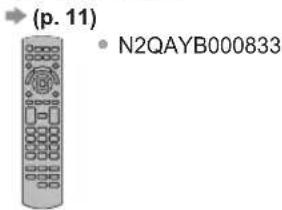
text_image
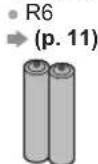
(p. 11) • N2QAYB000833Batteries (2)
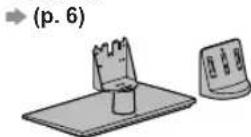
Pedestal
Mains lead

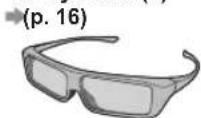
3D Eyewear (2)
Cable tie

Operating Instructions
- Accessories may not be placed all together. Take care not to throw them away unintentionally.
- For the information of optional accessories, refer to [eHELP] (Support > Optional accessories).
Assembling / Removing the pedestal

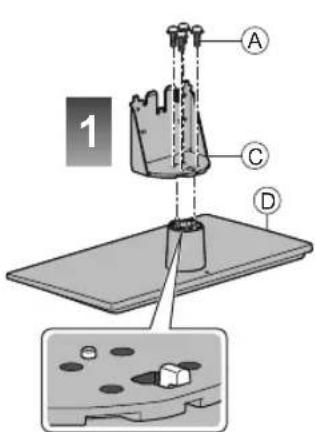
Assembly screw (4) (silver)

M5 × 18

Bracket
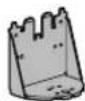

Cover


Assembly screw (4) (black)

M4 × 10

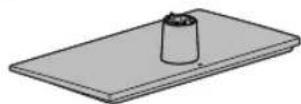
Base
■ Assembling the pedestal
text_image
A C D 1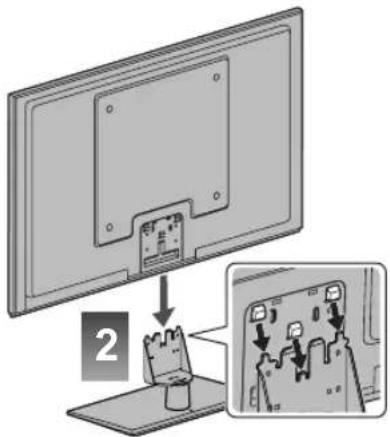
text_image
Diagram showing a device mounted on a flat panel with an inset close-up highlighting internal components.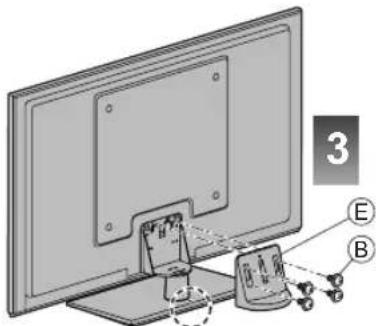
text_image
3 E B■ Adjusting the panel to your desired angle
- Do not place any objects within the full rotation range.

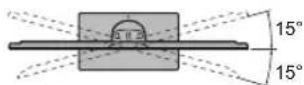
(View from the top)
Secure the base as shown below to prevent the TV from falling over.
- The place where the base is secured should be thick enough and made of hard material.
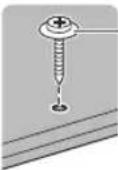
Commercially available screw (not supplied)
Diameter: 3 mm
Length: 25 - 30 mm
Removing the pedestal from the TV
Be sure to remove the pedestal in the following way when using the wall-hanging bracket or repacking the TV.
1 Remove the assembly screws® from the cover.
2 Pull out the cover.
3 Lift the TV from the pedestal.
4 Remove the assembly screws from the bracket.
Connections
• External equipment and cables shown are not supplied with this TV.
- Ensure that the unit is disconnected from the mains socket before attaching or disconnecting any leads.
- Check the type of terminals and cable plugs are correct when connecting.
• Always use a fully wired HDMI cable.
- Keep the TV away from electronic equipment (video equipment, etc.) or equipment with an infrared sensor. Otherwise, distortion of image / sound may occur or operation of other equipment may be interfered.
• Also read the manual of the equipment being connected.
Terminals

text_image
1 2 3 4 5 6 7 AET ETHernet AV IN HDMI VDDI R AUDIO L VIDEO COMPROM R AUDIO L Pv/Gx Pv/Gy Y RED WHITE RED BLUE YELLOW GREEN USB 1 USB 2 USB 3 HDMI 1 (ARC) HDMI 2 (ARC) HDMI 3 METAL AUDIO OUT1 SD Card slot
2 USB 1 - 2 port
3 HDMI1 - 3
4 DIGITAL AUDIO OUT
6 Aerial terminal (see below)
7 ETHERNET→(p. 8)
5 AV (COMPONENT / VIDEO) → (p. 9)
Basic connections
Mains lead and aerial

text_image
TV Aerial RF cable Mains lead (mains lead (supplied) AC 110-240 V 50 / 60 Hz Mains lead Insert the mains plug firmly into place. • When disconnecting the mains lead, be absolutely sure to disconnect the mains plug at the socket outlet first.- Keep RF (aerial) cable away from the mains lead to avoid and minimise mains interference pickup.
- Do not place the RF cable under the TV.
• An aerial, correct cable (75 Ω coaxial) and correct terminating plug are required to obtain optimum quality picture and sound. - If a communal aerial system is used, you may require the correct connection cable and plug between the wall aerial socket and the TV.
- Your local Television Service Centre or dealer may be able to assist you in obtaining the correct aerial system for your particular area and the accessories required.
- Any matters regarding aerial installation, upgrading of existing systems or accessories required, and the costs incurred, are the responsibility of you, the customer.
AV devices
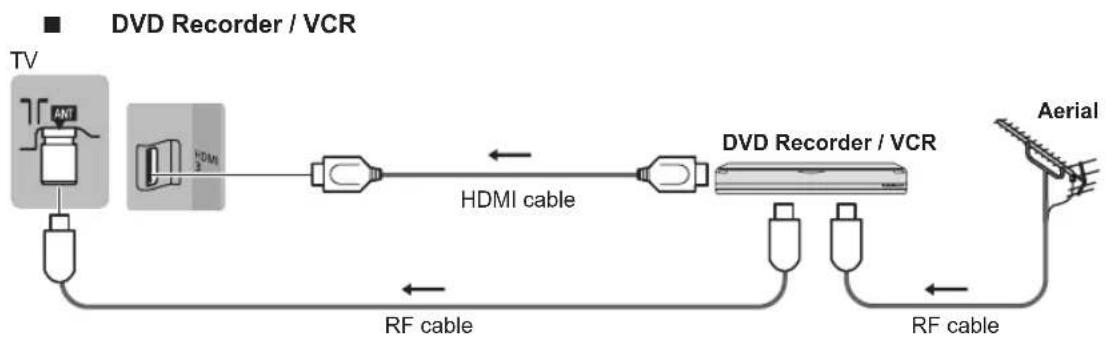
flowchart
graph LR
    TV["TV"] -->|HDMI 3| HDMI1["HDMI"]
    HDMI1 --> HDMI2["HDMI"]
    HDMI2 --> HDMI3["HDMI"]
    HDMI3 --> Aerial["Aerial"]
    HDMI1 <-->|HDMI cable| HDMI4["HDMI"]
    HDMI4 -->|RF cable| TV
    Aerial -->|RF cable| TV

flowchart
graph LR
    TV["TV"] -->|Set top box| HDMI1["HDMI"]
    HDMI1 -->|HDMI cable| HDMI2["HDMI"]
    HDMI2 --> SetTopBox["Set top box"]
    SetTopBox --> Satellite["Satellite"]
Network
- To enable the network service functions (VIERA Connect, etc.), you need to connect the TV to a broadband network environment. If you do not have any broadband network services, please consult your retailer for assistance.
• Prepare the internet environment for wired connection or wireless connection. - Setup of the network connection will start when first using the TV.→(p. 13)
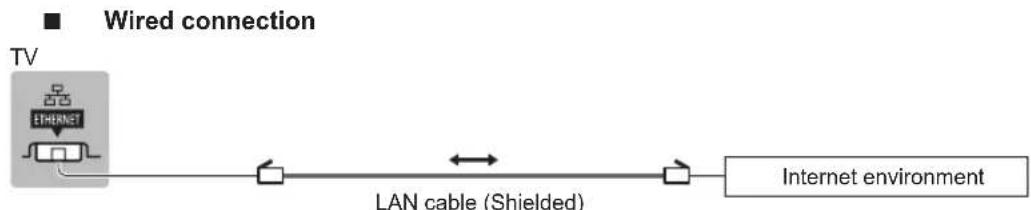
flowchart
graph LR
    A["TV"] --> B["LAN cable (Shielded)"]
    B <--> C["Internet environment"]
    style A fill:#f9f,stroke:#333
    style B fill:#ccf,stroke:#333
    style C fill:#cfc,stroke:#333
• Use the Shielded Twist Pair (STP) LAN cable.

text_image
Wireless connection Access point Internet environmentBuilt-in wireless LAN
Other connections
DVD player
COMPONENT equipment)
TV

flowchart
graph TD
    A["USB HDMI"] --> B["AV IN"]
    B --> C["(Listening)"]
    B --> D["(Viewing)"]
    C --> E["DVD Player"]
    D --> E
    style A fill:#f9f,stroke:#333
    style E fill:#ccf,stroke:#333
■ Camcorder / Game equipment
(VIDEO equipment)
TV

text_image
HDMI AV IN VDD/D R AUDIO L VIDEO INVOICE RGB WHITE NIO BLUE YELLOW / GREEN (Listening) Camcorder Viewing Game equipment■ Amplifier (to listen with speakers)
TV

flowchart
graph LR
    A["HD/MI"] --> B["HDMI cable"]
    B --> C["Amplifier with speaker system"]
    C --> D["External equipment (DVD Player, etc.)"]
- Use HDMI2 for connecting an amplifier. This connection is applicable when using an amplifier that has ARC (Audio Return Channel) function.
As for an amplifier without ARC function, use DIGITAL AUDIO OUT.
- To enjoy the sound from the external equipment in multi-channel sound (e.g. Dolby Digital 5.1ch), connect the equipment to the amplifier. For the connections, read the manuals of the equipment and amplifier.
Types of connectable equipment to each terminal
| Features | Terminal | |||||
| AV | DIGITAL AUDIO OUT | ETHERNET  | HDMI 1-3 HDMI | USB 1-2 | ||
COMPONENT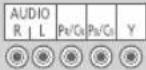 | VIDEO | |||||
| To play back videocassettes / DVDs (VCR / DVD Player) | ○ | ○ | ○ | |||
| To watch 3D contents (Blu-ray Disc Player) | ○ | |||||
| To watch satellite broadcasts (Set top box) | ○ | ○ | ||||
| To watch camcorder images (Video camera) | ○ | ○ | ||||
| To play games (Game equipment) | ○ | ○ | ||||
| To use amplifier with speaker system | ○ | ○*1 | ||||
| To use network services | ○ | ○*2 | ||||
| VIERA Link | ○ | |||||
○: Recommended Connection
*1: Use HDMI2 for connecting an amplifier. This connection is applicable when using an amplifier that has ARC (Audio Return Channel) function.
*2: Use USB 1 port for connecting the Communication Camera.
Using the cable tie (supplied)

natural_image
Diagram of a device interior showing top and front views with no visible text or symbols- Do not bundle the RF cable and mains lead together (could cause distorted image).
• Fix cables with the cable tie as necessary. - When using the optional accessory, follow the option's assembly manual to fix cables.
Attach the cable tieIn tie 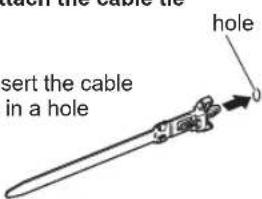 | Bundle the cables Set the tip in the hooks Set the tip in the hooks |
To remove from the TV: snapsKeep pushing both side snaps snapsKeep pushing both side snaps | To loosen: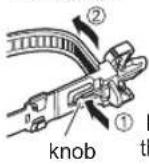 Keep pushing the knob Keep pushing the knob |
Identifying Controls
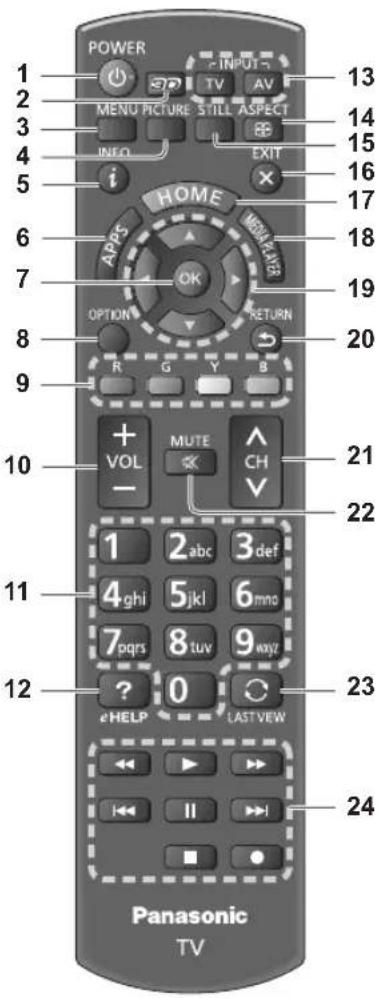
Remote Control
text_image
POWER INPUT 13 2 MENU PICTURE STILL ASPECT 14 3 INFO EXIT 15 4 i HOME 16 5 APPS MESSAGE 17 6 OPTION RETURN 18 7 20 9 R G Y B MUTE CH + VOL - 1 2 abc 3 def 21 22 11 4 ghi 5 jkl 6 mno 7 pqrs 8 tuv 9 xyz 12 ? 0 eHELP LAST VIEW 23 24 Panasonic TV1 Standby On / Off switch
2 3D button
• Switches the view between 2D and 3D.
3 [Main Menu]
- Press to access Picture, Sound, Network, Timer, Setup and Help Menus.
4 Picture Selection
• Changes [Viewing Mode].
5 Information
• Displays channel and programme information.
6 APPS
• Displays [APPS list] (applications list).
7 OK
• Confirms selections and choices.
- Press after selecting channel positions to quickly change channel.
8 [Option Menu]
- Easy optional setting for viewing, sound, etc.
9 Coloured buttons
(red-green-yellow-blue)
- Used for the selection, navigation and operation of various functions.
10 Volume Up / Down
11 Numeric buttons
• Changes channel and teletext pages.
- Sets characters.
- When in Standby mode, switches TV on.
12 [eHELP]
• Displays [eHELP] (Built-in Operating Instructions).
13 Input mode selection
• TV - switches to TV mode.
- AV - switches to AV input mode from Input Selection list.
14 Aspect
• Changes aspect ratio.
15 STILL
- Freeze / unfreeze picture.
16 Exit
• Returns to [Home Screen].
17 HOME
• Displays [Home Screen].
18 [Media Player]
- Switches to SD Card and USB device viewing / listening mode.
19 Cursor buttons
• Makes selections and adjustments.
20 Return
- Returns to the previous menu / page.
21 Channel Up / Down
22 Sound Mute On / Off
23 Last view
- Switches to previously viewed channel or input mode.
24 Operations for contents, connected equipment, etc.
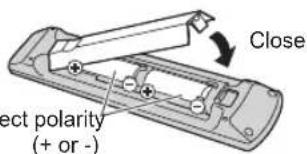
■ Installing / Removing batteries

text_image
Pull open Hook
Note the correct polarity (+ or -)
text_image
Close Elect polarity (+ or -)Indicator / Control panel
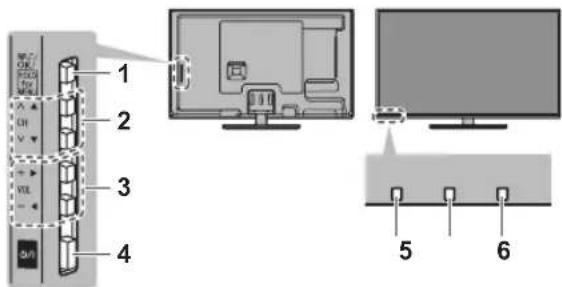
- When pressing 1, 2, 3 buttons, the control panel guide appears on the right side of the screen for 3 seconds to highlight the pressed button.
text_image
Diagram showing labeled components of a monitor setup with numbered parts and viewing screen interfaceRear side of the TV
1 Input mode selection
- Press repeatedly until you reach the desired mode.
[Main Menu]
- Press and hold for about 3 seconds to display main menu.
OK (when in the menu system)
2 Channel Up / Down
Cursor Up / Down (when in the menu system)
3 Volume Up / Down Cursor Left / Right (when in the menu system)
4 Mains power On / Off switch
• Use to switch the mains power.
5 Remote control signal receiver
- Do not place any objects between the TV remote control signal receiver and remote control.
6 Ambient sensor
7 Senses brightness to adjust picture quality when [Ambient Sensor] in the Picture Menu is set to [On].
7 Power LED
Red: Standby Green: On
- The LED blinks when the TV receives a command from the remote control.
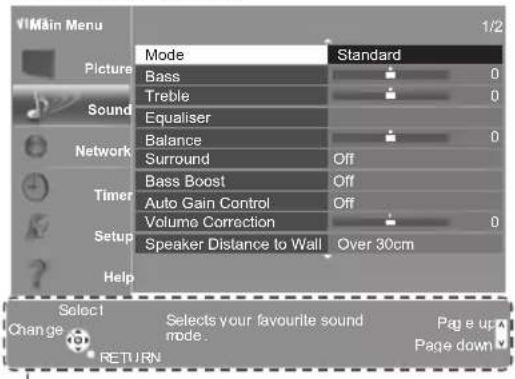
Using the On Screen Displays - Operation guide
Many features available on this TV can be accessed via the On Screen Display menu.
Operation guide
Operation guide will help your operation by using the remote control.
Example: [Sound Menu]
text_image
VIMain Menu 1/2 Mode Standard Picture Bass 0 Sound Treble 0 Equaliser Balance 0 Surround Off Bass Boost Off Auto Gain Control Off Volume Correction 0 Speaker Distance to Wall Over 30cm Setup Help Select1 Select your favourite sound Change mode. Page up Return Page downOperation guide
■ How to use remote control

Open the main menu

Move the cursor / select from a range of options / select the menu item (up and down only) / adjust levels (left and right only)

Access the menu / store settings after adjustments have been made or options have been set

Return to the previous menu

Exit the menu system and return to [Home Screen]
First time Auto Tuning
Automatically sets up the TV and searches for available TV channels when the TV is turned on for the first time.
• These steps are not necessary if the setup has been completed by your local dealer.
- Please complete connections (p. 7 - 10) and settings (if necessary) of the connected equipment before starting Auto Tuning. For details of settings for the connected equipment, read the manual of the equipment.
1
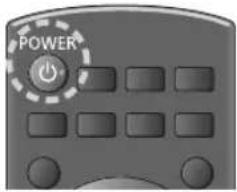
Plug the TV into mains socket and turn power on
POWER • Takes a few seconds to be displayed.

natural_image
Close-up of a gray remote control with a 'POWER' button and eight buttons arranged in a grid (no readable text beyond the button)2
Select the following items
Set up each item by following the on-screen instructions.
Select your language
Select [Home]
Select [Home] viewing environment to use in your home environment.
• [Shop] is for shop display.
• To change viewing environment later on, you will need to initialise all settings by accessing Shipping Condition.
Set up the network connection
Select your country
Select your area
- When selecting [CATV/Other], press the OK button, and then select the Channel Plan from Indian CATV, South Africa, American System, American CATV or Japan CATV.
3
Select the type of [Home Screen]
The demonstration to explain how to use [my Home Screen] is displayed. Confirm the demonstration by following the on-screen instructions, and then select the desired [Home Screen].
Example: [Home Screen Selection] Example: [TV Home Screen]
![PANASONIC Viera TH-L50ET60M - Select the type of [Home Screen] - 1](/content/2026/06/1223151/images/ccfd80e3e6d7dde22bb91407abd38b234a218750712ced433aa4dcca4d136975.jpg)
text_image
Scanned screenshot of a presentation slide with Chinese text and three video thumbnails showing a man in a suit.![PANASONIC Viera TH-L50ET60M - Select the type of [Home Screen] - 2](/content/2026/06/1223151/images/ea78d6e0a23920f07dcd5bb07d3e015f00b3b28e2490c4537a9aba9c5dbd342b.jpg)
![PANASONIC Viera TH-L50ET60M - Select the type of [Home Screen] - 3](/content/2026/06/1223151/images/aac94f83868749d3423386d42bba577c3322e2a83837707aa0d1b50d4601ab03.jpg)
text_image
Scanned document page with two people in conversation, displayed alongside a web interface with placeholder text and navigation tabs.• [my Home Screen] is the start-up screen when the TV is turned on or the HOME button is pressed.
Auto Tuning is now complete and your TV is ready for viewing.
If tuning has failed, check the connection of the network, RF cable, and then follow the on-screen instructions.
Note
- The TV will automatically go into Standby mode when no operation is performed for 4 hours if [Auto Standby] in the Timer Menu is set to [On].
- The TV will automatically go into Standby mode when no signal is received and no operation is performed for 10 minutes if [No signal Power off] in the Timer Menu is set to [On].
• To retune all channels → [Auto Tuning] in [Tuning Menu] (Setup Menu) - To initialise all settings ➤ [Shipping Condition] in [System Menu] (Setup Menu)
Operations
Turn power on

or
POWER

- Mains power On / Off switch should be on. (p. 12) (Remote Control)
The last viewed [Home Screen] is displayed.
Example: [TV Home Screen]
Example: Selected content screen

text_image
Scanned screenshot of a presentation slide with two people in conversation, showing interface elements and content sections.

natural_image
Black-and-white photo of a man in a suit speaking to a woman in a suit, with a city skyline in the background (no visible text or symbols)• To return to [Home Screen] at any time
- You can set up or make [Home Screen] to display desired information, to access specific features easily, to select the default [Home Screen], etc. For details, follow the on-screen instructions or refer to [eHELP] (Watching > my Home Screen).
Watching TV
1
Select the TV viewer from [Home Screen]
![PANASONIC Viera TH-L50ET60M - Select the TV viewer from [Home Screen] - 1](/content/2026/06/1223151/images/431672931bbab20335ef38d2e784e74e73cb4bfa66feb80af25c874ef190a6cf.jpg)
①select
②access
2
Select TV mode

3
Select a channel

— up
down
or

• To select two-digit channel position number, e.g. 39

To access each feature
Access [APPS list] and select a feature
![PANASONIC Viera TH-L50ET60M - Access [APPS list] and select a feature - 1](/content/2026/06/1223151/images/d7f573e9bb9fde21d3844f5d5347b75b10f658e2434edba41c3c18aef0b052df.jpg)
Example: [APPS list]
![PANASONIC Viera TH-L50ET60M - Access [APPS list] and select a feature - 2](/content/2026/06/1223151/images/ddf2bc58bfb0059727c1e0d7ea3620363cd1d915f014ead9018c545b78ecdfde.jpg)
text_image
Screenshot of a software interface with menu options and display panels, likely from an older application or design tool.- APPS is the applications (features) of the TV.
- For operations of each feature and the setup of [APPS list], follow the on-screen instructions or refer to [eHELP] (Functions > APPS list).
How to Use eHELP
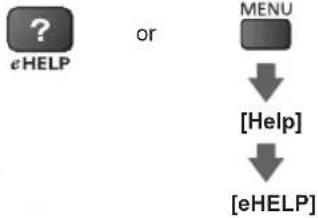
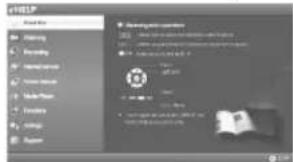
[eHELP] is the detailed operating instructions built into the TV, and helps you to get more understanding of the operations for each feature.
1
Display [eHELP]
flowchart
graph TD
    A["?"] --> B["eHELP"]
    C["MENU"] --> D["[Help"]]
    D --> E["[eHELP"]]
text_image
Screenshot of a software interface showing menu options and a highlighted section with text and icons.- [Read first] will be displayed on the top page. Please read these instructions fully to get more understanding of the operation in [eHELP].
- If this is not the first time to view [eHELP] from when the TV is turned on, the confirmation screen is displayed to select whether [First Page] or [Last Page].
2
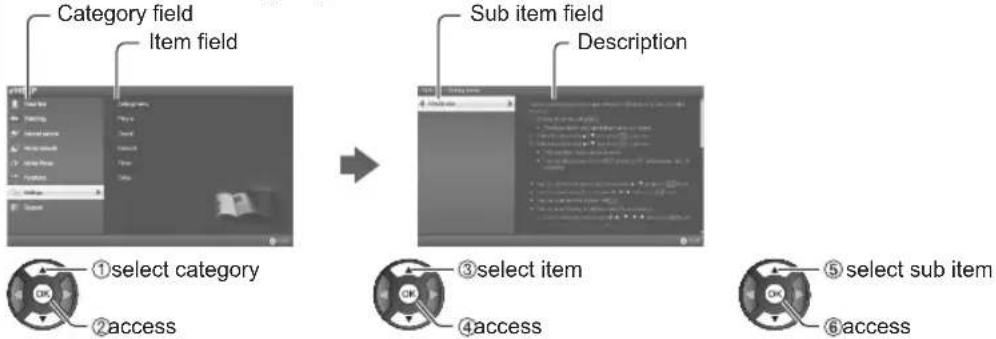
Select the category and item
flowchart
graph LR
    A["Category field"] --> B["Item field"]
    B --> C["Sub item field Description"]
    C --> D["①select category"]
    C --> E["②access"]
    D --> F["③select item"]
    E --> G["④access"]
    F --> H["⑤select sub item"]
    G --> I["⑥access"]
• To return to the previous field

- To scroll the description (if more than 1 page) While the description is highlighted

• To display the menu related to the description (only for some descriptions)

Viewing 3D images
You can enjoy viewing 3D images with contents or programmes corresponding to the 3D effect by wearing the 3D Eyewear (supplied).
• The 3D Eyewear must be worn to view 3D images.
- This TV supports [Frame Sequential], [Side by Side] and [Top and Bottom] 3D formats.
*: The 3D format that the images for the left and right eyes are recorded with the high definition quality and alternately played back.
To view the 3D images
■ Playing back 3D-compatible Blu-ray disc (Frame Sequential format)
- Connect the 3D-compatible player via a fully wired HDMI compliant cable. (If you use the non 3D-compatible player, the images will be displayed in 2D mode.)
- If the input mode is not switched automatically, select the input mode connected to the player using the AV button.
■ 3D photos and 3D videos taken by 3D-compatible Panasonic products
• Available in Media Player and Network services.
■ 2D images converted to 3D
- Press the 3D button and set to [2D-3D] mode in [3D Mode Selection].
1
Put the 3D Eyewear on
2
View the 3D images
Safety precautions will be displayed when you first watch the 3D image. Select [Yes] or [No] to continue to view 3D images.
• To change 2D - 3D mode

Note
- Do not exert pressure on or scratch the lens of the 3D Eyewear.
- 3D content will not be correctly visible if the 3D Eyewear is worn upside down or back-to-front.
- When viewing 3D images, make sure your eyes are at an approximately horizontal level and keep a position where you do not see double images.
FAQs
Before requesting service or assistance, please follow these simple guides to solve the problem.
• For more information, refer to [eHELP] (Support > FAQs).
The TV does not switch on
- Check the mains lead is plugged into the TV and the socket outlet.
The TV goes into Standby mode
• Auto power standby function is activated.
The remote control does not work or is intermittent
- Are the batteries installed correctly? (p. 11)
- Has the TV been switched on?
• The batteries may be running low. Replace them with new ones. - Point the remote control directly at the TV's remote control signal receiver (within about 7 m and a 30 degree angle of the signal receiver).
- Situate the TV away from sunshine or other sources of bright light not to shine on the TV's remote control signal receiver.
No image can be displayed
- Check the TV is turned on.
- Check the mains lead is plugged into the TV and the socket outlet.
- Check the correct input mode is selected.
- Check the setting of [AV] ([COMPONENT] / [VIDEO]) in [Input Selection] to match the output of the external equipment.
• Is [Contrast], [Brightness] or [Colour] in the Picture Menu set to the minimum? - Check all required cables and connections are firmly in place.
Unusual image is displayed
- Turn the TV off with Mains power On / Off switch, then turn it on again.
- If the problem persists, initialise all settings. [Shipping Condition] in [System Menu] (Setup Menu)
Parts of the TV become hot
- Even if the temperature of parts of the front, top and rear panels has risen, these temperature rises do not cause any problems in terms of performance or quality.
The LCD panel moves slightly and clattered sound is heard when it is pushed with a finger
- There is some flexibility around the panel to prevent damage to the panel. This is not a malfunction.
Maintenance
First, remove the mains plug from the socket outlet.
Display panel, Cabinet, Pedestal
Regular care:
Gently wipe the surface of the display panel, cabinet, or pedestal by using a soft cloth to clean the dirt or fingerprints.
For stubborn dirt:
First clean the dust on the surface. Dampen a soft cloth with clean water or diluted neutral detergent (1 part detergent to 100 parts water). Wring the cloth and wipe the surface. Finally, wipe away all the moisture.
Caution
- Do not use a hard cloth or rub the surface too hard, otherwise this may cause scratches on the surface.
Take care not to subject the TV's surfaces to water or detergent. Liquid inside the TV could lead to product failure.
Take care not to subject the surfaces to insect repellent, solvent, thinner or other volatile substances. This may degrade surface quality or cause peeling of the paint. - The surface of the display panel is specially treated and may be easily damaged. Take care not to tap or scratch the surface with your fingernail or other hard objects.
- Do not allow the cabinet and pedestal to make contact with a rubber or PVC substance for a long time. This may degrade surface quality.
Mains plug
Wipe the mains plug with a dry cloth at regular intervals. Moisture and dust may cause fire or electrical shock.
Specifications
| ■ TV | 42-inch model | 50-inch model | 55-inch model | ||||
| Model No. TH-L42ET60M TH-L50ET60M TH-L55ET60M | |||||||
| Power source AC 110-240 V, 50 / 60 Hz | |||||||
| Power | Rating 92 W 112 W | 127 W | |||||
| Standby power consumption | 0.2 W 0.2 W 0.2 W | ||||||
| Visible screen size (diagonal) | 106 cm 126 cm 139 cm | ||||||
| Display resolution 1,920 (W) × 1,080 (H) | |||||||
| Panel LED backlight Liquid Crystal Display | |||||||
| Dimensions (W × H × D) | 956 mm × 620 mm × 227 mm (With Pedestal)956 mm × 564 mm × 35 mm (TV only) | 1,123 mm × 714 mm × 280 mm (With Pedestal)1,123 mm × 659 mm × 35 mm (TV only) | 1,238 mm × 779 mm × 296 mm (With Pedestal)1,238 mm × 724 mm × 35 mm (TV only) | ||||
| Mass | 14.5kg Net (With Pedestal)12.5kg Net (TV only) | 19.5kg Net (With Pedestal)16.0kg Net (TV only) | 25.0kg Net (With Pedestal)21.0kg Net (TV only) | ||||
| Connection terminals | AV IN (COMPONENT / VIDEO) | VIDEO RCA PIN Type × 1 1.0 V[p-p] (75 Ω) | |||||
| AUDIO L - R RCA PIN Type × 2 0.5 V[rms] | |||||||
| Y 1.0 V[p-p] (including synchronisation)PB/CB, PR/CR ±0.35 V[p-p] | |||||||
| HDMI 1 / 2 / 3 input | TYPE A ConnectorsHDMI 1 / 3: 3D, Content Type, Deep ColourHDMI 2: 3D, Content Type, Audio Return Channel, Deep ColourThis TV supports “HDAVI Control 5” function. | ||||||
| Card slot | SD Card slot × 1 | ||||||
| ETHERNET | 10BASE-T / 100BASE-TX | ||||||
| USB 1 / 2 | USB 2.0 DC 5 V, Max. 500 mA | ||||||
| DIGITAL AUDIO OUT | PCM / Dolby Digital / DTS, Fibre optic | ||||||
| Sound | Speaker | 8 train speakers × 2, Woofer (Φ 75 mm) × 1 | |||||
| Audio output | 18 W (4 W + 4 W + 10 W) | ||||||
| Receiving systems / Band name | 17 Systems | Function | 17 Systems | Function | |||
| 1 PAL B, G, H | Reception of broadcast transmissions and Playback from Video Cassette Tape Recorders | 8 | NTSC 4.43/5.5 MHz | Playback from Special VCR's or DVD | |||
| 2 PAL I | 9 | NTSC 4.43/6.0 MHz | |||||
| 3 PAL D, K | 10 | NTSC 4.43/6.5 MHz | |||||
| 4 SECAM B, G | 11 | NTSC 3.58/5.5 MHz | |||||
| 5 SECAM D, K | 12 | NTSC 3.58/6.0 MHz | |||||
| 6 SECAM K1 | 13 | NTSC 3.58/6.5 MHz | |||||
| 7 NTSC M (NTSC 3.58/4.5 MHz) | 14 | SECAM I | |||||
| 15 | PAL 60 Hz/5.5 MHz | Playback from Special Disc Players and Special VCR's or DVD | |||||
| 16 | PAL 60 Hz/6.0 MHz | ||||||
| 17 | PAL 60 Hz/6.5 MHz | ||||||
| Receiving channels | VHF BAND UHF BAND CATV2-12 (PAL/SECAM B, K1) 21-69 (PAL G, H, I/SECAM G, K, K1) S1-S20 (OSCAR)0-12 (PAL BAUST.) 28-69 (PAL BAUST.) 1-125 (USA CATV)1-9 (PAL B N.Z.) 13-57 (PAL D, K) C13-C49 (JAPAN)1-12 (PAL/SECAM D) 13-62 (NTSC M Japan) S21-S41 (HYPER)1-12 (NTSC M Japan) 14-69 (NTSC M USA) Z1-Z37 (CHINA)2-13 (NTSC M USA) 5A, 9A (AUST.) | ||||||
| Aerial input VHF / UHF | |||||||
| Operating conditions | Temperature: 0 °C - 40 °CHumidity: 20 % - 80 % RH (non-condensing) | ||||||
| Built-in wireless LAN | Standard compliance and Frequency range*:IEEE802.11a/n5.15 GHz - 5.35 GHz, 5.47 GHz - 5.85 GHzIEEE802.11b/g/n2.40 GHz - 2.4835 GHz | ||||||
| Security: WPA2-PSK (TKIP/AES) WPA-PSK (TKIP/AES) WEP (64 bit/128 bit) | |||||||
* The frequency and channel differ depending on the country.
3D Eyewear
| Dimensions (W × H × D) 165 mm × 38 mm × 166 mm | |
| Mass Approx. 18 | g |
| Lens type Circularly-polarised filter | |
| Usage temperature range 0 °C - 40 °C | |
| Materials Main body / Lens section: Resin | |
Note
- Design and Specifications are subject to change without notice. Mass and Dimensions shown are approximate.
- For the information of the open source software, refer to [eHELP] (Support > Licence).
■ When using the wall-hanging bracket
- Please contact your local Panasonic dealer to purchase the recommended wall-hanging bracket.
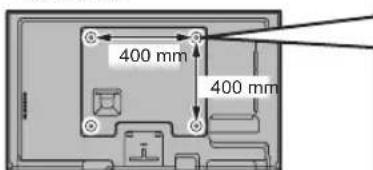
• Holes for wall-hanging bracket installation
text_image
400 mm 400 mmRear of the TV
text_image
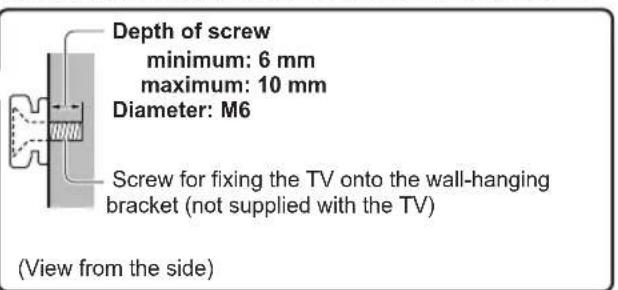
Depth of screw minimum: 6 mm maximum: 10 mm Diameter: M6 Screw for fixing the TV onto the wall-hanging bracket (not supplied with the TV) (View from the side)UAE
Built-in wireless LAN
TRA
REGISTERED No:
ER0081229/12
DEALER No:
DA0052708/10
Nigeria
Connection and use of this communications equipment is permitted by the Nigerian
Communications Commission
Information on Disposal in other Countries outside the European Union
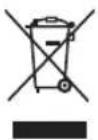
This symbol is only valid in the European Union. If you wish to discard this product, please contact your local authorities or dealer and ask for the correct method of disposal.
Customer's Record
The model number and serial number of this product may be found on its rear panel. You should note this serial number in the space provided below and retain this book, plus your purchase receipt, as a permanent record of your purchase to aid in identification in the event of theft or loss, and for Warranty Service purposes.
Model Number Serial Number
Panasonic Corporation
Web Site: http://panasonic.net