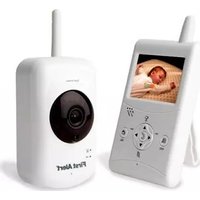
DWB-740 - Security Camera FIRST ALERT - Free user manual and instructions
Find the device manual for free DWB-740 FIRST ALERT in PDF.


| Product Type | Digital Wireless Family Monitor / Security Camera |
| Model | DWB-740 |
| Brand | First Alert |
| Receiver Screen | 2.5" Color LCD |
| Camera Dimensions (with stand) | 2.52" x 2.44" x 3.9" (64 x 62 x 99 mm) |
| Receiver Dimensions | 2.7" x 5.5" x 0.8" (69 x 140 x 20 mm) |
| Camera Power Supply | DC 5V 1A adapter or 3 AAA alkaline batteries (not included) |
| Receiver Power Supply | DC 5V 1A adapter (included) for charging |
| Wireless Frequency | 2.4 GHz |
| Wireless Range | Up to 750 ft (line of sight) |
| Night Vision Distance | Up to 16 ft (10 infrared LEDs) |
| Maximum Cameras Supported | 4 (additional camera model DWB-700) |
| Recording Storage | 2GB SD card (included), supports up to 32GB SDHC |
| Recording Resolution | 640x480 (VGA) or 320x240 (QVGA) |
| Key Features | Push-to-talk, lullabies (3 songs, 7 min each), VOX recording, alarm, scan/quad mode |
| Indoor Use Only | Yes |
| Operating Temperature | 14°F to 122°F (-10°C to 50°C) |
| Maintenance | Clean with soft, lint-free cloth; damp cloth if needed; no solvents |
| Safety Precautions | Not a substitute for adult supervision; keep cords away from child; no outdoor use |
| FCC Compliance | Class B digital device, complies with Part 15 |
| Warranty | 1 year limited warranty from BRK Brands |
Frequently Asked Questions - DWB-740 FIRST ALERT
User questions about DWB-740 FIRST ALERT
0 question about this device. Answer the ones you know or ask your own.
Ask a new question about this device
Download the instructions for your Security Camera in PDF format for free! Find your manual DWB-740 - FIRST ALERT and take your electronic device back in hand. On this page are published all the documents necessary for the use of your device. DWB-740 by FIRST ALERT.
USER MANUAL DWB-740 FIRST ALERT
2.5"Color LCD Portable Wireless Family Monitor DWB-740
USER'S MANUAL


©2011 BRK Brands, Inc.
All rights reserved. Distributed by BRK Brands, Inc., 3901 Liberty Street Road, Aurora. IL 60504-8122. Due to continuing product development, the product inside the packaging may look slightly different than the one on the package.
BRK Brands, Inc. is a subsidiary of Jarden Corporation (NYSE: JAH). To obtain warranty service, contact the Consumer Affairs Division at 1-800-323-9005, Monday through Friday, 7:30 a.m. - 5 p.m., Central Standard Time.
Made in China
M08-0310-004
Table of Contents
Safety 4
Safety Precautions....4
FCC Compliance 4
Getting to Know Your DWB-740 Family Monitor ....5
Check Package Contents 5
Digital Wireless Camera 6
Digital Wireless Receiver....7
Display Screen Icons 8
Setting Up Your DWB-740 Family Monitor 9
General Precautions....9
Powering the Camera....9
Charging the Receiver 9
Operating Menus 10
Main Menu Operation 10
System Setup 11
Timing Setting....11
Set to Factory Default....11
Camera Setup....12
Camera ON/OFF 12
Scan Period 12
Pairing....13
Power Saving....13
VOX Setting....14
VOX Sensitivity....14
VOX Activate Recording 14
Brightness....15
Alarm Setup....15
Playback 16
Event List....16
SD Card Format....17
Additional Functions 18
Push to Speak 18
Lullabies....18
Night Vision....18
Camera Placement & Installation....19
Troubleshooting 20
Technical Information 21-22
Maintenance 22
Warranty 23
Product Limited Warranty 23
Warranty Exclusions 23
Obtaining Service 24
SAFETY PRECAUTIONS
Please read the following instructions and warnings carefully and keep this User's Manual for future reference.
- This product is not a substitute for responsible adult supervision.
This product is not a toy. Do not allow children to play with it. - Prevent cord entanglement—do not place camera in crib or within arm's reach of the child.
- This product contains small parts. Adult assembly is required. Keep small parts out of children's reach.
- Do not drop, puncture, or disassemble the camera.
- Never tug on the power adapter. Use the plug to remove it from the wall.
- Use the device with care. Avoid pressing hard on the camera or receiver body.
- Do not expose the camera to high temperatures.
- Do not use power cable if it is crushed or damaged.
- For your own safety, avoid using the camera when there is a storm or lightning.
- Do not use monitor near water.
FCC COMPLIANCE STATEMENTS
FCC COMPLIANCE CLASS B DIGITAL DEVICE
This equipment has been tested and found to comply with the limits for a Class B digital device, pursuant to Part 15 of the FCC rules. These limits are designed to provide reasonable protection against harmful interference in a residential installation. This equipment generates, uses and can radiate radio frequency energy and, if not installed and used in accordance with the instructions, may cause harmful interference to radio communications.
However, there is no guarantee that the interference will not occur in a particular installation. If this equipment does cause harmful interference to radio or television reception, which can be determined by turning the equipment off and on, the user is encouraged to try to correct the interference by one or more of the following measures:
- Reorient or relocate the receiving antenna.
- Increase the separation between the equipment and receiver.
- Connect the equipment into an outlet on a circuit different from that of the receiver.
- Consult the dealer or an experienced radio or TV technician for help.
Notice: Only peripherals complying with FCC class B limits may be attached to this equipment. Operation with non-compliant peripherals or peripherals not recommended by First Alert / BRK Brands, Inc. is likely to result in interference to radio and TV reception. Changes or modifications to the product, not expressly approved by First Alert / BRK Brands, Inc., could void the user's authority to operate the equipment.
We, First Alert / BRK Brands, Inc. declare under our sole responsibility that the device to which this declaration relates: Complies with Part 15 of the FCC Rules. Operation is subject to the following two conditions: (1) this device may not cause harmful interference, and (2) this device must accept any interference received, including interference that may cause undesired operation.
FCC CERTIFICATION (IF APPLICABLE)
This device contains a radio transmitter. Accordingly, it has been certified as compliant with 47 CFR Part 15 of the FCC Rules for intentional radiators. Products that contain a radio transmitter are labeled with an FCC ID.
Getting to Know Your DWB-740 Family Monitor
Congratulations on purchasing your First Alert Family Monitor. First Alert has been helping your family stay safe for over 50 years. By having a First Alert Family Monitor, you are taking the first step in monitoring activities that may affect your family.
CHECK PACKAGE CONTENTS
After unpacking the carton, check the contents for damage. Contact your supplier or dealer immediately if any part is missing or damaged.
■ Digital Wireless Baby Camera (1)
■ 2.5" Color LCD Digital Wireless Receiver (1)
■ 5V 1A power adapters for camera and receiver (2)
■ Camera Stand (1)
■ Mounting Kit (1)
- User's Manual (1)
■ 2GB SD Card (1)
DIGITAL WIRELESS CAMERA

1 Camera Lens
2 Night Vision IR LEDs - Allows you to see up to 16 ft. in complete darkness
3 EDS Light Sensor - Detects the absence of light and turns on night vision
4 Power/Battery Indicator - Green: Power on, Red: Battery low (when powered with batteries only)
5 Link indicator Flashing: Pairing is in process, Steady Blue: Linked with receiver
6 Microphone - Captures all sound in room
7 Power key/Lullaby play - Turns camera on and off
8 Pairing key - Press and hold to pair camera to receiver
9 Power Input (DC IN 5V 1A) - Plug the included adapter into this jack
10 Power adapter - Needed to power camera
11 Camera stand - Provides flexibility for table top use, or wall or ceiling mounting of camera
12 Camera Antenna - Transmits and receives signals
13 Battery Compartment (not shown) - Remove cover to install 3 AAA alkaline batteries (not included)
DIGITAL WIRELESS RECEIVER


1 Power Indicator (PWR.) - Steady Green light when the receiver is charging
2 Low Battery Indicator (BATT.LOW) - Turns Red when the receiver battery is low
3 Battery Charging Indicator (CHARGING) - Steady Green light when the receiver is powered on
4 Up Cursor ( ▲ ) Move up in the Menu Switch channel in View mode Switch to CH1 from QUAD mode. Scan will turn off.
5 Left Cursor (◀) -- Move left in the Menu Lower volume in View mode Switch to CH3 from QUAD mode. Scan will turn off.
6 Down Cursor (▼) -- Move down in the Menu Play lullabies in View mode Switch to CH2 from QUAD mode
7 Right Cursor (▶) -- Move right in the Menu Increase volume in View mode Switch to CH4 from QUAD mode
8 Menu Button ( ) - Enter/exit Menu; or return to Main Menu.
9 Record (☐) - Start/stop recording in View mode; or delete video clip in Menu.
10 Microphone - Captures voice in intercom mode.
11 Talk Button (OK) - Push to speak through camera in View mode; or confirm changes or setting in the Menu.
12 SD card slot - Holds 2GB SD card included with monitor. Can accept up to 32GB.
13 Reset - Disconnects all power to receiver.
14 USB Port - for firmware upgrade by manufacturer only.
15 Power Input ( -G-⊕ ) - Plug the included power adapter into this jack.
16 Stand - Belt clip or stand located on back of monitor.
17 Power Adapter - Used to power receiver and charge receiver battery.
18 On/Off Switch - Turns the unit on and off.
DISPLAY SCREEN ICONS

a. Signal indicator
b. 1 Current display channel indicator
c. SD SD---SD card available
SD---SD card available
SD card locked(flashing)
SD --SD card full(flashing)
SD card error(flashing)
d. REC Recording indicator(flashing)
e. Lullaby play indicator
f. VOX VOX (Voice-activation) record ON
g. VOX (Voice-activation) alarm ON
h. Camera battery low indicator
i. Push-to-talk indicator
j. 2010/01/01 00:00:01 System time
Setting Up Your DWB-740 Family Monitor
GENERAL PRECAUTIONS
- Do not place any of the equipment near a radiator, vent, or other place where it might be exposed to heat, moisture, dust, vibrations, or strong magnetic fields. If any liquid comes into contact with the monitor, turn off the power immediately and have a qualified technician inspect the equipment before using it again.
- Only use 5V/1A power adapter provided in this package
- When installing the camera, follow equipment manufacturer's advice when using power tools, steps, ladders, etc. and wear suitable protective equipment (e.g., safety goggles) when drilling holes. Before drilling holes through a ceiling, check for hidden electricity cables and water pipes.
POWERING THE CAMERA
DC Power Supply Mode
1 Connect the power cable to the DC IN of the camera.
2 Plug the power supply into the electrical outlet.
3 Press POWER button to turn on the camera.
Battery Power Supply Mode
1 Insert 3 AAA alkaline batteries making sure the polarity is correct.
2 Press POWER button to turn on the camera.
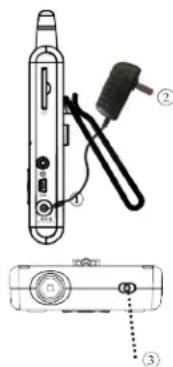
CHARGING THE RECEIVER
1 Connect the power cable to the DC IN of the camera.
2 Plug the power supply into the electrical outlet.
3 Press POWER button to turn on the camera. A Green light on front panel indicates the receiver is powered. Plug in power adapter to charge when [Battery Indicator] lights up red.

Operating Menus
This chapter provides information about the menu screens. The screens are used to control the various functions of the Family Monitor. The user selects options from a series of menus and executes the actions by using the keypad on the receiver.
MAIN MENU OPERATION
The Main Menu is displayed when the menu button is pressed under view mode. Use this menu to access:
- System Setup - Selection allows user to set the system time and reset system to factory default.
- Camera Setup - Selection allows user to turn cameras on and off individually and set the scan duration time or to set camera viewing to Quad mode.
- Pairing - Selection allows user to pair (sync) each camera with the receiver.
- Power Saving - Selection allows user to save power by powering down system after 2 - minutes of non-activity.
- VOX Setting - Selection allows user to activate recording based on sound that initiated near the camera location (s).
- Brightness - Selection allows user to increase or decrease the brightness of camera and receiver screens.
- Alarm Setup - Selection allows user to set alarms at the receiver when voice recording (VOX) is activated, camera battery is low or when receiver and camera(s) are out of range.
■ Playback - Selection allows user to play back selected recorded video. - SD Card Format - Selection allows user to format the SD card.
Model DWB-740 User's Manual
SYSTEM SETUP
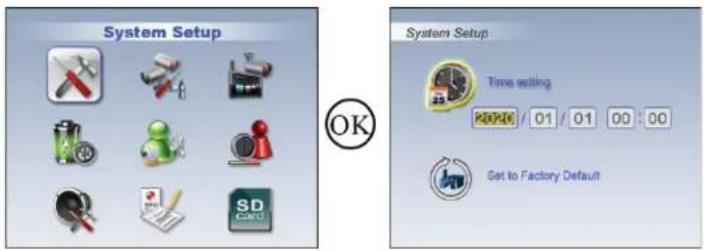
Access the System Setup menu from the Main Menu. Use this menu to adjust system time and factory default.
TIME SETTING

Press Ⓗ to enter time setting. Use ▲/▼/◄/► to change setting. Press Ⓗ again to save. The Time format order is Year / Month/ Hours (military) / Minute.
SET TO FACTORY DEFAULT
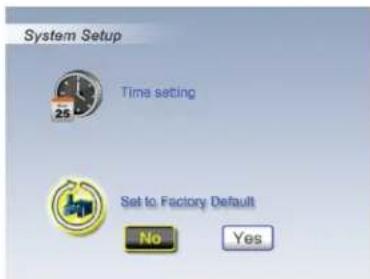
Use ◀to select between Yes and No.
CAMERA SETUP
Access the Camera Setup menu from the Main Menu. Use this menu to turn the camera on/off and adjust scan time.

CAMERA ON/OFF

Use ◀▶ to select the camera (selected camera highlighted in black.) Press Ⓑ to change ON/OFF status.
Set all cameras to ON for SCAN or QUAD mode.
SCAN PERIOD

Use ◀▶ to change Scan Time interval from OFF / 5 sec / 15 sec / Quad, press Ⓔ to confirm the settings.
Note:
To leave QUAD display, simply press directional keys to enter single channel.
▲ = CAM1; ▼ = CAM2; ◀ = CAM3; ▶ = CAM4
When system enters into power save mode from QUAD, press any key to resume display.
PAIRING
Access the Pairing menu from the Main Menu. Use this menu to pair each receiver with camera.

PAIRING CAMERA

- Use ◀▶ to select a channel.
- Press Ⓔ to start pairing individual camera and receiver. The system will countdown from 60 seconds.
- Within 60-second countdown, press PAIR button on the bottom of the camera. A confirmation image will display when pairing is complete.
- Repeat for all cameras.
POWER SAVING
Access the Power saving menu from the Main Menu. Use this menu to turn power saving on/off.
By setting {Power Setting} Mode to On, both receiver and camera will enter standby mode after 2 minutes of idle time and speaker volume will be mute. Press power key on the receiver to resume monitor and camera operations.
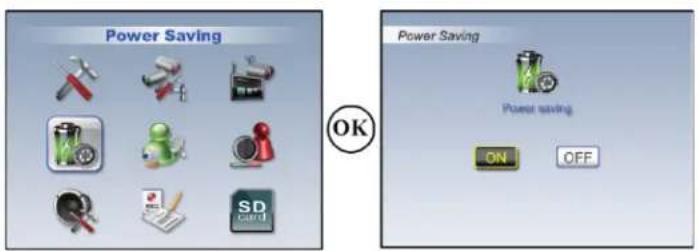
Use ◀to turn [Power Saving] mode On/Off.
VOX SETTING
VOX Setting allows voice activated recording.

VOX Sensitivity

Allows user to set the level of sensitivity for voice activated recording. Level 3 is the highest sensitivity level. This system setting will be set and applies to all cameras while recording.
Use ◀▶ to adjust VOX sensitivity level.
OFF: VOX function will be disabled
VOX Activated Recording

System will auto record for 30 sec once camera is triggered by voice when "VOX Activate Recording" is set to ON.
Note:
VOX Sensitivity must be set to Level 1, 2, or 3 for VOX Activated Recording to work.
If the SD disk is full or if Lullabies are playing, the recording will not be activated.
Menu and other key panel functions cannot be selected while recording. Stop/Start, Record and Volume adjustments still work.
Model DWB-740 User's Manual
Recording files are set for 30 seconds long. If event exceeds 30 seconds it will be saved as a new event.
CAUTION!
Some federal, state, and local laws prohibit certain surveillance activities and/or the use or distribution of the information obtained from such activities. Prior to using this system, you should become familiar with the pertinent laws to ensure compliance with those applicable to surveillance activities.
BRIGHTNESS
Access the Brightness menu from the Main Menu. Use this menu to adjust image brightness.

From the main display screen, select the camera to play the Lullabies. Press the Up Arrow cursor to change camera selection 1, 2, 3, or 4.
Press Ⓒ to enter camera brightness adjustment bar, press ◀▶ to adjust brightness of current channel.
ALARM SETUP
Access the Alarm Setup menu from the Main Menu. Use this menu to turn VOX Alarm, Camera Battery Low Alarm and Out of Range Alarm ON/OFF. The setting selection applies to all active cameras as a group.

Press Ⓒ to shift to ON/OFF. Press ◀ ▶ to move between items.
VOX Alarm ON: The receiver will give an alarm for 15 seconds when the camera is triggered by voice.
Battery Low Alarm ON: The receiver will give an alarm for 15 seconds when the camera battery is low.
Out of Range Alarm ON: The receiver will give an alarm for 15 seconds when the receiver and camera(s) are out of wireless transmitting range.
Model DWB-740 User's Manual
PLAYBACK
Access the Playback menu from the Main Menu. Use this menu to select a recording file to playback.
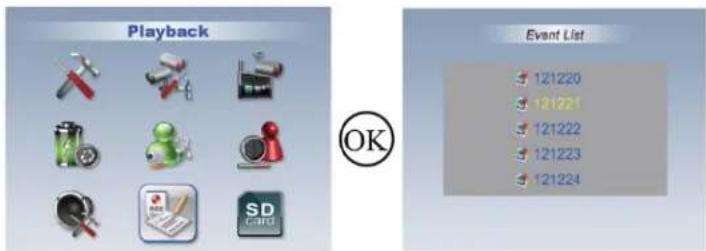
To Select a recording:
Recordings are filed first by Year/Month/Day using YR MO DY. Recordings are then selected by Hour/Minute/Second_Camera number using HRMNSD #.
By processing ◀▶ keys you can speed through the recording at 2X, 4X, or 8X speed. Audio does not play when in Speed mode.
EVENT LIST
Playback Mode
- Press Ⓞ to Record Folder
- Continue to press OK to Play/Pause file.
- Press ▶ to Fast Forward video clip. Press ◀ to Reverse video clip. Press ESC to Stop/Exit.
Event List
- Use ▲to▼select the record file you need to delete.
- Press DEL to enter deletion mode
- Press ◀▶ to select YES or NO.
- Press OK to delete
Note:
Recording files are 30 seconds long. If event exceeds 30 seconds it will be saved as a new event.
Make sure SD Disk has adequate space on disk prior to recording.
Volume can be turned on or off, but cannot be adjusted in Playback Mode.
Operating Menus
Model DWB-740 User's Manual
SD Card Format
Access the SD Card Format menu from the Main Menu. Use this menu to format SD card. For first time use, it is strongly recommended to format the SD card. Reformatting an SD Card will erase viewing the recording.
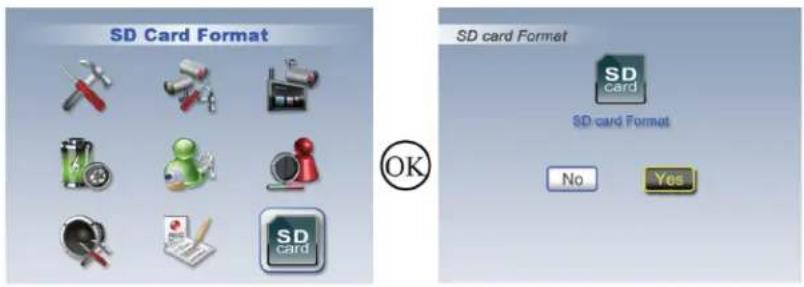
SD CARD FORMAT

Press ◀ to select YES or NO
ADDITIONAL FUNCTIONS
Push To Speak Operations:
Push to speak allows the user to speak through the receiver back to the camera. Push to speak works from the receiver directly to one camera. Push to speak is activated by pressing and holding the center button while speaking into the receiver. The camera in screen view will be able to hear the speaker.
Note:
In SCAN mode: When the receiver is in scan mode, the push to speak action is between the receiver and the camera that is shown on the receiver's screen.
In Quad mode (where there is a split screen of the four cameras): Push to speak is disabled.
Lullabies Operation
Lullabies can be set to play on 1 or more cameras. 3 different Lullabies songs are available. Each song lasts for 7 minutes. Lullabies can be initiated at the receiver or at the camera.
Initiating Lullabies from Receiver:
- From the main display screen, select the camera to play the Lullabies. Press the Up Arrow cursor to change camera selection 1,2,3,or 4.
- Press the down arrow cursor button (near the music note icon.) Press again to scroll through the lullaby options.
Imitating Lullabies from the Camera:
- To turn a lullaby on at the camera, press the on/off button, located on the bottom of the camera.
- To change lullabies, press the on/off button again.
- To turn off lullabies, press and hold the on/off bottom from 2 seconds.
NIGHT VISION
The camera has built-in infrared LEDs to allow you to view up to a distance of 16 ft at night for 24-hour surveillance. The LEDs automatically activate at night and the picture viewed turns from color to a black and white image.
Camera Placement
Note:
Be sure to place camera and monitor no less than 3 feet away from your baby's crib.
Do not place camera where it can fall into the child's crib.
Do not place the camera near open windows, direct sunlight or heat sources.
Table top or wall mounting:
Determine a location for the camera that will provide the best view of your baby in his/her crib. Place the camera on a flat surface, such as a dresser, bureau, or shelf. Or mount the camera on a wall.
To Wall or Ceiling Mount
Before drilling a hole, it is important to check the reception and camera/monitor positioning in the place that you intend on hanging it to the wall or ceiling. Use camera stand to mark position of screws.
1 Select the position for the camera and secure the camera stand.
a. Pre-drill holes using a 7/32 inch drill bit.
b. Insert wall anchors and gently tap with hammer until the anchors are flush with the wall.
c. Secure stand with screws.
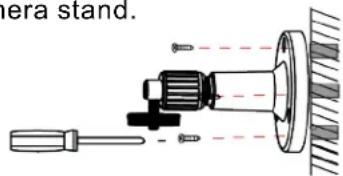
2 Screw the camera onto the bracket.

3 Adjust camera to the proper view angle. Make sure the lens is upright relative to your subject. Tighten the nut. Adjust the antenna to an upright position.

Adding Additional Cameras
This product can accept up to four cameras (Model # DWB-700).
Repeat steps 1, 2 and 3 for additional cameras.
Troubleshooting
| Problem | Possible Causes | Remedies |
| System message shows “No Signal” | No power supply to camera | Check power adapter and power cable connection. If camera is running on battery alone, you may need to replace batteries. |
| Camera is not paired with receiver | See pairing operation for detail. | |
| Service out of range | Move the camera closer to the receiver. | |
| Signal is blocked | If possible, remove major obstacles in between the camera and the receiver. Or, relocate the camera to another location. | |
| Low or unstable signal | Antenna direction is limited | Adjust the camera antenna and receiver position. |
| Signal has been blocked | If possible, remove major obstacles in between the camera and receiver. Or, relocate the camera to another location. | |
| Strong radio signal nearby | Keep WIFI router away from the camera and/or receiver. | |
| Strong electromagnetic interference nearby | Keep active appliances such as hair dryers, heat fans, air conditioners, water pumps, or microwave ovens away from the camera and/or receiver. | |
| Recording does not work | No SD Card | Insert SD Card. |
| SD Card locked | Unlock the SD Card. | |
| Black screen & Buttons no function | Power save mode on | Press power key to resume receiver image; please refer to [Power Saving] section on page 12 for details. |
| Audio feedback | Camera and receiver are too close | The camera has a high sensitivity microphone. Keep the camera at least 10 feet away from the receiver. If the camera must be within 10 feet of the receiver, keep the volume down. |
| VOX Record & Alarm does not work | VOX Menu set to “OFF” | Set VOX Sensitivity/VOX Alarm/VOX Record to ON. |
Technical Information
GENERAL
| Receiver Screen | 2.5" Color LCD |
| Operating Power | 5V |
| Operating Temperature | 14°F - 122°F |
| Indoor | Yes |
| Outdoor | No |
| Digital Wireless | Yes |
| DimensionsCamera & StandReceiver | 2.52" x 2.44" x 3.9"2.7" x 5.5" x 0.8" |
| Lullabies | Three: up to 7 minutes play time |
CAMERA
| Image Sensor | Color CMOS |
| Vox (Voice) Triggered | Yes |
| Digital | Yes |
| Color | Yes |
| Night Vision Capability | Yes |
| Number of Infrared LEDs | 10 |
| Night Vision Distance | up to 16 ft. |
WIRELESS
| Wireless Range | 750 ft. line of sight |
| Frequency | 2.4 GHz |
RECORDING
| Data Storage Type | 2GB SD Card (included) |
| SDHC Compatible | 32GB |
STORAGE DATA MANAGEMENT
| SD Card Capacity | 640 x 480 (VGA) | 320 x 240 (QVGA) |
| 1G | 110 Minutes | 165 Minutes |
| 2G | 250 Minutes | 350 Minutes |
| 8G | 1070 Minutes | 1450 Minutes |
| 16G | 2170 Minutes | 2960 Minutes |
| 32G | 4340 Minutes | 5920 Minutes |
MAINTENANCE
- Clean the surfaces of the camera and monitor with a soft, lint-free cloth.
- If the units become dirty, use a lightly damp cloth to wipe surfaces, taking care not to allow water into any openings.
■ Never use cleaning agents or solvents.
- Always check the amount of recording space remaining on disk to ensure desired incidents are recorded.
Warranty
PRODUCT LIMITED WARRANTY
BRK Brands, Inc., (“BRK”) the maker of First Alert® brand products warrants that for a period of one year from the date of purchase (the “Warranty Period”), this product will be free from defects in material and workmanship. BRK, at its sole option, will repair or replace this product or any component of the product found to be defective during the Warranty Period. Replacement or repair will be made with a new or remanufactured product or component. If the product is no longer available, replacement may be made with a similar product of equal or greater value. This is your exclusive warranty.
This warranty is valid for the original retail purchaser only from the date of initial retail purchase and is not transferable. In order to obtain warranty service, you must keep the original sales receipt and proof of purchase in the form of the UPC code from the package. BRK dealers, service centers, or retail stores selling BRK products do not have the right to alter, modify or any way change the terms and conditions of this warranty.
WARRANTY EXCLUSIONS
Parts and Labor: 1 year limited (warranted parts do not include bulbs, LEDs, and batteries)
This warranty does not apply to bulbs, LEDs, and batteries supplied with or forming part of the product.
This warranty is invalidated if non-BRK accessories are or have been used in or in connection with the product or in any modification or repair is made to the product.
This warranty does not apply to defects or damages arising by use of the product in other than normal (including normal atmospheric, moisture and humidity) conditions or by installation or use of the product other than in strict accordance with the instructions contained in the product owner's manual.
This warranty does not apply to defects in or damages to the product caused by (i) negligent use of the product, (ii) misuse, abuse, neglect, alteration, repair or improper installation of the product, (iii) electrical short circuits or transients, (iv) usage not in accordance with product installation, (v) use of replacement parts not supplied by BRK, (vi) improper product maintenance, or (vii) accident, fire, flood or other Acts of God.
This warranty does not cover the performance or functionality of any computer software included in the package with the product. BRK makes no warranty that the software provided with the product will function without interruption or otherwise be free of anomalies, errors, or “Bugs.” This warranty does not cover any costs relating to removal or replacement of any product or software installed on your computer.
BRK reserves the right to make changes in design or to make additions to or improvements in its products without incurring any obligations to modify any product which has already been manufactured. BRK will make every effort to provide updates and fixes to its software via its website. This warranty does not cover any alteration or damage to any
other software that may be or may become resident on the users system as a result of installing the software provided. This warranty is in lieu of other warranties, expressed or implied, and BRK neither assumes nor authorizes any person to assume for it any other obligation or liability in connection with the sale or service of the product. In no event shall BRK be liable for any special or consequential damages arising from the use of the product or arising from the malfunctioning or non-functioning of the product, or for any delay in the performance of this warranty due to any cause beyond its control.
BRK does not make any claims or warranties of any kind whatsoever regarding the product's potential, ability, or effectiveness to prevent, minimize, or in any way affect personal or property damage or injury. BRK is not responsible for any personal damage, loss, or theft related to the product or to its use for any harm, whether physical or mental related thereto. Any and all claims or statements, whether written or verbal, by salespeople, retailers, dealers, or distributors to the contrary are not authorized by BRK, and do not affect this provision of this warranty.
BRK's responsibility under this, or any other warranty, implied or expressed, is limited to repair, replacement or refund, as set forth above. These remedies are the sole and exclusive remedies for any breach of warranty. BRK is not responsible for direct, special, incidental, or consequential damages resulting from any breach of warranty or under any other legal theory including but not limited to, loss profits, downtime, goodwill, damage to or replacement of equipment and property and any costs of recovering, reprogramming or reproducing any program or data stored in or used with a system containing the product accompanying software.
BRK does not warrant the software will operate with any other software except that which is indicated. BRK cannot be responsible for characteristics of their party hardware or software which may effect the operation of the software included.
Except to the extent prohibited by applicable law, any implied warranty of merchantability or fitness for a particular purpose is limited in duration to the duration of the above Warranty Period. Some states, provinces, or jurisdictions do not allow the exclusion or limitation of incidental or consequential damages or limitations on how long an implied warranty lasts, so the above limitations or exclusion may not apply to you. This warranty gives you specific legal rights, and you may also have other rights that vary from state to state, or province to province, or jurisdiction to jurisdiction.
OBTAINING SERVICE
If service is required, do not return the product to your retailer. In order to obtain warranty service, contact the Consumer Affairs Division at 1-800-323-9005, 7:30 a.m. – 5:00 p.m. Central Standard Time, Monday through Friday. To assist us in serving you, please have the model number and date of purchase available when calling.
After contacting the Consumer Affairs Division and it is determined that the product should be returned for Warranty Service, please mail the product to: BRK Brands, Inc., 3901 Liberty Street Road, Aurora. IL 60504-8122.
- 2.5"COLOR LCD PORTABLE WIRELESS FAMILY MONITOR DWB-740
- TABLE OF CONTENTS
- SAFETY 4
- GETTING TO KNOW YOUR DWB-740 FAMILY MONITOR ....5
- SETTING UP YOUR DWB-740 FAMILY MONITOR 9
- OPERATING MENUS 10
- CAMERA PLACEMENT & INSTALLATION....19
- TROUBLESHOOTING 20
- TECHNICAL INFORMATION 21-22
- MAINTENANCE 22
- WARRANTY 23
- SAFETY PRECAUTIONS
- FCC COMPLIANCE STATEMENTS
- FCC COMPLIANCE CLASS B DIGITAL DEVICE
- FCC CERTIFICATION (IF APPLICABLE)
- GETTING TO KNOW YOUR DWB-740 FAMILY MONITOR
- CHECK PACKAGE CONTENTS
- DIGITAL WIRELESS RECEIVER
- DISPLAY SCREEN ICONS
- SETTING UP YOUR DWB-740 FAMILY MONITOR
- GENERAL PRECAUTIONS
- POWERING THE CAMERA
- DC POWER SUPPLY MODE
- BATTERY POWER SUPPLY MODE
- CHARGING THE RECEIVER
- OPERATING MENUS
- MAIN MENU OPERATION
- SYSTEM SETUP
- CAMERA SETUP
- PAIRING
- POWER SAVING
- VOX SETTING
- VOX SENSITIVITY
- VOX ACTIVATED RECORDING
- NOTE
- CAUTION
- BRIGHTNESS
- ALARM SETUP
- PLAYBACK
- EVENT LIST
- PLAYBACK MODE
- SD CARD FORMAT
- ADDITIONAL FUNCTIONS
- PUSH TO SPEAK OPERATIONS
- LULLABIES OPERATION
- NIGHT VISION
- CAMERA PLACEMENT
- TABLE TOP OR WALL MOUNTING
- TO WALL OR CEILING MOUNT
- ADDING ADDITIONAL CAMERAS
- TECHNICAL INFORMATION
- MAINTENANCE
- WARRANTY
- PRODUCT LIMITED WARRANTY
- WARRANTY EXCLUSIONS
- OBTAINING SERVICE
Brand : FIRST ALERT
Model : DWB-740
Category : Security Camera