Infected Mushroom I Wish - Audio software Polyverse - Free user manual and instructions
Find the device manual for free Infected Mushroom I Wish Polyverse in PDF.


User questions about Infected Mushroom I Wish Polyverse
0 question about this device. Answer the ones you know or ask your own.
Ask a new question about this device
Download the instructions for your Audio software in PDF format for free! Find your manual Infected Mushroom I Wish - Polyverse and take your electronic device back in hand. On this page are published all the documents necessary for the use of your device. Infected Mushroom I Wish by Polyverse.
USER MANUAL Infected Mushroom I Wish Polyverse
Special operations ..... 16
DETECT MIDI CC
ASSIGN MIDI CC
SET ROTARY MOVEMENT
SET VERTICAL MOVEMENT
MOD WHEEL VIBRATO
Introduction
I Wish is a granular note freezer. When you hit a note, the plugin plays a tiny loop at the wavelength of that note. That loop has the pitch of the note you hit, with the frequency content of the audio input. T his allows the creation of an array of highly musical effects, ranging from robotic speech, through glitchy effects, to out of this world synth sounds.
The idea for this plugin idea came from Infected Mushroom's work on their famous track, "I Wish", in which they manually chopped and edited tiny loops for several days in order to achieve the desired special effect. This plugin creates the same effect, but instantly, instead of several days. Now that I Wish has arrived, Infected Mushroom have found numerous more uses for the plugin and have been using it extensively in their work.
natural_image
Two men in black shirts posing with one hand raised, no visible text or symbolsFor more tutorials and videos on how to use the plug-in please visit our website www.polyversemusic.com. Have fun freezing your audio! Infected Mushroom and the Polyverse team.
Credits
Created By: Infected Mushroom
DSP & Code: Polyverse
UX & Visual design: Mr. Frank
Manual Editor: Clif Johnston
Special thanks to all of our beta testers who helped make this a better product!
Support
For any support related issues please use our website: www.polyversemusic.com/support
Quick Start
To Install, Just double-click the installer and follow the instructions! How simple is that?
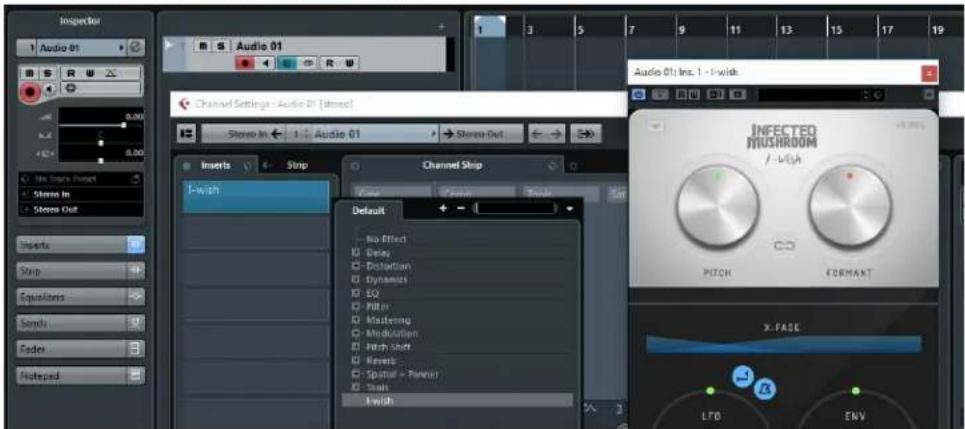
Cubase:
- Add an audio track
- Add I Wish as an insert effect
● Place an audio file in the track
text_image
Inspector Audio 01 Audio 01 Audio 01 In: 1 - I-Link Channel Settings - Audio 01 [stream] Stress In Audio 01 Stress Out Inserts Stop Channel Ship Default No Effect Delay Distortion Dynamical EQ Pittler Mastering Modulation Pitch Shift Inserts Spatial - Marker Ships Flink INFECTED MUSHROOM / -igh PITCH FORMAT X-FADE LFD ENV- Add a MIDI track
- Set the MIDI track's output to the I Wish plugin.
● Play some midi notes as the audio streams through the plug-in.

text_image
Inspector 2 MIDI 01 m s R w Off Off 0.00 No Track Preset All MIDI Inputs Audio01:In...wish-MIDIIn + - Not Connected Audio 01: Ins. 1, I-wish - MIDI In Audio14-04- If this does not work, try selecting the "init" preset
Logic:
- Open an instrument track
- Click on the instrument slot to select I Wish
- Open a new track and place your audio file inside it.
- Open I Wish plugin and in the top right select your sidechain input to be the same as the audio track.
● Mute the original track, select the plugin's instrument track,
● Play some midi notes as the audio streams through the plug-in. - If this does not work, try selecting the "init" preset

text_image
Edit - Functions View 1 2 3 4 5 Inst 1 M S R Deal Breaker Guitar Deel Breaker Guitar Deel Breaker Guitar Manual Side Compare INFECT MUSHRO / -W/O PITCH None Audio 1 - Deal Breaker Guitar Input 1 Input 2 Input 3 Input 4 Input 5 Input 6 Input 7 Input 8 Input 9 Input 10 Input 11 Input 12 Input 13
text_image
Regio: MIDI Thru Multi Loop Quantizer off Quishing Transgo Velocity P More Track: Inst 1 Init 1 M Edit Functions View Inst 1 Manual Side... None Compare Editor INFECTED MUSHROOM 1 - VWA PITCH FORMANT X-FADE LFO ENV AMP Polyverse Export Scopers Infected Mushroom Finish I-wish No Plug-in Drue Kit Designer BPM1 (IPM Synth) ES E (Ensemble Synth) ES M (Monophonic Synth) ES P (Polyphonic Synth) ES1 (Synthesizer 1) ES2 (Synthesizer 2) BVOC 20 PS (Vocoder Synth) EXISA (Sampler) External Instrument Klopa/plate1 Petro Synth Sculpture (Modeling Synth) Text Oscillator Ultrabeat (Drum Synth) Vintage BB Organ Vintage Clay Vintage Electric Piano AU Generators AU Instruments AU MIDI-controlled Effects Inst 1 Output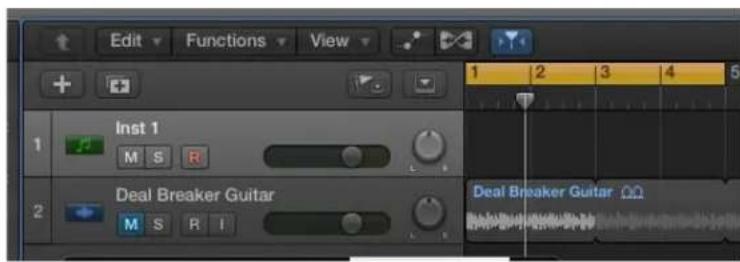
text_image
Edit Functions View 1 2 3 4 5 Inst 1 M S R Deal Breaker Guitar M S R I Deal Breaker GuitarAbleton:
- Click the "I-O" button to show the input and outputs.
● Create an audio track with I Wish on it, and drag some audio onto it.
● Create a blank MIDI track - Set the MIDI output to the track with I Wish.
● Play some midi notes as the audio streams through the plug-in. - If this does not work, try selecting the "init" preset

text_image
Search (Cl# = F) CATEGORIES Sounds Drums Instruments Audio Effects MIDI Effects Max for Live Plug-in Clips Samples PLACES Packs User Library Current Project And Potter... I Wish64/I -Audio INFECTED MUSHROOM / Wish RITCH FORMANT X-FADE LFD ENV AMP Licensed to audio POLYVERSE Clip Slot Each Section View slot can hold one clip to be played live. Creates clips by dragging files from the Browser or from other windows into open slots. Dragging can also be used to move clips between slots, or to copy clips in from the Arrangement. iWish64 iChino iChino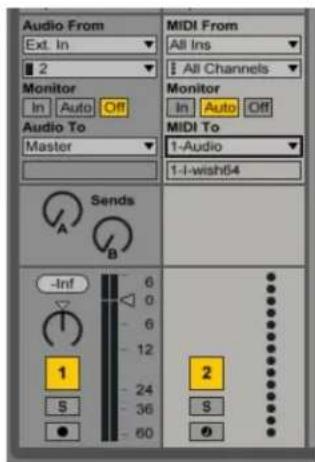
text_image
Audio From Ext. In 2 Monitor In Auto Off Audio To Master MIDI From All Ins 1 All Channels Monitor In Auto Off MIDI To 1-Audio 1-I-wish54 Sends A B -Inf 6 0 6 12 1 24 5 36 ● 60 2FL Studio:

text_image
Computer Audio - Impact Audio Audio Bar Multi Out Multi Multi Multi Multi Multi Multi Multi Multi Multi Multi Multi Multi Multi Multi Multi Multi Multi Multi Multi Multi Multi Multi Multi Multi Multi Multi Multi Multi Multi Multi Multi Multi Multi Multi Multi Multi Multi Multi Multi Multi Multi Multi Multi Multi Multi Multi Multi Multi Multi Multi Multiscope effects Reverse DC offset Reverse jittery Normalized Fallo stereo Rimetro Sleep stereo LTD LIV AMP Polyverse 16.77● Drag an audio file to your playlist and rout it to "Track 1" on the mixer.
● Load I Wish as an insert on "Track 1" on your mixer.
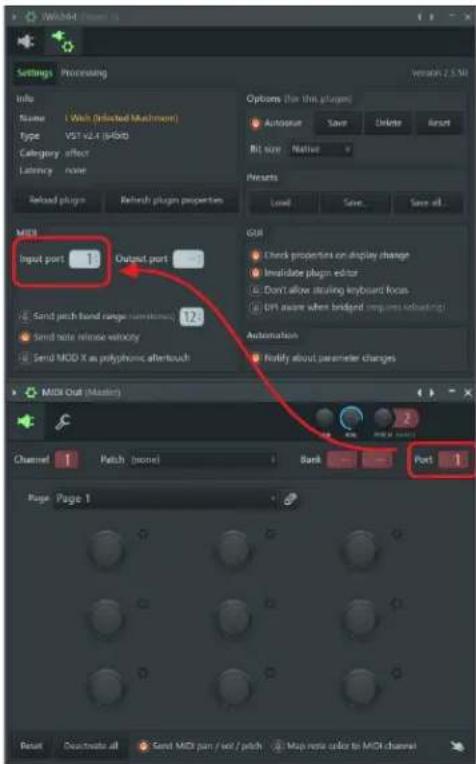
- Open a "MIDI Out" plug-in and set the Port to 1.
● Set the I Wish Midi input port to 1 as well.
- Select the "MIDI Out" channel,
● Play some midi notes as the audio streams through the plug-in.
- If this does not work, try selecting the "init" preset
text_image
Settings Processing Info Name (With Dellected Machine) Type VST v2.4 (pFord) Category effect Latency none Reload plugin Reload plugin properties MIDI Input port 1 Output port 1 Send pitch band range before touch Send note release velocity Send MOD X as polyphonic aftertouch MIDI Out (Master) Channel 1 Patch (move) Bank Port 1 Page Page 1 Options (for this plugin) Autotrust Save Delete Reset Bit size Native Presets Load Save Save all. GSI Check properties on display change Imidatase plugin editor Don't allow steering keyboard Kvas DPT aware when bridged requires debugging Automation Notify about parameter changesSonar:
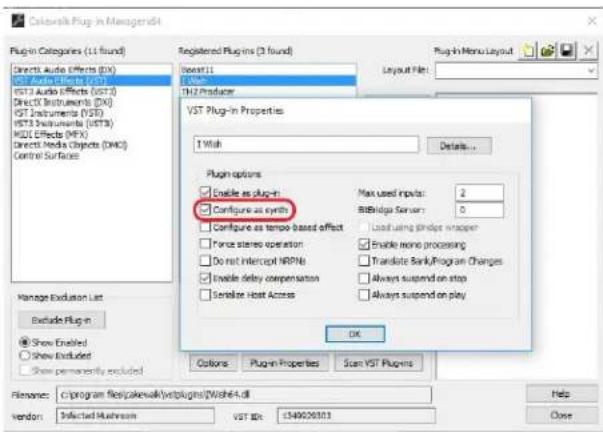
- Configure I Wish as a synth in "Cakewalk Plug-in Manager"
- Import an audio file to an audio track,
● Inset I Wish as a "soft synth" on that track.
● Create a new MIDI track, - Set the MIDI track's output to I Wish.
● Play some midi notes as the audio streams through the plug-in. - If this does not work, try selecting the "init" preset.
text_image
CaserArk Plug-in Manager4 Plug-in Categories (11 found) Directs Audio Effects (DIX) VST Audio Effects (VST) Directs Instruments (DX) VST Instruments (VST) VST3 Instruments (VST3) H2DL Effects (HFX) Directs Media Objects (DMC) Control Surfaces Manage Exclusion List Exclude Plug-in Show Enabled Show Included Show permanently excluded Registered Plugins (3 found) Boost11 VSW TH2 Producer VST Plug-In Properties TInput Details... Plug options Enable as plug-in Configure as arcs Configure as tempo-based effect Force series operation Do not intercept NRPNs Enable delay compensation Simulate Host Access Max used inputs: 2 BitBridge Server: 0 Load using shield wrapper Enable more processing Translate Bank/Program Changes Always suspend on stop Always suspend on play OK Colors Plug-in Properties Scan VST Plugins Filename: C:\Program Files\Pakewalk\ystpungs\Wish4.dll Vendor: Selected Mushroom VST ID: £149020303 Help Close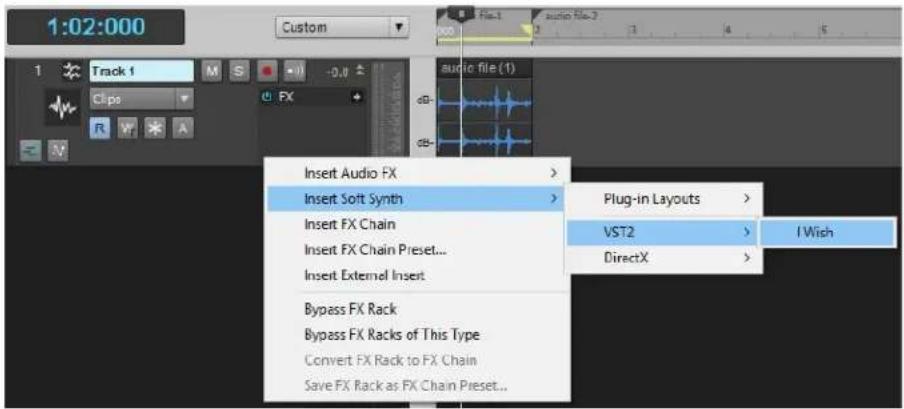
text_image
1:02:000 Custom Track 1 Clips FX Insert Audio FX Insert Soft Synth Plug-in Layouts VST2 I Wish Insert FX Chain DirectX Insert FX Chain Preset... Insert External Insert Bypass FX Rack Bypass FX Racks of This Type Convert FX Rack to FX Chain Save FX Rack as FX Chain Preset...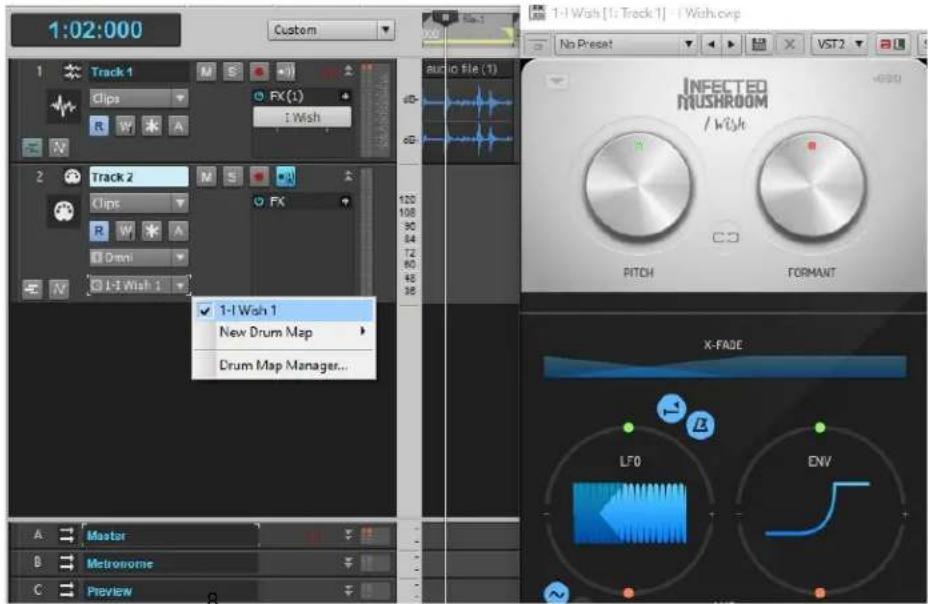
text_image
1:02:000 Custom Track 1 Clips FX(1) I Wish Track 2 Clips FX 1-1 Wish 1 New Drum Map Drum Map Manager... 1-1 Wish 1 / Wish RITCH FORMANT INFECTED MUSHROOM X-FADE LFD ENVPro Tools
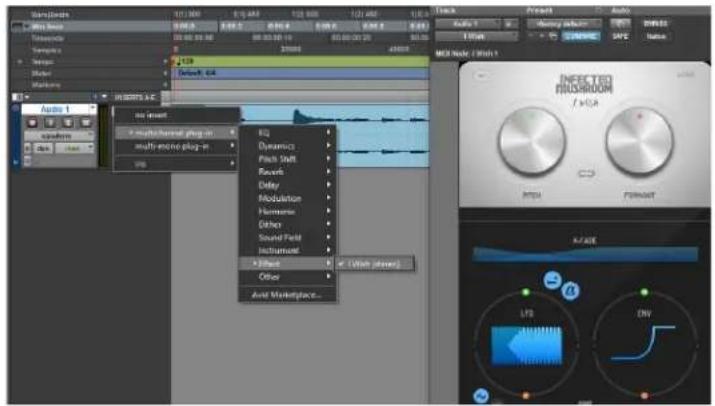
● Create a new audio track, and
- Add I Wish as an insert effect
● Place an audio file in the track
text_image
Audio 1 Audio 2 Audio 3 Audio 4 Audio 5 Audio 6 Audio 7 Audio 8 Audio 9 Audio 10 Audio 11 Audio 12 Audio 13 Audio 14 Audio 15 Audio 16 Audio 17 Audio 18 Audio 19 Audio 20 Audio 21 Audio 22 Audio 23 Audio 24 Audio 25 Audio 26 Audio 27 Audio 28 Audio 29 Audio 30 Audio 31 Audio 32 Audio 33 Audio 34 Audio 35 Audio 36 Audio 37 Audio 38 Audio 39 Audio 40 Audio 41 Audio 42 Audio 43 Audio 44 Audio 45 Audio 46 Audio 47 Audio 48 Audio 49 Audio 50 Audio 51 Audio 52 Audio 53 Audio 54 Audio 55 Audio 56 Audio 57 Audio 58 Audio 59 Audio 60 Audio 61 Audio 62 Audio 63 Audio 64 Audio 65 Audio 66 Audio 67 Audio 68 Audio 69 Audio 70 Audio 71 Audio 72 Audio 73 Audio 74 Audio 75 Audio 76 Audio 77 Audio 78 Audio 79 Audio 80 Audio 81 Audio 82 Audio 83 Audio 84 Audio 85 Audio 86 Audio 87 Audio 88 Audio 89 Audio 90 Audio 91 Audio 92 Audio 93 Audio 94 Audio 95 Audio 96 Audio 97 Audio 98 Audio 99 Audio 100
text_image
Audio 1 I Wish Ln(SncCrSc)12 SimultdPrt1-2 audio file vol 0.0 100 100 + 0 dB All I Wish 1 none • Audio 1 - I Wish 1 • Predefined clips none auto read channel-1 channel-2 channel-3 channel-4 channel-5to
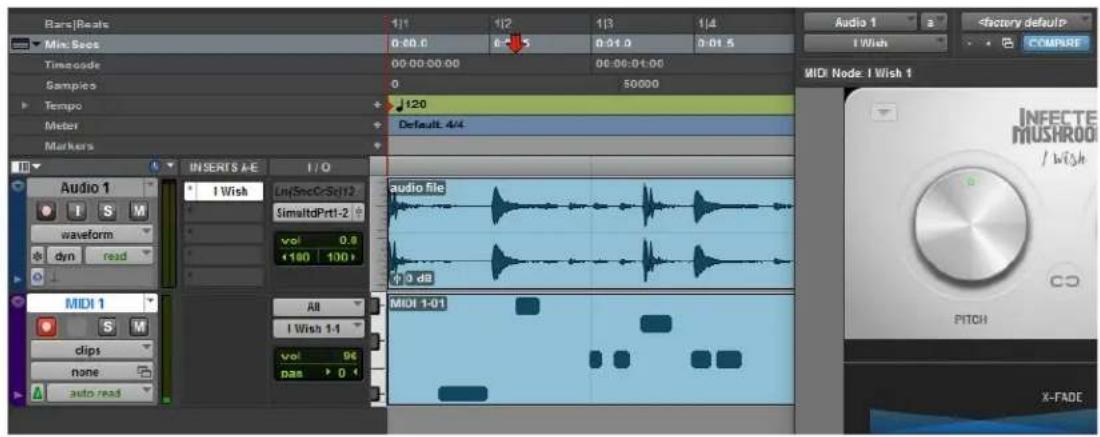
● Create a new midi track
- Route the midi track's output
Arm the midi track
● Play some midi notes as the audio streams through the plug-in.
- If this does not work, try selecting the "init" preset.
text_image
Bars/Reats Min: Socs Timecode Samples Tempo Meter Markers INSERTS A-E I/O Audio 1 I Wish waveform dyn read MIDI 1 clips none auto read Audio 1 I Wish LinkSncC-Sclt2 SimultdPrt1-2 vol 0.8 <100 100> All I Wish 1-1 vol 96 pas > 0 Audio file 0 dB MIDI 1-01 0.01.0 0.01.5 06:06:01:00 50000 Default: 4/4 Audio 1 I Wish LinkSncC-Sclt2 SimultdPrt1-2 vol 0.8 <100 100> MIDI Node: I Wish 1 INFECTE MUSHROOM / Wish PITCH X-FADELoop Controls
PITCH
The PITCH control changes the length of the loop according to the wavelength of the note pressed, thus changing the loop's pitch. It has a range of two octaves up and two octaves down, in semitone steps. To enable fine adjustment, press the shift key while moving the control.
FORMANT
The FORMANT control changes the playback speed of the audio within the loop, shifting the pitch of the overtones (but not the fundamental) up or down. It has a range of two octaves up and two octaves down, in semitone steps. To enable fine adjustment, press the shift key while moving the control.
LINK
The LINK control creates a tape-like effect by linking the PITCH and FORMANT controls, as well as the modulation amount controls for the pitch and formant. Click the LINK icon to activate or deactivate this feature. Turning the pitch control will also turn the formant control, while turning the formant control will set the offset between the two controls.

text_image
/Wish PITCH FORMANT X-FADEX-FADE
The X-FADE control smoothes the loops by applying a crossfade between the beginning and the end of the loop. This control determines the crossfade duration, and thus the amount of smoothness of the loop.
AMP Controls
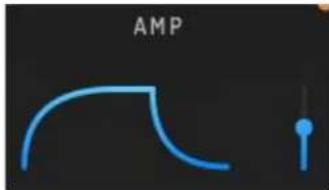
The amplifier envelope controls the speed of the crossfade between the dry signal and the wet signal. It also controls the dry/wet balance.
PLEASE NOTE: In this plugin, the dry signal is gated in an inverse relation to the wet signal, i.e. the dry signal is not really dry, but a gated version of the dry signal. This allows a smooth transition between the original sound and the loop created by the plugin.
text_image
AMPATTACK
text_image
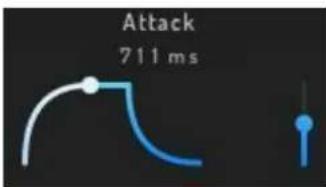
Attack 711 msThe ATTACK control sets the speed of the fade-in applied to the wet signal, and subsequently the fade-out of the dry signal. To change the attack time, click on the left envelope segment and drag left for shorter attack times, or right for longer attack times.
RELEASE

text_image
Release 1031 msThe RELEASE control sets the speed of the fade-out applied on the wet signal, and subsequently the fade-in of the dry signal. To change the release time, click on the right envelope segment and drag left for shorter release times, or right for longer release times.
WET

text_image
Wet 50.00 %The WET control determines the balance between the dry and wet signals. To change the ratio of wet to dry signals, click on the fader and drag up for more wet signal (and less dry signal), or down for more dry signal (and less wet signal). Double-click to set the control to 50%, which is the most useful value in most cases.
PLEASE NOTE: In this plugin, the dry signal is gated in an inverse relation to the wet signal, i.e. the dry signal is not really dry, but a gated version of the dry signal. This allows a smooth transition between the original sound and the loop created by the plugin.
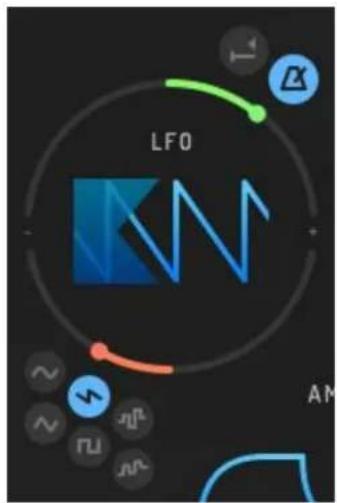
LFO Controls
text_image
LFO AMFADE
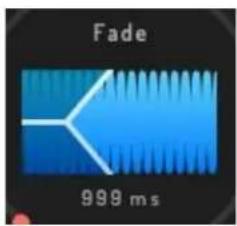
The FADE control sets the delay time before the fade-in of the LFO signal. Much like many classic analog synthesizers, the delay before the fade-in allows a note to start with no vibrato and increase gradually towards the end of the note. To adjust the delay time, click on the fade area, drag to the left for shorter times, or to the right for longer fade-in times.
text_image
Fade 999 msRATE
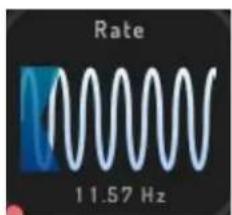
The RATE control sets the frequency of the LFO. To adjust, click on the waveform and drag to the left for lower frequencies, or to the right for higher frequencies. When the LFO is in tempo mode, this control will set beat divisions as displayed in the value monitor.
text_image
Rate 11.57 HzSHAPE
The SHAPE controls allows you to select between several shapes for the LFO: sine, triangle, saw down, square, random, and smoothed random. To select a waveform, simply click on the desired shape.

RETRIG
When the RETRIG button is active, the LFO position will reset to the beginning of the waveform every time a MIDI note is received.

TEMPO
When the TEMPO button is active, the LFO frequency will be quantized to the tempo. To change the tempo division value, click on the waveform and drag to the left for slower rates, or to the right for faster rates. If the RETRIG button is off while the TEMPO button is set to on, the LFO will be synchronized to the song position. If RETRIG is active, the LFO will be synced to the start of each incoming MIDI note.
natural_image
Close-up of a glowing green arc on a dark curved surface, with no visible text or symbols.PITCH LFO
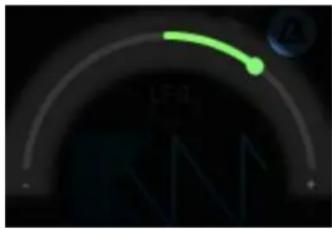
The PITCH LFO control sets the amount of LFO modulation (depth) applied to the pitch. This control is bipolar, so dragging towards the plus sign will result in positive modulation, while dragging towards the minus sign will result in negative (inverse) modulation. When the control is centered, no modulation is applied. Double-clicking the control will automatically return it to the center position.

natural_image
Close-up of a curved orange line with a small circular mark, against a dark background (no text or symbols)FORMANT LFO
The FORMANT LFO control sets the amount of LFO modulation (depth) applied to the formant. This control is bipolar, so dragging towards the plus sign will result in positive modulation, while dragging towards the minus sign will result in negative (inverse) modulation. When the control is centered, no modulation is applied. Double-clicking the control will automatically return it to the center position.
Envelope Controls
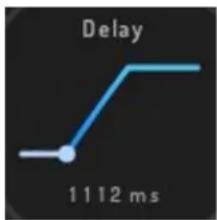
The envelope can be used to modulate the pitch or formant. This envelope has two stages: DELAY and DECAY. It starts from zero and stays there for the duration of the DELAY parameter, and then ascends towards the maximum at the speed of the DECAY parameter.
DELAY
The DELAY control sets the time it takes for the envelope to start working, ranging from 0 to 5 seconds. To change the delay time, click on the left envelope segment and drag left for shorter delay times, or right for longer delay times.
CURVE
The CURVE control changes the curve of the envelope. To change the curve, click on the middle segment of the envelope and drag up for a more exponential envelope, or down for a linear one.
DECAY
The DECAY control determines the time it takes the envelope to reach its maximum state, ranging from 0 to 5 seconds. To change the decay, click on the right envelope segment and drag left for shorter decay times, or right for longer decay times.
text_image
Delay 1112 ms
line
Curve | Label | Value (%) | |---|---| | Curve | 75.00 |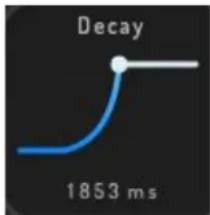
text_image
Decay 1853 ms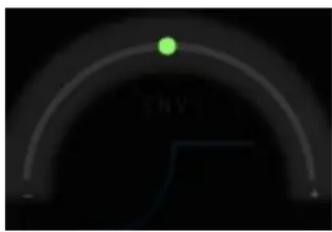
natural_image
Dark abstract image with a faint curved line and a small green dot, no readable text or symbols.PITCH ENV
The PITCH ENV control sets the amount of envelope modulation (depth) applied to to the pitch. This control is bipolar, so dragging towards the plus sign will result in positive modulation, while dragging towards the minus sign will result in inverse modulation. When the control is centered, no modulation is applied. Double-clicking the control will automatically return it to the center position.
natural_image
Abstract curved line with a small orange dot at the center, set against a black background (no text or symbols)FORMANT ENV
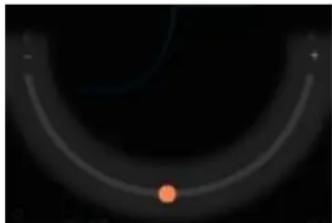
The FORMANT ENV control sets the amount of envelope modulation (depth) applied to to the formant. This control is bipolar. so dragging towards the plus sign will result in positive modulation, while dragging towards the minus sign will result in inverse modulation. When the control is centered, no modulation is applied. Double-clicking the control will automatically return it to the center position.
Global Controls

text_image
8 POLY GLIDE DELAY 2 -2 UP ON PITCH WPOLY
The POLY control sets the number of voices that can be played at the same time. To set polyphony, click and drag up or down, or click on the + or - buttons to change the number of voices playing.
There are two special monophonic modes: Mono and Legato. In Legato mode, there is no glide between notes unless they are overlapped. In Mono mode, there is always glide between notes, whether they are overlapped or not.
GLIDE
The GLIDE control sets the speed of the pitch glide. Turning the knob to the left will result in shorter glide speeds, and turning it to the right will result in longer glide speeds. Please note that GLIDE is a constant speed, not a constant time.
DELAY
To allow transients to pass through on tempo, the I Wish plugin implements a midi delay. The DELAY control sets the midi delay time in milliseconds. Turn the knob to the left for less or no delay, and to the right for up to a 1 second delay.
Note: if you turn the DELAY knob all the way to the right, it will enter "Pitch" mode, which uses the note's wavelength to determine the delay time. You may find it more natural to play the plugin live this way, since it behaves as if the plugin starts recording when you press a key. When not in Pitch mode, the plugin records continuously, and plays a pre-recording when you hit a key.
PITCH W
The PITCH W controls set the amount of pitch-bending effect the pitch wheel will have on the plugin. It is possible to set different values for both the up direction or down direction. To change values, simply click and drag up and down, or click on the arrows to set the desired value.
Preset List
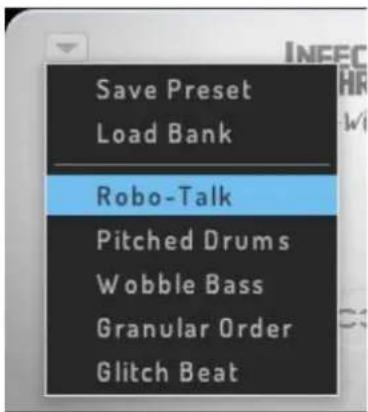
To manage and switch presets, we recommend that you use your DAW's preset functionality. However, this plugin does offer a very basic method for exporting and importing presets.
To open the preset list, click on the arrow to show the preset menu. The presets saved can be found in the following positions:
MAC:
PC:\Users\
Save Preset - stores the preset inside your loaded preset list Load Bank - loads a bunch of pre-saved presets.
text_image
Save Preset Load Bank Robo-Talk Pitched Drums Wobble Bass Granular Order Glitch BeatSpecial operations
Right-click (or control-click on a Mac) any control on the plugin to receive the following menu:

text_image
1-Wish Detect MidiCC Assign MidiCC Set rotary movement Set vertical Movement ✓ mod wheel vibratoDETECT MIDI CC
To use the "MIDI learn" feature, click the DETECT MIDI CC option for the desired control, and then move the knob or fader on your controller that you wish to associate with that control. The plugin will wait for a MIDI control change signal, and then assign the control number and channel to the corresponding control on the plugin.
ASSIGN MIDI CC
If you need to assign a MIDI CC to a control manually (e.g. your DAW is sending multiple simultaneous MIDI messages), hover over ASSIGN MIDI CC and then choose the desired CC number from the pop-out menu.
SET ROTARY MOVEMENT
The SET ROTARY MOVEMENT option sets the knobs to have a circular control motion. While this option may seem less intuitive, it offers much more precision for fine tuning your plugin controls. Tip: After you click the control, move in large circles around it. Larger circles will result in more resolution.
SET VERTICAL MOVEMENT
The SET VERTICAL MOVEMENT option sets the knobs to have a vertical (up and down) control motion. Although rotary controls are recommended, some users find vertical controls more comfortable.
MOD WHEEL VIBRATO
The MOD WHEEL VIBRATO option assigns the LFO to the modulation wheel for vibrato effects. This option is enabled by default, but may be turned off if you would like to use the modulation wheel for a different purpose.