Livingstation LS57P1 - Digital decoder EPSON - Free user manual and instructions
Find the device manual for free Livingstation LS57P1 EPSON in PDF.


User questions about Livingstation LS57P1 EPSON
0 question about this device. Answer the ones you know or ask your own.
Ask a new question about this device
Download the instructions for your Digital decoder in PDF format for free! Find your manual Livingstation LS57P1 - EPSON and take your electronic device back in hand. On this page are published all the documents necessary for the use of your device. Livingstation LS57P1 by EPSON.
USER MANUAL Livingstation LS57P1 EPSON
All rights reserved. No part of this publication may be reproduced, stored in a retrieval system, or transmitted in any form or by any means, electronic, mechanical, photocopying, recording, or otherwise, without the prior written permission of SEIKO EPSON CORPORATION. The information contained herein is designed only for use with this EPSON product. EPSON is not responsible for any use of this information as applied to other equipment.
Neither SEIKO EPSON CORPORATION nor its affiliates shall be liable to the purchaser of this product or third parties for damages, losses, costs, or expenses incurred by purchaser or third parties as a result of: accident, misuse, or abuse of this product or unauthorized modifications, repairs, or alterations to this product, or (excluding the U.S.) failure to strictly comply with SEIKO EPSON CORPORATION's operating and maintenance instructions.
SEIKO EPSON CORPORATION shall not be liable for any damages or problems arising from the use of any options or any consumable products other than those designated as Original EPSON Products or EPSON Approved Products by SEIKO EPSON CORPORATION.
Responsible Use of Copyrighted Materials
Digital cameras, scanners, and printers, like conventional photocopiers and cameras, can be misused by improper copying or printing of copyrighted material. While some countries' laws permit limited copying of copyrighted material in certain circumstances, those circumstances may not be as broad as some people assume. EPSON encourages each user to be responsible and respectful of the copyright laws when using digital cameras, scanners, and printers.
Trademarks
EPSON is a registered trademark and Livingstation is a trademark of SEIKO EPSON CORPORATION.
EPSON PrivateLine, EPSON Connection, and EPSON Store are service marks of Epson America, Inc.
Pixelworks, DNX, and the DNX Pixelworks logo are trademarks of Pixelworks, Inc.
Portions of this software are based in part on the work of the independent JPEG Group.
General Notice: Other product names used herein are for identification purposes only and may be trademarks of their respective owners. EPSON disclaims any and all rights in those marks.
The ENERGY STAR emblem does not represent EPA endorsement of any product or service.



Table of Contents
Setting Up the TV
Selecting a Location....7
Important Safety Instructions....7
Outdoor Antenna Installation and Grounding .....10
Placement for Optimum Viewing ....11
Suggested Supports or Stands....11
Installing the Set-Top Shelf .....12
Securing the TV....13
Connecting the Cables....14
Antenna or Direct Cable TV Connection....15
Cable Box Connections....16
Digital TV (HDTV) Receiver with a DVI-HDTV Connection .....18
Digital TV (HDTV) Receiver with Component Video Connection.....19
DVD Player With Component Video Connection .....20
DVD Player With an S-Video Connection .....21
Satellite Receiver Connection....22
VCR Connection....23
VCR and Cable Service (Without Cable Box) Connection. 24
VCR and Cable Box Connection 25
VCR and Satellite Receiver Connection....26
Audio Receiver Connection ....28
PC or Game Console Connection .....29
Camcorder, Digital Camera, or Other Portable Video Connection .....30
External CD-R/RW Drive Connection ....31
Other Optional Device Connections ....32
Preparing the Remote Control ....33
Inserting the Batteries. 33
Operating the Remote Control 34
Remote Control Information 34
Plugging In and Turning On the TV....35
Setting the Volume 36
Selecting the Screen Display Size ....37
Selecting the Color Mode ....38
Turning Off the TV....38
Setting Up and Controlling Channels
Setting Up Your TV Channels 39
Automatically Setting Up Your Channels. 39
Manually Adding or Skipping Channels. 41
Selecting Channels....42
Setting Up Your Favorite Channels 42
Setting Up Parental Controls 43
Creating a Password ....43
Blocking Programs Using V-Chip 45
Blocking Channels and Input Sources 49
Accessing Blocked Programs, Movies, Channels, and Input Sources .....51
Skipping Unused Input Sources. 52
Using the TV Features
Accessing the Menus.... 53
Changing Menu Settings 54
Changing the Language of the Menus and Screen Text. 55
Labelling Your Channels. 56
Selecting a Predefined Label 57
Creating a Custom Label 57
Deleting a Label 57
Labelling Your Input Sources 58
Select a Predefined Label. 59
Creating a Custom Label 59
Deleting a Label 59
Adjusting the Picture Quality 60
Changing the Default Color Mode 60
Adjusting the Brightness, Contrast, Sharpness, Saturation, Tint, and Black Level 61
Adjusting the Color Temperature 61
Adjusting the Screen Position 61
Switching the Component Video Image Quality Setting 62
Adjusting the Screen Display Size. 63
Setting the Default Aspect Ratio 63
Adjusting the Sound. 64
Selecting Closed Caption Display.... 65
Selecting Audio Mode Options. 66
Using Picture-Outside-Picture (POP).... 66
Using Channel Zapping 68
Turning Off the ANT 2 Port 68
Zapping Channels 69
Automatically Shutting Off the TV 70
Putting the TV Into Sleep Mode 70
Setting Up Auto Shutdown.... 70
Controlling Other Equipment with the Remote Control 71
Programming the Remote Control 71
Remote Control Programming Codes....72
Using the Programmed Remote Control with Your Other Equipment ..... 76
Viewing, Printing, and Saving Photos
Viewing Photos on a Digital Photo Card or CD.... 77
Inserting a Photo Card 77
Inserting a CD 80
Enlarging and Rotating the Photos 83
Viewing a Slide Show 84
Freezing an Image for Printing 86
Changing the Capture Settings 88
Printing Photos. 89
Loading Paper....89
Selecting a Photo and Printing It 92
Monitoring or Cancelling Your Print Jobs 94
Saving Photos to CD 95
Inserting a CD-R/RW 96
Writing Photos to a CD-R/RW 96
Caring For the TV
Cleaning the TV 99
Cleaning the Air Filter....99
Replacing the TV Projection Lamp ....101
Lamp Replacement Precautions....102
Removing and Installing the Lamp....102
Replacing the Printer Ink Cassette 105
Sliding Out the Printer....105
Removing and Replacing the Ink Cassette....107
Sliding the Printer Back In 110
Moving or Transporting the TV 111
Solving Problems
Responding to Screen Error Messages ....113
Responding to TV Panel Light Indicators 114
Basic Operation Problems....116
Picture Problems ....116
Sound Problems....117
TV Reception or Operation Problems 118
Remote Control Problems....118
Problems Viewing Photos from Cards or Discs .....119
Printing Problems 119
Clearing a Paper Jam From the Back of the Printer .....120
Problems Saving Photos to a CD-R/RW....124
Where to Get Help 124
Telephone Support Services ....124
Specifications
General 125
Screen and Display....125
Electrical 125
Mechanical....125
Environmental....126
Interfaces....126
Printer....127
Options....127
Safety....127
EMI....127
Notices
FCC Compliance Statement ......129
ENERGY STAR Compliance 130
Note on Closed Captioning....130
Note on TV Use 130
Index
....131
Setting Up the TV
Follow the steps in these sections to prepare a spot for your TV, set it up, connect it, turn it on, and prepare it for viewing:
- "Selecting a Location" below
- "Installing the Set-Top Shelf" on page 12
- "Connecting the Cables" on page 14
- "Preparing the Remote Control" on page 33
- "Plugging In and Turning On the TV" on page 35
- "Setting the Volume" on page 36
- "Selecting the Screen Display Size" on page 37
- "Selecting the Color Mode" on page 38
- "Turning Off the TV" on page 38
Selecting a Location
Select a suitable location for your TV and follow all of its safety instructions to ensure it operates effectively and safely, as described in these sections:
- "Important Safety Instructions" below
- "Outdoor Antenna Installation and Grounding" on page 10
- "Placement for Optimum Viewing" on page 11
- "Suggested Supports or Stands" on page 11
Important Safety Instructions
Selecting a Suitable Environment for the TV
- The TV is very heavy. Two people are required to lift or move the TV to avoid injury.
- Do not place the TV on an unstable or tilted cart, stand, or table. Place the TV on the center of the stand, making sure it is fully supported on all sides.
- Do not place the TV near water or sources of heat.
- Do not place the TV in direct sunlight, such as in front of a window.
- Do not place the TV in an area subject to vibration.
- Do not place the TV or the remote control on top of or near heat-producing equipment or in a hot location.
Note
To CATV system installers:
Article 820-40 of the NEC provides guidelines for proper grounding and specifies that the cable ground shall be connected to the grounding system of the building, as close to the point of cable entry as practical.
natural_image
Illustration of a plug inserted into an electrical outlet with two outlets (no text or symbols)- Do not operate the TV in an area with high temperatures or humidity, or where large amounts of dust are present.
- Leave at least 12 inches (30 cm) of room around the vents on the sides of the TV and do not block the vents. They provide ventilation and prevent the TV from overheating.
- Do not use the TV in temperatures outside of the range of 41 to 95^ (5 to 35^ ).
- Do not store the TV in temperatures outside the range of 14 to 140^ (-10 to 60^) .
- If you place the TV in a permanent installation near a wall, secure the TV to the wall using screws and steel wire connected to the two screw holes on the top rear of the TV.
Plugging the TV Into a Power Source
- Use only the type of power source indicated on the TV. If you are not sure of the power available, consult your dealer or power company.
- Place the TV near a wall outlet where the power cord can be easily unplugged.
- Do not overload wall outlets, extension cords, or integral convenience receptacles. This can cause fire or electric shock.
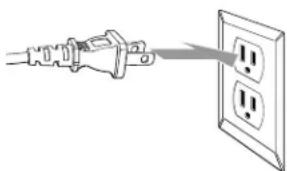
- Do not defeat the safety purpose of the polarized plug (two blades, with one wider than the other). Connect the plug only to a compatible outlet where you can fully insert the plug to prevent exposure of the plug blades. If you are unable to insert the plug fully, try reversing the plug. If the provided plug does not fit your outlet, consult an electrician for replacement of the outlet.
- Do not place the TV where the power cord can be walked on. This may result in fraying or damage to the plug.
• Take the following precautions when plugging in the TV. Failure to comply with these precautions could result in sparks, fire, or electric shock: Do not insert the plug into an outlet with dust present. Do not insert the plug with wet hands. Insert the plug firmly into the outlet. - Unplug the TV during lightning storms or when it will not be used for extended periods.
- Unplug the TV from the wall outlet before cleaning.
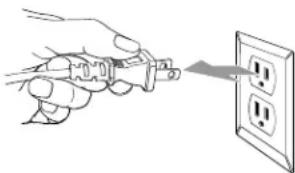
- Pull on the plug housing to unplug the power cord; do not pull on the cord.
Operating the TV Safely
- Except as specifically explained in this User's Guide, do not attempt to service this product yourself. Refer all servicing to qualified personnel. Opening or removing covers may expose you to dangerous voltages or other hazards.
-
Unplug the TV from the wall outlet and refer servicing to qualified personnel under the following conditions:
-
When the power cord is damaged or frayed, or if it becomes hot.
- When liquid has been spilled into the TV or if it has been exposed to rain or water.
- If the TV does not operate normally when you follow the operating instructions, or if it exhibits a distinct change in performance, indicating a need for service.
-
If the TV has been dropped or the housing has been damaged.
-
Do not stand on the TV or place heavy objects on top of it.
- Do not block the slots and openings in the TV case.
- Never push objects of any kind through the cabinet slots.
- Never insert an object other than a digital photo card in the card slots, or an object other than paper or an ink cassette into the printer. Do not use sharp tools to remove a card from a slot or you may damage the slot and card.
- Use only the ink cassette and paper specified for use in the EPSON Livingstation printer (part number ELSPP50).
- Never spill liquid of any kind into the TV.
- Do not move or lift the TV by moving or lifting the stand or table supporting it; the TV may fall and cause injury.
Replacing the Projection Lamp Safely
- Never touch the projection lamp immediately after turning off the TV or you could be burned. Wait at least 30 minutes after turning off the TV to let the lamp cool down completely.
- If the lamp has broken, handle the shards carefully to avoid injury.
- The used lamp contains mercury. Please consult your state and local regulations regarding disposal or recycling. Do not put the lamp in the trash.
- Install the new lamp securely to avoid an electrical short or other damage. Insert the lamp as described on page 101, pushing it all the way into its slot. Tighten the screws to lock the lamp securely into place or the lamp will not come on.
- Do not touch the glass on the lamp with your bare hands. This can shorten the lamp life and obscure the projected image. Use a cloth or glove to handle the new lamp.
- Do not drop the replacement lamp or bump it against any surface; the lamp could be permanently damaged.
natural_image
Illustration of a hand using a power tool to insert or install an electrical outlet (no text or symbols present)Outdoor Antenna Installation and Grounding
- It is best to have a professional technician install an antenna on the roof of a structure. If you install an antenna yourself, be careful to avoid serious injury.
- If an outside antenna is connected through other equipment, be sure the antenna system is grounded so as to provide protection against voltage surges and built-up static charges. In the U.S.A., section 810 of the National Electrical Code, ANSI/NFPA 70, provides information on proper grounding of the mast and supporting structure, grounding of the lead-in wire to an antenna-discharge unit, size of grounding conductors, location of antenna-discharge unit, connection to grounding electrode, and requirements for the grounding electrode.
Example of Antenna Grounding in National Electrical Code Instructions

text_image
Ground clamp Antenna lead in wire Antenna discharge unit (NEC Section 810-20) Grounding conductors (NEC Section 810-21) Power service grounding electrode system (NEC ART 250, Part H)- An outdoor antenna system should not be located in the vicinity of overhead power lines/electric lights or power circuits, or where it can fall onto such power lines or circuits. When installing an outdoor antenna system, extreme care should be taken to keep it from touching such power lines or circuits as contact with them might be fatal.
- For added protection during a lightning storm, or when it is left unattended and unused for long periods of time, unplug the TV from the wall outlet and disconnect the antenna. This will prevent damage due to lightning and power-line surges.
Placement for Optimum Viewing
Your TV's screen is designed to give you great picture quality over a wide viewing angle. For optimum viewing, place the TV so you can view it as shown below.

text_image
6-10 ft. 65° 65°Sit about 6 to 10 feet away from the TV, and within 65^ to the left or right.
Also make sure the stand or other support you're using places the TV within 30^ above and below your viewing height as measured from your eyes to the center of the screen.
Suggested Supports or Stands
You can use an optional EPSON TV stand to support your TV. Order part number LS47STD (for the LS47P1) or LS57STD (for the LS57P1) from your dealer.

natural_image
Line drawing of a modern flat-screen TV unit with front panel and display stand (no text or symbols)If you use your own stand, make sure it can securely support the TV as follows:
| Specification LS47P1 LS57P1 | |
| Width of the base (minimum) | 47 inches (119 cm) 56 inches (142 cm) |
| Depth of the base (minimum) | 16 inches (41 cm) 18 inches (46 cm) |
| Weight capacity (minimum) | 331 lb (159.0 kg) 331 lb (159.0 kg) |
Make sure you place the stand in a location that allows you access to the back of the TV and provides at least 12 inches (30 cm) of room for ventilation at the sides.
Installing the Set-Top Shelf
The set-top shelf provides a convenient support for a center surround sound speaker or other component on top of the TV. The shelf can hold up to 11 lb (5 kg).
1 Fold the shelf into an upside-down L-shape with the shorter end on top.

natural_image
Technical line drawing of a structural frame with grid and support components, showing an arrow indicating rotation (no text or symbols)Caution
Don't fold the shelf backwards on its hinge or it may break.
2 Align the holes in the shelf with the holes on the back of the TV.

text_image
Technical diagram of a mechanical assembly with labeled components and a 4x magnified detail view.3 Using a Phillips-head screwdriver, secure the shelf to the TV with the four screws that came with it. Tighten the screws.
Securing the TV
You may want to secure the TV to a wall or other support so it stays upright on its stand during an earthquake or other situation. Use wires and screws connected to the outer pair of holes on the top of the TV to secure the TV to the wall or other support.

text_image
Secure the TV to a wall or other supportNote
For a description of all the available connectors on the front and back panels, see the inside back cover of this book.
Connecting the Cables
You can connect the TV to a variety of equipment. Follow the steps in the applicable sections below, depending on the equipment you're connecting and the type of connector or service you're using.
- “Antenna or Direct Cable TV Connection” on page 15
- "Cable Box Connections" on page 16
- “Digital TV (HDTV) Receiver with a DVI-HDTV Connection” on page 18
- “Digital TV (HDTV) Receiver with Component Video Connection” on page 19
- “DVD Player With Component Video Connection” on page 20
- “DVD Player With an S-Video Connection” on page 21
- "Satellite Receiver Connection" on page 22
- "VCR Connection" on page 23
- "VCR and Cable Service (Without Cable Box) Connection" on page 24
- "VCR and Cable Box Connection" on page 25
- "VCR and Satellite Receiver Connection" on page 26
- "Audio Receiver Connection" on page 28
- "PC or Game Console Connection" on page 29
- “Camcorder, Digital Camera, or Other Portable Video Connection” on page 30
- "External CD-R/RW Drive Connection" on page 31
- "Other Optional Device Connections" on page 32
Antenna or Direct Cable TV Connection
Connect the TV to an outside antenna or to your cable system using a 75-ohm coaxial cable.
Connect the cable coming into the house to the ANT 1 connector on the back of the TV.
If your coaxial cable has a screw-type connector on the end, secure it by turning the end clockwise.

text_image
Wall jack ANT 1 RF Output NT 2If you'll also be attaching a VCR to the TV, you need to use a different connection method so you can record TV programs. See "VCR and Cable Service (Without Cable Box) Connection" on page 24.
Note
If you have an older home, you may have a 300-ohm twin lead cable. If so, you also need an antenna connector or U/V splitter to connect it to your TV. Keep the twin lead cable as far away from your TV as possible to reduce the radio noise that may cause signal problems.
Note
Before connecting a cable box to the TV, be sure to read any instructions that came with the cable box.
Cable Box Connections
The connection method differs, depending on the type of cable box you have. Your cable box may unscramble signals for all of your channels or it may unscramble only some of them.
If you'll also be attaching a VCR to the TV, you need to use a different connection method so you can record TV programs. See "VCR and Cable Box Connection" on page 25.
Cable Box Unscrambles All Channels
If your cable box unscrambles signals for all of your channels, connect it as follows:
1 Connect the cable coming into the house to the IN connector on the cable box.
2 Connect one end of a coaxial cable to the OUT connector on the cable box.
3 Connect the other end of the coaxial cable to the ANT 1 connector on the back of the TV.
If your coaxial cable has a screw-type connector on the end, secure it by turning the end clockwise.

flowchart
graph TD
    A["Wall jack"] --> B["Cable box"]
    B --> C["Coaxial cable"]
    C --> D["ANT 1"]
    C --> E["RF Output"]
    C --> F["NT 2"]
    D --> G["Terminal 1"]
    E --> H["Terminal 2"]
    F --> I["Terminal 3"]
Cable Box Unscrambles Only Some of Your Channels
If your cable box unscrambles signals for only some of your channels, connect it as follows:
1 Connect the cable coming into the house to the ANT 1 connector on the back of the TV.
2 Remove the jumper cable connected to both the RF Output and ANT 2 connectors on the back of the TV. Retain the cable.
3 Connect one end of a coaxial cable to the RF Output connector on the back of the TV.
4 Connect the other end of the coaxial cable to the IN connector on the cable box.
If your coaxial cable has a screw-type connector on the end, secure it by turning the end clockwise.
5 Connect another coaxial cable to the OUT connector on the cable box.
6 Connect the other end of the coaxial cable to the ANT 2 connector on the back of the TV.
7 Be sure to turn on use of the TV's ANT 2 port, as described on page 39.
Note
Be sure to retain the jumper cable in case you change your TV connections later. You'll need to connect it again in certain connection schemes to provide the channel zapping feature.

flowchart
graph TD
    A["Wall jack"] --> B["Coaxial cables"]
    B --> C["Ant 1"]
    B --> D["RF Output"]
    B --> E["ANT 2"]
    C --> F["Cable box"]
    D --> F
    E --> F
    F --> G["IN"]
    F --> H["OUT"]
Note
Before connecting a digital TV receiver to the TV, be sure to read any instructions that came with the receiver.
Digital TV (HDTV) Receiver with a DVI-HDTV Connection
1 Turn off and unplug your TV and your digital TV receiver.
2 Connect one end of a DVI-HDTV cable to the DVI-HDTV Input connector on the back of the TV.
3 Connect the other end of the DVI-HDTV cable to the DVI-HDTV OUT connector on your digital TV receiver.
4 Connect one end of a standard, red/white audio cable to the DVI-HDTV Input R and L Audio connectors on the back of the TV.
5 Connect the other end of the audio cable to the R and L Audio Out connectors on your digital TV receiver.

text_image
DVI-HDTV Input DVI-HDTV cableAudio cable Digital receiver R L AUDIO (OUT) DVI-HDTV OUT6 Plug your TV and digital TV receiver back into their power outlets.
Note
If you have any trouble switching to the DVI Input source, make sure you didn't turn off the Use of DVI Input setting. See page 52 for details.
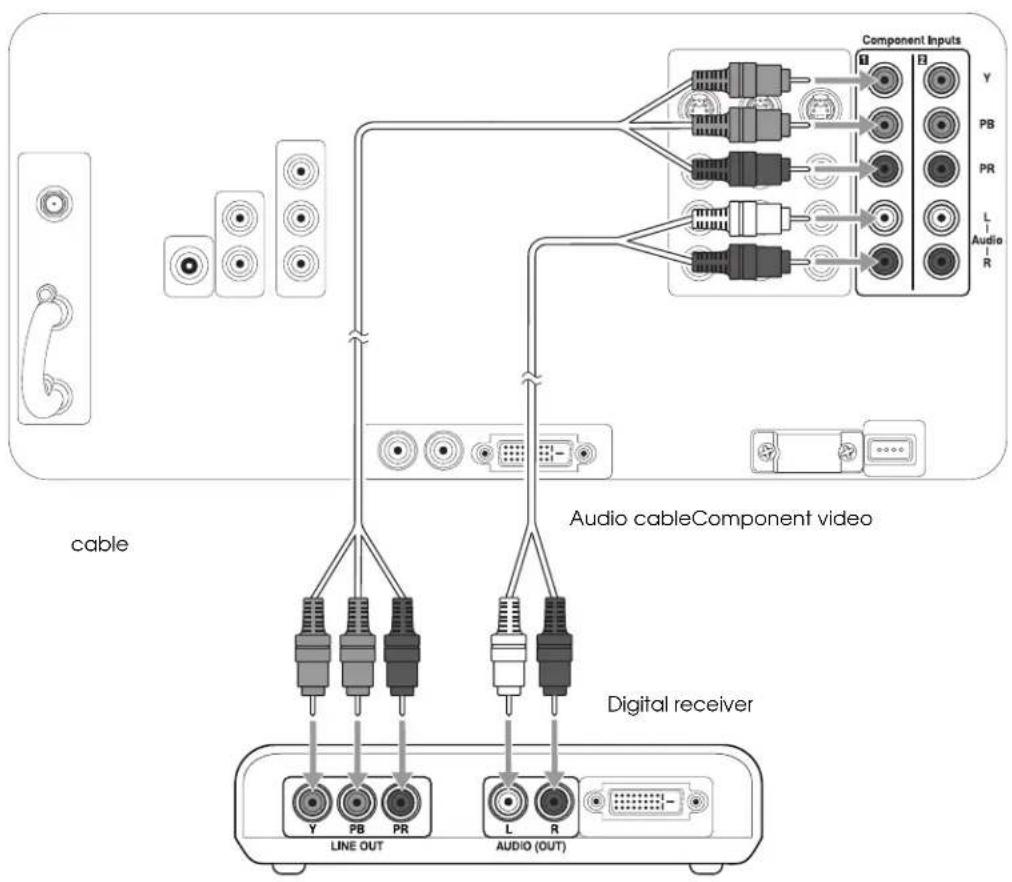
Digital TV (HDTV) Receiver with Component Video Connection
1 Turn off and unplug your TV and your digital TV receiver.
2 Connect one end of the component video cable to any available set of Y (green), PB (blue), and PR (red) connectors on the back of the TV.
3 Connect the other end of the component video cable to the Y, PB, and PR connectors on your digital TV receiver.
4 Connect one end of a standard, red/white audio cable to the corresponding Component Input R and L Audio connectors on the back of the TV.
5 Connect the other end of the audio cable to the R and L Audio Out connectors on your digital TV receiver.
flowchart
graph TD
    A["cable"] --> B["Line OUT"]
    A --> C["PROV"]
    A --> D["L/R"]
    E["Digital receiver"] --> F["Line OUT"]
    E --> G["PROV"]
    E --> H["L/R"]
    I["Component Inputs"] --> J["Line OUT"]
    I --> K["PROV"]
    I --> L["L/R"]
    M["Audio cable"] --> N["Component Video"]
    N --> O["Line OUT"]
    N --> P["PROV"]
    N --> Q["L/R"]
    R["Component Inputs"] --> S["Line OUT"]
    R --> T["PROV"]
    R --> U["L/R"]
    V["Component Inputs"] --> W["Line OUT"]
    V --> X["PROV"]
    V --> Y["L/R"]
    Z["Component Inputs"] --> AA["Line OUT"]
    Z --> AB["PROV"]
    Z --> AC["L/R"]
6 Plug your TV and digital TV receiver back into their power outlets.
Note
Before connecting a digital TV receiver to the TV, be sure to read any instructions that came with the receiver.
Note
The connectors may be labeled Y, B-Y, R-Y, or Y, C b, Cr, or Y, Pb, Pr on your DVD player, so just match the connector colors.
DVD Player With Component Video Connection
1 Connect one end of the component video cable to any available set of Y (green), PB (blue), and PR (red) connectors on the back of the TV.
2 Connect the other end of the component video cable to the corresponding color Component Video Out connectors on your DVD player.
3 Connect one end of a standard, red/white audio cable to the corresponding Component Input R and L Audio connectors on the back of the TV.
4 Connect the other end of the audio cable to the R and L Audio Line Out connectors on your DVD player.

flowchart
graph TD
    A[" DVD player "] --> B[" LINE OUT "]
    A --> C[" R-Y "]
    A --> D[" L-R "]
    B --> E[" Audio (OUT) "]
    C --> F[" Audio (OUT) "]
    D --> G[" Audio (OUT) "]
    H[" Component Inputs"] --> I[" Y "]
    H --> J[" PB "]
    H --> K[" PR "]
    H --> L[" L Audio R "]
    style A fill:#f9f,stroke:#333
    style H fill:#ccf,stroke:#333
    style I fill:#cfc,stroke:#333
    style J fill:#cfc,stroke:#333
    style K fill:#cfc,stroke:#333
    style L fill:#cfc,stroke:#333
    style_M[" Cable "] --> N[" Video "]
    O[" Audio cable"] --> P[" Component video "]
    Q[" Cable "] --> R[" Video "]
    S[" Audio cable"] --> T[" Component video "]
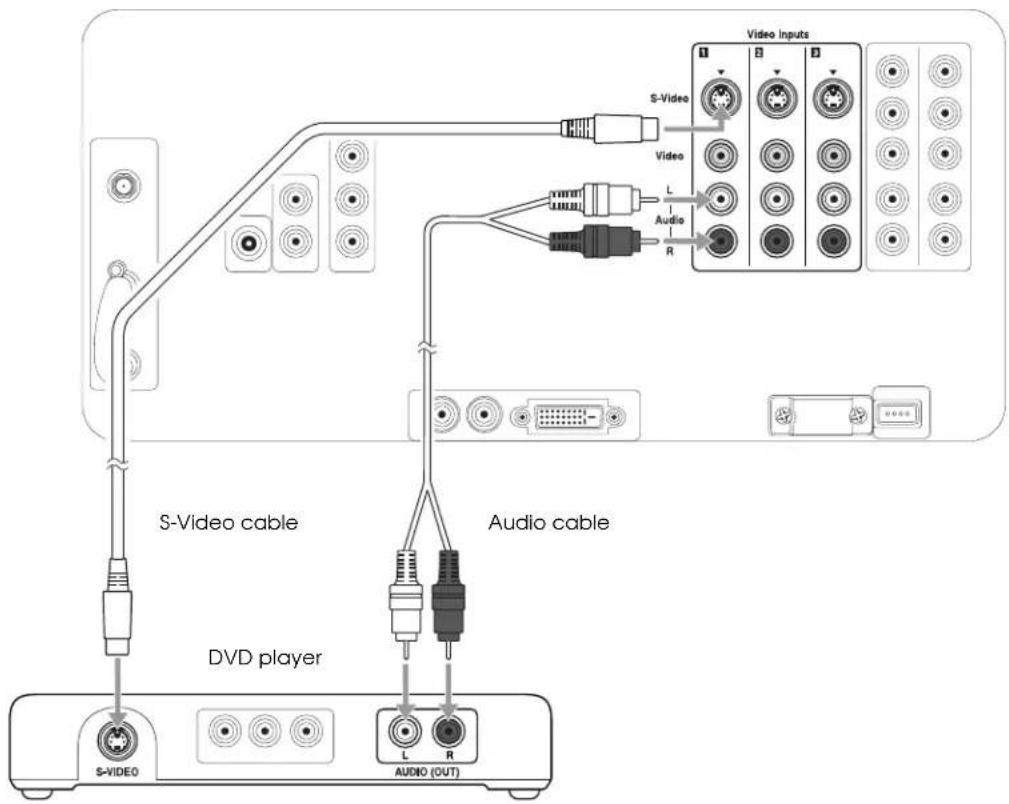
DVD Player With an S-Video Connection
1 Connect one end of an S-Video cable to one of the S-Video connectors on the back of the TV or to the one on the front of the TV beneath the connector cover.
2 Connect the other end of the S-Video cable to the S-Video connector on your DVD player.
3 Connect one end of a standard, red/white audio cable to the corresponding Video Inputs R and L Audio connectors on the back or front of the TV.
4 Connect the other end of the audio cable to the R and L Audio Line Out connectors on your DVD player.
flowchart
graph TD
    A["S-Video"] --> B["VD video player"]
    C["S-Video"] --> D["Audio cable"]
    E["Audio (OUT)"] --> F["Audio cable"]
    G["Video Inputs"] --> H["Video"]
    I["Audio"] --> J["L"]
    K["Audio"] --> L["R"]
Note
If your DVD player doesn't have an S-Video connector, you can connect a video cable (yellow) to the Video connectors instead of the S-Video cable using these instructions.
It's best to connect your DVD player to the S-Video connectors on the back of the TV to free up the S-Video connector on the front to connect a camcorder.
Note
If your satellite receiver doesn't have an S-Video connector, you can connect a video cable (yellow) to the Video connectors instead of the S-Video cable using these instructions.
It's best to connect your satellite receiver to the S-Video connectors on the back of the TV to free up the S-Video connector on the front to connect a camcorder.
Satellite Receiver Connection
If you'll also be attaching a VCR to the TV, you need to use a different connection method so you can record TV programs. See "VCR and Satellite Receiver Connection" on page 26.
1 Turn off and unplug your TV and your satellite receiver.
2 Connect the satellite antenna cable coming into your house to the Satellite In connector on your satellite receiver.
3 Connect one end of an S-Video cable to one of the S-Video connectors on the back of the TV or to the one on the front of the TV beneath the connector cover.
4 Connect the other end of the S-Video cable to the S-Video connector on your satellite receiver.
5 Connect one end of a standard, red/white audio cable to the corresponding Video Inputs R and L Audio connectors on the back or front of the TV.
6 Connect the other end of the audio cable to the R and L Audio Line Out connectors on your satellite receiver.
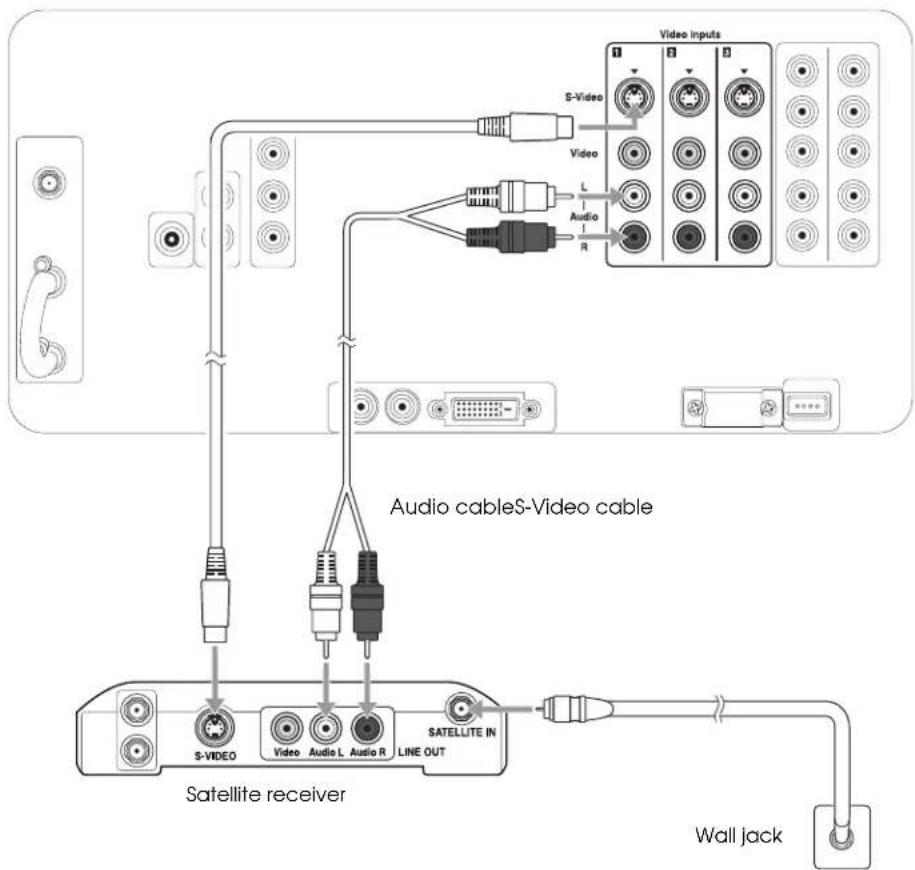
flowchart
graph TD
    A["Audio cableS-Video cable"] --> B["SATELLITE IN LINE OUT"]
    B --> C["SATELLITE receiver"]
    C --> D["S-VIDEO"]
    C --> E["Video"]
    C --> F["Audio L"]
    C --> G["Audio R"]
    C --> H["Video"]
    I["Wall jack"] --> J["Satellite receiver"]
    K["Video inputs"] --> L["Audio R"]
    M["S-Video"] --> N["L"]
    O["Video"] --> P["L"]
    Q["Audio"] --> R["R"]
7 Plug your TV and satellite receiver back into their power outlets.
VCR Connection
Follow these steps to connect a VCR by itself.
If you're connecting a cable, cable box, or satellite receiver along with the VCR, or if you're connecting two VCRs for tape editing, see the instructions in the sections following this one instead.
1 Connect one end of an S-Video cable to one of the S-Video connectors on the back of the TV or to the one on the front of the TV beneath the connector cover.
2 Connect the other end of the S-Video cable to the S-Video connector on your VCR.
3 Connect one end of a standard, red/white audio cable to the corresponding Video Inputs R and L Audio connectors on the back or front of the TV.
4 Connect the other end of the audio cable to the R and L Audio Line Out connectors on your VCR.
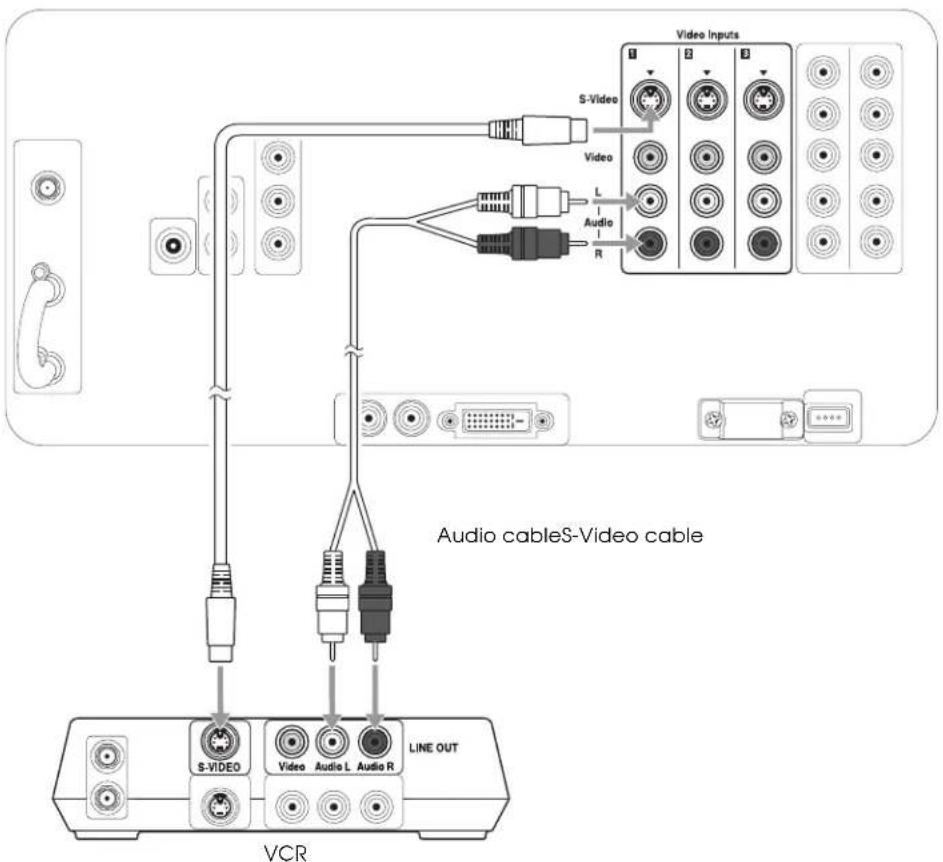
flowchart
graph TD
    A["VCR"] --> B["S-VIDEO"]
    A --> C["Video"]
    A --> D["Audio L"]
    A --> E["Audio R"]
    B --> F["Line OUT"]
    C --> F
    D --> F
    E --> F
    F --> G["Video Inputs"]
    G --> H["1"]
    G --> I["2"]
    G --> J["3"]
    G --> K["4"]
    G --> L["5"]
    G --> M["6"]
    G --> N["7"]
    G --> O["8"]
    G --> P["9"]
    G --> Q["10"]
    G --> R["11"]
    G --> S["12"]
    G --> T["13"]
    G --> U["14"]
    G --> V["15"]
    G --> W["16"]
    G --> X["17"]
    G --> Y["18"]
    G --> Z["19"]
    G --> AA["20"]
Note
If your VCR doesn't have an S-Video connector, you can connect a video cable (yellow) to the Video connectors instead of the S-Video cable using these instructions.
It's best to connect your VCR to the S-Video connectors on the back of the TV to free up the S-Video connector on the front to connect a camcorder.
VCR and Cable Service (Without Cable Box) Connection
1 Connect the VCR as described in "VCR Connection" on page 23.
2 Connect the cable coming into the house to the IN connector on the VCR.
3 Connect one end of a coaxial cable to the OUT connector on the VCR.
4 Connect the other end of the coaxial cable to the ANT 1 connector on the back of the TV.
If your coaxial cable has a screw-type connector on the end, secure it by turning the end clockwise.
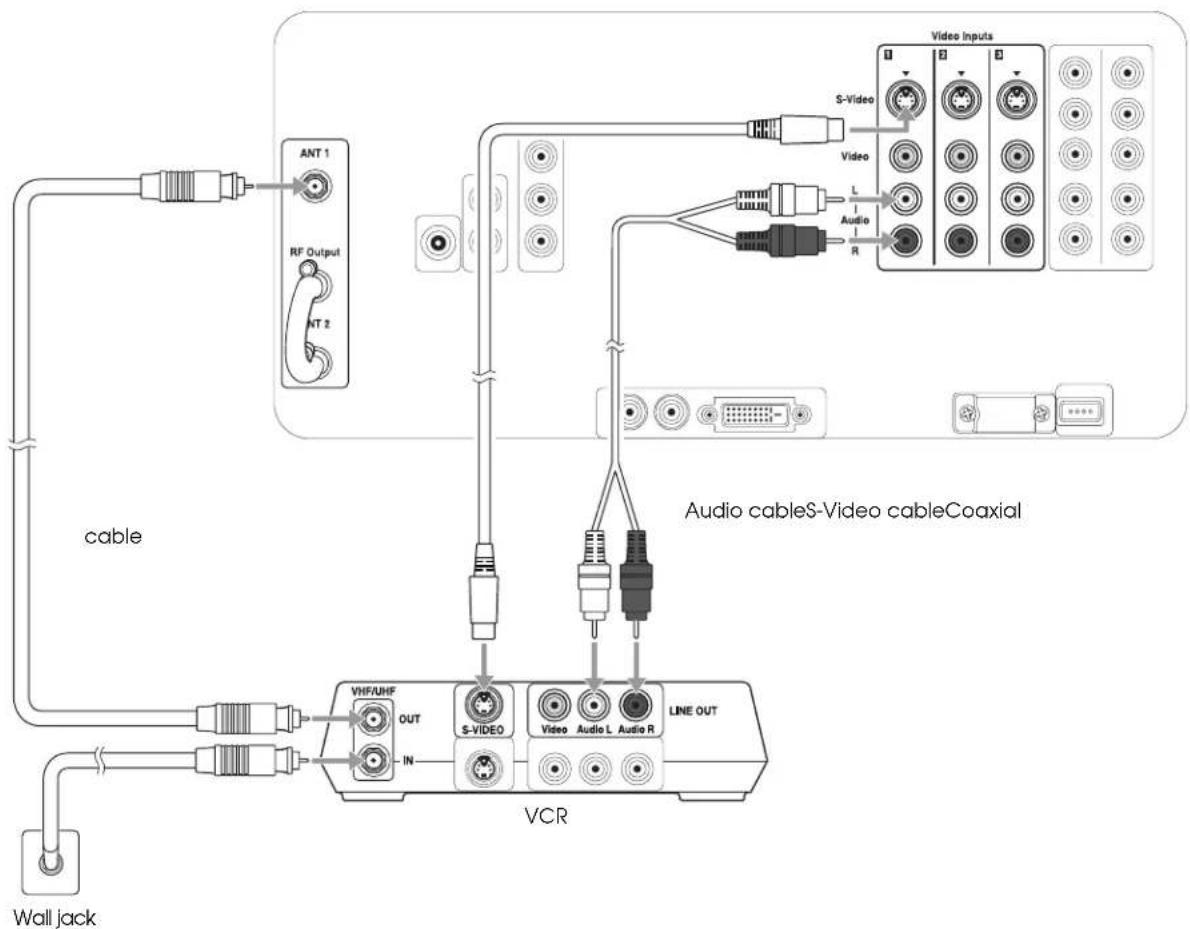
flowchart
graph TD
    A["Wall jack"] --> B["VCR"]
    B --> C["OUT"]
    B --> D["S-VIDEO"]
    B --> E["LINE OUT"]
    C --> F["NT 2"]
    D --> G["ANT 1"]
    D --> H["RF Output"]
    D --> I["S-VIDEO"]
    D --> J["Video"]
    D --> K["Audio L"]
    D --> L["Audio R"]
    D --> M["L"]
    D --> N["Audio"]
    D --> O["Video"]
    D --> P["S-Video"]
    D --> Q["Video Inputs"]
    style A fill:#f9f,stroke:#333
    style B fill:#ccf,stroke:#333
    style C fill:#cfc,stroke:#333
    style D fill:#fcc,stroke:#333
    style E fill:#cff,stroke:#333
    style F fill:#ffc,stroke:#333
    style G fill:#cfc,stroke:#333
    style H fill:#cfc,stroke:#333
    style I fill:#cfc,stroke:#333
    style J fill:#cfc,stroke:#333
    style K fill:#cfc,stroke:#333
    style L fill:#cfc,stroke:#333
    style M fill:#cfc,stroke:#333
    style N fill:#cfc,stroke:#333
    style O fill:#cfc,stroke:#333
    style P fill:#cfc,stroke:#333
    style Q fill:#cfc,stroke:#333
    style R fill:#cfc,stroke:#333
    style S fill:#cfc,stroke:#333
    style T fill:#cfc,stroke:#333
    style U fill:#cfc,stroke:#333
    style V fill:#cfc,stroke:#333
    style W fill:#cfc,stroke:#333
    style X fill:#cfc,stroke:#333
    style Y fill:#cfc,stroke:#333
    style Z fill:#cfc,stroke:#333
VCR and Cable Box Connection
1 Turn off and unplug your TV, VCR, and cable box.
2 Connect the VCR as described in "VCR Connection" on page 23.
3 Connect the cable line coming into the house to the ANT 1 connector on the back of the TV.
4 Remove the jumper cable connected to both the RF Output and ANT 2 connectors on the back of the TV. Retain the cable.
5 Connect one end of a coaxial cable to the RF Output connector on the back of the TV.
6 Connect the other end of the coaxial cable to the IN connector on the cable box. If your coaxial cable has a screw-type connector on the end, secure it by turning the end clockwise.
7 Connect another coaxial cable to the OUT connector on the cable box.
8 Connect the other end of the coaxial cable to the IN connector on the VCR.
9 Connect another coaxial cable to the OUT connector on the VCR.
10 Connect the other end of the coaxial cable to the ANT 2 connector on the back of the TV.
11 Be sure to turn on use of the TV's ANT 2 port, as described on page 39.

flowchart
graph TD
    A["Wall jack"] --> B["Coaxial cables"]
    B --> C["Cable box"]
    C --> D["VCR"]
    D --> E["Audio cableS-Video cable"]
    E --> F["Video Inputs"]
    F --> G["S-Video"]
    F --> H["Audio L"]
    F --> I["Audio R"]
    D --> J["VHF/UNF OUT"]
    D --> K["S-VIDEO"]
    D --> L["Video Audio L Audio R LINE OUT"]
    style A fill:#f9f,stroke:#333
    style B fill:#ccf,stroke:#333
    style C fill:#cfc,stroke:#333
    style D fill:#fcc,stroke:#333
    style E fill:#cff,stroke:#333
    style F fill:#ffc,stroke:#333
    style G fill:#cfc,stroke:#333
    style H fill:#cfc,stroke:#333
    style I fill:#cfc,stroke:#333
12 Plug your TV, VCR, and cable box back into a power source.
Note
Before connecting a cable box to the TV, be sure to read any instructions that came with the cable box.
Note
Be sure to retain the jumper cable in case you change your TV connections later. You'll need to connect it again in certain connection schemes to provide the channel zapping feature.
Note
Before connecting a satellite receiver to the TV, be sure to read any instructions that came with the receiver.
Note
If your satellite receiver doesn't have an S-Video connector, you can connect a video cable (yellow) to the Video connectors instead of the S-Video cable using these instructions.
It's best to connect your satellite receiver to the S-Video connectors on the back of the TV to free up the S-Video connector on the front to connect a camcorder.
VCR and Satellite Receiver Connection
1 Turn off and unplug your TV, VCR, and satellite receiver.
2 Connect the VCR as described in "VCR Connection" on page 23.
3 Connect the satellite antenna cable to the Satellite In connector on your satellite receiver.
4 Connect one end of an S-Video cable to one of the S-Video connector on your satellite receiver.
5 Connect the other end of the S-Video cable to one of the S-Video connectors on your VCR.
6 Connect one end of a standard, red/white audio cable to the R and L Audio Line Out connectors on your satellite receiver.
7 Connect the other end of the audio cable to the R and L Audio Line In connectors on your VCR.
8 If your satellite service does not include local channels, you can also connect an outside antenna or cable service line to the VHF/UHF IN connector on the VCR. Then connect a coaxial cable to the VHF/UHF OUT connector and to the ANT 1 connector on the back of your TV.

flowchart
graph TD
    A["Wall jack"] --> B["VCR"]
    B --> C["Satellite receiver"]
    C --> D["Audio cableS-Video cable"]
    D --> E["Video Inputs"]
    E --> F["Video"]
    F --> G["L"]
    G --> H["Audio R"]
    H --> I["Audio L"]
    I --> J["Video"]
    J --> K["Audio R"]
    K --> L["Video"]
    L --> M["Audio L"]
    M --> N["SATELLITE IN LINE OUT"]
    N --> O["Satellite receiver"]
    O --> P["Audio cableS-Video cable"]
    P --> Q["L"]
    Q --> R["Video"]
    R --> S["Audio R"]
    S --> T["SATELLITE IN LINE OUT"]
    T --> U["Audio L"]
    U --> V["L"]
    V --> W["Video"]
    W --> X["Audio L"]
    X --> Y["SATELLITE IN LINE OUT"]
    Y --> Z["Audio L"]
    Z --> AA["L"]
    AA --> AB["Video"]
    AB --> AC["Audio L"]
    AC --> AD["SATELLITE IN LINE OUT"]
    AD --> AE["Audio L"]
    AE --> AF["L"]
    AF --> AG["Video"]
    AG --> AH["L"]
    AH --> AI["Audio L"]
    AI --> AJ["L"]
    AJ --> AK["SATELLITE IN LINE OUT"]
    AK --> AL["Audio L"]
    AL --> AM["L"]
9 Plug your TV, VCR, and satellite receiver back into a power source.
Note
You can't connect external speakers to the TV directly; you must connect them to an audio receiver and then connect the receiver to the TV.
Audio Receiver Connection
1 Connect one end of a standard, red/white audio cable to the R and L Audio Output Variable connectors on the back of your TV.
2 Connect the other end of the audio cable to the R and L Audio Line Input connectors on your audio receiver.

text_image
Audio cable Audio Output Variable L Audio R Audio receiver L R AUDIO INPC or Game Console Connection
1 For a PC, connect one end of a Dsub15 RGB for PC cable to the monitor or PC output connector on the back of your PC.
For a game console, just use the cable that came with the console.
2 Connect the other end of the cable to the PC connector on the front of the TV.
3 Connect any necessary audio cables to your device and to the Video Inputs R and L Audio connectors on the front of the TV.
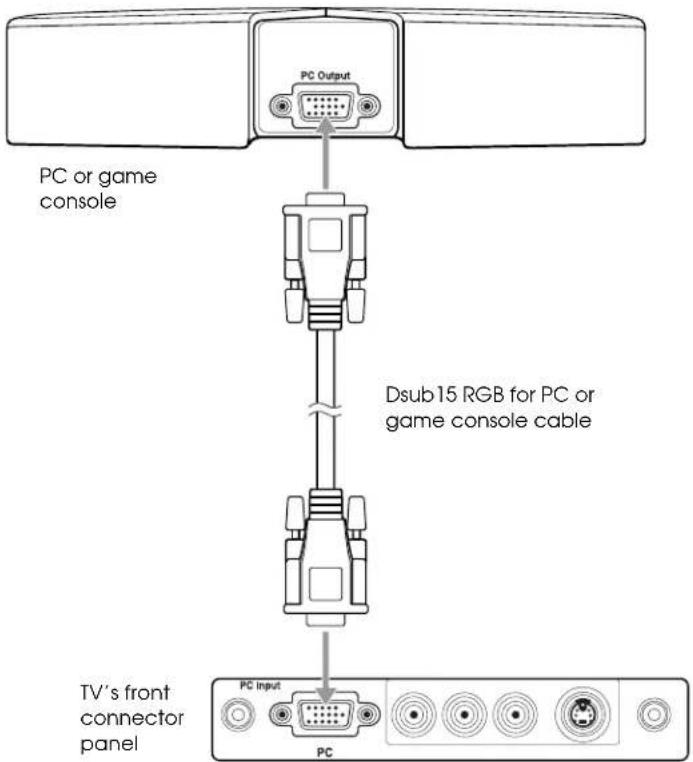
text_image
PC or game console PC Output Dsub15 RGB for PC or game console cable TV's front connector panel PC Input PCNote
To display images on your laptop monitor and the TV screen at the same time, you may need to press the Fn or 📷 on your laptop. See your computer documentation for details.
If you have any trouble switching to the PC input source, make sure you didn't turn off the Use of PC Input setting. See page 52 for details.
Camcorder, Digital Camera, or Other Portable Video Connection
It's best to connect a portable video device to the S-Video or Video connector on the front of the TV; however, you can use the connectors on the back. These instructions use a camcorder as an example.
Note
If your device doesn't have an S-Video connector, you can connect a video cable (yellow) to the Video connector instead of the S-Video cable using these instructions.
If you're connecting a device with mono audio, connect the left (white) cable to the L A/V Output connector on your device and the L Audio connector on the front of the TV.
If you connect your device to a video connector on the TV's front panel, select Video 4 as the input source using the TV/Video button.
1 Connect one end of an S-Video cable to the S-Video connector on the front of the TV beneath the connector cover.
2 Connect the other end of the S-Video cable to the S-Video connector on your camcorder.
3 Connect one end of a standard, red/white audio cable to the Video Inputs R and L Audio connectors on the front of the TV.
4 Connect the other end of the audio cable to the R and L A/V Output connectors on your camcorder.

text_image
S-Video L Audio R S-Video cable Audio cable TV's front connector panel – Audio–L Video Inputs S-VideoRExternal CD-R/RW Drive Connection
1 Connect the square end of a USB cable to the USB port on your external CD-R/RW drive.
2 Connect the flat end of the USB cable to the EXT. I/F connector on the back of the TV.
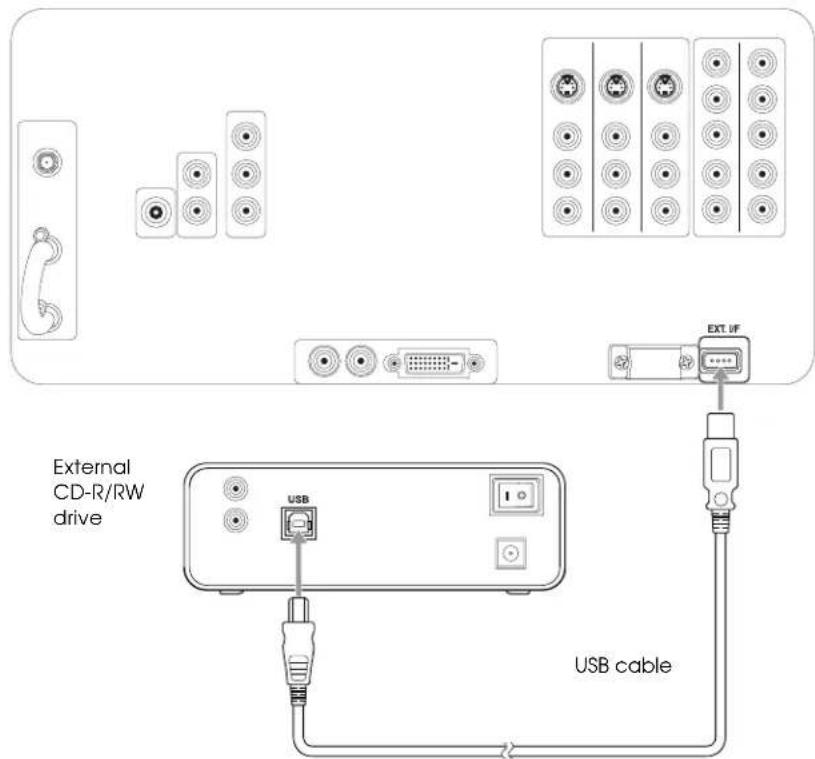
text_image
External CD-R/RW drive USB EXT. UF USB cable3 Plug the power cable that came with the CD-R/RW into the drive's power connector and connect it to an electrical outlet.
Other Optional Device Connections
Note
When you connect headphones, the TV speakers are turned off, but sound is still audible from any audio source you have connected to the TV.
Headphones
Connect headphones to the Headphone connector on the front of the TV.
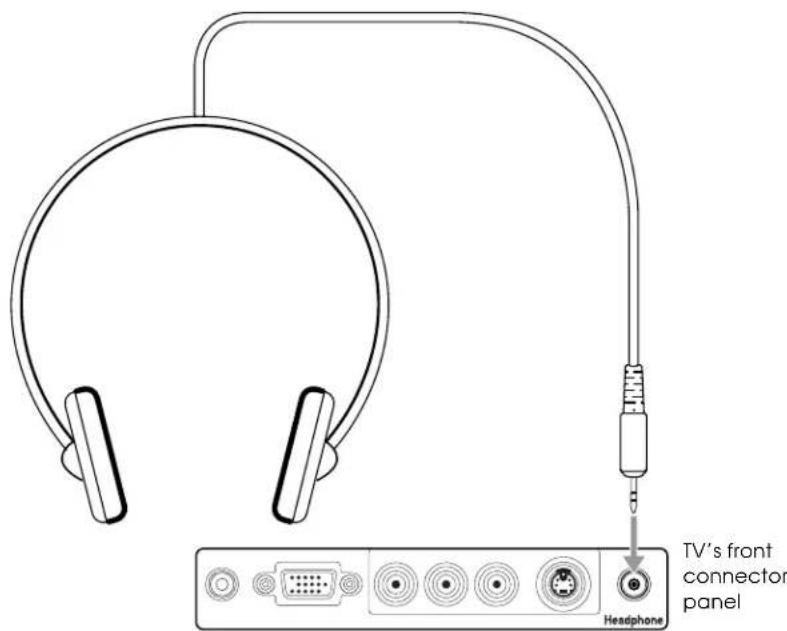
text_image
TV's front connector panel HeadphoneRemote IR Repeater
Connecting a remote IR repeater lets you control other equipment (such as a VCR or DVD player) by using its remote control pointed at the TV's remote control receiver on its front panel.
Connect the remote IR repeater to the Remote-out connector on the back of the TV using the cable that came with the repeater.

text_image
Remote-out Mini-jack cable Remote IR repeaterPreparing the Remote Control
Before you can use the remote control, you need to insert the batteries and make sure you aim it correctly. For a description of the remote control button functions, see the inside front cover of this book.
Inserting the Batteries
The remote control uses two AA batteries. You'll need to install the batteries that came with your TV before you can use the remote control.
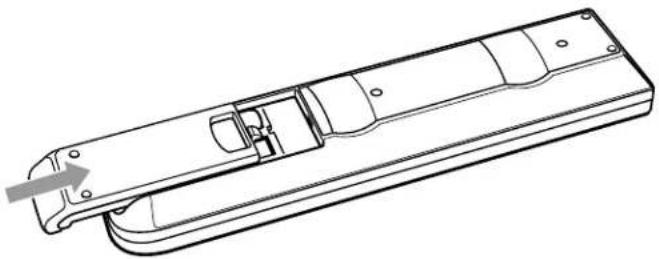
1 Press in on the top of the battery cover on the back of the remote control. Then slide the cover down and off the remote.

natural_image
Technical line drawing of a remote control casing with internal components and a directional arrow indicating movement (no text or symbols)2 Insert the batteries as shown below, making sure the + and - ends face the right way. Then push them down flat.

text_image
+ ends3 Place the cover into the grooves and slide the cover all the way up until it clicks into place.
natural_image
Technical line drawing of a mechanical device with internal components and a directional arrow (no text or symbols)Caution
When you replace the batteries, take the following precautions:
Don't mix old and new batteries.
If the batteries leak, wipe away the battery fluid with a soft cloth. If fluid gets on your hands, wash them immediately.
Remove the batteries if you won't be using the TV for a while.
Dispose of old batteries in accordance with the regulations in your area.
Operating the Remote Control
Aim the remote control at the front of the TV, within about a 25^ horizontal angle to the left or right and a 15^ vertical angle up or down from the remote receiver.
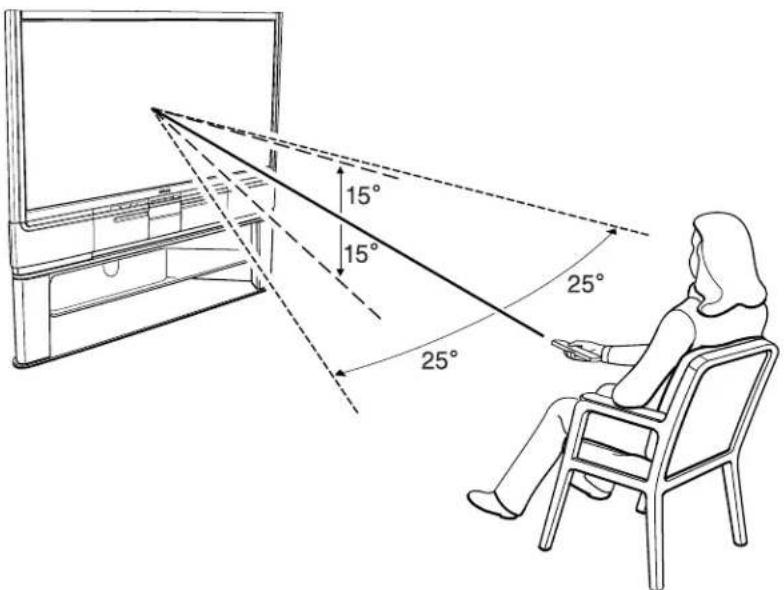
text_image
15° 15° 25° 25°Note
You can also program the remote to control other equipment you have connected to the TV. See page 71 for instructions.
Make sure the room lighting is not too bright and not shining directly on the remote control or the TV receiver window. Keep the transmitter area on the top of the remote and the TV receiver window clean.
To turn off the remote control's beeping sound, hold down the Menu button for 2 seconds, until the remote control light stops flashing. Then press the Volume down button. (To turn it back on, hold down the Menu button for 2 seconds, until the remote control light stops flashing. Then press the Volume up button.)
Remote Control Information
The TV may not respond to remote control commands under the following conditions:
- There is an object between the remote control IR emitter and the IR receiver on the TV.
- Ambient light is too bright.
• Certain types of fluorescent lighting are used.
• A strong light source shines into the IR receiver. - Other equipment that emits infrared energy, such as a radiant room heater, is in the room.
If these conditions cause problems for your TV's remote control, try the following:
- The remote control's batteries may be low on power; replace them.
- Dim the ambient lighting and/or turn off any fluorescent lights.
- Close any window coverings and/or move the TV out of direct sunlight.
- Turn off other equipment that emits infrared energy.
Plugging In and Turning On the TV
After your video and audio equipment are connected and the remote control is ready, you can plug in and turn on the TV. You may want to turn on your connected equipment and insert a tape or disc, if necessary, to test the TV with all of its video and audio sources.
1 Plug the power cord into a wall outlet or power strip.
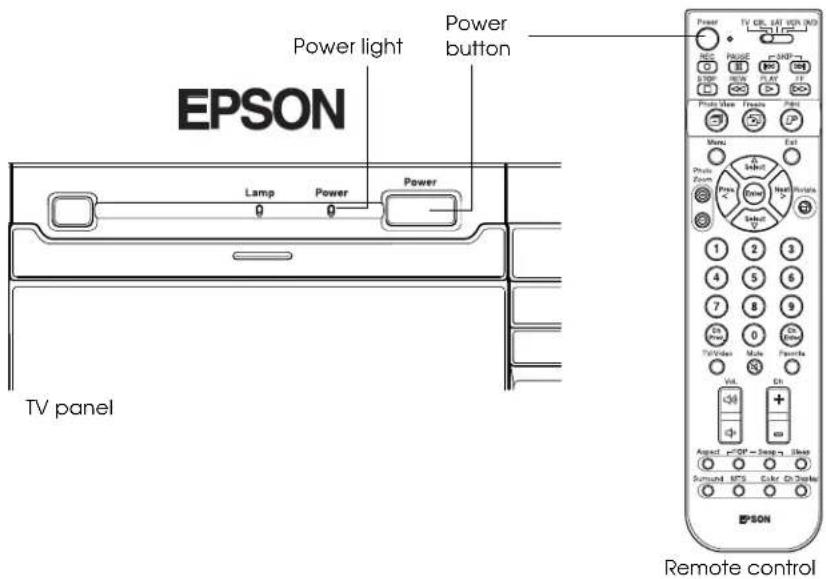
The Power light comes on orange.
2 Press the Power button on the TV panel or the remote control.
text_image
Power light Power button EPSON Lamp Power Power TV panel Power TV QTL, LAT VDR, INDI RED PAUSE 500V S/10P REUN PLAY Print View Frame Pull Menu Exit Photo Zone Photo Window Sub-Off 1 2 3 4 5 6 7 8 9 Ex Power Mode Favorites TV/Dias Mode Vol Ch + + + - Assort - Off - Screen - Sleep Surround MTS Color On Display EPSON Remote controlThe Power light flashes green while the TV warms up.
After a few moments, the Power light stops flashing and shines green.
3 Press the TV/Video button on the remote control or the TV panel to select the source you want to look at (TV, DVD, etc.).
Note
You can press the TV/Video button 10 seconds after pressing the Power button. You don't have to wait for the Power light to stop flashing first.
To turn off the DVI and PC ports when you're not using them (so you don't have to cycle through them with the TV/Video button), see the instructions on page 52.
If you see a blank screen with No Signal at the bottom:

text_image
No Signal- Turn on the source (VCR, DVD, etc.)
- Insert a disc or tape, if you're viewing one, and press Play
- Press the TV/Video button to select the source
- Check the cable connections
- If it's still not working, see "Basic Operation Problems" on page 116.
Note
If you connect headphones to the TV, the TV speaker sound shuts off. You can press Mute to mute the headphone audio too.
If you connected your TV to an audio receiver and additional speakers, the Vol. buttons control the sound from those speakers too.
Setting the Volume
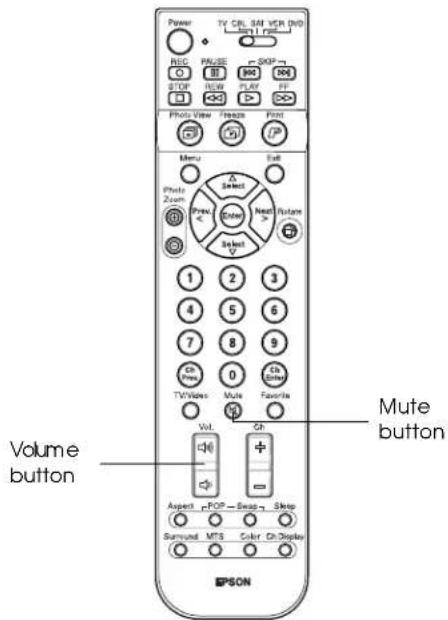
To turn the TV speaker volume up or down, use the Vol. up and down buttons on the TV panel or remote control.
To mute the sound, press the Mute button on the remote control.
text_image
Power TV CBL S41 VPR DVD HV1 Format RGB PACS SOP SOP STOR NEW PLAY Photo View Focus Fines Photo Zoom Menu Self Photo Zoom Select Next > Rutans Select 1 2 3 4 5 6 7 8 9 0 TV Video Mute Favorite Vol. Gh Volume button Aspect: FPOP — Swap — Sleep Samuel: MTS Color On Display EPSONSelecting the Screen Display Size
Most TV and video signals determine the size of the image on your screen. You can change the size (called the aspect ratio) by pressing the Aspect button on the remote control. Depending on your signal and input device, you may not be able to change the aspect ratio or be offered all of the selections listed here.
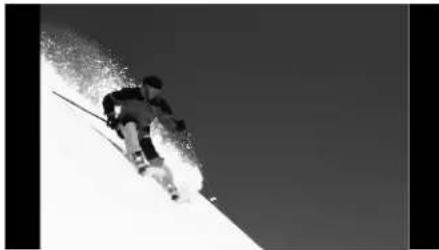
Press the Aspect button repeatedly to select any one of the screen sizes shown below. The name of the aspect ratio appears in the upper left corner.
Normal is the default size of your video source, if it is in standard 4:3 broadcast ratio.
Full stretches a standard 4:3 ratio image to fit into your 16:9 ratio screen, stretching equally on all sides.
Wide stretches a standard 4:3 ratio image to fit into your 16:9 ratio screen, but the image size stretches increasingly more from the center to the sides.
Zoom enlarges the entire screen and cuts off some of the top and bottom for a closer view. Use Zoom when you're watching movies broadcast in Letterbox format so they fit your screen.
Auto lets the TV select a suitable aspect ratio based on the signal it receives. If it can't detect an aspect ratio from the signal, it uses the ratio selected as the Auto Aspect setting in the menu system. See page 63 for details.
natural_image
Black and white photo of a skier ascending a slope, creating a spray trail (no text or symbols visible)
natural_image
Black and white photo of a skier descending a snowy slope under clear sky (no text or symbols visible)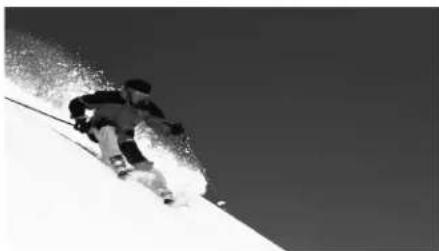
natural_image
Black and white photo of a snowboarder ascending a snowy slope under clear sky (no text or symbols visible)
natural_image
Skier descending a snowy slope with motion blur, no visible text or symbols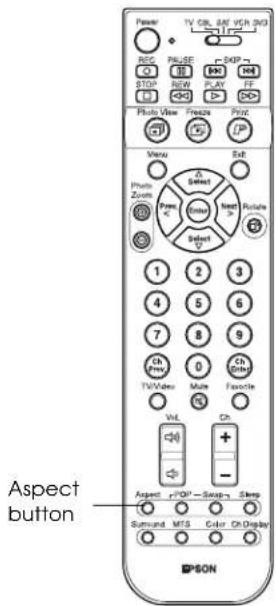
text_image
Power TV CBL S&P VSH 2M3 ADC F-50P~ 800 104 STO R/W PLAY FP Photo View Freeze Print Venus Soft Photo Zone A Single Select Input 3 Select 1 2 3 4 5 6 7 8 9 GA New TV/Video Main Favorite WL CN Aspect button Aspect r=DP~Swap Sleep Surround MTS Color OK Display SONNote
You can select the aspect ratio you'd like the TV to use if your TV is ever unable to detect an aspect ratio from your TV or video input signal. See page 63 for instructions on selecting the Auto Aspect setting.

text_image
Power TV CRL SAT VEN DVD REF: PAUSE SNP: 100 100 100 100 Photo View Photo View Menu Exit Phone Zoom Select Next Rotate Prex Select 1 2 3 4 5 6 7 8 9 Ex Power 0 Ex Power TV/Video Multi-Fronte Vol. On Aspect r=DP=Sleep Sleep Surround MTB Color OnDisplay Color button EPSONCaution
Turn off the TV when not in use. Continuous 24-hour-a-day use may reduce its overall life.
Selecting the Color Mode
Your TV offers three display types (color modes) that are optimized for different room lighting and picture types. You can also create two custom color modes using the TV menu system to fine-tune the picture even further.
To select a different color mode, press the Color button on the remote control and select one of these modes:
• Dynamic The settings are optimized for displaying brilliant colors.
• Theater The settings are optimized for viewing movies.
• Natural The settings are optimized for viewing TV programs.
- Custom1 and Custom2 You can create one or two custom modes using the menu system. See “Adjusting the Picture Quality” on page 60.
To select a specific color mode as the default setting whenever you turn on the TV, follow the steps on page 60.
Turning Off the TV
1 Press the Power button on the TV panel or the remote control.

text_image
Power light Power button EPSON Lamp Power Power TV panel Remote control Power TV QRL SAT VCD DVD 100 100 100 100 Photo Power Tiree Print Menu Fell Photo Power A B Mint Mint 3 Mint 2 Mint 1 1 2 3 4 5 6 7 8 9 0 10 TV/Save Main Favorite Vit + - + - + - + - + - + - + - + - + - + - + - + - + - + - + - + - + - + - + - + - + - + - + - + - + - + - + - + - + - + - + - + - + - + - + - + - + - + - + - + - + - + - + - + - + - + - + - + -2 The Power light flashes orange as the TV cools down.
When it's cool, the Power light stops flashing and shines orange. Leave the TV like this or unplug it.
Setting Up and Controlling Channels
Before you use your TV to view television programs, you may need to set up your available channels. You may also want to use the TV's channel control features or block unwanted viewing of channels or input sources by children, as described in these sections:
- "Setting Up Your TV Channels" below
- "Selecting Channels" on page 42
- "Setting Up Your Favorite Channels" on page 42
- "Setting Up Parental Controls" on page 43
- "Skipping Unused Input Sources" on page 52
Setting Up Your TV Channels
If you're receiving your TV programs using a broadcast antenna or a cable system without a cable box, you need to set up the channels that the TV can receive.
You can use Auto Program to automatically search for the available channels and set them up. Then, for channels that are not automatically detected, you can use Manual Program to add them. You can also choose to have the TV "skip" certain channels that you don't want to view.
Automatically Setting Up Your Channels
Before setting up your channels, make sure you've connected your broadcast antenna or cable service line to the ANT 1 or ANT 2 connector on the back of the TV. Then press the TV/Video button on the TV panel or remote control to select your TV signal.
1 Press the Menu button on the TV panel or the remote control.
2 To move to the Channel tab, press Next >.
3 When the Channel tab is highlighted, press Enter. The Antenna 1 setting is highlighted.

text_image
Video Audio Channel Lock Setting Antenna 1 Antenna 2 Use of Ant. 2 Auto Program Manual Program Channel Label TV TV ON Enter Execute Enter Set Enter Set Exit :Return ←:Select ←:Select Menu :EndNote
If you receive your TV programs using a cable, satellite, or digital TV service with a separate receiver box, you don't need to set up your channels. The receiver box does that for you.
Note
You can use the buttons on the TV or the remote for all menu operations.
4 First make sure the correct television source type is selected for Antenna 1 and/or Antenna 2. Select TV for broadcast television via an antenna outside your house. Select CATV for cable television via a cable service line brought into your house.
If you need to change the option, press Select ▼ or Select ▲ to highlight the Antenna 1 or Antenna 2 setting, then press Prev < or Next > to change the option.
5 If you connected a source to the ANT 2 connector, press Select ▼ to highlight the Use of Ant. 2 setting, then press Prev < or Next > to select On.
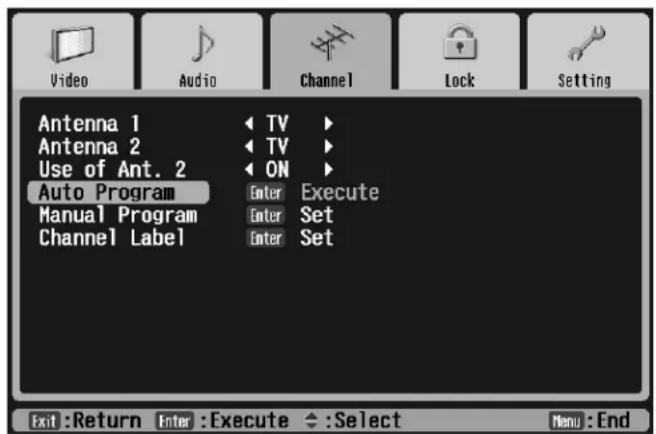
6 Press Select ▼ to highlight Auto Program, then press Enter.
text_image
Video Audio Channel Lock Setting Antenna 1 Antenna 2 Use of Ant. 2 Auto Program Manual Program Channel Label TV TV ON Enter Execute Enter Set Enter Set Exit:Return Enter:Execute Select Menu:EndNote
If you have another TV signal source connected to the other antenna connector (ANT 1 or 2), press the TV/Video button to switch to that source. Then repeat steps 1 through 5 to set up the channels on that source too.
The menu disappears and Auto Program Setting appears in the middle of the screen as the TV begins searching for available channels. It reports the current channel in the upper right corner. This process takes a few minutes, depending on the number of channels available.
When it's finished, you return to the Channel menu.
If the automatic program doesn't detect all of your available channels or if you want to set up the TV to skip certain available channels, follow the steps in the next section.
Manually Adding or Skipping Channels
For channels that are not automatically detected when you use Auto Program, you can use Manual Program to add them. You can also choose to have the TV “skip” certain channels so you don’t have to cycle through them when you change channels.
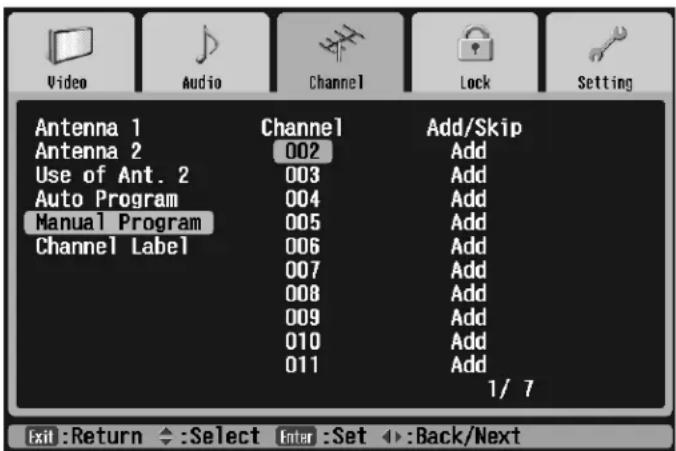
1 Press Select ▼ to highlight Manual Program, then press Enter. The screen changes to the following:
text_image
Video Audio Channel Lock Setting Antenna 1 Antenna 2 Use of Ant. 2 Auto Program Manual Program Channel Label Channel 002 003 004 005 006 007 008 009 010 011 Add/Skip Add Add Add Add Add Add Add 1/7 Exit :Return ←:Select Enter :Set ←:Back/Next2 To select a channel, press Select ▼ or Select ▲ until its number is highlighted in the Channel column.
If the channel number you want is not shown on the screen, press Prev < or Next > to go to the next or previous screen.
3 Press Enter. The highlight moves to the Add/Skip column.
4 Press Prev < or Next > to select Add or Skip, then press Enter.
5 To add or skip another channel, repeat steps 2 through 4.
6 Press Exit to return to the main Channel menu or press Menu to exit the menu system.
Note
If you're using a cable, satellite, or digital TV receiver, you may need to control your TV channels using the receiver controls.

text_image
Power TV CBL SAT VCR DVD REC PUASE SKIP STOP REW PLAY FF Photo View Focus First Menu Call Video Zoom Select Enter Next > Parate Select 1 2 3 4 5 6 7 8 9 Ch Press 0 Ch Enter TV/Video Multi Favorite Volume Ch Aspect -POP -Snap -Sleep Surround MTS Color Ch Display Ch Display Channel selection Favorite Ch up/ down Ch DisplaySelecting Channels
To select the channel you want to watch, do one of the following:
- Enter the channel number using the number keys and press Ch Enter.
- Press the Ch + or - button to go up or down one channel at a time.
- Press the Ch Prev. button to go back and forth between the previous and current channel.
The channel number and audio mode briefly display in the upper right corner.
If you want to see a channel number after it has disappeared, press the Ch Display button. The channel number and audio mode briefly appear, then the channel number remains on the screen. Press Ch Display again to turn off the display.
Setting Up Your Favorite Channels
You can create a group of up to 12 favorite channels that you frequently want to watch. Then you can quickly go to those channels by pressing the Favorite button on the remote control.
To set up favorite channels, you must be connected to a broadcast antenna or cable TV system without a decoder box so you can control your channels with the TV tuner.
1 To set up your favorite channels, first select the channel on your TV.
2 Hold down the Favorite button on the remote control for about 3 seconds.
Registered appears in the upper left corner of the TV screen.
3 Select the next channel you want to add as a favorite and repeat step 2. You can add up to 12 favorite channels.
Whenever you want to tune to a favorite channel, press the Favorite button. Press it again to go to the next favorite channel, and so on.
If you need to delete a channel from the favorites group, select the channel, then hold down the Exit button on the remote control for about 3 seconds. Removed appears in the upper left corner of the TV screen.
Setting Up Parental Controls
You can control access to rated television programs and block access to certain channels and input sources to prevent children or others from viewing unsuitable materials. The person controlling access creates a password that allows him or her to set up, lock, and unlock the parental controls.
Before setting up parental controls, you need to change the default password to a new one. Write down the new password and keep it in a secure place.
Creating a Password
1 Press the Menu button on the TV panel or the remote control.
2 To move to the Lock tab, press Next >.
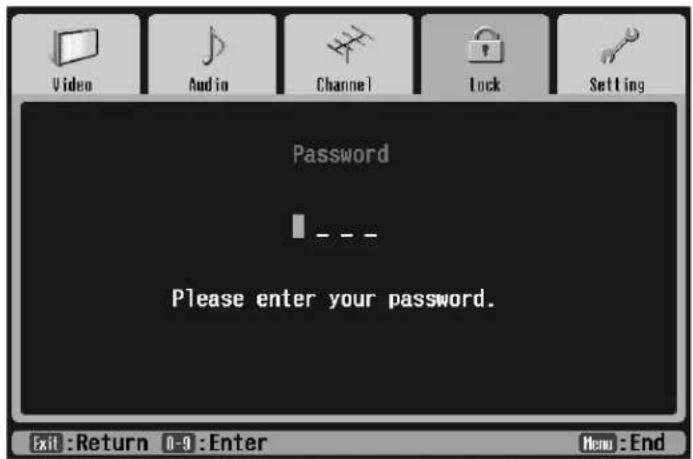
3 When the Lock tab is highlighted, press Enter. The highlight moves to the first character in the password field:
text_image
Video Audio Channel Lock Setting Password - - Please enter your password. Exit: Return 0-9: Enter Menu: End4 First you need to enter the default password to access the Lock menu.
On the remote control, press the 0 button four times (the default password is 0000). Asterisks (*) appear on the screen as you press the buttons.
Note
You can use the buttons on the TV or the remote for all menu operations.

text_image
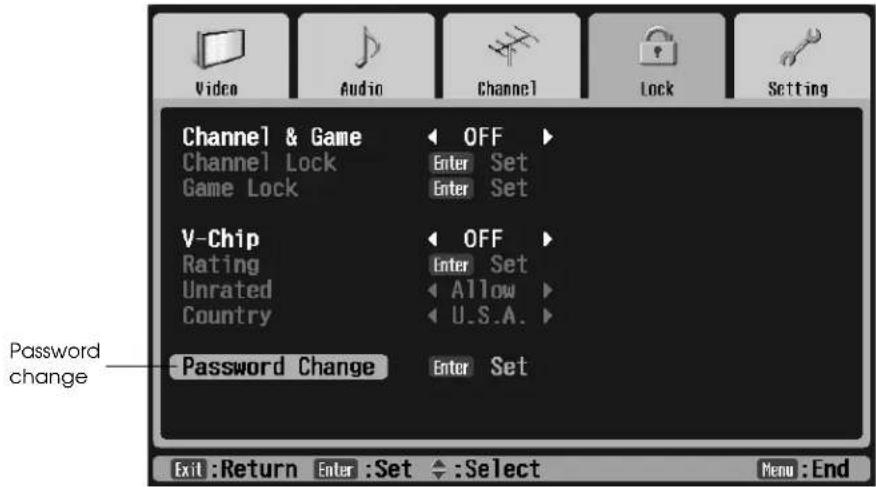
Power TV CBL SAT VCR IND REC PAUSE SKIP STOP REW PLAY FF Photo View Threaty Print Menu Exit Photo Zoom Select Enter Next > Relate Prev Select Select 1 2 3 4 5 6 7 8 9 Ch Press 0 Ch Enter TV/Video Multi Favorite Vol. Ch Aspect -POP -Swap -Sleep Surround -MTS -Color -Ch Display EPSONThen you see the Lock menu.
text_image
Video Audio Channel Lock Setting Channel & Game OFF Channel Lock Enter Set Game Lock Enter Set V-Chip Rating OFF Unrated Allow Country U.S.A. -Password Change Enter Set Password change Exit : Return Enter : Set : Select Menu : End5 Press Select ▼ to highlight Password Change, then press Enter. You see this screen:

text_image
Password Change New Password _ _ _ Confirm New Password _ _ _ Please enter the new password. Exit: Return 0-9: Enter Menu: End6 Use the number buttons on the remote control to enter a four-digit password.
7 Enter the same password again to confirm it. You return to the Lock menu.
8 To block programs using V-Chip, see page 45.
To block certain TV channels and/or input sources, such as a game console, see page 49.
To exit the menu system, press Menu.
Blocking Programs Using V-Chip
Your TV is equipped with V-Chip technology that allows you to block the display of TV programs or movies based upon their content rating. You can also block display of programs or movies that don't carry V-Chip ratings (unrated programs). Whenever you need to change the ratings or remove blocking, you need to enter a password.
1 Press the Menu button on the TV panel or the remote control.
2 To move to the Lock tab, press Next >.
3 When the Lock tab is highlighted, press Enter. The highlight moves to the first character in the password field:

text_image
Video Audio Channel Lock Setting Password - - Please enter your password. Exit : Return 0-9 : Enter Menu : End4 Using the number buttons on the remote control, enter your password. You see the Lock menu.
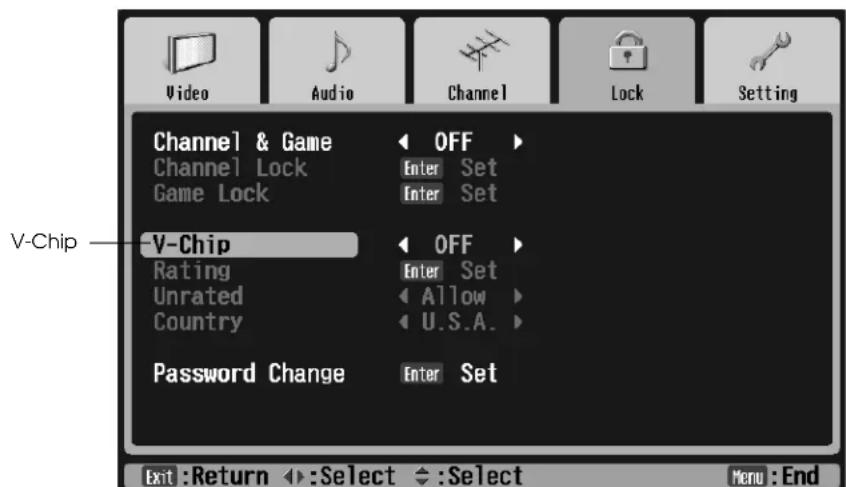
5 Press Select ▼ to highlight V-Chip.
text_image
Video Audio Channel Lock Setting Channel & Game OFF Channel Lock Enter Set Game Lock Enter Set V-Chip Rating OFF Unrated Enter Set Country Allow U.S.A. Password Change Enter Set Exit :Return :Select :Select Menu :End6 Press Prev < or Next > to select ON. The Rating, Unrated, and Country settings become available.
Note
When you turn on V-Chip blocking, you can't use channel zapping (described on page 68). To use channel zapping, turn off V-Chip blocking.
7 Press Select ▼ to highlight Country, then press Prev < or Next > to select U.S.A. or Canada.
8 If you want to block access to programs that don't carry V-Chip ratings, press Select ▲ to highlight Unrated. Then press Prev < or Next > to select Block.
9 To set up V-Chip blocking, press Select ▲ to highlight Rating and press Enter.
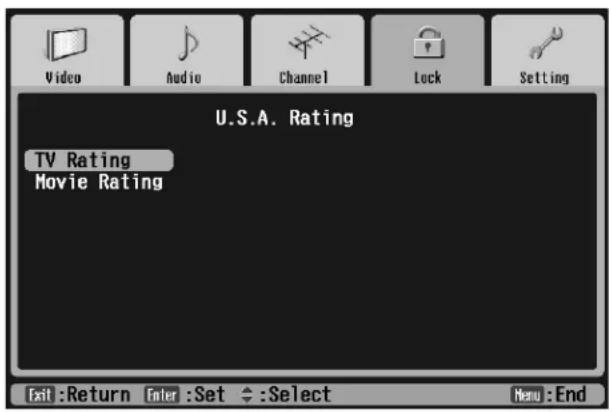
If you selected U.S.A as the Country setting, you see the U.S.A. Rating screen:
text_image
Video Audio Channel Lock Setting U.S.A. Rating TV Rating Movie Rating Exit : Return Enter : Set ← : Select Menu : EndGo to step 10.
If you selected Canada as the Country setting, you see the Canada Rating screen:
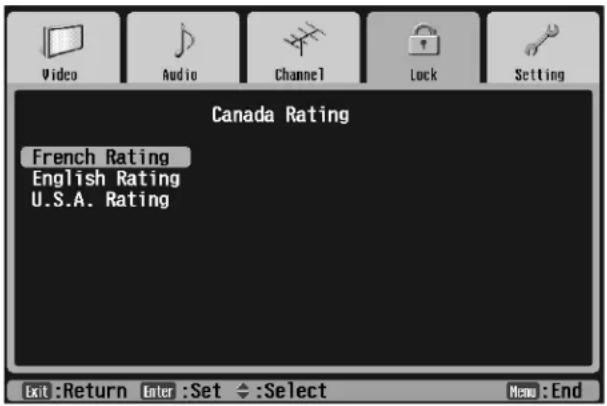
text_image
Video Audio Channel Lock Setting Canada Rating French Rating English Rating U.S.A. Rating Exit:Return Enter:Set :Select Menu:EndPress Select ▼ or Select ▲ to select French Rating, English Rating, or U.S.A Rating, indicating the rating system you want to use (for details, see page 48).
If you selected U.S.A. Rating, go to step 10.
If you selected French Rating or English Rating, press Enter to block programs with the selected rating and any more mature ratings (- means unblocked and X means blocked). Then go to step 13.
10 Press Select ▼ or Select ▲ to select TV Rating or Movie Rating, indicating the type of U.S.A. rating you want to set up blocking for. Then press Enter.
11 If you selected TV Rating, you see these options:
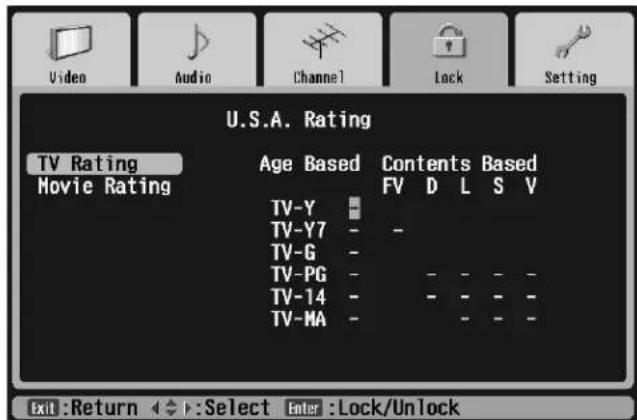
text_image
Video Audio Channel Lock Setting U.S.A. Rating TV Rating Movie Rating Age Based Contents Based FV D L S V TV-Y TV-Y7 - - TV-G - TV-PG - TV-14 - - - - - TV-MA - - - - - Exit:Return ←→:Select Enter:Lock/UnlockAll of the ratings are unblocked by default. Press Select ▼ or Select ▲ to select an Age Based rating. If desired, press Prev < or Next > to select a Content Based rating.
Press Enter to block programs with the selected rating and any more mature ratings (- means unblocked and X means blocked).
For details on the ratings, see page 48.
12 If you selected Movie Rating, you see these options:

text_image
Video Audio Channel Lock Setting U.S.A. Rating TV Rating Movie Rating Age Based G PG PG-13 R NC-17 X Exit:Return ←:Select Enter:Lock/UnlockAll of the ratings are unblocked by default. Press Select ▼ or Select ▲ to select an Age Based rating. Then press Enter to block programs with the selected rating and any more mature ratings (− means unblocked and X means blocked).
For details on the ratings, see page 48.
13 Press Exit to return to the Lock menu or Menu to exit the menu system.
V-Chip Ratings
U.S.A. TV ratings
| Rating Description | |||||
| Age-based ratings | |||||
| TV-Y All ChildrenDesigned to be appropriate for all children, including ages 2 to 6. | |||||
| TV-Y7 Directed to Older ChildrenDesigned for children aged 7 and above. | |||||
| TV-G General AudienceDesigned to be suitable for all ages. | |||||
| TV-PG Parental Guidance SuggestedContains material that parents may find unsuitable for younger children. | |||||
| TV-14 Parents Strongly CautionedContains material that many parents would find unsuitable for children under 14. | |||||
| TV-MA Mature Audiences OnlyDesigned to be viewed by adults and may be unsuitable for children under 17. | |||||
| Content-based ratings - may be combined with age-based ratings | |||||
| FV Fantasy Violence | |||||
| D | D | i | a | l | o |
| L Language | |||||
| S | S | e | x | u | |
| V Violence | |||||
U.S.A. Movie ratings
| Rating Description | |
| G General Audience | |
| PG | Parental Guidance Suggested |
| PG-13 Parents Strongly Cautioned | |
| R | Restricted - No One Under 17 Admitted Without a Parent or Adult Guardian |
| NC-17 | No One Under 17 Admitted |
| X | No One Under 17 Admitted (older version of the NC-17 rating) |
French ratings (for Canada)
| Rating Description | |
| G General | Considered appropriate for all age groups. |
| 8 ans+ General for 8 years and older | Not appropriate for children under 8 without supervision. |
| 13 ans+ Over 13 years | May not be appropriate for children under 13. |
| 16 ans+ Over 16 years | May not be appropriate for children under 16. |
| 18 ans+ Adults | Intended for viewers 18 years and older. |
English ratings (for Canada)
| Rating Description | |
| C Children | Intended for children under 8 years old. |
| C8+ Children Over 8 Years Old | Considered acceptable for children 8 years and older to view by themselves. |
| G General | Considered acceptable for all age groups. |
| PG Parental Guidance | Intended for a general audience, but some content may not be appropriate for viewing by unsupervised children in the 8 to 13 age range. |
| 14+ Over 14 Years | Contains themes or elements that may not be suitable for viewers under the age of 14. |
| 18+ Adults | Intended for viewers 18 years and older. |
Blocking Channels and Input Sources
In addition to blocking rated TV programs and movies, you can block access to particular TV channels or input sources, such as those used for game consoles.
1 Press the Menu button on the TV panel or the remote control.
2 To move to the Lock tab, press Next >.
3 When the Lock tab is highlighted, press Enter.
Note
You can use the buttons on the TV or the remote for all menu operations.
The highlight moves to the first character in the password field:

text_image
Video Audio Channel Lock Setting Password - - Please enter your password. Exit:Return 0-9:Enter Menu:End4 Using the number buttons on the remote control, enter your password. You see the Lock menu:
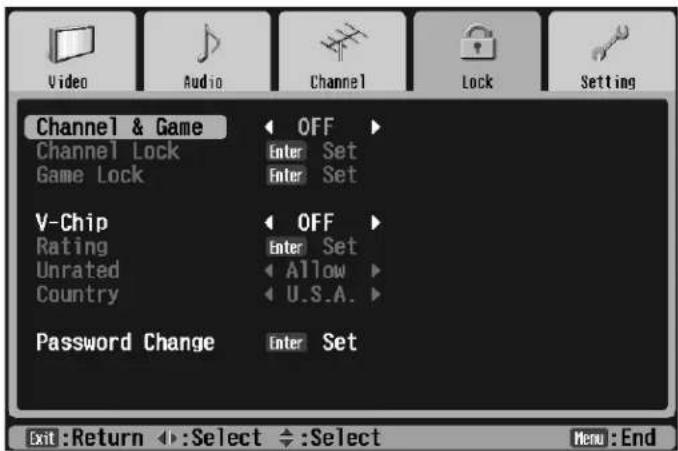
text_image
Video Audio Channel Lock Setting Channel & Game OFF Channel Lock Enter Set Game Lock Enter Set V-Chip OFF Rating Enter Set Unrated Allow Country U.S.A. Password Change Enter Set Exit:Return ←:Select ←:Select Menu:End5 Channel & Game Lock is highlighted. Press Prev < or Next > to select ON.
6 To lock a channel, press Select ▼ to highlight Channel Lock, then press Enter. You see the channel lock options:
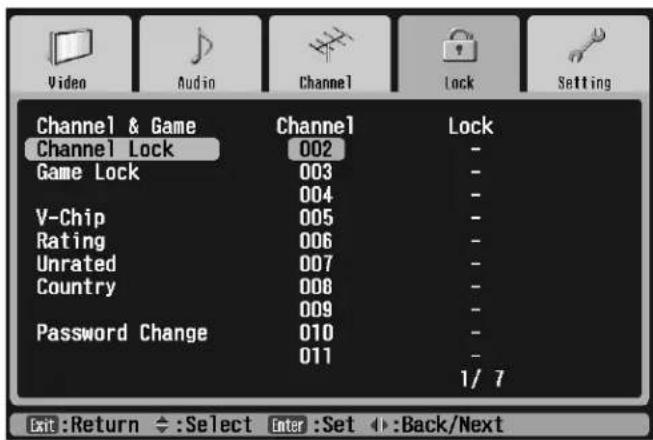
text_image
Video Audio Channel Lock Setting Channel & Game Channel Lock Channel Lock 002 - Game Lock 003 - V-Chip 004 - Rating 005 - Unrated 006 - Country 007 - Password Change 008 - 010 - 011 - 1/7 Exit:Return ←:Select Enter :Set ←:Back/Next7 Press Select ▼ or Select ▲ to highlight the channel number, then press Enter. The highlight moves to the Lock column.
8 Press Prev < or Next > to select Lock or unlock (−). Then press Enter.
9 Repeat steps 7 and 8 to lock any other channels, then press Exit to return to the Lock menu.
10 To lock an input source, press Select ▼ to highlight Game Lock, then press Enter. You see the input lock options:

text_image
Video Audio Channel Lock Setting Channel & Game Input Lock Channel Lock VIDEO01 - Game Lock VIDEO02 - V-Chip VIDEO03 - Rating VIDEO04 COMPONENT1 - Unrated COMPONENT2 - Country DVI - Password Change PC - CH3 - CH4 Exit:Return Enter:Set Select Menu:End11 Press Select ▼ or Select ▲ to highlight the input source, then press Enter. The highlight moves to the Lock column.
12 Press Prev < or Next > to select Lock or unlock (−). Then press Enter.
13 Repeat steps 11 and 12 to lock any other sources, then press Exit to return to the Lock menu.
Accessing Blocked Programs, Movies, Channels, and Input Sources
If you try to access a blocked program, movie, channel, or input source, the TV displays one of the screens shown below:
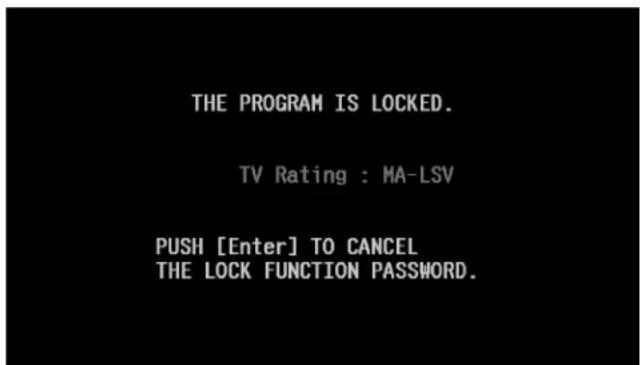
text_image
THE PROGRAM IS LOCKED. TV Rating : MA-LSV PUSH [Enter] TO CANCEL THE LOCK FUNCTION PASSWORD.
text_image
THE PROGRAM IS LOCKED. Channel & Game Lock PUSH [Enter] TO CANCEL THE LOCK FUNCTION PASSWORD.Blocked channel or input source screenBlocked program or movie (V-Chij)
If you see one of these screens and you want to access the program, movie, channel, or input source, follow these steps:
1 Press Enter. You see a screen asking you to enter your password.
2 Enter your 4-digit password using the remote control number buttons.
The program, movie, channel, or input source is unblocked and the blocking feature is turned off.
To set up blocking again, see page 45 (for V-Chip blocking) or page 49 (for channel and input source blocking).
Skipping Unused Input Sources
As you switch between input sources using the TV/Video button, the TV goes to sources to which you've connected equipment. However, the TV goes to the DVI and PC sources even if you aren't using them, unless you turn the ports off.
To turn off the DVI and PC ports when you're not using them (so you don't have to cycle through them with the TV/Video button), follow these steps:
Note
You can use the buttons on the TV or the remote for all menu operations.
1 Press the Menu button on the TV panel or the remote control.
2 To highlight the Setting menu tab, press Next >.
3 Press Enter. The Auto Aspect setting is highlighted.
4 Press Select ▼ to highlight Use of DVI Input.

text_image
Use of DVI Input and Use of PC Input settings Auto Aspect (4:3 default) 480p Color Matrix Use of DVI Input Use of PC Input Auto Shutdown Input Label Closed Caption Language NORMAL DVD OFF OFF ON Enter Set OFF English Exit :Return :Select :Select Menu :End5 Press Prev. < or Next > to turn the setting OFF.
6 Repeat step 4 and 5 for the Use of PC Input setting.
7 Press Menu to exit the menus.
Your TV provides many helpful features accessible by the remote control buttons and the menu system, as described in these sections:
- “Accessing the Menus” below
- "Labelling Your Channels" on page 56
- "Labelling Your Input Sources" on page 58
- “Adjusting the Picture Quality” on page 60
- "Adjusting the Screen Display Size" on page 63
- "Adjusting the Sound" on page 64
- "Selecting Closed Caption Display" on page 65
- "Selecting Audio Mode Options" on page 66
- "Using Picture-Outside-Picture (POP)" on page 66
• "Using Channel Zapping" on page 68
• "Automatically Shutting Off the TV" on page 70
- "Controlling Other Equipment with the Remote Control" on page 71
Accessing the Menus
As you change menu settings, the effects of your changes show on the screen (for some settings). When you're adjusting picture and sound menu settings, it's best to have a program running so you can judge the effects.
1 Press the Menu button on the TV panel or the remote control.
You see the menus with the Video tab highlighted:
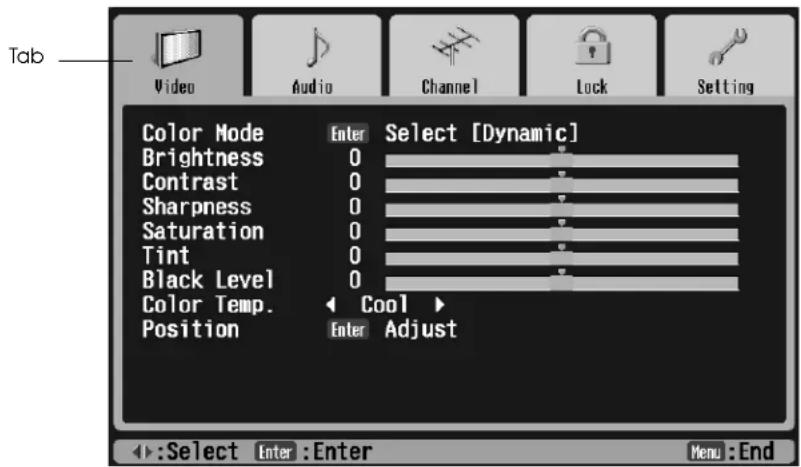
text_image
Tab Video Audio Channel Lock Setting Color Mode Enter Select [Dynamic] Brightness 0 Contrast 0 Sharpness 0 Saturation 0 Tint 0 Black Level 0 Color Temp. Cool Position Enter Adjust :Select Enter :Enter Menu :EndNote
You can use the buttons on the TV or the remote for all menu operations.
Note
The settings you see will be different if the currently selected input source is a PC. You'll see Tracking and Sync settings instead of the Sharpness, Saturation, and Tint settings.
2 To move to another menu tab, such as Audio or Channel, press the Next > button.
3 When the menu is highlighted, press the Enter button. The first setting is highlighted.
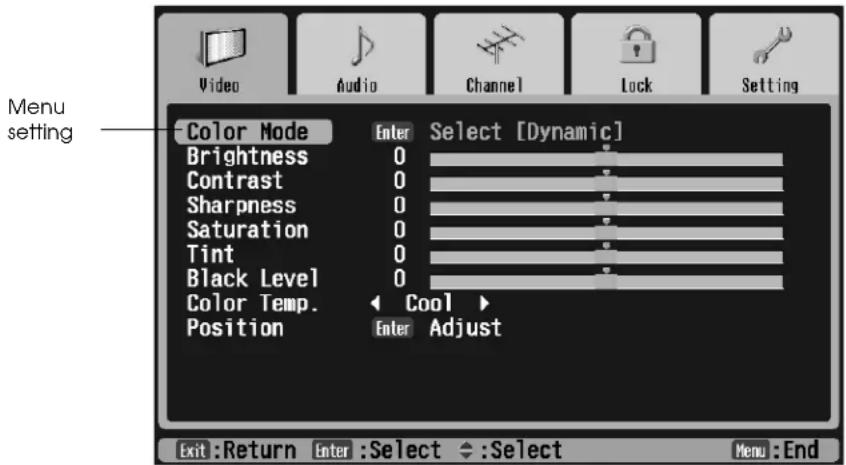
text_image
Menu setting Color Mode Enter Select [Dynamic] Brightness 0 Contrast 0 Sharpness 0 Saturation 0 Tint 0 Black Level 0 Color Temp. Cool Position Enter Adjust Exit:Return Enter:Select Select Menu:End4 To move to a different setting, press the Select ▼ or Select ▲ button. To move to a different menu, press the Exit button, then press Prev < or Next > to select it.
Changing Menu Settings
Whenever you need to change a menu setting, do the following:
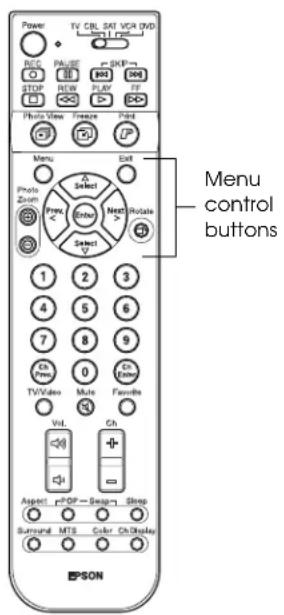
text_image
Power TV CBL SKV VCR (VCD) REC PAUSE OK STOP NEW PLAY ADD Play200 Freeze Fond Menu Exit Photo Zoom Photo Select Next Rotate 1 2 3 4 5 6 7 8 9 10 11 12 13 14 15 16 17 18 19 20 21 22 23 24 25 26 27 28 29 30 31 32 33 34 35 36 37 38 39 40 41 42 43 44 45 46 47 48 49 50 51 52 53 54 55 56 57 58 59 60 61 62 63 64 65 66 67 68 69 70 71 72 73 74 75 76 77 78 79 80 81 82 83 84 85 86 87 88 89 90 91 92 93 94 95 96 97 98 99 100To change a setting, like this one:

1 Press Enter. You see a drop-down menu of options.
2 Press Select ▼ or Select ▲ to highlight the option you want.
3 Press Enter. Your new selection appears in brackets.
To change a setting like this one:
1 Press Enter. The menu disappears and the setting selector appears at the bottom of the screen.

text_image
Brightness 0 Default setting marker Current setting bar2 Press Prev < or Next > to adjust the setting. Press the buttons repeatedly or hold them down. The current setting bar moves and the setting number changes. The default setting marker stays in position.
3 Press Exit to return to the menus or press Menu to return to your image.
To change a setting like this one:
Color Temp. Cool
Press Prev < or Next > to select a different setting. The setting is now changed.
To change a setting like this one:
Tracking 0
Press Prev < or Next> to select a higher or lower numbered setting. The setting is now changed. (The Tracking setting is available for the PC input only).
Changing the Language of the Menus and Screen Text
You can set the menu system, Photo viewer, Freeze for printing program, and any screen messages to appear in English, French, or Spanish.
1 Press the Menu button on the TV panel or the remote control.
2 To highlight the Setting menu tab, press Next >.
3 Press Enter. The Auto Aspect setting is highlighted.
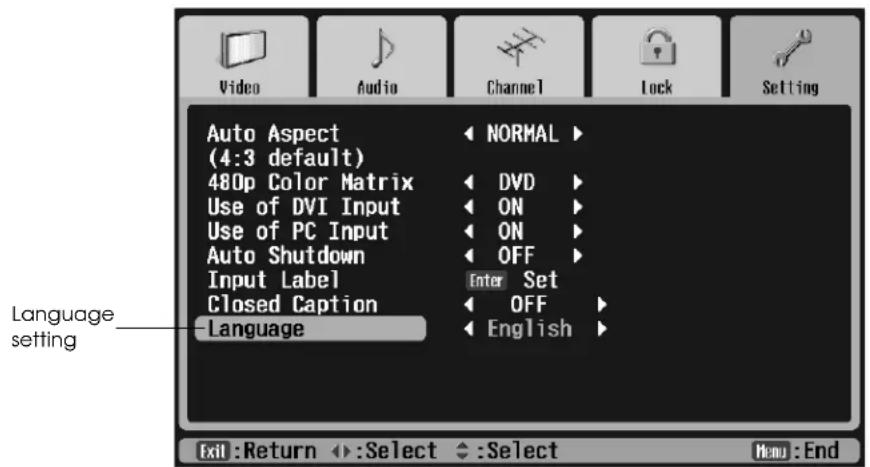
text_image
Video Audio Channel Lock Setting Auto Aspect (4:3 default) NORMAL 480p Color Matrix DVD Use of DVI Input ON Use of PC Input ON Auto Shutdown OFF Input Label Enter Set Closed Caption OFF Language English Language setting Exit : Return ←→: Select ←→: Select Menu : EndNote
You can use the buttons on the TV or the remote for all menu operations.
4 Press Select ▼ to highlight the Language setting.
5 Press Prev < or Next > to select English, Français (French), or Español (Spanish).
6 Press Exit to select another menu or press Menu to exit the menu system.
Labelling Your Channels
You may want to label your channels so you can easily identify them by name instead of just by number. The channel label appears with the number in the upper right corner of the screen when you display or switch channels.
Note
You can use the buttons on the TV or the remote for all menu operations.
1 Press the Menu button on the TV panel or the remote control.
2 To move to the Channel tab, press Next >.
3 When the Channel tab is highlighted, press Enter. The Antenna 1 setting is highlighted.

text_image
Video Audio Channel Lock Setting Antenna 1 Antenna 2 Use of Ant. 2 Auto Program Manual Program Channel Label TV TV ON Enter Execute Enter Set Enter Set Exit:Return ←:Select ←:Select Menu:End4 Press Select ▼ to highlight Channel Label, then press Enter. You see this screen:

text_image
Video Audio Channel Lock Setting Antenna 1 Antenna 2 Use of Ant. 2 Auto Program Manual Program Channel Label Channel Label 002 003 004 005 006 007 008 009 010 011 Label Edit Manual Clear CBS NBC ABC FOX WB CNN ESPN ESPN2 1/7 1/3 Exit:Return ←:Select Enter :Set ▶:Back/Next5 The first channel is highlighted. If you want to label that channel, press Enter.
To select a different channel, press Select ▼ or Select ▲. If you don't see the channel you want, press Prev < or Next > to display the next or previous screen. Once you've highlighted a channel, press Enter. The highlight moves to the Edit column.
Selecting a Predefined Label
1 Press Select ▼ or Select ▲ to highlight the label (such as CBS) in the Edit column.
If you don't see a particular label, press Prev < or Next > to display the next screen.
2 Press Enter. The new label is listed in the Label column and the Channel number is highlighted again.
Creating a Custom Label
1 Press Select ▼ or Select ▲ to highlight the Manual option in the Edit column and press Enter. The highlight moves to the first character of the label in the Label column.
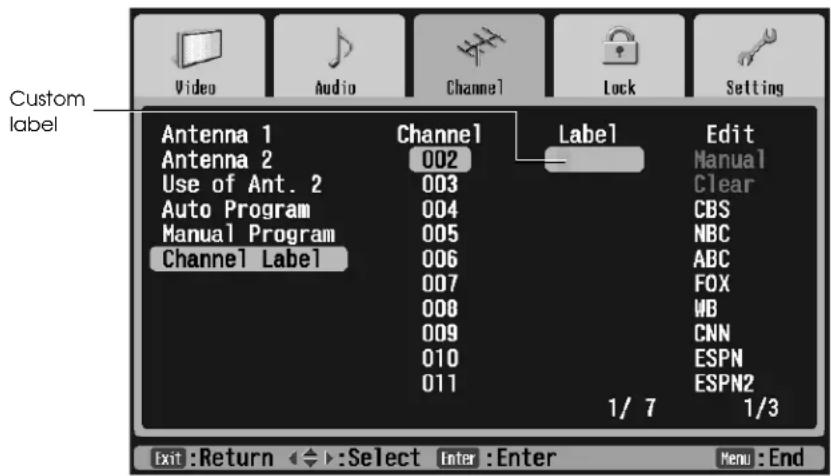
text_image
Custom label Video Audio Channel Lock Setting Antenna 1 Channel Label Edit Antenna 2 002 Manual Use of Ant. 2 003 Clear Auto Program 004 CBS Manual Program 005 NBC Channel Label 006 ABC 007 FOX 008 WB 009 CNN 010 ESPN 011 ESPN2 1/7 1/3 Exit :Return ←→:Select Enter :Enter Menu :End2 You can create a label up to 6 characters long, made up of letters, numbers, and/or symbols. To cycle through the letters of the alphabet, press Select ▼. To cycle through the symbols and then the numbers, press Select ▲. You can hold down the button or press it repeatedly.
3 Once you've selected the first character, press Next > to move to the next character.
4 Repeat steps 2 and 3 until you're finished creating a label. Then press Enter.
Deleting a Label
1 Press Select ▼ or Select ▲ to highlight the channel in the Channel column and press Enter.
2 Press Select ▼ to highlight Clear in the Edit column and press Enter. The label disappears from the Label column. The channel number will appear when you display or switch channels
Labelling Your Input Sources
It's helpful to label your input sources if you're using more than one device with your TV, such as a DVD player, VCR, etc. Then you can easily recognize the devices as you switch between them. The label appears on the TV screen when you display or switch input sources.
Note
You can use the buttons on the TV or the remote for all menu operations.
1 Press the Menu button on the TV panel or the remote control.
2 To highlight the Setting menu tab, press Next >.
3 Press Enter. The Auto Aspect setting is highlighted.
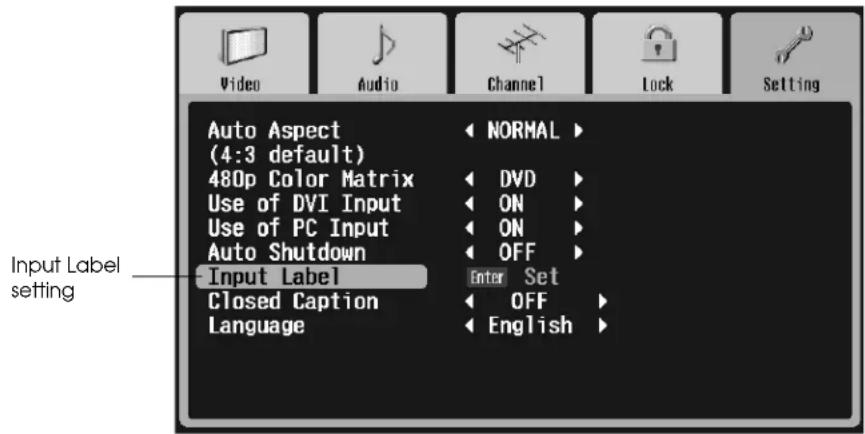
text_image
Video Audio Channel Lock Setting Auto Aspect (4:3 default) 480p Color Matrix Use of DVI Input Use of PC Input Auto Shutdown Input Label Closed Caption Language NORMAL DVD ON ON OFF Enter Set OFF English Input Label setting4 Press Select ▼ to move to the Input Label setting.
5 Press Enter. You see the Input Label screen:
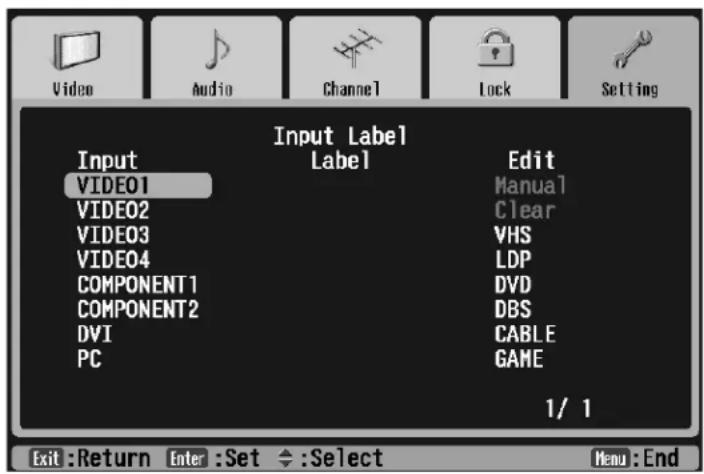
text_image
Input Label Input Label Input VIDEO1 VIDEO2 VIDEO3 VIDEO4 COMPONENT1 COMPONENT2 DVI PC Edit Manual Clear VHS LDP DVD DBS CABLE GAME 1/ 1 Exit:Return Enter:Set ←:Select Menu:End6 To label an input source, press Select ▼ or Select ▲ to highlight the source in the Input column, such as VIDEO1.
7 Press Enter. The highlight moves to the top of the Edit column.
Select a Predefined Label
1 Press Select ▼ or Select ▲ to highlight the label you want.
If 1/2 appears in the bottom right corner of the screen, you can press Next > to view more predefined labels on a second screen. (Press Prev < to return to screen 1.)
2 Press Enter.
Creating a Custom Label
1 Press Select ▼ or Select ▲ to highlight Manual in the Edit column.
2 Press Enter. The highlight moves to the first character of the label in the Label column.
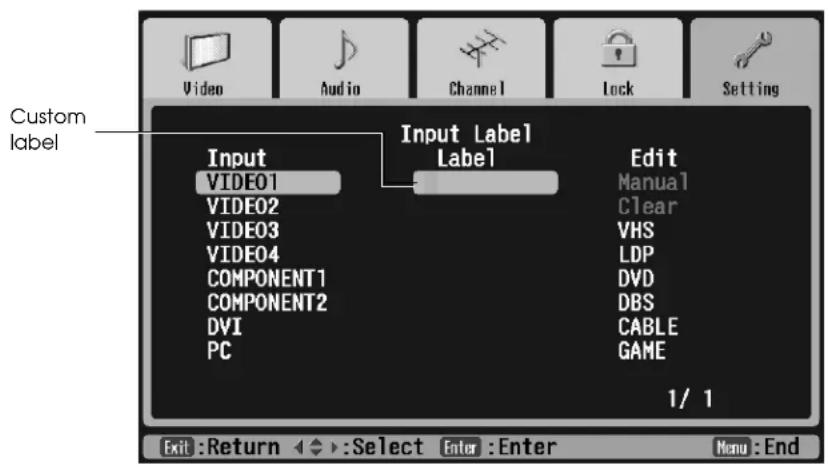
text_image
Custom label Input Label Input Label Input VIDEO1 Video01 VIDEO2 VIDEO3 VIDEO4 COMPONENT1 COMPONENT2 DVI PC Edit Manual Clear VHS LDP DVD DBS CABLE GAME 1/ 1 Exit :Return ◀→:Select Enter :Enter Menu :End3 You can create a label up to 10 characters long, made up of letters, numbers, and/or symbols. To cycle through the letters of the alphabet, press Select ▼. To cycle through the symbols and then the numbers, press Select ▲. You can hold down the button or press it repeatedly.
4 Once you've selected the first character, press Next > to move to the next character.
5 Repeat steps 3 and 4 until you're finished creating a label. Then press Enter.
Deleting a Label
1 Press Select ▼ or Select ▲ to highlight the source in the Input column and press Enter.
2 Press Select ▼ to highlight Clear in the Edit column and press Enter. The label disappears from the Label column. The input source name will appear when you display or switch your input sources.
Note
Depending on your input source, not all of the picture quality adjustments may be available.
Note
You can use the buttons on the TV or the remote for all menu operations.
Adjusting the Picture Quality
Your TV offers three display types (color modes) that are optimized for different room lighting and the picture types. You can also create two custom display types to fine-tune the picture even further.
The color mode you set with the menus is the default mode you want to use whenever you turn on the TV. To change the mode while you're watching a program, use the Color button on the remote control. See page 38.
In addition to the display types, you can individually adjust the brightness, contrast, sharpness, saturation, tint, black level, color temperature, and screen position settings.
If you've connected two different types of component video equipment, you may need to optimize the color quality for equipment you're watching. See page 62 for instructions.
Turn on a program so you can check the results of your picture quality adjustments.
1 Press the Menu button on the TV panel or the remote control.
2 Press the Enter button. The Color Mode setting is highlighted.

text_image
Video Audio Channel Lock Setting Color Mode Enter Select [Dynamic] Brightness 0 Contrast 0 Sharpness 0 Saturation 0 Tint 0 Black Level 0 Color Temp. Cool Position Enter Adjust Exit:Return Enter:Select ←:Select Menu:EndChanging the Default Color Mode
1 Press Enter.
2 Press Select ▼ or Select ▲ to choose one of the following, then press Enter:
Dynamic
The settings are optimized for displaying brilliant colors.
Theater
The settings are optimized for viewing movies.
Natural
The settings are optimized for viewing TV programs.
Custom1 and Custom2
Adjust any of the other settings on the Video menu. The settings you select are used whenever you select Custom1 or Custom2 using the Color button.
Adjusting the Brightness, Contrast, Sharpness, Saturation, Tint, and Black Level
1 Press Select ▼ or Select ▲ to highlight the setting, then press Enter.
The menu disappears and the setting selector appears at the bottom of the screen.

text_image
Brightness 0 Default setting marker Current setting bar2 Press Prev < or Next > to adjust the setting. Press the buttons repeatedly or hold them down. The current setting bar moves and the setting number changes, but the default setting marker stays in position.
The table below describes how the adjustments affect the settings:
| Setting Left side (press Prev <) Right side (press Next >) | ||
| Brightness Darker Lighter | ||
| Contrast Less contrast More contrast | ||
| Sharpness Less sharp Sharper | ||
| Saturation Less saturated colors | More saturated colors | |
| Tint | More red tones | More green tones |
| Black Level | Reduces black level | Increases black level |
3 Press Exit to return to the menus or press Menu to return to your image.
Adjusting the Color Temperature
1 Press Select ▼ or Select ▲ to highlight Color Temp..
2 Press Prev < or Next > to select one of these settings:
Warm
Changes the overall tone to emphasize warm colors, such as gold and brown.
Cool
Changes the overall tone to emphasize cool colors, such as blue and green.
Medium
Balances the overall tone between warm and cool colors.
Adjusting the Screen Position
1 To adjust the position of your image on the screen, press Select ▼ or Select ▲ to highlight Position.
2 Press Enter.
Note
To change the screen position, you must be projecting an image on the screen.
The menu disappears and a position selector appears on your image:

text_image
Exit :Return ←→ :Adjust Hear : End3 To position the image on the screen, press Select ▼, Select ▲, Prev <, or Next > as necessary. (This doesn't affect the position of the menus.)
4 Press Exit when you're finished.
Switching the Component Video Image Quality Setting
If you've connected two different types of component video equipment, such as a DVD player and an HDTV receiver, you may need to switch the 480p Color Matrix option for the equipment you're watching. This optimizes the color quality for component video images.
Note
You can use the buttons on the TV or the remote for all menu operations.
1 Press the Menu button on the TV panel or the remote control.
2 To highlight the Setting menu tab, press Next >.
3 Press Enter. The Auto Aspect setting is highlighted.
4 Press Select ▼ to highlight the 480p Color Matrix setting.

text_image
Video Audio Channel Lock Setting Auto Aspect (4:3 default) 480p Color Matrix Use of DVI Input Use of PC Input Auto Shutdown Input Label Closed Caption Language NORMAL DVD ON ON ON Enter Set OFF English Exit:Return ←:Select ←:Select Menu:End5 Press Prev < or Next > to select DVD (to optimize the quality of DVD images) or HDTV (to optimize the quality of HDTV images).
6 Press Exit to select another menu or press Menu to exit the menu system.
Adjusting the Screen Display Size
Most TV and video signals determine the size of the image on your screen. You can change the size (called the aspect ratio) by pressing the Aspect button on the remote control.
You can select the aspect ratio you'd like the TV to use if your TV is ever unable to detect an aspect ratio from your TV or video input signal by changing the Auto Aspect setting in the Setting menu.
Setting the Default Aspect Ratio
1 Press the Menu button on the TV panel or the remote control.
2 To highlight the Setting menu tab, press Next >.
3 Press Enter. The Auto Aspect setting is highlighted.
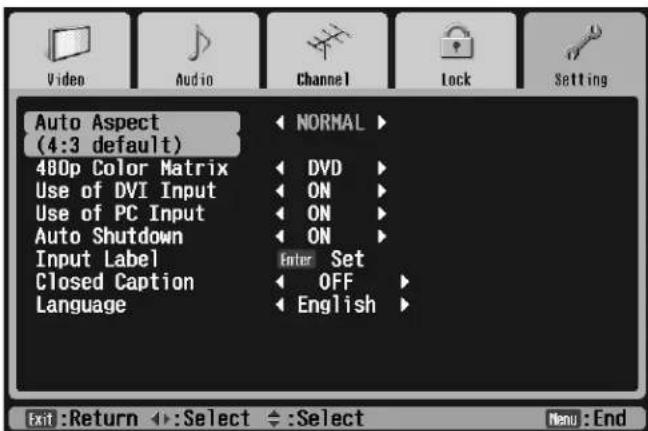
text_image
Video Audio Channel Lock Setting Auto Aspect (4:3 default) 480p Color Matrix Use of DVI Input Use of PC Input Auto Shutdown Input Label Closed Caption Language NORMAL DVD ON ON ON Enter Set OFF English Exit :Return ←:Select ←:Select Menu :EndNote
You can use the buttons on the TV or the remote for all menu operations.
4 Press the Prev < or Next > button to select one of these sizes:
- Normal is the default size of your video source, if it is in standard 4:3 aspect ratio.
• Full stretches a standard 4:3 ratio image to fit into your 16:9 ratio screen, stretching equally on all sides.
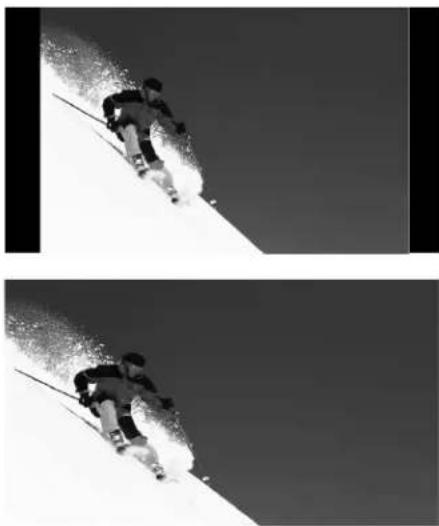
natural_image
Two black-and-white action shots of a skier descending a snowy slope under clear sky (no text or symbols visible)- Wide stretches a standard 4:3 ratio image to fit into your 16:9 ratio screen, but the image size stretches increasingly more from the center to the sides.

natural_image
Black and white photo of a skier descending a snowy slope under clear sky (no text or symbols visible)- Zoom enlarges the entire screen and cuts off some of the top and bottom for a closer view. Use Zoom when you're watching movies broadcast in Letterbox format so they fit your screen.
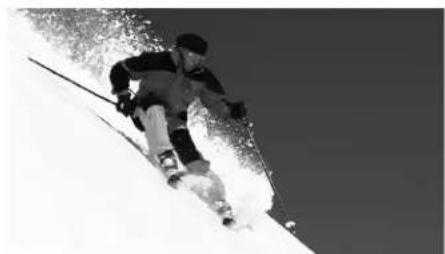
natural_image
Skier descending a snowy slope with motion blur, no visible text or symbols5 Press Exit to select another menu or press Menu to exit the menu system.
Adjusting the Sound
If you want to adjust the bass, treble, or balance of the sound from your TV speakers, you can change the Audio settings in the menu system. You can also turn off the TV speakers.
To turn the simulated Surround feature on or off, press the Surround button on the remote control. The setting appears briefly on the upper left corner of the screen. To change the default Surround setting, use the Audio menu.
Turn on a program that includes sound so you can check the results of your sound adjustments.
Note
If you just want to temporarily mute the sound, press the Mute button on the remote control.
Note
You can use the buttons on the TV or the remote for all menu operations.
1 Press the Menu button on the TV panel or the remote control.
2 To highlight the Audio menu tab, press Next >.
3 Press Enter. The Bass setting is highlighted.

text_image
Video Audio Channel Lock Setting Bass 0 Treble 0 Balance 0 Surround ON Speaker ON Exit:Return Enter:Adjust Select Menu:End4 Press Select ▼ or Select ▲ to highlight the Bass, Treble, or Balance setting.
5 Press Enter. The menu disappears and the setting selector appears on the bottom of the screen.
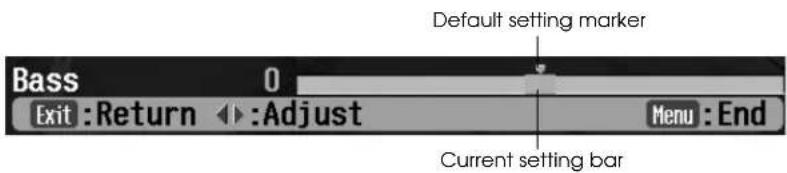
text_image
Default setting marker Bass 0 Exit :Return ▶ :Adjust Menu :End Current setting barPress Prev < or Next > to move the setting higher or lower. Press the buttons repeatedly or hold them down. The current setting bar moves and the setting number changes, but the default setting marker stays in position.
Press Exit to return to the menus or press Menu to return to your image.
6 To turn the Surround feature or the Speaker on or off, press Prev < or Next > to toggle between the two options.
7 Press Exit to select another menu or press Menu to exit the menu system.
Selecting Closed Caption Display
You can turn on closed caption display so you can read dialogue or station information transmitted along with certain programs. You can also turn on an option that displays closed captions whenever you press the Mute button on the remote control. That way, you won't miss any dialogue when you've muted the sound.
1 Press the Menu button on the TV panel or the remote control.
2 To highlight the Setting menu tab, press Next >.
3 Press Enter. The Auto Aspect setting is highlighted.

text_image
Video Audio Channel Lock Setting Auto Aspect (NORMAL) (4:3 default) 480p Color Matrix DVD Use of DVI Input ON Use of PC Input ON Auto Shutdown OFF Input Label Enter Set Closed Caption OFF Language English Exit :Return ←:Select ←:Select Menu :End4 Press Select ▼ to highlight the Closed Caption setting.
Note
If you connected headphones to the Headphone connector on the TV front panel, you can still hear sound if the Speaker setting is turned off.
Note
You can use the buttons on the TV or the remote for all menu operations.
Note
Not all the closed caption modes may be available for your program. Select CC1 or TEXT1 first to see if they work.
5 Press Prev < or Next > to select one of the following options:
CC1, CC2, CC3, or CC4
Displays closed captions of the program's dialogue and sound effects.
TEXT1, TEXT2, TEXT3, or TEXT4
Displays closed captions of the network and station information.
MUTE ON
Displays closed captions whenever you press the Mute button on the remote control.
OFF
Turns off closed captions.
6 Press Exit to select another menu or press Menu to exit the menu system.
Selecting Audio Mode Options
You can select a different audio mode if you want to listen to sound in Mono or Second Audio Program mode (the default audio mode is Stereo).
To select audio modes, press the MTS (Multichannel Television Stereo) button on the bottom of the remote control. The current mode appears in the upper left corner of the screen. Press the MTS button to change the mode as necessary.
Using Picture-Outside-Picture (POP)
You can view images from two channels or sources at once using POP (Picture-Outside-Picture). This lets you check on a sporting event on TV while you watch a movie, for example. You can also watch TV, a DVD, or another source while you view photos from a digital camera card or an external CD.
You cannot display images in POP mode using equipment connected to input sources in these combinations:
- Component Inputs 1 and 2
- Component Inputs 1 or 2 and DVI or PC
• D V I a n d P C
The first video source you select for viewing in POP is the main source. You'll only be able to hear the audio from this source, so select the source you'd like to listen to first.
1 Press the TV/Video button on the TV panel or remote control to select your main source (such as Video 1 for the DVD player). You'll hear audio only from this source when you turn on POP.
2 Press the POP button on the remote control.

text_image
Power TV CBL SAT VCA DVD TBD PAUSE + - SPO - 100 990 144 STOP REW PLAY FP 35 Photo View Freeze Print Menu Exit Photo Zoom Select Next Rotate Select 1 2 3 4 5 6 7 8 9 TA Press 0 TA Home TV/Video Mate Favorite Vol Ch Aspect: rPOP = Swap Swap Survend MTS Ctrl On Display SON POP button Swap buttonThe image from the first source appears on the left and the image from the second source appears on the right. (If you're watching a TV station and have no second video source running, the next TV channel is automatically selected as the second source.)

natural_image
Two black-and-white action photos: one showing a skier on a slope, the other showing a motorcyclist mid-jump against a cloudy sky (no text or symbols)First source Second sourceRed outline indicates currently selected source
3 The red outline indicates the currently selected source. You can control a source only when it is selected.
To switch from source to source, press the Swap button on the remote control. The sources move as you press the button.
Here's how to control sources in POP:
- To return to regular viewing, press Swap to select the source, if necessary, then press POP twice or press Exit. (To return to POP, press POP again.)
- To control a source, press Swap to select the source, then press the appropriate buttons, such as TV/Video to change the source or Photo Zoom + or - when you're controlling the Photo viewer.
Note
If you want to view photos on a digital photo card or CD while using POP, insert the card or CD first. The Photo viewer screen appears. Now press the POP button on the remote control. (You can only view images in this mode; you can't print.)
The Photo viewer window remains on the right side of the screen when you're using POP. When you press the Swap button, the red outline moves from source to source.
To exit the Photo viewer when its window is outlined in POP mode, press the POP button, press the 5 button, and press Enter.
Note
If you're viewing the Photo viewer in the right POP window, press Swap to select the other source before resizing the window. You can't resize the Photo viewer window directly in POP mode.
- To resize the POP windows, press Swap to select the source, then press Next > to enlarge its window or Prev. < to reduce it. The size of the other window is also adjusted to fit the screen, as shown below.

natural_image
Black-and-white photo of a snowboarder mid-air above a slope, with an inset showing a close-up of a motorcyclist performing a trick against a cloudy sky (no text or symbols visible)Using Channel Zapping
Channel zapping lets you get a quick look at programs broadcast on up to seven additional channels while you're watching a TV program on an eighth channel. If you see a different channel that you want to watch, you can make it your main program.
Note
You also need to turn off the V-Chip feature to use channel zapping. See page 45 for instructions.
To use channel zapping, you must be using the jumper cable that connects the ANT 2 and RF Output ports. This cable was installed on your TV at the factory. You must also turn off the ANT 2 port using the menus, as described below. This frees the necessary tuner.
Turning Off the ANT 2 Port
1 Make sure the jumper cable connecting the ANT 2 and RF Output ports is still installed on the back of your TV.
2 Press the Menu button on the TV panel or remote control. You see the Video menu.
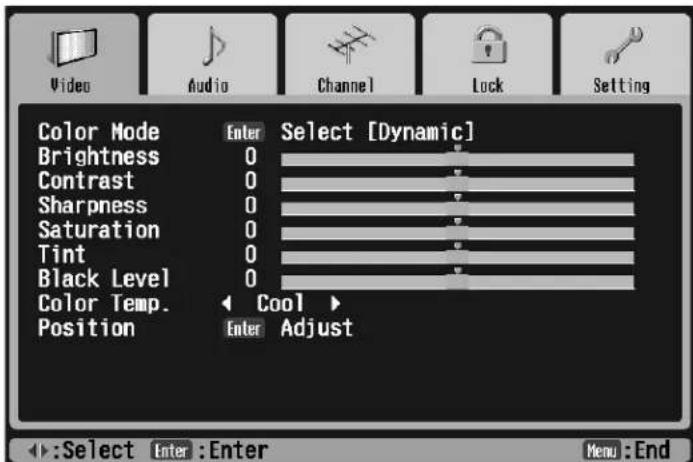
text_image
Video Audio Channel Lock Setting Color Mode Enter Select [Dynamic] Brightness 0 Contrast 0 Sharpness 0 Saturation 0 Tint 0 Black Level 0 Color Temp. Cool > Position Enter Adjust :Select Enter :Enter Menu :End3 Press Next > to highlight Channel, then press Enter.
4 Press Select ▼ to highlight Use of Ant. 2, then press Next > to select OFF.
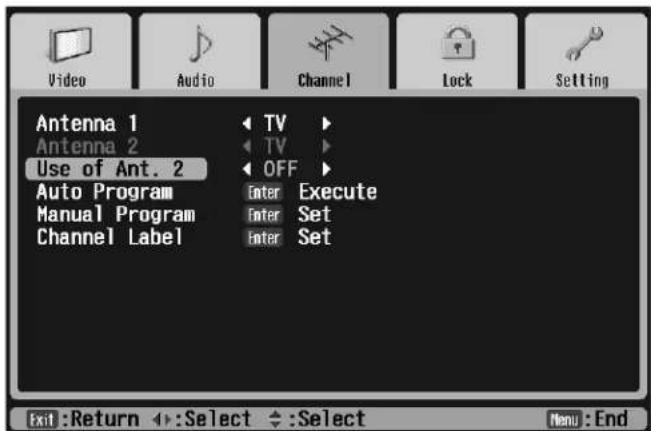
text_image
Video Audio Channel Lock Setting Antenna 1 Antenna 2 Use of Ant. 2 Auto Program Manual Program Channel Label TV TV OFF Enter Execute Enter Set Enter Set Exit:Return ←→:Select ←→:Select Menu:End5 Press Menu to exit the menu system.
Zapping Channels
The first channel you select in channel zapping is the main channel. You'll only be able to hear the audio from this channel, so select the channel you'd like to listen to first.
1 Press the POP button on the remote control. You see the POP (Picture-Outside-Picture) screen display (two images at once).
2 Press the POP button again.
You see the channel zapping window with your main channel on the left. The next 4 and previous 2 channels gradually fill windows on the right side of the screen with a frozen image from each channel. The main zapped channel is outlined in red at the top.

text_image
Power TV CBL SAT VCR DVD REC PRICE STOP REACH Photo View Freeze Print STP TV Menu Photo Zoom A Select Press Ctrl Color Select 1 2 3 4 5 6 7 8 9 Ch Press TV/Video Multi Favorites Vol Ch Appert APP-Snergy Mode Second MTS Color Ch Display B*SON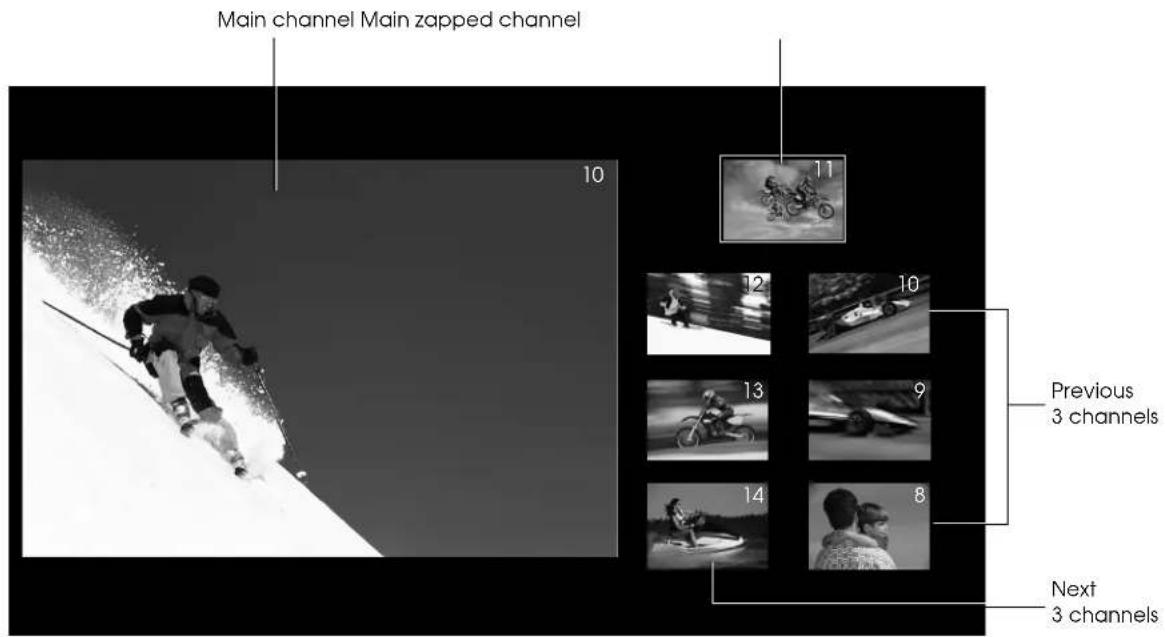
text_image
Main channel Main zapped channel 10 11 12 13 14 Previous 3 channels 8 Next 3 channels
text_image
Power TV CRL SAT VCR DVD REC PAUSE SKIP STOP REW PLAY FF Photo View Freeze Print Menu Exit Photo Zoom Select Prev Enter Next Select 1 2 3 4 5 6 7 8 9 Cn Press 0 Cn Enter TV/Video Mute Favorite Vol. CK Aspect POP-Swap-Sleep Surround MTS Color Ch Display PSON Sleep buttonNote
You can use the buttons on the TV or the remote for all menu operations.
Here's how to control the zapped channels:
• To view the zapped channel at the top as your main channel on the left, press the Swap button.
- To make the next zapped channel your main zapped channel, press Ch + or Select ▲. The channels rotate into position. When you see the channels you want, press Enter to stop channel rotation.
- To make the previous zapped channel your main zapped channel, press Ch - or Select ▼. The channels rotate into position. When you see the channels you want, press Enter to stop channel rotation.
To return to single channel viewing, press the POP or Exit button. (To view two channels at once, press POP again and follow the steps on page 66.)
Automatically Shutting Off the TV
You can set up the TV to shut off automatically in case you fall asleep or want to control how much viewing is allowed. You can set the TV to go into “sleep” mode after 30, 60, or 90 minutes or you can set it to turn off automatically after 30 minutes if it receives no signal input.
Putting the TV Into Sleep Mode
1 Press the Sleep button on the remote control. SLEEP OFF appears in the upper left corner of the screen.
2 Press the Sleep button again to select one of the following options:
3 To check how much time is left before the TV enters sleep mode, press the Sleep button. If less than 3 minutes are left, the time display remains on the screen. Press Sleep again if you want to change the sleep time or turn off sleep mode.
4 After the selected time has elapsed, the TV screen goes blank and the Power light flashes orange. When the Power light stays lit orange, the TV is in sleep mode.
To turn the TV back on, press the Power button on the TV panel or remote control.
Setting Up Auto Shutdown
1 Press the Menu button on the TV panel or the remote control.
2 To highlight the Setting menu tab, press Next >.
3 Press Enter. The Auto Aspect setting is highlighted.
4 Press Select ▼ to highlight Auto Shutdown.
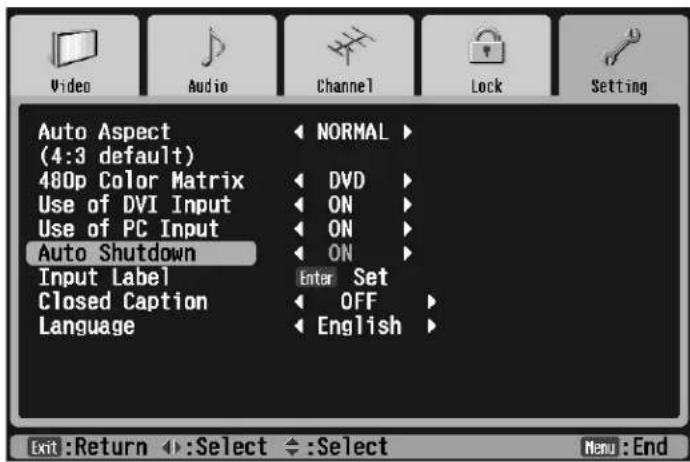
text_image
Video Audio Channel Lock Setting Auto Aspect (4:3 default) 480p Color Matrix Use of DVI Input Use of PC Input Auto Shutdown Input Label Closed Caption Language NORMAL DVD ON ON ON Enter Set OFF English Exit:Return ←:Select ←:Select Menu:End5 Press Prev. < or Next > to select ON.
6 Press Menu to exit the menu system. If there is no signal input after 30 minutes, the TV shuts off.
Controlling Other Equipment with the Remote Control
You can use the TV's remote control to select functions on your other home theater equipment, such as your DVD player, VCR, or satellite receiver. That way, you can use just one remote to control your movies or TV programs.
First you must program your remote control so it knows what kind of equipment you're using. You do this by entering a code that corresponds to the equipment and its manufacturer.
Programming the Remote Control
1 Look up the three-digit code for your equipment and manufacturer in the tables beginning on page 72.
2 Slide the switch on the top of the remote control to the setting for your equipment type. For example, to enter the DVD player code, slide the switch to the DVD setting.
3 Hold down the Menu button on the remote control until its light comes on (about 2 to 3 seconds).
4 Enter the three-digit code using the remote control number buttons (for example, 420). The remote control beeps once.
If it beeps 3 times, you've entered an invalid code. Repeat steps 3 and 4 using the correct code.
Note
If there are multiple codes listed for your equipment manufacturer and the first one you choose doesn't work, try another code.
When your remote control batteries wear out, you'll need to program the remote control again.
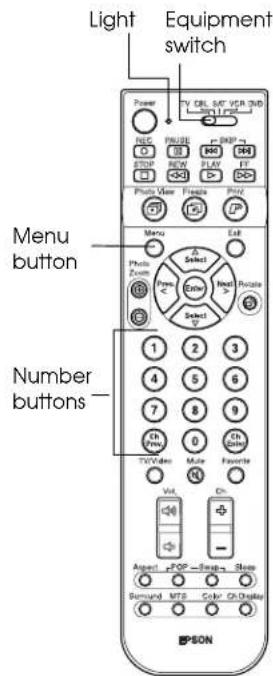
text_image
Light Equipment switch Power TV QTL SAT VCR UHD 1-200 LFP REC PUUSE R45P STOP NEW PLAY FT Photo View FPGA PIZZ Menu A Select Photo Cave Next > Radio Select Photo 1 2 3 4 5 6 7 8 9 Ch Plus 0 Ch Video Mute Favorite Vol. Ch Temp +POP -Switch -Boxe Sound MTG Color ON Digital Number buttonsRemote Control Programming Codes
DVD manufacturer's codes
| Manufacturer Code Manufacturer Code | |
| Aiwa 420 Philips 401, 426, 433 | |
| Denon 406, 423 Pioneer 415, 416 | |
| Funal 435 Proscan 424, 425 | |
| Harmon/Kardon 410 RCA 424, 425 | |
| Hitachi 407, 422 Samsung 421 | |
| JVC 413, 414 Sanyo 401 | |
| Kenwood 431 Sharp | 427, 434 |
| Konka 403, 404 Sony | 417, 418 |
| LG 411 Sylvania | 409 |
| Magnavox 401, 426 Thomson | 419 |
| Mitsubishi 412 Toshiba | 401, 402 |
| Onkyo 408, 432 | Yamaha 406, 428, 426, 433 |
| Panasonic 405, 406, 429, 430 | Zenith 411 |
VCR manufacturer's codes
| Manufacturer Code Manufacturer Code | ||
| Admiral | 364 Mitsubishi / MGA | 316, 341, 342, 343, 355,356, 357, 359 |
| Advanture | 336 Montgomery Ward | 358, 364 |
| Aiko | 346 Motorola 328, 364 | |
| Aiwa 319, 336, 363 | MTC 329, 336 | |
| Akai 321, 322, 323, 353, 355 | Multitech | 307, 315, 329, 333, 336,357 |
| American High | 328 NEC | 308, 310, 311, 343, 353,354 |
| Asha 329 Nikko 319 | ||
| Audio Dynamic | 310, 343, 354 | Nobelex 329 |
| Audiovox | 319 Olympic | 328, 351 |
| Bell & Howell | 311, 312 Olympus | 328 |
| Beaunmark | 329 Optimus | 319, 355, 364 |
| Broksonic | 334, 337, 338, 354 | Optonica 358 |
| Calix | 319 Orion | 334, 348 |
| Candle 310, 314, 319, 329 | Panasonic | 325, 326, 327, 328, 351,352 |
| Canon 328, 351 Pentax 316 | ||
| Carver 349 Pentax Research | 310 | |
VCR manufacturer's codes (continued)
| Manufacturer | Code | Manufacturer | Code |
| CCE 333, 346 Philco 312, 328, 334, 349, 351 | |||
| Citizen 310, 314, 319, 329, 346 Philips 319, 328, 349, | 351, 358 | ||
| Colortyme 310 Pilot 319 | |||
| Colt 333 Pioneer 316, 343, 350, 351 | |||
| Craig 313, 319, 329, 333 Proscan / RCA 304, 305, 306, 314, 315, | 316, 323, 328, 329, 349, 351, 365, 366, 367 | ||
| Curtis Mathes 305, 308, 310, 328, 329, 336, 351, 366 | Protec 333 | ||
| Cybernex | 329 Pulsar | 324 | |
| Daewoo | 312, 314, 328, 336, 338, 346 | Quarter | 311 |
| DBX | 308, 310, 343, 354 Quartz | 311 | |
| Dimensia | 364 Quasar | 325, 326, 328, 351, 352 | |
| Synatech | 336 RCA / Proscan 304, 305, 306, 314, 315, | 316, 323, 328, 329, 349, 351, 365, 366, 367 | |
| Electrohome | 319, 355 Radio | 311, 313, 318, 319, 328, 329, 336, 351, 355, 358, 364 | |
| Electrophonic | 319 Radix 319 | ||
| Emerson | 308, 312, 314, 319, 320, 329, 334, 335, 336, 337, 338, 339, 341, 346, 347, 355 356 | Randex | 319 |
| Fisher 311, 313, 317, 318, 319, 333 | Ricoh | 301 | |
| Fuji | 303, 328 Runco | 324 | |
| Funai | 336 Samsung | 307, 314, 315, 316, 321, 329, 340 | |
| Garrard | 336 Sankyo | 324, 364 | |
| General Electric | 305, 315, 328, 329, 349, 351, 365, 366 | Sansui | 343, 353, 354, |
| Go Video | 330 Sanyo | 311, 312, 313, 319, 329 | |
| Goldstar / LG | 310, 319 Scott | 307, 313, 314, 337, 338, 339, 341, 355, 357, 359 | |
| Grandiente | 336 Sears / LXI | 317, 319, 328 | |
| Harley Davidson | 336 Sharp | 355, 358, 364 | |
| Harmon Kardon | 310 Shintom | 301, 316, 333 | |
| Harwood | 333 Shogun | 329 | |
| Headquarter | 311 Signature 2000 | (M. Ward) | 336, 364 |
| Hitachi 316, 331, 332, 351, 353 Singer 301, 328, 333 | |||
| Hi-Q 313, 314 Sony 301, 302, 303, 360, 361, | 362 | ||
| Instant Replay 328, 351 STS 316, 328 | |||
| JC Penney 308, 310, 311, 316, 317,319, 328, 329, 343, 351,354 | SV2000 328 | ||
| JCL 328 Sylvania 328, 336, 341, 349, 351 | |||
| Jensen 316, 353 Symphonic | 336 | ||
| JVC | 308, 310, 311, 343, 344,345, 353, 354 | Tandy | 311 |
| Kenwood | 308, 310, 311, 319, 343,351, 354 | Tashiro | 319 |
| KLH 333 Tatung | 308, 310, 353, 354 | ||
| Kodak | 319, 328 Teac | 308, 310, 336, 353, 354 | |
| LG / Goldstar | 310, 319 Technics | 325, 328, 351 | |
| Lloyd | 336 Ter (k) nika | 309, 319, 328, 336, 351 | |
| Logik | 333 Toshiba | 314, 316, 317, 318, 322,341 | |
| LXI (Sears) | 311, 313, 316, 317, 318,319, 322, 328, 336 | Totevision | 319, 329 |
| Magnavox | 324, 326, 328, 349, 351 TM | MK | 308, 320, 329 |
| Magnin | 329 Unitech | 329 | |
| Marantz 308, 310, 311, 319, 328,343, 349, 351, 354 | Victor Research | 310, 314, 343 | |
| Marta 319 Victor | 343 | ||
| Matsushita | 328 Videoconcepts | 310, 314, 343, 355 | |
| Mei 328 Videosonic | 329 | ||
| Memorex | 311, 313, 324, 328, 329,336, 341, 351, 364 | Wards | 313, 314, 316, 319, 324,328, 329, 333, 336, 351,355, 358, 364 |
| MGA (Mitsubishi) | 316, 341, 342, 343, 355,356, 357, 359 | XR-1000 | 328, 333, 336 |
| MGN Tech | 329 | Yamaha | 308, 310, 311, 313, 341,343, 353, 354 |
| Midland 315 Zenith 301, 303, 324 | |||
| Minolta | 316 | ||
Satellite receiver manufacturer's codes
| Manufacturer Code Manufacturer Code | ||
| Alphastar 216 Philips 206 | ||
| Echostar 213, 214 Primestar 215 | ||
| GE 210, 211, 212 RCA / Proscan 210, 211, 212 | ||
| GI 215 Sony 209 | ||
| Hitachi | 203, 204 Toshiba | 202 |
| Hughes | 203 Uniden | 207 |
| JVC | 213 Radio Shack | 208 |
| Magnavox | 206 Zenith 205 | |
| Panasonic | 201 | |
Cable box manufacturer's codes
| Manufacturer Code Manufacturer Code | |||
| ABC | 118, 119, 120, 121, 129, 133 | Regal | 125, 126, 127, 128 |
| Color Voice | 103, 104 Rembrandt | 118 | |
| Contec | 131 Samsung 101 | ||
| Garrod | 117, 118, 119, 120, 121, 122, 123, 124, 129 | Scientific Atlanta | 110, 111, 132, 133 |
| Gemini | 112, 123 Signal 123 | ||
| GI (General) | 117, 118, 119, 120, 121, 122, 123, 124, 129 | Signature | 118 |
| Hamlin | 125, 126, 127, 128 | Sprucer | 106 |
| Hitachi | 118 Starcom | 120, 121, 123 | |
| Jerrold | 117, 118, 119, 120, 121, 122, 123, 124, 129 | Stargate 123 | |
| Magnavox | 116 Starquest | 123 | |
| Oak | 102, 130, 131 Tocom | 129 | |
| Panasonic | 106, 109, 115 Tusa | 123 | |
| Phillips 103, 104, 112, 116 | United Cable | 120 | |
| Pioneer | 101, 114 Videoway | 107 | |
| Radio Shack 123 View Star | 116, 131 | ||
| RCA / Proscan 113, 115, 106 Zenith 105, 108 | |||
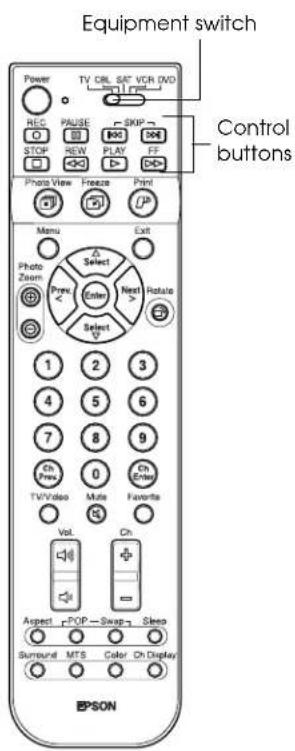
text_image
Equipment switch Power TV CRL SET VCR DVD REC PAUSE SKIP STOP REW PLAY FF Photo View Freeze Print Photo Zoom Menu Exit Select Prev Enter Next Rotate Select 1 2 3 4 5 6 7 8 9 Ch Press 0 Ch Enter TV/Video Multi Favorites Vol. Ch Aspect -POP -Swap -Sleep Surround MTS Color Ch Display EPSONUsing the Programmed Remote Control with Your Other Equipment
Once you've programmed the remote control, follow these steps to use it to control your other equipment:
1 Slide the switch at the top of the remote control to the type of equipment you want to control, such as DVD.
2 Use the 8 buttons on the top of the remote control to play and stop movies, skip and pause tracks, etc.
Viewing, Printing, and Saving Photos
You can use the digital photo card slots and printer built into your TV, and on the external CD-R/RW drive, to view, print, and save digital photos, as described in these sections:
- "Viewing Photos on a Digital Photo Card or CD" below
- "Freezing an Image for Printing" on page 86
- "Printing Photos" on page 89
- "Saving Photos to CD" on page 95
Viewing Photos on a Digital Photo Card or CD
You can view photos on your TV screen from a compatible digital photo card or a CD. You can also enlarge and rotate your photos and view them in a slide show.
- "Inserting a Photo Card" below
- "Inserting a CD" on page 80
- “Enlarging and Rotating the Photos” on page 83
• "Viewing a Slide Show" on page 84
Inserting a Photo Card
Make sure your photo card uses the file structure and naming conventions defined in the DCF standard so the Photo viewer can display your photos. Your photo card must contain folders and files using the following structure and format:
• The folder structure must be:
root/DCIM/ or root/DCIM/123abcde
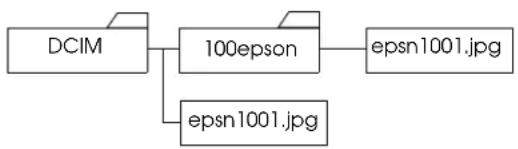
flowchart
graph TD
    A["DCIM"] --> B["100epson"]
    B --> C["epsn1001.jpg"]
    B --> D["epsn1001.jpg"]
Where root is the root directory with a DCIM folder beneath it. Your photos may be in the DCIM directory or in a folder beneath it. Any folders beneath the DCIM folder must be no more than 8 characters long, usually three numbers followed by up to 5 alphabetic characters, such as 100cpson. Most digital cameras automatically format the files this way, but if you copy photos to the photo card using another device, you may need to set up this structure yourself.
- The photo files must be in JPEG format and named:
abcd1234.jpg
Where abcd1234 is a file name 8 characters long, beginning with 4 letters and ending with 4 numbers higher than 0000, such as in epsn1001.jpg.
Note
Your TV can view photos in JPEG (Joint Photographic Experts Group) format on cards that are DCF (Design rule for Camera File system) version 1.0 compliant.
You cannot insert a
Microdrive™ disc in your TV.
Note
The Photo viewer cannot display, enlarge, or print TIF images. You see only the icon on the viewer screens for TIF images. You can write TIF images to a CD-R/RW and view them on your computer, however.
Caution
Don't remove a card from the slot when the Card light is flashing or you may damage the card. Wait until the Card light shines green to remove the card.
- The photo files must contain a time stamp, so the slide show can display the files in time stamp order.
- The photo files should contain thumbnail data, such as that included in Exif format JPEG files, to speed up display of the files in the Photo viewer.
1 Make sure the TV is turned on and the Power light is green and not flashing. Also make sure the Card and Printer lights are off.
2 Insert your photo card in the appropriate slot on the TV's front panel as shown on the next page. The Card light flashes orange as the TV reads the data on the card.
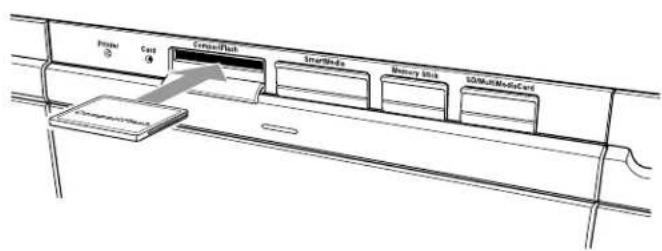
text_image
Control Check Control/Flush SmartMode Memory Link SDWMultiModeCardCompactFlash ^® card
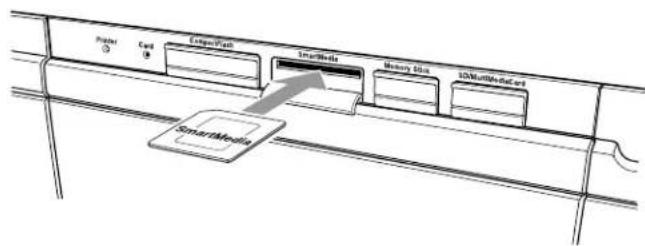
flowchart
graph TD
    A["SmartMeleta"] --> B["ComputerTech"]
    B --> C["SmartMeta"]
    C --> D["Memory Bits"]
    C --> E["10MultiCard"]
SmartMedia ^® card
Turn the card so the metal contacts face down

text_image
Printer Core CompaFirst SmartMedia Battery Block USB/MultiMediaCardMemory Stick®

text_image
Floor 3 End Insert/Flush Smart Belize Memory Slot 32-Math-BatchSD/MultiMediaCard™
3 After a few seconds, the Photo screen appears. It displays the photos on your card and outlines the first one in gold:

text_image
Selected photo Menu Photo View Page: 001/002 Photo 10/17/2003 10/17/2003 10/17/2003 10/18/2003 10/18/2003 10/19/2003 10/19/2003 10/20/2003 10/20/2003 10/20/2003 10/21/2003 10/22/2003 [Print]: Print [Exit]: Exit4 If you inserted more than one photo card, the photos on the card you inserted first appear on the screen.
To switch to the photos on another card, press the 1 button. (Or press Menu, press Select ▼ or Select ▲ to highlight Photo Source, then press Enter.)
The Photo Source menu on the left is opened. Press Select ▼ or Select ▲ to highlight the card you want to view and press Enter.
5 Follow the instructions in these sections to view or print your photos:
- "Enlarging and Rotating the Photos" on page 83
- "Viewing a Slide Show" on page 84
- "Printing Photos" on page 89
6 To exit the Photo viewer, press the 5 button or press Menu, highlight Exit viewer, and press Enter.
7 Wait for the Card light to shine green, then pull out your digital photo card(s).
Note
If the Photo viewer doesn't come up automatically, press the Photo View button on the TV panel or remote control.

text_image
Power TV CBL SAT VCR DVD REC PAUSE SKIP STOP REW PLAY FF Photo View Freeze Print Menu Exit Photo View Photo Zoom Select Enter Next > Rotate Prey Select 1 2 3 4 5 6 7 8 9 Ch Prey 0 Ch Enter TV/Video Mute Favorite Vol. Ch Aspect -POP - Swap - Sleep Surround MTS Color Ch Display EPSONNote
You can select the menus on the left of the screen by pressing the Menu button, highlighting the menu, and pressing Enter. You can also select them by pressing the number button for the menu, such as 1 for the Photo Source menu or 2 for the Slide Show menu.
Inserting a CD
Before you view photos on a CD, make sure you've connected the external CD-R/RW drive that came with your TV. See page 31 for instructions.
If you create a CD-R/RW of your photos using a computer, make sure that you use the file structure and naming conventions defined in the DCF standard so the Photo viewer can display your photos. Your CD-R/RW must contain folders and files using the following structure and format:
Note
The Photo viewer cannot display, enlarge, or print TIF images. You see only the icon on the viewer screens for TIF images. You can write TIF images to a CD-R/RW and view them on your computer, however.
Do not write photos to a CD-R/RW disc that was previously written to by a computer. You can view and print photos from these discs, but you cannot write new photos to them using your TV. This is because your TV and computer use different methods for writing files. When you want to write photos to a CD-R/RW, use a new, blank disc.
• The folder structure must be:
root/nnnnnnnn
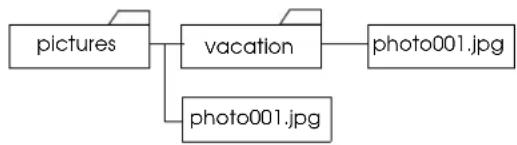
flowchart
graph TD
    A["pictures"] --> B["vacation"]
    B --> C["photo001.jpg"]
    B --> D["photo001.jpg"]
Where root is the root directory
and nnnnnnnnn is a folder up to 8 characters long beneath the root directory, such as /pictures. Any folders beneath the first level folder must also be no more than 8 characters long.
• The photo files must be named:
nnnnnnnn.jpg
Where nnnnnnnnn is a file name up to 8 characters long (consisting of alphabetic characters and the \~ and _ symbols), such as photo001.jpg. The file must be JPEG format.
- The photo files must contain a time stamp, so the slide show can display the files in time stamp order.
- The photo files should contain thumbnail data, such as that included in Exif format JPEG files, to speed up display of the files in the Photo viewer.
Follow these steps to insert a CD-R/RW in your external CD-R/RW drive:
1 Make sure the TV is turned on and the Power light is green and not flashing.
2 Press the eject button on the drive to open the tray.
3 Place your CD-R/RW on the tray with the label side facing up. Make sure the disc lays flat in the tray.
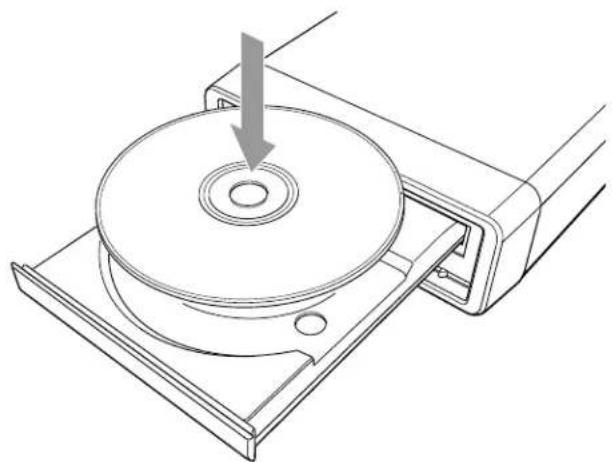
natural_image
Technical line drawing of a mechanical component with a circular base and mounting bracket, showing a downward arrow indicating a force or direction (no text or symbols present)Caution
Always use the eject button to open and close the tray. Pushing in the tray may damage the drive and your disc.
4 Press the eject button again to close the tray.
5 Press the Photo View button on the TV panel or remote control. The Photo screen appears:
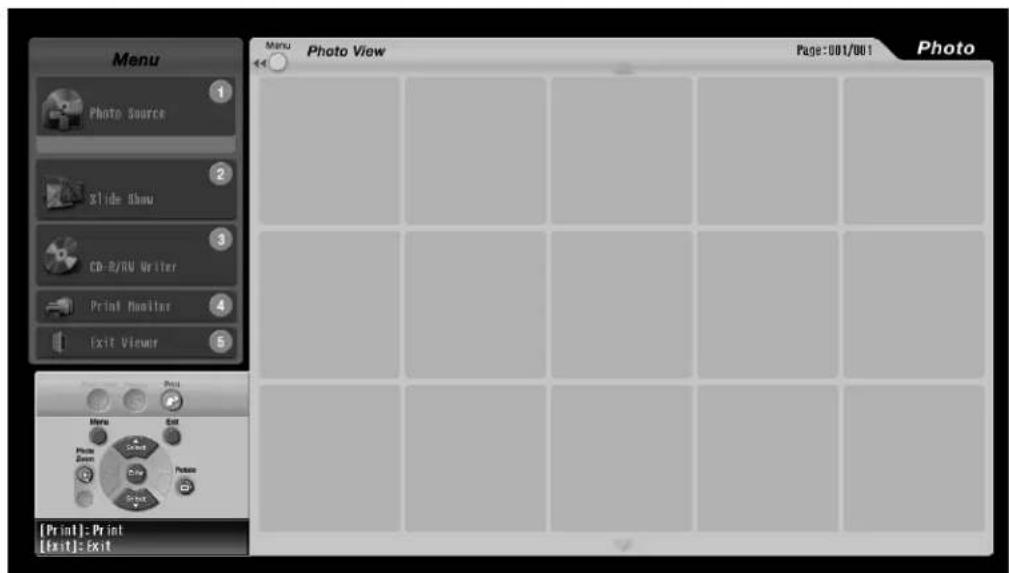
text_image
Menu Photo Source Slide Show CD-R/RU Writer Print Monitor Exit Viewer Photo View Page:001/001 Photo [Print]: Print [Exit]: Exit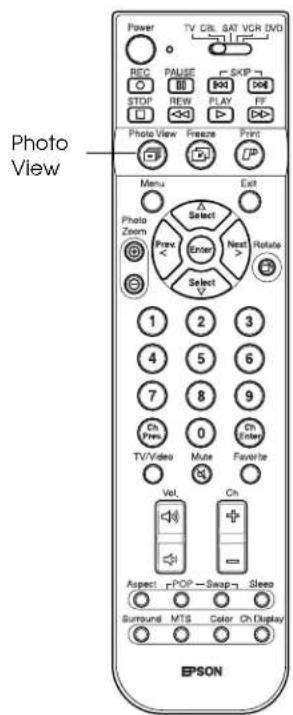
text_image
TV CRT SAT VCR DVD Photo View Menu Exit Photo Zoom Select Enter Next > Rotate Select 1 2 3 4 5 6 7 8 9 On Prev. 0 On Enter TV/Video Mute Favorite Vol. Ch Aspect rPOP-Swap-Sleep Surround MTS Color Ch Display EPSON6 Press the 1 button. (Or press the Menu button, then press Enter.)
The Photo Source menu on the left is opened.
Note
If you don't see your folders, your drive may not be ready. Wait a moment and repeat step 6.
If you still don't see your folders, your disc may contain the wrong folder or file format. See page 80 for details.
7 Press Select ▼ to highlight CD-R/RW (if necessary) and press Enter. You see the CD folders in the Photo View screen:
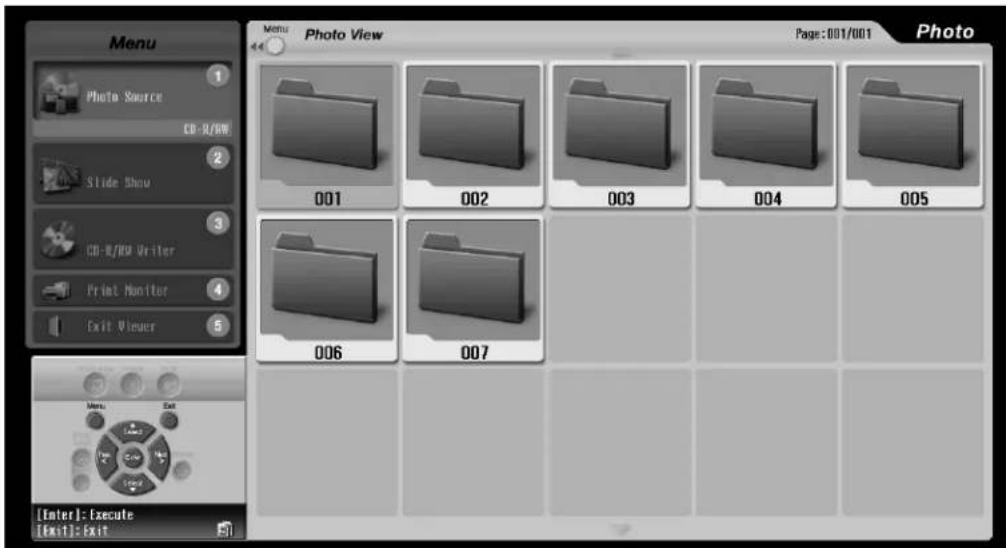
text_image
Menu Photo Source CD-R/WW Slide Show CD-R/WW Writer Print Monitor Exit Viewer [Enter]: Execute [Exit]: Exit Menu Photo View Page: 001/001 Photo 001 002 003 004 005 006 0078 Select a folder by pressing the Prev. <, Next >, Select ▼, or Select ▲ button. Then press Enter. The folder opens and the photos within it appear in the Photo View screen:
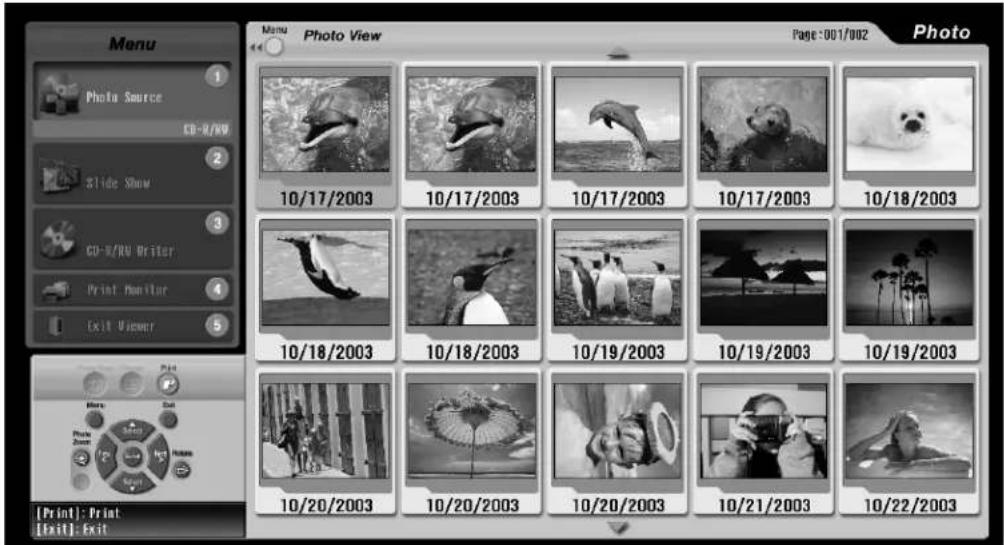
text_image
Menu Photo Source CD-R/WD Slide Show CD-R/WD Writer Print Monitor Exit Viewer 10/17/2003 10/17/2003 10/17/2003 10/17/2003 10/18/2003 10/18/2003 10/19/2003 10/19/2003 10/20/2003 10/20/2003 10/20/2003 10/21/2003 10/22/2003 Page: 001/002 Photo [Print]: Print [Exit]: Exit9 To view the photos in a different folder, press Exit. Then repeat step 8.
10 Follow the instructions in these sections to view or print your photos:
- "Enlarging and Rotating the Photos" on page 83
• "Viewing a Slide Show" on page 84 - "Printing Photos" on page 89
11 To exit the Photo viewer, press the 5 button or press Menu, highlight Exit viewer, and press Enter. Press the eject button on the CD-R/RW drive to remove your disc.
Enlarging and Rotating the Photos
You can enlarge the photos so that each one fills the screen for easy viewing. You can also rotate a photo so you can view it correctly. The rotation position is retained until you remove the card or CD.
1 If necessary, press Menu to move to the Photo View screen.
2 Select a photo by pressing the Prev. <, Next >, Select ▼, or Select ▲ button.
3 Press the Enter button on the TV panel or remote control. The current photo is enlarged.
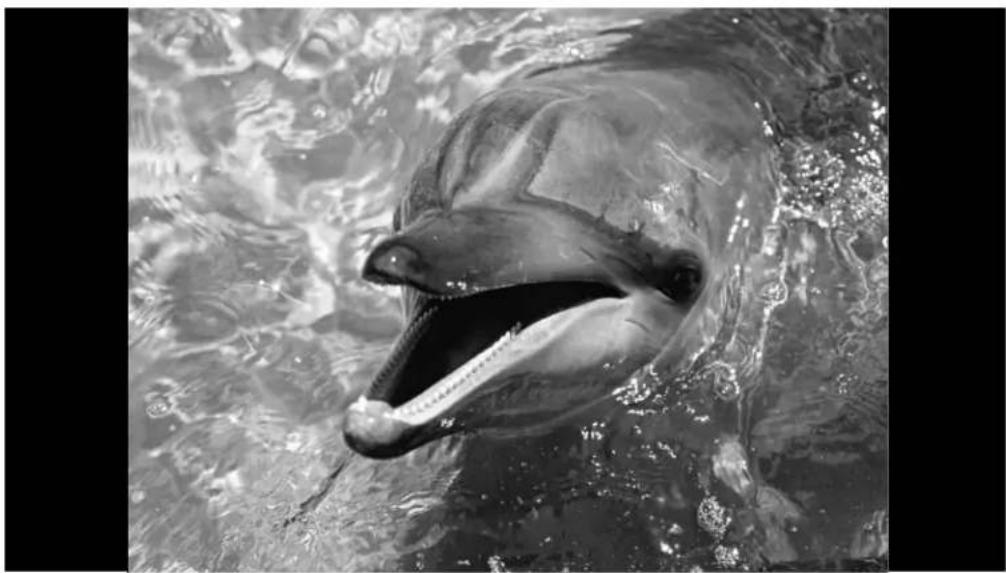
natural_image
Black-and-white photo of a dolphin swimming in water, showing its open mouth and tongue out (no text or symbols visible)4 To zoom into the photo further, press the Photo Zoom + button until the image is up to 3 or 4 times larger. Press Photo Zoom - to zoom out.
5 To rotate a photo, press the Rotate button on the remote control. Press it again to keep rotating.
6 To move to the next photo, press the Prev. <, Next >, Select ▼, or Select ▲ button.
7 To return to normal photo viewing, press the Exit button on the TV panel or remote control.
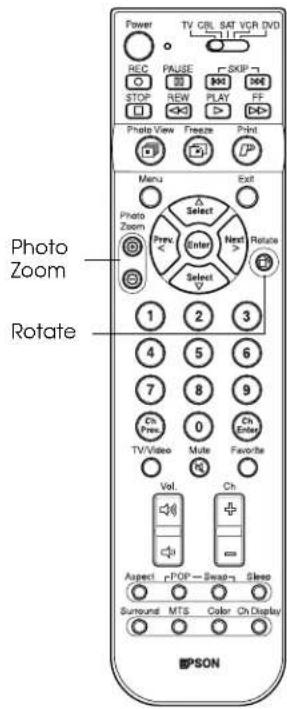
text_image
Power TV CRL SAT VCR DVD REC PAUSE SKIP STOP REW PLAY FF Photo View Freeze Print Menu Exit Photo Zoom Select Enter Next Rotate Prev Select V 1 2 3 4 5 6 7 8 9 On Press 0 On Enter TV/Video Mute Favorite Vol. Ch Aspect POP — Sweep— Sleep Surround MTS Color On Display PSONNote
You can't rotate an image when it is zoomed. Press Photo Zoom - or Exit to return the image to normal size, then press Rotate.
Note
To move between the Menu and Slide Show sides of the screen, just press Menu.
Caution
Don't remove a card from the slot when you're viewing a slide show or you may damage the card. Wait until the slide show is finished and the Card light shines green to remove the card.
Note
To print a photo when you're viewing it in Slide Show mode, press the Print button. Then follow the instructions on page 89 to print it.
Viewing a Slide Show
You can view your photos automatically, for a few seconds each, by running a slide show. You can view all the photos or just selected ones.
1 Press the 2 button. (Or press Menu, press Select ▼ or Select ▲ to highlight Slide Show, and press Enter.)
The Slide Show menu on the left of the screen is opened.
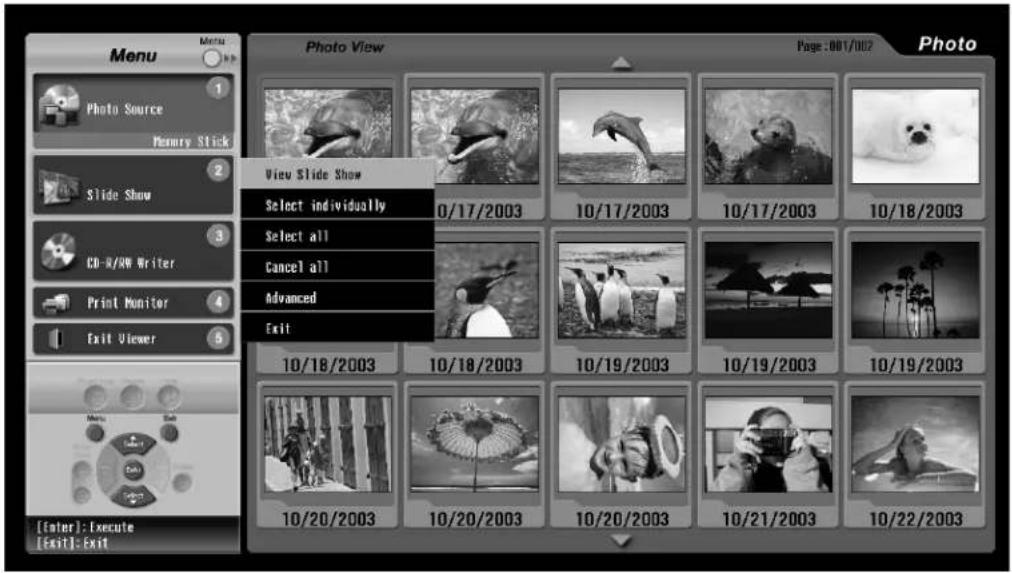
text_image
Menu Photo Source Memory Stick Slide Show CD-R/WR Writer Print Monitor Exit Viewer [Enter]: Execute [Exit]: Exit Photo View Page: 001/002 Photo View Slide Show Select individually 0/17/2003 10/17/2003 10/17/2003 10/18/2003 Select all Cancel all Advanced Exit 10/18/2003 10/18/2003 10/19/2003 10/19/2003 10/19/2003 10/20/2003 10/20/2003 10/20/2003 10/21/2003 10/22/20032 To view all your photos in a slide show, press Enter to select View Slide Show.
The first photo is enlarged and appears on the screen. It displays for 3 seconds, then the next photo is displayed.
3 To pause the slide show, press Enter. The || icon appears on the screen. To resume, press Enter again.
4 To end the slide show, press Exit.
Selecting Photos for a Slide Show
1 To select only some of your photos for a slide show, press Select ▼ to highlight Select individually and press Enter.
Your photos now appear with checkboxes, indicating that they are selected.
2 Press Prev. <, Next >, Select ▼, or Select ▲ to highlight the photos you don't want to include, then press Enter to deselect them. (To select them again, press Enter again.)

text_image
Menu Photo Source Henry Stick Slide Show CD-UNW Writer Print Monitor Exit Viewer Slide View Page:001/002 Photo 1 10/17/2003 10/17/2003 10/17/2003 10/18/2003 10/18/2003 10/19/2003 10/19/2003 10/20/2003 10/20/2003 10/20/2003 10/21/2003 10/21/2003 10/22/2003 [Enter]:Select Photo [Exit]:Exit3 When you're ready to run the slide show, press the 2 button, then press Enter to select View Slide Show.
4 To end the slide show, press Exit.
Changing the Slide Show Settings
1 To change the way your slide show plays, press the 2 button and select Advanced from the Slide Show menu. You see the Advanced Settings window:
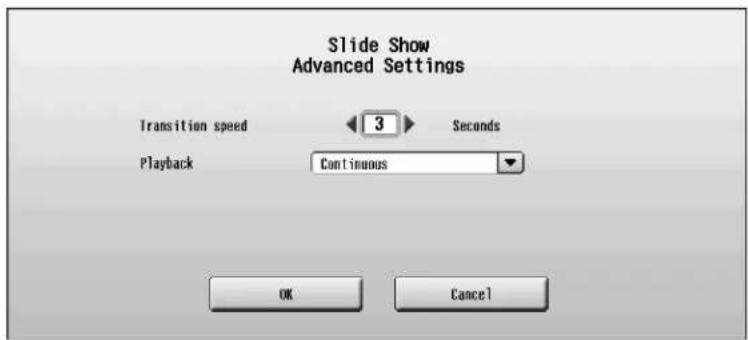
text_image
Slide Show Advanced Settings Transition speed 3 Seconds Playback Continuous OK Cancel2 Slides display at 3 second intervals. To lengthen the interval, press Next > to change the Transition speed setting from 3 to 10 seconds. (Press Select ▼ or Select ▲ to highlight Transition speed, if necessary.)
3 Slide shows play continuously until you stop them. To set them to play once and stop on their own, press Select ▼ to select Playback and press Enter. Press Select ▼ to select One cycle and press Enter.
4 When you're finished, press Select ▼ to highlight OK and press Enter. You return to the menu screen.
Note
To deselect all the photos, select Cancel all in the Slide Show menu. To select all the photos, choose Select all from the Slide Show menu.

text_image
Power TV CRL SAT VCR DVD REC PAUSE SKIP STOP REW PLAY FF Photo View Freeze Print Menu Exit Photo Zoom Select Enter Next Rotate Select 1 2 3 4 5 6 7 8 9 Ch Prey 0 Ch Video Mute Favorite Vol Ch Aspect rPOP Swap Sleep Surround MTS Color Ch Display EPSONFreezing an Image for Printing
You can “freeze” and print any video image that you see on your TV screen, such as scene in a movie or sporting event on TV (except from sources connected to the DVI or PC port). Then you can print the image, if you like.
1 While you're viewing a program or movie, press the Freeze button on the TV panel or remote control. You see the Freeze window:
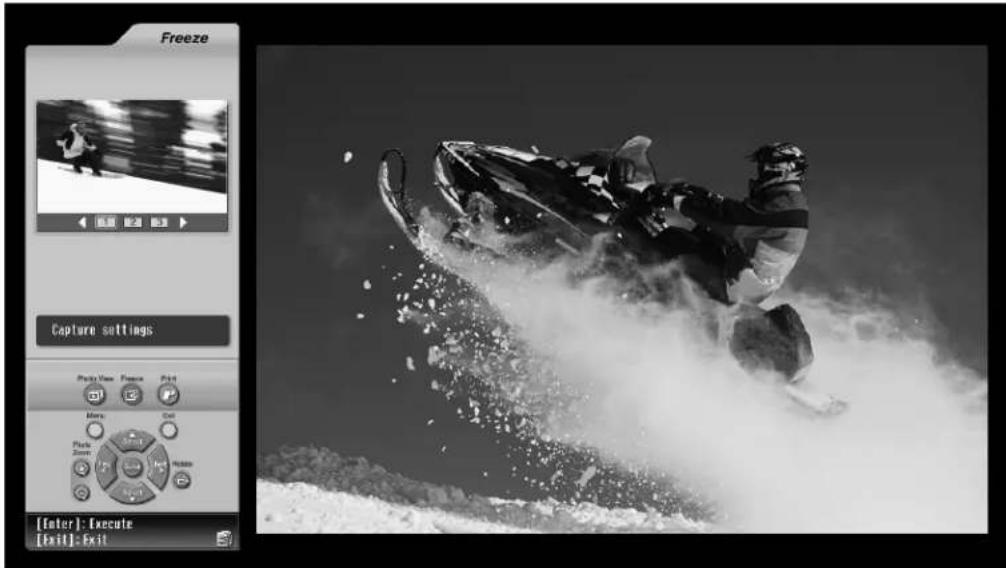
text_image
Freeze Capture settings Play Action Freeze Print Movie Out Photo Save Exit [Enter]: Execute [Exit]: ExitThe program or movie keeps running on the right and the frozen image is shown on the left.
2 Freeze captures 3 different images taken 40 milliseconds apart so you can choose the one you like best.
To view the 3 frozen images, press Prev. < or Next >.
(To freeze 3 different images, press the Freeze button again.)
3 To enlarge the selected image, press Enter. To return to the Freeze window, press Exit.
4 To print the currently displayed image, press the Print button on the TV panel or remote control.
You see the Print Settings screen. (The current program or video image keeps running on the right.)

text_image
Freeze Print Settings Print Copies Exit [Enter]: Execute [Exit]: Exit5 To select the number of printed copies you want, press Prev. < or Next>.
6 Press Enter. Your image is sent for printing.
During printing, the Printer light flashes. When printing is finished, the Printer light turns off.
7 To freeze another image for printing, repeat steps 1 through 6. You can send up to 3 frozen images for printing at one time.
8 To exit the Freeze program, press the Exit button on the TV panel or remote control.
To monitor or cancel your print job, see page 94.
If you see a printing error message, select Yes to check for the problem. Then follow the on-screen instructions to solve the problem and continue printing. For additional help, see page 119.
When you're finished printing, remove the borders from the edges of your photo by bending them back and forth and tearing them off.
Note
For most video images, freezing the display in the standard mode is sufficient. However, if you're freezing an image with text (such as a recipe) or freezing an image from a DVD player that uses progressive output, you may get better results by changing the capture mode. See page 88 for instructions.
Note
Make sure you have paper loaded in the printer. For instructions, see page 89.
Changing the Capture Settings
If you're freezing images containing text or images from a DVD player that uses progressive output, you may get better results by changing the capture method, as described below.
1 Press the Freeze button.
2 Press Select ▼ to highlight Capture settings and press Enter. You see the Capture Settings screen:

text_image
Capture settings Aspect Ratio Auto Capture Method Progressive scan Enter Cancel3 To change the aspect ratio of the image you're freezing, press Enter. Then press Select ▼ to highlight 16:9 and press Enter.
4 To change the capture method, press Select ▼ to highlight Capture Method and press Enter. Then press Select ▼ to highlight Progressive scan and press Enter.
5 When you're finished, press Select ▼ to highlight Enter and press Enter.
6 Press Exit to return to normal viewing.
7 Press Freeze to freeze an image using the new settings, as described on page 86.
Printing Photos
Once you've viewed your photos on a digital photo card or CD—or captured a video image using the Freeze button—follow the steps in these sections to print it.
- "Selecting a Photo and Printing It" on page 92
• "Monitoring or Cancelling Your Print Jobs" on page 94
Loading Paper
You can purchase Photo Printing Packet number ELSPP50 containing 50 sheets of paper and an ink cassette from your dealer or EPSON. Call (800) 873-7766 or visit the EPSON Store at www.epsonstore.com (U.S. sales only). In Canada, please call (800) 463-7766 for dealer referral.
Follow these steps to load up to 20 sheets of paper in the printer's paper cassette:
1 Press and release the printer cover latch to open the cover.
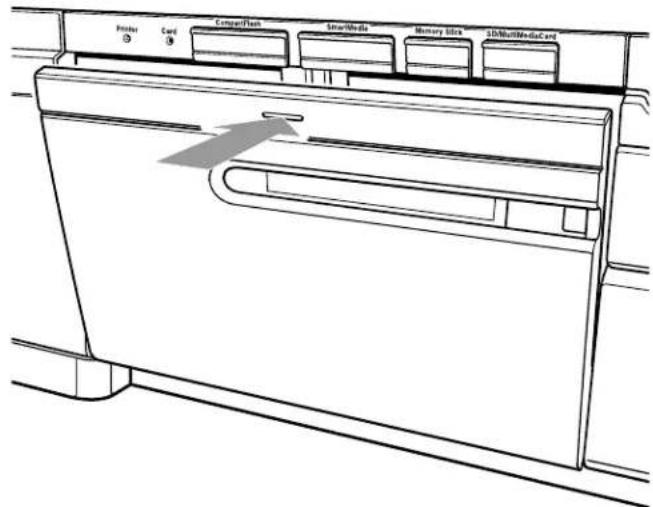
text_image
Foster Card CompantFleet SmartMedia Memory Bits 3D/MultiMediaCard2 Grasp the paper cassette and pull it all the way out of the printer.
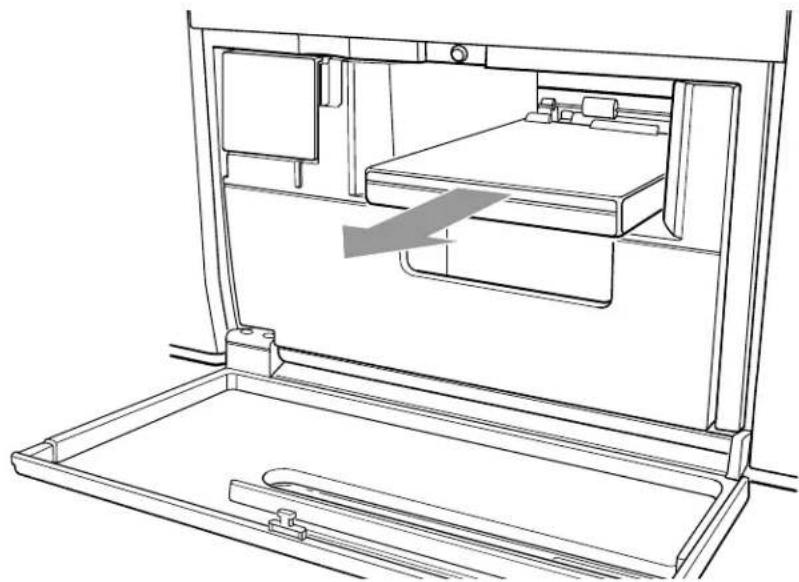
natural_image
Line drawing of a bed inside a storage unit with an open tray and handle, showing internal compartments and a gray arrow indicating direction (no text or symbols)3 Open the paper cassette lid.
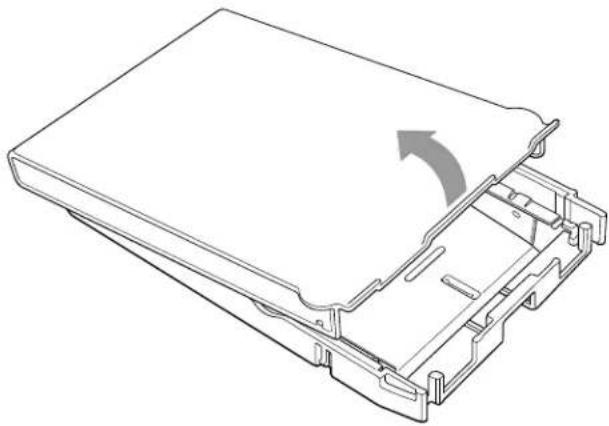
natural_image
Technical line drawing of a computer case with an arrow indicating rotation (no text or symbols present)4 You can load up to 20 sheets of paper. Position the paper with the shiny side face up, with the wide bordered edge facing the hinge of the cassette, and the narrow bordered end facing the open end of the cassette.

text_image
Wide border facing hinge Narrow border facing open end Shiny side upCaution
Don't remove the perforated borders on the paper before you print. The paper may jam or the printer may malfunction when it loads the paper.
Also, don't touch the printable (shiny) surface of the paper. Oil from your hands may cause the paper to discolor.
5 Close the cassette lid and press it until it clicks shut.

natural_image
Technical line drawing of a mechanical device with a curved arrow indicating rotation or movement (no text or symbols present)6 Slide the cassette into its slot, open end first. Push it in until it clicks into place.
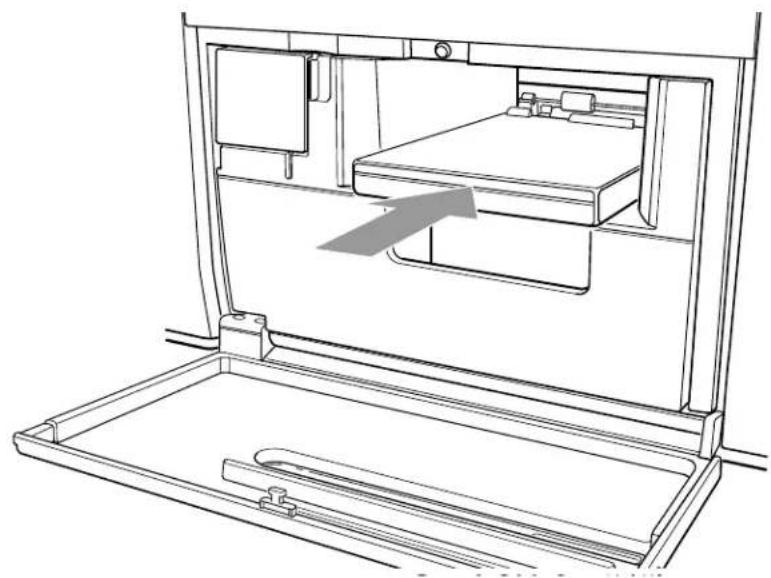
natural_image
Line drawing of a dormitory cabinet with bed, vent, and tray (no text or symbols)7 Close the printer cover.
Caution
Don't remove a card from the slot while you're printing or you may damage the card. Wait until printing is finished and the Card light shines green to remove the card.
Selecting a Photo and Printing It
You can print one photo at a time from a digital photo card or CD-R/RW.
If you haven't yet inserted your photo card or CD, insert it. The Photo viewer starts automatically. (If it doesn't start, press the Photo View button on the TV panel or remote control.).
1 Press Prev. <, Next >, Select ▼, or Select ▲ to highlight the photo you want to print.
Selected photo
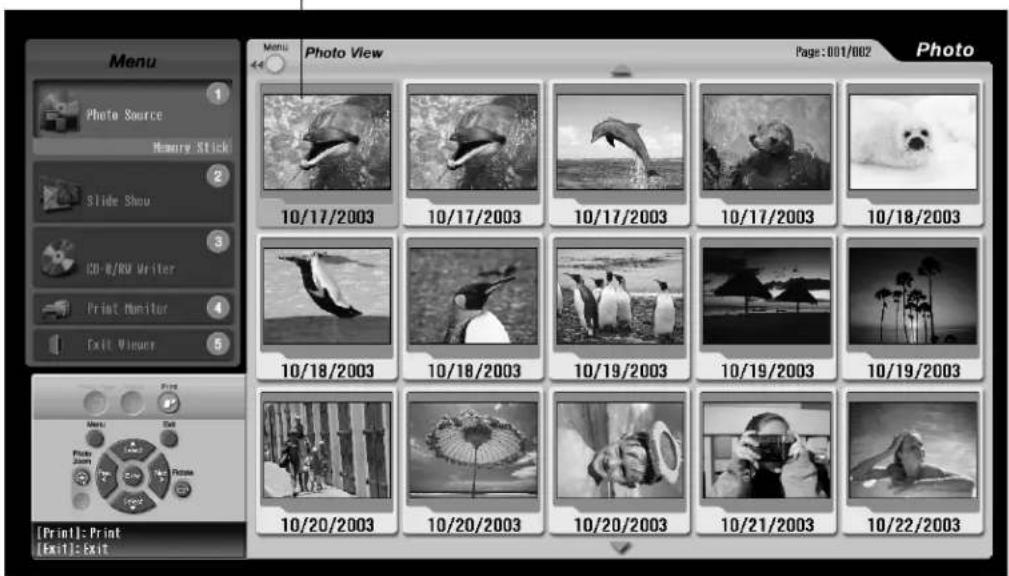
text_image
Menu Photo Source Memory Stick Slide Show CD-R/RO Writer Print Monitor Exit Viewer Menu File Photo View Page: 001/002 Photo 10/17/2003 10/17/2003 10/17/2003 10/17/2003 10/18/2003 10/18/2003 10/19/2003 10/19/2003 10/19/2003 10/20/2003 10/20/2003 10/20/2003 10/21/2003 10/22/2003 [Print]: Print [Exit]: ExitNote
If you need to rotate the photo for printing, press the Enter button on the remote control to enlarge it. Then press Rotate until it looks correct.
2 Press the Print button on the TV panel or remote control. You see the Print Settings screen:

text_image
Photo View Print Settings Print Copies Exit [Enter]: Execute [Exit]: Exit3 To print one copy of the photo, press Enter.
To print multiple copies, press Prev. < or Next > until the number in the Copies box is correct. Then press Enter.
After a moment, printing starts.
During printing, the Printer light flashes. When printing is finished, the Printer light turns off.
4 To print additional photos, repeat these steps. You can send multiple photos for printing at one time, up to 15 photos.
To monitor your print job or to cancel it, see the next section.
If you see a printing error message, select Yes to check for the problem. Then follow the on-screen instructions to solve the problem and continue printing. For additional help, see page 119.
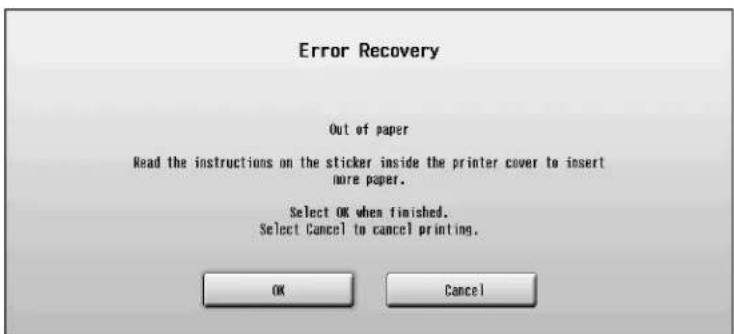
text_image
Error Recovery Out of paper Read the instructions on the sticker inside the printer cover to insert more paper. Select OK when finished. Select Cancel to cancel printing.When you're finished printing, remove the borders from the edges of your photo by bending them back and forth and tearing them off.
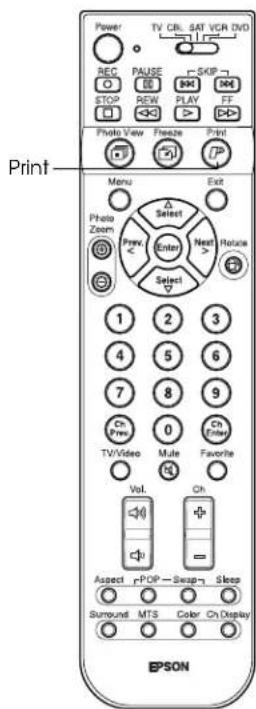
text_image
Power TV CRL SAT VCR DVD REC PAUSE SKIP STOP REW PLAY FT Photo View Freeze Print Print Menu Exit Photo Zoom Select Enter Next Relate Select 1 2 3 4 5 6 7 8 9 On Press On Enter TV/Video Mute Favorite Vol Ch Aspect rPOP Swap Sleep Surround MTS Color Ch Display EPSONCaution
Remove your printed photos before 10 of them have ejected from the printer so they don't block additional photos from ejecting properly or cause a paper jam.
Don't open the lock cover on the front of the printer while it is printing; this causes printing to stop.
Monitoring or Cancelling Your Print Jobs
Once you send a photo for printing, you can monitor its progress or cancel it.
1 Press the 4 button. (Or press Menu, press Select ▼ to highlight Print Monitor, and press Enter.) The Print Monitor menu opens.

text_image
Menu Photo Source Memory Stick Slide Show CD-R/NW Writer Print Monitor Exit Viewer Menu Exit [Inter]: Execute [Exit]: Exit Photo View Page: 001/002 Photo 10/17/2003 10/17/2003 10/17/2003 10/17/2003 10/18/2003 Select Print Job Cancel All Print Jobs Forecast Flow Artists Exit 10/20/2003 10/20/2003 10/20/2003 10/21/2003 10/22/20032 To monitor your print jobs, press Enter to choose Select Print Job. You see the Print Monitor screen:

text_image
Menu Photo Source Memory Stick Slide Show CD-R/RW Writer Print Monitor Exit Viewer Photo View Menu Exit [inter]: Execute [Exit]: Exit Print Monitor 1/1 Waiting 1/1 Waiting 1/1 Waiting 1/1 Waiting 1/1 Waiting 1/1 Waiting 1/1 Waiting 1/1 Waiting 1/1 Waiting 1/1 Waiting 1/1 Waiting 1/1 Waiting 1/1 Waiting 1/1 Waiting PhotoThe status of each print job is listed below the photo.
Cancelling an Individual Print Job
1 Press Prev. <, Next >, Select ▼, or Select ▲ to highlight the job and press Enter. You see the Printing or Waiting screen:

text_image
Print Monitor Waiting 0/1 Copies Cancel Exit [Enter]: Execute [Exit]: Exit2 Press Select ▲ to highlight Cancel and press Enter.
(If the print job has finished before you could cancel it, press Select ▼ to highlight Exit and press Enter.)
3 Select Yes on the next screen. Your print job is cancelled.
Cancelling All Print Jobs
1 Press the 4 button. (Or press Menu, press Select ▼ to highlight Print Monitor, and press Enter.)
2 Press Select ▼ to highlight Cancel All Print Jobs and press Enter.
3 Select Yes on the next screen and press Enter. Your print jobs are cancelled.
Saving Photos to CD
Before you save photos on a CD, make sure you've connected the external CD-R/RW drive that came with your TV. See page 31 for instructions. Also make sure you've connected the drive's power cable to the drive and to an electrical outlet and turned on the drive.
Make sure that your disc can be written to at 4X speed. Some high-speed discs don't support 4X writing, so check your disc specifications before inserting it into the drive.
Follow the instructions in "Inserting a Photo Card" on page 77 to insert your digital photo card and open the Photo viewer. Then follow the steps in the next section to insert a CD-R/RW in the drive and write the photos to it.
Note
You can't write photos to a CD-R/RW while viewing photos on a CD-R/RW.
Do not write photos to a CD-R/RW disc that was previously written to by a computer. You can view and print photos from these discs, but you cannot write new photos to them using your TV. This is because your TV and computer use different methods for writing files. When you want to write photos to a CD-R/RW, use only a new, blank disc.
Caution
Don't insert a CD-R/RW disc that has been written to by a computer or other source or you may lose your photos or other data.
Inserting a CD-R/RW
1 Press the eject button on the drive to open the tray.
2 Place a new, blank CD-R/RW disc on the tray with the label side facing up. Make sure the disc lays flat in the tray.

natural_image
Technical line drawing of a mechanical component with a circular base and mounting bracket, showing a downward arrow indicating a force or direction (no text or symbols present)Caution
Always use the eject button to open and close the tray. Pushing in the tray may damage the drive and your disc.
3 Press the eject button again to close the tray.
Writing Photos to a CD-R/RW
1 Press the 3 button. (Or press Menu, press Select ▼ to highlight CD-R/RW Writer, and press Enter.) The CD-R/RW Writer menu opens.
Caution
Don't remove a card from the slot while you're writing to CD-R/RW or you may damage the card or your CD-R/RW drive. Wait until writing is finished and the Card light shines green to remove the card.
Note
The Photo viewer cannot display, enlarge, or print TIF images. You see only the icon on the viewer screens for TIF images. You can write TIF images to a CD-R/RW and view them on your computer, however.
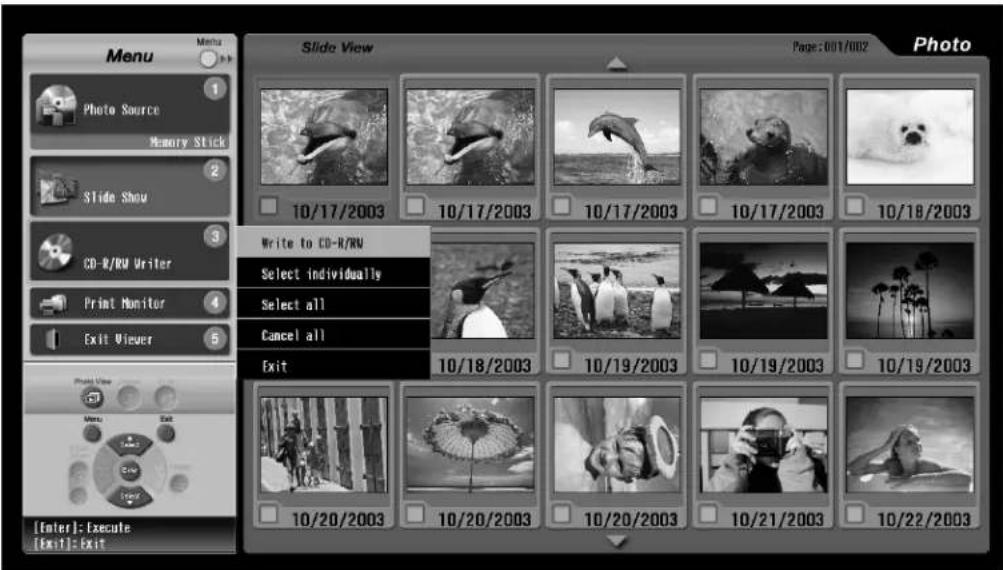
text_image
Menu Photo Source Memory Stick Slide Show CD-R/RW Writer Print Monitor Exit Viewer Slide View Page: 001/002 Photo Write to CD-R/RW Select individually Select all Cancel all Exit [Enter]: Execute [Exit]: Exit2 To write all of the photos on your digital photo card to the CD, press Enter to select Write to CD-R/RW.
3 You see a confirmation message. Select Yes and press Enter. (To cancel, select No and press Enter.)
4 You see a writing confirmation message while your photos are written to the CD and the drive light flashes. When it's finished, the CD tray opens and you see a completion message. Press Enter.
Selecting Photos for Writing to CD-R/RW
1 To select only some of your photos for writing to CD, press the 3 button, Select ▼ to highlight Select individually, and press Enter. Your photos now appear with checkboxes, indicating that they are selected.

text_image
Menu Photo Source Memory Stick Slide Show CD-R/RW Writer Print Monitor Exit Viewer Photo View Menu Exit [Enter]: Select Photo [Exit]: Exit Menu CD-R/RW Writer Page: 001/002 Photo 10/17/2003 10/17/2003 10/17/2003 10/18/2003 10/18/2003 10/19/2003 10/19/2003 10/20/2003 10/20/2003 10/20/2003 10/21/2003 10/22/20032 Press Prev. <, Next >, Select ▼, or Select ▲ to highlight the photos you don't want to include, then press Enter to deselect them. (To select them again, press Enter again.)
3 When you're ready to write the photos to the CD, press the 3 button to open the CD-R/RW Writer menu.
4 Press Enter to select Write to CD-R/RW.
5 You see a confirmation message. Select Yes and press Enter. (To cancel, select No and press Enter.)
6 You see a writing confirmation message while your photos are written to the CD and the drive light flashes. When it's finished, the CD tray opens and you see a completion message. Press Enter.
Viewing Photos Written to a CD-R/RW
1 Press the eject button to re-insert the CD.
2 Press the 1 button to open the Photo Source menu.
3 Press Select ▼ to highlight CD-R/RW and press Enter. Your photo folders appear.
4 Press Prev. <, Next >, Select ▼, or Select ▲ to select a folder and press Enter. You see your photos.
5 To view photos in another folder, press Exit. Then repeat step 4.
Caution
Don't eject a disc, remove a digital photo card, or disconnect or turn off the CD-R/RW drive while you're writing to a disc. You may damage your disc, card, or drive.
Note
To deselect all the photos, select Cancel all in the CD-R/RW Writer menu. To select all the photos, choose Select all from the CD-R/RW Writer menu.
Caring For the TV
To keep your TV clean and operating correctly, or to move it to another location, follow the steps in these sections:
- “Cleaning the TV” below
- "Cleaning the Air Filter" below
- “Replacing the TV Projection Lamp” on page 101
- “Replacing the Printer Ink Cassette” on page 105
- "Moving or Transporting the TV" on page 111
Cleaning the TV
Remove dust from the screen using only a soft, lint-free cloth, such as a lens-cleaning cloth or a flannel or microfiber cloth. If necessary, moisten the cloth with water and diluted mild detergent.
Don't press too hard as you clean the screen.
Clean the rest of the TV in the same way. Keep the panel covers closed as you clean and avoid dampening the connectors on the back.
Cleaning the Air Filter
You need to clean the TV's air filter periodically—about once a month—to make sure the TV doesn't overheat due to insufficient ventilation.
1 Pull out and remove the vent cover on the left side of the TV.

natural_image
Illustration of a computer monitor with ventilation grilles and a curved arrow indicating airflow (no text or symbols)Caution
Don't use strong or abrasive cleaning solutions to clean the screen. Never use alcohol, benzene, wax, window cleaner, scouring powder, or other cleaners.
2 Use a small, hand-held vacuum to remove dust from both sides of the vent cover.
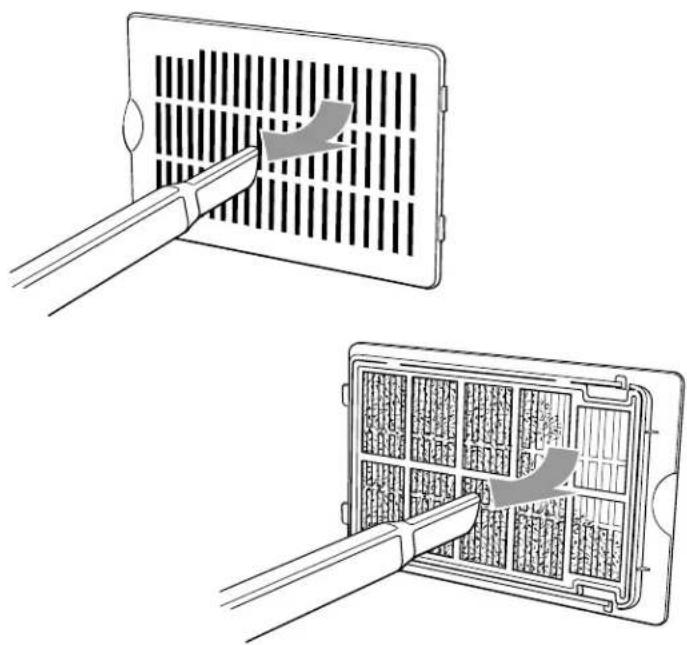
natural_image
Illustration showing two steps of installing a grid panel with arrows indicating the process (no text or symbols present)3 To replace the vent cover, insert the tabs on the back into the right side of the vent opening. Then press in the left side of the vent cover.

natural_image
Diagram of a heat exchanger or fan with vertical slats and airflow arrows indicating direction (no text or symbols)Replacing the TV Projection Lamp
The projection lamp in your TV is designed to last approximately 10,000 hours. Lamp life will vary depending on the mode selected, environmental conditions, and usage.
When it is time to replace the lamp, the TV displays a message on the screen.
The Lamp and Power lights on the front of the TV also indicate the status of the lamp.
You can purchase replacement lamp number ELSLP1 from your dealer or EPSON. Call (800) 873-7766 or visit the EPSON Store at www.epsonstore.com (U.S. sales only). In Canada, please call (800) 463-7766 for dealer referral
Don't replace the lamp unless you see a screen message or the Lamp and Power lights indicate lamp replacement, as described in the table below:
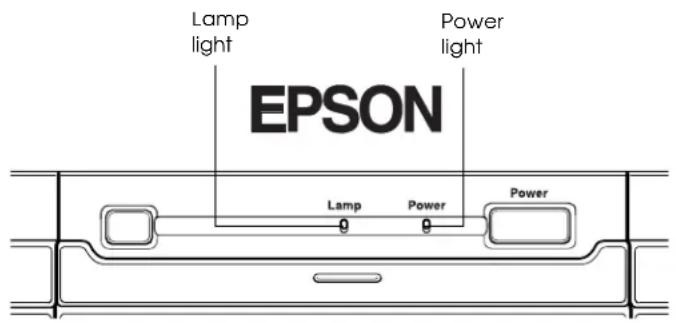
text_image
Lamp light Power light EPSON Lamp Power Power| Lamp light status | Power light status | Action |
| Orange flashing Any state Lamp replacement warning | ||
| The projection lamp is almost burned out. You may also see a message on the screen. | ||
| Obtain a replacement lamp, then follow the steps on page 102 to replace it. | ||
| Red Red Lamp error | ||
| The projection lamp has burned out or has another problem. Obtain a replacement lamp, then follow the steps on page 102 to replace it. | ||
| Red flashing Red Lamp cooling or open cover error | ||
| Make sure the lamp cover is closed completely. See the steps for accessing the cover on page 102. | ||
| If the cover is closed, the lamp may not have cooled completely before the cover was opened. Wait a few minutes until the fan stops running, then unplug the TV, plug it back in, and press the Power button to turn on the TV. If the error persists, contact EPSON as described on page 124. | ||
Caution
If your picture quality is not what it should be, try the other solutions described in "Picture Problems" on page 116 to correct it. If none of them work, you may need to replace the lamp. However, contact EPSON (see page 124) to see if lamp replacement would help before replacing the lamp unnecessarily.
Turn off the TV when not in use. Continuous 24-hour-a-day use may reduce its overall life.
Lamp Replacement Precautions
- Never touch the projection lamp immediately after turning off the TV or you could be burned. Wait at least 30 minutes after turning off the TV to let the lamp cool down completely.
- If the lamp has broken, handle the shards carefully to avoid injury.
- The used lamp contains mercury. Please consult your state and local regulations regarding disposal or recycling. Do not put the lamp in the trash.
• Install the new lamp securely to avoid an electrical short or other damage. Insert the lamp as described below, pushing it all the way into its slot. Tighten the screws to lock the lamp securely into place or the lamp will not come on. - Do not touch the glass on the lamp with your bare hands. This can shorten the lamp life and obscure the projected image. Use a cloth or glove to handle the new lamp.
- Do not drop the replacement lamp or bump it against any surface; the lamp could be permanently damaged.
WARNING
The lamp is very hot. You must let it cool down for at least 30 minutes before you touch it or you could be burned.
Removing and Installing the Lamp
1 Turn off the TV, unplug it from the electrical outlet, and let it cool down for at least 30 minutes.
2 Make sure you have a replacement lamp (part number: ELSLP1).
3 Grasp the right speaker cover on the bottom and side, pull it off, and set it aside.
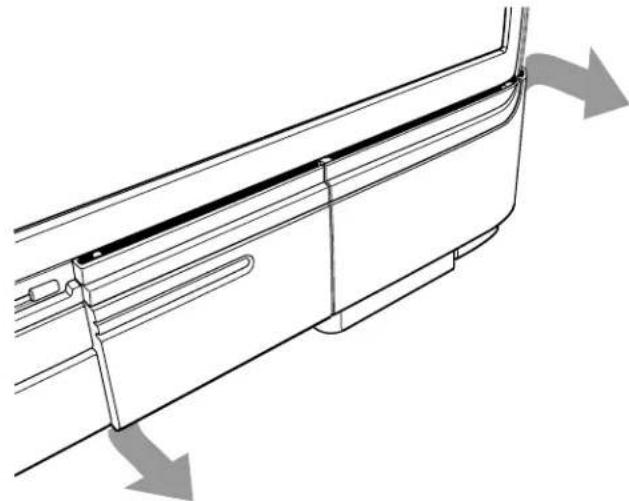
natural_image
Technical line drawing of a door frame with directional arrows indicating airflow or movement (no text or symbols)4 On the front of the TV, push in the latch on the lamp cover, then pull off the cover and set it aside.
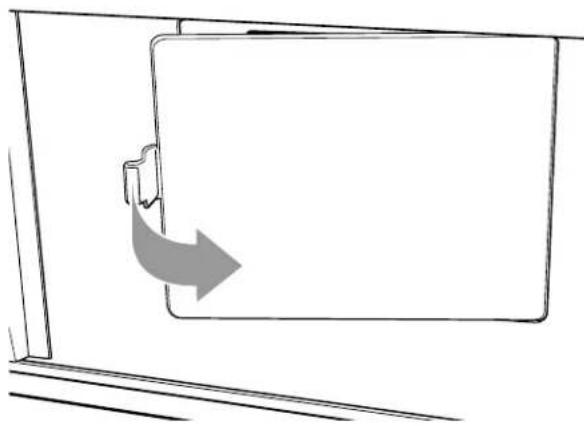
natural_image
Simple line drawing of a door with an arrow indicating clockwise motion (no text or symbols)5 Use the screwdriver that came with the replacement lamp to loosen the two screws in the corners of the lamp housing. (You can't remove the screws.)
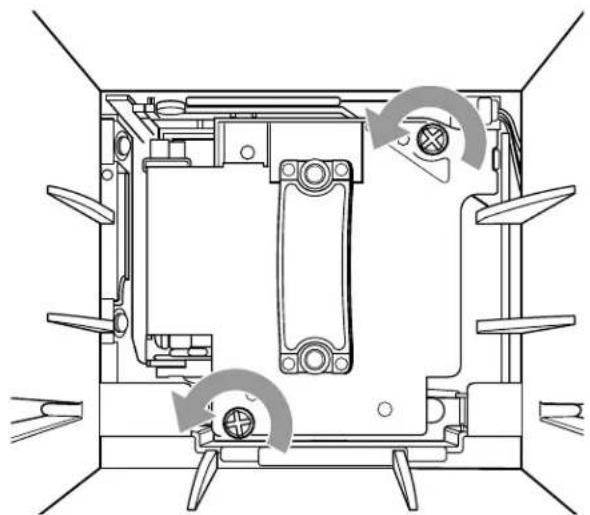
natural_image
Technical line drawing of a mechanical assembly with no visible text or symbols6 Grasp the handle on the lamp and pull it out of the TV. Set it aside carefully.
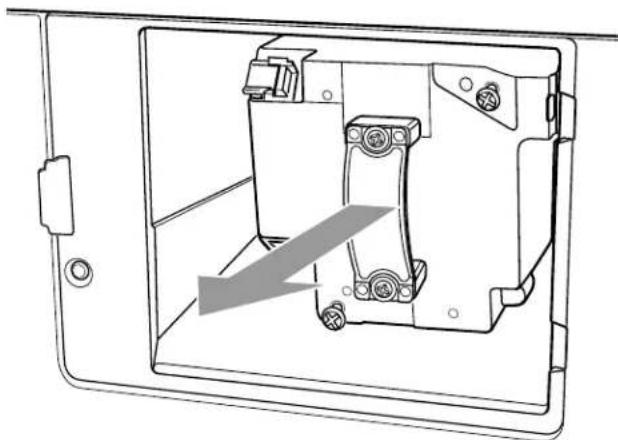
natural_image
Technical line drawing of a mechanical device with internal components and a gray arrow indicating direction (no text or symbols)Caution
Don't loosen the two screws securing the handle to the lamp housing.
7 Position the new lamp as shown below. Then slide it carefully into the lamp slot until it stops.

natural_image
Technical line drawing of an electrical contactor or relay device with no visible text or symbols8 Tighten the screws in the corners of the lamp housing.
9 Insert the tabs on the lamp cover into the right side of the opening. Then push in the left side to close the cover.

natural_image
Line drawing of a rectangular electronic component with mounting brackets and directional arrows indicating movement (no text or symbols)10 Align the speaker cover over the TV, making sure it fits into the holes. Push in on all sides of the cover.
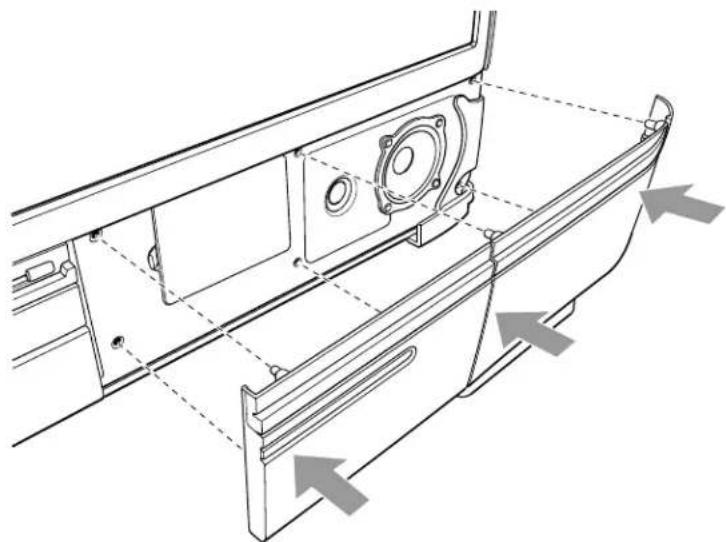
natural_image
Technical line drawing of a mechanical housing or enclosure with mounting brackets and internal components, showing no text or symbols.11 Plug in the TV and press the Power button to turn it on.
If the Lamp and Power lights come on or flash red, you may not have installed the lamp correctly or completely closed the lamp cover. Check the cover and lamp installation, making sure you followed all the steps above.
Replacing the Printer Ink Cassette
Make sure you have a new ink cassette before you begin. You can purchase Photo Printing Packet number ELSPP50 containing 50 sheets of paper and an ink cassette from your dealer or EPSON. Call (800) 873-7766 or visit the EPSON Store at www.epsonstore.com (U.S. sales only). In Canada, please call (800) 463-7766 for dealer referral.
Sliding Out the Printer
1 Press and release the printer cover latch to open the cover.
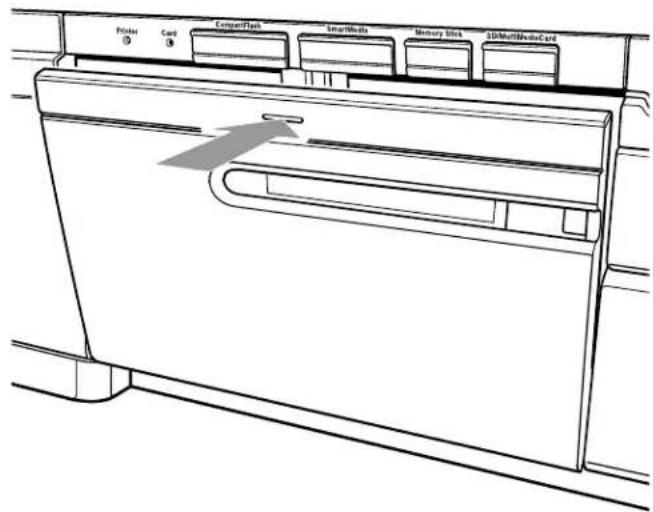
text_image
Picker ③ Card ④ CompactFlash SmartWhips Memory Slots 3DMultiMediaCard2 Flip down the printer lock cover.
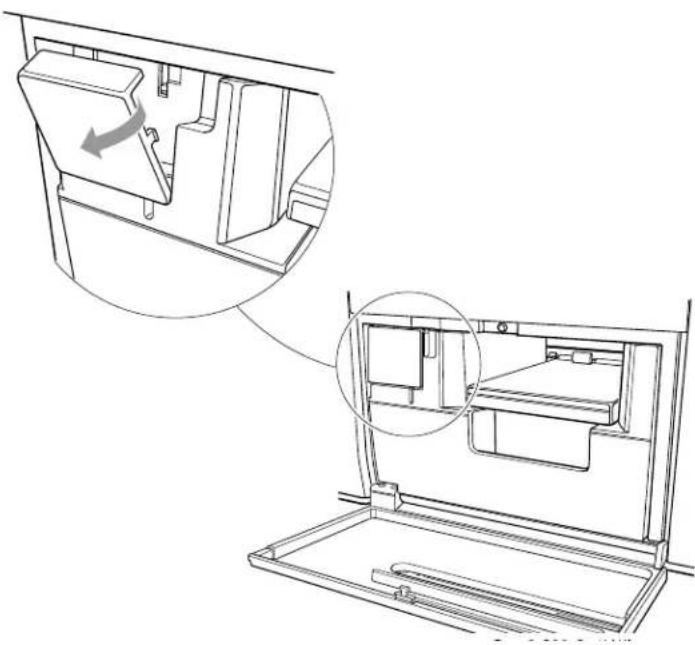
natural_image
Technical line drawing of a mechanical assembly with two views: top shows internal components, bottom shows exterior view (no text or symbols)3 Turn the printer lock counterclockwise to loosen it. It spins freely when it is unlocked.

natural_image
Technical line drawing of a mechanical assembly with a bracket and housing (no text or symbols)4 Grasp the printer handle and pull the printer out as far as it goes.

natural_image
Technical line drawing of a mechanical assembly with internal components and a gray arrow indicating direction (no text or symbols)Removing and Replacing the Ink Cassette
1 Pull open the ink cover on the side of the printer.
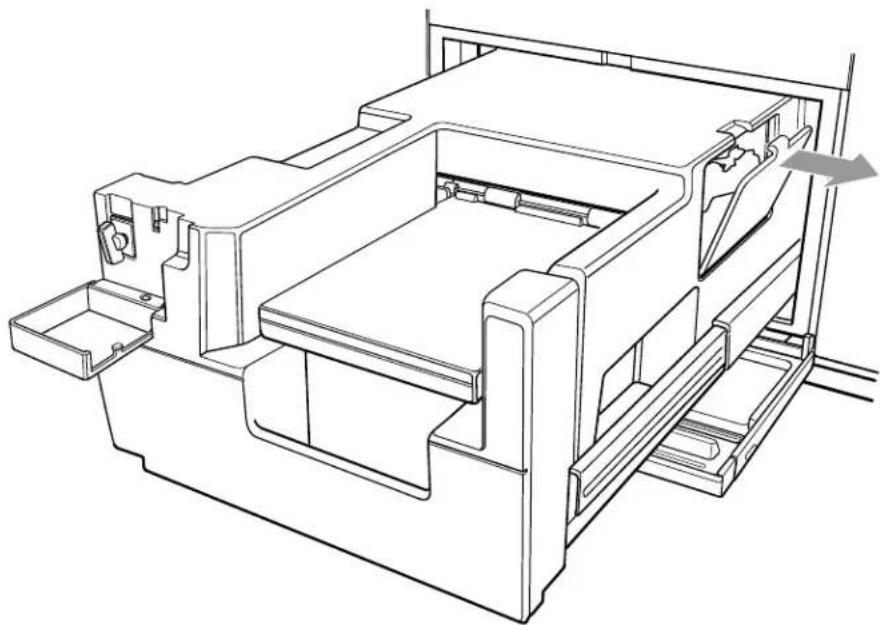
natural_image
Technical line drawing of a mechanical assembly with no visible text or symbols2 Lift up the ink cassette latch, then carefully pull out the cassette.
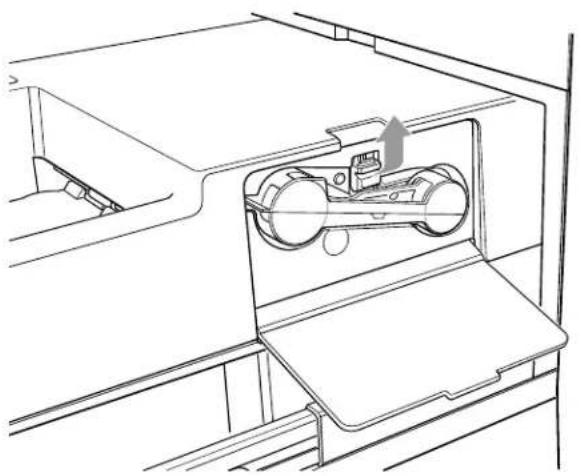
natural_image
Technical line drawing of a mechanical device inside a container, showing internal components and a directional arrow (no text or symbols)
natural_image
Technical line drawing of a mechanical device with rollers and a directional arrow (no text or symbols)Caution
If the ink ribbon catches in the opening, carefully adjust it so it doesn't tear.
3 Remove the new cassette from its package. Then remove the red paper strip from the end.
4 If the ink ribbon is slack, rotate the spindles to tighten it.
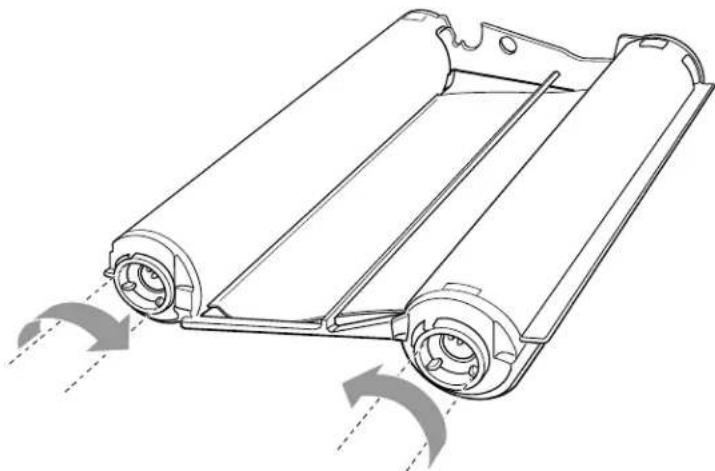
natural_image
Technical line drawing of a mechanical component with two wheels and directional arrows indicating motion (no text or symbols)5 Position the cassette as shown below. Then carefully align the cassette and its ribbon with the cassette slot.

text_image
Pointed plastic tab should face up Covered ends of the ribbon should face out6 Once it is aligned, gently push the cassette into the slot until it clicks into place beneath the latch.

natural_image
Technical line drawing of a mechanical device with internal components and an arrow indicating direction (no text or symbols)Note
Your ink cassette may look slightly different.
Caution
You must align the cassette and its ribbon with the slot or you will damage it when you slide it in.
7 Flip up the ink cover and push it closed.

natural_image
Technical line drawing of a mechanical assembly with no visible text or symbolsSliding the Printer Back In
1 Slide in the printer until it stops. If the printer catches on the opened printer door beneath it, gently hold the cover down and out of the way as you slide the printer in.
2 Push in on the printer lock as you turn it clockwise to tighten it. If it doesn't tighten, push the printer in further and try again.
Caution
Make sure to lock the printer securely and close the lock cover completely or the printer won't print.

natural_image
Technical line drawing of a mechanical assembly with a handle and base plate (no text or symbols)3 Flip up the lock cover.

natural_image
Technical line drawing of a mechanical component with an arrow indicating direction (no text or symbols)4 Close the printer cover.
If you see any error messages when you print, you may need to reinstall the ink cassette. Carefully follow the steps in this section to reinstall it.
Moving or Transporting the TV
When moving the TV, have two people grasp the TV as shown below. Lift the TV using the handles on the back and the top of the TV frame in the front.

natural_image
Line drawing of two people assembling or adjusting a device on a table (no text or symbols visible)When shipping the TV or transporting it for a long distance, pack it in its original box using the original packing materials.
WARNING
The TV is very heavy. Two people are required to lift or move the TV to avoid injury.
Never move the TV and its stand or other support together or the TV may fall and cause injury or be damaged.
Be careful not to drop the TV during transport; it may cause injury or the TV may be irreparably damaged.
Solving Problems
If you have a problem with the TV, read any error messages on the screen and check the lights on the front panel. Then follow the suggested solutions in these sections:
- "Responding to Screen Error Messages" below
- “Responding to TV Panel Light Indicators” on page 114
- "Basic Operation Problems" on page 116
• “Picture Problems” on page 116 - "Sound Problems" on page 117
- "TV Reception or Operation Problems" on page 118
- "Remote Control Problems" on page 118
- “Problems Viewing Photos from Cards or Discs” on page 119
- "Printing Problems" on page 119
- “Problems Saving Photos to a CD-R/RW” on page 124
- "Where to Get Help" on page 124
Responding to Screen Error Messages
Message Action
| Replace the Lamp The projection lamp is almost burned out.Order replacement lamp number ELSLP1, then follow the steps on page 101 to replace it. |
| The TV is overheating. The TV is overheating and the lamp has turned off automatically.Turn off the TV and let it cool for a few minutes. Make sure there is plenty of space around the TV and that none of the ventilation slots are obstructed. If necessary, clean the TV's air filter, as described on page 99. Then turn the TV back on. If it continues to overheat, contact EPSON as described on page 124. |
Responding to TV Panel Light Indicators

text_image
Lamp light Power light EPSON Lamp Power PowerLamp and Power light status
| Lamp light Power light Status | ||
| Off Green ReadyThe TV is operating normally. | ||
| Off Green flashing Warm-up modeAfter a moment, your image will appear. | ||
| Off Orange flashing Cool-down modeWait until the Power light stops flashing. When it lights orange without flashing, you can turn the TV back on or unplug it. | ||
| Off Orange Standby modeTo turn the TV back on, press the Power button. If you need to disconnect the power, you can unplug the TV. | ||
| Orange flashing Any state Lamp replacement warningThe projection lamp is almost burned out. You may also see a message on the screen.Obtain a replacement lamp, then follow the steps on page 101 to replace it. | ||
| Red | Red | Lamp errorThe projection lamp has burned out or has another problem.Obtain a replacement lamp, then follow the steps on page 101 to replace it. |
| Red flashing | Red | Lamp cooling or open cover errorMake sure the lamp cover is closed completely.If the cover is closed, the lamp may not have cooled completely before the cover was opened. Wait a few minutes until the fan stops running, then unplug the TV, plug it back in, and press the Power button to turn on the TV. If the error persists, contact EPSON as described on page 124. |
| Orange Red | High temperature warningThe TV is overheating and the lamp is turned off automatically. Turn off the TV and let it cool for a few minutes. Make sure there is plenty of space around the TV and that none of the ventilation slots are obstructed. Then turn the TV back on. If it continues to overheat, contact EPSON as described on page 124. | |
Lamp and Power light status
| Lamp light Power light | Status |
| Off Red Internal error | The TV has an internal problem. Press the Power button to turn off the TV and then unplug it. Contact EPSON as described on page 124. |
| Orange flashing Red Fan or temperature sensor error | The cooling fan or temperature sensor has a problem. Press the Power button to turn off the TV and then unplug it. Contact EPSON as described on page 124. |

text_image
Printer light Card light Printer Card CompactFlash SmartMedia Memory Stick SD/MultiMediaCardPrinter light status
| Printer light Status |
| Off The printer is in standby mode and is ready to print a photo. |
| Green flashing The printer is currently printing a photo or an image frozen on using the Freeze for printing feature. Don't remove a photo card or CD-R/RW from the slot or drive while the Card light is orange or flashing orange and the Printer light is flashing green or you may damage the card, disc, or drive. |
| Red The printer has encountered an error and displays an error message on the screen. Follow the instructions in the screen message to solve the problem. For details on printing, see page 89. |
Card light status
| Card light Status |
| Orange The TV is initializing the photo viewing system. When it's finished, the Card light turns off. Wait to insert another card or press the Photo View button until the Card light turns off; the TV won't be able to recognize the new card or respond to the button command. |
| Orange flashing The TV is reading photos from or writing photos to a digital photo card or CD-R/RW, or is printing photos. Don't remove a photo card or CD-R/RW from the slot or drive while the light is orange or flashing orange or you may damage the card, disc, or drive. |
| Green The TV is displaying photos from a digital photo card or CD-R/RW. If necessary, you can remove the card or disc safely. |
| Off If a card is inserted in a slot, the Photo viewer is finished accessing it. You can safely remove the card. |
Basic Operation Problems
| Problem Solution | |
| The power won’t come on. Make sure your electrical outlet is working and isn’t controlled by a switch or timer.Check that the power cord is connected securely.If the Power light is flashing orange, the TV is cooling down. When it stops flashing and lights orange, you can unplug it or press the Power button to turn it on.If the Power light is flashing green, the TV is warming up. When it stops flashing and lights green, the TV is ready.If the Power light is red, you may have a problem with the TV, depending on the state of the Lamp light. See “Responding to TV Panel Light Indicators” on page 114. | |
| The buttons on the TV panel don’t work. | When the TV is warming up or cooling down (the Power light is flashing), you can’t use the buttons. When the Power light stays lit green or orange, the buttons are operable. |
| The TV’s fan keeps running when the TV is turned off. | The TV cools itself down using internal power even after you turn it off. |
| You forgot the password you set up. | Follow the steps on page 43 to access the Lock menu, then enter the master password 0500. Continue following the steps to enter your password again. Make a note of the password you choose. |
Picture Problems
| Problem Solution | |
| You don’t see a picture or hear any sound. | If you see the “Signal is not supported” message on the screen, check the signal output by the equipment you have connected. If you connected to a computer, it may be outputting an incorrect refresh rate.If you see the No Signal message, check that your equipment is connected to the TV correctly and that you’ve put in a disc, tape, or other media, if necessary.If there are no messages on the TV screen, see if the TV is still warming up (the Power light is flashing green). If so, wait until the light stays lit green.Check the equipment you connected to make sure you selected the correct settings for sending images to the TV.If you locked an input source from use using the menus, you need to unlock it. Press the Menu button on the TV panel or remote control. Then follow the steps on page 49 to unlock the input source. |
| You hear sound, but you don’t see a picture or the picture doesn’t look right. | Make sure the cables are connected to the TV and your equipment correctly. See page 14 for instructions.Check the equipment you connected to make sure you selected the correct settings for sending images to the TV. |
| The picture displays with stripes, ghosting, snow, or static. | Check your TV reception and connections. Weather conditions and interference from other nearby equipment may be affecting the picture quality. Turn off or relocate equipment such as hair dryers or microwave ovens, if possible. |
| The picture contains no color or incorrect colors. | Press the Color button on the remote control to select another color mode. If you want to use a different mode as your default setting, change the Color Mode menu setting as described on page 60.Check your TV reception and connections. Weather conditions and interference from other nearby equipment may be affecting the picture quality. Turn off or relocate equipment such as hair dryers or microwave ovens, if possible.Check the equipment you connected to make sure you selected the correct settings for sending images to the TV.If the color is uneven in all the corners of the image, your TV may have an internal problem. Contact EPSON for more information. |
| The picture is dark. Press the | Menu button on the TV panel or remote control. Then follow the steps on page 60 to adjust the brightness and other picture settings.The TV's projection lamp may need to be replaced soon. |
| The screen has some bright spots or dark spots. | The TV's LCD screen contains a 99.99% accurate dot display. However, some individual dots may appear bright or dark. |
| The picture is cut off. Press the | Aspect button on the remote control to change the TV's aspect ratio, or the size and format of the display.Depending on the type of video you're viewing, the ratio may cause part of the image to be cut off.If you're zooming in on a DVD image, make sure the DVD player's aspect ratio is set to 16:9. Then set the TV's aspect ration to FULL. |
| A black frame appears around the picture. | Closed captioning is turned on. To turn it off, follow the instructions on page 65. |
Sound Problems
| Problem Solution | |
| You see a picture, but you don't hear any sound or the sound is flawed. | Press the Mute button on the remote control. If you had muted the sound, it should return.If the sound wasn't muted, press the Volume up button on the TV panel or remote control to turn up the volume.If you're using headphones, the speakers are automatically turned off while the headphones are connected.Make sure the audio cables you connected for the input source you're trying to listen to are connected to the correct connectors. See page 14 for instructions.Press the Menu button on the TV panel or remote control. Check the Speaker setting on the Audio menu to make sure it isn't turned off. See page 64 for instructions.If you're using POP (picture-outside-picture), you only hear sound from the main picture source. To hear sound from the other source, press the Swap button on the remote control.Make sure the TV program, tape, disc, or other video medium actually includes sound.If you're watching a dual language program with multiplex audio or a supplementary soundtrack, the program may not be dual language or the TV may not be set to SAP mode. Press the MTS button on the remote control until you see SAP in the upper left corner of the screen. Also check that your antenna or cable connections are secure. |
TV Reception or Operation Problems
| Problem Solution | |
| TV reception is poor. Check your antenna, cable, or digital or satellite receiver connections. See page 14 for details.Weather conditions and interference from other nearby equipment may be affecting the picture quality. Turn off or relocate equipment such as hair dryers or microwave ovens, if possible. | |
| The TV channels can’t be changed or selected. | When the TV is warming up or cooling down (the Power light is flashing), you can’t use the buttons. When the Power light stays lit green or orange, the buttons are operable.You may have locked access to certain channels. Press the Menu button on the TV panel or remote control. Check the Channel Lock settings on the Lock menu as described on page 49.You may have marked the channel to be skipped. Press the Menu button on the TV panel or remote control. Check the Manual Program settings on the Channel menu as described on page 41.If your cable system added channels and you can’t receive them, you need to run the Auto Program utility to add them to your TV’s list of receivable channels. Press theMenu button on the TV panel or remote control. Select the Auto Program setting on the Channel menu as described on page 39. |
| You can’t receive a digital broadcast. | You must connect the TV to a digital TV receiver to receive digital broadcasts. |
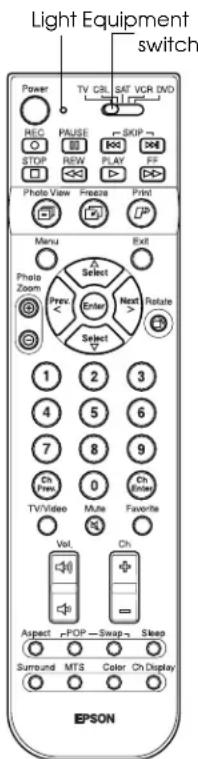
text_image
Light Equipment switch Power TV CRL SAT VCR DVD REC PAUSE SKIP STOP REW PLAY FF Photo View Freeze Print Menu Exit Photo Zoom Select Prev. Enter Next Select 1 2 3 4 5 6 7 8 9 Ch Prev 0 Ch Enter TV/Video Mute Favorite Vol Ch Aspect -POP-Swap-Sleep Surround MTS Color Ch Display EPSONRemote Control Problems
| Problem Solution | |
| The remote control doesn’t work. If you have problems with the remote control, press any button on the remote to check if the light on the top comes on.If the light comes on, move closer to the TV when you use the remote control and aim it at a more direct angle. Make sure the room lighting is not too bright and not shining directly on the remote control or the TV receiver window. Also clean the transmitter area on the top of the remote and the receiver window on the TV to see if that helps.If the light doesn’t come on, make sure the batteries are inserted correctly and are working. If necessary, replace the batteries.Make sure the equipment switch at the top of the remote control is set to the device you’re trying to control.If you still have problems with the remote control, try the other suggestions on page 34. |
Problems Viewing Photos from Cards or Discs
| Problem Solution | |
| You insert a card or CD, but you don't see your photos in the Photo viewer screen. | Make sure your card or disc actually contains photos and that the files aren't protected from viewing. Also check to see if your photo card is protected from viewing. Your card should be formatted for multi-session packet writing and your files contained in a DCF compatible folder structure. See page 77 and page 80 for details.Your photos may not be in the correct format. They should be JPEG (not progressive JPEG) files with resolutions between 120 × 120 to 4600 × 4600 pixels. If your files are in this format and resolution range, look at them on a computer to see if you can see them there. If you can't, they are probably corrupted. |
| Your photos don't look right when you view them in the Photo viewer. | Make sure your photos are in JPEG (not progressive JPEG) format and are between 120 × 120 and 4600 × 4600 pixel resolution.Check the TV's Color Mode, Brightness, and other tone settings. Press the Color button on the remote control to cycle though the color modes. See page 60 to adjust the other tone settings. |
Printing Problems
When the printer is out of paper or ink, or has another detectable problem, the TV displays an error message on the screen. Follow the on-screen instructions or the instructions on the sticker inside the printer door to solve these problems. If the error message contains an error code, write down the code number and contact EPSON as described below.
If loading paper or ink, locking the printer, or closing its door doesn't solve the problem, try the solutions listed here.
| Problem Solution | |
| Nothing is printed. If you removed a digital photo card or CD that contained the image you were printing, the TV cancels printing automatically. Insert the card or disc and print again. For detailed steps, see page 89.You may have set up too many photos to print at one time. You can send up to 15 photos or up to 3 captured images for printing at one time. Each photo or image must be 3MB or smaller. | |
| A blank page prints. Your ink ribbon may need replacement. Obtain a Photo Printing Packet and replace the ink cassette as described on page 105. | |
| The printed colors are incorrect, smudged, or streaked. | Make sure you loaded the paper with the shiny side up. See page 89 for instructions.Your ink ribbon may need replacement. Obtain a Photo Printing Packet and replace the ink cassette as described on page 105.Make sure your photo or image is 3MB or smaller in size.Printed colors can never exactly match the screen colors. |
| Paper is jammed in the printer. If paper jams in the printer at the front, gently pull the paper out and try printing again.If paper is still jammed in the printer, you may need to clear the jam from the back of the printer. Follow the steps beginning on page 120 to clear the jam. | |
Clearing a Paper Jam From the Back of the Printer
1 Press and release the printer cover latch to open the cover.
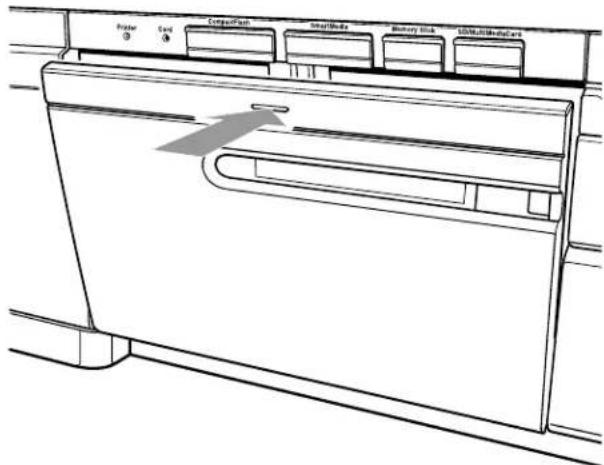
text_image
Radiator ① Card Compaifier SmartBonds Battery Stick 50Hz/100kHz/125Hz2 Flip down the printer lock cover.
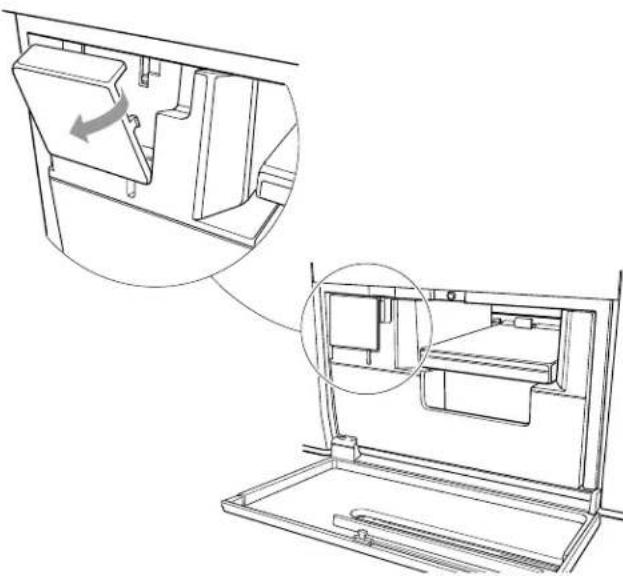
natural_image
Technical line drawing of a mechanical device with an inset showing a component being rotated (no text or symbols present)3 Turn the printer lock counterclockwise to loosen it. It spins freely when it is unlocked.

natural_image
Technical line drawing of a mechanical assembly with a tray and housing (no text or symbols)4 Grasp the printer handle and pull the printer out as far as it goes.

natural_image
Technical line drawing of a mechanical assembly with no visible text or symbols5 Use a Phillips-head screwdriver with a shaft at least 6 inches long to loosen the 2 screws securing the printer on each side, as shown below.
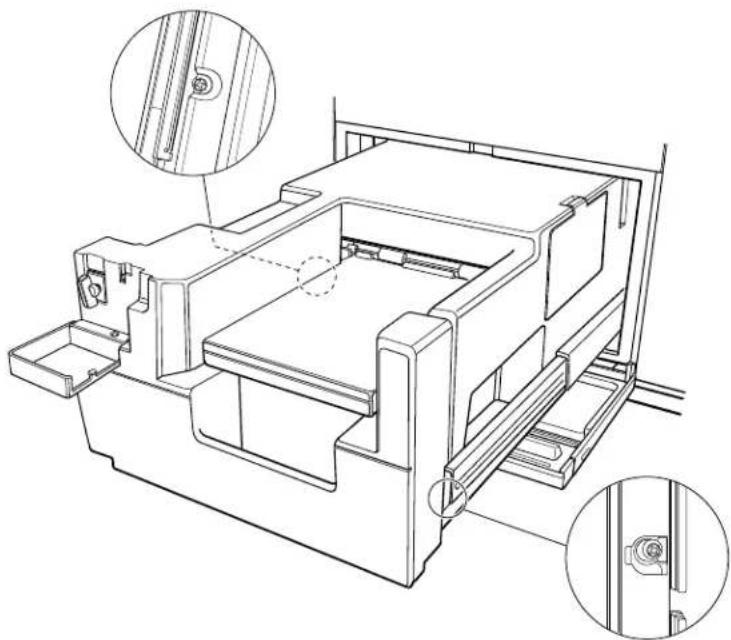
natural_image
Technical line drawing of a mechanical assembly with two views of a component (no text or symbols present)6 Lift up the front of the printer slightly and slide it forward off of its guiderails until you can access the back of the printer.
7 Open the back door of the printer and pull out any paper jammed inside.

natural_image
Technical line drawing of a mechanical component with an arrow indicating rotational motion (no text or symbols)8 Close the back door.
9 Slide the printer back onto its guiderails and align the screws with the screw holes on each side.
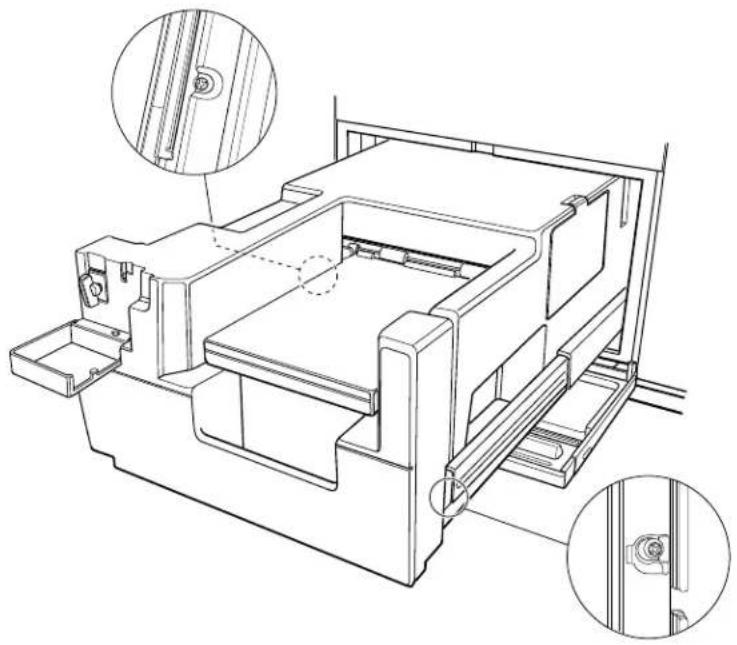
natural_image
Technical line drawing of a mechanical assembly with two circular insets showing close-ups of structural components (no text or symbols)10 Tighten the screws securely.
11 Slide in the printer until it stops. If the printer catches on the opened printer door beneath it, gently hold the cover down and out of the way as you slide the printer in.
12 Push in on the printer lock as you turn it clockwise to tighten it. If it doesn't tighten, push the printer in further and try again.
13 Flip up the lock cover.

natural_image
Technical line drawing of a mechanical assembly with a tray and housing (no text or symbols)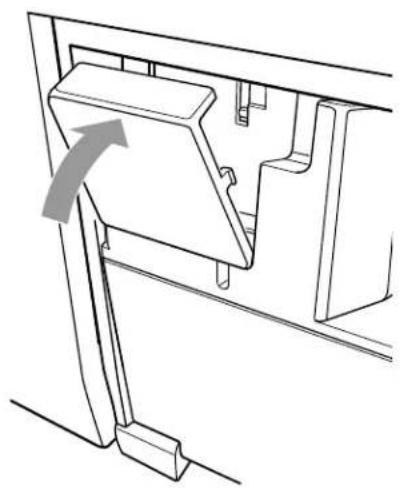
natural_image
Technical line drawing of a mechanical bracket assembly with an arrow indicating direction (no text or symbols)14 Close the printer cover.
Caution
Make sure to lock the printer securely and close the lock cover completely or the printer won't print.
Problems Saving Photos to a CD-R/RW
When the CD-R/RW Writer can't write your photo to a disc, or has another detectable problem, the TV displays an error message on the screen. Follow the on-screen instructions to solve the problem. If replacing the disc doesn't solve the problem, make sure you didn't damage the drive by removing a disc, photo card, or cable, or by turning off the power while writing to a disc.
If you previously wrote photos or other data to a CD-R/RW using a computer or other source, you cannot write photos to it with the TV. See page 96 for guidelines on writing photos to a CD-R/RW with your TV.
Where to Get Help
EPSON provides technical assistance through the World Wide Web 24 hours a day. From the Internet, you can reach EPSON's product support page at http://support.epson.com. After selecting your product, you can access troubleshooting information, download product documentation, and receive technical advice through e-mail.
Telephone Support Services
To use the EPSON PrivateLine ^SM Support service, call (800) 637-7661 and enter the PIN on the EPSON PrivateLine Support card included in your User's Guide kit. This is the fastest way of speaking to a live representative, and it's free. This service is available 6AM to 6 PM, Pacific Time, Monday through Friday, for the duration of your warranty period.
You may also speak with a TV support specialist by dialing one of these numbers:
• U.S.: (562) 276-4394, 6 AM to 6 PM, Pacific Time, Monday through Friday
• Canada: (905) 709-3839, 6 AM to 6 PM, Pacific Time, Monday through Friday
Toll or long distance charges may apply.
Before you call, please have the following information ready:
• Product name (EPSON Livingstation LS47P1 or LS57P1)
- Product serial number (located on the back left side of the TV; you may also have written it down on the Quick Setup sheet when you set up your TV)
• Description of the problem
You can purchase supplies and accessories from your dealer or from EPSON. Call (800) 873-7766 or visit the EPSON Store at www.epsonstore.com (U.S. sales only). In Canada, please call (800) 463-7766 for dealer referral.
General
Projection system 3 LCD panel, 1 lens, rear projection
Television system NTSC (American standard); 2 tuners
Channel coverage VHF: 2 - 13
UHF: 14 - 69
CATV: 1 - 125
Screen and Display
Screen size LS47P1: 47 inches (119.4 cm)
LS57P1: 57 inches (144.8 cm)
LCD panel 3 TFT panels with approximately 2.76 million dots total (1280 × 720 × 3)
Lamp Short-arc, UHE (Ultra High Efficiency), 100 W; 10,000 hour life, ^* replaceable from front
Display format 720p
Aspect ratio 16:9
Contrast 800:1
Brightness LS47P1: 400 cd/m ^2
LS57P1: 270 cd/m²
* Lamp life will vary depending on the mode selected, environmental conditions, and usage.
Electrical
Power requirement 120 VAC, 2.3 A, 60 Hz
Power consumption Operating: 280 W
Standby: 1.1 W
Speaker Out 10 W × 2
Mechanical
| Cooling system | Quiet, dust-resistant, sealed housing |
| Height | LS47P1: 34.6 inches (878.8 mm)LS57P1: 39.5 inches (1003.3 mm) |
| Width | LS47P1: 45.7 inches (1160.8 mm)LS57P1: 54.4 inches (1381.8 mm) |
| Depth | LS47P1: 14.8 inches (375.9 mm)LS57P1: 16.3 inches (414.0 mm) |
| Weight | LS47P1: 106 lb (48.0 kg)LS57P1: 124 lb (56.2 kg) |
Environmental
Operating temperature 41 to 95 °F (5 to 35 °C)
Storage temperature 14 to 140^ (-10 to 60^ )
Operating humidity 20 to 80%, non-condensing
Interfaces
Input interfaces
| Video IN 4 total (3 in back, 1 in front), RCA-type;1 V p-p, 75 ohms |
| S-Video IN 4 total (3 in back, 1 in front), S-type;Y: 1 V p-p, 75 ohmsC: 0.286 V p-p, 75 ohms |
| Component Video IN 2 in back; 3 RCA-type;Y: 1 V p-p, 75 ohms, unbalanced, sync negativePb, Pr: 0.7 V p-p, 75 ohms |
| DVI 1 in back, DVI-type;3.3 V, TMDS, 50 V;DVI-HDTV, VGA, SVGA, XGA, SXGA |
| RF IN (Antenna) 2 in back, F-connector |
| Computer (RGB) 1 in front, D-sub-15-type;0.7 V P-P, 75 ohms;VGA, SVGA, XGA, SXGA |
| Audio IN 8 total (6 in back, 2 in front),2 RCA-type, except for 1 mini-jack (for PC) In from 500mVrms, 47K ohms impedance |
Output interfaces
| Video OUT | 1 in back, RCA-type;1 V p-p, 75 ohms, unbalanced, sync negative |
| Audio OUT (Variable) | 1 in back, 2 RCA-type;1 V p-p, 600 ohms |
| Audio OUT (Fixed) | 1 in back, 2 RCA-type;1 V p-p, 600 ohms |
| RF OUT | 1 in back, F-connector |
| Headphone | 1 in front, stereo mini-jack;5 V p-p (max) |
| Remote | 1 in back, mini-jack for Xantech IR remote model 282 or 283 |
External interfaces
| USB 1 in back, Type A (for external CD-R/RW drive only) | |
| Serial | 1 In back, D-sub 9-pin, RS-232C (for servicer use only) |
| Memory card | 4 In front (1 each SD/MultiMediaCard, Memory Stick, CompactFlash, SmartMedia)JPEG, Exif (1.0 to 2.2), and DCF version 1.0 file system compliant |
Printer
Type Dye-sublimation thermal transfer printer
Resolution 300 dpi (equivalent to 4896 dpi on an ink jet printer)
Paper size 4 × 6 inches (10.2 × 15.2 cm)
Paper capacity 20 sheets
Print speed 110 seconds per sheet
Options
TV stand For LS47P1: LS47STD
For LS57P1: LS57STD
Replacement lamp ELSLP1
IR repeater Recommend Xantech 282 or 283 M emitter
Printer pack 50 sheets, 4 × 6-size, and ink cassette: ELSPP50
Safety
United States UL60950 Third Edition
Canada cUL (CSA C22.2 No.950 Third Edition)
EMI
United States FCC Part 15B Class B
Canada DOC ICES003 Class B
FCC Compliance Statement
For United States Users
This equipment has been tested and found to comply with the limits for a Class B digital device, pursuant to Part 15 of the FCC Rules. These limits are designed to provide reasonable protection against harmful interference in a residential installation. This equipment generates, uses, and can radiate radio frequency energy and, if not installed and used in accordance with the instructions, may cause harmful interference to radio or television reception. However, there is no guarantee that interference will not occur in a particular installation. If this equipment does cause interference to radio and television reception, which can be determined by turning the equipment off and on, the user is encouraged to try to correct the interference by one or more of the following measures:
- Reorient or relocate the receiving antenna.
- Increase the separation between the equipment and receiver.
- Connect the equipment into an outlet on a circuit different from that to which the receiver is connected.
- Consult the dealer or an experienced radio/TV technician for help.
WARNING
The connection of a non-shielded equipment interface cable to this equipment will invalidate the FCC Certification of this device and may cause interference levels which exceed the limits established by the FCC for this equipment. It is the responsibility of the user to obtain and use a shielded equipment interface cable with this device. If this equipment has more than one interface connector, do not leave cables connected to unused interfaces. Changes or modifications not expressly approved by the manufacturer could void the user's authority to operate the equipment.
For Canadian Users
This Class B digital apparatus meets all requirements of the Canadian Interference-Causing Equipment Regulations.

ENERGY STAR Compliance
As an ENERGY STAR Partner, EPSON has determined that this product meets the ENERGY STAR guidelines for energy efficiency.
Note on Closed Captioning
This television receiver provides display of television closed captioning in accordance with §15.119 of the FCC rules.
Note on TV Use
Use of this television receiver for other than private viewing of programs broadcast on UHF or VHF, or transmitted by cable or satellite companies, for the use of the general public may require authorization from the broadcast/cable/satellite company and/or program owner.
A
Adding channels, 41
Air filter, cleaning, 99 to 100
Antenna
connecting, 15
grounding, 10
satellite, 22
Antenna 1/2 settings, 39 to 40, 68 to 69
Aspect button, 37, 63
Aspect ratio
changing screen, 37
for frozen images, 88
setting default, 63 to 64
Audio
default settings, 64 to 65
problems, 117
setting volume, 36
Audio receiver, 28
Auto Aspect setting, 63 to 64
Auto Program setting, 39 to 40
Auto Shutdown setting, 70 to 71
B
Balance setting, 64 to 65
Bass setting, 64 to 65
Batteries, remote control, 33, 118
Black Level setting, 60 to 62
Blocking
channels, 49 to 51
input sources, 49 to 51
programs, V-Chip, 45 to 49
Brightness setting, 60 to 62
C
Cable TV
cable box connection, 16 to 17
cable box/VCR connection, 25
direct cable/VCR connection, 24
direct connection, 15
Cables
antenna, 15
audio receiver, 28
cable box, 16 to 17
cable box/VCR, 25
camcorder, 30
component video, see Component video
connecting, 14 to 32
direct cable TV, 15
direct cable/VCR, 24
DVI-HDTV, 18
game console, 29
headphone, 32
PC, 29
remote IR repeater, 32
satellite receiver/VCR, 26 to 27
standard video, see Standard video
S-Video, see S-Video
USB, 31
Camcorder, 30
Cancelling
CD-R/RW writing, 97
print jobs, 94 to 95
Captions, displaying, 65 to 66
Capture Method setting, 88
Card light, 78, 79, 84, 92, 96, 115
Card, photo, see Digital photo card
Caring for TV, 99 to 111
Cassette
paper, 90 to 92
printer ink, 105, 107 to 111
CD
cancelling writing to, 97
ejecting, 82, 97
file structure, 80
folders, 82
inserting in drive, 80 to 81
printing photos on, 89 to 95
problems, 119
saving photos on, 95 to 97, 124
slide show, 84 to 85
viewing photos on, 80 to 82
CD-R/RW drive
cable connection, 31
inserting CD in, 80 to 82
Channel zapping, 45, 68 to 70
Channel(s)
adding, 41
Auto Program setting, 39 to 40
blocking, 49 to 51
buttons, 42
favorite, 42
labelling, 56 to 57
Lock setting, 49 to 51
Manual Program setting, 41
menu, 56 to 57, 68 to 69
problems, 118
selecting, 42
setting up, 39 to 41
skipping, 41
specifications, 125
zapping, 45, 68 to 70
Cleaning
air filter, 99 to 100
TV, 99
Closed Caption setting, 65 to 66, 130
Codes, remote control programming, 71 to 75
Color button, 38
Color Mode
changing, 38
setting, default, 60 to 62
Color Temp. setting, 60 to 62
Component video
digital receiver connection, 19
DVD player connection, 20
Contrast setting, 60 to 62
Copies setting, 87, 93
Cover
lamp, 103 to 105
speaker, 102, 105
D
DCF format, 77
Digital photo card
file structure, 77 to 78
inserting, 77 to 79
printing photos on, 89 to 95
problems, 119
saving photos on CD, 95 to 97
slide show, 84 to 85
viewing photos on, 77 to 79
Digital receiver
component video connection, 19
DVI-HDTV connection, 18
Display size
changing, 37
setting default, 63 to 64
specifications, 125
Display type
changing, 38
setting default, 60 to 62
Drive, see CD-R/RW drive
DVD player
component video connection, 20
progressive scan, 88
S-Video connection, 21
DVI-HDTV
cable connection, 18
port, skipping unused, 52
E
Ejecting CD, 82, 97
Electrical specifications, 125
ENERGY STAR, 130
Enlarging
photos, 83
screen display, 37, 63 to 64
Equipment switch, 76, 118
Error messages, 93, 113
F
Favorite channels, 42
FCC statement, 129
Features, using TV, 53 to 76
Filter, cleaning, 99 to 100
Folders, CD, 82
Freeze button, 86
Freezing images
aspect ratio, 88
capture settings, 88
monitoring printing, 94 to 95
on screen, 86 to 87
printing, 86 to 87
G
Game
blocking console port, 49 to 51
console cable connection, 29
Grounding, antenna, 10
H
Headphones cable connection, 32 volume, 36
|
Ink cassette problems, 119 replacing, 105 to 111
Input source blocking, 49 to 51 labelling, 58 to 59 skipping unused, 52
Interface specifications, 126
J
Jammed paper, clearing, 119 to 123
JPEG format, 77, 80
Jumper cable, 68
L
Labelling channels, 56 to 57 input sources, 58 to 59
Lamp cover, 103 to 105 light, 101, 105, 114 to messages, 101 part number, 102 problems, 113 to 115 replacing, 101 to 105 specifications, 125
Language setting, 55 Letterbox format, 37, 64 Lights, 114 to 115, 118
Loading paper, 89 to 92 Location, selecting, 7 to 12 Lock
menu, 43 to 51 printer, 106, 110, 120 to 121, 123 setting, 49 to 51
M
Maintaining TV, 99 to 111 Manual Program setting, 41 Mechanical specifications, 125 Menu system accessing, 53 to 55 changing settings, 54 to 55 language, 55 using, 53 to 66, 68 to 69, 70 to 71
Monitoring print jobs, 94 Moving TV, 111 Mute button, 36, 64
N
No Signal message, 35 to 36
P
Paper cassette, 89 to 92 jams, clearing, 119 to 123 loading, 89 to 92
Parental controls channel blocking, 49 to 51 input source blocking, 49 to 51 password, see Password ratings, 48 to 49 setting up, 43 to 51 V-Chip blocking, 45 to 49
Password accessing TV with, 51 to 52 changing, 43 to 44 creating, 43 to 44 entering, 45 problems, 116
PC cable connection, 29 port, skipping unused, 52 Photo View button, 79, 81, 84, 92 Photo Zoom buttons, 67
Photo(s)
enlarging, 83
on CD, 80 to 82
on photo card, 77 to 79
printing, 89 to 95
problems, 119
rotating, 83
saving, 95 to 97
slide show, 84 to 85
viewing, 77 to 85, 97
Picture quality
adjusting, 60 to 62
problems, 116 to 117
Picture-Outside-Picture (POP), 66 to 68, 69 to 70
Playback setting, 85
POP button, 66 to 68, 69 to 70
Position setting, 60 to 62
Power
button, 35 to 36, 38
light, 35, 38, 70, 78, 80, 101, 105, 114 to 115
specifications, 125
turning off, 38
turning on, 35 to 36
Precautions, 7 to 10
Print button, 87, 93
Printer
light, 87, 93, 115
lock, 106, 110, 120 to 121, 123
paper, see Paper
replacing ink, 105 to 111
sliding in, 110 to 111
sliding out, 105 to 107, 120 to 121
specifications, 127
using, see Printing
Printer light, 78
Printing
cancelling, 94 to 95
error messages, 93
frozen images, 86 to 87
loading paper, 89 to 92
monitoring jobs, 94
photos, 89 to 95
problems, 119 to 123
Problems
audio, 117
basic operation, 116
CD, 119
channel, 118
error messages, 113
lamp, 114 to 115
light indicators, 114 to 115
password, 116
picture quality, 116 to 117
printing, 119 to 123
remote control, 118
saving to CD-R/RW, 124
sound, 117
TV, 113 to 118
viewing photos, 119
Program blocking, V-Chip, 45 to 49
Progressive scan DVD player, 88
Projection lamp, see Lamp
R
Ratings, V-Chip, 48 to 49
Reception, TV, 118
Remote control
batteries, inserting, 33
controlling other equipment, 71 to 76
equipment switch, 76, 118
information, 34
light, 118
operating, 34
preparing, 33 to 34
problems, 118
programming, 71 to 76
using with other equipment, 76
Remote IR repeater, 32
Rotate button, 83, 92
S
Safety instructions, 7 to 10
Satellite receiver
S-Video connection, 22
VCR connection, 26 to 27
Saturation setting, 60 to 62
Saving photos to CD-R/RW, 95 to 97, 124
Screen
aspect ratio, 37, 63 to 64
cleaning, 99
display size, setting, 37, 63 to 64
display type, setting, 38
error messages, 93, 113
freezing images, see Freezing images
picture quality, 60 to 62
position setting, 60 to 62
problems, 116 to 117
Setting menu, 52, 55, 58 to 59, 65 to 66, 70 to 71
Setting up the TV, 7 to 38
Sharpness setting, 60 to 62
Shelf, set-top, 12 to 13
Shipping TV, 111
Shutting off TV automatically, 70 to 71
Skipping
channels, 41
unused input sources, 52
Sleep button, 70 to 71
Slide show
changing settings for, 85
selecting photos for, 84 to 85
viewing, 84 to 85
Sound
adjusting, 36, 64 to 65
problems, 117
Speaker
cover, 102, 105
setting, 64 to 65
specifications, 125
volume setting, 36
Specifications, 125 to 127
Standard video
camcorder connection, 30
DVD player connection, 21
satellite receiver connection, 22
VCR connection, 23
VCR/cable box connection, 25
VCR/direct cable connection, 24
VCR/satellite receiver connection, 26 to 27
Stands/supports, TV, 11 to 12, 111
Surround setting, 64 to 65
S-Video
camcorder connection, 30
DVD player connection, 21
satellite receiver connection, 22
VCR connection, 23
VCR/cable box connection, 25
VCR/direct cable connection, 24
VCR/satellite receiver connection, 26 to 27
Swap button, 66 to 68, 69 to 70
Sync setting, 54
T
Temperature
problems, 113 to 115
specifications, 126
TIF format, 77, 80
Tint setting, 60 to 62
Tracking setting, 54
Transition speed setting, 85
Treble setting, 64 to 65
Troubleshooting, 113 to 124
Turning off system, 38, 70 to 71
Turning on system, 35 to 36
TV
air filter, cleaning, 99 to 100
caring for, 99 to 111
cleaning, 99
connecting cables, 14 to 32
dimensions, 125
error messages, 93, 113
features, using, 53 to 76
lamp, see Lamp
menus, see Menu system
moving, 111
placement for viewing, 11
printer, see Printer
problems, 113 to 118
reception, 118
remote control, see Remote control
screen, see Screen
selecting location, 7 to 12
setting up, 7 to 38
TV (continued)
shelf, 12 to 13
shipping, 111
shutting off automatically, 70 to 71
sleep mode, 70 to 71
stands, 11 to 12, 111
supports, 11 to 12, 111
transporting, 111
turning off, 38
turning on, 35 to 36
usage notification, 130
viewing position, 11
weight, 125
TV/Video button, 35 to 36, 66
U
USB/CD-R/RW drive connection, 31
V
V-Chip blocking, 45 to 49
VCR
standard video connection, 23
standard video/cable box connection, 25
standard video/direct cable connection, 24
standard video/satellite connection, 26 to 27
S-Video connection, 23
S-Video/cable box connection, 25
S-Video/direct cable connection, 24
S-Video/satellite receiver connection, 26 to 27
Viewing
photos, 77 to 85, 97
placement of TV for, 11
Volume, 36
W
Weight, TV, 125
Writing photos to CD-R/RW, 95 to 97
Z
Zapping channels, 45, 68 to 70

text_image
Power TV CBL SAT VCR DVD REC PAUSE SKIP STOP REW PLAY FF Photo View Freeze Print Menu Exit Photo Zoom Select Prev. Enter Next Select 1 2 3 4 5 6 7 8 9 Ch Prev. 0 Ch Enter TV/Video Mute Favorite Vol. Ch Aspect -POP -Swap Sleep Surround MTS Color Ch Display EPSONNote
Some of these buttons are also located on the TV front panel.
Remote Control Map
| ButtonFunction | |
| Power Turns the TV on and off. See page 35. | |
| Equipment selection switch and control buttons | Selects equipment and controls it if you programmed the remote control to do so. See page 71. |
| Photo View Starts the Photo viewer so you can view or print photos on a digital photo card or CD. See page 77. | |
| Freeze Freezes the current screen image and starts the Freeze for printing program so you can print an image from your screen. See page 86. | |
| Print Prints a photo from a digital photo card or CD. See page 89. | |
| Menu Starts the menu system so you can select TV features. See page 53. | |
| Exit Exits settings and menus in the menu system. See page 54. | |
| Select ▲ and Select ▼ Prev. < and Next > Enter | Move up, down, left, and right, and select or change settings in the menu system, and the Photo viewer, Freeze for printing, and CD-R/RW Writer programs. See page 54, page 77, and page 86. |
| Photo Zoom (+ and -) | Enlarge or reduce the size of photos while viewing them in the Photo viewer. See page 83. |
| Rotate | Rotates photos while viewing them in the Photo viewer. See page 83. |
| Number buttons Enter TV channel numbers, a password, and Photo viewer menu numbers. See page 42, page 43, and page 79. | |
| Ch Prev. | Switches between the previous and current channels. See page 42. |
| Ch Enter Enters the channel number selected by the number buttons and switches to that channel. See page 42. | |
| TV/Video Selects a different connected source for viewing, such as your DVD player, VCR, etc. See page 35. | |
| Mute Stops sound output from the TV speakers and audio receiver, if connected. See page 36. | |
| Favorite | Sets up and selects up to 12 favorite channels so you can easily tune to them. See page 42. |
| Volume (up or down) | Turns the TV speaker and audio receiver volume up or down. See page 36. |
| Ch (Channel + or -) | Moves up or down one TV channel at a time. See page 42. |
| Aspect | Changes the size of the screen display (aspect ratio). See page 37. |
| POP (Picture-Outside-Picture) | Controls the picture-outside-picture and channel zapping features. See page 66 and page 68. |
| Swap | When viewing images with POP or channel zapping, switches the active image. See page 66 and page 68. |
| Sleep | Sets the TV to go into sleep mode automatically. See page 70. |
| Surround | Turns on simulated surround sound. See page 64. |
| MTS (Multichannel Television Stereo) | Switches to stereo, mono, or SAP (Separate Audio Program) audio mode. See page 66. |
| Color | Switches the Color Mode for the type of program or viewing conditions. See page 38. |
| Ch Display | Briefly displays the current channel and/or input source. See page 42. |
Connector Panel Maps

text_image
ANT 1 RF Output NT 2 Audio Output Variable Remote-out Video Audio Output Video S-Video Video Audio R Video Inputs Component Inputs Y PB PR L Audio R DVI-HDTV Input R-Audio-L DVI-HDTV Serial EXT. IFBack connector panel Front connector panel

text_image
PC Input Audio PC R-Audio-L Video S-Video HeadphoneBack connector panel
| ConnectorFunction | |
| ANT 1 For outside antenna, cable service line, or other video inputs. | |
| RF Output | Video output for various connections. Leave jumper cable connected to RF Output and ANT 2 connectors to provide POP and Channel Zapping features in certain connection schemes. |
| ANT 2 | Alternate connector for outside antenna, cable service line, or other video inputs. Leave jumper cable connected to RF Output and ANT 2 connectors to provide POP and Channel Zapping features in certain connection schemes. |
| Remote-out For optional remote IR repeater. | |
| Audio Output Variable For output to an audio receiver. | |
| Video Output(Video, Audio L/R) | For an external video/audio recorder (standard video only). |
| DVI-HDTV Input(DVI-HDTV, Audio R/L) | For a digital TV (HDTV) receiver. |
| Video Inputs(S-Video 1, 2, 3; Video 1, 2, 3; and Audio L/R 1, 2, 3) | For DVD, VCR, Satellite, and other video and audio input devices that use S-Video or standard video. |
| Component Inputs(Y 1, 2; PB 1, 2; PR 1, 2; and Audio L/R 1, 2) | For DVD, VCR, Satellite, and other video and audio input devices that use component video. |
| Serial For use only by your EPSON servicer. | |
| EXT. I/F(external interface; USB) | For an external CD-R/RW drive only. |
| Front connector panel | |
| ConnectorFunction | |
| PC Inputs(Audio and PC) | For PC or game console audio and video. |
| Video Inputs(Audio R/L 4, Video 4, S-Video 4) | For DVD, VCR, satellite, and other video and audio input devices that use S-Video or standard video. Best for use of a camcorder, digital camera, or other portable video equipment. |
| Headphone For headphone connection only. | |