PL-5500V - Television H&B - Free user manual and instructions
Find the device manual for free PL-5500V H&B in PDF.


User questions about PL-5500V H&B
0 question about this device. Answer the ones you know or ask your own.
Ask a new question about this device
Download the instructions for your Television in PDF format for free! Find your manual PL-5500V - H&B and take your electronic device back in hand. On this page are published all the documents necessary for the use of your device. PL-5500V by H&B.
USER MANUAL PL-5500V H&B
Overviewing your the Monitor
■ Viewing the Control Panel 10
■ Viewing the Connecting Panel 11
■ Viewing the Remote Control
- Button Description 13
- PIP(Picture In Picture) 15
- Loading the Batteries 16
Installation
Table Stand Installation 17
■ Speaker Installation 19
Connection the Cable/Devices
■ Connection the TV Cable 20
■ Connection the VCR 21
■ Connection the DVD 22
■ Connection the Set Top Box 23
■ Connection the PC (D-Sub & DVI) 24
■ Displayable Monitor Specification 25
Setting the Channel
■ Basic Operation 26
■ OSD Menu Structure 27
■ Storing Channels Automatically 28
■ Storing Channels Manually 30
■ Fine Tuning the Channel Reception 30
■ Editing the Channels 31
■ Digest Function 32
■ Teletext 33
Setting the Picturel
■ Changing the Picture Mode 34
-Adjusting the User Mode 34
■ Changing the Color Temperature 36
Contents
Setting the Picture
■ Changing Color Enhancer 36
■ Video NR(Noise Reduction) 37
■ Changing the Screen Form 37
■ Selecting the Black Enhancer 38....
■ Position 39
Auto Adjust 39
Setting the Sound
■ Adjusting the Sound Balance 41
■ Changing the Sound Mode 41
■ User Adjust 42
■ Spatial Effect 42....
■ AVC (Auto Volume Control) 42....
■ MTS (Multichannel Television Sound) 43
Setting the Others
■ Adjusting the Transparency of the OSD Window 44......
- PIP (Picture In Picture) 44
- Changing the Size in PIP 45
- Choosing the Source in PIP 45
- Picture Swap in PIP (Picture in Picture) 46
- Position in PIP 46
■ Advanced
- Set ID in Advanced 47
- Blue Back in Advanced 47
- Language in Advanced 48
- Front Key Lock in Advance 48
- Burn Protection in Advance 48
- Burn Clear in Advance 48
Setting the Time
■ Setting the Current Time 49
■ Setting the On Time 49
■ Setting the Off Time 51
■ Setting the Sleep Timer 51
Troubleshooting 58
Spec. 59
Warranty Card 66

text_image
CAUTION RISK OF ELECTRIC SHOCK DO NOT OPEN CAUTION - TO REDUCE THE RISK OF ELECTRIC SHOCK, DO NOT REMOVE COVER (OR BACK). NO USER-SERVICEABLE PARTS INSIDE. REFER SERVICING TO QUALIFIED SERVICE PERSONNEL.
This symbol is intended to alert the user to the presence of uninsulated "dangerous voltage" within the product's enclosure that may be of sufficient magnitude to constitute a risk of electric shock to persons.

This symbol is intended to alert the user to the presence of important operating and maintenance (servicing) instructions in the literature accompanying the appliance
CAUTION
- TO PREVENT DAMAGE WHICH MAY RESULT IN FIRE OR SHOCK HAZARD.
- DO NOT EXPOSE THIS APPLIANCE TO RAIN OR MOISTURE.
- SHOCK HAZARD DO NOT OPEN.
CAUTION
These servicing instructions are for use by qualified service personnel only. To reduce the risk of electric shock, do not perform any servicing other than that contained in the operating instructions unless you are qualified to do so.
CAUTION
The stand intended for use only with This TV. Use with other apparatus is capable of resulting in Instability causing possible injury.
WARNING
- Apparatus shall not be exposed to dripping or splashing and no objects filled with liquids, such as vases, shall be placed on the apparatus.
- This is Class B product. In a domestic environment this product may cause radio interference in which case the user may be required to take adequate measures.
- To reduce the risk of fire and electric shock, do not expose this product to rain or moisture.
FCC NOTICE
This device has been tested and found to comply with the limits for a Class B device, pursuant to Part 15 of the FCC Rules. These limits are designed to provide reasonable protection against harmful interference in home environment as well as in a commercial, industrial or business environment. This equipment can generate, use and radiate radio frequency energy and, if not installed and used in accordance with the instruction, may cause harmful interference to radio communications. However, there is no guarantee that interference will not occur in a particular installation. If this equipment does cause harmful interference to radio or television reception, which can be determined by turning the equipment off and on, the user is encouraged to try to correct the interference by one or more of the following measures:
- Reorient or relocate the receiving antenna.
- Increase the separation between the equipment and receiver.
- Connect the equipment into an outlet on a circuit different from that to which the receiver is connected.
- Consult the dealer or an experienced radio/TV technician for help.
Changes or modification not expressly approved by the party responsible for compliance could void the user's authority to operate the equipment.
Connecting of peripherals requires the use of grounded shielded signal cables.

Always be careful when using your Monitor. To reduce the risk of fire, electrical shock, and other injuries, keep these safety precautions in mind when installing, using, and maintaining your machine.

natural_image
Cartoon illustration of a smiling computer monitor with a face and ear, no text or symbols presentRead all safety and operating instructions before operating your Monitor.
natural_image
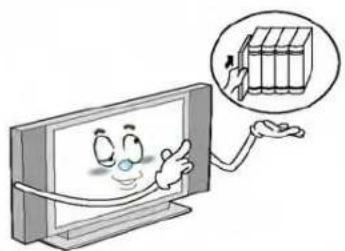
Cartoon illustration of a smiling television displaying a book, with a hand pointing at it (no text or symbols present)Keep the safety and operating instructions for future reference.
text_image
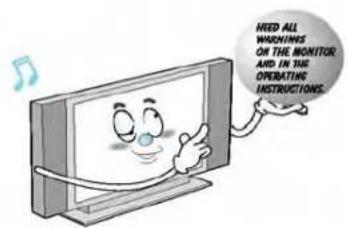
HEED ALL WATCHINGS OR THE MONITOR AND IN THE OPERATING INSTRUCTIONS.Heed all warnings on the Monitor and in the operating instructions.
Always be careful when using your TV. To reduce the risk of fire, electrical shock, and other injuries, keep these safety precautions in mind when installing, using, and maintaining your machine.
1) Read these instructions.
2) Keep these instructions.
3) Heed all warnings.
4) Follow all instructions.
5) Do not use this apparatus near water.
6) Clean only with a dry cloth.
7) Do not block any of the ventilation openings. Install in accordance with the manufacturer's instructions.
8) Do not install near any heat sources such as radiators, heat registers, stoves, or other apparatus (including amplifiers) that produce heat.
9) Do not defeat the safety purpose of the polarized or grounding type plug. A polarized plug has two blades with one wider than the other. A grounding type plug has two blades and a third grounding prong. The wide blade or the third prong is provided for your safety. When the provided plug does not fit into your outlet, consult an electrician for replacement of the obsolete outlet.
10) Protect the power cord from being walked on or pinched particularly at plugs, convenience receptacles, and the point where they exit from the apparatus.
11) Only use the attachments/accessories specified by the manufacturer.
12) Use only with a cart, stand, tripod, bracket, or table specified by the manufacturer, or sold with the apparatus. When a cart is used, use caution when moving the cart/apparatus combination to avoid injury from tip-over.

natural_image
Symbolic illustration of a person lifting a ladder inside a circle (no text or symbols)13) Unplug this apparatus during lightning storms or when unused for long periods of time.
14) Refer all servicing to qualified service personnel. Servicing is required when the apparatus has been damaged in any way, such as power supply cord or plug is damaged, liquid has been spilled or objects have fallen into the apparatus, the apparatus has been exposed to rain or moisture, does not operate normally, or has been dropped.
15) When installing the PDP TV, do not block the appliance coupler with any structure.
User can easily have access to the coupler to disconnect it from AC main power.
Precaution
In case of the following cases, unplug the unit from the wall outlet and contact qualified service center.
* When power supply code or plug is damaged
* If liquid has been spilled on the unit or if alien objects have fallen into the unit.
* If the monitor has been exposed to rain or water.
* If the monitor does not operate normally by following the operating instructions.
* If the monitor dropped or the cabinet has been damaged
* When the monitor exhibits a distinct change in performance.
Setting

CAUTION

natural_image
Cartoon illustration of a smiling computer monitor with a character on screen (no text or symbols)Follow all operating and use instructions.
natural_image
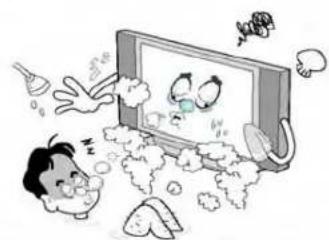
Cartoon illustration of a child reacting to a TV screen showing floating objects, surrounded by clouds and small objects (no text or symbols)Do not use the Monitor where contact with or immersion in water is a possibility, such as near bath tubs, sinks, washing machines, swimming pools, etc.
text_image
NOO A&EAvoid overhead power lines. An outside antenna system should not be placed in the vicinity of overhead power lines or other electric light or power circuits or where it can fall into such power lines or circuits. When installing an outside antenna system, be extremely careful to keep from touching the power lines or circuits. Contact with such lines can be fatal.
Ground outdoor antennas. If an outside antenna or cable system is connected to the Monitor, be sure the antenna or cable system is grounded so as to provide some protection against voltage surges and built-up static charges. Section 810 of the National Electrical Code, ANSI/NFPA No.70-1984, provides information about proper grounding of the mast and supporting structure, grounding of the lead-in wire to an antenna discharge unit, size of grounding conductors, location of antenna discharge unit, connection to grounding electrodes, and requirements for the grounding electrode.
text_image
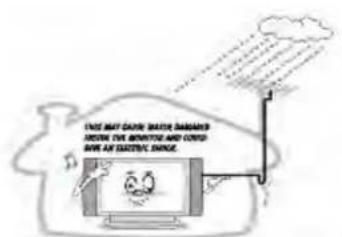
THIS MAY CHAPY WATER DABARED BEONE THE MONTESE AND COLD BOW AT ELECTRIC DAVES.Bend antenna cable between inside and outside building to prevent rain from flowing in.
-This may cause water damaged inside the Monitor and could give an electric shock.

text_image
NOHDo not place an outside antenna in the vicinity of overhead power lines, other electric light or power circuits.
- This may cause an electric shock.
text_image
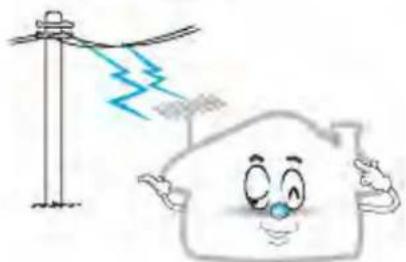
雷鸣There should be enough distance between an outside antenna and power lines to keep the former from touching the latter even when the antenna falls.
- This may cause an electric shock.
Precaution
Setting

WARNING
text_image
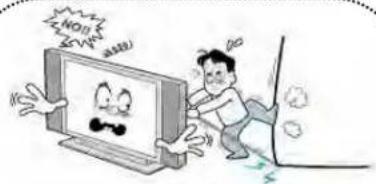
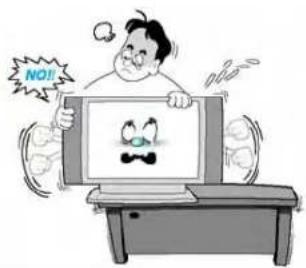
NO!!When installing the Monitor on a table, be careful not to place the edge of its stand.
- This may cause the Monitor to fall, causing serious injury to a child or adult, and serious damage to the Monitor.

text_image
Cartoon illustration showing a computer monitor connected to a speaker with a 'NO!!' speech bubble, suggesting a news or commentary scene.Provide ventilation for the Monitor. The unit is designed with slots in the cabinet for ventilation to protect it from overheating. Do not block these openings with any object, and do not place the Monitor on a bed, sofa, rug or other similar surface. Do not place it near a radiator or heat register. If you place the Monitor on a rack or bookcase, ensure that there is adequate ventilation and that you've followed the manufacturer's instructions for mounting.
text_image
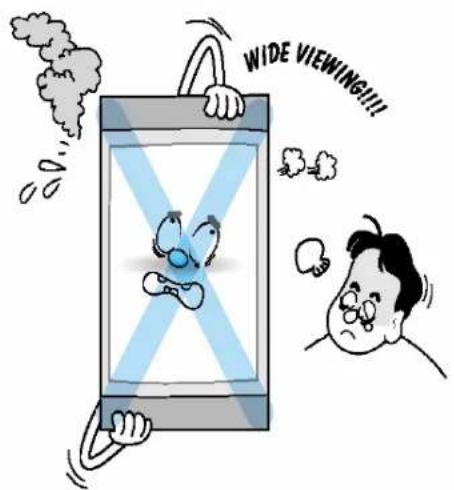
WIDE VIEWING!!!This plasma display is designed to be mounted horizontally (wide viewing). Any inquiry regarding its vertical position should be forwarded to the manufacture directly
Precaution
POWER

CAUTION
text_image
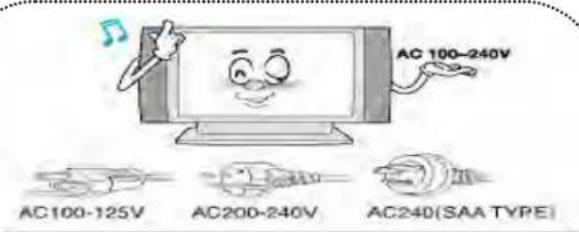
AC 100-240V AC100-125V AC200-240V AC240(SAA TYPE)Use only the accessory cord designed for this product to prevent shock. The power supply voltage rating of this product is AC100-240V, the power cord attached conforms to the following power supply voltage. Use only the power cord designated by our dealer to ensure Safety and EMC. When it is used by other power supply voltage, power cable must be changed. Consult your product dealer.
text_image
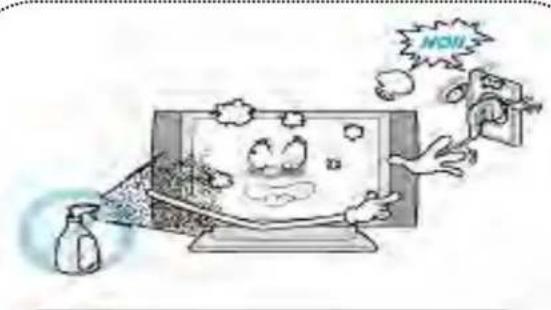
NOUUnplug the Monitor from the wall outlet before cleaning. Use a damp cloth; do not use liquid or aerosol cleaners.

text_image
NO!! NO! SALVE!Unplug the Monitor from the wall outlet and disconnect the antenna or cable system during a lightning storm or when left unattended and unused for long periods of time. This will prevent damage to the unit due to lightning and power-line surges.

text_image
Diagram illustrating electrical connections with labeled components and a magnified view of a device with a Y-shaped symbol.Protect the power cord. Power supply cords should be routed so that they won't be walked on or pinched by objects placed on or against them. Pay particular attention to cords at plugs, convenience receptacles, and the point where they exit from the unit.

natural_image
Illustration of a hand holding a tool next to a wall-mounted device with a cartoon face, no text or symbols present.Do not touch the plug with wet hand.
- It can make an electric shock.
text_image
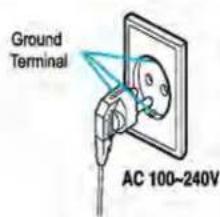
Ground Terminal AC 100~240VUse only a grounded or polarized outlet. For your safety, this Monitor is equipped with a polarized alternating current line plug having one blade wider than the other. This plug will fit into the power outlet only one way. If you are unable to insert the plug fully into the outlet, try reversing the plug. If the plug still does not fit, contact your electrician to replace your outlet.

text_image
Diagram illustrating electrical connections and a device with labeled components and wiringProtect the power cord. Power supply cords should be routed so that they won't be walked on or pinched by objects placed on or against them. Pay particular attention to cords at plugs, convenience receptacles, and the point where they exit from the unit.
Precaution
Operation

CAUTION

natural_image
Cartoon illustration of a person holding a TV with a sad face and 'NOO!' text, surrounded by expressive hands (no readable text or symbols)Upon completion of any service or repairs to this Monitor, ask the service technician to perform safety checks to determine that the Monitor is in a safe operating condition.
text_image
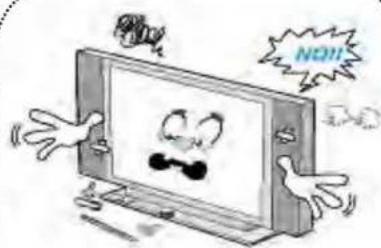
NO!!Do not place anything containing liquid on top of the Monitor.
-This may cause a fire or could give an electric shock.
natural_image
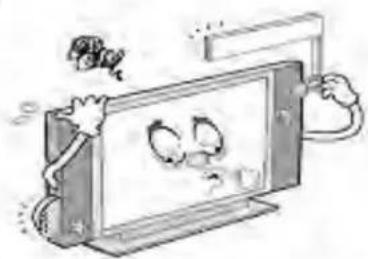
Cartoon illustration of a person reacting to a screen displaying a cartoon character (no text or symbols present)Never add any attachments and/or equipment without approval of the manufacturer. Such additions can increase the risk of fire, electric shock, or other personal injury.

natural_image
Cartoon illustration of a person reacting to a large screen showing a smiling face and the letter 'E', with smoke rising from behind (no text or symbols)In case of smoke or strange smell from the Monitor, switch it off, unplug it from the wall outlet and contact your dealer or service center.
- This may cause a fire or could give an electric shock.
natural_image
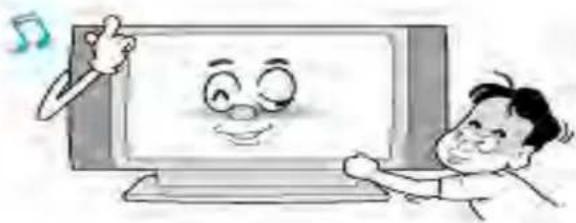
Cartoon illustration of a child interacting with a smiling computer monitor displaying a smiling face (no text or symbols present)Do not insert anything through the openings in the unit, where they can touch dangerous voltage points or damage parts. Never spill liquid of any kind on the Monitor.
Operation
text_image
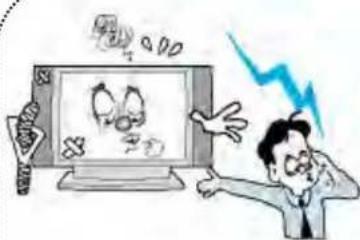
Cartoon depicting a person reacting to a TV screen displaying a cartoon face, with a lightning bolt symbol indicating nighttime or emotional distress.When replacement parts are required, be sure the service technician uses replacement parts specified by the manufacturer or those that have the same characteristics as the original part. Unauthorized substitutions may result in additional damage to the unit.

natural_image
Cartoon illustration of a man reacting to a distressed screen showing a broken egg, with a lightning bolt and falling figure nearby (no text or symbols)If you make adjustments yourself, adjust only those controls that are covered by the operating instructions.
Adjusting other controls may result in damage and will often require extensive work by a qualified technician to restore the Monitor to normal.

WARNING

natural_image
Cartoon illustration of a person reacting to a computer screen displaying a surprised face with a mustache (no text or symbols)Do not let children hang on or ride on the TV.
Precaution
Operation

WARNING

text_image
1.5V 1.5VDO not use new battery with old one.
- This can lead a fire or electric shock caused by leakage liquid from abused batteries.
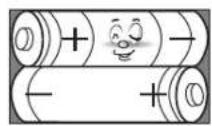
Put the batteries in right direction (+/-).
- Otherwise, it can make a fire, injury and pollution caused by bursting of batteries.

Only use the specified batteries.
-This make cause damaged the Monitor or could give an electric shock.

natural_image
Two men holding a cartoon-style TV displaying a smiling face (no text or symbols present)More than two people are necessary to move or take off the package due to the product's weightiness.
- Otherwise, it can cause personal injury.

natural_image
Cartoon illustration of a baby reacting to a screen showing a crying face, with a small box nearby (no text or symbols)Keep the batteries out of reach of children when exchanged.
- Seek urgent medical advice if child swallows a battery.
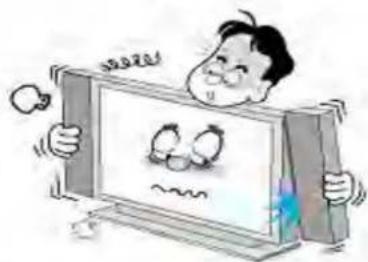
natural_image
Cartoon illustration of a person holding a large CRT monitor with a sad face, no text or symbols presentWhen moving the Monitor assembled with speakers do not carry holding the speakers.
-This may cause the Monitor to fall, causing serious injury to a child or adult, and serious damage to the Monitor.
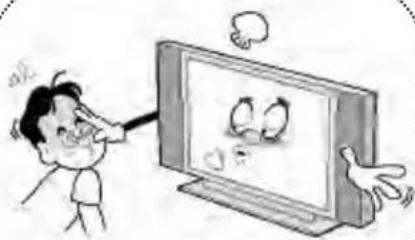
natural_image
Cartoon illustration of a person reacting to a TV screen showing two cartoon characters (no text or symbols present)The distance between eyes and the screen should be about 5\~7 times as long as diagonal length of the screen.
- If not, eyes will strain.
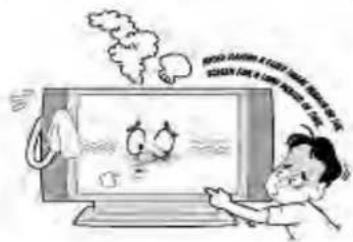
text_image
COVID-19 COVID-19 COVID-19 COVID-19 COVID-19Avoid having a fixed image remain on the screen for a long period of time. Typically a frozen still picture from a VCR, 4:3 picture format or if a CH label is present; the fixed image may remain visible on the screen.
Viewing the Control Panel
OSD Key Position
Front Panel

text_image
INPUT SELECT VOLI (HP-XXXXV)
text_image
(HP-XXXXVP)OSD Button
① Input Source Select
② Up (See the box below)
③ Down (See the box below)
4 Stand By
⑤ Remote Sensor
6 Status/Power Indicator LED
1 Remote Sensor
② Stand By
③ Source/EXIT
4 Menu/SET
5 VOL-
6 VOL+
⑦ CH-
8 CH+
OSD Key Function
INPUT SELECT
Select the signal source from multiple input sources such as TV, SCART 1, SCART 2, S-Video / AV, COMPONENT1, COMPONENT2,PC, DVI and HDMI.
VOL/CH ▲/▼(HP-XXXXV) OR VOL/CH -/+ (HP-XXXXVP)
To change the CHANNEL ,press ▼button first and change the channel with ▲,▼buttons.
To change the VOLUME ,press ▲button first and change the volume with ▲,▼buttons. (HP-XXXXV Only)
To change the CHANNEL and VOLUME. (HP-XXXXVP Only)
Stand By ON/OFF
Turn the TV on and off.
Menu (HP-XXXXVP Only)
Call the OSD Menu
Accessories
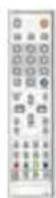
Remote Control Handset
Power Cord
RF Cable
Alkaline Batteries

Owner's Manual
Viewing the Connecting Panel
Back Panels and Jacks
- DVI & D-Sub(PC) Sound
- RS-232C
- Component Sound1,2
- Phone Jack
- AV / S-Video Sound
- Speakers(HP-XXXXV Only)
- DVI(HDCP)
- D-Sub(PC)
- SCART 1
- S-Video Input
-
TV Antenna
-
HDMI
-
Component1,2
-
SCART 2
-
AV Input
-
AC Power
Viewing the Connection Panel
-DVI, D-Sub(PC) Sound Cable
Connect (1) port.
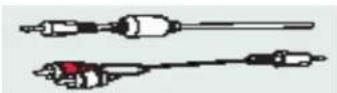
-DVI Cable
Connect (2) port.

-HDMI Cable
Connect (3) port.

-RS-232C Cable Connect (4) port.

-D-Sub(PC) Cable Connect (5) port.

-Component Cable Connect (6) port.

-Component & S-Video & AV Sound Cable Connect (7) and (13) port.

-SCART Cable Connect (8), (9) port.

-Phone Jack Cable Connect (10) port.
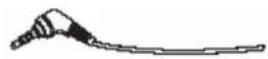
-S-Video Cable Connect (11) port.
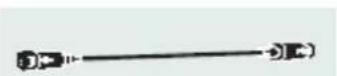
-AV Cable Connect (12) port.

-RF Cable Connect (14) port.

-AC Power Cable Connect (15) port.

Connectors
| RCA Pin JackAUDIO INPUT | 3-Wire (Non-standard) | |
| 21 Pin Euro AV (SCART)VIDEO INPUT | TVPC | |
| 21 Pin Euro AV (SCART)VIDEO OUTPUT | ||
| Mini Din 4 Pin S-VIDEO INPUT | ||
| RCA Pin JackCOMPONENT VIDEO INPUT | ||
| Mini D-Sub 15pinANALOG RGB INPUT | ||
| HDMI CableHDMI INPUT | ||
| DVI-D 24 pinDIGITAL VIDEO INPUT |
RS-232C Configurations
TVPC
text_image
JT [- Cables connecting the PC vary according to the type of machine, so consult your product dealer.
Viewing the Remote Control

Button Description
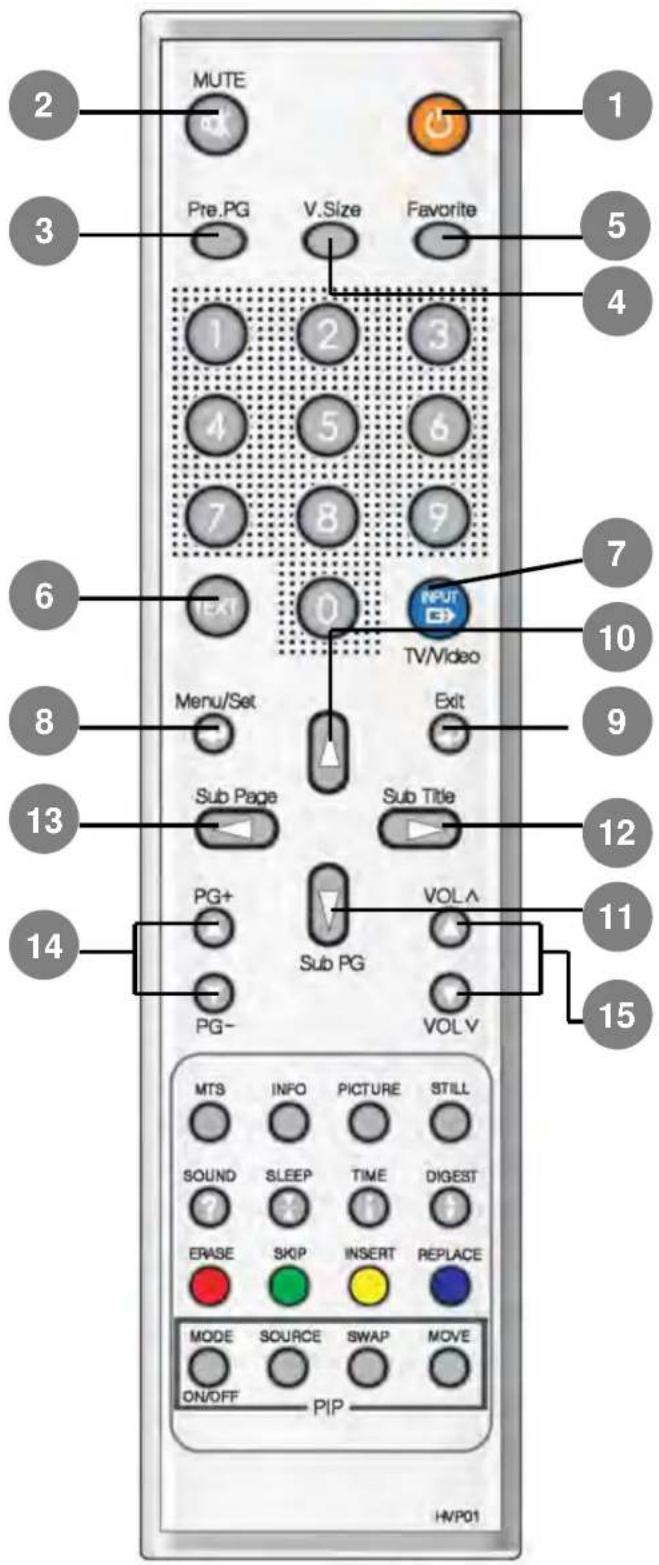
text_image
MUTE Pre.PG V.Size Favorite 1 2 3 4 5 6 7 8 9 10 Text 0 TV/Video 7 Menu/Set Exit Sub Page Sub Title 13 PG+ Sub PG VOL^ 14 PG- VOLV MTS INFO PICTURE STILL SOUND SLEEP TIME DIGEST ERASE SKIP INSERT REPLACE MODE SOURCE SWAP MOVE ON/OFF PIP HVP011. Stand By
Turn the TV on and off.
2. Mute
Temporarily cut the sound and restore it.
3. Pre PG
Turn to the previous programme or exit OSD.
4. V.Size
Choose the screen form.
16:9 > 4:3 > Panorama > Zoom1 > Zoom2
5. FAVORITE (FAVOURITE)
Tune to your next favorite programme.
6. TEXT
Teletext on / off.
TEXT > MIX > Twin > Normal (TTX off)
7. INPUT
Display the input source list.
8. Menu / Set
Display the main OSD menu.
Activate your choice in the OSD menu.
9. Exit
Return to the previous OSD menu.
10. PG+
Move to the upper programme.
11. Sub PG
12. Sub Title
13. Sub Page
14. PG+/PG-
Move to the upper programme.
15. VOL+/VOL-
Increase the volume level
Remote Control

text_image
Control panel with labeled buttons and a highlighted circular icon showing three colored buttons.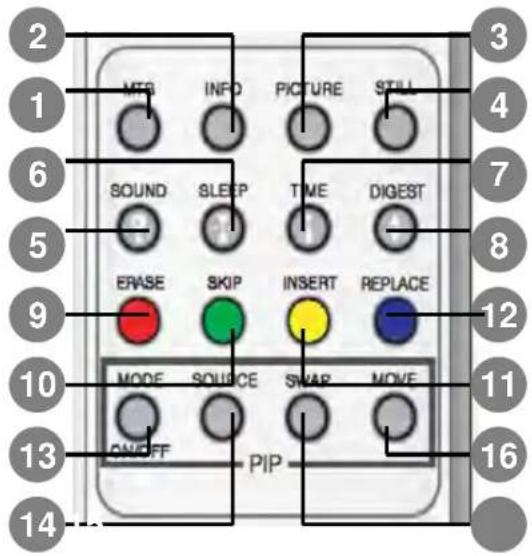
text_image
2 1 6 5 9 10 13 14 MFG INFO PICTURE STILL SOUND SLEEP TIME DIGEST ERASE SKIP INSERT REPLACE MODE SOURCE SWAR MOVE ON/OFF PIP1. MTS
Choose the MTS (Stereo) mode. Each time it is pressed, different mode is selected.
Mono > Stereo > Language A > Language B > Language AB
* You can select only available modes depending on the source.
2. INFO
Display the current information.
3. PICTURE
There are 4 picture modes.
STANDARD > Vivid > Mild > USER
4. STILL
Temporarily freeze the screen and restore it.
5. SOUND
Choose the sound equalizer settings.
STANDARD > Movie > Music > News > USER
6. SLEEP
Set the preset time interval for automatic turn-off.
OFF( Not work ) > 10min. > 20 > 30 > 60 > 90 > 120 > 150 > 180
7. TIME
Display the current time on the screen.
8. DIGEST
Display the 16 TV programmes at the same time.
TTX / programme Edit keys
9. ERASE
Erase the current programme.
10. SKIP
Make the programme skipped.
11. INSERT
Add the current programme.
12. REPLACE
Replace the selected programme with the current programme.
* See 32 page.
** These keys are the colour keys in TTX also.
PIP (Picture In Picture) Keys
Activate PIP function and change the PIP window size and PIP mode. Small > Large > Twin (Half) > OFF
14. SOURCE
Change the PIP window source.
15. SWAP
Swap the main screen and the PIP window.
16. MOVE
Move the position of the PIP window.
Viewing the Picture-in-Picture

flowchart
graph TD
    A["MOVE KEY: Move the position of PIP"] --> B["Left Up"]
    A --> C["Right Up"]
    B --> D["Left down"]
    C --> E["Right Down (Start)"]
    F["SWAP KEY: Swap the sources of the main screen and PIP Window."] --> G["→"]
    H["MODE KEY: Change the PIP window mode. OFF→SMALL→LARGE→TWIN"] --> I["SMALL LARGE TWIN"]
Source Key : Change the source of the PIP window. The available sources are shown as below
| PIP\Main | TV | SCART 1 | SCART 2 | S-Video / AV | Component1 | Component2 | PC | DVI | HDMI |
| OOOOOOTV | |||||||||
| SCART 1 | OOOXOO | ||||||||
| SCARTOOXOO | |||||||||
| S-Video | O | O | O | X | O | O | O | O | O |
| Component1 | O | O | O | O | X | O | O | O | O |
| Component2 | O | OOXOOOO | |||||||
| PC | X | XXOOOXXO | |||||||
| DVI | X | XXOOOXXO | |||||||
| HDMI | X | XXOOOXXO | |||||||
Controls Of The Remote Control
Loading The Batteries
1 Press on the cover and slide in the direction of the arrow.
2 Load two AAA batteries, taking care that the + and - ends face the correct direction.
3 Close the cover until it clicks.

natural_image
Simple diagram of a door with a ventilation grille and a downward arrow indicating direction (no text or symbols)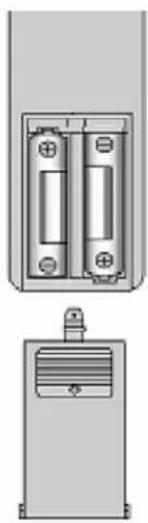
natural_image
Technical diagram of a battery panel with two side blocks and a separate view showing internal components (no text or symbols)
natural_image
Simple line drawing of a door with a ventilation grille and an upward arrow (no text or symbols)Reception range of remote control
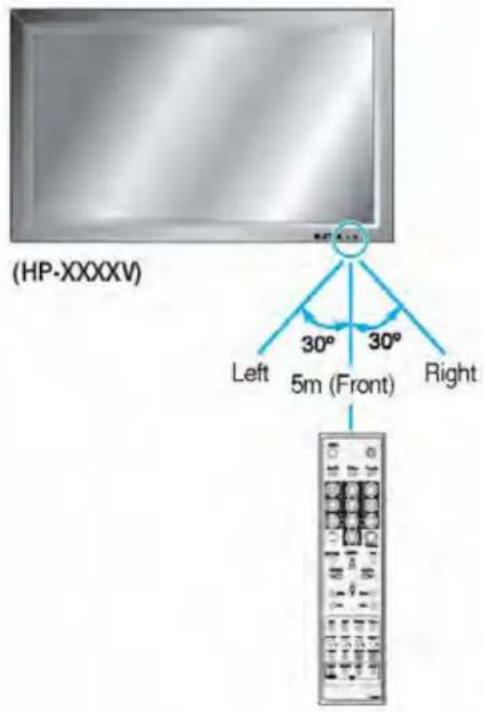
text_image
(HP-XXXXV) Left 30° 5m (Front) Right 30°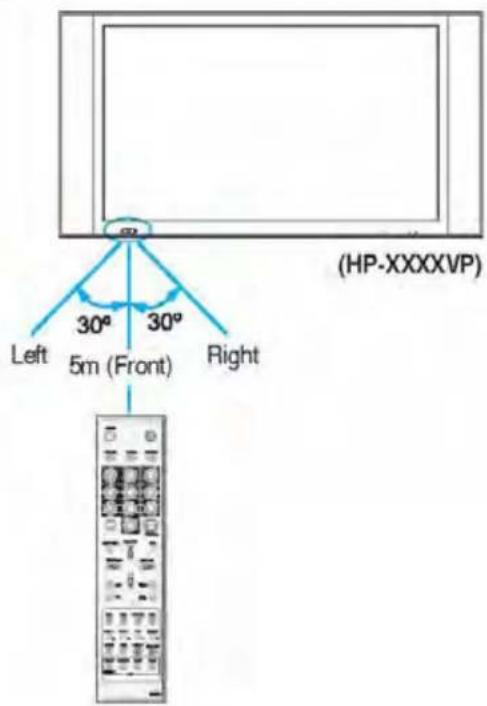
text_image
(HP-XXXXVP) Left 30° 30° 5m (Front) Right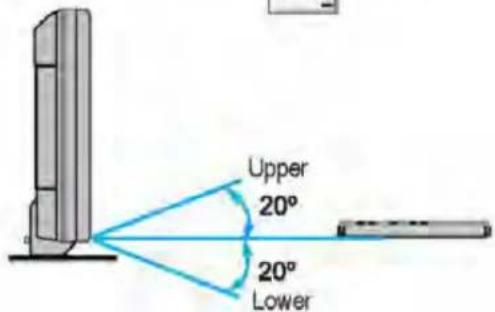
text_image
Upper 20° 20° LowerInstallation
Table Stand Installation (optional)
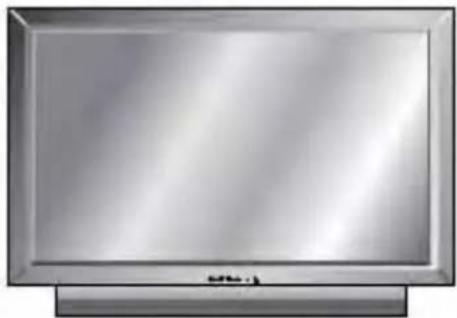
natural_image
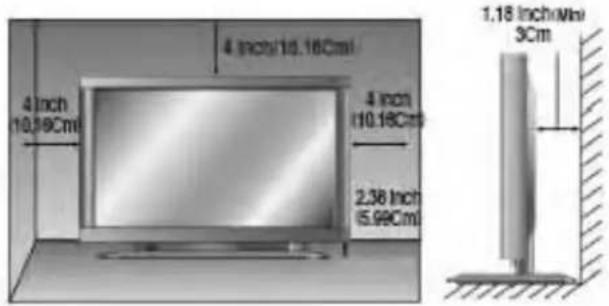
Front view of a flat-screen television displaying (no visible text or symbols)< The monitor can be installed on the desk as shown above. >
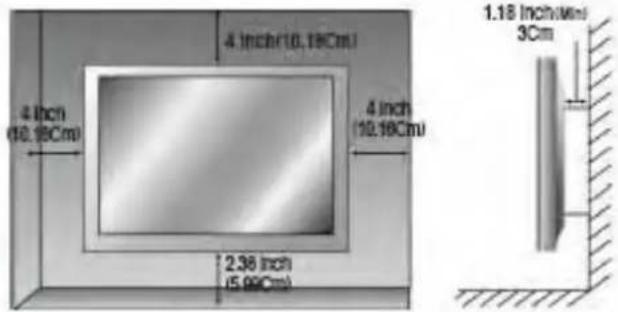
- Table stand mount minimum allowable clearances for adequate ventilation.
text_image
4 inch/10.16Cmi 4 inch/10.16Cmi 2.36 inch/5.99Cmi 1.18 inch/min/3CmiWall Mount Installation (optional)

natural_image
Modern office setup with a large TV mounted on a cabinet (no visible text or symbols)
• Install this monitor only in a location where adequate ventilation is available.
text_image
4 inch (10.18Cm) 4 inch (10.18Cm) 2.36 inch (5.99Cm) 4 inch (10.18Cm) 4 inch (10.18Cm) 1.18 inch/min 3CmInstallation
(HP-XXXXV)
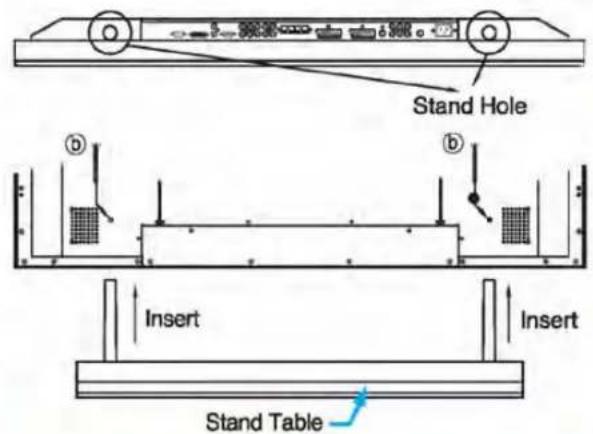
Table-Stand User's Guide

text_image
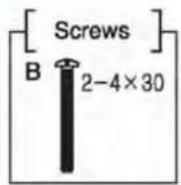
① Insert Stand Bars into the Stand Base as shown below ② @- Secure with Screw A (8 x 18) [Screws] A 2-8 x 18 Stand Bar Stand Base Stand Base③ Insert a Table-Stand as below ④ ⓑ-Secure with Screw B (4 x 30)

text_image
Stand Hole b b Insert Insert Table-Stand(HP-XXXXVP)
Table-Stand User's Guide

text_image
① Insert Stand Bars into the Stand Base as shown below ② ⓐ—Screw Up (8 x 25) [Screws] 2-8 x 25 Stand Bar Stand Base Stand Base③ Insert a Table-Stand as below ④ ⑥—Screw Up (4 x 30)

text_image
Stand Hole b b Insert Insert Stand TableSpeaker Installation (Optional)

text_image
[To Main Unit] 8-4X10 [To Speaker] 8-4X10 SPEAKER (8Ω) Wire Saddle Wire Saddle Ferrite Core * CAUTION : Please make sure speaker wires should be connected so above. ferrite core are to be
Caution
Be sure TV power is turned off before making any connections.
Place the speakers in the position you want. Install the speaker wires on the TV and speaker. Be sure to connect the positive "+" wire to the "+" input and the negative "-" wire to the "-" input. Connect left TV input to left speaker and right TV input to right speaker. Any extra speaker wire length remaining can be bunched into the wire holders provided. (Caution: Once installed, the speaker wire holders lock into position and can't be removed.)
• Always lift the TV itself (not the speakers) when handling or moving the TV after speakers have been installed.
Speaker Accessories

4 - Iron Plates
(Mount speakers to monitor)

16 - 4 x 10 Long Bolts
(Attach iron plates to speakers)
2 - Speaker Wire Holders (For arranging the speaker wires)
2 - Speaker Wires
Watching TV

text_image
TV Antenna CableSpeaker Output port only for HP-XXXXV
Connection the TV Cable
1 Connect the TV antenna cable to the TV input jack. Press INPUT button on the remote control and select TV on OSD.
2 Use PG+, PG- button or numeric key to change TV programme for your programme selection.
3 Press Pre PG key on the remote control to tune the previous programme.
Also, you can tune to cable service provided programmes using the cable box. For further information regarding cable TV service, contact cable TV service provider(s).
The Function of SCART2 Port
This signal of SCART2 port takes first priority over other input signals.
When an outer device which is connected to SCART2 port is "Power On", the monitor will automatically display the signal of SCART2 port.
The display mode (4:3, 16:9) will be automatically recognized until users purposely change the display mode. When users operate up/down button or numeric button on the remote control, input source is changed to TV mode automatically.
The SCART2 recognizes automatically both composite signal and RGB signal.

text_image
AV INPUT SCART 2 (EURO connector) SCART 1 (EURO connector) S-VIDEO SOUND of S-VIDEO/AVSpeaker Output port only for HP-XXXXV
Connecting the VCR
With SCART (Eurocable)
Connect a SCART cable to the SCART jacks of the VCR and the TV.
With S-Video
Connect a S-Video cable to the S-Video jacks of the VCR and the TV.
Connect L (White), R (Red) sound cable (composite) to the sound jacks of the VCR and the TV.
With AV input
Connect a composite cable to the AV video jacks of the VCR and the TV.
Connect L (White), R (Red) sound cable (composite) to the sound jacks of the VCR and the TV.
Watching VCR

Press INPUT button on the remote control and select Video Sources.

Insert a video tape into the VCR and press the PLAY key on the VCR.

Notes
- To avoid picture noise (interference), leave an adequate distance (over 3m) between the VCR and monitor.
- When connecting the TV with external equipments, match the colour of connecting ports (e.g. Video -yellow, Audio(L) - white, Audio(R) - red).
- If you have a mono VCR, connect the audio cable from the VCR to the AUDIO(L/MONO) input of the TV.
- If you connect an S-VHS VCR to the S-VIDEO input socket, you can get a better picture quality than normal video input (AV).
- Avoid having a fixed image remain on the screen for a long period of time. Typically a frozen still picture from a VCR 4:3 picture format or if a programme information is present.
Watching DVD
Connecting the DVD
- Connect the three separate component video cables to the DVD player's Y, Pb and Pr jacks and to the Component jacks on the TV.
- Connect the audio cable to the DVD player's audio L (White) and R (Red) jacks and to the L and R audio jacks beside the Component jacks on the TV.
- Connect the HDMI cables to the DVD player's and to the HDMI cables on the TV.
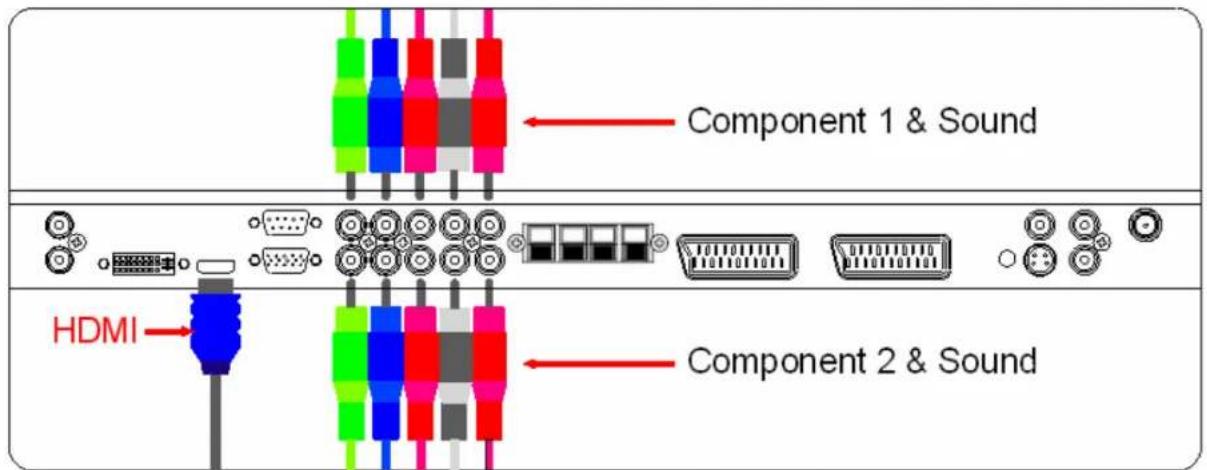
text_image
Component 1 & Sound HDMI Component 2 & SoundSpeaker Output port only for HP-XXXXV
How to use

Turn on the DVD player.

Press INPUT button on the remote control of the TV and select HDMI, Component1 or Component2.
| Supported Signals | |||||
| HDMIDV PCComponent2C | |||||
| 480i/60Hz | XXXOO | ||||
| 480p/60Hz | OOOOO | ||||
| 576i/50Hz | XXXOO | ||||
| 576p/50Hz | OOOOO | ||||
| 720p/50Hz | OOOOO | ||||
| 720p/60Hz | OOOOO | ||||
| 1080i/50Hz | OOOOO | ||||
| 1080i/60Hz | OOOOO | ||||

Component Input ports
You can get better picture quality if you connect DVD player with component input sockets as below.
| Component ports of the Monitor | Y | PB PR |
| Video output ports of DVD player | Y | Pb | Pr |
| Y | B-Y | R-Y | |
| Y | Cb Cr | ||
| Y | PB PR |

Notice
- Normal DVD source is based on 480i, which should be through normal YPbPr of Component signal.
Watching Set Top Box
How to connect
Connect Set Top Box video inputs to SCART, COMPONENT, HDMI, PC or DVI jacks on the TV. Audio inputs to Audio sockets beside the L (White) and R (Red) audio jacks which you connect video inputs..
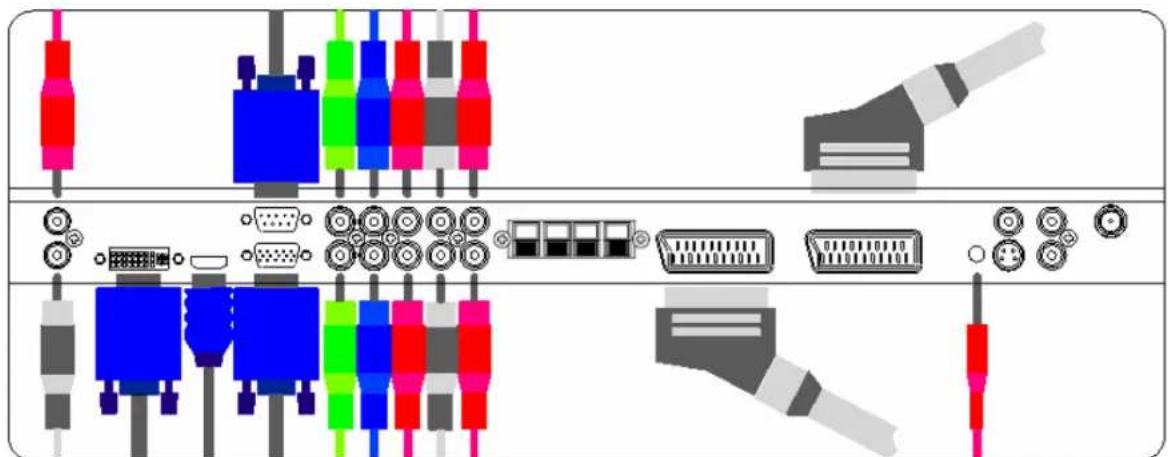
natural_image
Diagram of various electronic connectors and components (no text or labels)Speaker Output port only for HP-XXXXV
How to use
1 Turn on the Set Top Box.
2 Press INPUT button on the remote control of the TV and select Component1, Component2, HDMI, PC or DVI.
| Supported Signals | |||||
| HDMIDVIPCComponent2Com | |||||
| 480i/60Hz | XXXOO | ||||
| 480p/60Hz | OOOOO | ||||
| 576i/50Hz | XXXOO | ||||
| 576p/50Hz | OOOOO | ||||
| 720p/50Hz | OOOOO | ||||
| 720p/60Hz | OOOOO | ||||
| 1080i/50Hz | OOOOO | ||||
| 1080i/60Hz | OOOOO | ||||
How to connect
With SCART (Eurocable)
Connect a SCART cable to the SCART jacks of the STB and the TV.
With Component
Connect a three separate component cables to the component jacks of the STB and the TV.
Connect L (White) and R (Red) sound cables (composite) to the sound jacks of the STB and the TV.
With HDMI
Connect a HDMI cable to the HDMI jacks of the STB and the TV
With RGB or DVI
Connect a D-Sub or DVI cable to the AV video jacks of the STB and the TV.
Connect L (White) and R (Red) sound cables (composite) to the sound jacks of the STB and the TV.
Connecting The PC (D-Sub and DVI)
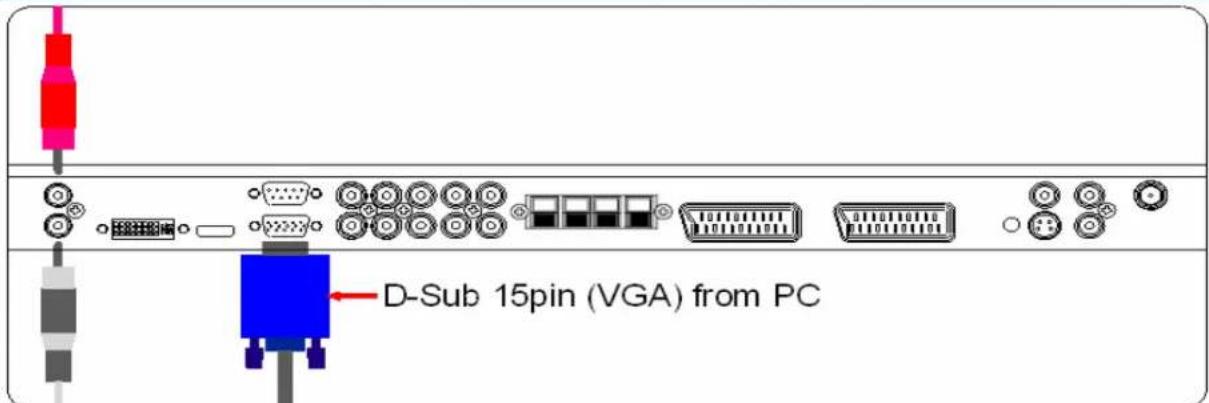
text_image
D-Sub 15pin (VGA) from PCSpeaker Output port only for HP-XXXV
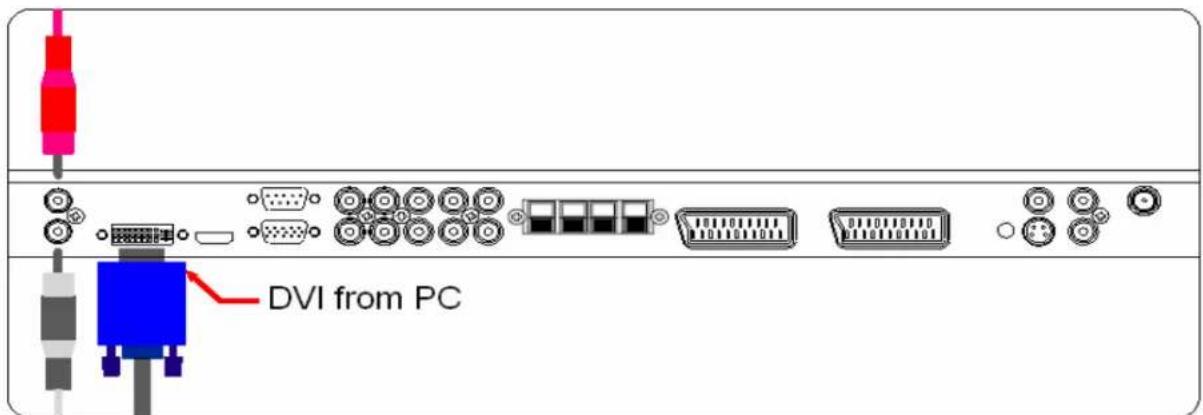
text_image
DVI from PCSpeaker Output port only for HP-XXXXV
Connecting a PC to the TV
- Connect a PC (15pin) video cable between the Video Output port on the PC and the PC port on the TV.
Pin Configuration
• 15Pin Signal Cable (based on protruded pin)
To watch the PC screen
- Turn on the TV and press INPUT button to select the PC MODE.
- Turn on the PC and check for the PC requirements.
- Adjust the PC screen in Position menu. (See 40 page.)

| Pin NO. | Description |
| 1 | Red(R) |
| Green(G)2 | |
| Blue(B)3 | |
| Grounding4 | |
| Grounding(DDC)5 | |
| Red(R) Grounding6 | |
| Green(G) Grounding7 | |
| Blue(B) Grounding8 | |
| Resered9 | |
| Sync Grounding10 | |
| Grounding11 | |
| Data(DDC)12 | |
| Horizontal sync.13 | |
| Vertical sync.14 | |
| Clock(DDC)15 |
Displayable TV Specification
| Vertical Frequency (Hz)Horizontal | ||
| 720 X 400 | 70.0831.469 | |
| 85.0337.927 | ||
| 640 X 480 | 59.9431.469 | |
| 66.6635.000 | ||
| 72.8037.861 | ||
| 75.0037.500 | ||
| 85.0043.269 | ||
| 90.0345.913 | ||
| 100.0453.011 | ||
| 800 X 600 | 56.2535.156 | |
| 60.3137.879 | ||
| 72.1848.077 | ||
| 75.0046.875 | ||
| 85.0653.674 | ||
| 90.0056.000 | ||
| 100.0064.016 | ||
| 74.5549.725832 X 624 | ||
| 1024 X 768 | 60.0048.363 | |
| 70.0656.476 | ||
| 75.02960.023 | ||
| 84.99768.677 | ||
| 75.0067.501152 X 864 | ||
| 60.0064.001280 X 1024 |

Notes
- Synchronization input form : separate
- The TV recognizes 640x480@60Hz signal as 480p DTV signal. So the signal is expanded, please try other signals like 640x480@75HZ
- The TV operates abnormally if a non-standard video format is selected.
- Depending on the manufacturer, your PC screen might appear differently (and depending on your particular version of Windows).
Check your PC instruction book for information about connecting your PC to a the TV
- The TV may operate abnormally if a non-standard video signal
- "Out of Range" message box will appear when an over-spec video signal is input. Change th video settings of PC when the message is displayed
Turning the Monitor On And Off
Press the Power key on the remote control. The TV will turn on and you will be ready to use its features. You can also use the Power key on the front panel.
Select Source
Press INPUT key on the remote control. Then you can see the source list menu shown as below.
INPUT
- TV
- SCART1
- SCART2
- S-VIDEO/AV
- COMPONENT1
- COMPONENT2
- PC RGB
- DVI
- HDMI
Select the source to watch with Ⓐ / Ⓥ key on the remote control and press the Menu / Set button.
Source list menu
TV program Selection
1 Connect the signal source (TV antenna) to TV input. Press INPUT button on the remote control and select TV on the source list.
2 Use PG+, PG- key or numeric key to change TV programme you want.
3 Press Pre PG key on the remote control to watch the previous programme.
4 Also, you can tune the cable service, provided programmes while using the cable box. For further information regarding cable TV service, contact your TV service provider(s).
Volume Control
Use VOL+ / VOL- key on the remote control to adjust the volume level.
Press MUTE key on the remote control when you need to cut the sound temporarily.
OSD Menu Structure
- OSD (On Screen Display) allows users to control or adjust various features and settings in accordance with his/her preferences.
- Press the Menu/Set button on the remote control to see the main OSD menu.
EXAMPLE of OSD Menu
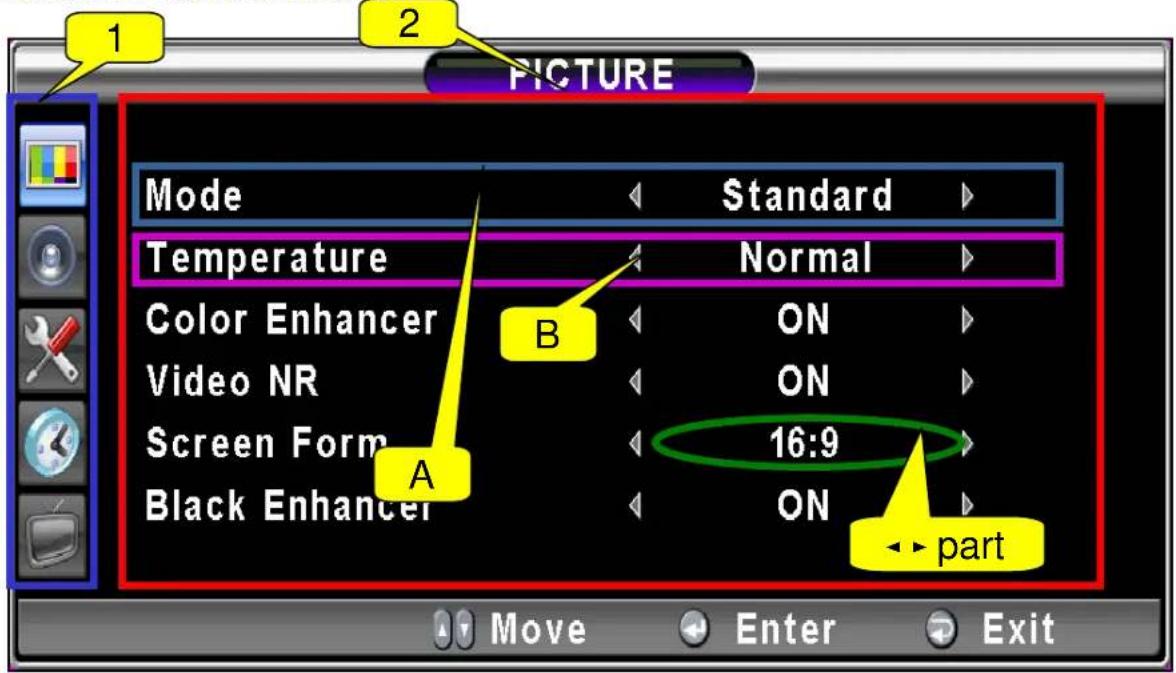
text_image
PICTURE Mode Standard Temperature Normal Color Enhancer B ON Video NR ON Screen Form 16:9 Black Enhancer ON A Move Enter Exit1. Main Menu
Press Menu / Set key on the remote control to enter the main OSD menu.
First, select Main menu item you need with △ &▽ key.
To select a main menu items, just press ▶ or Menu/Set button on the Remote Control.
2. Sub Menu
Each menu item has its own sub menu items to set.
3. Sub Menu items
A : If there is no ▶ part, the item has an sub menu.
You can enter the under menu and adjust an item you need.
Select sub-menu item with △ / ▽ keys on the remote control and press ▶ or
Menu/Set button
to enter the submenu.
B : If there is a ◀▶ part, you can set the item by selecting ◀▶. Ex) ◀ON ▶ or ◀OFF ▶
Press ▶ or Menu/Set key to set a ◀ part, and adjust it with ▽ keys.
CHANNEL (TV)
AUTO SCAN
You can now search for and store the TV channels in two different ways: using Auto Scan or Manual Scan.
Auto Scan
1 Press Menu/set button to display the main OSD menu.
2 Select the TV Main menu.
3 Press Menu/Set to enter the sub menu.
4 Select Auto Scan with 🔊/ 🔒 keys and press Menu/Set key on the remote control. Then there will appear the Auto Scan sub menu.
5 Select your country. Then the tuning bar will appear. The scanning will start.
The supported countries are shown as below.
Belgium
Sweden
Czech Rep.
Turkey
Denmark
Switzerland
Germany
East Europe
England
Others
Spain
Finland
France
Great Britain
Greece
Hungary
Ireland
Italy
Netherlands
Norway
Poland

text_image
TV Auto Scan Manual Scan Fine Tune Edit Move Enter Exit
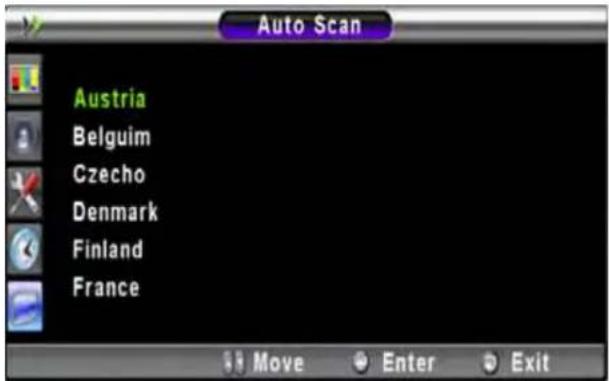
text_image
Auto Scan Austria Belguim Czecho Denmark Finland France Move Enter Exit

text_image
AUTO SCAN Country France Channel C50 Frequency 255.865MHz Program 0 Station 9 ExitAuto Scan for other countries, please refer to the next page

Notes
You can enter the TV menu in TV mode only. (When you watch a TV programme.)
Auto Scan (Other Countries)
• ASIA
| SelectionNationSelectionNation | |||
| OthersIsraelOthersMalaysia | |||
| OthersKuwaitOthersPakistan | |||
| OthersAnrab EmiratesOthersSir | |||
| Czech RepublicChinaOthersIran | |||
| OthersSaudi Arabia | |||
- Europe
| SelectionNation | SelectionNation | |||
| Albania | HungaryEstonianOthers | |||
| Andorra | Others | Georgia | Hungary | |
| Croatia | Others | Latvia | Hungary | |
| Iceland | Others | Lithuania | Hungary | |
| HungaryRussia | FedOthersMace | |||
| HungaryUkraine | SpainPortugal | |||
| Armenia | Hungary | Romania | Poland | |
| Azerbaijan | Hungary | Slovakia | Greece | |
| Belarus | Hungary | Luxembourg | Netherlands | |
| Bulgaria | Hungary | Monaco | France |
CHANNEL (TV)

Manual Scan
- Press Menu/set button on the remote control to display the main OSD menu.
- Select the TV main menu with / key on the remote control.
- Press Menu/Set button to enter the sub menu.
- Select Manual Scan with △/ ▽ button and press Menu/Set button.
- Then you can see the tuning bar. TV will scan from channels to the current channel.

text_image
TV Auto Scan Manual Scan Fine Tune Edit Move Enter Exit

text_image
Manual Scan Country France Channel --- Frequency 255.865MHz Station -----
Notes
Only scanned programmes can be stored as Favorite programmes.

Fine Tune
The Fine Tuning function lets you manually adjust the TV's tuner if you have difficulty tuning analog Channels.
- Press Menu/set button to display the main OSD menu.
- Select the TV main menu.
- Press Menu/Set to enter the Fine tune sub menu.
- Select Fine tune with 📁/ 📅 button and press Menu/Set button. Then you can see the adjust bar.
- Adjust the fine tune with button.


text_image
TV Auto Scan Manual Scan Fine Tune Edit Move Enter Exit

text_image
Manual Scan Program Fine Tune 1 0 Adjust Save ExitCHANNEL (TV)
Edit Favorite programme List
You can store of your favorite channels for each available input source (such as TV or CATV). Then, when you press the FAVORITE button on the remote control, the TV display only the favorite channels you previously stored, allowing you to quickly and easily find frequently wanted channels.
1 Press Menu/set button to display the main OSD menu.
2 Select the TV main menu.
3 Press Menu/Set to enter the TV sub menu.
4 Select Edit and press the Menu/Set button. Then you can see the Favorite programme List.
5 You can select a programme with button on the remote control.
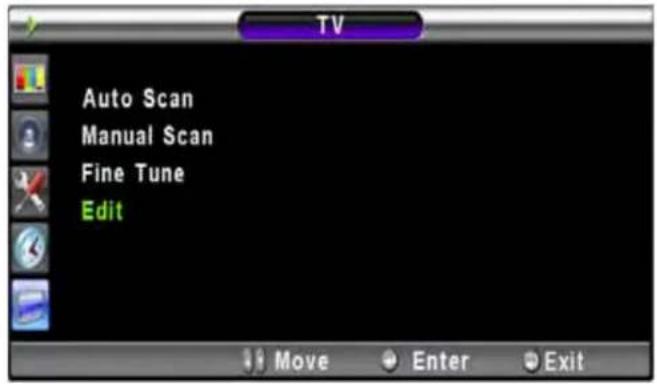
text_image
TV Auto Scan Manual Scan Fine Tune Edit Move Enter Exit
To edit the list
You can INSERT, ERASE, SKIP and REPLACE the programmes in the list. Refer to the picture of the remote control below.
To edit the programme in the list
If you want to edit a programme, press Menu/Set button. Then you can select a field with 📄/▶button. Press Menu/Set button on the field to edit. Adjust the field with Ⓐ/▼button. To return, press Exit button.

text_image
Edit Pr Name Ch Picture Sound Skip Fav 1 ---- Auto B/G Yes No 2 ---- Auto B/G Yes No 3 ---- Auto B/G Yes No 4 ---- Auto B/G Yes No 5 ---- Auto B/G Yes No 6 ---- Auto B/G Yes No 7 ---- Auto B/G Yes No 8 ---- Auto B/G Yes No 9 ---- Auto B/G Yes No 10 ---- Auto B/G Yes No Erase Skip Insert Replace
text_image
MTS PG INFO PICTURE STILL SOUND SLEEP TIME DIGEST ERASE SKIP INSERT REPLACE MODE SOURCE SWAP MOVE ON/OFF PIP1 ERASE
Erase the selected programme from the list.
2SKIP
Make the selected programme will be skipped.
3 INSERT
Insert new list item.
4 REPLACE
Replace the selected programme with the Current programmes that you're watching.

Notes
Digest
With the Digest function, you can select a TV prgoramme watching 16 programme at once. This function works in TV mode only.
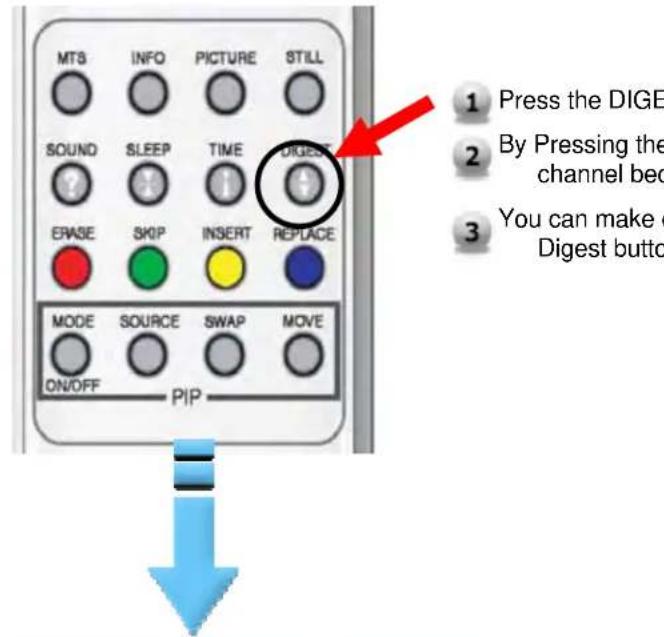
text_image
MTS INFO PICTURE STILL SOUND SLEEP TIME DIGE ERASE SKIP INSERT REPLACE MODE SOURCE SWAP MOVE ON/OFF PIP 1 Press the DIGE 2 By Pressing the channel bec 3 You can make e Digest button1 Press the DIGEST button on the remote control.
2 By Pressing the channel number. The selected channel becomes main window.
3 You can make off the Digest Function by pressing Digest button again.
flowchart
graph TD
    A["1"] --> B["2"]
    B --> C["3"]
    C --> D["4"]
    style A fill:#fff,stroke:#000
    style B fill:#fff,stroke:#000
    style C fill:#fff,stroke:#000
    style D fill:#fff,stroke:#000
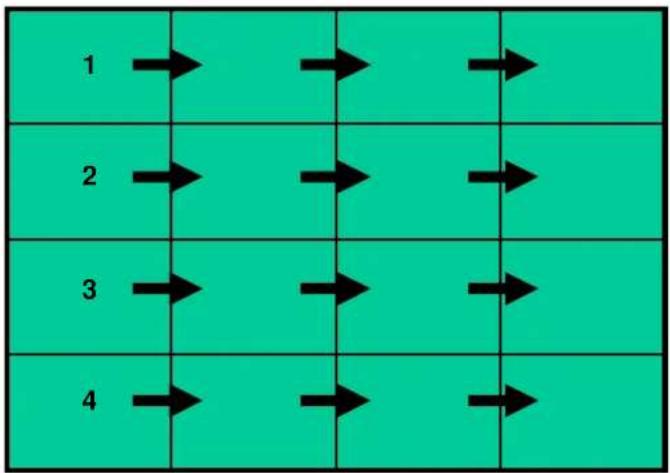
16 side windows are renewed clockwise. Next memorized programme appear in the renewed windows.
To choose the programme, press the channel number with the numeric buttons on the remote control.
Teletext On / Mix / Off
You can switch on and off teletext function by pressing TEXT key on remote control
TOP text
The user guide displays four fields - red, green, yellow and blue - at the bottom of the screen. The yellow field denotes the next group and the blue field denotes next block.
• Block / Group / Page Selection
- With the blue key you can move block to block
- Use the yellow key to proceed to the next group with automatic overflow to the next group.
- With the green key, you can go to the next exiting page. (Use PG+ key as alternate).
- With the red key, you can go to the previous page.(Use PG-key as alternate)
You can go to the page by pressing the NUMBER button on the remote control
FASTEXT
The teletext pages are color coded along the bottom of the screen and are selected by pressing the corresponding colored key. Press index key to select the index page. You can go to a page by pressing the NUMBER button on remote control. You can move a page by pressing PG+ or PG- key to select the page you want to see.

Mode
- Your TV has 3 automatic factory preset picture settings ("Standard", "Vivid" and "Mild"). You can choose Standard, Vivid or Mild by pressing "Picture" key on the remote control (or by making a selection from the menu). Or you can select USER which automatically recalls your personalized picture settings.
- Press Menu/set button to display the main OSD menu.
- Select the picture main menu.
- Press Menu/Set to enter the sub menu.
- Select Mode and press Menu/Set to enter the sub menu. Then the picture sub mode appear.
- Select the picture mode and press Menu/Set button.
- You will see the picture setting bars. Just Press Exit button on the remote control. You can adjust each values of the picture setting, but the changed values are stored as in USER mode.
* USER mode require more settings. It has an under menu: See next page.
Tint feature is enabled while Input Signal is NTSC mode.
Alternative method : Just press the "Picture" button on the remote control. Each time it is pressed, different mode is selected.
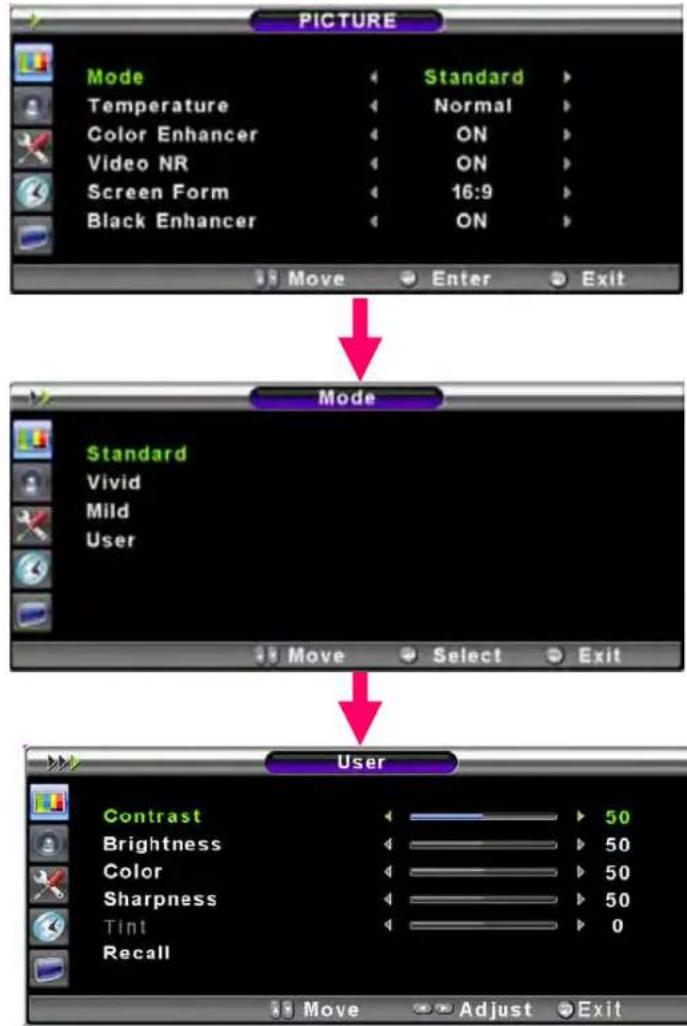
flowchart
graph TD
    A["PICTURE"] --> B["Mode"]
    B --> C["Temperature"]
    B --> D["Color Enhancer"]
    B --> E["Video NR"]
    B --> F["Screen Form"]
    B --> G["Black Enhancer"]
    A --> H["Standard"]
    H --> I["Vivid"]
    H --> J["Mild"]
    H --> K["User"]
    A --> L["Move"]
    L --> M["Enter"]
    L --> N["Exit"]
    O["Mode"] --> P["User"]
    Q["User"] --> R["Contrast"]
    Q --> S["Brightness"]
    Q --> T["Color"]
    Q --> U["Sharpness"]
    Q --> V["Tint"]
    Q --> W["Recall"]
    X["50"] --> Y["▶ 50"]
    Z["50"] --> AA["▶ 50"]
    AB["50"] --> AC["▶ 50"]
    AD["0"] --> AE["▶ 0"]

Adjust USER Mode
You can change the Contrast, Brightness, Color, and Sharpness according to personal preference in USER mode.
1 Select the item to adjust with 🔊, ▼ button.
2 Press Menu/Set button.
3 Adjust the item with button.
4 To cancel all adjust, select Recall and press Menu/Set button.
For a more detailed description of these settings, see the next page.

text_image
Select USER mode (Previous page) User Contrast 50 Brightness 50 Color 50 Sharpness 50 Tint 0 Recall Move Adjust ExitPICTURE
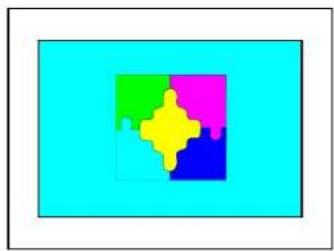
Contrast
Adjust brightness difference between bright part of the screen and dark part.
natural_image
Colorful puzzle piece icon on cyan background (no text or symbols)Distinct

natural_image
Abstract geometric puzzle piece with four colored blocks (green, pink, yellow, blue) on a light blue background, no text or symbols present.▶
Va
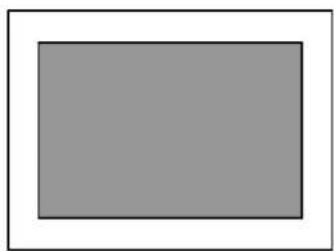
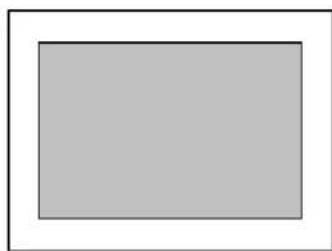
Brightness
Adjust brightness of the screen.
natural_image
Simple gray rectangle with white border, no text or symbols presentDark
natural_image
Simple gray rectangle inside a white border (no text or symbols)▶
Color
Adjust deep and light color of the screen.

natural_image
Illustration of two stylized yellow leaves on a pink background (no text or symbols)Decrease

natural_image
Illustration of two stylized oak leaves on a pink background (no text or symbols)▶
Increase
Sharpness
Adjust vividness of the screen.

natural_image
Illustration of two stylized oak leaves on a branch (no text or symbols)Less sharp

natural_image
Illustration of a branch with two yellow leaves on a pink background (no text or symbols)▶
Sharp
Tint
Adjusts the balance between green and yellow
natural_image
Silhouette of a flowering plant with leaves and blossoms (no text or symbols)Green color is deeper ◀

natural_image
Simple line drawing of a leafy plant with two leaves (no text or symbols)▶ Red color is deeper
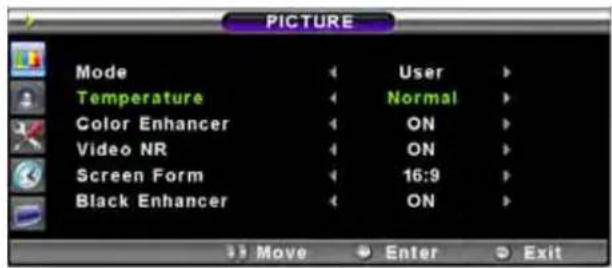
Temperature
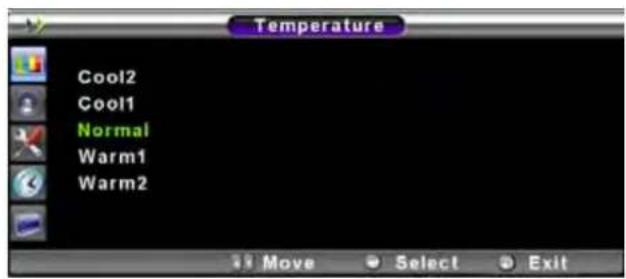
- Your TV has 5 screen temperatures (color settings):
1 Press Menu/set key to display the main OSD menu.
2 Select the picture main menu.
3 Press Menu/Set to enter the picture menu.
4 Select Temperature and press Menu/Set to enter the under menu. Then the Picture-Temperature under menu appear.
5 Select the Temperature mode with / button and press Menu/Set key.
6 Press Exit button to return.
- Cool 1,2
Screen seems cool : Strong Blue
•NORMAL
Normal: Factory default.
- Warm 1,2
Screen seems warm : Strong Red
text_image
PICTURE Mode User Temperature Normal Color Enhancer ON Video NR ON Screen Form 16:9 Black Enhancer ON Move Enter Exit
text_image
Temperature Cool2 Cool1 Normal Warm1 Warm2 Move Select ExitColor Enhancer
-This function will enhance the color level. Green, Blue and Skin color on the picture will enhance, while others areas remain unchanged.
1 Press Menu/Set button to display the main OSD menu.
2 Select the picture main menu item.
3 Press Menu/Set to enter the sub menu.
4 Select Color Enhancer. Then the cursor moves into the parts.
5 Turn on or off Film mode function with 🏠/▶ button and press Exit button.

text_image
PICTURE Mode ◀ User ▶ Temperature ◀ Normal ▶ Color Enhancer ◀ ON ▶ Video NR ◀ ON ▶ Screen Form ◀ 16:9 ▶ Black Enhancer ◀ ON ▶ Move Adjust ExitVideo NR(Noise Reduction)
- This function automatically filters out and reduces the image noise and improves picture quality where receiving weak signals.
1 Press Menu/Set button to display the main OSD menu.
2 Select the picture main menu item.
3 Press Menu/Set to enter the sub menu.
4 Select Video NR. Then the cursor moves into the parts.
5 Turn on or off Video NR function with ▶/▶ button and press Exit button.

text_image
PICTURE Mode ◀ User ▶ Temperature ◀ Normal ▶ Color Enhancer ◀ ON ▶ Video NR ◀ ON ▶ Screen Form ◀ 16:9 ▶ Black Enhancer ◀ ON ▶ Move Adjust ExitScreen Form
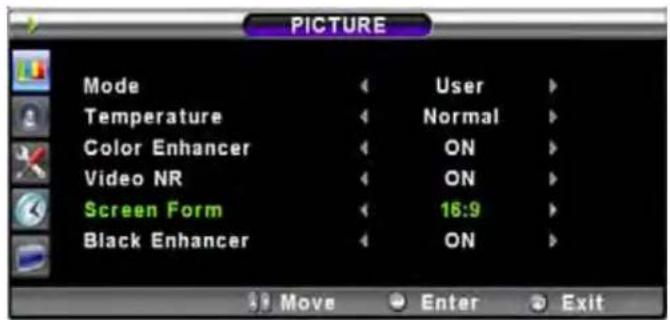
- Your TV has four Screen Formats: 16:9, 4:3, PANORAMA, ZOOM1, ZOOM2.
( For more detail description for these modes, refer to the next page. )
1 Press Menu/Set button to display the main OSD menu.
2 Select the picture main menu.
3 Press Menu/Set to enter the picture menu.
4 Select Screen Form and press Menu/Set to enter the under menu. Then the Screen Format under menu appear.
5 Select the screen format you want and press Menu/Set button.
text_image
PICTURE Mode ◀ User ▶ Temperature ◀ Normal ▶ Color Enhancer ◀ ON ▶ Video NR ◀ ON ▶ Screen Form ◀ 16:9 ▶ Black Enhancer ◀ ON ▶ Move Enter Exit

text_image
Screen Form 16:9 4:3 Panorama Zoom1 Zoom2 Move Select ExitScreen Format Description
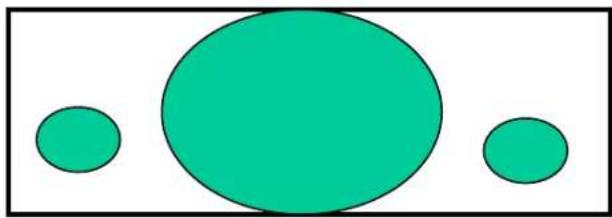
16:9
16:9 video: No change.
4:3 video: Expands 4:3 video signal horizontally to fit the 16 : 9 screen.
Panorama
16:9 video: No change.
4:3 video: Expands 4:3 video horizontally to fit the 16 : 9 screen and to minimize distortion, sides are expanded more than center.
Zoom 1
Expands 16 : 9 mode screen vertically.
Zoom 2
Expands zoom 1 mode screen vertically.
4:3
16:9 video: The image is suppressed.
4:3 video: No expansion. There are gray areas besides the image.
natural_image
Simple diagram with three green circles inside a rectangle, no text or symbols present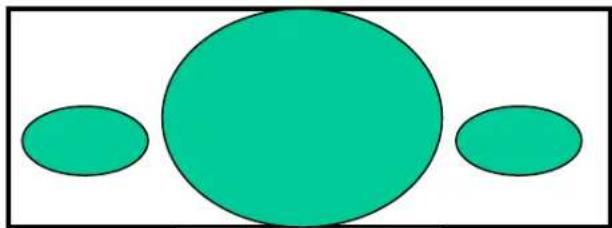
natural_image
Simple diagram with three green circles of different sizes inside a rectangle (no text or symbols)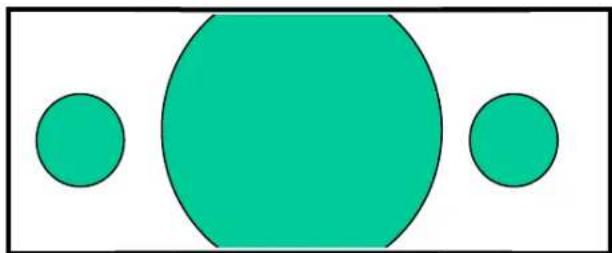
natural_image
Simple geometric diagram with a large circle and two smaller circles inside a rectangle (no text or symbols)
natural_image
Simple diagram with a large teal circle and two smaller circles on a white background (no text or symbols)
natural_image
Simple diagram with three green circles inside a rectangular frame, no text or symbols presentBlack Enhancer
- This will enhance the black level/ the contrast of the picture. The dark regions of the picture are made Darker, while bright areas remain unchanged. The advantage of this black-level expansion is that the black expansion is performed only if it is noticeable to the viewer.
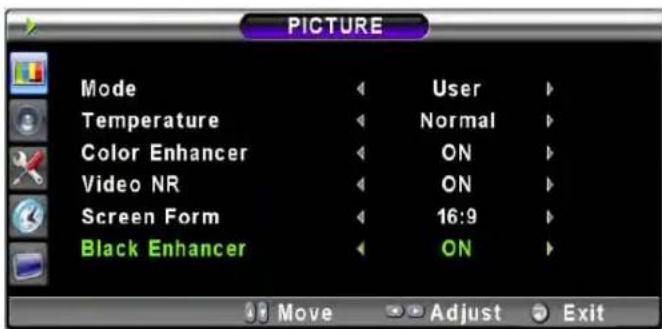
text_image
PICTURE Mode ◀ User ▶ Temperature ◀ Normal ▶ Color Enhancer ◀ ON ▶ Video NR ◀ ON ▶ Screen Form ◀ 16:9 ▶ Black Enhancer ◀ ON ▶ Move Adjust ExitPICTURE (PC)
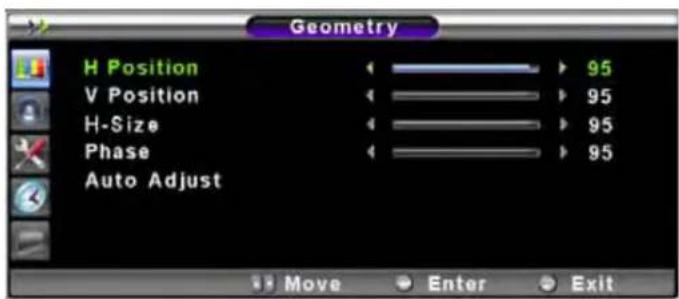
In PC mode, you can adjust the H,V-Position, H-Size and Phase. Also you can adjust them automatically.
Position
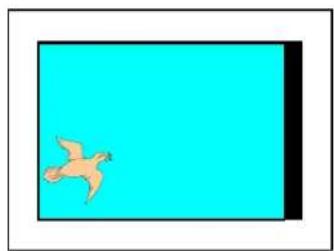
You can change H, V-Position, H-Size and Phase in PC mode like usual PC monitors. You can also adjust them automatically. (Auto adjust function.)
1 Press Menu/set button to display the main OSD menu.
2 Select the picture main menu with △, ▽ button.
3 Press Menu/Set to enter the sub menu.
4 Select Position and press Menu/Set to enter the under menu. Then the picture Geometry under menu will appear.
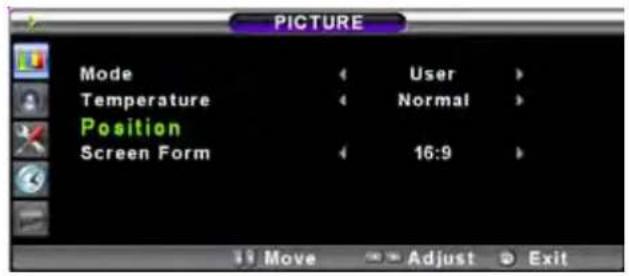
text_image
PICTURE Mode Temperature Position Screen Form User Normal 16:9 Move Adjust Exit
1 Select the item to adjust with △, ▽ button.
2 Press Menu/Set button.
3 Then the cursor moves on the bar and you can adjust the value with 🔊, ▶button.
4 To adjust these items, automatically, select Auto Adjust and press Menu/Set button.
text_image
Geometry H Position V Position H-Size Phase Auto Adjust 95 95 95 95 Move Enter Exit* For more detail description refer to the next page.
PICTURE (PC)
H-POSITION
natural_image
Simple illustration of a flying bird on a cyan background (no text or symbols)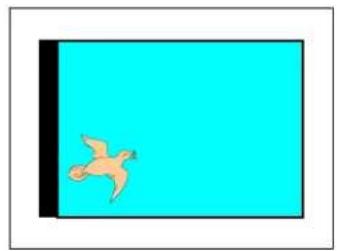
natural_image
Simple illustration of a flying bird on a cyan background (no text or symbols)V-POSITION

natural_image
Simple graphic with a flying bird on a cyan background, no text or symbols present.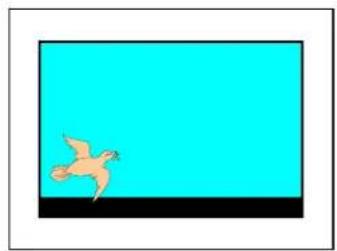
natural_image
Simple illustration of a flying bird on a black horizontal bar against a cyan background (no text or symbols)PHASE

natural_image
Abstract graphic with horizontal lines on a cyan background, no text or symbols present
natural_image
Solid cyan rectangle with white border (no text or symbols)Mismatch Match
SOUND
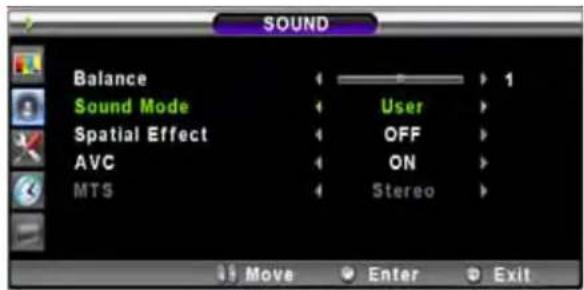
In Sound Menu, you can adjust balance, MTS (Multi-Track Sound), AVC (Auto Volume Control) and select the equalizer settings.
Balance
This control allows you to adjust the balance of the left and right speaker output.
1 Press Menu/set button to display the main OSD menu.
2 Select the SOUND main menu.
3 Press Menu/Set to enter the sub menu.
4 Select Balance and press Menu/Set key.
5 Adjust the balance with 🔊, ▶ keys and press Exit button.

text_image
SOUND Balance Sound Mode Spatial Effect AVC MTS Standard OFF ON Stereo Move Adjust ExitSound Mode
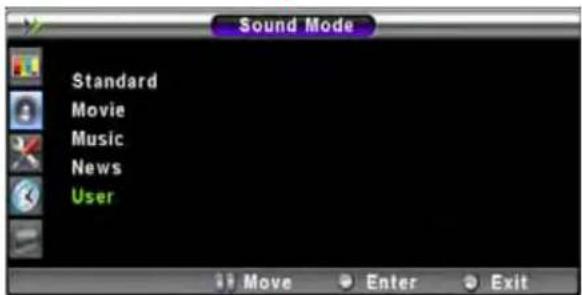
Your TV has four automatic sound settings ("Standard", "Movie", "Music" and "News") that are preset at the factory. You can activate either Standard, Movie, Music or News by pressing "SOUND" on the remote control (or by making a selection from the menu) or you can select "Custom" which automatically recalls your personalized sound settings.
1 Press Menu/set button to display the main OSD menu.
2 Select the SOUND main menu.
3 Press Menu/Set to enter the sub menu.
4 Select Sound Mode and press Menu/Set to enter the sub menu. Then the Mode sub menu appears.
5 Select the equalizer setting and press Menu/Set button.
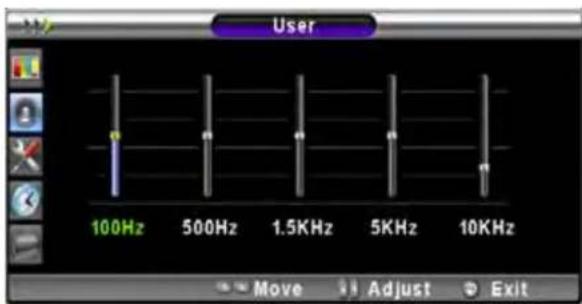
6 You will see the equalizer bars. Just press Exit button on the remote control. You can adjust each values of equalizer, but the changed values are stored as in USER mode.
* USER mode require more settings. It has sub menu: See next page.
text_image
SOUND Balance Sound Mode Spatial Effect AVC MTS 1 User OFF ON Stereo Move Enter Exit
text_image
Sound Mode Standard Movie Music News User
text_image
User 100Hz 500Hz 1.5KHz 5KHz 10KHz Move Adjust ExitUser
You can use the OSD menu to change the Treble, Bass, Balance and DRC according to your preference.
1 equalizer menu appear when you select USER mode.
2 Select a gain bar with ▶, ▶ button on the remote control and adjust it with △/▽ button.
3 Press Exit button on the remote control to exit equalizer. The result will be saved automatically.

text_image
Select USER mode (Previous page) User 100Hz 500Hz 1.5KHz 5KHz 10KHz Move Adjust ExitSpatial Effect
This function can create surround effect such as the sound seems to come from all directions.
1 Press Menu/set key to display the main OSD menu.
2 Select the SOUND main menu item with △/▽ button.
3 Press Menu/Set to enter the sub menu.
4 Select Spatial effect. Then the cursor moves into the parts.
5. Turn on or off Spatial effect function with ▶/ ▶button and press Exit button.

text_image
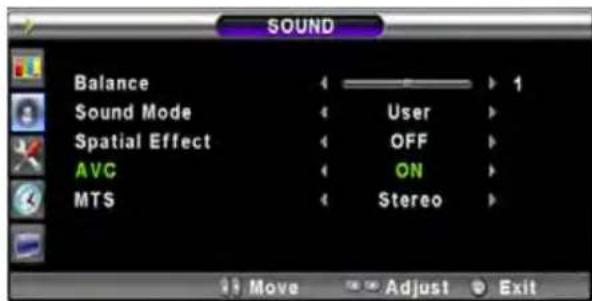
SOUND Balance Sound Mode Spatial Effect AVC MTS 1 User OFF ON Stereo Move Adjust ExitAVC (Auto Volume Control)
This function adjust sound volume level automatically depending on the source.
1 Press Menu/set button to display the main OSD menu.
2 Select the SOUND main menu.
3 Press Menu/Set to enter the sub menu.
4 Select AVC. Then the cursor moves into the parts.
5 Turn on or off AVC function with button and press Exit button.
text_image
SOUND Balance Sound Mode Spatial Effect AVC MTS 1 User OFF ON Stereo Move Adjust ExitMTS
- Select sound signal format from the input source. There are Mono, Stereo and Bilingual sound formats.
1 Press Menu/set button to display the main OSD menu.
2 Select the SOUND main menu with △/▽ button on the remote control.
3 Press Menu/Set to enter the sub menu.
4 Select MTS and press Menu/Set to enter the sub menu. Then the MTS sub menu appear.
5 Select the MTS format with △ / ▽ and press Menu/Set button.
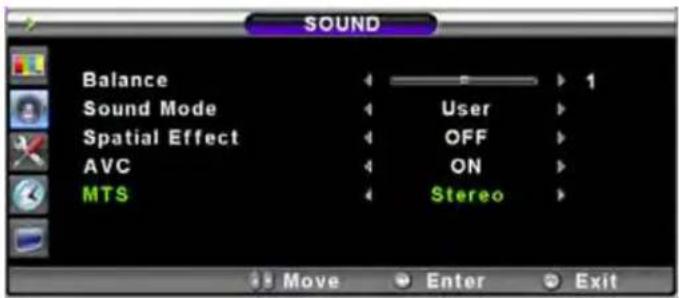
text_image
SOUND Balance Sound Mode Spatial Effect AVC MTS 1 User OFF ON Stereo Move Enter Exit
** The available sound formats are displayed. Usually, you can see Mono and Stereo.
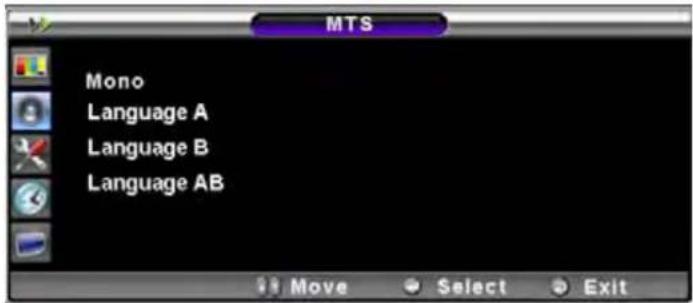
text_image
MTS Mono Language A Language B Language AB Move Select Exit
Notes
NICAM: A Digital stereo sound format for analog TV from BBC. If a programme transmit NICAM sound signal, you can hear high quality digital stereo sound.
In SET UP menu, you can adjust the transparency of the OSD menu and set PIP and others.
Translucent
- Adjust the transparency of the OSD menu. There are 8 step from OFF to 7.
1 Press Menu/set button to display the main OSD menu.
2 Select the SET UP main menu with Ⓐ/▼ keys on the remote control.
3 Press Menu/Set to enter the sub menu.
4 Select Translucent. Then the cursor moves into the ▶ parts.
5 Adjust with ▶&▶ button and press EXIT button.

text_image
SETUP Transparency PIP Advanced Scroll Mode ← 0 > ← ON > Move Adjust ExitPIP (Picture In Picture)
- You can watch two programmes or sources at the same time. And set up PIP size and position
1 Press Menu/set button to display the main OSD menu.
2 Select the SET UP main menu with △/▽ keys on the remote control.
3 Press Menu/Set to enter the sub menu.
4 Select PIP and press Menu/Set to enter the sub menu. Then the PIP sub menu appear.

text_image
SETUP Transparency PIP Advanced Scroll Mode 0 ON Move Enter Exit
text_image
PIP Window

text_image
PIP Size Small Source VIDEO Picture Swap Position Right Down Move Enter ExitSET UP
Size in PIP (Picture In Picture)
- Change the size of the PIP window. There are 3 sizes: Small, Large, Twin
1 Select Size and press Menu/Set button.
2 Adjust size function with A / ▼ button and press Menu/Set button.

natural_image
Close-up of a small brown object on a textured beige surface, with an inset showing a blue circular shape (no text or symbols visible)
natural_image
Microscopic view of a biological specimen with a magnified inset showing cellular structures (no text or labels)
natural_image
Side-by-side comparison of a small brown insect specimen on the left and its corresponding blue water droplets on the right (no text or symbols)SMALL LARGE TWIN
Source in PIP
- Change the source of the PIP window.
1 Select Source and press Menu/Set to enter the sub menu. Then the PIP sub menu appear.
2 The available sources will be displayed. Select the source and press Menu/Set button.

text_image
PIP Size Small Source VIDEO Picture Swap Position Right Down Move Enter Exit

text_image
Source S-VIDEO / AV COMPONENT1 COMPONENT2 PC RGB DVI HDMI| PIP\Main | TV | SCART 1 | SCART 2 | S-Video / AV | Component1 | Component2 | PC | DVI | HDMI |
| TV | OOOOOO OO | ||||||||
| SCART 1 | O | X | O | O | O | O | O | O | O |
| SCART 2 | O | O | X | O | O | O | O | O | O |
| OOXXOOSOVideo | |||||||||
| Component | OOOOOO OO | ||||||||
| OCompon202C | |||||||||
| X | XXOOXXOPC | ||||||||
| X | XXOOXXODVI | ||||||||
| HDMI | X | XXOOXXO | |||||||
Picture Swap in PIP (Picture In Picture)
- Swap the sources of the main screen and the PIP window.
* Select Picture Swap and press Menu/Set button.
Position in PIP
- Change the position of the PIP window.
1 Select Position with △/▽ button on the remote control and press Menu/Set to enter the sub menu. Then the PIP sub menu appear.
2 In Sub Menu, there are four positions. Select the position with ▲/▽ button on the remote control and press Exit button.

text_image
PIP Size Small Source VIDEO2 Picture Swap Position Right Down Move Enter Exit
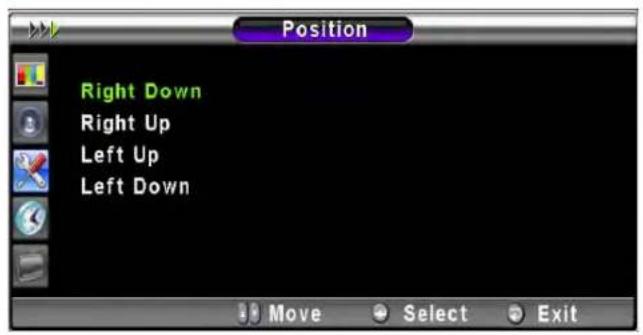
text_image
Position Right Down Right Up Left Up Left DownScroll Mode
- Users can get better picture quality in Scroll Mode off, but scrolled subtitle can be rough. The basic preference is Scroll Mode on.

text_image
SETUP Transparency PIP Advanced Scroll Mode 0 ON Move Adjust Exit
Advanced
- You can se up ID, Burn Protect, Blue Back, Language and Front Key Lock in Advanced Menu.
1 Press Menu/set button to display the main OSD menu.
2 Select the SET UP main menu with △/▽ button on the remote control.
3 Press Menu/Set to enter the sub menu.
4 Select Advanced and press Menu/Set button to enter the Advanced menu. Then the advanced sub menu appear.

text_image
SETUP Transparency 0 PIP Advanced Scroll Mode ON Move Enter Exit

text_image
Advanced Language English Blue Back OFF Front Key Lock OFF Burn Protection OFF Burn Clear Set ID 0 Move Enter Exit
Set ID in Advanced
- Set the ID of TV for mass-controlling through the serial port.
1 Select Set ID. Then the cursor moves into the part.
2 Adjust with ▶/▶ button and press Exit button.

text_image
Advanced Language English Blue Back OFF Front Key Lock OFF Burn Protection OFF Burn Clear Set ID 0
Blue Back in Advanced
You can set to display blue-color screen instead of noise screen.
1 Select Blue Back. Then the cursor moves into the ▶ parts.
2 Turn the function on or off with △/ ▶ button and press Exit button.
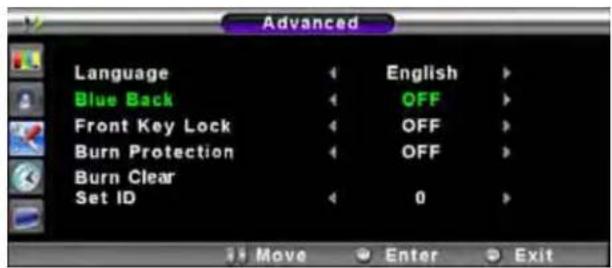
text_image
Advanced Language English Blue Back OFF Front Key Lock OFF Burn Protection OFF Burn Clear Set ID 0 Move Enter ExitLanguage in Advanced
Set the language to use in OSD.
Supported languages are English, French, German, Spanish, Italian.
1 Select language and press Menu/Set button.
2 Choose the Language with △/▽ button and press Exit button.

text_image
Advanced Language English Blue Back OFF Front Key Lock OFF Burn Protect OFF Burn Clear Set ID 0 Move Enter ExitFront key Lock in Advanced
Lock the OSD panel of the TV monitor. It can protect the TV monitor from children's power on/off or other operation by miss.
1 Select Front key Lock. Then the cursor moves into the parts.
2 Turn the function on or off with / button and press Exit button.
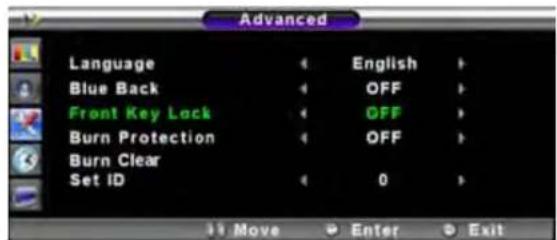
text_image
Advanced Language English Blue Back OFF Front Key Lock OFF Burn Protection OFF Burn Clear Set ID 0 Move Enter ExitBurn Protect in Advanced
The monitor may be damaged from displaying a static image long time (over 30 minutes). It is called as image sticking, and burn protect function moves image regularly to relieve image sticking. You can set the moving range of burn protection function. (How much the image will move.) Burn Protection function moves image 1 pixel per 2 minutes, and the set range, image starts to go back to the original position
1 Select Burn Protect menu and press Menu/Set button. Then the cursor moves into the ▶ parts.
2 Turn the function on or off with / button and press Exit button.
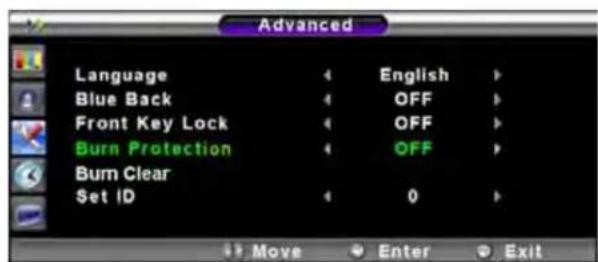
text_image
Advanced Language English Blue Back OFF Front Key Lock OFF Burn Protection OFF Burn Clear Set ID 0 Move Enter ExitBurn Clear in Advanced
This function will be used for removing sticking image on the screen.
1 Select Burn Clear. Then the cursor moves into the ◀ parts
2 Turn the function on Menu/Set and off Exit button.

text_image
Advanced Language English Blue Back OFF Front Key Lock OFF Burn Protection OFF Burn Clear Set ID 0 Move Enter ExitIn the TIME menu, you can set the current time and auto power on / off.

Time Set
Set the current time.
1 Press Menu/set button to display the main OSD menu.
2 Select the TIME main menu.
3 Press Menu/Set to enter the sub menu.
4 Select Time Set by pressing Menu/Set button.
5 Move the cursor by pressing button and adjust time by button.
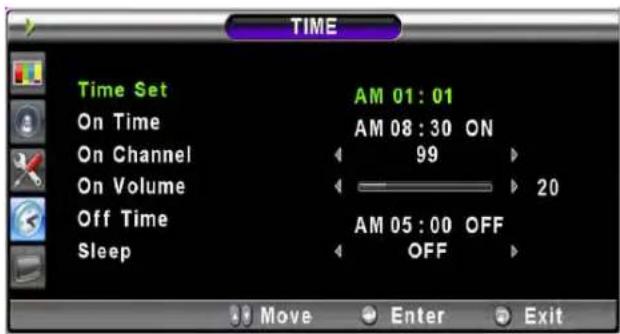
text_image
TIME Time Set AM 01:01 On Time AM 08:30 ON On Channel 99 On Volume 20 Off Time AM 05:00 OFF Sleep OFF Move Enter Exit
On Time
This TV can be set to turn on automatically at specific time that you choose. Before using the timer, you must set the TV's Time as described previously.
1 Press Menu/set button to display the main OSD menu.
2 Select the TIME main menu with △/▽ button on the remote control.
3 Press Menu/Set to enter the sub menu.
4 Select On Time with △/▽ button and press Menu/Set button.
5 Move the cursor by ▶, ▶, △, ▽ button and adjust time by △, ▽ button.

text_image
TIME Time Set AM 01:05 On Time AM 08:30 ON On Channel 99 On Volume 20 Off Time AM 05:00 OFF Sleep OFF Move Enter Exit
flowchart
graph LR
    A["On Time"] --> B["Item Name"]
    B --> C["AM 05:11 ON"]
    C --> D["Activated"]
    C --> E["Auto power-on time"]
On Channel
Set the channel when TV power turn on automatically.
** Available only when the Time is set and On Time is ON.
1 Press Menu/set button to display the main OSD menu.
2 Select the TIME main menu with △/▼ button on the remote control.
3 Press Menu/Set to enter the sub menu.
4 Select On Channel.
5 Enter to the ◀ part. Then the cursor moves into the ◀ parts.
6 Adjust the channel with / button. Press Exit button to return.

text_image
TIME Time Set AM 01:05 On Time AM 08:30 ON On Channel 99 On Volume 20 Off Time AM 05:00 OFF Sleep OFF Move Adjust ExitOn Volume
Set the sound volume level when TV power on automatically.
** Available only when the Time is set and On Time is ON.
1 Press Menu/set button to display the main OSD menu.
2 Select the TIME main menu with △/▽ button on the remote control.
3 Press Menu/Set to enter the sub menu.
4 Select On Volume.
5 Enter to the ◀ part. Then the cursor moves into the ◀ parts.
6 Adjust the sound volume level with ▶/▶ button.
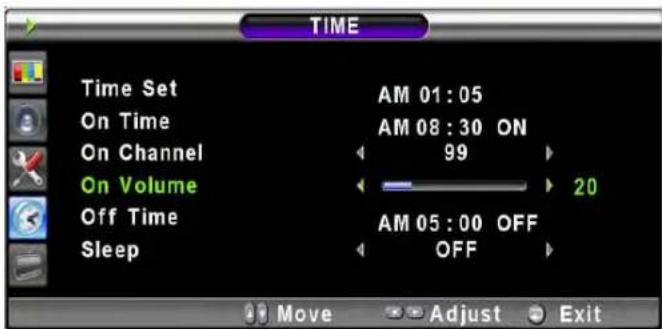
text_image
TIME Time Set AM 01:05 On Time AM 08:30 ON On Channel 99 On Volume 20 Off Time AM 05:00 OFF Sleep OFF Move Adjust ExitOff Time
This TV can be set to turn off automatically at specific times that you choose. Before using the timer, you must set the TV's clock as described previously.
1 Press Menu/set button to display the main OSD menu.
2 Select the TIME main menu with 🔊/√ button on the remote control.
3 Press Menu/Set to enter the sub menu.
4 Select Off Time with △/▽ button on the remote control and press Menu/Set button.
5 Move the cursor with / button and adjust time with A / V button.
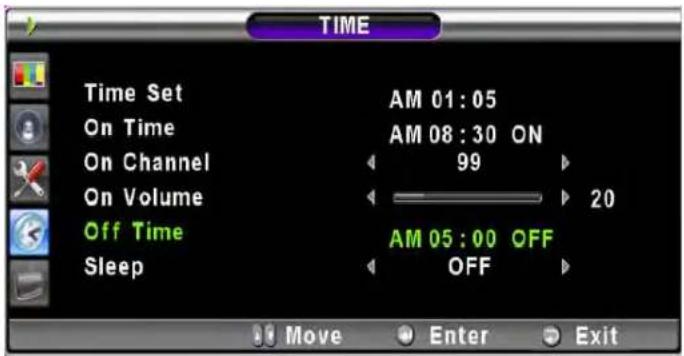
text_image
TIME Time Set AM 01:05 On Time AM 08:30 ON On Channel 99 On Volume 20 Off Time AM 05:00 OFF Sleep OFF Move Enter Exit
flowchart
graph LR
    A["Off Time"] --> B["Item Name"]
    C["AM 05:11 ON"] --> D["Auto power-on time"]
    E["Activated"] --> F["End"]
Sleep
You can set your TV to automatically turn off after a preset interval. If you turn off the TV in the state of setting up sleep time and turn on again, sleep time erased therefore set up again. The time period runs from OFF(0min) to 180min. (OFF, 10min, 20, 30, 60, 90, 120, 150, 180)
1 Press Menu/set button to display the main OSD menu.
2 Select the TIME main menu. with △/▽ button on the remote control.
3 Press Menu/Set to enter the sub menu.
4 Select Sleep with △/▽ button on the remote control.
5 Enter to the part. Then the cursor moves into the parts.
6 Set the time period with / /
7 Press Exit button to return.
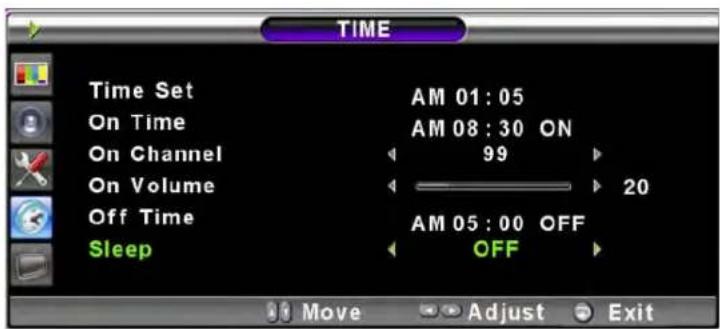
text_image
TIME Time Set AM 01:05 On Time AM 08:30 ON On Channel 99 On Volume 20 Off Time AM 05:00 OFF Sleep OFF Move Adjust ExitPICTURE

flowchart
graph TD
    A["MODE"] --> B["Standard"]
    A --> C["Vivid"]
    A --> D["Mild"]
    A --> E["User"]
    B --> F["Contrast"]
    B --> G["Brightness"]
    B --> H["Color"]
    B --> I["Sharpness"]
    B --> J["Tint (Only For NTSC)"]
    B --> K["Recall"]
    C --> L["TEMPERATURE"]
    D --> M["VIDEO NR"]
    D --> N["COLOR ENHANCER"]
    D --> O["SCREEN FORM"]
    D --> P["BLACK ENHANCER"]
    L --> Q["WARM2, WARM1, NORMAL, COOL1, COOL2"]
    M --> R["VIDEO NR ON/OFF"]
    N --> S["COLOR ENHANCER ON/OFF"]
    O --> T["16:9, PANORAMA, ZOOM1, ZOOM2, 4:3"]
    P --> U["BLACK ENHANCER ON/OFF"]
    V["SOUND"] --> W["BALANCE"]
    V --> X["SOUND MODE"]
    X --> Y["STANDARD"]
    X --> Z["MOVIE"]
    X --> AA["MUSIC"]
    X --> AB["NEWS"]
    X --> AC["USER"]
    AC --> AD["EQUALIZER (PRESS SET)"]
    AD --> AE["100Hz, 500Hz, 1.5KHz, 5KHz, 10KHz"]
    V --> AF["SPATIAL EFFECT"]
    V --> AG["AVC"]
    V --> AH["MTS"]
    AF --> AI["SPATIAL EFFECT ON/OFF"]
    AG --> AJ["AVC ON/OFF"]
    AH --> AK["MONO, STEREO, SAP"]
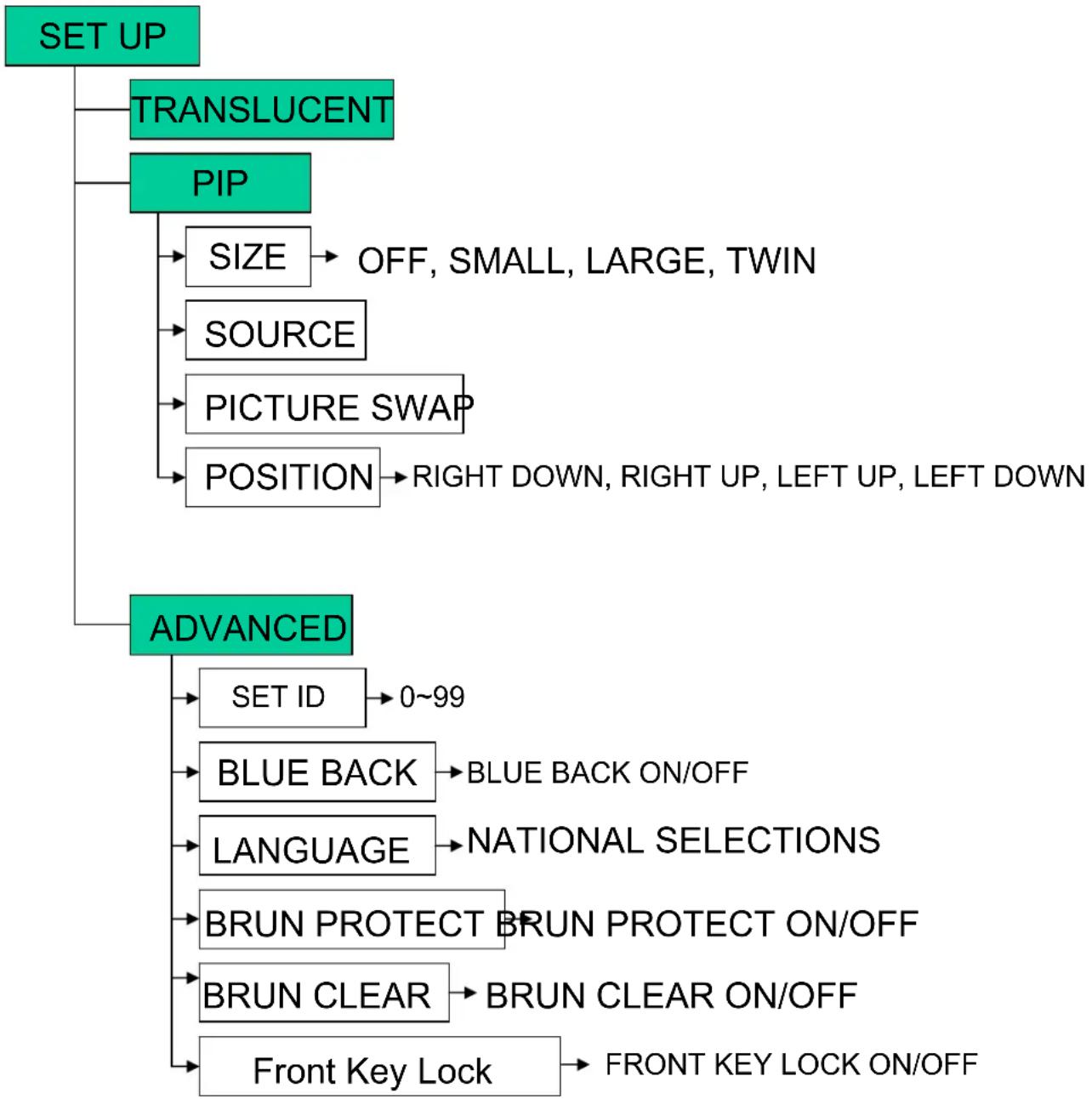
flowchart
graph TD
    A["SET UP"] --> B["TRANSLUCENT"]
    A --> C["PIP"]
    C --> D["SIZE"] --> E["OFF, SMALL, LARGE, TWIN"]
    C --> F["SOURCE"]
    C --> G["PICTURE SWAP"]
    C --> H["POSITION"] --> I["RIGHT DOWN, RIGHT UP, LEFT UP, LEFT DOWN"]
    A --> J["ADVANCED"]
    J --> K["SET ID"] --> L["0~99"]
    J --> M["BLUE BACK"] --> N["BLUE BACK ON/OFF"]
    J --> O["LANGUAGE"] --> P["NATIONAL SELECTIONS"]
    J --> Q["BRUN PROTECT BRUN PROTECT ON/OFF"]
    J --> R["BRUN CLEAR"] --> S["BRUN CLEAR ON/OFF"]
    J --> T["Front Key Lock"] --> U["FRONT KEY LOCK ON/OFF"]
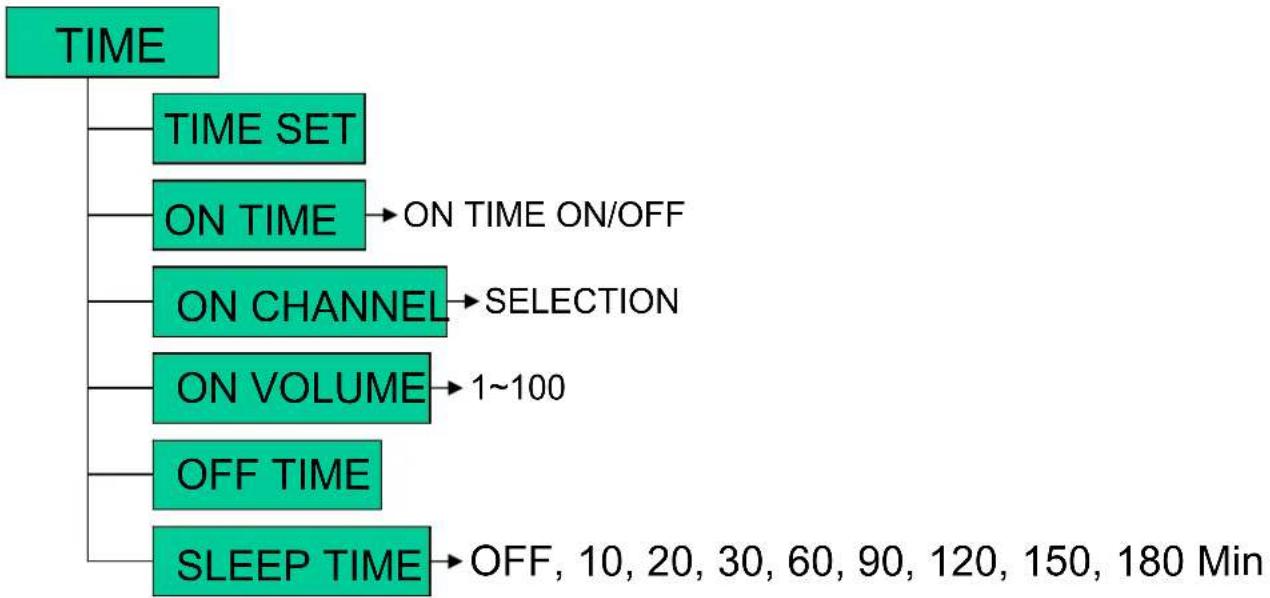
flowchart
graph TD
    A["TIME"] --> B["TIME SET"]
    B --> C["ON TIME → ON TIME ON/OFF"]
    C --> D["ON CHANNEL → SELECTION"]
    D --> E["ON VOLUME → 1~100"]
    E --> F["OFF TIME"]
    F --> G["SLEEP TIME → OFF, 10, 20, 30, 60, 90, 120, 150, 180 Min"]

flowchart
graph TD
    TV["TV"] --> AUTO_SCAN["AUTO SCAN"]
    TV --> Fine_Tune["Fine Tune"]
    TV --> FINE_TUNE["FINE TUNE"]
    TV --> EDIT["EDIT"]
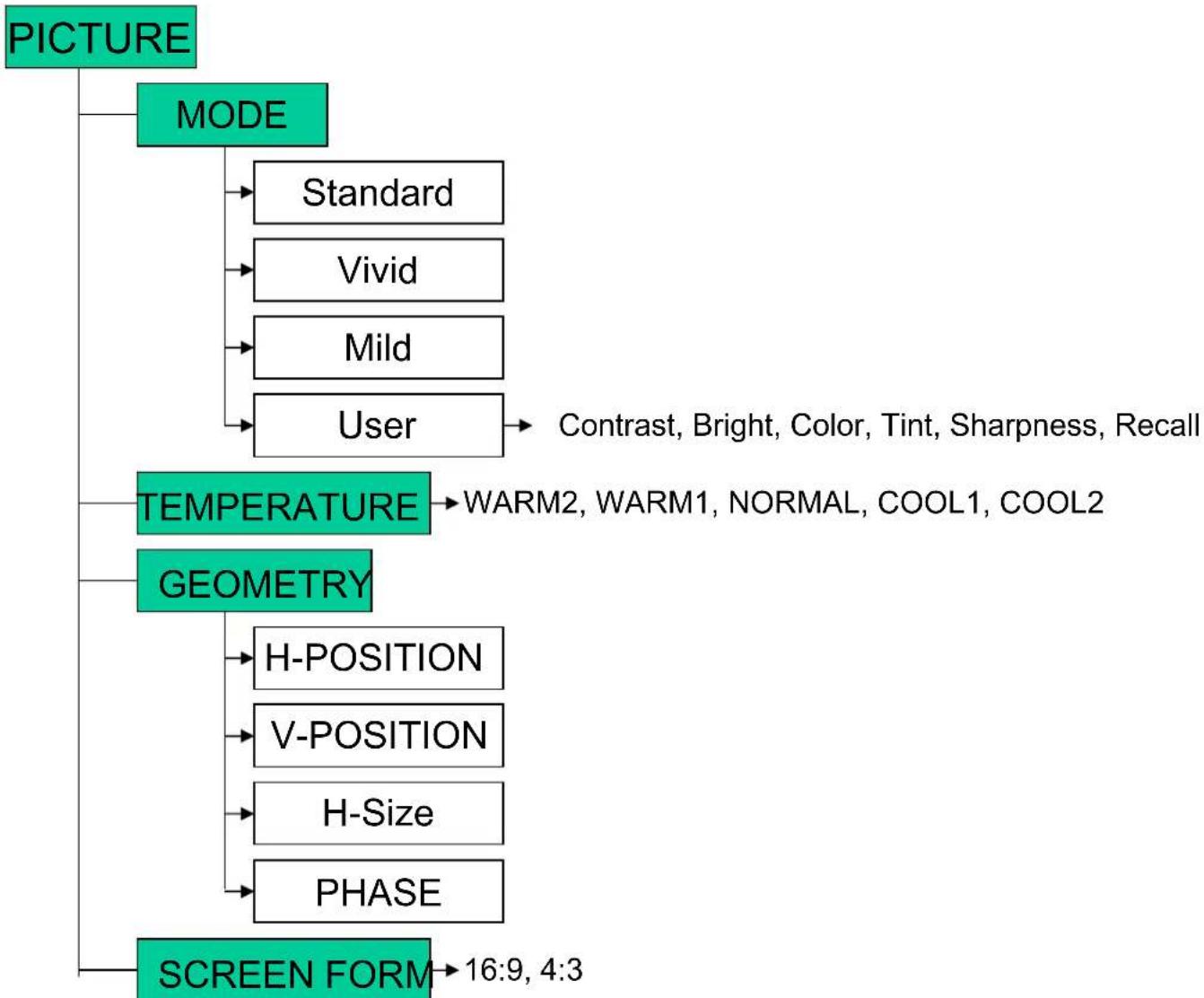
flowchart
graph TD
    A["PICTURE"] --> B["MODE"]
    B --> C["Standard"]
    B --> D["Vivid"]
    B --> E["Mild"]
    B --> F["User"]
    F --> G["Contrast, Bright, Color, Tint, Sharpness, Recall"]
    H["TEMPERATURE"] --> I["WARM2, WARM1, NORMAL, COOL1, COOL2"]
    J["GEOMETRY"] --> K["H-POSITION"]
    J --> L["V-POSITION"]
    J --> M["H-Size"]
    J --> N["PHASE"]
    O["SCREEN FORM"] --> P["16:9, 4:3"]

flowchart
graph TD
    A["SOUND"] --> B["BALANCE"]
    A --> C["SOUND MODE"]
    C --> D["STANDARD"]
    C --> E["MOVIE"]
    C --> F["MUSIC"]
    C --> G["NEWS"]
    C --> H["USER"]
    H --> I["EQUALIZER (PRESS SET)"]
    I --> J["100Hz, 500Hz, 1.5KHz, 5KHz, 10KHz"]
    C --> K["SPATIAL EFFECT"]
    K --> L["SPATIAL EFFECT ON/OFF"]
    K --> M["AVC"]
    M --> N["AVC ON/OFF"]

flowchart
graph TD
    A["SET UP"] --> B["TRANSLUCENT"]
    A --> C["PIP"]
    C --> D["SIZE"] --> E["OFF, SMALL, LARGE, TWIN"]
    C --> F["SOURCE"]
    C --> G["PICTURE SWAP"]
    C --> H["POSITION"] --> I["RIGHT DOWN, RIGHT UP, LEFT UP, LEFT DOWN"]
    A --> J["ADVANCED"]
    J --> K["SET ID"] --> L["0~99"]
    J --> M["BLUE BACK"] --> N["BLUE BACK ON/OFF"]
    J --> O["LANGUAGE"] --> P["NATIONAL SELECTIONS"]
    J --> Q["FRONT KEY LOCK"] --> R["FIRONT KEY LOCK ON/OFF"]
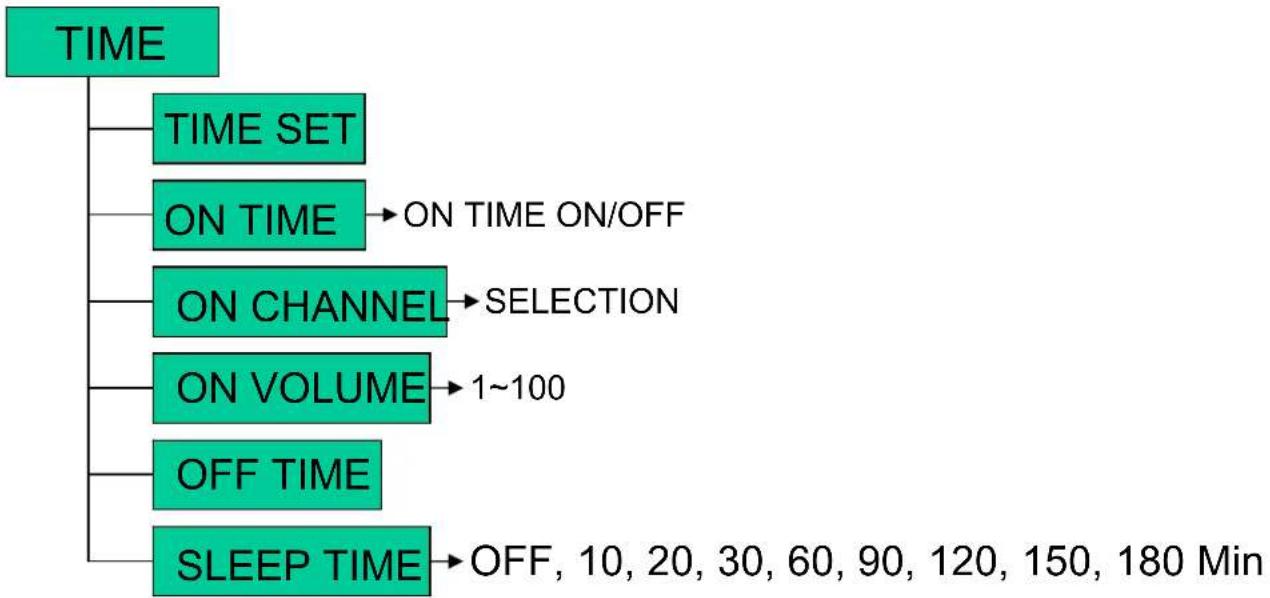
flowchart
graph TD
    A["TIME"] --> B["TIME SET"]
    B --> C["ON TIME → ON TIME ON/OFF"]
    C --> D["ON CHANNEL → SELECTION"]
    D --> E["ON VOLUME → 1~100"]
    E --> F["OFF TIME"]
    F --> G["SLEEP TIME → OFF, 10, 20, 30, 60, 90, 120, 150, 180 Min"]
Troubleshooting
Before you call a service technician, please scan this list of problems and possible solutions. It may save you time and money.
| Quick Action for Possible SolutionProblem | |
| No picture & No sound | Check whether the Monitor is turned on.Power cord inserted into wall outlet?Plug another product's power cord into the wall outlet where the Monitor's power cord was plugged in. |
| Picture OK & No sound | Press the VOLUME(►) key.Check the audio input signal. |
| The remote control doesn't work | Check to see if there is any object between the Plasma Display and the remote control causing obstruction.Check to see if the batteries are installed with the correct polarities. |
| Digital broadcasting screen problem | Check the digital signal strength and input antenna. |
| No or Poor color or Poor picture | Select Color in the Picture and press ➤ key.Keep a certain distance between the Monitor and the VCR.Activate any function to restore the brightness of the picture.Check to see that both the monitor and the source are plugged in and turned on. |
| Adjust the Brightness or Contrast settings.The image is too light or too dark | |
| Adjust the Size settings.The image is too large or too small | |
| Adjust Balance in the Sound Menu.No output from one of the speakers | |
| Strange sound form the Monitor | Typical sound due to normal Monitor operation, Monitor is not faulty. |
42" Plasma HD TV
| Function and Display Specification | |
| 42-Inch 16 : 9 Diagonal ScreenDisplay Size | |
| Variable 4 Modes (4:3 Mode/ 16:9 X 3 Modes)Display Mode | |
| 1024x768 Physical Pixel Pixel Format | |
| 10000:1(Max)Contrast Ratio | |
| Brightness | 1500 cd/m2(Max) |
| 1280 X 1024 / 60Hz Max Input Resolution | |
| PIP | Advanced multi-windows viewing PIP(picture in picture) with four selectable window positions on Video mode |
| Multiple input compatibleInput compatible | |
| Video | Advanced motion digital / Motion-Adaptive De-interlace process, Digital progressive line scaling. |
| TV/CATV (PAL/SECAM)Tuner Module | |
| Favorite channel programming, Time Set, Set the Sleep timer, TTXprogramming | |
| 480i/p(60Hz) , 576i/p(50Hz), 720p(50/60Hz) , 1080i(50,60Hz) HDTV Input | |
| Selectable 5 Mode (Warm1,2, Normal, Cool1,2)Color temperature | |
| Dimension / Weight | |
| 1046mm(W) X 635mm(H) X 87.3mm(D) / 38 kgMain Only | |
| 1046mm(W) X 702mm(H) X 299mm(D) / 38.9 kgWith Stand | |
| 1246mm(W) X 702mm(H) X 299mm(D) / 41.5 kgWith Stand and Speaker | |
| Miscellaneous | |
| Audio | Built-in amplifier and two speaker(7Watt/Typ.) systems (optional), Selectable fixed/variable audio output(optional) |
| External Control | Front OSD Key Control, Remote control, RS232C Control |
| Power Consumption | |
| Input Power | AC 100 ~ 240V 50/60Hz |
| Power consumption | 400 Watt |
| Connectivity | |
| TV1,2 Input | RF/CATV (PAL/SECAM) |
| Scat1,2 Input | SCART X 2Port [SCART1(Full) , SCART2(Full)] |
| Composite Input | RCA X 1Port (AV INPUT) |
| Component1,2 Input | RCA X 2Port (Y, Pb/Cb, Pr/Cr : 480i, 480p, 576i, 576p, 720p, 1080i) |
| S-Video Input | Mini Din 4Pin X 1Port |
| PC Input | Mini D-Sub 15Pin X 1Port / HDTV Input(480p, 576p, 720P(50/60Hz), 1080i(50/60Hz)) |
| DVI Input | Mini D-Sub 29Pin X 1Port / HDTV Input(480p, 576p, 720P(50/60Hz), 1080i(50/60Hz)) |
| Audio Input | RCA X 3Port |
| Speaker Output | Cinch Type X 4Port(Stereo L/R), Head Phone Jack X 1Port |
| Mini D-Sub 9Pin X 1PortExternal Control Port | |
| HDMI Input | HDMI X 1 Port |
50" Plasma TV
| Function and Display Specification | |
| 50-Inch 16 : 9 Diagonal ScreenDisplay Size | |
| Variable 4 Modes (4:3 Mode/ 16:9 X 3 Modes)Display Mode | |
| 1366x768 Physical Pixel Pixel Format | |
| 3000:1Contrast Ratio | |
| Brightness | 1000 cd/m2 |
| 1280 X 1024 / 60Hz Max Input Resolution | |
| PIP | Advanced multi-windows viewing PIP(picture in picture) with four selectable window positions on Video mode |
| Multiple input compatibleInput compatible | |
| Video | Advanced motion digital / Motion-Adaptive De-interlace process, Digital progressive line scaling. |
| TV/CATV (PAL/SECAM)Tuner Module | |
| Favorite channel programming, Time Set, Set the Sleep timer, TTXprogramming | |
| 480i/p(60Hz) , 576i/p(50Hz), 720p(50/60Hz) , 1080i(50,60Hz) HDTV Input | |
| Selectable 5 Mode (Warm1,2, Normal, Cool1,2)Color temperature | |
| Dimension / Weight | |
| 1216mm(W) X 732mm(H) X 87.3mm(D) / 50 kgMain Only | |
| 1216mm(W) X 798mm(H) X 299mm(D) / 55 kgWith Stand | |
| 1416mm(W) X 798mm(H) X 299mm(D) / 59 kgWith Stand and Speaker | |
| Miscellaneous | |
| Audio | Built-in amplifier and two speaker(7Watt/Typ.) systems (optional), Selectable fixed/variable audio output(optional) |
| External Control | Front OSD Key Control, Remote control, RS232C Control |
| Power Consumption | |
| Input Power | AC 100 ~ 240V 50/60Hz |
| 520 WattPower consumption | |
| Connectivity | |
| TV1,2 Input | RF/CATV (PAL/SECAM) |
| Scat1,2 Input | SCART X 2Port [SCART1(Full) , SCART2(Full)] |
| Composite Input | RCA X 1Port (AV INPUT) |
| Component1,2 Input | RCA X 2Port (Y, Pb/Cb, Pr/Cr : 480i, 480p, 576i, 576p, 720p, 1080i) |
| S-Video Input | Mini Din 4Pin X 1Port |
| PC Input | Mini D-Sub 15Pin X 1Port / HDTV Input(480p, 576p, 720P(50/60Hz), 1080i(50/60Hz)) |
| DVI Input | Mini D-Sub 29Pin X 1Port / HDTV Input(480p, 576p, 720P(50/60Hz), 1080i(50/60Hz)) |
| Audio Input | RCA X 3Port |
| Speaker Output | Cinch Type X 4Port(Stereo L/R), Head Phone Jack X 1Port |
| Mini D-Sub 9Pin X 1PortExternal Control Port | |
| HDMI Input | HDMI X 1 Port |
55" Plasma TV
| Function and Display Specification | |
| 55-Inch 16 : 9 Diagonal ScreenDisplay Size | |
| Variable 4 Modes (4:3 Mode/ 16:9 X 3 Modes)Display Mode | |
| 1366x768 Physical Pixel Pixel Format | |
| 1000:1Contrast Ratio | |
| Brightness | 800 cd/m2 |
| 1280 X 1024 / 60Hz Max Input Resolution | |
| PIP | Advanced multi-windows viewing PIP(picture in picture) with four selectable window positions on Video mode |
| Multiple input compatibleInput compatible | |
| Video | Advanced motion digital / Motion-Adaptive De-interlace process, Digital progressive line scaling. |
| TV/CATV (PAL/SECAM)Tuner Module | |
| Favorite channel programming, Time Set, Set the Sleep timer, TTXprogramming | |
| 480i/p(60Hz) , 576i/p(50Hz), 720p(50/60Hz) , 1080i(50,60Hz) HDTV Input | |
| Selectable 5 Mode (Warm1,2, Normal, Cool1,2)Color temperature | |
| Dimension / Weight | |
| 1366.8mm(W) X 801.4mm(H) X 93.3mm(D) / 60 kgMain Only | |
| 1366.8mm(W) X 864.8mm(H) X 305mm(D) / 67 kgWith Stand | |
| 1566.8mm(W) X 864.8mm(H) X 305mm(D) / 72 kgWith Stand and Speaker | |
| Miscellaneous | |
| Audio | Built-in amplifier and two speaker(7Watt/Typ.) systems (optional), Selectable fixed/variable audio output(optional) |
| External Control | Front OSD Key Control, Remote control, RS232C Control |
| Power Consumption | |
| Input Power | AC 100 ~ 240V 50/60Hz |
| 500 WattPower consumption | |
| Connectivity | |
| TV1,2 Input | RF/CATV (PAL/SECAM) |
| Scat1,2 Input | SCART X 2Port [SCART1(Full) , SCART2(Full)] |
| Composite Input | RCA X 1Port (AV INPUT) |
| Component1,2 Input | RCA X 2Port (Y, Pb/Cb, Pr/Cr : 480i, 480p, 576i, 576p, 720p, 1080i) |
| S-Video Input | Mini Din 4Pin X 1Port |
| PC Input | Mini D-Sub 15Pin X 1Port / HDTV Input(480p, 576p, 720P(50/60Hz), 1080i(50/60Hz)) |
| DVI Input | Mini D-Sub 29Pin X 1Port / HDTV Input(480p, 576p, 720P(50/60Hz), 1080i(50/60Hz)) |
| Audio Input | RCA X 3Port |
| Speaker Output | Cinch Type X 4Port(Stereo L/R), Head Phone Jack X 1Port |
| Mini D-Sub 9Pin X 1PortExternal Control Port | |
| HDMI Input | HDMI X 1 Port |
63" Plasma TV
| Function and Display Specification | |
| 63-Inch 16 : 9 Diagonal ScreenDisplay Size | |
| Variable 4 Modes (4:3 Mode/ 16:9 X 3 Modes)Display Mode | |
| 1366x768 Physical Pixel Pixel Format | |
| 1000:1Contrast Ratio | |
| Brightness | 800 cd/m2 |
| 1280 X 1024 / 60Hz Max Input Resolution | |
| PIP | Advanced multi-windows viewing PIP(picture in picture) with four selectable window positions on Video mode |
| Multiple input compatibleInput compatible | |
| Video | Advanced motion digital / Motion-Adaptive De-interlace process, Digital progressive line scaling. |
| TV/CATV (PAL/SECAM)Tuner Module | |
| Favorite channel programming, Time Set, Set the Sleep timer, TTXprogramming | |
| 480i/p(60Hz) , 576i/p(50Hz), 720p(50/60Hz) , 1080i(50,60Hz) HDTV Input | |
| Selectable 5 Mode (Warm1,2, Normal, Cool1,2)Color temperature | |
| Dimension / Weight | |
| 1503mm(W) X 893mm(H) X 92.6mm(D) / 79 kgMain Only | |
| 1503mm(W) X 927mm(H) X 400mm(D) / 98 kgWith Stand | |
| 1703mm(W) X 927mm(H) X 400mm(D) / 104.7 kgWith Stand and Speaker | |
| Miscellaneous | |
| Audio | Built-in amplifier and two speaker(7Watt/Typ.) systems (optional), Selectable fixed/variable audio output(optional) |
| External Control | Front OSD Key Control, Remote control, RS232C Control |
| Power Consumption | |
| Input Power | AC 100 ~ 240V 50/60Hz |
| 580 WattPower consumption | |
| Connectivity | |
| TV1,2 Input | RF/CATV (PAL/SECAM) |
| Scat1,2 Input | SCART X 2Port [SCART1(Full) , SCART2(Full)] |
| Composite Input | RCA X 1Port (AV INPUT) |
| Component1,2 Input | RCA X 2Port (Y, Pb/Cb, Pr/Cr : 480i, 480p, 576i, 576p, 720p, 1080i) |
| S-Video Input | Mini Din 4Pin X 1Port |
| PC Input | Mini D-Sub 15Pin X 1Port / HDTV Input(480p, 576p, 720P(50/60Hz), 1080i(50/60Hz)) |
| DVI Input | Mini D-Sub 29Pin X 1Port / HDTV Input(480p, 576p, 720P(50/60Hz), 1080i(50/60Hz)) |
| Audio Input | RCA X 3Port |
| Speaker Output | Cinch Type X 4Port(Stereo L/R), Head Phone Jack X 1Port |
| Mini D-Sub 9Pin X 1PortExternal Control Port | |
| HDMI Input | HDMI X 1 Port |
WARRANTY & INFORMATION
Please check out regularly our web site for further updates and assistance about this product: www.hbdirect.com
Important safety information
Read these instructions carefully and pay attention to all warnings and guidelines.
Do not overload electrical sockets or extension cables. Overloading can result in fire or electric shock. Never insert objects into the unit. They might come into contact with dangerous voltage points or short-circuit components, which can cause fire or electric shock. Do not spill liquids on the unit. If the unit does not function normally, or if it emits unusual sounds or odors, pull out the plug immediately and contact an authorized technician. Do not attempt to service the unit yourself. If you open or dismantle the shielding, you expose yourself to dangerous voltage and other hazards. All maintenance must be carried out by qualified service technicians.
Environmental information
The system is made of recyclable materials which can be reused if disassembled by authorized personnel. Please follow local regulations for the disposal of packaging materials, used batteries and discarded units.
Warranty certificate
H&B provides a twelve (12) month warranty from the date of purchase against material and manufacturing defects. In the event of defects covered by the warranty, the product must be returned to the dealer that sold the product. If any problems arise, information on our authorized service centers is available the dealer who sold the product.
Recycling information
Your new product and its packaging contain materials that can be recycled and reused. Specialized companies can recycle your product. Your product uses batteries that should not be thrown away when depleted but should be disposed of as small chemical waste. Please find out about the local regulations on disposal of your old product, batteries, and packaging whenever you replace your existing equipment.
Please contact your local dealer for more information on how to recycle your product
Terms of Warranty
- The warranty is only valid on presentation of a correctly completed warranty certificate and sales ticket, and if the serial number on the product is fully legible.
- The obligations of H&B are limited either to repair or replacement of defective components. The repair or replacement of defective components is based on an assessment by H&B.
Exchange is only possible if the repair cannot be performed. - Warranty repairs must be performed by an authorized H&B dealer, or an authorized service centre. No remuneration is provided for repairs performed by unauthorized workshops.
Any repairs or damage to the product caused by unauthorized intervention are not covered by this warranty. - This product will not be viewed as defective, either in materials or in manufacture, if adaptation to nation al, local, technical or safety-related requirements is required in countries other than the specific country for which the product was originally designed and manufactured.
-
This warranty does not cover these types of adaptations, and no remuneration will be offered for these types of adaptations or for any consequential damages. The warranty does not cover the following:
-
Periodic inspection, maintenance and repair or replacement of parts resulting from normal wear.
- Costs connected to transport, disassembly or installation of the product.
- Misuse, including use for other purposes than was intended or faulty installation.
- Damage caused by lightning, water, fire, natural catastrophes, war, insurrection, incorrect line voltage, insufficient ventilation or other causes beyond the control of H&B.
- This warranty applies to every legal owner of the product during the warranty period.
Distributor
H&B products are distributed by:
JPF Entertainment
ZAC Barbusse Chandon
201, avenue Laurent Cély
92230 Gennevilliers
FRANCE
info@jpf-europe.com
www.hb-direct.com
Tel + 33 1 58.81.05.20 - Fax + 33 1 58.81.05.30