HDHome S2 - Electronics MvixUSA - Free user manual and instructions
Find the device manual for free HDHome S2 MvixUSA in PDF.


User questions about HDHome S2 MvixUSA
0 question about this device. Answer the ones you know or ask your own.
Ask a new question about this device
Download the instructions for your Electronics in PDF format for free! Find your manual HDHome S2 - MvixUSA and take your electronic device back in hand. On this page are published all the documents necessary for the use of your device. HDHome S2 by MvixUSA.
USER MANUAL HDHome S2 MvixUSA
Important Safety Instructions. 5
Precautions. 6
Notes on Disc Handling. 6
Notes about This Server 6
Home Server Overview 7
Introduction 7
Main Features. 7
Parts and Controls. 8
Top Panel. 8
Rear Panel 9
Remote Controller....10
Getting Started . . . . . . . . . . . . . . . . . . . . . . . . . . . . . . . . . . . . . . . . . . . . . . . . 13
Step1. Checking the Accessories ..... 13
Step2.Open the back cover.13
Step3. Connecting to the TV or Monitor .....13
Step4. Connecting to the Network. 13
Step5. Connecting to the Power Cord ..... 13
Step6. Connecting to the Speaker (If your TV or Monitor is without Speaker) . . 14
Step7. Checking HDD 14
Step8. Preparing the Remote Controller . . . . . . . . . . . . . . . . . . . . . . 14
Step9. Power On/Off the system. 14
Inserting HDDs 15
Inserting/Removing Discs 15
Inserting Discs 15
Eject Discs 15
Manually Eject Discs . . . . . . . . . . . . . . . . . . . . . . . . . . . . . . . . . . . . . . . . . . . . 15
Inserting Memory Cards. 15
Vedio Connections. 16
Connecting a TV (or Monitor) 16
Selecting a video cable 16
Connecting with an HDMI cable 16
Connecting with an DVI cable 16
Table of contents
Connecting with an HDMI cable ..... 16
Connecting an AV Amplifier. 17
Selecting an audio cable . . . . . . . . . . . . . . . . . . . . . . . . . . . . . . . . . . . . . . . . . . . . 17
Connecting with a Coaxial Audio Cable. 17
Connecting with a Toslink Optical Digital Audio Cable .....17
Connecting with an HAMI Cable. 17
Connecting Multi-Channel Audio ..... 17
Enjoying Videos, Photos, and Music . . . . . . . . . . . . . . . . . . . . . . . . . . . . . . . . . . . . . . 18
Getting started with Widows Media Center . . . . . . . . . . . . . . . . . 18
Step1. Setting up Windows Media Center ..... 18
Step2. Optimize how Windows Media Center looks on your display. . . . . . . 18
Step3. Set up your speakers. 19
Step4. Set up your media libraries. 19
Step5. Configure tuners, TV signal, and Guide. . . . . . . . . . . . . . . . . . . . 20
Watching TV. 20
To watch live TV....21
To watch live TV using a Media Center remote controller. . . . . . . . . . . . . 21
To find movies that are schedule to be broadcast . . . . . . . . . . . . . . . . . . . 21
To watch Internet TV in Media Center . . . . . . . . . . . . . . . . . . . . . . . . . . . . . 22
Record TV 22
To record a live TV show or movie . . . . . . . . . . . . . . . . . . . . . . . . . . . . . . . . . . . . . . . . . . 22
To schedule recordings using the Guide .....22
To schedule recordings using Search . . . . . . . . . . . . . . . . . . . . . . . . . . . . . . 22
To record a TV series . . . . . . . . . . . . . . . . . . . . . . . . . . . . . . . . . . . . . . . . . . . . . . . . . . 23
To play a recorded TV program 23
To schedule recordings based on channel and time .....23
To schedule recordings based on keywords. . . . . . . . . . . . . . . . . . . . . . . . . 23
To add or remove folders that Windows Media Center searches when it looks for recorded TV. 24
Play video and watch pictures. 24
To find and view a picture . . . . . . . . . . . . . . . . . . . . . . . . . . . . . . . . . . . . . . . 24
To view or import pictures or videos from a removable device .....24
To create a slide show . . . . . . . . . . . . . . . . . . . . . . . . . . . . . . . . . . . . . . . . . . . . . . . . . . . . . 25
To play a slide show . . . . . . . . . . . . . . . . . . . . . . . . . . . . . . . . . . . . . . . . . . . . . . . . . . 25
To customize setting for slide shows. 25
Table of contents
To rate and play your favorite pictures. . . . . . . . . . . . . . . . . . . . . . . . . . . . . . . . . 25
To find and play a video file. 26
To slow down, speed up, or rewind a video file . . . . . . . . . . . . . . . . . . 26
To change the video background color. . . . . . . . . . . . . . . . . . . . . . . . . . 26
Play a CD or DVD or BD. 27
To play a DVD . . . . . . . . . . . . . . . . . . . . . . . . . . . . . . . . . . . . . . . . . . . . . . . . . 27
To change the setting for DVD playback . . . . . . . . . . . . . . . . . . . . . . . . . . . . . 27
To play an audio CD 28
To play media files from a data CD, data DVD, or removable device .....28
Supporting File Types 28
Music file types . . . . . . . . . . . . . . . . . . . . . . . . . . . . . . . . . . . . . . . . . . . . . . . . 28
Video file types 28
Picture file types 28
Changing the Server Settings . . . . . . . . . . . . . . . . . . . . . . . . . . . . . . 30
Display Settings....33
Change your screen resolution 33
Make the text on your screen larger or smaller . . . . . . . . . . . . . . . 33
Audio Settings 34
Network Settings 35
Bluetooth Settings 32
DTV Settings 34
Windows Home Server Setting 38
Sharing Folders 35
User Accounts Setup. 35
Additional Information . . . . . . . . . . . . . . . . . . . . . . . . . . . . . . . . . . . . . . . . 36
About Windows update . . . . . . . . . . . . . . . . . . . . . . . . . . . . . . . . . . . . . . . . . . 38
The new Windows Update is easier to use compared to its predecessor. . . . . 38
Finding Windows Updates 38
Specification 40
To reduce the risk of fi re or electric shock, do not expose this device to rain or moisture. To avoid electric shock, do not open the chassis. Refer servicing to qualified personnel only. Batteries or batteries installed device shall not be exposed to excessive heat such as sunshine, fi re or the like.
Note: This equipment has been tested and found to comply with the limits for a Class B digital device, pursuant to Part 15 of the FCC Rules. These limits are designed to provide reasonable protection against harmful interference in a residential installation. This equipment generates, uses, and can radiate radio frequency energy and, if not installed and used in accordance with the instructions, may cause harmful interface to radio communications. However, there is no guarantee that interference will not occur in a particular installation. If this equipment does cause harmful interference to radio or television reception, which can be determined by turning the equipment off and on, the user is encouraged to try to correct the interference by one or more of the following measures:
Reorient of relocate the receiving antenna,• Increase the separation between equipment • and receiver.
Connect the equipment into an outlet on circuit different from that to which the receiver is connected.
Consult the dealer or an experienced radio/TV technician for help.
Shielded network cable must be used between network hub and client in order to comply with the limits for a digital device pursuant to Subpart B of Part 15 of FCC Rules.
Important Safety Instructions
Always read the safety instructions carefully.1. Keep this user's manual for future reference.2. Keep this equipment away from humidity.3. Lay this equipment on a reliable fl at surface 4. before setting it up.
The ventilator on the enclosure is used for air 5. convection and to prevent the equipment from overheating. Do not cover the ventilator.
-
Make sure that the power voltage is within its safety range and has been adjusted properly to the value of 100\~240V before connecting the equipment to the power inlet.
-
Place the power cord in a way that people are unlikely to step on it. Do not place anything on the power cord.
CAUTION:
Dangerous explosion if battery is incorrectly replaced. Replace only with the same or equivalent type recommended by the manufacturer.

This symbol indicates that the product should not be placed in city / municipal waste. Check local regulations for disposal of electronic products.
For Safety
Internal part is hazardous moving parts; please keep fingers and other body parts away.
For Power Sources
For every change in power cord's usage, please use an approved power cord with condition greater or equal to H05VV-F, 3G, and 0.75mm.
Do not disable the protective earth pin from the plug; the equipment must be connected to an earthed mains socket-outlet.
For Placement
For pluggable equipment, the socket-outlet shall be installed near the equipment and shall be easily accessible.
Adjustment of the volume control as well as the equalizer to other settings than the center position may increase the ear-/headphones output voltage and therefore the sound pressure level.
Notes on Disc Handling
To keep the disc clean, handle the disc by its edge. Do not touch the surface.
Do not expose the disc to direct sunlight or heat sources such as hot air ducts, or leave it in a car parked in direct sunlight as the temperature may rise considerable inside the car.
After ejection a disc from the server, store the disc in its case. Clean the disc with a cleaning cloth. Wipe the disc from the center out.
Do not use solvents such as benzene, thinner, commercially available disc/lens cleaners, or anti-static spray intended for viny1 LPs.
If you have printed the disc's label, dry the label before playing. Do not attach a sticker type label on the disc. The disc changer may be damaged.
- Do not insert the following unsupported discs; doing so will damage the unit or discs.
• Discs whose shapes are nonstandard-sized or nonstandard-shaped. (Card, heart, star, etc.
• Discs with a paper sticker or seals.
• Discs with a cellophane tape, or an adhesive residue of a removed label.
• Discs of non-standard thickness (thinner than 1.0mm, or thicker than 1.5mm)
Copyrights
This product and manual are produced by Mvix(USA), Inc. and is under copyright protection. Any reproduction, transfer, copy or other illegal usages is not permitted, except for backup purpose by the purchaser of the product.
We have put in our best effort to maintain accuracy in this manual, but we may not guarantee the contents are absolutely accurate, for the specification of this product may upgrade or change over time. We reserve the right to make changes without notice.
Notice
If you want to know more about instruction and guidance for Windows 7, please refer to http://windows.microsoft.com/en-US/windows7/help/getting-started
Introduction
Thank you for purchasing MVIX Multimedia Mini-Theater System, which will bring you full enjoyment and high performance. We have especially designed this system to become the multimedia center of your living room. With Dolby surround 5.1 channel and wireless transmission; you can get more through easier way.
Main Features
Designed for High-speed, full HD enjoyment and style pursuing.
The central server of Home IT system.
Audio/Video fi les sharing•
Compatible with most of audio and video formats.
Built-in TV tuner with Antenna (optional)•
Blu-Ray Drive•
Support Wireless transmission•
Multi-tasking advanced solution•
• Support 2/4/5.1 channel HD audio
- Compatible with versatile file formats including MP3, WMA, WAV, JPEG, MPEG-1/2/4 and DIVX with video solution for NTSC, PAL and HD up to 1080P full HD.
• Multi-tasking performance to get more done.
• Easy installation with unique thermal heat pipe valve and good noise control under 20dB.
• Chic color lighting creates atmosphere & achieve ambience within home.
Top Panel

text_image
1 2 3 4 5 6 7 8 9 10| No. | Part Name | Description |
| 1 | Slot-in Optical Drive Insert the CD automatically. | or DVD disk into this slot, and it will load the contents |
| 2 | Manual-Eject Hole eject hole to release the disk. | When system is off, push a straightened paper clip into the manual |
| 3 | Optical Drive Active Indicator It will be lit when the optical drive is active. | |
| 4 | Optical Driver Eject Button Press this button to eject the CD or DVD. | |
| 5 | Card Reader This Card Reader supports the following memory card:(1) Smart Media (SM)(2) SD/ SDHC/ MicroSD/ MiniSD/(3) Compact Flash (CF)(4) Memory Stick (MS) | TransFlash/ MMC |
| 6 | Power Button Press this button to power on the system | |
| 7 | Hot-Swap Serial ATA bays Push the blue part to eject the drive. | 4x2.5” SATA I/II Hot-Swap Bays (Each support 500GB, up to 1TB); |
| 8 | System Disk HDD_0 is the internal system disk | |
| 9 | MIC-IN Jack (pink) Plug a microphone into this jack.Headphone-out Jack (green) Plug an earphone or speaker into this jack. | |
| 10 | USB2.0 Ports | Connect USB devices such as keyboard, mouse or USB Flash. |
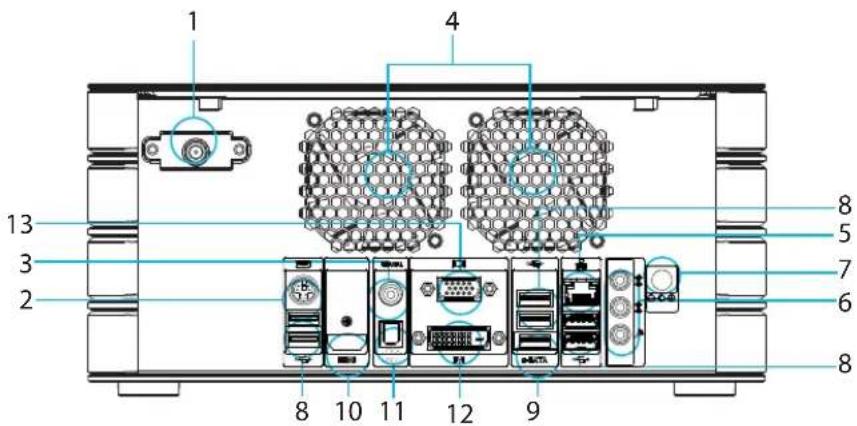
Rear Panel
text_image
1 2 3 4 5 6 7 8 8 9 10 11 12 13| No. | Part Name | Description |
| 1 TV | Antenna Port Connect antenna to this port to receive TV contents (Optional) | |
| 2 PS2 | PS2 port can connect keyboard or Mouse | |
| 3 Coaxial output S/PDIF Coaxial output | ||
| 4 System Thermal Fans This System Thermal Fan could lower down the temperature of the System e ffi ciently | ||
| 5 Gigabit LAN port The Gigabit LAN port can provide 10/100/1000Mbps transmission speed | ||
| 6 Audio ports Line-in/Optical S/PDIF-out (light-blue): Connect to an analog audio source like CD/.DVD player / Connect to a Digital Decorder.Line-out (green): Plug an earphone or speaker into this jackMic-in (pink): Plug a microphone into this jack Support High DefinitionAudio 5.1 channels output | ||
| 7 Power Jack Connect Power Cord to provide power to the system. | ||
| 8 | USB2.0 Ports | Connect USB devices such as keyboard, mouse or USB Flash. |
| 9 | eSATA ports | eSATA port can provide 3Gbps transmission speed to the connected devices |
| 10 | HDMI outputaudio system at the same time. | HDMI port can output digital video and audio signal to the monitor and the |
| 11 | Opical output S/PDIF optical output | |
| 12 | DVI output | DVI port can output digital signal to the monitor |
| 13 | VGA output VGA port can output analog signal to the monitor | |
The remote control has fi ve types of buttons:
The remote control has fi ve types of buttons: Playback Buttons: To control your media. Navigation Buttons: To move between items on the screen. Audio-visual (AV) Buttons: To change channels and adjust volume. Numeric Keypad Buttons: To enter al- phanumeric characters or TV channels. Teletext and Fastext Buttons: To access teletext functionality (if available).

text_image
29 24 23 A 7 8 5 9 B 16 14 31 C 15 22 22 28 27 D 1 ABCDEF 3 4 GHLJKL 5 MNO 7 PORS 8 TUV WXYZ * 0 # CLEAR ENTER E| No. | Part Name | Description | |
| 1 Power button Press to put standby mode and return to the desktop. | |||
| A. Playback Buttons | |||
| 2 PAUSE | Pause the currently playing media; press again to resume. | ||
| 3 STOP | Stop the currently playing media. (Press PLAY to start the track again from the beginning.) | ||
| 4 FWD forward speed up the currently playing media; if pressed repeatedly, cycles through three fast speeds from slowest to fastest. | |||
| 5 PLAY | Play the selected song, Album, or Playlist. | ||
| 6 SKIP | For Album or Playlist, skip to the next song. For Recorded TV, skip ahead 29 seconds. | ||
| 7 RECORD twice, record the series). If pressed from the Electronic Programming Guide, record a TV show or TV series to disk. | |||
| 8 REW speeds from slowest to fastest. | Rewind the currently playing media; if pressed repeatedly, cycles through three rewind | ||
| 9 REPLAY | For TV, go back five seconds. For Album or Playlist, play the previous song. For DVD, play the previous chapter. | ||
| B. Navigation Buttons: Use the navigation buttons on the remote control to move between items on the screen in Media Center. | |||
| 10 START | Start Media Center, or go to the Start menu if Media Center is already running. | ||
| 11 MORE Show information about the selected item. | |||
| 12 UP Move to the item above. | |||
| 13 RIGHT playing, skip to the next picture. | Move to the item on the right, or move from the menu to the folder items. If a slide show is | ||
| 14 OK/ Mouse Pad | Select the active item & mouse function touch pad(as the mouse button lightened) | ||
| 15 BACK Go to the previous screen | |||
| 16 LEFT | Move to the item on the left, or move to the menu. IF a slide show is playing, return to the previous picture. | ||
| 17 DOWN Move to the item below. | |||
| C. AV Buttons: Use the AV buttons to change channels, adjust volume, access a DVD menu, or to put Media Center in standby mode. Some buttons, such as GUIDE, act as shortcuts. | |||
| No. | Part Name | Description | |
| 18 M |  | Mute the sound. Press MUTE again to turn the sound back on. | |
| 19 CH/PG+ / CH/PG- Change the channel | |||
| 20 G |  | Go to the Electronic Programming Guide. | |
| 21 LI |  | Switch to live TV if TV is not currently playing. If TV is paused, skip to live programming. | |
| 22 VOL | [TGZZ] | VOL- Adjust the volume | |
 | |||
| 23 RI |  | DED TV Go to the Recorded TV page | |
| 24 D |  | ENU Display the DVD menu | |
| 25 VI |  | Go to the Video Page | |
| 26 R | [BW64] | Go to the Radio Page | |
| 27 PI |  | RE Go to the Picture Page | |
| 28 M |  | Go to the Music Page | |
| 29 |  | MOUSE | |
| 30 M |  | E RIGHT KEY | |
| 31 M |  | E LEFT KEY | |
D. Numeric Keypad
The numeric keypad consists of numbers from 0 through 9 and two other keys: ENTER and CLEAR. You can use the numeric keypad to type alphanumeric characters anywhere in Media Center that you can enter text. If you want to delete characters you have typed, press CLEAR; press ENTER to submit the characters you have typed. You can also use the numeric keypad to enter TV channels.
E. Teletext Buttons
Media Center supports teletext when it is available. The colored Fastext buttons on the remote control for Media Center PC work much like the teletext buttons on a standard teletext-enabled TV.
The box contains accessories, padding material and Server unit. Please must operate this unit according to the following procedures.
Step 1. Checking the Accessories
The following items are supplied in the accessory pack:
(1) Power Cord x 1pcs
(2) Remote Controller x 1pcs
(3) Size AA/AAA batteries x 2pcs
(4) Driver CD with user manual x 1pcs
(5) TV Dongle with antenna x 1pcs (optional)
(6) Wireless Keyboard with Mouse x 1pcs (optional)
Note: The packing contents may vary from different area, and if you have any question about the above list, please feel free to contact your local dealers for the details. Mvix reserves the right to change or upgrade the contents for better performance.
Step2. Open the back cover
Open the back cover before inserting the connectors
Step3. Connecting to the TV or Monitor
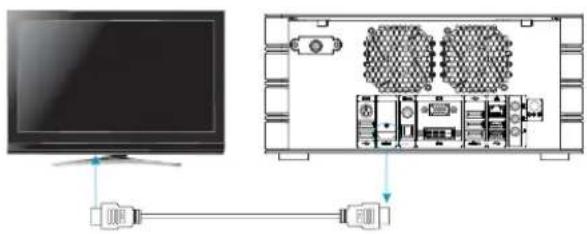
Method 1. Connecting a TV or Monitor with an HDMI cable;
text_image
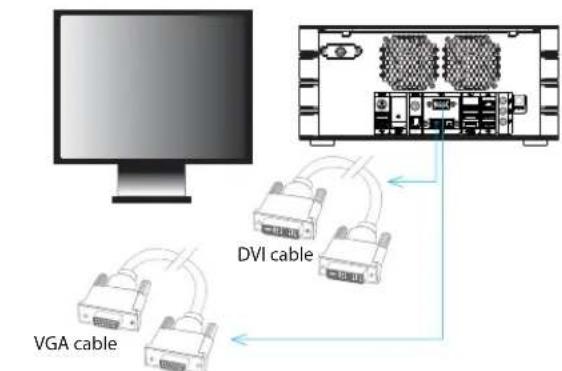
Diagram showing TV connection to a device with labeled ports and connectorsMethod 2. Connecting a TV or Monitor with DVI connector cable;
Method 3. Connecting a TV or Monitor with VGA connector cable.
flowchart
graph TD
    A["Computer monitor"] --> B["VGA cable"]
    A --> C["DVI cable"]
    C --> D["Computer monitor with multiple connected cables"]
*Please see Page 16 for Various Connections.
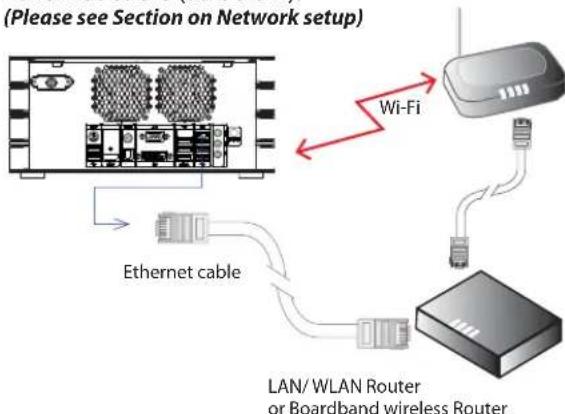
Step 4. Network Connections
Connect a DSL modem and Media Server with Ethernet cable (as below).
(Please see Section on Network setup)
text_image
(Please see Section on Network setup) Ethernet cable Wi-Fi LAN/ WLAN Router or Boardband wireless RouterStep 5. Power Connections
Connect the supplied power cord to AC-IN terminal of the server. Then plug the server and TV or Monitor Power Cord into the AC outlet.

natural_image
Diagram of an electronic device rear panel with connectors and internal components (no text or labels)Note: The power cord type will be different as different country, please check the power cord type with your local dealer if the supplied power cord is not correct.
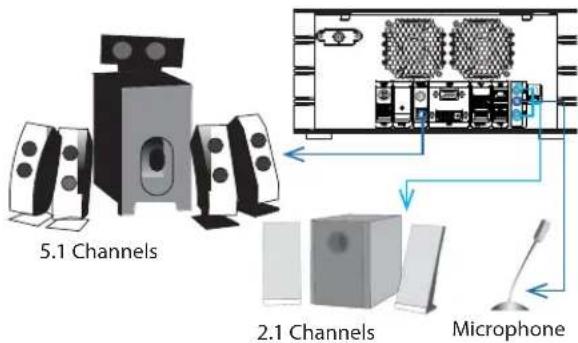
Step 6. Connecting to the Speaker (If your TV or Monitor is without Speaker)
Connecting the Speaker with audio cable as below:
text_image
5.1 Channels 2.1 Channels MicrophoneStep 7. Checking HDD
HDHome S4 has four 2.5" hard disk drivers with hot swap function. Please check if the system is installed one HDD at least on the HDD_0 position.

natural_image
Front view line drawing of a computer chassis with drive bays and indicator lights (no text or symbols)(Please see detail instruction of Hot Swap HDD Cage)
Step 8. Preparing the Remote Control Before using the Remote Controller, please insert the batteries at the back as shown
Remove the battery compartment cover by pushing on its release and lifting up.
- Insert the batteries, making 2. sure to properly orient the positive (+) and negative (-) ends as specified by the battery compartment labels.
Replace the battery 3. compartment cover.

text_image
1.Step 9. Power On / Off the system
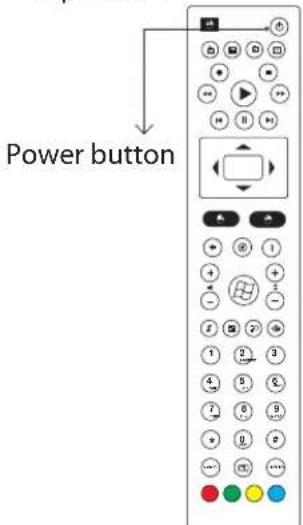
Once you complete to assemble the basic equipment with Media Server together, please press the Power Button ☐ on the front of the panel to turn on the system.

text_image
Power buttonWhen you would like to turn off the system, please select "Shut Down" from the "Start" on the screen of OS; or press "Power Button" of Remote Controller to enter "Sleep Mode".
text_image
Power buttonNote:
- If you have selected S3 (BIOS) to shutdown the system and the light on the device is ON about 15\~20 seconds, please WAIT until the light is off.
- In order for the audio system to perform optimally, the S/PDIF cable length should be less than 2m. We suggest a cable with length no more than 1m.
The HDHome S4 system supports four 2.5" hard disk or solid state drives and the HDHome S2 System supports two 2.5" hard disk or Solid State Drives. You can add hard disk drives to expand your storage size as you need. Also, you can use these drives to organize RAID configuration or hot-swap hard disk drives while the system is operating.
Please follow the instructions to setup your hard disk drives:
Step1. Push the black round clip from right to left to release the drive to eject the installed hard disk drive cage.

natural_image
Technical line drawing of a mechanical component with a circular inset detail (no text or symbols)Move the black round clip from right to left.
Step2. Hold the black bar to pull the hard disk drive out from the tray

natural_image
Diagram of a computer drive with a blue arrow indicating motion (no text or symbols present)Hold the black bar to pull the hard disk
Step3. You can follow the similar way to add or remove hard disk drives. When you add or replace a hard disk drive, do the following steps to fix the drives.

natural_image
Diagram showing two views of a computer hard drive with arrows indicating direction (no text or symbols present)Step4. Push the hard disk drive back into the ray, press and hold the clip.
Step5. Push the black bar back to the position, then release the black round clip to fix the hard disk drive.
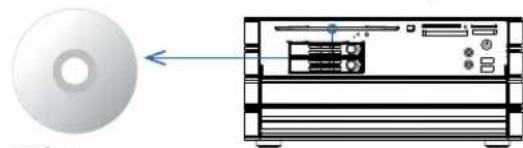
Inserting Discs
Step1. Press power button to turn on the server. Step2. Place the disc into the slot-in optical drive, then the disc will be loaded automatically.
natural_image
Diagram showing a CD and its internal components, with no visible text or symbols.Eject Discs
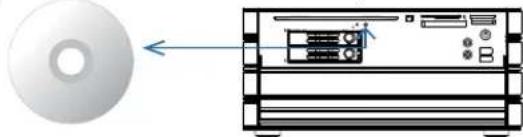
Step1. Press the eject button to release disc. Step2. Remove the disc from the optical drive.
natural_image
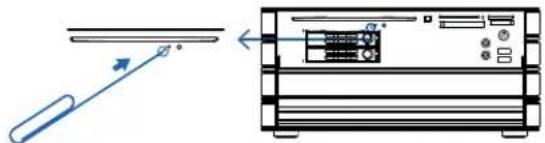
Diagram showing a CD and its internal components, with no visible text or symbols.Manually Eject Discs
Step1. Make sure your system if off. Step2. Locate the manual ejecting hole as shown in the images below.
natural_image
Diagram showing a device with an arrow pointing to a screen and a separate view of a server rack (no text or symbols present)Step3. Carefully push a straightened paper clip into the manual ejecting hole and press gently to release the disc.
Caution:
- Never remove the disc manually while your system is on.
- If the disc does not eject immediately, repeat the manual eject procedure until the disc is released.
Inserting Memory Cards
Insert the memory cards as follows.
SM: Smart Media
CF: Compact Flash
SD: Secure Digital Card

MS: Memory Stick
(Once the Media Center is reading the memory card, LED indicator will turn yellow.)
Note:
* With a Memory Stick or an SD memory Card, push the card until clicks. * Do not remove or insert memory cards while the Memory Stick/CF/SD/xD-Picture Card LED indicators are lighting as the cards are being accessed. * Be sure to insert the memory card into the corresponding slot. Inserting a wrong card may cause a malfunction.
Connecting a TV (or Monitor)
Refer to the following sections for details about connection to a TV (or monitor). Selecting a video cable
HDMI Cable

HDMI is the new standard that provides both audio and video transmission through a single cable. HDMI supports resolution of 1080p with digital audio and are used for connecting to an HDTV.
Standard HDMI cables can be up to 5 meters long, but higher quality ones can be up to 15 meters long, and the length can be further increased with amplifiers.
VGA Cable

natural_image
Pure electrical connector diagram without any text, numbers, or symbolsA standard VGA connector has 15-pins. VGA Cable is one of the most common video connectors for computer monitors and high-definition TVs.
DVI Cable

natural_image
Pure electrical circuit lines without any symbolsA DVI cable has 29 pins, though some connectors may have fewer pins depending on their confi guration. We recommend that you select the DVI-D type for your system.
Connecting using an HDMI cable
Refer to Rear Panel Section and your HDTV direction to locate the HDMI connector. Connect your system to the HDTV as shown below.

text_image
Diagram showing TV connection with two USB connectors and a device interior view with labeled componentsConnecting with a DVI cable
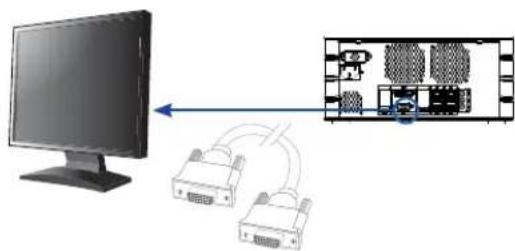
Refer to Rear Panel section and your monitor direction to locate the DVI connector. Connect your system to the monitor as shown below.

flowchart
graph LR
    A["Computer monitor"] -->|Data transfer arrow| B["Server with two connected devices"]
    B --> C["Internal network layout diagram"]
Connecting with a VGA cable
Refer to Rear Panel section and your monitor direction to locate the VGA connector. Connect your system to the monitor as shown below.
flowchart
graph TD
    A["Computer monitor"] --> B["USB device"]
    B --> C["Diagram of network layout with labeled components"]
Connecting an AV Amplifi er
Refer to the following sections for details about connection to an AV Amplifier (or speakers).
Selecting an audio cable
Coaxial Audio Cable: For Coaxial S/PDIF

3.5mm Stereo Audio Cable: A 3.5mm stereo audio cable lets you connect to a 2 channel speakers.

Toslink Optical Digital Audio Cable: For Optical S/PDIF

Connecting with a Coaxial Audio Cable
Refer to Rear Panel section (page 9) and your AV Amplifi er direction to locate the Coaxial S/PDIF connector. Connect your system to the AV Amplifi er as shown below.

natural_image
Diagram showing audio equipment connections with ports and connectors (no text or symbols)Connecting with a Toslink Optical Digital Audio Cable
Refer to Rear Panel section (page 9) and your AV Amplifi er direction to locate the Optical S/PDIF connector. Connect your system to the AV Amplifi er as shown below.

text_image
Diagram showing audio device front panel connected to a rack-mounted device with labeled ports and connection arrowsConnecting with an HDMI Cable
Refer to Rear Panel section (page 9) and your AV Amplifi er direction to locate the HDMI connector. Connect your system to the AV Amplifi er as shown below.

text_image
Diagram showing audio device connected to a device with labeled ports and connectorsConnecting Multi-Channel Audio
Use 3.5mm stereo audio cable may need to plus a 2-RCA converter to connect to your AV Amplifi er or Multi-Channel speakers.
Refer to the following diagrams for the function of each audio jack on the rear panel.
2-Channel Mode

text_image
Sterero Speaker4-Channel Mode

text_image
Side-Surround Channels Front channels5-channel Mode
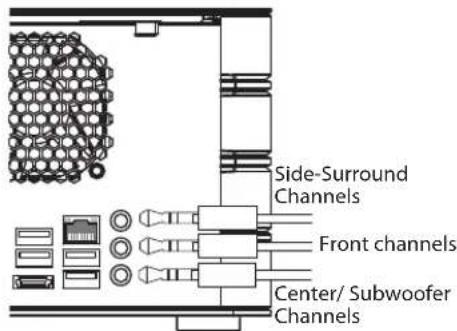
text_image
Side-Surround Channels Front channels Center/ Subwoofer ChannelsYour Mvix HDHome comes pre-loaded with Windows Media Center. Which is fully-equipped for you to enjoy Videos, Photos, and Music
Getting started with Media Center
Step 1. Setting up Windows Media Center
The first time you start Media Center, you'll see a setup page with information about various features, as well as two setup options. The quickest method is, not surprisingly, Express. You can choose this option now if you want to jump right in.
Let's walk through the Custom setup options to give you a better idea of what you can do with Media Center.
Using a Media Center remote, press the green 1. Start button 📋.
The first time you start Media Center, on the 2. setup page, select Continue, and then select Custom.
When you reach the page titled Get the Most 3. from Windows Media Center, select Yes to allow Media Center to download album cover art, DVD cover art, current TV guide listings, information from online media services, and other useful information.
Step 2. Optimize the display.
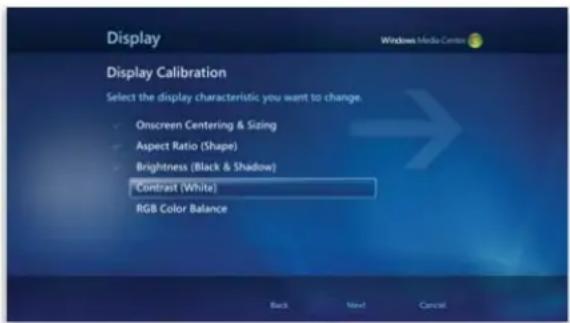
The Display Conf guration wizard is helpful for getting the best image quality possible on your TV screen or computer monitor.
The wizard takes you through the main part of the process with a series of easy-to-understand questions. If you're unsure about the details of your hardware setup, such as the name of a cable or the type of display you have, look at the illustrations in the wizard—they can help you figure out what type of connection you're using. When you've
fi nished answering the questions, and you're happy with the way your display looks, exit the wizard. If you're not satisf ed, you can find additional display options under Adjust display controls.
text_image
Display Windows Media Center Display Calibration Select the display characteristic you want to change. Onscreen Centering & Sizing Aspect Ratio (Shape) Brightness (Black & Shadow) Contrast (White) RGB Color Balance Back Next CancelYou can return to the Display Configuration wizard any time:
Using a Media Center remote, press the green 1. Start button 📋.
On the Windows Media Center start screen, 2. scroll to Tasks, select Settings, select General, select Windows Media Center Setup, and then select Configure Your TV or Monitor.
Step 3. Set up your speakers
If your Media Center is connected to a surround sound system, you can use the Speaker Setup wizard. Choose your speaker configuration, and then use the test feature to play a chime sound. Listen closely to each individual speaker to make sure it's receiving a signal.
You can return to the Speaker Setup wizard any time:
Using a Media Center remote, press the green 1. Start button .
On the Windows Media Center start screen, 2. scroll to Tasks, select Settings, select General, select Windows Media Center Setup, and then select Set Up Your Speakers.
Step 4. Set up your media libraries
Each time you start Media Center, it automatically scans the Music, Pictures, and Videos libraries on your computer. But what if your music files are on an external hard drive or your pictures are on a different computer in your home group? Don't worry—Media Center has solutions.
In the 1. Media Library wizard, select the type of media you want to add (for example, Music), and then select Next.
Select 2. Add folders to the library, and then select Next.
Select 3. On this computer (includes mapped network drives), and then select Next.
Browse to find the folder where your files are 4. stored, select the check box next to the folder, and then select Next.
Media Center will search the folder for digital media. It will also save your folder selections for the next time you start the program.
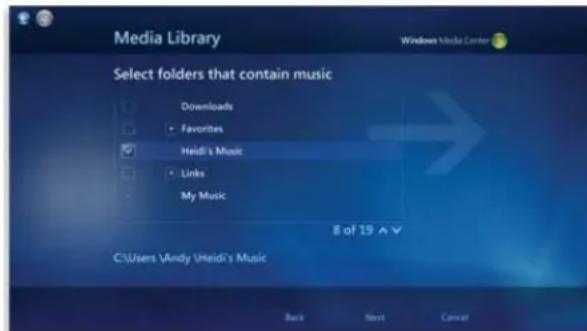
text_image
Media Library Select folders that contain music Downloads Favorites Heidi's Music Links My Music 8 of 19 ^ C:\Users\Andy\Heidi's Music Back Next CancelIf you want to import fi les from a shared folder on another computer, the process is similar: Just select On another computer and Media Center will search for shared folders rather than local ones. For more information, see Add media fi les to Windows Media Center.
You can return to the Media Library wizard any time:
- Using a Media Center remote, press the green Start button 📋.
- On the Windows Media Center start screen,
scroll to Tasks, select Settings, and then select Media Libraries.
Step5. Configure Tuners, TV signal, and Guide
This option only appears in the Optional Setup menu if Media Center detects a TV tuner. A TV tuner is a hardware device that you can connect to your computer through an internal expansion slot or an external expansion port, such as a USB port. With a compatible TV tuner, you can connect a TV signal to your computer to use one of Media Center's best features: watching and recording TV.
The TV Setup wizard will guide you through the process of setting up a TV signal to watch and record in Media Center. When you reach the TV Signal Detection Result page, select Yes, configure TV with these results, and then Media Center will do most of the work for you.
When you reach the Guide wizard, you'll need to enter your ZIP Code and then select your TV service provider from a list. If you're not sure, choose the one that's closest to your area. Media Center will use this information to set up the Guide, an essential tool for watching and recording TV.
You can return to the TV Setup wizard any time:
Using a Media Center remote, press the 1. greenStart button .
On the Windows Media Center start screen, 2. scroll to Tasks, select Settings, select General, select Windows Media Center Setup, and then select Set Up TV Signal.
For more information about setting up TV tuners, see TV on your computer: Understanding TV signals and TV tuners.
If your computer has the necessary hardware, you can use Windows Media Center to watch, pause, and rewind live and recorded TV programs on your PC.

text_image
Pictures + Videos Music Now Playing Movies TV live tvThere are two primary ways to control Media Center: with a mouse and keyboard, or with a Media Center remote control. Most of the procedures in this topic refer to the mouse and keyboard method, but the remote control method is often a more satisfactory experience.
There are many types of Media Center remote controls available to buy—make sure that the one you want is compatible with your computer.

text_image
1 2 3 4 5 6 7 8 9 10 11 12 13 ● ≡ - + | ■ | ◄ | ▶ | ◆ | - +① Record
⑥ Rewind
⑪ Mute
② Guide
⑦ Skip Backward
12 Volume Decrease
③ Channel Decrease
⑧ Pause and Play
13 Volume Increase
④ Channel Increase
9 Skip Forward
5 Stop
10 Fast Forward
- Click the Start button 📋, click All Programs, and then click Windows Media Center.
- To begin watching live TV, do one of the following:
On the Windows Media Center start screen, • scroll to TV, and then click Live TV.
On the Windows Media Center start screen, • scroll to TV, click Guide, locate the TV show that you want to watch, and then click a show that's currently airing.
-
To control playback of live TV, move the mouse so that the playback controls appear, and then do any of the following:
-
Click the Pause button 📄 to temporarily pause the program. You can keep a program paused for about 30 minutes. When you're ready to resume the program where you left off, click the Play button 📄.
- Move the slider that appears above the playback controls to a different point to start watching from that point in the TV show.
- Click the Skip Backward button or the Rewind button to watch something again, and click the Skip Forward button or the Fast Forward button to move ahead in the program.
- Click the Volume Increase button or the Volume Decrease button to increase or decrease the volume, and click the Mute button to turn the sound on or off.
- Click the Channel Decrease button — or the Channel Increase button + to go down one channel or up one channel, respectively.
- Click the Pause button 📄, and then click the Skip Forward button ▶ repeatedly to move forward frame-by-frame.
- Click the Pause button 📄, and then click the Fast Forward button one, two, three, or four times to move forward at different speeds.
- When you're finished watching live TV, move the mouse, and then click the Stop button □.
Watch live TV using the Remote Control
To use a Media Center remote to begin watch-1. ing TV, do one of the following:
On the remote, press the LIVE TV button.
Press the GUIDE button, locate the TV show that you want to watch, and then press the OK button.
- To control playback of live TV, do any of the following:
Press the CH + button or the CH - button to go up one channel or down one channel, respectively.
Press the ENTER button to quickly go back to the last channel you were watching.
Press the FWD button or the SKIP button to move ahead in the program.
Press the REW button or the REPLAY button to watch something again.
- When you're finished watching live TV, press the STOP button.
Find Schedules and Program Guide
- Click the Start button 📋, click All Programs, and then click Windows Media Center.
To find movies that are airing on TV, do one of 2. the following:
On the Windows Media Center start screen, • scroll to Movies, and then click Movie guide.
On the Windows Media Center start screen, • scroll to Movies, click Search, choose a search category (such as Movie Director), and then enter your search criteria.
Watch Internet TV
With Internet TV in Media Center, you choose from many TV shows, movies, and music videos to watch directly from the web. All you need to watch Internet TV is an Internet connection—no TV tuner is required.
While much of the available content is free, some programs might require a subscription to a
specifi c service.
To watch Internet TV:
- Click the Start button, click All Programs, and then click Windows Media Center. On the 2. Windows Media Center start screen, scroll to Extras, click Internet TV, and then browse the available content.
You can record live TV shows and movies directly onto your computer. You can even schedule a recording in advance or automatically record new episode of your favorite TV series.

text_image
Pictures - Videos Music Now Playing Movies TV recorded tvTo change the options for recordings, such as the recording quality or the location where recorded TV shows are stored, see Set recording options in Windows Media Center.
There are two primary ways to control Media Center: with a mouse and keyboard, or with a Media Center remote control. The following procedures explain the mouse and keyboard method using the playback controls that appear when you move your mouse.
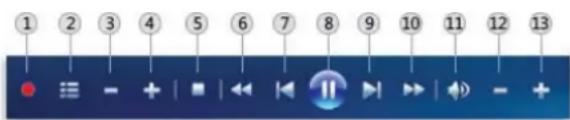
text_image
① ② ③ ④ ⑤ ⑥ ⑦ ⑧ ⑨ ⑩ ⑪ ⑫ ⑬ ⑭ ● - + | | | | | | - +① Record
② Guide
③ Channel Decrease
④ Channel Increase
⑤ Stop
6 Rewind
⑦ Skip Backward
⑧ Pause and Play
⑨ Skip Forward
10 Fast Forward
11 Mute
12 Volume Decrease
13 Volume Increase
Record a live TV show or movie
You can record a TV show or movie that's currently airing. When you do this, the show is recorded from the moment you start recording. For example, if you're halfway through watching a show before you start recording it, the recording won't include the first half.
- Click the Start button 📋, click All Programs, and then click Windows Media Center. On the Windows Media Center start screen, 2. scroll to TV, and then click Live TV. While a program is airing, move the mouse so 3. that the playback controls appear, and then click Record 📋.
Schedule Recordings using the Guide
You can quickly schedule recordings while browsing the Guide for upcoming TV shows and movies. To learn how to set up the Guide, see the section in Getting started with Windows Media Center entitled "Configure tuners, TV signal, and Guide."
On the Windows Media Center start screen, 1. scroll to TV, and then click Guide.
- Right-click the program that you want to record, and then click Record to schedule a recording of the program.
Schedule Recordings using Search
You can search in Media Center to find a TV show or movie that you want to record.
On the Windows Media Center start screen, 1. scroll to TV, and then click Search.
-
Click the category that you want to search by (such as Title), and then follow the instructions to start a search.
-
On the search results page, click the TV show or movie that you want to record, and then
click Record to schedule a recording of the program.
Record a TV series
Rather than schedule the recording of your favorite TV show every week, you can automate the process by scheduling the recording of an entire series.
On the Windows Media Center start screen, 1. scroll to TV, and then click Guide.
Locate the TV series that you want to record, 2. click it, and then click Record Series.
Play a Recorded TV program
On the Windows Media Center start screen, 1. scroll to TV, click Recorded TV, and click the show you want to watch and then click Play or Resume.
To control the playback of a recorded TV 2. program, move the mouse to display the playback controls, and then do any of the following:
- Click Pause 📄 to temporarily pause the program. You'll see a time span bar that shows how much time has passed in the recording. When you're ready to resume the program where you left off, click Play 📋. Move the slider that appears above the • playback controls to a different point to start watching from that point in the recorded program.
- Click Skip Backward or Rewind to watch something again, and click Fast Forward or Skip Forward to move ahead in the program.
- Click the Volume Increase button + or the Volume Decrease button → to increase or decrease the volume, and click the Mute button to turn the sound on or off.
- When you're finished watching the recorded
program, move the mouse, and then click Stop ☐.
Schedule Recordings on channel and time
You can set up Media Center to automatically record a specific channel at a specific time.
On the Windows Media Center start screen, 1. scroll to TV, and then click Recorded TV.
- Click Add recording, and then click Channel and Time.
- In Channel, enter the channel that you want to record.
- In Frequency, click the Plus + or Minus - button to specify how often you want to record the channel.
- If you selected Record Once for Frequency, in Date, click the Plus + or Minus - button to specify the recording date.
- In Start time, enter the time you want the recording to start.
- In Stop time, enter the time you want the recording to stop.
- Under Keep, click the Plus + or Minus - button to specify how long you want to keep the recorded show.
- Click Record.
Schedule Recordings based on keywords
You can set up Media Center to automatically record TV shows and movies based on keywords that are associated with a program. These include an actor's name, director's name, or even a word that appears in the title.
In the future, when a TV show or movie airs that matches keywords you specified, the program will automatically record.
On the Windows Media Center start screen, 1. scroll to TV, and then click Recorded TV.
-
Click Add recording, click Wish List or Keyword, and then click a category depending on the keyword that you want to use for recording (such as Actor name).
-
Type the keyword for your recording, and then do one of the following:
Click the matching keyword you're looking for in the search results to record programs based on that keyword.
Under Add to wish list, click the Record All • Shows with button to record based on the exact word you typed. This can be useful if you didn't see the keyword you were looking for in the search results, but you want to record future programs based on that keyword.
If you clicked the Generic Keyword category • in step 2, click Save to record programs based on that keyword.
- Click the Plus + or Minus - button in the different categories to modify the settings that will be used for your custom recording, click Record, and then click OK.
Add or Remove Folders that Media Center searches when it looks for Recorded TV
You can add folders for Media Center to monitor for recorded TV files. To be recognized by this version of Media Center, the files must be either Windows TV files (.wtv) or Microsoft Recorded TV files (.dvr-ms).
On the Windows Media Center start screen, 1. scroll to Tasks, click Settings, click TV, click Recorder, and then click Media Libraries.
Follow the steps to add or remove locations 2. that Media Center will search when it looks for recorded TV.
Play video and Watch pictures

text_image
Extras Pictures + Videos picture libraryTo find and view a picture If you can't find a particular picture, try changing the way Media Center groups your pictures.
- Click the Start button, click All Programs, and then click Windows Media Center.
- On the Windows Media Center start screen, scroll to Pictures + Videos, and then click Picture library.
- Click Folders to sort your folders and files alphabetically, click Date taken to sort folders and files by date, or click Tags to sort files by tags that have been applied. (To learn more about tags and how to use them, see Tag pictures so they're easier to find.)
- Click the picture that you want to view.
View / Import Pictures or Videos from a Removable Device
If you have pictures on a removable device, such as a USB flash drive or a digital camera, you can view the pictures in Media Center or import them directly to your computer.
- Click the Start button, click All Programs, and then click Windows Media Center.
-
If Media Center is not in full-screen mode, click the Maximize button.
-
Connect your removable device to your computer. (Cameras and most other removable devices are usually connected to a USB port.)
- In the dialog that appears, do one of the following:
Click • Import pictures and videos, and then follow the instructions to copy all the pictures and videos on your device to the My Pictures folder on your computer. (To see imported videos in Media Center, you'll need to manually move them to the My Videos or Public Videos folder in Windows Explorer. For more information, see Managing your videos.)
- Click View pictures or View videos to access the pictures or videos on the device without copying them to your computer.
Create a Slide Show
A slide show is a way to view a group of photos one-by-one at full screen. You can create your own slide show complete with pictures and music of your choice, and then save it for easy access later.
- Click the Start button 📷, click All Programs, and then click Windows Media Center. On the Windows Media Center start screen, 2. scroll to Pictures + Videos, and then click Picture library.
Click 3. Slide shows, clickate Slide Show, and then follow the instructions to add pictures and music to your slide show.
- On the Review & Edit Slide Show page, click Add More to add additional pictures and music, and when you're finished, click Create.
- On the Picture library page, click the slide show you want to play, and then click Play slide show.
To play a slide show
On the Windows Media Center start screen, 1. scroll to Pictures + Videos, and then click Picture library.
- On the Picture library page, click Slide shows, click the slide show you want to play, and then click Play slide show.
- While your slide show is playing, move the mouse to make the playback controls appear, and then do any of the following:
- Click the Left arrow button or the Right arrow button to go back or forward one picture in the slide show. Click the • Pause button to pause the music and the slide show.
- Click the Left arrow button or the Right arrow button to go back or forward one picture in the slide show. Click the • Pause button to pause the music and the slide show.
- Click the Skip Forward button ▶ for the Skip Backward button 📁 to go ahead to the next song or go back to the previous song. Click the • Mute button 📁 to mute the sound.
- Click the Volume Increase button + or the Volume Decrease button → to change the volume. Click the • Stop button to stop the slide show. (The music will continue playing, but the pictures won't appear.)
Customize Setting for Slide Shows
There are many options for customizing the presentation of your slide shows. You can specify the order in which pictures are shown, the duration of the transitions, and other aspects of a slide show presentation.
- Click the Start button, click All Programs, and then click Windows Media Center.
On the Windows Media Center start screen, 2. scroll to Tasks, click Settings, click Pictures, and then click Slide Shows. You can customize your slide show using the options on this screen.
Click 3. Save to save the new settings.
Rate and play your favorite pictures
You can rate individual pictures so you can keep track of your favorites, and then play a special presentation of only your favorite pictures.
- Click the Start button 📋, click All Programs, and then click Windows Media Center.
On the Windows Media Center start screen, 2. scroll to Pictures + Videos, and then click Pictures library.
Right-click a picture that you want to rate, and 3. then click the Rating button (fi ve stars in a row) multiple times until it displays the desired rating. - Click the green Start button 📋 to return to the Windows Media Center start screen, scroll to Pictures + Videos, and then click Play favorites.
By default, Media Center uses ratings to determine which pictures are your favorites. To change the Favorite Picture settings, from the Media Center start screen, scroll to Tasks, click Settings, click Pictures, click Favorite Pictures, make any adjustments you like, and then click Save.
To find and play a video fi le
If you're having trouble fi nding a particular video fi le, try changing the way that Media Center groups your videos.
- Click the Start button 📋, click All Programs, and then click Windows Media Center.
- On the Windows Media Center start screen, scroll to Pictures + Videos, and then click Video library.
- Click Folders to sort your folders and files alphabetically, or click Date taken to sort them by date.
- Find the video that you want to watch, and then click the video file to play it.
FF / FR, Frame-Advance a video file
- Click the Start button 📋, click All Programs, and then click Windows Media Center.
- On the Windows Media Center start screen, scroll to Pictures + Videos, and then click
Video library.
- Find the video that you want to watch, and then click the video file to play it.
- Click the Pause button, and then do one of the following:
- Click the Fast Forward button once to play the video in slow motion.
- Click the Fast Forward button four times to speed up playback of the video.
- Click the Rewind button one, two, three, or four times to play the video backwards at different speeds.
- Click the Play button to resume playback at normal speed.
Change the Background Color on a Video
If an unchanging image stays on the screen for too long, sometimes a faint remnant of the image will stay on the screen even after a new image has replaced it. This is called screen burn. To avoid screen burn during video playback in Media Center, you can change the shade of black that might appear on the left and right or on the top and bottom of your video.
- Click the Start button, click All Programs, and then click Windows Media Center.
- On the Windows Media Center start screen, scroll to Tasks, click Settings, click General, and then click Visual and Sound Effects.
- Under Video background color, click the Plus or Minus button to change the color. The default color is black—you can change it to different shades of gray, or to solid white.
- Click Save.
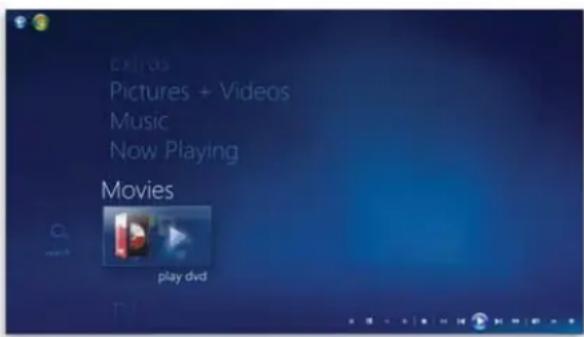
text_image
EXTRA Pictures + Videos Music Now Playing Movies play dvdPlay a DVD
- Click the Start button, click All Programs, and then click Windows Media Center.
If2Media Center is not in full-screen mode click the Maximize button. - Insert the DVD into a DVD drive on your computer.
- If the main DVD title menu doesn't appear automatically, on the Media Center start screen, scroll to Movies, and then click Play DVD.
- Click the appropriate button (this will usually be a Play button) on the DVD menu to play the DVD.
- While your DVD is playing, you can move the mouse to make the playback controls appear. Here are some of the things you can do with these controls:
- Click the Skip Forward button ▶ to skip to the next chapter on the DVD.
- Click the Skip Backward button 📁 to go back to the previous chapter on the DVD.
- Click the Pause button, and then click the Fast Forward button once to watch the DVD in slow motion. (Click the Fast Forward button again to watch the DVD in fast motion.)
- Click the Stop button to stop playing the DVD.
Play a Blu-Ray
- Click the Start button, click All Programs,
and then click Windows Media Center.
- If Media Center is not in full-screen mode, click the Maximize button.
- Insert the Blu-Ray into a BD drive on your computer.
- On the Media Center start screen, scroll to CyberLink PowerDVD, and then click OK.

text_image
10:22 PM Extras CyberLink PowerDVD PowerDVD Play Blu-ray Disc- Click the appropriate button (this will usually be a Play button) on the Blu-Ray menu to play the Blu-Ray.
-
While your Blu-Ray is playing, you can move the mouse to make the playback controls appear. Here are some of the things you can do with these controls:
-
Click the Skip Forward button to skip to the next chapter on the Blu-Ray.
- Click the Skip Backward button to go back to the previous chapter on the Blu-Ray.
- Click the Pause button, and then click the Fast Forward button once to watch the Blu-Ray in slow motion. (Click the Fast Forward button again to watch the Blu-Ray in fast motion.)
- Click the Stop button to stop playing the Blu-Ray.
Change DVD playback Settings
- On the Windows Media Center start screen, scroll to Tasks, click Settings, and then click DVD.
- Do one of the following:
To change the default language settings, click Language.
To change the basic audio settings, click • Audio.
To change when subtitles appear, click Subtitle.
To change how some buttons on a Media • Center remote control behave, click Remote Control Options.
Change Blu-Ray playback Settings
On the Windows Media Center start screen, 1. scroll to CyberLink PowerDVD, and then click OK.
Press the Remote Controller MORE button ⓘ2. then press the BACK button ✦.

text_image
Windows Movie Create Menus Audio Languages Show Information Movie Details Settings Eject3. Do one of the following:
To change the default language settings, click • Audio Language.
To change the basic settings, click • Settings.
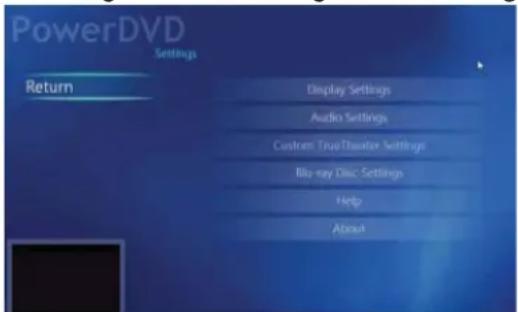
text_image
PowerDVD Settings Return Display Settings Audio Settings Custom True Theater Settings Blu-ray Disc Settings Help AboutTo change when subtitles appear, click Subtitle.
To change how some buttons on a Media • Center remote control behave, click Remote Control Options.
Play an audio CD
Click the Start button 📋, click All Programs, 1. and then click Windows Media Center.
-
If Media Center is not in full-screen mode, click the Maximize button ☐.
-
Insert an audio CD into the CD drive on your computer.
-
If the CD doesn't start playing automatically, on the Windows Media Center start screen, scroll to Music, click Music library, click Albums, click the CD you inserted, and then click Play album.
-
Here are some of the things you can do while your CD is playing:
Move the mouse to make the playback controls appear, and then click the Skip Forward button to play the next track on the CD.
Move the mouse to make the playback controls appear, and then click the Skip Backward button to go to the beginning of the track that's currently playing.
- Click View Song List to view all the tracks on the CD.
- Click Visualize to watch visualization while the music plays.
- Click Play Pictures to start a slide show of your pictures along with the music.
- Click Shuffle to play the tracks on the CD in a random order.
- Click Repeat to play the CD over and over again.
Move the mouse to make the playback controls appear, and then click the Stop button to stop playing the CD.
Play media files from a data CD, data DVD, or a removable device
- Click the Start button 📋, click All Programs, and then click Windows Media Center.
- If Media Center is not in full-screen mod click the Maximize button.
- Do one of the following:
- Insert the CD or DVD containing media files (such as MP3 files) into the CD or DVD drive on your computer.
- Plug the removable device (such as a USB flash drive) into the USB port on your computer.
- Under What do you want to do?, click Play music.
Supporting File Types
Music fi le types
| Format File Name Extensions | |
| e, Windows Media Audio File .asx, | .wm, .wma, .wmx |
| Windows audio file .wav | |
| MP3 audio file | .mp3, .m3u |
| Advanced Audio Coding | .aac |
Video file types
| Format File Name Extensions | |
| Windows Media fi le .wm, .asf | |
| Windows Media Video fi le .wmv | |
| Windows video fi le .avi | |
| Windows TV fi le .wtv | |
| Microsoft Recorded TV Show fi le | .dvr-ms |
| Movie fi le | .mpeg, .mpg, .mpe, .m1v, mp2, .mpv2, .vob |
Picture file types
| Format File Name Extensions | |
| JPEG | .jpg, .jpeg |
| JPEG XR | .hdp, .wdp |
| TIFF | .tif, .tiff |
| RAW fi le Format | .raw |
| GIF | .gif |
| Bitmap | .bmp |
| Portable Network Graphics .png | |
Display Settings
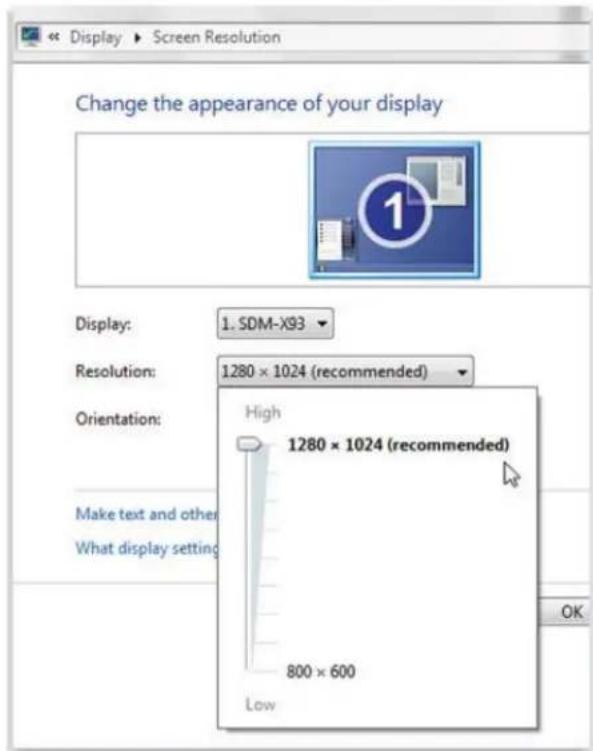
Change your screen resolution
Open Screen Resolution by clicking the button ⚙, clicking Control Panel, and then, under Appearance and Personalization, clicking Adjust screen resolution.
- Click the drop-down list next to Resolution, move the slider to the resolution you want, and then click Apply.
- Click Keep to use the new resolution, or click Revert to go back to the previous resolution.
text_image
Display ▶ Screen Resolution Change the appearance of your display Display: 1. SDM-X93 ▼ Resolution: 1280 × 1024 (recommended) Orientation: Make text and other What display setting High 1280 × 1024 (recommended) 800 × 600 Low OKEnlarge Screen Text
-
Open Screen Resolution by clicking the Start button ⚙, clicking Control Panel, and then, under Appearance and Personalization, clicking Adjust screen resolution.
-
Choose one of the following:
- Smaller - 100% (default). This keeps text and other items at normal size.
Start Medium - 125%. This sets text and other items to 125% of normal size.
- Larger - 150%. This sets text and other items to 150% of normal size. This option appears only if your monitor supports a resolution of at least 1200 x 900 pixels.
3. Click Apply.
To see the change, close all of your programs and then log off of Windows. This change will take effect the next time you log on.

text_image
Make it easier to read what's on your screen You can change the size of text and other items on your screen by choosing one of these options. To temporarily enlarge just part of the screen, use the Magnifier tool. Smaller - 100% (recommended) Preview Medium - 125% Larger - 150% ApplyAudio Settings
Hardware Setup
This system owns 3 audio jacks on the rear side which can support up to 5.1 channel audio output.
Select Output Devices
After the speaker is connected to your system, you can setup the audio output as follows:
Step1. Right-click the volume icon on the OS taskbar and select Playback Devices.
Step2. On the pop-up Sound menu, select the output device you want and click Set Default.
Step3. Click OK or Apply and the selected device will appear a green check sign.

text_image
Sound Playback Recording Sounds Communications Select a playback device below to modify its settings: Digital Audio (HDMI) 2- High Definition Audio Device Not plugged in Speakers Bluetooth AV Audio Ready Speakers Bluetooth SCO Audio Default Device Speakers Realtek High Definition Audio Ready Realtek Digital Output Realtek High Definition Audio Ready Configure Set Default Properties OK Cancel ApplyNetwork Settings
To connect the network, you can select wired or wireless network. Please follow the instructions below:
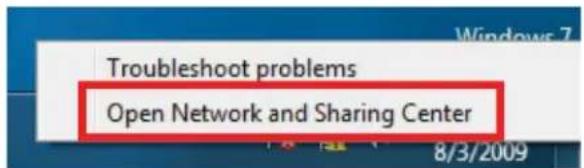
Step1. Right-click the network icon on the OS taskbar and select Open Network and Sharing Center.
text_image
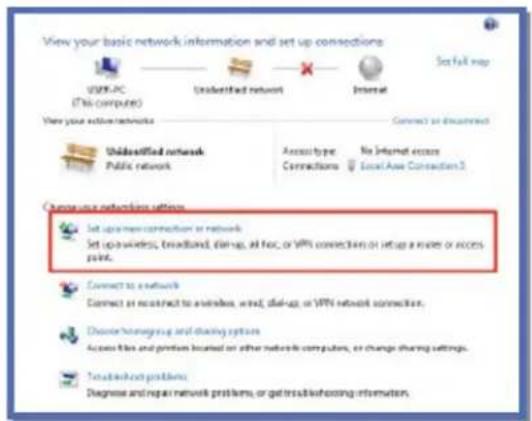
Troubleshoot problems Open Network and Sharing Center 8/3/2009Step2. View your basic network information and set up connectors:
On the pop-up menu, select Set up a new connection or network.
text_image
View your basic network information and set up connections VSPK-PC (716 computer) Unidentified network Internal Set full map View your active networks Connect or Encrypted Unidentified network Access type No Internet access Public network Connections Local Axis Connection 3 Change user networks settings Set up new connection or network Set up wireless, broadband, dial-up, all foci, or VPN connection or setup a mode or access point. Connect to a network Connect or reconstruct to wireless, wind, dial-up, or VPN network connection. Choose homegroup and sharing options Access files and proteins located on other networks computers, or change sharing settings. Transfacing problems Diagnosis and repair network problems, or get stress/beforezing information.Step3. Choose a connection option:
Select "Connect to the Internet" and press "Next"

text_image
Set Up a Connection or Network Choose a connection option Connect to the Internet Set up a wireless, broadband, or dial-up connection to the Internet. Set up a new network Configure a new model or update point Manually connect to a wireless network Connect to a hidden network or update a new wireless joint path Connect to a workplace Set up a dial-up or WiFi connection by your workplace. Set up a dial-up connection Connect to the Internet using existing connection. Next CancelStep4. How do you want to connect?
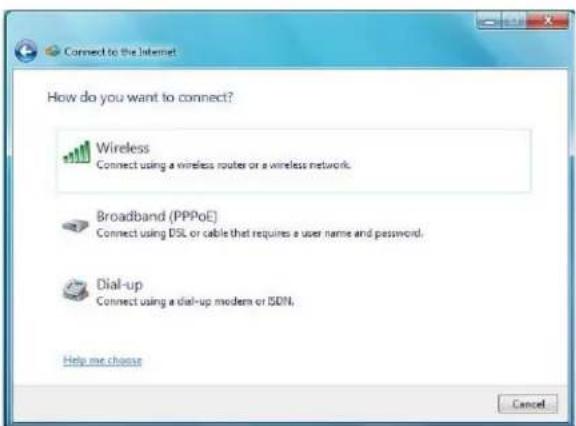
Select from the following three network option: Wireless,
- Broadband (PPPoE), Dial-Up.
text_image
How do you want to connect? Wireless Connect using a wireless router or a wireless network. Broadband (PPPoE) Connect using DSL or cable that requires a user name and password. Dial-up Connect using a dial-up modem or ISDN. Help me choose CancelStep5.
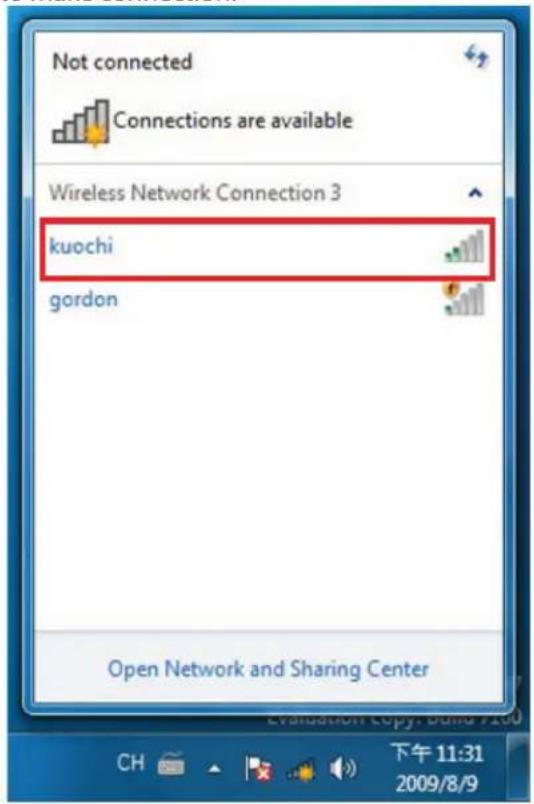
- When you select Wireless, the pop-up windows will show the available network, choose the one you want to connect, then enter the security key to make connection.
text_image
Not connected Connections are available Wireless Network Connection 3 kuochi gordon Open Network and Sharing Center Evaluation Copy, Build A200 下午11:31 2009/8/9- If you select broadband or Dial-up, the pop-up windows will ask you the input the user name, password and the data of ISP provider, enter these data to finish connection.

text_image
Connect to the Internet Type the information from your Internet service provider (ISP) User name: [Name your ISP gave you] Password: [Password your ISP gave you] Show characters Remember this password Connection name: Broadband Connection Allow other people to use this connection This option allows anyone with access to this computer to use this connection. I don't have an ISP Connect CancelBluetooth Settings
To connect the Bluetooth devices, you can follow the instructions below:
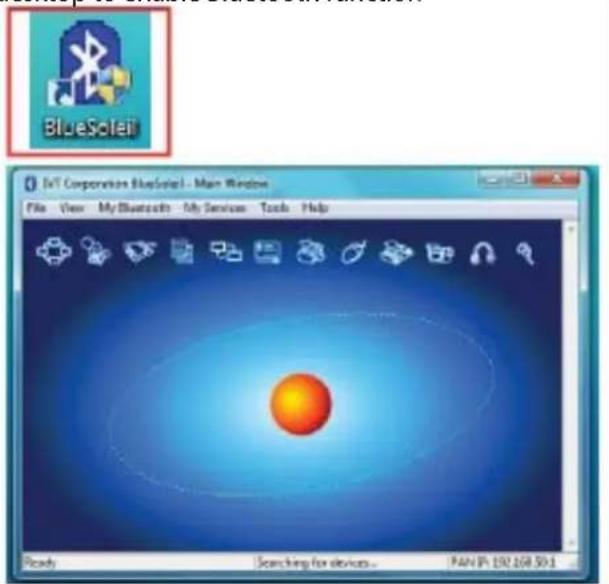
Step 1. Right-click the Bluetooth icon on the desktop to enable Bluetooth function
text_image
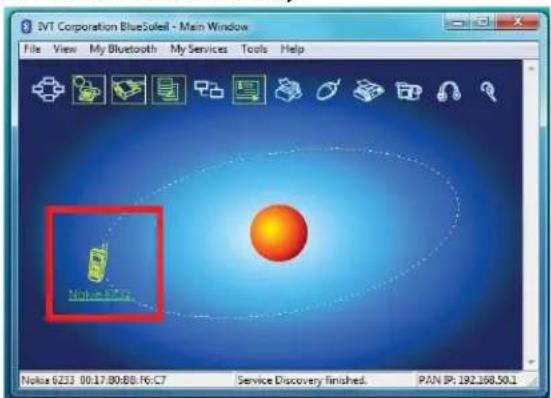
BlueSoleil Int Corporation BlueSoleil - Main Window File View My Bluetooth My Services Tools Help Reads Searching for devices... PAN IP: 192.108.50.1Step 2. Click on the sun in the center to search the Bluetooth devices nearby.
text_image
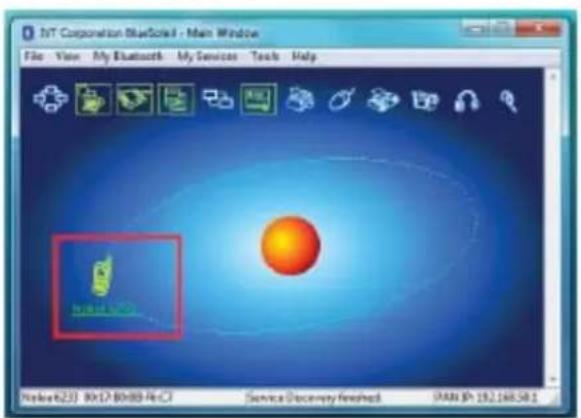
IVT Corporation BlueSoleil - Main Window File View My Bluetooth My Services Tools Help Nokia 6233 09:17:00:88:46:C7 Service Discovery finished. PAN IP: 192.168.50.1Step3. Click on the devices you want to connect to show the name of them.
text_image
J&T Corporation BlueSonic - Main Window File View My Bluetooth My Services Tools Help Nokia 6230 80x17 80x89-46-CF Service Discovery Finished SAN IP: 192.168.58.1Step4. Select the services you want to communicate between the system and the Bluetooth devices.
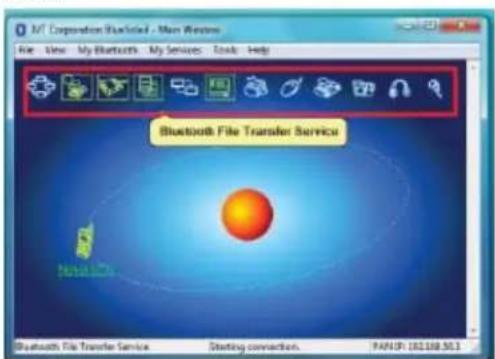
text_image
M Corporation Wireless Main Window File View My Bluetooth My Services Tools Help Bluetooth File Transfer Service Status: 100% Bluetooth File Transfer Service Starting connection, PAN: 01268.501Step5. Right-click on the device you want to connect, select Connect to connect to this device

text_image
MT Corporation BlueScope - Main Window File View My Bluetooth My Services Tools Help Make Style Make Style Make Style Make Style Make Style Make Style Make Style Make Style Make Style Make Style Make Style Make Style Make Style Make Style Make Style Make Style Make Style Make Style Make Style Make Style Make Style Make Style Make Style Make Style Make Style Make Style Make Style Make Style Make Style Make Style Make Style Make Style Make Style Make StyleStep6. The pop-up windows will prompt you to enter the pair code of the device and the system, you can both input "1234" to pair them.

text_image
Enter Bluetooth Passkey A remote devices needs a Bluetooth Passkey to create Paired relationship for future connections. Please use the same passkey on this device and on the remote device. Remote Device: Nokia 6233 Address: 0017.80.BB.F6.C7 Passkey: Time Left: 24 s OK CancelStep7. Once pair is done, the connected device will show a red check sign means the connection is working.
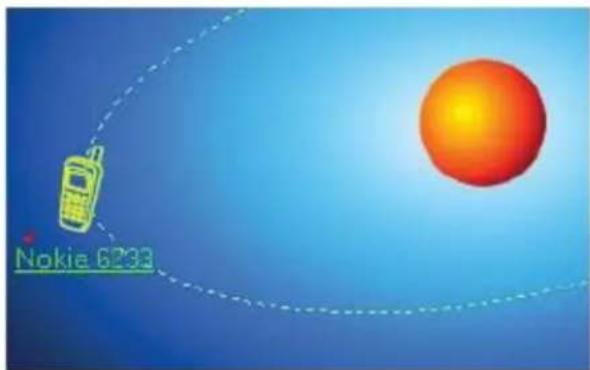
text_image
Nokia 6233DTV Settings
If you want to watch TV programs with this system, you have to loose the screw of the TV port on the back panel, plug the TV dongle into the port, tight the screw, then connect the included antenna to the TV dongle. Your system might come with one of the two following TV dongles, one is DVB-T, the other is ATSC. DVB-T is mainly for European TV system, and the ATSC is for U.S.A. TV system.

text_image
DVB-T (EU) ATSC (U.S.A.)Sharing Folders
Microsoft Windows Home Server provides rich entertainment for home users. You can share your music, photos, software and videos with your family. Just enable the Shared Folders function, and all the PCs on the network will be able to access the content on the server.
Step 1. Click Start to show the menu, and then click Windows Home Server Console to pop-up the set-up option.
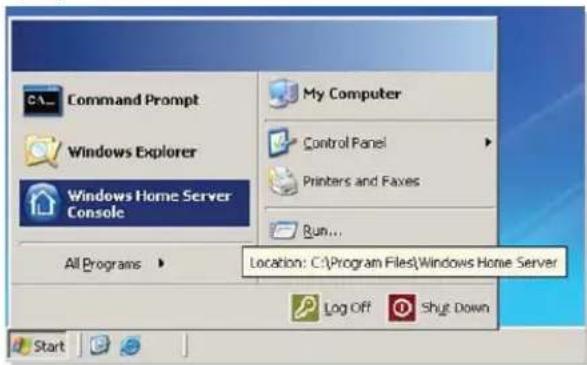
text_image
Command Prompt Windows Explorer Windows Home Server Console All Programs ▶ My Computer Control Panel Printers and Faxes Run... Location: C:\Program Files\Windows Home Server Log Off Shut DownStep 2. In the Windows Home Server Console menu, move your mouse to Shared Folders and click it to show its options. Its options include Music, Photos, Public, Software and Videos.

text_image
Windows Home Server Console Computers & Backup User Accounts Shared Folders Server Storage Network Healthy Add Remove Open Remove Name Description Used Space Music Shared folder for music Empty Photos Shared folder for photos Empty Public Shared folder for miscellaneous files Empty Software Shared folder for software installation programs $1.47 MB Videos Shared folder for videos EmptyStep 3. Double-click on the item you want to share on the network like Music, and then you can setup the following options like Name, Description, and Location and Enable Folder Duplication.
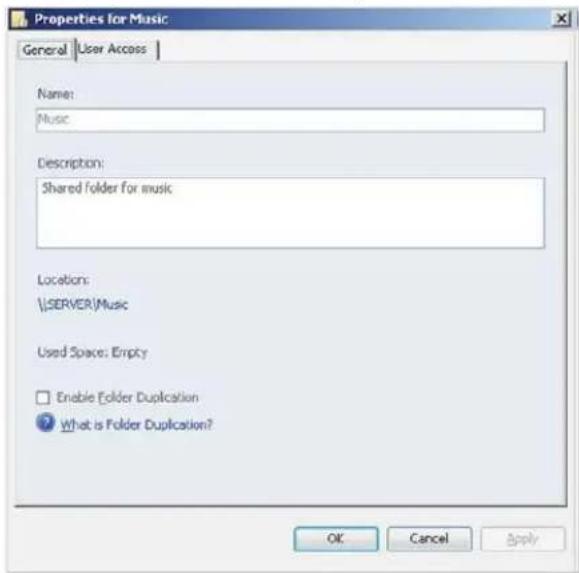
text_image
Properties for Music General User Access Name: Music Description: Shared folder for music Locations: \SERVER\Music Used Space: Empty Enable Folder Duplication What is Folder Duplication? OK Cancel ApplyStep 4. If you want to setup the location of the shared folders, you can double-click on the original one to show the menu.

text_image
Properties for Music General User Access Name: Music Description: Shared folder for music Location: \USER VER\Music Used Space: Empty Enable Folder Duplication What is Folder Duplication? OK Cancel ApplyStep 5. In this menu, you can specify the folder you want to share on the network. Thus, other PCs on the network will be able to access the content in this folder.
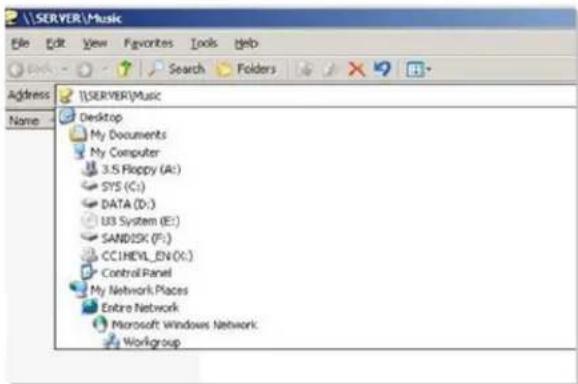
text_image
SERVER\Music File Edit View Favorites Tools Help Address Name 1\SERVER\Music Desktop My Documents My Computer 3.5 Floppy (A:) SYS (C:) DATA (D:) U3 System (E:) SANDISK (F:) CCIHEYL_EN (X:) Control Panel My Network Places Entire Network Microsoft Windows Network WorkgroupStep 6. You can click Shared Folders on Server icon on the desktop to view the status of shared folders.
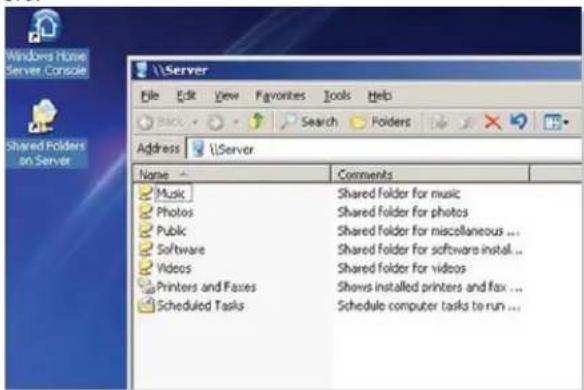
text_image
Windows Home Server Console Shared Folders on Server Address Server Name Comments Music Shared folder for music Photos Shared folder for photos Public Shared folder for miscellaneous ... Software Shared folder for software install... Videos Shared folder for videos Printers and Faxes Shows installed printers and fax ... Scheduled Tasks Schedule computer tasks to run ...User Accounts Setup
In order to let other PCs on the network can access the sharing fi les on the server; you have to setup user accounts and their permission to log into the server. Please read the following description to create your user accounts.
Step 1. Windows Home Server Console menu, click User Accounts to show the pop-up menu. Click OK to proceed to the next step.
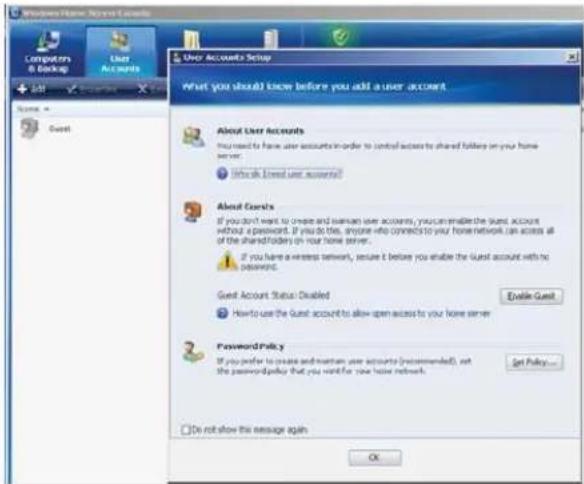
text_image
Windows Home Server Accounts Computers & Backup User Accounts Add Name: Guest User Accounts Setup What you should I know before you add a user account. About User Accounts You need to have user accounts in order to control access to shared folders on your home server. Include Direct User Accounts! About Cores If you don't want to create and manage user accounts, you can make the user account without a password. If you do this, anyone who connects to your home network can access all of the shareholders on your home server. If you have a wireless network, ensure it before you enable the user account with no password. Guest Account Status Disabled How to use the Guest account to allow open access to your home server Enable Guest Password Policy If you prefer to create and manage user accounts (recommended), set the passwordkey that you want for new home network. Set Policy... Do not allow this message again OKStep 2. Click + Add to create user accounts for sharing purpose.
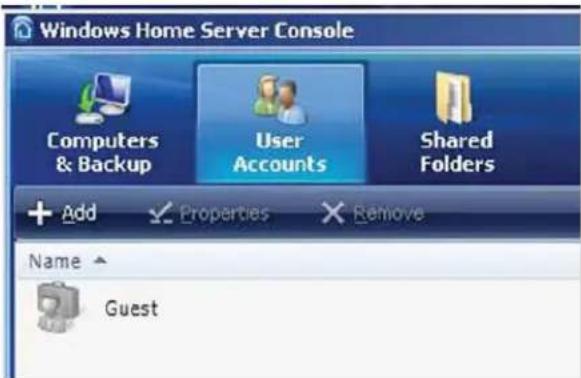
text_image
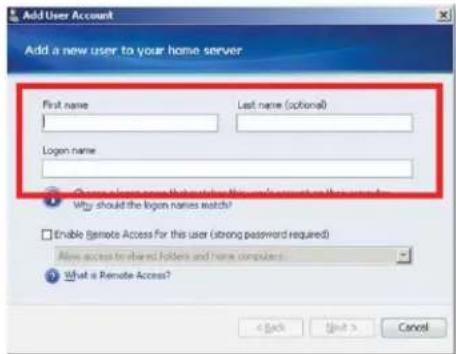
Windows Home Server Console Computers & Backup User Accounts Shared Folders + Add Properties Remove Name GuestStep 3. In the Add User Account menu, Input the First name, Last name and Logon name. If you want to allow this account to do remote access, you can check Enable Remote Access for this user.
text_image
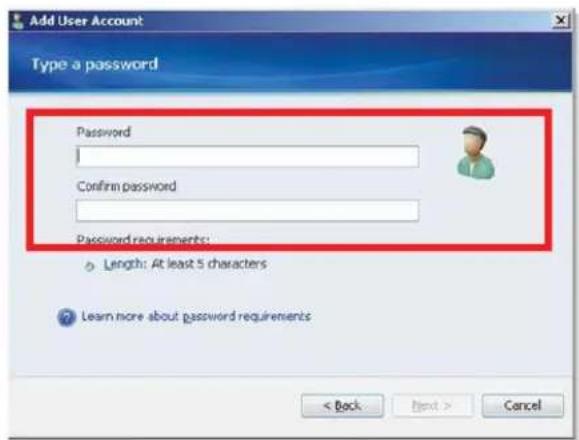
Add User Account Add a new user to your home server First name Last name (optional) Login name Why should the login names watch? Enable Remote Access For this user (strong password required) Allow access to shared folders and home computers What is Remote Access? < Back Next > CancelStep 4. Input password in Password and Confirm password column.
text_image
Add User Account Type a password Password Confirm password Password requirements: Length: At least 5 characters Learn more about password requirements < Back Next > CancelStep 5. The password needs to be 5 characters at least to pass the check. Click Next to proceed to next step.

text_image
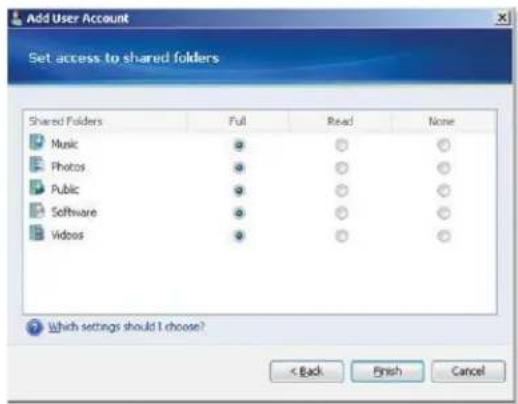
Add User Account Type a password Password ****** Confirm password ****** Password requirements: ✓ Length: At least 5 characters Learn more about password requirements < Back Next > CancelStep 6. You can set access permission to shared folders in this menu. The permission includes Full, Read and None. When setup is done, press Finish to complete settings.
text_image
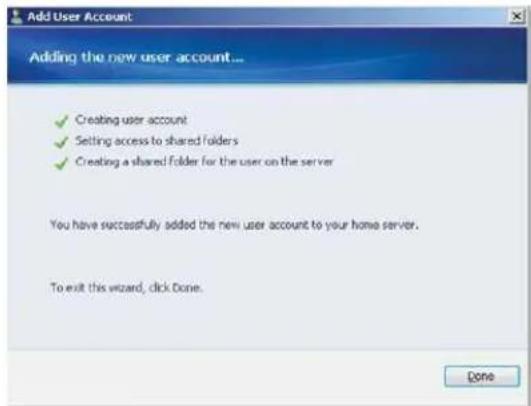
Add User Account Set access to shared folders Shared Folders Full Read None Music ○ ○ Photos ○ ○ ○ Public ○ ○ ○ Software ○ ○ ○ Videos ○ ○ ○ Which settings should I choose? < Back B Finish CancelStep7. In this menu, all information about this new user account is showed up. Press Done to exit this wizard.
text_image
Add User Account Adding the new user account... ✓ Creating user account ✓ Setting access to shared folders ✓ Creating a shared folder for the user on the server You have successfully added the new user account to your home server. To exit this wizard, click Done.Step8. The new user account will show up in the User's Accounts' menu.

text_image
Windows Server Management Studio Logistics Logistics Settings Start Start End EndAbout Windows Update
Windows Update is another application that has been redesigned in Windows 7. Now it is a standalone application instead of a web based.
The new Windows Update is easier to use copared to its predecessor.
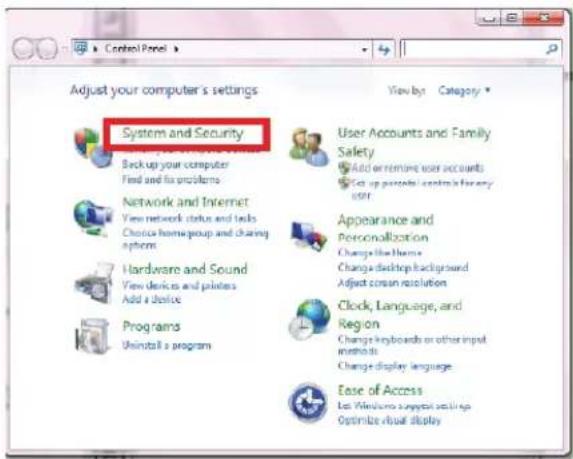
Step1. Open the Windows 7 control panel from Start Menu.
Step2. Select "System and Security"
text_image
Adjust your computer's settings System and Security Backup your computer Find and fix problems Network and Internet View network status and tests Choice home/group and sharing sapiens Hardware and Sound View devices and paints Add a device Programs Uninstall a program User Accounts and Family Safety Add or remove user accounts Set up personal controls for any user Appearance and Personalization Change the Home Change desktop background Adjust screen resolution Clock, Language, and Region Change keyboards or other input methods Change display language. Ease of Access Let Windows suggest settings Optimize virtual displayStep3. Select "Windows Update"
When you start Windows Update it will show you if there are any available updates. If no updates are being reported as available, then you can do a manual check by clicking on the Check for updates link. Windows Update will make a quick check and show you a summary of its findings.

text_image
Control Panel Home System and Security Network and Internet Hardware and Sound Programs User Accounts and Family Safety Appearance and Personalization Clock, Language, and Region Ease of Access Action Center Review your computer's status and resolve issues Change User Account Control settings Troubleshoot common computer problems Restore your computer to an earlier time Windows Firewall Check Firewall states Allow a program through Windows Firewall System View amount of RAM and processor speed Check the Windows Experience Index Set the name of this computer Device Manager Windows Update To avoid contact, updating on or off Check for updates View installed updates Power Options Require a password when the computer wakes Change what the power buttons do Change when the computer sleeps Backup and Restore Back up your computer Restore files from backup
text_image
System and Security ▶ Windows Update Control Panel Home Check for updates Change Settings View update history Restore hidden updates Updates frequently asked questions Windows Update Checking for updates... Most recent check for updates: Today at 上午 02:54 Updates were installed: Yesterday at 上午 08:40 (Failed). View update history You receive updates: For Windows and other products from Microsoft Update Find out more about free software from Microsoft Update. Click here for details. See also Installed UpdatesThis will install all the important updates but not the recommended or optional ones. To also install some (if not all) of the optional updates you will need to click on the available optional updates link.

text_image
Control Panel Home Check for updates Change settings View update history Restore hidden updates Updates: frequently asked questions Windows Update No important updates available JS optional updates are available No updates are currently selected. Next recent check for updates: Today at 上午 02:54 Updates were installed: Yesterday at 上午 08:40 (Failed). View update history You receive updates: For Windows and other products from Microsoft Update Find out more about free software from Microsoft Update. Click here for details. See also Installed Updates.As you can see in the screenshot below, Windows Update will split all available updates by categories. You can also see the size of each update and the information when it was published.
When choosing the updates you want to install, you should always select the important and recommended ones as they usually solve critical problems/vulnerabilities.
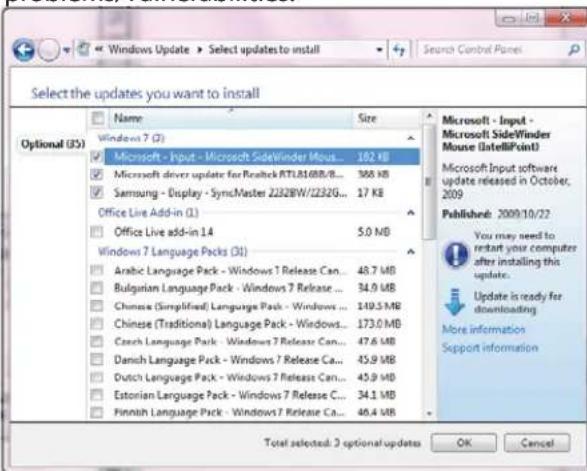
text_image
Select the updates you want to install Optional (35) Name Size Windows 7 (2) Microsoft - Input - Microsoft SideWinder Mouse... 102 KB Microsoft - Driver update for Realtek RTL81688/8... Samsung - Display - SyncMaster 2282BW/2232G... 17 KB Office Live Add-in (1) Office Live add-in 14 5.0 MB Windows 7 Language Packs (31) Arabic Language Pack - Windows 7 Release Can... 48.7 MB Bulgarian Language Pack - Windows 7 Release ... 34.0 MB Chinese (Simplified) Language Pack - Windows ... 149.5 MB Chinese (Traditional) Language Pack - Windows... 173.0 MB Czech Language Pack - Windows 7 Release Can... 47.6 MB Danish Language Pack - Windows 7 Release Ca... 45.9 MB Dutch Language Pack - Windows 7 Release Can... 45.9 MB Estonian Language Pack - Windows 7 Release C... 34.1 MB Finnish Language Pack - Windows 7 Release Ca... 46.4 MB Microsoft - Input - Microsoft SideWinder Mouse (dataPoint) Microsoft Input software update released in October, 2009 Published: 2009/10/22 You may need to restart your computer after installing this update. Update is ready for downloading More information Support information Total selected: 2 optional updates OK CancelIf you don't want to install an update and you don't want it to be reported by future checks, right click on it and select Hide update. That update will disappear from the list and it will never be installed on your PC.

text_image
Optional (35) Microsoft - Input - Microsoft Side/Windar Mouse (Intel) Microsoft driver up Copy details Samsung - Display Hide update Office Live Add-in (1)After you have selected all the updates that you want to install, click on the Install button.

text_image
Control Panel Home Check for updates Change settings View update history Restore hidden updates Updates frequently asked questions Windows Update Download and install your selected updates 15 optional updates are available 3 optional updates selected, 587 KB Install updates Most recent check for updates: Today at 上午 03:37 Updates were installed: Yesterday at 上午 06:40 (Failed). View update history You receive updates: For Windows and other products from Microsoft Update. Find out more about free software from Microsoft Update. Click here for details. See also Installed UpdatesWindows Update will download and then install the updates. At the end, you might be prompted to restart your computer. Close all the important applications or documents you have open and then restart your computer. At the next log-in, Windows Update will inform you that all updates were installed successfully.
Specifications
Processor
HDHomeS2: ATOM 330
Video Graphics
ION
Memory Slot(s)
1 x 240pin DIMMs slots, support DDR2 667/800
Memory Capacity
HDHomeS2: 1 x 2GB DDR2 800 installed (up to 8GB)
Graphic Chipset
ION
HDD Cage Capacity
Hotswap 2 x 2.5" HDD Cage
Default Install HDD
1 x 500GB SATAII HDD, 5400r.p.m.
Optical Drive(s)
Slot-in Blu-ray Drive
Card Reader
4-in-1 (SM/ SD/ MMC/ MS/ MS Pro/ xD/ CF type I & type II/ MD)
Audio Chipset
Realtek ALC 662, support 5.1 channels HD audio codec
Communication
(1) 802.11 b/g/n (2) Bluetooth v2.0
High-Speed USB 2.0 x 6 + 2
Headphone Jack (mini stereo)
Microphone Input (mini stereo)
Line In Jack (mini stereo)
Display: VGA, DVI, HDMI
Card reader: All in one
AC-IN x 1
S/PDIF optical output x 1
S/PDIF coaxial output x 1
eSATA 3Gb/s x 1
RJ-45 x 1
Stereo L-R Line out
Microphone Input x 1
Power Requirements
AC Input: 100\~240V, 50\~60Hz, 1.5A
Power Consumption: 110V/230V, 90W
Dimensions (approx.)
280 mm(L) x 200mm (W) x 130mm (H)
Weight (approx.)
5.8kgs (total package/one box)
Operating Temperature: 0\~38°C
Operating Humidity: 60\~80%
* Specifications add designs are subject to change without notice.
This Mvix Product comes with a full 1-yr manufacturer's warranty on parts and labor. The Warranty coverage on this player begins the day you buy your product. This warranty covers defects in manufacturing only, and expressly excludes coverage for excessive wear and tear, physical or accidental abuse, loss and theft. Kindly contact your local distributor for the warranty and service procedures. Warranty service is available in all countries where the product is officially distributed. The warranty covers any service or exchange required for a defective unit during the coverage period. The service / exchange opportunity ends one year after the date of purchase. The replacement product is covered only for the warranty period of the original product. When the warranty on the original product expires, the warranty on all replaced products also expires. When it is necessary for you to ship the product to distributor / service center for service / exchange, you will pay the shipping costs for shipment to the distributor. The distributor will pay the shipping costs when returning the product to you.
To receive warranty service, please be sure to have your proof of purchase and a barcode from the product's packaging. Warranty requests cannot be processed without proof of purchase. In no event shall MvixUSA's (or its distributors') liability exceed the price paid for the product from direct, indirect, special, incidental, or consequential damages resulting from the use of the product, its software, or its documentation.
MvixUSA does not offer refunds for any product. As a part of our warranty service, we offer to repair or replace the product. We offer cross shipments, a faster process for processing and receiving your replacement. MvixUSA and its distributor pay for ground shipping only. Please contact MvixUSA's Distributor in your country for more details. Specifically, your warranty does not cover the following:
- Shipping charges to return defective product.
- Labor charges for installation or setup of the product, adjustment of customer controls on the product, and installation or repair of systems outside of the product.
- Product repair and/or part replacement because of improper installation, connections to improper voltage supply, abuse, neglect, misuse, accident, unauthorized repair or other cause not within our control.
- Damage occurring to product during shipping when improperly packaged or cost associated with packaging.
- Incidental or consequential damages resulting from the product.
Some states do not allow the exclusion of incidental or consequential damages, so the above exclusion may not apply to you. This includes, but is not limited to, prerecorded material, whether copyrighted or not.) Mvix(USA), Inc. and its other partners and distributors DO NOT assume any responsibility in any way for how you choose to use this product, associated firmware and this manual. By purchasing or receiving this product, you automatically agree to this disclaimer, and eliminate this company and any affiliates of any responsibility in this matter.
MvixUSA or ITS DISTRIBUTORS ARE NOT LIABLE UNDER ANY CIRCUMSTANCES FOR ANY DIRECT, INDIRECT, SPECIAL, INCIDENTAL, OR CONSEQUENTIAL DAMAGES, HOWSOEVER INCURRED, EVEN IF NOTIFIED OF THE POSSIBILITY OF SUCH DAMAGES. TO THE EXTENT PERMITTED BY LOCAL LAW, THE REMEDIES PROVIDED IN THIS WARRANTY STATEMENT ARE YOUR SOLE AND EXCLUSIVE REMEDY. THIS LIMITED WARRANTY GIVES YOU SPECIFIC LEGAL RIGHTS AND YOU MAY ALSO HAVE OTHER RIGHTS WHICH VARY FROM STATE/PROVINCE TO STATE/PROVINCE.
Please record below the model and serial numbers found on the product.
MODEL # Mvix HDHomeS2
SERIAL # AS-HE1302B10020P010
The trademarks of Mvix ^® and MvixUSA ^® are used in connection with products and services to signify the quality and excellence for which MvixUSA ^® is known.
Mvix ^® and MvixUSA ^® are trademarks or registered trademarks of Mvix(USA), Inc. in the United States. You may use a Mvix ^® trademark or product name to refer specifically to such Mvix ^® product in marketing and promotional materials, books, conferences, applications, demonstrations, and so on. You are permitted to use a Mvix ^® trademark referentially provided that:
* You adhere to these Mvix™ Trademark Usage Guidelines.
* You do not disparage Mvix(USA), Inc. or its products and services.
* You display your name or logo more prominently than any Mvix™ trademark.
* You include a disclaimer that Mvix™ does not sponsor, affiliate, or endorse your product, and/or services.
All other textual references, brands, logos or product names are the copyrights, trademarks or registered trademarks of their respective owners / holders. Use of these trademarks on our website, products, literature, communications, manuals, advertising material, press releases, etc. do not represent endorsements by the respective companies for Mvix(USA), Inc.'s products, services or brand, but merely reflect their possible compatibility with our products.
Google is a trademark of Google Technology, Inc.
HDMI is a trademark of HDMI Licensing LLC. iPod® is a registered trademark of Apple Computer, Inc.
PSP™ (PlayStation Portable) is a trademark of • Sony Computer Entertainment Inc.
Java and all Java-based trademarks are•
trademarks of Sun Microsystems, Inc. in the United States, other countries, or both.
Microsoft, Windows, Vista are trademarks of Microsoft Corporation.
UNIX is a registered trademark of The Open • Group in the United States and other countries.
WI-FI, WPA, WPA2 and WMM are registered • trademarks of Wi-Fi Alliance.
REFERENCES TO CORPORATIONS, THEIR SERVICES, PRODUCTS and BRANDS WITHOUT WARRANTY OF ANY KIND, EITHER EXPRESSED OR IMPLIED. IN NO EVENT SHALL MVIX(USA), INC. BE LIABLE FOR ANY SPECIAL, INCIDENTAL, INDIRECT OR CONSEQUENTIAL DAMAGES OF ANY KIND, OR ANY DAMAGES WHATSOEVER, INCLUDING, WITHOUT LIMITATION, THOSE RESULTING FROM LOSS OF USE, DATA OR PROFITS, WHETHER OR NOT ADVISED OF THE POSSIBILITY OF DAMAGE, AND ON ANY THEORY OF LIABILITY, ARISING OUT OF OR IN CONNECTION WITH THE USE OR PERFORMANCE OF THIS INFORMATION.
MVIX Products are not officially licensed or certified by DivX® Networks or Wifi Alliance.
Any MvixUSA, Inc. publication may include technical inaccuracies or typographical errors. The information presented here is intended for general information only and is subject to change without notice. ALL INFORMATION IS PROVIDED "AS IS" WITHOUT WARRANTY OF ANY KIND, EITHER EXPRESSED OR IMPLIED, INCLUDING BUT NOT LIMITED TO THE IMPLIED WARRANTIES OR CONDITIONS OF MERCHANTABILITY OR FITNESS FOR A PARTICULAR PURPOSE, OR NON-INFRINGEMENT. SOME JURISDICTIONS DO NOT ALLOW THE EXCLUSION OF IMPLIED WARRANTIES, SO THE ABOVE EXCLUSION MAY NOT APPLY TO YOU.
Federal law provides severe civil and criminal penalties for the unauthorized reproduction, distribution, rental or digital transmission of copyrighted video and audio files. (Title 17, United States Code, Sections 501 and 506). Mvix players are designed to assist you in backing up, storing and reproducing material which you own the copyright for or for which you have obtained permission from the copyright owner. UNLESS YOU OWN THE COPYRIGHT OR HOLD PERMISSION TO COPY FROM THE COPYRIGHT OWNER, YOU MAY BE VIOLATING COPYRIGHT LAW AND BE SUBJECT TO PAYMENT OF DAMAGES AND OTHER REMEDIES.
Mvix Ultio Pro or any of its accessories must not be used for unauthorized duplication of DVDs/CDs or any other works protected by copyright. No license to infringe copyright is granted by the sale of this equipment. Recording and playback of material may require permission of the media owner.
IF YOU ARE UNCERTAIN ABOUT YOUR RIGHTS, YOU SHOULD CONTACT YOUR LEGAL AHDMISOR. YOU ASSUME FULL RESPONSIBILITY FOR THE LEGAL AND RESPONSIBLE USE OF THE MVIX MULTIMEDIA PLAYER.
Use of Mvix Players, its accessories and software/fi rmware for illegal purposes is strictly prohibited.

text_image
MixMvix(USA), Inc.
www.mvixusa.com
TEL: 866.310.4923
Fax: 866.614.3880
service@mvixusa.com
Technical Support: http://support.mvixusa.com
© Mvix(USA), Inc.
Copyright 2010 Mvix(USA), Inc. All rights reserved.
No part of this publication may be reproduced in any form or by any means or used to make any derivative (such as translation, transformation or adaptation) without the express written consent of Mvix(USA), Inc. as stipulated by the United States Copyright Act of 1976.