GI10054L - Inverter Geist - Free user manual and instructions
Find the device manual for free GI10054L Geist in PDF.


User questions about GI10054L Geist
0 question about this device. Answer the ones you know or ask your own.
Ask a new question about this device
Download the instructions for your Inverter in PDF format for free! Find your manual GI10054L - Geist and take your electronic device back in hand. On this page are published all the documents necessary for the use of your device. GI10054L by Geist.
USER MANUAL GI10054L Geist
Installer/User Guide
Basic, Metered and Unit Monitored Upgradeable
The information contained in this document is subject to change without notice and may not be suitable for all applications. While every precaution has been taken to ensure the accuracy and completeness of this document, Vertiv assumes no responsibility and disclaims all liability for damages resulting from use of this information or for any errors or omissions. Refer to other local practices or building codes as applicable for the correct methods, tools, and materials to be used in performing procedures not specifically described in this document.
The products covered by this instruction manual are manufactured and/or sold by Vertiv. This document is the property of Vertiv and contains confidential and proprietary information owned by Vertiv. Any copying, use or disclosure of it without the written permission of Vertiv is strictly prohibited.
Names of companies and products are trademarks or registered trademarks of the respective companies. Any questions regarding usage of trademark names should be directed to the original manufacturer.
Technical Support Site
If you encounter any installation or operational issues with your product, check the pertinent section of this manual to see if the issue can be resolved by following outlined procedures. Visit https://www.VertivCo.com/en-us/support/ for additional assistance.
TABLE OF CONTENTS
1 Overview 1
1.1 Environmental_1
1.2 Electrical_1
1.3 Networking 2
1.3.1 Ethernet 2
1.3.2 Protocols 2
1.3.3 User interfaces 2
1.4 Regulatory compliance 2
1.4.1 Underwriters Laboratories (UL) 2
1.4.2 Federal Communications Commission (FCC) 3
1.4.3 RoHS/WEEE 3
2 Installation 5
2.1 Mounting 5
2.1.1 Power Connection 17
2.1.2 U-lock Operation 17
3 Setup 19
3.1 Interchangeable Monitoring Device 19
3.1.1 Basic 19
3.1.2 Metered 19
3.1.3 Monitored 20
3.1.4 Enhanced Monitored 21
3.1.5 Rapid Spanning Tree Protocol (RSTP) 23
3.2 Network Setup 23
3.3 Web Interface 27
3.3.1 Home page 27
3.3.2 Sensors tab 29
3.3.3 System tab 32
4 Appendices 43
Appendix A: Technical Support 43
Appendix B: Visible Light Communication (VLC) 47
Appendix C: Vertiv Mobile App 49
Appendix D: Available Sensors 57
Appendix E: IMD Display Codes 59
This page intentionally left blank
1 OVERVIEW
The Geist™ Rack Power Distribution Unit (rPDU) gives data center managers the flexibility to install intelligence required today, with the option to upgrade technology as needs evolve. From basic power monitoring, the rPDU product line adapts to a business' needs now and in the future.
To establish this upgrade path, Vertiv engineers took the robust rPDU design and incorporated an Interchangeable Monitoring Device (IMD). PDUs last for many years, and with the IMD design, business are able to upgrade their PDUs to newer monitoring technologies in the future without having to the entire rPDU. The hot-swappable IMD is changed out in a few simple steps, without interrupting to critical servers.
1.1 Environmental
The operational environmental limits pertaining to temperature, humidity and elevation are as defined the following tables.
Table 1.1 Temperature Limits
| DESCRIPTION MINIMUM MAXIMUM | ||
| Operating 10°C (50°F) 60°C (140°F) | ||
| Storage -40°C (-40°F) | 70°C (158°F) | |
Table 1.2 Humidity Limits
| DESCRIPTION | MINIMUM | MAXIMUM |
| Operating | 5% | 95% (non-condensing) |
| Storage | 5% | 95% (non-condensing) |
Table 1.3 Elevation Limits
| DESCRIPTION | MINIMUM | MAXIMUM |
| Operating | 0 m (0 ft) | 3,050 m (10,000 ft) |
| Storage | 0 m (0 ft) | 15,240 m (50,000 ft) |
1.2 Electrical
Electrical product characteristics and performance are defined in the following table. Also, please see product nameplate for additional rating limits.
Table 1.4 Receptacle Ratings
| TYPE RATINGS | |
| NEMA 5-15R or L5-15R 125Vac, 12A | |
| NEMA 5-20R or L5-20R 125Vac, 16A | |
| NEMA 6-20R or L6-20R 250Vac, 16A | |
| NEMA L5-30R 125Vac, 24A | |
| NEMA L6-30R 250Vac, 24A | |
| IEC-60320 C13 250Vac, 10A (UL & CSA | 12A, 250Vac) |
| IEC-60320 C19 250Vac, 16A (UL & CSA | 16A, 250Vac) |
1.3 Networking
The product communications requirements are defined in the next sections.
1.3.1 Ethernet
The Ethernet link speed for this product is: 10/100 Mb; full duplex.
1.3.2 Protocols
The communications protocols supported by this product include: ARP, IPv4, IPv6, ICMP, ICMPv6, NI TCP, UDP, DNS, HTTP, HTTPS, SMTP, SMTPS, DHCP, SNMP (v1/v2c/v3) and Syslog.
1.3.3 User interfaces
This product supports the following user interfaces: SNMP, Web GUI, and JSON API.
1.4 Regulatory compliance
Vertiv products are regulated for Safety, Emissions, and Environment Impact per the following agencies and policies.
1.4.1 Underwriters Laboratories (UL)
UL Standards are used to assess products; test components, materials, systems and performance; and evaluate environmentally sustainable products, renewable energies, food and water products, recycling systems and other innovative technologies.
The UL standards specific to this equipment are as noted on the device nameplate.
1.4.2 Federal Communications Commission (FCC)
The Federal Communications Commission (FCC) regulates interstate and international communications by radio, television, wire, satellite, and cable in all 50 states, the District of Columbia and U.S. to independent U.S. government agency overseen by Congress, the commission is the United States' primary authority for communications laws, regulation and technological innovation.
The FCC standards specific to this equipment are:
This Class A device complies with part 15 of the FCC Rules. Operation is subject to the following ditions: (1) This device may not cause harmful interference, and (2) this device must accept any ence received, including interference that may cause undesired operation.
This Class A digital apparatus complies with Canadian ICES-003.
WARNING! Changes or modifications to this unit not expressly approved by the party responsible for compliance could void the user's authority to operate this equipment.
1.4.3 RoHS/WEEE
RoHS, also known as Lead-Free, stands for Restriction of Hazardous Substances. RoHS, also known Directive 2002/95/EC, originated in the European Union and restricts the use of six hazardous mat found in electrical and electronic products. All applicable products in the EU market after July 1, must pass RoHS compliance. RoHS impacts the entire electronics industry and many electrical products as well.
WEEE stands for Waste from Electrical and Electronic Equipment. WEEE Directive 2002/96/EC mandate the treatment, recovery and recycling of electric and electronic equipment (90% ends up in landfills applicable products in the EU market must pass WEEE compliance and carry the "Wheelie Bin" st
See product label for RoHS/WEEE compliance marks.
This page intentionally left blank
2 INSTALLATION
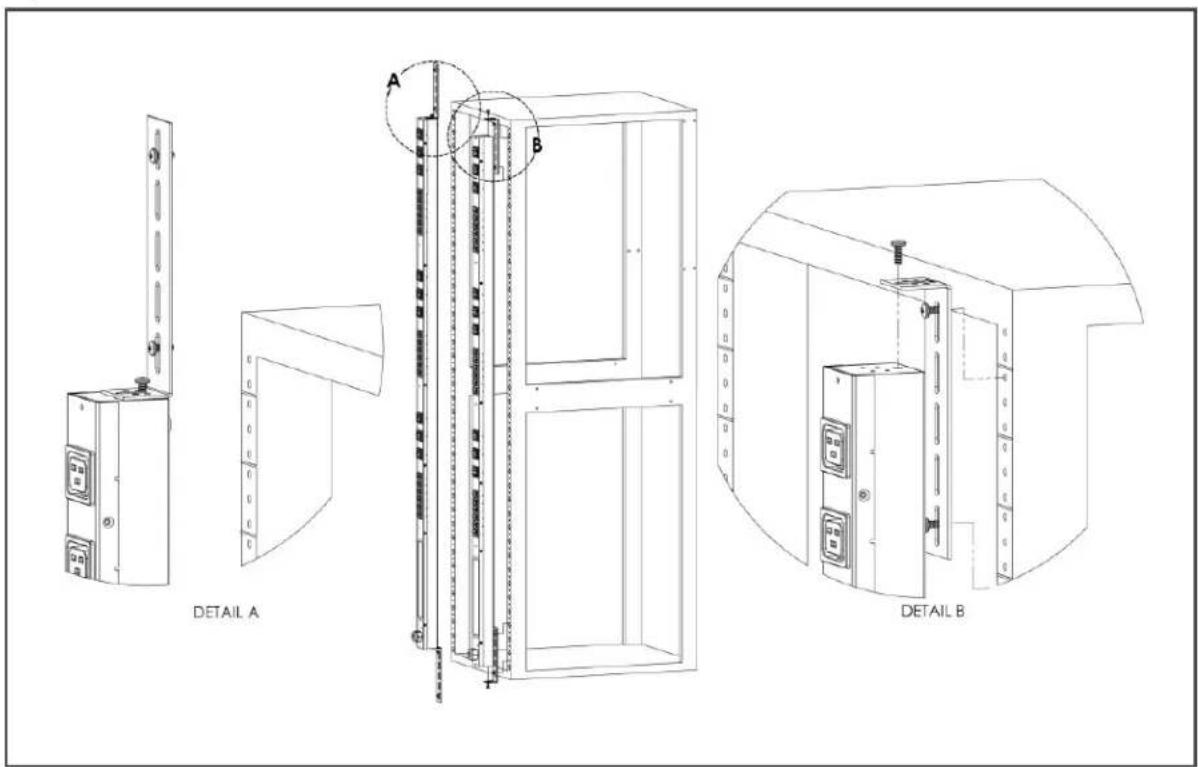
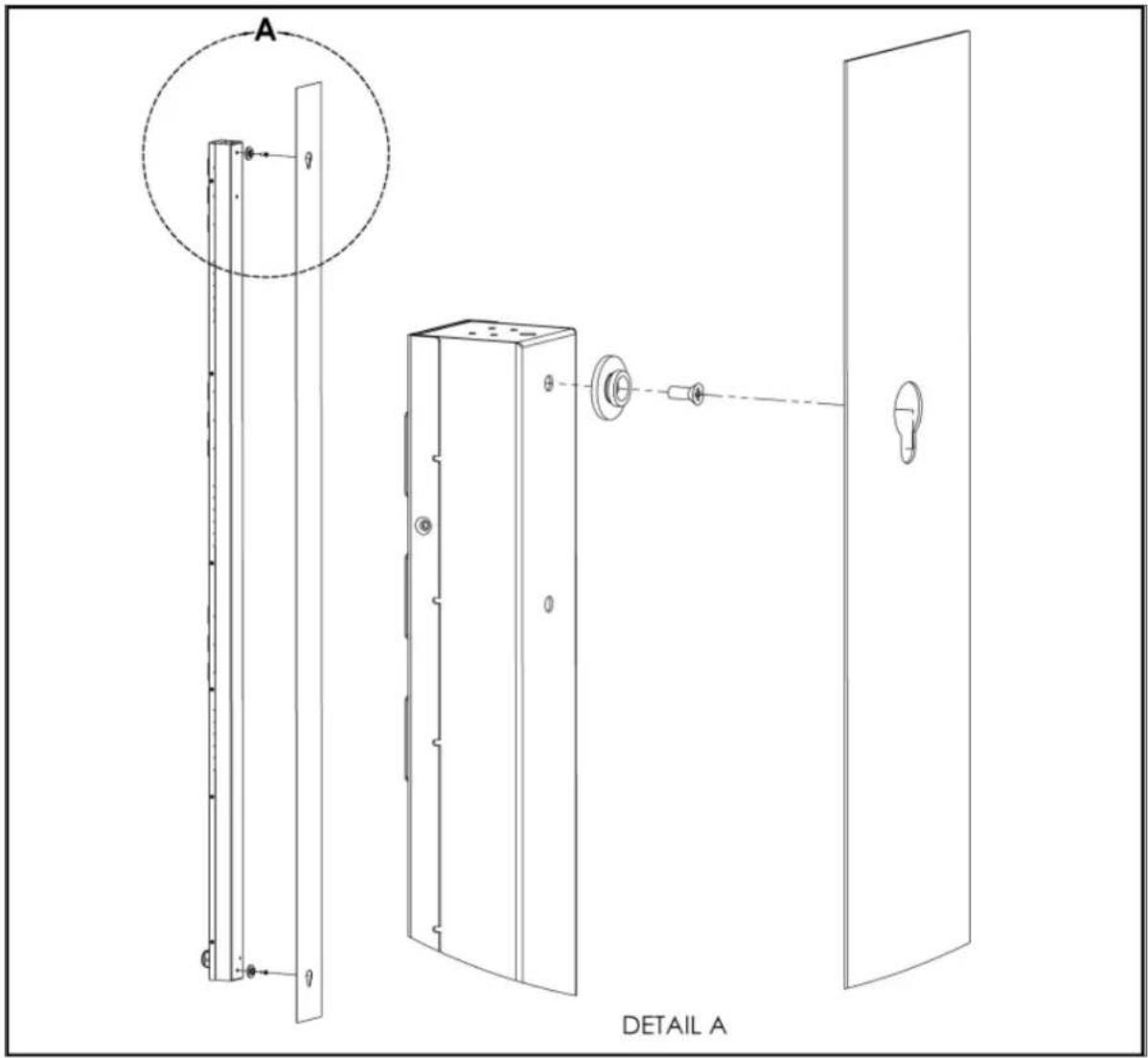
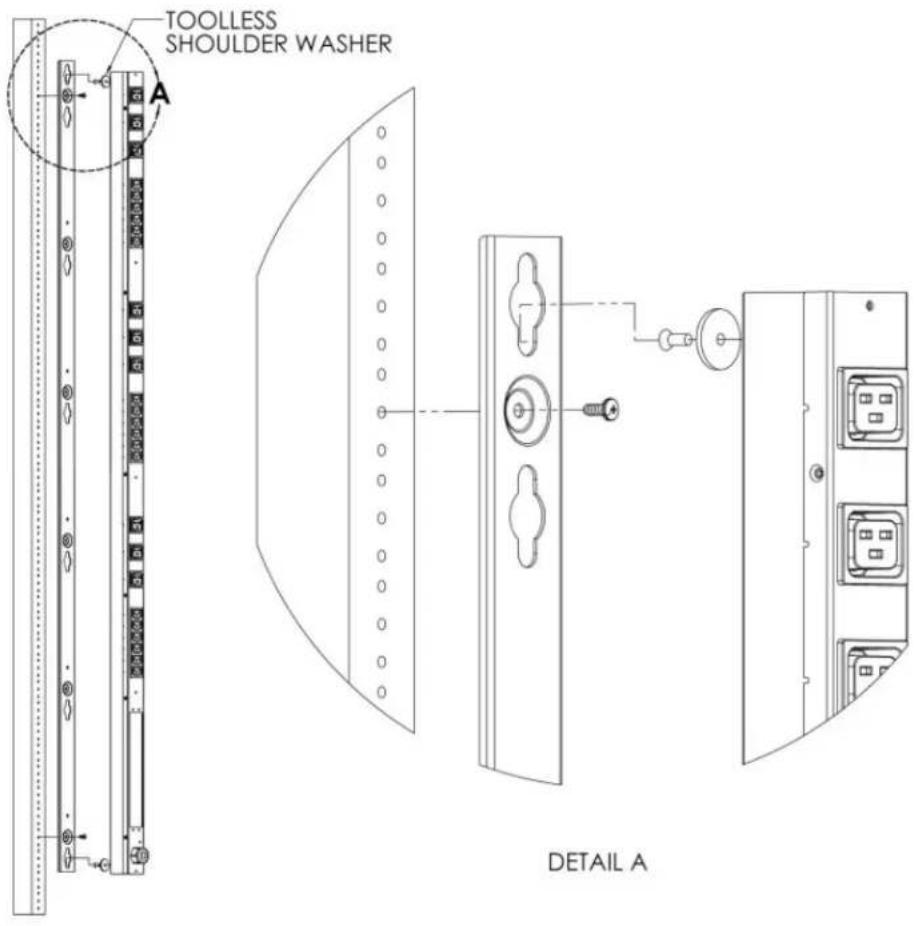
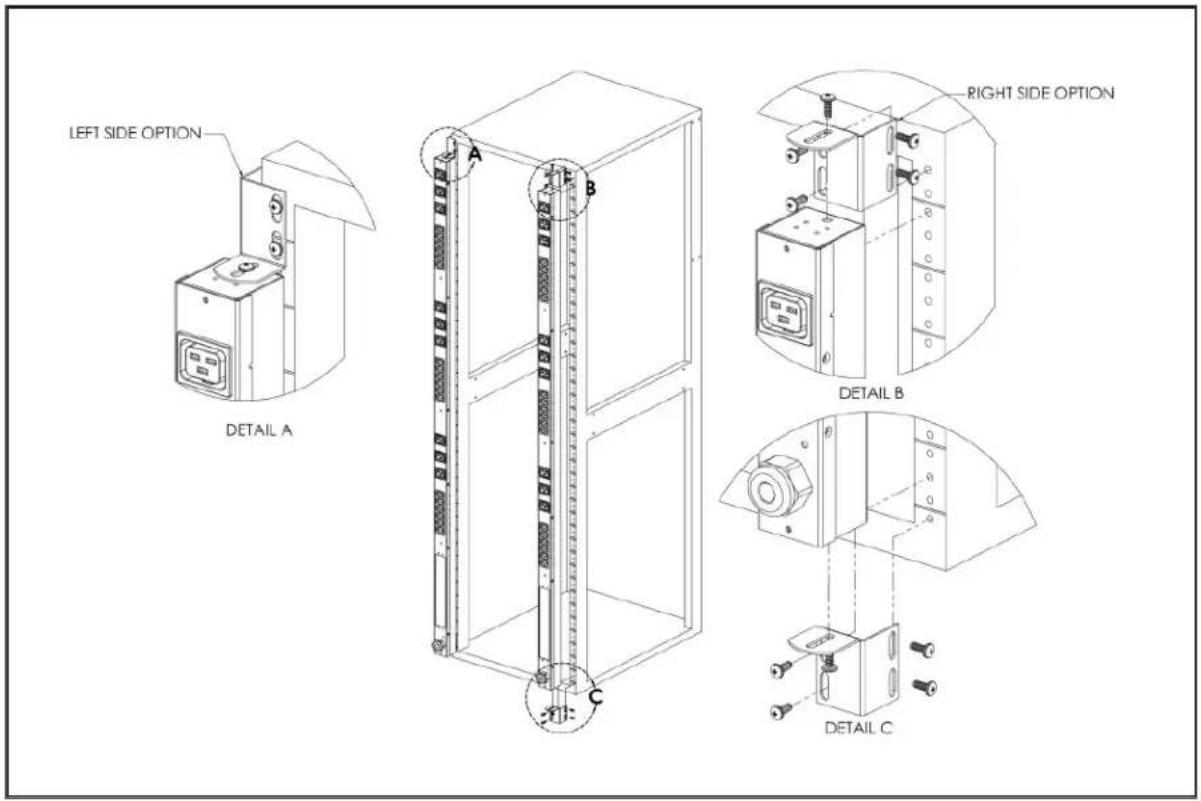
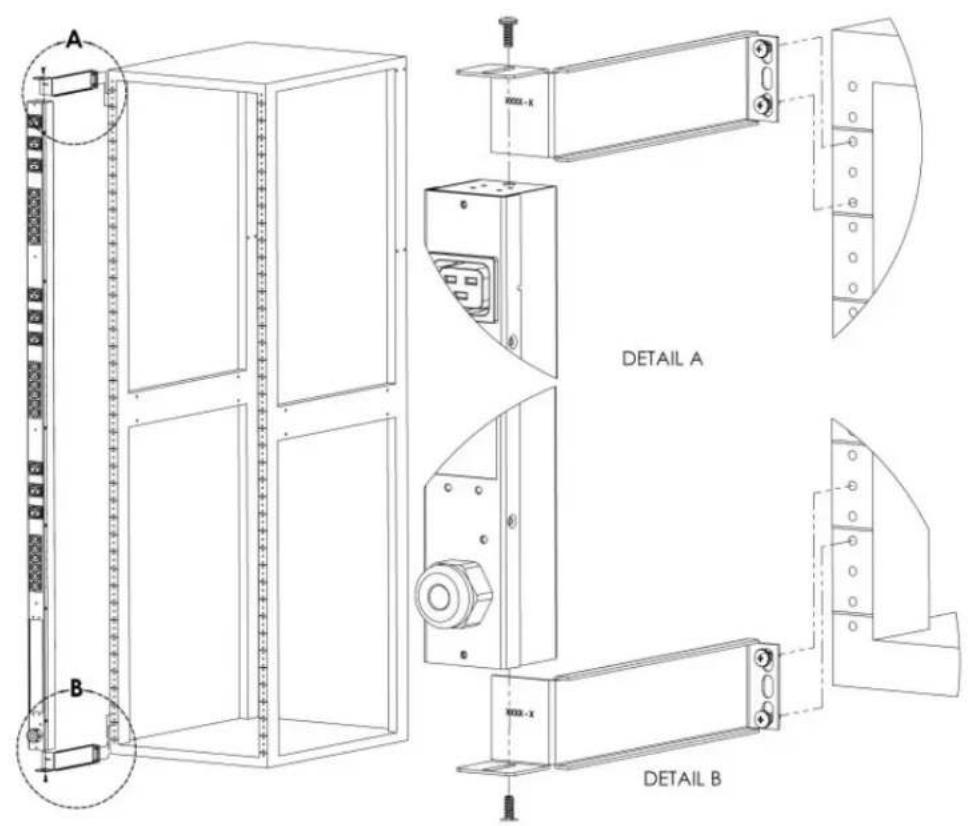
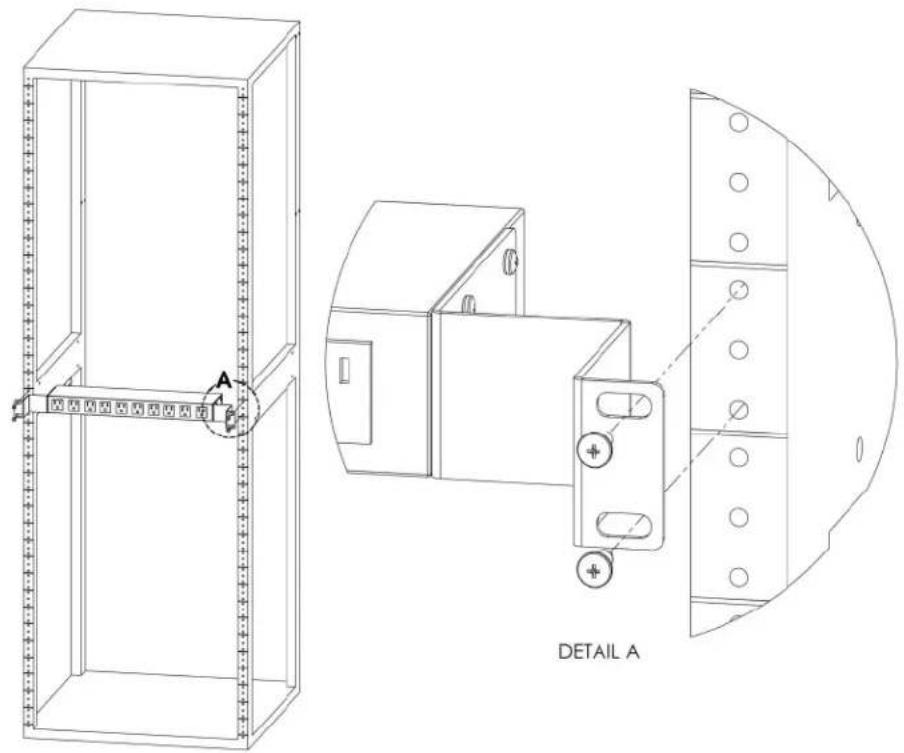
Using the images in the mounting section, install your rack PDU.
NOTE: Please visit http://www.VertivCo.com/ComplianceRegulatoryInfo for important safety information prior to installation.
To install your unit:
- Using appropriate hardware, mount unit to rack.
- Plug the rPDU into an appropriately-rated and protected branch-circuit receptacle.
- Plug in the devices to be powered by the rPDU.
- Turn on each device connected to the rPDU.
NOTE: Sequential power-up is recommended to avoid high inrush current.
2.1 Mounting
Optional brackets are sold separately.
Figure 2.1 Full-length brackets

text_image
A DETAIL AFigure 2.2 Mini L Brackets

text_image
DETAIL A A B DETAIL BFigure 2.3 Vertical Extension Brackets
text_image
DETAIL A A B DETAIL BFigure 2.4 Toolless Mounting Hardware
text_image
A DETAIL AFigure 2.5 Toolless Full Length Brackets
text_image
TOOLLESS SHOULDER WASHER A DETAIL AFigure 2.6 Single Side Mount 2 Units Brackets
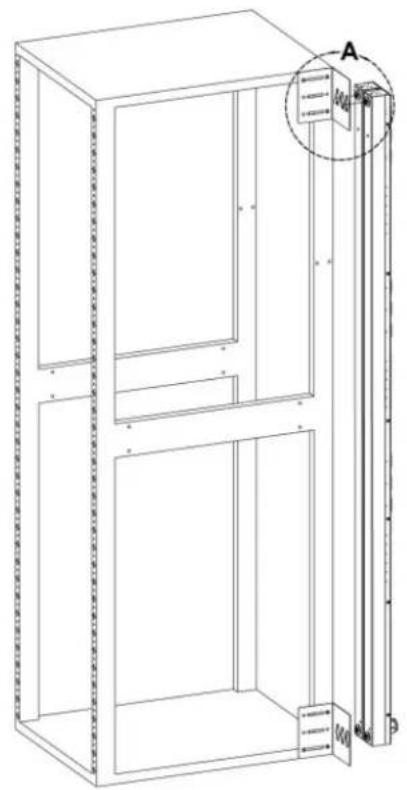
natural_image
Technical line drawing of a cabinet or enclosure with internal components and a magnified inset showing a labeled section (A), no text or symbols present.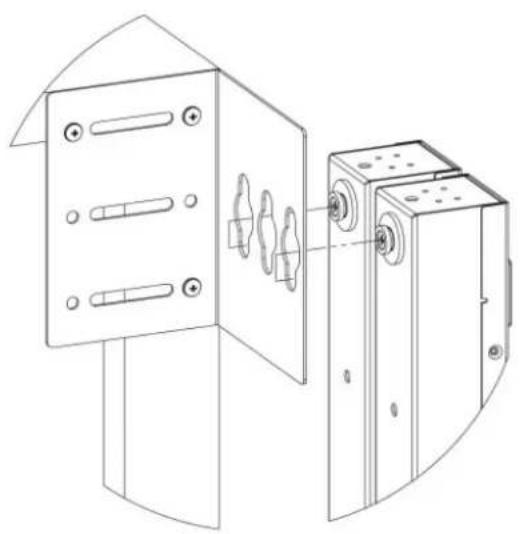
natural_image
Technical line drawing of a mechanical device with two views: one showing internal components and the other showing external housing (no text or symbols)DETAIL A
Figure 2.7 Offset/Side Mount Brackets
text_image
LEFT SIDE OPTION DETAIL A A B RIGHT SIDE OPTION DETAIL B C DETAIL CFigure 2.8 7" Extension Brackets
text_image
A B DETAIL A DETAIL BFigure 2.9 Flush Mount Bracket

text_image
DETAIL AFigure 2.10 Adjustable Mount Bracket

text_image
A DETAIL AFigure 2.11 Panel Mount Bracket

text_image
A DETAIL AFigure 2.12 23" Conversion Mounting Brackets
text_image
DETAIL AFigure 2.13 19" Horizontal/Panel Mount Brackets

text_image
A DETAIL A2.1.1 Power Connection
Plug the rPDU into an appropriately-rated and protected branch-circuit receptacle.
2.1.2 U-lock Operation
Plug in the devices to be powered by the rPDU.
• Vertiv patented U-Lock power cord retention.
• Uses standard power cords.
- Cord insertion activated locking system.
- Easy Push-and-Hold Bezel unlocking feature.
Figure 2.14 U-Lock Cord Retention Operation

text_image
Power cable secured by U-Lock Power cable secured by U-Lock Push bezel to release cable Push bezel to release cableThis page intentionally left blank
3 SETUP
3.1 Interchangeable Monitoring Device
The Interchangeable Monitoring Device (IMD) is the core behind the Geist Upgradable rPDU line o products. The IMD can be replaced and upgraded to allow datacenters to future-proof their rPDU installation.
3.1.1 Basic
The Basic upgradeable rPDU is the baseline for the GU line of products. It is built with the IV and provides low cost power distribution with the option to upgrade to add local metering and/or monitoring and other features in the future.
3.1.2 Metered
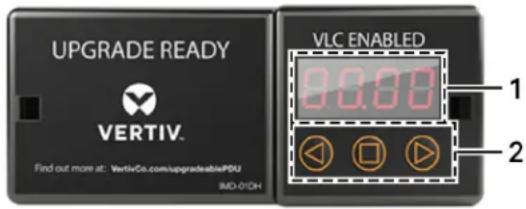
The Metered upgradable rPDU is a locally metered option for the GU line of products. It is built IMD-01D module, and provides a local display for viewing current draw (Amps) with the option to add monitoring and other features in the future.
Figure 3.1 IMD-01D Module
text_image
UPGRADE READY VERTIV. Find out more at: VertivCo.com/upgradeablePDU IM-0/0H VLC ENABLED 1 2Table 3.1 IMD-01D Module Descriptions
| NUMBER NAME DESCRIPTION | ||
| 1 | Local Display | The local display shows the phase, line, and circuit current values (in Amperes). |
| 2 | Display Buttons | There are three buttons near the IMD display; a back button, a forward button, and a center button. The functions of these buttons are described in the following table. |
Table 3.2 Display Button Functions
| BUTTON SYMBOL DESCRIPTION | ||
| Back Button |  | Decrement to the previous channel. |
| Forward Button |  | Increment to the next channel. |
| Center Button |  | Toggle between scrolling and static display modes. Holding this button for perform anetwork reset, restoring the default IP address and resetting user information. |
| Center Button x3 |  | Pressing this button three times within two seconds enables VLC mode. Pressing the button while VLC mode is active returns the unit to the standard current display. For more information, seeVisible Light Communication (VLC) on page 47. |
 and and | Pressing both buttons at the same time flips the display 180 degrees. | |
NOTE: Display Button functionality may vary based on unit configuration.
3.1.3 Monitored
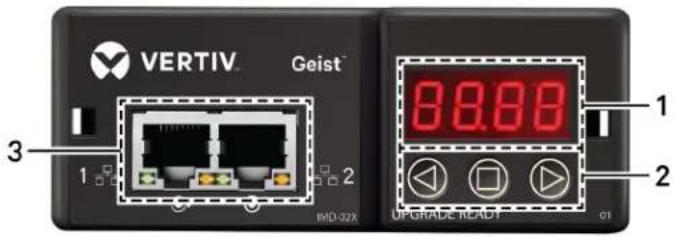
The Monitored Vertiv Upgradable rPDU is an advanced option for data centers that need full rem monitoring and alarms. It is built with the IMD-02X module, which provides dual Ethernet ports and display.
Figure 3.2 IMD-02X Module
text_image
VERTIV Geist™ 1 2 3 IMD-022X 88.88 UPGRADE READY 1 2 Q1Table 3.3 IMD-02x Module Descriptions
| NUMBER NAME DESCRIPTION | ||
| 1 | Local Display | The local displayshows the phase, line, and circuit current values (in Amperes). |
| 2 | Display Buttons | There are three buttons near the IMD display; a back button, a forward button, and a center butt functions of these buttons are described in the following table. |
| 3 | Dual Ethernet Ports | The Dual Ethernet ports act as a 2-port Ethernet switch, allowing for multiple devices to be daisy- |
Table 3.4 Display Button Functions
| BUTTON SYMBOL DESCRIPTION | ||
| Back Button | Decrement to the previous channel. | |
| Forward Button | Increment to the next channel. | |
| Center Button | Toggle between scrolling and static display modes. Holding this button for 10 seconds will perform network reset, restoring the default IP address and resetting user account information. | |
| Center Button x 3 | Pressing this button three times within two seconds enables VLC mode. Pressing the button which VLC mode is active returns the unit to the standard current display. For more information, see Visible Light Communication (VLC) on page 47. | |
| Back and Forward Buttons | Pressing both buttons at the same time flips the display 180 degrees. | |
| Back and Center Buttons | Pressing both buttons at the same time displays the primary IPv4 address for the unit. | |
NOTE: Display Button functionality may vary based on unit configuration.
3.1.4 Enhanced Monitored
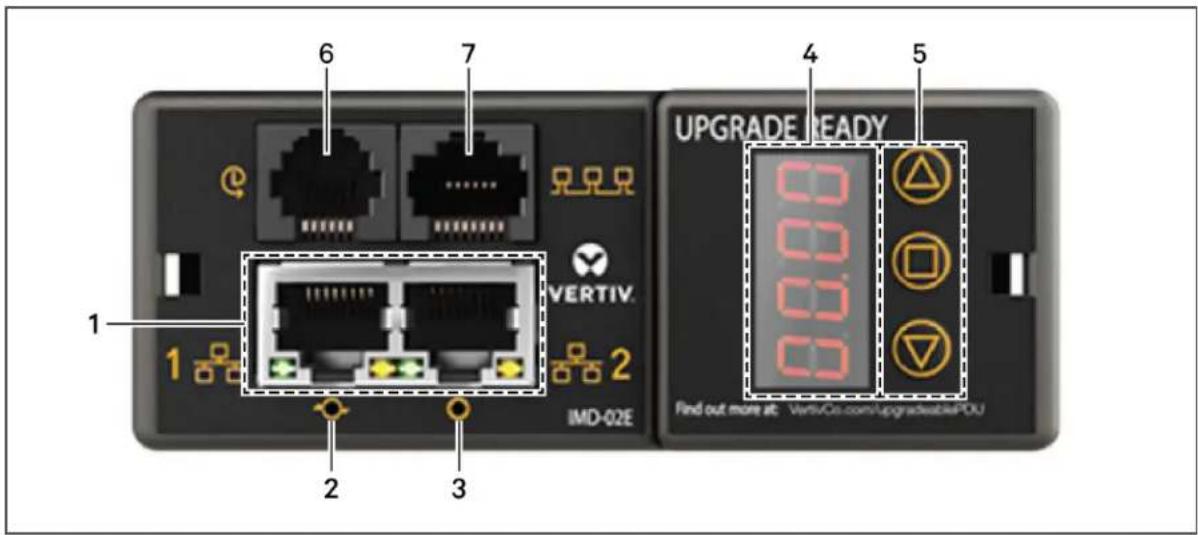
The Enhanced Monitored Vertiv Upgradable rPDU is a more advanced option for data centers that full remote monitoring, alarms and remote sensors. It is built with the IMD-02E module, which pro Ethernet ports, a local display and a RJ-12 port for remote sensors.
NOTE: When changing sensors the old sensor must be deleted before the new sensor is disc
Figure 3.3 IMD-02E Module
text_image
6 7 1 2 3 VERTIV. IND-02E UPGRADE READY Find out more at: VertivCo.com/Upgradeable4-OUTable 3.5 IMD-02E Module Descriptions
| NUMBER | NAME | DESCRIPTION |
| 1 | Dual Ethernet Ports | The DualEthernet ports act as a2-port Ethernet switch, allowing for multiple devices to be daisy-chained. |
| 2 | Hard-Reboot Button | Pressing the hard-reboot button reboots the IMD. This acts as a power-cycle for the IMD, and do change or remove any user information. |
| 3 | Network Reset Button | Holding the network-reset button for 15 seconds during normal operation will restore the default IP address and reset the user accounts. Holding the network-reset button during power-up will reset at the unit's settings back to factory-default values. |
| 4 | Local Display | The local display shows the phase, line, and circuit current values (in Amperes). |
| 5 | Display Buttons | There are three buttons near the IMD display; a back button, a forward button, and a center but functions of these buttons are described in the following table. |
| 6 | Remote Sensor Port | RJ-12 port for connecting a Vertiv plug-and-playremote digital sensor (sold separately). Each digital sensor has a unique serial number and is automatically discovered. GU Enhanced Monitored PDUs support one sensor at a time. The optional VertivA2D Converter can be added to support analog For more information see Available Sensors on page 57. |
| 7 | Proprietary Connectivity | RJ-45 port for future expansion. |
3.1.5 Rapid Spanning Tree Protocol (RSTP)
Upgradable monitored devices, built with the IMD-02E include two Ethernet ports which work together an internal Ethernet bridge. One of these ports can be used to connect the IMD to an existing both ports can be used at the same time to connect one IMD to another in a daisy-chain cor
When both network interfaces are connected, the IMD implements a network bridging protocol called Rapid Spanning Tree Protocol (RSTP). RSTP is an IEEE standard that is implemented by all manual bridges. Using RSTP, bridges in the network exchange information to find redundant paths, or loop
When a loop is detected, the bridges in the network work together to temporarily disable the re-paths. This allows the network to avoid broadcast storms caused by the loops. In addition, RSTP checks for changes in the network topology. When a connection is lost, RSTP allows the bridges switch to a redundant path.
NOTE: RSTP protocol imposes a limit of 40 links between bridges, including IMDs.
3.2 Network Setup
The rPDU has a default IP address for initial setup and access. Once you have assigned an IP default IP address is no longer active.
To restore the default IP address and reset all user-account information:
If the user-assigned address or passwords are lost or forgotten, press and hold the network-reset located below the Ethernet port for 15 seconds. Holding the center button of the LED display fo seconds also resets the network and user account information.
To erase all user settings and restore the unit back to its factory-default state:
- Disconnect power from the rPDU.
- Press and hold the network-reset button while powering up the rPDU.
The Network page, located under the System Tab, allows you to assign the network properties m or use DHCP to connect to your network. Access to the unit requires the IP address to be kr static IP or a reserved DHCP is recommended. The default address is displayed on the front of
• IP Address: 192.168.123.123
- Subnet Mask: 255.255.255.0
• Gateway: 192.168.123.1
To access the unit for the first time, you must temporarily change your computer's network settir match the 192.168.123. xxx subnet. To set up the unit, connect it to your computer's Ethernet po follow the appropriate instructions for your computer's operating system.
To setup the network for a Window operating system:
-
Access the network settings for your operating system.
• Using Windows 2000, XP or Server 2003, click Start - Settings - Network Connections. -
Using Windows 7 or Server 2008, click Start - Control Panel - Adjust your Computer's Settings - View Network Status and Tasks - Change Adapter Settings or click Start Settings - Control Panel - Network and Sharing Center - Change Adapter Settings.
-
Using Windows 8 or Server 2012, move the mouse to the bottom or top right corr Settings - Control Panel - Large or Small Icons - Network and Sharing Center - C Adapter Settings.
• Using Windows 10, click Start - Network and Internet - Change Adapter Settings. -
Locate the entry under LAN, High-Speed Internet or Local Area Connection which corresponds to the network card (NIC). Double-click on the network adaptor's entry in the Network Connections list.
NOTE: Most computers will have a single Ethernet NIC installed, but a WiFi or 3G adaptor a NIC in this list. Be sure to choose the correct entry.
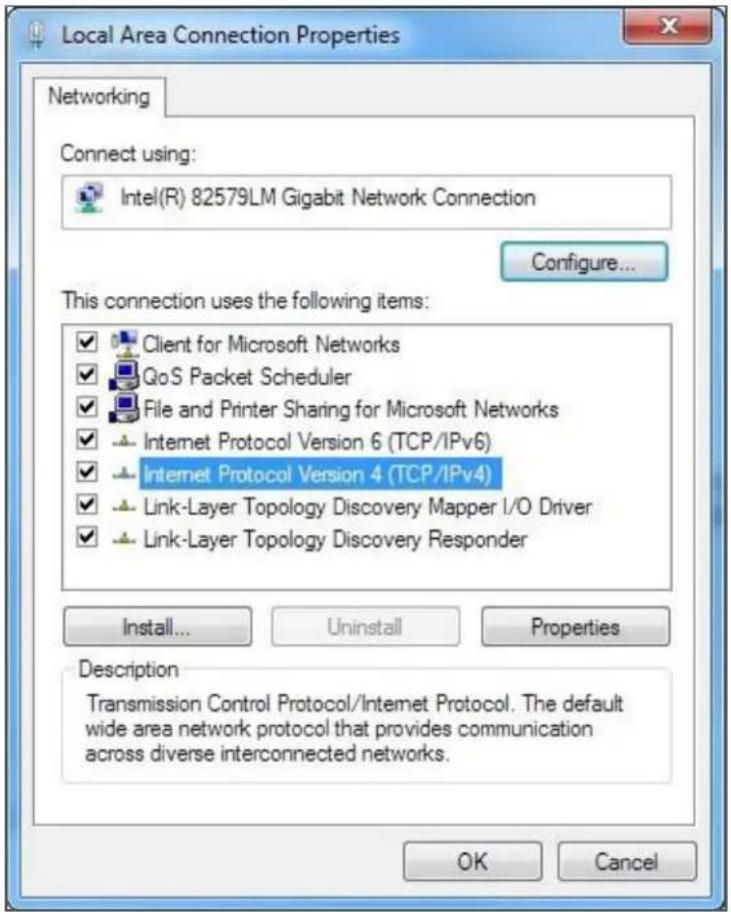
- Click Properties to open the Local Properties window.
Figure 3.4 Local Area Connection Properties
text_image
Local Area Connection Properties Networking Connect using: Intel(R) 82579LM Gigabit Network Connection Configure... This connection uses the following items: ✓ Client for Microsoft Networks ✓ QoS Packet Scheduler ✓ File and Printer Sharing for Microsoft Networks ✓ Internet Protocol Version 6 (TCP/IPv6) ✓ Internet Protocol Version 4 (TCP/IPv4) ✓ Link-Layer Topology Discovery Mapper I/O Driver ✓ Link-Layer Topology Discovery Responder Install... Uninstall Properties Description Transmission Control Protocol/Internet Protocol. The default wide area network protocol that provides communication across diverse interconnected networks. OK Cancel- Select Internet Protocol Version 4 (TCP/IPv4) from the list, then click Properties.
NOTE: If you see more than one TCP/IP entry, as in the example above, the computer may be configured for IPv6 support as well as IPv4; make sure to select the entry for the IPv4 procedure down the current NIC card settings so you can restore them to normal after you have complete setup procedure.
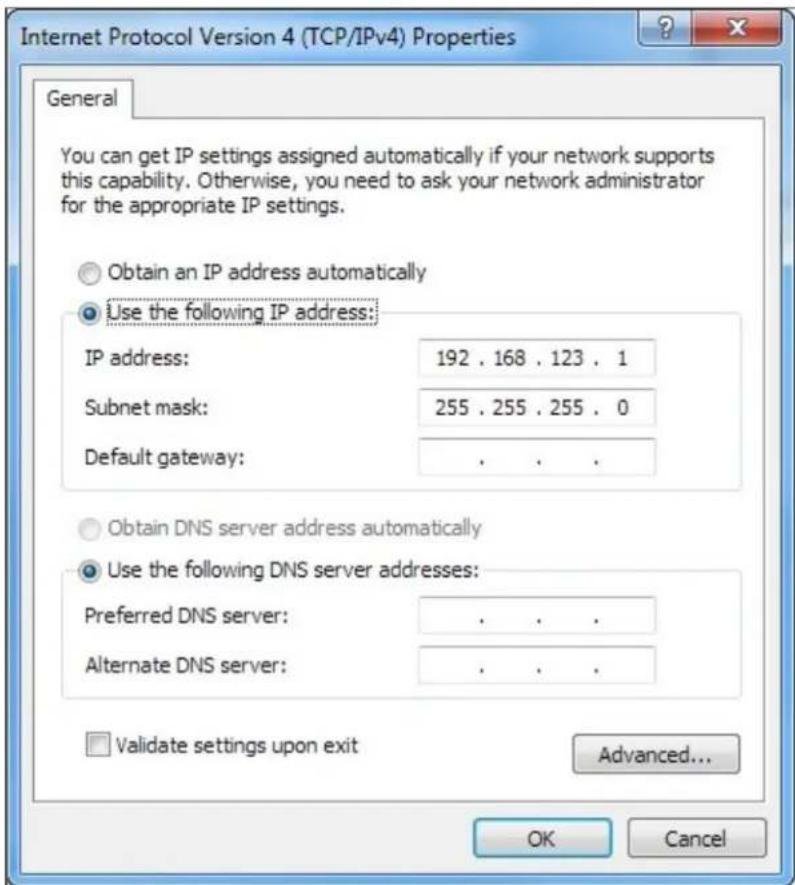
Figure 3.5 Internet Protocol Version 4
text_image
Internet Protocol Version 4 (TCP/IPv4) Properties General You can get IP settings assigned automatically if your network supports this capability. Otherwise, you need to ask your network administrator for the appropriate IP settings. Obtain an IP address automatically Use the following IP address: IP address: 192 . 168 . 123 . 1 Subnet mask: 255 . 255 . 255 . 0 Default gateway: . Obtain DNS server address automatically Use the following DNS server addresses: Preferred DNS server: . Alternate DNS server: . Validate settings upon exit Advanced... OK Cancel- Choose Use the following IP address, set IP address to 192.168.123.1 and Subnet Mask to
255.255.255.0. For initial setup, Default Gateway and the DNS Server entries can be left to Select OK - OK to close both the Internet Protocol Properties and Local Properties wind - In a web browser, enter http://192.168.123.123 to access the unit. If you are setting up the unit
for the first time, or if the unit has been reset back to factory defaults via the netwc button, the unit requires you to create an Admin account and password before you can proceed. - After the admin account is created, log in to the unit.
- By default, the default sensors page is displayed. Navigate to the System tab, then the Network page to configure the device's network properties. The unit's IP Address, Subnet Mask, Gateway and DNS settings can either be assigned manually, or acquired via DHCP.
- Click Save.
NOTE: After the changes are saved, the browser will no longer be able to reload the web | 192.168.123.123 address and displays "Page not Found" or "Host Unavailable" message; this is no After you are finished configuring the unit's IP address, repeat the steps above changing the computer's Ethernet NIC card settings to the ones you wrote down prior to changing them.
To setup the network for a MAC:
- Click the System Preferences icon on the Dock, and choose Network.
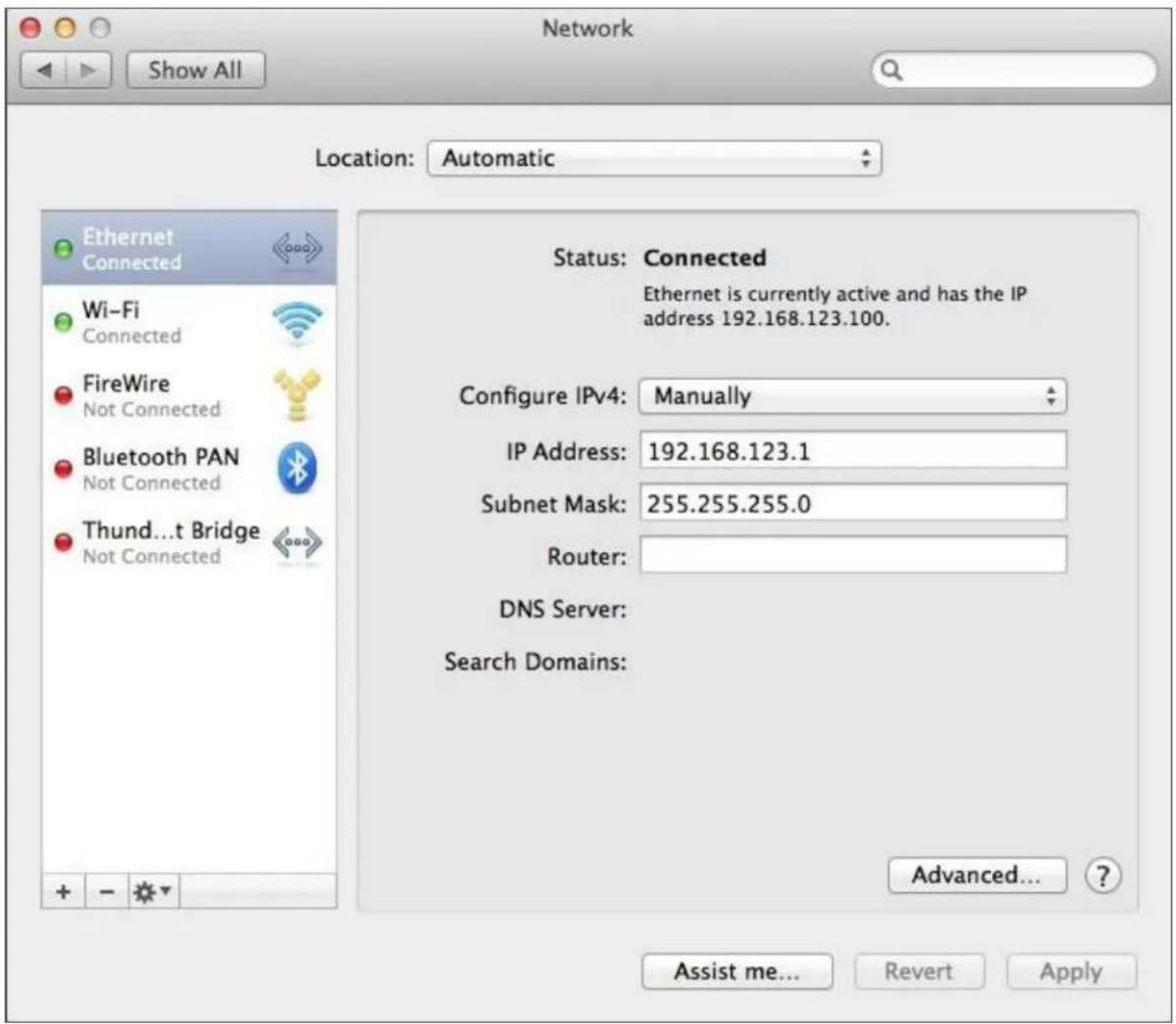
Figure 3.6 MAC System Preferences
text_image
Network Show All Location: Automatic Ethernet Connected Wi-Fi Connected FireWire Not Connected Bluetooth PAN Not Connected Thund...t Bridge Not Connected Status: Connected Ethernet is currently active and has the IP address 192.168.123.100. Configure IPv4: Manually IP Address: 192.168.123.1 Subnet Mask: 255.255.255.0 Router: DNS Server: Search Domains: Advanced... Assist me... Revert Apply- Ensure Ethernet is highlighted on the left side of the NIC window. In most cases, there one Ethernet entry on a Mac. Write down the current settings so you can restore them normal after you have completed the setup procedure.
- Select Manually from the Configure IPv4 drop-down list, then set IP Address to 192.168.123.1 and Subnet Mask to 255.255.255.0 and click Apply.
NOTE: The Router and DNS Server settings can be left blank for this initial setup. In a web enter http://192.168.123.123 to access the unit. If you are setting up the unit for the first time, or if the unit has been reset back to factory defaults via the network-reset button, the unit requires y create an Admin account and password before you can proceed.
- After the admin account is created, log in to the unit.
- By default, the default sensors page is displayed. Navigate to the System tab, then the Network page to configure the device's network properties. The unit's IP Address, Subnet Mask, Gateway and DNS settings can either be assigned manually, or acquired via DHCP.
- Click Save.
NOTE: After the changes are saved, the browser will no longer be able to reload the web | 192.168.123.123 address and displays "Page not Found" or "Host Unavailable" message; this is no After you are finished configuring the unit's IP address, repeat the steps above changing the computer's Ethernet NIC card settings to the ones you wrote down prior to changing them.
3.3 Web Interface
The unit is accessible via a standard, unencrypted HTTP connection as well as an encrypted HT (SSL) connection.
3.3.1 Home page
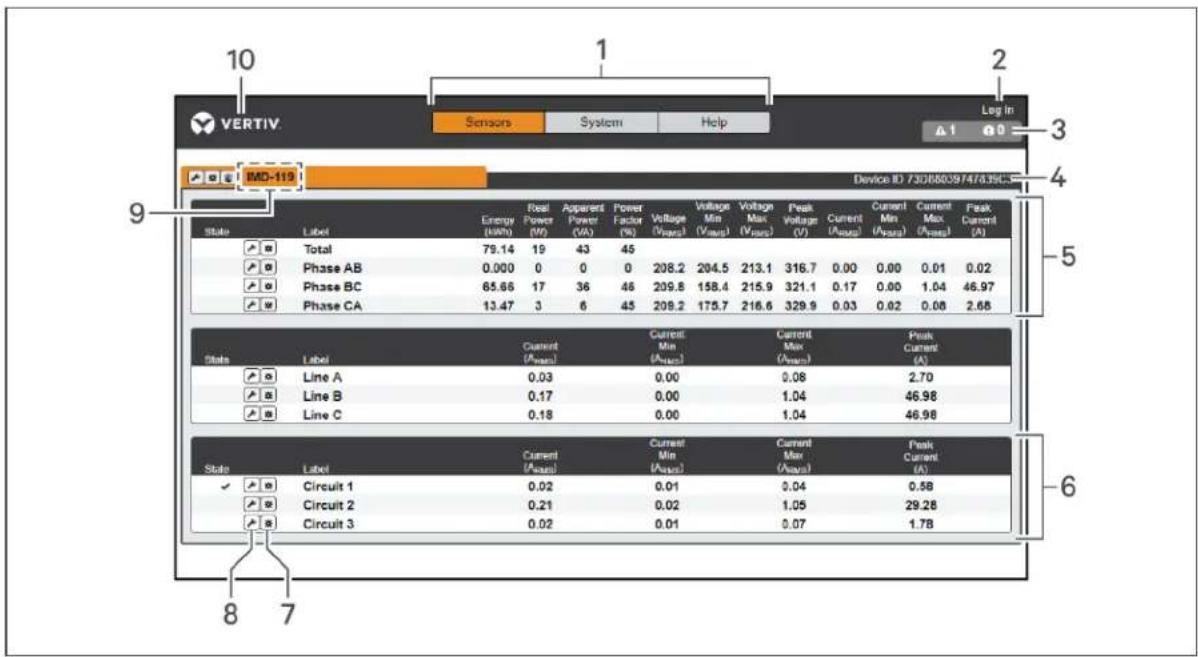
The Home Page gives both current and historical views of the unit's data. Real-time readings are for all rPDU data and individual circuits' data.
Figure 3.7 Home Page
Figure 3.8
text_image
10 Sensors System Help Log in 3 BMD-119 Device ID 7301680.97476.39C_ 9 State Label Energy (kWh) Feal Power (W) Apparent Power (VA) Power Factor (%) Voltage (Vrms) Voltage Min (Vrms) Voltage Max (Vrms) Peak Voltage (V) Current (Ams) Current Min (Ams) Current Max (Ams) Peak Current (A) Total 79.14 19 43 45 Phase AB 0.000 0 0 0 208.2 204.5 213.1 316.7 0.00 0.00 0.01 0.02 Phase BC 65.66 17 36 46 209.8 158.4 215.9 321.1 0.17 0.00 1.04 46.97 Phase CA 13.47 3 6 45 209.2 175.7 216.6 329.9 0.03 0.02 0.08 2.68 State Label Current (Ams) Current Min (Ams) Current Max (Ams) Peak Current (A) Line A 0.03 0.00 0.08 2.70 Line B 0.17 0.00 1.04 46.98 Line C 0.18 0.00 1.04 46.98 State Label Current (Ams) Current Min (Ams) Current Max (Ams) Peak Current (A) ✓ Circuit 1 0.02 0.01 0.04 0.58 Circuit 2 0.21 0.02 1.05 29.28 Circuit 3 0.02 0.01 0.07 1.78 8 7Table 3.6 Home Page Descriptions
| NUMBER NAME DESCRIPTION | ||
| 1 | Sensors, System and Help Tab | Mouse over to show sub-menus: Sensors, System and Help |
| 2 Log In/Log Out | Click to log in or log out of the unit.NOTE: Both username and password are case sensitive and no spaces are allowed.Prohibited characters for username are: $& `<>[] { }"+%@/; =?^|~', | |
| 3 | Alarms and Warnings | Indicates the number of Alarms and Warnings currentlyoccurring, if any. |
| 4 Device | ID Unique product | identification and cannot be changed. May be required for technicalsupport. |
| 5 | Total and Individual Phase Monitor | Displays AC current, voltage and power statistics for each individual phase, and phases combined. |
| 6 | Current Monitor | Displays AC current draw statistics for each individual circuit on the rPDU. |
| 7 Operation Icon Modify settings. | ||
| 8 Configuration Icon Modify label name. | ||
| 9 Device | Label Displays the user-assigned label of this unit. | |
| 10 | Vertiv Logo | Clicking on this logo from any page will reload the home page. |
3.3.2 Sensors tab
Click the Sensors tab to access the Overview, Alarms and Warnings and Logging page from the down menu.
Overview
You must log in before making any changes. Only users with Control-level authorizations have accepted these settings.
To change a device label:
- Click the Configuration icon for the rPDU and change the label. The Name is the rPDU name or model and cannot be changed.
- Click Save.
To change a Phase or circuit label:
- Click the Configuration icon for the phase or circuit and change the label. The Name is physical phase or circuit name and cannot be changed.
- Click Save.
To change phase operation:
- Click the Operation icon.
- Select the operation to perform.
- Reset Energy - resets the total Energy measured in kWh for the selected phase.
-
Reset Min Max Values - resets Min and Max values for voltage and current.
-
Select Submit to issue the action.
To reset energy (kWh) and current values:
- Click the Operation icon.
- From the drop-down list, select the operation you wish to perform.
- Click Submit to execute.
Alarms and warnings
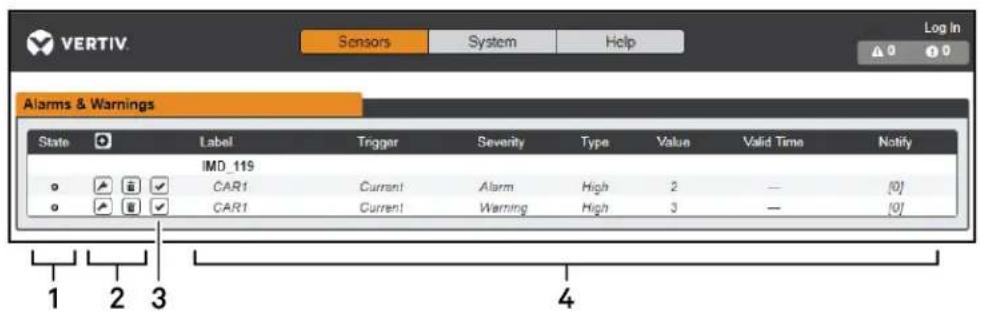
The alarms and warnings page allows you to establish alarm or warning conditions (events) for each power and circuit reading. Events are triggered when a measurement exceeds a user-defined threshold, either going above the threshold (high-trip) or below it (low-trip). Events are displayed in different sections, based on the device or measurement the event is associated with. Each event can have more actions to be taken when the event occurs.
Figure 3.9 Alarms and Warnings Page
text_image
VERTIV. Sensors System Help Log In Alarms & Warnings State Label Trigger Severity Type Value Valid Time Notify IMO_115 CAR1 Current Alarm High 2 — [0] CAR1 Current Warning High 3 — [0] 1 2 3 4Table 3.7 Alarms and Warnings Descriptions
| NUMBER | DESCRIPTION | SYMBOL | DESCRIPTION |
| 1 | Status of each event. | Warning symbol. Event is displayed orange. | |
| Alarm symbol. Alarm is displayed in red. | |||
| Acknowledged event symbol. Symbol remains until the condition measured returns to normal. | |||
| 2 | Add/Delete/Modify alarms and warnings. | Add new alarms and warnings.Modify existing alarms and warnings.Delete existing alarms and warnings. | |
| 3 | Notify user of tripped Events and request acknowledgment. | n/a Empty | if there is no alert condition. |
| When a warning or alarm event occurs, you can click on this symbol to acknowledge the event and stop the unit from sending any more notifications about it.NOTE: Clicking this symbol does not clear the warning or alarm events, it just stops the notifications from repeating. | |||
| 4 Displays | the conditions for the alarms and warnings settings | ||
To add a new Alarm or Warning Event:
- Click the Add/Modify alarms and warnings button.
- Set the desired conditions for this event as follows:
a. From the drop-down lists, select the name of the phase or circuit, the trigger measurement, the severity and the Type.
NOTE: High trips if the measurement goes above the threshold and low trips if the measurement below the threshold.
b. Enter the desired Threshold Value (any number between -999.0 through 999.0).
c. Enter the desired Clear Delay time in seconds. Any value other than 0 means once event is tripped, the measurement must return to normal for this many seconds before the event will clear and reset. Clear Delay can be up to 14400 seconds (4 hours).
d. Enter the desired Trip Delay time in seconds. Any value other than 0 means that measurement must exceed the threshold for this many seconds before the Event will tripped. Trip Delay can be up to 14400 seconds (4 hours).
e. Latching Mode: If enabled, this event and its associated actions remain active until the event is acknowledged, even if the measurement subsequently returns to normal.
f. To specify where the alert notifications are sent when this alarm or warning event click the Add icon to create a new action.
g. Select the desired options from the drop-down menu:
- Target is the email address or SNMP manager to which notifications should be sent when the event is tripped. For more information on configuring a target email address see Email on page 38.
NOTE: Target Delays and Repeats are shared across all alarms. If multiple delay or repeat va needed for specific targets, each one must be added to the target list and then the appropriate box checked on each alarm.
- Delay determines how long this Event must remain tripped for before this Action's first notification is sent. This is different from the Trip Delay above. Trip Delay determines how long the threshold value has to be exceeded before the Event itself tripped. This delay determines how long the Event must remain tripped before this Action occurs. Delay can be up to 14400 seconds (4 hours). A Delay of 0 will see notification immediately.
-
Repeat determines whether multiple notifications will be sent for this Event Action. Repeat notifications are sent at the specified intervals until the Event is acknowledged, or until the Event is cleared and re-set. The Repeat interval can be 14400 seconds (4 hours). A Repeat of 0 disables this feature, and only one notification be sent.
-
Click Save to save this notification action.
NOTE: More than one action can be set for an alarm or warning; to add multiple actions, just Add icon again and set each one as desired. Each alert can have up to 32 Actions associated
To change an existing alarm or warning event:
- Click the Modify icon next to the alarm or warning event you wish to change.
-
Modify the settings as needed and click Save.
-
After an action is added, it has a checkbox in the enabled column at the far left. By when an action is added it is unchecked (disabled). Click the checkbox to enable it. allows you to selectively turn different actions on and off for testing.
To delete an existing alarm or warning event:
- Click the Delete icon next to the alarm or warning event you wish to remove.
- Click Delete and Save to confirm.
3.3.3 System tab
NOTE: You must be logged in as Admin to modify settings in the System tab.
Users
The Users page in the System menu allows you to manage or restrict access to the unit's feature creating accounts for different users.
Figure 3.10 User Account Page

text_image
VERTIV. Sensors System Help Log in Users Username Admin Control Enabled guest 1 2 3Table 3.8 User Account Page Descriptions
| NUMBER DESCRIPTIONS | |
| 1 Add new user account | |
| 2 Modify user account | |
| 3 Delete user account | |
NOTE: Only an Administrator-level account can add, modify, or delete users. Control-level and View-Only accounts can change their own passwords via the Modify button, but cannot add or delete accounts, or Modify other accounts. The Guest account cannot add, delete, or modify any account, not even itself.
To add or modify a user account:
- Click the Add or Modify User icon.
- Create or modify the account information as needed.
a. Username: The name of the account. User names may be up to 24 characters long, are case-sensitive, and may not contain spaces or any of these prohibited characters: \$& `:<>[ ] { }"+%@/ ;=?^|\~',
NOTE: A username cannot be changed after the account is created.
b. Administrator: If set to True, this account has Administrator-level access to the unit, and can change any setting.
c. Control: If set to True, this account has Control-level access. Setting Administrator to True will automatically set Control to True as well. Setting this to False makes the account a View-Only account.
d. New Password: Account passwords may be up to 24 characters long, are case-sensitive, and may not contain spaces.
e. Account Status: Set the account to Enabled or Disabled. Disabling an account prevents it from being used to log in, but does not delete it from the account list.
- Click Save.
User account types
- Administrator: Administrator accounts (accounts with both administrator and control authority set to True, as above) have full control over all available functions and settings on the device, including the ability to modify system settings and add, modify, or delete other users' accounts.
- Control: Control accounts (accounts with only control set to True) have control over all settings pertaining to the device's sensors. They can add, modify, or delete alarms & warning events and notification actions, and can change the names or labels of the device and its sensors. Control accounts cannot modify system settings or make changes to other users' accounts.
- View: If both administrator and control are set to False, the account is a view-only account. The only changes a view-only account is permitted to make are changing their own account's password, and changing the preferred language for their own account. View-Only accounts cannot change any device or system settings.
- Guest: Any user that views the unit's web page without logging in is automatically viewing the unit as Guest. By default, the guest account is a view-only account, and cannot make changes to any settings, although the administrator can elevate the guest account to control-level access if desired, allowing anyone to make changes to names, labels, alarm events, and notifications without logging in. The guest account cannot be deleted but can be disabled to require login for viewing system status.
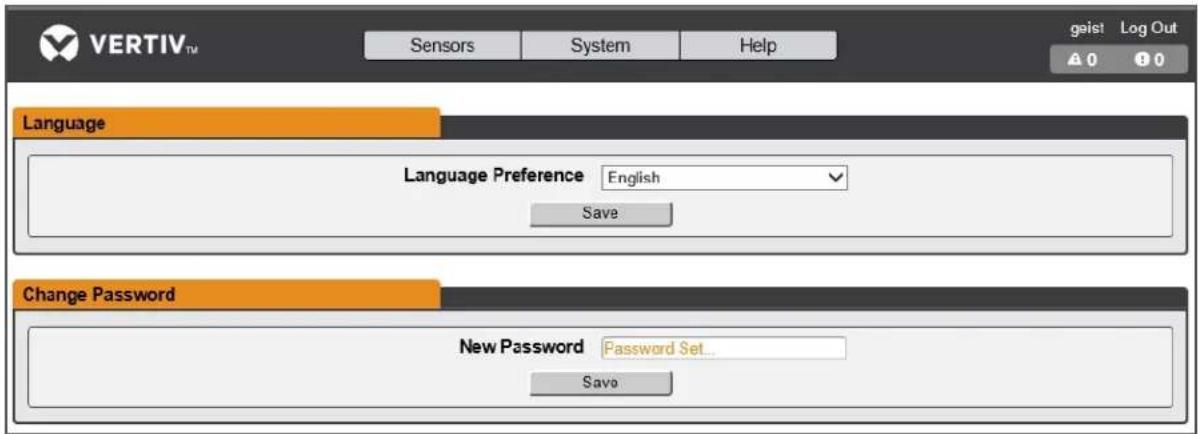
To change a user password:
- Log in to your account.
- Click your username in the top right corner of the page.
- Enter a new password and click Save.
Figure 3.11 Change User Password Page
text_image
VERTIV™ Sensors System Help Language Language Preference English Save Change Password New Password Password Set... Save geist Log Out A 0 B 0Network
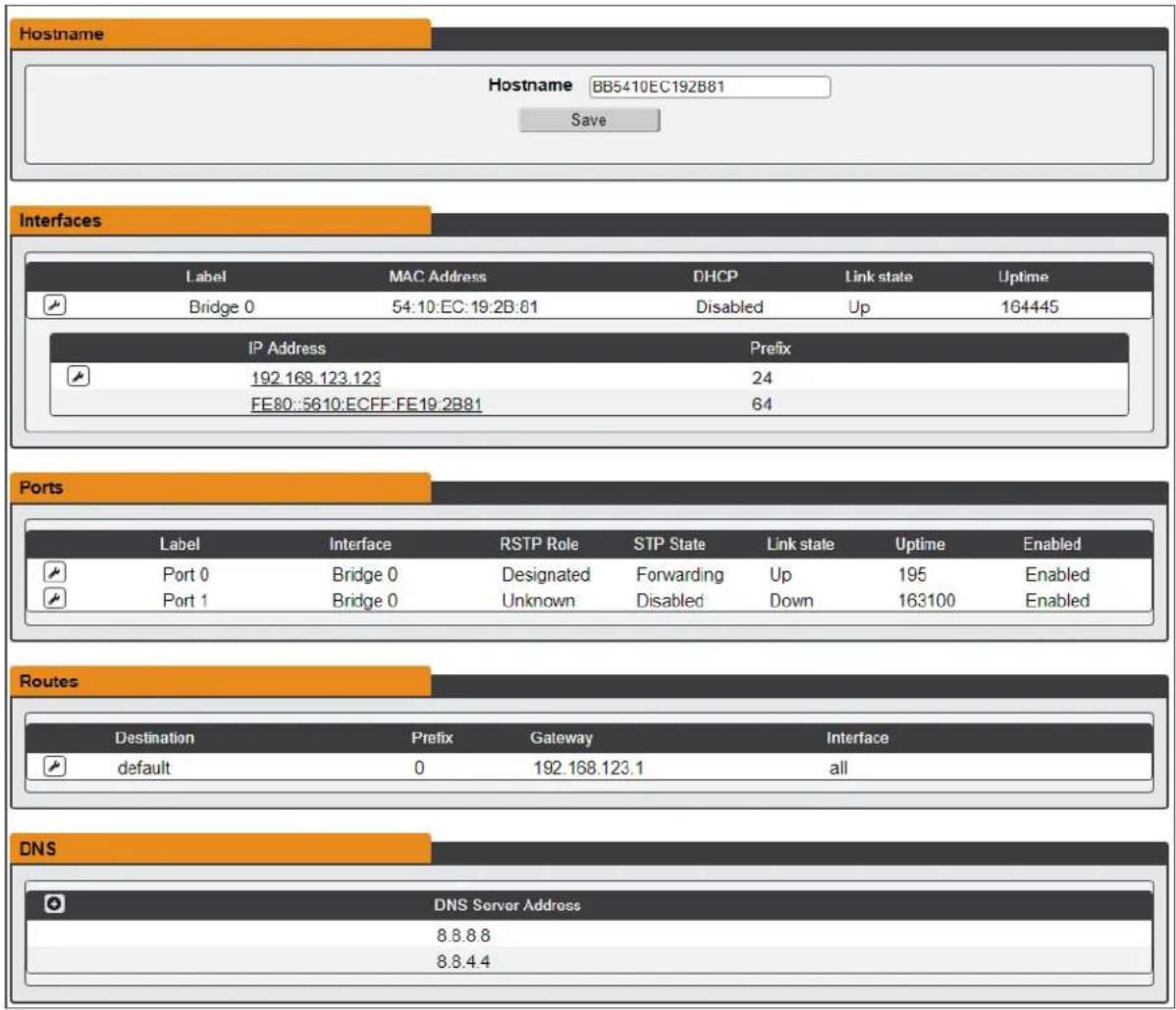
The unit's network configuration is set on the Network tab of the System menu. Settings pertaining unit's network connection are:
- Hostname: The hostname may be used as a method for device identification on the network
- Interfaces: Used to configure the IP address of the rPDU, enable/disable DHCP and to view Link State and Uptime. The device supports up to 8 user configured IP address entries.
- Ports: Used to view and/or modify Ethernet port settings and RSTP status of each port rPDU.
- Routes: Displays configured routes and is where you will set your Gateway address for the rPDU. Default routes are distinguished by a "destination" of "0.0.0.0" or ":", with a Prefix of "0" and Interface of "all". Only one default route can exist for IPv4 and one for IPv6.
• DNS: Allows the unit to resolve host names for email, NTP, and SNMP servers.
Figure 3.12 Network Configuration Page
text_image
Hostname Hostname BB5410EC192B81 Save Interfaces Label MAC Address DHCP Link state Uptime Bridge 0 54:10:EC:19:2B:61 Disabled Up 164445 IP Address Prefix 192.168.123.123 24 FE80::5610:ECFF:FE19.2B81 64 Ports Label Interface RSTP Role STP State Link state Uptime Enabled Port 0 Bridge 0 Designated Forwarding Up 195 Enabled Port 1 Bridge 0 Unknown Disabled Down 163100 Enabled Routes Destination Prefix Gateway Interface default 0 192.168.123.1 all DNS DNS Server Address 8.8.8.8 8.8.4.4Figure 3.13 RSTP Configuration
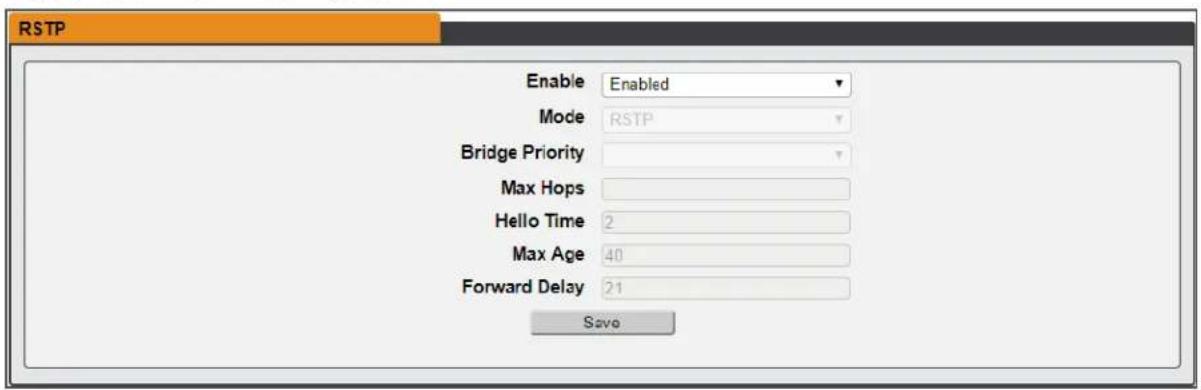
text_image
RSTP Enable Enabled Mode RSTP Bridge Priority Max Hops Hello Time 2 Max Age 40 Forward Delay 21 SaveTo edit the interfaces parameters:
-
Click the Modify icon
-
Modify desired fields.
a. Label - change the desired name of the selected interface.
b. Enable - enable/disable the selected interface. If only one interface is available, disable the interface restricts access to the device requiring a network reset.
c. DHCP - enable/disable DHCP on the selected interface.
- Click Save.
NOTE: Any changes made to the network interface settings take effect once the Save button clicked. If you have changed the IP address it will appear as if the unit is no longer response, the browser will not be able to reload the web page. Close the browser window, type the input into the browser's address bar and the unit will be accessible.
To modify an existing IP Address:
- Click the Modify icon.
- Edit the IP Address and Prefix/Subnet Mask fields as needed.
- Click Save.
To modify port settings:
- Click the Modify icon.
-
Enter the appropriate information.
a. Change port label if desired.
b. Enable/Disable port.
c. Assign STP cost. This designates this interface's contribution to the root path cost, it serves as the root port. -
Click Save.
To add a new route:
- Click the Add icon.
-
Enter the appropriate information.
a. Destination IP address for desired route.
b. Enter Prefix for desired route
c. Enter Gateway IP address.
d. Select Interface that route applies. -
Click Save.
To modify an existing route:
- Click the Modify icon
- Edit the desired fields.
- Click Save.
To add a new DNS Server Address:
- Click the Add icon.
- Enter the IP of the desired DNS server. Up to two DNS servers can be added.
- Click Save.
To modify an existing DNS Server Address:
- Click the Modify icon.
- Edit the DNS Server Address field as required.
- Click Save.
To change RSTP settings:
- Change the settings, as desired.
a. Enable: Enable or Disable RSTP protocol
b. Mode: RSTP. RSTP mode supports falling back to STP when necessary.
c. Max Hops: Used when mode enabled to RSTP.
d. Hello Time: The interval, in seconds, between periodic transmissions of configuration messages by designated ports.
e. Max Age: The maximum age, in seconds, of the information transmitted by this interwhen it serves as the root bridge. Set at 2 seconds.
f. Forward Delay: The delay, in seconds, used by bridges to transition the root bridge designated ports into forwarding mode. Set at 21 seconds
- Click Save.
Web server
The unit's Web Server configuration can be updated on the Web Server tab of the System menu
- HTTP Interface: Enables/disables access via HTTP. HTTPS interface is always enabled.
Available options are, enabled or disabled. It is not possible to disable the web interface completely. - HTTP/HTTPS Server Port: Allows you to change the TCP ports which the HTTP and HT services listen to for incoming connections. The defaults are port 80 for HTTP and 443 HTTPS.
Figure 3.14 HTTP Configuration Page

text_image
HTTP HTTPS is always enabled. HTTP Interface Enabled HTTP Port 80 HTTPS Port 443 SaveDisplay
The unit's display configuration can be changed via the Display tab of the System menu. Settings pertaining to the unit's display are:
- Display Mode: Sets the unit to display current or total power (displayed as kW) on the local LED display.
- VLC: Allows user to enable or disable VLC mode from GUI (default is disabled).
Figure 3.15 Display Mode/VLC Configuration Page

text_image
VERTIV™ Sensors System Help geist Log Out ▲ 0 1 0 Display Mode Display Mode Current Save VLC VLC Mode Disabled SaveThe unit is capable of sending email notifications to up to five email addresses when an alarm event occurs.
Figure 3.16 Email Configuration Page

text_image
VERTIV™ Sensors System Help gelst Log Out A 0 0 Email Leave Username and Password blank for relay only (no authentication). SMTP Server Port 25 Enable SSL Disabled "From" Email Address Username Password No Password Save Success! Target Email Address username@server.com 1 2 3 4Table 3.9 Email Configuration Page Descriptions
| NUMBER DESCRIPTION | |
| 1 Add new target emailaddress | |
| 2 Modify existing target email address | |
| 3 Delete existing target email address | |
| 4 Send test email | |
To send emails, the unit must be configured to access the mail server, as follows:
- SMTP Server: The name or IP address of a suitable SMTP or ESMTP server.
- Port: The TCP port which the SMTP Server uses to provide mail services. Typical values be port 25 for an unencrypted connection, or 465 and 587 for a TLS/SSL-encrypted connection, but these may vary depending on the mail server's configuration.
- Enable SSL: If Enabled, the unit will attempt to connect to the server using a fully-encrypted TLS/SSL connection. Note that when this setting is enabled only fully-encrypted sessions are supported; the StartTLS method, where the session starts out as unencrypted and then switches to encrypted part way through the session, is not supported. If using a service utilizes StartTLS, such as Office365, please leave this option disabled.
- From Email Address: The address which the unit's emails appear to come from. Many how email services, such as Gmail, require this to be the email account of a valid user.
- Username and Password: The login credentials for the email server. If your server does n require authentication (open relay), these can be left blank.
Microsoft Exchange servers must be set to allow SMTP relay from the IP address of the unit. In the Exchange server must be set to allow Basic Authentication, so the unit is able to log in w LOGIN method of sending its login credentials. Other methods, such as AUTH PLAIN and AUTH not supported.
To add or modify a target email address:
- Click the Add or Modify icon.
- Enter the email address and then click Save.
To delete a target email address:
- Click the delete icon next to the address you wish to delete:
- Click delete on the pop-up window to confirm.
To send a test email:
- Click the test email icon next to the address you wish to test.
- A pop-up window indicates the test email is being sent, click OK to dismiss the pop-up
SNMP
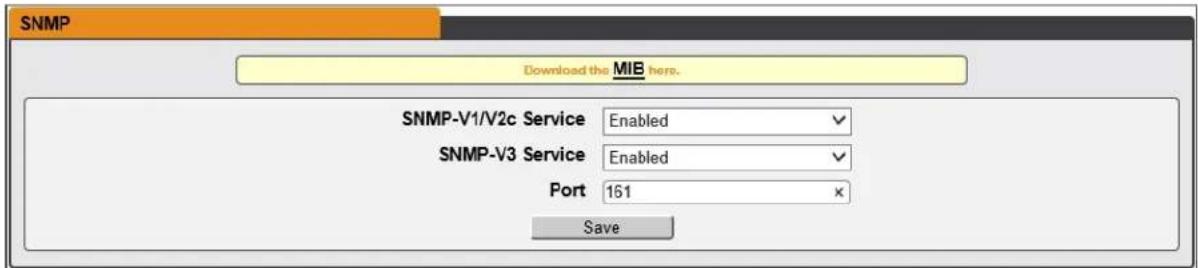
Simple Network Management Protocol (SNMP) can be used to monitor the unit's measurements and status, if desired. SNMP v1, v2c and v3 are supported. In addition, alarm traps can be sent to addresses.
Figure 3.17 SNMP Configuration Page
text_image
SNMP Download the MIB here. SNMP-V1/V2c Service Enabled ✓ SNMP-V3 Service Enabled ✓ Port 161 × SaveThe SNMP-V1/V2c and SNMP-V3 Service can be enabled or disabled independently as desired. The service listens for data-read requests on port 161, which is the usual default for SNMP services; also be changed if desired.
The Management Information Base (MIB) can be downloaded from the unit, if needed, via the MIB the top of the web page. Clicking this link downloads a .zip archive containing both the MIB file CSV-formatted spreadsheet describing the available OIDs in a human-readable form to assist you in setting up your SNMP manager to read data from the unit.
Figure 3.18 SNMP Users Configuration Page
| Users | ||||
| Type | Name | Authentication | Privacy | |
| V1/V2c Read Community | public | — | — | |
| V1/V2c Write Community | private | — | — | |
| V1/V2c Trap Community | private | — | — | |
| V3 Read | None | None | ||
| V3 Read/Write | None | None | ||
| V3 Trap | None | None | ||
The Users section allows you to configure the various Read, Write, and Trap communities for SNM services. You can also configure the authentication types and encryption methods used for the SN if desired. Click the modify icon to change settings.
Traps allows you to define the IP addresses and SNMP types that you wish the traps to be s To configure a trap destination:
- Locate the Traps section of the SNMP page, and click the Add icon.
- Enter the IP Address which the trap should be sent to in the Host field.
- Change the Port number if required.
- Select the trap version to be used (v1, v2c or v3) and click Save.
A test trap may be sent by clicking on the test icon next to the Host IP address. Trap setting updated/changed by clicking the modify icon next to the Host IP address.
SYSLOG
Syslog data can be captured remotely but must first be setup and enabled via the Syslog page.
NOTE: This function is primarily only useful for diagnostic purposes, and should normally be left disabled unless advised to enable it by Vertiv technical support for troubleshooting a specific
Admin
The Admin page allows the administrator of the device to save their contact information along wvice description and location. Once the info is saved by an administrator, other (non-administrator) can view the information. Also, the System Label can be modified on this page. This label is ty in the title bar of the web browser's window, and/or on the browser tab(s) currently viewing the
Locale
The Locale page sets the default language and temperature units for the device. These settings \ become the default viewing options for the device, although individual users can change these opt their own accounts. The guest account will only be able to view the device with the options set
Utilities
The Utilities page in the System menu provides the ability to restore defaults, reboot the communal system and perform firmware updates.
The Restore Defaults section allows you to restore the unit's settings to the factory defaults. Then options:
- All Settings: Erases all of the unit's settings, including all network and user accounts settings, effectively reverting the entire unit back to its original out-of-the-box state.
- All Non-Network Settings: Erases all settings except the Network and User Accounts.
The Reboot section allows the user to perform a system reboot. This function will not affect pov to connected equipment. Use the Firmware Update section to load firmware updates into the unit. Firmware updates, when available, can be found on the Vertiv website: VertivCo.com/Firmware-Support. You can also subscribe to a mailing list, to be notified of when firmware updates become available.
Firmware updates typically comes in a .zip archive file containing several files including the firmwar package itself, a copy of the SNMP MIB, a "readme" text file explaining how to install the firmw various other support files as needed. Be sure to un-zip the archive and follow the included insti
NOTE: Firmware updates can be performed via HTTP interface only. Updates over the HTTPS are not currently supported.
4 APPENDICES
Appendix A: Technical Support
A.1 Resetting rPDU
If the rPDU loses communication, the processor may be manually rebooted without affecting power outlets. Pressing the reboot button on the face of the IMD will cause the processor to reboot. The interface will remain off-line during boot up. For more information, see Interchangeable Monitoring Device on page 19.
A.2 Service and maintenance
No service or maintenance is required. Do not attempt to open the rPDU or you may void the There are no serviceable parts inside the rPDU other than the field replaceable Interchangeable Monitoring Device (IMD). It is recommended that power be removed from the unit before installing removing any equipment.
The Interchangeable Monitoring Device is designed to be field replaceable by qualified service person only. The IMD is designed to be replaced while the rPDU is still connected to AC Mains power the Geist™ PDU IMD Modules Replacement Guide for more information.
A.3 More technical support
Technical support can be found at www.VertivCo.com/support.
Americas
• Website: www.VertivCo.com/geist
- Email: support@VertivCo.com
• Telephone: 1-888-630-4445
Europe and Middle East
• Technical Support: www.VertivCo.com/en-emea/support
- Email: eoc@VertivCo.com
• Telephone: 1-800-1155-4499
Asia
• Telephone (English): 1-888-630-4445 (US number)
• Telephone (Chinese): +86 755 8663 9505
A.4 Using Microsoft Exchange as an SMTP server
If your facility uses a Microsoft Exchange email server, it can be used by the IMD rPDU to se Warning notification emails if desired. However, the Exchange server may need to be configured to SMTP connections from the unit first, as later version of Exchange often have SMTP services or thentication disabled by default. If you encounter difficulties in getting your IMD rPDU to send en through your Exchange server, the following notes may be helpful in resolving the problem.
NOTE: These suggestions only apply if you are using your own, physical Exchange server. Mic hosted Office365 service is not compatible with the IMD rPDU using firmware versions prior to as Office365 requires a StartTLS connection. Firmware versions 3.0.0 and beyond have support StartTLS and are compatible with Office365.
First, since the IMD rPDU cannot use IMAP or Microsoft's proprietary MAPI/RPC Exchange/Outlook I cols to send messages, you will need to enable SMTP by setting up an SMTP Send Connector Exchange server. More information on setting up an SMTP Send Connector in Exchange can be f this Microsoft TechNet article: http://technet.microsoft.com/en-us/library/aa997285.aspx
Next: Your Exchange server may also need to be configured to allow messages to be relayed from monitoring unit. Typically, this will involve turning on the Reroute incoming SMTP mail option in the Exchange server's Routing properties, then adding the IMD rPDU's IP address as a domain which permitted to relay mail through the Exchange server. More information about enabling and configuring SMTP relaying in Exchange can be found at this Microsoft TechNet article: http://technet.microsoft.com/en-us/library/dd277329.aspx
The SMTP AUTH PLAIN and AUTH LOGIN authentication methods for logging in to the server a no longer enabled by default in Exchange; only Microsoft's proprietary NTLM authentication method enabled.
To re-enable the AUTH LOGIN method:
- In the Exchange console select Server Configuration - Hub Transport.
- Right-click the client server, and select Properties.
- Select the Authentication Tab and click the Basic Authentication checkbox.
- Deselect the Offer Basic only after TLS checkbox.
- Apply or Save and click Exit.
NOTE: You may need to restart the Exchange service after making these changes.
Finally, once you have enabled SMTP, relaying, and the AUTH LOGIN Basic Authentication method, may also need to create a user account specifically for the IMD rPDU to log into. If you have ated an account prior to enabling the SMTP Send Connector, or you are trying to use an already account created for another user, and the IMD rPDU still cannot seem to connect to the Exchar the account probably did not properly inherit the new permissions when you enabled them as abt tends to happen more often on Exchange servers that have been upgraded since the account(s) trying to use were first created, but can sometimes happen with accounts when new connectors is plug-ins are added regardless of the Exchange version. Delete the user account, then create a for the monitoring unit to use, and the new account should inherit the SMTP authentication and relaying permissions correctly.
If none of the above suggestions succeed in allowing your IMD rPDU to send mail through your server, then you may need to contact Microsoft's technical support for further assistance in config your Exchange server to allow SMTP emails to be sent from a 3rd-party, non-Windows device thr your network.
This page intentionally left blank
Appendix B: Visible Light Communication (VLC)
The VLC feature on Upgradeable PDUs allows the user to unobtrusively upload product information database management system via the embedded LED display. This product feature provides new opportunities to monitor and enable larger amounts of rPDU power data to be obtained via the display, and all without physically connecting to the rPDU.
Using a smart device, such as a smart phone or tablet with the Vertiv Mobile app installed, it captures data from the LED display when running in VLC mode, which can be enabled/disabled and using the display buttons on the device, or using the GUI on monitored units.
By default, the Upgradeable LED display will provide the Current (Amps) per input and circuit/break enabling the VLC feature, the LED Display will scroll through a set of alpha-numeric characters. Use the Vertiv Mobile app the user can scan the LED display and retrieve additional power metrics to include Volts, Amps, Watts, Volt-Amps and Kilowatt Hours. Before VLC, the power data was only on network connected PDUs by viewing the GUI, or using external software to collect and display. The VLC feature provides this data on local metered only devices, as well as on monitored units, the need to connect them to the network.

WARNING! This feature, when enabled, causes the unit to emit flashing lights, text, or n sets at frequencies that can induce adverse reactions. Persons susceptible to adverse reactions as a result of such emissions or persons who have been diagnosed with epilept should not utilize or enable this feature.
To enable VLC:
Press the center button three times in under two seconds.
NOTE: With the release of firmware version 3.3.0, Vertiv has added support for the VLC feature standard Metered and Monitored Upgradeable products, as well as a significant majority of its engineered-to-order range. Certain custom models of Upgradeable PDUs may not have VLC support within the Vertiv Mobile application. If your custom product is not supported by the Vertiv M it will be noted in the product specification sheet. Please contact your sales representative if like assistance with this. The latest firmware updates can be found at VertivCo.com/Firmware-Su Vertiv Mobile app is available via the App Store for iOS devices.
This page intentionally left blank
Appendix C: Vertiv Mobile App
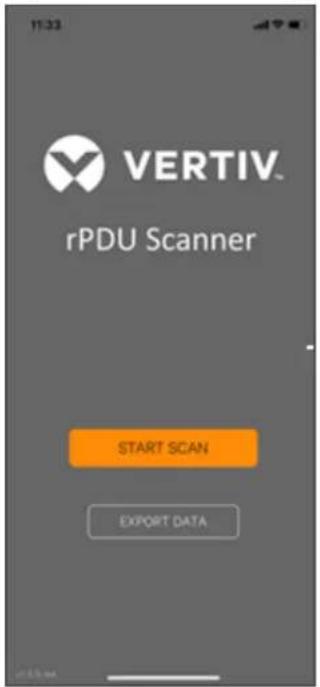
The Home screen allows the user to initiate a device scan or export data via .csv file.
- Scan: Turns on scan mode to allow the app to capture VLC data from Upgradeable rP[
- Export: Pressing the export button will launch the smart device's email app and attach the Database .csv file to be emailed to desired recipients.
Figure C.1 Mobile App Home Screen
text_image
11:33 VERTIV. rPDU Scanner START SCAN EXPORT DATATo scan an rPDU
- Press Scan on the Home screen to load the Vertiv Mobile app scanning engine.
Figure C.2 Mobile App Scanning Screen

text_image
Menu Align IMD display within lines. Scanning... 49% E 104- Position the smart device so that the characters on the LED display are between the line the screen. The LED characters should be clear and in-focus. If the characters appear to bright or too dark, the exposure setting can be adjusted by using the sliding bar at the top of the screen. The app captures data as soon as it can see the LED characters inside horizontal lines. Scan progress is displayed as a percentage. If the scan percentage is increasing slowly, or resetting, the device is having trouble reading the data properly. In case, try repositioning the device to improve results. After the scan reaches 100% the app, the Readings page.
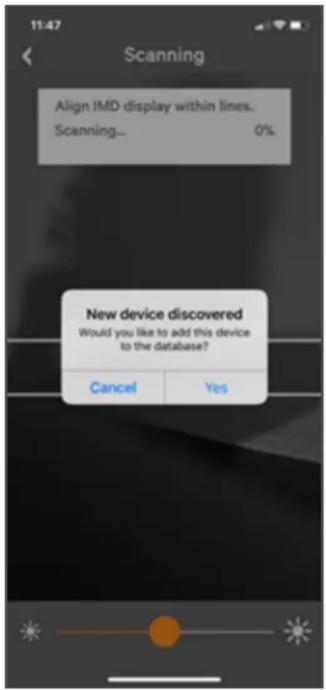
NOTE: When a device is scanned for the first time, the Vertiv Mobile app recognizes the se as being new and ask if it should be added to the database as shown in the following im the database, all future scanned data is added to the device serial number record.
Figure C.3 Mobile App New Device Screen
text_image
11:47 Scanning Align IMD display within lines. Scanning... 0% New device discovered Would you like to add this device to the database? Cancel YesC.1 Scanning tips
The VLC feature relies upon light for its communication. If the lighting around the display or the going through the lens of the smart device is not optimal then the OCR (Optical Character Record will struggle to capture the data. When looking at the smart device screen during capture, you do the characters of the LED display are in focus and bright, if they are blurred, with a surrounding are faint then the VLC capture will fail to work quickly and may be unable to scan at all.
Proper capture methods
• High Contrast between LED display and background
- No glow around LED display characters
• LED display characters between horizontal guidelines
Improper capture methods
- Blurry image
• Over-exposed image - Glow around LED display characters
• LED display characters not between horizontal guidelines
C.2 Failure modes and Errors
The Vertiv Mobile App retries a scan two times if the scan cannot be completed. The scan fail device is unable to correctly capture all the VLC data correctly. One of the following messages is displayed:
- Scan failed: Incorrect set configuration
- Scan failed: Incorrect data sequence
- Scan failed: Please adjust your position or the exposure and try again
Press Cancel to return to the Home screen or Retry to return to the Scan page.
C.3 Readings
The Readings page displays scan results for each rPDU scanned using VLC.
Figure C.4 Mobile App Readings Screen

text_image
Serial number PR00010406 IP 192.168.123.123 Time 2018-12-13 11:45:11 AM Phases AB 0.1 A 8 W BC 0.0 A 0 W AC 0.0 A 0 W TOTAL 8 W Circuits 1 0.0 A 2 0.0 A 3 0.0 A Results SavedNOTE: The unit serial number is displayed in the title bar of the Readings page. This serial matches the serial number located on the surface of the rPDU.
Pressing the Settings icon enables the user to customized the data that is displayed in the scan results.
- Collapse Rows: Allows user to collapse or expand the Readings page to help properly dis data on smart devices with smaller screens.
- Unit Data to Display: Selects which data is shown on the Readings page. All data is st within the database regardless of settings here. These settings are global and will apply scanned unit.
Figure C.5 Mobile App Settings Screen

text_image
11:54 Settings Collapse Rows Unit data to display Amps Watts Volts VA kWh Legal Terms and conditionsC.4 Export
The Export button on the Home screen opens the smart device's default email app to send the of scanned devices in .csv format to the desired recipients.
Figure C.6 Mobile App Export Screen

text_image
11:55 Vertiv-report-2018-12-13-11-5... To: Co/Bcc, From: j.werrick@gwistglobal.com Subject: Vertiv- report-2018-12-13-11-55-37.csv Write-reps... 3-55-57.csv Sent from my iPhoneNOTE: An email app must be properly configured on the smart device to utilize the Export The Vertiv Mobile app does not directly support email functionality. Vertiv cannot troubleshoot errors as this would be an issue with either the device, or email service being used.
Each rPDU you scan adds a new entry to the database, there is no limit to the number of ir that can be added but the database has a limit of 10 scans per rPDU. Additional scans of the overwrite the oldest data for that unit.
The .csv data output organizes data first by serial number and then by date & time. You can organize the data by using the filter option in Excel. The data structure is split into two section configuration and Power data.
rPDU configuration data includes:
- Serial Number
- Frame Definition
- Date/Time stamp
- IPv4 address
Power Data includes:
• Power Readings
- Totals
Table C.1 rPDU Configuration Data
| SERIAL NUMBER FRAMEDEF | YYYY-MM-DD-HH-MM-SS | IP ADD | |
| Products unique serial number. This same serialnumber present on the label. | Part that of the VLC configuration data and used debugging. | Timestamp of when the scan occurred. | The IPv4 address of the unit. Locally Metered units will show Null IP address. |
Table C.2 Power Data
| VOLTS AMPS WATTS VA KWH | ||||
| 1 volt 1 amp 1 watt 1 va 1 kwh | ||||
| Input Phase for Single Phase units. Phase A or Phase AB if 3 Amperes | Phase AB if 3 Amperes | Phase Real Phase Power | Phase Apparent Power | Phase Kilowatt-Hours |
| 2 volts | 2 amps | 2 watts | 2 va | 2 kwh |
| Phase B or Phase BC if 3 Phase | Phase Amperes | Phase Real Power | Phase Apparent Power | Phase Kilowatt-Hours |
| 3 volts | 3 amps | 3 watts | 3 va | 3 kwh |
| Phase C or Phase AC if 3 Phase | Phase Amperes | Phase Real Power | Phase Apparent Power | Phase Kilowatt-Hours |
| 4 volts | 4 amps | 4 watts | 4 va | 4 kwh |
| Secondary Input Phase for Single Phase units. Phase AB if 3 Phase | Phase Amperes | Phase Real Power | Phase Apparent Power | Phase Kilowatt-Hours |
| 5 volts | 5 amps | 5 watts | 5 va | 5 kwh |
| Secondary Phase B or Phase BC if 3 Phase | Phase Amperes | Phase Real Power | Phase Apparent Power | Phase Kilowatt-Hours |
| 6 volts | 6 amps | 6 watts | 6 va | 6 kwh |
| Secondary Phase C or Phase AC if 3 Phase | Phase Amperes | Phase Real Power | Phase Apparent Power | Phase Kilowatt-Hours |
NOTE: Some GU models have Dual Inputs with Monitoring or Dual Inline Monitoring, these units can have up to three additional Power readings.
Table C.3 Breakers/Circuits
| BREAKER 1 | BREAKER 2 | BREAKER 3 | BREAKER 4 | BREAKER 5 | BREAKER 6 |
| Breaker / Circuit Amps | Breaker / Circuit Amps | Breaker / Circuit Amps | Breaker / Circuit Amps | Breaker / Circuit Amps | Breaker / Circuit Amps |
Table C.4 Totals
| TOTAL WATTS (REAL POWER) TOTAL VA (APPARENT POWER) TOTAL KWH | ||
| The total of Watts shown in sec- tions | 1-6 The total of VA shown in sections | 1-6 The totalkWh shown in |
NOTE: The tables above are an outline of data that is present in the database .csv file as representative of the actual format of the .csv file. Data stored will vary based on product configuration.
Appendix D: Available Sensors
D.1 Remote sensors
• SRT: Stainless Remote Temperature
• GTHD: Temperature/Humidity/Dew Point
• GT3HD: Temperature/Humidity/Dew Point with two SRT sensors
• RTAFHD3: Temperature/Air Flow/Humidity/Dew Point
• A2D: Converts analog I/O Sensors to Remote Digital Sensors
D.2 Analog I/O sensors
• FS-15: Flood (Water) Sensor
- PFS-100 US / PFS-100 UN: Power Failure Sensor
• RPDS: Door Switch Kit
D.3 Connecting remote sensors
Up to sixteen plug-and-play remote sensors can be attached to the unit at any time via the R, connectors on the front of the unit. In some cases splitters may be required to add additional s Each sensor has a unique serial number and is automatically discovered and added to the web p display order of the sensors on the web, is determined by the serial number of each sensor. You customize names of each sensor on the Sensors Overview page.
NOTE: Sensors use cat 5, CMP wire and RJ-12 connectors. Wiring must be straight-through. Re polarity temporarily disables all of the sensors until corrected. Sensors use a serial communication protocol and are subject to network signaling constraints dependent on shielding, environmental and length of wire. Typical installations allow runs of up to 600 feet of sensor wire.
This page intentionally left blank
Appendix E: IMD Display Codes
Table D.1 IMD Display Codes
| DISPLAY | IMD TYPE | EXPLANATION |
| “Err1” | IMD-01 (Metered only) | The IMD discovered either 0 or more than 1 input boards. This may be caused by internal measurement error. Issues or an unresponsive input board. This is also displayed if there is a reported by the input board. |
| “8888” | IMD-02, IMD-03, IMD-3 | IMD is booting and has yet to discover the simple display and shows “boot” on it. If this is displayed for more than a few seconds there is either a problem with the cabling. |
| “--” (Two dashes the right most dis position) | IMD-02, IMD-03, IMD-3 | The IMD cannot communicate with the input board. This may also be shown intermittently in individual measurements. There is either a problem with the input board or internal cabling. |
| “boot” IMD-01 IMD | is booting | and discovering the input board. |
| “boot” | IMD-02, IMD-03, IMD-3 | Firmware is initializing. This will be displayed while firmware is being updated in slave board. |
| “updt” | IMD-02, IMD-03, IMD-3 | Firmware update in progress. |
| “rset dflt” | IMD-02, IMD-03, IMD-3 | Following user action, rset (reset) will appear during a parameter reset sequence. During a parameter reset, dflt (default) will appear briefly |
| “bcup” | IMD-02, IMD-03, IMD-3 | Bcup (backup) willappear during a configuration backup |
| “rest conf” | IMD-02, IMD-03, IMD-3 | Rest (restore) and Conf (configuration) willappear during a configuration restore |
This page intentionally left blank

VERTIV™

VERTIV™