T43H - Browser Cydle - Free user manual and instructions
Find the device manual for free T43H Cydle in PDF.


User questions about T43H Cydle
0 question about this device. Answer the ones you know or ask your own.
Ask a new question about this device
Download the instructions for your Browser in PDF format for free! Find your manual T43H - Cydle and take your electronic device back in hand. On this page are published all the documents necessary for the use of your device. T43H by Cydle.
USER MANUAL T43H Cydle
4.3" Portable GPS car Navigation
T43H
natural_image
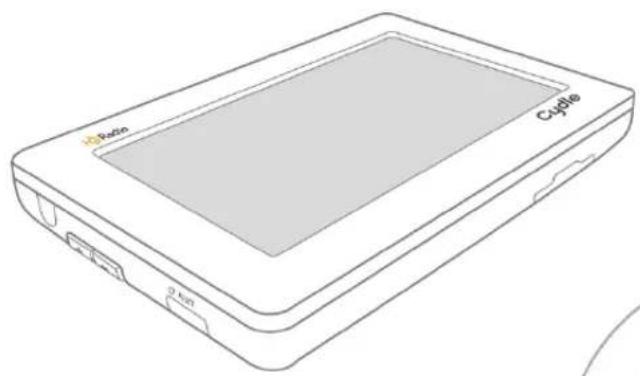
Line drawing of a Cyclic device with labeled ports and a 2 km scale indicator (no text or symbols beyond branding)User manual
Introduction
Thank you for choosing our Cydle T43H as your portable navigation device. We are committed to provide you with the very best. We hope you find the instructions in this owner's manual clear and easy to follow. Please take a few minutes to read this user manual and learn how to use all the features in your new Cydle T43H that provide maximum driving enjoyment.
T43H
Cyclle T43H integrates enhanced functions such as Global Positioning System (GPS), HD Radio Receiver, HD traffic update, music player, video player, and picture viewer functions into a single, easy to use economical unit.
Our system allows you to listen to high quality FM channels that features multicasting data service on FM band.
Real-time traffic service over HD Radio broadcasting is also available in North America.
T43H is Preloaded with a highly detailed city navigator for North America, including Canada, US Puerto Rico and Hawaii.
There are countless POIs which will enable you to find hotels, restaurants, gas stations and so much more at your convenience, anytime, anywhere.
Your T43H is suitable for daily use under any circumstances. Its functionalities will simply take you beyond what you would normally expect from an ordinary GPS.
*HD Radio™ Technology is manufactured under license from iBiquity Digital Corporation. U.S. and Foreign Patents. HD Radio™ and the HD and HD Radio logos are proprietary trademarks of the iBiquity Digital Corporation.
All other trademarks, whether claimed or registered, are the exclusive property of their respective owners.
Contact
Please contact Cydle if you have any inquires while using T43H.
Contact http://www.cydle.com or mail to cydle@cydle.com
Get further information and all contents for T43H at our official Cydle site:
- Get the latest software at the Cydle site for free
- Update your map via online Cydle store
- Please join us as a registered member for faster, enhanced tech support by creating a personal account.
Table of Contents
1. Introduction 1
T43H 2
Contact 2
Contents 3
2. Before you start 6
Safety precaution 6
What's in the box 7
Name of Parts 8
Installation 9
Connecting to Ext. FM HD Radio antenna.... 12
Switching on and off 13
Volume on and Volume off 13
Reset 13
Speaker icon and Mute 14
Back Light off to save power 14
Battery saving mode 15
Battery notes 15
Charging the battery 15
Menu 16
3. Getting started with your GPS 18
Driving View 19
Menu page 21
4. Finding your destination 22
a. Where to? 22
Home 24
Favorites 25
Emergency 26
Recent Destination 26
Address 27
Intersection 28
Telephone No 28
Zip code 29
Point on Map 29
Itinerary 30
Cities 32
POI Name 32
POI in City 33
POI in Category 33
Start Travelling Guidance 34
b. Route options 37
Manage your route 37
Create Route 38
Edit Route 38
Detour 40
Route summary page 42
5. Traffic information using HD Radio Technology ..... 43
Real-time traffic information 43
Traffic service status 43
Traffic Menu 44
Traffic on Route 44
Traffic Map 45
Traffic Flow 45
Traffic Details 46
Traffic List 46
Traffic Classes 47
Traffic Setting 48
Traffic Station 49
6. Customizing Cydle XE 50
Settings 50
Color mode 52
Map view 52
Set Brightness 53
Map Colors 53
Auto Zoom 53
Home 54
Label on Map 54
Voice and Text Language 55
Routing Options 55
Units 56
Set Clock 56
Time Zone 56
Speed Limit 57
Fuel 58
Volume 59
Keyboard 59
About 59
Restore Settings 60
Introduction
- GPS status 61
- Music 63
- Movie 66
- Picture 69
- Calculator 71
- Utility 72
Calendar 72
Stopwatch 73
- HD Radio Technology 74
- Settings 78
Sound settings 78
Display settings 79
Selecting System Language 80
Date & Time settings 81
Selecting Theme 81
Calibration 82
System Information 82
- Update 83
OS update 83
Software update 85
App +Map update 86
App update 88
Map update 89
- Specification 91
- User information and Precautions 93
- Copyright 94
* EULA 95
Before you start
Safety precaution

Your unit contains a number of electronic components that can be damaged permanently when exposed to shock or vibration. To protect your unit from damage, please keep your unit in a stable environment and avoid dropping your unit. Also, do not operate under high-shock and high-vibration environments.

Clean the outer surface of your unit by gently wiping off with a mild detergent-dampened cloth. Avoid chemical cleaners that can damage to plastic components.

Clean the touch screen with a soft, clean cloth. You can use water or an eyeglass cleaner to dampen the cloth. However, do not apply liquids directly onto the touch screen. Dampen the cloth with liquid and then gently wipe the touch screen.

A PDA stylus pen can be used to operate the touch screen. Never use hard or sharp object to operate the touch screen as it might cause damage.
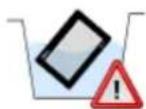
Do not expose your unit to water. Contact with water can cause the unit to malfunction.
Caution
- Do not operate your device while driving. Please drive safely and pay attention to the road and pedestrians. Always practice safe driving.
- To reduce the risk of traffic accidents, never use the video display function while driving. This is a violation of federal law.
- Never disassemble or adjust the unit unless instructed to do so by this manual.
• To prevent injury from shock or fire, never expose the unit to moisture or water. - Never use irregular software and data.
• To prevent internal damage of the unit, avoid direct impact to the TFT monitor.
• Using an improper fuse may cause damage to the unit and result in a fire.
Before you start
What's in the box

Cyclle GPS Navigation

Quick Start Manual

Cydle Navigator Cradle

Super Suction Mount

DC Car adaptor

USB cable

Ext. FM Radio antenna
Getting to know and start...
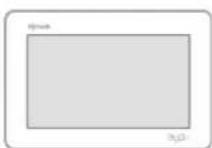

Cyclle GPS Navigation

Quick Start Manual

Installing in your automobile
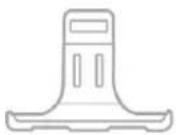

Cydle Navigator Cradle

Super Suction Mount
Charging and connecting
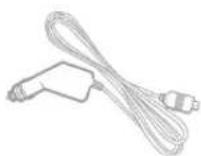

DC Car adaptor
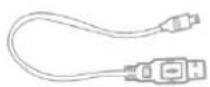

USB Cable


Ext. FM Radio antenna
Sold separately
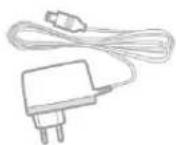
AC adaptor
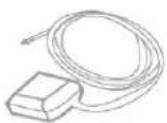
Ext. GPS ANT

Earphone
NOTE :
Go to the support section of the Cydle website to download the electronic manual with detailed information available in multiple language formats for T43H.

Name of parts

Name of parts
a Microphone(Applied only to the Bluetooth model (T43HB))
b Power Button
Volume Up
d Volume Down
e Reset Button
f Earphone connector/Ext. FM Radio antenna connector
g Audio out connector
USB port /Car Battery Adaptor connector
i External GPS Antenna connector
j SD slot
Installation
This unit is designed to be installed on dashboard or windshield found in every vehicle. Please install your unit in a safe manner.
NOTE: It is the end-users' responsibility to install and operate this unit in a manner accordance to the local, state and federal laws.
Installing on Dashboard
- Clean the area where your unit is to be installed with rubbing alcohol and soft cloth. Allow to dry.
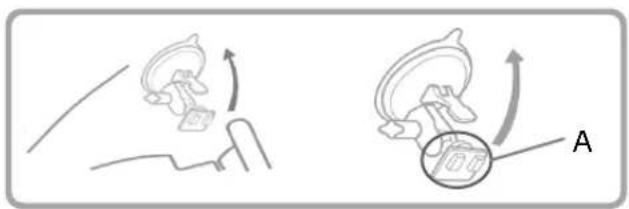
- Push the pedestal suction cup firmly onto the connector and then flip the A lever down to secure the suction cup.
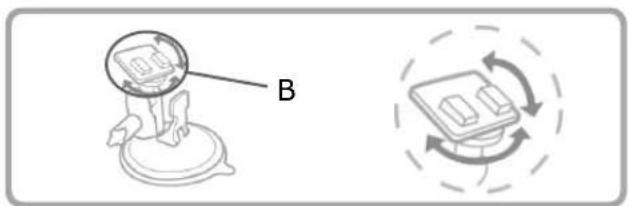
- Use the B knob to adjust the angle and rotation of the pedestal for maximum visibility.
- Attach the cradle onto the suction cup.
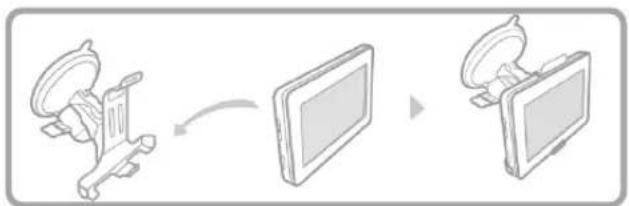
- Place your device in the cradle. Press the front surface of the cradle toward the mount until it clicks. The unit is now fixed in the cradle.
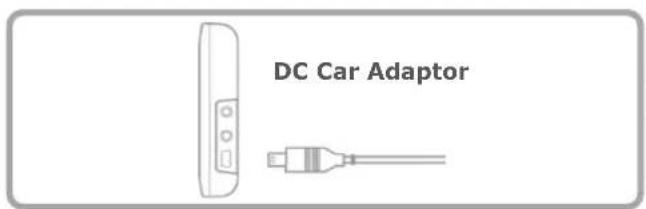
- Insert the power adapter into the cigarette jack and connect it to the DC input of the navigation cradle to turn on the power.

flowchart
graph TD
    A["Person jumping on platform"] --> B["Arrow labeled 'A'"]
    B --> C["Arrow pointing to circular object"]
text_image
B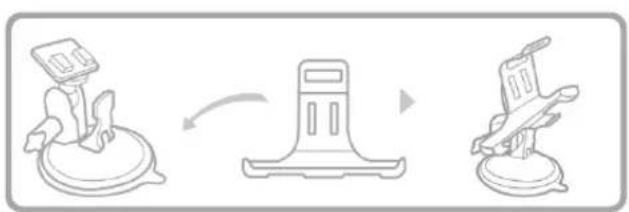
flowchart
graph LR
    A["Device with monitor"] --> B["Storage Unit"]
    B --> C["Flatboard"]

flowchart
graph LR
    A["Device with monitor"] --> B["Table with monitor"]
    B --> C["Desktop computer"]
text_image
DC Car AdaptorInstalling onto the windshield
- Clean the area where your unit is to be installed with rubbing alcohol and soft cloth. Allow to dry.
- Push the pedestal suction cup firmly onto the connector, then flip the A lever down to secure the suction cup.
- Use the B knob to adjust the angle and rotation of the pedestal for maximum.
- Attach the cradle onto the suction cup.
- Place your device in the cradle. Press the front surface of the cradle toward the mount until it clicks. The unit is now fixed in the cradle.
- Insert the power adapter into the cigarette jack and connect it to the DC input of the navigation cradle to turn on the power.
natural_image
Diagram showing two mechanical or electrical components with curved arrows indicating motion, no text or symbols present.
natural_image
Diagram showing a mechanical component labeled B and a circular motion indicator with curved arrows (no text or symbols)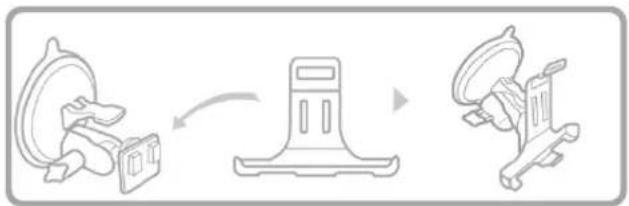
flowchart
graph LR
    A["Gear with attached box"] --> B["Parking pad"]
    B --> C["Motor with attached bracket"]
flowchart
graph LR
    A["Desktop"] --> B["Monitor"]
    B --> C["Display"]

text_image
DC Car AdaptorNOTE :
- Once the cradle is attached, the angle of the adhesive bracket can be adjusted by applying gentle pressure to the top or bottom of the cradle.
NOTE :
- Please make sure that you install the device where it would not block the driver's view.
- Do not install the product on top of the air bag cover or near the air bag deployment zone.
CYDLE has no responsibility of liability for injury or death as a result of car crash and/or air bag deployment.
- The navigator cradle may fall off the windshield if it is attached to the windshield with a suction cup for an extended period of time. To prevent this, please rest the navigator onto the dashboard while it is attached to the windshield. When not in use, please detach it from the windshield and store the unit in a safe area.
- Do not pull the front part of the navigation cradle forcefully or abruptly as it may break off.
Connecting to the External FM HD Radio antenna
< Reception Enhancement >
This unit is designed to receive digital radio channels and traffic information using High Definition (HD) Radio Technology.
In order to improve HD Radio reception, an external FM HD Radio antenna is provided to you.
-
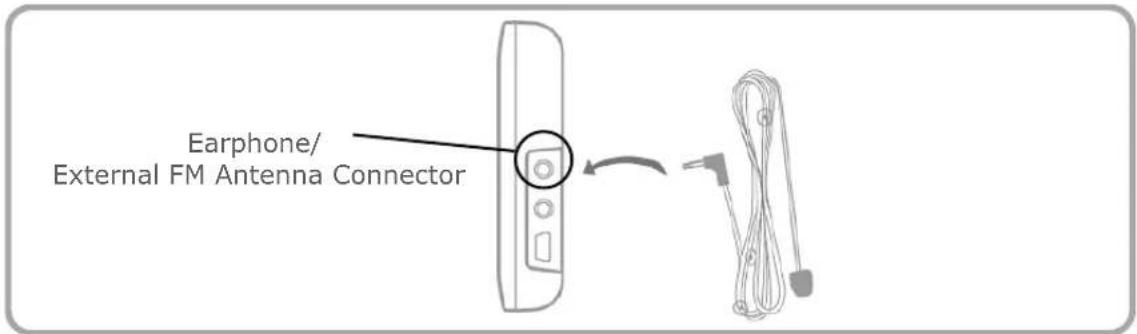
After installing your unit onto the dashboard or windshield, please connect the external FM antenna to improve the HD Radio reception.
You can find the Earphone/External antenna connector on the unit's upper-right side. (refer to page 8) -
Connect to the External FM antenna.
text_image
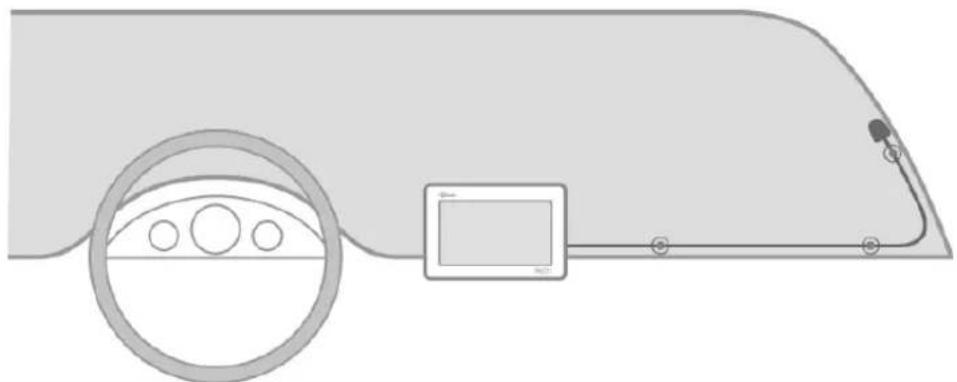
Earphone/ External FM Antenna Connector- Attach the External FM antenna onto the windshield with Vinyl suction cups.
natural_image
Diagram showing a car interior with steering wheel, dashboard, and sensor connected to a vehicle (no text or symbols)Note:
Please make sure that the device is in an open space away from tall objects such as buildings or trees. Reliable HD Radio reception is highly dependent upon placement of the antenna and features of your car such as reflective shielding on the windshield.
Switching on and switching off
The power switch is located on the upper right side of your unit as shown on the Name of Parts section on page 8.
• Powering your unit on : Press and hold the Power switch for more than 3 seconds
• Powering your unit off : Press and hold the Power switch for more than 3 seconds

natural_image
Diagram of a remote control device with a button and connector (no text or symbols)Volume up and Volume down
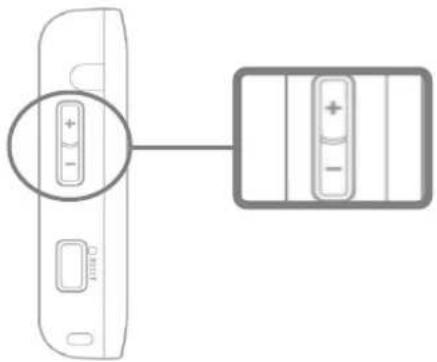
There are two ways to control the volume. One is tapping the speaker icon on the screen and the other is pressing hard keys found on the left side of the device as shown below.
text_image
Diagram showing a device with a plus button and a battery pack, connected by an arrow indicating direction.- The volume control is located on the left side of the unit.
- In order to increase or reduce the volume, press the volume control upwards or downwards.
Reset
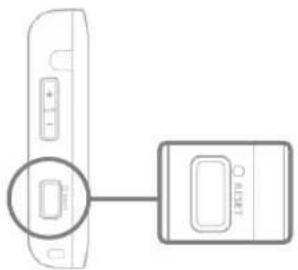
The unit will not respond to your order when the operating system fails. If the desired function cannot be executed, the unit should be restarted using the reset button.
natural_image
Diagram showing a device with a rectangular component inserted into a housing, connected to a separate device (no text or symbols present)- The reset button is located on the left side of the unit.
- Press the reset button with a sharp object such as pin or pencil.
Speaker icon and Mute

text_image
00 : 00 10
flowchart
graph LR
    A["Speaker icon"] --> C["Control panel with battery icon"]
- Speaker icon is located on top of the screen. It indicates current volume level from Mute to level 12. (Default volume level is 10)
- For each application, Mute button will allow you to set volume "level 0" with one easy click. The speaker icon indicates that the volume is muted.
- To cancel mute function, simply tap Mute button again and T43H will automatically un-mute.
Back Light off to save power
Your unit can be set up to automatically shut down the LED back light of the screen by using the time duration setting. Your unit will automatically turn off the back light after the time duration has passed without any physical contact applied onto the touch screen.

flowchart
graph TD
    A["<Setting>"] --> B["<Display setting>"]
- Tap on Setting from the main menu screen.
- Tap on Display setting.
- Tap on Back Light Back Light and set the time duration; Never, 1 minute,... (Default setting of Back light option is 10 sec.)
< Back Light on >
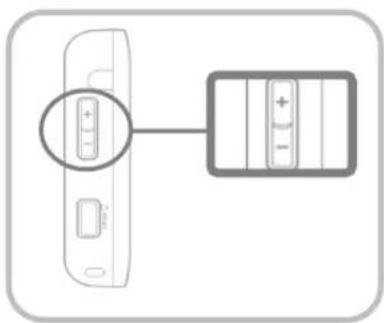
Gently press the volume key (increase or decrease) to turn on the back light.
text_image
Diagram showing a device with a battery and its internal component, highlighting the positive charge.If your unit is connected to a DC adaptor or USB cable, then the Back Light will always be turned on even when the Back Light setting is set as "Never".
Battery saving mode

natural_image
Hand interacting with a black LCD screen displaying 'Cyclis' and 'POWER ON/OFF' (no additional text or symbols visible)You can use the Battery Saving Mode when the unit is not in use but when you don't want to turn it off.
Using the Battery Saving Mode will significantly reduce electrical consumption as well as the time required for reboot.
When you press and hold the Power switch for 2 seconds, your unit will be under the Sleep/Wake Up mode. When your unit is locked, nothing will happen when you touch the screen.
Battery notes
text_image
Main 12:04 10 Navigation HD Radio Movie Music Picture Calculator Utility Setting www.cydle.com
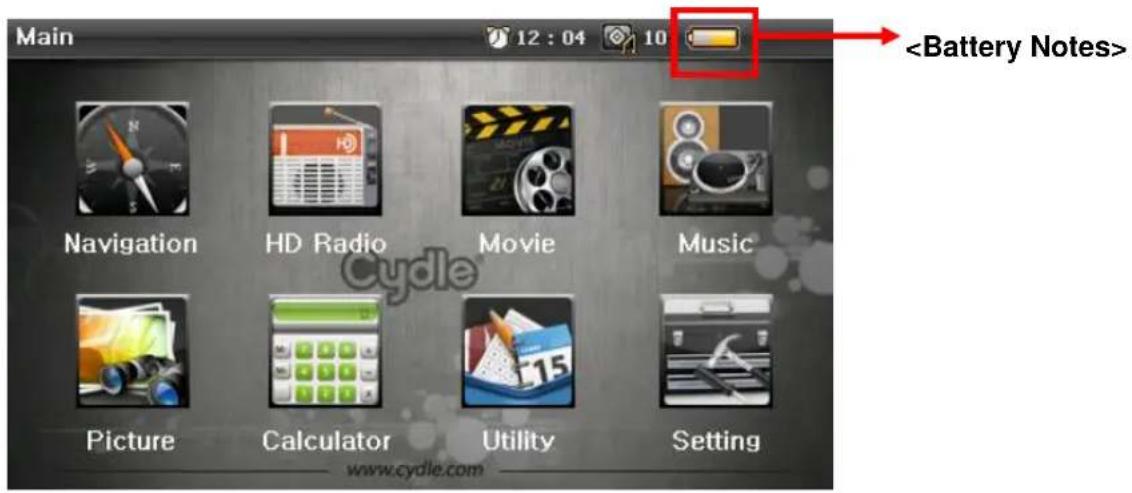
On the upper right hand corner of screen, the Battery icon indicator will indicate the status of the remaining internal battery level.

Battery is fully charged. Please fully charge the battery without interrupting the charging.
Charging the battery

USB Cable
The USB port is used to link the unit directly to a personal computer.
You can also charge your battery through the USB port in the unit.

DC adaptor
The DC adaptor included in the box will charge the battery most efficiently.
When your unit is being charged with the DC adaptor, the battery icon 📋 will appear.
1 /
The link involves several steps as shown below. Connect your unit to a USB port on your PC using the cable that came with your unit.
You can find the USB port at the right side of the unit.

natural_image
Black rectangular electronic device with a USB cable and orange scroll icon (no text or symbols visible)2 /
The unit automatically detects connection and displays a message "Mass storage mode. The unit will link to the PC. Would you like to connect to the PC directly?".

MASS STORAGE
Would like to connect your device to your pc?


3 /
Click "No" to start charging the battery.
System will start charging the battery as displayed on the main menu screen.
Please fully charge the battery without any interruption.

4 /
To stop charging the battery via USB, just disconnect the USB cable from the PC. Then the system will shut down immediately after the disconnection. Turn on the unit by pressing the Power key for 3 seconds to start again.

natural_image
Hand holding a black digital tablet with 'Cycle' branding, no visible text or symbols on the device itself.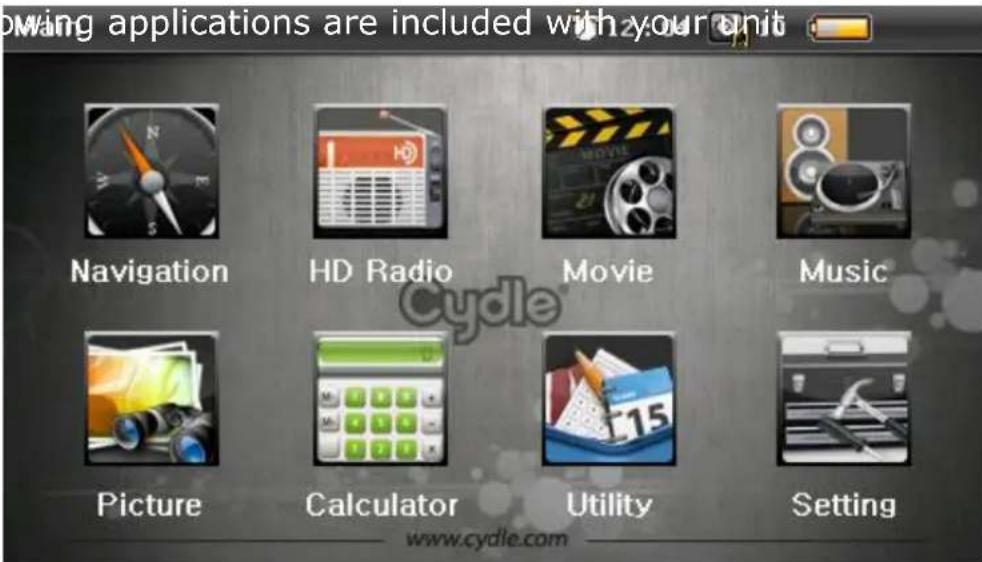
text_image
moving applications are included with your unit Navigation HD Radio Movie Music Picture Calculator Utility Setting www.cydle.com




NAVIGATION
Arrive to your destination faster with clear and easy-to-follow guidance from your T43H.
HD Radio
Listen to FM channels with crystal clear high-definition sound.
MOVIE PLAYER
Watch movies from your PC via SD card.
MUSIC PALYER
Listen to the songs from your PC via SD card.
PICTURE VIEWER
View pictures in rotation and full screen mode.
CALCULATOR
Add, subtract, multiply and divide.
UTILITY
Use the calendar from your T43H.
SETTING
Set up and adjust all of your T43H settings with the touch of a button.
Getting started with GPS

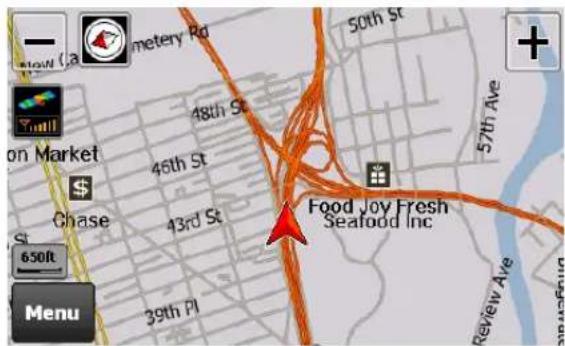
To start Navigation, click the Navigation icon on the menu screen. Cydle T43H has Cydle XE traffic preinstalled as navigation software. Cydle XE traffic will start by showing Driving view along with detailed information about your current position, speed, destination and more.
Getting started. Initial Screen.
< Declaration screen >

text_image
CAUTION! Drive safely and obey traffic rules. You must secure the device so that it will not interfere with the vehicle's operating controls or cause damage or personal injury. You are solely responsible for the safe operation of your vehicle and use of the device in a manner that will not cause an accident, injury or property damage. Do not operate this device while driving. Park the vehicle first. I agreeAfter the GPS starts, you will see the declaration screen as shown above.
text_image
50th St 48th St 46th St 43rd St Food Joy Fresh Seafood Inc 57th Ave 650ft MenuNavigation system automatically locates your current position on the map by receiving GPS signals. If the navigation system doesn't receive GPS signals properly, it could take some time to locate your current position. Please refer to page 39
Driving View
The navigation system automatically locates your current position on the map by receiving GPS signals. If the navigation system doesn't receive GPS signals properly, it could take some time to locate your current position.

text_image
1 2 3 4 E 8th St Washington Pl Tads W 3rd St GMC W 4th St E 9th St W 8th St Ellen's Cafe E 9th St M & T Bank 150ft 5th Ave 292ft Menu 0.4mi 3:50 PM 0:00 3:50 PM 20mi/h 13 12 11 10 9 8 7| 1 | Zoom out: Zoom out from level 1 to level 21 |
| 2 | Compass: By tapping this icon, you can change the map display mode To Track up, North up or 3D view. (Refer to Settings>Map View for more information) |
| 3 | Next street name |
| 4 | Zoom in: Zoom in from level 1 to level 21 |
| 5 | Current street name |
| 6 | Turn-by-Turn instruction: Provides information for next guidance (Tap this icon to go to Turn-by-Turn screen) |
| 7 | GPS signal reception: Tap this icon to go to GPS Status/information page |
| 8 | Current speed |
Getting started with GPS
| 9 | Current time |
| 10 | Expected arrival time at destination |
| 11 | Remaining travel time from current position to destination |
| 12 | Remaining travel distance from current position to destination(To go to Route Summary page, tap anywhere from 9-12) |
| 13 | Menu button: Tap to go to Menu |
| 14 | Map scale: Indicates current map scale level |
| 15 | Voice guidance repeat button: Repeats the last voice instruction |
Menu page
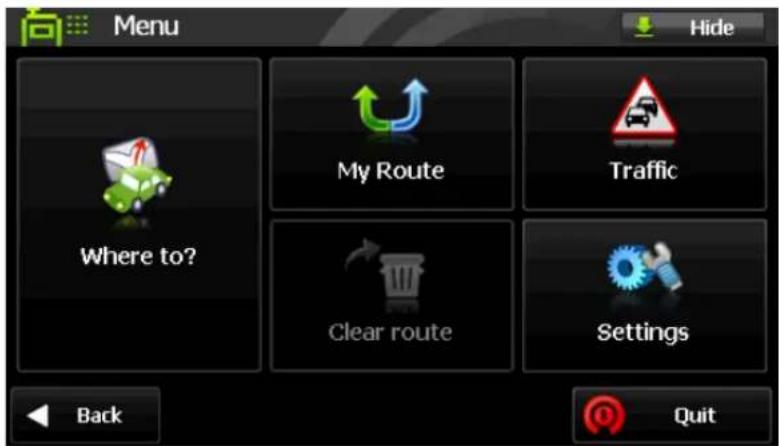
The main menu can be accessed by pressing the 'Menu' button on the map screen. Descriptions of each button are as follows:
text_image
Menu Hide My Route Traffic Where to? Clear route Settings Back Quit1) [Where to?] Search for a location in various ways.
2) [My Route] Edit the current route or retrieve current route information.
3) [Traffic] Traffic information menu.
4) [Clear route] Remove all existing locations from the route.
5) [Settings] Customize settings for the navigation system.

Navigation is minimized but not closed
a. Where to?
The following 'Where to?' screen is accessed by pressing the 'Where to?' button on the
- Destination: Set the selected location as destination.
- Move up: Move up the selected location in the itinerary.
- Move down: Move down the selected location in the itinerary.
- Delete: Delete the selected location.
• Show On Map: This function will take you to the selected location on the map.
- Find nearby POI: This function will allow you to find nearby POI around the selected location. When you select this function, you can see the POI category screen.
Finding your destination
Cities
Search for the center of the city. After completion of [STATE]-[CITY] searching steps, press [Done] when ready.
Refer to [STATE]-[CITY] searching steps on page 27.
POI Name
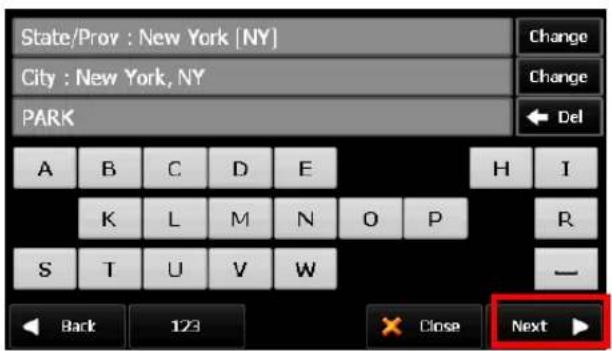
Search for a location by using a POI name.
text_image
State/Prov : New York [NY] City : New York, NY PARK A B C D E H I K L M N O P R S T U V W — Back 123 × Close Next ▶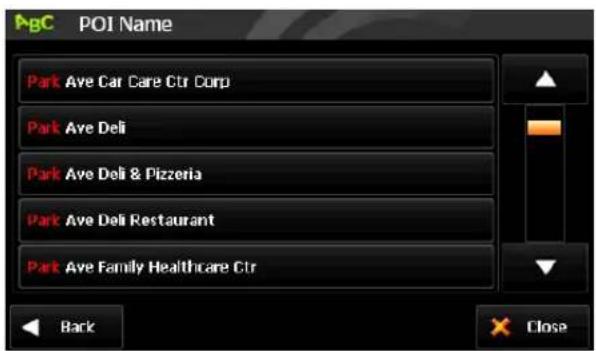
text_image
AgC POI Name Park Ave Car Care Ctr Corp Park Ave Deli Park Ave Deli & Pizzeria Park Ave Deli Restaurant Park Ave Family Healthcare Ctr Back Close- Select 'POI Name' from [Where to?] screen.
- Previously searched state/province name and city name are initially selected. If you want to change state/province or city, tap [...] button. Type a POI Name and then tap 'Next' button. It will list valid POI names corresponding to the letters you've typed. Select one of the POI names that you're looking for to obtain the list of all valid locations with address information. Select one and then tap 'Next' button. (When typing, only next available letters appear.)
- Press [Done] when ready.
Finding your destination
POI In City
Search for a POI within the city.

text_image
POI Category 1 of 4 Fuel Parking Food Lodging Shopping Bank ATM Back Close
text_image
POI List 121 W 34th St, Manhattan, NY ; 212-695-4400 23ft Mary's 223ft Macy's East 0.2mi G & A Stores Inc 0.2mi Kohl's Department Store Back A Done Close- [POI Category] screen (left screen image) is shown once you complete [State/Prov]-[City] searching steps. Twenty-eight POI categories are arranged in the order of frequency of driver's usage. (Refer to 'Address' search on page 27 for [State/Prov]-[City] search.)
- Select one of POI categories for the list of POIs in the order of distance from the current position. Tap ▲ to order alphabetically, or tap ▼ to order by distance. Select one POI, and then tap the next button.

text_image
Food All Food American Asian Barbecue Cafeterias Back CloseSome POI categories have sub menus; for instance, Food POI category contains a sub menu for various cuisine types.
POI In Category
Search for POI nearby the current location.
Since this search is based on your current position, there are no area selection steps ([State/Prov]-[City]). Other searching steps are identical to locating POIs within the city.
Start Travelling Guidance
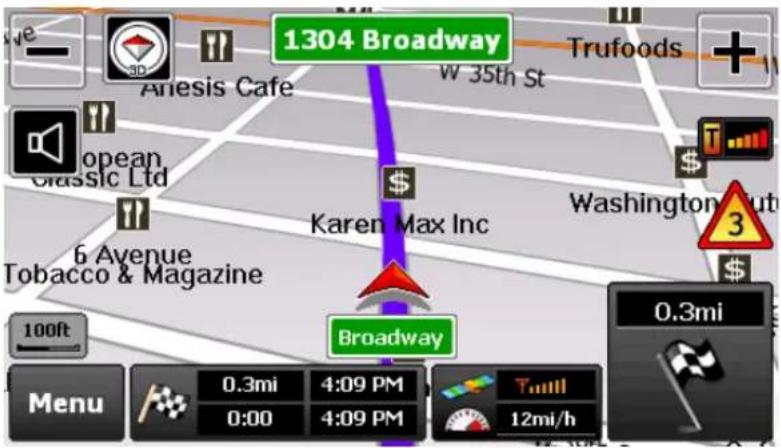
text_image
1304 Broadway Anesis Cafe W 35th St Trufoods + opean Classic Ltd Karen Max Inc Washington 6 Avenue Tobacco & Magazine 100ft Broadway 0.3mi Menu 0.3mi 4:09 PM 0:00 4:09 PM Tull 12mi/hTo start guidance, tap the start button on the [Route Summary] page. The above screen image is the captured image when the travelling guidance has begun. (Refer to
Turn by Turn
Turn by Turn screen offers a simplified guidance mode. To access this screen, simply tap the bottom-right maneuver picture on the main map screen, or, go to [Menu] > [My Route] > [Turn by Turn].

text_image
Lincoln Tunl WB 0.3mi Dyer Ave 108ft Back List CloseTurn By Turn mode presents an enlarged maneuver image and text to indicate the next turn. The distance remaining to the next maneuver is indicated by the distance bar on the right.
The second maneuver is displayed on the upper side of the screen with a smaller image and text.
Finding your destination
< Turn List >
Turn List presents a full list of all maneuvers for the journey. This screen can be accessed by pressing the List button ☐ List on Turn by Turn mode.
The default setting of this option is 'Distance from position'. If you want to change this option, tap 'Options' button at the bottom of the screen.

text_image
Route Instructions 1.3mil Lincoln Tunl W8 1.3mil Lincoln Tunl W8 1.0mil Dyer Ave Passed 123 W 34th St, New York, NY 10001 Distance from position Back Close
text_image
Options Distance since departure Distance to instruction Distance from position Time since departure Time to instruction Time from position Time of day Back Apply Close• Distance since departure
Shows distance from departure to each turning point.
• Distance to instruction
Shows distance from the previous turning point to the next turning point.
• Distance from position
Shows distance from the current position to each turning point.
• Time since departure
Shows required time from the departure to each turning point.
• Time to instruction
Shows required time from the previous turning point to the next turning point.
• Time from position
Shows required time from the current position to each turning point.
- Time of day
Shows expected arrival time when arrived at each turning point.
Finding your destination
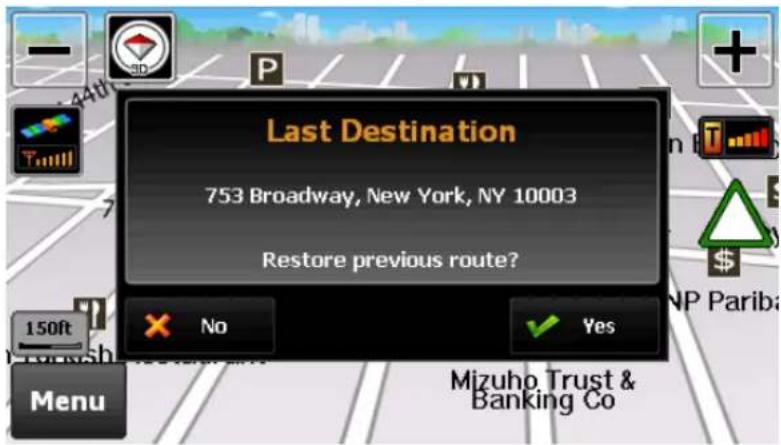
Unexpected shutdown before completion of the journey
In case of unexpected shutdown during the journey, the navigation system will remind you of the last destination when restarted. If you want to restore your previous route, select 'Done' button. Otherwise select 'Cancel' button.
In addition, any Via point that was unreached in the journey will be remembered. By going to [Menu] > [My Route], you can check via and destination points.
text_image
Last Destination 753 Broadway, New York, NY 10003 Restore previous route? No Yes Menu Mizuho Trust & Banking CoFinding your destination
b. Route options
Routing options may be used to create a new route or to edit an existing route. Create Route or Edit Route button will appear depending on the situation.
Manage your route

text_image
My Route Edit route Detour Simulation Mode Route Summary Map Mode Turn by Turn Back Close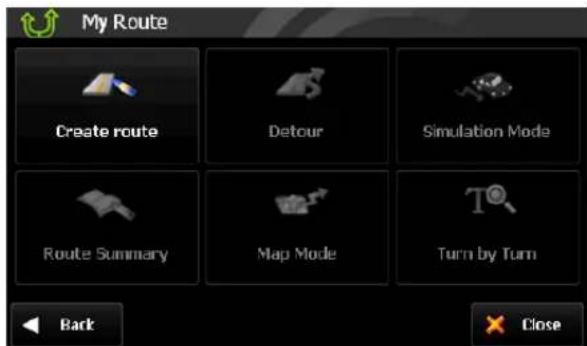
text_image
My Route Create route Detour Simulation Mode Route Summary Map Mode Turn by Turn Back Close• Create Route / Edit Route
[Create Route] is available if a route has not been set previously.
[Edit Route] is available if a route has already been set. Use this option to edit your existing route.
- Detour
Allows you to avoid a part of the route or a roadblock as well as to set a Travel Via point.
- Simulation Mode
Initiates the driving simulation of the route.
- Route Summary
Goes to the route summary page.
- Map Mode
Displays a full map of your route.
- Turn by Turn
Displays a simplified guidance mode with no map.
Finding your destination
Create Route
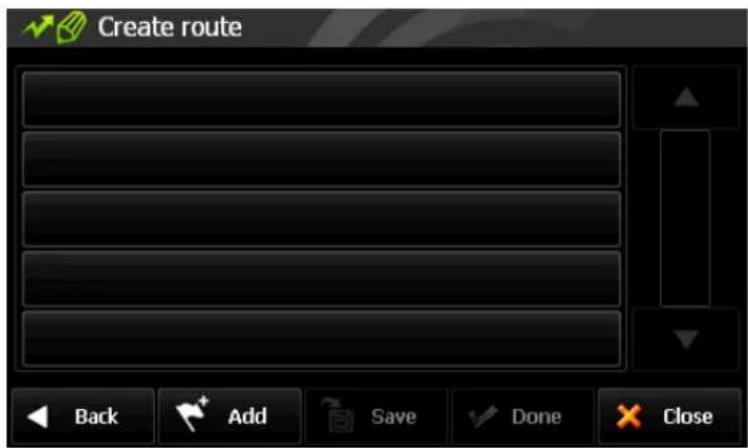
This function is available if no route has been set.
text_image
Create route Back Add Save Done Close- Add a Location to your route
Press Add button to add a location to your route. For short routes, you may add up to 20 Via Points. The number of Via Points may be less for longer routes.
• Position the location within the route
The first location you set automatically becomes the destination. You may add another location to this route by pressing the Add button. Additional locations added become either Departure Points, Via Points or Destination Points depending on their respective position within the route list. You may rearrange your route simply by selecting the location and choosing to move up, down in the list.
- Save Route
Press Save button to save your route. This route may be accessed at a later stage via the Itinerary menu.
Where to > Itinerary
- Calculate Route
When finished, press Done button to calculate the route.
Edit Route
This function is available if a route already exists.

text_image
Edit route 753 Broadway, New York, NY 10003 173 Lafayette St, New York, NY 10013 437 W 21st St, New York, NY 10011 71 Washington Sq S, New York, NY 10012 Back Add Save Done Close- Add a Location to your route
Press Add button to add another location to your route.
- Position the location within the route
The first location you set automatically becomes your destination. You may add another location to this route by pressing the ADD button. Additional locations added become either Departure Points, Via Points or
Destination Points depending on their respective position within the route list. You may rearrange your route simply by selecting the location and choosing to move the location up or down on the list.
• Find POI nearby any location
Simply select the location and choose 'Find Nearby POI'. After selecting the POI, it will be added to your route.
- Save Route
Press Save button to save your route. This route may be accessed at a later stage via the Itinerary menu: [Where to] > [Itinerary]
- Calculate Route
When finished modifying the route, press the Done button to calculate the route.
Finding your destination
Detour
This function is for editing your route. After editing your route preferences, the navigation system will automatically recalculate for a new route.

text_image
Detour Avoid Part of Route Avoid Roadblock Travel via Recalculate original Back Close
text_image
Avoid Roadblock 100ft 300ft 500ft 1mi 2mi 3mi Back Close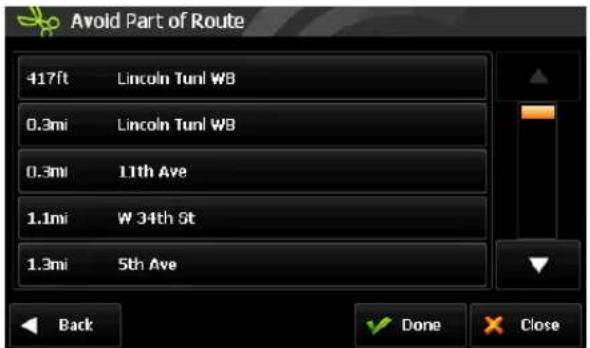
text_image
Avoid Part of Route 417ft Lincoln Tunl W8 0.3mi Lincoln Tunl W8 0.3mi 11th Ave 1.1mi W 34th St 1.3mi 5th Ave Back Done Close
text_image
Where to? 1 of 2 Go Home Favorites Emergency Recent Destination Itinerary Address Intersections Back CloseYou can change your route via four functions as follows:
- Avoid part of route
Make a detour to avoid some part of the existing route.
- Avoid roadblock
Make a detour to avoid a roadblock. You can set 100ft, 300ft, 500ft, 1mi, 2mi, or 3mi as a length of the roadblock. For example, if you are stuck in traffic because of a construction site or a car accident ahead of you, you can apply the relevant distance to roadblock, and the navigation system will make a detour to avoid that roadblock.
Finding your destination
- Travel Via
Add a Via Point to your route.
This will take you to the normal [Where to] screen. Choose from any of the available methods to find a location and add to your route.
• Recalculate Original
This button allows you to recalculate the original route by removing any detours or other changes that may have been set.
Route summary page
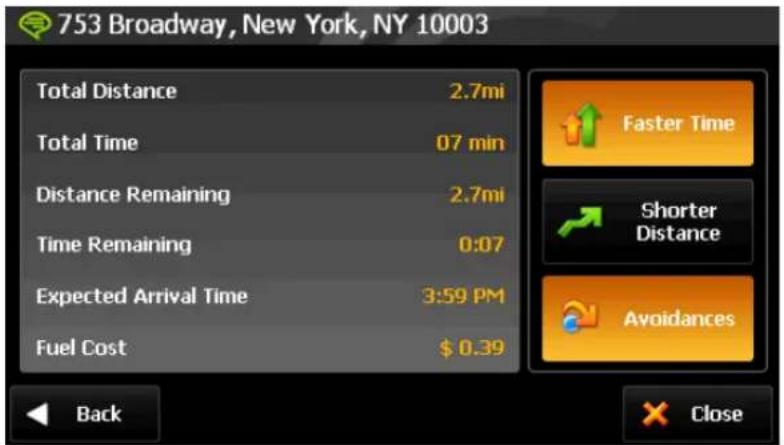
If your selection on [Route Decision] page created a route and [Settings]-[Routing Options]-[Show 'Route Summary' page automatically] option in settings is enabled, the [Route Summary] page will appear. On this page, you can check route information such as total distance, time, etc. It is also possible to reroute via three options as follows.
text_image
753 Broadway, New York, NY 10003 Total Distance 2.7mi Total Time 07 min Distance Remaining 2.7mi Time Remaining 0:07 Expected Arrival Time 3:59 PM Fuel Cost $ 0.39 Back Faster Time Shorter Distance Avoidances X Close- Faster Time
Reroute for faster arrival time.
- Shorter Distance
Reroute for shorter distance.
- Avoidances
Reroute with road avoidance options such as U-Turns, toll roads, carpool lanes and more.
Fuel prices and fuel consumption for your vehicle may be adjusted by going to
[Menu] > [Settings] > [Fuel Cost]
Traffic information using HD Radio Technology
HD TMC: Real-time Traffic Information
Your device is equipped to receive High-Definition real-time traffic information. Traffic service is available only in certain areas. The device must be within the data range of a radio station transmitting traffic data in order to receive traffic information.
Cydle is not responsible for the accuracy of the traffic information. Using a special radio receiver, the device simply receives traffic data from a traffic service provider and displays this information on your product. Pay attention to changes in traffic conditions or incidents which may not be reported by this service.
Traffic Service Status
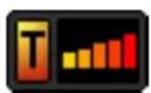
On the main map, the radio reception indicator will describe the status of traffic service status.

- Grey 'T' and no signal bars
This means that you are not in within the range of a radio station broadcasting traffic information, or, the traffic system is still searching for a radio station.

- Grey 'T' and strong signal
The system is tuned to a radio station that broadcasts traffic information, but no traffic information has been received yet.
• Orange 'T' and strong signal
The system is tuned to a radio station that broadcasts traffic information and traffic information has been received for your area. A blinking letter 'T' indicates that a new traffic information is being received.
Due to a large volume of traffic information broadcasting, the system only considers traffic information within 50km radius of your vehicle's location.
Traffic information using HD Radio Technology
Traffic Menu
Traffic Menu allows you to access all the pages that are related to traffic information. It can be accessed by pressing the Traffic button on the Main Menu, or by pressing the radio reception indicator on the main map.


text_image
Traffic Traffic Map Traffic Message List Traffic Settings Traffic Station Back CloseThe
Traffic On Route

Access Traffic Map: A green/white triangle is shown whenever a valid HD TMC station is available. Pressing this button will take you to the traffic map.

Traffic on Route: If a traffic event occurs on your route, a red/yellow triangular traffic symbol will appear on the main map. The number of events on your route will be displayed at the center of the symbol. In addition, a chime will sound for every new event received that affects your route.
In the example above, three (3) incidents have been reported for your route.
To get more details on these traffic incidents or to avoid these events, simply tap the traffic symbol to see the traffic map.
Traffic information using HD Radio Technology
Traffic Map
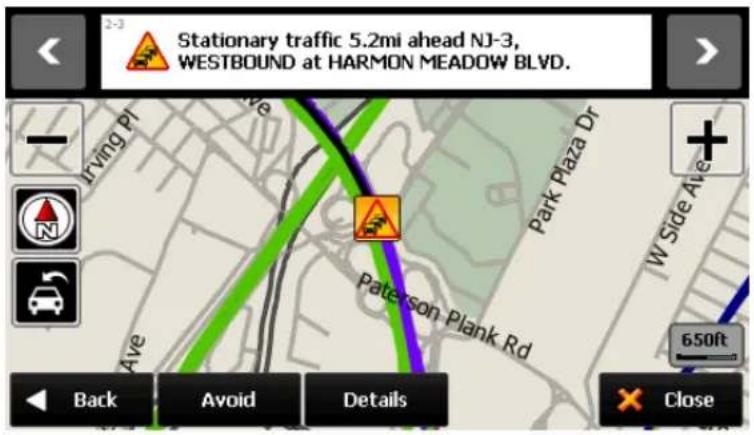
The traffic map will present summarized information in regards to the traffic incident(s) affecting your route. The traffic symbol indicates the type of traffic event.
text_image
2-3 Stationary traffic 5.2mi ahead NJ-3, WESTBOUND at HARMON MEADOW BLVD. Driving PI Park Plaza Dr + N Pate-son Plank Rd 650ft Back Avoid Details Close- Next / Previous
Scroll down the list to see the multiple events on your route.
- Avoid
Press Avoid to reroute away from the traffic incident.
- Details
Press Details to go into a detailed page on the traffic incident.
- Close
Press close to exit this traffic map and return to Main Map.
Traffic Flow
The traffic map contains traffic flow information. Line colors green, yellow, red and black represent the speed at which the traffic is moving.
| Line Colour | Meaning | Speed Range |
| Free flow | 41-55 MPH (65-88 km/hr) | |
| Slow | 23-40 MPH (36-64 km/hr) | |
| Heavy | 11-22 MPH (17-35 km/hr) | |
| Stopped | 0-10 MPH (0-16 km/h) |
Slow and heavy congestion will appear on the Traffic List (On Route and All Messages).
Free flow messages are not included within the Traffic List.
Colored line is placed on the left side of the traffic symbol. Refer to
Traffic information using HD Radio Technology
Traffic Details
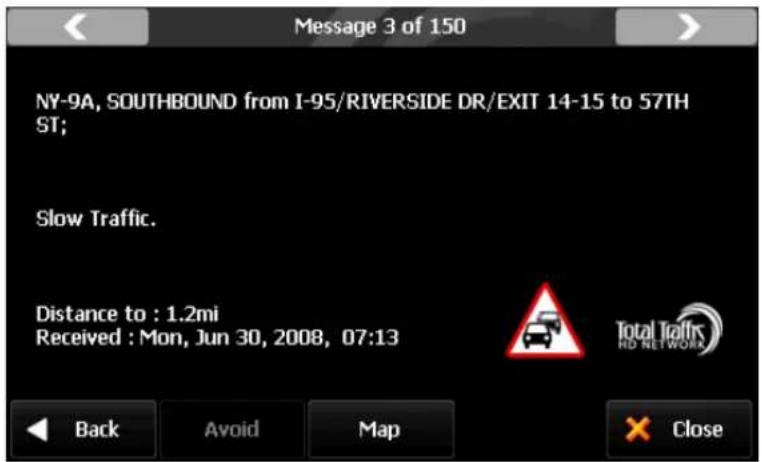
At times, you may need to get more information on a specific traffic event. You may press 'Details' on the traffic map or on the list page for the access.
text_image
Message 3 of 150 NY-9A, SOUTHBOUND from I-95/RIVERSIDE DR/EXIT 14-15 to 57TH ST; Slow Traffic. Distance to : 1.2mi Received : Mon, Jun 30, 2008, 07:13 Back Avoid Map × CloseTraffic List
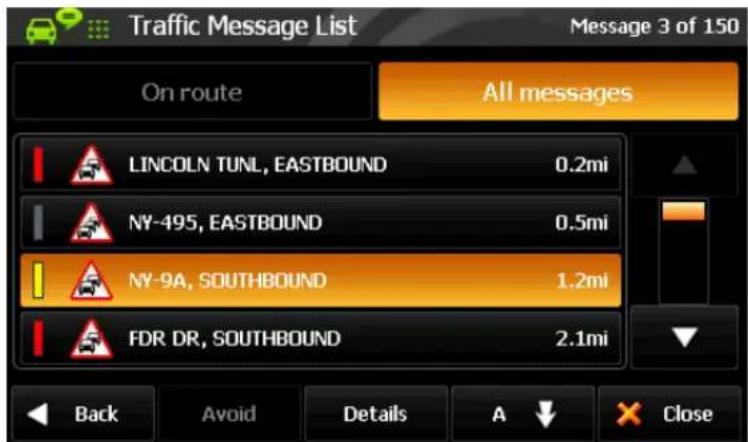
Traffic messages are organized into two groups:
- On Route: Traffic events on your calculated route. You may only avoid 'On Route' traffic events.
- All Messages: Traffic events that are within 50km of your vehicle's position. This includes events on your route. The Avoid option is not available for Off Route events.
text_image
Traffic Message List Message 3 of 150 On route All messages LINCOLN TUNL, EASTBOUND 0.2mi NY-495, EASTBOUND 0.5mi NY-9A, SOUTHBOUND 1.2mi FDR DR, SOUTHBOUND 2.1mi Back Avoid Details A CloseEvents can be organized by 'Distance To' or 'Road Name'. The 'Distance' value for On Route events is the road distance to the event. The 'Distance' value for the events not on your route (i.e. All Messages) is a direct-line distance, also known as "as the crow flies".
Traffic information using HD Radio Technology
Traffic Classes
Traffic messages are organized into classes, and each class has a name and a symbol. The following symbols will appear next to each event on List, Details and Map.
| Class | On Route | Off Route | Avoided |
| Danger |  |  |  |
| Poor visibility |  |  |  |
| Slippery roads |  |  |  |
| Heavy winds |  |  |  |
| Severe weather |  |  |  |
| Accident |  |  |  |
| Road closed |  |  |  |
| Stationary traffic |  |  |  |
| Queuing traffic |  |  |  |
| Delays |  |  |  |
| Restrictions |  |  |  |
| Road construction |  |  |  |
| Information |


The traffic classes are color-coded to indicate their status:
- On Route: These 'Red & Yellow' icons appear for 'On Route' events only. These messages are listed on the 'On Route' list.
- Off route: These 'Red & White' icons indicate events not on your route. These messages are listed on the 'All Messages' list.
- Avoided: This symbol will appear to indicate if the event has been avoided. When selected, avoided events may be cancelled and will not be excluded from the route.
Traffic information using HD Radio Technology
Traffic Settings
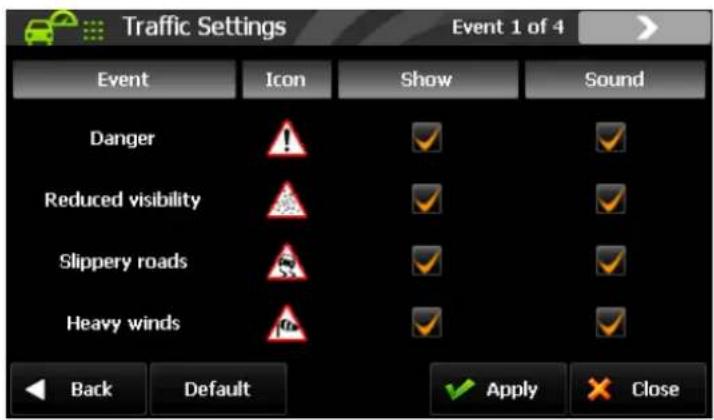
Traffic information may be turned on/off for certain traffic classes. The following options are available:
• Show: Show certain traffic classes on the map/list etc.
- Sound: Audible alert when a certain traffic class appears on the route.
text_image
Traffic Settings Event 1 of 4 Event Icon Show Sound Danger Reduced visibility Slippery roads Heavy winds Back Default ✓ Apply ✗ Close ✓ Apply ✓If you uncheck
Traffic Station
Traffic Station page displays the station in which the traffic system is currently tuned to and allows you to select the station frequency.
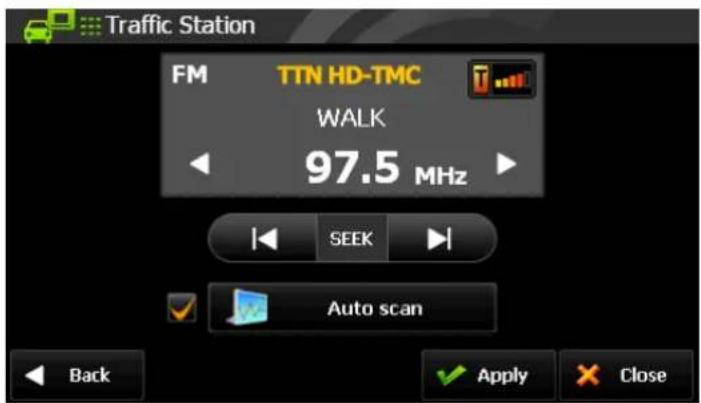
text_image
Traffic Station FM TTN HD-TMC WALK 97.5 MHz SEEK Auto scan Back Apply CloseThere are three methods to manage the station:
- Tune: If you know the station frequency you wish to tune to, then use the arrow buttons located on the left and right of the station number to manually set the station frequency.
- Seek: The seek function may be used to manually seek the next available HD radio traffic station.
• Auto Scanning: This function automatically scans and identifies the strongest HD radio traffic station.
After checking 'Auto Scan' and tapping 'Apply', the display will turn to the Main map. After a few seconds, the unit will begin searching for a valid HD TMC station.
If 'Auto Scan' is off and you tap on 'Apply', the display will turn to the Main map. The unit will now search for the specific station that is displayed on the
Please note that while in
Customizing Cydle XE
Settings
In this page, you can customize settings for the Navigation system.

text_image
Settings 1 of 3 Color Mode Map View Set Brightness Map Colors Auto Zoom Home Label on Map Back CloseDescriptions for each option are as follows:
- [Color Mode] Set the color mode of map as 'Day time', 'Night time', or 'Auto mode'. Auto mode will allow the navigation system to automatically choose day or night mode based on time.
- [Map View] Change the view mode of map as 'Track up', 'North up', or '3D View' mode.
- [Set Brightness] Adjust map brightness of day/night.
- [Map Colors] Change map color.
- [Auto Zoom] Set automatic zoom at intersection or on speed.
- [Home] Register or change your home location.
Customizing Cydle XE
- [Label on Map] Turn on/off label displays on the map.
- [Voice/Text Language] Change voice/text language of the navigation system.
- [Routing Options] Change routing options.
- [Units] Change distance units (miles or meters)
- [Set Clock] Set your time and apply options such as 'Daylight saving' and 'Sync. with GPS time'.
- [Time Zone] Select the time zone.
- [Speed Limit] Turn on/off the speed warning. Set a tolerance level for receiving a warning alert; for instance, set tolerance level as 2mph to receive a warning when you exceed the speed limit by 2mph.
- [Fuel Cost] Adjust fuel prices and consumption.
- [Volume] Turn up/down the volume and link the volume to car speed
- [Keyboard] Change keyboard option
- [About] Shows product name and version.
- [Restore Settings] Restore all settings to factory defaults.
Customizing Cydle XE
Color Mode
Change the color mode of map as 'Daytime', 'Night time', or 'Auto' mode.
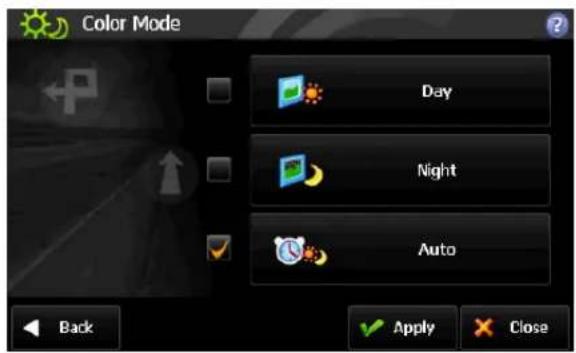
text_image
Color Mode Day Night Auto Back Apply Close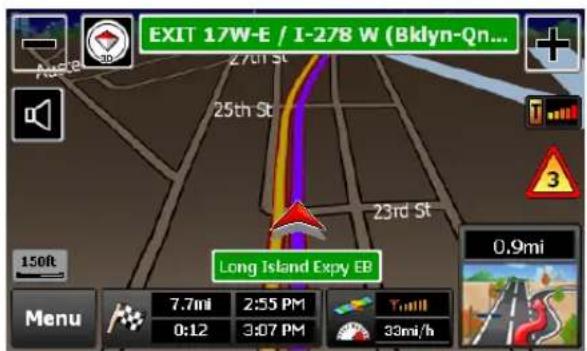
text_image
EXIT 17W-E / I-278 W (Bklyn-Qn... 27th St 25th St 23rd St Long Island Expy EB 150ft Menu 7.7mi 2:55 PM 0:12 3:07 PM 33mi/h 0.9mi• Daytime: Daytime color mode.
• Night time: Night time color mode. (Refer to the image on the right.)
• Auto: Automatically change the map color by time.
Map View
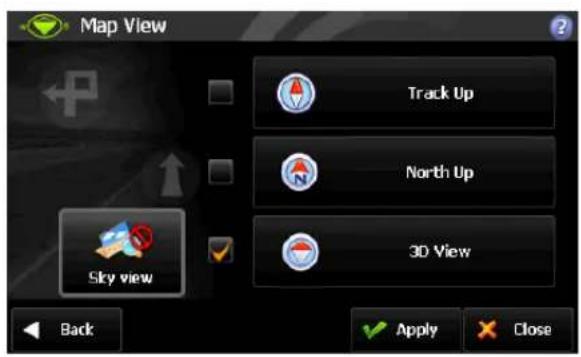
text_image
Map View Track Up North Up 3D View Sky view Back Apply Close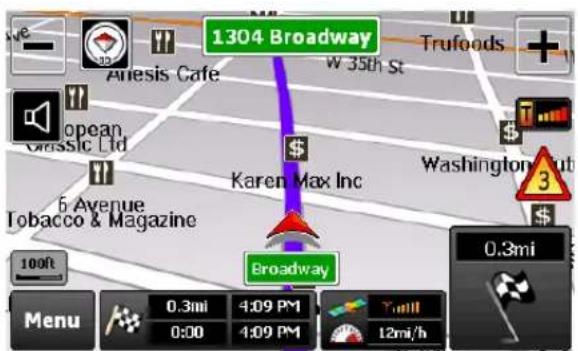
text_image
1304 Broadway Karen Max Inc Washington 3 100ft 12mi/h 100ft 0.3mi 4:09 PM 0:00 4:09 PM 0.3mi Menu Tuni- Track up: The direction of car is always towards the upside of the map screen.
- North up: The map screen is fixed to north direction up.
• 3D View: 3-dimensional 'Track up Mode'.
(Refer to the right side image)
- Sky View: Sky line image above the horizon can be turned on or off.
(3D View only)
Customizing Cydle XE
Set Brightness
By touching the map images, adjust day or night brightness of the map screen according to your preference. Then tap 'Done' button.

text_image
Set Brightness Day 60% Night 100% Back Apply Close- Day: Adjust day brightness of map screen.
• Night: Adjust night brightness of map screen.
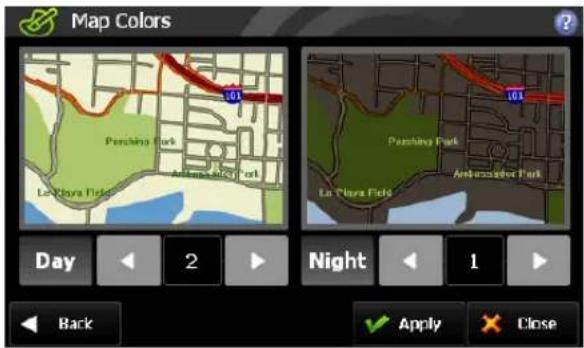
Map Colors
By touching the map images, change day or night color of map screen according to your preference. Then tap 'Done' button.
text_image
Map Colors Day 2 Night 1 Back Apply Close• Day Color: Select the day color of map screen.
- Night Color: Select the night color of map screen. A darker map color is used to reduce glare and eye strain while driving.
Auto Zoom
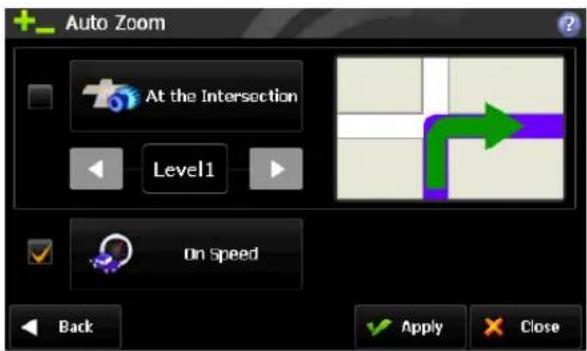
You can turn on/off automatic zooming "At The Intersection" and "On Speed" options.
text_image
Auto Zoom At the Intersection Level1 On Speed Back Apply Close• At the Intersection:
Automatically zoom in/out to a certain map scale level at the next maneuver intersection.
- On Speed:
Automatically adjust map scale level according to the speed of car.
(Speed up->Zoom out, Speed down->Zoom in)
Customizing Cydle XE
- Map scale level will be applied according to the speed of car
- 24.8mile (40km/h) or less: 100ft
- 24.8\~34.8mile (40\~56km/h): 150ft
- 34.8\~44.7mile (56\~72km/h): 200ft
- 44.7\~79.5mile (72\~128km/h): 300ft
- 79.5mil (128km/h) or exceed: 450ft
Home
Register or change your home location. Your "home location" can be any of your favorite destinations, but you may only save one address as home.
Label on Map
Show/hide some label options on the map screen.

text_image
Label Options Street Name Favorites Symbol & Name POI Symbol & Name Back ApplySelect options you wish to display on the map screen and then tap the 'Done' button when ready.
Street Name
POI Symbol & Name
This function will allow you to hide or display POIs based on category type.
You may choose to display only your favorite POI types.
Favorites Symbol & Name
Symbols and names of registered places on 'Favorites'.
Customizing Cydle XE
Voice / Text Language
Change voice / text language option.

text_image
Voice/Text Language Voice English US - Emma Text English US - Michael English US - Emma Espanol American - Miguel Back Apply Close
text_image
Voice/Text Language Voice Español Text English US Español Français Back Apply Close- Voice Language: Gogo offers several languages to choose from. Each language has a male/female voice. If you want to hear the sample voice of the selected one, tap 🤊 To apply the selected voice language, and then tap 'Done' button.
- Text Language: Choose text languages for user interface.
Routing Options
Set routing options.

text_image
Routing Options Faster Time Shorter Distance Avoidances Show 'Route Summery' page automatically Back Apply Close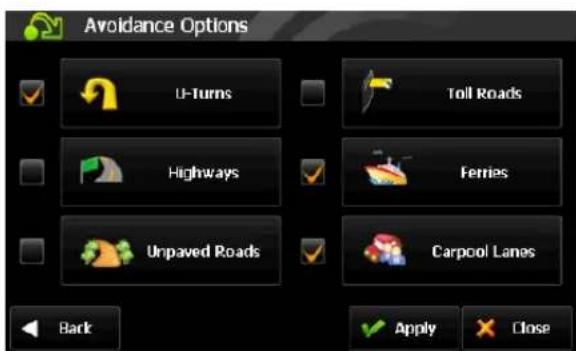
text_image
Avoidance Options U-Turns Toll Roads Highways Ferries Unpaved Roads Carpool Lanes Back Apply Close- To route for faster traveling time, select 'Faster Time' option. To route for shorter distance, select 'Shorter Distance' option. To route with certain avoidance options, go to 'Avoidance Options' page by selecting 'Avoidances'. Choose avoidance options that you wish to avoid, and then tap the 'Done' button.
• Show 'Route Summary' Page automatically: If this option is checked, the 'Route Summary' page will be shown whenever the route planning is complete. Otherwise, it will start the guidance immediately.
Customizing Cydle XE
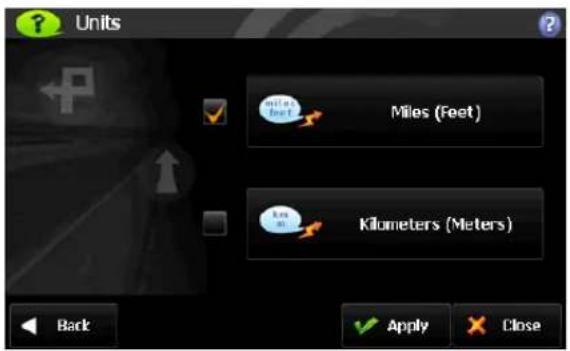
Units
Set distance units.
text_image
Units Miles (Feet) Kilometers (Meters) Back Apply CloseYou may choose one of following two options.
- Miles/Feet
- Kilometers/Meters
Set Clock
Set time manually.

text_image
Set Clock 04 : 0 9 PM Daylight Saving Sync with GPS Back Apply Close- Sync with GPS: Synchronize the time on your device with GPS time.
- Daylight Saving: Apply daylight saving time.
Time Zone
Set time zone.

text_image
Time Zone US - Eastern US - Hawaii US - Mountain US - Pacific Boise Back Apply Close- Select from one of 30 different time zones. The default time zone is US-Pacific.
Customizing Cydle XE
Speed Limit
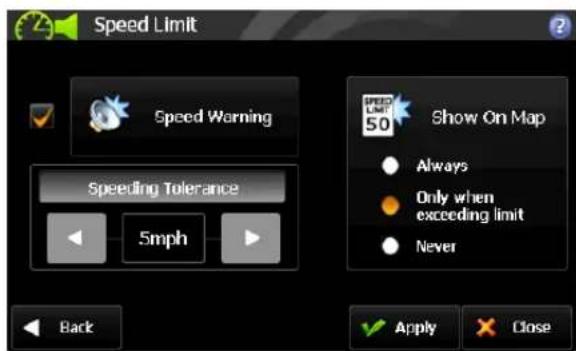
Control how speed limit signs and warnings are given.
text_image
Speed Limit Speed Warning Speeding Tolerance 5mph Back Show On Map Always Only when exceeding limit Never Apply CloseThe map data contains speed limit information for some, but not for all roads. This information exists generally for highways and other major roads. For your convenience, the speed limit unit; i.e. miles or kilometers, matches the system's unit settings.
Speed warning: An acoustic warning is given when the speed limit is exceeded.
Speeding tolerance: The acoustic speed warning may be adjusted by using the Speeding Tolerance. For instance, on a 60mph road, if the Speeding Tolerance is set at 3mph, the driver is alerted if the vehicle exceeds 63mph.
Show on Map: Choose how to display the Speed Limit Sign on the main map:
• Always: Speed Limit Sign will be displayed on the map where available
- Only when exceeding limit: Displayed only when exceeding the speed limit. This control is independent on the Speeding Tolerance.
- Never: Speed Limit Sign is never displayed on the main map
The Speed Limit Sign displays miles or kilometers according to the system's unit settings. This may be changed by going to [Menu] > [Settings] > [Units].
Customizing Cydle XE
Fuel
Set current fuel price, and adjust consumption estimates according to the vehicle.
Your journey's fuel cost estimate will appear on the 'Route Summary' page. You can access this screen via [Menu] > [My Route] > [Route Summary].

text_image
Fuel Cost Fuel Price $ 0 4 0 0 per gallon (US) Consumption City 2 8 0 0 miles per gallon (US) Highway 3 7 0 0 Back Apply Close- Fuel Price
Fuel prices fluctuate throughout the year. This setting allows you to adjust the fuel prices according to the current prices.
Currency options include Dollar (\$), Euro (€), British Pound (£), Swiss Franc (F), and Danish Krone (kr).
Pricing for fuel volumes can be set either as 'per gallon (US)' or 'per liter'.
- Consumption
The consumption section allows you to set your vehicle's fuel consumption. This fuel consumption information will be used for the cost estimate during your trip.
Most modern vehicles include a fuel economy label which describes the vehicle's fuel economy ratings. Alternatively, to find out your vehicle's fuel consumption, please see the 'Fuel Economy Guide' at www.fueleconomy.gov. This guide is published by the U.S. Environmental Protection Agency (EPA) and U.S. Department of Energy (DOE). It contains an extensive listing of most vehicle makes and models.
Vehicle consumption is typically expressed as two fuel economy estimates:
- City: represents urban driving and driving in stop and-go rush hour traffic. City driving typically consumes more fuel than highway driving.
• Highway: represents driving on a mixture of rural and interstate highway driving, typical of longer trips in free-flowing traffic.
- Note
Please be aware that the actual fuel cost may vary according to other factors which affect the fuel consumption. Such factors may include driver behavior, driving conditions, vehicle maintenance, fuel characteristics, and weather. The cost estimate is an estimate of fuel costs only. Other costs such as toll charges are not included in the calculation.
Customizing Cydle XE
Volume
Set volume to control sound and voice guidance. Pressing the minus — or plus + button will sound a chime to indicate the volume level.

text_image
Volume 65% Link volume to car speed Back Apply Close- Link volume to car speed:
increases or decreases the volume to compensate for the road noise; for instance, the volume will automatically be louder when you drive faster, and conversely, it will return to normal volume level for moderate driving speed.
Keyboard
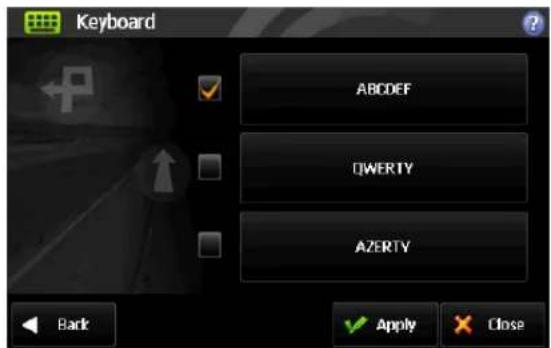
Set Keyboard option
text_image
Keyboard ABDEF DWERTY AZERTY Back Apply CloseYou can select your keyboard layout preference here. This will change the keyboard layout for address and POI searches among others.
- ABCD
- QWERTY
- AZERTY
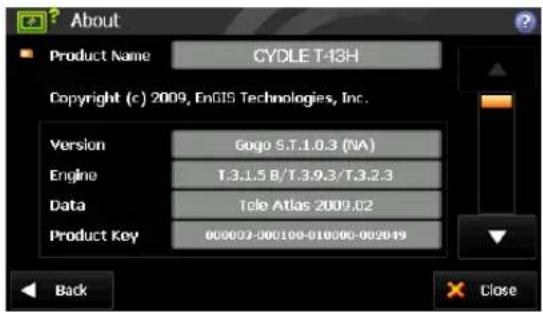
About
Illustrates the product name, version, data source and other licensing information.
text_image
About Product Name CYDLE T-13H Copyright (c) 2009, EnGIS Technologies, Inc. Version Gogo S.T.1.0.3 (NA) Engine T.3.1.5 B/T.3.9.3/T.3.2.3 Data Tele Atlas 2009.02 Product Key 000002-000100-010000-002019 Back Close• Product Key identifies your product. You will need this key when contacting customer service.
Customizing Cydle XE
Restore Settings
Restore all settings to factory defaults.
Note
Please use caution when choosing this option, for any adjustments you have made to settings will be lost!
Checking the GPS status
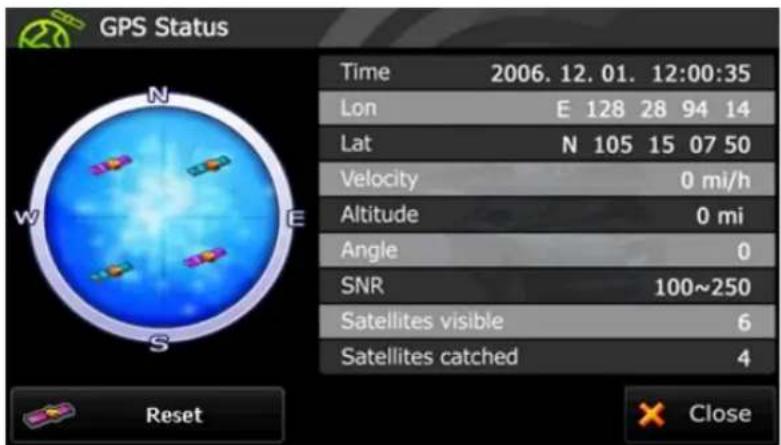
text_image
GPS Status Time 2006. 12. 01. 12:00:35 Lon E 128 28 94 14 Lat N 105 15 07 50 Velocity 0 mi/h Altitude 0 mi Angle 0 SNR 100~250 Satellites visible 6 Satellites caught 4 Reset Close• Blue satellite: GPS fix is established.
- Pink satellite: GPS fix is unavailable.
Pressing the
It may take up to one minute to reacquire the GPS signal
It may take some time to receive GPS signals. Please refer to page 39
Note
GPS satellites in space are programmed to follow exact orbit patterns each day. Orbit patterns are published each night at midnight by the US government to the satellites.
Each day your GPS device must download the new orbit pattern first, to know where to look in the sky for satellites for the rest of the day.
First time you use the device for the day is the longest time it takes to get the GPS signal.
This time can be shortened by standing still (not moving or driving around), ideally under an open sky.
Obtaining this first signal could take as much as 1-15 minutes depending on your environment. However, after the first time, it will only take about 1-5 seconds to re-acquire the GPS signal again on that day, when you turn on your device.
Precautions for receiving GPS signal
To prevent disturbance in GPS signal reception, please make sure that you are in outdoors and the GPS antenna has a good visibility of the open sky.
- In order to have clean satellite data reception, make sure the GPS antenna is horizontal to the sky.
- If you are in downtown area where buildings are densely crowded, it may cause disturbance in the GPS signal reception. It's not possible to receive GPS signals in a tunnel, an underground parking lot, or an enclosed space.
- Do not place any objects near GPS antenna that can cause disturbance in GPS signal reception.
- Certain specially coated windshields, such as a heat-reflecting windshields, may block the GPS signal reception inside the vehicle.
- Do not install electronic equipments such as a radio wave transmitter that strongly emits electromagnetic waves near the GPS antenna.
• GPS signal reception rate may be low due to weather and atmospheric conditions.

Music Player
To listen to music, Click on the icon for music on the menu screen. *Please use the SD card to store audio files, video files and photos. Cydle GPS can read up to 16 GB SDHC card.
Music Playback
NOTE:
Only select music and media when you are stationary. It is dangerous to select songs and make adjustments while driving.
Not all audio files contain song information such as artist, title or genre. If the file contains no information, the file name will be used as the song title.
Browsing your play list
- Tap Music player on the Main menu.
- Insert SD card that contains audio files.
- Your unit can automatically search music files in SD card. You can browse music files in the SD card directly if desired.

text_image
and i miss you.mp3 01:28 04:09 Random Normal Mode Album The D.E.Y Has Come Artist :The D.E.Y. Title :And I Miss You Genre:Rap/Hip Hop Year :20080929 SD \storage card\music\stea and i miss you.mp3 be with you.mp3 birthmark.mp3 camera phone (feat. ne- closer.mp3 glory.mp3 kanye west-heartless.mp3 Vol VolFile list up & down
- As soon as you choose a song or audio file, your unit will start playing.
Button operation
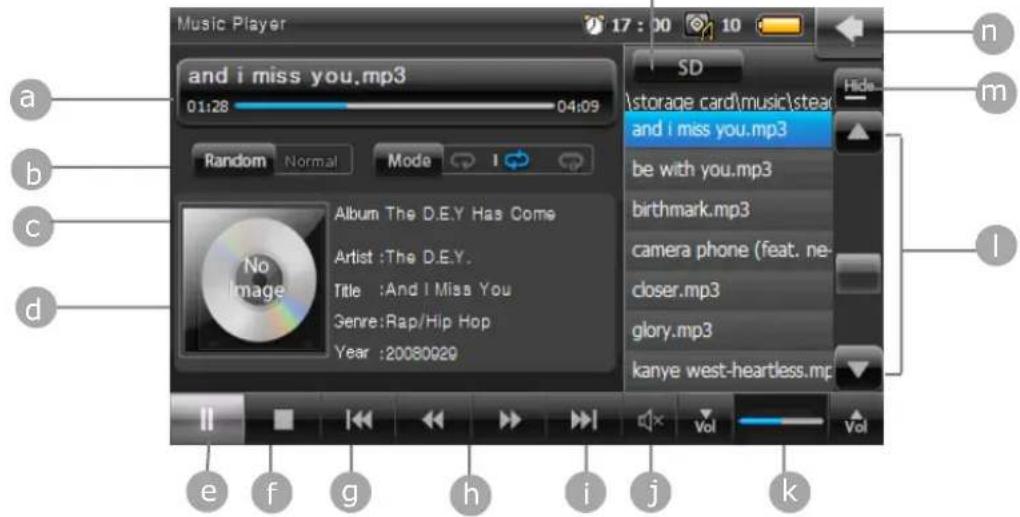
Your unit contains multiple buttons on the Music Player display that allows you to listen to the songs in your playlist on demand.
Music Display
text_image
Music Player 17:00 10 and i miss you.mp3 01:28 04:09 Random Normal Mode Album The D.E.Y Has Come Artist :The D.E.Y. Title :And I Miss You Genre:Rap/Hip Hop Year :20080920 SD \storage card\music\stea and i miss you.mp3 be with you.mp3 birthmark.mp3 camera phone (feat. ne- closer.mp3 glory.mp3 kanye west-heartless.mp3 e f g h i j k n m lTitle of song and playhead
b Shuffle songs- the next song is selected randomly
C Click to change play mode
d Song information
e Play/Pause
f Stop
9 i Play previous/next file in playlist
h Fast Reverse/Fast Forward
j Mute/Un-mute
k Volume down/up
Scroll down/up the play list

Minimize the Music player; Music player keeps playing while allowing you to go back to the Main menu

Back to the Main menu

Select the storage card
You can set to repeat the song in various play modes with the following:

Stop after playing all the songs in the playlist once

Replay all the music in the playlist

Replay current song continuously

Movie Player
With T43H you can watch video contents. Click the icon for the Movie Player on the menu screen. The video plays in Wide Screen Mode to take full advantage of the display.
Movie playback
NOTE:
Only select music and media when you are stationary. It is dangerous to select movies and make adjustments while you are driving.
*Please use the SD card to store audio files, video files and photos. Cydle GPS can recognize up to 16 GB SDHC card.
Browsing movie files
- Tap Movie player on the Main Menu and insert SD card that contains movie files
- Tap File selection button at the bottom of the Movie Player display to browse movies in your SD card.
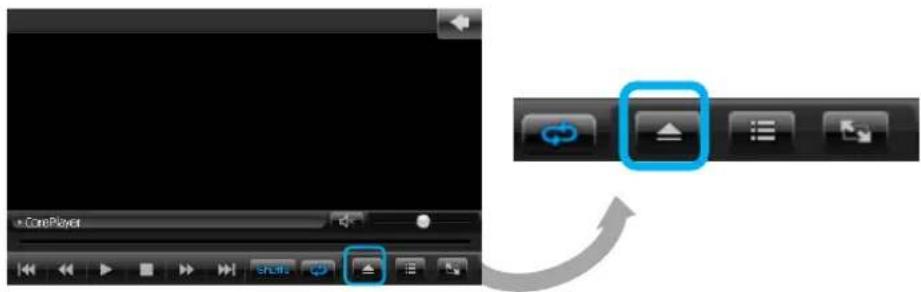
text_image
- In the file selection, click the red bar in the screen as seen below, and you will get to the "Storage card" folder which indicates "SD card".

text_image
Cyclie File Selection \My Documents Click here to browse SD card storage All None OKMovie
- Select a movie by tapping the Upward and Downward button and tap OK to start playing.

text_image
Cyclie MULTIMEDIA PLAYER File Selection \Storage Card\Movie GarField (10).wmv GarField (2).wmv GarField (3).wmv GarField (4).wmv GarField (5).wmv GarField (6).wmv GarField (7).wmv GarField (8).wmv All None OK- As soon as you choose the movie file, your unit will start to play.
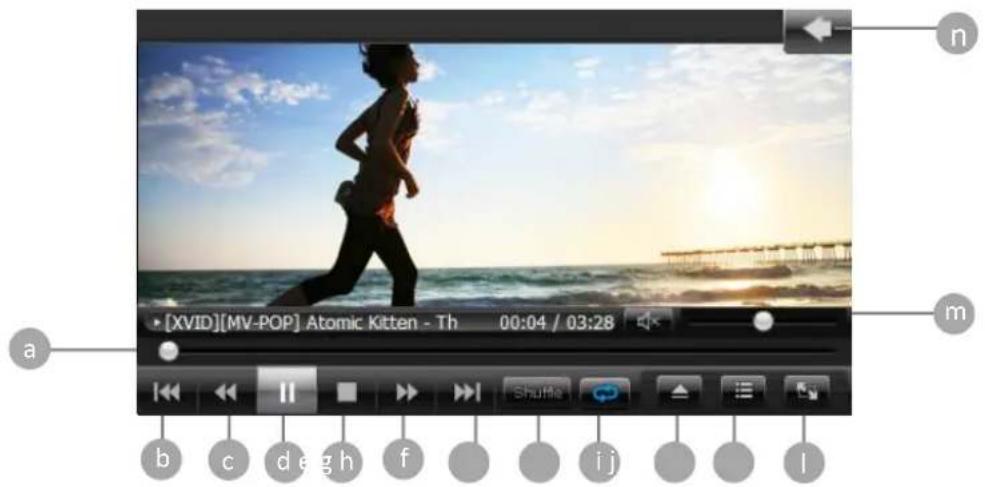
Button operation
Movie Display
text_image
[XVID][MV-POP] Atomic Kitten - Th 00:04 / 03:28 a b c d e g h f i j l m n
Playhead

Play the previous file in playlist

Fast Reverse

Play/Pause movie play
e Stop Movie play
f Fast Forward
g Play the next file in playlist
h Shuffle play
i Select Repeat mode
Open file
Open Library
To see movie with wide screen display
m Volume control
n Back to the main menu
Picture Viewer
To Look at photo files, click the icon Picture Viewer on the menu screen. With T43H you can carry your photos in SD card. *Please us SD card to store the audio files, video files and photos. Cydle GPS can recognize up to 16 GB SDHC card.
Looking at Photos
- Tap Picture Viewer in the Main Menu.
- Your unit will automatically search the file that can be viewed in its memory. The Picture Viewer starts, showing the Picture files listed in the storage.
Button operation
Photo viewer Display

text_image
Display Picture Viewer 11:34 10 SD \storage card\photo bamboo.bmp baseball.bmp bellows.bmp bigrock.bmp bluelake.bmp colorsofparis.bmp durdledoorstones.bmp a b e g h 2 seca Show previous picture
b Show next picture
Zoom In
Zoom Out
Rotate picture 90 degrees
f Set time for Slide Show mode (1sec, 3secs, 5secs and toggle)
g Start Slide View
Full Screen View
i Scroll down/up the playlist
Back to Main Menu
Select storage card
Looking at Photos in full screen mode
Full Screen View is available when you click middle of the image in the screen.

button or gently tap the
1

natural_image
Autumn landscape with colorful trees reflected in a calm water body under a blue sky (no text or symbols)
natural_image
Autumn landscape with colorful trees reflected in calm water under a blue sky with scattered clouds (no text or symbols)
natural_image
Scenic landscape with cloudy sky, reflected in calm water, and distant trees (no text or symbols)4
2
3
5
In Full Screen View, you can operate the Picture Viewer with the following information:
The screen is divided into five different parts.
When you click each part of the screen, the Picture Viewer will respond as it is designed.
- Zoom in
- Zoom out
- Quit full screen mode
- <<Pre : Go to the previous picture
- Next>>: Go to the next picture
Calculator
text_image
Digital calculator interface with green keypad and numeric keypadCalculator and Calendar are available when you click Utility in the Main Menu.
You can check today's date and use the fully functional calculator.
Using Calculator
- Tap Utility on the Main Menu.
- Tap on the Calculator to open this application.
- You can use the basic functions of the Calculator such as add, subtract, multiply and divide just as you would with any other calculators.
Calculator Display

text_image
Calculator 16:42 10 0MMR Numeric Memory Recall (display)
MC numeric Memory Clear
MS numeric Memory Save
M+ Add numeric to numeric memory

Delete the recently input number
c Current calculative numeric clear
CE Display numeric clear
1/X Division-Divide numeric input by "x"
SQRT Square root
= Enter
% Apply percentage


Calendar and Stopwatch are available when you click Utility on the Main Menu.
You can check today's date and use the fully functional stopwatch.
Using Calendar
- Tap Utility in the Main Menu.
- Tap on the Calendar
- Calendar lets you view today's date in a continuous manner, by day or month.
Calendar Display

text_image
Calendar 5. 4, 2009 1 2 4 5 6 7 8 9 11 12 13 14 15 16 18 19 20 21 22 23 25 26 27 28 29 30You can manually set the date (year, month, day) with several buttons on your unit.
Setting Year
Tap

or

to go to the previous or next year
Setting Month
Tap

or

to go to the previous or next month
Using Stopwatch
Stopwatch Display
text_image
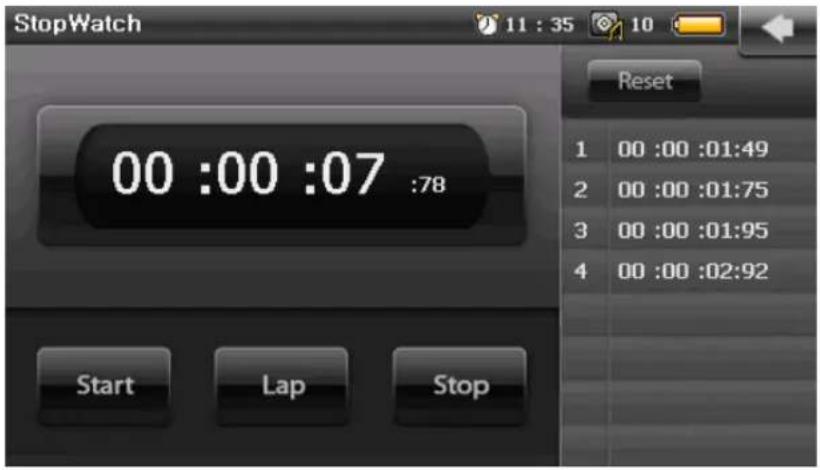
StopWatch 11:35 10 Reset 00:00:07:78 1 00:00:01:49 2 00:00:01:75 3 00:00:01:95 4 00:00:02:92 Start Lap StopYou can use this stopwatch timer with lap function for any event to calculate time. Easy-to-use four operational buttons enhance your experience with the useful and convenient functions of your Cydle T43H.
Start: Start the stopwatch and run timer
Lap : Capture the cumulative and interval split time and displays the running time.
Stop: Stop the stopwatch
Reset: Reset the lap time to zero and begin timing the new laps
HD Radio Technology

natural_image
Illustration of a portable radio with a speaker grille and antenna (no text or symbols)HD Radio Technology
To listen to the HD Radio stations, click on the HD Radio icon on the menu screen.
Your unit will help you listen to high quality FM channels via multicasting.
About HD Radio Technology
About HD Radio Technology
HD Radio Technology allows CD-quality digital broadcasting of your local FM radio stations.
HD Radio broadcasts can include multiple channels within the same frequency, so called multicasting. With multicasting, you can receive up to eight additional multicast channels: HD1\~HD8. With your unit you will receive HD Radio digital broadcasts automatically when tuned to a station that offers HD Radio Technology.
Listening to the HD Radio Broadcasting
CAUTION :
It is dangerous to adjust your HD Radio receiver and other applications while you are driving. Only select HD Radio features and applications in your unit when you are stationary.
To start the HD Radio reception, Tap on the HD Radio icon on the Main menu screen.
If you have a station that you have listened to before, your unit will play it automatically and the HD icon 📄 will be displayed at the top of the screen.
Your T43H will display the HD Radio icon to let you know that you are listening to HD Radio stations.
When you are in an analogue station, your T43H will no longer display the HD Radio icon.
To tune the frequency by using several buttons in HD Radio display, see the HD Radio display on page 75.
NOTE:
The amount of information displayed when receiving a HD Radio signal is dependent upon what is being broadcasted. Some stations broadcast their call letters (name), artist's name, song title, and music category while others don't.
Not all FM stations offer HD Radio (digital) broadcasting. You can receive both analogue and digital stations from your unit.
Button operation
Your unit allows you to tune or seek for the stations you want to listen to with the buttons on the bottom line of HD Radio display.
HD Radio Display
text_image
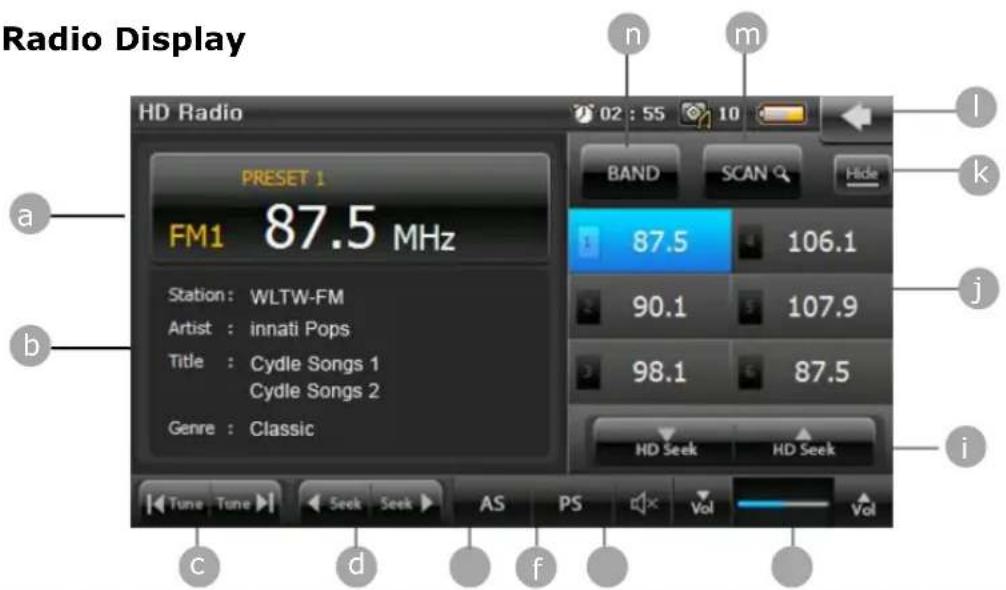
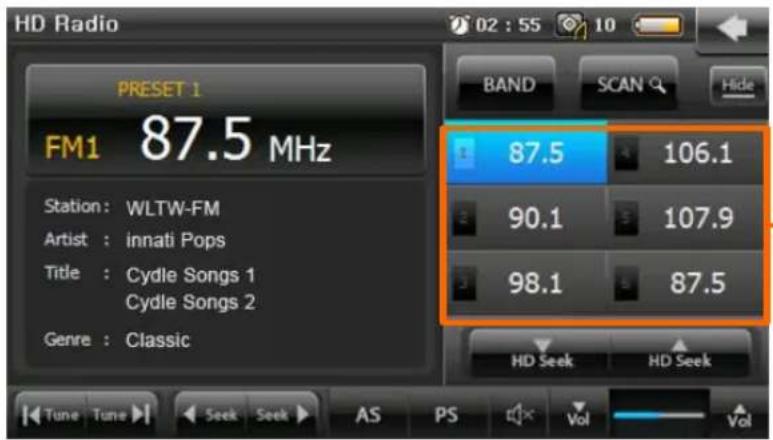
Radio Display HD Radio 02 : 55 10 PRESET 1 a FM1 87.5 MHz Station: WLTW-FM Artist: innati Pops Title: Cydle Songs 1 Cyclle Songs 2 Genre: Classic BAND SCAN Hide 87.5 106.1 90.1 107.9 98.1 87.5 HD Seek HD Seek i Tune Tune Seek AS PS Vol Vol c d fa Radio station indicator
b Information display
C |◀ Tune Tune ▶| Touch to tune backward/forward in one step
d ← Seek Seek ▶ Touch to seek backward/forward
e Auto Store: Press to automatically store the first six strongest stations.
f Preset Scan : Scan within the preset list. Radio will hold each preset number for 5 secs while releasing mute, and then it will search again.
g Mute
h Increase/Decrease Volume
i Touch to seek for HD Radio stations only
HD Radio Technology

Increase/ Decrease Volume

Touch to seek for HD Radio stations only

Preset list (Up to six stations can be set as your preset)

Minimize HD Radio. HD Radio keeps operating while allowing you to go back to the Main menu

Quit HD Radio and go back to the Main Menu

Scan up preset number to play each preset for 5 secs

Select a Band (FM1-FM4)
HD Radio HD2/HD3 Channels
With the HD Radio Technology, your unit allows you listen to more channels called HD2/HD3 channels.
Up to 8 channels can be broadcasted within 1 station.
text_image
HD Radio 02 : 55 10 PRESET 1 FM1 87.5 MHz Station: WLTW-FM Artist: innati Pops Title: Cydle Songs 1 Cydle Songs 2 Genre: Classic BAND SCAN Hide 87.5 106.1 90.1 107.9 98.1 87.5 HD Seek HD Seek Tune Tune Seek AS PS Vol VolPreset buttons You can preset 6 local FM stations in each FM band
To tune to HD2/HD3 channels, tune to the main signal and then press


If an HD2/HD3 channel is being broadcasted for the current station, the corresponding channel number will appear on the right side of the Radio station indicator.
To view the title and artist, if available, select HD1, HD2, HD3, etc.
HD Radio Technology
Using a Preset station
You can store up to 6 stations as your preset stations that you most often listen to. Six numbered preset buttons store and recall stations for the FM band. All 24 stored stations (P1-P6) for the FM1-FM4band appear on the screen.
< Storing preset stations>
You can store presets by the following two methods:
AS (Auto Store):
The radio searches from the current frequency and checks the signal strength level until a cycle search is finished. And then store 6 strongest stations as the Preset to the corresponding preset number.
Storing preset manually :
- Select a Band (FM1-FM4) and tune to the station you want to store.
- Click the preset number you want to store among 6 preset buttons for 3 seconds.
- The station will be stored at the preset number you selected
Recalling a station
You can see all the stations under the preset list.
Click an on-screen preset button to select the corresponding stored station.
Setting
Settings allow you to customize T43H applications, set date and time, sound, display, update, and calibration.
Sound setting
Sound setting on your unit is used for features such as spoken instructions, tap sound, Video and Audio.
Tap Sound setting

e Setting menu to start your sound setting.
You can change your volume level by the following three methods:
- Press and hold the volume hardware key on the left side of the unit.
• Use 'Sound Setting' on the Setting menu.
• Use the sound control bar in each application (if needed)
Controlling TAP SOUND
Tap


to select TAP SOUND option.
If TAP SOUND is turned on, you can hear the sound when you tap buttons on the screen.
Controlling speaker
Your unit contains a high quality speaker that is used to play the sounds on your unit.
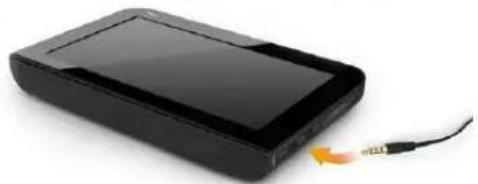
The Earphone Jack in your unit can be used for both the External FM antenna and earphones.
Your unit has been designed to select the speaker option manually since your unit might recognize the External FM antenna as an earphone.
If you want to use earphone sound only, turn off the speaker option.
Your unit will sound through both the earphone and the speaker unless you turn off the speaker option
Sound setting Display

text_image
Sound setting 02 : 56 10 Sound control Tap sound onYou can connect external speakers to your unit by using an audio cable.
Note: If your car stereo has a line-in connector, you can play the sound from your unit using your car speakers.
natural_image
Black rectangular electronic device with a cable and orange connector, no visible text or symbolsDisplay setting
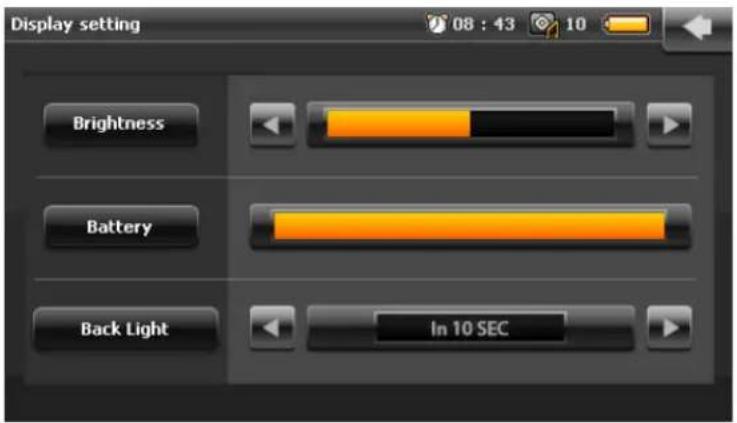
Display setting on your unit is used for features such as Brightness, Battery life indicator, and Sleep Mode option.
Tap Display setting settings.

on the Setting menu to start adjusting your display
Brightness :
Tap ▶ or ▶ , to increase or decrease the level of brightness for the screen.
Battery :
You can check the battery life.
Back Light:
Tap or , to select Back Light option: Never, In 5 sec, 10 sec, 15 sec, 30 sec, 1 min. (Default setting of Back Light option is 10 sec.)
Note:
Back Light button allows you to set the time duration by using its options. Touch screen is turned off only during HD Radio and Music Player mode if the touch screen hasn't been touched after the time duration has passed.
Setting
Display setting Display
text_image
Display setting 08 : 43 10 Brightness Battery Back Light In 10 SECSelecting the system Language
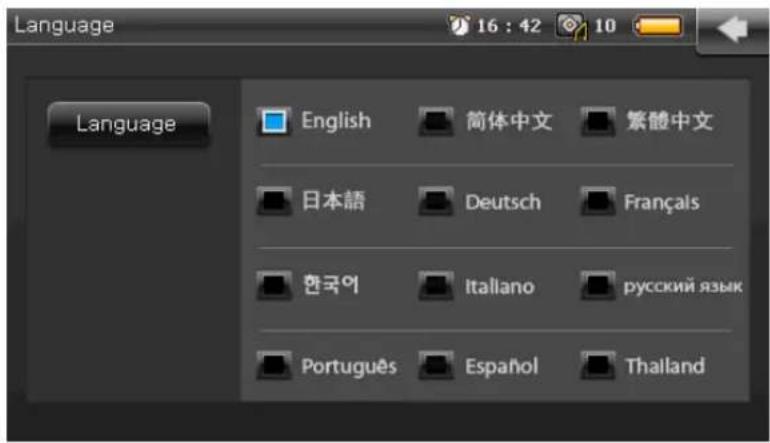
You can set the system language that will be displayed on the screen. Your unit allows you to choose from 12 different languages.

- Tap Language button on the Setting menu.
- Choose the language you want to use in your unit by tapping it.
text_image
Language 16 : 42 10 Language English 简体中文 繁體中文 日本語 Deutsch Français 한국어 Italiano русский язык Português Español ThailandSetting
Date & Time settings
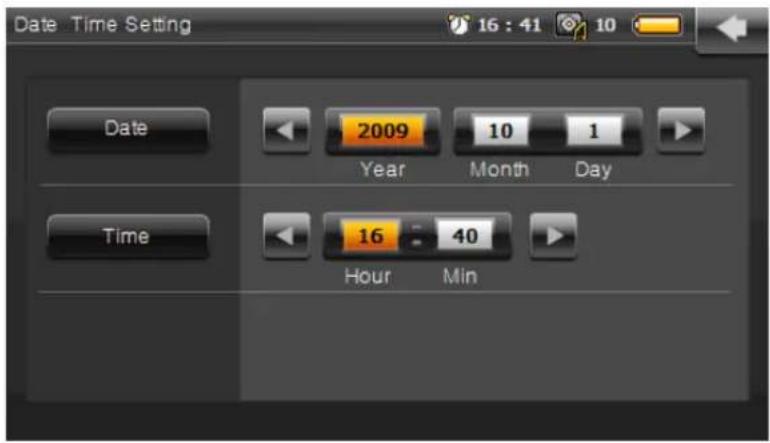
These settings apply to the time shown in the status bar on top of the screen.
Tap Date & time setting

button on the Setting menu.
Set date and time by tapping◀ or ▶ . When you click month or year, it will be highlighted and you can set the date or time likewise.
These settings apply to the time shown in the status bar on top of the screen.
text_image
Date Time Setting 16 : 41 10 Date 2009 Year 10 Month 1 Day Time 16 40 Hour MinSelecting Theme
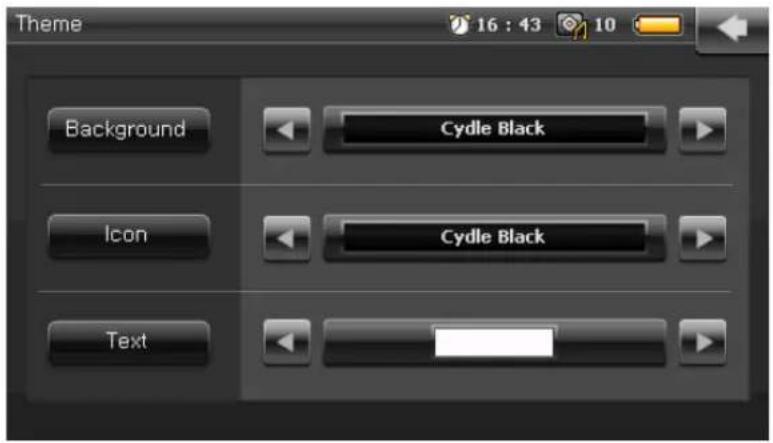
Your unit has 3 different themes for the Main Menu. In addition, you can customize the Main Menu with your picture if you have one.
- Tap Theme button on the Setting menu.
- Choose Background, Icon and Text color.
text_image
Theme 16 : 43 10 Background Cydle Black Icon Cydle Black TextCalibration
To make the touch screen more smooth and accurate, you may need to calibrate your screen.
When you click on Calibration calibration.

, you will see the coordinate + for
Carefully press and hold the center of the coordinate to follow its movement.
Carefully press and briefly hold stylus on the center of the target. Repeat as the target moves around the screen.

System information
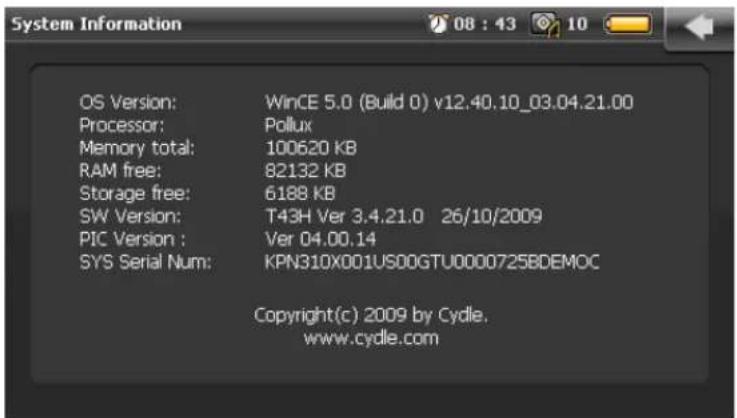
Registration of the Cydle site requires the serial number of your unit to serve you as our member patron. When you submit the serial number to the Cydle site as you create your personal account, Cydle is able to support you directly and promptly. Through system information, you can find useful information about T43H model such as OS version, software version, and hardware components along with the serial number.
text_image
OS Version: WinCE 5.0 (Build 0) v12.40.10_03.04.21.00 Processor: Pollux Memory total: 100620 KB RAM free: 82132 KB Storage free: 6188 KB SW Version: T43H Ver 3.4.21.0 26/10/2009 PIC Version : Ver 04.00.14 SYS Serial Num: KPN310X001US00GTU0000725BDEMOC Copyright(c) 2009 by Cydle. www.cydle.comUpdate
Cydle releases OS updates and Software updates regularly every quarter through Cydle website.
To maximize the performance of your unit, download and install new OS and Software from the Cydle website.
Visit www.cydle.com
And go to "SUPPORT"-> "DOWNLOAD CENTER".
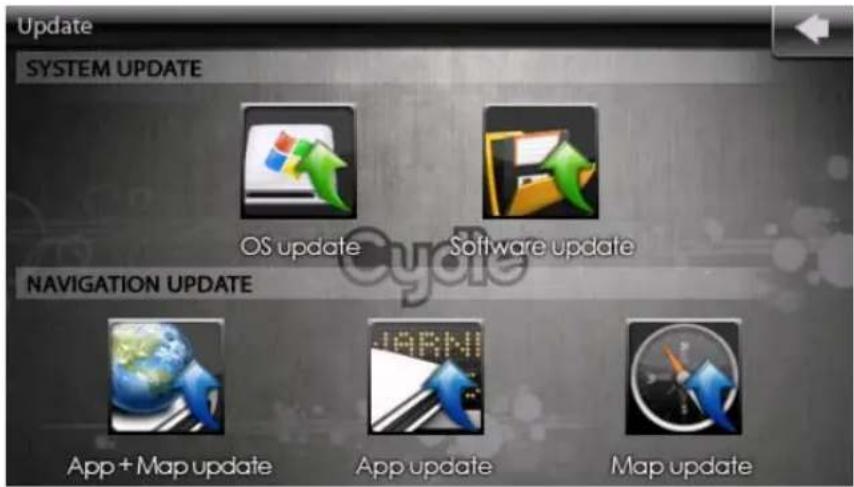
text_image
Update SYSTEM UPDATE OS update Software update NAVIGATION UPDATE App + Map update App update Map updateSYSTEM UPDATE - OS Update
1) To start with the OS update for your device, connect your unit to the DC adaptor and prepare the SD card with a backup data or an update program.
NOTE:
Do not disconnect the DC adaptor while you are updating the OS and Software. If the cable is disconnected, the computer memory may be lost. Therefore, take extra caution during installation to avoid a short circuit.
2) For safe and clear installation, please check that the data is stored in a correct manner in SD card.
“_SWUP_” and “_OSUP_” folders should exist as the root directory for your SD card.
The Root directory name of the SD card should be as shown on next page.
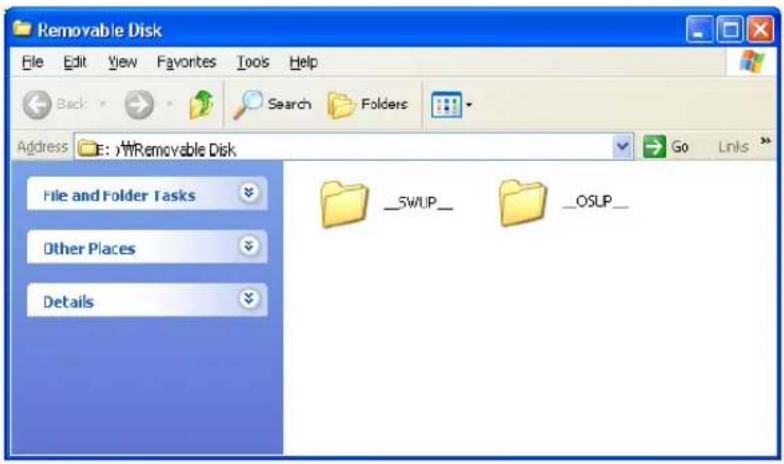
text_image
Removable Disk File Edit View Favorites Tools Help Back Search Folders Address E:\Removable Disk Go Links File and Folder Tasks Other Places Details _SWUP_ OSUP_3) Please insert the SD card that contains the backup data or the update program. As shown below, you can find the SD slot at the bottom of the device.
4) After inserting SD card to the slot, tap 'SETTING' -> Tap 'UPDATE'

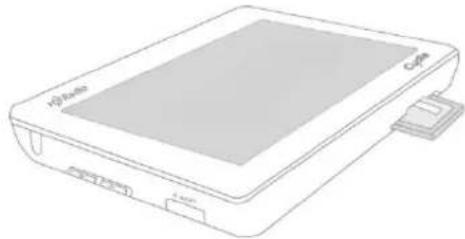
natural_image
Line drawing of a handheld electronic device with a screen and ports (no text or symbols)5) The user can select Software and OS update as desired. Please click the button for OS update.
When you click the 'OS UPDATE' button, the procedure for OS update will start.
6) While the OS update is being processed, the system will display the info dialog such as "Do not take out the SD card and disconnect the AC power". Please keep the power connected to the device to finish the OS update safely and completely.
7) "Update completed" will pop up on the screen to inform you of successful installation. Also, it will automatically reboot to complete the update. Please wait until the system has rebooted automatically.
SYSTEM UPDATE - Software Update
1) To start with the OS update for the device, connect your unit to the DC adaptor and prepare the SD card with a backup data or an update program.
NOTE:
Do not disconnect the DC adaptor while you are trying to update the OS and Software. If the cable is disconnected, then the computer memory may be lost. Therefore, take extra caution during installation to avoid a short circuit.
2) For safe and clear installation, please check that the data is stored in a correct manner in the SD card.
"_SWUP_" and "_OSUP_" folders should exist as the root directory of your SD card.
The Root directory name of the SD card should be as shown below.

text_image
Removable Disk File Edit View Favorites Tools Help Back Search Folders Address E:\Removable Disk File and Folder Tasks Other Places Details __SWUP__ __OSUP__3) Please insert the SD card that contains backup data or the update program. As shown below, you can find the SD slot at the bottom of the device.

natural_image
Line drawing of a portable electronic device with labeled ports (no text or symbols beyond branding)4) After inserting the SD card to slot,
tap 'SETTING' -> tap 'UPDATE'

Update
5) The user is able to select Software and OS update as desired. Please click the button for OS update.
When you click the 'Software UPDATE' update will start.

button, the procedure for OS
6) While OS update is being processed, the system will display the info dialog such as "Do not take out the SD card and disconnect the AC power". Please keep the power connected to the device to finish the OS update safely and completely.
7) "Update completed" will pop up on the screen to inform you of successful installation. Also, it will be automatically rebooted to complete the update. Please wait until the system has rebooted automatically.
NAVIGATION UPDATE - App + Map update
Updated map is available at Cydle's online store.
'We recommend our customers to use www.cydle.com to download the necessary updates as well as annual map purchases.'
Visit the Cydle website and then access to "Online store"-> "Map update".

Map + App Update contain all the data for the navigation system. The navigation system consists of several data such as digital map data, application and license data base. By using Map + App Update, the unit can restore the whole navigation system.
1) To start with the map update of the device, connect your unit to the DC adaptor and prepare the SD card with a backup data or an update program.
NOTE:
Do not disconnect the DC adaptor while you are trying to update the map. If the cable is disconnected, the computer memory may be lost. Therefore, take extra caution during installation to avoid causing a short circuit.
2) For safe and clear installation, please check that the data is stored in a correct manner in the SD card.
'Cydle' folder should exist as the root directory of your SD card. The Root directory name of the SD card should be as shown on the next page.

text_image
Removable Disk File Edit View Favorites Tools Help Back Search Folders Address E:\Removable Disk Go Links File and Folder Tasks Cydle Other Places Details3) Please insert the SD card that contains the backup data or the update program. As shown below, you can find the SD slot at the bottom of the device.
4) After insert SD card to slot, tap SETTING
-> Tap 'UPDATE'

5) The user is able to select Software and Map update as desired.
Please click the button for the OS update.
When you click the 'App + Map UPDATE' map update will start.

button, the procedure for the
6) While App + Map update is being processed, the system will display the info dialog such as "Do not take out the SD card and disconnect the AC power". Please keep the power connected to the device to finish the Map update safely and completely.
7) "Update completed" will pop up in the screen to inform you of successful installation. Also, it will be automatically rebooted to complete the update. Please wait until the system has rebooted automatically.
NAVIGATION UPDATE - App update
App Update contains application data of the navigation system. App Update can be used if your unit needs to update Navigation application features except the digital map data.
1) To start with the map update for the device, connect your unit to the DC adaptor and prepare the SD card with Backup data or an update program.
NOTE:
Do not disconnect the DC adaptor while you are trying to update the map. If the cable is disconnected, the computer memory may be lost. Therefore, take extra caution during installation to avoid causing a short circuit.
2) For safe and clear installation, please check that the data is stored in a correct manner in the SD card.
"Cydle" folder should exist as the root directory of your SD card. The Root directory name of the SD card should be as shown below.
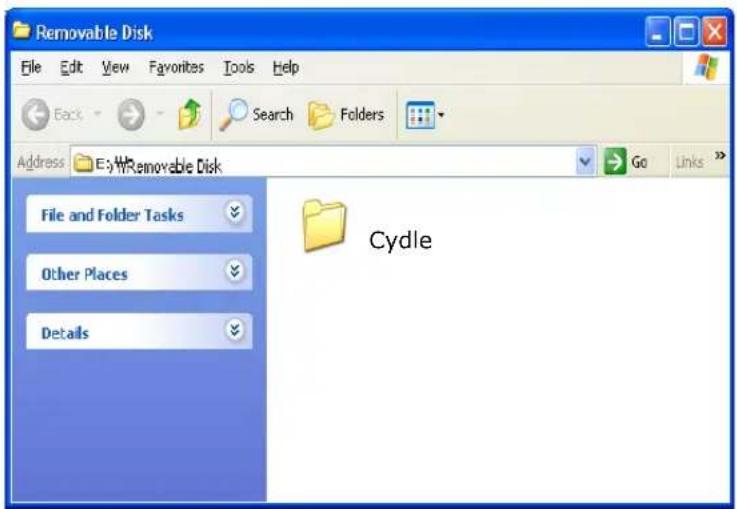
text_image
Removable Disk File Edit View Favorites Tools Help Back Search Folders Address E:\Removable Disk Go Links File and Folder Tasks Cydle Other Places Details3) Please insert the SD card that contains the backup data or the update program. As shown below, you can find the SD slot at the bottom of the device.
Update
4) After insert SD card to slot, tap SETTING
-> Tap "UPDATE"

5) The user is able to select Software and Map update as desired.
Please click the button for OS update.
When you click the "App UPDATE" will start.

button, the procedure for Map update
6) While Map update is being processed, the system will display the info dialog such as "Do not take out the SD card and disconnect the AC power".
Please keep the power connected to the device to finish the Map update safely and completely.
7) "Update completed" will pop up on the screen to inform you of successful installation. Also, it will be automatically rebooted to complete the update.
Please wait until the system has rebooted automatically.
NAVIGATION UPDATE - Map update

Using the map update, the coverage of map can be changed. For instance, if you plan a trip to overseas, you will need to change the coverage and Map update can help you update map data.
1) To start with the map update for the device, connect your unit to the DC adaptor and prepare the SD card with a backup data or an update program.
NOTE:
Do not disconnect the DC adaptor while you are trying to update the map. If the cable is disconnected, the computer memory may be lost. Therefore, take extra caution during installation to avoid causing a short circuit.
2) For safe and clear installation, please check that the data is stored in a correct manner in the SD card.
'Cydle' folder should exist as the root directory of your SD card.
The Root directory name of the SD card should be as shown on the next page:

text_image
Removable Disk File Edit View Favorites Tools Help Back Search Folders Address E:\Removable Disk Go Links File and Folder Tasks Cydle Other Places Details3) Please insert the SD card that contains backup data or the update program. As shown below, you can find the SD slot at the bottom of the device.
4) After insert SD card to slot, tap SETTING -> Tap 'UPDATE'

5) The user is able to select Software and Map update as desired. Please click the button for OS update.
When you click the 'Map UPDATE' will start.

button, the procedure for Map update 6) While Map update is being processed, the system will display the info dialog such as "Do not take out the SD card and disconnect the AC power". Please keep the power connected to the device to finish the Map update safely and completely.
7) "Update completed" will pop up on the screen to inform you of successful installation. Also, it will be automatically rebooted to complete the update. Please wait until the system has rebooted automatically.
Specification
| Dimension (W × H × D) | 122m × 82m × 17m |
| Weight | 220g(7.7oz) |
| Display | 4.3 inch TFT LCD, Touch screenResolution (480*272) WQVGA |
| Operating temperature range | -5~+55°C(23°F-131 °F) |
| Charging temperature range | 0~+40°C(32°F-104 °F) |
| Data storage | Internal memory and optional removable SD card.(Navigation system is preinstalled into the internal memory) |
| Computer interface | USB 2.0 |
| Power input | Cyclde Navigator T43H uses a vehicle power using the car battery adaptor or AC power using an optional accessory. |
| Battery life | Up to 10 hours of audio playback/Or up to 4 hours 30 minutes of video playback/Or up to 5 hours 40 minutes of HD Radio playBattery life might be reduced by how long unit is used. |
| Battery type | Rechargeable/Un-swappable Lithium-ion battery |
| GPS receiver | SIRF Star III |
| Operating system | Microsoft Wince 5.0 Core |
| Supported Video file format | DivX WQVGA(480X272) 30fs 2.5 Mbps VGA(640X480) 24fs 500Kbps XviD WQVGA(480X272) 30fs 2.5 Mbps VGA(640X480) 24fs 500Kbps WMV WQVGA(480X272) 24fs 500Kbps |
*Some video files not be played according to video resolution, frame, bit rate and other options.
*Specifications and Application are subject to change without notice by up Software update and OS update
FCC Declaration of Conformity
This product contains the transmitter. This transmitter must not be co-located or operating in conjunction with any other antenna or transmitter.
FCC Compliance Statement
Caution: Changes or Modifications not expressly approved by the party responsible for compliance could void the users authority to operate the equipment.
NOTE: This equipment has been tested and found to comply with the limits for a Class A digital device, pursuant to part 15 of the FCC Rules. These limits are designed to provide reasonable protection against harmful interference when the equipment is operated in a commercial environment. This equipment generates, uses, and can radiate radio frequency energy and, if not installed and used in accordance with the instruction manual, may cause harmful interference to radio communications. Operation of this equipment in a residential area is likely to cause harmful interference in which case the user will be required to correct the interference at his own expense.
This equipment has been tested and found to comply with the limits for a Class A digital device, pursuant to part 15 of the FCC Rules.
This device complies with Part 15 of the FCC Rules. Operation is subject to the following two conditions:
(1) This Device may not cause harmful interference, and
(2) This device must accept any interference received, including interference that may cause undesired operation.
User information and precautions
Information and precautions
- We are not responsible for any accident that occurs while operating our software.
- The suggested route and guidance may be different with actual traffic and road conditions. Please drive safely and obey the traffic rules.
- The map screen images and user interface information printed on this manual may not correspond with actual device due to additional features or any modifications. Display colours printed on this manual may appear different with the actual screen colour of device in result of manufacture process and printing ink. Cydle cannot guarantee that this document is error-free.
- To prevent GPS signal disturbance, please make sure that you are outside and the GPS antenna has a good visibility of the open sky.
- If you are in the downtown area where buildings are densely interspaced, it may cause GPS signal reception disturbance. It's not possible to receive GPS signals in a tunnel, underground parking lot, or enclosed space.
- Do not place any object near the GPS antenna that will cause GPS signal reception disturbance.
- Some specially coated windshields, such as a heat-reflecting windshields, may block the GPS signal reception inside the vehicle.
- Do not install electronic equipment with strongly emitting electromagnetic waves such as a radio wave transmitter near the GPS antenna.
- The rate of the GPS signal reception may be low due to the weather and atmospheric conditions.
- To prevent data loss, please quit the program before mounting or releasing your device.
- Do not operate your device while driving. Please drive safely and pay attention to the surrounding traffic and pedestrians. Always observe safe driving practices.
- This product is designed as an aid to safer driving. You may receive speed alerts to help you monitor your speed. Cydle accepts no liability whatsoever for you receiving any speeding fines or points on your license through using this software. Cydle cannot guarantee the accuracy of the data contained within this database either expressed or implied.
Cydle America Corp.
3555 Voyager St. Ste 204 Torrance, CA 90503
Toll free number : 1-866-407-9160
Cydle Corp.
12 ^th floor, KofomoTower, Sunae-Dong, Bundang-Gu, Seongnam-City, Kyonggi-Do, Korea
All right reserved. Copyright and intellectual property rights of all documents written by Cydle corporation are the property of the Cydle corporation.
The Cydle corporation has copyright and intellectual property rights of our software and documents including this manual, and the use of product follows license agreement.
No part of this manual can be copied, reproduced, transmitted without the prior written consent of Cydle Corp. Cydle grants permission to download a copy of this manual into a hard drive or other electronic storage to be viewed and to be printed on copy, which must contain this copyright notice.
"Cydle" is the Cydle corporation's own brand and is a registered trademark. All names are trademarks or registered trademarks of their respective owners. You cannot infringe ownership without permission.
Information in this document is subject to change without prior notice. Cydle reserve the right to change or improve the products and change in the contents without notice. Visit Cydle Web site to check the current update and supplemental information concerning the use and operation of Cydle's products.
HD Radio ^TM and the HD and HD Radio logos are proprietary trademarks of iBiquity Digital Corp.
©2009 Tele Atlas. All rights reserved. Tele Atlas and the Tele Atlas logo are registered trademarks of Tele Atlas B.V
©2009 EnGIS Technologies, Inc. All right reserved. EnGIS and EnGis logo are trademark of EnGIS Technologies, Inc.
Total Traffic Network Data Distribution Services. Total Traffic Network is a mark (or registered mark) of Clear Channel in the United States and other countries and hereby used under license.
Other trademark and trade name are owned by those of their respective owners.
End-User License Agreement (EULA)
IMPORTANT – READ THESE TERMS AND CONDITIONS OF THIS END USER LICENSE AGREEMENT CAREFULLY BEFORE USING THE SOFTWARE.
This End-User License Agreement ("EULA") is a legal agreement between you and EnGIS Technologies, Inc. (EnGIS). This EULA applies to (the use of) EnGIS navigation software (also known as Gogo Navigation Software), including Internet-based services, and all contents and contents programs offered by EnGIS ("Software").
It applies to the software that accompanies these license terms. By using all or any portion of the Software you accept all the terms and conditions of this EULA. The breaking or removal of the seal of a dvd, cd-rom, floppy disc, memory card or any other media, and pressing the "I agree" button displayed by the software during installation or use (hereinafter referred to as Use), or for a download of any Software, updates, supplements, or upgrades is considered use of the Software.
If you do not agree to the terms of this EULA, you are not entitled to use the Software and you must decline the installation, download or usage of the Software.
1) GRANT OF LICENSE: This EULA grants you a non-exclusive, non-transferable and revocable license to use the accompanying Software already installed on the device and/or contained on the CD-ROM/DVD-ROM/memory cards and any other storage media. For the license granted above, you shall only use the Software on one signal device at a time. You shall not permit concurrent use of the Software without proper licenses. The Software shall include the operating computer program, its complete documentation, the map database pertaining thereto and any third-party content and services accessible through the Software Product. This License does not grant any rights to obtaining future upgrades, updates or supplements of the Software. If upgrades, updates or supplements of the Software are obtained, however, the use of such upgrades or updates is governed by this EULA and any amendments to it unless other terms accompany the upgrades, updates or supplements in which case those terms apply.
2) COPYRIGHT: Copyright and other intellectual, industrial and/or proprietary rights to the Software and to any copies that you may make are owned by EnGIS and/or its suppliers. EnGIS permits you to use the Software only in accordance with the terms of this EULA. All rights not specifically granted in this EULA are reserved by EnGIS. You may either (a) make one copy of the Software solely for backup or archival purposes, or (b) transfer the Software to a single medium, provided you keep the original solely for backup or archival purposes. You may not copy the product manual(s) or written materials accompanying the Software, except for own use. You only become the owner of the material data carrier, if any, and you do not acquire ownership of the Software.
3) OTHER RESTRICTIONS: Other than as permitted by applicable legislation, you will not, and will not allow any other person to:
i. modify the Software or any part thereof;
ii. reverse engineer, decompile or disassemble the Software;
iii. create compilations or derivative works;
iv. translate, adapt, or disassemble the Software or any part thereof, including the third-party content data;
v. work around any technical limitations in the Software;
End-User License Agreement (EULA)
vi. make more copies of the Software than specified in this agreement,
vii. publish the Software for others to copy;
viii. rent, lease or lend the Software; or
ix. use the Software in any way that is against the law.
4) CONFIDENTIALITY: You acknowledge and agree that the Software was developed at considerable time and expense by EnGIS and is confidential to and a trade secret of EnGIS and/or third parties. You agree to maintain the Software in strict confidence and not to disclose or provide access thereto to any person.
5) THIRD PARTY SOFTWARE LICENSES: EnGIS may make use of third party software. Notwithstanding the terms and conditions of this License, use of some third party materials included in the Software may be subject to other terms and conditions. The official third party copyright notices and specific license conditions of these third party software codes and algorithms are to be found in the ABOUT screen of the software program. You hereby agree to the terms and conditions for such third party software.
6) LIMITED WARRANTY: a) The Software is intended to be used only as a travel aid and must not be used for any purpose requiring precise measurement of direction, distance, location or topography. EnGIS makes no warranty as to the accuracy or completeness of map data or other third-party content in the application. EnGIS does not and cannot warrant that the Software operates error-free. You should be particularly aware of the fact that calculation errors may occur when using Software for instance caused by local environmental conditions and/or incomplete data. b) TO THE MAXIMUM EXTENT PERMITTED BY APPLICABLE LAW, ENGIS AND ITS SUPPLIERS PROVIDE THE SOFTWARE "AS IS AND WITH ALL FAULTS", AND HEREBY DISCLAIM ALL OTHER WARRANTIES AND CONDITIONS, WHETHER EXPRESS, IMPLIED OR STATUTORY, INCLUDING, BUT NOT LIMITED TO, ANY (IF ANY) IMPLIED WARRANTIES, DUTIES OR CONDITIONS OF: MERCHANTABILITY, NON-INFRINGEMENT, QUIET ENJOYMENT, SYSTEM INTEGRATION, SATISFACTORY QUALITY, FITNESS FOR A PARTICULAR PURPOSE, RELIABILITY OR AVAILABILITY, ACCURACY OR COMPLETENESS OF RESPONSES, RESULTS, WORKMANLIKE EFFORT, LACK OF VIRUSES, AND REASONABLE CARE AND SKILL, ALL WITH REGARD TO THE SOFTWARE, AND THE PROVISION OF OR FAILURE TO PROVIDE SUPPORT OR OTHER SERVICES, INFORMATION, SOFTWARE, AND RELATED CONTENT THROUGH THE SOFTWARE OR OTHERWISE ARISING OUT OF THE USE OF THE SOFTWARE. This exclusion does not apply to (i) any implied condition as to title and (ii) any implied warranty as to conformity with description. If applicable law requires any implied warranties with respect to the Software, all such warranties are limited in duration to ninety (90) days. Some states and/or jurisdictions do not allow limitations on how long an implied warranty lasts, so the above may not apply to you. c) This Limited Warranty is the only express warranty made to you and is provided in lieu of any other express warranties or similar obligations (if any) created by any advertising documentation, packaging, or other communications.
End-User License Agreement (EULA)
7) LIMITATION OF LIABILITY: a) NEITHER ENGIS NOR ITS SUPPLIERS SHALL BE LIABLE TO YOU OR TO ANY THIRD PARTY FOR ANY INDIRECT, INCIDENTAL, CONSEQUENTIAL, SPECIAL, OR EXEMPLARY DAMAGES (INCLUDING IN EACH CASE, BUT NOT LIMITED TO, DAMAGES FOR THE INABILITY TO USE ANY THIRD PARTY EQUIPMENT OR ACCESS DATA, LOSS OF DATA, LOSS OF BUSINESS, LOSS OF PROFITS, BUSINESS INTERRUPTION OR THE LIKE) ARISING OUT OF THE USE OF OR INABILITY TO USE THE SOFTWARE EVEN IF ENGIS HAS BEEN ADVISED OF THE POSSIBILITY OF SUCH DAMAGES.
b) NOTWITHSTANDING ANY DAMAGES THAT YOU MIGHT INCUR FOR ANY REASON WHATSOEVER (INCLUDING, WITHOUT LIMITATION, ALL DAMAGES REFERENCED HEREIN AND ALL DIRECT OR GENERAL DAMAGES IN CONTRACT OR ANYTHING ELSE), THE ENTIRE LIABILITY OF ENGIS AND ANY OF ITS SUPPLIERS ARISING FROM OR RELATED TO THIS EULA, SHALL BE LIMITED TO THE AMOUNT ACTUALLY PAID BY YOU FOR THE SOFTWARE. c) Notwithstanding clauses 7(a) and (b), or anything else contained in this EULA, neither party's liability for death or personal injury resulting from its own negligence shall be limited. d) Some states and/or jurisdictions do not allow the exclusion or limitation of incidental or consequential damages, so the above limitations or exclusions may not apply to you.
8) TERMINATION: Without prejudice to any other rights, EnGIS may immediately terminate this EULA if you fail to comply with any of its terms and conditions. In such event, you must destroy all copies of the Software and all of its component parts. The following provisions of this EULA will survive termination, will remain in effect after termination of this EULA: Sections 3, 4, 6, 7, 8, 9, 10, and 11. EnGIS reserves the right, with or without notice, to discontinue update, upgrade and supplement services provided to you or made available to you through the use of the Software.
9) ENTIRE AGREEMENT: This EULA (including any addendum or amendment to it which may be supplied with the Software), if applicable, and any other terms and conditions, if applicable, is the entire agreement between you and EnGIS relating to the Software and the support services (if any) and they supersede all prior or contemporaneous oral or written communications, proposals and representations with respect to the Software or any other subject matter covered by this EULA. To the extent that the terms of any EnGIS policies or programs for support services conflict with the terms of this EULA, the terms of this EULA shall govern. If any provision of this EULA is held to be void, invalid, unenforceable or illegal, the other provisions shall continue in full force and effect.
10) TRANSLATIONS: The English version of this EULA is the controlling version. Any translations, if available, are provided for convenience only.
11) GOVERNING LAW: This EULA shall be governed by the laws of the state of California, USA. The United Nations Convention on Contract for the international Sale of Goods is hereby excluded in its entirety from application to this Agreement.