SuperServer E50-9AP-L - Server Supermicro - Free user manual and instructions
Find the device manual for free SuperServer E50-9AP-L Supermicro in PDF.


User questions about SuperServer E50-9AP-L Supermicro
0 question about this device. Answer the ones you know or ask your own.
Ask a new question about this device
Download the instructions for your Server in PDF format for free! Find your manual SuperServer E50-9AP-L - Supermicro and take your electronic device back in hand. On this page are published all the documents necessary for the use of your device. SuperServer E50-9AP-L by Supermicro.
USER MANUAL SuperServer E50-9AP-L Supermicro
text_image
SUPRENGTH SUSER'S MANUAL
Revision 1.0a
The information in this User's Manual has been carefully reviewed and is believed to be accurate. The vendor assumes no responsibility for any inaccuracies that may be contained in this document, and makes no commitment to update or to keep current the information in this manual, or to notify any person or organization of the updates. Please Note: For the most up-to-date version of this manual, please see our website at www.supermicro.com.
Super Micro Computer, Inc. ("Supermicro") reserves the right to make changes to the product described in this manual at any time and without notice. This product, including software and documentation, is the property of Supermicro and/or its licensors, and is supplied only under a license. Any use or reproduction of this product is not allowed, except as expressly permitted by the terms of said license.
IN NO EVENT WILL Super Micro Computer, Inc. BE LIABLE FOR DIRECT, INDIRECT, SPECIAL, INCIDENTAL, SPECULATIVE OR CONSEQUENTIAL DAMAGES ARISING FROM THE USE OR INABILITY TO USE THIS PRODUCT OR DOCUMENTATION, EVEN IF ADVISED OF THE POSSIBILITY OF SUCH DAMAGES. IN PARTICULAR, SUPER MICRO COMPUTER, INC. SHALL NOT HAVE LIABILITY FOR ANY HARDWARE, SOFTWARE, OR DATA STORED OR USED WITH THE PRODUCT, INCLUDING THE COSTS OF REPAIRING, REPLACING, INTEGRATING, INSTALLING OR RECOVERING SUCH HARDWARE, SOFTWARE, OR DATA.
Any disputes arising between manufacturer and customer shall be governed by the laws of Santa Clara County in the State of California, USA. The State of California, County of Santa Clara shall be the exclusive venue for the resolution of any such disputes. Supermicro's total liability for all claims will not exceed the price paid for the hardware product.
FCC Statement: This equipment has been tested and found to comply with the limits for a Class A or Class B digital device pursuant to Part 15 of the FCC Rules. These limits are designed to provide reasonable protection against harmful interference when the equipment is operated in industrial environment for Class A device or in residential environment for Class B device. This equipment generates, uses, and can radiate radio frequency energy and, if not installed and used in accordance with the manufacturer's instruction manual, may cause harmful interference with radio communications. Operation of this equipment in a residential area is likely to cause harmful interference, in which case you will be required to correct the interference at your own expense.
California Best Management Practices Regulations for Perchlorate Materials: This Perchlorate warning applies only to products containing CR (Manganese Dioxide) Lithium coin cells. "Perchlorate Material-special handling may apply. See www.dtsc.ca.gov/hazardouswaste/perchlorate".

WARNING: This product can expose you to chemicals including lead, known to the State of California to cause cancer and birth defects or other reproductive harm. For more information, go to www.P65Warnings.ca.gov.
The products sold by Supermicro are not intended for and will not be used in life support systems, medical equipment, nuclear facilities or systems, aircraft, aircraft devices, aircraft/emergency communication devices or other critical systems whose failure to perform be reasonably expected to result in significant injury or loss of life or catastrophic property damage. Accordingly, Supermicro disclaims any and all liability, and should buyer use or sell such products for use in such ultra-hazardous applications, it does so entirely at its own risk. Furthermore, buyer agrees to fully indemnify, defend and hold Supermicro harmless for and against any and all claims, demands, actions, litigation, and proceedings of any kind arising out of or related to such ultra-hazardous use or sale.
Manual Revision 1.0a
Release Date: August 20, 2021
Unless you request and receive written permission from Super Micro Computer, Inc., you may not copy any part of this document. Information in this document is subject to change without notice. Other products and companies referred to herein are trademarks or registered trademarks of their respective companies or mark holders.
Copyright © 2021 by Super Micro Computer, Inc.
All rights reserved.
Printed in the United States of America
Preface
About this Manual
This manual is written for professional system integrators and PC technicians. It provides information for the installation and use of the SuperServer E50-9AP-L. Installation and maintenance should be performed by experienced technicians only.
Please refer to the E50-9AP-L server specifications page on our website for updates on supported memory, processors and operating systems (http://www.supermicro.com).
Notes
For your system to work properly, please follow the links below to download all necessary drivers/utilities and the user's manual for your server.
• Supermicro product manuals: http://www.supermicro.com/support/manuals/
- Product drivers and utilities: https://www.supermicro.com/wdl/
- Product safety info: http://www.supermicro.com/about/policies/safety_information.cfm
If you have any questions, please contact our support team at: support@supermicro.com
This manual may be periodically updated without notice. Please check the Supermicro website for possible updates to the manual revision level.
Secure Data Deletion
A secure data deletion tool designed to fully erase all data from storage devices can be found at our website: https://www.supermicro.com/about/policies/disclaimer.cfm?url=/wdl/utility/Lot9_Secure_Data_Deletion_Utility/
Warnings
Special attention should be given to the following symbols used in this manual.

Warning! Indicates important information given to prevent equipment/property damage or personal injury.

Warning! Indicates high voltage may be encountered when performing a procedure.
Contents
Chapter 1 Introduction
1.1 Overview....7
1.2 System Features ....8
1.3 I/O Placement....9
Side I/O 9
Side Controls....10
1.4 Motherboard Layout....11
Quick Reference Table....12
System Block Diagram....13
1.5 Installation....14
Unpacking the System....14
Warnings and Precautions....14
Installing Components to your System ....14
Installing Mounting Brackets....15
Chapter 2 Maintenance and Component Installation
2.1 Removing Power....16
2.2 Accessing the System....16
2.3 Motherboard Components....17
Processor....17
Memory Support....17
Installing Memory....18
Chapter 3 Motherboard Connections
3.1 Ports 20
3.2 LED Indicators....22
3.3 Headers and Connectors....23
Control Panel 31
3.4 Jumper Settings ....33
How Jumpers Work....33
Chapter 4 Software Installation
4.1 Driver Installation....34
4.2 SuperDoctor ^® 5....35
Chapter 5 BIOS
5.1 Introduction....36
Starting the Setup Utility ....36
5.2 Main Page 37
5.3 Advanced Page....38
5.4 Security....57
5.5 Boot....61
5.6 Save & Exit....63
Appendix A BIOS Error Codes
Appendix B Standardized Warning Statements for DC Systems
Appendix C System Specifications
Appendix D Traditional Chinese Safety Warnings
Appendix E UEFI BIOS Recovery
Contacting Supermicro
Headquarters
Address: Super Micro Computer, Inc.
980 Rock Ave.
San Jose, CA 95131 U.S.A.
Tel: +1 (408) 503-8000
Fax: +1 (408) 503-8008
Email: marketing@supermicro.com (General Information)
support@supermicro.com (Technical Support)
Website: www.supermicro.com
Europe
Address: Super Micro Computer B.V.
's-Hertogenbosch, The Netherlands
Tel: +31 (0) 73-6400390
Fax: +31 (0) 73-6416525
Email: sales@supermicro.nl (General Information)
support@supermicro.nl (Technical Support)
rma@supermicro.nl (Customer Support)
Website: www.supermicro.nl
Asia-Pacific
Address: Super Micro Computer, Inc.
3F, No. 150, Jian 1st Rd.
Zhonghe Dist., New Taipei City 235
Taiwan (R.O.C)
Tel: +886-(2) 8226-3990
Fax: +886-(2) 8226-3992
Email: support@supermicro.com.tw
Website: www.supermicro.com.tw
Chapter 1
Introduction
1.1 Overview
The SuperServer E50-9AP-L is a compact, embedded system comprised of the CSE-E50-L chassis and the A2SAP-H single processor motherboard. Refer to our website for information on operating systems that have been certified for use with the system (www.supermicro.com).
This chapter provides a brief outline of the functions and features. In addition to the motherboard and chassis, several important parts that are included with the system are listed below.
| Main Parts List | ||
| Description Part Number Quantity | ||
| Power Adapter MCP-250-10135-0N 1 | ||
This manual may be periodically updated without notice. Check the Supermicro website for possible updates to the manual revision level.
Note: the following safety models associated with the E50-9AP-L have been certified as compliant with UL or CSA: E50-40, E50-60, E50-84, E50-A4A2, E50-A6A2, E50-A8A2.
1.2 System Features
The following table provides an overview of the main features of the E50-9AP-L. Refer to Appendix C for additional specifications.
| System Features |
| Motherboard |
| A2SAP-H |
| Chassis |
| CSE-E50-L |
| CPU |
| Intel® Atom x5-E3940 (System on Chip) Socket BGA |
| Cooling |
| Fan-less design |
| Memory |
| Supports up to 8 GB DDR3L Non-ECC SODIMM 1866MHz memory in one DIMM slot |
| Expansion Slots |
| One half-size Mini-PCI-e slotOne M.2 B-Key 2242 slot for storage |
| Power |
| One lockable 40W DC power adapter |
| Form Factor |
| 2.5" SBC |
| Dimensions |
| (WxHxD) 4.96 x 1.69 x 4.64 in. (126 x 43 x 118 mm) |
1.3 I/O Placement
Side I/O
See the illustration below for the features included on the I/O side of the system.
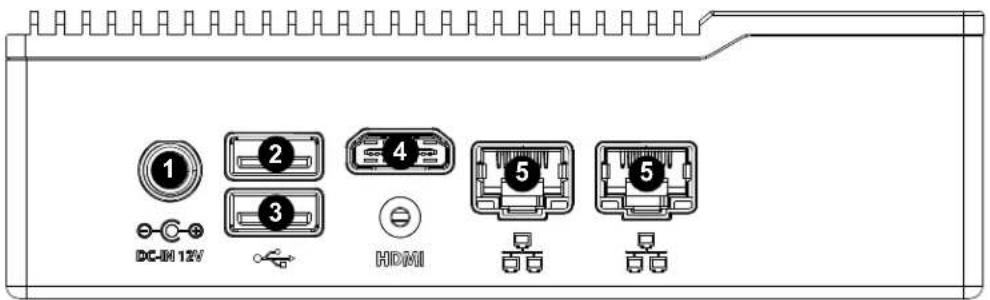
text_image
DC-IM 12V ① ② ③ ④ HDMI ⑤ ⑤Figure 1-1. Chassis Side
| Side I/O Features | ||
| Item Features Description | ||
| 1 Power Input Port Use this port for the 12V DC power input. | ||
| 2 USB USB 3.0 Port | ||
| 3USB USB 3.0 Port | ||
| 4HDMI HDMI (High-Definition Multimedia Interface) Port | ||
| 5LAN Port GbE Lan Port | ||
Side Controls
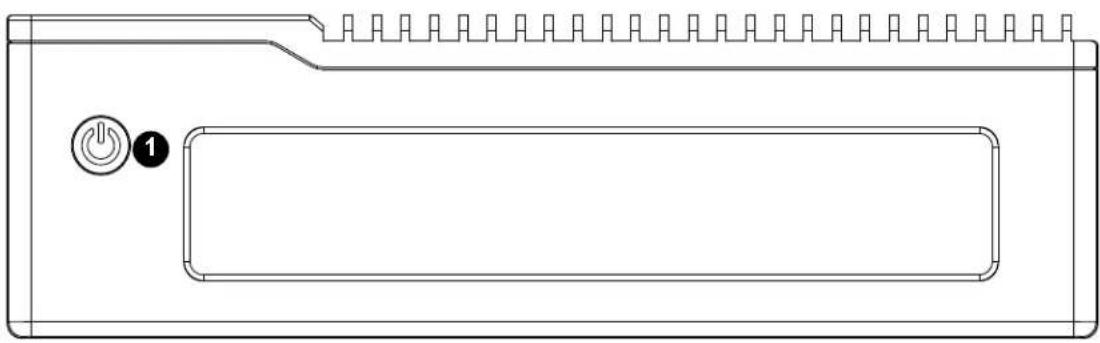
The illustration below shows the controls included on the side of the system.
natural_image
Technical line drawing of a mechanical component with a button labeled '1' and a rectangular slot (no text or symbols beyond basic outline)Figure 1-2. Side Controls
| Side Controls Features | ||
| Item Features Description | ||
| 1 Power Button | The main power switch applies or removes primary power from the power supply to the server but maintains standby power. To perform most maintenance tasks, unplug the system to remove all power. | |
1.4 Motherboard Layout
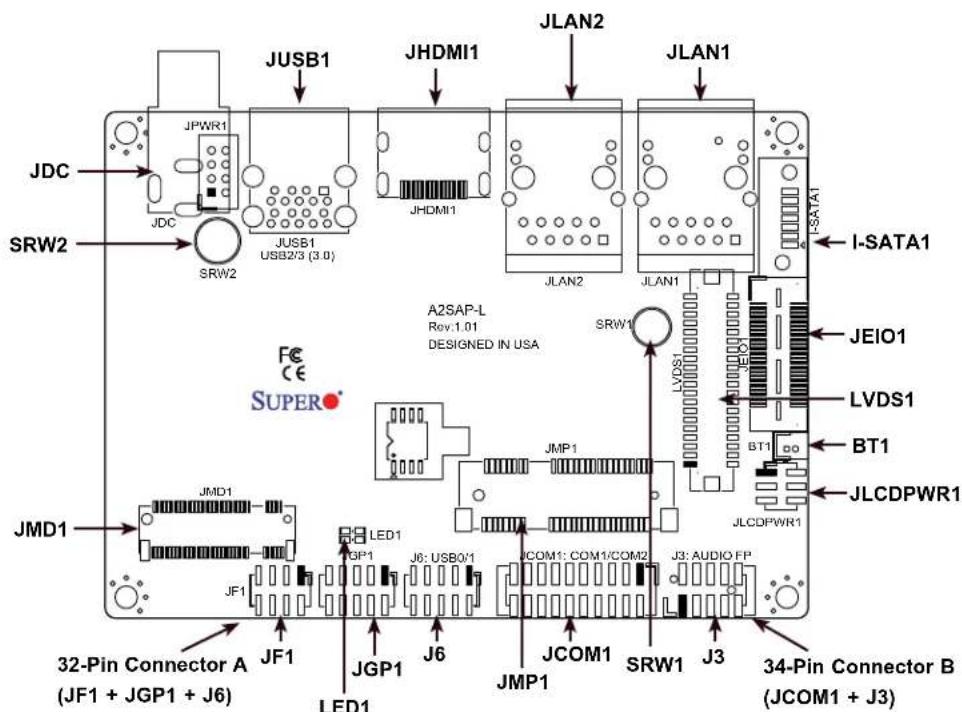
Below is a layout of the A2SAP-H with jumper, connector, and LED locations shown. See the table on the following page for descriptions. For detailed descriptions, pinout information, and jumper settings, refer to Chapter 3.
text_image
JDC SRW2 JUSB1 JHDMI1 JLAN2 JLAN1 JPWR1 JDC SRW2 JUSB1 USB2/3 (3.0) A2SAP-L Rev.1.01 DESIGNED IN USA SRW1 JMD1 JMD1 JMD1 LED1 JGP1 J6: USB0/1 JCOM1: COM1/COM2 J3: AUDIO FP JMP1 JCOM1 SRW1 J3 34-Pin Connector B (JCOM1 + J3) 32-Pin Connector A (JF1 + JGP1 + J6) SUPER JEIO1 LVDS1 BT1 JLCDPWR1 I-SATA1
text_image
Topside Layout JSMBUS1 JSMBUS1 CPU1 CPU JS SODIMMFigure 1-3. Motherboard Layout
Note: Components not documented are for internal testing only. The A2SAP-H shares the same layout as the A2SAP-L (shown) but does not include JPWR1.
Quick Reference Table
Jumper Description Jumper Setting
| JLCDPWR1 | Force Power On | Pins 2-4 (Force Power On) |
| Pins 4-6 (Power Button On) | ||
| LVDS Panel Power Source Selection | Pins 1-3 (3.3V) | |
| Pins 3-5 (5V) |
LED Description Status
| LED1 Power LED | Solid Green: S0 modeSolid Red: S3/S4/S5 modes |
Connector Description
| BT1 | Battery Connector(To Clear CMOS, remove the battery, short pins 1-2 and re-install the battery.) |
I-SATA1 Intel PCH SATA 3.0 Port
J3 Front Panel Audio Header (Mic-In/Line-out)
J6 Two USB 2.0 Headers
JCOM1 Two COM Headers (two RS232/422/485)
JDC 12V DC Jack Power Connector
| JEIO1 | Supermicro Extension I/O(HDMI/DP, two PCI-E x1, two USB 2.0, LPC, SATA, SMBus, Power) |
JF1 Front Control Panel Header (Power/HDD LED, Reset, Power button)
JGP1 8-bit General Purpose I/O Header
JHDMI1 High Definition Multimedia Interface (HDMI) Port
| JLAN1/JLAN2 | LAN1/LAN2 (RJ45 LAN) Ports |
| JMD1 | M.2 Slot (B-KEY 2242/3042) (SATA 3.0 / PCI-E / USB 2.0) |
| JMP1 | Mini PCI-E Slot (supports two PCIe Gen2 / one USB 2.0) |
| JSMBUS1 | SMBus and 5V/1A SATA Power Box Header |
| JUSB1 | Two Back Panel USB 3.0 Ports |
| LVDS1 | Dual Channel 48-bit LVDS Connector |
| SRW1 - SRW2 | M.2 and Mini PCI-E Mounting Holes |
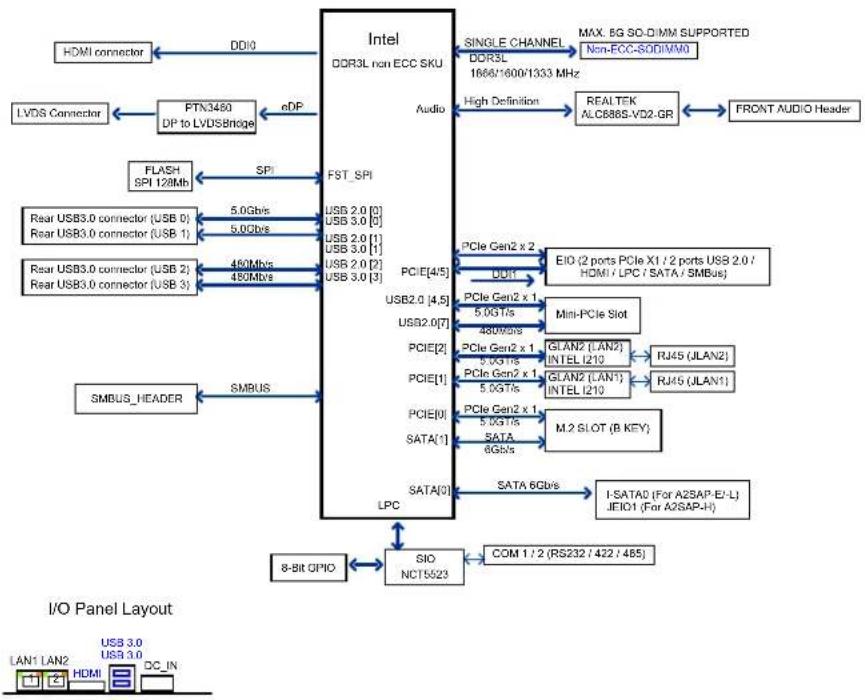
System Block Diagram
flowchart
graph TD
    A["Intel"] -->|DDI0| B["DDR3L non ECC SKU"]
    A -->|eDP| C["Audio"]
    A -->|SPI| D["FST_SPI"]
    A -->|SPI| E["PCIe Gen2 x 2"]
    A -->|SPI| F["PCIe Gen2 x 1"]
    A -->|SPI| G["PCIe Gen2 x 1"]
    A -->|SPI| H["PCIe Gen2 x 1"]
    A -->|SPI| I["SATA [0"]]
    A -->|SPI| J["SATA [0"]]
    A -->|SPI| K["SATA [0"]]
    A -->|SPI| L["SATA [0"]]
    A -->|SPI| M["SATA [0"]]
    A -->|SPI| N["SATA [0"]]
    A -->|SPI| O["SATA [0"]]
    A --> P["PCIe Gen2 x 2"]
    A --> Q["PCIe Gen2 x 1"]
    A --> R["PCIe Gen2 x 1"]
    A --> S["PCIe Gen2 x 1"]
    A --> T["PCIe Gen2 x 1"]
    A --> U["PCIe Gen2 x 1"]
    A --> V["PCIe Gen2 x 1"]
    A --> W["PCIe Gen2 x 1"]
    A --> X["PCIe Gen2 x 1"]
    A --> Y["PCIe Gen2 x 1"]
    A --> Z["PCIe Gen2 x 1"]
    A --> AA["PCIe Gen2 x 1"]
    A --> AB["PCIe Gen2 x 1"]
    A --> AC["PCIe Gen2 x 1"]
    A --> AD["PCIe Gen2 x 1"]
    A --> AE["PCIe Gen2 x 1"]
    A --> AF["PCIe Gen2 x 1"]
    A --> AG["PCIe Gen2 x 1"]
    A --> AH["PCIe Gen2 x 1"]
    A --> AI["PCIe Gen2 x 1"]
    A --> AJ["PCIe Gen2 x 1"]
    A --> AK["PCIe Gen2 x 1"]
    A --> AL["PCIe Gen2 x 1"]
    A --> AM["PCIe Gen2 x 1"]
    A --> AN["PCIe Gen2 x 1"]
    A --> AO["PCIe Gen2 x 1"]
    A --> AP["PCIe Gen2 x 1"]
    A --> AQ["PCIe Gen2 x 1"]
    A --> AR["PCIe Gen2 x 1"]
    A --> AS["PCIe Gen2 x 1"]
    A --> AT["PCIe Gen2 x 1"]
    A --> AU["PCIe Gen2 x 1"]
    A --> AV["PCIe Gen2 x 1"]
    A --> AW["PCIe Gen2 x 1"]
    A --> AX["PCIe Gen2 x 1"]
    A --> AY["PCIe Gen2 x 1"]
    A --> AZ["PCIe Gen2 x 1"]
    A --> BA["PCIe Gen2 x 1"]
    A --> BB["PCIe Gen2 x 1"]
    A --> BC["PCIe Gen2 x 1"]
    A --> BD["PCIe Gen2 x 1"]
    A --> BE["PCIe Gen2 x 1"]
    A --> BF["PCIe Gen2 x 1"]
    A --> BG["PCIe Gen2 x 1"]
    A --> BH["PCIe Gen2 x 1"]
    A --> BI["PCIe Gen2 x 1"]
    A --> BJ["PCIe Gen2 x 1"]
    A --> BK["PCIe Gen2 x 1"]
    A --> BL["PCIe Gen2 x 1"]
    A --> BM["PCIe Gen2 x 1"]
    A --> BN["PCIe Gen2 x 1"]
    A --> BO["PCIe Gen2 x 1"]
    A --> BP["PCIe Gen2 x 1"]
    A --> BQ["PCIe Gen2 x 1"]
    A --> BR["PCIe Gen2 x 1"]
    A --> BS["PCIe Gen2 x 1"]
    A --> BT["PCIe Gen2 x 1"]
    A --> BU["PCIe Gen2 x 1"]
    A --> BV["PCIe Gen2 x 1"]
    A --> BW["PCIe Gen2 x 1"]
    A --> BX["PCIe Gen2 x 1"]
    A --> BY["PCIe Gen2 x 1"]
    A --> BZ["PCIe Gen2 x 1"]
    A --> CA["PCIe Gen2 x 1"]
    A --> CB["PCIe Gen2 x 1"]
    A --> CC["PCIe Gen2 x 1"]
    A --> CD["PCIe Gen2 x 1"]
    A --> CE["PCIe Gen2 x 1"]
    A --> CF["PCIe Gen2 x 1"]
    A --> CG["PCIe Gen2 x 1"]
    A --> CH["PCIe Gen2 x 1"]
    A --> CI["PCIe Gen2 x 1"]
    A --> CJ["PCIe Gen2 x 1"]
    A --> CK["PCIe Gen2 x 1"]
    A --> CL["PCIe Gen2 x 1"]
    A --> CM["PCIe Gen2 x 1"]
Figure 1-4. System Block Diagram
Note: This is a general block diagram and might not exactly represent the features on your motherboard. See the Appendix C for the actual specifications of your motherboard.
1.5 Installation
This section provides advice and instructions for mounting the E50-9AP-L.
Unpacking the System
Inspect the box in which the system was shipped and note if it was damaged. If the system itself shows damage, file a damage claim with the carrier.
Warnings and Precautions
Review the electrical and general safety precautions in Appendix B.
Installing Components to your System
- Memory: If your system is not already fully integrated with system memory, refer to Chapter 2 for details on compatible types of memory and the installation procedure.
- Drives and Storage: Refer to Chapter 2 for instructions on installing drives.
- Input/Output: Refer to Chapter 3 for information about I/O ports.
- Software: Refer to Chapter 4 for software installation information, including drivers and monitoring programs.
Installing Mounting Brackets
The chassis includes mounting brackets that allow it to be mounted in any convenient space.
-
Install the brackets to the chassis with two screws in each bracket.
-
Secure the brackets to the surface where you want the system to be mounted.

natural_image
Technical line drawing of an electronic device casing with mounting holes and mounting screws (no text or symbols)Figure 1-5. Installing Mounting Brackets (extending out from the chassis)
Chapter 2
Maintenance and Component Installation
This chapter provides instructions on installing and replacing main system components. To prevent compatibility issues, only use components that match the specifications and/or part numbers given.
Installation or replacement of most components require that power first be removed from the system. Please follow the procedures given in each section.
2.1 Removing Power
Use the following procedure to ensure that power has been removed from the system. This step is necessary when removing or installing non-hot-swap components or when replacing a non-redundant power supply.
- Use the operating system to power down the system.
- After the system has completely shut down, disconnect the power cord from the outlet.
- Disconnect the power cord from the chassis.
2.2 Accessing the System
The E50-9AP-L features a removable bottom cover to access the inside of the chassis.
Removing the Chassis Cover
- Power down the system as described in Section 2.1.
- Remove the screws that hold the cover in place.
- Lift the cover up and off the chassis.
Caution: Except for short periods of time, do not operate the server without the cover in place. The chassis cover is required to maintain proper cooling airflow.

text_image
SOVERAC EXXICO-LOGOFigure 2-1. Removing the Chassis Cover
2.3 Motherboard Components
Processor
The E50-9AP-L features an embedded Intel® Atom x5-E3940 processor.
Memory Support
The A2SAP-H supports up to 8GB of DDR3L Non-ECC SO-DIMM with speeds of up to 1866MHz in one memory slot on the top side of the motherboard.
Note: Check the Supermicro website for recommended memory modules.
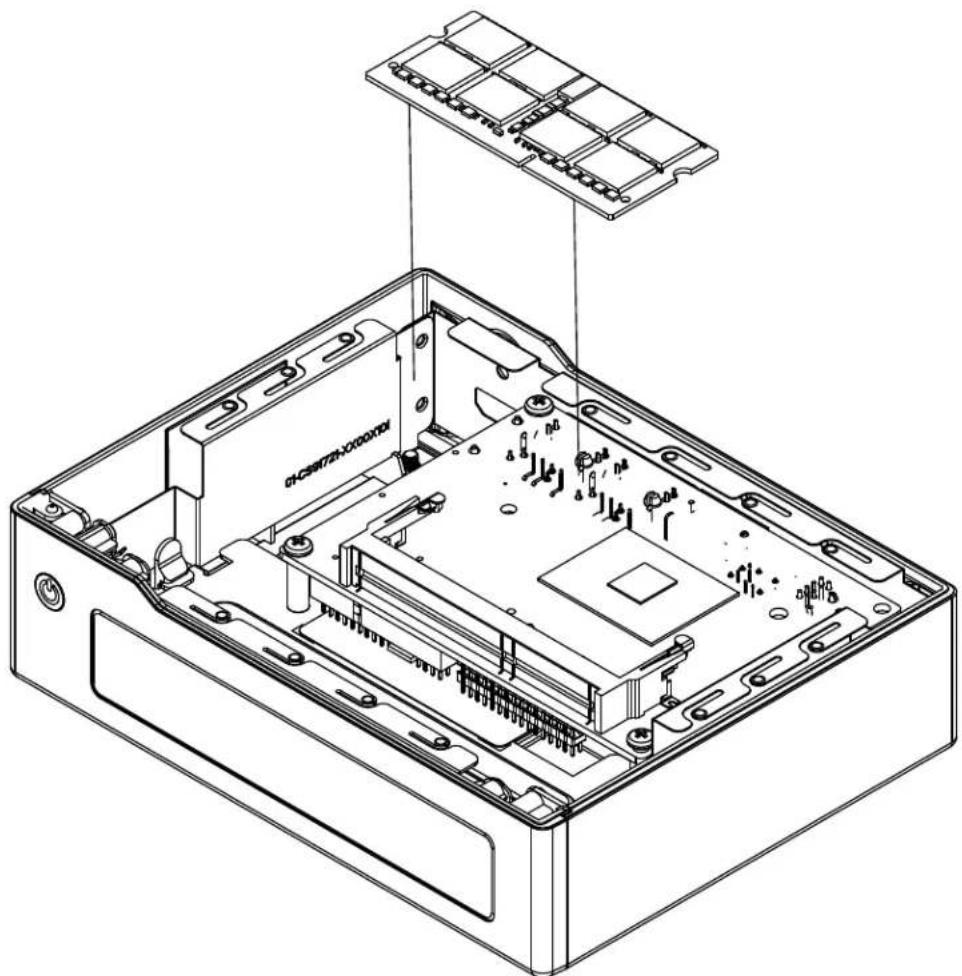
Installing Memory
Caution: Exercise extreme care when installing or removing DIMM modules to prevent damage.
natural_image
Technical line drawing of an open electronic device chassis with internal components and mounting brackets (no text or symbols)Figure 2-2. Installing a DIMM
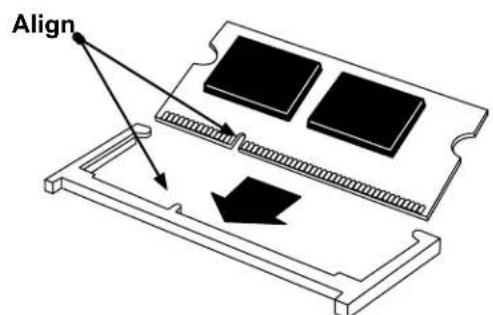
SO-DIMM Installation
- Position the SODIMM module's bottom key so it aligns with the receptive point on the slot.
text_image
Align- Insert the SODIMM module vertically at a 45 degree angle. Press down until the module

text_image
Insert this end first Press down until the module locks into place.locks into place.
- The side clips automatically secure the SODIMM module, locking it into place.

text_image
Locking clip DINAMETER-LOCKINGFigure 2-3. Chassis with Memory
Chapter 3
Motherboard Connections
This section describes the connections on the motherboard and provides pinout definitions.
Depending on how the system is configured, not all connections are required. The LEDs on the motherboard are also described here. A motherboard layout indicating component locations can be found in Chapter 1.
Review the Safety Precautions in Appendix B before installing or removing components.
3.1 Ports
LAN Ports
Two LAN ports (JLAN1 - JLAN2) are located on the I/O back panel. These ports accept RJ45 type cables. Refer to the LED Indicator section for LAN LED information. Refer to the table below for pin definitions.
| LAN PortPin Definition | |||
| Pin# Definition Pin# Definition | |||
| 1 GND | 9 TRD1+ | ||
| 2 CT_VCC 10 TRD1- | |||
| 3TRD4+ | 11 GRN+/ORG- | ||
| 4TRD4- | 12 GRN-/ORG+ | ||
| 5TRD3+ | 13 YEL+ | ||
| 6 TRD3- | 14 YEL- | ||
| 7TRD2+ | 15 SH1 | ||
| 8TRD2- | 16 SH2 | ||
HDMI Port
The HDMI (High-Definition Multimedia Interface) ports are used to display both high definition video and digital sound through an HDMI-capable display, using the same cable.
Universal Serial Bus (USB) Ports
There are two USB 3.0 ports (JUSB1) on the I/O back panel. The motherboard has two additional USB 2.0 connections via the JEIO1 header. J6 also provides two front panel USB 2.0 connections. The onboard headers can be used to provide front side USB access with a cable. Two USB 2.0 cables for front panel support are included with the motherboard.
| Back Panel USB 3.0Pin Definition | |
| Pin# Definition Pin# Definition | |
| A1 VBUS B1 VBUS | |
| A2 D1-N B2 D2-N | |
| A3 D1-P B3 D2-P | |
| A4 GND B4 GND | |
| A5 Stda_SSRX1-N B5 Stda_SSRX2-N | |
| A6 Stda_SSRX1-P B6 Stda_SSRX2-P | |
| A7 GND_DRAIN B7 GND_DRAIN | |
| A8 Stda_SSTX1-N B8 Stda_SSTX2-N | |
| A9 Stda_SSTX1-P B9 Stda_SSTX2-P | |
| Front Panel USB 2.0 HeaderPin Definition | |||
| Pin# Definition | Pin# Definition | ||
| 1 | P5V_DUAL_F | 2 | P5V_DUAL_F |
| 3 | USBCON_N0 | 4 | USBCON_N1 |
| 5 | USBCON_P0 | 6 | USBCON_P1 |
| 7 | GND | 8 | GND |
| 9 | N/A | 10 | N/A |
JDC
This is a DC jack that functions as the 12V power connector.
| 12V Stdby Power Pin Definition | |
| Pin# | Definition |
| 1 P1 | 2VSB |
| 2 GND | |
| 3GND | |
3.2 LED Indicators
LAN Port LEDs
There are two LAN ports (JLAN1 and JLAN2) on the I/O back panel of the motherboard. Each Ethernet LAN port has two LEDs. The green LED indicates activity, while the other Link LED may be green, amber, or off to indicate the speed of the connection.
| LAN1/2 LED(Connection Speed Indicator) | |
| LED Color Definition | |
| Off 10 Mb/s | |
| Green 100 Mb/s | |
| Amber 1 Gb/s | |
Power LED
LED1 is the Power LED. In S0 mode, this LED will be solid green. In S3/S4/S5 modes, this LED will be solid red.
| Onboard Power LED Indicator | |
| LED Color Definition | |
| Off | System Off(power cable not connected) |
| Solid Green S0 mode | |
| Solid Red S3/S4/S5 modes | |
3.3 Headers and Connectors
Front Panel Audio Header
A 10-pin front panel audio header located on the motherboard allows you to use the onboard sound for audio playback. Connect an audio cable to the this header to use this feature. Refer to the table below for pin definitions.
| Audio HeaderPin Definition | ||
| Pin# Definition Pin# Definition | ||
| 1 MIC | Left 2 AUDIO_GND | ||
| 3MIC_Right 4AUDIO_Detect | ||
| 5LINE2_Right 6 MIC2_JD | ||
| 7Front AUDIO_JD 8NC | ||
| 9 LINE2_Left 10 LINE2_JD | ||
COM Headers
The JCOM1 header provides two RS232/422/485 COM connections. Refer to the table below for pin definitions. Refer to pins 1 -10 for COM1 and pins 11 - 20 for COM2.
| Serial COM PortsPin Definition | |||
| Pin# Definition Pin# Definition | |||
| 1 DCD | 2 DSR | ||
| 3RXD | 4RTS | ||
| 5 | TXD | 6 | CTS |
| 7DTR | 8RI_N | ||
| 9 GND | 10 | N/A | |
| 11 | DCD 12 | DSR | |
| 13 | RXD | 14 | RTS |
| 15 | TXD | 16 | CTS |
| 17 | DTR | 18 | RI_N |
| 19 | GND | 20 | N/A |
Battery Connector
BT1 is a two-pin connector for an external CMOS battery. Refer to Chapter 3 for battery installation instructions. This connector is also used to clear the CMOS. To clear the CMOS, remove the battery, short pins 1-2 and then install the battery.
LVDS Connector
LVDS1 is the LVDS connector. LVDS (low-voltage differential signaling) is a high-speed digital interface that operates at low power. It is a type of connection that is used with a LVDS LCD panel.
| LVDS Connector Pin Definitions | |||
| Pin# | Definition Pin# | Definition | |
| 39 | GND 40 GND | ||
| 37 | LVDSB D3N 38 | LVDSB D3P | |
| 35 | LVDSB CLKN 36 | LVDSB CLKP | |
| 33 | LVDSB D2N 34 | LVDSB D2P | |
| 31 | LVDSB D1N 32 | LVDSB D1P | |
| 29 | LVDSB D0N 30 | LVDSB D0P | |
| 27 | GND 28 GND | ||
| 25 | LVDSA D3N 26 | LVDSA D3P | |
| 23 | LVDSA CLKN 24 | LVDSA CLKP | |
| 21 | LVDSA D2N 22 | LVDSA D2P | |
| 19 | LVDSA D1N 20 | LVDSA D1P | |
| 17 | LVDSA D0N 18 | LVDSA D0P | |
| 15 | BKLTEN 16 GND | ||
| 13 | BKLTCTL 14 | PVCCEN | |
| 11 | DDC CLK 12 | DDC DATA | |
| 9 | LCDVCC | 10 LCD | VCC |
| 7 | 3.3V | 8 | GND |
| 5 | 12V | 6 | GND |
| 3 | 12V | 4 | 12V |
| 1 | 12V | 2 | 12V |
General Purpose I/O Header
The JGP1 (General Purpose Input/Output) header is an 8-bit general purpose I/O expander on a pin header via the SMBus. Refer to the table below for pin definitions.
| GPIO HeaderPin Definition | |
| Pin# Definition Pin# Definition | |
| 1 P3V3SB 2 GND | |
| 3GP_P3V3_GP0 4GP_P3V3_GP4 | |
| 5GP_P3V3_GP1 6 GP_P3V3_GP5 | |
| 7GP_P3V3_GP2 8GP_P3V3_GP6 | |
| 9 GP_P3V3_GP3 10 GP_P3V3_GP7 | |
M.2 Slot
M.2 is located at JMD1 on the motherboard. The M.2 slot is designed for internal mounting devices. The A2SAP-H motherboard deploys a B-KEY for SATA/PCI-E SSD devices or USB/PCI-E WWAN or GNSS card. The A2SAP-H deploys a 2280 screw hole location for a 2280 M.2 module. 2242 and 3042 M.2 modules are supported by an extender bracket to fit on the 2280 screw hole location.
JEIO1
This Supermicro I/O header provides support for the following functions: DP/HDMI, two PCIe x1, two USB 2.0, LPC, SATA, SMBus, and Power.
| Functions |
| SATA |
| PCI Express |
| USB |
| LPC |
| SMBus |
| DDI |
| Power |
| Misc |
| GND |
| Supermicro EI/O Pin Definition | ||||
| Pin# | Definition Pin# Definition | |||
| 1 PCIE | EIO_RX_DP0 61 | GND | 2 PCIE | EIO_TX_DP0 |
| 3PCIE | EIO_RX_DN0 4PCIE_EIO_TX_DN0 | |||
| 5GND 6 | GND | |||
| 7PCIE | EIO_RX_DP1 8PCIE_EIO_TX_DP1 | |||
| 9 PCIE | EIO_RX_DN1 10 PCIE_EIO_TX_DN0 | |||
| 11 GND | 12 GND | |||
| 13 CLK | 100M_EIO_DP 14 USB_P5_DP | |||
| 15 CLK | 100M_EIO_DN 16 USB_P5_DN | |||
| 17 GND | 62 | GND | 18 USB | P4_DP |
| 19 DDI | 1_TXP2 | 20 USB | P4_DN | |
| 21 DDI | 1_TXN2 | 22 GND | ||
| 23 GND | 24 DDI1_TXP3 | |||
| 25 DDI | 1_TXP1 | 26 DDI1_TXN3 | ||
| 27 DDI | 1_TXN1 | 28 GND | ||
| 29 GND | 30 DDI_HPD | |||
| 31 DDI | 1_TXP0 | 32 SOC_WAKE_EIO_N | ||
| 33DDI | 1_TXN0 63 | GND | 34DDI1 | DDC_P1V8_DAT |
| 35GND | 36 DDI1_DDC_P1V8_ | CLK | ||
| 37DDI | 1_AUXP | 38SOC_SMB | CLK | |
| 39 DDI | 1_AUXN | 40 SOC_SMB_DAT | ||
| 41 P5VSB | 42 P3VSB | |||
| 43P5VSB | 44LPC_LFRAME_N | |||
| 45P12VSB | 46 LPC_AD3 | |||
| 47SOC | LPC_CLKOUT1 64 | GND | 48LPC | AD2 |
| 49 PLTR | TPM_80PORT_N | 50 LPC | AD1 | |
| 51 LPC | SERIRQ | 52 LPC_AD0 | ||
| 53P3V3 | 54P5V | |||
| 55PS_ON_N | 56 GND | |||
| 57EIO | SATA_TXP0 | 58EIO_SATA_RXN0 | ||
| 59 EIO | SATA_TXN0 | 60 EIO_SATA_RXP0 | ||
Mini PCI-E Slot
The Mini PCI-E slot, located at JMP1 on the bottom side of the motherboard, is used to install a compatible Mini PCI-E device. The Mini PCI-E slot supports modules which are USB or PCI-E x1 devices, such as wireless, GNSS, and Bluetooth modules. See the table below for pin definitions.
| Mini PCI-EPin Definition | |||
| Pin# | Definition Pin# | Definition | |
| 52 +3.3Vaux 51 NC | |||
| 50 GND 49 NC | |||
| 48+1.5V 47NC | |||
| 46 NC 45NC | |||
| 44NC 43NC | |||
| 42 NC 41 +3.3Vaux | |||
| 40 GND 39 NC | |||
| 38USB_D+ 37GND | |||
| 36 USB_D- 35GND | |||
| 34GND 33PETp0 | |||
| 32 SMB_DATA 31 PETn0 | |||
| 30 SMB_CLK 29 GND | |||
| 28 +1.5V 27 GND | |||
| 26 GND 25 PERp0 | |||
| 24 +3.3Vaux 23 PERn0 | |||
| 22 PERST# 21 DET_CARD_ | PLUG | ||
| 20 NC 19 NC | |||
| 18 GND 17 NC | |||
| 16 NC 15 GND | |||
| 14 NC 13 REFCLK+ | |||
| 12 NC 11 REFCLK- | |||
| 10 NC 9 GND | |||
| 8 NC 7 CLKREQ# | |||
| 6 1.5V | 5 | NC | |
| 4 GND 3 NC | |||
| 2 3.3Vaux | 1 | WAKE# | |
System Management Bus Header and SATA Power
A System Management Bus header for additional slave devices or sensors is located at JSMBUS1 on the bottom side of the motherboard. This header also serves as a 5V SATA power box header. Refer to the table below for pin definitions.
| SMBus HeaderPin Definition | |
| Pin# | Definition |
| 1 | SMB_CLK |
| 2 | SMB_DATA |
| 3 | GND |
| 4 | P5V |
32-Pin Connector A (JF1 + JGP1 + J6)
A2SAP-H combines JF1, JGP1 and J6 into a 32-pin, 2.0mm pitch pin header, including the front panel (power/HDD LED, power/reset button), 8-bit GPIO, and two USB 2.0 connections. Refer to the table below for pin definitions and the female mating connector information. The distance between the board-to-board stack is 11mm in height while using the male pin header (PINREX P/N:225-97-16GBEW) to stack onto the female mating connector (PINREX P/N: 620-92-16GB00).
| 32-Pin Connector A | ||||
| Connector Supermicro P/N Vendor Manufacture P/N Description | ||||
| Male Pin Header on A2SAP-H | HDR-0208L-0000-PRX | PINREX 225-97-16GBEW | CNT, PIN/HEADER, 2X16 PIN, PITCH 2MM, VERT, 1A/PIN, BLACK, GF, NY6T, SMD, CM (-30 ~ 75C), ROHS | |
| Female Mating Connector | HDR-0210L-0000-PRX | PINREX 620-92-16GB00 | CNT, PIN FEMALE HEADER, 2X16 PIN, PITCH 2MM, VERT,1A/PIN, BLACK, GF, TL2.3MM, NY6T, DIP, EX (-40 ~ 105C), ROHS | |
| 32-Pin Connector APin Definitions | ||||||
| Function | Pin# | Silkscreen Pin # | Definition | Pin# | Silkscreen Pin # | Definition |
| Two USB 2.0(J6: USB0/1) | 1 1 P5V_DUAL_F | 2 | 2 P5V_DUAL_F | |||
| 3 | 3 | USBCON_N0 | 4 | 4 | USBCON_N1 | |
| 55U SBCON_P0 | 6 | 6 USBCON_P1 | ||||
| 77GND | 8 | 8GND | ||||
| 9 9 N/A | 10 | 10 | N/A | |||
| N/A | 11 | N/A | N/A | 12 | N/A | N/A |
| 8-bit GPIO(JGP1) | 13 | 1 P3V3SB | 14 | 2 GND | ||
| 15 | 3 | GPIO_1 | 16 | 4 | GPIO_5 | |
| 17 | 5 | GPIO_2 | 18 | 6 | GPIO_6 | |
| 19 | 7 | GPIO_3 | 20 | 8 | GPIO_7 | |
| 21 | 9 | GPIO_4 | 22 | 10 | GPIO_8 | |
| N/A | 23 | N/A | N/A | 24 | N/A | N/A |
| Front Panel(JF1) | 25 | 1 Power Button | 26 | 2 GND | ||
| 27 | 3 | Reset Button | 28 | 4 | GND | |
| 29 | 5 | 3.3V | 30 | 6 | SATA HDD LED | |
| 31 | 7 | 3.3Vstby | 32 | 8 | PWR LED | |
34-Pin Connector B (JCOM1 + J3)
A2SAP-H combines JCOM1 and J3 into a 34-pin, 2.0mm pitch pin header, including two RS-232/422/485 connections and an audio (Mic-in/Headphone-out) connection. Refer to the table below for pin definitions and the female mating connector information. The distance between board-to-board stack is 11mm in height while using male pin header (PINREX P/N:225-97-17GBEW) to stack onto female mating connector (PINREX P/N:620-92-17GB00).
| 34-Pin Connector B | ||||
| Connector Supermicro P/N Vendor Manufacture P/N Description | ||||
| Male Pin Header on A2SAP-H | HDR-0209L-0000-PRX | PINREX 225-97-17GBEW | CNT, PIN/HEADER, 2X17 PIN, PITCH 2MM, VERT, 1A/PIN, BLACK, GF, NY6T, SMD, CM (-30 ~ 75C), ROHS | |
| Female Mating Connector on I/O Module | HDR-0211L-0000-PRX | PINREX 620-92-17GB00 | CNT, PIN FEMALE HEADER, 2X17 PIN, PITCH 2MM, VERT, 1A/PIN, BLACK, GF, TL2.3MM, NY6T, DIP, EX (-40 ~ 105C), ROHS | |
| 34-Pin Connector B Pin Definitions | ||||||
| Function | Pin# | Silkscreen Pin # | Definition | Pin# | Silkscreen Pin # | Definition |
| AUDIO (J3: Audio FP) | 1 10 | LINE2_JD | 2 9 | LINE2_Left | ||
| 3 | 8 | NC | 4 | 7 | Front AUDIO_JD | |
| 5 | 6 | MIC2_JD | 6 | 5 | LINE2_Right | |
| 7 | 4 | AUDIO_Detect | 8 | 3 | MIC_Right | |
| 9 | 2 | AUDIO_GND | 10 | 1 | MIC_Left | |
| N/A | 11 | N/A | N/A | 12 | N/A | N/A |
| N/A | 13 | N/A | N/A | 14 | N/A | N/A |
| Two RS-232/422/485 (JCOM1: COM1/ COM2) | 15 | 1 | DCD | 16 | 2 | DSR |
| 17 | 3 | RXD | 18 | 4 | RTS | |
| 19 | 5 | TXD | 20 | 6 | CTS | |
| 21 | 7 | DTR | 22 | 8 | RI_N | |
| 23 9 | GND | 24 | 10 | N/A | ||
| 25 | 11 | DCD | 26 | 12 | DSR | |
| 27 13 | RXD | 28 | 14 RTS | |||
| 29 15 | TXD | 30 | 16 CTS | |||
| 31 17 | DTR | 32 | 18 RI_N | |||
| 33 | 19 | GND | 34 | 20 | N/A | |
Control Panel
JF1 contains header pins for various buttons and indicators that are normally located on a control panel at the front of the chassis. These connectors are designed specifically for use with Supermicro chassis. Refer to the figure below for the descriptions of the front control panel buttons and LED indicators.
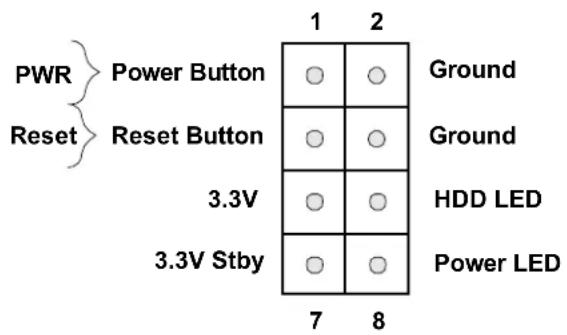
text_image
PWR Reset Power Button Reset Button 3.3V 3.3V Stby 1 2 Ground Ground HDD LED Power LED 7 8Power Button
The Power Button connection is located on pins 1 and 2 of JF1. Momentarily contacting both pins will power on/off the system. This button can also be configured to function as a suspend button with a setting in the BIOS (see Chapter 4). To turn off the power in the suspend mode, press the button for at least 4 seconds. Refer to the table below for pin definitions.
| Power ButtonPin Definition (JF1) | |
| Pin# | Definition |
| 1 | Power Button |
| 2 | GND |
Reset Button
The Reset Button connection is located on pins 3 and 4 of JF1. Attach it to a hardware reset switch on the computer case to reset the system. Refer to the table below for pin definitions.
| Reset ButtonPin Definition (JF1) | |
| Pin# | Definition |
| 3Reset | |
| 4Ground | |
HDD LED
The HDD LED connection is located on pins 5 and 6 of JF1. Attach a cable here to indicate the status of HDD-related activities, including SATA activities. Refer to the table below for pin definitions.
| HDD LEDPin Definition (JF1) | |
| Pin# | Definition |
| 5+3.3V | |
| 6 HDD Active LOW | |
Power LED
The Power LED connection is located on pins 7 and 8 of JF1. Refer to the table below for pin definitions.
| Power LEDPin Definition (JF1) | |
| Pin# | Definition |
| 7+3.3VSB | |
| 8Power LED LOW | |
3.4 Jumper Settings
How Jumpers Work
To modify the operation of the motherboard, jumpers can be used to choose between optional settings. Jumpers create shorts between two pins to change the function of the connector. Pin 1 is identified with a square solder pad on the printed circuit board. See the diagram below for an example of jumping pins 1 and 2. Refer to the motherboard layout page for jumper locations.
Note: On two-pin jumpers, Closed means the jumper is on and Open means the jumper is off the pins.

text_image
Connector Pins Jumper Setting 3 2 1 3 2 1JLCDPWR1
Use this jumper to select the power voltage for the LVDS panel. Make sure that the specifications of the cable is compatible with the panel to prevent damage.
Force Power On
Use jumper JLCDPWR1 (Pins 2-4/4-6) to select the Force Power On function when the AC power cord is plugged in. When enabling force power on and AC power recovery, the system will boot up automatically without pressing the power button. See the tables below for jumper setting information.
| LVDS Power Source SelectionJumper Settings | |
| Jumper Setting Definition | |
| Pins 1-3 3.3V (Default) | |
| Pins 3-5 5V | |
| Force Power OnJumper Settings | |
| Jumper Setting Definition | |
| Pins 2-4 Force Power On (Default) | |
| Pins 4-6 Power Button On |
Chapter 4
Software Installation
This section describes the installation of drivers and management programs for the system.
4.1 Driver Installation
The Supermicro FTP site contains drivers and utilities for your system at https://www.supermicro.com/wdl/.com. Some of these must be installed, such as the chipset driver.
After accessing the FTP site, go into the CDR_Images directory and locate the ISO file for your motherboard. Download this file to create a DVD of the drivers and utilities it contains. (You may also use a utility to extract the ISO file if preferred.)
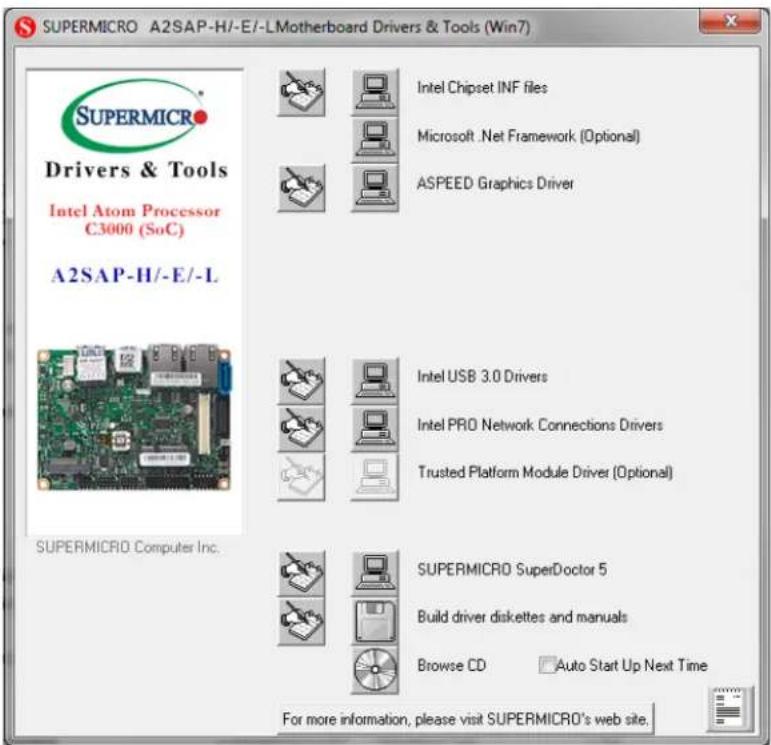
After creating a DVD with the ISO files, insert the disk into the DVD drive on your system and the display shown in Figure 4-1 should appear.
Another option is to go to the Supermicro website at http://www.supermicro.com/products/. Find the product page for your motherboard here, where you may download individual drivers and utilities to your hard drive or a USB flash drive and install from there.
Note: To install the Windows OS, please refer to the instructions posted on our website at http://www.supermicro.com/support/manuals/.
text_image
SUPERMICRO A2SAP-H/-E/-LMotherboard Drivers & Tools (Win7) SupersMCRO Drivers & Tools Intel Atom Processor C3000 (SoC) A2SAP-H/-E/-L SUPERSMCRO Computer Inc. Intel Chipset INF files Microsoft .Net Framework (Optional) ASPEED Graphics Driver Intel USB 3.0 Drivers Intel PRO Network Connections Drivers Trusted Platform Module Driver (Optional) SUPERMICRO SuperDoctor 5 Build driver diskettes and manuals Browse CD Auto Start Up Next Time For more information, please visit SUPERMICRO's web site.Figure 4-1. Driver & Tool Installation Screen
Note: Click the icons showing a hand writing on paper to view the readme files for each item. Click the computer icons to the right of these items to install each item (from top to the bottom) one at a time. After installing each item, you must re-boot the system before moving on to the next item on the list. The bottom icon with a CD on it allows you to view the entire contents.
4.2 SuperDoctor® 5
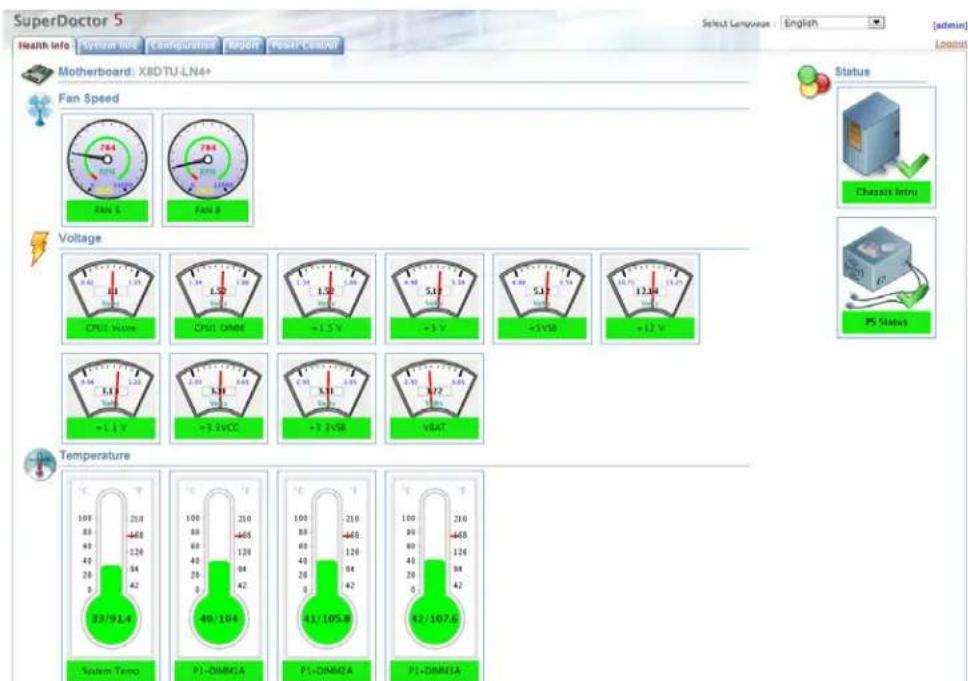
The Supermicro SuperDoctor 5 is a hardware monitoring program that functions in a command-line or web-based interface in Windows and Linux operating systems. The program monitors system health information such as CPU temperature, system voltages, system power consumption, fan speed, and provides alerts via email or Simple Network Management Protocol (SNMP).
SuperDoctor 5 comes in local and remote management versions and can be used with Nagios to maximize your system monitoring needs. With SuperDoctor 5 Management Server (SSM Server), you can remotely control power on/off and reset chassis intrusion for multiple systems with SuperDoctor 5 or IPMI. SD5 Management Server monitors HTTP, FTP, and SMTP services to optimize the efficiency of your operation.
text_image
SuperDoctor 5 Health Info System info Configuration Energy Power Control Select Language: English [admin] Login Motherboard: X8DTU-LN4+ Fan Speed Fan 1 Fan 2 Voltage CPU Value CPU DMIE +1.5 V +3 V +1VSB +12 V +1.1 V +3.3VCC +3.3VSB VBAT Temperature System Temp. P1-DMMIA P1-DMMIA P1-DMMIA 100 80 60 40 20 0 33/91.4 100 80 60 40 20 0 49/104 100 80 60 40 20 0 42 41/105.8 100 80 60 40 20 0 42/107.6 Status Chassis Intra PS StatusFigure 4-2. SuperDoctor 5 Interface Display Screen (Health Information)
Chapter 5
BIOS
5.1 Introduction
This chapter describes the AMI BIOS setup utility for the A2SAP-H motherboard. It also provides the instructions on how to navigate the AMI BIOS setup utility screens. The AMI ROM BIOS is stored in a Flash EEPROM and can be easily updated.
Note: Due to periodic changes to the BIOS, some settings may have been added or deleted and might not yet be recorded in this manual. Please refer to the Manual Download area of our website for any changes to BIOS that may not be reflected in this manual.
Starting the Setup Utility
To enter the BIOS Setup Utility, hit the
The Main BIOS screen has two main frames. The left frame displays all the options that can be configured. "Grayed-out" options cannot be configured. The right frame displays the key legend. Above the key legend is an area reserved for a text message. When an option is selected in the left frame, it is highlighted in white. Often a text message will accompany it. (Note that BIOS has default text messages built in. We retain the option to include, omit, or change any of these text messages.) Settings printed in Bold are the default values.
A "▶" indicates a submenu. Highlighting such an item and pressing the
The BIOS setup utility uses a key-based navigation system called hotkeys. Most of these hotkeys (
5.2 Main Page
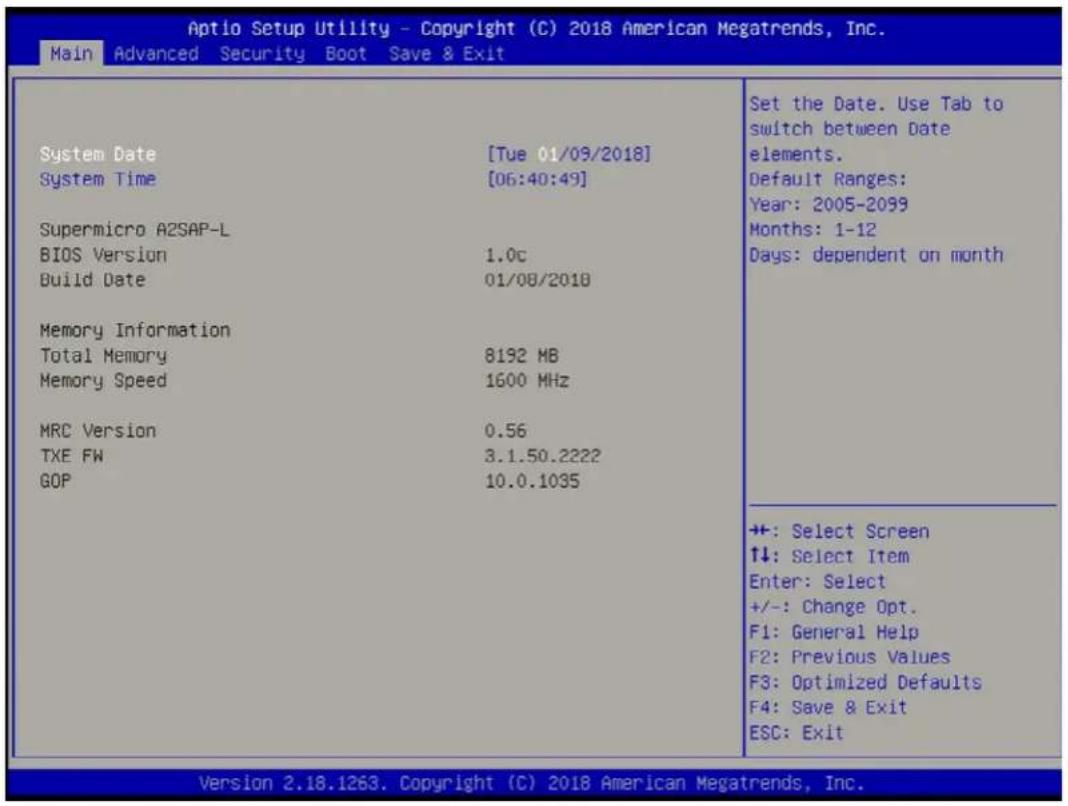
When you first enter the AMI BIOS setup utility, you will enter the Main setup screen. You can always return to the Main setup screen by selecting the Main tab on the top of the screen. The Main BIOS setup screen is shown below. The following Main menu items are displayed:
text_image
Aptio Setup Utility - Copyright (C) 2018 American Megatrends, Inc. Main Advanced Security Boot Save & Exit System Date [Tue 01/09/2018] System Time [06:40:49] Supermicro A2SAP-L BIOS Version 1.0c Build Date 01/08/2018 Memory Information Total Memory 8192 MB Memory Speed 1600 MHz MRC Version 0.56 TXE FW 3.1.50.2222 GOP 10.0.1035 Set the Date. Use Tab to switch between Date elements. Default Ranges: Year: 2005-2099 Months: 1-12 Days: dependent on month ++: Select Screen ↑↓: Select Item Enter: Select +/-: Change Opt. F1: General Help F2: Previous Values F3: Optimized Defaults F4: Save & Exit ESC: Exit Version 2.18.1263. Copyright (C) 2018 American Megatrends, Inc.System Date/System Time
Use this option to change the system date and time. Highlight System Date or System Time using the arrow keys. Enter new values using the keyboard. Press the
Note: The time is in the 24-hour format. For example, 5:30 P.M. appears as 17:30:00.
Supermicro A2SAP-H
BIOS Version; Build Date
Memory Information: Total Memory; Memory Speed
MRC Version; TXE FW; GOP
5.3 Advanced Page
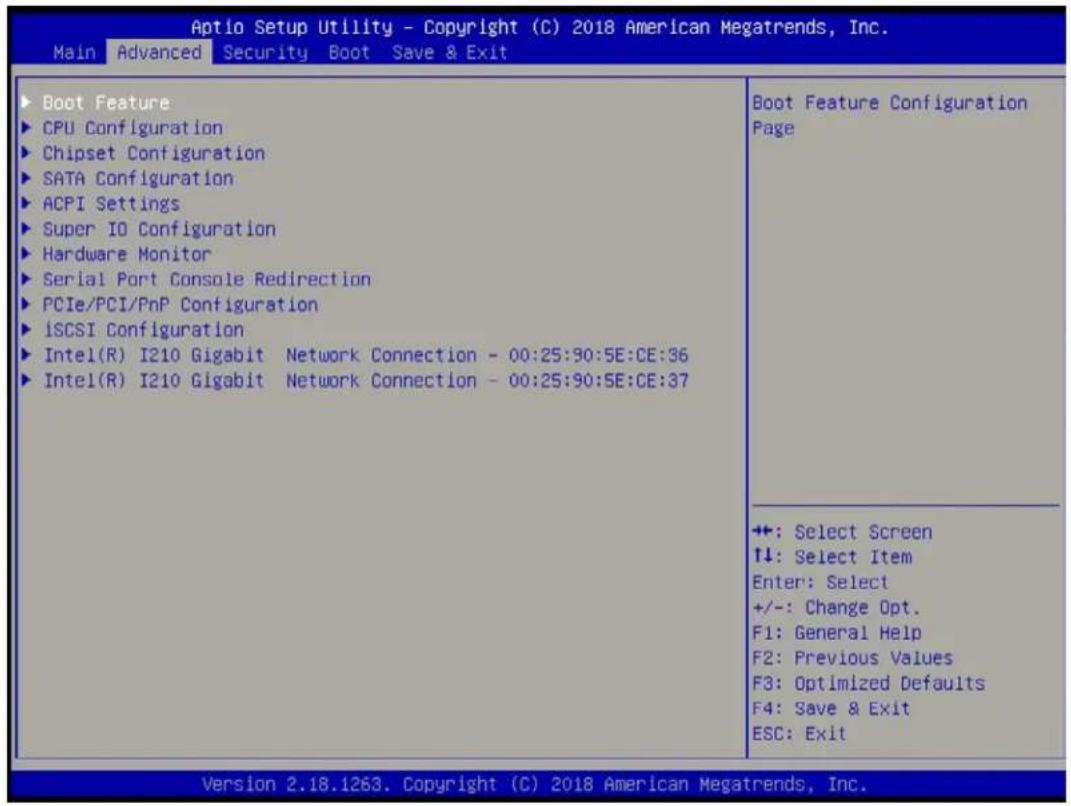
Use this tab page to set some boot, power, CPU, SATA, server ME, and input/output settings.
text_image
Aptio Setup Utility - Copyright (C) 2018 American Megatrends, Inc. Main Advanced Security Boot Save & Exit ▶ Boot Feature ▶ CPU Configuration ▶ Chipset Configuration ▶ SATA Configuration ▶ ACPI Settings ▶ Super IO Configuration ▶ Hardware Monitor ▶ Serial Port Console Redirection ▶ PCIe/PCI/PnP Configuration ▶ iSCSI Configuration ▶ Intel(R) I210 Gigabit Network Connection - 00:25:90:5E:CE:36 ▶ Intel(R) I210 Gigabit Network Connection - 00:25:90:5E:CE:37 Boot Feature Configuration Page ++: Select Screen ↑↓: Select Item Enter: Select +/-: Change Opt. F1: General Help F2: Previous Values F3: Optimized Defaults F4: Save & Exit ESC: Exit Version 2.18.1263. Copyright (C) 2018 American Megatrends, Inc.Caution: Take caution when changing the Advanced settings. An incorrect value, a very high DRAM frequency, or an incorrect DRAM timing setting might make the system unstable. When this occurs, revert to the manufacture default settings.
▶Boot Feature
Quiet Boot
Use this feature to select the screen display between POST messages or the OEM logo at bootup. Select Disabled to display the POST messages. Select Enabled to display the OEM logo instead of the normal POST messages. The options are Disabled and Enabled.
AddOn ROM Display Mode
This feature sets the display mode for the Option ROM. Select Keep Current to use the current AddOn ROM display setting. Select Force BIOS to use the Option ROM display mode set by the system BIOS. The options are Force BIOS and Keep Current.
Bootup NumLock State
This feature selects the Power-on state for the Numlock key. The options are Off and On.
Wait For "F1" If Error
This feature forces the system to wait until the F1 key is pressed if an error occurs. The options are Disabled and Enabled.
INT19 Trap Response
Interrupt 19 is the software interrupt that handles the boot disk function. When this item is set to Immediate, the ROM BIOS of the host adaptors will "capture" Interrupt 19 at bootup immediately and allow the drives that are attached to these host adaptors to function as bootable disks. If this item is set to Postponed, the ROM BIOS of the host adaptors will not capture Interrupt 19 immediately and allow the drives attached to these adaptors to function as bootable devices at bootup. The options are Immediate and Postponed.
Re-try Boot
If this item is enabled, the BIOS will automatically reboot the system from a specified boot device after its initial boot failure. The options are Disabled and EFI Boot.
Power Configuration
Watch Dog Function
If enabled, the Watch Dog timer will allow the system to reboot when it is inactive for more than 5 minutes. The options are Disabled and Enabled.
Power Button Function
This feature controls how the system shuts down when the power button is pressed. Select 4 Seconds Override for the user to power off the system after pressing and holding the power button for 4 seconds or longer. Select Instant Off to instantly power off the system as soon as the user presses the power button. The options are Instant Off and 4 Seconds Override.
Restore on AC Power Loss
Use this feature to set the power state after a power outage. Select Power Off for the system power to remain off after a power loss. Select Power On for the system power to be turned on after a power loss. Select Last State to allow the system to resume its last power state before a power loss. The options are Stay Off, Power on, and Last State.
▶CPU Configuration
The following CPU information will display:
• Displays the CPU model
- CPU Signature
- Microcode Patch
- Max CPU Speed
- Min CPU Speed
- Processor Cores
- Intel HT Technology
• Intel VT-x Technology - L1 Data Cache
- L1 Code Cache
- L2 Cache
- L3 Cache
- Speed
- 64-bit
▶CPU Power Management
EIST
EIST (Enhanced Intel SpeedStep Technology) allows the system to automatically adjust processor voltage and core frequency to reduce power consumption and heat dissipation. The options are Disabled and Enabled.
Turbo Mode
Select Enabled for processor cores to run faster than the frequency specified by the manufacturer. The options are Disabled and Enabled.
Boot performance mode
This feature allows the user to select the performance state that the BIOS will set before the operating system handoff. The options are Max Performance and Max Power Saving.
Power Limit 1 Enable
Use this feature to set the power limit for the CPU. The options are Disabled and Enabled.
Power Limit 1
Power Limit 1 Clamp Mode
Use this feature to set the PL1 clamp bit. The options are Disabled and Enabled.
Power Limit 1 Power
Use this item to configure the value for Power Limit 1. The value is in milli watts and the step size is 125mW. Use the number keys on your keyboard to enter the value. Enter Auto to use the manufacture default setting.
Power Limit 1 Time Window
Use this feature to indicate the time window over which the TDP value should be maintained. The default value is Auto. The options are Auto, 1, 2, 3, 4, 5, 6, 7, 8, 10, 12, 14, 16, 20, 24, 28, 32, 40, 48, 56, 64, 80, 96, 112, and 128.
Active Processor Cores
This feature determines how many CPU cores will be activated for each CPU. When Enabled is selected, all cores in the CPU will be activated. Please refer to Intel's website for more information. The options are Disabled and Enabled.
Intel® Virtualization Technology
Select Enable to use Intel Virtualization Technology to allow one platform to run multiple operating systems and applications in independent partitions, creating multiple "virtual" systems in one physical computer. The options are Disabled and Enabled.
VT-d
Select Enabled to enable Intel Virtualization Technology support for Direct I/O VT-d by reporting the I/O device assignments to VMM through the DMAR ACPI Tables. This feature offers fully-protected I/O resource-sharing across the Intel platforms, providing the user with greater reliability, security and availability in networking and data-sharing. The options are Disabled and Enabled.
Monitor Mwait
Select Enabled to enable the Monitor/Mwait instructions. The Monitor instructions monitors a region of memory for writes, and MWait instructions instruct the CPU to stop until the monitored region begins to write. The options are Disabled and Enabled.
P-STATE Coordination
This feature allows the user to change the P-State (Power-Performance State) coordination type. P-State is also known as "SpeedStep" for Intel processors. Select HW_ALL to change the P-State coordination type for hardware components only. Select SW_ALL to change the P-State coordination type for all software installed in the system. Select SW_ANY to change the P-State coordination type for a software program in the system. The options are HW_All, SW_ALL, and SW_ANY.
▶Chipset
Warning: Setting the wrong values in the following sections may cause the system to malfunction.
▶North Bridge
Memory Information
Memory Slot0 - 8192 MB (LPDDR3)
Max TOLUD
This feature sets the maximum TOLUD value, which specifies the "Top of Low Usable DRAM" memory space to be used by internal graphics devices, GTT Stolen Memory, and TSEG, respectively, if these devices are enabled. The options are 2 GB, 2.25 GB, 2.5 GB, 2.75 GB, and 3 GB.
▶ Graphics Configuration
GOP Driver
The Graphics Output Protocol (GOP) driver is a replacement for legacy video BIOS that accesses UEFI protocols. The options are Enable and Disable.
LVDS Panel Support
Use this feature to select the supported IGFX graphics device output to the LVDS panel. The options are Disabled and Enabled.
Panel Support
Use this feature to select the panel voltage type. The options are Disable, G104SN03 V.5, G150XTN3.2, AU0_G170EG01_V1, G220SVN01.0, and AU0_G173HW01_v0.
IGD Configuration
Integrate Graphics Device
When enabled, the onboard graphics device will be used as the primary video display. The options are Disable and Enable.
Primary Display
Use this feature to select the primary video display. The options are IGD and PCIe.
RC6 (Render Standby)
Select Enabled to enable render standby support. This is a power saving feature for the onboard display that reduces power consumption. The options are Disable and Enable.
GTT Size
Use this feature to set the memory size to be used by the graphics translation table (GTT). The options are 2MB, 4MB, and 8MB.
Aperture Size
Use this feature to set the Aperture size, which is the size of system memory reserved by the BIOS for graphics device use. The options are 128MB, 256MB, and 512 MB.
DVMT Pre-Allocated
Dynamic Video Memory Technology (DVMT) allows dynamic allocation of system memory to be used for video devices to ensure best use of available system memory based on the DVMT 5.0 platform. The options are 64M, 96M, 128M, 160M, 192M, 224M, 256M, 288M, 320M, 352M, 384M, 416M, 448M, 480M, and 512M.
DVMT Total Gfx Mem
Use this feature to set the total memory size to be used by internal graphics devices based on the DVMT 5.0 platform. The options are 128MB, 256MB, and MAX.
GT PM Support
Use this feature to enable the IGFX Power Management function. The options are Enable and Disable.
PAVP Enable
Protected Audio Video Path (PAVP) decodes Intel integrated graphics encrypted video. The options are Enable and Disable.
▶South Bridge
▶HD Audio Configuration
HD-Audio Configuration
HD-Audio Support
Use this feature to enable high-definition audio support. The options are Disable and Enable.
▶PCI Express Configuration
JEIO1
ASPM
Use this item to set the Active State Power Management (ASPM) level for a PCI-E device. Select Auto for the system BIOS to automatically set the ASPM level based on the
system configuration. Select Disabled to disable ASPM support. The options are Disable, L0s, L1, L0sL1, and Auto.
PCIe Speed
Uses this feature to select the PCI speed for the device installed in the slot. The options are Auto, Gen1, and Gen2.
▶M.2 SLOT
ASPM
Use this item to set the Active State Power Management (ASPM) level for a PCI-E device. Select Auto for the system BIOS to automatically set the ASPM level based on the system configuration. Select Disabled to disable ASPM support. The options are Disable, L0s, L1, L0sL1, and Auto.
PCIe Speed
Use this feature to select the PCI speed for the device installed in the M.2 slot. The options are Auto, Gen1, and Gen2.
▶Intel I210 Gigabit LAN
ASPM
Use this item to set the Active State Power Management (ASPM) level for a PCI-E device. Select Auto for the system BIOS to automatically set the ASPM level based on the system configuration. Select Disabled to disable ASPM support. The options are Disable, L0s, L1, L0sL1, and Auto.
PCIe Speed
Use this feature to select the PCI speed for the device installed in the slot. The options are Auto, Gen1, and Gen2.
▶Intel I210 Gigabit LAN
ASPM
Use this item to set the Active State Power Management (ASPM) level for a PCI-E device. Select Auto for the system BIOS to automatically set the ASPM level based on the system configuration. Select Disabled to disable ASPM support. The options are Disable, L0s, L1, L0sL1, and Auto.
PCIe Speed
Use this feature to select the PCI speed for the device installed in the slot. The options are Auto, Gen1, and Gen2.
▶Mini PCIe
ASPM
Use this item to set the Active State Power Management (ASPM) level for a PCI-E device. Select Auto for the system BIOS to automatically set the ASPM level based on the system configuration. Select Disabled to disable ASPM support. The options are Disable, L0s, L1, L0sL1, and Auto.
PCIe Speed
Use this feature to select the PCI speed for the device installed in the slot. The options are Auto, Gen1, and Gen2.
▶USB Configuration
USB3.0 Support
Select Enable for USB 3.0 support. The options are Enable and Disable.
XHCI Pre-Boot Driver
Select Enabled to enable XHCI (Extensible Host Controller Interface) support on a pre-boot drive specified by the user. The options are Enable and Disable.
XHCI Hand-Off
This is a work-around solution for operating systems that do not support XHCI (Extensible Host Controller Interface) hand-off. The XHCI ownership change should be claimed by the XHCI driver. The settings are Enabled and Disabled.
USB Mass Storage Driver Support
Select Enabled for USB mass storage device support. The options are Disabled and Enabled.
▶SATA Configuration
Chipset SATA
This item enables or disables the onboard SATA controller supported by the SoC. The options are Enable and Disable.
SATA Mode Selection
Use this item to select the mode for the installed SATA drives. The options are AHCI and RAID.
Aggressive LPM (Link Power Management) Support
When this item is set to Enabled, the SATA AHCI controller manages the power usage of the SATA link. The controller will put the link in a low power mode during extended periods of I/O inactivity, and will return the link to an active state when I/O activity resumes. The options are Enabled and Disabled.
SATA Frozen
Use thia feature to enable the HDD Security Frozen Mode. The options are Disabled and Enabled.
I-SATA1
I-SATA1 Hot Plug
This feature designates the SATA port specified for hot plugging. Set this item to Enabled for hot-plugging support, which will allow the user to replace a SATA drive without shutting down the system. The options are Enabled and Disabled.
Spin Up Device
When the value of an edge detect or the value of an image binary (pixel) of a device is from 0 to 1, select Enabled to allow the PCH to start a COMRESET initialization sequence on this device. The options are Enabled and Disabled.
SATA Device Type
Use this item to specify if the SATA port specified by the user is connected to a Solid State drive or a Hard Disk Drive. The options are Hard Disk Drive and Solid State Drive.
I-SATA1 DevSlp
DEVSLP is a signal that is sent to a SATA disk drive to tell it to enter a very low power state. The options are Disabled and Enabled.
M.2 SATA
M.2 SATA Hot Plug
This feature designates the SATA port specified for hot plugging. Set this item to Enabled for hot-plugging support, which will allow the user to replace a SATA drive without shutting down the system. The options are Enabled and Disabled.
Spin Up Device
When the value of an edge detect or the value of an image binary (pixel) of a device is from 0 to 1, select Enabled to allow the PCH to start a COMRESET initialization sequence on this device. The options are Enabled and Disabled.
SATA Device Type
Use this item to specify if the SATA port specified by the user is connected to a Solid State drive or a Hard Disk Drive. The options are Hard Disk Drive and Solid State Drive.
M.2 SATA DevSlp
DEVSLP is a signal that is sent to a SATA disk drive to tell it to enter a very low power state. The options are Disabled and Enabled.
▶Trusted Computing
Security Device Support
If this feature and the TPM jumper on the motherboard are both set to Enabled, onboard security devices will be enabled for TPM (Trusted Platform Module) support to enhance data integrity and network security. Please reboot the system for a change on this setting to take effect. The options are Disable and Enable.
▶ACPI Settings
ACPI Sleep State
Use this feature to select which sleep state mode the system will enter when the Suspend button is pressed. The options are Suspend Disabled and S3 (Suspend to RAM).
High Precision Timer
Select Enabled to activate the High Performance Event Timer (HPET) that produces periodic interrupts at a much higher frequency than a Real-time Clock (RTC) does in synchronizing multimedia streams, providing smooth playback and reducing the dependency on other timestamp calculation devices, such as an x86 RDTSC Instruction embedded in the CPU. The High Performance Event Timer is used to replace the 8254 Programmable Interval Timer. The options are Disable and Enable.
▶Super IO Configuration
Super IO Chip NCT5523D
▶ Serial Port 1 Configuration
Serial Port
Select Enabled to enable the onboard serial port specified by the user. The options are Disabled and Enabled.
Device Settings
This item displays the base I/O port address and the Interrupt Request address of a serial port specified by the user.
Change Settings
This feature specifies the base I/O port address and the Interrupt Request address of Serial Port 1. Select Auto to allow the BIOS to automatically assign the base I/O and IRQ address to a serial port specified. The options are Auto, (IO=3F8h; IRQ=4), (IO=3F8h; IRQ=3, 4, 5, 6, 7, 9, 10, 11, 12), (IO=2F8h; IRQ=3, 4, 5, 6, 7, 9, 10, 11, 12), (IO=3E8h; IRQ=3, 4, 5, 6, 7, 9, 10, 11, 12), and (IO=2E8h; IRQ=3, 4, 5, 6, 7, 9, 10, 11, 12).
COM Port Mode
Use this item to select the COM port mode. The options are RS232 Mode, RS422 Mode, and RS485 Mode.
▶ Serial Port 2 Configuration
Serial Port
Select Enabled to enable the onboard serial port specified by the user. The options are Disabled and Enabled
Device Settings
This item displays the base I/O port address and the Interrupt Request address of a serial port specified by the user.
Change Port Settings
This feature specifies the base I/O port address and the Interrupt Request address of Serial Port 2. Select Auto to allow the BIOS to automatically assign the base I/O and IRQ address to a serial port specified. The options are Auto, (IO=2F8h; IRQ=3), (IO=3F8h; IRQ=3, 4, 5, 6, 7, 9, 10, 11, 12), (IO=2F8h; IRQ=3, 4, 5, 6, 7, 9, 10, 11, 12), (IO=3E8h; IRQ=3, 4, 5, 6, 7, 9, 10, 11, 12), and (IO=2E8h; IRQ=3, 4, 5, 6, 7, 9, 10, 11, 12).
COM Port Mode
Use this item to select the COM port mode. The options are RS232 Mode, RS422 Mode, and RS485 Mode.
▶Hardware Monitor
PC Health Status
• Peripheral temperature
- System temperature
- VCORE
- VDIMM
• 3VCC - 3VSB
- VBAT
- AVSB
▶Serial Port Console Redirection
COM1 Console Redirection
Select Enabled to enable console redirection support for a serial port specified by the user. The options are Enabled and Disabled.
*If the item above set to Enabled, the following items will become available for configuration:
▶COM1 Console Redirection Settings
This feature allows the user to specify how the host computer will exchange data with the client computer, which is the remote computer used by the user.
COM1 Terminal Type
This feature allows the user to select the target terminal emulation type for Console Redirection. Select VT100 to use the ASCII Character set. Select VT100+ to add color and function key support. Select ANSI to use the Extended ASCII Character Set. Select VT-UTF8 to use UTF8 encoding to map Unicode characters into one or more bytes. The options are VT100, VT100+, VT-UTF8, and ANSI.
COM1 Bits per second
Use this feature to set the transmission speed for a serial port used in Console Redirection. Make sure that the same speed is used in the host computer and the client computer. A lower transmission speed may be required for long and busy lines. The options are 9600, 19200, 38400, 57600, and 115200 (bits per second).
COM1 Data Bits
Use this feature to set the data transmission size for Console Redirection. The options are 7 and 8.
COM1 Parity
A parity bit can be sent along with regular data bits to detect data transmission errors. Select Even if the parity bit is set to 0, and the number of 1's in data bits is even. Select Odd if
the parity bit is set to 0, and the number of 1's in data bits is odd. Select None if you do not want to send a parity bit with your data bits in transmission. Select Mark to add a mark as a parity bit to be sent along with the data bits. Select Space to add a Space as a parity bit to be sent with your data bits. The options are None, Even, Odd, Mark, and Space.
COM1 Stop Bits
A stop bit indicates the end of a serial data packet. Select 1 Stop Bit for standard serial data communication. Select 2 Stop Bits if slower devices are used. The options are 1 and 2.
COM1 Flow Control
Use this feature to set the flow control for Console Redirection to prevent data loss caused by buffer overflow. Send a Stop signal to stop sending data when the receiving buffer is full. Send a Start signal to start sending data when the receiving buffer is empty. The options are None and Hardware RTS/CTS.
COM1 VT-UTF8 Combo Key Support
Select Enabled to enable VT-UTF8 Combination Key support for ANSI/VT100 terminals. The options are Disabled and Enabled.
COM1 Recorder Mode
Select Enabled to capture the data displayed on a terminal and send it as text messages to a remote server. The options are Disabled and Enabled.
COM1 Resolution 100x31
Select Enabled for extended-terminal resolution support. The options are Disabled and Enabled.
COM1 Legacy OS Redirection Resolution
Use this feature to select the number of rows and columns used in Console Redirection for legacy OS support. The options are 80x24 and 80x25.
COM1 Putty KeyPad
This feature selects the settings for Function Keys and KeyPad used for Putty, which is a terminal emulator designed for the Windows OS. The options are VT100, LINUX, XTERMR6, SC0, ESCN, and VT400.
COM1 Redirection After BIOS POST
Use this feature to enable or disable legacy console redirection after BIOS POST. When set to Bootloader, legacy console redirection is disabled before booting the OS. When set to Always Enable, legacy console redirection remains enabled when booting the OS. The options are Always Enable and Bootloader.
COM2 Console Redirection
Select Enabled to use the SOL port for Console Redirection. The options are Disabled and Enabled.
*If the item above set to Enabled, the following items will become available for configuration:
▶COM2 Console Redirection Settings
Use this feature to specify how the host computer will exchange data with the client computer, which is the remote computer used by the user. The options are Enabled and Disabled.
COM2 Terminal Type
Use this feature to select the target terminal emulation type for Console Redirection. Select VT100 to use the ASCII Character set. Select VT100+ to add color and function key support. Select ANSI to use the Extended ASCII Character Set. Select VT-UTF8 to use UTF8 encoding to map Unicode characters into one or more bytes. The options are VT100, VT100+, VT-UTF8, and ANSI.
COM2 Bits Per second
Use this feature to set the transmission speed for a serial port used in Console Redirection. Make sure that the same speed is used in the host computer and the client computer. A lower transmission speed may be required for long and busy lines. The options are 9600, 19200, 38400, 57600, and 115200 (bits per second).
COM2 Data Bits
Use this feature to set the data transmission size for Console Redirection. The options are 7 and 8.
COM2 Parity
A parity bit can be sent along with regular data bits to detect data transmission errors. Select Even if the parity bit is set to 0, and the number of 1's in data bits is even. Select Odd if the parity bit is set to 0, and the number of 1's in data bits is odd. Select None if you do not want to send a parity bit with your data bits in transmission. Select Mark to add a mark as a parity bit to be sent along with the data bits. Select Space to add a Space as a parity bit to be sent with your data bits. The options are None, Even, Odd, Mark, and Space.
COM2 Stop Bits
A stop bit indicates the end of a serial data packet. Select 1 Stop Bit for standard serial data communication. Select 2 Stop Bits if slower devices are used. The options are 1 and 2.
COM2 Flow Control
Use this feature to set the flow control for Console Redirection to prevent data loss caused by buffer overflow. Send a Stop signal to stop sending data when the receiving buffer is full. Send a Start signal to start sending data when the receiving buffer is empty. The options are None and Hardware RTS/CTS.
COM2 VT-UTF8 Combo Key Support
Select Enabled to enable VT-UTF8 Combination Key support for ANSI/VT100 terminals. The options are Disabled and Enabled.
COM2 Recorder Mode
Select Enabled to capture the data displayed on a terminal and send it as text messages to a remote server. The options are Disabled and Enabled.
COM2 Resolution 100x31
Select Enabled for extended-terminal resolution support. The options are Disabled and Enabled.
COM2 Legacy OS Redirection Resolution
Use this feature to select the number of rows and columns used in Console Redirection for legacy OS support. The options are 80x24 and 80x25.
COM2 Putty KeyPad
This feature selects Function Keys and KeyPad settings for Putty, which is a terminal emulator designed for the Windows OS. The options are VT100, LINUX, XTERMR6, SCO, ESCN, and VT400.
COM2 Redirection After BIOS POST
Use this feature to enable or disable legacy Console Redirection after BIOS POST. When set to Bootloader, legacy Console Redirection is disabled before booting the OS. When set to Always Enable, legacy Console Redirection remains enabled when booting the OS. The options are Always Enable and Bootloader.
▶EMS Console Redirection Settings
This feature allows the user to specify how the host computer will exchange data with the client computer, which is the remote computer used by the user.
Out-of-Band Mgmt Port
The feature selects a serial port in a client server to be used by the Microsoft Windows Emergency Management Services (EMS) to communicate with a remote host server. The options are COM1 and COM2.
Terminal Type
Use this feature to select the target terminal emulation type for Console Redirection. Select VT100 to use the ASCII character set. Select VT100+ to add color and function key support. Select ANSI to use the extended ASCII character set. Select VT-UTF8 to use UTF8 encoding to map Unicode characters into one or more bytes. The options are VT100, VT100+, VT-UTF8, and ANSI.
Bits Per Second
This item sets the transmission speed for a serial port used in Console Redirection. Make sure that the same speed is used in the host computer and the client computer. A lower transmission speed may be required for long and busy lines. The options are 9600, 19200, 57600, and 115200 (bits per second).
Flow Control
Use this item to set the flow control for Console Redirection to prevent data loss caused by buffer overflow. Send a "Stop" signal to stop sending data when the receiving buffer is full. Send a "Start" signal to start sending data when the receiving buffer is empty. The options are None, Hardware RTS/CTS, and Software Xon/Xoff.
Data Bits
Parity
Stop Bits
▶PCIe/PCI/PnP Configuration
PCI Bus Driver Version A5.01.08
PCI Devices Common Settings:
Above 4G Decoding
Select Enabled for 64-bit devices to be decoded above the 4GB address space, if 64bit PCI decoding is supported by the system. The options are Disabled and Enabled.
Mini PCIe OPROM
Use this feature to select which firmware type to be loaded for the add-on card in this slot. The options are Disabled and EFI.
M.2 OPROM
Use this feature to select which firmware type to be loaded for the add-on card in this slot. The options are Disabled and EFI.
Onboard LAN Option ROM Type
Use this feature to select which firmware type to be loaded for the add-on card in this slot. The options are Disabled and EFI.
Onboard Video Option ROM
Use this feature to select which onboard video firmware type to be loaded. The options are Disabled and EFI.
Network Stack
Select Enabled to enable PXE (Preboot Execution Environment) or UEFI (Unified Extensible Firmware Interface) for network stack support. The options are Disabled and Enabled.
*If Network Stack is Enabled, the following four items will become available for configuration:
Ipv4 PXE Support (Available when Network Stack is set to Enabled)
Select Enabled to enable lpv4 PXE (Preboot Execution Environment) for boot support. If this feature is set to Disabled, lpv4 PXE boot option will not be supported. The options are Disabled and Enabled.
Ipv6 PXE Support (Available when Network Stack is set to Enabled)
Select Enabled to enable lpv6 PXE (Preboot Execution Environment) for boot support. If this feature is set to Disabled, lpv6 PXE boot option will not be supported. The options are Disabled and Enabled.
PXE boot wait time
Use this option to specify the wait time to press the ESC key to abort the PXE boot. Press "+" or "-" on your keyboard to change the value. The default setting is 0.
Media detect count
Use this option to specify the number of times media will be checked. Press "+" or "-" on your keyboard to change the value. The default setting is 1.
▶iSCSi Configuration
iSCSI Initiator Name
This feature allows the user to enter the unique name of the iSCSI Initiator in IQN format. Once the name of the iSCSI Initiator is entered into the system, configure the proper settings for the following items.
▶ Add an Attempt
▶ Delete Attempts
▶ Change Attempt order
Intel® I210 Gigabit Network Connection - 00:25:90:5E:CE:36
▶NIC Configuration
Link Speed
This feature allows the user to specify the port speed used for the selected boot protocol. The options are Auto Negotiated, 10 Mbps Half, 10 Mbps Full, 100 Mbps Half, and 100 Mbps Full.
Wake On LAN
Select Enabled for Wake On LAN support, which will allow the system to wake up when an onboard device receives an incoming signal. The options are Disabled and Enabled.
Blink LEDs
Use this feature to identify the physical network port by blinking the associated LED. Use the keyboard to select a value. 0 is the default.
UEFI Driver
This item displays the UEFI driver version.
Adapter PBA
This item displays the Processor Bus Adapter (PBA) model number. The PBA number is a nine digit number (i.e., 010B00-000) located near the serial number.
Device Name
This item displays the adapter device name.
Chip Type
This item displays the network adapter chipset name.
PCI Device ID
This item displays the device ID number.
PCI Address
This item displays the PCI address for this computer. PCI addresses are three two-digit hexadecimal numbers.
Link Status
This item displays the connection status.
MAC Address
This item displays the MAC address for this computer. Mac addresses are six two-digit hexadecimal numbers.
Virtual MAC Address
This item displays the Virtual MAC address for this computer. Mac addresses are six two-digit hexadecimal numbers.
Intel® I210 Gigabit Network Connection - 00:25:90:5E:CE:37
▶NIC Configuration
Link Speed
This feature allows the user to specify the port speed used for the selected boot protocol. The options are Auto Negotiated, 10 Mbps Half, 10 Mbps Full, 100 Mbps Half, and 100 Mbps Full.
Wake On LAN
Select Enabled for Wake On LAN support, which will allow the system to wake up when an onboard device receives an incoming signal. The options are Disabled and Enabled.
Blink LEDs
Use this feature to identify the physical network port by blinking the associated LED. Use the keybaord to select a value. 0 is the default.
UEFI Driver
This item displays the UEFI driver version.
Adapter PBA
This item displays the Processor Bus Adapter (PBA) model number. The PBA number is a nine digit number (i.e., 010B00-000) located near the serial number.
Device Name
This item displays the adapter device name.
Chip Type
This item displays the network adapter chipset name.
PCI Device ID
This item displays the device ID number.
PCI Address
This item displays the PCI address for this computer. PCI addresses are three two-digit hexadecimal numbers.
Link Status
This item displays the connection status.
MAC Address
This item displays the MAC address for this computer. Mac addresses are six two-digit hexadecimal numbers.
Virtual MAC Address
This item displays the Virtual MAC address for this computer. MAC addresses are six two-digit hexadecimal numbers.
5.4 Security
This menu allows the user to configure Security settings.
text_image
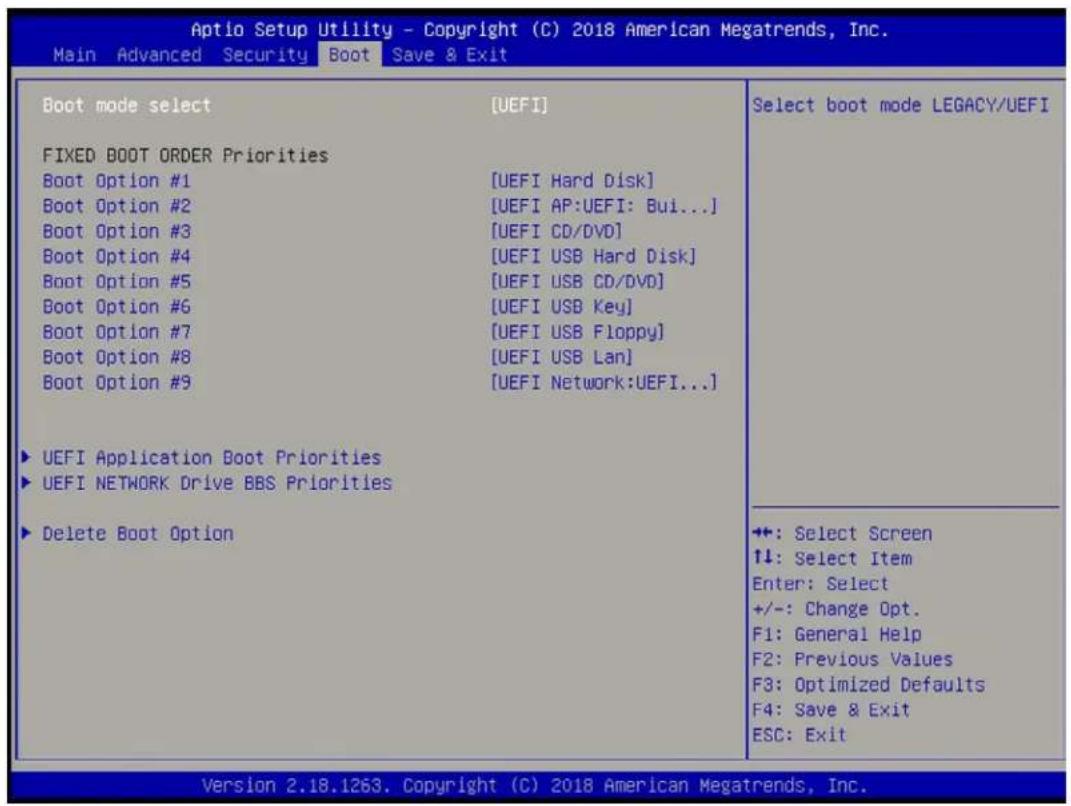
Aptio Setup Utility - Copyright (C) 2018 American Megatrends, Inc. Main Advanced Security Boot Save & Exit Boot mode select [UEFI] FIXED BOOT ORDER Priorities Boot Option #1 [UEFI Hard Disk] Boot Option #2 [UEFI AP:UEFI: Bui...] Boot Option #3 [UEFI CD/DVD] Boot Option #4 [UEFI USB Hard Disk] Boot Option #5 [UEFI USB CD/DVD] Boot Option #6 [UEFI USB Key] Boot Option #7 [UEFI USB Floppy] Boot Option #8 [UEFI USB Lan] Boot Option #9 [UEFI Network:UEFI...] ► UEFI Application Boot Priorities ► UEFI NETWORK Drive BBS Priorities ► Delete Boot Option Select boot mode LEGACY/UEFI +: Select Screen ↑↓: Select Item Enter: Select +/-: Change Opt. F1: General Help F2: Previous Values F3: Optimized Defaults F4: Save & Exit ESC: Exit Version 2.18.1263. Copyright (C) 2018 American Megatrends, Inc.Password Check
Use this feature to determine when a password entry is required. Select Setup to require the password only when entering setup. Select Always to require the password when entering setup and at each bootup. The options are Setup and Always.
Setup Administrator Password
Use this feature to set the administrator password which is required to enter the BIOS setup utility. The length of the password should be from 3 characters to 20 characters long.
User Password
Use this feature to set a user password which is required to log into the system and to enter the BIOS setup utility. The length of the password should be from 3 characters to 20 characters long.
▶Secure Boot
Secure Boot Support
Select Enable for secure boot support to ensure system security at bootup. The options are Enabled and Disabled.
Secure Boot Mode
This feature allows the user to select the desired secure boot mode for the system. The options are Standard and Customized.
If Secure Boot Mode is set to Customized, Key Management features will be available for configuration:
CSM Support
Select Enabled to support the EFI Compatibility Support Module (CSM), which provides compatibility support for traditional legacy BIOS for system boot. The options are Enabled and Disabled. The options are Enabled and Disabled.
▶Key Management
This submenu allows the user to configure the following Key Management settings.
Provision Factory Default Keys
Select Enabled to install the default Secure Boot keys set by the manufacturer. The options are Disabled and Enabled.
Install Factory Default keys
Select Yes to install the default settings for all keys. The options are Yes and No.
▶Enroll All Factory Default Keys
Select Yes to install all default secure keys set by the manufacturer. The options are Yes and No.
▶ Save All Secure Boot Variables
This feature allows the user to decide if all secure boot variables should be saved.
▶ Platform Key (PK)
This feature allows the user to configure the settings of the platform keys.
Set New Var
Select Yes to load the new platform keys (PK) from the manufacturer's defaults. Select No to load the platform keys from a file. The options are Yes and No.
▶Key Exchange Keys (KEK)
Set New Var
Select Yes to load the KEK from the manufacturer's defaults. Select No to load the KEK from a file. The options are Yes and No.
Append Key
Select Yes to add the KEK from the manufacturer's defaults list to the existing KEK. Select No to load the KEK from a file. The options are Yes and No.
▶ Authorized Signatures
Set New Var
Select Yes to load the database from the manufacturer's defaults. Select No to load the DB from a file. The options are Yes and No.
Append Key
Select Yes to add the database from the manufacturer's defaults to the existing DB. Select No to load the DB from a file. The options are Yes and No.
▶Forbidden Signatures
Set New Var
Select Yes to load the DBX from the manufacturer's defaults. Select No to load the DBX from a file. The options are Yes and No.
Append Key
Select Yes to add the DBX from the manufacturer's defaults to the existing DBX. Select No to load the DBX from a file. The options are Yes and No.
▶ Authorized TimeStamps
Set New Var
Select Yes to load the DBT from the manufacturer's defaults. Select No to load the DBT from a file. The options are Yes and No.
Append Key
Select Yes to add the DBT from the manufacturer's defaults list to the existing DBT. Select No to load the DBT from a file. The options are Yes and No.
▶OsRecovery Signature
This item uploads and installs an OSRecovery Signature. You may insert a factory default key or load from a file. The file formats accepted are:
1) Public Key Certificate
a. EFI Signature List
b. EFI CERT X509 (DER Encoded)
c. EFI CERT RSA2048 (bin)
d. EFI SERT SHA256 (bin)
2) EFI Time Based Authenticated Variable
When prompted, select "Yes" to load Factory Defaults or "No" to load from a file.
Set New Var
Select Yes to load the DBR from the manufacturer's defaults. Select No to load the DBR from a file. The options are Yes and No.
Append Key
This item uploads and adds an OSRecovery Signature into the Key Management. You may insert a factory default key or load from a file. When prompted, select Yes to load facotry defaults or No to load from a file.
5.5 Boot
Use this tab page to manage security settings.
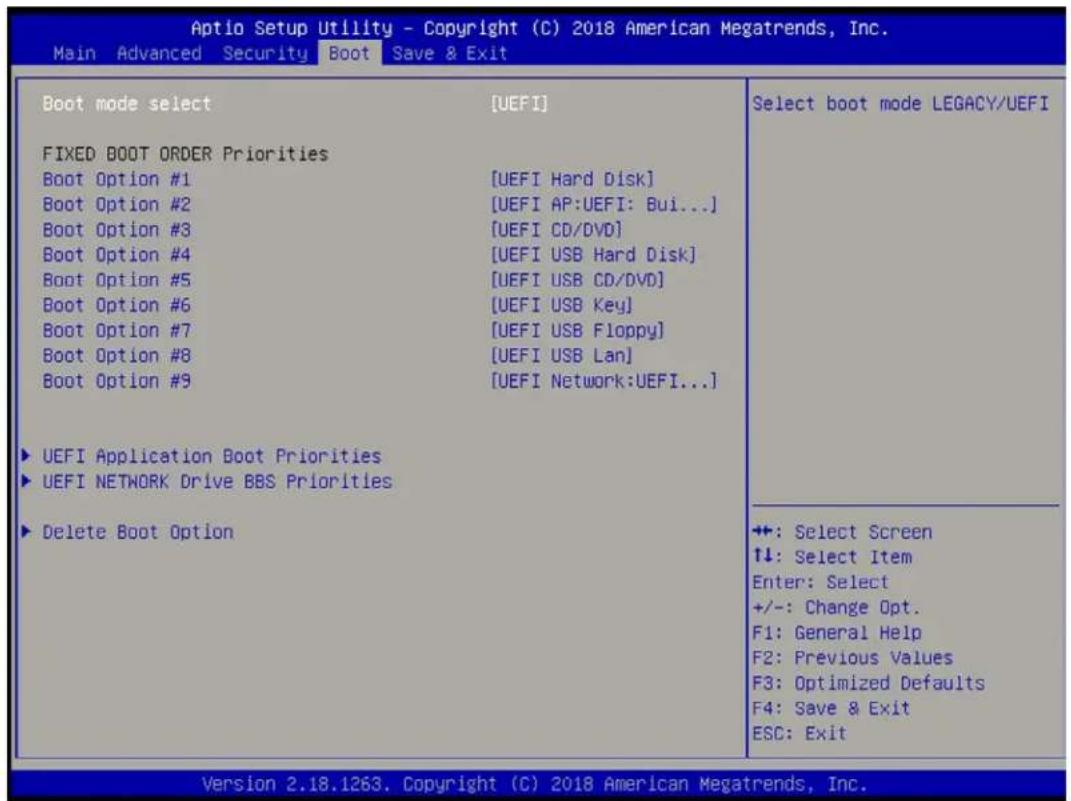
text_image
Aptio Setup Utility - Copyright (C) 2018 American Megatrends, Inc. Main Advanced Security Boot Save & Exit Boot mode select [UEFI] FIXED BOOT ORDER Priorities Boot Option #1 [UEFI Hard Disk] Boot Option #2 [UEFI AP:UEFI: Bui...] Boot Option #3 [UEFI CD/DVD] Boot Option #4 [UEFI USB Hard Disk] Boot Option #5 [UEFI USB CD/DVD] Boot Option #6 [UEFI USB Key] Boot Option #7 [UEFI USB Floppy] Boot Option #8 [UEFI USB Lan] Boot Option #9 [UEFI Network:UEFI...] ► UEFI Application Boot Priorities ► UEFI NETWORK Drive BBS Priorities ► Delete Boot Option Select boot mode LEGACY/UEFI +: Select Screen ↑↓: Select Item Enter: Select +/-: Change Opt. F1: General Help F2: Previous Values F3: Optimized Defaults F4: Save & Exit ESC: Exit Version 2.18.1263. Copyright (C) 2018 American Megatrends, Inc.Boot mode select
Use this feature to select the boot mode. The options are LEGACY, UEFI, and DUAL.
Fixed Boot Order Priorities
This option prioritizes the order of bootable devices that the system can boot from. Press
- Boot Option #1
- Boot Option #2
- Boot Option #3
- Boot Option #4
- Boot Option #5
- Boot Option #6
-
Boot Option #7
-
Boot Option #8
- Boot Option #9
▶UEFI Application Boot Priorities
This feature allows the user to specify which UEFI devices are boot devices.
• UEFI Boot Option #1
▶UEFI NETWORK Drive BBS Priorities
This feature allows the user to specify which UEFI network drive devices are boot devices.
• Legacy Boot Option #1
• Legacy Boot Option #2
▶ Delete Boot Option
Use this feature to remove a pre-defined boot device from which the system will boot during startup.
The settings are [any pre-defined boot device].
5.6 Save & Exit
Select the Exit tab from the BIOS setup utility screen to enter the Exit BIOS Setup screen.

text_image
Aptio Setup Utility - Copyright (C) 2018 American Megatrends, Inc. Main Advanced Security Boot Save & Exit Save Options Discard Changes and Exit Save Changes and Reset Save Changes Discard Changes Default Options Restore Defaults Save as User Defaults Restore User Defaults Boot Override UEFI: Built-in EFI Shell UEFI: IP4 Intel(R) I210 Gigabit Network Connection UEFI: IP4 Intel(R) I210 Gigabit Network Connection Exit system setup without saving any changes. +: Select Screen ↑↓: Select Item Enter: Select +/-: Change Opt. F1: General Help F2: Previous Values F3: Optimized Defaults F4: Save & Exit ESC: Exit Version 2.18.1263. Copyright (C) 2018 American Megatrends, Inc.Save Options
Discard Changes and Exit
Select this option to quit the BIOS Setup without making any permanent changes to the system configuration, and reboot the computer. Select Discard Changes and Exit from the Exit menu and press
Save Changes and Reset
When you have completed the system configuration changes, select this option to save all changes made and reset the system.
Save Changes
When you have completed the system configuration changes, select this option to save all changes made. This will not reset (reboot) the system.
Discard Changes
Select this option and press
Default Options
Restore Defaults
To set this feature, select Restore Defaults from the Exit menu and press
Save as User Defaults
To set this feature, select Save as User Defaults from the Exit menu and press
To set this feature, select Restore User Defaults from the Exit menu and press
Boot Override
This feature allows the user to override the Boot Option Priorities sequence in the Boot menu, and immediately boot the system with another device specified by the user. This is a one-time override.
UEFI: Built-in EFI Shell
UEFI: IP4 Intel® I210 Gigabit Network Connection
UEFI: IP4 Intel® I210 Gigabit Network Connection
Appendix A
BIOS Error Codes
A.1 BIOS Error Beep (POST) Codes
During the POST (Power-On Self-Test) routines, which are performed each time the system is powered on, errors may occur.
Non-fatal errors are those which, in most cases, allow the system to continue the boot-up process. The error messages normally appear on the screen.
Fatal errors are those which will not allow the system to continue the boot-up procedure. If a fatal error occurs, you should consult with your system manufacturer for possible repairs.
These fatal errors are usually communicated through a series of audible beeps. The table below lists some common errors and their corresponding beep codes encountered by users.
| BIOS Beep (POST) Codes | ||
| Beep Code Error | Message Description | |
| 1 beep Refresh Circuits have been reset (Ready to power up) | ||
| 5 short, 1 long Memory error No memory detected in system | ||
| 5 long, 2 short Display memory read/write error Video adapter missing or with faulty memory | ||
| 1 long continuous | System OH | System overheat condition |
A.2 Additional BIOS POST Codes
The AMI BIOS supplies additional checkpoint codes, which are documented online at http://www.supermicro.com/support/manuals/ ("AMI BIOS POST Codes User's Guide").
When BIOS performs the Power-On Self-Test, it writes checkpoint codes to I/O port 0080h. If the computer cannot complete the boot process, a diagnostic card can be attached to the computer to read I/O port 0080h (Supermicro p/n AOC-LPC80-20).
For information on AMI updates, please refer to http://www.ami.com/products/.
Appendix B
Standardized Warning Statements for DC Systems
B.1 About Standardized Warning Statements
The following statements are industry standard warnings, provided to warn the user of situations which have the potential for bodily injury. Should you have questions or experience difficulty, contact Supermicro's Technical Support department for assistance. Only certified technicians should attempt to install or configure components.
Read this appendix in its entirety before installing or configuring components in the Supermicro chassis.
These warnings may also be found on our website at http://www.supermicro.com/about/policies/safety_information.cfm.
Warning Definition

Warning! This warning symbol means danger. You are in a situation that could cause bodily injury. Before you work on any equipment, be aware of the hazards involved with electrical circuitry and be familiar with standard practices for preventing accidents.
警告の定義
この警告 サインは 危険を意味します。
Installation Instructions

Warning! Read the installation instructions before connecting the system to the power source.
設置手順書
Warning! This product relies on the building's installation for short-circuit (overcurrent) protection. Ensure that the protective device is rated not greater than: 12VDC, 3A.
サーキット・ブレーカー
Power Disconnection Warning

Warning! The system must be disconnected from all sources of power and the power cord removed from the power supply module(s) before accessing the chassis interior to install or remove system components.
電源切断の警告
Equipment Installation

Warning! Only trained and qualified personnel should be allowed to install, replace, or service this equipment.
機器の設置
Warning! This unit is intended for installation in restricted access areas. A restricted access area can be accessed only through the use of a special tool, lock and key, or other means of security. (This warning does not apply to workstations).
アクセス制限区域
Warning! There is the danger of explosion if the battery is replaced incorrectly. Replace the battery only with the same or equivalent type recommended by the manufacturer. Dispose of used batteries according to the manufacturer's instructions
電池の取り扱い
Comply with Local and National Electrical Codes

Warning! Installation of the equipment must comply with local and national electrical codes.
地方および国の電気規格に準拠
Warning! Ultimate disposal of this product should be handled according to all national laws and regulations.
製品の廃棄
Warning! When stranded wiring is required, use approved wiring terminations, such as closedloop or spade-type with upturned lugs. These terminations should be the appropriate size for the wires and should clamp both the insulation and conductor.
警告
DC Power Disconnection

Warning! Before performing any of the following procedures, ensure that power is removed from the DC circuit.
警告
Hazardous Voltage or Energy Present on DC Power Terminals

Warning! Hazardous voltage or energy may be present on DC power terminals. Always replace cover when terminals are not in service. Be sure uninsulated conductors are not accessible when cover is in place.
警告
System Specifications
Processors
Single Intel® Atom x5-E3940 (System on Chip)
Note: Please refer to the motherboard specifications pages on our website for updates to supported processors.
BIOS
AMI® UEFI BIOS
Memory
Supports up to 8 GB non-ECC SODIMM; Memory Type DDR3L 1866 MHz;
Expansion Slots
One half-size Mini-PCI-E slot
One M.2 B-Key slot for storage
Motherboard
A2SAP-H
Chassis
CSE-E50-L (2.5" SBC), (WxHxD) 4.96 x 1.69 x 4.64 in. (126 x 43 x 118 mm)
Power Supply
Lockable 40W Power Adapter for 12V DC
Operating Environment
Operating Temperature: -20°C to 50°C (-4°F to 122°F)
Non-operating Temperature: -40°C to 70°C (-40°F to 158°F)
Operating Relative Humidity: 8% to 90% (non-condensing)
Non-operating Relative Humidity: 5% to 95% (non-condensing)
Regulatory Compliance
FCC, ICES, CE, UKCA, VCCI, RCM, NRTL, CB
Applied Directives, Standards
EMC/EMI: 2014/30/EU (EMC Directive)
Electromagnetic Compatibility Regulations 2016
FCC Part 15 Subpart B
ICES-003
VCCI-CISPR 32
AS/NZS CISPR 32
BS/EN 55032
BS/EN 55035
CISPR 32
CISPR 24/CISPR 35
BS/EN 61000-3-2
BS/EN 61000-3-3
BS/EN 61000-4-2
BS/EN 61000-4-3
BS/EN 61000-4-4
BS/EN 61000-4-5
BS/EN 61000-4-6
BS/EN 61000-4-8
BS/EN 61000-4-11
Product Safety: 2014/35/EU (LVD Directive)
UL/CSA 60950-1 2nd Edition
UL/CSA 62368-1 (USA and Canada)
Electrical Equipment (Safety) Regulations 2016
IEC 60950-1 2nd Edition
IEC/BS/EN 62368-1
Environment:
2011/65/EU (RoHS Directive)
EC 1907/2006 (REACH)
2012/19/EU (WEEE Directive)
California Proposition 65
Perchlorate Warning
California Best Management Practices Regulations for Perchlorate Materials: This Perchlorate warning applies only to products containing CR (Manganese Dioxide) Lithium coin cells. "Perchlorate Material-special handling may apply. See www.dtsc.ca.gov/hazardouswaste/perchlorate.
Appendix D
Traditional Chinese Safety Warnings
Additional Traditional Chinese Version warning statements are included here in this appendix.
安全警告(注意這些警告標誌)
Declaration of the Presence Condition of the Restricted Substances Marking
| 設備名稱:嵌入式系統/Embedded SystemEquipment name型號(型式):E50-40Type designation (Type)(系列型號:E50-60, E50-84, SYS-E50-9AP,SYS-E50-9AP-L, SYS-E50-9AP-N5, E50-EBD) | ||||||
| 單元Unit | 限用物質及其化學符號Restricted substance and its chemical symbols | |||||
| 鉛Lead(Pb) | 汞Mercury(Hg) | 鎘Cadmium(Cd) | 六價鉻Hexavalent chromium( Cr^-6 ) | 多溴聯苯Polybrominated biphenyls(PBB) | 多溴二苯醚Polybrominated diphenyl ethers(PBDE) | |
| 機殼(Chassis) | ○ | ○ | ○ | ○ | ○ | ○ |
| 線材(Cable) | ○ | ○ | ○ | ○ | ○ | ○ |
| 主機板(Motherboard) | - | ○ | ○ | ○ | ○ | ○ |
| 電源供應器(Power Adapter) | - | ○ | ○ | ○ | ○ | ○ |
| 硬碟(M.2 / SSD) | - | ○ | ○ | ○ | ○ | ○ |
| 備考1.“超出0.1 wt %”及“超出0.01 wt %”係指限用物質之百分比含量超出百分比含量基準值。Note 1:“Exceeding 0.1 wt %” and “exceeding 0.01 wt %” indicate that the percentage content of the restricted substance exceeds the reference percentage value of presence condition.Note 2:“○” indicates that the percentage content of the restricted substance does not exceed the percentage of reference value of presence.備考2.“○”係指該項限用物質之百分比含量未超出百分比含量基準值。Note 3:The “-” indicates that the restricted substance corresponds to the exemption.備考3.“-”係指該項限用物質為排除項目。 | ||||||
輸入額定: 12Vdc, 3.3A
使用者不能任意拆除或替换内部配備
設備名稱:嵌入式系統
Appendix E
UEFI BIOS Recovery
Warning: Do not upgrade the BIOS unless your system has a BIOS-related issue. Flashing the wrong BIOS can cause irreparable damage to the system. In no event shall Supermicro be liable for direct, indirect, special, incidental, or consequential damages arising from a BIOS update. If you need to update the BIOS, do not shut down or reset the system while the BIOS is updating to avoid possible boot failure.
E.1 Overview
The Unified Extensible Firmware Interface (UEFI) provides a software-based interface between the operating system and the platform firmware in the pre-boot environment. The UEFI specification supports an architecture-independent mechanism that will allow the UEFI OS loader stored in an add-on card to boot the system. The UEFI offers clean, hands-off management to a computer during system boot.
E.2 Recovering the UEFI BIOS Image
A UEFI BIOS flash chip consists of a recovery BIOS block and a main BIOS block (a main BIOS image). The boot block contains critical BIOS codes, including memory detection and recovery codes for the user to flash a new BIOS image if the original main BIOS image is corrupted. When the system power is first turned on, the boot block codes execute first. Once this process is completed, the main BIOS code will continue with system initialization and the remaining POST (Power-On Self-Test) routines.
Note 1: Follow the BIOS recovery instructions below for BIOS recovery when the main BIOS boot crashes.
Note 2: When the BIOS boot block crashes, you will need to follow the procedures to make a Returned Merchandise Authorization (RMA) request. (For a RMA request, please see section 3.5 for more information). Also, you may use the Supermicro Update Manager (SUM) Out-of-Band (OOB) (https://www.supermicro.com.tw/products/nfo/SMS_SUM.cfm) to reflash the BIOS.
E.3 Recovering the BIOS Block with a USB Device
This feature allows the user to recover a BIOS image using a USB-attached device without additional utilities used. A USB flash device such as a USB Flash Drive, or a USB CD/DVD ROM/RW device can be used for this purpose. However, a USB Hard Disk drive cannot be used for BIOS recovery at this time.
The file system supported by UEFI is FAT (including FAT12, FAT16, and FAT32) which is installed on a bootable or non-bootable USB-attached device. However, the BIOS might need several minutes to locate the SUPER.ROM file if the media size becomes too large due to the huge volumes of folders and files stored in the device.
To perform UEFI BIOS recovery using a USB-attached device, follow the instructions below.
- Using a different machine, copy the "Super.ROM" binary image file into the disc Root "\" directory of a USB device or a writable CD/DVD.
Note: If you cannot locate the "Super.ROM" file in your driver disk, visit our website at www.supermicro.com to download the BIOS image into a USB flash device and rename it "Super.ROM" for BIOS recovery use.
- Insert the USB device that contains the new BIOS image ("Super.ROM") into your USB drive and power on the system
- While powering on the system, keep pressing
and simultaneously on your keyboard until the following screen (or a screen similar to the one below) displays.
Warning: Please stop pressing the

text_image
120000 S S A 200000 400000 60000 S S 6000 10000 CSN S S A S P A S S U U U S S S S S S S S S S S S S S S S S S S S S S S S S S S S S S S S S S S S S S S S S S S S S S S S S S C S70000 T S T Y V120000 F T T T T T T T T T T T T T T T T T T T T T T T T T T T T T T T T T T T T T T T T T T T T T T T T T S S A C80000 B X Y Z X X X X X X X X X X X X X X X X X X X X X X X X X X X X X X X X X X X X X S70000 CSN A KXK35F A L F Y Y Y Y Y Y Y Y Y Y Y Y Y Y Y Y Y Y Y Y Y Y Y Y Y Y Y Y Y Y Y Y Y Y Y Y Y Y Y System Initializing... F9 BMC IP:10.132.161.98Note: On the other hand, if the following screen displays, please load the "Super.ROM" file to the root folder and connect this folder to the system. (You can do so by inserting a USB device that contains the new "Super.ROM" image to your machine for BIOS recovery.)
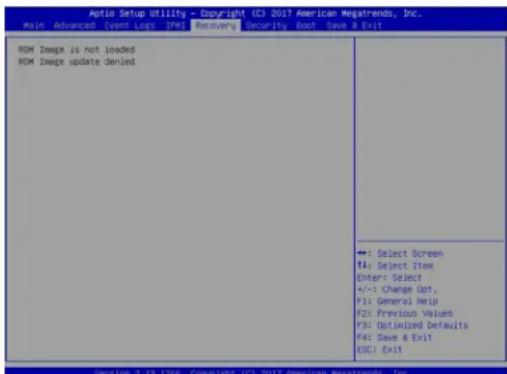
text_image
Option Setup Utility - Copyright (C) 2017 American Megatrends, Inc. Main Advanced Event Logs IPMS Recovery Security Boot Save & Exit ROM Image is not loaded ROM Image update denied +: Select Screen T4: Select Item Enter: Select +/-: Change Opt. F1: General Help F2: Previous Values F3: Optimized Defaults F4: Save & Exit ESC: Exit Version 7.19.1066. Copyright (C) 2017 American Megatrends, Inc.- After locating the new BIOS binary image, the system will enter the BIOS Recovery menu as shown below.
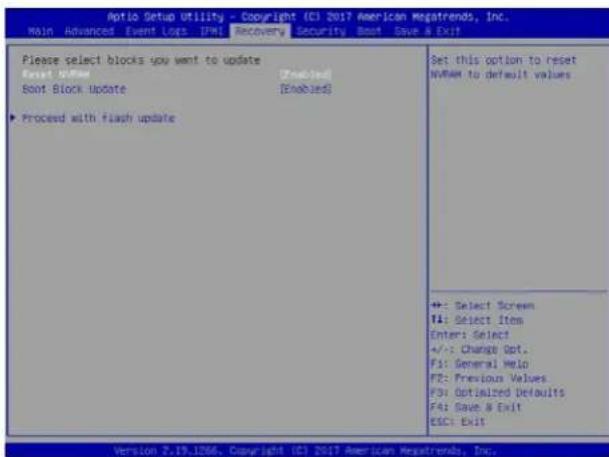
text_image
Aptio Setup Utility - Copyright (C) 2017 American Megatrends, Inc. Main Advanced Event Logs IPMI Recovery Security Boot Save A Exit Please select blocks you want to update Start Update [Enabled] Boot Block Update [Enabled] ►Proceed with flash update Set this option to reset NVRAM to default values +: Select Screen V4: Select Item Enters Select +/-: Change Opt. F1: General Helio F2: Previous Values F3: Optimized Defaults F4: Save & Exit ESC: Exit Version 2.19.1266. Copyright (C) 2017 American Megatrends, Inc.Note: At this point, you may decide if you want to start the BIOS recovery. If you decide to proceed with BIOS recovery, follow the procedures below.
- When the screen as shown above displays, use the arrow keys to select the item "Proceed with flash update" and press the
key. You will see the BIOS recovery progress as shown in the screen below.
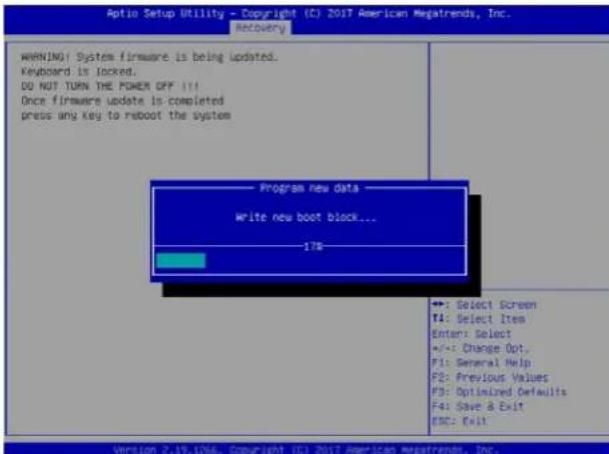
text_image
Optio Setup Utility - Copyright (C) 2017 American Megatrends, Inc. Recovery WARNING: System firmware is being updated. Keyboard is locked. DO NOT TURN THE POWER OFF !!! Once firmware update is completed press any key to reboot the system Program new data Write new boot block... 178 +: Select Screen F1: Select Item Enter: Select +/-: Change Opt. F1: General Help F2: Previous Values F3: Optimized Defaults F4: Save & Exit ESC: Exit Version 2.19.12%6. Copyright (C) 2017 American Megatrends, Inc.Note: Do not interrupt the BIOS flashing process until it has completed.
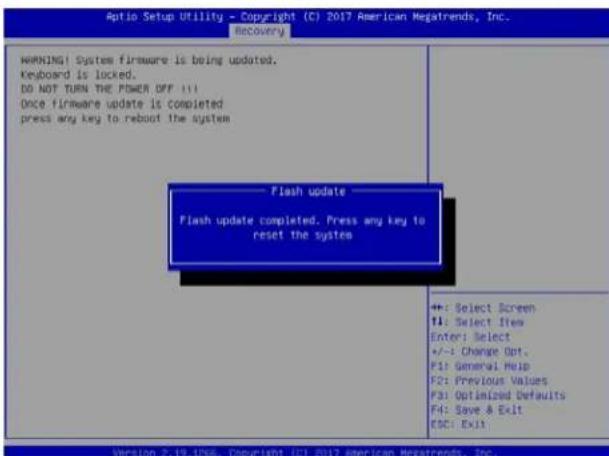
text_image
Aptio Setup Utility - Copyright (C) 2017 American Megatrends, Inc. Recovery WARNING! System firmware is being updated. Keyboard is locked. DO NOT TURN THE POWER OFF !!! Once firmware update is completed press any key to reboot the system Flash update Flash update completed. Press any key to reset the system +: Select Screen F1: Select Item Enter: Select +/-: Change Opt. F1: General Help F2: Previous Values F3: Optimized Defaults F4: Save & Exit ECC: Exit Version 2.19.12%6. Copyright (C) 2017 American Megatrends, Inc.- After the BIOS recovery process is completed, press any key to reboot the system.
- Using a different system, extract the BIOS package into a USB flash drive.

text_image
Boot Configuration Boot mode select LEGACY to EFI support [DUAL] [Disabled] FIXED BOOT ORDER Priorities Boot Option #1 [UEFI USB/UEFI Mid...] Boot Option #2 [USB/DVD] Boot Option #3 [USB Hard Disk] Boot Option #4 [USB CD/DVD] Boot Option #5 [USB Key/Im/Disk] Boot Option #6 [USB Flopyd] Boot Option #7 [USB Lm] Boot Option #8 [Network:IBM GE 81...] Boot Option #9 [UEFI Hard Disk] Boot Option #10 [UEFI CD/DVD] Boot Option #11 [UEFI USB Hard Disk] Boot Option #12 [UEFI USB CD/DVD] Boot Option #13 [UEFI USB Key/UEFI...] Boot Option #14 [UEFI USB Flopyd] Boot Option #15 [UEFI USB Lm] Boot Option #16 [UEFI Network] Boot Option #17 [Hard Disk] Add New Boot Option Sets the system boot order +:- Select Screen TA: Select Item Enter: Select +/-: Change Opt. F1: General Help F2: Previous Values F3: Optimized Defaults F4: Save & Exit ESC: Exit Version 2.19.1266, Copyright (C) 2017 American Megatrends, Inc.-
Press
continuously during system boot to enter the BIOS setup utility. From the top of the tool bar, click on Boot and pressto enter the submenu. From the submenu list, select Boot Option #1 as shown below. Then, boot Option #1 to [UEFI AP:UEFI: Built-in EFI Shell]. Press to save the settings and exit the BIOS setup utility. -
When the UEFI Shell prompt appears, type fs# to change the device directory path. Go to the directory that contains the BIOS package you extracted earlier from Step 7. Enter flash.nsh BIOSname.### at the prompt to start the BIOS update process.
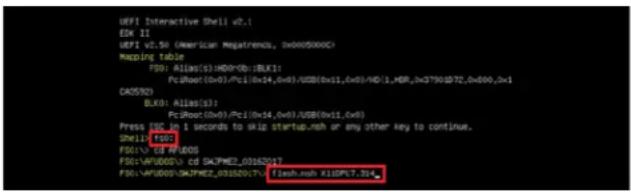
text_image
UEFI Interactive Shell v2.1 ESK II UEFI v2.50 (American Megatremos, 0x0005000C) Mapping table F50: Alluo(s)/HDDPcb::BLK1: Pc:Uuo(0x0)/Pci(0x14,0x8)/USB(0x11,0x8)/HD(1,M8P,0x37901D72,0x000,0x1 CAD5920) BLK0: Alluo(s): Pc:Uuo(0x0)/Pci(0x14,0x8)/USB(0x11,0x8) Press F50 in 1 seconds to skie startab.msh or any other key to continue. Shell v2.1 F50:\CD #FUOS F50:VAUODOS\CD SKPMZ_03162017 F50:VAUODOS\SKPMZ_03162017\FLASH.msh_X13EPCT.34Note: Do not interrupt this process until the BIOS flashing is complete.

text_image
[Access Cmes Fort Ex] death Index 0x51: 0x10 Done. ********************************************************************** * Program DOS and ME (including FDT) regions... ********************************************************************** MFI Software Update utility v5.09.01.1017 Copyright (S)2017 American Regatrends Inc. All Rights Reserved. CPNTS = 904502 Reading flash ....... done - 4E Data Size checking . OK - FFS checksums ....... OK - Check RowLayout ....... OK Erasing Boot Block ....... done Updating Boot Block ....... done Verifying Boot Block ....... done Erasing Main Block ....... 0x00132000 (88)- The screen above indicates that the BIOS update process is completed. When you see the screen above, unplug the AC power cable from the power supply, clear CMOS, and plug the AC power cable in the power supply again to power on the system.

text_image
Verifying WCB Block ......... done - Update success for FDR - Update success for IT. - Successful Update Recovery Loader to OPRx!! - Successful Update MFSB11- - Successful Update FTPM11- - Successful Update MFS, I081 and 2W021! - Successful Update FLOS and STOK!! - ML entire image update success!! WARNING : System must power-off To have the changes take effect! Moving F50:\AFVDD05\DAFME2_03162017\4xtx64.efi -> F50:\AFVDD05\DAFME2_03162017\tf dt.fmc - [ok] Moving F50:\AFVDD05\DAFME2_03162017\4utefix64.efi -> F50:\AFVDD05\DAFME2_03162017 ?afuefi.fmc - [ok] ********************************************************************** * * Please ignore this 'Shell' cannot read from file - Device Error' * Warning session due to it does not impact flashLine process. * ********************************************************************** Deleting * Delete successful. F50:iv- Press
continuously to enter the BIOS setup utility. - Press
to load the default settings. - After loading the default settings, press
to save the settings and exit the BIOS setup utility.