Alira X FTKM20W2VMA - Air-conditioner DAIKIN - Free user manual and instructions
Find the device manual for free Alira X FTKM20W2VMA DAIKIN in PDF.


User questions about Alira X FTKM20W2VMA DAIKIN
0 question about this device. Answer the ones you know or ask your own.
Ask a new question about this device
Download the instructions for your Air-conditioner in PDF format for free! Find your manual Alira X FTKM20W2VMA - DAIKIN and take your electronic device back in hand. On this page are published all the documents necessary for the use of your device. Alira X FTKM20W2VMA by DAIKIN.
USER MANUAL Alira X FTKM20W2VMA DAIKIN
DAIKIN ROOM AIR CONDITIONER
OPERATION MANUAL
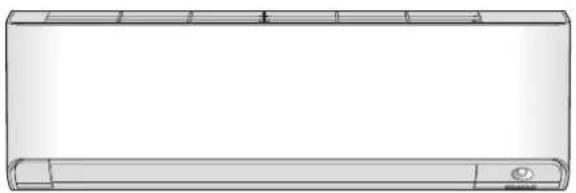
natural_image
Line drawing of a rectangular air conditioner unit with ventilation slots and a scroll (no text or symbols)INVERTER

STREAMER
MODELS
FTXM20W2VMA
FTXM25W2VMA
FTXM35W2VMA
FTXM46W2VMA
FTKM20W2VMA
FTKM25W2VMA
FTKM35W2VMA
FTKM46W2VMA

natural_image
Black-and-white interior photo of a modern living room with a sofa, coffee table, potted plant, and large window (no text or symbols visible)[Sticker attachment area]
Attach the SSID&KEY sticker of wireless LAN connecting adapter to the sticker attachment area and keep safe.
Enhanced comfort, energy savings and air cleaning
INTELLIGENT EYE
The INTELLIGENT EYE sensor detects human movement and adjusts the right and left airflow direction. If no one is in the room for more than 20 minutes, the operation automatically changes to energy saving operation. The INTELLIGENT EYE sensor works differently depending on the situation. ▶Page 21

WEEKLY TIMER
Up to 4 timer settings can be saved for each day of the week according to your family's life style. The WEEKLY TIMER allows you to set on/off times and the desired temperature. ▶Page 28

MOLD PROOF
The MOLD PROOF function dries the interior of the indoor unit and provides an ideal environment to suppress the generation of mold for the indoor unit. ▶Page 17

FLASH STREAMER AIR CLEANING
Flash streamer decomposes mold and allergic substances. It keeps air in the room and the inside of the air conditioner clean to make a comfortable space. ▶Page 19
Other functions

COMFORT AIRFLOW OUTDOOR UNIT QUIET
The airflow direction is upward while in COOL operation, and downward while in HEAT operation. This function prevents cold or warm air from blowing directly on your body. ▶Page 20
OUTDOOR UNIT QUIET operation assures a low noise level of the outdoor unit. This function is useful to maintain a quiet neighbourhood.

natural_image
Modern minimalist living room interior with white sofa, wall-mounted air conditioner unit, and potted tree (no text or symbols visible)
ECONO
This function enables efficient operation by limiting the maximum power consumption. It is useful when using the air conditioner and other electrical devices simultaneously on a shared electrical circuit. ▶Page 24
Contents
Read Before Operation
Safety Precautions 3
Names of Parts 5
Preparation Before Operation 10
Basic Operation

Adjusting the Airflow Rate .....15

Adjusting the Airflow Direction .....16
Useful Functions

MOLD PROOF Operation .....17

FLASH STREAMER AIR CLEANING Operation ....19

COMFORT AIRFLOW Operation .....20

INTELLIGENT EYE Operation .....21

POWERFUL Operation 23

ECONO / OUTDOOR UNIT QUIET Operation 24
TIMER Operation

ON/OFF TIMER Operation .....25

WEEKLY TIMER Operation ......28
System control via Smart Control

Wireless LAN connection ....34
Care
Care and Cleaning 38
When the Need Arises
FAQ 42
Troubleshooting 43
Safety Precautions

Read the precautions in this manual carefully before operating the unit.

This appliance is filled with R32.
- Keep this manual where the user can easily find it.
- The precautions described herein are classified as WARNING and CAUTION. They both contain important information regarding safety. Be sure to observe all precautions without fail.

WARNING
Failure to follow these instructions properly may result in personal injury or loss of life.

CAUTION
Failure to observe these instructions properly may result in property damage or personal injury, which may be serious depending on the circumstances.

Never attempt.

Be sure to follow the instructions.

Be sure to establish an earth connection.
- After reading, keep this manual in a convenient place so that you can refer to it whenever necessary. If the equipment is transferred to a new user, be sure also to hand over the manual.

WARNING

- Do not use means to accelerate the defrosting process or to clean, other than those recommended by the manufacturer.
- The appliance must be stored in a room without continuously operating ignition sources (for example: open flames, an operating gas appliance or an operating electric heater).
- Do not pierce or burn.
- Be aware that refrigerants may not contain an odour.
- The appliance must be installed, operated and stored in a room with floor area larger than -^*m^2 for 20/25/35/46 class.
* Since the maximum refrigerant charge of the models is below 1.84kg, it does not have any limitation for the minimum floor area.
Maintain an installation height of 1.8m or more from the floor surface to the bottom of the appliance. - To avoid fire, explosion or injury, do not operate the unit when harmful gases (e.g. flammable or corrosive) are detected near the unit.
- Be aware that prolonged, direct exposure to cool or warm air from the air conditioner, or to air that is too cool or too warm, can be harmful to your physical condition and health.
- Do not place objects, including rods, your fingers, etc., in the air inlet or outlet. Product damage or personal injury may result due to contact with the air conditioner's high-speed fan blades.
- Do not attempt to repair, dismantle, reinstall or modify the air conditioner yourself as this may result in water leakage, electric shock or fire hazards.
- Do not use flammable spray near the air conditioner, or otherwise fire may result.
- Do not use a refrigerant other than the one indicated on the outdoor unit (R32) when installing, moving or repairing. Using other refrigerants may cause trouble or damage to the unit, and personal injury.
- To avoid electric shock, do not operate with wet hands.

- Beware of fire in case of refrigerant leakage. If the air conditioner is not operating correctly, i.e. not generating cool or warm air, refrigerant leakage could be the cause. Consult your dealer for assistance. The refrigerant within the air conditioner is safe and normally does not leak.
However, in the event of a leakage, contact with a naked burner, heater or cooker may result in generation of noxious gas. Do not use the air conditioner until a qualified service person confirms that the leakage has been repaired. - Do not attempt to install or repair the air conditioner yourself. Improper workmanship may result in water leakage, electric shock or fire hazards. Please contact your local dealer or qualified personnel for installation and maintenance work.
- If the air conditioner is malfunctioning (giving off a burning odour, etc.), turn off power to the unit and contact your local dealer. Continued operation under such circumstances may result in a failure, electric shock or fire hazards.
- Be sure to install an earth leakage circuit breaker. Failure to install an earth leakage circuit breaker may result in electric shock or fire.

- Be sure to earth the unit. Do not earth the unit to a utility pipe, lightning conductor or telephone earth lead. Imperfect earthing may result in electric shock.

CAUTION

- Do not use the air conditioner for purposes other than those for which it is intended. Do not use the air conditioner for cooling precision instruments, food, plants, animals or works of art as this may adversely affect the performance, quality and/or longevity of the object concerned.
- Do not expose plants or animals directly to the airflow from the unit as this may cause adverse effects.
- Do not place appliances that produce naked flames in places exposed to the airflow from the unit as this may impair combustion of the burner.
- Do not block the air inlets nor outlets. Impaired airflow may result in insufficient performance or trouble.

- Do not sit on the outdoor unit, put things on the unit, or pull the unit. Doing so may cause accidents, such as falling or toppling down, thus resulting in injury, product malfunctioning, or product damage.
- Do not place objects that are susceptible to moisture directly beneath the indoor or outdoor units. Under certain conditions, condensation on the main unit or refrigerant pipes, air filter dirt or drain blockage may cause dripping, resulting in fouling or failure of the object concerned.
- After prolonged use, check the unit stand and its mounts for damage. If they are left in a damaged condition, the unit may fall and cause injury.
- To avoid injury, do not touch the air inlet or aluminium fins of the indoor or outdoor units.
- The appliance is not intended for use by unattended young children or infirm persons. Impairment of bodily functions and harm to health may result.
- Children should be supervised to ensure that they do not play with the unit or its remote controller. Accidental operation by a child may result in impairment of bodily functions and harm health.
- Avoid impacts to the indoor and outdoor units, or otherwise product damage may result.
- Do not place flammable items, such as spray cans, within 1m of the air outlet.
The spray cans may explode as a result of hot air from the indoor or outdoor units. - Be careful not to let pets urinate on the air conditioner. Urination on the air conditioner may result in electric shock or fire.
- Do not wash the air conditioner with water, as this may result in electric shock or fire.
- Do not place water containers (vases, etc.) above the unit, as this may result in electric shock or fire hazards if they should topple over.
- Do not insert the batteries in the wrong polarity (+/-) orientation as this may result in short circuiting, fire, or battery leakage.
- Do not sit or hang on the panel. The panel may fall, and injury or product malfunctioning may result.
- Do not sway the panel. The panel may hit people or objects, and injury or property damage may result.
- Do not let children play around the panel. Injury or property damage may result.
- Do not pull the wires. The wires may be broken and the panel may fall, and injury or property damage may result.
- Do not locate obstacles in the route. The panel may fall, and injury or property damage may result.
- Do not bend or damage the wires. The wires may be broken and the panel may fall, and injury or property damage may result.
- Do not put objects on the panel, or otherwise production malfunctioning may result.
- Do not use an unstable stand at the time of operating or maintaining the air conditioner, or otherwise you may topple over or injury yourself.
- Locate the remote controller in places out of reach of children. The wrong operation of the remote controller may result in injury.

- To avoid oxygen depletion, ensure that the room is adequately ventilated if equipment such as a burner is used together with the air conditioner.
- Before cleaning, be sure to stop unit operation and turn off the circuit breaker. Otherwise, an electric shock and injury may result.
- Only connect the air conditioner to the specified power supply circuit. Power supplies other than the one specified may result in electric shock, overheating and fires.
- Arrange the drain hose to ensure smooth drainage. Imperfect drainage may cause wetting of the building, furniture, etc.
- Do not place objects in direct proximity of the outdoor unit and do not let leaves and other debris accumulate around the unit. Leaves are a hotbed for small animals which can enter the unit. Once inside the unit, such animals can cause malfunctions, smoke or fire if they come into contact with electrical parts.
- Do not place objects around the indoor unit.
Doing so may have an adverse influence on the performance, product quality, and life of the air conditioner. - This appliance is not intended to be used by persons with reduced physical, sensory or mental capabilities, or with lack of operation knowledge, unless they have been given supervision or instruction concerning the appliance use by person responsible for their safety. Keep out of children's reach to ensure that they do not play with the appliance.
Precautions relating to area surrounding the indoor and outdoor units
■ Be sure to follow the instructions below.
- The indoor unit is at least 1m away from any television or radio set (unit may cause interference with the picture or sound).
- Refrain from using the units in areas prone to high levels of oily smoke, such as a kitchen. Water leakage may result.
Names of Parts

text_image
Indoor Unit Front panel Air inlet Room temperature sensor and Room humidity sensor • Sense air temperature and humidity around the unit. ■ Streamer air inlet • Air inlet for streamer operation. Flaps (horizontal blades) ▶Page 16 Air outlet Model name InTELLIGENT EYE sensor • Detects the movements of people and automatically switches between normal operation and energy saving operation. ▶Page 16 Louvres (vertical blades) • The louvres are inside of the air outlet. ▶Page 16 ▶Page 21,22Display
MOLD PROOF lamp (Green)
Page 17
TIMER lamp (Orange)
▶ Page 25,26,27,30,32
Indoor unit ON/OFF switch and OPERATION lamp (Green)
- Press this switch once to start operation. Press once again to stop it.
- For the operation mode setting, refer to the following table.
| Model Mode | Temperature setting Airflow rate | ||
| FTXM20/25/35/46 | AUTO | 25.0°C | AUTO |
| FTKM20/25/35/46 | COOL | 22.0°C | AUTO |
- This switch can be used when the remote controller is missing or out of batteries.
STREAMER lamp (Green)
Page 19
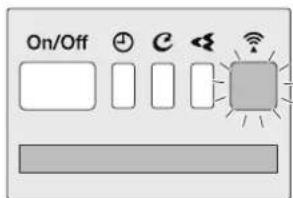
Wireless LAN connecting adapter lamp (Orange)
Page 34
Signal receiver
• It receives signals from the remote controller.
- When the unit receives a signal, you will hear a beep sound.
| Case Sound type |
| Operation start beep-beep |
| Setting change beep |
| Operation stop long beep |
List of lamps
| Lamp | Colour | State | Description |
| OPERATION lamp | green | Lights up | The air conditioner is running. |
| Blinks | Check the error code. | ||
| TIMER lamp orange | Lights up | TIMER is set. ▶Page 25,26,27,30,32 | |
| MOLD PROOF lamp | green | Lights up | MOLD PROOF operation. ▶Page 17 |
| STREAMER lamp | green | Lights up | STREAMER operation. ▶Page 19 |
| Wireless LAN connecting adapter lamp | orange | Lights up | Wireless LAN connecting adapter operation. ▶Page 34 |
| Blinks | Wireless LAN connecting adapter is connected. ▶Page 34 |
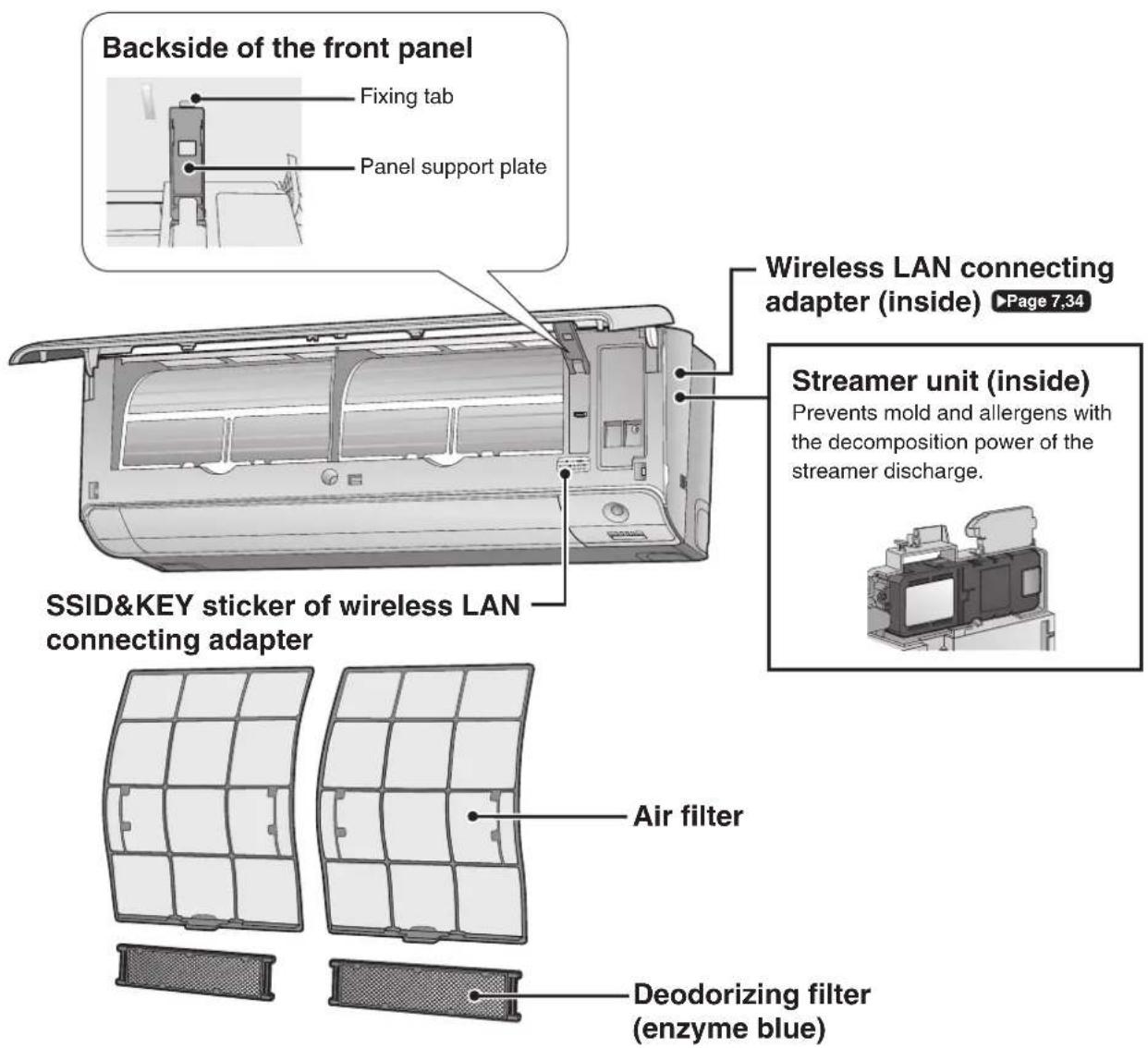
■ Open the front panel
text_image
Backside of the front panel Fixing tab Panel support plate Wireless LAN connecting adapter (inside) ▶Page 7.34 Streamer unit (inside) Prevents mold and allergens with the decomposition power of the streamer discharge. SSID&KEY sticker of wireless LAN connecting adapter Air filter Deodorizing filter (enzyme blue)Outdoor Unit
- The appearance of the outdoor unit may differ between different models.

text_image
Air inlet (back and side) Outdoor temperature sensor (back) Air outlet Earth terminal (inside) Refrigerant pipes and inter-unit wire Drain hoseNames of Parts
Wireless LAN connecting adapter
The wireless LAN connecting adapter function requires the DAIKIN Mobile Controller application for connecting to the air conditioner and controlling it via your smartphone or tablet over your network.
ATTENTION
- Attach the sticker to the sticker attachment area on the cover page of the operation manual and keep it safe, as in the detail below:
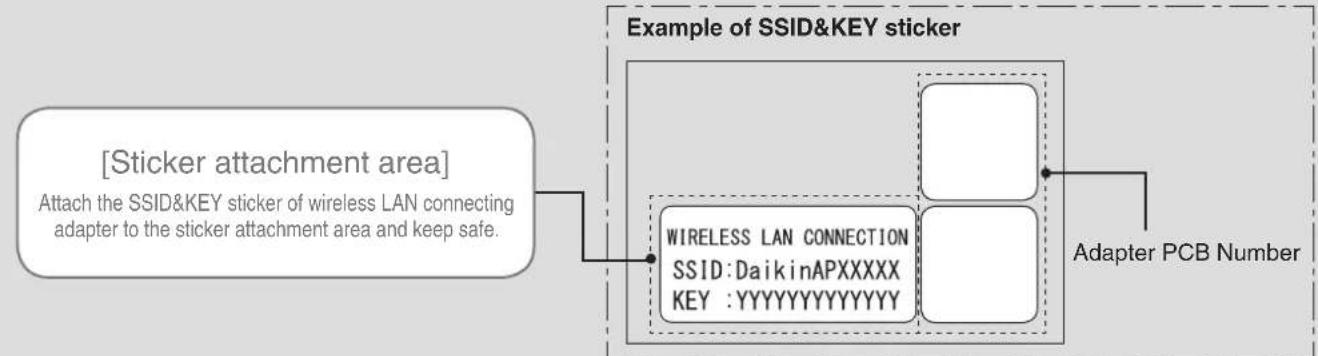
flowchart
graph TD
    A["Sticker attachment area"] --> B["Attach the SSID&KEY sticker of wireless LAN connecting adapter to the sticker attachment area and keep safe."]
    B --> C["Example of SSID&KEY sticker"]
    C --> D["Adapter PCB Number"]
    C --> E["WIRELESS LAN CONNECTION\nSSID:DaikinAPXXXXX\nKEY:YYYYYYYYYYYYYY"]
[About the SSID and KEY]
• The [SSID] and [KEY] shown on the SSID&KEY sticker are necessary when connecting the air conditioner to a smartphone via wireless LAN.
■ Configuration
- The user is responsible for providing the following items before using this product:
■ Smartphone or tablet (Supported OS versions: Android 4.1.2 or higher; iOS 10.0 or higher. For the latest compatibility information, refer to the web site at https://www.daikinthai.com/product/dmobile/compatible.)
■ Internet line and communicating device (Modem/router or similar device)
■ Wireless LAN access point
■ Application name: [DAIKIN Mobile Controller] (free)
(application version 4.0 or higher is needed to control this product)
For details on the installation method for the DAIKIN Mobile Controller application, please see ▶Page 34
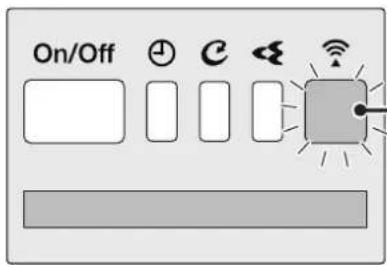
text_image
On/Off ⏻ C < < <Display
Wireless LAN connecting adapter lamp (Orange)
- The wireless LAN connecting adapter lamp lights when connecting to a router (Wireless LAN access point). Please see ▶Page 34.
- For wireless LAN connecting adapter operation, please see ▶Page 35.
NOTE
Notes on the wireless LAN connecting adapter
- Do not use this product near a microwave oven. (This can affect wireless LAN communications.)
- While the wireless LAN connecting adapter operates, it may affect persons using cardiac pacemakers or defibrillators. This product may cause electromagnetic interference.
- While the wireless LAN connecting adapter operates, it may affect automatic doors or fire alarm equipment. This product may cause faulty behaviour of the equipment.
- For the latest details about installation of the wireless LAN connecting adapter and applicable units, refer to the web site https://www.daikinthai.com/product/dmobile
Remote Controller
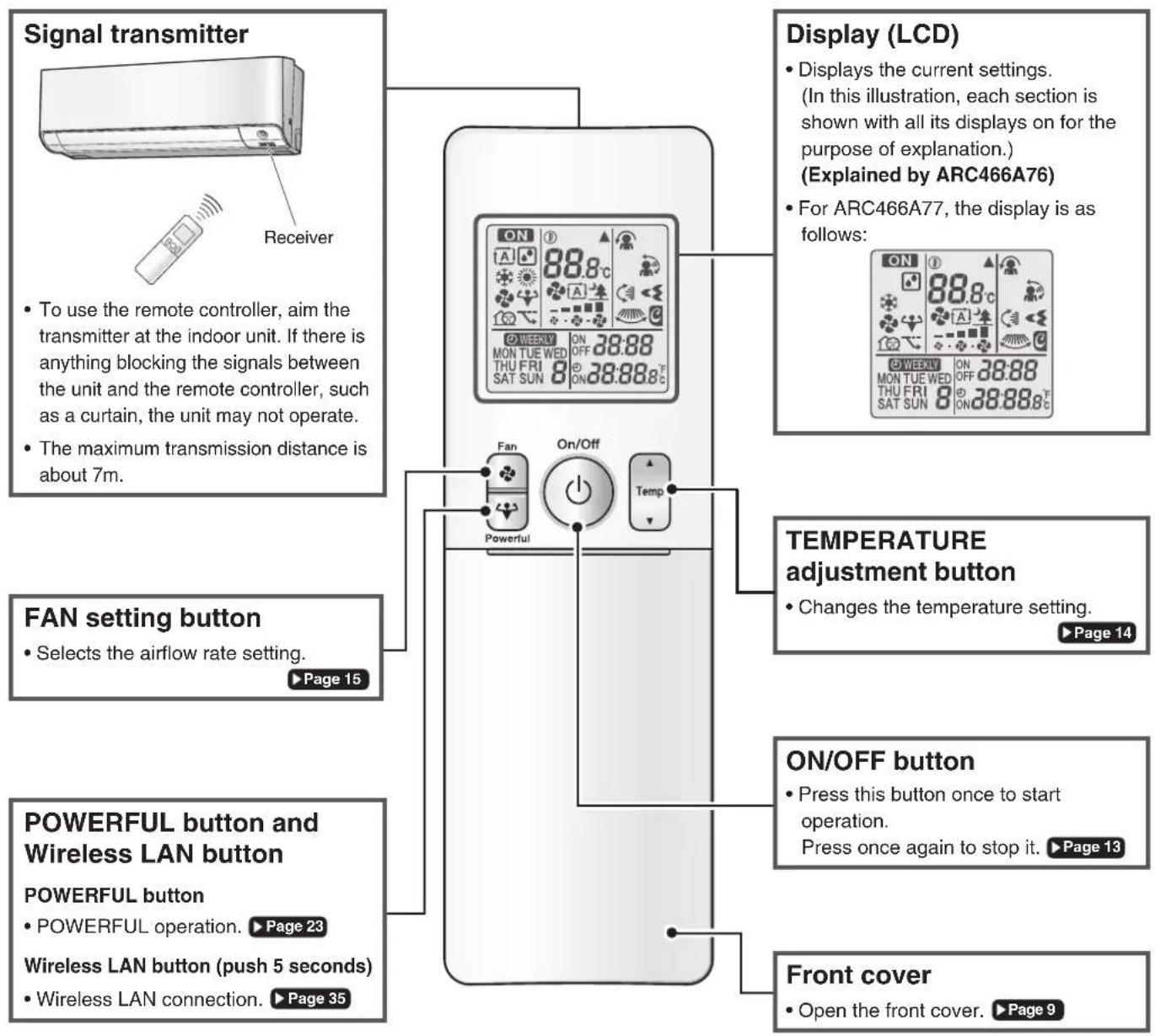
text_image
Signal transmitter Receiver To use the remote controller, aim the transmitter at the indoor unit. If there is anything blocking the signals between the unit and the remote controller, such as a curtain, the unit may not operate. The maximum transmission distance is about 7m. Display (LCD) • Displays the current settings. (In this illustration, each section is shown with all its displays on for the purpose of explanation.) (Explained by ARC466A76) • For ARC466A77, the display is as follows: ON 88.8°C ON 28:88 SAT SUN 8 ON 38:88.8°C ON 88.8°C ON 28:88 SAT SUN 8 ON 38:88.8°C FAN setting button • Selects the airflow rate setting. ▶ Page 15 TEMPERATURE adjustment button • Changes the temperature setting. ▶ Page 14 POWERFUL button and Wireless LAN button POWERFUL button • POWERFUL operation. ▶ Page 23 Wireless LAN button (push 5 seconds) • Wireless LAN connection. ▶ Page 35 ON/OFF button • Press this button once to start operation. Press once again to stop it. ▶ Page 13 Front cover • Open the front cover. ▶ Page 9FTXM20/25/35/46 ARC466A76
FTKM20/25/35/46 ARC466A77
Names of Parts
■ Open the front cover
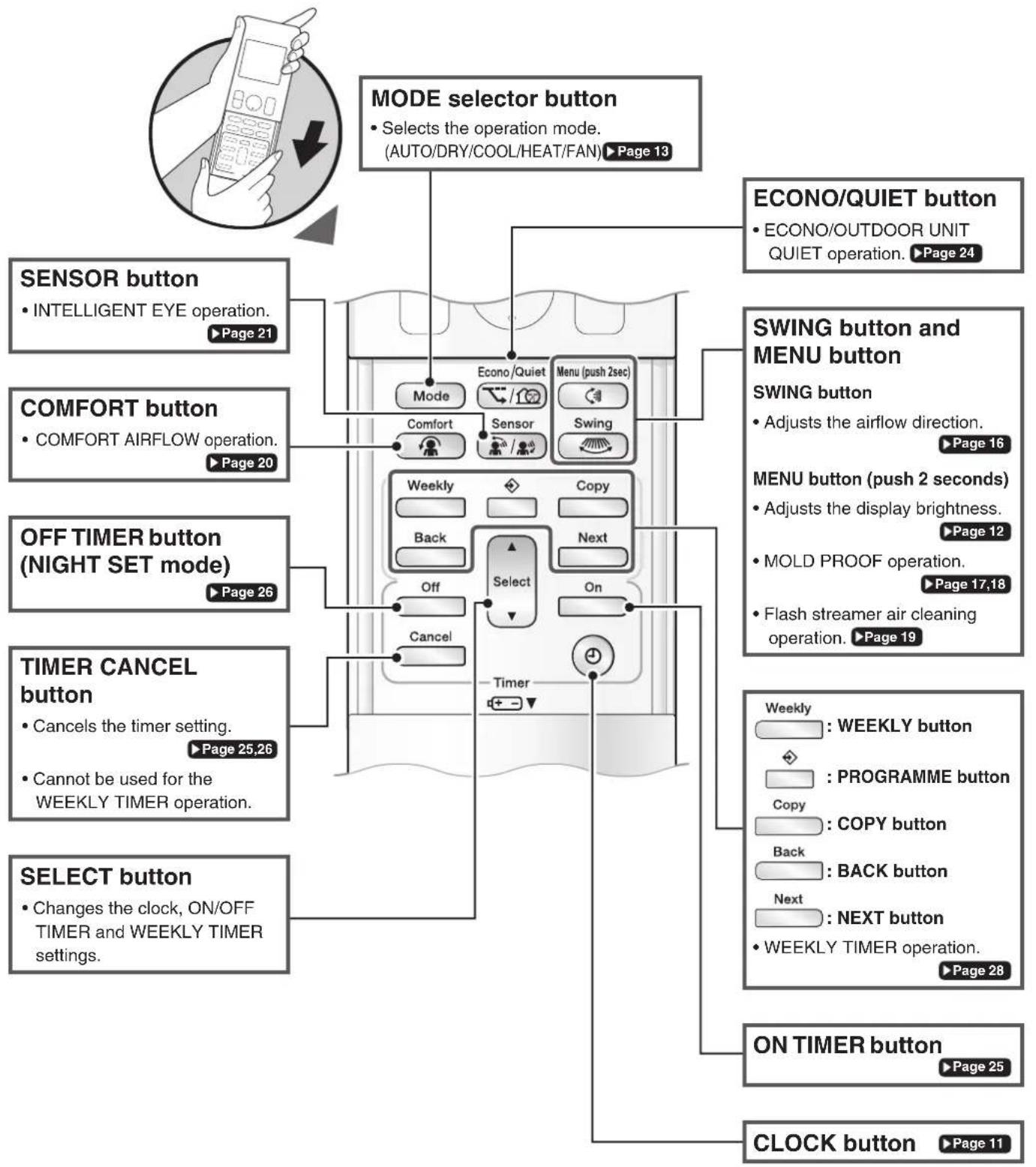
flowchart
graph TD
    A["MODE selector button"] --> B["SENSOR button"]
    A --> C["COMFORT button"]
    A --> D["OFF TIMER button (NIGHT SET mode)"]
    A --> E["TIMER CANCEL button"]
    A --> F["SELECT button"]
    B --> G["ECONO/QUIET button"]
    B --> H["SWING button and MENU button"]
    C --> I["ON TIMER button"]
    D --> J["CLOCK button"]
    G --> K["ECONO/OUTDOOR UNIT QUIET operation."]
    H --> L["MENU button (push 2 seconds)"]
    H --> M["MOLD PROOF operation."]
    H --> N["Flash streamer air cleaning operation."]
    I --> O["Weekly: WEEKLY button"]
    I --> P["PROGRAMME button"]
    I --> Q["Copy: COPY button"]
    I --> R["Back: BACK button"]
    I --> S["Next: NEXT button"]
    J --> T["ON TIMER button"]
    J --> U["CLOCK button"]
Preparation Before Operation

CAUTION
Incorrect handling of batteries can result in injury from battery leakage, rupturing or heating, or lead to equipment failure.
Please observe the following precautions and use safely.
- If the alkaline solution from the batteries should get in the eyes, do not rub the eyes. Instead, immediately flush the eyes with tap water and seek the attention of a medical professional.
- Keep batteries out of reach of children. In the event that batteries are swallowed, seek the immediate attention of a medical professional.
- Do not expose batteries to heat or fire. Do not disassemble or modify batteries. The insulation or gas release vent inside the battery may be damaged, resulting in battery leakage, rupturing, or heating.
- Do not damage or peel off labels on the batteries.
■ To insert the batteries
- Slide the front cover to take it off.
- Insert 2 dry batteries AAA.LR03 (alkaline).
- Replace the front cover.
■ To fix the remote controller holder to a wall
- Choose a place from where the signals reach the unit.
- Fix the holder to a wall, a pillar, or similar location with the screws supplied with the holder.
- Place the remote controller in the remote controller holder.
■ To attach the deodorizing filter (enzyme blue)
- If attaching the separately sold filters, attach them before turning the power on. ▶ Page 40
■ Turn on the circuit breaker
• After the power is turned on, the flaps of the indoor unit open and close once to set the reference position.
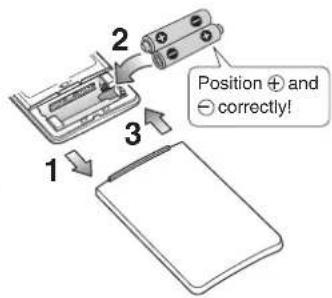
text_image
1 2 3 Position + and - correctly!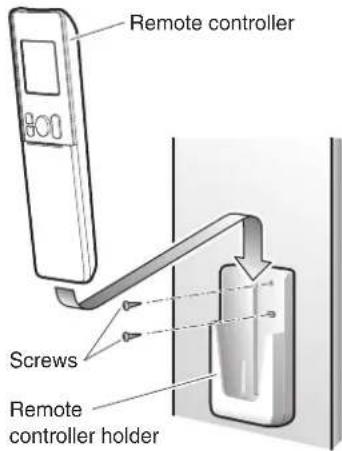
text_image
Remote controller Screws Remote controller holderNOTE
Notes on batteries
• To avoid possible injury or damage from battery leakage or rupturing, remove the batteries when not using the product for long periods of time.
- The standard replacement time is 1 year. Both batteries should be replaced at the same time. Be sure to replace them with new size AAA. LR03 (alkaline) batteries.
- When battery power has run out, the LCD will begin blinking as an alert that the batteries need replacing. In some cases, when battery consumption is accelerated owing usage conditions, signal reception may decline before the LCD begins blinking.
- The batteries supplied with the remote controller are for initial operation. The batteries may run out in less than 1 year.
- The usable period of the batteries may be short depending on the manufactured date of the air conditioner.
Notes on remote controller
- Do not drop the remote controller. Do not get it wet.
- Dust on the signal transmitter or receiver will reduce the sensitivity. Wipe off dust with soft cloth.
- Signal communication may be disabled if an electronic-starter-type fluorescent lamp (such as inverter-type lamps) is in the room.
Consult the shop if that is the case. - If the remote controller signals happen to operate another appliance, move that appliance to somewhere else, or consult the service shop.
Preparation Before Operation
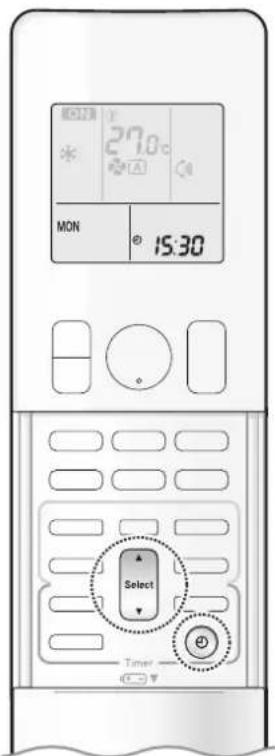
text_image
27.0°C MON 15:30 Select Timer■ To set the clock
1. Press 🔒
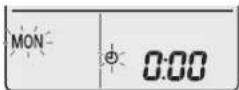
"0" appears on the LCD.
“MON” and “Oblink.
2. Press to set the current day of the week.
| Display Day of the week | |
| MON Monday | |
| TUE Tuesday | |
| WED Wednesday | |
| THU | Thursday |
| FRI | Friday |
| SAT | Saturday |
| SUN | Sunday |
3. Press
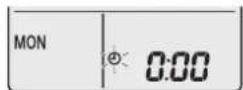
"blinks.
4. Press to set the clock to the present time.
- Holding down ▲ or ▼ rapidly increases or decreases the displayed time.
5. Press
- Point the remote controller at the indoor unit when pressing the button.
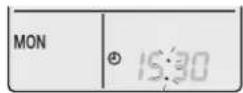
“ ” blinks.
NOTE
Note on setting the clock
- If the indoor unit's internal clock is not set to the correct time, the ON/OFF TIMER and WEEKLY TIMER will not operate punctually.
text_image
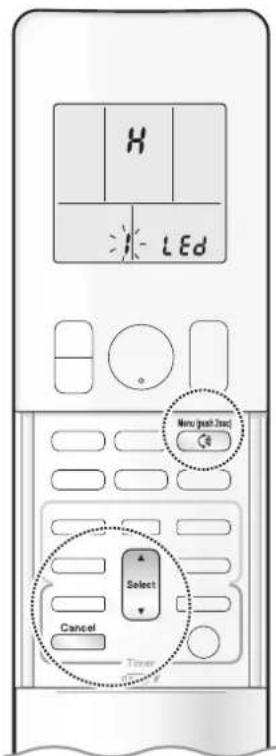
H LED Menu (push 2nd) Select Cancel Timer■ To set the brightness of the indoor unit lamps
Adjust the brightness of the indoor unit display as desired, or turn OFF the display.
■ To set
- Press and hold the button for 2 seconds.

-
Press ▲ or ▼ and select menu number 1.
-
Press to confirm the selected setting.
-
Press or and select the desired brightness.
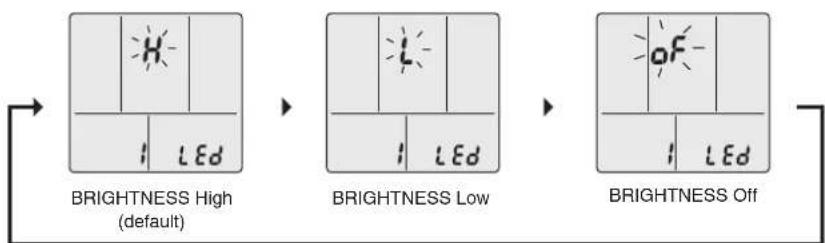
flowchart
graph LR
    A["BRIGHTNESS High (default)"] --> B["BRIGHTNESS Low"]
    B --> C["BRIGHTNESS Off"]
- Press ^Menu (push 2sec) again.
- Brightness will be set to the chosen value.
- Press to return to the default screen.
NOTE
Note on setting brightness of the indoor unit lamps
- The display automatically returns to the default screen after 60 seconds. To return to the default screen sooner, press Cancel twice.

The air conditioner operates with the operation mode of your choice.
From the next time on, the air conditioner will operate with the same operation mode.
■ To start
1. Press and select an operation mode.
• Each pressing of the button changes the mode setting in sequence.
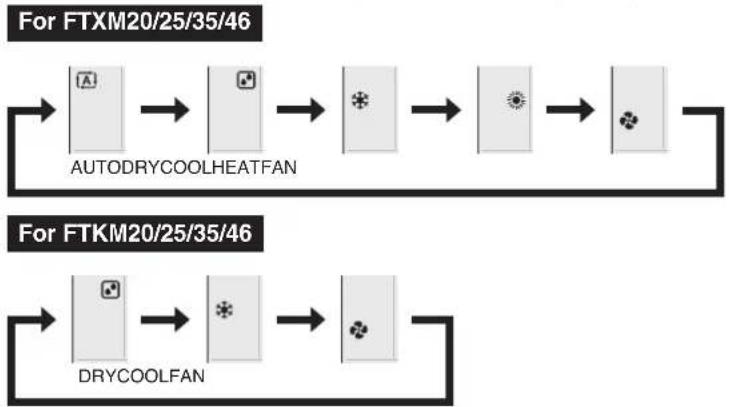
flowchart
graph LR
    A["For FTXM20/25/35/46"] --> B["AutODRYCOOLHEATFAN"]
    B --> C["For FTKM20/25/35/46"]
    C --> D["DRYCOOLFAN"]
2. Press On/Off
- “ On pears on the LCD.
• The OPERATION lamp lights green.
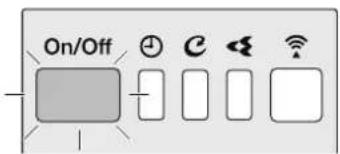
text_image
On/OffDisplay
■ To stop
Press again.
• " ON appears from the LCD.
• The OPERATION lamp goes off.
NOTE
Notes on AUTO operation
- In AUTO operation, the system selects an appropriate operation mode (COOL or HEAT) based on the indoor temperature and starts the operation.
- The system automatically reselects setting at a regular interval to bring the indoor temperature to the user-setting level.
Note on COOL operation
- This air conditioner cools the room by releasing the heat in the room outside.
Therefore, the cooling performance of the air conditioner may be degraded if the outdoor temperature is high.
Note on DRY operation
- Eliminates humidity while maintaining the indoor temperature as much as possible. It automatically controls temperature and airflow rate, so manual adjustment of these functions is unavailable.
Notes on HEAT operation
- Since this air conditioner heats the room by taking heat from outdoor air to indoors, the heating capacity becomes smaller in lower outdoor temperatures. If the heating effect is insufficient, it is recommended to use another heating appliance in combination with the air conditioner.
- The heat pump system heats the room by circulating hot air around all parts of the room. After the start of HEAT operation, it takes some time before the room gets warmer.
- In HEAT operation, frost may occur on the outdoor unit and lower the heating capacity. In that case, the system switches into defrosting operation to take away the frost.
Note on FAN operation
• This mode is valid for fan only.

text_image
ON 27.0°C MOS ° 15:30 Temp Timer■ To change the temperature setting

Press

- Press ▲ to raise the temperature and press ▼ to lower the temperature. Each pressing of the button changes the temperature by 0.5°C.
| COOL operation | HEAT operation | AUTO operation | DRY/FAN operation |
| 18.0~32.0°C | 10.0~30.0°C | 18.0~30.0°C | The temperature setting cannot be changed. |
Tips for saving energy
Keeping the temperature setting at a moderate level helps save energy.
- Recommended temperature setting for cooling: 26.0-28.0°C, for heating: 20.0-24.0°C
Cover windows with a blind or a curtain.
- Blocking sunlight and air from outdoors increases the cooling (heating) effect.
Keep the air filters clean.
• Clogged air filters cause inefficient operation and waste energy. Clean them once in about every 2 weeks. ▶ Page 39
If you are not going to use the air conditioner for a long period, for example in spring or autumn, turn off the circuit breaker.
- The air conditioner always consumes a small amount of electricity even while it is not operating.

Adjusting the Airflow Rate
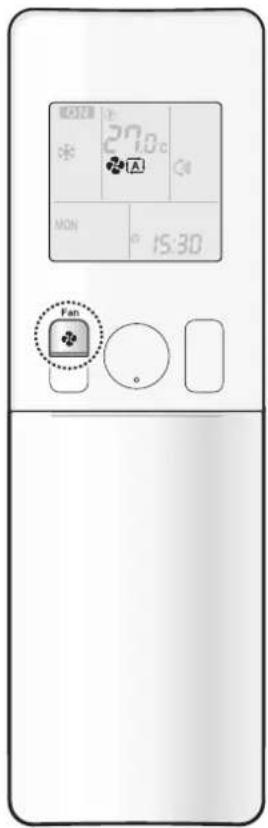
text_image
MASTER 27:00 MON 15:30 FanYou can adjust the airflow rate to increase your comfort.
■ To adjust the airflow rate setting
• Each pressing of the button changes the airflow rate setting in sequence.

flowchart
graph LR
    A["Auto Indoor unit quiet Airflow rate 1-5 (Low to High)"] --> B["→"]
    B --> C["→"]
    C --> D["..."]
    D --> E["→"]
- When the airflow is set to “quiet operation starts and noise from the indoor unit will become quieter.
- In the quiet operation mode, the airflow rate is set to a weak level.
- If the temperature dose not reach the desired point, change the airflow rate setting.
- If COOL/DRY operation is started with airflow settings on "AUTO", the indoor unit will initially deodorise, which functions to suppress any internal odours. As a result, the indoor unit will not emit air immediately. (Wait for about 1 minute.)
- At smaller airflow rates, the cooling (heating) effect is also smaller.
Adjusting the Airflow Direction
text_image
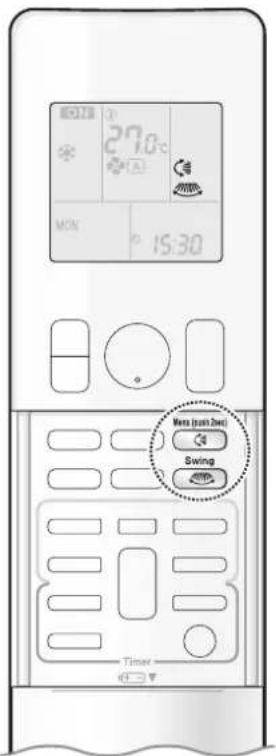
27.0°C MON 15:30 Vista (pass 2nd) Swing TimerYou can adjust the airflow direction to increase your comfort.
ATTENTION
• Always use a remote controller to adjust the angles of the flaps and louvres.
- If you attempt to move the flaps and louvres forcibly by hand when they are swinging, the mechanism may be damaged.
- Inside the air outlet, a fan is rotating at a high speed.
■ To start auto swing
Up and down airflow direction

Press

• “ Appears on the LCD.
• The flaps (horizontal blades) will begin to swing.

natural_image
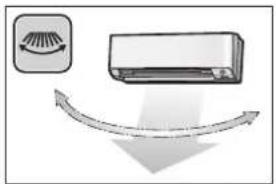
Diagram showing a circular icon with rotation arrow and a rectangular device emitting light (no text or symbols)Right and left airflow direction

Press

• “ appears on the LCD.
• The louvres (vertical blades) will begin to swing.
natural_image
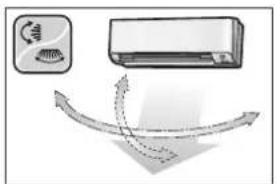
Diagram showing airflow around a rectangular air conditioner unit (no text or symbols)The 3-D airflow direction

Press


• “and” appear on the LCD.
• The flaps and louvres move in turn.
- To cancel 3-D airflow, press either 📁 or again. The flaps or louvres will stop moving.
natural_image
Diagram showing airflow around a washing machine (no text or symbols)■ To set the flaps or louvres at the desired position
- This function is effective while the flaps or louvres are in auto swing mode.
Press and when the flaps or louvres reach the desired position.
- In the 3-D airflow, the flaps and louvres move in turn.
- “” or “” disappears from the LCD.
NOTE
Note on airflow direction setting
- The movable range of the flaps varies according to the operation mode.
Note on 3-D airflow
- Using 3-D airflow circulates cold air, which tends to collect at the bottom of the room, and hot air, which tends to collect near the ceiling, throughout the room, preventing areas of cold and hot developing.
Movable range of the flaps

text_image
of the flaps COOL / DRY FAN HEAT
MOLD PROOF Operation
text_image
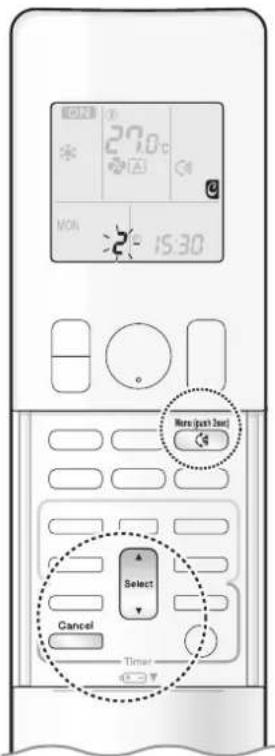
27.0°C MON 15:30 More (pack 2wt) Select Cancel TimerThe inside of the air conditioner is dried to reduce the occurrence of mold and odour. When COOL or DRY operation is performed, condensation may occur inside the air conditioner and may cause mold or odour. It is recommended to dry the inside of the air conditioner using MOLD PROOF operation.
[To operate automatically]
■ To set
-
Press and hold the button for 2 seconds.
-
Press or and select menu number . 2
• “ 📄 appears on the LCD.
• “2” (menu number) blinks.
-
Press to confirm the selected setting.
-
Press or to change the setting as follows:

flowchart
graph LR
    A["Automatic operation is disabled (default)"] --> B["ON"]
    B --> C["Automatic operation is enabled"]
5. Press ^Menu (push 2sec) again.
- Automatic MOLD PROOF operation will be enabled or disabled according to the chosen setting.
- If automatic MOLD PROOF operation is enabled, “ Ⓞ” appears on the LCD and the MOLD PROOF lamp lights green when MOLD PROOF operation is in progress.
- The STREAMER lamp lights green and flash streamer air cleaning operation starts.

text_image
On/Off C Wi-FiDisplay
NOTE
6. Press Cancel to return to the default screen.
Note on MOLD PROOF setting
- The display automatically returns to the default screen after 60 seconds. To return to the default screen sooner, press ☐ twice.
Notes on MOLD PROOF operation
- When you want to stop MOLD PROOF operation midway, press ⏻ twice.
• After DRY or COOL operation stops, the air conditioner starts MOLD PROOF operation automatically, and then stops automatically 60 minutes later. - This operation dries the inside of the air conditioner while streamer discharge is performed to reduce the development of mold and odour inside the air conditioner. But the function does not remove any adhered dust and mold.
- MOLD PROOF operation is not available when the unit is turned off using the OFF TIMER or turned off using a smartphone.
NOTE
Notes on MOLD PROOF operation
- The flaps may sometimes close to increase the drying effect inside the air conditioner.
- MOLD PROOF operation may not be performed if the COOL or DRY operation time is short.
- If MOLD PROOF operation does not suit your preference, set operation to "OFF". ▶ Page 17
Relation between MOLD PROOF operation and indoor unit lamps
| Air conditioner MOLD PROOF setting MOLD PROOF lamp STREAMER lamp | |||
| Operating (OPERATION lamp lights up) | MOLD PROOF is “ON” Lights up | Depends on STREAMER setting | |
| MOLD PROOF is “OFF” Goes off | |||
| Not operating (OPERATION lamp goes off) | MOLD PROOF is “ON” Lights up Lights up | ||

FLASH STREAMER AIR CLEANING operation

text_image
27.0 MOM 15:30 None (just 2wt) Select Cancel TimerThe streamer generates a high-speed electron stream with a high oxidizing power, reducing bad odours and viruses. Together with the deodorizing filter (enzyme blue) and the air filters, this function cleans the air in the room.
■ To set
-
Press and hold the button for 2 seconds.
-
Press or and select menu number . 3
• “ appears on the LCD.
• “3-” (menu number) blinks.
- Press to confirm the selected setting.
- Press or to change the setting as follows:

flowchart
graph LR
    A["On-"] --> B["3"]
    C["OF-"] --> D["3"]
    style A fill:#f9f,stroke:#333
    style C fill:#f9f,stroke:#333
    style B fill:#ccf,stroke:#333
    style D fill:#ccf,stroke:#333
-
Press again.
-
Flash streamer air cleaning will be enabled or disabled according to the chosen setting.
- If STREAMER operation is enabled, “◀◀” appears on the LCD. The STREAMER lamp lights green and flash streamer air cleaning operation starts.

text_image
On/Off ⊕ C ← WiDisplay
- Press Cancel to return to the default screen.
NOTE
What is streamer discharge?
- This is a type of plasma discharge comprising high-speed electrons with a high oxidative capacity that is released within the unit. It decomposes odours and harmful gases. (The high-speed electrons are generated and then adsorbed within the unit ensure your safety.)
Note on flash streamer air cleaning setting
- The display automatically returns to the default screen after 60 seconds. To return to the default screen sooner, press Cancel twice.
Notes on flash streamer air cleaning operation
- The streamer discharge may generate a fizzing sound, however this does not indicate a defect.
- Do not block the air inlets of the streamer with any objects (Fig.1). Impaired airflow may result in insufficient performance or trouble with streamer operation.

text_image
Streamer air inletsFig. 1

COMFORT AIRFLOW Operation
text_image
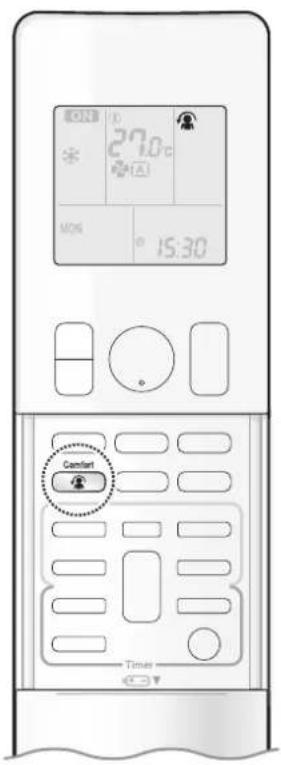
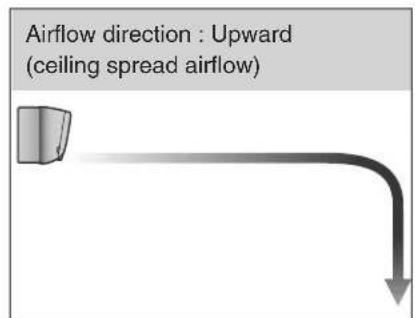
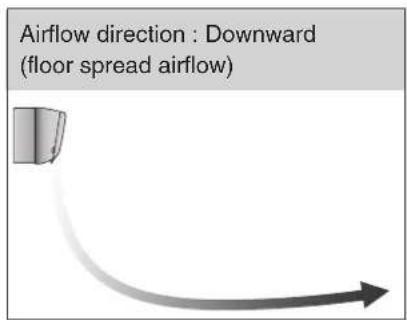
27.0°C MOS 15:30 Comfort TimesThe flow of air will be in the upward direction while in COOL/DRY operation and in the downward direction while in HEAT operation, which will provide a comfortable wind that will not come in direct contact with people.
text_image
Airflow direction : Upward (ceiling spread airflow)COOL and DRY operation
text_image
Airflow direction : Downward (floor spread airflow)HEAT operation
■ To start
Press
• “ 🍐 appears on the LCD.
| COOL and DRY operation | HEAT operation FAN operation | |
| Flaps direction | Goes up Goes down | |
| Airflow rate AUTO | ||
■ To cancel
D Press
again.
• “ disappears from the LCD.
- The flaps will return to the position in memory from before COMFORT AIRFLOW operation.
NOTE
Notes on COMFORT AIRFLOW Operation
- POWERFUL operation and COMFORT AIRFLOW operation cannot be used at the same time.
• The airflow rate will be set to AUTO. - If the upward and downward airflow direction is selected, the COMFORT AIRFLOW function will be canceled. Priority is given to the function of whichever button is pressed last.
- If there is an obstruction under the air conditioner when using heating, the airflow may not reach the center of the room and the room may be difficult to warm up.

INTELLIGENT EYE Operation

text_image
27.0°C MON 15:30 Sensor TimerThe INTELLIGENT EYE sensor detects human movement and adjusts airflow direction. It can be set to avoid people or to direct airflow specifically at people. If no one is in the room for more than 20 minutes, the operation automatically changes to energy saving operation.

CAUTION
- Do not place large objects near the INTELLIGENT EYE sensor. Also keep heating units and humidifiers outside the sensor's detection area. This sensor can detect undesirable objects.
- Do not hit or violently push the INTELLIGENT EYE sensor. This can lead to damage and malfunction.
■ To start
Press Sensor and select the desired mode.
• Each time Sensor is pressed, a different setting option appears on the LCD.

flowchart
graph LR
    A["Directly on people"] --> B["Blow directly on people"]
    B --> C["blank\nNo Setting Do not blow"]
- If both INTELLIGENT EYE operation and auto swing airflow directions (up and down or right and left) are set simultaneously, priority is given to auto swing airflow directions and INTELLIGENT EYE operation will be operated in energy saving operation only. ("") or "will remain on the LCD.) To keep INTELLIGENT EYE operation active, do not use it in combination with auto swing airflow direction modes.
■ To cancel
Press Sensor until no icon is displayed.
NOTE
Notes on combining INTELLIGENT EYE operation and COMFORT AIRFLOW operation
• INTELLIGENT EYE operation can operate in combination with COMFORT AIRFLOW operation.
When the INTELLIGENT EYE operation is set to blow directly on people and COMFORT AIRFLOW operation is activated simultaneously, the air conditioner tracks you horizontally, without the air blowing directly on you.
- The airflow rate will be set to AUTO. If the up and down airflow direction is selected, the COMFORT AIRFLOW operation will be canceled. Priority is given to the function of whichever button is pressed last.
■ How INTELLIGENT EYE operation works
The INTELLIGENT EYE sensor detects human movement and adjusts the right and left airflow direction. If no one is in the room for more than 20 minutes, the operation automatically changes to energy saving operation. The INTELLIGENT EYE sensor works differently depending on the situation.
[Example]
| A person is detected in area 1. area 2. | A person is detected in | People are detected in both areas. | No people are detected in the areas. | |
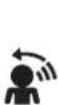 |  |  | The airflow is directed to Area 1. | 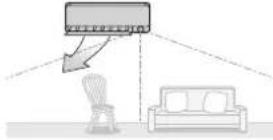 The air conditioner will switch to energy-saving mode after 20 minutes. The air conditioner will switch to energy-saving mode after 20 minutes. |
 | Area 1Area 2 | Area 1Area 2 | The current airflow direction is maintained. |
INTELLIGENT EYE operation is useful for energy saving
Energy saving operation
- If no presence detected in the room for 20 minutes, the energy saving operation will start.
- This operation changes the temperature by -2^ in HEAT / +2^ in COOL / +2^ in DRY operation from the set temperature.
When the room temperature exceeds 30^ C, the operation changes the temperature by +1^ C in COOL / +1^ C in DRY operation from the set temperature. - This operation decreases the airflow rate slightly in FAN operation only.
NOTE
Notes on INTELLIGENT EYE operation
- Application range is as follows.

text_image
Vertical angle 90° (Side view) 5m 90°
text_image
Horizontal angle 110° (Top view) 55° 55° 5m- While the air conditioner is in INTELLIGENT EYE operation, the louvres adjust the airflow direction if there are people in the sensing areas of the INTELLIGENT EYE so that the leftward or rightward airflow will not be directed to the people. If no people are detected in either area 1 or 2 for 20 minutes, the air conditioner switches to the energy-saving mode with the set temperature shifted by 2^ .
The air conditioner may switch to the energy-saving operation even if there are people in the areas.
This may occur depending on the clothes the people are wearing, if there is no movement of the people in the areas.
- The airflow direction from the louvres will be leftward if there are people in both areas 1 and 2. The air will also flow left if there is a person right in front of the sensor as the sensor judges that there are people in both areas.
- Due to the position of the sensor, people might be exposed to the airflow of the indoor unit if they are close to the front side of the indoor unit. If there are people close to the front side of the indoor unit or in both areas, it is recommended to use the COMFORT AIRFLOW and INTELLIGENT EYE operations simultaneously. Using both modes together, the air conditioner will not direct the airflow towards the people.
- The sensor may not detect moving objects further than 5m away. (Please see the application range)
- Sensor detection sensitivity changes according to the indoor unit location, the speed of passers-by, temperature range, etc.
- The sensor could also mistakenly detect pets, sunlight, fluttering curtains and light reflected off of mirrors as passers-by.
- NIGHT SET mode ▶ Page 26 will not switch on during use of INTELLIGENT EYE operation.

POWERFUL Operation
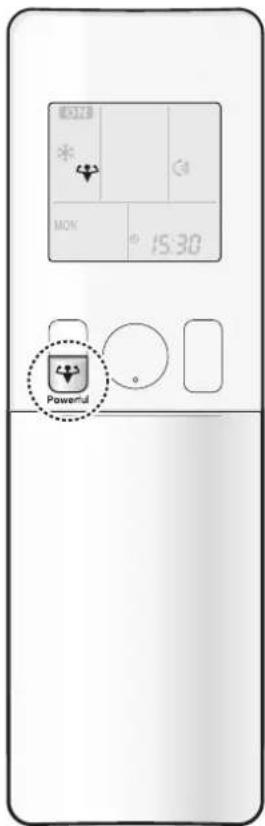
text_image
15:30 PowerfulPOWERFUL operation quickly maximises the cooling (heating) effect in any operation mode. In this mode, the air conditioner operates at maximum capacity.
■ To start
Press during operation.
• “ appears on the LCD.
- POWERFUL operation ends in 20 minutes. Then the system automatically operates again with the previous settings which were used before POWERFUL operation.
■ To cancel
Press again.
• “ disappears from the LCD.
NOTE
Notes on POWERFUL operation
- Pressing causes the settings to be cancelled, and " " disappears from the LCD.
- POWERFUL operation will not increase the capacity of the air conditioner if the air conditioner is already in operation with its maximum capacity demonstrated.
- In COOL, HEAT and AUTO operation
To maximise the cooling (heating) effect, the capacity of outdoor unit increases and the airflow rate becomes fixed at the maximum setting. The temperature and airflow settings cannot be changed. - In DRY operation
The temperature setting is lowered by 2.5°C and the airflow rate is slightly increased. - In FAN operation
The airflow rate is fixed at the maximum setting.
Regarding the combination of POWERFUL and other operations
| POWERFUL + COMFORT AIRFLOW | Not available* |
| POWERFUL + ECONO | |
| POWERFUL + OUTDOOR UNIT QUIET |
*Priority is given to the function of whichever button is pressed last.
ECONO / OUTDOOR UNIT QUIET Operation

text_image
27.0°C MON 15:30 Ecoq/Quint TimerECONO operation enables efficient operation by limiting the maximum power consumption. This function is useful to prevent the circuit breaker from tripping when the unit operates alongside other appliances on the same circuit.
OUTDOOR UNIT QUIET operation lowers the noise level of the outdoor unit by changing the frequency and fan speed of the outdoor unit. This function is convenient during the night-time operation.
■ To start
Press Econo/Quiet and select the desired mode.
• Each time is pressed, a different setting option appears on the LCD.

flowchart
graph LR
    A["ECONO OUTDOOR UNIT QUIET"] --> B["Combination"]
    B --> C["blank\nNo Setting"]
■ To cancel
Press Econo/Quiet until no icon is displayed.
NOTE
Notes on ECONO operation
- This operation is performed with lower power and therefore may not provide a sufficient cooling (heating) effect.
- Pressing ⏻ causes the settings to be cancelled, and “” disappears from the LCD.
- If the power consumption level is already low, switching to ECONO operation will not reduce the power consumption.
Notes on OUTDOOR UNIT QUIET operation
- Even if the operation is stopped by using the remote controller or the indoor unit ON/OFF switch when using OUTDOOR UNIT QUIET operation, "💡" will remain displayed on the remote controller.
- OUTDOOR UNIT QUIET operation will not reduce the frequency nor fan speed if they already are operating at reduced levels.
- This operation is performed with lower power and therefore may not provide a sufficient cooling (heating) effect.
Possible combinations of ECONO / OUTDOOR UNIT QUIET operation and basic operations
| Operation mode | |||||
| AUTO DRY COOL | HEAT FAN | ||||
| ECONO | √ | √ | √ | √ | - |
| OUTDOOR UNIT QUIET | √ | - | √ | √ | - |

ON/OFF TIMER Operation
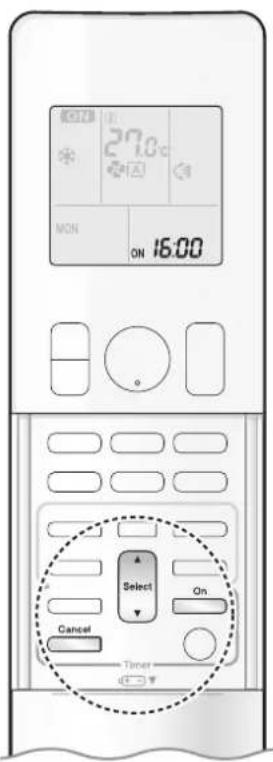
text_image
27.0°C MON ON 16:00 Select On Cancel TimerTimer functions are useful for automatically switching the air conditioner on or off at night or in the morning. You can also use the ON TIMER and OFF TIMER together.
[ON TIMER with a 24 hour clock display] (24 HOUR ON/OFF TIMER)
■ To set
- Check that the clock is correct. If not, set the clock to the present time. ▶ Page 11
1. Press On
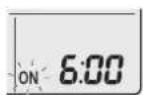
“5.00 appears on the LCD. “ON-” blinks.
- “ ⊕” and day of the week disappear from the LCD.
2. Press until the time setting reaches the point you like.
• Each pressing of either button increases or decreases the time setting by 10 minutes. Holding down either button changes the setting rapidly.
3. Press on again.
- “ON” and setting time appear on the LCD.
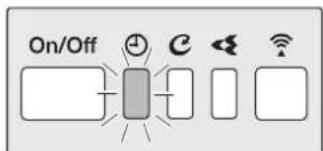
• The TIMER lamp lights orange.
text_image
On/OffDisplay
■ To cancel
Press Cancel.
- “ON” and setting time disappear from the LCD.
- “ ⏻ ” and day of the week appear on the LCD.
• The TIMER lamp goes off.
NOTE
Note on TIMER operation
- When TIMER is set, the present time is not displayed.
In the following cases, set the timer again.
• After the circuit breaker has turned off.
• After a power failure.
• After replacing the batteries in the remote controller.
text_image
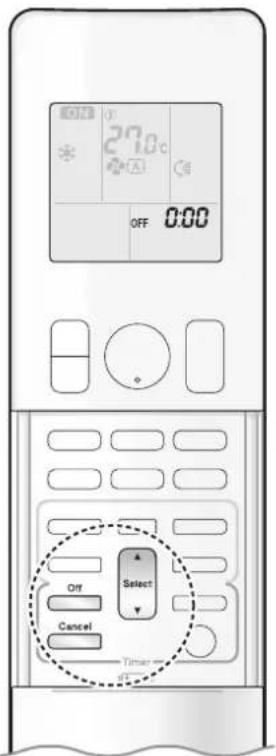
27.0°C OFF 0:00 Off Select Cancel Timer[OFF TIMER with a 24 hour clock display] (24 HOUR ON/OFF TIMER)
■ To set
- Check that the clock is correct. If not, set the clock to the present time. ▶Page 11
1. Press Off
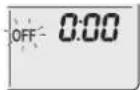
“ 0.00 appears on the LCD.
“>OFF-” blinks.
- “ ⊕” and day of the week disappear from the LCD.
2. Press until the time setting reaches the point you like.
• Each pressing of either button increases or decreases the time setting by 10 minutes. Holding down either button changes the time setting rapidly.
3. Press off again.
- “OF and setting time appear on the LCD.
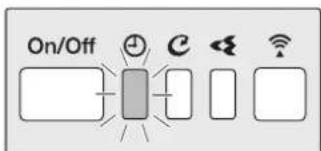
• The TIMER lamp lights orange.
text_image
On/OffDisplay
■ To cancel
Press Cancel
- “OF and setting time disappear from the LCD.
- “ ⊕” and day of the week appear on the LCD.
• The TIMER lamp goes off.
[ON/OFF TIMER combination]
■ To combine
- A sample setting for combining the 2 timers is shown below.

text_image
(Example) Present time: 23:00 (The unit is operating) OFF TIMER at 0:00 ON TIMER at 14:00) Combined OFF 0:00 ON 14:00NOTE
NIGHT SET mode
- When the OFF TIMER is set, the air conditioner automatically adjusts the temperature setting (0.5°C up in COOL, 2.0°C down in HEAT) to prevent excessive cooling (heating) during sleeping hours.

ON/OFF TIMER Operation

text_image
27.0°C ON Ihr Off Select On Timer[ON/OFF TIMER with an hours remaining display] (COUNT UP-DOWN ON/OFF TIMER)
- Check that the clock is correct. If not, set the clock to the present time. ▶Page 11
1. Press and hold on or for about 5 seconds, when signal indicator (▲) blink, release your finger from the button.

For ON TIMER
"Ibr" appears on the LCD.
“ON-” blinks.
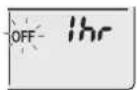
For OFF TIMER
"Ihr" appears on the LCD.
“OFF-”blinks.
- “ ⊕” and day of the week disappear from the LCD.
2. Press until the time setting reaches the point you like.
• Each pressing of the button increases or decreases the time setting by 1 hour.
• The time can be set between 1 and 12 hours.
3. Press On or again. Off
- “ONand” “ONand setting time appear on the LCD.
• The TIMER lamp lights orange.
- To change the display mode from COUNT UP-DOWN ON/OFF TIMER to 24 HOUR ON/OFF TIMER, repeat STEP 1, and continue from STEP 2 of "24 HOUR ON/OFF TIMER". ▶ Page 25, 26
- Timer display mode cannot be changed while “ON-” or “Dare blinking. Press ☐ or ☐ to stop the blinking.

text_image
On/OffDisplay
■ Combining display modes
- Different display modes (24 HOUR ON/OFF TIMER and COUNT UP-DOWN ON/OFF TIMER) can be used for the ON TIMER and OFF TIMER simultaneously.

text_image
(Example) Present time: 22:00 (The unit is operating) OFF TIMER at 1:00 (3 hours after persent time) ) Combined ON TIMER at 6:00 (8 hours after persent time) ON ON OFF 3hr 6:00 OFF 1:00 ON 8hr OFF 3hr ON 8hrNOTE
Note on COUNT UP-DOWN ON/OFF TIMER
- After setting, the time displayed on the LCD will automatically count down by 1 hour for every 1 hour that passes. For example, if the OFF TIMER is set to 3 hours, the display will change as follows: 3hr 2hr 1hr blank (OFF)
Switching between ON/OFF TIMER display modes (24 hour clock and hours remaining display)
- When changing timer display modes (from 24 HOUR ON/OFF TIMER to COUNT UP-DOWN ON/OFF TIMER or vice versa), the timer cancels. The timer must be set again to activate it.
WEEKLY TIMER Operation
Up to 4 timer settings can be saved for each day of the week. This is convenient to adapt the WEEKLY TIMER to your family's life style.
■ Setting example of the WEEKLY TIMER
The same timer settings are used from Monday through Friday, while different timer settings are used for the weekend.
| [Monday] | Make timer settings for programmes 1-4. ▶Page 29 | |||
| Programme 1 | Programme 2 | Programme 3 | Programme 4 | |
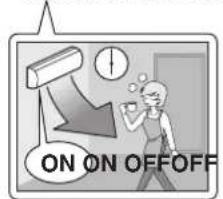 | 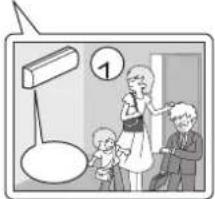 | 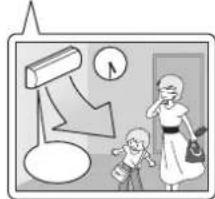 |  | |
| [Tuesday] to [Friday] | Use the copy mode to make settings for Tuesday to Friday, because these settings are the same as those for Monday. ▶Page 31Pr | ≥4 | ||
| [Saturday] | No timer settings | |||
| [Sunday] | Make timer settings for programmes 1-4. ▶Page 29 | |||
- Up to 4 reservations per day and 28 reservations per week can be set using the WEEKLY TIMER. The effective use of the copy mode simplifies timer programming.
- The use of ON-ON-ON-ON settings, for example, makes it possible to schedule operating mode and set temperature changes. Furthermore, by using OFF-OFF-OFF-OFF settings, only the turn off time of each day can be set. This will turn off the air conditioner automatically if you forget to turn it off.
WEEKLY TIMER Operation
text_image
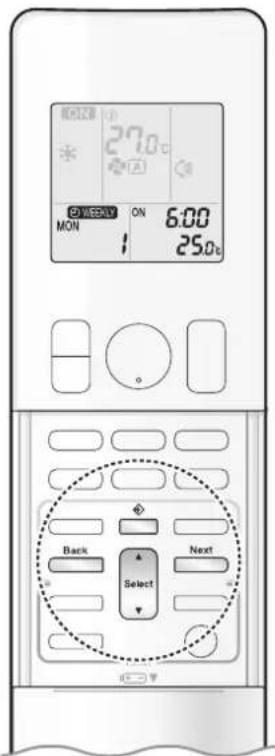
MON ON 6:00 25.0℃ Back Select Next■ To use WEEKLY TIMER operation
Setting mode
- Make sure the day of the week and time are set. If not, set the day of the week and time. ▶Page 11
Programme 1 Programme 2 Programme 3 Programme 4

text_image
[Monday] ON OFF 25.0°C 27.0°C 6:00 8:30 17:30 22:00 ON OFFSetting Displays

flowchart
graph LR
    A["MON"] --> B["ON/OFF"]
    B --> C["Time"]
    C --> D["Temperature"]
1. Press
- The day of the week and the reservation number of the current day will be displayed.
• 1 to 4 settings can be made per day.
2. Press Select to select the desired day of the week and reservation number.
- Pressing Select changes the reservation number and the day of the week.
3. Press Next .
• The day of the week and reservation number will be set.
- “WEEKLY” and “ON-” blink.
4. Press Select to select the desired mode.
- Pressing Select changes the "ON" or "OFF" setting in sequence.

flowchart
graph LR
    A["ON"] --> B["OFF"]
    B --> C["blank"]
    D["ON TIMER"] --> A
    E["OFF TIMER"] --> B
    F["No Setting"] --> C
    G["Pressing"] --> H["Select"]
    H --> I["puts the sequence in reverse."]
- In case the reservation has already been set, selecting "blank" deletes the reservation.
- Proceed to STEP 9 if "blank" is selected.
• To return to the day of the week and reservation number setting, press ☐
5. Press Next .
• The ON/OFF TIMER mode will be set.
• “ Ⓧ WEEKLY ” and the time blink.

text_image
27.0°C ON 6:00 TUE 1 25.0°C Back Select Next6. Press □ to select the desired time.
- The time can be set between 0:00 and 23:50 in 10-minute intervals.
- To return to the ON/OFF TIMER mode setting, press BACK
- Proceed to STEP 9 when setting the OFF TIMER.
7. Press Next
• The time will be set.
• “ Ⓧ WEEKLY ” and the temperature blink.
8. Press to select the desired temperature.
• The temperature can be set between 10.0°C and 32.0°C.
COOL or AUTO: The unit operates at 18.0^ C even if it is set to 10.0^ C to 17.0^ C. ▶Page 14
HEAT or AUTO: The unit operates at 30.0^ C even if it is set to 31.0^ C to 32.0^ C ▶Page 14
• To return to the time setting, press .
- The set temperature is only displayed when the mode setting is on.
9. Press Next
- The temperature will be set and go to the next reservation setting.
- The temperature is set while in ON TIMER operation, and the time is set while in OFF TIMER operation.
• The next reservation screen will appear.
• To continue further settings, repeat the procedure from STEP 4.
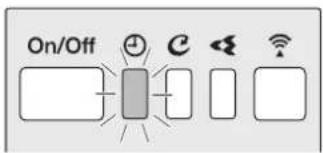
10. Press to complete the setting.
- Be sure to direct the remote controller toward the indoor unit and check for a receiving tone and blinking of the OPERATION lamp.
- “ WEEKLY ” appears on the LCD and WEEKLY TIMER operation is activated.
• The TIMER lamp lights orange.
text_image
On/OffDisplay
- A reservation made once can be easily copied and the same settings used for another day of the week. Refer to Copy mode. ▶Page 31
NOTE
Notes on WEEKLY TIMER operation
- Do not forget to set the clock on the remote controller first. ▶Page 11
- The day of the week, ON/OFF TIMER mode, time and set temperature (only for ON TIMER mode) can be set with the WEEKLY TIMER. Other settings for the ON TIMER are based on the settings just before the operation.
- WEEKLY TIMER and ON/OFF TIMER operation cannot be used at the same time. The ON/OFF TIMER operation has priority if it is set while WEEKLY TIMER is still active. The WEEKLY TIMER will enter the standby state, and “WEEKLY” will disappear from the LCD. When the ON/OFF TIMER is up, the WEEKLY TIMER will automatically become active.
- Only the time and set temperature with the WEEKLY TIMER are sent with the ☐. Set the WEEKLY TIMER only after setting the operation mode, the airflow rate and the airflow direction ahead of time.
- Turning off the circuit breaker, power failure, and other similar events will render operation of the indoor unit's internal clock inaccurate. Reset the clock. ▶Page 11
• can be used only for the time and temperature settings. It cannot be used to go back to the reservation number.

WEEKLY TIMER Operation
text_image
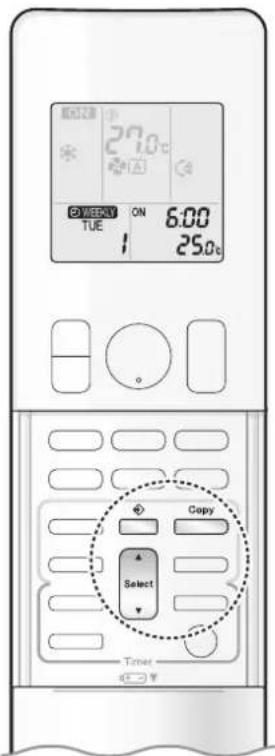
27.0°C ON TUE 6:00 25.0°C Copy Select TimerCopy mode
- A reservation made once can be copied to another day of the week. The whole reservation of the selected day of the week will be copied.
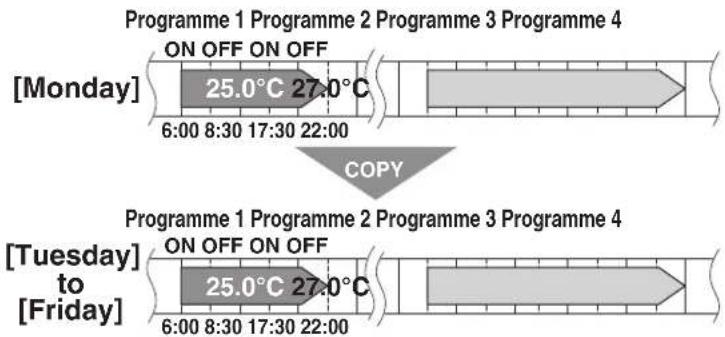
text_image
Programme 1 Programme 2 Programme 3 Programme 4 [Monday] ON OFF ON OFF 25.0°C 27.0°C 6:00 8:30 17:30 22:00 COPY Programme 1 Programme 2 Programme 3 Programme 4 [Tuesday] ON OFF ON OFF 25.0°C 27.0°C 6:00 8:30 17:30 22:00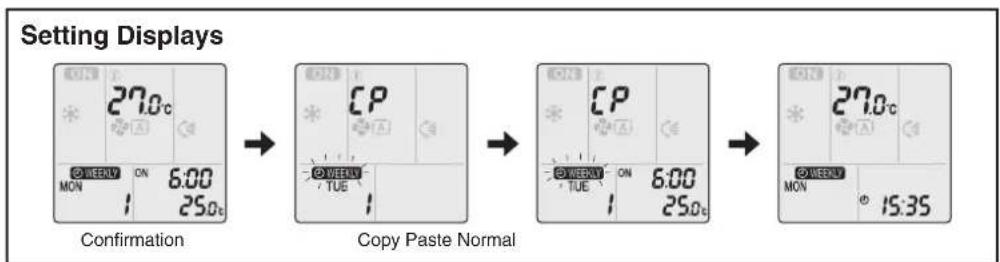
flowchart
graph LR
    A["Setting Displays"] --> B["Confirmation"]
    B --> C["Copy Paste Normal"]
    C --> D["Final Display"]
- Press
- Press Select to confirm the day of the week to be copied.
- Press Copy .
- The whole reservation of the selected day of the week will be copied.
- Press Select to select the destination day of the week.
-
Press Copy
-
The reservation will be copied to the selected day of the week. The whole reservation of the selected day of the week will be copied.
• To continue copying the settings to other days of the week, repeat STEP 4 and STEP 5. -
Press ☐ to complete the setting.
- “WEEKLY” appears on the LCD and WEEKLY TIMER operation is activated.
NOTE
Note on COPY MODE
- The entire reservation of the source day of the week is copied in the copy mode. In the case of making a reservation change for any day of the week individually after copying the content of weekly reservations, press and change the settings in the steps of Setting mode. ▶Page 29

text_image
27.0°C ON TUE 6:00 25.0°C Weekly Select Next Timer■ Confirming a reservation
• The reservation can be confirmed.

text_image
Setting Displays DREAM TUE 15:35 Normal ON ON 6:00 TUE 25.0c Confirmation1. Press
- The day of the week and the reservation number of the current day will be displayed.
2. Press to select the day of the week and the reservation number to be confirmed.
- Pressing displays the reservation details.
- To change the confirmed reserved settings, select the reservation number and press Next. The mode is switched to setting mode. Proceed to Setting mode STEP 4. ▶Page 29
3. Press to exit the confirmation mode.
- “ WEEKLYrs on the LCD and WEEKLY TIMER operation is activated.
• The TIMER lamp lights orange.
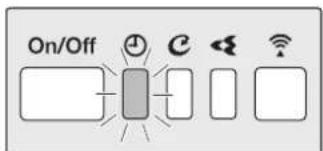
text_image
On/OffDisplay
■ To deactivate WEEKLY TIMER operation
Press ☐ while “ Ⓧ WEEKLY ” is displayed on the LCD.
• “Wears from the LCD.
• The TIMER lamp goes off.
• To reactivate the WEEKLY TIMER operation, press ____ again.
- If a reservation deactivated with weekly is activated once again, the last reservation mode will be used.
NOTE
- If not all the reservation settings are reflected, deactivate the WEEKLY TIMER operation once. Then press ____ again to reactivate the WEEKLY TIMER operation.

WEEKLY TIMER Operation

text_image
27.0°C ON 6:00 TUE 25.0°C Weekly Select Next Timer■ To delete a reservation
An individual reservation
1. Press
- The day of the week and the reservation number will be displayed.
2. Press to select the day of the week and the reservation number to be deleted.
3. Press Next .

4. Press □ until no icon is displayed.
- Pressing Changes the ON/OFF TIMER mode in sequence.
- Selecting "blank" will cancel any reservation you may have.

flowchart
graph LR
    A["ON"] --> B["OFF"]
    B --> C["blank"]
    C --> D["Pressing"]
    D --> E["puts the sequence in reverse."]
    style A fill:#f9f,stroke:#333
    style B fill:#f9f,stroke:#333
    style C fill:#ccf,stroke:#333
    style D fill:#cfc,stroke:#333
    style E fill:#fcc,stroke:#333
5. Press Next .
- The selected reservation will be deleted.
6. Press
- If there are still other reservations, WEEKLY TIMER operation will be activated.
Reservations for each day of the week
- This function can be used for deleting reservations for each day of the week.
- It can be used while confirming or setting reservations.
1. Press
- The day of the week and the reservation number will be displayed.
2. Press Select to select the day of the week to be deleted.
3. Hold for about 5 seconds.
- The reservation of the selected day of the week will be deleted.
4. Press
- If there are still other reservations, WEEKLY TIMER operation will be activated.
All reservations
Weekly
Hold for about 5 seconds with the normal display.
- Be sure to direct the remote controller toward the indoor unit and check for a receiving tone.
- This operation cannot be used for the WEEKLY TIMER setting display.
- All reservations will be deleted.
Wireless LAN connection
Please note
- Turn off the air conditioner before setting up wireless connection.
Prior to setting up, please make sure your device is ready to connect. You may refer to the indoor unit LED table for guidance.
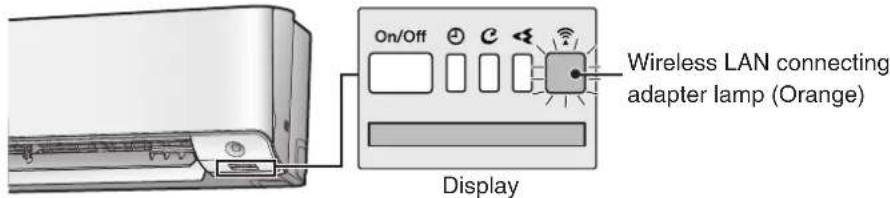
Check the indoor unit LED.
| Wireless LAN connecting adapter lamp Status | |
| Blinks for one second | The wireless LAN connecting adapter is ready to connect. |
| No blinking/no light | The wireless LAN connecting adapter is disabled.Malfunction in communication between the indoor unit and the wireless LAN connecting adapter.Please refer to the troubleshooting guide or contact the store where you bought the air conditioner to request a repair service. |
| Lamp stays lit | The wireless LAN connecting adapter is connected to a modem/router. |
text_image
On/Off Wireless LAN connecting adapter lamp (Orange) DisplayWireless LAN connection
Web site: https://www.daikinthai.com/product/dmobile
For more information on the latest version of wireless LAN control, please refer to the above website.
■ Application software installation
- Before downloading the application software for installation, please read "Configuration" on ▶Page 7
For Android phones
1) Open [Google Play].
2) Search using the application name: [DAIKIN Mobile Controller].
3) Follow the on-screen instructions for installation.
For iOS phones
1) Open [App Store].
2) Search using the application name: [DAIKIN Mobile Controller].
3) Follow the on-screen instructions for installation.
Setting
Connect the wireless LAN connecting adapter to your home network.
- The wireless LAN connecting adapter will communicate with the smart devices in your home network via a modem, router, or a similar device.
There are two options for connecting the wireless LAN connecting adapter to your smart phone or tablet:
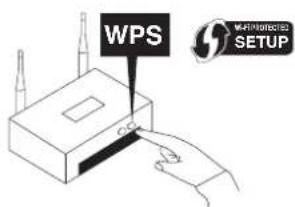
1) Simple connection (WPS connection), if there is a WPS button on the router, ▶Page 36
2) Access point connection (AP connection), if there is no WPS button on the router, ▶ Page 37
For more information and Frequently Asked Questions, please refer to:
https://www.daikinthai.com/product/dmobile
text_image
WPS MARTINOCED SETUPNOTE
Note on wireless LAN connection
- For more information on how the wireless LAN connecting adapter operates, please see ▶Page 35-37

Wireless LAN connection

text_image
SP 1 Powerful Temp
text_image
On/Off CDisplay
Enabling/disabling the wireless LAN connecting adapter
■ To enable
- While operation is stopped, press and hold the button for 5 seconds.

-
Press or and select SP menu.
-
Press to confirm the selected setting.
- “▲blinks briefly. - The wireless LAN connecting adapter lamp (orange) blinks for one second.
- Press to return to the default screen.
■ To disable
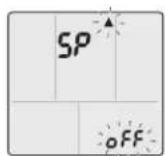
- While operation is stopped, press and hold the button for 5 seconds.

-
Press or and select SP menu . off
-
Press and hold 📁 for 2 seconds to confirm the selected setting.
- “▲blinks briefly. - The wireless LAN connecting adapter lamp (orange) goes off.
- Press Cancel to return to the default screen.
text_image
SP 2 Powerful Temp
text_image
On/OffDisplay

text_image
16:55 Home All units in Unit name SETC SETCFig. 1
To connect the wireless LAN connecting adapter to your home network
The wireless LAN connecting adapter can be connected to your home network by means of:
- Simple connection (WPS connection), if there is a WPS button on the router.
- Access point connection (AP connection), if there is no WPS button on the router.
■ Simple connection (WPS connection)
If there is a WPS button on your Wi-Fi router, please follow the below steps.
-
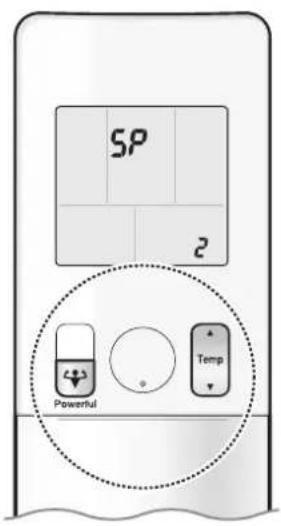
While operation is stopped, press and hold the button for 5 seconds.
-
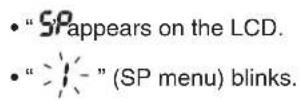
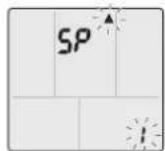
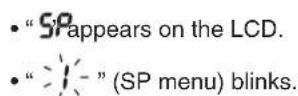
“SP appears on the LCD.
• “ ” (SP menu) blinks.
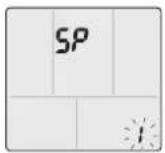
- Press or and select SP menu . 2
- Press to confirm the selected setting.
• "▲blinks briefly.
• The wireless LAN connecting adapter lamp (orange) blinks more quickly.

- Press the WPS button on your communication device (e.g. router) within approximately one minute. Please refer to the manual of your communication device.
- The wireless LAN connecting adapter lamp (orange) stays lit. If you fail to connect, refer to NOTE.
- Press to return to the default screen.
- Connect your smart phone to your home network.
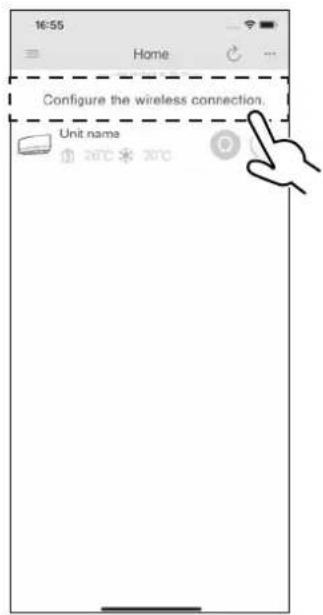
- Open the Home screen of the DAIKIN Mobile Controller application. The air conditioner will be listed there (Fig. 1).
NOTE
Note on simple connection (WPS connection)
- If you fail to connect (the wireless LAN connecting adapter lamp (orange) continues to blink), repeat steps 1-5.
Alternatively, try connecting via your device directly. Please refer to "Access point connection (AP connection)". ▶Page 37

Wireless LAN connection
text_image
On/Off CDisplay
text_image
16:55 Home Configure the wireless connection. Unit name 20℃ 20℃Fig. 2
text_image
SP R Powerful Temp■ Access point connection (AP connection).
If your home Wi-Fi router does not have a WPS button, you can connect your smart phone directly to the wireless LAN connecting adapter in order to set up a connection to your home network by following these steps. - This step requires SSID number and KEY located on the indoor unit or on the cover of the manual.
1. Connect the wireless LAN connecting adapter to a smart phone or tablet.
View available Wi-Fi networks on your smart phone or tablet and connect to the SSID (DaikinAP****) printed out on the sticker. SSID and KEY are located on the indoor unit or on the cover of the manual, as shown in the below image.

text_image
• Sticker on the indoor unit SSID&KEY sticker • WIRELESS LAN CONNECTION SSID:DaikinAPXXXXX KEY :YYYYYYYYYYYYY • Sticker on the cover of the manual FARION OPERATION MANUAL2. Open the DAIKIN Mobile Controller application and select "Configure the wireless connection" (Fig. 2) and connect to your home network as per the on-screen instructions.
- The wireless LAN connecting adapter lamp (orange) stays lit. If you fail to connect, refer to NOTE.
3. Connect your smart phone to your home network.
4. Open the Home screen of the DAIKIN Mobile Controller application. The air conditioner will be listed there.
Reset connection setting to factory defaults.
Please note
When the device is reset, out-of-home user account and wireless LAN connection setting will be changed back to the factory defaults.
■ To reset
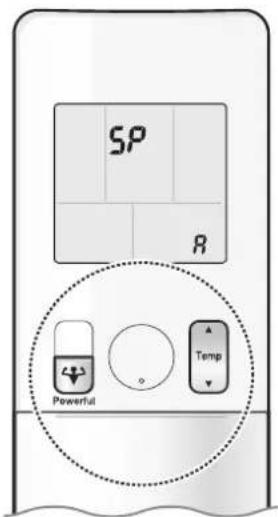
1. While operation is stopped, press and hold the button for 5 seconds.
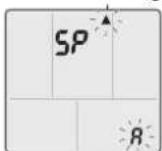
- “SPappears on the LCD.
- “ ” (SP menu) blinks.
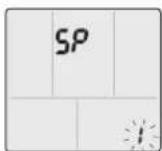
2. Press or and select SP menu . R
3. Press and hold 📋 for 2 seconds to confirm the selected setting.
- “▲” blinks briefly.
- The wireless LAN connecting adapter lamp (orange) blinks for one second.
4. Press Cancel to return to the default screen.
NOTE
Note on access point connection (AP connection)
- If you fail to connect (the wireless LAN connecting adapter lamp (orange) continues to blink), repeat steps 1-2.
Care and Cleaning

CAUTION
- Before cleaning, be sure to stop the operation and turn off the circuit breaker.
- Do not touch the aluminum fins of the indoor unit. If you touch those parts, this may cause an injury.
■ Quick reference
Cleaning parts
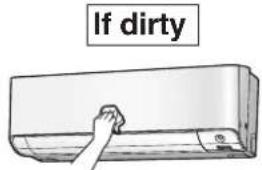
Front panel
- Wipe it with a soft damp cloth.
- Only neutral detergent may be used.
text_image
If dirtyAir filter
• Vacuum dust or wash the filter.
Once every 2 weeks
Page 39
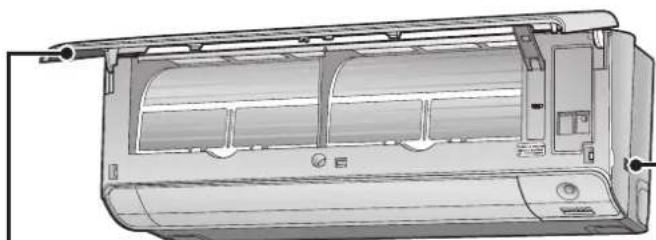
Indoor unit and remote controller
- Wipe them with a soft cloth.
If dirty
natural_image
Technical line drawing of a car air conditioner unit showing internal compartments and ventilation duct (no text or labels)
natural_image
Two views of a flexible solar panel with grid panels and mounting feet, shown from different angles (no text or symbols)Streamer air inlet
- Do not place objects around the indoor unit. Doing so may have an adverse influence on the performance, product quality, and life of the streamer.
Deodorizing filter (enzyme blue)
To purchase the filters (Table 1) or to purchase the another type, contact the dealer where you bought the air conditioner.
The method of cleaning and replacement of the filters may differ depending on the model. Refer to the label attached to the separately sold filters themselves.
Table 1
| Item Part No. | |
| Air quality filter (enzyme blue with PM 2.5) - without frame (set of 2) | BAFP094A43 |
| Deodorizing filter (enzyme blue) - without frame (set of 2) BAFP094A41 | |
| Dust collection filter (PM 2.5) - without frame (set of 2) BAFP046A41 | |
| Titanium apatite deodorizing filter - without frame (set of 2) KAF970A46 | |
Deodorizing filter (enzyme blue), Titanium apatite deodorizing filter.
• Vacuum dust or replace the filter.
[Cleaning] [Replacement]
Once every 6 months Once every 3 years
▶Page 40
▶Page 40
Air quality filter (enzyme blue with PM 2.5), Dust collection filter (PM 2.5)
- No cleaning is required. Please replace the filter every 6 months. ▶Page 40
NOTE
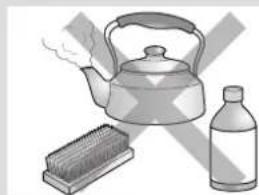
For cleaning, do not use any of the following:
• Water hotter than 40°C
• Volatile liquid such as benzene, petrol and thinner
- Polishing compounds
- Rough materials such as a scrubbing brush
natural_image
Illustration of a teapot, a brush holder, and a bottle (no text or symbols)Care and Cleaning
Air filter
1. Open the front panel.
- Hold the front panel by the sides and open it.
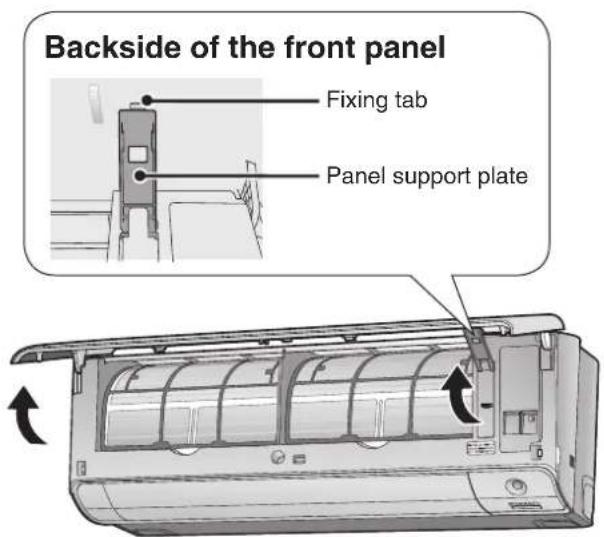
text_image
Backside of the front panel Fixing tab Panel support plate2. Pull out the air filters.
- Push the filter tab at the centre of each air filter a little upwards, then pull it down.
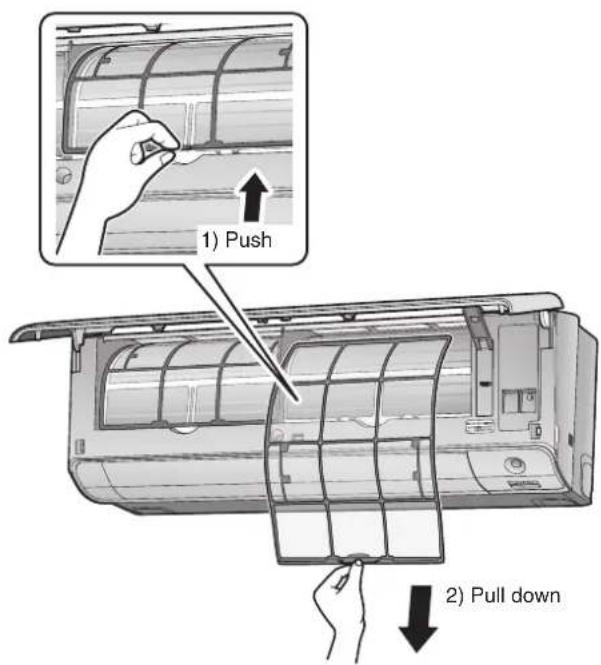
text_image
1) Push 2) Pull down3. Wash the air filters with water or clean them with vacuum cleaner.
- It is recommended to clean the air filters every 2 weeks.
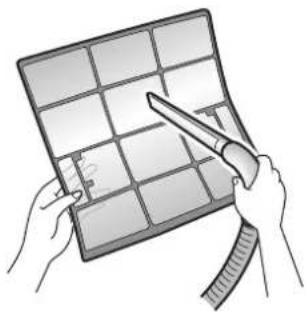
natural_image
Illustration of hands holding a grid-based device with a pen, no text or symbols visibleIf the dust does not come off easily
- Wash the air filters with neutral detergent thinned with lukewarm water, then dry them up in the shade.
- Be sure to remove the filter (small). Refer to "Filter (small)" on the next page.

natural_image
Simple line drawing of a bowl with a square dish on top (no text or symbols)4. Reattach the filters.
5. Close the front panel slowly.
- Press the panel at both sides and the centre.

natural_image
Illustration of a car air conditioner unit with three arrows indicating airflow direction (no text or symbols)- Make sure that the front panel is securely fixed.
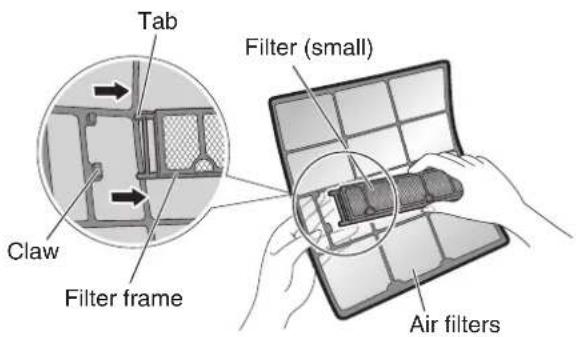
■ Filter (small)
* For the applicable filter type, please refer to ▶ Page 38
Attaching
1. Open the front panel and pull out the air filters. ▶ Page 39
2. Insert the filter.
- Check that the filters are inserted securely under the tabs.
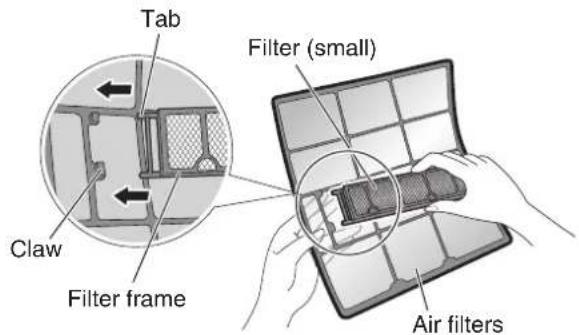
text_image
Tab Claw Filter frame Filter (small) Air filtersCleaning and Replacement
1. Open the front panel and pull out the air filters. ▶Page 39
2. Take off the filter.
- Hold the recessed parts of the frame and unhook the 4 claws.
- Remove the filters from the tabs.
text_image
Tab Claw Filter frame Filter (small) Air filtersNOTE
• Operation with dirty filters:
- cannot deodorise the air,
- cannot clean the air,
– results in poor heating or cooling,
- may cause odour.
- Dispose of old filters as non-flammable waste.
3. Clean or replace.
[Cleaning]
Deodorizing filter (enzyme blue) : Blue / Titanium apatite deodorizing filter : Blue-Black
3-1 Vacuum dust, and soak in lukewarm water or water for about 10 to 15 minutes if very dirty.
3-2 After washing, shake off remaining water and let them dry in the shade.
- This filter can be renewed by washing it with water once every 6 months and we recommend replacing it once every 3 years.
- Do not wiring out the filter when removing water from it.
Air quality filter (enzyme blue with PM 2.5) : Blue-White/ Dust collection filter (PM 2.5) : White
- Do not wash the filters as this will reduce their efficiency.
- It is recommended to replace it once every 6 months.
[Replacement]
Remove the filter from the filter frame and prepare a new one.
- Do not throw away the filter frame.
- Reuse the filter frame when replacing the filter.
![DAIKIN Alira X FTKM20W2VMA - [Replacement] - 1](/content/2026/06/1220424/images/16494a6754352cbd37fde166570e75e97e35fd07939328ac8ac02888ac62185e.jpg)
- When attaching the filter, check that the filter is properly set in the tabs.
4. Set the filters as they were and close the front panel.
- Press the front panel at both sides and the center.
Care and Cleaning
■ Prior to a long period of non-use
- Operate the MOLD PROOF mode. ▶Page 17
- After operation stops, turn off the circuit breaker for the room air conditioner.
- Clean the air filters and reattach them. ▶ Page 39
- To prevent battery leakage, take out the batteries from the remote controller.
■ We recommend periodical maintenance
- In certain operating conditions, the inside of the air conditioner may get foul after several seasons of use, resulting in poor performance. It is recommended to have periodical maintenance by a specialist in addition to regular cleaning by the user.
- For specialist maintenance, please contact the dealer where you bought the air conditioner.
- The maintenance cost must be borne by the user.
FAQ
Indoor unit
The flaps do not start swinging immediately.
- The air conditioner is adjusting the position of the flaps. The flaps will start moving soon.
The air conditioner stops generating airflow during HEAT operation.
- Once the set temperature is reached, the airflow rate is reduced and operation stopped in order to avoid generating a cool airflow. Operation will resume automatically when the indoor temperature falls.
HEAT operation stops suddenly and a flowing sound is heard.
- The outdoor unit is defrosting. HEAT operation starts after the frost on the outdoor unit has been removed. This can take about 4 to 12 minutes.
Operation does not start soon.
■ When ⏻ was pressed soon after operation was stopped.
■ When the mode was reselected.
• This is to protect the air conditioner. You should wait for about 3 minutes.
Outdoor unit
The outdoor unit emits water or steam.
In HEAT operation
- The frost on the outdoor unit melts into water or steam when the air conditioner is in defrosting operation.
In COOL or DRY operation
- Moisture in the air condenses into water on the cool surface of the outdoor unit piping and drips.
natural_image
Illustration of a wall-mounted air conditioner unit with cooling fins and ventilation slots (no text or symbols)Commonly occurring sounds.
■ A sound like flowing water
- This sound is generated because the refrigerant in the air conditioner is flowing.
- This is a pumping sound of the water in the air conditioner and can be heard when the water is pumped out from the air conditioner during COOL or DRY operation.
- This sound is generated during COOL operation on outdoor ambient lower than 12°C when outdoor fan stop for keep pressure.
■ Blowing sound
- This sound is generated when the flow of the refrigerant in the air conditioner is switched over.
Tickingsound
- This sound is generated when the cabinet and frame of the air conditioner slightly expand or shrink as a result of temperature changes.
■ Whistlingsound
- This sound is generated when refrigerant flows during defrosting operation.
■ Clicking sound during operation or idle time
- This sound is generated when the refrigerant control valves or the electrical parts operate.
■ Cloppingsound
- This sound is heard from the inside of the air conditioner when the exhaust fan is activated while the room doors are closed. Open the window or turn off the exhaust fan.
■ Hissing/Cracking sound
- The sound of the streamer discharge. It is not a malfunction.
■ Rotating machinery causes sound
- Sound is heard when the vertical swing flaps and the horizontal swing flaps move.
- When the air conditioner is operating in a quiet environment and the airflow rate of the indoor unit is set to Quiet Mode or Low Mode, the motion of the swing flaps may cause sound.

natural_image
Illustration of a rectangular air conditioner unit with a circular vent grille and side-mounted cooling fins (no text or symbols)- The appearance of the outdoor unit may differ between different models.
Troubleshooting
Before making an inquiry or a request for repair, please check the following. If the problem persists, consult your dealer.

Not a problem
This case is not a problem.

Check
Please check again before requesting repairs.
Air conditioner
The air conditioner does not operate
| Case Description / what to check | |
| OPERATION lamp is off. | Has the circuit breaker been tripped or the fuse blown?Is there a power failure?Are batteries set in the remote controller? |
| OPERATION lamp is blinking. | Turn off the power with the circuit breaker and restart operation with the remote controller.If the OPERATION lamp is still blinking, check the error code and consult your dealer. ▶Page 46 |
The air conditioner suddenly stops operating
| Case Description / what to check | |
| OPERATION lamp is on. | To protect the system, the air conditioner may stop operating after sudden large voltage fluctuations. It automatically resumes operation in about 3 minutes. |
| OPERATION lamp is blinking. | Is there anything blocking the air inlet or air outlet of the indoor unit or outdoor unit? Stop operation and after turning off the circuit breaker, remove the obstruction. Then restart operation with the remote controller. If the OPERATION lamp is still blinking, check the error code and consult your dealer. ▶Page 46 |
The air conditioner does not stop operating
| Case Description / what to check | |
| The air conditioner continues operating even after operation is stopped. | ☑ ■ Immediately after the air conditioner is stopped• The outdoor unit fan continues rotating for about another 1 minute to protect the system.■ While the air conditioner is not in operation• When the outdoor temperature is high, the outdoor unit fan may start rotating to protect the system. |
| ☑ • MOLD PROOF operation is being performed.It is possible to stop MOLD PROOF operation while it is in progress.(If this does not suit your preferences, set MOLD PROOF to “Off”.) | |
The room does not cool down/warm up
| Case Description / what to check | |
| Air does not come out. | HEAT operationThe air conditioner is warming up. Wait for about 1 to 4 minutes.During defrosting operation, hot air does not flow out of the indoor unit.COOL or DRY operationIf COOL/DRY operation is started with airflow settings on “AUTO”, the indoor unit will initially deodorise, which functions to suppress any internal odours. As a result, the indoor unit will not emit air immediately. (Wait for about 1 minute.)When the air conditioner operates immediately after the circuit breaker is turned onThe air conditioner is preparing to operate. Wait for about 3 to 15 minutes. |
| Air does not come out / Air comes out. | Is the airflow rate setting appropriate?Is the airflow rate setting low, such as “Indoor unit quiet” or “Airflow rate 1”?Increase the airflow rate setting.Is the set temperature appropriate?Is the adjustment of the airflow direction appropriate? |
| Air comes out. | Is there any furniture directly under or beside the indoor unit?Is the air conditioner in ECONO operation or OUTDOOR UNIT QUIET operation?▶Page 24Are the air filters dirty?Is there anything blocking the air inlet or air outlet of the indoor unit or outdoor unit?Is a window or door open?Is an exhaust fan turning? |
| The room temperature does not reach the set temperature. | If the air coming out of the air conditioner is blowing against a wall, the set temperature may not be reached correctly. |
Air conditioner
Mist comes out
| Case Description / what to check | |
| Mist comes out of the indoor unit. | [ccss] • This happens when the air in the room is cooled into mist by the cold airflow during COOL or other operation. |
Remote controller
| Case Description / what to check | |
| The unit does not receive signals from the remote controller or has a limited operating range. | [0525] · The batteries may be exhausted. Replace both batteries with new dry batteries AAA.LR03 (alkaline). For details, refer to “Preparation Before Operation”. ▶Page 10· Signal communication may be disabled if an electronic-starter-type fluorescent lamp (such as inverter-type lamps) is in the room. Consult your dealer if that is the case.· The remote controller may not function correctly if the transmitter is exposed to direct sunlight. |
| LCD is faint, is not working, or the display is erratic. | [46YC] · The batteries may be exhausted. Replace both batteries with new dry batteries AAA.LR03 (alkaline). For details, refer to “Preparation Before Operation”. ▶Page 10 |
| The LCD is blinking and the remote controller cannot be operated. | [ywx8] · Battery power has run out.Replace both batteries at the same time with new size AAA.LR03 (alkaline) batteries.Leaving exhausted batteries in the remote controller can result in injury due to battery leakage, rupturing or heating, or lead to equipment failure.(Even when the LCD is blinking, the OFF button remains functional.) |
| Other electric devices start operating. | [k3K3] · If the remote controller activates other electric devices, move them away or consult your dealer. |
Air has an odour
| Case Description / what to check | |
| The air conditioner gives off an odour. | [2318]The room odour absorbed in the unit is discharged with the airflow.We recommend that you have the indoor unit cleaned. Please consult your dealer.Due to streamer discharge, the air outlet may emit a slight odour as trace amounts of ozone are generated. However, the amount is negligible and is not harmful to your health. |
Display lamps
| Case Description / what to check | |
| The OPERATION lamp is off,but the air conditioner is operating. |  Is the display brightness set to “Off”? Is the display brightness set to “Off”? |
 MOLD PROOF operation is being performed.It is possible to stop MOLD PROOF operation while it is in progress.(If this does not suit your preferences, set MOLD PROOF to “Off”.) MOLD PROOF operation is being performed.It is possible to stop MOLD PROOF operation while it is in progress.(If this does not suit your preferences, set MOLD PROOF to “Off”.) | |
| The display lamps on the main unit are dark. | [540A]Is the display brightness set to “Low”? |
Streamer air cleaning operation
| Case Description / what to check | |
| The sound of streamer discharge can no longer be heard. | If the airflow becomes weak, the streamer discharge stops. |
Others
| Case Description / what to check | |
| The air conditioner suddenly starts behaving strangely during operation. |  • The air conditioner may malfunction due to lightning or radio.If the air conditioner malfunctions, turn off the power with the circuit breaker and restart the operation with the remote controller. • The air conditioner may malfunction due to lightning or radio.If the air conditioner malfunctions, turn off the power with the circuit breaker and restart the operation with the remote controller. |
| The ON/OFF TIMER does not operate according to the settings. |  • Check if the ON/OFF TIMER and the WEEKLY TIMER are set to the same time.Change or deactivate the settings in the WEEKLY TIMER. ▶Page 28,29,30 • Check if the ON/OFF TIMER and the WEEKLY TIMER are set to the same time.Change or deactivate the settings in the WEEKLY TIMER. ▶Page 28,29,30 |
NOTE
Note on the operating conditions
| • If operation continues under any conditions other than those listed in the table, - A safety device may activate to stop the operation. - Dew may form on the indoor unit and drip from it when COOL or DRY operation is selected. |
| Mode Operating conditions | |
| COOL / DRY | Outdoor temperature: -10.0~46.0°CIndoor temperature: 18.0~32.0°CIndoor humidity: 80% max. |
| HEAT | Outdoor temperature: -15.0~24.0°CIndoor temperature: 10.0~30.0°C |
Troubleshooting
Wireless LAN connecting adapter
The following table provides brief descriptions of how to handle problems or carry out connection setting.
Refer to the FAQ on our web site for more details.
Wireless LAN connection
| When this happens Explanation and where to check | |
| The device (air conditioner) cannot be found on the device list screen. | Carry out connection setting again.Move the router (wireless LAN access point) close to the indoor unit.There is a possibility that you are using an unsupported smart phone or router (wireless LAN access point). For details, refer to the web site. |
| Even if the wireless LAN connecting adapter lamp is lit, operation from outside the home is not possible. | Communication between the router and the internet connection may not be working.Please confirm. |
| The wireless LAN connecting adapter lamp does not blink or light. | The wireless LAN connecting adapter is disabled.Malfunction in communication between the indoor unit and the wireless LAN connecting adapter.There may be a problem with your device. Please contact the store where you bought the air conditioner to request a repair service. |
| None of the above work. | Refer to the FAQ on:https://www.daikinthai.com/product/dmobile |
For instructions about how to operate the DAIKIN Mobile Controller application, please refer to the operation manual at https://www.daikinthai.com/product/dmobile
■ Call your dealer immediately

WARNING
When an abnormality (such as a burning smell) occurs, stop operation and turn off the circuit breaker.
- Continued operation in an abnormal condition may result in problems, electric shock or fire.
- Consult the dealer where you bought the air conditioner.
Do not attempt to repair or modify the air conditioner by yourself.
- Incorrect work may result in electric shock or fire.
- Consult the dealer where you bought the air conditioner.
If one of the following symptoms occurs, call your dealer immediately.
- The power cord is abnormally hot or damaged.
- An abnormal sound is heard during operation.
- The circuit breaker, a fuse, or the earth leakage circuit breaker cuts off the operation frequently.
- A switch or a button often fails to work properly.
• There is a burning smell.
• Water leaks from the indoor unit.
Turn off the circuit breaker and call your dealer.

■ After a power failure
- The air conditioner automatically resumes operation in about 3 minutes. Please wait for a while.
Lightning
- If there is a risk lightning could strike in the neighbourhood, stop operation and turn off the circuit breaker to protect the system.
■ Disposal requirements
- Dismantling of the unit and handling of the refrigerant, oil and other parts should be done in accordance with the relevant local and national regulations.
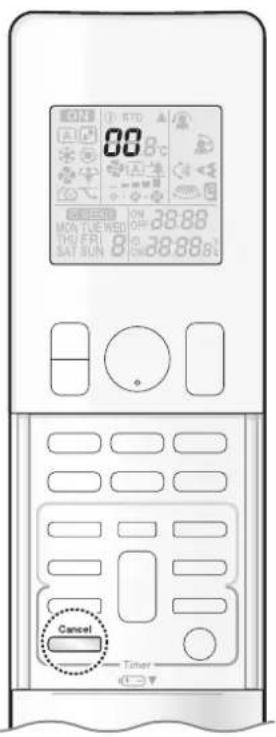
text_image
88 ON OFF 28.88 MIN U-FI RED THU FR SAT SUN B 28.88g Cancel Timer■ Fault diagnosis by remote controller
- In case the air conditioner is malfunctioning, you can check the error code via the remote controller before consulting with service personnel and informing them of the malfunction code.
1. When Cancel is held down for about 5 seconds, "00" blinks in the temperature display section.
2. Press Cancel repeatedly until a long beep is produced.
- The code indication changes as shown below, and notifies you with a long beep.
| CODE MEANING | ||
| SYSTEM | 00 NORMAL | |
| UA INDOOR | OUTDOOR UNIT COMBINATION FAULT | |
| U0 REFRIGERANT SHORTAGE | ||
| U2 DROP VOLTAGE OR MAIN CIRCUIT OVERVOLTAGE | ||
| U4 FAILURE OF TRANSMISSION (BETWEEN INDOOR UNIT AND OUTDOOR UNIT) | ||
| INDOOR UNIT | A1 INDOOR PCB DEFECTIVENESS | |
| A5 HIGH PRESSURE CONTROL OR FREEZE-UP PROTECTOR | ||
| A6 FAN MOTOR FAULT | ||
| C4 FAULTY HEAT EXCHANGER TEMPERATURE SENSOR | ||
| C9 FAULTY SUCTION AIR TEMPERATURE SENSOR | ||
| CC | FAULTY HUMIDITY SENSOR | |
| OUTDOOR UNIT | EA | COOLING-HEATING SWITCHING ERROR |
| E1 CIRCUIT BOARD FAULT | ||
| E5 OL STARTED | ||
| E6 FAULTY COMPRESSOR START UP | ||
| E7 DC FAN MOTOR FAULT | ||
| F3 HIGH TEMPERATURE DISCHARGE PIPE CONTROL | ||
| F6 HIGH PRESSURE CONTROL (IN COOLING) | ||
| F8 OPERATION HALT DUE TO COMPRESSOR INTERNAL TEMPERATURE | ||
| H0 | SENSOR FAULT | |
| H6 | OPERATION HALT DUE TO FAULTY POSITION DETECTION SENSOR | |
| H8 | DC CURRENT SENSOR FAULT | |
| H9 | FAULTY SUCTION AIR TEMPERATURE SENSOR | |
| J3 FAULTY DISCHARGE PIPE TEMPERATURE SENSOR | ||
| J6 FAULTY HEAT EXCHANGER TEMPERATURE SENSOR | ||
| J8 FAULTY LIQUID PIPE TEMPERATURE SENSOR | ||
| L3 ELECTRICAL PARTS HEAT FAULT | ||
| L4 HIGH TEMPERATURE AT INVERTER CIRCUIT HEATSINK | ||
| L5 OUTPUT OVERCURRENT | ||
| P4 FAULTY INVERTER CIRCUIT HEATSINK TEMPERATURE SENSOR | ||
NOTE
- A short beep and 2 consecutive beeps indicate non-corresponding codes.
- To cancel the code display, hold down for about 5 seconds. The code display also clears if no button is pressed for 1 minute.
Quick Reference
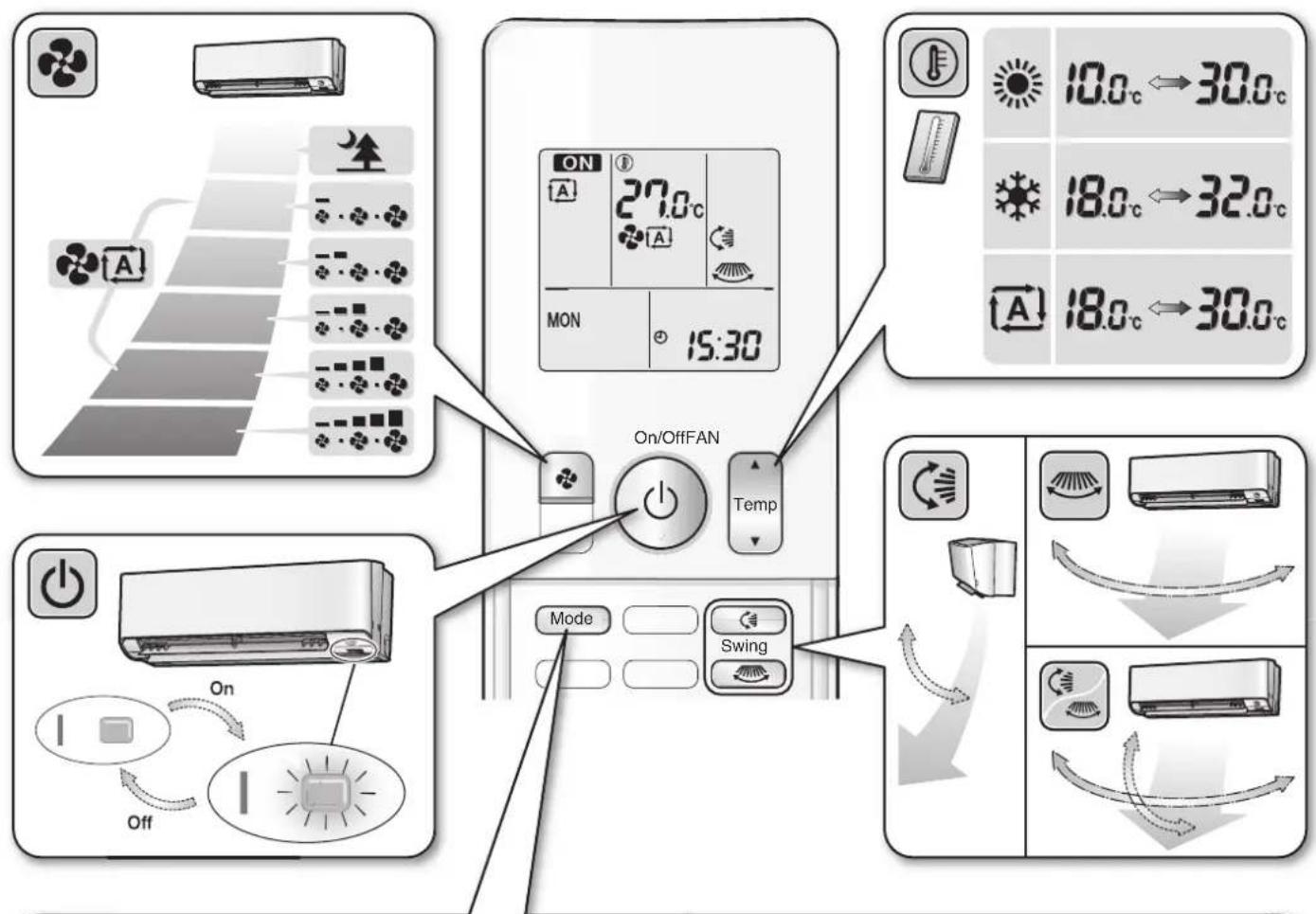
text_image
ON 27.0°C MON 15:30 On/OffFAN Temp Mode Swing 10.0°C → 30.0°C 18.0°C → 32.0°C 18.0°C → 30.0°C
flowchart
graph TD
    A["MODE"] --> B["A"]
    B --> C["Recovery Mode"]
    C --> D["Recovery Temperature Control"]
    D --> E["Recovery Humidity Reduction"]
    E --> F["Recovery Air Condition"]
    F --> G["Recovery Air Condition"]
    G --> H["Recovery Air Condition"]
    H --> I["Recovery Air Condition"]
    I --> J["Recovery Air Condition"]
    J --> K["Recovery Air Condition"]
    K --> L["Recovery Air Condition"]
    L --> M["Recovery Air Condition"]
    M --> N["Recovery Air Condition"]
    N --> O["Recovery Air Condition"]
    O --> P["Recovery Air Condition"]
    P --> Q["Recovery Air Condition"]
    Q --> R["Recovery Air Condition"]
    R --> S["Recovery Air Condition"]
    S --> T["Recovery Air Condition"]
    T --> U["Recovery Air Condition"]
    U --> V["Recovery Air Condition"]
    V --> W["Recovery Air Condition"]
    W --> X["Recovery Air Condition"]
    X --> Y["Recovery Air Condition"]
    Y --> Z["Recovery Air Condition"]
    Z --> AA["Recovery Air Condition"]
    AA --> AB["Recovery Air Condition"]
    AB --> AC["Recovery Air Condition"]
    AC --> AD["Recovery Air Condition"]
    AD --> AE["Recovery Air Condition"]
    AE --> AF["Recovery Air Condition"]
    AF --> AG["Recovery Air Condition"]
    AG --> AH["Recovery Air Condition"]
    AH --> AI["Recovery Air Condition"]
    AI --> AJ["Recovery Air Condition"]
    AJ --> AK["Recovery Air Condition"]
    AK --> AL["Recovery Air Condition"]
    AL --> AM["Recovery Air Condition"]
    AM --> AN["Recovery Air Condition"]
    AN --> AO["Recovery Air Condition"]
    AO --> AP["Recovery Air Condition"]
    AP --> AQ["Recovery Air Condition"]
    AQ --> AR["Recovery Air Condition"]
    AR --> AS["Recovery Air Condition"]
    AS --> AT["Recovery Air Condition"]
    AT --> AU["Recovery Air Condition"]
    AU --> AV["Recovery Air Condition"]
    AV --> AW["Recovery Air Condition"]
    AW --> AX["Recovery Air Condition"]
    AX --> AY["Recovery Air Condition"]
DAIKIN INDUSTRIES, LTD.
Head office:
Umeda Center Bldg., 2-4-12, Nakazaki-Nishi,
Kita-ku, Osaka, 530-8323 Japan
Tokyo office:
JR Shinagawa East Bldg., 2-18-1, Konan,
Minato-ku, Tokyo, 108-0075 Japan
https://www.daikin.com

The two-dimensional bar code is a manufacturing code.
DAIKIN ROOM AIR CONDITIONER
OPERATION MANUAL
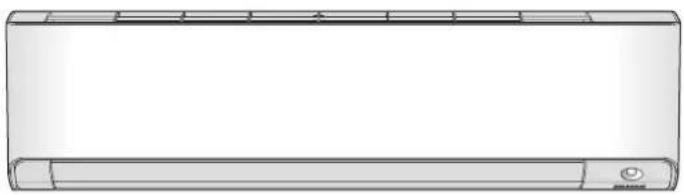
natural_image
Front view of a modern air conditioner unit (no text or symbols visible)INVERTER

STREAMER
MODELS
FTXM50W2VMA
FTXM60W2VMA
FTXM71W2VMA
FTKM50W2VMA
FTKM60W2VMA
FTKM71W2VMA
natural_image
Black-and-white interior photo of a modern living room with a sofa, coffee table, potted plants, and large window (no text or symbols visible)[Sticker attachment area]
Attach the SSID&KEY sticker of wireless LAN connecting adapter to the sticker attachment area and keep safe.
Features
Enhanced comfort, energy savings and air cleaning
INTELLIGENT EYE
The INTELLIGENT EYE sensor detects human movement in a room. If no one is in the room for more than 20 minutes, the operation automatically changes to energy saving operation. ▶Page 21

WEEKLY TIMER
Up to 4 timer settings can be saved for each day of the week according to your family's life style. The WEEKLY TIMER allows you to set on/off times and the desired temperature. ▶Page 28

MOLD PROOF
The MOLD PROOF function dries the interior of the indoor unit and provides an ideal environment to suppress the generation of mold for the indoor unit. ▶Page 17

FLASH STREAMER AIR CLEANING
Flash streamer decomposes mold and allergic substances. It keeps air in the room and the inside of the air conditioner clean to make a comfortable space. ▶Page 19
Other functions

COMFORT AIRFLOW OUTDOOR UNIT QUIET
The airflow direction is upward while in COOL operation, and downward while in HEAT operation. This function prevents cold or warm air from blowing directly on your body. ▶Page 20
OUTDOOR UNIT QUIET operation assures a low noise level of the outdoor unit. This function is useful to maintain a quiet neighbourhood.
natural_image
Modern living room interior with white sofa, wall-mounted air conditioner unit, and potted plant (no text or symbols visible)
ECONO
This function enables efficient operation by limiting the maximum power consumption. It is useful when using the air conditioner and other electrical devices simultaneously on a shared electrical circuit. ▶Page 24
Contents
Read Before Operation
Safety Precautions 3
Names of Parts 5
Preparation Before Operation 10
Basic Operation

Adjusting the Airflow Rate .....15

Adjusting the Airflow Direction .....16
Useful Functions

MOLD PROOF Operation .....17

FLASH STREAMER AIR CLEANING Operation ....19

COMFORT AIRFLOW Operation .....20

INTELLIGENT EYE Operation .....21

POWERFUL Operation 23

ECONO / OUTDOOR UNIT QUIET Operation 24
TIMER Operation

ON/OFF TIMER Operation .....25

WEEKLY TIMER Operation ......28
System control via Smart Control

Wireless LAN connection ....34
Care
Care and Cleaning 38
When the Need Arises
FAQ 42
Troubleshooting 43
Safety Precautions

Read the precautions in this manual carefully before operating the unit.

This appliance is filled with R32.
- Keep this manual where the user can easily find it.
- The precautions described herein are classified as WARNING and CAUTION. They both contain important information regarding safety. Be sure to observe all precautions without fail.

WARNING
Failure to follow these instructions properly may result in personal injury or loss of life.

CAUTION
Failure to observe these instructions properly may result in property damage or personal injury, which may be serious depending on the circumstances.

Never attempt.

Be sure to follow the instructions.

Be sure to establish an earth connection.
- After reading, keep this manual in a convenient place so that you can refer to it whenever necessary. If the equipment is transferred to a new user, be sure also to hand over the manual.

WARNING

- Do not use means to accelerate the defrosting process or to clean, other than those recommended by the manufacturer.
- The appliance must be stored in a room without continuously operating ignition sources (for example: open flames, an operating gas appliance or an operating electric heater).
- Do not pierce or burn.
- Be aware that refrigerants may not contain an odour.
- The appliance must be installed, operated and stored in a room with a floor area larger than 4.6m^2 for 50/60 class, 4.9m^2 for 71 class.
Maintain an installation height of 1.8m or more from the floor surface to the bottom of the appliance. - To avoid fire, explosion or injury, do not operate the unit when harmful gases (e.g. flammable or corrosive) are detected near the unit.
- Be aware that prolonged, direct exposure to cool or warm air from the air conditioner, or to air that is too cool or too warm, can be harmful to your physical condition and health.
- Do not place objects, including rods, your fingers, etc., in the air inlet or outlet. Product damage or personal injury may result due to contact with the air conditioner's high-speed fan blades.
- Do not attempt to repair, dismantle, reinstall or modify the air conditioner yourself as this may result in water leakage, electric shock or fire hazards.
- Do not use flammable spray near the air conditioner, or otherwise fire may result.
- Do not use a refrigerant other than the one indicated on the outdoor unit (R32) when installing, moving or repairing. Using other refrigerants may cause trouble or damage to the unit, and personal injury.
- To avoid electric shock, do not operate with wet hands.

- Beware of fire in case of refrigerant leakage. If the air conditioner is not operating correctly, i.e. not generating cool or warm air, refrigerant leakage could be the cause. Consult your dealer for assistance. The refrigerant within the air conditioner is safe and normally does not leak.
However, in the event of a leakage, contact with a naked burner, heater or cooker may result in generation of noxious gas. Do not use the air conditioner until a qualified service person confirms that the leakage has been repaired.
- Do not attempt to install or repair the air conditioner yourself. Improper workmanship may result in water leakage, electric shock or fire hazards. Please contact your local dealer or qualified personnel for installation and maintenance work.
- If the air conditioner is malfunctioning (giving off a burning odour, etc.), turn off power to the unit and contact your local dealer. Continued operation under such circumstances may result in a failure, electric shock or fire hazards.
- Be sure to install an earth leakage circuit breaker. Failure to install an earth leakage circuit breaker may result in electric shock or fire.

- Be sure to earth the unit. Do not earth the unit to a utility pipe, lightning conductor or telephone earth lead. Imperfect earthing may result in electric shock.

CAUTION

- Do not use the air conditioner for purposes other than those for which it is intended. Do not use the air conditioner for cooling precision instruments, food, plants, animals or works of art as this may adversely affect the performance, quality and/or longevity of the object concerned.
- Do not expose plants or animals directly to the airflow from the unit as this may cause adverse effects.
- Do not place appliances that produce naked flames in places exposed to the airflow from the unit as this may impair combustion of the burner.
- Do not block the air inlets nor outlets. Impaired airflow may result in insufficient performance or trouble.

- Do not sit on the outdoor unit, put things on the unit, or pull the unit. Doing so may cause accidents, such as falling or toppling down, thus resulting in injury, product malfunctioning, or product damage.
- Do not place objects that are susceptible to moisture directly beneath the indoor or outdoor units. Under certain conditions, condensation on the main unit or refrigerant pipes, air filter dirt or drain blockage may cause dripping, resulting in fouling or failure of the object concerned.
- After prolonged use, check the unit stand and its mounts for damage. If they are left in a damaged condition, the unit may fall and cause injury.
- To avoid injury, do not touch the air inlet or aluminium fins of the indoor or outdoor units.
- The appliance is not intended for use by unattended young children or infirm persons. Impairment of bodily functions and harm to health may result.
- Children should be supervised to ensure that they do not play with the unit or its remote controller. Accidental operation by a child may result in impairment of bodily functions and harm health.
- Avoid impacts to the indoor and outdoor units, or otherwise product damage may result.
- Do not place flammable items, such as spray cans, within 1m of the air outlet.
The spray cans may explode as a result of hot air from the indoor or outdoor units. - Be careful not to let pets urinate on the air conditioner. Urination on the air conditioner may result in electric shock or fire.
- Do not wash the air conditioner with water, as this may result in electric shock or fire.
- Do not place water containers (vases, etc.) above the unit, as this may result in electric shock or fire hazards if they should topple over.
- Do not insert the batteries in the wrong polarity (+/-) orientation as this may result in short circuiting, fire, or battery leakage.
- Do not sit or hang on the panel. The panel may fall, and injury or product malfunctioning may result.
- Do not sway the panel. The panel may hit people or objects, and injury or property damage may result.
- Do not let children play around the panel. Injury or property damage may result.
- Do not pull the wires. The wires may be broken and the panel may fall, and injury or property damage may result.
- Do not locate obstacles in the route. The panel may fall, and injury or property damage may result.
- Do not bend or damage the wires. The wires may be broken and the panel may fall, and injury or property damage may result.
- Do not put objects on the panel, or otherwise production malfunctioning may result.
- Do not use an unstable stand at the time of operating or maintaining the air conditioner, or otherwise you may topple over or injury yourself.
- Locate the remote controller in places out of reach of children. The wrong operation of the remote controller may result in injury.

- To avoid oxygen depletion, ensure that the room is adequately ventilated if equipment such as a burner is used together with the air conditioner.
- Before cleaning, be sure to stop unit operation and turn off the circuit breaker. Otherwise, an electric shock and injury may result.
- Only connect the air conditioner to the specified power supply circuit. Power supplies other than the one specified may result in electric shock, overheating and fires.
- Arrange the drain hose to ensure smooth drainage. Imperfect drainage may cause wetting of the building, furniture, etc.
- Do not place objects in direct proximity of the outdoor unit and do not let leaves and other debris accumulate around the unit. Leaves are a hotbed for small animals which can enter the unit. Once inside the unit, such animals can cause malfunctions, smoke or fire if they come into contact with electrical parts.
- Do not place objects around the indoor unit.
Doing so may have an adverse influence on the performance, product quality, and life of the air conditioner. - This appliance is not intended to be used by persons with reduced physical, sensory or mental capabilities, or with lack of operation knowledge, unless they have been given supervision or instruction concerning the appliance use by person responsible for their safety. Keep out of children's reach to ensure that they do not play with the appliance.
Precautions relating to area surrounding the indoor and outdoor units
■ Be sure to follow the instructions below.
• The indoor unit is at least 1m away from any television or radio set (unit may cause interference with the picture or sound).
- Refrain from using the units in areas prone to high levels of oily smoke, such as a kitchen. Water leakage may result.
Names of Parts
Indoor Unit

text_image
Front panel Air inlet Flaps (horizontal blades) ▶ Page 16 Louvres (vertical blades) • The louvres are inside of the air outlet. ▶ Page 16 Air outlet Model name ■ Room temperature sensor and Room humidity sensor • Sense air temperature and humidity around the unit. ■ Streamer air inlet • Air inlet for streamer operation. INTELLIGENT EYE sensor • Detects the movements of people and automatically switches between normal operation and energy saving operation. ▶ Page 21,22Display
MOLD PROOF lamp (Green)
▶ Page 17
TIMER lamp (Orange)
▶ Page 25,26,27,30,32
Indoor unit ON/OFF switch and OPERATION lamp (Green)
- Press this switch once to start operation. Press once again to stop it.
- For the operation mode setting, refer to the following table.
| Model Mode Temperature setting Airflow rate | |||
| FTXM50/60/71 | AUTO | 25.0°C | AUTO |
| FTKM50/60/71 | COOL | 22.0°C | AUTO |
- This switch can be used when the remote controller is missing or out of batteries.
STREAMER lamp (Green)
▶Page 19
Wireless LAN connecting adapter lamp (Orange)
Page 34
Signal receiver
• It receives signals from the remote controller.
- When the unit receives a signal, you will hear a beep sound.
| Case Sound type |
| Operation start beep-beep |
| Setting change beep |
| Operation stop long beep |
List of lamps
| Lamp | Colour | State | Description |
| OPERATION lamp | green | Lights up | The air conditioner is running. |
| Blinks | Check the error code. | ||
| TIMER lamp | orange Lights up | TIMER is set. ▶Page 25,26,27,30,32 | |
| MOLD PROOF lamp | green | Lights up | MOLD PROOF operation. ▶Page 17 |
| STREAMER lamp | green | Lights up | STREAMER operation. ▶Page 19 |
| Wireless LAN connecting adapter lamp | orange | Lights up | Wireless LAN connecting adapter operation. ▶Page 34 |
| Blinks | Wireless LAN connecting adapter is connected. ▶Page 34 | ||
■ Open the front panel
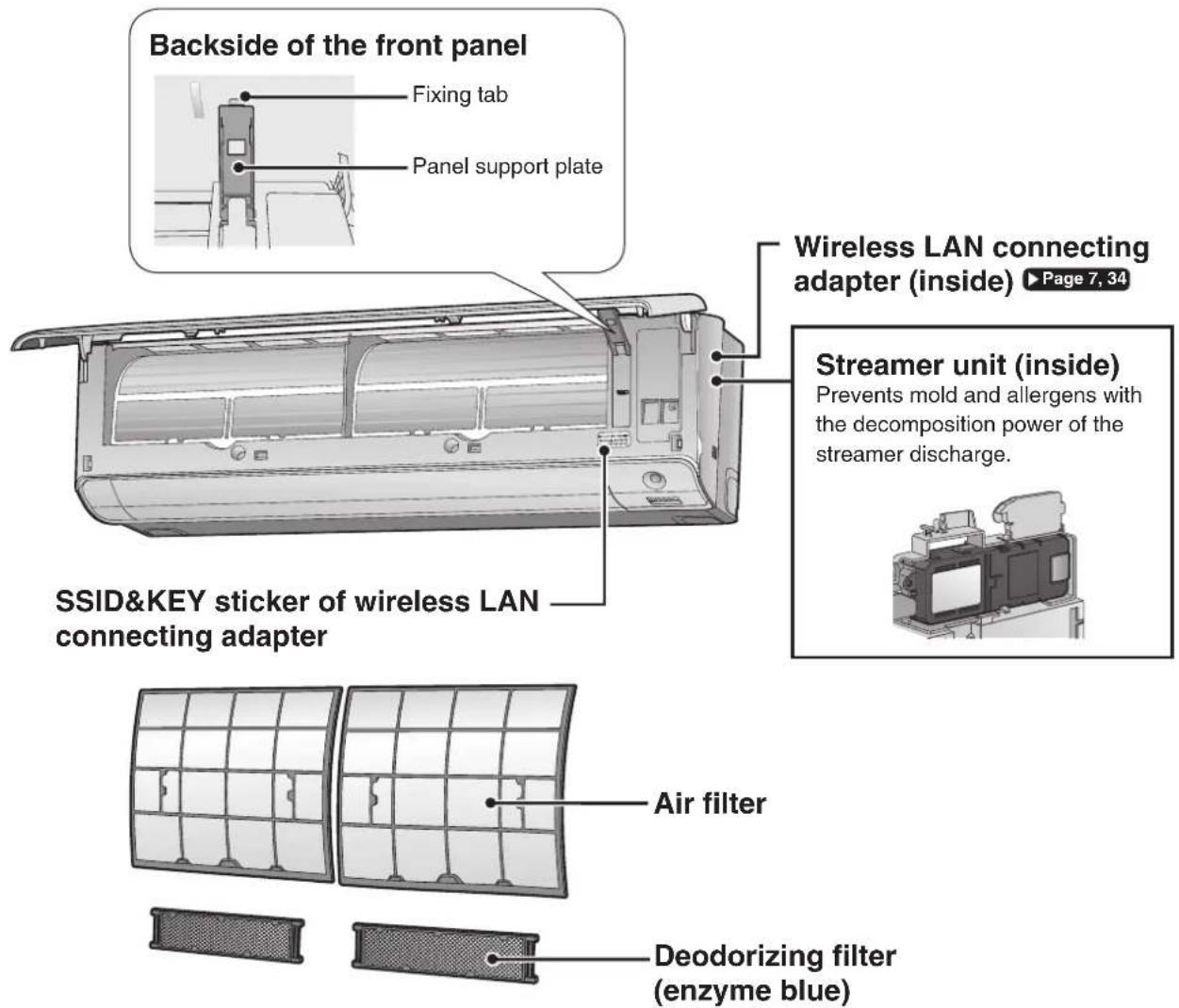
text_image
Backside of the front panel Fixing tab Panel support plate Wireless LAN connecting adapter (inside) ▶ Page 7, 34 Streamer unit (inside) Prevents mold and allergens with the decomposition power of the streamer discharge. SSID&KEY sticker of wireless LAN connecting adapter Air filter Deodorizing filter (enzyme blue)Outdoor Unit
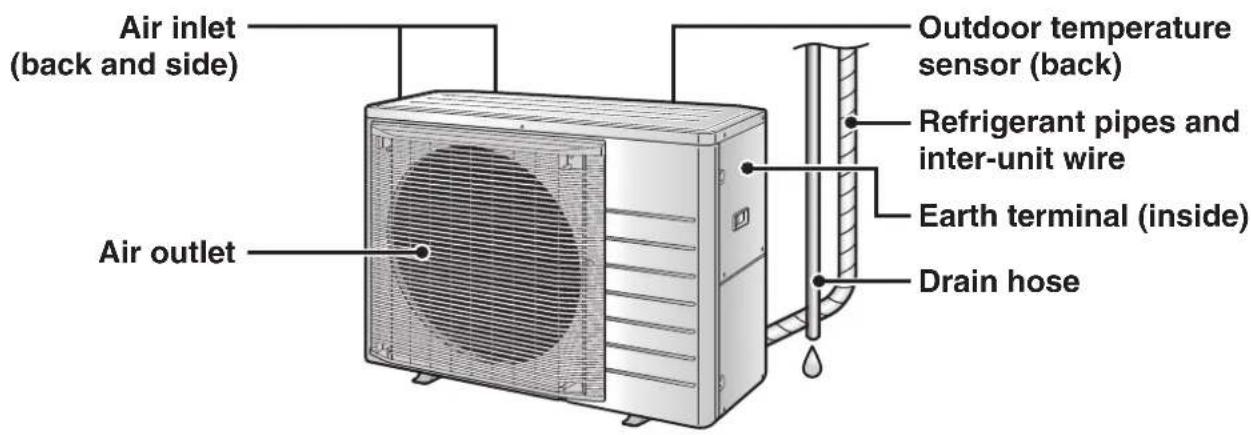
text_image
Air inlet (back and side) Air outlet Outdoor temperature sensor (back) Refrigerant pipes and inter-unit wire Earth terminal (inside) Drain hoseNames of Parts
Wireless LAN connecting adapter
The wireless LAN connecting adapter function requires the DAIKIN Mobile Controller application for connecting to the air conditioner and controlling it via your smartphone or tablet over your network.
ATTENTION
- Attach the sticker to the sticker attachment area on the cover page of the operation manual and keep it safe, as in the detail below:
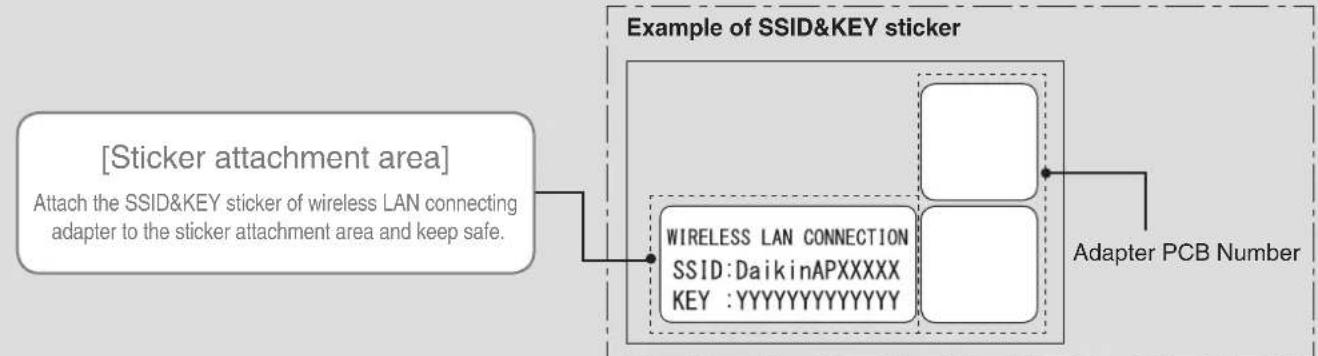
flowchart
graph TD
    A["Sticker attachment area"] --> B["Attach the SSID&KEY sticker of wireless LAN connecting adapter to the sticker attachment area and keep safe."]
    B --> C["Example of SSID&KEY sticker"]
    C --> D["Adapter PCB Number"]
    C --> E["WIRELESS LAN CONNECTION\nSSID:DaikinAPXXXXX\nKEY:YYYYYYYYYYYYYY"]
[About the SSID and KEY]
- The [SSID] and [KEY] shown on the SSID&KEY sticker are necessary when connecting the air conditioner to a smartphone via wireless LAN.
■ Configuration
- The user is responsible for providing the following items before using this product:
■ Smartphone or tablet (Supported OS versions: Android 4.1.2 or higher; iOS 10.0 or higher. For the latest compatibility information, refer to the web site at https://www.daikinthai.com/product/dmobile/compatible.)
■ Internet line and communicating device (Modem/router or similar device)
■ Wireless LAN access point
■ Application name: [DAIKIN Mobile Controller] (free)
(application version 4.0 or higher is needed to control this product)
For details on the installation method for the DAIKIN Mobile Controller application, please see ▶Page 34

text_image
On/Off ⏻ C < <<Display
Wireless LAN connecting adapter lamp (Orange)
- The wireless LAN connecting adapter lamp lights when connecting to a router (Wireless LAN access point). Please see ▶Page 34.
- For wireless LAN connecting adapter operation, please see ▶Page 35.
NOTE
Notes on the wireless LAN connecting adapter
- Do not use this product near a microwave oven. (This can affect wireless LAN communications.)
- While the wireless LAN connecting adapter operates, it may affect persons using cardiac pacemakers or defibrillators. This product may cause electromagnetic interference.
- While the wireless LAN connecting adapter operates, it may affect automatic doors or fire alarm equipment. This product may cause faulty behaviour of the equipment.
- For the latest details about installation of the wireless LAN connecting adapter and applicable units, refer to the web site https://www.daikinthai.com/product/dmobile
Remote Controller
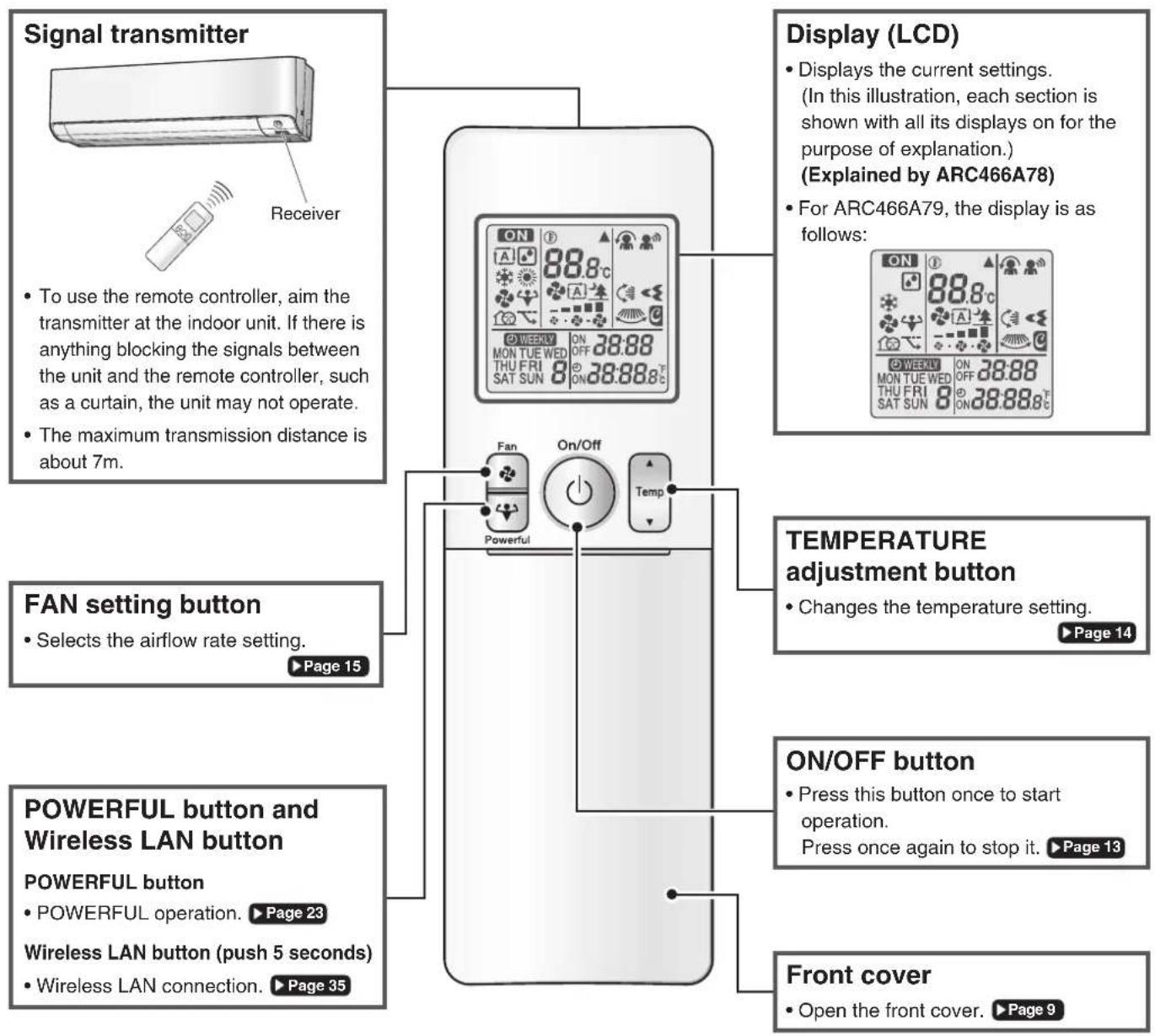
text_image
Signal transmitter Receiver To use the remote controller, aim the transmitter at the indoor unit. If there is anything blocking the signals between the unit and the remote controller, such as a curtain, the unit may not operate. The maximum transmission distance is about 7m. Display (LCD) Displays the current settings. (In this illustration, each section is shown with all its displays on for the purpose of explanation.) (Explained by ARC466A78) For ARC466A79, the display is as follows: FAN setting button Selects the airflow rate setting. ▶ Page 15 TEMPERATURE adjustment button Changes the temperature setting. ▶ Page 14 POWERFUL button and Wireless LAN button POWERFUL button POWERFUL operation. ▶ Page 23 Wireless LAN button (push 5 seconds) Wireless LAN connection. ▶ Page 35 ON/OFF button Press this button once to start operation. Press once again to stop it. ▶ Page 13 Front cover Open the front cover. ▶ Page 9FTXM50/60/71 ARC466A78
FTKM50/60/71 ARC466A79
Names of Parts
■ Open the front cover

flowchart
graph TD
    A["MODE selector button"] --> B["SENSOR button"]
    A --> C["COMFORT button"]
    A --> D["OFF TIMER button (NIGHT SET mode)"]
    A --> E["TIMER CANCEL button"]
    A --> F["SELECT button"]
    B --> G["Mode"]
    B --> H["Comfort"]
    B --> I["Close"]
    B --> J["Back"]
    B --> K["Select"]
    B --> L["On"]
    B --> M["Timer"]
    C --> N["Sensor"]
    C --> O["Back"]
    C --> P["Next"]
    C --> Q["Switch"]
    D --> R["Change the clock, ON/OFF TIMER and WEEKLY TIMER settings."]
    E --> S["Changes the timer setting."]
    F --> T["Changes the clock, ON/OFF TIMER and WEEKLY TIMER settings."]
    U["ECONO/QUIET button"] --> V["ECONO/OUTDOOR UNIT QUIET operation."]
    W["SWING button and MENU button"] --> X["SWING button"]
    Y["ON TIMER button"] --> Z["ON TIMER button"]
    AA["CLOCK button"] --> AB["CLOCK button"]
Preparation Before Operation

CAUTION
Incorrect handling of batteries can result in injury from battery leakage, rupturing or heating, or lead to equipment failure.
Please observe the following precautions and use safely.
- If the alkaline solution from the batteries should get in the eyes, do not rub the eyes. Instead, immediately flush the eyes with tap water and seek the attention of a medical professional.
- Keep batteries out of reach of children. In the event that batteries are swallowed, seek the immediate attention of a medical professional.
- Do not expose batteries to heat or fire. Do not disassemble or modify batteries. The insulation or gas release vent inside the battery may be damaged, resulting in battery leakage, rupturing, or heating.
- Do not damage or peel off labels on the batteries.
■ To insert the batteries
- Slide the front cover to take it off.
- Insert 2 dry batteries AAA.LR03 (alkaline).
- Replace the front cover.

text_image
1 2 3 Position + and - correctly!■ To fix the remote controller holder to a wall
- Choose a place from where the signals reach the unit.
- Fix the holder to a wall, a pillar, or similar location with the screws supplied with the holder.
- Place the remote controller in the remote controller holder.
■o attach the deodorizing filter (enzyme blue)
- If attaching the separately sold filters, attach them before turning the power on. ▶Page 40

text_image
Remote controller Screws Remote controller holder■ Turn on the circuit breaker
• After the power is turned on, the flaps of the indoor unit open and close once to set the reference position.
NOTE
Notes on batteries
- To avoid possible injury or damage from battery leakage or rupturing, remove the batteries when not using the product for long periods of time.
- The standard replacement time is 1 year. Both batteries should be replaced at the same time. Be sure to replace them with new size AAA. LR03 (alkaline) batteries.
- When battery power has run out, the LCD will begin blinking as an alert that the batteries need replacing. In some cases, when battery consumption is accelerated owing usage conditions, signal reception may decline before the LCD begins blinking.
- The batteries supplied with the remote controller are for initial operation. The batteries may run out in less than 1 year.
- The usable period of the batteries may be short depending on the manufactured date of the air conditioner.
Notes on remote controller
- Do not drop the remote controller. Do not get it wet.
- Dust on the signal transmitter or receiver will reduce the sensitivity. Wipe off dust with soft cloth.
- Signal communication may be disabled if an electronic-starter-type fluorescent lamp (such as inverter-type lamps) is in the room.
Consult the shop if that is the case. - If the remote controller signals happen to operate another appliance, move that appliance to somewhere else, or consult the service shop.
Preparation Before Operation
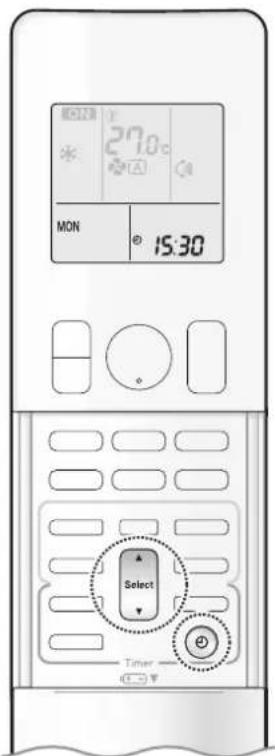
text_image
MON 27.0°C A 15:30 Select Timer■ To set the clock
1. Press 🔒

"0.00 appears on the LCD.
“-MON” and “blink.
2. Press to set the current day of the week.
| Display Day of the week | |
| MON Monday | |
| TUE Tuesday | |
| WED Wednesday | |
| THU | Thursday |
| FRI | Friday |
| SAT | Saturday |
| SUN | Sunday |
3. Press
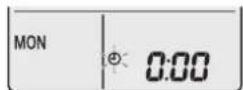
"blinks.
4. Press to set the clock to the present time.
- Holding down ▲ or ▼ rapidly increases or decreases the displayed time.
5. Press
- Point the remote controller at the indoor unit when pressing the button.
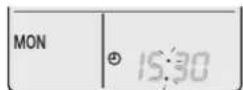
“ ” blinks.
NOTE
Note on setting the clock
- If the indoor unit's internal clock is not set to the correct time, the ON/OFF TIMER and WEEKLY TIMER will not operate punctually.

text_image
H LED Menu (push 2nd) Select Cancel Timer■ To set the brightness of the indoor unit lamps
Adjust the brightness of the indoor unit display as desired, or turn OFF the display.
■ To set
- Press and hold the button for 2 seconds.
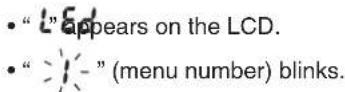
-
Press ▲ or ▼ and select menu number 1.
-
Press to confirm the selected setting.
-
Press or Select and select the desired brightness.

flowchart
graph LR
    A["BRIGHTNESS High (default)"] --> B["BRIGHTNESS Low"]
    B --> C["BRIGHTNESS Off"]
- Press again.
- Brightness will be set to the chosen value.
- Press Cancel to return to the default screen.
NOTE
Note on setting brightness of the indoor unit lamps
- The display automatically returns to the default screen after 60 seconds. To return to the default screen sooner, press Cancel twice.

The air conditioner operates with the operation mode of your choice.
From the next time on, the air conditioner will operate with the same operation mode.
■ To start
1. Press and select an operation mode.
• Each pressing of the button changes the mode setting in sequence.

flowchart
graph LR
    A["For FTXM50/60/71"] --> B["AutODRYCOOLHEATFAN"]
    B --> C["•"]
    C --> D["•"]
    D --> E["•"]
    E --> F["•"]
    F --> G["For FTKM50/60/71"]
    G --> H["DRYCOOLFAN"]
    H --> I["•"]
    I --> J["•"]
    J --> K["•"]
    K --> L["•"]
2. Press On/Off
• "Onpears on the LCD.
• The OPERATION lamp lights green.
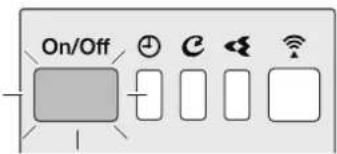
text_image
On/OffDisplay
■ To stop
Press again.
• " ON appears from the LCD.
• The OPERATION lamp goes off.
NOTE
Notes on AUTO operation
- In AUTO operation, the system selects an appropriate operation mode (COOL or HEAT) based on the indoor temperature and starts the operation.
- The system automatically reselects setting at a regular interval to bring the indoor temperature to the user-setting level.
Note on COOL operation
- This air conditioner cools the room by releasing the heat in the room outside.
Therefore, the cooling performance of the air conditioner may be degraded if the outdoor temperature is high.
Note on DRY operation
- Eliminates humidity while maintaining the indoor temperature as much as possible. It automatically controls temperature and airflow rate, so manual adjustment of these functions is unavailable.
Notes on HEAT operation
- Since this air conditioner heats the room by taking heat from outdoor air to indoors, the heating capacity becomes smaller in lower outdoor temperatures. If the heating effect is insufficient, it is recommended to use another heating appliance in combination with the air conditioner.
- The heat pump system heats the room by circulating hot air around all parts of the room. After the start of HEAT operation, it takes some time before the room gets warmer.
- In HEAT operation, frost may occur on the outdoor unit and lower the heating capacity. In that case, the system switches into defrosting operation to take away the frost.
Note on FAN operation
• This mode is valid for fan only.
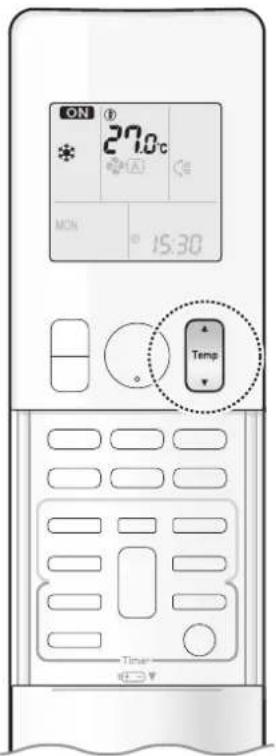
text_image
ON 27.0°C MON 15:30 Temp Time■ To change the temperature setting

- Press ▲ to raise the temperature and press ▼ to lower the temperature. Each pressing of the button changes the temperature by 0.5°C.
| COOL operation | HEAT operation | AUTO operation | DRY/FAN operation |
| 18.0~32.0°C | 10.0~30.0°C | 18.0~30.0°C | The temperature setting cannot be changed. |
Tips for saving energy
Keeping the temperature setting at a moderate level helps save energy.
- Recommended temperature setting for cooling: 26.0-28.0°C, for heating: 20.0-24.0°C
Cover windows with a blind or a curtain.
- Blocking sunlight and air from outdoors increases the cooling (heating) effect.
Keep the air filters clean.
• Clogged air filters cause inefficient operation and waste energy. Clean them once in about every 2 weeks. ▶ Page 39
If you are not going to use the air conditioner for a long period, for example in spring or autumn, turn off the circuit breaker.
- The air conditioner always consumes a small amount of electricity even while it is not operating.

Adjusting the Airflow Rate
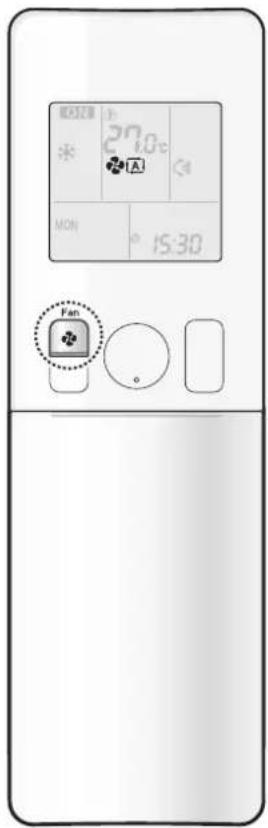
text_image
27.0°C MON 15:30 FanYou can adjust the airflow rate to increase your comfort.
■ To adjust the airflow rate setting
• Each pressing of the button changes the airflow rate setting in sequence.

flowchart
graph LR
    A["A"] --> B["Airflow rate 1-5 (Low to High)"]
    B --> C["..."]
    C --> D["..."]
    D --> E["..."]
    E --> F["..."]
    style A fill:#f9f,stroke:#333
    style B fill:#f9f,stroke:#333
    style C fill:#f9f,stroke:#333
    style D fill:#f9f,stroke:#333
    style E fill:#f9f,stroke:#333
    style F fill:#f9f,stroke:#333
- When the airflow is set to “quiet operation starts and noise from the indoor unit will become quieter.
- In the quiet operation mode, the airflow rate is set to a weak level.
- If the temperature dose not reach the desired point, change the airflow rate setting.
- If COOL/DRY operation is started with airflow settings on "AUTO", the indoor unit will initially deodorise, which functions to suppress any internal odours. As a result, the indoor unit will not emit air immediately. (Wait for about 1 minute.)
- At smaller airflow rates, the cooling (heating) effect is also smaller.

Adjusting the Airflow Direction

text_image
27:00 MON 15:30 Vista (push Don) Swing TimerYou can adjust the airflow direction to increase your comfort.
ATTENTION
• Always use a remote controller to adjust the angles of the flaps and louvres.
- If you attempt to move the flaps and louvres forcibly by hand when they are swinging, the mechanism may be damaged.
- Inside the air outlet, a fan is rotating at a high speed.
■ To start auto swing
Up and down airflow direction

Press

• “ Appears on the LCD.
- The flaps (horizontal blades) will begin to swing.
Right and left airflow direction

Press

• “ appears on the LCD.
- The louvres (vertical blades) will begin to swing.
The 3-D airflow direction

Press


• “and” appear on the LCD.
• The flaps and louvres move in turn.
- To cancel 3-D airflow, press either 📁 or again. The flaps or louvres will stop moving.

natural_image
Diagram showing a computer monitor with a circular icon and curved arrow, no text or symbols present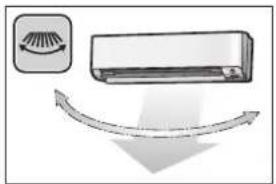
natural_image
Illustration of a car air conditioner unit with airflow arrows indicating airflow direction (no text or symbols)
natural_image
Illustration of a washing machine with airflow arrows indicating circulation (no text or symbols)■ To set the flaps or louvres at the desired position
- This function is effective while the flaps or louvres are in auto swing mode.
Press and when the flaps or louvres reach the desired position.
• In the 3-D airflow, the flaps and louvres move in turn.
- “” or “” disappears from the LCD.
NOTE
Note on airflow direction setting
- The movable range of the flaps varies according to the operation mode.
Note on 3-D airflow
- Using 3-D airflow circulates cold air, which tends to collect at the bottom of the room, and hot air, which tends to collect near the ceiling, throughout the room, preventing areas of cold and hot developing.
Movable range of the flaps
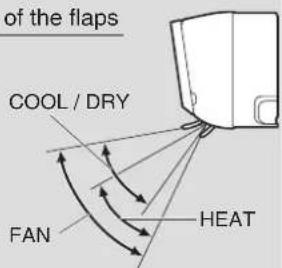
text_image
of the flaps COOL / DRY FAN HEAT
MOLD PROOF Operation
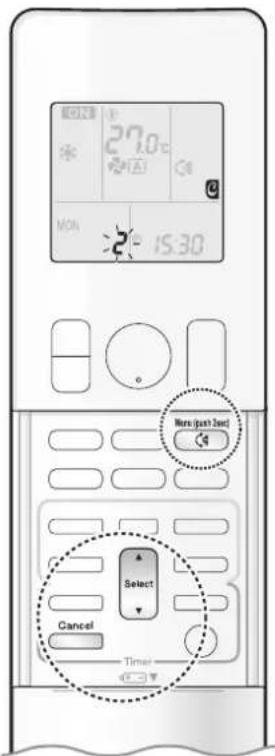
text_image
27.0°C MON 15:30 Menu (push 2nd) Select Cancel TimerThe inside of the air conditioner is dried to reduce the occurrence of mold and odour. When COOL or DRY operation is performed, condensation may occur inside the air conditioner and may cause mold or odour. It is recommended to dry the inside of the air conditioner using MOLD PROOF operation.
[To operate automatically]
■ To set
- Press and hold the button for 2 seconds.
- Press or and select menu number . 2
• “ 📄 appears on the LCD.
• “>2-” (menu number) blinks. - Press to confirm the selected setting.
- Press ▲ or ▼ to change the setting as follows:
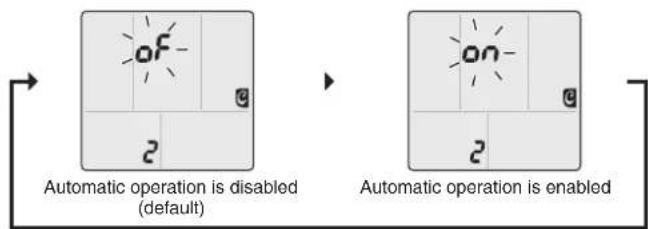
flowchart
graph LR
    A["Automatic operation is disabled (default)"] --> B["ON"]
    B --> C["Automatic operation is enabled"]
5. Press ^Menu (push 2sec) again.
- Automatic MOLD PROOF operation will be enabled or disabled according to the chosen setting.
- If automatic MOLD PROOF operation is enabled, “ Ⓞ” appears on the LCD and the MOLD PROOF lamp lights green when MOLD PROOF operation is in progress.
- The STREAMER lamp lights green and flash streamer air cleaning operation starts.

text_image
On/Off C WDisplay
6. Press to return to the default screen.
NOTE
Note on MOLD PROOF setting
- The display automatically returns to the default screen after 60 seconds. To return to the default screen sooner, press ____ twice.
Notes on MOLD PROOF operation
- When you want to stop MOLD PROOF operation midway, press ⏻ twice.
• After DRY or COOL operation stops, the air conditioner starts MOLD PROOF operation automatically, and then stops automatically 60 minutes later. - This operation dries the inside of the air conditioner while streamer discharge is performed to reduce the development of mold and odour inside the air conditioner. But the function does not remove any adhered dust and mold.
- MOLD PROOF operation is not available when the unit is turned off using the OFF TIMER or turned off using a smartphone.
NOTE
Notes on MOLD PROOF operation
- The flaps may sometimes close to increase the drying effect inside the air conditioner.
- MOLD PROOF operation may not be performed if the COOL or DRY operation time is short.
- If MOLD PROOF operation does not suit your preference, set operation to "OFF". ▶ Page 17
Relation between MOLD PROOF operation and indoor unit lamps
| Air conditioner MOLD PROOF setting MOLD PROOF lamp STREAMER lamp | |||
| Operating (OPERATION lamp lights up) | MOLD PROOF is “ON” Lights up | Depends on STREAMER setting | |
| MOLD PROOF is “OFF” Goes off | |||
| Not operating (OPERATION lamp goes off) | MOLD PROOF is “ON” Lights up Lights up | ||

FLASH STREAMER AIR CLEANING operation
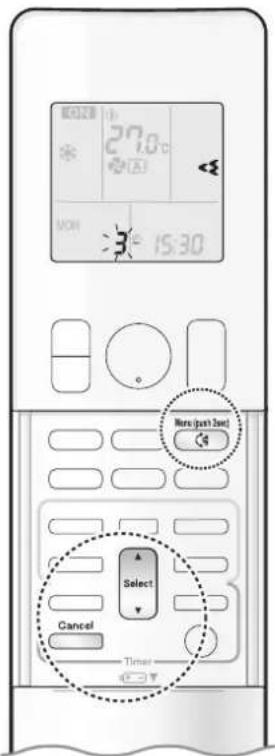
text_image
27.0°C MON 15:30 Home (past 2nd) Select Cancel TimerThe streamer generates a high-speed electron stream with a high oxidizing power, reducing bad odours and viruses. Together with the deodorizing filter (enzyme blue) and the air filters, this function cleans the air in the room.
■ To set
- Press and hold the button for 2 seconds.
- Press or and select menu number . 3
• “ appears on the LCD.
• “3-” (menu number) blinks. - Press to confirm the selected setting.
- Press or Select to change the setting as follows:

flowchart
graph LR
    A["On-"] --> B["3"]
    C["OF-"] --> D["3"]
    style A fill:#f9f,stroke:#333
    style C fill:#f9f,stroke:#333
    style B fill:#ccf,stroke:#333
    style D fill:#ccf,stroke:#333
-
Press again.
-
Flash streamer air cleaning will be enabled or disabled according to the chosen setting.
- If STREAMER operation is enabled, “◀◀” appears on the LCD. The STREAMER lamp lights green and flash streamer air cleaning operation starts.
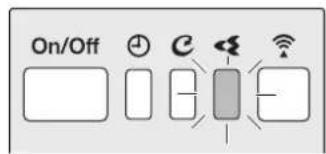
text_image
On/Off ⊕ C ← WiDisplay
- Press ☐ to return to the default screen.
NOTE
What is streamer discharge?
- This is a type of plasma discharge comprising high-speed electrons with a high oxidative capacity that is released within the unit. It decomposes odours and harmful gases. (The high-speed electrons are generated and then adsorbed within the unit ensure your safety.)
Note on flash streamer air cleaning setting
- The display automatically returns to the default screen after 60 seconds.
To return to the default screen sooner, press ☐ twice.
Notes on flash streamer air cleaning operation
- The streamer discharge may generate a fizzing sound, however this does not indicate a defect.
- Do not block the air inlets of the streamer with any objects (Fig.1). Impaired airflow may result in insufficient performance or trouble with streamer operation.

text_image
Streamer air inletsFig. 1
COMFORT AIRFLOW Operation
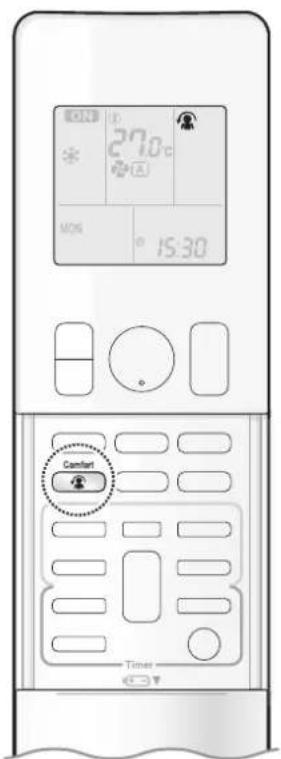
text_image
27.0°C MOS ° 15:30 Comfort TimerThe flow of air will be in the upward direction while in COOL/DRY operation and in the downward direction while in HEAT operation, which will provide a comfortable wind that will not come in direct contact with people.
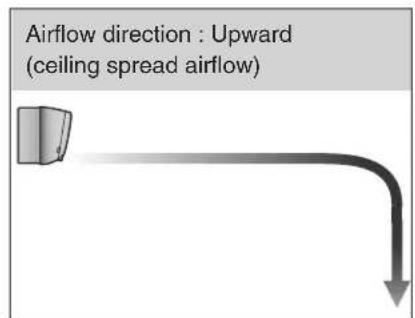
text_image
Airflow direction : Upward (ceiling spread airflow)COOL and DRY operation

text_image
Airflow direction : Downward (floor spread airflow)HEAT operation
■ To start

Press
Comfort

• “ 🍒 appears on the LCD.
| COOL and DRY operation | HEAT operation FAN operation | |
| Flaps direction | Goes up Goes down | |
| Airflow rate AUTO | ||
■ To cancel

Press
Comfort

• “ disappears from the LCD.
- The flaps will return to the position in memory from before COMFORT AIRFLOW operation.
NOTE
Notes on COMFORT AIRFLOW Operation
- POWERFUL operation and COMFORT AIRFLOW operation cannot be used at the same time.
• The airflow rate will be set to AUTO. - If the upward and downward airflow direction is selected, the COMFORT AIRFLOW function will be canceled.
Priority is given to the function of whichever button is pressed last. - If there is an obstruction under the air conditioner when using heating, the airflow may not reach the center of the room and the room may be difficult to warm up.
INTELLIGENT EYE Operation
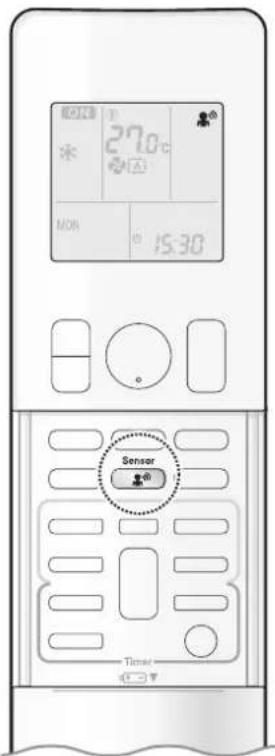
text_image
27.0°C MON 15:30 Sensor TimerThe INTELLIGENT EYE operation detects human movement. If no one is detected in the room for more than 20 minutes, the unit automatically enters energy saving operation.

CAUTION
- Do not place large objects near the INTELLIGENT EYE sensor. Also keep heating units and humidifiers outside the sensor's detection area. This sensor can detect undesirable objects.
- Do not hit or violently push the INTELLIGENT EYE sensor. This can lead to damage and malfunction.

To start

Press
Sensor

• " appears on the LCD.
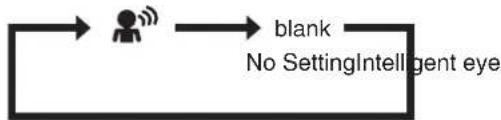
flowchart
graph LR
    A["User"] --> B["blank"]
    B --> C["No Setting Intelligent eye"]

To cancel

Press
Sensor

• “ disappears from the LCD.
INTELLIGENT EYE operation is useful for energy saving
■ People are detected in the sensing area.

natural_image
Illustration of a person sitting on a couch with an elderly person seated nearby, under a spotlight (no text or symbols)The air conditioner is in normal operation while the sensor is detecting human movement.
■ No people are detected in the sensing area.
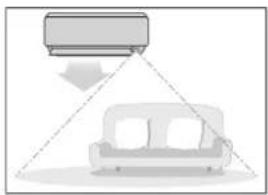
natural_image
Diagram showing a car with a roof-mounted unit and a sofa, no text or symbols presentThe air conditioner will switch to energy-saving mode after 20 minutes.
Energy saving operation
- If no presence detected in the room for 20 minutes, the energy saving operation will start.
- This operation changes the temperature by -2^ in HEAT / +2^ in COOL / +2^ in DRY operation from the set temperature.
When the room temperature exceeds 30^ C, the operation changes the temperature by +1^ C in COOL / +1^ C in DRY operation from the set temperature. - This operation decreases the airflow rate slightly in FAN operation only.
NOTE
Notes on INTELLIGENT EYE operation
• Application range is as follows.
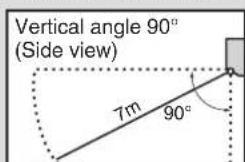
text_image
Vertical angle 90° (Side view) 7m 90°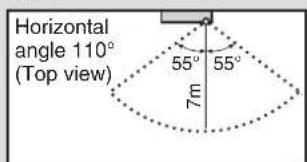
text_image
Horizontal angle 110° (Top view) 55° 55° 7m- When the air conditioner is function in INTELLIGENT EYE operation, if no people are detected in the areas for 20 minutes, the air conditioner switches to the energy-saving mode with the set temperature shifted by 2^ .
The air conditioner may switch to the energy-saving operation even if there are people in the areas. It may happen depending on the clothes people are wearing if there are no movements of the people in the areas. - The sensor may not detect moving objects further than 7m away. (Please see the application range)
- Sensor detection sensitivity changes according to the indoor unit location, the speed of passers-by, temperature range, etc.
• The sensor could also mistakenly detect pets, sunlight, fluttering curtains and light reflected off of mirrors as passers-by. - NIGHT SET mode ▶ Page 26 will not switch on during use of INTELLIGENT EYE operation.

POWERFUL Operation
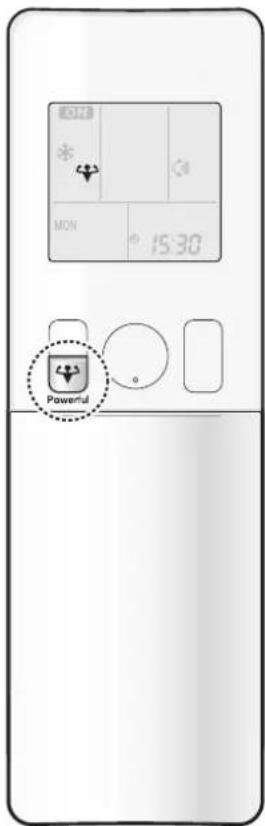
text_image
15:30 PowerfulPOWERFUL operation quickly maximises the cooling (heating) effect in any operation mode. In this mode, the air conditioner operates at maximum capacity.
■ To start
Press during operation.
• “ appears on the LCD.
- POWERFUL operation ends in 20 minutes. Then the system automatically operates again with the previous settings which were used before POWERFUL operation.
■ To cancel
Press again.
• “ disappears from the LCD.
NOTE
Notes on POWERFUL operation
- Pressing causes the settings to be cancelled, and " " disappears from the LCD.
- POWERFUL operation will not increase the capacity of the air conditioner if the air conditioner is already in operation with its maximum capacity demonstrated.
- In COOL, HEAT and AUTO operation
To maximise the cooling (heating) effect, the capacity of outdoor unit increases and the airflow rate becomes fixed at the maximum setting. The temperature and airflow settings cannot be changed. - In DRY operation
The temperature setting is lowered by 2.5°C and the airflow rate is slightly increased. - In FAN operation
The airflow rate is fixed at the maximum setting.
Regarding the combination of POWERFUL and other operations
| POWERFUL + COMFORT AIRFLOW | Not available* |
| POWERFUL + ECONO | |
| POWERFUL + OUTDOOR UNIT QUIET |
*Priority is given to the function of whichever button is pressed last.

ECONO / OUTDOOR UNIT QUIET Operation
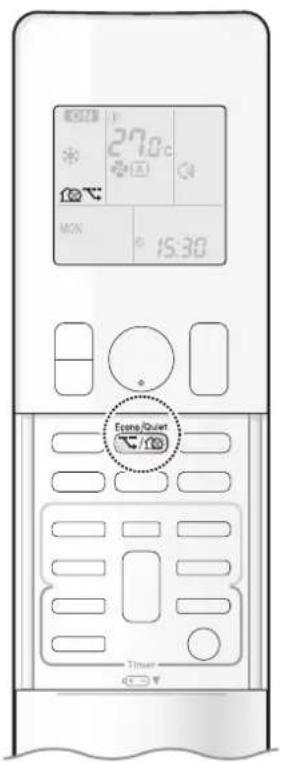
text_image
27.0°C MON 15:30 Eco/Quart TimerECONO operation enables efficient operation by limiting the maximum power consumption. This function is useful to prevent the circuit breaker from tripping when the unit operates alongside other appliances on the same circuit.
OUTDOOR UNIT QUIET operation lowers the noise level of the outdoor unit by changing the frequency and fan speed of the outdoor unit. This function is convenient during the night-time operation.
■ To start
Press Econo/Quiet and select the desired mode.
• Each time is pressed, a different setting option appears on the LCD.

flowchart
graph LR
    A["ECONO OUTDOOR UNIT QUIET"] --> B["Combination"]
    B --> C["blank\nNo Setting"]
■ To cancel
Press Econo/Quiet until no icon is displayed.
NOTE
Notes on ECONO operation
- This operation is performed with lower power and therefore may not provide a sufficient cooling (heating) effect.
- Pressing ⏻ causes the settings to be cancelled, and “” disappears from the LCD.
- If the power consumption level is already low, switching to ECONO operation will not reduce the power consumption.
Notes on OUTDOOR UNIT QUIET operation
- Even if the operation is stopped by using the remote controller or the indoor unit ON/OFF switch when using OUTDOOR UNIT QUIET operation, "💡" will remain displayed on the remote controller.
- OUTDOOR UNIT QUIET operation will not reduce the frequency nor fan speed if they already are operating at reduced levels.
- This operation is performed with lower power and therefore may not provide a sufficient cooling (heating) effect.
Possible combinations of ECONO / OUTDOOR UNIT QUIET operation and basic operations
| Operation mode | |||||
| AUTO DRY COOL | HEAT FAN | ||||
| ECONO | √ | √ | √ | √ | - |
| OUTDOOR UNIT QUIET | √ | - | √ | √ | - |

ON/OFF TIMER Operation
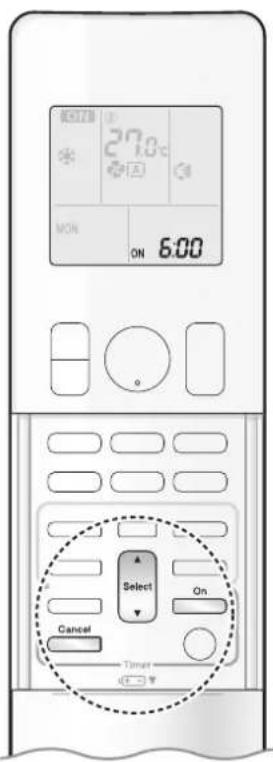
text_image
ON 27.0°C MON ON 6:00 Select On Cancel TimerTimer functions are useful for automatically switching the air conditioner on or off at night or in the morning. You can also use the ON TIMER and OFF TIMER together.
[ON TIMER with a 24 hour clock display] (24 HOUR ON/OFF TIMER)
■ To set
- Check that the clock is correct. If not, set the clock to the present time. ▶ Page 11
1. Press On

"6.00 appears on the LCD. "ON-" blinks.
- “④” and day of the week disappear from the LCD.
2. Press until the time setting reaches the point you like.
- Each pressing of either button increases or decreases the time setting by 10 minutes. Holding down either button changes the setting rapidly.
3. Press □ again.
- “ON” and setting time appear on the LCD. - The TIMER lamp lights orange.

text_image
On/Off C Wi-FiDisplay
■ To cancel
Press Cancel
- “ON” and setting time disappear from the LCD.
- “ ⏻ ” and day of the week appear on the LCD.
• The TIMER lamp goes off.
NOTE
Note on TIMER operation
- When TIMER is set, the present time is not displayed.
• After the circuit breaker has turned off.
• After a power failure.
• After replacing the batteries in the remote controller.
In the following cases, set the timer again.

text_image
27.0°C OFF 0:00 Select Off Cancel Timer OK[OFF TIMER with a 24 hour clock display] (24 HOUR ON/OFF TIMER)
■ To set
- Check that the clock is correct. If not, set the clock to the present time. ▶Page 11
1. Press Off
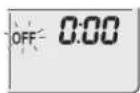
“0.00 appears on the LCD.
“OFF-” blinks.
- “ ⊕” and day of the week disappear from the LCD.
2. Press until the time setting reaches the point you like.
• Each pressing of either button increases or decreases the time setting by 10 minutes. Holding down either button changes the time setting rapidly.
3. Press off again.
- “OF and setting time appear on the LCD.
• The TIMER lamp lights orange.
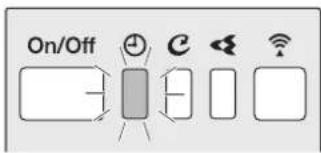
text_image
On/OffDisplay
■ To cancel
Press Cancel.
- “OF and setting time disappear from the LCD.
- “ ⏻” and day of the week appear on the LCD.
• The TIMER lamp goes off.
[ON/OFF TIMER combination]
■ To combine
- A sample setting for combining the 2 timers is shown below.

text_image
(Example) Present time: 23:00 (The unit is operating) OFF TIMER at 0:00 ON TIMER at 14:00) Combined OFF 0:00 ON 14:00NOTE
NIGHT SET mode
- When the OFF TIMER is set, the air conditioner automatically adjusts the temperature setting (0.5°C up in COOL, 2.0°C down in HEAT) to prevent excessive cooling (heating) during sleeping hours.

ON/OFF TIMER Operation
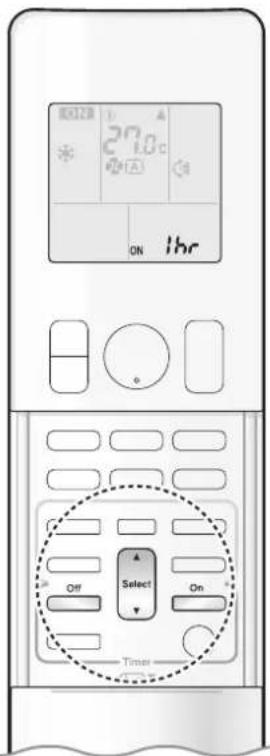
text_image
27.0°C ON 1hr Select Off On Timer[ON/OFF TIMER with an hours remaining display] (COUNT UP-DOWN ON/OFF TIMER)
- Check that the clock is correct. If not, set the clock to the present time. ▶Page 11
1. Press and hold on or for about 5 seconds, when signal indicator (▲) blink, release your finger from the button.

For ON TIMER
"Ibr" appears on the LCD.
"ON-"blinks.

For OFF TIMER
"Ibr" appears on the LCD.
“OFF-”blinks.
- “ ⊕” and day of the week disappear from the LCD.
2. Press until the time setting reaches the point you like.
• Each pressing of the button increases or decreases the time setting by 1 hour.
• The time can be set between 1 and 12 hours.
3. Press on or again.
- “ONand” “OEFnd setting time appear on the LCD.
• The TIMER lamp lights orange.
- To change the display mode from COUNT UP-DOWN ON/OFF TIMER to 24 HOUR ON/OFF TIMER, repeat STEP 1, and continue from STEP 2 of "24 HOUR ON/OFF TIMER". ▶ Page 25, 26
- Timer display mode cannot be changed while “ON-” or “are blinking. Press ☐ or ☐ to stop the blinking.
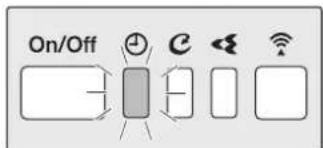
text_image
On/OffDisplay
■ Combining display modes
- Different display modes (24 HOUR ON/OFF TIMER and COUNT UP-DOWN ON/OFF TIMER) can be used for the ON TIMER and OFF TIMER simultaneously.

text_image
(Example) Present time: 22:00 (The unit is operating) OFF TIMER at 1:00 (3 hours after persent time) ) Combined ON TIMER at 6:00 (8 hours after persent time) ON OFF 3hr ON 6:00 OFF 1:00 ON 8hr OFF 3hr ON 8hrNOTE
Note on COUNT UP-DOWN ON/OFF TIMER
- After setting, the time displayed on the LCD will automatically count down by 1 hour for every 1 hour that passes. For example, if the OFF TIMER is set to 3 hours, the display will change as follows: 3hr 2hr 1hr blank (OFF)
Switching between ON/OFF TIMER display modes (24 hour clock and hours remaining display)
- When changing timer display modes (from 24 HOUR ON/OFF TIMER to COUNT UP-DOWN ON/OFF TIMER or vice versa), the timer cancels. The timer must be set again to activate it.
WEEKLY TIMER Operation
Up to 4 timer settings can be saved for each day of the week. This is convenient to adapt the WEEKLY TIMER to your family's life style.
■ Setting example of the WEEKLY TIMER
The same timer settings are used from Monday through Friday, while different timer settings are used for the weekend.
| [Monday] | Make timer settings for programmes 1-4. ▶Page 29 | |||
| Programme 1 | Programme 2 | Programme 3 | Programme 4 | |
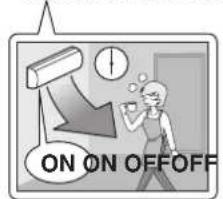 |  |  | 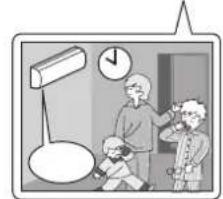 | |
| [Tuesday] to [Friday] | Use the copy mode to make settings for Tuesday to Friday, because these settings are the same as those for Monday. ▶Page 31Pr | ≥4 | ||
| [Saturday] | No timer settings | |||
| [Sunday] | Make timer settings for programmes 1-4. ▶Page 29 | |||
- Up to 4 reservations per day and 28 reservations per week can be set using the WEEKLY TIMER. The effective use of the copy mode simplifies timer programming.
- The use of ON-ON-ON-ON settings, for example, makes it possible to schedule operating mode and set temperature changes. Furthermore, by using OFF-OFF-OFF-OFF settings, only the turn off time of each day can be set. This will turn off the air conditioner automatically if you forget to turn it off.

WEEKLY TIMER Operation
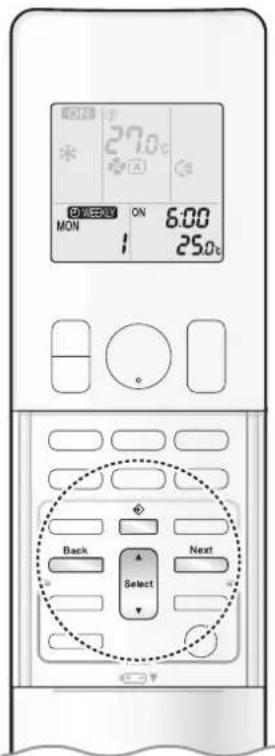
text_image
27.0°C ON 6:00 MON 25.0°C Back Next Select■ To use WEEKLY TIMER operation
Setting mode
• Make sure the day of the week and time are set.
If not, set the day of the week and time. ▶Page 11
Programme 1 Programme 2 Programme 3 Programme 4

text_image
[Monday] ON OFF 25.0°C 27.0°C 6:00 8:30 17:30 22:00 ON OFFSetting Displays

flowchart
graph LR
    A["MON"] --> B["ON/OFF"]
    B --> C["Time"]
    C --> D["Temperature"]
1. Press
- The day of the week and the reservation number of the current day will be displayed.
- 1 to 4 settings can be made per day.
2. Press Select to select the desired day of the week and reservation number.
- Pressing changes the reservation number and the day of the week.
3. Press Next .
• The day of the week and reservation number will be set.
- “ WEEKLY ” and “ ON - ” blink.
4. Press Select to select the desired mode.
- Pressing Select changes the "ON" or "OFF" setting in sequence.

flowchart
graph LR
    A["ON"] --> B["OFF"]
    B --> C["blank"]
    D["ON TIMER"] --> A
    E["OFF TIMER"] --> B
    F["No Setting"] --> C
    G["Pressing Select"] --> H["puts the sequence in reverse."]
- In case the reservation has already been set, selecting "blank" deletes the reservation.
- Proceed to STEP 9 if "blank" is selected.
- To return to the day of the week and reservation number setting, press
5. Press Next .
• The ON/OFF TIMER mode will be set.
- “ Ⓧ WEEKLY ” and the time blink.

text_image
27.0°C ON 6:00 TUE 1 25.0°C Back Select Next6. Press to select the desired time.
- The time can be set between 0:00 and 23:50 in 10-minute intervals.
- To return to the ON/OFF TIMER mode setting, press □.
- Proceed to STEP 9 when setting the OFF TIMER.
7. Press Next
• The time will be set.
• “ Ⓧ WEEKLY ” and the temperature blink.
8. Press to select the desired temperature.
• The temperature can be set between 10.0°C and 32.0°C.
COOL or AUTO: The unit operates at 18.0^ C even if it is set to 10.0^ C to 17.0^ C. ▶Page 14 HEAT or AUTO: The unit operates at 30.0^ C even if it is set to 31.0^ C to 32.0^ C ▶Page 14
• To return to the time setting, press .
- The set temperature is only displayed when the mode setting is on.
9. Press Next
- The temperature will be set and go to the next reservation setting.
- The temperature is set while in ON TIMER operation, and the time is set while in OFF TIMER operation.
• The next reservation screen will appear.
• To continue further settings, repeat the procedure from STEP 4.
10. Press to complete the setting.
- Be sure to direct the remote controller toward the indoor unit and check for a receiving tone and blinking of the OPERATION lamp.
- “WEEKLY” appears on the LCD and WEEKLY TIMER operation is activated.
• The TIMER lamp lights orange.
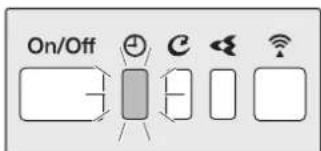
text_image
On/OffDisplay
- A reservation made once can be easily copied and the same settings used for another day of the week. Refer to Copy mode. ▶Page 31
NOTE
Notes on WEEKLY TIMER operation
- Do not forget to set the clock on the remote controller first. ▶Page 11
- The day of the week, ON/OFF TIMER mode, time and set temperature (only for ON TIMER mode) can be set with the WEEKLY TIMER. Other settings for the ON TIMER are based on the settings just before the operation.
- WEEKLY TIMER and ON/OFF TIMER operation cannot be used at the same time. The ON/OFF TIMER operation has priority if it is set while WEEKLY TIMER is still active. The WEEKLY TIMER will enter the standby state, and “WEEKLY” will disappear from the LCD. When the ON/OFF TIMER is up, the WEEKLY TIMER will automatically become active.
- Only the time and set temperature with the WEEKLY TIMER are sent with the ☐. Set the WEEKLY TIMER only after setting the operation mode, the airflow rate and the airflow direction ahead of time.
- Turning off the circuit breaker, power failure, and other similar events will render operation of the indoor unit's internal clock inaccurate. Reset the clock. ▶Page 11
- can be used only for the time and temperature settings. It cannot be used to go back to the reservation number.

WEEKLY TIMER Operation
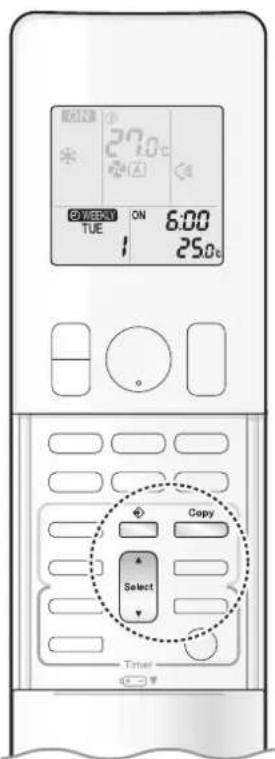
text_image
27.0°C ON 6:00 TUE 25.0°C Copy Select TimerCopy mode
- A reservation made once can be copied to another day of the week. The whole reservation of the selected day of the week will be copied.

text_image
Programme 1 Programme 2 Programme 3 Programme 4 [Monday] ON OFF ON OFF 25.0°C 27.0°C 6:00 8:30 17:30 22:00 COPYProgramme 1 Programme 2 Programme 3 Programme 4

text_image
[Tuesday] to [Friday] ON OFF ON OFF 25.0°C 27.0°C 6:00 8:30 17:30 22:00Setting Displays
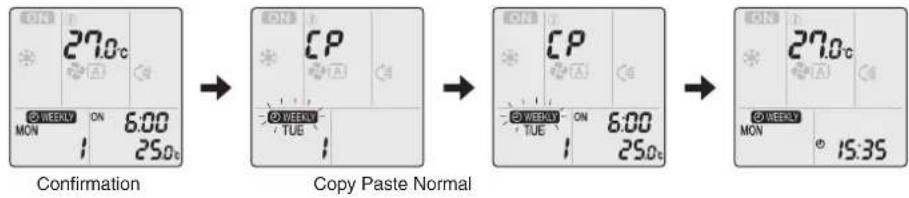
text_image
27.0c ON 6:00 MON 25.0c Confirmation CP ON TUE Copy Paste Normal CP ON 6:00 TUE 25.0c ON 15:35 27.0c ON MON- Press
- Press Select to confirm the day of the week to be copied.
- Press Copy .
- The whole reservation of the selected day of the week will be copied.
- Press Select to select the destination day of the week.
-
Press Copy .
-
The reservation will be copied to the selected day of the week. The whole reservation of the selected day of the week will be copied.
• To continue copying the settings to other days of the week, repeat STEP 4 and STEP 5. -
Press ☐ to complete the setting.
- “WEEKLY” appears on the LCD and WEEKLY TIMER operation is activated.
NOTE
Note on COPY MODE
- The entire reservation of the source day of the week is copied in the copy mode. In the case of making a reservation change for any day of the week individually after copying the content of weekly reservations, press and change the settings in the steps of Setting mode. ▶ Page 29

text_image
27.0°C ON TUE 6:00 25.0°C Weekly Select Next Timer■ Confirming a reservation
• The reservation can be confirmed.
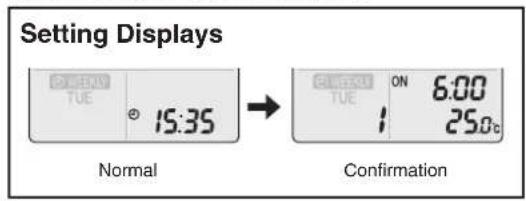
text_image
Setting Displays TUE 15:35 Normal ON 6:00 TUE 25.0c Confirmation1. Press
- The day of the week and the reservation number of the current day will be displayed.
2. Press to select the day of the week and the reservation number to be confirmed.
- Pressing displays the reservation details.
- To change the confirmed reserved settings, select the reservation number and press. Next The mode is switched to setting mode. Proceed to Setting mode STEP 4. ▶Page 29
3. Press to exit the confirmation mode.
- “WEEKLYrs on the LCD and WEEKLY TIMER operation is activated.
• The TIMER lamp lights orange.
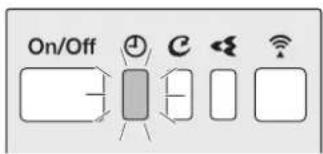
text_image
On/Off C ← Wi -Display
■ To deactivate WEEKLY TIMER operation
Press Weekly while “ WEEKLY ” is displayed on the LCD.
• “Wears from the LCD.
• The TIMER lamp goes off.
• To reactivate the WEEKLY TIMER operation, press □ again.
- If a reservation deactivated with ____ is activated once again, the last reservation mode will be used.
NOTE
- If not all the reservation settings are reflected, deactivate the WEEKLY TIMER operation once. Then press 📋 again to reactivate the WEEKLY TIMER operation.

WEEKLY TIMER Operation
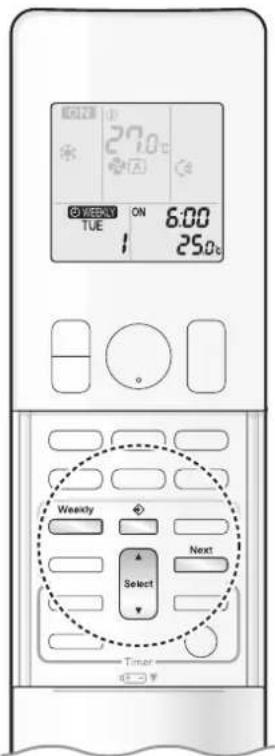
text_image
27.0°C ON TUE 6:00 25.0°C Weekly Select Next Timer■ To delete a reservation
An individual reservation
1. Press
- The day of the week and the reservation number will be displayed.
2. Press to select the day of the week and the reservation number to be deleted.
3. Press Next .

4. Press until no icon is displayed.
- Pressing Changes the ON/OFF TIMER mode in sequence.
- Selecting "blank" will cancel any reservation you may have.

flowchart
graph LR
    A["ON"] --> B["OFF"]
    B --> C["blank"]
    C --> D["No Setting"]
    D --> E["ON TIMER OFF TIMER"]
    E --> F["ON Timer OFF TIMER"]
    F --> G["Blank"]
    G --> H["Pressing"]
    H --> I["Selects the sequence in reverse."]
5. Press Next
• The selected reservation will be deleted.
6. Press
- If there are still other reservations, WEEKLY TIMER operation will be activated.
Reservations for each day of the week
- This function can be used for deleting reservations for each day of the week.
- It can be used while confirming or setting reservations.
1. Press
- The day of the week and the reservation number will be displayed.
2. Press Select to select the day of the week to be deleted.
3. Hold for about 5 seconds.
- The reservation of the selected day of the week will be deleted.
4. Press
- If there are still other reservations, WEEKLY TIMER operation will be activated.
All reservations
Weekly
Hold weekly for about 5 seconds with the normal display.
- Be sure to direct the remote controller toward the indoor unit and check for a receiving tone.
- This operation cannot be used for the WEEKLY TIMER setting display.
- All reservations will be deleted.
Wireless LAN connection
Please note
- Turn off the air conditioner before setting up wireless connection.
Prior to setting up, please make sure your device is ready to connect. You may refer to the indoor unit LED table for guidance.
Check the indoor unit LED.
| Wireless LAN connecting adapter lamp Status | |
| Blinks for one second | The wireless LAN connecting adapter is ready to connect. |
| No blinking/no light | The wireless LAN connecting adapter is disabled.Malfunction in communication between the indoor unit and the wireless LAN connecting adapter.Please refer to the troubleshooting guide or contact the store where you bought the air conditioner to request a repair service. |
| Lamp stays lit | The wireless LAN connecting adapter is connected to a modem/router. |

text_image
On/Off Wireless LAN connecting adapter lamp (Orange) DisplayWireless LAN connection
Web site: https://www.daikinthai.com/product/dmobile
For more information on the latest version of wireless LAN control, please refer to the above website.
■ Application software installation
- Before downloading the application software for installation, please read "Configuration" on ▶Page 7
For Android phones
1) Open [Google Play].
2) Search using the application name:
[DAIKIN Mobile Controller].
3) Follow the on-screen instructions for installation.
For iOS phones
1) Open [App Store].
2) Search using the application name:
[DAIKIN Mobile Controller].
3) Follow the on-screen instructions for installation.


Setting
Connect the wireless LAN connecting adapter to your home network.
- The wireless LAN connecting adapter will communicate with the smart devices in your home network via a modem, router, or a similar device.
There are two options for connecting the wireless LAN connecting adapter to your smart phone or tablet:
1) Simple connection (WPS connection), if there is a WPS button on the router, ▶Page 36
2) Access point connection (AP connection), if there is no WPS button on the router, ▶Page 37
For more information and Frequently Asked Questions, please refer to:
https://www.daikinthai.com/product/dmobile
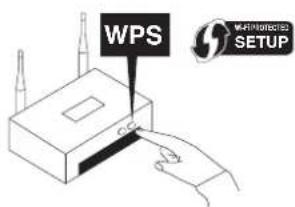
text_image
WPS WPS PROCESSED SETUPNOTE
Note on wireless LAN connection
- For more information on how the wireless LAN connecting adapter operates, please see ▶Page 35-37
Wireless LAN connection
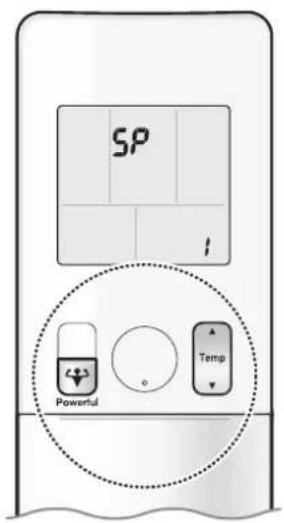
text_image
SP 1 Powerful Temp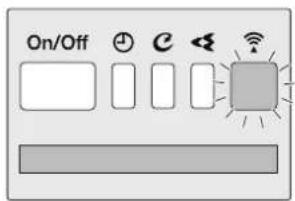
text_image
On/Off C ← W SDisplay
Enabling/disabling the wireless LAN connecting adapter
■ To enable
- While operation is stopped, press and hold the button for 5 seconds.
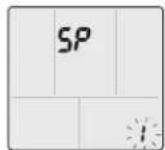
- Press or and select SP menu.
- Press to confirm the selected setting.
- “▲blinks briefly. - The wireless LAN connecting adapter lamp (orange) blinks for one second.
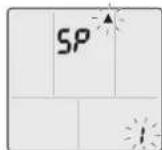
- Press Cancel to return to the default screen.
■ To disable - While operation is stopped, press and hold the button for 5 seconds.
- “SP appears on the LCD. - “ ” (SP menu) blinks.
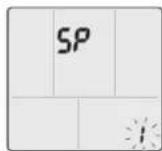
- Press or and select SP menu . off
- Press and hold for 2 seconds to confirm the selected setting.
- “▲blinks briefly. - The wireless LAN connecting adapter lamp (orange) goes off.
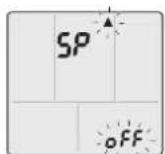
- Press Cancel to return to the default screen.
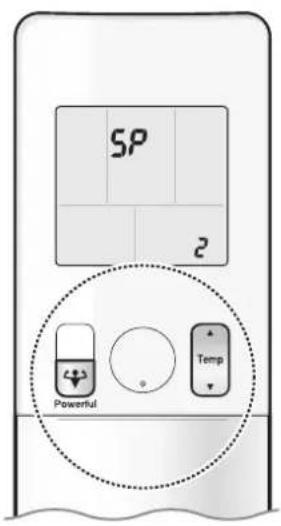
text_image
SP 2 Powerful Temp
text_image
On/Off C WDisplay

text_image
16:55 Home All units (1) Unit name 20℃ 20℃Fig. 1
To connect the wireless LAN connecting adapter to your home network
The wireless LAN connecting adapter can be connected to your home network by means of:
- Simple connection (WPS connection), if there is a WPS button on the router.
- Access point connection (AP connection), if there is no WPS button on the router.
■ Simple connection (WPS connection)
If there is a WPS button on your Wi-Fi router, please follow the below steps.
1. While operation is stopped, press and hold the button for 5 seconds.
- “SP appears on the LCD.
• “ ” (SP menu) blinks.
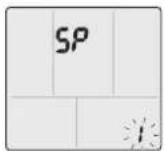
2. Press or and select SP menu .
3. Press ☐ to confirm the selected setting.
• “▲blinks briefly.
• The wireless LAN connecting adapter lamp (orange) blinks more quickly.
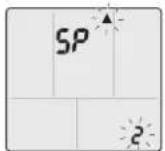
4. Press the WPS button on your communication device (e.g. router) within approximately one minute. Please refer to the manual of your communication device.
- The wireless LAN connecting adapter lamp (orange) stays lit. If you fail to connect, refer to NOTE.
5. Press Cancel to return to the default screen.
6. Connect your smart phone to your home network.
7. Open the Home screen of the DAIKIN Mobile Controller application. The air conditioner will be listed there (Fig. 1).
NOTE
Note on simple connection (WPS connection)
- If you fail to connect (the wireless LAN connecting adapter lamp (orange) continues to blink), repeat steps 1-5.
Alternatively, try connecting via your device directly. Please refer to "Access point connection (AP connection)". ▶Page 37
Wireless LAN connection
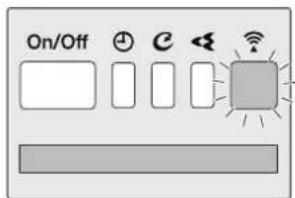
text_image
On/Off CDisplay
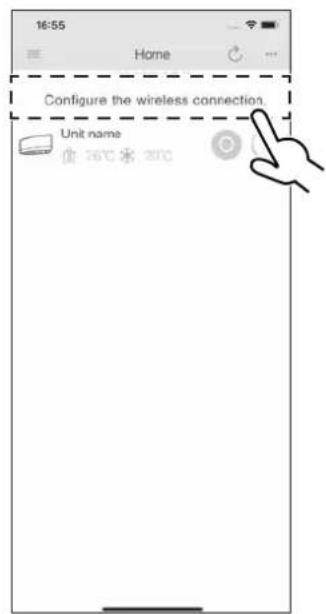
text_image
16:55 Home Configure the wireless connection Unit name 36°C 20°CFig. 2

text_image
SP R Powerful Temp■ Access point connection (AP connection).
If your home Wi-Fi router does not have a WPS button, you can connect your smart phone directly to the wireless LAN connecting adapter in order to set up a connection to your home network by following these steps. – This step requires SSID number and KEY located on the indoor unit or on the cover of the manual.
1. Connect the wireless LAN connecting adapter to a smart phone or tablet.
View available Wi-Fi networks on your smart phone or tablet and connect to the SSID (DaikinAP***** ) printed out on the sticker. SSID and KEY are located on the indoor unit or on the cover of the manual, as shown in the below image.
- Sticker on the indoor unit
- Sticker on the cover of the manual
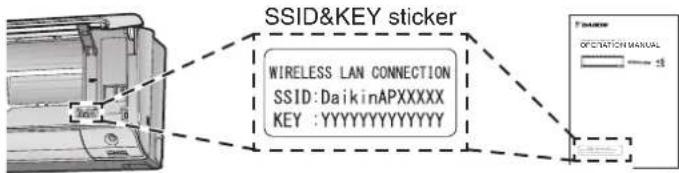
text_image
SSID&KEY sticker WIRELESS LAN CONNECTION SSID:DaikinAPXXXXX KEY :YYYYYYYYYYYYY GPIO GPIO/ATCH MANUAL- Open the DAIKIN Mobile Controller application and select "Configure the wireless connection" (Fig. 2) and connect to your home network as per the on-screen instructions.
- The wireless LAN connecting adapter lamp (orange) stays lit. If you fail to connect, refer to NOTE.
- Connect your smart phone to your home network.
- Open the Home screen of the DAIKIN Mobile Controller application. The air conditioner will be listed there.
Reset connection setting to factory defaults.
Please note
When the device is reset, out-of-home user account and wireless LAN connection setting will be changed back to the factory defaults.
■ To reset
-
While operation is stopped, press and hold the button for 5 seconds.
-
“58 appears on the LCD.
• “ ” (SP menu) blinks. - "58 appears on the LCD.
• “ ”(SP menu) blinks. - “SR appears on the LCD.
- “SP menu) blinks.


-
Press or and select SP menu.
-
Press and hold 📋 for 2 seconds to confirm the selected setting.
-
“▲” blinks briefly.
-
The wireless LAN connecting adapter lamp (orange) blinks for one second.
-
Press Cancel to return to the default screen.
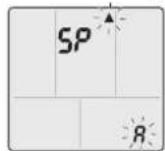
NOTE
Note on access point connection (AP connection)
- If you fail to connect (the wireless LAN connecting adapter lamp (orange) continues to blink), repeat steps 1-2.
Care and Cleaning

CAUTION
- Before cleaning, be sure to stop the operation and turn off the circuit breaker.
- Do not touch the aluminum fins of the indoor unit. If you touch those parts, this may cause an injury.
■ Quick reference
Cleaning parts
Front panel
- Wipe it with a soft damp cloth.
- Only neutral detergent may be used.
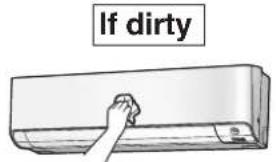
text_image
If dirtyAir filter
• Vacuum dust or wash the filter.
Once every 2 weeks
Page 39
Indoor unit and remote controller
- Wipe them with a soft cloth.
If dirty

natural_image
Technical line drawing of a cylindrical air conditioner unit with internal compartments and ventilation slots (no text or symbols)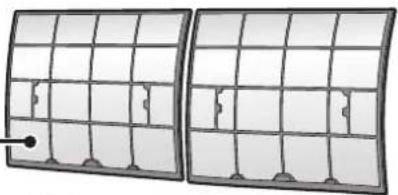
natural_image
Two identical grid panels with small rectangular cutouts and a small black dot on the left panel (no text or symbols)
Streamer air inlet
- Do not place objects around the indoor unit. Doing so may have an adverse influence on the performance, product quality, and life of the streamer.
Deodorizing filter (enzyme blue)
To purchase the filters (Table 1) or to purchase the another type, contact the dealer where you bought the air conditioner. The method of cleaning and replacement of the filters may differ depending on the model. Refer to the label attached to the separately sold filters themselves.
Table 1
| Item Part No. | |
| Air quality filter (enzyme blue with PM 2.5) - without frame (set of 2) | BAFP094A43 |
| Deodorizing filter (enzyme blue) - without frame (set of 2) BAFP094A41 | |
| Dust collection filter (PM 2.5) - without frame (set of 2) BAFP046A41 | |
| Titanium apatite deodorizing filter - without frame (set of 2) KAF970A46 | |
Deodorizing filter (enzyme blue), Titanium apatite deodorizing filter.
• Vacuum dust or replace the filter.
[Cleaning] [Replacement]
Once every 6 months Once every 3 years
▶Page 40
▶Page 40
Air quality filter (enzyme blue with PM 2.5), Dust collection filter (PM 2.5)
- No cleaning is required. Please replace the filter every 6 months. ▶Page 40
NOTE
For cleaning, do not use any of the following:
• Water hotter than 40°C
• Volatile liquid such as benzene, petrol and thinner
- Polishing compounds
- Rough materials such as a scrubbing brush
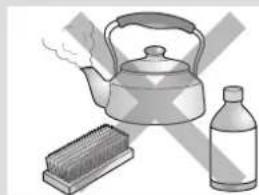
natural_image
Illustration of a kettle, a brush, and a bottle (no text or symbols)Care and Cleaning
Air filter
1. Open the front panel.
- Hold the front panel by the sides and open it.
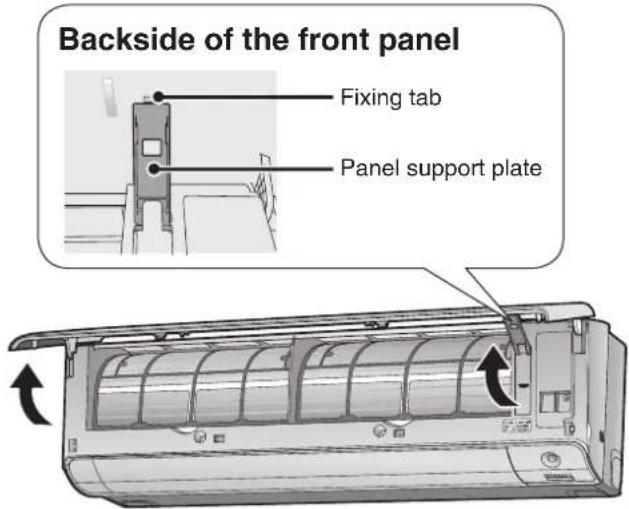
text_image
Backside of the front panel Fixing tab Panel support plate2. Pull out the air filters.
- Push the filter tab at the centre of each air filter a little upwards, then pull it down.
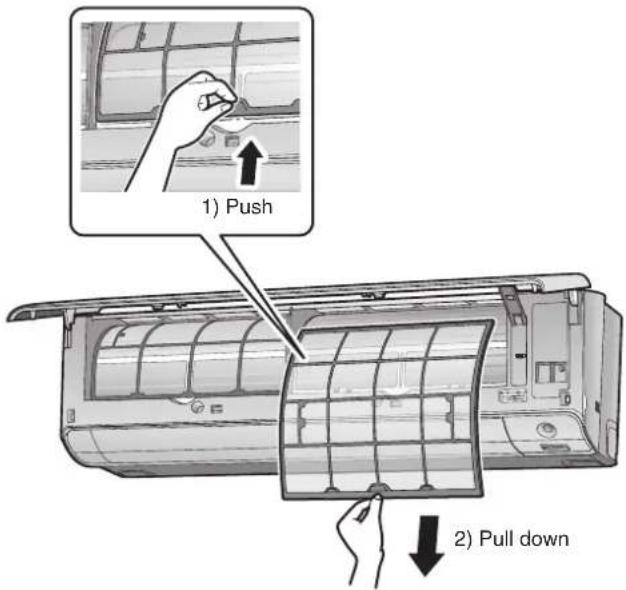
text_image
1) Push 2) Pull down3. Wash the air filters with water or clean them with vacuum cleaner.
- It is recommended to clean the air filters every 2 weeks.
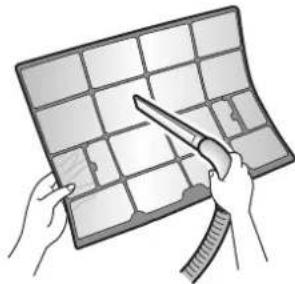
natural_image
Illustration of hands using a power tool to clean or adjust a grid-patterned surface (no text or symbols visible)If the dust does not come off easily
- Wash the air filters with neutral detergent thinned with lukewarm water, then dry them up in the shade.
- Be sure to remove the filter (small). Refer to "Filter (small)" on the next page.
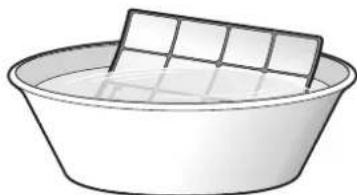
natural_image
Simple line drawing of a basin with a rectangular dish on top (no text or symbols)4. Reattach the filters.
5. Close the front panel slowly.
- Press the panel at both sides and the centre.

natural_image
Illustration of a car air conditioner unit with three downward arrows indicating airflow or cooling direction (no text or symbols)- Make sure that the front panel is securely fixed.
■ Filter (small)
* For the applicable filter type, please refer to ▶ Page 38
Attaching
1. Open the front panel and pull out the air filters. ▶ Page 39
2. Insert the filter.
- Check that the filters are inserted securely under the tabs.
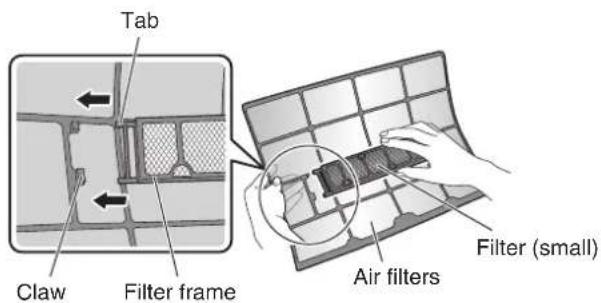
text_image
Tab Claw Filter frame Air filters Filter (small)Cleaning and Replacement
1. Open the front panel and pull out the air filters. ▶Page 39
2. Take off the filter.
- Hold the recessed parts of the frame and unhook the 4 claws.
- Remove the filters from the tabs.

text_image
Tab Claw Filter frame Air filters Filter (small)NOTE
• Operation with dirty filters:
- cannot deodorise the air,
- cannot clean the air,
– results in poor heating or cooling,
- may cause odour.
- Dispose of old filters as non-flammable waste.
3. Clean or replace.
[Cleaning]
Deodorizing filter (enzyme blue) : Blue / Titanium apatite deodorizing filter : Blue-Black
3-1 Vacuum dust, and soak in lukewarm water or water for about 10 to 15 minutes if very dirty.
3-2 After washing, shake off remaining water and let them dry in the shade.
- This filter can be renewed by washing it with water once every 6 months and we recommend replacing it once every 3 years.
- Do not wiring out the filter when removing water from it.
Air quality filter (enzyme blue with PM 2.5) : Blue-White/ Dust collection filter (PM 2.5) : White
- Do not wash the filters as this will reduce their efficiency.
- It is recommended to replace it once every 6 months.
[Replacement]
Remove the filter from the filter frame and prepare a new one.
- Do not throw away the filter frame.
- Reuse the filter frame when replacing the filter.
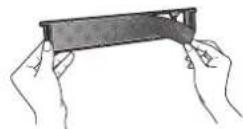
- When attaching the filter, check that the filter is properly set in the tabs.
4. Set the filters as they were and close the front panel.
- Press the front panel at both sides and the center.
Care and Cleaning
■ Prior to a long period of non-use
- Operate the MOLD PROOF mode. ▶Page 17
- After operation stops, turn off the circuit breaker for the room air conditioner.
- Clean the air filters and reattach them. ▶Page 39
- To prevent battery leakage, take out the batteries from the remote controller.
■ We recommend periodical maintenance
- In certain operating conditions, the inside of the air conditioner may get foul after several seasons of use, resulting in poor performance. It is recommended to have periodical maintenance by a specialist in addition to regular cleaning by the user.
- For specialist maintenance, please contact the dealer where you bought the air conditioner.
- The maintenance cost must be borne by the user.
FAQ
Indoor unit
The flaps do not start swinging immediately.
- The air conditioner is adjusting the position of the flaps. The flaps will start moving soon.
The air conditioner stops generating airflow during HEAT operation.
- Once the set temperature is reached, the airflow rate is reduced and operation stopped in order to avoid generating a cool airflow. Operation will resume automatically when the indoor temperature falls.
HEAT operation stops suddenly and a flowing sound is heard.
- The outdoor unit is defrosting. HEAT operation starts after the frost on the outdoor unit has been removed. This can take about 4 to 12 minutes.
Operation does not start soon.
■ When ⏻ was pressed soon after operation was stopped.
■ When the mode was reselected.
• This is to protect the air conditioner. You should wait for about 3 minutes.
Outdoor unit
The outdoor unit emits water or steam.
In HEAT operation
- The frost on the outdoor unit melts into water or steam when the air conditioner is in defrosting operation.
■ In COOL or DRY operation - Moisture in the air condenses into water on the cool surface of the outdoor unit piping and drips.
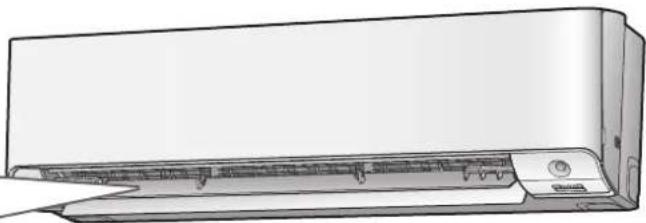
natural_image
Line drawing of a wall-mounted air conditioner unit (no text or symbols)Commonly occurring sounds.
■ A sound like flowing water
- This sound is generated because the refrigerant in the air conditioner is flowing.
- This is a pumping sound of the water in the air conditioner and can be heard when the water is pumped out from the air conditioner during COOL or DRY operation.
- This sound is generated during COOL operation on outdoor ambient lower than 12°C when outdoor fan stop for keep pressure.
■ Blowing sound
- This sound is generated when the flow of the refrigerant in the air conditioner is switched over.
■ Ticking sound
- This sound is generated when the cabinet and frame of the air conditioner slightly expand or shrink as a result of temperature changes.
■ Whistling sound
- This sound is generated when refrigerant flows during defrosting operation.
- Clicking sound during operation or idle time
- This sound is generated when the refrigerant control valves or the electrical parts operate.
■ Clopping sound
- This sound is heard from the inside of the air conditioner when the exhaust fan is activated while the room doors are closed. Open the window or turn off the exhaust fan.
■ Hissing/Cracking sound
- The sound of the streamer discharge. It is not a malfunction.
■ Rotating machinery causes sound - Sound is heard when the vertical swing flaps and the horizontal swing flaps move.
- When the air conditioner is operating in a quiet environment and the airflow rate of the indoor unit is set to Quiet Mode or Low Mode, the motion of the swing flaps may cause sound.
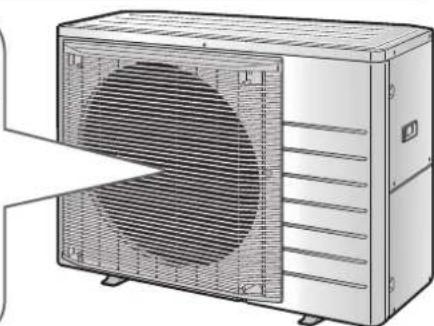
natural_image
Technical illustration of a dual-panel air conditioner unit with ventilation grilles and cooling fins (no text or symbols)Troubleshooting
Before making an inquiry or a request for repair, please check the following. If the problem persists, consult your dealer.

Not a problem
This case is not a problem.

Check
Please check again before requesting repairs.
Air conditioner
The air conditioner does not operate
| Case Description / what to check | |
| OPERATION lamp is off. | Has the circuit breaker been tripped or the fuse blown?Is there a power failure?Are batteries set in the remote controller? |
| OPERATION lamp is blinking. | Turn off the power with the circuit breaker and restart operation with the remote controller.If the OPERATION lamp is still blinking, check the error code and consult your dealer. ▶Page 46 |
The air conditioner suddenly stops operating
| Case Description / what to check | |
| OPERATION lamp is on. | To protect the system, the air conditioner may stop operating after sudden large voltage fluctuations. It automatically resumes operation in about 3 minutes. |
| OPERATION lamp is blinking. | Is there anything blocking the air inlet or air outlet of the indoor unit or outdoor unit? Stop operation and after turning off the circuit breaker, remove the obstruction. Then restart operation with the remote controller. If the OPERATION lamp is still blinking, check the error code and consult your dealer. ▶Page 46 |
The air conditioner does not stop operating
| Case Description / what to check | |
| The air conditioner continues operating even after operation is stopped. | ☑ ■ Immediately after the air conditioner is stopped• The outdoor unit fan continues rotating for about another 1 minute to protect the system.■ While the air conditioner is not in operation• When the outdoor temperature is high, the outdoor unit fan may start rotating to protect the system. |
| ☑ • MOLD PROOF operation is being performed.It is possible to stop MOLD PROOF operation while it is in progress.(If this does not suit your preferences, set MOLD PROOF to “Off”.) | |
The room does not cool down/warm up
| Case Description / what to check | |
| Air does not come out. | HEAT operationThe air conditioner is warming up. Wait for about 1 to 4 minutes.During defrosting operation, hot air does not flow out of the indoor unit.COOL or DRY operationIf COOL/DRY operation is started with airflow settings on “AUTO”, the indoor unit will initially deodorise, which functions to suppress any internal odours. As a result, the indoor unit will not emit air immediately. (Wait for about 1 minute.)When the air conditioner operates immediately after the circuit breaker is turned onThe air conditioner is preparing to operate. Wait for about 3 to 15 minutes. |
| Air does not come out / Air comes out. | Is the airflow rate setting appropriate?Is the airflow rate setting low, such as “Indoor unit quiet” or “Airflow rate 1”?Increase the airflow rate setting.Is the set temperature appropriate?Is the adjustment of the airflow direction appropriate? |
| Air comes out. | Is there any furniture directly under or beside the indoor unit?Is the air conditioner in ECONO operation or OUTDOOR UNIT QUIET operation?▶Page 24Are the air filters dirty?Is there anything blocking the air inlet or air outlet of the indoor unit or outdoor unit?Is a window or door open?Is an exhaust fan turning? |
| The room temperature does not reach the set temperature. | If the air coming out of the air conditioner is blowing against a wall, the set temperature may not be reached correctly. |
Air conditioner
Mist comes out
| Case Description / what to check | |
| Mist comes out of the indoor unit. | [28WT]This happens when the air in the room is cooled into mist by the cold airflow during COOL or other operation. |
Remote controller
| Case Description / what to check | |
| The unit does not receive signals from the remote controller or has a limited operating range. |  · The batteries may be exhausted. Replace both batteries with new dry batteries AAA.LR03 (alkaline). For details, refer to “Preparation Before Operation”. ▶Page 10 · Signal communication may be disabled if an electronic-starter-type fluorescent lamp (such as inverter-type lamps) is in the room. Consult your dealer if that is the case. · The remote controller may not function correctly if the transmitter is exposed to direct sunlight. · The batteries may be exhausted. Replace both batteries with new dry batteries AAA.LR03 (alkaline). For details, refer to “Preparation Before Operation”. ▶Page 10 · Signal communication may be disabled if an electronic-starter-type fluorescent lamp (such as inverter-type lamps) is in the room. Consult your dealer if that is the case. · The remote controller may not function correctly if the transmitter is exposed to direct sunlight. |
| LCD is faint, is not working, or the display is erratic. |  · The batteries may be exhausted. Replace both batteries with new dry batteries AAA.LR03 (alkaline). For details, refer to “Preparation Before Operation”. ▶Page 10 · The batteries may be exhausted. Replace both batteries with new dry batteries AAA.LR03 (alkaline). For details, refer to “Preparation Before Operation”. ▶Page 10 |
| The LCD is blinking and the remote controller cannot be operated. |  · Battery power has run out. Replace both batteries at the same time with new size AAA.LR03 (alkaline) batteries. Leaving exhausted batteries in the remote controller can result in injury due to battery leakage, rupturing or heating, or lead to equipment failure. (Even when the LCD is blinking, the OFF button remains functional.) · Battery power has run out. Replace both batteries at the same time with new size AAA.LR03 (alkaline) batteries. Leaving exhausted batteries in the remote controller can result in injury due to battery leakage, rupturing or heating, or lead to equipment failure. (Even when the LCD is blinking, the OFF button remains functional.) |
| Other electric devices start operating. | [0827] · If the remote controller activates other electric devices, move them away or consult your dealer. |
Air has an odour
| Case Description / what to check | |
| The air conditioner gives off an odour. | [TTSC]The room odour absorbed in the unit is discharged with the airflow.We recommend that you have the indoor unit cleaned. Please consult your dealer.Due to streamer discharge, the air outlet may emit a slight odour as trace amounts of ozone are generated. However, the amount is negligible and is not harmful to your health. |
Display lamps
| Case Description / what to check | |
| The OPERATION lamp is off,but the air conditioner is operating. |  Is the display brightness set to “Off”? Is the display brightness set to “Off”? |
| [X7D6]MOLD PROOF operation is being performed.It is possible to stop MOLD PROOF operation while it is in progress.(If this does not suit your preferences, set MOLD PROOF to “Off”.) | |
| The display lamps on the main unit are dark. |  Is the display brightness set to “Low”? Is the display brightness set to “Low”? |
Streamer air cleaning operation
| Case Description / what to check | |
| The sound of streamer discharge can no longer be heard. | [2014] • If the airflow becomes weak, the streamer discharge stops. |
Others
| Case Description / what to check | |
| The air conditioner suddenly starts behaving strangely during operation. | [XYKO] · The air conditioner may malfunction due to lightning or radio.If the air conditioner malfunctions, turn off the power with the circuit breaker and restart the operation with the remote controller. |
| The ON/OFF TIMER does not operate according to the settings. | [XX40] · Check if the ON/OFF TIMER and the WEEKLY TIMER are set to the same time.Change or deactivate the settings in the WEEKLY TIMER. ▶Page 28,29,30 |
NOTE
Note on the operating conditions
| • If operation continues under any conditions other than those listed in the table, - A safety device may activate to stop the operation. - Dew may form on the indoor unit and drip from it when COOL or DRY operation is selected. |
| Mode Operating conditions | |
| COOL / DRY | Outdoor temperature: -10.0~46.0°CIndoor temperature: 18.0~32.0°CIndoor humidity: 80% max. |
| HEAT | Outdoor temperature: -15.0~24.0°CIndoor temperature: 10.0~30.0°C |
Troubleshooting
Wireless LAN connecting adapter
The following table provides brief descriptions of how to handle problems or carry out connection setting.
Refer to the FAQ on our web site for more details.
Wireless LAN connection
| When this happens Explanation and where to check | |
| The device (air conditioner) cannot be found on the device list screen. | Carry out connection setting again.Move the router (wireless LAN access point) close to the indoor unit.There is a possibility that you are using an unsupported smart phone or router (wireless LAN access point). For details, refer to the web site. |
| Even if the wireless LAN connecting adapter lamp is lit, operation from outside the home is not possible. | Communication between the router and the internet connection may not be working.Please confirm. |
| The wireless LAN connecting adapter lamp does not blink or light. | The wireless LAN connecting adapter is disabled.Malfunction in communication between the indoor unit and the wireless LAN connecting adapter.There may be a problem with your device. Please contact the store where you bought the air conditioner to request a repair service. |
| None of the above work. | Refer to the FAQ on:https://www.daikinthai.com/product/dmobile |
For instructions about how to operate the DAIKIN Mobile Controller application, please refer to the operation manual at https://www.daikinthai.com/product/dmobile
■ Call your dealer immediately

WARNING
When an abnormality (such as a burning smell) occurs, stop operation and turn off the circuit breaker.
- Continued operation in an abnormal condition may result in problems, electric shock or fire.
- Consult the dealer where you bought the air conditioner.
Do not attempt to repair or modify the air conditioner by yourself.
- Incorrect work may result in electric shock or fire.
- Consult the dealer where you bought the air conditioner.
If one of the following symptoms occurs, call your dealer immediately.
- The power cord is abnormally hot or damaged.
- An abnormal sound is heard during operation.
- The circuit breaker, a fuse, or the earth leakage circuit breaker cuts off the operation frequently.
- A switch or a button often fails to work properly.
• There is a burning smell.
• Water leaks from the indoor unit.
Turn off the circuit breaker and call your dealer.

■ After a power failure
- The air conditioner automatically resumes operation in about 3 minutes. Please wait for a while.
Lightning
- If there is a risk lightning could strike in the neighbourhood, stop operation and turn off the circuit breaker to protect the system.
■ Disposal requirements
- Dismantling of the unit and handling of the refrigerant, oil and other parts should be done in accordance with the relevant local and national regulations.
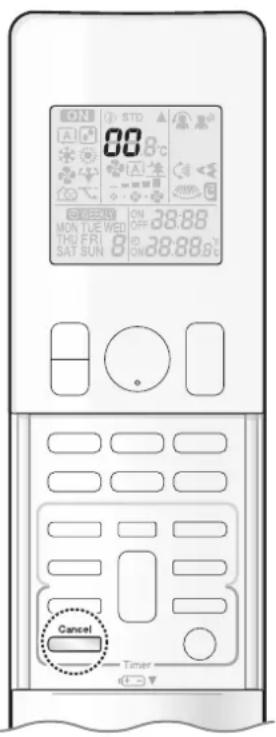
text_image
ON A 88.8°C ON MON TUE WED THU FR SAT SUN B ON 38.88% ON 38.88% Cancel Timer■ Fault diagnosis by remote controller
- In case the air conditioner is malfunctioning, you can check the error code via the remote controller before consulting with service personnel and informing them of the malfunction code.
1. When Cancel is held down for about 5 seconds, "00" blinks in the temperature display section.
2. Press Cancel repeatedly until a long beep is produced.
- The code indication changes as shown below, and notifies you with a long beep.
| CODE MEANING | ||
| SYSTEM | 00 NORMAL | |
| UA INDOOR | OUTDOOR UNIT COMBINATION FAULT | |
| U0 REFRIGERANT SHORTAGE | ||
| U2 DROP VOLTAGE OR MAIN CIRCUIT OVERVOLTAGE | ||
| U4 FAILURE OF TRANSMISSION (BETWEEN INDOOR UNIT AND OUTDOOR UNIT) | ||
| INDOOR UNIT | A1 INDOOR PCB DEFECTIVENESS | |
| A5 HIGH PRESSURE CONTROL OR FREEZE-UP PROTECTOR | ||
| A6 FAN MOTOR FAULT | ||
| C4 FAULTY HEAT EXCHANGER TEMPERATURE SENSOR | ||
| C9 FAULTY SUCTION AIR TEMPERATURE SENSOR | ||
| CC FAULTY HUMIDITY SENSOR | ||
| OUTDOOR UNIT | EA | COOLING-HEATING SWITCHING ERROR |
| E1 CIRCUIT BOARD FAULT | ||
| E5 OL STARTED | ||
| E6 FAULTY COMPRESSOR START UP | ||
| E7 DC FAN MOTOR FAULT | ||
| F3 HIGH TEMPERATURE DISCHARGE PIPE CONTROL | ||
| F6 HIGH PRESSURE CONTROL (IN COOLING) | ||
| F8 OPERATION HALT DUE TO COMPRESSOR INTERNAL TEMPERATURE | ||
| H0 | SENSOR FAULT | |
| H6 | OPERATION HALT DUE TO FAULTY POSITION DETECTION SENSOR | |
| H8 | DC CURRENT SENSOR FAULT | |
| H9 | FAULTY SUCTION AIR TEMPERATURE SENSOR | |
| J3 FAULTY DISCHARGE PIPE TEMPERATURE SENSOR | ||
| J6 FAULTY HEAT EXCHANGER TEMPERATURE SENSOR | ||
| J8 FAULTY LIQUID PIPE TEMPERATURE SENSOR | ||
| L3 ELECTRICAL PARTS HEAT FAULT | ||
| L4 HIGH TEMPERATURE AT INVERTER CIRCUIT HEATSINK | ||
| L5 OUTPUT OVERCURRENT | ||
| P4 FAULTY INVERTER CIRCUIT HEATSINK TEMPERATURE SENSOR | ||
NOTE
- A short beep and 2 consecutive beeps indicate non-corresponding codes.
- To cancel the code display, hold down for about 5 seconds. The code display also clears if no button is pressed for 1 minute.
Quick Reference

flowchart
graph TD
    A["Air Condition"] --> B["On/Off Fan"]
    B --> C["Mode"]
    C --> D["Switch"]
    D --> E["Temp"]
    E --> F["ON"]
    F --> G["27.0°C"]
    G --> H["MON 15:30"]
    H --> I["18.0°C ↔ 32.0°C"]
    I --> J["10.0°C ↔ 30.0°C"]
    J --> K["18.0°C ↔ 30.0°C"]
    K --> L["18.0°C ↔ 30.0°C"]
    L --> M["18.0°C ↔ 30.0°C"]
    M --> N["18.0°C ↔ 30.0°C"]
    N --> O["18.0°C ↔ 30.0°C"]
    O --> P["18.0°C ↔ 30.0°C"]
    P --> Q["18.0°C ↔ 30.0°C"]
    Q --> R["18.0°C ↔ 30.0°C"]
    R --> S["18.0°C ↔ 30.0°C"]
    S --> T["18.0°C ↔ 30.0°C"]
    T --> U["18.0°C ↔ 30.0°C"]
    U --> V["18.0°C ↔ 30.0°C"]
    V --> W["18.0°C ↔ 30.0°C"]
    W --> X["18.0°C ↔ 30.0°C"]
    X --> Y["18.0°C ↔ 30.0°C"]
    Y --> Z["18.0°C ↔ 30.0°C"]
    Z --> AA["18.0°C ↔ 30.0°C"]
    AA --> AB["18.0°C ↔ 30.0°C"]
    AB --> AC["18.0°C ↔ 30.0°C"]
    AC --> AD["18.0°C ↔ 30.0°C"]
    AD --> AE["18.0°C ↔ 30.0°C"]
    AE --> AF["18.0°C ↔ 30.0°C"]
    AF --> AG["18.0°C ↔ 30.0°C"]
    AG --> AH["18.0°C ↔ 30.0°C"]
    AH --> AI["18.0°C ↔ 30.0°C"]
    AI --> AJ["18.0°C ↔ 30.0°C"]
    AJ --> AK["18.0°C ↔ 30.0°C"]
    AK --> AL["18.0°C ↔ 30.0°C"]
    AL --> AM["18.0°C ↔ 30.0°C"]
    AM --> AN["18.0°C ↔ 30.0°C"]
    AN --> AO["18.0°C ↔ 30.0°C"]
    AO --> AP["18.0°C ↔ 30.0°C"]
    AP --> AQ["18.0°C ↔ 30.0°C"]
    AQ --> AR["18.0°C ↔ 30.0°C"]
    AR --> AS["18.0°C ↔ 30.0°C"]
DAIKIN INDUSTRIES, LTD.
Head office:
Umeda Center Bldg., 2-4-12, Nakazaki-Nishi,
Kita-ku, Osaka, 530-8323 Japan
Tokyo office:
JR Shinagawa East Bldg., 2-18-1, Konan,
Minato-ku, Tokyo, 108-0075 Japan
https://www.daikin.com
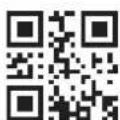
The two-dimensional bar code is a manufacturing code.