U32H750UMM - Monitor SAMSUNG - Free user manual and instructions
Find the device manual for free U32H750UMM SAMSUNG in PDF.


User questions about U32H750UMM SAMSUNG
0 question about this device. Answer the ones you know or ask your own.
Ask a new question about this device
Download the instructions for your Monitor in PDF format for free! Find your manual U32H750UMM - SAMSUNG and take your electronic device back in hand. On this page are published all the documents necessary for the use of your device. U32H750UMM by SAMSUNG.
USER MANUAL U32H750UMM SAMSUNG
The color and the appearance may differ depending on the product, and the specifications are subject to change without prior notice to improve the performance.
The contents of this manual are subject to change without notice to improve quality.
© Samsung Electronics
Samsung Electronics owns the copyright for this manual.
Use or reproduction of this manual in parts or entirety without the authorization of Samsung Electronics is prohibited.
Trademarks other than that of Samsung Electronics are owned by their respective owners.
• An administration fee may be charged if either
- (a) an engineer is called out at your request and there is no defect in the product (i.e. where you have failed to read this user manual).
- (b) you bring the unit to a repair center and there is no defect in the product (i.e. where you have failed to read this user manual).
• The amount of such administration charge will be advised to you before any work or home visit is carried out.
Table of contents
Before Using the Product
| Securing the Installation Space 4 | |
| Precautions for storage 4 | |
| Safety Precautions 4 | |
| Cleaning | 5 |
| Electricity and Safety 5 | |
| Installation | 6 |
| Operation | 7 |
Preparations
| Parts | 10 |
| Control Panel 10 | |
| Direct Key guide 11 | |
| Function Key Guide 12 | |
| Configuring Eye Saver Mode, Brightness and Contrast from the Initial Screen 14 | |
| Changing the Volume setting 14 | |
| Reverse Side 15 | |
| Adjusting the Product Tilt and Height 16 | |
| Rotating the Monitor Screen (U32H750UM* / U32H850UM*) | 16 |
| Rotating the monitor (U32H750UM* / U32H850UM*) | 17 |
| Anti-theft Lock 17 | |
| Precautions for moving the monitor 18 | |
| MagicRotation Auto (U32H750UM* / U32H850UM*) | 19 |
| Installing a Wall-mount Kit or Desktop Stand (U28H750UQ*) | 20 |
| Installing a Wall-mount Kit or Desktop Stand (U32H750UM* / U32H850UM*) | 21 |
| Installation | 22 |
| Attaching the Stand (U28H750UQ*) | 22 |
| Attaching the Stand (U32H750UM* / U32H850UM*) | 23 |
| Removing the Stand (U28H750UQ*) | 24 |
| Removing the Stand (U52H750UM* / U32H850UM*) | 25 |
Connecting and Using a Source Device
| Read below before installing the monitor. | 26 |
| Connecting and Using a PC | 26 |
| Connection Using the HDMI Cable | 26 |
| Connection Using the HDMI-DVI Cable | 27 |
| Connection Using the DP Cable | 27 |
| Connection Using the MINI DP Cable (U32H750UM* / U32H850UM*) | 27 |
| Connecting to Headphones | 27 |
| Connecting the Product to a PC as a USB HUB (U32H750UM* / U32H850UM*) 28 | |
| Connecting a PC to the Product | 28 |
| Utilizing the Product as a USB HUB | 28 |
| Connecting the Power (U28H750UQ*) | 29 |
| Connecting the Power (U32H750UM* / U32H850UM*) | 29 |
| Tidying Up the Connected Cables (U28H750UQ*) | 30 |
| Tidying Up the Connected Cables (U32H750UM* / U32H850UM*) | 31 |
| Correct posture to use the product 32 | |
| Driver Installation | 32 |
| Setting Optimum Resolution | 32 |
Screen Setup
| SAMSUNG MAGIC Bright | 33 |
| Black Equalizer | 34 |
| Brightness | 34 |
| Contrast | 34 |
| Sharpness | 34 |
| Color | 35 |
| SAMSUNG MAGIC Angle (U28H750UQ*) | 35 |
| HDMI Black Level | 36 |
| Eye Saver Mode | 36 |
| Game Mode | 36 |
| Response Time | 36 |
| Picture Size | 37 |
| Screen Adjustment | 37 |
| Calibration Report(U32H750UM* / U32H850UM*) 37 | |
Table of contents
Configuring the PIP/PBP Settings
| PIP/PBP Mode | 38 |
| Size | 39 |
| Position | 39 |
| Sound Source | 39 |
| Source | 40 |
| Picture Size | 40 |
| Contrast | 41 |
Adjusting OSD (On Screen Display) settings
| Transparency | 42 |
| Language | 42 |
| Display Time | 42 |
Setup and Reset
| FreeSync | 43 |
| Eco Saving Plus | 45 |
| Off Timer Plus | 45 |
| USB Super Charging (U32H750UM* / U32H850UM*) | 45 |
| PC/AV Mode | 46 |
| DisplayPort Ver. | 46 |
| Source Detection | 46 |
| Key Repeat Time | 46 |
| Power LED On | 46 |
| Reset All | 46 |
| Information | 47 |
Installing the Software
| Easy Setting Box 48 |
| Restrictions and Problems with the Installation 48 |
| System Requirements 48 |
Updating the Software via USB (U32H750UM* / U32H850UM*) 48
Troubleshooting Guide
| Requirements Before Contacting SamsungCustomer Service Center 49Testing the Product 49Checking the Resolution and Frequency 49Check the following. 49 |
| Q & A 51 |
Specifications
| General | 52 |
| Standard Signal Mode Table 53 | |
Appendix
| Responsibility for the Pay Service (Cost to Customers) | 57 |
| Not a product defect 57 | |
| A Product damage caused by customer's fault 57 | |
| Others | 57 |
| Extended warranty (U*H85* model only) 58 |
Chapter 01 Before Using the Product
Securing the Installation Space
Ensure some space around the product for ventilation. An internal temperature rise may cause fire and damage the product. Be sure to allow the amount of space as shown below or greater when installing the product.
The exterior may differ depending on the product.
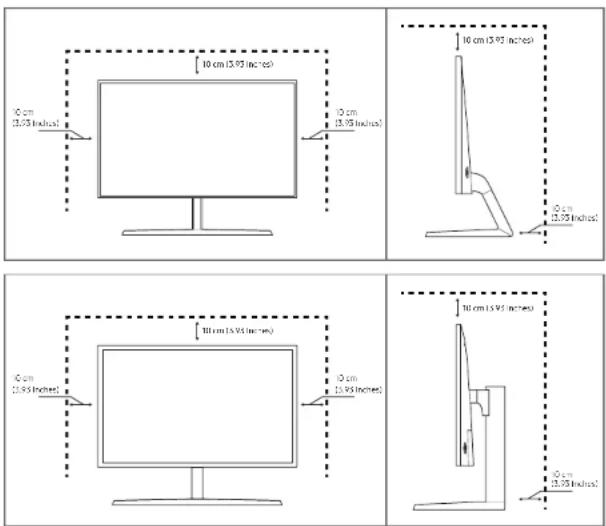
Precautions for storage
High-glossy models can develop white stains on the surface if an ultrasonic wave humidifier is used nearby.
Contact your nearest Samsung Customer Service Center if you want to clean the inside of the product (Service fee will be charged.)
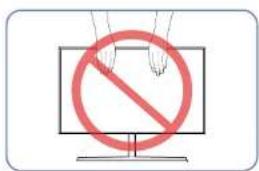
Do not press the monitor screen with hands or other objects. There is a risk of damaging the screen.
Safety Precautions
Warning
Caution
A serious or fatal injury may result if instructions are not followed.
Personal injury or damage to properties may result if instructions are not followed.
Cleaning
Exercise care when cleaning as the panel and exterior of advanced LCDs are easily scratched.
Take the following steps when cleaning.
1 Power off the product and computer.
2 Disconnect the power cord from the product.
Fold the power cable by the plug and do not touch the cable with wet hands. Otherwise, an electric shock may result.
3 Wipe the monitor with a clean, soft and dry cloth.
- Do not apply a cleaning agent that contains alcohol, solvent, or surfactant to the monitor.
Do not spray water or detergent directly on the product.
4 Wet a soft and dry cloth in water and wring thoroughly to clean the exterior of the product.
5 Connect the power cord to the product when cleaning is finished.
6 Power on the product and computer.
Electricity and Safety
Warning
- Do not use a damaged power cord or plug, or a loose power socket.
- Do not use multiple products with a single power socket.
- Do not touch the power plug with wet hands.
- Insert the power plug all the way in so it is not loose.
- Connect the power plug to a grounded power socket (type 1 insulated devices only).
- Do not bend or pull the power cord with force. Be careful not to leave the power cord under a heavy object.
- Do not place the power cord or product near heat sources.
- Clean any dust around the pins of the power plug or the power socket with a dry cloth.
Caution
- Do not disconnect the power cord while the product is being used.
- Only use the power cord provided with your product by Samsung. Do not use the power cord with other products.
- Keep the power socket where the power cord is connected unobstructed.
- The power cord must be disconnected to cut off power to the product when an issue occurs.
- Hold the plug when disconnecting the power cord from the power socket.
Installation
Warning
- DO NOT PLACE CANDLES, INSECT REPELLANTS OR CIGARETTES ON TOP OF THE PRODUCT. DO NOT INSTALL THE PRODUCT NEAR HEAT SOURCES.
- Do not install the product in poorly ventilated spaces such as a bookcase or closet.
• Install the product at least 10 cm away from the wall to allow ventilation. - Keep the plastic packaging out of the reach of children.
Children may suffocate. - Do not install the product on an unstable or vibrating surface (insecure shelf, sloped surface, etc.)
– The product may fall and become damaged and/or cause an injury. - Using the product in an area with excess vibration may damage the product or cause a fire.
- Do not install the product in a vehicle or a place exposed to dust, moisture (water drips, etc.), oil, or smoke.
- Do not expose the product to direct sunlight, heat, or a hot object such as a stove.
– The product lifespan may be reduced or a fire may result. - Do not install the product within the reach of young children.
– The product may fall and injure children. - Edible oil (such as soybean oil) may damage or distort the product. Keep the product away from oil pollution. And do not install or use the product in the kitchen or near the kitchen stove.
Caution
- Do not drop the product while moving.
- Do not set down the product on its front.
- When installing the product on a cabinet or shelf, make sure that the bottom edge of the front of the product is not protruding.
– The product may fall and become damaged and/or cause an injury. - Install the product only on cabinets or shelves of the right size.
- Set down the product gently.
– Product failure or personal injury may result. - Installing the product in an unusual place (a place exposed to a lot of fine dust, chemical substances, extreme temperatures or a significant presence of moisture, or a place where the product will operate continuously for an extended period of time) may seriously affect its performance.
- Be sure to consult Samsung Customer Service Center if you want to install the product at such a place.
Operation
Warning
- There is a high voltage inside the product. Never disassemble, repair or modify the product yourself.
Contact Samsung Customer Service Center for repairs.
• To move the product, first disconnect all the cables from it, including the power cable. - If the product generates abnormal sounds, a burning smell or smoke, disconnect the power cord Immediately and contact Samsung Customer Service Center.
- Do not let children hang from the product or climb on top of it.
– Children may become injured or seriously harmed. - If the product is dropped or the outer case is damaged, turn off the power and disconnect the power cord. Then contact Samsung Customer Service Center.
- Continued use can result in a fire or electric shock.
- Do not leave heavy objects or items that children like (toys, sweets, etc.) on top of the product.
- The product or heavy objects may fall as children try to reach for the toys or sweets resulting in a serious injury.
- During a lightning or thunderstorm, power off the product and remove the power cable.
- Do not drop objects on the product or apply impact.
- Do not move the product by pulling the power cord or any cable.
- If a gas leakage is found, do not touch the product or power plug. Also, ventilate the area immediately.
- Do not lift or move the product by pulling the power cord or any cable.
- Do not use or keep combustible spray or an inflammable substance near the product.
- Ensure the vents are not blocked by tablecloths or curtains.
– An increased internal temperature may cause a fire.
- Do not insert metallic objects (chopsticks, coins, hairpins, etc) or objects that burn easily (paper, matches, etc) into the product (via the vent or input/output ports, etc).
- Be sure to power off the product and disconnect the power cord when water or other foreign substances have entered the product. Then contact Samsung Customer Service Center.
- Do not place objects containing liquid (vases, pots, bottles, etc) or metallic objects on top of the product.
- Be sure to power off the product and disconnect the power cord when water or other foreign substances have entered the product. Then contact Samsung Customer Service Center.
Caution
- Leaving the screen fixed on a stationary image for an extended period of time may cause afterimage burn-in or defective pixels.
- Activate power-saving mode or a moving-picture screen saver if you will not be using the product for an extended period of time.
- Disconnect the power cord from the power socket if you do not plan on using the product for an extended period of time (vacation, etc).
- Dust accumulation combined with heat can cause a fire, electric shock or electric leakage.
• Use the product at the recommended resolution and frequency. - Your eyesight may deteriorate.
- Do not put AC/DC adapters together.
- Remove the plastic bag from the AC/DC adapter before you use it.
- Do not let water enter the AC/DC adapter device or get the device wet.
– An electric shock or fire may result. - Avoid using the product outdoors where it can be exposed to rain or snow.
- Be careful not to get the AC/DC adapter wet when you wash the floor.
- Do not put the AC/DC adapter near to any heating apparatus.
– Otherwise, a fire may result. - Keep the AC/DC adapter in a well-ventilated area.
-
If you place the AC/DC power adapter so that it is hanging with the cord input facing upwards, water or other foreign substances could enter the Adapter and cause the Adapter to malfunction. Make sure to rest the AC/DC power adapter flat on a table or the floor.
-
Insert the power plug into the AC/DC adapter until a click sound is heard.
- Do not insert only the power plug into the power outlet.
- Do not use an AC/DC adapter other than the provided one.
– It may cause electric shock or fire. - Do not insert the AC/DC adapter into the power outlet on the ceiling.
– It may cause electric shock or fire. - Rotate the power plug not to exceed the range (0 to 90^ ) on the AC/DC adapter.
– It may cause electric shock or fire. - Never diassemble the power plug after being assembled. (It cannot be separated after assembly.)
- Never use the provided power plug for other devices.
- When removing the AC/DC adapter from the power outlet, hold the body of AC/DC adapter and pull it up.
– It may cause electric shock or fire. -
Do not drop any objects or apply shock on the AC/DC adapter.
– It may cause electric shock or fire.
• Use the AC/DC adapter after removing its plastic cover.
– Otherwise, this may result fire. -
Do not hold the product upside-down or move it by holding the stand.
– The product may fall and become damaged or cause an injury. - Looking at the screen too close for an extended period of time can deteriorate your eyesight.
- Do not use humidifiers or stoves around the product.
- Rest your eyes for more than 5 minutes or look at distance objects for every 1 hour of product use.
- Do not touch the screen when the product has been turned on for an extended period of time as it will become hot.
• Store small accessories out of the reach of children.
• Exercise caution when adjusting the product angle or stand height. - Your hand or finger may get stuck and injured.
- Tilting the product at an excessive angle may cause the product to fall and an injury may result.
- Do not place heavy objects on the product.
– Product failure or personal injury may result. - When using headphones or earphones, do not turn the volume too high.
– Having the sound too loud may damage your hearing.
Chapter 02 Preparations
Parts
Control Panel
The color and shape of parts may differ from what is shown. Specifications are subject to change without notice to improve quality.

text_image
Power LED JOG Button UP LEFT PRESS(ENTER) DOWN RIGHT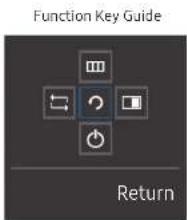
text_image
Function Key Guide ReturnIcons Description
| JOG Button | Multi directional button that helps navigate.The JOG button is located on the rear left side of the product. The button can be used to move up, down, left or right, or as Enter. |
| Power LED | This LED Is power status indicator and works as• Power On (Power button): Off• Power saving mode: Blinking• Power Off (Power button): OnThe power indicator operation can be swapped by changing in the menu. (System → Power LED On) Actual models because of functional variation maybe haven't this function. |
| Function Key Guide | Press the JOG button when the screen is turned on. The Function Key Guide will appear. To access the onscreen menu when the guide is displayed, press the corresponding direction button again.Function Key Guide may vary depending on the function or product model. Please refer to the actual product. |
Direct Key guide
The shortcut button screen (OSD menu) shown below is displayed only when the monitor screen is turned on, the computer resolution changes, or the input source changes.

text_image
Eye Saver Mode Volume Features Eye Saver ModeOff• UP/DOWN: Adjust Brightness, Contrast, Eye Saver Mode.
• LEFT/RIGHT: Adjust Volume.
- PRESS(ENTER): Display Function Key Guide.
Function Key Guide
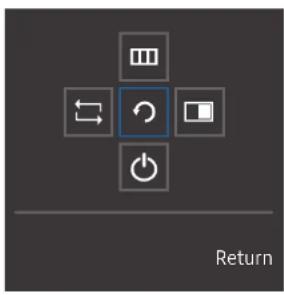
To enter the main menu or to use other items, press the JOG button to display the Function Key Guide. You can exit by pressing the JOG button again.
text_image
ReturnUP/DOWN/LEFT/RIGHT: Move to the item you want. The description for each item will appear when the focus changes. PRESS(ENTER): The selected item will be applied.
Icons Description
| [XDDA] | Selects to change the input signal by moving the JOG button in the Function Key Guide screen. A message will appear on the top left corner of the screen if the input signal has been changed. |
| [4X9Z] | Selects moving the JOG button in the function key guide screen.The OSD (On Screen Display) of your Monitor's feature appears.OSD control lock: Maintain the current settings, or lock the OSD control to prevent unintended changes to settings.Enable/Disable: To lock/unlock the OSD control, press the LEFT button for 10 seconds when the main menu displayed.If the OSD control is locked,Brightness and Contrast can be adjusted.PIP/PBP is available.Eye Saver Mode is available.Information can be viewed. |
 | Selects moving the JOG button in the function key guide screen.Press the button when configuring settings for the PIP/PBP function is required. |
| [TSY8] | Selects turn the Monitor off by moving the JOG button in the function key guide screen. |
Actual models because of functional variation, Function key guide options will be different.
When the monitor displays nothing (i.e. Power saving mode or Non-signal mode), 2 direct keys for control source and power could be used as below.
JOG Button Power saving/Non-signal mode
| UP | Source Change |
| Down | |
| PRESS(ENTER) for 2 seconds | Power Off |
When the monitor displays the Main menu the JOG Button could be used as below.
JOG Button Action
| UP/DOWN | Move the option |
| LEFT | Exit the Main menu. Close Sublist without saving value. Value decreases in the slider. |
| RIGHT | Move to next depth. Value increases in the slider. |
| PRESS(ENTER) | Move to next depth. Save the value and close Sublist. |
Configuring Eye Saver Mode, Brightness and Contrast from the Initial Screen
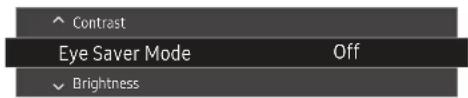
Adjust the Brightness, Contrast and Eye Saver Mode by moving the JOG button.
text_image
Contrast Eye Saver Mode Off BrightnessThe displayed image may differ depending on the model.
The default brightness can vary depending on the region.
Eye Saver Mode
Not available when PIP/PBP Mode is set to On.
Brightness
This menu is not available when MAGICBright is set to Dynamic Contrast mode.
This menu is not available when Eco Saving Plus is enabled.
This menu is not available when Eye Saver Mode is enabled.
Contrast
This menu is not available when SANSUNG MAGIC Bright is in Cinema or Dynamic Contrast mode.
This menu is not available when Game Mode is enabled.
This menu is not available when PIP/PBP Mode is set to On and the Size is set to ☐ (PBP Mode).
Changing the Volume setting
You can adjust Volume by moving the JOG button left or right, if no OSD menu is displayed.

The displayed image may differ depending on the model.
If the audio quality of a connected input device is poor, the Auto Mute function on the product may mute the sound or cause choppy audio when applying the headphones or speakers. Set the Input volume for the input device to at least 20% and control the volume using the volume control (JOG button LEFT/RIGHT) on the product.
What is Auto Mute?
The function mutes the audio to improve sound effect when there is sound noise or when the input signal is weak, usually due to a problem with the volume of an input device.
To activate the Mute function, access the Volume control screen, then use the JOG button to move the focus down. To deactivate the Mute function, access the Volume control screen, then increase or decrease the Volume.
Reverse Side
The functions available may vary depending on the product model. The color and shape of parts may differ from what is shown. Specifications are subject to change without notice to improve quality. Refer to the actual product:
Port Description
| HDMI IN 1 HDMI IN 2 | Connects to a source device using an HDMI cable or HDMI-DVI cable.HDMI1 support 3840 x 2160 @ 30 HzHDMI2 support 3840 x 2160 @ 60 Hz |
| DP IN | Connects to a PC using a DP cable. |
| Connect to an audio output device such as headphones.The sound could only be heard when using the HDMI to HDMI cable or DP cable. | |
| MINI DP IN | Connects to a PC using a MINI DP cable.(U32H750UM* / U32H850UM* model only) |
| DC19V | Connects to the AC/DC adapter.(U28H750UQ* model only) |
Port Description
| POWER IN | Connect the power cord for your monitor to the POWER IN port on the back of the product. 32H750UM^* / U32H850UM^* model only\ |
| Connect to a USB device.Super charging is possible using the SS 1 and SS 2 ports only.These ports charge devices faster than typical USB ports. The speed depends on the connected devices. 32H750UM^* / U32H850UM^* model only\ | |
| SS (PC IN) | Connects to a PC using a USB cable. Compatible with a USB cable version 3.0 or lower.This port can only connect to a PC. 32H750UM^* / U32H850UM^* model only\ |
Adjusting the Product Tilt and Height
The color and shape of parts may differ from what is shown. Specifications are subject to change without notice to improve quality.
U28H750UQ*

text_image
-1.0° (-2.0°, +1.0°) ~ 20.0° (+2.0°)U32H750UM*/U32H850UM*

text_image
-30.0° (±2.0°) ~ 30.0° (±2.0°) -5.0° (±2.0°) ~ 24.0° (±2.0°) 0 ~ 135.0 mm (±5.0 mm)• The monitor tilt and height can be adjusted.
- Hold the lower part of the product and adjust the tilt carefully.
- When adjusting the stand height, you may hear a noise. This noise is generated because the ball inside the stand slides when the stand height is adjusted. It is a normal noise and not a product malfunction.
Rotating the Monitor Screen (U32H750UM\* / U32H850UM\*)
You can rotate your monitor as shown below.
The color and shape of parts may differ from what is shown. Specifications are subject to change without notice to improve quality.

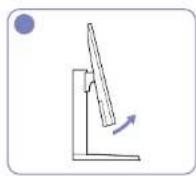
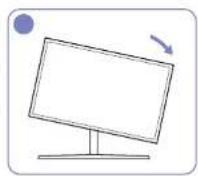
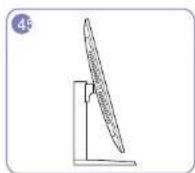
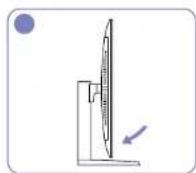
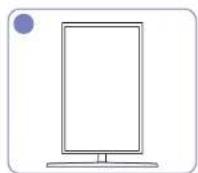
- Adjust the screen following the arrow direction.
- Rotate the screen in clockwise direction till it becomes completely vertical to the desktop.
- The monitor may get damaged if you rotate the screen without tilt, or counter clockwise direction.
Rotating the monitor (U32H750UM\* / U32H850UM\*)
When rotating the monitor, the rotation angle is displayed on the monitor screen.
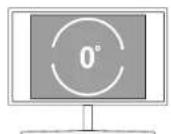
0°
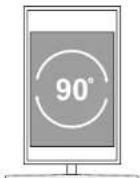
90°
The on-screen display (OSD) menu items will automatically rotate when the screen rotates.

flowchart
graph TD
    A["Computer monitor with icons"] -->|Rotation| B["Desktop monitor with icons"]
    style A fill:#f9f,stroke:#333
    style B fill:#bbf,stroke:#333
Caution
1 If the MagicRotation Auto software is not installed on the monitor, screen content will not automatically rotate. The OSD can still rotate by 90° and display properly.
2 Once rotated, the OSD may appear in a different view mode from the mode before it was rotated.
Anti-theft Lock
An anti-theft lock allows you to use the product securely even in public places. The locking device shape and locking method depend on the manufacturer. Refer to the user guide provided with your anti-theft locking device for details.
To lock an anti-theft locking device:
U28H750UQ* U32H750UM* / U32H850UM*

1 Fix the cable of your anti-theft locking device to a heavy object such as a desk.
2 Put one end of the cable through the loop on the other end.
3 Insert the locking device into the anti-theft lock slot at the back of the product.
4 Lock the locking device.
- An anti-theft locking device can be purchased separately.
- Refer to the user guide provided with your anti-theft locking device for details.
- Anti-theft locking devices can be purchased at electronics retailers or online.
Precautions for moving the monitor
text_image
Prohibition sign with red prohibition symbol over a monitor, likely indicating no smoking or anti-smoking behavior• Do not directly apply pressure on the screen.
- Do not hold the screen when moving the monitor.
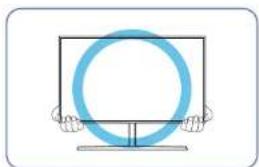
natural_image
Simple line drawing of a blue circular ring held by two hands, no text or symbols present- Hold the lower corners or edges of the monitor when moving it.

text_image
Safety warning sign with red prohibition symbol and Chinese character 'E' inside a frameDo not hold the product upside down only by the stand.
MagicRotation Auto (U32H750UM\* / U32H850UM\*)
The MagicRotation Auto function detects the rotation of monitors that are fitted with a rotation sensor and rotates the Windows screen accordingly. Software Installation
1 Insert the user manual CD provided with the product into the CD-ROM drive.
2 Follow the instructions given on the screen to proceed with installation.
After installation, the application menu language will be displayed in the language of the operating system. (This complies with the basic policies of Windows.)
Caution
1 Compatible only with Windows 7 (32 bit or 64 bit), Windows 8 (32 bit or 64 bit), Windows 8.1 (32 bit or 64 bit) and Windows 10 (32 bit or 64 bit).
2 Compatible with graphics cards that comply with the DDC/CI and MS API standards. The MagicRotation Auto function may not be available for graphics cards that do not comply with the aforementioned standards.
3 To maximize the performance of the function, update the graphics card driver to the latest version.
4 Fourteen languages are available as installation languages.
English, Français, Deutsch, Magyar, Italiano, Polski, Português Русский, Español, Svenska, Türkçe, 日本語, 汉语, 한국어
5 If the orientation is set to a mode other than "Landscape" in the screen resolution menu on Windows OS, the MagicRotation Auto function may not work properly.
6 The OSD menu will be displayed if the monitor is rotated. When the monitor is rotated, the screen reconfiguration process may be displayed or screen burn-in may appear, depending on the graphics card. This is performed by the Windows operating system and has nothing to do with the product.
7 If you do not want the screen to rotate automatically when the monitor is rotated, press the Windows and L keys at the same time to lock the Windows operating system. This is a limitation of the Windows API.
Installing a Wall-mount Kit or Desktop Stand (U28H750UQ\*)
Power the product off and remove the power cable from the power socket.
text_image
Diagram of a device with labeled components and an arrow pointing to component A
text_image
Technical diagram showing a device with labeled components and directional arrows indicating flow or movement.
text_image
Diagram of a device with labeled components and an arrow indicating direction, marked with letter B.
natural_image
Technical line drawing of a mechanical component with mounting bracket and mounting holes (no text or symbols)A Attach the wall-mount kit or desktop stand here
B Bracket (sold separately)
Align the grooves and tightly fasten the screws on the bracket on the product with the corresponding parts on the wall-mount kit or desktop stand you want to attach.
- Notes
- Using a screw longer than the standard length can damage the internal components of the product.
- The length of screws required for a wall mount that does not comply with the VESA standards may vary depending on the specifications.
- Do not use screws that do not comply with the VESA standards. Do not attach the wall-mount kit or desktop stand using excessive force. The product may get damaged or fall and cause personal injury. Samsung shall not be held liable for any damage or injury caused by using improper screws or attaching the wall-mount kit or desktop stand using excessive force.
- Samsung shall not be held liable for any product damage or personal injury caused by using a wall-mount kit other than the one specified or from an attempt to install the wall-mount kit on your own.
- To mount the product on a wall, ensure you purchase a wall-mount kit that can be installed 10 cm or farther away from the wall.
- Be sure to use a wall-mount kit that complies with the standards.
- To install the monitor using a wall mount, disconnect the stand base from the monitor.
Unit: mm (inches)
Model name VESA screw hole specs (A * B) in millimeters
Standard Screw Quantity
| U28H750UQ* 100.0 x 100.0 (3.9 x 3.9) | 4.0 mm Φ, 0.7 pitch × 10.0 mm long | 4 EA |
Do not install your Wall Mount Kit while your product is turned on. It may result in personal injury due to electric shock.
Installing a Wall-mount Kit or Desktop Stand (U32H750UM\* / U32H850UM\*)
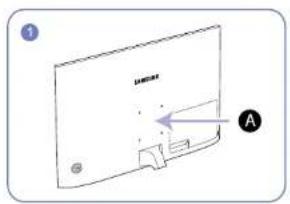
Power the product off and remove the power cable from the power socket.

text_image
Diagram of a CD-ROM drive showing front panel and rear panel with labeled component A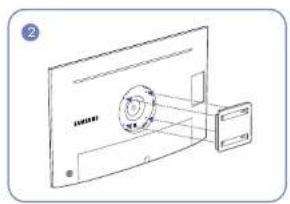
natural_image
Diagram of a device with a circular component and connecting lines, no visible text or symbols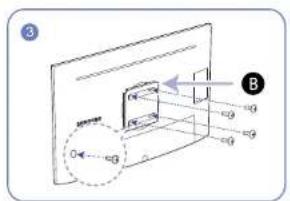
text_image
Diagram showing a device with labeled components and directional arrows, including a magnified view labeled 'B'.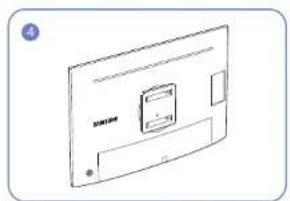
text_image
Diagram of a device front panel with labeled components and directional arrowsA Attach the wall-mount kit or desktop stand here
B Bracket (sold separately)
Align the grooves and tightly fasten the screws on the bracket on the product with the corresponding parts on the wall-mount kit or desktop stand you want to attach.
- Notes
- Using a screw longer than the standard length can damage the internal components of the product.
- The length of screws required for a wall mount that does not comply with the VESA standards may vary depending on the specifications.
- Do not use screws that do not comply with the VESA standards. Do not attach the wall-mount kit or desktop stand using excessive force. The product may get damaged or fall and cause personal injury. Samsung shall not be held liable for any damage or injury caused by using improper screws or attaching the wall-mount kit or desktop stand using excessive force.
- Samsung shall not be held liable for any product damage or personal injury caused by using a wall-mount kit other than the one specified or from an attempt to install the wall-mount kit on your own.
- To mount the product on a wall, ensure you purchase a wall-mount kit that can be installed 10 cm or farther away from the wall.
- Be sure to use a wall-mount kit that complies with the standards.
- To install the monitor using a wall mount, disconnect the stand base from the monitor.
Unit: mm (inches)
Model name VESA screw hole specs (A * B) in millimeters Standard Screw Quantity
| U32H750UM*/ U32H850UM* | 100.0 x 100.0 (3.9 x 3.9) | 4.0 mm Φ, 0.7 pitch × 10.0 mm long | 4 EA |
Do not install your Wall Mount Kit while your product is turned on. It may result in personal injury due to electric shock.
Installation
Attaching the Stand (U28H750UQ\*)
Before assembling the product, place the product down on a flat and stable surface so that the screen is facing downwards. The exterior may differ depending on the product.
natural_image
Simple line drawing of a mechanical component with a handle and base, no text or symbols presentInsert the stand neck into the stand base in the direction shown in the figure.

natural_image
Simple line drawing of a Y-shaped object with a protruding rod, placed on a grid background (no text or symbols)Check that the stand neck is firmly connected. Tightly fasten the connecting screw at the bottom of the stand base.

natural_image
Diagram of a medical or laboratory apparatus with two legs and a small inset showing a hand tool interacting with a cup (no text or symbols present)ly fasten the connecting screw at the bottom of the stand base.
natural_image
Isometric line drawing of a rectangular electronic component with internal structure (no text or symbols)Place the protective Styrofoam (cushion) included in the package on the floor and place the product facing down on the Styrofoam, as shown in the image.
If Styrofoam is unavailable, use a thick sitting mat.
natural_image
Line drawing of a hand using a tool to cut or adjust a component on a flat surface (no text or symbols)Hold the main body of the product with your hand as shown by the figure. Push the assembled stand into the main body in the direction of the arrow as shown in the figure.
natural_image
Technical line drawing of a mechanical component with a handle and base plate (no text or symbols)Install the COVER-REAR SUB after the power supply and the data cable are connected.
text_image
Prohibition sign with red prohibition symbol over a device diagram, indicating no use or absence of a device.Caution
Do not press down on the monitor. There is a risk of damaging the monitor.
Attaching the Stand (U32H750UM\* / U32H850UM\*)
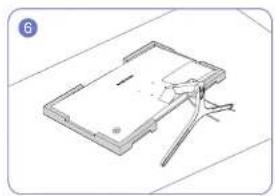
Before assembling the product, place the product down on a flat and stable surface so that the screen is facing downwards.
The exterior may differ depending on the product.
natural_image
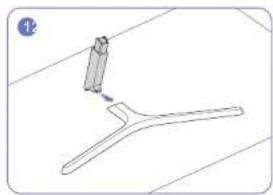
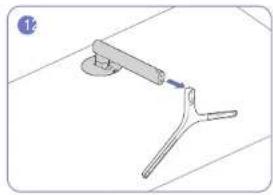
Mechanical tool diagram showing a lever and handle assembly (no text or symbols)Insert the stand neck into the stand base in the direction shown in the figure.
natural_image
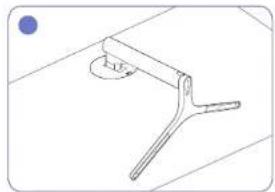
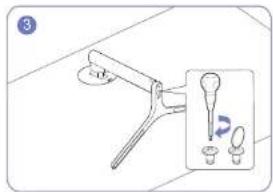
Simple line drawing of a mechanical clamp or bracket with a circular base and handle (no text or symbols)Check that the stand neck is firmly connected. Tightly fasten the connecting screw at the bottom of the stand base.
natural_image
Illustration of a dental tool with a magnified inset showing two small objects (no text or symbols)ly fasten the connecting screw at the bottom of the stand base.

natural_image
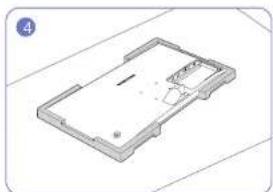
Isometric line drawing of a rectangular electronic device casing with internal components (no text or symbols)Place the protective Styrofoam (cushion) included in the package on the floor and place the product facing down on the Styrofoam, as shown in the image.
If Styrofoam is unavailable, use a thick sitting mat.

natural_image
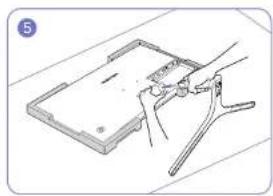
Technical line drawing of a mechanical assembly with a circular component inserted into a housing (no text or symbols)Place the stand neck of the display on the device as per the positions of the fasteners.

natural_image
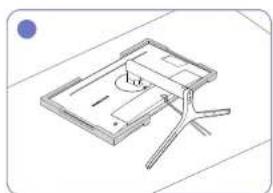
Isometric line drawing of a mechanical device with a curved blue line and circular component, no text or symbols presentTurn the stand neck of the display clockwise for 90° to ensure that the stand neck of the display is put into place.
natural_image
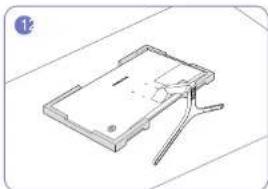
Technical line drawing of a mechanical assembly with a circular component and intersecting rods (no text or symbols)Install the COVER-REAR SUB after the power supply and the data cable are connected.
text_image
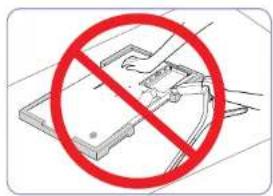
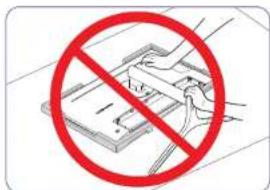
Prohibition sign with crossed-out document and 'No Entry' symbol, indicating no entry or exit of the document.- Caution
Do not press down on the monitor. There is a risk of damaging the monitor.
Removing the Stand (U28H750UQ\*)
Before removing the stand from the monitor, place the monitor on a flat and stable surface with the screen facing down.
The exterior may differ depending on the product.
natural_image
Technical line drawing of a mechanical component with a handle and base (no text or symbols)Place the protective Styrofoam (cushion) included in the package on the floor and place the product facing down on the Styrofoam, as shown in the image.
If Styrofoam is unavailable, use a thick sitting mat.
natural_image
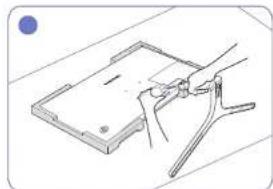
Illustration of a hand holding a tool over a flat plate (no text or symbols)To disassemble the stand from the monitor, make sure to press the lower part of the monitor with one hand, and pull and sway sideways the stand with the other hand, as shown in the picture.
natural_image
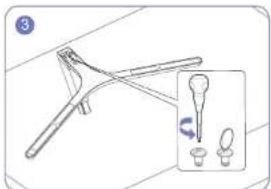
Illustration of a fork and spoon with an inset showing a droplet on a small object (no text or symbols)Turn the connecting screw at the bottom of the stand base to separate it.

natural_image
Simple line drawing of a mechanical component with no text or symbolsRemove the stand neck from the stand base by pulling it in the direction of the arrow as shown in the figure.
text_image
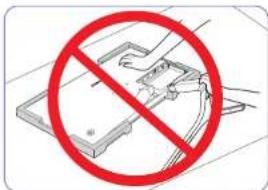
Prohibition sign with red prohibition symbol over a device diagram, indicating no use or absence of a device.- Caution
Do not press down on the monitor. There is a risk of damaging the monitor.
(1) 2017年1月1日
Removing the Stand (U32H750UM\* / U32H850UM\*)
Before removing the stand from the monitor, place the monitor on a flat and stable surface with the screen facing down.
The exterior may differ depending on the product.

natural_image
Technical line drawing of a mechanical component with a curved handle and central slot (no text or symbols)Place the protective Styrofoam (cushion) included in the package on the floor and place the product facing down on the Styrofoam, as shown in the image.
If Styrofoam is unavailable, use a thick sitting mat.

natural_image
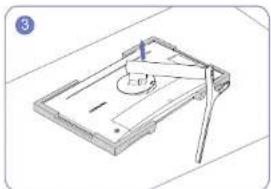
Diagram of a mechanical device with a magnified inset showing internal components (no text or symbols)Push the key upward and hold. Turn the stand neck of the display counterclockwise for 10°.
natural_image
Isometric line drawing of a mechanical device with a central circular component and support bracket (no text or symbols)After turning the stand neck of the display counterclockwise for 10°, lift the stand neck to detach it from the device.
text_image
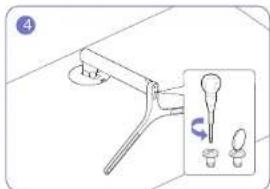
Diagram showing a mechanical lever with a labeled component and a separate inset showing two small components.Turn the connecting screw at the bottom of the stand base to separate it.

natural_image
Technical line drawing of a mechanical clamp or tool with a base and handle (no text or symbols)Remove the stand neck from the stand base by pulling it in the direction of the arrow as shown in the figure.
text_image
Prohibition sign with crossed-out document and magnifying glass, indicating no text or symbols beyond the red prohibition symbol- Caution
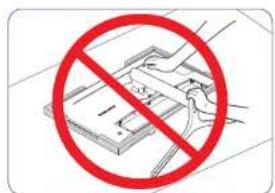
Do not press down on the monitor. There is a risk of damaging the monitor.
Chapter 03
Connecting and Using a Source Device
Read below before installing the monitor.
1 Check the shapes of both ends of the cables that came with the monitor, and check the shapes and positions of the matching ports on the monitor and external devices.
2 Before connecting signal cables, disconnect the power cables for the monitor and external devices from the power outlet to prevent device damage from a short circuit or overcurrent.
3 After connecting all signal cables, connect the power cables for the monitor and external devices to the power outlet.
4 Read the user manual to familiarize yourself with the monitor functions, precautions, and proper use, before using the installed monitor.
Connecting and Using a PC
Select a connection method suitable for your PC. Connecting parts may differ in different products. Provided ports may vary depending on the product.
Connection Using the HDMI Cable

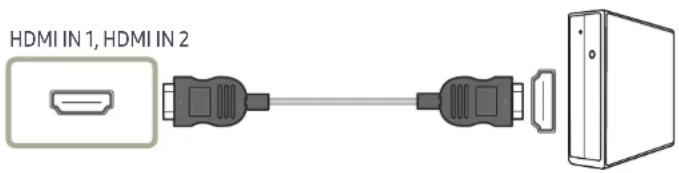
Check to make sure that the power cables for the monitor and external devices, such as computers and set-top boxes, are not connected to the power outlet.
text_image
HDMI IN 1, HDMI IN 2To display 3840 x 2160 @ 30 Hz, use an HDMI cable that supports 3840 x 2160 @ 30 Hz to connect HDMI. Make sure that the graphics card of the HDMI source supports 3840 x 2160 @ 30 Hz.
To display 3840 x 2160 @ 60 Hz, use an HDMI cable that supports 3840 x 2160 @ 60 Hz to connect HDMI2. Make sure that the graphics card of the HDMI source supports 3840 x 2160 @ 60 Hz.
When connecting an HDMI cable, use the cable that came with the components of the monitor. If you use an HDMI cable other than provided by Samsung, the image quality may be degraded.
Connection Using the HDMI-DVI Cable

Check to make sure that the power cables for the monitor and external devices, such as computers and set-top boxes, are not connected to the power outlet.
HDMI IN 1, HDMI IN 2

natural_image
Diagram showing connection between a port, connector, and server (no text or symbols)The audio function is not supported if the source device is connected using the HDMI-DVI cable.
The optimum resolution may not be available with an HDMI-DVI cable.
Connection Using the DP Cable

Check to make sure that the power cables for the monitor and external devices, such as computers and set-top boxes, are not connected to the power outlet.
DP IN

natural_image
Diagram showing two connected USB connectors with a separate device on the right (no text or symbols)To display 3840 x 2160 @ 60 Hz, use a DP cable that supports 3840 x 2160 @ 60 Hz. Make sure that the graphics card of the DP source supports 3840 x 2160 @ 60 Hz.
Connection Using the MINI DP Cable (U32H750UM\* / U32H850UM\*)

Check to make sure that the power cables for the monitor and external devices, such as computers and set-top boxes, are not connected to the power outlet.

text_image
MINI DP INTo display 3840 x 2160 @ 60 Hz, use a MINI DP cable that supports 3840 x 2160 @ 60 Hz. Make sure that the graphics card of the MINI DP source supports 3840 x 2160 @ 60 Hz.
The DisplayPort and MiniDP can't be identified at the same time, so if the DisplayPort or MiniDP not as a source the PC may not be able to identify.
Connecting to Headphones

natural_image
Diagram showing audio equipment connected via a cable to a flathead ear (no text or symbols present)Connecting the Product to a PC as a USB HUB (U32H750UM\* / U32H850UM\*)
Connecting a PC to the Product
The product can function as a HUB by connecting to a PC via a USB cable. You can connect a source device directly to the product and control the device from the product, without having to connect the device to the PC.
To use the product as a USB hub, connect the product to a PC using a USB cable.

text_image
SS← (PC IN)Connect the USB cable to - on the back of the product and USB or the PC.
A USB 2.0 cable can be used to connect the product to a PC. However, to take full advantage of the USB 3.0 function, connect a USB 3.0 cable between the PC and the product. Ensure the PC supports USB 3.0.
Utilizing the Product as a USB HUB
Using the product as a hub, connect and use various source devices with the product at the same time. A PC cannot connect to multiple source devices at the same time as it has a limited number of input/output ports available. The HUB feature on the product will improve your work efficiency by allowing you to connect multiple source devices to the USB ports on the product at the same time without connecting them to a PC.

flowchart
graph TD
    A["Computer Monitor"] -->|USB Port| B["USB Port"]
    B --> C["PC In"]
    C --> D["Computer Monitor"]
    D --> E["Smartphone"]
    D --> F["Desktop Computer"]
    D --> G["Mouse"]
    D --> H["Chrome"]
    style A fill:#f9f,stroke:#333
    style E fill:#ccf,stroke:#333
    style F fill:#ccf,stroke:#333
    style G fill:#ccf,stroke:#333
    style H fill:#ccf,stroke:#333
If multiple source devices are connected to the PC, the many cables around the PC may look messy. Connecting the devices directly to the product will resolve such inconvenience.
Connect a mobile device such as an MP3 player or smartphone to the product when connected to a PC. This allows you to control the device from the PC or charge the device battery.
To detect and start a USB device faster, connect the device to the USB 3.0 port on the product. The read/write rate will be affected by the USB device and your PC.
The product does not support media play. If you need to play a file in your USB device, please connect the product as a Hub to your PC and play the file on your PC.
For USB-related problems caused by OS, drive programs or software, please contact relevant suppliers.
With the launch of various USB devices on the market, we cannot guarantee that our products are matched with all USB devices.
For an external mass-storage HDD requiring external power supply, be sure to connect it to a power source.
The super charging can only be provided through ports 1 and 2. According to the USB 3.0
battery charging specification, USB1 and USB2 can support a maximum current of 1.5A. The actual current value depends on the device to be charged.
If the current is too high or an exception occurs, the over-current protection will be triggered. This is a normal setting of the product.
USB devices requiring high current may not be supported. 1 and 2 can support a maximum current of 1.5A, and 3 and 4 can support a maximum current of 1.0A.
The battery can be charged in the power-saving mode, but it cannot be charged when the product is powered off.
Charging your USB device is not possible if the power cable is disconnected from the power socket.
The USB device needs to be purchased separately.
Connecting the Power (U28H750UQ\*)
flowchart
graph TD
    A["Initial measurement device"] --> B["Step 1: Hand placement"]
    B --> C["Step 2: Detection device with internal component"]
    C --> D["Step 3: Display unit with sensor and dial indicator"]
    D --> E["Final diagnosis device"]
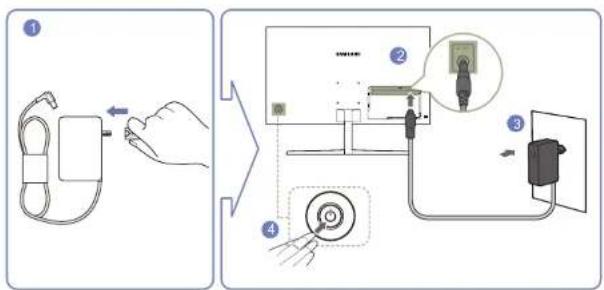
1 Connect the power plug to the AC/DC adapter.
2 Connect the AC/DC adapter cable to the DC 19V port on the back of the monitor.
3 Plug the AC/DC adapter into the power outlet.
4 Press the JOG button on the back of the monitor to turn it on.
The input voltage is switched automatically.
Connecting the Power (U32H750UM\* / U32H850UM\*)
text_image
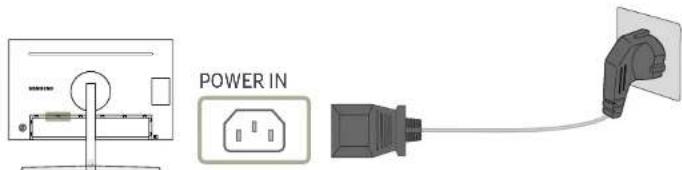
POWER INTo use the product, connect the power cable to a power outlet and the POWER IN port on the product. The input voltage is switched automatically.
Tidying Up the Connected Cables (U28H750UQ\*)
text_image
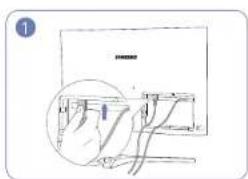
Diagram showing a hand inserting cable into a device with a magnified inset viewConnect cables to the appropriate ports.
text_image
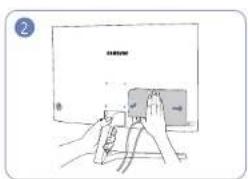
2 SARWINGrab the stand with one hand and use your other hand to close the COVER-REAR SUB in the direction of the arrow.

natural_image
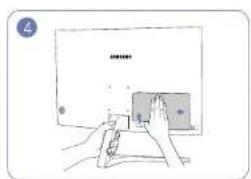
Line drawing of a computer monitor with stand and cable (no text or symbols)The cables are now tidied up. Grab the stand with one hand and use the thumb on your other hand to remove the COVER-REAR SUB in the direction of the arrow.
text_image
Diagram showing hands interacting with a device labeled 'SARMA' and a screen, likely illustrating a software interface or application.Tidying Up the Connected Cables (U32H750UM\* / U32H850UM\*)

natural_image
Line drawing of a monitor with a circular button on the screen, mounted on a stand (no text or symbols)Stand assembly is complete. Rotate the machine to the highest vertical position.

natural_image
Diagram of a mechanical device with a rotating arrow indicating rotation (no text or symbols)
natural_image
Simple line drawing of a door with a handle and circular component, no text or symbols presentConnect the corresponding cables. Arrange the cables against the bend tendency of the cables and pull the cables out of the COVER-REAR SUB grooves.
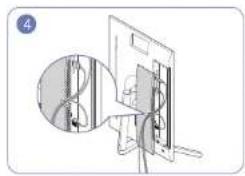
natural_image
Diagram showing a cable being inserted into a device, with no visible text or symbolsge the cables against the bend tendency of the cables and pull the cables out of the COVER-REAR SUB grooves.

text_image
Diagram showing a device with a pencil inserted into a slide, with an inset close-up highlighting the tip area.Cover the COVER-REAR SUB. When you attach the COVER-REAR SUB, please aim six ribs of the COVER- REAR SUB to the bottom holes of the COVER-REAR at first.
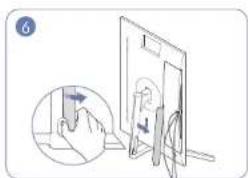
text_image
Diagram showing a hand holding a device with an arrow pointing to it, alongside a magnified view of the device's screen.Open the COVER-STAND NECK LEFT, and rotate the open part at the bottom.
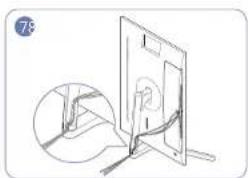
natural_image
Line drawing of a device with a magnified inset showing a cable or wire connection (no text or symbols)Place the corresponding cables into the stand-neck holder. Do not stretch the line. Three cables in one holder is recommended.

natural_image
Simple line drawing of a person sitting on a chair outside a door, with no text or symbols present.Cover the COVER-STAND NECK LEFT. Rotate the machine to the horizontal position.
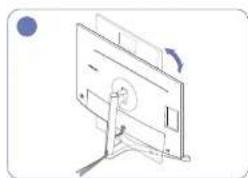
natural_image
Diagram of a monitor with an arrow indicating rotation, no text or symbols presentate the machine to the horizontal position.
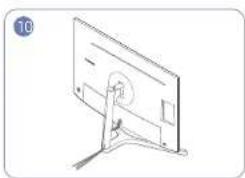
natural_image
Line drawing of a monitor mounted on a stand with a circular button, no text or symbols presentArrange the external cables.
Correct posture to use the product
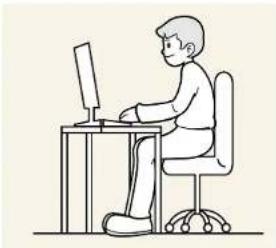
natural_image
Line drawing of a person sitting at a desk using a computer (no text or symbols)Use the product in the correct posture as follows:
- Straighten your back.
- Allow a distance of 45 to 50cm between your eye and the screen, and look slightly downward at the screen.
- Keep your eyes directly in front of the screen.
- Adjust the angle so light does not reflect on the screen.
- Keep your forearms perpendicular to your upper arms and level with the back of your hands.
- Keep your elbows at about a right angle.
- Adjust the height of the product so you can keep your knees bent at 90 degrees or more, your heels attached to the floor, and your arms lower than your heart.
- Do the Eye exercises or blink frequently, then eye fatigue will be relieved.
Driver Installation
You can set the optimum resolution and frequency for this product by installing the corresponding drivers. To install the latest version of the product driver, download it from the Samsung Electronics website at http://www.samsung.com.
Setting Optimum Resolution
An information message about setting optimum resolution will appear if you power on the product for the first time after purchase.
Select a language on the product and change the resolution on your PC to the optimum setting.
If the optimum resolution is not selected, the message will appear up to three times for a specified time even when the product is turned off and on again.
The optimum resolution can also be selected in Control Panel on your PC.
Chapter 04 Screen Setup
Configure the screen settings such as brightness.
A detailed description of each function is provided. Refer to your product for details.
The functions available may vary depending on the product model. The color and shape of parts may differ from what is shown. Specifications are subject to change without notice to improve quality.
SAMSUNG MAGIC Bright
This menu provides an optimum picture quality suitable for the environment where the product will be used.
This menu is not available when Eco Saving Plus is enabled.
This menu is not available when MAGICAngle is enabled.
This menu is not available when Game Mode is enabled.
This menu is not available when Eye Saver Mode is enabled.
Not available when PIP/PBP Mode is set to On.
You can customize the brightness to suit your preferences.
In PC mode
- Custom: Customize the contrast and brightness as required.
- Standard: Obtain a picture quality suitable for editing documents or using Internet.
• Cinema: Obtain the brightness and sharpness of TVs suitable for enjoying video and DVD content.
• Dynamic Contrast: Obtain balanced brightness through automatic contrast adjustment. - Basic Color: This model supports a photochromic station. When switching to this mode, the color area is adjusted to be similar to the standard color gamut of sRGB.
• High-Brightness: Maximize the screen brightness. (U32H750UM* / U32H850UM*)
In AV mode
When the external input is connected through HDMI/DP/MINI DP and PC/AV Mode is set to AV, MAGICBright has four automatic picture settings (Dynamic, Standard, Movie and Custom) that are preset at the factory. You can activate either Dynamic, Standard, Movie or Custom. You can select Custom which automatically recalls your personalized picture settings.
• Dynamic: Select this mode to view a sharper image than in Standard mode.
- Standard: Select this mode when the surroundings are bright. This also provides a sharp image.
- Movie: Select this mode when the surroundings are dark. This will save power and reduce eye fatigue.
- Custom: Select this mode when you want to adjust the image according to your preferences.
Black Equalizer
Adjust the brightness of the dark areas.
As the value gets closer to 1, the darker areas of the screen become brighter, making it easier to find enemies when playing a game. To find enemies more easily during a game, use a lower value.
As the value gets closer to 20, the darker areas of the screen become darker and the contrast increases.
This menu is not available when Eye Saver Mode is enabled.
This menu is not available when MACICAngle is enabled.
This option is not available when SAMSUNG MAGIC Bright is in Cinema or Dynamic Contrast mode.
Not available when PIP/PBP Mode is set to On.
This menu is not available when Game Mode is enabled.
Brightness
You can adjust the general brightness of the picture. (Range: 0\~100)
A higher value will make the picture appear brighter.
This menu is not available when SANSING Bright is set to Dynamic Contrast mode.
This menu is not available when Eco Saving Plus is enabled.
This menu is not available when Eye Saver Mode is enabled.
Contrast
Adjust the contrast between the objects and background. (Range: 0\~100)
A higher value will increase the contrast to make the object appear clearer.
This option is not available when SAMSUNG MAGIC Bright is in Cinema, Dynamic Contrast or Basic Color mode.
This menu is not available when Game Mode is enabled.
This menu is not available when PIP/PBP Mode is set to On and the Size is set to (PBP Mode).
Sharpness
Make the outline of objects more clear or blurry. (Range: 0\~100)
A higher value will make the outline of objects clearer.
This option is not available when SAMSUNG MAGIC Bright is in Cinema or Dynamic Contrast mode.
This menu is not available when Game Mode is enabled.
Not available when PIP/PBP Mode is set to On.
Color
Adjust the tint of the screen.
This menu is not available when MAGICBright is set to Cinema, Dynamic Contrast or Basic Color mode.
This menu is not available when Game Mode is enabled.
This menu is not available when Eye Saver Mode is enabled.
The Color Tone and Gamma menu is not available when SONGING MAGIC Angle is enabled.
Not available when PIP/PBP Mode is set to On.
- Red: Adjust the red saturation level. Values closer to 100 mean greater intensity for the color.
- Green: Adjust the green saturation level. Values closer to 100 mean greater intensity for the color.
-
Blue: Adjust the blue saturation level. Values closer to 100 mean greater intensity for the color.
• Color Tone: Select a color tone that best suits your viewing needs. -
Cool 2: Set the color temperature to be cooler than Cool 1.
- Cool 1: Set the color temperature to be cooler than Normal mode.
- Normal: Display the standard color tone.
- Warm 1: Set the color temperature to be warmer than Normal mode.
- Warm 2: Set the color temperature to be warmer than Warm 1.
Custom: Customize the color tone.
When the external input is connected through HDMI/DP/MINI DP and PC/AV Mode is set to AV, Color Tone has four color temperature settings (Cool, Normal, Warm and Custom).
• Gamma: Adjust the middle level of luminance.
- Mode1 / Mode2 / Mode3
SAMSUNG MAGIC Angle (U28H750UQ\*)
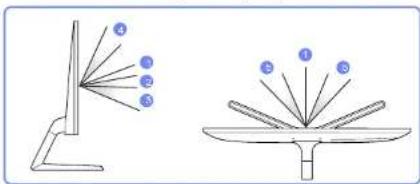
Angle allows you to configure the settings to obtain the optimum picture quality according to your viewing angle.
This menu is not available when SANSUNG MAGIC Bright is set to Cinema or Dynamic Contrast mode.
This menu is not available when Game Mode is enabled.
This menu is not available when Eye Saver Mode is enabled.
Not available when PIP/PBP Mode is set to On.
You can customize the angle to suit your preferences.
natural_image
Two diagrams showing a simple tower with five rays labeled 4 to 5, and a table with four rays labeled 1 to 6 (no text or symbols present)- Off: Select this option to view directly in front of the product.
- Lean Back Mode 12: Select this option to view from a place slightly lower than the product.
- Lean Back Mode 2: Select this option to view from a place lower than Lean Back Mode 1.
- Standing Mode: Select this option to view from a place higher than the product.
- Side Mode: Select this option to view from either side of the product.
- Group View: Select this option for more than one viewer to view from places 1, 4, and 5.
- Custom: Lean Back Mode 1 will be applied by default if Custom is selected.
HDMI Black Level
If a DVD player or set-top box is connected to the product via HDMI, image quality degradation (contrast/color degradation, black level, etc.) may occur, depending on the connected source device. In such case, HDMI Black Level can be used to adjust the image quality.
If this is the case, correct the degraded picture quality using HDMI Black Level.
This function is only available in HDMI1 or HDMI2 mode.
Not available when PIP/PBP Mode is set to On.
• Normal: Select this mode when there is no contrast ratio degradation.
- Low: Select this mode to reduce the black level and increase the white level when there is a contrast ratio degradation.
HDMI Black Level may not be compatible with some source devices.
The HDMI Black Level feature is only activated at a certain AV resolution, such as 720P @ 60 Hz and 1080P @ 60 Hz.
Eye Saver Mode
Set to an optimum picture quality suitable for eye relaxation.
TÜV Rheinland "Low Blue Light Content" is a certification for products which meet requirements for lower blue light levels. When Eye Saver Mode is 'On', the blue light that wavelength is around 400nm will decrease, and it will provide an optimum picture quality suitable for eye relaxation. At the same time, the blue light level is lower than in the default settings, and it was tested by TÜV Rheinland and certified as it met the requirements of TÜV Rheinland "Low Blue Light Content" standards.
Not available when PIP/PBP Mode is set to On.
This option is not available when MAGICBright is in Basic Color mode.
Game Mode
Configure the product screen settings for game mode.
Use this feature when playing games on a PC or when a game console such as PlayStation™ or Xbox™ is connected.
This option is not available when MAGIC Bright is in Basic Color mode.
This menu is not available when Eye Saver Mode is enabled.
When the monitor turns off, enters power-saving mode or changes input sources, Game Mode turns Off even if it is set to On.
If you want to keep Game Mode enabled all the time, select Always On.
This menu is not available when Eco Saving Plus is enabled.
Not available when PIP/PBP Mode is set to On.
Response Time
Accelerate the panel response rate to make video appear more vivid and natural.
Use Standard mode when not playing a video or game.
This menu is not available when PIP/PBP Mode is set to On and the Size is set to 📄 / 📄/ 📄 (Mode).
Picture Size
Change the picture size.
This menu is not available when PIP/PBP Mode is set to On and the Size is set to ☐ (PBP Mode). This option is not available when FreeSync is enabled.
In PC mode
• Auto: Display the picture according to the aspect ratio of the input source.
- Wide: Display the picture in full screen regardless of the aspect ratio of the input source.
In AV mode
• 4:3: Display the picture with an aspect ratio of 4:3. Suitable for videos and standard broadcasts.
• 16:9: Display the picture with an aspect ratio of 16:9.
• Screen Fit: Display the picture with the original aspect ratio without cutting off.
The function may not be supported depending on the ports provided with the product.
Changing the screen size is available when the following conditions are satisfied.
A digital output device is connected using the HDMI/DP/MINI DP cable.
The input signal is 480p, 576p, 720p, or 1080p and monitor can display normally (Not every model can support all of these signals.).
This can only be set when the external input is connected through HDMI/DP/MINI DP and PC/AV Mode is set to AV.
Screen Adjustment
This menu is only available when Picture Size is set to Screen Fit in AV Mode.
When a 480P or 576P or 720P or 1080P signal is input in AV mode and the monitor can display normally, select Screen Fit to adjust horizontal position in 0-6 levels.
Configuring H-Position & V-Position
H-Position: Move the screen to the left or right.
V-Position: Move the screen up or down.
Calibration Report (U32H750UM\* / U32H850UM\*)
The data from this report are measured at the time of shipment.
- The measurements may vary according to the measuring equipment, measuring location, system environment (e.g. computer, graphic board, etc) and other variables.
- Input signal: HDMI
• Each measurement from this report is based on the Custom mode at the time of shipment. - This report is not provided on the menu of some products, but in an separate hardcopy report. Instead.
Chapter 05 Configuring the PIP/PBP Settings
A detailed description of each function is provided. Refer to your product for details.
The functions available may vary depending on the product model. The color and shape of parts may differ from what is shown. Specifications are subject to change without notice to improve quality.
PIP/PBP Mode
Enable or disable the PIP/PBP Mode function.
The PIP (Picture in Picture) function separates the screen into two parts. One source device is displayed on the main screen at the same time the another source device is displayed in inset windows.
The PBP (Picture by Picture) function separates the screen in half displaying output from two different source devices simultaneously on the left and right sides of the screen.
PIP/PBP mode is compatible with Windows 7, Windows 8, and Windows 10.
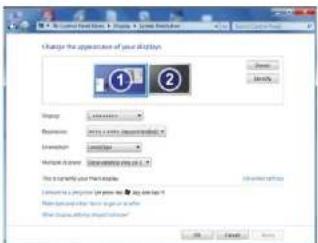
The PIP/PBP function may not be available depending on the specifications of the graphics card used. If the screen is blank in PIP/PBP mode when the optimum resolution is selected, go to Control Panel → Display → Screen Resolution and click Detect on the PC. (Instructions are based on Windows 7.) If the screen is blank when the resolution is set to the optimum resolution, change the resolution to 1280 x 1024.
The screen may flicker briefly or appear after a delay when you enable or disable the PIP/PBP function or when you change the screen size with the PIP/PBP function activated.
This can typically arise when a PC and a monitor are connected to two or more input sources. It has nothing to do with the performance of a monitor.
The Issue is mainly caused when the video signals are delayed in transmission to the monitor depending on the graphics card performance.
text_image
Change the appellation of your application. Preview Description: Image size: 100 pixels Preview mode: 100 pixels File size to your application Language: Name: Name name: View: View OK Cancel HelpTo maximize the picture quality and Sound can be normal output it is recommended to use a graphics card or DVD that supports 4K (3840 x 2160 @ 30 Hz) resolution when connect HDMI port.
To maximize the picture quality and Sound can be normal output it is recommended to use a graphics card or DVD that supports 4K (3840 x 2160 @ 60 Hz) resolution when connect HDMI2 port.
When the PIP/PBP function is enabled, the resolution will not be able to automatically switch to the optimum resolution due to a compatibility issue between the graphics card and the Windows system.
Set PIP/PBP Mode to Off. Alternatively, restart the monitor, then set the resolution to the optimum setting using the Windows interface.
Size
Select the size and aspect ratio of the sub-screen.
- Select the icon image if you want to use PBP mode where the optimum resolution for the left and right sides of the screen is 1920 x 2160 (width x height).
- Select the icon image if you want to use PIP mode where the optimum resolution for the sub-screen is 720 x 480 (width x height).
- Select the icon image if you want to use PIP mode where the optimum resolution of the sub-screen is 1280 x 720 (width x height).
- Select the icon image if you want to use PIP mode where the optimum resolution of the sub-screen is 1920 x 1080 (width x height).
Position
Select the position of the sub-screen from the available options.

Not available when PBP is selected.
The screen may flicker if the input signal is unstable.
Sound Source
Set which screen you want to hear the sound for.
PIP mode

PBP mode

Source
Select the source for each screen.
Due to DisplayPort and MiniDP can't be identified at the same time, if DisplayPort and MiniDP as the source at the same time, the 'Apply' is not available.
PIP Mode (available in PIP mode(Size /
The input source for the main screen changes.
with the exception of the current input source, the other two input sources can be selected.
The screen may flicker if the input signal is unstable.
When the Function Key Guide appears, move the JOG button LEFT to select the icon and then press the JOG button. The main screen will switch in the order DisplayPort → HDMI1 → HDMI2(U28H750UQ*) or DisplayPort → MiniDP → HDMI1 → HDMI2(U32H750UM* / U32H850UM*).
PBP Mode (available in PBP mode(Size))
The input source for the main screen changes.
The screen may flicker if the input signal is unstable.
When the input signal of the left and right screens are the same, the operation cannot be performed.
When the Function Key Guide appears, move the JOG button LEFT to select the icon and then press the JOG button. The same PBP source setting menu appears.
Picture Size
PIP Mode (available in PIP mode (Size / /
Select the image size for sub-screen.
In PC mode
• Auto: Display the picture according to the aspect ratio of the each screen input source.
- Wide: Display the picture in full screen regardless of the aspect ratio of the each screen input source.
In AV mode
- 4:3: Display the picture of the sub-screen with an aspect ratio of 4:3. Suitable for videos and standard broadcasts.
• 16:9: Display the picture of the sub-screen with an aspect ratio of 16:9. - Screen Fit: Display the picture of the sub-screen with the original aspect ratio without cutting anything off.
The function may not be supported depending on the ports provided with the product.
Changing the screen size is available when the following conditions are satisfied. A digital output device is connected using the HDMI/DP/MINI DP cable.
The input signal is 480p, 576p, 720p, or 1080p and monitor can display normally (Not every model can support all of these signals.).
This can only be set when the external input is connected through HDMI/DP/MINI DP and PC/AV Mode is set to AV.
PBP Mode (available in PBP mode(Size
Set the Picture Size for each of the divided screens.
In PC mode
• Auto: Display the picture according to the aspect ratio of the each screen input source.
- Wide: Display the picture in full screen regardless of the aspect ratio of the each screen input source.
In AV mode
- 4:3: Display the picture of the sub-screen with an aspect ratio of 4:3. Suitable for videos and standard broadcasts.
• 16:9: Display the picture of the sub-screen with an aspect ratio of 16:9. - Screen Fit: Display the picture of the sub-screen with the original aspect ratio without cutting anything off.
The function may not be supported depending on the ports provided with the product.
Changing the screen size is available when the following conditions are satisfied.
A digital output device is connected using the HDMI/DP/MINI DP cable.
The input signal is 480p, 576p, 720p, or 1080p and monitor can display normally (Not every model can support all of these signals.).
This can only be set when the external input is connected through HDMI/DP/MINI DP and PC/AV Mode is set to AV.
Contrast
PIP Mode (available in PIP mode(Size / [
Adjust the contrast level for sub-screen.
PBP Mode (available in PBP mode(Size
Adjust the contrast level for each screen.
Chapter 06 Adjusting OSD (On Screen Display) settings
A detailed description of each function is provided. Refer to your product for details.
The functions available may vary depending on the product model. The color and shape of parts may differ from what is shown. Specifications are subject to change without notice to improve quality.
Transparency
Set the transparency for the menu windows.
Language
Set the menu language.
A change to the language setting will only be applied to the onscreen menu display.
It will not be applied to other functions on your PC.
Display Time
Set the on-screen display (OSD) menu to automatically disappear if the menu is not used for a specified period of time.
Display Time can be used to specify the time after which you want the OSD menu to disappear.
Chapter 07 Setup and Reset
A detailed description of each function is provided. Refer to your product for details.
The functions available may vary depending on the product model. The color and shape of parts may differ from what is shown. Specifications are subject to change without notice to improve quality.
FreeSync
FreeSync technology is solution that eliminates screen tearing without all the usual lag and latency. This feature will eliminate screen tearing and lag during game play. Improve your gaming experience. The displayed FreeSync menu items on the monitor may vary, depending on the monitor model and compatibility with the AMD graphics card.
Not available when PIP/PBP Mode is set to On.
The sound quality of the monitor may decrease if FreeSync is enabled.
- Off: Disable FreeSync.
- Standard Engine: Enable the basic FreeSync functions of the AMD graphics card.
- Ultimate Engine: Enable the FreeSync feature with a higher screen frame rate. Screen tearing (abnormal sync between the screen and content) is reduced in this mode. Note that screen flickering may occur during game play.
Apply the optimum resolution when using FreeSync.
The refresh rate setting method please refer to Q & A → How can I change the frequency?
The FreeSync function is only enabled in HDMI2, DisplayPort or MInIDP mode. Use the HDMI/DP/MINI DP cable provided by the manufacturer when using FreeSync.
If you use the FreeSync function while playing a game, the following symptoms may occur:
- The screen may flicker depending on the type of graphics card, the game option settings, or the video being played. Try the following actions: decrease the game setting values, change the current FreeSync mode to Standard Engine, or visit the AMD website to check your graphics driver's version and update it with the latest one.
- While you are using the FreeSync function, the screen may flicker due to variation of the output frequency from the graphics card.
- The response rate during the game may fluctuate depending on the resolution. A higher resolution generally decreases the response rate.
- The sound quality of the monitor may be degraded.
If you encounter any issues when using the function, contact the Samsung Service Center.
When the resolution is changed while setting FreeSync to Standard Engine or Ultimate Engine, the screen tearing can happen intermittently. Set FreeSync to Off and change the resolution.
The function is unavailable in the devices (e.g. AV devices) that have no AMD graphic card. If the function is applied, the screen may have malfunction.
The models in the Graphic Cards list supports FreeSync
FreeSync can only be used with specific AMD graphics card models. Refer to the following list for supported graphics cards:
Make sure to install the latest official graphics drivers from AMD that support FreeSync.
For additional AMD graphics card models that support the FreeSync feature, visit the official AMD website. Select FreeSync Off if you are using a graphics card from a different manufacturer.
When applying the FreeSync function via the HDMI interface, it may fail to work due to the bandwidth limitation of certain AMD display cards.
- AMD Radeon R9 300 Series (Not include 370/370X)
• AMD Radeon R9 290
• AMD Radeon R9 Fury X
• AMD Radeon R9 285
• AMD Radeon R7 360
• AMD Radeon R7 260X
• AMD Radeon R9 295X2
• AMD Radeon R7 260
• AMD Radeon R9 290X
• AMD Radeon RX 400 Series
How do you enable FreeSync?
1 Set FreeSync to Standard Engine or Ultimate Engine in the OSD menu.
2 Enable FreeSync in AMD Radeon Settings:
Right-click the mouse → AMD Radeon Settings → Display
The 'AMD FreeSync' feature should be set to "On". Select to "On" if not already enabled.
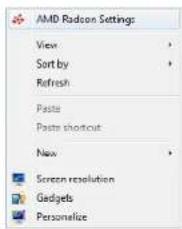
text_image
AMD Radeon Settings View Sort by Refresh Paste Paste shortcut New Screen resolution Gadgets Personalize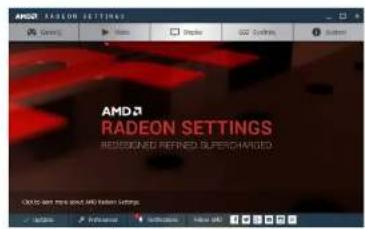
text_image
AMD RADEON SETTINGS RESCENE REFINED SUPERCHANGED
text_image
ANUD Security Settings Options: Open, Save, Close, Delete, Follow Mobile Lock OK/Stop Mobile Lock Preference OK/Stop OK/Stop Mobile Lock Preference OK/Stop Mobile Lock Preference OK/Stop Mobile Lock Preference OK/Stop Mobile Lock Preference OK/Stop Mobile Lock Preference OK/Stop Mobile Lock Preference OK/Stop Mobile Lock Preference OK/Stop Mobile Lock Preference OK/Stop Mobile Lock Preference OK/Stop Mobile Lock Preference OK/Stop Mobile Lock Preference OK/Stop Mobile Lock Preference OK/Stop Mobile Lock Preference OK/HelpEco Saving Plus
Reduce energy consumption compared to consumption at the maximum brightness level.
This option is not available when MAGICBright is in Dynamic Contrast mode.
This menu is not available when Game Mode is enabled.
This menu is not available when Eye Saver Mode is enabled.
Not available when PIP/PBP Mode is set to On.
• Off: Deactivate the Eco Saving Plus function.
- Auto: The power consumption will automatically be reduced by about 10 % over the current setting. (The reduction of power consumption depends on the customer screen brightness condition.)
- Low: Saves up to 25 % energy compared to the maximum brightness.
• High: Saves up to 50 % energy compared to the maximum brightness.
Off Timer Plus
Configuring Off Timer
Off Timer: Turn on Off Timer mode.
Turn Off After: The off timer can be set within a range of 1 to 23 hours. The product will automatically power off after the specified number of hours.
This option is only available when Off Timer is set to On.
For products for the market in some regions, the Off Timer is set to automatically activate 4 hours after the product powers on. This is done in accordance with power supply regulations. If you do not want the timer to activate, go to 📄→System → Off Timer Plus and set Off Timer to Off.
Configuring Eco Timer
Eco Timer: Turn on Eco Timer mode.
Eco Off After: The Eco Timer can be set between 10 and 180 minutes. The product will automatically power off after the specified time has elapsed.
This option is only available when Eco Timer is set to On.
USB Super Charging (U32H750UM\* / U32H850UM\*)
Charge the battery of a connected source device quickly using the USB 3.0 port on the product.
USB Super Charging: Turn on USB Super Charging mode.
- USB1 / USB2
Super charging is available via SS↔1 and SS↔2 ports. Use these ports to charge devices faster than using a normal USB port. The charging speed may vary, depending on the connected device.
Quick battery charging may not be supported and/or charging may take more time on some mobile devices.
When super charging is turned off for 1 and 2 ports, use these ports for regular speed charging and data transfer.
If a USB 2.0 or lower device is connected to the SS-1 or SS-2 port and super charging is turned on, data transfer is impossible, but it is possible if a USB 3.0 device is connected.
※ These ports may not be compatible with new USB devices that may be released in the future.
If a device, such as a mouse, keyboard or memory storage device, is connected to the SS-1 or SS-2 port and the device is USB 2.0 or lower, turn off super charging.
IT super charging is turned on using the OSD settings menu, all devices connected to USB ports 1 through 4 on the monitor are re-recognized. This ensures optimum charging.
Before turning on super charging, close all files on storage devices connected to USB ports.
PC/AV Mode
Set PC/AV Mode to AV. The picture size will be enlarged.
This option is useful when you view a movie.
- Set to PC when connected to a PC.
- Set to AV when connected to an AV device.
Supplied for the wide models only such as 16:9 or 16:10.
If the monitor (when set to HDMI1, HDMI2, DisplayPort(U28H750UQ*) or HDMI1, HDMI2, DisplayPort, MiniDP(U32H750UM* / U32H850UM*)) is in power saving mode or is displaying the message Check Signal Cable, press the 🎯 icon to display the On Screen Display (OSD). You can select PC or AV.
DisplayPort Ver.
Select your Displayport.
Ticorrect settings may cause the screen to go blank. If this occurs, check the device specifications. If the monitor (when set to HDMI1, HDMI2, DisplayPort:U28H750UQ*) or HDMI1, HDMI2, DisplayPort, MiniDP(U32H750UM* / U32H850UM*)) is in power saving mode oris displaying the message Check Signal Cable, press the 📄icon to display the On Screen Display (OSD). You can select 1.1 or 1.2↑.
If you select 1.1, the maximum resolution of your screen drops to 2560 x 1440 due to the limitations in HBR1 transmission speeds.
Source Detection
Select either Auto or Manual as the method to recognize input signal.
Not available when PIP/PBP Mode is set to On.
Key Repeat Time
Control the response rate of a button when the button is pressed.
Acceleration, 1 sec, or 2 sec can be selected. If No Repeat is selected, a command responds only once when a button is pressed.
Power LED On
Configure the settings to enable or disable the power LED located at the lower part of the product.
• Working: The power LED is on when the product is turned on.
- Stand-by: The power LED is on when the product is turned off.
Reset All
Return all the settings for the product to the default factory settings.
Information
View the current input source, frequency and resolution.
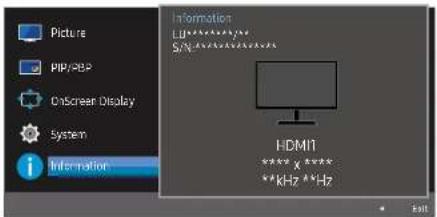
text_image
Picture PIP/SPB OnScreen Display System Information Information L0:****** S/N:****** HDMI1 **** x ***** **kHz **HzPIP
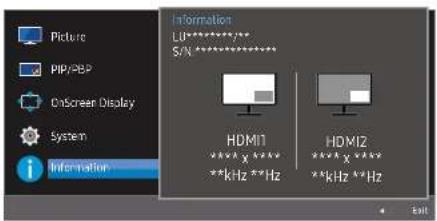
text_image
Picture PIP/SEP OnScreen Display System Information Information LD********** S/X ********** HDMI1 **** x **** ****kHz ****Hz HDMI2 **** x **** ****kHz ****HzPBP
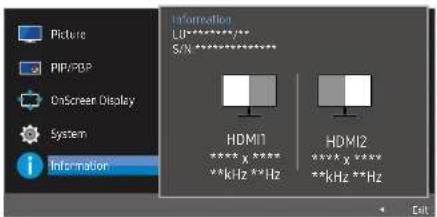
text_image
Picture PIP/PBP OnScreen Display System Information Information LU********** S/N ********** HDMI1 **** x **** **kHz **Hz HDMI2 **** x **** **kHz **HzThe displayed image may differ depending on the model.
Chapter 08 Installing the Software
Easy Setting Box

Easy Setting Box
Easy Setting Box enables users to use the monitor by partitioning multiple sections.
To install the latest version of Easy Setting Box, download it from the Samsung Electronics website at http://www.samsung.com.
The software may not work properly if you do not restart the computer after the installation.
The Easy Setting Box icon may not appear depending on the computer system and the product specifications.
If the shortcut icon does not appear, press the F5 key.
Restrictions and Problems with the Installation
The Easy Setting Box installation may be affected by the Graphics Card, Motherboard and the Networking Environment.
System Requirements
OS Hardware
| • Windows XP 32Bit/64Bit | • At least 32MB of memory |
| • Windows Vista 32Bit/64Bit | • At least 60MB of free space on the hard disk drive |
| • Windows 7 32Bit/64Bit | |
| • Windows 8 32Bit/64Bit | |
| • Windows 8.1 32Bit/64Bit | |
| • Windows 10 32Bit/64Bit |
Updating the Software via USB (U32H750UM\*/ U32H850UM\*)
1 Save the update file (in .bin format) that you downloaded from the Samsung Electronics website (http://www.samsung.com/sec) to a USB storage device.
2 Connect the USB storage device that contains the update file to the 4 port.
3 On the function buttons screen, navigate to the Menu (111) icon, and press up and hold the jog button for at least 5 seconds.
4 Follow the instructions on the screen to proceed with update.
5 Your product will turn itself off and on again automatically after completing update, and then turn off your product.
6 Remove the power cord from the power outlet and then reconnect the cord after turning off.
To perform software update by using a USB memory, first format the USB memory to FAT32.
When performing update, make sure that only one BIN file (.bin) is saved in the root directory.
If the No valid update files found. Please check your USB device and try again. message is displayed, this is probably due to the following reasons.
A USB memory is not connected to the SS←4 port.
The files in the connected USB memory are not compatible formats.
There are no valid update files found in the connected USB memory. (There are no update files saved in the memory or the file names are incorrect.)
The update will not start if the downloaded software does not match the software installed on the monitor. To check the software for consistency, select Menu!!! → Information.
Do not turn off the product. And prevent the updating from any interruption as far as possible. In general, the product returns to the previous version if an update is interrupted.
Chapter 09 Troubleshooting Guide
Requirements Before Contacting Samsung Customer Service Center
Before calling Samsung Customer Service Center, test your product as follows. If the problem persists, contact Samsung Customer Service Center.
Testing the Product
Check if your product is operating normally by using the product test function.
If the screen is turned off and the power indicator blinks even though the product is properly connected to a PC, perform a self-diagnosis test.
1 Power off both the PC and product.
2 Disconnect the cables from the product.
3 Power on the product.
4 If the message Check Signal Cable appears, the product is working normally.
If the screen remains blank, check the PC system, video controller and cable.
Checking the Resolution and Frequency
For a mode that exceeds the supported resolution(refer to Standard Signal Mode Table), the message Not Optimum Mode will appear for a short time.
The displayed resolution may vary, depending on the computer system settings and cables.
Check the following.
Installation issue (PC mode)
The screen keeps switching on and off.
Check the cable connection between the product and PC, and ensure the connectors are locked.
Blank spaces are found on all four sides of the screen when an HDMI or HDMI-DVI cable is connected to the product and PC.
The blank spaces found on the screen have nothing to do with the product.
Blank spaces on the screen are caused by the PC or graphics card. To resolve the problem, adjust the screen size in the HDMI or DVI settings for the graphics card.
If the graphics card settings menu does not have an option to adjust the screen size, update the graphics card driver to the latest version.
(Please contact the graphics card or computer manufacturer for further details about how to adjust the screen settings.)
Screen issue
The power LED is off. The screen will not switch on.
Check that the power cable is connected properly.
The message Check Signal Cable appears.
Check that the cable is properly connected to the product.
Check that the device connected to the product is powered on.
Not Optimum Mode is displayed.
This message appears when the signal from the graphics card exceeds the maximum resolution or frequency for the product.
Change the maximum resolution and frequency to suit the product performance, referring to Standard Signal Mode Table (P53).
The images on the screen look distorted.
Check the cable connection to the product.
The screen is not clear. The screen is blurry.
Remove any accessories (video extension cable, etc.) and try again.
Set the resolution and frequency to the recommended level.
The screen appears unstable and shaky. There are shadows or ghost images left on the screen.
Check that the resolution and frequency for the PC are within the range of resolution and frequency compatible with the product. Next, if required, change the settings, referring to Standard Signal
Mode Table (P.53) in this manual and the Information menu on the product.
The screen is too bright. The screen is too dark.
Adjust Brightness and Contrast.
Screen color is inconsistent.
Change the Color settings.
The colors on the screen have a shadow and are distorted.
Change the Color settings.
White does not really look white.
Change the Color settings.
There is no image on the screen and the power LED blinks every 0.5 to 1 second.
The product is operating in power-saving mode.
Press any key on the keyboard or move the mouse to return to normal operating mode.
Text is blurry.
If using a Windows OS (e.g. Windows 7, Windows 8, Windows 8.1 or Windows 10): Go to Control Panel → Fonts → Adjust ClearType text and change Turn on ClearType.
Video playback is choppy.
Playback of high-definition large video files can be choppy. This may be because the video player is not optimized for the computer resource.
Try playing the file on another video player.
Sound issue
There is no sound.
Check the connection of the audio cable or adjust the volume.
Check the volume.
The volume is too low.
Adjust the volume.
If the volume is still low after turning it up to the maximum level, adjust the volume on your PC sound card or software program.
Video is available but there is no sound.
Sound cannot be heard if a HDMI-DVI cable is used to connect the input device.
Connect the device using an HDMI cable, DP cable or MINI DP cable.
Source device issue
A beeping sound is heard when my PC is booting.
If a beeping sound is heard when your PC is booting, have your PC serviced.
Q & A
Refer to the user manual for your PC or graphics card for further instructions on adjustment.
How can I change the frequency?
Set the frequency on your graphics card.
- Windows XP: Go to Control Panel → Appearance and Themes → Display → Settings → Advanced → Monitor, and adjust Refresh rate under Monitor settings.
- Windows ME/2000: Go to Control Panel → Display → Settings → Advanced → Monitor, and adjust Refresh rate under Monitor settings.
- Windows Vista: Go to Control Panel → Appearance and Personalization → Personalization → Display Settings → Advanced Settings → Monitor, and adjust Refresh rate under Monitor settings.
- Windows 7: Go to Control Panel → Appearance and Personalization → Display → Screen Resolution → Advanced settings → Monitor, and adjust Refresh rate under Monitor settings.
- Windows 8(Windows 8.1): Go to Settings → Control Panel → Appearance and Personalization → Display → Screen Resolution → Advanced settings → Monitor, and adjust Refresh rate under Monitor settings.
- Windows 10: Go to Settings → System → Display → Advanced display settings → Display adapter properties → Monitor, and adjust Screen refresh rate under Monitor settings.
How can I change the resolution?
- Windows XP: Go to Control Panel → Appearance and Themes → Display → Settings, and adjust the resolution.
- Windows ME/2000: Go to Control Panel → Display → Settings, and adjust the resolution.
- Windows Vista: Go to Control Panel → Appearance and Personalization → Personalize → Display Settings, and adjust the resolution.
- Windows 7: Go to Control Panel → Appearance and Personalization → Display → Adjust Resolution, and adjust the resolution.
- Windows 8(Windows 8.1): Go to Settings → Control Panel → Appearance and Personalization → Display → Adjust Resolution, and adjust the resolution.
- Windows 10: Go to Settings → System → Display → Advanced display settings, and adjust the resolution.
How do I set power-saving mode?
- Windows XP: Set power-saving mode in Control Panel → Appearance and Themes → Display → Screen Saver Settings → Power options or BIOS SETUP on the PC.
- Windows ME/2000: Set power-saving mode in Control Panel → Display → Screen Saver Settings → Power options or BIOS SETUP on the PC.
- Windows Vista: Set power-saving mode in Control Panel → Appearance and Personalization → Personalize → Screen Saver Settings → Power options or BIOS SETUP on the PC.
- Windows 7: Set power-saving mode in Control Panel → Appearance and Personalization → Personalize → Screen Saver Settings → Power options or BIOS SETUP on the PC.
- Windows 8(Windows 8.1): Set power-saving mode in Settings → Control Panel → Appearance and Personalization → Personalize → Screen Saver Settings → Power options or BIOS SETUP on the PC.
- Windows 10: Set power-saving mode in Settings → Personalization → Lock screen → Screen timeout settings → Power & sleep or BIOS SETUP on the PC.
Chapter 10 Specifications
General
Model Name U28H750UQ* U32H750UM* / U32H850UM*
| Size | 28 Class (27.9 Inches / 70.8 cm) | 32 Class (31.5 Inches / 80.1 cm) |
| Display area | 620.93 mm (H) x 341.28 mm (V) | 698.4 mm (H) x 392.85 mm (V) |
| 24.4 Inches (H) x 13.4 Inches (V) | 275 Inches (H) x 15.5 Inches (V) | |
| Pixel Pitch | 0.16 mm (H) x 0.16 mm (V) | 0.181 mm (H) x 0.181 mm (V) |
| 0.006299 Inches (H) x | 0.007126 Inches (H) x | |
| 0.006299 Inches (V) | 0.007126 Inches (V) | |
| Maximum Pixel Clock | 533.25 MHz (DisplayPort) | 533.25 MHz (DisplayPort/MINI |
| 297.00 MHz (HDMI1) | DisplayPort) | |
| 594.00 MHz (HDMI2) | 297.00 MHz (HDMI1) | |
| 594.00 MHz (HDMI2) | ||
| Power Supply | AC100-240V~ 50/60Hz | AC100-240V~ 50/60Hz |
| Based on the AC voltage of the adapter. For the DC voltage of the product, refer to the product label. | Refer to the label at the back of the product as the standard voltage can vary in different countries. | |
| Signal connectors | HDMI, DisplayPort HDMI, DisplayPort, MINI DisplayPort | |
| Environmental conditions Operating | ||
| Temperature: 50°F - 104°F (10°C - 40°C) | ||
| Humidity: 10% - 80%, non-condensing | ||
| Storage | ||
| Temperature: -4°F - 113°F (-20°C - 45°C) | ||
| Humidity: 5% - 95%, non-condensing | ||
Plug-and-Play
This monitor can be installed and used with any Plug-and-Play compatible systems. Two-way data exchange between the monitor and PC system optimizes the monitor settings. Monitor installation takes place automatically. However, you can customize the installation settings if desired.
Panel Dots (Pixels)
Due to the nature of the manufacturing of this product, approximately 1 pixel per million (1ppm) may be brighter or darker on the LCD panel. This does not affect product performance.
The above specifications are subject to change without notice to improve quality.
This device is a Class B digital apparatus.
For detailed device specifications, visit the Samsung Electronics website.
Standard Signal Mode Table
Model Name U28H750UQ* U32H750UM* / U32H850UM*
| Synchronization Horizontal Frequency | 30 – 135 kHz 30 – 135 kHz | ||
| Vertical Frequency | 56 – 75 Hz (DisplayPort) | 56 – 75 Hz (DisplayPort/MINI DisplayPort) | |
| 24 – 75 Hz (HDMI1/HDMI2) | 24 – 75 Hz (HDMI1/HDMI2) | ||
| Resolution Optimum Resolution | 3840 x 2160 @ 60 Hz (DisplayPort) | 3840 x 2160 @ 60 Hz (DisplayPort/MINI DisplayPort) | |
| 3840 x 2160 @ 30 Hz (HDMI1) | 3840 x 2160 @ 30 Hz (HDMI1) | ||
| 3840 x 2160 @ 60 Hz (HDMI2) | 3840 x 2160 @ 60 Hz (HDMI2) | ||
| Maximum Resolution | 3840 x 2160 @ 60 Hz (DisplayPort) | 3840 x 2160 @ 60 Hz (DisplayPort/MINI DisplayPort) | |
| 3840 x 2160 @ 30 Hz (HDMI1) | 3840 x 2160 @ 30 Hz (HDMI1) | ||
| 3840 x 2160 @ 60 Hz (HDMI2) | 3840 x 2160 @ 60 Hz (HDMI2) | ||
If a signal that belongs to the following standard signal modes is transmitted from your PC, the screen will automatically be adjusted. If the signal transmitted from the PC does not belong to the standard signal modes, the screen may be blank even though the power LED turns on. In such a case, change the settings according to the following table by referring to the graphics card user manual.
Displayport/MINI DisplayPort
Resolution Horizontal Frequency (kHz) Vertical Frequency (Hz) Pixel Clock (MHz) Sync Polarity (H/V)
| IBM, 720 x 400 | 31.469 70.087 28.322 -/+ | |||
| VESA, 640 x 480 | 31.469 59.940 25.175 -/- | |||
| MAC, 640 x 480 | 35.000 | 66.667 | 30.240 -/- | |
| VESA, 640 x 480 | 37.861 72.809 | 31.500 | -/- | |
| VESA, 640 x 480 | 37.500 | 75.000 | 31.500 | -/- |
| VESA, 800 x 600 | 35.156 56.250 | 36.000 | +/+ | |
| VESA, 800 x 600 | 37.879 | 60.317 | 40.000 | +/+ |
| VESA, 800 x 600 | 48.077 72.188 | 50.000 | +/+ | |
| VESA, 800 x 600 | 46.875 | 75.000 | 49.500 | +/+ |
| MAC, 832 x 624 | 49.726 | 74.551 57.284 -/- | ||
| VESA, 1024 x 768 | 48.363 | 60.004 | 65.000 -/- | |
| VESA, 1024 x 768 | 56.476 70.069 | 75.000 -/- | ||
| VESA, 1024 x 768 | 60.023 | 75.029 78.750 | +/+ | |
| VESA, 1152 x 864 | 67.500 | 75.000 | 108.000 | +/+ |
Displayport/MINI DisplayPort
Resolution Horizontal Frequency (kHz) Vertical Frequency (Hz) Pixel Clock (MHz) Sync Polarity (H/V)
| MAC, 1152 x 870 | 68.681 75.062 100.000 -/- | |||
| VESA, 1280 x 720 | 45.000 60.000 74.250 +/+ | |||
| VESA, 1280 x 800 | 49.702 59.810 83.500 -/+ | |||
| VESA, 1280 x 1024 | 63.981 60.020 108.000 | +/+ | ||
| VESA, 1280 x 1024 | 79.976 | 75.025 | 135.000 | +/+ |
| VESA, 1440 x 900 | 55.935 | 59.887 | 106.500 | -/+ |
| VESA, 1600 x 900 | 60.000 60.000 | 108.000 | +/+ | |
| VESA, 1680 x 1050 | 65.290 59.954 146.250 | -/+ | ||
| VESA, 1920 x 1080 | 67.500 60.000 | 148.500 | +/+ | |
| VESA, 2560 x 1440 | 88.787 59.951 | 241.500 +/- | ||
| VESA, 3840 x 2160 | 133.313 | 59.997 | 533.250 | +/- |
HDMI1
| Resolution | Horizontal Frequency (kHz) | Vertical Frequency (Hz) | Pixel Clock (MHz) | Sync Polarity (H/V) |
| IBM, 720 x 400 | 31.469 | 70.087 | 28.322 | -/+ |
| VESA, 640 x 480 | 31.469 | 59.940 | 25.175 | -/- |
| MAC, 640 x 480 | 35.000 | 66.667 | 30.240 | -/- |
| VESA, 640 x 480 | 37.861 | 72.809 31.500 | -/- | |
| VESA, 640 x 480 | 37.500 75.000 31.500 | -/- | ||
| VESA, 800 x 600 | 35.156 56.250 36.000 | +/+ | ||
| VESA, 800 x 600 | 37.879 | 60.317 | 40.000 | +/+ |
| VESA, 800 x 600 | 48.077 72.188 50.000 | +/+ | ||
| VESA, 800 x 600 | 46.875 | 75.000 49.500 | +/+ | |
| MAC, 832 x 624 | 49.726 | 74.551 | 57.284 | -/- |
| VESA, 1024 x 768 | 48.363 60.004 65.000 | -/- | ||
| VESA, 1024 x 768 | 56.476 | 70.069 | 75.000 | -/- |
| VESA, 1024 x 768 | 60.023 75.029 78.750 +/+ | |||
| VESA, 1152 x 864 | 67.500 75.000 108.000 | +/+ | ||
| MAC, 1152 x 870 | 68.681 75.062 100.000 -/- | |||
| VESA, 1280 x 720 | 45.000 60.000 74.250 +/+ |
HDMI1
Resolution Horizontal Frequency (kHz) Vertical Frequency (Hz) Pixel Clock (MHz) Sync Polarity (H/V)
| VESA, 1280 x 800 | 49.702 59.810 83.500 -/+ | |||
| VESA, 1280 x 1024 | 63.981 60.020 108.000 +/+ | |||
| VESA, 1280 x 1024 | 79.976 75.025 135.000 +/+ | |||
| VESA, 1440 x 900 | 55.935 59.887 106.500 | -/+ | ||
| VESA, 1600 x 900 | 60.000 | 60.000 | 108.000 +/+ | |
| VESA, 1680 x 1050 | 65.290 59.954 | 146.250 | -/+ | |
| VESA, 1920 x 1080 | 67.500 | 60.000 148.500 +/+ | ||
| VESA, 2560 x 1440 | 88.787 59.951 | 241.500 | +/- | |
| CEA, 3840 x 2160 | 67.500 | 30.000 | 297.000 | +/+ |
HDMI2
| Resolution | Horizontal Frequency (kHz) | Vertical Frequency (Hz) | Pixel Clock (MHz) | Sync Polarity (H/V) |
| IBM, 720 x 400 | 31.469 | 70.087 | 28.322 | -/+ |
| VESA, 640 x 480 | 31.469 | 59.940 | 25.175 | -/- |
| MAC, 640 x 480 | 35.000 | 66.667 | 30.240 | -/- |
| VESA, 640 x 480 | 37.861 72.809 31.500 | -/- | ||
| VESA, 640 x 480 | 37.500 75.000 | 31.500 | -/- | |
| VESA, 800 x 600 | 35.156 | 56.250 | 36.000 | +/+ |
| VESA, 800 x 600 | 37.879 | 60.317 | 40.000 | +/+ |
| VESA, 800 x 600 | 48.077 72.188 50.000 | +/+ | ||
| VESA, 800 x 600 | 46.875 75.000 | 49.500 | +/+ | |
| MAC, 832 x 624 | 49.726 | 74.551 | 57.284 | -/- |
| VESA, 1024 x 768 | 48.363 | 60.004 | 65.000 | -/- |
| VESA, 1024 x 768 | 56.476 | 70.069 | 75.000 | -/- |
| VESA, 1024 x 768 | 60.023 75.029 | 78.750 +/+ | ||
| VESA, 1152 x 864 | 67.500 75.000 108.000 +/+ | |||
| MAC, 1152 x 870 | 68.681 | 75.062 | 100.000 | -/- |
| VESA, 1280 x 720 | 45.000 | 60.000 | 74.250 | +/+ |
| VESA, 1280 x 800 | 49.702 59.810 83.500 -/+ | |||
| VESA, 1280 x 1024 | 63.981 60.020 108.000 +/+ |
HDMI2
Resolution Horizontal Frequency (kHz) Vertical Frequency (Hz) Pixel Clock (MHz) Sync Polarity (H/V)
| VESA, 1280 x 1024 | 79.976 75.025 135.000 +/+ | ||
| VESA, 1440 x 900 | 55.935 59.887 106.500 -/+ | ||
| VESA, 1600 x 900 | 60.000 60.000 108.000 +/+ | ||
| VESA, 1680 x 1050 | 65.290 59.954 146.250 | -/+ | |
| VESA, 1920 x 1080 | 67.500 | 60.000 | 148.500 +/+ |
| VESA, 2560 x 1440 | 88.787 59.951 241.500 | +/- | |
| CEA, 3840 x 2160 | 135.000 | 60.000 594.000 +/+ |
Horizontal Frequency
The time required to scan a single line from the left to the right side of the screen is called a horizontal cycle. The reciprocal number of a horizontal cycle is called horizontal frequency. Horizontal frequency is measured in
kHz
— Vertical Frequency
Repeating the same picture dozens of times per second allows you to view natural pictures. The repeat frequency is called "vertical frequency" or "refresh rate" and is indicated in Hz.
This product can be set to only one resolution for each screen size to obtain the optimum picture quality due to the nature of the panel. Using a resolution other than the specified resolution may degrade the picture quality. To avoid this, it is recommended that you select the optimum resolution specified for your product.
— Some resolutions listed in the table above may not be available depending on graphics card specifications.
Chapter 11 Appendix
Responsibility for the Pay Service (Cost to Customers)
When the service is requested, in spite of in warranty, we may charge you for a visit from a service technician in the following cases.
Not a product defect
Cleaning of the product, Adjustment, Explanation, Re-installation and etc.
- If a service technician gives instructions on how to use product or simply adjusts options without disassembling product.
• If a defect is caused by external environmental factors (Internet, Antenna, Wired Signal, etc.) - If a product is reinstalled or devices are connected additionally after installing the purchased product for the first time.
• If a product is reinstalled to move to a different spot or to move to a different house. - If customer requests instructions on how to use because of another company's product.
- If customer requests instructions on how to use the network or another company's Program.
- If customer requests software installation and setup for the product.
• If a service technician removes/cleans dusts or foreign materials inside of the product. - If customer requests an installation additionally after purchasing a product through home-shopping or online.
A Product damage caused by customer's fault
Product damage caused by customer's mishandling or wrong repair
If a product damage is caused by;
• External impact or drop.
• Use of supplies or separately sold product unspecified by Samsung.
- Repair from a person besides an engineer of outsourcing service company or partner of Samsung Electronics Co., Ltd.
- Remodeling or repairing the product by customer.
• Using it with incorrect voltage or non-authorised electrical connections.
• Not following the "cautions" in User Manual.
Others
• If product falls by natural disaster. (lightning, fire, earthquake, flood damage, etc)
- If consumable components are all used up. (Battery, Toner, Fluorescent lights, Head, Vibrator, Lamp, Filter, Ribbon, etc.)
If customer requests a service in case the product has no defect, service fee may be charged. So please read User Manual first.
Extended warranty (U\*H85\* model only)
You can buy an extended warranty within 90 days of purchasing the product.
The extended warranty will cover an additional period of 3 years, beyond the standard 3 year warranty.
Samsung guarantee that replacement parts will be available for 5 years after the end of production.
After 5 years, in the event that the Samsung's service center has run out of replacement parts and cannot repair the product, Samsung will replace your product at no additional charge. If the model you purchased is no longer available, Samsung replace it with the current equivalent model.