DIG-SSD2C110008 - SSD DIGISTOR - Free user manual and instructions
Find the device manual for free DIG-SSD2C110008 DIGISTOR in PDF.


User questions about DIG-SSD2C110008 DIGISTOR
0 question about this device. Answer the ones you know or ask your own.
Ask a new question about this device
Download the instructions for your SSD in PDF format for free! Find your manual DIG-SSD2C110008 - DIGISTOR and take your electronic device back in hand. On this page are published all the documents necessary for the use of your device. DIG-SSD2C110008 by DIGISTOR.
USER MANUAL DIG-SSD2C110008 DIGISTOR
Setup and Cigent for Windows Installation 4
Using Always On and Dynamic Drives 12
Locking and Unlocking Drives.... 12
Accessing Always On Files 13
Accessing Dynamic Files 15
Manage Cigent Settings.... 16
Authentication 18
License....20
Folder Protections.... 22
Microsoft Defender and Antivirus Integration 24
Network Manager 29
C Series Advanced SSD Features.... 32
KeepAlive....32
Command Log Audit....33
Erase Verify....36
Introduction
The advanced cybersecurity defenses built into the operating firmware of C Series SSDs repel ransomware attacks and prevent data theft even when all other cybersecurity protections fail or are bypassed. When used in conjunction with Cigent® for Windows, C Series SSDs protect data throughout the entire device lifecycle—from provisioning to end-of-life—defending against a vast number of threat vectors.
Available in NVMe internal and external FIPS and non FIPS configurations, the C Series SSD is offered in four sizes—256GB, 512GB, 1TB, and 2TB. It can be installed as the primary storage device on a Windows PC where the O/S runs, as secondary internal storage (such as in a desktop tower), or as external media plugged into a USB port.
DIGISTOR has partnered with Cigent to provide Cigent for Windows (Cigent), a new approach to data security, one that complements existing solutions and places the importance of protecting data above all else. Cigent takes concepts used in zero trust and continuous authentication and applies them as close to the data stream as possible, bringing proactive protection directly to your data. Cigent allows users to safely and easily access critically important information, even if the system is already compromised. The result is an unprecedented level of protection, detection, and response to cyberattacks, insider threats, and lost or stolen devices.
Purpose
This document is a guide to help you install and configure your C Series SSD and associated Cigent software so you can start using it as quickly as possible. It also provides a basic operation overview and explanation for some of the security sensors if you are interested in learning more.
Setup and Cigent for Windows Installation
This guide is applicable to either external or internal C Series SSD installed as secondary drives. Installing your C Series SSD as a primary (OS) drive will require cloning your existing installation to the C Series SSD or installing a fresh OS. These configurations are outside the scope of this guide, but setup and configuration are the same once installed.
A copy of the Cigent installer is placed onto each C Series SSD before shipping.
- Plug in your External Secure SSD or install the Internal Secure SSD into your system as a secondary drive.
- Open Windows Explorer and select the C Series SSD partition.

text_image
Quick access Dropbox OneDrive - cigent.com This PC 3D Objects Desktop Documents Downloads Music Pictures Videos Windows 10 (C:) CIGENT (E:) Name Cigent Installer v3.1.3.exe- Double click the Cigent installer executable to begin the installation process. Note: The name of the installer may be slightly different.
Cigent Installer v3.1.3.exe
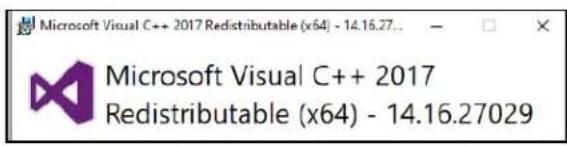
Note : If Microsoft's Visual C++ Redistributable (x64) package is not already installed, you may be prompted to install it during the Cigent installation process. Please follow the simple instructions to complete the install of the package before proceeding.
text_image
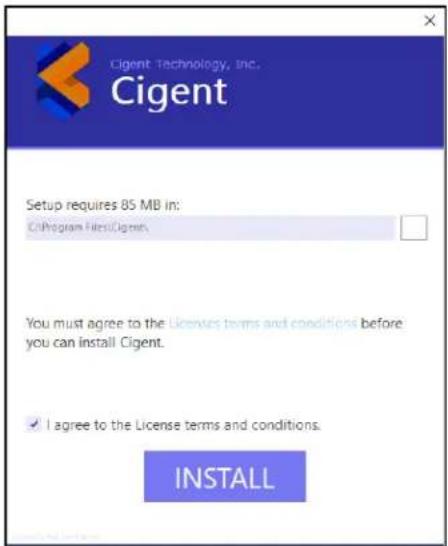
Microsoft Visual C++ 2017 Redistributable (x64) - 14.16.27... Microsoft Visual C++ 2017 Redistributable (x64) - 14.16.27029- Select an installation location, accept the License terms then click Install.
text_image
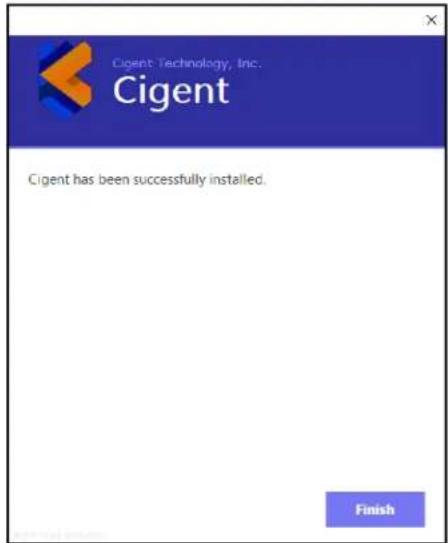
Cigent Technology, Inc. Cigent Setup requires 85 MB in: C:\Program Files\Cigent\. You must agree to the Licenses terms and conditions before you can install Cigent. ✓ I agree to the License terms and conditions. INSTALL- Wait for the installation to complete. Click Finish to close the installer.
text_image
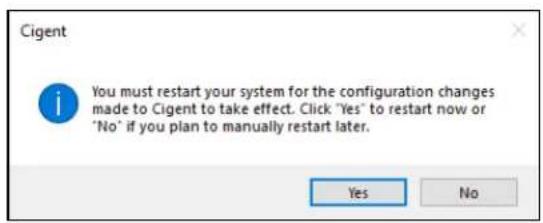
Cigent Technology, Inc. Cigent Cigent has been successfully installed. Finish- Click Yes to reboot for Cigent's changes to take effect.
text_image
Cigent You must restart your system for the configuration changes made to Cigent to take effect. Click "Yes" to restart now or "No" if you plan to manually restart later. Yes NoAfter rebooting, the Cigent dashboard with automatically open and request a PIN to be set.
- Click Set PIN.
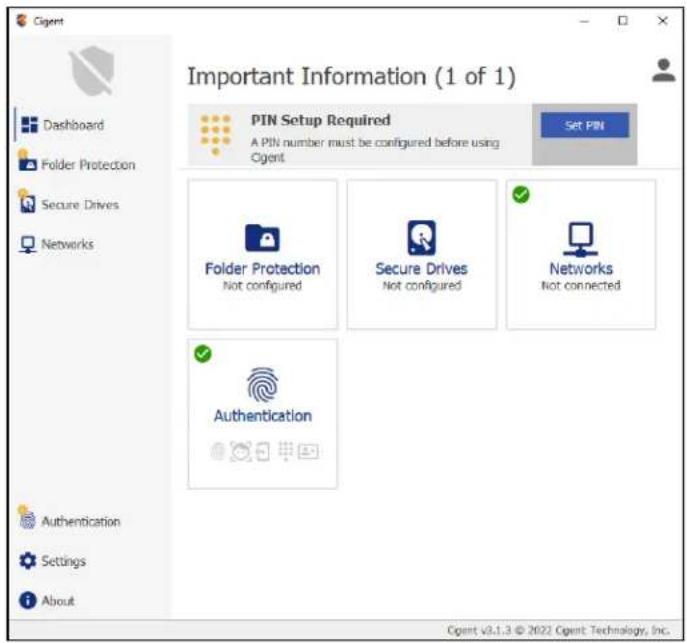
text_image
Cigent Dashboard Folder Protection Secure Drives Networks Authentication Settings About Important Information (1 of 1) PIN Setup Required A PIN number must be configured before using Cigent Set PIN Folder Protection Not configured Secure Drives Not configured Networks Not connected Authentication Cigent v3.1.3 © 2022 Cigent Technology, Inc.- Enter your PIN, click Next.
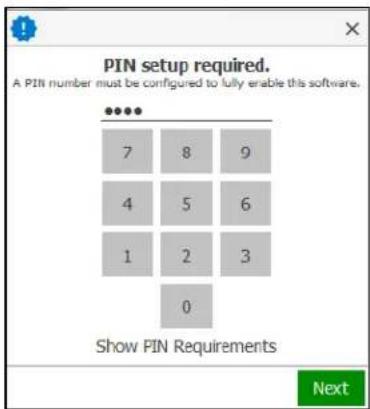
text_image
PIN setup required. A PIN number must be configured to fully enable this software. Show PIN Requirements Next- Re-enter your PIN and click Accept.
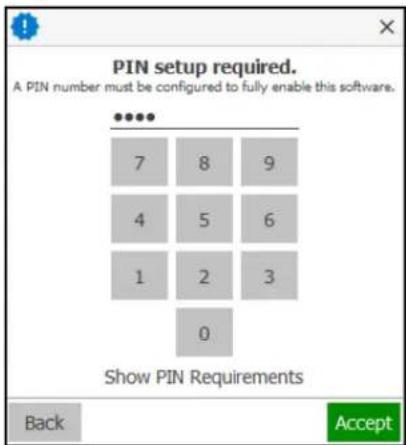
text_image
PIN setup required. A PIN number must be configured to fully enable this software. Show PIN Requirements Back Accept- If you are currently connected to a network and your network is NOT set to Private in Windows, Cigent will engage Active Lock. If the network is secure, simply enter your PIN and click Enter to add the current network as Trusted. If you are not connected to a network at the time of installation, please just proceed to the next step. Note : Cigent will automatically trust your first network if it is configured as Private in Windows.

text_image
Cigent Important Information (1 of 1) Dashboard Folder Protection Secure Drives Networks No Protections Configured It is recommended you customize your settings to protect your important data. Click on 'Folder Protection' or 'Secure Drives' get started PIN Authenticate with a PIN Authenticator App Authenticate using an Authenticator App (Google, Microsoft, Rctny, etc.) Fingerprint Authenticate with a Fingerprint Facial Recognition Authenticate with Facial Recognition CAC/PIV Authenticate using CAC/PIV + PIN Authentication Required You have connected to a new network. Authorize the event if you wish to Trust this network. PIN 7 8 9 4 5 6 1 2 3 0 Enter Enter your PIN Authentication Required You have connected to a new network. Authorize the event if you wish to Trust this network. Cigent v3.1.3 © 2022 Cigent: Technology, Inc. ActiveLock Engaged- If you have an external C Series SSD inserted or your internal SSD installed, the Quick Secure Drive Setup popup should appear.
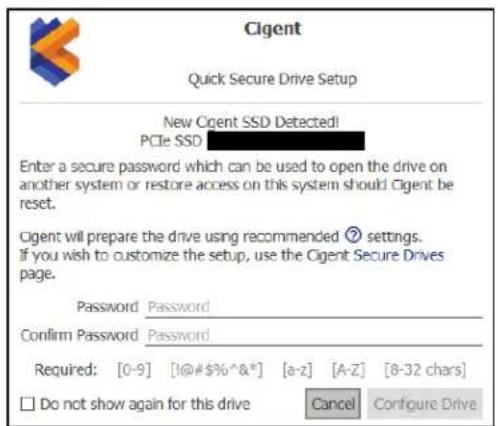
text_image
Cigent Quick Secure Drive Setup New Cigent SSD Detected! PCIe SSD Enter a secure password which can be used to open the drive on another system or restore access on this system should Cigent be reset. Cigent will prepare the drive using recommended ② settings. If you wish to customize the setup, use the Cigent Secure Drives page. Password Password Confirm Password Password Required: [0-9] [@#$%^&*] [a-z] [A-z] [8-32 chars] □ Do not show again for this drive Cancel Configure DriveDIGISTOR®
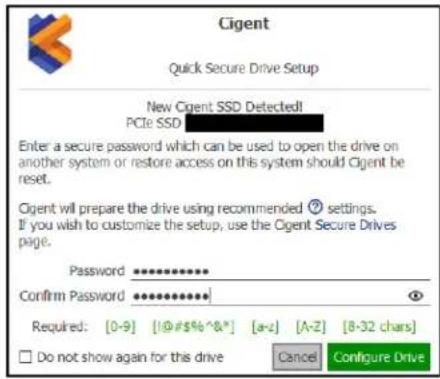
- Enter a secure password twice and click Configure Drive to automatically configure the SSD to Cigent default configuration. If you wish to customize the settings, you can click Cancel and configure the drive from the Secure Drives page of the Cigent Dashboard.
text_image
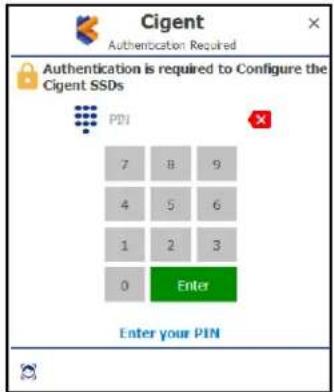
Cigent Quick Secure Drive Setup New Cigent SSD Detected! PCIe SSD Enter a secure password which can be used to open the drive on another system or restore access on this system should Cigent be reset. Cigent will prepare the drive using recommended ⑨ settings. If you wish to customize the setup, use the Cigent Secure Drives page. Password ********** Confirm Password ********** Required: [0-9] [10#$%^&*] [a-z] [A-z] [8-32 chars] □ Do not show again for this drive Cancel Configure Drive- Enter your authentication PIN and click Enter to approve the SSD setup.
text_image
Cigent Authentication Required Authentication is required to Configure the Cigent SSDs PIN 7 8 9 4 5 6 1 2 3 0 Enter Enter your PINDIGISTOR®
- Note the location of the encrypted password file. This file should be moved to a secure location off of the host for security purposes. Click Close when you are ready.

text_image
Cigent Quick Secure Drive Setup Cigent SSD Configuration Complete! A backup file containing your encrypted password has been saved to: C:/Users/cigent/Desktop/ backup.k3y IMPORTANT: You should move this file to a safe, external location like a USB flash drive and keep it in a safe place. It can be used to restore access to your drive should you forget your password. If you wish to lock/unlock your secure drives, use the tray menu or the Cigent Secure Drives page. Close- Once complete, the Cigent dashboard will show the drive letters of the newly created Secure Drives. They are automatically unlocked after setup to allow you to start copying files to them immediately.

text_image
Cigent Standing Guard We are looking out for your sensitive data Dashboard Folder Protection Secure Drives Networks Folder Protection Not configured Secure Drives Cigent SSD: Hi Go Networks Network Trusted Authentication Authentication Authentication Authentication Settings About Cigent v3.1.3 © 2022 Cigent Technology, Inc.CONGRATULATIONS!

natural_image
Simple line drawing of two hands clasped together with radiating lines (no text or symbols)You have completed the steps necessary to begin using your C Series SSD and Cigent for Windows software.
If you want to learn more about how to use your C Series SSD and Cigent proceed further in this guide.
Using Always On and Dynamic Drives
There are two types of file protection modes available:
Files on Always On Drives
- Files remain locked under all conditions
- Step-up authentication is required to access the file every time
- Designed for extremely sensitive information
- Drive is locked ( unmounted ) when a threat has been detected and must be manually unlocked afterwards
Files on Dynamic Drives
- Files are locked only if a threat has been detected
- Provides strong protection in a minimally invasive manner—the user is prompted to authenticate only if access to a locked file is attempted
- Designed for files that require frequent or bulk access like Source code.
- Drive is locked ( unmounted ) when a threat has been detected and automatically unlocked ( by default. )
Locking and Unlocking Drives
You can lock and unlock Secure Drives using either the Secure Drives page of the Cigent Dashboard or the quick menu ( right click Cigent tray icon. )
- Unlocking a drive always requires authentication but locking does not.
- By default the Dynamic drive will automatically unlock on startup and after a threat clears. This can be changed in the settings.
Accessing Always On Files
-
In Windows Explorer, browse to your AlwaysOn drive (usually L:) (If your L: drive is not visible, you must unlocked it before proceeding.)
-
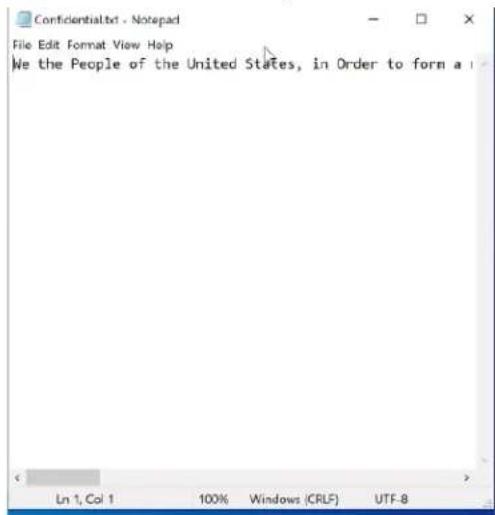
Double click on a file to open it. Regardless of the Active Lock state, Cigent will require authentication to open any file on the Locked drive.

text_image
File Edit View History C:\Users\Cloud\Cloud\Cloud\Cloud\Cloud\Cloud\Cloud\Cloud\Cloud\Cloud\Cloud\Cloud\Cloud\Cloud\Cloud\Cloud\Cloud\Cloud\Cloud\Cloud\Cloud\Cloud\Cloud\Cloud\Cloud\Cloud\Cloud\Cloud\Cloud\Cloud\Cloud\Cloud\Cloud\Cloud\Cloud\Cloud\Cloud\Cloud\Cloud\Cloud\Cloud\Cloud\Cloud\Cloud\Cloud\Cloud\Cloud\Cloud\Cloud\Cloud\Count Name: Date: March 2014 Type: Size About Report - shift - confidential@cc 6/6/2015 3:31 PM Microsoft Word (S) 281 KB Ming-Go 6/6/2015 3:31 PM Microsoft Word (S) 13 KB ConfidentialInt 6/6/2015 3:41 PM Not Document 7 KB corporate_lbs.pdf 8/23/2018 16:23 PM Adobe Acrobat (S) 7.217 KB Fuk.pdf 9/18/2018 12:31 PM Adobe Acrobat (S) 124 KB Fuk.pdf 9/18/2018 12:31 PM Adobe Acrobat (S) 125 KB Inf.pdf 9/18/2018 12:31 PM Adobe Acrobat (S) 749 KB Renaissance Properties and Reap.pdf 8/6/2018 3:30 PM Adobe Acrobat (S) 154 KB Renaissance_Information_Tire_Page.pdf 8/6/2018 3:41 PM Adobe Acrobat (S) 95 KB www.renaissance.com.pdf 8/6/2018 3:41 PM Adobe Acrobat (S) 8.24 KB Method - Notepad - Not Requesting: File Edit Format View Help Copyright File Access Enter PDF Subdiv total PDF- Enter your PIN and click Enter. Your file will then open.
text_image
Confidential.txt - Notepad File Edit Format View Help We the People of the United States, in Order to form a Ln 1, Col 1 100% Windows (CRLF) UTF-8Accessing Dynamic Files
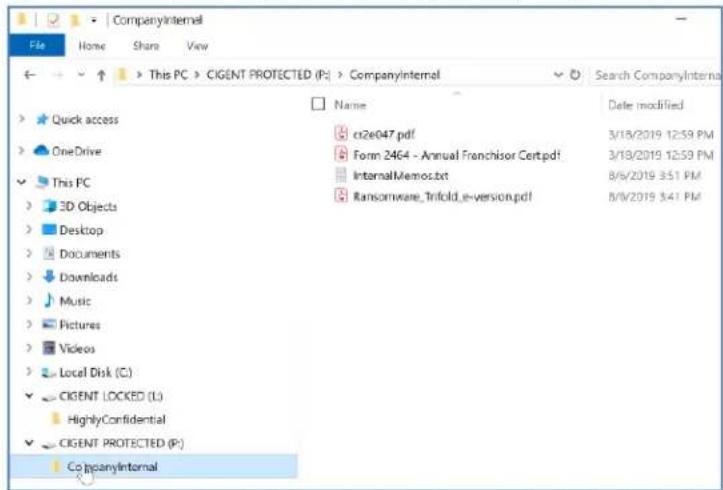
- In Windows Explorer, browse to your Dynamic Drive ( usually P: )
text_image
CompanyInternal File Home Share View This PC > CIGENT PROTECTED (P:) > CompanyInternal Search CompanyInternal Name Date modified Quick access OneDrive This PC 3D Objects Desktop Documents Downloads Music Pictures Videos Local Disk (C:) CIGENT LOCKED (L:) HighlyConfidential CIGENT PROTECTED (P:) CompanyInternal- Double click on a file to open it.
- Since the file resides on the Dynamic drive, the file will open without requiring a second factor authentication unless there is an Active threat and the system is in Active Lock.
Manage Cigent Settings
The Cigent Setting page allows you to customize different aspects of Cigent and C Series SSD operations. This section is a quick explanation of each setting. Those preceded with an asterisk(*) are particularly important or useful.

text_image
Cigent Dashboard Folder Protection Secure Drives Networks Authentication Settings About Settings Manage Settings General License Update Allow OneDrive to sync locked files without authentication If you have configured Cigent to protect files in your OneDrive folders enable this option to allow OneDrive to sync files without requiring authentication. Allow Dropbox to sync locked files without authentication If you have configured Cigent to protect files in your Dropbox folders enable this option to allow Dropbox to sync files without requiring authentication. Automatically Unlock 'Dynamic' Secure Drives Automatically unlock Dynamic Secure drives during normal state. Lock 'Dynamic' Secure Drives When Threat Detected Enable this option to lock Dynamic Secure drives when a threat is detected. If the option is disabled and a threat is selected, access to all files and folders on 'Dynamic' Secure drives will require authentication. Show Windows Explorer - Convenience Menu Easily add Locked and Protected folders by right-didding on a folder. Trigger Active Lock if your Antivirus becomes disabled Increase protection of your files while your Antivirus solution is down. It is recommended to enable this feature unless you are experiencing issues. Automatically Start Facial Recognition Scan Enable to automatically start Facial recognition scans on authentication requests. Use Mini Authentication Popup Minimize the screen space used by the authentication popup by enabling this option. Oigent v3.1.3 © 2022 Cigent Technology, Inc.Allow OneDrive to sync locked file without authentication Allow Dropbox to sync locked files without authentication
Enable these options if you use either of these Cloud File storage solutions and have added an Always On folder being synchronized by these applications.
* Automatically Unlock Cigent Dynamic Secure Drives
Enable to have Cigent automatically unlock mound) your Dynamic drive (if configured) after system restarts and a threat clears.
* Lock Cigent Dynamic Secure Drives When Threat Detected
Disable this option if you want the Dynamic drive to remain unlocked (mounted) even during a threat state. Note however that files will still be protected by requiring a second factor authentication similar to AlwaysOn files until the threat is cleared.
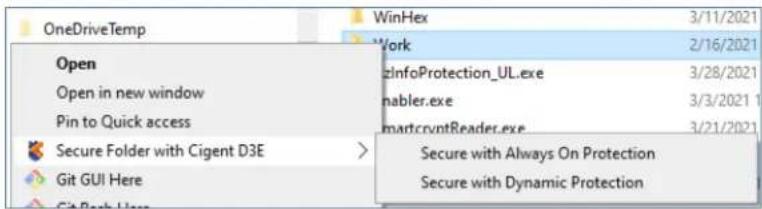
Show Windows Explorer – Convenience Menu
This setting determines if the right-click convenience menu is active in Windows Explorer. Users can easily add protections to folders using this method.
text_image
OneDriveTemp Open Open in new window Pin to Quick access Secure Folder with Cigent D3E Git GUI Here WinHex Work zInfoProtection_UL.exe nabler.exe martcryptReader.exe Secure with Always On Protection Secure with Dynamic ProtectionTrigger Active Lock if your Antivirus becomes disabled
This setting determines if Cigent should engage Active Lock should your AV become disabled. You should ONLY disable this setting if your AV is not detected by Cigent for some reason.
Automatically Start Facial Recognition Scan
When Facial Recognition is being used for authentication, scanning will automatically start when this setting is enabled.
\* Use Mini Authentication Popup
When enabled, this setting reduces the size of the popup authentication window and include minimal information. When PIN is enabled, users can type their PIN using the keyboard instead of clicking the numbers using a mouse.
Authentication
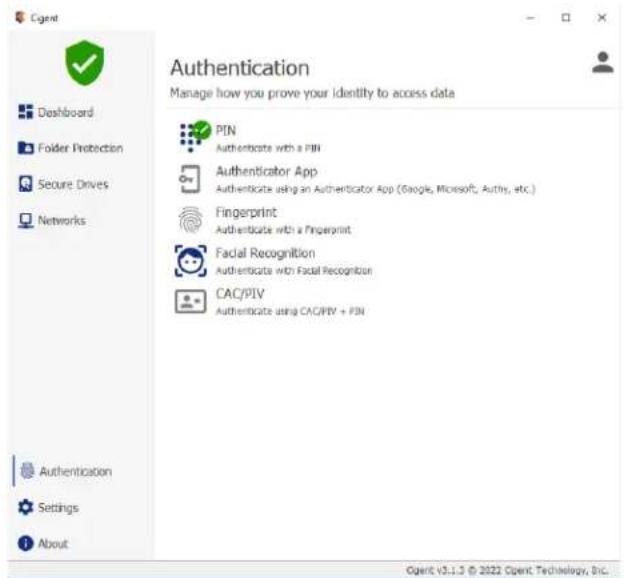
Opening protected files, unlocking C Series SSDs and making configuration changes all require providing a second factor of authentication. Cigent provides several options with additional enterprise options available in Cigent Plus.
text_image
Authentication Manage how you prove your identity to access data Dashboard Folder Protection Secure Drives Networks PIN Authenticate with a PIN Authenticator App Authenticate using an Authenticator App (Google, Microsoft, Authy, etc.) Fingerprint Authenticate with a Fingerprint Facial Recognition Authenticate with Facial Recognition CAC/PIV Authenticate using CAC/PIV + PIN Authentication Settings About Agent: V3.1.3 © 2022 Agent: Technology, Inc.PIN
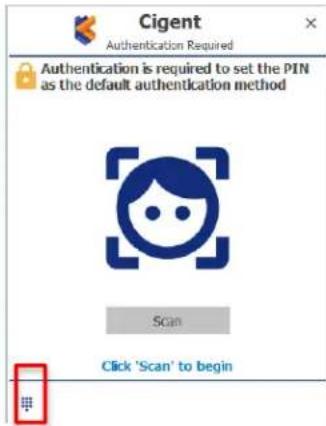
PIN is the default and must be at least 4 numbers in length. Even if you change the primary authentication to something else, you can always switch back to PIN by clicking the keypad icon in the authentication popup
text_image
Cigent Authentication Required Authentication is required to set the PIN as the default authentication method Scan Click 'Scan' to beginAuthenticator App
Authenticator App enables the use of popular mobile authentication applications from Google, Microsoft, Authy and more. Once configured, application will display a rotating six digit PIN that must be entered into Cigent before it changes (usually 1 minute.)
Fingerprint
Facial Recognition
Both Fingerprint and Facial recognition use the Windows Hello APIs to work. If your system supports either of these options, click the Setup button to complete the configuration via the Hello UI. Once complete, return to Cigent and select Default to change to this form of authentication to be used. Again, you can always use PIN by selecting the keypad in the authentication popup.
CAC/PIV
Common Access Card/Personal Identity Verification is an identification card issued by a federal agency that contains a computer chip which can be used to identify and validate a user using a PIN stored on the card. A CAC card reader is required and the CAC must be activate and valid.
License
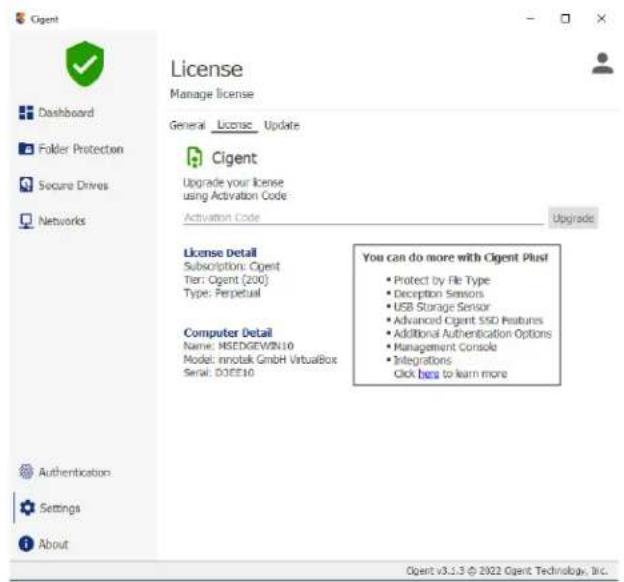
Cigent can be upgraded to Cigent Plus to gain access to additional protections, integrations and enterprise management features. For more information on Cigent Plus, please visit:
https://www.cigent.com/product
text_image
License Manage license Dashboard Folder Protection Secure Drives Networks License Detail Subscriptions: Cigent Tier: Cigent (200) Type: Perpetual Computer Detail Name: HSEDGEWIN10 Model: innotak GmbH VirtualBox Serial: D0EE10 You can do more with Cigent Plus! • Protect by File Type • Decipption Sensors • USB Storage Sensor • Advanced Cigent SSD Features • Additional Authentication Options • Management Console • Integrations Click here to learn more Authentication Settings About Cigent v3.1.3 © 2022 Cigent Technology, Inc.PIN
Administrators of Cigent Plus can obtain an Activation Code from the Licenses page of the Central Cigent console at https://central.cigent.com.

text_image
CIGENT Manage Licenses Select a valid subscription below to enable actions Download D3E Get D3E Download URL Get Activation Code Subscriptions Search Used Licenses Available Licenses Total Licenses Owner/Email Status Type Renes/Expires 4 6 10 David Wolf dave.wolf@cigent.com Valid Time Limited Thu, Apr 15, 2021DIGISTOR®
Provide this Activation code to users to enter the Cigent license page. Cigent will automatically register to the subscription and start enforcing settings specified by configured policies.
Folder Protections
Cigent can also provide protection to files residing in folders not located on Cigent Secure Drives however these files are not protected when Cigent is not running or present. This can be useful for protecting the portion of your important files that must reside on your OS ( C: ) drive for example.
Folder protections follow the same paradigm as Cigent Secure Drives.
Always On
- Files remain locked under all conditions
- Step-up authentication is required to access each file
• Designed for extremely sensitive information
Dynamic
- Files are locked only if a threat has been detected
- Provides strong protection in a minimally invasive manner—the user is prompted to authenticate only if access to a locked file is attempted
- Designed for files that require frequent bulk access like Source code.
text_image
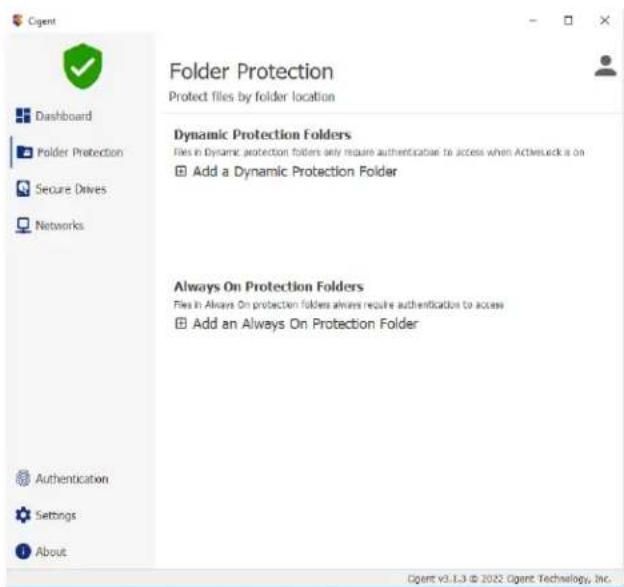
Folder Protection Protect files by folder location Dashboard Folder Protection Secure Drives Networks Dynamic Protection Folders files in Dynamic protection folders only require authentication to access when ActiveLock is on Add a Dynamic Protection Folder Always On Protection Folders files in Always On protection folders always require authentication to access Add an Always On Protection Folder Authentication Settings About Cagent v3.1.3 © 2022 Gentet Technology, Inc.Folder protection can be added in two ways:
- By clicking on the desired "Add ..." link on the Folder Protection page, selecting the folder in the Explorer window and clicking Select folder.

text_image
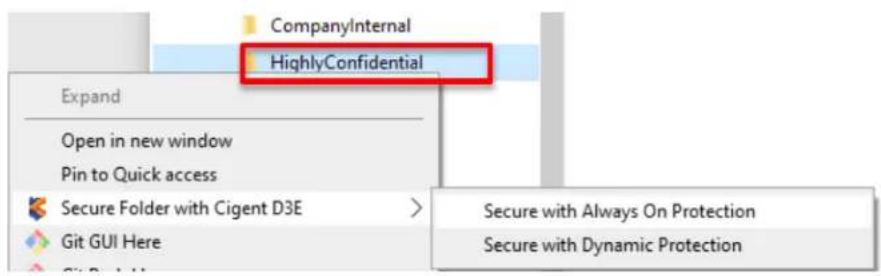
Folder Protection Protect files by folder location Dynamic Protection Folders For a Dynamic Protection folder only require modification to access when ActiveLock is on Add a Dynamic Protection Folder Always On Protection Folders For a Always On Protection folder's always require modification to access Add an Always On Protection Folder Dashboard Folder Protection Secure Drives Networks Authentication Settings About Cigent v3.1.3 © 2023 Cigent Technology, Inc.- Using the menu from Windows Explorer itself. Right click on the folder, select "Secure Folder with Cigent" menu and the desired protection level from the sub menu.
text_image
CompanyInternal HighlyConfidential Expand Open in new window Pin to Quick access Secure Folder with Cigent D3E > Git GUI Here Secure with Always On Protection Secure with Dynamic ProtectionIn the following optional sections, we will explore Cigent sensors and their impact on Dynamic and Always On drives and files stored on them.
Microsoft Defender and Antivirus Integration
Cigent's is integrated with Microsoft Defender® and other Antivirus solutions registered with Windows Security Center adding additional protection in case of a threat or attack. Cigent will initiate Active Lock if:
- Microsoft Defender detects a threat
- Microsoft Defender or AV is shutdown or disabled
Disabling Microsoft Defender or other Antivirus solution
Attackers will often first disable the existing AV solution in order to make it easier to proceed with the attack. Cigent constantly monitors the status of Microsoft Defender or other AV solutions and will initiate Active Lock when it is no longer running or has detected a threat. This section details the steps for exercising this sensor using Microsoft Defender but you can accomplish the same using whatever your AV solution.
Manually stopping Microsoft Defender
- Search in the start menu for "Virus & threat protection". Select the item to open System Settings.

text_image
All Apps Documents Settings Web Best match Virus & threat protection System settings Settings Windows Defender settings > Check security status > Security at a glance > Store Virus Stopper > Virus X > Search the web virus - See web results > virus & threat protection2. Select "Manage Settings"
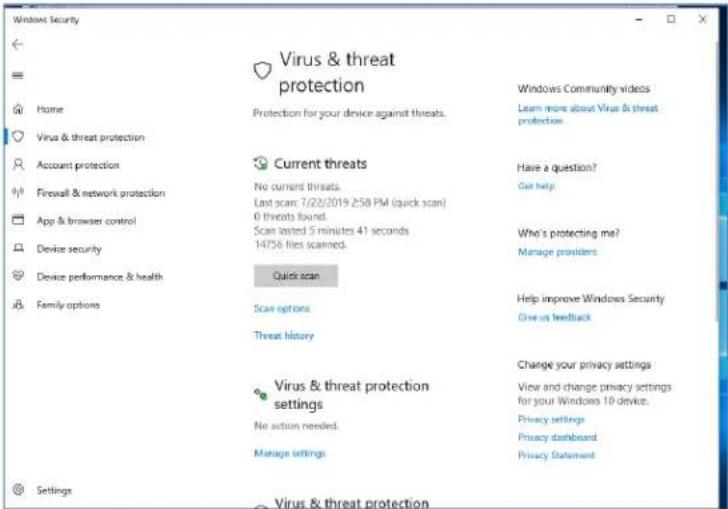
text_image
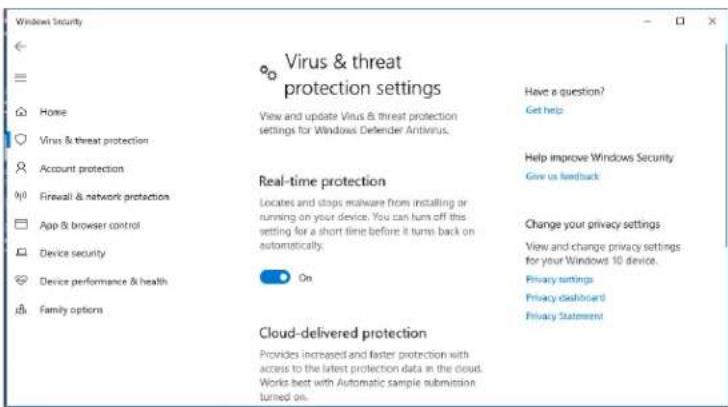
Windows Security = Home Virus & threat protection Account protection Firewall & network protection App & browser control Device security Device performance & health Family options Settings Virus & threat protection Protection for your device against threats. Current threats No current threats. Last scan: 7/22/2019 258 PM (quick scan) 0 threats found. Scan tested 5 minutes 41 seconds 14736 files scanned. Quick scan Scan options Threat history Virus & threat protection settings No action needed. Manage settings Windows Community videos Learn more about Virus & threat protection Have a question? Get help Who's protecting me? Manage providers Help improve Windows Security Give us feedback Change your privacy settings View and change privacy settings for your Windows 10 devices. Privacy settings Privacy dashboard Privacy Statement3. Turn off Real-Time protection using the slider.
text_image
Windows Security Virus & threat protection settings Have a question? Get help Home View and update Virus & threat protection settings for Windows Defender Antivirus. Virus & threat protection Account protection Help improve Windows Security Give us feedback Firewall & network protection Locates and stops malware from installing or running on your device. You can turn off this setting for a short time before it turns back on automatically. Change your privacy settings View and change privacy settings for your Windows 10 device. Device security On Private settings Privacy dashboard Device performance & health Privacy Statement Family options Cloud-delivered protection Provides increased and faster protection with access to the latest protection data in the cloud. Works best with Automatic sample submission turned on.4. Select Yes to allow the action to complete.
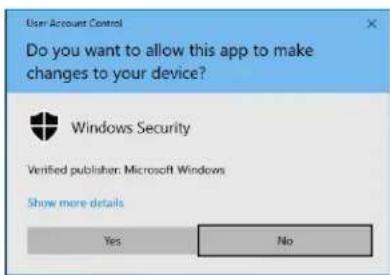
text_image
User Account Control Do you want to allow this app to make changes to your device? Windows Security Verified publisher: Microsoft Windows Show more details Yes No- Minimize the Windows Security window and return to the Cigent dashboard. Note that Active Lock was immediately engaged. The Dynamic and Always On drives have automatically been locked.

text_image
Cigent Threats Detected (1 of 1) Dashboard Folder Protection Secure Drives Networks Authentication Settings About ActiveLock Engaged Windows Defender Antivirus seems to be disabled This alert is generated when Windows Defender Antivirus appears to be disabled. If you are sure your antivirus is running, you can disable the 'Trigger ActiveLock if your Antivirus becomes disabled' setting. Folder Protection 1 Dynamic folder Secure Drives Not configured Networks Network Trusted Authentication- Return to the Windows Security window and re-enable Real-time.
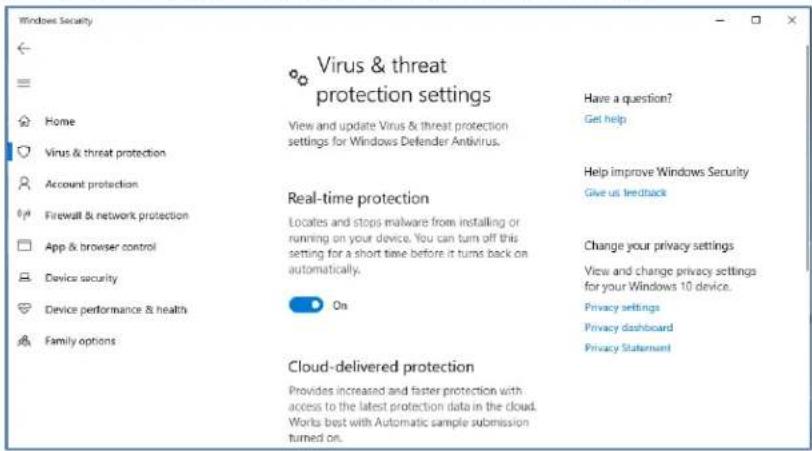
text_image
Windows Security Virus & threat protection settings Have a question? Get help View and update Virus & threat protection settings for Windows Defender Antivirus. Account protection Firewall & network protection App & browser control Device security Device performance & health Family options Real-time protection Locates and stops malware from installing or running on your device. You can turn off this setting for a short time before it turns back on automatically. On Cloud-delivered protection Provides increased and faster protection with access to the latest protection data in the cloud. Works best with Automatic sample submission turned on. Help improve Windows Security Give us feedback Change your privacy settings View and change privacy settings for your Windows 10 device. Privacy settings Privacy dashboard Privacy StatementClick Yes to allow the operation to complete.

text_image
User Account Control Do you want to allow this app to make changes to your device? Windows Security Verified publisher: Microsoft Windows Show more details Yes No- The security status is now clear. Notice the Cigent icon in the tray has returned to normal.

text_image
Cigent Standing Guard We are looking out for your sensitive data Dashboard Folder Protection Secure Drives Networks Folder Protection 1 Dynamic folder Secure Drives Not configured Networks Network Trusted Authentication Authentication Settings About Cigent v3.1.3 © 2022 Cigent Technology, Inc.- Select the Secure Drives tile and select your drive. Notice that P: has automatically been unlocked but L: remains in locked state.

text_image
Cigent Secure Drives Protect files with firmware locking, the highest level of protection Dashboard Folder Protection Secure Drives Networks Name: Cigent SSD S/N: 5P1210729001000006 FW: ECFM13.3 [894.25 GB] G: Secure Drives Always On (locked) Dynamic (G:) Deconfigure Change Password Advanced Authentication Settings About Cogent V3.1.3 © 2022 Cigent Technology, Inc.- Unlock the L: drive. Slide the switch next to L:, enter your PIN and click Enter.
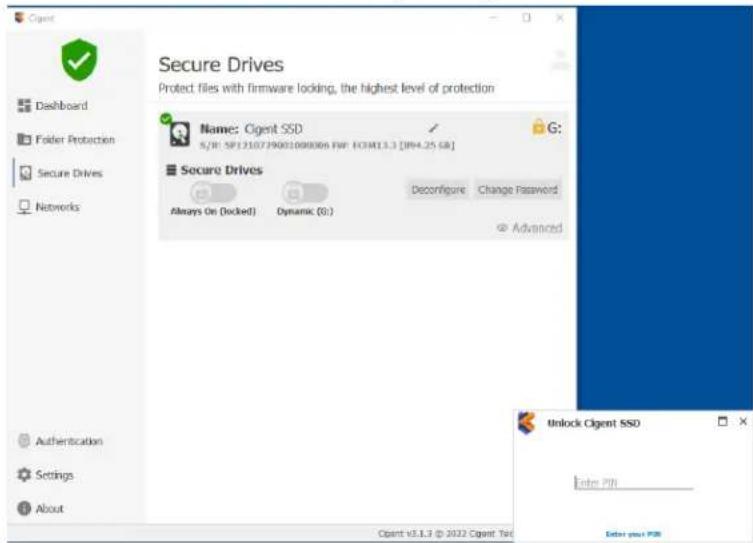
text_image
Secure Drives Protect files with firmware locking, the highest level of protection Name: Cigent SSD S/R: SP121073900100006 FP: FCM13.3 [MP4.25 GB] G: Secure Drives Always On (Locked) Dynamic (G:) Deconfigure Change Password Advanced Unlock Cigent SSD Enter PIN Enter your PIN Dashboard Folder Protection Secure Drives Networks Authentication Settings About Cigent v3.1.3 © 2022 Cigent TsdNetwork Manager
The Network Manager system prevents unauthorized network devices from establishing connections to your protected system. Among the many events that will engage Active Lock are:
• You join a network that has not been previously trusted
- A network device scans your host for open ports and connects to a Cigent deception port.
• An untrusted network device attempts to connect to your device on any port.
Note : This entire section can only be completed if your installation is connected to a network. It does NOT need internet access but simply a valid network IP address.
Untrusting your current network
You can simulate the effects of joining a network that has not previously been trusted by simply untrusting the network on which you are currently connected. This will cause Active Lock to be engaged.
- Open Cigent and select the Networks menu.

text_image
Cigent Dashboard Folder Protection Secure Drives Networks Authentication Settings About Networks Manage the trust level of networks you connect Manage Known Networks Network Client v3.1.3 © 2022 Cigent Technology, Inc.- Select the active network and click on the Untrust button.

text_image
Cigent Dashboard Folder Protection Secure Drives Networks Authentication Settings About Networks Manage the trust level of networks you connect Manage Known Networks Network Details Untrust Cigent v3.1.3 © 2022 Cigent Technology, Inc.- Switch back to the Dashboard. Note that Active Lock is engaged.
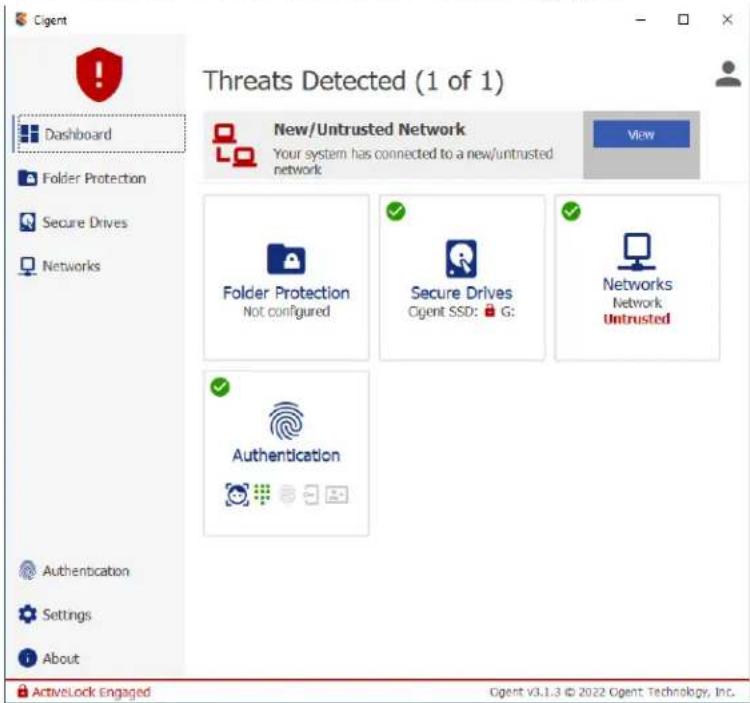
text_image
Cigent Threats Detected (1 of 1) Dashboard Folder Protection Secure Drives Networks View New/Untrusted Network Your system has connected to a new/untrusted network Folder Protection Not configured Secure Drives Cigent SSD: G: Networks Network Untrusted Authentication Authentication ActiveLock Engaged Cigent V3.1.3 © 2022 Cigent Technology, Inc.- Return to the Networks page and click TRUST under your current network. You will need to enter your PIN.
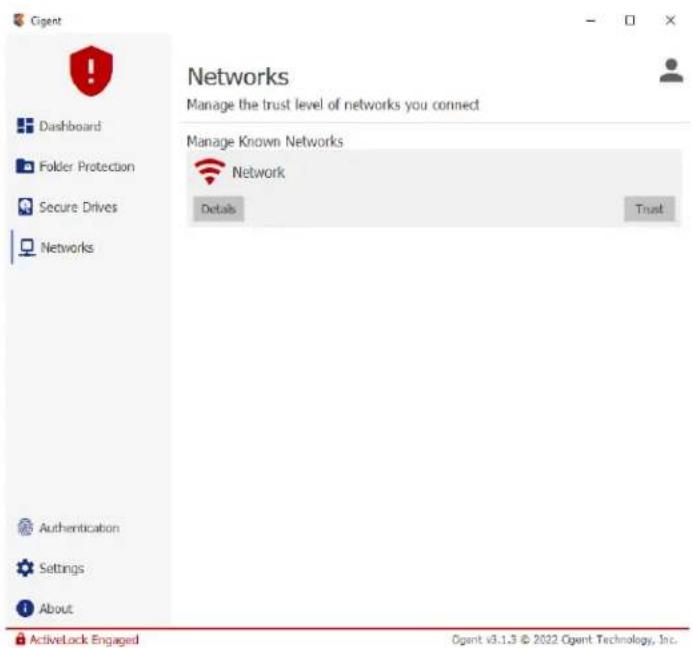
text_image
Cigent Networks Manage the trust level of networks you connect Manage Known Networks Network Details Trust Dashboard Folder Protection Secure Drives Networks Authentication Settings About ActiveLock Engaged Cigent v3.1.3 © 2022 Cigent Technology, Inc.- Switch back to the Dashboard page and note that Active Lock is disengaged.
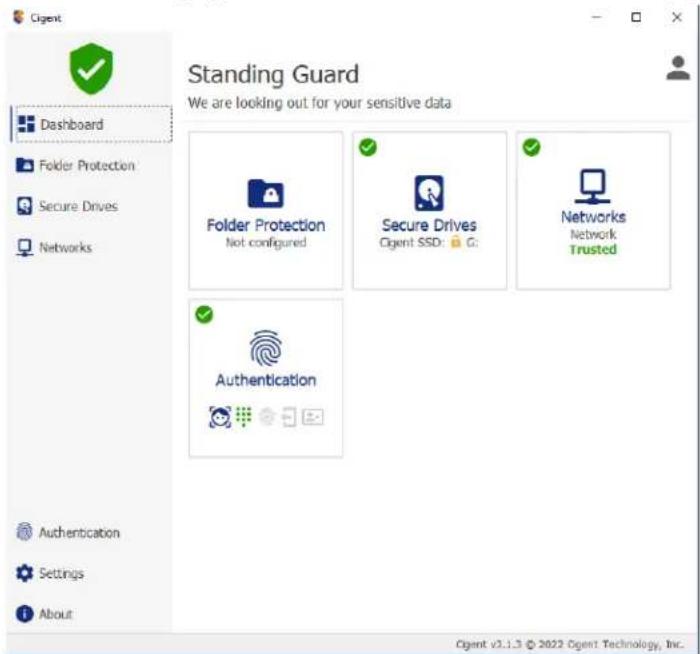
text_image
Standing Guard We are looking out for your sensitive data Folder Protection Not configured Secure Drives Cigent SSD: G: Networks Network Trusted Authentication Authentication Authentication Settings About Cigent v3.1.3 © 2022 Eigent Technology, Inc.C Series Advanced SSD Features
KeepAlive
KeepAlive provides an extra layer of protection by creating a tighter trust connection between the firmware (SSD) and the software (Cigent). When enabled, a non-replayable heartbeat starts between Cigent and the C Series Advanced SSD such that if the drive fails to receive the proper response in time, the drives will automatically secure. This prevents any chance a hacker could stop Cigent protection once a drive is unlocked. This makes it impossible to access the files on the C Series Advanced SSD without Cigent running and authorized.
KeepAlive is automatically enabled by the Quick Secure Drive setup process. You can confirm KeepAlive is enabled by the presence of a heart icon on the drive icon on the Secure Drives page.
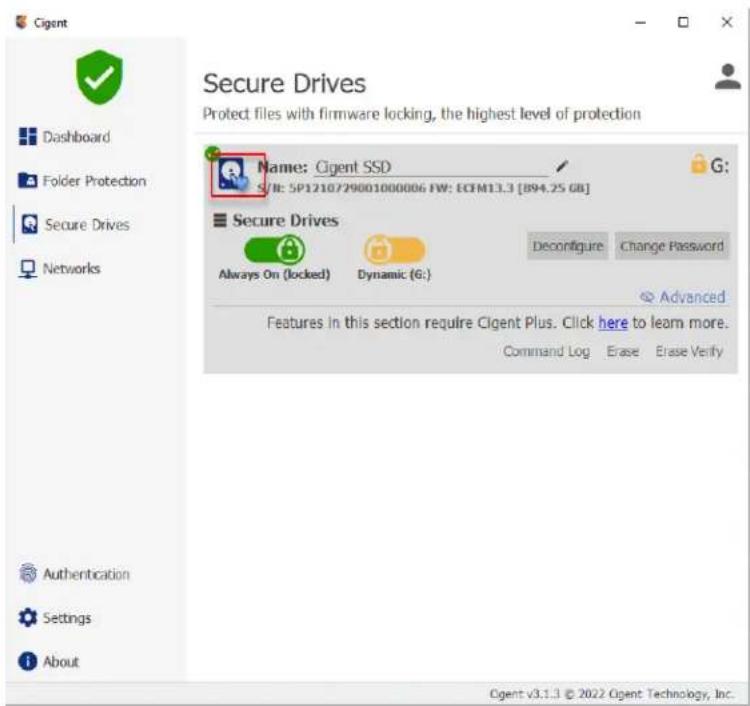
text_image
Cigent Secure Drives Protect files with firmware locking, the highest level of protection Name: Cigent SSD S/I: SP1210729001000006 FW: ECFM13.3 [B94.25 GB] G: Secure Drives Always On (locked) Dynamic (6:) Deconfigure Change Password Advanced Features in this section require Cigent Plus. Click here to learn more. Command Log Erase Erase Verify Dashboard Folder Protection Secure Drives Networks Authentication Settings About Cigent v3.1.3 © 2022 Cigent Technology, Inc.Testing KeepAlive functionality is beyond the scope of this document. You can find information on testing this feature in the larger Cigent Evaluation Guide found on the Cigent website resources page: https://www.cigent.com/resources
Command Log Audit
C Series Advanced SSDs automatically store every command sent to the drive in a tamperproof location in memory on the drive. Cigent also periodically writes markers to the log to indicate the activity was performed with Cigent running and that the activity was properly authorized. Commands are stored for all partitions including unsecured locations should the user have configured a portion of the drive as a normal NTFS partition.
This command log can be used to audit drive activity to capture attempts to read information from the drive while not under the protection of Cigent, possibly indicating attempts to circumvent file protection. Further, the command log can be used to report on files accessed with or without Cigent running by mapping the accessed locations to the current file system layout. This can reveal important information to investigators attempting to understand what was accessed or at least what files were attempted to be accessed.
- Select the C Series Advanced SSD and click Advanced to reveal the advanced features.
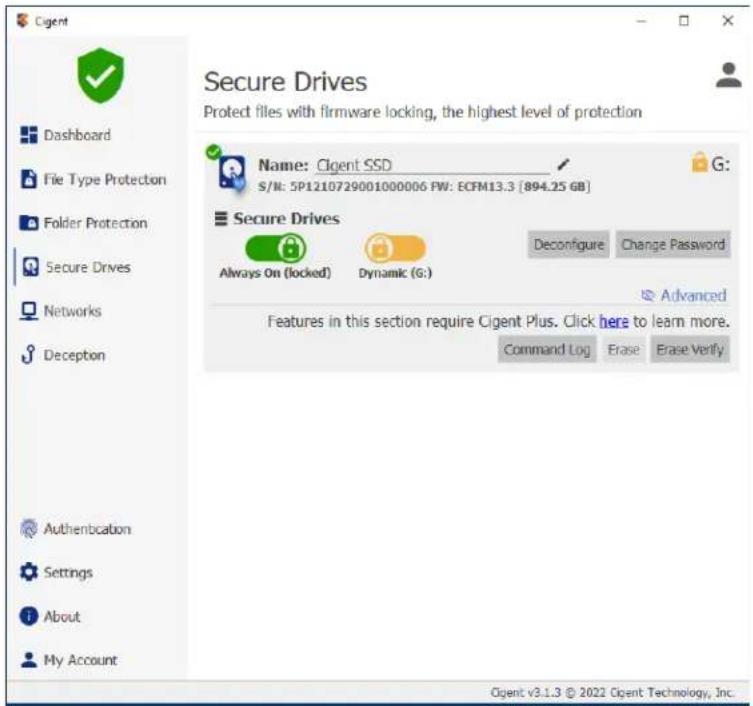
text_image
Cigent Secure Drives Protect files with firmware locking, the highest level of protection Name: Cigent SSD S/N: 5P1210729001000006 PW: ECFM13.3 [894.25 GB] G: Secure Drives Always On (locked) Dynamic (G:) Deconfigure Change Password Advanced Features in this section require Cigent Plus. Click here to learn more. Command Log Erase Erase Verify Dashboard File Type Protection Folder Protection Secure Drives Networks Deception Authentication Settings About My Account Cigent v3.1.3 © 2022 Cigent Technology, Inc.- Click Command Log to open the Command Log Audit page. Click Scan to initiate the reading of the command log.
Note: Reading the command log from the drive over USB especially can take several minutes.

bar
Command Log Audit | Date Range | Read | Write | Unauthorized R/W | | :--- | :--- | :--- | :--- | | 01/12/2022 07:20 AM - 02/03/2022 08:41 AM | 15 | 5 | 10 | | 02/03/2022 08:41 AM | 16 | 6 | 9 | | 03/03/2022 08:41 AM | 17 | 7 | 10 | | 04/03/2022 08:41 AM | 18 | 8 | 11 | | 05/03/2022 08:41 AM | 19 | 9 | 12 | | 06/03/2022 08:41 AM | 20 | 10 | 13 | | 07/03/2022 08:41 AM | 21 | 11 | 14 | | 08/03/2022 08:41 AM | 22 | 12 | 15 | | 09/03/2022 08:41 AM | 23 | 13 | 16 | | 10/03/2022 08:41 AM | 24 | 14 | 17 | | 11/03/2022 08:41 AM | 25 | 15 | 18 | | 12/03/2022 08:41 AM | 26 | 16 | 19 | | 13/03/2022 08:41 AM | 27 | 17 | 20 | | 14/03/2022 08:41 AM | 28 | 18 | 21 | | 15/03/2022 08:41 AM | 29 | 19 | 22 | | 16/03/2022 08:41 AM | 30 | 20 | 23 | | 17/03/2022 08:41 AM | 31 | 21 | 24 | | 18/03/2022 08:41 AM | 32 | 22 | 25 | | 19/03/2022 08:41 AM | 33 | 23 | 26 | | 20/03/2022 08:41 AM | 34 | 24 | 27 | | 21/03/2022 08:41 AM | 35 | 25 | 28 | | 22/03/2022 08:41 AM | 36 | 26 | 29 | | 23/03/2022 08:41 AM | 37 | 27 | 30 | | 24/03/2022 08:41 AM | 38 | 28 | 31 | | Note: The data is extracted from the provided image as it is not possible to extract meaningful text in the image. The output is estimated based on the provided code format. Please note that the output should be generated.- If this is a relatively new drive, you may have only a few data points. If this drive has been in use for a while, you may need to scroll the graph to the right using slider to get to the newest information.

bar
Command Log Audit | Category | Read | Write | Unauthorized R/W | | :--- | :--- | :--- | :--- | | 263031 | 263031 | 263031 | 263031 | | 1123514 | 1123514 | 1123514 | 1123514 |- Click on a shorter bar in the graph to receive some details as the counts of each operation.

bar
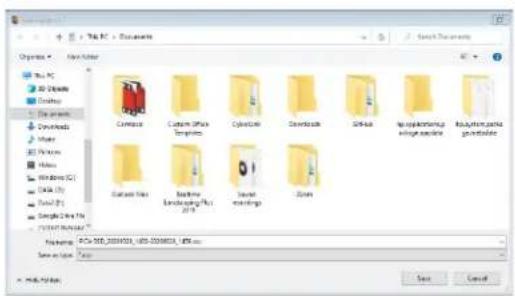
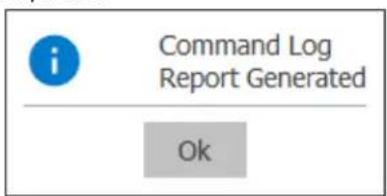
| Date Range | Read | Write | |---|---|---| | 01/26/2022 | 120170 | 1888 | | 03/04/2022 09:43 AM - 03/04/2022 09:43 AM | 120170 | 1888 | | 03/04/2022 09:43 AM - 03/04/2022 09:43 AM | 120170 | 1888 | | 03/04/2022 09:43 AM - 03/04/2022 | 120170 | 1888 | | 03/04/2022 09:43 AM - 03/04/2022 | 120170 | 1888 | | 03/04/2022 09:43 AM - 03/04/2022 | 120175 | 1888 | | 03/04/2022 09:43 AM - 03/04/2022 | 120175 | 1888 | | 03/04/2022 09:43 AM - 03/04/2022 | 120175 | 1888 | The chart displays a bar chart with 'Read' and 'Write' categories for each day of the week (Jan-15 to Jan-25). The data is generated by Cigent v3.1.3 (© 2022 Cigent Technology, Inc.). The table includes a zoomed-in view for the date range from 01/26/2022 to 03/04/2022. The extracted data is presented in a table format with columns for 'Read' and 'Write'. The 'Generated' section is not included in the image.- Click the Generate button to create a CSV file containing files to which the commands log entries currently map. Click Save and enter your PIN to authorize the action.
text_image
Tik. PC > Documents Organize New Author C:\Users\Documents\My Computer\Customs\Documents\Systems\Download\Snack\My Properties\My Home\Windows (C)\My DNA\My DNA\My DNA\My DNA\My DNA\My DNA\My DNA\My DNA\My DNA\My DNA\My DNA\My DNA\My DNA\My DNA\My DNA\My DNA\My DNA\My DNA\My DNA\My DNA\My DNA\My DNA\My DNA\My DNA\My DNA\My DNA\My DNA\My DNA\My DNA\My DNA\My DNA\My DNA\My DNA\My DNA\Mg Custus Vire Custus Vire Custus Vire Custus Vire Custus Vire Custus Vire Custus Vire Custus Vire Custus Vire Custus Vire Custus Vire Custus Vire Custus Vire Custus Vire Custus Vire Custus Vire Custus Vire Custes Vire Custes Vire Custes Vire Custes Vire Custes Vire Custes Vire Custes Vire Custes Vire Custes Vire Custes Vire Custes Vire Custes Vire Custes Vire Custes Vire Custes Vire Custes Vire Custes Vire Dustus Vire Dustus Vire Dustus Vire Dustus Vire Dustus Vire Dustus Vire Dustus Vire Dustus Vire Dustus Vire Dustus Vire Dustus Vire Dustus Vire Dustus Vire Dustus Vire Dustus Vire Dustus Vire Dustus Vire Data: 100, 200, 300, 400, 500, 600, 700, 800, 900, 1000, 1100, 1200, 1300, 1400, 1500, 1600, 1700, 1800, 1900, 2000, 2100, 2200, 2300, 2400, 2500, 2600, 2700, 2800, 2900, 3000, 3100, 3200, 3300, 3400, 3500, 3600, 3700, 3800, 3900, 4000, 4100, 4200, 4300, 4400, 4500, 4600, 4700, 4800, 4900, 5000, 5100, 5200, 5300, 5400, 5500, 5600, 5700, 5800, 5900, 6000, 6100, 6200, 6300, 6400, 6500, 6600, 6700, 6800, 6900, 7000, 7100, 7200, 7300, 7400, 7500, 7600, 7700, 7800, 7900, 8000, 8100, 8200, 8300, 8400, 8500, 8600, 8700, 8800, 8900, 9000, 9100, 9200, 9300, 9400, 9500, 9600, 9700, 9800, 9900, 1. All rights reserved. Data: CDS-355_2699/2699_1/15-2/2699/2699_1/15-2/2699/2699_1/15-2/2699/2699_1/15-2/2699/2699_1/15-2/2699/2699_1/15-2/2699/2699_1/15- Click OK once the operation completes.
text_image
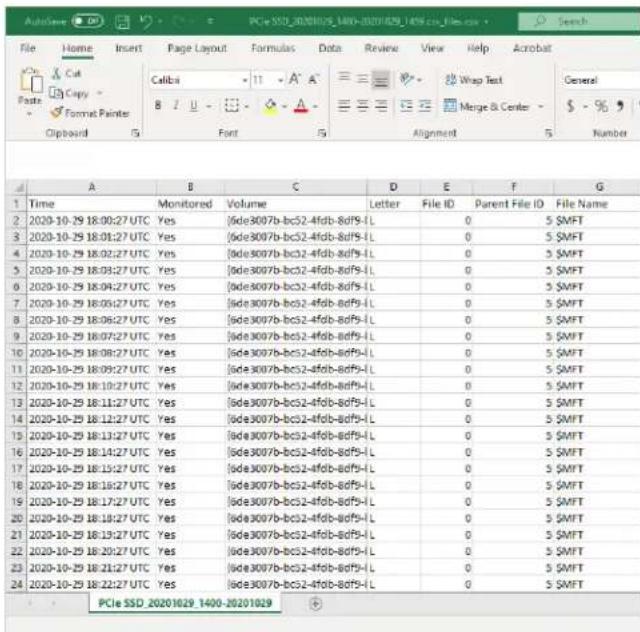
i Command Log Report Generated Ok- Open the file using a text editor or Excel.
text_image
PCIe SSD_20201029_1400-20201029_1458.cn_files_cn File Home Insert Page Layout Formulas Data Review View Help Acrobat Paste Cut Copy Format Painter Clipboard G Font A S Alignment S Number A B C D E F G 1 Time Monitored Volume Letter File ID Parent File ID File Name 2 2020-10-29 18:00:27 UTC Yes (sde3007b-bc52-4fdb-8df9-l) 0 5 SMFT 3 2020-10-29 18:01:27 UTC Yes (sde3007b-bc52-4fdb-8df9-l) 0 5 SMFT 4 2020-10-29 18:02:27 UTC Yes (sde3007b-bc52-4fdb-adf9-l) 0 5 SMFT 5 2020-10-29 18:03:27 UTC Yes (sde3007b-bc52-4fdb-adf9-l) 0 5 SMFT 6 2020-10-29 18:04:27 UTC Yes (sde3007b-bc52-4fdb-adf9-l) 0 5 SMFT 7 2020-10-29 18:05:27 UTC Yes (sde3007b-bc52-4fdb-adf9-l) 0 5 SMFT 8 2020-10-29 18:06:27 UTC Yes (sde3007b-bc52-4fdb-adf9-l) 0 5 SMFT 9 2020-10-29 18:07:27 UTC Yes (sde3007b-bc52-4fdb-adf9-l) 0 5 SMFT 10 2020-10-29 18:08:27 UTC Yes (sde3007b-bc52-4fdb-adf9-l) 0 5 SMFT 11 2020-10-29 18:09:27 UTC Yes (sde3007b-bc52-4fdb-adf9-l) 0 5 SMFT 12 2020-10-29 18:10:27 UTC Yes (sde3007b-bc52-4fdb-adf9-l) 0 5 SMFT 13 2020-10-29 18:11:27 UTC Yes (sde3007b-bc52-4fdb-adf9-l) 0 5 SMFT 14 2020-10-29 18:12:27 UTC Yes (sde3007b-bc52-4fdb-adf9-l) 0 5 SMFT 15 2020-10-29 18:13:27 UTC Yes (sde3007b-bc52-4fdb-adf9-l) 0 5 SMFT 16 2020-10-29 18:14:27 UTC Yes (sde3007b-bc52-4fdb-adf9-l) 0 5 SMFT 17 2020-10-29 18:15:27 UTC Yes (sde3007b-bc52-4fdb-adf9-l) 0 5 SMFT 18 2020-10-29 18:16:27 UTC Yes (sde3007b-bc52-4fdb-adf9-l) 0 5 SMFT 19 2020-10-29 18:17:27 UTC Yes (sde3007b-bc52-4fdb-adf9-l) 0 5 SMFT 20 2020-10-29 18:18:27 UTC Yes (sde3007b-bc52-4fdb-adf9-l) 0 5 SMFT 21 2020-10-29 18:19:27 UTC Yes (sde3007b-bc52-4fdb-adf9-l) 0 5 SMFT 22 2020-10-29 18:20:27 UTC Yes (sde3007b-bc52-4fdb-adf9-l) 0 5 SMFT 23 2020-10-29 18:21:27 UTC Yes (sde3007b-bc52-4fdb-adf9-l) 0 5 SMFT 24 2020-10-29 18:22:27 UTC Yes (sde3007b-bc52-4fdb-adf9-l) 0 5 SMFT PCIe SSD_20201029_1400-20201029The columns of major importance are:
a. Time - In UTC that the activity occurred.
b. Monitored – If Cigent was active or not. (Filter to No for unauthorized activity)
c. File Name – Name of the file accessed.
Note: You will see many files used by Windows that are usually hidden from users.
Erase Verify
Secure data erasure is an important process for many commercial and governmental organizations preventing classified information from unauthorized access. Short of costly and wasteful physical destruction, users had to depend on outdated erasure programs originally written for magnetic media. Solid State Drives require different methods of erasure to prevent recovery by today's advanced tools and technique. C Series Advanced SSDs support extended erasure verification commands to check each and every mapped and unmapped block to verify the data has been removed. Any blocks reporting data will result in an erasure verification failure. Once Cigent confirms the drive has been truly erased, it can be safely and securely reused.
- Select the C Series Advanced SSD and click Advanced to reveal the advanced features.

text_image
Cigent Dashboard File Type Protection Folder Protection Secure Drives Networks Deception Authentication Settings About My Account Secure Drives Protect files with firmware locking, the highest level of protection Name: Cigent SSD S/I#: SP1210739001000006 FW: ECM13.3 [894.25 GB] G: Secure Drives Always On (locked) Dynamic (G:) Deconfigure Change Password Advanced Features in this section require Cigent Plus. Click here to learn more. Command Log Erase Erase Verify Cogent v3.1.3 © 2022 Cigent Technologies, Inc.- Click Erase Verify.

text_image
Cigent Dashboard File Type Protection Folder Protection Secure Drives Networks Deception Authentication Settings About My Account Return to Secure Drives Erasure Verification Analysis Cigent SSD S/N: SP1210729001000006 Device Not Erased Erased User Blocks (0) Unerased User Blocks (2) Firmware Blocks (19) Erased Unmapped Blocks (801) Unerased Unmapped Blocks (138) Gigent v3.1.3 © 2022 Gigent Technology, Inc.DIGISTOR®
Cigent will indicate Drive Not Erased (as expected) with a count of erased and non-erased blocks from the unmapped and user areas. The map at the bottom is a logical display of the blocks by block number and color coded by its status.
Testing complete data erasure is beyond the scope of this document however feel free to experiment with different data destruction methods and see if you are able to achieve the 'Erasure Confirmed' message as seen below.

text_image
Return to Secure Drives Erasure Verification Analysis PCIe SSD S/N: 288E0708085300002941 Dashboard File Type Protection Folder Protection Secure Drives Networks Renewable Storage Deoption Authentication Settings License Update Erasure Confirmed Erased User Blocks (0) Unreased User Blocks (0) Firmware Blocks (18) Erased Unmapped Blocks (972) Unreased Unmapped Blocks (0)If you have questions on how best to accomplish complete data erasure, please contact Cigent support for additional guidance.