TO24-JD1 - Server GIGABYTE - Free user manual and instructions
Find the device manual for free TO24-JD1 GIGABYTE in PDF.


User questions about TO24-JD1 GIGABYTE
0 question about this device. Answer the ones you know or ask your own.
Ask a new question about this device
Download the instructions for your Server in PDF format for free! Find your manual TO24-JD1 - GIGABYTE and take your electronic device back in hand. On this page are published all the documents necessary for the use of your device. TO24-JD1 by GIGABYTE.
USER MANUAL TO24-JD1 GIGABYTE
© 2023 Giga Computing Technology CO., LTD. All rights reserved.
The trademarks mentioned in this manual are legally registered to their respective owners.
Disclaimer
Information in this manual is protected by copyright laws and is the property of Giga Computing. Changes to the specifications and features in this manual may be made by Giga Computing without prior notice. No part of this manual may be reproduced, copied, translated, transmitted, or published in any form or by any means without Giga Computing's prior written permission.
Documentation Classifications
In order to assist in the use of this product, Giga Computing provides the following types of documentation:
■ User Manual: detailed information & steps about the installation, configuration and use of this product (e.g. motherboard, server barebones), covering hardware and BIOS.
■ User Guide: detailed information about the installation & use of an add-on hardware or software component (e.g. BMC firmware, rail-kit) compatible with this product.
■ Quick Installation Guide: a short guide with visual diagrams that you can reference easily for installation purposes of this product (e.g. motherboard, server barebones).
Please see the support section of the online product page to check the current availability of these documents.
For More Information
For related product specifications, the latest firmware and software, and other information please visit our website at http://www.gigabyte.com/Enterprise
For GIGABYTE distributors and resellers, additional sales & marketing materials are available from our reseller portal: http://reseller.b2b.gigabyte.com
For further technical assistance, please contact your GIGABYTE representative or visit https://esupport.gigabyte.com/ to create a new support ticket
For any general sales or marketing enquiries, you may also message GIGABYTE server directly by email: server.grp@gigabyte.com
Conventions
The following conventions are used in this user's guide:
 | NOTE!Pieces of additionalinformation related to the current topic. |
 | CAUTION!Precautionary measures toavoid possible hardware or software problems. |
 | WARNING!Alerts to any damage that mightresult from doing or not doing specific actions. |
Server Warnings and Cautions
Before installing a server, be sure that you understand the following warnings and cautions.

WARNING!
To reduce the risk of electric shock or damage to the equipment:
- Do not disable the power cord grounding plug. The grounding plug is an important safety feature.
- Plug the power cord into a grounded (earthed) electrical outlet that is easily accessible at all times.
- Unplug the power cord from the power supply to disconnect power to the equipment.
- Do not route the power cord where it can be walked on or pinched by items placed against it. Pay particular attention to the plug, electrical outlet, and the point where the cord extends from the server.

WARNING!
To reduce the risk of personal injury from hot surfaces, allow the drives and the internal system components to cool before touching them.

WARNING!
This server is equipped with high speed fans. Keep away from hazardous moving fan blades during servicing.

CAUTION!
- Do not operate the server for long periods with the access panel open or removed. Operating the server in this manner results in improper airflow and improper cooling that can lead to thermal damage.
- Danger of explosion if battery is incorrectly replaced.
- Replace battery with the same or equivalent type recommended by the manufacturer.
- Dispose of used batteries according to the manufacturer's instructions.

CAUTION!
Risk of explosion if battery is replaced incorrectly or with an incorrect type. Replace the battery only with the same or equivalent type recommended by the manufacturer. Dispose of used batteries according to the manufacturer's instructions.

Electrostatic Discharge (ESD)
CAUTION!
ESD CAN DAMAGE DRIVES, BOARDS, AND OTHER PARTS. WE RECOMMEND THAT YOU PERFORM ALL PROCEDURES AT AN ESD WORKSTATION. IF ONE IS NOT AVAILABLE, PROVIDE SOME ESD PROTECTION BY WEARING AN ANTI-STATIC WRIST STRAP ATTACHED TO CHASSIS GROUND -- ANY UNPAINTED METAL SURFACE -- ON YOUR SERVER WHEN HANDLING PARTS.
Always handle boards carefully, they can be extremely sensitive to ESD. Hold boards only by their edges without touching any components or connectors. After removing a board from its protective ESD bag or from the system, place the board component side up on a grounded, static free surface. Use a conductive foam pad if available but not the ESD bag. Do not slide the board over any surface.
System power on/off: To service components within the server, please ensure the power has been disconnected.
e.g. Remove the node from the server chassis (to disconnect power) or disconnect the power from the server chassis.
Make sure the system is removed from the rack before opening the chassis, adding, or removing any non hot-plug components.
Hazardous conditions, devices and cables: Hazardous electrical conditions may be present on power, telephone, and communication cables. Turn off the system chassis and disconnect the cables attached to the system before servicing the chassis. Otherwise, personal injury or equipment damage can result.
Electrostatic discharge (ESD) and ESD protection: ESD can damage drives, boards, and other parts. We recommend that you perform all procedures in this chapter only at an ESD workstation. If one is not available, provide some ESD protection by wearing an antistatic wrist strap attached to chassis ground (any unpainted metal surface on the server) when handling parts.
ESD and handling boards: Always handle boards carefully. They can be extremely sensitive to electrostatic discharge (ESD). Hold boards only by their edges. After removing a board from its protective wrapper or from the system, place the board component side up on a grounded, static free surface. Use a conductive foam pad if available but not the board wrapper. Do not slide board over any surface.
Installing or removing jumpers: A jumper is a small plastic encased conductor that slips over two jumper pins. Some jumpers have a small tab on top that can be gripped with fin-gertips or with a pair of fine needle nosed pliers. If the jumpers do not have such a tab, take care when using needle nosed pliers to remove or install a jumper; grip the narrow sides of the jumper with the pliers, never the wide sides. Gripping the wide sides can dam-age the contacts inside the jumper, causing intermittent problems with the function con-trolled by that jumper. Take care to grip with, but not squeeze, the pliers or other tool used to remove a jumper, or the pins on the board may bend or break.
Table of Contents
Chapter 1 JBOD Hardware....8
1-1 Installation Precautions....8
1-2 Product Specifications....9
Chapter 2 JBOD System Appearance ....10
2-1 Front View 10
2-2 Top View 11
2-3 Rear View.... 11
2-4 Front Panel LED and Buttons 12
2-5 Hard Disk Drive LEDs 13
2-6 Front System LAN LEDs....14
Chapter 3 JBOD System Hardware Installation....15
3-1 Removing the JBOD from the Rack.... 16
3-2 Removing and Installing the HDD Tray....17
3-3 Installing the Hard Disk Drive 18
3-4 Replacing the Fan Assembly.... 19
Chapter 1 JBOD Hardware
1-1 Installation Precautions
The motherboard/system contain numerous delicate electronic circuits and components which can become damaged as a result of electrostatic discharge (ESD). Prior to installation, carefully read the service guide and follow these procedures:
- Prior to installation, do not remove or break motherboard S/N (Serial Number) sticker or warranty sticker provided by your dealer. These stickers are required for warranty validation.
- Always remove the AC power by unplugging the power cord from the power outlet before installing or removing the motherboard or other hardware components.
- When connecting hardware components to the internal connectors on the motherboard, make sure they are connected tightly and securely.
- When handling the motherboard, avoid touching any metal leads or connectors.
- It is best to wear an electrostatic discharge (ESD) wrist strap when handling electronic components such as a motherboard, CPU or memory. If you do not have an ESD wrist strap, keep your hands dry and first touch a metal object to eliminate static electricity.
- Prior to installing the motherboard, please have it on top of an antistatic pad or within an electrostatic shielding container.
- Before unplugging the power supply cable from the motherboard, make sure the power supply has been turned off.
- Before turning on the power, make sure the power supply voltage has been set according to the local voltage standard.
- Before using the product, please verify that all cables and power connectors of your hardware components are connected.
- To prevent damage to the motherboard, do not allow screws to come in contact with the motherboard circuit or its components.
- Make sure there are no leftover screws or metal components placed on the motherboard or within the computer casing.
- Do not place the computer system on an uneven surface.
- Do not place the computer system in a high-temperature environment.
- Turning on the computer power during the installation process can lead to damage to system components as well as physical harm to the user.
- If you are uncertain about any installation steps or have a problem related to the use of the product, please consult a certified computer technician.
1-2 Product Specifications
NOTE:
We reserve the right to make any changes to the product specifications and product-related information without prior notice.
 | System Dimension | ◆ 2OU◆ 537 (W) x 93 (H) x 807.6 (D) mm |
 | Open Rack Version | ◆ ORV3 |
 | LAN | ◆ 1 x 100/1000 management LAN |
 | Storage ◆ 32 x 3.5"/2.5" HDD/SSD bays | |
| [5DYS] | SATA | ◆ Supported |
 | SAS | ◆ Supported |
 | RAID | ◆ Depends on SAS Card |
 | SAS Expander (TO24-JD0) | ◆ 3 x Broadcom SAS4X32 SAS expanders, single-path |
| (TO24-JD1) | ◆ 6 x Broadcom SAS4X32 SAS expanders, dual-path | |
 | Front I/O ◆ 8 x Mini-SAS HD ports◆ 1 x Power button◆ 1 x BMC reset button◆ 1 x Audio jack for UART◆ 1 x System status LED◆ 1 x ID button with LED◆ 1 x MLAN Access LED | |
 | System Management | ◆ Aspeed® AST2520 management controller |
 | System Fan | ◆ 4 x 92x92x38mm (16,500rpm) system fan modules on rear side of the chassis |
 | No. of Bus Bars | ◆ 1 x 48V Bus Bar |
Chapter 2 JBOD System Appearance
2-1 Front View
TO24-JD0

text_image
2 1 3 A1 A2 A3 A4 22 23 30 31 20 21 28 29 18 19 26 27 16 17 24 25 06 07 14 15 04 05 12 13 02 03 10 11 00 01 08 09TO24-JD1
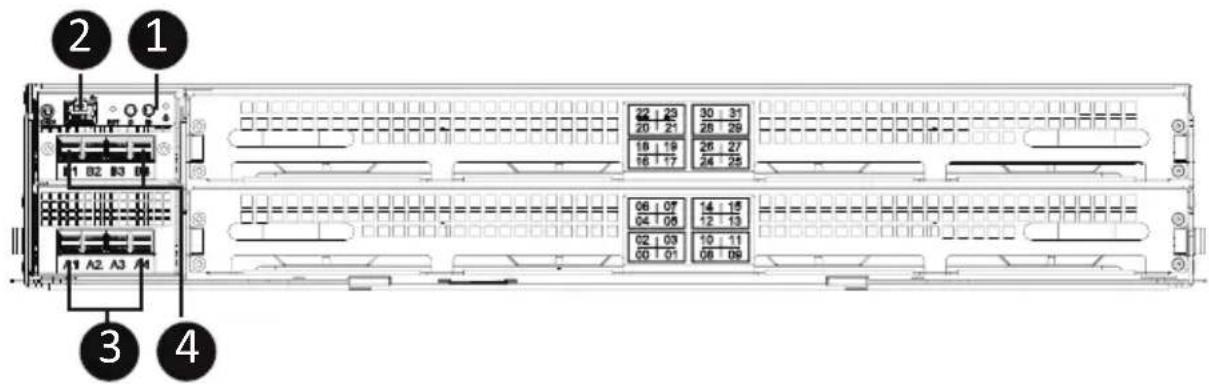
text_image
2 1 3 4 A1 A2 A3 A4 22 23 20 21 18 19 16 17 30 31 25 29 26 27 24 25 06 07 04 08 02 09 00 01 14 15 12 13 10 11 08 09No. Description
- Front Panel LEDs and Buttons
- Server Management LAN Port
- miniSAS Hard Disk Drive Connectors A1 / A2 / A3 / A4 (from left to right)
- miniSAS Hard Disk Drive Connectors B1 / B2 / B3 /B4 (from left to right/TO24-JD1 Only)

Please go to Front Panel LED and Buttons on page 12 for detail description of function LEDs.
2-2 Top View
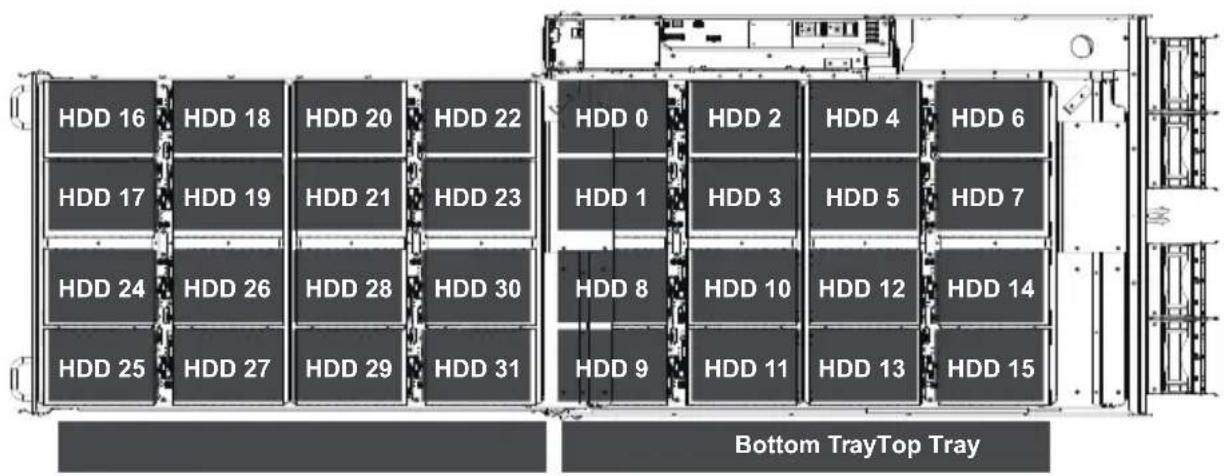
text_image
HDD 16 HDD 18 HDD 20 HDD 22 HDD 0 HDD 2 HDD 4 HDD 6 HDD 17 HDD 19 HDD 21 HDD 23 HDD 1 HDD 3 HDD 5 HDD 7 HDD 24 HDD 26 HDD 28 HDD 30 HDD 8 HDD 10 HDD 12 HDD 14 HDD 25 HDD 27 HDD 29 HDD 31 HDD 9 HDD 11 HDD 13 HDD 15 Bottom TrayTop Tray2-3 Rear View
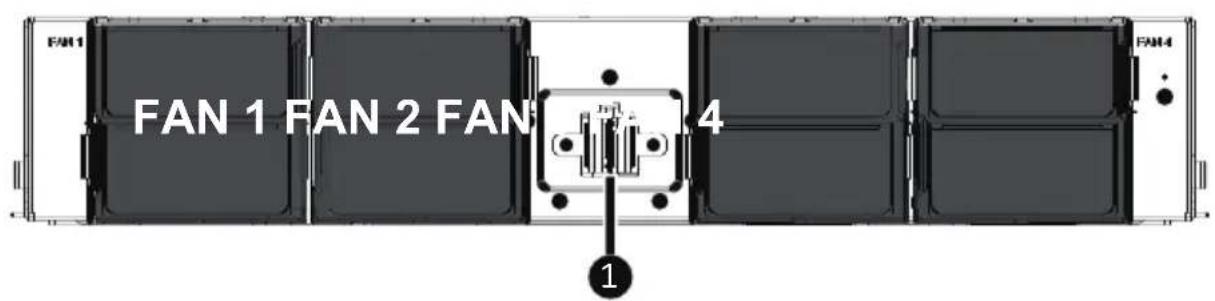
text_image
FAN1 FAN 1 FAN 2 FAN 3 FAN 4 1No. Description
- 48V BusBar Power Connector
2-4 Front Panel LED and Buttons

text_image
14 IOIOI RST ID 5| No. | Name | Color | Status | Description |
| 1. | Audio Jack -- -- For management console | |||
| 2. | Reset Button -- -- Press this button to reset the system. | |||
| 3. | Power button with LED | Green | On | Indicates the system is powered on and .in a normal state |
| Green | Blink | Voltage event has occurred | ||
| 4. | ID Button | Blue | Press the button to activate system identification | |
| 5. | System Status LED | Green | On | Indicates system is operating normally. |
| Amber | On | Indicates HDD error. | ||
2-5 Hard Disk Drive LEDs
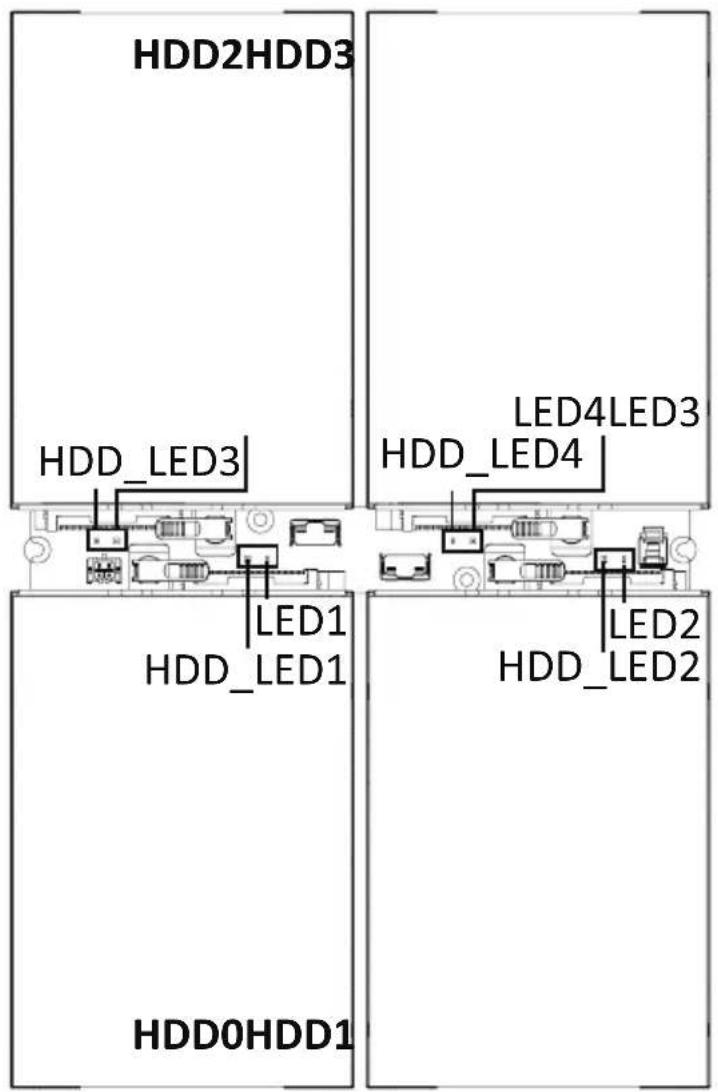
| Color | HDD Present(No Access) | No HDD |
| Green On Off | ||
HDD LED 0\~3
| Color Locate Fail HDD Access |
| Green On N/A Blink |
| Amber N/A On N/A |
2-6 Front System LAN LEDs

text_image
1 2 IOIOI RST ID| No. | Name | Color | Status | Description |
| 1 Speed | Amber On 1Gbps data rate | |||
| Green On 100Mbps data rate | ||||
| 2 Link/Act | Green | On Link between system and network or no access | ||
| Blinking Data transmissionor receiving is occurring | ||||
| N/A Off No data transmission or receiving is occurring | ||||
Chapter 3 JBOD System Hardware Installation

Pre-installation Instructions
Computer components and electronic circuit boards can be damaged by discharges of static electricity. Working on computers that are still connected to a power supply can be extremely dangerous. Follow the simple guidelines below to avoid damage to your computer or injury to yourself.
- Always disconnect the computer from the power outlet whenever you are working inside the computer case.
- If possible, wear a grounded wrist strap when you are working inside the computer case. Alternatively, discharge any static electricity by touching the bare metal system of the computer case, or the bare metal body of any other grounded appliance.
- Hold electronic circuit boards by the edges only. Do not touch the components on the board unless it is necessary to do so. Do not flex or stress the circuit board.
- Leave all components inside the static-proof packaging until you are ready to use the component for the installation.
3-1 Removing the JBOD from the Rack
Follow these instructions to remove the JBOD from the rack:
- Press the release latches outward while simultaneously pulling the handle for the JBOD.
- Pull the JBOD out of the cabinet.
- To install the JBOD, push the JBOD back into the cabinet.

natural_image
Technical line drawing of a server rack with internal components and two circular insets showing mechanical adjustment (no text or symbols)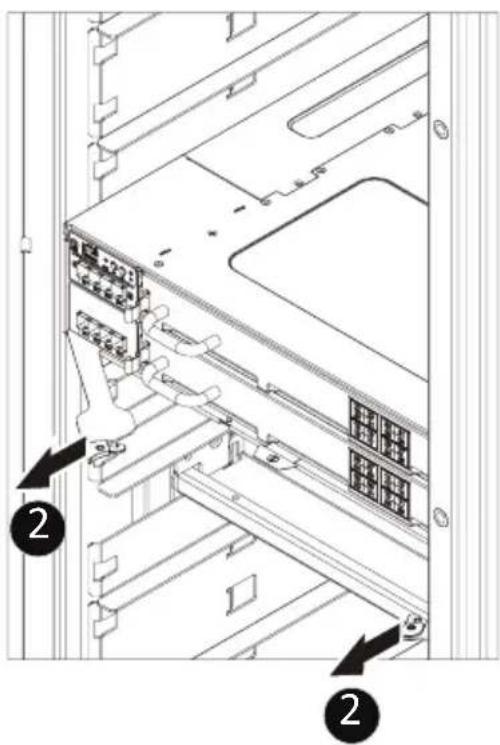
text_image
Technical diagram of server rack with labeled components and numbered annotations3-2 Removing and Installing the HDD Tray
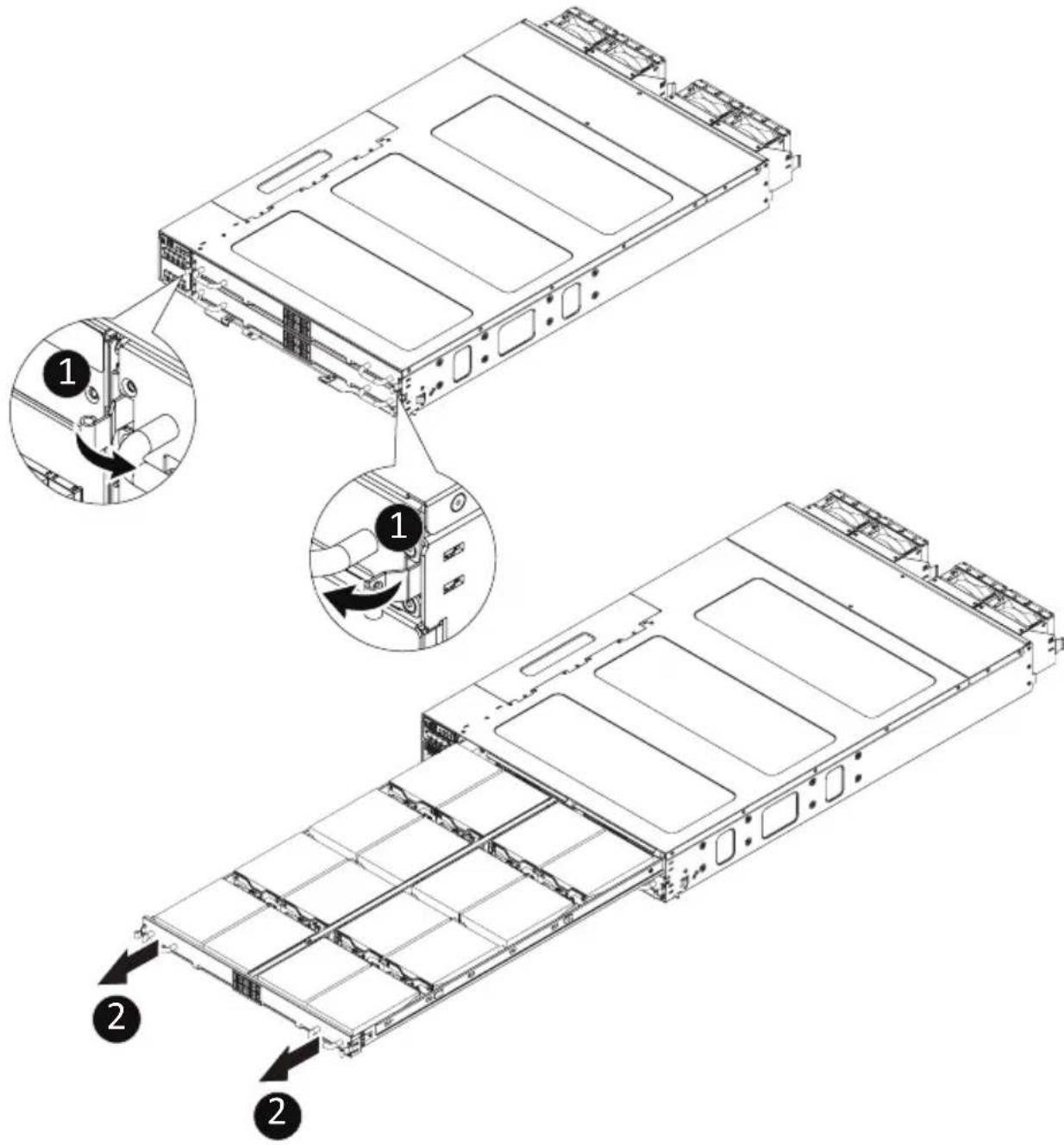
Follow these instructions to remove the HDD Tray:
- Press the release latches inward while simultaneously pulling the handle for the HDD tray.
- To install the HDD tray, push the HDD tray back into the JBOD until it clicks.
text_image
Technical diagram of a server rack with labeled components and assembly steps3-3 Installing the Hard Disk Drive

Read the following guidelines before you begin to install the Hard disk drive:
• Take note of the drive tray orientation before sliding it out.
- The tray will not fit back into the bay if inserted incorrectly.
- Make sure that the HDD is connected to the HDD connector on the backplane.
Follow these instructions to install a hard disk drive into the front section of the system:
- Remove the HDD tray from the system.
- Push the lock and at the same time push inward the HDD tray.

text_image
Technical diagram of a battery pack assembly with numbered components and directional arrows indicating assembly steps- Insert a new hard disk drive into the HDD tray and make sure the HDD is seated firmly seated in the HDD tray. Push the HDD tray back to lock position and make sure the lock is in the locked position.

text_image
Lock ②3-4 Replacing the Fan Assembly
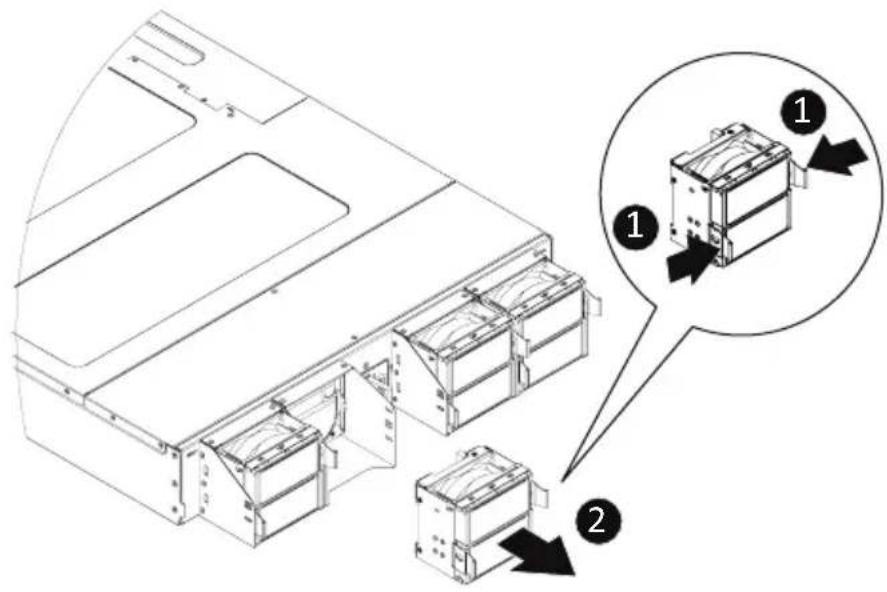
Follow these instructions to replace the fan assembly:
- Press the release latches on the bottom-left and top-right sides of the fan assembly inwards while pulling the fan out of its compartment.
- To install the replacement fan assembly, push the assembly into the compartment.
text_image
Technical diagram of a server rack with labeled components and directional arrows indicating assembly or movement.