
TO23-BT0 - Computing GIGABYTE - Free user manual and instructions
Find the device manual for free TO23-BT0 GIGABYTE in PDF.


| Product Type | 2OU ORV3 Node Tray |
| Brand | Gigabyte |
| Model | TO23-BT0 |
| Form Factor | 2OU (2 Open Rack Units) |
| Dimensions (W x H x D) | 803 x 537 x 93.2 mm |
| Weight | Approximately 8 kg |
| Power Input | 48V DC via 1 x Bus Bar |
| Open Rack Version | ORV3 |
| Supported Compute Nodes | Up to 3 x ORV3 2OU nodes (e.g., TO23-H60) |
| Management | Via integrated BMC on each compute node (ASPEED AST2600) |
| Storage per Node | 4 x 2.5" Gen4 NVMe/SATA/SAS hot-swappable bays |
| CPU Support per Node | 3rd Gen Intel Xeon Scalable Processors (dual socket) |
| Memory Support per Node | 16 x DDR4 DIMM slots, up to 3200 MHz |
| Expansion Slots per Node | 1 x PCIe Gen4 x16 low-profile, 1 x OCP 3.0 |
| Front I/O per Node | 2 x USB 3.2 Gen1, 1 x VGA, 1 x MLAN |
| Cooling | Supports fan assembly replacement in compute nodes |
| Safety Features | ESD protection, grounding, hot surface warning |
| Installation | Requires ORV3 rack; bus bar connection for power |
| Maintenance | Hot-swappable nodes and drives; replaceable fans |
| Compliance | Designed for ORV3 Open Rack standard |
Frequently Asked Questions - TO23-BT0 GIGABYTE
User questions about TO23-BT0 GIGABYTE
0 question about this device. Answer the ones you know or ask your own.
Ask a new question about this device
Download the instructions for your Computing in PDF format for free! Find your manual TO23-BT0 - GIGABYTE and take your electronic device back in hand. On this page are published all the documents necessary for the use of your device. TO23-BT0 by GIGABYTE.
USER MANUAL TO23-BT0 GIGABYTE
3rd Generation Intel® Xeon® Scalable OCP Compute Node
2OU 3Nodes 4-bay NVMe/SATA/SAS
TO23-BT0
2OU ORV3 Node Tray
User Manual
Rev. 1.0
Copyright
© 2022 GIGA-BYTE TECHNOLOGY CO., LTD. All rights reserved.
The trademarks mentioned in this manual are legally registered to their respective owners.
Disclaimer
Information in this manual is protected by copyright laws and is the property of GIGABYTE. Changes to the specifications and features in this manual may be made by GIGABYTE without prior notice. No part of this manual may be reproduced, copied, translated, transmitted, or published in any form or by any means without GIGABYTE's prior written permission.
Documentation Classifications
In order to assist in the use of this product, GIGABYTE provides the following types of documentation:
■ User Manual: detailed information & steps about the installation, configuration and use of this product (e.g. motherboard, server barebones), covering hardware and BIOS.
■ User Guide: detailed information about the installation & use of an add-on hardware or software component (e.g. BMC firmware, rail-kit) compatible with this product.
■ Quick Installation Guide: a short guide with visual diagrams that you can reference easily for installation purposes of this product (e.g. motherboard, server barebones).
Please see the support section of the online product page to check the current availability of these documents.
For More Information
For related product specifications, the latest firmware and software, and other information please visit our website at http://www.gigabyte.com
For GIGABYTE distributors and resellers, additional sales & marketing materials are available from our reseller portal: http://reseller.b2b.gigabyte.com
For further technical assistance, please contact your GIGABYTE representative or visit https://esupport.gigabyte.com/ to create a new support ticket
For any general sales or marketing enquiries, you may also message GIGABYTE server directly by email: server.grp@gigabyte.com
Conventions
The following conventions are used in this user's guide:
 | NOTE!Pieces of additionalinformation related to the current topic. |
 | CAUTION!Precautionary measures toavoid possible hardware or software problems. |
 | WARNING!Alerts to any damage that mightresult from doing or not doing specific actions. |
Server Warnings and Cautions
Before installing a server, be sure that you understand the following warnings and cautions.

WARNING!
To reduce the risk of electric shock or damage to the equipment:
- Do not disable the power cord grounding plug. The grounding plug is an important safety feature.
- Plug the power cord into a grounded (earthed) electrical outlet that is easily accessible at all times.
- Unplug the power cord from the power supply to disconnect power to the equipment.
- Do not route the power cord where it can be walked on or pinched by items placed against it. Pay particular attention to the plug, electrical outlet, and the point where the cord extends from the server.

WARNING!
To reduce the risk of personal injury from hot surfaces, allow the drives and the internal system components to cool before touching them.

WARNING!
This server is equipped with high speed fans. Keep away from hazardous moving fan blades during servicing.

CAUTION!
- Do not operate the server for long periods with the access panel open or removed. Operating the server in this manner results in improper airflow and improper cooling that can lead to thermal damage.
- Danger of explosion if battery is incorrectly replaced.
- Replace battery with the same or equivalent type recommended by the manufacturer.
- Dispose of used batteries according to the manufacturer's instructions.

CAUTION!
Risk of explosion if battery is replaced incorrectly or with an incorrect type. Replace the battery only with the same or equivalent type recommended by the manufacturer. Dispose of used batteries according to the manufacturer's instructions.

Electrostatic Discharge (ESD)
CAUTION!
ESD CAN DAMAGE DRIVES, BOARDS, AND OTHER PARTS. WE RECOMMEND THAT YOU PERFORM ALL PROCEDURES AT AN ESD WORKSTATION. IF ONE IS NOT AVAILABLE, PROVIDE SOME ESD PROTECTION BY WEARING AN ANTI-STATIC WRIST STRAP ATTACHED TO CHASSIS GROUND -- ANY UNPAINTED METAL SURFACE -- ON YOUR SERVER WHEN HANDLING PARTS.
Always handle boards carefully, they can be extremely sensitive to ESD. Hold boards only by their edges without touching any components or connectors. After removing a board from its protective ESD bag or from the system, place the board component side up on a grounded, static free surface. Use a conductive foam pad if available but not the ESD bag. Do not slide the board over any surface.
System power on/off: To service components within the server, please ensure the power has been disconnected.
e.g. Remove the node from the server chassis (to disconnect power) or disconnect the power from the server chassis.
Make sure the system is removed from the rack before opening the chassis, adding, or removing any non hot-plug components.
Hazardous conditions, devices and cables: Hazardous electrical conditions may be present on power, telephone, and communication cables. Turn off the system chassis and disconnect the cables attached to the system before servicing the chassis. Otherwise, personal injury or equipment damage can result.
Electrostatic discharge (ESD) and ESD protection: ESD can damage drives, boards, and other parts. We recommend that you perform all procedures in this chapter only at an ESD workstation. If one is not available, provide some ESD protection by wearing an antistatic wrist strap attached to chassis ground (any unpainted metal surface on the server) when handling parts.
ESD and handling boards: Always handle boards carefully. They can be extremely sensitive to electrostatic discharge (ESD). Hold boards only by their edges. After removing a board from its protective wrapper or from the system, place the board component side up on a grounded, static free surface. Use a conductive foam pad if available but not the board wrapper. Do not slide board over any surface.
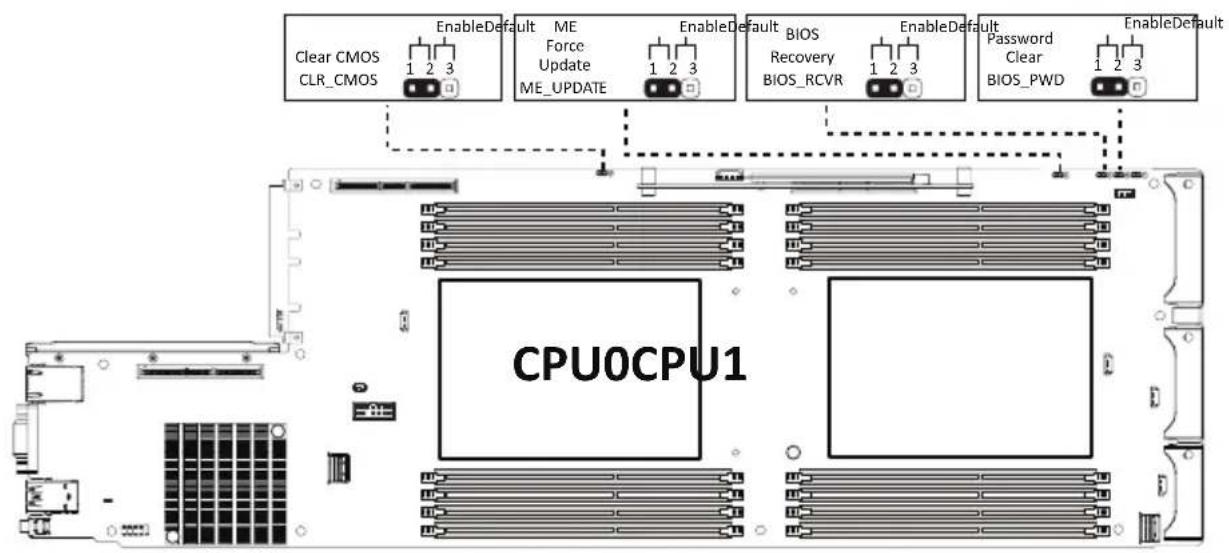
Installing or removing jumpers: A jumper is a small plastic encased conductor that slips over two jumper pins. Some jumpers have a small tab on top that can be gripped with fin-gertips or with a pair of fine needle nosed pliers. If the jumpers do not have such a tab, take care when using needle nosed pliers to remove or install a jumper; grip the narrow sides of the jumper with the pliers, never the wide sides. Gripping the wide sides can dam-age the contacts inside the jumper, causing intermittent problems with the function con-trolled by that jumper. Take care to grip with, but not squeeze, the pliers or other tool used to remove a jumper, or the pins on the board may bend or break.
Table of Contents
Chapter 1 Hardware Installation ...... 11
1-1 Installation Precautions.... 11
1-2 Product Specifications.... 12
1-2-1 TO23-H60....12
1-2-2 TO23-BT0....13
1-3 System Block Diagram.... 14
Chapter 2 System Appearance....15
2-1 Front View 15
2-2 Rear View....16
2-3 Front Panel LEDs and Buttons....17
2-4 Front System LAN LEDs....18
2-5 Hard Disk Drive LEDs 19
Chapter 3 System Hardware Installation ....20
3-1 Removing Shelf from the Rack 21
3-2 Removing Computing Node from the Shelf.... 22
3-3 Removing System Cover 23
3-4 Installing the Hard Disk Drive....24
3-4-1 Removing Hard Disk Drive Cage....25
3-5 Installing the CPU and Heat Sink....26
3-6 Installing Memory 28
3-6-1 Eight Channel Memory Configuration....28
3-6-2 Removing and Installing a Memory Module 28
3-6-3 Processor and Memory Module Matrix Table 29
3-6-4 Memory Population Table....29
3-7 Installing the PCI Expansion Card 30
3-8 Installing the Mezzanine Card.... 32
3-8-1 Installing the OCP 3.0 Mezzanine Card ....32
3-9 Replacing the Fan Assembly.... 33
3-10 Cable Routing 34
Chapter 4 Motherboard Components ......36
4-1 Motherboard Components 36
4-2 Jumper Setting 37
4-3 Backplane Board Storage Connector.... 38
4-3-1 COBP540 38
Chapter 5 BIOS Setup....41
5-1 The Main Menu 43
5-2 Advanced Menu 46
5-2-1 Trusted Computing 47
5-2-2 Serial Port Console Redirection 48
5-2-3 SIO Configuration....51
5-2-4 PCI Subsystem Settings....52
5-2-5 USB Configuration....54
5-2-6 Network Stack Configuration....55
5-2-7 Post Report Configuration 56
5-2-8 NVMe Configuration....57
5-2-9 Chipset Configuration....58
5-2-10 TIs Auth Configuration ....59
5-2-11 iSCSI Configuration....60
5-2-12 Broadcom Gigabit Ethernet BCM5720 61
5-2-13 VLAN Configuration....63
5-2-14 IPv4 Network Configuration....64
5-2-15 Intel(R) I350 Gigabit Network Connection....65
5-2-16 VLAN Configuration....67
5-2-17 IPv4 Network Configuration....68
5-2-18 Driver Health....69
5-3 Chipset Menu 70
5-3-1 Processor Configuration....71
5-3-2 Common RefCode Configuration 74
5-3-3 UPI Configuration 76
5-3-4 Memory Configuration 78
5-3-5 IIO Configuration 81
5-3-6 Advanced Power Management Configuration....83
5-3-7 PCH Configuration....85
5-3-8 Miscellaneous Configuration 87
5-3-9 Server ME Configuration 88
5-3-10 Runtime Error Logging Settings 89
5-3-11 Power Policy....91
5-4 Server Management Menu....93
5-4-1 System Event Log 95
5-4-2 View FRU Information 96
5-4-3 BMC VLAN Configuration....97
5-4-4 BMC Network Configuration....98
5-4-5 IPv6 BMC Network Configuration....99
5-5 Security Menu 100
5-5-1 Secure Boot 101
5-6 Boot Menu....104
5-7 Save & Exit Menu....106
5-8 BIOS Recovery 108
5-9 BIOS POST Beep code (AMI standard).... 109
5-9-1 PEI Beep Codes....109
5-9-2 DXE Beep Codes 109
This page intentionally left blank
Chapter 1 Hardware Installation
1-1 Installation Precautions
The motherboard/system contain numerous delicate electronic circuits and components which can become damaged as a result of electrostatic discharge (ESD). Prior to installation, carefully read the service guide and follow these procedures:
- Prior to installation, do not remove or break motherboard S/N (Serial Number) sticker or warranty sticker provided by your dealer. These stickers are required for warranty validation.
- Always remove the AC power by unplugging the power cord from the power outlet before installing or removing the motherboard or other hardware components.
- When connecting hardware components to the internal connectors on the motherboard, make sure they are connected tightly and securely.
- When handling the motherboard, avoid touching any metal leads or connectors.
- It is best to wear an electrostatic discharge (ESD) wrist strap when handling electronic components such as a motherboard, CPU or memory. If you do not have an ESD wrist strap, keep your hands dry and first touch a metal object to eliminate static electricity.
- Prior to installing the motherboard, please have it on top of an antistatic pad or within an electrostatic shielding container.
- Before unplugging the power supply cable from the motherboard, make sure the power supply has been turned off.
- Before turning on the power, make sure the power supply voltage has been set according to the local voltage standard.
- Before using the product, please verify that all cables and power connectors of your hardware components are connected.
- To prevent damage to the motherboard, do not allow screws to come in contact with the motherboard circuit or its components.
- Make sure there are no leftover screws or metal components placed on the motherboard or within the computer casing.
- Do not place the computer system on an uneven surface.
- Do not place the computer system in a high-temperature environment.
- Turning on the computer power during the installation process can lead to damage to system components as well as physical harm to the user.
- If you are uncertain about any installation steps or have a problem related to the use of the product, please consult a certified computer technician.
1-2 Product Specifications
1-2-1 TO23-H60

NOTE:
We reserve the right to make any changes to the product specifications and product-related information without prior notice.
 | SystemDimension | ◆ 3 Nodes/ 2OU◆ 180 (W) x 90 (H) x 740(D) mm |
 | CPU | ◆ 3rd Generation Intel® Xeon® Scalable Processors◆ Intel® Xeon® Platinum Processor, Intel® Xeon® Gold Processor, Intel® Xeon® Silver Processor◆ Dual processor, 10nm technology◆ CPU TDP up to 270WNOTE: If only 1 CPU is installed, some PCIe or memory functions might be unavailable |
 | Memory | ◆ 16 x DIMM slots◆ DDR4 memory supported only◆ 8-channel memory architecture per processor◆ RDIMM modules up to 128GB supported◆ LRDIMM modules up to 128GB supported◆ 3DS RDIMM/LRDIMM modules up to 256GB supported◆ 1.2V modules: 3200/2933/2666 MHz |
 | LAN | ◆ 1 x 10/100/1000 management LAN |
 | Video | ◆ Integrated in Aspeed® AST2600◆ 2D Video Graphic Adapter with PCIe bus interface◆ 1920x1200@60Hz 32bpp, DDR4 SDRAM |
 | Storage | ◆ 4 x 2.5" Gen4 NVMe/SATA/SAS hot-swappable baysSAS card is required for SAS devices support |
 | SAS | ◆ Depends on SAS Add-on card |
 | RAID | ◆ Intel® SATA RAID 0/ 1/ 10/ 5 |
 | Expansion Slot | Riser Card CRSH01E:◆ 1 x PCIe x16 (Gen4 x16) low-profile slot, from CPU_0Riser Card CRSH01H:◆ 1 x PCIe x16 (Gen4 x16) low-profile slot, from CPU_01 x OCP 3.0 slot with PCIe Gen4 x16 bandwidth, from CPU_0NCSI function supported |
 | Front I/O | ◆ 2 x USB 3.2 Gen1◆ 1 x VGA◆ 1 x MLAN◆ 1 x Power button with LED◆ 1 x ID button with LED◆ 1 x System status LED |
 | Rear I/O | ◆ N/A |
 | Power Supply | ◆ 48V DC Bus Bar power solution |
 | System Management | ◆ Aspeed® AST2600 management controller◆ GIGABYTE Management Console (AMI MegaRAC SP-X) web interface◆ Dashboard◆ HTML5 KVM◆ Sensor Monitor (Voltage, RPM, Temperature, CPU Status ...etc.)◆ Sensor Reading History Data◆ FRU Information◆ SEL Log in Linear Storage / Circular Storage Policy◆ Hardware Inventory◆ Fan Profile◆ System Firewall◆ Power Consumption◆ Power Control◆ LDAP / AD / RADIUS Support◆ Backup & Restore Configuration◆ Remote BIOS/BMC/CPLD Update◆ Event Log Filter◆ User Management◆ Media Redirection Settings◆ PAM Order Settings◆ SSL Settings◆ SMTP Settings |
 | Operating Properties | ◆ 2 x 80x80x38mm (14,900rpm) |
1-2-2 TO23-BT0
 | SystemDimension | ♦ 803 (W) x 537 (H) x 93.2 (D) mm♦ 2OU Node Tray♦ For 3 x ORV3 2OU nodes |
 | Open RackVersion | ♦ ORV3 |
 | No. of BusBars | ♦ 1 Bus Bar with 48V |
1-3 System Block Diagram

flowchart
graph TD
    subgraph_CPU0["CPU0"]
        A["Intel Xeon"] --> B["3rd Gen Intel® Xeon® Scalable processors (LGA4189 Socket)"]
        B --> C["PCIe4.0x16"]
        B --> D["PCIe4.0x16"]
        B --> E["DMI3 x 4"]
    end

    subgraph_CPU1["CPU1"]
        F["Intel Xeon"] --> G["3rd Gen Intel® Xeon® Scalable processors (LGA4189 Socket)"]
        G --> H["PCIe4.0x16"]
        G --> I["OCP 3.0 Mezzanine"]
        I --> J["NCSI"]
        J --> K["PCle3.0x1"]
        J --> L["eSPI"]
        J --> M["2 x USB 2.0"]
        J --> N["2 x USB 3.2 Gen1"]
        J --> O["SATAIII x6"]
    end

    CPU0 -->|3 x UPI 11.2GT/s (ICX)| CPU1

    subgraph_PCH["PCCH Intel C621A chipset"]
        P["SIImLine"] --> Q["SATAIII x6"]
        Q --> R["PCIe3.0x1"]
        Q --> S["2 x USB 3.2 Gen1"]
        S --> T["SPI Flash 64 MB"]
        S --> U["TPM"]
        T --> V["BMC ASPEED AST2600"]
        U --> W["MAC"]
        W --> X["10/100/1G PHY"]
        X --> Y["COM"]
        X --> Z["VGA"]
        X --> AA["MIAN"]
        AA --> AB["NIME-X"]
    end

    CPU0 -->|8-Channel DDR4, 8 x DIMMs Up to 3200MHz| CPU0
    CPU1 -->|8-Channel DDR4, 8 x DIMMs Up to 3200MHz| CPU1
    CPU1 -->|Board to Board Conn.| CPU1
    CPU1 -->|N/A| CPU1
    CPU1 -->|SATA x4| CPU1
Chapter 2 System Appearance
2-1 Front View
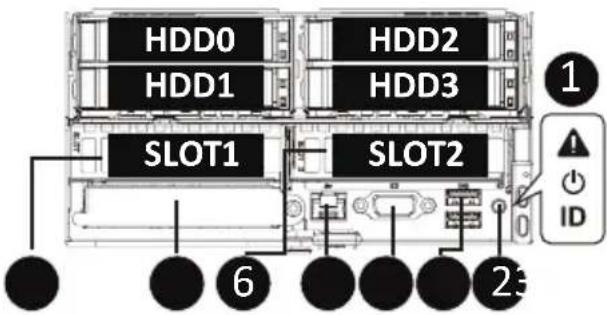
| No. | Description |
| 1. | Front Panel LEDs |
| 2. | ID Button with LED |
| 3. | 2 x USB 3.2 Gen1 |
| 4. | VGA Port |
| 5. | Server Management LAN Port |
| 6. | PCIe Card Slot |
| 7. | OCP 3.0 Slot (Option/SFF) |
| 8. | PCIe Card Slot |
| Note! Drives with green latches support NVMe. | |

- Refer to section 2-3 Front Panel LEDs and Buttons for a detailed description of the function of the LEDs.
2-2 Rear View
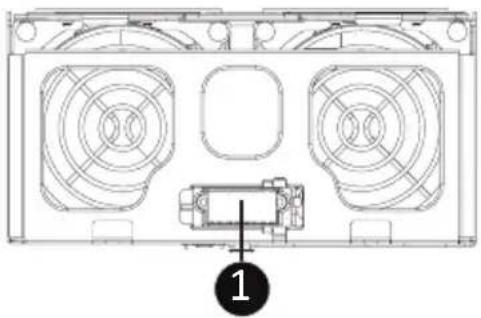
natural_image
Technical line drawing of a mechanical component with two fans and a central housing (no text or symbols)No. Description
- Power Distribution Board to Bus Bar Connector
2-3 Front Panel LEDs and Buttons
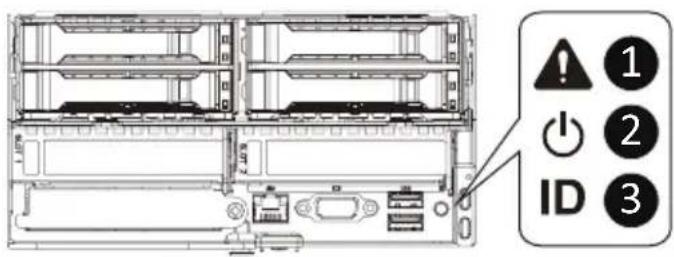
| No. | Name | Color | Status | Description |
| 1. | System Status LED | This LED represents the RoT function LED behavior.Please see the following section for detail LED behavior. | ||
| 2. | Power button with LED | Green On Indicates the system is powered on. | ||
| Green Blink System is in ACPI S1 state (sleep mode). | ||||
| N/A Off | - System is not powered on or in ACPI S5 state (power off)- System is in ACPI S4 state (hibernate mode) | |||
| 3. | ID Button with LED | Blue On Indicates the system identification is active. | ||
| N/A Off Indicates the system identification is disabled. | ||||
2-4 Front System LAN LEDs
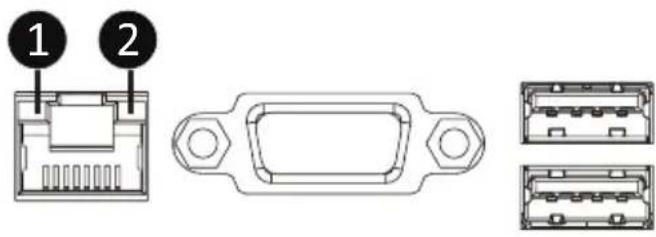
| No. | Name | Color | Status | Description |
| 1. | 1GbE Speed LED | Yellow On 1 Gbps data rate | ||
| Green On 100 Mbps data rate | ||||
| N/A Off 10 Mbps data rate | ||||
| 2. | 1GbE Link / Activity LED | Green | On Link between system and network or no access | |
| Blink Data transmission or reception is occurring. | ||||
| N/A Off No data transmission or reception is occurring. | ||||
2-5 Hard Disk Drive LEDs
2.5" HDD

| RAID SKU | LED #1 Locate | HDD Fault | Rebuilding HDD Access | HDD Present (No Access) | |||
| No RAID configuration (via HBA) | Disk LED (LED on Back Panel) | Green ON(*1) OFF BLINK (*2) OFF | |||||
| Amber OFF OFF OFF OFF | |||||||
| Removed HDD Slot (LED on Back Panel) | Green ON(*1) OFF -- -- | ||||||
| Amber OFF OFF -- -- | |||||||
| RAID configuration (via HW RAID Card or SW RAID Card) | Disk LED | Green ON OFF BLINK (*2) OFF | |||||
| Amber OFF ON | (Low Speed: 2 Hz) | OFF OFF | |||||
| Removed HDD Slot | Green | ON(*1) | OFF | (*3) | -- | -- | |
| Amber | OFF | ON | (*3) | -- | -- | ||
| LED #2 | HDD Present No HDD | |
| Green | ON | OFF |
NOTE:
*1: Depends on HBA/Utility Spec.
*2: Blink cycle depends on HDD's activity signal.
*3: If HDD is pulled out during rebuilding, the disk status of this HDD is regarded as faulty.
Chapter 3 System Hardware Installation

Pre-installation Instructions
Computer components and electronic circuit boards can be damaged by discharges of static electricity. Working on computers that are still connected to a power supply can be extremely dangerous. Follow the simple guidelines below to avoid damage to your computer or injury to yourself.
- Always disconnect the computer from the power outlet whenever you are working inside the computer case.
- If possible, wear a grounded wrist strap when you are working inside the computer case. Alternatively, discharge any static electricity by touching the bare metal system of the computer case, or the bare metal body of any other grounded appliance.
- Hold electronic circuit boards by the edges only. Do not touch the components on the board unless it is necessary to do so. Do not flex or stress the circuit board.
- Leave all components inside the static-proof packaging until you are ready to use the component for the installation.
3-1 Removing Shelf from the Rack

Before you remove or install the computing node:
Remove the computing node before removing the shelf.
Follow these instructions to remove the Shelf from the rack:
- Press the release latches inward while simultaneously pulling the handle for the shelf.
- Pull the shelf out of the cabinet.
- To install the shelf, push the shelf back into the cabinet.
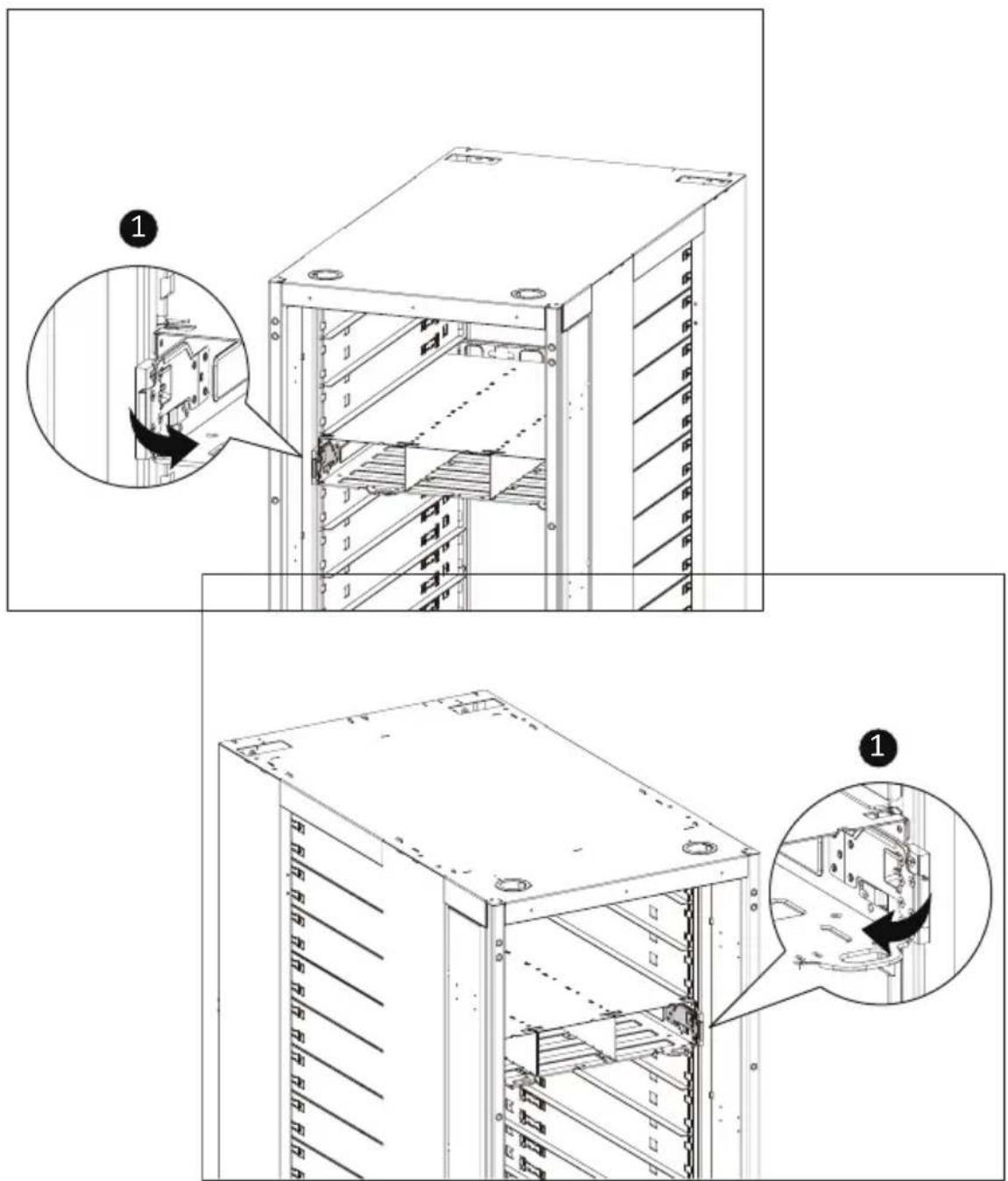
3-2 Removing Computing Node from the Shelf
Follow these instructions to remove a computing node from the shelf:
- Press the retaining clip on the right side of the computing node in the direction indicated.
- Pull out the computing using the handle.
- Insert the replacement computing node.
- To avoid scratched the system, simultaneously press the retaining clip when installing the replacement node into the shelf.
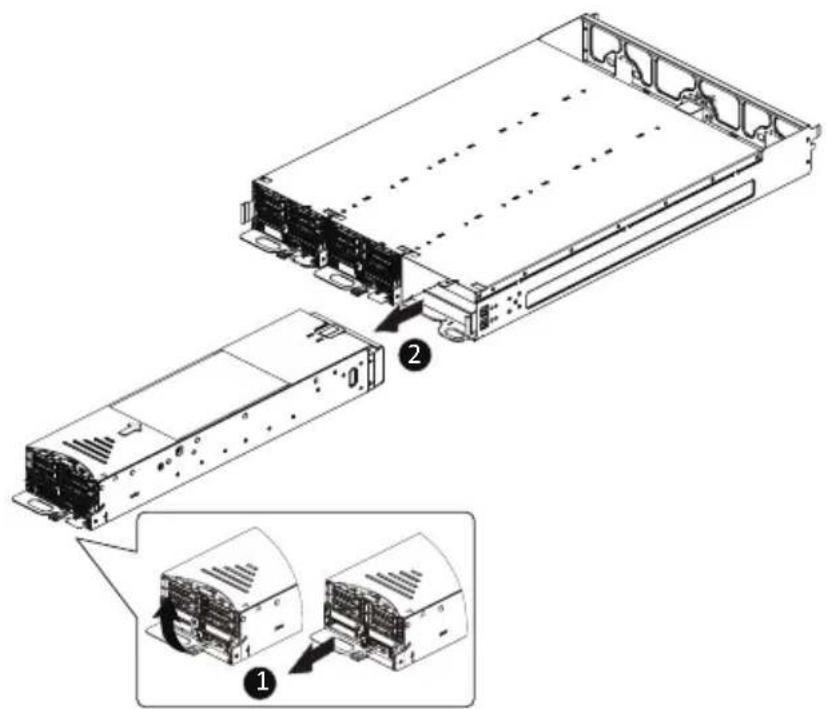
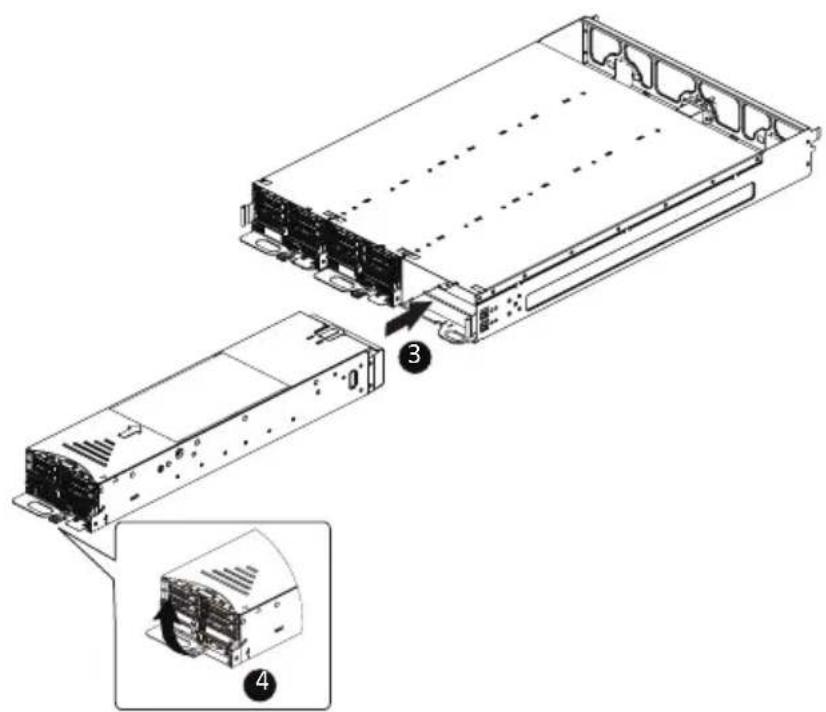
3-3 Removing System Cover

Before you remove or install the system cover
Make sure the system is not turned on or connected to AC power.
Follow these instructions to remove the system cover:
- Flip over the latch.
- Slide the cover horizontally to the back and remove the cover in the direction of the arrow.
- Remove the system top cover from the system.
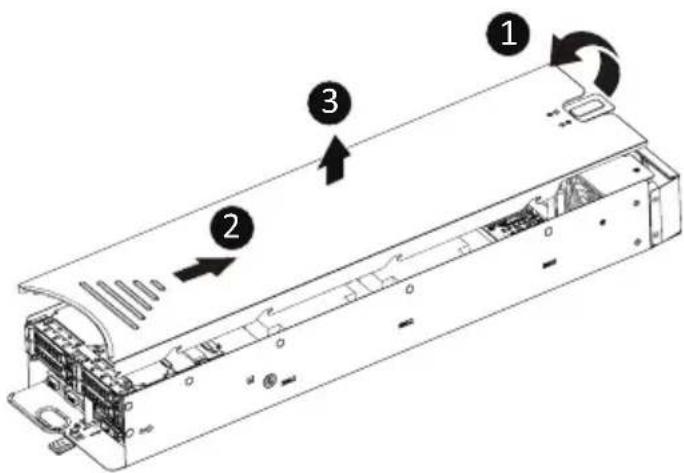
3-4 Installing the Hard Disk Drive

Read the following guidelines before you begin to install the hard disk drive:
• Take note of the HDD tray orientation before sliding it out.
- The tray will not fit back into the bay if it is inserted incorrectly.
- Make sure that the hard disk drive is connected to the connector on the backplane.
Follow these instructions to install a 2.5" hard disk drive:
- Press the release button.
- Extend the locking lever.
- Pull the locking lever in the direction indicated to remove the HDD tray.
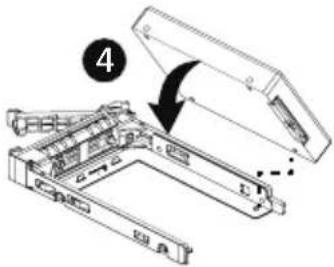
- Align the hard disk drive with the positioning stud on the HDD tray.
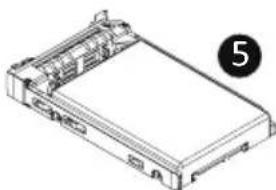
- Slide the hard disk drive into the HDD tray.
- Reinsert the HDD tray into the slot and close the locking lever.
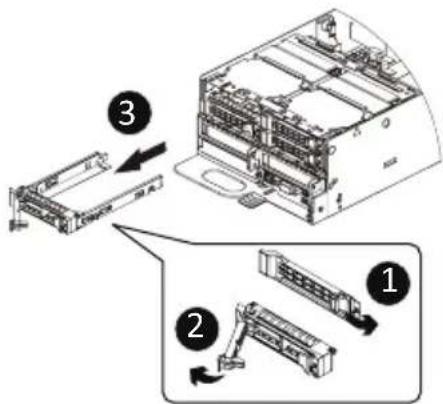
natural_image
Isometric line drawing of a rectangular electronic device with internal components and a numbered label (5) in the corner, no text or symbols present.3-4-1 Removing Hard Disk Drive Cage

Read the following guidelines before you begin to install the Hard Drive Middle Tray:
• Take note of the drive tray orientation before sliding it out.
- The tray will not fit back into the bay if inserted incorrectly.
- Make sure that the HDD is connected to the HDD connector on the backplane.
Follow these instructions to install the Hard disk middle tray:
- Remove the System Cover. See Section 3-3 Removing System Cover.
- Press the release latch on the both side.
- Flip over the HDD cage.
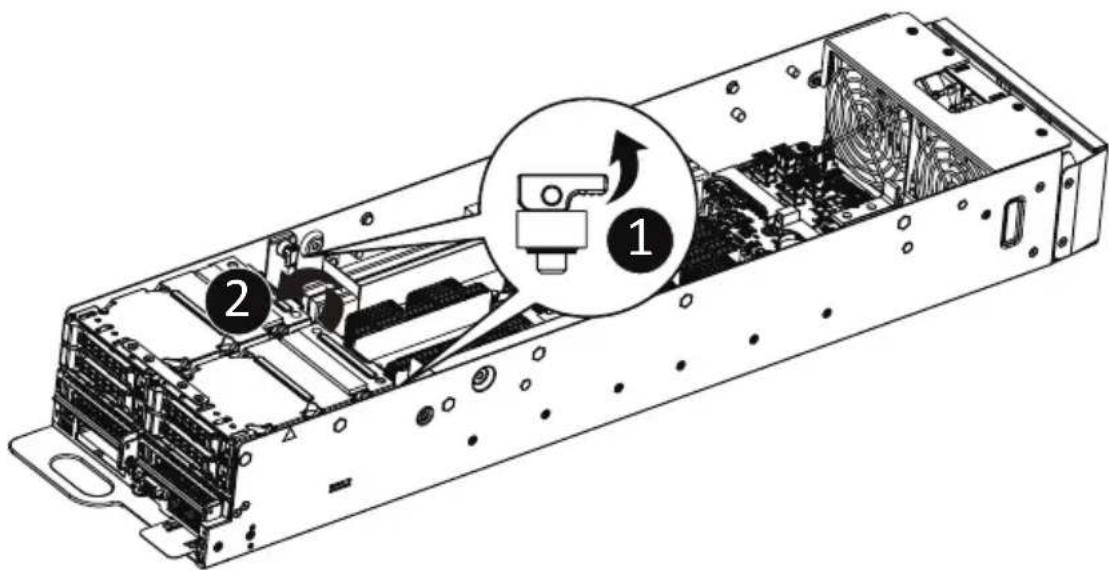
3-5 Installing the CPU and Heat Sink

Read the following guidelines before you begin to install the CPU:
- Make sure that the motherboard supports the CPU.
- Always turn off the computer and unplug the power cord from the power outlet before installing
the CPU to prevent hardware damage. - Unplug all cables from the power outlets.
- Disconnect all telecommunication cables from their ports.
- Place the system unit on a flat and stable surface.
- Open the system according to the instructions.

WARNING!
Failure to properly turn off the server before you start installing components may cause serious damage. Do not attempt the procedures described in the following sections unless you are a qualified service technician.
Follow these instructions to install the CPU:
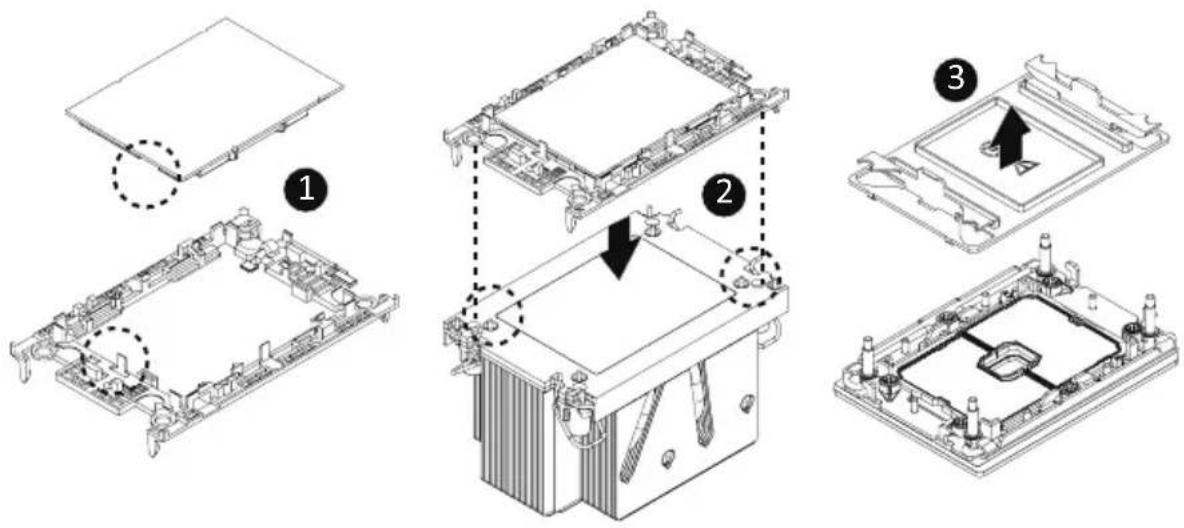
- Align the processor to the carrier so that the gold triangle on the processor aligns with the triangle on the carrier, and then install the processor into the carrier.
NOTE: Apply thermal compound evenly on the top of the CPU.
-
Carefully flip the heatsink over. Align the carrier assembly so that the triangle on the carrier aligns with the triangle on the heatsink, and then install the carrier assembly onto the bottom of the heatsink.
-
Remove the CPU socket cover.
NOTE: Save and replace the CPU socket cover if the processor is removed from its socket.
-
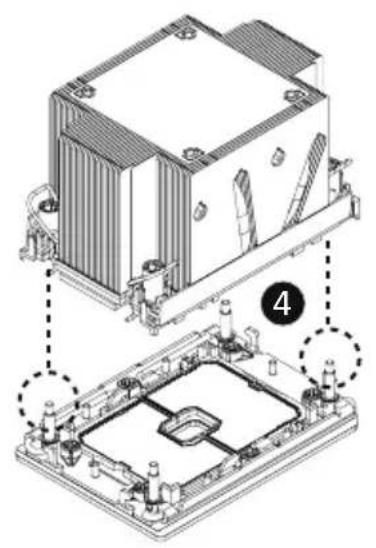
Align the heatsink to the CPU socket using the guide pins and make sure the gold triangle is in the correct orientation. Then place the heatsink onto the top of the CPU socket.
-
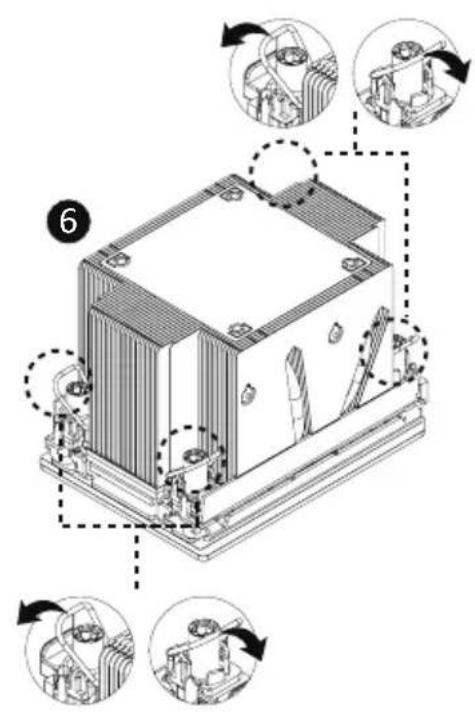
Secure the heatsink by tightening the screws in sequential order (1 →2→3→4).
NOTE: When removing the heatsink, loosen the screws in reverse order (4 →3→2→1).
natural_image
Technical diagram of an electronic device with a base and internal components, showing assembly steps (no text or symbols)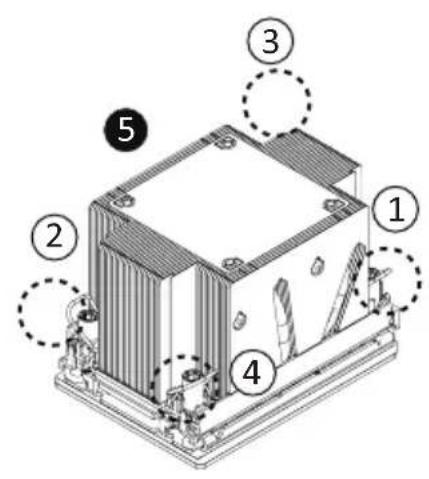

- To install/remove the Intel heatsink use a T30-Lobe screwdriver or drill bit with a screw torque of
8.0 +/- 0.5kgf*cm
3-6 Installing Memory

Read the following guidelines before you begin to install the memory:
- Make sure that the motherboard supports the memory. It is recommended that memory of the same capacity, brand, speed, and chips be used.
• Always turn off the computer and unplug the power cord from the power outlet before installing the memory to prevent hardware damage. - Memory modules have a foolproof design. A memory module can be installed in only one direction. If you are unable to insert the memory, switch the direction.
3-6-1 Eight Channel Memory Configuration
This motherboard provides 16 DDR4 memory sockets and supports Eight Channel Technology. After the memory is installed, the BIOS will automatically detect the specifications and capacity of the memory. Enabling eight Channel memory mode will be eight times of the original memory bandwidth.
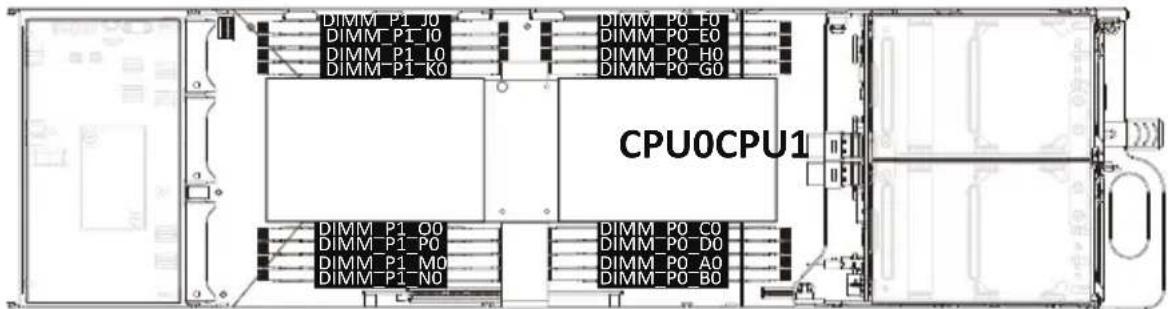
3-6-2 Removing and Installing a Memory Module

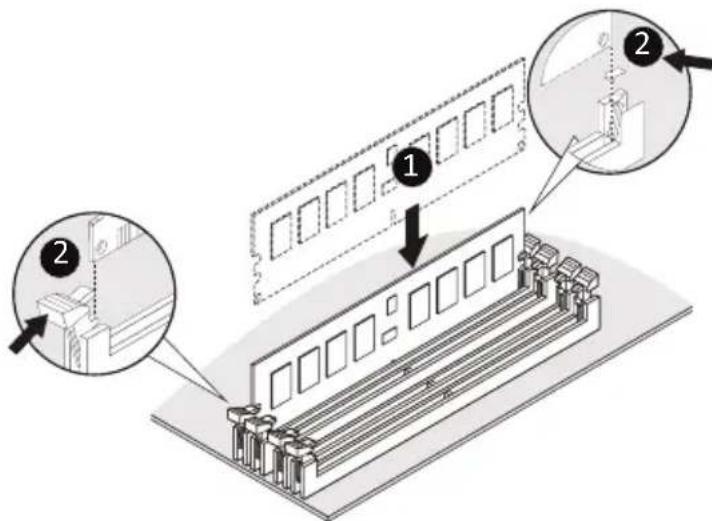
Before installing a memory module, make sure to turn off the computer and unplug the power cord from the power outlet to prevent damage to the memory module. Be sure to install DDR4 DIMMs on to this motherboard.
Follow these instructions to install a DIMM module:
- Insert the DIMM memory module vertically into the DIMM slot and push it down.
- Close the plastic clip at both edges of the DIMM slots to lock the DIMM module.
- Reverse the installation steps when you want to remove the DIMM module.
3-6-3 Processor and Memory Module Matrix Table
| Memory Q'ty for each CPU | CPU0 | |||||||
| B0 A | O D0 C0 | G0 H0 | E0 F0 | |||||
| CPU1 | ||||||||
| J0 I0 | L0 K0 | O0 P0 M0 | M0 N0 | |||||
| 1 DIMM | V | |||||||
| 2 DIMM | V | V | ||||||
| 4 DIMM | V | V | V | V | ||||
| 6 DIMM | V | VV | V | V | V | |||
| 8 DIMM | V | VV V | V | V | V | V | ||
3-6-4 Memory Population Table
| Type | Ranks Per DIMM and Data Width | DIMM Capacity (GB) | Speed (MT/s); Voltage (V); Slots per Channel(SPC) and DIMM per Channel (DPC) | ||
| 1DPC | 2DPC | ||||
| 8Gb | 16Gb | 1.2V | 1.2V | ||
| RDIMM | SRx8 | 8GB 16GB | 3200 | 3200 | |
| RDIMM | SRx4 | 16GB | 32GB | ||
| RDIMM | DRx8 | 16GB | 32GB | ||
| RDIMM | DRx4 | 32GB | 64GB | ||
| RDIMM 3DS | (4R/8R)x4 | 2H-64GB4H-128GB | 2H-128GB4H-256GB | ||
| LRDIMM | QRx4 | 64GB | 128GB | 3200 | 3200 |
| LRDIMM 3DS | (4R/8R)x4 4H- | 128GB | 2H-128GB4H-256GB | 3200 | 3200 |
3-7 Installing the PCI Expansion Card

- Voltages can be present within the server whenever an AC power source is connected. This voltage is present even when the main power switch is in the off position. Ensure that the system is powered-down and all power sources have been disconnected from the server prior to installing a PCI card.
Failure to observe these warnings could result in personal injury or damage to equipment.

- The PCI riser assembly does not include a riser card or any cabling as standard. To install a PCI card, a riser card must be installed.
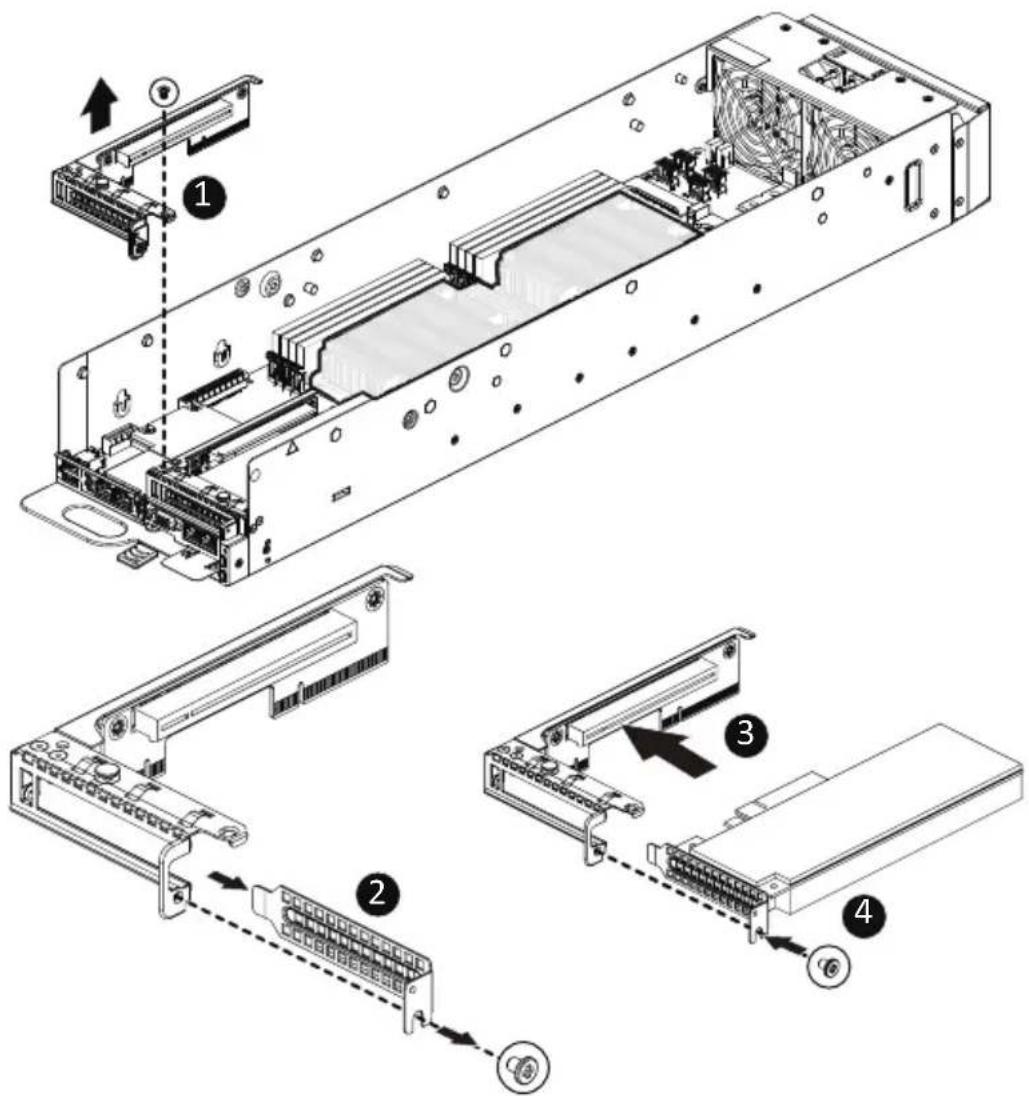
Follow these instructions to install the left PCI Expansion card:
- Remove the screw securing the riser bracket to the system.
- Lift up the riser bracket out of system.
- Remove the screw securing on the riser bracket and remove the PCI bracket.
- Align the PCI card to the riser guide slot and push in the direction of the arrow until the PCI card sits in the PCI card connector.
- Secure the PCI card with a screw.
- Reverse steps 1 - 4 to install the riser bracket back into the system.

3-8 Installing the Mezzanine Card
3-8-1 Installing the OCP 3.0 Mezzanine Card

Use of the following type of OCP 3.0 NIC is recommended:
- OCP 3.0 SFF with pull tab
• OCP 3.0 SFF with ejector latch
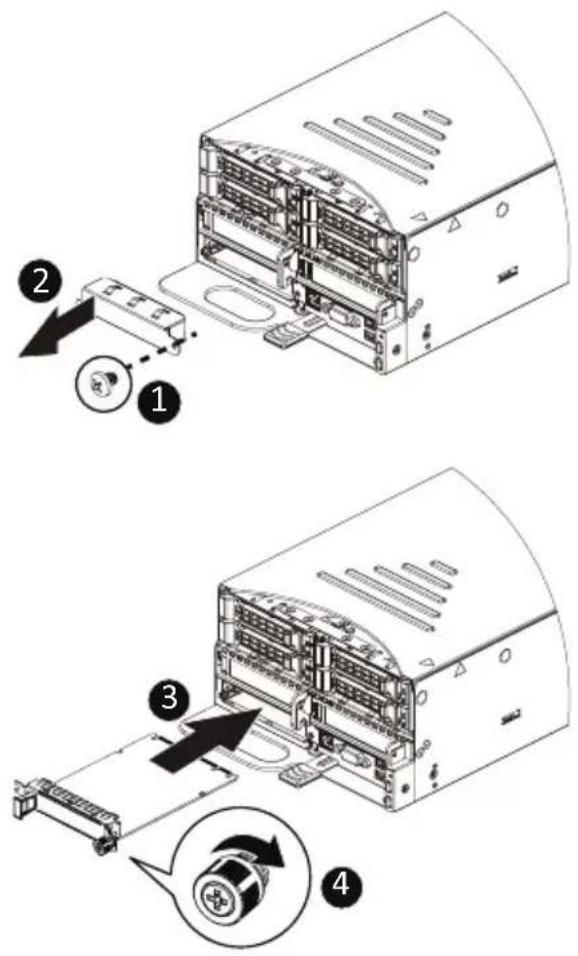
Follow these instructions to install an OCP 3.0 Mezzanine card:
- Remove the two screws securing the OCP 3.0 card slot cover.
- Remove the slot cover from the system.
- Insert the OCP 3.0 card into the card slot ensuring that the card is firmly connected to the connector on the motherboard.
- Tighten the thumbnail screw to secure the OCP 3.0 card in place.
- Reverse steps 3-4 to replace the OCP 3.0 card.
3-9 Replacing the Fan Assembly
Follow these instructions to replace the fan assembly:
- Remove the 4 screws on the top of metal cover.
- Remove the 2 screws at two side of the chassis.
- Lift up the metal cover.
- Remove the supporting sponges.
- Lift up the fan assembly from the chassis.
- Reverse the previous steps to install the replacement fan assembly.

3-10 Cable Routing
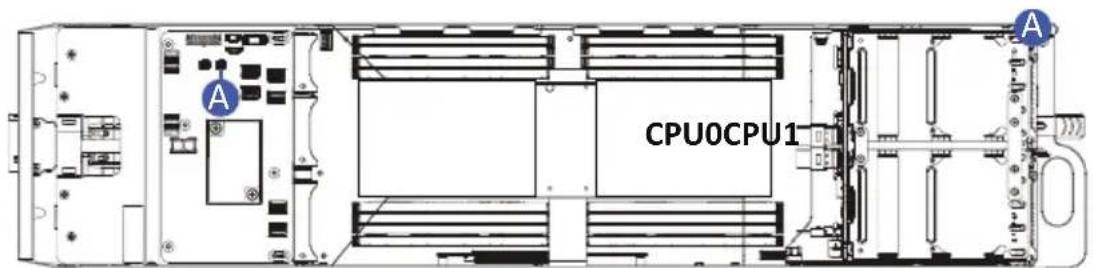
| A Front Panel LEDs and Buttons Cable | Front Board: FP_H1 |
| Power Distribution Board: BP_H1 |
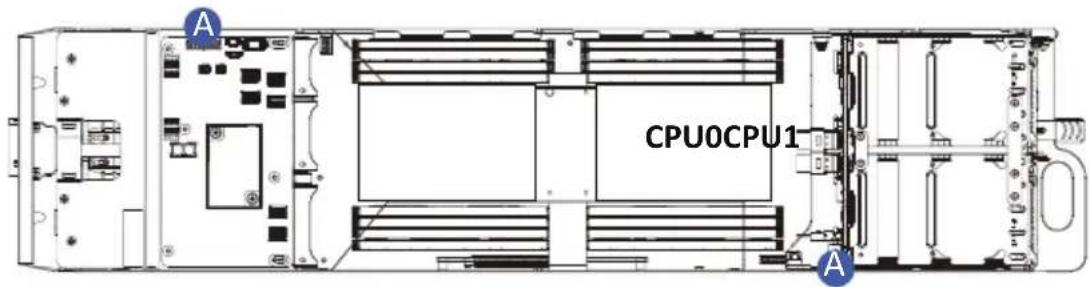
| A HDD Backplane Board Power Cable | System Rear Board : PWR1 |
| Power Distribution Board: PWR1 |
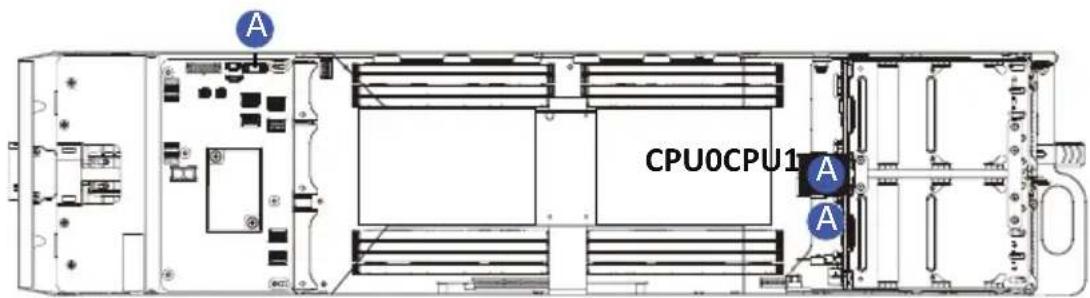
| A HDD Backplane Board Signal Cable | System Rear Board: BP_1 |
| Motherboard: BMC_SGPIO1 | |
| Power Distribution Board: BP_1 |
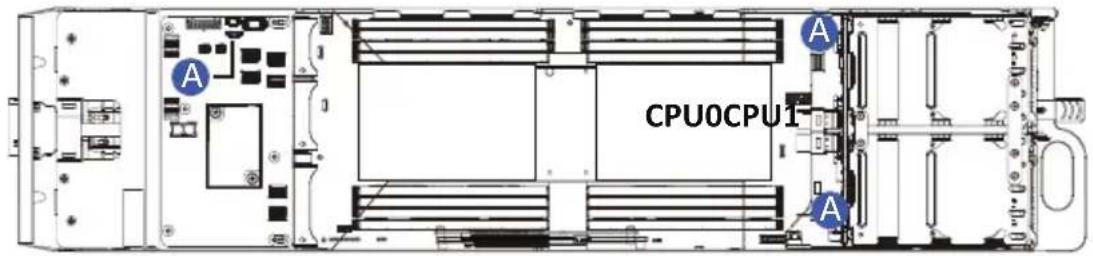
| A SATA Cable | System Rear Board: SL_SATA0 |
| Motherboard: SL4_SATA0 | |
| Power Distribution Board: SATA_SGP1 |

| A NVMe 0 | Cable | System Rear Board: U2_0 |
| Power Distribution Board: U2_3 | ||
| B NVMe 1 | Cable | System Rear Board: U2_1 |
| Power Distribution Board: U2_4 | ||
| C NVMe 2 | Cable | System Rear Board: U2_2 |
| Power Distribution Board: U2_5 | ||
| D NVMe 3 | Cable | System Rear Board: U2_3 |
| Power Distribution Board: U2_6 |
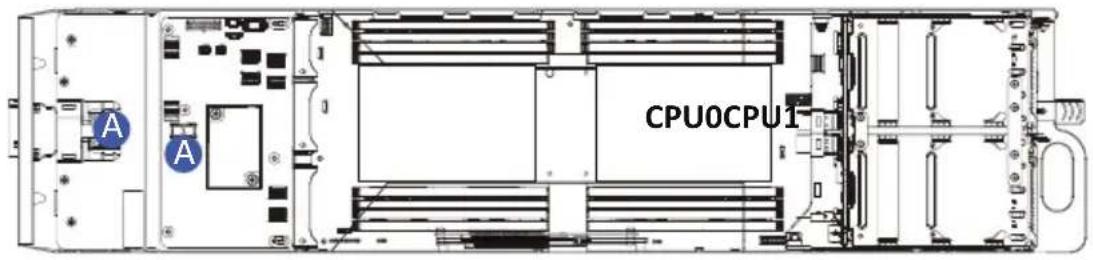
| A Bus Bar | Power Cable -- |
Chapter 4 Motherboard Components
4-1 Motherboard Components
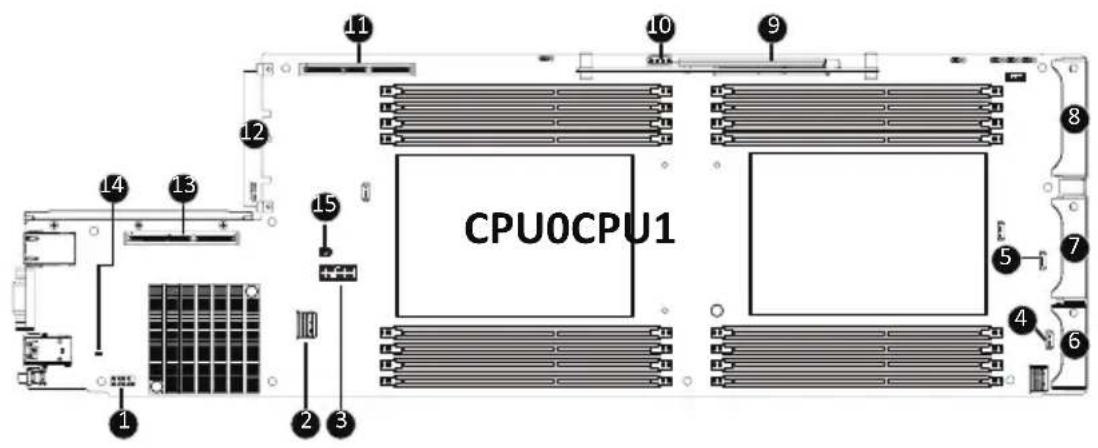
| Item Description | |
| 1 | Serial Port Cable Connector |
| 2 | SlimLine SAS Connector (SL4_SATA0/SATA Signal) |
| 3 TPM Module Connector | |
| 4 SGPIO Connector (SGPA1) | |
| 5 SGPIO Connector (SGPB1) | |
| 6 PC e/SATA Connector | |
| 7 PC e/SATA Connector | |
| 8 PC e/SATA Connector | |
| 9 Proprietary PCIe Slot (Gen 4/ x16 slot/ GENZ_3) | |
| 10 IPMB Connector | |
| 11 Proprietary PCIe Slot (Gen 4/ x16 slot/ GENZ_1) | |
| 12 OCP 3.0 Connector (PCIe Gen4 x16) | |
| 13 Proprietary PCIe Slot (Gen 4/ x16 slot/ GENZ_2) | |
| 14 BMC Readiness LED | |
| 15 System Battery Cable Connector | |
4-2 Jumper Setting
4-3 Backplane Board Storage Connector 4-3-1 COBP540
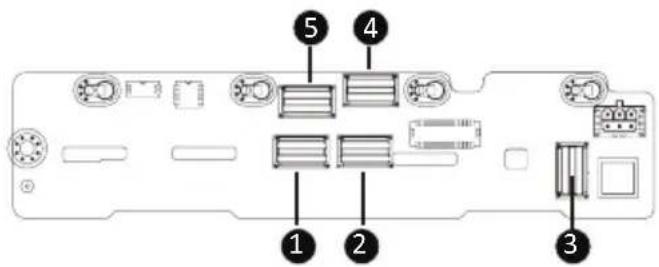
| Item Description |
| 1 SlimLine SAS Connector (SFF-8654 4i/U2_3) |
| 2 SlimLine SAS Connector (SFF-8654 4i/U2_1) |
| 3 SlimLine SAS Connector (SFF-8654 4i/SL_SATA0) |
| 4 SlimLine SAS Connector (SFF-8654 4i/U2_0) |
| 5 SlimLine SAS Connector (SFF-8654 4i/U2_2) |
Chapter 5 BIOS Setup
BIOS (Basic Input and Output System) records hardware parameters of the system in the EFI on the motherboard. Its major functions include conducting the Power-On Self-Test (POST) during system startup, saving system parameters, loading the operating system etc. The BIOS includes a BIOS Setup program that allows the user to modify basic system configuration settings or to activate certain system features. When the power is turned off, the battery on the motherboard supplies the necessary power to the CMOS to keep the configuration values in the CMOS.
To access the BIOS Setup program, press the key during the POST when the power is turned on.

- BIOS flashing is potentially risky, if you do not encounter any problems when using the current BIOS version, it is recommended that you don't flash the BIOS. To flash the BIOS, do it with caution. Inadequate BIOS flashing may result in system malfunction.
- It is recommended that you not alter the default settings (unless you need to) to prevent system instability or other unexpected results. Inadequately altering the settings may result in system's failure to boot. If this occurs, try to clear the CMOS values and reset the board to default values. (Refer to the Exit section in this chapter or introductions of the battery/clearing CMOS jumper in Chapter 1 for how to clear the CMOS values.)
BIOS Setup Program Function Keys
| <←><→> | Move the selection bar to select the screen |
| <↑><↓> | Move the selection bar to select an item |
| <+> | Increase the numeric value or make changes |
| <-> | Decrease the numeric value or make changes |
| Execute command or enter the submenu | |
| Main Menu: Exit the BIOS Setup programSubmenus: Exit current submenu | |
| Show descriptions of general help | |
| Restore the previous BIOS settings for the current submenus | |
| Load the Optimized BIOS default settings for the current submenus | |
| Save all the changes and exit the BIOS Setup program |
Main
This setup page includes all the items of the standard compatible BIOS.
■ Advanced
This setup page includes all the items of AMI BIOS special enhanced features.
(ex: Auto detect fan and temperature status, automatically configure hard disk parameters.)
Chipset
This setup page includes all the submenu options for configuring the functions of the Platform Controller Hub.
■ Server Management
Server additional features enabled/disabled setup menus.
Security
Change, set, or disable supervisor and user password. Configuration supervisor password allows you to restrict access to the system and BIOS Setup.
A supervisor password allows you to make changes in BIOS Setup.
A user password only allows you to view the BIOS settings but not to make changes.
Boot
This setup page provides items for configuration of the boot sequence.
■ Save & Exit
Save all the changes made in the BIOS Setup program to the CMOS and exit BIOS Setup. (Pressing
Abandon all changes and the previous settings remain in effect. Pressing
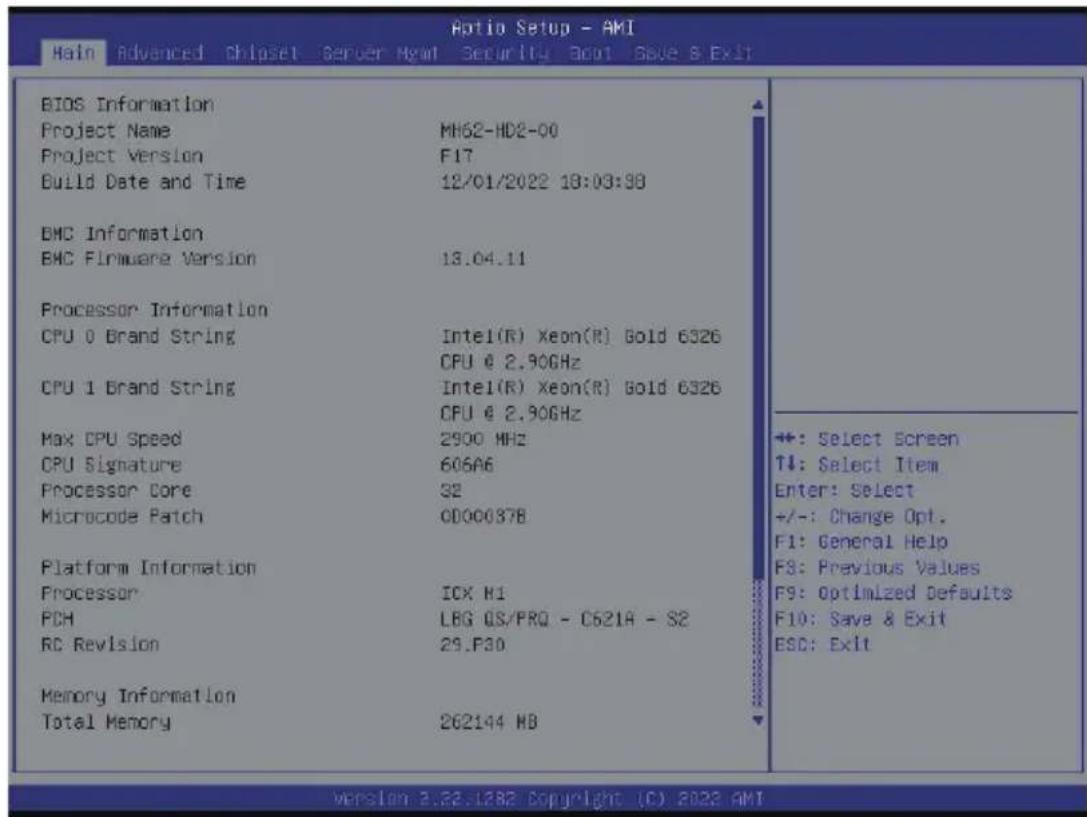
5-1 The Main Menu
Once you enter the BIOS Setup program, the Main Menu (as shown below) appears on the screen. Use arrow keys to move among the items and press
Main Menu Help
The on-screen description of a highlighted setup option is displayed on the bottom line of the Main Menu.
Submenu Help
While in a submenu, press

- When the system is not stable as usual, select the Restore Defaults item to set your system to its defaults.
- The BIOS Setup menus described in this chapter are for reference only and may differ by BIOS version.
![Aio Setup - AMI Main Advanced Chipset Server Mgmt Security Boot Save & Exit Processor Information CPU 0 Brand String Intel(R) Xeon(R) Gold 6326 CPU 1 Brand String Intel(R) Xeon(R) Gold 6326 CPU 0 2.90GHz Max CPU Speed 2900 MHz CPU Signature 60GA6 Processor Core 32 Microcode Patch 0000037B Platform Information Processor ICX H1 PCH LOG QS/PRQ - C621A - S2 RC Revision 29.P30 Memory Information Total Memory 262144 MB Usable Memory 862144 MB Memory Frequency 3200 MHz CPLD Boot Information Boot Status Dual BIOS Mode System Date [Mon 12/12/2022] System Time [14:50:23] Set the Time. Use Tab to switch between Time elements. +: Select Screen ↑↓: Select Item Enter: Select +/-: Change Opt. F1: General Help F3: Previous Values F9: Optimized Defaults F10: Save & Exit ESC: Exit Version 2.23.1282 Copyright (C) 2022 AMI](/content/2026/06/1219021/images/c76ef55fc2d6056b0cf2a54ce02513915713892aeb0b42b3bc5c5bbe198c4932.jpg)
| Parameter | Description |
| BIOS Information | |
| Project Name | Displays the project name information. |
| Project Version | Displays version number of the BIOS setup utility. |
| Build Date and Time | Displays the date and time when the BIOS setup utility was created. |
| BMC Information^(Note1) | |
| BMC Firmware Version^(Note1) | Displays BMC firmware version information. |
| Processor Information | |
| CPU Brand String/ Max CPU Speed / CPU Signature / Processor Core / Microcode Patch | Displays the technical information for the installed processor(s). |
| Platform Information | |
| Processor/ PCH/ RC Revision | Displays the information of the installed processor(s) and PCH. |
| Memory Information^(Note2) | |
| Total Memory | Displays the total memory size of the installed memory. |
| Usable Memory | Displays the usable memory size of the installed memory. |
(Note1) Functions available on selected models.
(Note2) This section will display capacity and frequency information of the memory that the customer has installed.
| Parameter | Description |
| Memory Frequency | Displays the frequency information of the installed memory. |
| CPLD Boot Information | |
| Boot Status | Displays the Boot status information. |
| System Date | Sets the date following the weekday-month-day-year format. |
| System Time | Sets the system time following the hour-minute-second format. |
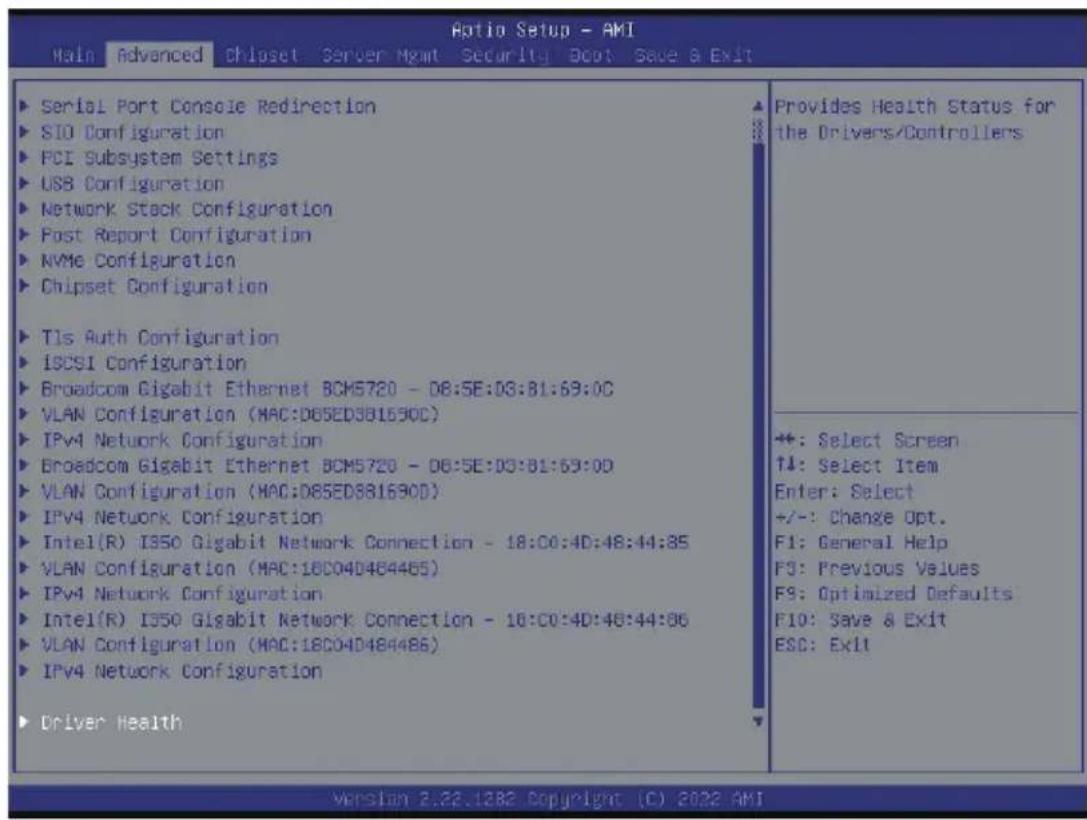
5-2 Advanced Menu
The Advanced Menu displays submenu options for configuring the function of various hardware components. Select a submenu item, then press

5-2-1 Trusted Computing
![Optio Setup - AMI Advanced Configuration Security Device Support [Enable] Disable Block Sid [Disabled] NO Security Device Found Enables or Disables BIOS support for security device. D.S. will not show Security Device. TCG EFI protocol and INTIA interface will not be available. +: Select Screen +: Select Item Enter: Select +/-: Change Opt. F1: General Help F3: Previous Values F9: Optimized Defaults F10: Save & Exit ESC: Exit Version 2.23.1382 Copyright (C) 2022 AMI](/content/2026/06/1219021/images/914e04a056078a1781f1d889ffc3c543b3038a1937991d666630d5317d10f086.jpg)
| Parameter | Description |
| Configuration | |
| Security Device Support | Enable/Disable BIOS support for security device. OS will not show security device. TCG EFI protocol and INT1A interface will not be available.Options available: Enable, Disable. Default setting is Enable. |
| Disable Block Sid | Enable/Disable Override to allow SID authentication in TCG Storage device.Options available: Enabled, Disabled. Default setting is Disabled. |
5-2-2 Serial Port Console Redirection
![Optio Setup - AMI Advanced COM1 Console Redirection [Disabled] Legacy Console Redirection ► Legacy Console Redirection Settings Serial Port for Out-of-Band Management/ Windows Emergency Management Services (EMS) Console Redirection EMS [Disabled] ► Console Redirection Settings Console Redirection Enable or Disable. +: Select Screen ↑↓: Select Item Enter: Select +/-: Change Opt. F1: General Help F3: Previous Values F9: Optimized Defaults F10: Save & Exit ESC: Exit ++: Select Screen ↑↓: Select Item Enter: Select +/-: Change Opt. F1: General Help F3: Previous Values F9: Optimized Defaults F10: Save & Exit ESC: Exit version 2.28.1282 Copyright (C) 2028 AMI](/content/2026/06/1219021/images/d3c2f0ab59bc4906f39c1f280e112d36a52c2bb84a7099bc846069ad87bdbd20.jpg)
| Parameter | Description |
| COM1 Console Redirection ^(Note) | Console redirection enables the users to manage the system from a remote location.Options available: Enabled, Disabled. Default setting isDisabled. |
| COM1 Console Redirection Settings | Press [Enter] to configure advanced items.Please note that this item is configurable when COM1 Console Redirection is set to Enabled.Terminal Type- Selects a terminal type to be used for console redirection.- Options available: VT100, VT100PLUS, VT-UTF8, ANSI. Default setting isVT100PLUS.Bits per second- Selects the transfer rate for console redirection.- Options available: 9600, 19200, 38400, 57600, 115200. Default setting is115200.Data Bits- Selects the number of data bits used for console redirection.- Options available: 7, 8. Default setting is8. |
(Note) Advanced items prompt when this item is defined.
| Parameter | Description |
| COM1 Console Redirection Settings (continued) | Parity– A parity bit can be sent with the data bits to detect some transmission errors.– Even: parity bit is 0 if the num of 1's in the data bits is even.– Odd: parity bit is 0 if num of 1's in the data bits is odd.– Mark: parity bit is always 1. Space: Parity bit is always 0.– Mark and Space Parity do not allow for error detection.– Options available: None, Even, Odd, Mark, Space. Default setting is None.Stop Bits– Stop bits indicate the end of a serial data packet. (A start bit indicates the beginning). The standard setting is 1 stop bit.Communication with slow devices may require more than 1 stop bit.– Options available: 1, 2. Default setting is 1.Flow Control– Flow control can prevent data loss from buffer overflow. When sending data, if the receiving buffers are full, a 'stop' signal can be sent to stop the data flow. Once the buffers are empty, a 'start' signal can be sent to re-start the flow. Hardware flow control uses two wires to send start/stop signals.– Options available: None, Hardware RTS/CTS. Default setting is None.VT-UTF8 Combo Key Support– Enable/Disable the VT-UTF8 Combo Key Support.– Options available: Enabled, Disabled. Default setting is Enabled.Recorder Mode– When this mode enabled, only texts will be send. This is to capture Terminal data.– Options available: Enabled, Disabled. Default setting is Disabled.Resolution 100x31– Enable/Disable extended terminal resolution.– Options available: Enabled, Disabled. Default setting is Enabled.Putty KeyPad– Selects Function Key and KeyPad on Putty.– Options available: VT100, LINUX, XTERMR6, SC0, ESCN, VT400. Default setting is VT100. |
| Serial Port for Out-of-Band Management / Windows Emergency Management Services (EMS) Console Redirection ^(Note) | EMS console redirection allows the user to configure Console Redirection Settings to support Out-of-Band Serial Port management. Options available: Enabled, Disabled. Default setting isDisabled. |
| Serial Port for Out-of-Band EMS Console Redirection Settings | Press [Enter] to configure advanced items.Please note that this item is configurable when Serial Port for Out-of-Band Management EMS Console Redirection is set to Enabled.◆ Out-of-Band Mgmt Port- Microsoft Windows Emergency Management Service (EMS) allows for remote management of a Windows Server OS through a serial port.- Default setting isCOM1.◆ Terminal Type EMS- Selects a terminal type to be used for console redirection.- Options available: VT100, VT100PLUS, VT-UTF8, ANSI. Default setting isVT100PLUS.◆ Bits per second EMS- Selects the transfer rate for console redirection.- Options available: 9600, 19200, 57600, 115200. Default setting is115200.◆ Flow Control EMS- Flow control can prevent data loss from buffer overflow. When sending data, if the receiving buffers are full, a 'stop' signal can be sent to stop the data flow. Once the buffers are empty, a 'start' signal can be sent to re-start the flow. Hardware flow control uses two wires to send start/stop signals.- Options available: None, Hardware RTS/CTS, Software Xon/Xoff. Default setting isNone. |
5-2-3 SIO Configuration
| Optio Setup - AMI Advanced | |
| AMI SIO Driver Version: A5.16.00 Super IO Chip Logical Device(s) Configuration [Activex] Serial Port WARNING: Logical Devices state on the left side of the control, reflects the current Logical Device state. Changes made during Setup Session will be shown after you restart the system. | View and Set Basic properties of the SIO Logical device. Like IO Base, IRQ Range, DMA Channel and Device Mode. |
| +: Select Screen ↑↓: Select Item Enter: Select +/-: Change Opt. F1: General Help F3: Previous Values F9: Optimized Defaults F10: Save & Exit ESC: Exit | |
| Parameter | Description |
| AMI SIO Driver Version | Displays the AMI SIO driver version information. |
| Super IO Chip Logical Device(s) Configuration | |
| [*Active*] Serial Port | Press [Enter] to configure advanced items. Use This Device - When set to Enabled allows you to configure the serial port settings. When set to Disabled, displays no configuration for the serial port. - Options available: Enabled, Disabled. Default setting is Enabled. Logical Device Settings/Current: - Displays the serial port base I/O address and IRQ. Possible: - Configures the serial port base I/O address and IRQ. Use Automatic Settings IO=3F8h; IRQ=4; DMA; IO=3F8h; IRQ=4; DMA; IO=2F8h; IRQ=4; DMA; IO=3E8h; IRQ=4; DMA; IO=2E8h; IRQ=4; DMA; Default setting is Use Automatic Settings. |
5-2-4 PCI Subsystem Settings
| PCI Bus Driver Version Slot1 I/O ROM Slot1 Lanes Slot1 Max Link Speed | AS.01.24 [Enabled] [Auto] [Auto] | Enable/Disable Slot1 I/O ROM |
| Slot2 I/O ROM Slot2 Lanes Slot2 Max Link Speed | [Enabled] [Auto] [Auto] | |
| Slot8 I/O ROM Slot3 Lanes Slot3 Max Link Speed | [Enabled] [Auto] [Auto] | |
| OCP80 I/O ROM OCP90 Lanes OCP80 Max Link Speed | [Enabled] [Auto] [Auto] | +: Select Screen T1: Select Item Enter: Select +/-: Change Opt. F1: General Help F3: Previous Values F9: Optimized Defaults F10: Save & Exit ESC: Exit |
| PCI Devices Common Settings: Above 4G Decoding SR-IOV Support | [Enabled] [Enabled] |
| Parameter | Description |
| PCI Bus Driver Version | Displays the PCI Bus Driver version information. |
| Slot\_# I/O ROM^(Note1) | When enabled, this setting will initialize the device expansion ROM for the related PCI-E slot.Options available: Enabled, Disabled. Default setting isEnabled. |
| Slot\_# Lanes^(Note1) | Change the PCIe lanes. Default setting isAuto. |
| Slot\_# Max Link Speed^(Note1) | Configure PCIe max link speed.Options available: Auto, Gen1, Gen2, Gen3, Gen4, Gen5.Default setting isAuto. |
| OCP30 I/O ROM | Enable/Disable M.2 slot I/O ROM.Options available: Enabled, Disabled. Default setting isEnabled. |
| OPC30 Lanes Change the M.2 slot lanes. Default setting isAuto. | |
| OCP30 Max Link Speed | Configure M.2 slot max link speed.Options available: Auto, Gen1, Gen2, Gen3, Gen4, Gen5.Default setting isAuto. |
(Note1) This section is dependent on the available PCIe Slot.
| PCI Devices Common Settings | |
| Above 4G Decoding | Enable/Disable memory mapped I/O to 4GB or greater address space (Above 4G Decoding).Options available: Enabled, Disabled. Default setting is Enabled. |
| SR-IOV Support | If the system has SR-IOV capable PCIe devices, this item Enable/Disable Single Root IO Virtualization Support.Options available: Enabled, Disabled. Default setting is Enabled. |
5-2-5 USB Configuration
![Optio Setup - AMI Advanced USB Configuration USB Devices: 8 Drives, 2 Keyboards, 3 Mice, 2 Hubs XHCI Hand-off [Enabled] USB Mass Storage Driver Support [Enabled] Port 60/64 Emulation [Enabled] This is a workaround for OSes without XHCI hand-off support. The XHCI ownership change should be claimed by XHCI driver. +: Select Screen ↑↓: Select Item Enter: Select +/-: Change Opt. F1: General Help F3: Previous Values F9: Optimized Defaults F10: Save & Exit ESC: Exit ++: Select Screen ↑↓: Select Item Enter: Select +/-: Change Opt. F1: General Help F3: Previous Values F9: Optimized Defaults F10: Save & Exit ESC: Exit version 2.22.1382 Copyright (C) 2022 AMI](/content/2026/06/1219021/images/4ae5c40b17c31d9040f1c5fbebf7cbd26e93aedda6cf5cf424c4bb2d2f4596a7.jpg)
| Parameter | Description |
| USB Configuration | |
| USB Devices: | Displays the USB devices connected to the system. |
| XHCI Hand-off | Enable/Disable the XHCI (USB 3.0) Hand-off support.Options available: Enabled, Disabled. Default setting is Enabled. |
| USB Mass Storage Driver Support ^(Note) | Enable/Disable the USB Mass Storage Driver Support.Options available: Enabled, Disabled. Default setting is Enabled. |
| Port 60/64 Emulation | Enables the I/O port 60h/64h emulation support. This should be enabled for the complete USB Keyboard Legacy support for non-USB aware OSes.Options available: Enabled, Disabled. Default setting is Enabled. |
(Note) This item is present only if you attach USB devices.
5-2-6 Network Stack Configuration
| Advanced | Aptio Setup - AMI | |||||
| Network Stack | [Enabled] | Enable/Disable UEFI Network Stack | ||||
| IPv4 PXE Support | [Enabled] | |||||
| IPv4 HTTP Support | [Disabled] | |||||
| IPv6 PXE Support | [Disabled] | |||||
| IPv6 HTTP Support | [Disabled] | |||||
| PXE boot wait time | 0 | |||||
| Media detect count | 1 | |||||
| +: Select Screen ↑↓: Select Item Enter: Select +/-: Change Opt. F1: General Help F3: Previous Values F9: Optimized Defaults F10: Save & Exit ESC: Exit | ||||||
| ++: Select Screen ↑↓: Select Item Enter: Select +/-: Change Opt. F1: General Help F3: Previous Values F9: Optimized Defaults F10: Save & Exit ESC: Exit | ||||||
| Parameter | Description |
| Network Stack | Enable/Disable the UEFI network stack.Options available: Enabled, Disabled. Default setting is Enabled. |
| Ipv4 PXE Support | Enable/Disable the lpv4 PXE feature.Options available: Enabled, Disabled. Default setting is Enabled. |
| Ipv4 HTTP Support | Enable/Disable the lpv4 HTTP feature.Options available: Enabled, Disabled. Default setting is Disabled. |
| Ipv6 PXE Support | Enable/Disable the lpv6 PXE feature.Options available: Enabled, Disabled. Default setting is Disabled. |
| Ipv6 HTTP Support | Enable/Disable the lpv6 HTTP feature.Options available: Enabled, Disabled. Default setting is Disabled. |
| PXE boot wait time | Wait time in seconds to press ESC key to abort the PXE boot.Press the <+> / <-> keys to increase or decrease the desired values. |
| Media detect count | Number of times the presence of media will be checked.Press the <+> / <-> keys to increase or decrease the desired values. |
5-2-7 Post Report Configuration
![Optio Setup - AMI Advanced Post Report Configuration Error Message Report Post Error Message [Enabled] Post Error Message Support Enabled/Disabled +: Select Screen ↑↓: Select Item Enter: Select +/-: Change Opt. F1: General Help F3: Previous Values F9: Optimized Defaults F10: Save & Exit ESC: Exit Version 2.22.1282 Copyright (C) 2022 AMI](/content/2026/06/1219021/images/2c580a26184a06d6e673abd8d0cba9ae466b7b7dbfa7a143104ac0fbb5a114a2.jpg)
| Parameter | Description |
| Post Report Configuration | |
| Error Message Report | |
| Post Error Message | Enable/Disable the POST Error Message support. Options available: Enabled, Disabled. Default setting is Enabled. |
5-2-8 NVMe Configuration
![Optio Setup - AMI Advanced NVMe Configuration NVMe OPRDM Select [BIOS Build-In] NVMe LED Control [Disable] ▶ NVMe PD2: KCM61RUL960G BIOS Build-In is default setting. Select Device Itself, then this NVMe page will not display any NVMe device. Unless the device doesn't have OPRDM, it will show. +: Select Screen ↑↓: Select Item Enter: Select +/-: Change Opt. F1: General Help F3: Previous Values F9: Optimized Defaults F10: Save & Exit ESC: Exit Version 2.22.1782 Copyright (C) 2022 AMI](/content/2026/06/1219021/images/858e0f086efa85f28b2039c031b196d94250752f6585912c31582678cda68c19.jpg)
| Parameter | Description |
| NVMe Configuration | Displays the NVMe devices connected to the system. |
| NVMe OPROM Select | Options available: BIOS Build-In, NVMe Device. Default setting is BIOS Build-In. |
| NVMe LED Control | Options available: Enable, Disable. Default setting is Disable. |
| NVMe Device # | Press [Enter] for configuration of advanced items |
5-2-9 Chipset Configuration
![Optio Setup - AMI Advanced Restore AC Power Loss [Unspecified] Skip Above 4G Decoding for VBA [Disabled] P2P Bridge ID Size [0x1000] SATA HDD Security Frozen [Enabled] Chassis Opened Warning [Disabled] Specify what state when power is re-applied after a power failure (63 state). **: Select Screen TI: Select Item Enter: Select +/-: Change Opt. F1: General Help F3: Previous Values F9: Optimized Defaults F10: Save & Exit ESC: Exit Version 3.22-1282 Copyright 1C) 2022 AMI](/content/2026/06/1219021/images/6e423eb9fb0cbc63c4afcdf350b5a374fa6154728d4f3d9dd7116209e2368d7a.jpg)
| Parameter | Description |
| Restore on AC Power Loss | Defines the power state to resume to after a system shutdown that is due to an interruption in AC power. When set to Last State, the system will return to the active power state prior to shutdown. When set to Power Off, the system remains off after power shutdown. Options available: Last State, Power Off, Power On, Unspecified. The default setting depends on the BMC setting. |
| Skip Above 4G Decoding for VGA | Enable/Disable 64bit capable devices to be decoded in Skip Above 4G Address VGA Space. Options available: Enabled, Disabled. Default setting is Disabled. |
| P2P Bridge IO Size | Specifies P2P Bridge IO aligned to the size. Options available: 0x100, 0x150, 0x1000. Default setting is 0x1000. |
| SATA HDD Security Frozen | Enable/Disable this item to send freeze lock command to SATA HDD. Options available: Enabled, Disabled. Default setting is Enabled. |
| Chassis Opened Warning | Enable/Disable the chassis intrusion alert function. Options available: Enabled, Disabled, Clear. Default setting is Disabled. |
5-2-10 Tls Auth Configuration

Parameter Description
| Server CA Configuration | Press [Enter] for configuration of advanced items.◆ Enroll Cert- Press [Enter] to enroll a certificate• Enroll Cert Using File• Cert GUIDInput digit character in 1111111-2222-3333-4444-1234567890ab format.- Commit Changes and Exit- Discard Changes and Exit◆ Delete Cert |
| Client Cert Configuration | Press [Enter] for configuration of advanced items. |
5-2-11 iSCSI Configuration
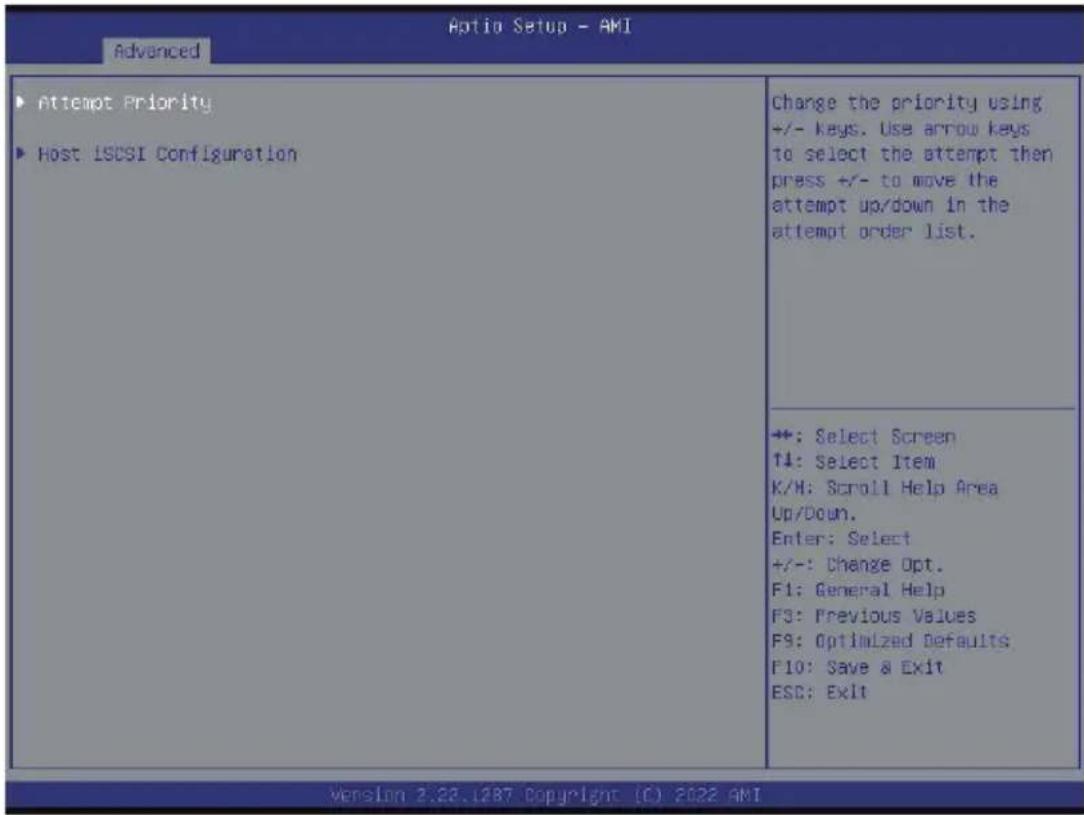
| Parameter | Description |
| Attempt Priority | Press [Enter] configure advanced items.♦ Attempt Priority– Use arrow keys to select the attempt, then press +/- keys to move the attempt up/down in the attempt order list.♦ Commit Changes and Exit |
| Host iSCSI Configuration | Press [Enter] to configure advanced items.♦ iSCSI Initiator Name– Only IQN format is accepted. Range: from 4 to 223♦ Add an Attempt♦ Delete Attempts♦ Change Attempt Order |
5-2-12 Broadcom Gigabit Ethernet BCM5720
![Aptio Setup - AMI Advanced ► Firmware Image Menu ► MBA Configuration Menu ► ISCSI Boot Configuration Menu Blink LEDs 0 Chip Type BCM5720 NO PCI Device ID 165F Bus:Device:Function 17:00:00 Link Status [Connected] Permanent MAC Address DB:SE:D3:B1:69:0C Virtual MAC Address 00:00:00:00:00:00 Firmware Image information. +: Select Screen ↑↓: Select Item Enter: Select +/-: Change Opt. F1: General Help F3: Previous Values F9: Optimized Defaults F10: Save & Exit ESC: Exit Version 3.32.1282 Copyright (C) 2022 AMI](/content/2026/06/1219021/images/fdcf0fd507f489bb142dcc3a52782d51eacfd2e8e4476a90c3ac5cf9bc95e2be.jpg)
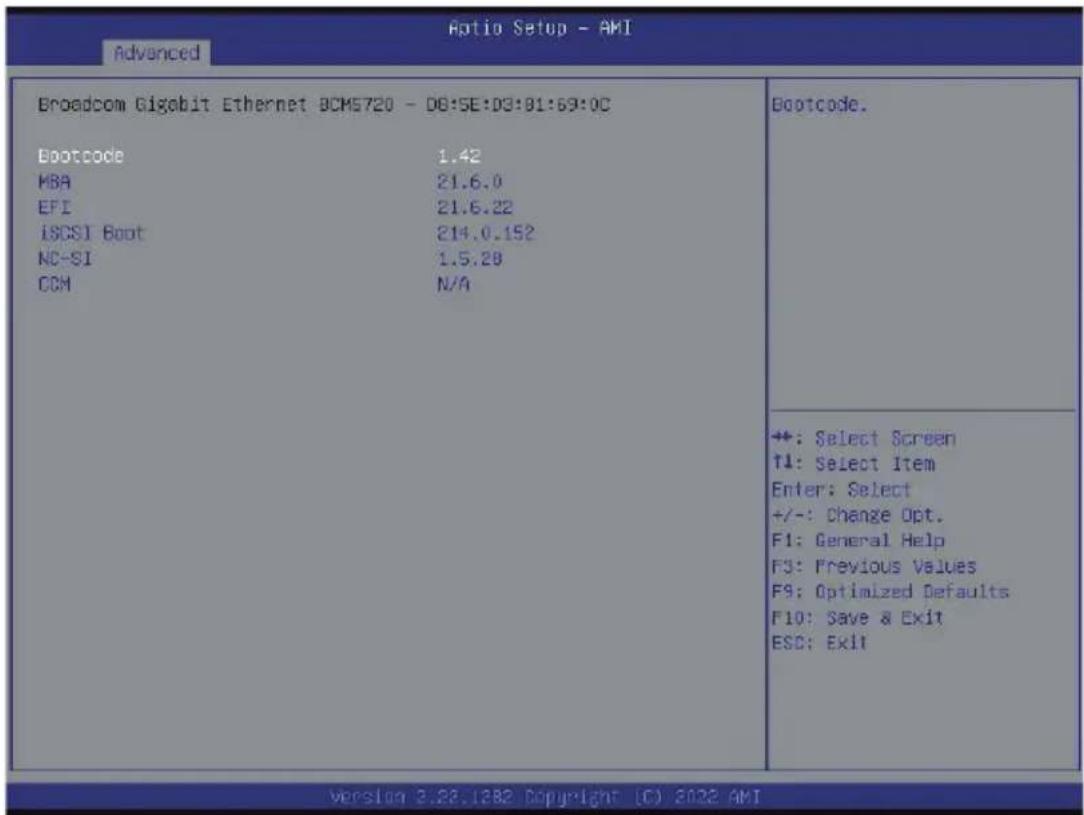
| Parameter | Description |
| Firmware Image Menu | Press [Enter] to view firmware image information. |
| MBA Device Configuration Menu | Press [Enter] to configure advanced items.◆ Legacy Boot Protocol- Selects non-UEFI Boot Protocol: Preboot Execution Environment (PXE)/iSCSI.- PXE, iSCSI, NONE. Default setting is PXE.◆ Boot Strap Type- Selects the boot strap type. Options available: Auto Detect, BBS,- Int 18h, Int 19h. Default setting is Auto Detect.◆ Banner Message Timeout- Selects the timeout value. (0 defaults to 4 seconds, 15 is no delay,1-14 is timeout value in seconds).- Default setting is 5.◆ Pre-boot Wake On LAN- Configures Pre-boot Wake on LAN (WOL).- Options available: Enabled, Disabled. Default setting is Disabled.◆ VLAN Mode- Configures the virtual LAN (VLAN) mode.- Options available: Enabled, Disabled. Default setting is Disabled.◆ VLAN ID- Configures the VLAN ID (1...4094).- This item is available only when VLAN Mode is Enabled. |
| iSCSI Boot Configuration Menu | Press [Enter] to configure advanced items. |
| Blink LEDs | Identifies the physical network port by blinking the associated LED. Press the numeric keys to adjust desired values (up to 15 seconds). |
| Chip Type | Displays the technical specifications for the Network Interface Controller. |
| PCI Device ID | Displays the technical specifications for the Network Interface Controller. |
| Bus:Device:Function | Displays the technical specifications for the Network Interface Controller |
| Permanent MAC Address | Displays the MAC address of the Ethernet controller. |
| Virtual MAC Address | Displays the technical specifications for the Network Interface Controller. |
5-2-13 VLAN Configuration
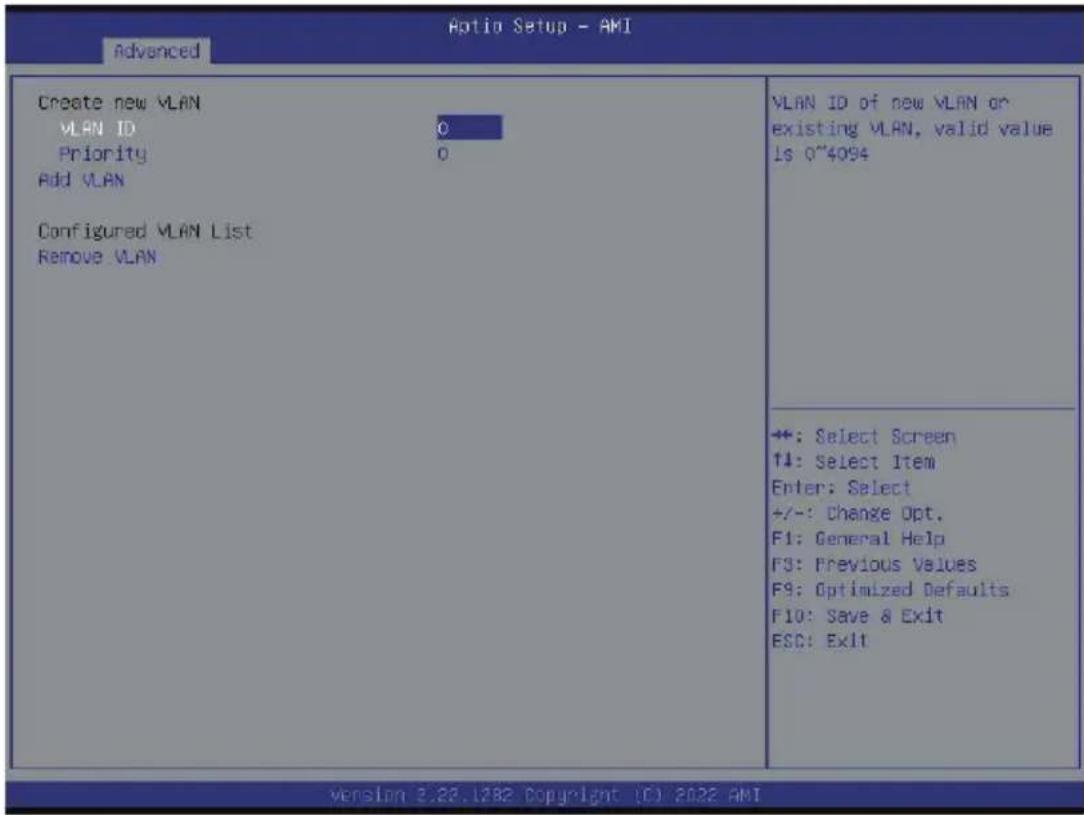
| Parameter | Description |
| Enter Configuration Menu | Press [Enter] to configure advanced items.◆ Create new VLAN◆ VLAN ID- Sets VLAN ID for a new VLAN or an existing VLAN.- Press the <+> / <-> keys to increase or decrease the desired values.- The valid range is from 0 to 4094.◆ Priority- Sets 802.1Q Priority for a new VLAN or an existing VLAN.- Press the <+> / <-> keys to increase or decrease the desired values.- The valid range is from 0 to 7.◆ Add VLAN- Press [Enter] to create a new VLAN or update an existing VLAN.◆ Configured VLAN List◆ Remove VLAN- Press [Enter] to remove an existing VLAN. |
5-2-14 IPv4 Network Configuration
![Optio Setup - AMI Advanced Configured [Enabled] Enable DHCP [Disabled] Local IP Address Local NetMask Local Gateway Local DNS Servers Save Changes and Exit Indicate whether network address configured successfully or not. +: Select Screen ↑↓: Select Item Enter: Select +/-: Change Opt. F1: General Help F3: Previous Values F9: Optimized Defaults F10: Save & Exit ESC: Exit **: Select Screen ↑↓: Select Item Enter: Select +/-: Change Opt. F1: General Help F3: Previous Values F9: Optimized Defaults F10: Save & Exit ESC: Exit Version 2.22.1282 Copyright (C) 2022 AMI](/content/2026/06/1219021/images/e5f1b5bccb3bbb661b5a76dc3a60f4f9d1f832ff78dc43661abacd0c17dea7d0.jpg)
| Parameter Description | |
| Configured | Indicates whether network address is configured successfully or not. Options available: Enabled, Disabled. Default setting is Disabled. |
| Enable DHCP ^(Note) | Options available: Enabled, Disabled. Default setting is Disabled. |
| Local IP Address ^(Note) | Press [Enter] to configure local IP address. |
| Local NetMask ^(Note) | Press [Enter] to configure local NetMask. |
| Local Gateway ^(Note) | Press [Enter] to configure local Gateway |
| Local DNS Servers ^(Note) | Press [Enter] to configure local DNS servers |
| Save Changes and Exit Press [Enter] to save all configurations. | |
(Note) This item appears when Configured is set to Enabled.
5-2-15 Intel(R) I350 Gigabit Network Connection
![Optio Setup - AMI Advanced NIC Configuration Blink LEDs 0 UEFI Driver Intel(R) PRO/1000 8.5.21 PCI-E Adapter PBA 106300-000 Device Name Intel(R) I350 Gigabit Network Connection Chip Type Intel I350 PCI Device ID 1521 PCI Address 48:00:00 Link Status [Disconnected] MAC Address 18:00:40:48:44:85 Virtual MAC Address 00:00:00:00:00:00 Click to configure the network device port. **: Select Screen T#: Select Item Enter: Select +/-: Change Opt. F1: General Help F3: Previous Values F9: Optimized Defaults F10: Save & Exit ESC: Exit Version 2.22.1282 Copyright (C) 2022 AMI](/content/2026/06/1219021/images/8a201dac7e17b06d29db3321158edb83bfc8b08923694a8fd58c2f2e8c5afa0e.jpg)
![Optio Setup - AMI Advanced Link Speed [Auto Negotiated] Make On LAN [Enabled] Specifies the port speed used for the selected boot protocol. +: Select Screen +: Select Item Enter: Select +/-: Change Opt. F1: General Help F3: Previous Values F9: Optimized Defaults F10: Save & Exit ESC: Exit version 2.28.1282 Copyright (C) 2022 AMI](/content/2026/06/1219021/images/bdea11c348c332ccdd6a35fa236ad3fdcd087ae2073f527589da25ab337d7cf4.jpg)
| Parameter | Description |
| NIC Configuration | Press [Enter] to configure advanced items.◆ Link Speed- Allows for automatic link speed adjustment.- Options available: Auto Negotiated, 10 Mbps Half, 10 Mbps Full, 100 Mbps Half, 100 Mbps Full. Default setting isAuto Negotiated.◆ Wake On LAN- Enables power on of the system via LAN. Note that configuring Wake on LAN in the operating system does not change the value of this setting, but does override the behavior of Wake on LAN in OS controlled power states.- Options available: Disabled, Enabled. Default setting isEnabled. |
| Blink LEDs | Identifies the physical network port by blinking the associated LED. Press the numeric keys to adjust desired values. |
| UEFI Driver | Displays the technical specifications for the Network Interface Controller. |
| Adapter PBA | Displays the technical specifications for the Network Interface Controller. |
| Device Name | Displays the technical specifications for the Network Interface Controller. |
| Chip Type | Displays the technical specifications for the Network Interface Controller. |
| PCI Device ID | Displays the technical specifications for the Network Interface Controller. |
| PCI Address | Displays the technical specifications for the Network Interface Controller. |
| Link Status | Displays the technical specifications for the Network Interface Controller. |
| MAC Address | Displays the technical specifications for the Network Interface Controller. |
| Virtual MAC Address | Displays the technical specifications for the Network Interface Controller. |
5-2-16 VLAN Configuration
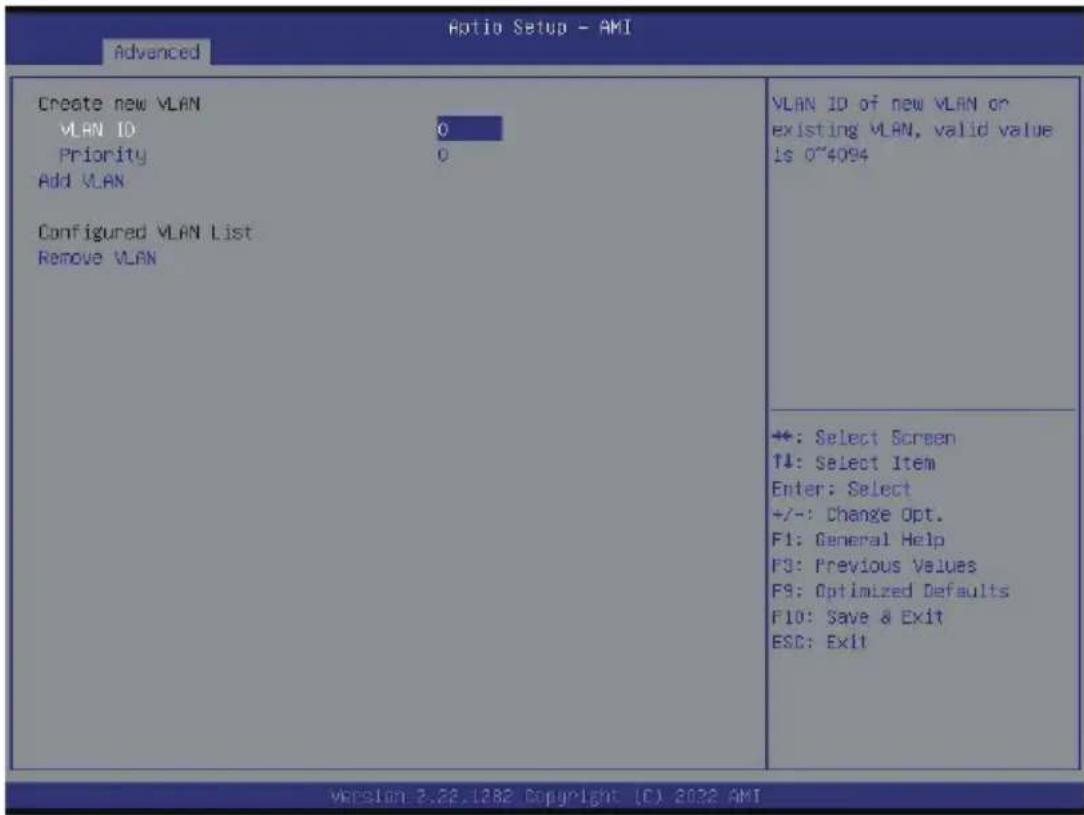
| Parameter | Description |
| Enter Configuration Menu | Press [Enter] to configure advanced items.◆ Create new VLAN◆ VLAN ID- Sets VLAN ID for a new VLAN or an existing VLAN.- Press the <+> / <-> keys to increase or decrease the desired values.- The valid range is from 0 to 4094.◆ Priority- Sets 802.1Q Priority for a new VLAN or an existing VLAN.- Press the <+> / <-> keys to increase or decrease the desired values.- The valid range is from 0 to 7.◆ Add VLAN- Press [Enter] to create a new VLAN or update an existing VLAN.◆ Configured VLAN List◆ Remove VLAN- Press [Enter] to remove an existing VLAN. |
5-2-17 IPv4 Network Configuration
| Optio Setup - AMI | |
| Configured [Enabled] Enable DHCP [Disabled] Local IP Address Local NetMask Local Gateway Local DNS Servers Save Changes and Exit | Indicate whether network address configured successfully or not. |
| +:-: Select Screen +1: Select Item Enter: Select +/-: Change Opt. F1: General Help F3: Previous Values F9: Optimized Defaults F10: Save & Exit ESC: Exit | |
| Parameter Description | |
| Configured | Indicates whether network address is configured successfully or not. Options available: Enabled, Disabled. Default setting is Disabled. |
| Enable DHCP ^(Note) | Options available: Enabled, Disabled. Default setting is Disabled. |
| Local IP Address ^(Note) | Press [Enter] to configure local IP address. |
| Local NetMask ^(Note) | Press [Enter] to configure local NetMask. |
| Local Gateway ^(Note) | Press [Enter] to configure local Gateway |
| Local DNS Servers ^(Note) | Press [Enter] to configure local DNS servers |
| Save Changes and Exit Press [Enter] to save all configurations. | |
(Note) This item appears when Configured is set to Enabled.
5-2-18 Driver Health
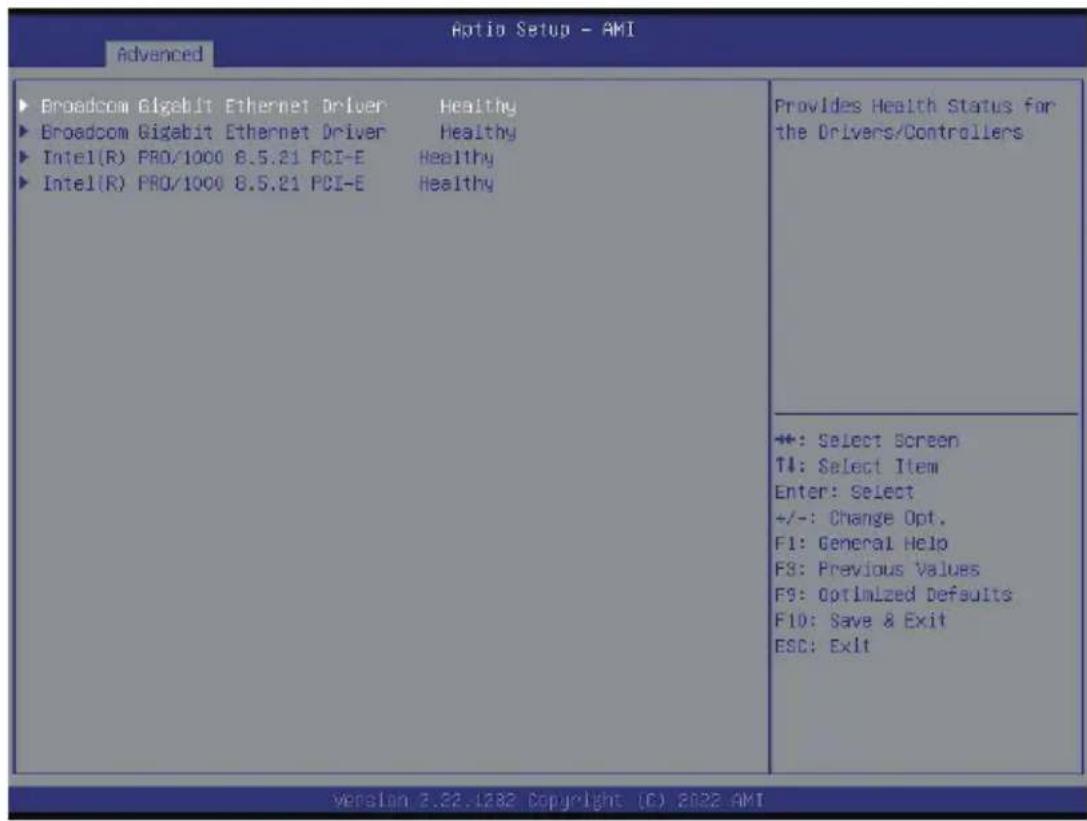
| Parameter | Description |
| Driver Health | Displays driver health status of the devices/controllers if installed |
5-3 Chipset Menu
Chipset Setup menu displays submenu options for configuring the function of Platform Controller Hub(PCH). Select a submenu item, then press
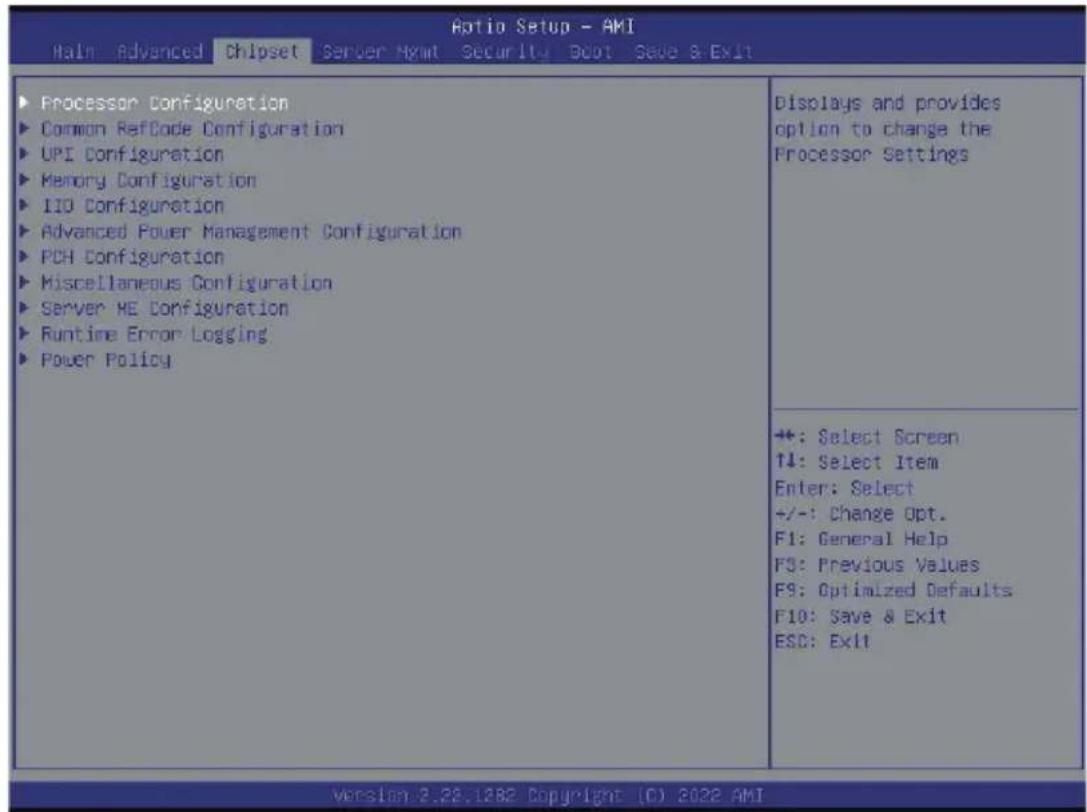
5-3-1 Processor Configuration
![Chipset Aptio Setup - AMI Processor Configuration ► Per-Socket Configuration Processor Socket Socket 0 Socket 1 Processor ID 000606AG* | 000606AG Processor Frequency 2.900GHz | 2.900GHz Processor Max Ratio 1DH | 1DH Processor Min Ratio 08H | 08H Microcode Revision 0000037B | 0000037B L1 Cache RAM(Per Core) 80KB | 80KB L2 Cache RAM(Per Core) 1280KB | 1280KB L3 Cache RAM(Per Package) 24576KB | 24576KB Processor 0 Version Intel(R) Xeon(R) Gold 6 826 CPU @ 2.90GHz Processor 1 Version Intel(R) Xeon(R) Gold 6 826 CPU @ 2.90GHz Hyper-Threading [ALL] [Enable] Hardware Prefetcher [Enable] Adjacent Cache Prefetch [Enable] DCU Streamer Prefetcher [Enable] DCU IP Prefetcher [Enable] Extended APIC [Disable] Enable Intel(R) TXT [Disable] VMX [Enable] Change Per-Socket Settings +: Select Screen ↑↓: Select Item Enter: Select +/-: Change Opt. F1: General Help F3: Previous Values F9: Optimized Defaults F10: Save & Exit ESC: Exit Version: 3.23.1882 Copyright (C) 2022 AMI](/content/2026/06/1219021/images/8d2aabcf57f777026095644f7d55a8bb224b1dcb42a1aea8ea7a5eeb428b572e.jpg)
![Chipset L2 Cache RAM(Per Core) 1280KB | 1280KB L3 Cache RAM(Per Package) 24576KB | 24576KB Processor 0 Version Intel(R) Xeon(R) Gold 6 826 CPU @ 2.90GHz Processor 1 Version Intel(R) Xeon(R) Gold 6 826 CPU @ 2.90GHz Hyper-Threading [ALL] [Enable] Hardware Prefetcher [Enable] Adjacent Cache Prefetch [Enable] DCU Streamer Prefetcher [Enable] DCU IP Prefetcher [Enable] Extended APIC [Disable] Enable Intel(R) TXT [Disable] VMX [Enable] Enable SMX [Disable] AES-NI [Enable] Debug Consent [Disable] Core Crash Data Gprs [Disable] TME, TME-MT, TOX Total Memory Encryption (TME) [Disabled] Limit CPU PA to 45 bits [Enable] Limit CPU physical address to 46 bits to support older Hyper-v. If enabled, automatically disables TME-HT. +: Select Screen ↑↓: Select Item Enter: Select +/-: Change Opt. F1: General Help F3: Previous Values F9: Optimized Defaults F10: Save & Exit ESC: Exit Version 2.22.1282 Copyright (C) 2023 AMI](/content/2026/06/1219021/images/381d253e049d450e5705bad76391e1c151dc85dd1cf9110ea3ed0a688cd8f7db.jpg)
| Parameter | Description |
| Processor Configuration | |
| Pre-Socket Configuration | Press [Enter] to configure advanced items.◆CPU Socket 0 Configuration◆CPU Socket 1 Configuration- Core Disable Bitmap(Hex)• Number of Cores to enable. 0 means all cores. FFFFFFFF means to disable all cores. The maximum value depends on the number of CPUs available. Press the numeric keys to adjust desired values. |
| Processor Socket / Processor ID / Processor Die Type / Processor Frequency / Processor Max Ratio / Processor Min Ratio / Microcode Revision / L1 Cache RAM(Per Core) / L2 Cache RAM(Per Core) / L3 Cache RAM(Per Package) / Processor # Version | Displays the technical specifications for the installed processor(s). |
| Hyper-Threading [All] | The Hyper Threading Technology allows a single processor to execute two or more separate threads concurrently. When hyper-threading is enabled, multi-threaded software applications can execute their threads, thereby improving performance.Options available: Enable, Disable. Default setting is Enable. |
| Hardware Prefetcher | Select whether to enable the speculative prefetch unit of the processor.Options available: Enable, Disable. Default setting is Enable. |
| Adjacent Cache Prefetch | When enabled, cache lines are fetched in pairs. When disabled, only the required cache line is fetched.Options available: Enable, Disable. Default setting is Enable. |
| DCU Streamer Prefetcher | Enable/Disable DCU streamer prefetcher.Options available: Enable, Disable. Default setting is Enable. |
| DCU IP Prefetcher | Enable/Disable DCU IP Prefetcher.Options available: Enable, Disable. Default setting is Enable. |
| Extended APIC | Enable/Disable extended APIC support. Note: The VT-d will be enabled automatically when x2APIC is enabled.Options available: Enable, Disable. Default setting is Enable. |
| Enable Intel(R) TXT | Enable/Disable the Intel Trusted Execution Technology support function.Options available: Enable, Disable. Default setting is Disable. |
| VMX | Enable/Disable the Vanderpool Technology. This will take effect after rebooting the system.Options available: Enable, Disable. Default setting is Enable. |
| Enable SMX | Enable/Disable the Safer Mode Extensions (SMX) support function.Options available: Enable, Disable. Default setting is Disable. |
| AES-NI | Enable/Disable the AES-NI support.Options available: Enable, Disable. Default setting is Enable. |
| Debug Consent | Options available: Enable, Disable. Default setting is Disable. |
| Parameter | Description |
| Core Crash Data Gprs | Options available: Enabled, Disabled. Default setting is Disable. |
| Memory Encryption (TME)(Note) | Enable/Disable memory encryption (TME).Options available: Enabled, Disabled. Default setting is Disabled. |
| Limit CPU PA to 46 bits | Limit CPU physical address to 46 bits to support older Hyper-v. If enabled, automatically disabled TME-MT.Options available: Enabled, Disable. Default setting is Enable. |
(Note) Advanced items prompt when this item is defined.
5-3-2 Common RefCode Configuration
![Chipset Optio Setup - AMI Common RefCode Configuration MMIO High Base [6GT] MMIO High Granularity Size [256G] Isoc Mode [Auto] Numa [Enable] Virtual Numa [Disable] UMA-Based Clustering [Hemisphere (2-clusters)] Select MMIO High Base +: Select Screen ↑↓: Select Item Enter: Select +/-: Change Opt. F1: General Help F3: Previous Values F9: Optimized Defaults F10: Save & Exit ESC: Exit Version 2.22.1382 Copyright (C) 2022 AMI](/content/2026/06/1219021/images/5dde13a956ba5158f4adbbe96c121c9c3241ee8c9f7bc8f400a8b0fe3e937930.jpg)
| Parameter | Description |
| Common RefCode Configuration | |
| MMIO High Base | Selects the MMIO High Base setting. Options available: 56T, 40T, 32T, 24T, 16T, 4T, 2T, 1T, 512G, 3584T Default setting is 56T. |
| MMIO High Granularity Size | Selects the allocation size used to assign memory-mapped I/O (MMIO) resources. Total mmio space can be up to 32x granularity. Per stack mmio resource assignments are multiples of the granularity where 1 unit per stack is the default allocation. Options available: 1G, 4G, 16G, 64G, 256G, 1024G. Default setting is 256G. |
| Isoc Mode | Enable/Disable the Isochronous support in order to meet the QoS requirements (Quality of Service). Options available: Auto, Enable, Disable. Default setting is Auto. |
| Numa | Enable/Disable Non-uniform Memory Access (NUMA) support to improve the system performance.Options available: Enable, Disable. Default setting is Enable. |
| Virtual Numa | Divide physical NUMA nodes into evenly sized virtual NUMA nodes in ACPI table. This may improve Windows performance on CPUs with more than 64 logical processors.Options available: Enable, Disable. Default setting is Disable. |
| UMA-Based Clustering | Default setting is Hemisphere (2-clusters). |
5-3-3 UPI Configuration
![Chipset Auto Setup - AMI Uncore General Configuration Uncore Status Link Frequency Select [Auto] SMC (Sub NUMA) [Disable] Stale AtoS [Auto] LLC dead line alloc [Enable] Uncore Status Help +: Select Screen ↑↓: Select Item Enter: Select +/-: Change Opt. F1: General Help F3: Previous Values F9: Optimized Defaults F10: Save & Exit ESC: Exit Version 3.22.1882 Copyright (C) 2022 AMI](/content/2026/06/1219021/images/ce7937e036b4f05045b021e8ebb3e5cbb88fafc8a0fc945a1b1c7bc5fc22c036.jpg)
| Parameter | Description |
| UnCore General Configuration | Press [Enter] to configure advanced items.◆Uncore Status-Press [Enter] to view the Uncore status.◆Link Frequency Select-Selects the UPI link frequency.-Options available: 9.6GT/s, 10.4GT/s, 11.2GT/s, Auto. Default setting isAuto.◆SNC (Sub NUMA)-Enable/Disable Sub NUMA Cluster function.-Options available: Disable, Enable SNC2 (2-clusters). Default setting isDisable.◆Stale AtoS-Enable/Disable Stale A to S directory optimization.-Options available: Disable, Enable, Auto. Default setting isAuto.◆LLC dead line alloc-Enable/Disable fill dead lines in LLC.-Options available: Disable, Enable, Auto. Default setting isEnable. |
| UPI General Configuration (continued) | ◆ MMIO High Granularity Size– Selects the allocation size used to assign mmioh resources.– Options available: 1G, 4G, 16G, 64G, 256G, 1024G. Default setting is 64G.◆ Clock Modulation Enabled– Options available: Disable, Enable, Auto. Default setting is Auto. |
5-3-4 Memory Configuration
![Chipset Optio Setup - AMI Integrated Memory Controller (LMC) Enable - Enforces Plan Of Record restrictions for DDR4 frequency and voltage programming. Disable - Disables this feature and user is able to run at higher frequencies, specified in the DDR Frequency Limit field (limited by processor support). Auto - Sets it Enforce POR [POR] Memory Frequency [Auto] Enable ADR [Enable] Legacy ADR Mode [Disable] Minimum System Memory Size [2GB] ADR Data Save Mode [NVDIMMs] Erase-Arm NVDIMMs [Enable] Restore NVDIMMs [Enable] Interleave NVDIMMs [Enable] Assert ADR on Reset [Disabled] Assert ADR on S5 [Disabled] Get Memory Timing [BIOS Build-In] ► Memory Topology ► Memory RAS Configuration +: Select Screen ↑↓: Select Item Enter: Select +/-: Change Opt. F1: General Help F3: Previous Values F9: Optimized Defaults F10: Save & Exit ESC: Exit Version 3.23.1282 Copyright (C) 2022 AMI](/content/2026/06/1219021/images/acf341bc5f1139a6838e36e9527ba914efa8dbdf8bd01add9ebc5e25cf8d242f.jpg)
| Parameter | Description |
| Integrated Memory Controller (iMC) | |
| Enforce DDR Memory Frequency POR | When set to Enable, the system enforces Plan Of Record restrictions for DDR frequency programming.Options available: POR, Disable. Default setting isPOR. |
| Memory Frequency | Configures the maximum memory frequency. If Enforce POR is disabled, user will be able to run at higher frequencies than the memory support (limited by processor support).Default setting isAuto. |
| Enable ADR | Enables the detecting and enabling of ADR (Asynchronous DRAM Refresh) function.Options available: Enable, Disable. Default setting isEnable. |
| Legacy ADR Mode | Enable/Disable the Legacy ADR Mode.Options available: Enable, Disable, Auto. Default setting isAuto. |
| Minimum System Memory Size | Configures the minimum memory size.Options available: 2GB, 4GB, 6GB, 8GB. Default setting is2GB. |
| ADR Data Save Mode | Specifies the Data Save Mode for ADR. Batterybacked or Type 01 NVDIMM.Options available: Disable, Batterybacked DIMMs, NVDIMMs, Copy to Flash. Default setting isNVDIMMs. |
| Erase-Arm NVDIMMs | Enable/Disable Erasing and Arming NVDIMMs.Options available: Enable, Disable. Default setting isEnable. |
| Restore NVDIMMs | Enable/Disable Automatic restoring of NVDIMMs.Options available: Enable, Disable. Default setting isEnable. |
| Interleave NVDIMMs | Controls if NVDIMMs are interleaved together or not.Options available: Enable, Disable. Default setting is Enable. |
| Assert ADR on Reset | Enable/Disable Assert ADR on Reset.Options available: Enabled, Disabled. Default setting is Disabled. |
| Assert ADR on S5 | Enable/Disable Assert ADR on S5.Options available: Enabled, Disabled. Default setting is Disabled. |
| Get Memory Timing | Auto is the detected SPD value and use it, otherwise use BIOS Build-in.Options available: Auto, BIOS Build-in. Default setting is BIOS Build-in. |
| Memory Topology | Press [Enter] to view memory topology with DIMM population information. |
| Memory RAS Configuration | Press [Enter] to configure advanced items.Mirror Mode ^(Note) Mirror Mode will set entire 1LM memory in system to be mirrored, consequently reducing the memory capacity by half.Enables the Mirror Mode will disable the XPT Prefetch.- Options available: Disabled, Full Mirror Mode, Partial Mirror Mode. Default setting is Disabled.Partial Mirror 1 Size (GB)- Selects multiplier of 1GB for the size of the SAD to be created.Correctable Error Threshold-Correctable Error Threshold (0x01-0x7fff) used for sparing, and leaky bucket.- Press the <+> / <-> keys to increase or decrease the desired values.Trigger SW Error Threshold ^(Note) - Enable/Disable Sparing trigger SW Error Match Threshold.- Options available: Disabled, Enabled. Default setting is Disabled.SW Per Bank Threshold-SW Per Bank Threshold (1-0x7FFF) used for DDR bank level error.- Press the <+> / <-> keys to increase or decrease the desired values.SW Correctable Error Time Window-SW Correctable Error time window based interface in hour (0-24).- Press the <+> / <-> keys to increase or decrease the desired values.Leaky bucket time window based interface- Enable/Disable leaky bucket time window based interface.- Options available: Disabled, Enabled. Default setting is Disabled. |
(Note) Advanced items prompt when this item is defined.
| Parameter | Description |
| Memory RAS Configuration (continued) | Leaky bucket time window based interface Hour- Leaky bucket time window based interface hour used for DDR (0-24).- Press the <+> / <-> keys to increase or decrease the desired values.Leaky bucket time window based interface Minute- Leaky bucket time window based interface minute used for DDR (0-60).- Press the <+> / <-> keys to increase or decrease the desired values.Leaky bucket low bit- Configures leaky bucket low bit (0x1 - 0x29).- Press the <+> / <-> keys to increase or decrease the desired values.Leaky bucket high bit- Configures leaky bucket high bit (0x1 - 0x29).- Press the <+> / <-> keys to increase or decrease the desired values.ADDDC Sparing ^(Note) - Enable/Disable ADDDC Sparing.- Options available: Disabled, Enabled. Default setting is Disabled.Enable ADDDC Error Injection- Options available: Disabled, Enabled. Default setting is Enabled.Patrol Scrub- Options available: Disabled, Enable at End of POST. Default setting isEnable at End of POST.Patrol Scrub Interval- Selects the number of hours (1-24) required to complete full scrub. A value of zero means auto.DDR5 ECS- Options available: Disabled, Enabled, Enable ECS with Result Collection. Default setting isEnabled. |
(Note) Advanced items prompt when this item is defined.
5-3-5 IIO Configuration
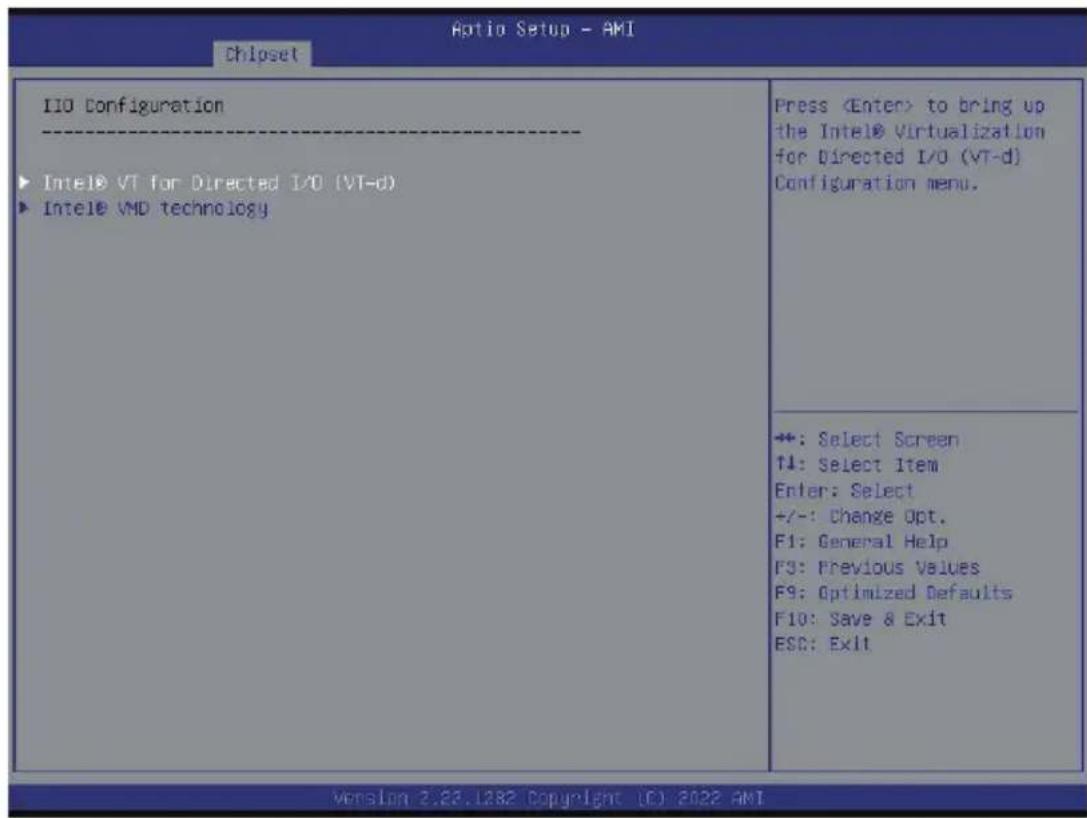
| Parameter | Description |
| IIO Configuration | |
| Intel® VT for Directed I/O (VT-d) | Press [Enter] to configure advanced items.◆ Intel® VT for Directed I/O- Enable/Disable the Intel VT for Directed I/O (VT-d) support function by reporting the I/O device assignment to VMM through DMAR ACPI Tables.- Options available: Enable, Disable. Default setting is Enable.◆ ACS Control- Enable: Programs ACS only to Chipset PCIe Root Ports Bridges.- Disable: Programs ACS to all PCIe bridges.- Default setting is Enable.◆ Cache Allocation- Options available: Enable, Disable. Default setting is Enable.◆ Opt-Out Illegal MSI Mitigation- Enable/Disable Opt-Out Illegal 0xFEE Platform Mitigation.- Options available: Disable, Enable. Default setting is Disable.◆ DMA Control Opt-In Flag- Enable/Disable DMA_CTRL_PLATFORM_OPT_IN_FLAG in DMAR table in ACPI. Not compatible with Direct Device Assignment (DDA).- Options available: Enable, Disable. Default setting is Disable.Interrupt Remapping– Enable/Disable the interrupt remapping support function.– Options available: Auto, Enable, Disable. Default setting is Autox2APIC Opt Out– Options available: Enable, Disable. Default setting is Disable.Pre-boot DMA Protection– Options available: Enable, Disable. Default setting is Disable. |
| Intel® VMD technology | Press [Enter] to configure advanced items.Intel® VMD Configuration– Enable/Disable Inte® VMD technology.– Options available: Enable, Disable. Default setting is Disable.Intel® VMD for Non-Hotplug NVMe ^(Note) – Enable/Disable Inte® VMD for Non-Hotplug NVMe.– Options available: Enable, Disable. Default setting is Disable. |
(Note) This item appears when Intel ® VMD Configuration is set to Enable.
5-3-6 Advanced Power Management Configuration
| Chipset Optio Setup - AMI | |
| Advanced Power Management Configuration CPU P State Control Hardware PM State Control CPU C State Control Package C State Control CPU - Advanced PM Tuning | P State Control Configuration Sub Menu, Include Turbo, XE and etc. |
| +: Select Screen ↑↓: Select Item Enter: Select +/-: Change Opt. F1: General Help F3: Previous Values F9: Optimized Defaults F10: Save & Exit ESC: Exit | |
| Parameter | Description |
| CPU P State Control | Press [Enter] to configure advanced items.◆ SpeedStep (Pstates)– Conventional Intel SpeedStep Technology switches both voltage and frequency in tandem between high and low levels in response to processor load.– Options available: Enable, Disable. Default setting is Enable.◆ Turbo Mode– When this item is enabled, the processor will automatically ramp up the clock speed of 1-2 of its processing cores to improve its performance. When this item is disabled, the processor will not overclock any of its core.– Options available: Enable, Disable. Default setting is Enable. |
| Hardware PM State Control | Press [Enter] to configure advanced items.◆ Hardware P-States– When this item is disabled, the processor hardware chooses a P-state based on OS Request (Legacy P-States).– In Native mode, the processor hardware chooses a P-state based on OS guidance.– In Out of Band mode, the processor hardware autonomously chooses a P-state (with no OS guidance).– Options available: Disable, Native Mode, Out of Band Mode, Native Mode with No Legacy Support. Default setting is Native Mode. |
| CPU C State Control | Press [Enter] to configure advanced items.◆ Enable Monitor MWAIT– Allows Monitor and MWAIT instructions.– Options available: Disable, Enable, Auto. Default setting isAuto.◆ CPU C6 Report– Enable/Disable CPU C6(ACPI C3) report to OS.– Options available: Disable, Enable, Auto. Default setting isAuto.◆ Enhanced Halt State (C1E)– Core C1E auto promotion control. Takes effect after reboot.– Options available: Enable, Disable. Default setting isEnable. |
| Package C State Control | Press [Enter] to configure advanced items.◆ Package C State– Configures the state for the C-State package limit.– Options available: C0/C1 state, C2 state, C6(non Retention) state, C6(Retention) state, No Limit, Auto. Default setting isAuto. |
| CPU - Advanced PM Tuning | Press [Enter] to configure advanced items.◆ Energy Perf BIAS– Press [Enter] to configure advanced items.» Power Performance Tuning• Options available: OS Controls EPB, BIOS Controls EPB, PECI Controls EPB. Default setting isOS Controls EPB.»Energy_PERF_BIAS_CFG mode ^(Note) • Options available: Performance, Balanced Performance, Balanced Power, Power. Default setting isBalanced Performance. |
(Note) This item is configurable when Power Performance Tuning is set to BIOS Controls EPB.
5-3-7 PCH Configuration
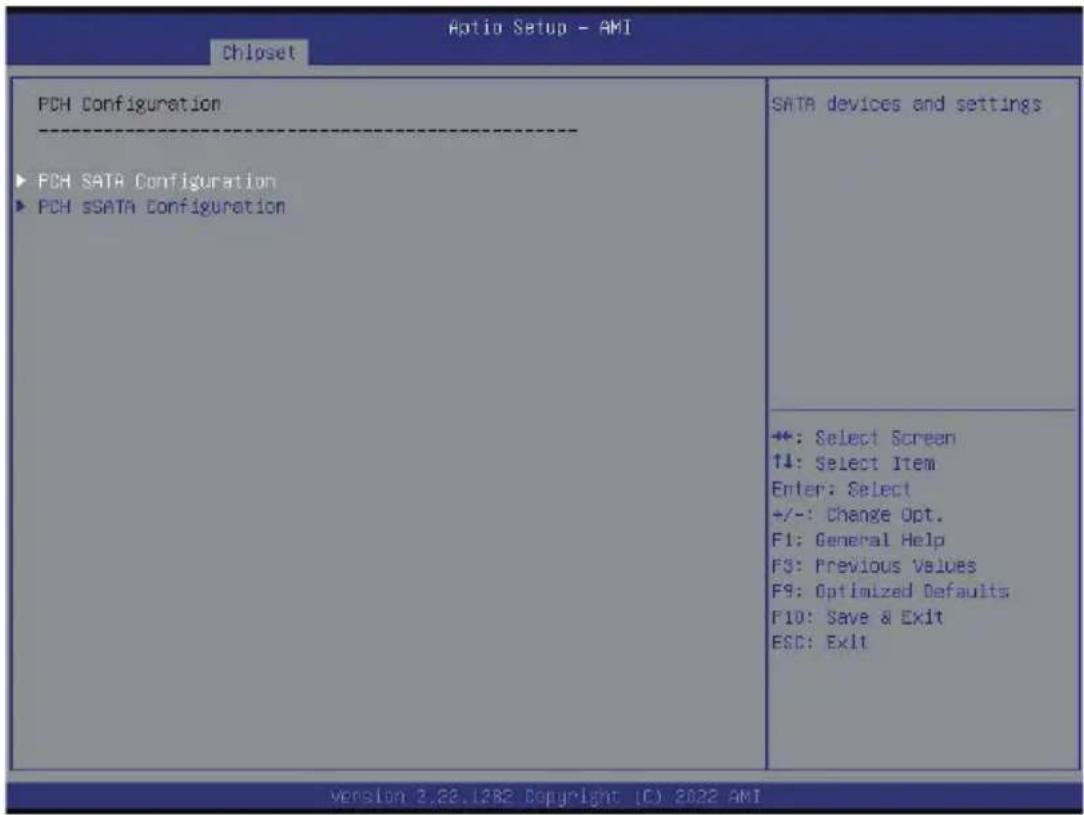
| Parameter | Description |
| PCH Configuration | |
| PCH SATA Configuration | Press [Enter] to configure advanced items.♦ SATA Controller- Enable/Disable SATA controller.- Options available: Enable, Disable. Default setting is Enable.♦ Configure SATA as- Configures on chip SATA type.- AHCI Mode: When set to AHCI, the SATA controller enables its AHCI functionality. Then the RAID function is disabled and cannot be access the RAID setup utility at boot time.- RAID Mode: When set to RAID, the SATA controller enables both its RAID and AHCI functions. You will be allowed to access the RAID setup utility at boot time.- Options available: AHCI, RAID. Default setting is AHCI.♦ Alternate Device ID on RAID^(Note 1) - Enable/Disable Alternate Device ID on RAID mode.- Options available: Enable, Disable. Default setting is Disable♦ SATA Port 0/1/2/3/4/5/6/7- The category identifies SATA hard drives that are installed in the computer. System will automatically detect HDD type. |
(Note) Only appears when HDD sets to RAID Mode.
| Parameter | Description |
| PCH SATA Configuration (continued) | ◆ Port 0/1/2/3/4/5/6/7- Enable/Disable Port 0/1/2/3/4/5/6/7 device.- Options available: Enable, Disable. Default setting is Enable.◆ Hot Plug (for Port 0/1/2/3/4/5/6/7)(Note 2)- Enable/Disable HDD Hot-Plug function.- Options available: Enable, Disable. Default setting is Enable.◆ Spin Up Device (for Port 0/1/2/3/4/5/6/7)(Note 2)- On an edge detect from 0 to 1, the PCH starts a COM reset initialization to the device.- Options available: Enable, Disable. Default setting is Disable. |
| PCH sSATA Configuration | ◆ sSATA Controller- Enable/Disable sSATA controller.- Options available: Enable, Disable. Default setting is Enable.◆ Configure sSATA as- Configures on chip SATA type.- AHCI Mode: When set to AHCI, the SATA controller enables its AHCI functionality. Then the RAID function is disabled and cannot be access the RAID setup utility at boot time.- RAID Mode: When set to RAID, the SATA controller enables both its RAID and AHCI functions. You will be allowed to access the RAID setup utility at boot time.- Options available: AHCI, RAID. Default setting is AHCI.◆ Alternate Device ID on RAID(Note 1)- Enable/Disable Alternate Device ID on RAID mode.- Options available: Enable, Disable. Default setting is Disabled.◆ sSATA Port 0/1/2/3/4/5- The category identifies sSATA hard drives that are installed in the computer. System will automatically detect HDD type.◆ Port 0/1/2/3/4/5- Enable/Disable Port 0/1/2/3/4/5 device.- Options available: Enable, Disable. Default setting is Enable.◆ Hot Plug (for Port 0/1/2/3/4/5)(Note 2)- Enable/Disable HDD Hot-Plug function.- Options available: Enable, Disable. Default setting is Disable.◆ Spin Up Device (for Port 0/1/2/3/4/5)(Note 2)- On an edge detect from 0 to 1, the PCH starts a COM reset initialization to the device.- Options available: Enable, Disable. Default setting is Disabled. |
(Note 1) Only appears when HDD sets to RAID Mode.
(Note 2) Only Supported when HDD is in AHCI or RAID Mode.
5-3-8 Miscellaneous Configuration
![Chipset Aptio Setup - AMI Miscellaneous Configuration Active Video [Auto] Select active Video type +: Select Screen ↑↓: Select Item Enter: Select +/-: Change Opt. F1: General Help F3: Previous Values F9: Optimized Defaults F10: Save & Exit ESC: Exit Version 2.23.1282 Copyright (C) 2022 AMI](/content/2026/06/1219021/images/9b588d189099fa8e3f6a2767595739de380cf9f4b48d9b4a9402fb5aa0608469.jpg)
| Parameter | Description |
| Miscellaneous Configuration | |
| Active Video | Selects the active video type. Options available: Auto, Onboard Device, PCIE Device, Specific PCIE Device. Default setting isAuto. |
5-3-9 Server ME Configuration
![Chipset Optio Setup - AMI General ME Configuration Oper. Firmware Version 4.4.4.202 ME Firmware Status #1 0x000F0255 ME Firmware Status #2 0x89112026 Current State Operational Error Code No Error Recovery Cause N/A PTT Support [Disable] Suppress PTT Commands [Disable] **: Select Screen ↑↓: Select Item Enter: Select +/-: Change Opt. F1: General Help F3: Previous Values F9: Optimized Defaults F10: Save & Exit ESC: Exit Version 2.22.1282 Copyright (C) 2022 AMI](/content/2026/06/1219021/images/9a55fe03105d2adb10bb4b5a8fb6ad058322665b2992b3a4ebd0f5df62d05b30.jpg)
| Parameter | Description |
| General ME Configuration | |
| Oper. Firmware Version | Displays the operational firmware version. |
| ME Firmware Status #1/#2 | Displays ME Firmware status information. |
| Current State | Displays ME Firmware current status information. |
| Error Code | Displays ME Firmware status error code. |
| Recovery Cause | Displays ME Firmware recovery cause. |
| PTT Support | Displays if the system supports the Intel® Platform Trust Technology. |
| Suppress PTT Commands | Displays if the system supports to Bypass TPM2 commands submitting to PTT Firmware. |
5-3-10 Runtime Error Logging Settings
![Optio Setup - AMI Chipset Runtime Error Logging System Errors [Enable] S/W Error Injection Support [Disable] ► When Settings ► Memory Error Enabling ► PCIe Error Enabling System Error Enable/Disable setup options. ◆: Select Screen ↑↓: Select Item Enter: Select +/-: Change Opt. F1: General Help F3: Previous Values F5: Optimized Defaults F10: Save & Exit ESC: Exit ◆+: Select Screen ↑↓: Select Item Enter: Select +/-: Change Opt. F1: General Help F3: Previous Values F5: Optimized Defaults F10: Save & Exit ESC: Exit Version 2.22.1882 Copyright (C) 2022 AMI](/content/2026/06/1219021/images/f75dffcd0d37f83f7d93f2f40e10e1c276c1b74f7818288b532fd98c0451d77d.jpg)
| Parameter | Description |
| Runtime Error Logging | |
| System Errors | Enable/Disable system error logging function.Options available: Enable, Disable. Default setting is Enable. |
| S/W Error Injection Support | Enable/Disable software injection error logging function.Options available: Enable, Disable. Default setting is Disable. |
| Whea Settings | Press [Enter] to configure advanced items.♦ WHEA (Windows Hardware Error Architecture) Support- Enable/Disable WHEA Support.- Options available: Enable, Disable. Default setting is Enable. |
| Memory Error Enabling | Press [Enter] to configure advanced items.♦ Memory Corrected Error- Enable/Disable Memory Corrected Error.- Options available: Enable, Disable. Default setting is Enable.♦ Uncorrected Error disable Memory- Enable/Disable the Memory that triggers Uncorrected Error.- Options available: Enable, Disable. Default setting is Disable. |
| PCIe Error Enabling | Press [Enter] to configure advanced items.◆ PCIE Error- Enable/Disable PCIE error.- Options available: Enable, Disable. Default setting is Disable.◆ Uncorrected Error^(Note) - Enables and escalates Uncorrectable/Recoverable Errors to error pins.- Options available: Enable, Disable. Default setting is Enable.◆ Fatal Error Enable^(Note) - Enables and escalates Fatal Errors to error pins.- Options available: Enable, Disable. Default setting is Enable.◆ Assert NMI on SERR^(Note) - Enable/Disable BIOS generates a non-maskable interrupt (NMI) and logs an error when a system error (SERR) occurs.- Options available: Enabled, Disabled. Default setting is Enabled.◆ Assert NMI on PERR^(Note) - Enable/Disable BIOS generates a non-maskable interrupt (NMI) and logs an error when a processor bus parity error (PERR) occurs.- Options available: Enabled, Disabled. Default setting is Enabled. |
(Note) This item appears when PCIE Error is set to Enable.
5-3-11 Power Policy
| Chipset | ||
| Power Policy Quick Settings SpeedStep (Pstates) Turbo Mode CPU 06 report Enhanced Helt State (CIE) Package C State Hyper-Threading [ALL] Hardware Prefetcher Adjacent Cache Prefetch DCU Streamer Prefetcher Isoc Mode Intel® VT for Directed I/O Link Frequency Select | [Standard] [Enabled] [Enabled] [Auto] [Enabled] [Auto] [Enabled] [Enabled] [Enabled] [Auto] | Select a Power Policy Quick Setting(The following items will be set based on the selected power policy) |
| +:-: Select Screen ↑↓: Select Item Enter: Select +/-: Change Opt. F1: General Help F3: Previous Values F9: Optimized Defaults F10: Save & Exit ESC: Exit | ||
| Version 2.22.1282 Copyright (C) 2022 AMI | ||
| Parameter | Description |
| Power Policy Quick Settings | Selects a Power Policy Quick Setting. Options available: Standard, Best Performance, Energy Efficient, Turbo Lock. Default setting is Standard. |
| SpeedStep (Pstates) | Conventional Intel SpeedStep Technology switches both voltage and frequency in tandem between high and low levels in response to processor load. Options available: Enabled, Disabled. Default setting is Enabled. |
| Turbo Mode | When this item is enabled, the processor will automatically ramp up the clock speed of 1-2 of its processing cores to improve its performance. When this item is disabled, the processor will not overclock any of its core. Options available: Enabled, Disabled. Default setting is Enabled. |
| CPU C6 report | Enable/Disable the BIOS to enable the report from the CPU C6 state (ACPI C3) to the OS. Options available: Disabled, Enabled, Auto. Default setting is Disabled. |
| Enhanced Halt State (C1E) | Enable/Disable the C1E support for lower power consumption. Takes effect after reboot. Options available: Enabled, Disabled. Default setting is Disabled. |
| Package C State | Configures the C-State package limit. Options available: C0/C1 state, C2 state, C6(non Retention) state C6(Retention) state, Auto. Default setting is Auto. |
| Hyper-Threading [ALL] | The Hyper Threading Technology allows a single processor to execute two or more separate threads concurrently. When hyper-threading is enabled, multi-threaded software applications can execute their threads, thereby improving performance.Options available: Enabled, Disabled. Default setting is Enabled. |
| Hardware Prefetcher | Options available: Enabled, Disabled. Default setting is Enabled. |
| Adjacent Cache Prefetch | Options available: Enabled, Disabled. Default setting is Enabled. |
| DCU Streamer Prefetcher | Options available: Enabled, Disabled. Default setting is Enabled. |
| Isoc Mode | Enable/Disable the Isochronous support in order to meet the QoS requirements (Quality of Service).Options available: Auto, Enabled, Disabled. Default setting is Auto. |
| Intel® VT for Directed I/O (VT-d) | Enable/Disable the Intel VT for Directed I/O (VT-d) support function by reporting the I/O device assignment to VMM through DMAR ACPI Tables. Options available: Enabled, Disabled. Default setting is Enabled. |
| Link Frequency Select | Selects the UPI link frequency.Options available: 9.6GT/s, 10.4GT/s, 11.2GT/s, Auto.Default setting is Auto. |
5-4 Server Management Menu
![Main Advanced Chipset Server Mgmt Security Bout Save & Exit FRB-2 Timer [Disabled] FRB-2 Timer timeout 6 FRB-2 Timer Policy [Do Nothing] OS Watchdog Timer [Disabled] OS Wtd Timer Timeout 10 OS Wtd Timer Policy [Reset] Walt BMC Ready [2 minutes] ► System Event Log ► View FRU information ► BMC VLAN Configuration ► BMC network configuration ► IPv6 BMC Network Configuration Enable or Disable FRB-2 timer(POST timer) +: Select Screen T1: Select Item Enter: Select +/-: Change Opt. F1: General Help F3: Previous Values F9: Optimized Defaults F10: Save & Exit ESC: Exit version 3.22.1282 Copyright (C) 2022 AMI](/content/2026/06/1219021/images/921746f2fd580e7fd36ce2723c485a49d70a5613b8c4030009443963991f3caf.jpg)
| Parameter | Description |
| FRB-2 Timer | Enable/Disable FRB-2 timer (POST timer).Options available: Enabled, Disabled. Default setting is Enabled. |
| FRB-2 Timer ^(Note1) timeout | Configures the FRB2 Timer timeout. The value is between 1 to 30 minutes.Default setting is 6 minutes. |
| FRB-2 TimerPolicy ^(Note1) | Configures the FRB2 Timer policy.Options available: Do Nothing, Reset, Power Down, Power Cycle.Default setting is Do Nothing. |
| OS WatchdogTimer | Enable/Disable OS Watchdog Timer function.Options available: Enabled, Disabled. Default setting is Disabled. |
| OS Wtd TimerTimeout ^(Note2) | Configures OS Watchdog Timer. The value is between 1 to 30 minutes.Default setting is 10 minutes. |
| OS Wtd TimerPolicy ^(Note2) | Configure OS Watchdog Timer Policy.Options available: Reset, Do Nothing, Power Down, Power Cycle.Default setting is Reset. |
| Wait BMC Ready | POST wait BMC ready and reboot system.Options available: Disabled, 2 minutes, 4 minutes, 6 minutes.Default setting is 2 minutes. |
(Note1) This item is configurable when FRB-2 Timer is set to Enabled.
(Note2) This item is configurable when OS Watchdog Timer is set to Enabled.
| Parameter | Description |
| System Event Log | Press [Enter] to configure advanced items. |
| View FRU Information | Press [Enter] to view the FRU information. |
| BMC VLAN Configuration | Press [Enter] to configure advanced items. |
| BMC network Configuration | Press [Enter] to configure advanced items. |
| IPv6 BMC Network Configuration | Press [Enter] to configure advanced items. |
5-4-1 System Event Log
| Ratio Setup - AMI Server Mgmt | |
| Enabling/Disabling Options SEL Components [Enabled] | Change this to enable or disable event logging for error/progress codes during boot. |
| Erasing Settings Erase SEL [No] When SEL is Full [Do Nothing] | |
| Custom EFI Logging Options Log EFI Status Codes [Error code] | |
| NOTE: All values changed here do not take effect until computer is restarted. | |
| +: Select Screen ↑↓: Select Item Enter: Select +/-: Change Opt. F1: General Help F3: Previous Values F9: Optimized Defaults F10: Save & Exit ESC: Exit | |
| Version 2.23.1882 Copyright (C) 2022 AMI | |
| Parameter | Description |
| Enabling / Disabling Options | |
| SEL Components | Change this item to enable or disable all features of System Event Logging during boot.Options available: Enabled, Disabled. Default setting is Enabled. |
| Erasing Settings | |
| Erase SEL | Choose options for erasing SEL.Options available: No,Yes, On next reset,Yes, On every reset.Default setting is No. |
| When SEL is Full | Choose options for reactions to a full SEL.Options available: Do Nothing, Erase Immediately, Delete Oldest Record.Default setting is Do Nothing. |
| Custom EFI Logging Options | |
| Log EFI Status Codes | Enable/Disable the logging of EFI Status Codes (if not already converted to legacy).Options available: Disabled, Both, Error code, Progress code. Default setting is Error code. |
5-4-2 View FRU Information
The FRU page is a simple display page for basic system ID information, as well as System product information. Items on this window are non-configurable.

5-4-3 BMC VLAN Configuration

| Parameter | Description |
| BMC VLAN Configuration | |
| BMC VLAN ID | Select to configure BMC VLAN ID. The valid range is from 0 to 4094. When set to 0, BMC VLAN ID will be disabled. |
| BMC VLAN Priority | Select to configure BMC VLAN Priority. The valid range is from 0 to 7.When BMC VLAN ID is set to 0, BMC VLAN Priority will not be selected. |
5-4-4 BMC Network Configuration
![Optio Setup - AMI Server Mgmt --BMC network configuration-- Lan channel 1 Configuration Address source [Unspecified] Station IP address 10.1.112.77 Subnet mask 255,255,255,0 Router IP address 10.1.112.253 Station MAC address 74-56-30-06-19-57 Real-time get BMC network address Select to configure LAN channel parameters statically or dynamically(by BIOS or BMC). Unspecified option will not modify any BMC network parameters during BIOS phase +: Select Screen T#: Select Item Enter: Select +/-: Change Opt. F1: General Help F3: Previous Values F9: Optimized Defaults F10: Save & Exit ESC: Exit version 2.28.1282 Copyright (C) 2022 AMI](/content/2026/06/1219021/images/cd1d3efb7fab092e3c839e050f603041981a9f2cac932637edb80455daf5a300.jpg)
| Parameter | Description |
| BMC network configuration | |
| Select NCSI and Dedicated LAN | Options available: Do Nothing, Model1(Dedicated), Model2(NCSI), Mode3(Failover). Default setting is Do Nothing. |
| Lan Channel 1 | |
| Configuration Address source | Selects to configure LAN channel parameters statically or dynamically (DHCP). Options available: Unspecified, Static, DynamicBmcDhcp. Default setting is DynamicBmcDhcp. |
| Station IP address | Displays IP Address information. |
| Subnet mask | Displays Subnet Mask information. Please note that the IP address must be in three digitals, for example, 192.168.000.001. |
| Router IP address | Displays the Router IP Address information. |
| Station MAC address | Displays the MAC Address information. |
| Real-time get BMC network address | Press [Enter] will set LAN mode and Address source and then get IP, Subnet, Gateway and MAC address. |
5-4-5 IPv6 BMC Network Configuration
![IPv6 BMC Network Configuration IPv6 BMC Lan Channel 1: IPv6 BMC Lan Option [Unspecified] IPv6 BMC Lan IP Address Source [Unspecified] IPv6 BMC Lan IP Address/Prefix ::/0 Length -> [:::/0] Enable/Disable IPv6 BMC LAN channel function. Disable option will not modify any BMC network during BIOS Phase +: Select Screen T4: Select Item Enter: Select +/-: Change Opt. F1: General Help F3: Previous Values F9: Optimized Defaults F10: Save & Exit ESC: Exit Version 2.22.1282 Copyright (C) 2022 AMI](/content/2026/06/1219021/images/8296a24509854911d69d7b58dee27b49694f16183ff4b13576cf5e68f8fa8b7d.jpg)
| Parameter | Description |
| IPv6 BMC network configuration | |
| IPv6 BMC Lan Channel 1 | |
| IPv6 BMC Lan Option | Enable/Disable IPv6 BMC LAN channel function. When this item is disabled, the system will not modify any BMC network during BIOS phase.Options available: Unspecified, Disable, Enable. Default setting is Enable. |
| IPv6 BMC Lan IP Address Source | Selects to configure LAN channel parameters statically or dynamically (by BIOS or BMC).Options available: Unspecified, Static, Dynamic-Obtained by BMC running DHCP. Default setting is Dynamic-Obtained by BMC running DHCP. |
| IPv6 BMC Lan IP Address/ Prefix Length | Check if the IPv6 BMC LAN IP address matches those displayed on the screen. |
5-5 Security Menu
The Security menu allows you to safeguard and protect the system from unauthorized use by setting up access passwords.
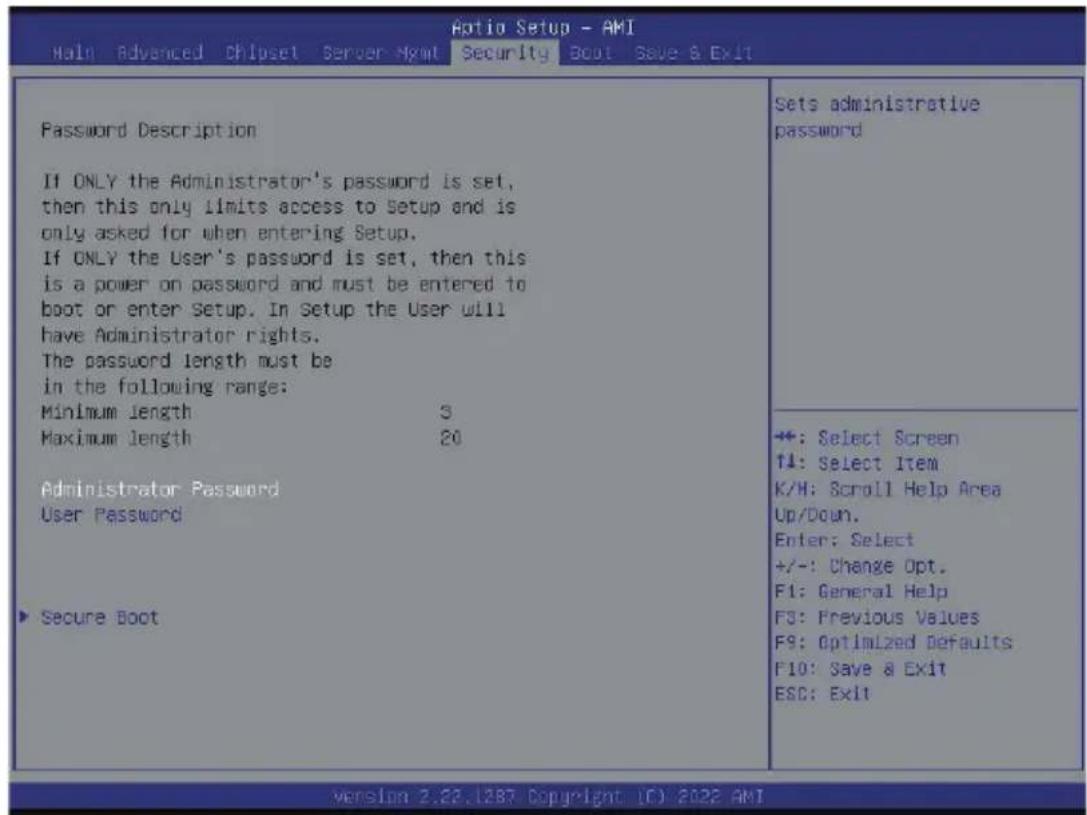
There are two types of passwords that you can set:
- Administrator Password Entering this password will allow the user to access and change all settings in the Setup Utility.
- User Password Entering this password will restrict a user's access to the Setup menus. To enable or disable this field, a Administrator Password must first be set. A user can only access and modify the System Time, System Date, and Set User Password fields.
| Parameter | Description |
| Administrator Password | Press [Enter] to configure the administrator password. |
| User Password | Press [Enter] to configure the user password. |
| Secure Boot | Press [Enter] to configure advanced items. |
5-5-1 Secure Boot
The Secure Boot submenu is applicable when your device is installed the Windows® 8 (or above) operating system.
| Aptio Setup - AMI Security | ||
| System Mode | Setup | Secure Boot feature is Active if Secure Boot is Enabled, Platform Key(PK) is enrolled and the System is in User mode. The mode change requires platform reset |
| Secure Boot | [Disabled] Not Active | |
| Secure Boot Mode | [Custom] | |
| Restore Factory Keys Reset To Setup Mode | ||
| Key Management | ||
| +: Select Screen ↑↓: Select Item K/M: Scroll Help Area Up/Down. Enter: Select +/-: Change Opt. F1: General Help F3: Previous Values F9: Optimized Defaults F10: Save & Exit ESC: Exit | ||
| Parameter | Description |
| System Mode | Displays if the system is in User mode or Setup mode. |
| Secure Boot | Enable/ Disable the Secure Boot function.Options available: Enabled, Disabled. Default setting is Disabled. |
| Secure Boot Mode^(Note) | Secure Boot requires all the applications that are running during the booting process to be pre-signed with valid digital certificates. This way, the system knows all files being loaded before Windows loads to the login screen have not been tampered with.When set to Standard, it will automatically load the Secure Boot keys form the BIOS databases.When set to Custom, you can customize the Secure Boot settings and manually load its keys from the BIOS database.Options available: Standard, Custom. Default setting is Custom. |
| Restore Factory Keys | Forces the system to user mode and installs factory default Secure Boot key database. |
| Reset To Setup Mode | Reset the system to Setup Mode. |
(Note) Advanced items prompt when this item is set to Custom.
| Parameter | Description |
| Key Management | Press [Enter] to configure advanced items.Please note that this item is configurable when Secure Boot Mode is set to Custom.◆ Factory Key Provision- Allows to provision factory default Secure Boot keys when system is in Setup Mode.- Options available: Enabled, Disabled. Default setting is Disabled.◆ Restore Factory Keys- Installs all factory default keys. It will force the system in User Mode.- Options available: Yes, No.◆ Reset To Setup Mode- Reset the system to Setup Mode.- Options available: Yes, No.◆ Enroll Efi Image- Press [Enter] to enroll SHA256 hash of the binary into Authorized Signature Database (db).◆ Export Secure Boot variables- Copy NVRAM content of Secure Boot variables to files in a root folder on a file system device.◆ Secure Boot variable- Displays the current status of the variables used for secure boot.◆ Platform Key (PK)- Displays the current status of the Platform Key (PK).- Press [Enter] to configure a new PK.- Options available: Update.◆ Key Exchange Keys (KEK)- Displays the current status of the Key Exchange Key Database (KEK).- Press [Enter] to configure a new KEK or load additional KEK from storage devices.- Options available: Update, Append.◆ Authorized Signatures (DB)- Displays the current status of the Authorized Signature Database.- Press [Enter] to configure a new DB or load additional DB from storage devices.- Options available: Update, Append.◆ Forbidden Signatures (DBX)- Displays the current status of the Forbidden Signature Database.- Press [Enter] to configure a new dbx or load additional dbx from storage devices.- Options available: Update, Append. |
| Key Management (continued) | ◆ Authorized TimeStamps (DBT)– Displays the current status of the Authorized TimeStamps Database.– Press [Enter] to configure a new DBT or load additional DBT from storage devices.– Options available: Update, Append.◆ OsRecovery Signatures– Displays the current status of the OsRecovery Signature Database.– Press [Enter] to configure a new OsRecovery Signature or load additional OsRecovery Signature from storage devices.– Options available: Update, Append. |
5-6 Boot Menu
The Boot menu allows you to set the drive priority during system boot-up. BIOS setup will display an error message if the legacy drive(s) specified is not bootable.
![Auto Setup - AMI Hain Advanced Chipset Server Mgmt Security Boot Save & Exit Boot Configuration Setup Prompt Timeout Bootup NumLock State Quiet Boot Setup Flash Dump full Setup Data Dump non-default Setup Data Restore Setup Data Boot mode select FIXED BOOT ORDER Priorities Boot Option #1 Boot Option #2 Boot Option #3 Boot Option #4 Boot Option #5 ▶ UEFI Hard Disk Drive BBS Priorities ▶ UEFI NETWORK Drive DBS Priorities 1 [On] [Enabled] [UEFI] [Hard Disk:ubuntu (KCM61RUL560G)] [CD/DVD] [USB Device] [Network:UEFI: PXE IPv4 Broadcom NetXtreme Gigabit Ethernet (BCM5720)] [UEFI AP:UEFI: Built-in EFI Shell] Number of seconds to wait for setup activation key. 65535(0xFFFF) means indefinite waiting. +: Select Screen T4: Select Item Enter: Select +/-: Change Opt. F1: General Help F3: Previous Values FS: Optimized Defaults F10: Save & Exit ESC: Exit version 3.22.1282 Copyright (C) 2022 AMI](/content/2026/06/1219021/images/7c850b810262b380c22a8e3677cefd837b641b079df1f5db3657e8153d86588f.jpg)
| Parameter | Description |
| Boot Configuration | |
| Setup Prompt Timeout | Number of seconds to wait for setup activation key. 65535 (0xFFFF) means indefinite waiting.Press the numeric keys to input the desired values. |
| Bootup NumLock State | Enable/Disable the Bootup NumLock function.Options available: On, Off. Default setting is On. |
| Quiet Boot | Enable/Disable showing the logo during POST.Options available: Enabled, Disabled. Default setting is Enabled. |
| Endless Retry Boot | Options available: Disable, Enable. Default setting is Disable. |
| Setup Flash | Press [Enter] to run setup flash. |
| Dump full Setup Data | Press [Enter] to dump full setup data to file. |
| Dump non-default Setup Data | Press [Enter] to dump non-default setup data to file. |
| Restore Setup Data | Press [Enter] to restore setup data from file. |
| FIXED BOOT ORDER Priorities | |
| Boot Option #1 / #2 / #3 / #4 / #5 | Press [Enter] to configure the boot order priority.By default, the server searches for boot devices in the following sequence:1. Hard drive.2. CD-COM/DVD drive.3. USB device.4. Network.5. UEFI. |
| UEFI Hard Disk Drive BBS Priorities | Press [Enter] to configure the boot priority. |
| UEFI Network Drive BBS Priorities | Press [Enter] to configure the boot priority. |
| UEFI Application Boot Priorities | Press [Enter] to configure the boot priority. |
5-7 Save & Exit Menu
The Save & Exit menu displays the various options to quit from the BIOS setup. Highlight any of the exit options then press
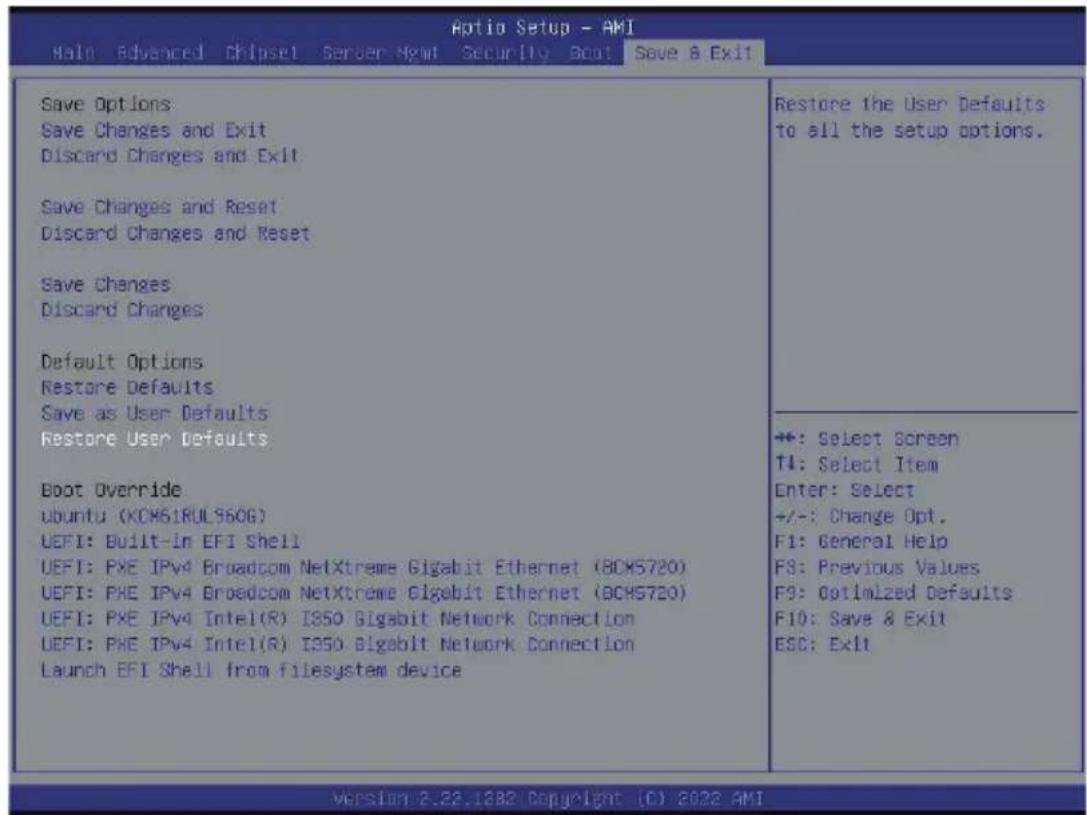
| Parameter | Description |
| Save Options | |
| Save Changes and Exit | Saves changes made and closes the BIOS setup. Options available: Yes, No. |
| Discard Changes and Exit | Discards changes made and exits the BIOS setup. Options available: Yes, No. |
| Save Changes and Reset | Restarts the system after saving the changes made. Options available: Yes, No. |
| Discard Changes and Reset | Restarts the system without saving any changes. Options available: Yes, No. |
| Save Changes | Saves changes done so far to any of the setup options. Options available: Yes, No. |
| Discard Changes | Discards changes made and closes the BIOS setup. Options available: Yes, No. |
| Default Options | |
| Restore Defaults | Loads the default settings for all BIOS setup parameters. Setup Defaults are quite demanding in terms of resources consumption. If you are using low-speed memory chips or other kinds of low-performance components and you choose to load these settings, the system might not function properly.Options available: Yes, No. |
| Save as User Defaults | Saves the changes made as the user default settings.Options available: Yes, No. |
| Restore User Defaults | Loads the user default settings for all BIOS setup parameters.Options available: Yes, No. |
| Boot Override | Press [Enter] to configure the device as the boot-up drive. |
| Launch EFI Shell from filesystem device | Attempts to Launch EFI Shell application (Shell.efi) from one of the available file system devices. |
5-8 BIOS Recovery
The system has an embedded recovery technique. In the event that the BIOS becomes corrupt the boot block can be used to restore the BIOS to a working state. To restore your BIOS, please follow the instructions listed below:
Recovery Instruction:
- Copy the XXX.rom to USB diskette.
- Setting BIOS Recovery jump to enabled status.
- Boot into BIOS recovery.
- Run Proceed with flash update.
- BIOS updated.
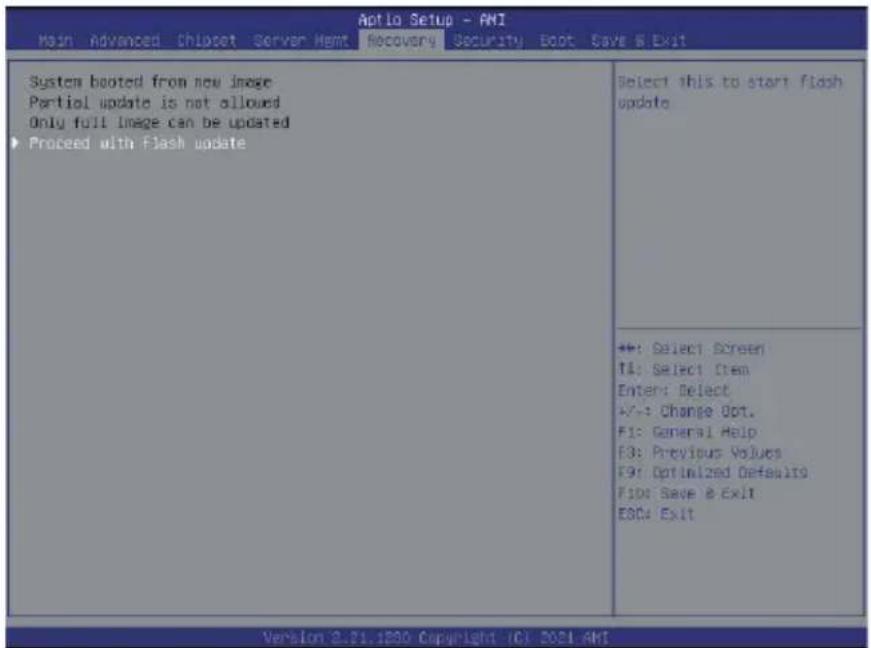
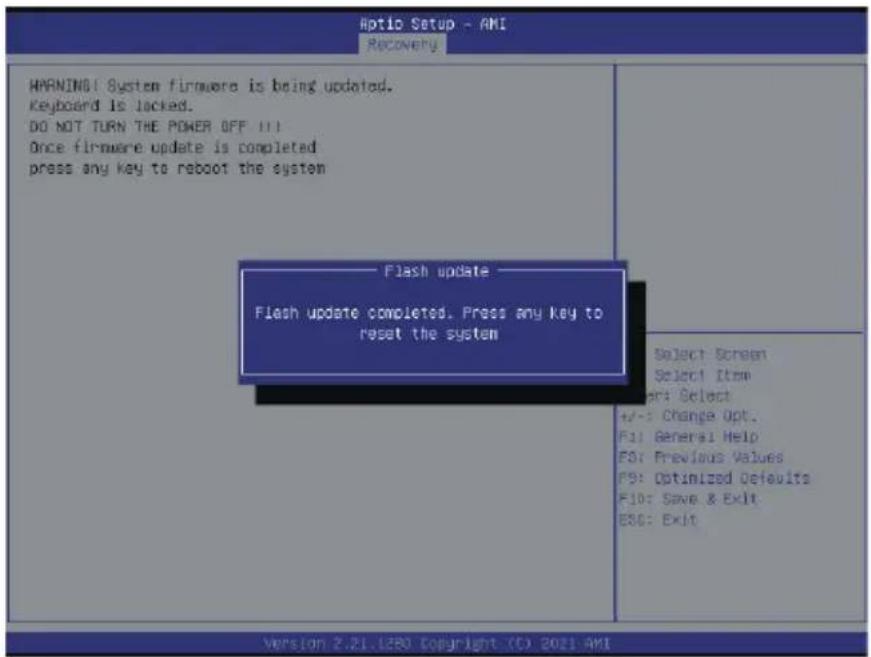
5-9 BIOS POST Beep code (AMI standard)
5-9-1 PEI Beep Codes
| # of Beeps Description |
| 1 Memory not Installed. |
| 1 Memory was installed twice (InstallPeiMemory routine in PEI Core called twice) |
| 2 Recovery started |
| 3 DXEIPL was not found |
| 3 DXE Core Firmware Volume was not found |
| 4 Recovery failed |
| 4 S3 Resume failed |
| 7 Reset PPI is not available |
5-9-2 DXE Beep Codes
| # of Beeps Description |
| 1 Invalid password |
| 4 Some of the Architectural Protocols are not available |
| 5 No Console Output Devices are found |
| 5 No Console Input Devices are found |
| 6 Flash update is failed |
| 7 Reset protocol is not available |
| 8 Platform PCI resource requirements cannot be met |
- TO23-BT0
- Copyright
- Disclaimer
- Documentation Classifications
- For More Information
- Conventions
- Server Warnings and Cautions
- WARNING!
- To reduce the risk of electric shock or damage to the equipment:
- CAUTION!
- Electrostatic Discharge (ESD)
- Table of Contents
- Chapter 1 Hardware Installation ...... 11
- Chapter 2 System Appearance....15
- Chapter 3 System Hardware Installation ....20
- Chapter 4 Motherboard Components ......36
- Chapter 5 BIOS Setup....41
- 5-1 The Main Menu 43
- 5-2 Advanced Menu 46
- 5-3 Chipset Menu 70
- 5-4 Server Management Menu....93
- 5-5 Security Menu 100
- Chapter 1 Hardware Installation
- 1-1 Installation Precautions
- 1-2 Product Specifications
- 1-2-1 TO23-H60
- NOTE:
- 1-3 System Block Diagram
- Chapter 2 System Appearance
- 2-1 Front View
- 2-2 Rear View
- 2-3 Front Panel LEDs and Buttons
- 2-4 Front System LAN LEDs
- 2-5 Hard Disk Drive LEDs
- Chapter 3 System Hardware Installation
- Pre-installation Instructions
- 3-1 Removing Shelf from the Rack
- 3-2 Removing Computing Node from the Shelf
- 3-3 Removing System Cover
- Follow these instructions to remove the system cover:
- 3-4 Installing the Hard Disk Drive
- 3-4-1 Removing Hard Disk Drive Cage
- 3-5 Installing the CPU and Heat Sink
- Follow these instructions to install the CPU:
- 3-6 Installing Memory
- 3-6-1 Eight Channel Memory Configuration
- 3-6-2 Removing and Installing a Memory Module
- 3-6-3 Processor and Memory Module Matrix Table
- 3-6-4 Memory Population Table
- 3-7 Installing the PCI Expansion Card
- Follow these instructions to install the left PCI Expansion card:
- 3-8 Installing the Mezzanine Card
- 3-8-1 Installing the OCP 3.0 Mezzanine Card
- Follow these instructions to install an OCP 3.0 Mezzanine card:
- 3-9 Replacing the Fan Assembly
- 3-10 Cable Routing
- Chapter 4 Motherboard Components
- 4-1 Motherboard Components
- 4-2 Jumper Setting
- 4-3 Backplane Board Storage Connector 4-3-1 COBP540
- Chapter 5 BIOS Setup
- Main
- ■ Advanced
- Chipset
- ■ Server Management
- Security
- Boot
- ■ Save & Exit
- 5-1 The Main Menu
- Main Menu Help
- Submenu Help
- 5-2 Advanced Menu
- 5-2-1 Trusted Computing
- 5-2-2 Serial Port Console Redirection
- 5-2-3 SIO Configuration
- 5-2-4 PCI Subsystem Settings
- 5-2-5 USB Configuration
- 5-2-6 Network Stack Configuration
- 5-2-7 Post Report Configuration
- 5-2-8 NVMe Configuration
- 5-2-9 Chipset Configuration
- 5-2-10 Tls Auth Configuration
- 5-2-11 iSCSI Configuration
- 5-2-12 Broadcom Gigabit Ethernet BCM5720
- 5-2-13 VLAN Configuration
- 5-2-14 IPv4 Network Configuration
- 5-2-15 Intel(R) I350 Gigabit Network Connection
- 5-2-16 VLAN Configuration
- 5-2-17 IPv4 Network Configuration
- 5-2-18 Driver Health
- 5-3 Chipset Menu
- 5-3-1 Processor Configuration
- 5-3-2 Common RefCode Configuration
- 5-3-3 UPI Configuration
- 5-3-4 Memory Configuration
- 5-3-5 IIO Configuration
- 5-3-6 Advanced Power Management Configuration
- 5-3-7 PCH Configuration
- 5-3-8 Miscellaneous Configuration
- 5-3-9 Server ME Configuration
- 5-3-10 Runtime Error Logging Settings
- 5-3-11 Power Policy
- 5-4 Server Management Menu
- 5-4-1 System Event Log
- 5-4-2 View FRU Information
- 5-4-3 BMC VLAN Configuration
- 5-4-4 BMC Network Configuration
- 5-4-5 IPv6 BMC Network Configuration
- 5-5 Security Menu
- 5-5-1 Secure Boot
- 5-6 Boot Menu
- 5-7 Save & Exit Menu
- 5-8 BIOS Recovery
- Recovery Instruction:
- 5-9 BIOS POST Beep code (AMI standard)
- 5-9-1 PEI Beep Codes
- 5-9-2 DXE Beep Codes
Brand : GIGABYTE
Model : TO23-BT0
Category : Computing